CLA Effects - Audio software WAVES - Free user manual and instructions
Find the device manual for free CLA Effects WAVES in PDF.


User questions about CLA Effects WAVES
0 question about this device. Answer the ones you know or ask your own.
Ask a new question about this device
Download the instructions for your Audio software in PDF format for free! Find your manual CLA Effects - WAVES and take your electronic device back in hand. On this page are published all the documents necessary for the use of your device. CLA Effects by WAVES.
USER MANUAL CLA Effects WAVES
natural_image
Abstract black-and-white waveform pattern with triangular and inverted shapes (no text or symbols)WAVES
Table of Contents
Chapter 1 – Introduction......3
Product Overview .... 3
1.1 Concepts and Terminology....4
A Few Words from Chris ....4
Chapter 2 – Quickstart Guide .... 5
Chapter 3 – Interface and Controls ...... 6
3.1 Interface....6
3.2 Controls 7
3.3 WaveSystem Toolbar....12
Waves CLA Effects
User Guide
Chapter 1 – Introduction
Welcome
Thank you for choosing Waves! In order to get the most out of your new Waves plugin, please take a moment to read this user guide.
To install software and manage your licenses, you need to have a free Waves account. Sign up at www.waves.com. With a Waves account you can keep track of your products, renew your Waves Update Plan, participate in bonus programs, and keep up to date with other important information.
We suggest that you become familiar with the Waves Support pages:
www.waves.com/support. There are technical articles about installation, troubleshooting, specifications, and more. Plus, you'll find company contact information and Waves Support news.
Product Overview
The Waves Artist Signature Series is our exclusive line of application-specific audio processors, created in collaboration with the world's top producers, engineers, and mixing engineers. Every Signature Series plug-in has been precision-crafted to capture the artist's distinct sound and production style. For experienced and aspiring audio professionals alike, the Waves Signature Series allows you to dial up the sound you're looking for quickly, without interrupting the creative flow.
The CLA Artist Collection consists of six plug-ins, each of which is designed to handle a specific mixing task.
- CLA Vocals
- CLA Drums
- CLA Bass
- CLA Guitars
- CLA Unplugged
- CLA Effects
Waves CLA Effects
User Guide
1.1 Concepts and Terminology
Sensitivity Control/Sensitivity LED
The Sensitivity LED's 3 colors indicate when appropriate levels are reached:
Led Off (too low)
Green (good)
◆ Yellow (optimal)
◆ Red (very hot)
Push the Sensitivity Control upwards until the LED lights up. We recommend adjusting the Sensitivity Control as soon as you open the plug-in, using the section of your song with the highest peaks for best results.
In most cases, the Sensitivity LED indicates that your levels hit the processor in a way that will give you the intended output result. However, it's important to keep in mind that optimal results for your source material may be achieved even when the Sensitivity LED does not display "optimal" levels (yellow). As always, trust your ears.
Color
Each fader on CLA Artist Signature Collection plug-ins controls a specific function, such as compression or reverb. Each function has a color-coded selector which controls the internal characteristics of that function, resulting in a different sound character or "Color." You can mix and match different colors across the different faders.
A Few Words from Chris
"CLA Effects does it all. Filtered vocal? Check. Telephone FX? Check. John Lennon "I Am the Walrus" vocal distortion? Check and double check. Multiple delays with tape phasing? You got it. Reverb, tape slap, and long echo all at once? Yes, yes, and yes. One of my favorite features is the echo throw section: Hit the throw button and add long delays to just the words you want, with one click! And to top it all off, all tempos are matched to the session BPM, cutting out all the guesswork."
1.2 Components
WaveShell technology enables us to split Waves processors into smaller plug-ins, which we call components. Having a choice of components for a particular processor gives you the flexibility to choose the configuration best suited to your material.
The Waves CLA Effects has two components:
- CLA Effects Mono-to-Stereo – Mono in to Stereo out component
- CLA Effects Stereo – Stereo in to Stereo out component
Waves CLA Effects
User Guide
Chapter 2 – Quickstart Guide
- Insert the CLA Effects plug-in on an effects return track (aux bus), and turn off the Direct switch. You can also insert the CLA Effects on the source track, in which case you should turn the Direct switch on.
- Adjust the Sensitivity control until you achieve proper levels, as indicated by the Sensitivity LED and the input meter.
- The current plug-in settings now represent Chris's default effect setup.
Tweak the following controls to fit your mix:
• Use the EQ fader to control high frequency content.
- Toggle EQ Color for different filter styles.
- Use Distortion to add some 'bite'. Toggle through the Colors to find that which works best for the song
- Adjust Reverb, Short Delay, Long Delay, and Pitch effect levels. Toggle through the Colors to find that which works best for the song
- The Throw control makes it fun and easy to add a long delay to selected phrases while writing automation. Use the Send Long Delay switch to control the delay input. When set to Hold, the delay will be fed constantly. Using the Throw control, you can feed the delay by holding the mouse down; when the mouse is released, the send is muted.
Please note:
- When Reverb, Short Delay, Long Delay and Pitch Colors are set to clear (Bypass/Mute), and Direct is off, the plug-in will have no output.
- EQ adjustment will take effect once the EQ fader is moved. At zero, cycling through the EQ Colors will have no effect.
- All other faders are active and set to Chris's default setup when at zero.
If the Output meter goes into the red, use the Output fader to lower the Output level.
Chapter 3 – Interface and Controls
3.1 Interface
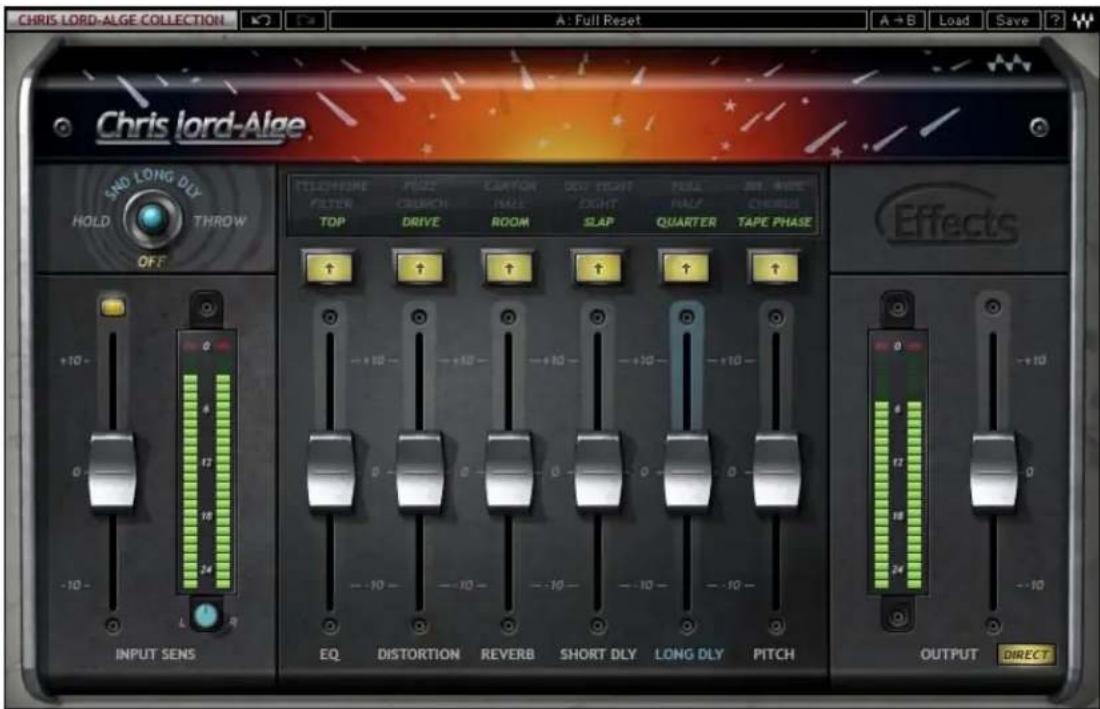
text_image
CHRIS LORD-ALGE COLLECTION A: Full Reset A→B Load Save ? Chris lord-Alge SND LONG DLY HOLD THROW OFF TELEPHONE CLOSE CAVYON DOY EIGHT FULL JIM MUSE FILTER CHUNCH RATE EIGHT HALF CHORDS TOP DRIVE ROOM SLAP QUARTER TAPE PHASE ↑ ↑ ↑ ↑ ↑ ↑ +10 - +10 - +10 - +10 - +10 - 0 12 18 24 0 0 0 0 0 0 0 0 0 0 0 0 0 0 0 0 0 0 0 0 0 0 0 0 0 0 0 0 0 0 0 0 0 0 0 0 0 0 0 0 0 0 0 0 INPUT SENS EQ DISTORTION REVERB SHORT DLY LONG DLY PITCH OUTPUT DIRECT3.2 Controls

Input Sensitivity is used to achieve optimal plug-in input level.
Range: +/- 10 (in 0.1 steps)
Default: 0

text_image
0 6 12 18 24 L R INPUT SENSInput Meter displays input signal peak level.
Range: -26 to 0 dBFS
Clip LED lights up when levels exceed 0 dBFS. Click inside the meter area to reset.
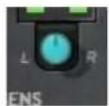
Balance adjusts the offset between left and right signals. (Stereo component only)
Range: +/- 6 dB (in 0.1 steps)
Default: 0
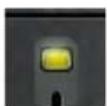
Sensitivity LED indicates the presence of proper levels.
Range: LED off (too low), Green (good), Yellow (optimal), Red (very hot)
Waves CLA Effects
User Guide

text_image
SND LONG DLY MOLD THROW OFFSend Long Delay un-mutes the send to the Long Delay. Feed the delay by holding the mouse down; when the mouse is released, the send is muted.
Range: Hold, Off, Throw
Default: Off
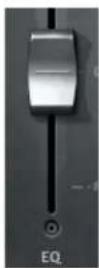
EQ controls the high frequency shelf filter.
Range: +/- 10 (in 0.1 steps)
Default: 0
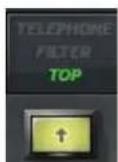
EQ Color toggles between different filter effects.
Range: Clear (Bypass), Green (Top), Blue (Filter), Red (Telephone)
Default: Green (Top)
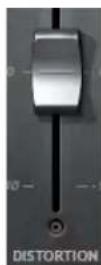
Distortion controls the amount of distortion in the wet mix.
Range: +/- 10 (in 0.1 steps)
Default: 0
Waves CLA Effects
User Guide

Distortion Color toggles between different distortion characters.
Range: Clear (Bypass), Green (Drive), Blue (Crunch), Red (Fuzz)
Default: Green (Drive)
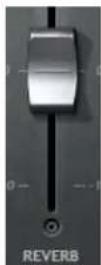
Reverb controls the reverb wet mix
Range: +/- 10 (in 0.1 steps)
Default: 0
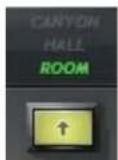
Reverb Color toggles between reverb environments.
Range: Clear (Mute), Green (Room), Blue (Hall), Red (Canyon)
Default: Green (Room)

Short Delay controls the delay wet mix.
Range: +/- 10 (in 0.1 steps)
Default: 0
Waves CLA Effects
User Guide

Short Delay Color toggles delay times and characters. Please note: Delay time syncs to the session BPM, Slap excluded.
Range: Clear (Mute), Green (Slap), Blue (Eight - 1/8 note), Red (Dot Eight - Dotted 1/8 note)
Default: Green (Slap)
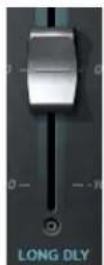
Long Delay controls the delay wet mix.
Range: +/- 10 (in 0.1 steps)
Default: 0

Long Delay Color toggles between delay times and characters. Please note: Delay time syncs to the session BPM.
Range: Clear (Mute), Green (Quarter - 1/4 note), Blue (Half - 1/2 note), Red (Full - whole note)
Default: Green (Slap)

Pitch controls the pitch modulation wet mix.
Range: +/- 10 (in 0.1 steps)
Default: 0
Waves CLA Effects
User Guide
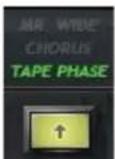
Pitch Color toggles between pitch modulation types.
Range: Clear (Mute), Green (Tape Phase), Blue (Chorus), Red (Mr. Wide)
Default: Green (Tape Phase)

Direct controls the processing path. When Distortion and EQ are On, they affect both the Direct and effects paths. When Distortion and EQ are Off, Direct becomes a dry (unprocessed) signal. In general, when using CLA Effects as an insert, Direct should be On; when used as an effects return, Direct should be Off.
Range: On, Off
Default: On

Output controls the output level.
Range: +/- 10 (in 0.1 steps)
Default: 0

text_image
OUTPUTOutput Meter displays output signal peak level.
Range: -26 to 0 dBFS
Clip LED lights up when levels exceed 0 dBFS. Click inside the meter area to reset.
Waves CLA Effects
User Guide
3.3 WaveSystem Toolbar
Use the bar at the top of the plugin to save and load presets, compare settings, undo and redo steps, and resize the plugin. To learn more, click the icon at the upper-right corner of the window and open the WaveSystem Guide.