
EB-Z8150 - Video projector EPSON - Free user manual and instructions
Find the device manual for free EB-Z8150 EPSON in PDF.


| Product Type | Video Projector |
| Brand | Epson |
| Model | EB-Z8150 |
| Display Technology | 3LCD |
| Brightness | 8000 lumens |
| Native Resolution | WUXGA (1920 x 1200) |
| Contrast Ratio | 5000:1 |
| Lens Type | Power Zoom, Power Focus |
| Zoom Ratio | 1.8x |
| Lamp Life (Normal/ECO) | 2000 / 2500 hours |
| Dimensions (W x D x H) | 534 x 470 x 223 mm |
| Weight | 24.5 kg |
| Power Consumption | 1060 W (Standby: 0.5 W) |
| Power Supply | AC 100-240 V, 50/60 Hz |
| Keystone Correction | Vertical & Horizontal (Manual) |
| Input Interfaces | HDMI, DVI-D, VGA, 5-BNC, Composite, S-Video |
| Network Connectivity | Ethernet (RJ-45), Wi-Fi (optional) |
| Maintenance | Clean air filter monthly; replace lamp after 2000 hours |
| Safety Features | Overheat protection, Kensington lock |
| Spare Parts Availability | Lamp (ELPLP81), Filter Kit |
| Repairability | Modular design; lamp and filter user-replaceable |
| General Information | For professional installation; supports 360-degree orientation |
Frequently Asked Questions - EB-Z8150 EPSON
User questions about EB-Z8150 EPSON
0 question about this device. Answer the ones you know or ask your own.
Ask a new question about this device
Download the instructions for your Video projector in PDF format for free! Find your manual EB-Z8150 - EPSON and take your electronic device back in hand. On this page are published all the documents necessary for the use of your device. EB-Z8150 by EPSON.
USER MANUAL EB-Z8150 EPSON
Notations Used in This Guide
- Safety indications
The documentation and the projector use graphical symbols to show how to use the projector safely.
Please understand and respect these caution symbols in order to avoid injury to persons or property.
| Warning | This symbol indicates information that, if ignored, could possibly result in personal injury or even death due to incorrect handling. |
| Caution | This symbol indicates information that, if ignored, could possibly result in personal injury or physical damage due to incorrect handling. |
- General information indications
| Attention | Indicates procedures which may result in damage or injury if sufficient care is not taken. |
| [ycxz] | Indicates additional information and points which may be useful to know regarding a topic. |
| Indicates a page where detailed information regarding a topic can be found. | |
| [Name] Indicates the name of the buttons on the remote control or the control panel.Example: [Esc] button | |
| Menu Name Indicates Configuration menu items.Example:Select Brightness from Image.Image - Brightness | |
Contents
Notations Used in This Guide 2
Main Guide
Safety Warnings and Cautions
Notes on Installation
Notes on Ceiling Mount
Notes on Power
Notes on Connection
Notes on Lens
Notes on Security
Notes on Use
Video input 26
Video operation....26
Screen adjustment 2
Others 27
Remote Control Operating Range
Operating the Remote Control
Precautions of Power ON/OFF 29
Turning On 29
7 Turning Off 29
Setting Up 30
ID Settings....30
8 Set the projector ID
Checking the Projector ID
ed in)ting the 10 emot control ID
Setting the Time 31
..Day1light Saving Timescreen
Saving a User's Logo
Projecting Images 34
Correcting Distortion in the Projected Image....
H/V _8 Keystone....34
Arc Correction....34
Point Correction....3.
Changing the Aspect Ratio of the Projected Image
Changjing methods....3
M. u.l.t.i.-2P1rojection
Preparing the Projector....
Workflow 38
S.c a2 2 4 1
i fntal g.e M a.i.n t.e n.a n.c e2.2....4
.2Banel Alignment....42
2 3
Security Functions 44
Managing Users (Password Protection)....
KindsofPasswordProtection
S.e2t5ing Password Protection
26 Entering the Password
Before installation (Check items you are intereste
Preparation 19
Installing the Wireless LAN Unit
Replacing the Projector Lens Unit
Attaching the Interface Cover
Installing the Project or 22
Installation Requirements
Adjusting the Position of the Projected Image (Lens Shifntalg.e Main.ten.ance2.2
Adjusting the Zoom
Adjusting the Focus
Displaying a Test Pattern
Remote Control 25
Frequently Used Buttons
Other Buttons
Managing Users (Password Protection)....
KindsofPasswordProtection
S.e2t5ing Password Protection
26 Entering the Password
Contents
Restricting Operation......General Notes......73
Control Panel Lock....46 Trademarks and Copyrights....46 Lens Operation Lock....
Remote control button lock....Epson Projector Contact List .... 74
Network Setup 48 Europe 74
Checking Network Settings Africa 79
80
WIRELESS LAN....48 North, Central America and Caribbean Islands....
Preparing the Projector....48 South America....81
Ad hoc connection settings (Quick)....Asia and Oceania....82
Infrastructure connection settings (Advanced) 49
Wired LAN 51
List of Menus for Other Network Settings....52
Security menu 52
Administrator Settings menu....54
Mail Notification menu 55
Manage Certificates menu....56
SNMP menu 59
Reset menu 60
About Event ID....61
Notes on Transportation 63
Moving Nearby 63
When Transporting....63
Preparing packaging....63
Notes when packing and transporting....63
Reading the Indicators 64
Reading the Indicators....64
Indicator is litor flashing red....65
Indicator is flashing or lit 66
Part Names and Functions 68
Front/Top....68
Anti-Theft Lock 69
Rear....70
Interface....71
Control Panel....72
Main Guide
Notes on Installation

Warning
Do not use the projector where it may be exposed to rain, water, or excessive humidity. The projector may result in fire or electric shock.

Caution
- Do not place the projector on an unstable cart, stand, or table. When projecting images vertically, install the projector correctly and appropriately to prevent it from turning over or falling down.
The projector may fall down or tip over, and injury may result. - Do not carry the projector by one person.
Two people should use the handles to carry the projector when unpacking or moving it.
Attention
- Do not set up the projector in places where it might be subjected or shock.
- Do not set up the projector near high-voltage electrical wires or sources of magnetic fields. These may interfere with correct operation.
- Do not operate the projector under any of the following conditions. If this is not observed, problems with operation or accidents may result.
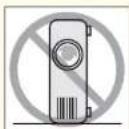
While the projector is standing on its side.
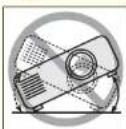
While the projector is tilted one side.
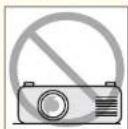
While the projector is upside down.
Attention
- Do not tilt the projector at an angle that is greater than specified. If this is not observed, problems with operation or accidents may result.
Angle of tilt
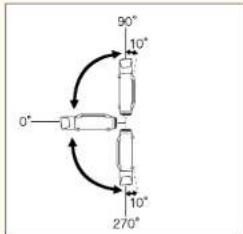
Using the projector at angles not shown in the illustrations above may damage it or cause an accident.
- Make sure you set Direction correctly. The lamp's operating life may be reduced if it is not set.
When adjusting the image height with the vertical lens shift dial, adjust by moving the image from the bottom to the top. If it is adjusted from the top to the bottom, the image position may move down slightly after adjusting.
Notes on Ceiling Mount

Caution
If you use adhesives on the Ceiling mount fixing points to prevent the screws from loosening, or if you use things such as lubricants or oils on the projector, the projector case may crack causing it to fall from its ceiling mount. This could cause serious injury to anyone under the ceiling mount and could damage the projector.
When installing or adjusting the ceiling mount, do not use adhesives to prevent the screws from loosening and do not use oils or lubricants and so on.
Attention
- Unless installing the projector to a floor, fix it using the four screw holes for ceiling mounting. Never remove the handle. The projector or external equipment may fail if used with the handle removed.
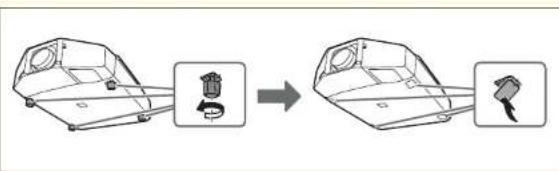
- When mounting the projector on the ceiling, remove the feet and attach the supplied foot covers.
natural_image
Diagram showing a vehicle chassis before and after assembly, with no visible text or symbols- The feet can be attached and removed. Note that the feet will detach if they are extended more than 10 mm.
Always attach the foot covers when the feet are removed. - Do not use the screw holes of feet to fix the projector or attach other screws. Malfunction may result.
Notes on Power

Warning
-
Use the type of power source indicated on the projector.
Use of a different power source may result in fire or electric shock.
• Take the following precautions when handling the plug.
Failure to comply with these precautions could result in fire or electric shock. -
Do not overload wall outlets, extension cables, or power strips.
- Do not insert the plug into a dusty outlet.
- Insert the plug firmly into the outlet.
- Do not hold the plug with wet hands.
- Do not pull the power cable when disconnecting the plug; always be sure to hold the plug when disconnecting it.
- Do not use the power cable that is damaged.
Fire or electric shock may result.
- Do not modify the power cable.
- Do not place heavy objects on top of the power cable.
- Do not bend, twist or pull the power cable excessively.
- Keep the power cable away from hot electrical appliances.
Contact your dealer if the power cord becomes damaged.
"Epson Projector Contact List" p.74
Notes on Connection
Attention
- If the input source is on when you connect it to the projector, it could cause a malfunction.
- If the orientation or shape of the plug differs, do not try to force it in. The device could be damaged or could malfunction.
- If the power cord and the connection cable are bundled together, noise may occur.
Notes on Lens
Attention
- Only remove the lens unit when necessary. If dust or dirt enter the projector, projection quality deteriorates and it could cause a malfunction.
- When replacing the lens unit, turn off the power beforehand.
- If the lens shift has been done, set the lens shift to the center before replacing the lens unit.
"Adjusting the Position of the Projected Image (Lens Shift)" p.22
- Try not to touch the lens section with your hand or fingers. If fingerprints or oils are left on the surface of the lens, projection quality deteriorates.
- Do not attach the lens unit when the projector's lens insertion section is facing up. Dust or dirt could enter the projector.
- Store the projector with the lens unit installed. If the projector is stored without the lens unit, dust and dirt may get inside the projector and cause malfunctions or lower the quality of p
Notes on Security
Attention
- If an incorrect password is entered three times in succession, the message "The projector's operation will be locked." is displayed for approximately five minutes, and then the projector switches to standby mode. If this happens, disconnect the power plug from the electrical outlet and then reinsert it and turn the projector's power back on. The projector displays the password entry screen again so that you can enter the correct password.
- If you have forgotten the password, make a note of the "Request Code: xxxxx" number that appears on the screen and contact the nearest address provided in the Epson Projector Contact List.
- If you continue to repeat the above operation and input the wrong password thirty times in succession, the following message is displayed and the projector does not accept any more password entries. "The projector's operation will be locked. Contact Epson as described in your documentation."
"Epson Projector Contact List" p.74
Notes on Use

Warning
- Do not cover the projector's air intake vent or air exhaust vent. If either of the vents is covered, the internal temperature could rise and cause a
- Do not look into the lens during projection.

Caution
While projecting, do not put your face or hands near the air exhaust vent, and do not place objects that may become warped or damaged by heat near the vent. Hot air from the air exhaust vent could cause burns, warping, or accidents to occur.
Attention
- Do not use or store the projector in places where it might be subjected to high and low extremes of temperature. Furthermore, avoid places where the temperature may change suddenly.
Be sure to observe the operating temperatures and storage temperatures below.
- Operating temperature 0 to +50°C (No condensation)
- Storage temperature -10 to +60°C (No condensation)
*The operating temperature is 0 to +50°C when Power Consumption is set to Normal 2, and 0 to +45°C when it is set to Normal 1 at an altitude of 0 to 1500m.
The operating temperature is 0 to +45^ when Power Consumption is set to Normal 2, and 0 to +40^ when it is set to Normal 1 at an altitude of 1500 to 3048m .
(The power consumption setting is only available with EB-Z8455WU/Z8450WU/Z8355W/Z8350W/Z10005/Z10000)
• Install the front cover to use the projector.
Before installation (Check items you are interested in)
Setting Basic Operations
| Items you are interested in Methods | |
| Turn the projector on or off by turning the main power supply on or off or by plugging in or unplugging the power cable. | Direct Power On: You can start projection automatically by setting Direct Power On to On. (Default: Off)Press the [Menu] button > Extended > Operation > Direct Power OnDirect Shutdown: This is integrated with the power supply and enables you to finish projection automatically. |
| Stop projection automatically when no image signal is being input and no operations are carried out. | Set Sleep Mode to On. (Default: Off)Press the [Menu] button > Extended > Operation > Sleep ModeSet the time until the projector enters sleep mode in Sleep Mode Timer. You can set within a range of 1 to 30 minutes. (Default: 10min.)Press the [Menu] button > Extended > Operation > Sleep Mode Timer |
| Use the projector above an altitude of 1500 m. | Set High Altitude Mode to On. (Default: Off)Press the [Menu] button > Extended > Operation > High Altitude Mode |
| Turn off the confirmation buzzer that beeps when the power turns on or off. | Set Bcep to Off. (Default: On)Press the [Menu] button > Extended > Operation > Beep |
| Install the Wireless LAN unit. | Refer to "Installing the Wireless LAN Unit" for the method of installation. p.19 |
Useful Functions to Remember
Before installation (Check items you are interested in)
| Items you are interested in Methods | |
| Register the current settings. | Frequently used setting can be registered as memory and used when needed. Setting items that can be registered in memory are listed below.ImageAll setting itemsSignalProgressiveFrame InterpolatiõhSuper-resolutionNoise ReductionMosquito NRHDMI Video RangeSDI Video RangScaleOverscanSettingsPower ConsumptionExtendedBrightness LevelEdge BlendingMulti-screenSee the "User's Guide" for information on setting methods. |
| Prevent theft and accidental operations by setting securities to the projector. | You can set the following securities on this projector.Managing Users (Password Protection) p.44If Password Protect is set, the following security is set.Requires a password after the projector is turned on.Protects the User's Logo.Protects the network settings.Restricting Operation p.45Locks the buttons on the control panel.Locks the lens operation buttons.Locks some of the remote control buttons . |
*1 EB-Z8455WU/Z8450WU only
*2 EB-Z8455WU/Z8450WU/Z8355W/Z8350W/Z10005/Z10000 only
Setting the Remote Control
| Items you are interested in Methods | |
| Display frequently used Configuration menu items instantly. | You can assign a frequently used configuration menu to the User button on the remote control. p.28 |
| Operate only a specific projector when multiple projectors are being used in line. | When an ID is set for the projector and the remote control, you can use the remote control to operate only the projector with a matching ID. p.30 |
Setting the Display
| Items you are interested in Methods | |
| Change the menu display position in order to see the screen behind the menu display. | Select the position in Menu Position.Press the [Menu] button >Extended > Display > Menu Position |
| Reduce the display delay of images. Set Frame Interpolation | * to Off. (Default: Standard)Press the [Menu]button >Signal > Frame Interpolation |
| Correction range of Point Correction | You can correct in increments of 0.5 pixels up to a maximum of 7 pixels vertically and 32 pixels horizontally.See the "User's Guide" for information on setting methods. |
| Adjust the pixel color shift. | Adjust Panel Alignment. p.42Press the [Menu] button >Extended > Display > Panel Alignment |
| Hide the image temporarily (shutter) to draw the audience's attention to what you are saying, or hide details such as when changing between files during presentations. | Press the [Shutter] button on the Remote Control or the [Shutter] button on the control panel to hide the image on the screen. |
| Project dynamic images using multiple projectors. (Multi Projection) | Select from the following according to your use.Simple ProjectionAdjust Scale. p.41Press the [Menu] button >Signal > ScaleClear ProjectionAdjust Edge Blending. p.39Press the [Menu] button >Extended > Multi-Projection > Edge Blending |
| The screen goes out of position during input of compute analog RGB signals. | If Auto Setup is set to On, you can automatically optimize Tracking, Sync. and Position when the input signal changes. In rare cases, the position of the screen may shift out of place. If this happens, change Auto Setup to Off.When Auto Setup is set to Off, signals are saved once connected.Auto Setup must be set to On or Off individually according to input images.Press the [Menu] button >Signal > Auto Setup |
| Immediate recovery from image hiding (shutter) | Set Shutter Button to Blank. (Default: Electric Shutter)Blank lets you switch instantly between hiding and showing the screen, but a little bit of light is projected on the screen.Electric Shutter hides the light completely, but switching between hiding and showing the screen may take a few seconds.Press the [Menu] button >Extended > Operation > Shutter Button |
Before installation (Check items you are interested in)
| Items you are interested in Methods | |
| Do not display messages on the projection screen whcet Messages to Off. (Default: On)the input source is changed. | Set Messages to Off. (Default: On)You can check warnings from the indicator status. p.65Displays operation and movement dialogs, lamp replacement messages, Message Broadcasting exiting messages,and the projector ID.Press the [Menu] button > Extended > Display > Messages |
* EB-Z8455WU/Z8450WU only
Installation Settings
| Items you are interested in Methods | |
| Tip for adjusting the position of the projected image | Set the focus, zoom, and lens shift at least 30 minutes after you start the projection, because images are not stable right after turning on the projector. |
| Tilt the projector and install. | Set Direction according to the tilt of the projector. (Default: Normal) p.22Press the [Menu] button > Extended > Direction |
| Precautions when the projector is suspended from a ceiling | To fix the projector, use the four screw holes for suspending from a ceiling.Never remove the handle. The projector or external equipment may fail if used with the handle removed.Remove the feet and attach the covers supplied. Always attach the foot covers when the feet are removed.Do not use the feet screw holes to fix the projector or attach other screws. Malfunction may result. |
| Use when the ambient temperature is high. | According to the ambient temperature, set Power Consumption*.Normal 1Altitude 0 to 1500 m: 0 to +45°C (No condensation)Altitude 1500 m to 3048 m: 0 to +40°C (No condensation)Projects at normal brightness.Normal 2Altitude 0 to 1500 m: 0 to +50°C (No condensation)Altitude 1500 m to 3048 m: 0 to +45°C (No condensation)Adjusts the brightness automatically according to the surrounding environment.Press the [Menu] button > Settings > Power Consumption |
* EB-Z8455WU/Z8450WU/Z8355W/Z8350W/Z10005/Z10000 only
Connection Information
| Items you are interested in Methods | |
| Types of image signal that can be displayed on the external monitor | Only analog RGB signals from a computer connected to the Computer input port or the BNC input port can be displayed on an external monitor. Images from equipment connected to other ports and component video signals cannot be displayed.When the projector is on standby, images cannot be displayed. |
| Do not display messages on the projection screen when the input source is changed. | Net Messages to Off. (Default: On)You can check warnings from the indicator status. p.65Displays operation and movement dialogs, lamp replacement messages, Message Broadcasting exiting messages, and the projector ID.Press the [Menu] button > Extended > Display > Messages |
| Change the background screen display. | You can select Blue, Black, or Logo. If no logo has been registered, the Epson logo is displayed.*Display Background: Set the screen background when no image signal is available. (Default: Blue)Press the [Menu] button > Extended > Display > Display BackgroundStartup Screen: When the projector is turned on, set On to display the user's logo or Off. (Default: On)Press the [Menu] button > Extended > Display > Startup Screen |
* When User's Logo Protect is set to On in Password Protect, settings relating to User's Logo cannot be changed. You can make changes after setting User's Logo Protect to Off. p.44
Transporting Information
| Items you are interested in Methods | |
| Precautions when preparing packaging | Turn off the power to the projector and disconnect all cables.Attach the cover to the lens.Remove the lens unit if an option lens, other than the standard zoom lens, is installed. Attach the standard zoom lens if the projector has a built-in lens. If the projector does not have a lens, attach the cover that was on the lens mount when you purchased the projector.The vertical and horizontal lens shifts are positioned in the center.p.22Fit the protective lens pad that was used at the time of purchase. |
| Precautions when packing and transporting | Enclose the projector securely in buffer material to protect it from shock, and place it into a strong cardboard container.Be sure to notify the carrier company that the contents are fragile. |
Installing the Wireless LAN Unit

When replacing the lens unit, turn off the power beforehand.
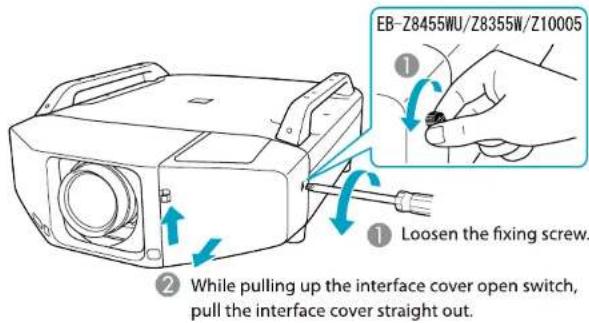
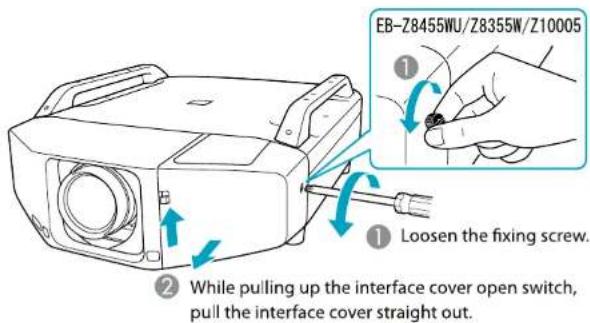
1 Remove the interface cover.
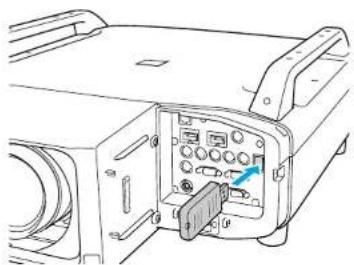
2 Install the Wireless LAN unit.
natural_image
Line drawing of an electronic device rear panel with a highlighted connector (no text or symbols)Replacing the Projector Lens Unit
1 Remove the interface cover.
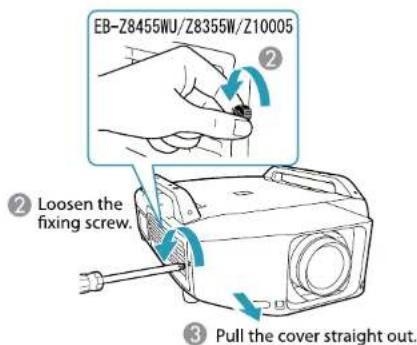
2 Remove the front cover.
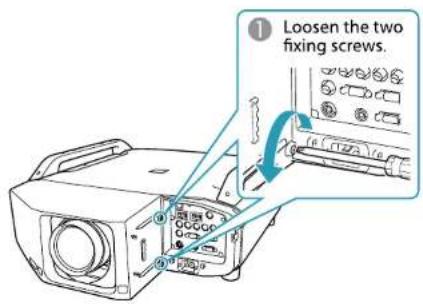
Preparation
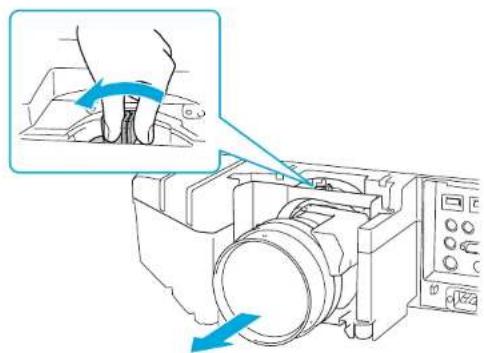
3 Pinch the lock lever of the lens unit and turn it counterclockwise.
natural_image
Diagram of a camera assembly with blue arrows indicating motion, showing hand placement and control panel (no text or symbols)4 Pull the lens unit straight out as it is released.
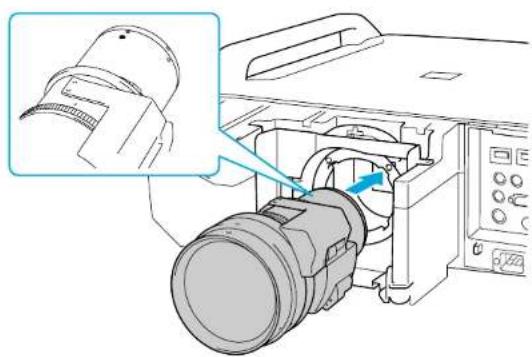
5 Insert the lens unit straight into the lens insertion section with the white circle on the lens on top.
natural_image
Technical diagram of a camera assembly with a magnified inset showing a component detail (no text or symbols present)6 While holding the lens unit firmly, turn the lock lever clockwise until it is locked. Check that the lens cannot be detached.
Preparation
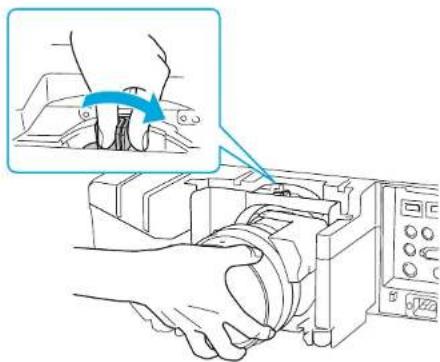
7 Replace the front cover.
Attaching the Interface Cover
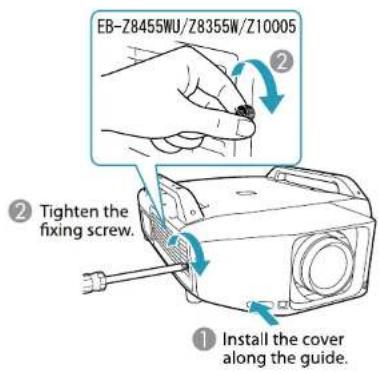
By attaching the interface cover, you can hide the connected cables giving a nice, clean finish to the projector installation.
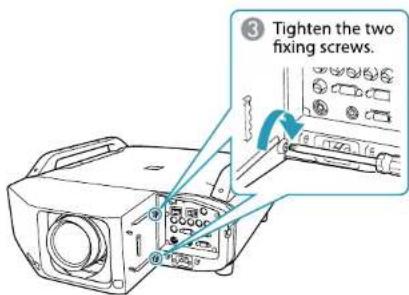
1 Remove the top cover of the interface when ejecting the connected cables upward. Remove the bottom cover of the interface when ejecting the connected cables downward.
2 Install the cover along the guide.
3 Tighten the fixing screw.
Installation Requirements

An optional ceiling mount is required when suspending the projector from a ceiling.
The projector can be installed at the following angles.
Vertical: Can be installed within an angle range of 100 degrees.
Horizontal: Can be tilted within the range of expansion and contraction for the front and rear feet.
Make sure there is a gap of at least 50 cm between the wall and the air exhaust vent and the air intake vent.
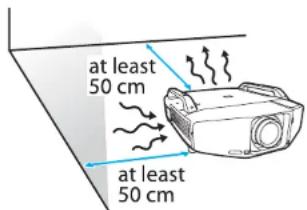
When setting up multiple projectors, make sure there is a gap of at least 50 cm between the projectors. Also, make sure the heat coming out of the air exhaust is not taken in through the air inlet.

When installation is completed, set Direction to Normal, Pointing Down, Pointing Up, Angled Up, or Angled Down according to the projecting direction of the projector.
Press the [Menu] button > Extended > Direction
Adjusting the Position of the Projected Image (Lens Shift)
1 Press the [Lens Shift] button on the Remote Control. When using the control panel of the projector, press the [Lens] button three times.
2 To adjust the position of the projected image, use the [☐] button on the remote control or the ☐[▲][∅/▼][◇]/◀][◇/▶] buttons on the control panel.

- We recommend setting the focus, zoom, and lens shift at least 30 minutes after you start the projection, because images are not stable right after turning on the projector.
- The image will be clearest when both the vertical and horizontal lens shift are set in the center.
Installing the Projector
The ranges within which the image can be moved are shown below.
EB-Z8455WU/Z8450WU/Z8355W/Z8350W
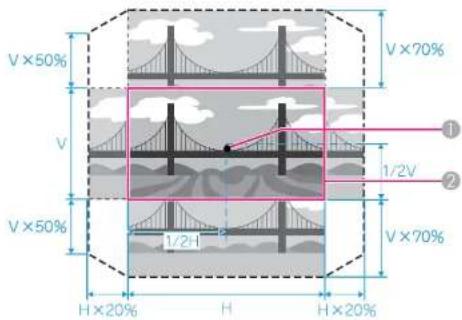
FB-Z10005/Z10000/Z8150
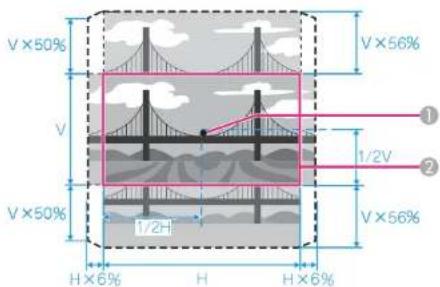
① Center of lens
② Projected image when lens shift is set in the center
The position of the projected image cannot be moved to both the horizontal and vertical maximum values.
Adjusting the Zoom
1 Press the [Zoom] button on the Remote Control.
2 Press the [◇] button in the [◀][▶] direction in order to adjust.
Adjusting the Focus
1 Press the [Focus] button on the Remote Control.
2 Press the [♥] button in the [◀][▶] direction in order to adjust.
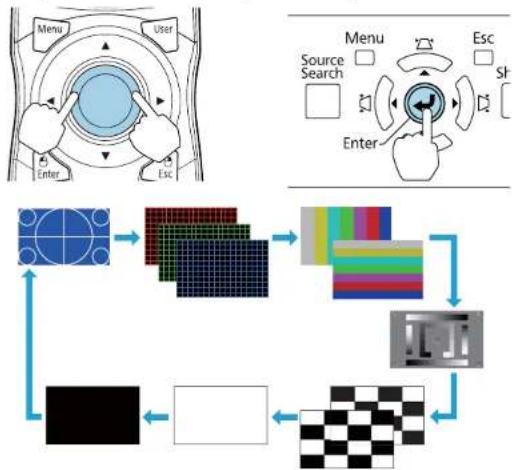
Displaying a Test Pattern
A test pattern can be displayed to adjust the projection status without connecting video equipment.
1 Press the [Menu] button on the remote control or the [Menu] button on the control panel while projecting.
Installing the Projector
2 Press the [♥] button on the remote control in the [◀][▶] direction or press the [Enter] button on the control panel to switch the test pattern.
Using the remote control Using the control panel
flowchart
graph TD
    A["User Interface"] --> B["Menu Search"]
    B --> C["Enter"]
    C --> D["Color Map"]
    D --> E["Color Grid"]
    E --> F["Color Scale"]
    F --> G["Color Grid"]
    G --> H["Color Scale"]
    H --> I["Color Grid"]
    I --> J["Color Scale"]
    J --> K["Color Grid"]
    K --> L["Color Scale"]
    L --> M["Color Grid"]
    M --> N["Color Scale"]
    N --> O["Color Grid"]
    O --> P["Color Scale"]
    P --> Q["Color Grid"]
    Q --> R["Color Scale"]
    R --> S["Color Grid"]
    S --> T["Color Scale"]
    T --> U["Color Grid"]
    U --> V["Color Scale"]
    V --> W["Color Grid"]
    W --> X["Color Scale"]
    X --> Y["Color Grid"]
    Y --> Z["Color Scale"]
    Z --> AA["Color Grid"]
    AA --> AB["Color Scale"]
    AB --> AC["Color Grid"]
    AC --> AD["Color Scale"]
    AD --> AE["Color Grid"]
    AE --> AF["Color Scale"]
    AF --> AG["Color Grid"]
    AG --> AH["Color Scale"]
    AH --> AI["Color Grid"]
    AI --> AJ["Color Scale"]
    AJ --> AK["Color Grid"]
    AK --> AL["Color Scale"]
    AL --> AM["Color Grid"]
    AM --> AN["Color Scale"]
    AN --> AO["Color Grid"]
    AO --> AP["Color Scale"]
    AP --> AQ["Color Grid"]
    AQ --> AR["Color Scale"]
    AR --> AS["Color Grid"]
    AS --> AT["Color Scale"]
    AT --> AU["Color Grid"]
    AU --> AV["Color Scale"]
    AV --> AW["Color Grid"]
    AW --> AX["Color Scale"]
    AX --> AY["Color Grid"]
    AY --> AZ["Color Scale"]
    AZ --> BA["Color Grid"]
    BA --> BB["Color Scale"]
    BB --> BC["Color Grid"]
    BC --> BD["Color Scale"]
    BD --> BE["Color Grid"]
    BE --> BF["Color Scale"]
    BF --> BG["Color Grid"]
    BG --> BH["Color Scale"]
    BH --> BI["Color Grid"]
    BI --> BJ["Color Scale"]
    BJ --> BK["Color Grid"]
    BK --> BL["Color Scale"]
    BL --> BM["Color Grid"]
    BM --> BN["Color Scale"]
    BN --> BO["Color Grid"]
    BO --> BP["Color Scale"]
    BP --> BQ["Color Grid"]
    BQ --> BR["Color Scale"]
    BR --> BS["Color Grid"]
    BS --> BT["Color Scale"]
    BT --> BU["Color Grid"]
    BU --> BV["Color Scale"]
    BV --> BW["Color Grid"]
    BW --> BX["Color Scale"]
    BX --> BY["Color Grid"]
    BY --> BZ["Color Scale"]
    BZ --> CA["Color Grid"]
    CA --> CB["Color Scale"]
    CB --> CC["Color Grid"]
    CC --> CD["Color Scale"]
    CD --> CE["Color Grid"]
    CE --> CF["Color Scale"]
    CF --> CG["Color Grid"]
    CG --> CH["Color Scale"]
    CH --> CI["Color Grid"]
    CI --> CJ["Color Scale"]
    CJ --> CK["Color Grid"]
    CK --> CR["Color Scale"]
    CR --> CS["Color Grid"]
    CS --> CT["Color Scale"]
    CT --> CU["Color Grid"]
    CU --> CV["Color Scale"]
    CV --> CW["Color Grid"]
    CW --> CX["Color Scale"]
    CX --> CY["Color Grid"]
    CY --> CZ["Color Scale"]
The following image adjustments can be made while the test pattern is being displayed.
| Top Menu Name Sub | Menu/Items |
| Image | Color Mode |
| Abs. Color Temp. | |
| Advanced-GammaRGBRBCMY | |
| Reset | |
| Signal | Auto Setup |
| Settings | Geometric Correction p.34 |
| Extended | Multi-Projection p.38-Brightness LevelEdge Blending-Multi-screen |
*1 Except for custom settings of gamma
*2 FB-Z8455WU/Z8450WU/Z8355W/Z8350W/Z10005/Z10000 only

To set menu items that cannot be set while the test pattern is being displayed or to fine-tune the projected image, project an image from the connected device.
Frequently Used Buttons
![[●] button Search [Search] button Computer BNC HDMI 1/2 Video LAN SDI [ID switch] [Menu] button Menu User [User] button [●] button [Enter] button Enter Esc [Esc] button Up Page Pointer ERoom Down Shutter Split Freeze Auto Aspect: Color Mode 4 5 6 Lens Shift Zoom Focus 7 8 9 [Lens Shift] button [Lens] ID ID 0 Num Help Default [Focus] button [Zoom] button [ID] button EPSON Projector](/content/2026/05/1062466/images/a18ab19fbc3f39b301d255a0724ec1d44ff5354db4a5d3a10a4c1aa5865913e0.jpg)
| Name Function | |
| [⏻] button | Turns the projector power On or Off. |
| Name Function | |
| Menu button | Displays and closes the configuration menu. |
| [◎] button | When the configuration menu or Help screen is displayed, it selects menu items and setting values.When using the optional wireless mouse receiver, tilting this button moves the pointer in the direction tilted. |
| Enter button | When the configuration menu or Help screen is displayed, it accepts and enters the current selection and moves to the next level.Acts as a mouse's left button when using the optional wireless mouse receiver. |
| Lens Shift button | Press to adjust the lens shift. p.22 |
| ID button | Press to set the remote control ID.When an ID is set for the remote control, you can use the remote control to operate only the projector with a matching ID. p.30 |
| Zoom button | Press to adjust the zoom. p.23 |
| Focus button | Press to adjust the focus. We recommend setting the focus, zoom, and lens shift at least 30 minutes after you start the projection, because images are not stable right after turning on the projector. p.23 |
| Esc button | Stops the current function. If pressed when the configuration menu is displayed, it moves to the previous menu level.Acts as a mouse's right button when using the optional wireless mouse receiver. |
| User button | Press to assign a frequently used item from the available configuration menu items. By pressing the button the assigned menu item selection/adjustment screen is displayed, allowing you to make one-touch settings/adjustments. p.28Test Pattern is assigned as the default setting. |
| ID switch | Use this switch to enable (On)/disable (Off) ID settings for the remote control. |
| Search button | Changes to the next input source that is connected to the projector and is sending an image. |
Other Buttons
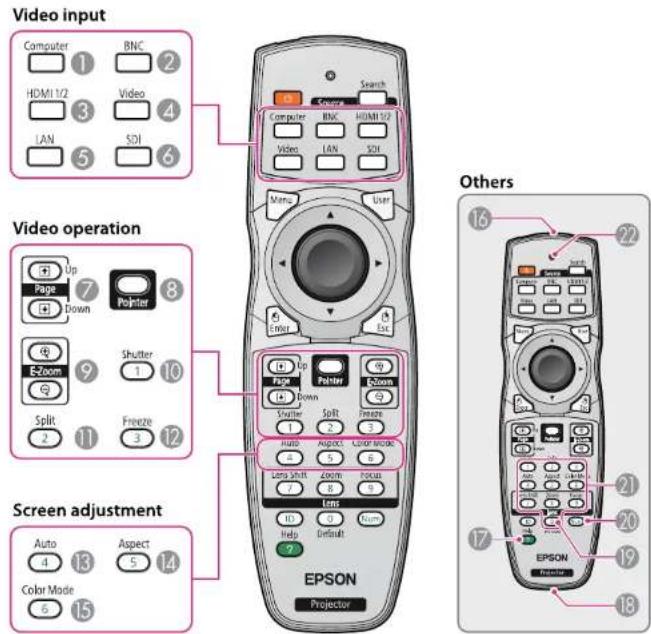
Video input
| Name Function | ||
| 1 | Computer button | Changes to images from the Computer input port. |
| 2 | BNC button | Changes to images from the BNC input port. |
| 3 | HDMI 1/2 button | Each time the button is pressed, the image displayed changes between the HDMI1 input port and HDMI2 input port. |
| 4 | Video button | Each time the button is pressed, the image displayed changes between the Video input port and S-Video input port. |
| 5 | LAN button | Changes to images of EasyMP Network Projection. |
| 6 | SDI button | Changes to images from the SDI input port.This button does not function when using EB-Z8355W/Z8350W/Z10005/Z10000/Z8150. |
Video operation
| Name Function | ||
| 7 | Page buttons [+] [+] | When using the optional wireless mouse receiver, you can change the PowerPoint file page during projection by pressing the page up/page down buttons. |
| 8 | Pointer button | Press to activate the on screen pointer. |
| 9 | E-Zoom buttons [+] [÷] | The [⊕] button enlarges the image without changing the projection size.The {÷} button reduces the parts of images that have been enlarged using the [⊕] button. |
| 10 | Shutter button | Closes or opens the electric shutter, or mutes the image temporarily to dim the screen. |
Remote Control
| Name Function | ||
| 11 | Split button | Press this button to split the screen in two and project two images simultaneously. |
| 12 | Freeze button | Images are paused or unpaused. |
Screen adjustment
| Name Function | ||
| 13 | Auto button | If pressed during projection of computer analog RGB signals, it automatically adjusts the Tracking, Sync., and Position to project the optimum image. |
| 14 | Aspect button | The Aspect Ratio changes each time the button is pressed. p.35 |
| 15 | Color Mode button | Each time the button is pressed, the Color Mode changes. |
Others
| Name Function | ||
| 16 | Remote control light-emitting area | Outputs remote control signals. |
| 17 | Help button | Displays and closes the Help screen which shows you how to deal with problems if they occur. |
| 18 | Remote port | Connects the optional remote control cable set and outputs signals from the remote control. When the remote control cable is plugged into this remote port, the remote receiver is disabled. |
| 19 | Default button | Reset to default the setting values being adjusted in some configuration menus. |
| 20 | Num button | Use this button to enter passwords, IP Address from the Network, and so on. p.44 |
| Name Function | ||
| 21 | Numeric buttons | Use this button to enter passwords, remote control ID settings, IP Address from the Network, and so on. p.30, p.44 |
| 22 | Indicators | A light is emitted when outputting remote control signals. |
Remote Control Operating Range
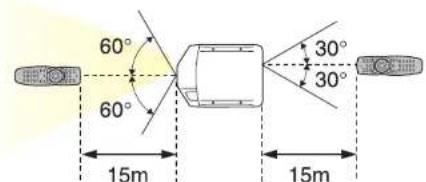
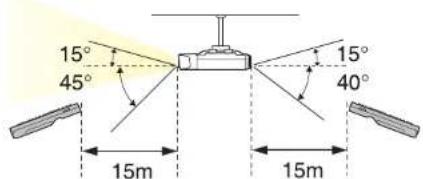

- If you use the optional remote control cable set (ELPKC28) to connect the remote control to the projector, the operating range is 20m.
- To restrict reception of the operation signals from the remote control, set Remote Receiver.
Press the [Menu] button > Settings > Remote Receiver
Operating the Remote Control
You can perform the following operations by simply pressing one button on the remote control.
| Operation Settings | |
| Sets password protection. p.44 | Hold down the [Freeze] button for at least five seconds. Make the settings on the Password Protection screen. |
| Applies or releases a partial lock for the remote control buttons. p.46 | Hold down the [Hclp] button for at least five seconds. |
| Resets the Remote Receiver settings on the Configuration menu. (Enables all of the projector's remote receivers.) | Hold down the [Menu] button for a least 15 seconds. |
| Displays frequently used Configuration menu items instantly. | Press the [User] button. You can set the assigned menu item with the User Button. Press the [Menu] button > Settings : User Button The following items can be assigned. Power Consumption, Info, Progressive, Test Pattern, Resolution, Memory |
* EB-Z8455WU/Z8450WU/Z8355W/Z8350W/Z10005/Z10000 only
Turning On
1 Remove the interface cover.
2 Connect the power cord.
Connect the power cord supplied.
3 Press the [⏻] button on the remote control or the control panel to turn the power on.

- We recommend setting the focus, zoom, and lens shift at least 30 minutes after you start the projection, because images are not stable right after turning on the projector.
- When using at an altitude of 1500 m or more, make sure you set High Altitude Mode to On. Press the [Menu] button > Extended > Operation > High Altitude Mode
- When you turn on the projector for the first time, the message "Do you want to set the time?" is displayed. See the following for more information on setting the time.
p.31
Turning Off
1 Turn off any connected devices.
2 Press [☐] twice on the Remote Control or the Control panel.
3 When the projector beeps twice, disconnect the power cord.
Setting Up
ID Settings
When an ID is set for the projector and the remote control, you can use the remote control to operate only the projector with a matching ID. This is very useful when managing multiple projectors.

- Operation using the remote control is possible only for projectors that are within the operating range of the remote control. p.27
- When Remote Control Type is set to Simple from Operation in the configuration menu, you cannot set the remote control ID.
- IDs are ignored when the projector ID is set to Off or the remote control ID is set to 0.
Set the projector ID
Press the [Menu] button > Extended > Multi-Projection > Projector ID Select the ID you want to set, and then press the [Enter] button.
![[Projector ID] Off 11 12 13 14 15 16 17 18 19](/content/2026/05/1062466/images/9abd671d74df4cce285387f6b47d41ef614677b227d6e9de95cf4806676ee066.jpg)
Checking the Projector ID
During projection, press the [Help] button while holding the [ID] button.
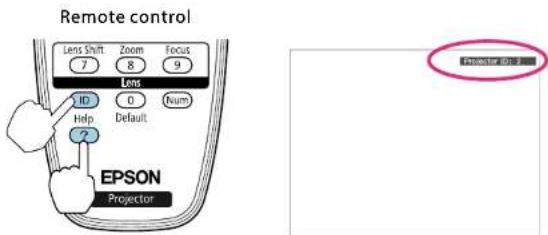
When you press the buttons, the current Projector ID is displayed on the projection screen. It disappears in about three seconds.
Setting the remote control ID
1 Set the remote control [ID] switch to On.
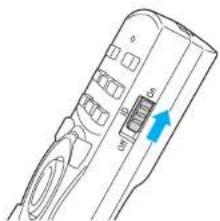
natural_image
Line drawing of a device handle with ports and a blue arrow pointing to a component (no text or symbols)2 While holding the [ID] button, press a number button to select a number to match the ID of the projector you want to operate.
"Checking the Projector ID" p.30
Setting Up
Once this setting has been made, the projector that can be operated by the remote control is limited.

The remote control ID setting is saved in the remote control. Even if the remote control batteries are removed to replace them and so on, the stored ID setting is retained. However, if the batteries are left out for a long time, it is reset to the default value (ID0).
Setting the Time
You can set the time for the projector. The set time is used for scheduling and for wireless LAN authentication.
Press the [Menu] button > Extended > Time/Schedule Settings > Date & Time

- When you turn on the projector for the first time, the message "Do you want to set the time?" is displayed. When you select Yes, the following screen displayed.
- Adjust the focus if messages are blurred. p.23
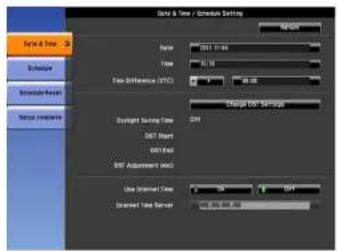
| Submenu Name Function | |
| Date | Set today's date. |
| Time | Set the current time. |
| Time Difference (UTC) | Set the time difference from Coordinated Universal Time. (Japan: +9:00) |
| Change DST Settings | Displays the screen to set the daylight saving time. |
| Internet Time | Set to On to update the time automatically through an Internet time server. |
| Internet Time Server | Input the IP address for an Internet time server. |
Daylight Saving Time screen
| Submenu Name Function | |
| Daylight Saving Time | Set whether or not (On/Off) to activate the daylight saving time. DST Adjustment (min) adjusts the time difference between the standard time and the daylight saving time. |
| DST Start | Set the date and time to start the daylight saving time. |
| DST End | Set the date and time to end the daylight saving time. |
Setting Up
Submenu Name Function
DST Adjustment (min)
Adjusts the time difference between the standard time and the daylight saving time.

- When changing settings, make sure you select Setup complete, and then select Yes.
- To manage with the correct time, set Internet Time to ON. Press the [Menu] button > Extended > Time/Schedule Settings > Date & Time > Internet Time
Saving a User's Logo

Once a user's logo has been saved, the logo cannot be returned to the factory default (the EPSON logo).
1 Project the image you want to save as the user's logo.
2 Select User's Logo from the Configuration menu.
Press the [Menu] button > Extended > User's Logo
When the message "Choose this image as the User's Logo?" is displayed, select Yes.
3 Select the range of images to use as the user's logo.
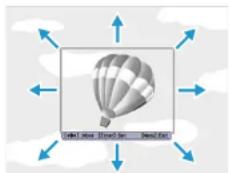
natural_image
Illustration of a hot air balloon with blue directional arrows pointing outward, no text or symbols present.4 Select the zoom factor.
When the message "Save this image as the User's Logo?" is displayed, select Yes to complete registration.
Projecting Images
Correcting Distortion in the Projected Image
The following operations explain how to correct distortion in projected images and how to switch between correction methods.

- When correcting distortion in the projected image, the screen size is reduced.
- You cannot combine multiple adjustment methods. For example, if you use II/V-Keystone to correct the projected image, you cannot make additional corrections using Quick Corner.
H/V-Keystone
Manually correct distortion in the horizontal and vertical directions independently.
Correction range
If the lens shift is in the center, you can correct distortion when the projector's angle of tilt in relation to the screen is up to 30 degrees vertically and 20 degrees horizontally.
Arc Correction
Fine adjustment of the curved distortion caused by slack or shrinkage of the screen.

This function allows you to fine tune curved distortions in the image. However, you may not be able to correct distortions for images projected onto curved surfaces.
Correction range
You can make corrections in 0.5 pixel increments within the following ranges.
![[Arc Correction] A A' Select the area.](/content/2026/05/1062466/images/13e1ccc4046b023475211bc75f8cb89c64d6376a5028cfe6fece593e95ab61f8.jpg)
When top center (A) or bottom center (A') are selected: You can correct by a maximum of 7 pixels vertically and 3 pixels horizontally.
When one of the other correction points is selected: You can correct by a maximum of 7 pixels vertically and 110 pixels horizontally.
Point Correction
When multiple images overlap, you can fine tune the areas that overlap. Divides the projected image by the grid and corrects the distortion by moving the point of intersection from side to side and up and down. You can also use this to correct small and partial distortions.

Projecting Images
Correction range
You can correct in increments of 0.5 pixels up to a maximum of 7 pixels vertically and 32 pixels horizontally.

Each time you press the [Enter] button, you can show or hide the image and the grid.
Changing the Aspect Ratio of the Projected Image
You can change the aspect ratio of the projected image to suit the type, the ratio of height and width, and the resolution of the input signals.
The aspect modes that can be set depend on the type of image that is being projected.
Changing methods
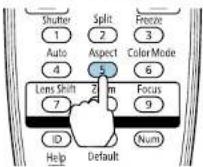
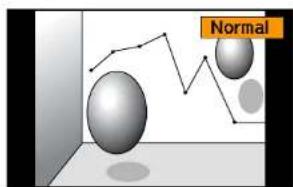
Each time you press the |Aspect| button on the remote control, the aspect mode name is displayed on the screen and the aspect ratio changes.
Remote control
| Aspect Mode Explanation | |
| Auto | Projects in an appropriate aspect ratio based on information from the signal being input. |
| Normal | Projects while retaining the aspect ratio of the input image. |
| 4:3 | Projects at an aspect ratio of 4:3. |
| 16:9 | Projects at an aspect ratio of 16:9. |
| Full | Projects at the full size of the projected screen. |
| Zoom | Projects by enlarging the input image to the full width of the projected screen while retaining the aspect ratio. Areas that exceed the edges of the projected screen are not projected. |
| Native | Projects to the center of the projected screen at the resolution of the input image. Areas that exceed the edges of the projected screen are not projected. |
EB-Z8455WU/Z8450WU
| Aspect Mode Input Signal | |||
| XGA1024X768(4:3) | WXGA1280X800(16:10) | WUXGA1920X1200(16:10) | |
| Normal | 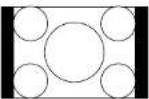 |  | 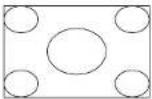 |
| 16:9 | 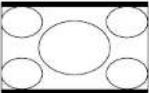 | 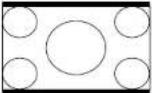 | 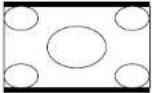 |
| 16:9 (Up) | 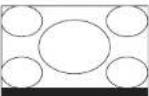 |  |  |
| 16:9 (Down) | 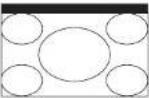 | 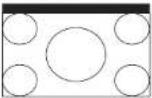 | 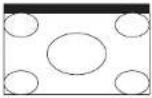 |
| Full |  |  | 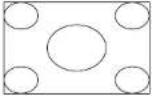 |
| Zoom | 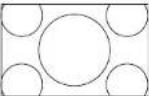 | 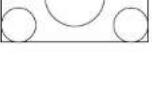 | 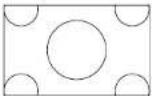 |
| Aspect Mode Input Signal | |||
| XGA1024X768(4:3) | WXGA1280X800(16:10) | WUXGA1920X1200(16:10) | |
| Native | 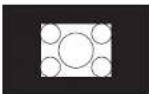 | 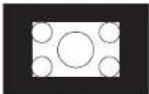 | 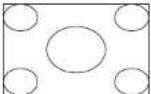 |
EB-Z8355W/Z8350W
| Aspect Mode Input Signal | |||
| XGA1024X768(4:3) | WXGA1280X800(16:10) | SXGA1280X1024(5:4) | |
| Normal | 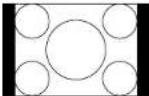 | 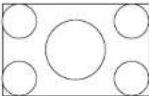 | 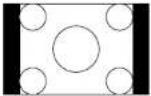 |
| 16:9 | 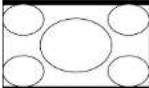 | 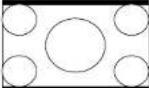 | 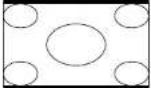 |
| 16:9 (Up) | 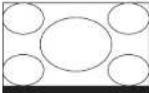 |  | 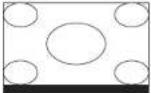 |
| 16:9 (Down) | 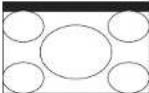 | 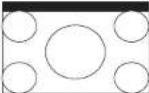 | 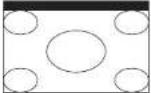 |
Projecting Images
| Aspect Mode Input Signal | |||
| XGA1024X768(4:3) | WXGA1280X800(16:10) | SXGA1280X1024(5:4) | |
| Full | 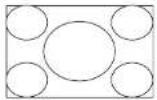 | 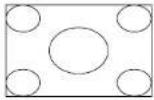 | |
| Zoom | 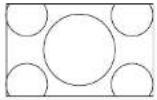 |  | |
| Native | |||
EB-Z10005/Z10000/Z8150
| Aspect Mode Input Signal | |||
| XGA1024X768(4:3) | WXGA1280X800(16:10) | SXGA1280X1024(5:4) | |
| Normal | 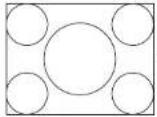 | 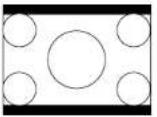 | 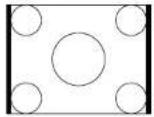 |
| 4:3 |  | ||
| Aspect Mode Input Signal | |||
| XGA1024X768(4:3) | WXGA1280X800(16:10) | SXGA1280X1024(5:4) | |
| 16:9 | 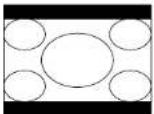 | 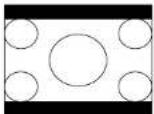 | 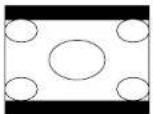 |
| 16:9 (Up) | 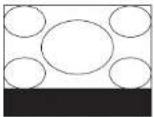 | 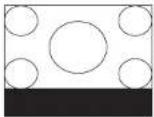 | 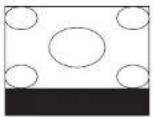 |
| 16:9 (Down) | 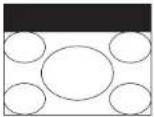 | 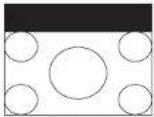 | 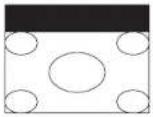 |
| Native |  |  |  |
Multi-Projection
Preparing the Projector
- Set the ID to the projector.
Press the [Menu] button > Extended > Multi-Projection > Projector ID
When operating the projector, (1) set the remote control [ID] switch to On, (2) hold down the [ID] button, (3) and then press the same number button as the ID of the projector.
To check the projector's ID, press the [Help] button while holding the [ID] button on the remote control to display the ID on the screen. - Adjust the position of the projected image by using the direction of the projector and lens shift p.22
- Set the Color Mode to Multi-Projection with the [Color Mode] button on the remote control.

- We recommend making settings at least 30 minutes after you start the projection, because images are not stable right after turning on the projector.
- Adjust the projection position so that the projected image is not distorted. When overlapping images that have been corrected using Geometric Correction, it may be difficult to match the position of the images.
- Correction is easier if you use the image in dot by dot format, that can be displayed without being enlarged or reduced.
Work flow
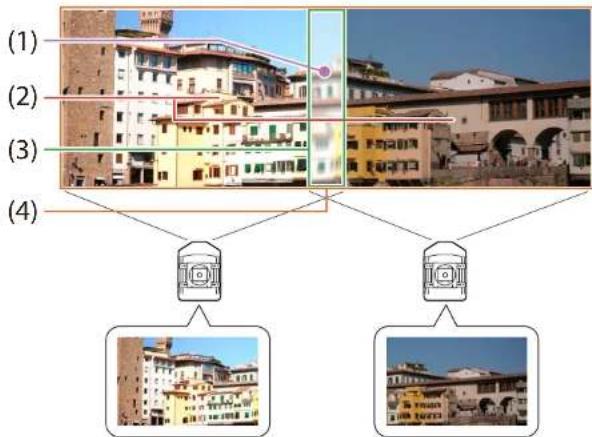
(1) Correct small gaps in position when matching projected images 📄 "(1) Point Correction" p.38
(2) Adjust the differences in brightness for each projector lamp (2) Brightness Level (EB-Z8455WU/Z8450WU/Z8355W/Z8350W/Z10005/Z10000 only)" p.39
(3) Fine tune overlapping areas to make seamless screen. (3) Edge Blending p.39
(4) Correct the color balance of the projected images 📄 "(4) Multi-screen" p.40
(1) Point Correction
See p.34.
Projecting Images
(2) Brightness Level (EB-Z8455WU/Z8450WU/Z8355W/Z8350W/Z10005/Z10000 only)
Adjust the Brightness Level so that the brightness of the lamp for each projector matches.
Press the [Menu] button > Extended > Multi-Projection > Brightness Level

natural_image
Two gradient rectangular panels separated by a blue arrow, no text or symbols presentAdjust so that all projectors are the same brightness as the darkest lamp. You can adjust the brightness in five levels.

- Set Power Consumption to Normal 1. Press the [Menu] button > Settings > Power Consumption
- Even if you adjust the Brightness Level, the brightness of each lamp may not match exactly.
(3) Edge Blending
Fine tune overlapping areas to make seamless screen.
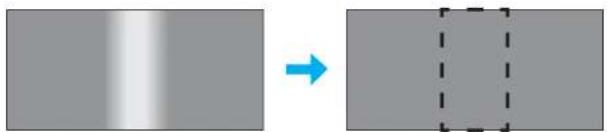
natural_image
Two grayscale rectangular panels: one with a gradient transition arrow, the other with a dashed rectangle (no text or symbols)Perform this in Edge Blending from the Configuration menu.
Press the [Menu] button > Extended > Multi-Projection > Edge Blending
The following screen is displayed.
![[Edge Blending] Return Edge Blending Off Top Edge Off Bottom Edge Off Left Edge Off Right Edge Off Blend Curve 0 Black Level Guide Display Off Pattern Guide Off Guide Colors Pattern 1 [Esc] :Return [◆]:Select [●]:Enter [Menu]:Exit](/content/2026/05/1062466/images/6b6d39bf54c21df2a7270b390c4c2a8b5ce46fbf22c0edb8072d475065d90f46.jpg)
Operations
1 From the screen above, set Edge Blending and Guide Display to On.
2 Set Edge according to the parts of the image that overlap. Example: When setting the screen in (1)
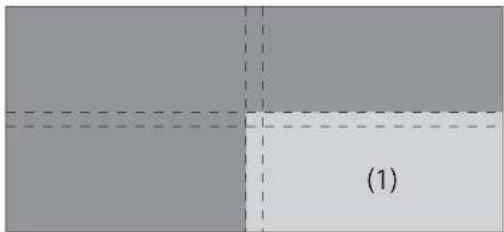
The top and left edges of the projected image overlap, so select Top Edge and Left Edge, and then set Blending to On.
![[Top Edge] Return Blending On Blend Range 20 [Esc] :Return [◆]:Select [●]:Enter [Menu]:Exit](/content/2026/05/1062466/images/214d7c66c120f251cc5538106ad07709beb7fc34248b478ac847a04d52e62fed.jpg)
A guide display indicates the area to which blending will be applied.
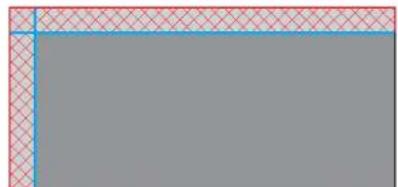
natural_image
Pure geometric diagram with red crosshatch and blue border lines, no text or symbols presentIn Blend Range, adjust the range to be shaded. Adjustment is possible at the level of one pixel. The range to which gradation be applied is up to 45% of the projector's panel resolution (maximum area in which an image can be displayed).
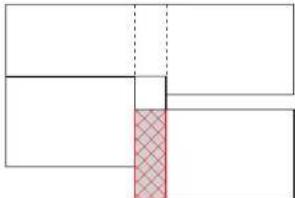
natural_image
Pure geometric diagram with overlapping rectangles and a red crosshatched rectangle, no text or symbols presentThe value for when the overlapped range and the guide are in the same position is the best.

- You can select the color of the guide from Guide Colors.
- Check the range to which gradation can be applied as these changes depending on the connected equipment.

When you have finished making adjustments, set Guide Display to Off.

Select how to apply the gradation in Blend Curve. You can select from three types of gradation.
(4) Multi-screen
Adjusts the brightness and color balance for projected images that were corrected using Edge Blending.
Perform this in Multi-screen from the Configuration menu.
Press the [Menu] button > Extended > Multi-Projection > Multi-screen
can The following screen is displayed.
![[Multi-screen] Adjustment Level Lv. 0 Return Brightness Correct. 0 Color Correct. (G/R) 0 G Color Correct. (B/Y) 0 B [Esc] :Return [◆]:Select [◆]:Adjust [Menu]:Exit](/content/2026/05/1062466/images/a2e037c3a1a8840dc9277f440467ba301dc74000aa44b67388e2036e0678e14d.jpg)
Adjustment Level: There are five levels from white, gray, and up to black. Adjust each level individually.
Brightness Correct.: Adjust from black to white for each color tone.
Color Correct. (G/R): Adjust the color tone for green and red.
Color Correct. (B/Y): Adjust the color tone for blue and yellow.
Projecting Images
Scale
A section of the image is cropped and displayed. This allows you to create one large image by combining images projected from multiple projectors.
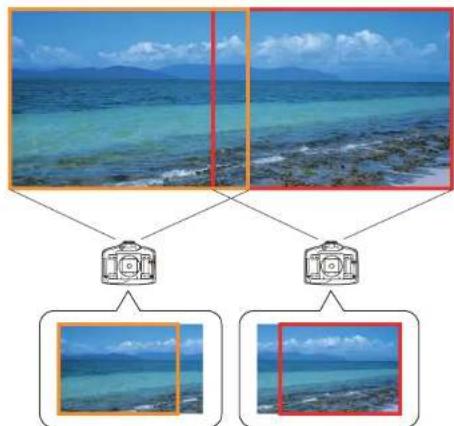

The image quality may become grainy if the image is enlarged using the scale function.
Follow the steps below to adjust the projected image.
1 Project an image, and then set Scale to On. Press the [Menu] button > Signal > Scale
![[Scale] Return Scale On Scale Mode Zoom Display Scale Vertically x 0.00 Scale Horizontally x 0.00 Image Display Range [Esc] :Return [◆]:Select [●]:Enter [Menu]:Exit](/content/2026/05/1062466/images/9299c35708110117665c599f18bba4c0d4cbed41f1bf9582ad4936ddbdcd9aed.jpg)
2 Set Scale Mode.
You can select Zoom Display or Full Display.
Zoom Display: Adjusts without changing the image size currently displayed.
When enlarging
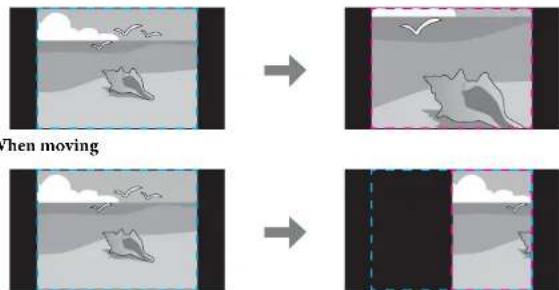
Full Display: Adjusts using the whole area where an image can be displayed.
When enlarging
Projecting Images
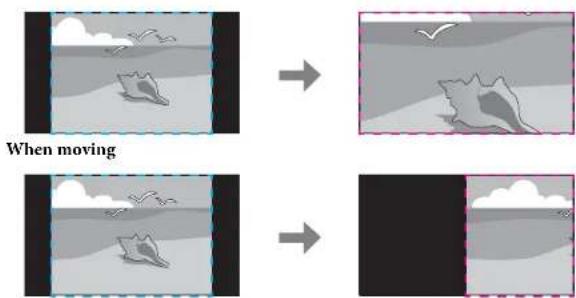
3 Adjust the scale.
You can enlarge up to 1000% and reduce down to 50%.
- +: Enlarges or reduces an image horizontally and vertically at the same time.
Scale Vertically: Enlarges or reduces an image vertically.
Scale Horizontally: Enlarges or reduces an image horizontally.
4 Adjust the Image Display Range.
Scroll the image using the [◇] button, and adjust the coordinates and size of the image.
Image Maintenance
Panel Alignment
Adjusts the pixel color shift for the LCD panel. You can adjust the pixels horizontally and vertically by 0.25 pixels within a range of ±1 pixel.
Perform this in Panel Alignment from the Configuration menu.
Press the [Menu] button > Extended > Display > Panel Alignment

- Image quality may decline after performing Panel Alignment. - Images for pixels that extend beyond the edge of the projected screen are not displayed.
The following screen is displayed.
![[Panel Alignment] Return Image Signal Settings Extended Network Info Reset Panel Alignment Off Select Color R Pattern Color R/G/B Start Adjustments Reset [Esc] :Return [◆]:Select [●]:Enter [Menu]:Exit](/content/2026/05/1062466/images/4b9244794d5b7c1a341845c08e5c45757420e67488c1a9262f7cc7a70f5f2c3f.jpg)
Operations
1 Enable Panel Alignment.
(1) Select Panel Alignment, and then press the [Enter] button.
(2) Select On, and then press the [Enter] button.
(3) Press the [Esc] button to return to the previous screen.
2 Select the color you want to adjust by Select Color.
(1) Select Select Color, and then press the [Enter] button.
(2) Select R (red) or B (blue), and then press the [Enter] button.
(3) Press the [Esc] button to return to the previous screen.
Projecting Images
3 Select the grid color displayed when making adjustments from Pattern Color.
(1) Select Pattern Color, and then press the [Enter] button.
(2) Select a combination of R (red), G (green), and B (blue) for the grid color.
R/G/B: Displays a combination all three colors; red, green and blue. The actual color of the grid is white.
R/G: This is available when R is selected from Select Color. Displays a combination of two colors; red and green. The actual color of the grid is yellow.
G/B: This is available when B is selected from Select Color. Displays a combination of two colors; green and blue. The actual color of the grid is cyan.
(3) Press the [Esc] button to return to the previous screen.
4 Select Start Adjustments, and then press the [Enter] button. When the message is displayed, press the [Enter] button again.
Adjustment starts. All four corners are adjusted in order starting at the top left.

The image may become distorted while adjusting. The image is restored once adjustments are complete.
5 Use the [☐] button to make adjustments, and then press the [Enter] button to move to the next adjustment point.
6 When you have adjusted all four corners, select Exit, and then press the [Enter] button.
![[Panel Alignment] Adjustment complete. To make finer adjustments, you can also select any intersection and then adjust. Select intersection and adjust Exit [◆]:Select [●]:Enter [Menu]:Exit](/content/2026/05/1062466/images/96b50d1ed332fe2b69e9a795bfa01315ba5770ec7df94db44a9aede8da086430.jpg)
If you feel you still need to make adjustments after correcting all four points, select Select intersection and adjust and then continue making adjustments.
Managing Users (Password Protection)
When Password Protection is activated, people who do not know the password cannot use the projector to project images even if the projector power is on. Furthermore, the user's logo that is displayed when you turn on the projector cannot be changed. This acts as an anti-theft function as the projector cannot be used even if it is stolen. At the time of purchase, Password Protection is not activated.
Kinds of Password Protection
The following three kinds of Password Protect settings can be made according to how the projector is being used.
• Power On Protection
When Power On Protection is On, you need to enter a preset password after the projector is plugged in and turned on (this also applies to Direct Power On). If the correct password is not entered, projection does not start.
• User's Logo Protection
Even if someone tries to change the user's logo set by the owner of the projector, it cannot be changed. When User's Logo Protection is set to On, the following setting changes for the user's logo are prohibited.
• Capturing a user's logo
- Setting Display Background or Startup Screen from Display Press the [Menu] button > Extended > Display
• Network Protection
When Network Protection is set to On, changing the settings for Network is prohibited.
"Network Setup" p.48
Setting Password Protection
Use the following procedure to set Password Protect.
1 During projection, hold down the [Freeze] button for about five seconds.
The Password Protection setting menu is displayed.
Remote control
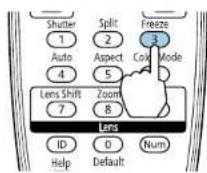

If Password Protection is already activated, you must enter the password.
If the password is entered correctly, the Password Protection setting menu is displayed.
"Entering the Password" p.45
2 Select the type of Password Protect you want to set, and then press the [Enter] button.
![[Password Protect] Power On Protect Off User's Logo Protect Off Network Protect Off Password](/content/2026/05/1062466/images/976334f6296f81194be6bbc893c67ee2cbc1182967bee21340fd7f2c6e0379b0.jpg)
3 Select On, and then press the [Enter] button.
Press the [Esc] button to return to the screen in step 2.
4 Set the password.
(1) Select Password, and then press the [Enter] button.
(2) When the message "Change the password?" is displayed, select Yes and then press the [Enter] button. The default password is set to "0000". Change this to your own desired Password. If you select No, the screen displayed in step 2 is displayed again.
(3) While holding down the [Num] button, enter a four digit number using the numeric buttons. The number entered is displayed as "*****". When you enter the fourth digit, the confirmation screen is displayed.
Remote control
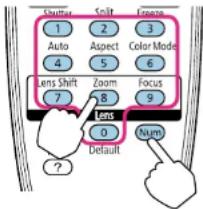
(4) Re-enter the password.
The message "Password accepted." is displayed.
If you enter the password incorrectly, a message is displayed prompting you to re-enter the password.
Entering the Password
When the password entry screen is displayed, enter the password using the remote control.
While holding down the [Num] button, enter the Password by pressing the numeric buttons.
![[Password] Enter the password. See your documentation for more information.](/content/2026/05/1062466/images/d15a9924ef26bdbd97f28ebbae93c130ba1d4219c9feb70fa7955edda6ef60f1.jpg)
When you enter the correct password, Password Protect is temporarily released.
Restricting Operation
The following three kinds of operation restriction functions are available with the projector.
• Control Panel Lock
This is useful at events or shows when you want to deactivate all buttons during projection or at schools when you want to limit button operation.
- Lens Operation Lock
This function deactivates all buttons on the remote control related to the lens operation to prevent improper lens adjustment after it is properly adjusted.
- Remote control button lock
This function deactivates buttons except for main buttons needed for basic remote control operation, to prevent mistakes in operations.
Control Panel Lock
Perform one of the following to lock the operation buttons on the control panel. Even if the control panel is locked, you can still use the remote control as usual.
- Full Lock All of the buttons on the control panel are locked. You cannot perform any operations from the control panel, including turning the power on or off.
- Partial Lock All of the buttons on the control panel, except for the |∅| button, are locked.
1 Select Control Panel Lock from the Configuration menu during projection.
Press the [Menu] button > Settings > Control Panel Lock
2 Select either Full Lock or Partial Lock according to your purpose.
![[Control Panel Lock] Return Full Lock Partial Lock Off [Esc]:Return [◆]:Select [◆]:Set [Menu]:Exit](/content/2026/05/1062466/images/a02f5f76a6612f702f8ae9ec1a76345a2088761367e18613fc647d7f09148794.jpg)
3 Select Yes when the confirmation message is displayed.
The control panel buttons are locked according to the setting you chose.
Lens Operation Lock
This function locks the following buttons on the remote control related to the lens operation.
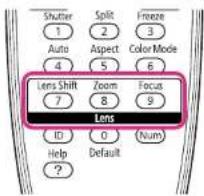
1 Select Lens Operation Lock from the Configuration menu during projection.
Press the |Menu| button > Settings > Lens Operation Lock
2 Select On.
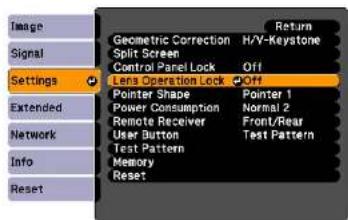
The buttons related to the lens operation are locked according to the setting you chose.
Remote control button lock
This function locks the following buttons on the remote control.
Security Functions
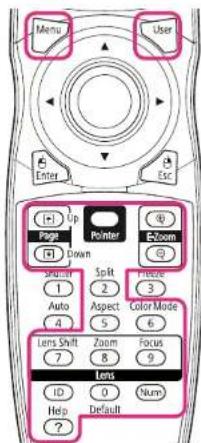
Each time [Help] button is pressed for at least 5 seconds, the remote control button lock turns on or off.
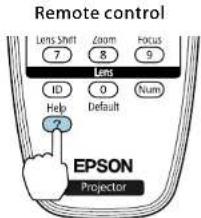

Even if the remote control button lock is on, the following operations are possible.
- Resetting default for the Remote Receiver setting
- Entering numbers using the [Num] button and the numeric buttons
- Releasing the remote control button lock
Network Setup
When Network Protection is set to On in Password Protection, a message is displayed and the network settings cannot be changed. Set Network Protection to Off and then configure the network.
Checking Network Settings
You can use one of the following methods to check the network setting information.
- Checking from the Configuration menu. Press the [Menu] button, and then select Net. Info - Wireless LAN or Net. Info - Wired LAN from the Network menu to display the current network settings.
- Checking from the LAN Standby screen. Press the [LAN] button on the remote control to display the following information. Projector Name, SSID, IP Address, Keyword
Wireless LAN
Preparing the Projector
- To connect the projector to a computer using wireless LAN, you need to install the optional wireless LAN unit on the projector.
- Perform network settings so that the computer can use wireless LAN. For more details, see the user's guide supplied with the computer.
Ad hoc connection settings (Quick)
When using the "EasyMP Network Projection" software supplied, this setup method creates a direct wireless connection (ad hoc connection) between the computer and the projector.
1 Display the Network Configuration screen on the projector. Press the [Menu] button > Network > Network Configuration
2 Select the Wireless LAN menu. The following screen is displayed.
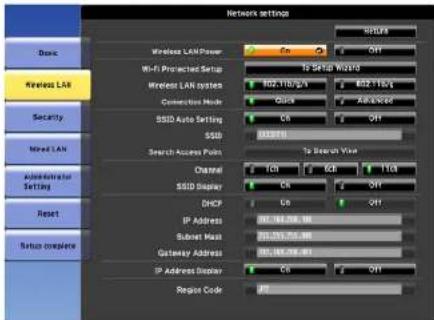
3 Set Wireless LAN Power to On.
4 Set Connection Mode to Quick.
5 Set other items as necessary.
| Submenu Function | |
| Wireless LAN system Sets the wireless LAN system. Normally this should be set to 802.11b/g/n. | |
| SSID Auto Setting | When you set this to On, you can search for the projector more quickly from among multiple projectors. SSID is set automatically. When connecting to multiple projectors from 1 computer, set this to Off, and set the same SSID in all the projectors that will connect. |
Network Setup
| Submenu Function | |
| SSID (This cannot be set | when SSID Auto Setting is set toOn.) Enter an SSID. When an SSID is provided for the wireless LAN system in which the projector participates, enter the SSID. You can enter up to 32 single-byte alphanumeric characters. (^ cannot be used.) Set SSID to blank or ANY to establish an ANY connection. |
| Channel Select the channel you want to use. If interference from other signals occurs, use a different channel. | |
| SSID Display To prevent the SSID from being displayed on the LAN Standby screen, set this to Off. | |
| IP Address Display To prevent the IP address from being displayed on the LAN Standby screen, set this to Off. | |
6 When you have finished making settings, select Setup complete.
Infrastructure connection settings (Advanced)
This setup method connects a computer to the projector through an access point in a wireless LAN environment.
Use this method when connecting over wireless LAN using the "EasyMP MultiPC Projection" software supplied.
1 Check the settings (SSID and security) for the access point you want to connect to.
Check with the network administrator.
2 Display the Network Configuration screen on the projector. Press the [Menu] button > Network > Network Configuration
3 Select the Wireless LAN menu. The following screen is displayed.
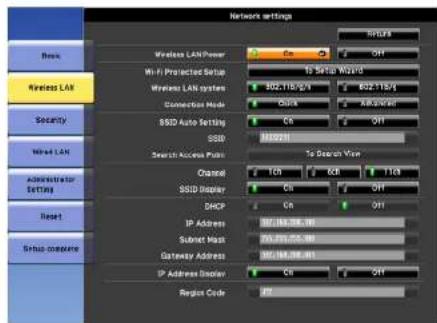
4 Set Wireless LAN Power to On.
5 Set Connection Mode to Advanced.
6 Set other items as necessary.
| Submenu Function |
| Wireless LAN system Sets the wireless LAN system. Normally this should be set to 802.11b/g/n.The connection method is selected automatically according to the access point settings. In an area that does not support 802.11n, only 802.11b/g is displayed. |
| Submenu Function | |
| Wi-Fi Protected Setup | You can use one of the following methods to connect to an access point.Push Button MethodSSID and security are set automatically when the [Enter] button is pressed on the projector's control panel and the dedicated button on the access point equipment. This method is recommended when the projector and access point are close together.PIN Code MethodSSID and security are set automatically by inputting an 8-digit code that was assigned to the projector from the computer to the access point in advance. Make connection settings between the computer and the access point in advance. For details on how to make this connection, refer to the manual provided with the access point. This method is recommended when the projector is mounted on the ceiling. |
| SSID Enter an SSID. When an SSID is provided for the wireless LAN system in which the projector participates, enter the SSID. You can enter up to 32 single-byte alphanumeric characters. (^ cannot be used.)The types of characters that can be input are listed below.Numbers0123456789AlphabetsABCDEFGHIJKLMNOPQRSTUVWXYZabcdefghijklmnopqrstuvwxyzSymbols!# $ % & ' ( ) + - . / < = > ? @ [ \ ] _ { | } ~Set SSID to blank or ANY to establish an ANY connection. | |
| Submenu Function | |
| Search Access Point | When Connection Mode is set to Advanced, you can search for surrounding access points, and set the SSID to be connected from those access points. Depending on the access point settings, they may not be displayed in the list. You must set security separately. |
| SSID Display To prevent the SSID from being displayed on the LAN Standby screen, set this to Off. | |
| DHCP | You can set whether or not (On/Off) to use DHCP. If this is set to On, you cannot set any more addresses. |
| IP Address You can input the IP address assigned to the projector.You can enter a number from 0 to 255 in each field of the address. However, the following IP addresses cannot be used. 0.0.0.0, 127.x.x.x, 224.0.0.0 to 255.255.255.255 (where x is a number from 0 to 255) | |
| Subnet Mask You can input the Subnet Mask for the projector. You can enter a number from 0 to 255 in each field of the address. However, the following subnet masks cannot be used.0.0.0.0, 255.255.255.255 | |
| Gateway Address You can input the IP address for the gateway for the projector. You can enter a number from 0 to 255 in each field of the address. However, the following Gateway addresses cannot be used.0.0.0.0, 127.x.x.x, 224.0.0.0 to 255.255.255.255 (where x is a number from 0 to 255) | |
| IP Address Display | To prevent the IP address from being displayed on the LAN Standby screen, set this to Off. |
7 Make security settings on the Security menu if necessary. Follow the instructions from your network administrator when making security settings.
Network Setup
8 When you have finished making settings, select Setup complete.
Wired LAN
To connect a computer to the projector in a wired LAN environment, you need to perform network settings on the computer and the projector.
1 Check with your network administrator if DHCP is available on the network being used.

If DHCP is not available, check the following values on the projector.
- IP address
- Subnet mask
- Gateway address
2 Connect the computer to the network.

If it is not connected, make network settings on the computer. For more details, see the user's guide supplied with the computer.
3 Connect a LAN cable to the projector.
4 Turn on the projector.
5 Display the Network Configuration screen on the projector. Press the [Menu] button > Network > Network Configuration
6 Select the Wired LAN menu.
The following screen is displayed.
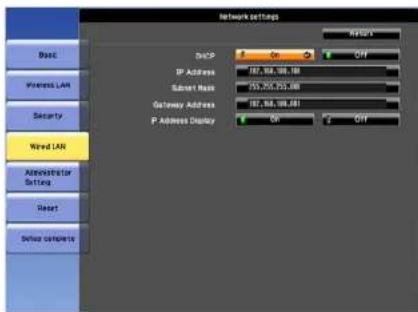
7 Select DHCP.
When DHCP is available: Set DHCP to On.
When DHCP is not available: Set DHCP to Off, and then enter the projector's IP address, subnet mask, and gateway address.
8 When you have finished making settings, select Setup complete.
List of Menus for Other Network Settings
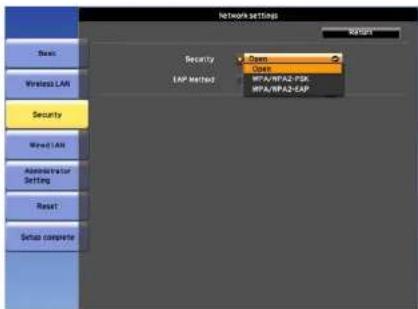
Security menu
When the Wireless LAN unit is installed, it is strongly recommended that you set security.
| Submenu Function | |
| Security | You can select a type of security.When Quick is selectedOpen: Security is not set.WPA2-PSK(AES) (only when SSID Auto Setting is set to On): Communication is performed using WPA2 security.Uses AES method for encryption. When establishing a connection from a computer to the projector, enter the value set in the passphrase.When Advanced is selectedOpen: Security is not set.WPA2-PSK(AES): Connects in WPA personal mode.Encryption method is selected automatically according to the access point settings. Set a passphrase which is the same for the access point.WPA/WPA2-EAP: Connects in WPA enterprise mode.Encryption method is selected automatically according to the access point settings. Select this item when using LEAP. |

You cannot set WEP as an encryption method for this projector.
Network Setup
When WPA/WPA2-PSK is selected
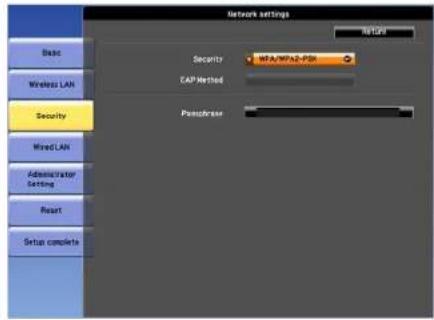
| Submenu Function | |
| Passphrase | Enter the passphrase. You can enter at least 8 and up to 63 single-byte alphanumeric characters. When the passphrase is entered and the [Enter] button is pressed, the value is set and displayed as an asterisk (*).When using it with EasyMP Network Projection, you do not need to input the passphrase in the computer if it is the initial (default) passphrase.It is recommended to change the passphrase periodically for the purpose of security. If the network settings are initialized, it returns to the initial passphrase."Reset menu" p.60You can enter up to 32 characters on the Configuration menu. When entering more than 32 characters, use your Web browser to enter the text.In Quick mode, the initial passphrase is set. |
When WPA/WPA2-EAP is selected
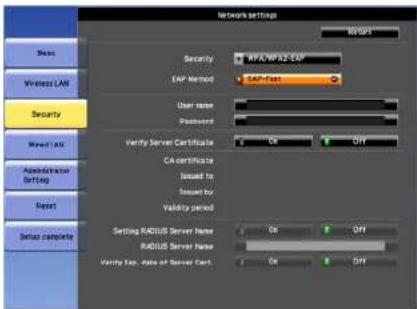
| Submenu Function | |
| EAP Method | Set the protocol for authentication.PEAP: Authentication protocol widely used in Windows Server.PEAP-TLS: Authentication protocol used in Windows Server. Set when using client certificate.EAP-TLS: Authentication protocol widely used to use a client certificate.EAP-Fast, LEAP: Select this when these authentication protocols are used. |
| User name | Enter a user name to be used for authentication. You can enter up to 64 single-byte alphanumeric characters.If you select PEAP-TLS or EAP-TLS, the user name obtained automatically from the client certificate is displayed. You can change the user name if the authentication server requires another user name.You can enter up to 32 characters on the Configuration menu. When entering more than 32 characters, use your Web browser to enter the text.If you also need to enter a domain name, add the domain name before the user name separated by a backslash. |
Network Setup
| Submenu Function | |
| Password | Enter a password to be used for authentication. You can enter up to 64 single-byte alphanumeric characters. When the password is entered andFinishis selected, the value is set and displayed as an asterisk (*).You can enter up to 32 characters on the Configuration menu. When entering more than 32 characters, use your Web browser to enter the text. |
| Client Certificate | Displays theIssued to, Issued by, and Validity period information set in the stored client certificate. It is blank if the certificate is not set. |
| Verify Server Certificate | Set toOnto perform verification for the authentication server certificate. To verify a server certificate, you need to set CA certificate."Setting Certificates" p.57 |
| CA certificate | Displays theIssued to, Issued by, and Validity period information set in the stored CA certificate. It is blank if the certificate is not set. |
| Setting RADIUS Server Name | Set toOnto perform authentication of the server name during server certificate verification. By specifying the server name, you can reduce the risk of connecting to an invalid authentication server. |
| RADIUS Server Name | Specify the authentication server name.You can enter up to 32 single-byte alphanumeric characters. (^ cannot be used.) |
| Verify Exp. date of Server Cert. | Set toOnto perform verification of the certificate's validity period during server certificate verification. |
Administrator Settings menu
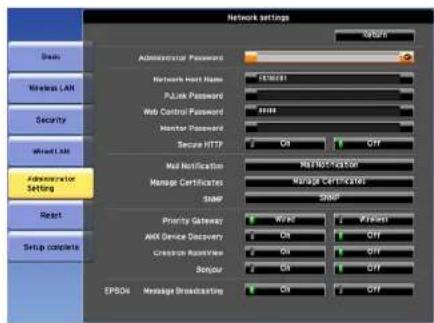
| Submenu Function | |
| Administrator Password | Enter the password for the Administrator Settings menu for network settings.You can enter up to 16 single-byte alphanumeric characters. (* cannot be used.)If the administrator password is not set, click OK with an empty password box. |
| Network Host Name | This name is used to identify the projector on a network. Use for Web control, "Connect to a Network Projector" and so on.When editing, you can enter up to 15 single-byte alphanumeric characters. (The only symbols you can use are - _. The first character should be a letter, and the last character should be a letter or a number.) |
| PJLink Password | Set a password to use when you access the projector using compatible PJLink software.You can enter up to 32 single-byte alphanumeric characters.(Symbols cannot be used.) |
| Web Control Password | Set a password to use when making settings and controlling the projector using Web Control. You can enter up to 8 single-byte alphanumeric characters. (* cannot be used) Web Control is a computer function that allows you to set up and control the projector by using the Web browser on a computer connected on a network.If a password is set, the password entry screen is displayed when you access the projector. Enter EPSONWEB as the user name. |
| Monitor Password | Set a password to use EasyMP Monitor.You can enter up to 16 single-byte alphanumeric characters. (* cannot be used.) |
| Secure HTTP | To strengthen security, communication between the projector and computer in Web control is encrypted. When setting security with Web control, it is recommended to set this to On. |
| Mail Notification | Goes to the Mail Notification setting menu."Mail Notification menu" p.55 |
| Manage Certificates | Goes to the Manage Certificates settings menu."Manage Certificates menu" p.56 |
| SNMP | Goes to the SNMP settings menu."SNMP menu" p.59 |
| Priority Gateway | For the priority gateway of Mail Notification, select either Wired or Wireless. |
| AMX Device Discovery | When you want to allow the projector to be detected by AMX Device Discovery, set this to On. Set this to Off if you are not connected to an environment controlled by a controller from AMX or AMX Device Discovery. |
| Crestron Room-View | Set this to On only when monitoring or controlling the projector over the network using Crestron RoomView®. Otherwise, set this to Off.Changes in projector settings take effect upon restarting.When this is set to On, the following functions are not available.Web controlMessage Broadcasting (EasyMP Monitor plugin) |
| Submenu Function | |
| Bonjour | Set this toOnwhen connecting to the network using Bonjour. See Apple's Web site for more information on the Bonjour service.http://www.apple.com/ |
| EPSON Message Broadcasting | You can switch the EPSON Message Broadcasting function to enable or disable.You can download Message Broadcasting and its Operation Guide from the following Web site.http://www.epson.com |
Mail Notification menu
When this is set, you receive an email notification if a problem or warning occurs in the projector.
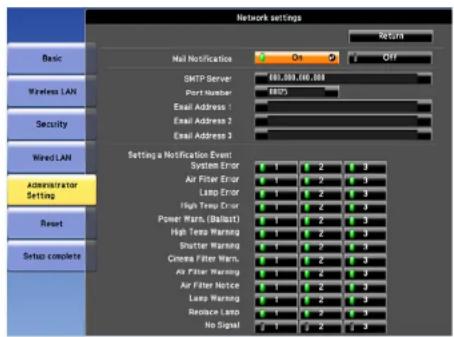
| Submenu Function | |
| Mail Notification | Set to On to send an email to the preset addresses when a problem or warning occurs with a projector. |
| Submenu Function | |
| SMTP Server | You can input the IP address for the SMTP server for the projector.You can enter a number from 0 to 255 in each field of the address. However, the following IP addresses cannot be used.127.x.x.x, 224.0.0.0 to 255.255.255.255 (where x is a number from 0 to 255) |
| Port Number | You can input the port number for the SMTP server. The default value is 25. You can input numbers between 1 to 65535. |
| Email Address 1/Email Address 2/Email Address 3 | You can input the email address of the destination to send the notification email to. You can register up to three destinations. You can enter up to 64 single-byte alphanumeric characters for the email addresses. (" ( ), ; <> [ Y ] cannot be used.)You can enter up to 32 characters on the Configuration menu. When entering more than 32 characters, use your Web browser to enter the text.The address for destination 1 is the mail notification sender's address. |
| Setting a Notifi-cation Event | You can select the problems or warnings to be notified about by email. When the selected problem or warning occurs in the projector, an email is sent to the specified Email Address notifying that a problem or warning has occurred. You can select multiple items from the displayed items. |
Manage Certificates menu
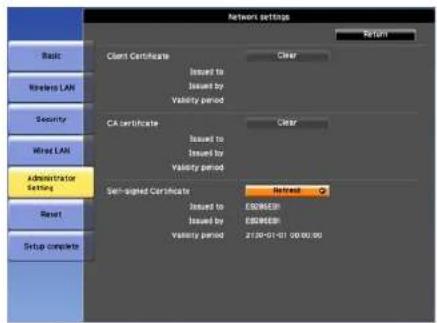
| Submenu Function | |
| Client Certificate | Displays theIssued to,Issued by,and Validity period information set in the stored client certificate. It is blank if the certificate is not set. You need to set Client Certificate when WPA/WPA2-EAP is selected in Security, and PEAP-TLS or EAP-TLS are selected in EAP Method.SelectClearto delete the stored certificate. |
| CA certificate | Displays theIssued to,Issued by,and Validity period information set in the stored CA certificate. It is blank if the certificate is not set. You need to set CA certificate when WPA/WPA2-EAP is selected in Security, when verifying the authentication server certificate.SelectClearto delete the stored certificate. |
| Self-signed Certificate | (This item can only be set when Secure HTTP is set to On.)The Issued to, Issued by, and Validity period information on the certificate maintained by the server function in the projector is displayed. This information is not displayed if Web Server Certificate is set.Select Refresh to update the self-signed certificate. |
| Web Server Certificate | (This item can only be set when Secure H'I'TP is set to On.)The Issued to, Issued by, and Validity period information on the certificate set in the projector is displayed. This information is not displayed when a Self-signed Certificate is set.Select Clear to delete the stored certificate. |

Contact the network administrator regarding the issue of a certificate.
Setting Certificates
You can use a Web browser to set the certificate settings used for wireless LAN authentication.
Install the following certificates in the projector: Client Certificate and CA certificate for wireless LAN security settings, and Web Server Certificate for the Secure HTTP function.
1 Start the Web browser on the computer.
2 Enter the IP address of the projector in the address input box of the Web browser, and press the Enter key on the computer's keyboard.
The Web Control screen is displayed.
When Web Control Password is set in the Network menu from the projector's Configuration menu, the password entry screen is displayed.
3 The user ID and password entry screen is displayed.
Enter "EPSONWEB" as the user ID.
The default password is "admin".

Enter the user ID even if the password setting is disabled. You cannot change the user ID.
4 Click Administrator Settings - Manage Certificates from Network.
5 The Manage Certificates screen appears.
Network Setup
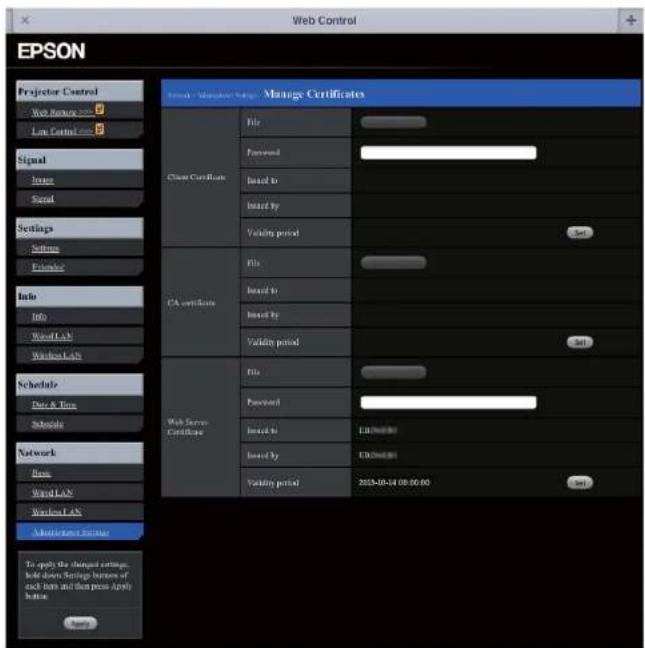
6 Set according to the certificate to be installed.
7 When you have finished making settings, press Reflect.

When installing a certificate, make sure the projector supports its format. p.58
Secure HTTP Notes
When Secure HTTP in Administrator Settings from the Network menu is set to On, security using HTTPS protocol is automatically applied. You can use this function to increase security between the projector and a Web browser.
A certificate is used in communication using HTTPS protocol to certify reliability of the server. Create a server certificate to verify reliability from a Web browser, and install it on the projector.
If there is no server certificate, the projector automatically creates a self-signed certificate and communicates. Because this self-signed certificate cannot verify reliability from a Web browser, a warning about the server's reliability is generated when the projector is accessed from a Web browser. Although the security level is decreased when compared to a server certificate, you can continue to communicate by ignoring the warning.
List of supported certificates
Client Certificate (PEAP-TLS/EAP-TLS)
| Item Explanation | |
| Supported format | PKCS#12 |
Network Setup
| Item Explanation | |
| Extension | PKCS, P12 |
| Encryption | RSA |
| Hashes | MD5/SHA-1/SHA-256/SHA-384/SHA-512 |
| Key length | 512/1024/2048/4096 bit |
| Password | Required. Up to 32 alphanumeric characters |
Server Certificate (PEAP/PEAP-TLS/EAP-TLS/EAP-Fast)
| Item Explanation | |
| Supported format | X509v3 |
| Extension | DER/CER/PEM |
| Encryption | RSA |
| Hashes | MD5/SHA-1/SHA-256/SHA-384/SHA-512 |
| Key length | 512/1024/2048/4096 bit |
| Encode | BASE64/Binary |
Web Server Certificate (Secure HTTP)
| Item Explanation | |
| Supported format | PKCS#12 |
| Extension | PKCS, P12 |
| Encryption | RSA |
| Hashes | MD5/SHA-1/SHA-256/SHA-384/SHA-512 |
| Key length | 512/1024/2048/4096 bit |
| Common Name | Network host name |
| Organization | Optional |
| Password | Required. Up to 32 alphanumeric characters |
SNMP menu
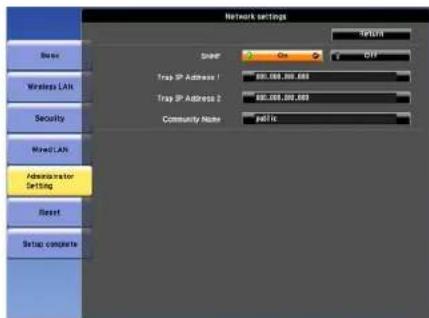
| Submenu Function | |
| SNMP | Set to On to monitor the projector using SNMP. To monitor the projector, you need to install the SNMP manager program on your computer. SNMP should be managed by a network administrator. The default value is Off. |
| Trap IP Address 1/Trap IP Address 2 | You can register up to two IP addresses for the SNMP trap notification destination.You can enter a number from 0 to 255 in each field of the address. However, the following IP addresses cannot be used.127.x.x.x, 224.0.0.0 to 255.255.255.255 (where x is a number from 0 to 255) |
| Community Name | Set the community name of SNMP. You can enter up to 32 single-byte alphanumeric characters. (The only symbol you can use is @.) |
Network Setup
Reset menu
Resets all of the network settings.
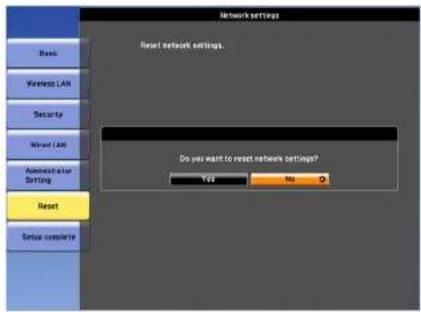
| Submenu Function | |
| Reset network settings. | To reset all of the Network settings, select Yes.When you reset the network settings, the Passphrase,Administrator Password and Manage Certificates menu settings change back to their default values, and the certificates are deleted.After you reset all the settings, the Basic menu appears. |
About Event ID
If a network connection error occurs, an error log (Event ID) is displayed on the following screen.
![[LAN] Projector Name : EB-XXXXX SSID : IP Address ↓ : IP Address (φ) : Keyword :](/content/2026/05/1062466/images/7843381e3b167384da34cb65e0c986b320f75e05ff49a915bc19522b9d8c2fe9.jpg)
Standby screen when the Source is set to LAN
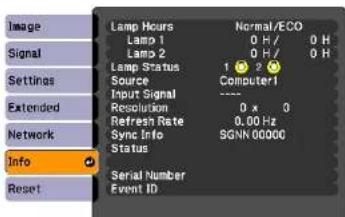
Press the [Menu] button > Info menu screen
Check the numbers and then apply the following countermeasures.
| Event ID Cause | Remedy | |
| 04320435 | Failed to startup EasyMP Network Projection. Restart the projector. | |
| 0434048104820485 | Network communication is unstable. | Check the network communication status, and reconnect after waiting for a while. |
| 0433 Cannot play transferred images. Restart EasyMP Network Projection. | ||
| 0484 Communication was disconnected from the computer. | ||
| 04FE | EasyMP Network Projection ended unexpectedly. | Check the status of network communications. Restart the projector. |
| 04FF A system error occurred in the projector. Restart the projector. | ||
| 0891 | Cannot find an access point with the same SSID. | Set the computer, the access point, and the projector to the same SSID. |
| 0892 | The WPA/WPA2 authentication type does not match. | Check that the wireless LAN security settings are correct. p.52 |
| 0893 The WEP/TKIP/AES encryption type does not match. | ||
| 0894 Communication was disconnected because the projector connected to an unauthorized access point. | Contact your network administrator for more information. | |
| 0898 | Failed to acquire DHCP. | Check the DHCP server to see if it is operating correctly and check the LAN cable to see if it is connected correctly. If you are not using DHCP, turn off the DHCP setting. p.48 |
| 0899 | Other communication errors | If restarting the projector or EasyMP Network Projection does not solve the problem, contact your local dealer or the nearest address provided in the Epson Projector Contact List."Epson Projector Contact List" p.74 |
| 089A | The EAP authentication type is not the same. | Check that the wireless LAN security settings are correct. Also, check if the certificate is installed correctly. p.52 |
| 089B EAP server authentication failed. | ||
| 089C EAP client authentication failed. | ||
| 089D Key exchange failed. | ||
Notes on Transportation
There are many glass parts and precision components inside the projector. To prevent damage due to impacts when transporting, handle the projector as follows.
Moving Nearby
Checking the following points, and then carry carefully by the handles.
- Turn off the power to the projector and disconnect all cables.
- Attach the cover to the lens.
When Transporting
Preparing packaging
After checking the points in "Moving Nearby", prepare the following and then pack up the projector.
- Remove the lens unit if an option lens, other than the standard zoom lens, is installed. Attach the standard zoom lens if the projector has a built-in lens. If the projector does not have a lens, attach the cover that was on the lens mount when you purchased the projector.
- Set the horizontal and vertical lens shift to the center.
"Adjusting the Position of the Projected Image (Lens Shift)" p.22
- Fit the protective lens pad that was used at the time of purchase.
Notes when packing and transporting
Enclose the projector securely in buffer material to protect it from shock, and place it into a strong cardboard container. Be sure to notify the carrier company that the contents are fragile.
Reading the Indicators
These indicators indicate the operating status of the projector.
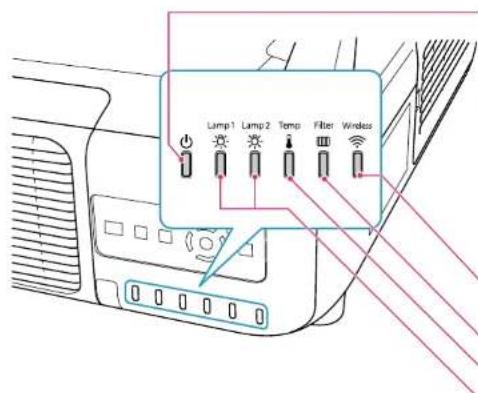
Indicates the operating status.
Standby condition
When the [◎] button is pressed in this condition, projection starts.
Preparing network monitoring (maximum approx. 20 seconds) or cool down in progress
Buttons are disabled while the indicator is flashing.
Warming up
Warm-up time is about 30 seconds. After warm-up is complete, the indicator stops flashing. [☐] button does not function during warm-up.
Projecting
Indicates the operating status of wireless LAN when the optional wireless LAN unit is connected.
Indicates the air filter status.
Indicates the internal temperature status.
Indicates the projection lamps status. Flashes green while Shutter or Blank is activated.
Refer to the following table to see what the indicators mean and how to remedy problems that they indicate.
If all indicators are off, check that the power cord is connected correctly and that the power is being supplied normally.
Sometimes, when the power cord is unplugged, the indicator remains lit for a short period, but this is not a fault.
Indicator is lit or flashing red
| Status Cause Remedy or Status | ||
| Internal Error | Stop using the projector, remove the power plug from the electrical outlet, and contact your local dealer or the nearest address provided in the Epson Projector Contact List. "Epson Projector Contact List" p.74 | |
| Fan ErrorSensor ErrorCool System Error | Stop using the projector, remove the power plug from the electrical outlet, and contact your local dealer or the nearest address provided in the Epson Projector Contact List. "Epson Projector Contact List" p.74 | |
| High Temp Error (overheating) | The lamp turns off automatically and projection stops. Wait for about five minutes. After about five minutes the projector switches to standby mode, so check the following two points.Check that the air filter and air exhaust vent are clear, and that the projector is not positioned against a wall.If the air filter is clogged, remove the power plug from the electrical outlet, and clean or replace it.If the error continues after checking the points above, stop using the projector, remove the power plug from the electrical outlet, and contact your local dealer or the nearest address provided in the Epson Projector Contact List. "Epson Projector Contact List" p.74 | |
| When using at an altitude of 1500 m or more, set High Altitude Mode to On.Press the [Menu] button >Extended >Operation >High Altitude Mode | ||
| Set Direction to Pointing Down, Pointing Up, Angled Up, or Angled Down when the projector is installed in a direction which is not horizontal.Press the [Menu] button >Extended >Direction | ||
| Lamp ErrorLamp Failure | Check the following two points after turning off the projector and removing the power plug from the electrical outlet.Take out the lamp and check if it is cracked.Clean the air filter. | |
| If the lamp is not cracked: Reinstall the lamp and connect the plug to an electrical outlet.If the error continues: Replace the lamp with a new lamp and connect the plug to an electrical outlet.If the error continues: Stop using the projector, remove the power plug from the electrical outlet, and contact your local dealer or the nearest address provided in the Epson Projector Contact List. "Epson Projector Contact List" p.74 | ||
| If it is cracked: Contact your local dealer or the nearest address provided in the Epson Projector Contact List. (Images cannot be projected until the lamp is replaced.) "Epson Projector Contact List" p.74 | ||
| When using at an altitude of 1500 m or more, set High Altitude Mode to On.Press the [Menu] button >Extended >Operation >High Altitude Mode | ||
| Status Cause Remedy or Status | ||||
| [4058Y] | [21496] | [20748] | [21493] | Set Direction to Pointing Down, Pointing Up, Angled Up, or Angled Down when the projector is installed in a direction which is not horizontal.Press the [Menu] button >Extended >Direction |
| Filter Airflow Error Check the following two points.Check that the air filter and air exhaust vent are clear, and that the projector is not positioned against a wall.If the air filter is clogged, remove the power plug from the electrical outlet after turning off the projector, and clean or replace it.If the error continues after checking the points above, stop using the projector, disconnect the power cable from the electrical outlet, and contact your local dealer or the nearest address provided in the Epson Projector Contact List."Epson Projector Contact List" p.74 | ||||
| Auto Iris ErrorCinema filter errorShutter ErrorPower Err. (Ballast) Stop using the projector, remove the power plug from the electrical outlet, and contact your local dealer or the nearest address provided in the Epson Projector Contact List."Epson Projector Contact List" p.74 | ||||
Indicator is flashing or lit
: Lit

Flashing
□: Off
☐: Varies according to the projector status
| se Remedy or Status | |||
 | (170) | (180) | High Temp Warning (This is not an abnormality. However, if the temperature rises too high again, projection stops automatically.)Check that the air filter and air exhaust vent are clear, and that the projector is not positioned against a wall.If the air filter is clogged, remove the power plug from the electrical outlet, and clean or replace it. |
| [50W] | (240) | (250) | |
| [60B] | (300) | (320) | Replace Lamp The lamp indicated by flashing indicator, lamp 1 or 2, is due for replacement. Replace with a new lamp after turning off the projector and removing the power plug from the electrical outlet.If you continue to use the lamp after the replacement period has passed, the possibility that the lamp may explode increases. Replace it with a new lamp as soon as possible.We recommend replacing both lamps together to maintain consistent hue and brightness of projected images. |
| [17T] | (380) | (400) | |
| [50W] | (500) | (520) | |
 | (700) | (720) | Lamp Warning Supply System Warning (Ballast) Check the following two points after turning off the projector and removing the power plug from the electrical outlet.Remove the lamp indicated by the flashing indicator, lamp 1 or 2, and check if it is cracked.Clean the air filter. |


[Non-Text]


![In tus [ ] [ ] or tus [ ] [ ]](/content/2026/05/1062466/images/fd05b7f98c2e98e136394c22e71cc62aca204f9a5acbf128c63b00e8ca384fca.jpg)


| Status Cause Remedy or Status | |
| If the lamp is not cracked:Reinstall the lamp and connect the plug to an electrical outlet.If the error continues:Replace the lamp with a new lamp and connect the plug to an electrical outlet.If the error continues:Stop using the projector, remove the power plug from the electrical outlet, and contact your local dealer or the nearest address provided in the Epson Projector Contact List. "Epson Projector Contact List" p.74 | |
| If it is cracked:Contact your local dealer or the nearest address provided in the Epson Projector Contact List. (Only one lamp is working. Replace the burned-out lamp as soon as possible.) "Epson Projector Contact List" p.74 | |
| When using at an altitude of 1500 m or more, setHigh Altitude Modeto On.Press the [Menu] button >Extended>Operation>High Altitude Mode | |
| SetDirectionto Pointing Down, Pointing Up, Angled Up, or Angled Downwhen the projector is installed in a direction which is not horizontal.Press the [Menu] button >Extended>Direction | |
| No Air FilterAir Flow Sensor Err. Check that the air filter is securely installed.The projector automatically turns off about one minute after it detects that there is no air filter.If the error continues even though an air filter is installed, the air filter sensor may be defective. Stop using the projector, remove the power plug from the electrical outlet, and contact your local dealer or the nearest address provided in the Epson Projector Contact List. "Epson Projector Contact List" p.74 | |
| Low Air Flow Check the following two points.Check that the air filter and air exhaust vent are clear, and that the projector is not positioned against a wall.If the air filter is clogged, remove the power plug from the electrical outlet, and clean or replace it.If the error continues after checking the points above, stop using the projector, remove the power plug from the electrical outlet, and contact your local dealer or the nearest address provided in the Epson Projector Contact List. "Epson Projector Contact List" p.74 | |
| Air Filter Notice "Time to clean the air filter. Clean or replace the air filter." is displayed. Clean the air filter after turning off the projector and removing the power plug from the electrical outlet.The indicators or messages regarding Air Filter Notice are displayed only whenAir Filter Noticeis set toOnfrom the Configuration menu.Press the [Menu] button >Extended>Air Filter Notice |

If the indicators are in a state not shown in this table, stop using the projector, remove the power plug from the electrical outlet, and contact your local dealer or the nearest address provided in the Epson Projector Contact List.
"Epson Projector Contact List" p.74
Front/Top
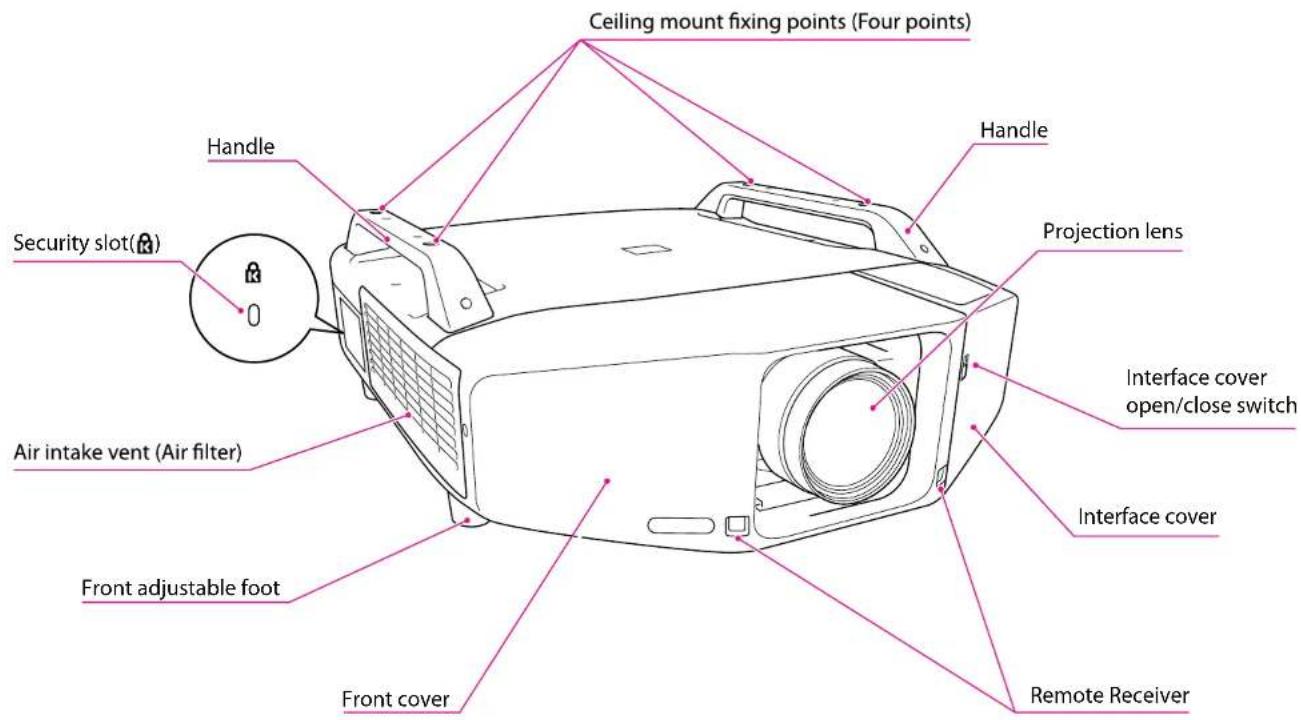
Part Names and Functions
Anti-Theft Lock
As the projector is often setup on ceiling mounts and left in rooms unattended, the projector includes the following security devices to prevent someone from taking the projector.
- Security slot
The security slot is compatible with the Microsaver Security System manufactured by Kensington. You can find details about the Microsaver Security System on the Kensington homepage http://www.kensington.com/.
- Handle
A commercially available theft-prevention wire lock can be passed through the installation point to secure the projector to a desk or pillar.
Installing the wire lock
Pass an anti-theft wire lock through the handle.
See the User's Guide supplied with the wire lock for locking instructions.
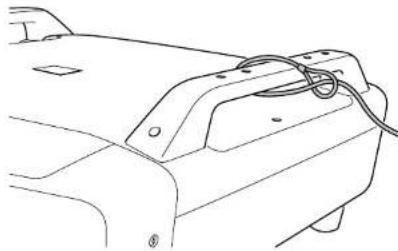
natural_image
Line drawing of a car's front bumper with cable and mounting bracket (no text or symbols)Rear
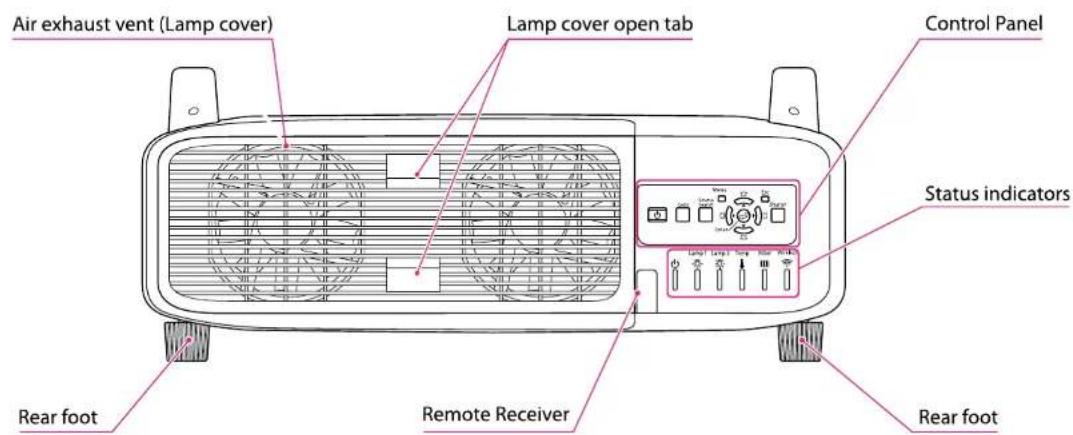
Interface
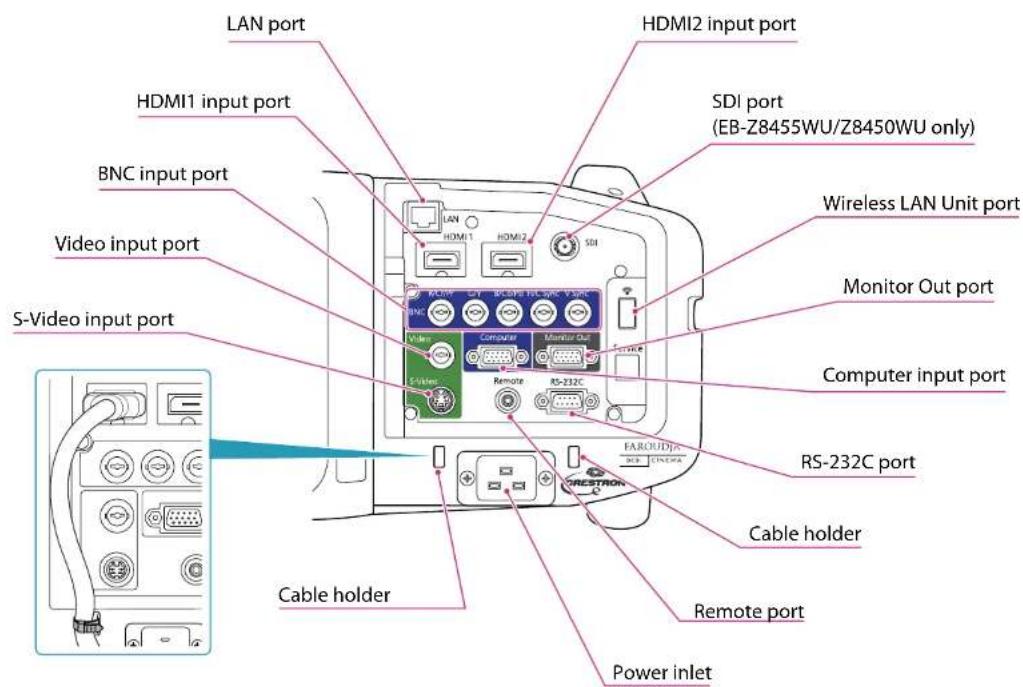

- Set the Input Signal and Video Signal on the Signal menu according to the signal from the connected equipment.
- Use a cable that complies with the HDMI standard for the HDMI cable.
Control Panel
![[Menu] button [O] button [Lens] button [Source Search] button [Enter] button [Esc] button [Shutter] button [Shutter] button [Enter] button](/content/2026/05/1062466/images/0be79f00994729bc8032163b07002b55867ef19adb36b35e7a75c4e760e9139d.jpg)
All rights reserved. No part of this publication may be reproduced, stored in a retrieval system, or transmitted in any form or by any means, electronic, mechanical, photocopying, recording, or otherwise, without the prior written permission of Seiko Epson Corporation. No patent liability is assumed with respect to the use of the information contained herein. Neither is any liability assumed for damages resulting from the use of the information contained herein.
Neither Seiko Epson Corporation nor its affiliates shall be liable to the purchaser of this product or third parties for damages, losses, costs, or expenses incurred by the purchaser or third parties as a result of: accident, misuse, or abuse of this product or unauthorized modifications, repairs, or alterations to this product, or (excluding the U.S.) failure to strictly comply with Seiko Epson Corporation's operating and maintenance instructions.
Seiko Epson Corporation shall not be liable against any damages or problems arising from the use of any options or any consumable products other than those designated as Original Epson Products or Epson Approved Products by Seiko Epson Corporation.
The contents of this guide may be changed or updated without further notice.
Illustrations in this guide and the actual projector may differ.
Restriction of Use
When this product is used for applications requiring high reliability/safety such as transportation devices related to aviation, rail, marine, automotive etc.; disaster prevention devices; various safety devices etc; or functional/precision devices etc, you should use this product only after giving consideration to including fail-safes and redundancies into your design to maintain safety and total system reliability. Because this product was not intended for use in applications requiring extremely high reliability/safety such as aerospace equipment, main communication equipment, nuclear power control equipment, or medical equipment related to direct medical care etc, please make your own judgment on this product's suitability after a full evaluation.
Trademarks and Copyrights
Mac and Mac OS are trademarks of Apple Inc..
Microsoft, Windows, Windows Vista, PowerPoint, and Windows logo are trademarks or registered trademarks of Microsoft Corporation in the United States and/or other countries.
HDMI and High-Definition Multimedia Interface are the trademarks or registered trademarks of HDMI Licensing LLC. HDMI
PJLink trademark is a trademark applied for registration or is already registered in Japan, the United States of America and other countries and areas.
This product includes RSA BSAFE™ software from RSA Security Inc. RSA is a registered trademark of RSA Security Inc. BSAFE RSA Security Inc. is a registered trade mark in the United States and other countries.
WPA ^™ , WPA2 ^™ and Wi-Fi Protected Setup ^™ are registered trademarks of Wi-Fi Alliance.
The DisplayPort Certified Logo and DisplayPort Icons are Registered Trademarks of the Video Electronics Standards Association (VESA).
The word DisplayPort is a Registered Trademark of VESA in various countries around the world.
HDBascT™ and the HDBascT Alliance logo are trademarks of the HDBascT Alliance. Other product names used herein are also for identification purposes only and may be trademarks of their respective owners. Epson disclaims any and all rights in those marks.
©SEIKO EPSON CORPORATION 2013. All rights reserved.
2013.7 412587100(E)
Epson Projector Contact List
Addresses and phone numbers are subject to change. For the most current information, check the website of your regional sales office listed below. If you don't find one in your area, visit Epson's main website at www.epson.com.
Europe
ALBANIA
ITD Sh.p.k.
Gjergji Center, Rr Murat
'Toptani
04000 Tirana - Albania
Tel: 00355 4 2256031
Fax: 00355 4 2256013
Web Address:
http://www.itd-al.com
AUSTRIA
Branch office Belgium
NET d.o.o. Computer Engineering
Vukovarska 24
88000 Mostar
Bosnia and Herzegovina
Tel: 00387 36449660
Fax: 00387 36449669
E-mail: info@net.com.ba
Web Address:
http://www.net.com.ba
BULGARIA
Epson Service Center Bulgaria
c/o ProSoft Central Service
Akad. G. Bonchev SRT. bl.6
1113 Sofia, Bulgaria
Tel: 00359 2 979 30 75
Fax: 00359 2 971 31 79
Email: info@prosoft.bg
Web Address:
http://www.prosoft.bg
Epson Projector Contact List
Dugoselska cesta 5
10370 Rugvica, Croatia
Tel: 00385 16401111
Fax: 03485 13654982
E-mail: info@mrservis.hr
Web Address:
http://www.mrservis.hr
CYPRUS
Mechatronic Ltd.
88 Digenis Akritas Avenue
"Loizides Centre 2" 2nd Floor
CY-1061 Nicosia, Cyprus
Tel: 00357 22582258
Fax: 00357 22582222
Web Address:
http://www.mechatronic.com.cy
CZECH REPUBLIC
Epson Europe B.V.
Branch Office Czech Republic
Slavickova 1a 63800 Brno
Czech Republic
Hotline: 800 142 052
E-mail: infoline@epson.cz@command
Web Address:
http://www.epson.cz
DENMARK
Epson Denmark
Transformervej 6
2730 Herlev, Denmark
Tel: 44508585
Fax: 44508586
Hotline: 80808047
Email: denmark@epson.dk
Web Address:
http://www.epson.dk
ESTONIA
Epson Service Center, Estonia
c/o Kulbert Ltd. Sirge 4, 10618
'Tallinn, Estonia
Tel: 00372 671 8160
Fax: 00372 671 8161
Web Address:
http://www.epson.ee
FINLAND
Epson Finland
Rajatorpantie 41 C FI-01640
Vantaa, Finland
Hotline: 0201 552090
Web Address:
http://www.epson.fi
FRANCE & DOM-TOM TERRITORY
Epson France S.A.
Meerbusch, F.R. Germany
Tel: +49-(0)2159-538 0
Fax: +49-(0)2159-538 3000
Hotline: 01805 2341 10
Web Address:
http://www.epson.de
GREECE
Oktabit S.A.
Gounari 26,
15343 Agia Paraskevi
Greece
Tel: 0030 210 6067181
Fax: 0030 210 6067180
Web Address:
http://www.oktabitgr.com
HUNGARY
Epson EUROPE B.V.
Branch Office Hungary
Infopark setany 1.
HU-1117 Budapest, Hungary
Hotline: 06 800 14 783
E-mail: infoline@epson.hu
Web Address:
http://www.epson.hu
IRELAND
Epson (UK) Ltd.
Westside, London Road Hemel Hempstead
Herts HP3 9TD, U.K.
Hotline: 01 679 9015
Web Address:
http://www.epson.ie
ISRAEL
Epson Israel
2 Habonim st.
Ramat Gan, Israel
Tel: +972-3-5751833
Fax: +972-3-575161
Web Address:
http://www.epson.co.il
ITALY
Epson Italia s.p.a.
Via M. Vigano de Vizzi, 93/95
20092 Cinisello Balsamo
Mirano, Italy
Tel: +39 02. 660321
Fax: +39 02. 6123622
Hotline: +39 06.60521503
Web Address: http://www.epson.it
KAZAKHSTAN
Epson KazakhstanRep. Office
97, Samal-2, bldg A1, 5th floor
Business Center
"Samal Towers"
Almaty 050051, Kazakhstan
Tel: +7 727 3560260
Fax: +7 727 3560260
Web Address:
http://www.epson.kz
LATVIA
Epson Service Center, Latvia
c/o ServiceNet LV
Jelgavas 36
1004 Riga, Latvia
Tel: 00 371 746 0399
Fax: 00 371 746 0299
Web Address:
http://www.epson.lv
LITHUANIA
Epson Service Center, Lithuania
c/o ServiceNet
Gaiziunu 3
50128 Kaunas, Lithuania
Tel: 00 370 37 400 160
Fax: 00 370 37 400 161
Web Address:
http://www.epson.lt
LUXEMBURG
Epson Europe B.V.
Branch office Belgium
Web Address: http://www.epson.be
MACEDONIA
Digit Computer Engineering
Bul. Partizanski Odredi 62 Vlez
II mezanin
1000 Skopie, Macedonia
Tel: 00389 2 3093393
Fax: 00389 2 3093393
E-mail: digit@digit.com.mk
Web Address:
http://www.digit.com.mk
NETHERLANDS
Epson Europe B.V.
Benelux sales office
Entrada 701
NL-1096 EJ Amsterdam
Netherlands
Tel: +31 20 592 65 55
Fax: +31 20 592 65 66
Hotline: 0900 5050808
Web Address: http://www.epson.nl
NORWAY
Epson NORWAY
Fjordveien 3
1363 Høvik, Norway
Tel: 4780030030
E-mail: ksbl@telenor.com
Web Address: http://www.epson.no
POLAND
Epson Europe B.V.
Branch Office Poland
Ul. Bokserska 66
PL-02-690 Warszawa
Poland
Hotline: (0) 801-646453
Web Address: http://www.epson.pl
Epson Projector Contact List
PORTUGAL
Epson Ibérica S.A.U.
Branch Office Portugal
Rua Gregorio Lopes, Lote 1514,
Branch Office Romania
Strada Ion Urdareanu nr. 34
Sector 5, 050688 Bucuresti
Romania
Tel: 00 40 21 4025024
Fax: 00 40 21 4025020
Web Address: http://www.epson.ro
RUSSIA
Epson CIS
Schepkina street, 42, Bldg 2A,
3rd floor
129110, Moscow, Russia
Tel: +7 (495) 777-03-55
Fax: +7 (495) 777-03-57
Web Address: http://www.epson.ru
UKRAINE
Epson Kiev Rep. Office
Pimonenko street, 13,
Bldg 7B, Office 15
04050, Kiev, Ukraine
Tel: +38 (044) 492 9705
Fax: +38 (044) 492 9706
Web Address: http://www.epson.ua
SERBIA
AVG d.o.o. Beograd
Prve pruge 31c
11080 Zemun, Beograd
Republic of Serbia
Tel: 00381 11 3191868
E-mail: office@a-v-g.rs
Web Address:
http://www.a-v-g.rs
SLOVAKIA
Epson Europe B.V.
Branch Office Czech Republic
Slavickova 1a 63800 Brno
Czech Republic
Hotline: 0850 111 429 (national costs)
Email: infoline@epson.sk
Web Address: http://www.cpson.sk
SLOVENIA
Birotehna d.o.o
Litijska Cesta 259
1261 Ljubljana - Dobrunje
Slovenia
Tel: 00 386 1 5853 410
Fax: 00386 1 5400130
E-mail: info@birotechna.si
Web Address:
http://www.birotehna.si
Epson Projector Contact List
SPAIN
Epson Ibérica, S.A.U.
Av. de Roma, 18-26
Branch office Switzerland
Westside, London Road
Hemel Hempstead Herts HP3 9TD, UK
Tel: (01442) 261144
Fax: (01442) 227227
Hotline: 08704437766
Web Address:
http://www.epson.co.uk
Africa
Contact your dealer
Email: support@epson.co.za
Web Address:
http://www.epson.co.za
or
http://www.epson.fr
SOUTH AFRICA
Epson South Africa
Epson Projector Contact List
Grnd. Floor, Durham Hse, Block 6
Fourways Office Park
Cnr. Fourways Blvd. & Roos Str.
Fourways, Gauteng, South Africa
Tel: +27 11 465 9621
Fax: +27 11 465 1542
Helpdesk: 0860 337766
or +27 11 201 7741
Email: support@epson.co.za
Web Address:
http://www.epson.co.za
Middle East
Epson (Middle East)
P.O. Box: 17383 Jebel Ali Free
Zone Dubai
UAE (United Arab Emirates)
Tel: +971 4 88 72 1 72
Fax: +971 4 88 18 9 45
Email: supportme@epson.co.eu
Web Address:
http://www.epson.co.ae
North, Central America and Caribbean Islands
CANADA
Epson Canada, Ltd.
185 Renfrew Drive
Markham, Ontario
L3R 6G3
Canada
Tel: 905-709-9475
or 905-709-3839
Web Address:
http://www.epson.ca
COSTA RICA
Epson Costa Rica, S.A.
Epson Mexico, S.A. de C.V.
Boulevard Manuel Avila
Camacho 389
http://www.epson.com.mx
ECUADOR
Epson Ecuador
Epson Projector Contact List
Tel: 604-4220 (Guayaquil)
(otras ciudades)
Web Address:
http://www.epson.com.ec
UNITED STATES
Epson America, Inc.
3840 Kilroy Airport Way
Long Beach, CA 90806, USA
Tel: 562-276-4394
Web Address:
http://www.epson.com
South America
ARGENTINA
Epson Argentina S.R.L.
Ave. Belgrano 970
(1092) Buenos Aires, Argentina
Tel: (5411) 5167-0300
Web Address:
Epson Venezuela S.A.
Epson Projector Contact List
Epson Australia Pty. Ltd.
3 Talavera Road, North Ryde, NSW
2113, AUSTRALIA
Tel: 1300 361 054
Web Address:
http://www.epson.com.au
CHINA
Epson (China) Co., Ltd.
7F, Jinbao Building,
No.89 Jinbao Street,
Dongcheng District,
Beijing, China
Zip code: 100005
Tel: (86-10) 85221199
FAX: (86-10) 85221123
Hotline: 400-810-9977
Web Address:
http://www.epson.com.cn
HONG KONG
Epson Hong Kong Ltd.
Unit 715-723, Trade Square,
681 Cheung Sha Wan Road,
Cheung Sha Wan, Kowloon,
Hong Kong
Support Hotline: (852) 2827 8911
Fax: (852) 2827 4383
Web Address:
http://www.epson.com.hk
INDIA
Epson India Pvt., Ltd.
12th Floor, The Millenia, Tower A, No. 1
Murphy Road, Ulsoor, Bangalore 560008
India
Tel: 1800 425 0011/1860 3000 1600
Web Address:
http://www.epson.co.in
INDONESIA
PT. Epson Indonesia
Wisma Keiai, 16th Floor,
Jalan Jenderal Sudirman Kav. 3,
Epson Projector Contact List
VP Customer Support Group:
6925 Toyoshinatazawa, Azumino-shi,
Nagano-ken, 399-8285 Japan
Tel: 0263-87-5814
Fax: 0263-87-5813
Web Address:
http://www.epson.jp
KOREA
Epson Korea Co., Ltd.
11F Milim Tower, 825-22
Yeoksam-dong, Gangnam-gu,
Seoul, 135-934 Korea
Tel: 82-2-558-4270
Fax: 82-2-558-4272
Web Address:
http://www.epson.co.kr
MALAYSIA
Epson Malaysia Sdn. Bhd.
3rd Floor, East Tower, Wisma
Consplant 1
No.2, Jalan SS 16/4,
47500 Subang Jaya,
Malaysia.
Tel: 03 56 288 288
Fax: 03 56 212 088
Web Address:
http://www.epson.com.my
NEW ZEALAND
Epson New Zealand
Level 2,
7-9 Fanshawe Street,
Auckland Central, 1010
New Zealand
Tel: 09 366 6855
Fax 09 366 6865
Web Address:
http://www.epson.co.nz
PHILIPPINES
Epson Philippines Co.
8th Floor, Anson's Centre,
23 ADB Avenue, Pasig City 1605,
Philippines
Tel: 632-7062609
Fax: 632-7062663
Web Address:
http://www.epson.com.ph
SINGAPORE
Epson Singapore Pte. Ltd.
1 HarbourFront Place,
03-02 HarbourFront Tower 1,
Singapore 098633
Tel: 6586 3111
Web Address:
http://www.epson.com.sg
Epson Projector Contact List
14F, No. 7, Song Ren Road,
Taipei, Taiwan
Tel: (02) 8786-6688
Fax: (02) 8786-6633
Web Address:
http://www.epson.com.tw
THAILAND
Epson (Thailand) Co., Ltd.
195 Empire Tower, 42nd Floor,
South Sathorn Road,
Yannawa, Sathorn, Bangkok 10120,
Thailand
Tel: 02 685 9888
Fax: 02 685 9889
Web Address:
http://www.epson.co.th
- Notations Used in This Guide
- - Safety indications
- - General information indications
- Contents
- Notations Used in This Guide 2
- Main Guide
- Safety Warnings and Cautions
- Precautions of Power ON/OFF 29
- Setting Up 30
- ed in)ting the 10 emot control ID
- Projecting Images 34
- Security Functions 44
- Before installation (Check items you are intereste
- Preparation 19
- Installing the Project or 22
- Remote Control 25
- Notes on Installation
- Warning
- Caution
- Attention
- Notes on Ceiling Mount
- Notes on Power
- Notes on Connection
- Notes on Lens
- Notes on Security
- Notes on Use
- Before installation (Check items you are interested in)
- Installing the Wireless LAN Unit
- Replacing the Projector Lens Unit
- Preparation
- Attaching the Interface Cover
- Installation Requirements
- Adjusting the Position of the Projected Image (Lens Shift)
- Installing the Projector
- Adjusting the Zoom
- Adjusting the Focus
- Displaying a Test Pattern
- Remote Control
- Operating the Remote Control
- Turning On
- Turning Off
- Setting Up
- ID Settings
- Set the projector ID
- Checking the Projector ID
- Setting the remote control ID
- Setting the Time
- Submenu Name Function
- Saving a User's Logo
- Projecting Images
- Correcting Distortion in the Projected Image
- H/V-Keystone
- Correction range
- Arc Correction
- Point Correction
- Changing the Aspect Ratio of the Projected Image
- Changing methods
- Multi-Projection
- Preparing the Projector
- Work flow
- Operations
- Scale
- Set Scale Mode.
- Adjust the scale.
- Adjust the Image Display Range.
- Image Maintenance
- Panel Alignment
- Enable Panel Alignment.
- Select the color you want to adjust by Select Color.
- Managing Users (Password Protection)
- Kinds of Password Protection
- Setting Password Protection
- Entering the Password
- Restricting Operation
- Control Panel Lock
- Lens Operation Lock
- Remote control button lock
- Security Functions
- Network Setup
- Checking Network Settings
- Wireless LAN
- Ad hoc connection settings (Quick)
- Infrastructure connection settings (Advanced)
- Wired LAN
- List of Menus for Other Network Settings
- Security menu
- Administrator Settings menu
- Mail Notification menu
- Setting Certificates
- Secure HTTP Notes
- List of supported certificates
- Reset menu
- About Event ID
- Notes on Transportation
- Moving Nearby
- When Transporting
- Preparing packaging
- Notes when packing and transporting
- Reading the Indicators
- Indicator is flashing or lit
- Part Names and Functions
- Anti-Theft Lock
- Interface
- Control Panel
- Restriction of Use
- Trademarks and Copyrights
- Epson Projector Contact List
- Europe
- ALBANIA
- AUSTRIA
- BULGARIA
- CYPRUS
- CZECH REPUBLIC
- DENMARK
- ESTONIA
- FINLAND
- FRANCE & DOM-TOM TERRITORY
- GREECE
- Oktabit S.A.
- HUNGARY
- Epson EUROPE B.V.
- Branch Office Hungary
- IRELAND
- ISRAEL
- Epson Israel
- ITALY
- Epson Italia s.p.a.
- KAZAKHSTAN
- Epson KazakhstanRep. Office
- LATVIA
- LITHUANIA
- LUXEMBURG
- MACEDONIA
- NETHERLANDS
- NORWAY
- POLAND
- PORTUGAL
- RUSSIA
- UKRAINE
- SERBIA
- SLOVAKIA
- SLOVENIA
- SPAIN
- Africa
- SOUTH AFRICA
- Middle East
- North, Central America and Caribbean Islands
- COSTA RICA
- UNITED STATES
- South America
- ARGENTINA
- CHINA
- HONG KONG
- INDIA
- INDONESIA
- KOREA
- MALAYSIA
- NEW ZEALAND
- PHILIPPINES
- ADB Avenue, Pasig City 1605,
- SINGAPORE
- 03-02 HarbourFront Tower 1,
- THAILAND
Brand : EPSON
Model : EB-Z8150
Category : Video projector