MX44KT - Uncategorized Simplified MFG - Free user manual and instructions
Find the device manual for free MX44KT Simplified MFG in PDF.


| Product Type | 4x4 HDMI Matrix Kit with Scaling |
| Model | MX44KT |
| Brand | Simplified MFG |
| HDMI Compliance | HDMI 2.0b |
| HDCP Compliance | HDCP 2.2/1.x |
| Video Bandwidth | 18 Gbps |
| Maximum Resolution | 4K2K@60Hz (YUV4:4:4) |
| Color Depth | 8-bit, 10-bit, 12-bit (1080p); 8-bit (4K60 4:4:4) |
| HDR Support | HDR10, HDR10+, Dolby Vision, HLG (HDMI out); HDR10, HDR10+, HLG (Cat out) |
| Audio Formats | LPCM 2.0/5.1/7.1, Dolby Digital, Dolby TrueHD, Dolby Digital Plus, Atmos, DTS-ES, DTS HD Master, DTS-HRA, DTS-X |
| Transmission Distance (Cat) | 50m (164ft) at 4K; 70m (232ft) at 1080p |
| ESD Protection | ±8kV (air-gap), ±4kV (contact) |
| Inputs | 4 x HDMI Type A |
| Outputs | 4 x HDMI Type A, 4 x RJ45 (Cat), 4 x IR OUT (3.5mm) |
| Control Ports | 1 x TCP/IP (RJ45), 1 x RS-232 (3-pin Phoenix) |
| Housing Material | Metal Enclosure |
| Color | Black |
| Matrix Dimensions (WxDxH) | 320mm x 100mm x 36mm (12.6" x 3.9" x 1.42") |
| Receiver Dimensions (WxDxH) | 61mm x 88mm x 18mm (2.4" x 3.5" x 0.7") |
| Weight (Matrix) | 915g (2lb 0.2oz) |
| Weight (Receiver) | 155g (5.5oz) |
| Power Supply | Input: AC 90-260V 50/60Hz; Output: DC 12V/2.5A |
| Power Consumption | 19.68W (Max) |
| Operating Temperature | 0°C to 40°C (32°F to 104°F) |
| Storage Temperature | -20°C to 60°C (-4°F to 140°F) |
| Relative Humidity | 20~90% RH (non-condensing) |
| Warranty | 3 years parts and labor |
| Included Items | 1x Matrix, 4x CAT Receiver, IR Remote, 12V/2.5A Power Supply, RS-232 cable, 3-pin Phoenix, 4x IR Blaster, 4x IR Receiver, 10x Mounting Ears, User Manual |
Frequently Asked Questions - MX44KT Simplified MFG
User questions about MX44KT Simplified MFG
0 question about this device. Answer the ones you know or ask your own.
Ask a new question about this device
Download the instructions for your Uncategorized in PDF format for free! Find your manual MX44KT - Simplified MFG and take your electronic device back in hand. On this page are published all the documents necessary for the use of your device. MX44KT by Simplified MFG.
USER MANUAL MX44KT Simplified MFG
50m/70m Scaling 18Gbps
4 x 4 HDMI Matrix Kit

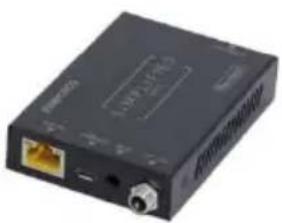
natural_image
Black electronic device with ports and connectors (no visible text or symbols)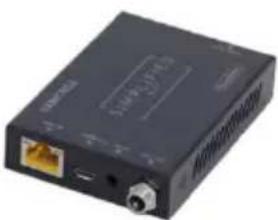
natural_image
Black electronic device with ports and connectors (no visible text or symbols)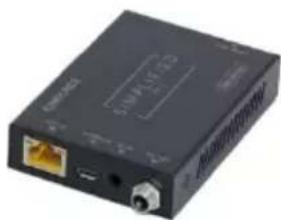
natural_image
Black electronic device with ports and connectors (no visible text or symbols)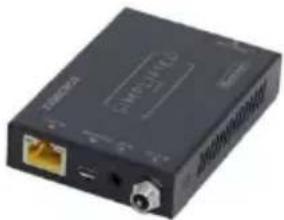
natural_image
Black electronic device with ports and connectors (no visible text or symbols)User Manual
Thank you for purchasing the MX44KT
The Simplified Manufacturing MX44KT is designed to provide years of reliable service. At Simplified MFG, we want the experience with this device to be the best possible and are committed to helping achieve that experience. Please keep this manual for future reference.
Surge protection device recommended
This product contains sensitive electrical components that may be damaged by electrical spikes, surges, electric shock, lighting strikes, etc. Use of surge protection systems is highly recommended to protect and extend the life of your equipment. Simplified MFG HIGHLY recommends a HDSURGE to be used on set top boxes (STB) like cable and satellite boxes.
Table of Contents
- Introduction......1
- Features....1
- Package Contents....2
- Specifications....2
- Operation Controls and Functions....4
5.1. Matrix Panel 4
5.2. CAT Receiver Panel. 5 - IR Remote 6
- IR Cable Pin Assignment. 6
- EDID Management....7
- Web GUI User Guide....9
- RS-232 Control Command. 16
- Application Example....21
- Warranty....22
- Contact....22
1. Introduction
The MX44KT is a sub 1RU (see dimensions in specs) 18Gbps 4x4 HDMI Matrix can connect four HDMI sources up to eight displays. The MX44KT features four mirrored HDMI/Category Cable outputs. Each of the 4 output channels feature an HDMI and UTP output that can scale with each other by channel. The MX44KT supports the transmission of 4K (18Gbps) video up to 50m (164ft.) and 1080p up to 70m (232ft.). The MX44KT supports HD digital audio formats such as LPCM 7.1CH, Dolby TrueHD, Dolby Digital Plus, Atmos and DTS-HD Master Audio. The kit includes four small receivers that connect to the matrix via a category cable to each of the CAT-Cable outputs to extend the HDMI signal up to 230ft/70m at 1080p and 164ft/50m at 4K. Each HDMI/CAT output supports Auto/Bypass/4K2K to 1080P downscaling together by channel. The MX44KT can be controlled via front panel buttons, IR remote, RS-232, LAN, and Web GUI.
2. Features
• HDMI 2.0b and HDCP2.2/1.x Compliant
• Supports resolutions up to 4Kx2K@60Hz. (YUV4:4:4) on all ports (HDMI & Category)
• 4 HDMI Inputs matrix switched to 4 Outputs (Mirrored HDMI & Category)
- HDMI/Cat ports are 18Gbps bandwidth, Cat does not Support DolbyVision™
• Each Output can be scaled individually
- HDR/HDR10/HDR10+/DolbyVision™/HLG support (HDMI Out, Cat does not support DolbyVision™)
- Category (UTP) outputs are rated 70m (232Ft.) at 1080p/50m (164Ft.) at 4K on Cat 6 cable
• All HDMI audio formats are supported including Atmos, Dolby+ and DTS-X
• Advanced EDID management
• CEC Control and Web GUI page dedicated to CEC Control
• All RX devices are powered via POE
• Control via Front Panel, Supplied IR Remote, RS232, LAN, and web GUI
3. Package Contents
1 x 18Gbps 4x4 HDMI Matrix
4 x CAT Receiver
1 x Matrix IR Remote
1 x 12V2.5A Power Supply
1 x RS-232 serial Cable (1.5 meters, male to female head)
1 x 3-pin Phoenix Connector
4 x IR Blaster Cable (1.5 meters)
4 x IR Receiver Cable (1.5 meters)
10 x Mounting Ear (Matrix and Receiver)
1x User Manual
- Specifications
| Technical | |
| HDMI Compliance | HDMI 2.0b |
| HDCP Compliance | HDCP 2.2/1.x |
| Video Bandwidth | 18Gbps |
| Video Resolution | Up to 4K2K@50/60Hz (4:4:4) |
| Color Space | RGB 4:4:4, YCbCr 4:4:4/4:2:2/4:2:0 |
| Color Depth | 8-bit, 10-bit, 12-bit(1080p@60Hz) 8-bit (4K2K@60HzYUV4:4:4)8-bit , 10-bit,12-bit (4K2K@60Hz YCbCr 4:2:2/4:2:0 ) |
| HDR | Through HDMI: HDR10, HDR10+, Dolby VisionTM, HLGThrough Cat RX: HDR10, HDR10+, HLG |
| HDMI Audio Formats | LPCM 2.0/2.1/5.1/6.1/7.1, Dolby Digital, Dolby TrueHD,Dolby Digital Plus (DD+), Atmos, DTS-ES, DTS HD Master,DTS HD-HRA, DTS-X |
| Transmission Distance | 50m (164Ft.) 4K @ 60Hz. / 70m (232Ft.) 1080p |
| ESD Protection | Human-body Model:±8kV (Air-gap discharge), ±4kV (Contact discharge) |
| Connection | |
| Matrix | Inputs: 4 x HDMI Type A [19-pin female]Outputs: 4 x HDMI Type A [19-pin female]4 x CAT port [RJ45]4 x IR OUT [3.5mm Stereo Mini jack]Controls: 1 x TCP/IP [RJ45]1 x RS-232 [3-pin phoenix connector] |
| CAT Receiver | Inputs: 1x IR IN [3.5mm Stereo Mini jack]1x CAT port [RJ45]Output: 1x HDMI Type A [19-pin female] Control:1x SERVICE [Micro USB, Update port] |
| Mechanical | |
| Housing | Metal Enclosure |
| Color | Black |
| Dimensions | Matrix: 320mm [12.6"] (W) × 100mm [3.9"] (D) × 36mm1.42"] (H)Receiver: 61mm [2.4"] (W) × 88mm [3.5"] (D) × 18mm[0.7"] (H) |
| Weight | Matrix: 915g [2lb. .2oz], Receiver: 155g [5.5oz.] |
| Power Supply | Input: AC 90 - 260V 50/60HzOutput: DC 12V/2.5A (US/EU standards, CE/FCC/UL certified) |
| Power Consumption | 19.68W (Max) |
| Operating Temperature | 0°C ~ 40°C / 32°F ~ 104°F |
| Storage Temperature | -20°C ~ 60°C / -4°F ~ 140°F |
| Relative Humidity | 20~90% RH (non-condensing) |
5. Operation Controls and Functions
5.1 Matrix Panel
Front Panel
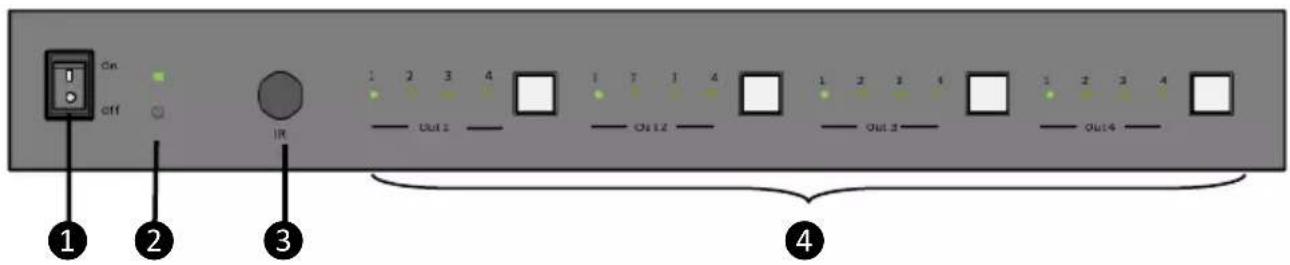
| NO. | Name | Function Description |
| 1 | Power switch | Press the switch to power on/off the Matrix. |
| 2 | Power LED | The LED will illuminate green when the Matrix is operating normally, and red when the Matrix is on standby. |
| 3 | IR Window | IR receiver window for signals from IR Remote Control supplied with this kit |
| 4 | OUT 1-4 buttons & Source LED 1~4 | Press the OUT 1/2/3/4 button to toggle HDMI source signal for the corresponding output port, then the corresponding source LED will be on. |
Rear Panel

| No. | Name | Function Description |
| 1 TCP/IP port | LAN Port [RJ-45] Connect to an active Ethernet link with a category cable to network for IP Control or web GUI access | |
| 2 | RS-232 port | RS-232 command control port. For RS232 communication with third party control systems |
| 3 | OUTPUT 1-4 ports | HDMI output ports for local connection or use with an extender with different features or distance capability |
| Category [RJ-45] mirrored output ports connect to supplied 50m [165ft] receivers. Matrix provides power to RX | ||
| 4 | IR OUT 1-4 ports | Connect to IR blaster cable, the IR signal is from the “IR IN” port of the RX device in the zone [1-4] |
| 5 | HDMI IN 1-4 ports | HDMI input from cable/sat box, Blu-Ray, streaming device, computer or another HDMI device |
| 6 | DC 12V | DC 12V power supply port |
5.2 CAT Receiver Panel
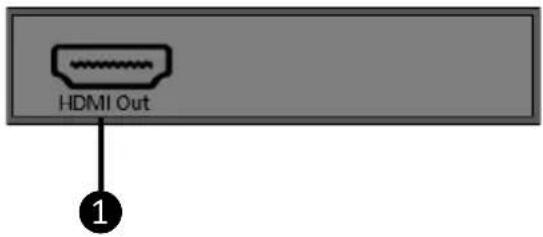
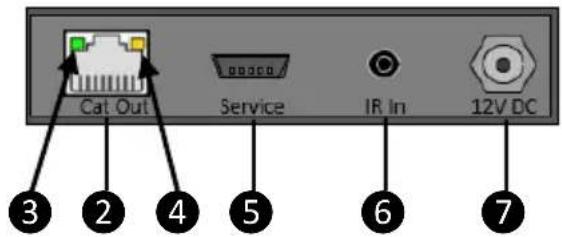
| No. | Name | Function Description |
| 1 HDMI OUT | HDMI output port, connect to HDMI display device such as TV or Projector with an HDMI cable | |
| 2 CAT IN | Connect to the CAT output port on the matrix with a category cable [up to 50m on Ca6/6a/7] | |
| 3 | Power Indicator LED (Green) | This LED indicates that the category cable is connected, and that the RX device has power from the matrix |
| 4 | Data signal Indicator LED (Orange) | This LED indicates that the HDMI signal circuit is complete from the matrix to the display |
| 5 | SERVICE port | Used for firmware update at factory |
| 6 IR IN | Connect to the IR Receiver cable. The IR signal will be sent to the IR output port of the matrix for source and matrix control | |
| 7 | DC 12V | Not used as the RX is powered via POE from the matrix. |
6. IR Remote
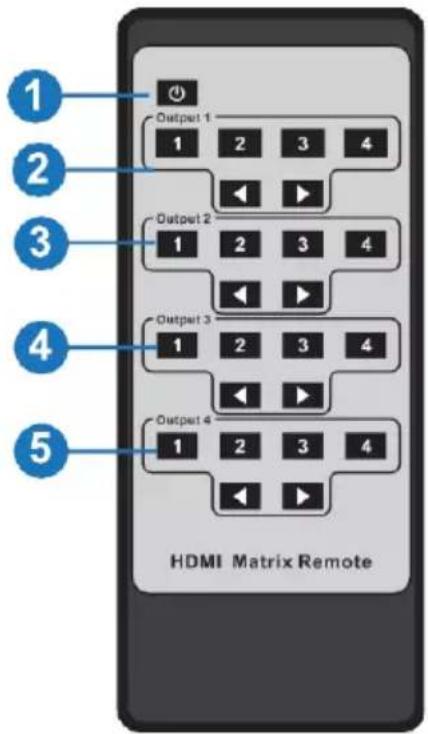
① Power on or Standby: Power on the Matrix or set it to standby mode.
② Output 1: Press 1\2\3\4 button to select input source to HDMI OUTPUT 1.
③ Output 2: Press 1\2\3\4 button to select input source to HDMI OUTPUT 2.
④ Output 3: Press 1\2\3\4 button to select input source to HDMI OUTPUT 3.
⑤ Output 4: Press 1\2\3\4 button to select input source to HDMI OUTPUT 4.
◀ ▶ : Select the last or next input source button.
7. IR Cable Pin Assignment

8. EDID Management
This MX44KT includes an EDID library with 21 EDID settings, 2 user-defined EDID modes and 8 copy EDID modes. The EDID can be selected from the library, input via a file, or copied from an output. This can be accomplished through RS-232 control or via the Web GUI.
RS-232 control operation: Connect the Matrix to PC with a serial cable, then open a Serial Command tool on PC to send ASCII command "s edid in x from z!" to set EDID. For details, please refer to "EDID Setting" in the ASCII command list of "10. RS-232 Control Command".
Web GUI Operation: Please check the EDID management in the Input page of the Web GUI User Guide.
The defined EDID setting list of the MX44KT is shown as below:
| EDID Mode | EDID Description |
| 1 | 1080P, Stereo Audio 2.0 |
| 2 | 1080P, Dolby/DTS 5.1 |
| 3 | 1080P, HD Audio 7.1 |
| 4 | 1080I, Stereo Audio 2.0 |
| 5 | 1080I, Dolby/DTS 5.1 |
| 6 | 1080I, HD Audio 7.1 |
| 7 | 3D, Stereo Audio 2.0 |
| 8 | 3D, Dolby/DTS 5.1 |
| 9 | 3D, HD Audio 7.1 |
| 10 | 4K2K30_444, Stereo Audio 2.0 |
| 11 | 4K2K30_444, Dolby/DTS 5.1 |
| 12 | 4K2K30_444, HD Audio 7.1 |
| 13 | 4K2K60_420, Stereo Audio 2.0 |
| 14 | 4K2K60_420, Dolby/DTS 5.1 |
| 15 | 4K2K60_420, HD Audio 7.1 |
| 16 | 4K2K60_444, Stereo Audio 2.0 |
| 17 | 4K2K60_444, Dolby/DTS 5.1 |
| 18 | 4K2K60_444, HD Audio 7.1 |
| 19 | 4K2K60, Stereo Audio 2.0 HDR |
| 20 | 4K2K60, Dolby/DTS 5.1 HDR |
| 21 | 4K2K60, HD Audio 7.1HDR |
| 22 | User Define1 |
| 23 | User Define2 |
| 24 | COPY_FROM_HDMI 1 |
| 25 | COPY_FROM_HDMI 2 |
| 26 | COPY_FROM_HDMI 3 |
| 27 | COPY_FROM_HDMI 4 |
| 28 | COPY_FROM_CAT 1 |
| 29 | COPY_FROM_CAT 2 |
| 30 | COPY_FROM_CAT 3 |
| 31 | COPY_FROM_CAT 4 |
9. Web GUI UserGuide
The MX44KT can be controlled by Web GUI. You will need to know the IP address of the MX44KT. This can be done with a PC or with a network scan app. The network scan app will return "Simplified-MFG-MX44KT" in the results
Step 1: Get the current IP Address with your PC.
The default IP address mode is DHCP. You can get the current MX44KT IP address via RS-232 control. Send the ASCII command "r ipconfig!" through a Serial Command tool, then you'll get the feedback information as shown below:
IP Mode: DHCP
IP:192.168.2.209
Subnet Mask:255.255.255.0
Gateway:192.168.2.1
TCP/IP port=8000
Telnet port=23
Mac address:6C:DF:FB:07:1C:E2
IP:192.168.2.209 in the above figure is the current MX44KT's IP address (this IP address is variable, depending on what the router assigns as the matrix is preset to DHCP).
For the details of RS-232 control, please refer to "10. RS-232 Control Command".
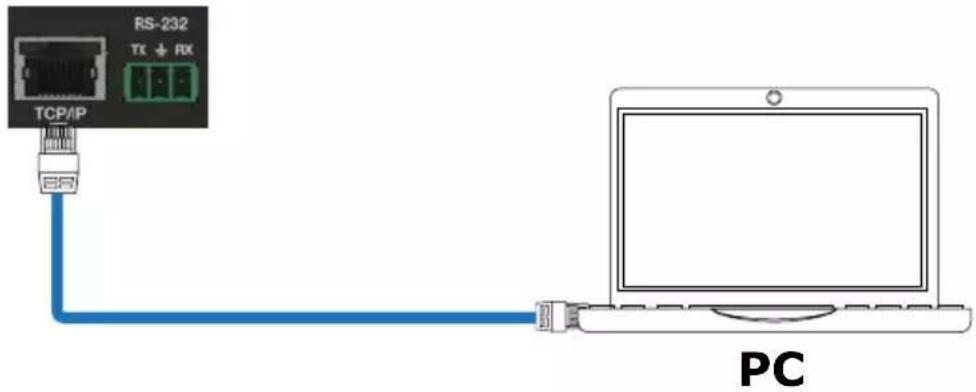
Step 2: Connect the TCP/IP port of the MX44KT to a LAN or PC with an UTP cable (as shown in the following figure) and set the IP address of the PC to be in the same network segment with the MX44KT.
Step 3: Input the current IP address of MX44KT into your browser on the PC to enter Web GUI page.

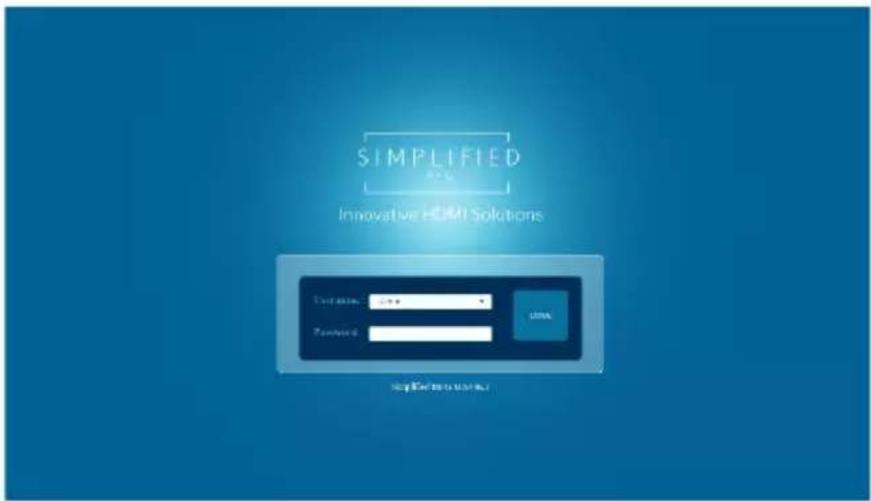
After entering the Web GUI IP address, there will be a Login page, as shown below: Select "Admin" from the list and enter the password. The default passwords are:
Username
Password
User
user
Admin
admin
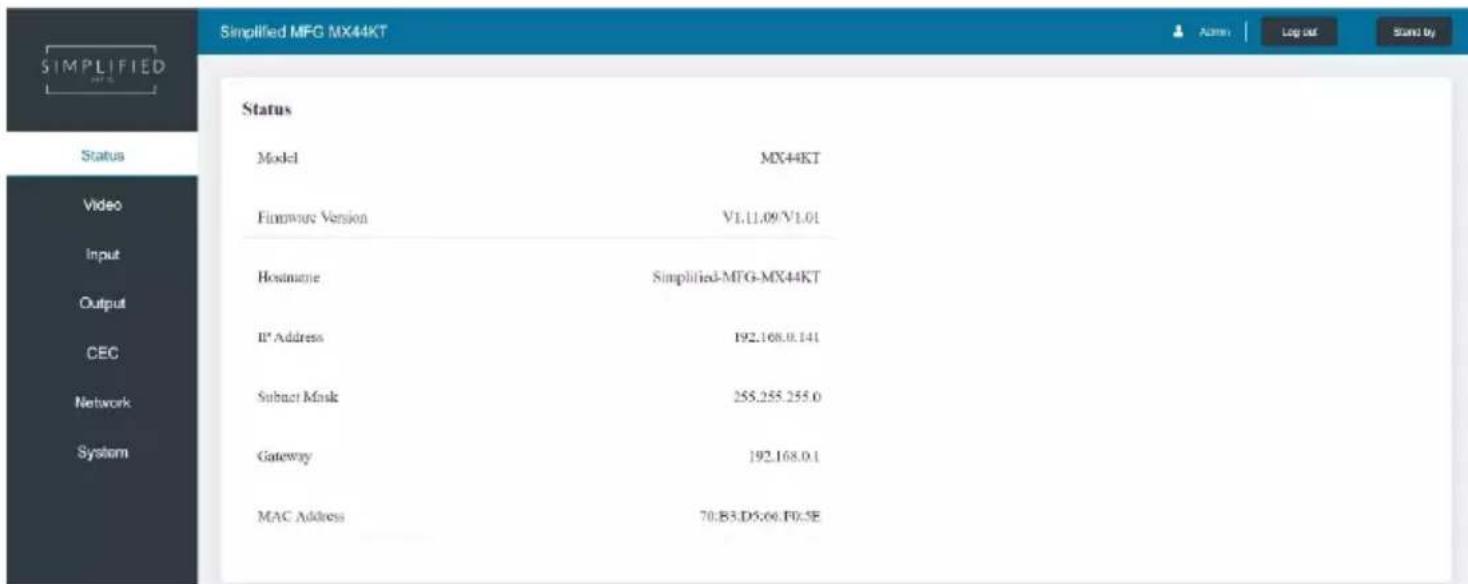
After entering the password, click the "LOGIN" button and the following Status page will appear. In User mode, only the status and video pages are available.
■ Status Page
The Status page provides basic information about the MX44KT, installed firmware version and the network settings of the device.
■ Video Page
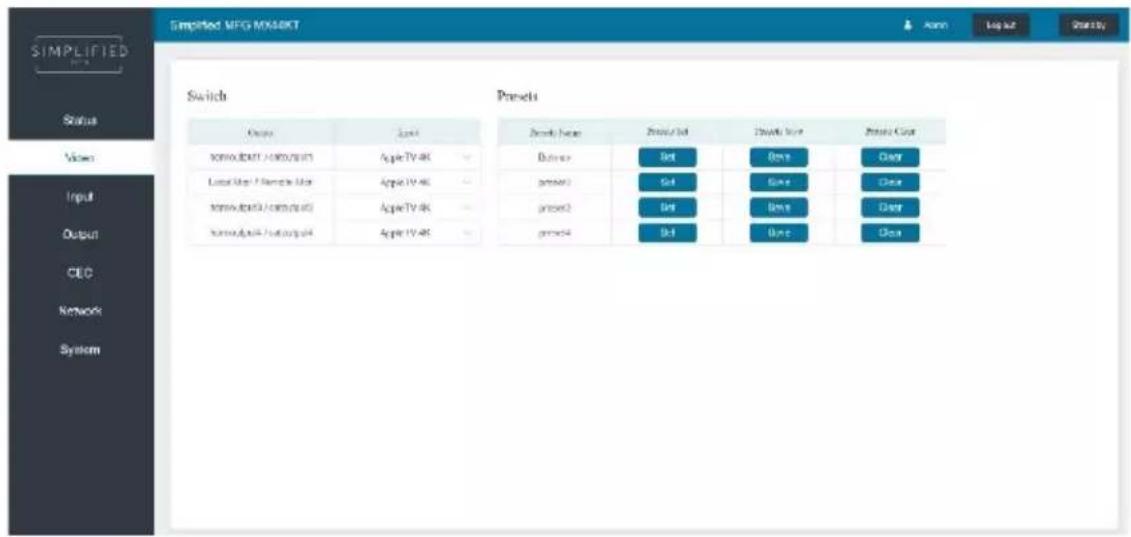
You can do the following operations on the Video page:
① Output: The current device's OUTPUT port status is displayed here
② Input: You can select from the drop-down menu to select signal source for the corresponding output
③ Presets Name: You can name the current scene with maximum length of 12 characters
④ Presets Set: You can restore the settings of the last saved audio-video matrix switching relationship
⑤ Presets Save: You can save the current input output scheme to a preset
⑥ Presets Clear: This clears the selected preset, the name remains
■ Input Page
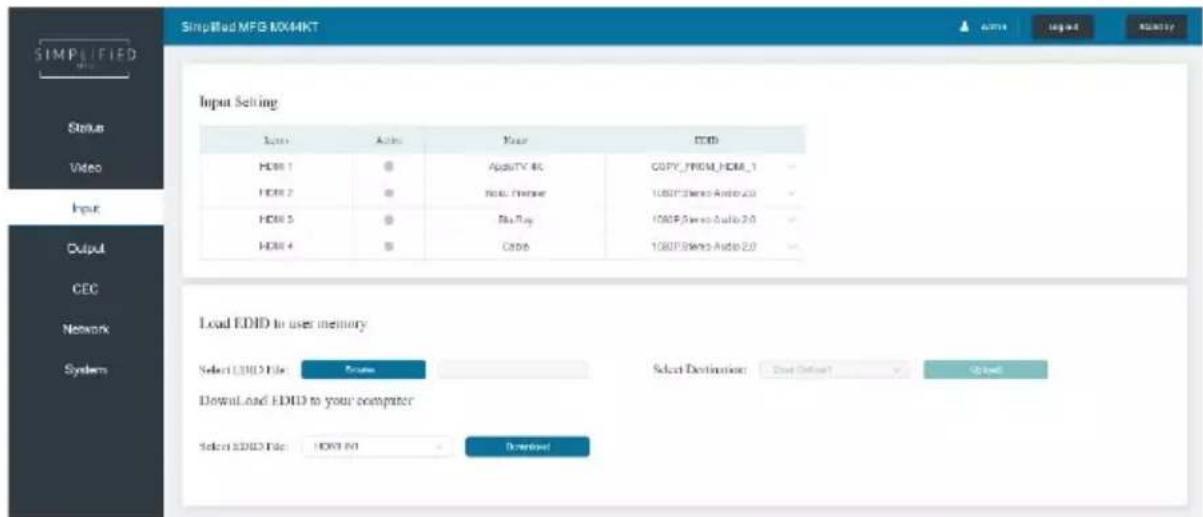
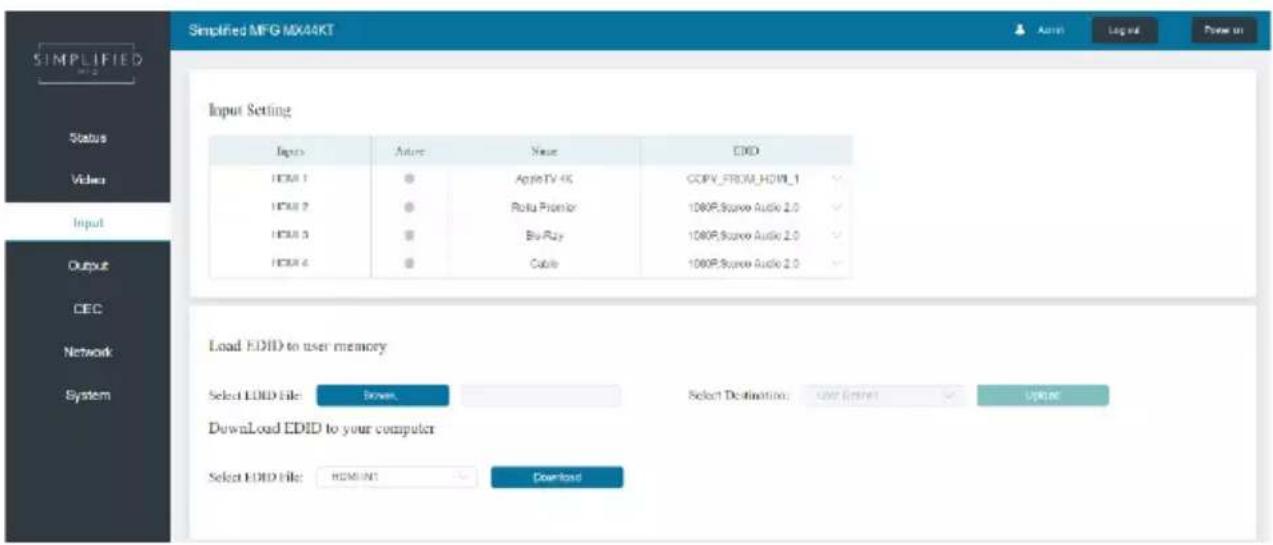
You can do the following operations on the Input page:
- Inputs: Displays input by HDMI input number
- Active: Indicates that a source is connected to a display (Green connected, Gray not)
- Name: The input channel's name. You can modify it by entering the corresponding name (max length: 12 characters) in the input box. This will also show up on the CEC Control Page.
- EDID: You can set the current channel's EDID. The specific operation is as follows:
Set User Defined EDID
Click the "Browse" button, then select the bin file from your PC. If you select the wrong EDID file, there will be a prompt, as shown in the following figure:
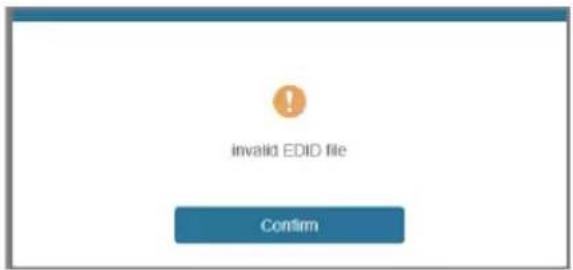
Make sure to select the correct file, then you can check the name of the selected file. Select "User 1" or "User 2", then click "Upload". After successful setting, it will prompt as follows:
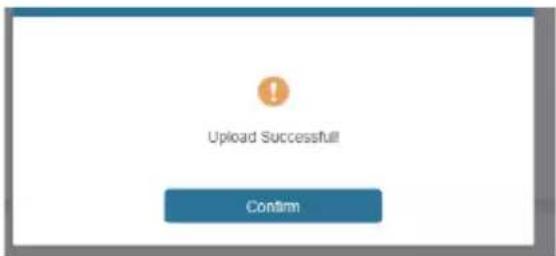
Download the EDID File for the Corresponding Input Channel
Click the drop-down box of "Select EDID File" to select the corresponding input channel. Then click "Download" to download the corresponding EDID file. This is good for building EDID libraries of known "friendly" devices
■ Output Page
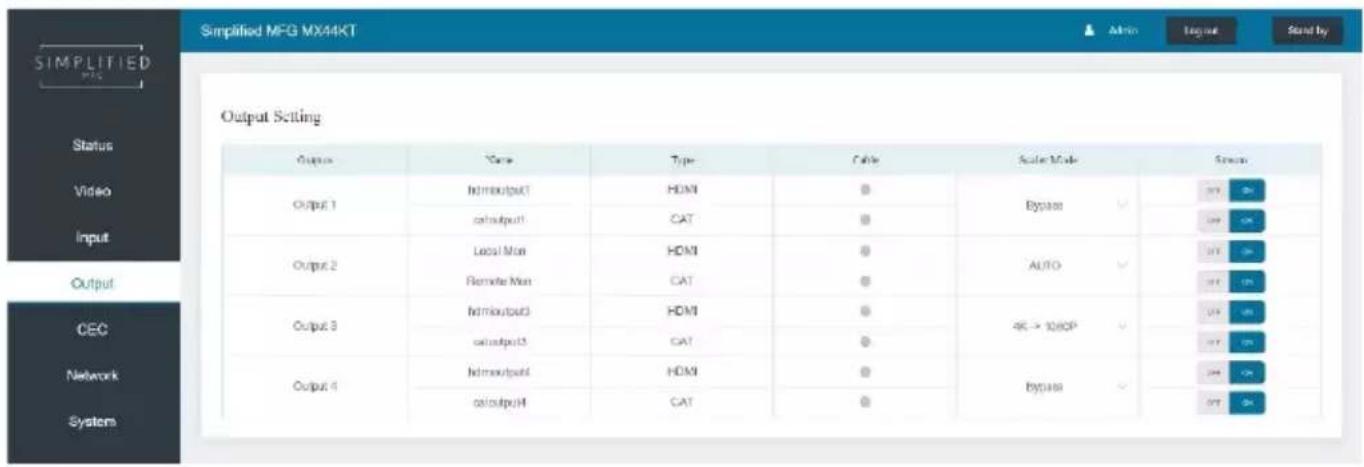
You can do the following operations on the Output page:
① Outputs: Displays output by number (parallel HDMI/Cat)
② Name: Each output (HDMI and Cat) can be named up to 12 characters
③ Type: Indicates HDMI and Cat outputs
④ Cable: Shows whether there is an active connection (green is active, gray means not connected)
⑤ Scaler Mode: This has 3 settings, Bypass, 4K→1080p, & Auto HDMI and Cat scale together
⑥ Stream: Turn on/off the output stream for instant off on situations
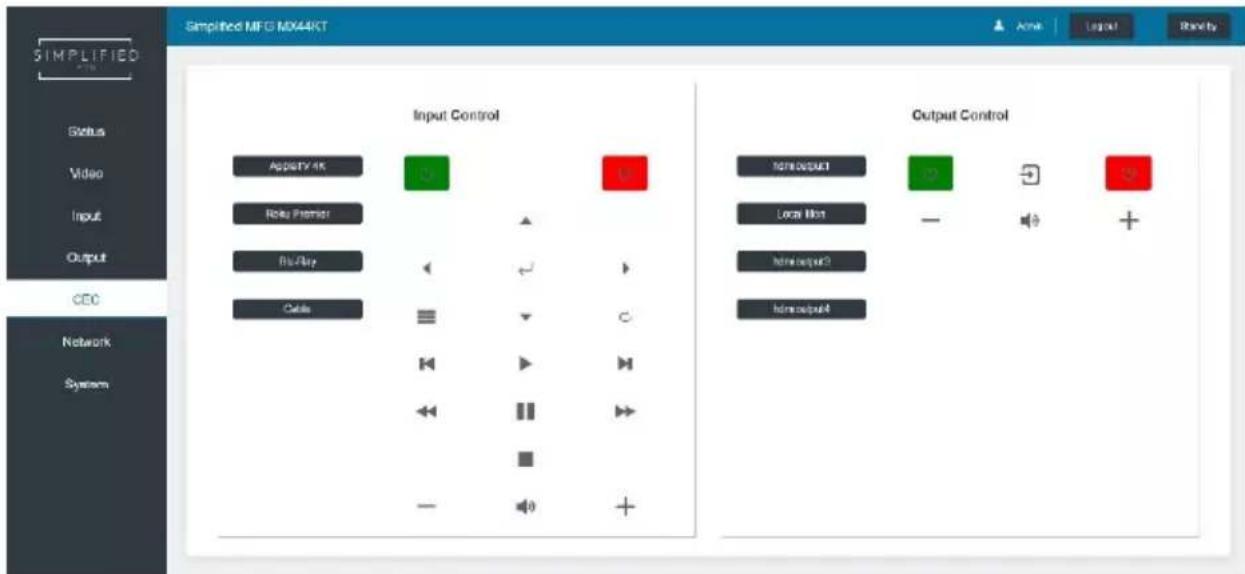
You can perform CEC management and control on this page:
① Input Control: You can control the operation of each input source by pressing the icons on the page. (You can control multiple inputs simultaneously.)
② Output Control: You can control the operation of each display, such as power on/off, volume +/-, active source switching. (You can control multiple outputs simultaneously.)
**Note that not all sources and displays are universal in their CEC commands. This page may not operate all devices.
■ Network Page
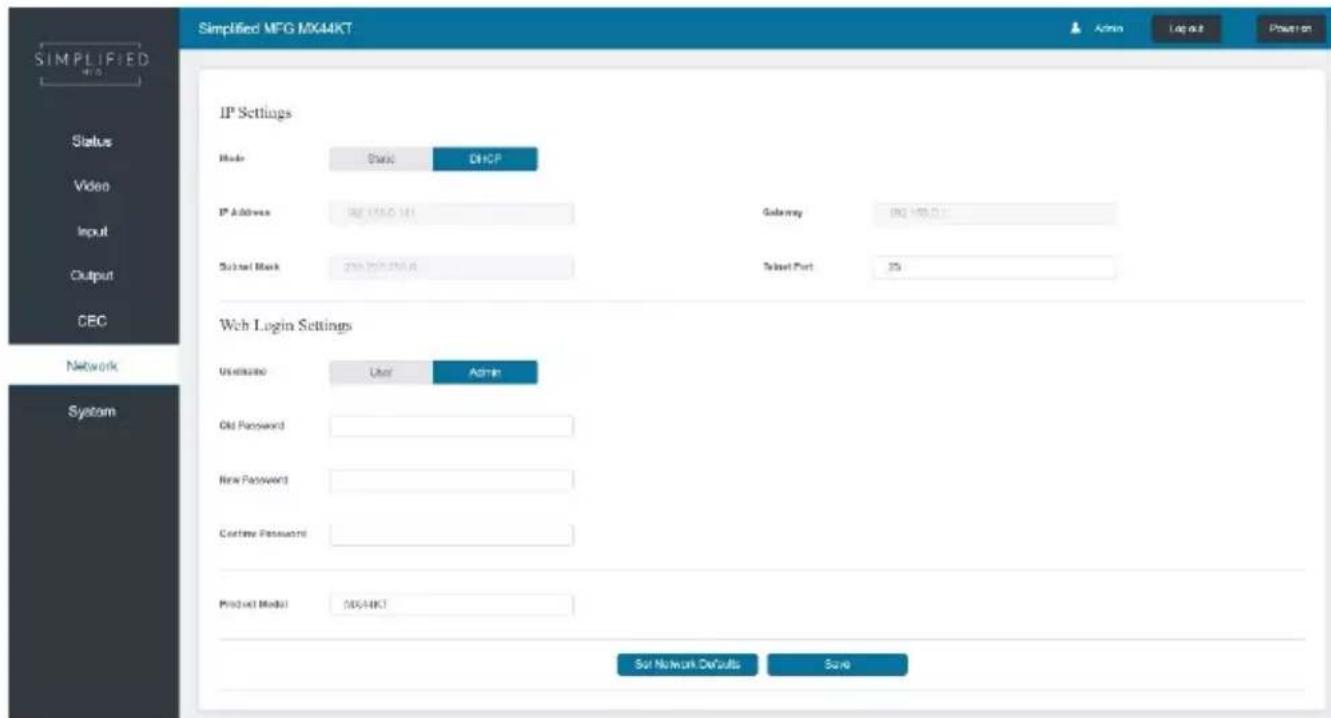
Set the Default Network
Click "Set Network Defaults" button, there will be a prompt, as shown in the following figure:
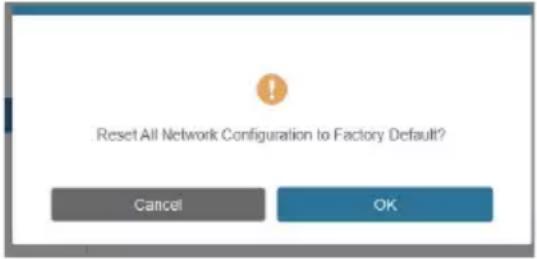
Click "OK" to search the IP Address again, as shown in the figure below.
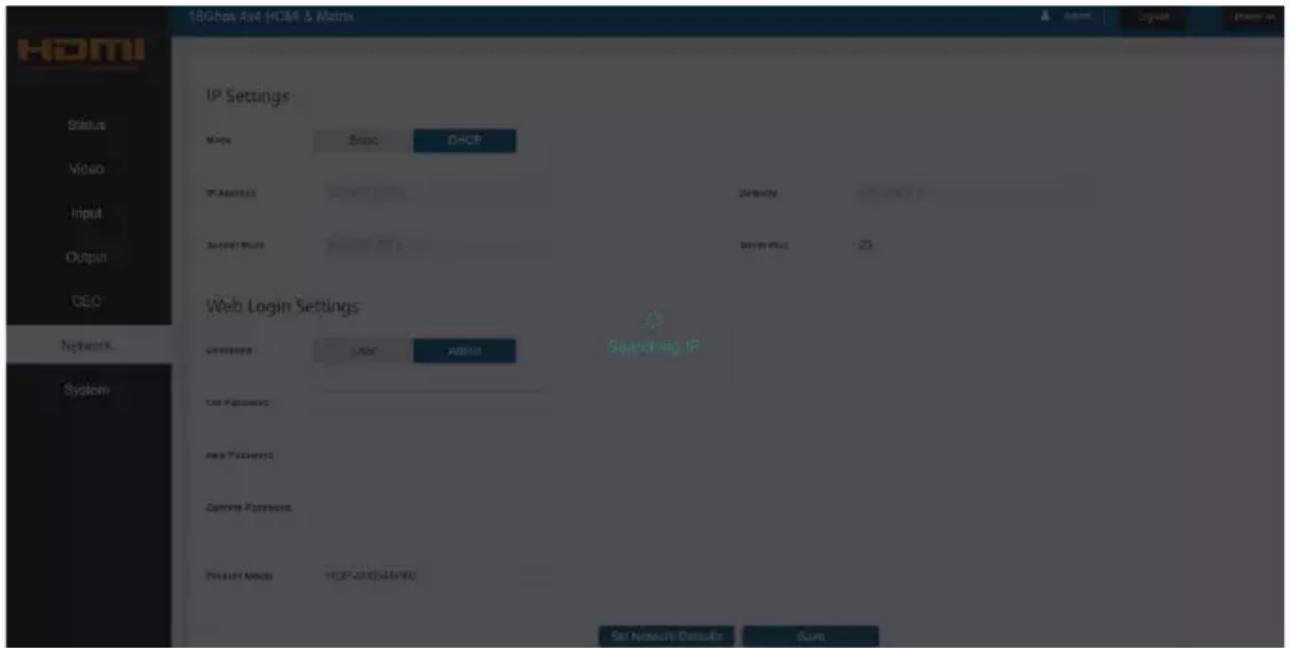
After the search is completed, it will switch to the login page, the default network setting is completed.
Modify User Password
Click the "User" button, enter the correct Old Password, New Password, and Confirm Password, then click "Save". After successful modification, there will be a prompt, as shown in the following figure:
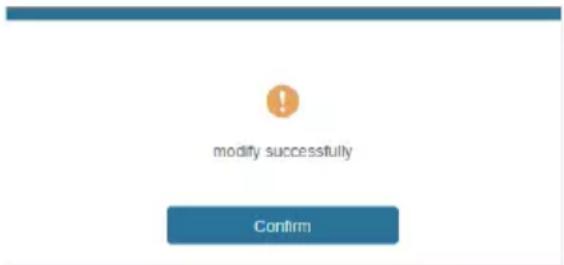
Note: Input rules for changing passwords:
(1) The password can't be empty.
(2) New Password can't be the same as Old Password.
(3) New Password and Confirm Password must be the same.
Modify Network Setting
Modify the Mode/IP Address/Gateway/Subnet Mask/Telnet Port as required, click "Save" to save the settings, then it will come into effect.
After modification, if the Mode is "Static", it will switch to the corresponding IP Address. if the Mode is "DHCP", it will automatically search and switch to the IP Address assigned by the router.
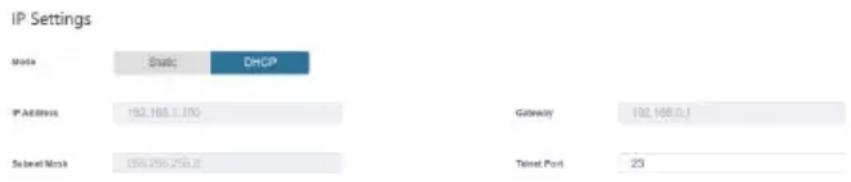
■ System Page
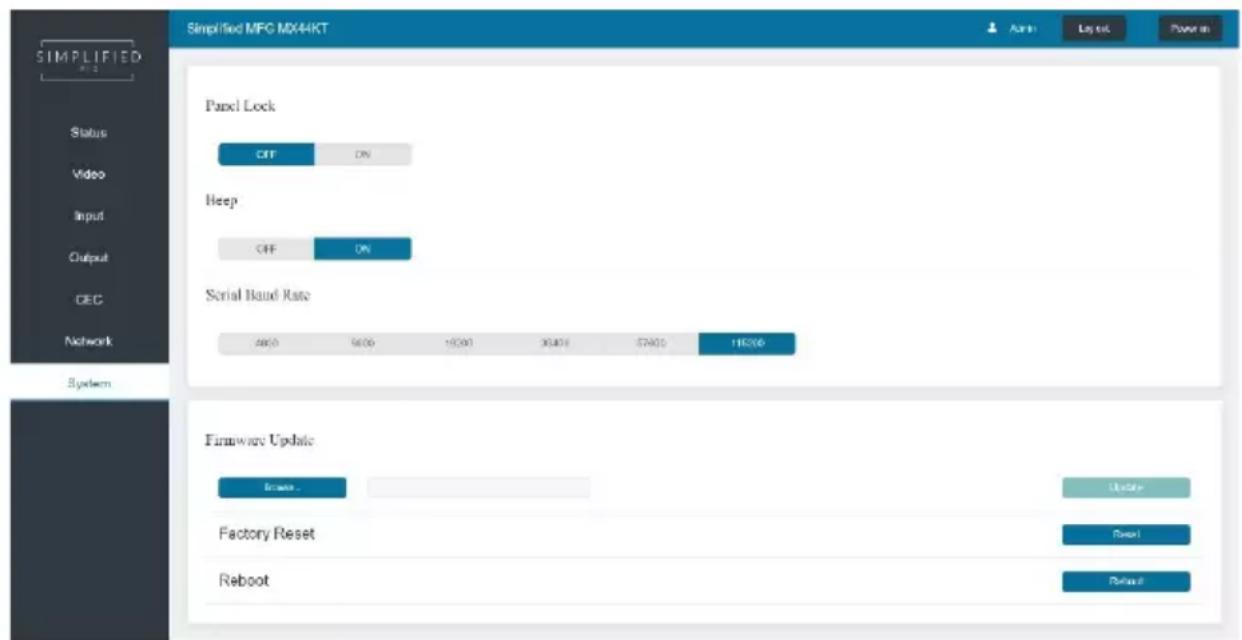
This page allows you to do the following operations:
① Panel Lock: This controls the buttons on the front of the MX44KT. When Panel Lock is on, the buttons are inoperable. You will still get a feedback beep; however, no function will change
③ Serial Baud Rate: Click the value to set the Serial Baud Rate for RS-232 communication
④ Firmware Update: Click "Browse" to select the update file on your PC, then click "Update" to complete firmware update
⑤ Factory Reset: You can reset the MX44KT to factory defaults by clicking "Reset"
⑥ Reboot: You can reboot the MX44KT by clicking "Reboot"
Note: After reset/reboot, it will switch to the login page.
10. RS-232 Control Command
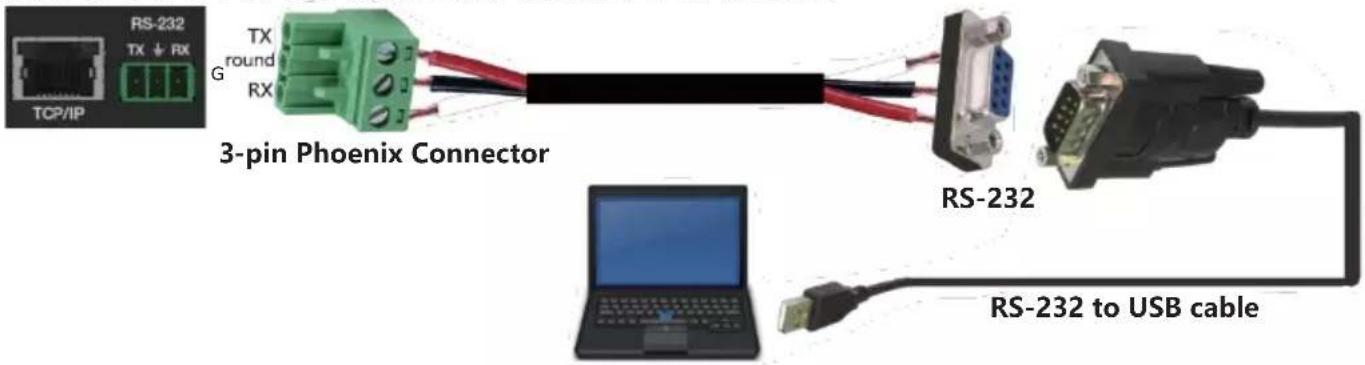
The MX44KT also supports RS-232 control. You can use the provided serial cable with RS-232 phoenix connector and RS-232 male head. The RS-232 phoenix connector is connected to the Matrix, and the RS-232 male head of the serial cable is connected to the RS-232 female head of an RS-232 to USB cable, while the USB head of the RS-232 to USB cable is connected to a PC. The connection method is as follows:
PC
Then, open a Serial Command tool on PC to send ASCII command to control the Matrix. The ASCII command list about the product is shown as below.
| ASCI Command | ||||
| Serial port protocol. Baud rate: 115200, Data bits: 8bit, Stop bits:1, Check bit: 0 | ||||
| x - Parameter 1y - Parameter 2! - Delimiter | ||||
| Command Code | Function Description | Example | Feedback | Default Setting |
| Power | ||||
| s power z! | Power on/off the device,z=0~1 (z=0 power off, z=1 power on) | s power 1! | Power onSystem Initializing... Initialization Finished!FW version x.xx.xx | power on |
| r power! | Get current power state | r power! | power on/power off | |
| s reboot! | Reboot the device | s reboot! | Reboot...System Initializing... Initialization Finished!FW version x.xx.xx | |
| System Setup | ||||
| help! | List all commands | help! | ||
| r type! | Get device model | r type! | HDP-MXB44D70 | |
| r status! | Get device current status | r status! | Get the unit all status: power, beep, lock, in/ out connection, video/ audio crosspoint, edid, scaler,hdcp, network status | |
| r fw version! | Get Firmware version | r fw version! | MCU BOOT:Vx.xx.xxMCU APP :Vx.xx.xx WEB GUI :Vx.xx | |
| Command Code | Function Description | Example | Feedback | Default Setting |
| r link in x! | Get the connection status of the x input port, x=0~4(0=all) | r link in 1! | hdmi input 1: connect | |
| r link out y! | Get the connection status of the y output port, y=0~4(0=all) | r link out 1! | hdmi output 1: connect | |
| s reset! | Reset to factory defaults | s reset! | Reset to factory defaults System Initializing... Initialization Finished! FW version x.xx.xx | |
| s beep z! | Enable/Disable buzzer function, z=0~1(z=0 beep off, z=1 beep on) | s beep 1! | beep on beep off | beep on |
| r beep! | Get buzzer state | r beep! beep on / beep off | ||
| s lock z! | Lock/Unlock front panel button, z=0~1 (z=0 lock off, z=1 lock on) | s lock 1! | panel button lock on panel button lock off | panel button lock off |
| r lock! | Get panel button lock state | r lock! | panel button lock on/off | |
| s save preset z! | Save switch state between all output port and the input port to preset z, z=1~4 | s save preset 1! | save to preset 1 | |
| s recall preset z! | Call saved preset z scenarios, z=1~4 | s recall preset 1! | recall from preset 1 | |
| s clear preset z! | Clear stored preset z scenarios, z=1~4 | s clear preset 1! clear preset 1 | ||
| r preset z! | Get preset z information, z=1~4 | r preset 1! video/a | audio crosspoint | |
| s baud rate xxx! | Set the serial port baud rate of RS02 module, z=(115200,57600,38400,19200,9600,4800) | s baud rate 115200! | Baudrate:115200 | |
| r baud rate! | Get the serial port baud rate of RS02 module | r baud rate! | Baudrate:115200 | |
| s id z! | Set the control ID of the product, z=000~999 | s id 888! id 888 | 0 | |
| Output Setting | ||||
| s in x av out y! | Set input x to output y, x=1~4, y=0~4(0=all) | s in 1 av out 2! | input 1 -> output 2 | ptp |
| r av out y! | Get output y signal status y=0~4(0=all) | r av out 0! | input 1 -> output 1 input 2 -> output 2 input 3 -> output 3 input 4 -> output 4 | |
| s hdmi y stream z! | Set hdmi output y stream on/off, y=0~4(0=all) z=0~1(0:disable,1:enable) | s hdmi 1 stream 1! s hdmi 0 stream 1! | enable hdmi output 1 stream disable hdmi output 1 stream enable hdmi all outputs stream disable hdmi all outputs stream | enable |
| r hdmi y stream! | Get hdmi output y stream status, y=0~4(0=all) | r hdmi 1 stream! | enable hdmi output 1 stream | |
| s cat y stream z! | Set cat output y stream on/off, y=0~4(0=all) z=0~1(0:disable,1:enable) | s cat 1 stream 1! s cat 0 stream 1! | enable cat output 1 stream disable cat output 1 stream enable cat all outputs stream disable cat all outputs stream | enable |
| r cat y stream! | Get cat output y stream status, y=0~4(0=all) | r cat 1 stream! | enable cat output 1 stream | |
| s hdmi y scaler z! | Set hdmi output y port output scaler mode , y=0~4(0=all), z=1~3(1=bypass,2=4k->1080p, 3=Auto) | s hdmi 1 scaler 1! s hdmi 0 scaler 1! | hdmi output 1 set to bypass mode hdmi all outputs set to bypass mode | hdmi all outputs set to bypass mode |
| r hdmi y scaler! | Get hdmi output y port output mode y=0~4(0=all) | r hdmi 1 scaler! | hdmi output 1 set to bypass mode | |
| EDID Setting | ||||
| s edid in x from z! | Set input x EDID from default EDID z, x=0~4(0=all),z=1~31 1, 1080p,Stereo Audio 2.0 2, 1080p,Dolby/DTS 5.1 3, 1080p,HD Audio 7.1 4, 1080i,Stereo Audio 2.0 5, 1080i,Dolby/DTS 5.1 6, 1080i,HD Audio 7.1 7, 3D,Stereo Audio 2.0 8, 3D,Dolby/DTS 5.1 9, 3D,HD Audio 7.1 10, 4K2K30_444,Stereo Audio 2.0 11, 4K2K30_444,Dolby/DTS 5.1 12, 4K2K30_444,HD Audio 7.1 13, 4K2K60_420,Stereo Audio 2.0 14, 4K2K60_420,Dolby/DTS 5.1 15, 4K2K60_420,HD Audio 7.1 16, 4K2K60_444,Stereo Audio 2.0 17, 4K2K60_444,Dolby/DTS 5.1 18, 4K2K60_444,HD Audio 7.1 19, 4K2K60_444,Stereo Audio 2.0 HDR 20, 4K2K60_444,Dolby/DTS 5.1 HDR 21, 4K2K60_444,HD Audio 7.1 HDR 22, User define1 23, User define2 24, copy from hdmi output 1 25, copy from hdmi output 2 26, copy from hdmi output 3 27, copy from hdmi output 4 28, copy from cat output 1 29, copy from cat output 2 30, copy from cat output 3 31, copy from cat output 4 | s edid in 1 from 1! s edid in 0 from 1! | input 1 EDID:1080p, Stereo Audio 2.0 all inputs EDID:1080p, Stereo Audio 2.0 | 1080p, Stereo Audio 2.0 |
| r edid in x! | Get EDID status of the input x , x=0~4(0=all input) | r edid in 0! | input1 EDID: 4K2K60_444,Stereo Audio 2.0 input2 EDID: 4K2K60_444,Stereo Audio 2.0 input3 EDID: 4K2K60_444,Stereo Audio 2.0 input4 EDID: 4K2K60_444,Stereo Audio 2.0 | |
| r edid data hdmi y! | Get the EDID data of the hdmi output y port , y=1~4 | r edid data hdmi 1! | EDID: 00 FF FF FF FF FF FF 00 ...... hdmi output 1: disconnect | |
| CEC Setting | ||||
| s cec in x on! | set input x power on by CEC, x=0~4(0=all input) | s cec in 1 on! | input 1 power on | |
| s cec in x off! | set input x power off by CEC, x=0~4(0=all input) | s cec in 1 off! | input 1 power off | |
| s cec in x menu! | set input x open menu by CEC, x=0~4(0=all input) | s cec in 1 menu! | input 1 open menu | |
| s cec in x back! | set input x back operation by CEC, x=0~4(0=all input) | s cec in 1 back! | input 1 back operation | |
| s cec in x up! | set input x menu up operation by CEC, x=0~4(0=all input) | s cec in 1 up! | input 1 menu up operation | |
| s cec in x down! | set input x menu down operation by CEC, x=0~4(0=all input) | s cec in 1 down! | input 1 menu down operation | |
| s cec in x left! | set input x menu left operation by CEC, x=0~4(0=all input) | s cec in 1 left! | input 1 menu left operation | |
| s cec in x right! | set input x menu right operation by CEC, x=0~4(0=all input) | s cec in 1 right! | input 1 menu right operation | |
| s cec in x enter! | set input x menu enter operation by CEC, x=0~4(0=all input) | s cec in 1 enter! | input 1 menu enter operation | |
| s cec in x play! | set input x play by CEC, x=0~4(0=all input) | s cec in 1 play! | input 1 play operation | |
| s cec in x pause! | set input x pause by CEC, x=0~4(0=all input) | s cec in 1 pause! | input 1 pause operation | |
| s cec in x stop! | set input x stop by CEC, x=0~4(0=all input) | s cec in 1 stop! | input 1 stop operation | |
| s cec in x rew! | set input x rewind by CEC, x=0~4(0=all input) | s cec in 1 rew! | input 1 rewind operation | |
| s cec in x mute! | set input x volume mute by CEC, x=0~4(0=all input) | s cec in 1 mute! | input 1 volume mute | |
| s cec in x vol-! | set input x volume down by CEC, x=0~4(0=all input) | s cec in 1 vol-! | input 1 volume down | |
| s cec in x vol+! | set input x volume up by CEC, x=0~4(0=all input) | s cec in 1 vol+! | input 1 volume up | |
| s cec in x ff! | set input x fast forward by CEC, x=0~4(0=all input) | s cec in 1 ff! | input 1 fast forward operation | |
| s cec in x previous! | set input x previous by CEC, x=0~4(0=all input) | s cec in 1 previous! | input 1 previous operation | |
| s cec in x next! | set input x next by CEC, x=0~4(0=all input) | s cec in 1 next! | input 1 next operation | |
| s cec hdmi out y on! | set hdmi output y power on by CEC, y=0~4(0=all hdmi output) | s cec hdmi out 1 on! | hdmi output 1 power on | |
| s cec hdmi out y off! | set hdmi output y power off by CEC, y=0~4(0=all hdmi output) | s cec hdmi out 1 off! | hdmi output 1 power off | |
| s cec hdmi out y mute! | set hdmi output y volume mute by CEC, y=0~4(0=all hdmi output) | s cec hdmi out 1 mute! | hdmi output 1 volume mute | |
| s cec hdmi out y vol-! | set hdmi output y volume down by CEC, y=0~4(0=all output) | s cec hdmi out 1 vol-! | hdmi output 1 volume down | |
| s cec hdmi out y vol+! | set hdmi output y volume up by CEC, y=0~4(0=all output) | s cec hdmi out 1 vol+! | hdmi output 1 volume up | |
| s cec hdmi out y active! | set hdmi output y active source by CEC, y=0~4(0=all output) | s cec hdmi out 1 active! | hdmi output 1 active source | |
| Network Setting | ||||
| r ipconfig! | Get the Current IP Configuration | r ipconfig! | IP Mode: Static IP: 192.168.1.72 Subnet Mask: 255.255.255.0 Gateway: 192.168.1.1 TCP/IP port=8000 Telnet port=10 Mac address: 00:1C:91:03:80:01 | |
| r mac addr! | Get network MAC address | r mac addr! | Mac address:00:1C:91:03:80:01 | |
| s ip mode z! | Set network IP mode to static IP or DHCP,z=0~1 (z=0 Static, z=1 DHCP) | s ip mode 0! | Set IP mode:Static(Please use "s net reboot!" command or repower device to apply new config!) | |
| r ip mode! | Get network IP mode | r ip mode! | IP Mode: Static | |
| s ip addrxxx.xxx.xxx.xxx! | Set network IP address | s ip addr192.168.1.100! | Set IP address:192.168.1.100 (Please use "s net reboot!" command or repower device to apply new config!)DHCP on, Device can't config static address,set DHCP off first. | |
| r ip addr! | Get network IP address | r ip addr! | IP:192.168.1.100 | |
| s subnetxxx.xxx.xxx.xxx! | Set network subnet mask | s subnet255.255.255.0! | Set subnet Maskaddress:255.255.255.0(Please use "s net reboot!" command or repower device to apply new config!)DHCP on, Device can't config subnet mask,set DHCP off first. | |
| r subnet! | Get network subnet mask | r subnet! | Subnet Mask:255.255.255.0 | |
| s gatewayxxx.xxx.xxx.xxx! | Set network gateway | s gateway192.168.1.1! | Set gateway:192.168.1.1Please use "s net reboot!" command or repower device to apply new config!DHCP on, Device can't config gateway, set DHCP off first. | |
| r gateway! | Get network gateway | r gateway! | Gateway:192.168.1.1 | |
| s tcp/ip port x! | Set network TCP/IP port(x=1~65535) | s tcp/ip port 8000! | Set TCP/IP port:8000 | |
| r tcp/ip port! | Get network TCP/IP port | r tcp/ip port! | TCP/IP port:8000 | |
| s telnet port x! | Set network telnet port(x=1~65535) | s telnet port 23! Set | Telnet port:23 | |
| r telnet port! | Get network telnet port | r telnet port! | Telnet port:23 | |
| s net reboot! | Reboot network modules | s net reboot! | Network reboot...IP Mode: StaticIP: 192.168.1.72Subnet Mask:255.255.255.0Gateway: 192.168.1.1TCP/IP port=8000Telnet port=10Mac address:00:1C:91:03:80:01 | |
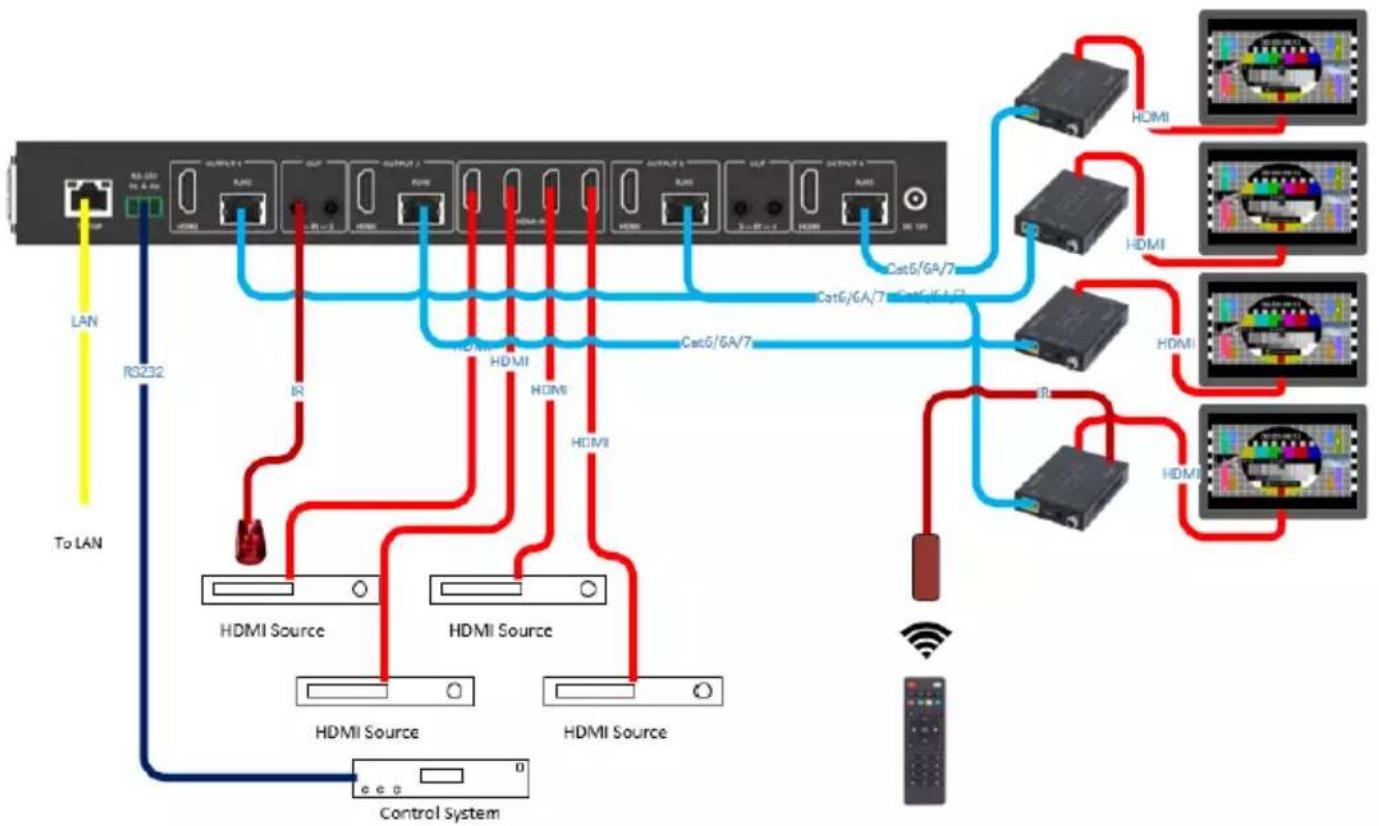
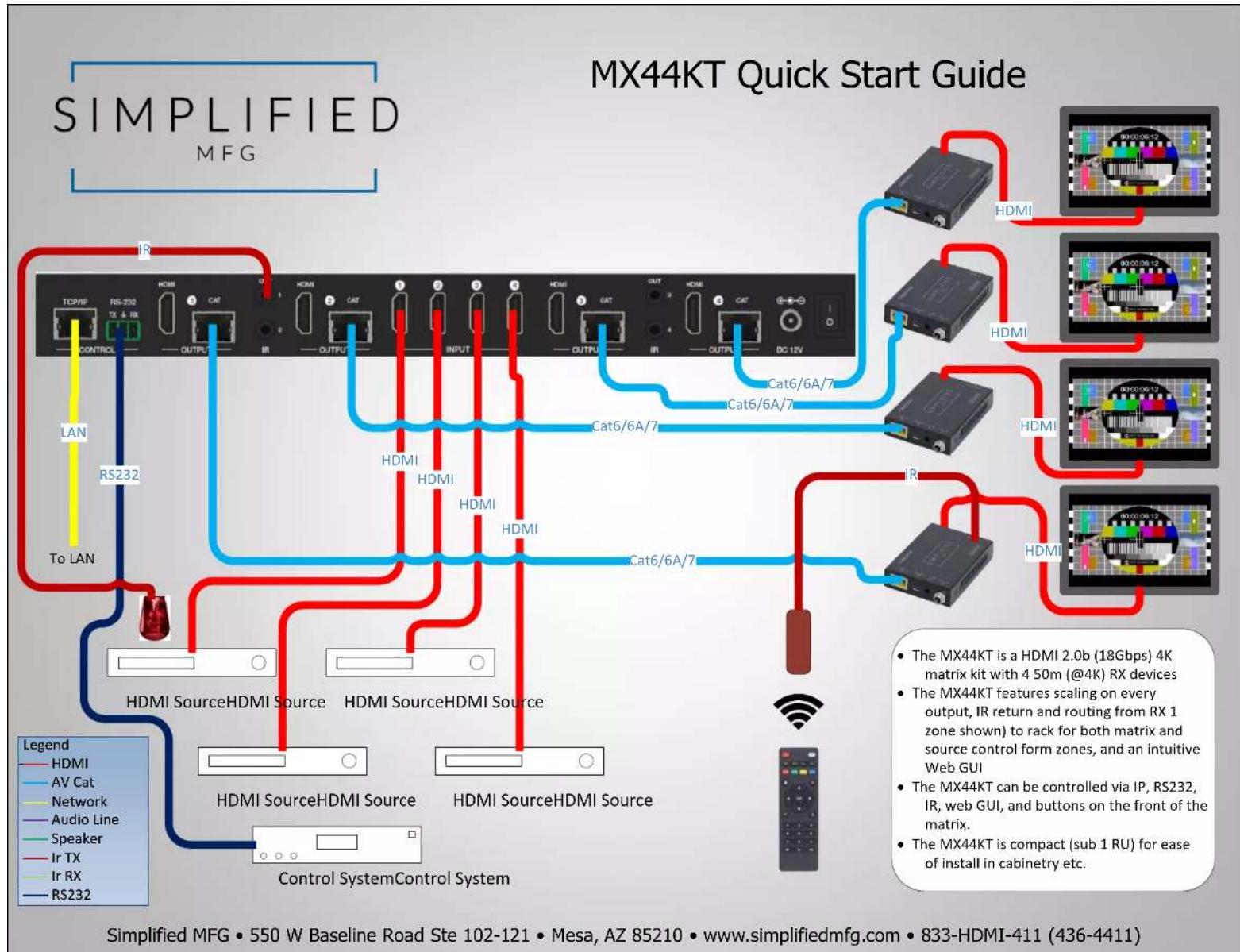
11. Application Example
flowchart
graph TD
    A["Router"] -->|LAN| B["R3232"]
    A -->|To LAN| C["Control System"]
    A -->|R/1| D["HDMI Source"]
    A -->|R/2| E["HDMI Source"]
    A -->|R/3| F["HDMI Source"]
    A -->|R/4| G["HDMI Source"]
    A -->|R/5| H["HDMI Source"]
    A -->|R/6| I["HDMI Source"]
    A -->|R/7| J["HDMI Source"]
    A -->|R/8| K["HDMI Source"]
    A -->|R/9| L["HDMI Source"]
    A -->|R/10| M["HDMI Source"]
    A -->|R/11| N["HDMI Source"]
    A -->|R/12| O["HDMI Source"]
    A -->|R/13| P["HDMI Source"]
    A -->|R/14| Q["HDMI Source"]
    A -->|R/15| R["HDMI Source"]
    A -->|R/16| S["HDMI Source"]
    A -->|R/17| T["HDMI Source"]
    A -->|R/18| U["HDMI Source"]
    A -->|R/19| V["HDMI Source"]
    A -->|R/20| W["HDMI Source"]
    A -->|R/21| X["HDMI Source"]
    A -->|R/22| Y["HDMI Source"]
    A -->|R/23| Z["HDMI Source"]
    A -->|R/24| AA["HDMI Source"]
    A -->|R/25| AB["HDMI Source"]
    A -->|R/26| AC["HDMI Source"]
    A -->|R/27| AD["HDMI Source"]
    A -->|R/28| AE["HDMI Source"]
    A -->|R/29| AF["HDMI Source"]
    A -->|R/30| AG["HDMI Source"]
    A -->|R/31| AH["HDMI Source"]
    A -->|R/32| AI["HDMI Source"]
    A -->|R/33| AJ["HDMI Source"]
    A -->|R/34| AK["HDMI Source"]
    A -->|R/35| AL["HDMI Source"]
    A -->|R/36| AM["HDMI Source"]
    A -->|R/37| AN["HDMI Source"]
    A -->|R/38| AO["HDMI Source"]
    A -->|R/39| AP["HDMI Source"]
    A -->|R/40| AQ["HDMI Source"]
    A -->|R/41| AR["HDMI Source"]
    A -->|R/42| AS["HDMI Source"]
    A -->|R/43| AT["HDMI Source"]
    A -->|R/44| AU["HDMI Source"]
    A -->|R/45| AV["HDMI Source"]
    A -->|R/46| AW["HDMI Source"]
    A -->|R/47| AX["HDMI Source"]
    A -->|R/48| AY["HDMI Source"]
    A -->|R/49| AZ["HDMI Source"]
    A -->|R/50| BA["HDMI Source"]
12. Warranty
Should you feel that this product does not function adequately due to defects in materials or workmanship, we (referred to as "the warrantor") will, for the length of the period indicated below (starting from the original date of the purchase) either a) repair the product with new or refurbished parts. Or b) Replace the product with new or refurbished product. All Simplified MFG products are covered by a 3-year PARTS and LABOR warranty. During this period there will be no charge for unit repair, replacement of unit components or replacement of the product if deemed necessary. The decision to repair or replace is made by the warrantor. The purchaser must mail in the product during the warranty period. This limited warranty only covers the product purchased as new and is extended to the original purchaser only. It is non-transferrable to subsequent owners, even during the warranty period. A purchase receipt or other proof of purchase date is required for the limited warranty service.
13. Contact
Sales and Tech Support
P. 833-HDMI-411 (833-436-4411)
E. info@simplifiedmfg.com

Simplified MFG • 550 W Baseline Rd Ste 102-121 • Mesa AZ 85210
© Copyright Simplified MFG 2021
flowchart
graph TD
    A["SI MPLIFIED MFG"] --> B["TCMIP"]
    B --> C["RS-202"]
    C --> D["TX 4 RX"]
    D --> E["CONTROL"]
    E --> F["RS232"]
    F --> G["To LAN"]
    G --> H["HDMI SourceHDMI Source"]
    H --> I["Control SystemControl System"]
    I --> J["HDMI SourceHDMI Source"]
    J --> K["Output"]
    K --> L["IR"]
    L --> M["OUTPUT"]
    M --> N["Cat6/6A/7"]
    N --> O["Cat6/6A/7"]
    O --> P["Cat6/6A/7"]
    P --> Q["HDMI"]
    Q --> R["HDMI"]
    R --> S["HDMI"]
    S --> T["HDMI"]
    T --> U["HDMI"]
    U --> V["HDMI"]
    V --> W["HDMI"]
    W --> X["HDMI"]
    X --> Y["HDMI"]
    Y --> Z["HDMI"]
    Z --> AA["HDMI"]
    AA --> AB["HDMI"]
    AB --> AC["HDMI"]
    AC --> AD["HDMI"]
    AD --> AE["HDMI"]
    AE --> AF["HDMI"]
    AF --> AG["HDMI"]
    AG --> AH["HDMI"]
    AH --> AI["HDMI"]
    AI --> AJ["HDMI"]
    AJ --> AK["HDMI"]
    AK --> AL["HDMI"]
    AL --> AM["HDMI"]
    AM --> AN["HDMI"]
    AN --> AO["HDMI"]
    AO --> AP["HDMI"]
    AP --> AQ["HDMI"]
    AQ --> AR["HDMI"]
    AR --> AS["HDMI"]
    AS --> AT["HDMI"]
    AT --> AU["HDMI"]
    AU --> AV["HDMI"]
    AV --> AW["HDMI"]
    AW --> AX["HDMI"]
    AX --> AY["HDMI"]
    AY --> AZ["HDMI"]
    AZ --> BA["HDMI"]
    BA --> BB["HDMI"]
    BB --> BC["HDMI"]
    BC --> BD["HDMI"]
    BD --> BE["HDMI"]
    BE --> BF["HDMI"]
    BF --> BG["HDMI"]
    BG --> BH["HDMI"]
    BH --> BI["HDMI"]
    BI --> BJ["HDMI"]
    BJ --> BK["HDMI"]
    BK --> BL["HDMI"]
    BL --> BM["HDMI"]
    BM --> BN["HDMI"]
    BN --> BO["HDMI"]
    BO --> BP["HDMI"]
    BP --> BQ["HDMI"]
Simplified MFG • 550 W Baseline Road Ste 102-121 • Mesa, AZ 85210 • www.simplifiedmfg.com • 833-HDMI-411 (436-4411)

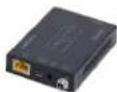
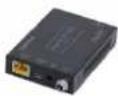
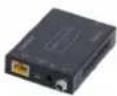
The MX44KT is a compact, robust 4K2K (18Gbps) scaling 4x4 matrix kit with four receivers. This switch has 4 HDMI Inputs and 4 HDMI Outputs parallel with 4 UTP outputs (50m @4K/70m @1080p). It is a true matrix and can be controlled via RS232, IP, via web GUI, manually, or via the supplied IR remote. Each output has scaling capability making this matrix easier to install with unlike displays. Other features include IR transmission back from RX to Rack, selectable scaling settings, advanced EDID management, and an intuitive web GUI for easy set up.
Features:
• HDMI 2.0b (18Gbps)
• 4 Compact RX Devices Included
- HDR 8/10/10+
- Scaling on all Outputs
• Parallel HDMI/UTP outputs
- Compact size
- Intuitive Web GUI
• Supports all versions of Multi-Channel Audio
• 3-Year Warranty
Specifications:
| Technical | |
| HDMI Compliance | HDMI 2.0b |
| HDCP Compliance | HDCP 2.2 / HDCP 1.4 |
| Video Bandwidth 18 Gbps | |
| Video Resolutions | up to 4K2K@50/60Hz(YUV4:4:4),4K2K@30Hz,1080P@120Hz, and 1080P 3D@60Hz |
| Color Space RGB, YCbCr 4:4:4, YCbCr 4:2:2 | |
| Color Depth | 8-bit / 10-bit |
| HDMI Audio Formats (Pass-through) | LPCM 2/5.1/7.1CH, Dolby Digital, DTS 5.1, Dolby Digi-tal+, Dolby TrueHD, DTS-HD Master Audio, Dolby Atmos, DTS:X |
| ESD Protection | Human body model — ±8kV (air-gap discharge) & ±4kV (contact discharge) |
| Connections | |
| Inputs | 4x HDMI Type A [19-pin female] |
| Outputs | 4x HDMI Type A [19-pin female]4x RJ45 Category Connections4x 3.5mm Mini-Jack for IR Return from RX |
| Control Ports | 1xLAN [RJ45]3xRS232 [3-Pin Phoenix Connector] |
| Mechanical | |
| Housing Metal Enclosure | |
| Color Black | |
| Dimensions | Matrix 320mm [12.6"] (W) x 100mm [3.9"] (D) x 36mm [1.42"] (H)RX Device 61mm [2.4"] (W) x 88mm [3.5"] (D) x 18mm [0.7"] (H) |
| Weight 792g / 28 Oz. | |
| Power Supply | Input: AC100 - 240V 50/60HzOutput: DC 12V/2.5A (US/EU standards, CE/FCC/UL cer-tified) |
| Power Consumption | 19.68W (Max) |
| Operation Temperature | 32 - 104°F / 0 - 40°C |
| Storage Temperature | -4 - 140°F / -20 - 60°C |
| Relative Humidity | 20 - 90% RH (no condensation) |
- 50m/70m Scaling 18Gbps
- x 4 HDMI Matrix Kit
- Thank you for purchasing the MX44KT
- Surge protection device recommended
- Table of Contents
- Introduction
- Features
- Package Contents
- Operation Controls and Functions
- Matrix Panel
- Front Panel
- Rear Panel
- CAT Receiver Panel
- IR Remote
- IR Cable Pin Assignment
- EDID Management
- Web GUI UserGuide
- For the details of RS-232 control, please refer to "10. RS-232 Control Command".
- ■ Status Page
- ■ Video Page
- ■ Input Page
- Set User Defined EDID
- Download the EDID File for the Corresponding Input Channel
- ■ Output Page
- ■ Network Page
- Set the Default Network
- Modify User Password
- Modify Network Setting
- ■ System Page
- RS-232 Control Command
- Application Example
- Warranty
- Contact
- Features:
Brand : Simplified MFG
Model : MX44KT
Category : Uncategorized