H-DVB01T2 - Digital decoder HYUNDAI - Free user manual and instructions
Find the device manual for free H-DVB01T2 HYUNDAI in PDF.


User questions about H-DVB01T2 HYUNDAI
0 question about this device. Answer the ones you know or ask your own.
Ask a new question about this device
Download the instructions for your Digital decoder in PDF format for free! Find your manual H-DVB01T2 - HYUNDAI and take your electronic device back in hand. On this page are published all the documents necessary for the use of your device. H-DVB01T2 by HYUNDAI.
USER MANUAL H-DVB01T2 HYUNDAI
Thank you for purchasing our product. For safety, it is strongly recommended to read this manual carefully before connecting, operating and/or adjusting the product and keep the manual for reference in the future.
Table of contents 2
Before you start 3
Important safeguards 3
Utilization of the product 3
Connection 4
Connection 4
Operation 5
Control elements 5
Front panel 5
Rear panel 5
Remote controller 6
Changing the battery 6
General operation 7
OSD operation 8
Program 8
Picture 9
Channel search 9
Time 9
Option....10
System.... 10
USB....10
USB information 11
Scheduled recording 11
Time Shift 11
General information 12
Troubleshooting 12
Accessories 12
Supported formats 13
Specifications.... 14
Important safeguards
- To prevent risk of fire or electric shock, avoid merging the unit into the water or under conditions of high humidity.
- Switch off the device from the socket, if you're not going to use it for a long time.
- Do not place objects on the device.
- Place the unit in a dry and ventilated area. Eliminate proximity to heaters, do not expose to sunlight, mechanical vibration, humidity and dusty environment.
- It is possible to use a small amount of neutral detergent to clean the device.
- Never use abrasive materials or organic substances (alcohol, gasoline, etc.) to clean the device.
- For repair and maintenance contact only authorized service centers.
- Before connecting the device to the mains, please make sure the network cable can be easily disabled at any time.
- Unplug from the mains and from the cable television antenna, unless you intend to use it for a long time, or before a thunderstorm. Do not touch the unit, power cord and antenna cable during a thunderstorm!
- Before you turn on the device, please check the reliability of its connection to the power supply and other devices.
- This unit can not receive television signals during the movement of the vehicle.
• After prolonged exposure to cold, before turning on leave the device for 1 hour at a room temperature.
Before using this product, carefully read the manual. After you read, save it for future use. If necessary, contact your local dealer for service.
All the illustrations in this manual are schematic images, which may differ from actual objects.
Utilization of the product
If you want to dispose this product, do not mix it with general household waste. There is a separate collection system for used electronic products in accordance with legislation that requires proper treatment, recovery and recycling.
Please contact your local authorities for the correct method of disposal. By doing so, you will ensure that your disposed product undergoes the necessary treatment, recovery and recycling and thus prevent potential negative effects on the environment and human health.
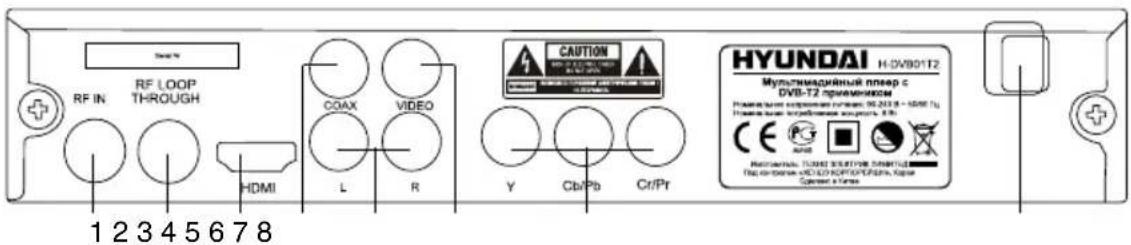
Connection
Antenna input
- Connect an external DVB-T antenna (able) connector to the antenna RF IN.
The signal in the block cable antenna can fail to contain DVB-T/T2 signal due to the carrier frequency altered by the cable network operator.
RF LOOP output
- Connect the output RF LOOP jack to TV's antenna input using a special adapter (not included) for supplying an analog TV signal.
HDMI-out
- If your TV has an HDMI video output, connect it to an HDMI output of this unit using a special HDMI cable (not included).
Coaxial output
- Connect the coaxial digital audio output to the input of an amplifier to transmit the audio signal to the amplifier using a special coaxial cable (not included).
Stereo audio output
- Connect the left (white) and right (red) terminal of the stereo audio output to the corresponding audio inputs on your TV using the supplied RCA-type cable.
Composite video (CVBS) output
- Connect the yellow video output to the composite video input on your TV using the included RCA cable for transmitting the composite video signal.
Component video output
- Connect the component video output to component video input on your TV using a special cable (not supplied) to send component video signal.
Controllers
Front panel

- POWER button
- Display
- IR sensor
- USB-port
- OK button
- MENU button
- CH+/CH- buttons
- VOL+/VOL- buttons
Rear panel
Changing the battery
- Remove the battery compartment cover on the back of the RC.
-
Insert two AAA batteries into the battery compartment making sure that the correct polarity is observed.
-
Install the cover back.
-
The RC should be pointed at remote sensor within 8 meters and within 30 degrees at the left or the right side.
• Take the battery out of the RC if it is not used for a long time. - Do not mix new and used batteries or different types of batteries. Weak batteries can leak and severely damage the RC.
- Do not expose the RC to shock, liquids, and do not place it in an area with high humidity.
General operations
STANDBY
When this unit is connected to the mains, it goes into operation mode. When the unit is running, press STANDBY button to turn the device into sleep mode. In sleep mode, press STANDBY button on the remote or press and hold this button on the panel to turn the device from sleep mode.
INFO
When viewing a TV channel, press this button to display/hide the menu pages containing various information about the current channel (frequency, reception level etc.).
EPG
Press EPG button to display the menu of the electronic TV guide (Electronic Program Guide), which displays the schedule of programs for a certain period of time for each available channel. Using this function, you can easily find programs you are interested in. Use UP/DOWN cursor buttons to select the desired TV program. Click OK button. This will display more detailed information on the TV program. Use LEFT/RIGHT cursor buttons to switch pages of the interactive program guide.
EPG-information cannot work if the service is not provided by operator.
AUDIO
Press AUDIO to select the audio language or audio channel, if this choice is supported by the current channel.
CH+/CH-
Press these buttons to select the previous or next channel.
Cursor
Press these buttons to navigate through the various menus.
OK
Press this button to confirm the selection options in the menu.
VOL-/VOL+
Press these buttons to adjust the sound volume level.
FAVOURITE
Click this button to display a list of your favorite programs. Use LEFT/RIGHT cursor buttons, select a category of programs, use UP/DOWN cursor buttons to select the desired program and press OK to view it.
The number buttons
Press number buttons to enter the channel number you want or other numbers (such as passwords, play time, etc.).
REV/FWD
When playing a media file, press these buttons for fast forward or backward playback.
PAUSE
When playing a media file, press this button to set the playback to pause.
PLAY
Click this button to start playing a media file.
Red/Green/Yellow/Cyan buttons
Press the colored buttons to perform various operations in the edit menu of channels, teletext recording.
MUTE
Press this button to enable/disable the sound.
TTX
Press this button to enable or disable the Teletext (Teletext is not supported by some TV channels).
PVR
When ta USB drive is connected to this unit, while watching TV channels press PVR to start recording video from the channel to USB.
Press STOP button to stop recording.
SUBTITLE
Click this button to select subtitle language, if this choice is supported by the current channel.
TV/RADIO
Press this button to switch between TV and radio.
RECALL
Click this button to select the last-viewed channel.
GOTO
During playback of audio or video file, press this button to open the window in which with the help of number buttons you can input the file playback time to start playback from. After entering the time, press OK button to confirm.
PREV/NEXT
When playing a media file, press these buttons to select previous/next file.
STOP
When playing a media file, press this button to stop playback.
REPEAT
When playing a media file, press this button to select the repeat mode: Repeat a single file, folder repeat, repeat all the content, cancel repeat (repeat modes available may vary depending on different types of files).
OSD operation
- Press MENU button to enter the setting menu displayed on the screen.
- Press LEFT/RIGHT cursor buttons on the RC to select setting page.
-
Press OK button on the RC to go to the parameter list.
-
Press UP/DOWN cursor buttons on the RC to select a parameter to adjust.
- Press LEFT/RIGHT cursor buttons on the RC to adjust the selected parameter.
- Press MENU button to return to the previous menu page. Press EXIT button on the RC to quit the menu.
Some menu items may be in grey color, in this case they are not adjustable. Pictures of OSD menu are for reference only; they may differ from the real screens.
Program
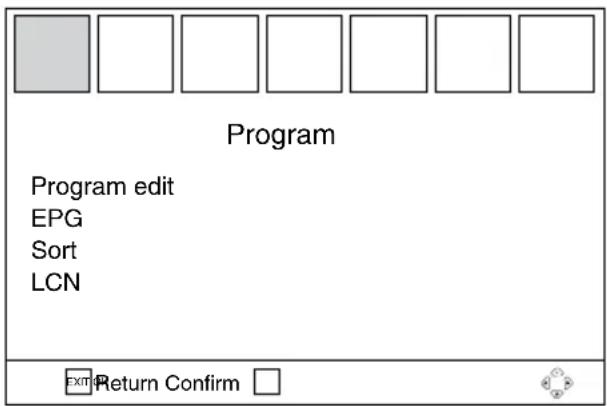
- Program edit: input the password (888888) to access the editing menu. This menu enables you to edit program lists by locking, deleting, skipping and moving them.
Move: Select a program and press Red button on the RC, the program will be marked with an icon. Select new position for this program and press OK button; the program will be moved to the selected position.
Skip: Select a program and press Green button on the RC; the program will be marked with an icon. The selected program will be skipped when you switch programs.
Lock: Select a program and press Yellow button on the RC; the program will be marked with an icon. The selected program will be locked for choosing.
Delete: Select a program and press Cyan button on the RC; the program will be deleted.
Favorite: See «General operations» program for more details about Favourite program list.
Rename: Select a program and press RECALL button; press cursor buttons to choose a character in the virtual keyboard and confirm with OK button.
- EPG: See «General operations» program for more details about Electronic Program Guide.
- Sort
LCN: sort the channels in ascending order according to their logical channel number.
By Service Name: sort the channels in alphabetical order.
By Service ID: sort the channels according to the stations.
• LCN
Set logical channel number on/off.
Picture
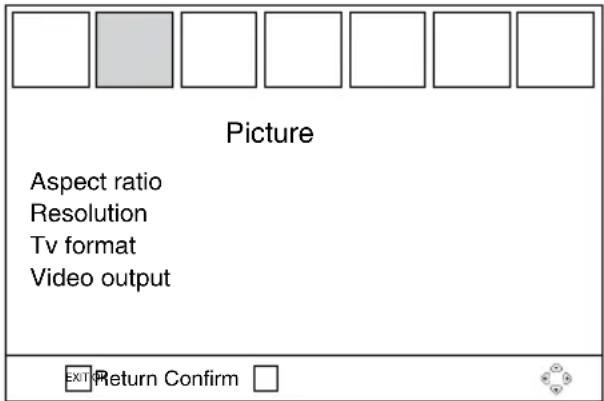
- Aspect ratio: 4:3 LB/4:3 PS/4:3 Full/16:9 Wide screen/Auto/16:9 Pillar Box/16:9 Pan&Scan.
- Resolution: 576i/576p/720p/1080i/1080p (50 Hz).
- TV format: select color system PAL/NTSC.
• Video output: select component (YPbPr) or composite (CVBS) video output mode.
Channel search
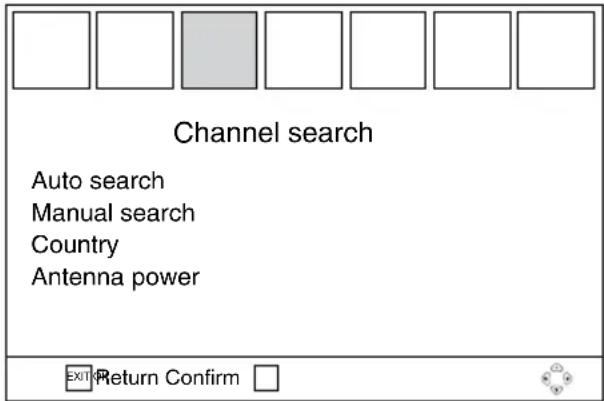
- Auto search: press OK button to start automatic search and saving of all available channels. Press MENU or EXIT button to quit search.
- Manual search: Press OK button to enter the manual search menu. Press LEFT/RIGHT cursor buttons to select the channel frequency. Press OK button to start search of the new channel. When the new channel is ready, it will be added to the channel list.
• Country: select your country.
- Antenna power: to get a stable and quality signal when you use an antenna without built-in amplifier, set this option to On. When using cable TV or an antenna with built-in amplifier set this option to On.
Time
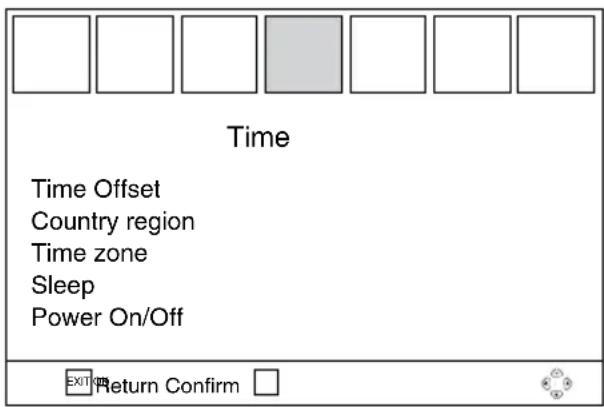
- Time Offset: set the GMT time zones automatically or manually.
• Country region: select you region if Time
Offset is set to Manual.
- Time Zone: select your region time zone if Time Offset is set to Manual.
- Sleep: select time period after which the unit will automatically switch to sleep mode.
- Power On/Off
Power On: switch on or off automatic power-on at a preset time.
Power On Time: set the time of automatic power-on.
Power Off: switch on or off automatic power-off at a preset time.
Power Off Time: set the time of automatic power-off.
Option
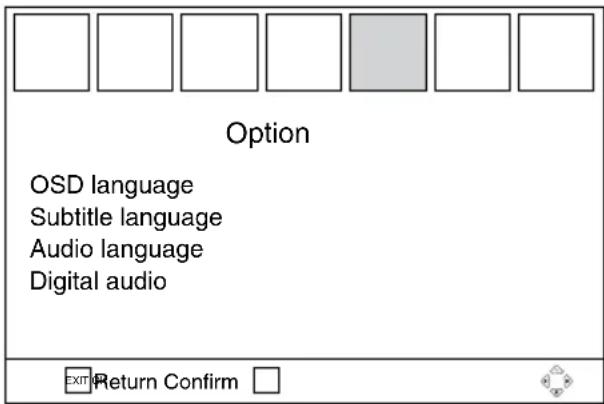
- OSD language: select the on-screen menu language.
- Subtitle language: select the subtitle language.
- Audio language: select the audio track language if several languages are supported.
- Digital audio: select the digital output type (PCM/RAW) or switch off the digital output.
System
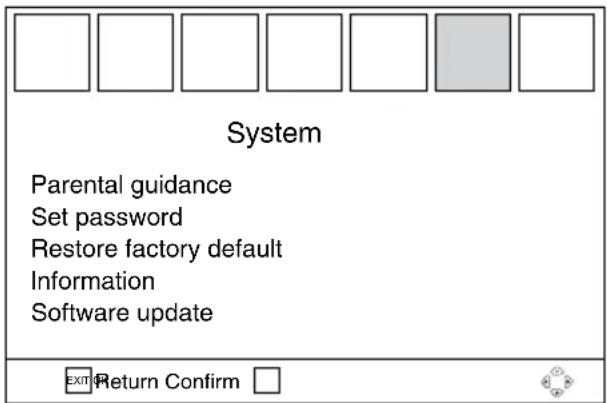
- Parental guidance: lock viewing of a channel (first enter the original password 888888 or your own password).
- Set password: to set your own password, enter the original (old) password, and then the new one and reenter the new one to confirm.
- Restore factory default: reset all settings to initial factory values.
• Information: information about the model and SW version. - Software update: this option is only for technicians to update the SW of this unit.
USB
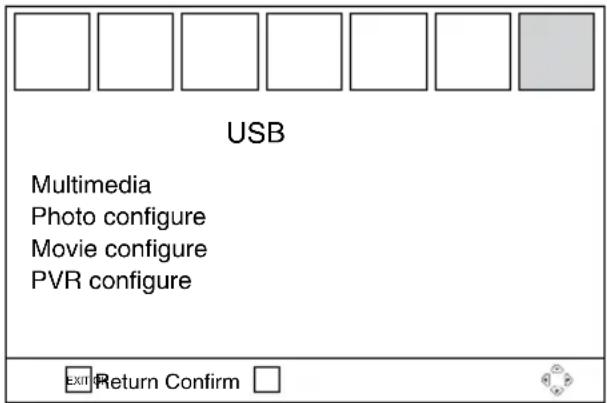
- Multimedia: if a USB storage containing media files is connected to this unit, press OK button to show the menu in which you can select an icon to start playback of corresponding supported type file (Music/Photo/Movie/PVR).
- Photo configure
Slide time: set the period of showing one picture in slide-show mode.
Slide mode: select a slide-show effect.
Aspect ratio: select «keep» to show photos in the original format or «discard» to show in the full screen.
- Movie configure
Subtitle specific: set the subtitle font size.
Subtitle BG: set the subtitle background color.
Subtitle font color: set the subtitle font color.
- PVR configure
Record device: information about the connected USB device.
Format: formatting the connected USB-device.
The screen menu of your unit can be changed without prior notice and hence differ from the menu represented in this Manual.
USB information
USB file systems supported: NTFS, FAT, FAT32. 2.0 USB version is supported. For correct and satisfactory operation, licensed USB devices of famous brands should be used with this unit; avoid using USB devices of unknown brands. Maximum supported capacity is 2 TB.
According to the USB 1.1/2.0 Standard, usage of a USB device with power current consumption exceeding 500 mA is not recommended without supplementary power supply. Failure to use supplementary power for connected USB drives with power consumption exceeding this value as well as defective USB drives may cause mechanical or thermal changes of elements of this unit as well as failure of internal elements of the USB port. Such damages are not warrantee cases.
Warning: usage of external USB drives containing BIN files in the root directory may cause malfunction of the unit or damage to the software.
Scheduled recording
- While watching a TV channel, press Cyan button on the RC, the screen will show “Schedule” menu. Press Red button to show the scheduled recording setting menu, consisting of the following items:
Channel type: Select the TV or radio for recording.
Channel No: select the channel number.
Channel name: Displays the name of the selected channel.
Start date: set the start date of recording.
Start Time: Set the start time.
End time: Set the end time.
Repeat: Set the frequency of repeat recordings (once/daily/weekly).
Mode: view/record.
After setting all the parameters of the recording, press OK button to confirm and return to "Schedule" menu.
- Select an event from "Schedule" menu and press Green button to change the recording options. Press Cyan button to delete the event.
Time Shift
- The Time Shift function allows you to reserve part of the USB-disk space and ensures a continuous background recording of the selected channel. Time Shift allows you to pause watching or rewind recording back and resume viewing from the missed point.
- After you activate the channel recording (PVR, see "General Operations" paragraph), press PLAY button on the RC. Time Shift function is activated, at the bottom of the screen will be a status bar with countdown. Now you can rewind the recorded video by pressing REV/FWD buttons and set to pause by pressing PAUSE button.
- To remove the status bar from the screen, but not disable Time Shift, press EXIT button on the RC. To turn off the Time Shift, press STOP button on the RC.
Troubleshooting
Below is a table describing simple measures that can help you eliminate most problems likely to emerge when this unit is in use. If below measures do not help, turn to a service center or to the nearest dealer.
| Trouble Reason Solution | ||
| Standby indicator is not on | The unit is not connected to the power supply mains.The power cable is poorly connected. | Check the connection to mains.Check the cable. |
| No signal | The antenna is not connected.The antenna is damaged/not positioned.Out of signal reception area. | Check if the antenna cable is connected.Position the antenna.Turn to the service provider. |
| No image | Wrong signal source is selected on your TV. | Select the correct input signal source. |
| No sound | The audio cable is poorly connected or not connectedThe sound is muted or its volume set to minimum.The audio track is not supported. | Connect the audio cable properly.Increase the sound volume.Select another sound track. |
| No response from the RC | The unit is switched off.Wrong angle of RC usage or the front panel if the unit is shielded.The batteries in RC are exhausted. | Start the unit.Use the RC at a correct angle or uncover the front panel of the unit.Change the batteries in the RC. |
Accessories
- Player 1 pc
- Remote controller 1 pc
- Battery 2 pcs
- Audio video RCA cable 1 pc
- Consumer information 1 pc
- Warranty card 1 pc
- Instruction manual 1 pc
Supported formats
| Container Extension Video codec | Audio codec | ||
| AVI *.avi H264, MPEG1/2, MPEG4 | MP1/2, MP3, WMA, AC3, LPCM, ADPCM, AAC | ||
| MPG | *.mpg, *.mpeg, *.vob, *.dat | MPEG1/2 MP1/2, AC3 | |
| TS | *.ts, *.trp, *.m2ts, *.m2t, *.tp | H264, MPEG1/2 MP1/2, AC3, AAC | |
| MKV *.mkv | H264, MPEG1/2, MPEG4 | MP1/2, MP3, WMA, AC3, LPCM, ADPCM, AAC | |
| MP4 *.mp4 | H264, MPEG1/2, MPEG4 | MP1/2, MP3, WMA, AC3, LPCM, ADPCM, AAC | |
| MOV *.mov | H264, MPEG1/2, MPEG4 | MP1/2, MP3, WMA, AC3, LPCM, ADPCM, AAC | |
Specifications
Frequency range 177.5-226.5 MHz (VHF) 474.0-866.0 MHz (UHF)
Digital radio +
PVR +
Time Shift +
Russian and English OSD +
EPG +
Signal level -25-82 dBm
Input stream up to 40 Mb/sec
Video resolution 720p, 1080i, 1080p (Full HD)
Video outputs Antenna/Composite (CVBS)/HDMI/Component
Audio outputs Stereo/Digital coaxial
Inputs Antenna/USB
Operation voltage \~110-240 V, 50/60 Hz
Maximum power consumption 8 W
Electric shock protection class II
Storage temperature range \~20 ^0 -60°C
Operation temperature range \~0 ^0 -45°C
Humidity range 10%-97%
Unit dimensions 220 x 38 x 160 mm
Net/Gross weight 0.9 kg/1.07 kg
Warning: Specifications may be subject to change without notice for improvement.
natural_image
Row of seven empty square boxes with one highlighted in gray (no text or symbols)Видео
Соотношение сторон
Разрешение
ТВ формат
Видео выход

natural_image
Row of seven empty rectangular boxes with one highlighted in gray (no text or symbols)Поиск каналов
Авто поиск
Ручной поиск
Страна
Питание антенны
