PowerLite Pro G7500U - Video projector EPSON - Free user manual and instructions
Find the device manual for free PowerLite Pro G7500U EPSON in PDF.


| Product Type | Video Projector |
| Brand | Epson |
| Model | PowerLite Pro G7500U |
| Display Technology | 3LCD (3-chip) |
| Native Resolution | WUXGA (1920 x 1200) |
| Brightness (Lumens) | 7000 lumens (color & white) |
| Contrast Ratio | 1,500,000:1 (dynamic) |
| Aspect Ratio | 16:10 (native), 16:9, 4:3 compatible |
| Lamp Type | UHE (ultra-high efficiency) |
| Lamp Life | 5000 hours (normal), 10000 hours (eco) |
| Lens Shift | Vertical: ±50%, Horizontal: ±10% |
| Zoom | Motorized 1.6x zoom (and focus) |
| Keystone Correction | Vertical: ±30°, Horizontal: ±30° (digital) |
| Inputs | HDMI, DVI-D, VGA, 5BNC, Composite, S-Video, Audio, USB, LAN |
| Dimensions (W x D x H) | Approx. 19.1 x 17.1 x 6.9 in (486 x 435 x 176 mm) |
| Weight | Approx. 22.5 lb (10.2 kg) |
| Power Consumption | 485W (normal), 0.3W standby |
| Noise Level | 30 dB (normal), 25 dB (eco) |
| Warranty | 3 years (parts and labor) |
Frequently Asked Questions - PowerLite Pro G7500U EPSON
User questions about PowerLite Pro G7500U EPSON
0 question about this device. Answer the ones you know or ask your own.
Ask a new question about this device
Download the instructions for your Video projector in PDF format for free! Find your manual PowerLite Pro G7500U - EPSON and take your electronic device back in hand. On this page are published all the documents necessary for the use of your device. PowerLite Pro G7500U by EPSON.
USER MANUAL PowerLite Pro G7500U EPSON
Additional Components 15
Additional Projector Software and Manuals 16
Optional Equipment and Replacement Parts 17
Warranty and Registration Information.... 19
Notations Used in the Documentation 19
Where to Go for Additional Information 20
Projector Part Locations.... 20
Projector Parts - Front/Top 21
Projector Parts - Rear 22
Projector Parts - Interface Ports 23
Projector Parts - Base 24
Projector Parts - Control Panel 25
Projector Parts - Remote Control 26
Setting Up the Projector 29
Projector Placement.... 29
Projector Setup and Installation Options 29
Projection Distance.... 32
Projector Connections 39
Connecting to Computer Sources.... 40
Connecting to a Computer for VGA Video 40
ConnectingtoaComputerforHDMIVideoandAudio....41
Connecting to a Computer for DVI-D Video 42
Connecting to a Computer for 5 BNC Video....42
Connecting to a Computer for Sound 43
Connecting to Video Sources 43
Connecting to an HDMI Video Source 43
ConnectingtoaComponent-to-BNCVideoSource....44
Connecting to a Component Video Source 45
Connecting to a Video Source for Sound 45
Connecting to an HDBaseT Transmitter 46
Connecting to an External Computer Monitor 47
Connecting to External Speakers 48
Attaching and Removing a Lens 48
Attaching a Lens 49
Removing a Lens 51
Attaching and Removing the Cable Cover.... 53
Installing Batteries in the Remote Control 54
Using the Projector on a Network 57
Wired Network Projection 57
Connecting to a Wired Network 57
Selecting Wired Network Settings 58
Wireless Network Projection 60
Installing the Wireless LAN Module 61
Using Quick Wireless Connection (Windows Only) 64
Selecting Wireless Network Settings Manually.... 66
Wireless LAN Menu Settings 69
Selecting Wireless Network Settings in OS X 70
Selecting Wireless Network Settings in Windows 70
Setting Up Projector Network E-Mail Alerts 71
Network Projector E-mail Alert Messages 72
Selecting Other Network Settings.... 72
Controlling a Networked Projector Using a Web Browser 74
Web Control Options 75
Crestron RoomView Support.... 81
Setting Up Crestron RoomView Support 81
ControllingaNetworkedProjectorUsingCrestronRoomView....82
Using Basic Projector Features 84
Turning On the Projector 84
Turning Off the Projector 86
Selecting the Language for the Projector Menus.... 86
Resizing the Image with the Zoom Button 87
Focusing the Image Using the Focus Button 88
FocusingtheImagewiththeOptionalShortThrowLens....89
Setting the Lens Type 91
Setting the Screen Type....92
Adjusting the Image Position Using Lens Shift 93
Adjusting the Image Position Using Screen Position 93
Displaying a Test Pattern 94
Available Test Pattern Image Adjustments 95
Adjusting the Image Height 95
Image Shape 96
Correcting Image Shape with H/V Keystone.... 97
Correcting Image Shape with Quick Corner 100
Correcting Image Shape with Curved Surface 102
Correcting Image Shape with Point Correction 106
Correcting Image Shape with Corner Wall.... 108
Selecting an Image Source 114
Remote Control Operation 115
Projection Modes 117
ChangingtheProjectionModeUsingtheRemoteControl....117
Changing the Projection Mode Using the Menus.... 118
Image Aspect Ratio 118
Changing the Image Aspect Ratio 119
Available Image Aspect Ratios 119
Color Mode.... 120
Changing the Color Mode.... 121
Available Color Modes.... 121
Turning On Auto Iris.... 122
Controlling the Volume with the Volume Buttons.... 123
Setting the Date and Time.... 124
Adjusting Projector Features 126
Shutting Off the Picture and Sound Temporarily 126
Stopping Video Action Temporarily 127
Zooming Into and Out of Images 127
Projector Security Features.... 128
Password Security Types 129
Setting a Password 129
Selecting Password Security Types.... 130
Entering a Password to Use the Projector.... 131
Saving a User's Logo Image to Display.... 132
Locking the Projector's Buttons 134
Unlocking the Projector's Buttons 135
Installing a Security Cable 136
Projecting Two Images Simultaneously.... 137
Using Multiple Projectors.... 139
Projector Identification System for Multiple Projector Control 140
Setting the Projector ID 140
Setting the Remote Control ID 141
AdjustingthePositionoftheProjectedImageFromMultipleProjectors....142
Scaling an Image.... 143
Adjusting the Lamp's Brightness 144
Blending the Image Edges 145
Adjusting the Black Level 147
Matching the Image Colors 149
Adjusting the Color Tone (Color Uniformity) 151
Adjusting the Color Convergence (Panel Alignment).... 152
Configuring Tiling.... 155
Enabling Protocol Emulation 156
Viewing 3D Images 157
Saving Settings to Memory and Using Saved Settings 157
Saving a Scheduled Event 158
Viewing Scheduled Events 159
Editing a Scheduled Event.... 160
Copying Menu Settings Between Projectors 161
Saving Settings to a USB Flash Drive 162
Transferring Settings From a USB Flash Drive.... 163
Saving Settings to a Computer 164
Transferring Settings From a Computer 166
Adjusting the Menu Settings 168
Using the Projector's Menus.... 168
Image Quality Settings - Image Menu 170
Input Signal Settings - Signal Menu.... 172
Projector Feature Settings - Settings Menu 176
Projector Setup Settings - Extended Menu.... 179
Projector Network Settings - Network Menu.... 186
Projector Information Display - Info Menu 187
Event ID Code List.... 189
Projector Reset Options - Reset Menu 190
Maintaining and Transporting the Projector 192
Projector Maintenance 192
Cleaning the Lens.... 192
Cleaning the Projector Case.... 193
Air Filter and Vent Maintenance 193
Cleaning the Air Filter.... 194
Replacing the Air Filter 197
Projector Lamp Maintenance.... 199
Replacing the Lamp 199
Resetting the Lamp Timer 203
Replacing the Remote Control Batteries 204
Transporting the Projector 206
Solving Problems 207
Projection Problem Tips 207
Projector Light Status 208
Viewing the Status Display 212
Projector Status Display Messages 214
Using the Projector Help Displays 218
Solving Image or Sound Problems 219
Solutions When No Image Appears.... 219
Solutions When "No Signal" Message Appears.... 220
Displaying From a PC Laptop 221
Displaying From a Mac Laptop 221
Solutions When "Not Supported" Message Appears 221
Solutions When Only a Partial Image Appears 222
Solutions When the Image is Not Rectangular 222
Solutions When the Image Contains Noise or Static 223
Solutions When the Image is Fuzzy or Blurry 224
SolutionsWhentheImageBrightnessorColorsareIncorrect....225
SolutionsWhena3DImageDoesNotDisplayCorrectly....225
Solutions to Sound Problems 226
Solving Projector or Remote Control Operation Problems 227
Solutions to Projector Power or Shut-Off Problems 227
Solutions to Problems with the Remote Control.... 228
Solutions to Password Problems 229
Solving Network Problems 229
SolutionsWhenYouCannotAccesstheProjectorThroughtheWeb....229
SolutionsWhenNetworkAlertE-MailsareNotReceived....230
SolutionsWhenYouCannotAccesstheProjectorUsingiProjection....230
Where to Get Help.... 231
Technical Specifications 233
General Projector Specifications 233
Projector Lamp Specifications 235
Remote Control Specifications 236
Projector Dimension Specifications 236
Projector Electrical Specifications 237
Projector Environmental Specifications 238
Projector Safety and Approvals Specifications.... 239
Supported Video Display Formats 239
Notices 243
Recycling....243
Important Safety Information 243
Important Safety Instructions.... 243
Restriction of Use 246
List of Safety Symbols (corresponding to IEC60950-1 A2).... 246
FCC Compliance Statement.... 250
Open Source Software License 251
Trademarks 297
Copyright Notice 298
ANoteConcerningResponsibleUseofCopyrightedMaterials....298
Copyright Attribution 299
ProG7000W/G7100/G7200W/G7400U/G7500U/G7805/G7905U User'sGuide
Welcome to the Pro G7000W/G7100/G7200W/G7400U/G7500U/G7805/G7905U User's Guide.
For a printable PDF copy of this guide, click here.
IntroductiontoYourProjector
Refertothesesectionstolearnmoreaboutyourprojectorandthismanual.
ProjectorFeatures
NotationsUsedintheDocumentation
WheretoGoforAdditionalInformation
ProjectorPartLocations
ProjectorFeatures
TheProG7000W,G7100,G7200W,G7400U,G7500U,G7805,andG7905U projectors includethese specialfeatures:
Bright, high-resolution projection system
•ProG7000W/G7100/G7500U:Upto6500lumensofbrightness(whitelightoutputandcolorlight output)
ProG7200W:Upto7500lumensofbrightness(whitelightoutputandcolorlightoutput)
ProG7400U: Upto5500lumensofbrightness(whitelightoutputandcolorlightoutput)
ProG7805:Upto8000lumensofbrightness(whitelightoutputandcolorlightoutput)
ProG7905U: Upto7000lumensofbrightness(whitelightoutputandcolorlightoutput)
Note: Color brightness (color light output) and white brightness (white light output) will vary depending on usage conditions. ColorlightoutputmeasuredinaccordancewithIDMS15.4;whitelightoutput measuredinaccordancewithISO21118.
•ProG7000W/G7200W:Nativeresolutionof1280×800pixels(WXGA)
ProG7100/G7805:Nativeresolutionof1024×768pixels(XGA)
ProG7400U/G7500U/G7905U:Nativeresolutionof1920×1200pixels(WUXGA)
Flexibleconnectivity
- Wiredandwireless(optional)networksupportforprojection,monitoring,andcontrolviaremote networkcomputer
•Wirednetworksupportformonitoringandcontrolviaremotenetworkcomputer
- Variety of connection method to a computer or video device including HDMI, BNC, DVD-D, and HDBaseT
- Portsforconnectinganexternalmonitorandexternalspeakers
Easy-to-usesetupandoperationfeatures
• Interchangeable bayonetlensoptions available
- Projectimagessidebysidefromtwoseparateinputsources
- CreateonelargeseamlessdisplaywhenprojectingfrommultipleprojectorsusingEdgeBlending
- Epson'sInstantOffandDirectPowerOnfeaturesforquicksetupandshutdown
•SupportforCrestronRoomViewnetworkmonitoringsystems
- Networkmessagebroadcastsystemtoprojecttimelymessagestoallnetworkedprojectors(Windows only)
Note: The Pro G7905U projector with a zoom lens is shown in most illustrations in this manual, unless noted otherwise.
ProductBoxContents
AdditionalComponents
AdditionalProjectorSoftwareandManuals
OptionalEquipmentandReplacementParts
Warranty and Registration Information
Parenttopic: Introduction to Your Projector
Relatedconcepts
ProjectorPartLocations
ProductBoxContents
Saveallthepackagingincaseyouneedtoshiptheprojector.Alwaysusetheoriginalpackaging(or equivalent)whenshipping.
Makesureyourprojectorboxincludedalloftheseparts:
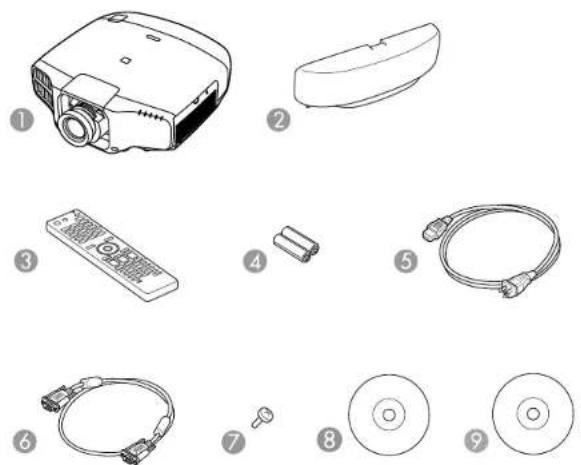
1Projectorwithstandardzoomlens*
2Cablecover
3Remotecontrol
4Remotecontrolbatteries(twoAAalkaline)
5Powercord
6VGAcomputercable
7Lensunitscrew*
8ProjectordocumentationCD
9ProjectorsoftwareCD
*LensandlensunitscrewnotincludedwiththePro
G7000WNL/G7100NL/G7200WNL/G7400UNL/G7500UNL/G7805NL/G7905UNL
Parenttopic:ProjectorFeatures
Relatedconcepts
ProjectorConnections
AdditionalComponents
Dependingonhowyouplantousetheprojector,youmayneedtoobtainadditionalcomponents.
Note: To connect a Mac that does not include a compatible video output port, you need to obtain an adapter that allows you to connect to an input port on the projector. Contact Apple for compatible adapter options. To connect a smartphone ortablet, you may need to obtain an adapter that allows you to connect the projector. This allows you to mirror your smartphone ortabletscreens, watch movies, and more. Contact your device manufacturer for compatible adapter options.
Unlesslisted as available from Epsonin thistable, see your local computerorelectronics dealer for purchase information.
| Signalorconnection type | Additionalcomponentnecessary |
| ComponentvideoD-sub,15- | pin,component-to-VGAvideocableandtwoVGAcomputer cablesAvailableforpurchasefromEpsonoranauthorizedEpsonreseller.Youalsoneedasplitterthatsupportscomponentvideosignals (commerciallyavailable). |
| HDMIThreecompatibleHDM | lcablesAvailableforpurchasefromEpsonoranauthorizedEpsonreseller.YoualsoneedasplitterthatsupportsHDMIsignals(commercially available).Note:OlderMaccomputers(2009andearlier)maynotsupportHDMI audio. |
| 3DThreecompatibleHDMlcables,asplitterthatsupports3Dsignals,anda silverscreen(recommendedgain:2.3to2.7)YoucanpurchaseHDMlcablesfromEpsonoranauthorizedEpson reseller.Note:Ifyourvideosourceisa3DBlu-raydisc,youalsoneedaBlu-ray playerthatsupports3D playback.Seeyourlocalcomputerorelectronics dealerforpurchaseinformation. | |
| AudiofromcertainportsCommerciallyavailableaudiocablecompatiblewithyourdevice | |
| VGATwoVGAcomputercables | AvailableforpurchasefromEpsonoranauthorizedEpsonreseller.Ifyouwanttoconnecttheprojectorusingasplitter,youalsoneedasplitter thatsupportsVGAsignals(commerciallyavailable)andathirdVGA computercable. |
| BNCVGA-to-5-BNCcableoradapter | AvailableforpurchasefromEpsonoranauthorizedEpsonreseller. |
| DVI-DCompatibleDVI-Dcable | |
| HDBaseTCompatible100Base-TXLANcable | |
| ControlpadTopowerthecontrolpadfromtheprojector,youneedtheremotecontrol cableset(ELPKC28).AvailableforpurchasefromEpsonoranauthorizedEpsonreseller. | |
Parenttopic:ProjectorFeatures
AdditionalProjectorSoftwareandManuals
Afterconnectingandsettinguptheprojector, installtheprojectorsoftwarefromtheincludedsoftware CD,ordownloadthesoftwareandmanualsasnecessary.
Youcaninstalltheprojectorsoftwareprogramslistedhereandviewtheirmanualsforinstructionson usingthem.
Note: If you still need help after checking this manual and the sources listed here, you can use the EpsonPrivateLineSupportservicetogethelpfast. Fordetails, see "WhereToGetHelp".
| ProjectorsoftwareManual | Description | |
| EasyMPMonitor (Windowsonly) | EasyMPMonitor OperationGuide | Letsyoumonitorandcontrolyourprojector throughthenetwork.Youcandownloadthelatestsoftwareand documentationfromtheEpsonwebsite.Goto epson.com/support(U.S.)orepson.ca/support (Canada)andselectyourprojector. |
| EasyMPMultiPC Projection | EasyMPMultiPC ProjectionOperation Guide | Letsyouholdinteractivemeetingsby projectingthecomputerscreensofusersover anetwork. |
| EasyMPNetworkUpdater (Windowsonly) | EasyMPNetworkUpdater OperationGuide | Letsyouupdatefirmwareforaprojectorovera wiredLAN.Youcandownloadthelatestsoftwareand documentationfromtheEpsonwebsite.Goto epson.com/support(U.S.)orepson.ca/support (Canada)andselectyourprojector. |
| EpsoniProjectionappInstructionsareincluded withtheapp | LetsyouprojectfromaniOSorAndroiddevice ifyourprojectorisconnectedtoanetworkthat includesawirelessaccesspoint.Visitepson.com/projectorapp(U.S.)orepson.ca/projectorapp(Canada)formore information. | |
Parenttopic:ProjectorFeatures
OptionalEquipmentandReplacementParts
Youcanpurchasescreens,otheroptionalaccessories,andreplacementpartsfromanEpsonauthorizedreseller.Tofindthenarestreseller,call800-GO-EPSON(800-463-7766).Oryoucanpurchaseonlineatepsonstore.com(U.S.sales)orepson.ca(Canadiansales).
Epsonoffersthefollowingoptionalaccessoriesandreplacementpartsforyourprojector:
| OptionorpartPartnumber | |
| GenuineEpsonreplacementlamp(ELPLP93)V13H010L93 | |
| Airfilter(ELPAF30)V13H134A30 | |
| QuickWirelessConnectionUSBkey(ELPAP09)V12H005M09 | |
| WirelessLANmodule(ELPAP10)V12H731P02 | |
| HDBaseTTransmitter(ELPHD01)V12H547020 | |
| Replacementremotecontrol158279900 | |
| Remotecontrolcableset(ELPKC28)V12H005C28 | |
| EpsonDC-11documentcamera(ELPDC11)V12H377020 | |
| EpsonDC-13documentcamera(ELPDC13)V12H757020 | |
| EpsonDC-20documentcamera(ELPDC20)V12H500020 | |
| EpsonDC-21documentcamera(ELPDC21)V12H758020 | |
| WirelessIRmousereceiverforremotecontrol(ELPST16)V12H007T16 | |
| PolarizerKitfor3DStacking ^1 | ELPPL01 |
| Passive3Dglasses(adult)ELPGS02A | |
| Passive3Dglasses(children)ELPGS02B | |
| Component-to-VGAvideocable(ELPKC19)V12H005C19 | |
| VGAvideocable10feet(3.0m)lengthF3H982-10 | |
| HDMlaudiovideocable3feet(0.9m)lengthAV22300-03 | |
| HDMlaudiovideocable6feet(1.8m)lengthAV22300-06 | |
| Ultrashortthrowzoomlens(ELPLX01) | V12H004X01 |
| Shortthrowzoomlens#1(ELPLU03) | V12H004U03 |
| Shortthrowzoomlens#2(ELPLU04) | V12H004U04 |
| Widethrowzoomlens#1(ELPLW05) | V12H004W05 |
| Widethrowzoomlens#2(ELPLW06) | V12H004W06 |
| Middlethrowzoomlens#1(ELPLM08) | V12H004M08 |
| Middlethrowzoomlens#2(ELPLM09) | V12H004M09 |
| Middlethrowzoomlens#3(ELPLM10)V12H004M10 | |
| Middlethrowzoomlens#4(ELPLM11)V12H004M11 | |
| Longthrowzoomlens(ELPLL08)V12H004L08 | |
| CeilingMount-lowceiling(ELPMB47)V12H802010 | |
| CeilingMount-highceiling(ELPMB48)V12H803010 | |
| Activespeakers(ELPSP02)V12H467020 | |
| PixiePluscontrolsystemforEpsonprojectorsELPSP10 | |
| 1-YearExtendedExchangeServicePlanEPPEXPB1 | |
| 2-YearExtendedExchangeServicePlanEPPEXPB2 |
^1 CompatiblewithELPLW06,ELPLM08,ELPLM09,ELPLM10,ELPLW04,ELPLS04,ELPLM06lenses.
Parenttopic:ProjectorFeatures
Warranty and Registration Information
Yourprojectorcomeswithabasicwarrantythatletsyouprojectwithconfidence.Fordetails,seethe warrantythatcamewithyourprojector.
Inaddition, EpsonoffersfreeExtraCareRoadService. Intheunlikelyeventofanequipmentfailure, you won't havetowaitforyourunittoberepaired. Instead, Epsonwillshipyouareplacementunitanywhere intheUnitedStates, Canada, or Puerto Rico. SeetheExtraCareRoadServicebrochurefordetails.
RegistryyourproductonlineusingtheprojectorCDoratthissite:epson.com/webreg.
Registeringalsoletsyoureceivespecialupdatesonnewaccessories,products,andservices.
Parenttopic:ProjectorFeatures
NotationsUsedintheDocumentation
Followtheguidelinesinthesenotationsasyoureadyourdocumentation:
- Warningsmustbefollowedcarefullytoavoidbodilyinjury .
- Cautionsmustbeobservedtoavoiddamagetoyourequirement.
- Notes contain important information about your projector.
- Tipscontainadditionalprojectioninformation.
Parenttopic: Introduction to Your Projector
WheretoGoforAdditionallInformation
Needquickhelponusingyourprojector?Here'swheretolookforhelp:
•Built-inhelpsystem
Press the Home button on the remote control or projector, select Help, and press Enter to get quick solutionstocommonproblems.
•epson.com/support(U.S)orepson.ca/support(Canada)
ViewFAQs(frequentlyaskedquestions)ande-mailyourquestionstoEpsontechnicalsupport24 hoursaday.
- If you still need help after checking this manual and any others sources listed here, you can use the Epson Private Line Support service to get help fast. For details, see "Where to Get Help".
Parenttopic: Introduction to Your Projector
ProjectorPartLocations
Check the projector part illustration to learn about the part's your projector.
Note: The Pro G7900W projector with a zoom lens is shown in most illustrations in this manual, unless noted otherwise.
ProjectorParts-Front/Top
ProjectorParts-Rear
ProjectorParts-InterfacePorts
ProjectorParts-Base
ProjectorParts-ControlPanel
ProjectorParts-RemoteControl
Parenttopic: Introduction to Your Projector
ProjectorParts-Front/Top
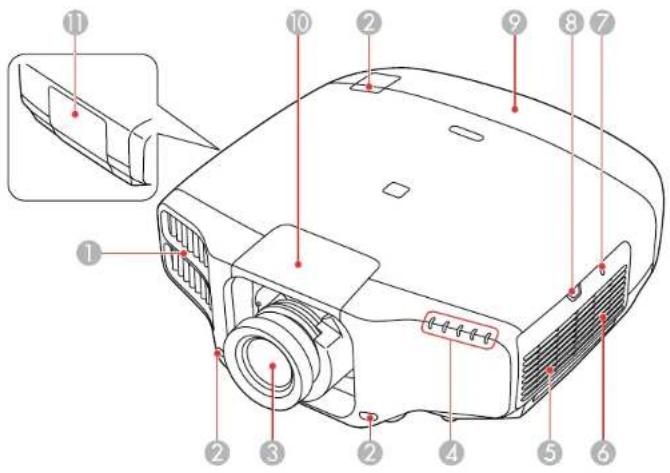
1 Exhaustvent
2Remotereceiver
3Projectionlens
4Projectorstatuslights
5Speaker
6Airfilter/intakevent
7WirelessLANmodulelight
8Airfiltercoverlatch
9Cablecover
10Lenscover
11 Lampcover
Parenttopic:ProjectorPartLocations
ProjectorParts-Rear
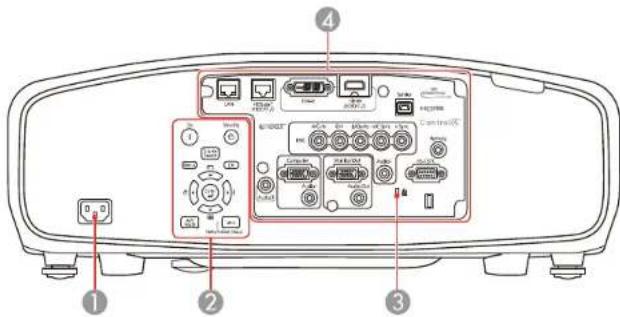
1ACinputport
2Controlpanel
3Kensingtonsecurityslot
4Interfaceports
Parenttopic:ProjectorPartLocations
ProjectorParts-InterfacePorts
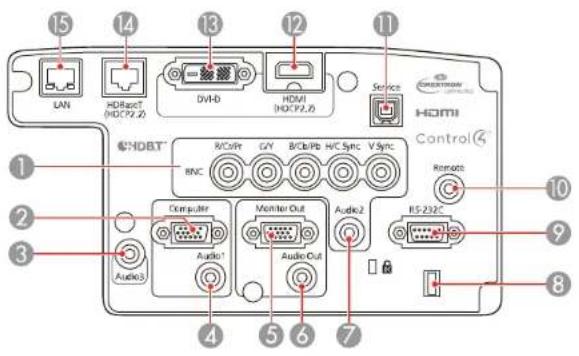
1BNCports
2Computerport
3Audio3port
4Audio1port
5MonitorOutport
6AudioOutport
7Audio2port
8Cableholder
9RS-232Cport
10Remoteport
11Serviceport
12HDMIport
13DVI-Dconnector
14HDBaseTport
15NetworkLANport
Parenttopic:ProjectorPartLocations
ProjectorParts-Base
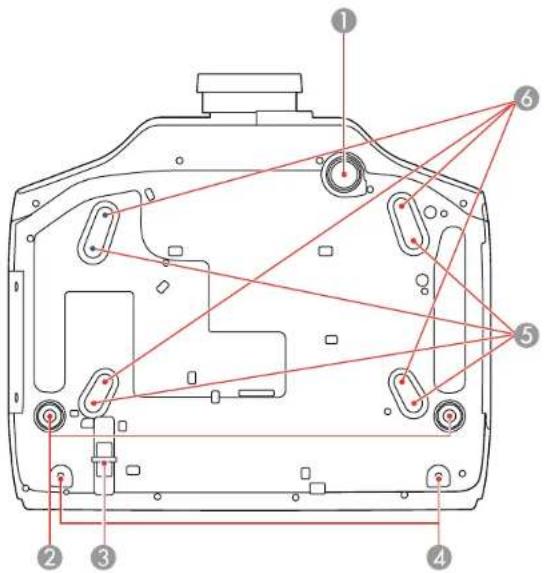
1Frontadjustablefoot
2Rearfeet
3Securitycableattachmentpoint
4Screwholesforcablecover
5MountingbracketholesforELPMB47/ELPMB48
6MountingbracketholesforELPMB22
Parenttopic:ProjectorPartLocations
ProjectorParts-ControlPanel
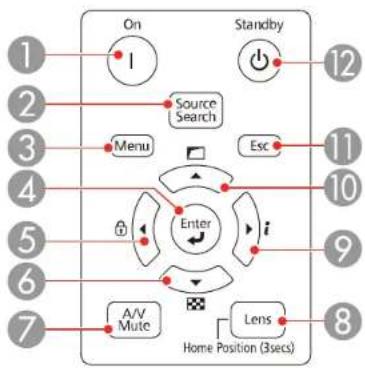
1Onbutton(turnsontheprojector)
2SourceSearchbutton(searchesforconnectedsources)
3Menubutton(accessesprojectormenusystem)
4Enterbutton(selectsoptions)
5LeftarowbuttonanddisplaytheControlPanelLockscreen
6Downarrowbuttonanddisplaysatestpattern
7A/VMutebutton(turnsthevideoandaudioonoroff)
8 Lens button (displays the lens shift, zoom, focus, and distortion adjustment screens; hold for 3 secondstoreturnthelenstothehomeposition)
9Rightarowbuttonanddisplaysthelnfomenu
10Uparrowbuttonanddisplaysscreenadjustmentoptions
11Escbutton(cancels/exitsfunctions)
12Standbybutton(turnsofftheprojector)
Parenttopic:ProjectorPartLocations
Relatedreferences
ProjectorParts-RemoteControl
ProjectorParts-RemoteControl
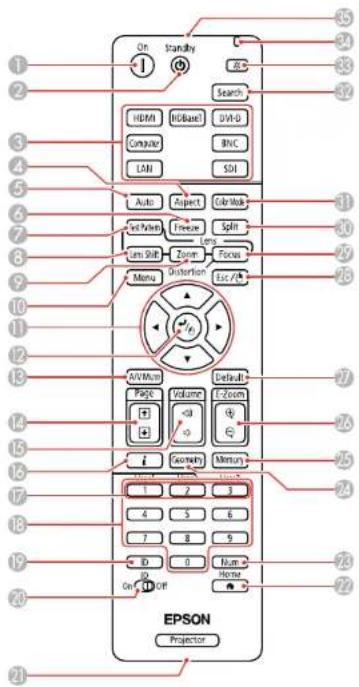
1Onbutton(turnsontheprojector)
2Standbybutton(turnsofftheprojector)
3Sourcebuttons(selectanimagesource)
4Aspectbutton(selectstheimageaspectratio)
5 Autobutton(automatically adjusts computerimages)
6Freezebutton(stopsvideoaction)
7TestPatternbutton(displaysatestpattern)
8LensShiftbutton(adjuststheimageposition)
9Zoombutton(changestheimagesize)
10Menubutton(accessesprojectormenusystem)
11Arrowbuttons(movethroughon-screenoptionsandmovepointer)
12Enterbutton(selectsoptionsandleftmousebutton)
13A/VMutebutton(turnsthevideoandaudioonoroff)
14Pageupanddownbuttons(scrollthroughimagefileswhenprojectingfromacomputeroveranetworkconnection)
15Volumeupanddownbuttons(adjustspeakervolume)
16ibutton(displaysthelnfomenu)
17 User1, User2, and User3 buttons (open menu assigned by user)
18Numericbuttons(enternumbers)
19IDbutton(holddownandusenumerickeystoselectprojectortocontrol)
20ID switch(controloneorall projectors)
21 Remoteport(connectstoaremotecontrolcable)
22Homebutton(displaysthehomescreen)
23Numbutton(holddownandusenumerickeystoenternumbers)
24Geometrybutton(correctsimagedistortion)
25Memorybutton(savesandappliespresets)
26E-Zoom+/-buttons(zoomintoandoutoftheimage)
27Defaultbutton(resetssettingstotheirdefaultvaluesintheprojectormenusystem)
28Escbutton(cancels/exitsfunctionsandrightmousebutton)
29Focusbutton(adjuststheimagefocus)
30Splitbutton(splitsthescreenbetweentwoinputs)
31ColorModebutton(selectsdisplaymodes)
32Searchbutton(searchesforconnectedsources)
33Lightbutton(lightsuptheremotecontrolbuttonstemporarily)
34Indicatorlight(lightsupwhentheremotecontrolisinuse)
35Remotecontrolsignalemitter(emitsremotecontrolsignals)
Parenttopic:ProjectorPartLocations
SettingUptheProjector
Followtheinstructionsinthesesectionstosetupyourprojectorforuse.
ProjectorPlacement
ProjectorConnections
AttachingandRemovingaLens
AttachingandRemovingtheCableCover
Installing Batteries in the Remote Control
ProjectorPlacement
Youcanplacetheprojectoronalmostanyflatsurfacetoprojectanimation.
Youcanalsoinstalltheprojectorinaceilingmountifyouwanttouseitinafixedlocation.
Keeptheseconsiderationsinmindasyouselectaprojectorlocation:
- Placetheprojectoronasturdy, levelsurfaceorinstallitusingacompatiblemount.
- Leaveplentyofspacearoundandundertheprojectorforventilation, anddonotplaceitontopofor nexttoanythingthatcouldblockthevents.
- Position the projector within reach of foreground electrical outlet to extension cord.
ProjectorSetupandInstallationOptions
ProjectionDistance
Parenttopic: SettingUptheProjector
ProjectorSetupandInstallationOptions
Youcansetuporinstallyourprojectorinthefollowingways:
Front
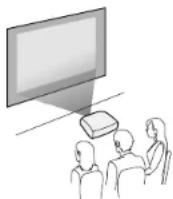
Rear
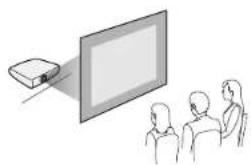
natural_image
Illustration of a projector projecting onto a screen to three people (no text or symbols present)Frontceiling
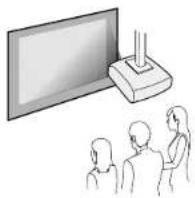
Rearceiling
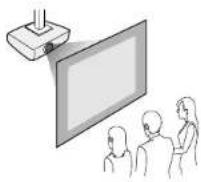
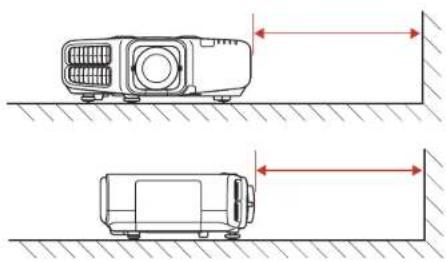
Note: Be sure to leave at least 20 inches (50 cm) of space in front of the air exhaust and intake vents and, when setting up multiple projectors, 20 inches (50 cm) of space between the projectors.
natural_image
Technical line drawing showing two views of a projector mounted on a wall, with no text or symbols present.If you mount the project to the ceiling, install it within the following angles:
•Vertically:Anyangleinacomplete360degreecircle.
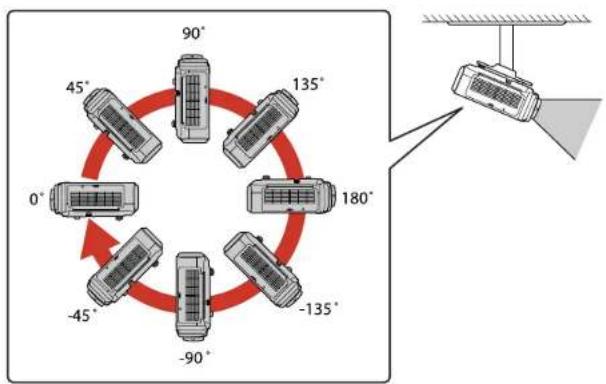
flowchart
graph TD
    A["Top Circular Car"] --> B["Left Circular Car"]
    B --> C["Right Circular Car"]
    C --> D["Center Point"]
    D --> E["Bottom Circular Car"]
    E --> F["Left Circular Car"]
    F --> G["Right Circular Car"]
    G --> H["Center Point"]
    H --> I["Right Circular Car"]
    I --> J["Left Circular Car"]
    J --> K["Right Circular Car"]
    K --> L["Center Point"]
    L --> M["Right Circular Car"]
    M --> N["Left Circular Car"]
    N --> O["Right Circular Car"]
    O --> P["Center Point"]
    P --> Q["Right Circular Car"]
    Q --> R["Left Circular Car"]
    R --> S["Right Circular Car"]
    S --> T["Center Point"]
    T --> U["Right Circular Car"]
    U --> V["Left Circular Car"]
    V --> W["Right Circular Car"]
    W --> X["Center Point"]
    X --> Y["Right Circular Car"]
    Y --> Z["Left Circular Car"]
• Horizontally: Withintheadadjustmentrangeoftherearadjustablefeet.
If you project from the ceiling or from the rear, select the correct Projection setting and, if necessary, turn on the Inv Direction Button setting. If you installed the projector at an angle, select the Direction setting.
Note: Selecting an incorrect Direction setting may shorten the lamp life.
Parenttopic:ProjectorPlacement
Relatedreferences
ProjectorSetupSettings-ExtendedMenu
ProjectionDistance
The distance at which you place the projector from the screen, determines the approximate size of the image. The imagesize increase the farther the projector is from the screen, but can vary depending on the zoom factor, aspect ratio, and others settings.
Usethetablesheretodetermineapproximatelyhowfartoplacetheprojectorfromthescreenbasedon thesizeoftheprojectedimage.(Conversionfiguresmayhavebeenroundedupordown.)
YoucanalsousetheprojectorThrowDistanceCalculatoratepson.com/support(U.S.)orepson.ca/support(Canada).
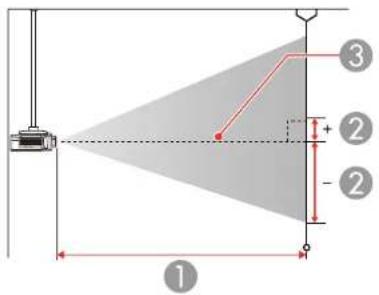
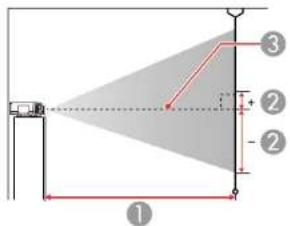
ProG7000W/G7200W/G7400U/G7500U/G7905U(StandardZoomLens)
| 16:10AspectRatlolmageorScreen | ||
| ScreenorimagesizeProjectiondi | stance(1) WidetoTele(Minimumto Maximum) | Verticalensshift(2) Toptobottom |
| 50inches(127cm)60to98inches | (153to248cm) | -31.2to4.7inches (-79to12cm) |
| 16:10AspectRatioImageorScreen | ||
| ScreenorimagesizeProjectiondist | stance(1) WidetoTele(Minimumto Maximum) | Verticalensshift(2) Toptobottom |
| 60inches(152cm)73to117inches | (185to298cm) | -37.4to5.6inches (-95to14cm) |
| 80inches(203cm)98to157inches | (248to399cm) | -49.9to7.5inches (-127to19cm) |
| 100inches(254cm)123to197inches | (311to500cm) | -62.4to9.4inches (-158to24cm) |
| 120inches(305cm)147to237inches | (374to601cm) | -74.8to11.2inches (-190to29cm) |
| 150inches(381cm)185to296inches | (469to753cm) | -93.7to14.2inches (-238to36cm) |
| 200inches(508cm)247to396inches | (627to1005cm) | -124.7to18.7inches (-317to48cm) |
| 250inches(635cm)309to495inches | (785to1258cm) | -155.9to23.2inches (-396to59cm) |
| 300inches(762cm)371to595inches | (943to1510cm) | -187.1to28.1inches (-475to71cm) |
| 16:9AspectRatioImageorScreen | ||
| ScreenorimagesizeProjectiondistance(1) | WidetoTele(Minimumto Maximum) | Verticalensshift(2)Toptobottom |
| 49inches(125cm)61to98inches | (154to250cm) | -30.1to6inches(-76to15cm) |
| 16:9AspectRatiolmageorScreen | ||
| ScreenorimagesizeProjectiondi | stance(1) WidetoTele(Minimumto Maximum) | Verticalensshift(2) Toptobottom |
| 50inches(127cm)62to100inches | (157to255cm) | -30.7to6.3inches (-78to16cm) |
| 60inches(152cm)75to121inches | (190to307cm) | -36.8to7.4inches (-94to19cm) |
| 80inches(203cm)100to162inches | (255to411cm) | -49.1to9.9inches (-125to25cm) |
| 100inches(254cm)126to203inches | (320to514cm) | -61.4to12.3inches (-156to31cm) |
| 120inches(305cm)152to243inches | (385to618cm) | -73.6to14.8inches (-187to38cm) |
| 150inches(381cm)190to305inches | (482to774cm) | -92to18.5inches (-234to47cm) |
| 200inches(508cm)254to407inches | (645to1033cm) | -122.7to24.7inches (-312to63cm) |
| 250inches(635cm)318to509inches | (807to1293cm) | -153.5to30.7inches (-390to78cm) |
| 290inches(737cm)369to591inches | (937to1500cm) | -178to35.8inches (-452to91cm) |
| 4:3AspectRatiolmageorScreen | ||
| ScreenorimagesizeProjectiondist | stance(1) WidetoTele(Minimumto Maximum) | Verticalensshift(2) Toptobottom |
| 45inches(114cm)61to99inches | (156to253cm) | -31.8to4.8inches (-81to12cm) |
| 50inches(127cm)68to111inches | (174to281cm) | -35.4to5.1inches (-90to13cm) |
| 60inches(152cm)83to133inches | (210to338cm) | -42.4to6.4inches (-108to16cm) |
| 80inches(203cm)111to178inches | (281to453cm) | -56.5to8.5inches (-143to22cm) |
| 100inches(254cm)139to223inches | (353to567cm) | -70.6to10.6inches (-179to27cm) |
| 120inches(305cm)167to268inches | (424to681cm) | -84.7to12.7inches (-215to32cm) |
| 150inches(381cm)209to336inches | (532to853cm) | -105.9to15.9inches (-269to40cm) |
| 200inches(508cm)280to448inches | (711to1139cm) | -141.2to21.2inches (-359to54cm) |
| 250inches(635cm)350to561inches | (890to1424cm) | -176.4to26.4inches (-448to67cm) |
| 265inches(673cm)371to595inches | (943to1510cm) | -187.1to28.1inches (-475to71cm) |
ProG7100/G7805(StandardZoomLens)
| 4:3AspectRatioImageorScreen | ||
| ScreenorimagesizeProjectiondistance(1) WidetoTele(Minimumto Maximum) | Verticalensshift(2) Toptobottom | |
| 50inches(127cm)58to94inches | (147to239cm) | -32.3to2.3inches (-82to6cm) |
| 60inches(152cm)70to113inches | (178to288cm) | -38.7to2.7inches (-98to7cm) |
| 80inches(203cm)94to152inches | (239to385cm) | -51.6to3.6inches (-131to9cm) |
| 100inches(254cm)118to190inches | (299to482cm) | -64.6to4.6inches (-164to12cm) |
| 120inches(305cm)142to228inches | (360to580cm) | -77.5to5.5inches (-197to14cm) |
| 150inches(381cm)178to286inches | (452to726cm) | -96.9to6.7inches (-246to17cm) |
| 200inches(508cm)238to382inches | (604to969cm) | -129.1to9.1inches (-328to23cm) |
| 250inches(635cm)298to478inches | (756to1213cm) | -161.4to11.4inches (-410to29cm) |
| 300inches(762cm)358to573inches | (908to1456cm) | -193.7to13.7inches (-492to35cm) |
| 16:9AspectRatioImageorScreen | ||
| ScreenorimagesizeProjectiondis | stance(1) WidetoTele(Minimumto Maximum) | Verticalensshift(2) Toptobottom |
| 46inches(117cm)58to94inches | (148to240cm) | -28.6to6inches (-73to15cm) |
| 50inches(127cm)63to103inches | (161to261cm) | -31.1to6.7inches (-79to17cm) |
| 60inches(152cm)76to124inches | (194to314cm) | -37.3to7.9inches (-95to20cm) |
| 80inches(203cm)102to165inches | (260to420cm) | -49.7to10.5inches (-126to27cm) |
| 100inches(254cm)129to207inches | (327to526cm) | -62.2to13.1inches (-158to33cm) |
| 120inches(305cm)155to249inches | (393to632cm) | -74.6to15.8inches (-189to40cm) |
| 150inches(381cm)194to312inches | (493to791cm) | -93.2to19.7inches (-237to50cm) |
| 200inches(508cm)259to416inches | (658to1057cm) | -124.3to26.3inches (-316to67cm) |
| 250inches(635cm)325to520inches | (824to1322cm) | -155.5to32.7inches (-395to83cm) |
| 275inches(699cm)357to573inches | (907to1454cm) | -170.9to36.1inches (-434to92cm) |
| 16:10AspectRatioImageorScreen | ||
| ScreenorimagesizeProjectiondi | stance(1) WidetoTele(Minimumto Maximum) | Verticalensshift(2) Toptobottom |
| 48inches(122cm)59to96inches | (150to243cm) | -30.3to4.9inches (-77to12cm) |
| 50inches(127cm)62to100inches | (156to254cm) | -31.5to5.1inches (-80to13cm) |
| 60inches(152cm)74to120inches | (189to305cm) | -37.9to6.1inches (-96to15cm) |
| 80inches(203cm)100to161inches | (253to408cm) | -50.5to8.1inches (-128to21cm) |
| 100inches(254cm)125to201inches | (318to512cm) | -63.1to10.1inches (-160to26cm) |
| 120inches(305cm)151to242inches | (382to615cm) | -75.8to12.2inches (-192to31cm) |
| 150inches(381cm)189to303inches | (479to770cm) | -94.7to15.2inches (-241to39cm) |
| 200inches(508cm)252to405inches | (640to1028cm) | -126.3to20.3inches (-321to51cm) |
| 250inches(635cm)316to506inches | (802to1286cm) | -157.9to25.2inches (-401to64cm) |
| 280inches(711cm)354to567inches | (899to1441cm) | -176.8to28.4inches (-449to72cm) |
Parenttopic:ProjectorPlacement
ProjectorConnections
Seethesectionstoconnecttheprojectortoavarietyofprojectionsources.
Caution: If you will use the projector at altitudes above 4921 feet (1500 m), turn on High Altitude Mode to ensure the projector's internal temperature is regulated properly.
ConnectingtoComputerSources
ConnectingtoVideoSources
ConnectingtoanHDBaseTTransmitter
ConnectingtoanExternalComputerMonitor
ConnectingtoExternalSpeakers
Parenttopic: SettingUptheProjector
Relatedreferences
ProjectorSetupSettings-ExtendedMenu
ProductBoxContents
ConnectingtoComputerSources
Followtheinstructionsinthesesectionstoconnectacomputertotheprojector.
ConnectingtoaComputerforVGAVideo
ConnectingtoaComputerforHDMIVideoandAudio
ConnectingtoaComputerforDVI-DVideo
ConnectingtoaComputerfor5BNCVideo
ConnectingtoaComputerforSound
Parenttopic:ProjectorConnections
ConnectingtoaComputerforVGAVideo
YoucanconnecttheprojectortoyourcomputerusingaVGAcomputercable.
Note: To connect a Mac that includes only a Mini DisplayPort, Thunderbolt port, or Mini-DVI port for videooutput,youneedtoobtainanadapterthatallowsyoutoconnecttotheprojector'sVGAvideoport.
ContactAppleforcompatibleadapteroptions.
-
If necessary, disconnect your computer's monitorable.
-
ConnecttheVGAc computercable to your computer's monitorport.
-
ConnecttheotherendtoaComputerportontheprojector.
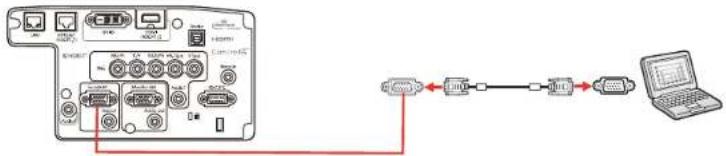
- TightenthescrewsontheVGAconnector.
Parenttopic: ConnectingtoComputerSources
ConnectingtoaComputerforHDMIVideoandAudio
If your computer has an HDMI port, you can connect it to the projector using an optional HDMI cable.
Note: To connect a Mac that includes only a Mini DisplayPort, Thunderbolt port, or Mini-DVI port for video output, you need to obtain an adapter that allows you to connect to the projector's HDMI port. ContactAppleforcompatibleadapteroptions.OlderMaccomputers(2009andearlier)maynotsupport audiothroughtheHDMIport.
-
ConnecttheHDMIcabletoyourcomputer'sHDMIoutputport.
-
Connecttheotherendtotheprojector'sHDMIport.
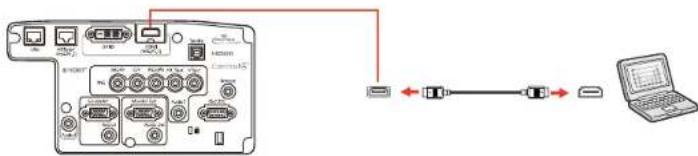
Note: The projector converts the digital audio signal sent from your computer into a mono analog signal fortheinternalspeakerorastereoanalogsignalifyouareconnectingtoexternalspeakers.
Note: If you have problems hearing audio through the HDMI connection, you can use the Audio3 port insteadplaysound. Connectoneendofanoptonal3.5mmstereomini-jackaudiocabletothe
projector's Audio3 port and the other end to your computer's audio out port. Then select Audio3 for the HDMIAudioOutputsettingintheExtendedmenu.
Parenttopic: ConnectingtoComputerSources
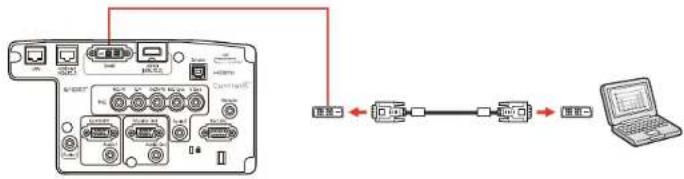
ConnectingtoaComputerforDVI-DVideo
If your computer has a DVI-D connector, you can connect it to the projector using an optional DVI-D cable.
-
ConnecttheDVI-Dcabletoyourcomputer'sDVI-Dconnector.
-
Connecttheotherendtotheprojector'sDVI-Dconnector.
flowchart
graph LR
    A["Device Interface"] --> B["Serial"]
    B --> C["Laptop"]
Parenttopic: ConnectingtoComputerSources
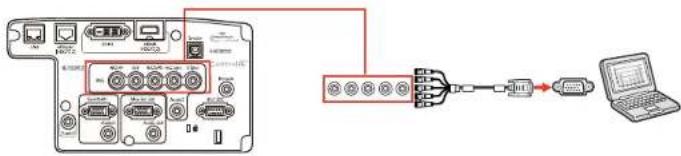
ConnectingtoaComputerfor5BNCVideo
YoucanconnecttheprojectortoyourcomputerusinganoptionalVGA-to-5-BNCcable.
-
ConnecttheVGAconnectortoyourcomputer'smonitorport.
-
Connectthe5BNCconnectorstotheprojector'sBNCports.
Parenttopic: ConnectingtoComputerSources
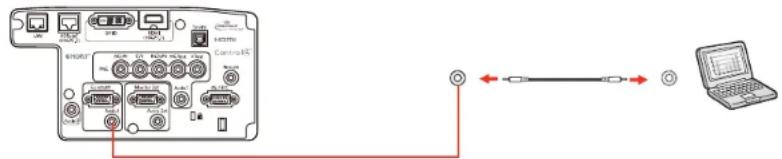
ConnectingtoaComputerforSound
If your computer presentation includes sound and you did not connect it to the projector's HDMI port, you canstillplaysoundthroughtheprojector'sspeakersystem.Justconnectanoptional3.5mmstereo mini-jackaudiocableasdescribedhere.
- Connect the audiocable to your laptop's headphone or audio-out jack, or your desktop's speaker or audio-out port.
- Connect the other end to the Audio port that corresponds to the Computer port you are using.
Note: If you are projecting video through the projector's DVI-D port, connect the end of your audio cabletotheAudio3port.
Parenttopic: ConnectingtoComputerSources
ConnectingtoVideoSources
Followtheinstructionsinthesesectionstoconnectvideovicestotheprojector.
ConnectingtoanHDMIVideoSource
ConnectingtoaComponent-to-BNCVideoSource
ConnectingtoaComponentVideoSource
ConnectingtoaVideoSourceforSound
Parenttopic:ProjectorConnections
ConnectingtoanHDMIVideoSource
If your videosourcehasan HDMI port, you can connect it to the projector using an optional HDMI cable.
TheHDMIconnectionprovidesthebestimagequality.
-
ConnecttheHDMIcabletoyourvideosource'sHDMIoutputport.
-
Connecttheotherendtotheprojector'sHDMIport.
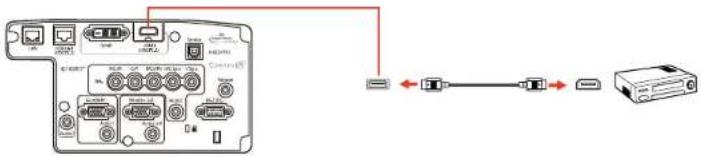
Note: The projector converts the digital audio signal sent from your video source into a mono analog signal for the internal speakers or an analog signal if you are connecting to external speakers.
Note: If you have problems hearing audio through the HDMI connection, you can use the Audio3 port instead top playsound. Connectoneendofanoptional3.5mmstereomini-jackaudiocabletothe projector's Audio3 port and the other end to your computer's audio out port. Then select Audio3 for the HDMIAudioOutputsettingintheExtendedmenu.
Parenttopic: ConnectingtoVideoSources
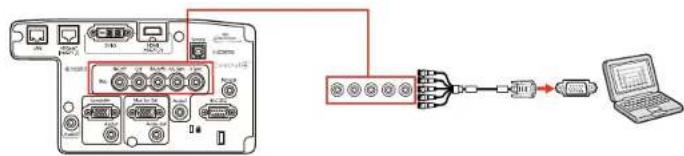
ConnectingtoaComponent-to-BNCVideoSource
If your videosourcehas component videoports, you can connect it to the projector using an optional component-to-BNC videocable. Depending on your component ports, you may need to use an adapter cable along with a component videocable.
-
Connect the component connector to your video source's color-coded component video output ports, usually labeled Y, Pb, Pr or Y, Cb, Cr. If you are using an adapter, connect these connectors to your component videocable.
-
Connect the BNC connectors to the projector's R/Cr/Pr, G/Y, B/Cb/Pb ports.
flowchart
graph LR
    A["Device"] --> B["Network Port 1"]
    A --> C["Network Port 2"]
    A --> D["Network Port 3"]
    A --> E["Network Port 4"]
    A --> F["Network Port 5"]
    A --> G["Network Port 6"]
    A --> H["Network Port 7"]
    A --> I["Network Port 8"]
    A --> J["Network Port 9"]
    A --> K["Network Port 10"]
    A --> L["Network Port 11"]
    A --> M["Network Port 12"]
    A --> N["Network Port 13"]
    A --> O["Network Port 14"]
    A --> P["Network Port 15"]
    A --> Q["Network Port 16"]
    A --> R["Network Port 17"]
    A --> S["Network Port 18"]
    A --> T["Network Port 19"]
    A --> U["Network Port 20"]
    A --> V["Network Port 21"]
    A --> W["Network Port 22"]
    A --> X["Network Port 23"]
    A --> Y["Network Port 24"]
    A --> Z["Network Port 25"]
Parenttopic: ConnectingtoVideoSources
ConnectingtoaComponentVideoSource
If your videosourcehas component videoports, you can connect it to the projector using an optional component-to-VGA videocable. Depending on your component ports, you may need to use an adapter cable along with a component videocable.
- Connect the component connector to your video source's color-coded component video output ports, usually labeled Y, Pb, Pr or Y, Cb, Cr. If you are using an adapter, connect these connectors to your component videocable.
- ConnecttheVGAconnectortoaComputerportontheprojector.
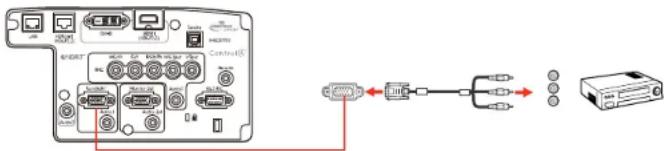
- TightenthescrewsontheVGAconnector.
If your image colors appear incorrect, you may need to change the Input Signal setting in the projector's Signalmenu.
Parenttopic: ConnectingtoVideoSources
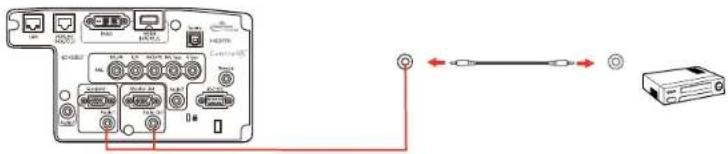
ConnectingtoaVideoSourceforSound
Youcanplaysoundthroughtheprojector'sspeakersystemifyourvideosourcehasaudiooutputports. Justconnectanoptionalstereomini-jackaudiocableasdescribedhere.
Note: If you connected your video source to the projector using an HDMI cable, the audio signal is transferred with the videosignal; you donotneed an additional cable for sound.
-
Connect the audiocable to your videosource's audio-outports.
-
Connect the other end of the cable to the projector's Audio port that corresponds to the Computer or BNC port you are using for video.
Parenttopic: ConnectingtoVideoSources
ConnectingtoanHDBaseTTransmitter
TosendanHDMlorRS-232Csignaloveralongdistance,youcanconnecttheprojectortoanoptional HDBaseTtransmitterusinga100Base-TXnetworkcable.Thisisusefulwhenyouwanttosendasignal toorcontroltheprojectorfromaremotelocation,suchasinahalloreventsite,sinceyoucanusea networkcableupto328feet(100m)inlength.Toensureproperdatatransmission,useaCategory5e STPcableorbetter.
- Turnoff the projector and HDBase T transmitter.
Note: MakesuretheprojectorandHDBaseTtransmitterareturnedoffwhenconnectingor disconnectinganetworkcablebetweenthetwodevices.
-
ConnectoneendofthenetworkcabletotheHDBaseTportonthetransmitter.
-
Connecttheotherendtotheprojector'sHDBaseTport.
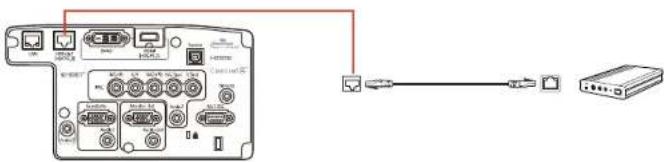
Note: See the documentation that came with the HDBaseT transmitter for instructions on connecting ittoyourvideodeviceorcomputer.
- Turnon the projector and HDBase T transmitter.
Note: To enable communication from the Ethernet and serial ports on the transmitter, select On as the Control Communications setting in the projector's Extended menu. Turning on this setting disables the projector's LAN, RS-232C, and Remote ports. If you connected an Extron XTP transmitter or switcher to the projector's HDBaseT port, select On as the Extron XTP setting in the projector's Extended menu.
Parenttopic:ProjectorConnections
Relatedreferences
ProjectorSetupSettings-ExtendedMenu
Relatedtasks
ConnectingtoanExternalComputerMonitor
ConnectingtoanExternalComputerMonitor
If you connected a computer to the projector's Computer or BNC port, you can also connect an external monitor to the projector. This lets you see your presentation on the external monitor even when the projected image is not visible.
If you want to output image to an external monitor when the projector is turned off, you need to select Communication On as the Standby Mode setting and Always On as the A/V Output setting in the projector's Extended menu.
Note: Monitors that use a refresh rate less than 60 Hz may not be able to display images correctly.
- Make sure your computer is connected to the projector's Computer or BNC port.
- Connecttheexternalmonitor'scabletoyourprojector'sMonitorOutport.
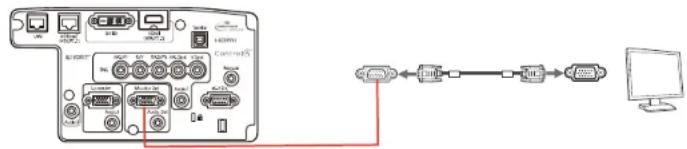
Note: If you do not see an image on the external monitor, you may need to change the Monitor Out settingintheExtendedmenu.
Parenttopic:ProjectorConnections
ConnectingtoExternalSpeakers
Toenhancethesoundfromyourpresentation,youcanconnecttheprojectortoexternalself-powered speakers.Youcancontrolthevolumeusingtheprojector'sremotecontrol.
Youcanalsoconnecttheprojectortoanamplifierwithspeakers.
If you want to output audio from the externals speakers when the projector is turned off, you need to select Communication On for the Standby Mode setting and Always On for the A/V Output setting in the projector's Extended menu.
Note: The projector's built-in speaker system is disabled when you connect external speakers.
- Makesure your computer or video source is connected to the projector with both audio and video cables as necessary.
- Locatetheappropriatecabletoconnectyourexternalspeakers, suchasastereomini-jack-to-pin-jackcable, oranothertypeofcableoradapter.
- Connectoneendofthecabletoyoureternalspeakersasnecessary.
- Connectthestereomini-jackendofthecabletoyourprojector'sAudioOutport.
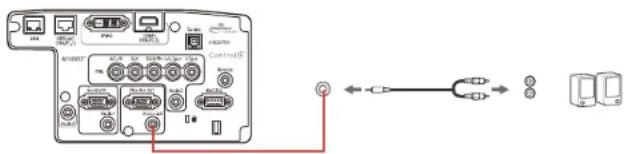
Parenttopic:ProjectorConnections
Relatedreferences
SolutionstoSoundProblems
AttachingandRemovingaLens
Followtheinstructionsinthesesectionstoattachorremoveacompablelens.
AttachingaLens
RemovingaLens
Parenttopic:SettingUptheProjector
AttachingaLens
Youcanattachacompatiblelenstotheprojector.
Caution: Unplug the power cord from the projector before attaching the lens. Avoid touching the lens with your bare hand stop prevent fingerprintsonordamagetothelens surface.
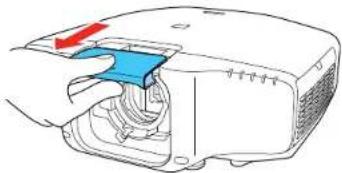
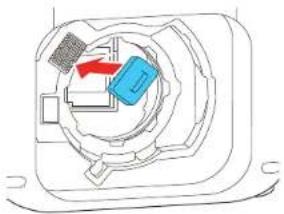
- Pullthelenscoveroffoftheprojector.
natural_image
Diagram of a device with blue and red arrows indicating directional flow (no text or symbols)- When using one of the following lenses, attach the lens connector cap: ELPLS04, ELPLU02, ELPLR04, ELPLW04, ELPLM06, ELPLM07, or ELPLL07.
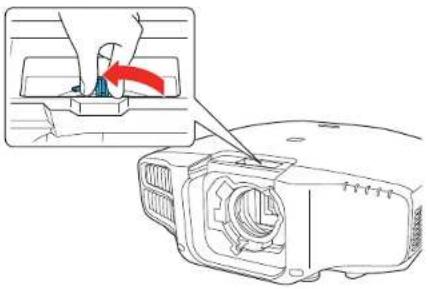
natural_image
Technical line drawing of a mechanical component with internal components and directional arrows (no text or symbols)3.SlidethelocklevertotheReleaseposition(asshown)untilyouhearitclick.
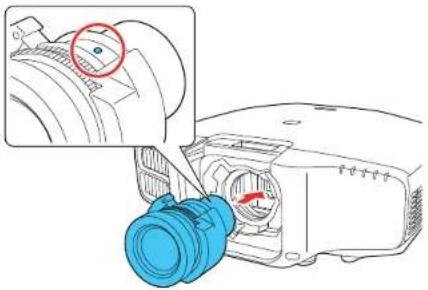
natural_image
Diagram of a projector with a red arrow indicating the blade and handle, showing internal components (no text or symbols)- Insertthelensstraightintotheprojector'slenssocketwiththewhitedotfacingup.
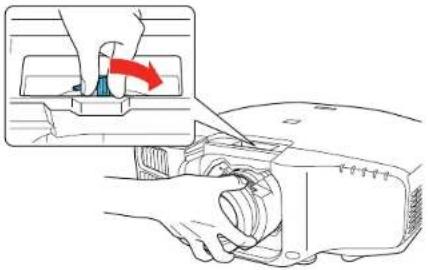
natural_image
Technical diagram of a mechanical assembly with a blue component and a magnified inset showing a circular detail (no text or symbols)- Hold the lens firmly and slide the lock lever to the Lock position (as shown) until it locks.
natural_image
Diagram of a mechanical assembly with a hand operating a tool, showing a component being inserted (no text or symbols present)- Replacethelenscover.
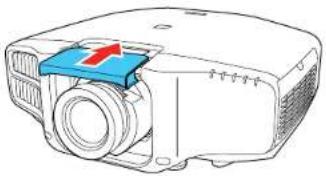
natural_image
Line drawing of a projector with a blue cover and red arrow indicating direction (no text or symbols)- If prompted, select Yestocalibratethelens.
Note: Lens calibration helps the projector to correctly acquire the lens position and adjustment range, and cantakeupto 100 secondstocomplete. Whencalibration is finished, the lens return to the same position it was in before calibration. (ELPX01 return to the standard position.)
- When using one of the following lenses, select the lenstype in the Extended menu: ELPLS04, ELPLU02, ELPLR04, ELPLW04, ELPLM06, ELPLM07, or ELPLL07.
Parenttopic: Attaching and RemovingaLens
RemovingaLens
Youcanremovealenstoreplaceitwithadifferentlens.
Caution: Remove the lens only when necessary and make sure the front of the projector is not facing up whenyouremovethelens. Thispreventsdirtordustfromenteringtheprojectorandloweringthe projectionquality.Avoidtouchingthelenswithyourbarehandstoppreventfingerprintsonordamageto thelenssurface.
- Center the lens using the Lens Shift (remote) or Lens (control panel) button.
- Turnoff the projector and unplug the power cord.
- Pullthelenscoveroffoftheprojector.
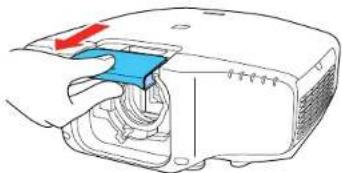
natural_image
Diagram of a device interior with blue and red arrows indicating flow or movement (no text or symbols)- Hold the lens firmly as you slide the lock lever to the Release position (as shown) until you hear it click.
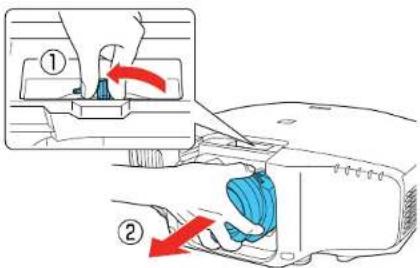
- Gentlypullthelensstraightoutoftheprojector.
Parenttopic: Attaching and RemovingaLens
AttachingandRemovingtheCableCover
Youcanattachthecablecoverthatcamewithyourprojectortohidetheattachedcablesfromview.
- Bundle the cable stogether using abandor other fastener (not provided).
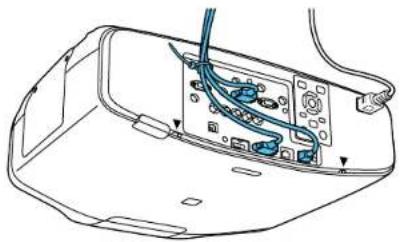
natural_image
Line drawing of an electronic device rear panel with visible wiring and ports (no text or symbols)Caution: Donotbundle the power cord to the other cables. Otherwise, afire may occur.
- Placethecablecoverontheprojectorasshown, guiding the cablesthrough then notch on the base of the cablecover.
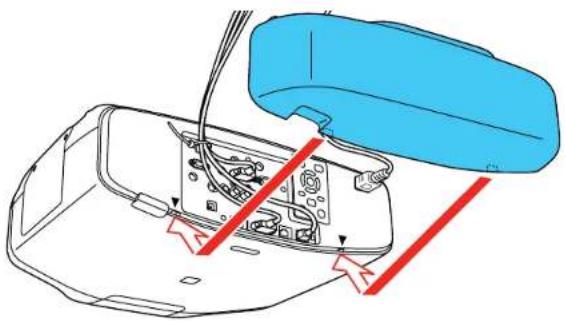
natural_image
Technical line drawing of a car interior with a blue plastic container and red directional arrows indicating movement or force (no text or symbols)- Tightenbothcablecoverscrews.
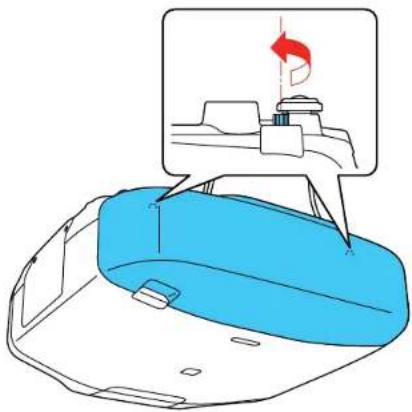
natural_image
Diagram of a car interior with a blue seat and a red arrow indicating motion or force (no text or symbols)Toremovethecover, loosenbothscrewsandpullthecoveroffoftheprojector.
Parenttopic:SettingUptheProjector
Installing Batteries in the Remote Control
TheremotecontrolusesthettwoAAbbatteriesthatcamewiththeprojector.
Caution: Use only the type of batteries specified in this manual. Do not install batteries of different types, ormixnewandoldbatteries.
- Removethebatterycover.
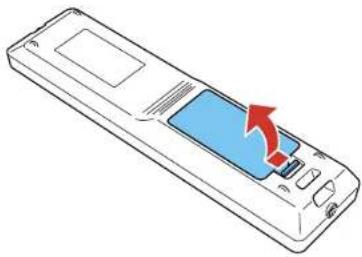
natural_image
Line drawing of a remote control device with a blue screen and red arrow indicating rotation (no text or symbols)- Insert the batteries with the + and - ends facing a shown.
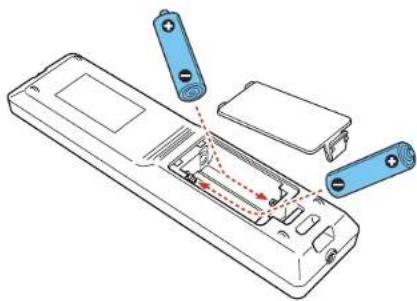
natural_image
Line drawing of a remote control unit with batteries and internal components (no text or symbols)- Replacethebatterycoverandpressitdownuntilclicksintoplace.
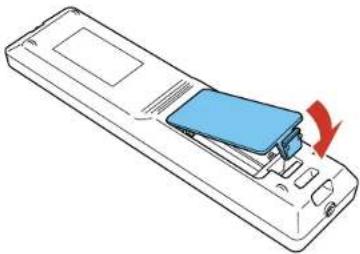
natural_image
Line drawing of a remote control device with a blue internal component and a red arrow indicating rotation (no text or symbols)Warning: Dispose of used batteries according to local regulations. Do not expose batteries to heat or flame. Keep batteries out of thereachofchildren; they are choking hazards and are every dangerous if swallowed.
Parenttopic: SettingUptheProjector
UsingtheProjectoronaNetwork
Followtheinstructionsinthesesectionstosetupyourprojectorforuseonanetwork.
WiredNetworkProjection
WirelessNetworkProjection
SettingUpProjectorNetworkE-MailAlerts
SelectingOtherNetworkSettings
ControllingaNetworkedProjectorUsingaWebBrowser
CrestronRoomViewSupport
WiredNetworkProjection
Youcanprojectthroughawirednetwork. Todothis, youconnecttheprojectortoyournetwork, and then setup your projector and computer for network projection.
Afterconnectingandsettinguptheprojectorasdescribedhere,installthenetworksoftwarefromthe includedCDordownloadthesoftwareandmanualsasnecessary.
Note: If your projector is connected via a LAN cable to a network that includes a wireless access point, you can connect to the projector wirelessly through the access point using the Epsonnetworksoftware.
ConnectingtoaWiredNetwork
SelectingWiredNetworkSettings
Parenttopic: Using the Projectorona Network
Relatedreferences
ProjectorNetworkSettings-NetworkMenu
ConnectingtoaWiredNetwork
Toconnecttheprojectortoawiredlocalareanetwork(LAN), usea100Base-TXor10Base-Tnetwork cable. Toensureproperdatatransmission, useaCategory5shieldedcableorbetter.
-
Connectoneendofthenetworkcabletoyournetworkhub, switch, orrouter.
-
Connecttheotherendofthecabletotheprojector'sLANport.
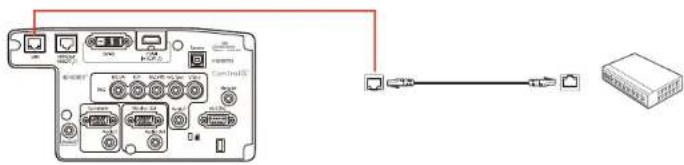
Parenttopic: WiredNetworkProjection
SelectingWiredNetworkSettings
Before you can project from computerson your network, you must select then network settings for the projector using its menusystem.
Note: Make sure you already connected the projector to your wired network using the LAN port.
- Turnontheprojector.
2.PresstheMenubutton. - SelecttheNetworkmenuandpressEnter.
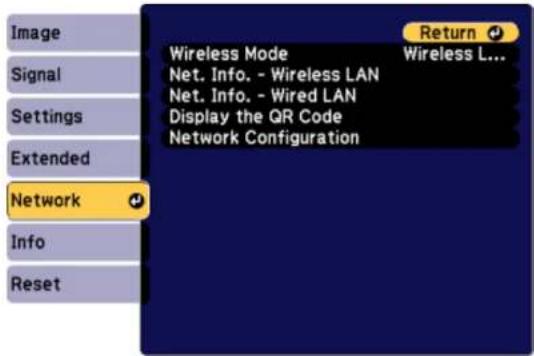
- SelectNetworkConfigurationandpressEnter.
- SelecttheBasicmenuandpressEnter.
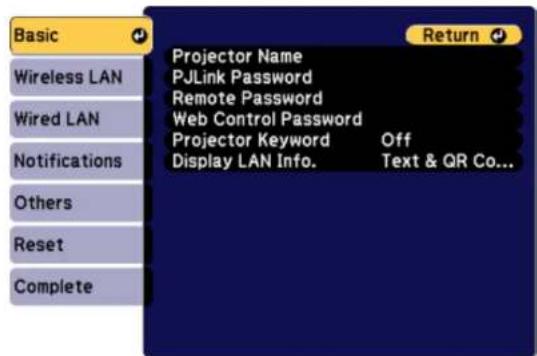
- Select the following basic options as necessary:
-ProjectorNameletsyouenteranameupto16alphanumericcharacterslongtoidentifytheprojectoroverthenetwork.
- PJLinkPasswordletsouenterapasswordupto32alphanumericcharacterslongforusingthe PJLinkprotocolforprojectorcontrol.
- RemotePasswordletsouenterapasswordupto8alphanumericcharacterslongforaccessing theRemoteorBasicControlscreeninEpsonWebControl.(Defaultusernameis EPSONREMOTE;defaultpasswordsguest.)
-WebControlPasswordletsouenterapasswordupto8alphanumericcharacterslongfor accessing Epson Web Control. (Default user name is EPSONWEB; default password is admin.)
-ProjectorKeywordletysyouturnonasecuritypasswordtopreventaccesstotheprojectorby anyonenotintheroomwithit.Youmustenteradisplayed,randomizedkeywordfromacomputer usingtheEasyMPMultiPCProjectionsoftwaretoaccesstheprojector.
Note: Usethedisplayedkeyboardtoenterthename, passwordsandkeyword. Pressthearrow buttonsontheremotecontroltohighlightcharactersandpressEntertoselectthem.
7. SelecttheWiredLANmenuandpressEnter.
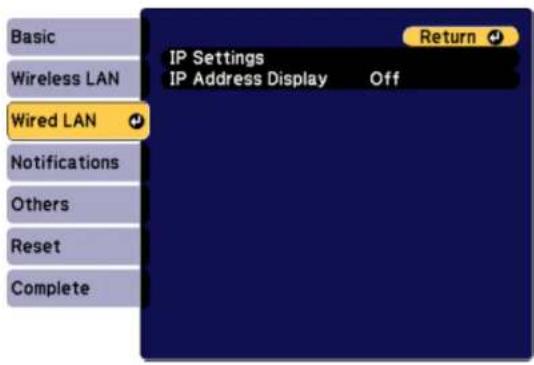
8. Select your IP Settings as necessary:
- If your network assigns addresses automatically, turn on the DHCP setting.
- If you must set addresses manually, turn off DHCP and enter the projector's IP Address, Subnet Mask, and GatewayAddress as needed.
Note: To highlight then numbers you want from the displayed keyboard, press the arrow button on theremote control. Toselect a highlighted number, press Enter.
9. TopreventdisplayoftheIPaddressonthestandbyscreen,turnoffIPAddressDisplay.
- When you finish selecting settings, select Complete and follow the on-screen instructions to save yoursettingsandexithemenus.
Parenttopic: WiredNetworkProjection
WirelessNetworkProjection
Youcanprojectoverawirelessnetwork.Todothis,youmustsetupyourprojectorandcomputerfor wirelessprojection.
Note: The Epson 802.11b/g/n wireless LAN module is not included with your projector and is optional.
Therearetwowaystoconnecttoyourprojectorwirelessly:
- UsingtheoptionalQuickWirelessConnectionUSBKey(Windowsonly);yourcomputerdoesnotneedtobeconnectedtoawirelessnetworkoruseadditionalnetworksoftwaretoconnectwiththisoption
- Configuring the connection manually using the projector's Network menus
Aftersettinguptheprojectorasdescribedhere,installthenetworksoftwarefromtheincludedCDordownloadthesoftwareandmanualsasnecessary.
Note: If your projector is connected via a LAN cable to a network that includes a wireless access point, you can connect to the projector wirelessly through the access point using the Epsonnetworksoftware.
InstallingtheWirelessLANModule
UsingQuickWirelessConnection(WindowsOnly)
SelectingWirelessNetworkSettingsManually
SelectingWirelessNetworkSettingsinOSX
SelectingWirelessNetworkSettingsinWindows
Parenttopic: Using the Projectorona Network
Relatedreferences
OptionalEquipmentandReplacementParts
InstallingtheWirelessLANModule
Tousetheprojectoroverawirelessnetwork, installtheoptionalEpson802.11b/g/nwirelessLAN module.DonotinstallanyothertypeofwirelessLANmodule.
Caution: Never remove the module while its indicator light is green or flashing, or while you are projectingwirelessly.Youmaydamagethemoduleorlosedata.
- Turnoff the projector and unplug the power cord.
2.Slidetheairfiltercoverlatchandopentheairfiltercover.
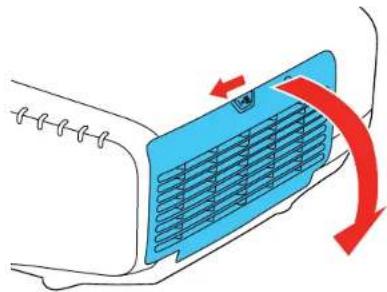
natural_image
Diagram of a car's air vent with blue airflow arrows indicating airflow direction (no text or symbols)- RemovethescrewsecuringthewirelessLANmodulestopper, thenremovethestopper.
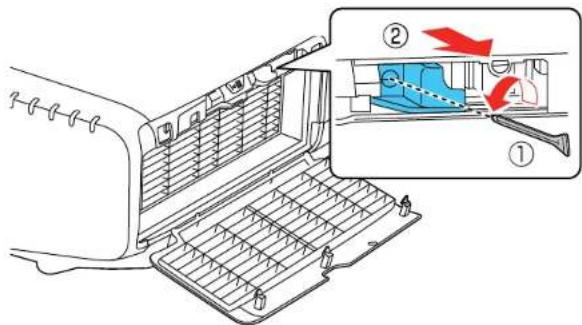
- Insert the wireless LAN module into the port.
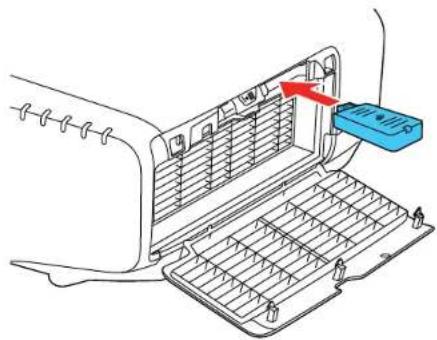
natural_image
Diagram of a car air conditioner unit with a blue plastic tray inserted, showing internal compartments and a red arrow pointing to the component (no text or symbols present)- Replacethewireless LAN module stopper and secure it using the screw you removed.
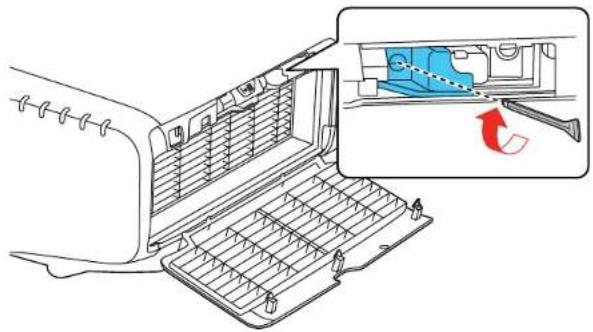
6.Closetheairfiltercover.
- Pluginandturnontheprojector.
Parenttopic: Wireless Network Projection
Relatedreferences
OptionalEquipmentandReplacementParts
UsingQuickWirelessConnection(WindowsOnly)
YoucanusetheQuickWirelessConnectionUSBkeytoquicklyconnectyourcomputertotheprojector wirelessly. Thenyoucanprojectyourpresentationandremovethekeywhenyouaredone.
Note: The Quick Wireless Connection USB key is not included with your projector and is optional.
Note: Make sure the wireless LAN module is installed. The wireless LAN module is not included with your projectorandisoptional.
- Turnontheprojector.
- PresstheLANbuttonontheremotecontrol.
Youseeascreenlikethis:
![[LAN] Projector Name : EB-XXXXX SSID : IP Address -↓- IP Address (q) Keyword :](/content/2026/05/1054023/images/ea1f139447d01b490117f3526822260eff88afcd8496dea47655279137bf87ca.jpg)
-
Verify that an SSID and IP address are displayed, then movethewireless LAN module from the projector if necessary.
-
Insert the Quick Wireless Connection USB key into the same port used for the wireless LAN module.
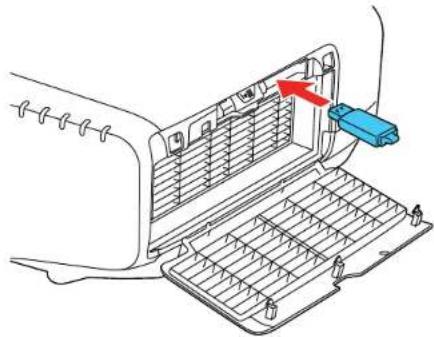
natural_image
Diagram of a car air conditioner unit with a blue plastic clip inserted, showing internal panel structure and a red arrow indicating direction (no text or symbols)Youseeaprojectedmessagethatthenetworkinformationupdateiscomplete.
5.RemovetheUSBkey.
-
ReinsertthewirelessLANmoduleintotheprojector.
-
ConnecttheUSBkeytoaUSBportonyourcomputerorlaptop.
Note: In Windows Vista, if you see the AutoPlay window, select Run LaunchQWRD.exe, then selectAllowonthenextscreen.
- Followtheon-screen instruction to install the Quick Wireless Connection driver.
Note: If you see a Windows Firewall message, click Yes to disable the firewall for this application.
Afterafewminutes, yourcomputerimage is displayed by the projector. If it does not appear, press the LAN button on your remote control or restart your computer.
-
Run your presentation as necessary.
-
When you finish projecting wirelessly, select the Safely Remove Hardware option in the Windows taskbar, then remove the USB key from your computer.
Note: You may need to start your computer to reactivate your wireless LAN connection.
Parenttopic: Wireless Network Projection
SelectingWirelessNetworkSettingsManually
Before you can project from your wireless network, you must select then network settings for the projector using its menusystem.
- Turnon the projector.
2.PresstheMenubutton. - SelecttheNetworkmenuandpressEnter.
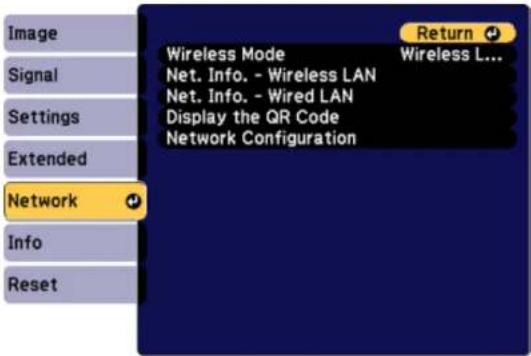
- MakesuretheWirelessModesettingissettoWirelessLANOn.
-
SelectNetworkConfigurationandpressEnter.
-
SelecttheBasicmenuandpressEnter.
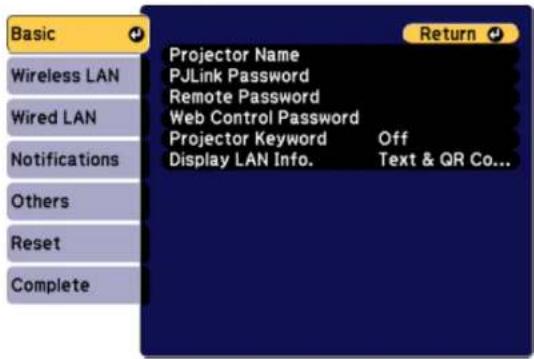
- Select the following basic options as necessary:
-ProjectorNameletsyouenteranameupto16alphanumericcharacterslongtoidentifytheprojectoroverthenetwork.
- PJLinkPasswordletsoyouenterapasswordupto32alphanumericcharacterslongforusingthe PJLinkprotocolforprojectorcontrol.
- RemotePasswordletsouenterapasswordupto8alphanumericcharacterslongforaccessing theRemoteorBasicControlscreenintheEpsonWebControl.(Defaultusernameis EPSONREMOTE;defaultpasswordsguest.)
- WebControlPasswordletsyouenterapasswordupto8alphanumericcharacterslongfor accessingtheprojectorovertheweb.
-ProjectorKeywordletysyouturnonasecuritypasswordtopreventaccesstotheprojectorby anyonenotintheroomwithit.Youmustenteradisplayed,randomizedkeywordfromacomputer usingtheEasyMPMultiPCProjectionsoftwaretoaccesstheprojector.
- Display LAN Info lets you select how the projector displays network information. You can select anoptiontodisplayaQRcodethatletssyouquicklyconnectyouriOSorAndroiddevicesusingthe EpsoniProjectionapp.
Note: Usethedisplayedkeyboardtoenterthename, passwordsandkeyword. Pressthearrow buttonsontheremotecontroltohighlightcharactersandpressEntertoselectthem.
- SelecttheWirelessLANmenuandpressEnter.
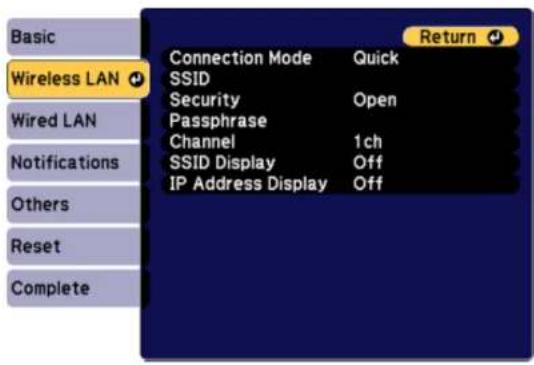
- Select these settings on the Wireless LAN menu as necessary for your network.
- When you finish selecting settings, select Complete and follow the on-screen instructions to save yoursettingsandexithemenus.
Afteryoucompletethewirelesssettingsforyourprojector,youneedtoselectthewirelessnetworkon yourcomputer,oriOSorAndroiddevice.
WirelessLANMenuSettings
Parenttopic: Wireless Network Projection
WirelessLANMenuSettings
| SettingOptionsDescription | ||
| ConnectionModeQuick | Advanced | Selectsthetypeofwireless connection:Quick:letsyouquicklyconnect toonecomputerorusethe optionalQuickWireless ConnectionUSBkeytoconnectAdvanced:letsyouconnectto multiplecomputersviaawireless networkaccesspoint (infrastructuremode) |
| SecurityOpen | WPA2-PSKWPA/WPA2-PSK | Selectsthetypeofwireless securityusedinthewireless network |
| PassphraseUpto64alphanumeric | characters | Enteraparaphraseforthe wirelessnetwork |
| Channel1ch | 6ch11ch | InQuickconnectionmode, selectsthefrequencyband (channel)usedbythewireless LAN |
| SearchAccessPointToSearchView | Searchforavailablewireless | networkaccesspointsin Advancedconnectionmode |
| SSIDUp32alphanumericcharacters | SetstheSSID(networkname)of | thewirelessLANsystemthe projectorisconnectingto |
| SSIDDisplayOn | Off | Selectswhethertodisplaythe SSIDonthenetworkstandby screen |
| IPSettings—TurnsonDHCPifyournetwork | assignsaddressesautomatically;settoOfftomanuallyenterthenetwork'sIPAddress,SubnetMask,andGatewayAddress | |
| IPAddressDisplayOn | Off | SelectswhethertodisplaytheIPaddressonthenetworkstandbyscreen |
Parenttopic: Selecting Wireless Network Settings Manually
SelectingWirelessNetworkSettingsinOSX
Beforeconnectingtotheprojector,selectthecorrectwirelessnetworkinOSX.
- ClicktheAirPorticononthemenubaratthetopofthescreen.
-
MakesureAirPortisturnedon, thendooneofthefollowing:
-
If your projector is set upon an existing network (Advanced mode), select thenetworkname (SSID).
- IfyourprojectorisconfiguredforQuickmode,selecttheprojector'sSSID.
Parenttopic: Wireless Network Projection
SelectingWirelessNetworkSettingsinWindows
Beforeconnectingtotheprojector, select the correct wireless network on your computer.
- To access your wireless utility software, access the Desktop and double-click then network icon on the Window task bar.
2.Dooneofthefollowing:
- If your projector is set upon an existing network (Advanced mode), select thenetworkname (SSID).
- If your projector is configured for Quickmode, select the projector's SSID.
3.ClickConnect.
Parenttopic: Wireless Network Projection
SettingUpProjectorNetworkE-MailAlerts
Youcansetuptheprojectortosendyouane-mailalertoverthenetworkifthereisaproblemwiththe projector.
1.PresstheMenubutton.
2. SelecttheNetworkmenuandpressEnter.
3. SelectNetworkConfigurationandpressEnter.
- SelecttheNotificationsmenuandpressEnter.
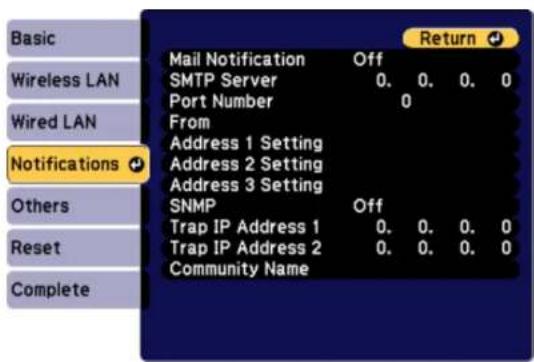
5.TurnonMailNotification.
6.EnterthelPaddressfortheSMTPServersetting.
Note: ToentertheIPaddressusingthenumerickeysontheremotecontrol,pressandholdthe Numbutton.Donotusetheseaddresses:127.x.x.xor224.0.0.0through255.255.255.255(whereex isanumberfrom0to255).
-
SelectanumberfortheSMTPserverPortNumbersetting, from 1 to 65535 (defaultis25).
-
Choose an Address field, enter the e-mail address, and select the alerts you want to receive there. Repeatforuptothreeaddresses.Youre-mailaddresscanbeupto32alphanumericcharacters long.
-
When you finish selecting settings, select Complete and follow the on-screen instructions to save yoursettingsandexithemenus.
Note: If a critical problem causes a projector to shut down, you may not receive an e-mail alert.
NetworkProjectorE-mailAlertMessages
Parenttopic: UsingtheProjectoronaNetwork
NetworkProjectorE-mailAlertMessages
When a problem occurs with an networked projector, and you selected to receive email alerts, you receive an email containing the following information:
•EpsonProjectoronthesubjectline
- Thenameoftheprojectorexperiencingaproblem
•TheIPaddressoftheaffectedprojector
•Detailedinformationabouttheproblem
Note: If a critical problem causes a projector to shut down, you may not receive an e-mail alert.
Parenttopic: SettingUpProjectorNetworkE-MailAlerts
SelectingOtherNetworkSettings
YoucanselectoptionalnetworksettingstheOthersmenu.
- PresstheMenubutton.
- SelecttheNetworkmenuandpressEnter.
-
SelectNetworkConfigurationandpressEnter.
-
SelecttheOthersmenuandpressEnter.
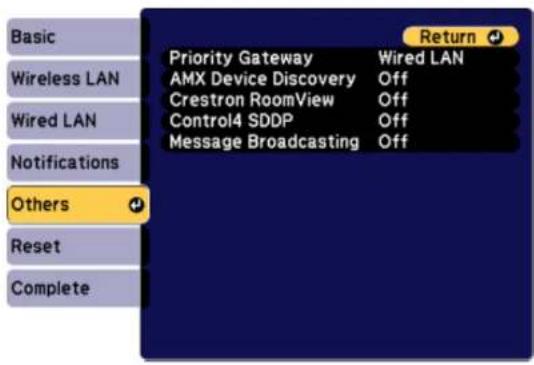
-
If available, select the Priority Gateway setting for your network.
-
If your network environment uses an AMX controller, turn on the AMX Device Discovery setting to allow the projectortobedetected.
-
If your network environment uses a Crestron RoomView controller, turn on the Crestron RoomView setting to allow the project to be detected.
Note: Enabling Crestron Room View disable the Epson Message Broadcast feature in the Easy MP Monitor software.
-
If your network environment uses a Control4 or Control4 SDDP controller, turn on the Control4 SDDP setting to allow the project to be detected.
-
If you want this projector to receive broadcasted messages over the network, turn on the Message Broadcasting setting. Administrators can broadcast messages over thenetwork using the Message Broadcasting plug-in for Easy MP Monitor (Windowsonly).
-
When you finish selecting settings, select Complete and follow the on-screen instructions to save yoursettingsandexithemenus.
Parenttopic: UsingtheProjectoronaNetwork
ControllingaNetworkedProjectorUsingaWebBrowser
Once you have connected your project to your own network, you can select project settings and control projection using incompatible web browser. This lets you access the project remotely.
Note: The web setup and control features support Microsoft Internet Explorer 9.0 or later, and Safari on networksthatdonotuseaproxyserverforconnection.Youcannotselectalloftheprojectormenu settingsorcontrolallprojectorfunctionsusingawebbrowser.
Note: If you set Standby Mode to Communication On, you can use a web browser to select settings and control projection even if the projector is in standby mode.
- Makesuretheprojectoristurnedon.
2.Startyourwebbrowseronacomputerordeviceconnectedtothenetwork. - Type the projector's IP address into the browser's address box and press the computer's Enter key.
Note: You may need to login before you see the Web Control screen. If you see a login window, enter your username and password. (The default username is EPSONWEB and the default password admin.)
YouseetheWebControlscreen.
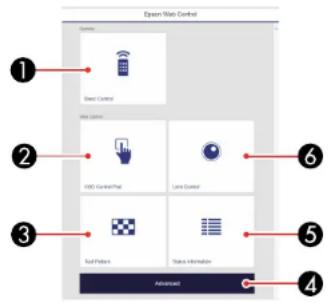
1SelectBasicControltocontroltheprojectorremotely
2SelectOSDControlPadtochangetheprojector'smenusettings
3SelectTestPatterntodisplayatestpattern
4SelectAdvancedtoopentheadadvancedmenuscreen
5SelectStatusInformationtoviewtheprojector'sstatus
6SelectLensControltoadjustthelens(focus, zoom, and lensshift)
- Select the option corresponding to the projector function you want to control.
WebControlOptions
Parenttopic: Using the Projectorona Network
Relatedreferences
ProjectorSetupSettings-ExtendedMenu
WebControlOptions
BasicControl
Note: If the Remote Password is set to On, you need to enter your user name and password. (The defaultusernameisEPSONREMOTEandthedefaultpasswordsguest).
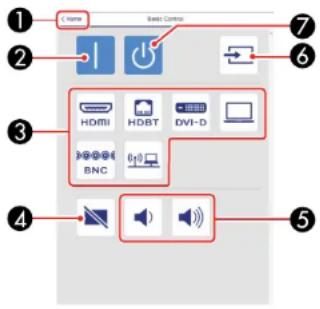
1ReturnstotheHomescreen
2Turnsontheprojector
3Inputsourceselectioncontrols
4A/VMutebuttoncontrol
5Volumebuttoncontrols
6Searchesforsources
7Turnsofftheprojector
OSDControlPad
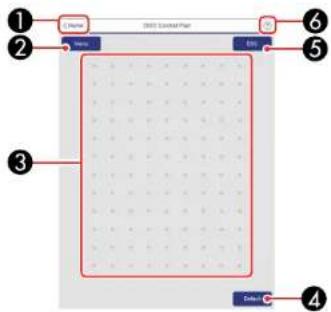
1ReturnstotheHomescreen
2Displaystheprojector'ssettingmenus
3Useyourfingerormousetonavigatethemenus
4Returnssettingstotheirdefaultvalues
5Returnstothepreviousmenu
6Displayshelptopics
Note: You cannot changesomesettings using EpsonWebControl.
LensControl
Focus/Distortionscreen
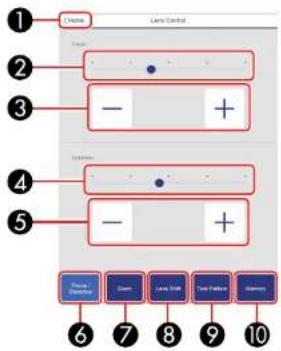
1ReturnstotheHomescreen
2Focusadjustmentslider
3Focusadjustmentbuttons
4Distortionadjustmentslider(notavailableforELPLU02)
5Distortionadjustmentbuttons(notavailableforELPLU02)
6DisplaytheFocus/Distortionscreen
7DisplaystheZoomscreen
8DisplaystheLensShiftscreen
9DisplaytheTestPatternscreen
10DisplaystheMemoryscreen
Zoomscreen
Note: ZoomisnotavailableforELPLX01andELPLR04.
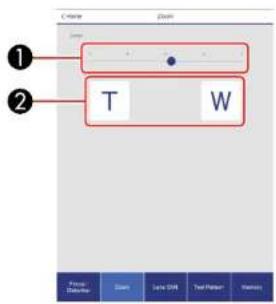
1Zoomadjustmentslider
2Zoomadjustmentbuttons
LensShiftscreen
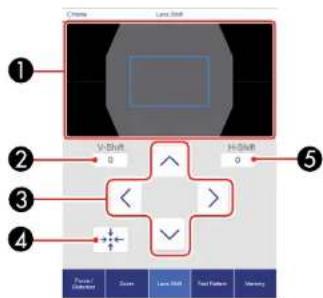
1 The current image position is displayed as abluesquare and thenewimage position is displayed as a red square
2Displaystheverticalimageposition;selecttochangethevalue
3Movestheimagepositionup,down,left,orright
4Movesthelenstothehomeposition
5Displaysthehorizontalimageposition;selecttochangethevalue
TestPatternscreen
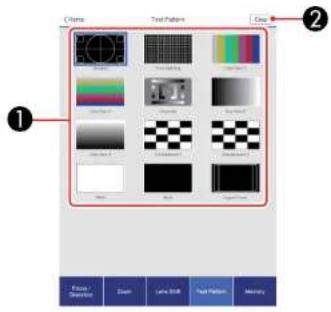
1 Displaysavailabletestpatterns;selecttoprojectatestpattern
2Turnofftestpatternndisplay
Memoryscreen
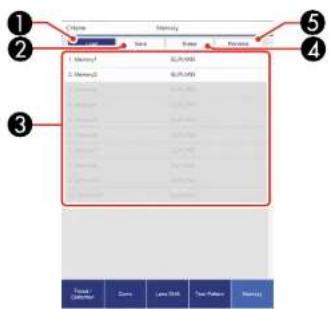
1 Overwrites your current settings with saved settings
2Savesyourcurrentsettingstomemory
3Displaysalistofsavedmemories
4Erasesasavedmemory
5Renamesasavedmemory
StatusInformation
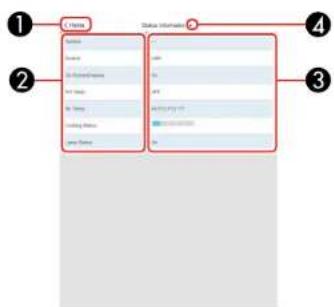
1ReturnstotheHomescreen
2Displaysalistofmonitoreditems
If you are using the Crestron Room View network monitoring and control system, you can setup your projector for use on the system. Crestron Room View lets you control and monitor your projector using a web browser.
Note: You cannot us the Epson Web Control feature when you use Crestron Room View.
ForadditionalinformationonCrestronRoomView,contactCrestron.
SettingUpCrestronRoomViewSupport
ControllingaNetworkedProjectorUsingCrestronRoomView
Parenttopic: Using the Projectorona Network
SettingUpCrestronRoomViewSupport
TosetupyourprojectorformonitoringandcontrolusingaCrestronRoomViewsystem,makesureyour computerandprojectorareconnectedtothenetwork.
Note: If you want to use the Crestron RoomView system when the projector is turned off, you need to adjusttheStandbyModesettingsintheExtendedmenu.
- PresstheMenubutton.
- SelecttheNetworkmenuandpressEnter.
-
SelectNetworkConfigurationandpressEnter.
-
SelecttheOthersmenuandpressEnter.
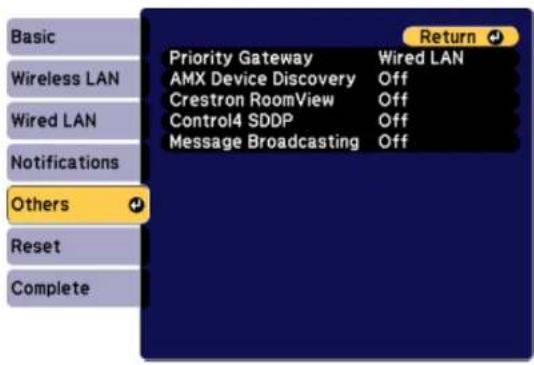
- Set the Crestron RoomView setting to On to allow the projector to be detected.
- When you finish selecting settings, select Complete and follow the on-screen instructions to save yoursettingsandexithtemenus.
- Turnoff the projector, thenturnitonagain to enable these setting.
Parenttopic: CrestronRoomViewSupport
Relatedreferences
ProjectorSetupSettings-ExtendedMenu
ControllingaNetworkedProjectorUsingCrestronRoomView
OnceyouhavesetupyourprojectortouseCrestronRoomView,youcancontrolandmonitorprojection usingacompatiblewebbrowser.
1.Startyourwebbrowseronacomputerconnectedtothenetwork.
2. Type the projector's IP address into the browser's address box and press the computer's Enter key.
Youseethisscreen:
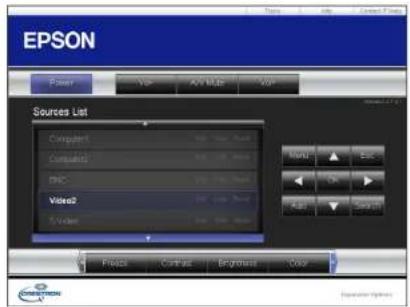
- Select the input source that you want to control in the Sources List box. You can scroll through available sources using the up and down arrows in the box.
- To control projection remotely, click the on-screen button that corresponds to the projector's remote control buttons. You can scroll through button options at the bottom of the screen.
Note: These on-screen buttons do not directly correspond to the projector's remote control buttons:
•OKactsastheEnterbutton
• Menudisplaystheprojector'smenu
-
Toviewinformationabouttheprojector, clicktheInfotab.
-
To change projector, Crestron, and password settings, click the Tools tab, select settings on the displayedscreen, and clickSend.
- When you finish selecting settings, click Exit to exit the program.
Parenttopic: CrestronRoomViewSupport
UsingBasicProjectorFeatures
Followtheinstructionsinthesesectionstouseyourprojector'sbasicfeatures.
TurningOntheProjector
TurningOfftheProjector
SelectingtheLanguagefortheProjectorMenus
ResizingthelmagewiththeZoomButton
FocusingtheImageUsingtheFocusButton
SettingtheLensType
SettingtheScreenType
AdjustingtheImagePositionUsingLensShift
AdjustingtheImagePositionUsingScreenPosition
DisplayingaTestPattern
AdjustingtheImageHeight
ImageShape
SelectinganImageSource
RemoteControlOperation
ProjectionModes
ImageAspectRatio
ColorMode
ControllingtheVolumewiththeVolumeButtons
SettingtheDateandTime
TurningOntheProjector
Turnonthecomputerorvideoequipmentyouwanttousebeforeyouturnontheprojectorsoitcan displaytheimagesource.
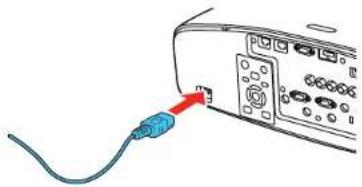
- Connect the power cord to the projector's power inlet.
natural_image
Illustration of a computer monitor with a blue cable and red arrow pointing to the port (no text or symbols)2.Plugthepowercordintoanelectricaloutlet.
Theprojector's On/Standbylightturnsblue. This indicates that the projector is receiving power, but is not yet turned on (itis instandbymode).
Note: WithDirectPowerOnturnedon, theprojectorturnsonassoonasyouplugitin.
3.PresstheOnbuttonontheprojectororremotecontroltoturnontheprojector.
Theprojectorbeepsandthestatuslightflashesblueastheprojectorwarmsup.Afterabout30 seconds,thestatuslightstopsflashingandturnsblue.
Warning: Never look into the projector lens when the lamp is on. This can damage your eyes and is especially dangerous for children and pets.
Note: If the Auto Source Search setting in the Extended menu is enabled, the projector automaticallydetectstheinputsignalwhenyouturniton.
If you donot see a projected imagerightaway, try the following:
• Turnontheconnectedcomputerorvideodevice.
- InsertaDVDorothervideomedia, and presstheplaybutton (if necessary).
- Press the Source Search button on the projector or the Search button on the remote control to detect the videosource.
Parenttopic: UsingBasicProjectorFeatures
Relatedreferences
ProjectorSetupSettings-ExtendedMenu
TurningOfftheProjector
Before turning off the projector, shutdown any computer connected to it so you can see the computer display during shutdown.
Note: Turn off this product when not in use to prolong the life of the projector. Lamp life will vary depending upon modeselected, environmental conditions, and usage. Brightness decreases over time.
- PresstheStandbybuttonontheprojectororremotecontrol.
- If you see a shutdown confirmation screen, press the Standby button on the projector or remote controlagain.(Toleavetheprojectoron,pressanyotherbutton.)
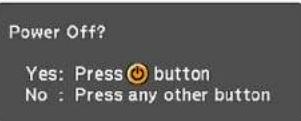
Theprojectorbeepstwice, theampturnsoff, andtheStatuslightturnsoff.
Note: With Epson's Instant Off technology, there is no cool-down period so you can pack up the projector for transport right away (if necessary).
Caution: Do not turn the projector on immediately after turning it off. Turning the projector on and off frequently may short entelife of the lamp.
- Totransportorstoretheprojector, makesuretheStatuslightisoff, thenunplugthepowercord.
Caution: To avoid damaging the projector or lamp, never unplug the power cord when the status light is on or flashing blue.
Parenttopic: UsingBasicProjectorFeatures
SelectingtheLanguagefortheProjectorMenus
If you want to view the projector's menus and messages in another language, you can change the Languagesetting.
- Turnon the projector.
2.PresstheMenubutton.
3. SelecttheExtendedmenuandpressEnter.
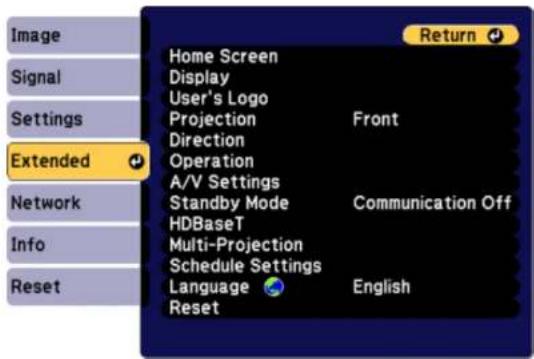
- SelecttheLanguagesettingandpressEnter.
- SelectthelanguageyouwanttouseandpressEnter.
- PressMenuorEsctoexitthemenus.
Parenttopic: UsingBasicProjectorFeatures
ResizingthelmagewiththeZoomButton
Youcanadjustthesizeoftheimageusingthezoombuttons.
Note: Wait 20 minutes after turning on the projector before setting the focus, zoom, and lens shift for maximum accuracy.
-
Turnon the projector and display an image.
-
Press the Lens button on the control panel repeatedly until the zoom adjustment screen appears, or presstheZoombuttonontheremotecontrol.
- Pressandholdthearrowbuttonsontheprojector'scontrolpanelorremotecontroltoresizethe image.
4.PresstheEscbuttonontheprojector'scontrolpanelorremotecontrolwhenfinished.
Parenttopic: UsingBasicProjectorFeatures
FocusingtheImageUsingtheFocusButton
You can adjust the sharpness of the projected image using the focus buttons.
Note: Wait 20 minutes after turning on the projector before setting the focus, zoom, and lens shift for maximum accuracy.
-
Turnon the projector and display an image.
-
Press the Lens button on the control panel repeatedly until the focus adjustment screen appears, or presstheFocusbuttonontheremotecontrol.
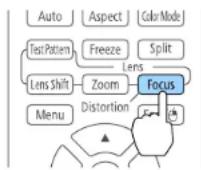
- Pressandholdthearrowbuttonsontheprojector'scontrolpanelorremotecontroltoadjustthe focus.
- PresstheEscbuttonontheprojector'scontrolpanelorremotecontrolwhenfinished.
FocusingtheImagewiththeOptionalShortThrowLens
Parenttopic: UsingBasicProjectorFeatures
FocusingthelmagewiththeOptionalShortThrowLens
If you installed the optional short throw lens (ELPLU02/ELPLU03/ELPLU04) and used the lens shift option to shift the lens, you can focus the image using the distortion and focus rings.
- Turnon the projector and display an image.
Note: You can display a pattern to aid in adjusting the projected image using the Settings menu.
Note: You can also display a pattern to aid in adjusting the projected image using the Test Pattern buttonontheremotecontrol.
- Carefully rotatethedistortionringallthewaycounter-clockwise.
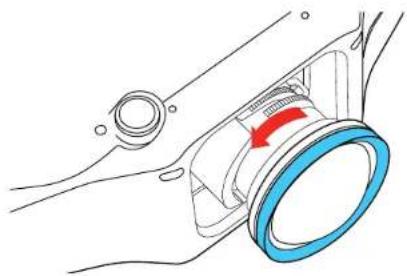
natural_image
Diagram of a car's side mirror and wheel assembly with a red arrow indicating rotation (no text or symbols)Note: Be careful not to shift the short throw lens when adjusting it to prevent the projected image fromshifting.
- Support the front of the lens with one hand and use the other to carefully rotate the focus using until the center of the image is focused.
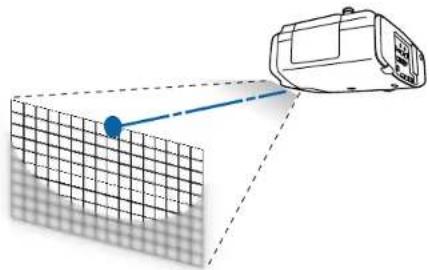
natural_image
Diagram showing a device projecting onto a grid surface with a blue dot, no text or symbols present- Rotatethedistortionringuntiltheedgesoftheimagearealsofocused.
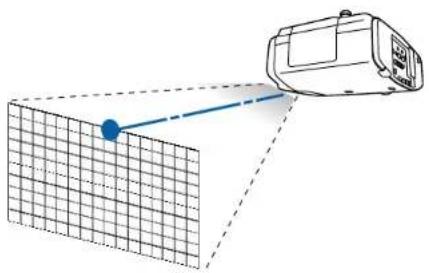
natural_image
Diagram showing a device projecting onto a grid surface with a blue dot, no text or symbols present-
Rotatethefocusingagaintofocustheentirescreenimage.
-
If the center of the image out of focus, rot at the distortion ring again to bring the area into focus.
Parenttopic: Focusing theImageUsingtheFocusButton
Relatedtasks
AdjustingtheImagePositionUsingLensShift
AdjustingtheImagePositionUsingScreenPosition
SettingtheLensType
Afterinstallingoneofthefollowinglenses,youneedtoselectthemodelnumberforthelens:ELPLS04, ELPLU02,ELPLR04,ELPLW04,ELPLM06,ELPLM07,orELPLL07.
- Turnon the projector and display an image.
2.PresstheMenubutton.
-
SelecttheExtendedmenuandpressEnter.
-
Select Operation > Advanced > Lens Type.
Youseethisscreen:
![[Lens Type] ELPLS04 ELPLU02 ELPLR04 ELPLW04 ELPLM06 ELPLM07 ELPLL07 Return 🔒](/content/2026/05/1054023/images/1f0d0935b766d6652d1276cb699f9e99d307b6034753a5a1760caef403efc9b6.jpg)
- Select your lens model number and press Enter.
6.PresstheMenubuttontoexit.
Parenttopic: UsingBasicProjectorFeatures
SettingtheScreenType
YoucanusetheScreenTypesettingtomatchtheaspectratioofthedisplayedimagetothescreenyou areusing.
- Turnon the projector and display an image.
2.PresstheMenubutton. - SelecttheExtendedmenuandpressEnter.
- Select Display > Screen > Screen Type.
Youseethisscreen:
![[Screen Type] 14:3 16:9 16:10 Return 🔒](/content/2026/05/1054023/images/a963d411bc9772106049bf65ff26308b3a9488fa4153c9ad462fb5f91edcb972.jpg)
- Select your screen's aspect ratio and press Enter.
6.PresstheMenubuttontoexit. - Adjust the aspect ratio for the projected image, if necessary.
Parenttopic: UsingBasicProjectorFeatures
Relatedconcepts
ImageAspectRatio
AdjustingtheImagePositionUsingLensShift
If you cannot install the projectordirectly in front of the screen, you can adjust the position of the projected image using the lens shift feature.
Note: Wait 20 minutes after turning on the projector before setting the focus, zoom, and lens shift for maximum accuracy. Lensshift is not supported for the ELPLR04 lens.
- Turnon the projector and display an image.
- Press the Lens Shift button on the remote control or the Lens button on the control panel.
3.Pressthearrowbuttonstoadjustthepositionoftheprojectedimageasnecessary. - When you are finished, press the Escbutton on the control panel or remote control.
Note: When adjusting the image height, position the image lower than where you want it to be and then moveitup. This will help prevent the image from moving down after adjustment. The image is clearest when the lens is at the home position. To move the lens to the home position, press and hold the Lens Shift button on the remote control or the Lens button on the control panel for at least three seconds.
Parenttopic: UsingBasicProjectorFeatures
AdjustingtheImagePositionUsingScreenPosition
You can adjust the image position if there are margins between the edge of the image and the projected screenframe.
Note: You cannot adjust the screen position if the Screen Type is set to 16:10 for a WXGA/WUXGA projectormodelor4:3foraXGAprojectormodel.
- Turnon the projector and display an image.
2.PresstheMenubutton.
3. SelecttheExtendedmenuandpressEnter.
4. Select Display > Screen > Screen Position.
5. Usethearrowbuttonsontheremotecontrolorprojectortoadjustthepositionoftheimage.
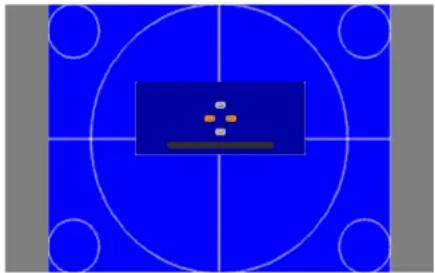
natural_image
Blue basketball court with a circular target and central dot grid (no text or symbols)- When you are finished, press the Menubutton.
Parenttopic: UsingBasicProjectorFeatures
DisplayingaTestPattern
Youcandisplayatestpatterntoadjusttheprojectedimagewithoutconnectingacomputerorvideo device.
Note: The test pattern's shape is determined by the Screen Type setting. Be sure to set the correct screentypebeforeadjustingwiththetestpattern.
- Turnon the projector.
- Press the Test Pattern button on the remote control or the down arrow button on the control panel.
- Press the left or right arrow buttons on the remote control or press Enter on the control panel to cyclethroughtheavailabletestpatterns.
- Adjust the image as necessary.
- PresstheEsctoclearthetestpattern.
AvailableTestPatternImageAdjustments
Parenttopic: UsingBasicProjectorFeatures
Relatedtasks
SettingtheScreenType
AvailableTestPatternImageAdjustments
You can adjust the following settings while the test pattern is displayed.
| MenuSettings | |
| ImageColorMode | |
| WhiteBalance | |
| Advanced•Gamma ^1 •RGBCMY | |
| SettingsGeometricCorrection | |
| ExtendedMulti-Projection | ^2 |
^1 ExceptforcustomGammasettings
^2 Except for the Scale, Color Uniformity, and Black Level settings
Parenttopic: DisplayingaTestPattern
AdjustingthelmageHeight
If you are projecting from a table or other flats surface, and the image is too high or low, you can adjust the image height using the projector's adjustable feet.
-
Turnontheprojectoranddisplayanimation.
-
To adjust the image height, rotate the front foot to extend or retract it.
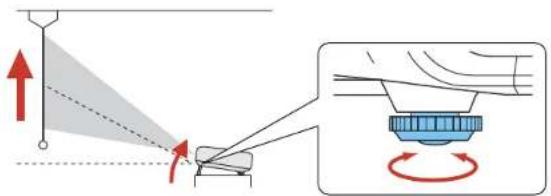
- If the image is tilted, rotate there near feet to adjust their height.
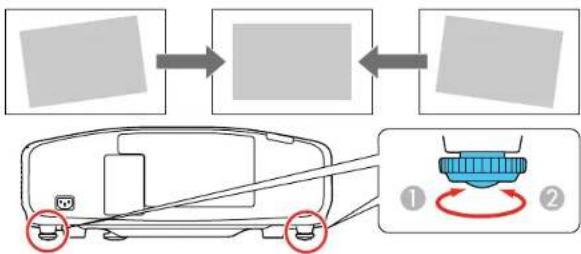
flowchart
graph TD
    A["Vehicle"] --> B["Assembly"]
    B --> C["Switch with two red buttons labeled ① and ②"]
If the projected image is unevenly rectangular, you need to adjust the imageshape.
Parenttopic: UsingBasicProjectorFeatures
Relatedconcepts
ImageShape
Relatedreferences
ProjectorFeatureSettings-SettingsMenu
ImageShape
Youcanprojectanevenlyrectangularimagebyplacingtheprojectordirectlyinfrontofthecenterofthe screenandkeepingitlevel. Ifyouplacetheprojectoratanangletothescreen,ortiltedupordown,oroff totheside,youmayneedtocorrecttheimageshapeforthebestdisplayquality.
Note: You cannot combine multiple image adjustment methods, except adjusting the Point Correction setting after adjusting the Curved Surface or Corner Wall settings.
CorrectingImageShapewithH/VKeystone
CorrectingImageShapewithQuickCorner
CorrectingImageShapewithCurvedSurface
CorrectingImageShapewithPointCorrection
CorrectingImageShapewithCornerWall
Parenttopic: UsingBasicProjectorFeatures
CorrectingImageShapewithH/VKeystone
Youcanusetheprojector'sH/VKeystonesettingtocorrecttheshapeofanimagethatisunevenly rectangularonthesides.
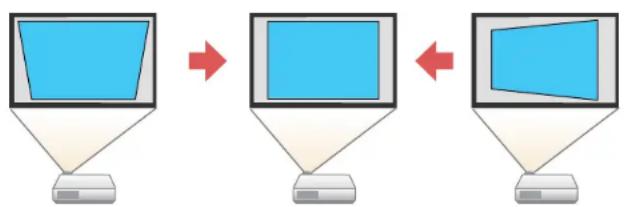
flowchart
graph LR
    A["Computer monitor"] --> B["Server with icon"]
    B --> C["Computer monitor"]
- Turnontheprojectoranddisplayanimation.
Note: You can display a pattern to aid in adjusting the projected image using the Settings menu.
Note: You can also display a pattern to aid in adjusting the projected image using the Test Pattern buttonontheremotecontrol.
-
PresstheMenubutton.
-
SelecttheSettingsmenuandpressEnter.
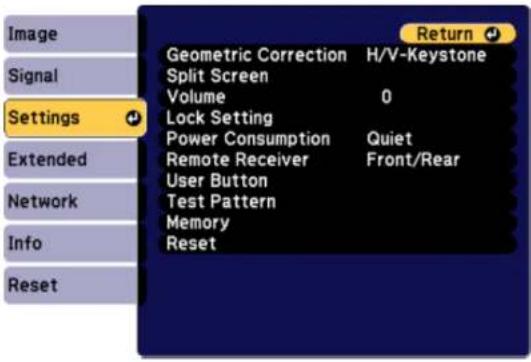
- Select the Geometric Correction setting and press Enter.
- Select the H/V-Keystone setting and press Enter. Then press Enter again.
YouseetheH/V-Keystoneadjustmentscreen:
![[H/V-Keystone] V-Keystone 0 V-Balance 0 H-Keystone 0 H-Balance 0 Return](/content/2026/05/1054023/images/9b438b11dc8ec723781766973bf2fd786b85d877a182d094d58568e02931e3b1.jpg)
- Usethearrowbuttonsontheprojectorotheremotecontroltoselectbetweenverticaland horizontalkeystonecorrectionandtoadjusttheimageshapeasnecessary.
V-Keystone
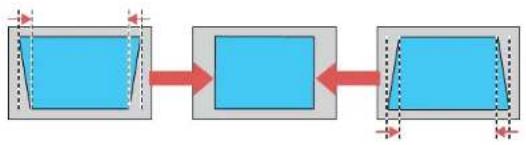
flowchart
graph LR
    A["Blue Block"] --> B["Blue Block"]
    B --> C["Blue Block"]
V-Balance
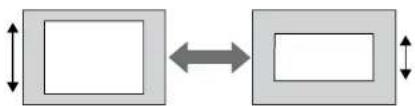
flowchart
graph LR
    A[" "] <--> B[" "]
H-Keystone

flowchart
graph LR
    A["Step 1"] --> B["Step 2"]
    B --> C["Step 3"]
H-Balance
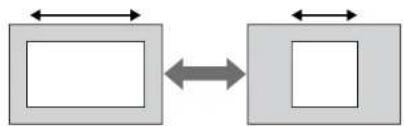
flowchart
graph LR
    A[" "] <--> B[" "]
    C[" "] <--> D[" "]
- When you are finished, press Esc.
Aftercorrection, your image is slightly smaller.
Parenttopic:ImageShape
Relatedreferences
ProjectorFeatureSettings-SettingsMenu
Relatedtasks
DisplayingaTestPattern
CorrectingImageShapewithQuickCorner
Youcanusetheprojector'sQuickCornersettingtocorrecttheshapeandsizeofanimagethatis unevenlyrectangularonallsides.
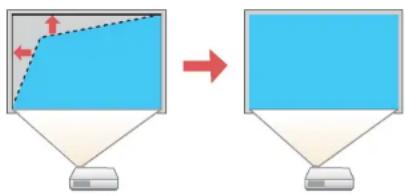
flowchart
graph TD
    A["Blue Arrow"] --> B["Red Arrow"]
- Turnon the projector and display an image.
Note: You can display a pattern to aid in adjusting the projected image using the Settings menu.
Note: You can also display a pattern to aid in adjusting the projected image using the Test Pattern buttonontheremotecontrol.
2.PresstheMenubutton.
- SelecttheSettingsmenuandpressEnter.
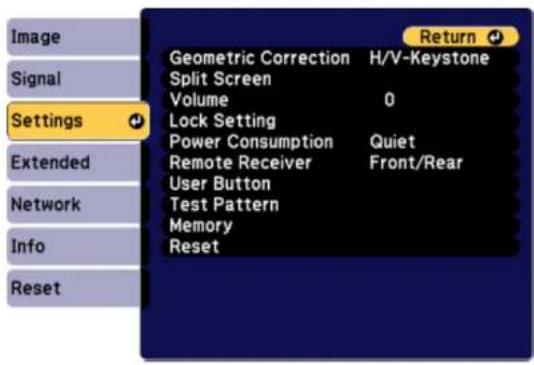
- Select the Geometric Correction setting and press Enter.
- Select the Quick Corner setting and press Enter. Then press Enter again.
YouseetheQuickCorneradjustmentscreen:
![[Quick Corner] Select the area.](/content/2026/05/1054023/images/8062285b476b1e51d6659d87e900391985add5ae80076a8e488b8bd7cdb19a77.jpg)
-
Use the arrow button on the projector or theremote control to select the corner of the image you want to adjust. Then press Enter.
-
Pressthearrowbuttonstoadjusttheimageshapeasnecessary.
-
When you are finished, press Esc.
Parenttopic:ImageShape
Relatedreferences
ProjectorFeatureSettings-SettingsMenu
Relatedtasks
DisplayingaTestPattern
CorrectingImageShapewithCurvedSurface
Youcanusetheprojector'sCurvedSurfacesettingtoadjusttheshapeofanimageprojectedona curvesurface.
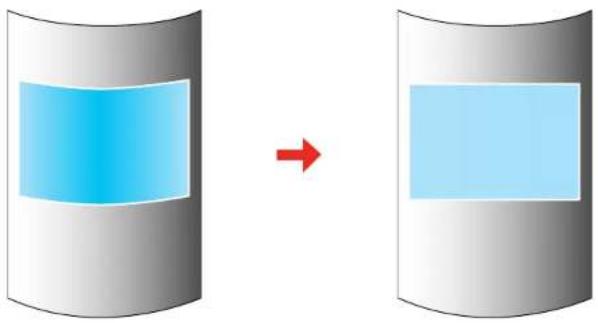
natural_image
Diagram showing a blue rectangular block on the left of a gray cylinder and a light blue rectangle on the right, with a red arrow indicating transformation (no text or symbols)- Turnon the projector and display an image.
Note: You can display a pattern to aid in adjusting the projected image using the Settings menu.
Note: You can also display a pattern to aid in adjusting the projected image using the Test Pattern buttonontheremotecontrol.
2.PresstheMenubutton.
3. SelecttheSettingsmenuandpressEnter.
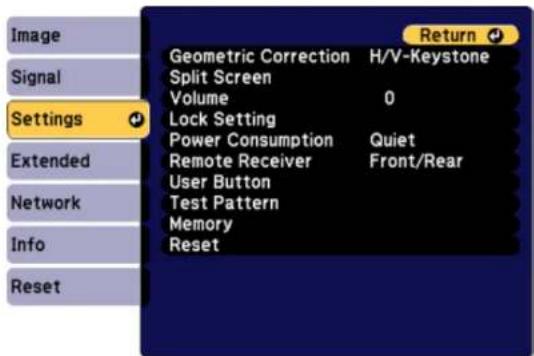
- Select the Geometric Correction setting and press Enter.
- SelecttheCurvedSurfacesettingandpressEnter.
Note: If you see a confirmation message, press Enter.
Youseethisscreen:
![[Curved Surface] Correct Shape Horizontal Linearity Vertical Linearity](/content/2026/05/1054023/images/b20ef58514a207bbbd13fdcf5b131a58040607cfafc2c389a1b709aec0f41c92.jpg)
-
SelecttheCorrectShapesettingandpressEnter.
-
Use the arrow button on the projector or theremote control to select the area you want to adjust. Then press Enter.
![[Correct Shape] Select the area.](/content/2026/05/1054023/images/12d5948ccba2e52c47142aeb9e13b50991da644cafa1adbcb6a34a35832a36c0.jpg)
Note: To reset your adjustments, press and hold the Esc button for at least 2 seconds to display a resetscreen. ThenselectYes.
- Usethearowbuttonsontheprojectortoadjusttheimageshape.
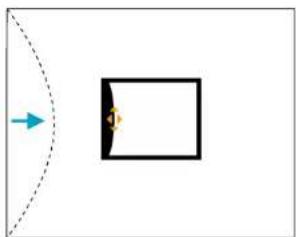
natural_image
Simple diagram showing a dashed arc with an arrow pointing to a black rectangle and a small yellow symbol inside (no text or labels)Note: If the adjustment triangle turns gray, you cannot adjust the shape any further in that direction.
9.PresstheEscbuttontoreturntotheCurvedSurfacemenuscreen.
10.Repeatthepreviousthreestepsasnecessarytoadjustotherimageareas.
If the image expands or contracts, continue with then next step to adjust the linearity.
- SelectoneofthefollowingfromtheCurvedSurfacemenuscreen:
•HorizontalLinearity:Adjustshorizontalexpansionorcontraction.
•VerticalLinearity:Adjustsverticalexpansionorcontraction.
- SelectadisplayedlinetouseasabaselineandpressEnter.
Theselectedbaselineflashesredandwhite.
- Adjustthelinearity by doing one of the following:
- Presstheleftarrowbuttontocontractthedistancebetweenthelinesclosesttothebaseline.
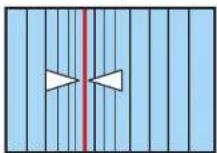
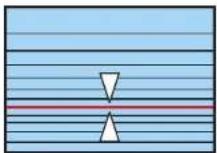
- Presstherightarrowbuttontoexpandthedistancebetweenthelinesclosesttothebaseline.
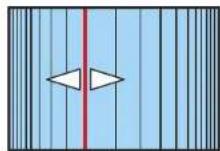
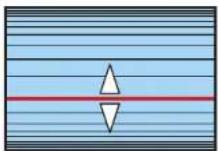
- When you are finished, press the Menubutton.
Note: If necessary, you can fine-tune the results of your Curved Surface adjustments using Point Correction.
Parenttopic:ImageShape
Relatedreferences
ProjectorFeatureSettings-SettingsMenu
Relatedtasks
DisplayingaTestPattern
CorrectingImageShapewithPointCorrection
CorrectingImageShapewithPointCorrection
Youcanusetheprojector'sPointCorrectionfeaturetofine-tunetheimageshapeusingpointsonagrid. Thisisusefulforadjustingoverlappingareasinmultipleprojectedimagesthatdonotlineupcorrectly.

natural_image
Two-panel diagram showing a grid-based object before and after transformation, with no visible text or symbols.- Turnon the projector and display an image.
Note: You can display a pattern to aid in adjusting the projected image using the Settings menu.
Note: You can also display a pattern to aid in adjusting the projected image using the Test Pattern buttonontheremotecontrol.
2.PresstheMenubutton.
3. SelecttheSettingsmenuandpressEnter.
4. Select the Geometric Correction setting and press Enter.
5. SelectthePointCorrectionsettingandpressEnter
Note: If you see a confirmation message, press Enter.
Youseethisscreen:
![[Point Correction] Return Point Correction 3x3 Pattern Color White Reset](/content/2026/05/1054023/images/74940064c3a0a6bd5cd26f115fa8db69dd87f469411627fa16eb529e1dba07f2.jpg)
- SelectthePointCorrectionsettingandpressEnter.
- SelectthenumberofgridlinestodisplayandpressEnter.
Note: If you need to change the color of the grid lines, select the Pattern Color setting and select a suitable color.
- Use the arrow button on the projector or remote control to the point on the grid that you want to adjust. Then press Enter.
Theboxchangesfromasinglinetoadouble-linedsquare.
![[Point Correction] H=Pos: 4 V=Pos: 4 [●]Select [Exc] -Return [●]Enter](/content/2026/05/1054023/images/2014a7247783afb269665ef47ce2d37f53b3a3afd922026419d52f6dad4794f4.jpg)
- Usethearrowbuttonstocorrecttheimageshapeinallnecessarydirections.
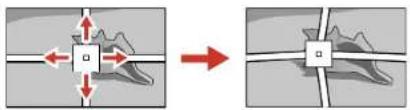
natural_image
Diagram showing a mechanical or structural change before and after, with no visible text or symbols.Note: You can press Enter to show or hide the image and grid to check the results.
- Press Esc to return to the previous screen and select another point to correct, if necessary.
- When you are finished, press the Menubutton.
Parenttopic:ImageShape
Relatedreferences
ProjectorFeatureSettings-SettingsMenu
Relatedtasks
DisplayingaTestPattern
CorrectingImageShapewithCornerWall
Youcanusetheprojector'sCornerWallsettingtoadjusttheshapeofanimationprojectedonasurface withrightangles,suchasarectangularpillarorthecornerofaroom.
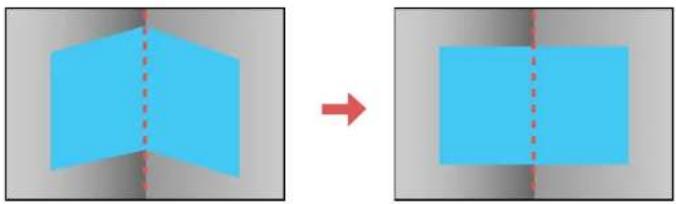
natural_image
Two blue rectangular shapes with dashed vertical lines, one solid and one dashed, both on a gray background (no text or symbols)Note: For the best results, project from the front of the screen onto a right-angled surface with the lens centeredhorizontallyusinglensshift. Theimagemaynotbeevenlyfocusedthroughoutevenafter performingthestepshere. If you are using the optional shortthrow lens (ELPLU01), you may not be able to adjust the CornerWall setting.
- Turnon the projector and display an image.
Note: You can display a pattern to aid in adjusting the projected image using the Settings menu.
Note: You can also display a pattern to aid in adjusting the projected image using the Test Pattern buttonontheremotecontrol.
2.PresstheMenubutton.
3. SelecttheSettingsmenuandpressEnter.
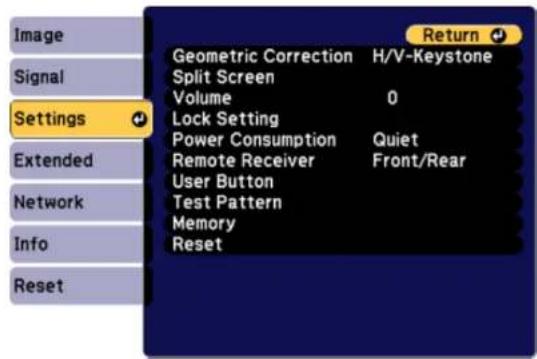
- Select the Geometric Correction setting and press Enter.
- SelecttheCornerWallsettingandpressEnter.
Note: If you see a confirmation message, press Enter.
Youseethisscreen:
![[Corner Wall] Return Corner Type Horizontal Corner Correct Shape Linearity](/content/2026/05/1054023/images/2004dc19b08074d55b32d058a507947a089582712914704087d16e7c4ffb2bb6.jpg)
- SelecttheCornerTypesettingandpressEnter.
- Selectoneofthefollowing:
•HorizontalCornerwhenthesurfaceslineuphorizontally
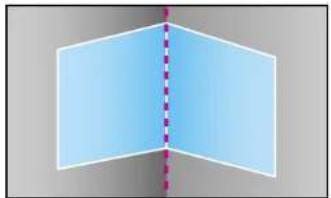
natural_image
Abstract geometric shape with two light blue rectangles and a vertical dashed line, no text or symbols present.•VerticalCornerwhenthesurfaceslineupvertically
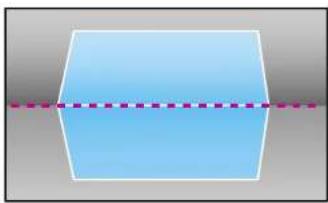
natural_image
Simple geometric shape with a horizontal dashed line crossing through it (no text or symbols)8.PresstheEscbuttontoreturntotheCornerWallmenuscreen.
9. SelecttheCorrectShapesettingandpressEnter.
- Adjust the projector's position and use lens shift to center the image over the point where two surfaces meet. (Therestof these step show Horizontal Corner astheselected Corner Type but the steps are these same for Vertical Corner.)
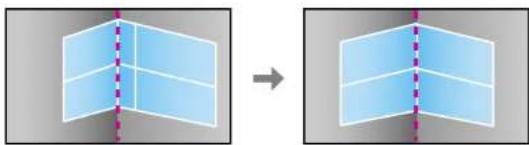
natural_image
Two 3D geometric shapes with dashed vertical lines, one solid and one dashed, both without any text or symbols.Note: You can press Enter to show or hide the image and grid to check the results.
- Usethearrowbuttonsontheprojectorotheremotecontroltoselecttheareayouwanttoadjust. ThenpressEnter.
![[Correct Shape] Select the area.](/content/2026/05/1054023/images/5c5a2c0a142a976ccab2f2c26fb0cfb252b7ba7284351f29802e3386db5a96ee.jpg)
- For horizontal corners, adjust the top area using the lowest point (indicated by the blue arrow) as your reference. Adjust the lower area using the highest point (indicated by the pink arrow) as your reference.
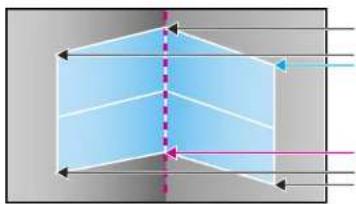
natural_image
Pure geometric diagram of a 3D prism with dashed centerline and arrows indicating perspective (no text or symbols)- For vertical corners, adjust the left and right areas using the points nearest the center of the image as your reference points.
Note: To reset your adjustments, press and hold the Esc button for at least 2 seconds to display a resetscreen. ThenselectYes.
- Pressandholdthearrowbuttonsontheprojectororremotecontroltoadjusttheimageshape.
13.Repeattheprevioustwostepsasnecessarytoadjustotherimageareas.
If the image expands or contracts, continue with then next step to adjust the linearity.
14.PresstheEscbuttontoreturntotheCornerWallscreen.
15. SelecttheLinearitysettingandpressEnter.
16. Adjustthelinearity by doing the following as necessary:
- Pressandholdtheleftarrowbuttontocontractthedistancebetweenthelinesclosesttotheletortopoftheimage.
- Pressandholdtherightarrowbuttontocontractthedistancebetweenthelinesclosesttotheright orbottomoftheimage.
- When you are finished, press the Menubutton.
Note: If necessary, you can fine-tune the results of your Corner Wall adjustments using Point Correction.
Parenttopic:ImageShape
Relatedreferences
ProjectorFeatureSettings-SettingsMenu
Relatedtasks
DisplayingaTestPattern
CorrectingImageShapewithPointCorrection
SelectinganImageSource
If you connected multiple images our cestotheprojector, such as a computer and DVD player, you may want to switch from one images our ceto the other.
- Makesuretheconnectedimagesourceyouwanttouseisturnedon.
- For video images sources, insert a DVD or other video media and press its play button, if necessary.
3.Dooneofthefollowing:
- Press the Source Search button on the projector or the Search button on the remote control until youseetheimagefromthesourceyouwant.
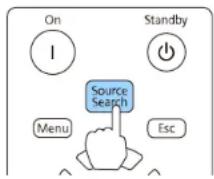
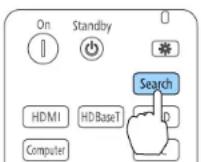
- Pressthebuttonforthesourceyouwantontheremotecontrol.
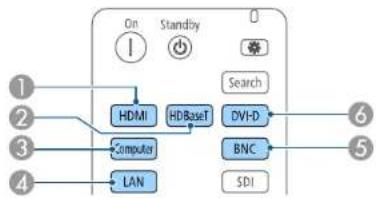
flowchart
graph TD
    A["1"] --> B["HDMI"]
    C["2"] --> B
    D["3"] --> E["Computer"]
    F["4"] --> G["LAN"]
    B --> H["HDBaseT"]
    E --> H
    G --> H
    H --> I["DVI-D"]
    H --> J["BNC"]
    H --> K["SDI"]
    L["Search"] --> M["0"]
    N["On"] --> O["Standby"]
    P["Standby"] --> Q["0"]
1HDMIportsource
2HDBaseTportsource
3Computerportsource
4Networkportsource
5BNCsource
6DVI-Dsource
Parenttopic: UsingBasicProjectorFeatures
RemoteControlOperation
Theremotecontrolletsyoucontroltheprojectorfromalmostanywhereintheroom,upto98.4feet (30m)away.Youcanpointitatthefrontorrearoftheprojector.
Makesurethatyouaimtheremotecontrolattheprojector'sreceiverswithintheangleslistedhere.
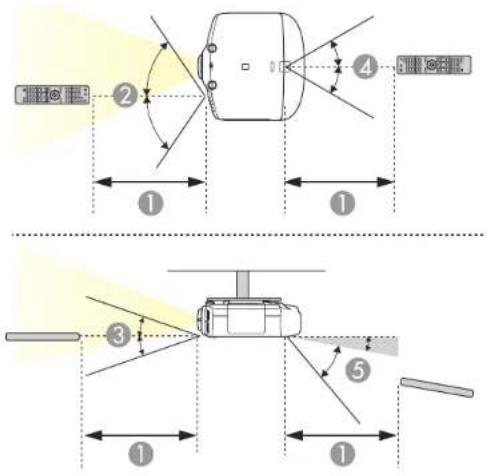
198feet(30m)
2 ± 60^
3 ± 20^
4 ± 30^
5+10^ to +50^
Note: Avoid using the remote control in conditions with bright fluorescent lights or in direct sunlight, or theprojectormaynotrespondtocommands. If you will not use theremote control for a long time, removethe batteries.
Parenttopic: UsingBasicProjectorFeatures
Relatedtasks
ReplacingtheRemoteControlBatteries
ProjectionModes
Dependingonhowyoupositionedtheprojector,youmayneedtochangetheprojectionmodesoyour imagesprojectcorrectly.
- Front(defaultsetting)letsyouprojectfromatableinfrontofthescreen.
- Front/Ceiling flips the image over top-to-bottom to project upside-down from a ceiling or wall mount.
- Rearflipstheimagehorizontallytoprojectfrombehindatransluentscreen.
- Rear/Ceiling flips the image over top-to-bottom and horizontally to project from the ceiling and behind atranslucentscreen.
Note: To view 3D images, you must project onto the front of a silver screen designed for passive 3D images.
ChangingtheProjectionModeUsingtheRemoteControl
ChangingtheProjectionModeUsingtheMenus
Parenttopic: UsingBasicProjectorFeatures
ChangingtheProjectionModeUsingtheRemoteControl
Youcanchangetheprojectionmodetofliptheimageovertop-to-bottom.
-
Turnon the projector and display an image.
-
HolddowntheA/VMutebuttonontheremotecontrolforfiveseconds.
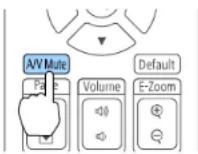
Theimagedisappearsbrieflyandreappearsflippedtop-to-bottom.
- To change projection back to the original mode, hold down the A/V Mute button for five seconds again.
Parenttopic: ProjectionModes
ChangingtheProjectionModeUsingtheMenus
You can change the projection model to flip the image over top-to-bottom and/or left-to-right using the projectormenus.
- Turnon the projector and display an image.
2.PresstheMenubutton. - SelecttheExtendedmenuandpressEnter.
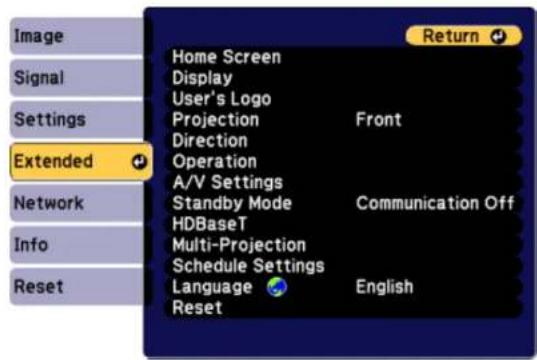
- SelecttheProjectionsettingandpressEnter.
- SelectaprojectionmodeandpressEnter.
- PressMenuorEsctoexitthemenus.
Parenttopic:ProjectionModes
ImageAspectRatio
Theprojectorcandisplayimagesindifferentwidth-to-heighttratioscalledaspectratios. Normally the inputsignalfromyourvideosourcedeterminestheimage'saspectratio. However, for certain images you can change the aspect ratio of your screen by pressing a button on theremote control.
If you always want to use particular aspects for a certain video inputs source, you can select it using the projector's menus.
ChangingthelmageAspectRatio
AvailableImageAspectRatio
Parenttopic: UsingBasicProjectorFeatures
Relatedreferences
ImageQualitySettings-ImageMenu
ChangingtheImageAspectRatio
Youcanchangetheaspectratioofthedisplayedimagetoresizeit.
Note: Set the Screen Type setting in the projector's Extended menu before changing the aspect ratio.
- Turnon the projector and switch to the images source you want to use.
- PresstheAspectbuttonontheremotecontrol.
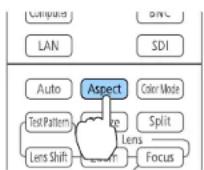
Theshapeandsizeofthedisplayedimagechanges,andthenameoftheaspectratioappears brieflyonthescreen.
- Tocyclethroughtheavailableaspectratiosforyourinputsignal, presstheAspectbutton repeatedly.
Parenttopic:ImageAspectRatio
AvailableImageAspectRatio
You can select the following image aspectratios, depending on these selected Screen Types setting and the inputs signal from your images source.
Note: Black bands and cropped or stretched images may project in certain aspect ratios, depending on theaspectratioandresolutionofyourinputsignal.
| ScreenTypesettingAvailableaspectratios | |
| 4:3Auto,Normal,4:3,6:9,Native* | |
| 16:9Auto,Normal,Full,H-Zoom,V-Zoom,Native | |
| 16:10Auto,Normal,16:9,Full,H-Zoom,V-Zoom,Native | |
*Availableonlywhenprojectingcomputerimages,orfromsourcesconnectedtotheHDMIport
| AspectratiosettingDescription | |
| AutoAutomaticallysetstheaspectratio | accordingtotheinputsignal. |
| NormalDisplaysimagesinthesame | aspectratiooftheinputsignal. |
| 4:3Displaysimagesata4:3aspectratio. | |
| 16:9Displaysimagesata16:9aspectratio. | |
| FullDisplaysimagesusingthefullsize | oftheprojectionarea,butdoes notmaintaintheaspectratio. |
| H-ZoomV-Zoom | Displaysimagesusingthefullwidth(H-Zoom)orfullheight(V-Zoom)oftheprojectionareaandmaintainstheaspectratioofthe image.Areasthatexceedtheedgesoftheprojectedscreenarenot projected. |
| NativeDisplaysimagesasis(aspectratioandresolutionaremaintained).Areasthatexceedtheedgesoftheprojectedscreenarenot projected. | |
Parenttopic:ImageAspectRatio
Relatedtasks
SettingtheScreenType
ColorMode
TheprojectoroffersdifferentColorModestoprovideoptimumbrightness,contrast,andcolorfora varietyofviewingenvironmentsandimagetypes.Youcanselectamodedesignedtomatchyourimage andenvironment,orexperimentwiththeavailablemodes.
If you always want to use a particular color mode for acertain video inputs, you can select it using the projectormenus.
ChangingtheColorMode
AvailableColorModes
TurningOnAutolris
Parenttopic: UsingBasicProjectorFeatures
Relatedreferences
ImageQualitySettings-ImageMenu
ImageQualitySettings-ImageMenu
ChangingtheColorMode
Youcanchangetheprojector'sColorModeusingtheremotecontroltooptimizetheimageforyourviewingenvironment.
- Turnon the projector and switch to the images source you want to use.
- If you are projecting from a DVD player or other video source, insert ad disc or other video media and press the play button, if necessary.
3.PresstheColorModebuttonontheremotecontroltochangetheColorMode.
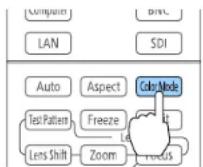
The image appearance changes and then a name of the Color Mode appears briefly on the screen.
- To cycle through all the available Color Modes for your input signal, press the Color Mode button repeatedly.
Parenttopic:ColorMode
AvailableColorModes
YoucansettheprojectortousetheseColorModes,dependingontheinputsourceyouareusing:
| ColorModeDescription | |
| DynamicBestforprojectinginabrightroom | |
| PresentationBestforcolorpresentationsinabrightroom | |
| CinemaBestformoviesprojectedinadarkroom | |
| sRGBBestforstandardsRGBcomputerdisplays | |
| DICOMSIM*BestforprojectingX-rayphotographsandothermedicalimages | |
| Multi-ProjectionBestforprojectingfrommultipleprojectors(reducesthecolortonedifferencebetweenimages) | |
*AvailableonlywheninputtingRGBsignals
Note: The DICOM SIM Color Mode is for reference purposes only and should not be used to make medical diagnoses.
Parenttopic:ColorMode
TurningOnAutolris
In certain color modes, you can turn on the AutoIrissetting to automatically optimize the image based on the brightness of the content you project.
Note: AutolrisisdisabledifyouturnonEdgeBlending.
-
Turnon the projector and switch to the images source you want to use.
2.PresstheMenubutton. -
SelectthelmagemenuandpressEnter.
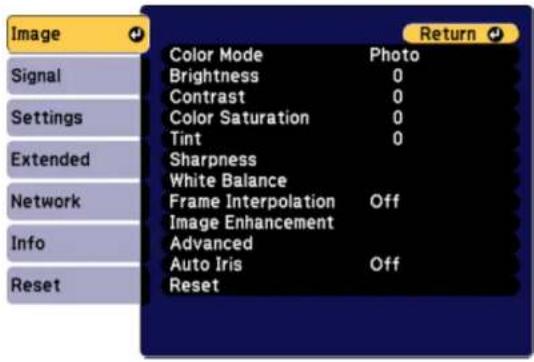
- SelecttheAutoIrissettigandselectOn.
Note: You can turn Auto Iris on or off for each Color Mode that supports the feature. You cannot change the Auto Iris setting when you are using a Closed Caption setting.
- PressMenuorEsctoexitthemenus.
Parenttopic:ColorMode
ControllingtheVolumewiththeVolumeButtons
YoucanusetheVolumebuttonsontheremotecontroltoadjustthevolumeeasyouprojecta presentationwithaudio.Thevolumebuttonscontroltheprojector'sinternalspeakersystemorany externalspeakersyouconnectedtotheprojector.
Youmustadjustthevolumeseparatelyforeachconnectedinputsource.
-
Turnon the projector and start apresentation that includes audio.
-
Tolowerorraisethevolume, press the Volume button son theremote control.
Avolumegaugeappearsonthescreen.
- Tosetthevolumetoaspecificlevelforaninputsource, usetheprojectormenus.
Parenttopic: UsingBasicProjectorFeatures
SettingtheDateandTime
Youcansetthedateandtimefortheprojector.
1.PresstheMenubutton.
2. SelecttheExtendedmenuandpressEnter.
3. SelecttheOperationsettingandpressEnter.
4. SelecttheDate&TimesettingandpressEnter.
Youseeascreenlikethis:
![[Date & Time] Return Date & Time Daylight Saving Time Daylight Saving Time Off DST Start DST End DST Adjustment (min) 0 Internet Time](/content/2026/05/1054023/images/9580a6ea9b773e47a424cb4c39316e1d943725d1a91ba6f4fc9d6ae6a1eedb3e.jpg)
- SelecttheDate&TimesettingandpressEnter.
-
Usethedisplayedkeyboardtoenterthedateandtime.
-
When you are finished, press the Menubuttonto exit.
Parenttopic: UsingBasicProjectorFeatures
AdjustingProjectorFeatures
Followtheinstructionsinthesesectionstouseyourprojector'sfeatureadjustments.
ShuttingOffthePictureandSoundTemporarily
StoppingVideoActionTemporarily
ZoomingIntoandOutofImages
ProjectorSecurityFeatures
ProjectingTwoImagesSimultaneously
UsingMultipleProjectors
EnablingProtocolEmulation
Viewing3DImages
SavingSettingstoMemoryandUsingSavedSettings
SavingaScheduledEvent
CopyingMenuSettingsBetweenProjectors
ShuttingOffthePictureandSoundTemporarily
Youcantemporarilyturnofftheprojectedpictureandsoundifyouwanttoredirectyouraudience's attentionduringapresentation.Anysoundorvideoactioncontinuestorun,however,soyoucannot resumeprojectionatthepointthatyoustoppededit.
If you want to display images such as a company logo or picture when the presentation is stopped, you can setup this feature using the projector's menus.
Note: If the picture and sound are off for more than 30 minutes, the power automatically turns off. You can adjust this setting using the projector's menusystem.
Note: The lamp is still lit while using A/V Mute and the lamp hours will continue to accumulate.
- Press the A/V Mute button on the remote control to temporarily stop projection and mute any sound.
- Toturnthepictureandsoundbackon, pressA/VMuteagain.
Parenttopic: AdjustingProjectorFeatures
StoppingVideoActionTemporarily
Youcantemporarilystoptheactioninavideoorcomputerpresentationandkeepthecurrentimageon thescreen.Anysoundorvideoactioncontinuestorun,however,soyoucannotresumeprojectionatthe pointthatyoustoppedit.
- PresstheFreezebuttonontheremotecontroltostopthevideoaction.
- Torestartthevideoactioninprogress, pressFreezeagain.
Parenttopic: AdjustingProjectorFeatures
ZoomingIntoandOutofImages
Youcandrawattentiontopartsofapresentationbyzoomingintoaportionoftheimageandenlargingit onthescreen.
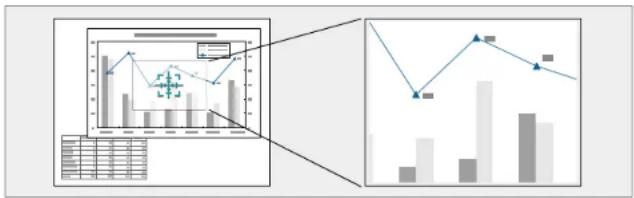
bar_line
| Category | Bar Value | Line Value | |---|---|---| | Top Left Panel | 100 | 100 | | Top Right Panel | 80 | 95 | | Bottom Left Panel | 60 | 75 | | Bottom Right Panel | 40 | 60 | | Bottom Left Panel (Bottom) | 30 | 25 | | Bottom Right Panel (Bottom) | 20 | 15 | | Bottom Left Panel (Top) | 15 | 10 | | Bottom Right Panel (Top) | 10 | 5 | | Bottom Left Panel (Top) | 8 | 2 | | Bottom Right Panel (Top) | 6 | 1 | | Bottom Left Panel (Bottom) | 4 | 0.5 | | Bottom Right Panel (Bottom) | 2 | 0.25 | | Bottom Left Panel (Bottom) | 1 | 0.1 | | Bottom Right Panel (Bottom) | 0.5 | 0.05 | The chart displays two data series: 'Bar' and 'Line'. The top panel shows a bar chart with values ranging from 60 to 100, while the bottom panel shows a bar chart with values ranging from 20 to 60. Both charts use color-coded bars (gray for bars, blue for lines) to represent different categories or metrics. The top panel also includes a zoomed-in view of the top-right panel. No explicit title is present in the image.- PresstheE-Zoom+buttonontheremotecontrol.
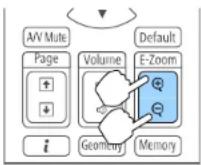
Youseeacrosshaironthescreenindicatingthecenterofthezoomarea.
-
Usethefollowingbuttonsontheremotecontroltoadjustthezoomedimage:
-
Usethearowbuttonstopositionthecrosshairintheimageareayouwanttozoominto.
- PresstheE-Zoom+buttonrepeatedlytozoomintotheimagearea,enlargingitasnecessary.
- Toparoundthezoomedimagearea, usethearrowbuttons.
- Tozoomoutoftheimage, presstheE-Zoom-buttonasnecessary.
• Toreturntotheoriginalimagesize, pressEsc.
Parenttopic: AdjustingProjectorFeatures
ProjectorSecurityFeatures
You can secure your project to do better theft or prevent unintended use by setting up the following security features:
- Passwordsecuritytopreventtheprojectorfrombeingturnedon,andpreventchangestothestartup screenandothersettings.
- Buttonlocksecuritytoblockoperationoftheprojectorusingthebuttonsonthecontrolpanelorremote control.
•Securitycablingtophysicallycabletheprojectorinplace.
PasswordSecurityTypes
LockingtheProjector'sButtons
InstallingaSecurityCable
Parenttopic: AdjustingProjectorFeatures
PasswordSecurityTypes
Youcansetupthesetypesofpasswordsecurityusingonesharedpassword:
- Power On Protection password prevents anyone from using the projector without first entering a password.
- User's Logo Protection password prevents anyone from changing the custom screen the projector candisplaywhenitturnsonorwhenyouusetheA/VMutefeature. The presenceofthecustom screendiscouragestheftbyidentifyingtheprojector'sowner.
- Network Protection password prevents anyone from changing the network settings in the projector menus.
- Schedule Protection password prevents anyone from changing the projector's time or schedule settings.
SettingaPassword
SelectingPasswordSecurityTypes
EnteringaPasswordtoUsetheProjector
SavingaUser'sLogoImagetoDisplay
Parenttopic:ProjectorSecurityFeatures
SettingaPassword
Tousepasswordsecurity,youmustsetapassword.
- Hold down the Freeze button on the remote control for about five seconds or until you see this menu.
![[Password Protection] Power On Protection Off User's Logo Protection Off Network Protection Off Schedule Protection Off Password](/content/2026/05/1054023/images/0fdfb4ae00a618f75ed4a7c8daa6508f2f904d91fe0e69f127883926fb8e5df8.jpg)
- PressthedownarrowtoselectPasswordandpressEnter.
Youseetheprompt"Changethepassword?".
-
SelectYesandpressEnter.
-
Press and hold down the Num button on the remote control and use the numeric buttons to set a four-digit password.
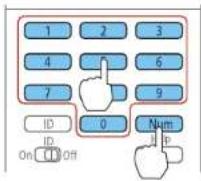
Thepassworddisplaysas****asyouenterit. Thenyouseetheconfirmationprompt.
5.Enterthepasswordagain.
Youseethemessage"Passwordaccepted."
- PressEsctoreturntothemenu.
7.Makeanoteofthepasswordandkeepitinasafeplaceincaseyouforgetit.
Parenttopic:PasswordSecurityTypes
SelectingPasswordSecurityTypes
Aftersettingapassword,youseethismenu,allowingyoutoselectthepasswordsecuritytypesyouwanttouse.
![[Password Protection] Power On Protection Off User's Logo Protection Off Network Protection Off Schedule Protection Off Password](/content/2026/05/1054023/images/fd8474ad746be8f34292ef5d12045e03b8338913f11fe4bc759c68d7af7dfe69.jpg)
If you do not see this menu, hold down the Freeze button on the remote control for about five seconds or untilthemenuappears.
- To prevent unauthorized use of the projector, select Power On Protection, press Enter, select On, pressEnteragain,andpressEsc.
- To prevent changes to the User's Logo screen or related display settings, select User's Logo Protection, press Enter, select On, press Enter again, and press Esc.
- To prevent changes to network settings, select Network Protection, press Enter, select On, press Enteragain, and press Esc.
- To prevent changes to the projector's time or schedule settings, select Schedule Protection, press Enter, select On, press Enter again, and press Esc.
Note: Be sure to keep the remote control in a safe place; if you lose it, you will not be able to enter the passwordrequiredtousetheprojector.
Parenttopic:PasswordSecurityTypes
EnteringaPasswordtoUsetheProjector
If a password is set up and a Power On Protection password is enabled, you see a prompt to enter a passwordwheneveryouturnontheprojector.
![[Password] Enter the password. See your documentation for more information.](/content/2026/05/1054023/images/0bd009925c831537145bc7fda338d2517672764e38c35dfcd8a6d00e91d72c5c.jpg)
Youmustenterthecorrectpasswordtousetheprojector.
- Press and hold down the Num button on the remote control while you enter the password using the numericbuttons.
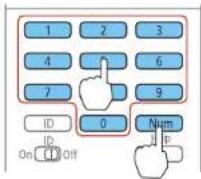
Note: The default password is 0000.
Thepasswordscreencloses.
-
If the password is incorrect, the following may happen:
-
Youseea"wrongpassword"messageandaprompttotryagain.Enterthecorrectpasswordto proceed.
- If you enter an incorrect password several times in succession, the projector displays are request code and messages get a contact Epson Support. Donot attempt to enter the password again. When you contact Epson Support, provide the displayed request code and proof of ownership for assistance in unlocking the projector.
Parenttopic:PasswordSecurityTypes
SavingaUser'sLogolmagetoDisplay
Youcantransferanimagetotheprojectorandthendisplayitwhenevertheprojectorturnson. Youcan alsodisplaytheimagewhentheprojectorisnotreceivinganinputsignalorwhenyoutemporarilystop projection(usingtheA/VMutefeature). ThistransferredimageiscalledtheUser'sLogoscreen.
TheimageyouselectastheUser'sLogocanbeaphoto,graphic,orcompanylogo,whichisusefulin identifyingtheprojector'sownertohelpdetertheft.YoucanpreventchangestotheUser'sLogoby settinguppasswordprotectionforit.
-
Display the image you want to project the User's logo.
-
Press the Menu button, select the Extended menu, and press Enter.
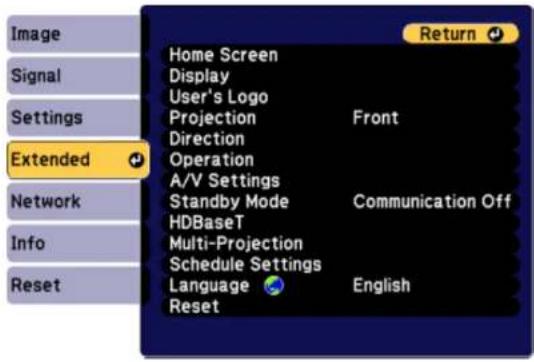
- SelecttheUser'sLogosettingandpressEnter.
Youseeapromptaskingifyouwanttousethedisplayedimageasauser'slogo.
- SelectYesandpressEnter.
Youseeaselectionboxoverlayingyourimage.
- Use the arrow button on theremote control or control panel to surround the image area you want to use the User's Logo and press Enter.
Youseeapromptaskingifyouwanttoselectthisimagearea.
- Select Yes and press Enter. (If you want to change the selected area, select No, press Enter, and repeatthelaststep.)
YouseetheUser'sLogozoomfactormenu.
![[User's Logo] Set the zoom factor. Zoom factor: 100% 200% 300%](/content/2026/05/1054023/images/0ad1145a69bc36252d60310e80673a35f8f7eeea0d63e9224a884bd63349b943.jpg)
- SelectazoompercentageandpressEnter.
YouseeapromptaskingifyuwanttosavetheimageastheUser'sLogo.
- SelectYesandpressEnter.
Youseeacompletionmessage.
-
PressEsctoexitthemessagescreen.
-
SelecttheExtendedmenuandpressEnter.
-
SelectDisplayandpressEnter.
-
SelectwhenyouwanttodisplaytheUser'sLogoscreen:
• To display it whenever there is no input signal, select Display Background and set it to Logo.
• To display it whenever you turn the projector on, select Startup Screen and set it to On.
• To display it whenever you press the A/V Mute button, select A/V Mute and set it to Logo.
TopreventanyonefromchangingtheUser'sLogosettingswithoutfirstenteringapassword,seta passwordandenableUser'sLogosecurity.
Parenttopic: PasswordSecurityTypes
LockingtheProjector'sButtons
Youcanlockthebuttonsontheprojector'scontrolpaneltopreventanyonefromusingtheprojector.You canlockallthebuttonsonrallthebuttonsexceptthepowerbutton.
-
PresstheMenubutton.
-
SelecttheSettingsmenuandpressEnter.
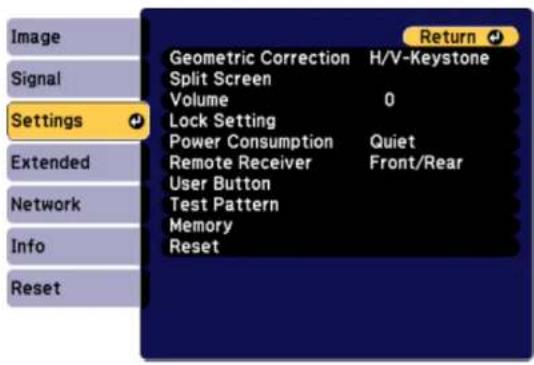
- SelectLockSettingandpressEnter.
- SelecttheControlPanelLocksettingandpressEnter.
-
SelectoneoftheselocktypesandpressEnter:
-
Tolockalloftheprojector'sbuttons,selectFullLock.
- Tolockallbuttonsexceptthepowerbutton,selectPartialLock.
Youseeaconfirmationprompt.
- SelectYesandpressEnter.
UnlockingtheProjector'sButtons
Parenttopic: ProjectorSecurityFeatures
Relatedreferences
ProjectorParts-ControlPanel
UnlockingtheProjector'sButtons
If the projector's buttons have been locked, hold the Enter button on the projector's control panel for sevensecondstounlockthem.
Parenttopic:LockingtheProjector'sButtons
InstallingaSecurityCable
Youcaninstalltwotypesofsecuritycablesontheprojectortodetertheft.
- Use the security slot on the project to attach a Kensington lock. See your local computer on electronics dealer for purchase information.
- Use the security cable attachment point on the project to attach a wire cable and secure it to a room fixture or heavy furniture.
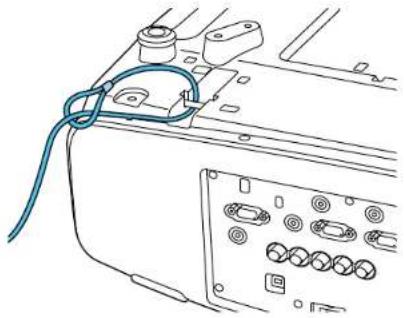
natural_image
Line drawing of a cable being inserted into an electronic device panel (no text or symbols visible)Note: Do not pass drop-prevention cables through the security cable attachment point when mounting the projectoronawallorceiling.
Parenttopic:ProjectorSecurityFeatures
Relatedreferences
ProjectorParts-Rear
ProjectingTwolmagesSimultaneously
Youcanusethesplitscreenfeaturetosimultaneouslyprojecttwoimagesfromdifferentimagesourcesnexttoeachother.Youcancontrolthesplitscreenfeatureusingtheremotecontrolortheprojectormenus.
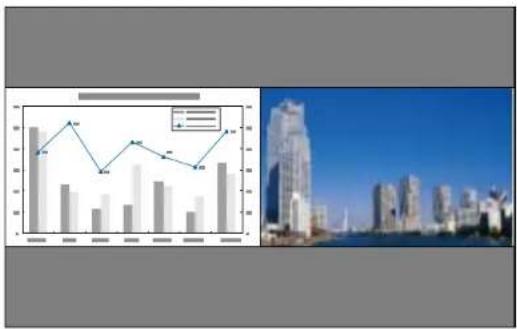
bar_line
| Category | Bar Value | Line Value | |---|---|---| | 1 | 8 | 6 | | 2 | 5 | 7 | | 3 | 4 | 5 | | 4 | 5 | 6 | | 5 | 6 | 7 | | 6 | 5 | 6 | | 7 | 4 | 5 | | 8 | 6 | 6 | The bar chart displays absolute values for each category (1-9), while the line graph shows a fluctuating trend over time. The city skyline is shown in the bottom-right corner.Note: While you use the split screen feature, other projector features may not be available and some settingsmaybeautomaticallyappliedtobothimages.
- PresstheSplitbuttonontheremotecontrol.
The currently selected inputs our current source of the left side of the screen.
2.PresstheMenubutton.
Youseethisscreen:
![[Split Screen Setup] Screen Size Equal Source Swap Screens Audio Source Auto [Network] Display the QR Code Exit Split Screen](/content/2026/05/1054023/images/8f9f6a3ab90ccdcb55f046af120fdc81503ef3e2aa84d86ff15b0743795e9946.jpg)
- To select an input source for the other image, select the Source setting, press Enter, select the input source, select Execute, and press Enter. (You can also change image sources, if necessary.)
- To switch the images, select the Swap Screens setting and press Enter.
- To change the image sizes, select the Screen Size setting, press Enter, select a sizing option, pressEnter,andpressMenutoexit.
Note: Depending on the video input signals, the images may not appear at the same size even if you choose the Equal setting.
- To choose the audio you want to hear, select the Audio Source setting, press Enter, select an audiooption, press Enter, and press Menutoexit.
Note: Select Auto to hear audio from the largest screen or the left screen.
- Toexitthesplitscreenfeature, presstheSplitorEscbutton.
Parenttopic: AdjustingProjectorFeatures
UsingMultipleProjectors
Youcancombinetheprojectedimagesfromtwoormoreprojectorstocreateonelargeimage. The followingoptionsareavailable:
- Projectdifferentimagesfromeachprojectorandcreateoneseamlessimage
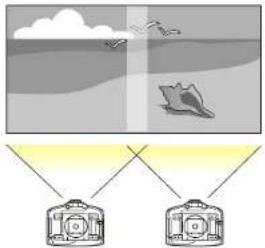
natural_image
Illustration of a beach scene with birds and a boat, connected to two hanging birdcages (no text or symbols)- ProjectthesameimagefromeachprojectorandusetheScalefeaturetocreateoneseamlessimage
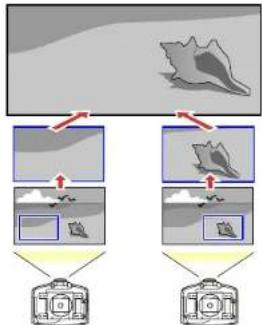
flowchart
graph TD
    A["Image"] --> B["Stage 1"]
    A --> C["Stage 2"]
    B --> D["Image 1"]
    B --> E["Image 2"]
    C --> F["Image 1"]
    C --> G["Image 2"]
    D --> H["Image 0"]
    E --> I["Image 0"]
    F --> J["Image 0"]
    G --> K["Image 0"]
Followtheinstructionsinthesesectionstosetupandprojectfrommultipleprojectors.
ProjectorIdentificationSystemforMultipleProjectorControl AdjustingthePositionoftheProjectedImageFromMultipleProjectors
ScalinganImage
Adjusting the Lamp's Brightness
BlendingthelmageEdges
AdjustingtheBlackLevel
MatchingtheImageColors
AdjustingtheColorTone(ColorUniformity)
AdjustingtheColorConvergence(PanelAlignment)
Configuring Tiling
Parenttopic: AdjustingProjectorFeatures
ProjectorIdentificationSystemforMultipleProjectorControl
Youcanoperatemultipleprojectorsusingoneremotecontrolformoreelaboratepresentations. Todo this, youassignanidentificationnumbertoeachprojectorandtotheremotecontrol. Thenyoucan operatealltheprojectorsatonceorindividually.
Youcanalsomatchthecolorsdisplayedbyanyprojectorsyouplantouseneareachother.
Caution: Leave at least 20 inches (50 cm) of space between the projector to prevent them from overheating.
SettingtheProjectorID
SettingtheRemoteControlID
Parenttopic: Using Multiple Projectors
SettingtheProjectorID
If you want to control multiple projectors from a remote control, give each projector a unique ID.
-
PresstheMenubutton.
-
SelecttheExtendedmenuandpressEnter.
-
SelecttheMulti-ProjectionsettingandpressEnter.
-
SelectProjectorIDandpressEnter.
![[Multi-Projection] Return Projector ID Off Set](/content/2026/05/1054023/images/0ae16b3480eef7f553f7a45a6a7ede939b59bf16536112a0961ff98d1889d90a.jpg)
5.Presstheleftorightarrowbuttonsontheremotecontroltoselecttheidentificationnumberyou wanttousefortheprojector.ThenselectSetandpressEnter.
Repeat the seven steps for all the other projectors you want to operate from one remote control.
Note: If you don't know the projector's ID, hold down the ID button and press the Home button to temporarily display the projector's ID on the screen.
Parenttopic: ProjectorIdentificationSystemforMultipleProjectorControl
SettingtheRemoteControlID
The remote control's ID is set to 0 by default so it can operate any compatible projector. If you want to set theremotecontroltooperateonlyaparticularprojector,youneedtosettheremotecontrol'sIDtomatch theprojector'sID.
-
Turnon the projectoryouwanttheremote control to operate with exclusively.
-
SettheremotecontrolIDswitchtoOn.
- Hold down the ID button on the remote control while you press the numeric button that matches the projector'sID.Thenreleasethebuttons.
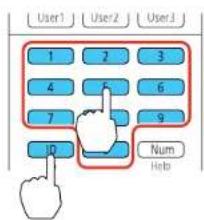
Note: If you don't know the projector's ID, hold down the ID button and press the Home button to temporarily display the projector's ID on the screen. If the batteries are left out of theremote control for an extended period, theremote control ID return to its default setting.
Parenttopic:ProjectorIdentificationSystemforMultipleProjectorControl
AdjustingthePositionoftheProjectedImageFromMultipleProjectors
If you need to adjust the position of a projected image from multiple projectors, perform the adjustments in the order listed here.
Note: You can display a pattern to aid in adjusting the projected image using the Settings menu.
Note: You can also display a pattern to aid in adjusting the projected image using the Test Pattern buttonontheremotecontrol.
-
Adjust the projector's physical position and angle to the screen.
-
Usetheprojector'slensshiftandzoomfeatures.
Note: Wait20minutesafterturningontheprojectorbeforesettingthelensshiftandzoomfor maximumaccuracy.
- Adjust the imageshape using these Geometric Correction settings:
-QuickCorner
-PointCorrection
Parenttopic: Using Multiple Projectors
Relatedconcepts
ProjectorPlacement
Relatedtasks
DisplayingaTestPattern
AdjustingtheImagePositionUsingLensShift
AdjustingtheImagePositionUsingScreenPosition
CorrectingImageShapewithQuickCorner
CorrectingImageShapewithPointCorrection
ScalinganImage
YoucanprojectthesameimagefrommultipleprojectorsandusetheScalefeaturetocropandcombine themintoonelargeimage.
1.PresstheMenubutton.
2. SelecttheSignalmenuandpressEnter.
3. SelecttheScalesettingandpressEnter.
Youseethisscreen:
![[Scale] Return Scale Off Scale Mode Zoom Display Scale Vertically x 0.00 Scale Horizontally x 0.00 Clip Adjustment Clip Range](/content/2026/05/1054023/images/71f1a7d5af31a6781348d624718107327088a7f9b0ff116af3e026d68525ca52.jpg)
- SelecttheScalesettingandselectManual.
- Select the Scale Modesetting and select one of the following options:
- ZoomDisplay: Maintain the image aspect ratio as easyous scale the image
- FullDisplay: Adjuststheimagetotheprojector'sscreensizeasyouscaletheimage
-
Selectoneormoreofthefollowingscalingoptionsandadjustitasnecessary:
-
or +: Scales the image horizontally and vertically at the same time
•ScaleVertically:Scalestheimageverticallyonly
•ScaleHorizontally:Scalestheimagehorizontallyonly -
Select the Image Display Range setting and use the arrow buttons to adjust the coordinates and sizeofeachimageasyouviewthescreen.
-
When you are finished, press the Menubutton.
Parenttopic: Using Multiple Projectors
AdjustingtheLamp'sBrightness
When projecting with multiple projectors, you must adjust the brightness settings so that all projectors are as bright asthedarkest lamp.
Note: Even after adjusting the brightness levels, the brightness of each lamp may not match exactly.
- Turnonalltheprojectorsanddisplaythesameimage.
- SelectNormalforthePowerConsumptionsetting.
- Select Multi-Projection or 3D Multi-Projection (for 3D images) for the color mode.
4.PresstheMenubutton. - SelecttheExtendedmenuandpressEnter.
- SelecttheMulti-ProjectionsettingandpressEnter.
- SelecttheBrightnessLevelsettingandpressEnter.
- Selectabrightnesslevel.
- PressEsctoreturntothepreviousscreen.
Parenttopic: Using Multiple Projectors
Relatedconcepts
ColorMode
Relatedreferences
ProjectorFeatureSettings-SettingsMenu
BlendingtheImageEdges
Youcanusetheprojector'sEdgeBlendingfeaturetocreateaseamlessimagefrommultipleprojectors.

natural_image
Two gray rectangular shapes with a red arrow pointing to one, separated by a dashed rectangle (no text or symbols)- PresstheMenubutton.
- SelecttheExtendedmenuandpressEnter.
- SelecttheMulti-ProjectionsettingandpressEnter.
- SelecttheEdgeBlendingsettingandpressEnter.
Youseethisscreen:
![[Edge Blending] Return Edge Blending Off Top Edge Off Bottom Edge Off Left Edge Off Right Edge Off Blend Curve 0 Guide Display Off Pattern Guide Off Guide Colors Pattern 1 Extended Network Info Reset](/content/2026/05/1054023/images/6396ec9758070395309ec8db41829b6c27d8b893c6b05d5dd7cae6b110efa27f.jpg)
- Turn on the Edge Blending, Guide Display, and Pattern Guide settings.
Note: If the projected guide is unclear, try changing the Guide Colors setting.
- SelecttheedgeyouwanttoblendandpressEnter.
Youseeascreenlikethis:
![[Top Edge] Blending Off Blend Start Position 0 Blend Range 0](/content/2026/05/1054023/images/10a3220ab59ce352c4c1130d653642eb6df6d7e8a98d94bf7687b1bd088545f3.jpg)
- SelecttheBlendingsettingandselectOn.
- Select the Blend Start Position setting and adjust the point where edge blending begins.
- Select the Blend Range setting and select the width of the blended area so that the displayed guides are at the edges of the overlapping area between the two images.
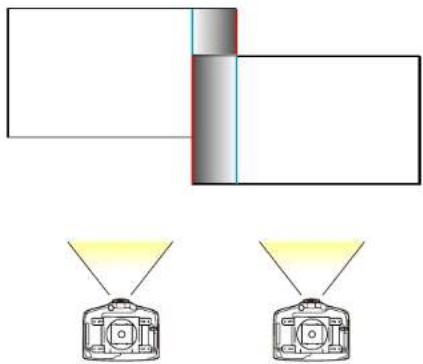
natural_image
Diagram showing two camera modules with yellow light beams pointing to each, connected by a vertical bar (no text or symbols)- Press Esctogobacktothepreviousscreen.
-
SelecttheBlendCurvesettingandselectagradientfortheshadedarea.
-
When the edges are blended, turn off the Guide Display and Pattern Guide settings to check the finalsettings.
- When you are finished, press the Menubutton.
Parenttopic: UsingMultipleProjectors
AdjustingtheBlackLevel
Whentwoimagesoverlap, the overlapping area can appear differently from the area that donot overlap. You can use the projector's Black Level setting to make the difference less noticeable.
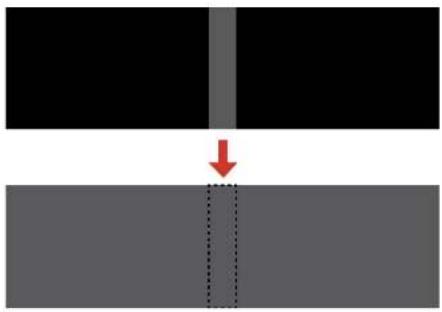
natural_image
Diagram showing a vertical black bar above a gray rectangular block with a red arrow pointing downward from the center to the right (no text or symbols)Note: You cannot adjust the black level when a test pattern is displayed. The brightness and tone of the overlapping areas may differ from the rest of the image even after adjusting the black level.
- PresstheMenubutton.
- SelecttheExtendedmenuandpressEnter.
- SelecttheMulti-ProjectionsettingandpressEnter.
- SelecttheBlackLevelsettingandpressEnter.
Youseethisscreen: - Select the Color Adjustment setting and press Enter.
- SelecttheareayouwanttoadjustandpressEnter.
Note: When multiple screens overlap, start your adjustments on the area with the most overlap (the brightestarea).
Youseethisscreen:
![[Color Adjustment] Red 0 Green 0 Blue 0 Brightness Return](/content/2026/05/1054023/images/f79e8590b15332df586084279443b030a7ddab0ebad86704eed560af4b0668c1.jpg)
- Adjust the brightness and tone of the area that donot overlaptomatch the area that overlap using the displayed adjustments sliders. Repeat this step on any overlapping areas.
8.PresstheEscbuttontoreturntotheBlackLevelmenuscreen. - SelecttheAreaCorrectionsettingandpressEnter.
- SelecttheStartAdjustmentssettingandpressEnter.
Youseeascreenlikethisdisplayingthepointsyoucanusetosettherangeforblacklevel:
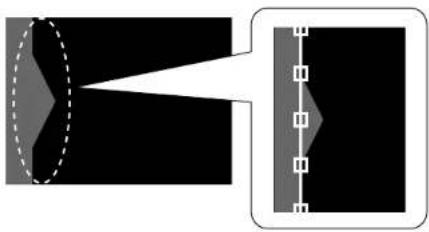
natural_image
Diagram showing light rays converging through a lens system with a central aperture (no text or symbols)Note: The points displayed differ depending on the Edge Blending and Point Correction settings.
- UsethearrowbuttonstoselectanadjustmentpointandpresstheEnterbutton.
Theselectedpointturnsorange.
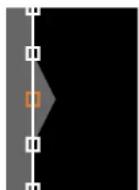
- Usethearrowbuttonstomovethepointtotheedgeoftheadjustmentarea.
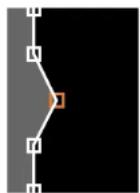
- Tomoveanotherpoint, presstheEscbuttonandrepeattheprevioustwosteps.
- When you are finished, press the Escbutton twice.
- When you see the confirmation message, select YestoreturntotheBlackLevelmenuscreen.
- When you are finished, press the Menubutton.
Note: Changing any of the Edge Blending settings resets the Black Level setting to its default value.
Parenttopic: Using Multiple Projectors
MatchingthelmageColors
You can match the display quality of multiple projector that will project next to each other.
Note: Make sure you select Multi-Projection for the color mode. Brightness and colors may not match exactly even after performing the steps below.
1.PresstheMenubutton.
2. SelecttheExtendedmenuandpressEnter.
3. SelecttheMulti-ProjectionsettingandpressEnter.
- SelecttheColorMatchingsettingandpressEnter.
Youseethisscreen:
![[Color Matching] Adjustment Level 0 Red 0 Green 0 Blue 0 Brightness Return](/content/2026/05/1054023/images/f9c90db5a294836a6681e715e7275dd7c08241d4008372eb309b0abca677e10f.jpg)
Note: Press Enter to toggle between the projected image and the adjustment screen.
- Set the Adjustment Level setting to 1 and press Enter.
- SettheremotecontrolIDtomatchthesecondprojector.
- AccesstheExtendedmenuColorMatchingsettingonthesecondprojectorandsetthe AdjustmentLevelsettingto1.
- Adjust the color tone settings for Red, Green, and Blue on both projectors in the same way.
- Adjust the Brightness setting on the projector with the darkest display so it matches the lighter display, and press Enter.(You may need to switch theremote control D back and forthomake adjustment to each projector in allof these steps.)
- Change the Adjustment Level setting to 5 on each projector, but this time match the lighter display tothedarkerone.
- Adjust the Brightness setting on Adjustment Level 2, 3, and 4 in the same way.
- If you need to match more projectors, repeat these steps matching projector 3 to projector 2, 4 to 3, and soon.
Parenttopic: UsingMultipleProjectors
Relatedconcepts
ColorMode
AdjustingtheColorTone(ColorUniformity)
YoucanusetheColorUniformityfeaturetomanuallyadjustthecolortonebalanceintheprojected image.
1.PresstheMenubutton.
2. SelecttheExtendedmenuandpressEnter.
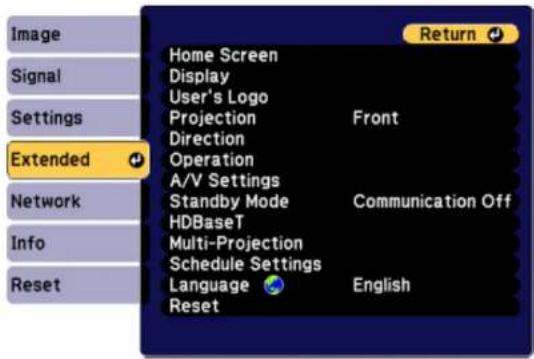
- SelecttheDisplaysettingandpressEnter.
- SelecttheColorUniformitysettingandpressEnter.
- PressEnterandselectOn.
- PressEsc.
-
SelecttheAdjustmentLevelsettingandpressEnter.
8.Presstherightandleftarrowbuttonstoadjustthelevel,thenpressEsc. -
Select the Start Adjustments setting and press Enter.
![[Color Uniformity] Top Left Top Top Right Right Bottom Right Bottom Bottom Left Left All Return](/content/2026/05/1054023/images/813ee1a947a7f1adefc6193b22a8a6ed5b1764e2a38e699303be7089cf09ae05.jpg)
- Select the area of the screen that you want to adjust and press Enter.
- Select the color (Red, Green, or Blue) you want to adjust, and use the left arrow button to weaken thecolortoneandtherightarrowbuttontostrengthenthecolortone.
- PressEsc.
13.Repeatsteps10and11foreachareayouwanttoadjust. - When you are finished, press the Menubutton.
Parenttopic: UsingMultipleProjectors
AdjustingtheColorConvergence(PanelAlignment)
YoucanusethePanelAlignmentfeaturetomanuallyadjustthecolorconvergence(thealignmentofthe red,greenandbluecolors)intheprojectedimage.
Note: Allow your projector to warm up for at least 10 to 15 minutes and make sure the image is in focus before you use the Panel Alignment feature. The projected images should be at least 60 inches (152 cm) diagonally and the projections surfaces should not be colored or textured; otherwise the adjustment grids are difficult to align.
-
PresstheMenubutton.
-
SelecttheExtendedmenuandpressEnter.
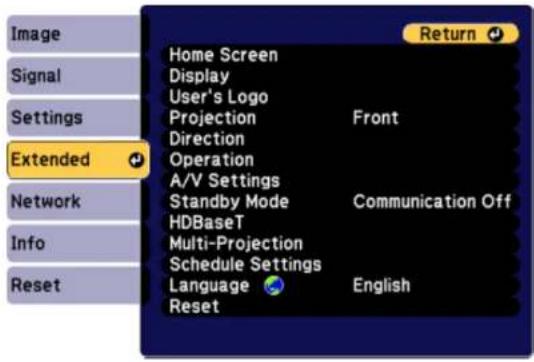
- SelecttheDisplaysettingandpressEnter.
- SelectthePanelAlignmentsettingandpressEnter.
- PressEnterandselectOn.
- PressEsc.
- SelecttheSelectColorsettingandchooseoneofthefollowing:
•Rtoadjusttheredcolorconvergence
•Btoadjustthebluecolorconvergence
Note: You can adjust only the red or blue color convergence; you cannot adjust the standard green colorpanel.
- SelectthePatternColorsettingandpressEnter.
- Select the pattern you want to use and press Esc.
- SelectStartAdjustmentsandpressEntertwice.
Youseethisscreen:
![[Correct LCD Align.] Select Color: R N: 0 V: 0 Adjust Back Reset Next](/content/2026/05/1054023/images/6cd74bcad0d23539736346515b0565824bb1de752cd6fb0dae514807318be7ed.jpg)
- Usethearrowbuttonsontheremotecontroltoadjustthecoloralignmentinthecornerofthescreen highlightedbytheorangebox.
12.PresstheEnterbuttontomovetothenextcornerofthescreen. - When you are finished adjusting each corner of the screen, press Enter.
Youseethisscreen:
![[Panel Alignment] Adjustment complete. To make finer adjustments, you can also select any intersection and then adjust. Select intersection and adjust ⚙ Exit](/content/2026/05/1054023/images/f82d1a72e9542a554ca6d539f932b55132bb51f285416aed0558f35bd35dece2.jpg)
14.Dooneofthefollowing:
- If your projector's panel alignment is now correct, select Exit and press Enter to return to the PanelAlignmentmenu.
- Ifyourprojectorneedsadditionalpanelalignment,selectSelectintersectionandadjustandpressEnter. Usethearrowkeysontheremotecontroltohighlighthecornerofanyboxonthe screenthatismisalignedandpressEntertoadjustthecolorconvergence.Repeatthisstepas necessary.
Parenttopic: Using Multiple Projectors
ConfiguringTiling
Youcanprojectthesameimagefrommultipleprojectorstocreateonelargeimage.Youcanusetoupto nineprojectors.
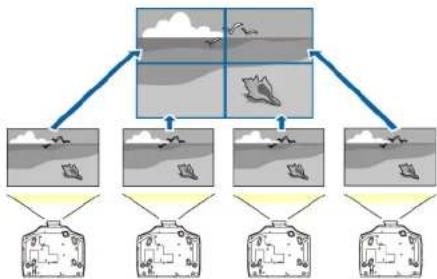
flowchart
graph TD
    A["Top 1 Cloud Service"] --> B["Client 1"]
    A --> C["Client 2"]
    A --> D["Client 3"]
    A --> E["Client 4"]
    B --> F["Client 5"]
    C --> G["Client 6"]
    D --> H["Client 7"]
    E --> I["Client 8"]
- SetanIDforeachprojectorandadjustthepositionoftheprojectedimages.
- AdjustoverlappingareasofthescreenusingEdgeBlending.
- SelecttheExtendedmenuandpressEnter.
- SelecttheMulti-ProjectionmenuandpressEnter.
- Select the TilingmenuandpressEnter.
- SelecttheLayoutmenuandpressEnter.
- Set the number of projectors in the Row and Column settings, select Set, and press Enter.
-
Adjust the Edge Blending and Layout settings for each projector used for tiling.
-
Select the Location Setup menu and press Enter.
-
Set the position of each projected image in Row Order and Column Order. Row Order: Layout the screens from top to bottom in sequential order, starting with 1 at the top. Column Order: Layout the screens from left to right, starting with A on the left.
| 1A | 1B |
| 2A | 2B |
-
Choosetheinputsignalandprojecttheimage.
-
Select Extended > Multi-Projection > Scale, select Auto, and press Enter.
Thescaleandcliprangeareaautomaticallysetaccordingtotheblendingwidth.
- Fine tune any of the overlapping areas of the screens using Edge Blending or any of the other distortioncorrectingtools.
Parenttopic: UsingMultipleProjectors
EnablingProtocolEmulation
YoucanuseprotocolemulationtocontrolyourprojectorwiththesameRS-232controlcodesasthose usedbythemanufacturersofotherprojectors.Thisletysyoucontrolagroupofprojectorsfromacommon controller.
-
Makesuretheprojectoristurnedon.
-
ConnectacontrollertotheRS-232Cportontheprojector.
3.Dooneofthefollowing:
- PressandholdtheTestPatternbuttonontheremotecontrolforatleastfiveseconds.
- Select the Extended menu, highlight the Standby Mode setting, and hold down the right arrow buttonontheremotecontrolorprojectorcontrolpanelforatleastfiveseconds.
YouseetheProtocolEmulationscreen.
- SelectoneofthefollowingandpressEnter:
•TypePforPanasonicprojectors
•TypeMforMitsubishiprojectors
•TypeNforNECprojectors
•TypeSforSonyprojectors
- Turntheprojectoroffandonagaintoenablethecontrolcodeyouselected.
Parenttopic: AdjustingProjectorFeatures
Viewing3DImages
Using an optional polarizer and 3D glasses, you can usetwoprojectorstoprojectandviewpassive 3D images. Seethe instruction supplied with the optionalequipment for setup and use.
For optimal viewing, select the 3D Images setting from the Signal menu and select one of the 3D color modes.
Parenttopic: AdjustingProjectorFeatures
Relatedreferences
OptionalEquipmentandReplacementParts
InputSignalSettings-SignalMenu
SavingSettingstoMemoryandUsingSavedSettings
Youcansavecustomizedsettingsforeachofyourvideoinputsandthenselectthesavedsettings wheneveryouwanttousethem.
- Turnon the projector and display an image.
2.PresstheMenubutton.
Note: You can also press the Memory button on the remote control to access the Memory menu directly.
- SelecttheSettingsmenuandpressEnter.
- Select the Memory setting and press Enter.
- Select the Memory setting and press Enter.
Youseethisscreen:
![Image Signal Settings Extended Network Info Reset [Memory] Return Load Memory Save Memory Erase Memory Rename Memory Reset Memory](/content/2026/05/1054023/images/90a1cfdbe3aae80fc4f89f3c25e23a1ec43c7781d2f80615e221c85e50be39da.jpg)
-
Selectoneofthefollowingoptions:
-
LoadMemory: Overwritesyourcurrentsettingswithsavedsettings
- SaveMemory: Savesyourcurrentsettingstomemory(10memorieswithdifferentnamesare available)
Note: Amemorynamethathasalreadybeenusedisindicatedbyabluemark. Savingovera previously saved memory over writes the settings with your current settings.
- EraseMemory: Erasestheselectedmemorysettings
•RenameMemory: Renamesasavedmemory -
ResetMemory: Deleteallsavedmemory
-
PressEsctoexit.
Parenttopic:AdjustingProjectorFeatures
SavingaScheduledEvent
Youcanselectprojectorcommandsyouwanttoperformandschedulethemasanevent.
1.PresstheMenubutton.
- SelecttheExtendedmenuandpressEnter.
- SelecttheScheduleSettingssettingandpressEnter.
TheScheduleSettingsscreenappears.
- SelecttheSchedulemenuandpressEnter.
- SelectAddNewandpressEnter.
- In the Event Settings section, select the events you want to have occur. (Select No Change for eventsthatyoudonotwanttooccur.)
- In the Date/Time Settings section, set the date and time for the scheduled event to occur.
- When you are finished, select Save and press Enter.
- Toschedulemoreevents, repeat the previous steps as necessary.
- SelectSetupcompleteandselectYestosaveyourchanges.
ViewingScheduledEvents
EditingaScheduledEvent
Parenttopic: AdjustingProjectorFeatures
ViewingScheduledEvents
Youcanviewanycurrentlyscheduledevents.
1.PresstheMenubutton.
2. SelecttheExtendedmenuandpressEnter.
3. SelecttheScheduleSettingssettingandpressEnter.
Youseeascreenlikethis:
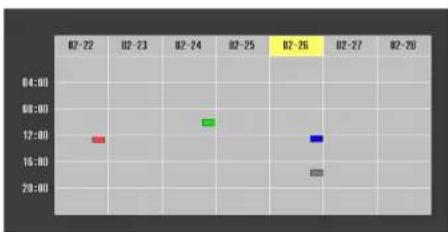
scatter
| Time | Value | |---|---| | 02-22 | 12 | | 02-23 | 0 | | 02-24 | 15 | | 02-25 | 0 | | 02-26 | 0 | | 02-27 | 10 | | 02-28 | 0 |The colored boxes in the calendar indicate the following about the scheduled events:
One-timeevent
Reoccurringevent
Communicationison/off
Eventisinvalid
Parenttopic: SavingaScheduledEvent
EditingaScheduledEvent
Youcaneditanycurrentlyscheduledevent.
1.PresstheMenubutton.
2. SelecttheExtendedmenuandpressEnter.
3. SelecttheScheduleSettingssettingandpressEnter.
Youseeascreenlikethis:
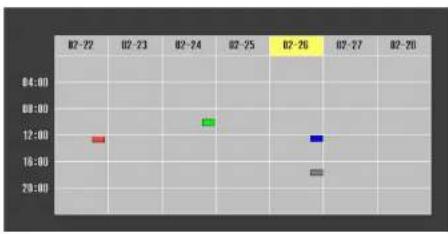
line
| Time | Value | |---|---| | 02-72 | 12 | | 02-73 | 14 | | 02-74 | 16 | | 02-75 | 18 | | 02-76 | 20 | | 07-77 | 14 | | 07-78 | 12 | | 07-79 | 10 |4.Presstheleftorightarrowbuttonstohighlightthedateonthecalendarcontainingthescheduled eventyouwanttoedit.
5.Presstheupordownarrowbuttonstohighlightheeventyouwanttoedit,andpressEsc.
-
Selectoneofthefollowing:
-
On/Off: Enableordisabletheselectedevent.
•Edit:Editthesettingsfortheselectedevent.
•Clear:Deletetheselectedevent.
- AddNew:Addanewscheduledevent.
-
When you are finished, select Return and press Enter.
-
SelectSetupcompleteandselectYestosaveyourchanges.
Note: To delete all scheduled events, select Schedule Reset and select Yes.
Parenttopic: SavingaScheduledEvent
CopyingMenuSettingsBetweenProjectors
Afteryouselectmenusettingsforyourprojector,youcantransferthemtoanotherprojectorofthesame model.
Note: Copy the projector's settings before you adjust the projected image using the projector's GeometricCorrectionsettings.AnysavedUser'sLogosettingontheprojectorwilltransfertotheother projector.
Caution: If the copy process fails due to a power failure, communication error, or for any other reason, Epsonwillnotberesponsibleforanyrepaircostsincurred.
The following settings will not transfer between projectors:
- Infomenuitems
•NetworkmenusettingsotherthanthoseintheMailandOthersmenus
Note: In addition to the methods covered this section, you can also copy and transfer settings to multiple projectorsoveranetworkusingtheEasyMPNetworkUpdatersoftware.SeetheEasyMPNetwork Updater Operation Guide for instructions. You can download the latest software and documentation from theEpsonwebsite.
SavingSettingstoaUSBFlashDrive
TransferringSettingsFromaUSBFlashDrive
SavingSettingstoaComputer
TransferringSettingsFromaComputer
Parenttopic: AdjustingProjectorFeatures
SavingSettingstoaUSBFlashDrive
YoucansavetheprojectorsettingsyouwanttotransfertoaUSBflashdrive.
Note: Use an empty flash drive. If the drive contains other files, the transfer may not complete correctly.
- Turnoff the projector and unplug the power cord from the projector's power inlet.
- Insert the flash drive into the wireless LAN module port.
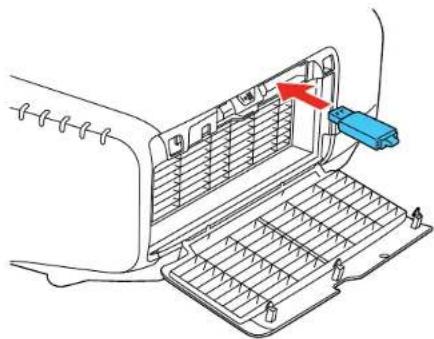
natural_image
Diagram of a car air conditioner unit with a blue plastic clip inserted, showing internal panel structure and a red arrow indicating direction (no text or symbols present)Note: Connect the flash drive directly to the projector. Do not use a hub or your settings may not be saved correctly.
- Press and hold the Esc button on the control panel or remote control as you connect the power cord totheprojector'spowerinlet.
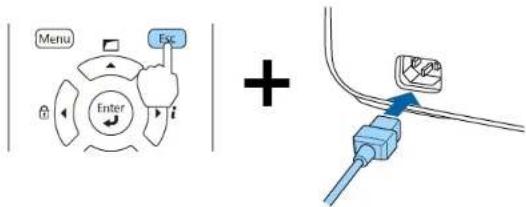
- When the power and status lights are blue and the Lamp and Templights are orange, release the Escbutton.
Thelightsflashtoindicate that settings are transferring to the flash drive. Whenthelightsstop flashing, the power light turns blue and the projectorentersstand by mode.
Caution: Do not unplug the power cord or remove the flash drive while the lights are flashing. This could damage the projector.
- Oncetheprojectorentersstandbymode, removetheflashdrive.
Parenttopic: CopyingMenuSettingsBetweenProjectors
TransferringSettingsFromaUSBFlashDrive
AftersavingprojectorsettingstoaUSBflashdrive,youcantransferthemtoanotherprojectorofthe samemodel.
Note: Make sure the USB flash drive contains only a single settings transfer from another projector of the same model. The settings are contained in a file called pjconfdata.bin. If the drive contains other files, the transfer may not complete correctly.
Donotadjustimagesettingsonaprojectoruntilafteryoutransfersettingstoit. Otherwise, you may have to repeat your adjustments.
-
Turnoff the projector and unplug the power cord from the projector's power inlet.
-
Insert the flash drive into the wireless LAN module port.
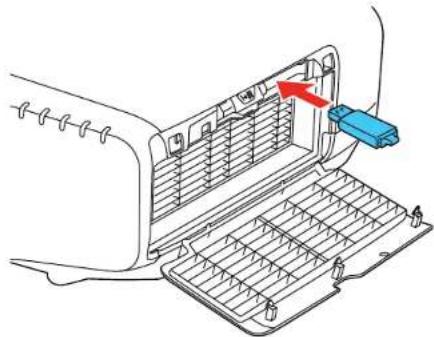
natural_image
Diagram of a car air conditioner unit with a blue plastic clip inserted, showing internal panel structure and ventilation slots (no text or symbols)Note: Connect the flash drive directly to the projector. Do not use a hub or your settings may not be saved correctly.
- Press and hold the Menu button on the control panel or remote control as you connect the power cordtotheprojector'spowerinlet.
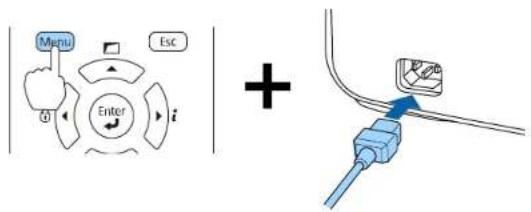
- WhenthepowerandStatuslightsturnblueandtheLampandTemplightsturnorange, releasethe Menubutton.
Thelightsflashtoindicatethatsettingsaretransferringtotheprojector.Whenthelightsstop flashing,thepowerlightturnsblueandtheprojectorentersstandbymode.
Caution: Do not unplug the power cord or remove the flash drive while the lights are flashing. This could damage the projector.
- Oncetheprojectorentersstandbymode, removetheflashdrive.
Parenttopic: CopyingMenuSettingsBetweenProjectors
SavingSettingstoaComputer
Youcansavetheprojectorsettingsyouwanttotransfertoacomputer.
Yourcomputermustberunningoneofthefollowingoperatingsystems:
•WindowsVista
- Windows7
- Windows8.x
- Windows10
-OSX10.5.8
-OSX10.6.x
-OSX10.7.x
-OSX10.8.x
-OSX10.9.x
- OSX10.10.x
-OSX10.11.x
1. Turnoff the projector and unplug the power cord from the projector's power inlet.
2. ConnectaUSBcabletoyourproject'sServiceport.
3. Connect the other end to any available USB port on your computer.
4. Press and hold the Esc button on the control panel or remote control as you connect the power cord totheprojector'spowerinlet.
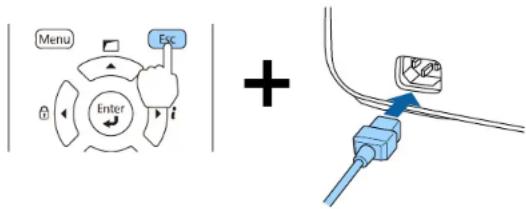
- WhenthepowerandStatuslightsturnblueandtheLampandTemplightsturnorange, releasethe Menubutton.
Theprojectorshowsupasaremovablediskonyourcomputer. - Opentheremovablediskandcopythepjconfdata.binfiletoyourcomputer.
-
Oncethefilehascopied,dooneofthefollowing:
-
Windows: Open the My Computer, Computer, or Windows Explorer utility. Right-click the nameofyourprojector(listedasaremovabledisk)andselectEject.
- OSX:Dragtheremovablediskiconforyourprojectorfromthedesktopintothetrash.
Theprojectorentersstandbymode.
Parenttopic: CopyingMenuSettingsBetweenProjectors
TransferringSettingsFromaComputer
Aftersavingprojectorsettingstoacomputer,youcantransferthemtoanotherprojectorofthesame model.
Yourcomputermustberunningoneofthefollowingoperatingsystems:
- WindowsVista
- Windows7
- Windows8.x
•Windows10
-OSX10.5.8
-OSX10.6.x
-OSX10.7.x
-OSX10.8.x
-OSX10.9.x
-OSX10.10.x
-OSX10.11.x
Donotadjustimagesettingsonaprojectoruntilafteryoutransfersettingstoit. Otherwise, you may have to repeat your adjustments.
- Turnoff the projector and unplug the power cord from the projector's power inlet.
- ConnectaUSBcabletoyourproject'sServiceport.
- ConnecttheotherendtoanyavailableUSBportonyourcomputer.
- Press and hold the Menu button on the control panel or remote control as you connect the power cordtotheprojector'spowerinlet.
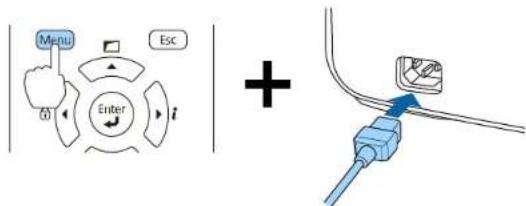
- When the power and status light turn blue and the Lamp and Templampsturn orange, release the Menubutton.
Theprojectorshowsupasaremovablediskonyourcomputer.
- Copythepjconfdata.binfilefromyourcomputertotheremovabledisk.
Note: Donotcopyanyotherfilestotheremovabledisk.
-
Oncethefilehascopied,dooneofthefollowing:
-
Windows: Open the My Computer, Computer, or Windows Explorer utility. Right-click the nameofyourprojector(listedasaremovabledisk)andselectEject.
- OSX:Dragtheremovablediskiconforyourprojectorfromthedesktopintothetrash.
Thepower, Status, Lamp, and Templights start flashing to indicate that the projector's settings are being updated. Whenthelights stop flashing, the power light turns blue and the projectorenters standby mode.
Caution: Donotunplugthepowercordwhilethelightsareflashing. This could damage the projector.
Parenttopic: CopyingMenuSettingsBetweenProjectors
AdjustingtheMenuSettings
Followtheinstructionsinthesesectionstoaccesstheprojectormenusystemandchangeprojector settings.
UsingtheProjector'sMenus
ImageQualitySettings-ImageMenu
InputSignalSettings-SignalMenu
ProjectorFeatureSettings-SettingsMenu
ProjectorSetupSettings-ExtendedMenu
ProjectorNetworkSettings-NetworkMenu
ProjectorInformationDisplay-InfoMenu
ProjectorResetOptions-ResetMenu
UsingtheProjector'sMenus
Youcanusetheprojector'smenustoadjustthesettingsthatcontrolhowyourprojectorworks. The projectordisplaysthemenusonthescreen.
- Pressthe Menubutton on the control panel or remote control.
YouseethemenuscreendisplayingtheImagemenusettings.
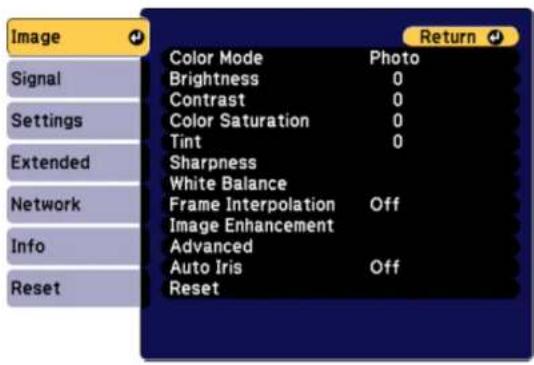
2.Presstheupordownarrowbuttontomovethroughthemenuslistedontheleft. Thesettingsfor eachmenuaredisplayedontheright.
Note: The available settings depend on the current input source.
- Tochangesettingsinthedisplayedmenu, pressEnter.
4.Presstheupordownarrowbuttontomovethroughthesettings. - Changethesettingsusingthebuttonslistedonthebottomofthemenuscreens.
- Toreturnallthemenusettingstotheirdefaultvalues, selectReset.
- When you finish changing settings on an amino, press Esc
- PressMenuorEsctoexitthemenus.
Parenttopic:AdjustingtheMenuSettings
ImageQualitySettings-ImageMenu
SettingsonthImagemenuletyouadjustthequalityofyourimagefortheinputsourceyouarecurrently using. Theavailablesettingsdependonthecurrentlyselectedinputsource.
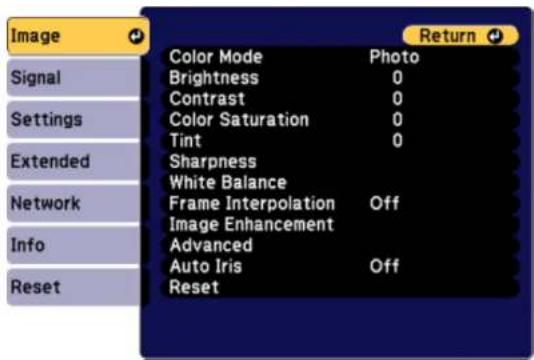
Tochangesettingsforaninputsource,makesurethesourceisconnectedandselectthatsource.
| SettingOptionsDescription | ||
| ColorModeSeethelistofavailableColorModes | Adjuststhevividnessofimage colorsforvariousimagetypes andenvironments | |
| BrightnessVaryinglevelsavailableLightensordarkenstheoverall | image | |
| ContrastVaryinglevelsavailableAdjuststhedifferencebetween | lightanddarkareasoftheimage | |
| ColorSaturationVaryinglevelsavailableAdjuststhebalanceofgreento | colors | |
| TIntVaryinglevelsavailableAdjuststhebalanceofgreento | magentatonesintheimage | |
| SharpnessVaryinglevelsavailable | Adjuststhesharpnessor | softnessofimagedetails |
| WhiteBalanceVaryinglevelsavailable | ableSetsthecolortonebasedon | colortemperature |
| FrameInterpolationOff | LowNormalHigh | Smoothsfastmovingvideobycomparingconsecutiveframesandinsertinganintermediateframebetweenthem |
| ImageEnhancement4KEhancement | ImagePresetModeNoiseReductionMPEGNoiseReductionSuper-resolutionDetailenhancement | 4KEhancement:letsyouprojectatdoubletheresolutionImagePresetMode:letsyouapplyoneoffivepresetmodesNoiseReduction:letsyousmooththeroughnessinprogressiveimagesMPEGNoiseReduction:letsyoureducedotandblocknoisepresentwhenprojectingMPEGmoviesSuper-resolution:letsyoureduceedgeblurringpresentwhenprojectinganup-scaledimageDetailenhancement:letsyouadjustdetailcontrast |
| AdvancedVariousoptionsavailable | Adjuststhegammalevelsand | intensityofindividualhuesintheimage |
| AutolrisOff | NormalHighSpeed | AdjuststheprojectedluminancebasedontheimagebrightnesswhencertainColorModesareselected |
Note: The Brightness setting does not affect lamp brightness. To change the lamp brightness mode, usethePowerConsumptionsetting.
Parenttopic:AdjustingtheMenuSettings
Relatedreferences
AvailableColorModes
InputSignalSettings-SignalMenu
Normally the project detects and optimizes the input signal settings automatically. If you need to customize these settings, you can use the Signal menu. The available settings depend on the currently selected inputs source.
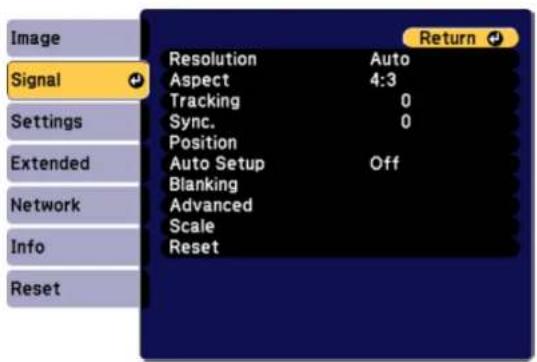
Note: You can restore the default settings of the Position, Tracking, and Sync settings by pressing the Autobuttonontheremotecontrol.
Tochangesettingsforaninputsource,makesurethesourceisconnectedandselectthatsource.
| SettingOptionsDescription | ||
| ResolutionAuto | NormalWideManual | SetstheinputsignalresolutionfromananalogRGBcomputerconnectionAuto:detectstheresolutionautomaticallyNormal:for4:3or5:4screensWide:forwidescreenManual:allowsyoutospecifyaresolution |
| AspectSeethelistofavailableaspect | ratios | Setstheaspectratio(width-to-heightratio)fortheselectedinputsource |
| TrackingVaryinglevelsavailableAdjust | justssignaltoeliminate | verticalstripesinimagesfromananalogRGBcomputerconnection |
| Sync.VaryinglevelsavailableAdjust | signaltoeliminate | fuzzinessorflickeringinimagesfromananalogRGBcomputerconnection |
| PositionUp,down,left,rightAdjuststhe | imagelocationonthe | screen |
| AutoSetupOn | Off | AutomaticallyoptimizesimagequalityfromananalogRGBcomputerconnection(whenOn) |
| BlankingUp,down,left,rightHidesana | areaoftheprojected | imagethatyouselectusingthearrowbuttons |
| AdvancedVideoRange | InputSignalImageProcessing | VideoRange:setsthevideo rangetomatchthesettingofthe deviceconnectedtotheHDMI, DVI-D,orHDBaseTinputports.InputSignal:setstheinput signaltotheComputerorBNC port.Autoselectsaninput automatically.Imageprocessing:setsthe imageprocessingsettingsto Fine,Fast1,orFast2. |
| ScaleVariousscaleoptionsWhenusing | gmultipleprojectorsto | projectoneimage,adjuststhe scaleoftheimagedisplayedby eachprojector |
| SettingOptionsDescription | ||
| 3DSetup3DImagesEnablespassive3Dimages | whenprojectingfrom2projectors | |
| ProgressiveOff | VideoFilm/Auto | Setswhethertoconvert interlaced-to-progressivesignals forcertainvideoimagetypesOff:forfast-movingvideoimagesVideo:formostvideoimagesFilm/Auto:formovies,computer graphics,andanimation |
| VdeoRangeAuto | NormalExpanded | Setsthevideorangetomatch thesettingofthedevice connectedtotheDVI-D,HDMI, andHDBaseTinputports |
| InputSignalAuto | RGBComponent | Specifiesthesignaltypefrom inputsourcesconnectedto computerportsAuto:detectssignals automaticallyRGB:correctscolorfor computer/RGBvideoinputsComponent:correctscolorfor componentvideoinputs |
| OverscanAuto | Off4%8% | ChangestheprojectedImage ratiotomaketheedgesvisibleby aselectablepercentageor automatically |
| ImageProcessingFine | Fast1Fast2 | Adjustshowimagesare processedFine:displaysimagesinhigher qualityFast1:displaysimagesquicker withoutanylossinqualityFast2:displaysimagesquicker thanFast1. |
Parenttopic:AdjustingtheMenuSettings
Relatedconcepts
ImageAspectRatio
ProjectorFeatureSettings-SettingsMenu
Options on the Settings menu let you customize various projector features.
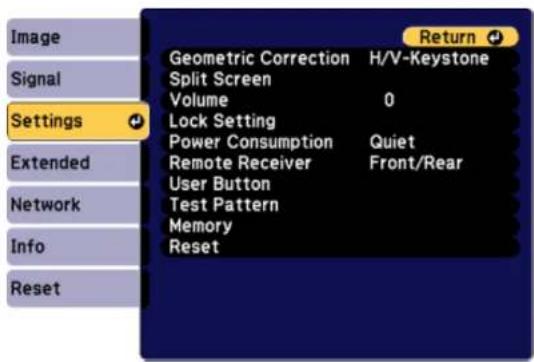
| SettingOptionsDescription | ||
| GeometricCorrectionH/V-Keystone | QuickCornerPointCorrectionCurvedSurfaceCornerWallMemory | Adjuststheprojectedimage shapeH/VKeystone:letsoumanually correcttheanglesofthe horizontalandverticalsidesQuickCorner:selecttoadjust thepositionofthefourcornersPointCorrection:selectto displayagridandfinelyadjust theimagepositionCurvedSurface:selecttoadjust theimagewhenprojectingona curvesurfaceCornerWall:selecttoadjustthe imagewhenprojectingona surfacewitharightangleMemory:selecttosave adjustmentvalueofthe geometriccorrectionandloadit whenneeded |
| SplitScreen—Dividestheviewingarea | horizontallyanddisplaytwo imagesside-by-side;whilein SplitScreenmode,pressMenu todisplaytheSplitScreen optionsorEsctocancelsplit screendisplay | |
| VolumeVaryinglevelsavailableAdjuststhevolumeofthe | projector'sspeakersystem | |
| LockSettingControlPanelLock | LensLock | Controlsprojectorbuttonlocking tosecuretheprojectorControlPanelLock:FullLock:locksallbuttonsPartialLock:locksallbuttons exceptthepowerbuttonOff:nobuttonslockedSettingLensLocktoOndisables LensShift,Zoom,andFocus ontheremotecontrol |
| PowerConsumptionNormal | TempInterlockECO | Selectsthebrightnessmodeof theprojectorlampNormal:setmaximumlamp brightnessTempInterlock:automatically dimsthelampifthesurrounding temperatureistoohighfor normaloperationECO:reduceslampbrightness andfannoise,andsavespower andlamplife |
| RemoteReceiverFront/Rear | FrontRearOff | Limitsreceptionofremotecontrol signalsbytheselectedreceiver; Offturnsoffallreceivers |
| UserButtonUser1 | User2User3 | Assignsamenuoptiontothe User1,User2,andUser3 buttonsontheremotecontrolfor one-touchaccess |
| TestPattern—Displaysatestpatterntoassistin | adjustingtheimage;pressthe leftorrightarrowbuttonsontheremotecontrolorEnteronthe controlpaneltocyclethroughthe availabletestpatterns,orEscto cancelpatterndisplay | |
| MemoryLoadMemory | SaveMemoryEraseMemoryRenameMemory | Savecustomizedsetsofsettings tomemory |
Parenttopic:AdjustingtheMenuSettings
ProjectorSetupSettings-ExtendedMenu
SettingstheExtendedmenuletyoucustomizevariousprojectorsetupfeaturesthatcontrolits operation.
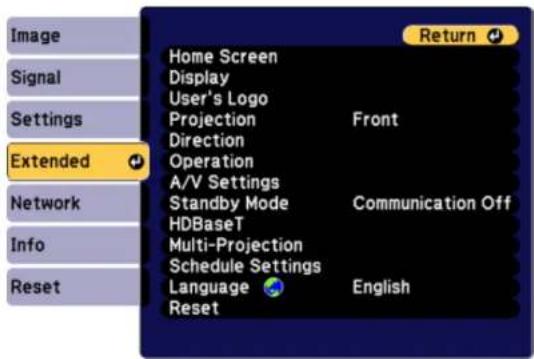
| SettingOptionsDescription | ||
| HomeScreen—AdjustsettingstheHome | Screen | |
| Display—Seethenexttableinthisticopic | ||
| User'sLogo—Createsascreenthalthe | projectordisplaystoidentifyitself andenhancesecurity | |
| ProjectionFront | Front/CeilingRearRearCeiling | Selectsthewaytheprojector facesthescreensotheimageis orientedcorrectly |
| DirectionVaryinglevelsavailableS | selectstheinstallationanglefor | theprojector;theprojector'sfan maygetlouderdependingonthe directionangleselected |
| Operation—Seethelasttableinthetopic | ||
| A/VSettingsA/VOutput | MonitorOutAudioSettings | Selectsvariousaudioandvideo outputsettingsA/VOutput:selecttooutput audioandvideotoanexternal devicewhentheprojectorisin standbymode(StandbyMode mustbeturnedontousethis setting)MonitorOut:Selecttheimage sourceoutputtoanexternal devicewhentheprojectorisin standbymode;whensettoAuto, selectsoutputfromtheComputerorBNCport dependingonwhichwasused whentheprojectorwentinto standbymodeAudioSettings:Selectsaudio sourcetooutput |
| StandbyModeCommunicationOn | CommunicationOff | Enablethissettingtoallowthe followingoperationstooccur whentheprojectorisinstandby mode:•Monitorandcontrolthe projectoroveranetwork•Outputaudioandvideotoan externaldevice(A/VOutput mustbesettoAlwaysOn)•CommunicationfromtheHDBaseTport |
| HDBaseTControlCommunications | ExtronXTP | SelectsthecommunicationsettingsforconnectionstoanHDBaseTtransmitterorswitcherControlCommunications:enablesordisablescommunicationfromtheEthernetandserialportsonthetransmitter;turningonthissettingdisablestheprojector'sLAN,RS-232C,andRemoteports(ExtronXTPmustbeturnedofftousethissetting)ExtronXTP:settoOnwhenyouconnectanExtronXTPtransmitterorswitchertotheHDBaseTports |
| Multi-ProjectionBrightnessLevel | EdgeBlendingMulti-screenProjectorID | SelectvariousoptionswhenprojectingfrommultipleprojectorsBrightnessLevel:adjuststhebrightnesssofthelamp;PowerConsumptionintheSettingsmenumustbesettoNormaltousethissettingEdgeBlending:blendstheborderbetweenmultipleimagestocreateaseamlessscreenMulti-screen:adjuststhetintandbrightnesssofeachprojectedimageProjectorID:setstheprojectortoaparticularIDnumberwhichallowsyoutousearemotecontroltoindividuallycontrolprojectors |
| ScheduleSettings—Schedulespecificoperationsto | occuratapre-scheduledtime | |
| LanguageVariouslanguagesavailable | Selectsthelanguagefor | projectormenuandmessage displays(notchangedbyReset option) |
Displaysettings
| SettingDescription | |
| MenuPositionSelectsthepositionofthe | projectormenudisplayedonthescreen |
| MessagesControlswhethermessagesa | redisplayedonthescreen |
| DisplayBackgroundSelectsthescreen | colororlogotodisplaywhennosignalisreceived |
| StartupScreenControlswhetheraspecial | alscreenappearswhentheprojectorstartsup |
| A/VMuteSelectsthescreencolororlogot | odisplaywhenA/VMuteisturnedon |
| StandbyConfirmationDisplaysaconfir | mationmessageafterpressingtheStandbybuttonontheremotecontrol |
| AirFilterNoticeDisplaysamessagewhen | naclogintheairfilterisdetected |
| ScreenSetstheaspectratioandpositionof | theprojectedimageaccordingtothetypeofscreenbeingused |
| PanelAlignment | Correctscolormisalignmentintheprojectedimage |
| ColorUniformity | Adjuststhecolortonebalance |
| OSDRotation | Rotatethemenu90degrees |
Operationsettings
| SettingOptionsDescription | ||
| DirectPowerOn—Turnsontheprojectorwhenyou | plugitin | |
| SleepMode—Automaticallyplacesthe | projectorinstandbymodeafteranintervalofinactivity | |
| SleepModeTimer1to30minutesSetsthetimebeforetheprojector | automaticallyturnsoff(SleepModemustbeturnedon) | |
| HighAltitudeMode—Regulatestheprojector's | operatingtemperatureataltitudesabove4921feet(1500m) | |
| AutoSourceSearch—Automaticallyselectaninput | source | |
| Auto Power On | — | IfComputerorBNCis selected,theprojectorturnsonwhenaninputsignalisdetected |
| A/VMuteSettingsFade-in | Fade-out | Selectthenumberofsecondsforthetransitioneffect |
| BNCSyncTermination—Setstheterminationforthesignal | fromtheBNCport(normallyshouldbeoffunlessanalogterminationsuchasforswitchersisnecessary) | |
| RemoteControlTypeNormal | Simple | SelectNormaltousetheremotecontrolthatcamewiththeprojectorosimpletouseadifferentEpsonprojectorremotecontrolanddisabletheremotecontrolthatcamewiththeprojector |
| Beep—Turnsonoroffthebeepthat | soundswhenyouturntheprojectoronoroff | |
| Indicators—SelectOffloturnoffprojector | indications,exceptwarning indicators | |
| InstantOff—SelectEnabledtopladethe | projectorintostandbystatusafter powerofforDisabledtosend theprojectorintostandbystatus approximately3minutesafter poweroff | |
| InvDirectionButton—Enablethissettingifyouinstalled | theprojectoronaceilingand wanttoinvertthearrowbuttons onthecontrolpanel | |
| LensTypeVariouslensmodelnumbers | Selectthemodelnumberforthe | attachedlens |
| Date&Time—Adjuststheprojectorssystem | timeanddatesettings | |
| LensCalibration—Displayinformationaboutthe | lenscurrentlyinuse | |
Parenttopic:AdjustingtheMenuSettings
ProjectorNetworkSettings-NetworkMenu
SettingstheNetworkmenuletyouviewnetworkinformationandsetuptheprojectorformonitoring andcontroloveranetwork.
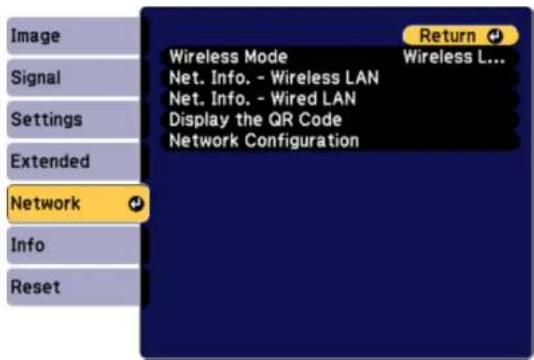
| SettingOptionsDescription | ||
| WirelessMode—Enableordisablewireless | communication | |
| Net.Info-WirelessLANConnectionmode | Displayswirelessnetworkstatus anddetails | |
| Net.Info-WiredLANProjectorName | DHCPIPAddressSubnetMaskGatewayAddressMACAddress | Displayswirednetworkstatusanddetails |
| DisplaytheQRCode—DisplaystheQ | Rcode | |
| NetworkConfigurationAccessesadditionalnetwork menus | Configuresyournetworksettings | |
Parenttopic:AdjustingtheMenuSettings
Relatedconcepts
WirelessNetworkProjection
WiredNetworkProjection
ProjectorInformationDisplay-InfoMenu
YoucandisplayinformationabouttheprojectorandinputsourcesbyviewingtheInfomenu.However, youcannotchangeanysettingsinthemenu.
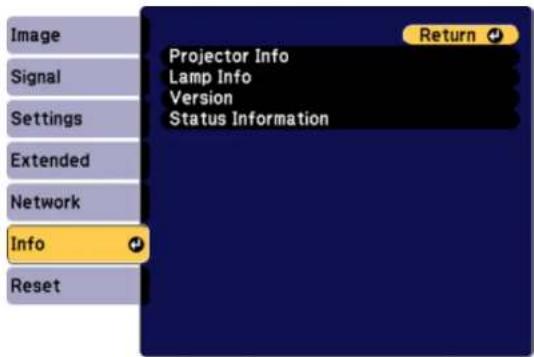
Note: The lamp usage timer does not register any hours until you have used the lamp for at least 10 hours. Available settings depend on the current input source.
| SettingOptionsDescription | ||
| ProjectorInfoSourceDisplaysthen | ameoftheportto | whichthecurrentinputsources connected |
| InputSignalDisplaystheinputsignal | settingofthecurrentinputsource | |
| ResolutionDisplaystheresolution | ofthecurrentinputsource | |
| RefreshRateDisplaystherefreshrate | ofthecurrentinputsource | |
| SyncInfoDisplaysinformationthat | maybeneededbyaservicetechnician | |
| StatusDisplaysinformationabout | projectorproblemsthatmaybeneededbyaservicetechnician | |
| SerialNumberDisplaystheprojector'sserialnumber | ||
| LensTypeDisplaysthelensmodelnumber | ||
| EventIDDisplaystheEventIDnumber | correspondingtoaspecificprojectorproblem;seethelistofEventIDcodes | |
| HDBaseTSignalQualityDisplays | heimagesignalinformationfromtheHDBaseTport | |
| LampInfoLampHoursDisplaysthen | numberofhours(H) | thelamphasbeenusedinNormalandECOPowerConsumptionmodes;iftheinformationisdisplayedinyellow,obtainagenuineEpsonreplacementlampsoon |
| VersionMain | Video | Displaystheprojector'sfirmware information |
| StatusInformation—Displaystheprojectorstatus | ||
EventIDCodeList
Parenttopic:AdjustingtheMenuSettings
Relatedreferences
ProjectorLampSpecifications
OptionalEquipmentandReplacementParts
EventIDCodeList
If the Event ID option on the Info menu displays a code number, check this list of Event ID codes for the solution to the projector problem associated with the code.
| EventIDcodeCause | seandsolution |
| 0432Thenetworked | dprogramdidnotstart.Turntheprojectoroffandthenonagain. |
| 0435 | |
| 0434Unstablenetwork | workcommunication.Checkthenetworkcommunicationstatus,waitafewmoments,andtryconnectingtothenetworkagain. |
| 0482 | |
| 0484 | |
| 0485 | |
| 0433Cannotdisplay | ythetransferredimages.Restartthenetworkedprogram. |
| 0481Communicat | onwithcomputerwasdisconnected.Restartthenetworkprogram. |
| 04FEThenetworked | programquitunexpectedly.Checkthenetworkcommunicationstatus,thenturntheprojectoroffandthenonagain. |
| 0483 | |
| 04FFAprojectorsystemerrorhasoccurred.Turntheprojectoroffandthenonagain. | |
| 0479 | |
| 0891Cannotfindan | accesspointwiththesameSSID.Setyourcomputer,accesspoint,andprojectortothesameSSID. |
| 0892TheWPA/WP | A2authenticationtypedoesnotmatch.Makesurethewireless networksecuritysettingsarecorrect. |
| 0893TheTKIP/AE | Sencryptiontypedoesnotmatch.Makesurethewirelessnetwork securitysettingsarecorrect. |
| 0894Communicat | onwithunauthorizedaccesspointwasdisconnected.Contactyour networkadministrator. |
| 0898FailedtoacquireDHCP.MakesuretheDHCPserverisoperatingcorrectly.Ifyou arenotusingDHCP,turnofftheDHCPsettingintheNetworkmenus. | |
| 0899Communicat | onerror.Restartthenetworkedprogram. |
Parenttopic:ProjectorInformationDisplay-InfoMenu
ProjectorResetOptions-ResetMenu
You can reset most of the projector settings to their default values using the Reset All Config option on theResetmenu.
You can also reset the projector's lamp usage timer to zero when you replace the lamp using the Reset Lamp Hours option, or reset the saved names and settings in the Save Memory list using the Reset All Memoriesoption.
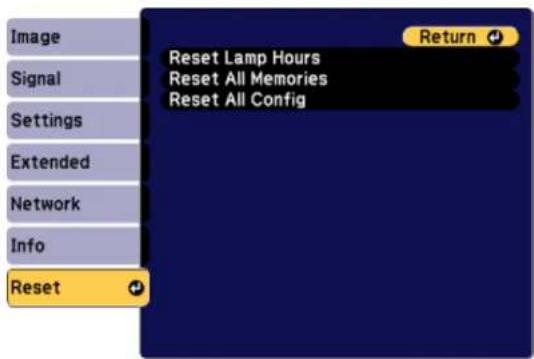
You cannot reset the following settings using the ResetAllConfiguration:
- InputSignal
-User'sLogo
•Language
•Networkmenuitems
•LampHours
- Date&Time
-PanelAlignment
•ColorUniformity
•Memory
•ColorMatching
Parenttopic:AdjustingtheMenuSettings
MaintainingandTransportingtheProjector
Followtheinstructionsinthesesectionstomaintainyourprojectorandtransportitfromplacetoplace.
ProjectorMaintenance
TransportingtheProjector
ProjectorMaintenance
Yourprojectorneedslittlemaintenancetokeepworkingatitsbest.
Youmayneedtocleanthelensperiodically, and clean the air filter and air vent stop prevent the projector from overheating duetoblocked ventilation.
Theonlypartsyoushouldreplacearethelamp,airfilter,andremotecontrolbatteries.Ifanyotherpart needsreplacing,contactEpsonoranauthorizedEpsonservicer.
Warning: Before cleaning any part of the projector, turn it off and unplug the power cord. Never open any cover on the projector, except a specifically explained in this manual. Dangerous electrical voltages in the projector can injure you severely.
Warning: Do not try to service this product yourself, except as specifically explained in this manual. Referallotherservicingtoqualifiedservicers.
CleaningtheLens
CleaningtheProjectorCase
AirFilterandVentMaintenance
ProjectorLampMaintenance
ReplacingtheRemoteControlBatteries
Parenttopic: Maintaining and Transporting the Projector
CleaningtheLens
Cleantheprojector'slensperiodically,orwheneveryounoticedustorsmudgesonthesurface.
- Toremovedustorsmudges, gentlywipethelenswithlens-cleaningpaper.
• Toremovestubbornsmudges, moistenasoft, lint-freeclothwithlenscleanerandgentlywipethelens. Donotsprayanyliquiddirectlyonthelens.
Warning: Donotusealenscleanerthatcontainsflammablegas. Thehighheatgeneratedbythe projectorlampmaycauseafire.
Caution: Do not use glass cleaner or any harsh materials to clean the lens and do not subject the lens toanyimpacts; you may damage it. Donot use canned air, orthegases may leave a residue. Avoid touching the lens with your bare hand stop prevent fingerprint onordamage to the lens surface.
Parenttopic: Projector Maintenance
CleaningtheProjectorCase
Beforecleaningtheprojectorcase,turnofftheprojectorandunplugthepowercord.
• Toremovedustordirt, useasoft, dry, lint-freecloth.
• Toremovestubborndirt, useasoftclothmoistenedwithwaterandmildsoap. Donotsprayliquid directlyontheprojector.
Caution: Do not use wax, alcohol, benzine, paint thinner, or other chemicals to clean the projector case. Thesecandamagethecase.Donotusecannedair,orthegasesmayleavearesidue.
Parenttopic: Projector Maintenance
AirFilterandVentMaintenance
Regularfiltermaintenanceisimportanttomaintainingyourprojector.YourEpsonprojectorisdesigned withaneasilyaccessible,user-replaceablefiltertoprotectyourprojectorandmakeregularmaintenance simple.Filtermaintenanceintervalswilldependontheenvironment.
Ifregularmaintenanceisnotperformed,yourEpsonprojectorwillnotifyyouwhenthetemperature insidetheprojectorhasreachedahighlevel.Donotwaituntilthiswarningappearstomaintainyour projectorfilterasprolongedexposuretohightemperaturesmayreducethelifeofyourprojectorlamp.
DamageduetothefailuretoproperlymaintaintheprojectororitsfiltermaynotbecoveredbytheprojectorlampLimitedWarranties.
CleaningtheAirFilter
ReplacingtheAirFilter
Parenttopic: Projector Maintenance
Relatedreferences
ProjectorLightStatus
CleaningtheAirFilter
Youneedtocleantheprojector'sairfilterinthefollowingsituations:
•Thefilterorventsgetdusty.
• Youseeamessagetellingyoutocleanit.
• The projector's filterlightflashesgreen.
- Turnoff the projector, wait for the project to beep, and unplug the power cord.
2.Slidetheairfiltercoverlatchandopentheairfiltercover.
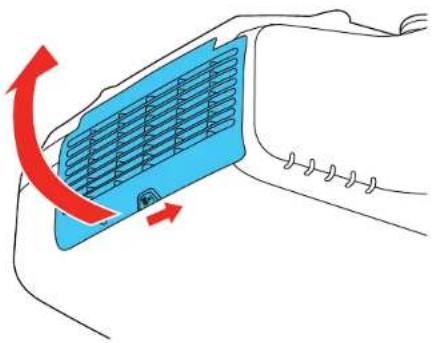
natural_image
Diagram of a car air vent with airflow direction indicated by red arrows (no text or symbols)- Pulltheairfilteroutoftheprojector.
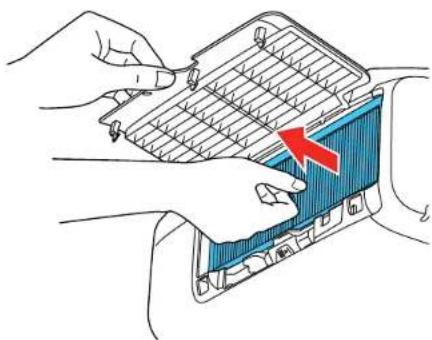
natural_image
Illustration of hands installing a blue plastic component with a red arrow indicating the process (no text or symbols present)- Tapeachsideoftheairfilter4to5timestoshakeoffanyexcessdust.Dothisoutsidetheroomor awayfromtheprojector.
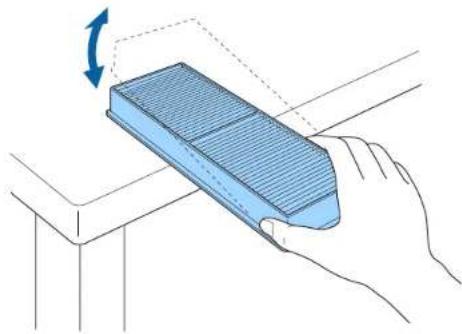
natural_image
Illustration of a hand holding a blue rectangular object with a rotating arrow, no text or symbols presentCaution: Donotuse excessive force when tapping the airfilter, or it may crack and become unusable. Donotinsethe airfilter in water, or use any detergent or solvent to clean it. Donotuse
cannedair; thegasesmayleavearesidue, or pushdustanddebrisintotheprojector'sopticsor othersensitiveareas.
- Vacuum the front of the air filter (thesidewith the tabs) to remove any remaining dust.
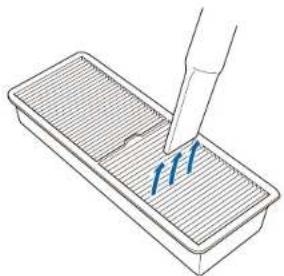
natural_image
Illustration of a pipette dispensing liquid into a rectangular container with blue arrows indicating flow (no text or symbols)Note: If dust is difficult to remove the air filter is damaged, replace the air filter.
- Placetheairfilterbackintheprojectorasshownandpushgentlyuntilitclicksintoplace.
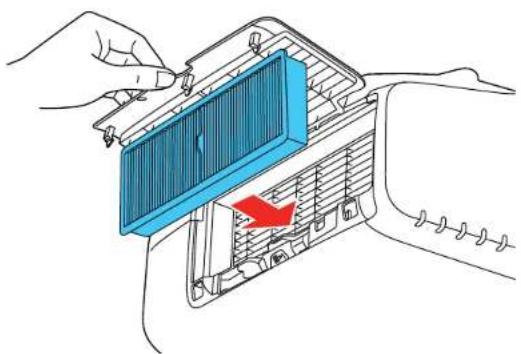
natural_image
Diagram of a hand inserting a blue panel into a car air vent, with a red arrow indicating the direction (no text or symbols present)- Closetheairfiltercover.
Parenttopic: AirFilterandVentMaintenance
Relatedreferences
ProjectorLightStatus
ReplacingtheAirFilter
Youneedtoreplacetheairfilterinthefollowingsituations:
•Aftercleaningtheairfilter,youseeamessagetellingyoutocleanorreplaceit
•Theairfilteristornordamaged
Youcanreplacetheairfilterwhiletheprojectorismountedtotheceilingorplacedonatable.
- Turnoff the projector, wait for the project to beep, and unplug the power cord.
2.Slidetheairfiltercoverlatchandopentheairfiltercover.
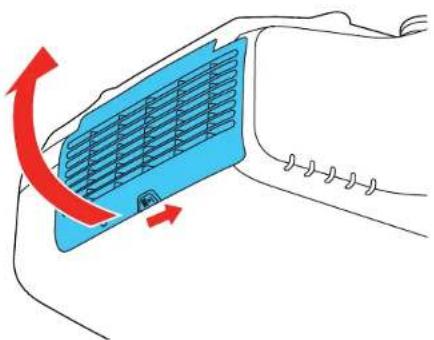
natural_image
Diagram of a blue air vent with red directional arrows indicating airflow or movement (no text or symbols)- Pulltheairfilteroutoftheprojector.
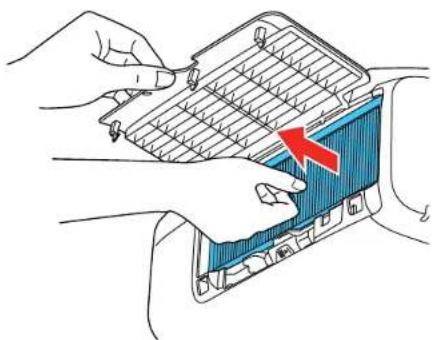
natural_image
Illustration of hands installing a blue plastic component with a red arrow indicating the process (no text or symbols present)Note: Air filters contain polypropylene. Dispose of used air filters according to local regulations.
- Placethenewairfilterintheprojectorasshownandpushgentlyuntilitclicksintoplace.
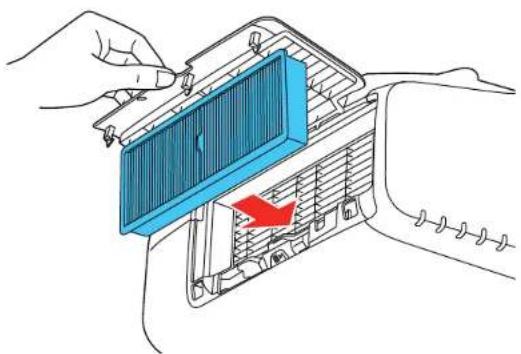
natural_image
Diagram of a hand inserting a blue panel into a car air vent, with a red arrow indicating the direction (no text or symbols present)5.Closetheairfiltercover.
Parenttopic: AirFilterandVentMaintenance
Relatedreferences
ProjectorLightStatus
OptionalEquipmentandReplacementParts
ProjectorLampMaintenance
The projector keep a stack of the number of hours the lamp is used and display this information in the projector's menus system.
Replacethelampassoonaspossiblewhenthefollowingoccurs:
• The projected image gets darker or start stodeteriorate
- Amessageappearswhenyouturnontheprojectortellingyoutoreplacethelamp
• The projector's lamplightisflashingorangeanditspowerlightisflashingblue
ReplacingtheLamp
ResettingtheLampTimer
Parenttopic: Projector Maintenance
Relatedreferences
ProjectorLightStatus
OptionalEquipmentandReplacementParts
ProjectorLampSpecifications
ProjectorInformationDisplay-InfoMenu
ReplacingtheLamp
Beforeyoureplacethelamp,lettheprojectorcooldownforatleastonehoursothelampwillnotbehot.
Warning: Letthelampfullycoolbeforereplacingittoavoidinjury.
Youcanreplacethelampwhiletheprojectorismountedtotheceiling,ifnecessary.
-
Turnoff the projector, wait for the project to beep, and unplug the power cord.
-
Allow the projector lamptocooldown for at least one hour.
-
Use the screw driver included with the replacement lamp to loose the screws securing the lamp cover, and then remove the lamp cover.
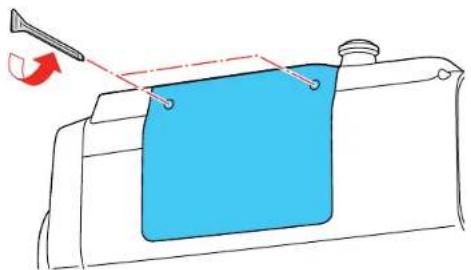
natural_image
Diagram of a blue towel being held by a tool, with no text or symbols presentWarning: If the lamp is broken, glass fragments may be loose inside the lamp chamber. Be careful removing any brokenglassto avoid injury.
- Loosenthescrewssecuringthelamptotheprojector. Thescrewsdonotcomeallthewayout.
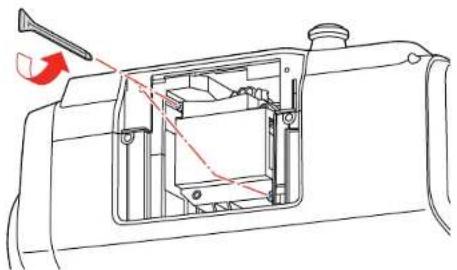
natural_image
Technical line drawing of a mechanical assembly with internal components and a red arrow indicating direction (no text or symbols)- Hold the lamp by it handle and gently pull out of the projector.
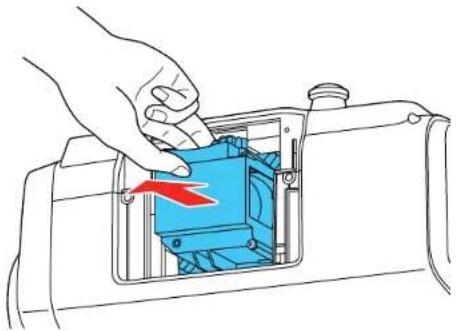
natural_image
Illustration of a hand inserting a blue component into a mechanical housing (no text or symbols)Note: The lamp(s) in this product contain mercury. Please consult your state and local regulations regarding disposal or recycling. Donotputin the trash.
- Gently insert the new lamp into the projector. If it does not fit easily, makes sure it is facing the right way.
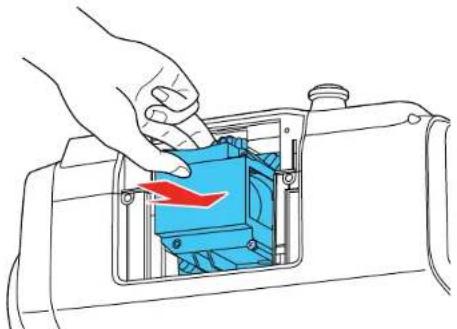
natural_image
Illustration of a hand pressing a blue mechanical component with a red arrow indicating motion (no text or symbols)Caution: Donottouchanyglassonthelampassemblytoavoidprematurelampfailure.
7.Pushinthelampfirmlyandtightenthescrewstosecureit.
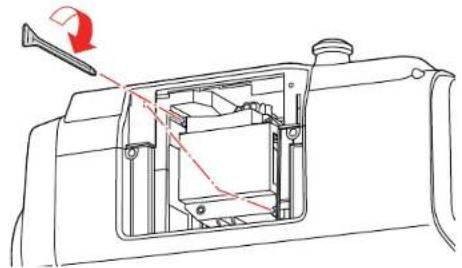
natural_image
Technical line drawing of a mechanical assembly with internal components and a red arrow indicating direction (no text or symbols)- Replacethelampcoverandtightenthescrewstosecureit.
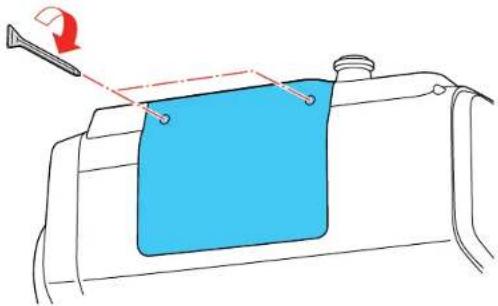
natural_image
Diagram of a blue fabric or material sample being held by a tool, with no visible text or symbols.Note: Besurethelampcoverissecurely installedorthelampwillnotcomeon.
Resetthelamptimertozerotokeeptrackofthenewlamp'susage.
Parenttopic: Projector Lamp Maintenance
Relatedreferences
OptionalEquipmentandReplacementParts
Relatedtasks
ResettingtheLampTimer
ResettingtheLampTimer
Youmustresetthelamptimerafterreplacingtheprojector'slamptoclearthelampreplacement messageandtokeeptrackoflampusagecorrectly.
Note: Do not reset the lamp timer if you have not replaced the lamp to avoid inaccurate lamp usage information.
- Turnontheprojector.
2.PresstheMenubutton. - SelecttheResetmenuandpressEnter.
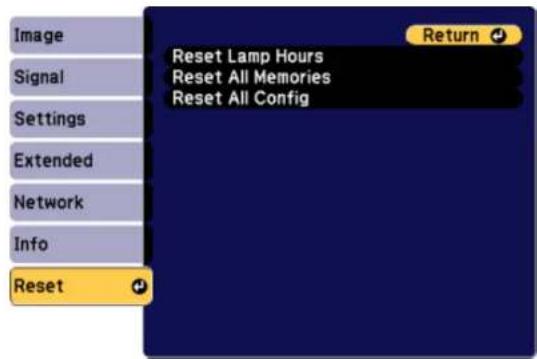
- SelectResetLampHoursandpressEnter.
Youseeapromptaskingifyouwanttoresetthelamphours.
- SelectYesandpressEnter.
- PressMenuorEsctoexitthemenus.
Parenttopic: Projector Lamp Maintenance
Relatedtasks
ReplacingtheLamp
ReplacingtheRemoteControlBatteries
TheremotecontrolusestwoAAmanganeseoralkalinebatteries. Replacethebatteriesassoonasthey runout.
Caution: Use only the type of batteries specified in this manual. Do not install batteries of different types, ormixnewandoldbatteries.
- Removethebatterycoverasshown.
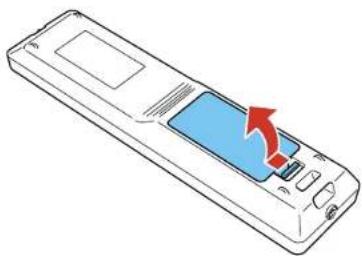
natural_image
Line drawing of a remote control device with a blue screen and red arrow indicating action (no text or symbols)- Removetheoldbatteries.
Warning: If the battery fluid has leaked, wipe it away with a soft cloth and avoid getting the fluid on yourhands. Ifitgetsonyourhands, washthemimmediately to avoid injury.
- Insert the batteries with the + and - ends facing as shown.
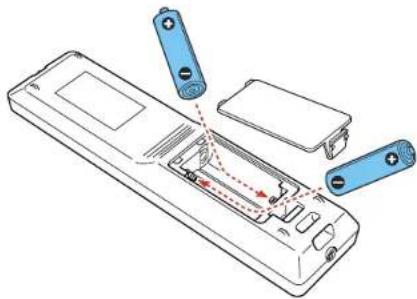
natural_image
Line drawing of a remote control panel with battery terminals and internal components (no text or symbols)- Replace the battery cover and press it down until it clicks into place.
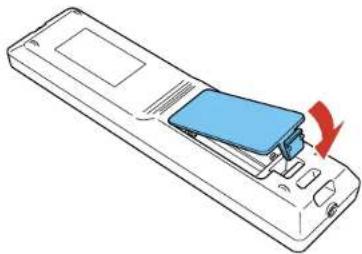
natural_image
Line drawing of a remote control device with a blue cover and red arrow indicating rotation (no text or symbols)Warning: Dispose of used batteries according to local regulations. Do not expose batteries to heat or flame. Keep batteries out of thereachofchildren; they are choking hazards and are very dangerous if swallowed.
Parenttopic: Projector Maintenance
Relatedreferences
RemoteControlOperation
TransportingtheProjector
The projector contains precision parts, some of which are glass. Follow the guidelines heretotransport, ship, or store the projectors safely.
Caution: Usetwoormorepeopletounpackorlifttheprojector.
-
Remove any equipment connected to the projector.
2.Dooneofthefollowing: -
If you are using the standard zoom lens, keep it installed on the projector.
- If you are using an option allens, remove it from the projector.
-
If the projectordidnotcomewithalens, attach the cover that was included with the projectorto the lensmount.
-
Centerthelensusinglensshift.
-
Attach the protective lenspad that was included with the projector.
5.Dooneofthefollowing: -
Whentransportingtheprojectoralongdistanceorascheckedluggage,packitinafirmboxwith cushioningarounditandmarkthebox"Fragile."
- Whenshippingtheprojectorforrepairs, placeitinitsoriginalpackingmaterials, if possible, or use equivalent materials with cushioning around the projector. Markthebox "Fragile."
Note: Epson shall not believe for any damages incurred during transportation.
Parenttopic: Maintaining and Transporting the Projector
Relatedtasks
AttachingaLens
RemovingaLens
AdjustingtheImagePositionUsingLensShift
SolvingProblems
Checkthesolutionsinthesesectionsifyouhaveanyproblemsusingtheprojector.
ProjectionProblemTips
ProjectorLightStatus
ViewingtheStatusDisplay
UsingtheProjectorHelpDisplays
SolvingImageorSoundProblems
SolvingProjectororRemoteControlOperationProblems
SolvingNetworkProblems
WheretoGetHelp
ProjectionProblemTips
If the projector is not working properly, try turning it off and unplugging it. Then plug it back in and turn it on.
If this does not solve the problem, check the following:
- Thelightsontheprojectormayindicatewhattheproblemis.
- The Help option on the Homescreen and display information about common problems, if the projector is operating.
- Thesolutionsinthismanualcanhelpyousolvemanyproblems.
If noneofthesesolutionshelp, you can contact Epsonfortechnical support.
Parenttopic: Solving Problems
ProjectorLightStatus
Thelightsontheprojectorindicatetheprojectorstatusandletyouknowwhenaproblemoccurs.Check thestatusandcolorofthelightsandlookforasolutioninthetablehere.
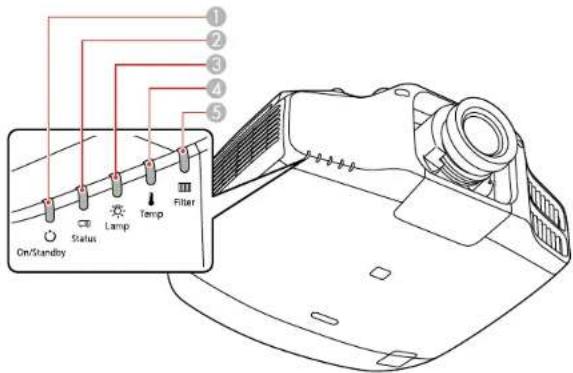
1On/Standby(power)light
2Statuslight
3Lamplight
4Temp(temperature)light
5Filterlight
| On/Standby(power)light | StatuslightL | lamplight | Templight | FilterlightS | statusandsolution |
| BlueBlueVaries | OffOffNormal | operation. | |||
| BlueBlueFlashing | g | blue | OffOffA/VM | uteison. | |
| BlueFlashing | blue | VariesOffOff | Warmingup | Waitforanim | agetoappear. |
| BlueOffOffOffOff | Standbyorne | workmonitoring | andcontrol(WhenStandbyModeissettoCommunicationOn. | ||
| FlashingblueOff | OffOffOffPre | aringnetwork | monitoringor | shuttingdown.(Waitforthelighttoremainorangebeforeunpluggingtheprojector.) | |
| BlueFlashing | blue | OffOffOffCo | olingdown.All | buttonsare | disabled. |
| FlashingblueVaries | VariesFlas | hing | orange | VariesHight | temperaturewarning.Ifthetemperaturegetstoohigh,projectionwillautomaticallystop.•Makesurethattheventsandairfilterarenotcloggedwithdustorobstructedbynearbyobjects.•Cleanorreplacetheairfilter. |
| VariesVariesFlas | shing | orange | VariesVaries | Installationp | positionwarning.Checktheinstallationangleoftheprojector. |
| OffFlashing | blue | Flashingorange | Flashingorange | OffAutolriser | error.Turnofftheprojector,unplugitfromtheelectricaloutlet,andcontactEpsonforhelp |
| OffFlashing | blue | OrangeOrange | OffPower | error(balast) | orLensShifterror.Turnofftheprojector,unplugitfromtheelectricaloutlet,andcontactEpsonforhelp |
| OffFlashing | blue | Flashingorange | OffOffInternal | error.Turnoffthe | projector,unplugitfromtheelectricaloutlet,andcontactEpsonforhelp. |
| On/Standby(power)light | StatuslightL | lamplight | Templight | Filterlight | Statusandsolution |
| OffFlashing | blue | OffOrange | OffProjectoristoohot. | •Makesurethattheventsandairfilterarenotcloggedwithdustorobstructedbynearbyobjects.•Cleanorreplacetheairfilter.•Makesuretheenvironmentaltemperatureisnottoohot. | |
| OffFlashing | blue | OffOrange | OffProjectorhasoverheated | andturnedoff.Leaveitturnedofftocooldownforfiveminutes.•Makesurethattheventsandairfilterarenotcloggedwithdustorobstructedbynearbyobjects.•Cleanorreplacetheairfilter.•Ifoperatingtheprojectorathighaltitude,turnonHighAltitudeMode.•Iftheproblempersists,unplugtheprojectorandcontactEpsonforhelp. | |
| On/Standby(power)light | StatuslightL | lamplight | Templight | FilterlightS | Statusandsolution |
| OffFlashing | blue | OrangeOff | OffLamphas | problem. | •Checktoseeifthelampisburnedout,broken,orinstalledincorrectly.Reseatorreplace thelampasnecessary.•Makesurethattheventsandair filterarenotcloggedwithdust orobstructedbynearbyobjects.•Ifoperatingheprojectorathigh altitude,turnonHighAltitude Mode.•Iftheproblempersists,unplug theprojectorandcontactEpson forhelp. |
| VariesVariesVariesVariesFlashing | orange | Itistimetocleantheairfilter. | |||
| OffFlashing | blue | OffOffOrangeLowairflow | throughtheprojector. | •Makesurethattheventsandair filterarenotcloggedwithdust orobstructedbynearbyobjects.•Cleanorreplacetheairfilter.•Iftheproblempersists,unplug theprojectorandcontactEpson forhelp. | |
| FlashingblueVariesVariesVariesVariesVariesVariesVariesVariesVariesVariesVariesVariesVariesVariesVariesVariesVariesVariesVariesVariesVariesVariesVariesVariesVariesVariesVariesVariesVariesVariesVariesVariesVariesVariesVariesVariesVariesVariesVariesVariesVariesVariesVariesVariesVariesVariesVariesVariesVariesVariesVarie | variesVariesVariesVariesVariesVariesVariesVariesVariesVariesVariesVariesVariesVariesVariesVariesVariesVariesVariesVariesVariesVariesVariesVariesVariesVariesVariesVariesVariesVariesVariesVariesVariesVariesVariesVariesVariesVariesVariesVariesVariesVariesVariesVariesVariesVariesVariesVariesVariesVariesVariesVariesVariesVariesVariesVariesVariesVariesVariesVariesVariesVariesVariesVariesVariesVariesVariesVariesVariesVariesVariesVariesVariesVariesVariesVariesVariesVariesVariesVariesVariesVariesVariesVariesVariesVariesVariesVariesVariesVariesVariesVariesVariesVariesVariesVariesVariesVariesVariesVariesVarisesVariesVariesVariesVariesVariesVariesVariesVariesVariesVariesVariesVariesVariesVariesVariesVariesVariesVariesVariesVariesVariesVariesVariesVariesVariesVariesVariesVariesVariesVariesVariesVariesVariesVariesVariesVariesVariesVariesVariesVariesVariesVariesVariesVariesVariesVariesVariesVariesVariesVaricesVariesVariesVariesVariesVariesVariesVariesVariesVariesVariesVariesVariesVariesVariesVariesVariesVariesVariesVariesVariesVariesVariesVariesVariesVariesVariesVariesVariesVariesVariesVariesVariesVariesVariesVariesVariesVariesVariesVariesVariesVariesVariesVariesVariesVariesVariesVariesVariesVariesVarriesVariesVariesVariesVariesVariesVariesVariesVariesVariesVariesVariesVariesVariesVariesVariesVariesVariesVariesVariesVariesVariesVariesVariesVariesVariesVariesVariesVariesVariesVariesVariesVariesVariesVariesVariesVariesVariesVariesVariesVariesVariesVariesVariesVariesVariesVariesVariesVariesVariesVariresVariesVariesVariesVariesVariesVariesVariesVariesVariesVariesVariesVariesVariesVariesVariesVariesVariesVariesVariesVariesVariesVariesVariesVariesVariesVariesVariesVariesVariesVariesVariesVariesVariesVariesVariesVariesVariesVariesVariesVariesVariesVariesVariesVariesVariesVariesVariesVariesVariesVarinesVariesVariesVariesVariesVariesVariesVariesVariesVariesVariesVariesVariesVariesVariesVariesVariesVariesVariesVariesVariesVariesVariesVariesVariesVariesVariesVariesVariesVariesVariesVariesVariesVariesVariesVariesVariesVariesVariesVariesVariesVariesVariesVariesVariesVariesVariesVariesVariesVariesVarlesVariesVariesVariesVariesVariesVariesVariesVariesVariesVariesVariesVariesVariesVariesVariesVariesVariesVariesVariesVariesVariesVariesVariesVariesVariesVariesVariesVariesVariesVariesVariesVariesVariesVariesVariesVariesVariesVariesVariesVariesVariesVariesVariesVariesVariesVariesVariesVariesVariesVaritesVariesVariesVariesVariesVariesVariesVariesVariesVariesVariesVariesVariesVariesVariesVariesVariesVariesVariesVariesVariesVariesVariesVariesVariesVariesVariesVariesVariesVariesVariesVariesVariesVariesVariesVariesVariesVariesVariesVariesVariesVariesVariesVariesVariesVariesVariesVariesVariesVariesVarionVariesVariesVariesVariesVariesVariesVariesVariesVariesVariesVariesVariesVariesVariesVariesVariesVariesVariesVariesVariesVariesVariesVariesVariesVariesVariesVariesVariesVariesVariesVariesVariesVariesVariesVariesVariesVariesVariesVariesVariesVariesVariesVariesVariesVariesVariesVariesVariesVariesVariegVariesVariesVariesVariesVariesVariesVariesVariesVariesVariesVariesVariesVariesVariesVariesVariesVariesVariesVariesVariesVariesVariesVariesVariesVariesVariesVariesVariesVariesVariesVariesVariesVariesVariesVariesVariesVariesVariesVariesVariesVariesVariesVariesVariesVariesVariesVariesVariesVariesVar(1) | variesVariesVariesVariesVariesVariesVariesVariesVariesVariesVariesVariesVariesVariesVariesVariesVariesVariesVariesVariesVariesVariesVariesVariesVariesVariesVariesVariesVariesVariesVariesVariesVariesVariesVariesVariesVariesVariesVariesVariesVariesVariesVariesVariesVariesVariesVariesVariesVariesBarresVariesBarresVariesBarresVariesBarresBarresBarresBarresBarresBarresBarresBarresBarresBarresBarresBarresBarresBarresBarresBarresBarresBarresBarresBarresBarresBarresBarresBarresBarresBarresBarresBarresBarresBarresBarresBarresBarresBarresBarresBarresBarresBarresBarresBarresBarresBarresBarresBarresBarresBarresBarresBarresBarresBarresBarreBarresBarresBarresBarresBarresBarresBarresBarresBarresBarresBarresBarresBarresBarresBarresBarresBarresBarresBarresBarresBarresBarresBarresBarresBarresBarresBarresBarresBarresBarresBarresBarresBarresBarresBarresBarresBarresBarresBarresBarresBarresBarresBarresBarresBarresBarresBarresBarresBarresBaresBarresBarresBarresBarresBarresBarresBarresBarresBarresBarresBarresBarresBarresBarresBarresBarresBarresBarresBarresBarresBarresBarresBarresBarresBarresBarresBarresBarresBarresBarresBarresBarresBarresBarresBarresBarresBarresBarresBarresBarresBarresBarresBarresBarresBarresBarresBarresBarresBarresBareresBarresBarresBarresBarresBarresBarresBarresBarresBarresBarresBarresBarresBarresBarresBarresBarresBarresBarresBarresBarresBarresBarresBarresBarresBarresBarresBarresBarresBarresBarresBarresBarresBarresBarresBarresBarresBarresBarresBarresBarresBarresBarresBarresBarresBarresBarresBarresBarresBarresBarrestbarresBarresBarresBarresBarresBarresBarresBarresBarresBarresBarresBarresBarresBarresBarresBarresBarresBarresBarresBarresBarresBarresBarresBarresBarresBarresBarresBarresBarresBarresBarresBarresBarresBarresBarresBarresBarresBarresBarresBarresBarresBarresBarresBarresBarresBarresBarresBarresBarresBarresbarresBarresBarresBarresBarresBarresBarresBarresBarresBarresBarresBarresBarresBarresBarresBarresBarresBarresBarresBarresBarresBarresBarresBarresBarresBarresBarresBarresBarresBarresBarresBarresBarresBarresBarresBarresBarresBarresBarresBarresBarresBarresBarresBarresBarresBarresBarresBarresBarresBaresbarresBarresBarresBarresBarresBarresBarresBarresBarresBarresBarresBarresBarresBarresBarresBarresBarresBarresBarresBarresBarresBarresBarresBarresBarresBarresBarresBarresBarresBarresBarresBarresBarresBarresBarresBarresBarresBarresBarresBarresBarresBarresBarresBarresBarresBarresBarresBarresBarresBarrebarresBarresBarresBarresBarresBarresBarresBarresBarresBarresBarresBarresBarresBarresBarresBarresBarresBarresBarresBarresBarresBarresBarresBarresBarresBarresBarresBarresBarresBarresBarresBarresBarresBarresBarresBarresBarresBarresBarresBarresBarresBarresBarresBarresBarresBarresBarresBarresBarresBarretbarresbarresbarresbarresbarresbarresbarresbarresbarresbarresbarresbarresbarresbarresbarresbarresbarresbarresbarresbarresbarresbarresbarresbarresbarresbarresbarresbarresbarresbarresbarresbarresbarresbarresbarresbarresbarresbarresbarresbarresbarresbarresbarresbarresbarresbarresbarresbarresbarresbarresbarrebarresbarresbarresbarresbarresbarresbarresbarresbarresbarresbarresbarresbarresbarresbarresbarresbarresbarresbarresbarresbarresbarresbarresbarresbarresbarresbarresbarresbarresbarresbarresbarresbarresbarresbarresbarresbarresbarresbarresbarresbarresbarresbarresbarresbarresbarresbarresbarresbarresbarrestbarresbarrestbarrestbarrestbarrestbarrestbarrestbarrestbarrestbarrestbarrestbarrestbarrestbarrestbarrestbarrestbarrestbarrestbarrestbarrestbarrestbarrestbarrestbarrestbarrestbarrestbarrestbarrestbarrestbarrestbarrestbarrestbarrestbarrestbarrestbarrestbarrestbarrestbarrestbarrestbarrestbarrestbarrestbarrestbarrestbarrestbarrestbarrestbarrestbarrestbarrestbarestbarrestbarrestbarrestbarrestbarrestbarrestbarrestbarrestbarrestbarrestbarrestbarrestbarrestbarrestbarrestbarrestbarrestbarrestbarrestbarrestbarrestbarrestbarrestbarrestbarrestbarrestbarrestbarrestbarrestbarrestbarrestbarrestbarrestbarrestbarrestbarrestbarrestbarrestbarrestbarrestbarrestbarrestbarrestbarrestbarrestbarrestbarrestbarrestbarrestbarerrestbarrestbarrestbarrestbarrestbarrestbarrestbarrestbarrestbarrestbarrestbarrestbarrestbarrestbarrestbarrestbarrestbarrestbarrestbarrestbarrestbarrestbarrestbarrestbarrestbarrestbarrestbarrestbarrestbarrestbarrestbarrestbarrestbarrestbarrestbarrestbarrestbarrestbarrestbarrestbarrestbarrestbarrestbarrestbarrestbarrestbarrestbarrestbarrestbarrestbaarrestbarrestbarrestbarrestbarrestbarrestbarrestbarrestbarrestbarrestbarrestbarrestbarrestbarrestbarrestbarrestbarrestbarrestbarrestbarrestbarrestbarrestbarrestbarrestbarrestbarrestbarrestbarrestbarrestbarrestbarrestbarrestbarrestbarrestbarrestbarrestbarrestbarrestbarrestbarrestbarrestbarrestbarrestbarrestbarrestbarrestbarrestbarrestbarrestbarrest-barrestbarrestbarrestbarrestbarrestbarrestbarrestbarrestbarrestbarrestbarrestbarrestbarrestbarrestbarrestbarrestbarrestbarrestbarrestbarrestbarrestbarrestbarrestbarrestbarrestbarrestbarrestbarrestbarrestbarrestbarrestbarrestbarrestbarrestbarrestbarrestbarrestbarrestbarrestbarrestbarrestbarrestbarrestbarrestbarrestbarrestbarrestbarrestbarrestbarrest barrestbarrestbarrestbarrestbarrestbarrestbarrestbarrestbarrestbarrestbarrestbarrestbarrestbarrestbarrestbarrestbarrestbarrestbarrestbarrestbarrestbarrestbarrestbarrestbarrestbarrestbarrestbarrestbarrestbarrestbarrestbarrestbarrestbarrestbarrestbarrestbarrestbarrestbarrestbarrestbarrestbarrestbarrestbarrestbarrestbarrestbarrestbarrestbarrestbarrestballrestbarrestballrestballrestballrestballrestballrestballrestballrestballrestballrestballrestballrestballrestballrestballrestballrestballrestballrestballrestballrestballrestballrestballrestballrestballrestballrestballrestballrestballrestballrestballrestballrestballrestballrestballrestballrestballrestballrestballrestballrestballrestballrestballrestballrestballrestballrestballrestballrestballrestballrestballrestfallrestballrestballrestballrestballrestballrestballrestballrestballrestballrestballrestballrestballrestballrestballrestballrestballrestballrestballrestballrestballrestballrestballrestballrestballrestballrestballrestballrestballrestballrestballrestballrestballrestballrestballrestballrestballrestballrestballrestballrestballrestballrestballrestballrestballrestballrestballrestballrestballrestballrestline | variesVariesVariesVariesVariesVariesVariesVariesVariesVariesVariesVariesVariesVariesVariesVariesVariesVariesVariesVariesVariesVariesVariesVariesVariesVariesVariesVariesVariesVariesVariesVariesVariesVariesVariesVariesVariesVariesVariesVariesVariesVariesVariesVariesVariesVariesVariesVariesVariesVariesVariesVariesVariesVariesVariesVariesVariesVariesVariesVariesVariesVariesVariesVariesVariesVariesVariesVariesVariesVariesVariesVariesVariesVariesVariesVariesVariesVariesVariesVariesVariesVariesVariesVariesVariesVariesVariesVariesVariesVariesVariesVariesVariesVariesVariesVariesVariesVariesVariesVaresVariesVariesVariesVariesVariesVariesVariesVariesVariesVariesVariesVariesVariesVariesVariesVariesVariesVariesVariesVariesVariesVariesVariesVariesVariesVariesVariesVariesVariesVariesVariesVariesVariesVariesVariesVariesVariesVariesVariesVariesVariesVariesVariesVariesVariesVariesVariesVariesVariesVidesVidesVidesVidesVidesVidesVidesVidesVidesVidesVidesVidesVidesVidesVidesVidesVidesVidesVidesVidesVidesVidesVidesVidesVidesVidesVidesVidesVidesVidesVidesVidesVidesVidesVidesVidesVidesVidesVidesVidesVidesVidesVidesVidesVidesVidesVidesVidesVidesVidesVideVidesVidesVidesVidesVidesVidesVidesVidesVidesVidesVidesVidesVidesVidesVidesVidesVidesVidesVidesVidesVidesVidesVidesVidesVidesVidesVidesVidesVidesVidesVidesVidesVidesVidesVidesVidesVidesVidesVidesVidesVidesVidesVidesVidesVidesVidesVidesVidesVidesVidvidesVidesVidesVidesVidesVidesVidesVidesVidesVidesVidesVidesVidesVidesVidesVidesVidesVidesVidesVidesVidesVidesVidesVidesVidesVidesVidesVidesVidesVidesVidesVidesVidesVidesVidesVidesVidesVidesVidesVidesVidesVidesVidesVidesVidesVidesVidesVidesVidesVides Vides Vides Vides Vides Vides Vides Vides Vides Vides Vides Vides Vides Vides Vides Vides Vides Vides Vides Vides Vides Vides Vides Vides Vides Vides Vides Vides Vides Vides Vides Vides Vides Vides Vides Vides Vides Vides Vides Vides Vides Vides Vides Vides Vides Vides Vides Vides Vides Vides VidesVides Vides Vides Vides Vides Vides Vides Vides Vides Vides Vides Vides Vides Vides Vides Vides Vides Vides Vides Vides Vides Vides Vides Vides Vides Vides Vides Vides Vides Vides Vides Vides Vides Vides Vides Vides Vides Vides Vides Vides Vides Vides Vides Vides Vides Vides Vides Vides VidesVides Varies Varies Varies Varies Varies Varies Varies Varies Varies Varies Varies Varies Varies Varies Varies Varies Varies Varies Varies Varies Varies Varies Varies Varies Varies Varies Varies Varies Varies Varies Varies Varies Varies Varies Varies Varies Varies Varies Varies Varies Varies Varies Varies Varies Varies Varies Varies Varies Varies Varies Variea Variea Variea Variea Variea Variea Variea Variea Variea Variea Variea Variea Variea Variea Variea Variea Variea Variea Variea Variea Variea Variea Variea Variea Variea Variea Variea Variea Variea Variea Variea Variea Variea Variea | ||
| On/Standby(power)light | StatuslightL | lamplight | Templight | FilterlightS | statusandsolution |
| OffFlashing | blue | OffFlashing | orange | OffAfanors | sensorhasaproblem.Turntheprojectoroff,unplugit,andcontactEpsonforhelp. |
| FlashingblueVaries | Flashing | orange | VariesVaries | Thelampisp | astitsreplacementperiodandneedstobereplacedtoavoiddamage.Donotcontinueusingtheprojector. |
Note: If the lights display a pattern not listed in the table above, turn the projector off, unplug it, and contactEpsonforhelp.
Parenttopic: Solving Problems
Relatedreferences
ProjectorFeatureSettings-SettingsMenu
ProjectorSetupSettings-ExtendedMenu
WheretoGetHelp
Relatedtasks
CleaningtheAirFilter
ReplacingtheAirFilter
ReplacingtheLamp
ViewingtheStatusDisplay
Youcanmonitortheprojector'sstatusandviewerrorinformationfromthestatusdisplay.
-
Turnon the projector.
-
Presstheibuttonontheremotecontrolortherightarrowbuttononthecontrolpanel.
- SelectStatusInformationandpressEnter.
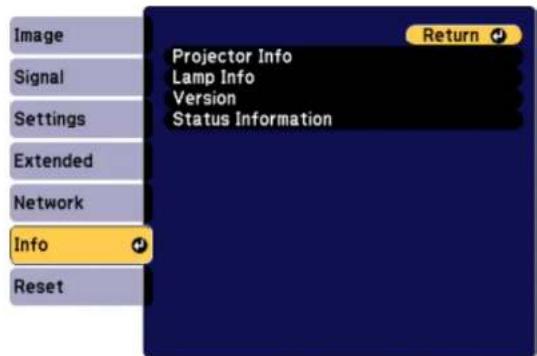
- Presstheleftorrightarrowbuttonstoviewdifferentcategoriesofinformation.
![[Status Information] Return [Status Information] System Source Computer On-ScreenDisplay On A/V Mute On Air Temp Temp Level Laser Status On Info Reset](/content/2026/05/1054023/images/5d067649e9c6c240898f530eb749f320d415bb2a002510e7378a7a8154ee8326.jpg)
-StatusInformation:Theprojector'soperatingstatus
- Source: Inputsignalinformation
•SignallInformation: Inputdigitalsignalinformation
•NetworkWired:WiredLANsettings
•NetworkWireless:WirelessLANsettings
- Maintenance: Operating time for the projector and light source
ProjectorStatusDisplayMessages
Parenttopic: Solving Problems
ProjectorStatusDisplayMessages
Categoriesonthestatusdisplayscreensletyouviewinformationabouttheprojectoranditsoperation.
StatusInformationcategory
| InformationDescription | |
| SystemSeetheSystemstatusinformationtableattheendofthistopic | |
| SourceDisplaysthesourcecurrentlybeingused | |
| On-ScreenDisplayDisplaysthesettingsforon-screen | displays.Whenturnedoff,menusormessagesarenotdisplayedontheprojectedimages |
| A/VMuteDisplaystheA/VMutestatus | |
| AirTempDisplaystheenvironmentaltemperature | |
| TempLevel | |
| LampStatusDisplaytheoperatingstatusofthelamp | |
Sourcecategory
| InformationDescription | |
| SourceDisplaysthesourcecurrentlybeingused | |
| ResolutionDisplaystheresolutionofthecurrentinputsignal | |
| VideoSignalDisplaysthecurrentinputvideosignal | |
| ColorSpaceDisplaysthecolorspaceofthecurrentinputsignal | |
| H-FrequencyDisplaysthehorizontalfrequencyofthecurrent inputsignal | current inputsignal |
| V-FrequencyDisplaystheverticalfrequencyofthecurrentinput signal | currentinput signal |
| SyncPolarityDisplaysthesyncpolarity | |
| SyncModeDisplaysthesynctype | |
| DetectedModeDisplaysthedetectedmodeofthecurrentinput signal | currentinput signal |
| VideoLevelDisplaysthevideoleveloftheprojector |
SignallInformationcategory
| InformationDescription | |
| 5VDetectionDisplaysthedetectionresultsof5Vsignals | |
| TMDSClockDisplaystheTMDSfrequencyofthecurrentinputsignal | |
| TMDSH-FrequencyDisplaysthehorizontalfrequencyofthecurrentinputsignal | |
| TMDSV-FrequencyDisplaystheverticalfrequencyofthecurrentinputsignal | |
| DetChg5CFHMP123Displaysthefactorsofsignalchanges | |
| StableTimeDisplaystheamountofoperatingtimesinetheinputsourcewasdetermined | |
| HDCPStatusDisplaystheHDCPstatus | |
| HDCPVerDisplaystheHDCPversion | |
| AVIInfoVIC | DisplaystheVICinformation(AVI)ofthecurrentinputsignal |
| AVIInfoChecksum | DisplaysthechecksumresultforAVI |
| SignalMode | Displaysthesignalmode |
| PixelEncodingDisplaysthecolorspaceinformation(AVI)ofthecurrentinputsignal | |
| HDBaseTQualityDisplaystheimagesignalinformation | nfromtheHDBaseTport |
NetworkWiredcategory
| InformationDescription | |
| ProjectorNameDisplaysthenameusedtoidentifythe | projectorwhenconnectedtoanetwork |
| ConnectionModeDisplaystheconnectionpathforthe | LAN |
| DHCPDisplaystheDHCPdisplaysettings | |
| IPDisplayDisplaystheIPaddressdisplaysettings | |
| IPAddressDisplaystheIPaddress | |
| MACAddressDisplaystheMACaddress |
NetworkWirelesscategory
| InformationDescription | |
| ProjectorNameDisplaysthenameusedtoidentifythe | projectorwhenconnectedtoanetwork |
| ConnectionModeDisplaystheconnectionmodetouse | ewhenconnectingtheprojectorandacomputeroverawirelessLAN |
| SSIDDisplayDisplaystheSSIDdisplaysettings | |
| IPDisplayDisplaystheIPaddressdisplaysettings | |
| SSIDDisplaystheSSID | |
| IPAddressDisplaystheIPaddress | |
| DHCPDisplaystheDHCPsettings | |
| MACAddressDisplaystheMACaddress | |
| SecurityDisplaysthesecuritysettings | |
| AntennaLevelDisplaysthereceptionstatusforWi-Fi |
Maintenancecategory
| InformationDescription | |
| OperationTimeDisplaystheprojector'stotaloperationtime | |
| LampOp.TimeDisplaysthelampoperatingtime(Normal) | |
| LampOp.TimePRDisplaysthelampoperatingtime(PortraitMode) | |
Versioncategory
| InformationDescription | |
| SerialNo.Displaystheprojector'sserialnumber | |
| MainDisplaytheprojector'sfirmwareversion | information |
| Video2 | |
| Sub | |
| Sub2 | |
| HDBaseT |
Systemstatusinformation
| StatusDescription | |
| OKTheprojectorisinnormaloperatingmode | |
| Warm-upTheprojectoriswarmingup | |
| StandbyTheprojectorisinstandbymode | |
| CoolDownTheprojectoriscoolingdown | |
| TempErrorAhighttemperatureerroroccurred | |
| FanErrorAfanerroroccurred | |
| SensorErrorAsensorerroroccurred | |
| LampErrorAlamperrorhasoccurred | |
| LampFailureAlampfailurehasoccurred | |
| PowerErrorApowererroroccurred | |
| InternalErrorAninternalerroroccurred | |
| AutolrisErrorAnAutolriserrorhasoccurred | |
| AirflowErrorAfilterairflowererroroccurred | |
| TempWarningAhighttemperaturewarningoccurred | |
| InternalWarningAwarningregardingtheinternalsystemoccurred | |
| AirflowDeclineAlowairflowererroroccurred | |
| LampWarningAlampwarningoccurred | |
| PowerWarningApowerwarninghasoccurred | |
| DirectionWarningTheusageangleisoutofrange | |
| LampReplacementAlampreplacementrecommendationhasoccurred | |
| CleanFilterAnairfilternoticeoccurred;cleantheairfilter |
Parenttopic: ViewingtheStatusDisplay
UsingtheProjectorHelpDisplays
Youcandisplayinformationtohelpyousolvecommonproblemsusingtheprojector'sHelpsystem.
- Turnontheprojector.
- PresstheHomebuttonontheremotecontrol.
- UsethearrowbuttonstoselectHelp.
- PressEnter.
YouseetheHelpmenu. - Usetheupanddownarrowbuttonstohighlightheproblemyouwanttosolve.
-
PressEntertoviewthesolutions.
-
When you are finished, do one of the following:
• Toselectanotherproblemtosolve, pressEsc.
• Toexitthehelpsystem, pressHome.
Parenttopic: Solving Problems
SolvingImageorSoundProblems
Checkthesolutionsinthesesectionsifyouhaveanyproblemswithprojectedimagesorsound.
SolutionsWhenNoImageAppears
SolutionsWhen"NoSignal"MessageAppears
SolutionsWhen"NotSupported"MessageAppears
SolutionsWhenOnlyaPartialImageAppears
SolutionsWhentheImageisNotRectangular
SolutionsWhentheImageContainsNoiseorStatic
SolutionsWhentheImageisFuzzyorBlurry
SolutionsWhentheImageBrightnessorColorsareIncorrect
SolutionsWhena3DImageDoesNotDisplayCorrectly
SolutionstoSoundProblems
Parenttopic: Solving Problems
SolutionsWhenNoImageAppears
Ifnoimageappears, try the following solutions:
•Makesurethelenscapisoff.
- Press the A/V Mute button on the remote control to see if the image was temporarily turned off.
- Makesureallnecessarycablesaresecurelyconnectedandthepowerisonfortheprojectorand connectedvideosources.
- Presstheprojector'spowerbuttontowakeitfromstandbyorsleepmode. Alsoseeifyourconnected computerisinsleepmodeordisplayingablankscreensaver.
- Press the Menu button. If the projector menu is able to display, there may be a problem with the connectedvideosource,cableconnection,orport.
- CheckthesettingsontheSignalmenutomakesuretheyarecorrectforthecurrentvideosource.
- Adjust the Brightness setting or select the Normal Power Consumption setting.
- Check the Display setting to make sure Messages is set to On.
- If the projectordoesnotrespond when you press the control panel buttons, the buttons may be locked. Unlock the buttons.
- If the projectordoesnotrespond when you press buttons on theremote control, makes sure theremote receivers are returned on.
- ForimagesprojectedwithWindowsMediaCenter,reducethescreensizefromfullscreenmode.
- ForimagesprojectedfromapplicationsusingWindowsDirectX,turnoffDirectXfunctions.
- If the othersolutions donotsolvethe problem, reset all of the projector settings using the options on the Reset menu.
Parenttopic: SolvingImageorSoundProblems
Relatedreferences
ProjectorFeatureSettings-SettingsMenu
ProjectorSetupSettings-ExtendedMenu
ImageQualitySettings-ImageMenu
InputSignalSettings-SignalMenu
Relatedtasks
UnlockingtheProjector'sButtons
SolutionsWhen"NoSignal"MessageAppears
If the "NoSignal" message appears, try the following solutions:
- Press the Source Search or Search button and wait a few seconds for an image to appear.
- Turnontheconnectedcomputerorvideosource,andpressitsplaybuttontobeginyourpresentation, ifnecessary.
- Checktheconnectionfromtheprojectortoyourvideosources.
- If you are projecting from alaptop computer, makes sure it is setup to display on an external monitor.
- If necessary, turn the projector and the connected computer or video source off and then on again.
- If the othersolutions donotsolvethe problem, reset all of the projector settings using the options on the Reset menu.
DisplayingFromaPCLaptop
DisplayingFromaMacLaptop
Parenttopic: SolvingImageorSoundProblems
Relatedconcepts
ProjectorConnections
DisplayingFromaPCLaptop
Ifyouseethe"NoSignal"messagewhenyoudisplayfromaPCI laptop, youneedtosetupthelapto displayonanexternalmonitor.
- Hold down the laptop's Fn key and press the key labeled with a monitor icon or CRT/LCD. (See your laptopmanualfordetails.) Waitafewsecondsforanimagetoappear.
- Todisplayonboththelaptop'smonitorandtheprojector, trypressingthesamekeysagain.
- If the same image is not displayed by the laptop and projector, check the Windows Display utility to make sure the external monitor portisenabled and extended desktop mode is disabled. (Seeyour computer or Windows manual for instructions.)
- If necessary, check your video card settings and set the multiple display option to Mirror or Duplicate.
Parenttopic: SolutionsWhen"NoSignal"MessageAppears
DisplayingFromaMacLaptop
If you se the "No Signal" message when you display from a Mac laptop, you need to setup the laptop form or reddisplay. (Se your laptop manual for details.)
- OpentheSystemPreferencesutilityandselectDisplays.
- ClicktheArrangementtab.
- Select the Mirror Displays checkbox.
Parenttopic: SolutionsWhen"NoSignal"MessageAppears
SolutionsWhen"NotSupported"MessageAppears
If the "Not Supported" message appears, try the following solutions:
- MakesurethecorrectinputsignalisselectedontheSignalmenu.
- Makesurethecomputer'sdisplayresolutiondoesnotexceedtheprojector'sresolutionandfrequency limit. If necessary, selectadifferentdisplayresolutionforyourcomputer.(Seeyourcomputermanual fordetails.)
- Asatest, try setting the computer's display resolution to the lowest possible setting, and then gradually increase it as necessary.
Parenttopic: SolvingImageorSoundProblems
Relatedreferences
InputSignalSettings-SignalMenu
SupportedVideoDisplayFormats
SolutionsWhenOnlyaPartialImageAppears
Ifonlyapartialcomputerimageappears,trythefollowingsolutions:
- MakesureyouselectedthecorrectScreenTypesettingforthescreenbeingused.
- MakesuretheScalesettingintheExtendedmenuisturnedoff.
- TryadjustingtheimagepositionusingthePositionmenusetting.
- TryadjustingtheimagepositionusingtheScreenPositionmenusetting.
- If you zoomed into or out of the image using the E-Zoom buttons, press the Esc button until the projectorreturnstoafulldisplay.
- Check the cables connecting the computer or video source to the projector. Try connecting different cables.
- Checkyourcomputerdisplaysettingstodisabledualdisplayandsettheresolutionwithinthe projector'slimits.(Seeyourcomputermanualfordetails.)
- Checktheresolutionassignedtoyourpresentationfilestoreeiftheyarecreatedforadifferentresolutionthanyouareprojectingin.(Seeyoursoftwarehelpfordetails.)
Parenttopic: SolvingImageorSoundProblems
Relatedreferences
ProjectorFeatureSettings-SettingsMenu
InputSignalSettings-SignalMenu
SupportedVideoDisplayFormats
Relatedtasks
AdjustingtheImagePositionUsingLensShift
SettingtheScreenType
SolutionsWhenthelmageisNotRectangular
If the projected image is not evenly rectangular, try the following solutions:
- Placetheprojectordirectlyinfrontofthecenterofthescreen, facingitsquarely, if possible.
- If you adjusted the projector height using the projector feet, press the keystone button on the project to adjust the imageshape.
- AdjusttheimageshapeusingtheGeometricCorrectionmenusettings.
Parenttopic: SolvingImageorSoundProblems
Relatedconcepts
ImageShape
Relatedreferences
ProjectorFeatureSettings-SettingsMenu
SolutionsWhenthelmageContainsNoiseorStatic
If the projected images seem to contain electronic interference (noise) or static, try the following solutions:
- Checkthecablesconnectingyourcomputerorvideosourcetotheprojector. Theyshouldbe:
• Separated from the powercord to prevent interference
•Securelyconnectedatbothends
• Notconnectedtoanextensioncable
• Nolongerthan10feet(3m)forVGA/computercablesor24feet(7.3m)forHDMIcables
- Checkthesettingsontheprojector'sSignalmenutomakesuretheymatchthevideosource. If availableforyourvideosource,adjusttheNoiseReductionsetting.
- Selectacomputervideoresolutionandrefreshratethatarecompatiblewiththeprojector.
- If you are projecting from a computer, press the Auto button on the remote control to automatically adjust the tracking and sync. If the problem remains, display uniformly patterned image on the screen and manually adjust the Tracking and Sync settings.
- If you adjusted the image shape using the projector controls, try decreasing the Sharpness setting to improve image equality.
- If you connected an extension powerable, try projecting without it to see if it caused interference in the signal.
- Tryadifferentcable.
- Try turning off Frame Interpolation, or turn on Image Enhancement in the Image menu.
Parenttopic: SolvingImageorSoundProblems
Relatedreferences
InputSignalSettings-SignalMenu
SupportedVideoDisplayFormats
Relatedtasks
DisplayingFromaPCLaptop
DisplayingFromaMacLaptop
SolutionsWhenthelmageisFuzzyorBlurry
If the projected image is fuzzy or blurry, try the following solutions:
- Adjusttheimagefocus.
- Cleantheprojectorlens.
Note: To avoid condensation on the lens after bringing the projector in from a cold environment, let the projectorwarmuptoroomtemperaturebeforeusingit.
- Tryconnectingtheprojectortothehighestqualityconnectionavailableonyourinputsource. For example, connecttoanHMDIportorcomponentvideoportsforabetterqualityinputsignal.
- Position the projector close enough to the screen.
- Position the projector so the keystone adjustment angle is not sowidethat it distortsthe image.
- AdjusttheSharpnesssettingtoimproveimagequality.
- If you are projecting from a computer, press the Auto button on the remote control to automatically adjust the tracking and sync. If any bands or overall blurriness remain, display a uniformly patterned image on the screen and manually adjust the Tracking and Sync settings.
- If you are projecting from a computer, try using a lower resolution or try to match the projector's native resolution.
Parenttopic: SolvingImageorSoundProblems
Relatedreferences
InputSignalSettings-SignalMenu
ImageQualitySettings-ImageMenu
ProjectionDistance
Relatedtasks
CleaningtheLens
FocusingtheImageUsingtheFocusButton
SolutionsWhenthelmageBrightnessorColorsareIncorrect
If the projected image is stood dark or light, or the colors are incorrect, try the following solutions:
- Press the Color Mode button on the remote control to try different color modes for the image and environment.
- Checkyourvideosourcesettings.
- Adjust the available settings on the Image menu for the current input source, such as Brightness, Contrast, Tint, Advanced, and Color Saturation.
- Make sure you selected the correct Input Signal or Video Signal setting on the Signal menu, if available for your imagesource.
- Makesureallthecablesaresecurelyconnectedtotheprojectorandyourvideodevice.Ifyou connectedlongcables,tryconnectingshortercables.
- If you are using the ECO Power Consumption setting, try selecting Normal in the projector's menus.
- Position the projector close enough to the screen.
- If the image has been progressively darkening, you may need to replace the projector lamp soon.
Parenttopic: SolvingImageorSoundProblems
Relatedconcepts
ProjectorLampMaintenance
Relatedreferences
ProjectorFeatureSettings-SettingsMenu
InputSignalSettings-SignalMenu
ImageQualitySettings-ImageMenu
SolutionsWhena3DImageDoesNotDisplayCorrectly
Ifa3Dimagedoesnotdisplaycorrectly,trythefollowingsolutions:
- Pressthe2D/3Dbuttonontheremotecontroltoswitchto3Dmode,ifnecessary.Youcanalso activate 3D mode by setting the 3D Display setting on the Signal menu to On.
- Makesureyourvideodeviceandmediaareboth3D-compatible.Refertothedocumentationthat camewithyourvideodeviceformoreinformation.
-
MakesureyouareusingHDMIcablesthatsupport3Dsignals.Ifyouareusingasplitter,makesureit alsosupports3Dsignals.
• Makesureyouareprojectingontoasilverscreen(recommendedgain:2.3to2.7). -
Make sure you selected the correct 3D Format setting on the Signal menu. Normally this should be set to Auto, but in some cases you may need to select a different setting to match the 3D signal from yourvideodevice.
- Makesureyouareusingthesupplied3DglassesortheoptionalglassessoldbyEpson. Theglasses suppliedandsoldbyEpsonarespecificallydesignedforusewiththisproduct. Otherpassive3D glassesmaynotwork.
- Makesurethepolarizingfiltersareattachedcorrectly. Thenumberoneachfiltersshouldmatchthe numberontheprojectortowhichitisattached.SeeyourSetupGuideforinstructions.
- Makesureyouarewithinthe3Dviewingrange. Alsomakesuretopositiontheproductcloseenough tothescreen.
- If the other solutions do not not solve the problem, change the Inverse 3D Image setting on the Signal menu. Return these setting to its original value if changing it does not solve the problem.
Parenttopic: SolvingImageorSoundProblems
Relatedreferences
OptionalEquipmentandReplacementParts
Relatedtasks
Viewing3DImages
SolutionstoSoundProblems
If there is nosound when you expect it the volume is too low or high, try the following solutions:
- Adjust the projector's volumesettings.
- Press the A/V Mute button on the remote control to resume video and audio if they were temporarily stopped.
- Press the Source Search or Search button to switch to the correct input source, if necessary.
- Checkyourcomputerorvideosourcetomakesurethevolumeisturnedupandtheaudiooutputisset forthecorrectsource.
- Checktheaudiocableconnectionsbetween the projector and your videosource.
- If you dono the earsound from an HDMI source, set the connected device to PCM output.
- Makesureanyconnectedaudiocablesarelabeled"NoResistance".
-
If you are using a Mac and you don't have sound from an HDMI source, makes sure your Mac supports audio through the HDMI port. If not, you need to connect an audioable.
-
If you want to use a connected audio source when the projector is off, set the Standby Mode option to Communication On and make sure the A/V Settings options are set correctly.
- MakesuretheAudioSettingsoptionissettothecorrectaudioportforyourvideodevice.
- If you connected an audio device to the projector's Audio Out port, the internal speaker is disabled. However, you can still control the volume level via theremote control.
- If you turn the projector immediately after turning it off, the cooling fans may run at high speed momentarily and cause an unexpected noise. This is normal.
Parenttopic: SolvingImageorSoundProblems
Relatedtasks
ConnectingtoExternalSpeakers
ConnectingtoExternalSpeakers
SolvingProjectororRemoteControlOperationProblems
Checkthesolutionsinthesesectionsifyouhaveproblemsoperatingtheprojectororremotecontrol.
SolutionstoProjectorPowerorShut-OffProblems
SolutionstoProblemswiththeRemoteControl
SolutionstoPasswordProblems
Parenttopic: Solving Problems
SolutionstoProjectorPowerorShut-OffProblems
If the projectordoes not come on when you press the power button or it should you expectedly, try the followingsolutions:
- Makesurethepowercordissecurelyconnectedtotheprojectorandtoaworkingelectricaloutlet.
• The projector's buttons may be locked for security. Unlock the buttons or us ether remote control to turn on the projector.
- If the projector's lampshut soffun unexpectedly, it may have entered standby mode after a period of inactivity. Pressthe power button to wake the projector and adjust the Sleep Mode Timersetting to changethesleep interval.
- If the power button on theremote control does not turn on the projector, checks batteries and make sure the Remote Receiversetting is turned on the projector's menu, if available.
- Thepowercordmaybedefective. Tryanotherpowercord. If that doesn't work, disconnect the cord and contact Epson.
Parenttopic: SolvingProjectororRemoteControlOperationProblems
SolutionstoProblemswiththeRemoteControl
If the projectordoes not respond to remote control commands, try the following solutions:
- Check that theremote control batteries are installed correctly and have power. If necessary, replace the batteries.
- Makesureyouareoperatingtheremotecontrolwithinthereceptionangleandrangeoftheprojector.
- Makesuretheprojectorisnotwarminguporshuttingdown.
- Checktoseeifabuttonontheremotecontrolisstuckdown, causingittoentersleepmode. Release thebuttontowaketheremotecontrolup.
- Strongfluorescentlighting, directsunlight, orinfrareddevicesignals maybeinterfering with the projector'sremotereceivers. Dimthelightsormovetheprojectorawayfromthesunorinterfering equipment.
- Make sure the optional remote control cable set is not attached to the projector's Remote port. If you leavethecableconnectedtotheport,theremotecontrolcannotcontroltheprojector.
•Ifavailable,turnoffoneoftheremotereceiversintheprojectorsmenusystem,orcheckifallthe remotereceiverswereturnedoff.
- If you assigned an ID number to other remote control to operate multiple projectors, you may need to check or change the ID setting (feature not available with all projectors).
- Make sure the Remote Control Type setting in the Extended menu is set to Normal if you are using theremotecontrolthatcamewiththeprojector.
- Make sure the Control Communications or Extron XTP setting in the Extended menu is set to Off if you are using the optional remote control cable set.
- If you los etheremote control, you can purchase another from an authorized Epsonreseller.
Parenttopic: SolvingProjectororRemoteControlOperationProblems
Relatedreferences
ProjectorFeatureSettings-SettingsMenu
OptionalEquipmentandReplacementParts
RemoteControlOperation
SolutionstoPasswordProblems
If you cannot enter or remember a password, try the following solutions:
- You may have turned on password protection without first setting a password. Try entering 0000 using theremotecontrol.
- If you have entered an incorrect password to many times and see a message displaying a request code, writed down the code and contact Epson. Donot attempt to enter the password again. Provide therequest code and proof of ownership for assistance in unlocking the projector.
- IfyousetaWebControlpasswordandforgottheuserIDorpassword,tryenteringthefollowing:
- UserID:EPSONWEB
- Defaultpassword:admin
- IfyousetaRemotepassword(inEpsonWebControl)andforgottheuserIDorpassword,tryentering thefollowing:
- UserID:EPSONREMOTE
- Defaultpassword:guest
- If you los etheremote control, you cannot enter a password. Order anewone from Epson.
Parenttopic: SolvingProjectororRemoteControlOperationProblems
SolvingNetworkProblems
Checkthesolutionsinthesesectionsifyouhaveproblemsusingtheprojectoronanetwork.
SolutionsWhenYouCannotAccesstheProjectorThroughtheWeb
SolutionsWhenNetworkAlertE-MailsareNotReceived
SolutionsWhenYouCannotAccesstheProjectorUsingiProjection
Parenttopic: Solving Problems
SolutionsWhenYouCannotAccesstheProjectorThroughtheWeb
If you are unable to access the project through haweb browser, makes sure you are using the correct ID and password, which are cases sensitive.
- FortheuserID,enterEPSONWEB.(YoucannotchangetheuserID.)
- Forthepassword, enter the password set in the projector's Network menu. The default password is admin.
- Makesureyouhaveaccesstothenetworktheprojectorison.
Note: The userIDandpasswordarecasesensitive.
Parenttopic: Solving Network Problems
Relatedconcepts
WiredNetworkProjection
WirelessNetworkProjection
Relatedreferences
ProjectorSetupSettings-ExtendedMenu
ProjectorNetworkSettings-NetworkMenu
SolutionsWhenNetworkAlertE-MailsareNotReceived
If you donot receive an e-mail alerting y out o problems with a projector over then network, try the followingsolutions:
- Makesuretheprojectoristurnedonandconnectedtothenetworkcorrectly.(Ifanerrorshutdownthe projector, itcannotsendane-mail.)
- Makesureyousetuptheprojectore-mailalertsettingscorrectlyontheprojector'snetworkMailmenu orinthenetworksoftware.
- Set the Standby Mode setting to Communication On so the network software can monitor the projectorinstandbymode.
Parenttopic: Solving Network Problems
Relatedconcepts
WiredNetworkProjection
WirelessNetworkProjection
Relatedreferences
ProjectorSetupSettings-ExtendedMenu
ProjectorNetworkSettings-NetworkMenu
SolutionsWhenYouCannotAccesstheProjectorUsingiProjection
If you are using Quick connection mode and are unable to access the projector through an Android device using iProjection, make sure the SSID Auto Setting is set to On.
Parenttopic: SolvingNetworkProblems
Relatedconcepts
WirelessNetworkProjection
WiredNetworkProjection
Relatedreferences
ProjectorNetworkSettings-NetworkMenu
WheretoGetHelp
If you need to contact Epson for technical supports services, use the following support options.
InternetSupport
Visit Epson's support website at epson.com/support (U.S.) or epson.ca/support (Canada) for solutions to commonproblemswithyourprojector.Youcandownloadutilitiesanddocumentation,getFAQsandtroubleshootingadvice,ore-mailEpsonwithyourquestions.
SpeaktoaSupportRepresentative
TousetheEpsonPrivateLineSupportservice, call(800)637-7661. This service is available for the duration of your warranty period. You may also speak with projectorsupport specialist by dialing(562) 276-4394(U.S.) or (905)709-3839(Canada).
Supporthoursare6AMto8PM, PacificTime, MondaythroughFridayand7AMto4PM, PacificTime, Saturday.
Daysandhoursofsupportaresubjecttochangewithoutnotice. Tollerlongdistancechargesmay apply.
Beforeyoucall,havethefollowinginformationready:
•Productname
•Productserialnumber(locatedonthebottomorrearoftheprojector,orinthemenusystem)
•Proofofpurchase(suchasastorereceipt)anddateofpurchase
•Computerorvideoconfiguration
•Descriptionoftheproblem
PurchaseSuppliesandAccessories
Youcanpurchasescreens,otheroptionalaccessories,andreplacementpartsfromanEpsonauthorizedreseller.Tofindthenarestreseller,call800-GO-EPSON(800-463-7766).Oryoucanpurchaseonlineatepsonstore.com(U.S.sales)orepson.ca(Canadiansales).
Topurchase areplacementremotecontrol, call(562)276-4394(U.S.) or (905)709-3839(fordealerreferralinCanada).
Parenttopic: Solving Problems
TechnicalSpecifications
These sections list the technical specifications of your projector.
GeneralProjectorSpecifications
ProjectorLampSpecifications
RemoteControlSpecifications
ProjectorDimensionSpecifications
Projector Electrical Specifications
ProjectorEnvironmentalSpecifications
ProjectorSafetyandApprovalsSpecifications
SupportedVideoDisplayFormats
GeneralProjectorSpecifications
TypeofdisplayPoly-siliconTFTactivematrix
ResolutionProG7000W/G7200W:
1280×800pixels(WXGA)
ProG7100/G7805:
1024×768pixels(XGA)
ProG7400U/G7500U/G7905U:
1920×1200pixels(WUXGA)
LensF=1.7to2.3
Focallength:24.0to38.2mm
ColorreproductionFullcolor, upto1 billioncolors
Brightness
Note: Colorbrightness(colorlightoutput)andwhitebrightness (whitelightoutput)will vary depending on usage conditions. Color light output measured in accordance with IDMS 15.4; whitelight output measured in accordance with ISO 21118.
ProG7000W/G7100/G7500U:
Whitelightoutput6500lumens(ISO21118standard) Colorlightoutput6500lumens
ProG7200W:
Whitelightoutput7500lumens(ISO21118standard) Colorlightoutput7500lumens
ProG7905U:
Whitelightoutput7000lumens(ISO21118standard) Colorlightoutput7000lumens
ProG7805
Whitelightoutput8000lumens(ISO21118standard) Colorlightoutput8000lumens
ProG7400U:
Whitelightoutput5500lumens(ISO21118standard) Colorlightoutput5500lumens
Contrastratio50000:1withAutolrisonandNormalPowerConsumptionmode
Imagesize
50inches(1.27m)to300inches(7.62m)
(innativeaspectratio)
Projectiondistance
ProG7805/G7100:
(innativeaspectratio)
57.9 inches(1.47m) to 573.2 inches(14.56m)
ProG7000W/G7200W/G7400U/G7500U/G7905U:60.2inches(1.53m)to594.5inches(15.10m)
ProjectionmethodsFront, rear, ceiling-mounted
Opticalaspectratio ProG7805/G7100: (width-to-height) 4:3
ProG7000W/G7200W/G7400U/G7500U/G7905U:16:10
FocusadjustmentPowered
ZoomadjustmentPowered
Zoomratio 1to1.6
(Tele-to-Wide)
Internalsoundsystem10Wmonaural
NoiselevelProG7000W/G7100:
35dB(NormalPowerConsumptionmode)
ProG7200W/G7500U/G7805/G7905U:
39dB(NormalPowerConsumptionmode)
ProG7400U:
31dB(NormalPowerConsumptionmode)
Allmodels:
31dB(ECOPowerConsumptionmode)
KeystonecorrectionangleVertical:±45°
Horizontal:±30°
USBTypeBportcompatibilityOneUSB1.1and2.0compliantportforfirmwareupdateand copyingmenusettings
USBTypeAportcompatibilityOneUSB1.1and2.0compliantportforwirelessLAN,firmware update,andcopyingmenusettings
Parenttopic: Technical Specifications
ProjectorLampSpecifications
TypeUHE(UltraHighEfficiency)
Powerconsumption400W
LamplifeProG7000W/G7100/G7200W/G7500U/G7805/G7905U:
NormalPowerConsumptionmode:
Uptoabout3000hours
ECOPowerConsumptionmode:
Uptoabout4000hours
Portraitmode:
Uptoabout2000hours
ProG7400U
NormalPowerConsumptionmode:
Uptoabout4000hours
Portraitmode:
Uptoabout2000hours
Note: Turn off this product when not in use to prolong the life of the projector. Lamp life will vary depending upon modeselected, environmental conditions, and usage. Brightness decreases over time.
Parenttopic: Technical Specifications
RemoteControlSpecifications
Receptionrange98.4feet(30m)
Batteries TwoalkalineormanganeseAA
Parenttopic: Technical Specifications
ProjectorDimensionSpecifications
Height(excludingfeet)6.5inches(164mm)
Width20.7inches(525mm)
Depth16.7inches(425mm)
Weight28.4lb(12.9kg)
Parenttopic: Technical Specifications
ProjectorElectricalSpecifications
Ratedfrequency50/60Hz
Powersupply100to240VAC±10%
ProG7000W/G7100:
5.5to2.4A
ProG7200W/G7500U/G7805/G7905U:
6.0to2.6A
ProG7400U:
5.0to2.2A
Powerconsumption
(100to120V)
Operating:
ProG7000W/G7100:
NormalPowerConsumptionmode:540W
ECOPowerConsumptionmode:498W
ProG7200W/G7500U/G7805/G7905U:
NormalPowerConsumptionmode:601W
ECOPowerConsumptionmode:498W
ProG7400U:
NormalPowerConsumptionmode:498W
Standby:
0.22W(CommunicationOff), 2.2W(CommunicationOn)
Powerconsumption (220to240V)
Operating:
ProG7000W/G7100:
NormalPowerConsumptionmode:515W
ECOPowerConsumptionmode:477W
ProG7200W/G7500U/G7805/G7905U:
NormalPowerConsumptionmode:572W
ECOPowerConsumptionmode:477W
ProG7400U:
NormalPowerConsumptionmode:477W
Standby:
0.30W(CommunicationOff), 2.3W(CommunicationOn)
Parenttopic: Technical Specifications
ProjectorEnvironmentalSpecifications
TemperatureOperating:
Upto4921feet(1500m):32to113°F(0to45°C)
4921 feet (1500 m) to 10000 feet (3048 m) with High Altitude Mode enabled: 32 to 104°F (0 to 40°C)
10000feet(3048m)to16404feet(5000m)withHighAltitudeMode enabled:32to95°F(0to35°C)
Lampautomaticallydimsatthesealtitudes/operatingtemperatures:
Upto4921feet(1500m):122°F(50°C)
4921 feet (1500m) to 10000 feet (3048m): 113°F (45°C)
10000feet(3048m)to16404feet(5000m):104°F(40°C)
Storage:
14to140°F(-10to60°C)
Humidity(relative, non-condensing)
Operating:20to80%
Storage:10to90%
Operating altitude Upto4921 feet (1500m)
Upto16404feet(5000m)withHighAltitudeModeenabled
Parenttopic: Technical Specifications
ProjectorSafetyandApprovalsSpecifications
UnitedStatesFCCPart15ClassB(DoC)
UL60950-12ndedition(cTUVusMark)
CanadalCES-003ClassB
CSAC22.2No.60950-1-07(cTUVusMark)
Parenttopic: Technical Specifications
SupportedVideoDisplayFormats
Forbestresults, your computer's monitor port or video card resolutions should be set to display in the projector's nativer resolution. However, your projector includes Epson's Size Wise chip that supports other computer display resolutions, so your image will be resized to automatically.
Yourcomputer'smonitorportorvideocardrefreshrate(verticalfrequency)mustbecompatiblewiththe projector.(Seeyourcomputerorvideocardmanualfordetails.)
Thetablehereliststhecompatiblerefreshrateandresolutionforeachcompatiblevideodisplayformat.
| DisplayformatRefreshrate(inHz) | Resolution(inpixels) | |
| Computersignals(analogRGB) | ||
| VGA60/72/75/85640×480 | ||
| SVGA60/72/75/85800×600 | ||
| XGA60/70/75/851024×768 | ||
| WXGA601280×768 | ||
| 601366×768 | ||
| 60/75/851280×800 | ||
| WXGA+60/75/851440×900 | ||
| WXGA++601600×900 | ||
| SXGA70/75/851152×864 | ||
| 60/75/851280×960 | ||
| 60/75/851280×1024 | ||
| SXGA+60/751400×1050 | ||
| WSXGA+1 | 601680×1050 | |
| UXGA601600×1200 | ||
| WUXGA2 | 601920×1200 | |
| Compositevideo | ||
| TV(NTSC)60720×480 | ||
| TV(PAL)50/60720×576 | ||
| TV(SECAM)50720×576 | ||
| Componentvideo | ||
| SDTV(480i)60720×480 | ||
| SDTV(576i)50720×576 | ||
| SDTV(480p)60720×480 | ||
| SDTV(576p)50720×576 | ||
| HDTV(720p)50/601280×720 | ||
| HDTV(1080i) | 50/601920×1080 | |
| HDTV(1080p)3 | 50/601920×1080 | |
| HDMI,DVI-D,andHDBaseTportinputsignals4 | ||
| VGA | 60640×480 | |
| SVGA60800×600 | ||
| XGA | 601024×768 | |
| WXGA601280×768 | ||
| 601280×800 | ||
| 601366×768 | ||
| WXGA+601440×900 | ||
| WXGA++601600×900 | ||
| WSXGA+ ^5 | 601680×1050 | |
| SXGA601280×960 | ||
| 601280×1024 | ||
| SXGA+601400×1050 | ||
| UXGA601600×1200 | ||
| WUXGA ^6 | 601920×1200 | |
| QXGA ^7 | 602048×1536 | |
| WQHD ^7 | 602560×1440 | |
| WQXGA ^7 | 602560×1600 | |
| SDTV(480i/480p)60720×480 | ||
| SDTV(576i/576p)50720×576 | ||
| HDTV(720p)50/601280×720 | ||
| HDTV(1080i)50/601920×1080 | ||
| HDTV(1080p)24/30/50/601920×1080 | ||
| 4Kx2K ^7 | 24/25/30/50/60 | 3840×2160 |
| 4Kx2K(SMPTE) ^7 | 24/50/60 | 4096×2160 |
^1 ProG7000W/G7200W/G7400U/G7500U/G7905Uonly
^2 ProG7400U/G7500U/G7905Uonly;compatibleonlywithVESACVT-RB(ReducedBlanking)input signal
^3 ForinputsignalsonlyfromtheComputerport
^4 OnlywhenanHDMIconnectionismadeusingtheoptionalHDBasetTransmitter
^5 ProG7000W/G7200W/G7400U/G7500U/G7905Uonly
^6 CompatibleonlywithVESACVT-RB(ReducedBlanking)inputsignal
^7 ProG7400U/G7500U/G7905Uonly;HDMinputonly
Parenttopic: Technical Specifications
Notices
Checkthesesectionsforimportantnoticesaboutyourprojector.
Recycling
ImportantSafetyInformation
ImportantSafetyInstructions
ListofSafetySymbols(correspondingtoIEC60950-1A2)
FCCComplianceStatement
OpenSourceSoftwareLicense
Trademarks
CopyrightNotice
Recycling
Epson offers a recycling program for end of life products. Please go to this site for information on how to return your products for proper disposal.
Parenttopic:Notices
ImportantSafetyInformation
Warning: The projector and its accessories come packaged in plastic bags. Keep plastic bags away from small childrento avoid any risk of suffocation.
Parenttopic:Notices
ImportantSafetyInstructions
Followthesesafetyinstructionswhensettingupandusingtheprojector:
- Donotlookintothelenswhentheprojectorison. Thebrightlightcandamageyoureyes. Avoid standinginfrontoftheprojectorsothebrightlightdoesnotshineintoyoureyes.
- Donotplacetheprojectoronanunstablecart,stand,ortable.
- Donotoperatetheprojectoronitsside,orwhiletiltedtooneside.
• If the projector is mounted on aceiling or wall, it should be installed by qualified technicians using mounting hardware designed for use with this projector.
- Wheninstallingoradjustingaceilingorwallmount,donotuseadhesivestopreventthescrewsfrom looseninganddonotuseoilsorlubricants. Thismaycausetheprojectorcasetocrackandthe projectortofallfromitsceilingmount. Thiscouldcauseseriousinjurytoanyoneunderthemountand coulddamagetheprojector.
- Donotusetheprojectornearwater, sourcesofheat, high-voltageelectricalwires, orsourcesof magneticfields.
- Use the type of powersource indicated on the projector. Use of different powers our current fire electric shock. If you are not sure of the power available, consult your dealer or power company.
- Placetheprojectornearawalloutletwheretheplugcanbeeasilyunplugged.
•Takethefollowingprecautionswhenhandlingtheplug:Donotholdtheplugwithwethands.Donot inserttheplugintoadustyoutlet.Inserttheplugfirmlyintotheoutlet.Donotpullthepowercordwhen disconnectingtheplug;alwaysbesuretoholdtheplugwhendisconnectingit.Donotoverloadwall outlets,extensioncords,orpowerstrips.Failuretocomplywiththeseprecautionscouldresultinfireor electricshock. - Donotplacetheprojectorwherethecordcanbewalkedon. This may result in infrayingordamageto the plug.
- Unplugtheprojectorfromthewalloutletandallowtocoolbeforecleaning. Useadrycloth(or,for stubborndirtorstains,amoistcloththathasbeenwrungdry)forcleaning. Donotuseliquidoraerosol cleaners,anysprayscontainingflammablegas,orsolventssuchasalcohol,paintthinner,orbenzine.
- Donotblocktheslotsandopeningsintheprojectorcase. Theyprovideventilationandpreventthe projectorfromoverheating.Donotoperatetheprojectoronasofa,rug,orthersoftsurface,orsetit ontopofloosepapers.Donotcovertheprojectorwithabblanket,curtain,ortablecloth.Ifyouare settinguptheprojectornearawall,leaveatleast7.9inches(20cm)ofspacebetweenthewalland theprojector.
- Donotoperatetheprojectorinaclosed-incabinetunlessproperventilationisprovided.
- Neverallowobjectsofanykindtoenteranyopeningsintheprojector. Donotleaveobjects, especially flammableobjects, neartheprojector. Neverspilliquidofanykindintotheprojector.
- If you are using two or more projector side-by-side, leave at least 20 inches (50 cm) of space between the projector to allow for proper ventilation.
- Youmayneedtocleantheairfilterandvent.Acloggedairfilterorventcanblockventilationneeded tocooltheprojector.Donotusecannedair,orthegasesmayleavearesidue.
- Donotstoretheprojectoroutdoorsforanextendedlengthoftime.
-
Exceptasspecificallyexplainedinthismanual, donotattempttoservicethisproductyourself. Refer allservicingtoqualifiedpersonnel. Openingorremovingcoversmayexposeyoutodangerous voltagesandotherhazards.
-
Neveropenany covers the projectorexceptass specifically explained this manual. Never attempt to disassemble or modify the projector. Refer all repair to qualified service personnel.
- Unplugtheprojectorfromthewalloutletandreferservicingtoqualifiedservicepersonnelunderthe followingconditions:ifitdoesnotoperatenormallywhenyoufollowtheoperatinginstructions,or exhibitsadistinctchangeinperformance;ifsmoke,strangeodors,orstrangenoisescomefromthe projector;ifthepowercordorplugisdamagedorfrayed;ifliquidorforeignobjectsgetinsidethe projector,orifithasbeenexposedtorainorwater;ifithasbeendroppedorthehousinghasbeen damaged.
- Donottouchtheplugduringanelectricalstorm. Otherwise, you may receive an electric shock.
- Unplugtheprojectorwhenitwillnotbeusedforextendedperiods.
- Donotusetheprojectorwhereitmaybeexposedtorain,water,orexcessivehumidity.
- Donotuseorstoretheprojectorwhereitmaybeexposedtosmoke,steam,corrosivegases, excessivedust,vibration,orshock.
- Donotusetheprojectorwhereflammableorexplosivegasesmaybepresent.
- Donotuseorstoretheprojectororremotecontrolinahotlocation,suchasnearaheater,indirect sunlight,orinaclosedvehicle.
• If you use the projector in a country other than where you purchase it, use the correct power cord for that country. - Donotstandontheprojectorplaceheavyobjectsonit.
- Donotusetheprojectoroutsideoftherequiredtemperaturerangebelow.Doingsomaycausean unstabledisplayandcouldleadtoprojectordamage.Donotuseorstoretheprojectorwhereitmaybe exposedtosuddenchangesintemperature.
32to113°F(0to45°C)atanaltitudeof4921feet(1500m)orless,32to104°F(0to40°C)atan altitudeof4925to10000feet(1501to3048m),or32to95°F(0to35°C)atanaltitudeof10001to 16405feet(3049to5000m) - Donotstoretheprojectoroutsideoftherequiredtemperaturerangeof14to140°F(-10to60°C)orindirectsunlightforlongperiodsoftime.Doingsomaycausedamagetothecase.
- Donotplaceanythingthatcanbecomewarpedordamagedbyheatneartheexhaustvents.Donot bringyourhandsorfaceclosetotheventswhileprojectionisinprogress.Donotbringyourfaceclose totheprojectorwhileitisinuse.
- Beforeyoumovetheprojector, makesureitspoweristurnedoff, theplugisdisconnectedfromthe outlet, andallcablesaredisconnected.
-
Donotdisassemblethelamporsubjectittoimpacts.
-
Donotplacethesourceofanopenflame, suchasalitcandle, onorneartheprojector.
- Donotblockthelensduringprojectionusingabookoranyotherobject. Thiscoulddamagethe projectororcauseafire.
- Donotmodifythepowercord. Donotplaceheavyobjectsontopofthepowercordorbend, twist, or pullitexcessively. Keepthepowercordawayfromhotelectricalappliances.
- Ifthelampbreaks, ventilatetheroomtopreventgasescontainedinthelampfrombeinginhaledor comingincontactwithyoueyesormouth. If youdoinhalegasesorgasescomeincontactwithyour eyesormouth, seekmedicaladviceimmediately.
• If the projector is mounted over head and the lamp breaks, be careful to prevent pieces of glass from falling into you are mouth when you open the lamp cover. If pieces of glass do get into you are mouth, seek medical advice immediately.
WARNING: The cords included with this product contain chemicals, including lead, known to the State of California to cause birth defects or other reproductive harm. Wash hands after handling. (This notice is provided in accordance with Proposition 65 in Cal. Health & Safety Code § 25249.5 and following.)
RestrictionofUse
Parenttopic:Notices
RestrictionofUse
When this product is used for applications requiring high reliability/safety such as transportation devices related to aviation, rail, marine, automotive; disaster prevention devices; various safety devices; or functional/precision devices, you should use this product only after giving consideration including failures and redundancies into your designtomaintains safety and totals system reliability.
Because this product was not intended for use in applications requiring extremely high reliability/safety such as aerospace equipment, main communication equipment, nuclear power control equipment, or medicalequipment related to direct medical care, please make your own judgment on this product's suitability after a full evaluation.
Parenttopic: Important Safety Instructions
ListofSafetySymbols(correspondingtoIEC60950-1A2)
The following table lists the meaning of the safety symbols labeled on the equipment.
| No. | Symbol | ApprovedStandards | Description | |
| 1IEC604 | 17 |  | No.5007 | "ON"(power)Toindicateconnectiontothemains. |
| 2IEC604 | 17 | No.5008 | "OFF"(power)Toindicatedisconnectionfromthe mains. | |
| 3IEC604 | 17 | No.5009 | Stand-byToidentifytheswitchorswitchpositionbymeansofwhichpartoftheequipmentisswitchedoninordertobringitintothestand-bycondition. | |
| 4ISO700 | 0 | No.0434B,IEC3864-B3.1 | CautionToidentifygeneralcautionwhenusing theproduct. | |
| 5IEC604 | 17 | No.5041 | Caution,hotsurfaceToindicatethathemarkeditemcanbe hotandshouldnotbetouchedwithout takingcare. | |
| 6IEC604 | 17 | No.6042ISO3864-B3.6 | Caution,riskofelectricshockToidentifyequipmentthathasriskof electricshock. | |
| 7IEC604 | 17 | No.5957 | ForindooruseonlyToidentifyelectricalequipmentdesigned primarilyforindooruse. | |
| 8IEC604 | 17 |  | No.5926 | PolarityofDCpowerconnectorToidentifythepositiveandnegative connections(thepolarity)onapieceof equipmenttowhichaDCpowersupply maybeconnected. |
9-PolarityofDCpowerconnector | Toidentifythepositiveandnegative connections(thepolarity)onapieceof equipmenttowhichaDCpowersupply maybeconnected. | |||
| 10IEC60 | 417 |  | No.5001B | Battery,generalOnbatterypoweredequipment.To identifyadeviceforinstanceacoverfor thebatterycompartment,orthe connectorterminals. |
| 11IEC60 | 417 |  | No.5002 | PositioningofcellToidentifythebatteryholderitselfandto identifythepositioningofthecell(s) insidethebatteryholder. |
12-Positioningofcell | Toidentifythebatteryholderitselfandto identifythepositioningofthecell(s) insidethebatteryholder. | |||
| 13IEC60 | 417 |  | No.5019 | ProtectiveearthToidentifyanyterminalwhichisintended forconnectiontoanexternalconductor forprotectionagainstelectricshockin caseofafault,ortheterminalofa protectiveearthelectrode. |
| 14IEC60 | 417 |  | No.5017 | EarthToidentifyanearth(ground)terminalin caseswhereneitherthesymbolNo.13is explicitlyrequired. |
| 15IEC60 | 417 |  | No.5032 | AlternatingcurrentToindicateontheratingplatethathequipmentissuitableforalternatingcurrently;toidentifyrelevantterminals. |
| 16IEC60 |  | No.5031 | DirectcurrentToindicateontheratingplatethathequipmentissuitablefordirectcurrentonly;toidentifyrelevantterminals. | |
| 17IEC60 | 417 |  | No.5172 | ClassIIequipmentToidentifyequipmentmeetingthesafetyrequirementsspecifiedforClassIIequipmentaccordingtoIEC61140. |
| 18ISO38 | 64Generalprohibition | Toidentifyactionsoroperationsthatareprohibited. | ||
| 19ISO38 | 64Contactprohibition | Toindicateinjurythatcouldoccurduetotouchingaspecificpartoftheequipment. | ||
20—Neverlookintotheopticallensw whiletheprojectorison. whiletheprojectorison. | ||||
21—Toindicatethathemarkeditem don'tplaceanythingonprojector. don'tplaceanythingonprojector. | ||||
| 22ISO38 | 64 | IEC60825-1 | Caution,laserradiationToindicatetheequipmenthasalaserradiationpart. | |
| No.Symbol | ApprovedStandards | Description | ||
| 23ISO38 | 64Disassemblyprohibition | Toindicateariskofinjury,suchas electricshock,iftheequipmentis disassembled. | ||
Parenttopic:Notices
FCCComplianceStatement
ForUnitedStatesUsers
This equipment has been tested and found to comply with the limits for a Class B digital device, pursuant to Part 15 of the FCC Rules. These limits are designed to provide reasonable protection against harmful interference in a residential installation. This equipment generates, uses, and can radiater radio frequency energy and, if not installed and used in accordance with the instructions, may cause harmful interference or radiocommunications. However, there is no guarantee that interference will not occur in particular installation. If this equipment does cause interference or radio and television reception, which can be determined by turning the equipment off and, the user is encouraged to try to correct the interference by one or more of the following measures:
•Reorientorrelocatethereceivingantenna.
- Increase these separation between the equipment and receiver.
- Connecttheequipmentintoanoutletonacircuitdifferentfromthattowhichthereceiverisconnected.
- Consultthedealeroranexperiencedradio/TVtechnicianforhelp.
WARNING
The connection of an on-shielded equipment interface cable to this equipment will invalidate the FCC Certification or Declaration of this device and may cause interference levels which exceed the limits established by the FCC forthisequipment. It is therefore responsible for the user to obtain and use a shielded equipment interface cable with this device. If this equipment has more than one interface connector, do not leave cables connected to unused interfaces. Changes or modifications not expressly approved by the manufacturer could void the user's authority to operate the equipment.
ForCanadianUsers
CANICES-3(B)/NMB-3(B)
Parenttopic:Notices
OpenSourceSoftwareLicense
GNUGPL
This projector product include the open source software programs which apply the GNU General Public License Version 2 or laterversion ("GPL Programs").
WeprovidethesourcecodeoftheGPLProgramsuntilfive(5)yearsafterthediscontinuationofsame modelofthisprojectorproduct.
If you desire to receive the source code of the GPL Programs, contact Epson.
TheseGPLProgramsareWITHOUTANYWARRANTY;withouteventheimpliedwarrantyof MERCHANTABILITYANDFITNESSFORAPARTICULARPURPOSE.SeetheGNUGeneralPublic Licenseformoredetails.
ThelistofGPLProgramsisasfollowsandthenamesofauthoraredescribedinthesourcecodeofthe GPLPrograms
ThelistofGPLPrograms
•busybox-1.21.0
- iptables-1.4.20
•linux-3.4.49
- patches
•udhcp0.9.8
•wireless_tools29
- dbus-1.6.18
•EPSONoriginaldrivers
•StonestreetOneDrivers
The GNUGeneralPublicLicenseVersion2isasfollows.YoualsocanseetheGNUGeneralPublicLicenseVersion2athttp://www.gnu.org/licenses/.
GNUGENERALPUBLICLICENSE
Version2, June 1991
Copyright(C)1989, 1991 Free Software Foundation, Inc., 51 Franklin Street, Fifth Floor, Boston, MA 02110-1301 USA Everyone is permitted to copy and distribute overbatim copies of this licensed document, but changing it is not allowed.
Preamble
The licenses form most software are designed to take away your freedom to share and change it. By contrast, the GNU General Public License is intended to guarantee your freedom to share and change free software—tomakesure the software is free for all its users. This General Public License applies to most of the Free Software Foundation's software and to any other program whose authors commit to using it. (Some other Free Software Foundation software is covered by the GNU Lesser General Public License instead.) You can apply it to your programs, too.
Whenwespeakoffreesoftware, wearereferringtofreedom, notprice. OurGeneralPublicLicensesare designedtomakesurethatyouhavethefreedomtodistributecopiesoffreesoftware(andchargefor thisserviceifyouwish), thatyoureceivesourcecodeorcangetitifyouwantit, thatyoucanchangethe softwareorusepiecesofitinnewfreeprograms; andthatyouknowyoucandothesethings.
Toprotectyourrights,weneedtomakerestrictionsthatforbidanyonetodenyyoutheserightsortoask youtsurrendertherights.Theserestrictionstranslatetocertainresponsibilitiesforyouifyoudistribute copiesofthesoftware,orifyoumodifyit.
Forexample, if youdistributecopiesofsuchaprogram, whethergratisorforafee, youmustgivethe recipientsalltherightsthatyouhave. Youmustmakesurethatthey, too, receiveorcangetthesource code. Andyoumustshowthemthesetermssotheyknowtheirrights.
Weprotectyourrightswithtwosteps:(1)copyrightthesoftware,and(2)offeryouthislicensewhich givesyoulegalpermissiontocopy,distributeand/ormodifythesoftware.
Also,foreachauthor'sprotectionandours,wewanttomakecertainthateveryoneunderstandsthat thereisnowarrantyforthisfreesoftware.Ifthesoftwareismodifiedbysomeoneelseandpassedon, wewantitsrecipientstoknowthatwhattheyhaveisnottheoriginal,sothatanyproblemsintroducedby otherswillnotreflectonthoriginalauthors'reputations.
Finally, any free program is threatened constantly by software patents. Wewishto avoid the danger that redistributors of a free program will individually obtain patent licenses, ineffect making the program proprietary. Toprevent this, we have made it clear that any patent must be licensed for everyone's free use not licensed at all.
Theprecisetermsandconditionsforcopying,distributionandmodificationfollow.
GNUGENERALPUBLICLICENSETERMSANDCONDITIONSFORCOPYING,DISTRIBUTIONAND MODIFICATION
- This License appliestoanyprogramor otherwork which contains an notice placed by the copyright holders saying it may be distributed under the terms of this General Public License. The "Program", below, refer to any such program or work, and a "work based on the Program" means either the Program or any derivative work under copyright law: thatistosay, a work containing the Program or portion of it, either by a victim or with modifications and/or translated into another language. (Hereinafter, translation is included without limitation in the term "modification".) Each licensee is addressed as "you".
Activitiesotherthancopying,distributionandmodificationarenotcoveredbythisLicense;theyare outsideitsscope.TheactofrunningtheProgramisnotrestricted,andtheoutputfromtheProgramis coveredonlyifitscontentsconstituteaworkbasedontheProgram(independentofhavingbeenmade byrunningtheProgram).WhetherthatistruedependsonwhattheProgramdoes.
- You may copy and distribute overbatim copies of the Program's source code easy to receive it, in any medium, provided that you conspicuously and appropriately publish one each copy an appropriate copyright notice and disclaimer of warranty; keep intact all then notice that referto this License and to the absence of any warranty; and give any other recipients of the Program's copy of this License along with the Program.
Youmaychargeafeeforthephysicalactoftransferringacopy, andyoumayatyouroptionoffer warrantyprotectioninexchangeforafee.
- You may modify your copy or copies of the Program or any portion of it, thus forming a work based on the Program, and copy and distributes such modifications or work under the terms of Section 1 above, provided that you also meet all of these conditions:
a) You must cause the modified file to carry prominent notices stating that you changed the files and the date of any change.
b) You must cause any work that you distribute or publish, that in whole or in part contains or is derived from the Program or an yapth thereof, to be licensed as a whole at no charge to all third parties under the term so this License.
c) If themodifiedprogramnormallyreadscommandsinteractivelywhenrun,youmustcauseit,when startedrunningforsuchinteractiveuseinthemostordinaryway,toprintordisplayananannouncement includinganappropriatecopyrightnoticeandanoticethatthereisnowarranty(orelse,sayingthatyou provideawarranty)andthatusersmayredistributetheprogramundertheseconditions,andtellingthe userhowtoviewacopyofthisLicense.(Exception:iftheProgramitselfisinteractivebutdoesnot normallyprintsuchanannouncement,yourworkbasedontheProgramisnotrequiredtoprintan announcement.)
Theserequirementsapplytothemodifiedworkasawhole.Ifidentifiablesectionsofthatworkarenot derivedfromtheProgram,andcanbereasonablyconsideredindependentandseparateworksin themselves,thenthisLicense,anditsterms,donotapplytothosectionswhenyoudistributethemas separateworks.Butwhenyoudistributethesamesectionsaspartofawholewhichisaworkbasedon theProgram,thedistributionofthewholemustbeonthetermsofthisLicense,whosepermissionsfor otherlicenseesextendtotheentirewhole,andthustoeachandeverypartregardlessofwhowroteit.
Thus, it is not the intent of this section to claim rights or contest your right to work written entirely by you; rather, the intent to exercise the right to control the distribution of derivative or collectiveworks based on the Program.
In addition, mere aggregation of another work not based on the Program with the Program (or with a work based on the Program) on a volume of storage or distribution medium does not bring the other work under the scope of this License.
- You may copy and distribute the Program (or a work based on it, under Section 2) in object code or executable form under the terms of Sections 1 and 2 above provided that you also do one of the following:
a) Accompanyitwiththecompletecorrespondingmachine-readablesourcecode, which must be distributedunderthetermsofSections1 and2 aboveonamediumcustomarilyusedforsoftware interchange; or,
b) Accompanyitwithawrittenoffer, validforatleastthreeyears, togiveanythirdparty, forachargeno morethanyourcostofphysicallyperformingsourcedistribution, acompletemachine-readablecopy of thecorrespondingsourcecode, tobedistributedunderthetermsofSections1 and2 aboveona mediumcustomarilyusedforsoftwareinterchange; or,
c) Accompanyitwiththeinformationyoureceivedastotheoffertodistributecorrespondingsource code. (Thisalternativeisallowedonlyfornoncommercialdistributionandonlyifyoureceivedthe programinobjectcodeorexecuteableformwithsuchanoffer,inaccordwithSubsectionbabove.)
Thesourcecodeforaworkmeansthepreferredformoftheworkformakingmodificationstoit. Foran executablework, completesourcecodemeansallthesourcecodeforallmodulesitcontains, plusany associatedinterfacedefinitionfiles, plusthescriptsusedtocontrolcompilationandinstallationofthe executable. However, asaspecialexception, thesourcecodedistributedneednotincludeanythingthat isnormallydistributed(ineithersourceorbinaryform)withthemajorcomponents(compiler, kernel, and soon)oftheoperatingsystemonwhichtheexecutableruns, unless thatcomponentitselfaccompanies theexecutable.
If distribution of executable or object code is made by offering access to copy from a designated place, then offering equivalent access to copy the source code from the same place counts as distribution of the source code, even though third parties are not compelled to copy the source along with the object code.
- You may not copy, modify, sublicense, ordistributethe Program except as expressly provided under this License. Any attempt other-wise to copy, modify, sublicense or distribute the Program is void, and will automatically terminate your rights under this License. However, parties who have received copies, or rights, from you under this License will not have their license terminated so long as such parties remain infull compliance.
-
You are not required to accept this License, since you haven't signed it. However, nothing else grants your permission to modify the Program or its derivative works. These actions are prohibited by lawifying you on to accept this License. Therefore, by modifying the distributing the Program (or any work based on the Program), you indicate your acceptance of this License set to do so, and all its terms and conditions for copying, distributing or modifying the Program or works based on it.
-
Each time you are distributed the Program (or any work based on the Program), there is a automatically receives a license from the original licensorto copy, distribute or modify the Program subject to these terms and conditions. You may not impose any further restrictions on the recipients' exercise of their rights granted herein. You are not responsible for enforcing compliance by third parties this License.
-
If, as a consequence of a court judgment or allegation of patent infringement for any other reason (not limited to patent issues), conditions are imposed by you (whether by court order, agreement or otherwise) that contradict the condition of this License, they don't excuse you from the condition of this License. If you cannot distribute soastosatisfysimultaneously you obligations under this License and any other pertinent obligations, then a consequence you may not distribute the Program at all. Forexample, if a patent license would not permit royalty-free redistribution of the Program by all those who receive copies directly or indirectly through you, then the only way you could satisfy both it and this License would before refrain entirely from distribution of the Program.
If any portion of this section is held invalid or unenforceable under any particular circumstance, the balance of these section is intended to apply and these section as a whole is intended to apply in other circumstances.
Itisnotthepurposeofthissectiontoinduceyoutoinfringeanypatentsorotherpropertyrightclaimsortocontestvalidityofanysuchclaims;thissectionhasthesolepurposeofprotectingtheintegrityofthefreesoftwaredistributionsystem,whichisimplementedbypubliclicensepractices. Manyeoplehavemadegenerouscontributionstothewiderangeofsoftwaredistributedthroughthatsysteminrelianceonconsistentapplicationofthatsystem;itisuptotheauthor/donortodecideifheorsheiswillingtodistributesoftwarethroughanyothersystemandalicenseecannotimposethatchoice.
This section is intended to make through clearly what is believed to be a consequence of the rest of this License.
-
If the distribution and/or use of the Program is restricted in certain countries either by patents or by copyrighted interfaces, the original copyright holder who places the Program under this License may add an explicit geographical distribution limitation excluding those countries, so that distribution is permitted only in among countries not thus excluded. In such case, this License incorporates the limitation as if written in the body of this License.
-
The Free Software Foundation may publish revised and/or new version of the General Public License from timetotime. Such new versions will be similar to the present version, but may differ in detail to address new problems or concerns.
Eachversionisgivenadistinguishingversionnumber.IftheProgramspecifiesaversionnumberofthisLicensewhichappliestoitand"anylaterversion",youhavetheoptionoffollowingthetermsandconditionseitherofthatversionorofanylaterversionpublishedbytheFreeSoftwareFoundation.IftheProgramdoesnotspecifyaversionnumberofthisLicense,youmaychooseanyversioneverpublishedbytheFreeSoftwareFoundation.
- If you wish to incorporate part of the Program into other free programs, whose distribution conditions are different, writeto the author to ask for permission. For software which is copyrighted by the Free Software Foundation, writeto the Free Software Foundation; wesometimes make exceptions forth this. Our decision will be guided by the two goals of preserving the freestatus of all derivatives of four free software and of promoting the sharing and reuse of software generally.
NOWARRANTY
11.BECAUSETHEPROGRAMISLICENSEDFREEOFCHARGE, THEREISNOWARRANTYFOR THEPROGRAM, TOTHEEXTENTPERMITTED BY APPLICABLE LAW. EXCEPT WHEN OTHERWISE STATED IN WRITING THE COPYRIGHT Rightholders AND/OR OTHER PARTIES PROVIDETHEPROGRAM "ASIS" WITHOUT WARRANTY OF ANY KIND, EITHER EXPRESSED OR IMPLIED, INCLUDING, BUT NOT LIMITED TO, THE IMPLIED WARRANTIES OF MERCHANTABILITY AND FITNESS FOR APARTICULAR PURPOSE. THE ENTIRERISKAST THE QUALITY AND PERFORMANCE OF THE PROGRAMS WITH YOU SHOULD THE PROGRAM PROVEDEFFECTIVE, YOU ASSUMETHECOST OF FALL NECESSARY SERVICING, REPAIROR CORRECTION.
- INNOEVENTUNLESSREQUIRED BYAPPLICABLELAWORAGREEDTOINWRITINGWILL ANYCOPYRIGHTHOLDER, ORANYOTHERPARTYWHOMAYMODIFYAND/ORREDISTRIBUTE THEPROGRAMASPERMITTEDABOVE, BELIABLETOYOUFORDAMAGES, INCLUDINGANY GENERAL, SPECIAL, INCIDENTALORCONSEQUENTIALDAMAGESARISINGOUTOFTHEUSE ORINABILITYTOUSETHEPROGRAM (INCLUDINGBUTNOTLIMITEDTOLOSSOFDATAOR DATABASEINGRENDEREDINACCURATEORLOSSESSUSTAINEDBYYOUORTHIRDPARTIES ORAFAILUREOFTHEPROGRAMTOOPERATEWITHANYOTHERPROGRAMS), EVENIFSUCH HOLDEROROTHERPARTYHASBEENADVISEDOFTHEPOSSIBILITY OFSUCHDAMAGES.
ENDOFTERMSANDCONDITIONS
HowtoApplyTheseTermstoYourNewPrograms
If you develop an new program, and you want to be of the greatest possible us to the public, the best way to achieve this is a make it free software which everyone can redistribute and change under these terms.
Todos, attach the following notice to the program. It is a best to attach them to the start of each source file to most effectively convey the exclusion of warranty; and each file should have at least the "copyright" line and a point to where the full notice is found.
Copyright(C)
Thisprogramisfreesoftware;youcanredistributeitand/ormodifyitunderthetermsoftheGNU GeneralPublicLicenseaspublishedbytheFreeSoftwareFoundation;eitherversion2oftheLicense,or (atyouroption)anylaterversion.
Thisprogramisdistributedinthehopethatitwillbeuseful,butWITHOUTANYWARRANTY;without eventheimpliedwarrantyofMERCHANTABILITYorFITNESSFORAPARTICULARPURPOSE.See theGNUGeneralPublicLicenseformoredetails.
You should have received a copy of the GNU General Public License along with this program; if not, writeto the Free Software Foundation, Inc., 51 Franklin Street, Fifth Floor, Boston, MA02110-1301 USA.
Alsoaddinformationonhowtocontactyoubyelectronicandpapermail.
If the program is interactive, make it output a short notice like this when it starts in an interactive mode:
Gnomovisionversion69, Copyright(C)yearnameofauthorGnomovisioncomeswithABSOLUTELY NOWARRANTY;fordetailstype`showw'. Thisisfreesoftware, andyouarewelcometoredistributeit undercertainconditions;type`showc`fordetails.
Thehypotheticalcommands`showw'and`showc'shouldshowtheappropriatepartsoftheGeneralPublicLicense.Ofcourse,thecommandsyouusemaybecalledsomethingotherthan`showw'and`showc';theycouldevenbemouse-clicksormenuitems--whateversuitsyourprogram.
Youshouldalsogetyouremployer(ifyouworkasaprogrammer)oryourschool,ifany,tosigna "copyrightdisclaimer"fortheprogram,ifnecessary.Hereisasample;alterthenames:
Yoyodyne, Inc., hereby disclaims all copyright interest in the program 'Gnomovision' (which makes passes at compilers) written by James Hacker.
TyCoon, PresidentofVice
ThisGeneralPublicLicenseddoesnotpermitincorporatingyourprogramintoproprietaryprograms.If yourprogramisasubroutinelibrary,youmayconsideritmoreusefultopermitlinkingproprietary applicationswithelibrary.Ifthisiswhatyouwanttodo,usetheGNULesserGeneralPublicLicense insteadofthisLicense.
GNULGPL
This projector product includes the open source software programs which apply the GNU Lesser General Public License Version 2 or later version ("LGPL Programs").
WeprovidethesourcecodeoftheLGPLProgramsuntilfive(5)yearsafterthediscontinuationofsame modelofthisprojectorproduct.
If you desiretoreceivethesourcecodeoftheLGPLPrograms, pleasecontactEpson.
TheseLGPLProgramsareWITHOUTANYWARRANTY;withouteventheimpliedwarrantyof MERCHANTABILITYANDFITNESSFORAPARTICULARPURPOSE.SeetheGNUGeneralPublic Licenseformoredetails.
ThelistofLGPLProgramsisasfollowsandthenamesofauthoraredescribedinthesourcecodeoftheLGPLPrograms.
LGPLPrograms
- SDL-1.2.15
- SDL-Image
•alsa-lib-1.0.27.2
- libdbus-c++-0.9.0
•grencode-3.4.2
•libnl-3.2.24
The GNU Lesser General Public License Version 2 is as follows. You also can see the GNU Lesser General Public License Version 2 at http://www.gnu.org/licenses/.
GNULESSERGENERALPUBLICLICENSE
Version2.1, February 1999
Copyright(C)1991, 1999FreeSoftwareFoundation, Inc.51FranklinStreet, FifthFloor, Boston, MA 02110-1301USAEveryoneispermittedtocopyanddistributeverbatimcopiesofthislicensedocument, butchangingitisnotallowed.
[This isthe first released version of the Lesser GPL. It also counts asthes successor of the GNU Library Public License, version 2, hencethe version number 2.1.]
Preamble
The licenses formostsoftware are designed to take away your freedom to share and change it. By contrast, the GNU General Public Licenses are intended to guarantee your freedom to share and changefreesoftware—tomakesurethesoftware is free for all its users.
Thislicense,theLesserGeneralPublicLicense,appliestosomespeciallydesignatedsoftware packages--typicallylibraries--oftheFreeSoftwareFoundationandotherauthorswhodecidetouseit. Youcanuseittoo,butwesuggestyoufirstthinkcarefullyaboutwhetherthislicenseortheordinary GeneralPublicLicenseisthebetterstrategytouseinanyparticularcase,basedontheexplanations below.
Whenwespeakoffreesoftware, wearereferringtofreedomofuse, notprice. Our General Public Licensesaredesignedtomakesurethatyouhavethefreedomtodistributecopiesoffreesoftware(and chargeforthisserviceifyouwish); thatyoureceivesourcecodeorcangetitifyouwantit; thatyoucan chanethesoftwareandusepiecesofitinnewfreeprograms; andthatyouareinformedthatyoucan dothesethings.
Toprotectyourrights,weneedtomakerestrictionsthatforbiddistributorstodenyyoutheserightsorto askyoutsurrendertheserights.Theserestrictionstranslatetocertainresponsibilitiesforyouifyou distributecopiesofthelibraryorifyoumodifyit.
Forexample, if youdistributecopiesofthelibrary, whethergratisorforafee, youmustgivethe recipientsalltherightsthatwegaveyou. Youmustmakesurethatthey, too, receiveorcangetthe sourcecode. If youlinkothercodewiththelibrary, youmustprovidecompleteobjectfilestothe recipients, sothattheycanrelinkthemwiththelibraryaftermakingchangestothelibraryand recompilingit. And youmustshowthemthesetermssotheyknowtheirrights.
Weprotectyourrightswithatwo-stepmethod:(1)wecopyrightthelibrary, and(2)weofferyouthis license, whichgivesyoulegalpermissiontocopy,distributeand/ormodifythelibrary.
Toprotecteachdistributor, wewanttomakeitveryclearthatthereisnowarrantyforthefreelibrary. Also, ifthelibraryismodifiedbysomeoneelseandpassedon, therecipientsshouldknowthatwhatthey haveisnottheoriginalversion, sothattheoriginalauthor'sreputationwillnotbeaffectedbyproblems thatmightbeintroducedbyothers.
Finally, software patents pose a constant threat to the existence of any free program. Wewishtomake sure that a company cannot effectively restrict the users of a free program by obtaining a restrictive license from apatentholder. Therefore, we insist that an patent license obtained for aversion of the library must be consistent with the full freedom of us specified in this license.
MostGNUsoftware,includingsomelibraries,iscoveredbytheordinaryGNUGeneralPublicLicense. Thislicense,theGNULesserGeneralPublicLicense,appliestocertaindesignatedlibraries,andisquite differentfromtheordinaryGeneralPublicLicense.Weusethislicenseforcertainlibrariesinorderto permitlinkingthoselibrariesintonon-freeprograms.
Whenaprogramislinkedwithalibrary,whetherstaticallyorusingasharedlibrary,thecombinationof thetwoislegallyspeakingacombinedwork,aderivativeoftheoriginallibrary.TheordinaryGeneral PublicLicensethereforepermitssuchlinkingonlyiftheentirecombinationfitsitscriteriaoffreedom.The LesserGeneralPublicLicensepermitsmorelaxcriteriaforlinkingothercodewiththelibrary.
Wecallthislicensethe"Lesser"GeneralPublicLicensebecauseitdoesLesstoprotecttheuser's freedomthantheordinaryGeneralPublicLicense. ItalsoprovidesotherfreesoftwaredevelopersLess ofanadvantageovercompetingnon-freeprograms. Thesedisadvantagesarethereasonweusethe ordinaryGeneralPublicLicenseformanylibraries. However, the Lesserlicenseprovidesadvantagesin certainspecialcircumstances.
Forexample,onrareoccasions,theremaybeaspecialneedtoencouragethewidestpossibleuseofacertainlibrary,sothatitbecomesade-factostandard.Toachievethis,non-freeprogramsmustbeallowedtousethelibrary.Amorefrequentcaseisthatafreelibrarydoesthesamejobaswidelyusednon-freelibraries.Inthiscase,thereislittletogainbylimitingthefreelibrarytofreesoftwareonly,soweusetheLesserGeneralPublicLicense.
Inothercases, permissionouseaparticularlibraryinnen-freeprogramsenablesagreaternumberof peopletousealargebodyoffreesoftware. Forexample, permissionousetheGNUCLibraryinnen-freeprogramsenablesmanymorepeopletousethewholeGNUoperatingsystem,aswellasitsvariant, theGNU/Linuxoperatingsystem.
Although the Lesser General Public License is less protective of the users' freedom, it does ensure that the user of a program that is linked with the Library has the freedom and the where with altorun that program using a modified version of the Library.
Theprecisetermsandconditionsforcopying,distributionandmodificationfollow.Paycloseattentionto thedifferencebetweena"workbasedonthelibrary"anda"workthatusesthelibrary". Theformer containscodederivedfromthelibrary,whereasthelattermustbecombinedwiththelibraryinorderto run.
GNULESSERGENERALPUBLICLICENSETERMSANDCONDITIONSFORCOPYING, DISTRIBUTIONANDMODIFICATION
- This License Agreement applies to any software library or other program which contains an notice placed by the copyright holder or other authorized part(s) saying it may be distributed under the terms of this Lesser General Public License (also called "this License"). Each licensee is addressed as "you".
A"library"meansacollectionofsoftwarefunctionsand/ordatapreparedsoastobeconvenientlylinked withapplicationprograms(whichusesomeofthosefunctionsanddata)toformexecutables.
The "Library", below, refer to any such software library or work which has been distributed under these terms. A "work based on the Library" mean either the Library or any derivative work under copyright law: that is to say, a work containing the Library or portion of it, either verbatim or with modifications and/or translated straightforwardly into another language. (Hereinafter, translation is included without limitation in the term "modification".)
"Sourcecode"foraworkmeansthepreferredformoftheworkformakingmodificationstoit. Fora library, completesourcecodemeansallthesourcecodeforallmodulesitcontains, plusanyassociated interfacedefinitionfiles, plusthescriptsusedtocontrolcompilationandinstallationofthelibrary.
Activitiesotherthancopying,distributionandmodificationarenotcoveredbythisLicense;theyare outsideitsscope.TheactofrunningaprogramusingtheLibraryisnotrestricted,andoutputfromsucha programiscoveredonlyifitscontentsconstituteaworkbasedontheLibrary(independentoftheuseof theLibraryinatoolforwritingit).WhetherthatistruedependsonwhattheLibrarydoesandwhatthe programthatusesestheLibrarydoes.
- You may copy and distribute overbatim copies of the Library's completes source code easy to receive it, in an medium, provided that you conspicuously and appropriately publish one each copy an appropriate copyright notice and disclaimer of warranty; keep intact all then notices that refer to this License and to the absence of any warranty; and distribute a copy of this License along with the Library.
Youmaychargeafeeforthephysicalactoftransferringacopy, andyoumayatyouroptionoffer warrantyprotectioninexchangeforafee.
- You may modify your copy or copies of the Library or any portion of fit, thus forming a work based on the Library, and copy and distributes such modifications or work under the terms of Section 1 above, provided that you also meet all of these conditions:
a) Themodifiedworkmustitselfbeasoftwarelibrary.
b) You must cause the files modified to carry prominent notices stating that you changed the files and the date of any change.
c) You must cause the whole of the work to be licensed at no charge to all third parties under the terms of this License.
d) If a facility in them modified Library refer to a function or a table of data to be supplied by an application program that uses the facility, other than an argument passed when the facility is invoked, then you must make a good faith to ensure that, in the event an application does not supply such function or table, the facility still operates, and performs whatever part of its purposes remains meaningful.
(Forexample, afunctioninalibrarytocomputesquarerootshasapurposethatisentirelywell-defined independentoftheapplication. Therefore, Subsection2drequiresthatanyapplication-suppliedfunction ortableusedbythisfunctionmustbeoptional:iftheapplicationdoesnotsupplyit,thesquareroot functionmuststillcomputesquareroots.)
Theserequirementsapplytothemodifiedworkasawhole. Ifidentifiablesectionsofthatworkarenot derivedfromtheLibrary, andcanbereasonablyconsideredindependentandseparateworksin themselves, thenthisLicense, anditsterms, donotapplytothosectionswhenyoudistributethemas separateworks. Butwhenyoudistributethesamesectionsaspartofawholewhichasaworkbasedon theLibrary, thedistributionofthewholemustbeonthetermsofthisLicense, whosepermissionsfor otherlicenseesextendtotheentirewhole, andthustoeachandeverypartregardlessofwhowroteit.
Thus, it is not the intent of this section to claim rights or contest your right to work written entirely by you; rather, the intent to exercise the right to control the distribution of derivative or collectiveworks based on the Library.
In addition, mere aggregation of another work not based on the Library with the Library (or with a work based on the Library) on a volume of fast storage or distribution medium does not bring the other work under the scope of this License.
- You may opt to apply the term of the ordinary GNU General Public License instead of this License to agivency of the library. Todo this, you must alter all thenoticest that referto this License, so that they referto the ordinary GNU General Public License, version 2, instead of this License. (If an ewer version than version 2 of the ordinary GNU General Public License has appeared, then you can specify that version instead if you wish.) Donot make any other change in these notices.
Oncethischangeismadeinagivency,itisirreversibleforthatcopy,sotheordinaryGNUGeneral PublicLicenseappliestoallsubsequentcopiesandderivativeworksmadefromthatcopy.
ThisoptionisusefulwhenyouwishtocopypartofthecodeoftheLibraryintoaprogramthatisnota library.
- You may copy and distribute the Library (or portion order derivative of fit, under Section 2) in object code or executable form under the term sof Sections 1 and 2 above provided that you accompany it with the complete corresponding machine-readable source code, which must be distributed under the term sof Sections 1 and 2 above on a medium customarily used for software interchange.
If distributionofobjectcodeismadebyofferingaccesstocopyfromadesignatedplace,thenofferingequivalentaccesstocopythesourcecodefromthesameplacesatisfiestherequirementtodistributethesourcecode,eventhoughthirdpartiesarenotcompelledtocopythesourcealongwiththeobjectcode.
- A program that contains n oderivative of any portion of the Library, but is designed to work with the Library by being compiled or linked with it, is called a "work that uses the Library". Such a work, in isolation, is not a derivative of the Library, and therefore falls outside the scope of this License.
However, linkinga"workthatusestheLibrary"withtheLibrarycreatesanexecutablethatisaderivative oftheLibrary(becauseitcontainsportionsoftheLibrary), ratherthana"workthatusesthelibrary". The executableisthereforecoveredbythisLicense.Section6statestermsforddistributionofsuch executables.
Whena"workthatusestheLibrary"usesmaterialfromaheaderfilethatispartoftheLibrary,theobject codefortheworkmaybeaderivativeworkoftheLibraryeventhoughthesourcecodeisnot.Whether thisistrueisespeciallysignificantiftheworkcanbelinkedwithouttheLibrary,oriftheworkisitselfa library.Thethresholdforthistobetrueisnotpreciselydefinedbylaw.
If such an object file uses only numerical parameters, data structure layouts and accessors, and small macros and small inline functions (ten lines or less in length), then the use of the object file is unrestricted, regardless of whether it is legally a derivative work. (Executables containing this object code plus portion of the Library will still fall under Section 6.)
Otherwise, iftheworkisaderivativeoftheLibrary, youmaydistributetheobjectcodefortheworkunder thetermsofSection6. AnyexecutablescontainingthatworkalsofallunderSection6, whetherornot theyarelinkeddirectlywiththeLibraryitself.
- As an exception to the Sections above, you may also combine or link a "work that uses the Library" with the Library to produce a work containing portion of the Library, and distribute that work under terms of your choice, provided that the terms permit modification of the work for the customer's own use and reverse engineering for debugging such modifications.
YoumustgiveprominentnoticewitheachcopyoftheworkthattheLibraryisusedinitandthattheLibraryanditsusearecoveredbythisLicense.YoumustsupplyacopyofthisLicense.Ifthework
duringexecutiondisplayscopyrightnotices,youmustincludethecopyrightnoticefortheLibraryamong them,aswellasareferencedirectingtheusertothecopyofthisLicense. Also,youmustdooneof thesethings:
a)Accompanytheworkwiththecompletecorrespondingmachine-readablesourcecodefortheLibrary includingwhateverchangeswereusedinthework(whichmustbedistributedunderSections1and2 above); and,iftheworkisanexecutablelinkedwiththeLibrary,withthecompletemachine-readable "workthatusestheLibrary",asobjectcodeand/orsourcecode,sothattheusercanmodifytheLibrary andthenrelinktoproduceamodifiedexecutablecontainingthemodifiedLibrary.(Itisunderstoodthat theuserwhochangesthecontentsofdefinitionsfilesintheLibrarywillnotnecessarilybeableto recompiletheapplicationousethemodifieddefinitions.)
b) UseasuitablesharedlibrarymechanismforlinkingwiththeLibrary.Asuitablemechanismisonethat (1) usesatruntimeacopyofthelibraryalreadypresentontheuser'scomputersystem, rather than copyinglibraryfunctionsintotheexecutable, and (2) willoperateproperlywithamodifiedversionofthe library, if the user installs one, as long asthemodifiedversionisinterface-compatible with the version that the work was madewith.
c) Accompanytheworkwithawrittenoffer, validforleastthreeyears, togivethesameuserthe materialsspecifiedinSubsection6a, above, forachargenomorethanthecostofperformingthis distribution.
d) If distribution of the work is made by offering access to copy from a designated place, offer equivalent access to copy the above specified materials from the same place.
e) Verify that the user has already received a copy of these materials that you have already sent this user's copy.
Foranexecutable, therequiredformofthe"workthatusestheLibrary"mustincludeanydataandutilityprogramsneededforreproducingtheexecutablefromit. However,asaspecialexception,thematerials tobedistributedneednotincludeanythingthatisnormallydistributed(ineithersourceorbinaryform) withthemajorcomponents(compiler, kernel, andsoon)oftheoperatingsystemonwhichthe executableruns,unlessthatcomponentitselfaccompaniestheexecutable.
It may happen that this requirement contradict the licensor restrictions of other proprietary libraries that do not normally accompany the operating system. Such a contradiction means you cannot use both them and the Library together in an executable that you distribute.
- You may placelibraryfacilities that are a work based on the Library side-by-side in single library together with other library facilities not covered by this License, and distributes such a combined library, provided that these separated distribution of the work based on the Library and of the other library facilities is otherwise permitted, and provided that you do the set two things:
a) Accompany the combined library with a copy of the same work based on the Library, uncombined with any other library facilities. This must be distributed under the terms of the Sections above.
b) Give prominent notice with the combined library of the fact that part of it is a work based on the Library, and explaining what to find the accompanying uncombined form of the homework.
-
Youmaynotcopy, modify, sublicense, linkwith, ordistributetheLibrary exceptasexpressly provided underthisLicense. Any attempt to other wisetocopy, modify, sublicense, linkwith, ordistributetheLibrary is void, and will automatically terminate your rights under this License. However, parties who have received copies, or rights, from you under this License will not have their licenses terminated so long as such parties remain in full compliance.
-
You are not required to accept this License, since you haven't signed it. However, nothing else grants your permission to modify the Library or its derivative frameworks. These actions are prohibited by law if you don't accept this License. Therefore, by modifying the distribution the Library (or any work based on the Library), you indicate your acceptance of this License to do so, and all its terms and conditions for copying, distributing or modifying the Library or works based on it.
-
Each time you're distributed the Library (or any work based on the Library), there is a automatically receives a license from the original licensor to copy, distribute, link with or modify the library subject to the terms and conditions. You may not impose any further restrictions on the recipients' exercise of the rights granted herein. You are not responsible for enforcing compliance by third parties with this License.
-
If, as a consequence of court judgment or allegation of patent infringement for any other reason (not limited to patent issues), conditions are imposed by you (whether by court order, agreement or otherwise) that contradict the condition of this License, they don't excuse you from the condition of this License. If you cannot distribute soastosatisfysimultaneously you obligations under this License and any other pertinent obligations, then a consequence you may not distribute the Library at all. For example, if a patent license would not permit royalty - freer distribution of the Library by all those who receive copies directly or indirectly through you, then the only way you could satisfy both it and this License would before refrain entirely from distribution of the Library.
If any portion of this section is held invalid or unenforceable under any particular circumstance, the balance of these section is intended to apply, and these section as a whole is intended to apply in other circumstances.
Itisnotthepurposeofthissectiontoinduceyoutoinfringeanypatentsorotherpropertyrightclaimsortocontestvalidityofanysuchclaims;thissectionhasthesolepurposeofprotectingtheintegrityofthefreesoftwaredistributionsystemwhichisimplementedbypubliclicensepractices.Manypeoplehavemadegenerouscontributionstothewiderangeofsoftwaredistributedthroughthatsysteminrelianceonconsistentapplicationofthatsystem;itisuptotheauthor/donortodecideifheorsheiswillingtodistributesoftwarethroughanyothersystemandalicenseecannotimposethatchoice.
This section is intended to make through clearly clear what is believed to be a consequence of the rest of this License.
- If the distribution and/or use of the Library is restricted in certain countries either by patents or by copyrighted interfaces, the original copyright holder who places the Library under this License may add an explicit geographical distribution limitation excluding those countries, so that distribution is permitted only in our country's not thus excluded. In such case, this License incorporates the limitation as if written in the body of this License.
- The Free Software Foundation may publish revised and/or new version so the Lesser General Public License from timetotime. Such new versions will be similar to the present version, but may differ in detail to address new problems or concerns.
Eachversionisgivenadistinguishingversionnumber.IftheLibraryspecifiesaversionnumberofthisLicensewhichappliestoitand"anylaterversion",youhavetheoptionoffollowingthetermsandconditionseitherofthatversionorofanylaterversionpublishedbytheFreeSoftwareFoundation.IftheLibrarydoesnotspecifyalicenseversionnumber,youmaychooseanyversioneverpublishedbytheFreeSoftwareFoundation.
- If you wish to incorporate part of the Library into other free programs, whose distribution conditions are incompatible with these, writeto the author to ask for permission. For software which is copyrighted by the Free Software Foundation, writeto the Free Software Foundation; wesometimes make exceptions forth this. Our decision will be guided by the two goals of preserving the freestatus of all derivatives of four free software and of promoting the sharing and reuse of software generally.
NOWARRANTY
15.BECAUSETHELIBRARYISLICENSEDFREEOFCHARGE, THEREISNOWARRANTYFOR THELIBRARY, TOTHEEXTENTPERMITTEDBYAPPLICABLELAW.EXCEPTWHENOTHERWISE STATEDINWRITINGTHECOPYRIGHTHOLDERSAND/OROTHERPARTIESPROVIDETHE LIBRARY"ASIS"WITHOUTWARRANTYOFANYKIND,EITHEREXPRESSEDORIMPLIED, INCLUDING,BUTNOTLIMITEDTO,THEIMPLIEDWARRANTIESOFMERCHANTABILITYAND FITNESSFORAPARTICULARPURPOSE.THEENTIRERISKASTOTHEQUALITYAND PERFORMANCEOFTHELIBRARYISWITHYOU.SHOULDTHELIBRARYPROVEDEFECTIVE, YOUASSUMETHECOSTOFALLNECESSARYSERVICING,REPAIRORCORRECTION.
- INNOEVENTUNLESSREQUIRED BYAPPLICABLELAWORAGREEDTOINWRITINGWILL ANYCOPYRIGHTHOLDER, ORANYOTHERPARTYWHOMAYMODIFYAND/ORREDISTRIBUTE THELIBRARYASPERMITTEDABOVE, BELIABLETOYOUFORDAMAGES, INCLUDINGANY GENERAL, SPECIAL, INCIDENTALORCONSEQUENTIALDAMAGESARISINGOUTOFTHEUSE ORINABILITYTOUSETHELIBRARY (INCLUDINGBUTNOTLIMITEDTOLOSSOFDATAORDATA BEINGRENDEREDINACCURATEORLOSSESSUSTAINEDBYYOUORTHIRDPARTIESORA FAILUREOFTHELIBRARYTOOPERATEWITHANYOTHERSOFTWARE), EVENIFSUCH HOLDEROROTHERPARTYHASBEENADVISEDOFTHEPOSSIBILITYOFSUCHDAMAGES.
ENDOFTERMSANDCONDITIONS
HowtoApplyTheseTermstoYourNewLibraries
If you develop anewlibrary, and you want it to be of the greatest possible us to the public, we recommend making it free software that everyone can redistribute and change. You can do so by permitting redistribution under these terms (or, alternatively, under the term so for ordinary General Public License).
Toapplytheseterms, attachthefollowingnoticestothelibrary.Ittisafesttoattachthemtothestartof eachsourcefiletomosteffectivelyconveytheexclusionofwarranty; andeachfileshouldhaveatleast the"copyright"lineandapointertowherethefullnoticeisfound.
Copyright(C)
Thislibraryisfreesoftware;youcanredistributeitand/ormodifyitunderthetermsoftheGNULesser GeneralPublicLicenseaspublishedbytheFreeSoftwareFoundation;eitherversion2.1oftheLicense, or(atyouroption)anylaterversion.
Thislibraryisdistributedinthehopethatitwillbeuseful,butWITHOUTANYWARRANTY;withouteven theimpliedwarrantyofMERCHANTABILITYorFITNESSFORAPARTICULARPURPOSE.Seethe GNULesserGeneralPublicLicenseformoredetails.
You should have received a copy of the GNU Lesser General Public License along with this library; if not, writ to the Free Software Foundation, Inc., 51 Franklin Street, Fifth Floor, Boston, MA02110-1301 USA
Alsoaddinformationonhowtocontactyoubyelectronicandpapermail.
Youshouldalsogetyouemployer(ifyouworkasaprogrammer)oryourschool,ifany,tosigna "copyrightdisclaimer"forthelibrary,ifnecessary.Hereisasample;alterthenames:
Yoyodyne, Inc., hereby disclaims all copyright interest in the library 'Frob' (alibrary fortweaking knobs) written by James Random Hacker.
TyCoon, PresidentofVice
This projector product includes the open source software program "libjpeg" which applies the terms and conditions provided by owner of the copyright to the "libjpeg".
The "libjpeg" are WITHOUT ANY WARRANTY; without event the implied warranty of MERCHANTABILITY AND FITNESS FOR APARTICULAR PURPOSE.
Listoflibjpegprograms
•libjpeg-6b
Licensetermsofconditionsofeachprogramwhichareprovidedbyownerofthecopyrighttothe"libjpeg"areasfollows.
Copyright(C)1994-1997, Thomas G. Lane. This file is part of the Independent JPEG Group's software. For conditions of distribution and use, seethe accompanying README file.
This distribution contains the sixth public release of the Independent JPEG Group's free JPEG software. You are welcomed to distribute this software and to use it for any purpose, subject to the conditions under LEGALISSUES, below.
LEGALISSUES
InplainEnglish:
-
Wedon't promisethat this software works. (Butify you find any bugs, please let us know!)
-
You can us this software for whatever you want. You don't havetopayus.
-
You may not pretend that you would this software. If you use it in a program, you must acknowledge somewhere in your documentation that you've used the JGcode.
Inlegalese:
TheauthorsmakeNOWARRANTYorrepresentation, eitherexpressorimplied, withrespecttothis software, itsquality, accuracy, merchantability, orfitnessforaparticularpurpose. Thissoftwareis provided "ASIS", and you, itsuser, assumetheentireriskastoitsqualityandaccuracy.
Thissoftwareiscopyright(C)1991-1998, ThomasG.Lane.AllRightsReservedexceptasspecified below.
Permissionisherebygrantedtouse, copy, modify, and distribute this software (or portion thereof) for any purpose, without fee, subject to these conditions:
(1) If any part of the source code for this software is distributed, then this README file must be included, with this copyright and no-warrant notice unaltered; and any additions, deletions, or changesto the original files must be clearly indicated in accompanying documentation.
(2)Ifonlyexecutablecodeisdistributed,thentheaccompanyingdocumentationmuststatethat"this softwareisbasedinpartontheworkofthelIndependentJPEGGroup".
(3) Permission for use of this software is granted only if the user accepts full responsibility for any undesirable consequences; the authors accept NOLIABILITY for damages of any kind.
TheseconditionsapplytoanysoftwarederivedfromorbasedonthelJGcode,notjusttotheunmodified library.Ifyouuseourwork,yououghttoacknowledgeus.
PermissionisNOTgrantedfortheuseofanyIJGauthor'snameorcompanynameinadvertisingor publicityrelatingtothissoftwareorproductsderivedfromit. Thissoftwaremaybereferredtoonlyas "theIndependentJPEGGroup'ssoftware".
Wespecificallypermitandencouragetheuseofthissoftwareasthebasisofcommercialproducts, providedthatallwarrantyorliabilityclaimsareassumedbytheproductvendor.
ansi2knr.cisincludedinthisdistributionbypermissionofL.PeterDeutsch,soleproprietorofits copyrightholder,AladdinEnterprisesofMenloPark,CA.ansi2knr.cisNOTcoveredbytheabove copyrightandconditions,butinsteadbytheusualdistributiontermsoftheFreeSoftwareFoundation; principally,thatyoumustincludesourcecodeifyouredistributeit.(Seethefileansi2knr.cforfulldetails.) However,sinceansi2knr.cisnotneededaspartofanyprogramgeneratedfromtheJGcode,thisdoes notlimityoumorethantheforegoingparagraphsdo.
TheUnixconfigurationscript"configure"wasproducedwithGNUAutoconf.ItiscopyrightbytheFree SoftwareFoundationbutisfreelydistributable.Thesameholdsforitssupportingscripts(config.guess, config.sub,ltconfig,ltmain.sh).Anothersupportscript,install-sh,iscopyrightbyM.I.T.butisalsofreely distributable.
ItappearsthatthearithmeticcodingoptionoftheJPEGspeciscoveredbypatentsownedbyIBM, AT&T,andMitsubishi.Hencearithmeticcodingcannotlegallybeusedwithoutobtainingoneormore licenses. Forthisreason,supportforarithmeticcodinghasbeenremovedfromthefreeJPEGsoftware. (SincearithmeticcodingprovidesonlyamarginalgainovertheunpatentedHuffmanmode,itisunlikely thatverymanyimplementationswillsupportit.) Sofarasweareaware,therearenopatentrestrictions ontheremainingcode.
The IJGdistributionformerlyincludedcodetoreadandwriteGIFfiles.ToavoidentanglementwiththeUnisysLZWpatent,GIFreadingsupporthasbeenremovedaltogether,andtheGIFwriterhasbeen simplifiedtoproduce"uncompressedGIFs".ThistechniquedoesnotusetheLZWalgorithm;thereresultingGIFfilesarelargerthanusual,butarereadablebyallstandardGIFdecoders.
Wearerequiredtostatethat"TheGraphicsInterchangeFormat(c)istheCopyrightpropertyofCompuServeIncorporated.GIF(sm)isaServiceMarkpropertyofCompuServeIncorporated."
libpng
This projector product includes the open source software program "libpng" which applies the terms and conditions provided by owner of the copyright to the "libpng".
The "libpng" are WITHOUT ANY WARRANTY; without event the implied warranty of MERCHANTABILITY AND FITNESS FOR APARTICULAR PURPOSE.
Listoflibpngprograms
•libpng-1.2.49
Licensetermsofconditionsofeachprogramwhichareprovidedbyownerofthecopyrighttothe"libpng" areasfollows.
Thiscopyofthelibpngnoticesisprovidedforyourconvenience.Incaseofanydiscrepancybetween thiscopyandthenoticesinthefilepng.hthatisincludedinthelibpngdistribution,thelattershallprevail.
COPYRIGHTNOTICE, DISCLAIMER, and LICENSE:
Ifyoumodifylibpngyoumayinsertadditionalnoticesimmediatelyfollowingthissentence.
Thiscodeisreleasedunderthelibpnglicense.
libpngversions1.2.6, August 15, 2004, through 1.2.49, March 29, 2012, areCopyright(c)2004, 2006-2009GlennRanders-Pehrson, and a redistributed according to the same disclaimer and license as libpng-1.2.5 with the following individual added to the list of Contributing Authors
CosminTruta
libpngversions1.0.7, July 1, 2000, through 1.2.5-October 3, 2002, are Copyright (c) 2000-2002 Glenn Randers-Pehrson, and a redistribution according to the same disclaimer and license as libpng-1.0.6 with the following individuals added to the list of Contributing Authors
Simon-PierreCadieux
EricS.Raymond
GillesVollant
andwiththefollowingadditionstothedisclaimer:
Thereisnowarrantyagainstinterferencewithyourenjoymentofthelibraryoragainstinfringement. Thereisnowarrantythatoureffortsorthelibrarywillfulfillanyofyourparticularpurposesomeeds. This libraryisprovidedwithallfaults,andtheentireriskofsatisfactoryquality,performance,accuracy,andeffortiswiththeuser.
libpngversions0.97, January 1998, through 1.0.6, March 20, 2000, are Copyright(c) 1998, 1999 Glenn Randers-Pehrson, and a redistributed according to the same disclaimer and license as libpng-0.96, with the following individuals added to the list of Contributing Authors:
TomLane
GlennRanders-Pehrson
WillemvanSchaik
libpngversions0.89, June 1996, through0.96, May 1997, areCopyright(c)1996, 1997AndreasDilger Distributedaccordingtothesamedisclaimerandlicenseaslibpng-0.88, withthefollowingindividuals addedtothelistofContributingAuthors:
JohnBowler
KevinBracey
SamBushell
MagnusHolmgren
GregRoelofs
TomTanner
libpngversions0.5, May 1995, through 0.88, January 1996, are Copyright(c) 1995, 1996 Guy Eric Schalnat, Group 42, Inc.
For the purposes of this copyright and license, "Contributing Authors" is defined as the following set of individuals:
AndreasDilger
DaveMartindale
GuyEricSchalnat
PaulSchmidt
TimWegner
ThePNGReferenceLibraryissupplied"ASIS".TheContributingAuthorsandGroup42,Inc.disclaimall warranties,expressedorimplied,including,withoutlimitation,thewarrantiesofmerchantabilityandof fitnessforanypurpose.TheContributingAuthorsandGroup42,Inc.assumenoliabilityfordirect, indirect,incidental,special,exemplary,orconsequentialdamages,whichmayresultfromtheuseofthe PNGReferenceLibrary,evenifadvisedofthepossibilityofsuchdamage.
Permissionisherebygrantedtouse,copy,modify,anddistributethissourcecode,orportionshereof,for anypurpose,withoutfee,subjecttothefollowingrestrictions:
-
The origin of this source codemust not bemis represented.
-
Altered versions must be plainly marked as such and must not be represented as being the original source.
-
This Copyrightnoticemaynotberemovedoralteredfromanysourceoralteredsourcedistribution.
The Contributing Authors and Group 42, Inc. specifically permit, without fee, and encourage the use of this source code as a component to supporting the PNG file format in commercial products. If you use this source code in a product, acknowledgment is not required but would be appreciated.
A"png_get_copyright"functionisavailable,forconvenientusein"about"boxesandthelike:
printf("%s", png_get_copyright(NULL));
Also, the PNGlogo(inPNGformat, ofcourse) is supplied in the files "pngbar.png" and "pngbar.jpg (88x31) and "pngnow.png" (98x31).
LibpngisOSICertifiedOpenSourceSoftware.OSICertifiedOpenSourceisacertificationmarkofthe OpenSourceInitiative.
GlennRanders-Pehrson
glennrpatusers.sourceforge.net
March29,2012
zlib
This projector product includes the open source software program "zlib" which applies the terms and conditions provided by owner of the copyright to the "zlib".
The"zlib"areWITHOUTANYWARRANTY;withouteventheimpliedwarrantyofMERCHANTABILITY ANDFITNESSFORAPARTICULARPURPOSE.
Listofzlibprograms
•zlib-1.1.4
Licensetermsofconditionsofeachprogramwhichareprovidedbyownerofthecopyrighttothe"zlib"areasfollows.
Copyrightnotice:
(C)1995-1998Jean-loupGaillyandMarkAdler
Thissoftwareisprovided'as-is',withoutanyexpressorimpliedwarranty.Innoeventwilltheauthorsbe heldliableforanydamagesarisingfromtheuseofthissoftware.
Permissionisgrantedtoanyonetousethissoftwareforanypurpose,includingcommercialapplications,andtoalteritandredistributeitfreely,subjecttothefollowingrestrictions:
-
The origin of this software must not be represented; you must not claim that you would the original software. If you use this software in a product, an acknowledgment in the product documentation would be appreciated but is not required.
-
Alteredsourceversionsmustbeplainlymarkedassuch, and must not be misrepresented as being the original software.
-
This noticemay not beremoved or altered from any sourced distribution.
Jean-loupGailly
jloup@gzip.org
MarkAdler
madler@alumni.caltech.edu
Ifyouusethezlibractoryinaproduct, wewouldappreciate*not*receivinglengthylegaldocumentsto sign. Thesourcesareprovidedforfreebutwithoutwarrantyofanykind. Thelibraryhasbeenentirely writtenbyJean-loupGaillyandMarkAdler; itdoesnotincludethird-partycode.
If you are distributed modified sources, we would appreciate that you include in the file Change Log history information documenting your changes.
aes-src-29-04-09
This projector product include the open source software program "aes-src-29-04-09" which applies the terms and conditions provided by owner of the copyright to the "aes-src-29-04-09".
The "aes-src-29-04-09" are WITHOUT ANY WARRANTY; without event the implied warranty of MERCHANTABILITY AND FITNESS FOR APARTICULAR PURPOSE.
Listofaes-src-29-04-09programs
•aes-src-29-04-09
Licensetermsofconditionsofeachprogramwhichareprovidedbyownerofthecopyrighttothe"aes-src-29-04-09"areasfollows.
Copyright(c)1998-2008,BrianGladman,Worcester,UK.Allrightsreserved.
LICENSETERMS
Theredistributionanduseofthissoftware(withorwithoutchanges)isallowedwithoutthepaymentof feesorroyaltiesprovidedthat:
- sourcecoded distributions include the above copyright notice, this list of conditions and the following disclaimer;
2.binary distributions include the above copyright notice, this list of conditions and the following disclaimer in their documentation; - thenameofthecopyrightholderisnotusedtoendorseproductsbuiltusingthissoftwarewithoutspecificwrittenpermission.
DISCLAIMER
Thissoftwareisprovided'asis'withnoexplicitorimpliedwarrantiesinrespectofitsproperties, including,butnotlimitedto,correctnessand/orfitnessforpurpose.
newlib
This projector product includes the open source software program "newlib" which applies the terms and conditions provided by owner of the copyright to the "newlib".
The "newlib" are WITHOUT ANY WARRANTY; without even the implied warranty of MERCHANTABILITY AND FITNESS FOR APARTICULAR PURPOSE.
Listofnewlibprograms
•newlib1.17.0
Licensetermsofconditionsofeachprogramwhichareprovidedbyownerofthecopyrighttothe"newlib"areasfollows.
Thenewlibsubdirectoryisacollectionofsoftwarefromseveralsources.
Eachfilemayhaveitsowncopyright/licensethatisembeddedinthesourcefile.Unlessotherwisenoted inthebodyofthesourcefile(s),thefollowingcopyrightnoticeswillapplytothecontentsofthenewlib subdirectory:
(1) RedHat Incorporated
Copyright(c)1994-2007RedHat, Inc. Allrightsreserved.
Thiscopyrightedmaterialismadeavailabletoanyonewishingtouse,modify,copy,orredistributeitsubjecttothetermsandconditionsoftheBSDLicense. Thisprogramisdistributedinthehopethatitwillbeuseful,butWITHOUTANYWARRANTYexpressedorimplied,includingtheimpliedwarrantiesofMERCHANTABILITYorFITNESSFORAPARTICULARPURPOSE.Acopyofthislicenseisavailableathttp://www.opensource.org/licenses.AnyRedHattrademarksthatareincorporatedinthesourcecodeordocumentationarenotsubjecttotheBSDLicenseandmayonlybeusedorreplicatedwiththeexpresspermissionofRedHat,Inc.
(2)UniversityofCalifornia,Berkeley
Copyright(c)1981-2000TheRegentsoftheUniversityofCalifornia.
Allrightsreserved.
Redistributionanduseinsourceandbinaryforms,withorwithoutmodification,arepermittedprovided thatthefollowingconditionsaremet:
*Redistributionsofsourcecodemustretaintheabovecopyrightnotice,thislistofconditionsandthe followingdisclaimer.
*Redistributionsinbinaryformmustreproducetheabovecopyrightnotice,thislistofconditionsandthe followingdisclaimerinthedocumentationand/orothermaterialsprovidedwiththedistribution.
*NeitherthenameoftheUniversitynorthenamesofitscontributorsmaybeusedtoendorseor promoteproductsderivedfromthissoftwarewithoutspecificpriorwrittenpermission.
THISSOFTWAREISPROVIDEDBYTHECOPYRIGHTHOLDERSANDCONTRIBUTORS"ASIS" ANDANYEXPRESSORIMPLIEDWARRANTIES,INCLUDING,BUTNOTLIMITEDTO,THEIMPLIED WARRANTIESOFMERCHANTABILITYANDFITNESSFORAPARTICULARPURPOSEARE DISCLAIMED.INNOEVENTSHALLTHECOPYRIGHTOWNERORCONTRIBUTORSBELIABLE FORANYDIRECT,INDIRECT,INCIDENTAL,SPECIAL(EXEMPLARY,ORCONSEQUENTIAL DAMAGES(INCLUDING,BUTNOTLIMITEDTO,PROCUREMENTOFSUBSTITUTEGOODSOR SERVICES;LOSSOFUSE,DATA,ORPROFITS;ORBUSINESSINTERRUPTION)HOWEVER CAUSEDANDONANYTHEORYOFLIABILITY,WHETHERINCONTRACT,STRICTLIABILITY,ORTORT(INCLUDINGNEGLIGENCEOROTHERWISE)ARISINGINANYWAYOUTOFTHEUSEOF THISSOFTWARE,EVENIFADVISEDOFTHEPOSSIBILITYOFSUCHDAMAGE.
(3)DavidM.Gay(AT&T1991,Lucent1998)
TheauthorofthissoftwareisDavidM.Gay.
Copyright(c)1991byAT&T.
Permissionouse, copy, modify, and distribute this software for any purpose without fee is hereby granted, provided that this notice is included in all copies of any software which is includes a copy or modification of this software and all copies of the supporting documentation for such software.
THISSOFTWAREISBEINGPROVIDED"ASIS", WITHOUTANYEXPRESSORIMPLIED WARRANTY.INPARTICULAR,NEITHERTHEAUTHORNORAT&TMAKESANY REPRESENTATIONORWARRANTYOFANYKINDCONCERNINGTHEMERCHANTABILITY OF THISSOFTWAREORITSFITNESSFORANYPARTICULARPURPOSE.
TheauthorofthissoftwareisDavidM.Gay.
Copyright(C)1998-2001byLucentTechnologies
AllRightsReserved
Permissiontouse, copy, modify, and distributethissoftwareanditsdocumentationforanypurpose and withoutfeeisherebygranted, providedthattheabovecopyrightnoticeappearinallcopiesandthatboth thatthecopyrightnoticeandthispermissionnoticeandwarrantydisclaimerappearinsupporting documentation, and thatthenameofLucentoranyofitsentitiesnotbeusedinadvertisingorpublicity pertainingtodistributionofthesoftwarewithoutspecific,writtenpriorpermission.
LUCENTDISCLAIMSALLWARRANTIESWITHREGARDTOTHISSOFTWARE,INCLUDINGALL IMPLIEDWARRANTIESOFMERCHANTABILITYANDFITNESS.INNOEVENTSHALLLUCENTOR ANYOFITSENTITIESBELIABLEFORANYSPECIAL,INDIRECTORCONSEQUENTIALDAMAGES ORANYDAMAGESWHATSOEVERRESULTINGFROMLOSSOFUSE,DATAORPROFITS, WHETHERINANACTIONOFCONTRACT,NEGLIGENCEOROTHERTORTIOUSACTION, ARISINGOUTOFORINCONNECTIONWITHTHEUSEORPERFORMANCEOFTHISSOFTWARE.
(4)AdvancedMicroDevices
Copyright1989,1990AdvancedMicroDevices,Inc.
ThissoftwareisthepropertyofAdvancedMicroDevices,Inc(AMD)whichspecificallygrantstheusertherighttomodify,useanddistributethissoftwareprovidedthisnoticeisnotremovedoraltered.AllotherrightsarereservedbyAMD.
AMDMAKESNOWARRANTYOFANYKIND, EXPRESSORIMPLIED, WITHREGARDTOTHIS SOFTWARE. INNOEVENTSHALLAMDBELIABLEFORINCIDENTALORCONSEQUENTIAL DAMAGESINCONNECTIONWITHORARISINGFROMTHEFURNISHING, PERFORMANCE, OR USEOFTHISSOFTWARE.
Sothatallmaybenefitfromyourexperience, pleasereportanyproblemsorsuggestionsaboutthis softwaretothe29KTechnicalSupportCenterat800-29-29-AMD(800-292-9263)intheUSA,or0800-89-1131intheUK,or0031-11-1129inJapan,tollfree. Thedirectdialnumberis512-462-4118.
AdvancedMicroDevices, Inc.
29KSupportProducts
MailStop573
5900E.BenWhiteBlvd.
Austin,TX78741
800-292-9263
(5)C.W.Sandmann
Copyright(C)1993C.W.Sandmann
Thisfilemaybefreelydistributedaslongastheauthor'snameremains.
(6)EricBackus
(C)Copyright1992EricBackus
Thissoftwaremaybeusedfreelysolongasthiscopyrightnoticeisleftintact.Thereisnowarranteeon thissoftware.
(7)SunMicrosystems
Copyright(C)1993bySunMicrosystems,Inc.Allrightsreserved.
DevelopedatSunPro,aSunMicrosystems,Inc.business.Permissionouse,copy,modify,and distributethissoftwareisfreelygranted,providedthatthisnoticeispreserved.
(8)HewlettPackard
(c)Copyright1986HEWLETT-PACKARDCOMPANY
Toanyonewhoacknowledgesthatthisfileisprovided"ASIS"withoutanyexpressorimpliedwarranty: permissiontouse, copy, modify, anddistributethisfileforanypurposeisherebygrantedwithoutfee, providedthattheabovecopyrightnoticeandthisnoticeappearsinallcopies,andthatthenameof Hewlett-PackardCompanynotbeusedinadvertisingorpublicitypertainingtodistributionofthe softwarewithoutspecific,writtenpriorpermission.Hewlett-PackardCompanymakesnorepresentations aboutthesuitabilityofthissoftwareforanypurpose.
(9) Hans-PeterNilsson
Copyright(C)2001Hans-PeterNilsson
Permissiontouse, copy, modify, and distributethissoftware is freely granted, provided that the above copyright notice, this notice and the following disclaimer are preserved with no changes.
THISSOFTWAREISPROVIDED"ASIS"ANDWITHOUTANYEXPRESSORIMPLIED WARRANTIES,INCLUDING,WITHOUTLIMITATION,THEIMPLIEDWARRANTIESOF MERCHANTABILITYANDFITNESSFORAPARTICULARPURPOSE.
(11)ChristopherG.Demetriou
Copyright(c)2001ChristopherG.Demetriou
Allrightsreserved.
Redistributionanduseinsourceandbinaryforms,withorwithoutmodification,arepermittedprovided thatthefollowingconditionsaremet:
-
Redistributionsofsourcecodemustretaintheabovecopyrightnotice, thislistofconditionsandthe followingdisclaimer.
-
Redistributions in binary form must reproduce the above copyright notice, this list of conditions and the following disclaimer in the documentation and or other materials provided with the distribution.
-
Then a of the authormay not be used to endorse or promote products derived from this software without specific prior written permission.
THISSOFTWAREISPROVIDEDBYTHEAUTHOR"ASIS"ANDANYEXPRESSORIMPLIED WARRANTIES,INCLUDING,BUTNOTLIMITEDTO,THEIMPLIEDWARRANTIESOF MERCHANTABILITYANDFITNESSFORAPARTICULARPURPOSEAREDISCLAIMED.INNO EVENTSHALLTHEAUTHORBELIABLEFORANYDIRECT,INDIRECT,INCIDENTAL,SPECIAL,EXEMPLARY,ORCONSEQUENTIALDAMAGES(INCLUDING,BUTNOTLIMITEDTO,PROCUREMENTOFSUBSTITUTEGOODSORSERVICES;LOSSOFUSE,DATA,ORPROFITS;ORBUSINESSINTERRUPTION)HOWEVERCAUSEDANDONANYTHEORYOFLIABILITY,WHETHERINCONTRACT,STRICTLIABILITY,ORTORT(INCLUDINGNEGLIGENCEOR OTHERWISE)ARISINGINANYWAYOUTOFTHEUSEOFTHISSOFTWARE,EVENIFADVISED OFTHEPOSSIBILITYOFSUCHDAMAGE.
(12)SuperH,Inc.
Copyright2002SuperH, Inc. Allrights reserved
ThissoftwareisthepropertyofSuperH,Inc(SuperH)whichspecificallygrantstheusertherightto modify,useanddistributethissoftwareprovidedthisnoticeisnotremovedoraltered.Allotherrightsare reservedbySuperH.
SUPERHMAKESNOWARRANTYOFANYKIND, EXPRESSORIMPLIED, WITHREGARDTOTHIS SOFTWARE.INNOEVENTSHALLSUPERHBELIABLEFORINDIRECT,SPECIAL,INCIDENTALOR CONSEQUENTIALDAMAGESINCONNECTIONWITHORARISINGFROMTHEFURNISHING, PERFORMANCE,ORUSEOFTHISSOFTWARE.
Sothatallmaybenefitfromyourexperience, pleasereportanyproblemsorsuggestionsaboutthis softwaretotheSuperHSupportCenterviae-mailatsoftwaresupport@superh.com.
SuperH, Inc.
405RiverOaksParkway
SanJose
CA95134
USA
(13)RoyalInstituteofTechnology
Copyright(c)1999KungligaTekniskaHögskolan(RoyalInstituteofTechnology, Stockholm, Sweden).
Allrightsreserved.
Redistributionanduseinsourceandbinaryforms,withorwithoutmodification,arepermittedprovided thatthefollowingconditionsaremet:
-
Redistributionsofsourcecodemustretaintheabovecopyrightnotice, thislistofconditionsandthe followingdisclaimer.
-
Redistributions in binary form must reproduce the above copyright notice, this list of conditions and the following disclaimer in the documentation and or other materials provided with the distribution.
-
Neither then a name of KTH northenames of its contributors may be used to endorse or promote products derived from this software without specific prior written permission.
THISSOFTWAREISPROVIDEDBYKTHANDITSCONTRIBUTORS"ASIS"ANDANYEXPRESS ORIMPLIEDWARRANTIES,INCLUDING,BUTNOTLIMITEDTO,THEIMPLIEDWARRANTIESOF MERCHANTABILITYANDFITNESSFORAPARTICULARPURPOSEAREDISCLAIMED.INNO EVENTSHALLKTHORITSCONTRIBUTORSBELIABLEFORANYDIRECT,INDIRECT, INCIDENTAL,SPECIAL,EXemplARY,ORCONSEQUENTIALDAMAGES(INCLUDING,BUTNOT LIMITEDTO,PROCUREMENTOFSUBSTITUTEGOODSORSERVICES;LOSSOFUSE,DATA,OR PROFITS;ORBUSINESSINTERRUPTION)HOWEVERCAUSEDANDONANYTHEORYOF
LIABILITY, WHETHERINCONTRACT, STRICTLIABILITY, ORTORT (INCLUDING NEGLIGENCE OR OTHERWISE) ARISINGINANYWAYOUTOFTHEUSEOFTHISSOFTWARE, EVENIFADVISED OFTHEPOSSIBILITY OF SUCHDAMAGE.
(14)AlexeyZelkin
Copyright(c)2000,2001AlexeyZelkinphantom@FreeBSD.org
Allrightsreserved.
Redistributionanduseinsourceandbinaryforms,withorwithoutmodification,arepermittedprovided thatthefollowingconditionsaremet:
-
Redistributionsofsourcecodemustretaintheabovecopyrightnotice, thislistofconditionsandthe followingdisclaimer.
-
Redistributions in binary form must reproduce the above copyright notice, this list of conditions and the following disclaimer in the documentation and or other materials provided with the distribution.
THISSOFTWAREISPROVIDEDBYTHEAUTHORANDCONTRIBUTORS"ASIS"ANDANY EXPRESSORIMPLIEDWARRANTIES,INCLUDING,BUTNOTLIMITEDTO,THEIMPLIED WARRANTIESOFMERCHANTABILITYANDFITNESSFORAPARTICULARPURPOSEARE DISCLAIMED.INNOEVENTSHALLTHEAUTHORORCONTRIBUTORSBELIABLEFDRAMY DIRECT,INDIRECT,INCIDENTAL,SPECIAL,EXEMPLARY,ORCONSEQUENTIALDAMAGES (INCLUDING,BUTNOTLIMITEDTO,PROCUREMENTOFSUBSTITUTEGOODSORSERVICES; LOSSOFUSE,DATA,ORPROFITS;ORBUSINESSINTERRUPTION)HOWEVERCAUSEDANDON ANYTHEORYOFLIABILITY,WHETHERINCONTRACT,STRICTLIABILITY,ORTORT(INCLUDING NEGLIGENCEOROTHERWISE)ARISINGINANYWAYOUTOFTHEUSEOFTHISSOFTWARE, EVENIFADVISEDOFTHEPOSSIBILITYOFSUCHDAMAGE.
(15)AndreyA.Chernov
Copyright(C)1997byAndreyA.Chernov,Moscow,Russia.
Allrightsreserved.
Redistributionanduseinsourceandbinaryforms,withorwithoutmodification,arepermittedprovided thatthefollowingconditionsaremet:
-
Redistributionsofsourcecodemustretaintheabovecopyrightnotice, thislistofconditionsandthe followingdisclaimer.
-
Redistributions in binary form must reproduce the above copyright notice, this list of conditions and the following disclaimer in the documentation and or other materials provided with the distribution.
THISSOFTWAREISPROVIDEDBYTHEAUTHOR"ASIS"ANDANYEXPRESSORIMPLIED WARRANTIES,INCLUDING,BUTNOTLIMITEDTO,THEIMPLIEDWARRANTIESOF MERCHANTABILITYANDFITNESSFORAPARTICULARPURPOSEAREDISCLAIMED.INNO
EVENTSHALLTHEREGENTSORCONTRIBUTORSBELIABLEFORANYDIRECT,INDIRECT, INCIDENTAL,SPECIAL,EXEMPLARY,ORCONSEQUENTIALDAMAGES(INCLUDING,BUTNOT LIMITEDTO,PROCUREMENTOFSUBSTITUTEGOODSORSERVICES;LOSSOFUSE,DATA,OR PROFITS;ORBUSINESSINTERRUPTION)HOWEVERCAUSEDANDONANYTHEORY OF LIABILITY,WHETHERINCONTRACT,STRICTLIABILITY,ORTORT(INCLUDINGNEGLIGENCE OR OTHERWISE)ARISINGINANYWAYOUTOFTHEUSEOFTHISSOFTWARE,EVENIFADVISED OFTHEPOSSIBILITYOFSUCHDAMAGE.
(16)FreeBSD
Copyright(c)1997-2002FreeBSDProject.
Allrightsreserved.
Redistributionanduseinsourceandbinaryforms,withorwithoutmodification,arepermittedprovided thatthefollowingconditionsaremet:
-
Redistribution of source codemust retain the above copyright notice, this list of conditions and the following disclaimer.
-
Redistributions in binary form must reproduce the above copyright notice, this list of conditions and the following disclaimer in the documentation and or other materials provided with the distribution.
THISSOFTWAREISPROVIDEDBYTHEAUTHORANDCONTRIBUTORS"ASIS"ANDANY EXPRESSORIMPLIEDWARRANTIES,INCLUDING,BUTNOTLIMITEDTO,THEIMPLIED WARRANTIESOFMERCHANTABILITYANDFITNESSFORAPARTICULARPURPOSEARE DISCLAIMED.INNOEVENTSHALLTHEAUTHORORCONTRIBUTORSBELIABLEFORANY DIRECT,INDIRECT,INCIDENTAL,SPECIAL(EXEMPLARY,ORCONSEQUENTIALDAMAGES (INCLUDING,BUTNOTLIMITEDTO,PROCUREMENTOFSUBSTITUTEGOODSORSERVICES; LOSSOFUSE,DATA,ORPROFITS;ORBUSINESSINTERRUPTION)HOWEVERCAUSEDANDON ANYTHEORYOFLIBABILITY,WHETHERINCONTRACT,STRICTLIABILITY,ORTORT(INCLUDING NEGLIGENCEOROTHERWISE)ARISINGINANYWAYOUTOFTHEUSEOFTHISSOFTWARE, EVENIFADVISEDOFTHEPOSSIBILITYOFSUCHDAMAGE.
(17)S.L.Moshier
Author:S.L.Moshier.
Copyright(c)1984,2000S.L.Moshier
Permissionouse, copy, modify, and distributethissoftware for any purpose without fee is hereby granted, provided that this are notice is included in all copies of any software which is includes a copy or modification of this software and all copies of the supporting documentation for such software.
THISSOFTWAREISBEINGPROVIDED"ASIS", WITHOUTANYEXPRESSORIMPLIED WARRANTY.INPARTICULAR,THEAUTHORMAKESNOREPRESENTATIONORWARRANTYOF
ANYKINDCONCERNINGTHEMERCHANTABILITYOFTHISSOFTWAREORITSFITNESSFOR ANYPARTICULARPURPOSE.
(18)CitrusProject
Copyright(c)1999CitrusProject,
Allrightsreserved.
Redistributionanduseinsourceandbinaryforms,withorwithoutmodification,arepermittedprovided thatthefollowingconditionsaremet:
- Redistributionsofsourcecodemustretaintheabovecopyrightnotice,thislistofconditionsandthe followingdisclaimer.
- Redistributions in binary form must reproduce the above copyright notice, this list of conditions and the following disclaimer in the documentation and or other materials provided with the distribution.
THISSOFTWAREISPROVIDEDBYTHEAUTHORANDCONTRIBUTORS"ASIS"ANDANY EXPRESSORIMPLIEDWARRANTIES,INCLUDING,BUTNOTLIMITEDTO,THEIMPLIED WARRANTIESOFMERCHANTABILITYANDFITNESSFORAPARTICULARPURPOSEARE DISCLAIMED.INNOEVENTSHALLTHEAUTHORORCONTRIBUTORSBELIABLEFORANY DIRECT,INDIRECT,INCIDENTAL,SPECIAL(EXEMPLARY,ORCONSEQUENTIALDAMAGES (INCLUDING,BUTNOTLIMITEDTO,PROCUREMENTOFSUBSTITUTEGOODSORSERVICES; LOSSOFUSE,DATA,ORPROFITS;ORBUSINESSINTERRUPTION)HOWEVERCAUSEDANDON ANYTHEORYOFLIABILITY,WHETHERINCONTRACT,STRICTLIABILITY,ORTORT(INCLUDING NEGLIGENCEOROTHERWISE)ARISINGINANYWAYOUTOFTHEUSEOFTHISSOFTWARE, EVENIFADVISEDOFTHEPOSSIBILITYOFSUCHDAMAGE.
(19)ToddC.Miller
Copyright(c)1998ToddC.MillerTodd.Miller@courtesan.com
Allrightsreserved.
Redistributionanduseinsourceandbinaryforms,withorwithoutmodification,arepermittedprovided thatthefollowingconditionsaremet:
- Redistributionsofsourcecodemustretaintheabovecopyrightnotice, thislistofconditionsandthe followingdisclaimer.
- Redistributions in binary form must reproduce the above copyright notice, this list of conditions and the following disclaimer in the documentation and or other materials provided with the distribution.
- Then a name of the author may not be used to endorse or promote products derived from this software without specific prior written permission.
THISSOFTWAREISPROVIDED"ASIS"ANDANYEXPRESSORIMPLIEDWARRANTIES, INCLUDING, BUT NOT LIMITED TO, THE IMPLIEDWARRANTIES OF MERCHANTABILITY AND
FITNESSFORAPARTICULARPURPOSEAREDISCLAIMED.INNOEVENTSHALLTHEAUTHOR BELIABLEFORANYDIRECT,INDIRECT,INCIDENTAL,SPECIAL,EXEMPLARY,OR CONSEQUENTIALDAMAGES(INCLUDING,BUTNOTLIMITEDTO,PROCUREMENTOF SUBSTITUTEGOODSORSERVICES;LOSSOFUSE,DATA,ORPROFITS;ORBUSINESS INTERRUPTION)HOWEVERCAUSEDANDONANYTHEORYOFLIBILITIES,WHETHERIN CONTRACT,STRICTLIABILITY,ORTORT(INCLUDINGNEGLIGENCEOROTHERWISE)ARISING INANYWAYOUTOFTHEUSEOFTHISSOFTWARE,EVENIFADVISEDOFTHEPOSSIBILITY OF SUCHDAMAGE.
(20)DJDelorie(i386)
Copyright(C)1991DJDelorie
Allrightsreserved.
Redistributionanduseinsourceandbinaryformsispermittedprovidedthattheabovecopyrightnotice andfollowingparagraphareduplicatedinallsuchforms.
ThisfileisdistributedWITHOUTANYWARRANTY;withouteventheimpliedwarrantyof MERCHANTABILITYorFITNESSFORAPARTICULARPURPOSE.
(23)Intel(i960)
Copyright(c)1993IntelCorporation
Intelherebygrantsyoupermissiontocopy,modify,anddistributethissoftwareanditsdocumentation. Intelgrantthispermissionprovidedthattheabovecopyrightnoticeappearsinallcopiesandthatboth thecopyrightnoticeandthispermissionnoticeappearinsupportingdocumentation.Inaddition,Intel grantsthispermissionprovidedthatyouprominentlymarkas"notpartoftheoriginal"anymodifications madetothissoftwareordocumentation,andthatthenameofIntelCorporationnotbeusedin advertisingorpublicitypertainingtodistributionofthesoftwareorthedocumentationwithoutspecific, writtenpriorpermission.
IntelCorporationprovidesthisASIS, WITHOUTANYWARRANTY, EXPRESSORIMPLIED, INCLUDING, WITHOUTLIMITATION, ANYWARRANTYOFMERCHANTABILITYORFITNESSFORA PARTICULARPURPOSE. Intelmakesnoguaranteeorrepresentationsregardingtheuseof, orthe resultsoftheuseof, thesoftwareanddocumentationintermsofcorrectness, accuracy, reliability, currentness, orotherwise; andyourelyonthesoftware, documentationandresultssolelyatyourown risk.
INNOEVENTSHALLINTELBELIABLEFORANYLOSSOFUSE,LOSSOFBUSINESS,LOSSOF PROFITS,INDIRECT,INCIDENTAL,SPECIALORCONSEQUENTIALDAMAGESOFANYKIND.IN NOEVENTSHALLINTEL'STOTALLIABILITYEXCEEDTHESUMPAIDTOINTELFORTHE PRODUCTLICENSEDHEREUNDER.
(26)MikeBarcroft
Copyright(c)2001MikeBarcroftmike@FreeBSD.org
Allrightsreserved.
Redistributionanduseinsourceandbinaryforms,withorwithoutmodification,arepermittedprovided thatthefollowingconditionsaremet:
- Redistributionsofsourcecodemustretaintheabovecopyrightnotice, thislistofconditionsandthe followingdisclaimer.
- Redistributions in binary form must reproduce the above copyright notice, this list of conditions and the following disclaimer in the documentation and or other materials provided with the distribution.
THISSOFTWAREISPROVIDEDBYTHEAUTHORANDCONTRIBUTORS"ASIS"ANDANY EXPRESSORIMPLIEDWARRANTIES,INCLUDING,BUTNOTLIMITEDTO,THEIMPLIED WARRANTIESOFMERCHANTABILITYANDFITNESSFORAPARTICULARPURPOSEARE DISCLAIMED.INNOEVENTSHALLTHEAUTHORORCONTRIBUTORSBELIABLEFORANY DIRECT,INDIRECT,INCIDENTAL,SPECIAL(EXEMPLARY,ORCONSEQUENTIALDAMAGES (INCLUDING,BUTNOTLIMITEDTO,PROCUREMENTOFSUBSTITUTEGOODSORSERVICES; LOSSOFUSE,DATA,ORPROFITS;ORBUSINESSINTERRUPTION)HOWEVERCAUSEDANDON ANYTHEORYOFLIABILITY,WHETHERINCONTRACT,STRICTLIABILITY,ORTORT(INCLUDING NEGLIGENCEOROTHERWISE)ARISINGINANYWAYOUTOFTHEUSEOFTHISSOFTWARE, EVENIFADVISEDOFTHEPOSSIBILITYOFSUCHDAMAGE.
(27)KonstantinChuguev(--enable-newlib-iconv)
Copyright(c)1999,2000
KonstantinChuguev.Allrightsreserved.
Redistributionanduseinsourceandbinaryforms,withorwithoutmodification,arepermittedprovided thatthefollowingconditionsaremet:
-
Redistributionsofsourcecodemustretaintheabovecopyrightnotice, thislistofconditionsandthe followingdisclaimer.
-
Redistributions in binary form must reproduce the above copyright notice, this list of conditions and the following disclaimer in the documentation and or other materials provided with the distribution.
THISSOFTWAREISPROVIDEDBYTHEAUTHORANDCONTRIBUTORS"ASIS"ANDANY EXPRESSORIMPLIEDWARRANTIES,INCLUDING,BUTNOTLIMITEDTO,THEIMPLIED WARRANTIESOFMERCHANTABILITYANDFITNESSFORAPARTICULARPURPOSEARE DISCLAIMED.INNOEVENTSHALLTHEAUTHORORCONTRIBUTORSBELIABLEFORANY DIRECT,INDIRECT,INCIDENTAL,SPECIAL,EXEMPLARY,ORCONSEQUENTIALDAMAGES (INCLUDING,BUTNOTLIMITEDTO,PROCUREMENTOFSUBSTITUTEGOODSORSERVICES; LOSSOFUSE,DATA,ORPROFITS;ORBUSINESSINTERRUPTION)HOWEVERCAUSEDANDON ANYTHEORYOFLIABILITY,WHETHERINCONTRACT,STRICTLIABILITY,ORTORT(INCLUDING
NEGLIGENCEOROTHERWISE)ARISINGINANYWAYOUTOFTHEUSEOFTHISSOFTWARE, EVENIFADVISEDOFTHEPOSSIBILITYOFSUCHDAMAGE.
iconv(CharsetConversionLibrary)v2.0
(28)ArtemBityuckiy(--enable-newlib-iconv)
Copyright(c)2003, ArtemB. Bityuckiy, SoftMineCorporation. RightstransferredtoFranklinElectronic Publishers.
Redistributionanduseinsourceandbinaryforms,withorwithoutmodification,arepermittedprovided thatthefollowingconditionsaremet:
-
Redistributionsofsourcecodemustretaintheabovecopyrightnotice, thislistofconditionsandthe followingdisclaimer.
-
Redistributions in binary form must reproduce the above copyright notice, this list of conditions and the following disclaimer in the documentation and or other materials provided with the distribution.
THISSOFTWAREISPROVIDEDBYTHEAUTHORANDCONTRIBUTORS"ASIS"ANDANY EXPRESSORIMPLIEDWARRANTIES,INCLUDING,BUTNOTLIMITEDTO,THEIMPLIED WARRANTIESOFMERCHANTABILITYANDFITNESSFORAPARTICULARPURPOSEARE DISCLAIMED.INNOEVENTSHALLTHEAUTHORORCONTRIBUTORSBELIABLEFORANY DIRECT,INDIRECT,INCIDENTAL,SPECIAL(EXEMPLARY,ORCONSEQUENTIALDAMAGES (INCLUDING,BUTNOTLIMITEDTO,PROCUREMENTOFSUBSTITUTEGOODSORSERVICES; LOSSOFUSE,DATA,ORPROFITS;ORBUSINESSINTERRUPTION)HOWEVERCAUSEDANDON ANYTHEORYOFLIABILITY,WHETHERINCONTRACT,STRICTLIABILITY,ORTORT(INCLUDING NEGLIGENCEOROTHERWISE)ARISINGINANYWAYOUTOFTHEUSEOFTHISSOFTWARE, EVENIFADVISEDOFTHEPOSSIBILITYOFSUCHDAMAGE.
(30)-AlexTatmanjants(targetsusinglibc/posix)
Copyright(c)1995AlexTatmanjantsalex@elvisti.kiev.ua
atElectronniVistiIA,Kiev,Ukraine.
Allrightsreserved.
Redistributionanduseinsourceandbinaryforms,withorwithoutmodification,arepermittedprovided thatthefollowingconditionsaremet:
-
Redistributionsofsourcecodemustretaintheabovecopyrightnotice, thislistofconditionsandthe followingdisclaimer.
-
Redistributions in binary form must reproduce the above copyright notice, this list of conditions and the following disclaimer in the documentation and or other materials provided with the distribution.
THISSOFTWAREISPROVIDEDBYTHEAUTHOR"ASIS"ANDANYEXPRESSORIMPLIED WARRANTIES,INCLUDING,BUTNOTLIMITEDTO,THEIMPLIEDWARRANTIESOF
MERCHANTABILITYANDFITNESSFORAPARTICULARPURPOSEAREDISCLAIMED.INNO EVENTSHALLTHEAUTHORBELIABLEFORANYDIRECT,INDIRECT,INCIDENTAL,SPECIAL,EXEMPLARY,ORCONSEQUENTIALDAMAGES(INCLUDING,BUTNOTLIMITEDTO,PROCUREMENTOFSUBSTITUTEGOODSORSERVICES;LOSSOFUSE,DATA,ORPROFITS;ORBUSINESSINTERRUPTION)HOWEVERCAUSEDANDONANYTHEORYOFLIABILITY,WHETHERINCONTRACT,STRICTLIABILITY,ORTORT(INCLUDINGNEGLIGENCEOR OTHERWISE)ARISINGINANYWAYOUTOFTHEUSEOFTHISSOFTWARE,EVENIFADVISED OFTHEPOSSIBILITYOFSUCHDAMAGE.
(31)-M.WarnerLosh(targetsusinglibc/posix)
Copyright(c)1998,M.WarnerLoshimp@freebsd.org
Allrightsreserved.
Redistributionanduseinsourceandbinaryforms,withorwithoutmodification,arepermittedprovided thatthefollowingconditionsaremet:
-
Redistribution of source codemust retain the above copyright notice, this list of conditions and the following disclaimer.
-
Redistributions in binary form must reproduce the above copyright notice, this list of conditions and the following disclaimer in the documentation and or other materials provided with the distribution.
THISSOFTWAREISPROVIDEDBYTHEAUTHORANDCONTRIBUTORS"ASIS"ANDANY EXPRESSORIMPLIEDWARRANTIES,INCLUDING,BUTNOTLIMITEDTO,THEIMPLIED WARRANTIESOFMERCHANTABILITYANDFITNESSFORAPARTICULARPURPOSEARE DISCLAIMED.INNOEVENTSHALLTHEAUTHORORCONTRIBUTORSBELIABLEFORANY DIRECT,INDIRECT,INCIDENTAL,SPECIAL,EXEMPLARY,ORCONSEQUENTIALDAMAGES (INCLUDING,BUTNOTLIMITEDTO,PROCUREMENTOFSUBSTITUTEGOODSORSERVICES; LOSSOFUSE,DATA,ORPROFITS;ORBUSINESSINTERRUPTION)HOWEVERCAUSEDANDON ANYTHEORYOFLIABILITY,WHETHERINCONTRACT,STRICTLIABILITY,ORTORT(INCLUDING NEGLIGENCEOROTHERWISE)ARISINGINANYWAYOUTOFTHEUSEOFTHISSOFTWARE, EVENIFADVISEDOFTHEPOSSIBILITYOFSUCHDAMAGE.
(32)-AndreyA.Chernov(targetsusinglibc/posix)
Copyright(C)1996byAndreyA.Chernov,Moscow,Russia.
Allrightsreserved.
Redistributionanduseinsourceandbinaryforms,withorwithoutmodification,arepermittedprovided thatthefollowingconditionsaremet:
-
Redistributionsofsourcecodemustretaintheabovecopyrightnotice, thislistofconditionsandthe followingdisclaimer.
-
Redistributions in binary form must reproduce the above copyright notice, this list of conditions and the following disclaimer in the documentation and/or other materials provided with the distribution.
THISSOFTWAREISPROVIDEDBYTHEAUTHOR"ASIS"ANDANYEXPRESSORIMPLIED WARRANTIES,INCLUDING,BUTNOTLIMITEDTO,THEIMPLIEDWARRANTIESOF MERCHANTABILITYANDFITNESSFORAPARTICULARPURPOSEAREDISCLAIMED.INNO EVENTSHALLTHEREGENTSORCONTRIBUTORSBELIABLEFORANYDIRECT,INDIRECT, INCIDENTAL,SPECIAL,EXEMPLARY,ORCONSEQUENTIALDAMAGES(INCLUDING,BUTNOT LIMITEDTO,PROCUREMENTOFSUBSTITUTEGOODSORSERVICES;LOSSOFUSE,DATA,OR PROFITS;ORBUSINESSINTERRUPTION)HOWEVERCAUSEDANDONANYTHEORYOF LIABILITY,WHETHERINCONTRACT,STRICTLIABILITY,ORTORT(INCLUDINGNEGLIGENCEOR OTHERWISE)ARISINGINANYWAYOUTOFTHEUSEOFTHISSOFTWARE,EVENIFADVISED OFTHEPOSSIBILITYOFSUCHDAMAGE.
(33)-DanielEischen(targetsusinglibc/posix)
Copyright(c)2001DanielEischendeischen@FreeBSD.org.
Allrightsreserved.
Redistributionanduseinsourceandbinaryforms,withorwithoutmodification,arepermittedprovided thatthefollowingconditionsaremet:
-
Redistribution of source codemustretaintheabovecopyrightnotice, thislistofconditionsandthe followingdisclaimer.
-
Redistributions in binary form must reproduce the above copyright notice, this list of conditions and the following disclaimer in the documentation and or other materials provided with the distribution.
THISSOFTWAREISPROVIDEDBYTHEAUTHORANDCONTRIBUTORS"ASIS"ANDANY EXPRESSORIMPLIEDWARRANTIES,INCLUDING,BUTNOTLIMITEDTO,THEIMPLIED WARRANTIESOFMERCHANTABILITYANDFITNESSFORAPARTICULARPURPOSEARE DISCLAIMED.INNOEVENTSHALLTHEREGENTSORCONTRIBUTORSBELIABLEFORANY DIRECT,INDIRECT,INCIDENTAL,SPECIAL(EXEMPLARY,ORCONSEQUENTIALDAMAGES (INCLUDING,BUTNOTLIMITEDTO,PROCUREMENTOFSUBSTITUTEGOODSORSERVICES; LOSSOFUSE,DATA,ORPROFITS;ORBUSINESSINTERRUPTION)HOWEVERCAUSEDANDON ANYTHEORYOFLIABILITY,WHETHERINCONTRACT,STRICTLIABILITY,ORTORT(INCLUDING NEGLIGENCEOROTHERWISE)ARISINGINANYWAYOUTOFTHEUSEOFTHISSOFTWARE, EVENIFADVISEDOFTHEPOSSIBILITYOFSUCHDAMAGE.
(35)-ARMLtd(armandthumbvarianttargetsonly)
Copyright(c)2009ARMLtd
Allrightsreserved.
Redistributionanduseinsourceandbinaryforms,withorwithoutmodification,arepermittedprovided thatthefollowingconditionsaremet:
- Redistributionsofsourcecodemustretaintheabovecopyrightnotice, thislistofconditionsandthe followingdisclaimer.
- Redistributions in binary form must reproduce the above copyright notice, this list of conditions and the following disclaimer in the documentation and or other materials provided with the distribution.
- Thenameofthecompanymaynotbeusedtoendorseorpromoteproductsderivedfromthissoftware withoutspecificpriorwrittenpermission.
THISSOFTWAREISPROVIDEDBYARMLTD"ASIS"ANDANYEXPRESSORIMPLIED WARRANTIES,INCLUDING,BUTNOTLIMITEDTO,THEIMPLIEDWARRANTIESOF MERCHANTABILITYYANDFITNESSFORAPARTICULARPURPOSEAREDISCLAIMED.INNO EVENTSHALLARMLTDBELIABLEFORANYDIRECT,INDIRECT,INCIDENTAL,SPECIAL, EXEMPLARY,ORCONSEQUENTIALDAMAGES(INCLUDING,BUTNOTLIMITEDTO,PROCUREMENTOFSUBSTITUTEGOODSORSERVICES;LOSSOFUSE,DATA,ORPROFITS; ORBUSINESSINTERRUPTION)HOWEVERCAUSEDANDONANYTHEORYOFLIABILITY, WHETHERINCONTRACT,STRICTLIABILITY,ORTORT(INCLUDINGNEGLIGENCEOR OTHERWISE)ARISINGINANYWAYOUTOFTHEUSEOFTHISSOFTWARE,EVENIFADVISED OFTHEPOSSIBILITYOFSUCHDAMAGE.
(36)-CodeSourcery, Inc.
Copyright(c)2009CodeSourcery,Inc.
Allrightsreserved.
Redistributionanduseinsourceandbinaryforms,withorwithoutmodification,arepermittedprovided thatthefollowingconditionsaremet:
*Redistributionsofsourcecodemustretaintheabovecopyrightnotice,thislistofconditionsandthe followingdisclaimer.
*Redistributionsinbinaryformmustreproducetheabovecopyrightnotice,thislistofconditionsandthe followingdisclaimerinthedocumentationand/orothermaterialsprovidedwiththedistribution.
*NeitherthenameofCodeSourcerynorthenamesofitscontributorsmaybeusedtoendorseor promoteproductsderivedfromthissoftwarewithoutspecificpriorwrittenpermission.
THISSOFTWAREISPROVIDEDBYCODESOURCERY,INC."ASIS"ANDANYEXPRESSOR IMPLIEDWARRANTIES,INCLUDING,BUTNOTLIMITEDTO,THEIMPLIEDWARRANTIESOF MERCHANTABILITYANDFITNESSFORAPARTICULARPURPOSEAREDISCLAIMED.INNO EVENTSHALLCODESOURCERYBELIABLEFORANYDIRECT,INDIRECT,INCIDENTAL, SPECIAL,EXEMPLARY,ORCONSEQUENTIALDAMAGES(INCLUDING,BUTNOTLIMITEDTO,PROCUREMENTOFSUBSTITUTEGOODSORSERVICES;LOSSOFUSE,DATA,ORPROFITS;
ORBUSINESSINTERRUPTION)HOWEVERCAUSEDANDONANYTHEORYOFLIABILITY, WHETHERINCONTRACT,STRICTLIABILITY,ORTORT(INCLUDINGNEGLIGENCEOR OTHERWISE)ARISINGINANYWAYOUTOFTHEUSEOFTHISSOFTWARE,EVENIFADVISED OFTHEPOSSIBILITYOFSUCHDAMAGE.
(37)MIPSTechnologies, Inc
/*
*Copyright(c)2009MIPSTechnologies, Inc.
*Allrightsreserved.
*Redistributionanduseinsourceandbinaryforms,withorwithoutmodification,arepermittedprovided thatthefollowingconditionsaremet:
**Redistributionsofsourcecodemustretaintheabovecopyrightnotice,thislistofconditionsandthe followingdisclaimer.
**Redistributionsinbinaryformmustreproducetheabovecopyrightnotice,thislistofconditionsand thefollowingdisclaimerinthedocumentationand/orothermaterialsprovidedwiththedistribution.
**NeitherthenameofMIPSTechnologiesInc.northenamesofitscontributorsmaybeusedto endorseorpromoteproductsderivedfromthissoftwarewithoutspecificpriorwrittenpermission.
*THISSOFTWAREISPROVIDEDBYTHECOPYRIGHTHOLDERSANDCONTRIBUTORS"ASIS" ANDANYEXPRESSORIMPLIEDWARRANTIES,INCLUDING,BUTNOTLIMITEDTO,THEIMPLIED WARRANTIESOFMERCHANTABILITYANDFITNESSFORAPARTICULARPURPOSEARE DISCLAIMED.INNOEVENTSHALLTHECOPYRIGHTOWNERORCONTRIBUTORSBELIABLE FORANYDIRECT,INDIRECT,INCIDENTAL,SPECIAL,EXEMPLARY,ORCONSEQUENTIAL DAMAGES(INCLUDING,BUTNOTLIMITEDTO,PROCUREMENTOFSUBSTITUTEGOODSOR SERVICES;LOSSOFUSE,DATA,ORPROFITS;ORBUSINESSINTERRUPTION)HOWEVER CAUSEDANDONANYTHEORYOFLIABILITY,WHETHERINCONTRACT,STRICTLIABILITY,ORTORT(INCLUDINGNEGLIGENCECOROTHERWISE)ARISINGINANYWAYOUTOFTHEUSEOF THISSOFTWARE,EVENIFADVISEDOFTHEPOSSIBILITY OFSUCHDAMAGE.
*/
MITLicense
This projector product includes the open source software program which applies the terms and conditions provided by owner of the copyright to the "MIT License".
The "MITLicense" are WITHOUT ANY WARRANTY; without event the implied warranty of MERCHANTABILITY AND FITNESS FOR APARTICULAR PURPOSE.
ListofMITLicenseprograms
- jquery-1.7.2.min.js
- jquery-ui-1.8.20
- jquery.ui.touch-punch.js
- jquery.upload-1.0.2.min.js
- jquery-1.11.3.min.js
- jquery-ui-1.11.4
•normalize.css
Licensetermsofconditionsofeachprogramwhichareprovidedbyownerofthecopyrighttothe"MIT License"areasfollows.
Copyright(c)2012jQueryFoundationandothercontributors,
http://jquery.com/
Copyright(c)NicolasGallagherandJonathanNeal
Permissionisherebygranted,freeofcharge,toanypersonobtainingacopyofthissoftwareand associateddocumentationfiles(the"Software"),todealintheSoftwarewithoutrestriction,including withoutlimitationtherightstouse,copy,modify,merge,publish,distribute,sublicense,and/orsellcopies oftheSoftware,andtopermitpersonstowhomtheSoftwareisfurnishedtodoso,subjecttothe followingconditions:
Theabovecopyrightnoticeandthispermissionnoticeshallbeincludedinallcopiesorsubstantial portionsoftheSoftware.
THESOFTWAREISPROVIDED"ASIS", WITHOUT WARRANTY OF ANY KIND, EXPRESSOR IMPLIED, INCLUDING BUT NOT LIMITED TO THE WARRANTY OF MERCHANT ABILITIES, FITNESS FOR APARTICULAR PURPOSE AND NONINFRINGEMENT. INNO EVENT SHALL THE AUTHORS OR COPYRIGHT HOLDERS BELIABLE FOR ANY CLAIM, DAMAGES OR OTHER LIABILITY, WHETHER IN AN ACTION OF CONTRACT, TORTOR OTHERWISE, ARISING FROM, OUTFORIN CONNECTION WITH THESOFTWARE OR THE USE OR OTHER DEALINGS IN THESOFTWARE.
TOPPERS/JSP
This projector product includes the open source software program "TOPPERS/JSP" which applies the terms and conditions provided by owner of the copyright to the "TOPPERS/JSP".
The "TOPPERS/JSP" are WITHOUT ANY WARRANTY; without even the implied warranty of MERCHANTABILITY AND FITNESS FOR APARTICULAR PURPOSE.
ListofTOPPERS/JSPprograms
•jsp-1.4.3
Licensetermsofconditionsofeachprogramwhichareprovidedbyownerofthecopyrighttothe "TOPPERS/JSP"areasfollows.
TOPPERS/JSPKernel
ToyohashiOpenPlatformforEmbeddedReal-TimeSystems/JustStandardProfileKernel
Copyright(C)2000-2003byEmbeddedandReal-TimeSystemsLaboratoryToyohashiUniv.of Technology,JAPAN
Copyright(C)2004byEmbeddedandReal-TimeSystemsLaboratoryGraduateSchoolofInformation Science, Nagoya Univ., JAPAN.
Theabovecopyrightholder,limitedtocasesinwhichonesatisfiesconditions(1)\~(4)below,orthe conditionsdescribedinVersion2oftheGNUPublicLicenseofficiallyannouncedbytheFreeSoftware Foundation,consentstotheuse,reproduction,alteration,andredistribution(hereaftercalledutilization)ofthissoftware(thissoftwareincludesalterations,likewisebelow)withoutcompensation.
(1) Whenthissoftwareisutilizedintheformofsourcecode, theabovecopyrightdeclaration, these conditionsofutilization, andthefollowingstipulationofnoguaranteeshallbeincludedinunchanged forminsidethesourcecode.
(2) Whenthissoftwareisredistributedinaforminwhichitcanbeusedinthedevelopmentofother software,libraryform,etc.,theabovecopyrightdisplay,thesetermsofutilization,andthefollowing stipulationofnoguaranteeshallbeinsertedindocumentationaccompanyingredistribution(user's manual,etc.).
(3) Whenthissoftwareisredistributedinaforminwhichitcannotbeusedinthedevelopmentofother software,embeddedindevices,etc.,oneofthefollowingconditionsshallbesatisfied.
(a)Theabovecopyrightdisplay,thesetermsofutilization,andthefollowingstipulationofnoguarantee shallbeinsertedindocumentationaccompanyingredistribution(user'smanual,etc.).
(b)TheTOPPERSProjectshallbenotifiedowingtoamethodinwhichtheformofdistributionisdecided otherwise.
(4)TheabovecopyrightholderandtheTOPPERSProjectshallbeexemptfromresponsibilityforwhateverdamagesoccureitherdirectlyorindirectlythroughtheutilizationofthissoftware.
Thissoftwareissomethingthatisprovidedwithnoguarantee.TheabovecopyrightholderandtheTOPPERSProjectmakenoguaranteewhatsoeverinregardtothissoftware,includingthepossibilityofitsapplication.Inaddition,theabovecopyrightholderandtheTOPPERSProjectshallalsonotbearresponsibilityforwhateverdamagesoccureitherdirectlyorindirectlythroughtheutilizationofthissoftware.
Note: The TOPPERSLicense has been revised several times; what is shown above the latest version that is to be applied to software made up public hereafter.
TINET
This projector product includes the open source software program "TINET" which applies the terms and conditions provided by owner of the copyright to the "TINET".
The "TINET" are WITHOUT ANY WARRANTY; without even the implied warranty of MERCHANTABILITY AND FITNESS FOR APARTICULAR PURPOSE.
ListofTINETprograms
•tinet-1.4.4
Licensetermsofconditionsofeachprogramwhichareprovidedbyownerofthecopyrighttothe "TINET"areasfollows.
(1)FreeBSD
Copyright(c)1980,1986,1993
TheRegentsoftheUniversityofCalifornia.Allrightsreserved.
Redistributionanduseinsourceandbinaryforms,withorwithoutmodification,arepermittedprovided thatthefollowingconditionsaremet:
-
Redistributionsofsourcecodemustretaintheabovecopyrightnotice, thislistofconditionsandthe followingdisclaimer.
-
Redistributions in binary form must reproduce the above copyright notice, this list of conditions and the following disclaimer in the documentation and or other materials provided with the distribution.
-
All advertising materials mentioning features or use of this software must display the following acknowledgement:
ThisproductincludessoftwaredevelopedbytheUniversityofCalifornia,Berkeleyanditscontributors.
- Neither the name of the University nor then names of its contributors maybe used to endorse or promote products derived from this software without specific prior written permission.
THISSOFTWAREISPROVIDEDBYTHEREGENTSANDCONTRIBUTORS"ASIS"ANDANY EXPRESSORIMPLIEDWARRANTIES,INCLUDING,BUTNOTLIMITEDTO,THEIMPLIED WARRANTIESOFMERCHANTABILITYANDFITNESSFORAPARTICULARPURPOSEARE DISCLAIMED.INNOEVENTSHALLTHEREGENTSORCONTRIBUTORSBELIABLEFORANY DIRECT,INDIRECT,INCIDENTAL,SPECIAL,EXEMPLARY,ORCONSEQUENTIALDAMAGES (INCLUDING,BUTNOTLIMITEDTO,PROCUREMENTOFSUBSTITUTEGOODSORSERVICES; LOSSOFUSE,DATA,ORPROFITS;ORBUSINESSINTERRUPTION)HOWEVERCAUSEDANDON ANYTHEORYOFLIABILITY,WHETHERINCONTRACT,STRICTLIABILITY,ORTORT(INCLUDING
NEGLIGENCEOROTHERWISE)ARISINGINANYWAYOUTOFTHEUSEOFTHISSOFTWARE, EVENIFADVISEDOFTHEPOSSIBILITYOFSUCHDAMAGE.
(6)TINETandTOPPERS
TINET(TCP/IPProtocolStack)
Copyright(C)2001-2006byDep.ofComputerScienceandEngineeringTomakomaiNationalCollegeof Technology,JAPAN
Theabovecopyrightholder,limitedtocasesinwhichonesatisfiesconditions(1)\~(4)below,orthe conditionsdescribedinVersion2oftheGNUPublicLicenseofficiallyannouncedbytheFreeSoftware Foundation,consentstotheuse,reproduction,alteration,andredistribution(hereaftercalledutilization) ofthissoftware(thissoftwareincludesalterations,likewisebelow)withoutcompensation.
(1) Whenthissoftwareisutilizedintheformofsourcecode, theabovecopyrightdeclaration, these conditionsofutilization, andthefollowingstipulationofnoguaranteeshallbeincludedinunchanged forminsidethesourcecode.
(2) Whenthissoftwareisredistributedinaforminwhichitcanbeusedinthedevelopmentofother software,libraryform,etc.,theabovecopyrightdisplay,thesetermsofutilization,andthefollowing stipulationofnoguaranteeshallbeinsertedindocumentationaccompanyingredistribution(user's manual,etc.).
(3) Whenthissoftwareisredistributedinaforminwhichitcannotbeusedinthedevelopmentofother software,embeddedindevices,etc.,followingconditionsshallbesatisfied.
(a)Theabovecopyrightdisplay,thesetermsofutilization,andthefollowingstipulationofnoguarantee shallbeinsertedindocumentationaccompanyingredistribution(user'smanual,etc.).
(4)TheabovecopyrightholderandtheTOPPERSProjectshallbeexemptfromresponsibilityforwhateverdamagesoccureitherdirectyorindirectlythroughtheutilizationofthissoftware.
Thissoftwareissomethingthatisprovidedwithnoguarantee.TheabovecopyrightholderandtheTOPPERSProjectmakenoguaranteewhatsoeverinregardtothissoftware,includingthepossibilityofitsapplication.Inaddition,theabovecopyrightholderandtheTOPPERSProjectshallalsonotbearresponsibilityforwhateverdamagesoccureitherdirectlyorindirectlythroughtheutilizationofthissoftware.
WPASupplicant
This projector product includes the open source software program which applies the terms and conditions provided by owner of the copyright to the "WPASupplicant".
The "WPASupplicant" are WITHOUT ANY WARRANTY; without event the implied warranty of MERCHANTABILITY AND FITNESS FOR APARTICULAR PURPOSE.
ListofWPASupplicantprograms
•wpa_supplicant-2.3
Licensetermsofconditionsofeachprogramwhichareprovidedbyownerofthecopyrighttothe"WPA Supplicant"areasfollows.
Copyright(c)2003-2014, JouniMalinenj@w1.fiandcontributors
AllRightsReserved.
ThisprogramislicensedundertheBSDlicense(theonewithadvertisementclauseremoved).
If you a resubmitting changesto the project, please see CONTRIBUTIONS file form more instructions.
License
Thissoftwaremaybedistributed, used, and modified undertheterms of BSD license:
Redistributionanduseinsourceandbinaryforms,withorwithoutmodification,arepermittedprovided thatthefollowingconditionsaremet:
- Redistributionsofsourcecodemustretaintheabovecopyrightnotice, thislistofconditionsandthe followingdisclaimer.
- Redistributions in binary form must reproduce the above copyright notice, this list of conditions and the following disclaimer in the documentation and or other materials provided with the distribution.
- Neitherthename(s)oftheabove-listedcopyrighttholder(s)northenamesofitscontributorsmaybeusedtoendorseorpromoteproductsderivedfromthissoftwarewithoutspecificpriorwrittenpermission.
THISSOFTWAREISPROVIDEDBYTHECOPYRIGHTHOLDERSANDCONTRIBUTORS"ASIS" ANDANYEXPRESSORIMPLIEDWARRANTIES,INCLUDING,BUTNOTLIMITEDTO,THEIMPLIED WARRANTIESOFMERCHANTABILITYANDFITNESSFORAPARTICULARPURPOSEARE DISCLAIMED.INNOEVENTSHALLTHECOPYRIGHTOWNERORCONTRIBUTORSBELIABLE FORANYDIRECT,INDIRECT,INCIDENTAL,SPECIAL(EXEMPLARY,ORCONSEQUENTIAL DAMAGES(INCLUDING,BUTNOTLIMITEDTO,PROCUREMENTOFSUBSTITUTEGOODSOR SERVICES;LOSSOFUSE,DATA,ORPROFITS;ORBUSINESSINTERRUPTION)HOWEVER CAUSEDANDONANYTHEORYOFLIABILITY,WHETHERINCONTRACT,STRICTLIABILITY,ORTORT(INCLUDINGNEGLIGENCEOROTHERWISE)ARISINGINANYWAYOUTOFTHEUSEOF THISSOFTWARE,EVENIFADVISEDOFTHEPOSSIBILITYOFSUCHDAMAGE.
lighttpd
This projector product include the open source software program "lighttpd" which applies the terms and conditions provided by owner of the copyright to the lighttpd".
The "lighttpd" are WITHOUT ANY WARRANTY; without event the implied warranty of MERCHANTABILITY AND FITNESS FOR APARTICULAR PURPOSE.
Listoflighttpdprograms
•lighttpd-1.4.35
Licensetermsofconditionsofeachprogramwhichareprovidedbyownerofthecopyrighttothe"lighttpd"areasfollows.
Copyright(c)2004, Jan Kneschke, incremental
Allrightsreserved.
Redistributionanduseinsourceandbinaryforms,withorwithoutmodification,arepermittedprovided thatthefollowingconditionsaremet:
-Redistributionsofsourcecodemustretaintheabovecopyrightnotice,thislistofconditionsandthe followingdisclaimer.
-Redistributionsinbinaryformmustreproducetheabovecopyrightnotice,thislistofconditionsandthe followingdisclaimerinthedocumentationand/orothermaterialsprovidedwiththedistribution.
-Neitherthenameofthe'incremental'northenamesofitscontributorsmaybeusedtoendorseor promoteproductsderivedfromthissoftwarewithoutspecificpriorwrittenpermission.
THISSOFTWAREISPROVIDEDBYTHECOPYRIGHTHOLDERSANDCONTRIBUTORS"ASIS" ANDANYEXPRESSORIMPLIEDWARRANTIES,INCLUDING,BUTNOTLIMITEDTO,THEIMPLIED WARRANTIESOFMERCHANTABILITYANDFITNESSFORAPARTICULARPURPOSEARE DISCLAIMED.INNOEVENTSHALLTHECOPYRIGHTOWNERORCONTRIBUTORSBELIABLE FORANYDIRECT,INDIRECT,INCIDENTAL,SPECIAL(EXEMPLARY,ORCONSEQUENTIAL DAMAGES(INCLUDING,BUTNOTLIMITEDTO,PROCUREMENTOFSUBSTITUTEGOODSOR SERVICES;LOSSOFUSE,DATA,ORPROFITS;ORBUSINESSINTERRUPTION)HOWEVER CAUSEDANDONANYTHEORYOFLIABILITY,WHETHERINCONTRACT,STRICTLIABILITY,ORTORT(INCLUDINGNEGLIGENCEOROTHERWISE)ARISINGINANYWAYOUTOFTHEUSEOF THISSOFTWARE,EVENIFADVISEDOFTHEPOSSIBILITYOFSUCHDAMAGE
PCRE
This projector product includes the open source software program "PCRE" which applies the terms and conditions provided by owner of the copyright to the "PCRE".
The "PCRE" are WITHOUT ANY WARRANTY; without even the implied warranty of MERCHANTABILITY AND FITNESS FOR APARTICULAR PURPOSE.
ListofPCREprograms
•pcre-8.32
Licensetermsofconditionsofeachprogramwhichareprovidedbyownerofthecopyrighttothe"PCRE" areasfollows.
PCRELICENCE
PCREisalibraryoffunctionstosupportregularexpressionswhosesyntaxandsemanticsareasclose aspossibletothoseofthePerl5language.
Release8ofPCREisdistributedunderthetermsofthe"BSD"licence,asspecifiedbelow. The documentationforPCRE,suppliedinthe"doc"directory,isdistributedunderthesametermsasthe softwareitself.
The basic library functions are written in Candarefreestanding. Also included in the distribution is a set of C++ wrapper functions, and just-in-time compiler that can be used to optimize pattern matching. These are both optional features that can be omitted when the library is built.
THEBASICLIBRARYFUNCTIONS
Writtenby:PhilipHazel
Emaillocalpart:ph10
Emaildomain:cam.ac.uk
UniversityofCambridgeComputingService,Cambridge,England.
Copyright(c)1997-2012UniversityofCambridge
Allrightsreserved.
PCREJUST-IN-TIMECOMPILATIONSUPPORT
Writtenby:ZoltanHerczeg
Emaillocalpart:hzmester
Emaindomain:freemail.hu
Copyright(c)2010-2012ZoltanHerczeg
Allrightsreserved.
STACK-LESSJUST-IN-TIMECOMPILER
Writtenby:ZoltanHerczeg
Emaillocalpart:hzmester
Emaindomain:freemail.hu
Copyright(c)2009-2012ZoltanHerczeg
Allrightsreserved.
THEC++WRAPPERFUNCTIONS
Contributedby: GoogleInc.
Copyright(c)2007-2012, GoogleInc.
Allrightsreserved.
THE"BSD" LICENCE
Redistributionanduseinsourceandbinaryforms,withorwithoutmodification,arepermittedprovided thatthefollowingconditionsaremet:
*Redistributionsofsourcecodemustretaintheabovecopyrightnotice,thislistofconditionsandthe followingdisclaimer.
*Redistributionsinbinaryformmustreproducetheabovecopyrightnotice,thislistofconditionsandthe followingdisclaimerinthedocumentationand/orothermaterialsprovidedwiththedistribution.
*NeitherthenameoftheUniversityofCambridgenorthenameofGoogleInc.northenamesoftheir contributorsmaybeusedtoendorseorpromoteproductsderivedfromthissoftwarewithoutspecific priorwrittenpermission.
THISSOFTWAREISPROVIDEDBYTHECOPYRIGHTHOLDERSANDCONTRIBUTORS"ASIS" ANDANYEXPRESSORIMPLIEDWARRANTIES,INCLUDING,BUTNOTLIMITEDTO,THEIMPLIED WARRANTIESOFMERCHANTABILITYANDFITNESSFORAPARTICULARPURPOSEARE DISCLAIMED.INNOEVENTSHALLTHECOPYRIGHTOWNERORCONTRIBUTORSBELIABLE FORANYDIRECT,INDIRECT,INCIDENTAL,SPECIAL(EXEMPLARY,ORCONSEQUENTIAL DAMAGES(INCLUDING,BUTNOTLIMITEDTO,PROCUREMENTOFSUBSTITUTEGOODSOR SERVICES;LOSSOFUSE,DATA,ORPROFITS;ORBUSINESSINTERRUPTION)HOWEVER CAUSEDANDONANYTHEORYOFLIABILITY,WHETHERINCONTRACT,STRICTLIABILITY,ORTORT(INCLUDINGNEGLIGENCEOROTHERWISE)ARISINGINANYWAYOUTOFTHEUSEOF THISSOFTWARE,EVENIFADVISEDOFTHEPOSSIBILITYOFSUCHDAMAGE.
End
FastCGI
This projector product include the open source software program "FastCGI" which applies the terms and conditions provided by owner of the copyright to the "FastCGI"
The "FastCGI" are WITHOUT ANY WARRANTY; without event the implied warranty of MERCHANTABILITY AND FITNESS FOR APARTICULAR PURPOSE.
ListofFastCGIprograms
•fcgi-2.4.0
Licensetermsofconditionsofeachprogramwhichareprovidedbyownerofthecopyrighttothe "FastCGI"areasfollows.
ThisFastCGIapplicationlibrarysourceandobjectcode(the"Software")anditsdocumentation(the "Documentation") are copyrighted by Open Market, Inc ("Open Market"). The following terms apply to all filesassociatedwiththeSoftwareandDocumentationunlessexplicitydisclaimedinindividualfiles.
OpenMarketpermitsyoutouse, copy, modify, distribute, and licensethisSoftwareandthe Documentationforanypurpose, provided that existing copyright noticesareretainedinallcopies and that this notice is included bybatiminyandistributions. Now written agreement, license, or royalty fees is required for any of the authorized uses. Modification to this Software and Documentation may be copyrighted by their authors and need not follow the licensing terms described here. If modification to this Software and Documentation have new licensing terms, thenewterms must be clearly indicated on the first page of each file where they apply.
OPENMARKETMAKESNOEXPRESSORIMPLIEDWARRANTYWITHRESPECTTOTHE SOFTWAREORTHEDOCUMENTATION,INCLUDINGWITHOUTLIMITATIONANYWARRANTYOF MERCHANTABILITYORFITNESSFORAPARTICULARPURPOSE.INNOEVENTSHALLOPEN MARKETBELIABLETOYOUORANYTHIRDPARTYFORANYDAMAGESARISINGFROMOR RELATINGTOTHISSOFTWAREORTHEDOCUMENTATION,INCLUDING,WITHOUTLIMITATION, ANYINDIRECT,SPECIALORCONSEQUENTIALDAMAGESORSIMILARDAMAGES,INCLUDING LOSTPROFITSORLOSTDATA,EVENIFOPENMARKETHASBEENADVISEDOFTHE POSSIBILITYOFSUCHDAMAGES.THESOFTWAREANDDOCUMENTATIONAREPROVIDED"AS IS".OPENMARKETHASNOLIABILITYINCONTRACT,TORT,NEGLIGENCEOROTHERWISE ARISINGOUTOFTHISSOFTWAREORTHEDOCUMENTATION.
D3.js
This projector product includes the open source software program "D3.js" which applies the terms and conditions provided by owner of the copyright to the "D3.js"
The "D3.js" are WITHOUT ANY WARRANTY; without event the implied warranty of MERCHANTABILITY AND FITNESS FOR APARTICULAR PURPOSE.
ListofD3.jsprograms:
d3.js
Licensetermsofconditionsofeachprogramwhichareprovidedbyownerofthecopyrighttothe"D3.js" areasfollows.
Copyright(c)2010-2016, Michael Bostock
Allrightsreserved.
Redistributionanduseinsourceandbinaryforms,withorwithoutmodification,arepermittedprovided thatthefollowingconditionsaremet:
*Redistributionsofsourcecodemustretaintheabovecopyrightnotice,thislistofconditionsandthe followingdisclaimer.
*Redistributionsinbinaryformmustreproducetheabovecopyrightnotice,thislistofconditionsandthefollowingdisclaimerinthedocumentationand/orothermaterialsprovidedwiththedistribution.
*ThenameMichaelBostockmaynotbeusedtoendorseorpromoteproductsderivedfromthissoftware withoutspecificpriorwrittenpermission.
THISSOFTWAREISPROVIDEDBYTHECOPYRIGHTHOLDERSANDCONTRIBUTORS"ASIS" ANDANYEXPRESSORIMPLIEDWARRANTIES,INCLUDING,BUTNOTLIMITEDTO,THEIMPLIED WARRANTIESOFMERCHANTABILITYANDFITNESSFORAPARTICULARPURPOSEARE DISCLAIMED.INNOEVENTSHALLMICHAELBOSTOCKBELIABLEFORANYDIRECT,INDIRECT,INCIDENTAL,SPECIAL,EXEMPLARY,ORCONSEQUENTIALDAMAGES(INCLUDING,BUTNOT LIMITEDTO,PROCUREMENTOFSUBSTITUTEGOODSORSERVICES;LOSSOFUSE,DATA,OR PROFITS;ORBUSINESSINTERRUPTION)HOWEVERCAUSEDANDONANYTHEORYOF LIABILITY,WHETHERINCONTRACT,STRICTLIABILITY,ORTORT(INCLUDINGNEGLIGENCEOR OTHERWISE)ARISINGINANYWAYOUTOFTHEUSEOFTHISSOFTWARE,EVENIFADVISED OFTHEPOSSIBILITYOFSUCHDAMAGE.
Parenttopic:Notices
Trademarks
EPSON ^® , EasyMP ^® , InstantOff ^® , and QuickCorner ^® areregistered trademarks, and EPSON Exceed Your Vision is a registered logomark of Seiko Epson Corporation.
PrivateLine ^® isaregisteredtrademark;SizeWise ^TM isattrademark;andEpsonStore ^SM andExtraCare ^SM areservicemarksofEpsonAmerica,Inc.
MacandOSXaretrademarksofAppleInc., registeredintheU.S.andothercountries.
HDMIandHigh-DefinitionMultimediaInterfacearethetrademarksorregisteredtrademarksofHDMI
LicensingLLC. HDMI
GeneralNotice: Other product names used herein are for identification purposes only and maybe trademark of their respective owners. Epson disclaims any and all rights in those marks.
EPSON®
EXCEED YOUR VISION
Parenttopic:Notices
CopyrightNotice
Allrightsreserved. Nopartofthispublicationmaybereproduced, storedinaretrievalsystem, or transmittedinanyformorbyanymeans, electronic, mechanical, photocopying, recording, or otherwise, without the prior written permission of SeikoEpsonCorporation. The information contained herein is designed only for use with this Epsonproduct. Epsonis not responsible for any use of this information as applied to other products.
Neither Seiko Epson Corporation nor its affiliates shall be liable to the purchaser of this product or third parties for damages, losses, costs, or expenses incurred by purchaser third parties as a result of: accident, misuse, or abuse of this product or unauthorized modifications, repairs, or alteration to this product, or (excluding the U.S.) failure to strictly comply with Seiko Epson Corporation's operating and maintenance instructions.
SeikoEpsonCorporationshallnotbeliableforanydamagesorproblemsarisingfromtheuseofany optionsoranyconsumableproductsotherthanthosedesignatedasOriginalEpsonProductsorEpson ApprovedProductsbySeikoEpsonCorporation.
Thisinformationissubjecttochangewithoutnotice.
ANoteConcerningResponsibleUseofCopyrightedMaterials
CopyrightAttribution
Parenttopic:Notices
ANoteConcerningResponsibleUseofCopyrightedMaterials
Epsonencourageseachusertoberesponsibleandrespectfulofthecopyrightlawswhenusingany Epsonproduct.Whilesomecountries'lawspermitlimitedcopyingorreuseofcopyrightedmaterialin certaincircumstances,thosecircumstancesmaynotbeasbroadassomepeopleassume.Contactyour legaladvisorforanyquestionsregardingcopyrightlaw.
Parenttopic: CopyrightNotice
CopyrightAttribution
©2016EpsonAmerica,Inc.
6/16
CPD-51161R2
Parenttopic: CopyrightNotice