PTZ-NDI - Camera Aida - Free user manual and instructions
Find the device manual for free PTZ-NDI Aida in PDF.


User questions about PTZ-NDI Aida
0 question about this device. Answer the ones you know or ask your own.
Ask a new question about this device
Download the instructions for your Camera in PDF format for free! Find your manual PTZ-NDI - Aida and take your electronic device back in hand. On this page are published all the documents necessary for the use of your device. PTZ-NDI by Aida.
USER MANUAL PTZ-NDI Aida
Full-HD Optical Zoom PTZ
PTZ-X12-IP | PTZ-NDI-X12 | PTZ-NDI-X18W/B | PTZ-X20-IP | PTZ-NDI-X20
User Manual
natural_image
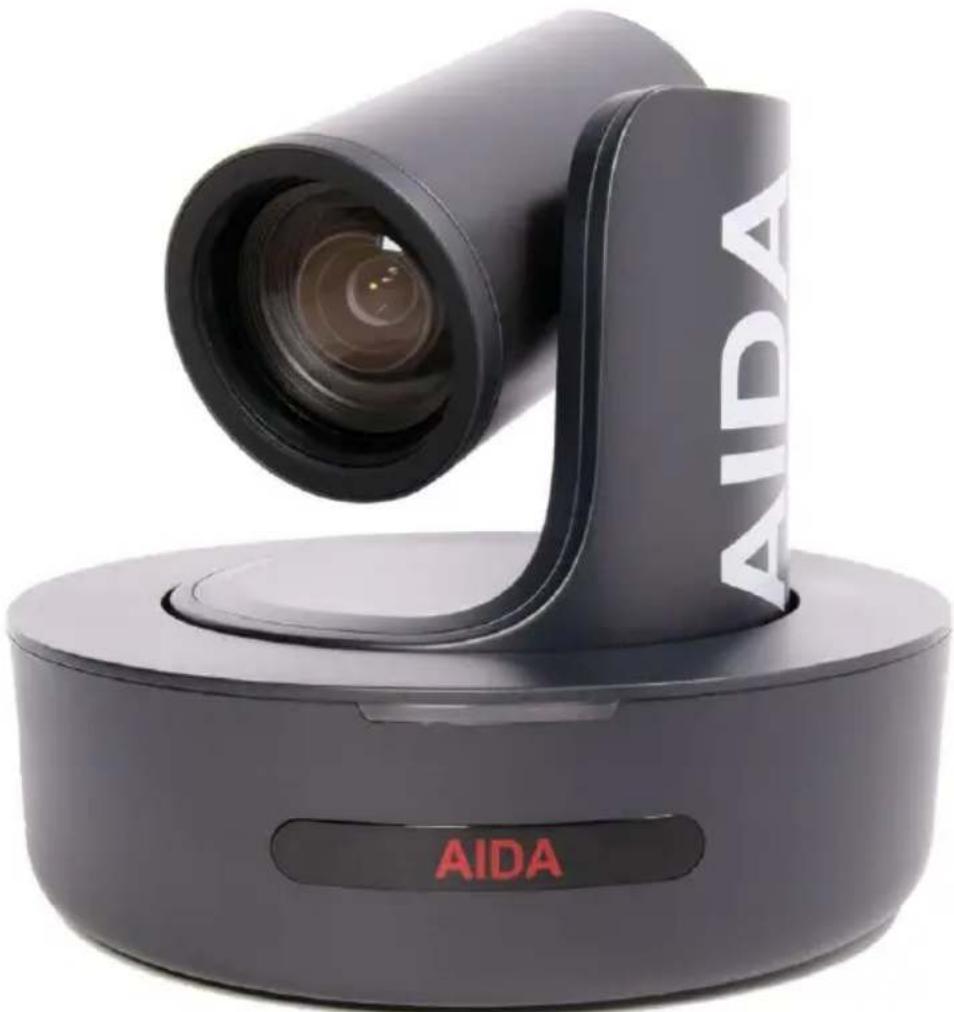
Black AIDA video camera with lens and control panel (no text or symbols on device body)V3.0
AIDA
Table of Contents
1 Safety Guides
2 Packing List & Quick Start
4 Product Highlights & Camera Specs
6 Camera Interface & Dimension
8 IR Remote Controller
10 OSD Menu
12 Web Settings
18 VISCA Over IP
19 VISCA (RS-232) Port
20 VISCA Protocol
29 UVC Control
30 Warranty & Support
Packing List (CONTD)
- Before operation, please read all the instructions in the manual carefully. For your convenience, please keep this manual.
- The camera power input range is 100-240 VACv(50-60hz.) Ensure the power supply input is within this rate before powering it on.
- Camera power voltage = 12VDC, rated currency=2A. We suggest you use it with the original power supply supplied in the packaging.
- Please keep the power cable, video cable, and control cable in a dry, safe place out of any obstructions.
- Operational environment for the camera should be: 0^ C- 50^ C/ 32^ F- 122^ F, with humidity levels less than 90%. To avoid any damage, do not place or pour anything on inside or on top of the camera.
- Avoid placing any extra weight, stress, vibration or pressure on the camera during transportation, storage, or operation.
- Do not remove the camera housing or cover. Any attempt to self-repair or open the camera will void all warranty.
- Make sure the camera is on a fixed and balanced platform. Avoid any uneven surfaces.
- Do no direct the camera towards strong / intensive light. Doing so could cause irreversible damage to the camera sensor, thus voiding all warranty on the camera.
- Use a dry cloth to clean the camera housing, along with a neutral cleaning agent if necessary. To avoid damage on the camera lens, do not use strong or abrasive cleaning agents on the camera.
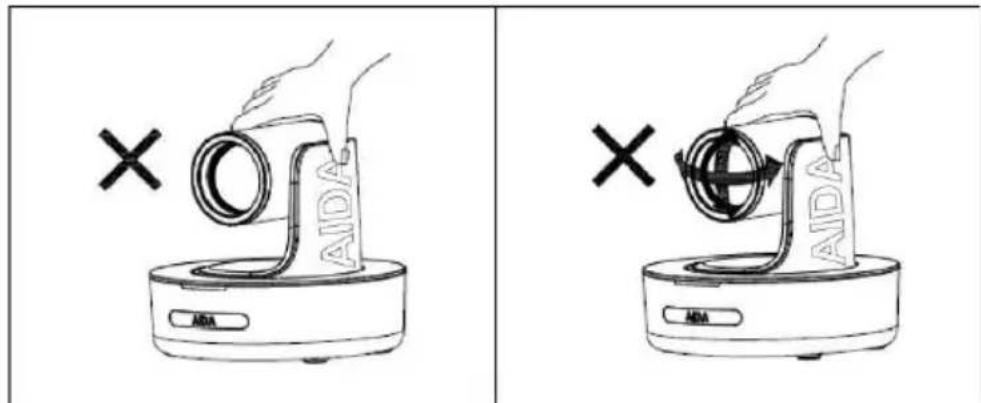
- To avoid mechanical trouble, please do not hands to rotate the camera head. Please refrain from touching or moving the camera while its in motion, as it can cause irreversible damage to the motor mechanisms and thus voiding all warranty on the camera.
natural_image
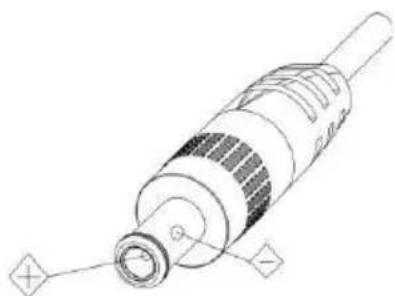
Technical line drawing of a mechanical component with no visible text or symbolsPower Supply Polarity Schematics:
Warning:
Video quality can be affected by specific frequencies of electromagnetic fields.
Packing List
Check for the items below when opening the package!

- AIDA PTZ Camera
- Power Adapter
- Power Cable
- RS232 Control Cable
-
USB 3.0 Cable
-
Remote Control
- User Manual
- Double Sided Adhesive
- QC Certification
- Wall Mount
Quick Start
- Please ensure all the cabling is correct. (PTZ Outputs may vary per model, please check the back of the camera to see which outputs you have.)
PTZ-X12/PTZ-X20 Model
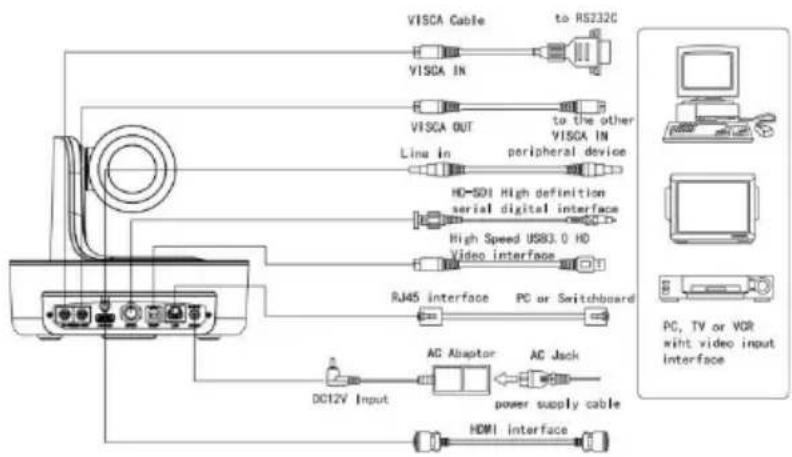
PTZ-X18 Model
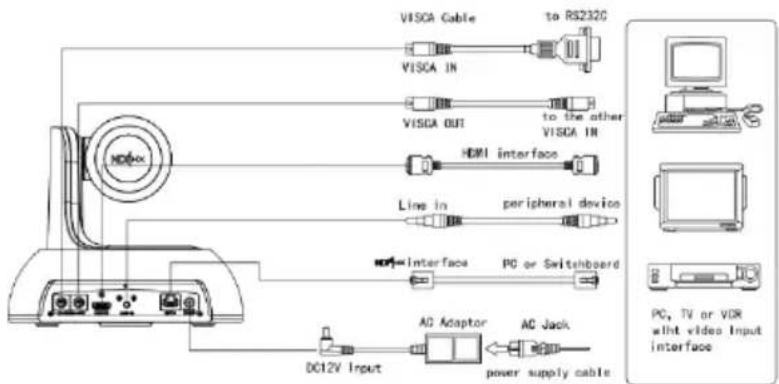
Packing List (CONTD)
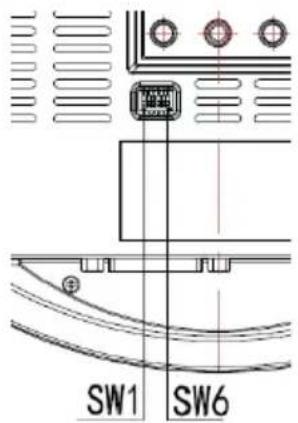
| Dial Switch (ARM) | |||
| SW-1 | SW-2 | Mode | |
| 1 | OFF | OFF | Updating Mode |
| 2 | ON | OFF | Debugging Mode |
| 3 | OFF | ON | Undefined |
| 4 | ON | ON | Working Mode |
| Dial Switch | |||
| SW-3 | SW-4 | Instruction | |
| 1 | OFF | OFF | Reserve |
| 2 | ON | OFF | Reserve |
| 3 | OFF | ON | Reserve |
| 4 | ON | ON | Reserve |
| Dial Switch (USB) | |||
| SW-5 | SW-6 | Instruction | |
| 1 | OFF | OFF | Undefined |
| 2 | ON | OFF | Working Mode |
| 3 | OFF | ON | Updating Mode |
| 4 | ON | ON | Undefined |
Product Highlights
- Contains a Sony Progressive CMOS Sensor providing 1920x1080 crisp HD resolution.
- Wide angle optical lens options: 12x / 18x / 20x optical zoom.
• Full-HD video over IP, via H.264 or H.265 encoding. - Contains traditional outputs such as HDMI, SDI, USB3.0, and RJ-45 for RTSP/RTMP/SRT/NDI® streaming. (Outputs per model may vary.)
- Support line-in function for unbalanced 3.5mm audio.
- In-depth fully adjustable camera settings, such as exposure settings, image parameters, and white balance.
- Supports PoE+ (rated at 24V 30W) which allows for single ethernet cable for control and video over a single cable.
- Fast and precise focusing after camera head movement for no-delay video quality.
- Smooth and quiet PTZ movements for sound-sensitive rooms
• Supports up to 10 presets via the remote, or 128 presets via RS232 / web UI.
• Supports Sony Serial Visca and VISCA over IP. Also supports NDI control if applicable.
• Supports in and out Serial Daisy Chaining for up to 7 PTZ cameras. - Menu based parameters such as image flip and mirror for stress-free installations.
- Handheld remote can also be used to switch video formats fast, as well as change camera IP via the menu.
• Free firmware updates to keep the camera up to date with the latest and greatest!
• Supports UVC control with well known conferencing softwares. - PTZ Menu supports both English and Spanish.
- Supports NDI® | Hx transmission (PTZ-NDI-X12, PTZ-NDI-X18W/B, PTZ-NDI-X20) only.
Camera Specs
| Video Formats (varies per model) | HDMI | 1920 x 1080 60p/59.94p/50p/30p/29.97p/25p/24p/23.981920 x 1080 60i/59.94i/50i1280 x 720 60p/59.94p/50p/30p/29.97p/25p |
| SDI | 1920 x 1080 60p/59.94p/50p/30p/29.97p/25p/24p/23.981920 x 1080 60i/59.94i/50i1280 x 720 60p/59.94p/50 p/30p/29.97p/25p | |
| USB | 1920 x 1080 60/50/30/251280 x 720 60/50/301280 x 720 60p/59.94p/50p/ | |
| RJ-45 | PTZ-NDI-X12: 1920 x 1080 @ 3 ~ 60 1280 x 720 @ 3 ~ 60PTZ-NDI-X20: 1920 x 1080 @ 3 ~ 60 1280 x 720 @ 3 ~ 60PTZ-NDI-X18: 1920 x 1080 @ 3 ~ 30, 1280 x 720 @ 3 ~ 30 |
Camera Specs (CONTD)
| Video Interface | HDMI (V1.4) 3G-SDI, RJ-45, USB 3.0 |
| Sensor | SONY Progressive CMOS Sensor |
| Zoom | 12x, 18x or 20x Optical Zoom |
| Lens | Field of view per lens:(X12) 79°(wide) ~6.8°(Tele) (Subject at 20ft from camera)(X18) 57°(wide) ~4.2°(Tele) (Subject at 20ft from camera)(X20) 57°(wide) ~3.3°(Tele) (Subject at 20ft from camera)Focal Length and Fstop no.:(X12) f=3.92(near)~47.32mm(far), F1.8(Wide)~2.8 (Tele)(X18) f=5.2(near)~90mm(far), F1.5(Wide)~3.0 (Tele)(X20) f=5.2(near)~98mm(far), F1.5(Wide)~3.0 (Tele) |
| Rotation Angle | Pan: -170°~+170°; Tilt: -30°~+90° |
| Rotation Speed | Pan: 0°~120°/s; Tilt: 0°~80°/s |
| Preset | Remote Controller: 10 RS-232: 128 |
| Control Port | RS-232, RJ-45 (VISCA over IP), USB 3.0 (UVC 1.5), USB 2.0 (UVC 1.1) |
| Network Speed | 1000M |
| Video Encode | H.264/H.265 (default: H.264) |
| Bit Rate Control | Variable Bit Rate, Constant Bit Rate |
| Video Bit Rate | 1024kbps(min)~16384 kbps(max) |
| IP Protocol | IP, HTTP, RTSP, RTMP, DCHP, ONVIF, VISCA over IP, NDI® |
| Line in | Supporting ACC audio coding |
| Daisy Chain | Support RS-232 serial daisy chain |
| Minimum Lux | 0.01 Lux |
| White Balance | Auto/Manual/Indoor/Outdoor/One Push |
| Exposure | Auto/Manual/Bright/Shutter/Iris |
| Focus | Auto/Manual |
| Iris | Auto/Manual |
| Anti-Flicker | OFF/50Hz/60Hz |
| Image Voltage | DC12V/PoE+ (24V 30W) |
| Dimension | 220mm x 173mm x 190mm/8.66" x 6.81" x 7.48" |
| Net Weight | 1.4kg/3.1lbs |
Camera Interface PTZ-X12, X20
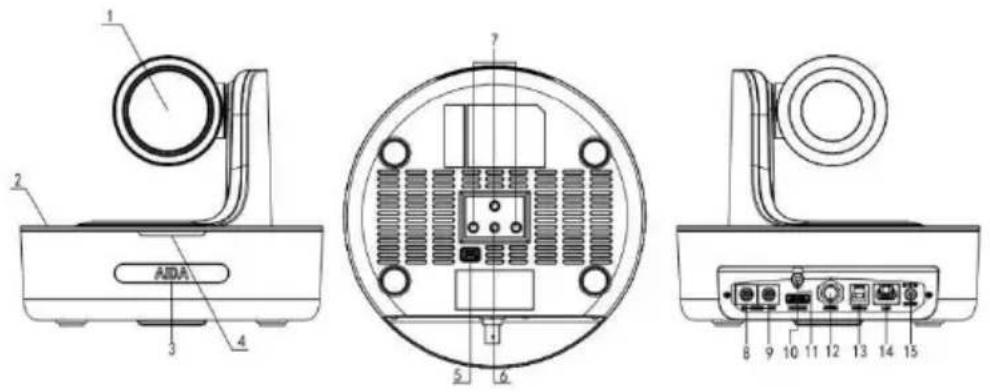
- Camera Lens
- Camera Base
- IR receiver panel
- Power/Tally Indicator
-
Dial Switches (AIDA support only)
-
14 " tripod mounting hole
- WM Installation Holes
- RS-232 Control Input
- RS-232 Control Output
-
HDMI Output
-
3.5 Unbalanced Passive Line in port
- 3G-SDI Output
- USB Port
- RJ-45 Port
- DC12V Plug-in port
Camera Dimensions PTZ-X12, X20 (in mm)
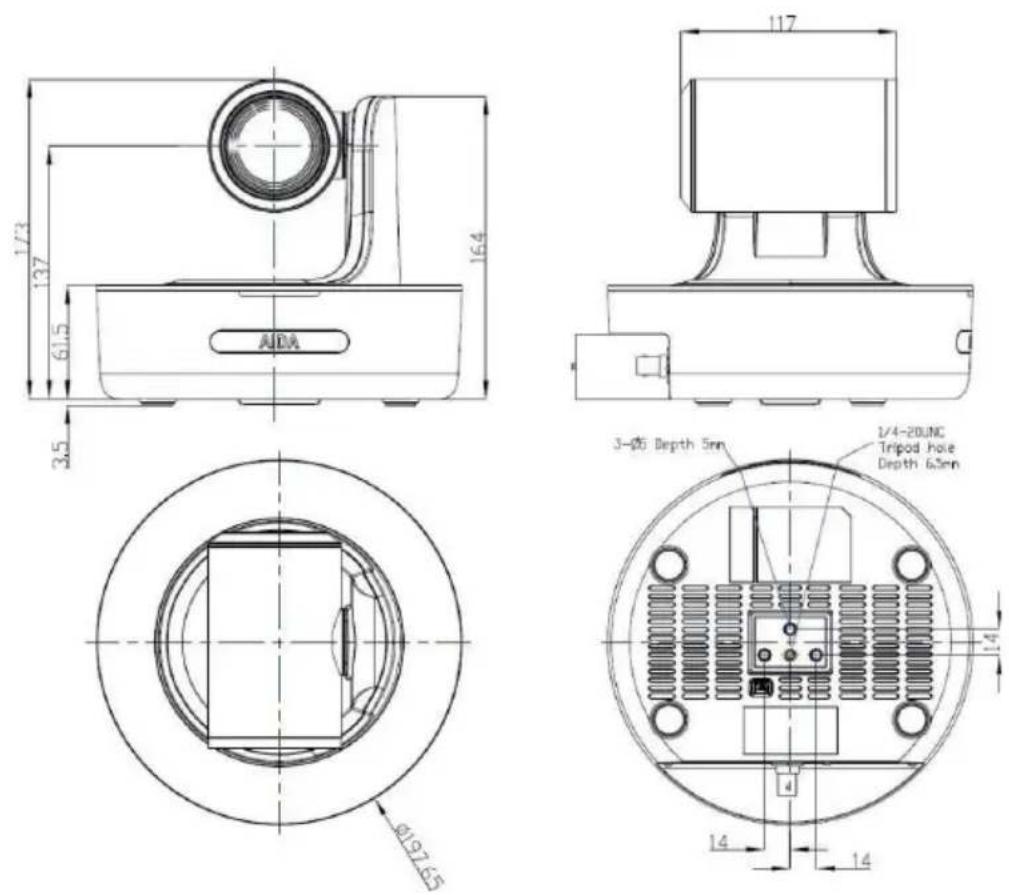
Camera Interface PTZ-X18
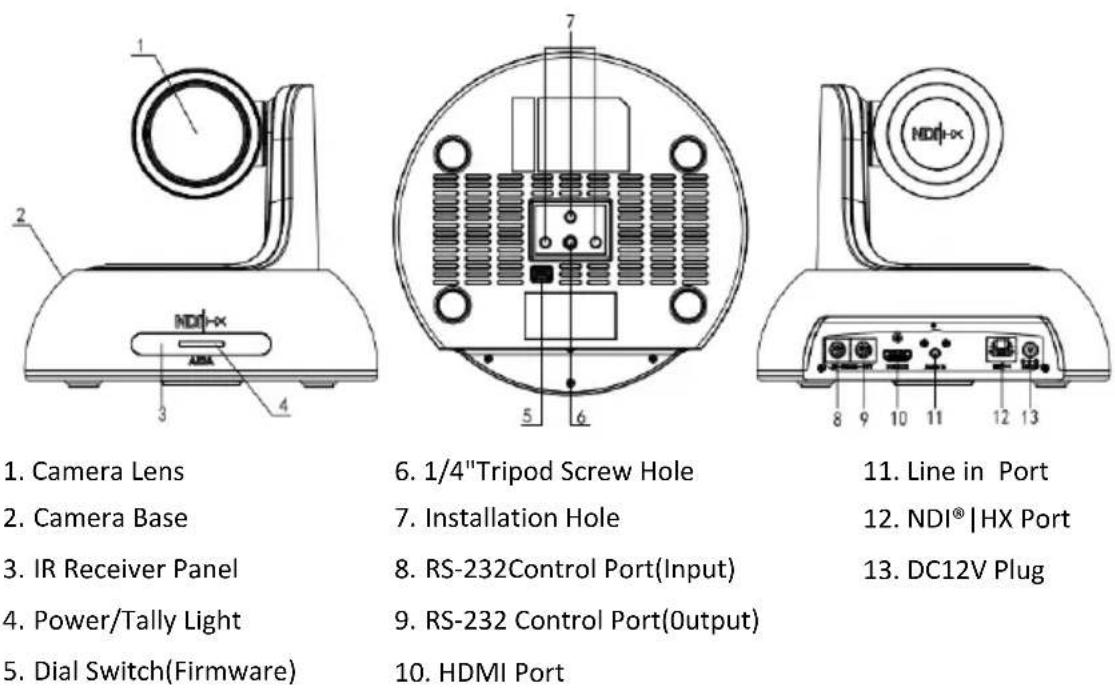
- Camera Lens
- Camera Base
- IR Receiver Panel
- Power/Tally Light
-
Dial Switch(Firmware)
-
1/4"Tripod Screw Hole
- Installation Hole
- RS-232Control Port(Input)
- RS-232 Control Port(Output)
-
HDMI Port
-
Line in Port
- NDI®|HX Port
- DC12V Plug
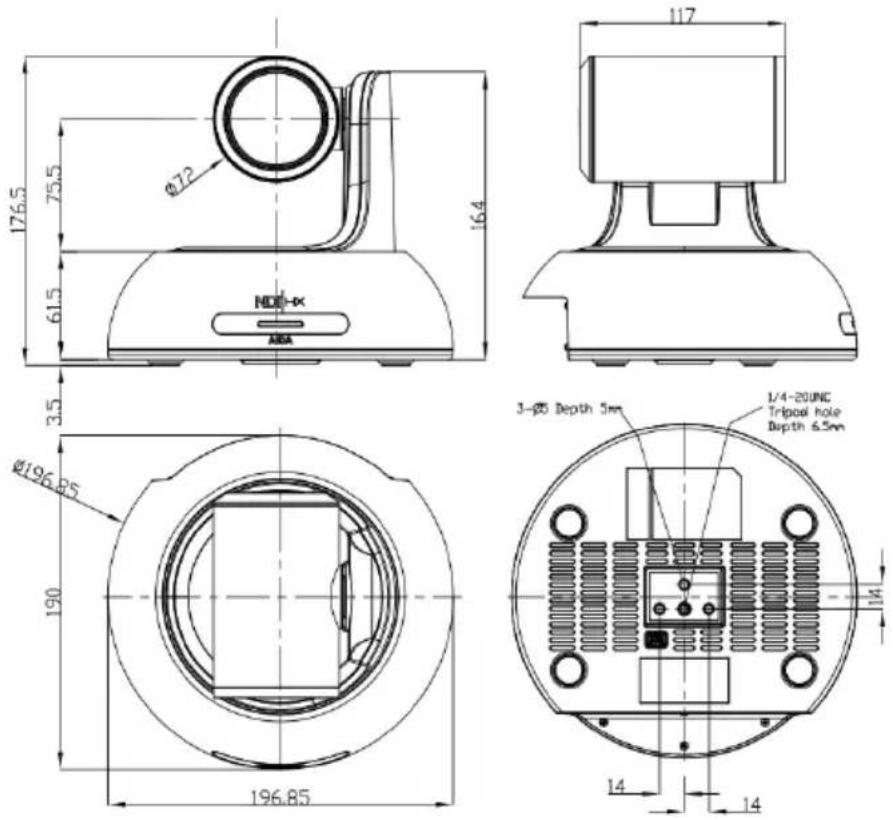
Camera Dimensions PTZ-X18 (in mm)
IR Remote Controller
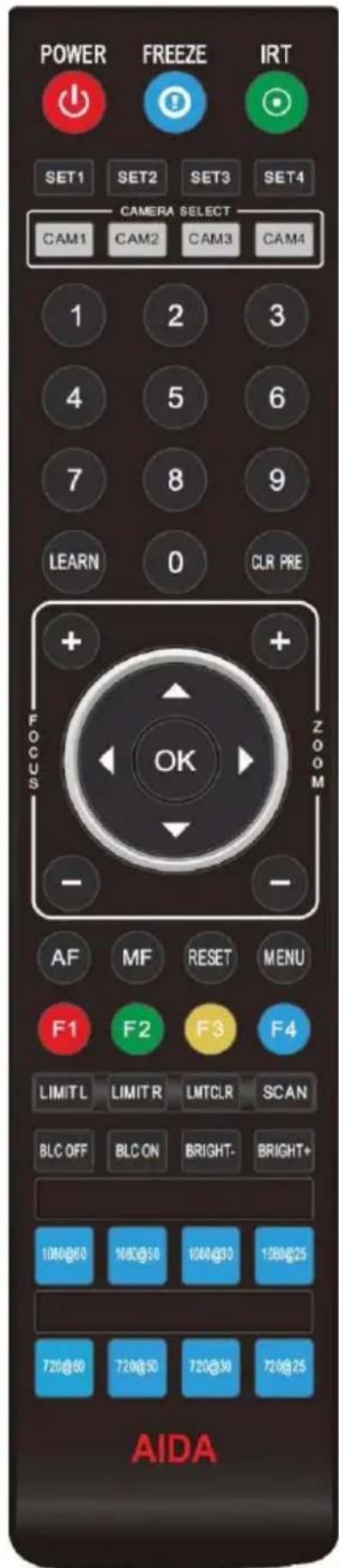
Power
When powered on, pressing the power key will enter the camera into Standby mode. Pressing it again will start up the camera. *Note: This is not any means of shutting off the camera, it only shuts down the motor mechanics. Video will still display.
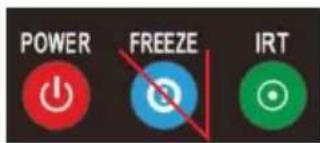
Freeze (No Function)
The freeze button has no functionality.
IRT (IR Transfer/IR Pass)
Enables IR Transferring onto 4 separate signals. Best used when operating multiple PTZ's in same line of sight.
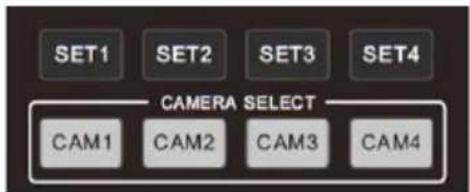
SET 1\~4 Address Setting:
Hold the SET# button to set the cameras IR address.
CAM 1\~4 Buttons:
Pressing the CAM# button will enable the IR control of the selected IR Address.
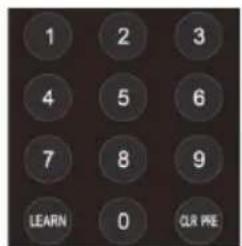
Number Keys (0-9)
Setting Presets: To set a preset, hold down a key (0-9) and wait 3 seconds. Once complete, the preset will be saved to that #.
Recalling Presets: Pressing a key (0-9) will recall the corresponding preset saved to that number.
Clearing Presets (CLR PRE)
Clearing Prests: To clear a preset, press CLR PRE and the #.
Learn (LEARN)
Currently has no independent function. Used with other funcs.
IR Remote Controller (CONTD)
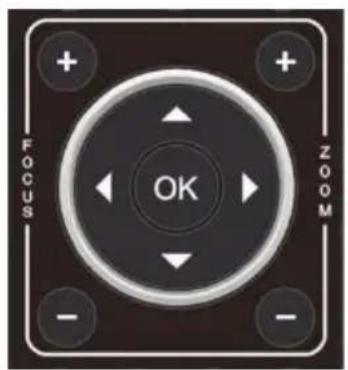
Focus Adjustments (+/-)
Tapping the + or – will set the camera to manual focus for a set precise focus adjustment.
Zoom Control (+/-)
Tapping the + or - will zoom in or out the camera head.
Camera head Control (Up/Down/Left/Right)
Tapping the directional buttons will adjust the PTZ head accordingly. If menu is open, these can be used to navigate it.
Resetting the Camera Head (OK)
Pressing the OK button will reset the PTZ head to HOME. IF menu is open, this can be used to enter sub-menus.
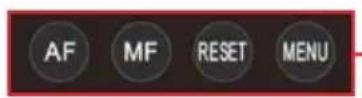
Auto Focus (AF)
When enabled, the camera will automatically focus on the object in the center of the camera.
Manual Focus (MF)
When enabled, the camera will remain the same unless adjusted by the +/- focus keys.
Resetting Image Settings (RESET)
Press to reset all image parameters.
Accessing the Camera's Menu (MENU)
Press Menu to enter the camera settings.
Limiting Camera Movement (LIMIT L/R/CLR)
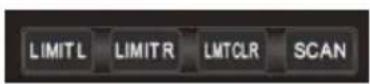
You can adjust the pan / tilt threshold by pressing the LIMIT L and LEARN button to set the Left (LIMIT L) or Right (LIMIT R) threshold. You can use LIMIT CLR to reset this.
(SCAN)
Currently has no function.
Video Format Keys (Blue buttons at the bottom)
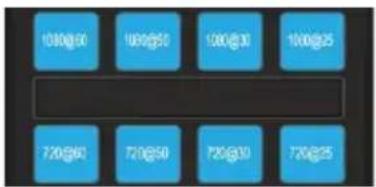
Allows for hot swapping specific resolutions when needed. Simply hold the blue button corresponding to the resolution you want and it will change. (Only works on HDMI/SDI outputs only.)
OSD MENU
- To enter the menu, simply use the handheld remote and press the MENU key to enter the menu.
- To navigate the menu, please use the directional keypad.
- Press the RIGHT directional keypad to enter a submenu. Press the LEFT directional keypad or MENU button to exit a submenu or main menu.
OSD MENU LIST:
| PTZF | FOCUS MODE | AUTO/MANUAL: Ability to change from auto or manual focus | DEFAULT: AUTO |
| DIGITAL ZOOM | ON/OFF: Ability to digitally zoom 2X. (PTZ-X12-IP | PTZ-NDI-X12 only) | DEFAULT: OFF | |
| RATIO DISPLAY | ON/OFF: Grants display of the zoom X module. Off by default. | DEFAULT: OFF | |
| ZOOM SPEED | Zoom speed control IR remote: 7 changeable levels. | DEFAULT: 5 | |
| SPEED BY ZOOM | When zoomed into the max, the camera will adjust very slow. | DEFAULT: ON | |
| PAN/TILT SPEED | Pan/Tilt speed control by IR remote. Controllable at different levels | DEFAULT: 18 | |
| FREEZE PRESET | During preset movement, freeze the image for smooth transitions (SDI/HDMI only) | DEFAULT: OFF | |
| PRESET SPEED | Adjust the speed at which it will take to get to the next preset | DEFAULT: 15 | |
| RETURN | Return to previous menu. | ||
| EXPOSURE | EXPOSURE MODE | AUTO/MANUAL/BRIGHT/SHUTTER/IRIS: Choose the current Exp. Mode | DEFAULT: AUTO |
| SHUTTER | Set shutter speed. 1/30-1/10000: Allows for tuning of the shutter speed | DEFAULT: AUTO | |
| IRIS | Set Iris: CLOSE-F1.8: Allows for tuning of the Iris opening. | DEFAULT: AUTO | |
| GAIN | Set gain: 0dB-28dB: Allows for tuning the gain of the camera | DEFAULT: AUTO | |
| BRIGHTNESS | Set brightness: 0-15: Allows for tuning the brightness of the camera | DEFAULT: AUTO | |
| FLICK | Allows for adjustment of the flickerless options on the camera | DEFAULT: 50Hz | |
| BLACKLIGHT | Allows for the enabling of the blacklight or not. | DEFAULT: OFF | |
| GAMMA | Allows setting changes for the Gamma option of the camera | DEFAULT: 0 | |
| RETURN | Return to previous menu | ||
| IMAGE | WB MODE | AUTO/INDOOR/OUTDOOR/PUSH/ATW/MANUAL/ | DEFAULT: ATW |
| BLUE | Set red gain level: 0-255 (Allows for precise tuning of the blue setting) | DEFAULT: AUTO | |
| RED | Set blue gain level: 0-255 (Allows for precise tuning of the red setting) | DEFAULT: AUTO | |
| MIRROR | ON/OFF: Makes the image flip on the vertical plane | DEFAULT: OFF | |
| FLIP | ON/OFF: (optional) Makes the image flip on the horizontal plane | DEFAULT: OFF | |
| COLOR/B&W | COLOR/B&W: Allows for B&W color mode | DEFAULT: COLOR | |
| GAIN LIMIT | Allows you to cap the gain at a certain level | DEFAULT: 15 |
OSD MENU (CONTD)
| QUALITY | 2DNR | When enabled, image noise and sharpness is reduced | DEFAULT: OFF |
| 3DNR | OFF/AUTO/0-4 optional: higher level = less image reduction happens | DEFAULT: AUTO | |
| SHARPNESS | ON/OFF optional, 0-15 level: higher level = sharper edges of image | DEFAULT: 6 | |
| CONTRAST | Set contrast level: 0-15: Sets the contrast level | DEFAULT: 8 | |
| SATURATION | Set image saturation: 0-15: Sets the saturation level | DEFAULT: 8 | |
| BRIGHTNESS | Set brightness of auto exposure: 0-15: Sets the brightness level | DEFAULT: 8 | |
| WDR | ON/OFF: Enables better to light and dark images | DEFAULT: OFF | |
| WDR LEVEL | 1-6: Enables more control of WDR | DEFAULT: 1 | |
| RETURN | Return to previous menu | ||
| FORMAT | SIZE | 1080p/1080i/720p (default resolution: 1080 30p) | After selecting format, press OK to switch format. |
| FRAME RATE | 60/59.94/50/30/29.97/25/24/23.98 | ||
| RETURN | Return to previous menu | ||
| SYSTEM | ID | Set VISCA control address 1-7 | DEFAULT: 1 |
| BAUDRATE | Set RS-232 baud rate to 2400/4800/9600/115200 | DEFAULT: 9600 | |
| LANGUAGE/IDIOMA | Set language: ENGLISH/SPANISH | DEFAULT: ENG | |
| DHCP | IP address automatic acquisition switch: ON/OFF | DEFAULT: OFF | |
| IP | Set camera IP | 192.168.1.188 | |
| NET MASK | Set camera net mask | 255.255.255.0 | |
| GATEWAY | Set camera gateway | 192.168.1.1 | |
| RETURN | Return to previous menu | ||
| INFO | IP ADDRESS | Display the current IP address | |
| RTSP URL | Display the current main stream RTSP URL | ||
| F/W VERSION | Display the current ISP firmware version | ||
| ARM VERSION | Display the current ARM firmware version | ||
| FPGA VERSION | Display the current FPGA firmware version | ||
| USB VERSION | Display the current USB firmware version | ||
| RESET | FACTORY RESET | Reset whole camera to factory parameters | |
| USER SETTING | Save current parameters for User Reset use | ||
| USER RESET | Recalls the saved user settings | ||
| RETURN | Return to previous menu | ||
Web Settings
The camera's web UI can be accessed via Google Chrome, Firefox, IE, Safari, Opera, or any other major internet browsers.
1. Logging in:
Open your browser and in the address bar, type in the Camera's IP address:
Default IP: 192.168.1.188. If changed, enter that specific IP address.
Default Username: admin
Default Password: admin
*If you are having trouble logging in, please contact AIDA Imaging support.
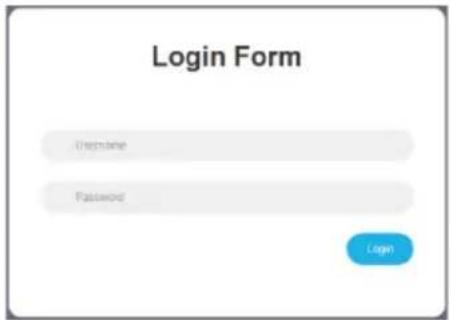
2. Real-time Previewing:
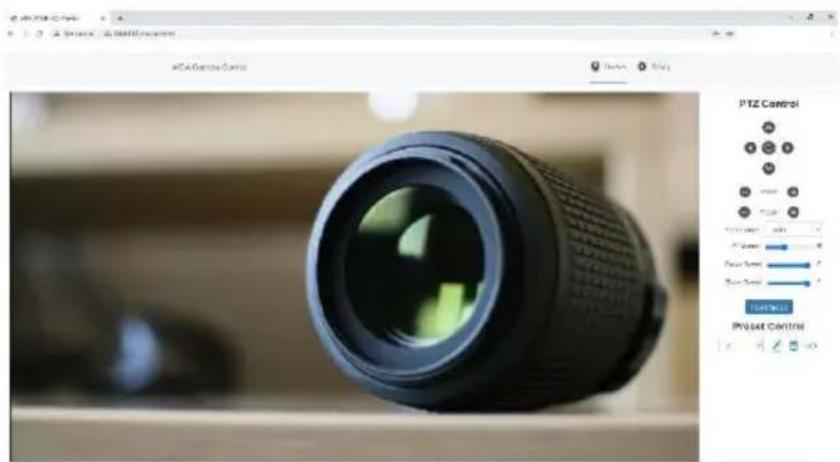
When logging in, you will get a real time image preview of the camera via our HTTP protocol.
natural_image
Close-up of a black camera lens on a wooden surface, displayed within an image editing software interface (no readable text or symbols on the lens itself)On the right is the control interface. You can control the camera's movements with the directional buttons, as well as adjust the zoom and focus of the camera via the corresponding +/- buttons. Feel free to adjust the speed at which the camera focuses and adjusts via the slider bars as well. You will also find the Preset control to create or recall presets via the web UI.
Near the bottom of the preview is a main and substream player, as well as the option to do a picture in picture preview for adjustable movement of the preview.
Web Settings (CONTD)
Settings:
Clicking the "Settings" button at the top right will enter the cameras web UI settings.
Video Encode:
Under Video Encode, you will have access to adjust the main and sub video parameters of the camera. This will also adjust the quality of your RTSP, RTMP, SRT and NDI® (if applicable.)
Video Encode
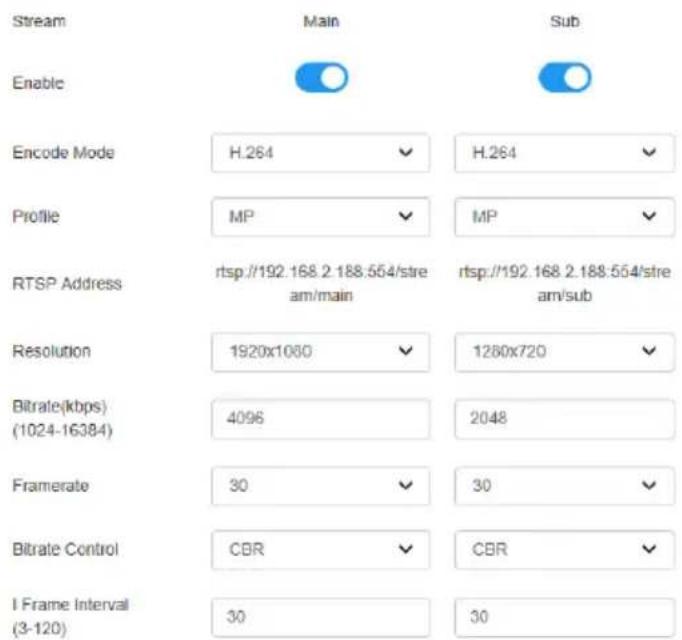

Option Descriptions:
Encode Mode: Allows for H.264 or H.265 for better compression streaming (Will not work for NDI and SRT)
Profile: Set the encoding profile mode for the camera.
MP: Main Profile – Used for web streaming.
Baseline: Baseline Profile – Used for streaming to legacy devices.
HP: High Profile – Use for recording purposes with other softwares.
Resolution: Set the resolution of the stream.
Bitrate: Set the bitrate of the camera via (kbps) Higher bitrate = better performance, but can lag a slower system. Lower bitrate = stable performance, but at a loss of quality.
Framerate: Change your streams framerate.
Bitrate Control: Choose between CBR or VBR. (CBR Recommended for stable streams)
I-Frame Interval: Adjust the time in between key-frames. Doubling your current framerate is recommended.
Web Settings (CONTD)
Video Transmission Settings:
Under video transmission, you will find the options to adjust your RTMP, SRT, or NDI® streams.
RTMP Setting:
RTMP can be used to stream directly to social media sites such as Youtube, Vimeo, and Facebook Live. To utilize this, please follow the following steps:
- For better results, please ensure your PTZ is in DHCP mode and connected to the internet.
- Next obtain the live RTMP address from your website. It should look something like the (?) found on the page.
- Place the live RTMP address in the RTMP address slot.
- Next, ensure there is a forward slash after the RTMP address. (/)
- Lastly, paste the stream key if necessary.
- Click Save.
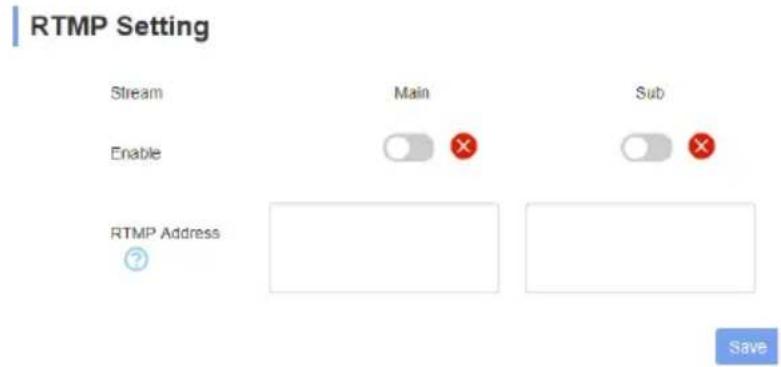
NDI Setting®:
Here you can adjust your cameras NDI settings. (if applicable to your camera)
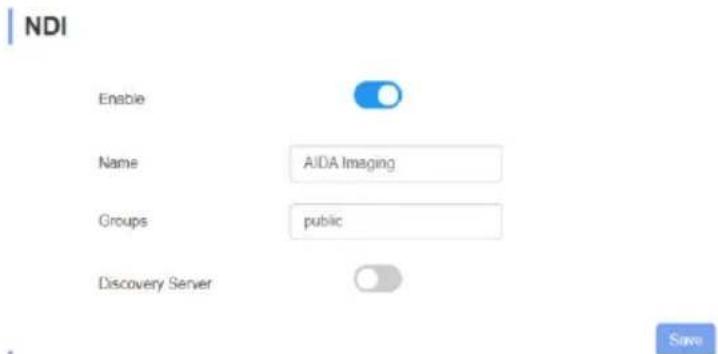
Option Descriptions:
Name: Change the name that shows up on NDI Studio monitor for manageable multi-cam setups.
Groups: Adjust the NDI group it is categorized in. (Default: public)
Discovery Server: For multiple subnets, set a dedicated NDI PC that hosts a discovery service to connect to, regardless of where you are on the router chain. Enter the NDI PC's IP below.
Web Settings (CONTD)
SRT Settings:
In this menu, you can setup a SRT stream to any given software / SRT player.
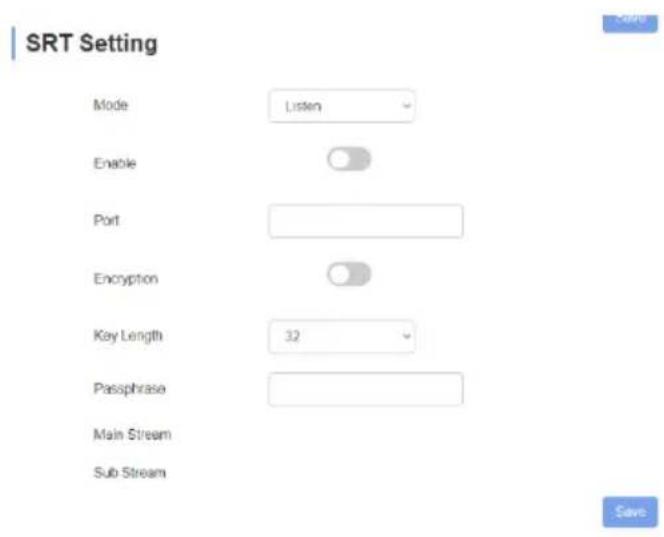
Option Descriptions:
Mode: Change the SRT mode into Listener or Caller.
Port: Enter the SRT port number here.
Encryption: Allows for an encrypted SRT stream.
Key Length: If Encryption is selected, choose the keylength of the password.
Passphrase: Enter the encryption password for the software to connect to the camera.
Main Stream / Sub Stream: Will populate once complete.
Caller mode will look different than this. To get a better idea on how to setup a SRT stream, head to our Youtube at youtube.com/aidaimaging for tutorials!
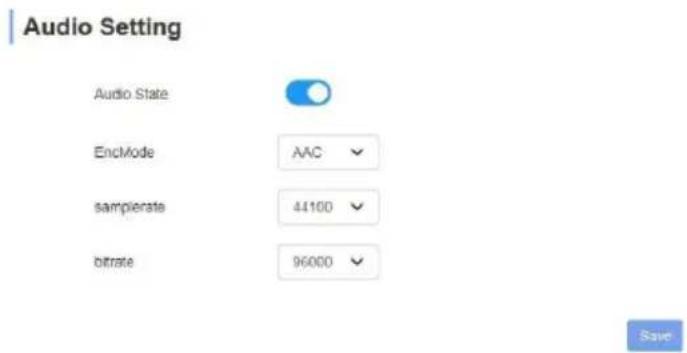
Audio Settings:
In the "audio settings" tab, audio can be turned off or on. You are also able to adjust the encode mode, samplerate, and bitrate.
Web Settings (CONTD)
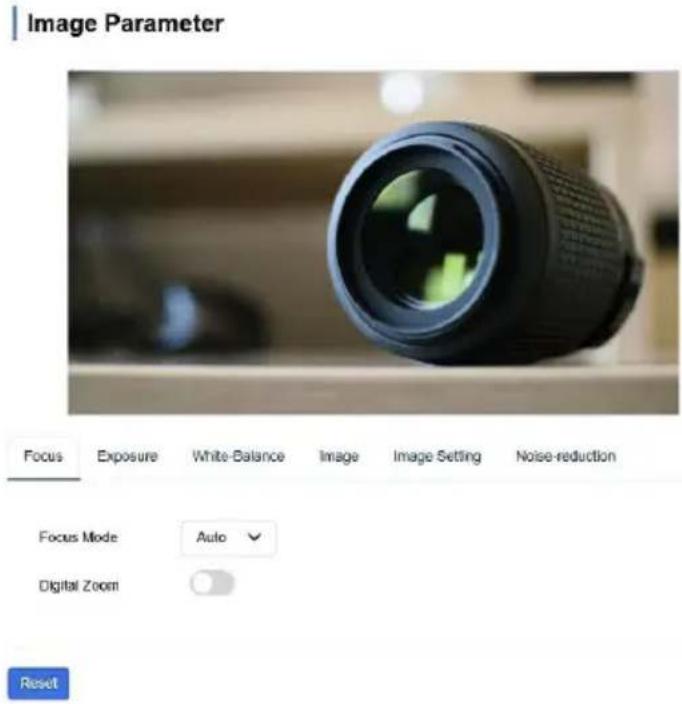
Image Parameters Settings:
In this menu, you can adjust the same parameters found from the OSD menu. All settings will save over the OSD settings.
Ethernet Settings:
In this menu, you can adjust ethernet settings of the camera. Below are the standard settings found on the camera by default. Please power cycle the camera after clicking "save."
| DHCP | OFF | DNS | 192.168.1.1 |
| IP Address | 192.168.1.188 | HTTP Port | 80 |
| Netmask | 255.255.255.0 | RTSP Port | 554 |
| Gateway | 192.168.1.1 | VISCA over IP | 52381 |
Use the RTSP Encrypt option to encrypt your RTSP streams.
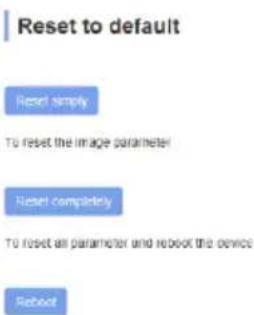
Reset to Default:
In this menu, you can reset some of the cameras settings.
Reset Simply: Reset ONLY image parameters. IP Settings will remain the same.
Reset Completely: Factory reset the whole camera – will default IP address.
Reboot: Does not reset anything, simply just restarts the camera.
Web Settings (CONTD)
Account Settings:
In the account settings, you can change the account name and password from the default. If you lose your new account / password, you will have to contact AIDA support for help, so don't forget to write it down!
Account Setting
Account

Password

Confirm Password


System Time:
In the system time tab, you can adjust the timezone of each clock to sync them.
System Time Settings
Time Zone
UTC
NTP Enable

NTP Update Interval
1h
NTP Server Address
us.pool.ntp.org
NTP Port
80
Save
VISCA over IP
VISCA over IP:
Our PTZ's use VISCA over IP to reliably send and receive information from any standard VISCA over IP controller!
Information of Communications port:
Control Port: RJ-45 LAN connection
IP Protocol: IPv4
Transmission Protocol: UDP
IP Address: *depends on your camera's IP
Port Address: 52381
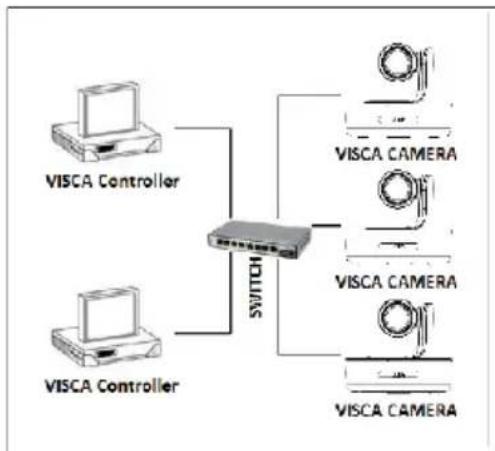
flowchart
graph TD
    A["VISCA Controller"] --> C["Switch"]
    B["VISCA Controller"] --> C["Switch"]
    C --> D["VISCA CAMERA"]
    C --> E["VISCA CAMERA"]
    C --> F["VISCA CAMERA"]
What is VISCA over IP?
Simply put, VISCA over IP is the magic behind the communications between controller and PTZ cameras! These VISCA commands are sent via UDP protocol. Since UDP transmission isn’t stable, a couple of steps must occur before a movement is executed. First, the controller will send out a VISCA command to our camera. Our camera will then receive and send back the same command to the controller. Once the commands are confirmed – the movement will be executed. At the end, a message back to the controller will confirm the action was actually done. Each VISCA command controls its own settings, as there could be no overlaps of existing commands. Luckily, this happens instantaneously so there is no lag when using VISCA over IP!
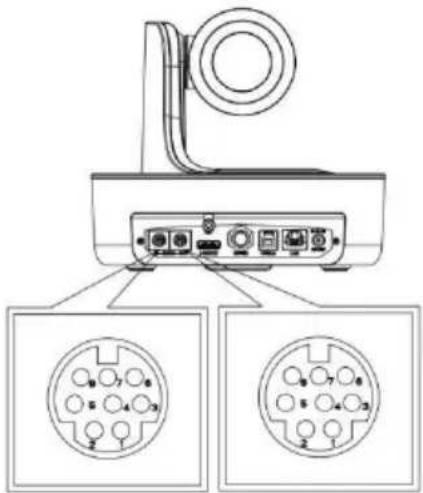
VISCA RS232
natural_image
Diagram of a device with three circular connector pins, shown from top and side views (no text or symbols)| 1 | DTR |
| 2 | DSR |
| 3 | TXD |
| 4 | GND |
| 5 | RXD |
| 6 | A |
| 7 | IR OUT |
| 8 | B |
VISCA IN & Mini DIN Connection
| Camera VISCA IN | Mini DIN | ||
| 1 | DTR | 1 | DSR |
| 2 | DSR | 2 | DTR |
| 3 | TXD | 5 | RXD |
| 4 | GND | 4 | GND |
| 5 | RXD | 3 | TXD |
| 6 | A(+) | 6 | NC |
| 7 | IR OUT | 7 | NC |
| 8 | B(-) | 8 | NC |
VISCA IN & DB9 Connection
| Camera VISCA IN | Windows DB9 | ||
| 1 | DTR | 6 | DSR |
| 2 | DSR | 4 | DTR |
| 3 | TXD | 2 | RXD |
| 4 | GND | 5 | GND |
| 5 | RXD | 3 | TXD |
| 6 | A(+) | ||
| 7 | IR OUT | ||
| 8 | B(-) | ||
Serial Port Configuration
| Parameter | Value | Parameter | Value |
| Baud Rate | 2400/4800/9600/115200 | Stop Bit | 1 Bit |
| Start Bit | 1 Bit | Check Bit | None |
| Date Bit | 8 Bit |
VISCA Protocol
For whole updated list, please reach out to our support team!
Part 1: Camera Return Command
| ACK/Completion Message | ||
| Command Packet | Note | |
| ACK | z0 41 FF | Returned when the command is accepted |
| Completion | z0 51 FF | Returned when the command has been executed |
z= camera address +8
| Error Messages | ||
| Command Packet | Note | |
| Syntax Error | z0 60 02 FF | Returned when the command format is different orwhen a command with illegal command parameters is accepted |
| Command Not Executable | z0 61 41 FF | Returned when the command cannot be executed due to current conditions. For example, when commands controlling the focus manually are received during auto focus. |
Part 2: Camera Control Command
| AddressSet | Broadcast | 88 30 01 FF | Address setting |
| IF_Clear | Broadcast | 88 01 00 01 FF | I/F Clear |
| CommandCancel | 8x 21 FF | ||
| CAM_Power | On | 8x 01 04 00 02 FF | Power ON/OFF |
| Off | 8x 01 04 00 03 FF | ||
| CAM_Zoom | Stop | 8x 01 04 07 00 FF | |
| Tele(Standard) | 8x 01 04 07 02 FF | ||
| Wide(Standard) | 8x 01 04 07 03 FF | ||
| Tele(Variable) | 8x 01 04 07 2p FF | p=0(low)~7(high) | |
| Wide(Variable) | 8x 01 04 07 3p FF | ||
| Direct | 8x 01 04 47 0p 0q 0r 0s FF | pqrs: Zoom Position (0 (wide)~0x4000(tele)) | |
| Direct with speed | 8x 0A 04 47 0t 0p 0q 0r 0s FF | t: spd 0~7pqrs: Zoom Position (0(wide)\`0x4000(tele)) | |
| Separate Mode | 81 01 04 36 01 FF | Separate with optical zoom control |
VISCA Protocol (CONTD)
| CAM_DZoom | Stop | 81 01 04 06 00 FF | Enable in separate mode |
| Tele(Variable) | 81 01 04 06 2p FF | Enable in separate mode | |
| Wide(Variable) | 81 01 04 06 3p FF | Enable in separate mode | |
| Direct | 81 01 04 46 0p 0q 0r 0s FF | Enable in separate mode | |
| CAM_Focus | Stop | 8x 01 04 08 00 FF | |
| Far(Standard) | 8x 01 04 08 02 FF | ||
| Near(Standard) | 8x 01 04 08 03 FF | ||
| Far(Variable) | 81 01 04 08 2p FF | p=0 (Low) to 7 (High) | |
| Near (Variable) | 81 01 04 08 3p FF | p=0 (Low) to 7 (High) | |
| Direct | 8x 01 04 48 0p 0q 0r 0s FF | pqrs: Focus Position | |
| Auto Focus | 81 01 04 38 02 FF | ||
| Manual Focus | 81 01 04 38 03 FF | ||
| One Push AF | 8x 01 04 18 01 FF | ||
| CAM_ZoomFocus | Direct | 8x 01 04 47 0p 0q 0r 0s 0t 0u 0v 0w FF | pqrs: Zoom Position (0(wide)~0x4000(tele)) tuvw: Focus Position |
| CAM_WB | Auto | 8x 01 04 35 00 FF | |
| Indoor | 8x 01 04 35 01 FF | ||
| Outdoor | 8x 01 04 35 02 FF | ||
| One Push | 8x 01 04 35 03 FF | ||
| ATW | 8x 01 04 35 04 FF | ||
| Manual | 8x 01 04 35 05FF | ||
| Sodium lamp | 8x 01 04 35 08 FF | ||
| Flourescent | 8x 01 04 35 09 FF | ||
| One Push Trigger | 8x 01 04 10 05 FF | ||
| CAM_RGain | Reset | 8x 01 04 03 00 FF | Manual Control of RGain |
| Up | 8x 01 04 03 02 FF | ||
| Down | 8x 01 04 03 03 FF | ||
| Direct | 8x 01 04 43 00 00 0p 0q FF | pq: RGain (0~0xFF) | |
| CAM_BGain | Reset | 8x 01 04 04 00 FF | Manual Control of BGain |
| Up | 8x 01 04 04 02 FF | ||
| Down | 8x 01 04 04 03 FF | ||
| Direct | 8x 01 04 44 00 00 0p 0q FF | pq: BGain (0-0xFF) |
VISCA Protocol (CONTD)
| CAM_AE | Full Auto | 81 01 04 39 00 FF | Automatic Exposure mode |
| Manual | 81 01 04 39 03 FF | Manual Control mode | |
| Shutter Priority | 81 01 04 39 0A FF | Shutter Priority Automatic Exposure mode | |
| Iris Priority | 81 01 04 39 0B FF | Iris Priority Automatic Exposure mode | |
| Bright | 81 01 04 39 0D FF | Bright Mode (Manual control) | |
| CAM_Shutter | Reset | 8x 01 04 0A 00 FF | Shutter Setting |
| Up | 8x 01 04 0A 02 FF | ||
| Down | 8x 01 04 0A 03 FF | ||
| Direct | 8x 01 04 4A 00 00 0p 0q FF | pq: Shutter Position (0~0x15) | |
| CAM_Iris | Reset | 8x 01 04 0B 00 FF | Iris Setting (0~0x0D) |
| Up | 8x 01 04 0B 02 FF | ||
| Down | 8x 01 04 0B 03 FF | ||
| Direct | 8x 01 04 4B 00 00 0p 0q FF | pq: Iris Position (0~0x0D) | |
| CAM_Gain | Reset | 8x 01 04 0C 00 FF | Gain Setting (0~0x0E) |
| Up | 8x 01 04 0C 02 FF | ||
| Down | 8x 01 04 0C 03 FF | ||
| Direct | 8x 01 04 0C 00 00 0p 0q FF | pq: Gain Position (0~0x0E) | |
| CAM_Bright | Reset | 8x 01 04 0D 00 FF | Bright Setting |
| Up | 8x 01 04 0D 02 FF | ||
| Down | 8x 01 04 0D 03 FF | ||
| Direct | 8x 01 04 4D 00 00 0p 0q FF | pq: Bright Position (0~0x1B) | |
| CAM_ImageBright | Direct | 8x 01 04 A4 00 00 0p 0q FF | pq: Image Bright Position (0~0x0F) AE_AUTO/AE_SHUTTER/AE_IRIS |
| CAM_WDR | On | 8x 01 04 3D 02 FF | Exposure Compensation ON/OFF |
| Off | 8x 01 04 3D 03 FF | ||
| Direct | 8x 01 04 D3 pq FF | pq: ExpComp Position (0~0x6) | |
| CAM_Backlight (BLC) | On | 8x 01 04 33 02 FF | Blacklight On |
| Off | 8x 01 04 33 03 FF | Blacklight Off | |
| CAM_Sharpness | Reset | 8x 01 04 02 00 FF | Aperture Control |
| Up | 8x 01 04 02 02 FF | ||
| Down | 8x 01 04 02 03 FF | ||
| Direct | 8x 01 04 42 00 00 0p 0q FF | pq: Aperture Gain (0~0x0F) |
VISCA Protocol (CONTD)
| CAM_Memory(preset) | Reset | 8x 01 04 3F 00 0p FF | p: Preset Number (=0 to 128)Corresponds to 0-9 on the remote controller |
| Set | 8x 01 04 3F 01 0p FF | ||
| Recall | 8x 01 04 3F 02 0p FF | ||
| CAM_LR_Reverse | On | 8x 01 04 61 02 FF | Image Flip Horizontal On/Off |
| Off | 8x 01 04 61 03 FF | ||
| CAM_PictureFlip | On | 8x 01 04 66 02 FF | Image Flip Horizontal On/Off |
| Off | 8x 01 04 66 03 FF | ||
| CAM_RS485Ctl | On | 8x 01 06 A5 02 FF | |
| Off | 8x 01 06 A5 03 FF | ||
| CAM_Saturation | Saturation | 8x 01 04 A1 00 00 0p 0q FF | pq: Saturation Level 0x00~0xff |
| CAM_Contrast | Contrast | 8x 01 04 A2 00 00 0p 0q FF | pq: Contrast Level 0x00~0xff |
| CAM_SpeedByZoom | On | 8x 01 06 A0 02 FF | |
| Off | 8x 01 06 A0 03 FF | ||
| CAM_PTSpeed | PT Speed | 8x 01 04 C1 00 00 0p 0q FF | pq: PT Speed 0x05~0x18 |
| CAM_ZoomSpeed | Zoom Speed | 8x 01 04 D1 00 00 0p 0q FF | pq: Zoom Speed 0x01~0x07 |
| CAM_ZoomDisplay | On | 8x 01 06 C2 02 FF | |
| Off | 8x 01 06 C2 03 FF | ||
| CAM_IRaddress | IR address | 8x 01 06 D8 0p FF | p: IR address1~4 |
| CAM_Gamma | Gamma set | 81 01 04 5B 0p FF | p: Gamma No. (0~4) |
| CAM_ColorGain | Direct | 8x 01 04 49 00 00 00 0p FF | (0~0x0E) |
| CAM_2DNR | Direct | 8x 01 04 A5 0p FF | (0~0x1) |
| CAM_3DNR | Direct | 8x 01 04 53 0p FF | (0~0x05) |
| FLICK | 50Hz | 81 01 04 23 01 FF | |
| 60Hz | 81 01 04 23 02 FF | ||
| OFF | 81 01 04 23 00 FF |
VISCA Protocol (CONTD)
| VideoSystem Set (AIDA) | 8x 01 06 35 00 pp FF | pp: Video Format:1080P60 0x001080P50 0x011080I60 0x021080I50 0x031080P30 0x 041080P25 0x05720P60 0x 06720P50 0x07720P30 0x08720P25 0x091080P5994 0x0E1080I5994 0x0F1080P2997 0x10720P5994 0x13720P2997 0x141080P24 0x111080P2398 0x12 | |
| VideoSystem Set (Sony) | 81 01 04 24 72 0p 0q FF | pp: Video Format:1080P60 0x2e1080P50 0x2f1080I60 0x011080I50 0x041080P30 0x061080P25 0x08720P60 0x09720P50 0x0c720P30 0x0e720P25 0x111080P5994 0x131080I5994 0x021080P2997 0x07720P5994 0x0a720P2997 0x0f1080P24 0x2a1080P2398 0x2b | |
| CAM_IDWrite | 8x 01 04 22 0p 0q 0r 0s FF | pqrs: Camera ID (=0000 to FFFF) | |
| DHCP control | DHCP off | 8x 01 04 AE 00 FF | DHCP off |
| DHCP on | 8x 01 04 AE 01 FF | DHCP on | |
| Main Stream | Resolution | 8x 01 04 C2 00 0p 0q 0r 0s 0m On 0x 0y FF | pqrs: Column(x size) mnxy: Line (y size)only support: 1920x1080/1280x720 |
| Rate | 8x 01 04 C2 01 0p 0q 0r 0s 0m On 0x 0y FF | pqrsmnxy: bitrate (0~15360) | |
| Sub Stream | Resolution | 8x 01 04 C3 00 0p 0q 0r 0s 0m On 0x 0y FF | pqrs : Column(x size) mnxy: Line (y size) onlysupport: 1280x720/1024x576/640x360 |
| Rate | 8x 01 04 C3 01 0p 0q 0r 0s 0m On 0x 0y FF | pqrsmnxy: bitrate (0~15360) | |
| Tally Control | Off | 8x 01 7E 01 0A 00 0p FF | p: 0: OFF(LED off) 1: (LED green on)2: (LED red on) 4: (LED blue on) |
| IP address control | IP Set | 8x 01 04 AB 0p 0q 0r 0s 0m On 0x 0y FF | Set ip to :pq.rs.mn.xy |
| Mask | 8x 01 04 AC 0p 0q 0r 0s 0m On 0x 0y FF | Set mask to :pq.rs.mn.xy | |
| Gateway set | 8x 01 04 AD 0p 0q 0r 0s 0m On 0x 0y FF | Set gateway to :pq.rs.mn.xy | |
| Color adjust | Color Adjust OFF | 8x 01 04 B6 00 FF | Color adjust off |
| Color Adjust ON | 8x 01 04 B6 01 FF | Color adjust on | |
| Brightness Balance OFF | 8x 01 04 B7 00 FF | Keep Brightness | |
| Brightness Balance ON | 8x 01 04 B7 01 FF | Don't Keep Brightness |
VISCA Protocol (CONTD)
| Color adjust | Flare red | 8x 01 04 B8 dat FF | Flare mode red value (Default=32) |
| Flare green | 8x 01 04 B9 dat FF | Flare mode green value (Default=32) | |
| Flare blue | 8x 01 04 BA dat FF | Flare mode blue value (Default=32) | |
| SYS_Menu | Menu On | 8x 01 06 06 02 FF | Turn on menu |
| Menu Off | 8x 01 06 06 03 FF | Turn off menu | |
| Menu Back | 8x 01 06 06 10 FF | Menu step back | |
| Menu Ok | 8x 01 7E 01 02 00 01 FF | Menu ok | |
| IR_Receive | On | 8x 01 06 08 02 FF | IR(remote commander)receive ON/OFF |
| Off | 8x 01 06 08 03 FF | ||
| On/Off | 8x 01 06 08 10 FF | ||
| Pan_TiltDrive | Up | 8x 01 06 01 VV WW 03 01 FF | VV: Pan speed 0x01 (low speed) to 0x18 (high speed)WW: Tilt speed 0x01 (low speed) to 0x14 (high speed)YYYY: Pan Position(TBD)ZZZZ: Tilt Position(TBD) |
| Down | 8x 01 06 01 VV WW 03 02 FF | ||
| Left | 8x 01 06 01 VV WW 01 03 FF | ||
| Right | 8x 01 06 01 VV WW 02 03 FF | ||
| Upleft | 8x 01 06 01 VV WW 01 01 FF | ||
| Upright | 8x 01 06 01 VV WW 02 01 FF | ||
| Downleft | 8x 01 06 01 VV WW 01 02 FF | ||
| Downright | 8x 01 06 01 VV WW 02 02 FF | ||
| Stop | 8x 01 06 01 VV WW 03 03 FF | ||
| Absolute Position | 8x 01 06 02 VV WW 0Y 0Y 0Y 0Y 0Z 0Z 0Z FF | ||
| Relative Position | 8x 01 06 03 VV WW 0Y 0Y 0Y 0Y 0Z 0Z 0Z 0Z FF | ||
| Home | 8x 01 06 04 FF | ||
| Reset | 8x 01 06 05 FF | ||
| Pan Tilt_LimitSet | Set | 8x 01 06 07 00 0W 0Y 0Y 0Y 0Z 0Z 0Z FF | PW: 1: UpRight 0:DownLeftYYYY: Pan Limit Position(TBD)ZZZZ: Tilt Limit Position(TBD) |
| Clear | 8x 01 06 07 01 0W 07 0F 0F 0F 07 0F 0F 0F FF |
VISCA Protocol (CONTD)
Part 3: Inquiry Command
Command Type Command Return Note
| CAM_PowerInq | 8x 09 04 00 FF | y0 50 02 FF | On |
| y0 50 03 FF | Off (Standby) | ||
| CAM_ZoomPosInq | 8x 09 04 47 FF | y0 50 0p 0q 0r 0s FF | pqrs: Zoom Position |
| CAM_Focus ModelInq | 8x 09 04 38 FF | y0 50 02 FF | Auto Focus |
| y0 50 03 FF | Manual Focus | ||
| CAM_FocusPosInq | 8x 09 04 48 FF | y0 50 0p 0q 0r 0s FF | pqrs: Focus Position |
| CAM_WBModelInq | 8x 09 04 35 FF | y0 50 00 FF | Auto |
| y0 50 01 FF | Indoor Mode | ||
| y0 50 02 FF | Outdoor Mode | ||
| y0 50 03 FF | OnePush Mode | ||
| y0 50 04 FF | ATW | ||
| y0 50 05 FF | Manual | ||
| CAM_RGainInq | 8x 09 04 43 FF | y0 50 00 00 0p 0q FF | pq: R Grain |
| CAM_BGainInq | 8x 09 04 44 FF | y0 50 00 00 0p 0q FF | pq: B Grain |
| CAM_AEModelInq | 8x 09 04 39 FF | y0 50 00 FF | Full Auto |
| y0 50 03 FF | Manual | ||
| y0 50 0A FF | Shutter Priority | ||
| y0 50 0B FF | Iris Priority | ||
| y0 50 0D FF | Bright | ||
| CAM_Shutter PosInq | 8x 09 04 4A FF | y0 50 00 00 0p 0q FF | pq: Shutter Position |
| CAM_IrisPosInq | 8x 09 04 4B FF | y0 50 00 00 0p 0q FF | pq: Iris Position |
| CAM_GainPosInq | 8x 09 04 4C FF | y0 50 00 00 0p 0q FF | pq: Gain Position |
| CAM_BrightPosInq | 8x 09 04 4D FF | y0 50 00 00 0p 0q FF | pq: Bright Position |
| CAM_ImageBright PosInq | 8x 09 04 A4 FF | y0 50 00 00 0p 0q FF | pq: ImageBright Position |
| CAM_SaturationInq | 8x 09 04 A1 FF | y0 50 00 00 0p 0q FF | pq: Saturation level 0x00~0x0f |
| CAM_DefogInq | 8x 09 04 A3 FF | y0 50 0p FF | p: Defog level 0x00~0x0f |
| CAM_ContrastInq | 8x 09 04 A2 FF | y0 50 00 00 0p 0q FF | pq: Contrast level 0x00~0x0f |
| CAM_WDRModelInq | 8x 09 04 3D FF | y0 50 02 FF | On |
| y0 50 03 FF | Off | ||
| CAM_WDRPosInq | 8x 09 04 2D FF | 8x 01 04 02 03 FF | pq: WDR LEVEL Position 1~6 |
VISCA Protocol (CONTD)
Command Type Command Return Note
| CAM_ApertureInq | 8x 09 04 42 FF | y0 50 00 00 0p 0q FF | p: Aperture Gain |
| CAM_FlickerInq | 8x 09 04 AA FF | y0 50 0p FF | p: Flick mode 0:off 1:50Hz 2:60Hz |
| CAM_2DNRInq | 8x 09 04 A5 FF | y0 50 0p FF | p: 2DNR: 0=OFF 1= AUTO 2 |
| CAM_3DNRInq | 8x 09 04 53 FF | y0 50 0p FF | p: 3DNR: 0=OFF 1= AUTO 2~5=Manual Level |
| CAM_Gammalnq | 8x 09 04 5B FF | y0 50 0p FF | p: Gamma Position |
| CAM_MemoryInq | 8x 09 04 3F FF | y0 50 pp FF | pp: Memory number last operated |
| SYS_MenuModelInq | 8x 09 06 06 FF | y0 50 02 FF | On |
| y0 50 03 FF | Off | ||
| CAM_LR_Reverse Inq | 8x 09 04 61 FF | y0 50 02 FF | On |
| y0 50 03 FF | Off | ||
| CAM_PictureFlipInq | 8x 09 04 66 FF | y0 50 02 FF | On |
| y0 50 03 FF | Off | ||
| CAM_IDInq | 8x 09 04 22 FF | y0 50 0p 0q 0r 0s FF | pqrs: Camera ID |
| CAM_DHCPInq | 8x 09 04 AE FF | y0 50 pp FF | |
| CAM_IPInq | 8x 09 04 AB FF | y0 50 0p 0p 0q 0q 0r 0r 0s 0s FF | |
| CAM_MASKInq | 8x 09 04 AC FF | y0 50 0p 0p 0q 0q 0r 0r 0s 0s FF | |
| CAM_GATEWAYInq | 8x 09 04 AD FF | y0 50 0p 0p 0q 0q 0r 0r 0s 0s FF | |
| CAM_FlareModelInq | 8x 09 04 B6 FF | y0 50 pp FF | |
| CAM_FlareBright ModelInq | 8x 09 04 B7 FF | y0 50 pp FF | |
| CAM_FlareRed | 8x 09 04 B8 FF | y0 50 pp FF | |
| CAM_FlareGreen | 8x 09 04 B9 FF | y0 50 pp FF | |
| CAM_FlareBlue | 8x 09 04 BA FF | y0 50 pp FF | |
| CAM_VersionInq | 8x 09 00 02 FF | y0 50 ab cd mn pq rs tu vw FF | |
| VideoSystemInq (AIDA) | 8x 09 06 23 FF | y0 50 pp FF | pp: Video position |
| VideoSystemInq (Sony) | 8x 09 04 24 72 FF | y0 50 0p 0p FF | pp: Video position |
| IR_Transfer | 8x 09 06 1A FF | y0 50 02 FF | On |
| y0 50 03 FF | Off | ||
| TallyInq | 8x 09 7E 01 0A FF | y0 50 0p FF | p: tally state |
| IR_Receive | 8x 09 06 08 FF | y0 50 02 FF | On |
| y0 50 03 FF | Off | ||
| IR_ReceiveReturn | y0 07 7D 01 04 00 FF | Power ON/OFF |
VISCA Protocol (CONTD)
Command Type Command Return Note
| IR_ReceiveReturn | y0 07 7D 01 04 00 FF | Zoom tele/wide | |
| y0 07 7D 01 04 07 FF | AF On/Off | ||
| y0 07 7D 01 04 33 FF | CAM_Backlight | ||
| y0 07 7D 01 04 3F FF | CAM_Memory | ||
| y0 07 7D 01 06 01 FF | Pan_tiltDrive | ||
| Pan-tiltMaxSpeedInq | 8x 09 06 11 FF | y0 50 ww zz FF | ww: PanMaxSpeed zz: Tilt Max Speed |
| Pan-tiltPosInq | 8x 09 06 12 FF | y0 50 0w 0w 0w 0w 0z 0z 0z 0z FF | www: PanPosition zzzz: Tilt Position |
| MainstreamResolutionInq | 8x 09 04 C2 00 FF | y0 50 0p 0q 0r 0s 0m 0n 0x 0y FF | pqrs : Column(x size) mnxy: Line (y size)only supports: 1920x1080 |
| MainstreamRateInq | 8x 09 04 C2 01 FF | y0 50 0p 0q 0r 0s 0m 0n 0x 0y FF | pqrsmnxy: bitrate (0~15360) |
| SubstreamResolutionInq | 8x 09 04 C3 00 FF | y0 50 0p 0q 0r 0s 0m 0n 0x 0y FF | pqrs : Column(x size) mnxy: Line (y size)only supports: 1280x720/1024x576/640x360 |
| SubstreamRateInq | 8x 09 04 C3 01 FF | y0 50 0p 0q 0r 0s 0m 0n 0x 0y FF | pqrsmnxy: bitrate (0~15360) |
Note: [x] refers to camera address; [y] = [x + 8]
VISCA Pan Tilt Absolute Position Value
| Pan Angle | VISCA Value | Tilt Angle | VISCA Value |
| -170 | 0xF670 | -30 | 0xF550 |
| -135 | 0xF868 | 0 | 0x0000 |
| -90 | 0xFAF0 | 30 | 0x0180 |
| -45 | 0xFD78 | 60 | 0x0360 |
| 0 | 0x0000 | 90 | 0x510 |
| 45 | 0x0288 | ||
| 90 | 0x0510 | ||
| 135 | 0x0798 | ||
| 170 | 0x0990 |
VISCA Pan Tilt Speed Value
| Pan Degree/Second | |||
| 0 | 0.3 | 0.3 | .03 |
| 1 | 1 | 1 | 1 |
| 2 | 1.5 | 1.5 | 1.5 |
| 3 | 2.2 | 2.2 | 2.2 |
| 4 | 2.4 | 2.4 | 3.6 |
| 5 | 2.6 | 2.6 | 4.7 |
| 6 | 2.8 | 2.8 | 6 |
| 7 | 3.0 | 3.0 | 8 |
| 8 | 3.2 | 3.2 | 10 |
| 9 | 3.4 | 3.4 | 12 |
| 10 | 3.8 | 3.8 | 15 |
| 11 | 4.5 | 4.5 | 18 |
| 12 | 6 | 6 | 23 |
| Pan Degree/Second | |||
| 13 | 9 | 13 | 30 |
| 14 | 15 | 14 | 39 |
| 15 | 19 | 15 | 48 |
| 16 | 25 | 16 | 59 |
| 17 | 32 | 17 | 69 |
| 18 | 38 | 18 | 80 |
| 19 | 45 | ||
| 20 | 58 | ||
| 21 | 75 | ||
| 22 | 88 | ||
| 23 | 105 | ||
| 24 | 120 | ||
UVC Control
AIDA PTZ's also support UVC interface.
| PU_BRIGHTNESS_CONTROL | 81 01 04 4d 00 00 0p 0q FF |
| PU_CONTRAST_CONTROL | 81 01 04 A2 00 00 0p 0q FF |
| PU_SATURATION_CONTROL | 81 01 04 A1 00 00 0p 0q FF |
| PU_SHARPNESS_CONTROL | 8x 01 04 42 00 00 0p 0q FF |
| PU_GAMMA_CONTROL | 8x 01 04 5B 0p FF |
| PU_WHITE_BALANCE_TEMPERATURE_CONTROL | 8x 01 04 35 0X FF |
| PU_BLACKLIGHT_COMPENSATION_CONTROL | 81 01 04 33 02/03 FF |
| PU_POWER_LINE_FREQUENCY_CONTROL | 8x 01 04 AA 00/01/02 FF |
| CT_ZOOM_ABSOLUTE_CONTROL | 8x 01 04 47 0p 0q 0r 0s FF |
| CT_PANTILT_ABSOLUTE_CONTROL | 8x 01 06 02 VV WW 0Y 0Y 0Y OZ OZ 0Z 0Z F |
| CT_PANTILT_RELATIVE_CONTROL | 8x 01 06 01 pp qq rr ss FF |
| CT_ZOOM_RELATIVE_CONTROL | 8x 01 04 07 pp FF |
Warranty
Our Promise:
AIDA Imaging warrants all its cameras and accessories to be free from defects under normal use for a period of two years after purchase date. IF proof of purchase cannot be provided during a warranty claim, AIDA Imaging reserves the right to not honor the warranty set above. Therefore, labor and parts may be charged to the consumer. For more info on our warranty, please refer to our website at:
aidaimaging.com/warranty
Support:
If you would like additional support or explanation on anything related to our product, please feel free to our website at aidaimaging.com for more info!
We have Youtube tutorials located at youtube.com/aidaimaging.
Reach out to us!:
Our contact information can be seen below:
Telephone: 909.333.7421
Email Address: support@aidaimaging.com
We are also reachable during our normal operating business hours:
Open Yearly, Mon-Fri from 8AM to 5PM PST, excluding major holidays and events.
Also, feel free to subscribe to our newsletter which keeps you up to date on the latest and greatest firmwares we can release for your PTZ!
AIDA
IMAGING
1278 Center Court Dr, Covina, CA 91790
Tel: (909)-333-7421
support@aidaimaging.com
www.aidaimaging.com