CCS-USB - Camera Aida - Free user manual and instructions
Find the device manual for free CCS-USB Aida in PDF.


User questions about CCS-USB Aida
0 question about this device. Answer the ones you know or ask your own.
Ask a new question about this device
Download the instructions for your Camera in PDF format for free! Find your manual CCS-USB - Aida and take your electronic device back in hand. On this page are published all the documents necessary for the use of your device. CCS-USB by Aida.
USER MANUAL CCS-USB Aida
VISCA Camera Control Unit & Software
CSS-USB
OPERATION GUIDE
Version 1.0 / April 2020
Reproduction of this manual, in whole or in part, by any means, is prohibited.

CAUTION:
RISK OF ELECTRIC SHOCK. DO NOT OPEN.

CAUTION:
TO REDUCE THE RISK OF ELECTRIC SHOCK, DO NOT REMOVE COVER (OR BACK) NO USER SERVICEABLE PARTS INSIDE. REFER SERVICING TO QUALIFIED SERVICE PERSONNEL.

WARNING
This symbol indicates that dangerous voltage consisting a risk of electric shock is present within this unit.

PRECAUTION
This exclamation point symbol is intended to alert the user to the presence of important operating and maintenance (servicing) instructions in the literature accompanying the appliance.
Warning
To prevent damage which may result in fire or electric shock hazard, do not expose this appliance to rain or moisture.
- Be sure to use only the standard cable that is specified in the specification sheet. Using any other cable or pin could cause fire, electrical shock, or damage to the product.
- Incorrectly connecting the cable or opening the housing may cause excessive fire, electric shock, or damage to the product.
- Do not connect external power source to the product.
- When connecting VISCA cable, fasten it securely and firmly. A falling unit may cause personal injury.
- Do not place conductive objects (e.g. screw drivers, coins, metal items, etc.) or containers filled with water on top of the device. Doing so may cause personal injury due to fire, electric shock, or falling objects.
Continue on Next Page
Warning continues
- Do not install the device in humid, dusty, or sooty locations. Doing so may cause fire or electric shock.
- If any unusual smells or smoke come from the unit, stop using the product. Immediately disconnect the power source and contact the service center. Continued use in such a condition may cause fire or electric shock.
- If this product fails to operate normally, contact the nearest service center. Never disassemble or modify this product in any way.
- When cleaning, do not spray water directly onto parts of the product. Doing so may cause fire or electric shock.
Precaution
Please read this Operation Guide before installing and using the camera & retain this copy for your reference.
- Always follow the instructions in the operation guide when applying power. Fire and equipment damage can occur if power is applied incorrectly. For the correct power supply, refer to the specifications page.
- Do not use the device if fumes, smoke or a strange odor is emitted from the device, or if ii seems not functional correctly. Disconnect the power source immediately and consult with your supplier.
- Do not use the device in extreme environments where high temperatures or high humidity exists. Use the device under conditions where temperatures are between 32^ F - 104^ F, and humidity is below 90%.
- To prevent damage, do not drop the converter or subject it to strong shock or vibration.
CCS-USB
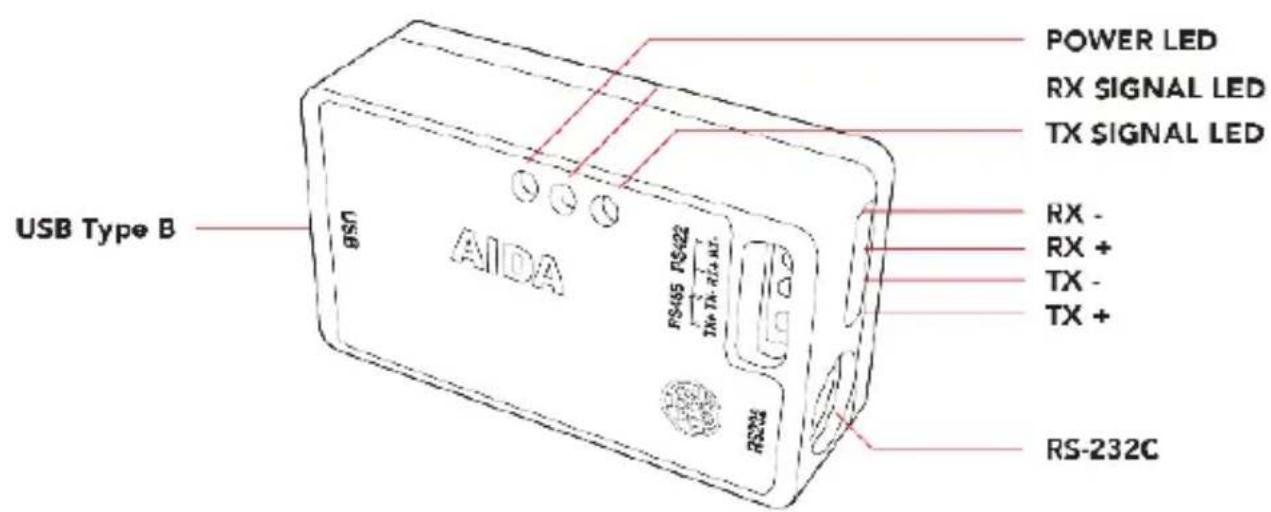
text_image
POWER LED RX SIGNAL LED TX SIGNAL LED RX - RX + TX - TX + USB Type B AIDA RS455 RS422 TX-TX-R1+AT RS204 RS-232C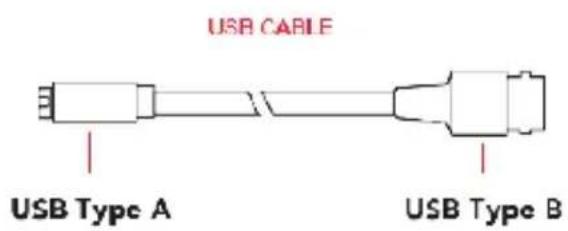
text_image
USB CABLE USB Type A USB Type B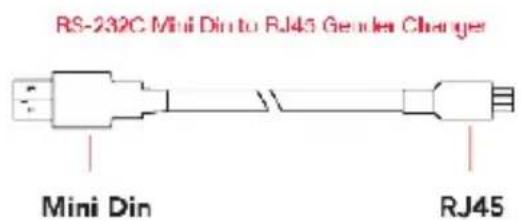
text_image
RS-232C Mini Dino to RJ45 Gender Charger Mini Din RJ45Features
• SONY VISCA Compatible and works with a majority of VISCA protocol products.
• Supports PELCO Pan / Tilt / Zoom / Focus protocol.
• Control up to 7 VISCA control cameras and 255 third party control cameras.
- User friendly software interface.
• Support RS-232, RS-485, RS-422.
- USB interface for easy installation.
- Windows and MAC OS X compatible.
- Compact and rugged design.
Connection: Using RS-485
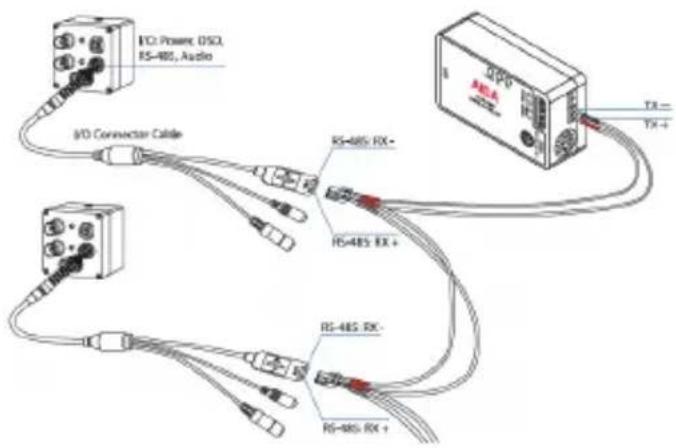
text_image
I/O Power OSCI RS-485, Audio I/O Connector Cable RS-485 RX+ RS-485 RX+ RS-485 RX- RS-485 RX+When connecting through RS-485 connection.
-
Connect TX+ of CCS-USB to RX+ of GEN3G-200 and TX- of CCS-USB to RX- of GEN3G-200.
-
Connect another pair of 485 cable to the same connector when connecting multiple cameras.
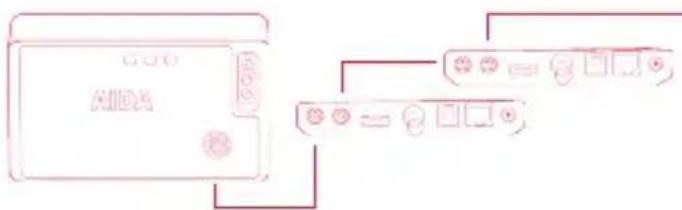
Connection: Using RS-232
text_image
AIDARS-232C Din 8 Cable
When connecting through RS-232 connection.
- Use VISCA 8-pin Din cable to connect CCS-USB to 232 Input.
- Use VISCA RS-232C out on the camera to connect to RS-232C in on the next camera. Daisy-chaining is up to 7 cameras.
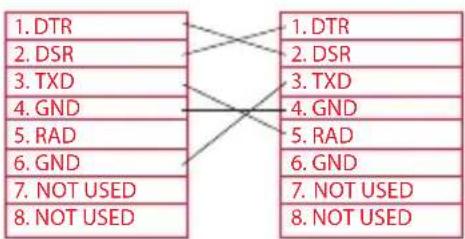
- When using third party cameras, make sure the pin layout before running the RS-232C cable
VISCA IN/OUT

flowchart
graph TD
    A["1. DTR"] --> B["1. DTR"]
    C["2. DSR"] --> B
    D["3. TXD"] --> B
    E["4. GND"] --> B
    F["5. RAD"] --> B
    G["6. GND"] --> B
    H["7. NOT USED"] --> B
    I["8. NOT USED"] --> B
    B --> J["2. DSR"]
    B --> K["3. TXD"]
    B --> L["4. GND"]
    B --> M["5. RAD"]
    B --> N["6. GND"]
    B --> O["7. NOT USED"]
    B --> P["8. NOT USED"]
RS-232C DIN 8 cable Pin Assignment
- If you are using PTZ3-X20L, follow the cable pin assign shown in the table.
- If you are using another cameras with RS-232, be sure to check the pin assignment. You may need to customize the cable.
Continue on Next Page
VISCA IN/OUT
RS-232C Mini Din to RJ45 Gender Changer Pin Assignment
- CCS-USB comes with 8 pin mini Din connector to RJ45 gender changer.
If you need to customize cable pin assignment, use CAT5/6 cable to change the cable layout.

text_image
1. Red 2. Black 3. White 4. Brown 5. Purple 6. Green 7. Gray 8. YellowMini Din Mini Din to RJ45 Gender CR#tiger
- When using the gender changer in pairs, make sure to use crossover cable.

text_image
Mini Din to RJ45 Gender Changer Mini Din Mini Din RJ45 RJ45 RJ45 RJ45 Crossover Cable Mini Din to RJ45 Gender ChangerSOFTWARE & DRIVER: MAC
1. Download Software
Mac Version of AIDA CCS is available on AIDA website.
Download software from www.aidaimaging.com under support page.
2. Driver Installation
Most of the recent Mac has built-in driver fro CCS-USB.
If your Mac does not recognize CCS-USB, download the driver file from www.aidaimaging.com under support page.
When driver is properly installed, CCS-USB will appear as follow.

text_image
USB 2.0 Bus FT232R USB UART USB 2.0 Bus T USB 2.0 Bus T Hub FT232R USB UART T USB 2.0 Bus TusTime Camera (Built-in) T Hub Apple Intemg / Keyboard / Trackbox SRRM2 DTO2 Hub STARTER USB HAD COATTEN Hab: Hab Computer Drive: Applicu SBBHCPC1 PCI DevioHD: 0x0005 PCI Revlon ID: 0x0005 PCI Venter ID: 0x0005 Product ID: 0x2013 Vendor ID: 0x4*24 (8)*921 Version: 0.33 Speech: Up to 632 Mb/aaa Location ID: 0x95*0000 / 1 System and Tools (ms): 1066 Current Required (ms): 2 Data Operating Current (mA): 6 Build: 76 PRESS USB UART. Product ID: 0x6061 Vendor ID: 0x6401 (Future Technology Devices International Limited) Version: 8.00 Serial Number: A95C7TPL Speech: Up to 12 Mbps Manufacturer: FTD Location ID: 0x91*10000 / 2 Current Required (mA): 1033 Current Operating (mA): 36 Data Operating Current (mA): 0Continue on Next Page
SOFTWARE & DRIVER: MAC
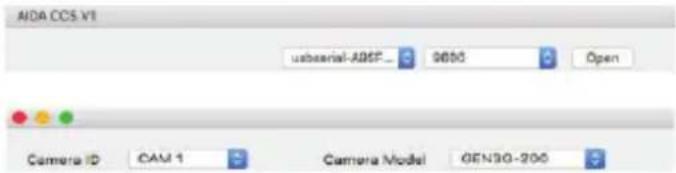
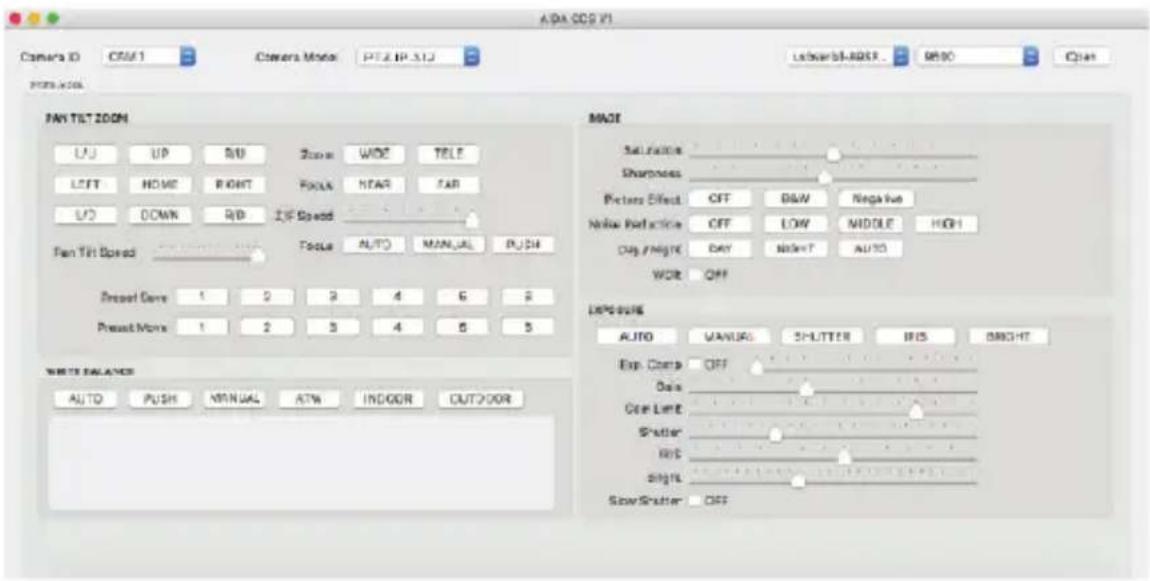
- Launch AIDA CCS-USB software.
- Select CCS-USB device which appears from System Report.
- Select Baudrate.
Make sure the selected baudrate matches the baudrate set from the camera.
- Click Open button to initiate communication.
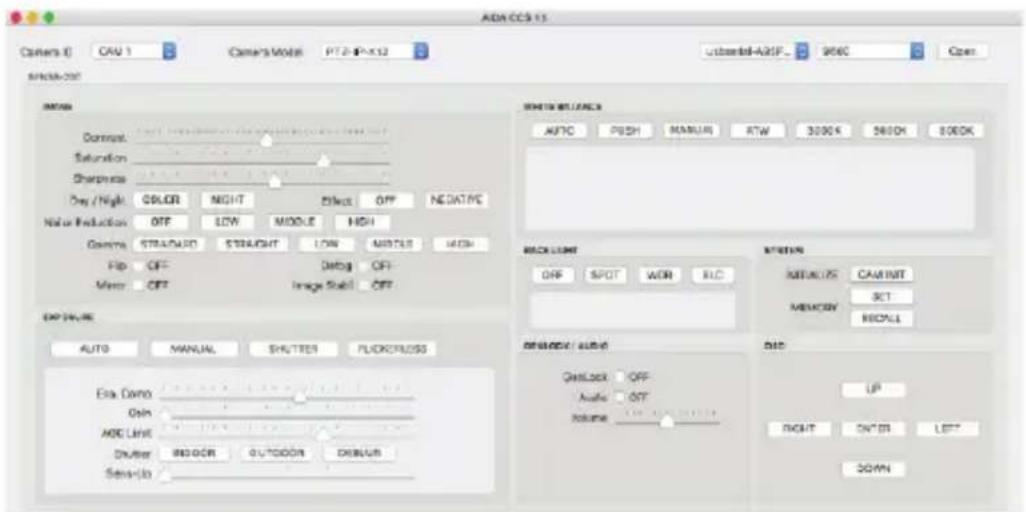
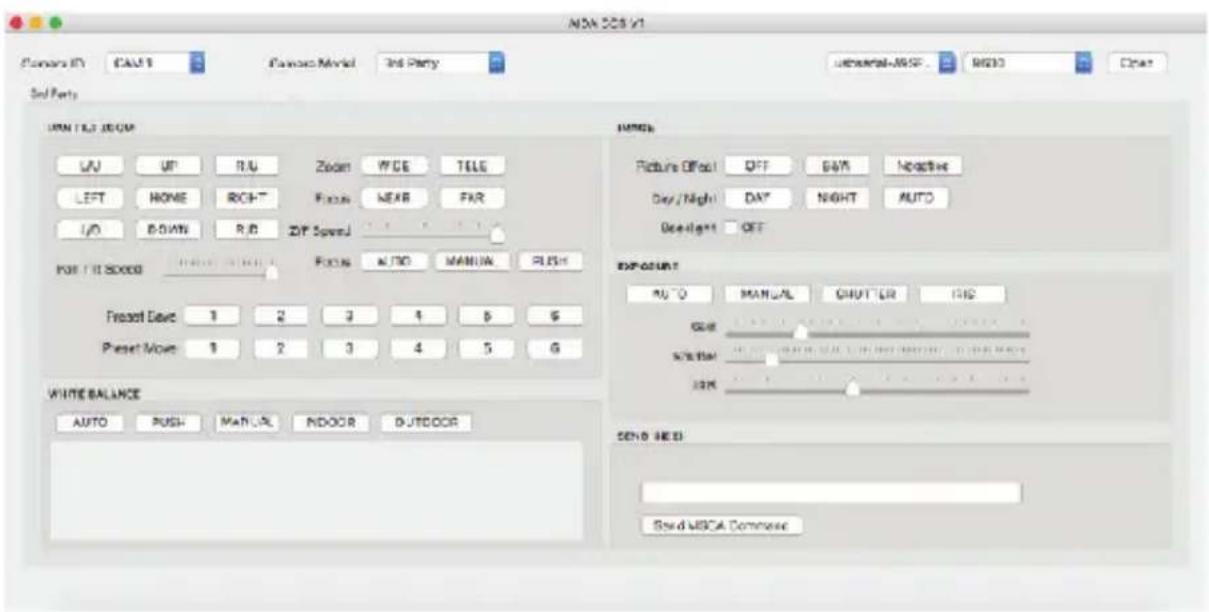
- Select Camera ID and choose Camera Model.
text_image
AIDA CCS V1 ubrasial-ADSP_ 9650 Open Camera ID CAM 1 Camera Model GEN3G-200PTZ-IP-X12 INTERFACE
text_image
ADA CCS 13 Camera ID: CAV 1 Camera Mode P7.2-P-X12 Utbmental-AGIF- 906C Open MOSA-CCS AMOUNT Domino: Saturation: Sharpness: Day / Night: COLOR NIGHT EFFECT OFF NEGATIVE Noise Reduction OFF LOW MIDDLE HIGH Gamma STRAID STRAIGHT LOW MIRTLIS HIGH Flip OFF Debug OFF- Mixer OFF Image Shell OFF EXPULSE AUTO MANUAL SHUTTER PICKLESS Era Camo Olin AOC Limit Dutler REGION OUTDOOR DEBUG Servicio WHOLE RELIANCE AUTIC PUSH MANUAL RTW 3000K S450K BOOK BACK LIGHT OFF SPOT WIN RLC INPUT INITIALS CAMINIT MEMON RICH RESET / ALAB Quick Lock OFF Audio OFF Volume UP RIGHT CENTER LETT DOWNPTZ-IP-X12 INTERFACE
text_image
APA GCS V1 Camera ID CAM1 Camera Mode PTZ IP-512 Lowerfield 9800 Open POTR:ADO PAY TILT ZOOM LU UP S/U Zoom WADE TABLE LEFT NOME RIGHT Focus NEAR FAR UO DOWN RID ISO Speed Fan Tilt Speed Focus AUTO MANUAL PUSH Present Color 1 2 3 4 6 8 Present None 1 2 3 4 6 8 WHITE BALANCE AUTO PUSH MANUAL ATM INDOOR CUTOOR MADE Saturation Sharpness Picture Effect CFF B&W Negative Noise Reflectance CFF.Low NIDDLE HIGH Day/Morning DAY NatureT AUTO WORK OFF LipSpreads AUTO VANUSI SHUTTER IFS BRIGHT Exp Comp CFF Data Cer Lint Shutter BIS Singlr SlewShutter CFFTHIRD PARTY INTERFACE
text_image
NDA 203 V1 Consors ID: NDA1 Piano Model: 3rd Party Subtotal-MSSF: MSSD Other 3rd Party NDA TEST ROOM UV UP R/U Zoom W/GE TELE LEFT HOME RIGHT Focus WEAR FAR I/O DOWN R/B ZIF SpeedJ FOR ITEMS DOOR FOR ITEMS DOOR Focus AUTO MANUAL PUSH Preset Dave 1 2 3 4 5 6 Preset Move 1 2 3 4 5 6 WHITE BALANCE AUTO PUSH MANUAL NOODR OUTDOOR TITLE Picture Offset OFF GAY Noctine Day/Night DAT NIGHT AUTO One-day OFF Exposure: AUTO MANUAL CHUTTER GIS GUE NOODR SND RED Send MSCA CommoseSOFTWARE & DRIVER: WIN
- Download Software
Mac Version of AIDA CCS is available on AIDA website.
Download software from www.aidaimaging.com under support page.
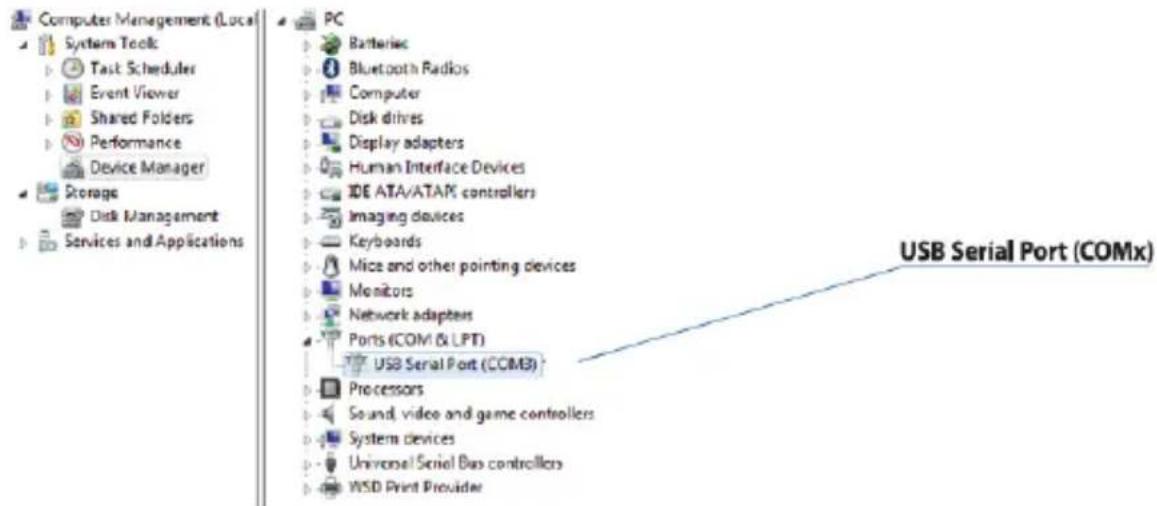
- Driver Installation
Most of the recent Windows has built-in driver fro CCS-USB.
If your PC does not recognize CCS-USB, download the driver file from www.aidaimaging.com under support page.
When driver is properly installed, CCS-USB will appear as follow.
text_image
Computers Management (Local) System Tools Task Scheduler Event Viewer Shared Folders Performance Device Manager Storage Disk Management Services and Applications PC Batteries Bluetooth Radios Computer Disk drives Display adapters Human Interface Devices IDE ATA/ATAM controllers Imaging devices Keyboards Mice and other pointing devices Monitors Network adapters Ports (COM & LPT) USB Serial Port (COMB) Processors Sound, video and game controllers System devices Universal Serial Bus controllers WSD Print Provider USB Serial Port (COMx)Continue on Next Page
SOFTWARE & DRIVER: WIN

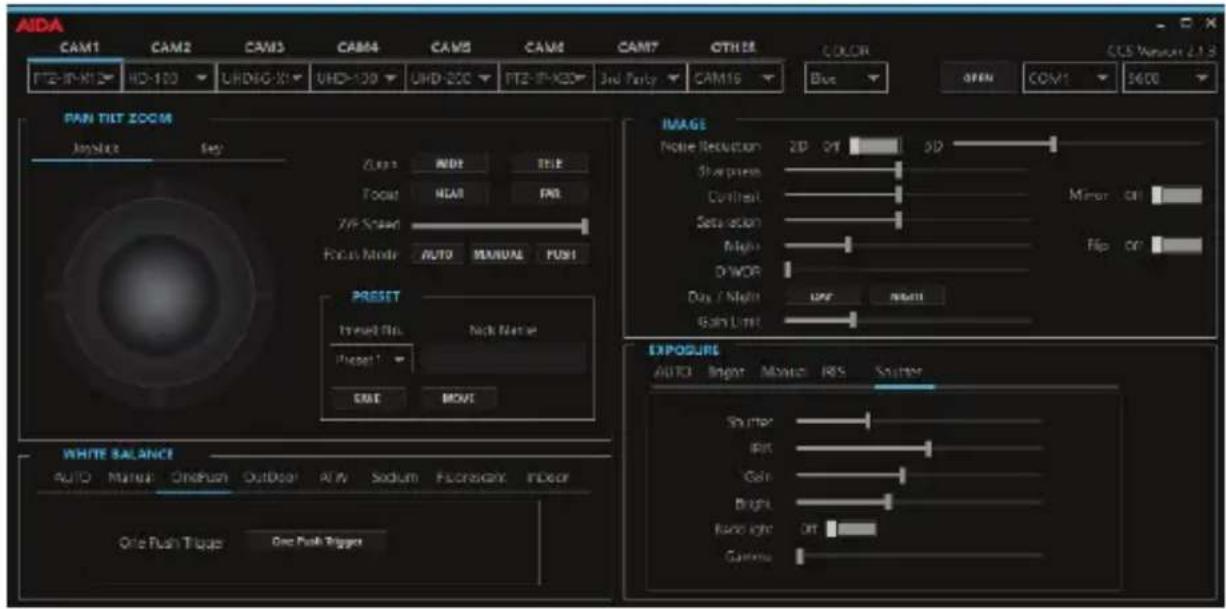
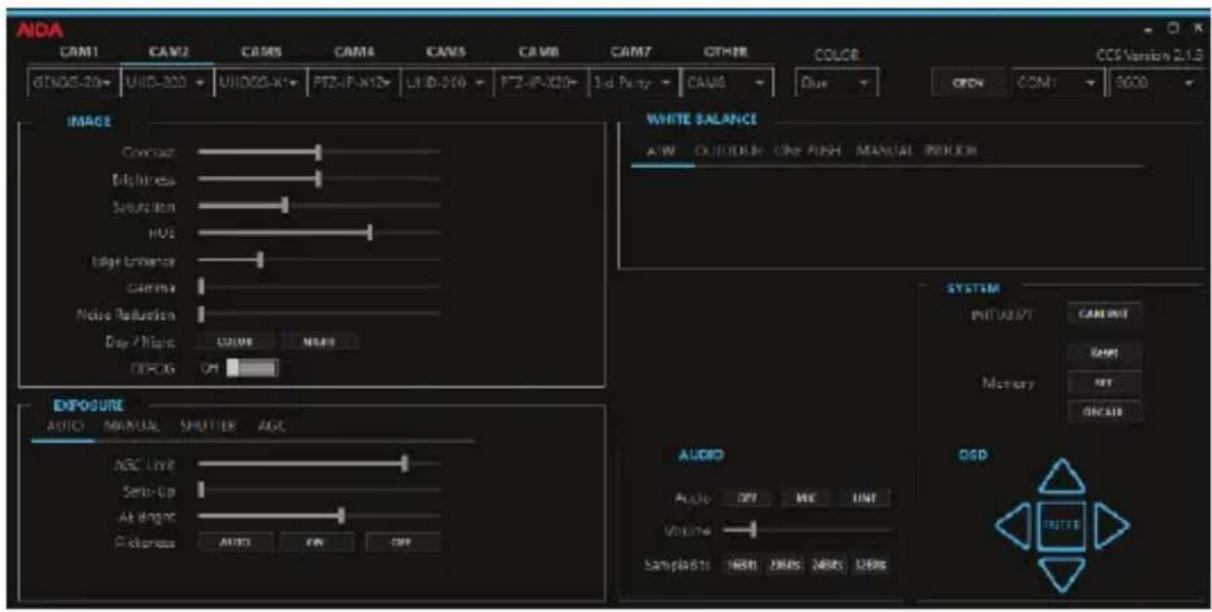
- Launch AIDA CCS-USB software.
- Select CCS-USB device which appears from System Report.
- Select Baudrate.
Make sure the selected baudrate matches the baudrate set from the camera.
- Click Open button to initiate communication.
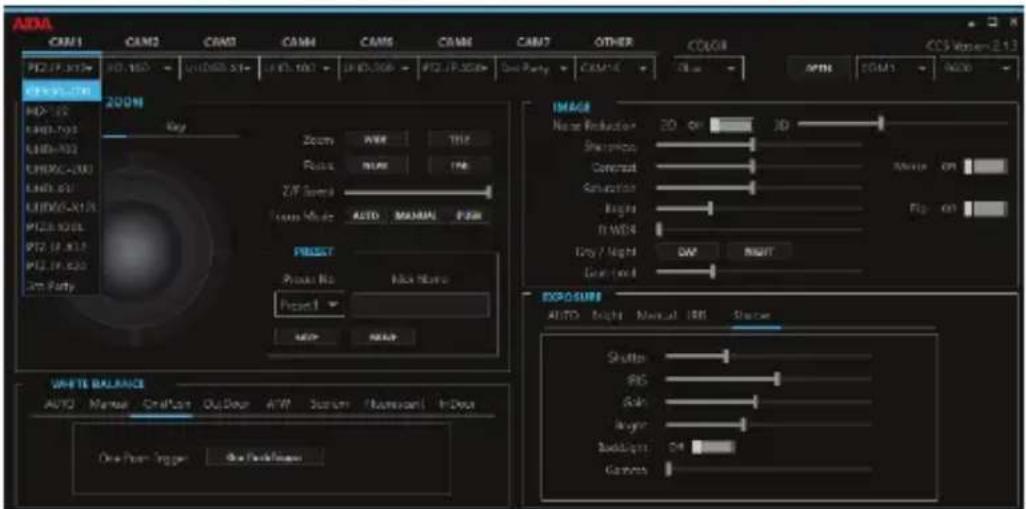
- Click on camera model name to choose between different camera models.
- Once the drop-down menu is open, camera model can be assigned from CAM 1 through CAM 7.
GEN3G-200: INTERFACE
text_image
ADMA CAM1 CAM2 CAM3 CAM4 CAM5 CAM6 CAM7 OTHER COLOR CCS Vaser-2.13 PI2.1P-012# PI2.1P-013# PI2.1P-014# PI2.1P-015# PI2.1P-016# PI2.1P-017# PI2.1P-018# PI2.1P-019# PI2.1P-020# PI2.1P-021# PI2.1P-022# PI2.1P-023# PI2.1P-024# PI2.1P-025# PI2.1P-026# PI2.1P-027# PI2.1P-028# PI2.1P-029# PI2.1P-030# PI2.1P-031# PI2.1P-032# PI2.1P-033# PI2.1P-034# PI2.1P-035# PI2.1P-036# PI2.1P-037# PI2.1P-038# PI2.1P-039# PI2.1P-040# PI2.1P-041# PI2.1P-042# PI2.1P-043# PI2.1P-044# PI2.1P-045# PI2.1P-046# PI2.1P-047# PI2.1P-048# PI2.1P-049# PI2.1P-050# PI2.1P-051# PI2.1P-052# PI2.1P-053# PI2.1P-054# PI2.1P-055# PI2.1P-056# PI2.1P-057# PI2.1P-058# PI2.1P-059# PI2.1P-060# PI2.1P-061# PI2.1P-062# PI2.1P-063# PI2.1P-064# PI2.1P-065# PI2.1P-066# PI2.1P-067# PI2.1P-068# PI2.1P-069# PI2.1P-070# PI2.1P-071# PI2.1P-072# PI2.1P-073# PI2.1P-074# PI2.1P-075# PI2.1P-076# PI2.1P-077# PI2.1P-078# PI2.1P-079# PI2.1P-080# PI2.1P-081# PI2.1P-082# PI2.1P-083# PI2.1P-084# PI2.1P-085# PI2.1P-086# PI2.1P-087# PI2.1P-088# PI2.1P-089# PI2.1P-090# PI2.1P-091# PI2.1P-092# PI2.1P-093# PI2.1P-094# PI2.1P-095# PI2.1P-096# PI2.1P-097# PI2.1P-098# PI2.1P-099# PI2.1P-100# NEXT NEXT NEXT NEXT NEXT NEXT NEXT NEXT NEXT NEXT NEXT NEXT NEXT NEXT NEXT NEXT NEXT NEXT NEXT NEXT NEXT NEXT NEXT NEXT NEXT NEXT NEXT NEXT NEXT NEXT NEXT NEXT NEXT NEXT NEXT NEXT NEXT NEXT NEXT NEXT NEXT NEXT NEXT NEXT NEXT NEXT NEXT NEXT NEXT NEXT NEXTPTZ-IP-X12 INTERFACE
text_image
AIDA CAM1 CAM2 CAM3 CAM4 CAM5 CAM6 CAM7 OTHER COLOR PT2-IF-X1 HD-100 UHDXG-X1 UHD-100 UHD-ZOC PT2-IF-X2P 3rd Party CAM16 Blue OPEN COM1 3600 PAN TILT ZOOM Jupiter Seg Zoom NDT TLR Focus NLR FNS 7F Span Focus Mode AUTO MANUAL PUSH PRESET Trend Rtn. Neck Note Reset ONLE MOVE IMAGE Noise Resolution 2D 2F 3D Sharpness Contrast Saturation High D-WOR Day / Night UPR NEXT Gain Limit Exposure AUTO Bright Motion RMS Sutter Shorter Bit Gain Bright Runx light On Gamma White Balance AUTO Manual OnePush Outdoor ATW Sodium Fluorescent Indoor One Push Trigger One Push TriggerTHIRD PARTY INTERFACE
text_image
AIDA CAM1 CAM2 CAM3 CAM4 CAM5 CAM6 CAM7 OTHER COLOR GTNOS-20+ UUID-200 UUID-201 PETZ-IP-X12P LID-200 PETZ-IP-X20+ 3rd Party CAM8 Blue OPEN CON1 9000 IMAGE Conbase Brightness Saturation HVS Large Enhancement Gamma Noise Balustration Day / Night SOURCE NONE RECAV ON EXPOSURE AUTO MANUAL SHUTTER AGC NSC Line Semi-Up At Origin RICHNESS AUTO ON OFF WHITE BALANCE AW OUTDOCK ONE PUSH MANUAL SWITCH SYSTEM INPUT/APT CARD UNIT GAIN MENRY OFF ONCALE AUDIO Angle OFF ONT Volume Samples: INRIN RARS NARS SEARS DISD FUTTERTROUBLESHOOTING
- CCS-USB does not control my camera.
• Make sure driver is installed properly.
- Check Camera ID and Baudrate.
- Check if the connected camera supports VISCA protocol.
- Check if Power LED is on.
- Check cable connections and pin assignments.
- Does CCS-USB require power adapter?
- CCS-USB acquires power through USB cable. Additional power is not required.
-
How do I control multiple Adapter?
-
Daisy chain connection is required to control multiple cameras. Make sure that camera support daisy chain connection.
• CCS-USB allows up to 7 VISCA devices. -
Can I use AIDA software with other control devices?
- AIDA software requires CCS-USB to function properly.
-
What is the maximum cable distance?
-
S-232 standard is limited up to 15 m(S0 ft). If the cable is longer than the limit, then CCS-USB may not respond properly.
• RS-485 standard is limited up to 1,200m(4,000 ft). -
Does CCS-USB work with any VISCA compatible products?
- Most of VISCA compatible products will work with CCS-USB.
QUESTIONS
Visit us:
www.aidaimaging.com/support
E-mail us:
support@aidaimaging.com
Give us a Call:
Toll Free: 844.631.8367 | Tel: 909.333.7421
Operating Hours: Mon-Fri | 8:00am – 5:00pm PST
AIDA IMAGING

Disposal of Old Appliances
-
When this crossed-out wheel bin symbol is attached to a product it means the product is covered by the European Directive 2002/96/EC.
-
All electrical and electronic products should be disposed of separately form the municipal waste stream in accordance to laws designated by the government or the local authorities.
-
The correct disposal of your old appliance will help prevent potential negative consequences for the environment and human health.
-
For more detailed information about disposal of your old appliance, please contact your city office, waste disposal service or the shop where you purchased the product.
This equipment has been tested and found to comply with the limits for a Class A digital device, pursuant to part 15 of the FCC Rules. These limits are designed to provide reasonable protection against harmful interference when the equipment is operated in a commercial environment. This equipment generates, uses, and can radiate radio frequency energy and, if not installed and used in accordance with the instruction manual, may cause harmful interference to radio communications. Operation of this equipment in a residential area is likely to cause harmful inter reference in which case the user will be required to correct the interference at his own expense.