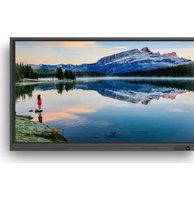
TT-6518RS - Monitor Newline - Free user manual and instructions
Find the device manual for free TT-6518RS Newline in PDF.


| Product Type | Interactive Touch Screen Monitor |
| Model | TT-6518RS |
| Screen Size | 65 inches (estimated) |
| Weight | 45 kg (99 lb) |
| VESA Mount Pattern | 600 x 400 mm (M8 screws, 10-15 mm length) |
| Power Supply | 100-240 V~, 50/60 Hz |
| Power Output Port | 5V/2A (for Android box X10D) |
| Touch Technology | Infrared (IR) Touch (inferred from interactive functionality) |
| Resolution | 3840 x 2160 (4K UHD, assumed) |
| Front Ports | USB, HDMI (exact count not specified) |
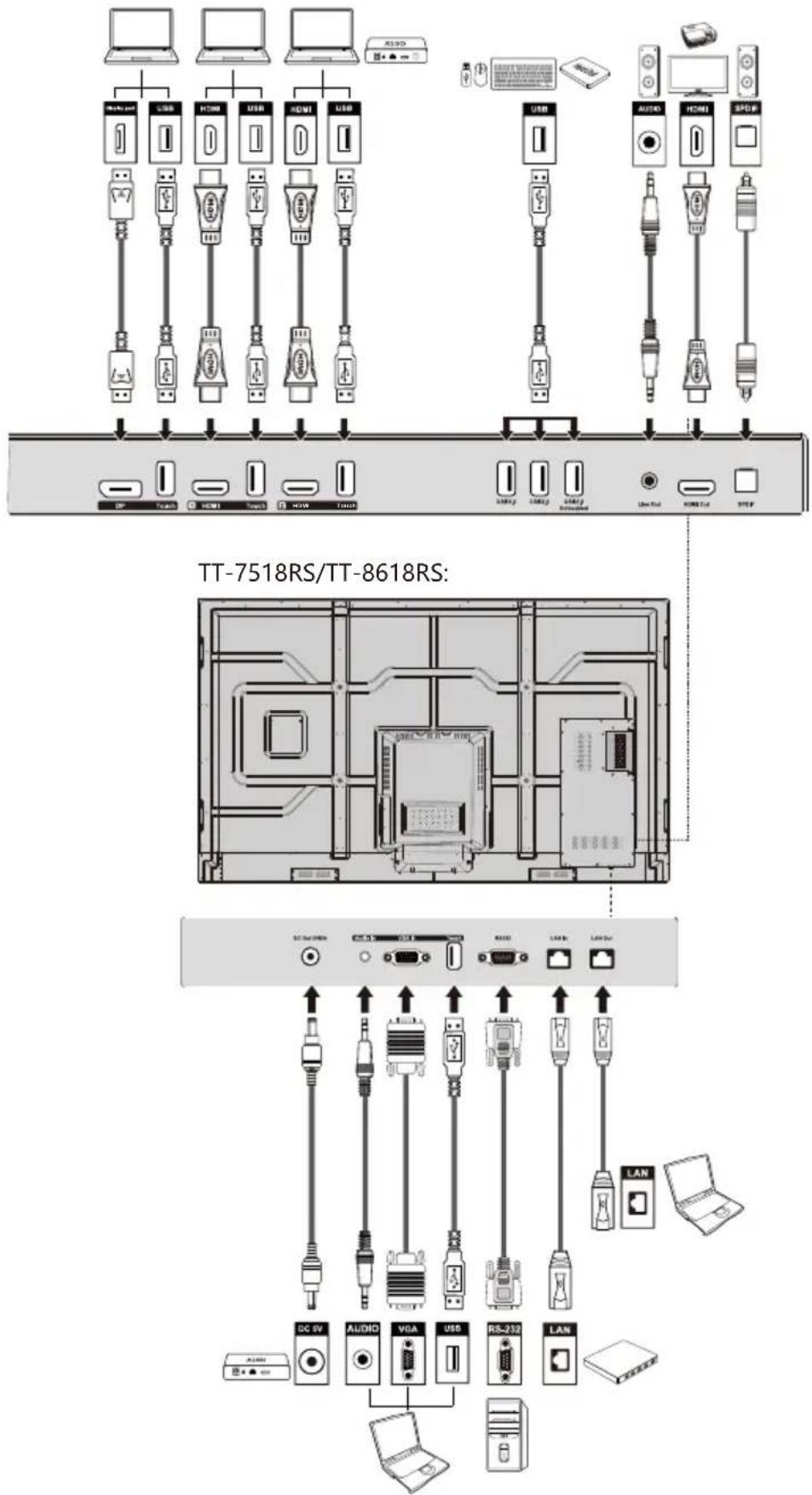
| Rear Ports | USB 3.0, USB 2.0, HDMI 1, HDMI 2, DisplayPort, VGA, Internal PC (OPS) slot, Audio Out |
| Built-in Speakers | Yes (power not specified) |
| Operating System | Android (smart system, version not specified) |
| Wireless Connectivity | Wi-Fi, Ethernet; Screen sharing supported |
| Remote Control | Included (IR, battery powered) |
| Key Features | Whiteboard, annotation, screen freeze, screenshot, quick settings menu, side toolbar |
| Internal PC Support | Optional OPS slot (not hot-pluggable) |
| Ventilation Clearance | Minimum distances required (refer to manual) |
| Cleaning | Disconnect power; use dry cloth for power plug; avoid liquid |
| Safety Compliance | FCC Class B, RoHS, WEEE |
Frequently Asked Questions - TT-6518RS Newline
User questions about TT-6518RS Newline
0 question about this device. Answer the ones you know or ask your own.
Ask a new question about this device
Download the instructions for your Monitor in PDF format for free! Find your manual TT-6518RS - Newline and take your electronic device back in hand. On this page are published all the documents necessary for the use of your device. TT-6518RS by Newline.
USER MANUAL TT-6518RS Newline
natural_image
Computer monitor displaying a grid pattern with no visible text, numbers, or symbols on the screen.RS Series
Quick Start Manual
Version 2.0
Welcome to the world of newline.
Thank you for choosing the newline RS series Interactive Touch Screen. Please use this document to get the most out of your screen.
This device complies with part 15 of the FCC Rules. Operation is subject to the following two conditions: (1) This device may not cause harmful interference, and (2) this device must accept any interference received, including interference that may cause undesired operation.
NOTE 1: This equipment has been tested and found to comply with the limits for a Class B digital device, pursuant to part 15 of the FCC Rules. These limits are designed to provide reasonable protection against harmful interference in a residential installation. This equipment generates, uses and can radiate radio frequency energy and, if not installed and used in accordance with the instructions, may cause harmful interference to radio communications. However, there is no guarantee that interference will not occur in a particular installation. If this equipment does cause harmful interference to radio or television reception, which can be determined by turning the equipment off and on, the user is encouraged to try to correct the interference by one or more of the following measures:
- Reorient or relocate the receiving antenna.
- Increase the separation between the equipment and receiver.
- Connect the equipment into an outlet on a circuit different from that to which the receiver is connected.
- Consult the dealer or an experienced radio/TV technician for help.
NOTE 2: Any changes or modifications to this unit not expressly approved by the party responsible for compliance could void the user's authority to operate the equipment.
The symbol of the crossed out wheeled bin indicates this product should not be placed in municipal waste. Instead, dispose of waste equipment by handing it over to a designated collection point for the recycling of electrical and electronic equipment.

Symbol Conventions
Symbols are used in this document to indicate operations that need particular attention. The symbols are defined as follows:
 NOTE NOTE | Provides additional information to supplement operation in the main text. |
 CAUTION CAUTION | Indicates a potentially hazardous situation that, if not avoided, could result in equipment damage, data loss, performance deterioration, or unanticipated results. |
 WARNING WARNING | Indicates a hazard with risk that, if not avoided, could result in death or injury. |
Safety Instruction
For your safety, please read the following instruction before you use the product. Serious injury or property damage may be caused by improper operations. Do not try to repair the product on your own.
| WARNING | |
 | Disconnect the product from power supply immediately if major failures occur.Major failures include the following:Smoke, peculiar smell or abnormal sound is discharged from the product.No image or sound is displayed, or the image error occurs.In the preceding scenarios, do not continue to use the product. Disconnect power supply immediately and contact professional staff for troubleshooting. |
 | Do not drop liquid, metal or anything combustible into the product.If any liquid or metal is dropped into the product, power off the product and disconnect power supply, then contact professional staff for solutions.Pay attention to children when they are close to the product. |
| Put the product on a stable surface.An unstable surface includes and does not limited to an inclined plane, a shaky stand, desk or platform, which might cause turnover and damage. | |
 | Do not open the cover or change the product on your own.High voltage components are installed in the product. When you open the cover, high voltage, electric shock, or other dangerous situations may occur.If inspection, adjustment, or maintenance is required, contact the local distributor for help. |
 | Use the specified power supply.To prevent the product from being damaged, do not use any types of power cables other than the one provided with the product.Use a three-wire socket and ensure that it is properly grounded.Pull out the power plug from the socket if the product is not used for a long period. |
| Clean the dust and metal on the power plug regularly.Fire or electric shock may be caused if the product is powered on, when you are cleaning.Pull out the power plug before cleaning it with a dried cloth. | |
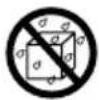
| Power output port is 5V/2A.The voltage/current of the rear power output port is 5V/2A (maximum). Purchase the power code/AC adapter according to customer needs. The port can be used for Newline Android box X10D. Please do not connect any products with different power requirement. Otherwise, it may cause damage to products or fire.Do not put items on the top of the product.Do not put items, such as a container for liquid (a vase, flowerpot, cosmetics or liquid medicine) on the top of the product.If any water or liquid is spilled on the product, a short circuit may occur and cause fire or electric shock.Do not walk on or hang any items on the product. | |
 | |
 | Do not install the product in an improper place.Do not install the product in humid places, such as the bathroom, the shower room, near windows, or outdoor environments that experience rain, snow or other harsh weather. Avoid installation near hot spring vapor. The preceding environments may cause faults in the product or electric shock under extreme conditions.Do not put exposed fire source, such as an ignited candle, on the product. |
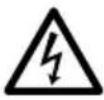 | Pull out the power plug during thunderstorms.Do not touch the product during a lighting storm to avoid electric shock.Install or place components that supply high enough voltage to cause personal injury out of the reach of children. |
 | Do not touch the power cable with wet hands. |
 CAUTION CAUTION | |
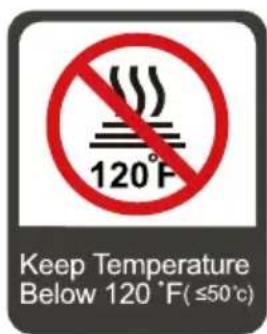
 | Do not install the product in high temperature environments.Do not install the product near a heat source, such as a radiator, a heat reservoir, a stove or other heating products.Do not expose the product to direct sunlight, which may cause high temperatures and subsequent faults in the product. |
 | For transport.Pack the product for transport or maintenance by using the cartons and cushioning material provided with the product.Vertically move the product during transport. The screen or other components are easily broken if the product is moved by an improper way.Before you move the product, disconnect all external connections and separate all toppling preventing products. Move the product carefully to prevent it from being hit or squeezed, especially the screen, which may cause injury if broken. |
 | Do not cover or block up any vents on the product.Any overheated components may cause fire, damage the product, and shorten the service life.Do not lay the product down where the venting surface will be covered.Do not install the product on a carpet or cloth.Do not use a cloth such as table cloth to cover the product. |
 CAUTION CAUTION | |
 | Keep away from the product when you use a radio.The product complies with the international EMI standard to pervent radio interference. However, interference may still exists and causes noise in the radio.If noise occurs in the radio, try the following solutions.Adjust the direction of the radio antenna to avoid the interference from the product.Keep the radio away from the product. |
| Screen glass is broken or falls off.In case of screen glass breakage, keep all personnel 3 meters away from the screen to ensure safety.Do not perform any installation or disassembly when the screen glass is broken or falls off. | |
| Use the battery correctly.Galvanic corrosion, electric leakage, and even fire may be caused by improper battery usage.It is recommended to use the designated type of battery and install the battery by correct electrodes (positive and negative).Do not install and use new battery with a used one.Take out the battery if the remote control is not used for a long period.Do not expose the battery to overheated environments such as sunlight and firing.Dispose of the used battery based on your local regulations. | |
| Do not damage the power cable.Do not damage, change, twist, bend, or forcibly drag the power cable.Do not put weights (such as the product itself) on the power cable.Do not forcibly drag the cable when you pull out the power plug. If the power cable is damaged, please contact the local distributor to repair or replace it.The power cable in the accessory box is for this product only. Do not use it on other products. | |
| Additional advice:Use the product in an environment with comfortable lighting. It is harmful to your eyes to watch in a too bright or too dark environment.Relax your eyes after a period of time for watching.Keep sufficient distance from the product to protect your eyes and prevent eyestrain.Adjust the volume to an appropriate level, especially at night.Use amplifier equipment as the audio input source with caution. If you must use amplifier equipment, the input power should not exceed the maximum of speaker power. Otherwise, the speaker can become overpowered and damaged. | |
| About USB port.Front USB ports and rear USB 3.0/USB 2.0 ports switch connections based on signal sources. If the current signal source is reading the data from an external product connecting to the port, please switch the signal source after the data reading is complete. Otherwise, the data or product may be damaged. | |
CAUTION
Parts and Functions
Parts
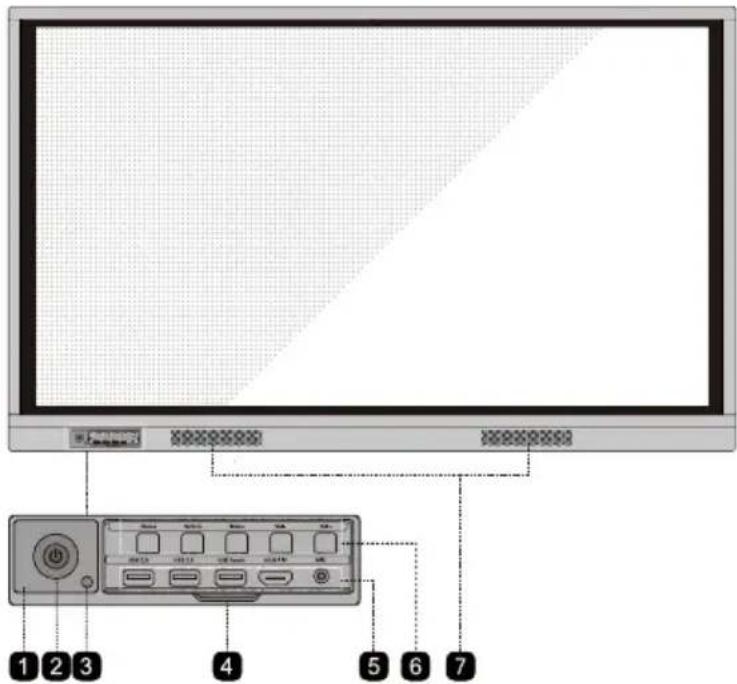
◆ Front View
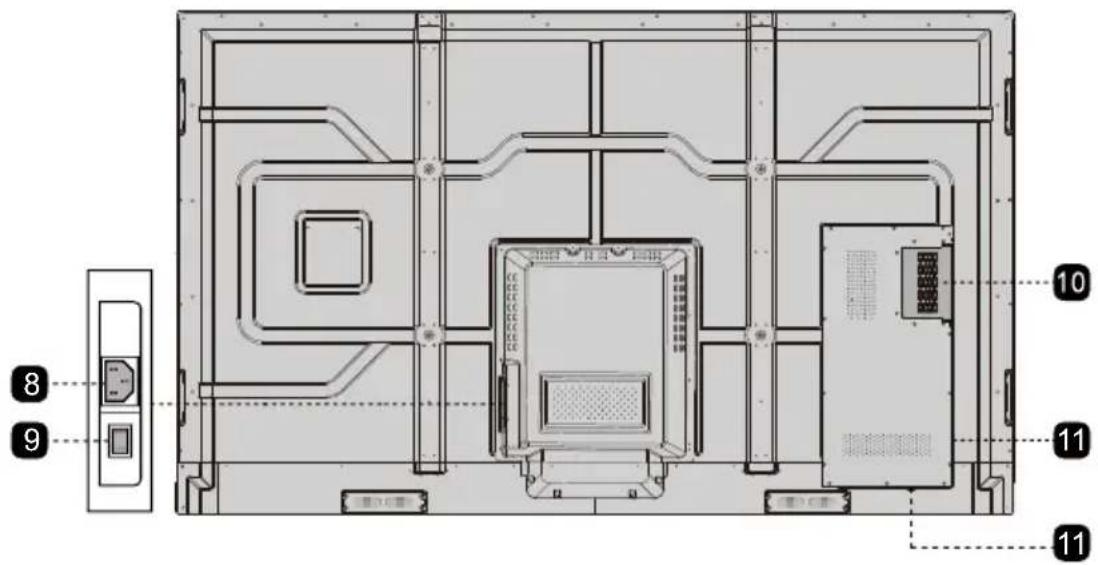
♦ Rear View
- TT-6518RS

• TT-7518RS/TT-8618RS
• TT-9818RS
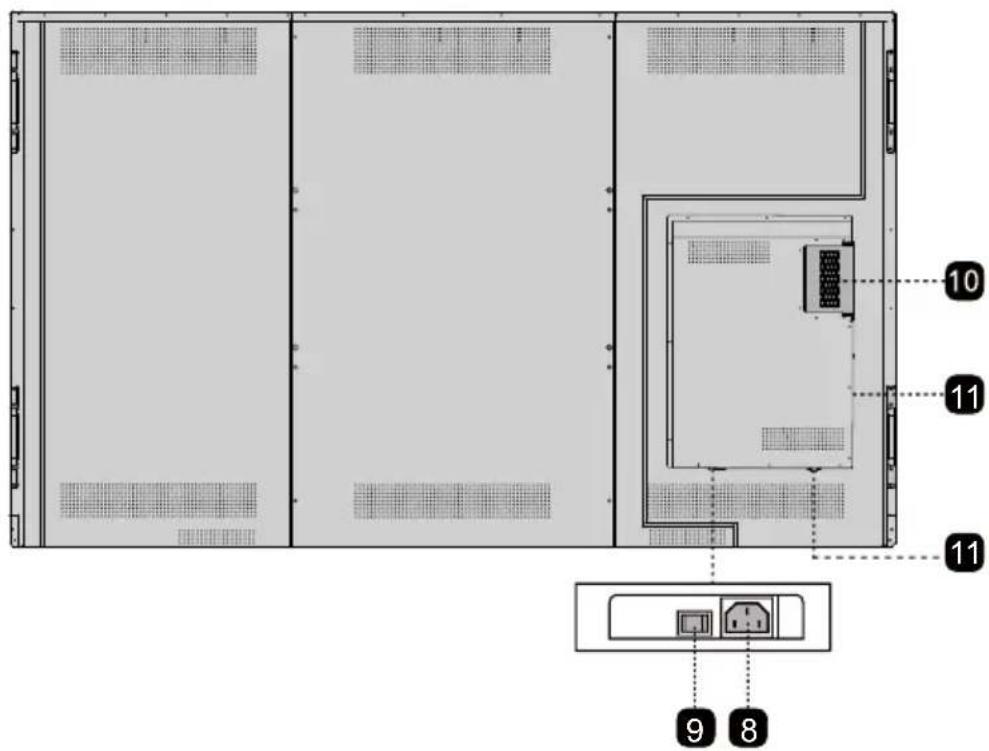
| 1 | Remote control receiver | 7 | Speakers |
| 2 | Power On/Off | 8 | Power Supply Plug |
| 3 | Light sensor Power Switch | 9 | |
| 4 | Front Plate Cover | 10 | Internal PC Port (OPS) |
| 5 | Front Ports | 11 | Rear Ports |
| 6 | Front Buttons |
Ports

CAUTION
Front USB ports and rear USB 3.0/USB 2.0 ports switch connections based on signal sources. If the current signal source is reading the data from an external product connecting to the port, please switch the signal source after the data reading is complete. Otherwise, the data or product may be damaged.
◆ Front Ports
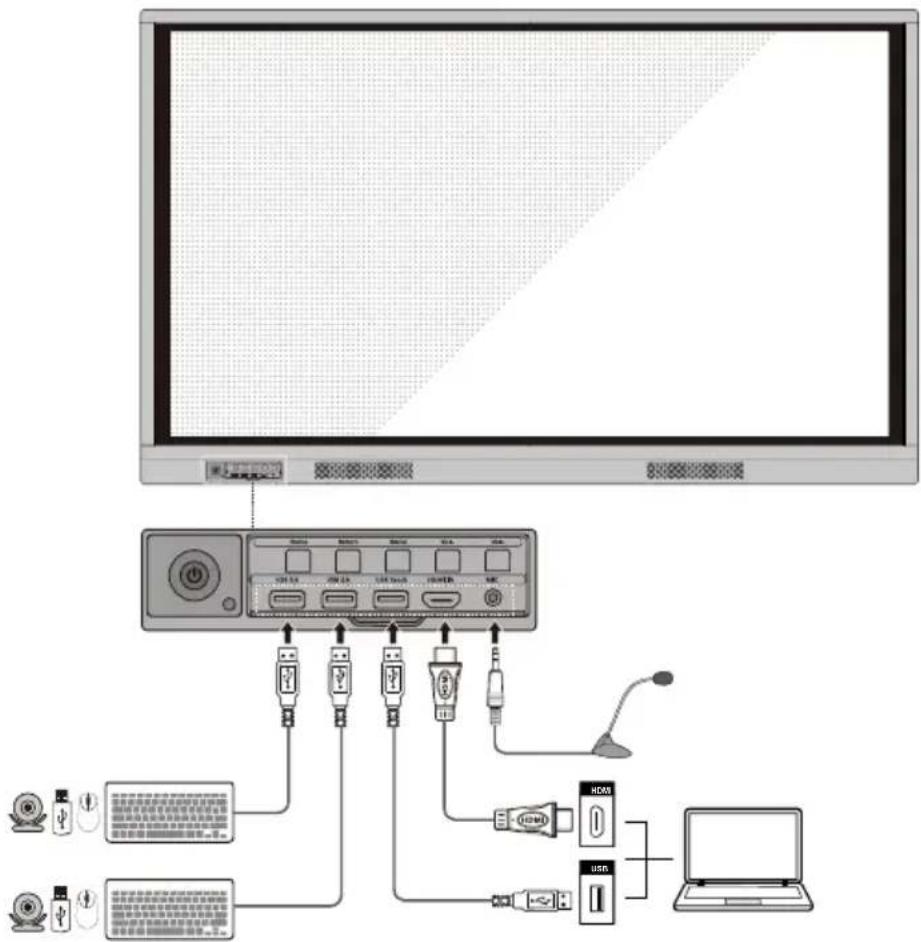
♦ Rear Ports

WARNING
The voltage/current of the rear power output port is 5V/2A (maximum). Purchase the power code/AC adapter according to customer needs. The port can be used for Newline Android box X10D. Please do not connect any products with different power requirement. Otherwise it may cause the damage to products or fire.

Tip:
You are advised to connect X10D to HDMI rear 2.
◆ Front Buttons
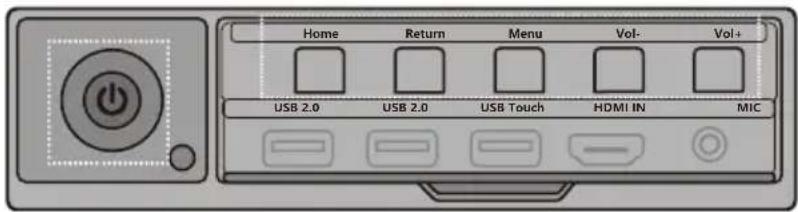
| Buttons Operations Functions | ||
| Short press | Power on/off• Steady on red: shut down modes• Steady on blue: working state | |
| Home | Short press Go to the | home page |
| Return | Short press Return to | the last menu/Exit |
| Menu | Short press Open the | setting menu |
| Long press for more than 2 seconds | Screen Lock | |
| Vol- | Short press Decrease | the sound volume |
| Long press for more than 1 second | Decrease the sound volume continuously | |
| Vol+ | Short press Increase | the sound volume |
| Long press for more than 1 second | Increase the sound volume continuously | |
Remote Control

CAUTION
Carefully read the following instructions before using the remote control to avoid possible faults:
- Do not drop or damage the remote control.
- Do not spill water or other liquids on the remote control.
- Do not place the remote control on a wet object.
- Do not place the remote control directly under sunlight or near an overheating heat source.
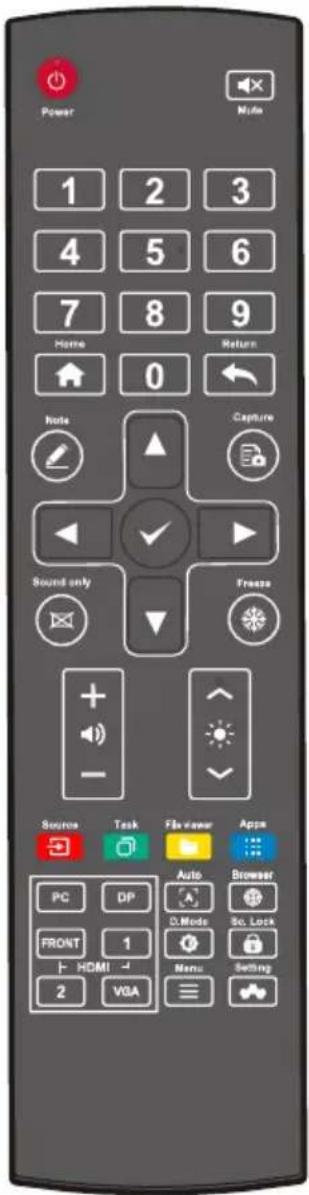
| Buttons Functions | |
| Power On/Off | |
| Mute/Unmute Audio | |
| 1-9 | Enter number |
| Go to the Home Page | |
| Return to Previous/Exit | |
| Up/Down/Left/Right | |
| Confirm/OK | |
| Enter Whiteboard Mode | |
| Take a Screenshot | |
| Enable Sound Only Mode | |
| Freeze the Current Screen, Click Again to Exit Freeze Function | |
| Adjust the Sound Volume | |
| Adjust the Brightness | |
| Enter the Source Selection Page | |
| View Currently Running Applications | |
| Open the File Manager | |
| View all Pre-installed Applications | |
| PC | Switch Source to Internal PC |
| DP | Switch Source to Display Port |
| HDMI FRONT | Switch Source to HDMI Front |
| HDMI 1 Switch | Switch Source to HDMI 1 |
| HDMI 2 Switch | Switch Source to HDMI 2 |
| VGA Switch | Switch Source to VGA |
| Buttons Functions | |
| [A] | Autocorrection Screen Display (For VGA Signal Source) |
| Open the Browser Application | |
| Toggle Display Backlight Mode | |
| Start/Exit the Screen Lock Function | |
| ≡ | • Open the Signal Source Menu (Short Press)• Screen Lock (Long Press for More than 2 Seconds) |
| Open the System Settings | |
Safety Precautions
◆ Installation Environment



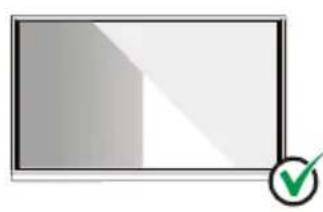
◆ Installation Direction
natural_image
Blank rectangular frame with a green checkmark in the bottom-right corner (no text or symbols)Hang the Product Horizontally
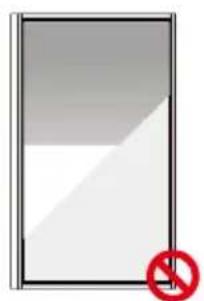
No Vertical Installation
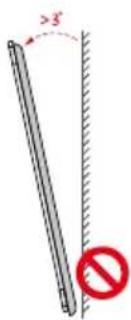
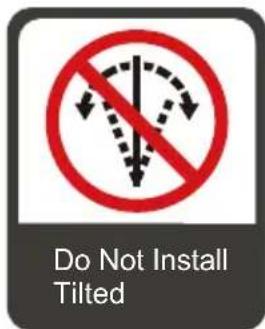
Do Not Install Tilted

natural_image
Illustration of a flat-panel electronic device with a red prohibition symbol (no text or labels)Do Not Lay Flat
Installation Precautions
♦ Weight Loading
Weight of the product: 293 lb/ 133 kg (TT-9818RS), 161 lb/ 73 kg (TT-8618RS), 123 lb/ 56 kg(TT-7518RS), 99 lb/ 45 kg (TT-6518RS)
- When using a mobile stand, ensure that the weight of the product is less than the loading capacity of the mobile stand.
- When using the wall-mount bracket, ensure that the wall can support the weight of the product. We recommend that the wall surface be reinforced and have a loading capacity 4 times of the weight of the product. Consult a professional installer for wall-mount installation.
Note
The company does not undertake relevant legal responsibility for any problems caused by improper operation, if the third party mobile stand, or wall-mount bracket is beyond the scope of the product.
- Do not install the product where it might be hit by a door.
- Vertical installation
When installing, try to keep the product vertical. The vertical tilt range allowing for wall-mount installation is ±3 degrees.
Excessive tilt angle may cause the screen glass to fall off or the product to collapse.

Note
For any problem, please contact our support desk. Our company is not responsible for any damage or losses incurred by users if the users fails to follow the instructions.
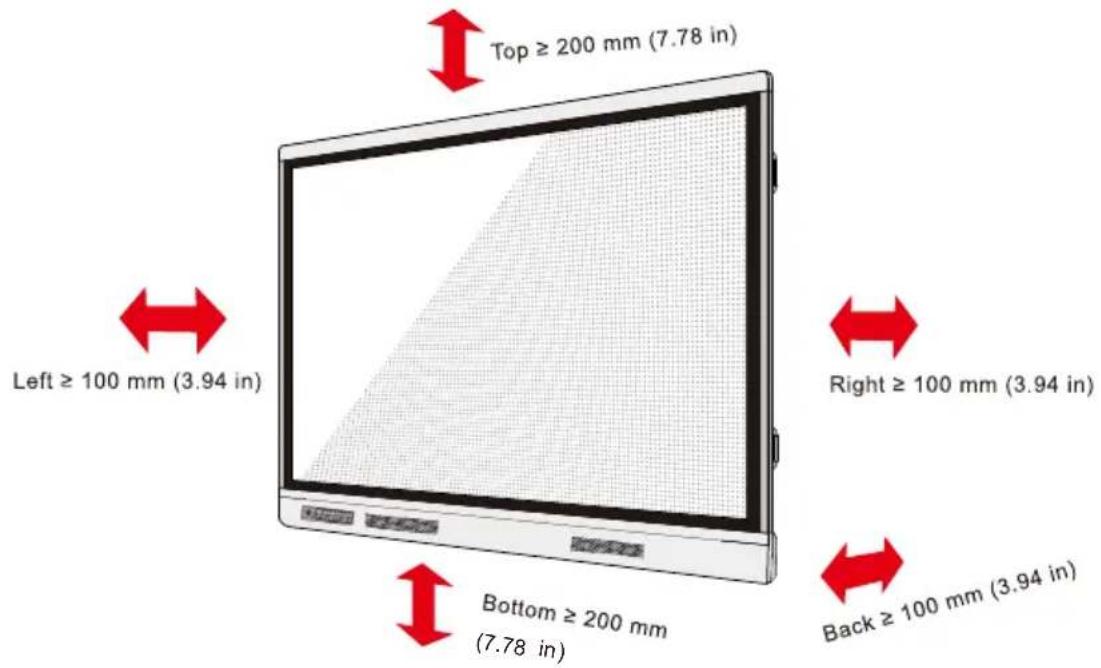
◆ Ventilation
Ensure adequate ventilation and/or air conditioning environment. We recommend keeping certain distances from the side of the product to the wall or panels. Ventilation requirements are shown in following figure.
Installation
The dimensions of the four bracket mounting holes on the back panel are VESA MIS-Fcompliant (TT-9818RS, TT-8618RS or TT-7518RS: 800 x 400 mm/31.50 x 15.75 in; TT-6518RS: 600 x 400 mm/23.62 x 15.75 in). Use metric M8 screws with length of 10 mm to 15 mm (0.40 to 0.59 in) to secure the touch screen with the mounting system. Dimensions of themounting holes on the back panel are shown on the following figure.
Note
Consult a professional installer to install the display product.
• TT-9818RS:
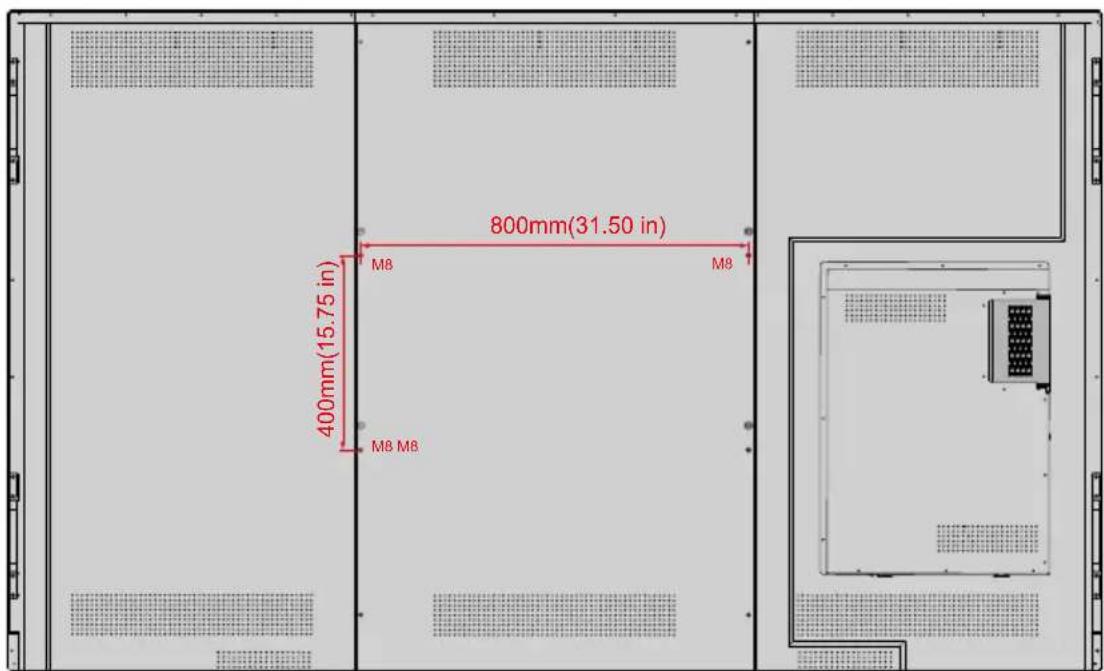
• TT-7518RS/TT-8618RS:

• TT-6518RS:

Installing the Internal PC (Optional)

CAUTION
The internal PC does not support hot plugging. Therefore, you must insert or remove it when the screen is powered off .Otherwise,the screen or internal PC may be decharged.
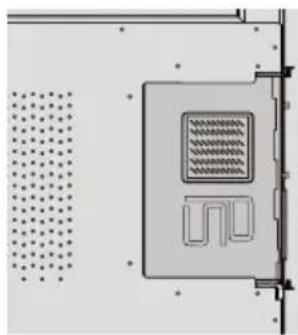
You will need to purchase the internal PC separately. Perform the following steps to install the internal PC.
Step 1: Unscrew the M3 screws by hand to remove the internal PC shielding cover.

natural_image
Diagram showing a room with ventilation grilles and a door, no text or symbols presentStep 2: Push the internal into the internal PC port at the rear of the screen from right to left.
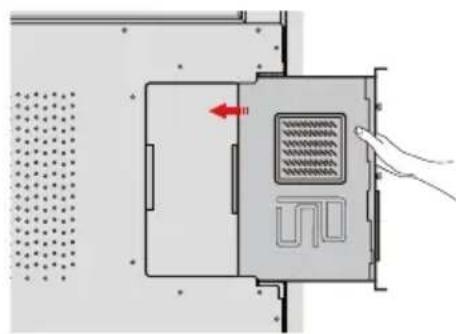
Step 3: Secure the internal PC to the display by using the M3 screws.
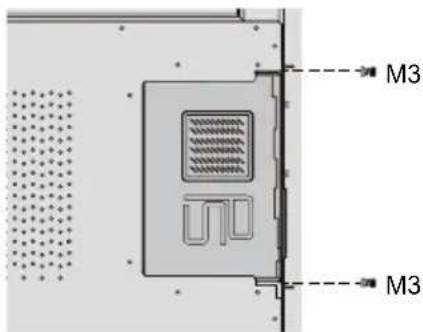
Step 4: Ensure the installation is correct before turning the power on again.
natural_image
Pure electrical circuit lines without any symbolsPower On
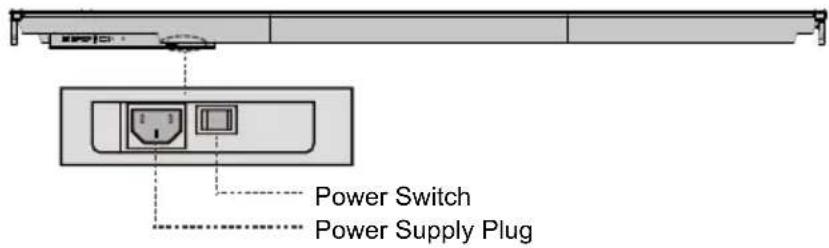
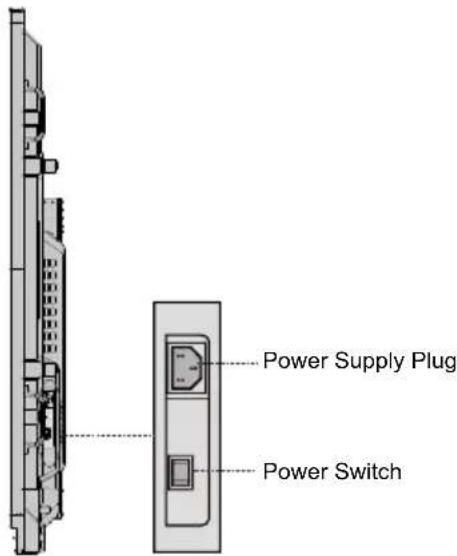
Step 1: Plug the power supply into the power outlet fully and plug the power connector into the side of the product. Ensure the power is in the range of 100V to 240V with frequency at 50 Hz/60 Hz ± 5%. The power current must be grounded.
Note
The power outlet should be installed near the equipment and shall be easily accessible.
Step 2: Flip on the power switch located on the side of the product to "On".
• TT-9818RS:
• TT-7518RS/TT-8618RS:
- TT-6518RS
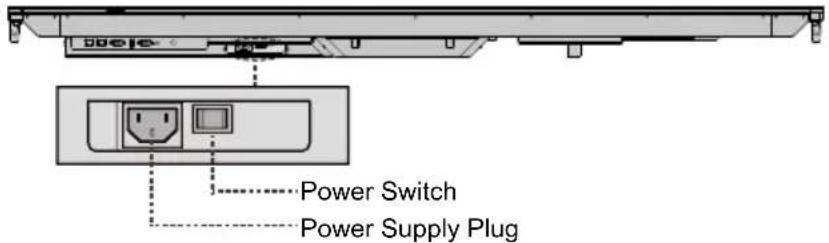
Step 3: Press the power button ⏻ on the front control panel or ⏻ on the remote control.
Power Off
Step 1: Press the power button ⏻ on the front panel or the power button on the remote control. The information will be displayed as shown in the following figure.
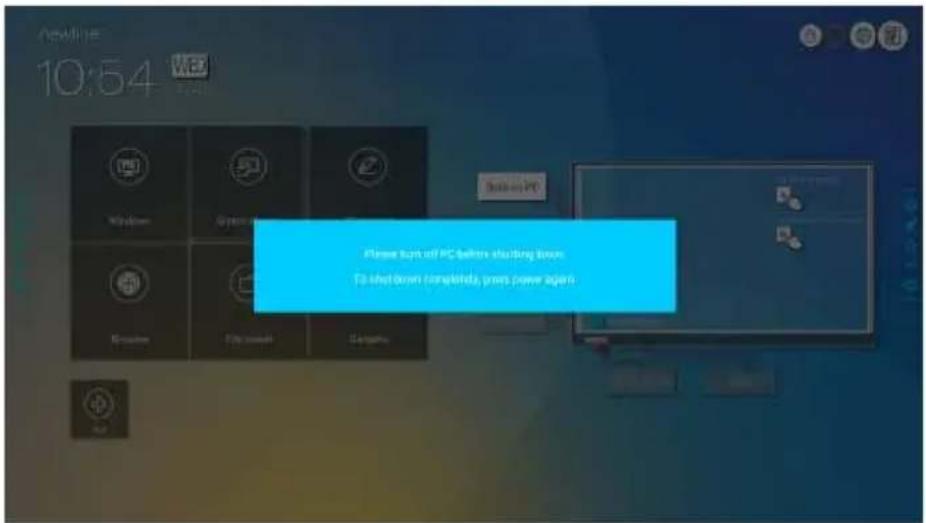
Step 2: Press the power button ⏻ on the front panel or the power button ⏻ the remote control again. the power indicator will turn to red.
Step 3: If you are not going to use the product for an extended period of time, we recommend you to switch the power switch to "Off".
Note
- If an internal PC is equipped, the internal PC and the screen are powered off simultaneously when you power off the system.
- Do not forcibly disconnect the power supply of the screen when the internal PC is on.
Operating the Touch Screen
Start Screen
When the product is turned on, the product will show the start screen page. As shown in the following figure.

Home
Touch the screen to start a meeting, and the product will go to the Home page. As shown in the following figure.
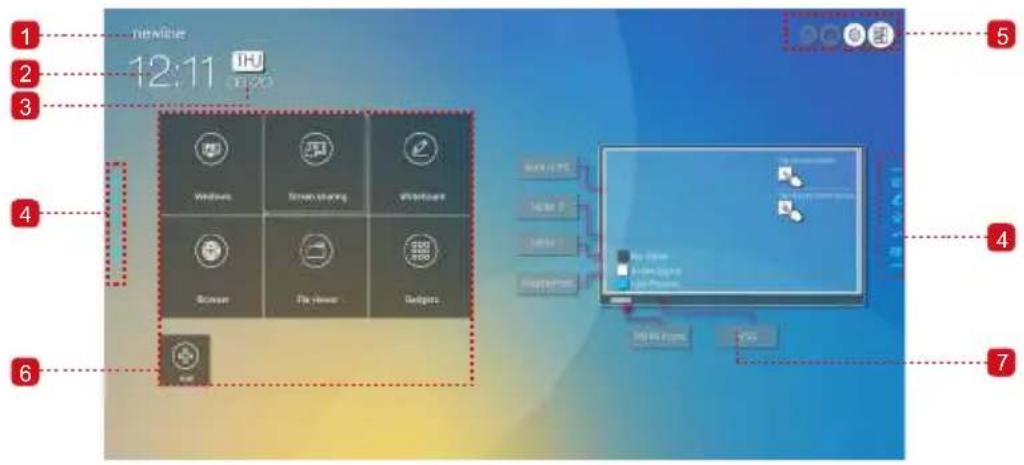
1 Logo (Shortcut to Settings)
2 Clock (Shortcut to Clock)
3 Date and Week
4 Side Toolbar
5 Status Bar and Settings
6 Main Icon
7 Preview Window for Signal Source
- Main Icon
| Icon Functions | |
 | Switch to the internal PC source. |
 | Click “Screen sharing” to enable the wireless screen sharing function. Note: By default, the “Screen sharing” icon is displayed after startup. When you click “Add” or “Gadget” icon, “Screen sharing” switches to the “Connection” icon. |
 | Click Connection to view the connected sources, including Built-in PC, HDMI 1, HDMI 2, DisplayPort, HDMI Front and VGA. |
 | Discussion provides discussion board function and screen annotation functions. |
 | Click to enter browser. |
 | Open the File Manager, and you can explore on internal and external files of the screen. |
 | Gadget displays all pre-installed applications, including Gallery, Browser, Music, Calculator, E-mail, File viewer, Keyboard, Office viewer and Trucast express. Click the icon of an application to run the application. |
 | Click Add to enter Add page, you can add up to 5 shortcuts to your favorite software, gadgets or connections to the Home page. (See more detail in “Add Shortcuts to Home Page”) |
Note
If the meeting notes cannot be saved to a USB flash memory successfully after the meeting, use a USB flash memory smaller than 16 GB and change the file system into FAT 32 format.
Side Toolbar
The Annotation Mode/Discussion Mode/Home/Return/Windows icons are displayed by default in the toolbar at two sides of the screen. The bottom side tool bar can be customized as your choice (The default icon is Windows). Long press the icon at the bottom of shortcut keys at both sides to start other functions expanded quickly. You may also hide the side tool bar at the setting or move it up and down, shrink or expand by gestures. You may double-click the “=” to expand or shrink the toolbar. Long press the customized icon to unfold level-2 icons.
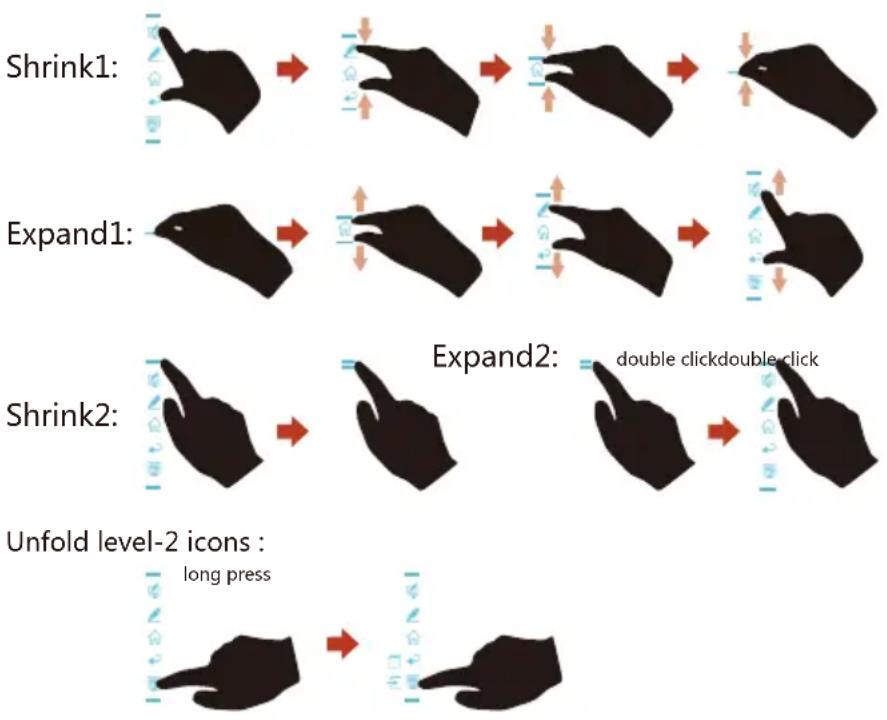
The functions of the side toolbar are as follows:
| Icon Functions | |
 | Enter annotation mode, and click again to stop annotation and take a screenshot. |
 | Enter discussion mode. |
 | Go to Home page. |
 | Return to the last menu/Exit |
 | Enter the internal PC source. |
 | Manage currently running applications.Slide up/down the currently running application or click “×” at the upper right corner to close the application. |
 | Enter the favorite source. You can set favorite source in the “tool bar” submenu in the system settings. |
◆ Status Bar and Settings
The upper right corner of the home page displays three working status icons (including USB flash memory(s), Ethernet, and Wi-Fi), system setting shortcut and return to the start screen page.
| Icon Functions | |
 | If USB flash memory(s) is connected to the USB port, this icon will be turned on. |
 | If the product is connected to Ethernet, the icon will be turned on. |
 | If the product is connected to a wireless network, the icon will be turned on. |
 | Access the system setting page. |
 | Return to the start screen page. |
Add Shortcuts to Home Page
Step 1: On Home page, click the + icon in the lower right corner. The interface for adding shortcuts will be displayed.

Step 2: Click the icons on top to switch the list between external signal sources, Windows programs and pre-installed gadgets.
- Click to view the Windows programs that the Newline Assistant uploads to the Smart system. For details, see "Add Quick Start Windows Programs in Smart System".
- Click to view signal sources in Connection.

- Click to view Gadget applications.
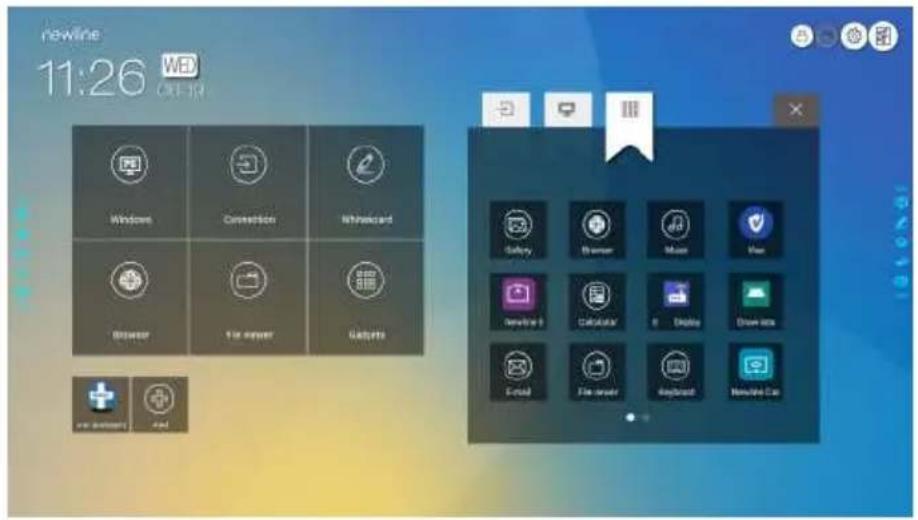
Step 3: Add or delete applications on the tab.
- In the list, click the icon to add it to the shortcut on the home page. The check icon will appear at the upper right corner of the shortcut icons. Up to 5 shortcuts can be added.
- Tap the icon with the check mark again, the check icon will disappear and the shortcut will be deleted from the Home page.
Step 4: At the Home page, click the shortcut icon and you can start the program/application or change to the external signal source.
Newline Assistant
◆ Introduction
Newline Assistant is the tool used as a bridge between smart system and Internal PC (OPS). It helps to add windows software to smart system as well as to protect USB data when switching between sources.
Therefore we strongly recommend users install Newline Assistant after installing the internal PC.
◆ Installation
Step 1: Connect Internal PC correctly (See also "Installing the Internal PC (Optional)").
Step 2: On the Home page, click Windows. It will switch the signal source to Internal Windows system.
Step 3: Log in to the website www.newline-interactive.com and choose Products > Software to download the Newline Assistant installation package.
Step 4: Install Newline Assistant as instructed.
- Add Quick Start Windows Programs in Smart System
Step 1: In Windows, run the Newline Assistant program and drag the software icons or folder shortcut icons that you want to add from desktop or menu to the Newline Assistant window. The applications added or deleted through the Windows system will be automatically updated to the smart system until the upload progress reaches 100% . If there is an application not updated, click in the upper right corner to manually update all icons in the Newline assistant window to the smart system.

Tip:
Only .exe file and folder are supported.
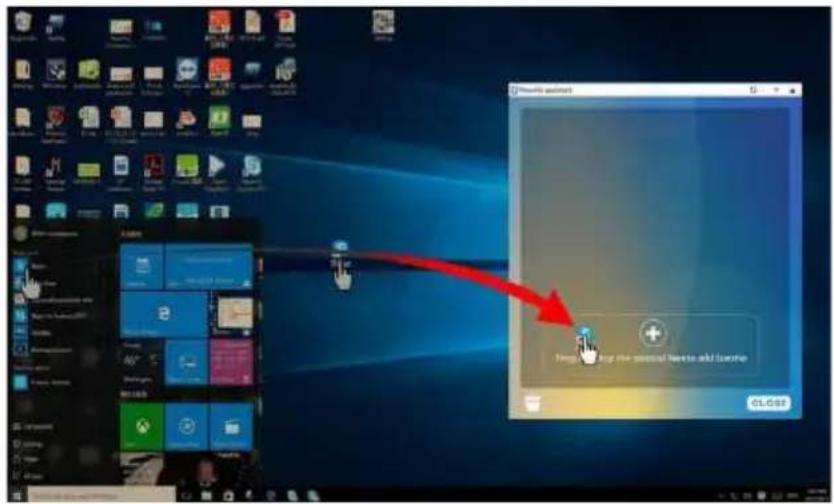
Step 2: Click 📝 to return to the Home page. Click the Ⓕ icon and go to shortcut setting. The page for adding application program will be displayed.
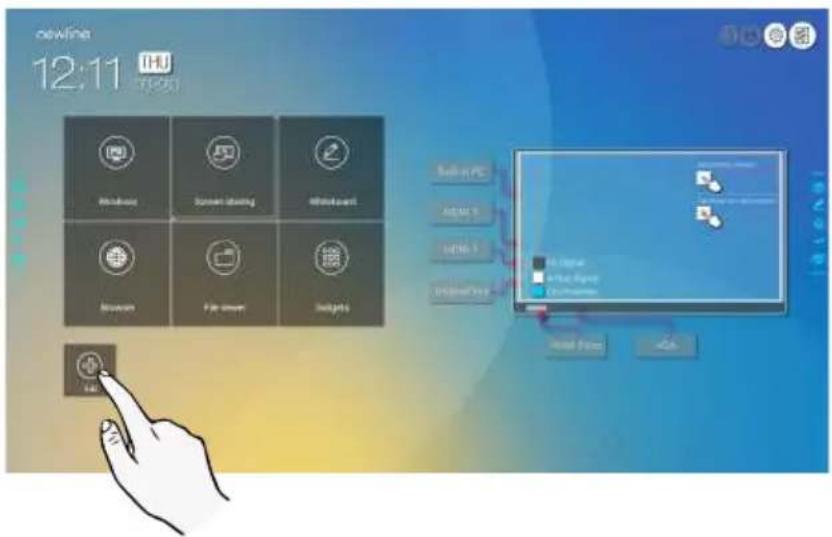
Step 3: At the shortcut setting page, click icon to view all the Windows programs added by Newline Assistant in Step 1.
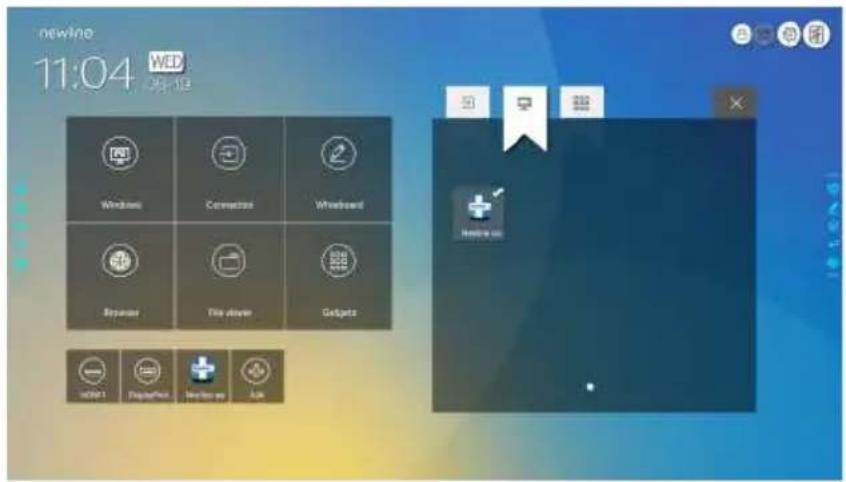
Note
By default, the Newline Assistant application is added on the ☐ tab.
Step 4: Tap the icon and add the shortcut at the Home page. Tap again and remove it.
Step 5: Return to Home page. Click the icon of an added Windows application to start the software.
Quick Setting Menu
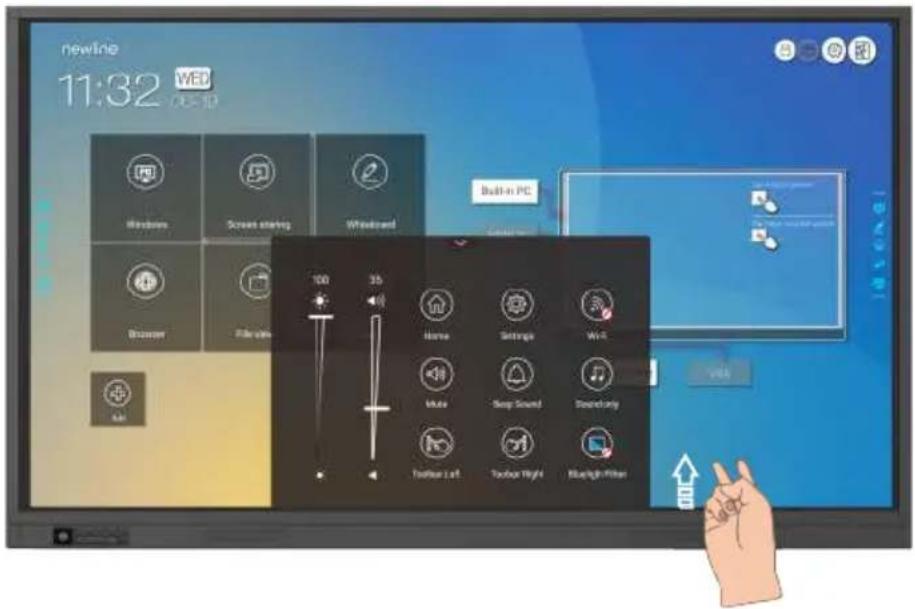
Using two fingers to swipe up from the bottom of the screen, the quick setting menu will then show up, as shown in the following figure.
| Icon | Functions |
 | Drag the slider to adjust the brightness. |
 | Drag the slider to adjust the volume. |
 | Click the icon to return to Home page. |
 | Click the icon to enter the settings page. |
 | Click the icon to turn on/off the Smart system Wi-Fi. |
 | Click the icon to mute/unmute. |
 | Click the icon to turn on/off the beep sound. |
 | Click the icon to enable sound only mode.In sound only mode, the screen LCD displays and LED backlight turns off, other functions are in normal operating condition. |
 | Click the icon to turn on/off the left toolbar. |
 | Click the icon to turn on/off the right toolbar. |
 | Click the icon to turn on/off the blue light filter. |
More Information
For more information
Please visit our website (www.newline-interactive.com) for detailed instruction manual.
Contact Us for Support
Please email us at support@newline-interactive.com.

- Symbol Conventions
- Safety Instruction
- CAUTION
- Parts and Functions
- Parts
- Ports
- ◆ Front Ports
- ♦ Rear Ports
- WARNING
- ◆ Front Buttons
- Remote Control
- Safety Precautions
- Installation Precautions
- ♦ Weight Loading
- Note
- - Vertical installation
- ◆ Ventilation
- Installation
- Installing the Internal PC (Optional)
- Power On
- Power Off
- Operating the Touch Screen
- Start Screen
- Home
- - Main Icon
- Side Toolbar
- ◆ Status Bar and Settings
- Add Shortcuts to Home Page
- Newline Assistant
- ◆ Introduction
- ◆ Installation
- - Add Quick Start Windows Programs in Smart System
- Quick Setting Menu
- More Information
- For more information
- Contact Us for Support
Brand : Newline
Model : TT-6518RS
Category : Monitor