HuddleCamHD - Webcam PTZ Optics - Free user manual and instructions
Find the device manual for free HuddleCamHD PTZ Optics in PDF.


User questions about HuddleCamHD PTZ Optics
0 question about this device. Answer the ones you know or ask your own.
Ask a new question about this device
Download the instructions for your Webcam in PDF format for free! Find your manual HuddleCamHD - PTZ Optics and take your electronic device back in hand. On this page are published all the documents necessary for the use of your device. HuddleCamHD by PTZ Optics.
USER MANUAL HuddleCamHD PTZ Optics
natural_image
Black HuddleCamHD digital camera with lens and stand (no visible text or symbols on body)Precautions.
Safety Tips
- Please read this manual carefully before using the webcam.
- Avoid damage from stress, violent vibration or liquid intrusion during transportation, storage or installation.
- Take care of the webcam during installation to prevent damage to the webcam case, ports, or lens.
- Do not apply excessive voltage. (Use only the specified voltage.) Otherwise, you may experience electrical shock.
- Keep the webcam away from strong electromagnetic sources.
- Do not aim the webcam at bright light sources (e.g. bright lights, the sun, etc.) for extended periods of time.
- Do not clean the webcam with any active chemicals or corrosive detergents.
- Do not disassemble the webcam or any of the webcam's components. If problems arise, please contact your authorized dealer.
- After long term operation, moving components can wear down. Contact your authorized dealer for repair.
In The Box
Supplied Equipment
- Webcam (1)
- Privacy Cover
- User Manual (1)
152 Robbins Rd, Downingtown, PA, 19335, USA - HuddleCamHD.com | 1 800 - 486-5276
Physical Description......
- Front View......
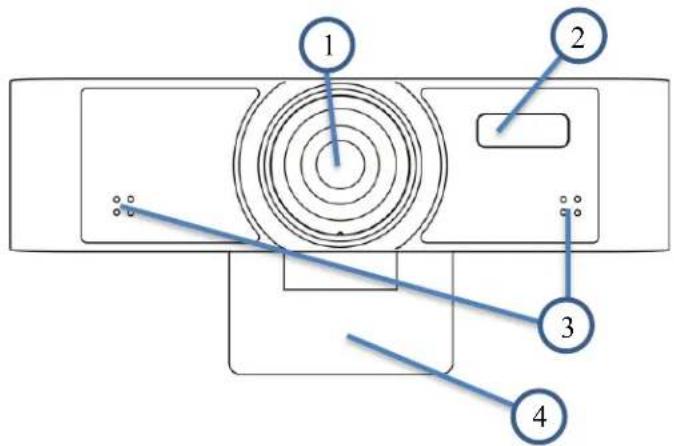
- Lens
94^ field of view lens
- Power LED
Blue LED lights when unit is powered and on.
- Microphone array
Internal microphone array with up to a 15-foot range
- Top Mount
Used for resting the webcam on a monitor

HuddleCamHD
152 Robbins Rd, Downingtown, PA, 19335, USA - HuddleCamHD.com | 1 800 - 486-5276
2. Rear View.
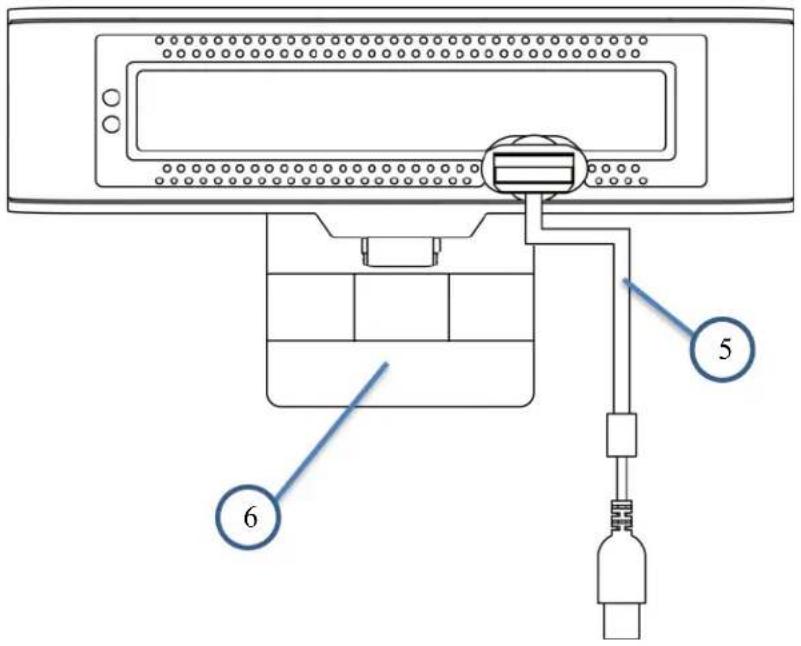
- Built in USB 2.0 cable
For connection to PC USB 2.0 port.
- Bottom Mount
Used for securing the webcam in position on monitor
- 1/4-20 Mount
Used for mounting to any standard 1/4-20 mounting screw
OSD MENU.
On Screen Display Menu - Use the OSD menu to access and change the webcam's settings by using the HuddleCamHD Webcam OSD Menu application.
The webcam OSD Menu is as follows:
- Exposure
○ Full Auto
- ExpCompMode On/Off
- Exp Comp -7 \~ +7 (Available when ExpCompMode is "On")
- Gain Limit 0 \~ 15
■ Backlight On/Off
■ DRC Strength 0 \~ 8
■ Anti-Flicker Off/50Hz/60Hz
○ Shutter Priority
- Shutter 1/30s, 1/60s, 1/90s, 1/100s, 1/125s, 1/200s,
1/250s, 1/350s, 1/500s, 1/725s, 1/1000s,
1/1500s, 1/2000s, 1/3000s, 1/4000s,
1/6000s, & 1/10000s
■ DRC Strength 0 \~ 8
○ Bright
■ Bright 0 \~ 17
- Gain Limit 0 \~ 15
■ DRC Strength 0 \~ 8
■ Anti-Flicker Off/50Hz/60Hz

HuddleCamHD
152 Robbins Rd, Downingtown, PA, 19335, USA - HuddleCamHD.com | 1 800 - 486-5276
- Color
○ Auto
■ AWB Sens Low/Middle/High
- RG Tuning -10 - +10
■ BG Tuning -10 - +10
■ Saturation 60% - 200%
- Hue 0 - 14
- Indoor
■ Saturation 60% - 200%
- Hue 0 - 14
- Outdoor
■ Saturation 60% - 200%
- Hue 0 - 14
○ OnePush
■ AWB Sens High/Low/Normal
■ RG Tuning -10 - +10
BG Tuning -10 - +10
■ Saturation 60% - 200%
■ Hue 0-14
○ Manual
- RG Tuning 0 - 255
BG Tuning 0-255
■ Saturation 60% - 200% - Hue 0 - 14

HuddleCamHD
152 Robbins Rd, Downingtown, PA, 19335, USA - HuddleCamHD.com | 1 800 - 486-5276
- Image
■ Luminance 0 - 14
- Contrast 0 - 14
- Sharpness Auto/0 – 15
- Flip-H Off/On
- Flip-V Off/On
■ Gamma Default/0.45/0.5/0.56/0.63
■ Style Clarity/Bright/PC/Clarity (LED)/Norm
■ LDC Off/-10 - +10
- Focus
■ AF-Sense Low/Medium/High
■ Focus Mode Manual/Auto/One-Shot
■ Focus Area Middle Area/Upper Half/All/Bottom Half
- Noise Reduction
■ 2D-NR Close/Auto/1\~5
■ 3D-NR Close/1\~8
• Information Displays current webcam settings
- Restore Default Restore webcam default settings

HuddleCamHD
152 Robbins Rd, Downingtown, PA, 19335, USA - HuddleCamHD.com | 1 800 - 486-5276
Connection Instructions.
- Connect USB 2.0 cable from webcam to an available USB port on the PC.
- Select and configure webcam in your software of choice.
NOTE: Failure to follow this sequence may result in no connection to PC.
Care Of The Unit.
Remove dust or dirt on the surface of the lens with a blower (commercially available).
Installation Instructions.
Monitor Installation.
When mounting the HuddleCam on a monitor, ensure that the mount screw is fastened tightly to the webcam. Use the top mount to rest the webcam on the monitor. Position the bottom mount on the back of the monitor to secure the webcam in position.

HuddleCamHD
152 Robbins Rd, Downingtown, PA, 19335, USA - HuddleCamHD.com | 1 800 - 486-5276
Tripod Installation.
When using the HuddleCam with a tripod, screw the tripod to the bottom of the webcam mount. The tripod screw must fit below specifications:
Note: Tripod must stand on a level surface.
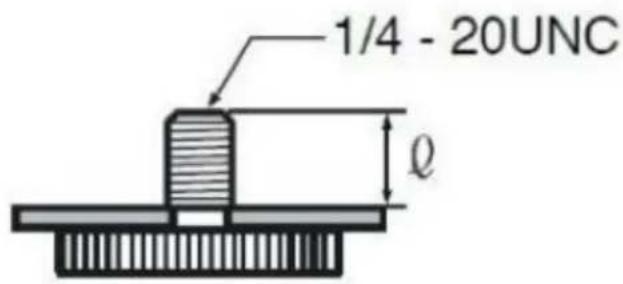
$$ \varrho = 5 - 7 \mathrm{mm} $$
Troubleshooting
- No image
- Check whether the USB cable is connected properly to the PC.
- Check whether the LED glows when USB is connected to the PC.
• Abnormal display of image
- Check OSD of webcam through the OSD Menu app.
- Check settings of software you're viewing the video feed in.
• Image is shaky or vibrating
- Check whether the webcam is mounted solidly or sitting on a steady horizontal and level surface.
- Check the building and any supporting furniture for vibration.
- Any external vibration that is affecting the webcam will be more apparent when in tele zoom (zoomed in) settings.

HuddleCamHD
152 Robbins Rd, Downingtown, PA, 19335, USA - HuddleCamHD.com | 1 800 - 486-5276
Important Notes Regarding USB Connectivity:
USB 3.0 ports are backwards compatible with USB 2.0 devices. USB 2.0 ports are not completely forward compatible with USB 3.0 devices (some USB 3.0 devices will connect to USB 2.0 with limited functionality).
External USB hubs should be avoided (i.e. give the webcam its own USB port on the device) as they are not well suited to transmitting HD video reliably.
USB extension systems must be fully compatible with the version of USB that you are using and must utilize an external power supply, when required. Always connect the HuddleCam directly to the PC in order to associate the UVC drivers before attempting to use any extension system.
USB power saving settings in the device's operating system should be turned off completely for reliable USB webcam connectivity.
HuddleCam Cameras
All HuddleCamHD cameras utilize the UVC (USB Video Class) drivers that are built into Windows, Mac OS and Linux to stream HD video to your device via your device's USB port (USB 2.0 or USB 3.0 depending upon HuddleCam model). When your device successfully recognizes the camera, your device will register the HuddleCam as an “imaging device”. You can see this in your Windows Device Manager program (type “device manager” into the Windows search tool) as shown in the screenshot, below:

HuddleCamHD
152 Robbins Rd, Downingtown, PA, 19335, USA - HuddleCamHD.com | 1 800 - 486-5276
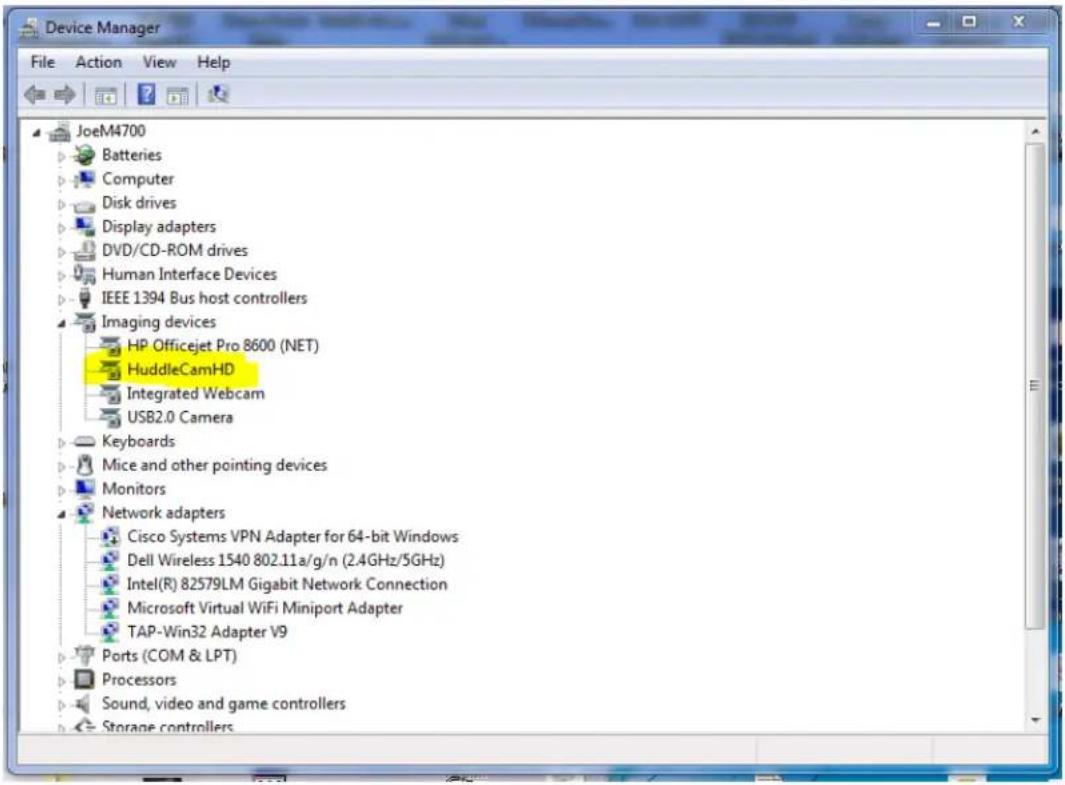
In this example, you can see the HuddleCam model in use connected as a fully functional USB 2.0 device (HuddleCamHD).
If your device has not connected to or has not recognized the HuddleCam as an imaging device (in which case, you may see a new “unknown device”, “Westbridge” or “CYTFX3” labeled device show up in Device Manager’s “Universal Serial Bus Controllers” section rather than in the “Imaging Devices” section), the HuddleCam will not be available to programs that utilize a webcam. In this case, try restarting the device and reconnecting the webcam via USB (USB 2.0 or USB 3.0 depending upon HuddleCam model).

HuddleCamHD
152 Robbins Rd, Downingtown, PA, 19335, USA - HuddleCamHD.com | 1 800 - 486-5276
Similarly, you can see a connected device in System Information on a MAC. See screenshot below:
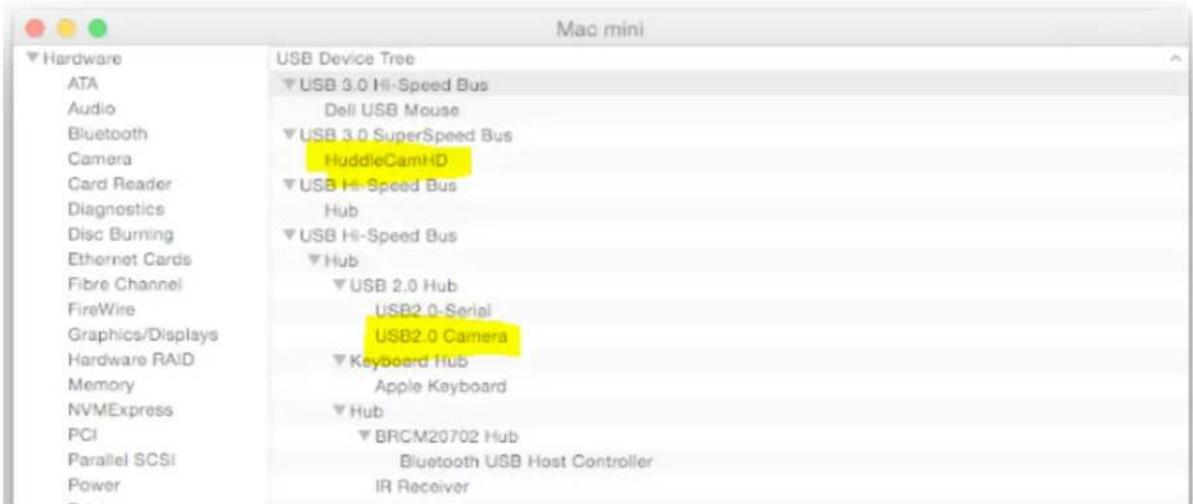
In this example, you can see the HuddleCam model in use connected as a fully functional USB 2.0 device (HuddleCamHD).
Model Number: HC-WEBCAM-94
Camera & Lens
• Video CMOS Sensor 1/2.7" CMOS 2.07M Mega Pixel
• Frame Rate 1080p-30/25, 720p-30/25, 960x540p-30/25, 640x360p-30/25
• Field of View 94
- Lens Focus: f = 3.1 mm
• Min Lux 0.05 Lux @ F1.8, AGC ON)
• Warranty 3 years parts and labor
Rear Board Connectors
• Video Interface USB 2.0
• Power Interface USB 2.0 5V
Physical
• Material Aluminum, Plastic
- Dimensions 4.6"W x 1.4"D x 1.2"H (118mm x 36mm x 30mm)
• Weight 0.2 lbs (93 g) (not including mounting bracket)
- Box Dimensions 5.5"W x 3"D x 3.125"H (139.7mm x 76.2mm x 79.4mm)
- Boxed Weight 0.75 lbs (0.34 kg)
• Color Black
- Operating Temperature 14°F to +104°F (-10°C to +40°C)
• Storage Temperature -40°F to 140°F (-40°C +60°C)
- Working Environment Indoor only