ZCam 20X - Video Conferencing Camera PTZ Optics - Free user manual and instructions
Find the device manual for free ZCam 20X PTZ Optics in PDF.


User questions about ZCam 20X PTZ Optics
0 question about this device. Answer the ones you know or ask your own.
Ask a new question about this device
Download the instructions for your Video Conferencing Camera in PDF format for free! Find your manual ZCam 20X - PTZ Optics and take your electronic device back in hand. On this page are published all the documents necessary for the use of your device. ZCam 20X by PTZ Optics.
USER MANUAL ZCam 20X PTZ Optics
User Manual
Model No: PT20X-ZCAM
V1.5
(English)
Please check PTZOPTICS.com for the most up to date version of this document
Rev 1.5 7/19
Preface
Thank you for using the HD Professional Video Conferencing Camera. This manual introduces the function, installation and operation of the HD camera. Prior to installation and usage, please read the manual thoroughly.
Precautions
This product can only be used in the specified conditions in order to avoid any damage to the camera:
- Don't subject the camera to rain or moisture.
- Don't remove the cover. Removal of the cover may result in an electric shock, in addition to voiding the warranty. In case of abnormal operation, contact the manufacturer.
- Never operate outside of the specified operating temperature range, humidity, or with any other power supply than the one originally provided with the camera.
- Please use a soft dry cloth to clean the camera. If the camera is very dirty, clean it with diluted neutral detergent; do not use any type of solvents, which may damage the surface.
Note
This is an FCC Class A Digital device. As such, unintentional electromagnetic radiation may affect the image quality of TV in a home environment.
Table of Contents
1 Supplied Accessories 3
2 Notes 3
3 Features 4
4 Product Specifications 5
5 Main Unit 7
6 VISCA Commands 9
7 VISCA over IP Commands 18
8 Menu Setting 25
9 Network Connection 29
10 Camera Web Interface 34
11 Photobooth Functionality 46
12 Maintenance and Troubleshooting 48
Supplied Accessories
When you unpack your camera, check that all the supplied accessories are included:
- Camera .... 1
● AC Power Adaptor ..... 1
● This User Manual .... 1
Notes
- Electrical Safety
Installation and operation must be in accordance with national and local electric safety standards. Do not use any power supply other than the one originally supplied with this camera.
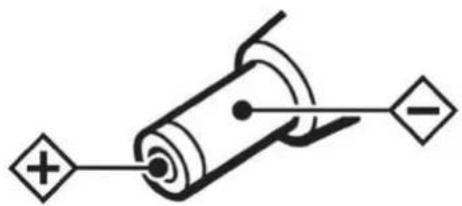
● Polarity of power supply
The power supply output for this product is 12VDC with a maximum current supply of 2A. Polarity of the power supply plug is critical and is as follows.
natural_image
Pure electrical circuit lines without any symbols- Handling
■ Avoid any stress, vibration, or moisture during transportation, storage, installation and operation.
■ Do not lift or move the camera by grasping the camera head. Do not turn the camera head by hand. Doing so may result in mechanical damage.
■ Do not expose camera to any corrosive solid, liquid, or gas to avoid damage to the cover which is made of a plastic material.
■ Ensure that there are no obstacles in the tilt or pan ranges of the camera lens.
■ Never power camera on before installation is complete.
- Do not dismantle the camera - The manufacturer is not responsible for any unauthorized modification or dismantling.
Features
- Panasonic 1/2.7" inch HD CMOS Sensor
- 20X Optical Zoom
- 60.7° Field of View
- 3G-SDI High Definition Video Output up to 60 frames per second
- 0.2 Lux @ F1.6 AGC ON
- Full 1920x1080p HD Resolutions up to 60 frames per second
- 2D & 3D noise reduction with our latest "low noise CMOS sensor"
- Button controls on back of camera
- RS485 remote camera control interface
- H.264 IP streaming output (dual stream) up to 30 frames per second
- Web-based IP remote camera control
- Standard 1/4-20 female thread for camera mounting
- Power over Ethernet - Supports PoE 802.3af
- Hold left button on Menu Navigation for 5+ seconds to toggle Dynamic or Static IP addressing
- Hold up button on Menu Navigation for 5+ seconds to Zoom In.
- Hold down button on Menu Navigation for 5+ seconds to Zoom Out.
Product Specifications
| Model | PT20X-ZCAM |
| Type | PTZOptics 3G-SDI HD 1080p Color Video Box Camera |
| Features | |
| Video System | 1080p-60/50/30/25, 1080i-60/50, 720p-60/50(With IP stream currently limited to max 1080p30) |
| Sensor | Panasonic 1/2.7", CMOS, Total Pixels: 2.12M, Effective Pixels: 2.07M |
| Scanning Mode | Progressive |
| Lens | 20x; f4.42mm - 88.5mm; F1.8 - F2.8 |
| Minimal Illumination | 0.2 Lux (@F1.6, AGC ON) |
| Shutter | 1/30s - 1/10000s |
| White Balance | Auto, Indoor, Outdoor, One-Push, Manual |
| Backlight Compensation | Support |
| Digital Noise Reduction | 2D & 3D Digital Noise Reduction |
| Video S/N | ≥55dB |
| Horizontal Angle of View | 3.36° - 60.7° |
| Vertical Angle of View | 1.89° - 34.1° |
| Ceiling Installation | Yes |
| Image Mirroring | Yes |
| Number of Presets | 255 |
| Preset Accuracy | 0.1° |
| Video coding standards | H.264, H.265, MJPEG |
| Video Freeze | Yes |
| Face Detection | Via Future Firmware Update |
| Input/Output | |
| HD Output | 1x SDI (3G-SDI), BNC female |
| 1x RJ45 IP 10/100/1000 Ethernet Port | |
| Network Interface and Output | 1x RJ45: 10M/100M/1000M Adaptive Ethernet port |
| Audio Input | 1-ch 3.5mm audio interface, LINE IN (embedded on IP Stream only) |
| Audio Output | Not active on this model |
| Control Input / Output | 1x RS-485: 3pin phoenix port, Max Distance: 1500m, Protocols: VISCA/Pelco-D/Pelco-P |
| IP Video Features | |
| Video Compression | H.265/H.264/M-JPEG |
| Video Stream | Main Stream, Sub Stream |
| Main Stream Resolution | 1920x1080, 1280x720, 1024x576, 960x480, 640x480, 640x360 |

broadcast quality made affordable
| Sub Stream Resolution | 1280x720, 1024x576, 720x480, 720x408, 60x360, 480x270, 320x240, 320x180 |
| Video Bit Rate | 128Kbps ~ 8192Kbps |
| Bit Rate Type | Variable Rate, Fixed Rate |
| Frame Rate | 50Hz: 1fps ~ 50fps, 60Hz: 1fps ~ 60fps |
| Audio Compression | AAC |
| Audio Bit Rate | 96Kbps, 128Kbps, 256Kbps |
| Support Protocols | TCP/IP, HTTP, RTSP, RTMP, DHCP, Multicast, etc. |
| General Specifications | |
| Power Connector | JEITA type (DC IN 12V) or RJ45 via PoE 802.3af |
| Input Voltage | 12VDC (10.8 - 13.0V DC) |
| Current Consumption | 0.5A (Max) |
| Operating Temperature | -14°F - 104°F [-10°C - 40°C] |
| Storage Temperature | -40°F - 140°F [-40°C - 60°C] |
| Power Consumption | 6W (Max) |
| Dimensions (w x h x d) | 2.4” x 3.0” x 5.7” [60mm x 76mm x 144mm] |
| Weight | 1.4 lbs. [0.63kg] |
Main Unit
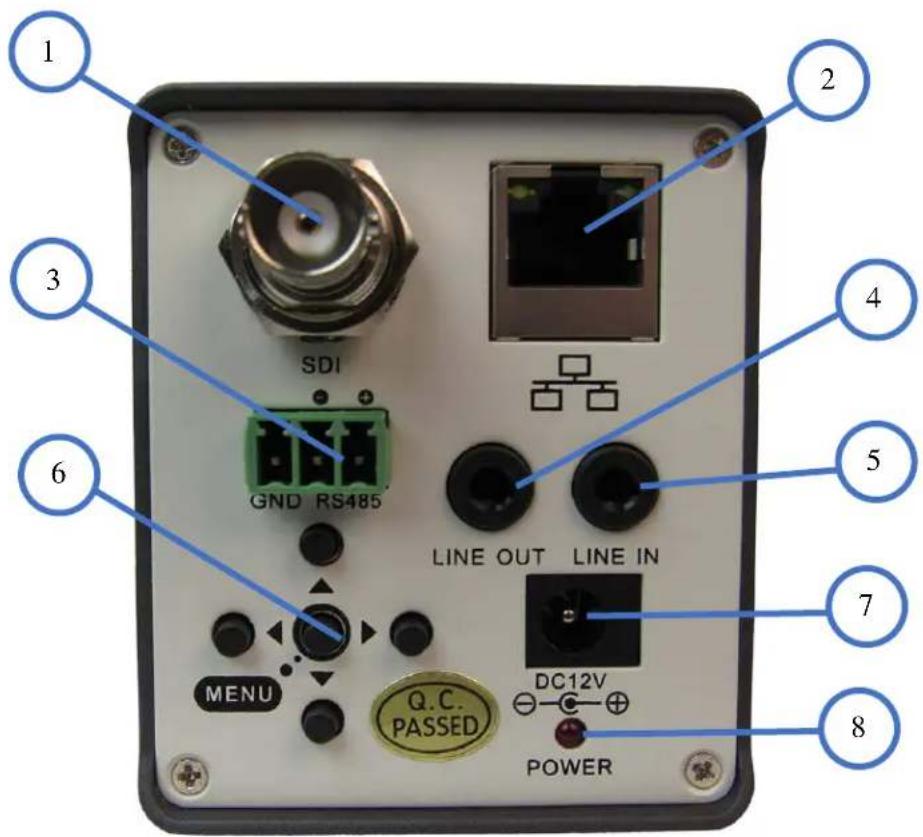
- 3G-SDI Video Output 5. Audio Line Input
- RJ-46 Network Connection 6. Menu Navigation Buttons
- Phoenix Connector (RS485) 7. DC12V Power Jack
- Audio Line Output (Not active) 8. Power LED Indicator
Serial Communication Control
RS485 Communication Control
The camera can be controlled via RS485, Half-duplex mode, with support for VISCA, Pelco-D or Pelco-P protocol.
The parameters of RS485 are as follows:
Baud rate: 2400, 4800 or 9600 bps.
Start bit: 1 bit.
Data bit: 8 bits.
Stop bit: 1 bit.
Parity bit: none.
Note: As this camera does not have pan or tilt functionality, not all of the commands in the following command list will apply.
VISCA Command List
Part 1: Camera-Issued Messages
| ACK/Completion Message | |||
| Command | Function | Command Packet | Comments |
| ACK/CompletionMessages | ACK | z0 4y FF(y: Socket No.) | Returned when the command is accepted. |
| Completion | z0 5y FF(y: Socket No.) | Returned when the command has been executed. | |
z = Camera Address + 8
| Error Messages | |||
| Command | Function | Command Packet | Comments |
| Error Messages | Syntax Error | z0 60 02 FF | Returned when the command format is different or when a command with illegal command parameters is accepted. |
| Command Buffer Full | z0 60 03 FF | Indicates that two sockets are already being used (executing two commands) and the command could not be accepted when received. | |
| Command Canceled | z0 6y 04 FF(y: Socket No.) | Returned when a command which is being executed in a socket specified by the cancel command is canceled. The completion message for the command is not returned. | |
| No Socket | z0 6y 05 FF(y: Socket No.) | Returned when no command is executed in a socket specified by the cancel command, or when an invalid socket number is specified. | |
| Command Not Executable | z0 6y 41 FF(y: Execution command Socket No. Inquiry command: 0) | Returned when a command cannot be executed due to current conditions. For example, when commands controlling the focus manually are received during auto focus. | |
Part 2: Camera Control Commands
| Command | Function | Command Packet | Comments |
| AddressSet | Broadcast | 88 30 01 FF | Address setting |
| IF_Clear | Broadcast | 88 01 00 01 FF | I/F Clear |
| CAM_Power | On | 8x 01 04 00 02 FF | Power ON/OFF |
| Off | 8x 01 04 00 03 FF | ||
| CAM_Zoom | Stop | 8x 01 04 07 00 FF | |
| Tele(Standard) | 8x 01 04 07 02 FF | ||
| Wide(Standard) | 8x 01 04 07 03 FF | ||
| Tele(Variable) | 8x 01 04 07 2p FF | p = 0(low) - 7(high) | |
| Wide(Variable) | 8x 01 04 07 3p FF | ||
| Direct | 8x 01 04 47 0p 0q 0r 0s FF | pqrs: Zoom Position | |
| CAM_Focus | Stop | 8x 01 04 08 00 FF | |
| Far(Standard) | 8x 01 04 08 02 FF | ||
| Near(Standard) | 8x 01 04 08 03 FF | ||
| Far(Variable) | 8x 01 04 08 2p FF | p = 0(low) - 7(high) | |
| Near(Variable) | 8x 01 04 08 3p FF | ||
| Direct | 8x 01 04 48 0p 0q 0r 0s FF | pqrs: Focus Position | |
| Auto Focus | 8x 01 04 38 02 FF | AF On/Off | |
| Manual Focus | 8x 01 04 38 03 FF | ||
| Auto/Manual | 8x 01 04 38 10 FF | ||
| CAM_ZoomFocus | Direct | 8x 01 04 47 0p 0q 0r 0s0t 0u 0v 0w FF | pqrs: Zoom Positiontuvw: Focus Position |
| CAM_WB | Auto | 8x 01 04 35 00 FF | Normal Auto |
| Indoor mode | 8x 01 04 35 01 FF | Indoor mode | |
| Outdoor mode | 8x 01 04 35 02 FF | Outdoor mode | |
| OnePush mode | 8x 01 04 35 03 FF | One Push WB mode | |
| Manual | 8x 01 04 35 05 FF | Manual Control mode | |
| OnePush trigger | 8x 01 04 10 05 FF | One Push WB Trigger | |
| CAM_RGain | Reset | 8x 01 04 03 00 FF | Manual Control of R Gain |
| Up | 8x 01 04 03 02 FF | ||
| Down | 8x 01 04 03 03 FF | ||
| Direct | 8x 01 04 43 00 00 0p 0q FF | pq: R Gain | |
| CAM_Bgain | Reset | 8x 01 04 04 00 FF | Manual Control of B Gain |
| Up | 8x 01 04 04 02 FF | ||
| Down | 8x 01 04 04 03 FF | ||
| Direct | 8x 01 04 44 00 00 0p 0q FF | pq: B Gain |
broadcast quality made affordable
| CAM_AE | Full Auto | 8x 01 04 39 00 FF | Automatic Exposure mode |
| Manual | 8x 01 04 39 03 FF | Manual Control mode | |
| Shutter priority | 8x 01 04 39 0A FF | Shutter Priority Automatic Exposure mode | |
| Iris priority | 8x 01 04 39 0B FF | Iris Priority Automatic Exposure mode | |
| Bright | 8x 01 04 39 0D FF | Bright Mode(Manual control) | |
| CAM_SlowShutter | AutoSlowShutterLimit | 8x 01 04 2A 0p 00 FF | |
| CAM_Iris | Reset | 8x 01 04 0B 00 FF | Iris Setting |
| Up | 8x 01 04 0B 02 FF | ||
| Down | 8x 01 04 0B 03 FF | ||
| Direct | 8x 01 04 4B 00 00 0p 0q FF | pq: Iris Position | |
| CAM_Gain | Reset | 8x 01 04 0C 00 FF | Gain Setting |
| Up | 8x 01 04 0C 02 FF | ||
| Down | 8x 01 04 0C 03 FF | ||
| Direct | 8x 01 04 0C 00 00 0p 0q FF | pq: Gain Position | |
| Gain Limit | 8x 01 04 2C 0p FF | p: Gain Position | |
| CAM_Bright | Reset | 8x 01 04 0D 00 FF | Bright Setting |
| Up | 8x 01 04 0D 02 FF | ||
| Down | 8x 01 04 0D 03 FF | ||
| Direct | 8x 01 04 0D 00 00 0p 0q FF | pq: Bright Position | |
| CAM_ExpComp | On | 8x 01 04 3E 02 FF | Exposure Compensation On/Off |
| Off | 8x 01 04 3E 03 FF | ||
| Reset | 8x 01 04 0E 00 FF | Exposure Compensation Amount Setting | |
| Up | 8x 01 04 0E 02 FF | ||
| Down | 8x 01 04 0E 03 FF | ||
| Direct | 8x 01 04 4E 00 00 0p 0q FF | pq: ExpComp Position | |
| CAM_BackLight | On | 8x 01 04 33 02 FF | Back Light Compensation On/Off |
| Off | 8x 01 04 33 03 FF | ||
| CAM_NR(2D)Mode | Auto | 8x 01 04 50 02 FF | ND2D Auto/Manual |
| Manual | 8x 01 04 50 03 FF | ||
| CAM_NR(2D)Level | - | 8x 01 04 53 0p FF | p: NR Setting (0: Off, level 1 to 5) |
| CAM_NR(3D)Level | - | 8x 01 04 54 0p FF | p: NR Setting (0: Off, level 1 to 8) |
| CAM_Flicker | - | 8x 01 04 23 0p FF | p: Flicker Settings(0: Off, 1: 50Hz, 2: 60Hz) |
| CAM_DHotPixel | - | 8x 01 04 56 0p FF | p: Dynamic Hot Pixel Setting (0: off, level 1 to 6) |
| CAM_ApertureMode(sharpness) | Auto | 8x 01 04 05 02 FF | Sharpness Auto |
broadcast quality made affordable
| Manual | 8x 01 04 05 02 FF | Sharpness Manual | |
| CAM_Aperture(sharpness) | Reset | 8x 01 04 02 00 FF | Aperture Control |
| Up | 8x 01 04 02 02 FF | ||
| Down | 8x 01 04 02 03 FF | ||
| Direct | 8x 01 04 42 00 00 0p 0q FF | pq: Aperture Gain | |
| CAM_PictureEffect | Off | 8x 01 04 63 00 FF | Picture Effect Setting |
| B&W | 8x 01 04 63 04 FF | ||
| CAM_Memory | Resct | 8x 01 04 3F 00 pp FF | pp: Memory Number(=0 to 127) |
| Set | 8x 01 04 3F 01 pp FF | ||
| Recall | 8x 01 04 3F 02 pp FF | ||
| CAM_LR_Reverse | On | 8x 01 04 61 02 FF | Image Flip Horizontal On/Off |
| Off | 8x 01 04 61 03 FF | ||
| CAM_PictureFlip | On | 8x 01 04 66 02 FF | Image Flip Vertical On/Off |
| Off | 8x 01 04 66 03 FF | ||
| CAM_RegisterValue | - | 8x 01 04 24 mn 0p 0q FF | mm: Register No. (=00-7F)pp: Register Value (=00-7F) |
| CAM_ColorGain | Diret | 8x 01 04 49 00 00 00 0p FF | p: Color Gain setting 0h (60%) to Eh (200%) |
| SYS_Menu | Off | 8x 01 06 06 03 FF | Turns off the menu screen |
| Pan_tiltDrive | Up | 8x 01 06 01 VV WW 03 01 FF | VV: Pan speed 0x01 (low speed) to 0x18 (high speed)WW: Tilt speed 0x01 (low speed) to 0x14 (high speed)YYYY: Pan PositionZZZZ: Tilt Position |
| Down | 8x 01 06 01 VV WW 03 02 FF | ||
| Left | 8x 01 06 01 VV WW 01 03 FF | ||
| Right | 8x 01 06 01 VV WW 02 03 FF | ||
| Upleft | 8x 01 06 01 VV WW 01 01 FF | ||
| Upright | 8x 01 06 01 VV WW 02 01 FF | ||
| DownLeft | 8x 01 06 01 VV WW 01 02 FF | ||
| DownRight | 8x 01 06 01 VV WW 02 02 FF | ||
| Stop | 8x 01 06 01 VV WW 03 03 FF | ||
| AbsolutePosition | 8x 01 06 02 VV WW0Y 0Y 0Y 0Y 0Z 0Z 0Z 0Z FF | ||
| RelativePosition | 8x 01 06 03 VV WW0Y 0Y 0Y 0Y 0Z 0Z 0Z 0Z FF | ||
| Home | 8x 01 06 04 FF | ||
| Reset | 8x 01 06 05 FF | ||
| Pan_tiltLimitSct | LimitSet | 8x 01 06 07 00 0W0Y 0Y 0Y 0Y 0Z 0Z 0Z 0Z FF | W: 1 UpRight 0: DownLeftYYYY: Pan Limit PositionZZZZ: Tilt Position |
| LimitClear | 8x 01 06 07 01 0W07 0F 0F 0F 07 0F 0F 0F FF |

broadcast quality made affordable
| CAM_AFSensitivity | High | 8x 01 04 58 01 FF | AF Sensitivity High/Normal/Low |
| Normal | 8x 01 04 58 02 FF | ||
| Low | 8x 01 04 58 03 FF | ||
| CAM_SettingReset | Reset | 8x 01 04 A0 10 FF | Reset Factory Setting |
| CAM_Brightness | Direct | 8x 01 04 A1 00 00 0p 0q FF | pq: Brightness Position |
| CAM_Contrast | Direct | 8x 01 04 A2 00 00 0p 0q FF | pq: Contrast Position |
| CAM_Flip | Off | 8x 01 04 A4 00 FF | Single Command For Video Flip |
| Flip-H | 8x 01 04 A4 01 FF | ||
| Flip-V | 8x 01 04 A4 02 FF | ||
| Flip-HV | 8x 01 04 A4 03 FF | ||
| CAM_SettingSave | Save | 8x 01 04 A5 10 FF | Save Current Setting |
| CAM_Iridix | Direct | 8x 01 04 A7 00 00 0p 0q FF | pq: Iridix Position |
| CAM_AWBSensitivity | High | 8x 01 04 A9 00 FF | High |
| Normal | 8x 01 04 A9 01 FF | Normal | |
| Low | 8x 01 04 A9 02 FF | Low | |
| CAM_AFZone | Top | 8x 01 04 AA 00 FF | AF Zone weight select |
| Center | 8x 01 04 AA 01 FF | ||
| Bottom | 8x 01 04 AA 02 FF | ||
| CAM_ColorHue | Direct | 8x 01 04 4F 00 00 00 0p FF | p: Color Hue setting 0h (-14 degrees) to Eh (+14 degrees |
Part 3: Query Commands
| Inquiry Command List | |||
| Command | Command packed | Inquiry Packet | Comments |
| CAM_PowerInq | 8x 09 04 00 FF | y0 50 02 FF | On |
| y0 50 03 FF | Off(Standby) | ||
| y0 50 04 FF | Internal power circuit error | ||
| CAM_ZoomPosInq | 8x 09 04 47 FF | y0 50 0p 0q 0r 0s FF | pqrs: Zoom Position |
| CAM_FocusAFMode Inq | 8x 09 04 38 FF | y0 50 02 FF | Auto Focus |
| y0 50 03 FF | Manual Focus | ||
| CAM_FocusPosInq | 8x 09 04 48 FF | y0 50 0p 0q 0r 0s FF | pqrs: Focus Position |
| CAM_WBModeInq | 8x 09 04 35 FF | y0 50 00 FF | Auto |
| y0 50 01 FF | Indoor mode | ||
| y0 50 02 FF | Outdoor mode | ||
| y0 50 03 FF | OnePush mode | ||
| y0 50 05 FF | Manual | ||
| CAM_RGainInq | 8x 09 04 43 FF | y0 50 00 00 0p 0q FF | pq: R Gain |
| CAM_BGainInq | 8x 09 04 44 FF | y0 50 00 00 0p 0q FF | pq: B Gain |
broadcast quality made affordable
| CAM_AEModeInq | 8x 09 04 39 FF | y0 50 00 FF | Full Auto |
| y0 50 03 FF | Manual | ||
| y0 50 0A FF | Shutter priority | ||
| y0 50 0B FF | Iris priority | ||
| y0 50 0D FF | Bright | ||
| CAM_ShutterPosInq | 8x 09 04 4A FF | y0 50 00 00 0p 0q FF | pq: Shutter Position |
| CAM_IrisPosInq | 8x 09 04 4B FF | y0 50 00 00 0p 0q FF | pq: Iris Position |
| CAM_BrightPosInq | 8x 09 04 4D FF | y0 50 00 00 0p 0q FF | pq: Bright Position |
| CAM_ExpCompMod eInq | 8x 09 04 3E FF | y0 50 02 FF | On |
| y0 50 03 FF | Off | ||
| CAM_ExpCompPosInq | 8x 09 04 4E FF | y0 50 00 00 0p 0q FF | pq: ExpComp Position |
| CAM_BacklightMode Inq | 8x 09 04 33 FF | y0 50 02 FF | On |
| y0 50 03 FF | Off | ||
| CAM_Nosise2DMode Ing | 8x 09 04 50 FF | y0 50 02 FF | Auto Noise 2D |
| y0 50 03 FF | Manual Noise 3D | ||
| CAM_Nosise2DLevel | 8x 09 04 53 FF | y0 50 0p FF | Noise Reduction (2D) p: 0 to 5 |
| CAM_Noise3DLevel | 8x 09 04 54 FF | y0 50 0p FF | Noise Reduction (3D) p: 0 to 8 |
| CAM_FlickerModelIn q | 8x 09 04 55 FF | y0 50 0p FF | p: Flicker Settings(0: OFF, 1: 50Hz, 2: 60Hz) |
| CAM_ApertureModelnq(Sharpness) | 8x 09 04 05 FF | y0 50 02 FF | Auto Sharpness |
| y0 50 03 FF | Manual Sharpness | ||
| CAM_ApertureInq(Sharpness) | 8x 09 04 42 FF | y0 50 00 00 0p 0q FF | pq: Aperture Gain |
| CAM_PictureEffectModeInq | 8x 09 04 63 FF | y0 50 02 FF | Off |
| y0 50 04 FF | B&W | ||
| CAM_MemoryInq | 8x 09 04 3F FF | y0 50 0p FF | p: Memory number last operated. |
| SYS_MenuModeInq | 8x 09 06 06 FF | y0 50 02 FF | On |
| y0 50 03 FF | Off | ||
| CAM_LR_ReverseInq | 8x 09 04 61 FF | y0 50 02 FF | On |
| y0 50 03 FF | Off | ||
| CAM_PictureFlipInq | 8x 09 04 66 FF | y0 50 02 FF | On |
| y0 50 03 FF | Off | ||
| CAM_RegisterValueInq | 8x 09 04 24 mm FF | y0 50 0p 0p ff | mm: Register No. (00 to FF) pp: Register Value (00 to FF) |
| CAM_ColorGainInq | 8x 09 04 49 FF | y0 50 00 00 00 0p FF | p: Color Gain setting 0h (60%) to Eh (200%) |
broadcast quality made affordable
| CAM_IDInq | 8x 09 04 22 FF | y0 50 0p 0q 0r 0s FF | pqrs: Camera ID |
| CAM_VersionInq | 8x 09 00 02 FF | y0 50 ab cdmn pq rs tu vw FF | ab: Factory Code(00: VHD, 01:MR, 08:T)cd: Hardware Versionmnpq: ARM Versionrstu: FPGA Versionvw: Camera model01: C Type02: M Type03: S Type |
| VideoSystemInq | 8x 09 06 23 FF | y0 50 00 FF | 1920x1080i60 |
| y0 50 01 FF | 1920x1080p30 | ||
| y0 50 02 FF | 1280x720p60 | ||
| y0 50 04 FF | NTSC | ||
| y0 50 05 FF | NTSC | ||
| y0 50 06 FF | NTSC | ||
| y0 50 07 FF | 1920x1080p60 | ||
| y0 50 08 FF | 1920x1080i50 | ||
| y0 50 09 FF | 1920x1080p25 | ||
| y0 50 0A FF | 1280x720p50 | ||
| y0 50 0C FF | PAL | ||
| y0 50 0D FF | PAL | ||
| y0 50 0E FF | PAL | ||
| IR_Receive | 8x 09 06 08 FF | y0 50 02 FF | On |
| y0 50 03 FF | Off | ||
| Pan-tiltMaxSpeedInq | 8x 09 06 11 FF | y0 50 ww zz FF | ww: Pan Max Speedzz: Tilt Max Speed |
| Pan-tiltPosInq | 8x 09 06 12 FF | y0 50 0w 0w 0w 0w0z 0z 0z 0z FF | www: Pan Positionzzzz: Tilt Position |
| CAM_TypeInq | 8x 09 00 03 FF | y0 50 01 FF | C Type |
| y0 50 02 FF | M Type | ||
| y0 50 03 FF | S Type | ||
| CAM_DateInq | 8x 09 00 04 FF | y0 50 0r ss uu uu vv ww 0D FF | Version dater: Big Version Numbers: LittleVersion Numberuuuu: Yearvv: Monthww: Day |
| CAM_ModeInq | 8x 09 04 A6 FF | y0 50 00 FF | Mode0 |
| y0 50 02 FF | Mode2 | ||
| CAM_GainLimitInq | 8x 09 04 2C FF | y0 50 0q FF | p: Gain Limit |

broadcast quality made affordable
| CAM_DHotPixelInq | 8x 09 04 56 FF | y0 50 0q FF | p: Dynamic Hot Pixel Setting (0: 0ff, level 1 to 6) |
| CAM_AFSensitivityInq | 8x 09 04 58 FF | y0 50 01 FF | High |
| y0 50 02 FF | Normal | ||
| y0 50 03 FF | Low | ||
| CAM_BrightnessInq | 8x 09 04 A1 FF | y0 50 00 00 0p 0q FF | pq: Brightness Position |
| CAM_ContrastInq | 8x 09 04 A2 FF | y0 50 00 00 0p 0q FF | pq: Contrast Position |
| CAM_FlipInq | 8x 09 04 A4 FF | y0 50 00 FF | Off |
| y0 50 01 FF | Flip-H | ||
| y0 50 02 FF | Flip-V | ||
| y0 50 03 FF | Flip-HV | ||
| CAM_IridixInq | 8x 09 04 A7 FF | y0 50 00 00 0p 0q FF | pq: Iridix Position |
| CAM_AFZone | 8x 09 04 AA FF | y0 50 00 FF | Top |
| y0 50 01 FF | Center | ||
| y0 50 02 FF | Bottom | ||
| CAM_ColorHucInq | 8x 09 04 4F FF | y0 50 00 00 00 0p FF | p: Color Hue setting 0h (-14 degrees) to Eh (+14 degrees |
| CAM_AWBSensitivityInq | 8x 09 04 A9 FF | y0 50 00 FF | High |
| y0 50 01 FF | Normal | ||
| y0 50 02 FF | Low |
| Block Inquiry Command List | |||
| Command | Command packed | Inquiry Packet | Comments |
| CAM_LensBlockInq | 8x 09 7E 7E 00 FF | y0 50 0u 0u 0u 0u 00 00 0v 0v0v 0v 00 0w 00 FF | uuuu: Zoom Positionvvvv: Focus Positionw.bit0: Focus Mode 1: Auto 0: Manual |

broadcast quality made affordable
| CAM_CameraBlockInq | 8x 09 7E 7E 01 FF | y0 50 0p 0p 0q 0q 0r 0s tt 0u vvw 00 xx 0z FF | pp: R_Gainqq: B_Gainr: WB Modes: Aperturett: AE Modeu.bit2: Back Lightu.bit1: Exposure Comp.vv: Shutter Positionww: Iris Positionxx: Bright Positionz: Exposure Comp. Position |
| CAM_OtherBlockInq | 8x 09 7E 7E 02 FF | y0 50 0p 0q 00 0r 00 00 00 0000 00 00 00 00 FF | p.bit0: Power 1:On, 0:Offq.bit2: LR Reverse 1:On, 0:Offr.bit3~0: Picture Effect Mode |
| CAM_EnlargementBlockInq | 8x 09 7E 7E 03 FF | y0 50 00 00 00 00 00 00 00 0p0q rr 0s 0t 0u FF | p: AF sensitivityq.bit0: Picture flip(1:On, 0:Off)rr.bit6~3: Color Gain(0h(60%) to Eh(200%))s: Flip(0: Off, 1:Flip-H, 2:Flip-V, 3:Flip-HV)t.bit2~0: NR2D Levelu: Gain Limit |
Note:
The [x] in the above table is the camera address, [y] = [x + 8].
Part 4: VISCA over IP Command List
| Command | Function | Command Packet | Comments |
| CAM_Zoom | Stop | 81 01 04 07 00 FF | |
| Tele (Standard) | 81 01 04 07 02 FF | ||
| Wide (Standard) | 81 01 04 07 03 FF | ||
| Tele (Variable) | 81 01 04 07 2p FF | p = (low) - 7 (high) | |
| Wide (Variable) | 81 01 04 07 3p FF | ||
| Direct | 81 01 04 47 p q r s FF | pqrs: Zoom Position | |
| CAM_Focus | Stop | 81 01 04 08 00 FF | |
| Far (Standard) | 81 01 04 08 02 FF | ||
| Near (Standard) | 81 01 04 08 03 FF | ||
| Far (Variable) | 81 01 04 08 2p FF | p = (low) - 7 (high) | |
| Near (Variable) | 81 01 04 08 3p FF | ||
| Direct | 81 01 04 48 p q r s FF | pqrs: Focus Position | |
| Auto Focus | 81 01 04 38 02 FF | ||
| Manual Focus | 81 01 04 38 03 FF | ||
| Auto/Manual Toggle | 81 01 04 38 10 FF | ||
| Focus Lock | 81 0a 04 68 02 FF | Prevents any other operation or command from adjusting the current focus state | |
| Focus Unlock | 81 0a 04 68 03 FF | ||
| CAM_WB | Auto | 81 01 04 35 00 FF | Normal Auto |
| Indoor Mode | 81 01 04 35 01 FF | Indoor Mode | |
| Outdoor Mode | 81 01 04 35 02 FF | Outdoor Mode | |
| OnePush Mode | 81 01 04 35 03 FF | OnePush WB Mode | |
| Manual | 81 01 04 35 05 FF | Manual Control Mode | |
| OnePush Trigger | 81 01 04 10 05 FF | OnePush WB Trigger | |
| CAM_RGain | Reset | 81 01 04 03 00 FF | Manual Control of R Gain |
| Up | 81 01 04 03 02 FF | ||
| Down | 81 01 04 03 03 FF | ||
| Direct | 81 01 04 43 00 00 p q FF | pq: R Gain | |
| CAM_BGain | Reset | 81 01 04 04 00 FF | Manual Control of B Gain |
| Up | 81 01 04 04 02 FF | ||
| Down | 81 01 04 04 03 FF | ||
| Reset | 81 01 04 44 00 00 p q FF | pq: B Gain | |
| CAM_AE | Full auto | 81 01 04 39 00 FF | Automatic Exposure mode |
| Manual | 81 01 04 39 03 FF | Manual Control mode | |
| Shutter Priority | 81 01 04 39 0A FF | Shutter Priority Automatic Exposure mode | |
| Iris Priority | 81 01 04 39 0B FF | Iris Priority Automatic Exposure mode | |
| Bright | 81 01 04 39 0D FF | Bright Mode (Manual control) |

broadcast quality made affordable
| CAM_Iris | Reset | 81 01 04 0B 00 FF | Iris Setting |
| Up | 81 01 04 0B 02 FF | ||
| Down | 81 01 04 0B 03 FF | ||
| Direct | 81 01 04 4B 00 00 p q FF | pq: Iris Position | |
| CAM_Shutter | Reset | 81 01 04 0A 00 FF | Default Shutter Setting |
| Up | 81 01 04 0A 02 FF | ||
| Down | 81 01 04 0A 03 FF | ||
| Direct | 81 01 04 4A 00 00 p q FF | pq: Shutter Position | |
| CAM_Backlight | On | 81 01 04 33 02 FF | Back Light Compensation On/Off |
| Off | 81 01 04 33 03 FF | ||
| CAM_Flicker | - | 81 01 04 23 0p FF | p: Flicker Settings - (0: Off, 1: 50Hz, 2: 60Hz) |
| CAM_PictureEffect | Off | 81 01 04 63 00 FF | Picture Effect Setting |
| B&W | 81 01 04 63 04 FF | ||
| CAM_Memory | Reset | 81 01 04 3F 00 pp FF | pp: Memory Number(Hex 0,0 - 3,F) |
| Set | 81 01 04 3F 01 pp FF | ||
| Recall | 81 01 04 3F 02 pp FF | ||
| Preset Recall Speed | Preset Speed | 81 01 06 01 p FF | p: is speed grade,the values are (0x1~0x18) |
| CAM_LR_Reverse | On | 81 01 04 61 02 FF | Image Flip Horizontal On/Off |
| Off | 81 01 04 61 03 FF | ||
| CAM_PictureFlip | On | 81 01 04 66 02 FF | Image Flip Vertical On/Off |
| Off | 81 01 04 66 03 FF | ||
| Pan Tilt Drive | Up | 81 01 06 01 VV WW 03 01 FF | VV: Pan Speed 0x01 (Low) to 0x18 (high)WW: Tilt Speed 0x01 (Low) to 0x18 (high) |
| Down | 81 01 06 01 VV WW 03 02 FF | ||
| Left | 81 01 06 01 VV WW 01 03 FF | ||
| Right | 81 01 06 01 VV WW 02 03 FF | ||
| Up Left | 81 01 06 01 VV WW 01 01 FF | ||
| Up Right | 81 01 06 01 VV WW 02 01 FF | ||
| Down Left | 81 01 06 01 VV WW 01 02 FF | ||
| Down right | 81 01 06 01 VV WW 02 02 FF | ||
| Stop | 81 01 06 01 VV WW 03 03 FF | ||
| Absolute Position | 81 01 06 02 VV WW Y Y Y YZZZZFF | YYYY: Pan PositionWWWW: Tilt Position | |
| Relative Position | 81 01 06 03 VV WW Y Y Y YZZZZFF | ||
| Home | 81 01 06 04 FF | ||
| Reset | 81 01 06 05 FF | ||
| CAM_Brightness | Direct | 81 01 04 A1 00 00 0p 0q FF | pq: Brightness Position |
| CAM_Contrast | Direct | 81 01 04 A2 00 00 0p 0q FF | pq: Contrast Position |

broadcast quality made affordable
| CAM-Flip | Off | 81 01 04 A4 00 FF | Single Command For Video Flip |
| Flip-H | 81 01 04 A4 01 FF | ||
| Flip-V | 81 01 04 A4 02 FF | ||
| Flip-HV | 81 01 04 A4 03 FF | ||
| CAM_SettingSave | Save | 81 01 04 A5 10 FF | Save Current Setting |
| CAM_AWBSensitivity | High | 81 01 04 A9 00 FF | High |
| Normal | 81 01 04 A9 01 FF | Normal | |
| Low | 81 01 04 A9 02 FF | Low | |
| CAM_AFZone | Top | 81 01 04 AA 00 FF | AF Zone priority select |
| Center | 81 01 04 AA 01 FF | ||
| Bottom | 81 01 04 AA 02 FF | ||
| CAM_ColorHue | Direct | 81 01 04 4F 00 00 00 0p FF | p: Color Huc 0h (-14 degrees) to Eh (+14 degrees) |
| OSD_Control | Open/Close | 81 01 04 3F 02 5F FF |
Part 5: VISCA over IP Query Commands
| Command | Command Package | Return Package | Note |
| CAM_ZoomPosInq | 81 09 04 47 FF | 90 50 p q r s FF | pqrs: Zoom Position |
| CAM_FocusAFModeInq | 81 09 04 38 FF | 90 50 02 FF | Auto Focus |
| 90 50 03 FF | Manual Focus | ||
| CAM_FocusPosInq | 81 09 04 48 FF | 90 50 0p 0q 0r 0s FF | pqrs: Focus Position |
| CAM_WBModeInq | 81 09 04 35 FF | 90 50 00 FF | Auto |
| 90 50 01 FF | Indoor Mode | ||
| 90 50 02 FF | Outdoor Mode | ||
| 90 50 03 FF | OnePush Mode | ||
| 90 50 05 FF | Manual | ||
| CAM_RGainInq | 81 09 04 43 FF | 90 50 00 00 0p 0q FF | pq: R Gain |
| CAM_BGainInq | 81 09 04 43 FF | 90 50 00 00 0p 0q FF | pq: R Gain |
| CAM_AEModeInq | 81 09 04 39 FF | 90 50 00 FF | Full Auto |
| 90 50 03 FF | Manual | ||
| 90 50 0A FF | Shutter Priority (SAE) |

broadcast quality made affordable
| 90 50 0B FF | Iris Priority (AAE) | ||
| 90 50 0D FF | Bright | ||
| CAM_ShutterPosInq | 81 09 04 4A FF | 90 50 00 00 0p 0q FF | pq: Shutter Position |
| CAM_IrisPosInq | 81 09 04 4B FF | 90 50 00 00 0p 0q FF | pq: Iris Position |
| CAM_BrightPosInq | 81 09 04 4D FF | 90 50 00 00 0p 0q FF | pq: Bright Position |
| CAM_ExpCompModeInq | 81 09 04 3E FF | 90 50 02 FF | On |
| 90 50 03 FF | Off | ||
| CAM_ExpCompPosInq | 81 09 04 4E FF | 90 50 00 00 0p 0q FF | pq: ExpComp Position |
| CAM_BacklightModeInq | 81 09 04 33 FF | 90 50 02 FF | On |
| 90 50 03 FF | Off | ||
| CAM_Noise2DModeInq | 81 09 04 50 FF | 90 50 02 FF | Auto Noise 2D |
| 90 50 03 FF | Manual Noise 2D | ||
| CAM_Noise2DLevel | 81 09 04 53 FF | 90 50 0p FF | Noise Reduction (2D) p: 0 to 5 |
| CAM_Noise3DLevel | 81 09 04 54 FF | 90 50 0p FF | Noise Reduction (3D) p: 0 to 8 |
| CAM_FlickerModeInq | 81 09 04 55 FF | 90 50 0p FF | p: Flicker Settings(0: OFF, 1: 50Hz, 2: 60Hz) |
| CAM_ApcertureModeInq(Sharpness) | 81 09 04 05 FF | 90 50 02 FF | Auto Sharpness |
| 90 50 03 FF | Manual Sharpness | ||
| CAM_ApertureInq | 81 09 04 42 FF | 90 50 00 00 0p 0q FF | pq: Aperture Gain |
| CAM_PictureEffectModeInq | 81 09 04 63 FF | 90 50 02 FF | Off |
| 90 50 04 FF | B&W |
| CAM_LR_ReverseInq | 81 09 04 61 FF | 90 50 02 FF | On |
| 90 50 03 FF | Off | ||
| CAM_PictureFlipInq | 81 09 04 66 FF | 90 50 02 FF | On |
| 90 50 03 FF | Off | ||
| CAM_ColorGainInq | 81 09 04 49 FF | 90 50 00 00 00 0p FF | p: Color Gain setting 0h (60%) to Eh (200%) |

broadcast quality made affordable
| CAM_PanTiltPosInq | 81 09 06 12 FF | 90 50 0w 0w 0w 0w | www: Pan Position |
| 0z 0z 0z 0z FF | zzzz: Tilt Position | ||
| CAM_GainLimitInq | 81 09 04 2C FF | 90 50 0q FF | p: Gain Limit |
| CAM_BrightnessInq | |||
| CAM_ContrastInq | |||
| CAM_FlipInq | 81 09 04 A4 FF | 90 50 00 FF | Off |
| 90 50 01 FF | Flip-H | ||
| 90 50 02 FF | Flip-V | ||
| 90 50 03 FF | Flip-HV | ||
| CAM_AFZone | 81 09 04 AA FF | 90 50 00 FF | Top |
| 90 50 01 FF | Center | ||
| 90 50 02 FF | Bottom | ||
| CAM_ColorHucInq | 81 09 04 4F FF | 90 50 00 00 00 0p FF | p: Color Hue setting 0h (-14 degrees) to Eh (+14 degrees) |
| CAM_AWBSensitivityInq | 81 09 04 A9 FF | 90 50 00 FF | High |
| 90 50 01 FF | Normal | ||
| 90 50 02 FF | Low |
Part 6: Pelco-D Protocol Command List
| Function | Byte1 | Byte2 | Byte3 | Byte4 | Byte5 | Byte6 | Byte7 |
| Up | 0xFF | Address | 0x00 | 0x08 | Pan Speed | Tilt Speed | SUM |
| Down | 0xFF | Address | 0x00 | 0x10 | Pan Speed | Tilt Speed | SUM |
| Left | 0xFF | Address | 0x00 | 0x04 | Pan Speed | Tilt Speed | SUM |
| Right | 0xFF | Address | 0x00 | 0x02 | Pan Speed | Tilt Speed | SUM |
| Zoom In | 0xFF | Address | 0x00 | 0x20 | 0x00 | 0x00 | SUM |
| Zoom Out | 0xFF | Address | 0x00 | 0x40 | 0x00 | 0x00 | SUM |
| Focus Far | 0xFF | Address | 0x00 | 0x80 | 0x00 | 0x00 | SUM |
| Focus Near | 0xFF | Address | 0x01 | 0x00 | 0x00 | 0x00 | SUM |
| Set Preset | 0xFF | Address | 0x00 | 0x03 | 0x00 | Preset ID | SUM |
| Clear Preset | 0xFF | Address | 0x00 | 0x05 | 0x00 | Preset ID | SUM |
| Call Preset | 0xFF | Address | 0x00 | 0x07 | 0x00 | Preset ID | SUM |
| Auto Focus | 0xFF | Address | 0x00 | 0x2B | 0x00 | 0x01 | SUM |
| Manual Focus | 0xFF | Address | 0x00 | 0x2B | 0x00 | 0x02 | SUM |
| Query Pan Position | 0xFF | Address | 0x00 | 0x51 | 0x00 | 0x00 | SUM |
| Query Pan Position Response | 0xFF | Address | 0x00 | 0x59 | Value High Byte | Value Low Byte | SUM |
| Query Tilt Position | 0xFF | Address | 0x00 | 0x53 | 0x00 | 0x00 | SUM |
| Query Tilt Position Response | 0xFF | Address | 0x00 | 0x5B | Value High Byte | Value Low Byte | SUM |
| Query Zoom Position | 0xFF | Address | 0x00 | 0x55 | 0x00 | 0x00 | SUM |
| Query Zoom Position Response | 0xFF | Address | 0x00 | 0x5D | Value High Byte | Value Low Byte | SUM |
Part 7: Pelco-P Protocol Command List
| Function | Byte1 | Byte2 | Byte3 | Byte4 | Byte5 | Byte6 | Byte7 | Byte8 |
| Up | 0xA0 | Address | 0x00 | 0x08 | Pan Speed | Tilt Speed | 0xAF | XOR |
| Down | 0xA0 | Address | 0x00 | 0x10 | Pan Speed | Tilt Speed | 0xAF | XOR |
| Left | 0xA0 | Address | 0x00 | 0x04 | Pan Speed | Tilt Speed | 0xAF | XOR |
| Right | 0xA0 | Address | 0x00 | 0x02 | Pan Speed | Tilt Speed | 0xAF | XOR |
| Zoom In | 0xA0 | Address | 0x00 | 0x20 | 0x00 | 0x00 | 0xAF | XOR |
| Zoom Out | 0xA0 | Address | 0x00 | 0x40 | 0x00 | 0x00 | 0xAF | XOR |
| Focus Far | 0xA0 | Address | 0x00 | 0x80 | 0x00 | 0x00 | 0xAF | XOR |
| Focus Near | 0xA0 | Address | 0x01 | 0x00 | 0x00 | 0x00 | 0xAF | XOR |
| Set Preset | 0xA0 | Address | 0x00 | 0x03 | 0x00 | Preset ID | 0xAF | XOR |
| Clear Preset | 0xA0 | Address | 0x00 | 0x05 | 0x00 | Preset ID | 0xAF | XOR |
| Call Preset | 0xA0 | Address | 0x00 | 0x07 | 0x00 | Preset ID | 0xAF | XOR |
| Auto Focus | 0xA0 | Address | 0x00 | 0x2B | 0x00 | 0x01 | 0xAF | XOR |
| Manual Focus | 0xA0 | Address | 0x00 | 0x2B | 0x00 | 0x02 | 0xAF | XOR |
| Query Pan Position | 0xA0 | Address | 0x00 | 0x51 | 0x00 | 0x00 | 0xAF | XOR |
| Query Pan Position Response | 0xA0 | Address | 0x00 | 0x59 | Value High Byte | Value Low Byte | 0xAF | XOR |
| Query Tilt Position | 0xA0 | Address | 0x00 | 0x53 | 0x00 | 0x00 | 0xAF | XOR |
| Query Tilt Position Response | 0xA0 | Address | 0x00 | 0x5B | Value High Byte | Value Low Byte | 0xAF | XOR |
| Query Zoom Position | 0xA0 | Address | 0x00 | 0x55 | 0x00 | 0x00 | 0xAF | XOR |
| Query Zoom Position Response | 0xA0 | Address | 0x00 | 0x5D | Value High Byte | Value Low Byte | 0xAF | XOR |
Menu Settings
1. MENU
Press the [MENU] button to display the main menu on the screen. Use the arrow button to move the cursor to the item to be set. Press the [HOME] button to enter the corresponding sub-menu.
MENU
▶ Exposure
Color
Image
Focus
Noise Reduction
Setting
Information
Restore Default
[Home] Enter
[Menu] Exit
2. EXPOSURE
Move the cursor to the Exposure item in the main menu and press [HOME] button. The EXPOSURE menu appears, as shown in the following figure.
EXPOSURE
▶ Mode Auto
ExpCompMode Off
Backlight Off
Gain Limit 3
Anti-Flicker 60Hz
DRC 3
▲▼ Select Item
Change Value
[Menu] Back
Rev 1.5 7/19
Mode: Exposure mode. Optional items: Auto, WDR, Bright, AAE, SAE, Manual
ExpCompMode: Exposure compensation mode, Optional items: On, Off (Effective only in Auto mode). ExpComp: Exposure compensation value, Optional items: -7 \~ 7(Effective only when ExpCompMode is On)
Backlight: Set the backlight compensation, Optional items: On, Off (Effective only in Auto mode)
Gain Limit: Maximum gain limit. Optional items: 0 \~ 15 (Effective only in Auto, AAE, Bright modes)
Anti-Flicker: Anti-flicker. Optional items: On, Off, 50Hz, 60Hz (Effective only in Auto, Bright mode)
DRC: Dynamic Range Control, Optional items: 0 \~ 8.
Bright: Intensity control, Optional items: 00\~17. (Effective only in Bright mode)
Iris: Aperture value. Optional items: F1.8, F2.0, F2.4, F2.8, F3.4, F4.0, F4.8, F5.6, F6.8, F8.0, F9.6, F11.0, Close (Effective only in Manual, AAE mode)
Shutter: Shutter value. Optional items: 1/30, 1/60, 1/90, 1/100, 1/125, 1/180, 1/250, 1/350, 1/500, 1/725, 1/1000, 1/1500, 1/2000, 1/3000, 1/4000, 1/6000, 1/10000 (Effective only in Manual, SAE mode)
3. COLOR
Move the cursor to the Color item in the main menu and press [HOME] button, COLOR menu appears, as shown in the following figure.
![COLOR ► WB Mode Auto RG Tuning +1 BG Tuning 0 Saturation 100% Huc 7 AWB sens Low ▲▼ Select Item ◄► Change Value [Menu] Back](/content/2026/06/1192804/images/735c4e2ba6c3a48e5c83f128477d69b3cc4b52406e5fdff677f837ca130de70b.jpg)
WB-Mode: White balance mode. Optional items: Auto, VAR, Manual, One Push, Outdoor, Indoor
R Gain: Red gain. Optional items: 0\~255 (Effective only in Manual mode)
B Gain: Blue gain. Optional items: 0\~255 (Effective only in Manual mode)
RG Tuning: Red gain fine-tuning, Optional items: -10 \~ +10 (Effective only in Auto, Indoor, Outdoor mode)
BG Tuning: Blue gain fine-tuning, Optional items: -10 \~ +10 (Effective only in Auto, Indoor, Outdoor mode)
Saturation: Color Saturation. Optional items: 60% \~ 200%.
Hue: Chroma adjustment, Optional items:0 \~ 14
AWB sens: The white balance sensitivity, Optional items: Low, Middle, High.
4. IMAGE
Move the cursor to the Image item in the main menu and press [HOME] button, IMAGE menu appears, as shown in the following figure.
![IMAGE ►Luminance 7 Contrast 9 Sharpness 2 Flip-H Off Flip-V Off Gamma Default Style Clarity ▲▼ Select Item ◀▼ Change Value [Menu] Back](/content/2026/06/1192804/images/56bdadf606cc20fbec0e66314f7376e3cf95f839681de7f9b746713f00e0e1ef.jpg)
Luminance: Brightness adjustment. Optional items: 0 \~ 14
Contrast: Contrast adjustment. Optional items: 0 \~ 14
Sharpness: Sharpness adjustment. Optional items: 0 \~ 15
Flip-H: Image flipped horizontally. Optional items: On, Off
Flip-V: Image Flip Vertical. Optional items: On, Off
Gamma: Optional items: Default, 0.45, 0.5, 0.56, 0.63
Style: Image presets. Optional items: Soft, Norm, Clarity, Bright
5. FOCUS
Focus
▶ D-Zoom Limit x1
AF Sense High
Auto Focus On
▲▼ Select Item
Change Value
[Menu] Back
D-Zoom Limit: Amount of digital zoom
AF Sense: Automatic focusing sensitivity options,
Optional items: Low, Middle, High
Auto Focus: Enables auto focus, Optional items: On, Off
6. NOISE REDUCTION
Move the cursor to the Noise Reduction item in the main menu and press [HOME] button, NOISE REDUCTION menu appears, as shown in the following figure.
NOISE REDUCTION
▶2D NR 3
3D NR 3
▲▼ Select Item
Change Value
[Menu] Back
NR2D-Level: 2D noise reduction. Optional items: Close, Auto, 1 \~ 5
NR3D-Level: 3D noise reduction. Optional items: Close, 1 \~ 8
7. SETUP
Move the cursor to the Setup item in the main menu and press [HOME] button, SETUP menu appears, as shown in the following figure.
SETUP
▶ Language EN
Protocol VISCA
V_Address 1
Video Format 1080p30
Lens Type 2
Baudrate 9600
▲▼ Select Item
Change Value
[Menu] Back
Language: Menu language, Optional items: EN, Chinese, Russian
Protocol: Control protocol type. Optional items: VISCA, PELCO-D, PELCO-P
V_Address: VISCA address, Decided according to the argument of Protocol; Optional items: VISCA (1\~7), PELCO-D (0\~254), PELCO-P (0\~31)
P_D_Address: PELCO-D address; Optional items: 0 \~ 254
P_P_Address: PELCO-P address; Optional items: 0 \~ 31
Video Format: Change resolution & frame rate, Optional itmes: 1080p60, 1080p30 720p60, 1080i60
Lens: Optional items: Type 1, Type 2
Baudrate: Serial port baud rate. Optional items: 2400, 4800, 9600
8. RESTORE DEFAULT
Move the cursor to the Restore Default item in the main menu and press [HOME] button, RESTORE DEFAULT menu appears, as shown in the following figure.
![RESTORE DEFAULT ►Restore? No ◄► Change Value [Home] OK [Menu] Back](/content/2026/06/1192804/images/7304b2340ede22ce257903e25cf974658640b2b8a85579816c9188d519a088d3.jpg)
Restore: Reset all settings to factory default settings.
Optional items: Yes, No
Note: Press [HOME] button to confirm, all parameters are then restored to default values, including IR Remote address, VISCA Address and Pelco addresses.
9. Saving
Save: Save setting changes. Optional items: Yes, No
Network Connection
1. Operating Environment
Operating System: Windows 2000/2003/XP/Vista/7/8.1/10
Network Protocol: TCP/IP
Client PC: P4/128M RAM/40G HD/ support for scaled graphics card, support for DirectX 8.0 or more advanced version.
2. Equipment Installation
1) Connect camera to your network via a CAT5 or CAT6 patch cable or directly to your PC via a CAT5 or CAT6 crossover cable.
2) Turn on camera power.
3) If successful, the orange network light will illuminate and the green light will start flashing. If unsuccessful, the patch cable is bad, you are using the wrong cable (patch aka "straight-thru" cable for connection through a LAN; crossover for a direct PC connection) or you have connected to an inactive network jack.
3. Network Connection
Connection method between network camera and computer, as in pictures 1.1 and 1.2, below:
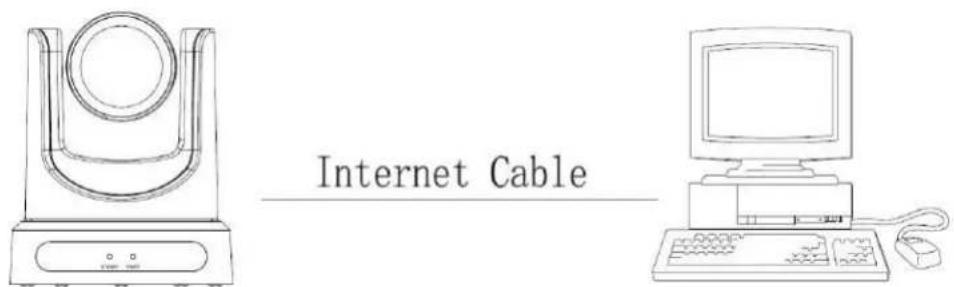
Picture 1.1 Direct connections via "cross-over" network cable
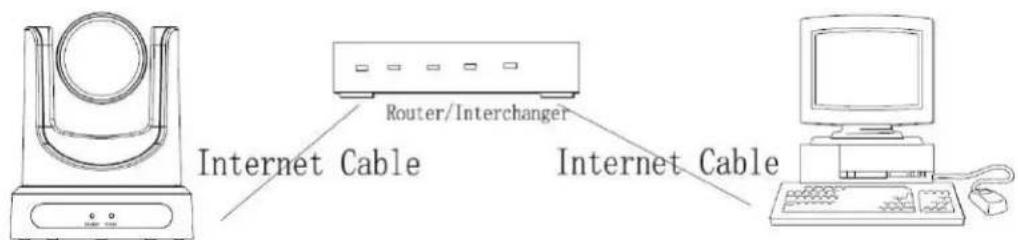
Picture 1.2 Connections to LAN via patch cable to LAN wall jack or LAN switch
Setting up a Network Video Stream with the PTZOptics camera
(Also see information on camera web information in the following section)
- The first thing you are going to want to do to get your camera up and streaming on your network is to connect your camera to power, to an active network port on your network and finally to power the camera on.
- Next, go online and download the IP address setting tool, for Windows Operating Systems, from the PTZOptics Download Page. Once you complete the installation and launch the tool "UPGRADE v2.7" you should be able to click the "Search" button to locate all of the available PTZOptics cameras on your network.
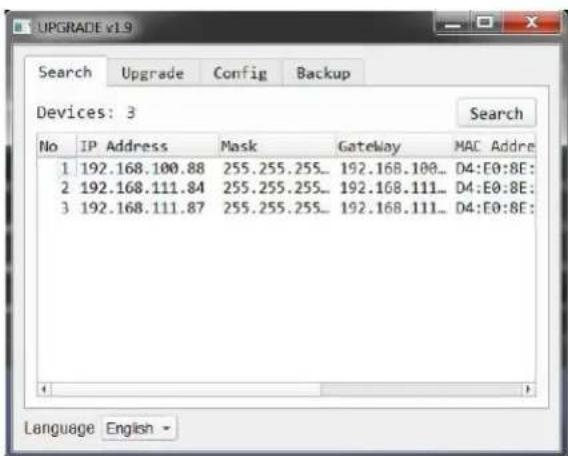
- The next thing you would want to do is change your cameras IP address to be in the same range as your network. The camera comes with a default static IP address of 192.168.100.99. You will need to update that to be in the same range as your network. If you look at my example above, you can see, from other cameras on my network, that my network is set up to be in the range of 192.168.111.XXX.
Please see the "Extras" section at the end of this document for further information on finding your network IP scheme
- Once you know your IP range you can right click on the camera you wish to change the IP address for and click "config".
NOTE: if you need to find the IP range of your network, you can do so by following the guide in the extras section at the end of this document.
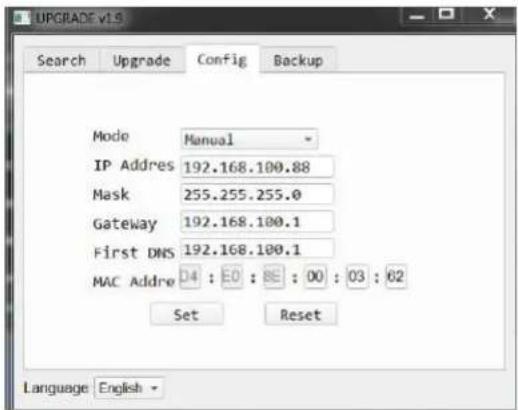
You should now be able to set your cameras IP address to one in the range of your network. You should be able to leave the subnet mask alone, unless you are configuring the camera for use across (example: 192.168.111.1)
(Note that in more complex network environments you may have to request a “STATIC IP” from the IT department to prevent any possible complications on your network in addition to the appropriate Network Mask, Default Gateway and First DNS for that Static IP)
- Now that you have set the Static IP address of your PTZOptics camera, you should be able to pull up the video feed in a web browser. We recommend using Mozilla Firefox ESR. You can view our knowledge base article for setup.
- If you go into the browsers mentioned above and type in the Static IP address you assigned to your camera, in step 4, you will be prompted for a Username and Password, both are "admin" by default.
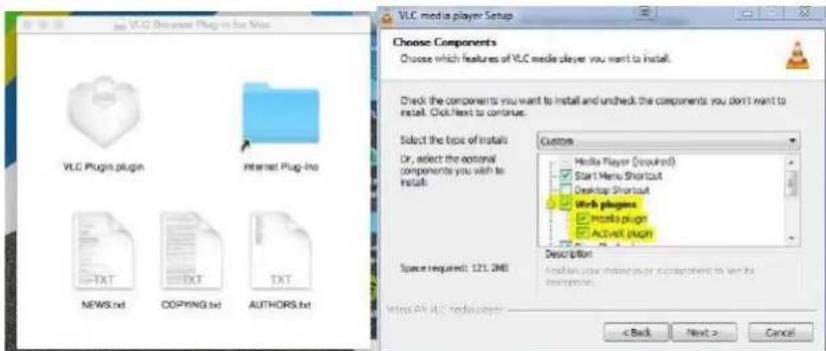
- You may be prompted to download the VLC Player Plugin; be sure to allow for both the Mozilla plugin and the ActiveX plugin if on a PC. If you are on a MAC, you need to move the VLC plugin, once downloaded, into the internet plugins folder. See the images below for further clarification.
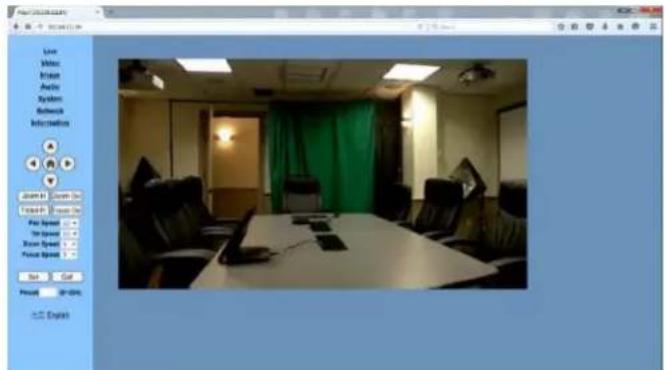
- You should now be able to see the IP interface in the recommended browser with your live camera feed. You should have full PTZ control over your camera using the PTZ controls on the left side. You can adjust many of your cameras settings via the IP interface.
The main thing to note about the IP interface is that all adjustments will occur on the IP stream only. It will not affect the HDMI, SDI or USB connections of the camera. In addition, presets set in the IP interface will not be the same as the IR remote presets and vice-versa.
natural_image
Interior view of a conference room with a long table and chairs, no visible text or symbols on the main surfaces.- You should now be able to receive an RTSP stream from your camera. The following video, https://www.youtube.com/watch?v=hmqI0hjT0UI&feature=youtu.be, shows how to setup an RTSP stream in Wirecast. You'll see how to use ONVIF to easily set up 2 PTZOptics cameras with Wirecast, the ONVIF feature must be enabled in the "Network" settings for ONVIF discovery, in addition to setting up a standard RTSP stream.
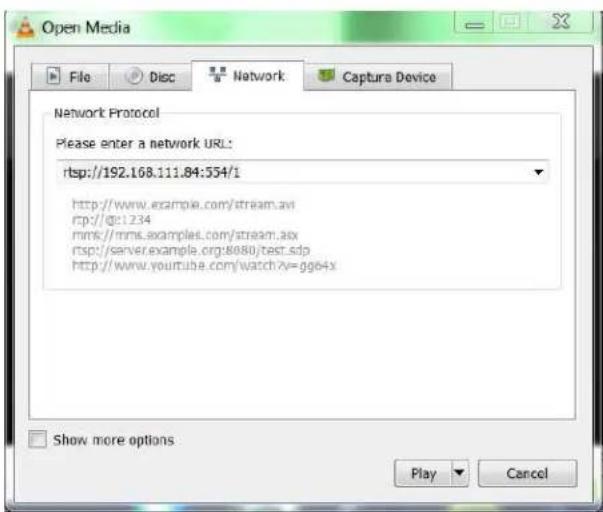
- You can test the RTSP stream in VLC media player. Once you install VLC and launch the program you should be able to go to the “Media” drop down menu and then select “Open Network Stream”. In the network URL, you should enter “rtsp://
:554/1”. In the example below, for a PTZOptics camera with the static IP address of 192.168.111.84, the RTSP stream would accessed by entering rtsp://192.168.111.84:554/1. The “554” part is the port number used by the cameras, and the “1” is the stream number. (There are two RTSP network streams available; one for HD content “1” and one for SD content “2”)
Page 32 of 49
EXTRAS
Discovering your Network IP range.
NOTE: Changing your IP address without talking to your network admin could lead to conflicts with your network. If you change your address to one that is already is use it will cause communication problems.
If you need to discover the IP address range of your network you can do so by using command prompt for Windows or Terminal for Macs.
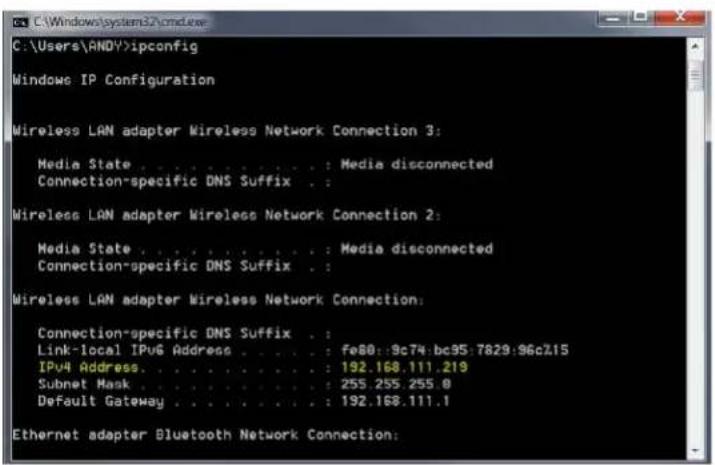
To do this on a PC, you would type "CMD" into your search bar in the Windows menu. You should see a black box pop up with the ability to type in the box.
If you type "ipconfig" and hit "Enter" on your keyboard you will see a bunch of information pop up in your command prompt.
When you see “IPV4 Address” that is your computers IP address on your current network. So you would use the first 3 sets of numbers from this as your IP range.
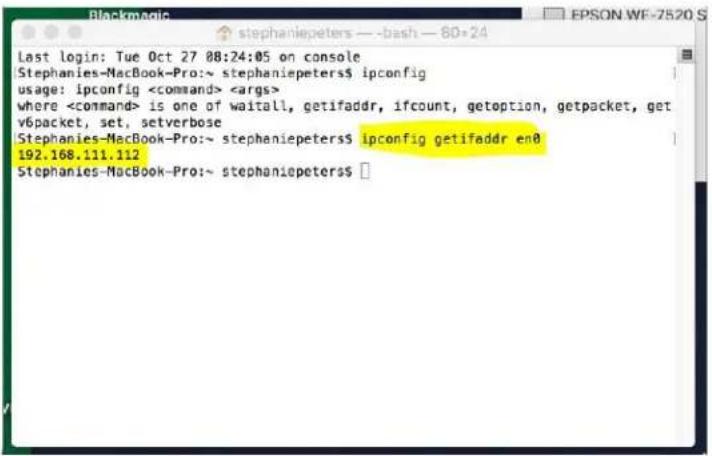
If you need to find the IP range of your MAC computer, you would first open a new finder window and then go to Applications, and then Utilities. You should see the program "Terminal" in that menu, select that program.
Now, you would type in "IP config getifaddr en0" Once you type this string and click "Enter" on your keyboard you will receive back an IP address.
So the IP range of my network, according to my MAC is 192.168.111.xxx, you can use this to figure out the IP range in which your camera needs to be set.
Camera Web Interface
All pages include 2 areas:
On the left is the menu and camera control
On the right is real time monitoring - displaying video image and the Parameter settings
1.2 Video viewing window
Click "Live" in the menu area. The video viewing window will be resized based upon video resolution, the higher the resolution is, the bigger the playing area is. Double click the viewing window and it will show in full-screen. Double click again and it will return to the initial size.
The Status bar in the viewing window is as shown below:

1) Video playback/pause button: controls real-time video. Pause to freeze the image, play to return to live video.
2) Audio control buttons: Mute and Volume controls for audio input on camera, if being used.
3) Full screen button will switch between Full Screen and Windowed view.
1.3 Menu & Control
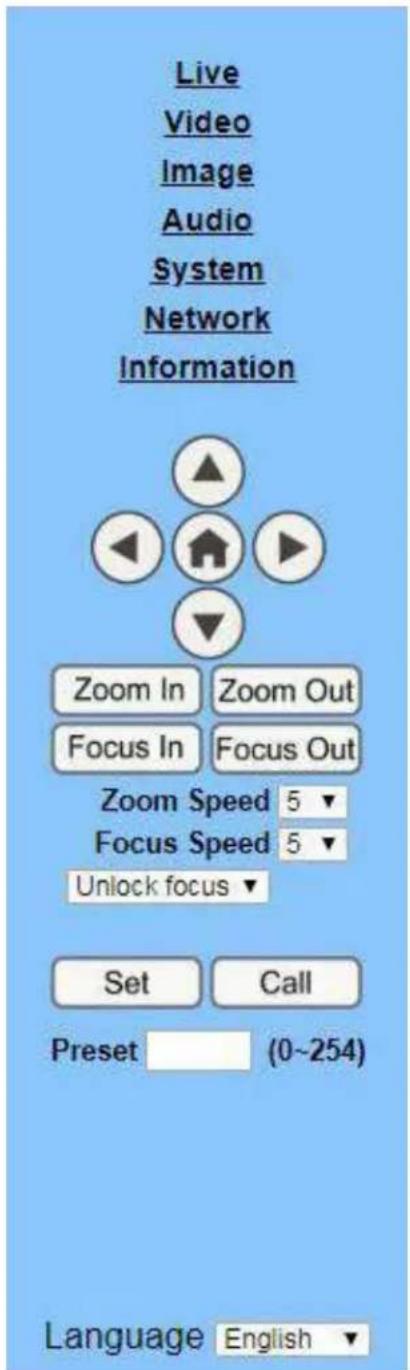
1) Pan and Tilt control: Up, Down, Left and Right arrows and the home button allow for control over the OSD Menu.
2) Zoom: Zoom in and Zoom out buttons allow for wide or narrow (tele) views of the space.
3) Focus: Focus In and Focus Out buttons allow for fine manual focus adjustment if the camera has any problems autofocusing on a difficult object.
4) Speed Control: Zoom and Focus speeds can be set at any rate between 0 - 7.
5) PTZ Presets: After manually setting up a shot that you would like to return to later, you can save presets for quick recall of these positions. Type a number between 0 and 254 into the Preset box. Click the "Set" button to save the current location with that preset number. Click the "Call" button to cause the camera to return to that position. This enables smooth, quick and convenient control without the need to manually drive the camera.
1.4 Language selection
Click either "Russian", "Chinese" or "English" to change the language of the menu.
1 Media
1.1 Video Setup
Click "Video". The streaming parameters may now be set in the right side area. The camera can send 2 simultaneous streams. For example, you can send one stream in HD and one in SD so that both PCs and phones may have their own stream resolution.
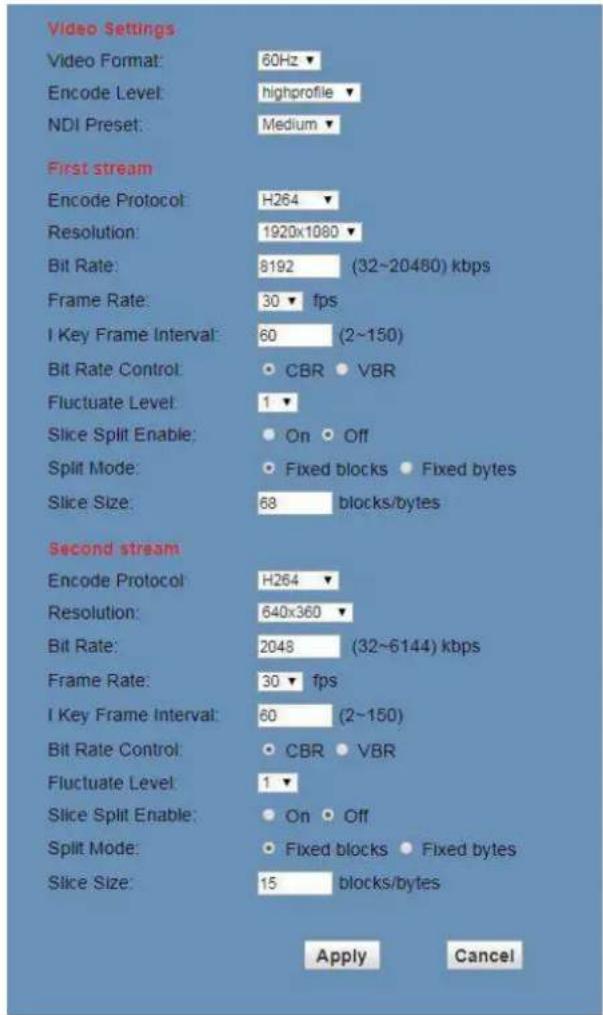
1) Video Settings
Video format
Supports 50HZ(PAL) and 60HZ(NTSC) and OSD (see rotary dial on camera) formats.
60Hz is used for North America.
Video Coding
You must select both Encode Protocol and Encode Level for H.264. Camera streaming supports either H.264 - with choice of "baseline", "mainprofile" and "highprofile" formats or H.265 video encoding (Note H.265 will override and lockout some other video settings).
2) First Stream
Resolution
Set the desired video stream resolution. The first stream allows 1920x1080, 1280x720, 1024x576, 960x540, 640x480, 640x360. The second stream allows for 1280x720, 1024x576, 720x480, 720x408, 640x360, 480x270, 320x240, or 320x180. Higher resolutions will consume more bandwidth.
Bit Rate
Users can assign the bit rate of the stream (from 32 - 20480 kbps for 1^st stream and 32-6144 kbps for 2^nd stream). Higher bit rates will provide for a higher quality image, if your network bandwidth is sufficient to support the rate.
Maximum frame rate:
Users can specify the maximum frame rate (fps or frames per second). Higher frame rates provide smoother video but require higher bit rate settings.
I key frame interval:
Affects the quality of the video compression. This setting defines how many predicted frames will be used for each actual frame (from 2-150). Shorter intervals increase video quality at the cost of requiring higher bit rates in order to look good.
Bit Rate Control method:
Constant bit rate: video encoder will encode at a constant rate as set in bitrate setting
Variable bit rate: video encoder will encode at a variable rate with maximum as set in bit rate setting, allowing for low motion scenes to use less bandwidth.
Fluctuate level
This setting affects how aggressive variable bit rate adjustments will be (1-6). Spikes that are too large may affect video quality. Low levels will not save on as much bandwidth.
3) Second Stream (See parameters above for first stream).
1.2 Image Setup
Click "Image". The image parameters may now be set in the right side area.
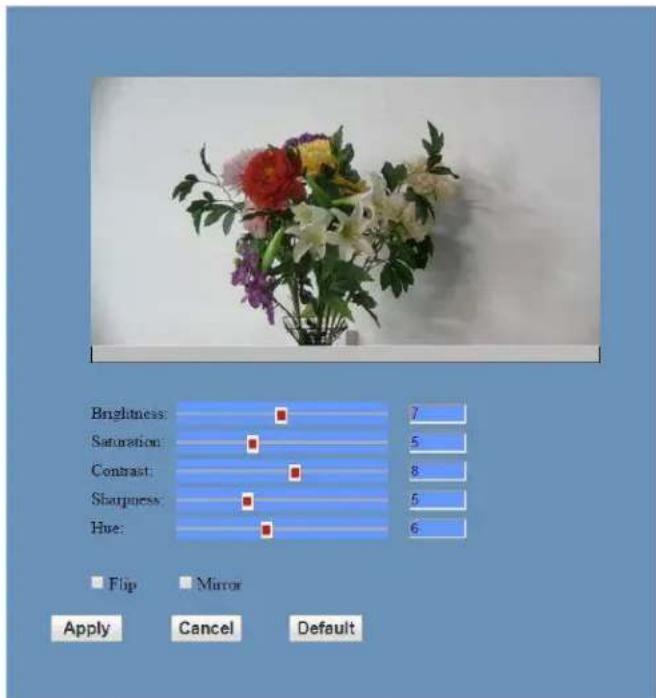
Brightness
Image brightness 0-14. Use the slider control. The box on the right shows the corresponding numerical value. The Default setting is 7.
Saturation
Color Saturation 0-14. Use the slider control. The box on the right shows the corresponding numerical value. The Default setting is 5.
Contrast
Contrast 0-14. Use the slider control. The box on the right shows the corresponding numerical value. The Default setting is 8.
Sharpness
Sharpness 0-15. Use the slider control. The box on the right shows the corresponding numerical value. The Default setting is 5.
Hue
Hue 0-14. Use the slider control. The box on the right shows the corresponding numerical value. The Default setting is 6.
Flip & Mirror
Check the "Flip" box to invert the image vertically for a ceiling mount. Check the "Mirror" box to invert the image horizontally. The default setting is unchecked.
Apply, Cancel and Default Buttons
After adjusting the parameters, press the "Apply" button to save settings. Press the "Cancel" button to cancel the adjustment of the parameters. Press the "Default" button to return to the default value.
1.3 Audio Setup
Click "Audio". The audio parameters may now be set in the right side area.
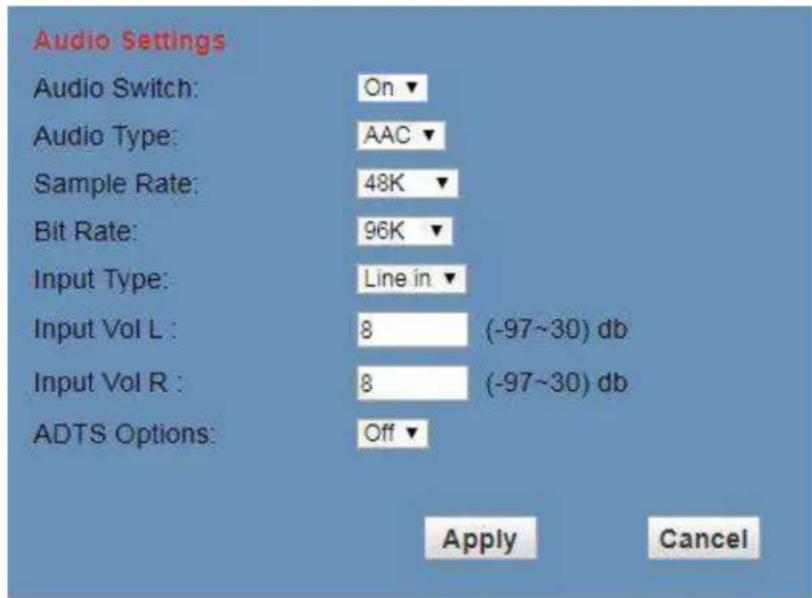
Audio Switch: Turn audio embedding on or off.
Audio Type: AAC is the only audio format currently supported.
Sample rate: Selectable as either 44.1 K and 48 K.
Bit rate: Selectable among 96k, 128k or 256k
Input Type: Currently Line in only
Input VolL: Sets the volume of the left audio channel (from -97 to +30dB)
Input VolR: Sets the volume of the right audio channel (from -97 to +30dB)
ADTS: Audio Data Transport Stream: Set to 'On' or 'Off (use for MPEG 2 only – may not be applicable on all models)
Apply and Cancel Buttons
After modifying the parameters, press the "Apply" button to save. Press the "Cancel" button to leave settings unchanged.
1.4 System Settings
Click "System". The system parameters may now be set in the right side area.
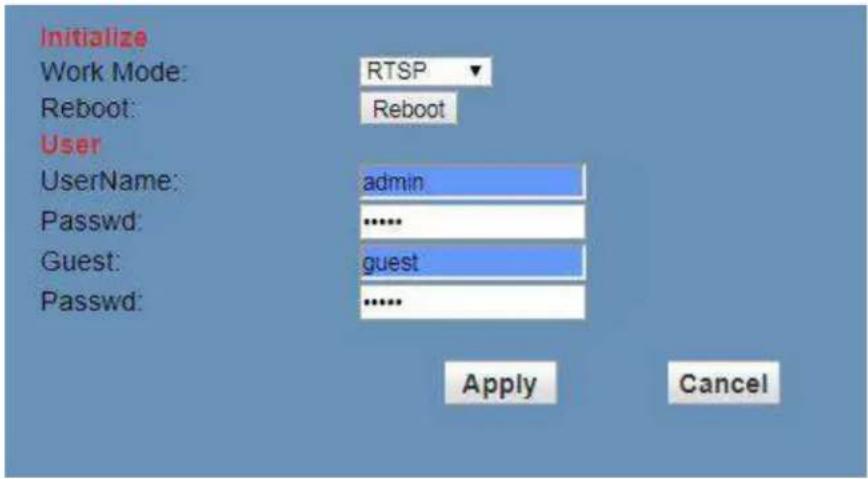
1) Initialize
Work Mode: RTSP (Real Time Streaming Protocol) is the only streaming protocol currently supported.
Reboot: Click the "Reboot" button to initiate a system restart. This is required after changing some settings.
2) User
User and Password: The user can modify the password (letters and Numbers only).
The default settings are UserName: admin and Password: admin
Apply and Cancel Buttons
After modifying the parameters, press the "Apply" button to save. Press the "Cancel" button to leave settings unchanged.
1.5 Network Settings
Click "Network". The network parameters may now be set in the right side area.
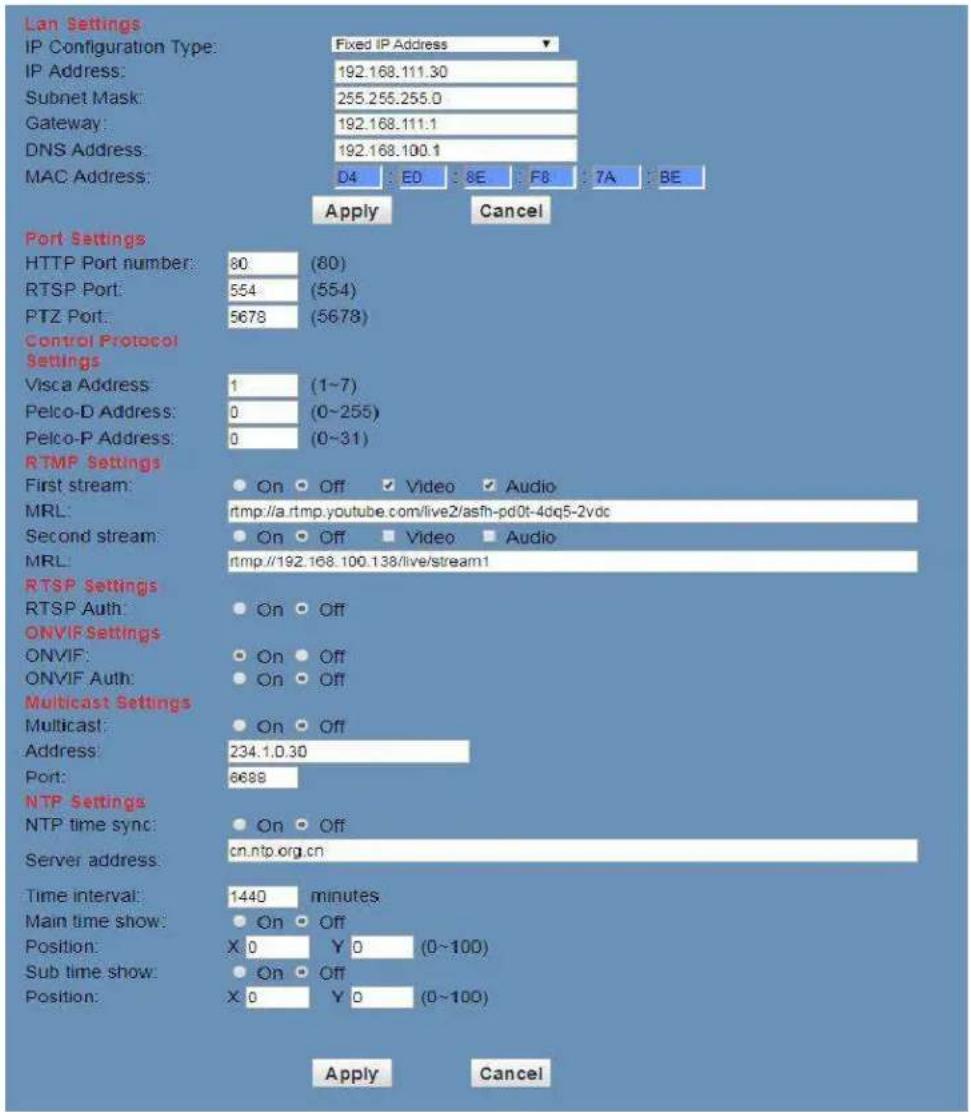
1) LAN Settings
IP settings for the device can be set here using either static (fixed) or DHCP (dynamic) addressing as selected from the drop down list. The Default the IP address of the camera is 192.168.100.99. The MAC address can be modified but should be left as set by the factory. Please note that after changing the IP settings for the camera, you may not be able to reconnect until your PC is set for and connected to the same subnet or visible via proper network routing.
2) Port Settings
While the IP address identifies the device, the camera uses multiple ports.
HTTP Port: This is the port for the web application (the default http port: 80)
RTSP Port: The camera supports the RTSP streaming protocol. The default port: 554.
PTZ Port: Supports camera control via the TCP protocol. The default port: 5678.
3) Control Protocol Settings
Control addresses for VISCA (1-7), Pelco-D (0-254) and Pelco-P (0-31) may be set here.
4) RTMP settings
RTMP streaming may be enabled for 2 separate streams to a streaming server (or servers). Note: A separate streaming server is required for use of RTMP streaming. Set 1^st and 2^nd stream to 'On' or 'Off', check to include video and/or audio and type in the address and port or domain of the streaming server (MRL - Media Resource Locator).
5) RTSP Authorization
Turn authorization 'On' or 'Off' for RTSP streaming.
6) ONVIF Setting
Turn ONVIF compatibility ‘On’ or ‘Off’ (for ONVIF compatible streaming and control).
Turn ONVIF authorization 'On' or 'Off' (enables username and password to ONVIF stream).
7) Multicast Setting
Turn Multicast streaming ‘On’ or ‘Off’ (Note: Do not attempt to use Multicast streaming unless your network has been setup and tested to support multicast, e.g. IGMPv3. Significant network performance issues may result otherwise. Also note: The public internet does not support multicast streaming).
Address and Port Settings: enter the multicast address and port to be used.
8) Apply and Cancel Buttons
After modifying the parameters, press the "Apply" button to save. Press the "Cancel" button to leave settings unchanged.
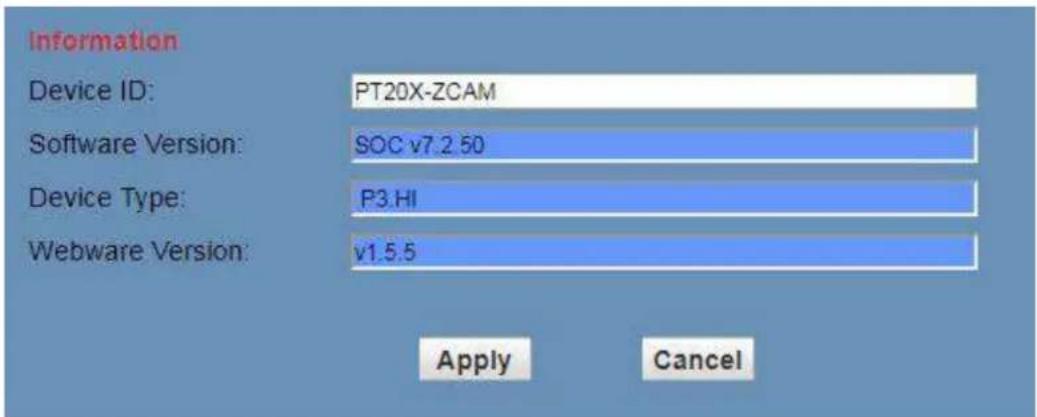
1.6 Device Information
Click "Information"
Shows the current device information, as shown below. You may change the device ID as required for your application.
Network Camera Control Protocol
Setup camera for IP (First see "Setting up the Camera's IP" section above)
Control Notes:
PTZ over TCP/UDP
The camera currently supports various PTZ control methods, including RS232, RS485, IR remote control, web interface, HTTP-CGI and TCP/UDP protocol
The camera includes an internal TCP server. The default port number is 5678. When client and server set up a TCP connection, the client sends PTZ command to the internal server and the server will then parse and execute the PTZ commands.
The camera includes an internal UDP server. The default port number is 1259. When client and server set up a UDP connection, the client sends PTZ commands to the internal server and the server will then parse and execute the PTZ commands.
The command format based on VISCA is shown above in the Serial Communication Control Section
HTTP CGI Method: The camera's integrated web server supports HTTP CGI for PTZ Control
Pan and Tilt control URL format as below:
http://[Camera IP]/cgi-bin/ptzctrl.cgi?ptzcmd&[action]&[pan speed]&[tilt speed]
Parameter Descriptions:
[Camera IP]: Camera IP Address;
[Action] Includes: up, down, left, right, ptzstop;
[Pan Speed]: 1(low speed) - 24(high speed);
[Tilt Speed]: 1(low speed) - 20(high speed);
Zoom control URL format as below:
http://[Camera IP]/cgi-bin/ptzctrl.cgi?ptzcmd&[action]&[zoom speed]
Parameter Descriptions:
[Action] Includes: zoomin, zoomout, zoomstop;
[Zoom Speed]: 0(low speed) - 7(high speed);
Focus Control URL format as below:
http://[Camera IP]/cgi-bin/ptzctrl.cgi?ptzcmd&[action]&[focus speed]
Parameter Descriptions:
[Action] Includes: focusin, focusout, focusstop;
[Focus Speed]: 0(low speed) - 7(high speed);
Preset Position Control URL format as below:
http://[Camera IP]/cgi-bin/ptzctrl.cgi?ptzcmd&[action]&[position number]
Parameter Descriptions:
[Action] Includes: posset, poscall:
[Position Number]: 0 - 89, 100 - 254 PTZ on IP Network
PTZ / OSD Menu Access Control URL format as below:
http://[camera ip]/cgi-bin/param.cgi?navigate_mode&[menu]
Parameter Descriptions:
[Menu] Includes: OSD (On Screen Display Menu), PTZ (Pan, Tilt, & Zoom Control)
OSD Menu Navigation Control URL format as below:
http://[camera ip]/cgi-bin/ptzctrl.cgi?ptzcmd&[action]
Parameter Descriptions:
[Action] Includes: up, down, enter, return
Home Position Control URL format:
http://[camera ip]/cgi-bin/ptzctrl.cgi?ptzcmd&home
Photobooth Functionality
Your PTZOptics camera has the ability to quickly, and easily, take a series of four (4) still images or video files that are stored on the camera and made accessible with a standard web browser on the same network. We'll cover how to use this new feature to take still images, videos and how to retrieve them.
Photos
You have two (2) options to initiate a series of four (4) still images being captured...
You can enter the following HTTP string into any web browser on the same network as the camera to initiate a series of four (4) still images.
Take Still Images: http://
In this example the variable “X” is utilized to add additional delay, in seconds, between still images being taken. The variable “X” can have any value from 1 - 9, with the values representing time in seconds.
You can also press the “F1” button on your IR remote to initiate a “quick capture” that has, approximately, a four (4) second delay between four (4) still images being captured.
To retrieve your series of four (4) still images you will need to open a standard web browser with network access to the camera and use the following HTTP strings to retrieve the still image files as desired.
Still Image 1: http://
Still Image 2: http://
Still Image 3: http://
Still Image 4: http://
Videos
You have two (2) options to initiate a series of four (4) videos being captured...
You can enter the following HTTP string into any web browser on the same network as the camera to initiate a series of four (4) video recordings.
Take Video: http://
In this example the variable “X” is utilized to add additional delay, in seconds, between videos being taken. The variable “X” can have any value from 1 – 9 with the values representing time in seconds.
In this example the variable "Y" is utilized to adjust the overall length, in seconds, of each video file. The variable "Y" can have any value from 1 - 10 with the values representing time in seconds.
You can also press the “F2” button on your IR remote to initiate a “quick capture” that has, approximately, a four (4) second delay between four (4) ten (10) second videos being captured.
To retrieve your series of four (4) videos you will need to open a standard web browser with network access to the camera and use the following HTTP strings to retrieve the video files as desired.
Video 1: http://
Video 2: http://
Video 3: http://
Video 4: http://
Video Note: It can take the camera time for the video files to be fully captured and processed; if they are not retrievable please wait an additional 30 – 60 seconds for the process to complete.
Maintenance and Troubleshooting
Camera Maintenance
- If the camera will not be used for a long time, please turn off the power switch.
● Use a soft cloth or lotion-free tissue to clean the camera body.
- Use a soft dry lint-free cloth to clean the lens. If the camera is very dirty, clean it with a diluted neutral detergent.
Do not use any type of solvent or harsh detergent, which may damage the surface.
Unqualified Applications
- Do not shoot extremely bright objects for a long period of time, such as sunlight, ultra-bright light sources, etc...
- Do not operate in unstable lighting conditions, otherwise the image may flicker.
- Do not operate close to powerful electromagnetic radiation, such as TV or radio transmitters, etc...
Troubleshooting
- No image
-
Check whether the power cord is connected, voltage is OK, POWER lamp is lit.
-
Check whether the camera can "self-test" after startup (camera will do a brief pan-tilt tour and return to the home position, or if preset 0 is set, the camera will return to the preset 0 position).
-
Check the BOTTOM dip switch and make sure the two dip switches are both set OFF. These switches are not used in operating mode.
-
Check that the SDI cable is connected correctly.
-
Make sure that the destination device is accessing the SDI port that you plugged into.
● Abnormal display of image
- Check setting of rotary dial on rear of camera. Be sure to use a resolution and refresh rate that is supported by your software.
● Image is shaky or vibrating.
-
Check whether camera is mounted solidly or sitting on a steady horizontal and level surface.
-
Check the building and any supporting furniture for vibration. Ceiling mounts are often affected by building vibration more than wall mounts.
-
Any external vibration that is affecting the camera will be more apparent when in tele zoom (zoomed in) settings.
Control
● IR remote controller does not control the camera
- Does one of the 4 "Camera Select" buttons (top row of remote) light up when you press any button on the remote?
- If not, change the batteries in the remote.
- Are the camera and remote set to the same IR address? You can use press [*] + [#] + [1] (3 buttons in sequence) on the remote to set the camera to address 1. Press “Camera Select” 1 on the remote to control the camera.
- Try removing other sources of IR interference (e.g. sunlight, fluorescent lighting).
- Serial communication does not control the camera
- Make sure the camera is on and functioning with the IR remote control.
- Verify that the RS232 cable is connected correctly and using the proper pinout.
- Verify the communication settings of the control software or device (e.g. joystick).
- Verify that the communication port on the controlling device is activated (e.g. Com port on PC).
- Verify that all communication settings in the OSD Setup Menu correlate to the commands being used (e.g. VISCA address).
Copyright Notice
The entire contents of this manual, whose copyright belongs to PTZOptics, may not be cloned, copied or translated in any way without the explicit permission of the company. Product specifications and information referred to in this document are for reference only and as such are subject to updating at any time without prior notice.