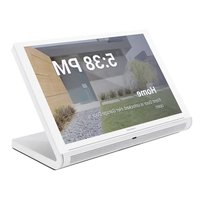
TS-1542-C-W-S - Monitor Crestron - Free user manual and instructions
Find the device manual for free TS-1542-C-W-S Crestron in PDF.


Pick your language and provide your email: we'll send you a specifically translated version.
| Product Type | Touch Screen Monitor |
| Brand | Crestron |
| Model | TS-1542-C-W-S |
| Display Size | 15.4 inch widescreen |
| Resolution | 1920 x 1080 Full HD |
| Touch Technology | Capacitive multi-touch |
| Dimensions (W x H x D) | Approx. 390 x 250 x 40 mm |
| Weight | Approx. 2.5 kg |
| Power Supply | 24 VDC, 0.75 A (PoE) |
| Power Consumption | 18 W typical |
| Main Functions | Room control, video conferencing, digital signage, touch interface |
| Connectivity | Ethernet, HDMI, USB 2.0 |
| Operating System | Crestron Smart Graphics (custom) |
| Mounting Options | VESA 100x100, table stand, surface mount |
| Maintenance & Cleaning | Wipe gently with a soft, dry cloth. Avoid solvents. |
| Safety Precautions | Disconnect power before cleaning. Do not expose to liquids. |
| Spare Parts & Repairability | Contact Crestron service. No user-serviceable parts inside. |
| General Information | Designed for professional AV environments. Wall-mount bracket included. |
Frequently Asked Questions - TS-1542-C-W-S Crestron
How do I mount the TS-1542-C-W-S on a wall?
Use a VESA 100x100 compatible mount. The monitor has four M4 screw holes on the back. Secure the mount and attach the monitor. Ensure the wall can support the weight (approx. 2.5 kg).
Can I power the monitor via PoE?
Yes, the TS-1542-C-W-S supports Power over Ethernet (PoE) as per IEEE 802.3af. Use a PoE switch or injector rated for at least 18 W.
What touch technology does the screen use?
It uses capacitive multi-touch technology, supporting up to 10 simultaneous touch points for intuitive control.
How to calibrate the touch screen?
Calibration is performed via the Crestron setup menu. Navigate to Settings > Touch > Calibrate and follow the on-screen crosshair prompts.
What software is compatible with this monitor?
The monitor runs Crestron proprietary software (Smart Graphics). It is compatible with Crestron control systems for room automation and AV control.
Can I use the monitor as a standalone display?
Yes, it can display video from an HDMI source. However, its primary function is as a touch control panel for Crestron systems.
What are the dimensions of the monitor?
Approximately 390 mm wide, 250 mm high, and 40 mm deep. Exact dimensions may vary slightly; refer to the installation guide.
Is the screen protected by glass?
Yes, the front is covered with a tempered glass layer for durability and scratch resistance.
How do I clean the touch screen?
Power off the device, then gently wipe the screen with a soft, lint-free cloth. If needed, dampen the cloth with water or a 70% isopropyl alcohol solution. Do not spray directly on the screen.
What is the warranty period for this product?
Crestron typically offers a 3-year limited warranty. Contact your dealer for exact terms and conditions.
User questions about TS-1542-C-W-S Crestron
0 question about this device. Answer the ones you know or ask your own.
Ask a new question about this device
No questions yet. Be the first to ask one.
Download the instructions for your Monitor in PDF format for free! Find your manual TS-1542-C-W-S - Crestron and take your electronic device back in hand. On this page are published all the documents necessary for the use of your device. TS-1542-C-W-S by Crestron.
USER MANUAL TS-1542-C-W-S Crestron
TS-1542-C in an Auditorium or Interactive Learning Lab
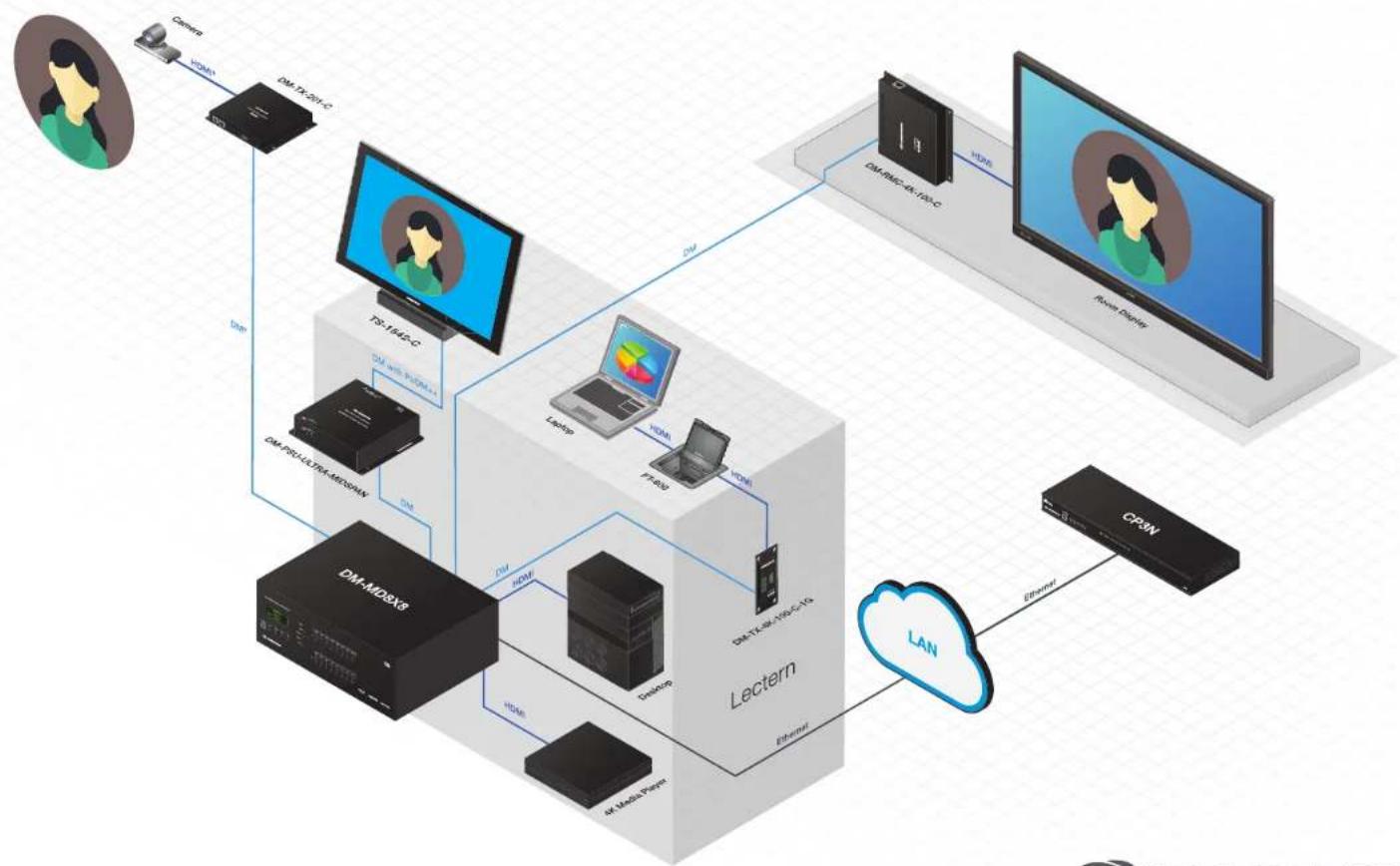
flowchart
graph TD
    A["Camera"] -->|HDMI| B["DMA-1X-097-C"]
    B --> C["DS-1X-097-C"]
    C --> D["TG-1X46-C"]
    D --> E["DM-1X-098-C"]
    E --> F["Lectern"]
    F --> G["DRAM-1X-098-C"]
    G --> H["DRAM-1X-098-C"]
    H --> I["DRAM-1X-098-C"]
    I --> J["DRAM-1X-098-C"]
    J --> K["DRAM-1X-098-C"]
    K --> L["DRAM-1X-098-C"]
    L --> M["DRAM-1X-098-C"]
    M --> N["Lectern"]
    N --> O["DRAM-1X-098-C"]
    O --> P["DRAM-1X-098-C"]
    P --> Q["Lectern"]
    Q --> R["DRAM-1X-098-C"]
    R --> S["Lectern"]
    S --> T["DRAM-1X-098-C"]
    T --> U["Lectern"]
    U --> V["DRAM-1X-098-C"]
    V --> W["Lectern"]
    W --> X["Lectern"]
    X --> Y["DRAM-1X-098-C"]
    Y --> Z["Lectern"]
    Z --> AA["Lectern"]
    AA --> AB["Lectern"]
    AB --> AC["Lectern"]
    AC --> AD["Lectern"]
    AD --> AE["Lectern"]
    AE --> AF["Lectern"]
    AF --> AG["Lectern"]
    AG --> AH["Lectern"]
    AH --> AI["Lectern"]
    AI --> AJ["Lectern"]
    AJ --> AK["Lectern"]
    AK --> AL["Lectern"]
    AL --> AM["Lectern"]
    AM --> AN["Lectern"]
    AN --> AO["Lectern"]
    AO --> AP["Lectern"]
    AP --> AQ["Lectern"]
    AQ --> AR["Lectern"]