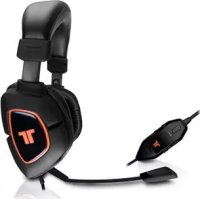
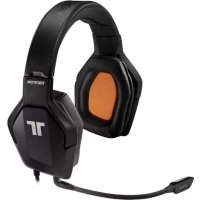
AX 360 - Headphones TRITTON - Free user manual and instructions
Find the device manual for free AX 360 TRITTON in PDF.


| Product Type | Wired Gaming Headset |
| Brand | Tritton |
| Model | AX 360 |
| Connectivity | 3.5 mm audio jack (analog) |
| Driver Size | 40 mm |
| Frequency Response | 20 Hz – 20 kHz |
| Impedance | 32 Ω |
| Microphone | Omnidirectional, detachable |
| Dimensions (approx.) | 20 x 18 x 10 cm |
| Weight | 350 g |
| Power Source | Powered via 3.5 mm jack (no battery required) |
| Compatibility | PC, PlayStation, Xbox, Nintendo Switch, mobile devices |
| Controls | In-line volume control and microphone mute |
| Cable Length | 2.5 m |
| Ear Cushion Material | Leatherette |
| Headband Design | Adjustable, padded |
| Cleaning Instructions | Wipe with a soft, dry cloth; do not use liquids or solvents |
| Safety Information | Do not use at high volume for extended periods; avoid exposing to moisture |
| Spare Parts Availability | Replacement ear cushions and cables available from manufacturer |
Frequently Asked Questions - AX 360 TRITTON
User questions about AX 360 TRITTON
0 question about this device. Answer the ones you know or ask your own.
Ask a new question about this device
Download the instructions for your Headphones in PDF format for free! Find your manual AX 360 - TRITTON and take your electronic device back in hand. On this page are published all the documents necessary for the use of your device. AX 360 by TRITTON.
USER MANUAL AX 360 TRITTON
Thank you for choosing AX360.
Please verify your package contains the following:
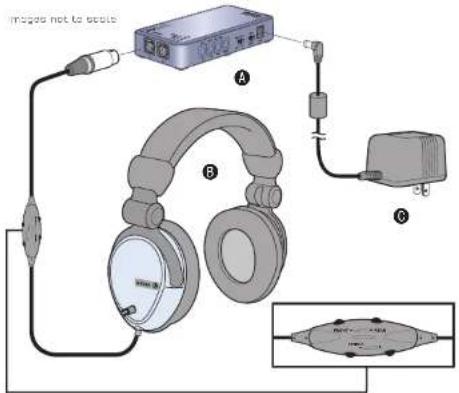
A AX360 Dolby Digital & Pro Logic Audio Controller
B - AX360 Headset with in-line volume controller for Center, Front, Rear and Vibration Control
© - Power Adopter
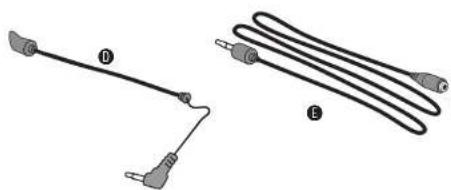
① - Removable Microphone
E - Microphone Extension Cable (for Xbox Live®)
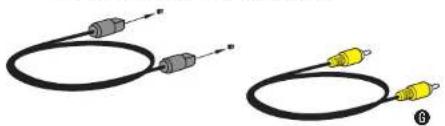
- Digital Fiber Optic Cable (Remove protective cops before installing.)
G - Coaxial Audio Cable
H - G9 Adapter (PC/MAC, 5.1 sound cord adapter)
① - Soft Carrying Case
natural_image
Two types of electrical connectors shown: a straight cable with terminal connector (①) and a coiled wire with terminal connectors (②), no text or symbols present.Remove protective cops before installing.
natural_image
Two types of electrical probes with metallic connectors, shown in side and top views (no text or symbols)
Manufactured under license from Dolby Laboratories, "Dolby", Pre Logic, and the double symbol, are registered trademarks of Dolby Laboratories, all rights reserved.
REGSSED TRADEMARKS OF MARKS, LLC
REGSSED TRADEMARKS OF MARKS, LLC
REGSSED TRADEMARKS OF MARKS, LLC
REGSSED TRADEMARKS OF MARKS, LLC
REGSSED TRADEMARKS OF MARKS, LLC
REGSSED TRADEMARKS OF MARKS, LLC
REGSSED TRADEMARKS OF MARKS, LLC
REGSSED TRADEMARKS OF MARKS, LLC
REGSSED TRADEMARKS OF MARKS, LLC
REGSSED TRANSMERIAL ITEMS
AX360 Dolby Digital & Pro Logic Audio Controller
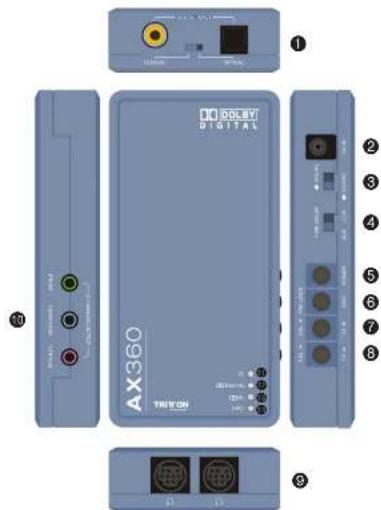
① Digital Input Selection: Coaxial & Optical
② DC Jack
③ Multi-Function Selector Switch (for fine tuning)
→ VDL/PL
Move the selector to the → VOL/PL position
Button Ⓐ will select Pro Logic on/off
Button ② and ③ will adjust volume up and down (Pro Logic) When Dolby Pro Logic is "on" with an audio source that is 2 channel, the audio will then be converted to 5.1 channel sound. When Dolby Pro Logic is "off" with an audio source that is 2 channel, the audio will remain 2 channel stereo.
(Volume up/down) Pressing the volume up/ down one time will adjust the volume 1dB in either direction. Press and hold the volume up to increase the volume to the maximum level. Press and hold the volume down to decrease the volume to the minimum level (mute).
←TD/DRC (Time Delay, Dynamic Range Control)
Move the selector to the TD/DRC position
Button ☑ now becomes DRC (Dynamic Range Compression) on/off
←/ORC (Continued)
Button ⑦ and ⑧ will now increase or decrease the Time-Delay - Toggle ⑨ to change the time delay between the front channel and the center channel, or the front channel and rear channels
(TD) Time Delay is a function associated with ① (SUR/CTR). Default setting is 0mS, except when in Pro Logic mode then it is defaulted to 15mS.
When in Dolby Digital 5.1:
- Center channel range is from 0.5mS, adjustable in 1mS increments
- Surround channel range is from 0-15mS adjustable in 1mS increments
If the audio source is stereo (Dolby Digital 2 channel or PCM format) and Pro Logic is "on":
- Center channel range is from 0.5mS
- Surround channel range is from 15·30mS
NOTE: The Time Delay adjustment with Dolby Digital 5.1 mode will automatically update the associated Time Delay value in Pro Logic mode and vice versa. However, if the source is Dolby Digital 2 channel and Pro Logic is off, nothing will be adjusted.
4 Select Time-Delay
⑤ Power on/off
8 Pro Logic / DRC on/off
⑦ Volume up & Time-Delay Increase
⑧ Volume down and Time-Delay decrease
⑨ Headset connections, this unit can support 2 headsets at the same time
⑩ 5.1 analog out, connection to external 5.1 speaker system
⑩ Indicator light for power on/off
12 Indicator light for Dolby Digital format (5.1 or Stereo)
13 Indicator light for Pro Logic on/off
⑭ Indicator Light for DRC on/off
NOTE: When the unit is turned off, all settings will be saved and remain the same when the unit is powered on. To reset the settings to the factory defaults, push and hold ① + ② together and power down the unit. Then, power up the unit holding ③ + ④ together and you will see ⑤ ⑥ Flash three times indicating that the factory defaults have been applied. If the unit is unplugged, it may lose its current settings.
Customer Support
TRITTON would like to make sure you are completely satisfied with your purchase of the AX360. We offer toll-free technical support from 8:30 to 5:00pm PST, continental U.S. only. TRITTON also offers extensive online support with FAQ's, knowledge base articles and online chat support.
If you have any questions regarding the AX360, please contact us:
Toll-free support: 800-431-1176
- Email support: support@trittonusa.com
■ Web support: www.trittonuso.com
■ Product registration: www.trittonusa.com
REV 9/06 Port# TRIQS-001
AX360
AUDIO XTREME www.trittonusa.com
CONNECTING TO YOUR GAME CONSOLE
Make Sure to remove the protective caps from your optical cable before use. Allure to do so could result in poor so no sound output, and possibly damage electronic devices.
Diagram A
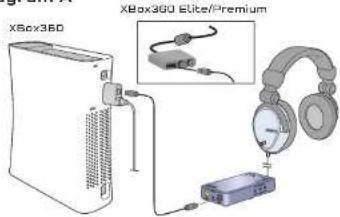
Diagram B
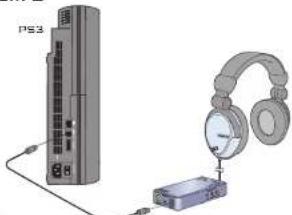
The AX360 can connect to any game console that supports a fiber optic or digital coaxial audio port. For example, connecting with an Xbox 360 you will need to have the High Definition cable accessory. This cable connects directly into the back of the Xbox 360 and has a digital Fiber Optic port located on the cable housing. This is the same connection for the original Xbox (See Diagram A). Connecting to a Playstation II, just plug the fiber optic cable directly into the Playstation (See Diagram B).
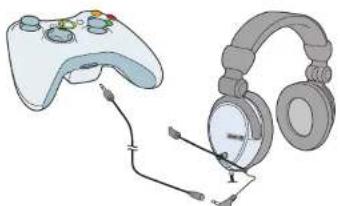
CONNECTING THE MICROPHONE TO YOUR XBOX 360™ (FOR XBOX LIVE®)
natural_image
Illustration of a game controller and two headphones with cables (no text or symbols)To hear other players during Xbox Live communication, you will need to make changes within the Xbox 360 dashboard. While running on Xbox game, press the Xbox Guide button (the X button is located in the center of your controller) to access your Xbox Live Settings. (Half-page screen with profile information will appear.) Select "Personal Settings" and press the "A" button on your controller. Then select "Voice" from the menu and press "A". On the Voice screen, select "play through both" for voice output selection. If you have difficulties hearing the voices of other players on XBox Live, you can adjust the voice volume by turning up the "center" channel. If you continue to have issues, you can adjust the in-game sound effects and music levels to a desired volume.
CONNECTING TO YOUR PC OR MAC
*If you use the AX36D blue digital audio controller on a computer and want to use the microphone, additional hardware will be needed to plug the microphone into the standard analog jack of your computer. **Dolby Digital surround sound will only be played back by the AX36D headset when a "Dolby Digital" signal is received by our audio controller, indicated by a blue light at location ①.
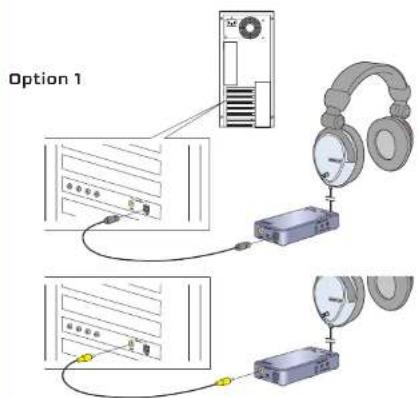
Option 1 - connecting through digital optic/coaxial port
If your computer has a fiber optic or digital coaxial port, then the AX360 can be connected directly to the computer. Both optic and coaxial are digital so it does not matter which cable you use.
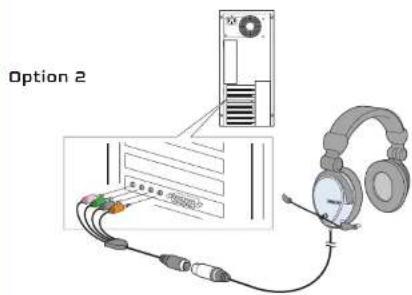
Option 2 - connecting through the G9 adapter
AX360 can be used with 5.1 output sound card. Use the G9 adapter to connect as shown above in option 2. The G9 adapter plugs into the back of the sound card. The mini-jacks on the G9 have labels indicating the following:
Pink Mic (Microphone Port)
Green: Front (Front Channels)
Black: Rear (Rear Channels)
Orange: C/S (Center channel and Subwoofer)
CONNECTING TO YOUR DVD / AUDIO RECEIVER
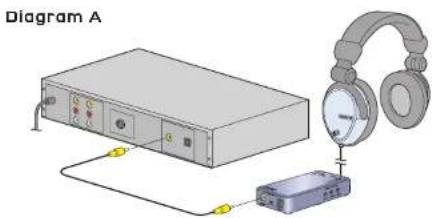
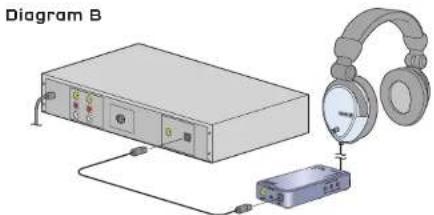
Connecting the AX360 to a DVD player or audio receiver is easily achieved through either the digital optic or coaxial port. Diagram A shows connecting via the digital coaxial. Diagram B shows connecting via the digital optic port. The AX360 audio controller has is a selector switch that must be positioned to either optic or coaxial depending on which connection you use.
CONNECTING TO YOUR "SELF-POWERED" 5.1 SPEAKER SYSTEM
natural_image
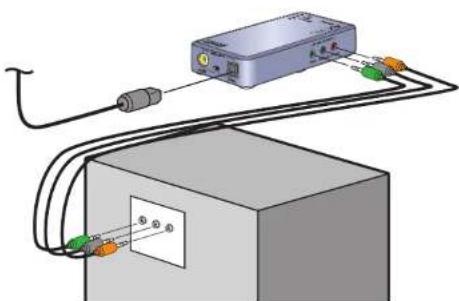
Diagram of a device connected to a box with cables and connectors (no text or symbols visible)The AX360 audio controller includes analog 5.1 outputs. Through these outputs you can connect to a 5.1 speaker system that is "self-powered", meaning that the speaker system has its own amplification. Connect the speakers accordingly per the description:
■ Front = Front speakers
■ Surround = Rear Surround speakers
- CTR/SUB - Center Channel / Sub woofer speakers