
Inpput T200 - Keyboard Soyntec - Free user manual and instructions
Find the device manual for free Inpput T200 Soyntec in PDF.


| Product Type | Keyboard |
| Brand | Soyntec |
| Model | Inpput T200 |
| Interface | USB 2.0 |
| Layout | Standard 104-key QWERTY |
| Dimensions (W x D x H) | 450 x 160 x 30 mm |
| Weight | 500 g |
| Cable Length | 1.5 m |
| Power Supply | USB bus-powered (5V, 100mA) |
| Compatible Operating Systems | Windows, macOS, Linux |
| Key Switch Type | Membrane |
| Multimedia Keys | Yes, dedicated keys for volume and media control |
| Spill Resistance | No |
| Ergonomic Features | Standard flat design with tilt legs |
| Warranty | 2 years |
| Package Contents | Keyboard, User manual |
| Cleaning Instructions | Wipe with a soft, damp cloth; do not use solvents |
| Repairability | Non-serviceable; replace if defective |
| Safety Warnings | Avoid liquid exposure; unplug during cleaning |
| Environmental Compliance | RoHS |
Frequently Asked Questions - Inpput T200 Soyntec
User questions about Inpput T200 Soyntec
0 question about this device. Answer the ones you know or ask your own.
Ask a new question about this device
Download the instructions for your Keyboard in PDF format for free! Find your manual Inpput T200 - Soyntec and take your electronic device back in hand. On this page are published all the documents necessary for the use of your device. Inpput T200 by Soyntec.
USER MANUAL Inpput T200 Soyntec
Connect the Keyboard to Your Computer
USB Connection
- Please Plug the rectangular USB connector into your computer's rectangular USB port.
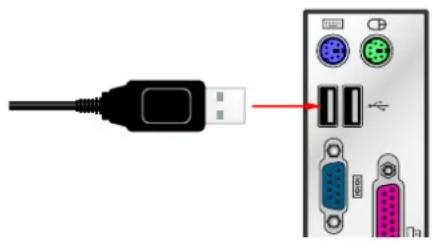
PS/2 Connection
- Turn off the Computer power.
- Attach the purple USB-to-PS/2 adapter to the USB connector, and then plug it into the computer's purple PS/2 keyboard port.

Install Software

- If you have previously installed other keyboard or mouse drivers on your Computer, please uninstall them first.
-
Please make sure that the keyboard is properly connected to the computer.
-
Please insert the driver CD into your CD-ROM.
-
Explore your CD-ROM drive, and double click with your mouse button on "Setup.exe" file to run the keyboard driver installation.
-
Select your installation interfaces: PS2 or USB.

- Click on "OK".

- During the installation process, if the warning message window appears on the screen, please click on "Continue Anyway".
This message may appear twice during the installation.

- When installation finishes, please reboot your system.

- After the system has been rebooted, a 📄 icon will appear on the bottom right corner of your screen. The icon indicates that the driver software has been installed successfully.

- After the driver installed successfully, the default functions of F1 \~ F12 become the speed dial shortcuts of the keyboard. If you wish to switch the functions of F1\~F12 back to windows defaults functions, simply press the "Fn" key on the keyboard. ("Fn" key is located right below the "Enter" key)
- If you wish to remove the driver, please go to the following directory: START/PROGRAM FILE/Can Tech. Message Keyboard/, and select "Uninstall" to remove the software.
Hot Key Functions
← BACK : Go back to the previous web page.
→ FORWARD : Go to the next web page.
STOP : Stop default web browser from loading or refreshing a web pag
REFRESH : Update the content of the current web page on a default v browser.
SEARCH : Open the "Find "window in the START taskbar.
* FAVORITES : Open the "Favorites" group.
WEB/HOME : Start your default browser and go immediately to your Hon Web page.(#1)
MAIL : Start the default E-mail program.(#1)
▷/II PLAY/PAUSE : Play or pause the default media player.(#1)
☐ STOP : Stops the media.(#1)
PREVIOUS TRACK : Change to the previous track of the default media player.(#1)
NEXT TRACK : Change to the next track of the default media player.(#1
MEDIA : Start the music CD player or Microsoft Windows Media Player application.(#1,#2)
- VOLUME DOWN : Press and release, or press and hold to decrease the volume.(#1)
+ VOLUME UP : Press and release, or press and hold to increase the volume.(#1)
MUTE : Stops all audio. Press again to resume audio.
CALCULATOR : Start the "CALCULATOR" program. (#1)
MY COMPUTER : Open the "My Computer" window.(#1)
SLEEP : User can put the system into sleep mode, if the PC supports management. The user can put the computer to sleep by press this key. power management is not enabling, this key will not work.(#2)
WAKE UP : Exit sleep mode, and return to normal mode.(#2)

1 : Most hot keys may be re-configured to start other applications or Web pages.
Please refer to page 7 "How To Redefine The Hot Keys" for more detail.
2 : Please note that not every keyboard model would include this feature.
Setup Skype™ Speed Dial Shortcuts
Setting up the Skype™ speed dial shortcuts allows you to setup the speed dial shortcuts of your Skype™ contacts or "SkypeOut" telephone number on F1\~F12. Once the shortcuts were setup, pressing the predefined shortcut lets you connect to your Skype™ friends instantly. If you want to experience this new feature, please follow the installation steps down below.

- Before installation, please make sure that you have already installed "Skype™" software, and "Can Tech. Message Keyboard" driver software on your computer.
- If your computer has at least 2 sets of keyboards installed, this feature is likely to be disabled. Please make sure that only 1 keyboard is installed.
- If you wish to dial to mobile devices or regular land phones, please make sure to start "SkypeOut" service before dialing.
- You may obtain the "Skype™" software and learn how to use it at http://www.skype.com
-
Skype™ belongs to the copyright of Skype Technologies.
-
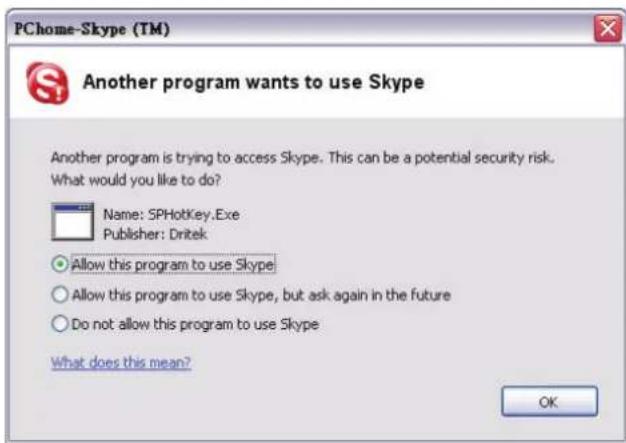
The first time you enter Skype™ after the "Can Tech. Message Keyboard" driver is installed, a "Another program wants to use Skype" warning message window will show up on the screen.
Please select "Allow this program to use Skype", and press "OK".
You may start setting up your speed dial shortcuts afterward.
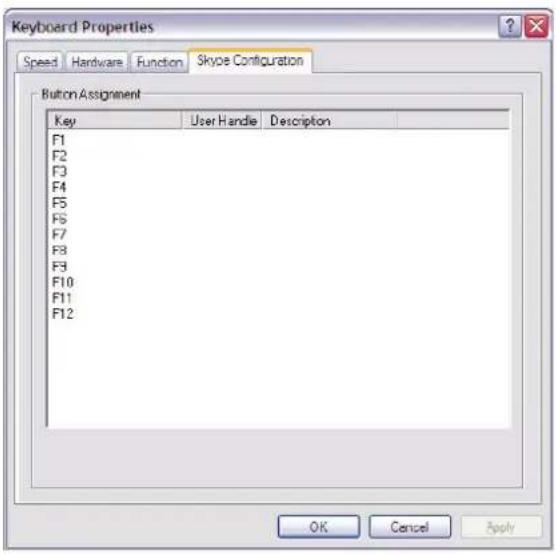
- Please click on the 📄 icon at bottom right hand corner of your screen. A Keyboard Properties window will appear on your screen, please select the label "Skype Configuration".
You may setup the speed dial shortcuts from F1 to F12 as the picture on the right is showing.
- Please double click on the key (from F1\~F12) that you wish to setup for Skype™ speed dial. A "Input phone number" window will appear on the screen. Please enter your Skype™ contact's user name or telephone number in the upper text field. You may also enter some word description for this speed dial shortcut at lower text field. Please press "OK" when you are finish.

- Press "OK" again to leave the "Keyboard Properties" window. By then, you have finished setting up the Skype™ speed dial shortcuts. You may now enjoy the convenience of these speed dial shortcut keys.
How To Redefine The Hot keys
First, you will need to install the "Can Tech. Message Keyboard" software, see section Step. Install Software above.
Once installed, you will see a Keyboard icon ☐ at the bottom right of your screen. This icon will appear every time you start the computer.
The Hot Keys are already set up once you have installed the driver. If you want to re-define the Hot Keys, you have to click on the Keyboard icon 📄 at the bottom right of your screen.
A Keyboard Properties window will open. Select the "Function" tab from the top of the window. You will see the following screen:
![Keyboard Properties Speed Hardware Function Skype Configuration Button Assignment Key Name Function Description Calculator [Default] --- Start the "CALCULATOR" program. E-mail [Default] --- Starts the default e-mail program. Excel [Default] --- Starts Microsoft Excel. Home [Default] --- Starts the d…](/content/2026/05/1046718/images/aa5e86996779d400c77fdd7b103559181a810032b03d425e58ac233145afabdc.jpg)
Now select the Hotkey you want to redefine, and click "Modify". The following screen will appear.
![Previous Select the function you want for this key : Previous [Default] Web Site Short Cut Previous [Default] OK Cancel](/content/2026/05/1046718/images/3d368128e8be5dd35668fdbfa2c68b1c5f5938355751830468e1de029f30ea91.jpg)
Besides the default function, you can redefine the Hotkey to a Web Site or a Short Cut.
- Web Site :
Please select Web Site and enter the required web address and click "OK". Now click "Apply" to save the new Hotkey setting.
- Short Cut :
To assign a program, command or function, please select the Short Cut option. Enter the Name and Path you wish to assign or alternatively select Browse to search for Name and Path. Click "OK" to confirm details and "Apply" to save the Hotkey.

- Not all the hot keys on the keyboard can be redefined. Only the ones (hot keys) that appear in the window may be redefined. Please verify the icon on the keyboard and the icon on the window.


- CONNECT THE KEYBOARD TO YOUR COMPUTER
- USB CONNECTION
- PS/2 CONNECTION
- INSTALL SOFTWARE
- HOT KEY FUNCTIONS
- 1 : MOST HOT KEYS MAY BE RE-CONFIGURED TO START OTHER APPLICATIONS OR WEB PAGES
- 2 : PLEASE NOTE THAT NOT EVERY KEYBOARD MODEL WOULD INCLUDE THIS FEATURE
- SETUP SKYPE™ SPEED DIAL SHORTCUTS
- HOW TO REDEFINE THE HOT KEYS
Brand : Soyntec
Model : Inpput T200
Category : Keyboard