
Inpput N200 - Keyboard Soyntec - Free user manual and instructions
Find the device manual for free Inpput N200 Soyntec in PDF.


| Product Type | Keyboard |
| Brand | Soyntec |
| Model | Inpput N200 |
| Connectivity | Wired USB |
| Layout | QWERTY (US) |
| Number of Keys | 104 |
| Dimensions (L x W x H) | 440 x 130 x 30 mm |
| Weight | 500 g |
| Cable Length | 1.5 m |
| Power Source | USB bus powered |
| Compatible Operating Systems | Windows, macOS, Linux |
| Material | Plastic |
| Color | Black |
| Multimedia Keys | Yes (volume, media playback) |
| Numeric Keypad | Yes |
| Cleaning Instructions | Wipe with a soft dry cloth; avoid liquids |
| Safety Precautions | Do not expose to water or extreme temperatures |
| Repairability | Not user-serviceable; contact support for issues |
| Warranty | 1 year limited |
Frequently Asked Questions - Inpput N200 Soyntec
User questions about Inpput N200 Soyntec
0 question about this device. Answer the ones you know or ask your own.
Ask a new question about this device
Download the instructions for your Keyboard in PDF format for free! Find your manual Inpput N200 - Soyntec and take your electronic device back in hand. On this page are published all the documents necessary for the use of your device. Inpput N200 by Soyntec.
USER MANUAL Inpput N200 Soyntec
USB Phone is a most effective and easy mode of communication. User can enjoy an Internet phone just as regular phone. So we design the dual function, combine the keypad and USB phone in our Innput N200. It embraces the great convenience and big savings. It doesn't need any driver; fully support plug & play function.
2. Features
- Dual Function: Keypad and USB phone
- Absolute Driver Free
- 100% Compatible with "Skype" interface
- Full-Duplex
- Dial "Skype" direct from Keypad.
- Plug & Dial – Easy to install – easy to use
- No need Power/Memory/Sound Card/Audio lines
- Compliant with USB 1.1 Full-speed operation
- Compliant with USB Audio Device class specification V1.0
- Convenient Volume Control Buttons
- Elegant slim shape and Numeric Lock Feature
-
Non-synchronized Num-Lock function
-
Smart LED Indicators: Num Lock LED, Phone ringer LED
3. System Requirements
- PC with 200 MHz CPU or better with USB interface
- 64MB of RAM
- Operating System: Windows 2000/XP
- Network: LAN, ADSL, ISDN, 33.6K modem or better
4. Use of the Innput N200
Run Skype
◆ Download Skype software and install it
(www.skype.com), the version must be 1.0.0.106 or higher.
◆ Run Skype and log in with skype account.
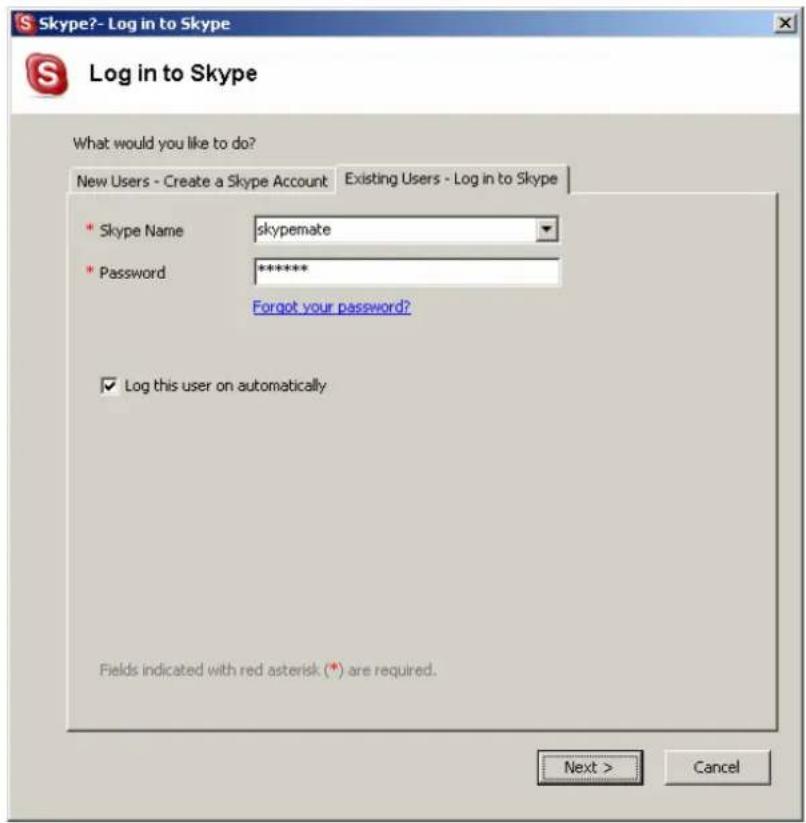
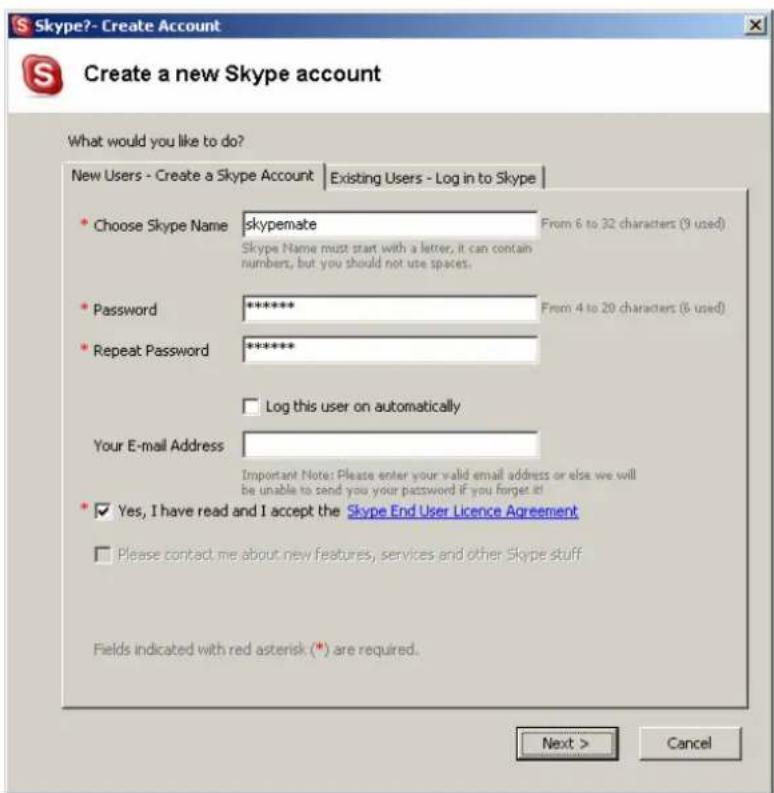
You can create a Skype account as shown below:
After the software startup, the icon will appear to the system tray as shown below:

That indicates the Skype has successfully connected to Internet. If it hasn't connected to Internet, the icon will be shown as , now you have to check whether PC is connected to Internet successfully or not.
Connect the Innput N200 to PC
Connect the Innput N200 to your PC. The Found New Hardware Wizard appears and the OS will install the driver automatically. No other steps are necessary.
Call another Skype user (PC to PC)
◆ Add "skypemate" to Contacts
◆ Assign Speed-Dial for it, example "11"
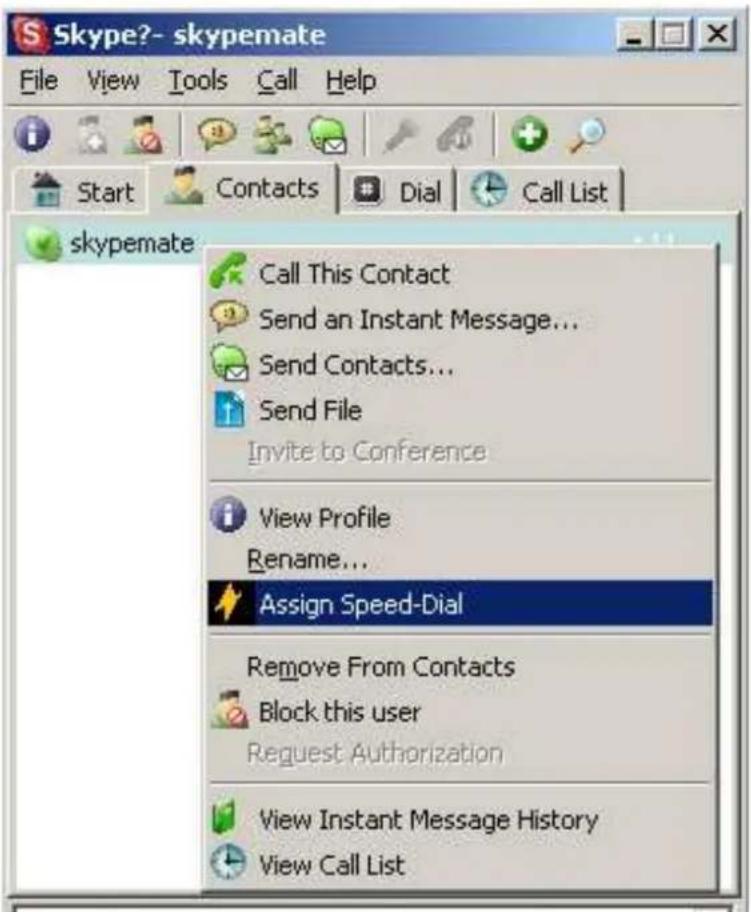
◆ Input number and call out:
Press digital "1" and "1" on the USB Phone, this number will be shown on Skype window, then press "Enter" key on USB Phone to call out.
Call to regular phone (PC to Phone)
Press "011"+"country code"+"phone number", and then press "Enter". Example: call to Taiwan, Taipei, press 011886212345678, then press
"Enter" key.
Note: If you want to use this function, you should buy SkypeOut Credit first.
Answer a call
When a call in, the USB phone is ringing, press
to answer the call, press

refuse the call.
After answer the call, just lift the cover to start conversation.


Function keys
| Key Location | Function Description |
| 0~9 Keypad 0~9 | |
| . Keyboard . | |
| BS Keyboard BackSpace | |
| # Keyboard # | |
| * Keypad * | |
| / Keyboard / | |
| - Keyboard - | |
| Tab | Switch “Contacts” and “Type number text” |
| + Keyboard + | |
| Enter | After dialing numbers, press the “Enter” key to call out. |
| ▲ Volume up | |
| ▼ Volume down | |
 | Answer the phone |
 | Hang up |
Note:
To enable the hotkey “ ” function, you need to set on Skype.
Enable the “ ” key:
- Run the Skype software, click the
"Tools"->"Option" - Choose the "Hotkeys" option.
- Click the "Enable global hotkeys" option.
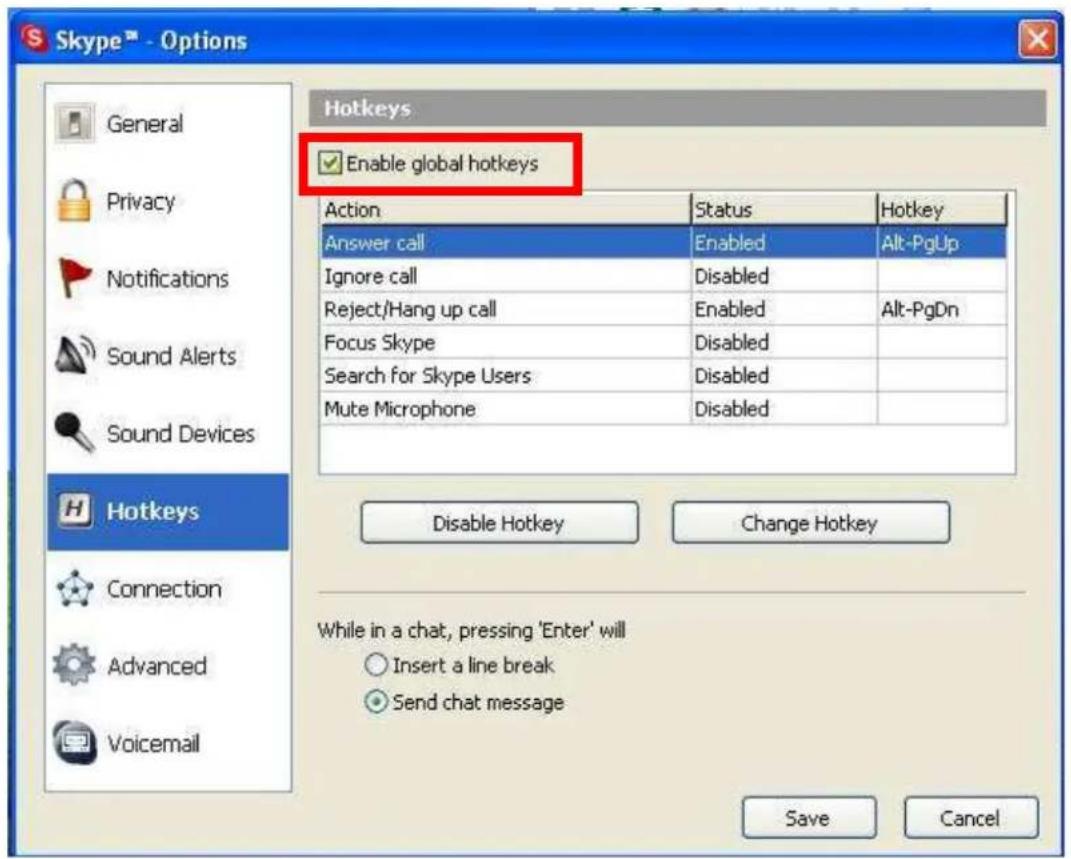
- Choose the "Answer Call" option and click
the "Change Hotkey" button.
- Click the "Alt", and type "↓" in the text; Then click
"OK".

- Finally, click the "Enable Hotkey" button. The
“ ” hotkey will start to work.
5. Electrical Specification
- Fully compatible with Windows 2000/XP/Vista.
- Fully Support plug and play and hot swapping.
- Power consumption: 52mA
- Key switch: membrane key switch with tactile feeling.
- Operation Force: 60 ± 5 g
- Total Travel: 1.0 mm
6. FAQ
Problem 1
The voice is played from the PC's sound card instead of the USB phone when I make/answer a call?
Solution
Open the Main window of Skype, click on "File->Options", and go to the table Hand/headsets, set Audio In, Audio Out and Ringing to the USB Audio Device.

Problem 2
There is no voice comes out when play music?
Solution
Please execute the "Control Panel->Sound and Video
( )>Audio", set Sound Playback and Sound
Recording's Preferred device to your sound card, it
shown as below:

Problem 3
I connect the USB phone with USB hub, but it cannot work.
Solution
You need to connect with a self-power USB hub. Our USB phone cannot work with a bus-power USB hub, because the bus-power USB hub cannot provide enough power.
Problem 4
I can't dial the extension by USB phone.
Solution
Because the Skype software didn't support this function by USB phone, so you need to click the extension number onscreen.
support@soyntec.com
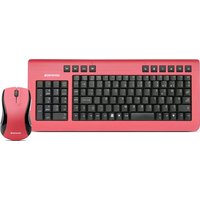


Brand : Soyntec
Model : Inpput N200
Category : Keyboard