Sibilance - Audio software WAVES - Free user manual and instructions
Find the device manual for free Sibilance WAVES in PDF.


| Type of Product | Audio Plugin (De-esser) |
| Brand | Waves |
| Model | Sibilance |
| Category | Audio Software |
| Platform Compatibility | Windows (7 or later) & macOS (10.12 or later) |
| Plugin Formats | VST3, AU, AAX Native |
| Bit Depth Support | 64-bit |
| Sample Rate Support | Up to 96 kHz |
| Primary Function | Reduce sibilance (excessive 's' and 'sh' sounds) in vocals and instruments |
| Key Features | Real-time processing, frequency-specific detection, adjustable threshold and ratio, solo mode for monitoring |
| Control Parameters | Threshold, Range, Frequency, Bandwidth, Listen (solo) |
| Metering | Input/Output gain reduction meter |
| Presets | Included factory presets for various instruments and vocal types |
| Installation Method | Download from Waves Central, license activation required |
| System Requirements (Minimum) | Intel Core i5 or equivalent, 4GB RAM, screen resolution 1280x1024 |
| Software Updates | Free updates within same version; major upgrades may require purchase |
| Customer Support | Online knowledge base, email support, community forums |
| License Type | Perpetual license with optional Waves Update Plan |
| Warranty | 90 days limited warranty from date of purchase |
| Manual Format | PDF (7 pages) available for free download |
Frequently Asked Questions - Sibilance WAVES
User questions about Sibilance WAVES
0 question about this device. Answer the ones you know or ask your own.
Ask a new question about this device
Download the instructions for your Audio software in PDF format for free! Find your manual Sibilance - WAVES and take your electronic device back in hand. On this page are published all the documents necessary for the use of your device. Sibilance by WAVES.
USER MANUAL Sibilance WAVES
Thank you for choosing Waves! In order to get the most out of your new Waves plugin, please take a moment to read this user guide. To install software and manage your licenses, you need to have a free Waves account. Sign up at www.waves.com. With a Waves account you can keep track of your products, renew your Waves Update Plan, participate in bonus programs, and keep up to date with important information.
We suggest that you become familiar with the Waves Support pages: www.waves.com/support. There are technical articles about installation, troubleshooting, specifications, and more. Plus, you'll find company contact information and Waves Support news.
Waves Sibilance is a sophisticated, easy-to-use DeEsser. A DeEsser is an audio processor designed to attenuate high-frequency sounds generated when certain consonants are voiced. Some vocal sounds create high-energy peaks at certain frequencies; this can result in unwanted distortion or extreme presence in the higher frequencies. The most common sources of sibilance are the S and Sh sounds, which are created when the tongue directs a stream of air toward the teeth. This results in a hissing sound with high energy content. These front-of-mouth vocalizations are also closer to the microphone membrane than are other vocal sounds—this may exaggerate sibilant sounds. Waves Sibilance is very effective in reducing these sounds to a more natural level, eliminating distortion and high-frequency peaks.
Sibilance uses a new Waves technology—Organic ReSynthesis—that breaks sound into basic elements (e.g., pitch, formant, amplitude, carrier, etc.) before processing takes place. When one of these elements is manipulated, the others remain unchanged. These are used to re-synthesize the chosen element. Waves Sibilance uses the Formant Weight element for detection and manipulation. Organic ReSynthesis allows precise identification of unwanted S and Sh sounds, resulting in smooth, glitch-free, and effective DeEssing. Waves Sibilance reduces unwanted sounds flawlessly, while maintaining the timbre, duration, and natural resonance of the original sound.
Important: For superior results we recommend using Sibilance on single instruments or voices.
Quick Start
The following steps will get you started and familiarize you with all of Sibilant's controls. To learn more, go to the controls section of this user guide.
- The Detection Width control is located on the left side of the interface. Use this to identify and focus on unwanted S or Sh sounds—lower values detect narrower frequency ranges for detection and higher values result in a wider detection range. A narrow range will usually work well for S sounds, while Sh sounds often require a wider detection range to include a greater frequency span. If too short, the sibilant may not be detected. However, if Detection Width is set too wide, sounds other than sibilants may be detected. Detected sibilant sounds are marked in yellow on the Graph.
- Click the Monitor toggle to audition the detected sounds that will be removed based on current detection settings. This provides an accurate preview of what you're going to remove.
- Adjus t the Threshold control to set the level at which sibilant processing begins. Threshold is displayed on the graph with two green lines.
- Use the Range control to determine the maximum amount of Gain reduction. Actual gain reduction is displayed by a yellow line on Range scale.
- Use the Mode knob to control how gain reduction will be carried out on the detected sibilant sounds. When Mode is set to its lowest value, attenuation will affect the full frequency range of the detected sound. When Mode is at its highest value, attenuation will focus on frequencies above 4 kHz. Use intermediate values to transition between the two modes. Low settings will usually work better for Sh sounds, while higher values are beneficial for attenuation of S sounds.
Components and Interface
There are four Sibilance components. Two components are intended primarily for studio use:
Latency for these components is determined by the sample rate and Lookahead setting.
Lookahead On:
44.1kHz / 48kHz (529 samples)
88.2kHz / 96kHz (1152 samples)
Lookahead Off:
44.1kHz / 48kHz (0 samples)
88.2kHz / 96kHz (0 samples)
Sibilance-Live Component (Mono & Stereo)
These components have no latency and are ideally suited for live settings.
•Sibilance-Live Mono
•Sibilance-Live Stereo
The Lookahead feature is not available in Live components.
Controls and Indicators
Detection Width
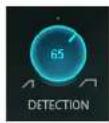
Use this control to focus on unwanted S or Sh sounds. Increasing the Detection Width value increases the frequency range of the detection. A narrow range will usually work well for S sounds. For Sh sounds, use a wider detection range to include a wider frequency span. The detected sounds are marked in yellow on the Graph waveform.
Range: Narrow (0) - Wide (100)
Default: 50%
Reset: 50%
Lookahead (Not available in Sibalance-Live component)
Lookahead improves Sibilance detection. It adds 12 ms of latency to the process. For Live applications, use the Sibilance-Live component to avoid dynamic latency changes. The Live components do not use the Lookahead feature.
Range: On/Off
Default: Off
Reset: Off
Monitor


Click the Monitor toggle to audition detected sounds only.
Range: On/Off
On: only sibilant sounds are auditioned
Off: entire processed signal is auditioned
Default: Off
Reset: Off
Threshold
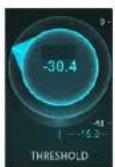
Threshold sets where sibilance processing will begin. Adjust the Threshold level to include or exclude unwanted sounds in the detection process. Threshold is displayed on the Graph with two green Threshold lines.
Range: -80 dB to 0 dB
Default: -12.5 dB
Reset: 0 dB
Range
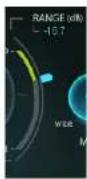
The Range control determines the maximum attenuation of detected sounds. Attenuation amount is displayed on Graph with the yellow Detection line.
Range: 0 dB to -48 dB
Default: -14 dB
Reset: 0 dB
Mode
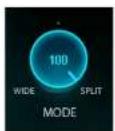
The Mode control allows you to mix between two compression modes: Wide and Split. Wide Mode (0): entire frequency range of detected sounds will be attenuated Split Mode (100): only frequencies above 4 kHz will be attenuated
Range: 0 (Wide) to 100
(Split) Default: 50
Reset: 50
Graph
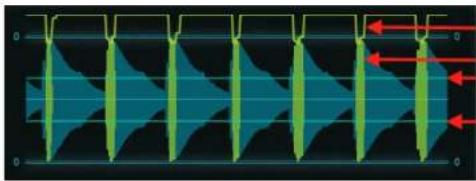
natural_image
Abstract diagram with blue and green wave-like patterns and red arrows, no text or symbols presentAttenuation Range Detected Sounds
Threshold
WaveSystem Toolbar
Use the bar at the top of the plugin to save and load presets, compare settings, undo and redo steps, and resize the plugin. To learn more, click the icon at the upper-right corner of the window and open the WaveSystem Guide.