PTZ2870 - Security Camera AVMATRIX - Free user manual and instructions
Find the device manual for free PTZ2870 AVMATRIX in PDF.


User questions about PTZ2870 AVMATRIX
0 question about this device. Answer the ones you know or ask your own.
Ask a new question about this device
Download the instructions for your Security Camera in PDF format for free! Find your manual PTZ2870 - AVMATRIX and take your electronic device back in hand. On this page are published all the documents necessary for the use of your device. PTZ2870 by AVMATRIX.
USER MANUAL PTZ2870 AVMATRIX
natural_image
Black AVMATRIX 3.0 camera with visible lens and control base (no text or symbols on device body)PTZ Camera User Manual V1.0
Electric Safety
Installation and operation must accord with electric safety standard
Caution to transport
Avoid stress, vibration and soakage in transportation, storage and installation.
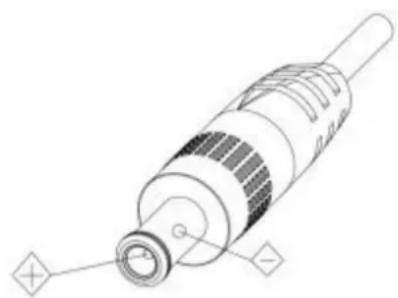
Polarity of power supply
The power supply of the product is ±12V , the max electrical current is 2A. Polarity of the power supply drawing.
natural_image
Technical line drawing of a mechanical connector or connector with no visible text or symbolsCareful of installation
Never move the camera by seizing the camera head. Don't rotate camera head by hand; otherwise, mechanical trouble will occur.
This series item must be put on the smooth desk or platform, and it can not be installed slant ways; If the camera is installed on TV or computer, the base can be fixed by four double-sided adhesive trays. Don't apply in corrosive liquid, as or solid environment to avoid the cover which is made up of organic material.
To make sure no obstacle in rotation range.
Never power on before installation is completed.
Don't disassemble discretionarily.
We are not responsible for any unauthorized modification or dismantling.
Attention
Electromagnetic filed under certain rate may affect camera image!
Content
- Fast Installation....1
1.2 Accessory....2
- Product Overview....3
2.1 Product Introduction....3
2.1.1 Product Model....3
2.2 Interface Instruction....3
2.2.1 Camera Interface Explanation....3
2.2.2 Bottom Dial Switch....4
2.2.3 RS-232 Interface....5
2.2.4 Dimension....6
2.3 Main Features....6
2.3.1 Camera Performance....6
2.3.2 Network performance....7
- Application Instruction....10
3.1 Power on initial configuration.... 10
3.2 Video Output....10
3.2.1 Power-On Initial Configuration....10
3.2.2 Video Output.... 10
3.3 Remote Controller....11
3.3.1 Keys Instruction.... 11
3.3.2 Applications....12
3.4 MENU SETTING....14
3.4.1 Main Menu....14
3.4.2 System Setting....14
3.4.3 Camera Setting....15
3.4.4 P/T/Z....17
3.4.5 Video Format....17
3.4.6 Version....18
3.4.7 Restore Default....18
- Network Connection....18
4.1 Connecting Mode....18
4.2 IE Log In....21
4.2.1 Web client....21
4.2.2 Preview.... 21
4.2.3 Playback.... 21
4.2.4 Configuration....22
4.2.5 Video configuration.... 23
4.2.6 Network configuration....26
4.2.7 System configuration....27
4.2.8 Logout....29
4.2.9 Wireless network....29
- Serial Communication Control....30
5.1 VISCA protocol list....30
5.1.1 Camera return command....30
5.1.2 Camera control command....31
5.1.3 Inquiry command....37
5.2 Pelco-D protocol command list....40
5.3 Pelco-P protocol command list....41
6. Camera Maintenance and Troubleshooting....42
6.1 Camera Maintenance....42
6.2 Troubleshooting....42
1. Fast Installation
1.1 Bracket mount
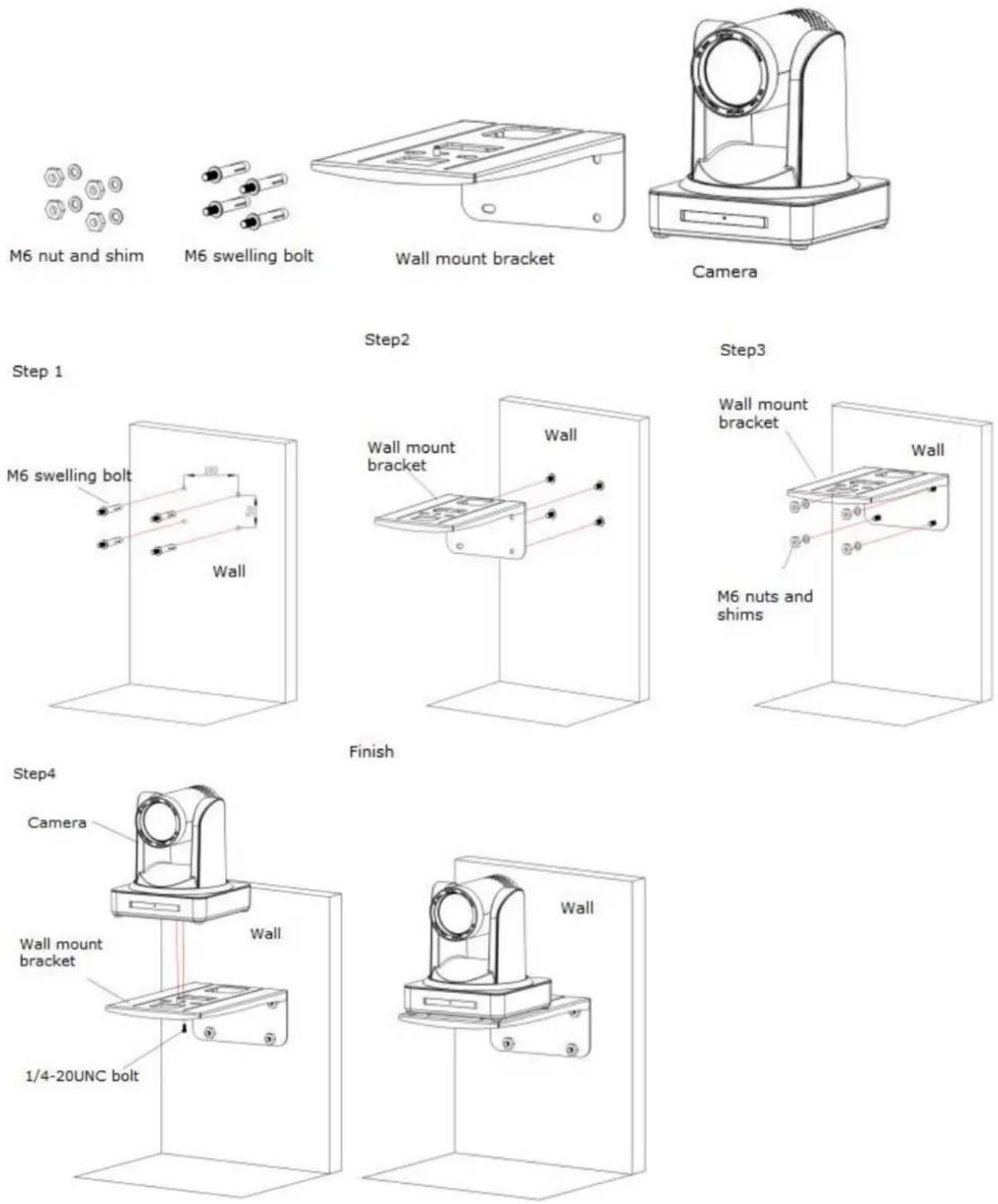
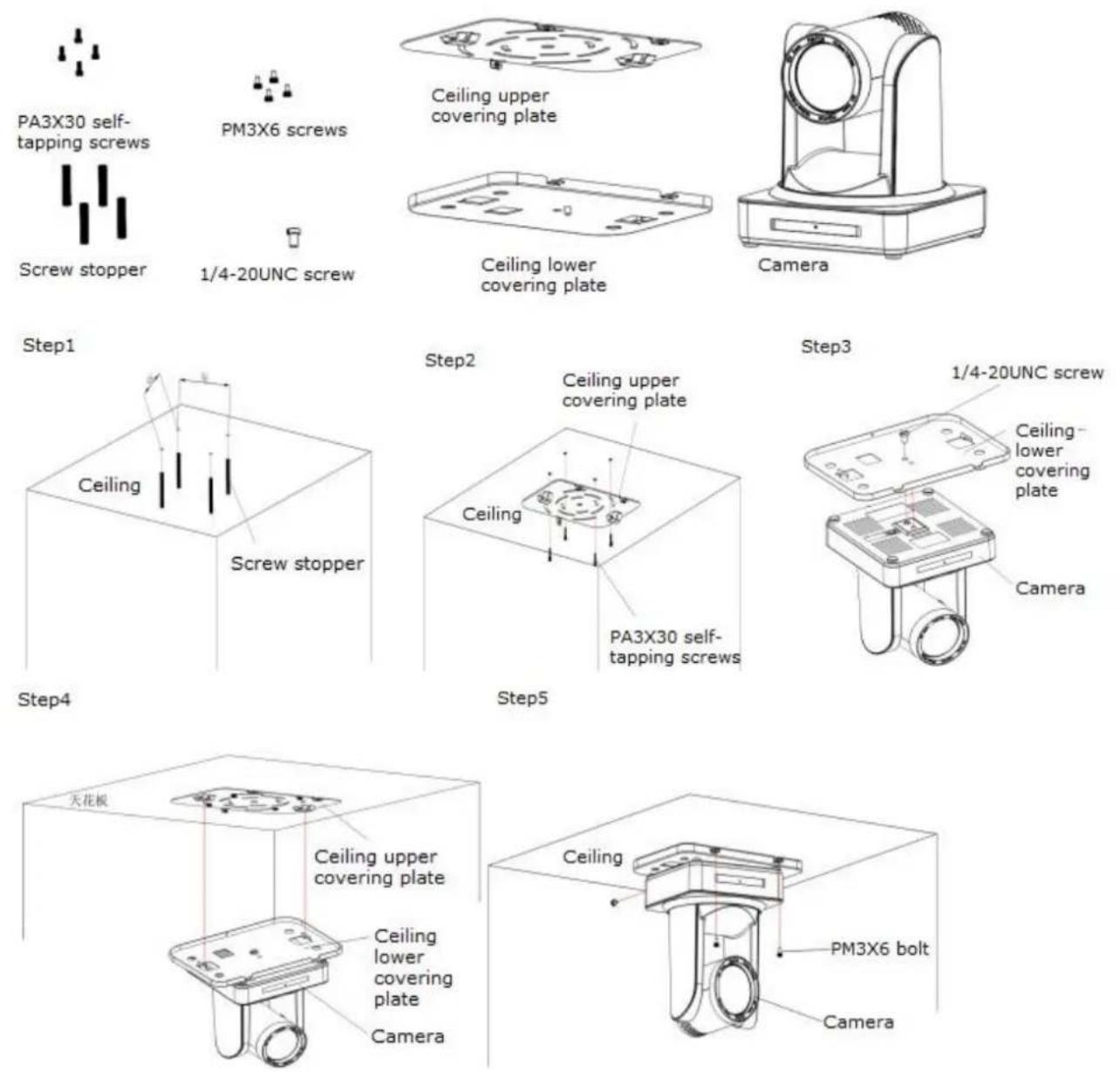
Note: Bracket can only be wall mounted or upside down mounted on template and concrete wall, but can not be installed on plasterboard.
1) Wall mount step
2) Upside down mount step
1.2 Accessory
When you unpack, check that all the supplied accessories are included:
| Configuration | PTZ1270 Series | PTZ2870 Series |
| Standard | Power adapter 1 piece | Power adapter 1 piece |
| RS232 cable 1 piece | USB3.0 and USB2.0 cables | |
| Double-side glue shim 4pcs | Double-side glue shim 4pcs | |
| Optional | IR Remote controller 1 piece | IR Remote controller or wireless controller 1 piece |
| Wireless controller 1 piece | Wireless controller 1 piece | |
| Wall mounting bracket | Wall mounting bracket(optional) | |
| Upside-down mounting bracket(optional) | Upside-down mounting bracket | |
| Cascade cable |
2. Product Overview
2.1 Product Introduction
2.1.1 Product Model
There are two main series according to different video formats, lens optical zooms, output interfaces and remote control modes.
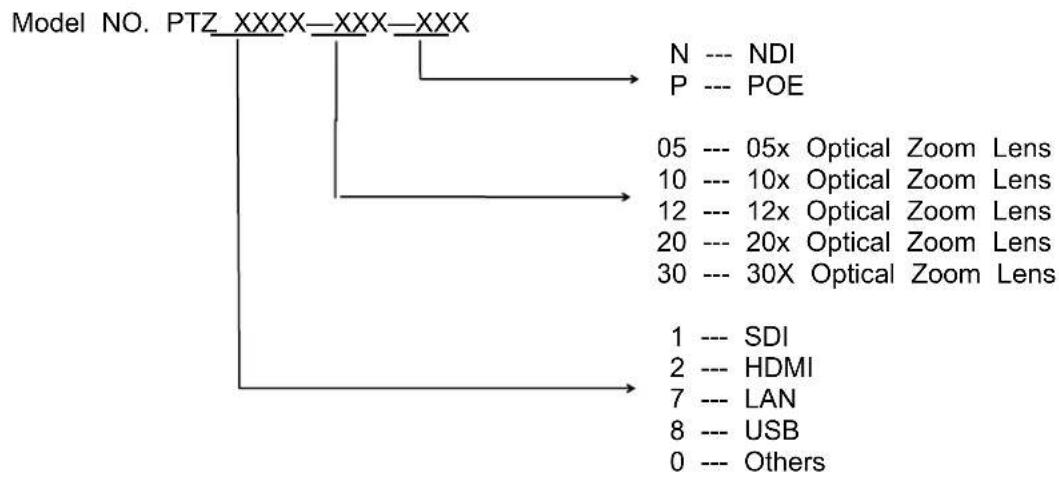
flowchart
graph TD
    A["Model NO. PTZ_XXXX-XXX-XXX"] --> B["N --- NDI"]
    A --> C["P --- POE"]
    A --> D["05 --- 05x Optical Zoom Lens"]
    A --> E["10 --- 10x Optical Zoom Lens"]
    A --> F["12 --- 12x Optical Zoom Lens"]
    A --> G["20 --- 20x Optical Zoom Lens"]
    A --> H["30 --- 30X Optical Zoom Lens"]
    A --> I["1 --- SDI"]
    A --> J["2 --- HDMI"]
    A --> K["7 --- LAN"]
    A --> L["8 --- USB"]
    A --> M["0 --- Others"]
2.2 Interface Instruction
2.2.1 Camera Interface Explanation
1) Interface of PTZ 1270
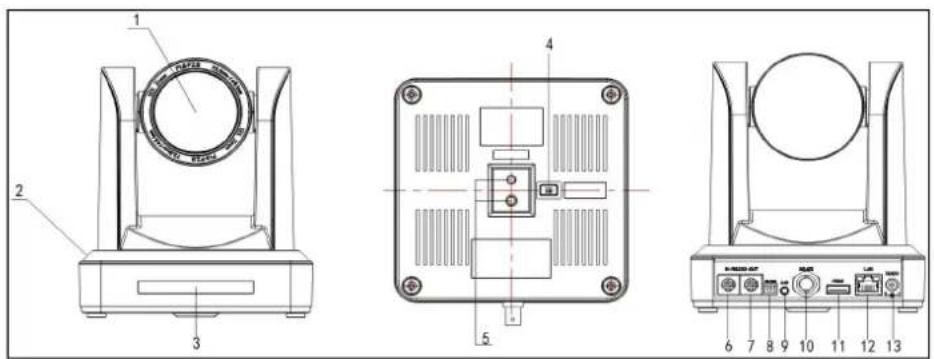
Interface of PTZ 1270
- Camera Lens
- Camera Base
- Remote Controller Receiver Light
- Bottom Dial Switch
- Tripod Screw Hole
- RS232 Control Interface (input)
-
RS232 Control Interface (output)
-
RS485 Input (left +, right-)
- Audio Input Interface
- 3G-SDI interface
- HDMI Interface
- 10/100M Network Interface
- DC12V Input Power Supply Socket
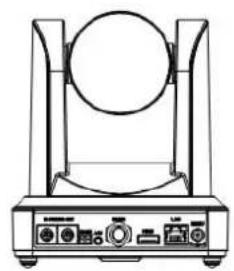
2) Interface of PTZ 2870
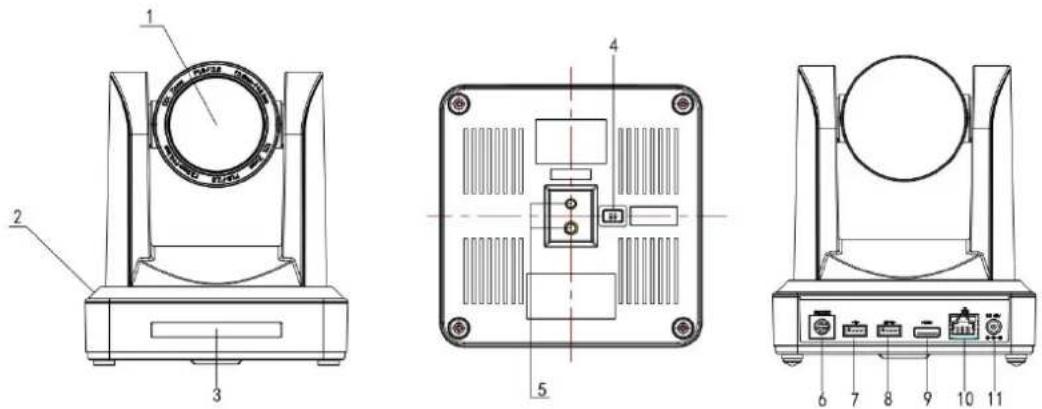
Figure 1.2 Interface of PTZ 2870
1 .Lens
5. Tripod Screw Hole
9. HDMI Output
2. Base
6. RS232 (IN)
10. LAN
3. Remote Controller Receiver Light
7. USB 2.0
11. Power Supply
4. Bottom Dial Switch
8. USB 3.0
2.2.2 Bottom Dial Switch
PTZ cameras' Bottom Dial Switch diagram shown in Figure 2.6 and 2.7:
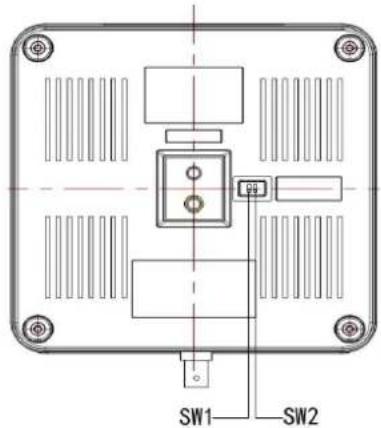
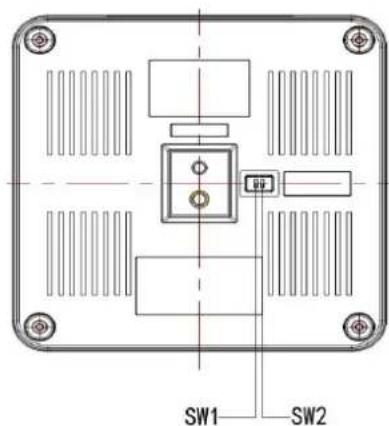
Figure 1.3 Bottom Dial Switch diagram Figure 1.4 Bottom Dial Switch diagram
PTZ1270 model: two DIP switches are set to ON or OFF to select different modes of operation as below:
| No. | SW1 | SW2 | Explanation |
| 1 | OFF | ON | Working mode |
| 2 | ON | OFF | Updating mode |
PTZ2870 model: two DIP switches are set to ON or OFF to select different modes of operation as below:
| No. | SW2 | SW1 | Explanation |
| 1 | ON | OFF | Working Mode |
| 2 | ON | ON | USB3.0 Software Upgrade Mode |
| 3 | OFF | ON | ARM Software Upgrade Mode |
Note: Working mode can be applicable for web upgrade.
2.2.3 RS-232 Interface
1) PTZ1270 RS-232C interface specification as shown below
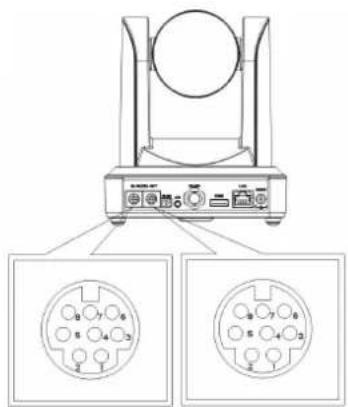
Computer or keyboard and camera connection method
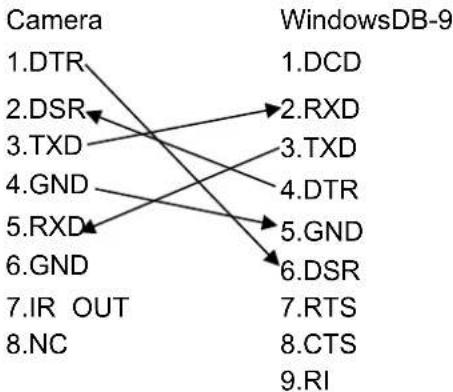
flowchart
graph TD
    A["Camera"] --> B["1.DTR"]
    A --> C["2.DSR"]
    A --> D["3.TXD"]
    A --> E["4.GND"]
    A --> F["5.RXD"]
    A --> G["6.GND"]
    A --> H["7.IR OUT"]
    A --> I["8.NC"]
    J["WindowsDB-9"] --> K["1.DCD"]
    J --> L["2.RXD"]
    J --> M["3.TXD"]
    J --> N["4.DTR"]
    J --> O["5.GND"]
    J --> P["6.DSR"]
    J --> Q["7.RTS"]
    J --> R["8.CTS"]
    J --> S["9.RI"]

2) RS-232 Mini-DIN 8-pin Port Definition
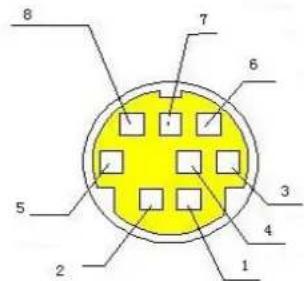
| NO. | Port | Definition |
| 1 | DTR | Data Terminal Ready |
| 2 | DSR | Data Set Ready |
| 3 | TXD | Transmit Data |
| 4 | GND | System Ground |
| 5 | RXD | Receive Data |
| 6 | GND | System Ground |
| 7 | IR OUT | IR Commander Signal |
| 8 | NC | No Connection |
3) RS232 (DB9) Port Definition
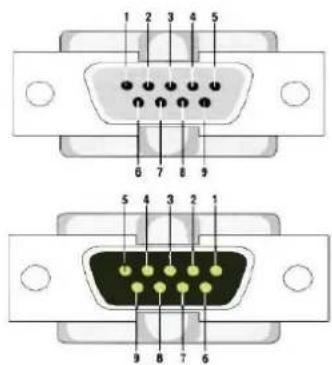
| NO. | Port | Definition |
| 1 | DCD | Data Carrier Detect |
| 2 | RXD | Receive Data |
| 3 | TXD | Transmit Data |
| 4 | DTR | Data Terminal Ready |
| 5 | GND | System Ground |
| 6 | DSR | Data Set Ready |
| 7 | RTS | Request to Send |
| 8 | CTS | Clear to Send |
| 9 | RI | Ring Indicator |
4) VISCA networking as shown below:
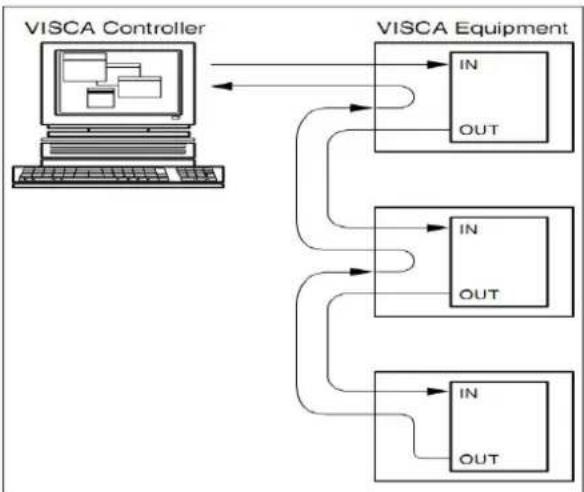
flowchart
graph TD
    A["VISCA Controller"] --> B["VISCA Equipment"]
    B --> C["IN OUT"]
    B --> D["IN OUT"]
    B --> E["IN OUT"]
    C --> F["Computer"]
    D --> G["Computer"]
    E --> H["Computer"]
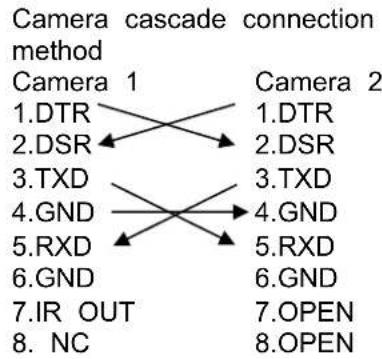
flowchart
graph TD
    A["Camera 1"] --> B["DTR"]
    A --> C["DSR"]
    A --> D["TXD"]
    A --> E["GND"]
    A --> F["RXD"]
    A --> G["GND"]
    A --> H["IR OUT"]
    A --> I["NC"]
    J["Camera 2"] --> K["DTR"]
    J --> L["DSR"]
    J --> M["TXD"]
    J --> N["GND"]
    J --> O["RXD"]
    J --> P["GND"]
    J --> Q["OPEN"]
    J --> R["OPEN"]
Note: PTZ1270 model has RS232 input and output interface, so you can cascade as the above way; It won't work for PTZ2870 model, since it only has RS232 input interface.
2.2.4 Dimension
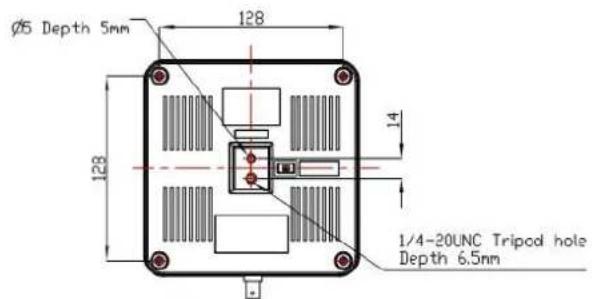
natural_image
Line drawing of a laboratory instrument with a circular chamber and control knobs (no text or symbols)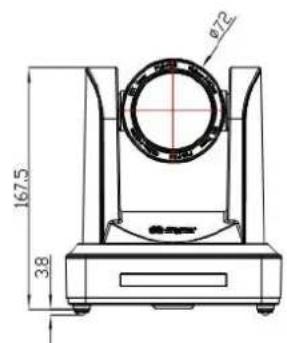
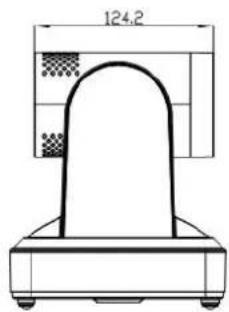
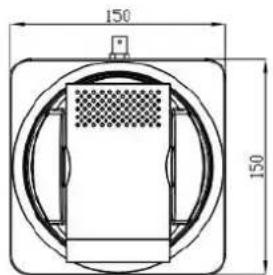
2.3 Main Features
2.3.1 Camera Performance
This series camera offers perfect functions, superior performance and rich interfaces. The features include advanced ISP processing algorithms to provide vivid images with a strong sense of depth, high resolution and fantastic color rendition. It supports H.265/H.264 encoding which makes motion video fluent and clear even with less than ideal bandwidth conditions.
- Superb High-definition Image: It employs 1/2.8 inch high quality CMOS sensor. Resolution is up to 1920x1080 with frame rate up to 60 fps.
- Various Optical Zoom Lens: It has 5X/10X/12X/20X/30X optical zoom lens for options. The 5X zoom lens is with 80.9^ wide view angle without distortion.
- Leading Auto Focus Technology: Leading auto focus algorithm makes lens a fast, accurate and stable auto-focusing.
● Low Noise and High SNR: Low Noise CMOS effectively ensure high SNR of camera video.
Advanced 2D/3D noise reduction technology is also used to further reduce the noise, while ensuring image sharpness.
- Quiet PTZ: By adopting high accuracy step driving motor mechanism, it works extremely quiet and moves smoothly and very quickly to designated position.
- Multi-Format Video Outputs: support HDMI,3G-SDI, USB, LAN interfaces. The 3G-SDI is available for 100m transmission at 1080p60 format.
- Multiple Remote Controls: There is IR remoter and 2.4G wireless remote for options. The 2.4G wireless remote controller will not be affected by angle, distance or IR interference. Support transparent transmission function.
- Low-power Sleep Function: Support low-power sleep/wake up, the consumption is lower than 500mW under sleep mode
- Support Multiple Control Protocol: Support VISCA, PELCO-D, PELCO-P protocols which can also be automatically recognized. Support VISCA control protocol through IP port.
- RS-232 Cascade Function: PTZ1270 series support RS-232 cascade function which is convenient for installing.
● 255 Presets Positions: Up to 255 presets (10 presets by remoter). - Wide Application: Tele-education, Lecture capture, Webcasting, Video conferencing, Tele-training, Tele-medicine, Interrogation and Emergency command systems.
2.3.2 Network performance
1) Audio Input Interface: Support 16000,32000,44100,48000 sampling frequency and AAC, MP3, PCM audio coding.
2) Multiple Audio/Video Compression: Support H.264/H.265 video compression; AAC,MP3 and PCM audio compression; Support compression of resolution up to 1920x1080 with frame up to 60 fps and 2 channel 1920x1080p with 30 fps compression.
3) Multiple network protocol: Support ONVIF,RTSP,RTMP protocols and RTMP push mode, easy to link streaming media server (Wowza, FMS)
2.4 Technical Specification
| Camera Parameter | |||||
| Sensor | 1/2.8 inch high quality HD CMOS sensor | ||||
| Effective Pixels | 16: 9 2.07 megapixel | ||||
| Video Format | HDMI/SDI/ video format1080P60/50/30/25/59.94/29.97;1080I60/50/59.94;720P60/50/30/25/59.94/29.97USB3.0 interface video format1)USB3.0:1920X1080P60/50/30/25;1280X720P60/50/30/25;960X540P30;640X360 P30;640X480P30;352X288P30;960X540P30;2)USB3.0 compatible with USB2.0: 960X540P30; 640X360P30; 1280X720P10/15 720X576P50; 720X480P60; 640X480P30; 352X288P30.USB2.0 interface video format176x144/320x240/320x180/352x288/640x480/720x576/640x360/800X600/960X54 0/1024X576/1024X768/1600X896/1920X1080/1280X720; P30/25/20/15/10/5 | ||||
| Optical Zoom | 5XF=3.6~18mm | 10XF=4.7~47mm | 12XF=3.9~46.8mm | 20XF=5.2~98mm | 30XF=4.3~129mm |
| View Angle | 20.0°(tele)83.3°(wide) | 6.43°(tele)64.2°(wide) | 6.3°(tele)72.5°(wide) | 3.3°(tele)54.7°(wide) | 2.34°(tele)65.1°(wide) |
| AV | F1.8 - F2.8 | F1.6 - F3.0 | F1.8 - F2.4 | F1.6 - F3.5 | F1.6- F4.7 |
| Digital Zoom | 10X | ||||
| Minimum Illumination | 0.5Lux (F1.8, AGC ON) | ||||
| DNR | 2D & 3D DNR | ||||
| White Balance | Auto / Manual/ One Push/ 3000K/ 4000K/5000K/6500K | ||||
| Focus | Auto/Manual | ||||
| Aperture | Auto/Manual | ||||
| Electronic Shutter | Auto/Manual | ||||
| BLC | ON/OFF | ||||
| WDR | OFF/ Dynamic level adjustment | ||||
| Video adjustment | Brightness, Color, Saturation, Contrast, Sharpness, B/W mode, Gamma curve | ||||
| SNR | >55dB | ||||
| Input/Output Interface | |
| Video Interfaces | PTZ1270 series: HDMI, 3G-SDI, LAN, Audio-in, RS232 (In&Out), RS48 PTZ2870 series: USB2.0, USB3.0, HDMI, LAN, RS232 (input) |
| Image code stream | Double streams outputs simultaneously |
| Video Compression format | H.264, H.265 |
| Control Signal Interface | RS-232 Ring through RS232 output, RS-485 |
| Control Protocol | VISCA/Pelco-D/Pelco-P; Baud Rate: 115200/9600/4800/2400bps |
| Audio input Interface | Double track 3.5mm linear input; |
| Audio Compression Format | AAC/MP3/PMC Audio compression |
| HD IP Interface | 100M IP port(100BASE-TX); 5G WiFi (optional), support IP Visca contr protocol |
| Network Protocol | RTSP/RTMP,ONVIF |
| Power Interface | HEC3800 outlet (DC12V) |
| PTZ Parameter | |
| Pan Rotation | ±170° |
| Tilt Rotation | -30°~+90° |
| Pan Control Speed | 0.1 -180°/sec |
| Tilt Control Speed | 0.1-80°/sec |
| Preset Speed | Pan: 60°/sec, Tilt: 30°/sec |
| Preset Number | 255 presets (10 presets by remote controller) |
| Supply Adapter | AC110V-AC220V to DC12V/2A |
| General | |
| Supply Adapter | AC110V-AC220V to DC12V/2A |
| Input Voltage | DC12V±10% |
| Input Current | 1A(Max) |
| Consumption | 12W (Max) |
| Store Temperature | -10°C to +60°C |
| Store Humidity | 20% - 95% |
| Working Temperature | -10°C to +50°C |
| Working Humidity | 20%--80% |
| Dimension | 150mmX150mmX167.5mm |
| Weight | 1.4KG |
| Working Environment | Indoor |
| Remote Operation (IP) | Remote Upgrade, Reboot and Reset |
| Accessory | Power Supply; RS232 Control Cable; USB3.0 Cable; Remoter; Manual; |
| Optional Accessory | Bracket |
3. Application Instruction
3.1 Power on initial configuration
1) Power on: Connect DC12V power supply adapter with power supply socket.
2) Initial configuration: Power on with power indicator light on and remote control receiver light blinking, camera head moves from bottom left to the bottom, and then goes to the HOME position (intermediate position of both horizontal and vertical), while the camera module stretches. When remote control receiver light stops blinking, the self-checking is finished
Note: If you set preset 0, when Power on self-test is completed, the camera automatically moves to the preset 0 position.
3.2 Video Output
3.2.1 Power-On Initial Configuration
Connecting the power, camera will have initial configuration, R indicator light will be flashing. When the camera return to the HOME position (middle position for P/T), and lens finish zoom in/out, the auto-testing is finished. IR led will also stop flashing. If the preset 0 is set, camera will rotate to the 0 preset position after initial configuration.
3.2.2 Video Output
Connect to the video output cable: the user select the output mode according to the machine model.
Figure 1.4.1 is for your reference (output interface introduction for each product)
1) Network output: connect this product and your computer through network cable, then open the browser, enter the camera IP address (factory default 192.168.5.163) in the address bar, then to the login page and input a user name and password (factory default are "admin"), Finally enter the preview page, and the image comes out.
(Note: If you forget your user name, password, IP address, you can manually restore the default by the remote controller key combination * #)
2) 3G-SDI output or DVI (HDMI) output: Connect the monitor with the corresponding video output interface, then the monitor output image.
3) USB3.0 output: Connect this product with computer USB3.0 interface (blue), open the Device Manager to see whether there is an image device and whether the Universal Serial Bus controllers recognize USB3.0 device. After properly identified, open the software, choose the image device and then it will output image.
4) USB2.0 output: Connect this product with computer USB2.0 interface (black), open the Device Manager to see whether there is an image device and whether the Universal Serial Bus controllers recognize USB2.0 device. After properly identified, open the software, choose the image device and then it will output image.
3.3 Remote Controller
3.3.1 Keys Instruction
1. Standby Key
After 3S long press, the camera will step into standby mode. Long press again, the camera will self-test again and back to HOME position. (Note: power-on mode is turned on and Preset 0 is set, and there is no opera within 12s, it will automatically point to the specified preset position.
2. Camera Address Selection
Select the camera address which wants to be controlled
3. Number Key
Set or run 0-9 presets
4. \*, # Key
Key combination use
5. Focus Control Key
Auto Focus: Enter into auto focus mode.
Manual Focus: The camera focus mode is manual
Switch the camera focus mode to manual focus by pressing [focus +] or -] to adjust.
6. Zoom Control Key
Zoom+: Lens near
Zoom—:Lens far
7. Set or Clear Preset key:
Set Preset: Set preset key + 0-9 number key:
Clear Preset key: Clear preset key + 0-9 number key
8. Pan/Tilt Control Key
Press Key :Up
Press Key :Down
Press Key : Left
Press Key: Right
"HOME" Key: Return to the middle position or enter into the next level r
9. BLC Control Key
Back Light ON / OFF: Turn on or off the back light
10. Menu Setting
Open or close the OSD menu
Enter / exit the OSD menu or return to the previous menu.
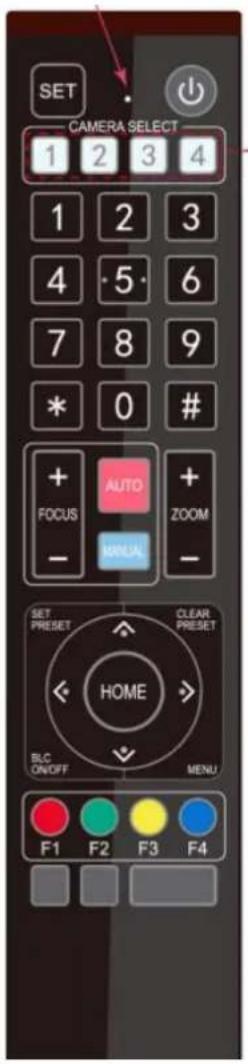
11. Camera IR Remote Control Address Setting
【*】+【#】+【F1】:Camera Address No.1
【*】+【#】+【F2】:Camera Address No. 2
【*】+【#】+【F3】:Camera Address No. 3
Finishing initialization, it can receive and execute the IR commands. Press the remote controller button, the indicator light is flashing; release the button, the indicator light stops flashing. Users can control the pan/tilt/zoom, setting and running preset positions via the IR remote controller.
Key Instruction:
-
In this instruction, “press the key” means a click rather than a long-press, and a special note will be given if a long-press for more than one second is required.
-
When a key-combination is required, do it in sequence. For example,“【*】+【#】+【F1】”means press“【*】”first and then press“【#】”and last press“【F1】”.
1) Camera Selection
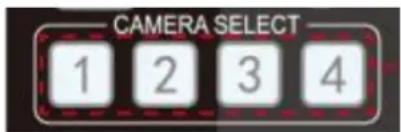
Select the camera address to control.
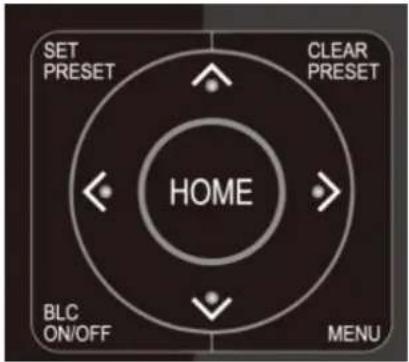
2) Pan/Tilt Control
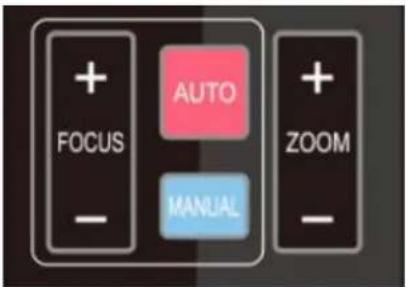
3) Zoom Control
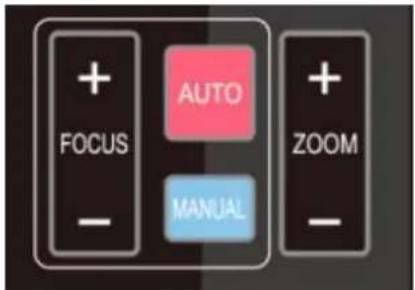
4) Focus Control
5) BLC Setting
6) Presets Setting, Running, Clearing
Up: press Down: press
Left: press Right: press
Back to middle position: press"【HOME】"
Press and hold the up/down/left/right key, the pan/tilt will keep running, from slow to fast, until runs to the endpoint; the pan/tilt running stops a soon as the key is released.
ZOOM IN: press "ZOOM" key
ZOOM OUT: press "ZOOM▼" key
Press and hold the key, the camera will keep zooming in or zooming out and stops as soon as the key is released.
Focus (near):Press “【focus+】” key (Valid only manual focus mode)
Focus (far): Press “【focus-】”key (Valid only in manual focus mode)
Auto Focus: Support
Manual Focus: Support
Press and hold the key, the action of focus will continue and stops as soon as the key is release
BLC ON / OFF: support
- Preset setting: to set a preset position, the users should press the “【SET PRESET】” key first and then press the number key 0-9 to set a relative preset,
Note: 10 preset positions in total are available by remote controller.
2.Preset Running: Press a number key 0-9 directly to run a relative preset.
Note: Action in vain if a relative preset position is not existed.
- Preset clearing : to clear a preset position, the user can press the “【CLEAR PRESET】” key first and then press the number key 0-9 to clear the relative preset;
Note: press the“【#】”key three times continually to cancel all the presets.
7) Camera Remote Controller Address Setting
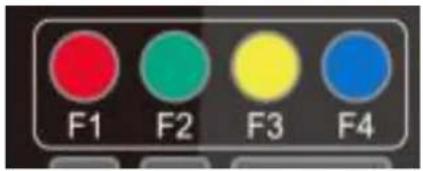
【*】+【#】+【F1】:Camera Address No.1
【*】+【#】+【F2】:Camera Address No. 2
【*】+【#】+【F3】:Camera Address No. 3
In normal working mode, press 【MENU】 key to display the menu, using scroll arrow to point at or highlight the selected items.
MENU
Language English
(Setup)
(Camera)
(P/T/Z)
(Video Format)
(Version)
(Restore Default)
[↑↓]Select [← →]Change Value
LANGUAGE: Language setting, Chinese / English
SETUP: System setting
CAMERA OPTION: Camera setting
PTZ OPTION: Pan tilt setting
VERSON: camera version setting
Restore Default: Reset setting
[↑↓] Select: for selecting menu
[← →] Change Value: for modify parameters
[MENU] Back: Press [MENU] to return
[Home] OK: Press [Home] to confirm
3.4.2 System Setting
Move the pointer to the (Setup) in the Main Menu, click the 【HOME】key and enter into the (System Setting) as shown below:
SETUP
Protocol Auto
Visca Address 1
Visca Address Fix OFF
PELCO-P Address 1
PELCO-D Address 0
Baudrate 9600
[↑↓]Select [← →]Change Value
PROTOCOL: VISCA/Pelco-P/Pelco-D/Auto
Visca ADDR: VISCA=1\~7 Pelco-P=1\~255
Pelco-D = 1\~255
Baud rate: 2400/4800/9600/115200
Visca Address Fix: On/Off
3.4.3 Camera Setting
Move the pointer to the (CAMERA) in the Main Menu, click the 【HOME】 key and enter the (CAMERA) as follow:
![CAMERA (Exposure) (Color) (Image) (Focus) (Noise Reduction) [↑↓]Select [← →]Change Value](/content/2026/05/1043993/images/49c3b40560d92403a9d35cf97a9be65bd7da5572c35139425539c88e13ad6379.jpg)
EXPOSURE: Enter into Exposure setting
COLOR: Enter into color setting
Image: Enter into image setting
Focus: Enter into focus setting
Noise Reduction: Enter into noise reduction
1) EXPOSURE SETTING
Move the pointer to the (EXPOSURE) in the Main Menu, click the 【HOME】 and enter the (EXPOSURE SET) as follow:
![EXPOSURE Mode Auto EV OFF BLC OFF Anti-Flicker 50Hz Gain Limit 3 WDR 5 [↑↓]Select [← →]Change Value](/content/2026/05/1043993/images/c764479942cd536e33a26be9f3779eb99b131a4e9dbb69486dc781a35dd04540.jpg)
Mode : Auto, Manual, Shutter priority, Iris priority; Brightness priority.
EV : On/Off (only available in auto mode)
Compensation Level: -7\~7 (only available in auto mode when EV is ON)
BLC: ON/OFF for options (only available in auto mode)
Anti-Flicker: OFF/50Hz/60Hz for options (only available in Auto/Iris priority/Brightness priority modes)
Gain Limit: 0\~15(only available in Auto/ Iris priority /Brightness priority mode)
WDR: Off,1\~8
Shutter Priority:
1/25, 1/30, 1/50, 1/60, 1/90, 1/100, 1/120, 1/180, 1/250, 1/350, 1/500, 1/1000, 1/2000, 1/3000, 1/4000, 1/6000, 1/1000 (only available in Manual and Shutter priority mode)
IRIS Priority: OFF,F11.0,F9.6,F8.0,F6.8,F5.6,F4.8,F4.0,F3.4,F2.8,F2.4,F2.0,F1.8(only available in Manual and Iris priority mode)
Brightness: 0\~23 (only available in Brightness priority mode)
2) COLOR SETTING
Move the pointer to the (COLOR) in the Main Menu, click the 【HOME】 and enter the (COLOR SET) as follow:
COLOR
WB Mode Auto
Saturation 80%
Hue 7
AWB Sensitivity
High
Color style Default
Color temp Low
[↑↓]Select [← →]Change
Value
[Menu]Back
WB Mode: Auto, 3000K, 3500K, 4000K, 4500K, 5000K, 5500K, 6000K, 6500K, 7000K, Manual, One Push
Red Gain: 0\~255(only available in Manual mod
Blue Gain: 0\~255(only available in Manual mod
Saturation:
60%,70%,80%,90%,100%,110%,120%,130%
Hue: 0\~14
AWB Sensitivity: high/middle/low
Color Style: Default, style1\~4.
Color Temp: high/middle/low
3) IMAGE
Move the pointer to the (IMAGE) in the Menu, click the 【HOME】 and enter the (IMAGE) as follow:
IMAGE
Brightness 6
Contrast 8
Sharpness 7
Flip-H OFF
Flip-V OFF
B&W-Mode Color
Gamma Default
DZoom OFF
DCI Close
[↑↓]Select [← →]Change
Value
Brightness: 0\~14
Contrast: 0\~14
Sharpness: 0\~15
Flip-H: On/Off
Flip-V: On/Off
B&W Mode: color, black/white
Gamma: default, 0.47, 0.50, 0.52, 0.55
DZoom: digital zoom options: On/Off
DCI: Dynamic Contrast: Off,1\~8
4) FOCUS
Move the pointer to the (FOCUS) in the Menu, click the 【HOME】 and enter the (FOCUS) as follow:
FOCUS
Focus Mode
Auto
AF-Zone Center
AF-Sensitivity Low
[↑↓]Select [← →]Change
Value
Focus Mode: Auto, manual
AF-Zone: Up, middle, down
AF-Sensitivity: High, middle, low
5) NOISE REDUCTION
Move the pointer to the (NOISE REDUCTION) in the Menu, click the 【HOME】 and enter the (NOISE REDUCTION) as follow:
NOISE REDUCTION
NR-2D Auto
NR-3D 3
Dynamic Hot Pixel OFF
[↑↓]Select [← →]Change /value
2D Noise Reduction: Auto, close, 1\~7
3D Noise Reduction: Close, 1\~8
Dynamic Hot Pixel: Close, 1\~5
3.4.4 P/T/Z
Move the pointer to the (P/T/Z) in the Main Menu, click the 【HOME】 and enter the (P/T/Z) as follow:
P/T/Z
Depth of field
ON
Zoom speed 8
Image Freezing OFF
Acc Curve Slow
[↑↓]Select [← →]Change
Value
Depth of Field: Only effective for remote controller, On/ Off;
When zoom in, the PT control speed by remoter will become slow),
Zoom Speed: Set the zoom speed for remote controller,1\~8
Image Freezing: On/Off
Accelerating Curve: Fast/slow
3.4.5 Video Format
Move the pointer to the (Video Format) in the Menu, click the 【HOME】 and enter the (Video Format) as follow. Exit menu after modifying parameter to save it after powered off
VIDEO FORMAT
1080P60 1080P50
1080I60 1080I50
1080P30 1080P25
720P60 720P50
720P30 720P25
1080P59.94 1080I59.94
1080P29.97 720P59.94
720P29.97
[↑↓]Select
[Menu]Back
[Home]OK
3.4.6 Version
Move the pointer to the (VERSION) in the Main Menu, click the 【HOME】 and enter the (VERSION) as follow:
VERSION
MCU Version 2.0.0.15 2015-12-18
Camera Version 2.0.0.13 2015-12-18
AF Version 2.0.0.6 2015-12-11
Lens 12X(20X)
[Menu]Back
MCU Version: Display MCU version information
Camera Version: Display camera version information
AF Version: Display the focus version information
Lens: Display the lens zoom
3.4.7 Restore Default
Move the pointer to the (RESTORE DEFAULT) in the Main Menu, click the 【HOME】 and enter the (RESTORE DEFAULT) as follow:
RESTORE DEFAULT
Restore Default?
NO
[↑↓]Select
[← →]Change Value
[Menu]Back
[Home]OK
Restore default: options: yes/no; after restoring default, the video format won't be restored.
Note: If the address of former remoter is not 1 but another one from 2,3,4, the corresponding camera address will restore to 1 when all parameters or system parameters are restored. User should change the remoter address to be 1 (press No.1 according to the camera so to get normal operation)
4. Network Connection
4.1 Connecting Mode
Direct connection: Connect the camera and computer by network connecting cable.
Internet connection mode: Connect the camera to Internet by Router or Switch and user can log in the device by browser.
Note: Please do not put the power and network cable in places where can be easily touched prevent video quality lowered by unstable signal transmission due to poor contact of cables.
The computer must have the network segment where the camera IP address belongs to. The device will not be accessible if without the segment. I.E. The camera default IP address is 192.168.5.163, then segment 5 must be added in the computer. Specific steps are as below:
Firstly open the window of Local Area Connection Properties on computer, select the "Internet protocol version 4(TCP/IPv4)" as shown by picture on the left. Double click or click the property "Internet" protocol version 4 (TCP/IPv4) to enter into the Internet Protocol Version 4(TCP/IPv4) Properties window, select "Advanced" to enter into the Advanced TCP/IP Setting and add IP and subnet mask in the IP browser as picture shown below. Click the "Confirm" to finish the adding of IP segment. User can add the corresponding network segment according to the revised IP address of the camera.
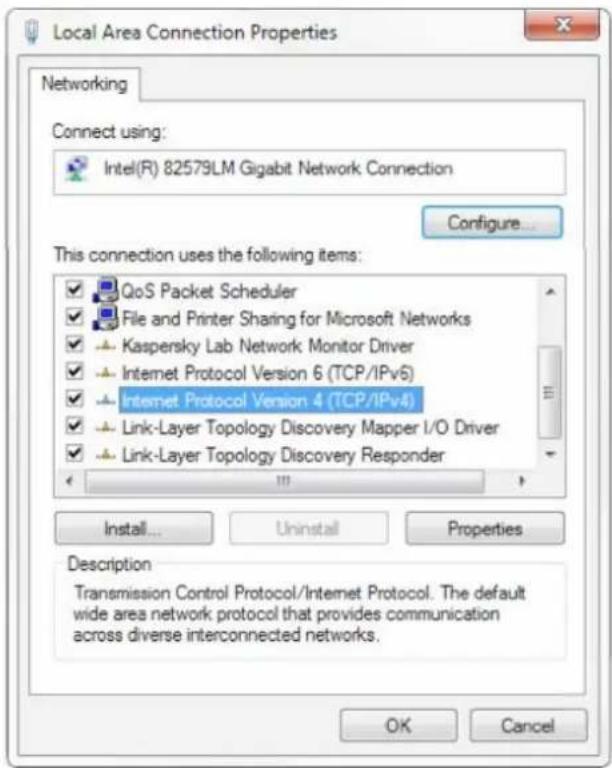
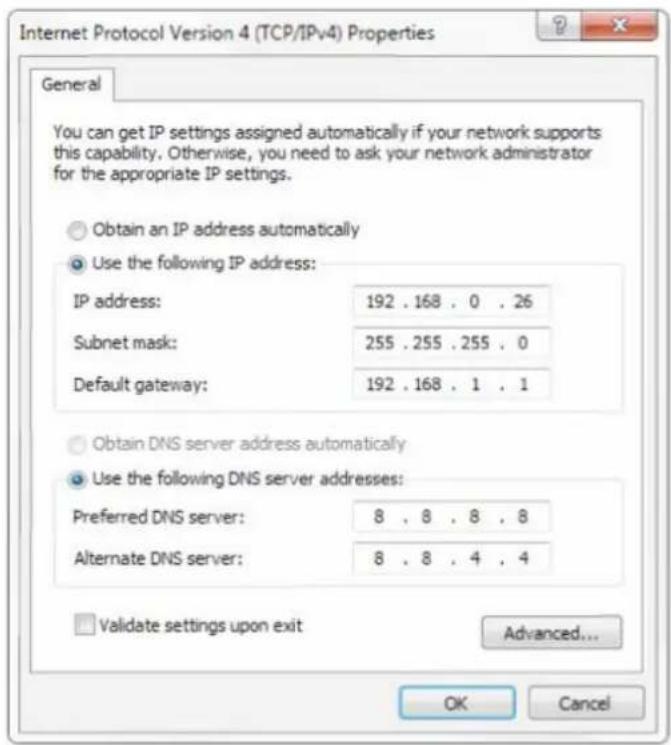
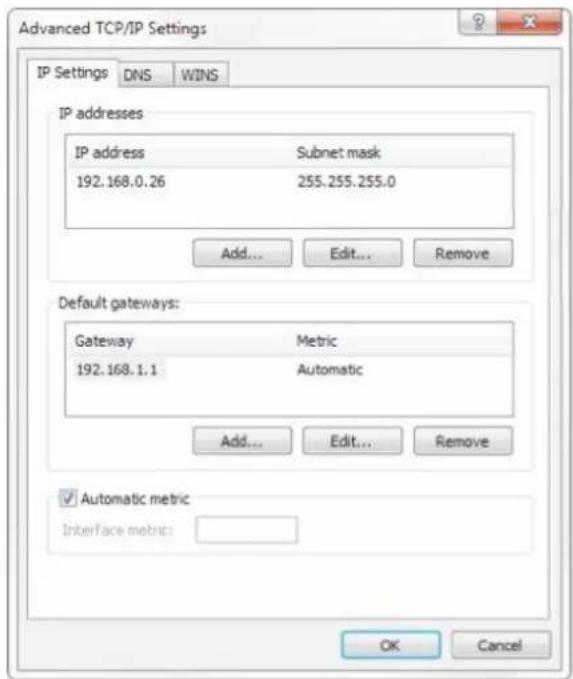
Note: The IP address to be added cannot be same with that of other computers or devices. The existence of this IP address needs to be verified before adding.
Click the "Start" and select "Operation" to input cmd as picture below to verify if the network segment has been successfully added.
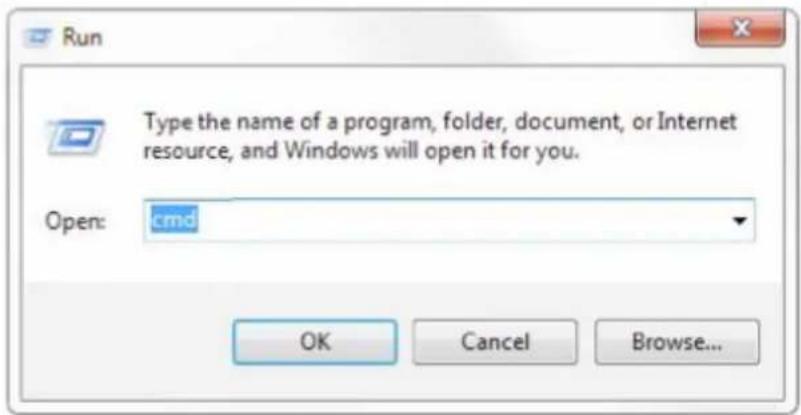
Click "OK" and open the DOS command window, input ping 192.168.5.26 and press Enter key, it will show message as below: which means network segment adding is succeed.
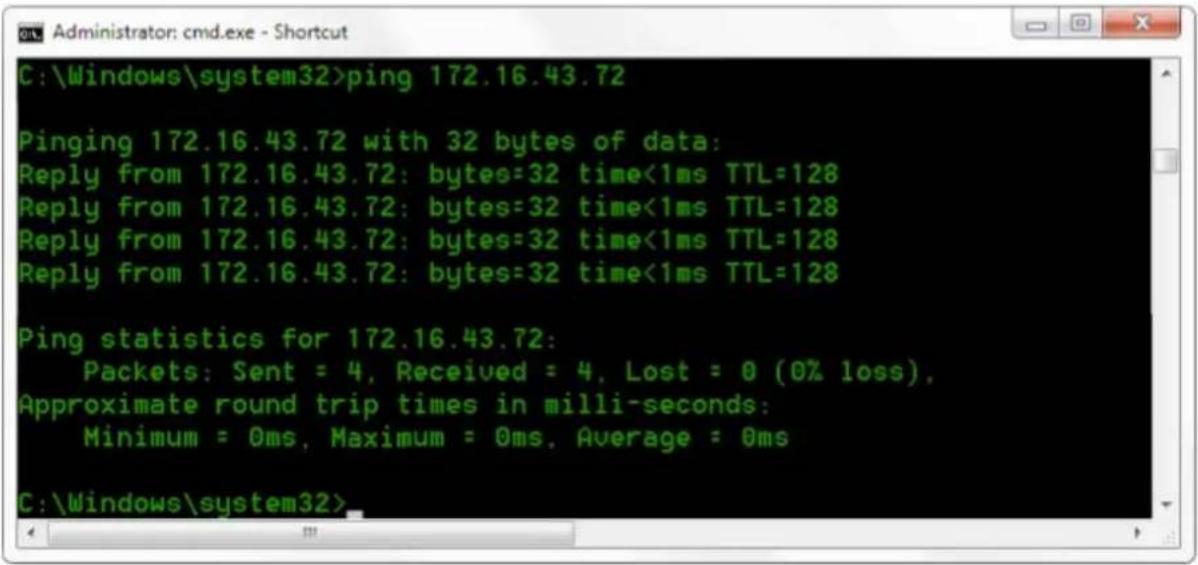
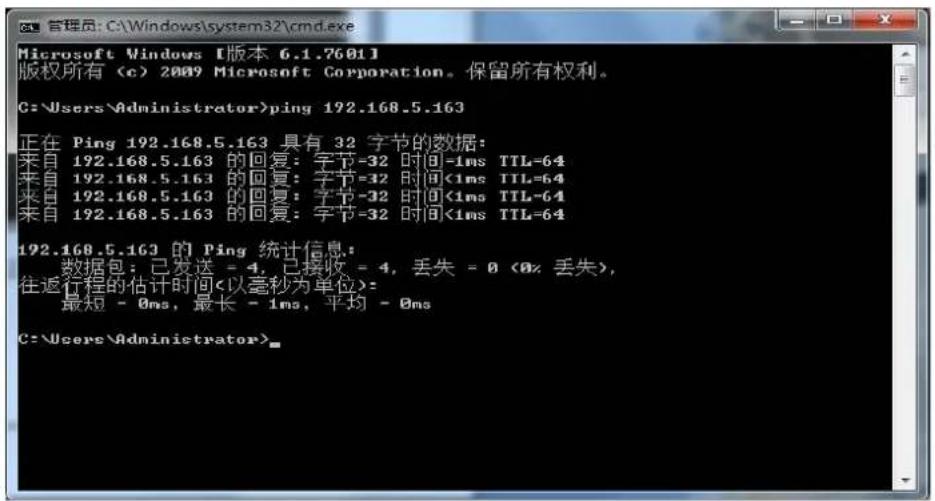
User can also to verify network connection as steps above mentioned after the finish of camera self-check. If IP is default, open DOS command window and input 192.168.5.163, then press Enter key. It will show message as below: which means network connection is normal.
1) Web client Log In
Input the IP address 192.168.5.163 of the device in the address filed of browser and click Enter button to enter into Web Client login page as below picture. User can login as administrator and normal user. If login as administrator (Default User name/Password: admin), users can preview, playback, configuration and cancel in the Web Client; If login in as normal user(Default User name/Password:user1 or user2), users can only preview, playback and cancel, no option for configuration.
Note: Web access supported browsers: IE,360 browser and other conventional browser.
7) Download/Install Plug in
When first using IE browser to access the web conferencing camera, the login page will appear "Playback plug-in is not installed, please download and install!". Click on this message, download and install MRWebXinstall.exe, according to information prompts.
After installing the plug, enter user name and password, click and Sign (initial default user name and password: "admin", users can change the user name and password on their own after entering) into the Web client management interface.
4.2.2 Preview
After successful login into the management interface, it enters the video preview interface. In the preview screen, users can control PTZ, zoom, focus, video capture, sound, focus, full screen and set the preset position, run, delete and other operations.
You can record the video and save it on SD Card when SD Card built in. Video can be saved on the Computer at Local.
1) Login as administrator
User name, password, the default admin
PTZ control can be carried out, zoom, focus, video capture, sound, zoom, full screen and set the preset position, run, and delete; you can preview, playback, configuration, log off.
2) Login as normal user
Default User name/password: user1 or user2
PTZ control can be carried out, zoom, focus, video capture, sound, zoom, full screen and set the preset position, un,and delete; you can preview, playback and log off.
NOTE: There is no configuration right for normal user login.
4.2.3 Playback
1) Playback video files
First, please record, snapshot and save the file when previewing. Click "Playback" to enter recording file and picture files playback page, and then select the file "Video File" and click Search, and search out the video file, click Play to play the video file.
2) Playback picture files
First, please record, snapshot and save the file when previewing. Click "Playback" to enter recording file and picture files playback page, and then select the file "Image File" and click Search, and search out the video file, click Play to play the image file.
4.2.4 Configuration
Click Configuration to enter into the device parameters setting page
There are the following options: Local configuration, audio configuration, video configuration, network configuration, PTZ configuration, internet access configuration, system configuration, detailed description see the following table.
| Menu | Explanation |
| Local configure | Including video preview mode,record video packing time,record video stora route settings etc. |
| Audio configure | Including audio compressing format,sampling frequency,sampling precision,compressing code rate settings etc. |
| Video configure | Including video encoding,video parameters,character-overlapping,character size,video output setting etc. |
| Network configure | Including basic parameters,Ethernet,DNS,wireless network setting, GB28181 etc. |
| System configure | Including equipment property,system time,user management,version update,Reset,Reboot device settings etc. |
1) Local configuration
Video Preview Mode: user can choose real-time priority or fluency priority: The delay will be small when under real time priority mode and fluency will be good when under fluency priority mode. Setting based on the user need (Default value: real time normal (2), real time best (1), fluency normal (3), fluency good (4) and fluency best (5))
Recording packing time(minute): Set recording video packing time (default is 10, range from 1\~120 minutes)
Recording/Snapshot file storage route: Set local recording video/snapshot file storage route.(Default D:\MyIPCam)
Click the Save button to make settings effective.
2) Audio Configuration
Switch: Choose to enable the audio or not.
Compressing format: Set audio compressing format and the device will reboot automatically after change (default MP3, PCM, AAC optional)
Sampling frequency:Set sampling frequency and the device will reboot automatically after change (default 44100,16000,32000 and 48000 optional)
Sampling precision: Set sampling precision (default 16bits)
Compressing code rate: Set audio compressing code rate (default 64bits,32,48,96,128bits optional)
Note Click "SAVE", it will remind "Enable has changed. Restart the device to take effect after the success of the save.", then please reboot the camera to make new setting effect.
4.2.5 Video configuration
(1) Video encoding
Code stream:Stream: Different video output mode setting, use different streams. (Main stream, secondary stream)
Compression Format: Set the video compression format, save and reboot to take it effect (primary / secondary stream default: H.264, H.265 optional)
Profile: Profile Mode Setting (Default HP, BP, MP Optional)
Video Size: Set video image resolution, save and reboot to take it effect (main stream default 1920 * 1080 or 1280 * 720 optional; default secondary stream 640 * 320,320 * 180,1280 * 720,1920 * 1080 optional)
Stream Rate control: Set rate control mode, save and reboot to take it effect (Primary / secondary stream default variable bit rate, fixed rate is for option).
Image Quality: Set the image quality, image quality can be changed only when rate control is variable bit rate, (main stream defaulted is better, secondary stream default is not good, there are best, better, good, bad, worse, worst for options).
Rate (Kb / s): Set the video bit rate (main stream default 4096Kb / s,64-12288Kb / s optional; secondary stream default 1024Kb / s,64-10240Kb / s optional).
Frame rate (F / S): Set the video frame rate (primary / secondary stream default 25F / S, primary stream 5-60F/S optional, secondary stream 5-30F / S optional).
Key frame interval: Set the key frame interval (primary / secondary stream default 75F, primary / stream 1-300F optional. secondary stream 1-150F optional).
Stream Name: When streaming via rtsp or rtmp, user can modify stream name. Main Stream(live/av0), sub stream(live/av1)
Click the "Save" button to display the "saved successfully" message, then settings take effect.
(2) Stream Release
Switch: To turn on/off the main / secondary stream.
Protocol: primary / secondary stream applies RTMP protocol.
Host Port: server port number (default 1935,0-65535 optional)
Host Address: server IP addresses (default 192.168.5.11)
Stream Name: choose a different stream name (live / av0, live / av1 optional).
User: Set the user name.
Password: Set the password.
Click on the "Save" button to display the "Save successful" message, then settings take effect.
Method of obtaining RTSP: rtsp: // device IP address: 554 / live / av0 (av0 main stream; av1 secondary stream)
(3) RTP Broadcasting
Main/Sub Stream: On/off;
Protocol: RTP or TS
Addres: Default 224.1.2.3. It can be edited.
Port: Main Stream Default Port: 4000, Sub Stream Default Port: 4002)
Visit: Address comes up after setting. Eg; rtp://224.1.2.3:4000; udp://@224.1.2.3:4000;
(4) Video Parameters
(a) Focus: Focus mode, focus range, focus sensitivity can be set.
Focus Mode: set the focus mode (the default auto, manual optional)
Focus range: set the focus range (the default middle, the upper and lower optional)
Focus Sensitivity: Set the focus sensitivity (default is low, high, medium optional)
(b) Exposure: E-exposure mode, exposure compensation, back light compensation, anti-flicker, gain limit, wide dynamic, shutter speed, aperture value and brightness can be set.
Exposure Mode: Set the exposure mode (the default automatic, manual, shutter priority, aperture priority, Brightness priority optional
Exposure compensation: Exposure compensation setting is active when it is auto status (default is off).
Exposure compensation value: Set the exposure compensation value, valid when it is set for auto(default 0,-7 to 7 optional).
BLC: Set back light compensation, valid when it is auto status (default is off).
Anti-flicker: Set up anti-flicker mode, valid when status of automatic, aperture or brightness priority (default 50Hz, closed, 60Hz optional).
Gain limit: set the gain limits, auto, active when it is status of aperture or brightness priority (default 3, 0-15 optional).
Dynamic range: set the dynamic range (default 5,0-8 optional).
Shutter speed: active when it is status of manual or shutter-priority (default 1/100, 1/25, 1/30, 1/50, 1/60, 1/90, 1/100, 1/120, 1/180, 1/250, 1/350, 1/500, 1/1000, 1/2000, 1/3000, 1/4000, 1/6000, 1/10000 optional).
Aperture value: Set the aperture value, active when it is status of manual or aperture-priority(default F1.8, closed, F11, F9.6, F8.0, F6.8, F5.6, F4.8, F4.0, F3.4, F2 .8, F2.4, F2.0, F1.8 optional).
Brightness: Set the brightness value, active when it is a state of brightness priority (default 7,0-23 optional).
(c) Color: White balance, saturation, color, white balance, sensitivity, color temperature, gain red and blue gain can be set.
White balance modes: Set the white balance mode (the default
automatic,3000K,4000K,5000K,6500K,manual,One-push optional).Note: Click the "Correction" button when selected the One-push white balance mode.
Saturation: Set the saturation (default 80%,60%,70%,80%,90%,100%,110%,120%,130%,optional).
Auto white balance Sensitivity: Sensitivity Auto white balance settings (default is low, high, medium optional).
Chroma: Set the chrome (default 7,0-14 optional).
Color Temperature:set color temperature(Default setting:High,with low,middle for options)
Red Gain: Set the red gain, effective when it is manual (default 255,0-255 optional).
Blue Gain: Sets the Blue gain, effective when it is manual (default 199,0-255 optional).
(d) Image:Brightness,contrast,sharpness,black and white mode,the gamma curve,Horizontal Flip and Vertical Flip can be set.
Brightness: Set the brightness (default 6,0-14 optional).
Contrast: set the contrast (default 8,0-14 optional).
Sharpness: Set the sharpness value (default 7, 0-15 optional).
Black and white mode: Set black and white mode (default color, black/white optional).
Gamma: Gamma value setting (default, 0.45, 0.50, 0.52, 0.55 optional).
Flip Horizontal: Set Flip Horizontal (default Off, On optional).
Flip Vertical: Set vertical flip (default Off, On optional).
(e) Noise Reduction: 2D noise reduction, 3D noise reduction and dynamic dead pixel correction available.
2D Noise Reduction: Set 2D noise reduction level (default Auto,1-7 and Off optional).
3D Noise Reduction: Set 3D noise reduction level (default 5,1-8 and Off optional).
Dynamic dead pixel correction: Set Dynamic dead pixel correction (default Off, 1-8 optional).
Note: Click “Refresh” to make revision of any video parameters of a,b,c,d,e effective.
3) Character-Overlapping
Display date and time: Set whether to display the time and date (default display).
Display Title: Set whether to display the title (default display).
Font Color of Time: Set font color of time and date (default white, black, yellow, red, blue optional).
Font Color of Title: Set font color of title (default white, black, yellow, red, blue optional).
Moving characters: Set the display position of moving date, time and title, click on the "up, down, left, right" buttons to move the corresponding character position.
Title Content: Set title content (default CAMERA1).
Time Content: Set time content (default 1970/01/10 05:36:00)
Click on the "Save" button and display the "Save successful" message, then valid
4) Character Size
Main stream character size: Set the character size of the display, the device will restart
automatically after changed and saved (default 24,24,16 optional)
Secondary stream character size: Set the character size of the display, the device will restart automatically after changed and saved(default 16,24,16 optional)
Click on the "Save" button to display "Parameter saved successfully" message, set to take effect
5) Video output
Output Format: Set the video output format (default
1080P60,1080P50,1080P30,1080P25,1080I60,1080I50,720P60,720P50,720P30,720P25,1080P59.94,1
080I59.94,1080P29.97,720P59.94,720P29.97 optional). Note: only PTZ1270 models have this item.
Click on the "Save" button, it will be valid when display "Save successful".
7) USB subtitle
Display subtitles: Check the box (after checking, USB video output is displayed on the screen caption content)
Font color: Default white, black. Yellow.red. blue optional
Subtitle: Users can fill in their own
Ticker: according to the user demand, down, left and right to move the display position of subtitles
Note: only PTZ2870 models have this item, PTZ1270 do not have.
4.2.6 Network configuration
1) Network port
Data port: set the data port, the device will restart automatically after changed (default 3000, 0-65535 optional).
Web Port: Set Web port, the device will restart automatically after changed (default is 80,0-65535 is optional).
Onvif Port: Set Onvif port, the device will restart automatically after changed(default 2000, 0-65535 optional).
Soap Port: Set Soap port (default 1936,0-65535 optional).
RTMP Port: Set RTMP port (default 1935,0-65535 optional).
RTSP Port: Set RTSP port, the device will restart automatically after changed (default 554,0-65535 optional).
Visca Port: Set Visca port, the device will restart automatically after changed (default 3001, 0-65535 optional).
Click on the "Save" button, it will be valid when display "Save successful".
RTMP access: RTMP: // equipment IP address: 1935 / live/av0 (av0 main stream; av1 second stream)
RTMP Access: rtmp://equipment IP address: 1935 / live/av0 (av0 main stream; av1 second stream)
2) Ethernet parameters
DHCP: Enable or disable obtain IP automatically can be set. Save changes and reboot the device to takes effect (Default:OFF)
IP Address: Set the IP address, save changes and reboot the device to takes effect (default 192.168.5.163). Note: This IP address is the same with the one used to login Web page.
Subnet Mask: Set the subnet mask (default 255.255.255.0).
Default Gateway: Set the default gateway (default 0.0.0.0).
Physical Address: Set the physical address (the parameter is read-only but can not be modified).
Click on the "Save" button, it will be valid when display "Save successful". (Note: To prevent IP conflicts When modify).
3) DNS parameters
Preferred DNS server: set the preferred DNS server. (Default 0.0.0.0).
Alternate DNS server: Alternate DNS server settings. (Default 0.0.0.0).
Click on the "Save" button, it will be valid when display "Save successful".
4) GB28181
Switch: set whether open GB28181, can check
Time Synchronization: whether synchronization time is set, you can check
Stream Type: stream type setting (the default main stream, secondary stream optional)
Sign effective time (in seconds): 3600 Range 5-65535
Heartbeat time (seconds): 60 Range 1-65535
Register ID: 34020000001320000001
Register User name: IPC
Register Password: 12345678
Equipment ownership: Users can add their own
Administrative regions: Users can add their own
Alarm Zone: Users can add their own
Equipment installation address: Users can add their own
Local SIP Port: 5060 Range 0-65535
GB28181 Server Address: IP address of the computer
Server SIP Port: 5060 Range 0-65535
Server ID: 34020000002000000001
Click on the "Save" button, it will be valid when display "Save successful".
4.2.7 System configuration
1) Device Properties
Device Name: Set the device name (the default Camera1, user can add their own).
Device ID: Set the device ID (default 1, Read-Only).
System Language: Set the system language (default Simplified Chinese, English optional). Need to
re-login after modify and save the setting.
Click on the "Save" button, it will be valid when display "Save successful".
2) System Time
Date Format: Set the date format (YYYY-MM-DD default That year - month - day,MM-DD-YYYY namely Month - Day - Year,DD-MM-YYYY date - month - year Optional).
Date separator: set the date separator (default '/', '.', '-' Optional).
Time Zone: Set the time zone (default East eight districts, other time zones optional).
Time Type: Set the time types (default 24 hours, optional 12 hours).
Time setting: Set time mode (to choose the computer time synchronization, NTP server time synchronization, or set manually).
Computer Time: Set the computer synchronization valid.
Update interval: Set the NTP server automatic updated time interval. Valid after setting NTP server synchronization (default one day, 2-10 days Optional).
NTP server address or domain name: Set NTP server address or domain name (default time.nits.gov). Valid after setting NTP server synchronization.
NTP Server Port: Sets the NTP server port (default 123). Valid after setting NTP server synchronization.
Set the time manually, Effective when set manually.
Click on the "Save" button, it will be valid when display "Save successful".
3) User Management
Select users: Set the user type (the default administrator, Common User 1, Common User 2 optional)
User name: set the user name (Select User Administrator default admin; select a common user1 default user1; to select a common user 2 default user2; user can modify their own)
Password: Set a password(Select User Administrator default admin; select a common user1 default user1; to select a common user 2 default user2; user can modify their own).
Password confirmation: Confirm the input passwords are the same or not.
Click on the "Save" button to display the "Save successfully" message, then the set is to take effect.
Note: Please note the case-sensitivity of the user name and password.
If login page by a common user's name and password, one does not have configuration privileges but can only operate to preview, playback, logoff.
4) Version upgrade
MCU version V2.0.0.16 2015-12-18
Camera version V2.0.0.16 2015-12-18
Focus version V2.0.0.6 2015-12-11
Users only read the version information above which is consistent with the menu version but can not modify. Different types of the machine has different information.
Update file:
Click "Browse ..." installation, to select the upgrade file in the pop-up window.
Click on the "Upgrade" button, the upgrade dialog will appear. the device will reboot automatically after update successfully. (Note: make sure the power and network is keeping connected during the process or the upgrade will fail)
Note: After the version upgrade is complete, you need to restore factory defaults; a, through web to restore the factory default configuration; b, through the recovery menu; c, remote control shortcut * # 6;
Choose one of the above three ways. If chose a, the IP accounts, passwords also need to be restored to the default.
5) Restore factory setting
Click on pop-up "Restore Factory Defaults" button and choose "yes" or "no", then the device will restart automatically and restore factory setting.
6) Reboot
Click on the pop-up "Reboot" button and choose "yes" or "no", then the device will restart automatically
4.2.8 Logout
Point "Logout" pop-up "Confirmation" dialog; select "Yes" or "No", choose "Yes" to exit the current page and return to the user login interface again.
4.2.9 Wireless network
If the user's equipment has a wireless network module, Web page "Network Configuration" has "Wireless Network" configuration page, the specific configuration is as follows:
1) Network settings
Wireless network configuration:
Network interface enable: can check, to set the following items after checked.
DHCP: can check, if check, it can obtain IP automatically.
IP address:set wireless WIFI IP(default 192.168.1.250, if checked DHCP, IP could assigned automatically)
Note: wireless IP address can not be in the same segment with wired IP address.
Subnet Mask: Set the wireless IP subnet mask (default255.255.255.0)
Default Gateway: Set the wireless IP default gateway (default 192.168.1.1)
SSID: The user can modify their own (the default test)
Encryption: can check, the password can be set after checked.
Password: can set password, password can be changed if only checked encryption.
Click on the "Save" button to display "Parameter saved successfully" message, set to take effect
Note: SSID and password should be filled in correctly, otherwise, if restarted after the powered off, the wireless WiFi connection is not successful.
2) WiFi hot link
Click on the "search" button to search the WIFI hotspot.
Double-click the dialog box after searched user WIFI hotspot, and then input password to connect WIFI. It connected successfully after shown “successful connect” window.
3) Wireless WiFi login page
If you do not check the above configuration DHCP (automatically obtain IP), then open the browser, enter the wireless network IP address in the address bar (default 192.168.1.250), press Enter to log construction; If you checked DHCP, then you obtain IP automatically, just login specific router or switch user interface settings to view the allocation of IP address.
5. Serial Communication Control
Under common working condition, the camera could be controlled through RS232/RS485 interface(VISCA), RS232C serial parameter are as follows:
Baud rate: 2400/4800/9600/115200 bits / sec; Start bit: 1; data bits: 8; Stop bit: 1; Parity: None.
After power on, the camera first go left, then back to the middle position. Self-test is finished after the zoom moved to the farthest and then back to the nearest position. If the camera saved 0 preset before, it will be back to that position after initialization. At this point, the user can control the camera by the serial commands.
5.1 VISCA protocol list
5.1.1 Camera return command
| Ack/Completion Message | ||
| Command packet | Note | |
| ACK | z0 41 FF | Returned when the command is accepted. |
| Completion | z0 51 FF | Returned when the command has been executed. |
z = camera address + 8
| Error Messages | ||
| Command packet | Note | |
| Syntax Error | z0 60 02 FF | Returned when the command format is different or when a command with illegal command parameters accepted |
| Command Not Executable | z0 61 41 FF | Returned when a command cannot be executed due current conditions. For example,when commands controlling the focus manually are received during a focus. |
5.1.2 Camera control command
| Command | Function | Command packet | Note |
| AddressSet | Broadcast | 88 30 0p FF | p: Address setting |
| IF_Clear | Broadcast | 88 01 00 01 FF | I/F Clear |
| CommandCancel | 8x 21 FF | ||
| CAM_Power | On | 8x 01 04 00 02 FF | Power ON/OFF |
| Off | 8x 01 04 00 03 FF | ||
| CAM_Zoom | Stop | 8x 01 04 07 00 FF | |
| Tele(Standard) | 8x 01 04 07 02 FF | ||
| Wide(Standard) | 8x 01 04 07 03 FF | ||
| Tele(Variable) | 8x 01 04 07 2p FF | p = 0(low) - F(high) | |
| Wide(Variable) | 8x 01 04 07 3p FF | ||
| Direct | 8x 01 04 47 0p 0q 0r 0s | pqrs: Zoom Position | |
| CAM_Focus | Stop | 8x 01 04 08 00 FF | |
| Far(Standard) | 8x 01 04 08 02 FF | ||
| Near(Standard) | 8x 01 04 08 03 FF | ||
| Far(Variable) | 8x 01 04 08 2p FF | p = 0(low) - F(high) | |
| Near(Variable) | 8x 01 04 08 3p FF | ||
| Direct | 8x 01 04 48 0p 0q 0r 0s | pqrs: Focus Position | |
| Auto Focus | 8x 01 04 38 02 FF | ||
| One Push Mode | 8x 01 04 38 04 FF | ||
| Manual Focus | 8x 01 04 38 03 FF | ||
| CAM _Zoom Focus | Direct | 8x 01 04 47 0p 0q 0r 0s0t 0u 0v 0w FF | pqrs: Zoom Positiontuvw: Focus Position |
| CAM_WB | Auto | 8x 01 04 35 00 FF | |
| 3000K | 8x 01 04 35 01 FF | ||
| 4000k | 8x 01 04 35 02 FF | ||
| One Push mode | 8x 01 04 35 03 FF | ||
| 5000k | 8x 01 04 35 04 FF | ||
| Manual | 8x 01 04 35 05 FF | ||
| 6500k | 8x 01 04 35 06 FF | ||
| 3500K | 8x 01 04 35 07 FF | ||
| 4500K | 8x 01 04 35 08 FF | ||
| 5500K | 8x 01 04 35 09 FF | ||
| 6000K | 8x 01 04 35 0A FF | ||
| 7000K | 8x 01 04 35 0B FF | ||
| CAM _RGain | Reset | 8x 01 04 03 00 FF | Manual Control of R Gain |
| Up | 8x 01 04 03 02 FF | ||
| Down | 8x 01 04 03 03 FF | ||
| Direct | 8x 01 04 43 00 00 0p 0q | pq: R Gain | |
| CAM_Bgain | Reset | 8x 01 04 04 00 FF | Manual Control of B Gain |
| Up | 8x 01 04 04 02 FF | ||
| Down | 8x 01 04 04 03 FF | ||
| Direct | 8x 01 04 44 00 00 0p 0q | pq: B Gain | |
| CAM_AE | Full Auto | 8x 01 04 39 00 FF | Automatic Exposure mode |
| Manual | 8x 01 04 39 03 FF | Manual Control mode | |
| Shutter priority | 8x 01 04 39 0A FF | Shutter Priority Automatic Exposure mode | |
| Iris priority | 8x 01 04 39 0B FF | Iris Priority Automatic Exposure mode | |
| Bright | 8x 01 04 39 0D FF | Bright mode | |
| CAM_Shutter | Reset | 8x 01 04 0A 00 FF | Shutter Setting |
| Up | 8x 01 04 0A 02 FF | ||
| Down | 8x 01 04 0A 03 FF | ||
| Direct | 8x 01 04 4A 00 00 0p 0q | pq: Shutter Position | |
| CAM_Iris | Reset | 8x 01 04 0B 00 FF | Iris Setting |
| Up | 8x 01 04 0B 02 FF | ||
| Down | 8x 01 04 0B 03 FF | ||
| Direct | 8x 01 04 4B 00 00 0p 0q | pq: Iris Position | |
| CAM_Gain Limit | Gain Limit | 8x 01 04 2C 0p FF | p: Gain Positon |
| CAM_Bright | Reset | 8x 01 04 0D 00 FF | Bright Setting |
| Up | 8x 01 04 0D 02 FF | ||
| Down | 8x 01 04 0D 03 FF | ||
| Direct | 8x 01 04 4D 00 00 0p 0q | pq: Bright Positon | |
| CAM_ExpComp | On | 8x 01 04 3E 02 FF | Exposure Compensation ON/OFF |
| Off | 8x 01 04 3E 03 FF | ||
| Reset | 8x 01 04 0E 00 FF | Exposure Compensation Amount Setting | |
| Up | 8x 01 04 0E 02 FF | ||
| Down | 8x 01 04 0E 03 FF | ||
| Direct | 8x 01 04 4E 00 00 0p 0q | pq: ExpComp Position | |
| CAM_Back Light | On | 8x 01 04 33 02 FF | Back Light Compensation |
| Off | 8x 01 04 33 03 FF | ||
| CAM_WDRStrength | Reset | 8x 01 04 21 00 FF | WDR Level Setting |
| Up | 8x 01 04 21 02 FF | ||
| Down | 8x 01 04 21 03 FF | ||
| Direct | 8x 01 04 51 00 00 00 0p | p: WDR Level Positon | |
| CAM_NR (2D) | 8x 01 04 53 0p FF | P=0-7 0:OFF | |
| CAM_NR (3D) | 8x 01 04 54 0p FF | P=0-8 0:OFF | |
| CAM_Gamma | 8x 01 04 5B 0p FF | p = 0 - 4 0: Default 1: 0.472: 0.50 3: 0.52 4: 0.55 | |
| CAM_Flicker | OFF | 8x 01 04 23 00 FF | OFF |
| 50HZ | 8x 01 04 23 01 FF | 50HZ | |
| 60HZ | 8x 01 04 23 02 FF | 60HZ | |
| CAM_Aperture | Reset | 8x 01 04 02 00 FF | Aperture Control |
| Up | 8x 01 04 02 02 FF | ||
| Down | 8x 01 04 02 03 FF | ||
| Direct | 8x 01 04 42 00 00 0p 0q | pq: Aperture Gain | |
| CAM_Memory | Reset | 8x 01 04 3F 00 pq FF | pq: Memory Number(=0 to 254)Corresponds to 0 to 9 on the Rem Commander |
| Set | 8x 01 04 3F 01 pq FF | ||
| Recall | 8x 01 04 3F 02 pq FF | ||
| CAM_LR_Reverse | On | 8x 01 04 61 02 FF | Image Flip Horizontal ON/OFF |
| Off | 8x 01 04 61 03 FF | ||
| CAM_PictureFlip | On | 8x 01 04 66 02 FF | Image Flip Vertical ON/OFF |
| Off | 8x 01 04 66 03 FF | ||
| CAM_ColorSaturati on | Direct | 8x 01 04 49 00 00 00 0p | P=0-70:60% 1:70% 2:80% 3:90%4:100%5:110% 6:120% 7:130% |
| CAM_IDWrite | 8x 01 04 22 0p 0q 0r 0s | pqrs: Camera ID (=0000 to FFFF) | |
| SYS_Menu | ON | 8x 01 04 06 06 02 FF | Turn on the menu screen |
| OFF | 8x 01 04 06 06 03 FF | Turn off the menu screen | |
| IR_Receive | ON | 8x 01 06 08 02 FF | IR(remote commander)receiveOn/Off |
| OFF | 8x 01 06 08 03 FF | ||
| IR_ReceiveReturn | On | 8x 01 7D 01 03 00 00 FF | IR(remote commander)receivemessage via the VISCAcommunication ON/OFF |
| Off | 8x 01 7D 01 13 00 00 FF | ||
| CAM_SettingReset | Reset | 8x 01 04 A0 10 FF | Reset Factory Setting |
| CAM_Brightness | Direct | 8x 01 04 A1 00 00 0p 0q | pq: Brightness Position |
| CAM_Contrast | Direct | 8x 01 04 A2 00 00 0p 0q | pq: Contrast Position |
| CAM_Flip | OFF | 8x 01 04 A4 00 FF | Single Command For Video Flip |
| Flip-H | 8x 01 04 A4 01 FF | ||
| Flip-V | 8x 01 04 A4 02 FF | ||
| Flip-HV | 8x 01 04 A4 03 FF | ||
| CAM_VideoSystem | Setcameravideosystem | 8x 01 06 35 00 0p FF | P: 0~E Video format0:1080P608:720P301:1080P509:720P252:1080i60 A:1080P59.943:1080i50 B:1080i59.944:720P60 C:720P59.945:720P50 D:1080P29.976:1080P30 E:720P29.977:1080P25 |
| Pan_tiltDrive | Up | 8x 01 06 01 VV WW 03 OFF | VV: Pan speed 0x01 (low speed) to0x18 (high speed)WW: Tilt speed 0x01 (low speed) t0x14 (high speed)YYYY: Pan PositionZZZZ: Tilt Position |
| Down | 8x 01 06 01 VV WW 03 0FF | ||
| Left | 8x 01 06 01 VV WW 01 0FF | ||
| Right | 8x 01 06 01 VV WW 02 0FF | ||
| Upleft | 8x 01 06 01 VV WW 01 0FF | ||
| Upright | 8x 01 06 01 VV WW 02 0FF | ||
| DownLeft | 8x 01 06 01 VV WW 01 0FF | ||
| DownRight | 8x 01 06 01 VV WW 02 0FF | ||
| Stop | 8x 01 06 01 VV WW 03 0FF | ||
| AbsolutePosition | 8x 01 06 02 VV WW0Y 0Y 0Y 0Y 0Z 0Z 0Z 0. FF | ||
| RelativePosition | 8x 01 06 03 VV WW0Y 0Y 0Y 0Y 0Z 0Z 0Z 0. FF | ||
| Home | 8x 01 06 04 FF | ||
| Reset | 8x 01 06 05 FF | ||
| Pan-tiltLimitSet | Set | 8x 01 06 07 00 0W0Y 0Y 0Y 0Y 0Z 0Z 0Z 0. FF | W:1 UpRight 0:DownLeftYYYY: Pan Limit Position(TBD)ZZZZ: Tilt Limit Position(TBD) |
| Clear | 8x 01 06 07 01 0W07 0F 0F 0F 07 0F 0F 0F |
5.1.3 Inquiry command
| Command | Function | Command packet | Note |
| CAM_PowerInq | 8x 09 04 00 FF | y0 50 02 FF | On |
| y0 50 03 FF | Off(Standby) | ||
| CAM_ZoomPosInq | 8x 09 04 47 FF | y0 50 0p 0q 0r 0s FI | pqrs: Zoom Position |
| CAM_FocusAFModelInq | 8x 09 04 38 FF | y0 50 02 FF | Auto Focus |
| y0 50 03 FF | Manual Focus | ||
| y0 50 04 FF | One Push mode | ||
| CAM_FocusPosInq | 8x 09 04 48 FF | y0 50 0p 0q 0r 0s FI | pqrs: Focus Position |
| CAM_WBModelInq | 8x 09 04 35 FF | y0 50 00 FF | Auto |
| y0 50 01 FF | 3000K | ||
| y0 50 02 FF | 4000K | ||
| y0 50 03 FF | One Push Mode | ||
| y0 50 04 FF | 5000K | ||
| y0 50 05 FF | Manual | ||
| y0 50 00 FF | 6500K | ||
| y0 50 06 FF | 6500K | ||
| y0 50 07 FF | 3500K | ||
| y0 50 08 FF | 4500K | ||
| y0 50 09 FF | 5500K | ||
| y0 50 0A FF | 6000K | ||
| y0 50 0B FF | 7000K | ||
| CAM_RGainInq | 8x 09 04 43 FF | y0 50 00 00 0p 0q F | pq: R Gain |
| CAM_BGainInq | 8x 09 04 44 FF | y0 50 00 00 0p 0q F | pq: B Gain |
| CAM_AEModelInq | 8x 09 04 39 FF | y0 50 00 FF | Full Auto |
| y0 50 03 FF | Manual | ||
| y0 50 0A FF | Shutter priority | ||
| y0 50 0B FF | Iris priority | ||
| y0 50 0D FF | Bright | ||
| CAM_ShutterPosInq | 8x 09 04 4A FF | y0 50 00 00 0p 0q F | pq: Shutter Position |
| CAM_IrisPosInq | 8x 09 04 4B FF | y0 50 00 00 0p 0q F | pq: Iris Position |
| CAM_Gain LimitInq | 8x 09 04 2C FF | y0 50 0p FF | p: Gain Positon |
| CAM_BrightPosInq | 8x 09 04 4D FF | y0 50 00 00 0p 0q F | pq: Bright Position |
| CAM_ExpCompModelInq | 8x 09 04 3E FF | y0 50 02 FF | On |
| y0 50 03 FF | Off | ||
| CAM_ExpCompPosInq | 8x 09 04 4E FF | y0 50 00 00 0p 0q F | pq: ExpComp Position |
| CAM_BacklightModelInq | 8x 09 04 33 FF | y0 50 02 FF | On |
| y0 50 03 FF | Off | ||
| CAM_WDRStrengthInq | 8x 09 04 51 FF | y0 50 00 00 00 0p F | p: WDR Strength |
| CAM_NRLevel(2D) Inq | 8x 09 04 53 FF | y0 50 0p FF | P: 2DNRLevel |
| CAM_NRLevel(3D) Inq | 8x 09 04 54 FF | y0 50 0p FF | P:3D NRLevel |
| CAM_FlickerModelInq | 8x 09 04 55 FF | y0 50 0p FF | p: Flicker Settings(0: OFF,1:50Hz,2:60Hz) |
| CAM_ApertureInq | 8x 09 04 42 FF | y0 50 00 00 0p 0q F | pq: Aperture Gain |
| CAM_PictureEffectModelnq | 8x 09 04 63 FF | y0 50 00 FF | Off |
| y0 50 04 FF | B&W | ||
| CAM_MemoryInq | 8x 09 04 3F FF | y0 50 0p FF | p: Memory number last operated. |
| SYS_MenuModelInq | 8x 09 06 06 FF | y0 50 02 FF | On |
| y0 50 03 FF | Off | ||
| CAM_LR_Reverselnq | 8x 09 04 61 FF | y0 50 02 FF | On |
| y0 50 03 FF | Off | ||
| CAM_PictureFlipInq | 8x 09 04 66 FF | y0 50 02 FF | On |
| y0 50 03 FF | Off | ||
| CAM_ColorSaturationInq | 8x 09 04 49 FF | y0 50 00 00 00 0p F | p: Color Gain setting 0h(60%) to Eh (130%) |
| CAM_IDInq | 8x 09 04 22 FF | y0 50 0p FF | p: Gamma ID |
| IR_ReceiveInq | 8x 09 06 08 FF | y0 50 02 FF | On |
| y0 50 03 FF | Off | ||
| IR_ReceiveReturn | y0 07 7D 01 04 00 F | Power ON/OFF | |
| y0 07 7D 01 04 07 F | Zoom tele/wide | ||
| y0 07 7D 01 04 38 F | AF ON/OFF | ||
| y0 07 7D 01 04 33 F | Camera _Backlight | ||
| y0 07 7D 01 04 3F F | Camera _Memory | ||
| y0 07 7D 01 06 01 F | Pan_titleDriver | ||
| CAM_BrightnessInq | 8x 09 04 A1 FF | y0 50 00 00 0p 0q F | pq: Brightness Position |
| CAM_ContrastInq | 8x 09 04 A2 FF | y0 50 00 00 0p 0q F | pq: Contrast Position |
| CAM_FlipInq | 8x 09 04 A4 FF | y0 50 00 FF | Off |
| y0 50 01 FF | Flip-H | ||
| y0 50 02 FF | Flip-V | ||
| y0 50 03 FF | Flip-HV | ||
| CAM_GammaInq | 8x 09 04 5B FF | y0 50 0p FF | p: Gamma setting |
| CAM_VersionInq | 8x 09 00 02 FF | y0 50 ab cdmn pq rs tu vw FF | ab cd : vender ID ( 0220 )mn pq : model ID ST (095U3(3950)rs tu: ARM Versionvw: reserve |
| VideoSystemInq | 8x 09 06 23 FF | y0 50 0p FF | P: 0~E Video format0:1080P608:720P301:1080P509:720P252:1080i60A:1080P59.943:1080i50B:1080i59.944:720P60C: 720P59.945:720P50D:1080P29.976:1080P30E: 720P29.977:1080P25 |
| Pan-tiltMaxSpeedInq | 8x 09 06 11 FF | y0 50 ww zz FF | ww: Pan Max Speed zz:Tilt Max Speed |
| Pan-tiltPosInq | 8x 09 06 12 FF | y0 50 0w 0w 0w 0w0z 0z 0z 0z FF | www: Pan Positionzzzz: Tilt Position |
Note:[X] in the above table indicates the camera address to be operated, [y] = [x + 8] .
5.2 Pelco-D protocol command list
| Function | Byte1 | Byte2 | Byte3 | Byte4 | Byte5 | Byte6 | Byte7 |
| Up | 0xFF | Address | 0x00 | 0x08 | Pan Speed | Tilt Speed | SUM |
| Down | 0xFF | Address | 0x00 | 0x10 | Pan Speed | Tilt Speed | SUM |
| Left | 0xFF | Address | 0x00 | 0x04 | Pan Speed | Tilt Speed | SUM |
| Right | 0xFF | Address | 0x00 | 0x02 | Pan Speed | Tilt Speed | SUM |
| Upleft | 0xFF | Ad0dress | 0x00 | 0x0C | Pan Speed | Tilt Speed | SUM |
| Upright | 0xFF | Address | 0x00 | 0x0A | Pan Speed | Tilt Speed | SUM |
| DownLeft | 0xFF | Address | 0x00 | 0x14 | Pan Speed | Tilt Speed | SUM |
| DownRight | 0xFF | Address | 0x00 | 0x12 | Pan Speed | Tilt Speed | SUM |
| Zoom In | 0xFF | Address | 0x00 | 0x20 | 0x00 | 0x00 | SUM |
| Zoom Out | 0xFF | Address | 0x00 | 0x40 | 0x00 | 0x00 | SUM |
| Focus Far | 0xFF | Address | 0x00 | 0x80 | 0x00 | 0x00 | SUM |
| Focus Near | 0xFF | Address | 0x01 | 0x00 | 0x00 | 0x00 | SUM |
| Set Preset | 0xFF | Address | 0x00 | 0x03 | 0x00 | Preset ID | SUM |
| Clear Preset | 0xFF | Address | 0x00 | 0x05 | 0x00 | Preset ID | SUM |
| Call Preset | 0xFF | Address | 0x00 | 0x07 | 0x00 | Preset ID | SUM |
| Query Pan Position | 0xFF | Address | 0x00 | 0x51 | 0x00 | 0x00 | SUM |
| Query Pan Position Response | 0xFF | Address | 0x00 | 0x59 | Value High Byte | Value Low Byte | SUM |
| Query Tilt Position | 0xFF | Address | 0x00 | 0x53 | 0x00 | 0x00 | SUM |
| Query Tilt Position Response | 0xFF | Address | 0x00 | 0x5B | Value High Byte | Value Low Byte | SUM |
| Query Zoom Position | 0xFF | Address | 0x00 | 0x55 | 0x00 | 0x00 | SUM |
| Query Zoom Position Response | 0xFF | Address | 0x00 | 0x5D | Value High Byte | Value Low Byte | SUM |
5.3 Pelco-P protocol command list
| Function | Byte1 | Byte2 | Byte3 | Byte4 | Byte5 | Byte6 | Byte7 | Byte8 |
| Up | 0xA0 | Address | 0x00 | 0x08 | Pan Speed | Tilt Speed | 0xAF | XOR |
| Down | 0xA0 | Address | 0x00 | 0x10 | Pan Speed | Tilt Speed | 0xAF | XOR |
| Left | 0xA0 | Address | 0x00 | 0x04 | Pan Speed | Tilt Speed | 0xAF | XOR |
| Right | 0xA0 | Address | 0x00 | 0x02 | Pan Speed | Tilt Speed | 0xAF | XOR |
| Upleft | 0xA0 | Address | 0x00 | 0x0C | Pan Speed | Tilt Speed | 0xAF | XOR |
| Upright | 0xA0 | Address | 0x00 | 0x0A | Pan Speed | Tilt Speed | 0xAF | XOR |
| DownLeft | 0xA0 | Address | 0x00 | 0x14 | Pan Speed | Tilt Speed | 0xAF | XOR |
| DownRight | 0xA0 | Address | 0x00 | 0x12 | Pan Speed | Tilt Speed | 0xAF | XOR |
| Zoom In | 0xA0 | Address | 0x00 | 0x20 | 0x00 | 0x00 | 0xAF | XOR |
| Zoom Out | 0xA0 | Address | 0x00 | 0x40 | 0x00 | 0x00 | 0xAF | XOR |
| Focus Far | 0xA0 | Address | 0x01 | 0x00 | 0x00 | 0x00 | 0xAF | XOR |
| Focus Near | 0xA0 | Address | 0x02 | 0x00 | 0x00 | 0x00 | 0xAF | XOR |
| Set Preset | 0xA0 | Address | 0x00 | 0x03 | 0x00 | Preset ID | 0xAF | XOR |
| Clear Preset | 0xA0 | Address | 0x00 | 0x05 | 0x00 | Preset ID | 0xAF | XOR |
| Call Preset | 0xA0 | Address | 0x00 | 0x07 | 0x00 | Preset ID | 0xAF | XOR |
| Query Pan Position | 0xA0 | Address | 0x00 | 0x51 | 0x00 | 0x00 | 0xAF | XOR |
| Query Pan Position Response | 0xA0 | Address | 0x00 | 0x59 | Value High Byte | Value Low Byte | 0xAF | XOR |
| Query Tilt Position | 0xA0 | Address | 0x00 | 0x53 | 0x00 | 0x00 | 0xAF | XOR |
| Query Tilt Position Response | 0xA0 | Address | 0x00 | 0x5B | Value High Byte | Value Low Byte | 0xAF | XOR |
| Query Zoom Position | 0xA0 | Address | 0x00 | 0x55 | 0x00 | 0x00 | 0xAF | XOR |
| Query Zoom Position Response | 0xA0 | Address | 0x00 | 0x5D | Value High Byte | Value Low Byte | 0xAF | XOR |
6. Camera Maintenance and Troubleshooting
6.1 Camera Maintenance
1) If camera is not used for long time, please turn off power adapter switch and AC plug.
2) Use soft cloth or tissue to clean the camera cover.
3) Use soft cloth to clean the lens; Use neuter cleanser if bad smeared. No use strong or corrosive cleanser or corrosive cleanser avoiding scuffing.
6.2 Troubleshooting
1) No video output
A) Check whether the camera power supply is connected, the voltage is normal, the power indicator is lit.
B) Whether the machine could do self-inspection after restarted.
C) Check whether the bottom of the DIP switch is the normal operating mode (see Table 2.2 and Table 2.3)
D) Check whether the video output cable or video display is normal
2) No image sometimes
Check whether the video output cable or video display is normal
3) Image dithering when zoom-in or zoom-out
(A) Check whether the camera installation position is solid
(B) Whether there is shaking machine or objects around the camera
4) Remote controller can not work
(A) Remote control address is set to 1 (if the machine is set back to the factory defaults, remote control
addresses need to be back to 1 too)
(B) Check whether the battery is installed on the remote controller or low.
(C) Check the camera working mode is the normal operating mode (see Table 2.2 and Table 2.3)
(D) Check the menu whether is closed, camera control through remote controller is only available after exiting the menu. If video output from LAN, menu will not be displayed, menu will automatically exists 30s later, then it can be controlled by remote controller.
5) Serial port can not work
(A) Check whether the camera serial device protocol.baud rate.address is consistent
(B) Check whether the control cable is connected properly
(C) Check whether the camera working mode is the normal operating mode (see Table 2.2 and Table 2.3)
6) Web pages can not log in
(A) Check whether the camera is showing normally.
(B) Check whether the network cable is connected properly(Ethernet port yellow light flashes to indicate normal network cable connection)
(C) Check whether your computer is added the segment and the segment is consistent with the IP address of the camera.
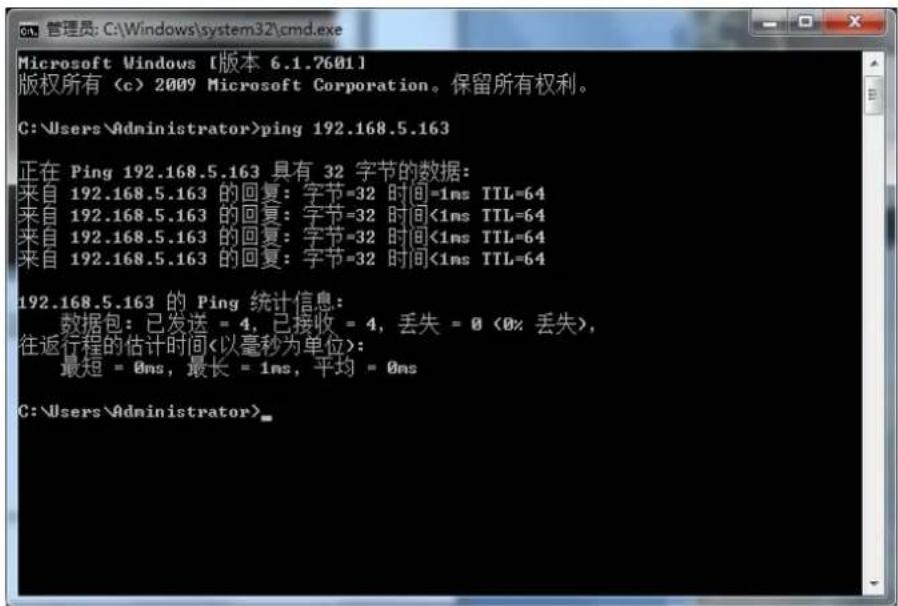
(D) Click "Start" and select "Run" and then type "cmd" in the computer; Click "OK" then turn on a DOS command window to enter ping 192.168.5.163. Press the Enter key to appear message as follows: Description network connection is normal
Copyright Notice:
All the contents of this manual and the copyright ownership belong to the company. Without the approval of the Company, no one can imitate, copy, reproduce or translate arbitrarily. This manual does not have any form of warranty, express or other imply. Specifications and information of this manual mentioned is just for informational purposes, and the content will be updated at any time without notice.
Copyright can not be reproduced.