
SP2200LCDRTXL2U - Inverter Bxterra - Free user manual and instructions
Find the device manual for free SP2200LCDRTXL2U Bxterra in PDF.


| Product Type | Uninterruptible Power Supply (UPS) |
| Model | SP2200LCDRTXL2U |
| Brand | Bxterra |
| Power Capacity | 2200 VA / 2200 W |
| Topology | Line-Interactive |
| Input Voltage | 230 VAC nominal |
| Output Voltage | 230 VAC ± 10% |
| Frequency | 50/60 Hz auto-sensing |
| Form Factor | Rackmount / Tower (2U) |
| Battery Type | Sealed Lead-Acid (SLA) |
| Typical Backup Time | Half load: ~15 min; Full load: ~5 min |
| Display | LCD status display |
| Communication Ports | USB, RS-232, EPO port |
| Protection | Surge protection, AVR, overload protection |
| Number of Outlets | 8 (battery-backed) + 2 (surge-only) |
| Weight | Approx. 28 kg |
| Dimensions (WxDxH) | 482 x 460 x 88 mm |
| Operating Temperature | 0-40°C |
| Certifications | CE, UL |
| Maintenance | Battery replacement, fan cleaning |
Frequently Asked Questions - SP2200LCDRTXL2U Bxterra
User questions about SP2200LCDRTXL2U Bxterra
0 question about this device. Answer the ones you know or ask your own.
Ask a new question about this device
Download the instructions for your Inverter in PDF format for free! Find your manual SP2200LCDRTXL2U - Bxterra and take your electronic device back in hand. On this page are published all the documents necessary for the use of your device. SP2200LCDRTXL2U by Bxterra.
USER MANUAL SP2200LCDRTXL2U Bxterra
SP2200LCDRT2U | SP2200LCDRTXL2U
SP1500LCDRT2U | SP1500LCDRTXL2U
SP1000LCDRT2U | SP1000LCDRTXL2U
www.bxterra.com
TABLE OF CONTENTS
WARRANTY & REGISTRATION.... 3
SAFETY INSTRUCTIONS.... 3-4
INSTALLATION & OPERATION...... 5-7
PRODUCT OVERVIEW.... 7-8
BATTERY REPLACEMENT...... 8-9
BATTERY KIT ASSEMBLY.... 9-10
BUTTON FUNCTIONS.... 10
LCD DISPLAY.... 11
AUDIBLE ALARMS.... 11
LCD DISPLAY WORD INDEX...... 11
UPS SETTINGS.... 12-14
FAULT CODES.... 15
WARNING INDICATORS.... 15
TROUBLESHOOTING.... 16
STORAGE AND MAINTENANCE.... 16
TECHNICAL SPECIFICATIONS.... 17-18
BATTERY PACK SPECIFICATIONS.... 18
WARRANTY INFORMATION...... 18
PRODUCT REGISTRATION
This bXterra product is constructed to provide unmatched power protection, quality and performance for the duration of its lifetime. Please take a few minutes to register your new product at www.bxterra.com/registration. Registration certifies your product's warranty, confirms your ownership in the event of a product loss or theft and entitles you to free technical support. Please register your product now to receive the benefits of bXterra ownership.
SAFETY
SAVE THESE INSTRUCTIONS: This manual contains important instructions that should be followed during installation and maintenance of the UPS and its batteries.
-
This unit is intended for installation in a controlled environment (a temperature-controlled and indoor area free of conductive contaminants). Please avoid installing the UPS in locations where there is standing or running water, dust, direct sunlight or excessive humidity.
-
Use caution when lifting the UPS. Because of the considerable weight of all rack-mount UPS systems, at least two people should assist in lifting and installing them.
-
Connect your UPS directly to a properly grounded AC power outlet with fuse or circuit breaker protection. Do not plug the unit into an outlet that is not grounded. Turn off and unplug the unit if you need to de-energize it.
-
For best performance, keep the indoor temperature around the unit between 32irc F and 104irc F ( 0irc C and 40irc C).
-
Do not attach medical equipment or non-computer related items, such as life-support equipment, microwave ovens or vacuum cleaners to the UPS. bXterra does not sell equipment meant for life-support or medical applications. Visit our website for more information about devices appropriate to plug into this UPS.
-
Only stand or set up the UPS in the direction specified in the Installation and Operation section of this manual. Do not block fans and leave adequate space around all sides of the UPS for proper ventilation. Do not expose the unit to direct sunlight and do not install the unit near heat-emitting appliances such as a space heater or furnace. This could negatively impact the unit's internal cooling system and cause product damage not covered under warranty.
-
As defined in the Protection of Information Technology Equipment ANSI/NFPA 75, this UPS is not for use in a computer room (US installations only). Contact bXterra to order a special battery kit if needed to meet the ANSI/NFPA 75 requirement.
-
When mounting the UPS system in a tower orientation, make sure the LCD screen panel is at the top of the UPS, not the bottom.
-
Do not plug the UPS input into its own output. Do not attach a power strip or surge protector to the UPS.
-
Do not modify the UPS's plug and do not use an adapter that would eliminate the UPS's ground connection.
-
Do not use extension cords to connect the UPS to an AC outlet.
-
The EPO and USB circuits are an IEC 60950-1 safety extra low voltage (SELV) circuit. This circuit must be separated from any hazardous voltage circuits by reinforced insulation.
-
If the UPS receives power from a motor-powered AC generator, the generator must provide clean, filtered, computer-grade output. Consult your generator's manual to see if it meets these specifications.
-
The main power outlet that supplies the UPS should be easily accessible and near the UPS.
-
To reduce the risk of fire or electric shock, do not use the unit on any transportation such as airplanes or ships. The effect of shock or vibration caused during transit and the damp environment can cause the unit to short out.
-
When installing the equipment, please ensure that the sum of the leakage current of the UPS and the connected devices does not exceed 3.5mA.
-
Do not disconnect the power cable on the UPS system or the building wiring outlet (grounded outlet) during operation since this would cancel the protective grounding of the UPS system and of all connected loads.
Battery Warnings:
- The UPS system operates with hazardous voltages. Repairs should only be performed by qualified maintenance personnel.
- Do not operate the UPS without batteries.
- Caution - risk of electric shock. Even after the unit is disconnected from the main power source, (building wiring outlet), components inside the UPS system are still connected to the battery and electrically live and dangerous.
- Before carrying out any kind of service and/or maintenance, disconnect the batteries and verify that no current is present and no hazardous voltage exists in the terminals of high-capability capacitors, such as BUS-capacitors.
- To avoid electrical shock, turn off the unit and unplug it from the AC power source before servicing the battery.
- Only persons who are adequately familiar with batteries and with the required precautionary measures may replace batteries and supervise operations. Unauthorized persons must be kept well away from the batteries.
- Do not dismantle the UPS during battery replacement.
- Caution - risk of electric shock. The battery circuit is not isolated from the input voltage. Hazardous voltages may occur between the battery terminals and the ground. Before touching, please verify that no voltage is present.
- When changing batteries, install the same number and same type of batteries.
- Do not attempt to dispose of batteries by burning them. This could cause an explosion.
- Do not open or destroy batteries. Escaping electrolytes can cause injury to the skin and eyes. It may be toxic.
A battery can may cause a risk of electrical shock and high short-circuit current. The following precautions should be observed when working on batteries:
a) Remove watches, rings, or other metal objects
b) Use tools with insulated handles
c) Wear rubber gloves and boots
d) Do not lay tools or metal parts on top of batteries
e) Disconnect charging source prior to connecting or disconnecting battery terminals
f) Determine if battery is inadvertently grounded. If inadvertently grounded, remove source from ground. Contact with any part of a grounded battery can result in electrical shock. The likelihood of such shock can be reduced if such grounds are removed during installation and maintenance.
- During hot-swap battery replacement, the UPS will not provide backup power in the event of a blackout or other power interruptions.
External Battery Connection Warnings:
When adding external battery packs to select models with external battery pack connectors, connect only bXterra battery packs of the correct voltage and type. Do not connect or disconnect battery packs when the UPS is operating on battery power. Visit www.bxterra.com to locate the supported battery type(s) for your UPS.
| MANUFACTURER TYPE RATING CASE FLAMMABILITY | |||
| HITACHI Battery (MH14533) GP 1272 12 V, 7.2 Ah HB | |||
| GP 1272 F2 12 V, 7.2 Ah HB | |||
| UPS 12360 6 12 V, 6.5 Ah HB | |||
| UPS 12360 7 12 V, 6.5 Ah HB | |||
| UPS 12460 12 V, 9 Ah V-0 | |||
| UPS 12460 FR 12 V, 8.5 Ah HB | |||
| HR 1234W 12 V, 8.5 Ah HB | |||
| HR 1234W FR 12 V, 8.5 Ah V-0 | |||
| UPS 12580 12 V, 9.4 Ah HB | |||
| UPS 12580 FR 12 V, 10 Ah V-0 | |||
| TAIWAN YUASA (MH28947) | NPW36-12 | 12 V, 7.0 Ah | HB |
| NPW36-12FR | 12 V, 7.0 Ah | V-0 | |
| UXW360-12 | 12 V, 7.0 Ah HB | ||
| UXW360-12FR | 12 V, 7.0 Ah | V-0 | |
| UXW460-12 | 12 V, 8.0 Ah HB | ||
| UXW460-12FR | 12 V, 8.0 Ah | V-0 | |
| NPW45-12 | 12 V, 7.5 Ah HB | ||
| NPW45-12FR | 12 V, 7.5 Ah | V-0 | |
| SHIMASTU (MH28269) | NP7-12 | 12 V, 7.0 Ah | V-0 |
| NP9.0-12 | 12 V, 9.0 Ah HB | ||
| FUJIAN MINHUA (MH47104) MS7-12 | 12 V, 7.0 Ah | V-0 | |
| MS9-12 | 12 V, 9.0 Ah HB | ||
| SHENZHEN CENTER POWER (MH25860) | CP1270 | 12 V, 7.0 Ah | HB |
| CP1290 | 12 V, 9.0 Ah HB | ||
| SHENZHEN LEOCH BATTERIES (MH26866) | DJW12-7.0 | 12 V, 7.0 Ah | HB |
| DJW12-7.0 FR | 12 V, 7.0 Ah V-0 | ||
| DJW12-9.0 | 12 V, 9.0 Ah HB | ||
| DJW12-9.0 FR | 12 V, 9.0 Ah V-0 | ||
| DJW12-10 12 V, 10 Ah HB | |||
| DJW12-10 FR | 12 V, 10 Ah | V-0 | |
| SHENZHEN RITAR POWER (MH28539) | RT1270 | 12 V, 7.0 Ah | HB |
| RT1290 | 12 V, 9.0 Ah HB | ||
INSTALLATION AND OPERATION
NOTE: Before installation, please inspect the unit. Be sure that nothing inside the package is damaged. Please keep the original package in a safe place for future use.
What's included in the box:
-
UPS System
-
Screws x 8
-
User Manual
-
Tower Stands x 4
-
USB A+B Type Cable
-
Phone Line Cable x 1
-
Ear Racks x 2
-
Serial Port Cable x 1
The UPS is shipped without the battery connected. Before installing the UPS, please follow the steps below to reconnect the battery wires.
STEP 1: Remove the front panel.

natural_image
Line drawing of a server rack unit with ventilation slots and a scroll arrow indicating rotation (no text or symbols)STEP 2: Connect the AC input and reconnect the battery wires.
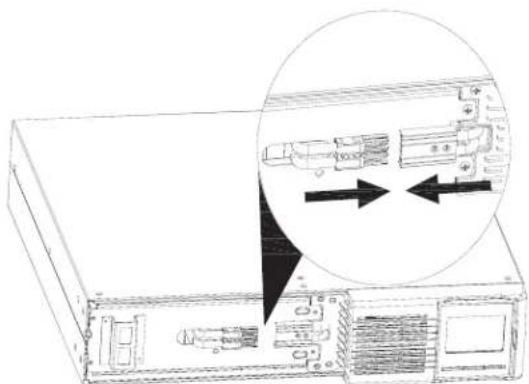
natural_image
Diagram of a server rack with two arrows pointing to internal components (no text or symbols)STEP 3: Put the front panel back on the unit.

natural_image
Technical line drawing of a server rack with ventilation ducts and heat exchangers (no text or symbols)Rack-mount Installation
CAUTION - Do NOT use the mounting brackets to lift the unit. The mounting brackets are only for securing the unit to the rack.
Install UPS alone

natural_image
Technical line drawing of a server rack unit with heat exchangers and ventilation ducts (no text or symbols)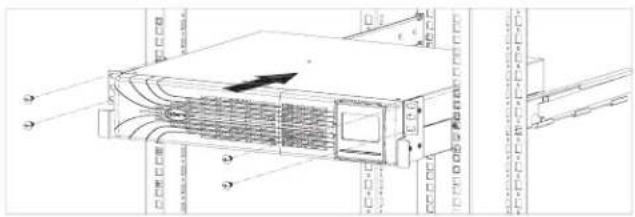
natural_image
Technical line drawing of a server rack unit with ventilation duct and ventilation ducts (no text or symbols)Install UPS and external battery

natural_image
Technical line drawing of a server rack with heat exchangers and ventilation ducts (no text or symbols)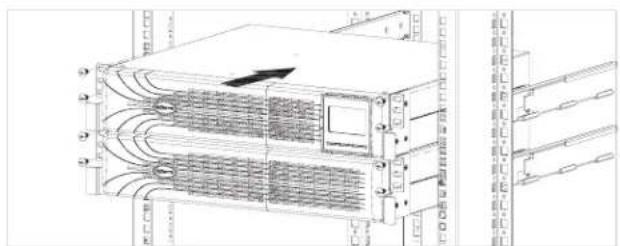
natural_image
Technical line drawing of a server rack unit with heat exchangers and ventilation ducts (no text or symbols)Tower Installation
STEP 1 STEP 2 STEP 3

flowchart
graph TD
    A["TOWER STAND"] --> B["SCREW Marts"]
    B --> C["Bottom"]

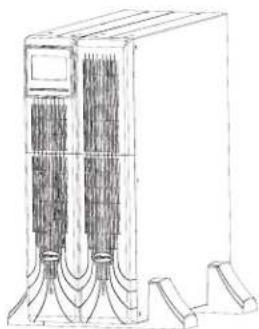
Install UPS and external battery in tower mode

flowchart
graph TD
    A["Raw Material Input"] --> B["Material Collection"]
    B --> C{Processing Step}
    C -->|Yes| D["Product Output"]
    C -->|No| E["End"]
natural_image
Technical line drawing of a server rack unit with cooling fins and mounting feet (no text or symbols)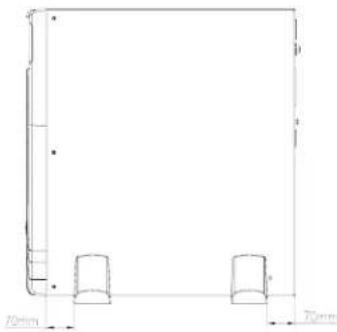
natural_image
Technical line drawing of a rectangular frame with two cylindrical cutouts, dimension labels 70mm and 70mm (no text or symbols beyond measurement markers)NOTE: When setting up the UPS and/or EBM with tower stands, please ensure the tower stands are installed a distance of 70mm away from the edge of the unit.
INSTALLATION AND OPERATION CONTINUED
Set Up The UPS
Step 1: UPS input connection
Plug the UPS into a 2-pole, 3-wire, grounded receptacle (wall outlet) only.
Step 2: UPS output connection
There two types of outputs: Critical outlets and Noncritical outlets. Please connect noncritical loads to the Noncritical outlets and critical loads to the Critical outlets.
Step 3: Communication connection
Communication ports:
To allow for unattended UPS shutdown/start-up and status monitoring, connect one end of the communication cable to the USB/RS-232 port and the other end to the communication port of your PC. With the monitoring software installed,
USB RS-232 PORT NETWORK SLOT


natural_image
Blank rectangular frame with two small circular symbols at the top corners (no text or labels)you can schedule UPS shutdown/start-up and monitor UPS status through the PC.
The UPS is equipped with a network slot for either the SNMP or AS400 card. After installing either the SNMP or AS400 card in the UPS, it will provide advanced communication and monitoring options.
Note: The USB port and RS-232 port can't work at the same time.
Step 4: Network connection
NETWORK/FAX/PHONE SURGE PORT

Connect a single modem/phone/fax line into the surge-protected "IN" outlet on the back panel of the UPS unit. Connect from "OUT" outlet to the equipment with another modem/fax/phone line cable.
Step 5: Disable and enable EPO function
This UPS is equipped with EPO (Emergency Power off) function. By default, the UPS is delivered from the factory with Pin 1 and Pin 2 closed (a metal plate is connected to Pin 1 and Pin 2) for UPS normal operation. To activate EPO function, remove two screws on the EPO port and the green connector will be removed. As a default, the EPO function is closed during normal UPS operation.
Note: The EPO function logic can be set up via an LCD setting. Please refer to Program 7 in the UPS setting for details.
To activate the EPO function, remove these two screws.
As a default, the EPO function is closed during normal UPS operation.

Step 6: Externed battery module connection
Connect one end of the external battery cable to the UPS unit and the other end to the battery module. See the chart below for detailed instructions.
CAUTION: Connection to an external battery should be installed by service personnel only.
NOTE: If connecting more than one Extended Battery Module, make sure to connect the load at 80% of the UPS's capacity.

flowchart
graph TD
    A["UPS"] --> B["EBM"]
    B --> C["EBM"]
    C --> D["Next Port"]
    style A fill:#f9f,stroke:#333
    style B fill:#ccf,stroke:#333
    style C fill:#cfc,stroke:#333
To connect an Extended Battery Module:
- Turn off the UPS utility input.
- Open the front-left cover on the UPS and the Extended Battery Module (EBM) and disconnect the internal batteries.
- Remove the EBM-terminal covers from the UPS and the EBM and connect one end of the external-battery cable to the UPS and one end to the battery cabinet as shown in the figure above.
- If connecting more than one external battery, connect one end of the external battery cable to the second connector on the battery module, then connect the other end to the next battery module as shown in the figure above.
- Once the UPS and EBM(s) are connected, secure the connection with the screws, reconnect the internal batteries, and replace the front-left covers on the units.
NOTE: After install and initial start-up, set the number of installed battery modules in the UPS Settings.
NOTE: When 2 or more external battery modules are used with bXterra SP1000/2200/3000 series models, the UPS load rating is decreased by 20%.
Step 7: Turn on the UPS
Press the ON/Mute button on the front panel for two seconds to power on the UPS.
Note: The battery charges fully during the first five hours of normal operation. Do not expect full battery capability during this initial charge period.
Step 8: Install software
For optimal computer system protection, install UPS monitoring software to fully configure UPS shutdown and operation. Please follow steps below to download and install the monitoring software:
- Go to the website http://www.bxterra.com/downloads
- Click PowerFrame™ software icon and then choose your required OS to download the software
- Follow the on-screen instructions to install the software
- When your computer restarts, the monitoring software will appear as a Green "X" icon located in the system tray
AUTOMATIC VOLTAGE REGULATOR
The SP Smart Sine Wave UPS series adjusts inconsistent utility power to normal levels that are safe for your equipment. The AVR feature of this UPS can take erratic incoming utility power and correct it to safe levels. AVR automatically increases utility power that is too low or decreases utility power that is too high to a consistent 110 or 120 volts.
PRODUCT OVERVIEW
Introduction
Thank for choosing a bXterra Uninterruptible Power Supply. This UPS system is ENERGY STAR®-certified and uses our GreenTech™ Bypass Design to consume less power, reduce heat and improve UPS operation.
The SP Smart Sine Wave UPS series provides protection from utility power that may not always be safe for your devices. Each unit provides 1,372 Joules of surge suppression and supplies battery backup during power disruptions using maintenance-free batteries. Each SP Series model ensures consistent power to your connected equipment and critical devices. Each model also comes with access to PowerFrame™ Business Edition management software to remotely set up and manage your bXterra UPS.
SP1000LCDRT2U | SP1000LCDRTXL2U | SP1500LCDRT2U | SP1500LCDRTXL2U

SP2200LCDRT2U | SP2200LCDRTXL2U

SP3000LCDRT2U | SP3000LCDRTXL2U

- Noncritical outlets Connect noncritical loads to these outlets. These outlets are programmable.
- Critical outlets
Connect critical loads to these outlets. These outlets are not programmable. -
AC input
Plug in the main power cord for the UPS here. -
Input circuit breaker
This breaker provides overload and fault protection. If it trips, remove some of the load then reset it by pressing it in.
- Network/Fax/Modem surge protection
These ports protect equipment from surges over a single phone line or network connection.
- Emergency Power Off function connector (EPO)
This connector allows for the installation of an EPO function, a feature which allows for a rapid turn-off of the UPS in case of an emergency.
- USB communication port
This port connects the UPS to any computer to download the UPS-monitoring software, PowerFrame™. Instructions for this can be found in the Installation section of this manual.
- RS-232 communication port
This port allows for the connection of devices via the RS-232 protocol.
- SNMP network slot
This port allows for installation of either the SNMP or AS400 card. These cards will provide advanced communication and monitoring options for the UPS.
- External battery connector (only available for the XL model)
Allows for the connection of bXterra External Battery Modules to provide additional power and battery backup.
- Output Circuit Breaker (only available on the SP3000 & SP3000XL models) These resettable circuit breakers provide output outlets with protection from overload.
OPERATING PRINCIPLE
The operating principle of the UPS is shown below.

flowchart
graph TD
    A["Input"] --> B["EMI/RFI Filters"]
    B --> C["AVR TX"]
    C --> D["Inverter"]
    D --> E["Output"]
    B --> F["Battery Charger"]
    F --> G["Battery"]
    D --> H["DC-to-DC Converter"]
    H --> I["Output"]
The UPS is composed of Power Input, EMI/RFI Filters, Inverter, Battery Charger, DC-to-DC Converter, Battery, AVR TX and UPS Output.
CERTIFICATIONS
NOTE: This equipment has been tested and found to comply with the limits for a Class B digital device, pursuant to Part 15 of the FCC Rules. These limits are designed to provide reasonable protection against harmful interference in a residential installation. This equipment generates uses and can radiate radio frequency energy and, if not installed and used in accordance with the instructions, may cause harmful interference to radio communications. However, there is no guarantee that interference will not occur in a particular installation. If this equipment does cause harmful interference to radio or television reception, which can be determined by turning the equipment off and on, the user is encouraged to try to correct the interference by one or more of the following measures:
- Reorient or relocate the receiving antenna
- Increase the separation between the equipment and receiver
- Connect the equipment into an outlet on a circuit different from that to which the receiver is connected
- Consult an experienced radio/TV technician for help
WARNING: Changes or modifications not expressly approved by the party responsible for compliance could void the user's authority to operate the equipment.
Our GreenTech™ UPS Bypass Design strives to deliver better operating performance while using less power required by other uninterruptible power supplies. The technology inside a bXterra UPS allows current to bypass the transformer and automatic voltage regulation (AVR) when utility power is running normally, reducing energy consumption. This can lead to substantial energy savings when utility power is running normally on a consistent basis.
At bXterra, we want you to know that you're not only protecting your devices and equipment when purchasing our products, but you're protecting the environment as well. Aside from being ENERGY STAR®-compliant, we are committed to and supporters of the Restriction of Hazardous Substances (RoHS) directive, which strictly limits the use of six hazardous substances (lead, mercury, cadmium, hexavalent chromium, polybrominated biphenyls (PBBs) and polybrominated diphenyl ether (PBDE)) in electrical equipment.


RoHS
BATTERY REPLACEMENT ADVISORY
When the icon and are flashing on the LCD display and the alarm is sounding every two seconds, the batteries may need replacing. Contact your service representative to order new batteries.
NOTE: DO NOT DISCONNECT the batteries while the UPS is in Battery mode.
Batteries can be replaced easily without turning the UPS off or disconnecting the load. If you prefer to remove input power to change the batteries, press the OFF button on the front panel for two seconds to power off the UPS and switch the utility power off where the UPS is connected.
BATTERY REPLACEMENT
NOTE: A small amount of arcing may occur when connecting the internal batteries. This is normal and will not harm personnel. Connect the cables quickly and firmly.
STEP 1: Remove the front panel.

natural_image
Line drawing of a computer drive chassis with ventilation slots and a scroll arrow indicating rotation (no text or symbols)STEP 2: Disconnect battery wires.

natural_image
Technical line drawing of a server rack with internal components and bidirectional arrows indicating movement (no text or symbols)STEP 3: Pull out the battery box by removing two screws on the front panel.

natural_image
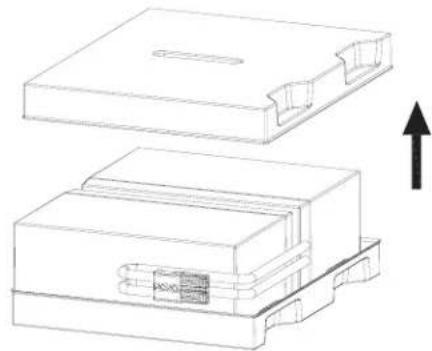
Line drawing of a computer chassis with two arrows indicating downward motion (no text or symbols)STEP 4: Remove the top cover of the battery box and replace the internal batteries.
natural_image
Technical line drawing of a mechanical component with an upward arrow indicating motion (no text or symbols present)BATTERY REPLACEMENT CONTINUED
STEP 5: After replacing the batteries, put the battery box back to its original location and screw it in tightly.

natural_image
Technical line drawing of a computer chassis with arrows indicating assembly or component (no text or symbols present)STEP 6: Reconnect the battery wires.

natural_image
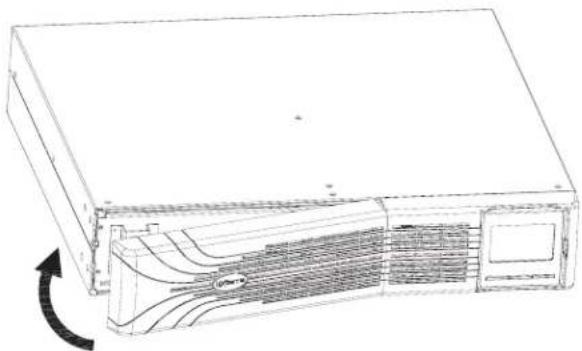
Technical line drawing of a server rack with internal components and directional arrows indicating movement (no text or symbols)STEP 7: Put the front panel back on the unit.
natural_image
Line drawing of a server rack unit with ventilation grilles and a scroll wheel (no text or symbols)BATTERY KIT ASSEMBLY (OPTIONAL)
NOTE: Please assemble the battery kit first before installing it inside of the UPS. Please select the correct battery kit procedure below to assemble it.
2 BATTERY KIT
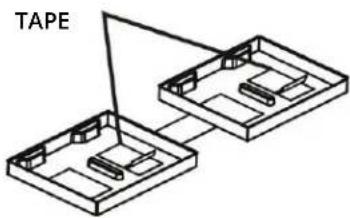
STEP 1: Remove the adhesive tape.
STEP 2: Connect all battery terminals by following the picture below.

natural_image
Simple line drawing of two batteries connected by a wire, with no text or symbols present.STEP 3: Put assembled battery packs on one side of the plastic shells as shown below.

natural_image
Technical line drawing of a mechanical assembly with housing and wiring (no text or symbols)STEP 4: Cover the other side of the plastic shell as shown in the picture below. The battery kit assembly is now completed.
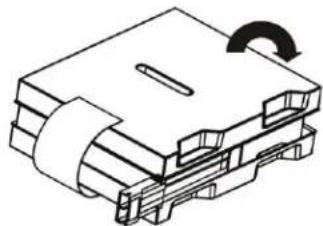
natural_image
Isometric line drawing of a mechanical component with a curved arrow indicating rotation (no text or symbols)4 BATTERY KIT
STEP 1: Remove the adhesive tape.

STEP 2: Connect all battery terminals by following the picture below.

natural_image
Isometric line drawing of a battery pack with a terminal connector (no text or symbols)BATTERY KIT ASSEMBLY CONTINUED
STEP 3: Put assembled battery packs on one side of the plastic shells as shown below.

natural_image
Technical line drawing of a mechanical assembly with two components and directional arrows indicating motion (no text or symbols)STEP 4: Cover the other side of the plastic shell as shown in the picture below. The battery kit assembly is now completed.

natural_image
Diagram of a mechanical device with a rotating arrow and attached components (no text or symbols)6 BATTERY KIT
STEP 1: Remove the adhesive tape.

STEP 2: Put assembled battery packs on one side of the plastic shells as shown below.

natural_image
Isometric line drawing of a mechanical assembly with housing and components, showing no text or symbolsSTEP 3: Connect all battery terminals by following the picture below.

natural_image
Isometric line drawing of a battery pack with terminal connections and a terminal connector (no text or symbols)STEP 4: Cover the other side of the plastic shell as shown in the picture below. The battery kit assembly is now completed.

natural_image
Diagram of a mechanical assembly with a curved arrow indicating rotation or force (no text or symbols present)BUTTON FUNCTIONS

BUTTON FUNCTION
| ON/MUTE • Turn on the UPS: Press and hold ON/Mute buttonfor at least two seconds to turn on the UPS.Mute the alarm: After the UPS is turned on inBattery Mode, press and hold this button for atleast three seconds to disable or enable the alarmsystem. Note: This will not work when warnings oerrors occur.Up key: Press this button to display the previousselection in UPS Setting Mode.Switch to UPS Self-Test Mode: Press and hold ON/Mute button for three seconds to enter UPS self-testing while in AC Mode. | |
| SELECT • Switch LCD message: Press this button tochange the LCD message for input voltage, Inputfrequency, battery voltage, output voltage andoutput frequency.Setting Mode: Press and hold this button for threeseconds to enter UPS Setting Mode when the UPSis off .Down key: Press this button to display the nextselection in UPS Setting Mode. | |
| OFF/ENTER • Turn off the UPS: Press and hold this button atleast three seconds to turn off the UPS.Confi rm selection key: Press this button toconfi rm the selection in UPS Setting Mode. | |
| ON/Mute + Select • Exit Setting Mode or return to the upper menu:When working in Setting Mode, press the ON/Mute and Select buttons simultaneously to returnto the main menu. If you are already at the mainmenu, press these two buttons at the same timeto exit the Setting Mode. |
LCD DISPLAY

DISPLAY FUNCTION
| Backup time information | |
| Indicates the estimated backup time.H: hours, M: minute, S: second. | |
| Configuration and fault information | |
| Indicates the configuration items. The configuration items are listed in detail in theUPS Settingssection of the manual. | |
| Indicates the warning and fault codes. The codes are listed in detail in theFault Codessection of the manual. | |
| Mute operation | |
| Indicates that the UPS alarm is disabled. | |
| Input, Battery, Output & Load information | |
| Indicates the input voltage, input frequency, battery voltage, battery capacity, output voltage, output frequency, load current and load percentage.k: kilo, W: watt, V: voltage, A: ampere, %: percent, Hz: frequency | |
| Load information | |
| Indicates the load level by 0-24%, 25-49%, 50-74% and 75-100%. | |
| Indicates overload. | |
| Programmable/Noncritical outlets information | |
| Indicates that programmable management outlets are working. | |
| Indicates the UPS is connected to main power. | |
| Indicates the battery is working. | |
| Indicates charging status. | |
| Indicates the ECO Mode is enabled. | |
| Indicates the UPS is working in Boost Mode. | |
| Indicates the UPS is working in Buck Mode. | |
| Indicates the AC to DC circuit is working. | |
| Indicates the inverter circuit is working. | |
| Indicates the output is working. | |

DISPLAY FUNCTION
| Battery information | ||
| [$22A] | Indicates the battery level by 0-24%, 25-49%, 50-74%, and 75-100%. | |
| — | ||
| (tower) | Indicates low battery. | |
AUDIBLE ALARMS
| Battery Mode Beeping every 10 seconds | |
| Low Battery Beeping every two seconds | |
| Overload Beeping every second | |
| Fault Continuously beeping |
LCD DISPLAY WORD INDEX
| Abbreviation Display Content Meaning | |||
| ENA |  | Enable | |
| DIS | Disable | ||
| ESC |  | Escape | |
| AO/AC | Active Open/Active Close | ||
| ST/1/2/3 | St 1/St2/St3 | Input Waveform Sensitivity 1/2/3 | |
| AUT/AON Automatic/AIWA |  | ||
| OK |  | OK | |
| ON | ON | ||
| BL |  | Battery Low | |
| OL | Overload | ||
| NC |  | Battery Not Connected | |
| OC | Overcharge | ||
| SF |  | Site Fault | |
| EP | EPO | ||
| TP |  | Temperature | |
| CH | Charger | ||
| BF |  | Battery Fault | |
| BR | Battery Replacement | ||
| EE | EE | EEPROM error | |


There are two parameters to set up the UPS.
Parameter 1 is used for program alternatives.
Refer to the following LCD illustrations.
Parameter 2 is for setting options or values for each program.
01: OUTPUT VOLTAGE SETTING
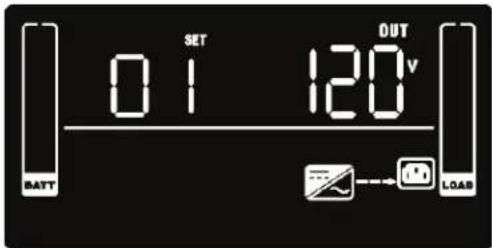
SETTING
Parameter 2: Output voltage
For 120VAC models, you may choose the following output voltage:
100: presents output voltage is 100VAC
110: presents output voltage is 110VAC
115: presents output voltage is 115VAC
120: presents output voltage is 120VAC (Default)
125: presents output voltage is 125VAC
02: PROGRAMMABLE/NONCRITICAL OUTLETS ENABLE/DISABLE
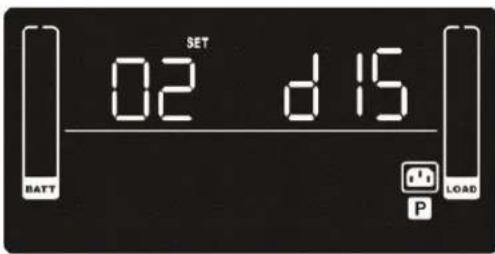
SETTING
Parameter 2: Enable or disable programmable outlets.
ENA: Programmable outlets enabled
DIS: Programmable outlets disabled (Default)
03: PROGRAMMABLE OUTLETS SETTING
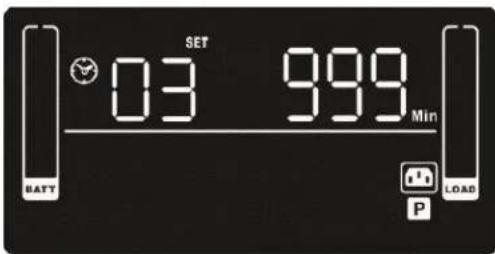
SETTING
Parameter 2: Set up backup time limits for programmable outlets.
0-999: setting the backup time limits in minutes from 0-999 for programmable outlets which connect to noncritical devices on Battery Mode. (Default: 999)
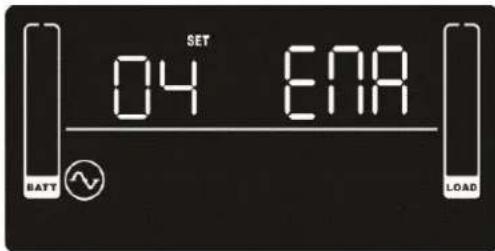
04: SITE FAULT DETECTION ENABLE/DISABLE
SETTING
Parameter 2: Enable or disable site fault detection. You may choose the following two options:
ENA: Site fault detection enable (Default)
DIS: Site fault detection disable
05: AUTONOMY LIMITATION SETTING

SETTING
Parameter 2: Set up backup time on Battery Mode for all outlets.
0-999: setting the backup time in minutes from 0-999 for all outlets on Battery Mode.
DIS: By default, the autonomy limitation is disabled. Battery backup time will depend on battery capacity.
Note: When the setting is "0", the backup time will be only 10 seconds.
06: BATTERY TOTAL AH SETTING

SETTING
Parameter 2: Set up the battery total AH of the UPS.
7-999: Setting the battery total capacity from 7-999 in AH. Please set the correct battery total capacity if Extended Battery Module is connected.
07: EPO LOGIC SETTING

SETTING
Parameter 2: Set up the EPO function control logic.
AO: Active Open (Default). When AO is selected as EPO logic, it will activate EPO function with Pin 1 and Pin 2 in open status.
AC: Active Close. When AC is selected as EPO logic, it will activate EPO function with Pin 1 and Pin 2 in closed status.
08: INPUT WAVEFORM SENSITIVITY SETTING

SETTING
Parameter 2: Set Input Waveform Sensitivity.
St1: Input voltage waveform detection sensitivity is high. (Default)
St2: Input voltage waveform detection sensitivity is average.
St3: Input voltage waveform detection sensitivity is low. (Use with generators or step wave input)
09: LCD DISPLAY BACKLIGHT SETTING

SETTING
Parameter 2: Set up the working conditions for the LCD display backlight.
Aon: LCD display backlight is on all the time.
Aut: LCD display backlight will turn off after 60 seconds of receiving no input. (Default)
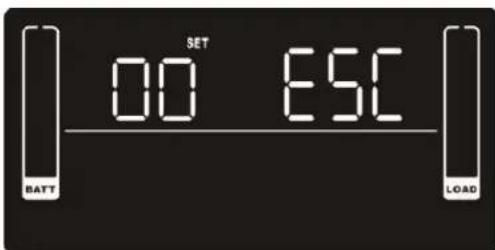
00: EXIT SETTING
SETTING
Exit the Setting Mode.
STEPS FOR SETTING PROGRAMMABLE/NONCRITICAL OUTLETS
Step 1:
Before entering Setting Mode, the UPS should be in Standby Mode (off-charging) and make sure the battery is connected. The LCD display is shown below.

Step 2:
Press and hold the "Selection" button for three seconds to enter Setting Mode.

Step 3:
Press the "Up" button (ON/MUTE) to switch to "02" of program list. Then press "Enter" button to enter value setting of Parameter 2. Press the "Up" button to change the value to "ENA" to enable the programmable outlet function. Then press "Enter" button again to confirm the setting.

Step 4:
Press the "Up" button (ON/MUTE) again to switch to "03" of program list. Then press "Enter" button for setting programmable outlet time. Push "Up" button to change the value of backup time according to your demand. Then press "Enter" to confirm the setting.

Step 5:
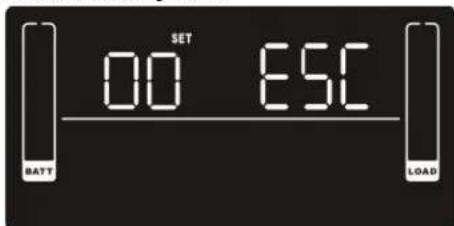
Press "Up" button (ON/MUTE) to switch to "00" of program list. Then press "Enter" button to exit the setting menu.
Step 6:
Disconnect AC input and wait until the LCD display is off. The new setting will be activated when turning on the UPS again.
OPERATING MODE DESCRIPTION
| OPERATING MODE DESCRIPTION LCD DISPLAY | ||
| ECO mode When the input voltage is within voltage regulated range, the UPS will power the output directly from the main power source. ECO is an abbreviation of Efficiency Corrective Optimizer. In this mode, when the battery is fully charged, the fan will stop working to save energy. |  | |
| Buck Mode when AC power is normal When the input voltage is higher than the voltage regulation range but lower than the high-loss point, the buck AVR will be activated. |  | |
| Boost Mode when AC power is normal When the input voltage is lower than the voltage regulation range but higher than the low-loss point, the boost AVR will be activated. |  | |
| Battery Mode The UPS will supply backup power from the battery and display estimated remaining runtime, in minutes, when the input voltage is beyond the acceptable range or a power failure occurs. | 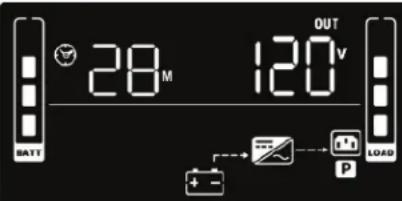 | |
| Standby Mode The UPS is powered off and is not supplying output power, but is still charging its batteries. |  | |
| Fault Mode When a fault occurs, the ERROR icon and the fault code will be displayed. | 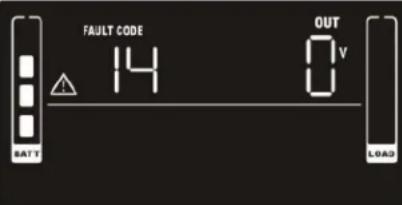 | |
FAULT CODES
FAULT EVENT FAULT CODE ICON
| Bus start fail 01 X | ||
| Bus over 02 X | ||
| Bus under 03 X | ||
| Inverter soft start fail 11 X | ||
| Inverter voltage high 12 X | ||
| Inverter voltage low 13 X |
FAULT EVENT FAULT CODE ICON
| Inverter output short 14 X | |||
| Battery voltage too high 27 X | |||
| Battery voltage too low 28 X | |||
| Over temperature | 41 X | ||
| Overload | 43 |  | |
| Charger failure | 45 X | ||
WARNING INDICATORS
WARNING ICON (FLASHING) CODE ALARM
| Low battery Beeping every two |  | [x3wz] | |
| Overload |  |  | Beeping every second |
| Battery is not connected |  |  | Beeping every two seconds |
| Overcharge |  |  | Beeping every two seconds |
| Site wiring fault |  |  | Beeping every two seconds |
| EPO enable |  |  | Beeping every two seconds |
| Over temperature |  |  | Beeping every two seconds |
| Charger failure |  |  | Beeping every two seconds |
| Battery fault |  |  | Beeping every two seconds |
| Battery replacement |  |  | Beeping every two seconds(At this time, the UPS is off to remind users something is wrong with the battery) |
| EEPROM error Beeping every two |  |  |
NOTE: "Site Wiring Fault" function can be enabled/disabled via our software. Please check the software manual for details.
TROUBLESHOOTING
If the UPS system does not operate correctly, please refer to the table below.
| SYMPTOM POSSIBLE CAUSE REMEDY | ||
| The UPS is not functioning and shows no error indications even though the main power source is functioning normally | The AC input power connection is not connected properly | Check if the input power cord is firmly connected to the main power source |
| The AC input is connected to the UPS output Plug the AC input power cord to the AC input correctly | ||
| The icon and the warning code are flashing on the LCD display and the alarm is beeping every two seconds | The EPO function is activated | Set the circuit in the closed position to disable the EPO function |
| The icon, and the warning code are flashing on the LCD display and the alarm is beeping every two seconds | The line and neutral conductors of the UPS input are reversed | Rotate the main power socket by 180° and then connect it to the UPS system |
| The icon, and the warning code are flashing on the LCD display and the alarm is beeping every two seconds | The external or internal battery is incorrectly connected | Check if the batteries are connected properly |
| The fault code is shown as 27 on the LCD display and the alarm is continuously beeping | The battery voltage is too high or the charger is faulty | Contact bXterra Technical Support |
| The fault code is shown as 28 on the LCD display and alarm is continuously beeping | The battery voltage is too low or the charger is faulty | Contact bXterra Technical Support |
| The icon, and the warning code are flashing on LCD display and the alarm is beeping every second | The UPS is overloaded Remove excess loads from the UPS output | UPS output |
| The fault code is shown as 43 and the icon is lit on the LCD display. The alarm is continuously beeping. | The UPS shut down automatically because of an overload at the UPS output | Remove excess loads from the UPS output and restart it |
| The fault code is shown as 14 and the alarm is continuously beeping | The UPS shut down automatically because a short circuit occurred on the UPS output | Check output wiring and if the connected devices are in short circuit status |
| The fault code is shown as 01, 02, 03, 11, 12, 13 and 41 on the LCD display and the alarm is continuously beeping | A UPS internal fault has occurred Contact bXterra Technical Support | |
| Battery backup time is shorter than expected | The batteries are not fully charged | Charge the batteries for at least five hours and then check capacity. If the problem persists, contact bXterra Technical Support. |
| The batteries are defective Contact bXterra Technical Support for replacement batteries | ||
| The fault code is shown as 45 on the LCD display. At the same time, the alarm is continuously beeping. | The charger does not have output and the battery voltage is less than 10V/PC | Contact bXterra Technical Support |
STORAGE AND MAINTENANCE
The UPS system contains no user-serviceable parts. If the battery service life (3\~5 years at 77°F ambient temperature) has been exceeded, the batteries must be replaced. In this case, please contact your dealer.
Before storing, charge the UPS at least five hours. Store the UPS covered and upright in a cool, dry location. During storage, recharge the battery in accordance with the following table:
| STORAGE TEMPERATURE RECHARGE FREQUENCY CHARGING DURATION | ||
| -13°F - 104°F | Every three months | 1-2 hours |
| 104°F - 113°F | Every two months | 1-2 hours |
TECHNICAL SPECIFICATIONS
| MODEL | SP1000LCDRT2U | SP1000LCDRTXL2U | SP1500LCDRT2U | SP1500LCDRTXL2U | SP2200LCDRT2U | SP2200LCDRTXL2U | SP3000LCDRT2U | SP3000LCDRTXL2U |
| Topology Line Interactive | ||||||||
| INPUT | ||||||||
| Voltage 120 VAC | ||||||||
| Frequency Range 50/60Hz (auto-sensing) | ||||||||
| Input Voltage Range 81-152VAC | ||||||||
| Plug Type NEMA 5-15P, 16 AWG NEMA 5-15P, 14 AWG NEMA 5-20P, 12 AWG NEMA L5-30P, 10 AWG | ||||||||
| Plug Style Straight Type | ||||||||
| Cord Length 10ft | ||||||||
| OUTPUT | ||||||||
| VA 1000VA 1500VA 1920VA 3000VA | ||||||||
| Watts 990W 1350W 1920W 2700W | ||||||||
| Automatic Voltage Regulation | Boost +15% / Buck -13% | |||||||
| On Battery Voltage | 120 VAC ± 1.5% | |||||||
| On Battery Frequency | 50/60 Hz ± 0.1 Hz | |||||||
| On Battery Wave Form | Pure Sine Wave | |||||||
| Outlet Type | NEMA 5-15R | NEMA 5-15R | NEMA 5-20R | NEMA 5-20/30R | ||||
| Outlet Total | 8 | 8 | 8 | 7 | ||||
| Battery and Surge Protected | 8 | 8 | 8 | 7 | ||||
| Outlets - Critical Load | 4 | 4 | 4 | 4 | ||||
| Load Management Receptacles | 4 | 4 | 4 | 3 | ||||
| Overload Protection | Firmware / Circuit Breaker | |||||||
| Transfer Time | 4ms Typical | |||||||
| BATTERY | ||||||||
| Runtime at Half Load | 10.2 minutes | 12.5 minutes | 12 minutes | 12 minutes | ||||
| Runtime at Full Load | 2.9 minutes | 4.4 minutes | 4 minutes | 3.7 minutes | ||||
| Battery Type | Leakproof Sealed Lead-Acid | |||||||
| Battery Size | 12V/9AH | 12V/7AH | 12V/7AH | 12V/9AH | ||||
| Battery Quantity | 2 | 4 | 6 | 6 | ||||
| User Replaceable | Yes | |||||||
| DC System Voltage (VDC) | 24VDC | 48VDC | 72VDC | 72VDC | ||||
| Typical Recharge Time | 4 hours | |||||||
| Extended Runtimes Available | N/A | Yes | N/A | Yes | N/A | Yes | N/A | Yes |
| SURGE PROTECTION & FILTERING | ||||||||
| Surge Suppression | 1372 Joules on UL report (Maximum) | |||||||
| Phone Protection RJ11/Ethernet RJ45 | 1-In, 1-Out | |||||||
| EMI/RFI Filtration | Full time multi-pole noise filtering: 5% IEEE surge let-through: zero clamping response time: meets UL 1449 | |||||||
| MANAGEMENT & COMMUNICATIONS | ||||||||
| Multifunction LCD Panel | Displays: Load/Level, Runtime, Battery Level, Battery In Use, Input Voltage, Output Voltage, Output Frequency, Overload, Wiring Fault, Battery Voltage, Silent Mode, Normal Mode | |||||||
| HID Compliant USB Port | Yes | |||||||
| Serial Port | Yes | |||||||
| EPO Port | Yes | |||||||
| Management Cable | USB Cable, Serial Cable, EPO Cable(optional) | |||||||
| Audible Alarms | Battery Mode, Low Battery, Overload, Fault | |||||||
| Software | PowerFrameTM UPS Management Software | |||||||
| SNMP / HTTP Remote Monitoring | Power management from SNMP Manager and web browser (optional) | |||||||
| PHYSICAL | ||||||||
| Form Factor Rack/Tower | ||||||||
| Rack Size 2U | ||||||||
| Dimensions (in) | 17.24 × 3.46 × 16.14 | 17.24 × 3.46 × 20.08 | 17.24 × 3.46 × 24.80 | 17.24 × 3.46 × 24.80 | ||||
| Weight (lbs) 29.5 41.4 61,1 64.6 | ||||||||
| ENVIRONMENTAL | ||||||||
| Operating Temperature 32°F to 104°F / 0°C to 40°C | ||||||||
| Storage Temperature -13°F to 113°F / -25°C to 50°C | ||||||||
| Operating Humidity 0% - 95%RH@32-104°F (0-40°C) non-condensing | ||||||||
| Storage Relative Humidity | 0 to 95% | |||||||
| Maximum Operating Elevation | 10,000 ft / 3,000 m | |||||||
| Maximum Storage Elevation | 50,000 ft / 15,000 m | |||||||
| Audible Noise <45dB | ||||||||
| AC Mode Thermal Dissipation | 141 BTU/Hr 192 BTU/Hr | 224 BTU/Hr 315 BTU/Hr | ||||||
| CERTIFICATIONS | ||||||||
| Safety cULus, FCC Part 15 Class B, ENERGY STAR® Qualified | ||||||||
| Environmental RoHS Compliant | ||||||||
| WARRANTY | ||||||||
| Product Warranty | 3 Year Limited | |||||||
| Connected Equipment Guarantee | Yes | |||||||
Product specifications are subject to change without prior notice
EXTENDED BATTERY MODULE SPECIFICATIONS
| MODEL | BP24V-SP2U | BP48V-SP2U | BP72V-SP2U |
| Used with UPS Models | SP1000LCDRTXL2U | SP1500LCDRTXL2U | SP2200LCDRTXL2U/SP3000LCDRTXL2U |
| Battery Type | 12V/9Ah | 12V/9Ah | 12V/9Ah |
| DC System Voltage(VDC) | 24VDC | 48VDC | 72VDC |
| Rack Size | 2U | 2U | 2U |
| Battery Numbers | 4 | 8 | 12 |
| Dimensions (in) | 17.24 x 3.46 x 16.14 | 17.24 x 3.46 x 20.08 | 17.24 x 3.46 x 24.8 |
| Weight (lbs) | 37.7 | 63.93 | 90.83 |
NOTE: To avoid potential problems with the UPS and/or EBM, please use the appropriate Extended Battery Module when connecting to the UPS.
WARRANTY INFORMATION
Your bXterra product comes with a Limited 3-Year Warranty. bXterra warrants this product, if used appropriately and in full accordance with all applicable instructions, to be free from original defects in material and workmanship for 3 years from the date of initial purchase. If the product can be proven defective in material or workmanship during that 3-year period, bXterra will, subject to the full terms and limitations of the product's Limited Warranty available on our website, repair or replace that product. bXterra will act on its own discretion as the sole remedy for bXterra's breach of its Limited Warranty. Full details of this Limited Warranty and bXterra's Connected Equipment Guarantee can be found on our website at www.bxterra.com/warranty or at the individual product's page on our website. Please register your product at www.bxterra.com/registration to certify your product's warranty.
This manual is believed to be accurate, but bXterra reserves the right to change or correct the contents of this manual at a later date and does not assume any responsibility for omissions or errors.
All content is owned by Bxterra Power Technology. All Rights Reserved. Reproduction is prohibited without permission. www.bxterra.com.
- TABLE OF CONTENTS
- PRODUCT REGISTRATION
- SAFETY
- Battery Warnings:
- External Battery Connection Warnings:
- INSTALLATION AND OPERATION
- What's included in the box:
- STEP 1: Remove the front panel.
- STEP 2: Connect the AC input and reconnect the battery wires.
- STEP 3: Put the front panel back on the unit.
- Rack-mount Installation
- Install UPS alone
- Install UPS and external battery
- INSTALLATION AND OPERATION CONTINUED
- Set Up The UPS
- Step 1: UPS input connection
- Step 2: UPS output connection
- Step 3: Communication connection
- Step 5: Disable and enable EPO function
- Step 6: Externed battery module connection
- Step 7: Turn on the UPS
- Step 8: Install software
- AUTOMATIC VOLTAGE REGULATOR
- PRODUCT OVERVIEW
- Introduction
- OPERATING PRINCIPLE
- CERTIFICATIONS
- BATTERY REPLACEMENT ADVISORY
- BATTERY REPLACEMENT
- BATTERY REPLACEMENT CONTINUED
- BATTERY KIT ASSEMBLY (OPTIONAL)
- BATTERY KIT
- BATTERY KIT
- BATTERY KIT ASSEMBLY CONTINUED
- BATTERY KIT
- BUTTON FUNCTIONS
- LCD DISPLAY
- SETTING
- STEPS FOR SETTING PROGRAMMABLE/NONCRITICAL OUTLETS
- OPERATING MODE DESCRIPTION
- FAULT CODES
- WARNING INDICATORS
- TROUBLESHOOTING
- STORAGE AND MAINTENANCE
- WARRANTY INFORMATION
Brand : Bxterra
Model : SP2200LCDRTXL2U
Category : Inverter