ASM101A - Access Control System Dahua Technology - Free user manual and instructions
Find the device manual for free ASM101A Dahua Technology in PDF.


| Product Type | Access Control System |
| Brand | Dahua Technology |
| Model | ASM101A |
| Dimensions | 120 mm x 80 mm x 30 mm |
| Weight | 200 g |
| Power Supply | 12V DC, 1A |
| Supported Cards | Mifare, EM, HID Prox (up to 1000 users) |
| Communication Interface | RS485, Wiegand |
| Relay Output | 1x relay for lock, 2A/30VDC |
| Operating Temperature | -20°C to 60°C |
| Operating Humidity | 0% to 95% (non-condensing) |
| Enclosure Rating | IP54 |
| Key Functions | Door unlock, card reader, alarm output, tamper detection |
| User Capacity | Up to 1000 users |
| Event Log | Up to 100,000 events |
| Security Features | Encrypted communication, anti-passback, multi-card authentication |
| Maintenance & Cleaning | Wipe with soft dry cloth; avoid liquids |
| Spare Parts & Repairability | Contact Dahua support for service; no user-replaceable parts |
| General Information | Standalone access controller for indoor use |
Frequently Asked Questions - ASM101A Dahua Technology
User questions about ASM101A Dahua Technology
0 question about this device. Answer the ones you know or ask your own.
Ask a new question about this device
Download the instructions for your Access Control System in PDF format for free! Find your manual ASM101A - Dahua Technology and take your electronic device back in hand. On this page are published all the documents necessary for the use of your device. ASM101A by Dahua Technology.
USER MANUAL ASM101A Dahua Technology
Fingerprint Enrollment Reader User's manual

natural_image
Abstract geometric design with gray and blue color blocks (no text or symbols)Foreword
General
This manual introduces the functions and operations of the fingerprint enrollment reader (hereinafter referred to as "the Device").
Safety Instructions
The following categorized signal words with defined meaning might appear in the manual.
| Signal Words | Meaning |
 DANGER DANGER | Indicates a high potential hazard which, if not avoided, will result in death or serious injury. |
 WARNING WARNING | Indicates a medium or low potential hazard which, if not avoided, could result in slight or moderate injury. |
 CAUTION CAUTION | Indicates a potential risk which, if not avoided, could result in property damage, data loss, lower performance, or unpredictable result. |
 TIPS TIPS | Provides methods to help you solve a problem or save you time. |
 NOTE NOTE | Provides additional information as the emphasis and supplement to the text. |
Revision History
| Version | Revision Content | Release Time |
| V1.0.0 | First release. | October 2020 |
About the Manual
- The manual is for reference only. If there is inconsistency between the manual and the actual product, the actual product shall prevail.
- We are not liable for any loss caused by the operations that do not comply with the manual.
- The manual would be updated according to the latest laws and regulations of related jurisdictions. For detailed information, refer to the paper manual, CD-ROM, QR code or our official website. If there is inconsistency between paper manual and the electronic version, the electronic version shall prevail.
- All the designs and software are subject to change without prior written notice. The product updates might cause some differences between the actual product and the manual. Please contact the customer service for the latest program and supplementary documentation.
- There still might be deviation in technical data, functions and operations description, or errors in print. If there is any doubt or dispute, we reserve the right of final explanation.
- Upgrade the reader software or try other mainstream reader software if the manual (in PDF format) cannot be opened.
- All trademarks, registered trademarks and the company names in the manual are the properties of their respective owners.
- Please visit our website, contact the supplier or customer service if there is any problem occurring when using the device.
- If there is any uncertainty or controversy, we reserve the right of final explanation.
Important Safeguards and Warnings
This chapter introduces the contents covering proper handling of the Device, hazard prevention, and prevention of property damage. Read these contents carefully before using the Device, comply with them when using, and keep the manual well for future reference.
- Do not touch the fingerprint sensor with hard objects.
- Keep your finger clean before adding the fingerprint. If your finger is wet, dry it and then add your fingerprint. Similarly, if your finger is too dry, moisten it, dry it, and then add your fingerprint.
- Keep the fingerprint collecting area clean. If needed, use a soft cloth to gently clean it.
- Use the finger with a clear and complete fingerprint.
- When collecting fingerprints, apply appropriate pressure for about 1 s to get the best result. Too much pressure will distort the fingerprint and affect the result.
- Keep the Device from water. Cut off the power immediately in case of water damage. Power on the Device when it is completely dry, but it may not work properly.
- Properly ground the power supply; otherwise, the Device might be damaged or pose safety risk.
Table of Contents
Foreword....I
Important Safeguards and Warnings .... Il
1 Introduction....1
1.1 Features....1
1.2 Dimensions .... 1
2 Device Operation.... 2
2.1 Issuing Card 2
2.2 Collecting Fingerprint....7
3 Fingerprint Collecting Instruction....11
4 Device Upgrade 13
Appendix 1 Cybersecurity Recommendations....14
1 Introduction
This Device integrates the card issuing and fingerprint collecting functions. It is plug-and-play using a USB cable to connect to the PC. It is applicable to industrial zones, office buildings, schools, factories, stadiums, CBD, residential area, government properties, and more.
1.1 Features
- PC material and acrylic front panel with ultra-thin design.
- USB2.0 plug-and-play.
- Issue with IC (Mifare)/ID card.
- Collect fingerprints.
• Built-in buzzer and indicator light.
• Built-in watchdog to ensure Device stability. - Safe and stable with overcurrent and overvoltage protection.

Functions vary with different models. The actual product shall prevail.
1.2 Dimensions
Figure 1-1 Dimensions (mm [inch])

2 Device Operation
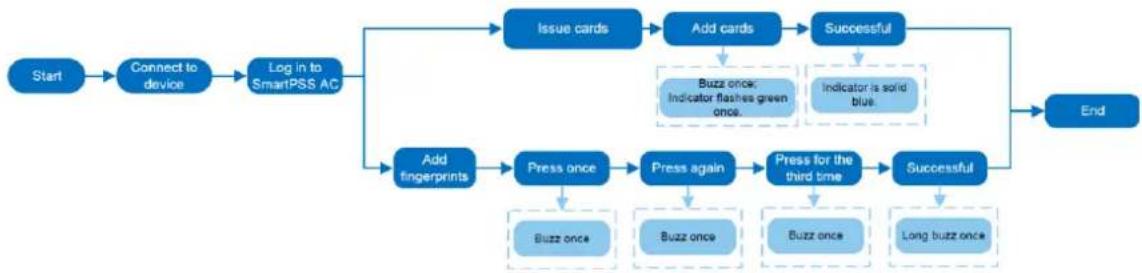
Before issuing cards, you need to install DSS Pro or SmartPSS AC on your PC, and then follow the process below. Take SmartPSS AC as an example.
Figure 2-1 Process
flowchart
graph TD
    A["Start"] --> B["Connect to device"]
    B --> C["Log in to SmartPSS AC"]
    C --> D{Issue cards}
    D --> E["Add cards"]
    E --> F{Successful}
    F --> G["End"]
    C --> H{Add fingerprints}
    H --> I["Press once"]
    I --> J["Buzz once"]
    H --> K["Press again"]
    K --> L["Buzz once"]
    H --> M["Press for the third time"]
    M --> N["Buzz once"]
    H --> O["Successful"]
    O --> P["Long buzz once"]
    E --> Q["Buzz once; Indicator flashes green once."]
    F --> R["Indicator is solid blue."]
2.1 Issuing Card
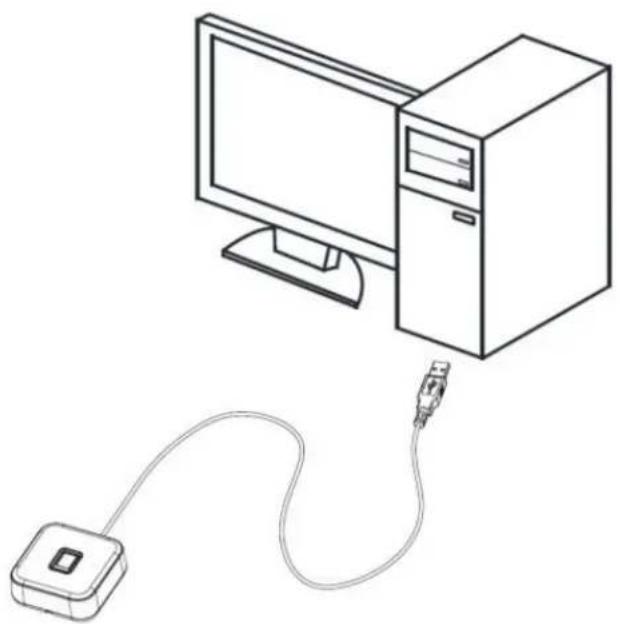
Step 1 Connect the USB cable of the Device to the PC, and then the indicator of the Device will be solid blue.
Figure 2-2 Connect the Device to the PC
natural_image
Line drawing of a desktop computer connected to a USB cable (no text or symbols)Step 2 Run the SmartPSS AC client on the PC, and click Access Solution > Personnel Manager.
Figure 2-3 SmartPSS AC

text_image
SmartPSS AC Home Access Solution Attendance Solution Access Manager Mainly monitors access control data, including real-time attendance and relevant data that is uploaded by access controller. Personnel Manager Attendance and access control personnel management. Add, delete, modify and search for personnel. Acquire and send personnel info, and configure permission. Access Configuration Mainly applies to config and management of access control, such as time template, door settings, event settings, and advanced settings. Management Guide Device Manager Log Query Event Config Access GuideStep 3 Click Card Issuing Type, and then select the type as needed.
Figure 2-4 Card issuing type
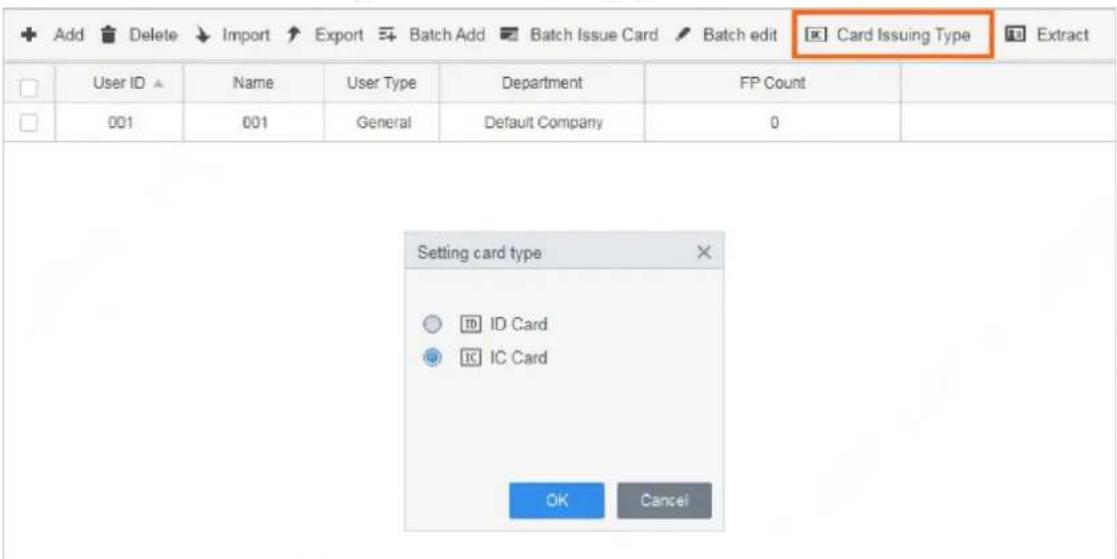
text_image
Add Delete Import Export Batch Add Batch Issue Card Batch edit Card Issuing Type Extract User ID ▲ Name User Type Department FP Count 001 001 General Default Company 0 Setting card type ID Card IC Card OK CancelStep 4 Click User on the left menu.
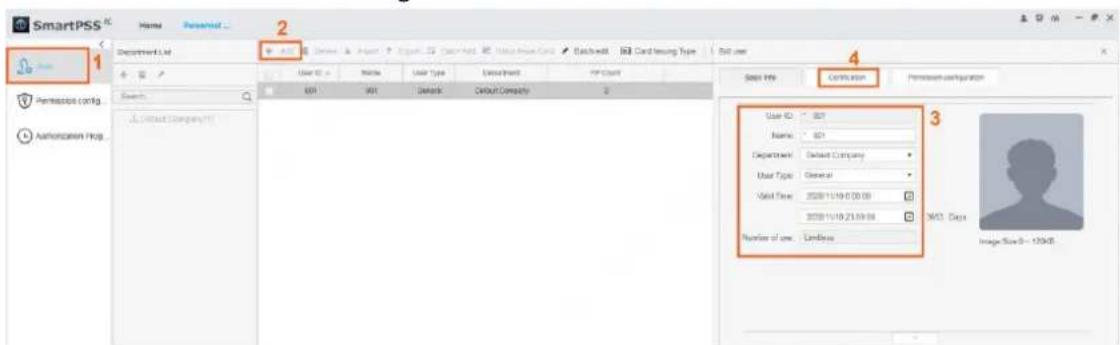
- If you need to add a new user, click Add, enter the basic information, and then click Certification.
Figure 2-5 Add a user
text_image
SmartPSS Home Personal... 2 1 Department Ltd Search User ID: 001 Name: 001 User Type: Default Company User Type: General Valid Time: 2020-11/19 00:00:00 Valid Time: 2020-11/19 23:59:58 Number of use: Limitless 4 Select Info Confirm option Permissure configuration 3 User ID: 001 Name: 001 Department: Default Company User Type: General Valid Time: 2020-11/19 00:00:00 Valid Time: 2020-11/19 23:59:58 363 Days Image Size 0 - 125KB- For an existing user, click on the right, and then click Certification.
Figure 2-6 Edit user information

text_image
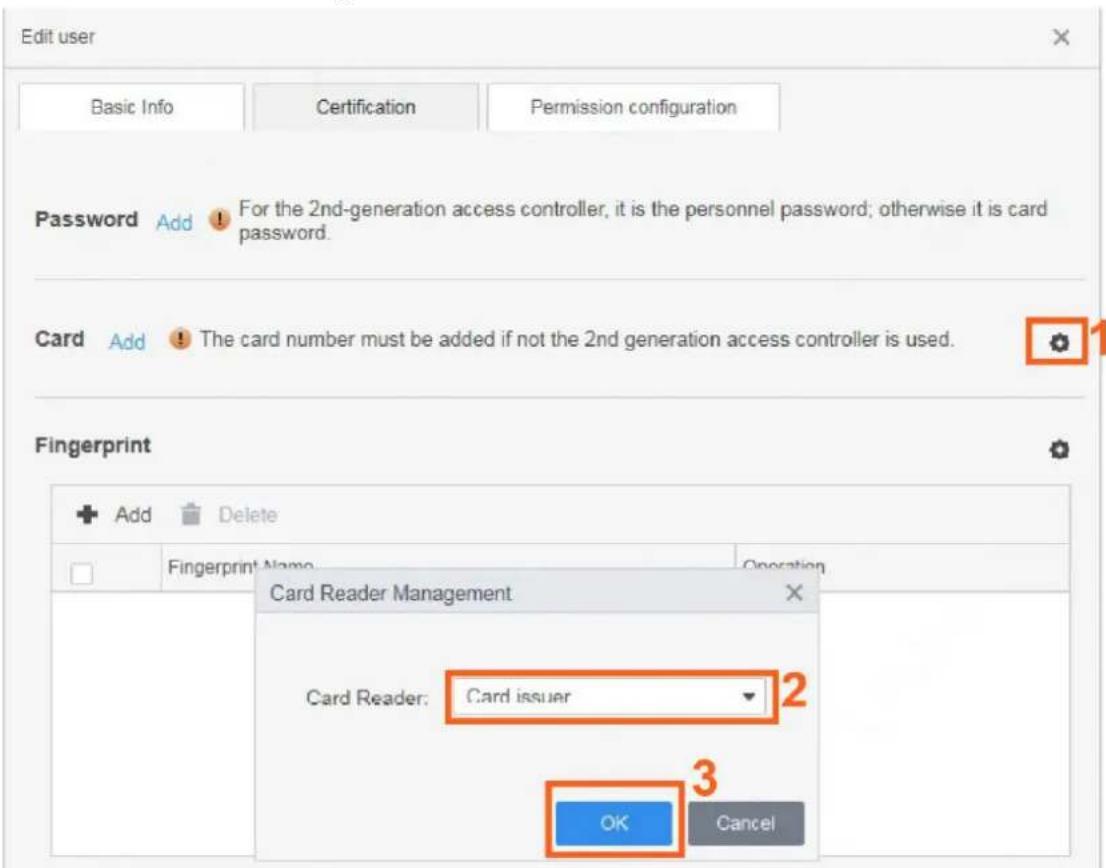
Add Delete Import Export Batch Add Batch Issue Card Batch edit Card Issuing Type Extract User ID ▲ Name User Type Department FP Count Operation 001 001 General Default Company 0Step 5 On the right of the Card section, click ⚙, select the card reader, and then click OK.
Figure 2-7 Select a card reader
text_image
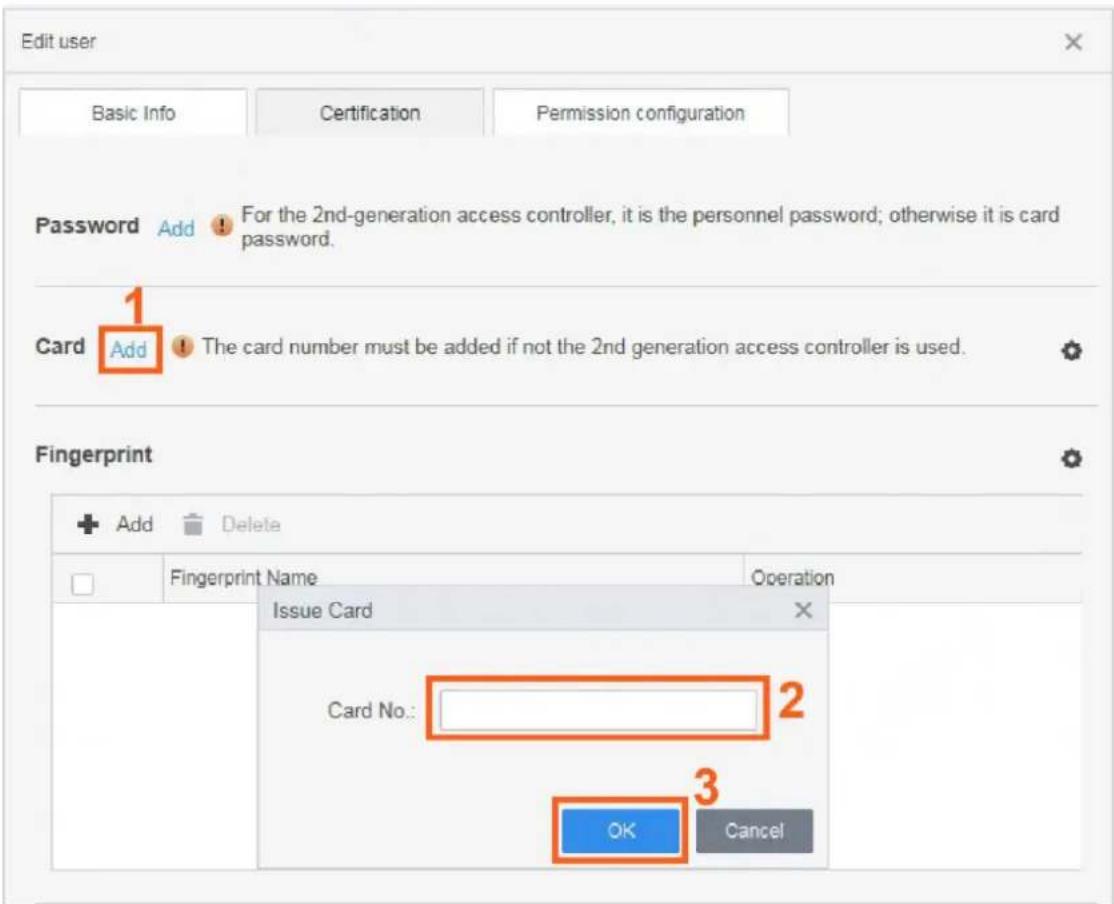
Edit user Basic Info Certification Permission configuration Password Add For the 2nd-generation access controller, it is the personnel password; otherwise it is card password. Card Add The card number must be added if not the 2nd generation access controller is used. Fingerprint Add Delete Fingerprint Name Operation Card Reader Management Card Reader: Card issuer 2 OK CancelStep 6 Click Add. The Device buzzes once, and the indicator flashes green.
Step 7 Swipe the card on the Device and it buzzes once.
The system reads the card number, and the indicator flashes green.
Step 8 Click OK to finish the process.
The Device indicator turns solid blue as standby mode.

- The card reader can only read one card at a time. When multiple cards stack together, it cannot work properly.
• Each user can have five cards at most.
Figure 2-8 Add a card
text_image
Edit user Basic Info Certification Permission configuration Password Add For the 2nd-generation access controller, it is the personnel password; otherwise it is card password. Card Add The card number must be added if not the 2nd generation access controller is used. Fingerprint Add Delete Fingerprint Name Operation Issue Card Card No.: 2 OK CancelRelated Operations
Click User, select the users as needed, and then click Batch Issue Card.
Figure 2-9 Issue card in batches

text_image
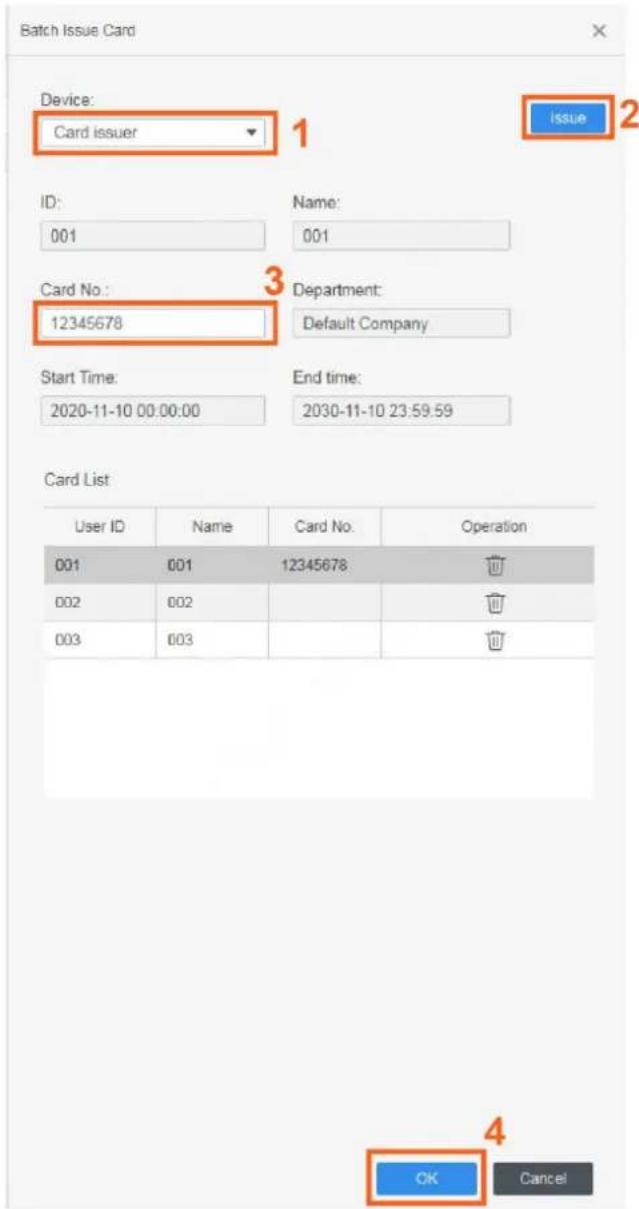
Add Delete Import Export Batch Add Batch Issue Card Batch edit Card Issuing Type Extract 1 User ID ▲ Name User Type Department 2 FP Count 001 001 General Default Company 0 002 002 General Default Company 0 003 003 General Default Company 0• Automatically read card number.
1) Select Card Issuer.
2) Click Issue.
3) Swipe the cards in the order of the user list, and the system will automatically read the card numbers. You can configure the information for each user, including the start and end time. Click OK.
Figure 2-10 Issue card in batches
text_image
Batch Issue Card Device: Card issuer 1 Issue 2 ID: 001 Name: 001 Card No. 12345678 Department: Default Company Start Time: 2020-11-10 00:00:00 End time: 2030-11-10 23:59:59 Card List User ID Name Card No. Operation 001 001 12345678 002 002 003 003 OK Cancel- Enter card numbers manually.
Select each user and enter the corresponding card number, and then click OK.
Figure 2-11 Enter card numbers manually

text_image
Batch Issue Card Device: Card issuer Issue ID: 001 Name: 001 Card No: 12345678 Department: Default Company Start Time: 2020-11-10 00:00:00 End time: 2030-11-10 23:59:59 Card List User ID Name Card No. Operation 001 001 12345678 002 002 003 003 OK Cancel2.2 Collecting Fingerprint
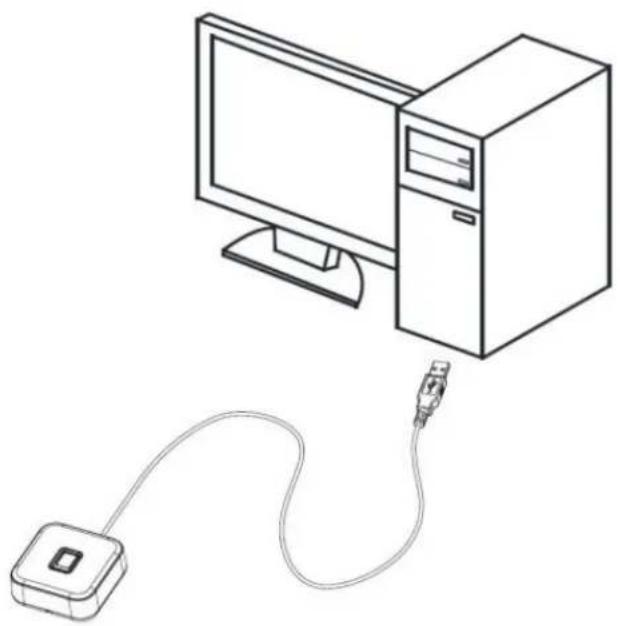
Step 1 Connect the USB cable of the Device to the PC, and then the indicator of the Device will be solid blue.
Figure 2-12 Connect the Device to the PC
natural_image
Line drawing of a desktop computer connected to a USB cable (no text or symbols)Step 2 Run the SmartPSS AC client on the PC, and select Access Solution > Personnel Manager.
Figure 2-13 SmartPSS AC client

text_image
SmartPSS AC Home Access Solution Attendance Solution Access Manager Mainly monitors access control data, including real-time attendance and relevant data that is uploaded by access controller. Personnel Manager Attendance and access control personnel management. Add, delete, modify and search for personnel: Acquire and send personnel info, and configure permission. Access Configuration Mainly applies to config and management of access control, such as time template, door settings, event settings, and advanced settings. Management Guide Device Manager Log Query Event Config Access GuideStep 3 Click User on the left menu.
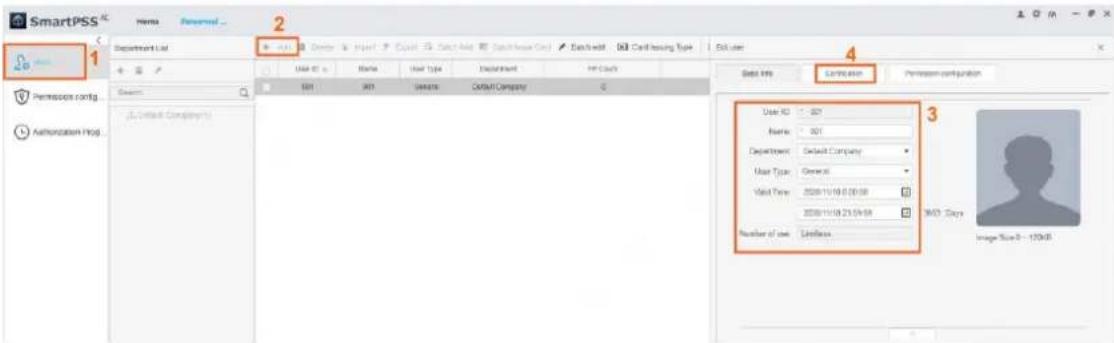
- If you need to add a new user, click Add, enter the basic information, and then click Certification.
Figure 2-14 Add a user
text_image
SmartPSS 1 Department List 2 User ID: 301 Name: 301 User Type: Default Company User Type: General Valid Time: 2020-11/18 00:00:00 Valid Time: 2020-11/18 21:00:00 Number of use: Wireless 4 Edit User Edit Info Conversion Per session configuration 3 User ID: 301 Name: 301 Department: Default Company User Type: General Valid Time: 2020-11/18 00:00:00 Valid Time: 2020-11/18 21:00:00 MID: Days Image Size 3 - 125KB- For an existing user, click on the right, and then click Certification.
Figure 2-15 Edit user information

text_image
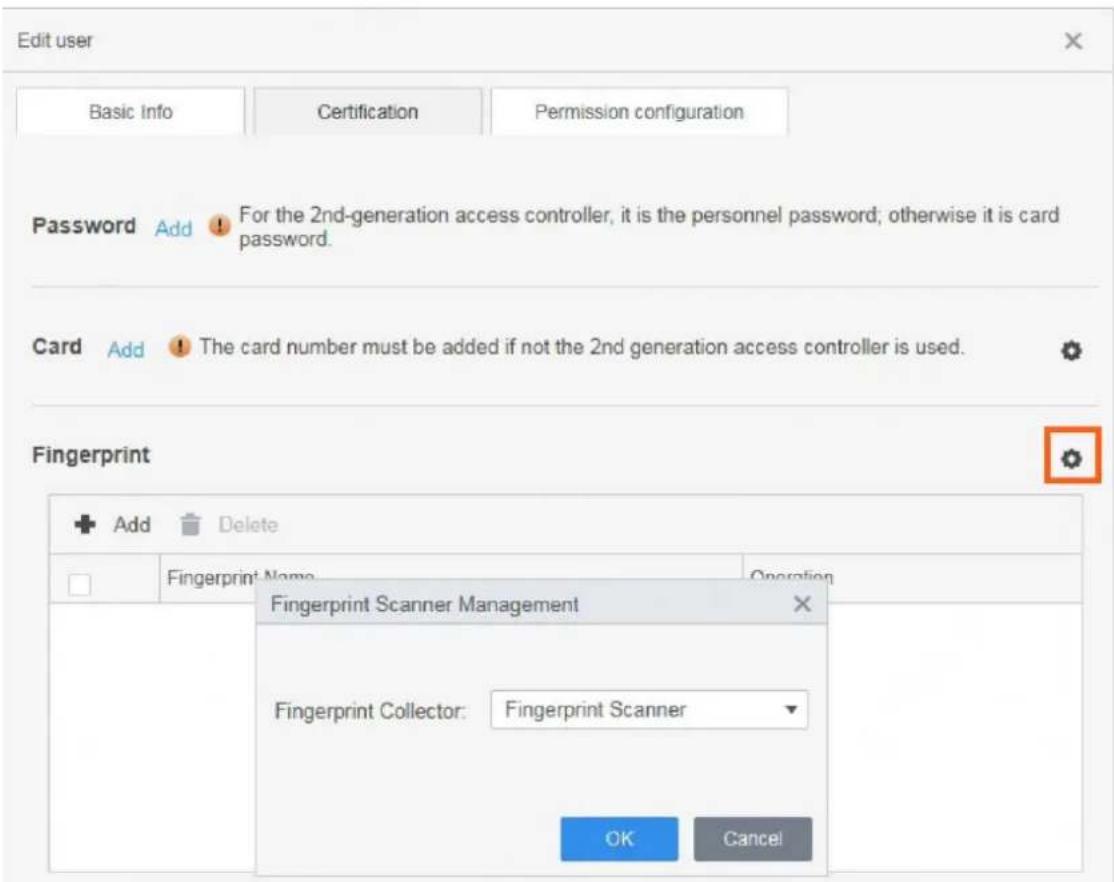
Add Delete Import Export Batch Add Batch Issue Card Batch edit Card Issuing Type Extract User ID: Name User Type Department FP Count Operation 001 001 General Default Company 0Step 4 On the right of the Fingerprint section, click ☐, select Fingerprint Scanner, and then click OK.
Figure 2-16 Select a fingerprint scanner
text_image
Edit user Basic Info Certification Permission configuration Password Add For the 2nd-generation access controller, it is the personnel password; otherwise it is card password. Card Add The card number must be added if not the 2nd generation access controller is used. Fingerprint Add Delete Fingerprint Name Operation Fingerprint Scanner Management Fingerprint Collector: Fingerprint Scanner OK CancelStep 5 Click Add.

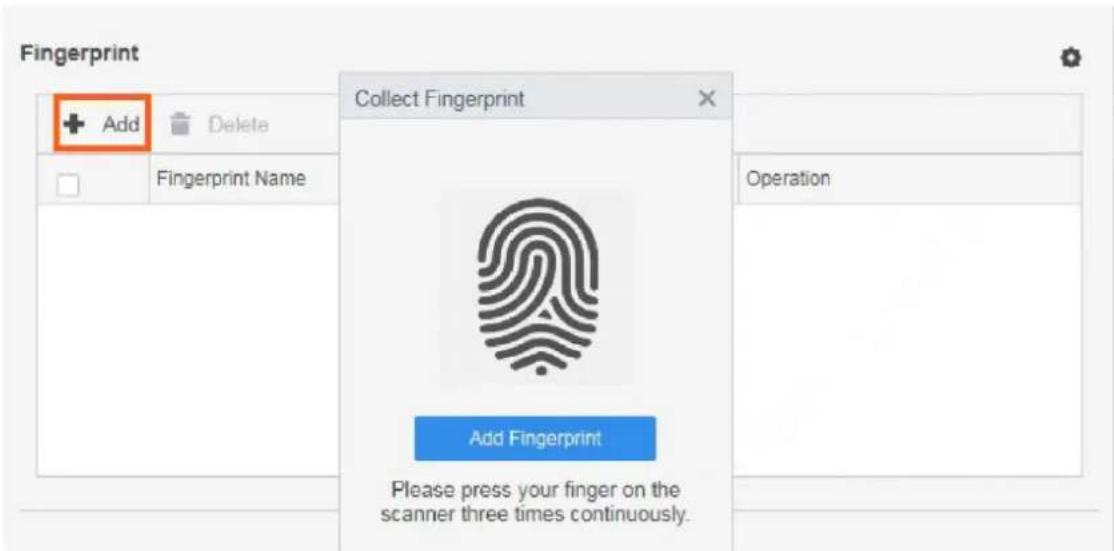
Each user can have three fingerprints at most.
Figure 2-17 Collect a fingerprint
text_image
Fingerprint + Add Delete Fingerprint Name Collect Fingerprint Operation Add Fingerprint Please press your finger on the scanner three times continuously.Step 6 Click Add Fingerprint, and then follow the instruction to press your finger three times on the fingerprint collecting area of the Device.
Table 2-1 Description of sound prompt when collecting fingerprints
| Situation | Sound Prompt |
| Press finger once | Success: Buzz once;Timeout: Buzz three times. |
| Press finger for the second time | Success: Buzz once;Timeout: Buzz three times. |
| Press finger for the third time | Success: Buzz once;Timeout: Buzz three times. |
| Result | Success: Long buzz once;Failure: Buzz three times. |
3 Fingerprint Collecting Instruction
Notice
• Make sure that your fingers are clean and dry before collecting your fingerprints.
- Do not expose the fingerprint scanner to high temperature and humidity.
- If your fingerprints are worn or unclear, use other methods including password and card.
Recommended Fingers
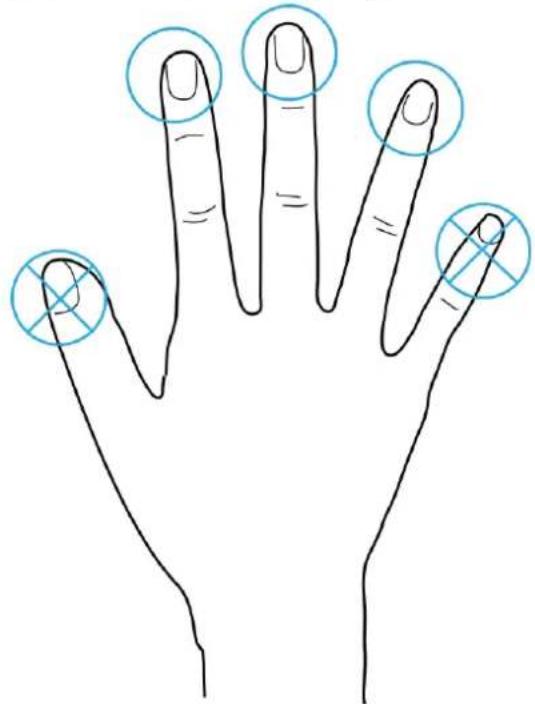
Forefingers, middle fingers, and ring fingers are recommended. Thumbs and little fingers cannot be easily placed on the collecting area.
Figure 3-1 Recommended fingers
text_image
Diagram of a human hand with five finger positions circled in blue, marked with X and Y symbols indicating finger placement.Correct Way of Pressing Your Finger
Press you finger to the fingerprint collecting area, and align the center of your fingerprint to the center of the collecting area.
Figure 3-2 Correct way

natural_image
Illustration of two hands pointing at a square frame and a vertical line, with dashed lines indicating alignment or measurement (no text or symbols)Figure 3-3 Incorrect ways
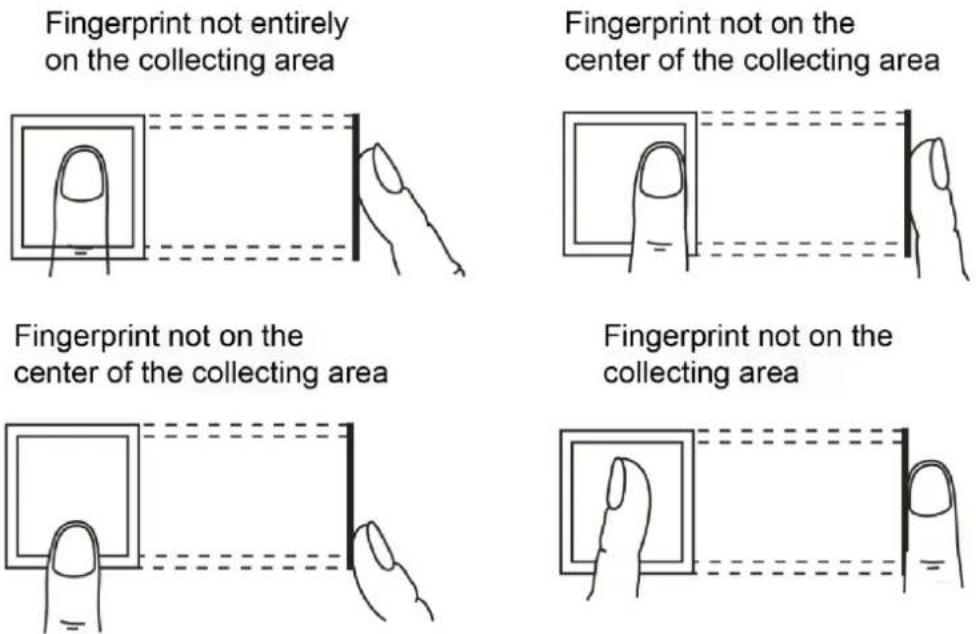
4 Device Upgrade
Use the USB upgrade tool to upgrade the program of the Device.
Prerequisites
- Download the USB upgrade tool to your PC.
- Use a USB cable to connect the Device to your PC.
Procedure
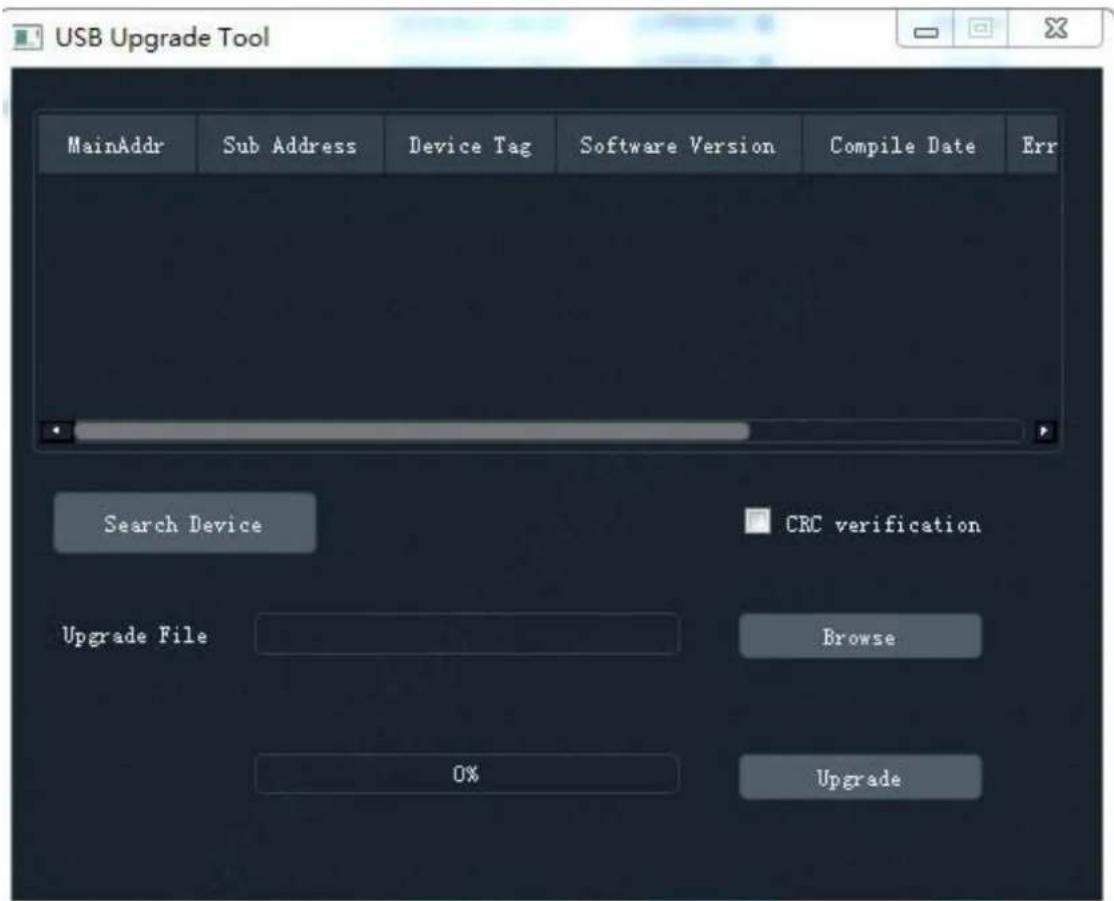
Step 1 Double-click to run the program.
Step 2 Click Search Device.
Figure 4-1 USB upgrade tool
text_image
USB Upgrade Tool MainAddr Sub Address Device Tag Software Version Compile Date Err Search Device CRC verification Upgrade File Browse 0% UpgradeStep 3 Click Browse, and then select the update file.
Step 4 Select the device as needed, and then click Upgrade.
When the progress bar reaches 100%, the upgrade completes.
Appendix 1 Cybersecurity Recommendations
Cybersecurity is more than just a buzzword: it's something that pertains to every device that is connected to the internet. IP video surveillance is not immune to cyber risks, but taking basic steps toward protecting and strengthening networks and networked appliances will make them less susceptible to attacks. Below are some tips and recommendations on how to create a more secured security system.
Mandatory actions to be taken for basic device network security:
1. Use Strong Passwords
Please refer to the following suggestions to set passwords:
- The length should not be less than 8 characters;
- Include at least two types of characters; character types include upper and lower case letters, numbers and symbols;
- Do not contain the account name or the account name in reverse order;
- Do not use continuous characters, such as 123, abc, etc.;
- Do not use overlapped characters, such as 111, aaa, etc.;
2. Update Firmware and Client Software in Time
- According to the standard procedure in Tech-industry, we recommend to keep your device (such as NVR, DVR, IP camera, etc.) firmware up-to-date to ensure the system is equipped with the latest security patches and fixes. When the device is connected to the public network, it is recommended to enable the "auto-check for updates" function to obtain timely information of firmware updates released by the manufacturer.
- We suggest that you download and use the latest version of client software.
"Nice to have" recommendations to improve your device network security:
1. Physical Protection
We suggest that you perform physical protection to device, especially storage devices. For example, place the device in a special computer room and cabinet, and implement well-done access control permission and key management to prevent unauthorized personnel from carrying out physical contacts such as damaging hardware, unauthorized connection of removable device (such as USB flash disk, serial port), etc.
2. Change Passwords Regularly
We suggest that you change passwords regularly to reduce the risk of being guessed or cracked.
3. Set and Update Passwords Reset Information Timely
The device supports password reset function. Please set up related information for password reset in time, including the end user's mailbox and password protection questions. If the information changes, please modify it in time. When setting password protection questions, it is suggested not to use those that can be easily guessed.
4. Enable Account Lock
The account lock feature is enabled by default, and we recommend you to keep it on to guarantee the account security. If an attacker attempts to log in with the wrong password several times, the corresponding account and the source IP address will be locked.
5. Change Default HTTP and Other Service Ports
We suggest you to change default HTTP and other service ports into any set of numbers between 1024\~65535, reducing the risk of outsiders being able to guess which ports you are using.
6. Enable HTTPS
We suggest you to enable HTTPS, so that you visit Web service through a secure communication channel.
7. MAC Address Binding
We recommend you to bind the IP and MAC address of the gateway to the device, thus reducing the risk of ARP spoofing.
8. Assign Accounts and Privileges Reasonably
According to business and management requirements, reasonably add users and assign a minimum set of permissions to them.
9. Disable Unnecessary Services and Choose Secure Modes
If not needed, it is recommended to turn off some services such as SNMP, SMTP, UPnP, etc., to reduce risks.
If necessary, it is highly recommended that you use safe modes, including but not limited to the following services:
- SNMP: Choose SNMP v3, and set up strong encryption passwords and authentication passwords.
- SMTP: Choose TLS to access mailbox server.
- FTP: Choose SFTP, and set up strong passwords.
- AP hotspot: Choose WPA2-PSK encryption mode, and set up strong passwords.
10. Audio and Video Encrypted Transmission
If your audio and video data contents are very important or sensitive, we recommend that you use encrypted transmission function, to reduce the risk of audio and video data being stolen during transmission.
Reminder: encrypted transmission will cause some loss in transmission efficiency.
11. Secure Auditing
- Check online users: we suggest that you check online users regularly to see if the device is logged in without authorization.
- Check device log: By viewing the logs, you can know the IP addresses that were used to log in to your devices and their key operations.
12. Network Log
Due to the limited storage capacity of the device, the stored log is limited. If you need to save the log for a long time, it is recommended that you enable the network log function to ensure that the critical logs are synchronized to the network log server for tracing.
13. Construct a Safe Network Environment
In order to better ensure the safety of device and reduce potential cyber risks, we recommend:
- Disable the port mapping function of the router to avoid direct access to the intranet devices from external network.
- The network should be partitioned and isolated according to the actual network needs. If there are no communication requirements between two sub networks, it is suggested to use VLAN, network GAP and other technologies to partition the network, so as to achieve the network isolation effect.
- Establish the 802.1x access authentication system to reduce the risk of unauthorized access to private networks.
- Enable IP/MAC address filtering function to limit the range of hosts allowed to access the device.