ASI7214X - Access Control System Dahua Technology - Free user manual and instructions
Find the device manual for free ASI7214X Dahua Technology in PDF.


| Type | Access Control Controller |
| Model | ASI7214X |
| Brand | Dahua Technology |
| Dimensions (W x H x D) | 250 x 200 x 60 mm |
| Weight | 1.2 kg |
| Power Supply | 12V DC / PoE (802.3af) |
| Power Consumption | ≤ 10W |
| Supported Cards | EM, Mifare, DESFire, iClass |
| Card Reading Distance | Up to 5 cm |
| Number of Users | 10,000 (max) |
| Number of Events | 100,000 (max) |
| Communication | TCP/IP, RS-485 |
| Outputs | 2 relays (lock, alarm) |
| Inputs | 2 (door sensor, exit button) |
| Operating Temperature | -10°C to 55°C |
| Humidity | 10% – 90% (non-condensing) |
| Mounting | Wall mount (indoor) |
| Maintenance | Clean with dry cloth; avoid liquids |
| Safety | Overcurrent protection, tamper switch |
| Spare Parts | Power adapter, mounting brackets |
| Warranty | 2 years (limited) |
Frequently Asked Questions - ASI7214X Dahua Technology
User questions about ASI7214X Dahua Technology
0 question about this device. Answer the ones you know or ask your own.
Ask a new question about this device
Download the instructions for your Access Control System in PDF format for free! Find your manual ASI7214X - Dahua Technology and take your electronic device back in hand. On this page are published all the documents necessary for the use of your device. ASI7214X by Dahua Technology.
USER MANUAL ASI7214X Dahua Technology
Face Recognition Access Controller
User's Manual
General
This manual introduces the installation and basic operation of the Face Recognition Access Controller (hereinafter referred to as "access controller").
Safety Instructions
The following categorized signal words with defined meaning might appear in the manual.
| Signal Words | Meaning |
| NOTE | Provides additional information as the emphasis and supplement to the text. |
Revision History
| Version | Revision Content | Release Date |
| V1.0.0 | First Release | August 2019 |
About the Manual
- The manual is for reference only. If there is inconsistency between the manual and the actual product, the actual product shall prevail.
- We are not liable for any loss caused by the operations that do not comply with the manual.
- The manual would be updated according to the latest laws and regulations of related regions. For detailed information, see the paper manual, CD-ROM, QR code or our official website. If there is inconsistency between paper manual and the electronic version, the electronic version shall prevail.
- All the designs and software are subject to change without prior written notice. The product updates might cause some differences between the actual product and the manual. Please contact the customer service for the latest program and supplementary documentation.
- There still might be deviation in technical data, functions and operations description, or errors in print. If there is any doubt or dispute, please refer to our final explanation.
- Upgrade the reader software or try other mainstream reader software if the manual (in PDF format) cannot be opened.
- All trademarks, registered trademarks and the company names in the manual are the properties of their respective owners.
- Please visit our website, contact the supplier or customer service if there is any problem occurred when using the device.
- If there is any uncertainty or controversy, please refer to our final explanation.
This chapter describes the contents covering proper handling of the access controller, hazard prevention, and prevention of property damage. Read these contents carefully before using the access controller, comply with them when using, and keep them well for future reference.
Operation Requirement
- Do not place or install the access controller in a place exposed to sunlight or near the heat source.
- Keep the access controller away from dampness, dust or soot.
- Keep the access controller installed horizontally on the stable place to prevent it from falling.
- Do not drop or splash liquid onto the access controller, and make sure there is no object filled with liquid on the access controller to prevent liquid from flowing into the access controller.
- Install the access controller in a well-ventilated place, and do not block the ventilation of the access controller.
- Operate the access controller within the rated range of power input and output.
- Do not dissemble the access controller.
- Transport, use and store the access controller under the allowed humidity and temperature conditions.
Electrical Safety
- Improper battery use might result in fire, explosion, or inflammation.
- When replacing battery, make sure the same model is used.
- Use the recommended power cables in the region and conform to the rated power specification.
- Use the power adapter provided with the access controller; otherwise, it might result in people injury and device damage.
- The power source shall conform to the requirement of the Safety Extra Low Voltage (SELV) standard, and supply power with rated voltage which conforms to Limited power Source requirement according to IEC60950-1. Please note that the power supply requirement is subject to the device label.
- Connect the device (type-I structure) to the power socket with protective earthing.
- The appliance coupler is a disconnection device. When using the coupler, keep the angle for easy operation.
Foreword....I
Important Safeguards and Warnings ....II
1 Overview....1
1.1 Introduction ...... 1
1.2 Features....1
1.3 Dimension and Component.... 1
2 Installation....7
2.1 Cable Connections....7
2.2 Installation 8
3 System Operation.... 11
3.1 Initialization ...... 11
3.2 Standby Interface....11
3.3 Unlocking Methods 13
3.3.1 Cards 13
3.3.2 Face 13
3.3.3 Fingerprints.... 13
3.3.4 User Passwords.... 13
3.3.5 Administrator Password....13
3.4 Main Menu 14
3.5 User Management 15
3.5.1 Adding New Users 15
3.5.2 Viewing User information.... 17
3.6 Access Management.... 17
3.6.1 Period Management 18
3.6.2 Unlock....19
3.6.3 Alarm Configuration 22
3.6.4 Door Status....23
3.6.5 Lock Holding Time 23
3.7 Network Communication....23
3.7.1 IP Address....24
3.7.2 Serial Port Settings 25
3.7.3 Wiegand Configuration 25
3.8 System 26
3.8.1 Time 26
3.8.2 Face Parameter 27
3.8.3 Fill Light Mode Setting 27
3.8.4 Fill Light Brightness Setting 28
3.8.5 Volume Adjustment....28
3.8.6 IR Light Brightness Adjustment 28
3.8.7 FP Parameter....28
3.8.8 Restore to Factory Settings....28
3.8.9 Reboot 28
3.9 USB 29
3.9.1 USB Export 29
3.9.2 USB Import 30
3.9.3 USB Update 30
3.9.4 Features.... 31
3.9.5 Privacy Setting.... 32
3.9.6 Result Feedback.... 33
3.10 Record.... 35
3.11 Auto Test.... 36
3.12 System Info 37
4 Web Operation....38
4.1 Initialization 38
4.2 Login....40
4.3 Resetting the Password 40
4.4 Alarm Linkage 42
4.4.1 Setting Alarm Linkage 42
4.4.2 Alarm Log.... 44
4.5 Data Capacity.... 44
4.6 Video Setting 45
4.6.1 Data Rate 45
4.6.2 Image 46
4.6.3 Exposure.... 47
4.6.4 Motion Detection 48
4.6.5 Volume Setting.... 50
4.6.6 Image Mode 50
4.7 Face Detect....50
4.8 Network Setting....52
4.8.1 TCP/IP 52
4.8.2 Port 54
4.8.3 Register....54
4.8.4 P2P 54
4.9 Date Setting 55
4.10 Safety Management....56
4.10.1 IP Authority....56
4.10.2 Systems 57
4.11 User Management....58
4.11.1 Adding Users....58
4.11.2 Modifying User Information....58
4.11.3 Onvif User 58
4.12 Maintenance....59
4.13 Configuration Management 59
4.13.1 Config Mgmt. 59
4.13.2 Features....60
4.13.3 Wiegand Serial Port Setting 60
4.14 Upgrade 61
4.14.1 Version Information....61
4.14.2 Online User 61
4.15 System Log 61
4.15.1 Querying Logs 62
4.15.2 Backup Logs 62
4.16 Admin Log 62
4.17 Exit 63
5 Smart PSS Configuration 64
5.1 Login....64
5.2 Adding Devices 64
5.2.1 Auto Search 64
5.2.2 Manual Add 65
5.3 Adding Users....66
5.3.1 Card Type Selection 67
5.3.2 Adding One User 68
5.4 Adding Door Group 69
5.5 Access Permission Configuration 71
5.5.1 Giving Permission by Door Group....71
5.5.2 Giving Permission by User ID....73
Appendix 1 Cybersecurity Recommendations....75
Introduction 1.1
The access controller is an access control panel that supports unlock through faces, passwords, fingerprints, cards, and supports unlock through their combinations.
Features 1.2
- Support face unlock, IC card unlock, fingerprint unlock, and password unlock; unlock by period
- With face detection box; the largest face among faces that appear at the same time is recognized first: the maximum face size can be configured on the web
- 2MP wide-angle WDR lens; with auto/manual fill light
• Face-camera distance: 0.3 m–2.0 m; human height: 0.9 m–2.4 m - With face recognition algorithm, the terminal can recognize more than 360 positions on human face
- Face verification accuracy>99.5%; low false recognition rate
• Support profile recognition; the profile angle is 0^-90^
• Support liveness detection
• Support duress alarm and tamper alarm - Support general users, duress users, patrol users, blacklist users, VIP users, guest users, and special users
- Various unlock status display modes protect user privacy
Dimension and Component 1.3
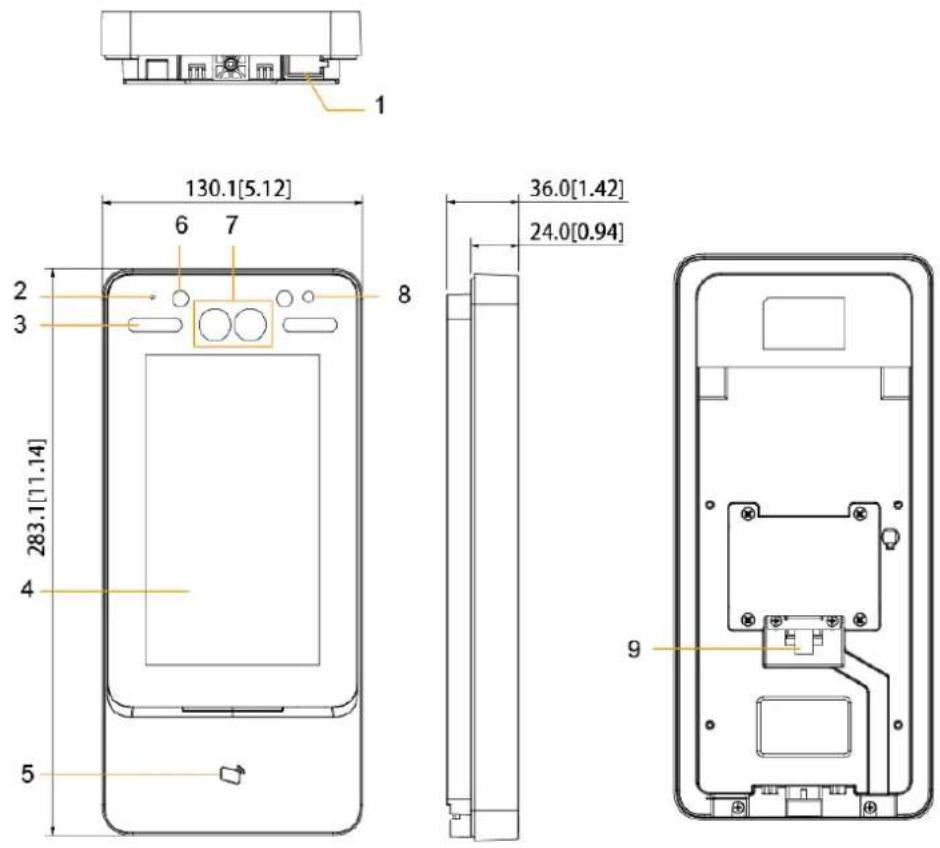
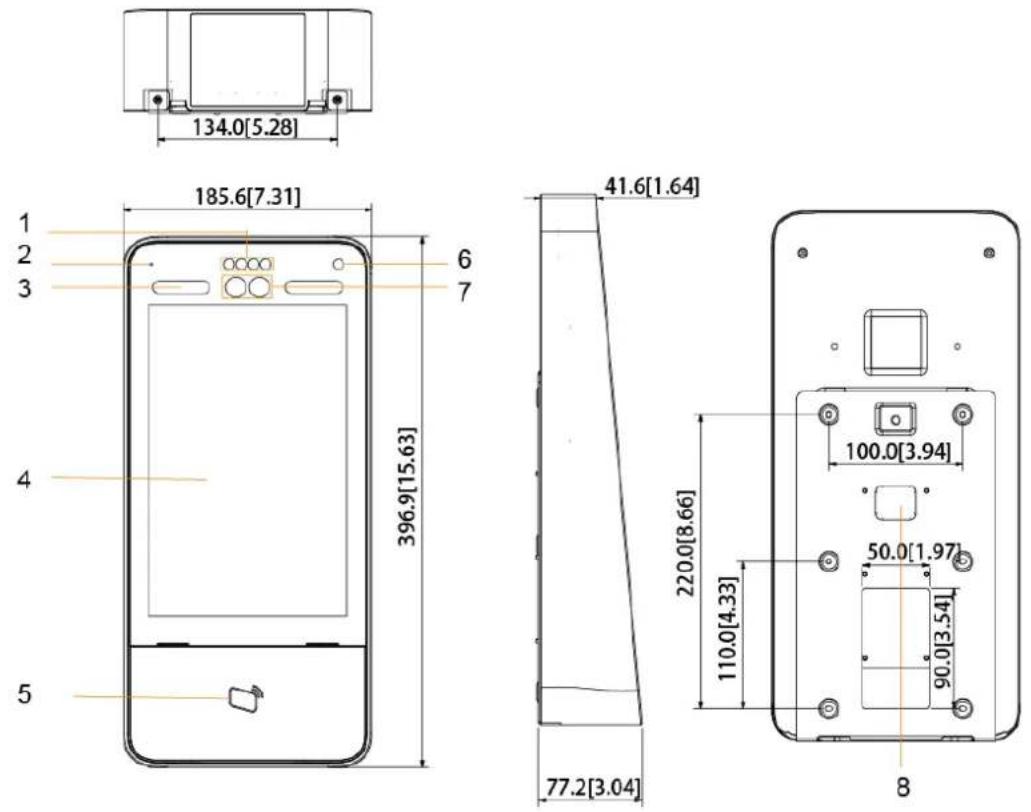
The access controller has two types: 7-inch and 10-inch access controllers. See Figure 1-1 to Figure 1-6.
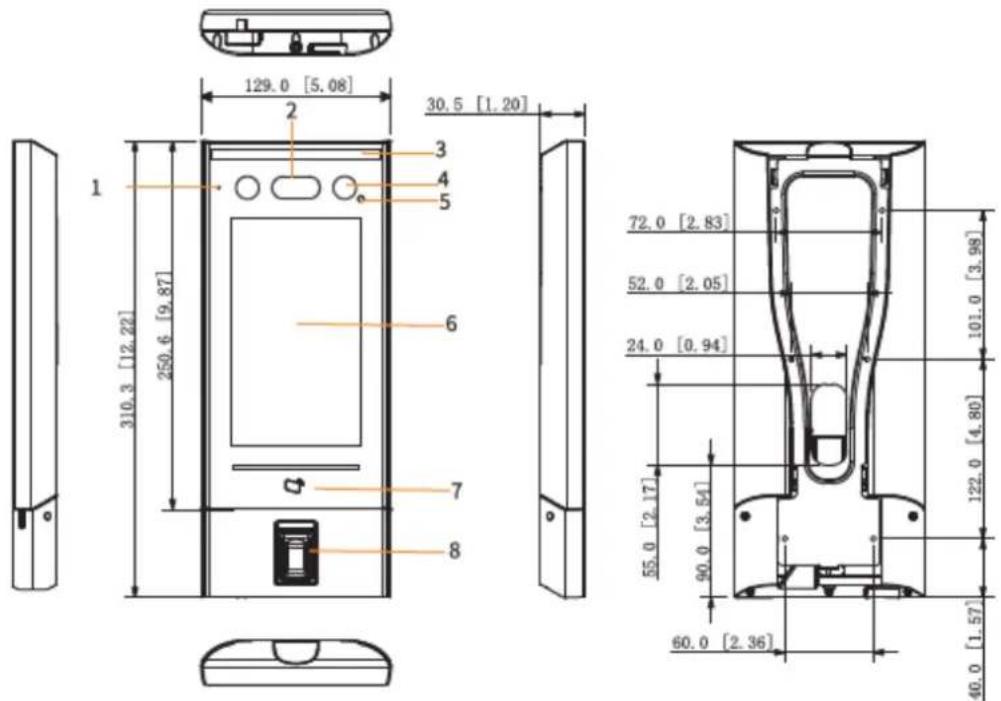
The 7-inch access controller has two models: model A and model B. See Figure 1-1 to Figure 1-4.
7-Inch Access Controller
Dimensions and components of model A (1)(mm [inch]) Figure 1-1
text_image
1 130.1[5.12] 6 7 2 3 8 283.1[11.14] 4 5 36.0[1.42] 24.0[0.94] 9Table 1-1 Component description (1)
| No. | Name | No. | Name |
| 1 | USB port | 6 | IR light |
| 2 | MIC | 7 | Dual camera |
| 3 | White fill light | 8 | Phototransistor |
| 4 | Display | 9 | Cable entry |
| 5 | Card swiping area | - | - |
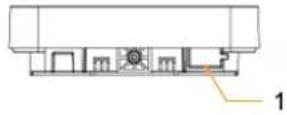

text_image
130.1[5.12] 6 7 2 3 8 283.1[11.14] 4 10 5
text_image
36.0[1.42] 24.0[0.94]
natural_image
Technical diagram of a smartphone rear panel showing internal components and mounting holes (no text or labels)Table 1-2 Component description (2)
| No. | Name | No. | Name |
| 1 | USB port | 6 | IR light |
| 2 | MIC | 7 | Dual camera |
| 3 | White fill light | 8 | Phototransistor |
| 4 | Display | 9 | Cable entry |
| 5 | Card swiping area | 10 | Fingerprint sensor |
Dimensions and components of model B (1) (mm [inch]) Figure 1-3

text_image
129.0 [5.08] 30.5 [1.20] 2 1 3 4 5 6 7 250.6 [9.87] 72.0 [2.83] 52.0 [2.05] 24.0 [0.94] 101.0 [3.98] 55.0 [2.17] 30.3 [1.19] 89.0 [3.50] 13.3 [0.52]Table 1-3 Component description (3)
| No. | Name | No. | Name |
| 1 | MIC | 5 | Phototransistor |
| 2 | Dual camera | 6 | Display |
| 3 | White fill light | 7 | Card swiping area |
| 4 | IR light | — | — |
Dimensions and components of model B (2)(mm [inch]) Figure 1-4
text_image
129.0 [5.08] 30.5 [1.20] 2 3 4 5 1 250.6 [9.87] 310.3 [12.22] 6 7 8 72.0 [2.83] 52.0 [2.05] 24.0 [0.94] 101.0 [3.98] 55.0 [2.17] 90.0 [3.54] 122.0 [4.80] 60.0 [2.36] 40.0 [1.57]Table 1-4 Component description (4)
| No. | Name | No. | Name |
| 1 | MIC | 5 | Phototransistor |
| 2 | Dual camera | 6 | Display |
| 3 | White fill light | 7 | Card swiping area |
| 4 | IR light | 8 | Fingerprint sensor |
10-Inch Access Controller
Dimensions and components (1) (mm [inch]) Figure 1-5
text_image
134.0[5.28] 1 185.6[7.31] 6 7 396.9[15.63] 4 5 41.6[1.64] 220.0[8.66] 110.0[4.33] 100.0[3.94] 50.0[1.97] 90.0[3.54] 77.2[3.04] 8Table 1-5 Component description (1)
| No. | Name | No. | Name |
| 1 | IR light | 6 | Phototransistor |
| 2 | MIC | 7 | Dual camera |
| 3 | White fill light | 8 | Cable entry |
| 4 | Display | - | - |
| 5 | Card swiping area | - | - |

Table 1-6 Component description (2)
| No. | Name | No. | Name |
| 1 | IR light | 6 | Phototransistor |
| 2 | MIC | 7 | Dual camera |
| 3 | White fill light | 8 | Cable entry |
| 4 | Display | 9 | Fingerprint sensor |
| 5 | Card swiping area | - | - |
Cable Connections 2.1
The access controller needs to be connected to devices like sirens, readers, and door contacts. For cable connection, see Table 2-1.
Table 2-1 Port description
| Port | Cable color | Cable name | Description |
| CON1 | Black | RD- | Negative electrode of external card reader power supply. |
| Red | RD+ | Positive electrode of external card reader power supply. | |
| Blue | CASE | Tamper alarm input of the external card reader. | |
| White | D1 | Wiegand D1 input (connected to external card reader)/output (connected to controller). | |
| Green | D0 | Wiegand D0 input (connected to external card reader)/output (connected to controller). | |
| Brown | LED | Connected to external reader indicator in | |
| Yellow | B | RS-485 negative electrode input (connected to external card reader)/output (connected to controller, or connected to door control security module).If the security module is enabled, you need to purchase access control security module separately. The security module needs separate power supply to provide power.Once the security module is enabled, the exit button, lock control and firefighting linkage will be invalid. | |
| Purple | A | RS-485 positive electrode input (connected to external card reader)/output (connected to controller, or connected to door control security module).If the security module is enabled, you need to purchase access control security module separately. The security module needs separate power supply to provide power.Once the security module is enabled, the exit button, lock control and firefighting linkage will be invalid. | |
| CON2 | White and red | ALARM1_NO | Alarm 1 normally open output port. |
| White and orange | ALARM1_COM | Alarm 1 common output port. | |
| White and blue | ALARM2_NO | Alarm 2 normally open output port. | |
| White and gray | ALARM2_COM | Alarm 2 common output port. | |
| White and green | GND | Connected to the common GND port. | |
| White Brown | ALARM1 | Alarm 1 input port. | |
| White and yellow | GND | Connected to the common GND port. | |
| White and purple | ALARM2 | Alarm 2 input port. | |
| CON3 | Black and red | RX | RS-232 receiving port. |
| Black and orange | TX | RS-232 sending port. | |
| Black and blue | GND | Connected to the common GND port. | |
| Black and gray | SR1 | Used for door contact detection. | |
| Black and green | PUSH1 | Door open button of door No.1 | |
| Black and brown | DOOR1_COM | Lock control common port. | |
| Black and yellow | DOOR1_NO | Lock control normally open port. | |
| Black and purple | DOOR1_NC | Lock control normally closed port. |
Installation 2.2
Installation method of model A and model B are the same. Make sure that the distance between the lens and ground is 1.4 meters. See Figure 2-1. The installation of 2-inch model B will be taken as an example.
Installation height Figure 2-1

natural_image
Silhouette of a person standing near a wall with a small object emitting light, labeled with 1.4m height (no text or symbols on the diagram itself)Installation diagram (1) Figure 2-2

natural_image
Technical line drawing of a wall-mounted door panel mounted on a brick wall, with an adjacent close-up view showing internal components (no text or symbols)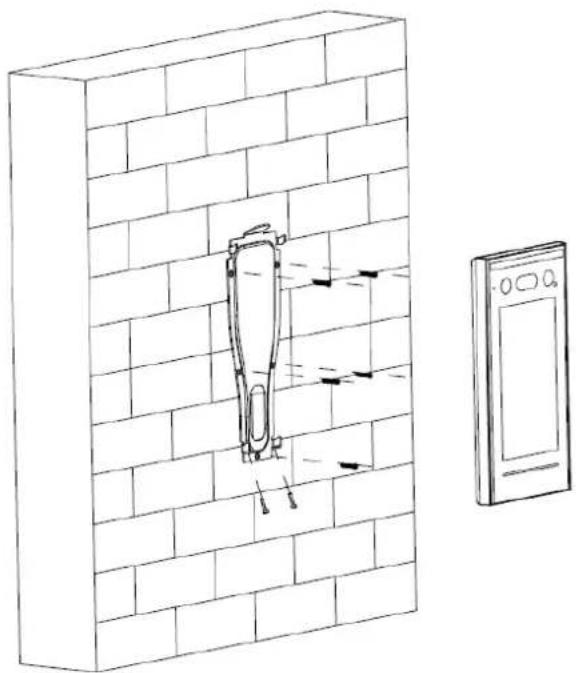
natural_image
Diagram showing a brick wall with a tool and directional arrows, next to a smartphone (no text or symbols present)Installation Procedure
This document uses a 7-inch model A access controller as an example.
Step 1 Drill seven holes (six bracket installation holes and one cable entry) in the wall according to holes in the bracket.
Fix the bracket on the wall by installing the expansion screws into the six bracket Step 2 installation holes.
Connect cables for access controller. See "2.1 Cable Connections." Step 3
Hang the access controller on the bracket hook. Step 4
____ Tighten the screws at the bottom of the access controller. Step 5 The installation is completed.

You need to apply silicon sealant to the cable outlet of 7-inch model B access controller. See Figure 2-4.
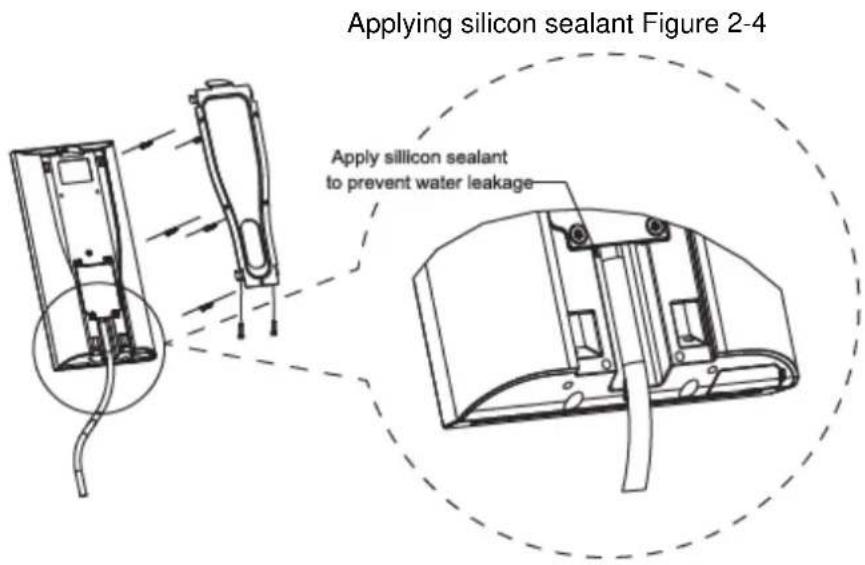
text_image
Applying silicon sealant Figure 2-4 Apply silicon sealant to prevent water leakageInitialization 3.1
Administrator password and an email should be set the first time the access controller is turned on; otherwise the access controller cannot be used.
Initialization Figure 3-1

text_image
Device Initialization Admin admin PWD PWD Confirm E-mail Yes Clear
- Administrator and password set on this interface are used to log in to the web management platform.
- The administrator password can be reset through the email address you entered if the administrator forgets the administrator password.
- The password should consist of 8 to 32 non-blank characters and contain at least two types of characters among upper case, lower case, number, and special character (excluding '";: &).
Standby Interface 3.2
You can unlock the door through faces, passwords, cards and fingerprints. See Table 3-1.

If there are no operations in 30 seconds, the access controller will go to the standby mode.
Homepage Figure 3-2
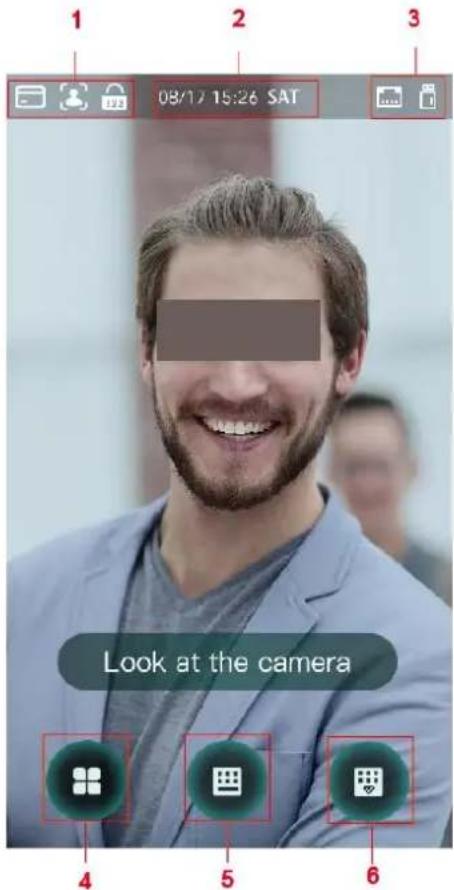
text_image
1 2 3 08/17 15:26 SAT Look at the camera 4 5 6Table 3-1 Homepage description
| No. | Description |
| 1 | Unlock methods: Card, face, fingerprint, and password.When card, face, fingerprint, and password are all set as unlock mode, the password icon will not be displayed at the top left corner of the access controller. |
| 2 | Date & Time: Current date and time is displayed here. |
| 3 | Network status and USB status are displayed here. |
| 4 | Main menu icon.Only the administrator can enter the main menu. |
| 5 | Password unlock icon. |
| 6 | Administrator password unlock icon. |
Unlocking Methods 3.3
You can unlock the door through faces, passwords, fingerprints, and cards.
3.3.1 Cards
Put the card at the card swiping area to unlock the door.
3.3.2 Face
Make sure that your face is centered on the face recognition frame, and then you can unlock the door.
3.3.3 Fingerprints
Place your fingerprint at the fingerprint sensor to unlock the door.
3.3.4 User Passwords
Enter the user passwords, and then you can unlock the door.

text_image
Tap on the homepage. Step 1 Enter the User ID, and then tap Step 2 Enter the User password, and then tap Step 3 The door is unlocked.3.3.5 Administrator Password
Enter the administrator password, and then you can unlock the door. There is only one administrator password for one access controller. The administrator password can unlock the door without being subject to user levels, unlock modes, periods, holiday plans, and anti-passback.

Administrator password cannot be used when NC is selected at "3.6.1.5 NC Period."

____ Tap on the homepage. Step 1
Tap Please Enter Administrator PWD. Step 2
Enter the administrator password, and then tap Step 3
The door is unlocked.
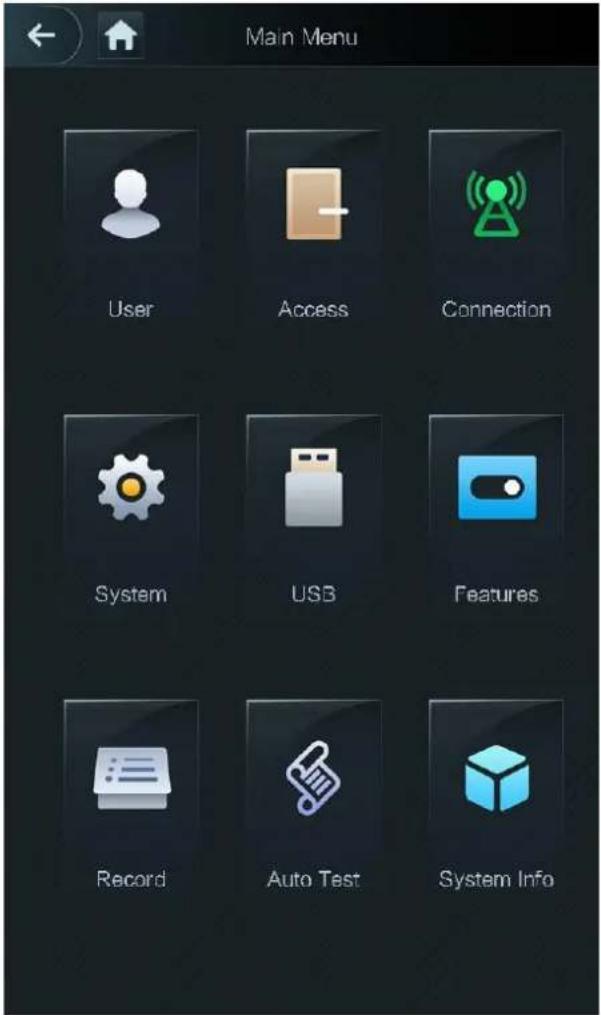
Main Menu 3.4
Administrators can add users of different levels, set access-related parameters, do network configuration, view access records and system information, and more in the main menu.

Tap on the standby interface. Step 1
The Administrator Login interface is displayed.

Different modes support different unlock methods, and the actual interface shall prevail.
Administrator login Figure 3-3
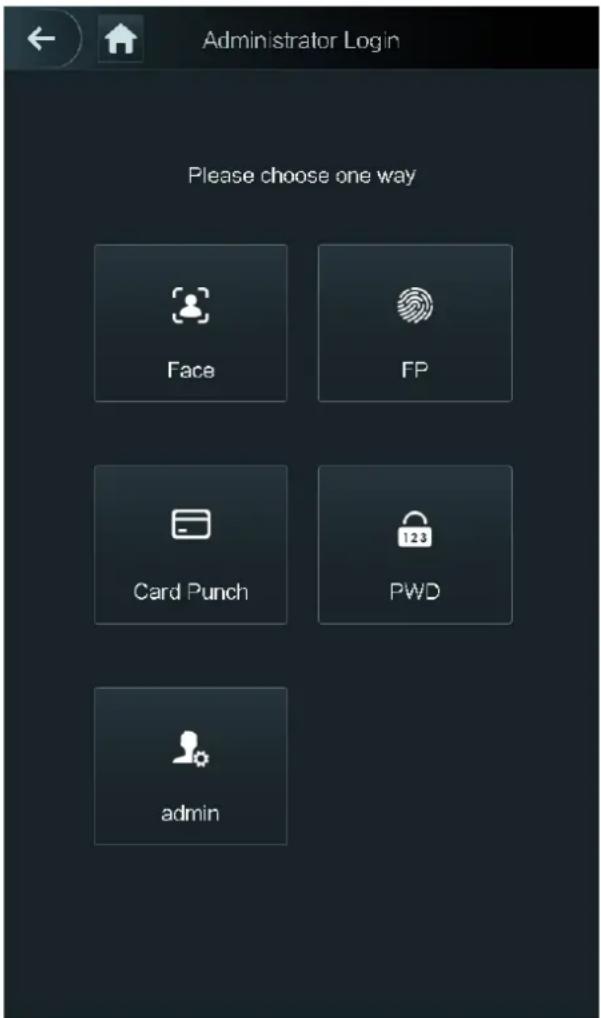
text_image
Administrator Login Please choose one way Face FP Card Punch PWD adminSelect a main menu entering method. Step 2
The main menu interface is displayed.
Main Menu Figure 3-4
text_image
Main Menu User Access Connection System USB Features Record Auto Test System InfoUser Management 3.5
You can add new users, view user lists, admin lists, and modify the administrator password on the User interface.
3.5.1 Adding New Users
You can add new users by entering user IDs, names, importing fingerprints, face images, cards, passwords, selecting user levels, and more.

The following figures are for reference only, and the actual interface shall prevail.
Select User > New User. Step 1 The New User Info interface is displayed. See Figure 3-5.
New User Info Figure 3-5

text_image
New User User ID 1 Name FP 0 Face 0 Card 0 PWD User Level User Period 255-Default Holiday Plan 255-Default Valid Date 2037-12-31 User Level General Use Time UnlimitedConfigure parameters on the interface. See Table 3-2. Step 2
Table 3-2 New user parameter description
| Parameter | Description |
| User ID | You can enter user IDs. The IDs can be numbers, letters, and their combinations, and the maximum length of the ID is 32 characters. |
| Name | You can enter names with at most 32 characters (including numbers, symbols, and letters). |
| FP | At most three fingerprints of one user can be recorded, and one fingerprints need to be verified three times.You can enable the Duress FP function under each fingerprint, and only one of the three fingerprints can be the duress fingerprint. Alarms will be triggered if a duress fingerprint is used to unlock the door.It is not recommended that you select the first fingerprint as the duress fingerprint. |
| Face | Make sure that your face is centered on the picture capturing frame and the access controller will take a picture of the new user's face automatically. For details, see the Quick Start Guide. |
| Card | You can register five cards for each user. On the card registration interface, enter your card number or swipe your card, and then the card information will be read by the access controller.You can enable the Duress Card function on the card registration interface. Alarms will be triggered if a duress card is used to unlock the door.Only certain models support card unlock. |
| PWD | The door unlocking password. The maximum length of the ID digits is 8. |
| User Level | You can select a user level for new users. There are two options:User: Users only have door unlock authority.Admin: Administrators can not only unlock the door but also have parameter configuration authority.No matter whether there is an administrator in the access controller, administrator identity authentication is needed. |
| Period | You can set a period in which the user can unlock the door. |
| Holiday Plan | You can set a holiday plan in which the user can unlock the door. |
| Valid Date | You can set a period during which the unlocking information of the user is valid. |
| User Level | There are six levels:General: General users can unlock the door normally.Blacklist: When users in the blacklist unlock the door, service personnel will get a prompt.Guest: Guests are allowed to unlock the door certain times. Once they exceed the maximum times, they cannot unlock the door again.Patrol: Paroling users can get their attendance tracked, but they have no unlock authority.VIP: When VIP unlocks the door, service personnel will get a prompt.Special: When special people unlock the door, there will be a delay of 5 seconds before the door is closed. |
| Use Time | When the user level is Guest, you can set the maximum number of times that the user can unlock the door. |
Step 3 After you have configured all the parameters, tap √ save the configuration.
3.5.2 Viewing User information
You can view user list, admin list and enable administrator password through the User interface.
3.6 Access Management
You can do access management on period, unlock mode, alarm, door status, and lock holding time.
Tap Access to go to the access management interface.
3.6.1 Period Management
You can set periods, holiday periods, holiday plan periods, door normally on periods, door normally closed periods, and remote verification periods.
3.6.1.1 Period Config
You can configure 128 periods (weeks) whose number range is 0–127. You can set four periods on each day of a period (week). Users can only unlock the door in the periods that you set.
3.6.1.2 Holiday Group
You can set group holidays, and then you can set plans for holiday groups. You can configure 128 groups whose number range is 0–127. You can add 16 holidays into a group. Configure the start time and end time of a holiday group, and then users can only unlock the door in the periods that you set.

You can enter names with 32 characters (including numbers, symbols, and letters). Tap

save the holiday group name.
3.6.1.3 Holiday Plan
You can add holiday groups into holiday plans. You can use holiday plans to manage user access authority in different holiday groups. Users can only unlock the door in the period that you set.
3.6.1.4 NO Period
If a period is added to the NO period, then the door is normally open in that period.

The NO/NC period permissions are higher than permissions in other periods.
3.6.1.5 NC Period
If a period is added to the NC period, then the door is normally closed in that period. Users can not unlock the door in this period.
3.6.1.6 Remote Verification Period
If you configured the remote verification period, then when unlock doors during the period you configured, remote verification is required. To unlock the door in this period, a door unlock instruction sent by the management platform is needed.

You need to enable the Remote Verification Period.
- means enabled.
- means not enabled.
3.6.2 Unlock
There are three unlock modes: unlock mode, unlock by period, and group combination. Unlock modes vary with controller access models, and the actual controller access shall prevail.
3.6.2.1 Unlock Mode
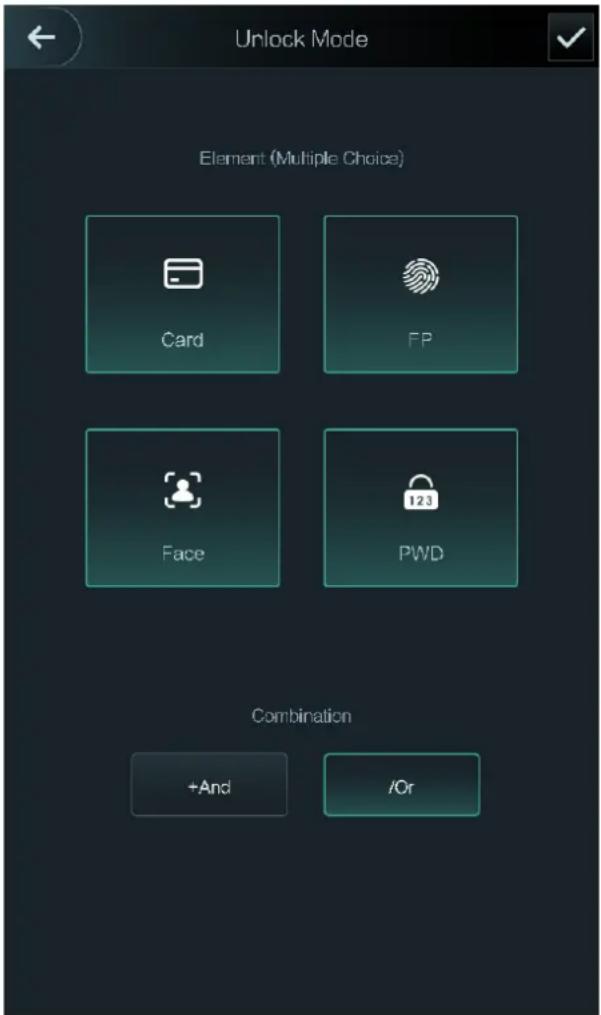
When the Unlock Mode is on, users can unlock through cards, fingerprints, faces, passwords, or any one of all the unlocking methods.
Step 1 Select Access > Unlock Mode > Unlock Mode.
The Element (Multiple Choice) interface is displayed. See Figure 3-6.
Element (multiple choice) Figure 3-6
text_image
Unlock Mode Element (Multiple Choice) Card FP Face PWD Combination +And /OrSelect unlock mode(s). Step 2

Tap a selected unlock mode again, the unlock mode will be deleted.
Select a combination mode. Step 3
-
- And means "and". For example, if you selected card + FP, it means, to unlock the door, you need to swipe your card first, and then get your fingerprint scanned.
- / Or means "or". For example, if you selected card/FP, it means, to unlock the door, you can either swipe your card or get your fingerprints scanned.
text_image
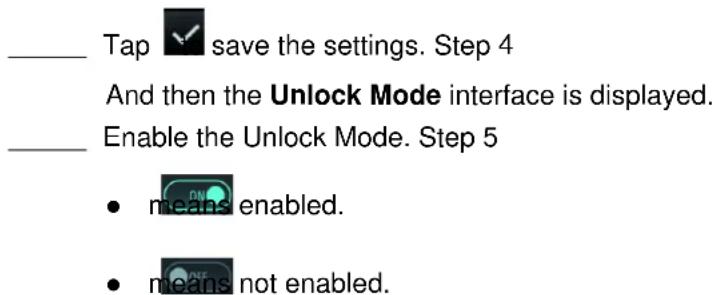
____ Tap √ save the settings. Step 4 And then the Unlock Mode interface is displayed. ____ Enable the Unlock Mode. Step 5 • means enabled. • means not enabled.3.6.2.2 Unlock by Period
Doors can be unlocked through different unlock modes in different periods. For example, in period 1, the door can only be unlocked through card; and in period 2, doors can only be locked through fingerprints.
Select Access > Unlock Mode > Unlock by Period. Step 1 The Unlock Config by Period interface is displayed. See Figure 3-7.
Unlock by period Figure 3-7

text_image
Unlock Config by Period SUN MON TUE WED THU FRI SAT Period 1 Card/FP/Face/PWD 00 : 00 - 23 : 59 Period 2 Card/FP/Face/PWD 00 : 00 - 00 : 00 Period 3 Card/FP/Face/PWD 00 : 00 - 00 : 00 Period 4 Card/FP/Face/PWD 00 : 00 - 00 : 00Set starting time and end time for a period, and then select a unlock mode. Step 2
____ Tap √ save the settings. Step 3 The Unlock Mode interface is displayed. ____ Enable the Unlock by Period function. Step 4
- means enabled.
- means not enabled.
3.6.2.3 Group Combination
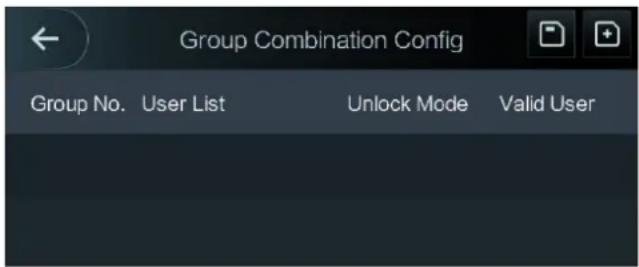
Doors can only be unlocked by a group or groups that consist of more than two users if the Group Combination is enabled.
Step 1 Select Access > Unlock Mode > Group Combination.
The Group Combination Config interface is displayed. See Figure 3-8.
Group Combination Figure 3-8
text_image
Group Combination Config Group No. User List Unlock Mode Valid UserTap create a group. Step 2
The Add Group interface is displayed. See Figure 3-9.
Add a group Figure 3-9

text_image
Add Group User List ... Unlock Mode Card Valid User 1Table 3-3 Group parameter
| Parameter | Description |
| User List | Add users to the newly created group.1. Tap User List.The User List interface is displayed.2. Tap , [xT46] then enter a user ID.3. Tap [2600] ave the settings. |
| Unlock Mode | There are four options: Card, FP, PWD and Face. |
| Valid User | Valid users are the ones that have unlock authority. Doors can be unlocked only when the number of users to unlock the doors equals the valid user number.· Valid users cannot exceed the total number of users in a group.· If valid users equal total user numbers in a group, doors can only be unlocked by all the users in the group.· If valid users are less than the total number of users in a group, doors can be unlocked by any users whose number equals the valid user number. |
____ Tap to go back to the previous interface. Step 3
____ Tap √ save the settings. Step 4
Step 5 Enable the Group Combination.
• ON means enabled.
• OFF means not enabled.
3.6.3 Alarm Configuration
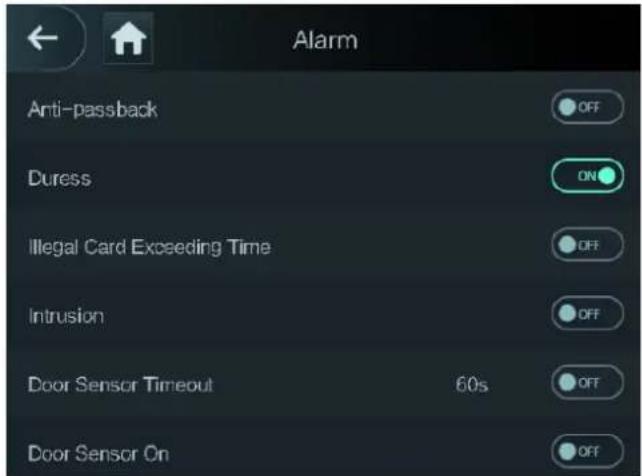
Administrators can manage visitors' unlock authority through alarm configuration. Select Access > Alarm. The Alarm interface is displayed. See Figure 3-10.
Figure 3-10 Alarm
text_image
Alarm Anti-passback Off Duress ON Illegal Card Exceeding Time OFF Intrusion OFF Door Sensor Timeout 60s OFF Door Sensor On OFF- means enabled.
- means not enabled.
Table 3-4 Parameters on the alarm interface
| Parameter | Description |
| Anti-passback | If a person unlocks the door with the identity checked by the access controller, but when the person gets out without getting the identity checked by the access controller, an alarm will be triggered and the person will have no authority to unlock the door any more.If a person gets inside a building or a room without swiping the card, and the person swiped the card to get out, then the person will have no authority to unlock the door any more. |
| Duress | An alarm will be triggered when a duress card, duress password, or duress fingerprint is used to unlock the door. |
| Illegal Card Exceeding Time | After an unauthorized card is used to unlock the door more than 5 times in 50 seconds, an alarm will be triggered. |
| Intrusion | An intrusion alarm will be triggered if a door is unlocked without having the door contact released. |
| Door Sensor Timeout | A timeout alarm will be triggered if the time that a user takes to unlock the door exceeds the Door Sensor Timeout time.The Door Sensor Timeout time range is 1–9999 seconds. |
| Door Sensor On | Only when the Door Sensor On is enabled can the intrusion alarm and door sensor timeout alarm be triggered. |
3.6.4 Door Status
There are three options: NO, NC, and Normal.
- NO: If NO is selected, the door status is normally open, which means the door will never be closed.
- NC: If NC is selected, the door status is normally closed, which means the door will not be unlocked.
- Normal: If Normal is selected, the door will be unlocked and locked depending on your settings.
3.6.5 Lock Holding Time
Lock Holding Time is the duration in which the lock is unlocked. If the lock has been unlocked for a period that exceeds the duration, the lock will be automatically locked.
Network Communication 3.7
To make the access controller work normally, you need to configure parameters for network, serial ports and Wiegand ports.
3.7.1 IP Address
3.7.1.1 IP Configuration
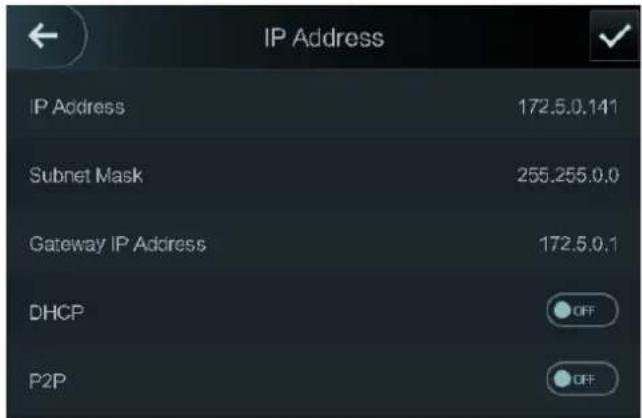
Configure an IP address for the access controller to make it be connected to the network. See Figure 3-11 and Table 3-5.
IP address configuration Figure 3-11
text_image
IP Address IP Address 172.5.0.141 Subnet Mask 255.255.0.0 Gateway IP Address 172.5.0.1 DHCP OFF P2P OFFTable 3-5 IP configuration parameters
| Parameter | Description |
| IP Address/Subnet Mask/Gateway IP Address | The IP address, subnet mask, and gateway IP address should be on the same network segment. After configuration, tap save the configurations. |
| DHCP | DHCP (Dynamic Host Configuration Protocol).When the DHCP is enabled, the IP address can be automatically acquired, and the IP address, subnet mask and gateway IP address cannot be manually configured. |
| P2P | P2P is a private network traversal technology which enables user to manage devices without requiring DDNS, port mapping or transit server. |

• Make sure that the computer used to log in to the web is in the same LAN with the device.
- 7-inch model B access controllers of have dual NICs. The default management address for 1000M Ethernet port is 192.168.1.108, and for 100M Ethernet port is 192.168.2.108.
3.7.1.2 Active Register
By active registering, you can connect the access controller to the management platform, and then you can manage the access controller through the management platform.

Configurations you have made can be cleared on the managing platform, and the access controller can be initialized, you need to protect the platform managing authority in case of data loss caused by improper operation.
For active register parameter, see Table 3-6.
Table 3-6 Active register
| Name | Parameter |
| Server IP Address | IP address of the managing platform. |
| Port | Port number of the managing platform. |
| Device ID | Subordinate device number on the managing platform. |
3.7.1.3 Wi-Fi
You can connect the access controller to the network through Wi-Fi if the access controller has Wi-Fi function.
3.7.2 Serial Port Settings
Select serial input or serial output according to the entering direction and exiting direction.
Select Connection > Serial Port, and then the Serial Port interface is displayed. See Figure 3-12.
Serial port Figure 3-12

text_image
Serial Port Serial Input Serial Output OSDP Input- Select Serial Input when external devices that are with card reading and writing functions are connected to the access controller. Serial Input is selected to enable access card information to be sent to the access controller and the management platform.
- For access controllers with face recognition, fingerprint recognition, card reading and writing functions, if you select Serial Output, access controller will send lock/unlock information to the access controller. There are two types of lock/unlock information:
User ID ◇
Card No. ◇
- Select OSDP Input when card reader of OSDP protocol is connected to the access controller. The access controller can send card information to the management platform.
3.7.3 Wiegand Configuration
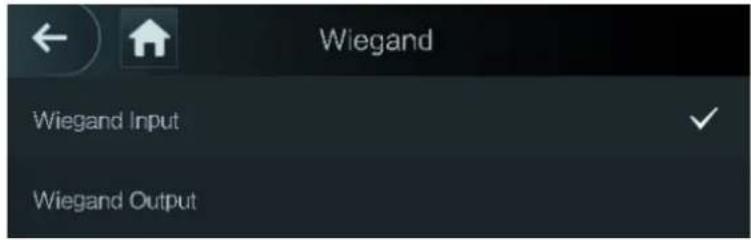
Select Weigand Input or Weigand Output according to the entering direction and exiting direction.
Select Connection > Weigand, and then the Weigand interface is displayed. See Figure 3-13.
Weigand Figure 3-13
text_image
Wiegand Wiegand Input Wiegand Output- Select Weigand Input when an external card swipe mechanism is connected to the access controller.
- Select Weigand Output when the access controller works as a reader that can be connected to the controller. See Table 3-7.
Table 3-7 Weigand output
| Parameter | Description |
| Weigand Output Type | The Weigand Output Type determines the card number or the digit of the number than can be recognized by the access controller.· Weigand26, three bytes, six digits.· Weigand34, four bytes, eight digits.· Weigand66, eight bytes, sixteen digits. |
| Pulse Width | You can set pulse width and pulse interval. |
| Pulse Interval | |
| Output Data Type | You can select the types of output data.· User ID: If User ID is selected, and then user ID will be output.· Card No.: If Card No. is selected, and then card number will be output. |
System 3.8
3.8.1 Time
You can do date format setting, date setting, time setting, DST setting, NTP check, and time zone settings.

- When you select Network Time Protocol (NTP), you need to enable the NTP Check function first. Server IP Address: enter the IP address of the time server, time of the access controller will be synchronized with the time server.
- Port: Enter the port number of the time server.
- Interval (min): NPT check interval. Tap the save icon to save.
3.8.2 Face Parameter
Face parameter Figure 3-14

text_image
Face Parameter Face Recognition Threshold 85 Max. Angle of Face Recognition 90 Pupillary Distance 60 Recognition Timeout (S) 3 Invalid Face Prompt Interval (S) 3 Anti-fake Threshold OFFTap a parameter and do configuration, and then tap √
Table 3-8 Face parameter
| Name | Description |
| Face Recognition Threshold | Face recognition accuracy can be adjusted. The larger the value is, the higher the accuracy will be. |
| Max. Angle of Face Recognition | You can set the control panel shooting angle of profiles. The larger the value is, the wider range of the profiles will be recognized. |
| Pupillary Distance | Pupillary distance is the pixel value of the image between the centers of the pupils in each eye. You need to set an appropriate value so that the access controller can recognize faces as needed. The value changes according to the face sizes and the distance between faces and the lens. The closer the face is to the lens, the greater the value should be. If an adult is 1.5 meters away from the lens, the pupillary distance value can be within 50 to 70. |
| Recognition Timeout | When a person who does not have the access authority stands in front of the access controller and gets the face recognized, the controller will prompt that face recognition failed. The prompt interval is called recognition timeout. |
| Recognition Interval | When a person who has the access authority stands in front of the access controller and gets the face recognized, the controller will prompt that face recognition succeeded. The prompt interval is the recognition interval. |
| Anti-fake Threshold | This function prevents people from unlocking by human face images or face models. The larger the value is, the more difficult face images can unlock the door. The recommended value range is above 80. |
3.8.3 Fill Light Mode Setting
You can select fill light modes according to your needs. There are three modes:
- Auto: When the photo sensor detects that the ambient environment is not dark, the fill light is normally off; otherwise, the fill light will be on.
- NO: The fill light is normally on.
- NC: The fill light is normally closed.
3.8.4 Fill Light Brightness Setting
You can select fill light brightness according to your needs.
3.8.5 Volume Adjustment
Tap

to adjust the volume.
3.8.6 IR Light Brightness Adjustment
The larger the value is, the clearer the images will be; otherwise the unclearer the images will be.
3.8.7 FP Parameter
Set the fingerprint accuracy level. The higher the level is, the lower the false recognition rate will be.
3.8.8 Restore to Factory Settings

- Data will be lost if you restore the access controller to the factory settings.
- After the access controller is restored to the factory settings, IP address will not be changed.
You can select whether to retained user information and logs. - You can select to restore the access controller to the factory settings with all user information and device information deleted.
- You can select to restore the access controller to the factory settings with user information and device information retained.
3.8.9 Reboot
Select Setting > Reboot, tap Reboot, and the access controller will be rebooted.
USB 3.9

- Make sure that the USB is inserted before exporting user information and updating. During exporting or updating, do not pull out the USB or do other operations; otherwise the exporting or updating will fail.
- You need to import information from one access controller to the USB before using USB to import information to another access controller.
- USB can also be used to update the program.
3.9.1 USB Export
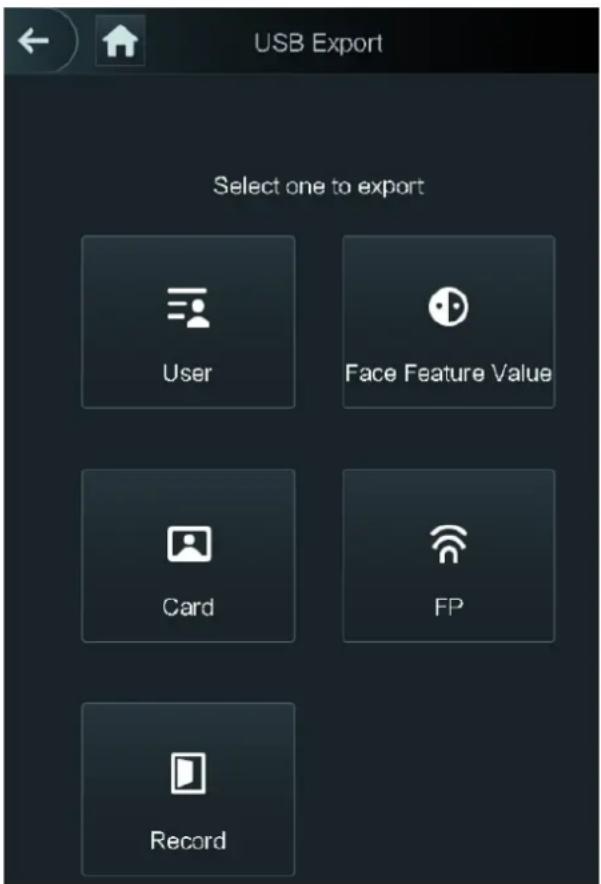
You can export data from the access controller to the USB after inserting the USB. The data exported is encrypted and cannot be edited.
____ Select USB > USB Export. Step 1 The USB Export interface is displayed. See Figure 3-15.
USB export Figure 3-15
text_image
USB Export Select one to export User Face Feature Value Card FP Record____ Select the data type that you want to export. Step 2
The prompt Confirm to export is displayed.
Tap OK. Step 3
Data exported will be saved in the USB.
3.9.2 USB Import
Only data in the USB that was exported from one access controller can be imported into another access controller.
Select USB > USB Import. Step 1
The USB Import interface is displayed. See Figure 3-16.
USB Import Figure 3-16

text_image
USB Import Select one to import User Face Feature Value Card FP____ Select the data type that you want to import. Step 2
The prompt Confirm to import is displayed.
Tap OK. Step 3
Data in the USB flash drive will be imported into the access controller.
3.9.3 USB Update
USB flash drive can be used to update the system.
____ Rename the updating file name to "update.bin", and save the "update.bin" file in the Step 1 root directory of the USB flash drive.

- Make sure that the computer used to log in to the web is in the same LAN with the device.
- 7-inch model B access controllers of have dual NICs. The default management address for 1000M Ethernet port is 192.168.1.108, and for 100M Ethernet port is 192.168.2.108.
Step 2 Select USB > USB Update.
The prompt Confirm to Update is displayed.
Tap OK. Step 3
The update starts, and the access controller reboots after the update is finished.
3.9.4 Features
You can do settings about privacies, card number reverse, security module, door sensor type, and result feedback. For details of the functions mentioned, see Figure 3-17 and Table 3-9.
Features Figure 3-17

text_image
Features Privacy Setting Card No. Reverse Security Module Door Sensor Type Result Feedback Success or FailureTable 3-9 Feature description
| Parameter | Description |
| Privacy Setting | See "3.9.5 Privacy Setting" for details. |
| Card No. Reverse | If the third party card reader needs to be connected to the access controller through the wiegand output port, you need to enable the Card No. Reverse function; otherwise the communication between the access controller and the third party card reader might fail due to protocol discrepancy. |
| Security Module | · If the security module is enabled, you need to purchase access control security module separately. The security module needs separate power supply to provide power.· Once the security module is enabled, the exit button, lock control and firefighting linkage will be invalid. |
| Door Sensor Type | There are two options: NO and NC. |
| Result Feedback | Displays whether the unlock succeeded or failed. |
3.9.5 Privacy Setting
Privacy setting Figure 3-18

text_image
Privacy Setting PWD Reset Enable HTTPS CGI SSH FP Capture Photos Clear All Captured PhotosTable 3-10 Features
| Parameter | Description |
| PWD Reset Enable | If the PWD Reset Enable function is enabled, you can reset the password. The PWD Reset function is enabled by default. |
| HTTPS | Hypertext Transfer Protocol Secure (HTTPS) is a protocol for secure communication over a computer network.When HTTPS is enabled, HTTPS will be used to access CGI commands; otherwise HTTP will be used.When HTTPS is enabled, the access controller will restart automatically. |
| CGI | Common Gateway Interface (CGI) offers a standard protocol for web servers to execute programs that execute like console applications running on a server that generates web pages dynamically.When CGI is enabled, CGI commands can be used. The CGI is enabled by default. |
| SSHFP | Secure Shell (SSH) is a cryptographic network protocol for operating network services securely over an unsecured network.When SSH is enabled, SSH provides cryptographic service for the data transmission.If you select OFF for Fingerprint (FP), users' fingerprint information will not be displayed when they get fingerprints recorded or when they use fingerprints to unlock the door. |
| Capture photo | If you select ON, when a user unlocks the door, the user's photo will be automatically taken. This function is ON by default. |
| Clear all captured photos | Tap the icon, and you can delete all captured photos. |
3.9.6 Result Feedback
You can select a result feedback mode as needed.
Mode 1
Mode 1 Figure 3-19

text_image
9/5 15 26 THU User ID:1 Name: Test Time: 17:19:55
text_image
9/5 15:26 THU Unauthorized Time:17:21:19Mode 2
Mode 2 Figure 3-20
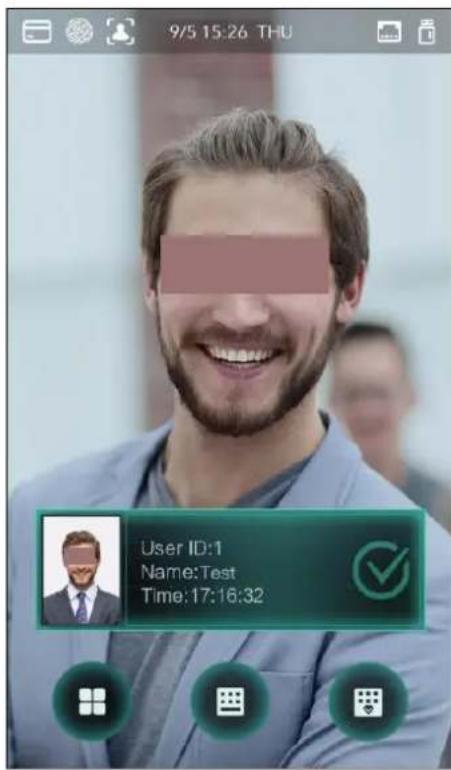
text_image
9/5 15:26 THU User ID:1 Name:Test Time:17:16:32
text_image
9/5 15:26 THU Unauthorized Time:17:18:40Mode 3
Mode 3 Figure 3-21

text_image
9/5 15:26 THU User ID:1 Name: Test Time:17:10:58
text_image
9/5 15:26 THU Unauthorized Time:17:15:08Mode 4
Mode 4 Figure 3-22

text_image
9/5 15:26 THU Successfully!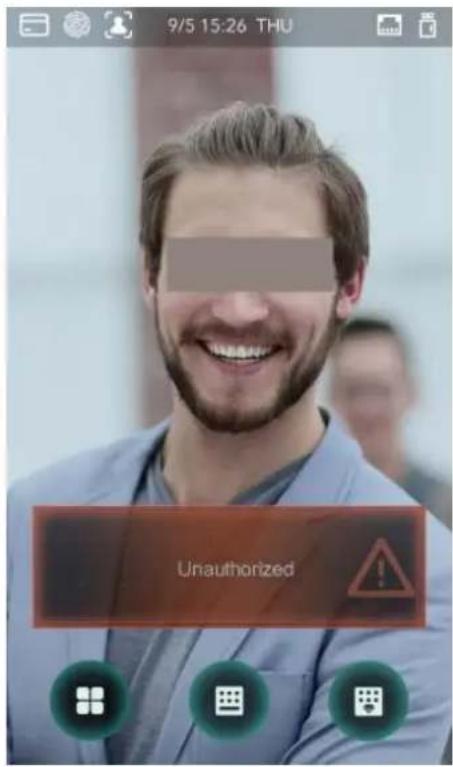
text_image
9/5 15:26 THU UnauthorizedRecord 3.10
You can query all unlocking records.
Search punch records Figure 3-23

text_image
Search Punch Records User ID. Name Time Status Verify Mode 09-05 17:21 Failed Face 1 zxl 09-05 17:19 OK Face 1 zxl 09-05 17:19 OK Face 1 zxl 09-05 17:19 OK Face 1 zxl 09-05 17:19 OK Face 09-05 17:18 Failed Face 09-05 17:18 Failed Face 09-05 17:18 Failed Face 09-05 17:18 Failed Face 09-05 17:18 Failed Face 09-05 17:18 Failed Face 09-05 17:18 Failed Face 1/6 > |Auto Test 3.11
When you use the access controller for the first time or when the access controller malfunctioned, you can use auto test function to check whether the access controller can work normally. Do actions according to the prompts.
Auto test Figure 3-24
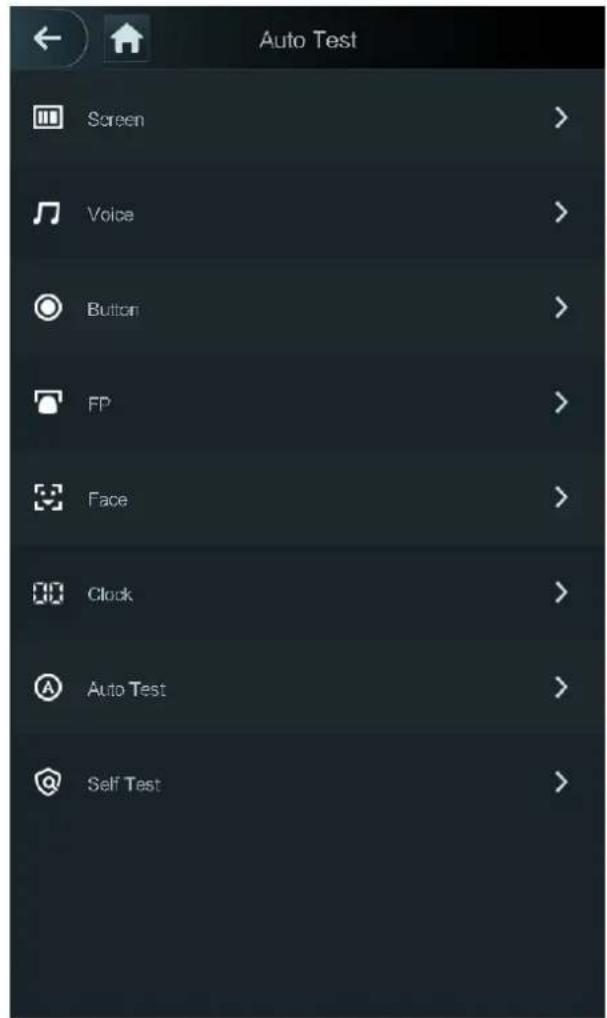
text_image
Auto Test Screen > Voice > Button > FP > Face > Clock > Auto Test > Self Test >
When you select Auto Test, the access controller will guide you to do all the auto tests.
System Info 3.12
You can view data capacity, device version, and firmware information of the access controller on the System Info interface.
The access controller can be configured and operated on the web. Through the web you can set network parameters, video parameters, and access controller parameters; and you can also maintain and update the system.
Initialization 4.1
You need to set a password and an email address before logging in to the web for the first time.
____ Open IE web browser, and enter the IP address (the default address is 192.168.1.108) Step 1 of the access controller in the address bar, and then press Enter.
The Initialization interface is displayed. See Figure 4-1.

- Use browser newer than IE 8, otherwise you might not log in to the web.
- Make sure that the computer used to log in to the web is in the same LAN with the device.
- 7-inch model B access controllers of have dual NICs. The default management address for 1000M Ethernet port is 192.168.1.108, and for 100M Ethernet port is 192.168.2.108.
Initialization Figure 4-1

text_image
Boot Wizard Device Initialization Auto Check Username admin New Password Low Medium High Confirm Password Password shall be at least 8 digits, and shall at least include two types, including number, letter and common character Bind Email It will be used to reset password. Please fill in or complete it timely) NextEnter the new password, confirm password, enter an email address, and then tap Next. Step 2

- For security, keep the password properly after initialization and change the password regularly.
- The password should consist of 8 to 32 non-blank characters and contain at least two types of characters among upper case, lower case, number, and special
character (excluding '"; : &). Set a password of high security level according to the password strength prompt.
- When you need to reset the administrator password by scanning the QR code, you need an email address to receive the security code.
Click Next. Step 3
The Auto Check interface is displayed. See Figure 4-2.
Auto check Figure 4-2

text_image
Boot Wizard Device Initialization Auto Check Auto Check Realize check tips of new version To inform you of the latest firmware upgrades for your device, we need to collect device info such as IP address, device name, firmware version, device SN, etc. All collected info is used only for the purposes of verifying device validity and pushing upgrade notifications. NextYou can decide whether to select Auto Check or not. Step 4

It is recommended that Auto Check be selected to get the latest program in time.
Click Next. Step 5
The configuration is finished. See Figure 4-3.
Finished configuration Figure 4-3
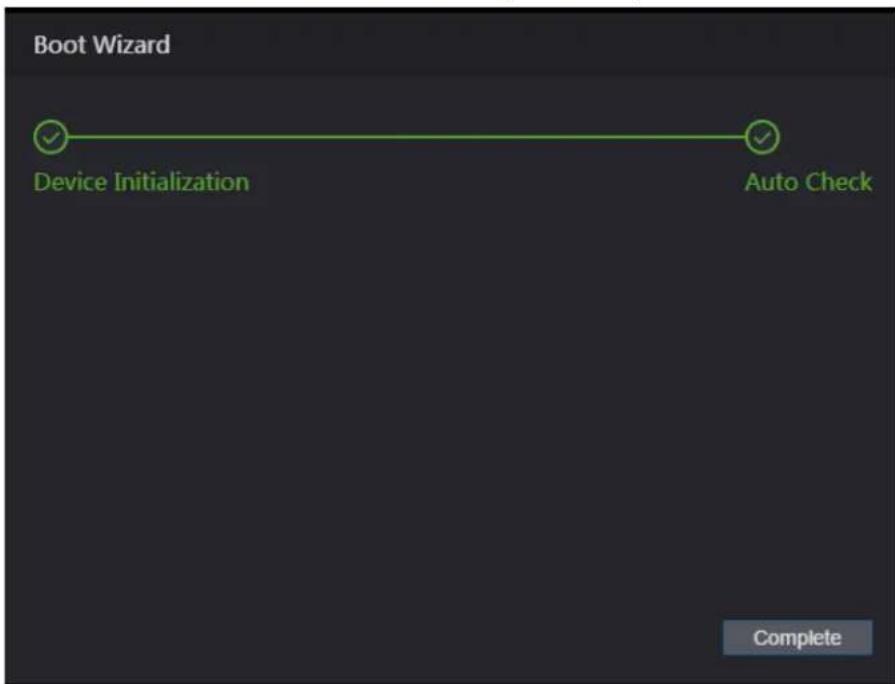
text_image
Boot Wizard Device Initialization Auto Check CompleteClick Complete, and the initialization is completed. Step 6
The web login interface is displayed.
Login 4.2
____ Open IE web browser, enter the IP address of the access controller in the address bar, Step 1 and press Enter.

- Use browser newer than IE 8, otherwise you might not log in to the web.
- Make sure that the computer used to log in to the web is in the same LAN with the device.
- 7-inch model B access controllers of have dual NICs. The default management address for 1000M Ethernet port is 192.168.1.108, and for 100M Ethernet port is 192.168.2.108.
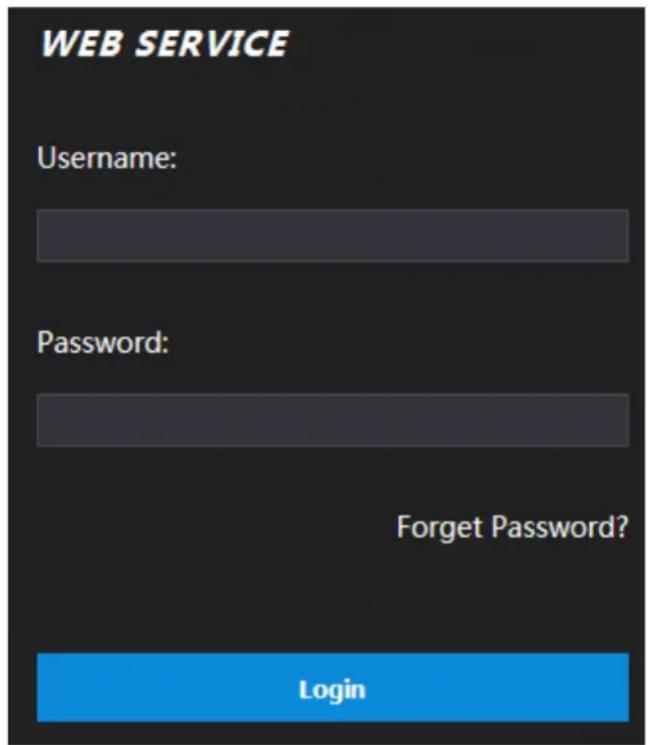
Login Figure 4-4
text_image
WEB SERVICE Username: Password: Forget Password? LoginEnter the user name and password. Step 2

- The default administrator name is admin, and the password is the login password after initializing the access controller. Modify the administrator regularly and keep it properly for the sake of security.
- If you forget the administrator login password, you can click Forgot password? to reset it. See "4.3 Resetting the Password."
Click Login. Step 3
The web interface is logged in.
Resetting the Password 4.3
When resetting the password of the admin account, your email address will be needed.
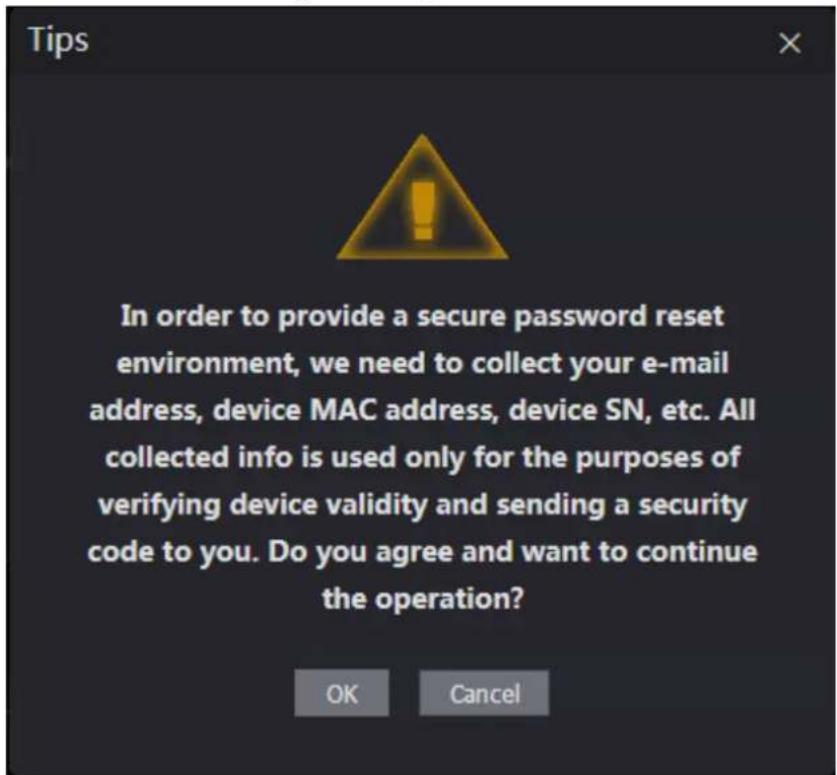
Click Forgot password? on the login interface. Step 1 The Tips interface is displayed.
Figure 4-5 Tips
text_image
Tips In order to provide a secure password reset environment, we need to collect your e-mail address, device MAC address, device SN, etc. All collected info is used only for the purposes of verifying device validity and sending a security code to you. Do you agree and want to continue the operation? OK CancelRead the tips. Step 2
Click OK. Step 3
The Reset Password interface is displayed.
Figure 4-6 Reset Password

text_image
Reset Password (1/2) Please scan QR code: Scan the QR code on the web interface Note: Please send the scan result to support_gpwd@htmicrochip.com Security code will be sent to your email: 1***@qq.com Please input security code: Cancel NextScan the QR code on the interface, and you will get the security code. Step 4

- At most two security codes will be generated by scanning the same QR code. If security codes become invalid, to get more security codes, refresh the QR code.
- You need to send the content you get after you scanned the QR code to the designated email address, and then you will get the security code. - Please use the security code within 24 hours after you receive it. Otherwise, it will become invalid. - If wrong security codes are entered for consecutive five times, the administrator will be frozen for five minutes.
Enter the security code you have received. Step 5
Click Next. Step 6
The Reset Password interface is displayed.
Reset and confirm the new password. Step 7
[Non-Text]
The password should consist of 8 to 32 non-blank characters and contain at least two types of characters among upper case, lower case, number, and special character (excluding '"; : &).
Click OK, and the reset is completed. Step 8
Alarm Linkage 4.4
4.4.1 Setting Alarm Linkage
Alarm input devices can be connected to the access controller, and you can modify the alarm linkage parameter as needed.
Select Alarm Linkage on the navigation bar. Step 1
The Alarm Linkage interface is displayed. See Figure 4-7.
Alarm linkage Figure 4-7
| Alarm Linkage | ||||
| Refresh | ||||
| Alarm Input | Name | Alarm Input Type | Alarm Output Channel | Modify |
| 1 | Zone1 | NO | 1 | |
| 2 | Zone2 | NO | 1 | |
Step 2
Click

and then you can modify alarm linkage parameters. See Figure 4-8
Modifying alarm linkage parameter Figure 4-8

text_image
Modify Alarm Input 1 Name Zone1 Alarm Input Type NO Fire Link Enable Alarm Output Enable Duration (Sec.) 30 (1~300) Alarm Output Channel ✓ 1 2 Access Link Enable Channel Type NO OK CancelTable 4-1 Alarm linkage parameter description
| Parameter | Description |
| Alarm Input | You cannot modify the value. Keep it default. |
| Name | Enter a zone name. |
| Alarm Input Type | There are two options: NO and NC.If alarm input type of the alarm device you purchased is NO, then you should select NO; otherwise you should select NC. |
| Fire Link Enable | If fire link is enabled the access controller will output alarms when fire alarms are triggered. The alarm details will be displayed in the alarm log.Alarm output and access link are NO by default if fire link is enabled. |
| Alarm Output Enable | The relay can output alarm information (will be sent to the management platform) if the Alarm Output is enabled. |
| Duration (Sec.) | The alarm duration, and the range is 1–300 seconds. |
| Alarm Output Channel | You can select an alarm output channel according to the alarming device that you have installed. Each alarm device can be regarded as a channel. |
| Access Link Enable | After the Access Link is enabled, the access controller will be normally on or normally closed when there are input alarm signals. |
| Channel Type | There are two options: NO and NC. |
Click OK, and then the configuration is completed. Step 3

The configuration on the web will be synchronized with the configuration in the client if the access controller is added to a client.
4.4.2 Alarm Log
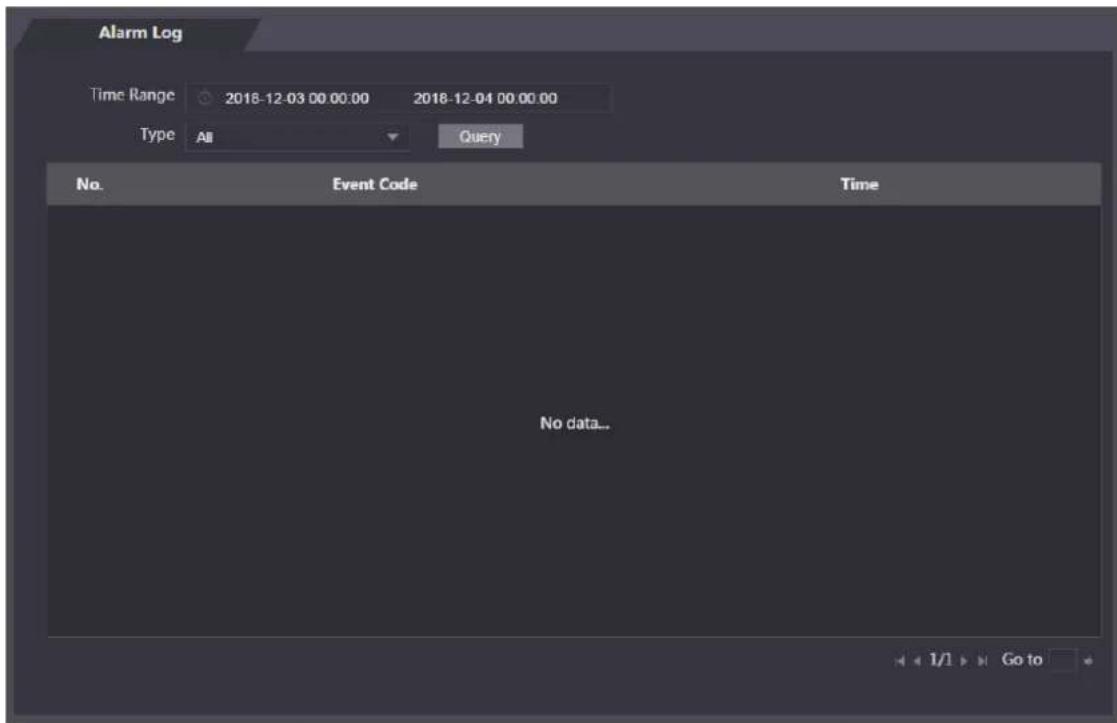
You can view the alarm type and time range in the Alarm Log interface.
Select Alarm Linkage > Alarm Log. Step 1
The Alarm Log interface is displayed. See Figure 4-9.
Alarm log Figure 4-9
text_image
Alarm Log Time Range 2018-12-03 00:00:00 2018-12-04 00:00:00 Type All Query No. Event Code Time No data.. 1/1 Go toSelect a time range and alarm type, and then click Query. Step 2
The query results are displayed. See Figure 4-10.
Query results Figure 4-10

text_image
Alarm Log Time Range 2018-12-03 00:00:00 2018-12-04 00:00:00 Type All Query Find 1 Log Time 2018-12-03 00:00:00 -- 2018-12-04 00:00:00 No. Event Code Time 1 ChassisIntruded Alarm 2018-12-03 12:03:54Data Capacity 4.5
You can see how many users, cards, face images, and fingerprints the access controller can hold on the Data Capacity interface.
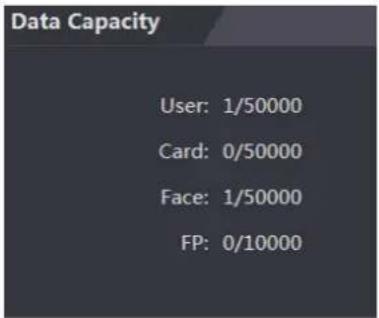
text_image
Data Capacity User: 1/50000 Card: 0/50000 Face: 1/50000 FP: 0/10000Video Setting 4.6
You can set parameters including data rate, image parameters (brightness, contrast, hue, saturation, and more), and exposure on the Video Setting interface.
4.6.1 Data Rate
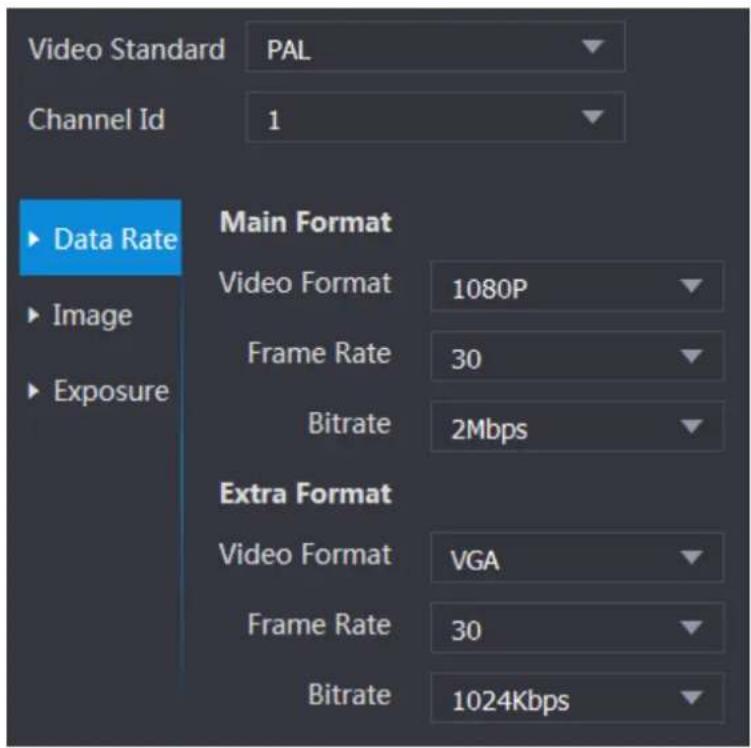
Data rate Figure 4-12
text_image
Video Standard PAL Channel Id 1 Data Rate Image Exposure Main Format Video Format 1080P Frame Rate 30 Bitrate 2Mbps Extra Format Video Format VGA Frame Rate 30 Bitrate 1024KbpsTable 4-2 Data rate parameter description
| Parameter | Description | |
| Video Standard | There are two options: NTSC and PAL. Select a standard according to the video standard of your region. | |
| Channel | There are two options: 1 and 2. 1 is white light camera and 2 is IR light camera. | |
| Main Format | Video Format | There are four options: D1, VGA, 720p and 1080p. Select an option according to the video quality you want. |
| Frame Rate | The rate at which consecutive frames appear on a display. The frame rate range is 1–30fps. | |
| Bit Rate | The number of bits that are conveyed or processed per unit of time. There are five options: 2Mbps, 4Mbps, 6Mbps, 8Mbps, and 10Mbps. | |
| Extra Format | Video Format | There are three options: D1, VGA, and QVGA. |
| Frame Rate | The rate at which consecutive frames appear on a display. The frame rate range is 1–30fps. | |
| Bit Rate | The number of bits that are conveyed or processed per unit of time. There are options: 512Kbps, 640Kbps, 768Kbps, 896Kbps, 1024Kbps, 1.25Mbps, 1.5Mbps, 1.75Mbps, and 2Mbps. | |
4.6.2 Image
There are two channels, and you need to configure parameters for each channel.
Select Video Setting > Video Setting > Image. Step 1
Image Figure 4-13

text_image
Video Setting Data Rate Image Exposure Brightness 50 Contrast 50 Hue 50 Saturation 50 SceneMode Sunny Day/Night Colorful Mode BackLight Mode Close Mirror Enable Disable Flip Enable Disable DefaultSelect Wide Dynamic in the Backlight Mode. Step 2
Table 4-3 Image parameter description
| Parameter | Description |
| Brightness | The larger the value is, the brighter the images will be. |
| Contrast | Contrast is the difference in luminance or color that makes an object distinguishable. The larger the contrast value is, the greater the brightness and color contrast will be. |
| Hue | The larger the value is, the deeper the color will be. |
| Saturation | The larger the value is, the brighter the colors will be.[IMAGE]The value does not change image brightness. |
| Scene Mode | Close: Without modes.Auto: The system automatically adjusts scene modes.Sunny: In this mode, image hue will be reduced.Night: In this mode, image hue will be increased.Sunny is selected by default. |
| Day/Night Mode | Day/Night mode decides the working status of the fill light.Auto: The system automatically adjusts the day/night modes.Colorful: In this mode, images are with colors.Black and white: In this mode. Images are in black and white. |
| Back Light Mode | Close: Without back light.BLC: Backlight compensation corrects regions with extremely high or low levels of light to maintain a normal and usable level of light for the object in focus.WDR: In the wide dynamic range mode, the system dims bright areas and compensates dark areas to ensure the definition of objects in the bright areas and dark areas.When human faces are in the backlight, you need to enable the Wide Dynamic.HLC: Highlight compensation is needed to compensate for overexposure of highlights or strong light sources like spotlights, headlights, porch lights, etc. to create an image that is usable and not overtaken by a bright light. |
| Mirror | When the function is enabled, images will be displayed with left and right side reversed. |
| Flip | When this function is enabled, videos can be flipped over. |
4.6.3 Exposure
Table 4-4 Exposure parameter description
| Parameter | Description |
| Anti-flicker | 50Hz: When the utility frequency of alternating current is 50Hz, the exposure is automatically adjusted to make sure that there are no stripes on images.60Hz: When the utility frequency of alternating current is 60Hz, the exposure is automatically adjusted to make sure that there are no stripes on images.Outdoor: When Outdoor is selected, the exposure mode can be switched. |
| Exposure Mode | When you selectOutdoorin the Anti-flicker drop-down list, you can selectShutter Priorityas the exposure mode.Exposure modes of different devices might vary, and the actual product shall prevail.You can select from:Auto: The access controller will automatically adjust brightness of images.Shutter Priority: The access controller will adjust image brightness according to shutter exposure value range. If the image brightness is not enough and the shutter value has reached upper or lower limit, the access controller will adjust gain value automatically to get ideal brightness.Manual: You can configure gain and shutter value manually to adjust image brightness. |
| Shutter | The larger the shutter value is and the shorter the exposure time is, the darker the images will be. |
| Shutter Value Range | If you selectCustomized Range, you can customize the shutter value range. |
| Gain Value Range | When the gain value range is set, video quality will be improved. |
| Exposure Compensation | You can increase video brightness by adjusting exposure compensation value. |
| 3D NR | When 3D Noise Reduction (RD) is enabled, video noise can be reduced, and high definition videos will be produced. |
| Grade | You can adjust the value of the 3D NR when 3D NR is enabled.The larger the value is, the less the noise there will be. |
4.6.4 Motion Detection
Set a range in which moving objects can be detected.
Step 1 Select Video Setting > Video Setting > Motion Detection.
The Motion Detection interface is displayed. See Figure 4-14.
Motion detection Figure 4-14

text_image
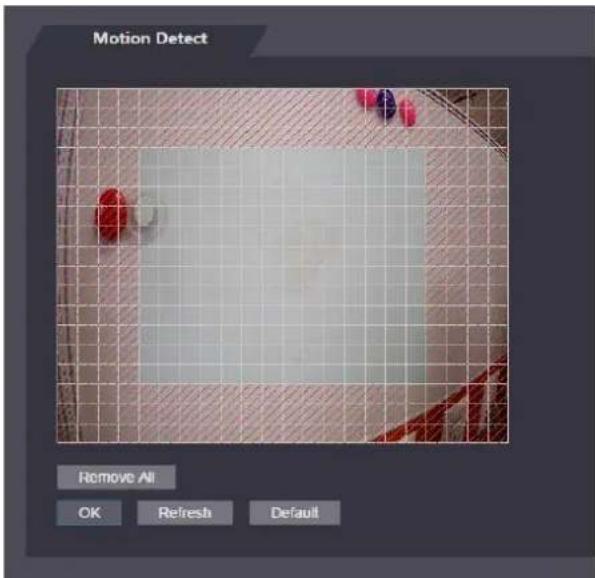
Motion Detect Sensitivity 50 Threshold 50 Remove All OK Refresh DefaultPress and hold the left mouse button, and then drag the mouse in the red area. The Step 2 Motion Detection area is displayed. See Figure 4-15.

- The red rectangles are motion detection area. The default motion detection range is all the rectangles.
• To draw a motion detection area, you need to click Remove All first. - The motion detection area you draw will be a non-motion detection area if you draw in the default motion detection area.
Motion detection area Figure 4-15
text_image
Motion Detect Remove All OK Refresh DefaultSet sensitivity and threshold. Step 3

- Sensitivity represents the ability of each grid to sense motion. The larger the value is, the higher the sensitivity is.
- Threshold is the condition of motion detection. When grid number reaches the threshold, motion detection will be triggered. The smaller the value is, the more likely the motion detection will be triggered.
- When grid number is smaller than the threshold, green line will appear; when grid number is more than the threshold, red line will appear. See Figure 4-14.
Click OK to finish the setting. Step 4
4.6.5 Volume Setting
You can adjust volume of the access controller speaker.
Volume setting Figure 4-16

text_image
Volume Setting Beep Volume 10 OK Refresh Default4.6.6 Image Mode
There are three options: indoor, outdoor and other. Select Indoor when the access controller is installed indoors; select Outdoor when the access controller is installed outdoors; and select Other when the access controller is installed at places with backlights like corridors and hallways.
Image mode Figure 4-17

text_image
Image Mode Image Mode Setting Indoor Indoor Outdoor OtherFace Detect 4.7
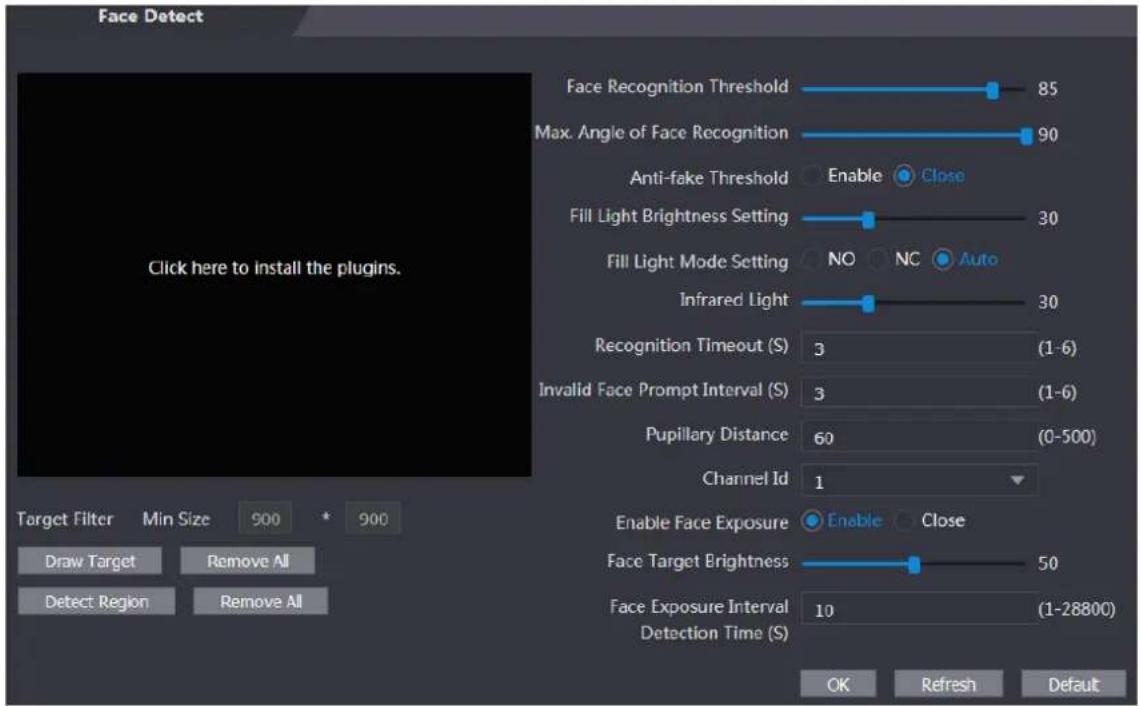
You can configure human face related parameters on this interface to increase the accuracy of the face recognition.
Step 1 Select Face Detect.
The Face Detect interface is displayed. See Figure 4-18.
Face detect Figure 4-18
text_image
Face Detect Click here to install the plugins. Face Recognition Threshold 85 Max. Angle of Face Recognition 90 Anti-fake Threshold Enable Close Fill Light Brightness Setting 30 Fill Light Mode Setting NO NC Auto Infrared Light 30 Recognition Timeout (S) 3 (1-6) Invalid Face Prompt Interval (S) 3 (1-6) Pupillary Distance 60 (0-500) Channel Id 1 Enable Face Exposure Enable Close Face Target Brightness 50 Face Exposure Interval 10 (1-28800) Detection Time (S) OK Refresh Default Target Filter Min Size 900 * 900 Draw Target Remove All Detect Region Remove AllConfigure parameters. See Table 4-5. Step 2
Table 4-5 Face detect parameter description
| Parameter | Description |
| Face Recognition Threshold | The larger the value is, the higher the accuracy will be. |
| Max. Angle of Face Recognition | The larger the angle is, the wider range of the profiles will be recognized. |
| Anti-fake Threshold | There are two options: Enable and Close. |
| Fill Light Brightness Setting | You can set fill light brightness. |
| Fill Light Mode Setting | There are three fill light modes.NO: Fill light is normally on.NC: Fill light is normally closed.Auto: Fill light will be automatically on when a motion detection event is triggered.When Auto is selected, the fill light will not be on even if Infrared Light value is greater than 19. |
| Infrared Light | Adjust IR brightnees by dragging the scroll bar. |
| Recognition Timeout | When a person who does not have the access authority stands in front of the access controller and gets the face recognized, the controller will prompt that face recognition failed. The prompt interval is called recognition timeout. |
| Invalid Face Prompt Interval | When a face has no access authority stands in front of the access controller, the controller will prompt that the face is invalid. The prompt interval is invalid face prompt interval. |
| Pupillary Distance | Pupillary distance is the pixel value of the image between the centers ofthe pupils in each eye. You need to set an appropriate value so that the access controller can recognize faces as needed. The value changes according to the face sizes and the distance between faces and the lens. The closer the face is to the lens, the greater the value should be. If an adult is 1.5 meters away from the lens, the pupillary distance value can be within 50 to 70. |
| Enable Face Exposure | After face exposure is enabled, human face will be clearer when the access controller is installed outdoors. |
| Channel Id | There are two options: 1 and 2. 1 is white light camera and 2 is IR light camera. |
| Draw Target | Click Draw Target, and then you can draw the minimum face detection frame.Click Remove All, and you can remove all the frames you drew. |
| Detect Region | Click Detect Region, move your mouse, and you can adjust the face detection region.Click Remove All, and you can remove all the detection regions. |
| Face Target Brightness | The default value is 50. Adjust the brightness as needed. |
| Face Exposure Interval | After a face is detected, the access controller will give out light to illuminate the face, and the access controller will not give out light again until the interval you set has passed. |
____ Click OK to finish the setting. Step 3
Network Setting 4.8
4.8.1 TCP/IP
You need to configure IP address and DNS server to make sure that the access controller can communicate with other devices.
Make sure that the access controller is connected to the network correctly.
Select Network Setting > TCP/IP. Step 1
TCP/IP Figure 4-19

text_image
TCP/IP IP Version IPv4 MAC Address 9c:14:63:17:5b:47 Mode Static DHCP IP Address Subnet Mask Default Gateway Preferred DNS Server 8 . 8 . 8 . 8 Alternate DNS Server 8 . 8 . 4 . 4 OK Refresh DefaultConfigure parameters. Step 2
Table 4-6 TCP/IP
| Parameter | Description |
| IP Version | There is one option: IPv4. |
| MAC Address | MAC address of the access controller is displayed. |
| Mode | StaticSet IP address, subnet mask, and gateway address manually.DHCPAfter DHCP is enabled, IP address, subnet mask, and gateway address cannot be configured.If DHCP is effective, IP address, subnet mask, and gateway address will be displayed automatically; if DHCP is not effective, IP address, subnet mask, and gateway address will all be zero.If you want to see the default IP when DHCP is effective, you need to disable DHCP. |
| Link-local address | Link-local address is only available when IPv6 is selected in the IP version. Unique link-local addresses will be assigned to network interface controller in each local area network to enable communications. The link-local address cannot be modified. |
| IP Address | Enter IP address, and then configure subnet mask and gateway address. |
| Subnet Mask | IP address and gateway address must be in the same network segment. |
| Default Gateway | |
| Preferred DNS Server | Set IP address of the preferred DNS server. |
| Alternate DNS Server | Set IP address of the alternate DNS server. |
Step 3 Click OK to complete the setting.
4.8.2 Port
Set the maximum connections clients that the access controller can be connected to and port numbers.
Select Network Setting > Port. Step 1
The Port interface is displayed.
Configure port numbers. See the following table. Step 2

Except max connection, you need to reboot the access controller to make the configuration effective after modifying values.
Table 4-7 Port description
| Parameter | Description |
| Max Connection | You can set the maximum connections of clients that the access controller can be connected to. |
| Platform clients like Smartpss are not counted. | |
| TCP Port | Default value is 37777. |
| HTTP Port | Default value is 80. If other value is used as port number, you need to add this value behind the address when logging in through browsers. |
| HTTPS Port | Default value is 443. |
| RTSP Port | Default value is 554. |
____ Click OK to complete the setting. Step 3
4.8.3 Register
When connected to external network, the access controller will report its address to the server that is designated by the user so that clients can get access to the access controller.
Select Network Setting > Auto Register. Step 1
The Auto Register interface is displayed.
Select Enable, and enter host IP, port, and sub device ID. Step 2
Table 4-8 Auto register description
| Parameter | Description |
| Host IP | Server IP address or server domain name. |
| Port | Server port used for auto registration. |
| Sub Device ID | Access controller ID assigned by the server. |
Click OK to complete the setting. Step 3
4.8.4 P2P
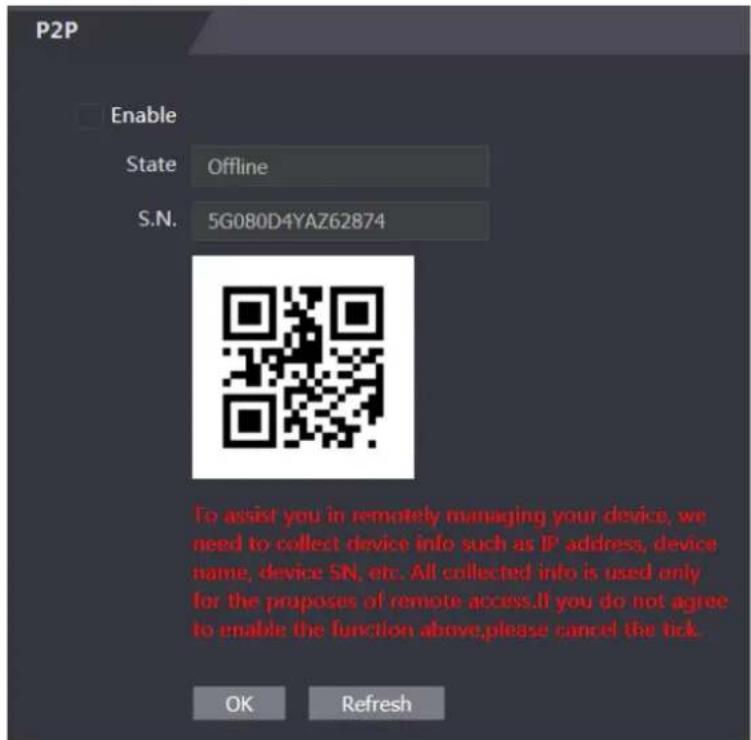
Peer-to-peer computing or networking is a distributed application architecture that partitions tasks or workloads between peers. Users can download mobile application by scanning QR code, and then register an account so that more than one access controller can be managed on the mobile app. You do not need to apply dynamic domain name, do port mapping or do not need transit server.

If you are to use P2P, you must connect the access controller to external network; otherwise the access controller cannot be used.
P2P Figure 4-20
text_image
P2P Enable State Offline S.N. 5G080D4YAZ62874 To assist you in remotely managing your device, we need to collect device info such as IP address, device name, device SN, etc. All collected info is used only for the proposes of remote access. If you do not agree to enable the function above, please cancel the tick. OK RefreshSelect Network Setting > P2P. Step 1
The P2P interface is displayed.
Select Enable to enable P2P function. Step 2
Click OK to complete the setting. Step 3

Scan the QR code on your web interface to get the serial number of the access controller.
Date Setting 4.9
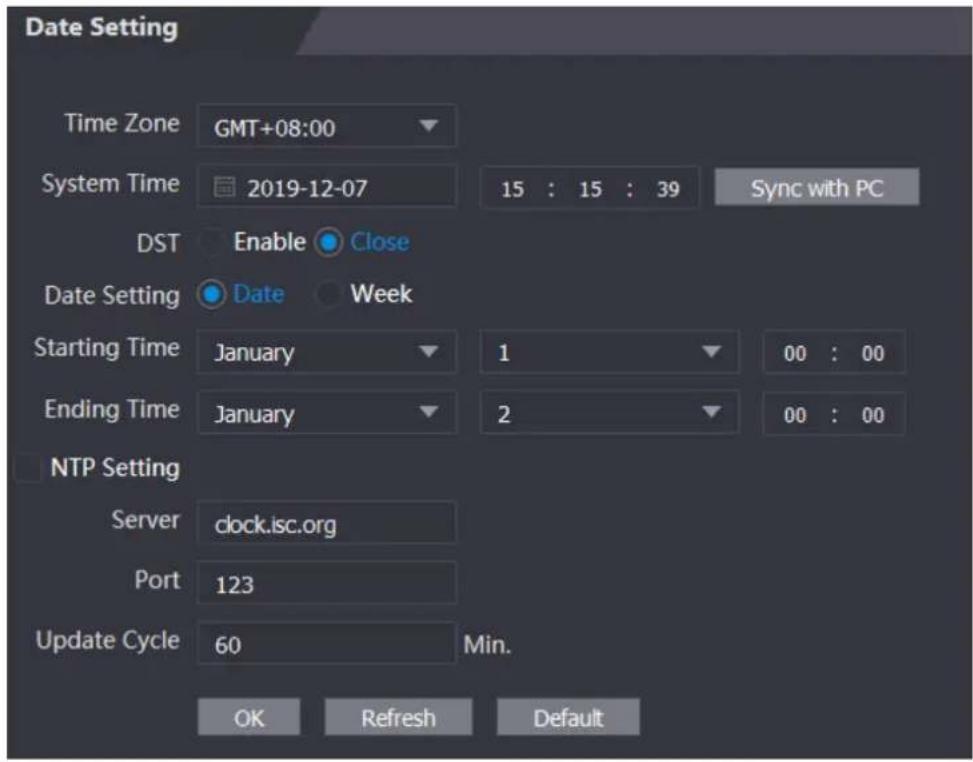
You need to set time zone, time, DST, and NTP for the access controller.

Only access controllers of certain models have this function.
Select Date Setting. Step 1
The Date Setting interface is displayed. See Figure 4-21
Date Setting Figure 4-21
text_image
Date Setting Time Zone GMT+08:00 System Time 2019-12-07 15 : 15 : 39 Sync with PC DST Enable Close Date Setting Date Week Starting Time January 1 00 : 00 Ending Time January 2 00 : 00 NTP Setting Server clock.isc.org Port 123 Update Cycle 60 Min. OK Refresh DefaultSet parameters. Step 2
Table 4-9 Date setting
| Parameter | Description |
| Time Zone | Select time zone as needed. |
| System Time | You can set system time manually, or you can click Sync with PC, to scynchronize access controller time with the computer time. |
| DST | 1. Enable DST.2. Select Date or Week in Date Setting.3. Set Starting Time and Ending Time. |
| NTP Setting | 1. Enable NTP Setting.2. Configure parameters.◇ Server: Enter domain name of the NTP server. The access controller time will be synchronized with the NTP server.◇ Port: Enter port number of the NTP server.◇ Update Cycle: Set an update cycle, and then access controller time will be updated accordingly.3. Click OK. |
Safety Management 4.10
4.10.1 IP Authority
Select a cyber security mode as needed.
IP authority Figure 4-22

text_image
IP Authority Type Network Access Enable Default Refresh Network Access Prohibit PING Anti Half Connection4.10.2 Systems
4.10.2.1 System Service
There are four options: SSH, PWD Reset Enable, CGI, and HTTPS. Refer to "3.9.4 Features" to select one or more than one of them.

The system service configuration done on the web page and the configuration on the Features interface of the access controller will be synchronized.
System service Figure 4-23

text_image
System Service SSH ✓ PWD Reset Enable ✓ CGI ✓ ONVIF HTTPS Warning:Disabling HTTPS may be at risk Create Server Certificate Download Root Certificate OK Refresh Default4.10.2.2 Creating Server Certificate
Click Create Server Certificate, enter needed information, click Save, and then the access controller will reboot.
4.10.2.3 Downloading Root Certificate
Step 1 Click Download Root Certificate.
Select a path to save the certificate on the Save File dialog box.
Step 2 Double-click on the Root Certificate that you have downloaded to install the certificate.
Install the certificate by following the onscreen instructions.
User Management 4.11
You can add and delete users, modify users' passwords, and enter an email address for resetting the password when you forget your password.
4.11.1 Adding Users
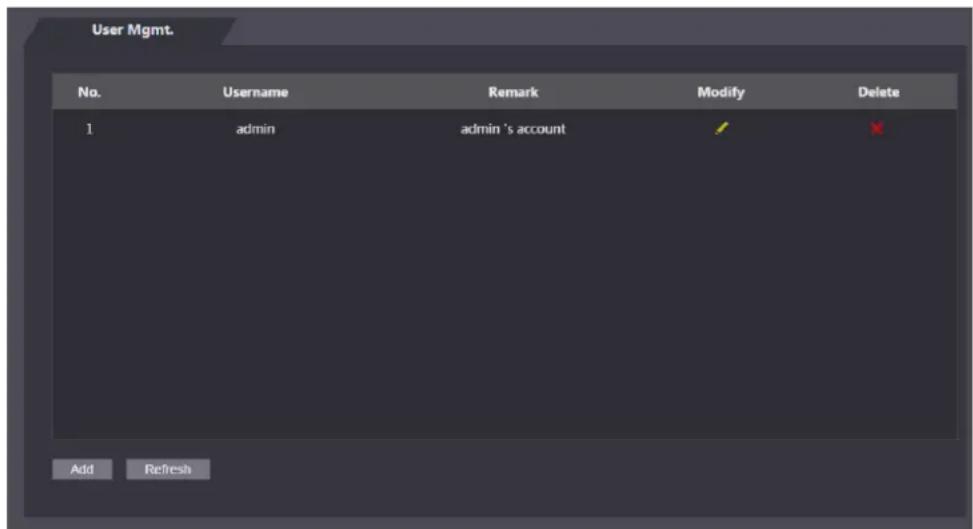
Click Add on the User Mgmt. interface to add users, and then enter username, password, confirmed password, and remark. Click OK to complete the user adding.
4.11.2 Modifying User Information
You can modify user information by clicking 📋 on the User Mgmt. interface. See Figure 4-24.
User management Figure 4-24
text_image
User Mgmt. No. Username Remark Modify Delete 1 admin admin 's account Add Refresh4.11.3 Onvif User
Open Network Video Interface Forum (ONVIF), a global and open industry forum with the goal of facilitating the development and use of a global open standard for the interface of physical IP-based security products. When ONVIF is used, administrator, operator, and user have different permission of ONVIF server. Create onvif users as needed.
Onvif user Figure 4-25

text_image
Onvif User No. Username Group Modify Delete 1 admin admin Add Refresh4.12 Maintenance
You can make the access controller reboot itself in idle time to improve the running speed of the access controller. You need to set the auto reboot date and time.
The default reboot time is at 2 O'clock in the morning on Tuesday. Click Reboot Device, the access controller will reboot immediately. Click OK, the access controller will reboot at 2 O'clock in the morning every Tuesday. See Figure 4-26.
Maintenance Figure 4-26

text_image
Maintenance Auto Reboot Tuesday 02:00 Reboot Device OK Refresh Self Test TestConfiguration Management 4.13
You need to do configuration management, select unlock result feedback, Wiegand and serial settings for the access controller.
4.13.1 Config Mgmt.
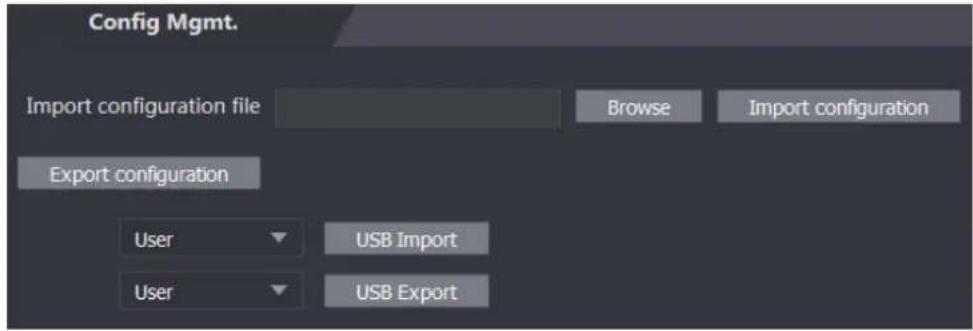
When more than one access controller needs the same configuration, you can configure parameters for them by importing or exporting configuration files. See Figure 4-27.
Configuration management Figure 4-27
text_image
Config Mgmt. Import configuration file Browse Import configuration Export configuration User USB Import User USB Export4.13.2 Features
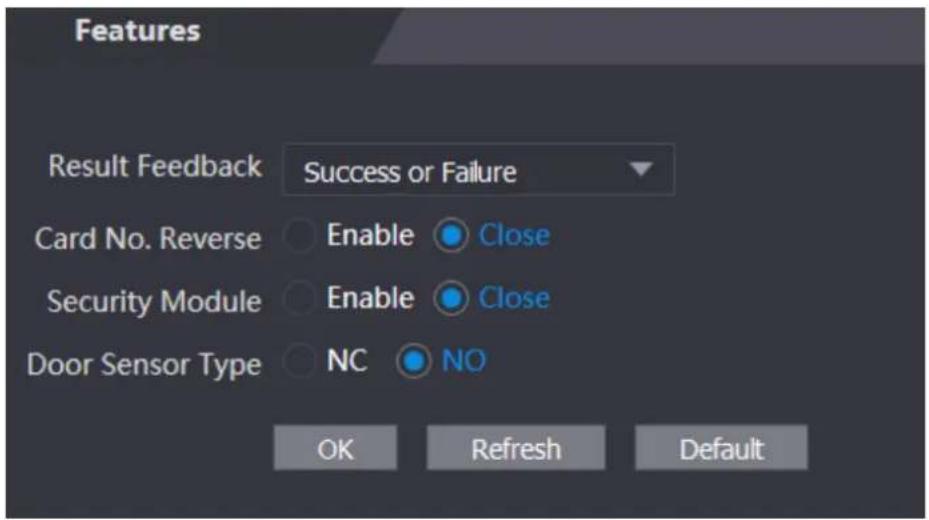
Select result feedback mode as needed. For details, see "3.9.6 Result Feedback."
Features Figure 4-28
text_image
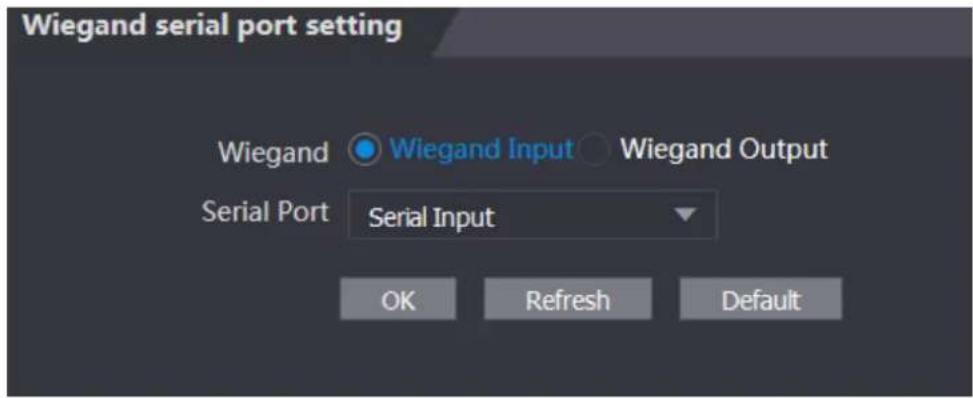
Features Result Feedback Success or Failure Card No. Reverse Enable Close Security Module Enable Close Door Sensor Type NC NO OK Refresh Default4.13.3 Wiegand Serial Port Setting
Select Wiegand/serial port setting as needed. For details, see "3.7.2 Serial Port Settings" and "3.7.3 Wiegand Configuration."
Wiegand serial port setting Figure 4-29
text_image
Wiegand serial port setting Wiegand Wiegand Input Wiegand Output Serial Port Serial Input OK Refresh DefaultUpgrade 4.14
You can select Auto Check to upgrade the system automatically. You can also select Manual Check to upgrade the system manually.
Figure 4-30

text_image
Online Upgrade Auto Check OK System Version: 1.000.0000000.0.R.20190902 Manual Check This is the latest version already4.14.1 Version Information
You can view information including MAC address, serial number, MCU version, web version, security baseline version, and system version.
4.14.2 Online User
You can view username, IP address, and user login time on the Online User interface. See Figure 4-31.
Online user Figure 4-31

text_image
Online User No. Username IP Address User Login Time 1 admin 10.33.5.16 2018-12-03 15:34:20 RefreshSystem Log 4.15
You can view and backup the system log on the System Log interface. See Figure 4-32.
System log Figure 4-32
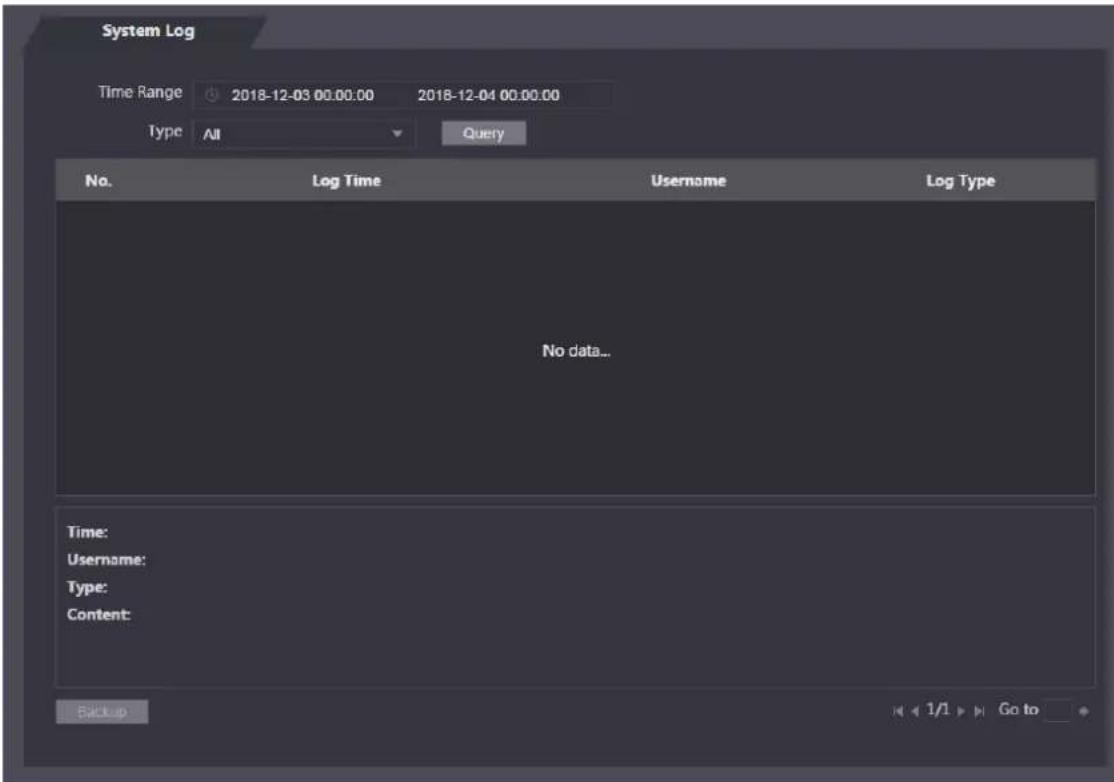
text_image
System Log Time Range 2018-12-03 00:00:00 2018-12-04 00:00:00 Type All Query No. Log Time Username Log Type No data... Time: Username: Type: Content: Back up 1/1 Go to4.15.1 Querying Logs
Select a time range and its type, click Query, and logs meet the conditions will be displayed.
4.15.2 Backup Logs
Click Backup to back up the logs displayed.
Admin Log 4.16
Enter Admin ID on the Admin Log interface, click Query, and then you will see the administrator's operation records. See Figure 4-33.
Admin log Figure 4-33

text_image
Admin Log Admin ID Query No. Name Time Admin ID No data... 1/1 Go to
Hover the mouse cursor over and then you can see detailed information of the current user.
Exit 4.17
Click 📋, click OK, and then you will log out the web interface.
You can do access permission configuration to a single door or door groups through the Smart PSS client. For detailed configurations, see the Smart PSS user manual.

Smart PSS interfaces might vary with versions, and the actual interface shall prevail.
Login 5.1
Install the Smart PSS (the default username is admin, and the default password is admin123),
double-click to operate it. Follow the instructions to finish the initialization and log in.
Adding Devices 5.2
You need to add access controllers to the Smart PSS. You can click Auto Search to add and click Add to manually add devices.
5.2.1 Auto Search
You can search and add access controllers at the same network segment to the Smart PSS. See Figure 5-1 and Figure 5-2.
Devices Figure 5-1

text_image
Auto Search + Add Delete Import Export All Devices: 1 Online Devices: 1 All Device Access Controller No Name P/Domain Names Device Type Device Model Port channel Nurnt Online Status SIN Operation 1 172.5.0.100 Access Cont... ASIR21SY 37 0/0/2/2 Online 4H05EE598766Auto search Figure 5-2

text_image
Auto Search Device Segment: 10 . 33 . 5 . 0 . 10 . 33 . 5 . 255 Search Refresh Modify IP Search Device Number: 15 No IP Device Type MAC Address Port 1 PC-NVR 37777 Add CancelStep 1 Click Auto Search, enter the network segment, and then click Search. A list will be displayed.
Select access controllers that you want to add to the Smart PSS, and then click Add, Step 2 the Login information dialog box will be displayed.
Enter the username and the login password to login. Step 3
You can see the added access controller on the Devices interface.

Select an access controller, click Modify IP, and you can modify the access controller's IP address. For details about IP address modification, see Smart PSS user manual.
5.2.2 Manual Add
You need to know IP addresses and domain names of access controllers that you want to add. See Figure 5-3 and Figure 5-4.
Devices Figure 5-3
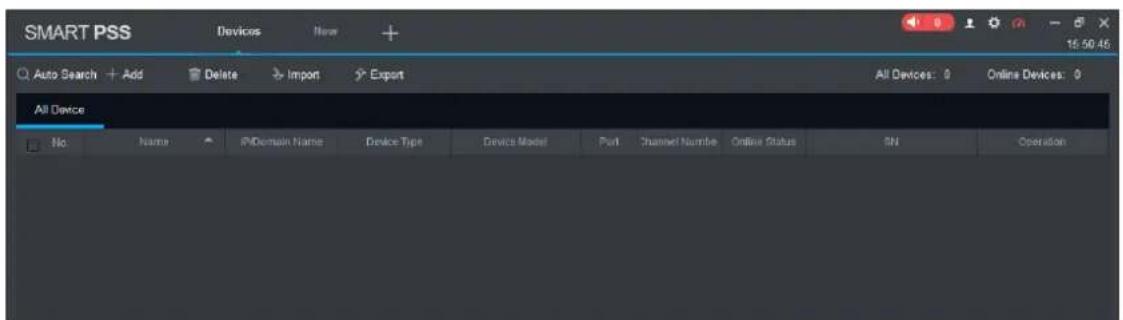
text_image
SMART PSS Devices Home + Auto Search + Add Delete Import Export All Devices: 0 Online Devices: 0 All Device No Name IPDomain Name Device Type Device Model Port Channel Number Online Status SN OperationManual add Figure 5-4

text_image
Manual Add Device Name: Method to add: IP/Domain IP/Domain Name: Port: 37777 Group Name: root User Name: Password: Save and ... Add CancelStep 1 Click Add on the Devices interface, and the Manual Add interface will be displayed.
Enter the Device Name, select a method to add, enter the IP/Domain Name, Port Step 2 number (37777 by default), Group Name, User Name, and Password.
Step 3 Click Add, and then you can see the added access controller on the Devices interface.
Adding Users 5.3
Users are bound with cards. After you have added users to the Smart PSS, you can configure users access permissions on the New > Access. See Figure 5-5.
New Figure 5-5
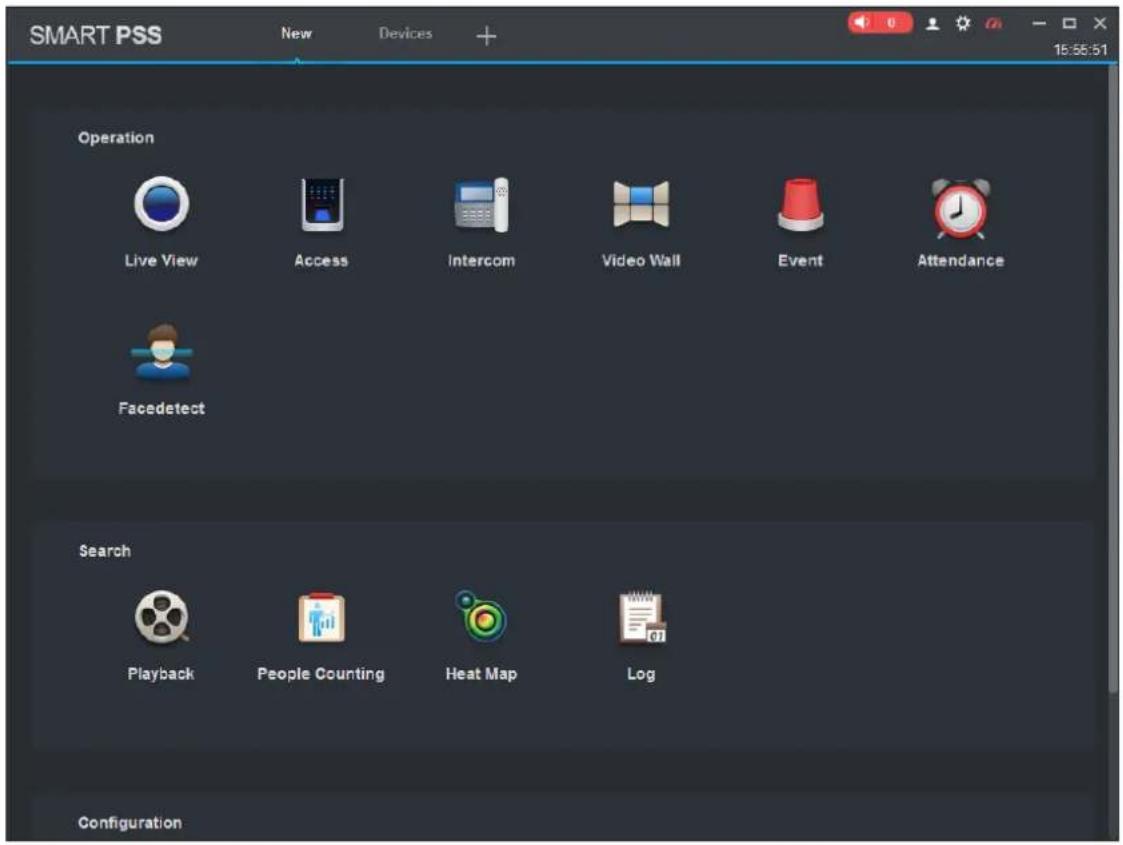
text_image
SMART PSS New Devices + 15:55:51 Operation Live View Access Intercom Video Wall Event Attendance Facedetect Search Playback People Counting Heat Map Log Configuration5.3.1 Card Type Selection

Card types must be the same as card issuer types; otherwise card numbers cannot be read.
On the Access interface, click 📄, then click the IC or ID card icon, and then select a card type. There are two options: ID Card and IC Card. See Figure 5-6 and Figure 5-7.
Access Figure 5-6
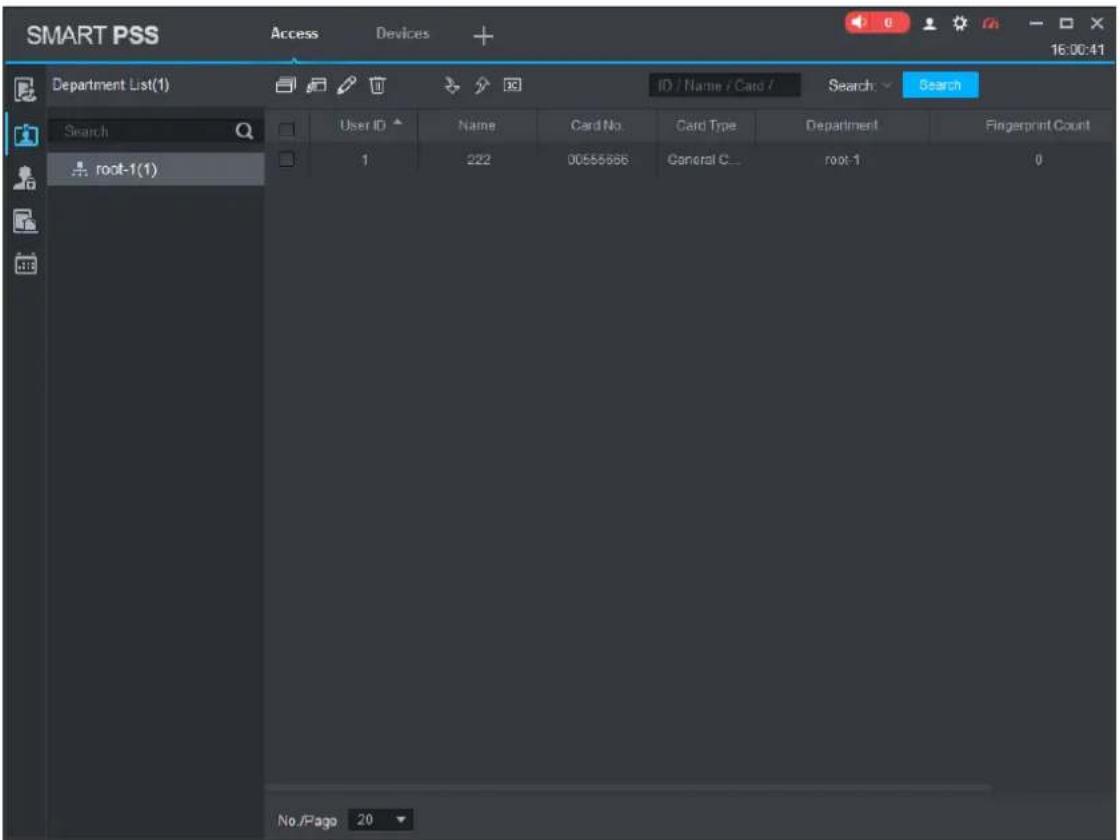
text_image
SMART PSS Access Devices + 16:00:41 Department List(1) ID / Name / Card / Search Search Search User ID Name Card No. Card Type Department Fingerprint Count root-1(1) 1 222 00555666 General C... root-1 0 No./Page 20Setting card type Figure 5-7
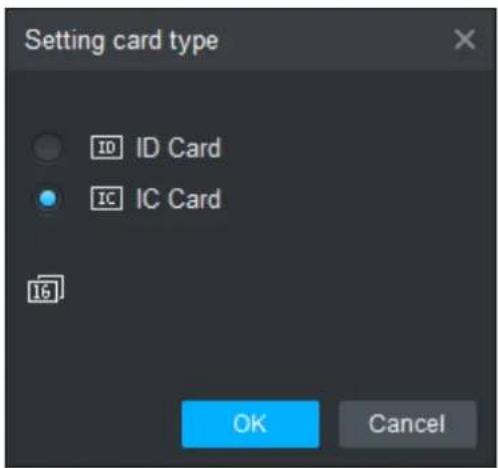
text_image
Setting card type ID ID Card IC IC Card OK Cancel5.3.2 Adding One User
You can add users one by one.
On the Access interface, click 📄, then click 📄, and then enter user's information. Click Finish to complete the user adding. See Figure 5-8 and Figure 5-9.
Access Figure 5-8
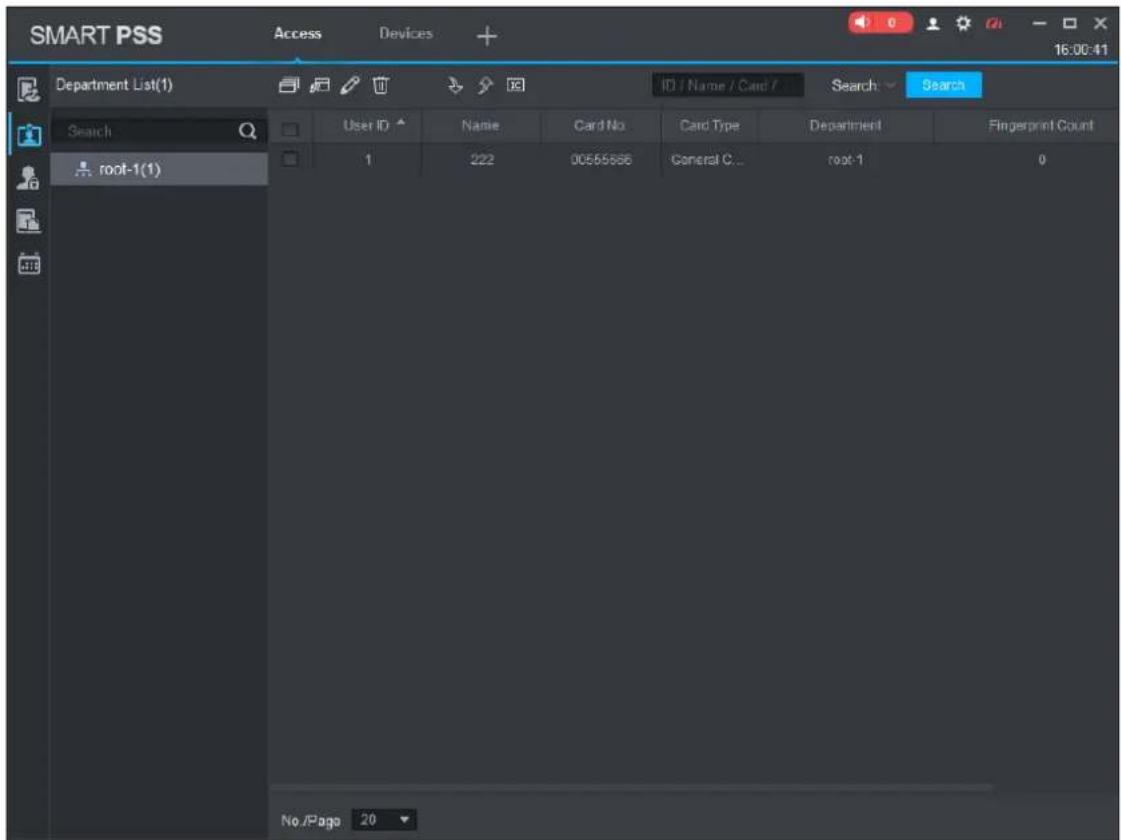
text_image
SMART PSS Access Devices + 16:00:41 Department List(1) ID / Name / Card / Search Search Search User ID Name Card No Card Type Department Fingerprint Count root-1(1) 1 222 00565666 General C... root-1 0 No /Page 20Add user Figure 5-9

text_image
Add User Basic Info Fingerprint Info Details User ID: 2 Name: Department: root-1 Card No.: Card Reader not ready! Card issuer Card Type: General Card Card Password: Unlock Password: Number of Use: 200 Face Template... 0 Select Device Valid Time: 2018/12/3 0:00:00 2028/12/3 23:59:59 3654 Days Continue L... Finish Cancel Image Size:0 ~ 120KBAdding Door Group 5.4
You can manage doors by grouping doors.
On the Access interface, click Add, click Add, enter door group name, and then select a time zone. Click Finish to complete the user adding. See Figure 5-10 and Figure 5-11.
Access Figure 5-10

text_image
SMART PSS Access Devices + 16:02:48 Name: TimeZone: All Search Add Delete Name Timezone Operation Door Group Details Name: Door List(0) TimeZone: Person list(0) User Name Department No /Page 20Add door group Figure 5-11

text_image
Add Door Group Name: Door List1 TimeZone: All Day DeviceTree Search... root Door 1 OK CancelAccess Permission Configuration 5.5
You can do access permission configuration. There are two options: door group access permission and user access permission. Information of users who are given access permission in the Smart PSS and access controllers will be synchronized.
5.5.1 Giving Permission by Door Group
Select a door group, add users to the door list, and then users on the door list get access permissions of all doors on the door list. See Figure 5-12 and Figure 5-13.
Access Figure 5-12
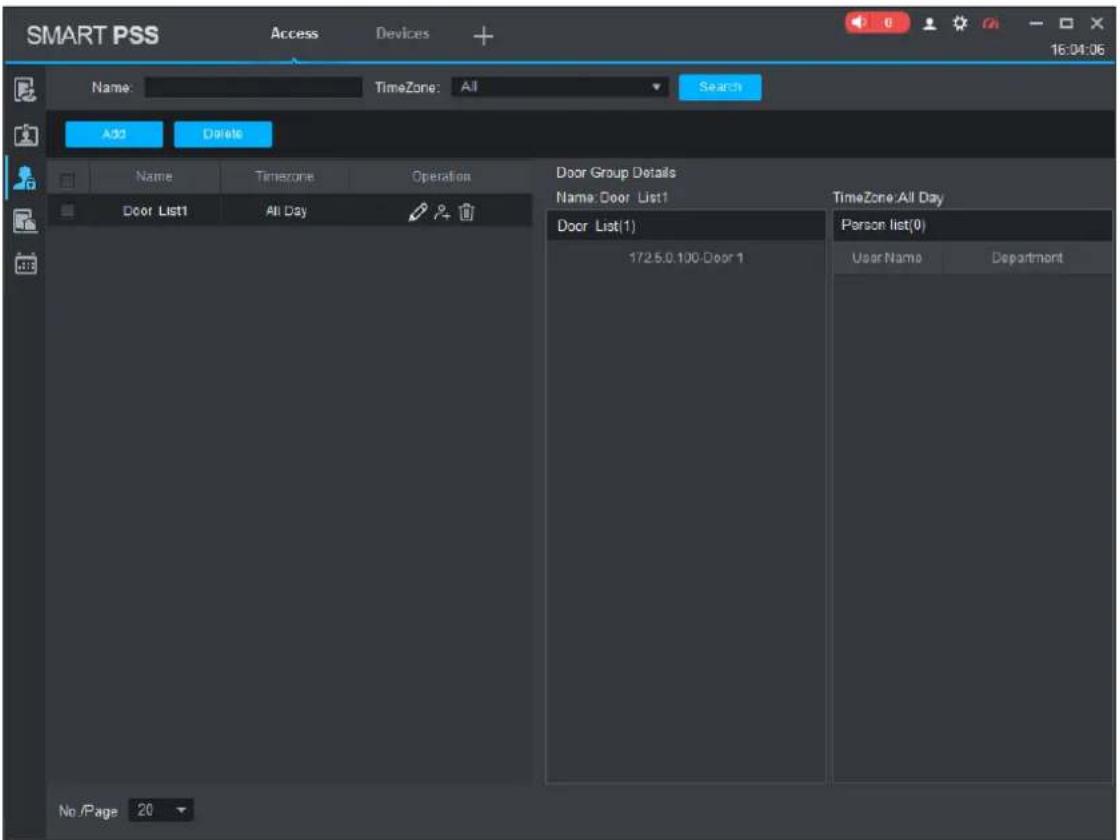
text_image
SMART PSS Access Devices + 16:04:06 Name: TimeZone: All Search Add Delete Name Timezone Operation Door List1 All Day Door Group Details Name: Door List1 Door List(1) 1725.0.100-Door 1 TimeZone: All Day Person list(0) User Name Department No /Page 20User select Figure 5-13

text_image
User Select Name: Door List1 User List User ID Name Department Operation Dropdown list User ID/Name User ID Name Department OK CancelStep 1 On the Access interface, click Add, click Add, and click Door Group Permission.
Click Select user department in the dropdown list, or enter user ID/Name, and Step 2
then search users. Select users from the users you found.
Click Finish to complete the configuration. Step 3

Users without user ID cannot be found.
5.5.2 Giving Permission by User ID
You can give access permission to a user by selecting a user, and then select door groups for the user. See Figure 5-14 and Figure 5-15.
Access Figure 5-14
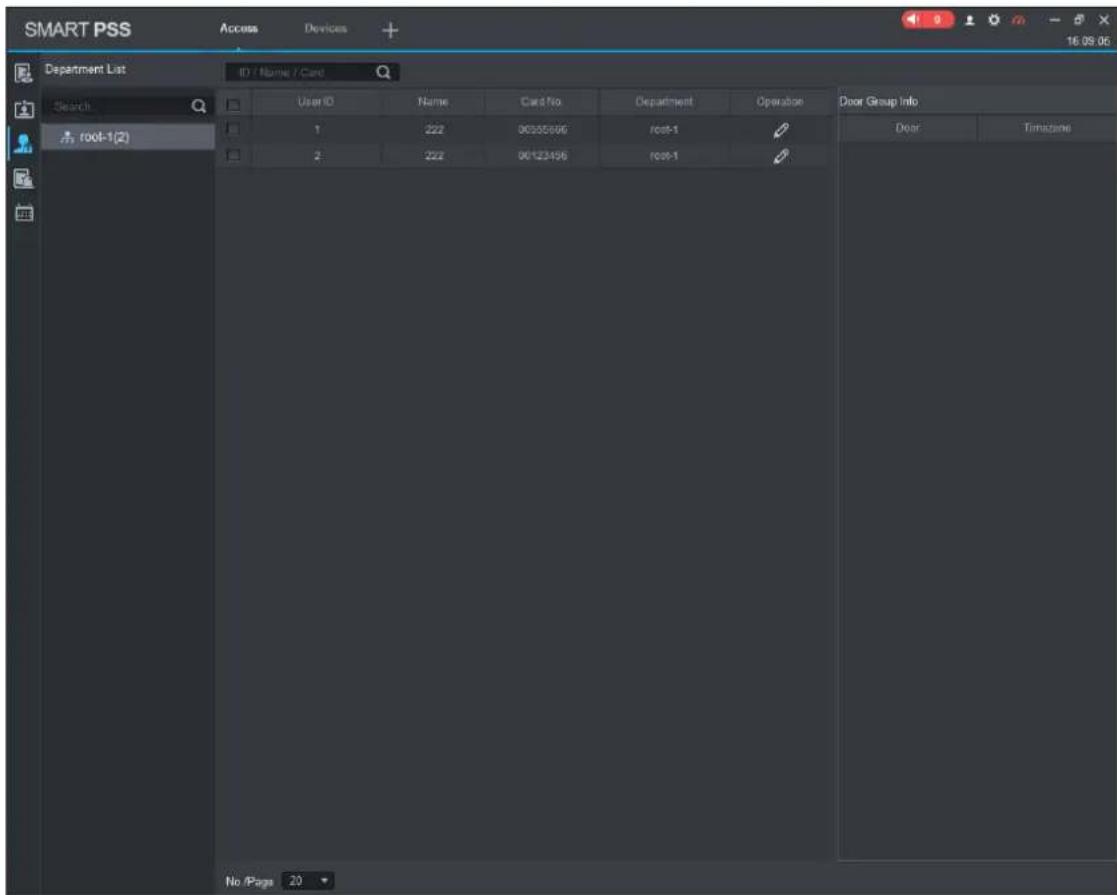
text_image
SMART PSS Access Devices + 16.09.05 Department List ID / Name / Card Search root-1(2) User ID Name Card No Department Operation Door Group Info 1 222 00355866 root-1 2 222 00123456 root-1 Door Group Info Door Timazine No /Page 20Select door group Figure 5-15

text_image
Select Door group Door List Timezone Door List1 All Day OK Cancel
On the Access interface, click Step 1
Click Select Door Group interface is displayed. Step 2
Select user department in the dropdown list, or enter user ID/Name, and then select a Step 3 door list.
Click Finish to complete the configuration. Step 4
Cybersecurity is more than just a buzzword: it's something that pertains to every device that is connected to the internet. IP video surveillance is not immune to cyber risks, but taking basic steps toward protecting and strengthening networks and networked appliances will make them less susceptible to attacks. Below are some tips and recommendations on how to create a more secured security system.
Mandatory actions to be taken for basic equipment network security:
1. Use Strong Passwords
Please refer to the following suggestions to set passwords:
- The length should not be less than 8 characters;
- Include at least two types of characters; character types include upper and lower case letters, numbers and symbols;
- Do not contain the account name or the account name in reverse order;
- Do not use continuous characters, such as 123, abc, etc.;
- Do not use overlapped characters, such as 111, aaa, etc.;
2. Update Firmware and Client Software in Time
- According to the standard procedure in Tech-industry, we recommend to keep your equipment (such as NVR, DVR, IP camera, etc.) firmware up-to-date to ensure the system is equipped with the latest security patches and fixes. When the equipment is connected to the public network, it is recommended to enable the “auto-check for updates” function to obtain timely information of firmware updates released by the manufacturer.
• We suggest that you download and use the latest version of client software.
"Nice to have" recommendations to improve your equipment network security:
1. Physical Protection
We suggest that you perform physical protection to equipment, especially storage devices. For example, place the equipment in a special computer room and cabinet, and implement well-done access control permission and key management to prevent unauthorized personnel from carrying out physical contacts such as damaging hardware, unauthorized connection of removable equipment (such as USB flash disk, serial port), etc.
2. Change Passwords Regularly
We suggest that you change passwords regularly to reduce the risk of being guessed or cracked.
3. Set and Update Passwords Reset Information Timely
The equipment supports password reset function. Please set up related information for password reset in time, including the end user's mailbox and password protection questions. If the information changes, please modify it in time. When setting password protection questions, it is suggested not to use those that can be easily guessed.
4. Enable Account Lock
The account lock feature is enabled by default, and we recommend you to keep it on to guarantee the account security. If an attacker attempts to log in with the wrong password several times, the corresponding account and the source IP address will be locked.
5. Change Default HTTP and Other Service Ports
We suggest you to change default HTTP and other service ports into any set of numbers between 1024\~65535, reducing the risk of outsiders being able to guess which ports you are using.
6. Enable HTTPS
We suggest you to enable HTTPS, so that you visit Web service through a secure communication channel.
7. Enable Whitelist
We suggest you to enable whitelist function to prevent everyone, except those with specified IP addresses, from accessing the system. Therefore, please be sure to add your computer's IP address and the accompanying equipment's IP address to the whitelist.
8. MAC Address Binding
We recommend you to bind the IP and MAC address of the gateway to the equipment, thus reducing the risk of ARP spoofing.
9. Assign Accounts and Privileges Reasonably
According to business and management requirements, reasonably add users and assign a minimum set of permissions to them.
10. Disable Unnecessary Services and Choose Secure Modes
If not needed, it is recommended to turn off some services such as SNMP, SMTP, UPnP, etc., to reduce risks.
If necessary, it is highly recommended that you use safe modes, including but not limited to the following services:
- SNMP: Choose SNMP v3, and set up strong encryption passwords and authentication passwords.
- SMTP: Choose TLS to access mailbox server.
- FTP: Choose SFTP, and set up strong passwords.
- AP hotspot: Choose WPA2-PSK encryption mode, and set up strong passwords.
11. Audio and Video Encrypted Transmission
If your audio and video data contents are very important or sensitive, we recommend that you use encrypted transmission function, to reduce the risk of audio and video data being stolen during transmission.
Reminder: encrypted transmission will cause some loss in transmission efficiency.
12. Secure Auditing
- Check online users: we suggest that you check online users regularly to see if the device is logged in without authorization.
- Check equipment log: By viewing the logs, you can know the IP addresses that were used to log in to your devices and their key operations.
13. Network Log
Due to the limited storage capacity of the equipment, the stored log is limited. If you need to save the log for a long time, it is recommended that you enable the network log function to ensure that the critical logs are synchronized to the network log server for tracing.
14. Construct a Safe Network Environment
In order to better ensure the safety of equipment and reduce potential cyber risks, we recommend:
- Disable the port mapping function of the router to avoid direct access to the intranet devices from external network.
- The network should be partitioned and isolated according to the actual network needs. If there are no communication requirements between two sub networks, it is suggested to use VLAN, network GAP and other technologies to partition the network, so as to achieve the network isolation effect.
- Establish the 802.1x access authentication system to reduce the risk of unauthorized access to private networks.