ZoneAire ZHP14DB - Air-conditioner Friedrich - Free user manual and instructions
Find the device manual for free ZoneAire ZHP14DB Friedrich in PDF.


| Product Type | Portable Air Conditioner |
| Brand | Friedrich |
| Model | ZoneAire ZHP14DB |
| Cooling Capacity | 14,000 BTU |
| Heating Function | No (Cooling only) |
| Recommended Room Size | Up to 700 sq. ft. |
| Dimensions (H x W x D) | 31.5 x 18.5 x 16.5 inches |
| Weight | 75 lbs |
| Power Supply | 115V, 60Hz, 12A |
| Refrigerant | R-410A |
| Fan Speeds | 3 (Low, Medium, High) |
| Operating Modes | Cool, Fan, Dehumidify, Sleep |
| Timer | 24-hour programmable |
| Remote Control | Yes (included) |
| Air Flow Rate | 400 CFM |
| Noise Level | 56 dB (approx.) |
| Filter Type | Washable mesh |
| Filter Cleaning Interval | Every 2 weeks |
| Condensate Drainage | Continuous drain or bucket |
| Installation Kit | Window kit included |
| Energy Efficiency (EER) | 10.0 |
| Warranty | 1 year |
Frequently Asked Questions - ZoneAire ZHP14DB Friedrich
User questions about ZoneAire ZHP14DB Friedrich
0 question about this device. Answer the ones you know or ask your own.
Ask a new question about this device
Download the instructions for your Air-conditioner in PDF format for free! Find your manual ZoneAire ZHP14DB - Friedrich and take your electronic device back in hand. On this page are published all the documents necessary for the use of your device. ZoneAire ZHP14DB by Friedrich.
USER MANUAL ZoneAire ZHP14DB Friedrich
FRIEDRICH GO WiFi Setup Guide Dual Hose Portable
Let's Get Started!
- Check for a 2.4 Ghz connection and make sure the device is connected to that network.
- Download the Friedrich Go App on your smartphone.
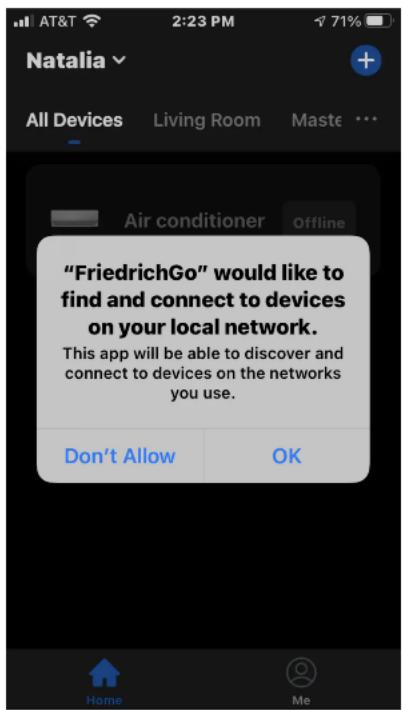
3. SIGN UP YOUR USER ACCOUNT
Once you download the App, you will need to create an account. Click the Sign up button to begin the registration process. You can register with your email address.
SIGN IN TO YOUR USER ACCOUNT
Once you have created an account, click the Sign In button to sign in to your account using the email that was used for registration. You can update your home name and select the rooms.
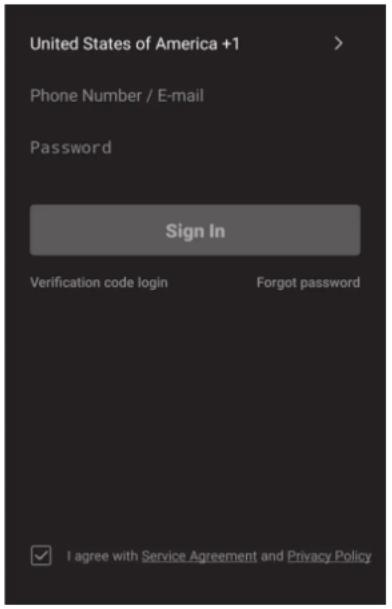
Follow these below steps to retrieve a forgotten password:
- Press the Forgot password button to replace.
- Type in the registered email address and press the Next button to continue.
- You will receive a verification code to continue. Type in the code received and set a new password. Press Confirm to finish.
Follow the directions below to add an AC to your FriedrichGo account.
This will allow you to control your units from your mobile app.
NOTE: You have 5 minutes to complete this process. If you exceed 5 minutes, you will need to reset the Wifi Mode by holding the power button for 5 seconds.
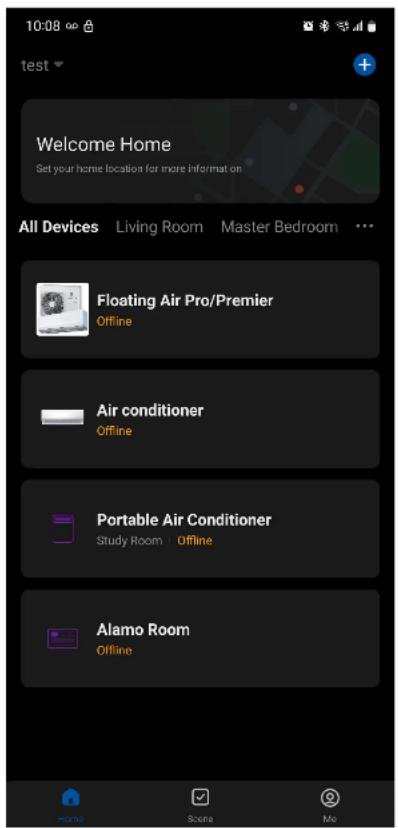
- Press the + and click the Portable Unit to connect.
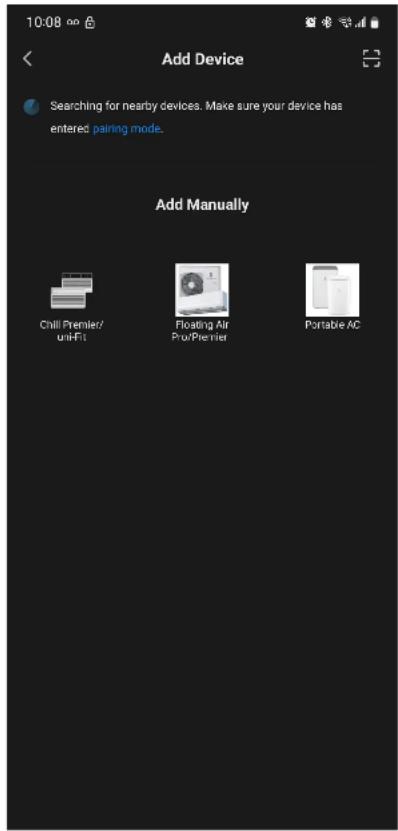
- Setup Modes:
CF Mode-When setting up your AC unit using a Wi-Fi connection using the CF mode, the AC unit being connected for Wi-Fi operation will automatically search for an available wireless network and connect automatically when the setup directions are followed. The unit and device will be synced together afterwards.
(Reminder-The FriedrichGo App only works on 2.4 GHZ networks)
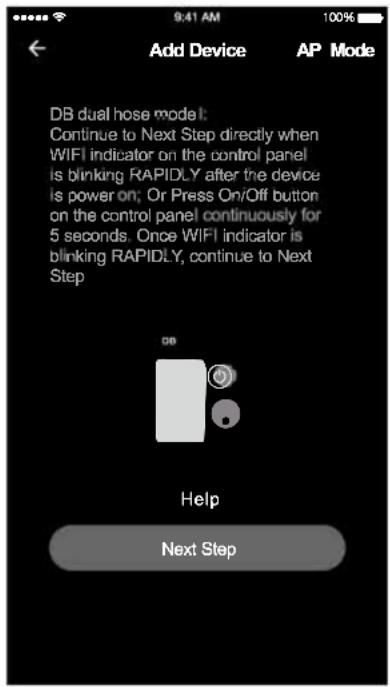
Press and hold the On/Off button again for 5 seconds, when the Wifi indicator is blinking SLOWLY, it is switched to AP mode. Choose the right mode(CF or AP). The default set-up mode will be CF mode when first starting the AC unit.
AP Mode- If your AC unit does not connect to the mobile device through the wireless network using the setup instruction in CF mode, you can use AP Mode instead.
ADD THE AC UNIT TO THE WIRELESS NETWORK USING "CF MODE"
NOTE: CF Mode is indicated by a rapid blinking WiFi indicator.
- Select the network you wish to connect to, enter the router password and press "Confirm" to continue.
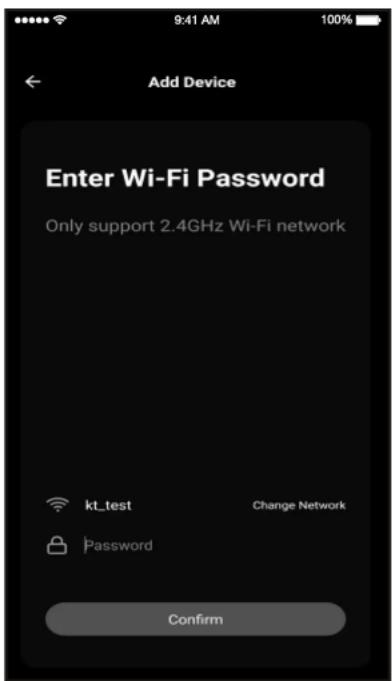
- The App and AC unit automatically defaults to CF mode upon start up. It is usually not necessary to reset the device. Press "Next Step" to continue.
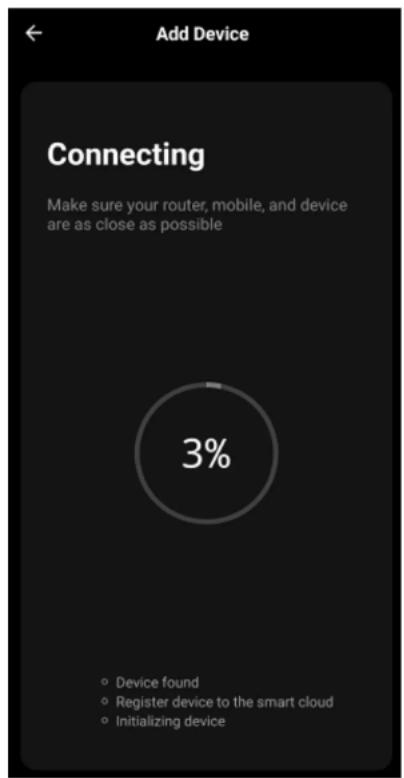
- After connecting to the wireless network, the Friedrich GoApp software will automatically try to pair the AC unit. It may take 10-15 seconds to connect the AC to the network.
-
After successfully pairing the AC unit to the network, the page will display as shown.
-
You can rename the AC unit by pressing the pen remark.
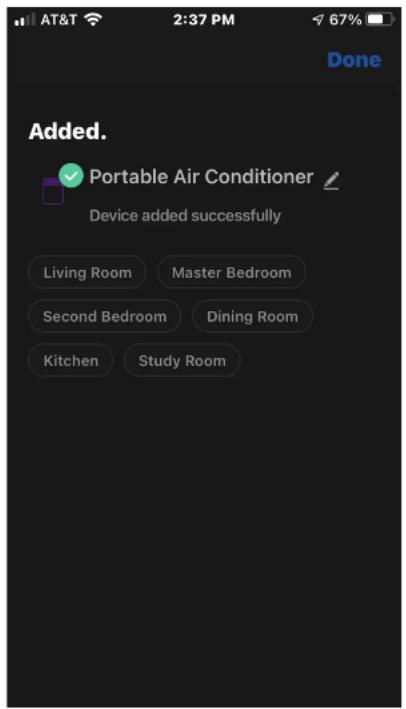
Note: At any time you need to reset Wifi connection, press and hold On/Off button on the control panel for 5 seconds, when the wifi indicator is blinking RAPIDLY, it is at CF mode. Press and hold On/Off button again for 5 seconds, when the Wifi indicator is blinking SLOWLY, it is switched to AP mode. Choose the right mode(CF or AP) according to the blinking and go to next Step.
ADD THE AC UNIT TO THE WIRELESS NETWORK USING "AP MODE"
If connections to the wireless network fail using the "CF mode", you can connect using the "AP mode" (using the AC unit as a mobile hotspot)
Note: If at any time you want to change the AC unit wireless connecting from CF mode to AP mode, please follow as below.
Hold Power button for 5 seconds.
If you want to go back to CF mode, repeat the above steps again.
-
On the App page indicating CF mode, click "AP mode" in the top, right-hand corner.
-
AP should show on the page as illustrated. Press "Next" to continue.
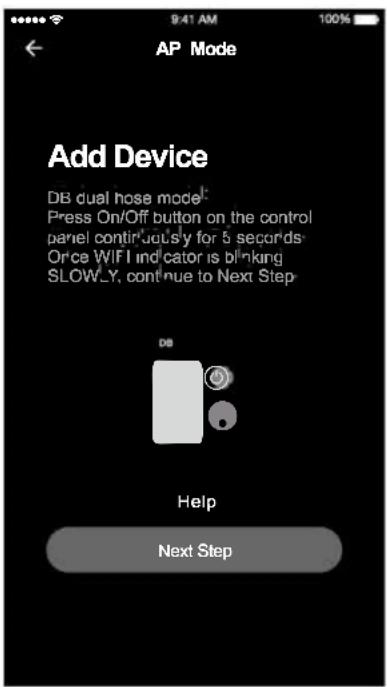
- Select the Wi-Fi network you are trying to connect to. Type in the password and press "Confirm" to continue.
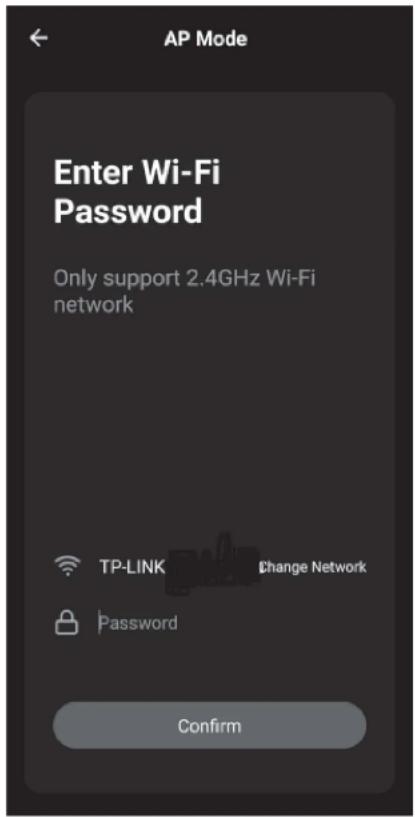
-
Tap on "Go to Connect" to open your mobile device settings to get to Wi-Fi connections.
-
Friedrich-XXXX, Smartlife-XXXX, or SL-FriedrichGo-XXXX should show as an available network connection option.
-
Connect to the Friedrich-XXXX Smartlife-XXXX, or SL-FriedrichGo-XXXX network.
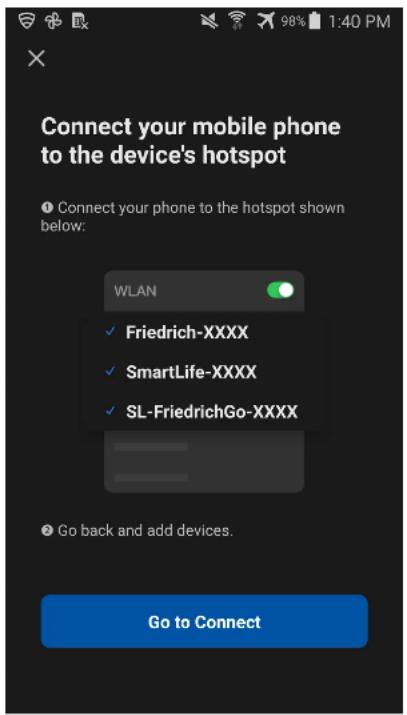
-
After connecting to Friedrich-XXXX Smartlife-XXXX, or SL-FriedrichGo-XXXX network using the AC unit's Wi-Fi adapter, return to the Friedrich Go App to resume setup.
-
The AC unit will automatically begin installing/syncing on the mobile device.
-
This may take 10-15 seconds to connect the AC to the network.
-
When the connection is complete the FriedrichGo App on your mobile device will show the unit
as connected with a check mark as illustrated.
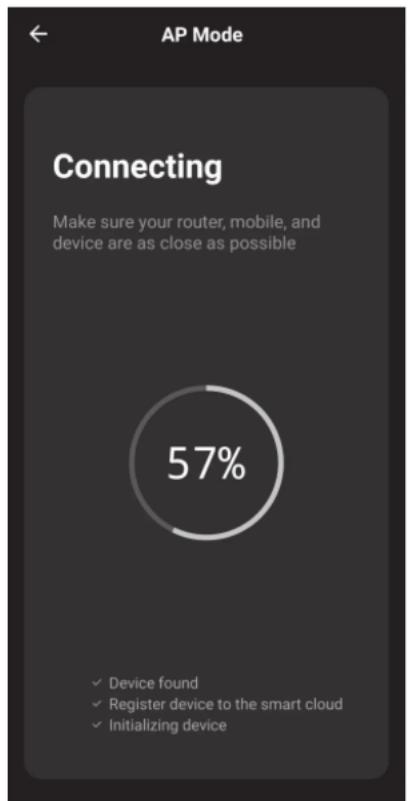
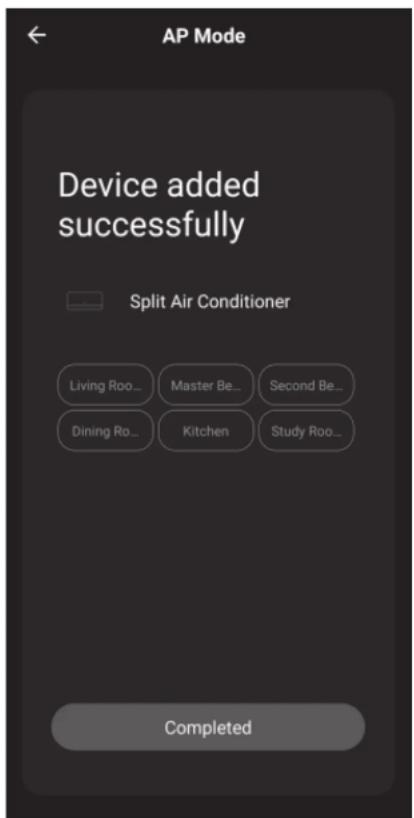
- Once connected, you are ready to begin controlling your AC unit from your mobile device.
NOTE: Once your unit cycles on and off after using the AC unit's Wi-Fi adapter to connect, the AC unit will automatically pair with the network your phone is connected to.
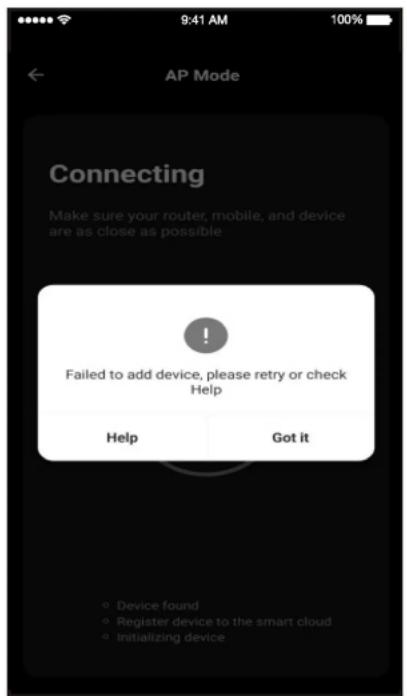
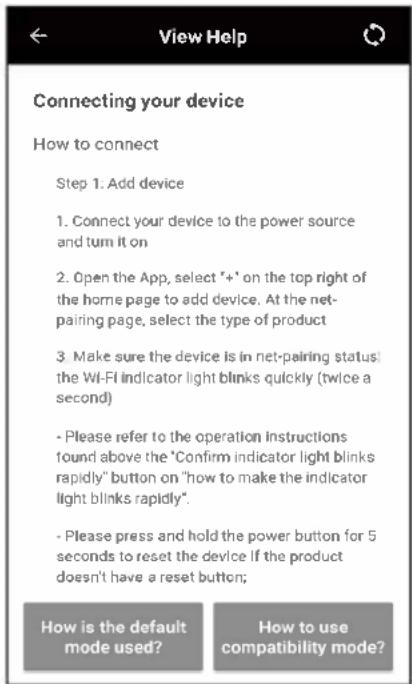
- If the setup connection fails, the App will display a warning. Press "Got it", to try the connection again or "View help", or go back to CF mode connecting.
Note: Any time you need to reset Wifi connection, press and hold On/Off button on the control panel for 5 seconds. When the wifi indicator is blinking RAPIDLY, it is in CF mode.
AIR CONDITIONER CONTROL
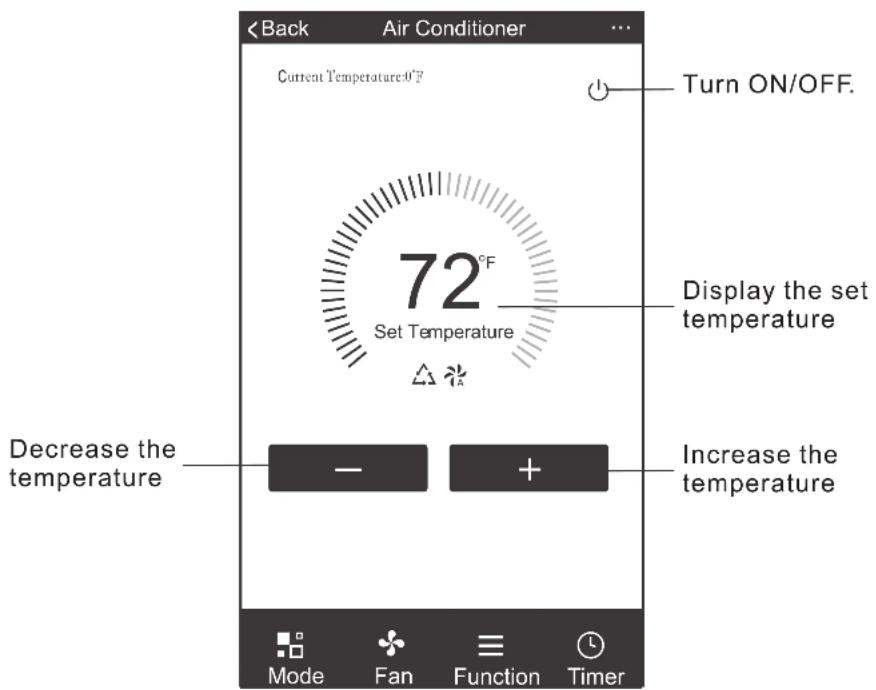
- Tapping the Air Conditioners name to enter the control mode. Tapping the ON/OFF button for power and then control your Air Conditioner remotely.
NOTES:
- Dry mode is preset to 4^ F/ 2^ C lower than room temperature, low fan speed and cannot be changed. - Heat mode only applies to Heat Pump units. - Fan mode is preset to 79^ F/ 26^ C and cannot be adjusted. - Auto mode is preset at 79^ F/ 26^ C for cooling or 72^ F/ 22^ C for heating and cannot be adjusted. \- Cool mode, Temperature settings can be adjusted to the desired temperature. 7. For more options tap the 3 dot icon on the upper-right corner of the app. Here you can Modify device name, Device location, Shared devices, Device info, Feedback, Check for firmware updates, Remove a device or Restore defaults.  8. User profile, you can manage your personal information, User profile includes: a. Account information b. Scan QR code c. Message center will display any messages sent to the app. 9. Pattern unlock: Tap "Gesture unlock" under the personal center. Here you can set up an unlock pattern. Once enabled, you will have to use pattern to unlock app. Note: The first registered mobile device is the main control and other devices can only be shared through the primary device. Shared accounts need to be setup for the same country.| Troubleshooting | |
| Description Analysis | |
| Air Conditioner set up unsuccessful! | 1. Check that the Wi-Fi address and password is correct for the network you are trying to connect to.2. Check the air conditioner under configuration status.3. Check to make sure no firewalls or other restrictions are preventing setup on the wireless network.4. Check that the router is working properly.5. Make sure air conditioner, router and mobile device are all within signal range to connect.6. Check to see if the router is blocking the FriedrichGo App from connecting.7. Please note-The Friedrich Go App is supported on 2.4 GHZ Wi-Fi Channels only. Please be sure your connection is using a Wi-Fi channel broadcasting in 2.4GHz. |
| Mobile Device not controlling Air Conditioner. | Software display: Identification failed.This means that the air conditioner has been reset and the mobile device has lost the control permissions.Reconnection to the WI-FI network is required. If this does not fix the issue. Please delete the selected air conditioner in the app and reinstall.Software display: Air conditioner is offline.Please check Wi-Fi network status.1. The air conditioner connection setting has been reconfigured or changed.2. No power to the air conditioner.3. No power to the wireless router. Check all connection settings between the AC unit and router as well as the mobile device and router to be sure of connectivity.[IMPORTANT] Please choose the same connecting mode (CF or AP) as the Air-conditioner Display. |
| Mobile Device Can't Connect to the Air Conditioner | |