KATV10 - Media player EKO - Free user manual and instructions
Find the device manual for free KATV10 EKO in PDF.


User questions about KATV10 EKO
0 question about this device. Answer the ones you know or ask your own.
Ask a new question about this device
Download the instructions for your Media player in PDF format for free! Find your manual KATV10 - EKO and take your electronic device back in hand. On this page are published all the documents necessary for the use of your device. KATV10 by EKO.
USER MANUAL KATV10 EKO
natural_image
Black electronic device with a connector and logo, no visible text or symbols on the body
INSTRUCTION MANUAL
Please read this manual carefully before using, and keep it for future reference.
CONTENTS
| General | Safety | |
| Product | Overview | |
| Setup | 7 | |
| Remote | Control | |
| First | Time | Setup |
| Android TV - Home | 14 | |
| Play | Store | |
| Assistant | ||
| Customer Helpline | Last Page |
GENERAL SAFETY
Read this manual thoroughly before you start using this product. Store this manual, the completed warranty card, your receipt and the product packaging.
Please follow all instructions and take notice of all warnings.
- Please beware that Dust could accumulate over time on the unit and cause it to generate heat and or deteriorate insulation, which in turn may result in an electrical fire.
- The product is not intended for use by persons (including children) with reduced physical, sensory or mental capabilities, or young children of any age, They must be supervised product by a person responsible for their safety.
- Batteries from the remote control must be only removed by an adult, the adult must ensure to keep them out of reach of infants and children. Seek medical attention immediately if a child has swallowed a battery.
- Batteries (battery pack or batteries installed) shall not be exposed to excessive heat such as sunshine, fire or the like.
- Please ensure to contact our call center for any repair or service required for the products.
GENERAL SAFETY (Cont.)
Please make sure upon positioning this product, the place is:
• Not wet or damp and Well ventilated
- Away from direct sunlight or heaters.
- Away from splashes or food.
- Protected from excessive dust or grease.
- Do not install this product near heat sources such as radiators, stoves or other audio visual equipment that produce heat.

HIGH-DEFINITION MULTIMEDIA INTERFACE
"HDMI, the HDMI logo and High-Definition Multimedia Interface are trademarks or registered trademarks of HDMI Licensing LLC."
androidtv
Google, Android TV, Google Play, Chromecast built-in, YouTube and other related marks and logos are trademarks of Google LLC.
PRODUCT OVERVIEW
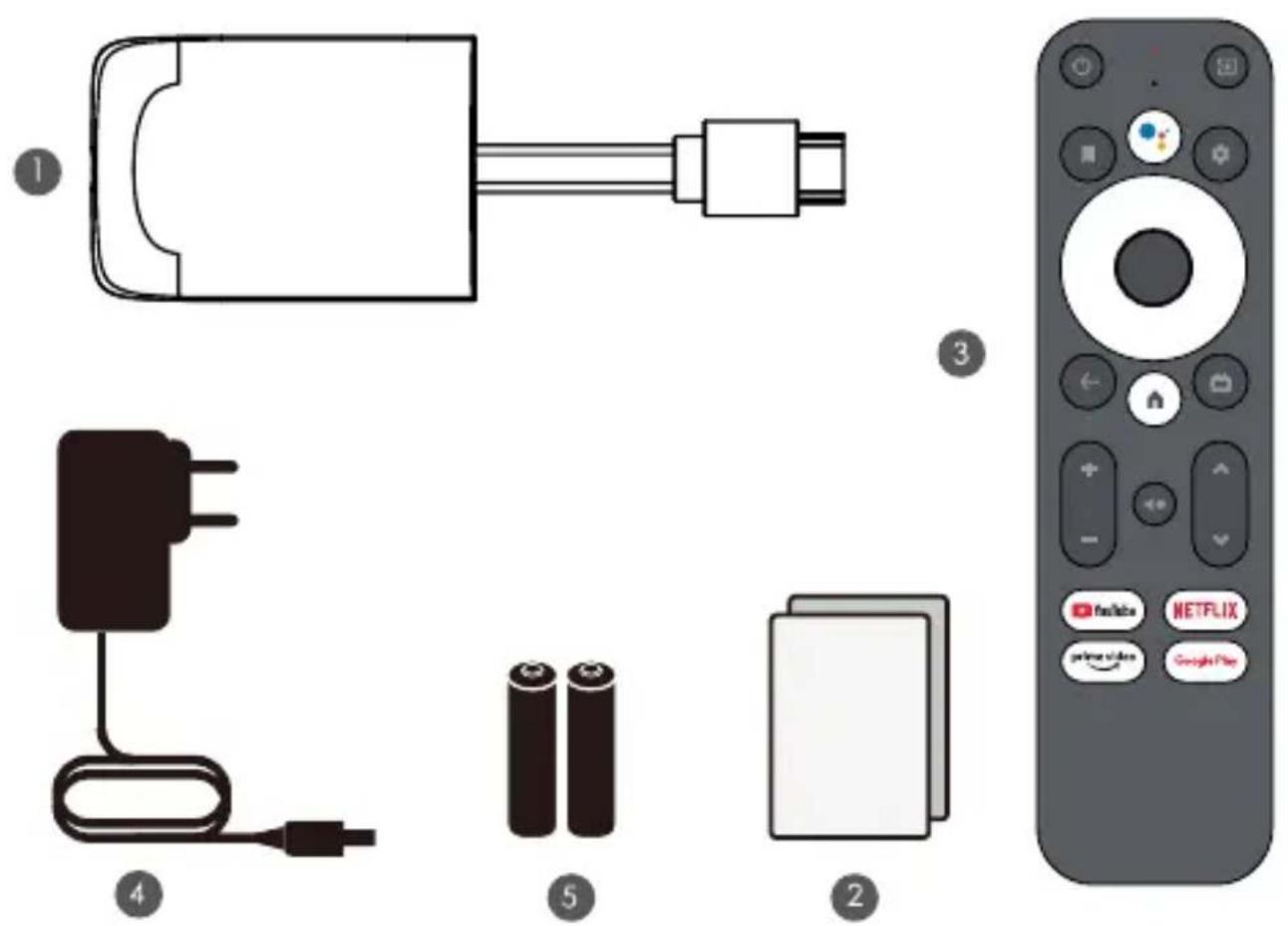
1 HDMI Dongle
2 Quick Guide
3 Remote Control
4 Power Adapter
5 Battery
SETUP
Step 1
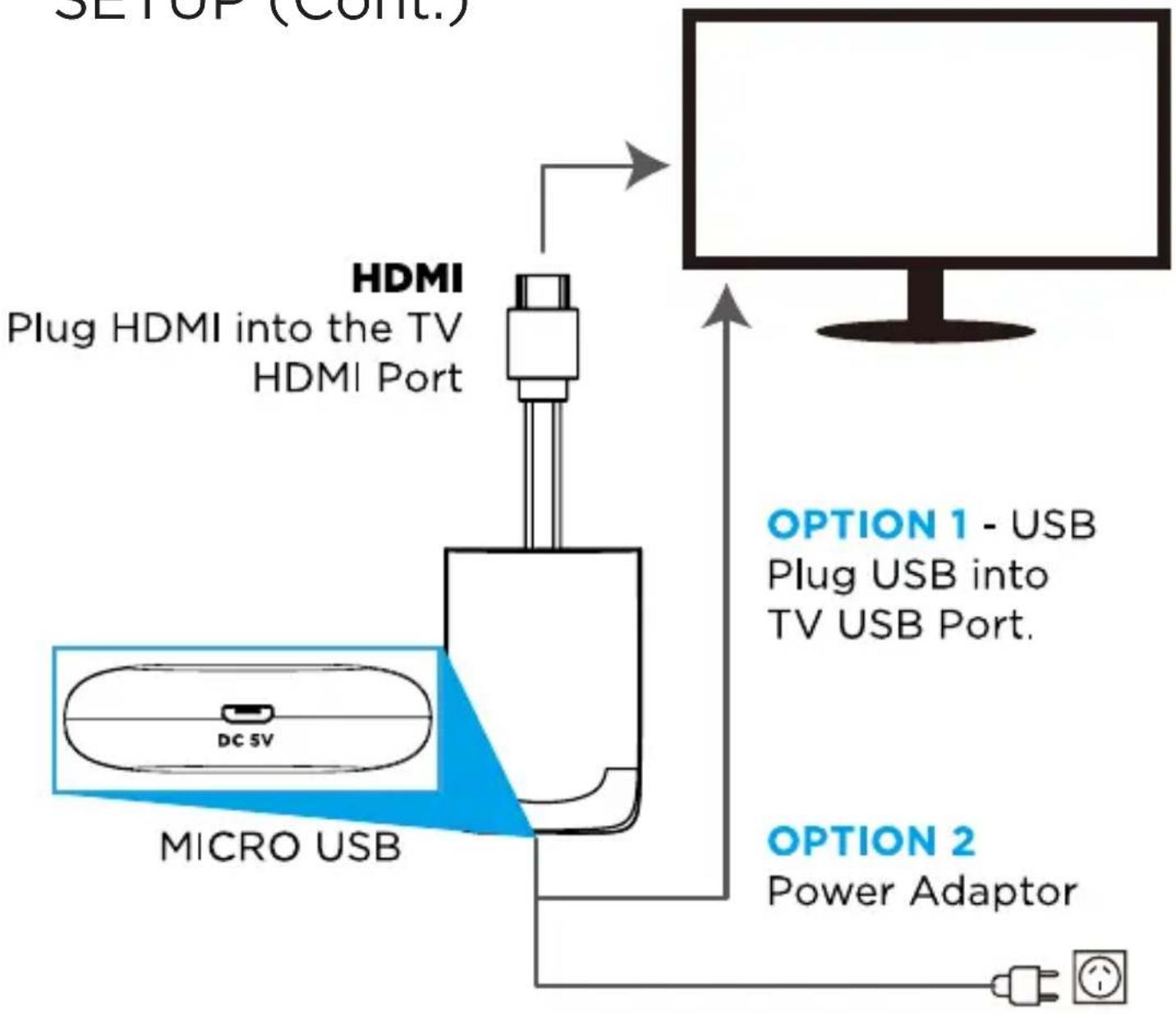
Plug in the HDMI port of the Android TV device into the TV HDMI port.
Step 2
Plug in the Micro USB cable (provided) into the Micro USB side of the Android TV Device labeled as “DC 5V”.
Then plug in the USB side of Micro USB Cable into into:
- The TV USB Port which is powered
or
- Power Adaptor Provided.
Step 3
Once you have connected the HDMI port and Micro USB cable of the Android TV Device, make sure to change the TV input to the HDMI port you inserted your Android TV Device into.
Step 4
Now you can follow First time setup process of the Android TV Device.
Refer to page 8 for illustration.
SETUP (Cont.)
flowchart
graph TD
    A["SETUP (Cont.)"] --> B["HDMI Plug HDMI into the TV HDMI Port"]
    B --> C["MICRO USB"]
    C --> D["DC 5V"]
    D --> E["OPTION 1 - USB Plug USB into TV USB Port."]
    E --> F["OPTION 2 Power Adaptor"]
REMOTE CONTROL
| Button | Description | Button | Description | ||
| 01 |  | POWER ON/OFF | 09 |  | SETTINGS |
| 02 |  | DIRECTION/NAVIGATION | 10 |  | HOME |
| 03 | [628C] | OK | 11 |  | OPEN GOOGLE ASSISTANT |
| 04 |  | GO BACK | 12 | NETFLIX | OPEN NETFLIX |
| 05 |  | OPEN LIVE TV EPH | 13 | [2T20] YouTube | OPEN YOUTUBE |
| 06 |  — — | VOLUME UP / DOWN | 14 | Google Play | OPEN GOOGLE PLAY |
| 07 |  √ √ | CHANNEL UP / DOWN | 15 | prime video | OPEN PRIME VIDEO |
| 08 |  | MUTE | 16 | TO ADD AN ENTITY TO WATCHLIST | |
| 08 |  | INPUT | |||
FIRST TIME SETUP - RC PAIR
When you first turn on your Android TV Device. Pairing instrucitons will appear on the screen.
Please follow the pairing and setup instructions.
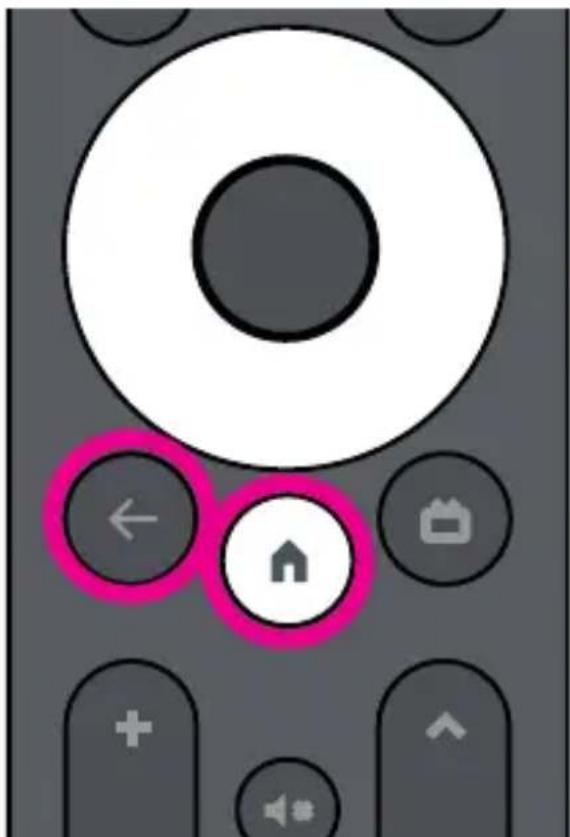
- Press and hold the

LEFT +

(HOME) button to
pair the remote control.
FIRST TIME SETUP (cont.)
- Select your desired language (ENGLISH is recommended)
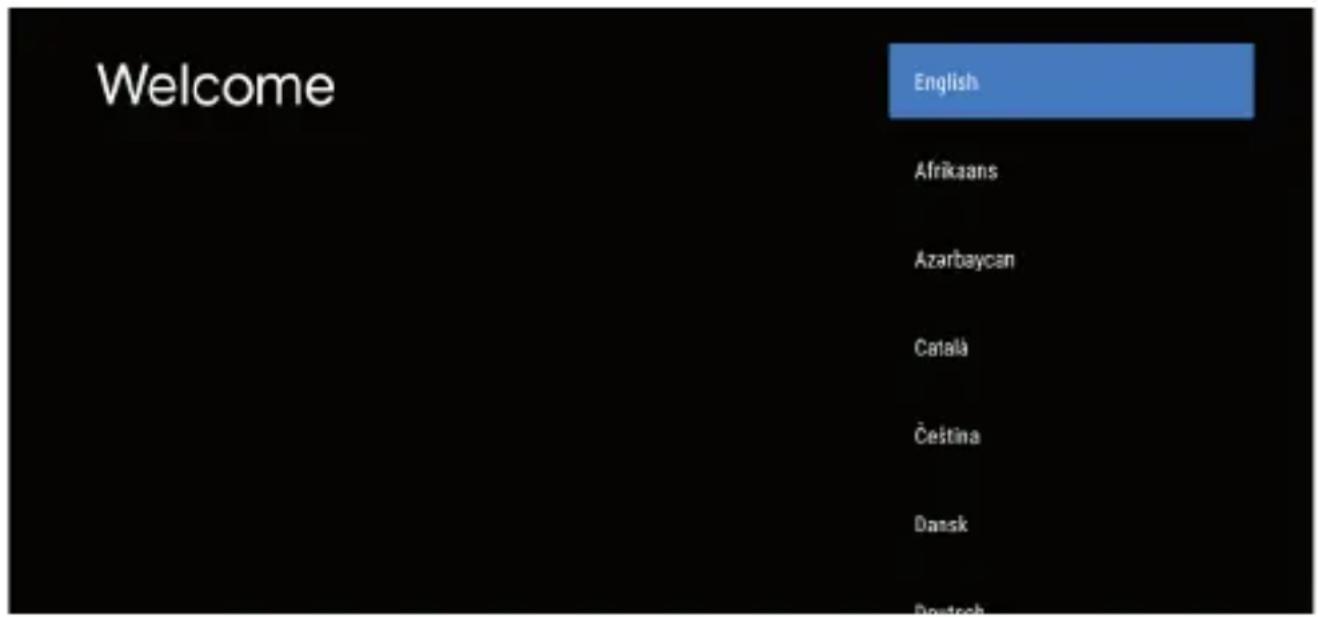
- You can quickly setup your device if you already have Google gmail account on your smartphone with “Google” app setup with Google assistant.
- Otherwise you can SKIP and manually enter in Wi-Fi password.
FIRST TIME SETUP (cont.)
-
Choose your Wi-Fi Network and enter in the password.
-
Sign in with your Google Gmail Account, if you do not have a GMAIL account, select "Skip".
Note: You must have a GMAIL account to be able to access Google Play Store and download/install additional apps.
-
Accept Terms of Service, Location (for weather and other user experiences).
-
Choose a Device name: BATV10 or other suggestions.
FIRST TIME SETUP (cont.)
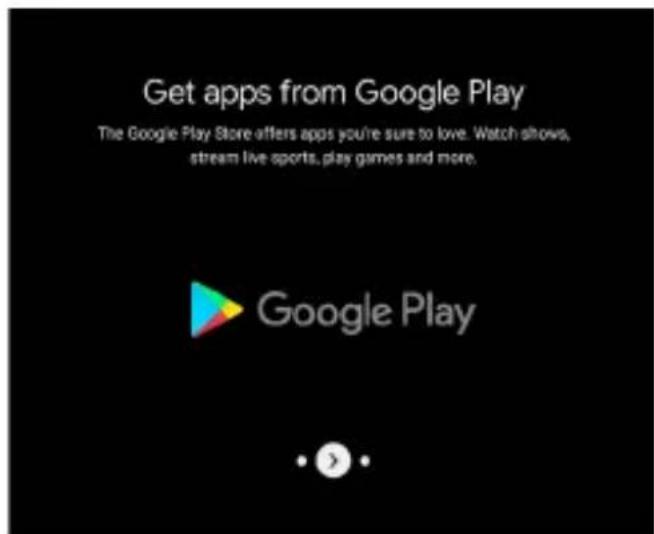
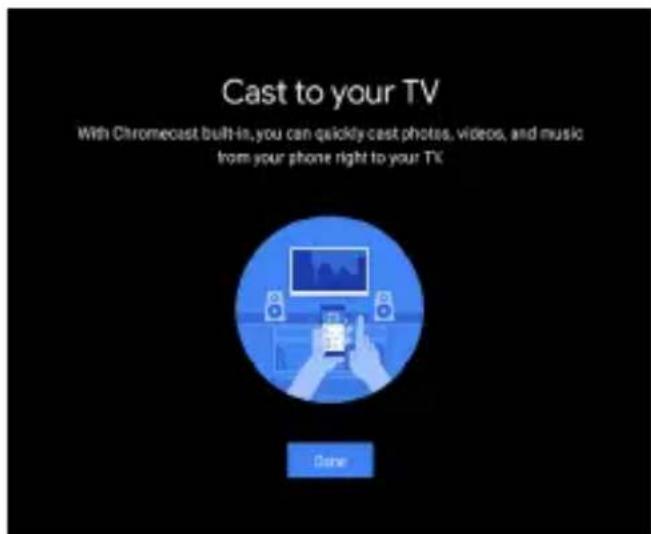
Informational screens will now appear, you can scroll through steps by press “RIGHT” directional button to continue.
ANDROID TV - HOME
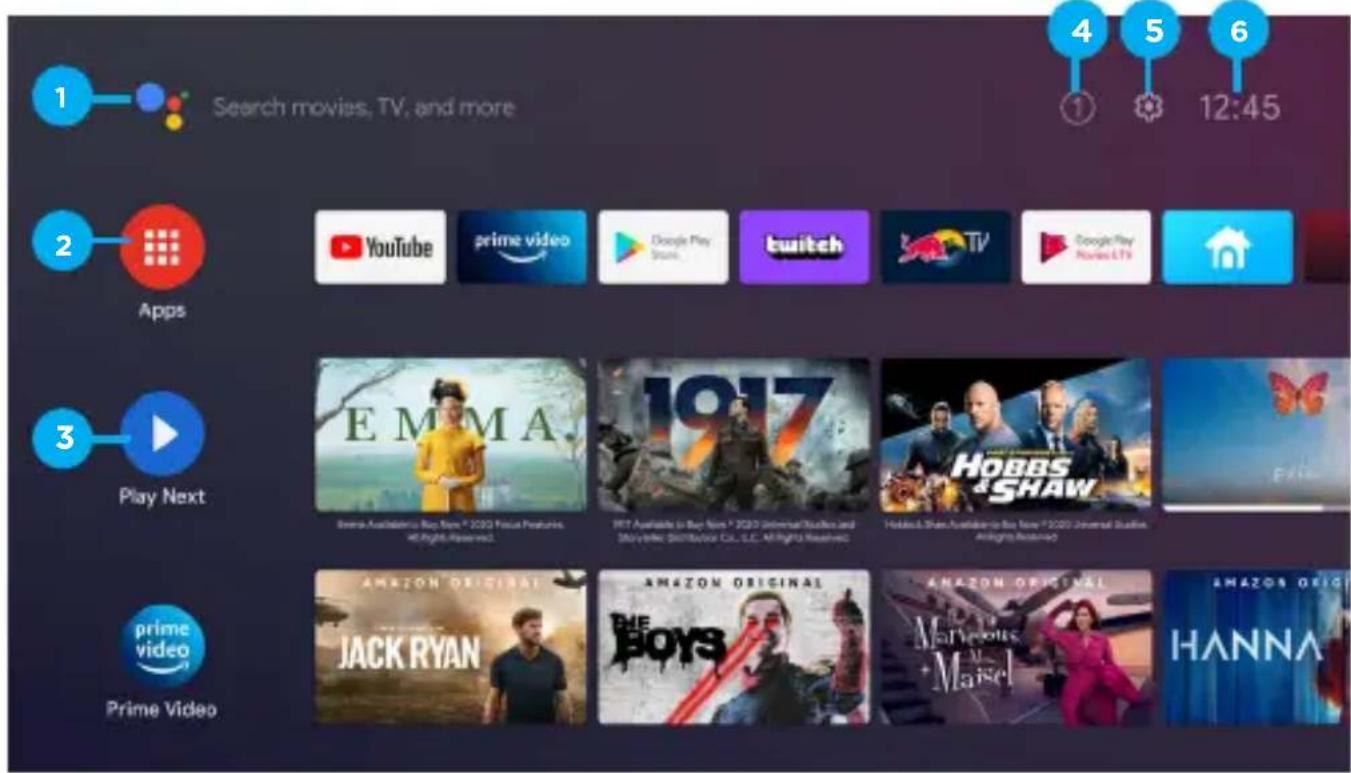
Once setup is completed, you will arrive at the Android TV home page. Your Pre-installed apps are: Netflix, YouTube and Google Play Store.
Note: Below home page is REFERENCE ONLY.
ANDROID TV - HOME (Cont.)
- Open Google Assistant to start a voice search.
- Selected the Multi-dot red circle to have access to all your applications. Pre-installed applications are available for you in this FAVs row, select
"Google Play Store" If you wish to search and download additional apps optimised for Android TV. - Each row past this point will display recommended content from the apps you already have installed.
- NOTIFICATION: here will display all notifications relating to anything on your ANDROID TV.
- SETTINGS: Select this if you want to access TV settings.
- TIME: Displaying current time.
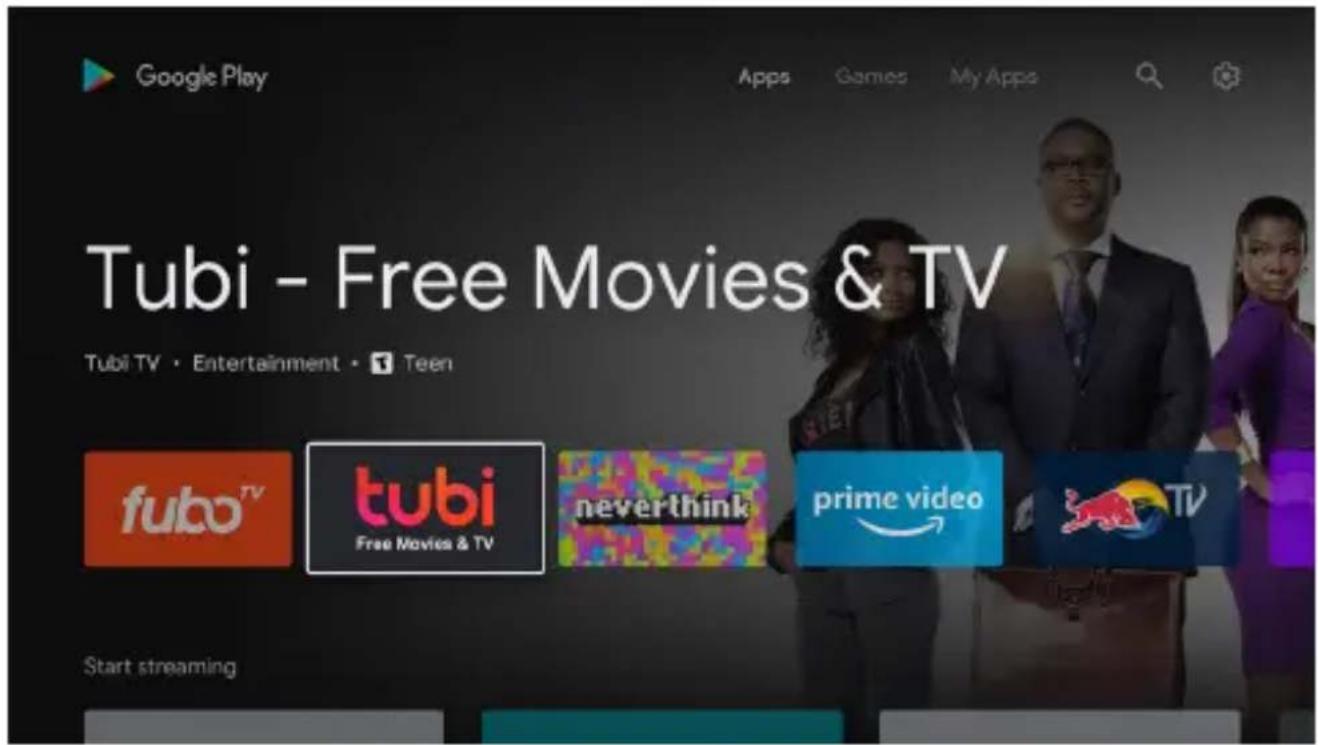
GOOGLE PLAY STORE
To have access and to download applications from the
Google Play Store, you must sign in with a Gmail
account. Once you open Google Play Store, you will be prompted to sign in or create a new account.
GOOGLE ASSISTANT
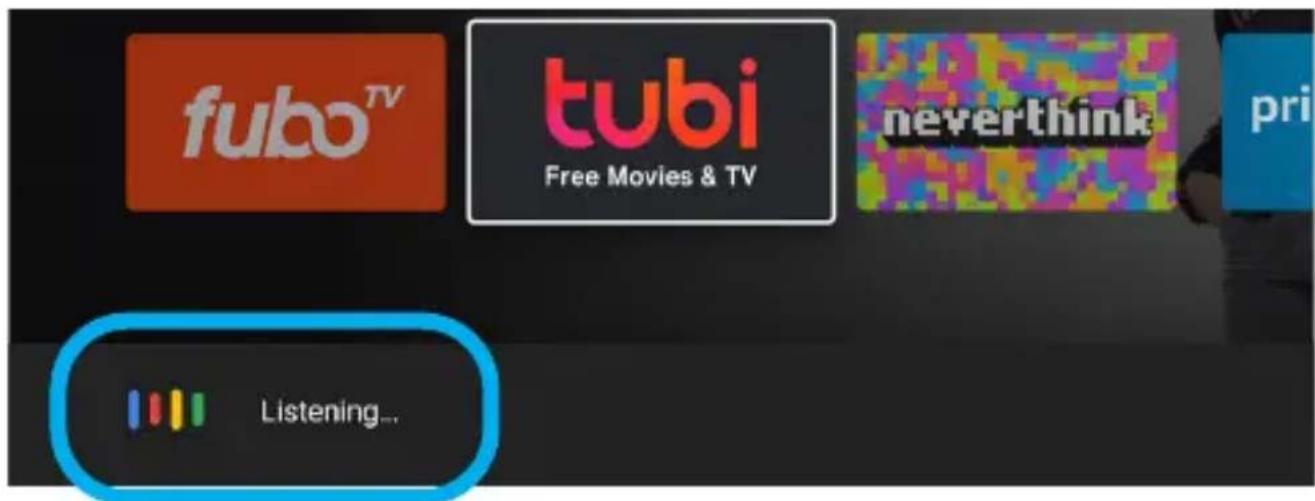
You now have access to Google Assistant by pressing (Google Assistant) button on your remote control to commence.
Allow for the voice box to appear at the bottom of your TV screen, stating: “Listening” then speak clearly towards the top of your remote control for Google Assistant to hear you.
Once Google Assistant understands, what you have requested will be actioned.
THIS PAGE HAS BEEN LEFT BLANK ON PURPOSE.
THIS PAGE HAS BEEN LEFT BLANK ON PURPOSE.
EKO
CUSTOMER SUPPORT:
info@ayonz.com
DISTRIBUTED BY:
Ayonz Pty Ltd