KSP1EM - Home Automation EKO - Free user manual and instructions
Find the device manual for free KSP1EM EKO in PDF.


| Product Type | Smart Wi-Fi Plug |
| Dimensions | 44 (w) x 57.6 (d) x 76.5 (h) mm |
| Net Weight | 0.084 kg |
| Gross Weight | 0.15 kg |
| Power Supply | 100-240V ~ 50/60Hz |
| Maximum Load | 10A, 2400W |
| Wi-Fi Standard | 2.4GHz, IEEE 802.11 b/g/n |
| Wireless Range | 45 metres |
| Compatible App | EKO Home |
| App Control | Yes (on/off, timer, schedule) |
| Energy Monitoring | Yes (current, power, voltage, total kWh) |
| Timer & Scheduling | Countdown, circulate, inching, astronomical |
| Child Lock | Yes (press button 4 times to turn on) |
| Overcharge Protection | Yes (switchable) |
| Compatibility | Google Home, Amazon Alexa |
| Cleaning | Soft dry cloth only; no chemicals |
| Safety | Indoor use only; avoid rain/moisture |
| Support Email | info@ayonz.com |
| Distributed By | Ayonz Pty Ltd |
Frequently Asked Questions - KSP1EM EKO
User questions about KSP1EM EKO
0 question about this device. Answer the ones you know or ask your own.
Ask a new question about this device
Download the instructions for your Home Automation in PDF format for free! Find your manual KSP1EM - EKO and take your electronic device back in hand. On this page are published all the documents necessary for the use of your device. KSP1EM by EKO.
USER MANUAL KSP1EM EKO
natural_image
White EKO power plug with two slots and a terminal outlet, no visible text or symbols on the device itself.INSTRUCTION MANUAL
Please read this manual carefully before using, and keep it for future reference.
CONTENTS PAGE
General
Safety
Product
Overview
App / Wi-Fi Control 8
Download EKO Home app 9
Start Setup Process 10
Login/Create account 11
Adding
Device
Dashboard (product control) 18
Energy Dashboard 19
Scheduling 20
Settings 21
Add app to Google Home 22
Add app to Amazon Alexa Account 22
Cleaning
23
Specifications Last Page
Customer Helpline Last Page
GENERAL SAFETY INSTRUCTIONS
Read this manual thoroughly before you start using this product Store this manual, the completed warranty card, your receipt and the product packaging.
To reduce the risk of injury:
- Avoid rain, high temperature products or direct exposure to sun.
IMPORTANT INFORMATION
- Do not expose this appliance to rain or moisture as it may result in fire or an electric shock hazard
- Do not tamper or change or modify the product in any way.
- Only use Accessories outlined and recommended by the manufacturer.
- Please do not expose the product to splashing or water contact
- Please do not place any object on top of the product including objects filled with liquids such as vases.
PLEASE READ BEFORE USE:
- This appliance is not intended for use by persons (including children) with reduced physical, sensory or mental capabilities, or lack of experience and knowledge, unless they have been given supervision or instruction concerning use of the appliance by a person responsible for their safety. Children should be supervised to ensure that they do not play with the appliance.
- Please do not use any other accessories which not supplied with this product.
- Do not attempt to open up and fix or modify circuits inside the unit.
- If the powerboard or cord is damaged, contact us at info@ayonz.com for advice. Do not attempt to open the board or replace the cord. The cord must be replaced by appropriately qualified personnel.
- If the powerboard requires repair, contact us at info@ayonz.com; never disassemble or modify the powerboard or attempt to service it yourself.
- Run the power supply cord in such a way that there will be no risk of anyone pulling it inadvertently or tripping over it.
- The product is not suitable for use in locations where children are likely to be present.
-
The surge powerboard is designed for indoor use in dry places only.
-
Do not exceed a maximum loading of 2400 watts.
- For safety reasons, always use earth connections.
- Only use the powerboard with the power supply cord fully unwound.
- Before installing the powerboard, make sure to place it away from: heatsources, radiators or other products that produce heat; areas with high temperatures, high humidity or direct sunlight; excess dirt and dust; open windows and any place where water may get to the unit.
- Do not immerse the cord, plug or the surge powerboard in water or other liquid, or expose the electrical connections to water or other liquid.
- Unpack the powerboard and keep the original packaging carton and materials in a safe place. It will help prevent any damage if the powerboard needs to be transported in the future, and you can use it to store the powerboard when it is not in use.
- The powerboard should always be repacked in its original packaging whenever transporting to prevent any possible damage to the product.
- When not in use: Disconnect from the power source and store in a cool, dry and well ventilated location out of direct sunlight, and not subject to humidity.
- Discard this powerboard if the supply cord is damaged.
PRODUCT OVERVIEW
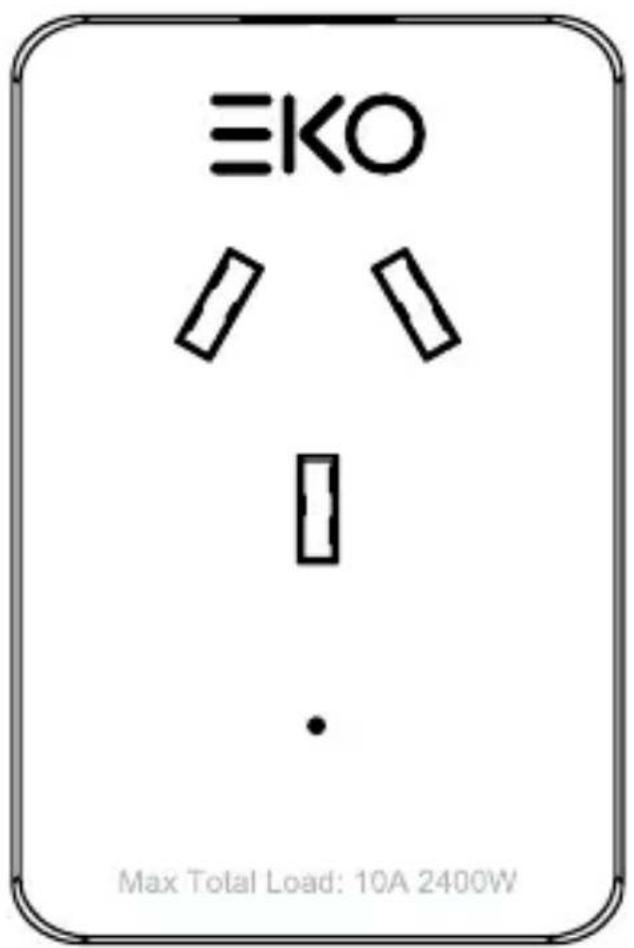
FRONT VIEW BOTTOM VIEW

natural_image
Simple line drawing of a mechanical component with three protruding ports and a central circular button (no text or symbols)POWER ON/OFF
APP/Wi-Fi Control
Working with your mobile device, using your home Wi-Fi network router to communicate with your product and control it.
CONTROLLING THE SMART WI-FI PLUG REMOTELY IS VERY SIMPLE. YOU WILL NEED:
- Android smartphone or tablet, or an Apple iPhone or iPad
- Internet connection at your home
- Wi-Fi network router set up at home.
You must also have the EKO Home App installed or updated on your smartphone or mobile device. This app is available from Google Play Store or Apple App Store.
APP/Wi-Fi Control (Cont.)
Download and install: EKO Home app, once opened sign up and create an account.
Install the Smart Wi-Fi Plug into a power socket and open your downloaded EKO Home app to commence pairing process.
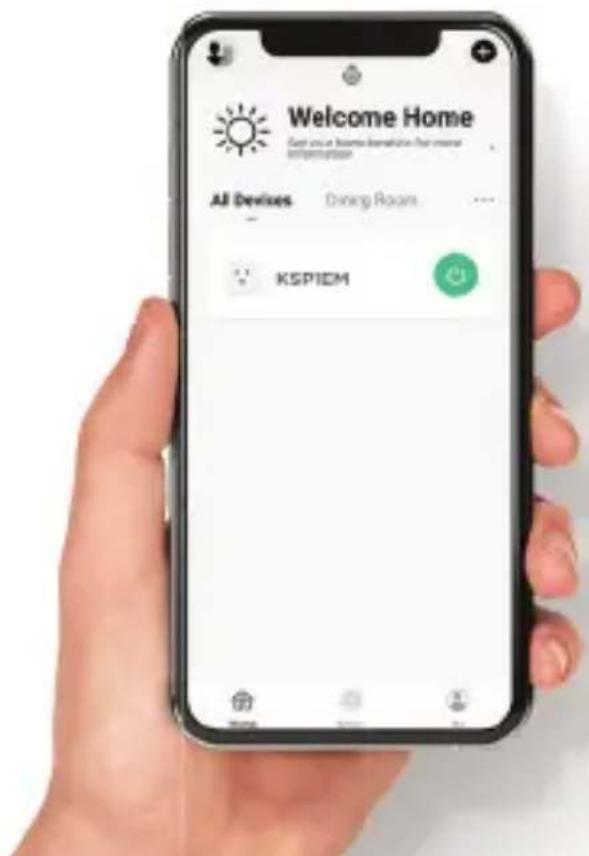
Once setup is complete you can control your Smart Wi-Fi Plug via the EKO Home app.
EKO Home
*Smartphone not included
APP/Wi-Fi Control (Cont.)
In order to do this, make sure you have the EKO Home App installed or updated on your mobile device, your Wi-Fi router is switched on and your mobile device connected to your home Wi-Fi network.
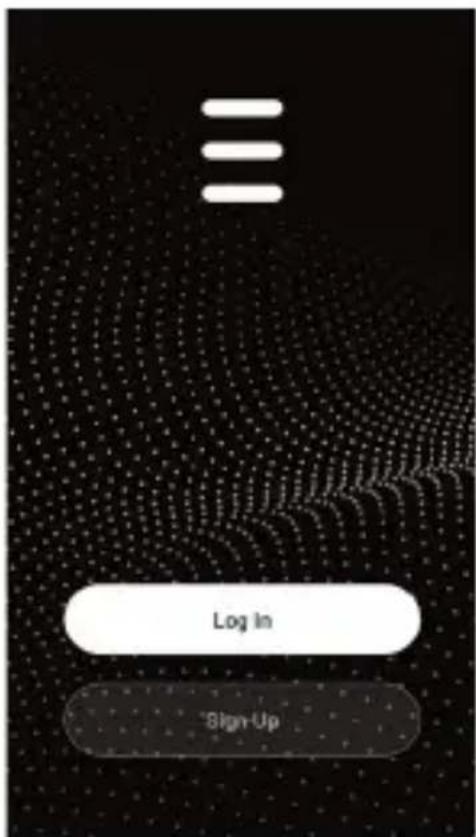
On your mobile device, tap on the EKO Home app (1). It will open and take you to the Login Page (2).
1
2
APP/Wi-Fi Control (Cont.)
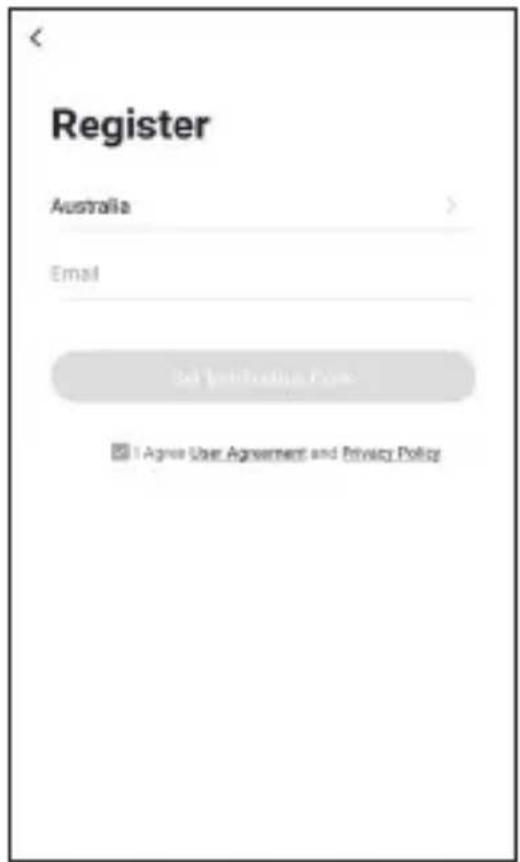
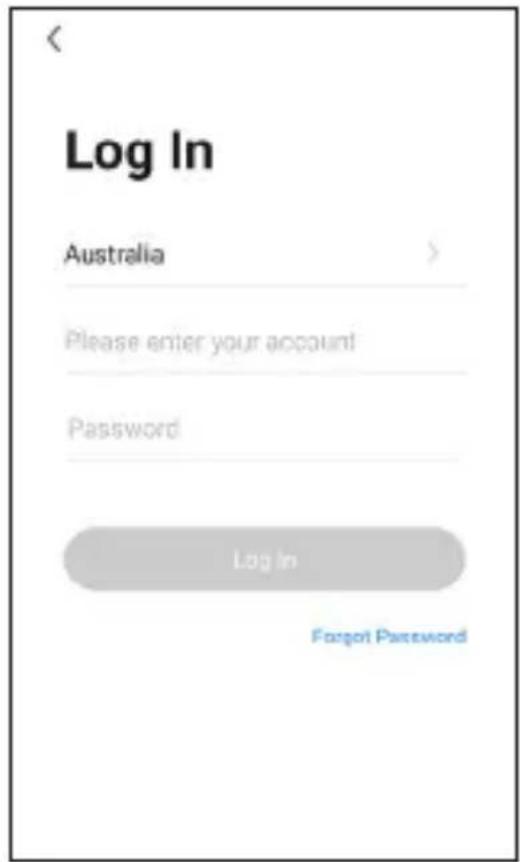
Before you log in, please press SIGN UP and register your account using an email address. (3 and 4).
3
![User Agreement and Privacy Policy We understand the importance of privacy. In order to more fully present our collection and use of your personal information, we have revised our privacy policy and user agreement in detail in accordance with the latest laws and regulations. When you click [Agree], you have fully read, understood and accepted all of the updated Privacy Policy and User Agreement. Please take some time to become familiar with our privacy policy, and if you have any questions, please feel free to contact us. Privacy Policy and User Agreement Disagree Agree](/content/2026/05/1056698/images/982bc38df0e4b7624852c50e78a76f4c5384e5508a50e9bcce9127fd9a9b461c.jpg)
4
APP/Wi-Fi Control (Cont.)
Once entered email address, tap GET VERIFICATION CODE and an email will be sent your email address with a verification code. Enter this code.
Now you can enter a password for your account. Please remember this password or write it down. (5)
3
![User Agreement and Privacy Policy We understand the importance of privacy. In order to more fully present our collection and use of your personal information, we have revised our privacy policy and user agreement in detail in accordance with the latest laws and regulations. When you click [Agree], you have fully read, understood and accepted all of the updated Privacy Policy and User Agreement. Please take some time to become familiar with our privacy policy, and if you have any questions, please feel free to contact us. Privacy Policy and User Agreement Disagree Agree](/content/2026/05/1056698/images/28cf9a182886902d7155ed2c83405cc2ec65f5a9543d5c01936f84fce460c505.jpg)
4
APP/Wi-Fi Control (Cont.)
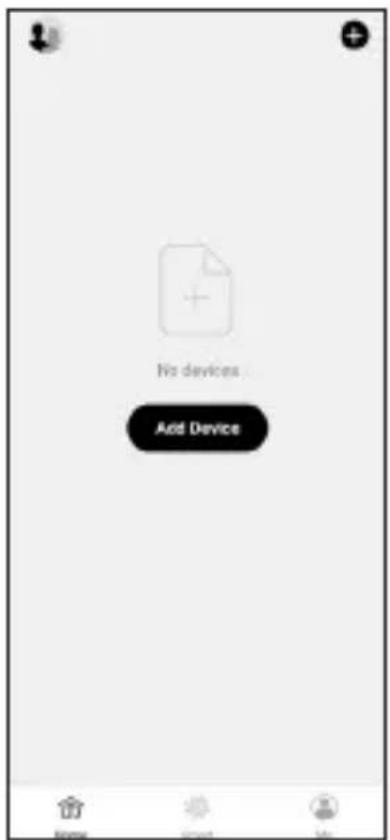
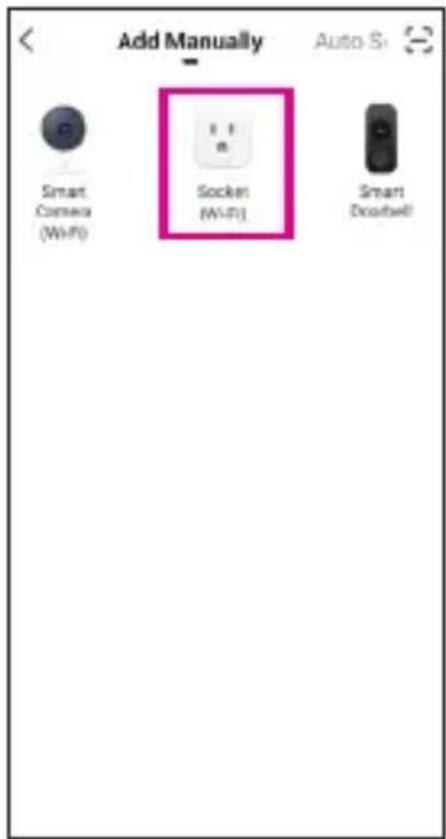
- Tap the plus (+) or ADD DEVICE to add your device. (7).
- Select the product which in this case is: POWER SWITCH. (8)
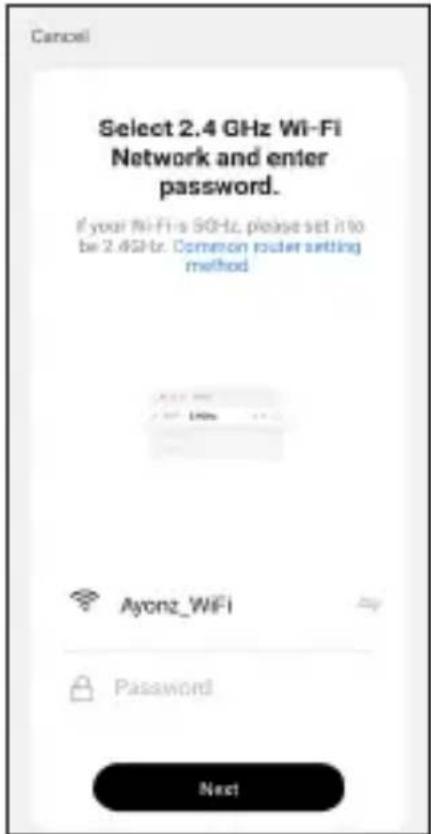
- Select Wi-Fi network then enter in the password to connect. (9)
Note: Make sure to select 2.4GHz
5GHz Wi-Fi Network will not work with this app.
7
8
9
APP/Wi-Fi Control (Cont.)
IMPORTANT
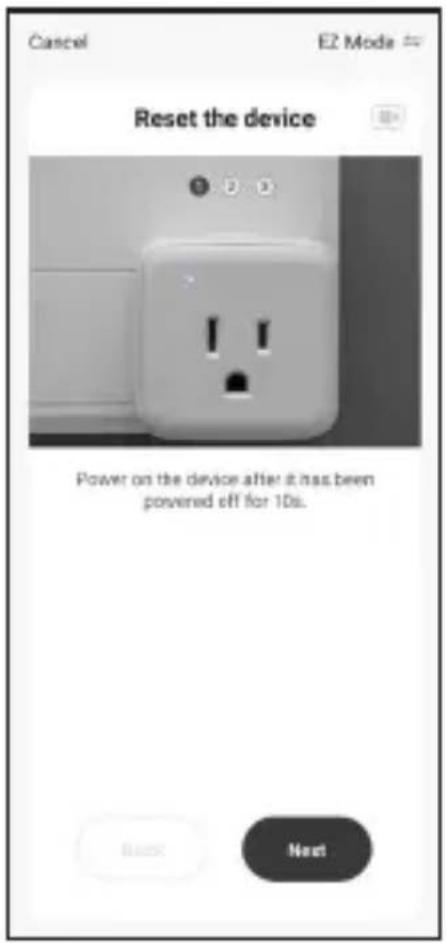
Before you can control your product remotely, you must reset the Wi-Fi module on the unit.
To do so please follow on screen or below instructions:
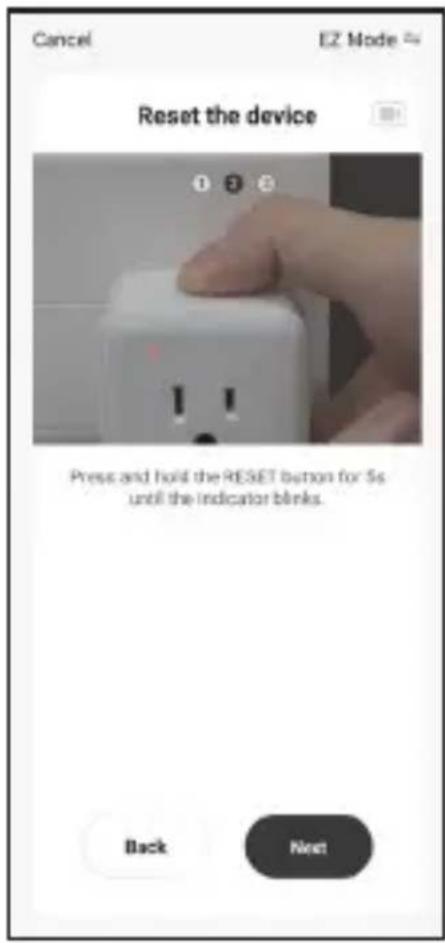
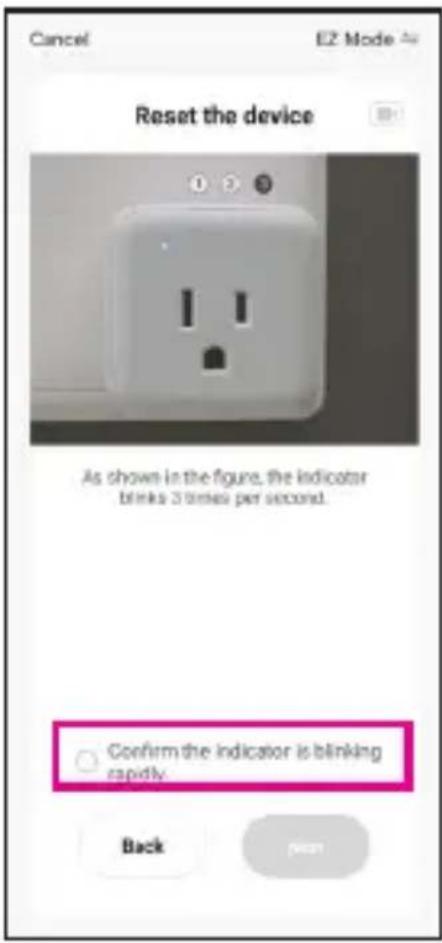
- Press and hold the POWER button on the product for 3 seconds and wait for a “Connected” voice prompt. (10).
- When you see the indicator light starting to flash, let go. (11)
- Now that you have set it in Wi-Fi mode, on the EKO Home app shown below:
a Press Next button (11)
b Tick "Confirm indicator blinking rapidly" box and press next (12)
REFER TO NEXT PAGE --->
APP/Wi-Fi Control (Cont.)
10 11 12
APP/Wi-Fi Control (Cont.)
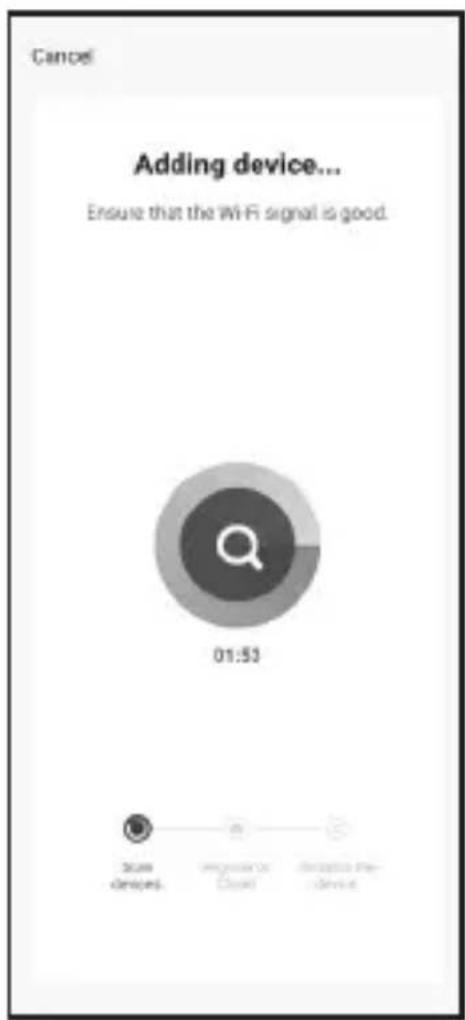
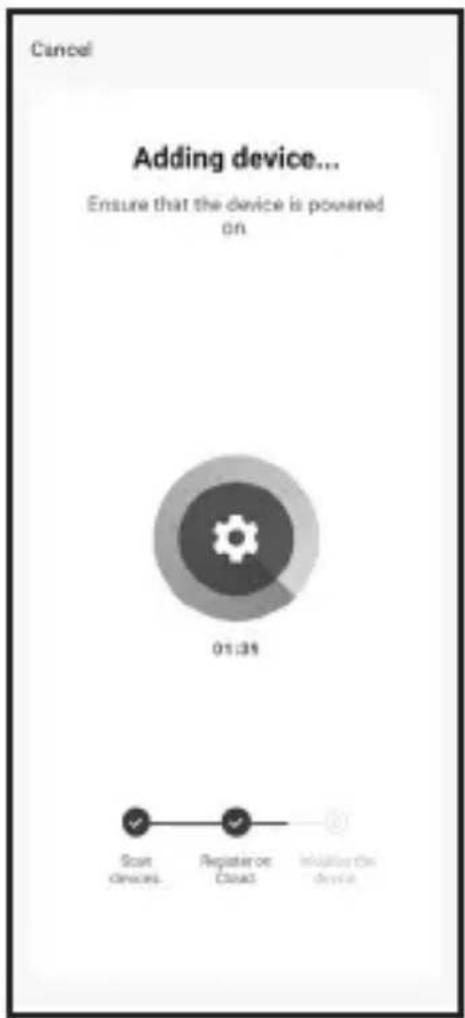
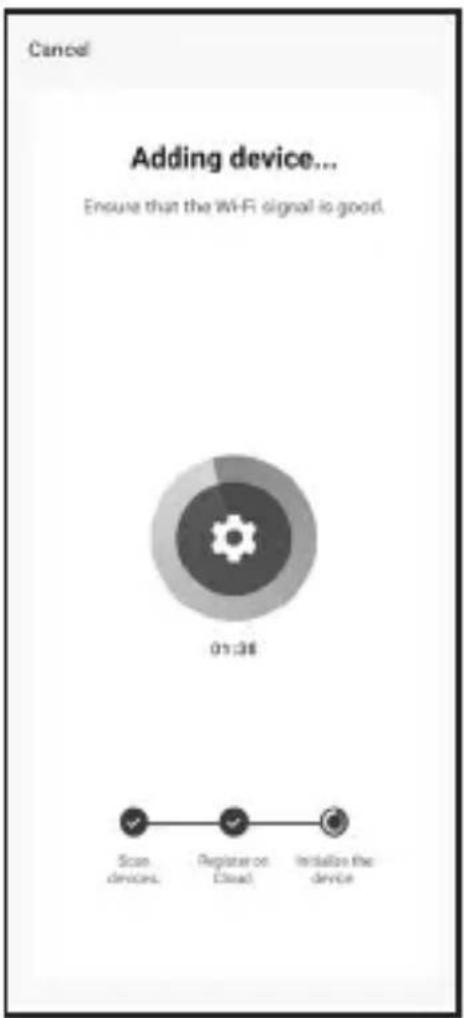
Now that the device is being added, progress screen will now appear as to below: (13, 14, 15).
13 14 15
APP/Wi-Fi Control (Cont.)
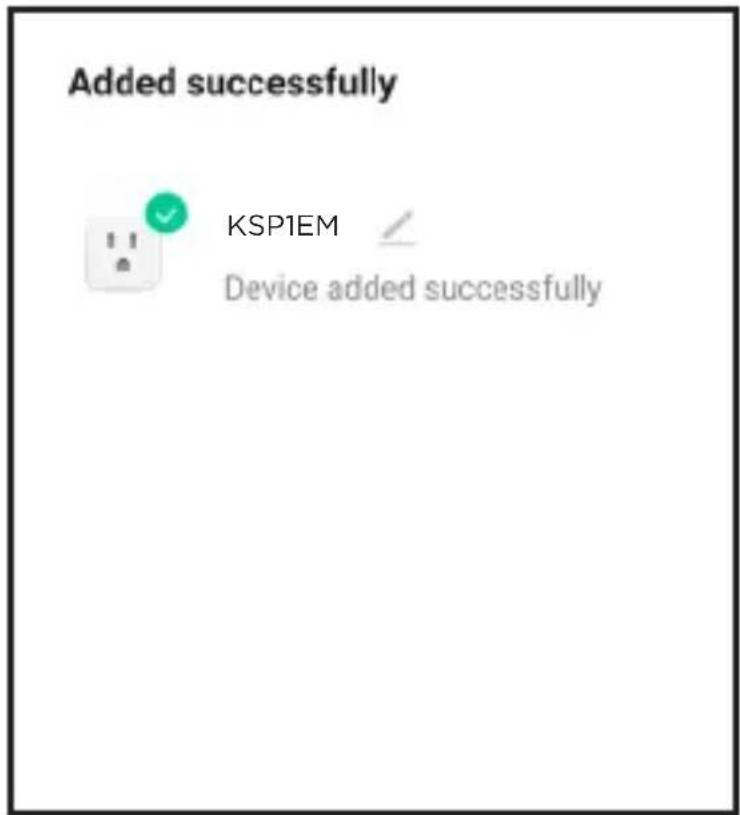
Once completed, it will show your product is now added. click
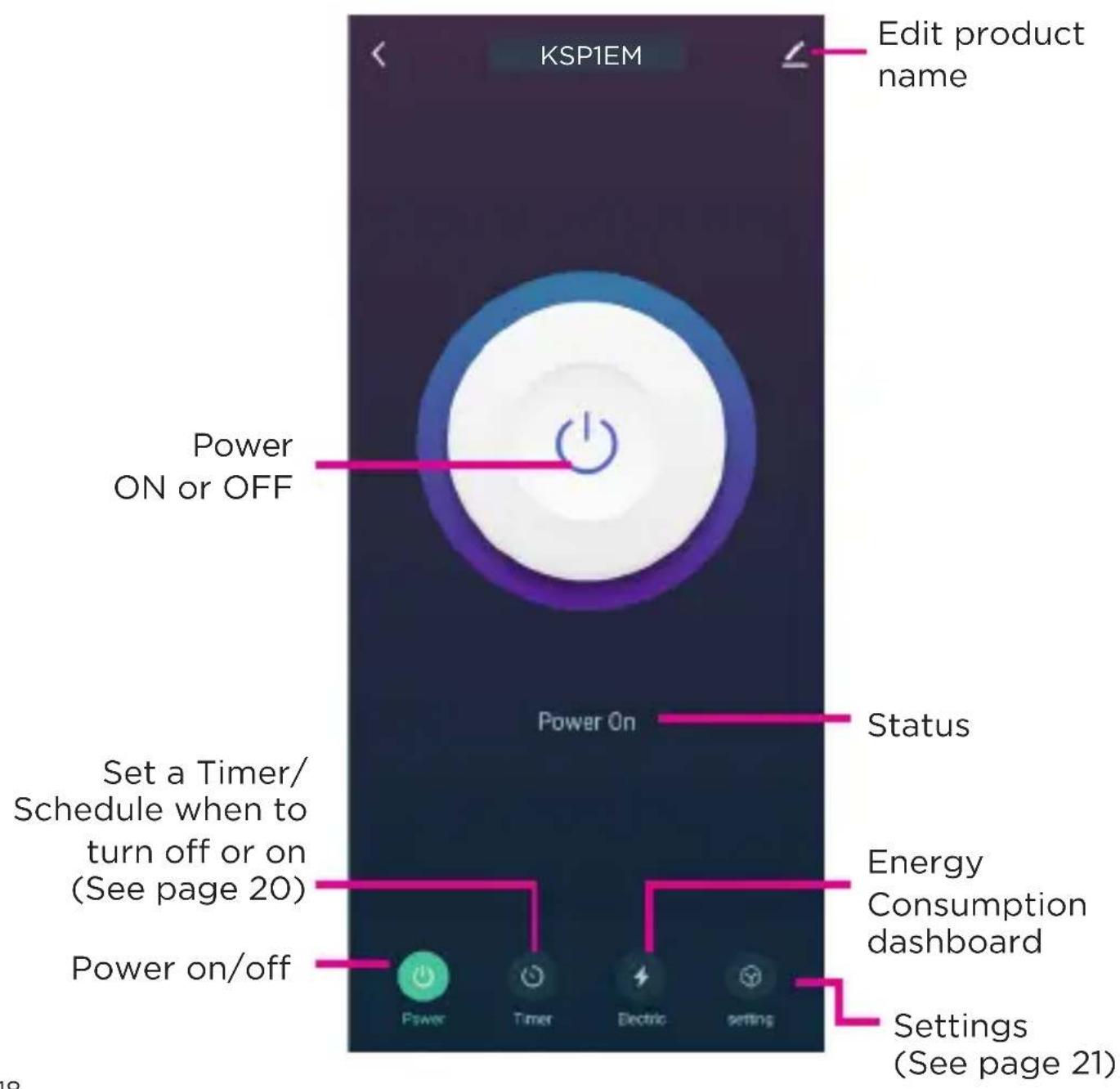
DONE. Click on the device name and you can now start navigating the controls of the app. (14, 15)
14
APP/Wi-Fi Control (Cont.)
APP/Wi-Fi Control (Cont.)
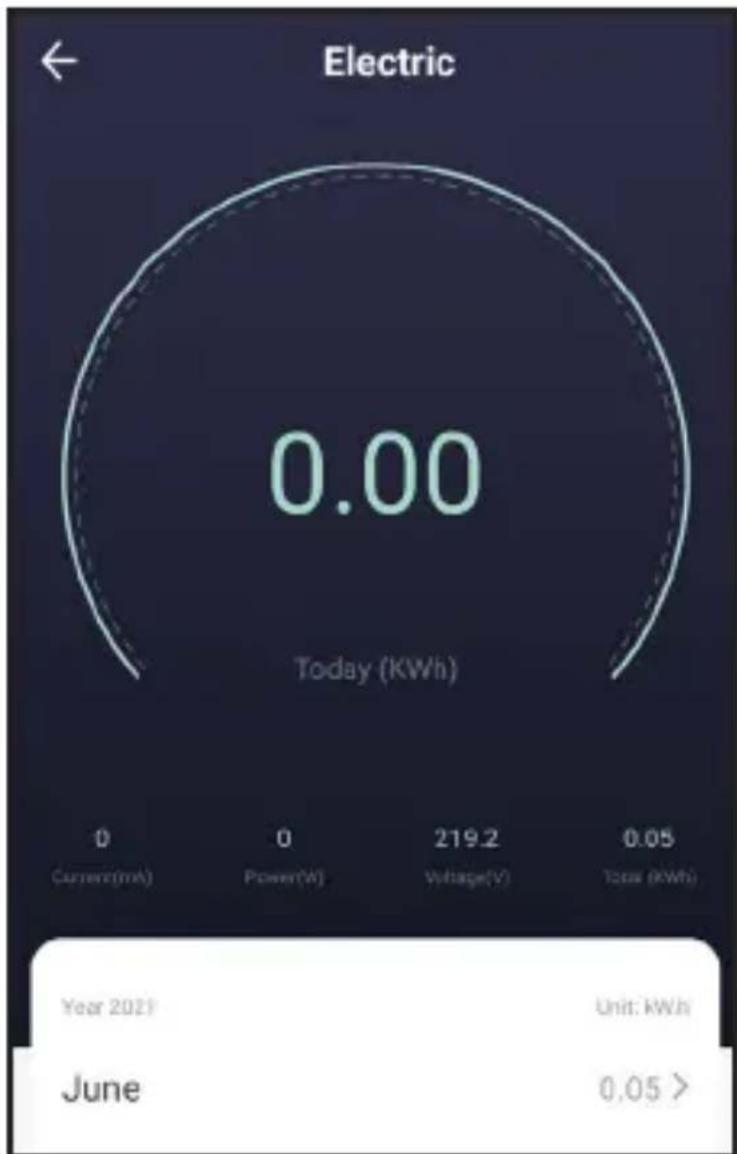
ENERGY
Select this option to view the energy consumption of your power plug, and its connected device.
gauge
| Metric | Value | | ------------ | --------- | | Current | 0.00 | | Power | 0.00 | | Voltage | 219.2 | | Total | 0.05 | | Year 2021 | 0.00 | | Unit: kWh | 219.2 | | June | 0.05 > |APP/Wi-Fi Control (Cont.)
TIMER & SCHEDULING WITH APP
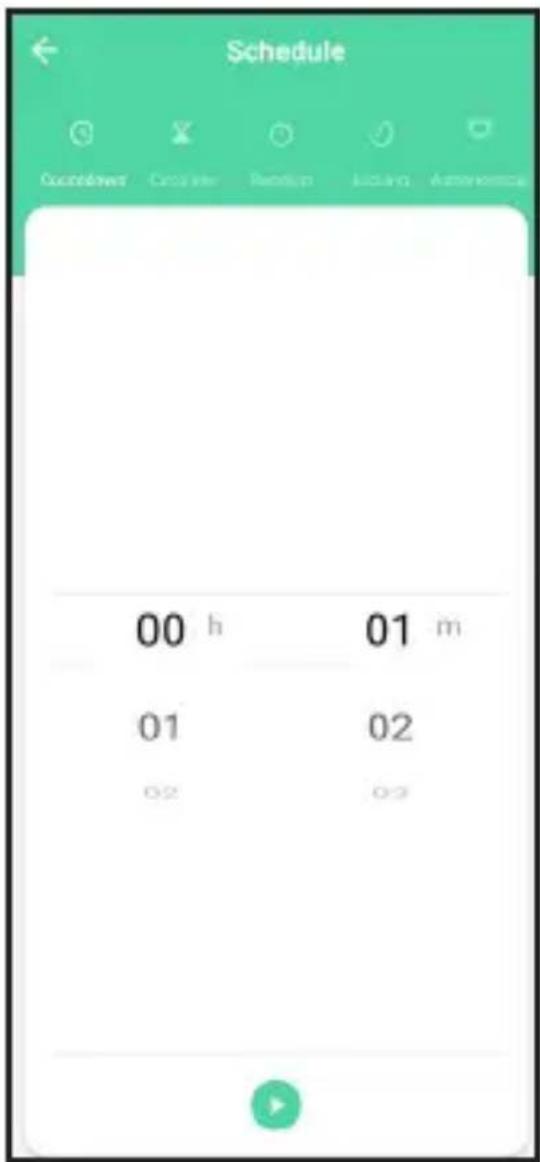
Press TIMER on app dashboard to enter timer section.
Countdown - Set countdown timer for when you want device to turn off or on. (example: if device is off, it will turn on).
Circulate (schedule) - Use this to set a scheduled date for device to either turn on or turn off.
Inching - Set this on with a timer, that every time you turn device on it will turn off automatically after the set time.
Astronomical - Set to turn off or on at sunrise or sunset.
APP/Wi-Fi Control (Cont.)
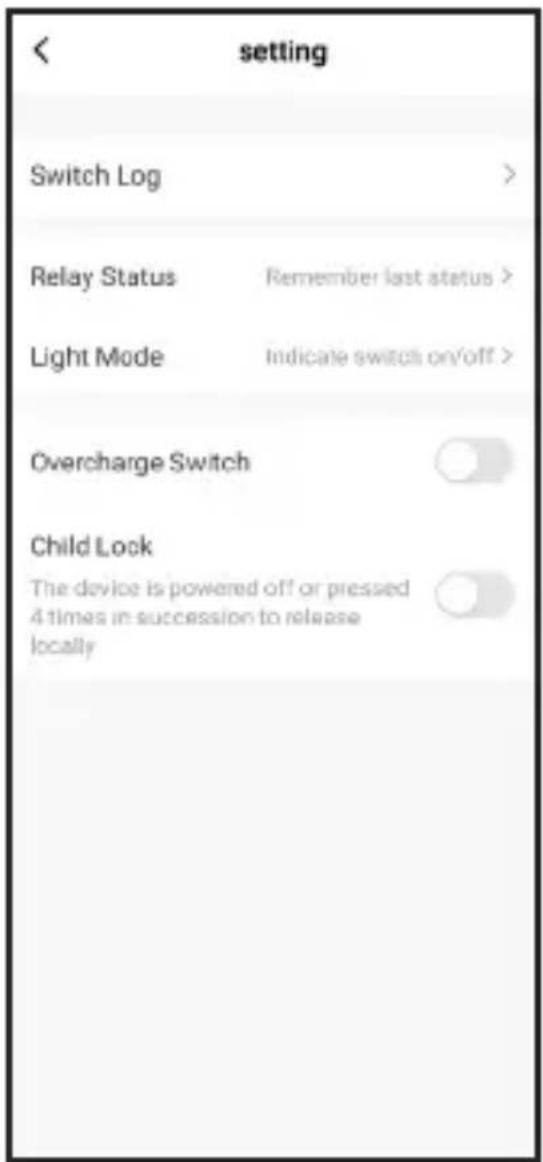
SETTING
Switch Log - shows the times when device is on or off.
Relay Status - If the power is cut off (example during power outage). If you want it to turn “on”, or “off” (to remain off) or “remember last status”, which means if power cuts off it will revert back to how it was before (on or off).
Light Mode - Light indicator status.
Overcharge Switch - Overload protection function, ON or OFF.
Child Lock - When device is turned off must press button 4 times to turn back on.
APP/Wi-Fi Control (Cont.)
Add EKO HOME app to your Google Home app.
- Open your Google home app. (Before you link your app to your Google Home app, you will have to have a Google Home account already set up.
- From the home screen of the Google Home App, press ADD. Press SET UP DEVICE, then select HAVE SOMETHING ALREADY SET UP? under the WORKS WITH GOOGLE banner.
- Search for EKO Home.
- Press the EKO Home app and enter your EKO Home app account details and password. Then press SIGN IN.
Add the EKO HOME app to your Amazon Alexa Account.
You must have to already have an Amazon Alexa account set up.
-
Home screen of Amazon Alexa app, press the 3 bars in the top left hand corner. Select SKILLS & GAMES, then search for EKO HOME.
-
Select the EKO HOME app, Ensure you have followed the steps listed, then select CONFIRMED and then select NEXT. Enter your EKO HOME account details and password then press SIGN IN.
APP/Wi-Fi Control (Cont.)
* Instructions for adding EKO Home app are general instructions only. Detailed steps or specific message from your Google Home or Amazon Alexa account may vary depending on the version.
Smartphone and Wi-Fi specification requirements Minimum smartphone specifications
Android 5.0 version or later IOS 9.0 version or later
Cleaning and Maintenance
Only use a soft, dry cloth for cleaning the product; do not use a damp cloth. Never clean with industrial chemical polish, wax, benzene, paint thinner, air freshener, lubricant, detergent or other chemicals. Wipe off any moisture, dirt or dust on the power sockets and plug pins with a clean, dry cloth.
Specifications
| Power Supply 100-240V ~ 50/60Hz | |
| Total Max Loading. 10A 2400W | |
| Wi-Fi 2.4G Hz / IEEE 802.11 | b/g/n |
| Wireless Range 45 Metres | |
| Compatible App EKO Home | |
| Dimensions 44 (w) x 57.6 (d) x 76.5 (h) mm | |
| Weight | Net: 0.084 kg |
| Gross: 0.15 kg | |

SUPPORT: info@ayonz.com
DISTRIBUTED BY: Ayonz Pty Ltd
- INSTRUCTION MANUAL
- CONTENTS PAGE
- GENERAL SAFETY INSTRUCTIONS
- IMPORTANT INFORMATION
- PLEASE READ BEFORE USE:
- PRODUCT OVERVIEW
- APP/Wi-Fi Control
- CONTROLLING THE SMART WI-FI PLUG REMOTELY IS VERY SIMPLE. YOU WILL NEED:
- APP/Wi-Fi Control (Cont.)
- IMPORTANT
- To do so please follow on screen or below instructions:
- REFER TO NEXT PAGE --->
- ENERGY
- TIMER & SCHEDULING WITH APP
- SETTING
- Add EKO HOME app to your Google Home app.
- Add the EKO HOME app to your Amazon Alexa Account.
- Smartphone and Wi-Fi specification requirements Minimum smartphone specifications
- Cleaning and Maintenance
Brand : EKO
Model : KSP1EM
Category : Home Automation