Air 300 - Headphones Auna - Free user manual and instructions
Find the device manual for free Air 300 Auna in PDF.


User questions about Air 300 Auna
0 question about this device. Answer the ones you know or ask your own.
Ask a new question about this device
Download the instructions for your Headphones in PDF format for free! Find your manual Air 300 - Auna and take your electronic device back in hand. On this page are published all the documents necessary for the use of your device. Air 300 by Auna.
USER MANUAL Air 300 Auna
natural_image
Abstract white geometric logo on black background (no text or symbols)auna
multimedia
Bluetooth Kopfhörer
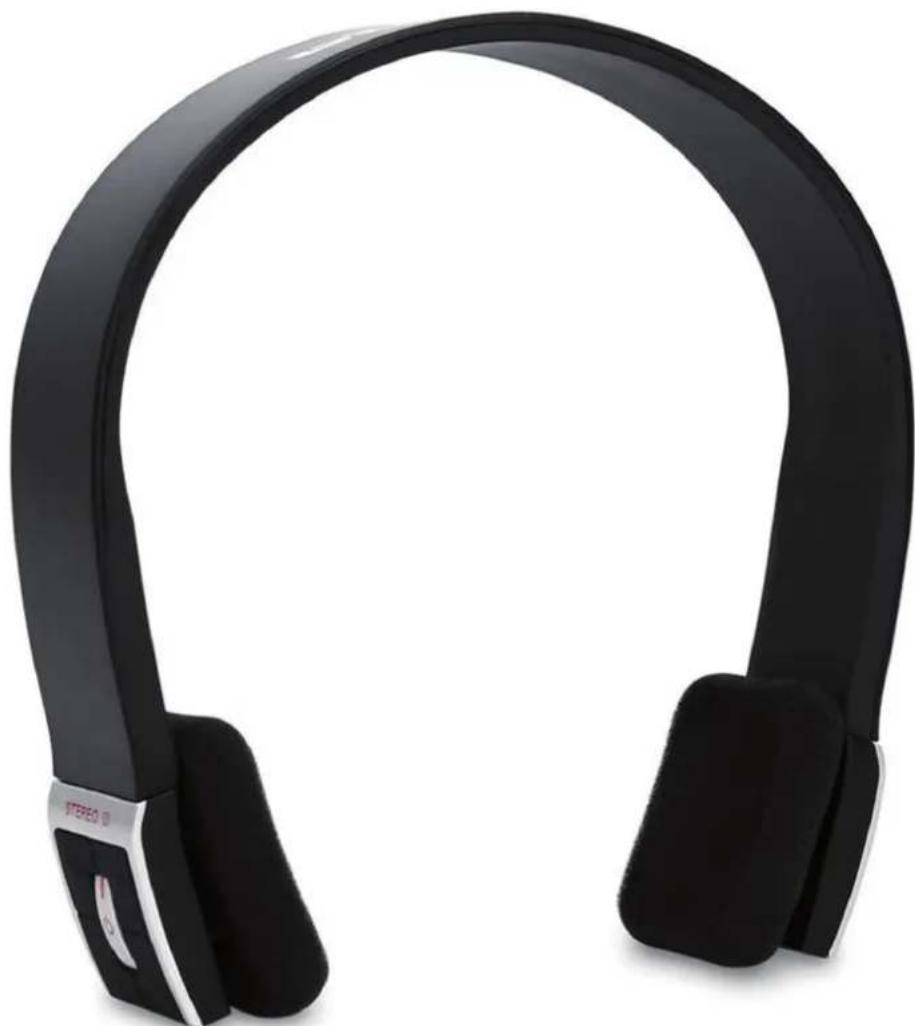
natural_image
Black hardcover headband with white earband and black plastic case (no text or symbols visible)10011115
10011116
10011117
10011118
natural_image
Black hardcover headband with a small black button labeled 'SARER 3' (no additional text or symbols visible)natural_image
Close-up of a black hardcover with attached buttons and a magnified inset showing the internal mechanism (no text or symbols visible)Anruf-Funktionen
natural_image
Simple line drawing of a trash bin with an X mark symbol (no text or labels)Auna Air is a stereo Bluetooth headset. It supports the following Bluetooth profiles: HSP, HFP, A2DP & AVRCP
You can enjoy music wirelessly by using the Auna Air. Steps as following:
- Pairing with the Bluetooth mobile phone and PDA which support HFP.
- Answer, end and reject call from the headset
• Redial last number - Adjust the volume
- Switch the conversation between the headset and the mobile phone
-
Microphone mute
-
Pairing with Bluetooth music devices and Bluetooth transmitter which support A2DP
- Enjoy music wirelessly
- Adjust the volume
- Remote control the function of pause/play
- Remote control last/next song
-
Easy to switch between conversation and music, you will not miss the incoming call during listening to music.
-
Automatic connecting with the last paired device when turn on the headset.
Note:
Even though the paired device and headset support the same Bluetooth profiles, the functions may be different due to the specification difference of the paired devices.
Before using
Overview
- Retractable string
- < key :last song
-
key : next song
- LED Indicator
- Multifunction button (MFB):
Switch on/off the headset, answer, end and reject call, microphone mute, redial last number, pause and play -
- key: volume up
-
- key: volume down
- Charging port
- Built-in microphone
natural_image
Black hardcover headband with white buttons at the bottom (no visible text or symbols)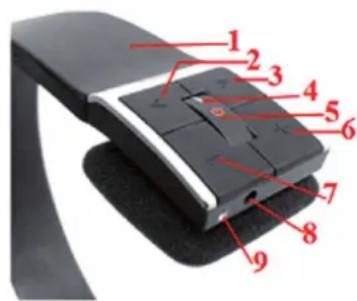
First time charging
Before you use this Bluetooth headset, please charge the battery of Auna Air fully.
Next time
When you hear three warning tones of "DONG" every 20 seconds, at the same time, the red light blinks two times. It means the battery is low power and need to be charged. There are two types of charging as below:
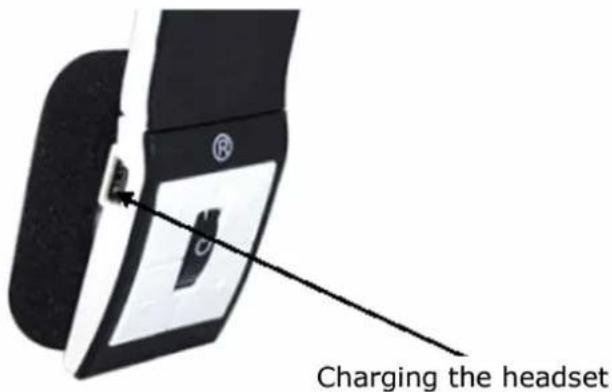
A. Charging the battery with travel charger
Step1: Plug the travel charger into standard USB power outlet.
Step2: Connect the travel charger with the charging port of the headset. When the red light is on, the headset is charging.
When the red light is off, the headset is charged fully. It takes about 2.5 hours to charge the headset fully.
B. Charging the battery with USB cable
Step1: Insert USB charging cable into USB port of PC.
Step2: Connect charging cable with the charging port of headset. When the red light is on, the headset is charging.
When the red light is off, the headset is charged fully. It takes about 2.5 hours to charge the headset fully.
Note:
Choosing travel charger or USB cable depends on different countries or areas and actual demands.
How to use
Switching on/off
| Function Operation LED indicator Indication tone | |||
| Switch on | Press the MFB button for 3-5 seconds, and release it till the blue LED is on | Blue LED is on for 1 second | A long “DI” tone |
| Switch off | Press the MFB button for 3-5 seconds, and release it till the red LED is on | Red LED is on for 1 second | A long “DI” tone |
Note:
In order to save power, the headset will automatically switch off if no devices can be connected within 5 minutes after switching on.
Pairing the headset with Bluetooth devices
How to enter pairing mode
| Function Operation LED indicator Indication tone | |||
| Enter pairing mode | Make sure the headset is off. Press and hold MFB button for 7-9 seconds, and release it till the red and blue LEDs blink alternately | Red and blue LEDs blink alternately. | Two “DU” tones |
Note:
The pairing mode will last 2 minutes, If the headset still can't pair with any Bluetooth devices after 2 minutes, it will switch into standby mode automatically.
Pairing the headset with Bluetooth mobile phone
Please make sure your mobile phone has Bluetooth function that can be used. Specific pairing procedures may vary with different mobile phone. Please refer to your mobile phone manual for further information. Steps as follows:
- Please keep the headset and mobile phone in the range of 1 meter when pairing.
- Make the headset enter into pairing mode (Please refer to "how to enter into pairing mode").
- Start the Bluetooth function of mobile phone and search the Bluetooth devices. After searched, select "Auna Air" in the Bluetooth device list.
- According to indication, enter password or PIN No: "0000", and press the key of "Yes" or "confirmed".
- After successful pairing, select "Auna Air" in the Bluetooth device list, and press "connect".
- After successful connecting, the blue LED of the headset quickly blinks twice or three times every 4 seconds.
Notes:
- If the pairing is not successful, please switch off headset firstly, and then re-pair according to the step 1\~6 mentioned above.
- After pairing is successful, paired devices will remember each other. Unless pairing information is deleted because of new pairing, no need to pair when use next time. The headset can remember 8 paired devices, when paired devices exceed 8 paired devices, the first one will be replaced.
- If you want to pair the headset with other devices, please pair it with the new device according to steps 1\~6 mentioned above.
Pairing the headset with Bluetooth transmitter
You can enjoy music wirelessly through connecting headset with stereo Bluetooth transmitter. Here take BTT001 (single sale) iPod general Bluetooth transmitter for example. Pairing steps as follows:
- Keep the Bluetooth transmitter and headset in the range of 1 meter when pairing.
- Make the headset enter into pairing mode (refer to "How to enter into pairing mode).
- Turn on the Bluetooth transmitter. It will search Bluetooth device automatically and start pairing.
- When the headset requests PIN No, the Bluetooth transmitter need to respond "0000" automatically.
- After successful pairing and connecting, the blue LED of headset quickly blinks twice every 4 seconds.
Notes:
- The pairing password of Auna Air is "0000", so, the headset can't pair with the Bluetooth transmitter which pairing password is not "0000".
- If the pairing is still not successful after trying several times, please refer to your Bluetooth transmitter manual carefully.
Multi-pair
The headset can connect with two devices at most. One is the mobile phone with HFP profile, another is the devices with A2DP profiles. If you want to finish the pairing of several Bluetooth devices, please refer to the following steps:
- Firstly, pair the headset with Bluetooth transmitter (refer to "pairing headset with Bluetooth transmitter).
- Switch off the Bluetooth transmitter.
- Pair and connect the headset with the Bluetooth mobile phone (refer to "pairing headset with Bluetooth mobile phone").
- Restart Bluetooth transmitter, it will connect with headset automatically.
Notes:
- After successful pairing with several Bluetooth devices, the paired devices will remember each other. Unless pairing information is deleted because of new pairing, otherwise make mobile phone and headset set up hands free connection next time, and re-start the Bluetooth transmitter, then the connection of several devices can be performed.
- For the mobile phone which supports the HSP and A2DP at the same time. It may set up connection with HSP and A2DP simultaneously. At this time, start Bluetooth transmitter may not connect with the headset again.
Re-connecting to a Bluetooth device
1. Automatic connecting
Every time the headset is switched on. It will connect to last connected device automatically.
2. Manual connecting to last connected HFP device
When the headset is in standby mode and doesn't connect to any HFP devices, short press MFB button twice, it will connect to last connected HFP device automatically.
3. Manual connecting to last connected A2DP device
When the headset is in standby mode and doesn't connect to any A2DP devices, short press > (next song) button, it will connect to last connected A2DP device automatically.
Notes:
- Before connecting to a Bluetooth device, please turn on the Bluetooth device's Bluetooth function.
- On some Bluetooth devices, take some Nokia mobile phones for example, you have to allow automatic connecting in the mobile phone's settings. Please refer to your mobile phone's manual for further information.
Wearing the headset
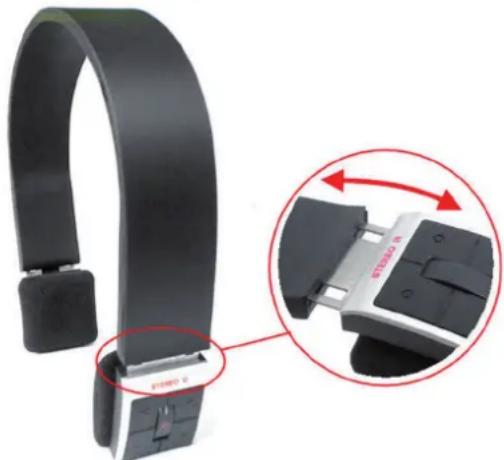
The string of this headset is retractable, please adjust according to the actual use. Logo "L" of headset represents left ear, Logo "R" of headset represents right ear. Please wear the headset according to the indication of the Logo.
natural_image
Close-up of a black hardcover with attached buttons and a magnified inset showing the internal component (no text or symbols visible)Making calls with the headset
| Function Status of headset Operation | ||
| Redial last number Stand | by mode Short press | MFB twice quickly |
| Volume up Conversation | mode Short press or long press + key | |
| Volume down Conversation | mode Short press or long press - key | |
| Answer calling Ringing Short press MFB | ||
| Reject calling Ringing | Press and hold MFB for 2s, and release it till hearing indication sound | |
| End calling Conversation | mode Short press MFB | |
| Microphone mute Conversation mode Quickly press the MFB twice | ||
| Cancel mute | Conversation mode (mute) | Quickly press the MFB twice |
Warning:
Excessive pressure from headphones can cause hearing loss.
Notes:
- Not all the mobile phones support all the functions listed above. Please refer to the instruction of your mobile phone.
• Some functions and indication tones may vary with different mobile phones. - When the volume is adjusted to max or min, you will hear a indication tone.
- For some mobile phones, when you press the key of accepting on the phone, the conversation will be sent to the mobile phone. At this time, you can switch the call to headset by using the conversation switch button or through operating on the mobile phone. Please refer to the instruction of your mobile phone for further information.
Playing music
When the headset connects with the mobile phone or Bluetooth transmitter which supports A2DP, you can enjoy music through headset wirelessly.
| Function Status of headset | Operation | |
| Volume up Playing music | Short or long press + key | |
| Volume down Playing music | Short or long press - key | |
| Pause | Playing music | Short press MFB |
| Play | Pausing | Short press MFB |
| Last song | Playing music | Short press < key |
| Next song | Playing music | Short press> key |
Notes:
- For some of mobile phones, when they are playing music, the music will transmit to the speaker of mobile phone, you have to choose "transmit the sound through Bluetooth" in the "setting" of music play interface, and then choose "Auna Air" in the device list, the music will be transmitted to the headset. Please refer to the instruction of your mobile phone for further information.
- When the volume of headset is adjusted to max. or min. you will hear an indication tone.
- Remote control the function of last song/next song/pause/revert, it needs your mobile phone or Bluetooth transmitter supports AVRCP. Please refer to the instruction of your mobile phone or Bluetooth transmitter for further information.
Restoring to factory defaults and resetting
Make sure the headset is off, press and hold MFB and + buttons simultaneously for about 3 seconds, release them when you hear two "DU" tones and see red LED is on, now the headset restores to factory defaults, and the pairing information will be deleted.
Charge the headset to make it reset.
LED indicator
Charging
| LED indicator Status of the headset | |
| Red LED is on Charging | |
| Red LED is off Finish charging |
Pairing with the Bluetooth devices
| LED Indicator Status of the headset | |
| Red and blue LEDs blink alternately Pairing mode | |
| Blue LED quickly blinks once every 2 seconds. | Not connected to a device |
| Blue LED quickly blinks twice every 4 seconds | Set up HFP or A2DP connection |
| Blue LED quickly blinks three times every 2 seconds | Set up HFP and A2DP connection |
| Blue LED gradually turns on and off Conversation | mode |
| Red LED blinks twice every 20 seconds | Low power |
Indication tone
| Indication tone | Status of headset |
| Two tones every 3 seconds | Conversation mode and microphone mute |
| Three “DU” tones every 20 seconds Low power |
FAQs
1. Why does red light blink twice every 20 seconds?
Battery is low, need to be recharged.
2. Why is not the red light bright when charging?
a) Please make sure the charging device connects with headset well.
b) You didn't use the headset for a long time, the battery may dry up. At this time, you have to charge the battery for 30 minutes, and then the red light will be bright.
3. How far is the effective range between the headset and mobile phone?
According to the Bluetooth standard: the max. controllable range of Class2 headset is 10 meters. It varies under different environment.
4. Why cannot my cell phone search and find the headset?
The mobile phone will not find the headset if headset and mobile phone are not under the pairing mode, Make sure the headset is under the pairing mode and in the effective working range, and then the headset can be paired and connected.
5. Why cannot hear the voice?
a) Make sure the headset has been switched on.
b) Make sure the volume is not too low or muted.
c) Make sure the headset connects with the mobile phone correctly.
d) Make sure the distance between the headset and the cell phone is in the normal working scope.
6. Why is the voice not clear in conversation?
a) Make sure the mobile phone is in the strong signal area.
b) Make sure the headset is in the function range of this product.
7. Why can't control the function of pause, play, last song and next song when playing music?
This function needs your Bluetooth device supports AVRCP (Audio/Video Remote Control profile).
Specifications
| Bluetooth version | Bluetooth V2.1+EDR |
| Bluetooth profiles | Headset, Hands free, A2DP, AVRCP |
| Effective range | 10 meters |
| Working time | Music: Up to 10 hours, Talk: Up to 11hours |
| Standby time | Up to 250 hours |
| Input | DC: 5V/180mA |
| Charging time | Approx. 2.5 hours |
| Dimensions | 162×153.5×32 mm |
| Weight | Approx. 103 g |
Notes:
- This device complies with Part 15 of the FCC Rules. Operation is subject to the following two conditions: (1) this device may not cause harmful interference, and (2) this device must accept any interference received, including interference that may cause undesired operation.
- Changes or modifications not expressly approved by the party responsible for compliance could void the user's authority to operate the equipment.
CHAL-TEC Vertriebs- + Handels GmbH; Wallstraße 16; 10179 Berlin, Germany