
RHT-S10 - Soundbar SONY - Free user manual and instructions
Find the device manual for free RHT-S10 SONY in PDF.


| Product type | Soundbar with built-in subwoofer |
| Brand and model | Sony RHT-S10 |
| Dimensions (W x H x D) | 1134 x 138.5 x 172 mm |
| Weight | 12.4 kg |
| Power supply | 120 V AC, 60 Hz |
| Power consumption | 85 W (on), 0.3 W (standby, Control for HDMI off) |
| Output power (reference) | Front: 50 W/channel (8 ohms, 1 kHz, THD 10%), Center: 50 W, Surround: 50 W/channel |
| Supported audio formats | Dolby Digital, DTS, Linear PCM 2-channel, Linear PCM 5.1/7.1-channel (HDMI only) |
| Connectivity | HDMI inputs (BD/DVD, SAT), optical, coaxial, analog (TV, LINE), DMPORT, subwoofer output, FM antenna |
| Main features | S-Force PRO Front Surround, surround modes (Standard, Cinema, Music, Sports, Info, P.Audio), Night mode, audio/video synchronization (A/V SYNC), dynamic range (AUDIO DRC) |
| Connected functions | BRAVIA Sync (Control for HDMI): one-touch play, system sound control, system power off |
| Radio tuner | FM with 20 presets, RDS not specified |
| Sleep timer | Yes, in 10-minute increments |
| Included accessories | Remote control (RM-ANP009), optical cable (1 m), FM antenna wire, wall mount kit (WS-S10WA), AA batteries (2) |
| Maintenance and cleaning | Clean with a soft dry cloth. Do not use abrasive pads, scouring powder, alcohol, or benzene. |
| Safety | Do not expose to rain, moisture, or excessive heat. Unplug during storms or prolonged non-use. Servicing by qualified personnel only. |
| Spare parts and repairability | Consult an authorized Sony dealer for spare parts. Repairs must be carried out by a qualified technician. |
| General information | FCC Class B sheet. Manufactured under license from Dolby, DTS. Includes HDMI technology. Designed to be installed with 300 mm of space on each side for optimal heat dissipation and surround effect. |
Frequently Asked Questions - RHT-S10 SONY
User questions about RHT-S10 SONY
0 question about this device. Answer the ones you know or ask your own.
Ask a new question about this device
Download the instructions for your Soundbar in PDF format for free! Find your manual RHT-S10 - SONY and take your electronic device back in hand. On this page are published all the documents necessary for the use of your device. RHT-S10 by SONY.
USER MANUAL RHT-S10 SONY
Operating Instructions US
Mode d'emploi FR
To reduce the risk of fire or electric shock, do not expose this apparatus to rain or moisture.
The unit is not disconnected from the AC power source (mains) as long as it is connected to the wall outlet, even if the unit itself has been turned off.
Batteries or batteries installed apparatus shall not be exposed to excessive heat such as sunshine, fire or the like.
Do not install the appliance in a confined space, such as a bookcase or built-in cabinet.
For the customers in the U.S.A
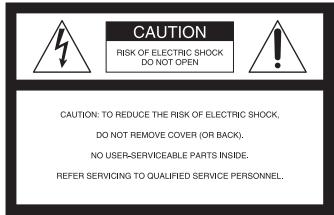

This symbol is intended to alert the user to the presence of uninsulated "dangerous voltage" within the product's enclosure that
may be of sufficient magnitude to constitute a risk of electric shock to persons.

This symbol is intended to alert the user to the presence of important operating and maintenance (servicing) instructions in the
literature accompanying the appliance.
For the customers in Canada
To prevent fire or shock hazard, do not place objects filled with liquids, such as vases, on the apparatus.
This Class B digital apparatus complies with Canadian ICES-003.
Important Safety Instructions
1) Read these instructions. 2) Keep these instructions. 3) Heed all warnings. 4) Follow all instructions. 5) Do not use this apparatus near water. 6) Clean only with dry cloth. 7) Do not block any ventilation openings. Install in accordance with the manufacturer's instructions. 8) Do not install near any heat sources such as radiators, heat registers, stoves, or other apparatus (including amplifiers) that produce heat. 9) Do not defeat the safety purpose of the polarized or grounding-type plug. A polarized plug has two blades with one wider than the other. A grounding type plug has two blades and a third grounding prong. The wide blade or the third prong are provided for your safety. If the provided plug does not fit into your outlet, consult an electrician for replacement of the obsolete outlet. 10) Protect the power cord from being walked on or pinched particularly at plugs, convenience receptacles, and the point where they exit from the apparatus. 11) Only use attachments/accessories specified by the manufacturer. 12) Use only with the cart, stand, tripod, bracket, or table specified by the manufacturer, or sold with the apparatus. When a cart is used, use caution when moving the cart/apparatus combination to avoid injury from tip-over.

13) Unplug this apparatus during lightning storms or when unused for long periods of time. 14) Refer all servicing to qualified service personnel. Servicing is required when the apparatus has been damaged in any way, such as power-supply cord or plug is damaged, liquid has been spilled or objects have fallen into the apparatus, the apparatus has been exposed to rain or moisture, does not operate normally, or has been dropped.
WARNING
This equipment has been tested and found to comply with the limits for a Class B digital device, pursuant to Part 15 of the FCC Rules. These limits are designed to provide reasonable protection against harmful interference in a residential installation. This equipment generates, uses, and can radiate radio frequency energy and, if not installed and used in accordance with the instructions, may cause harmful interference to radio communications. However, there is no guarantee that interference will not occur in a particular installation. If this equipment does cause harmful interference to radio or television reception, which can be determined by turning the equipment off and on, the user is encouraged to try to correct the interference by one or more of the following measures:
- Reorient or relocate the receiving antenna.
- Increase the separation between the equipment and receiver.
- Connect the equipment into an outlet on a circuit different from that to which the receiver is connected.
- Consult the dealer or an experienced radio/TV technician for help.
CAUTION
You are cautioned that any changes or modifications not expressly approved in this manual could void your authority to operate this equipment.
Note to CATV system installer:
This reminder is provided to call the CATV system installer's attention to Article 820-40 of the NEC that provides guidelines for proper grounding and, in particular, specifies that the cable ground shall be connected to the grounding system of the building, as close to the point of cable entry as practical.
Owner's Record
The model and serial numbers are located at the rear of the unit. Record the serial numbers in the spaces provided below. Refer to them whenever you call upon your Sony dealer regarding this product.
Model No. RHT-S10
Serial No.
This unit incorporates Dolby Digital and Pro Logic Surround and the DTS * Digital Surround System.
- Manufactured under license from Dolby Laboratories. Dolby, Pro Logic, and the double-D symbol are trademarks of Dolby Laboratories.
**Manufactured under license under U.S. Patent #s: 5,451,942; 5,956,674; 5,974,380; 5,978,762; 6,487,535 & other U.S. and worldwide patents issued & pending. DTS and DTS Digital Surround are registered trademarks and the DTS logos and Symbol are trademarks of DTS, Inc. © 1996-2007 DTS, Inc. All Rights Reserved.
This unit incorporates High-Definition Multimedia Interface (HDMI™) technology.
HDMI, the HDMI logo and High-Definition Multimedia Interface are trademarks or registered trademarks of HDMI Licensing LLC.
"BRAVIA" is a trademark of Sony Corporation.
Table of Contents
Precautions. 5 Main features 6
Getting Started
Supplied accessories 7 Installing the unit 8 Connecting components with HDMI jacks. 9 Connecting components without HDMI jacks 11 Setting up the sound output of the connected component 12 Connecting a VCR or audio component 13 Connecting the DIGITAL MEDIA PORT adapter 14 Connecting the subwoofer 15
Playback Options
Index to parts and controls. 16 Enjoying TV. 19 Enjoying other components 20
Surround Function
Enjoying the surround effect. 22
Tuner Functions
Presetting radio stations 24 Listening to the radio 25
"BRAVIA" Sync Features
What is "BRAVIA" Sync? 27 Preparing for the "BRAVIA" Sync.....27 Enjoying Blu-ray Disc/DVD. 29 (One-Touch Play) Enjoying the TV sound from the speakers 29 (System Audio Control) Turning off the TV, unit and connected components. 30 (System Power Off)
Advanced Settings
Changing the TV's video input together with the unit's input (Input SYNC: Sony TV only) 31 Programming the remote for other components 32 Controlling the connected components 35 Settings and adjustments using the amplifier menu 39 Using the sleep timer. 46
Additional Information
Troubleshooting 47 Specifications 49 Glossary. 51 Index 52
Precautions
On safety
Should any solid object or liquid fall into the unit, unplug the unit and have it checked by qualified personnel before operating it any further.
On power sources
- Before operating the unit, check that the operating voltage is identical to your local power supply. The operating voltage is indicated on the nameplate at the rear of the unit.
- If you are not going to use the unit for a long time, be sure to disconnect the unit from the wall outlet (mains). To disconnect the AC power cord (mains lead), grasp the plug itself; never pull the cord.
- One blade of the plug is wider than the other for the purpose of safety and will fit into the wall outlet (mains) only one way. If you are unable to insert the plug fully into the outlet, contact your dealer.
- AC power cord (mains lead) must be changed only at the qualified service shop.
- Install this unit so that the power cord can be unplugged from the wall socket immediately in the event of trouble.
On heat buildup
Although the unit heats up during operation, this is not a malfunction. If you continuously use this unit at a large volume, the unit temperature of the top, side and bottom rises considerably. To avoid burning yourself, do not touch the unit.
On placement
- Place the unit in a location with adequate ventilation to prevent heat buildup and prolong the life of the unit.
- Use caution when placing the unit on surfaces that have been specially treated (with wax, oil, polish, etc.) as staining or discoloration of the surface may result.
- The floor may be damaged if sand, trash, etc., gets caught under the legs of the unit.
On operation
Before connecting other components, be sure to turn off and unplug the unit.
If you encounter color irregularity on a nearby TV screen
The unit is magnetically shielded to allow it to be installed near a TV set. However, color irregularities may still be observed on certain types of TV sets.
If color irregularity is observed...
Turn off the TV set, then turn it on again after 15 to 30 minutes.
If color irregularity is observed again...
Place the unit further away from the TV set.
On cleaning
Clean the unit with a soft dry cloth. Do not use any type of abrasive pad, scouring powder or solvent such as alcohol or benzine.
If you have any question or problem concerning your unit, please consult your nearest Sony dealer.
Easy connection with HDMI
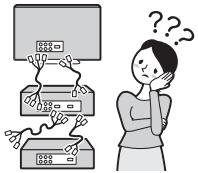
The cords are all tangled up.

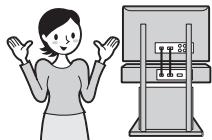
Neat connections (page 9).
Easy operation
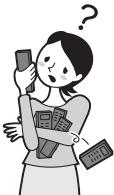
Which remote?


Only one! (page 32)
Easy Surround settings
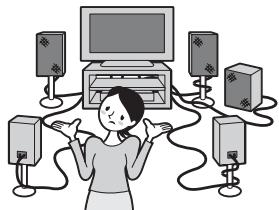
I need lots of cords and speakers.

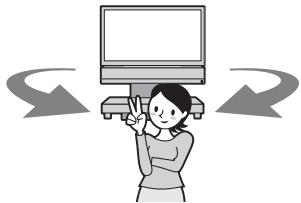
Easy set-up and high quality sound with S-Force PRO Front Surround.
About S-Force PRO Front Surround
Sony's long-term involvement in surround technology (and the vast amounts of acoustic data accumulated as a result) has led to the development of an all-new processing method and advanced DSP to handle this task effectively, which we call S-Force PRO Front Surround. Compared with previous front surround technologies, S-Force PRO Front Surround reproduces a more convincing sense of distance and space, resulting in a true surround sound experience without the need for rear speakers.
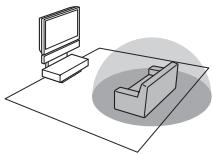
Recommended surround-sound area
You can enjoy surround sound in the areas in which sound is spread as illustrated.
Getting Started
Supplied accessories
Please check the following accessories in the package.
Optical cable (1 m) (39 3/8 inches) (1)
Remote commander (RM-ANP009) (1)
Size AA (R6) batteries (2)
FM wire antenna (aerial) (1)
Wall Mounting Bracket (WS-\$10WA) (1)
Operating Instructions (1)
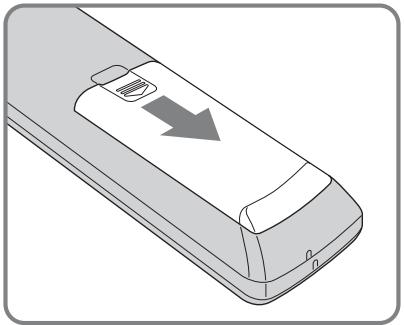
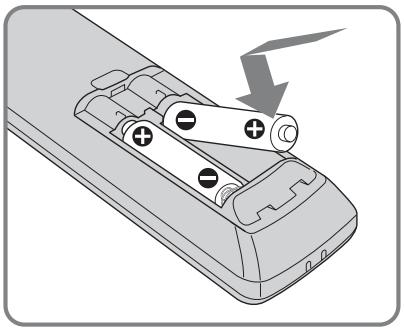
Inserting batteries into the remote
You can control the unit using the supplied remote. Insert two size AA (R6) batteries by matching the + and - ends on the batteries to the markings inside the compartment.

Notes
- Do not leave the remote in an extremely hot or humid place.
- Do not use a new battery with an old one.
- Do not drop any foreign object into the remote casing, particularly when replacing the batteries.
- Do not expose the remote sensor to direct light from the sun or lighting apparatus. Doing so may cause a malfunction.
- If you do not intend to use the remote for an extended period of time, remove the batteries to avoid possible damage from battery leakage and corrosion.
Installing the unit
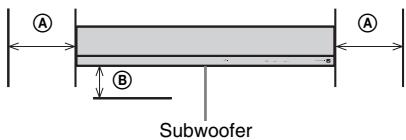
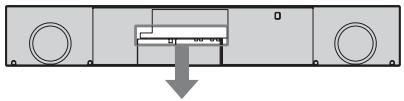
Install the unit after allowing for a space of 300 mm (11 7/8 inches) or more on the right and left from the wall.
300 mm (11 7/8 inches) 50 mm (2 inches)
Connecting the FM wire antenna (aerial)
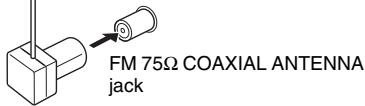
Connect the FM wire antenna (aerial) to the FM 75Ω COAXIAL ANTENNA jack.
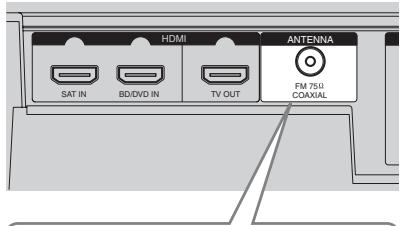
FM wire antenna (aerial) (supplied)
Notes
- Adjust the direction of the FM wire antenna (aerial) for best FM broadcast sound.
- If you attach the FM wire antenna (aerial) to a wall, select a wall for best reception.
- Do not use the FM wire antenna (aerial) rolled up.
- Be sure to insert the FM wire antenna (aerial) fully into the jack.
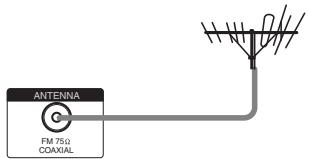
Tip
- If you have poor FM reception, use a 75-ohm coaxial cable (not supplied) to connect the unit to an outdoor FM antenna (aerial).
Connecting the power cord
1 Connect the components to this unit. For details of connecting the components, see page 9 to page 13.
2 Connect the power cord of this unit to the wall outlet.
Note
- Install this system near the wall outlet so that the AC power cord (mains lead) can be unplugged from the wall socket immediately in the event of trouble.
Installing this unit
Install the unit after connecting all the components to the unit.
When installing the unit, allow for a space of at least 50 mm (2 inches) from the wall and 300 mm (11 7/8 inches) or more on the right and left when you install the unit. This is to allow for heat dissipation, a sufficient surround effect, and to prevent the TV from falling.
Note
- Do not put a magnetic card (such as a cash card or commuter pass) close to the speaker. The card may become unusable because of the magnetism of the speaker's magnet.
Connecting components with HDMI jacks
We recommend that you connect components to the unit using an HDMI cable.
With HDMI, you can easily enjoy both high quality sound and high quality images.
However, it is necessary to connect the audio output of the TV to the audio input of the unit using an optical cable or an audio cord in
order to listen to the TV's sound from the unit.
For details on the Control for HDMI function, see "BRAVIA" Sync Features" (page 27).
Connect the AC power cord (mains lead) after you have finished connecting all components to the unit.
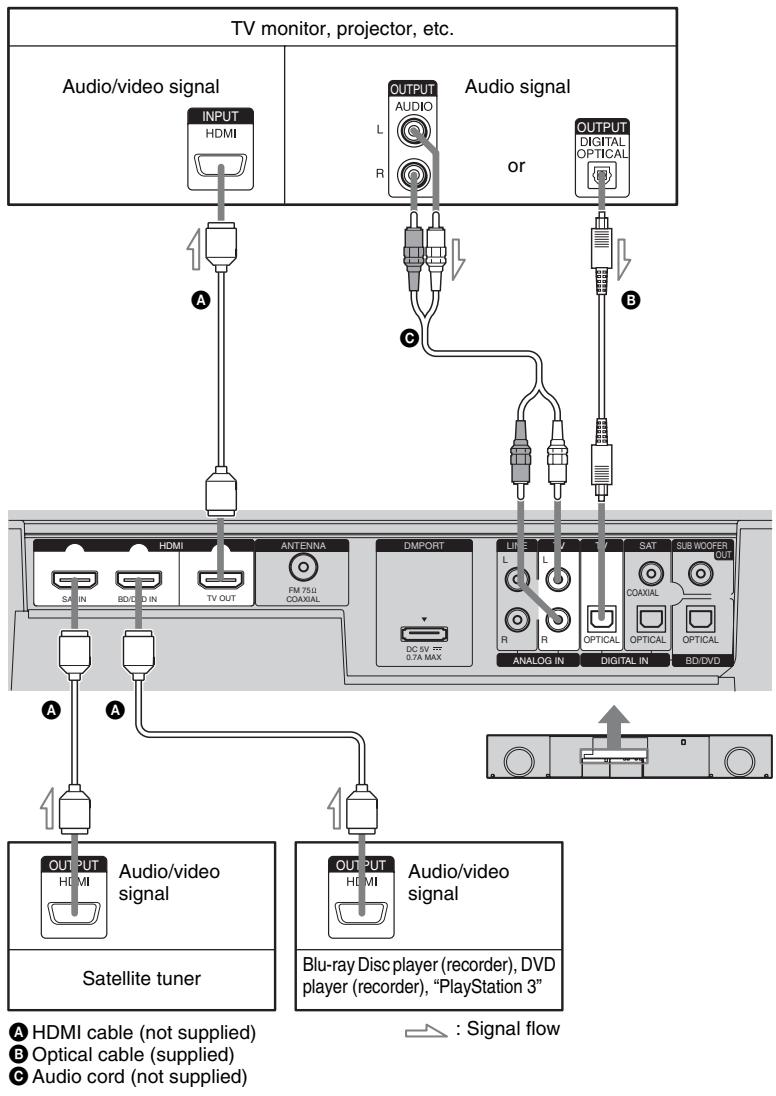
Notes
Refer to page 11 for how to connect a component without an HDMI jack. - The HDMI jack has priority when you connect the component to the unit using HDMI, DIGITAL IN COAXIAL, DIGITAL IN OPTICAL and ANALOG IN together. - The DIGITAL IN OPTICAL jack has priority when you connect both the audio output of the TV to the DIGITAL IN OPTICAL and ANALOG IN jack of the system.
Notes on HDMI connections
- You can enjoy high quality images using an HDMI cable with an HDMI logo. We recommend that you use a Sony HDMI cable.
- Check the setup of the connected component if an image is poor or the sound does not come out of a component connected via the HDMI cable.
- Audio signals (sampling frequency, bit length, etc.) transmitted from an HDMI jack may be suppressed by the connected component.
- Sound may be interrupted when the sampling frequency or the number of channels of audio output signals from the playback component is switched.
- When the connected component is not compatible with copyright protection technology (HDCP), the image and/or the sound from the HDMI TV OUT jack may be distorted or may not be output. In this case, check the specification of the connected component.
- We do not recommend using an HDMI-DVI conversion cable.
- No matter what input is selected for the unit, video signals from the HDMI input jack (BD/DVD IN, SAT IN) that was selected last time are output from the HDMI TV OUT jack.
- This unit supports x.v.Color transmission extended by HDMI ver1.3.
Connecting components without HDMI jacks
When you connect a DVD player (recorder), satellite tuner, "PlayStation 2", etc., that has no HDMI jacks, connect to the unit using the DIGITAL IN OPTICAL or DIGITAL IN COAXIAL jack.
If the satellite tuner does not have the OPTICAL OUT jack, connect the unit using the DIGITAL IN COAXIAL jack. In this case, it is not necessary to connect all the cables. Connect the audio cords according to the jacks of your components.
IN COAXIAL jack. In this case, it is not necessary to connect all the cables. Connect the audio cords according to the jacks of your components.
"PlayStation 2" is a trademark of Sony Computer Entertainment Inc.
- "PlayStation 2" is a trademark of Sony Computer Entertainment Inc.
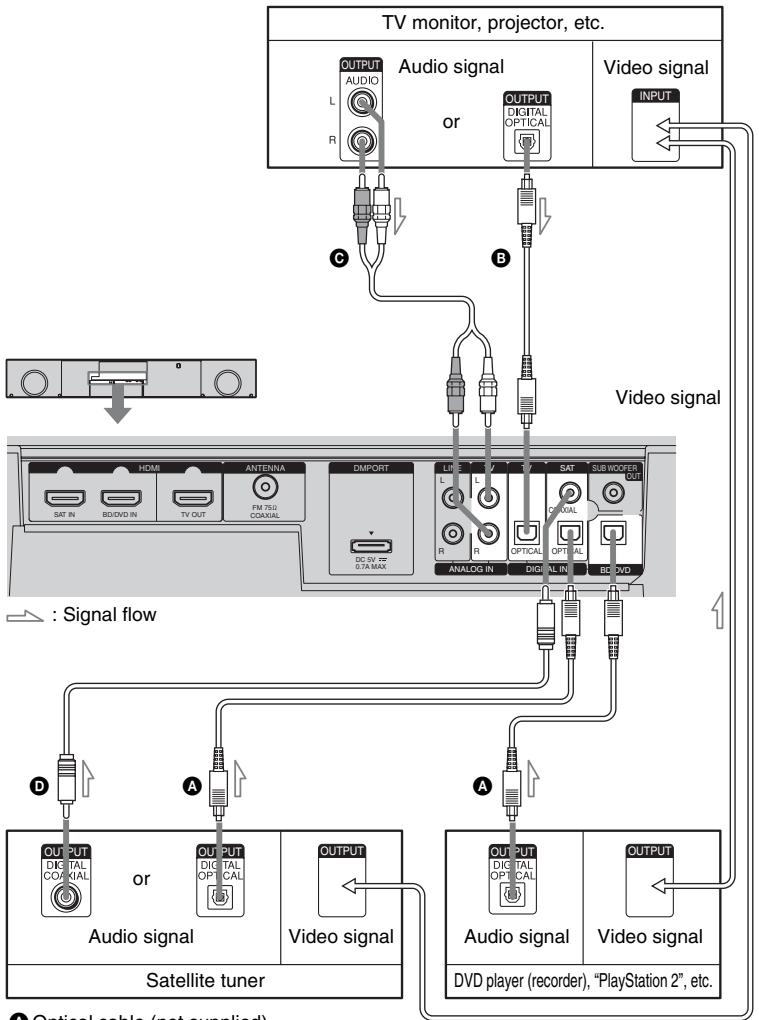
A Optical cable (not supplied) Optical cable (supplied) Θ Audio cord (not supplied) Coaxial digital cord (not supplied)
The DIGITAL IN OPTICAL jack has priority when you connect both the audio output of the TV to the DIGITAL IN OPTICAL and ANALOG IN jack of the system.
- The DIGITAL IN OPTICAL jack has priority when you connect both the audio output of the TV to the DIGITAL IN OPTICAL and ANALOG IN jacks of the system.
Setting up the sound output of the connected component
Depending on the audio output settings of the connected component, the sound may output in 2-channel sound format only. In this case, set the connected component to output the sound in multi-channel sound format (PCM, DTS, Dolby Digital). For details on audio output settings, refer to the operating instructions supplied with the connected component.
Connecting a VCR or audio component
Connect this unit to a VCR or audio component using the LINE IN jacks.
Connect the AC power cord (mains lead) last.
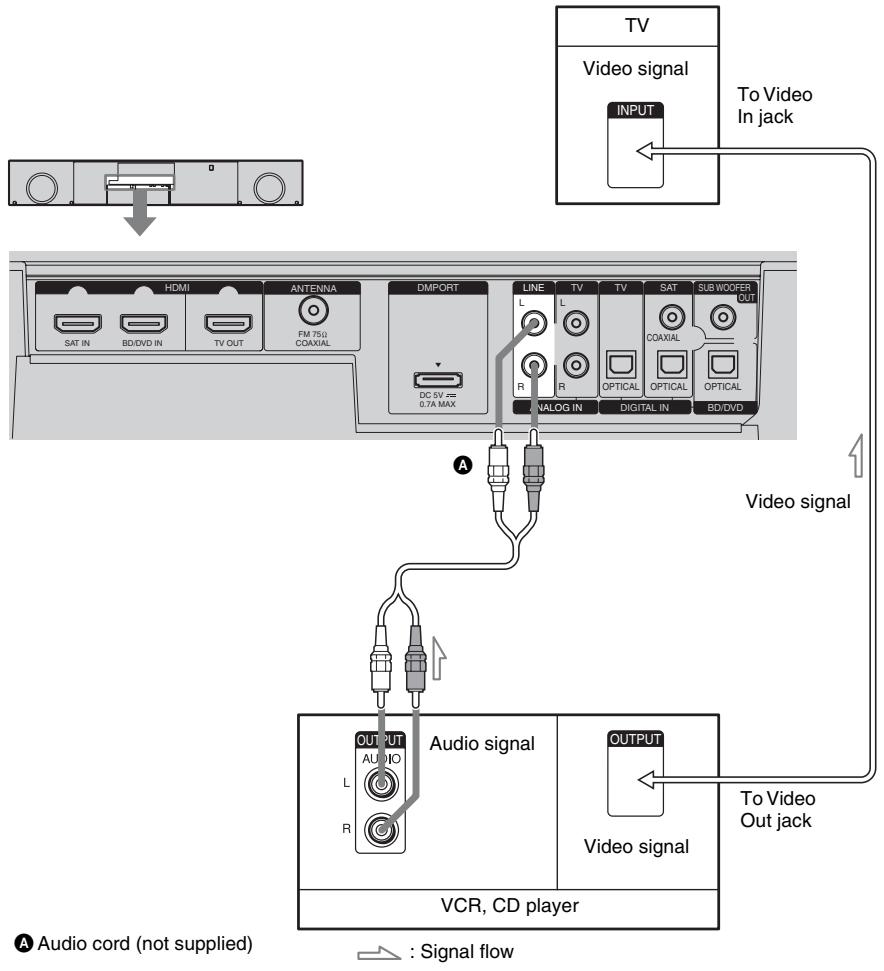
Connecting the DIGITAL MEDIA PORT adapter
You can enjoy sound from the connected component on the unit by connecting the DIGITAL MEDIA PORT adapter.
Connect the AC power cord (mains lead) last.
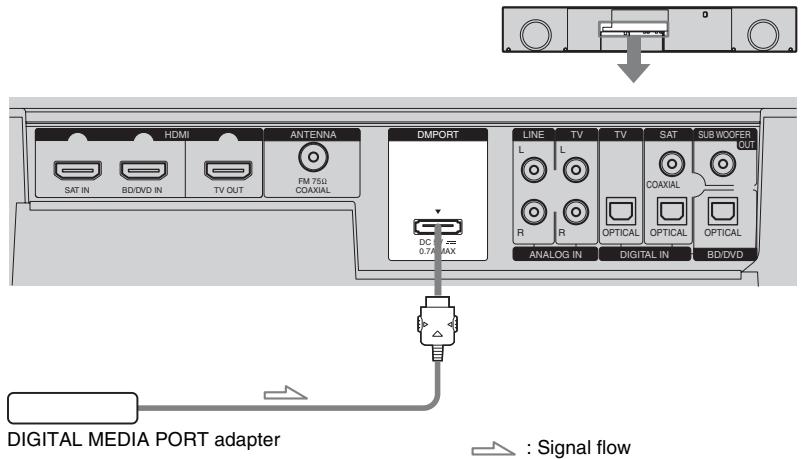
Notes
- Do not connect or disconnect the DIGITAL MEDIA PORT adapter while the unit is turned on.
- When you connect the DIGITAL MEDIA PORT adapter, be sure the connector is inserted with the arrow mark facing toward the arrow mark on the DMPORT jack. To detach the DIGITAL MEDIA PORT adapter, press and hold A and then pull out the connector.
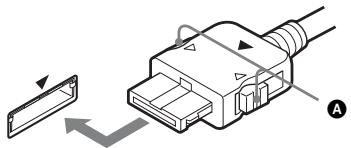
Connecting the subwoofer
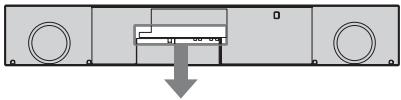
The unit has a built-in subwoofer. However, for even more extended bass, connect an external subwoofer to this unit using an audio connecting cord. Connect the AC power cord (mains lead) last.
Audio connecting cord (not supplied) Signal flow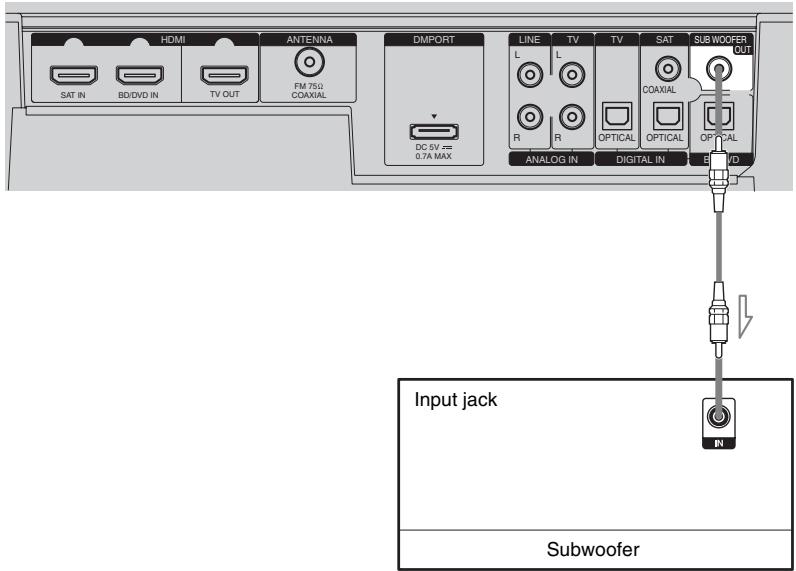
Index to parts and controls
For more information, refer to the pages indicated in parentheses.
Front panel

1 (remote sensor) (48) Receives signals from the remote commander. 2 MULTI CH indicator Lights up when playing multi-channel audio. 3 Front panel display (17) 4 INPUT SELECTOR
Press to select the input source to play back.
5 PRESET +/-
Selects the preset stations.
6 VOLUME + / -
Press to adjust the volume level.
7 POWER/ACTIVE STANDBY indicator
Lights as follows:
Green: The unit is turned on.
Amber: Control for HDMI function is working while the unit is turned off.
Off: The unit is turned off, and the Control for HDMI function is not working.
8 I/ (on/standby)
Press to turn the unit on or off.
Touch panel
Tips
- The touch panel is functional when lit.
- The touch panel lights up momentarily when touched, or when the power is turned on. When you operate, touch the panel at first. The touch panel becomes unlit when it is not touched for about 10 seconds.
Note
- The touch panel functions by touching lightly. Do not press it strongly.
Front panel display
About the indications in the front panel display
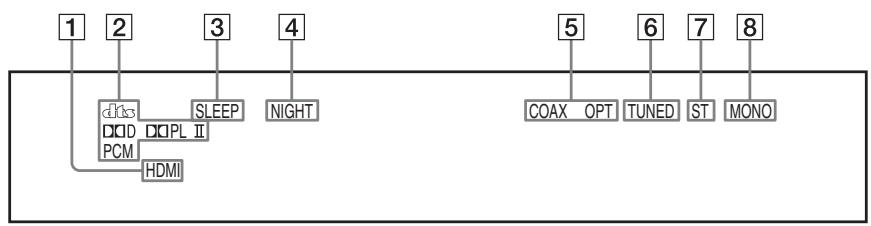
1 HDMI (9, 48) Lights up when the HDMI cable is being used. 2 Lights up according to the audio input signals. SLEEP (46)
Flashes when the sleep timer function is active.
4 NIGHT (23)
Lights up in NIGHT mode.
5 COAX/OPT
Lights up according to the cable which you are using.
6 TUNED (24)
Lights up when receiving a radio broadcast.
ST (24)
Lights up when receiving a radio broadcast in stereo.
8 MONO (26)
Lights up when "MONO" is selected in FM mode.
Remote control
Here describes the buttons for amplifier operation only. See page 35 for the buttons for operation of the connected components.
Note
- Point the remote at the remote sensor on the unit.
* The 5, and CH+ buttons have a tactile dot. Use it as a guide during operation.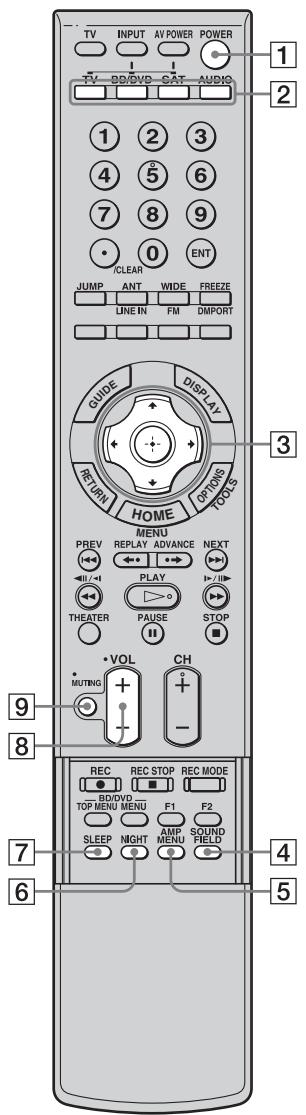
1 POWER (on/standby)
Press to turn the unit on or off.
Input buttons
Press one of the buttons to select the component you want to use. The buttons are factory assigned to control Sony components. You can program the remote to control non-Sony components following the steps in "Programming the remote for other components" (page 32).
3 , , , or
Press , , or to select the settings.
Then press to enter the selection.
4 SOUND FIELD
Press to select the sound field (page 22).
5 AMP MENU
Press to display the menu of the unit (page 39).
6 NIGHT
Press to activate the NIGHT mode function (page 23).
7 SLEEP
Press to activate the Sleep Timer function and the duration which the unit turns off automatically (page 46).
8 VOL + / - Volume
Press to adjust the volume.
9 MUTING
Press to turn off the sound.
Enjoying TV
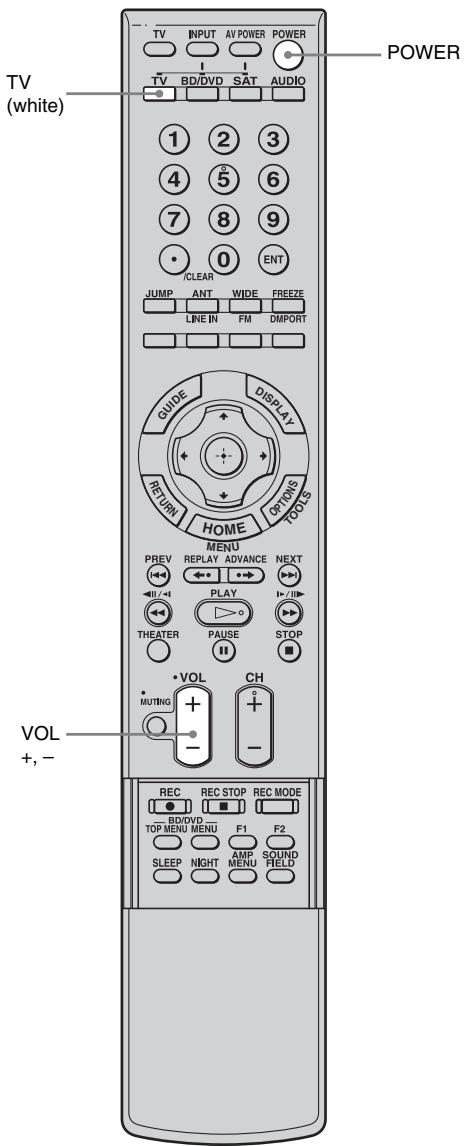
1 Turn on the TV and choose a program. Refer to the operating instructions of your TV for details. 2 Turn the unit on. 3 Press TV (white) on the remote. 4 Adjust the volume of the unit.
Tips
- When connecting a Sony TV, the Sony TV input can be selected automatically by pressing the input button after setting. For details on the setting, refer to "Changing the TV's video input together with the unit's input (Input SYNC: Sony TV only)" (page 31).
- The sound may be output from the TV's speaker. In this case, turn the volume of the TV's speaker down to the minimum.
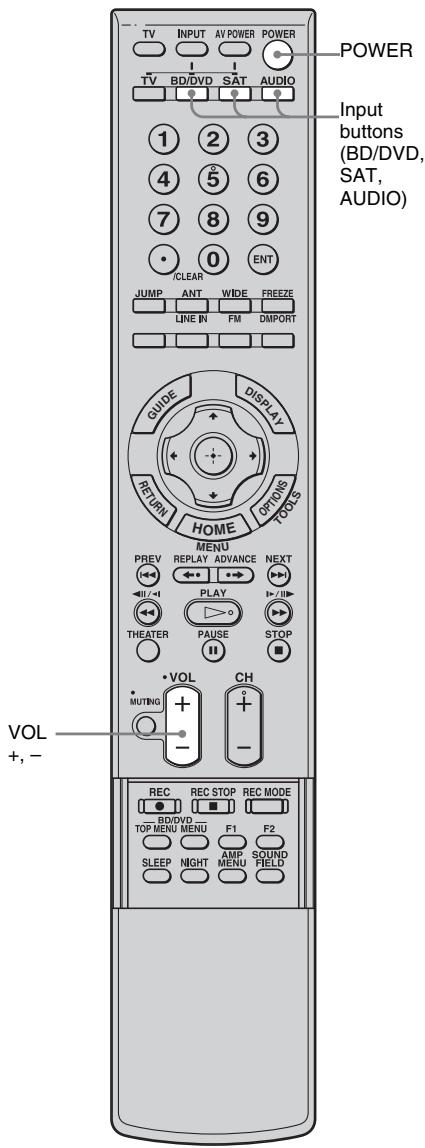
Enjoying satellite tuner
1 Turn on the TV.
Refer to the operating instructions of your TV for details.
2 Turn the satellite tuner and the unit on. 3 Press SAT on the remote.
When connecting a Sony TV, the Sony TV input can be selected automatically by pressing the input button after setting (Input SYNC) - jump to step 5.
4 Change the TV input.
Refer to the operating instructions of your TV for details.
5 Adjust the volume of the unit.
Tip
- The sound may be output from the TV's speaker. In this case, turn the volume of the TV's speaker down to the minimum.
Enjoying Blu-ray Disc, DVD, "PlayStation 2" or "PlayStation 3"
1 Turn on the TV. 2 Turn the Blu-ray Disc/DVD player (recorder), "PlayStation 2" or "PlayStation 3" and the unit on. 3 Press BD/DVD on the remote.
When connecting a Sony TV, the Sony TV input can be selected automatically by pressing the input button after setting (Input SYNC) - jump to step 5.
4 Change the TV input.
Refer to the operating instructions of your TV for details.
5 Play back the disc.
Tip
Even if you play back Dolby TrueHD, Dolby Digital Plus, or DTS-HD with a connected component
Even if you play back Dolby TrueHD, Dolby Digital Plus, or DTS-HD with a connected component compatible with these sound formats, the system accepts them as Dolby Digital or DTS. When you play back these high-quality sound formats, set the connected component to output the sound in multi-channel PCM, if possible.
Listening to an analog equipment
You can enjoy the sound of the VCR and the portable audio player, etc.
1 Press AUDIO on the remote. 2 Press LINE IN on the remote. 3 Turn on the analog player and play back a CD.
Enjoying a connected component through DMPORT connection
1 Press AUDIO on the remote. 2 Press DMPORT on the remote. 3 Start playback of the connected component.
Tip
- When listening to MP3 or other compressed music files using a portable audio source, you can enhance the sound. Press SOUND FIELD repeatedly until "P. AUDIO" appears in the front panel display.
- If you have a Sony TV, you can change the input of TV and the unit automatically by setting "Input SYNC" (page 31).
Note
- By pressing AUDIO, the input changes to the last input (LINE IN, FM, DMPORT) selected by the remote.
Surround Function
Enjoying the surround effect
Selecting the sound field
This unit can create multi channel surround sound. You can create the desired sound field by selecting one of unit's preprogrammed sound fields.
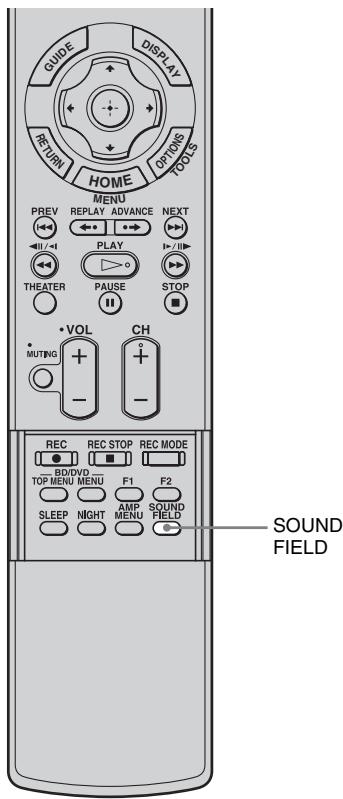
Press SOUND FIELD.
The present sound field appears.
Each time you press the SOUND FIELD button, the display changes cyclically as follows:
STANDARD → CINEMA → MUSIC → SPORTS → NEWS → P.AUDIO*
Press SOUND FIELD repeatedly until the sound field you want appears.
PCM HDMI
STANDARD
Available sound fields
| Sound field | Effect |
| STANDARD | You can enjoy normal sound. |
| CINEMA | You can enjoy powerful sound in which low-pitched sound is emphasized, with enhanced presence. |
| MUSIC | This sound field is the best for listening to music, and you can enjoy the full surround sound experience. |
| SPORTS | You can enjoy the atmosphere of a game, and listen to the exciting play-by-play description. |
| NEWS | You can hear the announcer's voice clearly. |
| P.AUDIO | You can enjoy enhanced sound when you listen to MP3 or other compressed music files using a portable audio source. |
- "P.AUDIO" appears only when DMPORT or LINE IN is selected for the input source to playback.
Tips
- The sound fields memorized for each input are retained even if you disconnect the AC power cord (mains lead).
- Multi-channel sound is processed by the surround feature in any sound field. Also, multi-channel sound is processed by the surround feature for any sound in "CINEMA" or "SPORTS."
Enjoying the sound at low volume (NIGHT mode)
You can enjoy sound effects and to hear the dialog clearly even at a low volume level using this function.
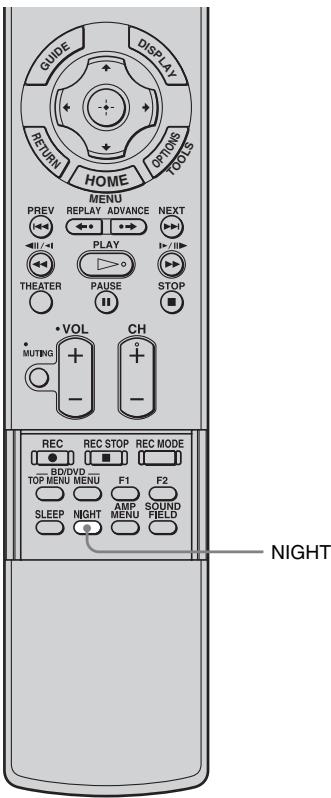
Press NIGHT.
To cancel the NIGHT mode, press NIGHT again.
Note
- If the volume level is set high before the NIGHT mode is selected, the loud sound may suddenly occur when the mode is turned off. Turn down the volume beforehand.
Tip
- You can listen to Dolby Digital sound at low volume by using AUDIO DRC (page 43).
Tuner Functions
Presetting radio stations
You can preset 20 FM stations. Before tuning, make sure to turn down the volume to minimum.
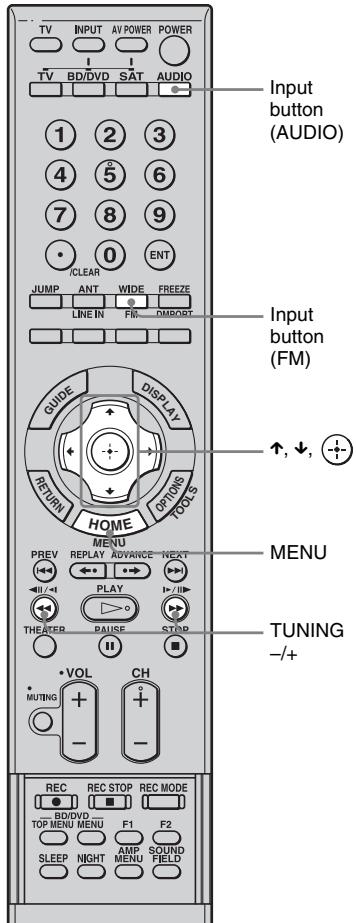
1 Press AUDIO on the remote. 2 Press FM on the remote. 3 Press and hold TUNING + or - until the auto scanning starts.
Scanning stops when the unit tunes in a station. "TUNED" and "ST" (for stereo program) light up in the front panel display.
4 Press MENU. Press ↑/↓ repeatedly until "Memory?" appears in the front panel display. 6 Press +
A preset number appears in the front panel display.
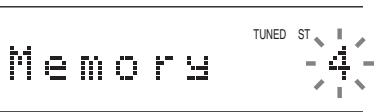
7 Press ↑/↓ to select the preset number you want.
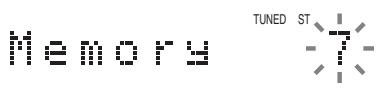
Tip
- You can select the preset number directly by pressing the number buttons.
8 Press +
"Complete!" appears in the front panel display, and the station is stored.
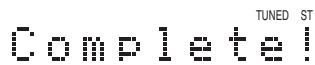
9 Press MENU. 10 Repeat 3 to 9 to store other stations.
To change the preset number
Restart from Step 4.
Naming preset stations
You can enter a name for preset stations. These names (for example, "XYZ") appear in the front panel display when a station is selected.
Note that no more than one name can be entered for each preset station.
Up to 10 characters can be entered.
1 Press AUDIO on the remote. 2 Press FM on the remote.
The last received station is tuned in.
3 Press PRESET + or - repeatedly to select the preset station you want to create an index name for. 4 Press MENU. Press ↑/↓ repeatedly until "Name In?" appears in the front panel display.
TUNED ST Name In?
6 Press ┐+──┘ 7 Create a name by using ←/↑/↓/→.
Press ↑/↓ to select a character, then press → to move the cursor to the next position.
Letters, numbers, and other symbols can be input for a radio station name.
If you enter a wrong character
Press ←/→ repeatedly until the character to be changed flashes, then press ↑/↓ to select the desired character.
To erase the character, press ←/→ repeatedly until the character to be erased flashes, then press CLEAR.
8 Press ⊕
"Complete!" appears in the front panel display, and the station name is stored.
TUNED ST Complete!
9 Press MENU.
Listening to the radio
Preset radio stations in the unit's memory first (see "Presetting radio stations" (page 24)).
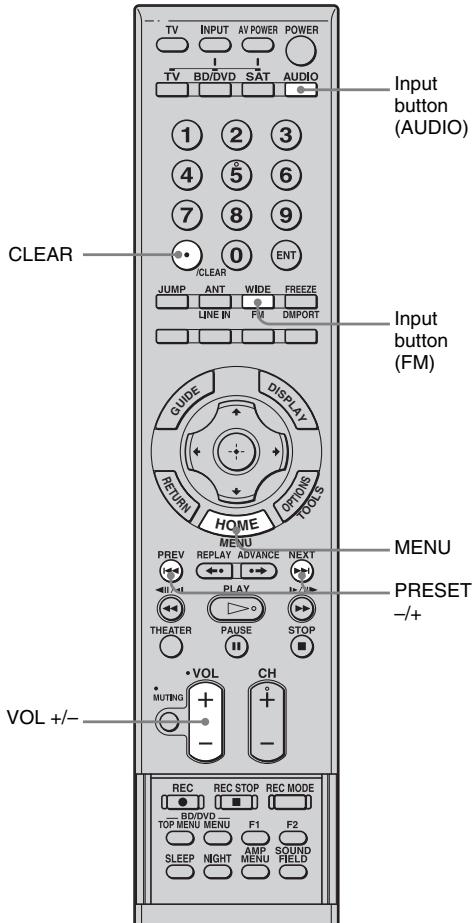
1 Press AUDIO on the remote. 2 Press FM on the remote.
The last received station is tuned in.
3 Press PRESET + or - repeatedly to select the preset station.
Each time you press the button, the unit tunes in one preset station.
Tip
- You can select the preset number directly by pressing the number buttons.
4 Adjust the volume by pressing VOL + or -.
To turn off the radio
Press POWER on the remote or I/0 on the unit to turn off the unit.
To change the input, press the input button.
To listen to non-preset radio stations
Use manual or automatic tuning in Step 3.
For manual tuning, press TUNING + or - repeatedly.
For automatic tuning, press and hold TUNING + or -. The automatic tuning stops when the unit tunes in a station. To stop the automatic tuning manually, press TUNING + or -.
If an FM program is noisy
If an FM program is noisy, you can select monaural reception. There will be no stereo effect, but reception will improve.
1 Press MENU. 2 Press ↑/↓ repeatedly until "FM Mode?" appears in the front panel display, then press ⊕ or →. 3 Press ↑/↓ to select "MONO."
- ST: stereo reception.
- MONO: monaural reception.
4 Press ⊕. The setting is made. 5 Press MENU.
Tip
- To improve reception, reorient the FM wire antenna (aerial).
"BRAVIA" Sync Features
What is "BRAVIA" Sync?
By connecting Sony components that are compatible with the "BRAVIA" Sync with an HDMI cable (not supplied), operation is simplified as below:
- One-Touch Play: When you play back a component such as a Blu-ray Disc/DVD player (recorder), the unit and the TV are turned on automatically and switch to the appropriate HDMI input.
- System Audio Control: While watching TV, you can select to output the sound from the TV speaker or the speakers of the unit.
- System Power Off: When you turn off the TV, the unit and the connected components are also turned off simultaneously.
"BRAVIA" Sync is compatible with a Sony TV, Blu-ray Disc/DVD player, AV amplifier, etc., with the Control for HDMI function.
CONTROL FOR HDMI is a mutual control function standard used by CEC (Consumer Electronics Control) for HDMI (High-Definition Multimedia Interface).
The Control for HDMI function will not operate in the following cases:
- When you connect this unit to a component which is not compatible with the Control for HDMI function.
- When you connect the unit and components using other than HDMI connection.
We recommend that you connect this system to products featuring "BRAVIA" Sync.
Note
- Depending on the connected component, the Control for HDMI function may not work. See the operating instructions of the component.
Preparing for the "BRAVIA" Sync
To use the "BRAVIA" Sync, set the Control for HDMI function to on for the unit and the connected component.
When you connect a Sony TV with the Control for HDMI function, the Control for HDMI function for the unit and the connected component can be set simultaneously by setting the Control for HDMI function of the TV.
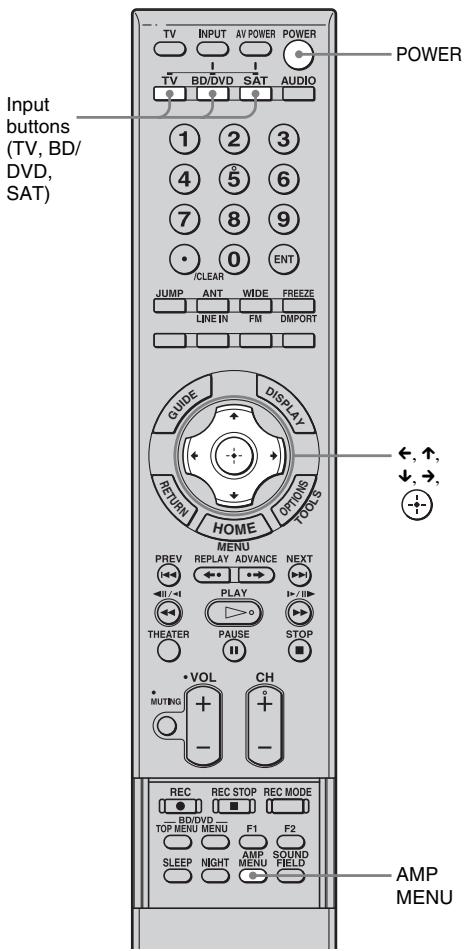
1 Make sure that the unit is connected to the TV and the connected components (which should be compatible with the Control for HDMI function) using HDMI cables (not supplied). 2 Turn on the unit, the TV and the connected components. 3 Select the input of the unit connected to the component you want to watch (BD/DVD, SAT), and switch the HDMI input of the TV, so that an image from the connected component is displayed. 4 Set the Control for HDMI function of the TV to on.
The Control for HDMI function for the unit and the connected component is simultaneously set to on.
During the setting, "SCANNING" appears in the front panel display. After you finish the setting, "COMPLETE" appears in the front panel display. Wait until the setting is complete.
If "SCANNING" or "COMPLETE" does not appear after performing the steps above
Set the Control for HDMI function to on for the unit and the connected component individually.
1 Press AMP MENU. 2 Press down/up repeatedly until "CUSTOMIZE" appears, then press enter or right. 3 Press down/up repeatedly until "CTRL: HDMI" appears, then press enter or right. 4 Press down/up to select "CTRL ON." 5 Press AMP MENU.
The AMP menu turns off. The Control for HDMI function is set to on.
6 Set the Control for HDMI function of the connected component to on.
For details on setting the connected component, refer to its operating instructions.
7 Select the input of the unit connected to the component you want to use the Control for HDMI function for (BD/DVD, SAT), and repeat step 6.
If you add or reconnect the component
Perform steps of "Preparing for the "BRAVIA" Sync" and "If SCANNING" or "COMPLETE" does not appear after performing the steps above" again.
Notes
- During the setting of the Control for HDMI function for the unit, the System Audio Control function does not work.
- If the Control for HDMI function for the connected component cannot be set simultaneously by setting "CONTROL FOR HDMI" of the TV, set the Control for HDMI function using the menu of the connected component.
- For details on setting the TV and the connected components, refer to their operating instructions.
Tip
- The default setting of the Control for HDMI function of the unit is "CTRL OFF."
Enjoying Blu-ray Disc/DVD
(One-Touch Play)
Play back a connected component.
The unit and the TV are turned on automatically and switch to the appropriate HDMI input.
Note
- Depending on the TV, the start of the content may not be output.
Tip
- You can enjoy the Blu-ray Disc/DVD player (recorder) connected to the unit, even if you turn the unit off. The POWER/ACTIVE STANDBY indicator lights up in amber at this time.
Enjoying the TV sound from the speakers
(System Audio Control)
You can enjoy the TV sound from the speakers of the unit by means of a simple operation. For details, see the operating instructions of the TV.
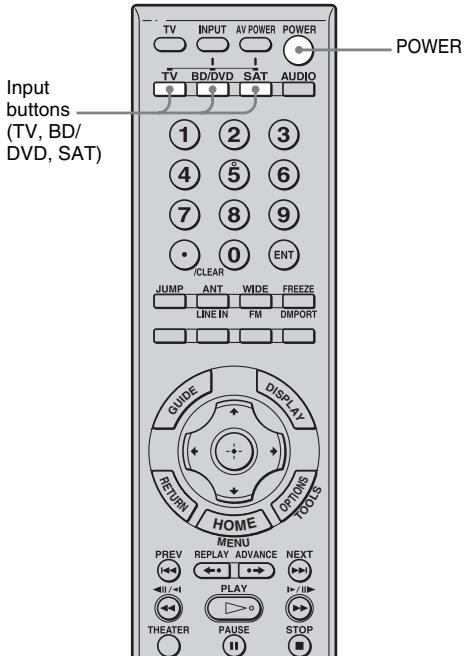
Press POWER to turn on the unit.
The sound is output from the speaker of the unit. The sound is output from the TV's speaker when you turn the unit off.
Notes
- When the TV is turned on before this unit is turned on, the TV sound will not be output for a moment.
- When you connect a TV that does not have System Audio Control function, the System Audio Control function does not work.
Tip
- You can adjust the volume and turn off the sound of the unit using the TV remote.
Using the input buttons of the remote
The input buttons (TV (white), BD/DVD, SAT) work as follows when the Control for HDMI function is set to on.
- BD/DVD, SAT: Since the input of the TV is also switched automatically, you can watch the image of the selected component on the TV simply by pressing the buttons.
- TV: The input of the TV switches automatically. When you connect a Sony TV, you can watch the TV simply by pressing the buttons.
Tip
- You can control connected components by pressing the input buttons. For details, refer to "Controlling the connected components" (page 35).
Turning off the TV, unit and connected components
(System Power Off)
When you turn the TV off by using the POWER button on the TV's remote, the unit and the connected components turn off automatically. Also, when you turn the TV off by using the system's remote, the system and the connected components turn off automatically.
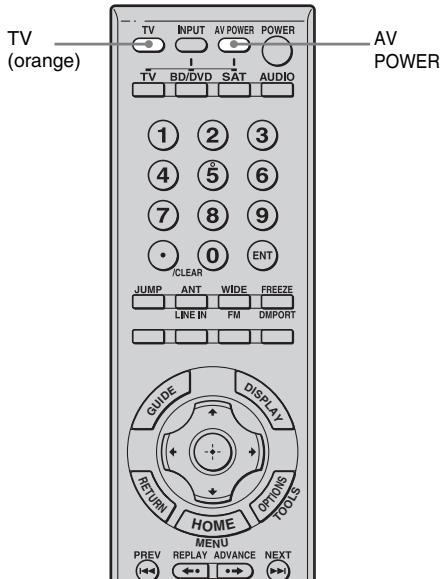
1 Press TV (orange). 2 Press AV POWER.
The TV, the unit and the connected component are turned off.
Note
- Depending on the status, the connected components may not be turned off. For details, see operating instructions supplied with the connected components.
Advanced Settings
Changing the TV's video input together with the unit's input (Input SYNC: Sony TV only)
You can set the remote so that the TV's video input switches when you change the unit's input with the remote.
Note
- Do not use the Control for HDMI function while the Input SYNC function is active for buttons other than TV (white) and DMPORT. For details, see "BRAVIA" Sync Features" (page 27).
1 Select the input button to which you want to assign Input SYNC. For TV, BD/DVD and SAT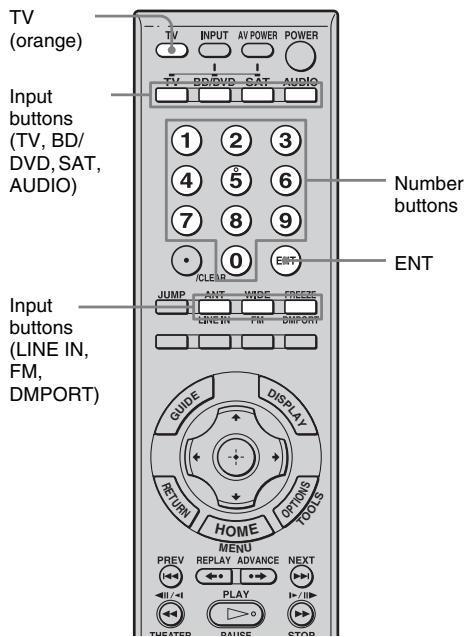
Press TV (orange) while holding down the input button (TV (white), BD/DVD, SAT) for the component you want to operate.
For example, if you are going to operate a DVD player, press BD/DVD.
The input button you pressed flashes.
For LINE IN, FM and DMPORT
1 Press TV (orange) while holding down AUDIO. 2 Press the input button (LINE IN, FM, DMPORT) for the component you want to operate.
2
Check the table below for the remote button number corresponding to the TV input jack you have connected to, and press the number.
The input button (TV, BD/DVD, SAT, AUDIO) lights up when you press the number button.
| TV input jack* | Remote Button (codes) |
| VIDEO 1 | 21 |
| VIDEO 2 | 22 |
| VIDEO 3 | 23 |
| VIDEO 4 | 24 |
| VIDEO 5 | 25 |
| VIDEO 6 | 26 |
| VIDEO 7 | 27 |
| VIDEO 8 | 28 |
| COMPONENT 1 | 29 |
| COMPONENT 2 | 30 |
| COMPONENT 3 | 31 |
| COMPONENT 4 | 32 |
| HDMI 1 | 33 |
| HDMI 2 | 34 |
| HDMI 3 | 35 |
| HDMI 4 | 36 |
| HDMI 5 | 37 |
| TV program** | 38 |
| None | 20 |
- TV input jack name may differ depending on your TV model. **This setting switches from the current input to TV program. It is assigned to the TV (white) button by default.
Tip
- Press 20 if you do not want to send signals to the TV.
3 Press ENT.
The setting is completed after the input button you pressed in step 1 flashes twice.
4 Repeat steps 1 to 3 to program the remote.
Notes
- An error has occurred when the input button you pressed in step 1 flashes five times. Perform this process from step 1 again.
- The two digits entered last are valid.
To cancel programming
Press the input button (TV, BD/DVD, SAT) you pressed in step 1. For LINE IN, FM and DMPORT, press AUDIO.
If programming is unsuccessful, check the following:
- If the input button you pressed in step 1 does not light up, the batteries are weak. Replace both batteries.
- If you do not press the following button within 60 seconds during registration, the operation will become invalid. Perform the process from step1 again.
- An error has occurred when the input button you pressed in step 1 flashes five times after ENT has been pressed in step 3. Perform the process from step 1 again.
Programming the remote for other components
You can program the remote to control non-Sony components by changing the code. Once the control signals have been memorized, you can use those components as part of your unit.
Furthermore, you can also program the remote for Sony components that the remote is unable to control. Note that the remote can only control components that accept infrared wireless control signals.
You cannot register any component other than a TV into the TV button of the remote.
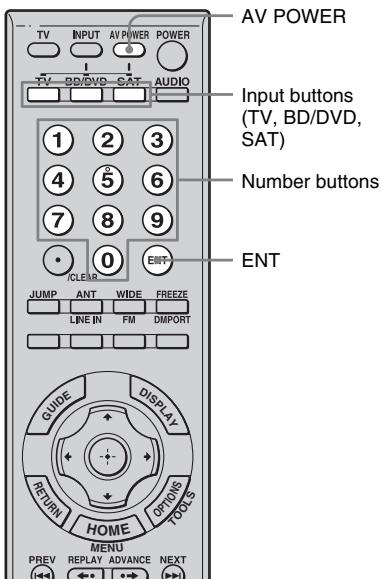
1 Press AV POWER while holding down the input button (TV, BD/DVD, SAT) for the component you want to operate. For example, if you are going to operate a DVD player, press BD/DVD. The input button you pressed flashes. 2 Check the manufacture code of the component you want to operate and press the number button.
See the tables on pages 34 to 35 for information on the numeric code(s) corresponding to the component and the manufacturer of the component (the first digit and the last two digits of the numeric code correspond to the category and the manufacturer's code, respectively).
You can select one of them when there are two or more code numbers.
The input button (TV, BD/DVD, SAT) lights up when you press the number button.
3 Press ENT.
The setting is completed after the input button you pressed in step 1 flashes twice.
4 Repeat steps 1 to 3 to control other components.
To cancel programming
Press the input button (TV, BD/DVD, SAT) you pressed in step 1.
To activate the input after programming
Press the programmed button to activate the input you want.
If programming is unsuccessful, check the following:
- If the input button you pressed in step 1 does not light up, the batteries are weak. Replace both batteries.
- If you do not press the following button within 60 seconds during registration, the operation will become invalid. Perform the process from step 1 again.
- An error has occurred when the input button you pressed in step 1 flashes five times after ENT has been pressed in step 3. Perform the process from step 1 again.
Notes
- You can program only a manufacturer code numbered from 500 to 599 on the TV (white) button.
- In step 1, if several input buttons (TV, BD/DVD, SAT) are pressed, only the last pressed button is valid.
- For the numeric codes, only the three digits entered last are valid.
To clear the memory of the remote
First press and hold VOL-, then press and hold POWER. Next, while pressing and holding the first two buttons, press AV POWER.
All input buttons (TV, BD/DVD, SAT, AUDIO) flash together, then go off.
The numeric codes corresponding to the component and the manufacture of the component
Use the numeric codes in the tables on pages 34 to 35 to control non-Sony components and also Sony components that the remote is normally unable to control. Since the remote signal that a component accepts differs depending on the model and year of the component, more than one numeric code may be assigned to a component. If you fail to program your remote using one of the codes, try using other codes.
The initial settings are underlined.
Notes
- The numeric codes are based on the latest information available for each brand. There is a chance, however, that your component will not respond to some or all of the codes.
- All of the input buttons on this remote may not be available when used with your particular component.
Default Settings
The default settings of each input are as follows.
| Input | Code(s) |
| TV | TV 501 |
| BD/DVD | Blu-ray Disc Recorder 310 |
| SAT | Satellite Tuner 801 |
To control a CD player
| Manufacture | Code(s) |
| SONY | 101, 102, 103 |
| DENON | 104, 123 |
| JVC | 105, 106, 107 |
| KENWOOD | 108, 109, 110 |
| MARANTZ | 116 |
| ONKYO | 112, 113, 114 |
| PIONEER | 117 |
| YAMAHA | 120, 121, 122 |
To control a DAT deck
| Manufacture | Code(s) |
| SONY | 203 |
| PIONEER | 219 |
To control a tape deck
| Manufacture | Code(s) |
| SONY | 201, 202 |
| DENON | 204, 205 |
| PIONEER | 213, 214 |
| YAMAHA | 217, 218 |
To control an MD deck
| Manufacture | Code(s) |
| SONY | 301 |
To control a VCR
| Manufacture | Code(s) |
| SONY | 701, 702, 703, 704, 705, 706 |
| HITACHI | 722, 725, 729, 741 |
| JVC | 726, 727, 728, 736 |
| MITSUBISHI/MGA | 732, 733, 734, 735 |
| PANASONIC | 729, 730, 737, 738, 739, 740 |
| PHILIPS | 729, 730, 731 |
| PIONEER | 729 |
| SAMSUNG | 742, 743, 744, 745 |
| SANYO | 717, 720, 746 |
| SHARP | 748, 749 |
| TOSHIBA | 747, 756 |
To control a DVD player
| Manufacture | Code(s) |
| SONY | 401, 402, 403 |
| PANASONIC | 406, 408, 425 |
| PHILIPS | 407 |
| PIONEER | 409, 410 |
| TOSHIBA | 404, 421 |
| DENON | 405 |
| HITACHI | 416 |
| SAMSUNG | 416, 422 |
To control a DVD recorder
| Manufacture | Code(s) |
| SONY | 401, 402, 403 |
To control a TV
| Manufacture | Code(s) |
| SONY | 501 |
| DAEWOO | 504, 505, 506, 515, 544 |
| LG/GOLDSTAR | 503, 511, 512, 515, 517, 544, 568, 578 |
| HITACHI | 503, 513, 514, 515, 517, 519, 544, 557, 571 |
| JVC | 516, 552 |
| MITSUBISHI/MGA | 503, 519, 527, 544, 566, 568 |
| NEC | 503, 517, 520, 540, 544, 554, 566 |
| PANASONIC | 509, 524, 553, 559, 572 |
| PHILIPS | 515, 518, 557, 570, 571 |
| PIONEER | 509, 525, 526, 540, 551, 555, 579 |
| SAMSUNG | 503, 515, 517, 531, 533, 544, 557, 562, 563, 566, 569 |
| SANYO | 508, 545, 546, 560, 567 |
| SHARP | 517, 535, 550, 561, 565, 577 |
| TOSHIBA | 535, 540, 541, 551 |
To control a satellite tuner
| Manufacture | Code(s) |
| SONY | 801, 802, 803, 804, 824, 825 |
| PANASONIC | 818 |
| PHILIPS | 874 |
To control a cable box
| Manufacture | Code(s) |
| SONY | 821 |
| PANASONIC | 816, 832, 833, 834 |
| PIONEER | 828, 829 |
To control a hard disc recorder
| Manufacture | Code(s) |
| SONY | 307, 308, 309 |
To control a Blu-ray Disc player/recorder
| Manufacture | Code(s) |
| SONY | 310, 311, 312 |
| PANASONIC | 331, 332, 333 |
To control an HDD/DVD COMBO
| Manufacture | Code(s) |
| SONY | 401, 402, 403 |
| SHARP | 459, 460, 461 |
| HITACHI | 441, 442, 443 |
| JVC | 444, 445, 446, 447, 459, 460, 461 |
| MITSUBISHI | 448, 449 |
| PANASONIC | 450, 451, 452 |
| PIONEER | 453, 454, 455, 456, 457, 458 |
| TOSHIBA | 462, 463, 464 |
To control a DVD/VIDEO COMBO
| Manufacture | Code(s) |
| SONY | 411 |
Controlling the connected components
You can control connected components with the remote of this unit.
Some functions cannot be selected depending on the equipment. In that case, select them using the remote control supplied with the equipment.
* The 5, and CH+ buttons have a tactile dot. Use it as a guide during operation.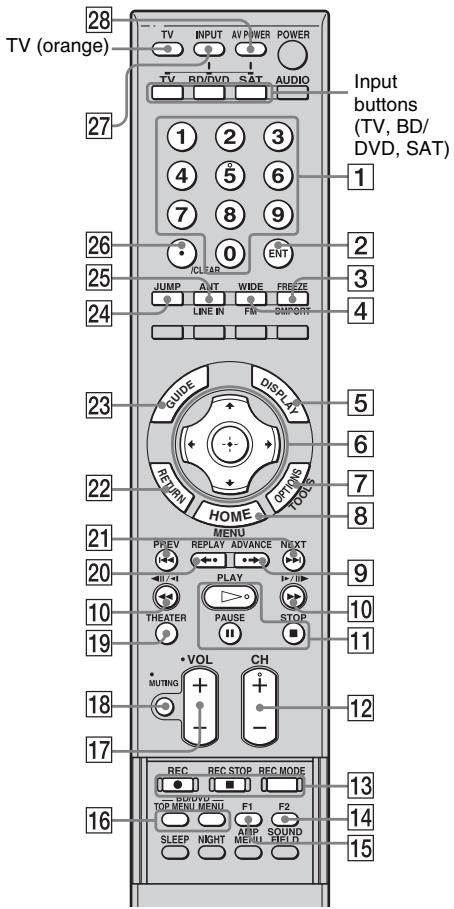
Controlling the component
1 Press one of the input buttons (TV (white), BD/DVD, SAT) to select the component you want to operate.
The component assigned to the selected input button becomes operable.
2 Referring to the following table, press the corresponding button for the operation.
Tips
- You can use the remote as a TV remote for 60 seconds after pressing the TV (orange) button.
If you do not press the following button within 60 seconds during registration or you press TV (orange) again, the operation will become invalid.
Common operations
| Remote Button | Function |
| 1 Number buttons | Selects channels and tracks directly. |
| 2 ENT | Enters the selection. |
| 28 AV POWER | Turns the TV and other audio and video components on and off. |
To control the TV
| Remote Button | Function | |
| 1 | Number buttons | Selects channels. |
| 3 | FREEZE | Press once to display a frozen image of the current program. Press again to return to the program. |
| 4 | WIDE | Press to set the Wide Mode. |
| 5 | DISPLAY | Press to display the current channel number, etc. |
| 6 | ←, ↑, ↓, →, ⊙ | Selects a menu item and enters the selection. |
| 7 | TOOLS | Enables you to access various viewing options and change/make adjustments according to the source and screen format. |
| Remote Button | Function | |
| 8 | MENU | Allows you to select channels or input sources and change the settings for your TV. |
| 12 | CH +/- | Press to scan through channels. To scan quickly through channels, press and hold down either +/-. |
| 17 | VOL (with orange dot) | Press TV (orange) to light up TV (white), and then press this button to adjust the TV volume while TV (white) is lit. |
| 18 | MUTING (with orange dot) | Press TV (orange) to light up TV (white), and then press this button to turn off the sound of the TV while TV (white) is lit. |
| 19 | THEATER | Press to automatically set the optimal picture settings for watching movies, when you connect a Sony TV which is compatible with the THEATER button. Also, the audio is automatically switched to the audio output of this unit when you connect the TV and the unit with HDMI connection, and the control for HDMI function is set to on. |
| 22 | RETURN | Returns to the previous screen of any displayed menu. |
| 23 | GUIDE | Press to display the guide when you are watching analog or digital channels. |
| 24 | JUMP | Press to jump back and forth between two channels. The TV alternates between the current channel and the last channel that was selected. |
| 25 | ANT | Press to change between the VHF/UHF input and the CABLE input. |
| Remote Button | Function | |
| 26 | Use with the 0-9 and ENT buttons to select digital channels. For example, to enter 2.1, press ②, ⊙, ① and ENT. | |
| 27 | INPUT | Selects input. |
To control the Blu-ray Disc recorder/DVD recorder/Hard disc recorder
| Remote Button | Function | |
| 6←,↑,↓,→,+ | Selects a menu item and enters the selection. | |
| 8 | MENU | Displays the MENU. |
| 9 | ·→ | Jumps forward while viewing recorded programs. |
| 10 | </{> | To fast reverse or to fast forward the disc when pressed during playback. |
| 11 | (Playback)/■ (pause, press again to resume normal playback)/■ (stop) | Play mode buttons. |
| 12 | CH +/- | Changes channels. |
| 13 | REC ●/REC STOP ■/REC MODE | Record mode buttons. |
| 16 | BD/DVD TOP MENU | Displays the top menu/disc menu. |
| BD/DVD MENU | ||
| 20 | ←· | Jumps backward while viewing live or recorded programs. |
| 21 | →■ | Jumps forward to the next available chapter. |
| < | Skips chapters. | |
| 27 | INPUT | Selects input. |
To control the Blu-ray Disc player/DVD player
| Remote Button | Function |
| ←, ↑, ↓, →, + | Selects a menu item and enters the selection. |
| 8 | DISPLAYS the MENU. |
| 9 | Jumps forward. |
| Remote Button | Function |
| 10←/▶ | To fast reverse or to fast forward the disc when pressed during playback. |
| 11▷ (playback)/■ (pause, press again to resume normal playback)/■ (stop) | Play mode buttons. |
| 16BD/DVD TOP MENU BD/DVD MENU | Displays the top menu/disc menu. |
| 20←● | Jumps backward. |
| 21←/▶■ | Skips chapters. |
| 27INPUT | Selects input. |
To control the VCR
| Remote Button | Function | |
| 6←, ↑, ↓, →, + | Selects a menu item and enters the selection. | |
| 8 | MENU | Displays the MENU. |
| 10 | </▶ | To fast reverse or to fast forward the disc when pressed during playback. |
| 11 | (Playback)/■ (pause, press again to resume normal playback)/■ (stop) | Play mode buttons. |
| 12 | CH +/- | Selects preset channels. |
| 13 | REC ●/REC STOP ■/REC MODE | Record mode buttons. |
| 27 | INPUT | Selects input. |
To control the HDD/DVD COMBO
| Remote Button | Function | |
| 6←, ↑, ↓, →, + | Moves the highlight (cursor) and selects the item. | |
| 8 | MENU | Displays the MENU. |
| 9 | ·→ | Advance. |
| 10 | ←/→ | To fast reverse or to fast forward the disc when pressed during playback. |
| 11 | (Playback)/■(pause, press again to resume normal playback)/■(stop) | Play mode buttons. |
| 13 | REC ●/REC STOP■/REC MODE | Record mode buttons. |
| 14 | F2 | Selects the DVD. |
| 15 | F1 | Selects the HDD. |
| 16 | BD/DVD TOPMENU | Displays the top menu/disc menu. |
| BD/DVD MENU | ||
| 20 | ←· | Changes to replay mode. |
| 21 | |▶/▶ | Specifies the previous/next chapter/track. |
| 27 | INPUT | Selects input. |
To control the DVD/VIDEO COMBO
| Remote Button | Function | |
| 6←, ↑, ↓, →, + | Moves the highlight (cursor) and selects the item for the DVD. Enter channel when you select a channel using number buttons for the VCR. | |
| 8 | MENU | Displays the MENU. |
| 10 | </▶ | To fast reverse or to fast forward the disc when pressed during playback. |
| 11 | (Playback)/■ (pause, press again to resume normal playback)/■ (stop) | Play mode buttons. |
| 12 | CH +/- | Changes channels for the VCR. Adjusts tracking for the VCR. |
| 13 | REC ●/REC STOP ■/REC MODE | Records using the VCR. |
| 14 | F2 | Selects the DVD. |
| 15 | F1 | Selects the VCR. |
| 21 | | | | | | | Index search. |
| 27 | INPUT | Selects input. |
To control the SAT
| Remote Button | Function |
| ←, ↑, ↓, →, + | Selects a menu item and enters the selection. |
| 8 MENU | Displays the MENU. |
| Remote Button | Function | |
| 12 | CH +/- | Changes channels. |
| 23 | GUIDE | Displays the guide menu. |
| 24 | JUMP | Press to jump back and forth between two channels. |
To control the cable box
| Remote Button | Function |
| 12 CH +/- | Changes channels. |
| 24 JUMP | Press to jump back and forth between two channels. |
To control the CD player, DAT player, MD player, tape deck
| Remote Button | Function |
| 10←/→ | To fast reverse or to fast forward the disc when pressed during playback. |
| 11▷ (playback)/■ (pause, press again to resume normal playback)/■ (stop) | Play mode buttons. |
| 21←/→↑ | Skipping tracks. |
Note
- The above explanations are intended to serve as an example only. Depending on the component, the above operations may not be possible, or may operate differently than described.
Settings and adjustments using the amplifier menu
Using the AMP menu
You can set the following items with AMP
MENU on the remote.
The default settings are underlined.
AMP MENU * For details, see “BRAVIA” Sync Features (page 27).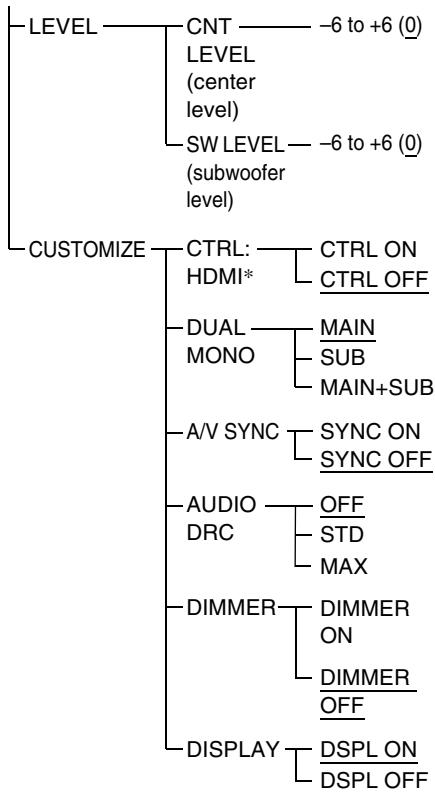
1 Press AMP MENU to turn on the AMP menu. 2 Press the arrow buttons (left/up/down/right) repeatedly to select the item and the setting.
3 Press AMP MENU to turn off the AMP menu.
The following pages show details for each setting.
Setting up the speakers level
You can adjust the level of the center speaker and subwoofer. This setting is applied to all sound fields.
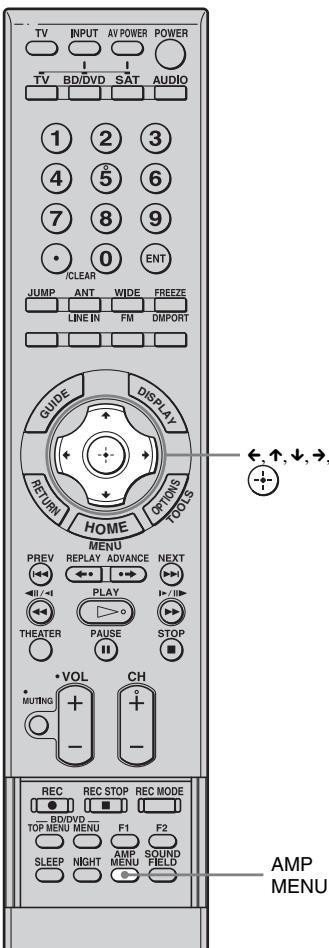
1 Start playing a source encoded with multi channel surround effects (DVD, etc.). 2 Press AMP MENU. 3 Press down/up repeatedly until "LEVEL" appears, then press (+) or right.
4 Press down/up repeatedly to select "CNT LEVEL (center speaker level)" or "SW LEVEL (subwoofer level)." 5 Press (+) or right. 6 While monitoring the sound, press down/up repeatedly to select the setting you want.
Default setting: 0 (dB)
You can adjust from -6 (dB) to +6 (dB) in 1 (dB) steps.
7 Press AMP MENU.
The AMP menu turns off.
Tip
- If the subwoofer (not supplied) is connected, adjust the "SW LEVEL (subwoofer level)" (page 15).
Enjoying multiplex broadcast sound (DUAL MONO)
You can enjoy multiplex broadcast sound when the unit receives an AC-3 multiplex broadcast signal.
Note
- To receive AC-3 signal, you need to connect a digital satellite tuner to the unit with an optical cable or coaxial cable, and set the digital output mode of the digital satellite tuner to AC-3.
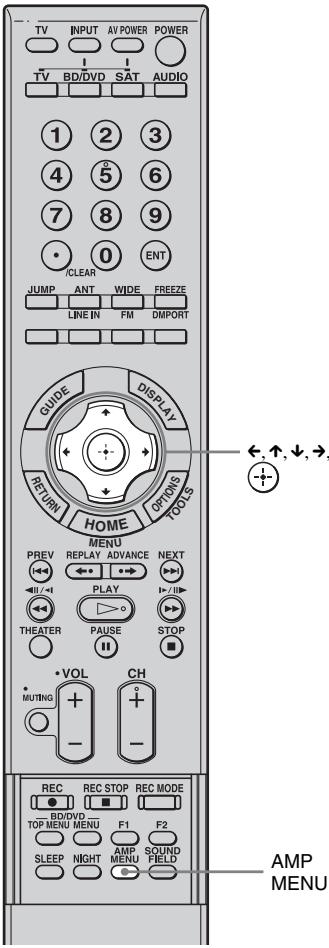
1 Press AMP MENU.
2 Press ↓/↑ repeatedly until "CUSTOMIZE" appears, then press →. 3 Press ↓/↑ repeatedly until "DUAL MONO" appears, then press (+) or →. 4 Press ↓/↑ to select the sound you want.
- MAIN: Plays back only the main channel.
- SUB: Plays back only the sub channel.
- MAIN+SUB: Main sound is output from the left speaker and sub sound is output from the right speaker.
5 Press AMP MENU.
The AMP menu turns off.
Synchronizing the delay between the sound and the image (A/V SYNC)
You can delay the sound using this function when the image is slower than the sound.
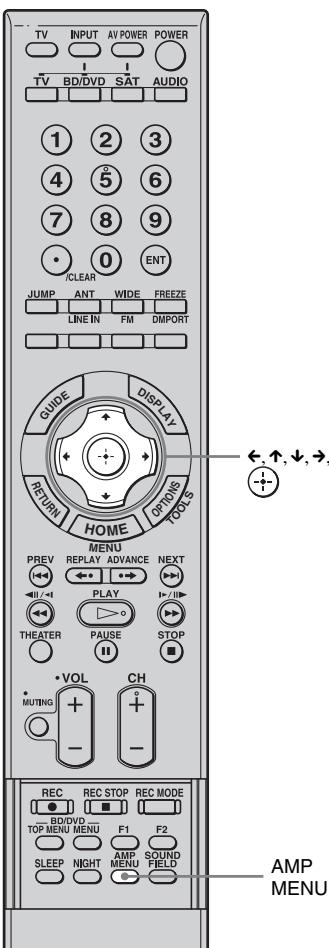
1 Press AMP MENU. 2 Press ↓/↑ repeatedly until "CUSTOMIZE" appears, then press ① or →. 3 Press ↑/↓ repeatedly until "A/V SYNC" appears, then press ⊕ or →. 4 Press ↑/↓ to select the setting.
SYNC ON: Adjusts the difference between picture and sound. SYNC OFF: Does not adjust.
5 Press AMP MENU.
The AMP menu turns off.
Notes
- You may not be able to adjust the delay between sound and image perfectly using this function.
- This function is useful only for Dolby Digital, DTS and Linear PCM (2ch) input by coaxial (audio), optical (audio) or HDMI.
Enjoying Dolby Digital sound at low volume (AUDIO DRC)
Narrows the dynamic range of the sound track. Useful for enjoying movies at low volume. AUDIO DRC only applies to Dolby Digital sources.
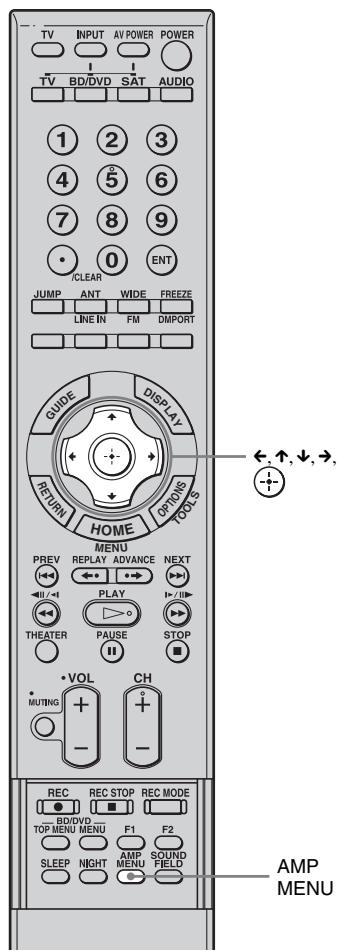
1 Press AMP MENU. 2 Press \downarrow / \uparrow repeatedly until "CUSTOMIZE" appears, then press \leftarrow or \rightarrow. 3 Press \downarrow / \uparrow repeatedly until "AUDIO DRC" appears, then press \leftarrow or \rightarrow.
4 Press \downarrow / \uparrow to select the setting.
- OFF: No compression of dynamic range.
- STD: Reproduces the sound track with the kind of dynamic range that the recording engineer intended.
- MAX: Compresses dynamic range fully.
5 Press AMP MENU.
The AMP menu turns off.
Changing the brightness of the front panel display (DIMMER)
The brightness of the front panel display can be set to one of 2 levels.
4 Press \uparrow / \downarrow to select the brightness of the front panel display.
- DIMMER ON: Low lighting.
- DIMMER OFF: Bright lighting.
5 Press AMP MENU.
The AMP menu turns off.
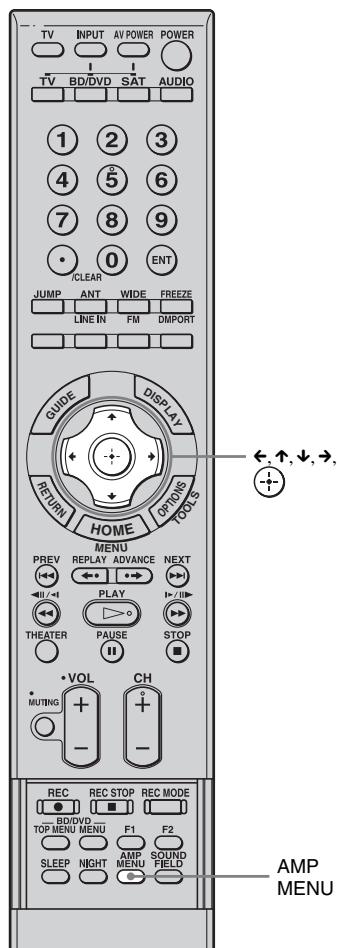
1 Press AMP MENU. 2 Press / repeatedly until "CUSTOMIZE" appears, then press ① or → 3 Press / repeatedly until "DIMMER" appears, then press + or → .
Changing the display setting (DISPLAY)
You can change the display setting.
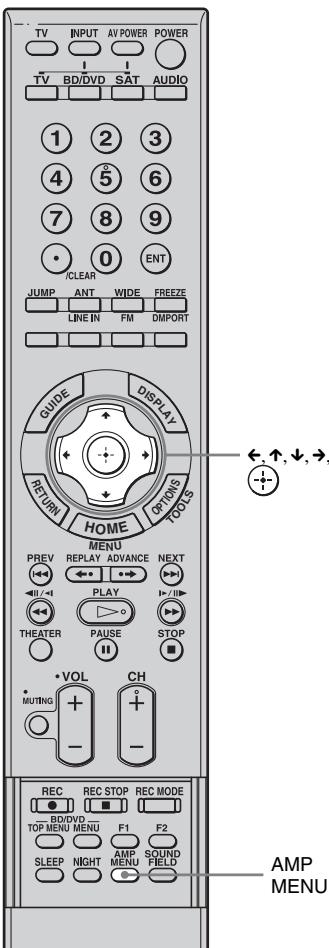
1 Press AMP MENU. 2 Press / repeatedly until "CUSTOMIZE" appears, then press ①- or → 3 Press / repeatedly until "DISPLAY" appears, then press + or → .
4 Press / to select the setting of the front panel display.
- DSPL ON: The display appears all the time.
- DSPL OFF: The display appears for a moment when you operate the unit.
Note
- The display appears all the time when the muting or protection function is working, even if you set the "DISPLAY" to "DSPL OFF."
5 Press AMP MENU.
The AMP menu turns off.
Using the sleep timer
You can set the unit to turn off at a preset time when you sleep listening to music. You can preset the time in 10-minute decrements.
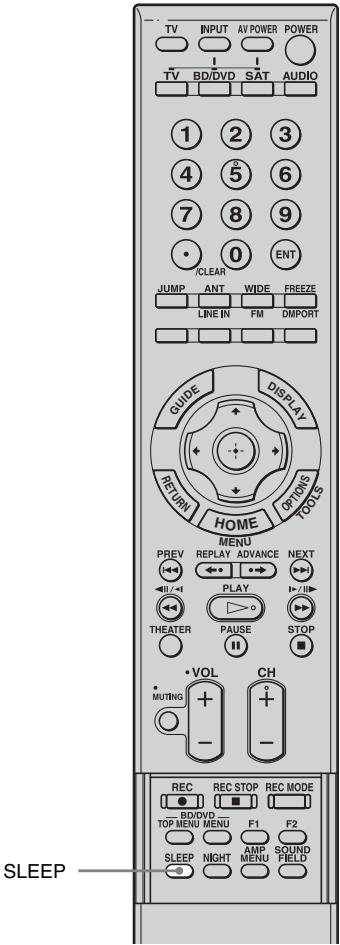
Press SLEEP.
Each time you press this button, the minutes display (the remaining time) changes as follows:
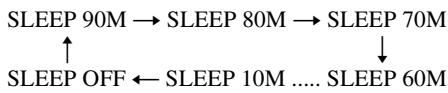
To check the remaining time
Press SLEEP once.
To change the remaining time
Press SLEEP repeatedly to select the desired time.
To cancel the Sleep Timer function
Press SLEEP repeatedly until "SLEEP OFF" appears.
Note
- This function is only for this unit, not for the connected TV or other components.
Additional Information
Troubleshooting
If you experience any of the following difficulties while using the unit, use this troubleshooting guide to help remedy the problem before requesting repairs. Should any problem persist, consult your nearest Sony dealer.
General
The power is not turned on.
- Check that the AC power cord (mains lead) is connected securely.
If "PROTECTOR" and "PUSH POWER" appears alternately in the front panel display.
Press POWER to turn off the system, and check the following item after "STANDBY" disappears.
- Is anything blocking the ventilation holes of the unit?
After checking the above item and fixing any problems, turn on the unit. If the cause of the problem cannot be found even after checking the above item, consult your nearest Sony dealer.
Dolby Digital or DTS multi channel sound is not reproduced.
- Check that the playing Blu-ray Disc, DVD, etc., is recorded in Dolby Digital or DTS format.
- When connecting the Blu-ray Disc, DVD player, etc., to the digital input jacks of this unit, check that audio setting (settings for the audio output) of the connected component.
The surround effect cannot be obtained.
- Install the unit allowing for a space of at least 300 mm (11 7/8 inches) or more on the right and left (page 8). Depending on the digital signal, the surround processing may not work (page 22).
No sound or only a very low-level sound is heard from the speakers.
- Press VOL + and check the volume level.
- Press MUTING or VOL + to cancel the muting function.
- Press SOUND FIELD and check the selected sound field.
- Depending on the source, the sound effect of the speakers may be less noticeable.
Radio stations cannot be tuned in.
- Check that the antenna (aerial) is connected securely.
- Adjust the antenna (aerial) or connect an external antenna (aerial) if necessary.
- The signal strength of the stations is too weak (when tuning in with automatic tuning). Use direct tuning.
- No stations have been preset or the preset stations have been cleared (when tuning by scanning preset stations). Preset the stations (page 24).
- Check that the current frequency is correct.
The image is delayed compared to the sound of the TV.
- Set "A/V SYNC" to "SYNC OFF" when "A/V SYNC" is set to "SYNC ON" (page 42).
Connected components
There is no sound or only a very low-level sound no matter which component is selected.
- Check that this unit and components are connected correctly and securely.
- Check that both this unit and the selected component are turned on.
There is no sound from the selected component.
- Check that the component is connected correctly to the audio input jacks for that component.
- Check that the cords are fully inserted into the jacks on both the component and this unit.
- Check that the component is selected correctly.
- If you resume play a disc when volume is maximum, there may be no sound. In this case, turn down the volume, turn off the unit and turn on again.
Sound is interrupted or there is noise.
- Check the output audio formats supported by this unit on page 49.
There is no picture or an unclear picture appears on the TV screen.
- Check that the TV is connected correctly.
- Check that the TV is selected correctly.
- Set the TV to the appropriate input mode.
- Check that the component is connected correctly to the video input jacks for that component.
- Check that the cords are fully inserted into the jacks on both the component and this unit.
Control for HDMI
The Control for HDMI function does not work.
- Check the HDMI connection (page 9).
- Make sure "CTRL: HDMI" is set to "CTRL ON" in AMP menu.
- Make sure the connected component is compatible with the Control for HDMI function.
- Check the Control for HDMI settings on the connected component. Refer to the operating instructions supplied with the connected component.
- If you change the HDMI connection, or connect/disconnect the AC power cord (mains lead), or if there is a power failure, repeat the procedures of "Preparing for the "BRAVIA" Sync" (page 27).
- The system may not work correctly if you select a component that is not compatible with the Control for HDMI function on the TV side.
No sound is output from the system and the TV's speaker.
- Check the volume of the system and the TV.
- Select the input of the system correctly.
The sound is output from both the system and the TV.
- If the Control for HDMI function is set to off, or the selected component is not compatible with the Control for HDMI function, turn off the sound of the unit or the TV.
The System Power Off function does not work.
- Change the setting of the TV to turn connected components off automatically when you turn off the TV. For details, refer to the operating instructions of the TV.
An image does not appear on the TV.
- Check whether HDMI IN and HDMI OUT are connected correctly.
Other
The remote does not function.
- Point the remote at the remote sensor on the unit.
- Remove any obstacles in the path between the remote and the unit.
- Replace both batteries in the remote with new ones, if they are weak.
- Make sure you select the correct input on the remote.
If the unit still does not operate properly after performing the above measures, reset the unit as follows:
Use buttons on the unit for the operation.
1 Press I/ to turn on the power.
2 Press INPUT SELECTOR, VOLUME - and I/O at the same time.
"COLD RESET" appears and the unit is reset. AMP menu, sound field etc., return to the default settings.
Specifications
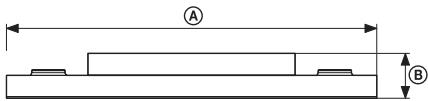

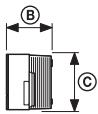
| Dimensions: mm (inch) | A | 1,134 (44 3/4) |
| B | 138.5 (5 1/2) | |
| C | 172 (6 7/8) | |
| Weight: kg (oz) | 12.4 (27 lb 6 oz) | |
Formats supported by this unit
Digital input formats supported by this unit are as follows.
| Format | Supported/Not supported |
| Dolby Digital | ○ |
| DTS | ○ |
| Linear PCM (2ch)* | ○ |
| Linear PCM (5.1ch, 7.1ch)*(Only on HDMI) | ○ |
| Dolby Digital Plus | × |
| Dolby True HD | × |
| DTS-HD | × |
- Linear PCM accepts sampling frequencies of no more than 48 kHz.
AUDIO POWER SPECIFICATIONS
POWER OUTPUT AND TOTAL HARMONIC DISTORTION:
With 8 ohm loads, both channels driven, from 200 to 20,000 Hz; rated 40 Watts per channel minimum RMS power, with no more than 1% total harmonic distortion from 250 milliwatts to rated output.
Amplifier section
Reference Output Power
Surround mode
Front: 50 Watts/ch
(8 ohms at 1 kHz
THD 10%
Center*: 50 Watts/ch
(8 ohms at 1 kHz, THD 10%
Surround*: 50 Watts/ch
(8 ohms at 1 kHz
THD 10%
Subwoofer: 100 Watts/ch
(4 ohms at 100Hz
THD 10%
- Depending on the sound field settings and the source, there may be no sound output.
Inputs (Analog)
TV, LINE
Sensitivity: 700mV
Impedance: 33 kohms
Inputs (Digital)
TV, BD/DVD
Optical
| SAT | Coaxial Impedance: 75 ohms Optical |
| Outputs (Analog) | |
| Subwoofer | Pin jack Voltage: 0.775 V RMS Impedance: 1 kohm |
HDMI section
| Connector | HDMI 19pin-standard connector |
| Video inputs/outputs | SAT, BD/DVD: 640 × 480p@60 Hz 720 × 480p@59.94/60 Hz 1440 × 480p@59.94/60 Hz pixel sent 2 times) 1280 × 720p@59.94/60 Hz 1920 × 1080i@59.94/60 Hz 1920 × 1080p@59.94/60 Hz 720 × 576p@50 Hz 1440 × 576p@50 Hz pixel sent 2 times) 1280 × 720p@50 Hz 1920 × 1080i@50 Hz 1920 × 1080p@50 Hz 1920 × 1080p@24 Hz |
| Audio inputs | SAT, BD/DVD INPUT: Linear PCM 7.1ch/ Dolby Digital/ DTS |
Tuner section
| System | PLL quartz-locked digital synthesizer |
| FM tuner section | |
| Tuning range | 87.5 – 108.0 MHz(100 kHz step) |
| Antenna (aerial) | FM wire antenna (aerial) |
| Antenna (aerial) terminals | 75 ohms, unbalanced |
| Intermediate frequency | 10.7 MHz |
Speakers Front
| Speaker units | 50 mm (2 inches) cone type |
| × 2 |
Center
| Speaker unit | 50 mm (2 inches) cone type |
Surround
Speaker unit 50 mm (2 inches) cone type × 2
Subwoofer
Speaker unit 100mm (4 inches) cone type × 2
General
| Power requirements | AC 120 V/60 Hz |
| Power consumption | On: 85 Watts |
| Control for HDMI is on: | |
| 1.5 Watts or more | |
| Standby (Control for HDMI is off): | |
| 0.3 Watts |
Power output (DIGITAL MEDIA PORT) DC OUT: 5V, 700 mA
| Dimensions (approx.) | 1,134 × 138.5 × 172 mm |
| (44 3/4 × 5 1/2 × 6 7/8 inches) | |
| (w/h/d) incl. projecting parts |
| Mass (approx.) | 12.4 kg (27 lb 6 oz) |
| Supplied accessories | Optical cable (1 m) (39 3/s inches) (1) |
| Remote commander (RM-ANP009) (1) | |
| Size AA (R6) batteries (2) | |
| FM wire antenna (aerial) (1) | |
| Operating Instructions (1) |
Design and specifications are subject to change without notice.

- Standby power consumption 0.3W
- Halogenated flame retardants are not used in the printed wiring boards.
Over 85% power efficiency of amplifier block is achieved with the full digital amplifier, S-Master. - Halogenated flame retardants are not used in cabinets.
Glossary
Dolby Digital
This movie theater sound format is more advanced than Dolby Surround Pro Logic. In this format, the surround speakers output stereo sound with an expanded frequency range, and a subwoofer channel for deep bass is independently provided. This format is also called "5.1" with the subwoofer channel designed as the 0.1 channel (since it functions only when a deep bass effect is needed). All six channels in this format are recorded separately for superior channel separation. Furthermore, since all the signals are processed digitally, less signal degradation occurs.
Dolby Pro Logic II
Dolby Pro Logic II creates five full-bandwidth output channels from 2 channel sources. This is done using an advanced, high-purity matrix surround decoder that extracts the spatial properties of the original recording without adding any new sounds or tonal colorations.
DTS
Digital audio compression technology developed by Digital Theater Systems, Inc. This technology conforms to 5.1-channel surround. This format comprises stereo rear channels and a discrete subwoofer channel. DTS provides the same 5.1 discrete channels of high quality digital audio. Good channel separation is realized due to all channel data being recorded discretely and processed digitally.
HDMI
HDMI (High-Definition Multimedia Interface) is an interface that supports both video and audio on a single digital connection, allowing you to enjoy high quality digital picture and sound. The HDMI specification supports HDCP (High-bandwidth Digital Content Protection), a copy protection technology that incorporates coding technology for digital video signals.
PCM (Pulse Code Modulation)
A method of converting analog audio to digital audio for easy enjoyment of digital sound.
S-Force PRO Front Surround
Sony's long-term involvement in surround technology (and the vast amounts of acoustic data accumulated as a result) has led to the development of an all-new processing method and advanced DSP to handle this task effectively, which we call S-Force PRO Front Surround. Compared with previous front surround technologies, S-Force PRO Front Surround reproduces a more convincing sense of distance and space, resulting in a true surround sound experience without the need for rear speakers.
S-Master
S-Master is an all-digital amplifier technology developed by Sony, which effectively minimizes the occurrence of sound fragmentation and jitter, delivering superb dialog clarity and faithful reproduction of the original sound. The compact amplifier section supports higher power efficiency and improved thermal performance.
x.v.Color
x.v.Color is a more familiar term for the xvYCC standard proposed by Sony, and is a trademark of Sony. xvYCC is an international standard for color space in video. This standard can express a wider color range than the currently used broadcast standard.
A
A/V SYNC 42
AMP menu 39
AUDIO DRC 43
B
Blu-ray Disc player (recorder) connecting 9
C
CD player connecting 13
D
DIGITAL MEDIA PORT connecting 14
DIMMER 44
DISPLAY 45
DUAL MONO 41
DVD player (recorder) connecting 9, 11
H
HDMI connecting 9
1
Input SYNC 31
N
NIGHT mode 23
P
"PlayStation 3" connecting 9
R
Remote
before use 7
operating 18
programming 32
s
Satellite tuning connecting 9, 11
Setting 8
S-Force PRO Front Surround 6
Sleep timer 46
Sound field 22
Speakers level 40
V
VCR connecting 13
WARNING
Recommended surround zone
To control a tape recorder
| Fabricant | Code(s) |
| SONY | 201, 202 |
| DENON | 204, 205 |
| PIONEER | 213, 214 |
| YAMAHA | 217, 218 |
To control a VCR
| Fabricant | Code(s) |
| SONY | 701, 702, 703, 704, 705, 706 |
| HITACHI | 722, 725, 729, 741 |
| JVC | 726, 727, 728, 736 |
| MITSUBISHI/MGA | 732, 733, 734, 735 |
| PANASONIC | 729, 730, 737, 738, 739, 740 |
| PHILIPS | 729, 730, 731 |
| PIONEER | 729 |
| SAMSUNG | 742, 743, 744, 745 |
| SANYO | 717, 720, 746 |
| SHARP | 748, 749 |
| TOSHIBA | 747, 756 |
To control a satellite tuner
| Fabricant | Code(s) |
| SONY | 801, 802, 803, 804, 824, 825 |
| PANASONIC | 818 |
| PHILIPS | 874 |
To control the satellite
Surround*: 50 W/channel
(8 ohms at 1 kHz,
THD 10%
Subwoofer:
100 W/channel
Front: 50 W/channel (8 ohms at 1 kHz, THD 10%)
Center*: 50 W/channel (8 ohms at 1 kHz, THD 10%)
Surround sound*: 50 W/channel (8 ohms at 1 kHz, THD 10%)
Bass boost: 100 W/channel (4 ohms at 100 Hz, THD 10%)
HDMI (High-Definition Multimedia
Interface)
connection 10
1
Installation 8
M
Remote control
before use 7
programming 33
use 19
AMP menu 41
NIGHT mode 24
N


- TO REDUCE THE RISK OF FIRE OR ELECTRIC SHOCK, DO NOT EXPOSE THIS APPARATUS TO RAIN OR MOISTURE
- FOR THE CUSTOMERS IN THE U.S.A
- FOR THE CUSTOMERS IN CANADA
- IMPORTANT SAFETY INSTRUCTIONS
- WARNING
- CAUTION
- NOTE TO CATV SYSTEM INSTALLER
- OWNER'S RECORD
- TABLE OF CONTENTS
- GETTING STARTED
- PLAYBACK OPTIONS
- SURROUND FUNCTION
- TUNER FUNCTIONS
- BRAVIA" SYNC FEATURES
- ADVANCED SETTINGS
- ADDITIONAL INFORMATION
- PRECAUTIONS
- ON SAFETY
- ON POWER SOURCES
- ON HEAT BUILDUP
- ON PLACEMENT
- ON OPERATION
- IF YOU ENCOUNTER COLOR IRREGULARITY ON A NEARBY TV SCREEN
- IF COLOR IRREGULARITY IS OBSERVED
- IF COLOR IRREGULARITY IS OBSERVED AGAIN
- ON CLEANING
- EASY CONNECTION WITH HDMI
- EASY OPERATION
- EASY SURROUND SETTINGS
- ABOUT S-FORCE PRO FRONT SURROUND
- RECOMMENDED SURROUND-SOUND AREA
- SUPPLIED ACCESSORIES
- INSERTING BATTERIES INTO THE REMOTE
- NOTES
- INSTALLING THE UNIT
- CONNECTING THE FM WIRE ANTENNA (AERIAL)
- TIP
- CONNECTING THE POWER CORD
- CONNECT THE POWER CORD OF THIS UNIT TO THE WALL OUTLET
- NOTE
- INSTALLING THIS UNIT
- CONNECTING COMPONENTS WITH HDMI JACKS
- NOTES ON HDMI CONNECTIONS
- CONNECTING COMPONENTS WITHOUT HDMI JACKS
- THE DIGITAL IN OPTICAL JACK HAS PRIORITY WHEN YOU CONNECT BOTH THE AUDIO OUTPUT OF THE TV TO THE DIGITAL IN OPTICAL AND ANALOG IN JACK OF THE SYSTEM
- SETTING UP THE SOUND OUTPUT OF THE CONNECTED COMPONENT
- CONNECTING A VCR OR AUDIO COMPONENT
- CONNECTING THE DIGITAL MEDIA PORT ADAPTER
- CONNECTING THE SUBWOOFER
- INDEX TO PARTS AND CONTROLS
- FRONT PANEL
- TIPS
- FRONT PANEL DISPLAY
- REMOTE CONTROL
- ENJOYING TV
- ENJOYING SATELLITE TUNER
- ENJOYING BLU-RAY DISC, DVD, "PLAYSTATION 2" OR "PLAYSTATION
- LISTENING TO AN ANALOG EQUIPMENT
- ENJOYING A CONNECTED COMPONENT THROUGH DMPORT CONNECTION
- ENJOYING THE SURROUND EFFECT
- SELECTING THE SOUND FIELD
- PRESS SOUND FIELD
- AVAILABLE SOUND FIELDS
- ENJOYING THE SOUND AT LOW VOLUME (NIGHT MODE)
- PRESS NIGHT
- PRESETTING RADIO STATIONS
- TO CHANGE THE PRESET NUMBER
- NAMING PRESET STATIONS
- IF YOU ENTER A WRONG CHARACTER
- LISTENING TO THE RADIO
- ADJUST THE VOLUME BY PRESSING VOL + OR
- TO TURN OFF THE RADIO
- TO LISTEN TO NON-PRESET RADIO STATIONS
- IF AN FM PROGRAM IS NOISY
- WHAT IS "BRAVIA" SYNC
- THE CONTROL FOR HDMI FUNCTION WILL NOT OPERATE IN THE FOLLOWING CASES
- PREPARING FOR THE "BRAVIA" SYNC
- IF "SCANNING" OR "COMPLETE" DOES NOT APPEAR AFTER PERFORMING THE STEPS ABOVE
- IF YOU ADD OR RECONNECT THE COMPONENT
- ENJOYING BLU-RAY DISC/DVD
- (ONE-TOUCH PLAY)
- PLAY BACK A CONNECTED COMPONENT
- ENJOYING THE TV SOUND FROM THE SPEAKERS
- (SYSTEM AUDIO CONTROL)
- PRESS POWER TO TURN ON THE UNIT
- USING THE INPUT BUTTONS OF THE REMOTE
- TURNING OFF THE TV, UNIT AND CONNECTED COMPONENTS
- (SYSTEM POWER OFF)
- CHANGING THE TV'S VIDEO INPUT TOGETHER WITH THE UNIT'S INPUT (INPUT SYNC: SONY TV ONLY)
- FOR LINE IN, FM AND DMPORT
- PRESS ENT
- REPEAT STEPS 1 TO 3 TO PROGRAM THE REMOTE
- TO CANCEL PROGRAMMING
- IF PROGRAMMING IS UNSUCCESSFUL, CHECK THE FOLLOWING
- PROGRAMMING THE REMOTE FOR OTHER COMPONENTS
- REPEAT STEPS 1 TO 3 TO CONTROL OTHER COMPONENTS
- TO ACTIVATE THE INPUT AFTER PROGRAMMING
- TO CLEAR THE MEMORY OF THE REMOTE
- THE NUMERIC CODES CORRESPONDING TO THE COMPONENT AND THE MANUFACTURE OF THE COMPONENT
- DEFAULT SETTINGS
- CONTROLLING THE CONNECTED COMPONENTS
- CONTROLLING THE COMPONENT
- COMMON OPERATIONS
- TO CONTROL THE TV
- TO CONTROL THE BLU-RAY DISC RECORDER/DVD RECORDER/HARD DISC RECORDER
- TO CONTROL THE BLU-RAY DISC PLAYER/DVD PLAYER
- TO CONTROL THE VCR
- TO CONTROL THE HDD/DVD COMBO
- SETTINGS AND ADJUSTMENTS USING THE AMPLIFIER MENU
- USING THE AMP MENU
- SETTING UP THE SPEAKERS LEVEL
- ENJOYING MULTIPLEX BROADCAST SOUND (DUAL MONO)
- PRESS AMP MENU
- SYNCHRONIZING THE DELAY BETWEEN THE SOUND AND THE IMAGE (A/V SYNC)
- ENJOYING DOLBY DIGITAL SOUND AT LOW VOLUME (AUDIO DRC)
- CHANGING THE BRIGHTNESS OF THE FRONT PANEL DISPLAY (DIMMER)
- CHANGING THE DISPLAY SETTING (DISPLAY)
- USING THE SLEEP TIMER
- PRESS SLEEP
- TO CHECK THE REMAINING TIME
- TO CHANGE THE REMAINING TIME
- TO CANCEL THE SLEEP TIMER FUNCTION
- TROUBLESHOOTING
- GENERAL
- THE POWER IS NOT TURNED ON
- IF "PROTECTOR" AND "PUSH POWER" APPEARS ALTERNATELY IN THE FRONT PANEL DISPLAY
- DOLBY DIGITAL OR DTS MULTI CHANNEL SOUND IS NOT REPRODUCED
- THE SURROUND EFFECT CANNOT BE OBTAINED
- NO SOUND OR ONLY A VERY LOW-LEVEL SOUND IS HEARD FROM THE SPEAKERS
- RADIO STATIONS CANNOT BE TUNED IN
- THE IMAGE IS DELAYED COMPARED TO THE SOUND OF THE TV
- CONNECTED COMPONENTS
- THERE IS NO SOUND OR ONLY A VERY LOW-LEVEL SOUND NO MATTER WHICH COMPONENT IS SELECTED
- THERE IS NO SOUND FROM THE SELECTED COMPONENT
- SOUND IS INTERRUPTED OR THERE IS NOISE
- THERE IS NO PICTURE OR AN UNCLEAR PICTURE APPEARS ON THE TV SCREEN
- CONTROL FOR HDMI
- THE CONTROL FOR HDMI FUNCTION DOES NOT WORK
- NO SOUND IS OUTPUT FROM THE SYSTEM AND THE TV'S SPEAKER
- THE SOUND IS OUTPUT FROM BOTH THE SYSTEM AND THE TV
- THE SYSTEM POWER OFF FUNCTION DOES NOT WORK
- AN IMAGE DOES NOT APPEAR ON THE TV
- OTHER
- THE REMOTE DOES NOT FUNCTION
- IF THE UNIT STILL DOES NOT OPERATE PROPERLY AFTER PERFORMING THE ABOVE MEASURES, RESET THE UNIT AS FOLLOWS
- PRESS I/ TO TURN ON THE POWER
- PRESS INPUT SELECTOR, VOLUME - AND I/O AT THE SAME TIME
- SPECIFICATIONS
- FORMATS SUPPORTED BY THIS UNIT
- AUDIO POWER SPECIFICATIONS
- AMPLIFIER SECTION
- HDMI SECTION
- TUNER SECTION
- SPEAKERS FRONT
- CENTER
- SURROUND
- SUBWOOFER
- GLOSSARY
- DOLBY DIGITAL
- DOLBY PRO LOGIC II
- DTS
- HDMI
- PCM (PULSE CODE MODULATION)
- S-FORCE PRO FRONT SURROUND
- S-MASTER
- X.V.COLOR
- A
- B
- C
- D
- H
- N
- P
- R
- S
- V
- RECOMMENDED SURROUND ZONE
- TO CONTROL A TAPE RECORDER
- M
Brand : SONY
Model : RHT-S10
Category : Soundbar