
ERS-210 - Companion robot SONY - Free user manual and instructions
Find the device manual for free ERS-210 SONY in PDF.


| Product type | Companion robot |
| Brand | Sony |
| Model | ERS-210 |
| Main functions | Reading emails aloud, reading web pages, talking clock, memo assistance, voice recognition, interaction via sensors (head, chin, back) |
| Power supply | Rechargeable battery (included), AC adapter, Energy Station charging dock (optional) |
| Battery life | Approximately 1 to 2 hours depending on usage |
| Interface | OPEN-R (version 1.1), Memory Stick for AIBO-ware software |
| Connectivity | Wireless local area network (Wi-Fi) via optional LAN card, PC compatible (Windows) |
| Sensors | Head sensor, chin sensor, back sensor, lift detection |
| Included accessories | AIBO-ware Memory Stick, battery, AC adapter, installation guide |
| Maintenance and cleaning | Clean with a soft, dry cloth. Do not use water or solvents. Avoid moisture and dust. |
| Safety | Do not expose to extreme temperatures, shocks, or moisture. Use only Sony approved accessories. Turn off before removing the Memory Stick. |
| Spare parts and repairability | Replaceable battery, removable Memory Stick, Energy Station charging dock available separately. Contact AIBO customer service for repairs. |
| General information | Requires a Windows PC with AIBO Messenger installed. Compatible with email clients (Outlook Express, Eudora, etc.). Command language: English only. |
Frequently Asked Questions - ERS-210 SONY
User questions about ERS-210 SONY
0 question about this device. Answer the ones you know or ask your own.
Ask a new question about this device
Download the instructions for your Companion robot in PDF format for free! Find your manual ERS-210 - SONY and take your electronic device back in hand. On this page are published all the documents necessary for the use of your device. ERS-210 by SONY.
USER MANUAL ERS-210 SONY
English
French
German
Notice to Users
©2001 Sony Corporation. All rights reserved. This manual and the software described herein, in whole or in part, may not be reproduced, translated, or reduced to any machine-readable form without prior written approval.
EXCEPT AS SPECIFICALLY SET FORTH IN THE END-USER LICENSE AGREEMENT, SONY CORPORATION PROVIDES THIS MANUAL, THE SOFTWARE, AND THE OTHER INFORMATION CONTAINED HEREIN "AS IS" WITH NO WARRANTY AND HEREBY EXPRESSLY DISCLAIMS ANY IMPLIED WARRANTIES OF
MERCHANTABILITY, NONINFRINGEMENT, OR FITNESS FOR ANY PARTICULAR PURPOSE WITH REGARD TO THIS MANUAL, THE SOFTWARE, OR SUCH OTHER INFORMATION. IN NO EVENT SHALL SONY CORPORATION BE LIABLE FOR ANY INCIDENTAL, CONSEQUENTIAL, OR SPECIAL DAMAGES, WHETHER
BASED ON TORT, CONTRACT, OR OTHERWISE ARISING OUT OF OR IN CONNECTION WITH THIS MANUAL, THE SOFTWARE, OR OTHER INFORMATION CONTAINED HEREIN OR THE USE THEREOF. THIS DOES NOT AFFECT YOUR STATUTORY RIGHTS.
Sony Corporation reserves the right to make any modification to this manual or the information contained herein at any time without notice.
This product contains software owned by Sony Corporation and licensed from third parties. Use of such software is subject to the terms and conditions of license agreements enclosed with this product. Software specifications are subject to change without notice and may not necessarily be identical to current retail versions.
Before using this software, please read the accompanying End-User License Agreement which governs use of this software.
Customer Support
How to contact the AIBO Customer Link.
In the United States and Canada
1-800-427-2988
Email address: aibosupport@info.sel.sony.com
In Australia
Call +1300-36-2426 (toll free within Australia)
E-mail address: cicci@ap.sony.com
In Europe
English line: +44 (0)-20-7365-2937
German line: +49 (0)-69-9508-6309
French line: +33 (0)-1-5569-5117
Email address: aibo@sonystyle-europe.com

OPEN-R
“OPEN-R” is the standard interface for the entertainment robot system that Sony is actively promoting. This interface expands the capability of the entertainment robot through a flexible combination of hardware and interchangeable software to suit various applications. “AIBO” ERS-210 and “AIBO Messenger” ERF-210AW04 conform to OPEN-R version 1.1 (software specifications).
“AIBO”, the AIBO logo, “OPEN-R” and the OPEN-R logo are registered trademarks of Sony Corporation.
“Memory Stick,” “” and “MEMORY STICK” are trademarks of Sony Corporation.
Microsoft, Windows, Outlook Express, and Internet Explorer are registered trademarks of Microsoft Corporation in the United States and other countries.
Eudora is a registered trademark of Board of Trustees, Illinois University and is licensed to Qualcomm Corporation in the United States.
All other system names and product names mentioned herein may be trademarks or registered trademarks of their respective companies.
In this manual, the “TM” and “®” marks have been omitted.
Other information about AIBO is available on the Internet at the following site: http://www.aibo.com/
Reproduction in whole or in part without written permission is prohibited. All rights reserved.
Introduction 6
Starting AIBO Messenger 7
Quitting AIBO Messenger 9
AIBO's modes and how to resume normal operation 10
Having AIBO read an E-mail message aloud 12
Checking if you get a new E-mail message 13
Having AIBO read aloud an E-mail message 15
Stopping AIBO from reading a mail message or having AIBO read it again ..... 17
Having AIBO read a Web page aloud 18
Stopping AIBO from reading a Web page or having AIBO read it again 19
Using the clock function 20
Checking the current time 20
Using the reminder function 21
Setting up AIBO Messenger 22
Automatically checking for new mails 23
Selecting AIBO's Voice 24
Using the user dictionary 25
Selecting a Web page for AIBO to read 30
Setting the reminder 31
Setting the AIBO IP address 31
List of commands 32
List of key words 34
List of pronunciation symbols (List of phonemes) 36
Notes on use 38
Troubleshooting 40
For more information about “AIBO” ERS-210 (names of parts, settings, “Memory Stick” installation, safety precautions, etc.), refer to the “AIBO” ERS-210 Operating Instructions.
Have you finished installing AIBO Messenger ERF-210AW04 (hereafter referred to as AIBO Messenger)?
If not, refer to the supplied Setup Guide to install AIBO Messenger and set up a wireless LAN.
Now, let's start up AIBO Messenger and have AIBO read aloud an E-mail or Web page.
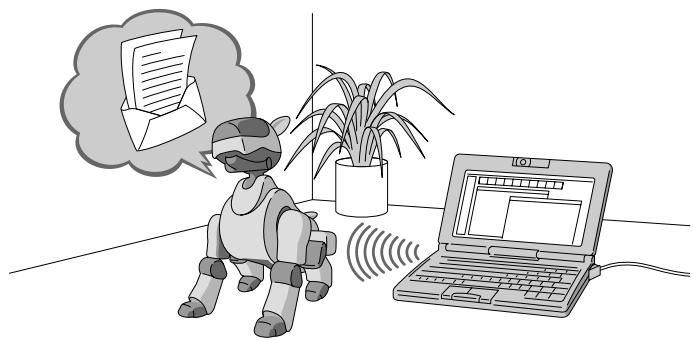
Turn on your personal computer (PC) and AIBO, and then start up AIBO Messenger.
Notes
- AIBO moves by itself in joyful exuberance even when it does not read an E-mail or Web page once you start up AIBO Messenger. Do not place AIBO on a place where it may fall off such as a desktop.
- If you start up AIBO Messenger when you are already on the Internet via a modem, AIBO Messenger may automatically dial up to connect to the Internet depending on your environment to check if your PC is already connected to the Internet.
1 Turn on your PC.
Turn on your PC and start Windows.
2 Start up AIBO.
Insert the “Memory Stick” into AIBO and start it up.
① Insert the AIBO Messenger “Memory Stick” into AIBO. For details, refer to the “AIBO” ERS-210 Operating Instructions.
② Press the pause button on AIBO to start up AIBO.
AIBO Messenger starts up and it waits for a new E-mail message.
When AIBO Messenger waits for a new E-mail message (E-mail waiting mode)
After you start up AIBO Messenger, AIBO waits for a new E-mail message, that is, it enters E-mail waiting mode. After AIBO finishes reading a received E-mail aloud or if you do not give any instruction to AIBO for one minute, AIBO waits for a new E-mail or your command.

AIBO waits for a new E-mail message.
Note
AIBO Messenger functions even when AIBO is mounted on the Energy Station (optional). In this case, AIBO moves its head and/or tail only.
3 Start up AIBO Messenger.
Click the Start button on the task bar, and click Program, AIBO Messenger, and AIBO Messenger in this order. The Owner Authentication dialog box appears on the screen. (If you do not set up any user ID and password during set-up of AIBO Messenger, this Owner Authentication dialog box will not appear.)
4 Type the user ID and password you entered to set up the wireless LAN (see page 15, Setup Guide), and then click OK.
If you select the Save password check box, you need not type the user ID and password the next time.
The AIBO Messenger title screen appears, and the AIBO Messenger icon appears in the task tray.
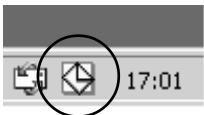
AIBO Messenger icon
During communication: yellow Idle: white
1 Click the AIBO Messenger icon in the task tray with the right button, and select Exit from the menu.
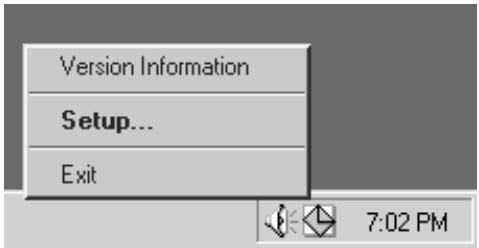
2 Press the pause button on AIBO's chest to pause AIBO, and then remove the "Memory Stick" from AIBO.
For details on removing the “Memory Stick”, refer to the “AIBO” ERS-210 Operating Instructions.

AIBO's modes and how to resume normal operation
If an object gets caught in AIBO's joint or AIBO is picked up and interrupted during AIBO Messenger operation, follow the procedure below to restore AIBO to "E-mail waiting mode".
AIBO Messenger
E-mail waiting mode
AIBO is waiting for a new E-mail message.
It checks to see if you get a new E-mail message at regular intervals you set in advance.
In this mode, you can give the following instructions to AIBO:
- Check if you get a new E-mail message. "Check mail"
- Read the received E-mail message aloud. "Read my mail"
- Read a Web page. "Read page number xx"
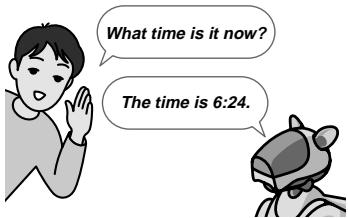
- Check the current time. "What time is it now?"

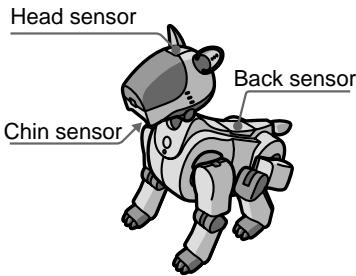
Press the chin sensor and back sensor at the same time for 3 seconds.
Something gets caught in its leg or neck joints.
AIBO is picked up.
To charge the battery pack
Press the pause button on AIBO's chest to pause AIBO.
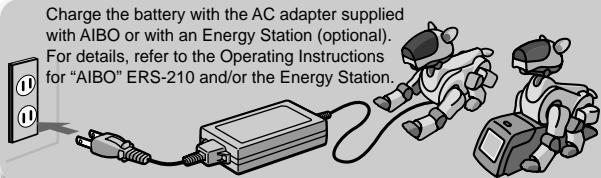
Note
AIBO does not read an E-mail message aloud or notify you of the current time when it is being charged, i.e., when it is connected to the AC adapter.
AIBO finishes walking.
Press the head sensor for 3 seconds.
Put AIBO down on the floor or press its head sensor for 3 seconds.
Mount AIBO on the Energy Station.
Walking condition
AIBO walks.

Jam condition
Joints loosen up.

If any object jams up AIBO's neck or hip joint, AIBO loosens up all of its joints. This is to prevent accidental injury in case you catch your finger in one of its joints. In this condition, AIBO's mode indicator flashes. To return AIBO to normal, press the head sensor for 3 seconds or more.
Picked-up condition
Even when AIBO is picked up, it reads an E-mail message or Web page aloud or notifies you of the current time. However, only its head or tail moves.
Flashes.

When you pick up AIBO, AIBO enters a mode that makes it easier for you to hold AIBO and flashes its mode indicator.
To return AIBO to normal, put AIBO down on the floor. If AIBO does not return to normal, press its head sensor for 3 seconds or more.
Dismount AIBO from the Energy Station.
Station mode
Even when AIBO is mounted on an Energy Station, it can read an E-mail message aloud or notify you of the current time. However, only its head or tail moves.

When an Energy Station (optional) is used

Having AIBO read an E-mail message aloud
To have AIBO read an E-mail message aloud, give an instruction to AIBO to do so with your voice or pressing its sensor. Several commands are provided to indicate one instruction. Here a few commands are described as an example. For details on commands, see “List of commands” (page 32).
![graph TD A["E-mail waiting mode\nAIBO waits for a new E-mail message.\nIt checks whether you get a new E-mail message at intervals you set in advance."] --> B["When you say "check mail" or "Read my mail" and there is new mail."] B --> C["Reading-E-mail command waiting mode\nAIBO…](/content/2019/08/103158/images/6aa3e49a316f491b372e76ff9a4bd2ac96a21763d1d79e51f9685743ae96a1d5.jpg)
Checking if you get a new E-mail message
Automatically checking an E-mail message
AIBO automatically checks whether a new E-mail has arrived or not at intervals you set in advance. For details on setting the interval, see “Setting up AIBO Messenger” (page 22).
Note
If you select Eudora 4.3 as the default E-mail application, this automatic mail check function will not notify you of arrival of a new mail message when it is executed for the first time after its arrival. It notifies you of the mail arrival when executed the next time.
Checking a new E-mail message when you like
You can check to see if a new E-mail message has arrived by instructing AIBO when you like.
Say “Check mail” to AIBO when it is on E-mail waiting mode, or press its head sensor strongly in a moment.
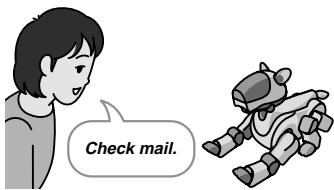
E-mail waiting mode
Note
If you select Eudora 4.3 as the default E-mail application, you cannot use this function: checking a new E-mail message when you like. Even though you say, “Check mail” to AIBO, it says, “This operation is not allowed with the e-mail software that is set up.”
If you get a new E-mail message
AIBO notifies you of new mail message reception as follows:
“You have got xx new mails.” (when the automatic checking function is executed) “There are xx new mails.” (when you instructed AIBO to check an E-mail message)
To have AIBO read a new E-mail message after that, say “Read my mail” to AIBO, or press its head sensor strongly in a moment. AIBO will read aloud the “sender”, “title” and “message”.
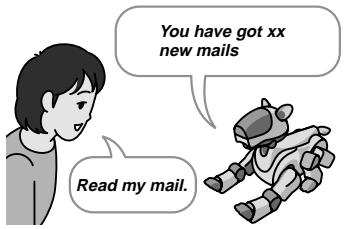
To stop AIBO from reading messages before it finishes reading them, press its back sensor.
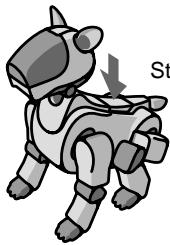
Stop reading a message.
If you get no new E-mail message
AIBO notifies you that there is no mail message by saying “There is no new mail.” Note that AIBO says nothing when you use the automatic mail check function.
Having AIBO read aloud an E-mail message
Have AIBO read aloud an E-mail message in the electronic in-tray.
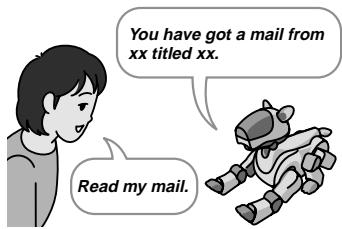
1 Say, "Read my mail" to AIBO, which is in E-mail waiting mode, or move AIBO to and fro twice while pressing its head sensor gently.
AIBO reads aloud the “sender” and “title” of the latest mail message in the in-tray, and then waits for your instruction to read mail (that is, sits down).
If there is no mail message on the in-tray, AIBO says “There is no mail in the in-tray.”
2 Give either of the following instructions to AIBO:
You can give any number of commands to AIBO continuously.
"Read my mail" (or press the AIBO's head sensor strongly in a moment.)
AIBO will read aloud the message text itself of the current E-mail.
"Previous mail" (or press the AIBO's chin sensor for 3 seconds or more.)
AIBO will read the sender and title of the E-mail message received immediately before the current mail. To have AIBO read the message itself aloud, say “Read my mail” to AIBO or press the AIBO’s head sensor strongly in a moment.
If there is no mail before the current mail, AIBO says, “The specified message does not exist.”
“Next mail” (or press the AIBO’s back sensor for 3 seconds or more.)
AIBO will read the sender and title of the E-mail message received immediately after the current mail. To have AIBO read the message itself aloud, say “Read my mail” to AIBO or press the AIBO’s head sensor strongly in a moment.
If there is no mail after the current mail, AIBO says, “The specified message does not exist.”
“Finish reading” (move AIBO to and fro twice while pressing its head sensor gently.)
AIBO re-enters E-mail waiting mode (that is, lies down.)
Notes
- While AIBO is reading a message, it will not respond to any instruction you give to AIBO. Stop AIBO from reading the message by pressing its back sensor, or wait for AIBO to finish reading the message.
- If you give no instruction to AIBO for one minute after it finishes reading a message, it enters E-mail waiting mode (that is, lies down).
When an E-mail message contains a phrase(s) or sentence(s) quoted from another E-mail message
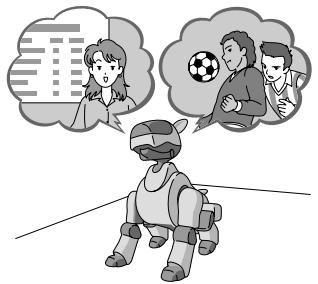
AIBO changes its face direction or voice to indicate that it is reading a quotation now. For details, see “Setting up AIBO Messenger” (page 22).
When an E-mail message contains the specific key word(s)
AIBO makes a motion corresponding to the key word contained. For details on key words, see “List of key words” (page 34).
Stopping AIBO from reading a mail message or having AIBO read it again
Use AIBO's sensors to stop it from reading a message or have AIBO read it again.
To have AIBO re-read a message from the beginning
Press its head sensor strongly for a moment while it is reading a message.
AIBO re-reads the message it is reading from the beginning.

To stop AIBO from reading a message
Press its back sensor while it is reading a message.
AIBO re-enters Reading-E-mail command waiting mode.

Having AIBO read a Web page aloud
AIBO can read aloud text displayed on a Web page whose URL is registered in advance. Up to five Web pages can be registered. For details on how to register a Web page, see “Setting up AIBO Messenger” (page 22).
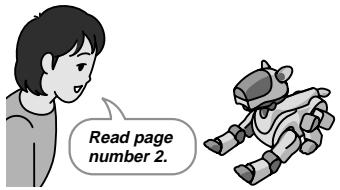
Say “Read page number xx” to AIBO while in E-mail waiting mode.
AIBO will read aloud the Web page whose number is specified.
Notes
- AIBO cannot read aloud a framed Web page. AIBO says, “The specified URL page uses framesets and cannot be read.”
- While AIBO is reading a Web page, it cannot respond to any instruction you give to AIBO. Stop AIBO from reading the web page by pressing its back sensor or wait for AIBO to finish reading the Web page.
Stopping AIBO from reading a Web page or having AIBO read it again
Use AIBO's sensors to stop it from reading a Web page or have AIBO read it again.
To have AIBO re-read a Web page from the beginning.
Press its head sensor strongly for a moment while it is reading a Web page.
AIBO re-reads the Web page it is reading from the beginning.

To stop AIBO from reading a Web page
Press its back sensor while it is reading a Web page.
AIBO re-enters E-mail waiting mode.

Using the clock function
AIBO lets you know the current time.
AIBO can also say the specified message at a time you set.
Note
Before using this function, be sure to set the clock of your PC correctly.
Checking the current time
AIBO notifies you of the current time.
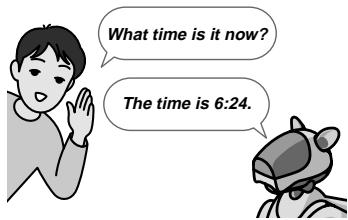
Say, “What time is it now?” to AIBO, who is in E-mail waiting mode.
AIBO says, "The time is xx."
Using the reminder function
AIBO will read aloud the specified comment at a time you set. For how to specify a comment AIBO is to read aloud, see “Setting up AIBO Messenger” (page 22).
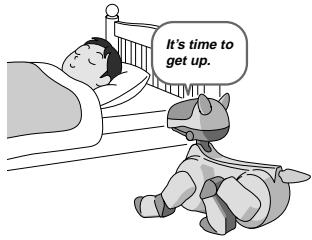
If you do not specify any comment, AIBO says, “It is the time you requested.”
Notes
- If AIBO or AIBO Messenger does not start up at a time you set yet, AIBO cannot notify you of the current time.
- If AIBO happens to read an E-mail message or Web page at a time you specified, it will notify you of the time by saying “XX minutes have passed” after it finishes reading the current message or page.
You can set the following six items to operate AIBO Messenger as you like:
• Automatic new E-mail check (see page 23) - Selecting AIBO's voice to read a message or Web page (see page 24) - User dictionary (see page 25) • Web page to be read aloud (see page 30) - Reminder (see page 31) • AIBO IP address (see page 31)
Note
While AIBO is reading an E-mail message or Web page, you cannot make any setting adjustments above.
To make the settings above, open the Setup dialog box of AIBO Messenger.
Opening the Setup dialog box
Double-click the AIBO Messenger icon in the desktop task tray.
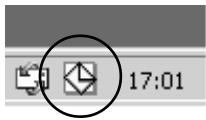
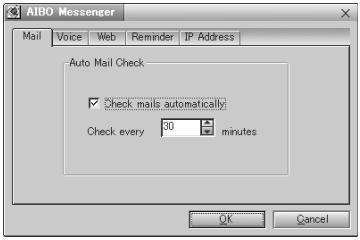
The Setup dialog box appears on the screen.
Note
If the AIBO Messenger icon is not displayed in the task tray, see page 7 to start up AIBO Messenger.
Automatically checking for new mails
Make settings on the Mail tab of the Setup dialog box.
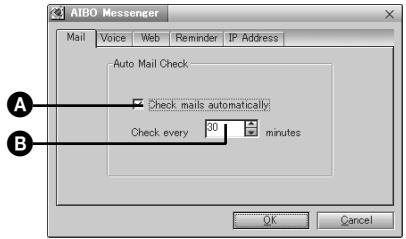
Put a check mark in Ⓐ, and type the time in Ⓑ. AIBO Messenger automatically checks to see if a new E-mail message has arrived at the intervals you typed here. If you do not want to check a new E-mail message automatically, uncheck Ⓐ.
Selecting AIBO's Voice
AIBO changes its voice between “Voice 1” and “Voice 2”: it uses “Voice 1” to read E-mail messages (excluding a phrase or sentence quoted from another mail message) and Web pages while it uses “Voice 2” to read a quoted phrase or sentence. Note that AIBO switches its voice also between these two types of voices when the number of marks indicating a quoted phrase/sentence changes. Open the Voice tab from the Setup dialog box to select a voice used for “Voice 1” or “Voice 2”.
Note
AIBO may not change its voice to read a quotation depending on the mail format.
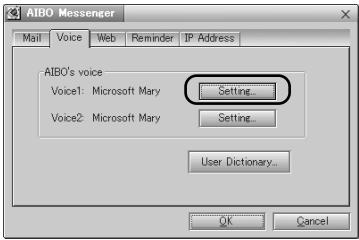
Select the voice type, Voice 1 or Voice 2.
1 Click the Setting button on the Voice tab.
The Voice Settings dialog box appears on the screen.
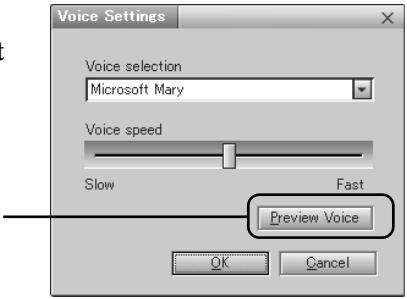
2 Select the voice type from the Voice selection dropdown box, and adjust it with the slider if necessary.
When you click the Preview Voice button, the test sentence is played back in the voice you set here.
Using the user dictionary
Use the Voice tab of the Setup dialog box to operate the user dictionary.
The user dictionary allows you to register pronunciation symbols for a certain word contained in an E-mail message or Web page to have AIBO read the word with pronunciation other than its original one or to prevent AIBO from pronouncing it incorrectly.
Registering a word to the user dictionary
Register the spelling and pronunciation of a word to the user dictionary.
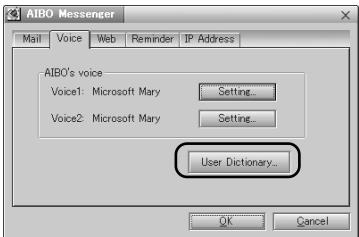
1 Click the User Dictionary button on the Voice tab.
The New Word dialog box appears on the screen.
2 Enter the spelling and pronunciation* of a word to the Word and Pronunciaton boxes, and then click the Save button.
A combination of the entered spelling and pronunciation is registered to the user dictionary.
Note that a word you register in this way is handled as a proper noun. To change the part of speech, see “Editing the user dictionary.”
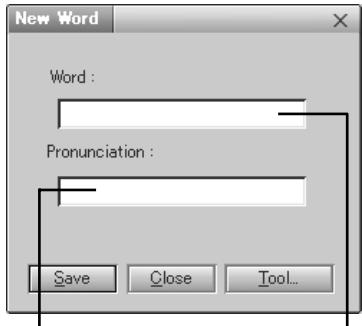
Enter the pronunciation symbol(s) of a word here.
Enter the spelling here.
Editing the user dictionary
A new word can be added to the dictionary, or the registered word can be changed or deleted from the user dictionary.
1 Click the User Dictionary button on the Voice tab.
The New Word dialog box appears on the screen.
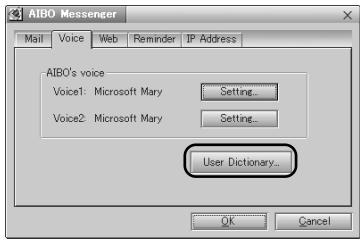
2 Click the Tool button.
The User Word Dictionary Tool dialog box appears on the screen.
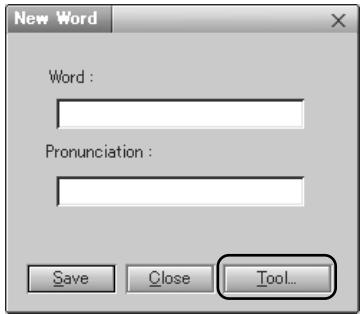
3 Select the desired word from the displayed list, and then click the Add, Change or Delete button according to your operation.
Delete button
→ The selected word is deleted from the user dictionary.
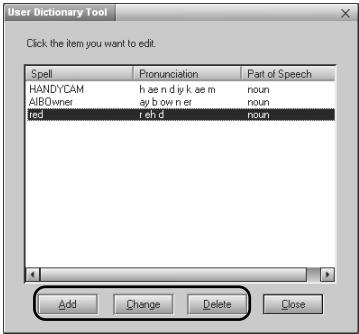
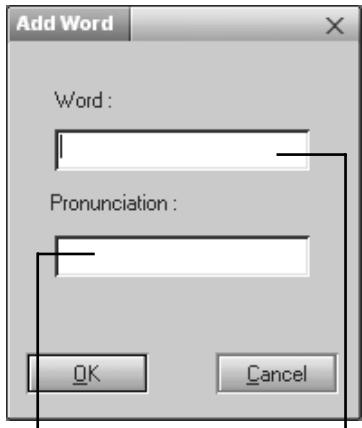
Add button
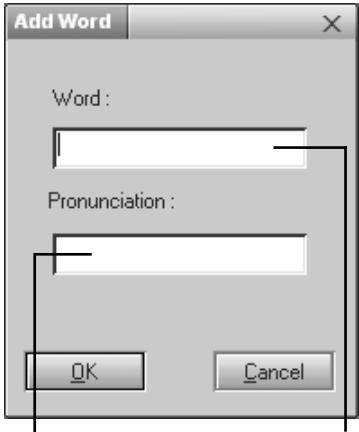
→ The Add Word dialog box appears on the screen. Enter the spelling and pronunciation * , and then click the OK button.
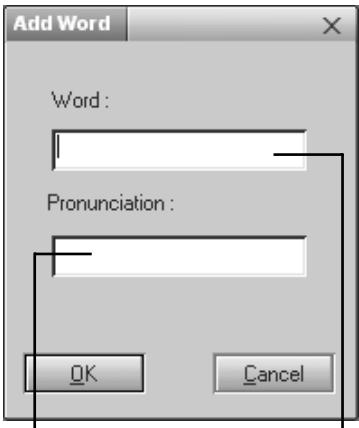
Enter the pronunciation symbol(s) of the selected word here.
Enter the spelling here.
Change button
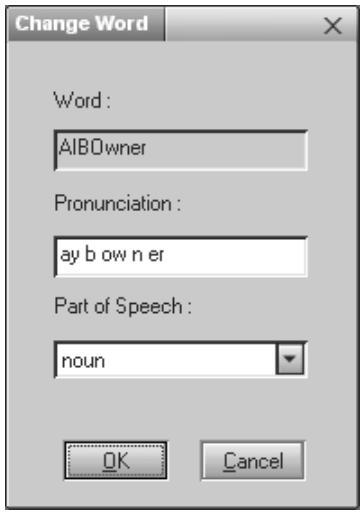
The Change Word dialog box appears on the screen.
Enter each item, and then click OK.
Selecting a Web page for AIBO to read
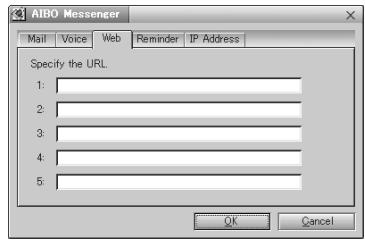
Specify a Web page address on the Web tab of the Setup dialog box.
You can register up to 5 URLs (addresses) of Web pages you want AIBO to read aloud.
We recommend that you display a Web page with the browser, then copy and paste its URL to register it.
Note
AIBO cannot read a Web page that uses framesets. Even though you try to have AIBO read it, AIBO says, “The specified URL page uses framesets and cannot be read”.
Setting the reminder
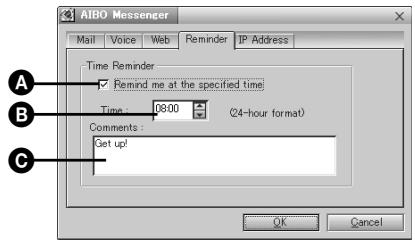
Set a comment and time for an alarm on the Reminder tab of the Setup dialog box. AIBO reads the comment at the time you entered here.
If you put a check mark in Ⓐ, AIBO reads a comment (up to 100 alphanumeric characters) you entered in Ⓐ at the time you specified in Ⓑ.
Setting the AIBO IP address
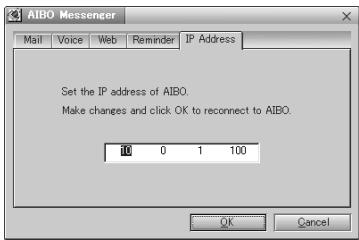
Set the AIBO IP address on the IP Address tab of the Setup dialog box. Refer to the supplied Setup Guide for details.
To have AIBO read a message or notify you of the current time, instruct it by your voice or pressing its sensor. Two or more “commands” are provided to give each instruction to AIBO. The table below summarizes commands to say to AIBO and how and which sensor you have to press.
| Instruction to AIBO | Commands | How and which sensor you have to press |
| ● Check to see if you get a new E-mail message. | Check mailCheck my mailDo I have mail?Do I have any mail? | Press the head sensor strongly for a moment. |
| Read aloud a new E-mail message. | Read the mailRead my mail | Press the head sensor strongly for a moment. |
| ● Read an E-mail message aloud. | Reading modeMail reading mode | Move AIBO to and fro twice while pressing its head sensor gently. |
| Read aloud text of an E-mail message. | Read the mailRead my mail | Press the head sensor strongly for a moment. |
| Read the previous mail. | Previous mailRead previousRead previous mailBack to previous mail | Press the chin sensor for 3 seconds or more. |
| Read the next mail. | Next mailRead nextRead next mailGo to next mail | Press the back sensor for 3 seconds or more. |
| ● Re-enter E-mail Waiting mode. | Finish readingFinish reading mail | Move AIBO to and fro twice while pressing its head sensor gently. |
| ● Read a Web page. | Read page number XXPage number XXRead page XX(XX : one, two, three, four, five) | |
| ● Stop reading a mail message. | Press the back sensor. | |
| ● Read a mail message again from the beginning. | Press the head sensor strongly in a moment. | |
| ● Check the current time. | What time is it now?Tell me the time. |
When a key word is included in a mail message or Web page, AIBO makes a motion corresponding to the key word. If two or more key words are included in one sentence (delimited with "." or ","), AIBO may not make all motions corresponding to those key words. Examples of key words are shown below.
Note
AIBO can recognize only English.
AIBO-related
Products
Entertainment Robot / AIBO / ERS-210 / ERS-110 / ERS-111 / 2nd Generation / AIBO Life / Hello AIBO! / Party Mascot / AIBO Messenger / AIBO Navigator / AIBO Fun Pack / AIBO Master Studio / AIBO Wireless LAN Card / Energy Station / AIBO-ware / Memory Stick / Pink ball / Station / carrying bag
Others
Robot / Pet robot / Humanoid / OPEN-R / Autonomous robot / babyhood / Childhood / Adolescence / Adulthood / Name registration / Action / AIBO EXPO / AIBO owner / Owner / AIBO Shop / Club AIBO / AIBO Clinic / aibo.com / Autonomous action / Voice recognition
Mass Media and Society
News / Newspaper / Magazine / Radio / Television / Broadcast satellite / Satellite broadcast / Peace / War / Animal rights / Recycle / Volunteer / Violation / Police / Punishment / Imprisonment / Sentence / Penalty / Candidate / Election / 21st century / Dream / Heaven / Hell
Weather/Natural Events/Disasters
Sunny / Rain / Earthquake / Thunder / Typhoon / Fire / Hot / Cold / Snow
People
Brothers / Sisters / Daughter / Son / Grandchild / Grandfather / Grandmother / Dad / Mom / Father / Mother / You / Everyone / Boyfriend / Girlfriend / Lover
Greetings
Dear / Good morning / Hello / Hey / How are you? / Congratulations / Thank you / Goodbye / Bye / See you
Other expressions
Affirmation
Yes / That's right
Negation
No / No way / Wrong
Happiness / To Like
Happy / Laugh / Feel optimistic / Enjoy / Present / Gift
Sadness / To Dislike
Sad / Worry / Cry

List of pronunciation symbols
(List of phonemes)
When you enter the following pronunciation symbols (phonemes), AIBO can read the corresponding words aloud.
Example: pronunciation for "hello":
h eh l ow
For improved accuracy, the primary (1), secondary (2) stress markers, and the syllabic markers (-) can be added to the pronunciation.
Example: pronunciation for "hello" using the primary stress (1) and syllabic (-) markers:
h eh - l ow 1
Each phoneme entry should be delimited with a space.
American English Phoneme Table (American English Pronunciation Symbol Table)
SYM Example
- Syllable boundary (hyphen) ! Sentence terminator (exclamation mark) & word boundary , Sentence separator (comma)
SYM Example
. Sentence terminator (period) ? Sentence terminator (question mark) _ Silence (underscore) 1 Primary stress
SYM Example
2 Secondary stress
aa father
ae cat
ah cut
ao dog
aw foul
ax ago
ay bite
b big
ch chin
d dig
dh then
eh pet
er fur
ey ate
f fork
g gut
h help
ih fill
iy feel
| ng | sing |
| ow | go |
| oy | toy |
| p | put |
| r | red |
| s | sit |
| sh | she |
| t | talk |
| th | thin |
| uh | book |
| uw | too |
| v | vat |
| w | with |
| y | yard |
| z | zap |
| zh | pleasure |
To protect the saved data on the “Memory Stick,” note the following:
- The supplied AIBO-ware “Memory Stick” is an accessory of AIBO Messenger. Using it also to save data from personal computers or camcorders, or for anything other than AIBO ERS-210, may cause damage to AIBO.
- Do not touch the terminal A with your hand or metal objects.
- The saved data may be erased or broken if the “Memory Stick” is used in a place subject to static electricity or electric noise.
- Do not stick anything other than a dedicated “Memory Stick” sticker in the area indicated by B. A sticker has already been attached to the AIBO-ware “Memory Stick” supplied with AIBO Messenger at the factory.
- Do not bend, drop or apply a strong physical shock to the “Memory Stick.”
- Do not disassemble or modify the “Memory Stick.”
- To remove the “Memory Stick” from AIBO while it is still operating, first press the pause button to stop AIBO’s movements and wait until the lock indicator turns to white.
- Do not let the “Memory Stick” get wet.
- Do not use or store the “Memory Stick” in places subject to:
– Excessively high temperatures, such as a car parked in the sun, – Direct sunlight, or – High humidity or corrosive gas
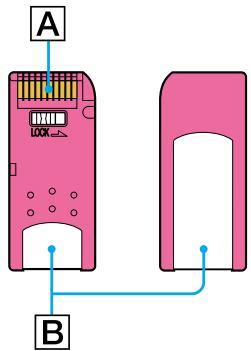
- When carrying or storing the “Memory Stick,” keep it in the supplied case.
- AIBO Messenger is designed exclusively for use with “AIBO” ERS-210. It cannot be used with “AIBO” ERS-110/111.
- AIBO Messenger cannot be used except through the AIBO-ware “Memory Stick” on which it is supplied.
- Sony assumes no responsibility for any malfunctions that may occur as a result of using AIBO Messenger in a way not specified in this manual.
- The specifications of this software are subject to change without notice.
What is an AIBO-ware "Memory Stick"?
It is a “Memory Stick” produced for exclusive AIBO use, and on which is stored application software that can be executed on an AIBO.
If you experience any of the following difficulties, use this troubleshooting guide to correct the problem before contacting AIBO Customer Link. Should the problem persist, contact the AIBO Customer Link. (See page 3 for details on the AIBO Customer Support.)
| Symptom | Remedy |
| AIBO does not respond to you even though you talk to it. | ·Your instruction is not correct.→AIBO Messenger understands only limited words. Read this User’s Guide to issue a correct instruction to AIBO.·AIBO cannot hear you.→Talk to AIBO in a clear voice in a quiet area.·AIBO is not connected to your PC.→Check the AIBO Messenger icon displayed in the task tray.When this icon indicates “Idle” status (white), refer to the supplied Setup Guide to connect AIBO to your PC correctly. |
| AIBO does not output any musical tone or voice. | ·AIBO’s musical tone may be muted.→Adjust the volume level of the musical tone (Refer to the “AIBO” ERS-210 operating instructions.) |
| AIBO does not read an E-mail message/Web page or notify you of the current time. | AIBO is not connected to your PC.→Check the AIBO Messenger icon displayed in the task tray.When this icon indicates “Idle” status (white), refer to the supplied Setup Guide to connect AIBO to your PC correctly. |
| AIBO does not move even when you press the pause button. | The battery pack is not installed to AIBO.→Insert the battery pack to AIBO (refer to the AIBO ERS-210 operating instructions.) After inserting the battery pack into AIBO, press the pause button again to restart AIBO.The battery power is low.→Check the battery power level (refer to the AIBO ERS-210 operating instructions.) If necessary, recharge the battery pack or insert a charged battery pack into AIBO.The temperature of the battery pack is abnormally high.→Wait until the battery cools down. |
| AIBO emits a sad melody and does not move when you press the pause button. | The “Memory Stick” with AIBO-ware is not inserted into AIBO.A “Memory Stick” other than one designed exclusive for AIBO is inserted into AIBO.The battery power level is low.→Check the battery power level (refer to the AIBO ERS-210 operating instructions.) If necessary, recharge the battery pack or insert a charged battery pack into AIBO.The AC adaptor is connected to AIBO’s charging terminal.→Disconnect the AC adaptor form AIBO, and then restart AIBO. |
| The battery compartment is locked and the battery cannot be replaced. | The program is still running. Press the pause button to stop the program. |
| It takes a long time for AIBO to start moving. | AIBO is loading data from the “Memory Stick.” Wait a while. |
| After you pick AIBO up, it moves only slowly without moving its hands and legs. | AIBO stops moving whenever it is picked up from the floor.→Check to see if the mode indicator is flashing or not. If it is, place AIBO on the floor. If it does not move after a while, press its head sensor for 3 seconds or more. |
| Although the mode indicator is flashing and AIBO makes a sound, it does not move its legs. | AIBO's joint is jammed.→Place AIBO on the floor and press its head sensor for 3 seconds or more. |
| AIBO's chest light flashes in orange. | There may be a problem with the battery pack.→Replace the battery pack with a new one (refer to the “AIBO” ERS-210 operating instructions.) |
| AIBO's chest light does not turn off even after you press the pause button. | There is a problem with the operating program.→Check to see if the battery pack lock indicator appears white, and then remove the battery pack from AIBO (refer to the “AIBO” ERS-210 operating instructions). Reinsert the battery pack to AIBO, and press the pause button again. |
| The battery power level gets low immediately after you insert a charged battery pack into AIBO. | If AIBO's operating period becomes extremely short even after you insert a fully charged battery pack into AIBO, the battery pack may be reaching the end of its service life. Replace it with a new one (refer to the “AIBO” ERS-210 operating instructions.) |
OPEN-R
Launch AIBO Messenger 7
Exit AIBO Messenger 9
"Read page number XX"
"What time is it now?"

AIBO says, "The time is xx."
Robot / Pet robot / Humanoid / OPEN-R / Autonomous robot / babyhood / Childhood / Adolescence / Adulthood / Name registration / Action / AIBO EXPO / AIBO owner / Owner / AIBO Shop / Club AIBO / AIBO Clinic / aibo.com / Autonomous action / Voice recognition
Media and society
News / Newspaper / Magazine / Radio / Television / Broadcast satellite / Satellite broadcast / Peace / War / Animal rights / Recycle / Volunteer / Violation / Police / Punishment / Imprisonment / Sentence / Penalty / Candidate / Election / 21st century / Dream / Heaven / Hell
Dear / Good morning / Hello / Hey / How are you? / Congratulations / Thank you / Goodbye / Bye / See you
Other expressions
Affirmation
Yes / That's right
Negation
No / No way / Wrong
Happiness/Pleasures
Happy / Laugh / Feel optimistic / Enjoy / Present / Gift
OPEN-R
Blocking mode
AIBO's joints loosen.

Robot / Pet robot / Humanoid / OPEN-R / Autonomous robot / babyhood / Childhood / Adolescence / Adulthood / Name registration / Action / AIBO EXPO / AIBO owner / Owner / AIBO Shop / Club AIBO / AIBO Clinic / aibo.com / Autonomous action / Voice recognition
News / Newspaper / Magazine / Radio / Television / Broadcast satellite / Satellite broadcast / Peace / War / Animal rights / Recycle / Volunteer / Violation / Police / Punishment / Imprisonment / Sentence / Penalty / Candidate / Election / 21st century / Dream / Heaven / Hell
Weather/Natural events/Disasters
Sunny / Rain / Earthquake / Thunder / Typhoon / Fire / Hot / Cold / Snow
People
Brothers / Sisters / Daughter / Son / Grandchild / Grandfather / Grandmother / Dad / Mom / Father / Mother / You / Everyone / Boyfriend / Girlfriend / Lover
Greetings
Dear / Good morning / Hello / Hey / How are you? / Congratulations / Thank you / Goodbye / Bye / See you
Other expressions
Confirmation
Yes / That's right
Negation
No / No way / Wrong
Happiness/Positive
Happy / Laugh / Feel optimistic / Enjoy / Present / Gift
Sadness/Negative
Sad / Worry / cry

| ng | sing |
| ow | go |
| oy | toy |
| p | put |
| r | red |
| s | sit |
| sh | she |
| t | talk |
| th | thin |
| uh | book |
| uw | too |
| v | vat |
| w | with |
| y | yard |
| z | zap |
| zh | pleasure |
- NOTICE TO USERS
- CUSTOMER SUPPORT
- IN THE UNITED STATES AND CANADA
- IN AUSTRALIA
- IN EUROPE
- NOTES
- TURN ON YOUR PC
- START UP AIBO
- WHEN AIBO MESSENGER WAITS FOR A NEW E-MAIL MESSAGE (E-MAIL WAITING MODE)
- NOTE
- START UP AIBO MESSENGER
- TYPE THE USER ID AND PASSWORD YOU ENTERED TO SET UP THE WIRELESS LAN (SEE PAGE 15, SETUP GUIDE), AND THEN CLICK OK
- AIBO'S MODES AND HOW TO RESUME NORMAL OPERATION
- AIBO MESSENGER
- E-MAIL WAITING MODE
- TO CHARGE THE BATTERY PACK
- WALKING CONDITION
- JAM CONDITION
- PICKED-UP CONDITION
- STATION MODE
- HAVING AIBO READ AN E-MAIL MESSAGE ALOUD
- CHECKING IF YOU GET A NEW E-MAIL MESSAGE
- AUTOMATICALLY CHECKING AN E-MAIL MESSAGE
- CHECKING A NEW E-MAIL MESSAGE WHEN YOU LIKE
- IF YOU GET A NEW E-MAIL MESSAGE
- IF YOU GET NO NEW E-MAIL MESSAGE
- HAVING AIBO READ ALOUD AN E-MAIL MESSAGE
- WHEN AN E-MAIL MESSAGE CONTAINS A PHRASE(S) OR SENTENCE(S) QUOTED FROM ANOTHER E-MAIL MESSAGE
- WHEN AN E-MAIL MESSAGE CONTAINS THE SPECIFIC KEY WORD(S)
- STOPPING AIBO FROM READING A MAIL MESSAGE OR HAVING AIBO READ IT AGAIN
- HAVING AIBO READ A WEB PAGE ALOUD
- STOPPING AIBO FROM READING A WEB PAGE OR HAVING AIBO READ IT AGAIN
- USING THE CLOCK FUNCTION
- CHECKING THE CURRENT TIME
- USING THE REMINDER FUNCTION
- OPENING THE SETUP DIALOG BOX
- AUTOMATICALLY CHECKING FOR NEW MAILS
- SELECTING AIBO'S VOICE
- CLICK THE SETTING BUTTON ON THE VOICE TAB
- SELECT THE VOICE TYPE FROM THE VOICE SELECTION DROPDOWN BOX, AND ADJUST IT WITH THE SLIDER IF NECESSARY
- USING THE USER DICTIONARY
- REGISTERING A WORD TO THE USER DICTIONARY
- CLICK THE USER DICTIONARY BUTTON ON THE VOICE TAB
- ENTER THE SPELLING AND PRONUNCIATION* OF A WORD TO THE WORD AND PRONUNCIATON BOXES, AND THEN CLICK THE SAVE BUTTON
- EDITING THE USER DICTIONARY
- CLICK THE TOOL BUTTON
- SELECT THE DESIRED WORD FROM THE DISPLAYED LIST, AND THEN CLICK THE ADD, CHANGE OR DELETE BUTTON ACCORDING TO YOUR OPERATION
- DELETE BUTTON
- ADD BUTTON
- CHANGE BUTTON
- SELECTING A WEB PAGE FOR AIBO TO READ
- SETTING THE REMINDER
- SETTING THE AIBO IP ADDRESS
- AIBO-RELATED
- PRODUCTS
- OTHERS
- MASS MEDIA AND SOCIETY
- WEATHER/NATURAL EVENTS/DISASTERS
- PEOPLE
- GREETINGS
- OTHER EXPRESSIONS
- AFFIRMATION
- NEGATION
- HAPPINESS / TO LIKE
- SADNESS / TO DISLIKE
- LIST OF PRONUNCIATION SYMBOLS
- (LIST OF PHONEMES)
- AMERICAN ENGLISH PHONEME TABLE (AMERICAN ENGLISH PRONUNCIATION SYMBOL TABLE)
- SYM EXAMPLE
- WHAT IS AN AIBO-WARE "MEMORY STICK
- MEDIA AND SOCIETY
- HAPPINESS/PLEASURES
- BLOCKING MODE
- CONFIRMATION
- HAPPINESS/POSITIVE
- SADNESS/NEGATIVE
Brand : SONY
Model : ERS-210
Category : Companion robot