IR2620-2S-S2 - NAS Raidon - Free user manual and instructions
Find the device manual for free IR2620-2S-S2 Raidon in PDF.


| Product Type | 2-Bay NAS Enclosure |
| Brand | Raidon |
| Model | IR2620-2S-S2 |
| Dimensions (W x D x H) | 200 x 120 x 150 mm (7.9 x 4.7 x 5.9 in) |
| Weight | 1.5 kg (3.3 lb) |
| Power Supply | DC 12V, 3A |
| Number of Bays | 2 |
| Supported Drive Types | 2.5" or 3.5" SATA HDD/SSD |
| RAID Modes | JBOD, RAID 0, RAID 1 |
| Interface to Host | USB 3.0 (Type-C), eSATA |
| Maximum Storage Capacity | Up to 40 TB (2 x 20 TB HDD) |
| Cooling | 80 mm silent fan |
| LED Indicators | Power, HDD1, HDD2, Fan |
| Material | Aluminum chassis with plastic front panel |
| Operating Temperature | 0°C to 40°C (32°F to 104°F) |
| Supported OS | Windows, macOS, Linux |
| File System | FAT32, NTFS, EXT4, HFS+ |
| Power Consumption | 25 W (idle), 35 W (active) |
| Package Contents | NAS unit, power adapter, USB cable, eSATA cable, quick start guide |
| Warranty | 2 years limited |
Frequently Asked Questions - IR2620-2S-S2 Raidon
User questions about IR2620-2S-S2 Raidon
0 question about this device. Answer the ones you know or ask your own.
Ask a new question about this device
Download the instructions for your NAS in PDF format for free! Find your manual IR2620-2S-S2 - Raidon and take your electronic device back in hand. On this page are published all the documents necessary for the use of your device. IR2620-2S-S2 by Raidon.
USER MANUAL IR2620-2S-S2 Raidon
iR2620-2S-S2 SR2611-2S-S2R
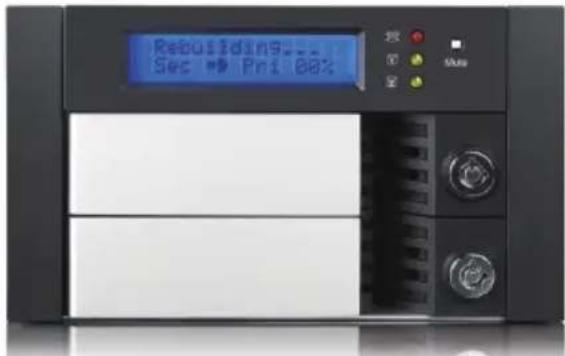
v.2.2 (Jun, 2011)
Index
Chapter 1 Check Package Contents and Accessories.... 3
Chapter 2 Hardware Introduction...... 4
Chapter 3 Precaution before Usage....5
Chapter 4 Hardware Installation Procedure....6
Chapter 5 Connecting iR2620 / SR2611 to your computer....7
Chapter 6 Setting the Hard Drive Array Mode....8
Chapter 7 Computer Set Up....9
Chapter 8 Hard Disk status on LCD screen.... 10
Chapter 9 Data Rebuilding Operation.... 11
Chapter 10 GUI Monitoring Software & FW Updating.... 12
Appendix : Trouble Shooting / Q&A....16
Chapter 1 Check Package Contents and Accessories
iR2620 / SR2611 system includes the following:
| Item Quantity | |
| iR2620 / SR2611 1 / 1 | |
| Internal RS232 Cable 1 | |
| External RS232 Cable 1 | |
| SATA Cable 1 | |
| CD 1 | |
| Accessory bagiR2620 : includes 6 of screws for device, 6 of screws for HDD tray, and 2 of keys for key lockSR2611 : includes 8 of screws and, 2 of keys for key lock | 1 |
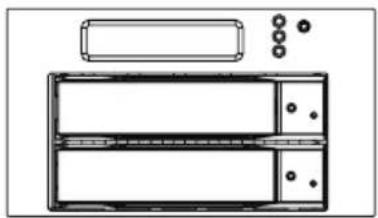
natural_image
Simple line drawing of a rectangular box with internal compartments and scattered dots above (no text or symbols)iR2620
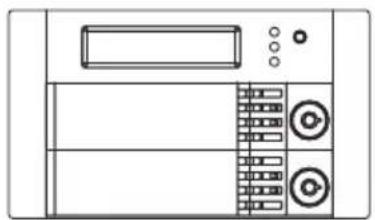
natural_image
Front view diagram of a server rack with indicator lights and drive bays (no text or labels)SR2611
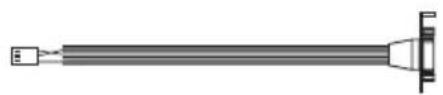
natural_image
Pure diagram of a cylindrical mechanical component with a flanged end and internal shaft (no text or symbols)Internal RS232 Cable

External RS232 Cable

SATA Cable
natural_image
Simple geometric diagram of concentric circles inside a diamond shape (no text or symbols)CD
Accessory bag

Note : Please check above parts are included prior to installation. The accessory bag contains screws and a plastic key.
Chapter 2 Hardware Introduction
iR2620 Front Panel
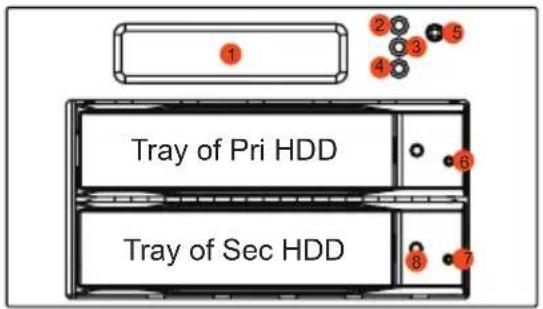
SR2611 Front Panel
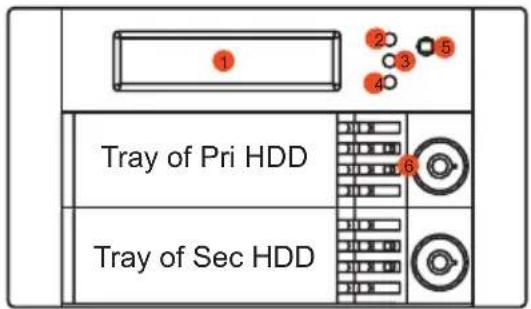
1 LCD Display
③ LED of Pri HDD
5 Mute Button
7 LED of Sec HDD
2 LED of Failure Alarm
4 LED of Sec HDD
6 LED of Pri HDD
8 Key Lock
1 LCD Display
3 LED of Pri HDD
5 Mute Button
2 LED of Failure Alarm
4 LED of Sec HDD
6 Key Lock
iR2620 Real Panel
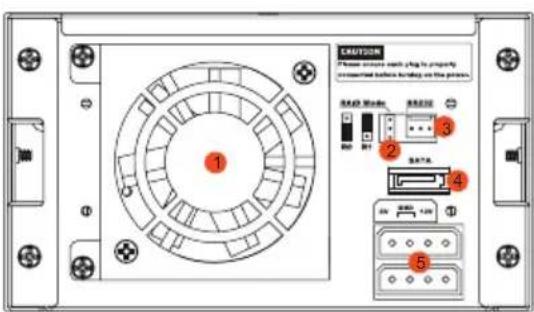
1 Fan
③ RS232 Port
5 4 Pin Big Power Connector
2 RAID Mode
4 SATA Port
ver Connector
SR2611 Real Panel
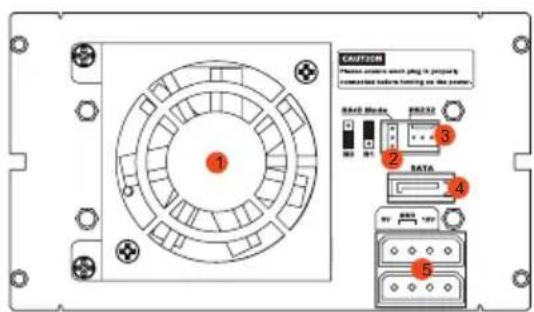
1 Fan
3 RS232 Port
5 4 Pin Big Power Connector
2 RAID Mode
4 SATA Port
ver Connector

Note : 1. Status Indications of LEDs:
1) iR2620:
A. LED of Pri / Sec HDD which near LCD display will flash yellow when the data is accessed from the hard drive.
B. LED of Pri / Sec HDD on the HDD tray will flash blue when the data is accessed from the hard drive.
C. LED of failure alarm will light red when HD failed, temperature is higher than 60^ C or fan fails.
2) SR2611:
A. LED of Pri / Sec HDD will flash yellow when the data is accessed from the hard drive.
B. LED of failure alarm will light red when HD failed, temperature is higher than 60^ C or fan fails.
- Mute Button : Press to turn on mute function, to shut off the buzzer alarm, just press the bottom again.
Chapter 3 Precaution before Usage
1. Hardware Requirement
1) Computers or servers with SATA I& SATA II
2) Hard drive with SATA I& SATA II
2. Notices
1) iR2620 / SR2611's brilliant design allows the user to simultaneously utilize two hard drives manu factured by different companies. However, if the user expects better efficiency, we strongly recommend the users to use hard drives manufactured by the same manufacturer.
2) The iR2620 / SR2611 had undergone strict hard drive compatibility test. The result shows that it is compatible with most hard drives on the market such as Western Digital, Seagate, Fujitsu, Hitachi, and etc. However, due to the new types of hard drives appearing on the market, if your hard drive is not compatible with the system, please contact us through the following email:supporting@raidon.com.tw and we will reply as soon as possible.
3) The iR2620 / SR2611 is equipped with a ball bearing cooling fan that will provide effective cooling for the 7200 & 10000 rpm hard drive. We highly recommend using computer chassis with effective cooling design to avoid disk array crashing due to ineffective cooling.
4) iR2620 / SR2611 supports RAID 0 & RAID 1.
Chapter 4 Hardware Installation Procedure
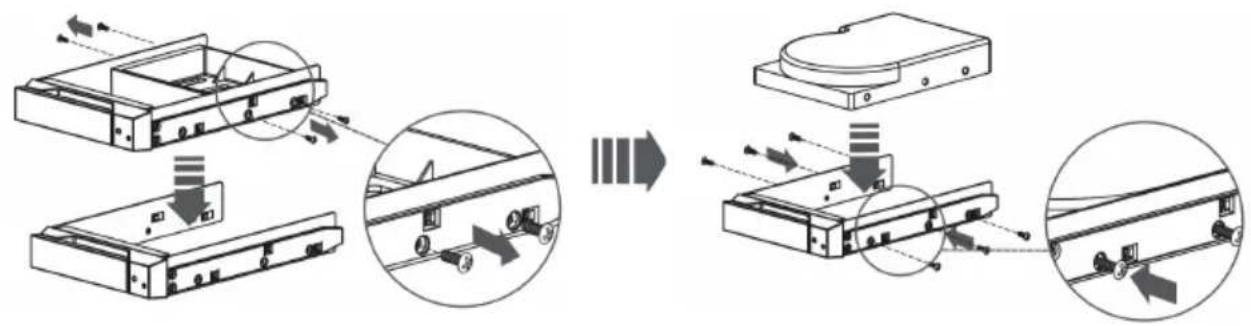
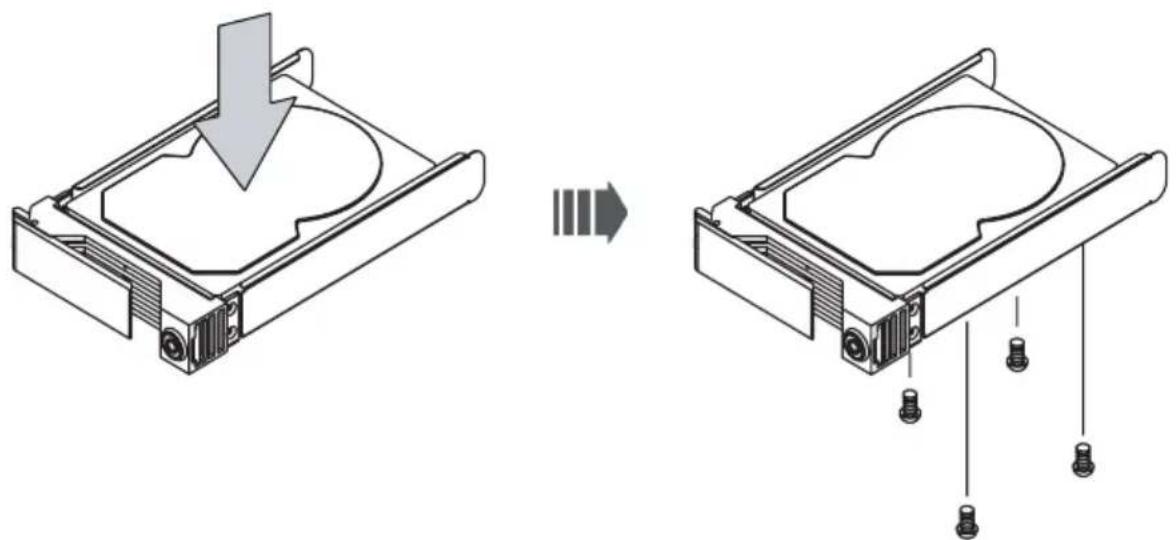
- Install your hard disks into the removable trays and secure them with the screws from accessory kit. This will protect your hard disk from any unnecessary movement.
iR2620
flowchart
graph TD
    A["Received Document"] --> B["Assembly"]
    B --> C{Transmission Process}
    C -->|Signal| D["Output"]
    C -->|Signal| E["Image Display"]
    E --> F["Final Assembly"]
    style A fill:#f9f,stroke:#333
    style D fill:#ccf,stroke:#333
    style F fill:#cfc,stroke:#333
SR2611
natural_image
Diagram showing a device component before and after assembly, with no visible text or symbols- Once the hard disks have been installed, insert the removable trays into device and close the handles.
Chapter 5 Connecting iR2620 / SR2611 to your computer
- Connect DC12V&5V power cables and SATA cables to iR2620 / SR2611.
- Connect SATA cable to SATA port on the motherboard.

natural_image
Pure diagram of a mechanical component with no text, numbers, or symbolsInternal RS232 Cable

External RS232 Cable

SATA Cable

natural_image
Pure electrical circuit lines without any symbolsPower Supply Connector
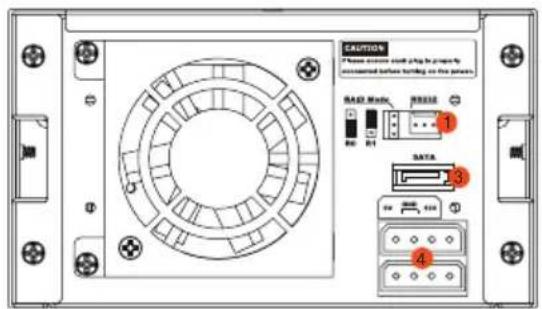
iR2620 Real Panel
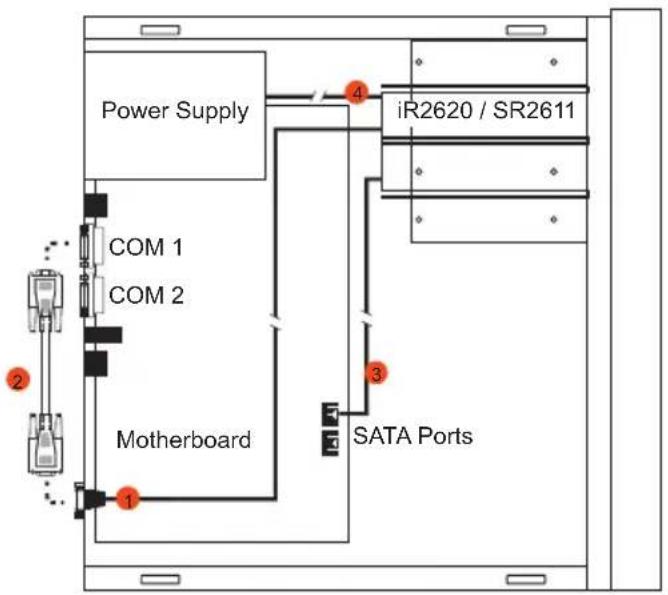
Internal Case
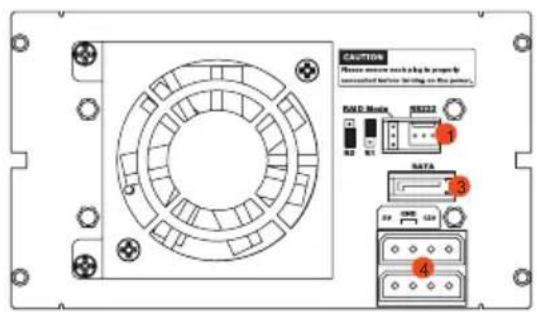
SR2611 Real Panel

Note : 1. RS232 Port and RS232 Cable: Provides hardware status monitoring to industrial control system or IPC via RS232. If more information required, please contact at supporting@raidon.com.tw
-
We do not recommend users to disassemble the device without proper instructions and authorization. The manufacture warranty will not cover the damages caused by unauthorized disassembling.
-
To prevent the device from malfunction, please make sure the device is connected with a direct and dedicated power connection of a stable power input.
Chapter 6 Setting the Hard Drive Array Mode
Please select the RAID mode with the jumper located at the back panel. The original default is RAID 1, still there are three pins at the back panel for RAID mode selection:
RAID 0 mode by setting the jumper on the bottom of the two pins.
RAID 1 mode by setting the jumper on the top of the two pins.
1. RAID 0 Mode
1). Place two new hard drives into iR2620 / SR2611 and strongly suggest you to use two identical hard drives to get the equal capacity. If the capacity is different, iR2620 / SR2611 is downward to the small hard drive capacity.
2). Under RAID 0 mode, capacity is add up to a one big volume, also with the feature of faster read/write performance efficient.
2. RAID 1 Mode
1). Place two new hard drives into iR2620 / SR2611 and strongly suggest you to use two identical hard drives to get the equal capacity. If the capacity is different, iR2620 / SR2611 is downward to the small hard drive capacity.
2). Under RAID 1 mode, two hard drives has the identical information as one to mirror to the other one, therefore each of the hard drive failed is still able to function normally. When you replace the failed hard disk to the new one the system automatically rebuilding the data to the newly place hard disk.
Chapter 7 Computer Set Up
When the hardware setup for iR2620 / SR2611 is complete, you are now ready to turn the machine on.
- After the hardware installation is complete, the iR2620 / SR2611 will be treated as one single hard drive. Set the hard drive to AUTO in the computer's BIOS. When the computer is turned on, the system will retrieve the following information:
- In iR2620 / SR2611, the installed hard drive can be detected by the Device Manager of Computer Management for Windows.
- Customers can choose to format the hard drive by using the Disk Management tool of the operating system before using the iR2620 / SR2611.
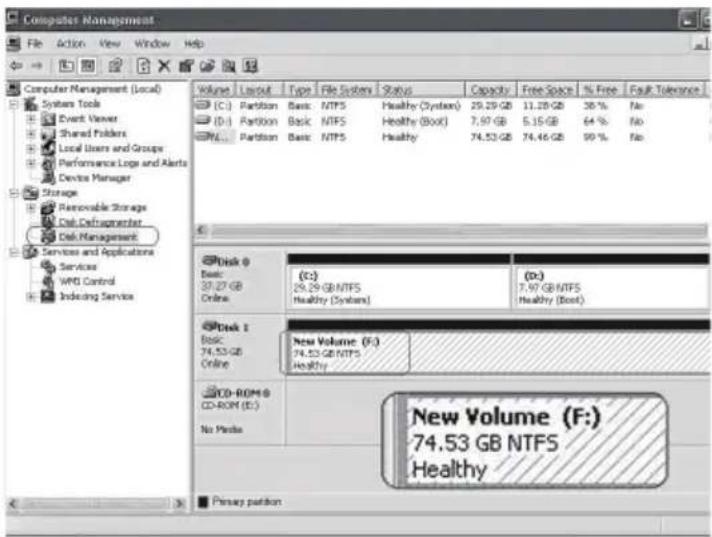
At this point, the installation process is completely finished. The user can freely retrieve and save data to iR2620 / SR2611 just like retrieving and saving data to a regular hard drive. If the user experiences any abnormality during the operation, please refer to the trouble shooting Q&A section in Appendix.
Chapter 8 Hard Disk status on LCD screen
- Normal hard drives
Pri HDD : OK
Sec HDD: OK
- Primary hard drive is failure, but secondary hard drive is normal
Pri HDD : Failed
Sec HDD : OK
- Primary hard drive storage capacity larger than secondary hard drive
Wrong Capacity
PRI>SEC
- Secondary hard drive storage capacity larger than primary hard drive
Wrong Capacity
SEC>PRI
- Rebuilding
Rebuilding ...
Pri->Sec XXX%
Rebuilding ...
Sec->Pri XXX%
- Overheat
Pri HDD : OK
Sec HDD:OK T
- Fan failure
Pri HDD : OK
F
Sec HDD: OK
Chapter 9 Data Rebuilding Operation
The hard drive Hot Swap and Auto Rebuilding functions are available.
(The Hot Swap & Auto Rebuilding functions are applicable in)
1. Off-line Back up
When the data is stored within iR2620 / SR2611, the user can remove one of the hard drives from iR2620 / SR2611 as back up drive for data such as system operation file, secured files, seldom modified files or image and music files. The user can periodically insert the hard drive back into iR2620 / SR2611 to execute automatic backup to protect the system from being hit by computer virus or to avoid risk of having both hard drives failing at the same time.
2. During the Hard drive Failure
When one of the two hard drives fails in the iR2620 / SR2611 system, the system will alarm the hard drive failure message both on the LCD display screen and in the monitoring software. The user can remove the failed hard drive from the system while the system is still in operation without shutting down the machine. If the failed hard drive is replaced shortly, the system will automatically execute the Auto Rebuilding function with out affecting the system operation and without any operation command from the user.
3. The LCD Display Message During Hot Swap and Auto Rebuilding
When the iR2620 / SR2611 detects a hard drive missing or a hard drive failure, the Buzzer will go off and the LCD display screen will display the following messages:
Pri HDD : OK
Sec HDD : Failed
Pri HDD : Failed
Sec HDD : OK
- After removing the failed hard drive and replacing with a new hard drive, if the hard drive is properly installed, the LCD display screen will display the following messages:
Pri HDD : OK
Sec HDD : OK
- After few seconds of installing the new hard drive, the LCD display screen will display the data rebuilding progress:
Rebuilding ...
Pri->Sec XXX%
Rebuilding ...
Sec->Pri XXX%
Pri->Sec represents that the data in the original hard drive (primary hard drive) is copied to the new hard drive (secondary hard drive). XXX % represents the rebuilding completion percentage.
- When the rebuilding is fully completed, the LCD display screen will again display the following messages:
- When iR2620 /SR2611 is overheating, "T" will be displayed on the lower right-hand corner of screen (As shown in illustration)
Pri HDD: OK Sec HDD: OK T
- When cooling fan module is not functional, "F" will be displayed on the upper right-hand corner of screen. (As shown in illustration)
Pri HDD: OK F Sec HDD: OK
Chapter 10 GUI Monitoring Software and Firmware Update
You can install GUI software to monitor RAID status. This can be done by installing software from CD-ROM.
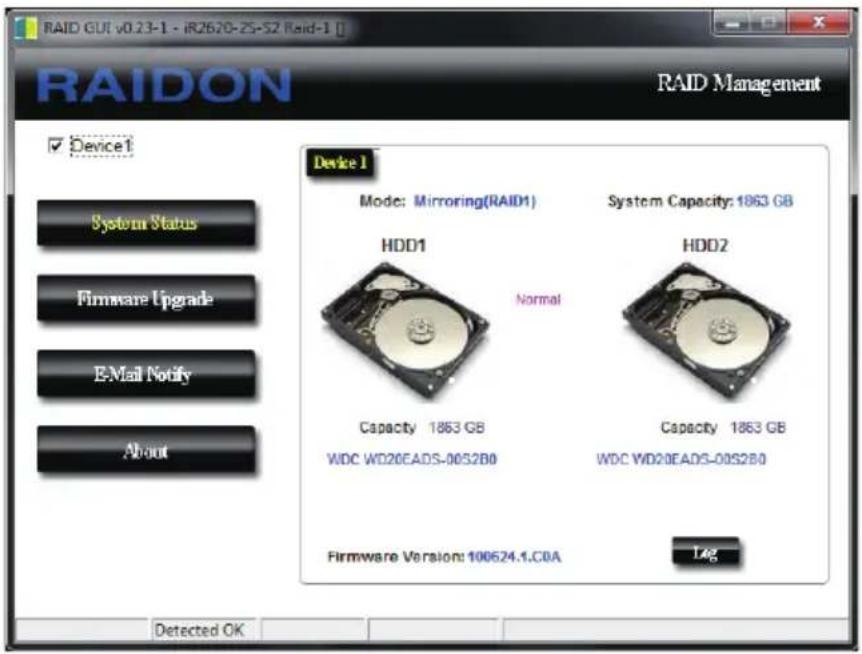
※ The HDD1 equals to Pri HDD and HDD2 equals to Sec HDD.
- RAID information
This GUI will auto detects the connected iR2620 / SR2611 and reveals relative information accordingly.
2. Firmware Upgrade
You may update the Firmware via this GUI, simply click on "Load" button to locate the firmware file to proceed. After update is finished, you may restart the power properly to operate with newly updated firmware.
![RAID GUT v0.23-1 - iR2620-ZS-S2 Raid-1 [E] RAIDON RAID Management Device 1 System Starts Firmware Upgrade E-Mail Notify About Device 1 Firmware Version: 100624.1.COA Please do not disconnect the device while updating firmware to prevent from the update failed. In case the update firmware failed results in data loss, we strongly suggest you backup data to other device before updating firmware. Load You Can get newest version form supporting@raidon.com.tw Upgrade Detected OK](/content/2026/05/1031376/images/7c68f34d7ec2c279268d8aa9cca45cb60f22b0dd70fd54fe1fdf76daef326e47.jpg)

Caution : Any Random firmware updates may cause device in malfunction, it is strongly suggested not to update device firmware if device is operating properly. To prevent device malfunctioning from your firmware updates, please contact RAIDON technical support personnel for confirmation or by e-mail at supporting@raidon.com.tw
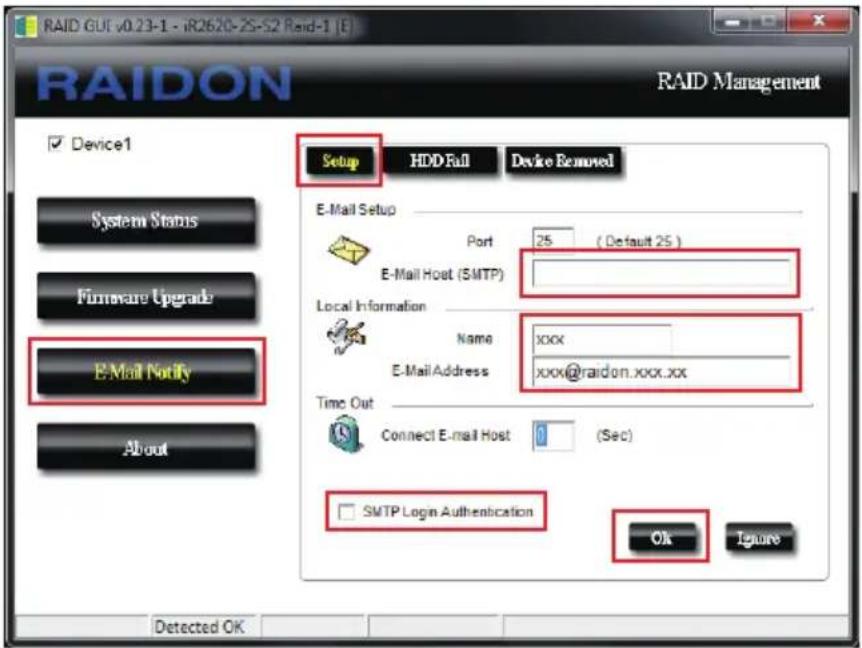
3. E-Mail Notify
Configuring an e-mail address for notification of drive malfunctioning or being removed.
3-1 Setup
1) Insert "Outgoing" SMTP and e-mail name and address.
2) If it is passwords required, select the option "SMTP Login Authentication" and insert the passwords.
3) When the configuration completed, click on the "OK" button to save.
※ Device must be connected in operational states during configurations to take effects.
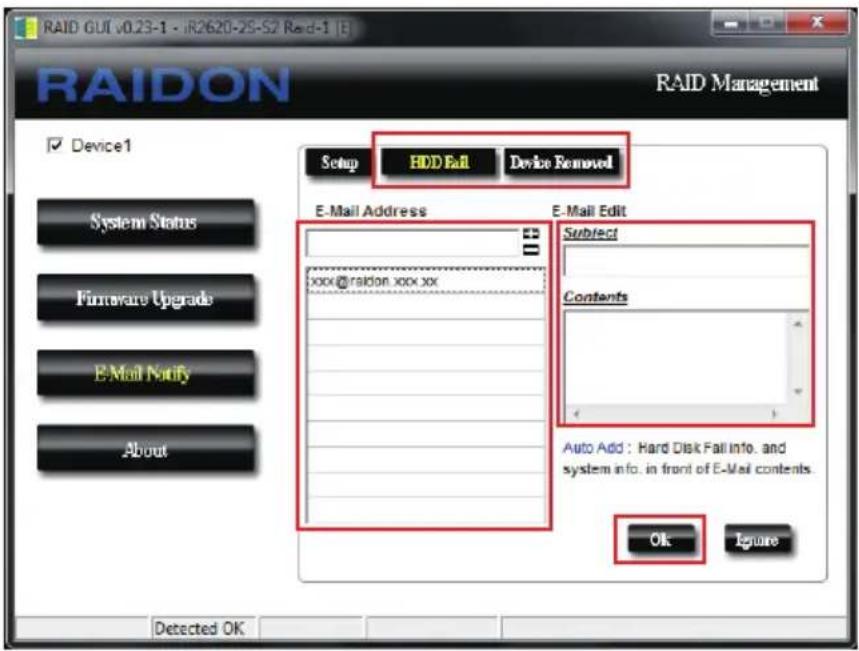
3-2 HDD Fail / Device Removed
1) Insert the e-mail address of the receiver for notification and click on “+” to add the inserted e-mail address onto the notifying list.
(Maximum up to 10 e-mail addresses)
2) Insert the error message and descriptions from the columns of "Subject" and "Contents".
3) When the configuration completed, click on the "OK" button to save.
※ Device must be connected in operational states during configurations to take effects.
- About Indicates GUI Management Software version
![RAID GUI v0.23-1 - iR262C-ZS-S2 Raid-1 [E] RAID Management Device1 System Status Firmware Upgrade E-Mail Notify About RAID Management Software Version: v0.23-1 RAIDON TECHNOLOGY, INC. Copyright @ 2000-2010 RAIDON Technology, Inc. All Rights Reserved. Detected OK](/content/2026/05/1031376/images/8dee30a359325b25fe8d3cb282383773dc2361750516f98707ee0aae82d7796c.jpg)
Appendix: Trouble Shooting / Q&A
Unstable system after connecting iR2620 / SR2611
Q: After installing iR2620 / SR2611, we are unable to start the computer or the computer can not locate iR2620 / SR2611 upon startup.
A: 1. Please check whether the readings on the iR2620 / SR2611 LCD display screen appear normal.
-
Please check whether the SATA Cable connection cables are properly connected to the computer system and whether SATA drives are functioning normally.
-
If everything is functioning properly but the user still can not start the computer system, then the problem might be the system incompatibility. If such incompatibility takes place, please contact our technical support department.
Q: When the iR2620 / SR2611 is in use, the computer system is functioning normally but the iR2620 / SR2611 access speed is abnormal.
A: Please first check whether the iR2620 / SR2611 is in the progress of executing data auto-rebuild.
-
Please examine if the length of the connection cables, SATA cable that connect the drives to the computer system is too long and whether the specification these cables complies with the requirements.
-
If both the lengths and specification of the cables are checked out ok, please turn off iR2620 / SR2611 and remove the hard drive from iR2620 / SR2611. Test the hard drive directly with the computer system since it might be the bad sectors in the hard drive that are causing the longer than normal system down time.
Hard Drive Failure
Q: Under the mirror mode (RAID 1), what will be the system's total storage capacity when adding a brand new hard drive?
A: 1. The total storage capacity for iR2620 / SR2611 is determined by the storage capacity of the primary hard drive installed during the initial usage.
- The storage capacity will not increase after initial installation even when place a brand new hard drive with larger storage capacity.
Q: Why does the error message appear when I installed the second hard drive?
A: 1. The storage capacity of the second hard drive must be larger than the first hard drive. Otherwise, iR2620 / SR2611 can not rebuild the new hard drive and the LCD display screen will display "Wrong Capacity".
- The LCD display screen might display rebuilding error messages such as Pri(s)->Sec(s)or Sec(s)->Pri(s). The term (s) signifies that both hard drives are treated as original hard drive. The user must determine which hard drive will be the original hard drive prior installing the hard drives into iR2620 / SR2611. Once the original hard drive is designated and installed in iR2620 / SR2611, the user can place in the second hard drive by taking advantage of iR2620 / SR2611's Auto Rebuilding function.
Q: My hard drive is obviously operating properly but why is it shown as failed in the iR2620 / SR2611 display?
A: iR2620 / SR2611 uses more strict requirements and standards to examine the bad sectors in the hard drive. The user can first overwrite the bad sector on a PC before placing the hard drive into iR2620 / SR2611.
About Auto Rebuilding Function
Q: What will happen if we turn off the computer's power while iR2620 / SR2611 is still executing data auto rebuilding?
A: Under the mirror mode (RAID 1), if the power is out of the auto rebuilding process, the controller will remember when completion percentage of the auto rebuilding process and resume the rebuilding process when the power is back on.
Q: Is it possible to lose any part of the data during the data auto rebuilding?
A: The data auto rebuilding function will copy data from one sector to another sector. Technically speaking, the data will not be lost during the auto rebuilding process. However, if the original hard drive is detected with bad sectors during the rebuilding process, iR2620 / SR2611 will make hypothetical duplication instead of treat the bad sectors as hard drive failure. Therefore, the data stored in the bad sectors could potentially be lost during rebuilding.
Q: Under the mirror mode (RAID 1), why does the computer slows down during the data rebuilding process? Or why does the data rebuilding process slows down when the data is being processed?
A: If the iR2620 / SR2611 system is executing data rebuilding simultaneously while the computer system is saving the data, the auto rebuilding process and the saving process will take longer than normal time. This is because the iR2620 / SR2611 must divide it's resource between the normal system operation and the data rebuilding process. However, the priority for the iR2620 / SR2611 is to maintain the proper system operations.
Therefore, the data rebuilding speed will be extremely slow until the system finished with the data saving operations.
Other Possible Situations
Q: The Buzzer will not stop when the iR2620 / SR2611 is in operation.
A: Please check whether the readings on the LCD display are normal or if there is a hard drive failure. Please also pay attention to any other symbols displayed in the LCD display.
For example, if the "F" symbol is displayed, this means that there is a cooling fan failure. If the "T" symbol is displayed, this means that the system is overheated.
Q: How to turn on and off the Buzzer?
A: 1. The manufacture default setting for the Buzzer in iR2620 / SR2611 is Buzzer On.
2. The user can use any pointed materials to push the bottom on the front dash board to turn on and off the Buzzer.
NOTE:
RAIDON Technology, Inc. provides both technical support and service to our global distributor and as for the end users or do not buy products directly from us, please contact where your purchase from or local distributor for prompt and better responses service. However, if you do not know the local distributor's location, please contact RAIDON sales1@raidon.com.tw for reference.
All the product information contained in this manual is the property of RAIDON Technology, Inc. All rights reserved.