X-U Typ 113 - Camera LEICA - Free user manual and instructions
Find the device manual for free X-U Typ 113 LEICA in PDF.


User questions about X-U Typ 113 LEICA
0 question about this device. Answer the ones you know or ask your own.
Ask a new question about this device
Download the instructions for your Camera in PDF format for free! Find your manual X-U Typ 113 - LEICA and take your electronic device back in hand. On this page are published all the documents necessary for the use of your device. X-U Typ 113 by LEICA.
USER MANUAL X-U Typ 113 LEICA
natural_image
Line drawing of a digital camera with dual rotary knobs and lens (no text or symbols on body)WICHTIG
natural_image
Technical line drawing of a mechanical component with internal structure (no text or symbols)natural_image
Mechanical assembly diagram showing a cam or camera with a curved tool and red directional arrow (no text or symbols)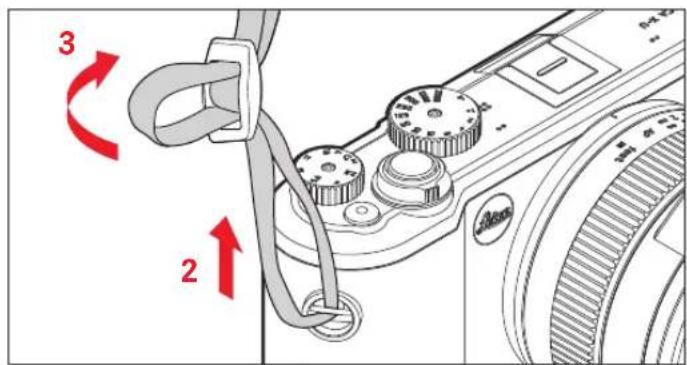
text_image
Diagram showing a camera module with labeled parts and red arrows indicating rotation directionsAKKU LADEN
text_image
Technical diagram showing a device's internal components with numbered annotations and directional arrows indicating flow or movement.Akkueinsetzen
text_image
"Klick"Akkuherausnehmen
text_image
Technical diagram showing a mechanical component with labeled parts and directional arrows indicating motion or movement.Hinweis:
text_image
Technical diagram showing a mechanical component with a red downward arrow indicating a specific feature, and a control knob labeled (10) for measurement.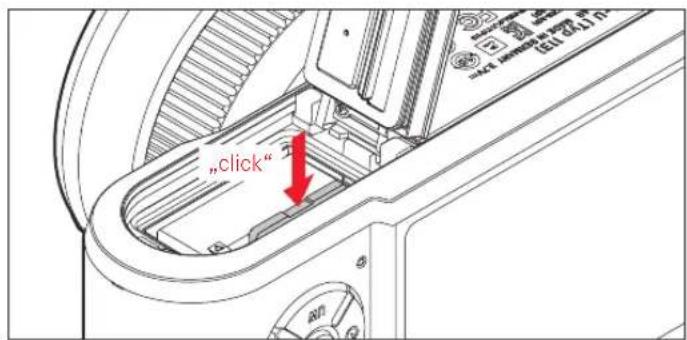
text_image
"click"text_image
1 2 "click"Hinweise:
natural_image
Technical diagram of a device's front panel with red arrow indicating rotation (no text or symbols)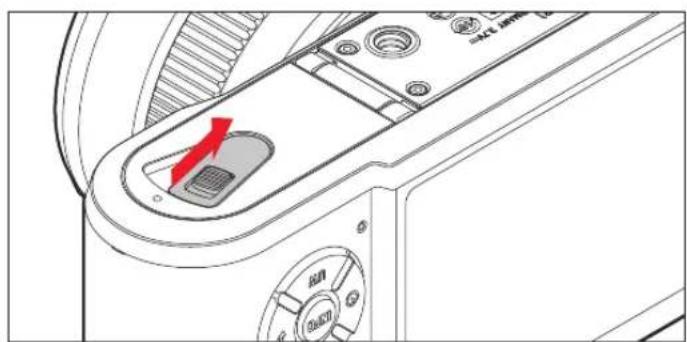
natural_image
Technical diagram of a device interior showing a control panel with a red arrow indicating direction (no text or symbols present)natural_image
Technical line drawing of a camera with dual rotary dials and a red directional arrow indicating rotation (no text or symbols)text_image
T 1/60s (F5.6 EV-10 30 25 26 27 28 29 31 32 33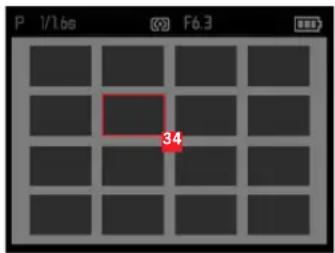
text_image
P 1/1.6s F6.3 34text_image
T 1/60s F5.6 EV-1.0 37 38Product Support / Software Support
Am Leitz-Park 5
D-35578 Wetzlar
Telefon: +49(0)6441-2080-111 /-108
Telefax: +49(0)6441-2080-490
info@leica-camera.com / software-support@leica-camera.com
LEICA CUSTOMER CARE
we wish you a great deal of pleasure and success using your new Leica X-U (Type 113).
This robust outdoor camera is protected specifically against moisture and dust, which means you can take pictures in extreme conditions without worry. The camera comes with a special program for optimized underwater photography. Make sure to read all notes and explanations on pages 94-97 before you use your Leica X-U underwater for the first time!
The Leica Summilux 23mm f/1.7 ASPH. lens with its very high optical performance ensures excellent image quality for underwater exposures. With fully automatic program control, the Leica X-U offers photography fun at its best. Alternatively, you can take over picture composition yourself at any time using the manual settings. You can select from numerous special functions to improve the picture quality even in critical exposure conditions. Please read these instructions in its entirety so that you can make the most of your Leica X-U.
PACKAGE CONTENTS
Please check the scope of included accessories for completeness before using your Leica X-U for the first time.
a. Leica BP-DC8 rechargeable battery
b. Batterycase
c. BC-DC8 battery charger with interchangeable plugs
d. Carryingstrap
e. Lens cap with safety strap
f. Accessory shoe cover
This product is licensed under the AVC Patent Portfolio license for the personal use of a consumer or other uses in which the consumer does not receive remuneration to (i) encode video in compliance with the AVC standard ("AVC video") and/or (ii) decode AVC video that was encoded by a consumer engaged in a personal activity and/or was obtained from a video provider licensed to provide AVC video. No license is granted or shall be implied for any other use. For more information please visit the MPEG LA, L.L.C. website at http://www.mpgegla.com.
Any other use, including but not limited to providing AVC video in exchange for remuneration may require a separate license agreement with MPEG LA, L.L.C. For more information please visit the MPEG LA, L.L.C. website at http://www.mpgegla.com.
FOR US ONLY:
FCC Note:
This equipment has been tested and found to comply with the limits for a Class B digital device, pursuant to Part 15 of the FCC Rules. These limits are designed to provide reasonable protection against harmful interference in a residential installation. This equipment generates, uses, and can radiate radio frequency energy and, if not installed and used in accordance with the instructions, may cause harmful interference to radio communications.
However, there is no guarantee that interference will not occur in a particular installation. If this equipment does cause harmful interference to radio or television reception, which can be determined by turning the equipment off and on, the user is encouraged to try to correct the interference by one or more of the following measures:
- Reorient or relocate the receiving antenna.
- Increase the separation between the equipment and receiver.
- Connect the equipment into an outlet on a circuit different from that to which the receiver is connected.
- Consult the dealer or an experienced radio/TV technician for help.
FCC Caution:
To assure continued compliance, follow the attached installation instructions and use only shielded interface cables with ferrite core when connecting to computer or peripheral devices. Any changes or modifications not expressly approved by the party responsible for compliance could void the user's authority to operate this equipment.
Trade Name: LEICA
Model No.: LEICA X-U (Typ 113)
Responsible party/
Support contact: Leica Camera Inc.
1 Pearl Count, Unit A
Allendale, New Jersey 07401
Tel.: +1 201 995 0051
Fax: +1 201 995 1684
technicalinfo@leicacamerausa.com
This device complies with Part 15 of the FCC Rules. Operation is subject to the following two conditions:
(1) This device may not cause harmful interference, and
(2) this device must accept any interference received, including interference that may cause undesired operation.
LEICA X-U
(Typ 113)

o Comply
Standards
FOR HOME OR OFFICE USE
FOR CANADA ONLY:
CAN ICES-3 (B)/NMB-3(B)
IMPORTANT
Make sure to carefully read the information on this and the following pages if you wish to use your Leica X-U in or underwater. Here you will find descriptions of custom functions for this area of use.
NOTES ON WATER AND DUST RESISTANCE
- The water and dust resistance of the Leica X-U complies with protection class IP68 in accordance with the classifi cations set out by JIS/IEC. The fi rst digit refers to the resistance against particles, the second refers to the resistance against moisture/water. Please consult the relevant technical literature for details on classifi cation criteria.
- In the case of Leica X-U, IP68 means that the camera can be operated at a water depth of max. 15m/49ft for up to 60 minutes. Prerequisite for faultless operation is the strict compliance at all times with the information and instructions provided below. This does, however, not constitute a comprehensive guarantee in terms of unconditional water and dust resistance and in that context complete protection against possible damage.
-
Protection type IP68 refers to sweet and salt water, but not to any other liquids. It specifically does not cover the penetration of water impacting the camera with high pressure (e.g. when jumping or falling into the water with the camera, under waterfalls, hose water or high-pressure water cannon impact, etc.).
-
The camera will maintain its water and dust resistance only within the temperature range of 0^ to 40^ / 32^ - 104^ . Please ensure that the camera will only be operated and stored under permissible conditions, i.e. not in direct sunlight, on a radiator, the dashboard of a car, etc. We furthermore advise against any use of the camera in hot water, e.g. hot springs, baths.
- The camera is to some extent impact-resistant. It has successfully passed impact tests in accordance with MIL-STD-810G, method 516.5. This does, however, not constitute a comprehensive guarantee in terms of protection against possible damage under any circumstance.
Please consult relevant technical literature for details on classification criteria. - Excessive pressure, dropping or other impacts may negatively impair the camera's water and dust resistance. Make sure to have the camera checked by an authorized customer service (fee-based) following any of these events.
- The internal workings of the camera are not water-proof and must therefore be carefully protected.
- Faults caused by water penetration due to improper handling are not covered by the Leica guarantee.
- This camera does not float - make sure to secure it in deep water!
HANDLING
These notes describe the special measures required to ensure water and dust resistance in addition to the other relevant descriptions in these instructions.
CHANGING THE BATTERY/MEMORY CARD
Before opening the cover
- Ensure that the camera is not wet or dusty or that any dirt particles/contaminants adhere to it, e.g. grease from sun creams or tanning oils. Dry or clean the camera thoroughly as needed with a soft dry cloth, bellows or brush.
- Make sure that your hands are clean and dry.
- Change the battery preferably at a location where the camera will be safe from water or dust.
- Hold the camera upright if possible to prevent the penetration of water or dust residue lodged at the edge of the cover.
- Open the cover of the battery compartment/memory card slot only after all foreign particles have been removed and the camera is completely dry.
After opening the cover
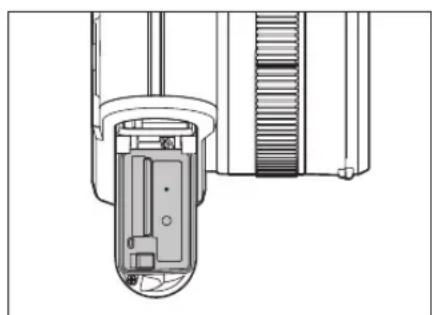
- Perform a careful visual inspection of the door, the seal around the battery compartment and the memory card slot. Any remaining water or any visible moisture/droplets and any foreign particles, e.g. sand or hair must be removed immediately with a soft dry cloth. The sealing plate must not be cracked or deformed; make sure to have it replaced if in doubt. This task must be completed by an authorized customer service (fee-based).
natural_image
Technical line drawing of a mechanical component with internal structure (no text or symbols)Make sure that the rechargeable battery/memory card is completely dry and clean before insertion.
- Any moisture remaining on the inside of the battery/memory card door may result in condensation (see below) and faults.
After closing the cover
- Make sure that the locking latch and slider click into place correctly and/or are in their end positions.
In or underwater
- Do not open the battery compartment door underwater.
- Do not expose the camera to impacts.
Cleaning After Use in or Underwater
- The camera should be dried/cleaned within one hour after use in/under water or in rain/snow. Failing to do so may result in a variety of faults and/or in a weakening of the water and dust resistance. The same applies for failing to remove residue from sun lotion, bath salts, detergent/soap, organic solvents, oils or the remains of alcohol/beverages. Make sure your hands are dry and clean when cleaning the camera, and that the camera is not exposed to water or foreign particles during cleaning. Never use any detergents, cleaning agents or chemicals (e.g. alcohol, solvents, benzene).
- Rinse the camera for around 10 minutes in a container filled with tap water or under running water if it was used in salt water or in a sandy/dusty environment. Shake it a bit to remove any particles lodged in micro-openings but do not use any pointy objects (water or particles in these openings could result in a deterioration of the recorded sound quality). Make sure that all buttons and switches operate smoothly and are not hampered or blocked by foreign particles.
-
Tiny air bubbles escaping from the camera housing are normal and not sign of a fault.
-
Wipe the camera dry after cleaning and leave it to dry out completely in a well ventilated and shady location. Best would be to place it on a clean dry cloth. Any remaining moisture in any of the openings can then safely escape.
- Never use hot air (e.g. a hair dryer) for drying.
- Open the door of the battery compartment/memory card slot only after all foreign particles have been removed and the camera is completely dry.
• Additional general cleaning information can be found on page 160 ff.
Condensation
- Even if no water has penetrated the inside of the camera, the moisture in the air could still result in condensation (fogging up). This can be the case in particular if there is a notable difference between the temperature of the camera and the environment, which will result in condensation in and on the lens and monitor.
- Open the battery compartment/memory card slot door preferably at a location with steady temperature. Avoid locations with prevailing high temperatures/humidity, as well as sandy or dusty places.
- Remove the battery and the memory card and leave the door open to allow the air in the camera to adapt to the ambient temperature. This will allow the condensation to evaporate.
- Please contact your electronics shop or a Leica Customer Care department if the condensation persists.
Color rendering underwater is significantly different from that outside the water. Specific components of the light spectrum are filtered out with increasing depth. Without an additional light source, red disappears at a depth of around 5 meters, orange at around 15 meters, and yellow at approx. 30 meters depth (16/50/100ft).
Underwater Program
Your Leica X-U comes equipped with an underwater mode, which includes an adapted white balance function (only during recording/exposure) to counteract this effect. The standard white balance function is unavailable in that mode, and pressing the WB button will display the relevant menu item as disabled.
Enabling/Disabling the Function
Press the cross pad downward
- With the underwater mode enabled, 📊 will appear to the left of the header, and the display for the white balance setting will disappear.
All other camera functions remain available during underwater photography or video recording.
Another important point to remember is that the available light diminishes with increasing depth/distance and that particles suspended in the water can severely impair image quality. The same applies for images taken with flash, specifically in terms of the lesser reach of the flash.
Note:
We recommend using the integrated flash up to a water depth of 5 meters/16ft only. In greater depths, the use of an external, underwater-capable flash device with a wireless connection to the camera is recommended that can be triggered by the in-built camera flash (available from other manufacturers at specialist retailers).
The CE identification of our products documents compliance with the fundamental requirements of the applicable EU directives.
WARNING MESSAGES
- Modern electronic components react sensitively to electrostatic discharge. As you can easily pick up charges of tens of thousands of volts by walking on synthetic carpets for example, a discharge can occur when you touch your camera, particularly if it is placed on a conductive surface. If only the camera housing is touched, this discharge is harmless to the electronics. However, despite built-in safety circuits, outer contacts such as those in the flash shoe should not be touched if at all possible for safety reasons.
- For any cleaning of the contacts, do not use an optical micro-fiber cloth (synthetic); use a cotton or linen cloth instead! Before touching the contacts, you can make sure you discharge any electrostatic charge by deliberately touching a heating or water pipe (conductive, grounded material). Please also avoid dirt deposits and oxidation on the contacts by storing your camera in a dry location with the lens cap and flash shoe/viewfinder cap on.
- Use only the recommended accessories to prevent faults, short circuits, or electric shock.
- Do not attempt to remove parts of the housing (covers); repairs must be done at authorized service centers only.
LEGAL INFORMATION
- Please ensure that you strictly observe copyright laws. The recording and publication of pre-recorded media such as tapes, CDs, or other published or broadcast material may contravene copyright laws.
- This also applies to all of the software supplied.
- The SD logo is a registered trademark.
Other names, company and product names referred to in these instructions are trademarks or registered trademarks of the respective companies.

DISPOSAL OF ELECTRICAL AND ELECTRONIC EQUIPMENT
(Applies within the EU, and for other European countries with segregated waste collection systems.)
This device contains electrical and/or electronic components and must therefore not be disposed of in general household waste! Instead, it must be disposed of at a recycling collection point provided by local authorities. This costs you nothing. If the device contains standard or rechargeable batteries, these must be removed first and also be disposed of in line with relevant regulations. Further information on the subject is available from your local administration, your local waste collection company, or in the store where you purchased this device.
Camera Manufacturing Date
The manufacturing date of your camera is printed on the label on the Guarantee Card and/or on the packaging.
The date format used is: Year/Month/Day
CONTENT
Foreword 92
Package Contents....92
Underwater Operation....94
Notes on Water and Dust Resistance....94
Handling 95
Changing the Battery/Memory card....95
Cleaning After Use in or Underwater 96
Underwater Photography/Video Recording....97
Underwater Program 97
Warning Messages....98
Legal Information....98
Disposal of Electrical and Electronic Equipment....98
Designation of Parts....102
Quick-Start Guide 104
Detailed Instructions
Preparation
Attaching the Carry Strap 106
Charging the Battery....106
Changing the Battery/Memory Card....110
Key Settings/Controls
Main Switch 114
Frame Rate....114
Shutter Button....115
Menu Controls....116
Basic Camera Settings
Menu Language....120
Date/Time 120
Automatic Camera Shutdown 120
Key Tones and Shutter Sounds 120
Monitor Settings....121
Basic Image Settings
File Format/Compression Rate....122
JPEG Resolution....122
White Balance 123
ISO Sensitivity 125
Image Properties 126
Picture Mode
Distance Setting....128
Automatic Distance Setting/Autofocus....128
AF Auxiliary Light 128
Autofocus Metering Methods....129
Manual Distance Setting....131
Auxiliary Function for Manual Distance Setting....131
Exposure Metering and Control
Exposure Metering Methods 132
Histogram 133
Exposure Control....134
Automatic Program....135
Changing the Preset Shutter Speed/
Aperture Combinations 135
Aperture Priority 136
Shutter Speed Priority....136
Manual Settings....137
Metering Memory Lock....137
Exposure Compensation 138
Automatic Bracketing 139
Flash Photography
Using the Built-in Flash Unit....140
Flash Modes....141
Flash Range....142
Synchronization Point....143
Flash Exposure Compensation....143
Additional Functions
Video Recording....144
Sound Recording 145
Self-timer 146
Formatting the Memory Card....147
Selecting the Working Color Space 148
Creating new Folder Numbers....148
User Profiles....149
Image Stabilization 149
Playback Mode
Playback Modes....150
Standard Playback....150
Video Playback....151
Image Selection....152
Enlarging Images/Simultaneous Playback of 16 Images....152
Detail Selection 153
Deleting Images/Recordings 154
Image Protection/Clearing Delete Protection....155
Viewing Pictures in Portrait Format 156
Miscellaneous
Data Transfer to a PC 157
Wireless Data Transfer....157
Working with Raw Data (DNG)....158
Installing Firmware Updates....158
Accessories....159
Replacements 159
Safety and Care Instructions....160
Index 166
Appendix
Displays 168
Menu Options 176
Technical Data 178
Leica Service Addresses 180
DESIGNATION OF PARTS
Illustrations in the front and rear cover pages
Front view
- Eyelets for carrying strap
- Flash unit
- Lens
- Self-timer LED/AF auxiliary light
Top view
- Distance setting/focusing ring a. Index for distance setting
- Shutterbutton
- Mainswitch
- Videobutton
- Aperture setting dial
- Shutter speed dial
- Speaker
- Accessoryshoe
- Microphone
Rear view
- MENU/SET button
- to access the menu
- to save menu settings and exit sub-menus and menus
-
ISO button to access the sensitivity menu
-
WB button to access the white balance menu
-
DELETE/FOCUS button
-
to access the delete menu
- to access the menu for the distance metering method
-
to activate the AF metering range frame
-
PLAY button
-
to activate the (continuous) playback mode
-
to return to full 1:1 picture review
-
Directionbuttons
-
to set distances manually
- to scroll through menus and sub-menus
- to set a value for exposure compensation, bracketing and flash exposure compensation
-
to zoom in/out of viewed images to set longer shutter times
-
Crosspad
-
to scroll through menus and sub-menus
- to scroll through saved images
- to move the AF metering range frame
- to open menus for exposure compensation, automatic bracketing and flash exposure compensation (EV+/-)
- to access/create settings in the flash mode menu/access sub-menus (✗)
- to access/create settings in the self-timer menu/exit menus and sub-menus without saving the settings (💡)
21. INFO button
- to select monitor displays in recording and playback mode
- to reset the manually offset autofocus metering frame to the center
- to save menu settings and exit sub-menus and menus
22. StatusLED
a. Flashing:
Distance setting not available/reading/writeing of picture data
b. Continuouslyon:
Distance and exposure setting completed and saved
23. Monitor
Bottom view
- Door for battery compartment/memory card slot with
a. Locking/unlockinglever
b. Locking/unlocking slider - Tripod thread A 1/4, DIN 4503 (1/4")
- Memory card slot
- Battery compartment
- Battery locking slider
QUICK-START GUIDE
Required parts:
- Camera
- Rechargeable battery
- Charger with appropriate mains plug
- Memory card (not supplied)
Note:
The settings recommended here allow you to take good photographs easily, quickly, and reliably when you first start to try out your Leica X-U. For details of the various modes/functions, refer to the relevant sections on the specified pages.
Please take particular note of the information about underwater use on pages 94-97.
Preparation:
- Attach an appropriate mains plug to the charger (see p. 109)
- Insert the battery in the charger (see p. 109)
- Connect the charger to a mains socket
- Set the main switch of the camera to OFF (see p. 114)
- Insert the charged battery into the camera (see p. 110)
- Insert the memory card (see p. 112)
- Remove the lens cap
- Set the main switch to S (see page 114)
- Select your preferred menu language (see p. 116/120)
- Set the date and time (see p. 116/120)
Taking photographs:
- Set the dials for the shutter speed and aperture to A
- Set the exposure metering method to (see p. 116/132)
- Set the distance setting ring to AF
- Set the autofocus metering method to 11 Point (multi-field) (see p. 130)
- Select the desired trimming
- Press the shutter button to the first pressure point to activate and save focusing and exposure metering (see p. 115)
- Push the shutter button all the way down to take the picture
Viewing photographs:
Press the PLAY button
To view other pictures:
Press right or left on the cross pad
Zooming in:
Press the direction button right (+) (see p. 152)
Deleting pictures:
Press the DELETE/FOCUS button and select the desired function from the displayed menu (see p. 154)
DETAILED INSTRUCTIONS
PREPARATION
ATTACHING THE CARRY STRAP

natural_image
Mechanical assembly diagram showing a cam or camera with a curved pipe and red directional arrow (no text or symbols)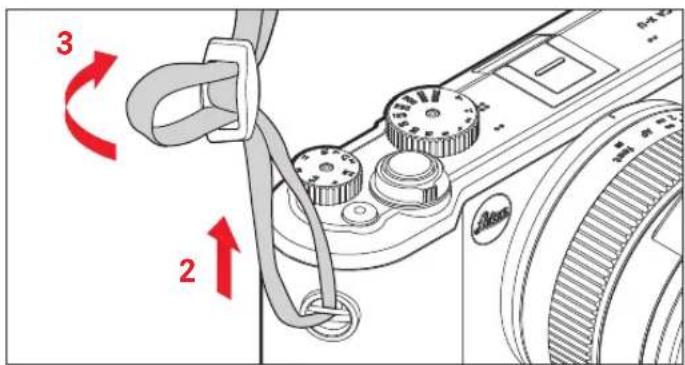
text_image
Diagram showing a camera module with labeled parts and red arrows indicating rotation directionsCHARGING THE BATTERY
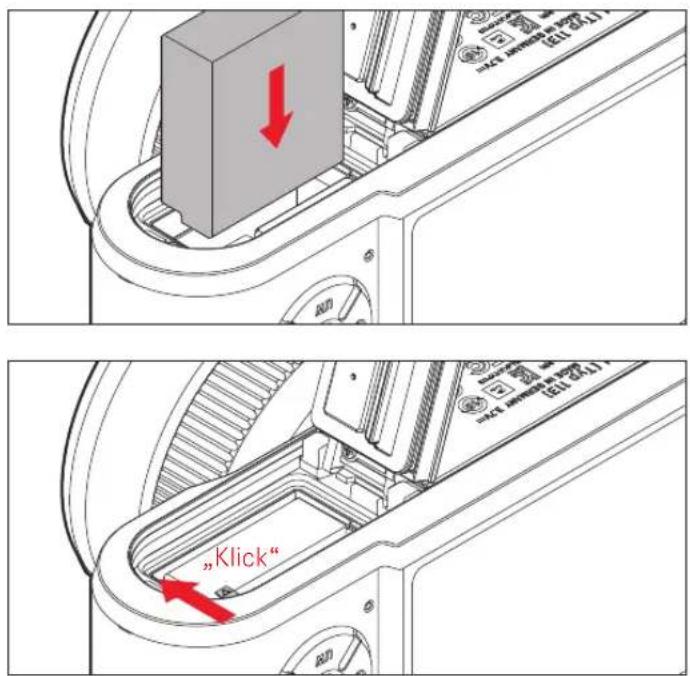
Your Leica X-U is powered by a lithium ion battery.
Caution:
- Only the battery types specified and described in these instructions and/or specified and described by Leica Camera AG may be used in this camera.
• These batteries may only be used in the units for which they are designed and may only be charged exactly as described below. - Using the battery contrary to these instructions and using battery types not specified in these instructions may result in an explosion.
- The batteries must not be exposed to sunlight, heat, humidity or condensation for extended periods. Batteries must not be placed in a microwave oven or in a high-pressure vessel, as this may cause an explosion.
- Never throw batteries into a fire, as this may cause an explosion!
- Damp or wet batteries must not be charged or used in the camera under any circumstances.
• Always ensure that the battery contacts are clean and freely accessible. -
While lithium ion batteries are secured against short circuits, they should still be protected against contact with metal objects like paper clips or jewelry. A short-circuited battery can get very hot and cause severe burns.
-
If a battery is dropped, check the casing and the contacts immediately for any damage. Using a damaged battery can damage the camera.
- A battery must be removed from the camera or charger immediately and replaced if it develops noise, becomes discolored, deformed, or overheated or if it shows any sign of leakage. Continued use of a damaged battery may cause overheating and a risk of fire and/or explosion.
- Keep leaking or smoldering batteries away from heat sources. Leaked fluid can catch fire.
- Only the charger specified and described in these instructions, or chargers specified and described by Leica Camera AG, may be used. The use of other chargers that are not approved by Leica Camera AG can cause damage to the batteries and, in extreme cases, serious or life-threatening injuries.
- The charger supplied should be used exclusively for charging this battery type. Do not attempt to use it for other purposes.
- Ensure that the power socket used is freely accessible.
- Heat is generated during charging. Therefore batteries must not be charged in small, enclosed or unventilated spaces.
- The battery and charger must not be opened. Repairs may only be carried out by authorized service centers.
- Keep batteries out of the reach of children. Swallowing batteries can cause suffocation.
First Aid:
- Battery fluid coming into contact with the eyes may cause blindness. Immediately rinse the eyes thoroughly with clean water. Do not rub the eyes. Seek medical attention immediately.
- Direct skin contact of leaked battery fluid may cause injury. Rinse the affected areas with clean water. Medical treatment is not required.
Notes:
• The battery can only be charged outside the camera.
- Batteries must be charged before starting up the camera.
- For the battery to charge, it must have a temperature of between 0^ and 35^ / 32^ - 90^ (otherwise the charger does not turn on or turns off again).
- Lithium ion batteries can be charged at any time, regardless of their current charge level. If a battery is only partly discharged when charging starts, it is charged to full capacity faster.
- Lithium ion batteries should only be stored partly charged, i.e. not when fully discharged or fully charged. For very long storage periods, batteries should be charged for around 15 minutes twice a year to prevent total discharge.
- The batteries warm up during the charging process. This is normal and not a malfunction.
- A new battery only reaches its full capacity after it has been fully charged and - by use in the camera - discharged 2 or 3 times. This discharge procedure should be repeated roughly every 25 cycles.
- Rechargeable lithium ion batteries generate power through internal chemical reaction. This reaction is influenced by ambient temperature and humidity. To maximize the life of the battery, it should not be exposed to extremely high or low temperatures for long periods (e.g. in a parked car in summer or winter).
- Even under perfect conditions of use, every battery has a limited service life. After several hundred charging cycles, operating times become significantly shorter.
- In line with the applicable regulations, batteries should be disposed of at an appropriate collection point for proper recycling.
- The rechargeable battery supplies another back-up battery that is built into the camera. This back-up battery ensures that the date and time data entered is retained for up to 2 days. If this back-up battery runs out it must be recharged by inserting a charged main battery. Once the rechargeable battery has been inserted, the full capacity of the back-up battery is recovered after about 60 hours. This process does not require the camera to be turned on. However, the date and time will have to be set again.
- Remove the battery if you will not be using the camera for a long period of time. Turn the camera off using the main switch before removing the battery. Failing to do so would result in a deep discharge of the rechargeable battery, as the camera uses a low no-load current (to save the settings) even when it is turned off.
PREPARING THE CHARGER
The charger must be fitted with the appropriate plug for the local sockets.
Plug

text_image
Attaching Removing 1 2Note:
The charger automatically adjusts to the relevant mains voltage.
PLACE THE BATTERY IN THE CHARGER

text_image
1 2CHARGE STATUS DISPLAY
Correct charging is indicated by the red status LED. When it turns green, the battery is fully charged.
CHANGING THE BATTERY/MEMORY CARD
Turn off the camera, i.e. set the main switch to OFF
Open the battery compartment/memory card slot
Important:
Do not open the battery compartment door underwater.

text_image
Technical diagram showing a car interior with labeled components and directional arrows indicating movement or flow.Inserting the battery
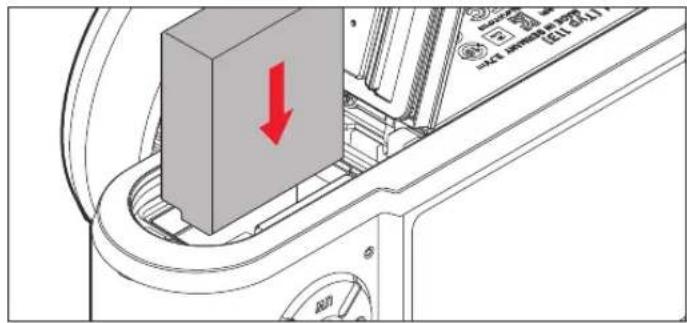
text_image
Technical diagram showing a mechanical component with a red downward arrow indicating a specific feature, labeled with part numbers and Chinese characters.
text_image
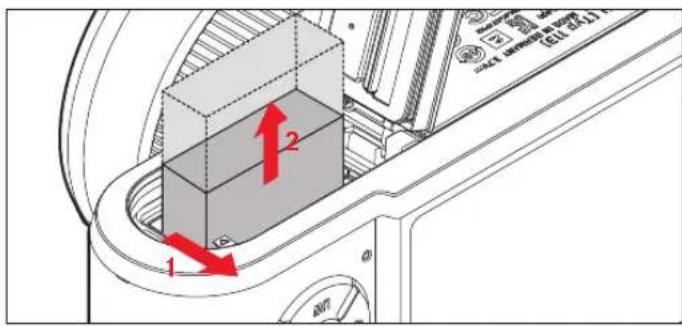
"Click"Removing the battery
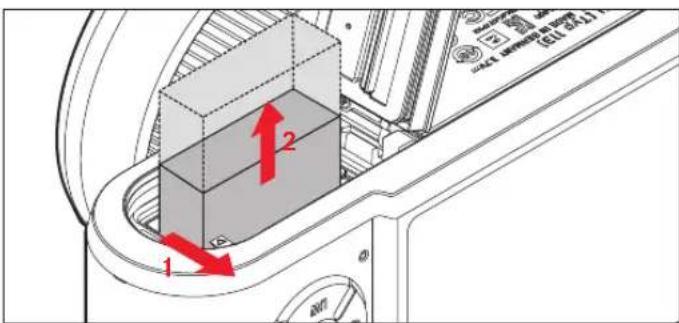
text_image
Technical diagram showing a mechanical component with labeled parts and directional arrows indicating motion or movement.Note:
Removing the battery with the camera turned on can delete the settings you have made in the menus and may damage the memory card.
Charge level display
The charge level of the battery is indicated on the monitor (see p. 168).
Notes:
- Remove the battery if you will not be using the camera for a long period of time.
- The date and time must be reset within 2 days after the capacity of the built-in backup battery in the camera has expired.
Inserting the memory card
You can use SD, SDHC or SDXC memory cards in your Leica X-U.
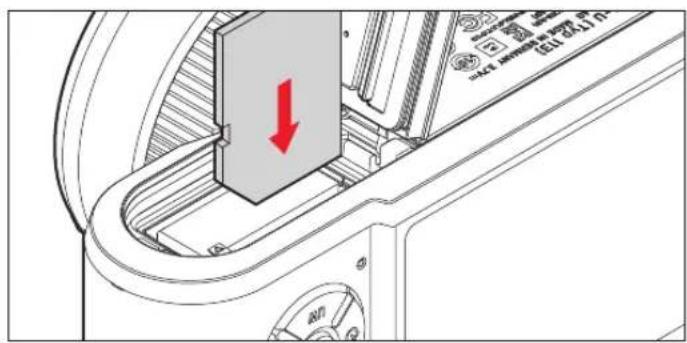
text_image
Technical diagram showing a mechanical component with a red downward arrow indicating a specific feature, and a control panel labeled 'Control Panel 1 (2017-01)'.
text_image
"click"Removing the memory card

text_image
"click"Notes:
- Do not touch the memory card contacts.
- If the memory card cannot be inserted, check that it is aligned correctly.
- The range of SD/SDHC/SDXC cards available is too large for Leica Camera AG to test all available types for compatibility and quality. Although using other card types is not likely to damage the camera or the card, some "no name" cards do not comply with the SD/SDHC/SDXC standards and Leica Camera AG is unable to provide any guarantee that they will function correctly.
• Video recordings in particular require a high write speed. - Do not open the door and do not remove the memory card or the battery while the status LED is lit to indicate that the camera is accessing the memory. Otherwise, the data on the card may be destroyed and malfunctions can occur in the camera.
- As electromagnetic fi elds, electrostatic charges, and defects in the camera or the card can lead to damage or loss of the data on the memory card, we recommend that you also transfer the data to a computer and save it there.
- For the same reason, it is recommended that the card is always stored in an anti-static case.
Closing the battery compartment/memory card slot door
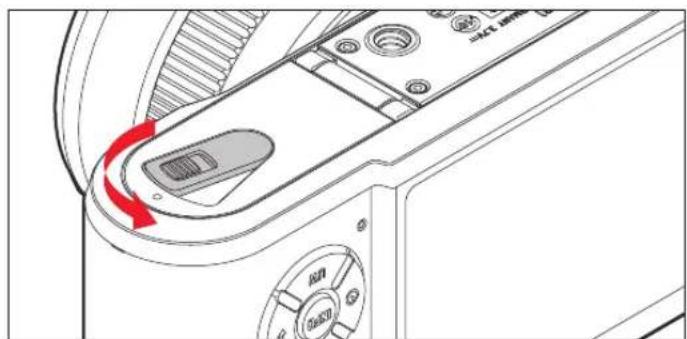
natural_image
Technical diagram of a mechanical device with red directional arrow indicating rotation or movement (no text or symbols present)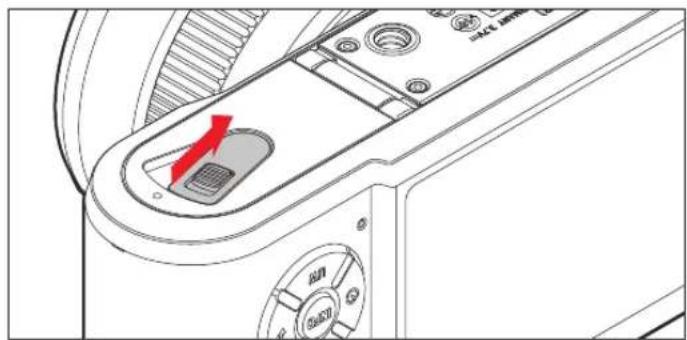
natural_image
Technical diagram of a device interior showing a control panel with a red arrow pointing to a component (no text or symbols present)KEY SETTINGS/CONTROLS
MAIN SWITCH

natural_image
Technical line drawing of a camera with dual rotary dials and a red directional arrow indicating rotation (no text or symbols)The Leica X-U is turned ON and OFF via the main switch:
- OFF
- S = Single (individual exposures)
- C = Continuous (serial exposures)
Frame Rate
Frequencies of 3 fps (Low) or 5 fps (High) are available:
Select the menu option Continuous Shooting and the desired settings in the sub-menu
- The monitor image appears when the camera is turned on.
Notes:
- Picture series are not possible when using the flash. If a flash function is activated, only one picture is taken.
- If the main switch is set to C and the self-timer is used at the same time, only a single picture is taken.
- The maximum picture frequency of 5 fps is only available with shutter speeds of 160 s or faster1s ( 14 s at 3 fps).
- After a series with the maximum number of 7 pictures, the frequency with which they are taken declines slightly. This is due to the time required to transfer the data from the buffer memory to the card.
- Regardless of how many pictures are taken in a series, the last picture is always shown when they are reviewed. You can select the other pictures in the series by pressing right or left on the cross pad.
SHUTTER BUTTON
The shutter button works in two stages. Pressing it gently (to the first pressure point) activates the automatic distance setting/autofocus (if set) and the exposure metering and control systems, and saves the relevant settings/values. If the camera was previously in standby mode, this reactivates it and the monitor image appears again. Before pressing the shutter button all the way down, check that the distance setting/autofocus (if active) and exposure metering are complete (for details of exposure setting, AF and the corresponding displays on the monitor refer to p. 132, 128 and 168). Pressing the shutter button all the way down triggers exposure.
Notes:
- The menu system can be used to select or set key acknowledgment (response) tones and shutter sound, and to adjust their volume.
- The shutter button should be pressed gently and not jerkily to prevent blurring.
MENU CONTROLS
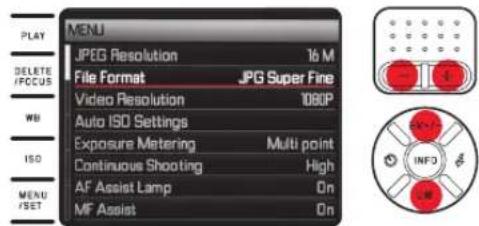
You can navigate in the menu using the MENU button and the cross pad. Alternatively, you can also use the direction buttons.
ACCESSING THE MENU:
Press the MENU/SET button
- The menu list appears. The active menu option is underlined in red, with its characters in white. The relevantly current setting is displayed on the right.
The white fi eld in the scrollbar on the left edge indicates which of the fi ve pages of the menu list you are currently on.

text_image
MENU JPEG Resolution 16 M File Format JPG Super Fine Video Resolution 1080P Auto ISO Settings Exposure Metering Multi point Continuous Shooting High AF Assist Lamp On MF Assist OnSCROLLING THROUGH THE MENUS:
Press up/down on the cross pad or use the direction buttons
text_image
PLAY DELETE /FCCUS WB ISO MENU /SET MENU JPEG Resolution 16 M File Format JPG Super Fine Video Resolution 1080P Auto ISO Settings Exposure Metering Multi point Continuous Shooting High AF Assist Lamp On MF Assist OnOPENING A SUB-MENU OPTION:
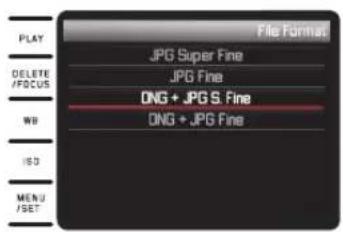
Press the cross pad downward
- The sub-menu list appears. The active sub-menu option is underlined in red, with its characters in white.

text_image
File Format PLAY DELETE /FCCUS WB ISO MENU /SET JPG Super Fine JPG Fine DNG + JPG S. Fine DNG + JPG Fine EV+/- INF3 UWSelecting a setting/value in a sub-menu:
Press up/down on the cross pad or use the direction buttons
• The currently active option changes.
text_image
File Format PLAY JPG Super Fine DELETE /FOCUS JPG Fine DNG + JPG S. Fine WB DNG + JPG Fine ISO MENU /SET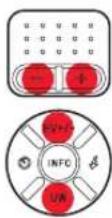
Confirming a setting:
Press the MENU/SET or INFO button
- The menu list appears again, and the confirmed (new) setting is shown on the right in the active menu option line.
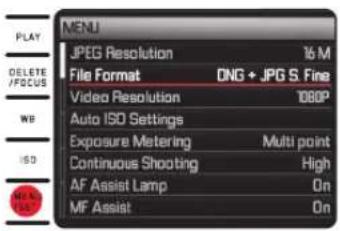
text_image
PLAY DELETE /FOCUS WB ISO MIF 100% JPEG Resolution 16 M File Format DNG + JPG S. Fine Video Resolution 1080P Auto ISO Settings Exposure Metering Multi point Continuous Shooting High AF Assist Lamp On MF Assist On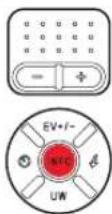
Exiting a sub-menu without confi rming a setting:
Press left on the cross pad or the shutter button
With the cross pad:
- The menu list appears again, and the retained (previous) setting is shown on the right in the active menu option line.

text_image
MENU JPEG Resolution 16 M File Format JPG Super Fine Video Resolution 1080P Auto ISO Settings Exposure Metering Multi point Continuous Shooting High AF Assist Lamp On MF Assist OnWith the shutter button:
• The monitor screen for picture mode appears.
Exiting the menu:
Press the MENU/SET button again
- The monitor image for picture mode appears.
or
Press the shutter release button
- The monitor image for picture mode appears.
or
Press the PLAY button
- The monitor image for playback mode appears.
Notes:
- The menu is normally opened at the position of the last option set.
-
For some options, there are settings in a second level of sub-menus. Settings in these sub-menus are opened and made in exactly the same way as described above.
-
A range of additional functions are controlled in the same basic way once they have been opened by pressing the corresponding buttons or the corresponding directions on the cross pad:
- ISO for sensitivity
- WB for white balance
- DELETE/FOCUS for deleting image files/selecting the focus metering method (only in playback / picture mode)
- EV+/- (up on cross pad) for exposure compensation, automatic bracketing and flash exposure compensation settings
- ♣ (right on cross pad) for selecting the flash modes
- ⚙ (left on cross pad) for activating the self-timer and selecting the delay time
Other than with the menu functions, the settings for these functions can be confirmed with the shutter button (by pressing to the first pressure point). Further details can be found in the relevant sections.
BASIC CAMERA SETTINGS
MENU LANGUAGE
Select the menu Language and choose your preferred language
DATE/TIME
- Select Date/Time from the menu
- In the first sub-menu, select Date or Time
- From the relevant second level sub-menu, select Setting or Format (for Date) or Setting or Format (for Time)
- Make the desired settings in the respective third level sub-menus
In the Setting sub-menus:
Press up/down on the cross pad or use the direction buttons to change the digits and the month, and press left/right on the cross pad to switch between the groups
Note:
Even if no battery is inserted or the battery is depleted, an integrated back-up battery retains the date and time setting for around 2 days. However, after this time they have to be reset.
AUTOMATIC CAMERA SHUTDOWN
Select Auto Power Off in the menu and then make the desired setting in the sub-menu If this function is active, the camera switches to energy-saving standby mode after the selected time.
Note:
When the camera is in standby mode, it can be turned on at any time by pressing the shutter button or by turning it off and on via the main switch.
KEY TONES AND SHUTTER SOUNDS
You can decide whether you want your settings and some other functions to be acknowledged by an acoustic signal – two volumes are available – or whether operation of the camera and actually taking photographs should be predominantly silent.
For shutter noise:
Select Shutter Volume in the menu and then make the desired setting in the sub-menu
For key tones and to indicate the memory card capacity limit:
Select Acoustic Signal in the menu and then make the desired setting in the sub-menu
MONITOR SETTINGS
Toggling the displays
Use the INFO button to toggle between the various displays (see also p. 168)
You scroll through the different options in an endless loop and select them by pressing the button once or several times:
In picture mode
a. Only basic exposure settings, as well as AF and exposure metering ranges
b. With grid plus histogram (if set)
c. With additional displays plus histogram (if set)
In playback mode
a. Only basic exposure settings
b. With additional information
Brightness and Color Rendering
For optimized visibility and to adapt to different light conditions, the brightness and color rendering of the monitor can be adjusted.
Brightness Settings:
Select Monitor Brightness and then make the desired setting in the sub-menu
Color Settings:
- Select Monitor Color Adjustment from the menu
- An image with cross hairs appears. The ends of the cross have color markings for the possible settings - yellow, green, blue and magenta.
- Move the cursor - which is initially in the center - to the desired position using the cross pad
- The color reproduction in the monitor/viewfinder image changes according to your setting.
Automatic Monitor Shutdown
If this function is active, the monitor is turned off after a selected time. As well as saving power, this ensures that the camera is ready to use more quickly when reactivated.
Select Auto LCD Off from the menu and then make the desired setting in the sub-menu
EXPOSURE BASIC SETTINGS
FILE FORMAT/COMPRESSION RATE
Two different JPEG compression rates are available: JPG Fine and JPG Super Fine. These two can be combined with simultaneous recording in DNG (raw picture data) format.
Select File Format in the menu and then make the required setting in the sub-menu
Note:
The indicated remaining number of pictures or recording time are an approximation, as the file size for compressed images can vary considerably depending on the subject of the photograph.
JPEG RESOLUTION
If one of the JPG formats is selected, pictures can be taken with five different resolutions (numbers of pixels). This allows you to adjust the setting precisely to the intended use or to the available memory card capacity.
Select JPEG Resolution from the menu and then select the desired value in the sub-menu
Note:
Raw data (DNG format) is always stored at the maximum resolution regardless of the settings for JPEG images.
WHITE BALANCE
In digital photography, white balance ensures neutral, i.e. natural color rendering in any light. It is based on the camera being preset to render a particular color as white.
You can choose between several presets, automatic white balance, two fixed manual settings, and direct setting of the color temperature. You furthermore have the option to adapt all settings precisely to the relevant photographic conditions and/or your own preferences.
Note:
This setting is unavailable in underwater mode.
Fixed Presets:
- Press the WB button
- Select the required setting by pressing up/down on the cross pad or the use the direction buttons
- Save your settings via the MENU/SET or INFO button
The following are available:
Page 1:
- Automatic
- (for incandescent lighting)
- ✿ (for outdoor pictures in sunlight)
- ♦ (for illumination with electronic flash)
Page 2:
- 🙏 (for outdoor pictures with cloudy sky)
- (for outdoor pictures with the main subject in shadow)
- M1 (memory slot for custom measured results)
- (memory slot for custom measured results)
Page 3:
- Color temperature (memory slot for fixed set value)
- SET M1 Greycard 1 (for selective metering and storage)
- SET M2 Greycard 2 (for selective metering and storage)
- Set Color temperature (for manual color temperature entry)
Manual setting by metering:
- Press the WB button
- Select ET M1 or SET M2
- Press the cross pad downward
- A yellow frame appears in the center of the monitor with an instruction below it.
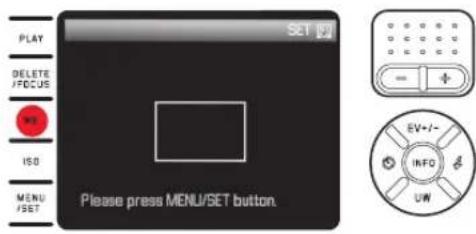
text_image
PLAY DELETE /FOCUS OK ISO MENU /SET SET Please press MENU/SET button. EV+/- INFO UW- Aim the frame at a uniform white or gray object that completely fills the yellow frame
- Pressthe MENU/SET button to carry out metering and save the result
The settings can then be retrieved using Mar . M2
Direct Color Temperature Setting:
- Press the WB button
- Select at Color temperature
- Select the required setting by pressing left/right on the cross pad
- Save your settings by pressing the MENU/SET or the INFO button
The settings can then be retrieved using Color temperature.
Fine Tuning of White Balance Settings
A manual fi ne tuning function is available for all settings:
- Press the WB button
- Press the cross pad downward
- An image with cross hairs appears. The ends of the cross have color markings for the possible settings - yellow, green, blue and magenta.

text_image
WB Adjust PLAY DELETE /FCCUS WB ISO MENU /SET EV=1- INFO UW- Use the cross pad to move the cursor - which is initially in the center - to the position that results in the required color rendering on the monitor screen, i.e. towards the corresponding colored squares at the edges
- The color rendering of the monitor image changes according to your setting.
- Save your settings via the MENU/SET or INFO button
ISO SENSITIVITY
The ISO setting determines the possible shutter speed and aperture combinations at a particular brightness. Higher sensitivities allow faster shutter speeds and/or smaller apertures (for "freezing" rapid movements or to increase the depth of field), although this can also result in greater noise.
Press the ISO button and select the desired setting in the (two-page) list (i.e. AUTO ISO for the automatic setting or one of the eight fixed settings)
Within the AUTO ISC option it is possible to limit the sensitivity range to be used (e.g. to control noise), and the slowest shutter speed to be used can also be specified (e.g. to prevent blurred pictures of moving subjects):
- Select Auto ISO Settings in the menu
- Select Slowest Speed or Max ISO in the first sub-menu
- Select the desired values in the relevant second level sub-menus
PICTURE PROPERTIES
Note:
The functions and settings described in the next two sections refer exclusively to pictures in one of the two JPEG formats. If the DNG file format is specified, these settings have no effect as in this case the image data is always saved in its original format.
Contrast, Focus, Color Saturation
One of the many advantages of digital photography is that it is very easy to change critical properties of a picture, i.e. those that determine its character. Your Leica X-U allows you to influence three of the most important image properties before you actually take the picture:
- The contrast, i.e. the difference between light and dark sections of the image, determines whether it has a more “flat” or “brilliant” effect. The contrast can therefore be influenced by increasing or reducing this difference.
- Using the correct distance setting or focus – at least of the main subject – is prerequisite for a successful picture. The impression of a picture being in focus is to a great extent determined by its edge sharpness, i.e. by how small the transition area between light and dark is at edges in the picture. The impression of being in focus can therefore be changed by expanding or reducing these areas.
- The color saturation determines whether the colors in the picture tend to appear as "pale" and pastel-like or "bright" and radiant.
For all three picture properties, you can independently choose between five levels:
Select Sharpness or Saturation or Contrast in the menu and then select the desired settings in the sub-menus
Color Rendering
In addition to the settings for sharpness, saturation and contrast, you can also control the basic options for color rendering:
Select the desired setting from the menu Film Mode and in the relevant sub-menu
Choose between Standard Vivid - for high-saturation colors - and Natural - for slightly less color saturation and softer contrast - and there are two monochrome settings as well: B&W Natural and B&W High Contrast (rich contrast).
Note:
The settings for Film Mode can be further fine tuned using the image property options described in the previous section.
The color rendering variations are then marked with an asterisk, e.g. Standard* to show that they were modified.
PICTURE MODE
DISTANCE SETTING
Your Leica X-U allows automatic as well as manual distance settings. Both modes cover a distance range from 20cm/7 ^25/_32 " to infinity.
AUTOMATIC DISTANCE SETTING/AUTOFOCUS
- Turn the distance setting ring - overcoming the slight resistance - to the AF position
- Press the shutter button to the first pressure point to automatically determine, set, and store the focus and with it the distance
- A successfully stored AF setting is displayed as follows:
- The color of the rectangle changes to green
- Up to 9 green rectangles appear with the 11-field metering
- An acoustic signal can be heard (if selected).
Notes:
- The setting is stored along with the exposure setting.
- In certain situations the AF system is unable to set the distance correctly, e.g. when:
- The distance to the subject you are aiming at is outside the available range, and/or
- The subject is not sufficiently illuminated (see next section).
Such situations and subjects are indicated by: - The color of the rectangle changing to red
- The 11-field metering display changing to a single red rectangle
Important:
The shutter button is not locked, regardless of whether or not the focusing is correct for the subject.
AF AUXILIARY LIGHT
The built-in AF auxiliary light extends the operating range of the AF system in poor lighting conditions. If the function is active, this light comes on as soon as the shutter button is pressed.
Select AF Assist Lamp in the menu and then make the required setting in the sub-menu
Note:
The AF auxiliary light illuminates a range of approximately 4m/13ft. AF mode is therefore not available at distances beyond this limit.
AUTOFOCUS METERING METHODS
For optimized adjustment of the AF system to various subjects, situations and your picture composition ideas, you can choose between four AF metering methods on the Leica X-U:
- Press the DELETE/FOCUS button and select the desired setting in the sub-menu
- Save your settings via the MENU/SET or INFO button
Spot/Single Field Measurement
Both measuring methods capture only the parts of the subject in the center of the monitor image. The relevant fields are marked with a small AF frame. The very small metering range for spot measurement allows focusing on tiny details of the subject. For portrait close-ups it is usually recommended to have a sharp focus on the eyes. The slightly longer single field measuring range is less critical when focusing, and therefore easier to handle while still allowing selective measuring.
Both measuring methods allow you to shift the AF frame to any point on the monitor screen, e.g. for simplified use for off-center subjects:
- Hold the DELETE/FOCUS button pressed for ≥1s
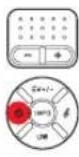
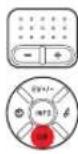
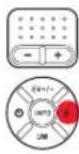
- All displays apart from the AF frame disappear. Red triangles on all sides of the frame indicate possible movement directions.
- Use the cross pad to move the AF frame to the desired position
- The relevant triangles disappear when you get close to the edges to indicate the offset limits.
You can return the frame to the central position at any time:
Press the INFO button
11-FIELDMETERING
This metering method records the subject in a total of 11 fields indicated by AF frames. Focusing is carried out automatically on the parts of the subject at the shortest distance, thus providing maximum reliability for snapshots.
Normally, 9 of the 11 fields are used. These are positioned to cover the majority of the central part of the image.
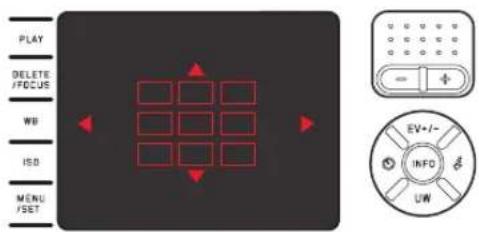
text_image
PLAY DELETE /FCCUS WB ISO MENU /SET EV+/-- INFO UWIf required, you can concentrate the metering on any part of the image by selecting groups from either the three upper or lower, or the four left or right AF fields:
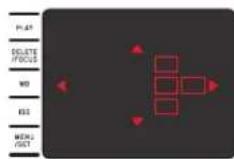
- Hold the DELETE/FOCUS button pressed for ≥1s
- All displays apart from the 11 AF frames disappear. Initially only the 9 frames in the central group have red outlines. Red triangles on all sides indicate the possible settings.
- Use the cross pad to select the desired frame group
• The selections available are indicated by the triangles.



To return to the normal monitor screen:
Press the shutter button or the DELETE/FOCUS button
Face Detection
In this mode, your Leica X-U automatically detects faces in the picture and focuses on the one at the shortest distance. If no faces are detected, 11-fi eld metering is used.
MANUAL DISTANCE SETTING
For certain subjects and situations, it can be beneficial to set the distance yourself, rather than using autofocus. For example if you are using the same setting for several pictures and it would be more work to use exposure lock, or if you want to keep the setting at infinity for landscape pictures.
Turn the distance setting ring on the lens
From the AF position, you first have to overcome a slight resistance. The optimized setting is reached when the monitor image shows the key section(s) of your subject at the sharpness you want.
Assistance Function for Manual Focusing
To make it easier to set the distance and to increase the accuracy of the setting, your Leica X-U offers assistance by showing you an enlarged view of a central section of the subject.
Reason: The larger the details of the subject are shown in the monitor, the better you can assess their sharpness and the more accurately you can set the distance. This "Assist Function" enlarges a central section of the monitor image:
- Select MF Assist in the menu and then select the desired setting in the sub-menu
- Determine the trimming
- Turn the distance setting ring on the lens so that the desired sections of the subject have optimized sharpness
- If the function is active, an approximately 6x enlarged detail of the image appears above the scale. It disappears approximately 5s after the last distance setting.
You can move the trimming to any position in the monitor using the cross pad, e.g. for off-center subjects or so that other sections of the image remain visible.
Note:
You can display the enlarged detail at any time by pressing the DELETE/ FOCUS button, e.g. to check the setting again and rule out any accidental changes.
EXPOSURE METERING AND CONTROL
Exposure Metering Methods
Your Leica X-U offers three exposure metering methods to adapt to prevalent lighting and other conditions like your working methods or artistic ideas:
Select Exposure Metering in the menu and then the required setting in the sub-menu
Multi-Field Metering -
With this metering method, the camera automatically analyses the brightness differences in the subject and, by comparing them with programmed brightness distribution patterns, arrives at the likely position of the main subject and the best exposure.
As a result, this method is particularly suitable for spontaneous, uncomplicated, and yet reliable photography, even under difficult conditions and therefore for the cameras automatic mode.
Center Weighted Metering - 📄
This metering method allocates the highest weighting to the center of the image field, but also records all other areas.
Particularly when used in conjunction with metering memory lock, it allows the exposure to be selectively adjusted to specific sections of the subject, while simultaneously taking into account the entire image field.
Spot Metering -
This metering method is concentrated exclusively on a small area in the center of the image. It allows exact measurement of small or tiny details for precise exposure - preferably in conjunction with manual settings.
In backlit pictures, the brighter surroundings may cause underexposure of the main subject. The much smaller metering field with spot metering allows the camera to selectively evaluate these subject details.
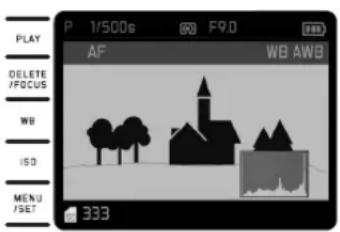
Histogram
The histogram depicts the brightness distribution in the picture. The horizontal axis shows the tone values from black (left) through gray to white (right). The vertical axis corresponds to the number of pixels at each brightness level.
text_image
P 1/500s 80 F9.0 PLAY AF WB AWB DELETE /FOCUS WB ISO MENU /SET 333
This form of representation – in conjunction with the impression of the picture itself – provides an additional quick and easy assessment of the exposure setting.
The histogram is available in both picture and playback mode.
For picture mode:
Select Rec. Histogram in the menu and then select the setting in the sub-menu
Note:
For a picture with flash, the histogram cannot represent the final exposure as the flash is fired after it is displayed.
For regular playback mode (PLAY):
Select Play Histogram in the menu and then choose the required setting in the sub-menu
Select an option with a clipping function if you want excessively bright parts of the pictures to be indicated.

text_image
P 1/500s (F) F9.0 PLAY DELETE /FOCUS WB ISO MENU /SET L:9990038 10:50:34 21:02.2013 1/8 AF JPG 3.7MB WB Auto. ISO 200 EV+/- INFO UWNotes:
- In picture mode, the histogram should be regarded as a "trend indicator" and not as a depiction of the exact numbers of pixels.
- The histogram is not available for simultaneous review of several reduced pictures or enlarged pictures.
- When viewing a picture, the histogram may differ slightly from that shown when taking the picture.
EXPOSURE CONTROL
Your Leica X-U offers four exposure modes for optimized adjustment to the relevant subject or your preferred working method.
Selecting these four modes as well as manually setting shutter speed and aperture is done using the relevant setting dials. They both have manual adjustment ranges with stop positions - the shutter speed dial in whole steps, the aperture setting dial in 13 steps; both have an A position for automatic operation.
Setting shutter speeds of 1s and slower:
- Set the shutter speed dial to the 1+ position
• This is indicated by 📄
- Setting the desired shutter speed using the direction buttons
Notes:
- Depending on the prevailing light conditions, the brightness of the monitor image can differ from that of the actual pictures taken. Specifically in long exposures of dark subjects, the monitor image appears considerably darker than the - correctly exposed - picture.
- The camera will automatically adjust the set exposure/shutter and ISO values as well as preset ones to achieve the best possible image quality. The image corners will be as well lit as possible, as darker corners can often be the result of the combination of a shutter speed of 12000 s with exposure values under 3.5. The camera will react to such a setting as follows:
- Automatic program ^P , correction occurs via an automatic shift.
- Aperturepriority A. Shutter speed priority T, Manual setting M. Correction entails the automatic setting of max. 11000 S (for T and M no matter what shutter speed was set manually).
As a rule:
- The shutter speed/2000s is applied only for aperture values between open aperture (= 1.7) and 3.5
- An additional decrease of the ISO value will be applied as needed.
The corrected values will be displayed for standard playback but not in picture mode or automatic playback mode. The EXIF data will contain the values actually used.
- In terms of image quality, the camera will similarly auto correct the aperture setting between 2.8 and 1.7 in close-up photography, i.e. when the distance to the subject is between 0.2 and 1.2m/8"-3'9".
AUTOMATIC PROGRAM MODE - P
For fast, fully automatic photography. The exposure is controlled by an automatic shutter speed and aperture setting.
Taking the Picture
- Turn the aperture and shutter speed setting dials to theirA positions
- Press the shutter button to the pressure point
- The shutter speed and aperture are displayed in white.
An additional message referring to the program shift function appears 📄.
If even a fully open or fully closed aperture in conjunction with the longest or shortest shutter speed result in under or over exposure, both values will be displayed in red. Should If the automatically set shutter speed/aperture combination seems appropriate for the intended composition: - Press the shutter button all the way down to take the picture If not, you can change the combination before taking the picture:
CHANGING THE PRESET SHUTTER SPEED/APERTURE COMBINATIONS (SHIFT)
Changing the preset values using the Shift function combines the security and speed of fully automatic exposure control with the freedom to adjust the speed/aperture combination selected by the camera to your own preferences at any time.
For faster speeds, e.g. for sports shots, press the left direction button to the left (−), for larger depth of field, e.g. for landscape shots, press the right button (provided you are prepared to accept the slower shutter speeds that this entails)
- Shifted values are indicated by an asterisk next to the shutter speed or the aperture.
The overall exposure, i.e. the brightness of the image, remains unchanged. The adjustment range is limited to guarantee correct exposure.
To prevent accidental use, after each picture and also if exposure metering is automatically turned off after 12s, the values revert to those set by the camera.
APERTURE PRIORITY - A
Aperture priority mode sets the exposure automatically according to the manually selected aperture. It is particularly suitable for pictures where the depth of field is a critical compositional element.
With a correspondingly low aperture value, you can reduce the depth of field range, for example to let a face 'stand out' from an unimportant or distracting background in a portrait or, conversely, you can use a correspondingly higher aperture value to increase the depth of field range so that everything from the foreground to the background is in focus in a landscape shot.
Taking the Picture
- Turn the aperture setting dial to the A position
• The set aperture value is displayed in white. - Set the desired aperture value with the corresponding dial
- Press the shutter button to the pressure point
- The automatically calculated shutter speed is displayed in white. If even the slowest or fastest shutter speed combined with the set aperture value results in under or over exposure, both values will be displayed in red.
If the automatically set shutter speed seems appropriate for the intended composition:
- Press the shutter button all the way down to take the picture
SHUTTER SPEED PRIORITY - T
Shutter speed priority mode sets the exposure automatically according to the manually selected shutter speed. It is therefore particularly suitable for pictures of moving subjects, where the sharpness of the movement depicted is a critical compositional element.
An appropriately fast shutter speed will avoid undesirable blurring of the movement, i.e. "freeze" your subject or you can use a slower shutter speed to express the dynamic nature of the movement with a deliberate "blur effect".
Taking the Picture
- Turn the shutter setting dial to the A position
- The set shutter speed is displayed in white.
- Set the desired shutter speed with the corresponding dial
- Press the shutter button to the pressure point
- The automatically calculated aperture value is displayed in white. If even the largest or smallest aperture value combined with the set shutter speed results in under or overexposure, both values are displayed in red.
If the automatically set aperture value seems appropriate for the intended composition:
- Push the shutter button all the way down to take the photo
MANUAL SETTING - M
If you want to achieve a particular effect that is only possible with a very specific exposure, or you want to ensure that several pictures with different trimming have an absolutely identical exposure, then you can set the shutter speed and aperture manually.
Taking the Picture
- Set the desired shutter speed/aperture values using the corresponding dials
- Press the shutter button to the pressure point
- The shutter speed and aperture are displayed in white. The light balance scale also appears. This covers a range of ± 3EV (exposure value) in 1/2 EV increments. Settings within ± 3EV are indicated by red lines on the scale, outside ± 3EV by red - or + symbols at the ends of the scale.
- If necessary, adjust the settings for a correct exposure so that the central mark is displayed in red
If the set values and/or the exposure seems appropriate for the intended composition:
- Push the shutter button all the way down to take the photo
METERING MEMORY LOCK
For composition reasons, it can be beneficial not to have the main subject in the center of the picture.
In that case, the metering memory lock function - in P, T and A exposure modes, and with AF single field and spot metering modes - enables the main subject to be metered first and the relevant settings retained until you have determined your final trimming and take the picture.
Taking a Picture with this Function
- Aim the relevant AF frame at the section of your subject to which you want to adjust the focus and exposure
- Press the shutter button to the first pressure point to set and save the focus and exposure
- Continue holding the shutter button half way and move the camera to determine the final trimming
- Push the shutter button all the way down to take the picture
EXPOSURE COMPENSATION
Some subjects are made up predominantly of excessively light or dark surfaces, for example large areas of snow or a full-format black steam locomotive. In P, T, and A exposure modes, it may be more useful in such cases to set an appropriate exposure compensation instead of using metering memory lock each time. The same applies if you want to ensure an identical exposure for several pictures.
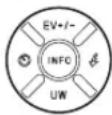
- Press the top of the cross pad (EV+/-) once
- The relevant scale appears. Set the desired compensation value by pressing left/right on the cross pad or the use the direction buttons (- / +)
Values from +3 to -3EV are available in 13 EV increments.
- The set compensation value is displayed in red on the scale. During setting, you can observe the effect on the monitor image, which gets darker or lighter.

text_image
PLAY DELETE /FOCUS -3 -2 -1 0 +1 +2 +3 WB ISO MENU /SET EV EV+/- INFO UW- Press the MENU/SET, INFO or shutter button to save the setting
- The exposure compensation symbol and the set value are displayed.
Notes:
- With aperture priority and shutter speed priority (A/P) enabled, exposure corrections can be carried out at any time directly using the setting rings, i.e. without having to go via the menu controls.
- Exposure compensation is not available when exposure is set manually.
- Pressing up or (EV+/-) on the cross pad opens the menus for automatic bracketing and fl ash exposure compensation. They scroll through in an endless loop and can therefore be selected by repeatedly pressing.
- A set correction will remain active until it is switched to ± 0 (see 2nd step) - that means it remains active for any number of photographs and even after the camera was switched off.
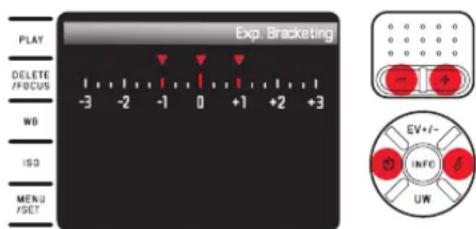
AUTOMATIC BRACKETING
High contrast subjects that have both very bright and very dark areas can have very different effects depending on exposure.
The automatic bracketing function allows you to take a series of three pictures with graduated exposure. You can then select the best picture for further use.
- Press the cross pad or (EV+/-) twice
• The relevant scale appears.
- Set the desired graduation by pressing left/right on the cross pad or use the direction buttons
Values from +3 to -3EV are available in 13 EV increments.
- The set graduations are displayed in red on the scale.
text_image
EXP. Bracketing PLAY DELETE /FOCUS -3 -2 -1 0 +1 +2 +3 WB ISO MENU /SET EV+/-- INFO UW- Press the MENU/SET, INFO or shutter button to save the setting
• The bracketing symbol appears.
Notes:
- Depending on the exposure mode, the graduations are produced by changing the shutter speed (P/A/M) or the aperture (T).
- The sequence of the exposures is: correct exposure, underexposure, overexposure.
- Depending on the available shutter speed/aperture combination, the working range of the automatic bracketing function may be limited.
- Pressing (EV+/-)or up on the cross pad opens the menus for automatic bracketing and flash exposure compensation. They scroll through in an endless loop and can therefore be selected by repeatedly pressing.
- An automatic bracketing setting remains active until it is reset to ±0 (see step 2.), i.e. after any number of pictures and even after turning off the camera.
FLASH PHOTOGRAPHY
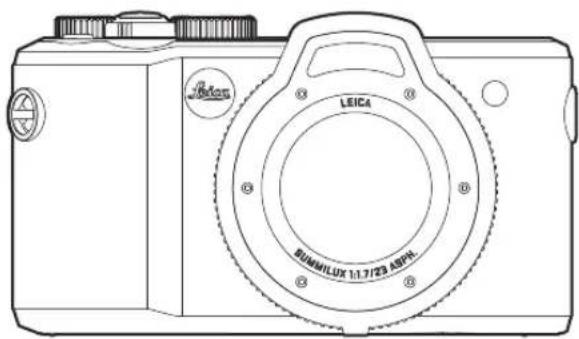
Your Leica X-U comes with a flash unit integrated into the front housing of the lens.
text_image
Leica LEICA SUMMILUX 1:17/23 AEPN- The display for the activated flash mode appears in white. The flash mode will blink red if the flash unit is not fully charged and therefore not ready.
Notes:
- It is not possible to use an external flash, or only with a remote flash unit that allow wireless triggering.
- A metering flash is triggered before the main flash to determine flash exposure.
- Serial exposures and automatic bracketing with flash are not available. For these, the flash display will not appear and no flash will be triggered.
- We recommend using the integrated flash unit underwater only for depths up to 5m/16ft due to the limited flash range. In greater depths, the use of an external, underwater-capable flash unit with a wireless connection to the camera is recommended that can be triggered by the in-built camera flash (available from other manufacturers at specialist retailers).
FLASH MODES
Selecting the mode:
- Press the cross pad
- In the sub-menu, select the desired setting by pressing up/down/right on the cross pad or use the direction buttons
- Press the MENU/SET, INFO or shutter button to save the setting • The flash mode display changes accordingly.
Automatic Flash Activation - ♂A
This is the default mode. The flash is activated automatically whenever longer shutter speeds due to poor lighting conditions would lead to blurred pictures.
Automatic Flash and Pre-Flash Activation - ⚡A☉
This function reduces the "red eye" effect when using the flash to take pictures of people. If possible, the people should not look directly at the camera. As the effect is exacerbated when the pupils are wide open in low light conditions, you should turn on as much room lighting as possible when taking photographs indoors.
The pre-flash, which is triggered shortly before the main flash when you press the shutter button, narrows the pupils of people looking at the camera, thereby reducing the effect.
Automatic Flash Activation -
For back lit pictures, where your main subject does not fill the entire frame and is in shadow, or in situations where you want to mitigate high contrasts, e.g. due to direct sunlight (fill flash). As long as this mode is active, the flash unit will be activated for every picture, irrespective of the prevailing lighting conditions. The flash power is controlled according to the metered external brightness: in poor light, as in automatic flash mode, with increasing brightness at a lower power (up to a maximum of -113 EV). The flash then works as a fill-in light, e.g. to light up dark shadows in the foreground or back lit subjects to create more balanced overall lighting.
Manual Flash and Pre-Flash Activation -
For a combination of the situations and functions described above.
Automatic Flash Activation with Slower Shutter Speeds - √S
For simultaneous and more appropriate, i.e. brighter, reproduction of dark backgrounds and fill-in flash for the foreground. To minimize the risk of blurring, the shutter speed is not extended beyond 12 os in the other modes with flash activation. That is why pictures where the flash is used, objects in the background are not reached by the flash and are often badly underexposed.
To take adequate account of the available ambient light, the longer shutter speeds required in such situations (up to 30s) are allowed here.
Notes:
- Depending on the Auto ISO Settings it is possible that the camera may not support slower shutter speeds, as in such cases the increase in ISO sensitivity takes precedence.
- The minimum shutter speed can be specified using Slowest Speed.
Automatic flash and pre-flash activation with slower shutter speeds - 7S
For a combination of the situations and functions described above.
Flash Disabled - OFF
FLASH RANGE
The available flash range depends on the aperture and sensitivity values set manually or calculated by the camera. For sufficient illumination by the flash light, it is crucial for the main subject to be within the range of the flash. When using the flash function underwater, please remember that the flash range will be significantly smaller and that particles in the water may cause reflection. For details, refer to the technical data on p. 179.
SYNCHRONIZATION POINT
Flash photographs are illuminated by two light sources, the available ambient light and the light from the flash. The time at which the flash is fired normally determines where the parts of the subject illuminated exclusively or predominantly by the flash are shown in the image.
The conventional flash firing point at the beginning of the exposure can lead to apparent contradictions, e.g. a vehicle being "overtaken" by the light trail from its own tail lights.
Your Leica X-U allows you to choose between this conventional flash firing point and the end of the exposure:
Select Flash Sync in the menu and then the relevant setting in the sub-menu
By selecting End of Exposure the light trail from the tail lights follows the vehicle as expected. This flash technique gives a more natural impression of movement and dynamics.
Note:
When using the flash with faster shutter speeds, in terms of the image there is no difference, or only a difference for rapid movements, between the two flash firing points.
FLASH EXPOSURE COMPENSATION
This function can be used to selectively reduce or strengthen the flash exposure regardless of the exposure from available light, e.g. in a picture taken in the evening, to lighten the face of a person in the foreground while retaining the lighting atmosphere.
- Press up or EV+/- on the cross pad three times
• The relevant scale appears.
- Set the desired compensation value by pressing left/right on the cross pad or use the direction buttons
Values from +3 to -3EV are available in 13 EV increments.
- The set compensation value is displayed in red on the scale.
- Press the MENU/SET, INFO or shutter button to save the setting
- The set compensation value appears.
Notes:
- Flash exposure compensation changes the range of the flash unit.
- Pressing up or EV+/- on the cross pad also opens the menus for automatic bracketing and flash exposure compensation. They scroll through in an endless loop and can therefore be selected by repeatedly pressing.
- A set correction will remain active until it is switched to ± 1 (see 2nd step) - that means it remains active for any number of photographs and even after the camera was switched off.
ADDITIONAL FUNCTIONS
VIDEO RECORDING
You can also use your Leica X-U for video recording.
The following functions are available:
Resolution:
Select Video Resolution in the menu and then the desired setting in the sub-menu
White Balance:
All options described on page 123
ISO Sensitivity:
All settings available in the menu
Distance Setting:
All options described on pages 128-131
Exposure Metering Methods:
All options described on page 132
Exposure Control:
Carried out completely independently of the settings with the shutter speed and aperture dial.
- Shutter speed: Depending on the selected video format/50s or 1/60s
- Aperture: Automatic
If a correct exposure is not possible even with the maximum aperture, the ISO sensitivity is automatically increased regardless of any manual setting.
Color Space:
Video recordings operate only with 3RGB.
Contrast, Sharpness, Color Saturation, Color Rendering:
All options described from page 126
Image Stabilization
Select Video Stabilization in the menu and then the desired setting in the sub-menu
Starting/Ending the Recording
Start:
Press the video record button
- A video recording in progress is indicated by a flashing red dot. The remaining recording time is also displayed.
End:
Press the video record button again
SOUND RECORDING
Sound is recorded in stereo using the built-in microphones. To reduce any noise caused by wind, a damping function is available:
Select Wind noise cancellation in the menu and then the required setting in the sub-menu
Notes:
- Focusing and zooming cause noise which will also be recorded. Try and avoid using these functions during an ongoing recording.
- Due to sound transmission characteristics in water, it is not advisable to record sound underwater.
SELF-TIMER
You can use the self-timer to take a picture with a delay of either 2 or 12s. This is particularly useful for group photographs, where you want to appear in the picture yourself or if you want to avoid the picture being out of focus due to camera shake when releasing the shutter. We recommend that the camera is placed on a tripod.
Setting:
- Pressleft/ on the cross pad
• The relevant sub-menu appears. - Select the desired delay time by pressing up/down/left on the cross pad or use the direction buttons
- Pressthe MENU/SET, INFO or shutter button to save the setting
Operation:
Push the shutter button all the way down to take the picture
- The countdown is indicated by the flashing self-timer LED:
- 12s delay time: slowly at first, faster for the last 2s
- 2s delay time: As described above for the last 2s
- The remaining time is counted down in the monitor.
Notes:
- A delay time in progress can be restarted at any time by pressing the shutter button again.
- The only way to cancel a delay time in progress is to turn off the camera or select a different exposure mode.
- It is only ever possible to take single pictures when the self-timer is active, i.e. picture series and automatic bracketing cannot be combined with self-timer mode.
- In self-timer mode, the focus and exposure are not set when the shutter button reaches its pressure point, but immediately before the picture is taken.
FORMATTING THE MEMORY CARD
It is not normally necessary to format memory cards that have already been used. However, if a card that has yet to be formatted is inserted for the first time, it must be formatted. The Format sub-menu appears automatically.
We recommend formatting the memory card from time to time, as a certain amount of residual data (information accompanying pictures) can take up memory capacity.
Select Format in the menu and then the required setting in the sub-menu
Notes:
- Formatting will cause all data on the card to be irretrievably lost.
-
We therefore recommend that you make a habit of transferring all your pictures to a secure mass storage medium, e.g. the hard drive on your computer, as soon as possible.
-
Do not turn the camera off while the memory card is being formatted.
- If the memory card has been formatted in another device, such as a computer, you should reformat it in the camera.
- If the memory card cannot be formatted, you should ask your dealer or the Leica Product Support department (address, see p. 180) for advice.
- Files on the card marked with delete protection will similarly be lost in formatting.
SELECTING THE WORKING COLOR SPACE
The requirements in terms of color rendering differ considerably for the various possible uses of digital image files. That is why a variety of color spaces have been developed, e.g. standard RGB (red/green/blue), which is perfectly adequate for simple printing. For more demanding image processing using relevant software (e.g. for color correction), Adobe® RGB has become an established standard. Select Color Space in the menu and then the required setting in the sub-menu
Notes:
- If you want to have your prints produced by major photographic laboratories, mini labs or Internet picture services, you should always select sRGE.
- The Adobe RGB setting is only recommended for professional image processing in completely color-calibrated working environments.
CREATING NEW FOLDER NUMBERS
Your Leica X-U saves the picture numbers in ascending order. Initially, the relevant files are all stored in one folder. To structure the storage of pictures more clearly, you can create a new folder at any time so that subsequent pictures can be grouped together.
Select Reset Image Numbering from the menu and confirm/reject the reset process in the sub-menu
Notes:
- The file names (e.g. L1002345.jpg) are made up of two groups of numbers, 100 and 2345. The first three figures are the number of the relevant folder, the 4th to 7th figures are the consecutive picture number within that folder. This ensures that there are no duplicate file names after using the function and transferring the data to a computer.
- To reset the folder number to 100, format the memory card or the internal memory and reset the picture number immediately afterwards. This also resets the picture number (to 0001).
USER PROFILES
With the Leica X-U, any combination of menu settings can be permanently stored so that they can be retrieved quickly and easily at any time for recurring situations/subjects. A total of four memory slots are available for these combinations. Of course, you can also reset all menu options to the factory default settings.
Creating a Profile
- Set the desired functions in the menu
- Select User Profile in the menu
- Select Save as profile in the sub-menu
- Select the memory slot you want to use in the second level sub-menu
- Save your settings by pressing the MENU/SET or INFO button
Using a Profile
Select User Profile in the menu and the respective memory slot in the sub-menu
Resetting All Menu Settings to Factory Defaults
Select User Profile in the menu and Default profile in the sub-menu
Note:
When resetting to the factory settings, your settings for date, time and language are not reset.
IMAGE STABILIZATION
In poor lighting conditions, even with the AUTO ISO function activated, the selected shutter speed may be too slow to produce sharp pictures. Your Leica X-U offers a function that generates sharp pictures at slower shutter speeds as well:
Select Image Stabilization in the menu and then the desired setting in the sub-menu
Notes:
- With this function, the camera automatically takes two pictures in succession (the shutter noise can be heard twice). It then combines the pictures into one by digital processing.
- Hold the camera steady until after the shutter is released the second time.
- As the function uses two exposures, it can only be used for static subjects.
- Image stabilization is available only for shutter speeds in the range 1s to 12000 s and for sensitivities up to ISO 6400. The function is not available in conjunction with serial exposures, automatic bracketing, the self-timer function, flash operation or the DNG data format.
PLAYBACK MODE
PLAYBACK MODES
Press the PLAY button to switch from picture or menu mode to playback mode at any time.
However, you can also review every picture automatically immediately after taking it:
- Select Auto Review in the menu
- Select Duration in the sub-menu and enter the desired function or duration
- Select Histogram in the sub-menu and the desired setting
Notes:
- If you have taken pictures using the continuous series or automatic bracketing function, the last picture in the series is shown first, or the last picture saved if all pictures in the series have not yet been transferred from the camera's internal buffer memory.
- This camera stores pictures in line with the DCF standards (Design Rule for Camera File System).
- It may not be possible to view files created on another device on this camera.
- In some cases, the monitor image may not have the usual quality or the monitor will remain blank and only display the file name.
NORMAL PLAYBACK
In normal playback mode, only the information in the header appears along with 🔒 to indicate the zoom function to allow straightforward viewing of the pictures.

text_image
P 1/500s F9.0 -PLAY DELETE /FCCUS WB ISO MENU /SET EV=1- INFO UW- If one of the two -Histogram modes with clipping indication was selected, excessively bright areas in the image without any detail are marked in red.
VIDEO PLAYBACK
The indicator 📄 is shown if a video file is selected for playback.

text_image
PLAY DELETE /FOCUS WB ISO MENU /SET EV+/-- INFO UWPlayback:
- Pressthe INFO button to open the next view
• The relevant control symbols appear.
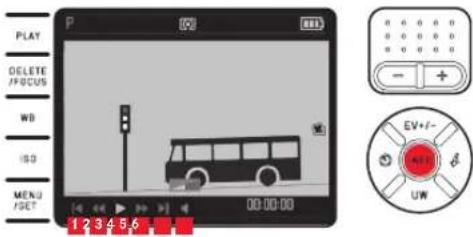
text_image
PLAY DELETE /FOCUS WD ISO MENU /SET 1 2 3 4 5 6 00:00:00 EV+/- MID UWBack to the beginning
Fast rewind
Play/Pause
Fast forward
Advance to end
Volume
- Select the desired function by pressing right/left on the cross pad or use the direction buttons
- The currently active function symbol is white and is underlined in red
- Activate the selected function by pressing MENU/SET
- Playback begins in slow motion and gets faster the longer the button is held down.
Note:
The protection menu cannot be opened from this view. Toggle to another view by pressing the INFO button.
In addition to normal review mode, for both single pictures and video recordings a further option with different additional information is available:
Press the INFO button

text_image
P 1/500s F9.0 PLAY AF JPG DELETE /FOCUS 3.7MB WB WB Auto. ISO 200 L9940038 10:50:34:21.02.2013 MENU /SET 1/8 EV+/- MW UWThe figure shows an example of this review option for a single picture
SELECTING IMAGES:
Select images by pressing left/right on the cross pad
Pressing left selects pictures with lower numbers, pressing right those with higher numbers. A long press scrolls through the pictures at approx. 2s per picture.
After the highest and lowest numbers, the sequence of pictures arranged in an endless loop starts again.
• The picture and file numbers change.
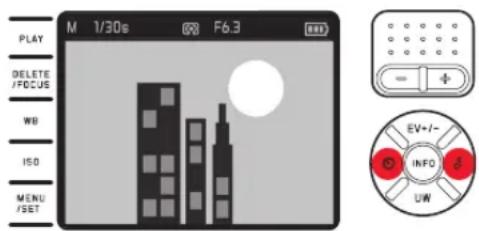
text_image
M 1/30s F6.3 PLAY DELETE /FOCUS WB ISO MENU /SET EV+/- INFO UWENLARGING IMAGES/VIEWING 16 IMAGES SIMULTANEOUSLY:
Press the right direction button (+) to enlarge a detail of the picture up to 16x to study it in more detail
Press the left direction button (−) starting from normal size to simultaneously display 16 reduced pictures to get an overview or to fi nd the image you are looking for
Accessing Additional Displays when Viewing a Zoomed Image
Press the INFO button
- You will see:
- The zoom factor
- The approximate size of the detail
- The direction button function currently in use
In the 16-picture display, the image you were previously viewing at normal size is indicated by a red frame.
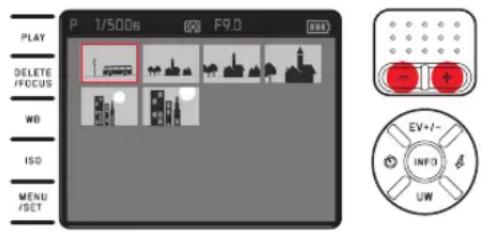
text_image
P 1/500s F9.0 PLAY DELETE /FOCUS WB ISO MENU /SET EV=1- INFO UWSelecting Other Images in the 16-Picture Display
Select images by pressing left/right on the cross pad
Pressing and holding scrolls through quickly.
Returning Selected Images to Normal Size
Press the right direction button (+) or the MENU/SET button
Notes:
- When using an enlarged/reduced view, the display with additional information cannot be opened.
- The more the picture is enlarged, the more the reproduction quality deteriorates – due to the proportionately lower resolution.
- It may not be possible to enlarge pictures taken with other camera types.
• Video recordings cannot be zoomed.
SELECTING AN IMAGE DETAIL
In an enlarged picture, you can move the enlarged detail from the center, e.g. to check the reproduction of off-center subject details:
Press the relevant side of the cross pad
- The approximate position of the detail in the picture is indicated.
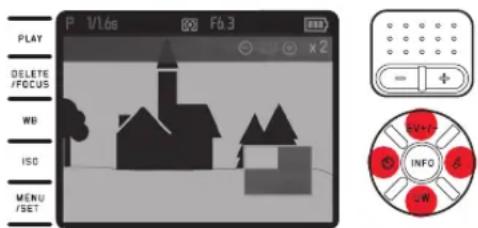
text_image
P 1/1.66 Fb 3 PLAY DELETE /FCCUS WB ISO MENU /SET V/V+ INFO OKDELETING IMAGES
Images stored on the memory card can be deleted at any time - individually or all at the same time. They can also be protected against accidental deletion.
Note:
For protected pictures, the delete protection must be canceled before they can be deleted.
Important:
Deleting pictures is irreversible. Deleted images cannot be recovered.
Accessing the Delete Function
Press the DELETE button
• The delete menu appears.
The following steps depend on whether you want to delete a single picture or all pictures at once.
Deleting Individual Images
-
Select Single in the Delete menu
-
Press the MENU/SET button
- After deleting, the next picture appears. If the picture is protected, it continues to be displayed and the message This is protected, appears briefly.
Deleting All Images
-
Select All in the Delete menu
-
Press the MENU/SET button
• A sub-menu appears.
-
Select the desired option
-
Confirm by pressing the MENU/SET or INFO button
- After deleting, the message No valid image to play, appears, or the original picture is displayed again if the pictures could not be deleted. If some of the pictures were protected, Protected images were not deleted, appears briefly instead. The first of these protected pictures is then displayed.
Exiting the Delete Menu Before Deleting
Press the DELETE/FOCUS button again
PROTECTING IMAGES/CLEARING DELETE PROTECTION:
1. Select Protect in the menu
- The previously displayed picture appears again with the menu shown.

2. Select the desired option
3. Confirm by pressing the MENU/SET or INFO button
- Protected pictures are indicated by ⚙ Depending on whether or not the picture is protected, it contains the options Unprotect or Protect.
Selecting Other Images from the Protect/Delete Menu
Press left/right on the cross pad
Exiting the Protect/Delete Menu Without Action to Return to Normal Review Mode:
Press the PLAY button
Notes:
- If you attempt to delete protected pictures, warning messages appear. If you still want to delete these pictures, clear the protection as described above.
• Protection is only effective on this camera. - Even protected pictures are deleted if the memory card is formatted.
- You can prevent accidental deletion also by sliding the write protection switch on the card to the position marked LOCK.
VIEWING PICTURES IN PORTRAIT FORMAT
If the camera was held horizontally when taking the picture, the picture is also displayed this way. For portrait format pictures, i.e. taken with the camera held vertically, it may be impractical when viewing with the camera held horizontally if the monitor image is not displayed as an upright picture.
Your Leica X-U offers a remedy for this problem:
Select Auto Rotate Display in the menu and then the relevant setting in the sub-menu
- If On is selected, portrait format pictures are automatically displayed upright.
Notes:
- Portrait format pictures displayed upright are necessarily significantly smaller.
• This function is not available for Auto Review.
MISCELLANEOUS
TRANSFERRING DATA TO A PC
You will need a card reader to transfer image data from a memory card to a computer. This can be either an integrated card reader or an externally connected device via USB cable.
Note:
Your Leica X-U is equipped with an integrated sensor to detect the camera directionality – horizontal or vertical (both directions) – used for each exposure. This information allows the images to be presented upright automatically when displayed on a computer running the appropriate programs.
WIRELESS DATA TRANSFER
Your Leica X-U allows the use of WiFi memory cards like the FlashAir™ by Toshiba. These cards can be used as a WLAN hotspot, allowing a wireless transmission of data from the camera to any WLAN-capable device like notebooks, tablets, smartphones and other cameras, but also social networks and cloud-based storage services via WiFi and a browser.
Enabling/Disabling the Function:
Select FlashAir in the menu and then the required setting in the sub-menu
Notes:
- Please remember that the WiFi function to transfer the image data is powered by the camera battery. Make sure to disable the WiFi function when not in use.
- Please read the instructions provided by the manufacturer of your WiFi card for details.
Important:
Please make sure to read the information regarding data protection and unauthorized access in the manufacturer's description of your WiFi card.
USING RAW DATA (DNG)
You will need the right software if you want to edit data in DNG format, e.g. the professional raw data converter Adobe® Photoshop® Lightroom®. The software allows you to convert stored raw data in excellent quality and also offers quality optimized algorithms for digital color processing which create very low noise results coupled with astonishingly high resolution. During editing, you can adjust parameters like gradation, sharpness etc. to achieve the best possible image quality.
INSTALLING FIRMWARE UPDATES
Leica is constantly working on developing and optimizing its products. As digital cameras have many functions that are controlled electronically, some of these improvements and enhancements to the functions can be installed on the camera at a later date. To do this, Leica provides firmware updates at irregular intervals, which you can conveniently download from our homepage to your camera yourself: Once you have registered your camera, Leica will notify you of any updates.
To identify which firmware version is installed:
Select Firmware-Version in the menu
- The current version number is displayed.
ACCESSORIES
Important:
Use only the accessories specified and described here or by Leica Camera AG with this camera.
Leica System Case, Size S
Small system case made of high quality, waterproof nylon (black). Offers space for the camera and other small accessories. (Order No. 18 746)
Leica System Case, Size M
(Order No. 18 748)
Leica Floating Carrying Strap
(Order No. 18 840)
REPLACEMENTS Order No.
Lens cap....423-117.001-024
Accessory shoe cover 423-117.001-010
Carrying strap....423-117.001-014
Lithium ion rechargeable battery Leica BP-DC 8 ^1 .....18706
Battery protection case....423-089.003-012
Leica BC-DC8 charger
(incl. replacement plugs)....423-089.003-008
EU mains plug....423-089.003-014
USA/Japan mains plug....423-089.003-016
GB/Hong Kong mains plug....423-089.003-018
China mains plug 423-089.003-020
Korea mains plug 423-089.003-028
Australia mains plug....423-089.003-030
SAFETY AND CARE INSTRUCTIONS
GENERAL SAFETY INSTRUCTIONS
- Make sure to read all notes and explanations on pages 94-97 before using your Leica X-U underwater for the first time!
- Do not use your camera in the immediate vicinity of devices with powerful magnetic, electrostatic or electromagnetic fields (e.g. induction ovens, microwave ovens, television sets or computer monitors, video game consoles, cell phones, radio equipment).
- If you place the camera on or very close to a television set, its magnetic field could interfere with picture recordings.
- The same applies for use in the vicinity of cell phones.
- Strong magnetic fields, e.g. from speakers or large electric motors, can damage the stored data or the pictures. If the camera malfunctions due to the effects of electromagnetic fields then turn the camera off, remove the battery, and then turn the camera on again. Do not use the camera in the immediate vicinity of radio transmitters or high-voltage power lines. Their magnetic fields can also interfere with picture recordings.
- Protect the camera from contact with insect sprays and other aggressive chemicals. Benzene (cleaning solvent), thinner, and alcohol must not be used for cleaning. Certain chemicals and liquids can damage the camera's housing or the surface finish.
- As rubber and plastics sometimes emit aggressive chemicals, they should not remain in contact with the camera for a long time.
Important:
Use only the accessories specified and described in these instructions or by Leica Camera AG with the camera.
Monitor
- If the camera is very cold when turned on, the monitor image will initially be slightly darker than normal. As soon as the monitor warms up, it will reach its normal level of brightness.
The monitor is manufactured using a high-precision process. This ensures that of the total of around 920,000 pixels more than 99.995% work correctly and only 0.005% remain dark or are always bright.
However, this is not a malfunction and it does not impair the image rendering.
Sensor
• Cosmic radiation (e.g. during flights) can cause pixel defects.
Condensation
If condensation has formed on or in the camera, you should turn it off and leave it to stand at room temperature for around an hour. Once the camera temperature has adjusted to room temperature, the condensation will disappear by itself.
- If the camera is exposed to significant temperature fluctuations, condensation can form on the monitor. Wipe it off carefully with a soft dry cloth
CARE INSTRUCTIONS
- Any type of contamination can become a growth medium for microorganisms; make sure to keep your camera and accessories clean at all times.
Camera Care
- Clean the camera only with a soft, dry cloth. Stubborn dirt should first be moistened using a diluted cleaning agent and then wiped off with a dry cloth.
- To remove marks and fingerprints, wipe the camera with a clean lint-free cloth. Tougher dirt in hard to reach corners of the camera body can be removed with a small brush.
- All mechanically operated bearings and sliding surfaces on your camera are lubricated. Please remember this if you will not be using the camera for a long period of time. To prevent the lubrication points becoming gummed up, the camera shutter should be operated several times every three months. It is also recommended that you repeatedly move and use all other controls.
Lens Care
- Using a soft-bristled brush should generally be sufficient to remove dust from the outer lens elements. Use a clean soft cloth to remove stubborn dirt residue in a circular motion from the inside of the lens outward. We recommend micro-fiber cloths (available from photographic and optical specialists) that are stored in a protective container and can be washed at temperatures of up to 40°C/104°F (do not use fabric softener, and never iron the cloths!). Cloths for cleaning spectacles that are impregnated with chemicals should not be used as they may cause damage to the surface of the lens.
- The lens cap supplied also protects the lens from fingerprints and the rain.
Battery Care
Rechargeable lithium ion batteries generate power through internal chemical reactions. This reaction is influenced by ambient temperature and humidity. Very high and low temperatures shorten the operating time and service life of the batteries.
- Always remove the battery if you will not be using the camera for a long period of time, as otherwise it could become totally discharged after several weeks, i.e. its voltage drops to a very low level.
- Lithium ion batteries should only be stored partly charged, i.e. not when fully discharged or fully charged (see the corresponding display). For very long storage periods, the battery should be charged for around 15 minutes twice a year to prevent deep discharge.
- Always ensure that the battery contacts are clean and freely accessible. While lithium ion batteries are proofed against short circuits, they should still be protected against contact with metal objects such as paper clips or jewelry. A short-circuited battery can get very hot and cause severe burns.
- For the battery to charge, it must have a temperature of between 0^-35^/32^-95^ (otherwise the charger does not turn on or turns off again).
- If a battery is dropped, check the casing and the contacts immediately for any damage. Using a damaged battery can damage the camera.
- Batteries have a limited service life.
- Send defective batteries to an appropriate collection point for proper recycling.
- Never throw batteries into a fire as this can cause them to explode.
Charger Care
- If the charger is used in the vicinity of radio receivers it can interfere with reception; maintain a distance of at least 1m/3ft between the devices.
- When the charger is in use, it can make a noise (buzzing) – this is quite normal and is not a malfunction.
- When it is not in use, disconnect the charger from the mains as otherwise it uses a certain (very small) amount of power even when no battery is inserted.
- Always keep the charger contacts clean, and never short circuit them.
Memory Card Care
- Memory cards must not be removed and the camera must not be turned off or subjected to vibrations while images are being saved to or read from the card
- Make sure to store memory cards in their anti-static container when not in use.
- Do not store memory cards where they will be exposed to high temperatures, direct sunlight, magnetic fields or static discharge.
- Do not drop or bend memory cards as this can damage them and result in loss of the stored data.
- Always remove the memory card if you will not be using the camera for a long period of time.
- Do not touch the connections on the reverse of the memory card and keep them free of dirt, dust and moisture.
- It is recommended that the memory card be reformatted from time to time to remove fragmented memory space occurring after image deletion and to free up all available space.
Storage
- If you are not using the camera for a longer period of time, we recommend that you:
a. Turn off the camera,
b. remove the memory card and
c. remove the rechargeable battery (the stored date and time will be lost after a maximum of three days). - A lens works like a magnifying glass if bright sunlight shines on the front of the camera. The camera must therefore never be set aside in strong sunlight without protection. Using the lens cap and keeping the camera in the shade (or immediately putting it away in the case) will help prevent damage to the interior of the camera.
- Store the camera preferably in a closed and padded container to avoid scratches on its body.
- Store the camera in a dry, adequately ventilated place safe from high temperatures or humidity.
-
Empty your camera case if it got wet to prevent damage to your equipment from leather-tanning residue.
-
To prevent fungal growth during use in hot, humid tropical climates, the camera equipment should be exposed to the sun and air as much as possible. Storage in airtight containers or cases is recommended only if a desiccant such as silica gel is used.
- Do not store the camera in a leather case for extended periods of time to prevent fungal growth.
- Note down the serial number of your Leica X-U, as you will need this is extremely important information in case of loss.
KEYWORD INDEX
Accessories 159
Battery, inserting and removing....110
Care instructions 162
Carrying strap.... 106
Cautionary notes....160
Color saturation 126
Color space 144/158
Compression rate.... 122
Contrast 126
Deleting pictures....154
Displays....168
Displays....168
Distance setting....128
AF auxiliary light....128
Autofocus 128
Focusing aid.... 131
Manual settings....131
Metering methods....129
DNG 122/158
Enlargement of pictures during review....152
Exposure control....132
Aperture priority....136
Automatic program 135
Bracketing function, automatic 139
Exposure compensation 138
Manual settings....137
Metering methods....132
Shutter speed priority....136
File format 122
Film styles 127
Flash operation....140
Formatting the memory card....147
Histogram 133
Image detail, selection of, see playback mode
Image numbering....148
Information service, Leica Product Support 180
ISO sensitivity....125/144
Main switch 114
Memory card, inserting and removing.... 110
Menu control 116
Menu language 120
Menu options....176
Monitor....121
ON/OFF, see main switch
Package contents....92
Parts, designation of 102
Picture series, see main switch
Playback mode 150
Power off, automatic 120
Profiles 149
Protecting pictures/clearing delete protection....155
Raw data....122/158
Repairs, Leica Customer Care 180
Repairs/Leica Customer Care 180
Replacements....159
Resetting all individual menu settings 149
Resolution....122/144
Self-timer....146
Serial exposures, see main switch
Sharpness.... 126
Shutter button, see also Technical data 115
Software.... 158
Sound recording 145
Sounds (key acknowledgment (response) tones)....120
Stabilization....149/144
Storage....164
Technical data.... 178
Time and date....120
Transferring data to a PC....157
Underwater operation 94
Video recording 144
Viewing the images, see playback mode
Volume 120/151
Warning messages 98
White balance 123/144
APPENDIX
DISPLAYS
When Taking a Picture

text_image
P 1/125s* 3 1 2 4 5 6 7 8 10 9 11 121 Exposure mode
: Underwater mode
P: Automatic program
A: Aperture priority
T: Shutter speed priority
M: Manual setting of shutter speed and aperture
2 Shutter speed
(appears immediately for manual setting, i.e. in shutter speed priority and manual modes; for automatic setting, i.e. automatic program and aperture priority modes, only after tapping the shutter button; after pressing the shutter button to the pressure point red if outside the setting range in automatic program, aperture priority or shutter speed priority modes, otherwise white)
3 Indicates a changed shutter speed/aperture combination (appears only with automatic program and shift)
4 Indicates program shift option (change of shutter speed/aperture combination)/slower shutter speed setting using the direction buttons
(appears only for automatic program/when setting the shutter speed dial to the 1+ position)
5 Exposure metering method
Center-weighted metering
Multi-field metering
Spot metering
6 Aperture value
(appears immediately for manual setting, i.e. in aperture priority and manual modes; for automatic setting, i.e. automatic program and shutter speed priority modes, only after tapping the shutter button; after pressing the shutter button to the pressure point red if outside the setting range in automatic program, aperture priority or shutter speed priority modes, otherwise white)
7 Exposure compensation set, including compensation value
(not with manual shutter speed and aperture setting)
8 Battery charge level
: Sufficient capacity
: Falling capacity
: Insufficient capacity
☐: Replacement or recharging required
9 Normal autofocus metering field
(alternative to 10)
10 Spot autofocus metering field
(alternative to 9)
Enlarged central detail of picture
(alternative to 9/10, appears only with manual distance setting)
12 Light balance
(appears only with manual shutter speed and aperture settings)

text_image
P 1/125s® QD @ F5.6 EV+10 ● AF ISO 100 WB AWB 13 14 15 16 17 23 22 2998 21 2902 % -10 19In addition to 1-12, by pressing the INFO button:
13 Ongoing video recording
14 Automatic distance setting
15 Automatic bracketing activated
16 ISO sensitivity
(for manual exposure setting only)
AUTO ISO
100
200
400
800
1600
3200
6400
12500
17 White balance
(Not available in underwater mode)
Automatic
Incandescent
Daylight
Flash
Cloudy
Shade
M Greycard 1
M2 Greycard 2
Color temperature
SET M Greycard 1
SET M2 Greycard 2
Set Color temperature
18 Histogram
(RGB appears only if activated; in yellow with flash unit turned on and/or with shutter speeds slower than 12 s, otherwise in white)
19 Flash exposure compensation set, including compensation value
20 Flash mode
(fashing red if flash is not ready, otherwise white; does not appear if bracketing is set)
♂A: Automatic flash activation
A: Automatic flash activation with pre-flash
♂: Manual flash activation
☀️: Manual flash activation with pre-flash
S: Automatic flash activation with slower shutter speeds
S: Automatic flash activation with pre-flash and slower shutter speeds
21 Self-timer activated/running
2 : 2 seconds delay
12 : 12 seconds delay
22 Picture counter (pictures remaining)/
Elapsed video recording time
(☐ will flash in case of insufficient memory capacity)
23 Indicates memory card inserted
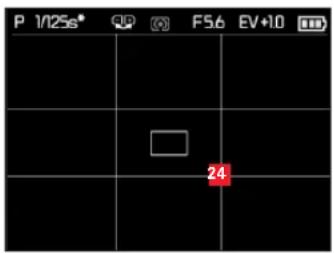
text_image
P 1/125s* QP F5.6 EV+10 24In addition to 1-12, by pressing the INFO button again:
24 Grid lines
In Playback Mode
(with/without clipping displays)
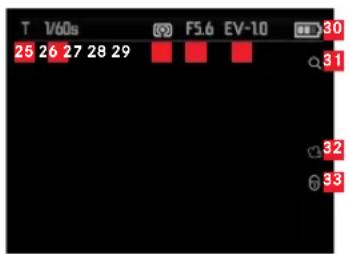
text_image
T 1/60s F5.6 EV-10 30 25 26 27 28 29 31 32 33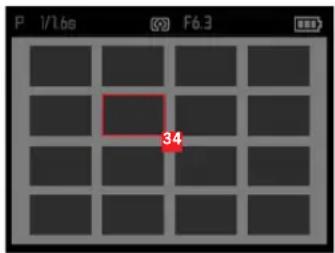
text_image
P 1/1.6s F6.3 3425 Exposure mode (see 1)
26 Shutter speed (s. 2, not available for video recordings)
27 Exposure metering method (s. 5, not available for video recordings)
28 Aperture value (s. 6, not available for video recordings)
29 Exposure compensation value (s. 7, not available for video recordings)
30 Battery charge level (see 8)
31 Indicates the option of enlarging a detail (not available for video recordings)
32 Symbol for video recording
33 Symbol for protected picture
With reduced view of 16 pictures:
34 Selected image
In addition to 25-33 for video recordings, by pressing the INFO button:
35 Video control symbols
36 Elapsed playback time/progress bar
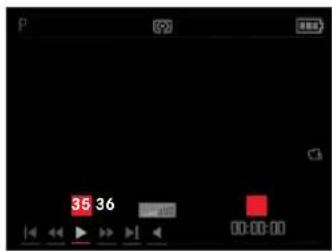
text_image
35 36 00:00:00In addition to 25-33, only for enlarged details, by pressing the INFO button:
37 Indicates the use of the direction buttons for enlarging/reducing a detail, including the enlargement factor
38 Display of detail size and position
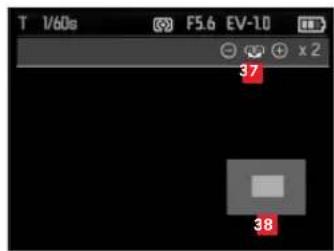
text_image
T 1/60s F5.6 EV-1.0 37 38In addition to 25-31, only from 100% view, by pressing the INFO button:

text_image
M 1/30s AF 44 DNG + JPG 4.5 2.6MB WB Auto ISO 100 L9990049 39 40 10:50:34 21.02.2013 4.1 42 43 17/17 52 54 -10 53 -6339 Folder/image number
40 Automatic bracketing
41 Date and time for picture shown
42 Memory card
43 Image counter (image number/total number)
44 Focusingmode (see 15)
45 File format/compression rate
46 JPEG resolution/video recording format
47 File size
48 Whitebalance (see 17)
49 ISOsensitivity (value used, see 16)
50 Video recording
51 Protectedimage
52 Histogram (not available for video recordings)
53 Flash exposure compensation, including compensation value
54 Flashmode
(see 21, appears without flash exposure compensation)
a. No display: Picture without flash
b. 7A/4/2Sicfusedwithout pre-flash
c. 7A/7Picture with pre-flash
MENU OPTIONS
| Page 1 | |
| JPG Resolution | see p. 122 |
| File Format | see p. 122 |
| Video Resolution | see p. 144 |
| Auto ISO Settings | see p. 125 |
| Exposure Metering | see p. 132 |
| Continuous Shooting | see p. 114 |
| AF Assist Lamp | see p. 128 |
| MF Assist | see p. 131 |
| Page 2 | |
| Image Stabilization | see p. 149 |
| Video Stabilization | see p. 144 |
| Film Mode | see p. 127 |
| Sharpness | see p. 126 |
| Saturation | see p. 126 |
| Contrast | see p. 126 |
| Flash Sync | see p. 143 |
| Monitor Brightness | see p. 121 |
| Page 3 | |
| Monitor Color Adjustment | see p. 121 |
| Rec. Histogram | see p. 133 |
| Play Histogram | see p. 133 |
| Reset Image Numbering | see p. 148 |
| Auto Review | see p. 150 |
| Auto Power Off | see p. 120 |
| Auto LCD Off | see p. 121 |
| Color Space | see p. 148 |
| Page 4 | |
| Date/time | see p. 120 |
| Wind Noise cancellation | see p. 145 |
| Shutter Volume | see p. 120 |
| Acoustic Signal | see p. 120 |
| Language | see p. 120 |
| Auto Rotate Display | see p. 156 |
| FlashAir | see p. 157 |
| Protect | see p. 155 |
Page 5
| Format | see p. 147 |
| Firmware Version | see p. 158 |
| User Profile | see p. 149 |
TECHNICAL DATA
Camera Type Leica X-U (Typ 113)
Sensor CMOS sensor, size APS-C (23.6 x 15.7mm) with 16.5/16.2 million pixels (total/effective), format aspect ratio 3:2
Resolution Selectable for JPEG format: 16M - 4928 x 3264 pixels, 12.2M - 4272 x 2856 pixels, 7M - 3264 x 2160 pixels, 3M - 2144 x 1424 pixels, 1.8M - 1632 x 1080 pixels, DNG: 4944 x 3278 pixels
Video Recording Format MP4
Video Resolution/Image Sequence Rate Selectable, 1920 x 1080p, 30fps or 1280 x 720p, 30fps
Lens Leica Summilux 23mm f/1.7 ASPH. (equals 35mm field of view in 35mm-format), 10 lens elements in 8 groups, 4 aspherical surfaces, UW protective glass
Aperture Setting From f/1.7 to f/16 in 13 EV increments
Image Data File Formats/Compression Rates Selectable: JPG Superfine, JPG Fine, DNG + JPG Superf, DNG + JPG Fine
Storage Media SD/SDHC/SDXC memory cards, multi-media cards
ISO Range Automatic, ISO 100, ISO 200, ISO 400, ISO 800, ISO 1600, ISO 3200, ISO 6400, ISO 12500
White Balance Automatic, daylight, cloudy, halogen lighting, shadow, electronic flash, two manual settings, manual color temperature setting
UW Mode Accessible via separate button, adapts white balance and distortion correction to underwater conditions
Autofocus System Contrast-based
Distance Settings Range From 20 cm to infinity, automatic (autofocus) or manual distance setting, optional MF Assist function for distance settings
Autofocus Metering Function Single field, 11-field, spot, face recognition
Exposure Modes Automatic program, aperture priority, shutter speed priority, and manual setting
Exposure Metering Multi-field, center weighted, spot
Exposure Compensation ±3EV in % EV increments
Automatic Bracketing Three pictures in graduations of up to 3EV, can be set in 1 / 3 EV increments
Shutter Speed Range 30 s to 1/2000s
Image Series 3fps or 5fps, max. seven exposures at constant exposure frequency with DNG + JPG Fine
Flash Operating Modes Automatic, automatic/red eye reduction, ON, ON/red eye reduction, long-term synchronization/red eye reduction, OFF
Flash Exposure Compensation ±3EV in 13 EV increments
Flash Operating Range (for ISO 100/21°)
approx. 0.3 - 2.0m, guide number 5
Flash Recharge Time Approx. 5s with fully charged battery
Monitor 3" TFT LCD monitor with approx. 920,000 pixels
Self-Timer Delay time either 2 or 12s
Operating Conditions Ambient temperature: -10^ - +40^/14^ - 104^ (on land), 0^-40^/32^-104^ (underwater), max. humidity 85% (non-condensation)
Water/Dust Resistance In compliance with JIS/IEC protection class 68 (IP68) (in accordance with Leica Camera AG testing conditions ^1 ), allows underwater photography in depths up to 15m / 49ft for max. 60 minutes
Impact Resistance In compliance with MIL-STD 810G, method 516.5 ^2 (in accordance with Leica Camera AG testing conditions ^1 )
Power Supply Lithium ion rechargeable battery, nominal voltage 3.7V, capacity 1600mAh (as per CIPA standard): approx. 450 exposures, charging time (after deep discharge): approx. 200 min., Model No. BP-DC8, manufacturer: PT SANYO Energy Batam, manufactured in Indonesia
Charger Input: 100 - 240V AC, 50/60 Hz, 0.2A, automatic switchover, output: 4.2V DC, 0.65A, Model No. BC-DC8, operating conditions: 0 - 35°C/32°-95°F Manufacturer: Phihong (Dongguan) Electronics Co., Ltd, Made in China
Housing Plastic core, aluminum upper and lower covers, flexible TPE reinforcement
Tripod Thread A ¼ DIN 4503 (¼")
Dimensions (WxHxD) Approx. 140 x 79 x 88mm / 5 ^33/64 x 3 ^1/6 x 3 ^15/32 "
Weight Approx. 600/635g / 21.16/22.4oz (without/with battery)
These testing conditions do not constitute a blanket warranty in terms of damage or destruction; purely cosmetic damage as a result of the impact test, e.g. damage to the color or deformation and also water tightness after the impact test are not part of the water resistance tests. Water resistance tests do not apply for any other liquids except sweet or salt water, and not for current or jet pressure.
^2 The test entails a fall of the camera from a height of 1,22m /48" onto a wood surface with a thickness of 5cm /2".
Subject to changes in structure and design.
LEICA PRODUCT SUPPORT
The Product Support Department at Leica AG can answer any technical questions relating to Leica products, including support for the supplied software in writing, on the phone or by email. They are also the contact point for purchasing advice and to order instructions. Alternatively, you can send us your questions using the contact form on the Leica Camera AG homepage.
Leica Camera AG
Product Support/Software Support
Am Leitz-Park 5
D-35578 Wetzlar, Germany
Telephone: +49(0)6441-2080-111 /-108
Fax: +49(0)6441-2080-490
info@leica-camera.com/software-support@leica-camera.com
LEICA CUSTOMER CARE
The Leica Camera AG Customer Care department or the repair service provided by authorized Leica agents in your country are available for service, maintenance and repairs of your Leica equipment (see the Warranty Card for a list of addresses).
Leica Camera AG
Customer Care
Am Leitz-Park 5
D-35578 Wetzlar, Germany
Telephone: +49 (0)6441-2080-189
Fax: +49 (0)6441-2080-339
customer.care@leica-camera.com

my point of view
Leica Camera AG | Am Leitz-Park 5 | 35578 WETZLAR | DEUTSCHLAND
Telefon +49 (0) 6441-2080-0 | Telefax +49 (0) 6441-2080-333 | www.leica-camera.com