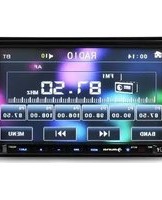
DVA72BT - Car radio Auna - Free user manual and instructions
Find the device manual for free DVA72BT Auna in PDF.


| Product Type | Car Stereo with Bluetooth, USB, and AUX |
| Brand | Auna |
| Model | DVA72BT |
| Dimensions (W x H x D) | Approx. 178 x 50 x 100 mm (DIN size) |
| Weight | Approx. 0.8 kg |
| Power Supply | 12V DC (car battery), negative ground |
| Max Power Output | 4 x 50W (peak) |
| RMS Power Output | 4 x 25W |
| Supported Audio Formats | MP3, WMA, WAV, FLAC (via USB/SD) |
| Radio Bands | FM (87.5 - 108 MHz), AM (530 - 1710 kHz) |
| Bluetooth Version | 4.2 with A2DP, AVRCP, hands-free calling |
| USB Port | 1 x USB (front), up to 32GB |
| SD Card Slot | 1 x SD/MMC, up to 32GB |
| AUX Input | 3.5mm front auxiliary input |
| Display | LCD with white backlight, ID3 tag support |
| Remote Control | Included, IR wireless |
| Equalizer | 7 preset EQ modes + custom |
| Care and Cleaning | Wipe with dry cloth; avoid liquids |
| Safety Features | Removable faceplate for theft prevention |
| Spare Parts | Faceplate, remote control, wiring harness available |
| Repairability | Modular design; serviceable by qualified technician |
| Operating Temperature | -10°C to 60°C |
| Certifications | CE, RoHS |
Frequently Asked Questions - DVA72BT Auna
User questions about DVA72BT Auna
0 question about this device. Answer the ones you know or ask your own.
Ask a new question about this device
Download the instructions for your Car radio in PDF format for free! Find your manual DVA72BT - Auna and take your electronic device back in hand. On this page are published all the documents necessary for the use of your device. DVA72BT by Auna.
USER MANUAL DVA72BT Auna
natural_image
Line drawing of a rectangular electronic device with a scroll wheel and directional arrow indicating rotation (no text or symbols)Bild 1
natural_image
Line drawing of a rectangular electronic device with a handle and labeled pins (no text or symbols present)Bild 2
natural_image
Line drawing of a tablet device with a side-up indicator (no text or symbols present)Bild 3
Notiz:
natural_image
Three small square icons on a colorful abstract background, no text or symbols visiblenatural_image
Close-up of red flowers with dew drops, set against a blurred green background (no text or symbols visible)Tastenoberfläche 1
natural_image
Close-up photo of fresh green apples surrounded by yellow leaves (no text or symbols visible)Tastenoberfläche 2
natural_image
Close-up of a pink umbrella with a yellow flower and green leaves, no visible text or symbols.Tastenoberfläche 3
Pause/ Wiedergabe
x1/2, x1/3, x1/4, x1/5, x1/6, x1,7, normal
Audioeinstellungen (AUDIO SETUP)
Notiz-Oberfläche
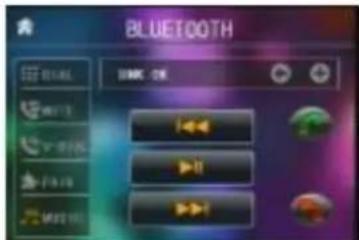
Musik-Oberfläche
natural_image
Simple line drawing of a trash bin with a 'X' symbol crossed out by a diagonal line (no text or labels)PBC (playback control)
It is a kind of signal (menu) recorded in the disc with SVCD or VCD2.0 format used for the playback control. For the discs containing PBC, it can playback interactive software with the menu displayed on TV. And if the disc contain still images, it can playback high definition of still image.
Title
Generally, the title is the important part of DVD disc. for example, the theme part of movie is title 1, the part described how to make movie is title2, the cast is title 3, etc. Every title contain a serial number that is easy to lookup.
Chapter
A title can be divided into several blocks, so that every block can be operated as a unit, the unit is called chapter. The chapter contains a unit at least. Track It is the biggest component of VCD. Generally, every song of karaoke disc is a track.
Precautions
Safety
1) Power Source: The unit should be connected to power supply only of the type described in the operating instructions or as marked on the unit.
2) The unit is designed for negative terminal of the battery which is connected to the vehicle metal. Please confirm it before installation.
3) Do not allow the speaker wires to be shorted together when the unit is switched on. Otherwise it may overload or burn out the power amplifier.
4) Do not install the detachable panel before connecting the wire.
5) The protective case is to safely keep the front panel (see the photo).
Environment
1) Do not use this unit when water and moisture is near it.
2) If moisture forms inside the Lens, it may not operate properly. To correct this problem, wait about one hour for the moisture to evaporate.
3) If the car interior is extremely hot, do not use the player until the car has been driven for a while to cool off the interior.
Remote Control
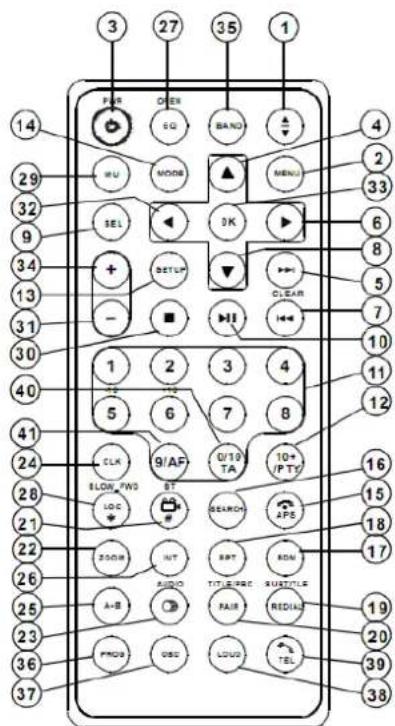
-
OK BUTTON
-
VOLUME+ BUTTON
-
BAND BUTTON
-
PROG BUTTON
-
OSD BUTTON
-
LOUD BUTTON
-
TEL BUTTON
-
TA BUTTON
-
AF BUTTON
-
ANG BUTTON
-
MENU BUTTON
-
POWER BUTTON
-
^ BUTTON
-
| BUTTON
-
BUTTON
-
|<< BUTTON
-
v BUTTON
-
SEL BUTTON
-
PLAY/PAUSE BUTTON
-
NUMBER(0\~10,+10 -10) BUTTONS
-
10+/PTY BUTTON
-
SETUP BUTTON
-
MODE BUTTON
-
APS/Hang Up BUTTON
-
SEARCH BUTTON
-
RDM BUTTON
-
RPT BUTTON
-
SUBTITLE/REDIAL BUTTON
-
TITLE/PBC/PAIR BUTTON
-
VIEW-ANGLE/ST/# BUTTON
-
ZOOM BUTTON
-
AUDIO BUTTON
-
CLK BUTTON
-
A-B BUTTON
-
INT BUTTON
-
EQ/OPEN BUTTON
-
LOC/SLOW-FWD/* BUTTON
-
MUTE BUTTON
-
STOP BUTTON
-
VOLUME- BUTTON
-
< BUTTON
Replace Battery in the Remote Control:
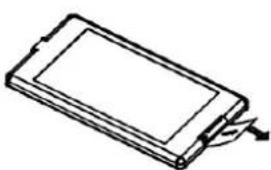
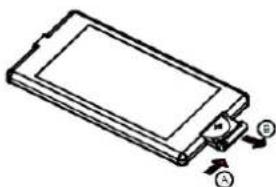
1) Before using the remote control for the first time, pull the insulating sheet out of the remote control as the direction indicated by the arrow.(see fig.1)
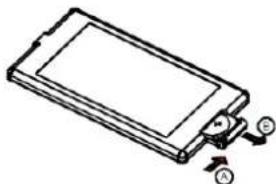
2) Press the movable block hold as the direction indicated by the A arrow(See fig.2), then pull the battery holder out of the remote control as the direction indicated by the B arrow(see fig.2).
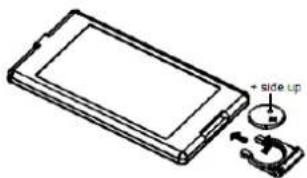
3) Replace the old battery by a new battery with (+) polarity side upward.(See fig.3).
4) Insert the battery holder to the original position in remote control. (See fig.3).
natural_image
Line drawing of a rectangular electronic device with a scroll wheel, no text or symbols presentfig.1
natural_image
Diagram of a rectangular electronic device with labeled ports (A, B, C) and an internal component, showing no text or symbols beyond labels.fig. 2
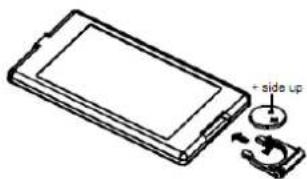
fig. 3
Note:
1) Improper use of battery may cause overheating or explosion. so that Result in injury or fire.
2) Battery leakage may cause damage to the remote control(Battery Life:6 months with normal use in normal room temperature).
3) Do not short the battery.
4) Do not throw the battery into the fire.
5) To avoid the risk of accident, keep the battery out of reach of children.
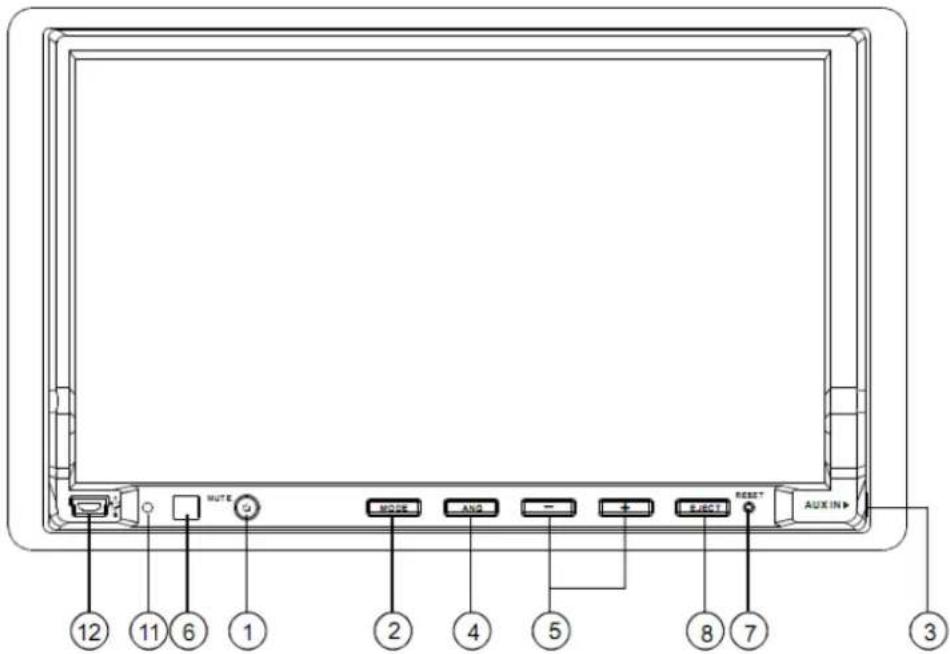
The Diagram of the Face of the Front Panel
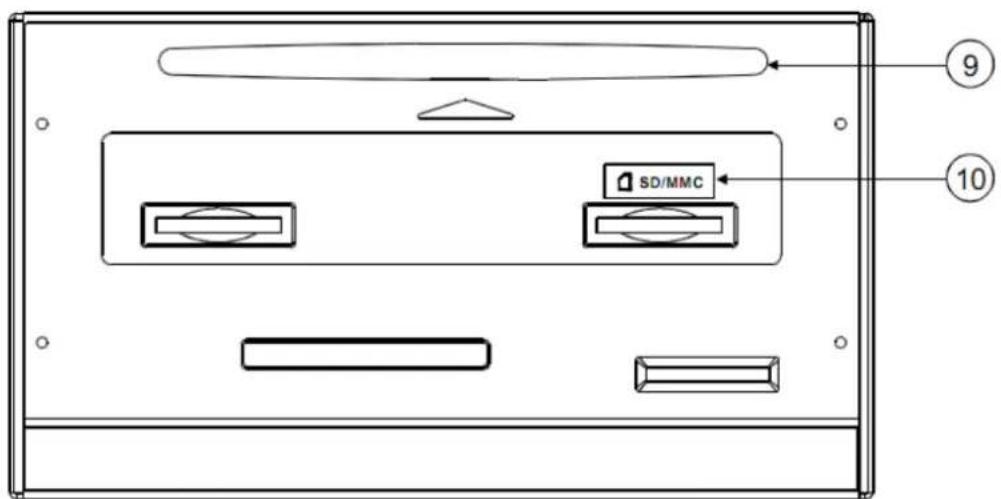
The Diagram of the Face of the Unit After Sliding down the Front Panel
- POWER/MUTE button
- RESET button
- MODE button
- EJECT button
- AUX IN jack
- Disc slot
- ANG button
- SD/MMC Card slot
-
- and - buttons
- Microphone
- IR remote sensor
- USB jack
The Description of the Input/ Output Interface of the rear cabinet
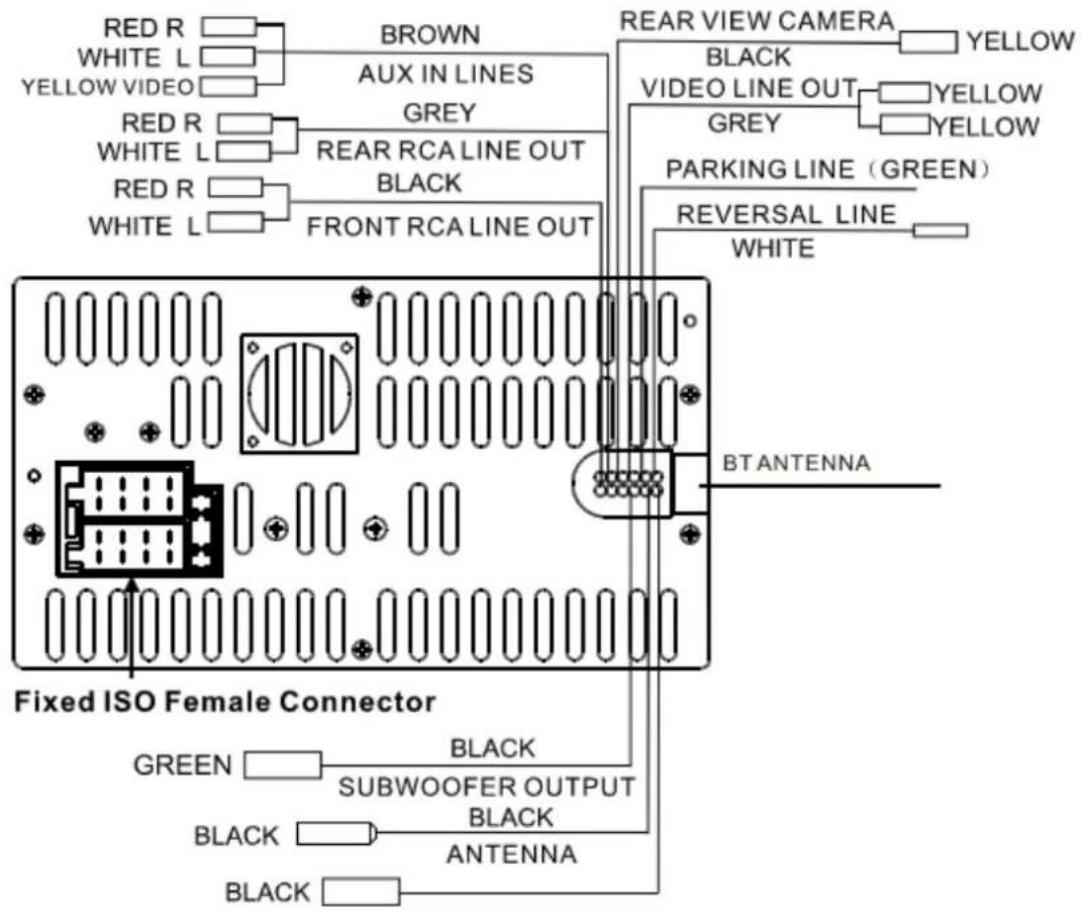
The Description of Fixed ISO Female Connector
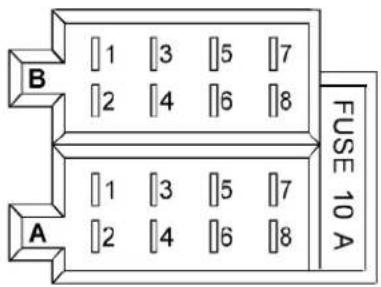
CONNECTOR A
- Memory +12V
- Auto Antenna Output
- 12V (To Ignition Key)
- GROUND
CONNECTOR B
- Rear Right Speaker (+)
- Rear Right Speaker (-)
- Front Right Speaker (+)
- Front Right Speaker (-)
- Front Left Speaker (+)
- Front Left Speaker (-)
- Rear Left Speaker (+)
- Rear Left Speaker (-)
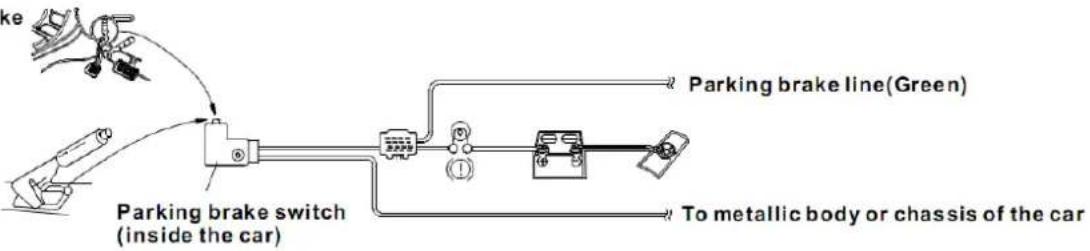
Description of Connecting the Parking Brake Line to the Parking Brake System Built in the Car
Parking brake
flowchart
graph LR
    A["Parking brake switch (inside the car)"] --> B["Motor"]
    B --> C["To metallic body or chassis of the car"]
    D["Parking brake line(Green)"] --> E["Car with labeled components"]
    F["Hand with 'ake' label"] --> G["Link to brake switch"]
NOTE: after connecting the Parking Line, the video on the small monitor of the front panel will be displayed only after applying the e-brake.
Unit Installation
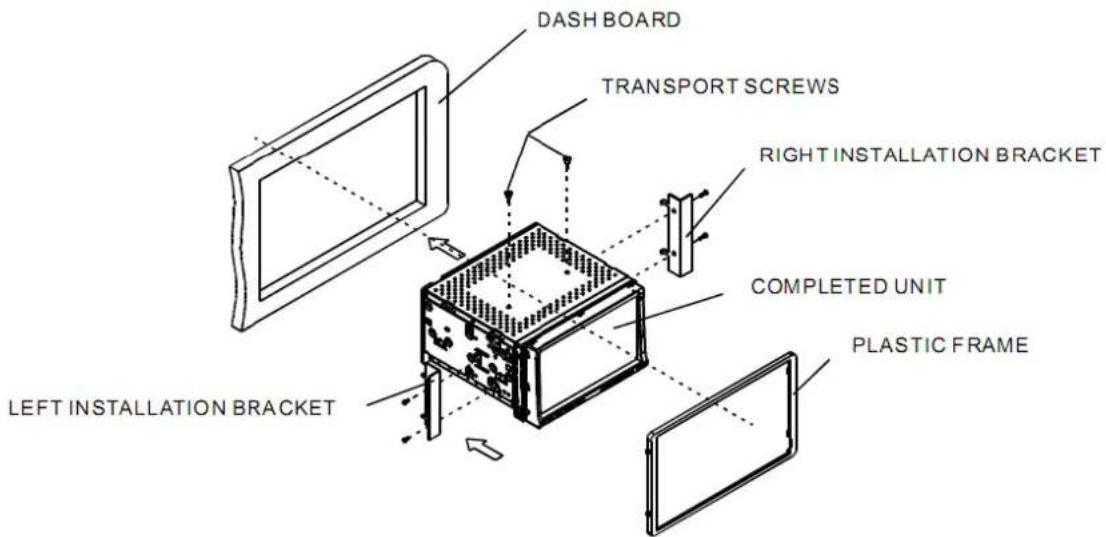
1) REMOVE THE 2 DECK TRANSPORT SCREWS BEFORE INSTALLATION.
2) PLEASE DO THE CONNECTION OF THE POWER, SPEAKERS AND ANTENNA ACCORDING TO THE REQUIREMENT OF THE INSTRUCTION BOOK.
3) IF THE LEFT AND RIGHT INSTALLATION BRACKETS SUPPLIED BY FACTORY ARE FIT FOR YOUR CAR, PLEASE FIX THEM ON THE CHASSIS AND THEN FIX THE UNIT IN THE CAR WITH SCREWS ACCORDING TO THE FOLLOWING DIAGRAM; OTHERWISE, PLEASE USE THE LEFT AND RIGHT INSTALLATION BRACKETS SUPPLIED BY YOUR CAR SUPPLIER.
Common Operation
- To turn on/off the unit In power off mode, short press the POWER button to turn on the unit. In power on mode, long press the POWER button on the front panel or short press the POWER button on the remote control to turn off the unit.
- To slide the monitor of the Car Audio System out of/into the chassis Pressing the OPEN button can slide the monitor of the Car Audio System out of the chassis or slide it into the chassis.
-
To select an optimal angle of the monitor of the Car Audio System To select an up-down optimal angle of the monitor of the Car Audio System, press the DOWN/UP button on the monitor or ANG button on the remote control repeatedly.
-
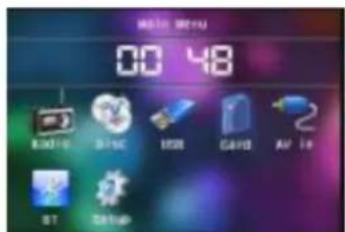
To select function mode Press the MODE button to select RADIO, DISC (After inserting a disc), USB(After inserting a USB storage), CARD(After inserting a card), AUX or BLUETOOTH mode.
During playback, tapping the 📁 icon after popping up Keyboard interface can pop up Mode Menu as right. then tap one icon in it to select your desired mode.
- To adjust sound level
Mode Menu
Rotate the VOL knob on the front panel or press or hold the + or - button on the remote control to directly adjust the volume level.
- To mute sound
Press the MUTE button on the remote control to turn on/off MUTE mode. pressing the POWER button on the front panel shortly also can turn on/off MUTE mode.
- To display and adjust the clock time
Press the CLK or DISP button to display clock time on the small monitor of the front panel.
Long press the CLK or DISP button to change the color of the hour of the clock, then rotate the VOL knob on the front panel or press the + or - button on the remote control to adjust the hour; and then briefly press the CLK or DISP or SEL button to change the color of the minute of the clock, then rotate the VOL knob on the front panel or press the + or - button on the remote control to adjust the minute.
After sliding the monitor into the chassis, pressing the DISP button can display clock time on the small LCD.
- To select a desired EQ mode
Press the EQ button on the remote control to select one of the preset music equalizer curves: POP, ROCK, CLAS, OFF. The sound effect will be changed.
- To turn on/off LOUD mode
Press the LOUD button to turn on/off LOUD mode.
When turning on LOUD mode, it will enhance bass level immediately when bass is not enough.
- To remove the front panel and reset the player
When the monitor or the small LCD display wrongly or some buttons are not available or sound is distorted, press the REL button on the front panel to detach the front panel and then pull it rightward and then leftward to remove it, then press the RESET button to rehabilitate the distorted program to zero.
- To do setup
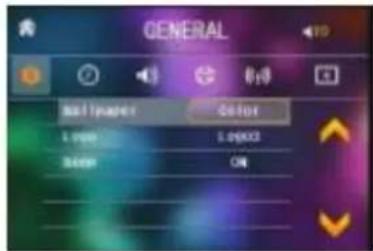
To do setup, tap the icon in the Main Menu to turn to SETUP interface as right.
In the interface, select one of GENERAL, TIME, AUDIO, VIDEO, RADIO, CALIBRATE by tapping them, then set them by tapping some icons on the right side accordingly.
Radio Operation
- Enter RADIO mode
When you use MODE button or Mode Menu to enter RADIO mode, it will display RADIO interface as right.
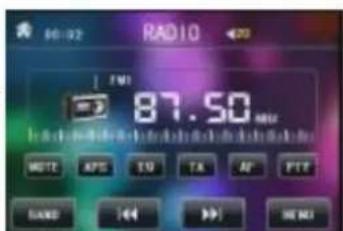
In RADIO interface, tapping the 🎨 icon can enter Mode Menu; during playback ,press and hold the mode button can turn on or off TFT display; tapping the 🎨 icon can turn to frequency interface as right; the other icons are same as ones in the unit panel or in the Remote Control.
In menu set interface, you can adjust MUTE, MUTE, EQ, TA, AF, PTY as right.
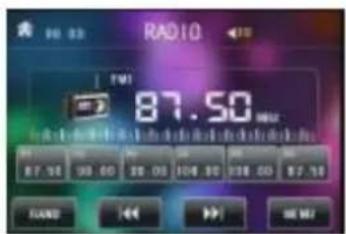
RADIO interface
- BAND BUTTON
In RADIO mode, press the BAND button on the remote control to select your desired radio band of FM1, FM2, FM3, AM1 and AM2, and the word means which band is selected will be displayed on the small monitor of the front panel.
AUDIO & VIDEO SETUP interface
- TUNE/SEEK UP/DOWN BUTTONS
In RADIO mode:
1) Press and hold the >>|/|<< button to automatically search up/down for an available station from current frequency.
2) Briefly press the >>| / |<< button to manually search up or down with step by step for your desired station from the current frequency.
4. APS BUTTON
In RADIO mode:
1) When pressing and holding the APS button, the radio searches from the lowest frequency and checks the signal strength level until 1 cycle search is finished. And then the 6 strongest stations are preset to the corresponding preset number memory bank. The AS operation is implemented in the each bank of the selected band. When the AS operation is finished, it will scan each preset station for 5 seconds in FM or AM band from M1 as briefly pressing APS button. After finishing a circle of scanning, it will resume broadcasting on the M1. (It can store 3x6 stations for FM and 2x6 stations for AM in all)
2) When briefly pressing the APS button, the radio will scan each preset station for 5 seconds in FM or AM band from M1. After finishing a circle of scanning, it will resume broadcasting on the M1.
NOTE: In FM band, FM1, FM2, FM3 is checked one at a time; In AM band, AM1, AM2 is checked one at a time.
5. PRESET STATION [1-6] BUTTONS In RADIO mode:
1) To memorize the current frequency on the current band, press and hold any one of the six preset buttons (1-6) on remote control or rotate number knob and long press it.
2) To recall the preset memory on the current band, press one of the preset buttons [1-6] on remote control or rotate number knob and press it.
6. STEREO/MONO BUTTON
Press the ST button on the remote control to select the STEREO or MONO sound mode for FM band.
7. LOC BUTTON
1) In RADIO mode, when the signals of the distant radio stations are very weak and the receiving effect is bad during tuning, check whether there is the word LOC on LCD. If there is the word LOC on LCD, press this button to turn off the LOC function, then tune again for the distance radio station;
2) In RADIO mode, when the signals of the local radio stations are too strong this causes interference to the receiving effect during tuning, press this button to turn on the LOC function to display the word LOC on LCD, then tune again for the local radio station.
8. PTY (PROGRAM TYPE) BUTTON
Press the PTY button briefly to select one of the following modes:
PTY MUSIC group-- PTY SPEECH group -- OFF
When PTY group is on, press the VOL+ or VOL- button on the remote control or rotate the VOL knob on the front panel to select one of PTY programs as follows:
<-->NEWS<-->AFFAIRS<-->INFO<-->SPORT<-->EDUCATE<-->DRAMA
<-->CULTURE<-->SCIENCE<-->VARIED<-->WEATHER<-->FINANCE
<-->CHILDREN<-->SOCIAL<-->RELIGION<-->PHONE IN<-->TRAVEL
<-->LEISURE<-->DOCUMENT<-->PTY NONE<-->POP M<-->ROCK M
<-->EASY M<-->LIGHT M<-->CLASSICS<-->OTHER M<-->JAZZ
<-->COUNTRY<-->NATION M<-->OLDIES<-->FOLK M<-->
9. AF [ALTERNATIVE FREQUENCIES] BUTTON
When pressing the AF button briefly, the AF switching mode is selected and the AF switching mode is displayed by AF segment in display.
Segment off: AF switching mode off.
Segment on: AF switching mode on, and has RDS information.
Segment flashing: AF switching mode on, but RDS information is not received yet.
10. TA [TRAFFIC ANNOUNCEMENT] BUTTON
Press the TA button shortly to turn on TA search mode.
When traffic announcement is transmitted:
1). If the unit is in Disc Play mode, it will switch to radio mode temporarily.
2). Temporarily switch over to an EON linked station when EON detects a traffic announcement on that other program, and TA, TP will be displayed on LCD
* TA interruption function:
The current traffic announcement is cancelled by pressing TA button shortly.
* When TA is on, SEEK, (SCAN), AUTO MEMORY function can be received or saved only when traffic program identification code has been received.
Disc & USB Operation
To play files in a disc or card, press the EJECT button to slide down the monitor. Then insert the disc or card into the disc slot or SD/MMC Card slot.
To unload the disc or card, press the STOP button twice to stop playback, then press the EJECT button to slide down the monitor and eject disc in the disc slot and then remove the disc; or push the card firstly and pull it out of the card slot.
To play files in an USB, insert the USB into the USB jack connecting to the Rear cabinet.
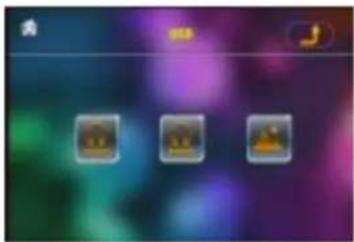
To unload the USB, press the STOP button twice and then remove the USB. In USB or CARD mode, select your desired as right.
Remark: the 📄icon is for audio files; the 📄icon is for video files; the 📄icon is for image files. Tap the 📄icon to turn to main menu, tap the 📄icon to turn to previous setting.
natural_image
Three small square icons on a blurred purple and green background, no text or symbols visible.USB/CARD INTERFACE
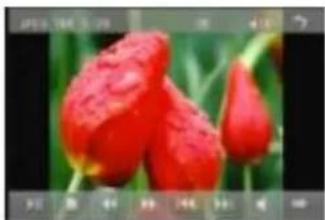
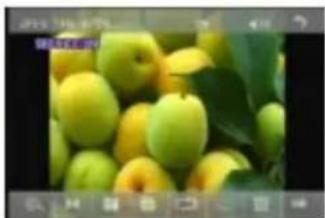
: Tap it can pause playback
: Tap it can stop playback.
: Tapping one of them can switch on between the speed levels of fast backward or forward. (Except image mode.)
: Tapping one of them can select next or previous chapter/track.
: Tap it to turn volume up and down.
: Tap it to turn the selecting page up and down.
: Tap it to select INT play mode(Except image mode.)
: During VCD playback, tap it can select the audio ST/MONO.
: Same as the MENU button on the remote control.
: Same as the TITLE button on the remote control.
: Same as the REPEAT button on the remote control.
: Same as the SUBTITLE button on the remote control.
: Tap it to select the track from 1-9 and then select OK to play your selecting.
: During playback, press the ZOOM button and then tap one of them are same as the direction buttons on the Remote Control. (Except music & image mode.); During playback, press one of them to change the playback angle. (Only for image mode.)
: Same as the ZOOM button on the Remote Control.
: Same as the RDM button on the Remote Control.
: During DVD playback, tap the icon to change the playback angle.
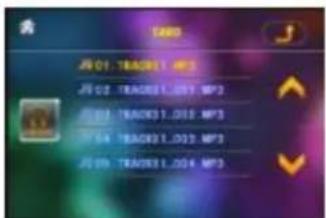
Root interface for MUSIC
natural_image
Close-up of red flowers with water droplets, surrounded by green foliage (no text or symbols visible)Keyboard interface-1
natural_image
Close-up photo of green apples with yellow centers, surrounded by green leaves (no text or symbols visible)Keyboard interface-2
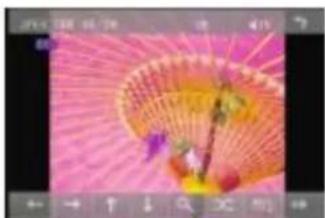
natural_image
Close-up of a pink umbrella with yellow and orange tones, no visible text or symbolsKeyboard interface-3
4.3 Stop Playback
In DVD/VCD/MP3/WMA/CD playing, press the STOP button once to pause the playback, then press the PLAY button to resume the normal playback; press the STOP button twice to full stop the playback, then press the PLAY button to start playback from the beginning of the first chapter/track.
4.4 Select Chapter/Track with the >>| / |<< Button
Press the >>| / |<< button during playback to select the next or last chapter/track to playback.
Note: Press the >>|/|<< button multiple times to advance multiple chapters/tracks forward or backward.
4.5 Select Chapter/Track with the Number Buttons
In the state of DVD/VCD(PBC OFF)/MP3/WMA/CD playing, press one of the 1\~9 and the 0/10 number buttons to directly select and play the 1st to 10th track/chapter (the 0/10 button is used as the 10 button).
If you want to play the track/chapter number bigger than 10, use the 10+, 1\~9 and 0/10 button. For example 1, to play the 13th track/chapter, firstly press the 10+ button once, then press the 3 button. For example 2, to play the 34th track/chapter, firstly press the 10+ button for 3 times, then press the 4 button.(the 0/10 button is used as the 0 button)
Note: long pressing the +10 or -10 button can play the next 10 or last 10 chapter/track(only for MP3/WMA).
4.6 Select Chapter/Track with the Root/PBC Menu (If the disc includes the root/PBC menu)
In the state of DVD playing
-
Press the TITLE button on the remote control to display the title list.
-
Press the direction buttons to select your desired title, and then press the OK or PLAY button to open the root menu of the selected title.
-
Press the direction buttons to select your desired chapter, finally press the OK or PLAY button to play the selected chapter.
During playback, pressing the MENU button can directly display the root menu of the title that is playing.
In VCD mode
-
When starting to turn on the PBC function, it will play from the beginning of the disc till it display the PBC menu on TV screen if the disc include the PBC menu.
-
Press the number buttons to select your desired track to play.
In MP3/WMA mode
-
The root menu is displayed on the monitor screen all the time (and the TITLE or MENU button is not available).
-
Press the direction buttons to select your desired FOLDER, then press the OK or PLAY button to open the FOLDER, and then press the direction buttons to select your desired file, finally press the OK button to play the selected file.
In CD mode, the TITLE, PBC, MENU buttons are disabled.
4.7 Playback with Speed
During normal playback, long press the >>|/|<< button continuously to fast forwards or backwards at the following speeds: x2, x4, x8, x20, normal.
During speed playback, press the PLAY button to resume normal playback.
4.8 Playback with Slow Speed
During playback, press the SLOW_FWD button to execute the Slow Forward function.
With each consecutive pressing of the SLOW_FWD button, the playback speed decreases. The speed levels in Slow Forward as follows: x1/2,x1/3,x1/4,x1/5,x1/6,x1/7,normal.
During slow forward, press the PLAY button to resume normal playback. The function is only for video.
4.9 Display still frame step by step
If the unit is currently playing video, press the TEL button consecutively to display still frame step by step.
Press the PLAY button to resume normal playback.
4.10 Playback Repeatedly
4.10.1 ONE/ALL Repeat
-
In DVD playback: Press the RPT button to select REP CHAPTER, REP TITLE, REP ALL or REP OFF.
-
In VCD(PBC OFF)/CD playback: press the RPT button to select REP ONE, REP ALL or OFF.
When it is in the state of PBC ON, during VCD disc playing, the RPT button are not available.
- In MP3/WMA playback: Press the RPT button to select REP ONE, REP DIR, REP ALL or OFF.
4.10.2 A-B Repeat
Press the A-B button if you want to repeat a specific segment on a disc that you define:
-
Press the A-B button at a point (A) where you want it to be the start point of the repeat segment. Press the A-B button again at a point (B) where you want it to be the terminal point of the repeat segment. Then it will play the segment repeatedly.
-
To cancel the A-B repeat mode and resume normal playback, press the A-B button for the third time.
Note:
During VCD/MP3/WMA/CD playback, points A and B must be within the same track.
During DVD playback, points A and B can be selected from different chapters.
4.11 Playback in Scan Mode
-
In the state of VCD(PBC OFF)/CD playing, press the INT button to play the previous 15 seconds part of each track on the disc. Press the INT button again to resume normal playback.
-
In the state of DVD/MP3/WMA playing, the INT button is not available.
4.12 Playback from a specified chapter/track or a specified time
-
In the state of DVD playing, press the SEARCH button to display a interface and highlight the title item, then use the number buttons to input the serial number of the title; use the direction buttons to highlight the chapter item, then use the number buttons to input the serial number of the chapter; you can still use the direction buttons to highlight the time item, then use the number buttons to input the desired time to start playback; finally press the OK or PLAY button to play the selected chapter or play from the selected time.
-
In the state of VCD/MP3/WMA/CD playing, press the SEARCH button to display a interface and highlight the track item, then use the number buttons to input the serial number of the track; you can still use the direction buttons to highlight the time item, then use the number buttons to input the desired time to start playback; finally press the OK or PLAY button to play the selected track or play from the selected time.
4.13 Playback in Random
In the state of DVD/VCD(PBC OFF)/MP3/WMA/CD playing, press the RDM button to switch between RANDOM (ON)/RANDOM OFF. When in RANDOM (ON) mode, it will play in random.
4.14 Playback in Different View-Angle
-
In the state of VCD/MP3/WMA/CD playing, the VIEW-ANGLE button on the IR remote control is not available.
-
In the state of DVD playing, press the VIEW-ANGLE button repeatedly on the IR remote control to view in different angle. (This function is only for the DVD media with ANGLE function)
4.15 Playback in Zoom Mode
In video/image mode, during playback, press the ZOOM button continuously to enlarge a certain area of the images on the screen with these multiples:
ZOOMx2,ZOOMx3,ZOOMx4,ZOOMx1/2,ZOOMx1/3,ZOOMx1/4,ZOOM OFF. Press one of the ^/v/>/< buttons to select the area you want to enlarge.
4.16 Change the Caption Language
In the state of DVD playing, press the SUBTITLE button repeatedly to select the language of the caption or turn off the caption.(depend on the media used.) In the state of VCD/MP3/WMA/CD playing, the button is not available.
4.17 Change the Audio Language
- In the state of DVD playing, press the AUDIO button repeatedly on the IR remote control to select the desired language type. (depend on the media used)
- In the state of VCD playing, press the AUDIO button repeatedly to select the sound mode of the MONO L, MONO R, MIX MONO and Stereo, no language function.
- In the state of CD/WMA/MP3 playing, the AUDIO button is invalid.
4.18 Look over the Playback Status
- In the state of DVD playing, press the OSD button repeatedly on the remote control to turn on/off the playback status. When it is on, it will display the information such as: the serial number of the playing title, the serial number of the playing chapter, the elapsed time of the playing chapter, the remained time of the playing chapter, the elapsed time of the playing title, the remained time of the playing title, etc.
- In the state of VCD/CD playing, press the OSD button repeatedly on the remote control to turn on/off the playback status. When it is on, it will display the information such as: the serial number of the playing track, the elapsed time of the playing track, the remained time of the playing track, the elapsed time of the disc, the remained time of the disc.
- In the state of MP3/WMA playing, press the OSD button repeatedly on the remote control to turn on/off the playback status. When it is on, it will display the information such as: the serial number of the playing track, the elapsed time of the playing track, the remained time of the playing track.
4.19 Program Playback
It allows you to enter the order in which you want some chapters/tracks in DVD/VCD/MP3/WMA/CD to play.
1 During playback, press the PROG button to enter a program interface as follows:
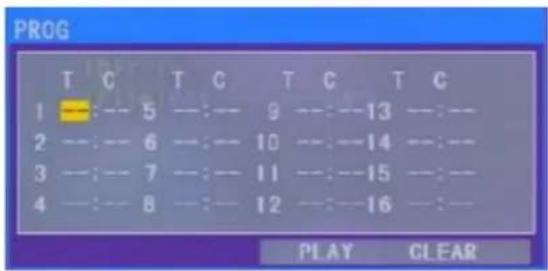
2 Use the direction buttons to move cursor onto the desired place for inputting the sequence number.
3 Use the number button to input desired sequence number of title/chapter/track with desired sequence.
4 Use the direction button to move cursor onto Play item, then press the OK button to play the programmed titles/chapters/tracks in programmed order; only pressing the PLAY button also can play the programmed titles/chapters /tracks in programmed order.
* To exit program playback, firstly press the STOP button, then press the PLAY button to enter sequence playback; or press the PROG button twice again.
* To remove the all programmed sequence numbers, move the cursor onto Clear item, then press the OK button.
* To change the programmed sequence, move the cursor onto the item you want to change, input the desired sequence number.
During VCD playback, if it is in PBC ON mode, at the same time of entering the state of program playback, it turns off PBC mode.
4.20 Playback IMAGE files
- The root menu is displayed on the monitor when beginning to switch on IMAGE mode.
In the root menu, the left file sort icon is for MP3/WMA file; the middle file sort icon is for IMAGE file; the right file sort icon is for VIDEO file. If one of these 3 file sort does not exist, you can not move cursor onto the file sort icon. - When displaying the root menu, press the direction buttons to select your desired FOLDER, file or file sort icon, then press the OK or PLAY button to open the FOLDER, or play the selected file, or play only this sort of file. When displaying the root menu, you can also use the number buttons to select the serial number of the file and play the file.
When you select the IMAGE file sort icon, press the ^ or > button to select the first IMAGE file, then press the v button to select the desired IMAGE file, finally press the OK or PLAY/PAUSE button to display the image in full screen from the selected IMAGE file.
- During IMAGE playback, press one of the >/</^/v buttons to change the angle of viewing picture that is displaying as follows:
: 90 deg cw; <: 90deg ccw; ^:UP<-->DOWN; v: LEFT<-->RIGHT During IMAGE playback, press the PROG button to change the mode of refresh picture. During IMAGE playback, press the STOP button to stop playing and return to the root menu.
* During IMAGE playback, the following buttons are not available: SLOW-FWD, SUBTITLE, TITLE, ANGLE, AUDIO, RDM, INT and A-B.
* In IMAGE mode, the other operations are same as ones in MP3/WMA mode.
4.21 Playback MP4 files
-
The root menu is displayed on TV when beginning to switch on MP4 mode, then it will automatically play the first file. During playback, press the STOP button to stop playing and return to the root menu.
-
When displaying the root menu, press the direction buttons to select your desired FOLDER, file or file sort icon, then press the OK or PLAY button to open the FOLDER, open the files of the file sort icon or play the selected file. When displaying the root menu, you can also use the number buttons to select the serial number of the file and play the file.
* The ANGLE, PROG, RDM, INT and TITLE/PBC button are not valid.
* The other functions are same as ones in DVD mode; but the RPT function is same as one in MP3/WMA mode.
4.22 ESP and ID3 Function
There is ESP function for all formats of discs.
In MP3/WMA mode, during playback, the information of the file name, folder name, song's title, artist and album will be scrolling on the LCD display. As long as the current playing MP3 music contains relevant ID3 tag information in version 1.0/2.0 format, the 3 items underlined above will be scrolling on the LCD display; otherwise, they will not.
-
There are 6 setup pages in all for the System Menu. Press the > or < button to select an desired setup page.
-
Press the ^ or v button to select an setup item in the selected setup page.
-
Press the > button to enter the setup item. Then press the v or ^ button to select a desired mode of the setup item, finally press the OK button to confirm it.
* Press the < button to return to the upper level.
* Press the SETUP button again or use the direction buttons to highlight the item of the EXIT SETUP and then press the OK button to exit the System Menu.
For the DVD System Menu, there are 6 setup pages in all. They display as follows:
4.23.1 SYSTEM SETUP
TV TYPE
The setup item is for matching TV screen size.
4:3 PS: Choose the item when connecting a TV set with 4:3 screen. When playing the pictures with 16:9 size, the left and right parts of the video will be cut out, and display in full screen.
4:3 LB: Choose the item when connecting a TV set with 4:3 screen. When playing the pictures with 16:9 size, the top and bottom parts of the TV screen will be turned into a black square respectively.
16:9: Choose the item when connecting a TV set with 16:9 wide screen.
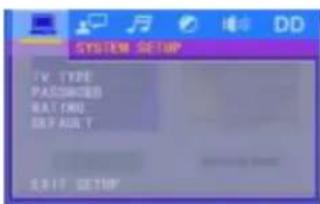
PASSWORD
This setup item is for locking or unlocking the rating level of the Parental Control. The defaulted state is locked. The defaulted password is 0000.
You can set a new password that you like: Select the PASSWORD item and then press the > button to enter it, then input the original password 0000, and then press the OK button to unlock it. Press the > button to enter it again, then input a new password that you like and then press the OK button to make it effective. Before the other persons see the Manual, you should get the password in mind and cut out the part of PASSWORD in the Manual.
RATING
The item is for setting a new rating level of the Parental Control.
- Select the PASSWORD item and then press the > button to enter it, then input the password mentioned above, and then press the OK button to unlock the setting of the rating level of the Parental Control.
- Select the RATING item and then press the > button to enter it, then use the direction buttons to select your desired rating level, then press the OK button to confirm.
- Select the PASSWORD item again and then press the > button to enter it, then input the password, and then press the OK button to lock the new setting of the rating level of the Parental Control.
DEFAULT
This item is for making all setup items change back to original status.
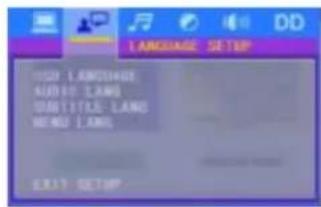
4.23.2 LANGUAGE SETUP
OSD LANGUAGE
This item is for selecting the language of the SYSTEM MENU and all operating prompt interface displayed during playback.
AUDIO LANG
This item is for selecting a audio language.
SUBTITLE LANG
This item is for selecting a subtitle language.
MENU LANG
This item is for selecting a disc menu language.
4.23.3 AUDIO SETUP
AUDIO OUT
there is only ANALOG mode, i.e. SPDIF/OFF, not optional.
KEY
It is for selecting your desired basic music tone (from low to high).
4.23.4 VIDEO SETUP
BRIGHTNESS
It is for adjusting the brightness of the video output.
CONTRAST
It is for adjusting the contrast of the video output.
HUE
It is for adjusting the hue of the video output.
SATURATION
It is for adjusting the saturation of the video output.
SHARPNESS
It is for adjusting the sharpness of the video output.
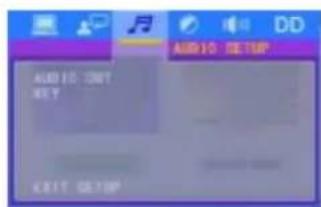
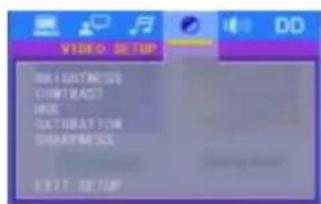
Parental Control
Q: After inserting DVD disc into disc compartment, it will appear a dialogue window that asks me to input a password of 4 digit. Why?
A: This is because the disc movie you are playing was rated with the Parental Control, and the current rating level of DVD player is lower than one of the current discs. You must input the password and enter it to access the Parental Control setup menu. Then you may set an equal or higher rating level than one of current discs, allowing you to play the disc.
! NOTE
* If you have not changed the password, the factory preset password for the DVD player will be empty. So that you should input a desired password and input it again to verify it to enter the Parental Control setup menu.
* For the rating level setup of Parental Control of the DVD player, please refer to the relative content of LOCK setup menu for details.
Accessories: Parental Control
The Parental Control function of a DVD player can control the playback of the movie rated level in a disc. You can set the DVD player(include software player in PC) to be a certain rating level with SETUP MENU on the screen. If the rating level set in the disc is higher than one set in the DVD player, the DVD player can not playback the disc. Sometimes the Parental Control sequences in some discs are different from each other. The rating level setup can be protected by the password. Therefore, if you select Unlock item, the Parental Control function will be invalid, the content of disc will be played totally.
The disc movie can be designed as that the DVD player will playback the different version of content of a same movie according to the different rating level set by Parental Control. Depending on the DVD feature of seamless switching described above, the scenes that are not fitting for children will be cleared or replaced by the other fitting scene automatically.
All rating levels of Parental Control are as follows:
Unlock
1 Kid Safe
2 G
3 PG
4 PG 13
5 PGR
6 R
7 NC 17
8 Adult
The Region Code
Q: REGION ERROR displayed after inserting disc into disc compartment. Why?
A: Because the DVD player and disc has respective region codes. If the region codes do not match, the DVD player can not play the disc.
Appendix: The region code of DVD:
The Motion Picture Association of America (MPAA) divided the world into 6 regions, and named every region a code. The region codes and the countries or areas represented by the region codes as follows:
Appendix: The region code of DVD:
The Motion Picture Association of America (MPAA) divided the world into 6 regions, and named every region a code. The region codes and the countries or areas represented by the region codes as follows:
Region 1: America, Canada, East-Pacific Inlands;
Region 2: Japan, West Europe, North Europe, Egypt, South Africa, Middle East;
Region 3: South-east Asian countries include Taiwan, Hong Kong, South Korea, Thailand, Indonesia, etc.;
Region 4: Australia, New Zealand, Central South America, South Pacific Inlands;
Region 5: Russia, Mongolia, Indian Peninsula, Middle Asia, East Europe, North Korea, North Africa, North-west Asia etc.;
Region 6: China mainland.
Only the discs produced by the 8 biggest filmmaking companies of America assign region codes. The DVD movie discs not produced by the 8 biggest filmmaking companies of America were not restricted by the rule of region code. Generally, they are called FreeRegionCode discs or Full Region discs. The 8 biggest filmmaking companies of America are as follows:
- WarnerBros;
- Columbia;
- 20th Century FOX;
- Paramount;
- Universal;
- UA(UnitedArtist);
- MGM(MetroDogwynMayer);
- WaltDisney
Bluetooth Handfree System
Enter Bluetooth mode
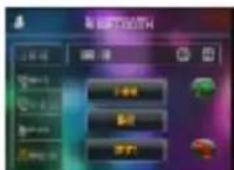
When you use MODE button or Mode Menu to enter Bluetooth mode, it will display Bluetooth interface as right.
In Bluetooth interface, the icons descriptions are as follows:

Tap this icon can transfer audio between the the Car Audio System and phone.

Tap this icon to turn to call messages interface as right.

Tap this icon to turn to audio call mode, call the name you have record in your phone, then it will can out automatically.

When connect wit the BT devic, the phone music playback can control by tap this icon as right.
The other icons are same as ones in the front panel and Remote Control.
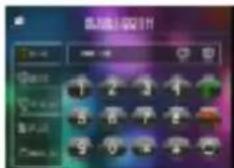
- Lasso's interface
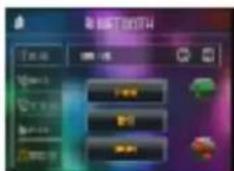
附件1-2-10
2. Pairing and connection
1) Turn on the Bluetooth mode of the mobile phone;
2) Select the item of Finding the Bluetooth Device and enter it. After finishing the finding, it will show the name of the Bluetooth Device if finding a Bluetooth Device. Select it and enter it, then it will show a interface that ask you to input a password, input the password 0000 and then enter it. Then it will tell you pair OK.
3) For some mobile phones, they can automatically connect with the BT device of the car audio system after pairing is ok; for some mobile phones, they need to select the paired BT device and press the CONNECTION button. When connection is ok, the LCD of the car audio system will show LINK OK.
* when pairing is failed, press and hold the PAIR button on the remote control to enter pairing mode, then the LCD will display PAIR START, then pair and connect with mobile phone again.
3. Use the mobile phone to do connection or disconnection
In the connection status, find the paired and connected Bluetooth Device, then press the disconnection button to do disconnection; In the disconnection status, find the paired and disconnected Bluetooth Device, then press the connection button to do connection.
-
In the connection status: the audio of mobile phone transfers to the car audio system whenever a dialling takes place or receiving a call.
-
Dialling when in connection status
5.1 Dial with the mobile phone directly.
5.2 Dial with remote control with the following procedures:
(1) Input telephone number with number buttons 0-9
* Press CLEAR button briefly to cancel the wrongly input number if necessary
(2) Press TEL briefly to execute the dialling.
5.3 To redial the last phone number dialled
Press REDIAL button briefly or tap the icon ☐ to validate the last phone number.
6. Accept/Reject/End Call
6.1 When ringing, press TEL button briefly to accept the call;
6.2 When ringing, press HANGUP button briefly to reject the call;
6.3 When talking, press HANGUP button briefly to end the call.
Note: During ringing, the phone number appears.
7. To transfer the audio of a file played by Mobile Phone to the Car Audio Player
In the connection status between the Bluetooth devices of the Car Audio Player and a Mobile Phone, if the mobile phone can play audio or video files and support A2DP, when the Mobile Phone plays an audio or video file(For some Mobile Phones, you must select Play by BT firstly), the audio of the playing file will be transferred to the Car Audio Player.
In A2DP mode, if the Bluetooth device of the Mobile Phone support AVRCP, the functions of the >>|, |<<, PLAY/PAUSE, EJECT, MUTE, EQ, LOUD, +, - and SEL buttons are the same as one in media mode(no fast forward/backward functions for the >>|/|<< buttons). The other buttons available in media mode are not available.
Troubeshooting
Please read the user's manual carefully before using the DVD player. If you have any troubles in using this player, try to solve the problems by the suggestions mentioned below. If you can not remove the trouble after using all the suggestions, please contact the company or the technical service center authorized by us. For the sake of your safety, please do not open the cover and repair the player by yourself, if that, it may cause electric shock.
NO PICTURE, SOUND AND INDICATION
* Ensure that the power switch is on.
* Ensure that the wall inlet is ok.
* Ensure that the power cord is not damaged or the fuse is not blown.
* Ensure that the power plug is connected to the inlet tightly.
NO SOUND BUT HAVE PICTURE
* Ensure that the player's audio output has a good connection with monitor's audio input.
* Check whether the audio connector is damaged.
* Check whether you have turned down the volume.
* Ensure that you have set the right AUDIO setup of the player.
* Ensure that the audio is not under mute.
NO PICTURE BUT HAVE SOUND
* Ensure that the player's video output has a good connection with monitor's video input.
* Ensure that you have turned your monitor to the AV input channel connecting to your player.
* Check whether the video connector is damaged.
* Ensure that you have set the right VIDEO settings of the player.
BLACK AND WHITE PICTURE OR SCREEN ROLLING
* Ensure that you have set the right TV SYSTEM (e.g. PAL, NTSC) setting.
FLAWS OF PICTURE OR SOUND
* Check whether the setting of AUDIO is right.
* Check whether the disc is scratched or stained.
* Check whether the AV connector and the output terminal is stained.
* Check whether there is condensation inside the Lens. If so, leave the player off for an hour or so, then try again.
* Check whether the installation angle is less than 30°.
DISPLAY NO DISC OR BAD DISC
* Ensure that you have put the disc on the tray.
* Check whether the disc is put in the reverse side.
* Check whether the disc is distorted.
* Check whether the disc is stained or scratched badly.
* Ensure that the disc format is compatible to the player.
* Ensure that the temperature inside the car is not too high. If so, cool off till the ambient temperature returns to normal.
* Replace another disc to insert it into the disc compartment.
REMOTE CONTROL IS INSENSITIVE OR DOES NOT WORK
* Check the batteries of remote control and make sure that they are to be powerful and good conductivity.
* Direct the remote control to the IR sensor of the player.
* Check whether there are some obstacles between the remote control and IR sensor.
SOME FUNCTION BUTTONS DO NOT WORK
* Turn off the power, then turn on again.
* Reset the unit to zero, then turn on again.
* Remove the front panel from the unit, then install it again and then turn on again.
THE RADIO DOES NOT WORK
* Check whether the antenna cable is connected firmly. Or manually tune for a station.
Specification
General Specification
Power Supply Requirement.....DC 12V Maximum Power Output.....4 x 60W(measured at DC 14.4 V) Dimensions(w x h x d).....178 x 50 x 160mm
DVD Deck Specification
Format.....DVD/VCD/JPEG/MP4/MP3/WMA/CD Video System.....NTSC Audio System.....24 bit/96KHz Loading System.....Auto Loading Mounting Angle.....0 to +/-30
Video Specification
Video Type....16:9 and 4:3 Video Output level....Composite:1.0± 0.2Vp-p Load impedance: 75 ohms Horizontal Resolution....500
Audio Specification
Audio Output(Analog audio)....2.0 ^+0 -1.0Vrms Frequency Response....20Hz \~ 20KHz(at 1KHz 0 dB) S/N Ratio(Audio)....≥90dB(at 1KHz 0 dB) Separation....50dB
Radio Specification
FM Section Frequency range....87.5MHz - 108MHz Usable sensitivity....3uV I.F Frequency....10.7MHz
AM Section Frequency....522KHz - 1620KHz

- Notiz:
- Pause/ Wiedergabe
- Audioeinstellungen (AUDIO SETUP)
- PBC (playback control)
- Title
- Chapter
- Precautions
- Safety
- Environment
- Remote Control
- Replace Battery in the Remote Control:
- Note:
- The Diagram of the Face of the Unit After Sliding down the Front Panel
- CONNECTOR A
- CONNECTOR B
- Description of Connecting the Parking Brake Line to the Parking Brake System Built in the Car
- Unit Installation
- Common Operation
- Radio Operation
- APS BUTTON
- PRESET STATION [1-6] BUTTONS In RADIO mode:
- STEREO/MONO BUTTON
- LOC BUTTON
- PTY (PROGRAM TYPE) BUTTON
- AF [ALTERNATIVE FREQUENCIES] BUTTON
- TA [TRAFFIC ANNOUNCEMENT] BUTTON
- Disc & USB Operation
- Stop Playback
- Select Chapter/Track with the >>| / |<< Button
- Select Chapter/Track with the Number Buttons
- Select Chapter/Track with the Root/PBC Menu (If the disc includes the root/PBC menu)
- Playback with Speed
- Playback with Slow Speed
- Display still frame step by step
- Playback Repeatedly
- ONE/ALL Repeat
- A-B Repeat
- Playback in Scan Mode
- Playback from a specified chapter/track or a specified time
- Playback in Random
- Playback in Different View-Angle
- Playback in Zoom Mode
- Change the Caption Language
- Change the Audio Language
- Look over the Playback Status
- Program Playback
- Playback IMAGE files
- Playback MP4 files
- ESP and ID3 Function
- SYSTEM SETUP
- TV TYPE
- PASSWORD
- RATING
- DEFAULT
- LANGUAGE SETUP
- OSD LANGUAGE
- AUDIO LANG
- SUBTITLE LANG
- MENU LANG
- AUDIO SETUP
- AUDIO OUT
- KEY
- VIDEO SETUP
- BRIGHTNESS
- CONTRAST
- HUE
- SATURATION
- SHARPNESS
- Parental Control
- ! NOTE
- The Region Code
- Bluetooth Handfree System
- Enter Bluetooth mode
- Pairing and connection
- Use the mobile phone to do connection or disconnection
- To redial the last phone number dialled
- Accept/Reject/End Call
- To transfer the audio of a file played by Mobile Phone to the Car Audio Player
- Troubeshooting
- NO PICTURE, SOUND AND INDICATION
- NO SOUND BUT HAVE PICTURE
- NO PICTURE BUT HAVE SOUND
- BLACK AND WHITE PICTURE OR SCREEN ROLLING
- FLAWS OF PICTURE OR SOUND
- DISPLAY NO DISC OR BAD DISC
- REMOTE CONTROL IS INSENSITIVE OR DOES NOT WORK
- SOME FUNCTION BUTTONS DO NOT WORK
- THE RADIO DOES NOT WORK
- Specification
Brand : Auna
Model : DVA72BT
Category : Car radio