
HS-U970 - Smartphone HISENSE - Free user manual and instructions
Find the device manual for free HS-U970 HISENSE in PDF.


| Product Type | Smartphone |
| Brand | Hisense |
| Model | HS-U970 |
| Battery Capacity | 2000 mAh |
| Standby Time | Up to 200 hours |
| Talk Time | Up to 240 minutes |
| Charging Voltage | 100-240V AC |
| Display | Touchscreen |
| Operating System | Android |
| Camera | Yes (photo and video) |
| Connectivity | Wi-Fi, Bluetooth, 2G/3G |
| SIM Card | Single SIM (standard) |
| Memory Expansion | microSD card support |
| Audio | FM Radio, Music Player, Sound Recorder |
| Safety | Do not use in moist environments; keep away from children; use only approved batteries and chargers |
| Maintenance | Clean with dry cloth; avoid liquids |
| Spare Parts | Not specified; use only original accessories |
| General Information | Manual available in multiple languages; 96 pages |
Frequently Asked Questions - HS-U970 HISENSE
User questions about HS-U970 HISENSE
0 question about this device. Answer the ones you know or ask your own.
Ask a new question about this device
Download the instructions for your Smartphone in PDF format for free! Find your manual HS-U970 - HISENSE and take your electronic device back in hand. On this page are published all the documents necessary for the use of your device. HS-U970 by HISENSE.
USER MANUAL HS-U970 HISENSE
Read Before Proceeding....1
Safety Precautions ....1
Personal Information and Data Security......2
Getting Started....5
Key Functions at Your Finger tips....5
Inserting the SIM/USIM card 6
Inserting SD card 7
Installing the battery 7
Removing the battery....7
Charging the battery....7
Battery performance....8
Basic operations....9
Turning your phone on and off....9
Desktop manager....9
Making a call....11
Contact others....12
-
Phone....12
-
Call log....12
-
People....12
-
Messaging ....14
-
Email 15
-
Gmail....15
Surf the Internet 17
-
Maps ...... 17
-
Getting Connected....18
Entertainment 21
Using Other Applications....24
Managing Your Mobile Phone 27
Read Before Proceeding
Safety Precautions
Please read the safety precautions carefully to ensure the correct use of your mobile phone.
- Do not crash, throw, or puncture your mobile phone.
Avoid the falling, squeezing, and bending of your mobile phone. - Do not use your mobile phone in a moist environment,
such as the bathroom. Prevent your mobile phone from being soaked or washed in liquid. - Do not switch on your mobile phone when it is
prohibited to use or when the phone may cause interference or danger. - Do not use your mobile phone while driving.
- Follow any rules or regulations in hospitals and health
care facilities. Switch off your mobile phone near medical apparatus. - Switch off your mobile phone in aircraft. The phone
may cause interference to control equipment of the aircraft. - Switch off your mobile phone near high-precision
electronic devices. The phone may affect the performance of these devices. - Do not attempt to disassemble your mobile phone or its
accessories. Only qualified personnel are allowed to service or repair the phone. - Do not place your mobile phone or its accessories in
containers with a strong electromagnetic field.
- Do not place magnetic storage media near your mobile phone. Radiation from the phone may erase the information stored on them.
- Do not put your mobile phone in a high-temperature place or use it in a place with flammable gas such as a gas station.
- Keep your mobile phone and its accessories away from children. Do not allow children to use your mobile phone without guidance.
- Use only approved batteries and chargers to avoid the risk of explosion.
- Observe any laws or regulations on the use of wireless devices. Respect others' privacy and legal rights when using your wireless device.
- Strictly follow the relevant instructions of this manual while using the USB cable. Otherwise your mobile phone or PC may be damaged.
- This manual is for reference only, please refer to the material object as standard.
Personal Information and Data Security
The use of some functions or third-party applications on your device could result in your personal information and data being lost becoming accessible to others. Several measures are recommended to help you protect personal and confidential information.
- Place your device in a safe area to prevent it from unauthorized use.
- Set your device screen to lock and create a password or unlock pattern to unlock it.
- Periodically back up personal information kept on your SIM/USIM card, memory card, or stored in your device memory. If you change to a different device, be sure to move or delete any personal information on your old device.
- If you are worried about viruses when you receive messages or emails from a stranger, you can delete them without opening them.
- If you use your device to browse the Internet, avoid websites that might pose a security risk to avoid theft of your personal information.
- If you use services such as Wi-Fi tether or Bluetooth, set passwords for these services to prevent unauthorized access. When these services are not in use, turn them off.
- Install or upgrade device security software and regularly scan for viruses.
- Be sure to obtain third-party applications from a legitimate source. Downloaded third-party applications should be scanned for viruses.
● Install security software or patches released by Hisense or third-party application providers. - Some applications require and transmit location information. As a result, a third-party may be able to share your location information.
- Your device may provide detection and diagnostic information to third-party application providers. Third
party vendors use this information to improve their products and services.
Getting Started
All the pictures in this guide are for your reference only. Your phone's actual display features may be different to those described here, depending on its software version.
Key Functions at Your Finger tips
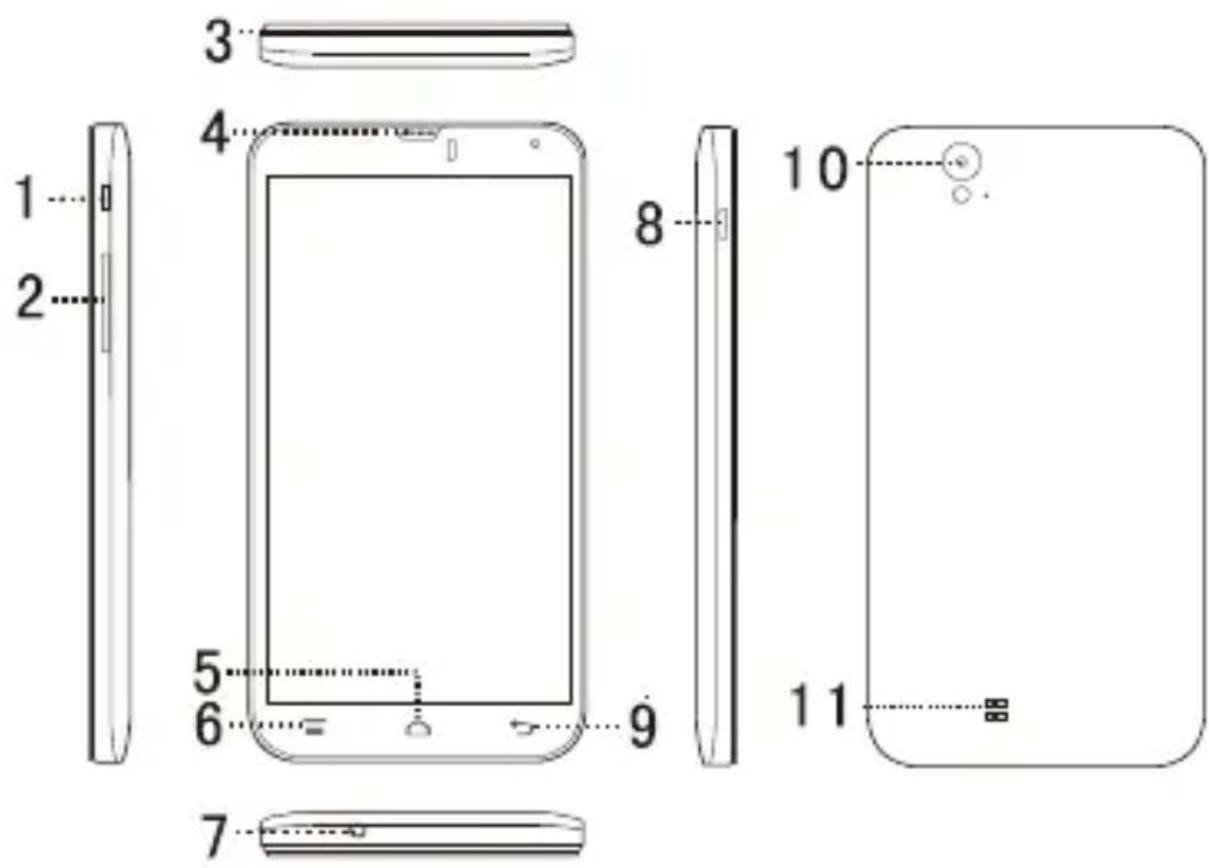
| Name | Function | |
| 1 | Power key | Press to turn on or off the phone. |
| 2 | Volume keys | Press to accommodate the volume and start up silence mode when there is an incoming call. |
| 3 | microphone | Listen to the voice call |
| 4 | Earpiece | Listen to the conversation speech. |
| 5 | Home key | Press to return to home screen. |
| 6 | Menu key | Press to present a main menu. |
| 7 | Headset jack | Insert earphone. |
| 8 | Charge/USB Port | Connect USB line. |
| 9 | Return key | Return to previous menu. |
| 10 | Camera | Take pictures. |
| 11 | Speaker | Amplified voice. |
Inserting the SIM/USIM card
Your phone must work with a card provided by your service provider. Your card contains all your subscription information. Insert SIM/USIM card with the metal contacts facing down and the cut corner aligned with that of the slot.
Notes:
-
If no card is installed, the string of “Please insert a SIM/USIM card” will display on the screen, if there are errors in the insertion, or your card is damaged, the string of “No service” will display on the screen after your phone is powered on.
-
If your card is PIN-locked your phone will display “card is locked”. You must enter PIN before the phone can start working. Please contact your network service provider if you need.
-
When inserting card, please keep it away from possible damage caused by static, scratch and bend, and put it
where is not available for children.
Inserting SD card
Insert SD card with the metal contacts facing down and the cut corner aligned with that of the slot.
Installing the battery
You must install and charge the battery to use your phone. Insert the ridge at the top of the battery into the base of the phone, make sure to touch the metal contact on the phone, then push the battery down and snap it into place.
Note:
Your phone is designed to be used only with original batteries and chargers. Use of other batteries or chargers may cause damage to your phone and the warranty will be void.
Removing the battery
Make sure your phone is powered off to avoid the important information getting lost.
Hold battery bottom and remove the battery from the phone.
Charging the battery
New batteries are shipped partially charged. Before you can use your phone, you need to charge the battery. Some batteries will have best performance after several full charge/discharge cycles.
- Connect data cable and charger, plug one end into your
phone's data port.
- Plug the other end of the charger into the appropriate electrical outlet (100\~240V AC).
- When your phone indicates that the battery is fully charged, remove the charger.
Notes:
- Before charge, make sure the battery is installed in the phone.
- The battery can discharge gradually even when your phone is powered off. If the battery is drained for a long time, the information stored in the phone could possibly be lost. So even you don't need to use your phone for a long period, you should charge the battery some times to keep it away from drained.
- You need longer charging period with the lower voltage.
- Charging time will be longer if the cellphone is operated during charging.
- The normal charge temperature is during 0^ C- 40^ C.
Battery performance
| 2000mAh (standard battery) | |
| Standby time* | 200hours |
| Talk time* | 240 minutes |
- Many conditions can affect battery's standby time, such as local network conditions, phone's settings, frequent operations, using data services, etc.
- The battery performance is also affected by charge state and temperature.
Basic operations
Turning your phone on and off
Turn on the phone: Press and hold Power key for more than 3 seconds to turn on your phone.
Turn off the phone: Press and hold Power key to pop up option menu, select “power off”. If it is powered off, you can not receive, make a call or do other operations.
Desktop manager
Lock the screen
The screen lock prevents unwanted actions on the touch screen when you are not using your phone. When the phone is left idle for a set period, the screen locks automatically if you enabled screen lock in settings→ security.
Unlock the screen
You can unlock the screen according to your settings.
The default way is pulling the lock to right after your screen is enabled with pressing power key.
Add icon:
Press and hold a selected icon on main menu and drag it to desktop after you feel it vibrating. Put it where you intend to, then you can release it.
Delete icon:
Press and hold a selected icon on desktop, you will find a recycle bin icon appearing after you feel it vibrating. At this time drag the icon to recycle bin, then release.
Status bar
A status bar at the top of the screen displays phone status information and notifications.
Change the wallpaper
Long press the desktop space, and then pop up the following menu: Gallery /Live Wallpapers/ Wallpapers.
Notification panel
You can open notifications such as unread messages or missed calls directly from the notification panel.
How to open the panel:
Hold the status bars with your finger, and drag it downwards.
Accessing Applications and Widgets
To access the application list, on the Home screen, touch

From the application list, you can:
- Touch an icon to open an application.
- Touch the WIDGETS tab to switch to the widget list.
Viewing Recently Used Applications
To display the list of recently used applications, press and hold ⏻. To open an application, touch the corresponding thumbnail. To close the application, flick left or right across the screen.
Managing Folders on the Home Screen
- To create a folder: Drag an application icon onto another application icon to create a new folder that contains both icons.
- To rename a folder: On the Home screen, touch a folder, and then touch the folder name field beneath it.
- To delete a folder: On the Home screen, touch and hold a folder, and then drag it to the trash can.
Making a call
Click to enter dialer interface on idle screen or main menu screen, input phone number and click to make a call, click the End button or press the power key to end a call. If you make a mistake, you can click to delete the number or hold it to delete all numbers before the cursor.
Contact others
1. Phone
Input phone number, click 📄 to make a call, click 📄 to delete the number you do not need or hold it to delete all numbers before the cursor.
2. Call log
Enter to view all calls, missed calls, incoming calls, outgoing calls, and rejected calls.
Select and view the detailed information about it.
Hold a selected call pop up submenu.
3. People
All of your contacts are displayed alphabetically in a list that you can scroll through.
Click menu key, pop up the submenu: Delete contact/Contacts to display/ Import/Export /Accounts/ Settings/ Share visible contacts.
Add a contact
Click, you can add a new contact to the phone or card.
Search for a contact
- Click fast search key;
- Enter the first few letters of the contact name, all contacts beginning with these letters appear.
Adding a Contact to Your Favorites
Touch a contact, and then touch the star to the right of the contact's name. The star turns white.
Editing a Contact
You can make changes to the information you have stored for a contact at any time.
- In the contacts list, touch the contact you want to edit, and then touch the menu key to select edit.
- Touch the category of contact information you wish to change: name, phone number, email address, or any other information you recorded earlier.
- Make the desired changes to the contact information, and then touch “Done”. To cancel all of your changes, touch “Cancel”.
Using a microSD Card to Back Up Contacts
- In the contacts list, touch Menu key.
- Touch "Import/ Export" in the displayed menu to select you needed.
- Touch OK to export your phone contact's information to the installed microSD card.
- You can copy the .vcf files backed up on the microSD card to your computer. The files are stored in the microSD card's folder.
Managing Groups
Creating a Group
- In the contact list, touch
-
Touch in the displayed menu, and then touch Create group.
-
Enter the name and note you want to assign to the group, and then set a ringtone for it.
-
Click "Done".
4. Messaging
The Messaging application allows you to exchange text messages (SMS) and multimedia messages (MMS) with anyone using an SMS-or-MMS-capable phone.
Create message
Click to create a message. Input receiver's phone number and edit contents.
-
For phone number:
-
You can click the keyboard to input number directly.
- You can select number from contacts.
- You can select several numbers to send.
Notes:
If the message editing is interrupted by incoming calls, alarm clock, powering off, the entered texts will be saved temporarily.
-
Click "Type text message" to edit the message. Click Menu key, Click "Add subject" to add the message subject. Your mobile phone is now in multimedia message mode.
-
When you are ready to send the message, click “”.
Opening and Viewing a Multimedia Message
-
In the message list, touch the message thread you wish to view.
-
Touch the multimedia message to view the message.
5. Email
Your mobile phone also puts email at your fingertips. With your phone's Email application, you can use your email account with some popular email services on your phone.
Adding an Email Account
When using the Email application for the first time, you must configure an email account. The Email setup wizard helps you to configure your account. A number of popular email systems are supported. You can work with the same email service that you use on your PC or you can select another email service that you use on your PC or you can select another email service.
- Touch Email on the main menu.
- Enter the account name and the Password, then touch Next.
- When setting finish, touch Done.
Viewing an Email Message
On the accounts screen, touch the email account you want to use.
6. Gmail
You can access and use Gmail to read and write email from your account on any mobile device or browser. Gmail is not just about email. Your Gmail name and password can provide you access into to all Google apps and services.
To launch Gmail, touch the Gmail icon on a Home or All
Apps screen.
The phone can load the default mailbox.
- Read email.
Touch a message to read it. Unread message are bold. - Organize email.
Check the box beside a message to select it. Then use the icons and menu along the bottom of the screen to manage the selected messages. - Change your settings.
Touch the Menu key to change your preferences, get setting or Help.
No matter where you are within Gmail, you can always get back to the Inbox by touching in the top left corner of the screen.
Surf the Internet
1. Maps
Maps enables you to find your current location, view real-time traffic conditions (depending on availability in your area), and get detailed directions to your destinations. You can view satellite images, traffic maps, or other kinds of maps of your current or other locations.
1. Enabling the Location Service
Enable the location service before using Maps to find your location or search for places of interest.
1) On the main menu, touch "Settings".
2) Touch Location services.
3) Select the GPS satellites.
2. Searching for Places of Interest
1) On the map, touch .
2) Enter appropriate keywords in the search box, and then touch the search icon.
3) The search results are displayed. Touch a place you are interested in. The Maps application will shows its location on the map.
- Getting Directions
1) When viewing a map, touch .

2) Enter your start point in the first text box and your destination in the second.
3) Touch the icon for driving, public transit, or walking directions.
4) Touch GET DIRECTIONS. Directions are displayed in a list.
5) Touch a direction in the list to show it on the map.
2. Getting Connected
1 Mobile Networks
Your mobile phone will be automatically configured to use your network operator's 2G/3G service (if available) when you turn on the phone for the first time. Note that the SIM/USIM card must be inserted.
Checking the Network Connection
- Touch "Settings" on the main menu.
- Touch More > Mobile networks> Data enabled and Access Point Names.
- Touch Data enabled to turn on the data connection.
- Touch Access Point Names to check the network.
2 Wi-Fi
Turn on Wi-Fi
- Touch "Settings" on the main menu.
-
Touch Wi-Fi to select ON.
Connecting to a Wireless Network -
Touch "Settings" on the main menu.
- Touch Wi-Fi. You will see a list of detected Wi-Fi networks in the Wi-Fi networks section.
3 Bluetooth
Your mobile phone has Bluetooth, which allows you to create a wireless connection with other Bluetooth devices so you can share files with your friends, talk hands-free with a Bluetooth
headset, or even transfer photos from your phone to your PC. If you are using Bluetooth, remember to stay within 10 meters (33 feet) of the other Bluetooth devices to which you want to connect. Be aware that obstacles like walls or other electronic equipment may interfere with your Bluetooth connection.
Turning On Bluetooth
- Touch Settings on the main menu.
- Touch Bluetooth to select ON. When Bluetooth is turned on, the Bluetooth icon appears in the notification bar.
- Touch Bluetooth settings, and then touch the device's name to make your mobile phone visible to other Bluetooth devices.
Pairing with and Connecting to a Bluetooth Device
Before you use Bluetooth, pair your mobile phone with another Bluetooth device as follows:
- Ensure that the Bluetooth function on your mobile phone is enabled.
- On the main menu, touch Settings > Bluetooth. Your mobile phone will then scan for Bluetooth devices in range.
- Your mobile phone will then scan for Bluetooth devices in range.
- If required, enter the pairing password to complete the connection.
4 Browser
Your mobile phone comes with an Internet browser pre-installed.
Opening the Browser
-
Touch Browser on the main menu.
-
When known or open Wi-Fi networks and mobile data networks are available at the same time, your phone will preferably select a Wi-Fi network for Internet access.
- Touch Menu Key to open the browser options menu.
Opening a Webpage
- In a browser window, touch the URL field at the top of the screen.
- As you enter the address, matching webpage addresses will appear on the screen. If you see the address you want, touch it and go directly to that webpage or complete entering your desired webpage.
Entertainment
In addition to being a communication device and personal assistant, your mobile phone also provides you with a multitude of entertainment possibilities. You can take photos, create videos and audio clips, and download and listen to music.
1 Taking Photos and Recording Videos
The camera is a combination of camera and camcorder that you can use to shoot and share pictures and videos.
Opening Your Camera
- Touch Camera to open the camera. The camera opens in landscape mode, ready to take a picture or record a video.
- Touch Back Key to close the camera.
Click the icon to set the camera mode:
| Icon | Faction |
 | Set exposure intensity |
 | Change to HDR mode. |
 | Set White balance mode |
 | Set flash mode |
 | Switch the camera |
 | Set the store location and so on |
Take a photo
Click camera to enter camera interface.
Click to take photos.
In the preview interface:
- View photos you have taken.
- Set the photo's parameter.
- Click to take a photo.
Recording a Video
- Open the camera application, and then switch it to camcorder mode.
- If necessary, change the camcorder settings.
- Frame the scene with which you want to start your video.
- Touch to start recording a video.
- Touch to stop recording.
1. Using the Gallery
Your Gallery application can automatically search for pictures and videos on your mobile phone and microSD card. Use Gallery to sort photos and videos into folders, view and edit pictures, watch videos, and set a picture as wallpaper or as a photo for a contact.
Opening the Gallery
The Gallery application categorizes your pictures and videos by storage card and displays these files in folders. Touch a folder to view the pictures or videos inside.
View a picture
- In Gallery, touch the folder that contains the pictures you want to view.
- Touch the picture to view it in full-screen mode.
Note:
The picture viewer supports the automatic rotation function.
When you rotate your mobile phone, the picture adjusts itself to the rotation.
2. Play Music
Before you using music player, you must copy music files from your computer to the microSD card.
Once you have done this, the player will search for music on the microSD card. After the search is complete, you will be able to view all available music files in the music library.
Click to enter music player.
- Songs: view all songs list.
- Artists: view different artists' songs.
- Albums: view different albums list.
- Genres: view different genres.
- Playlists: view current playlist and saved playlist.
3. Listening to the FM Radio
The FM radio lets you listen to FM radio programs on your mobile phone. Since the FM radio uses the provided wired stereo headset as its antenna, before opening the application, connect the headset to your phone's the audio jack.
Search radio settings and play it:
- Click ■, select "Search" scan all channel.
- Select some channel and play it.
Using Other Applications
1. Calculator
Perform basic arithmetics such as addition, subtraction, multiplication and division.
- Touch the Calculator application icon.
- Touch the numbers and operation symbols to do the calculation.
- Touch to clear the result one by one, touch and hold to clear all.
2. Calendar
The Calendar app lets you view and edit your schedule.
To change the Calendar view, touch the date at the top left corner and choose Day, Week, Month, or Agenda.
Create agenda
- Press menu key and click "New event" button.
-
Before you can add an event, you must add at least one calendar account to your device and make a calendar visible.
-
Input name / Location / Time and so on.
-
Click "Done" button.
The new agenda will appear on the calendar menu when you entering again.
3. Clock
Touch the Clock application icon.
Alarm
Turn Alarm on
- Click to enter the Alarm list, find the desire alarm.
- Click the ON button to turn on the alarm.
On the alarm menu, click to pup up the menu, as follow:
● Night mode: turn on the night mode.
● Settings: set the style and alarm length of time.
Notes :
- Press menu key to add more alarm when enter alarm clock.
- The alarm clock will still work even the phone is powered off.
- Don't set the phone in silence mode to guarantee the alarming effect (unless if the vibrate mode is set to always on).
- Please change the battery in a minute or else the information stored in the phone will be lost, in the low electric power.
Stopwatch
Click the to enter stopwatch.
Click "start" to start the stopwatch, click the to record the time;
Click "stop" to stop the time, click "Stop" clear all record.
Count down
Click the ☒ to enter stopwatch.
Enter the time, then click "START" to start count.
4 Sound Recorder
You can record for a long time, please make sure your microSD card has enough storage.
Record:
-
Keep the phone near the sound source.
-
Click “○” to record, click “□” to stop.
- Finish the record, you can select "save" or "Discard".
5 Notebook
Click to edit a new notebook; then click "DONE" to save the notebook.
Managing Your Mobile Phone
To configure your mobile phone, touch Setting.
Wireless & networks
- Select different card or mode select.
- Click to turn on Wi-Fi or Bluetooth and set them.
- View the data usage.
- Click "more", you can do the follow:
▶ Click to turn on Airplane mode.
▶ Set up VPN.
➢ Set the tethering & portable hotspot.
This option will be under Mobile Network, you can turn on or off USB Internet.
Device
1. Audio profiles:
Select different predefined profiles.
2. Display
- Turn on or off Lock screen notifications and Auto-rotate screen.
- Adjust the brightness of the screen.
- Select the Theme.
- Choose the wallpaper from gallery / live wallpapers / wallpapers.
- Adjust the brightness.
- Select the font size.
- Adjust the delay before the screen automatically turns off.
- Turn on or off wireless display.
3. Storage
View the external (Micro-SD) and internal memory
storage capacity and usage.
4. Battery
View the battery usage data based on the process and application that were consuming the battery.
5. Apps
Manage and remove installed apps; View and control currently running services; view storage used by apps.
Personal
1. Location services
Turn on or off Access to my location/ GPS satallites / Wi-Fi&mobile network location.
2. Security
- Lock screen with None/Slide/ Pattern/ PIN or password.
- Edit owner information displayed on the lock screen.
- Require anumeric PIN or password to decrypt your phone each time you power it on.
- Set up SIM/USIM card lock and edit passwords.
● Make the password visible or not. - Select device administrators.
- Allow installation of non-market apps or not.
- Disallow or warn before installation of apps that may cause harm.
● Display trusted CA certificates;
● Install certificates from SD card - Remove all certificates.
3. Language &input
- Select language.
- Turn on or off spelling correction.
-
Select default language.
-
Set the voice search and text-to-speech output.
- Set the pointer speed.
4. Backup& reset
Turn on or off Back up my data;
Click Reset phone to erase all data in phone.
System
1. Date and time
Set the date, time, time zone and formats.
- The current date and time will display on the idle screen if you choose automatic.
- If you do not choose automatic, please set the date, time zone.
- Set the format of time and date.
2. Scheduled power on/off
Select auto power on/off and select the time.
3. Accessibility
- Turn on or off Talkback.
-
Turn on or off magnification gestures/ large text/ power button ends call/ Auto-rotate screen/ Speak passwords/ Accessibility shortcut/quick boot.
-
Turn on or off Power button ends call
- Select the Touch&hold delay time.
● Enhance web accessibility.
4. Developer options
- Turn on or off Stay awake/ protect SD card/ USB debugging/ allow mock lacations and other options.
- Set your take bug report / Desktop backup password and other options.
5. About phone
Touch the Settings→About phone, then you can see sub menu as follows:
- Phone system updates
- Status, to check the status of the network, battery, IP address, WIFI & Bluetooth address serial number and up time.
● Legal information, to see the legal information from open source and google legal - Model number
● Build number. Etc.

- Read Before Proceeding
- Safety Precautions
- Personal Information and Data Security
- Getting Started
- Inserting the SIM/USIM card
- Notes:
- Inserting SD card
- Installing the battery
- Note:
- Removing the battery
- Charging the battery
- Basic operations
- Lock the screen
- Unlock the screen
- Add icon:
- Delete icon:
- Status bar
- Change the wallpaper
- Notification panel
- Accessing Applications and Widgets
- Viewing Recently Used Applications
- Managing Folders on the Home Screen
- Making a call
- Contact others
- Phone
- Call log
- People
- Add a contact
- Search for a contact
- Adding a Contact to Your Favorites
- Editing a Contact
- Using a microSD Card to Back Up Contacts
- Managing Groups
- Messaging
- Create message
- Opening and Viewing a Multimedia Message
- Adding an Email Account
- Gmail
- Surf the Internet
- Maps
- Enabling the Location Service
- Mobile Networks
- Wi-Fi
- Bluetooth
- Turning On Bluetooth
- Browser
- Opening the Browser
- Opening a Webpage
- Entertainment
- Taking Photos and Recording Videos
- Opening Your Camera
- Recording a Video
- Using the Gallery
- Opening the Gallery
- View a picture
- Play Music
- Listening to the FM Radio
- Using Other Applications
- Calculator
- Calendar
- Create agenda
- Clock
- Alarm
- Turn Alarm on
- Notes :
- Stopwatch
- Count down
- Sound Recorder
- Record:
- Notebook
- Managing Your Mobile Phone
- Wireless & networks
- Device
- Audio profiles:
- Display
- Storage
- Battery
- Apps
- Personal
- Location services
- Security
- Language &input
- Backup& reset
- System
- Date and time
- Scheduled power on/off
- Accessibility
- Developer options
- About phone
Brand : HISENSE
Model : HS-U970
Category : Smartphone