Yur.Photo 7B2 - Digital photo frame YURAKU - Free user manual and instructions
Find the device manual for free Yur.Photo 7B2 YURAKU in PDF.


User questions about Yur.Photo 7B2 YURAKU
0 question about this device. Answer the ones you know or ask your own.
Ask a new question about this device
Download the instructions for your Digital photo frame in PDF format for free! Find your manual Yur.Photo 7B2 - YURAKU and take your electronic device back in hand. On this page are published all the documents necessary for the use of your device. Yur.Photo 7B2 by YURAKU.
USER MANUAL Yur.Photo 7B2 YURAKU
natural_image
Abstract red shape with white curved lines, no text or symbols presentYURAKU®
Yur.Photo 7B2
Yur.Photo 85B2
Yur. Photo 9B2
User's Manual
version1.5
Please read this manual before operating
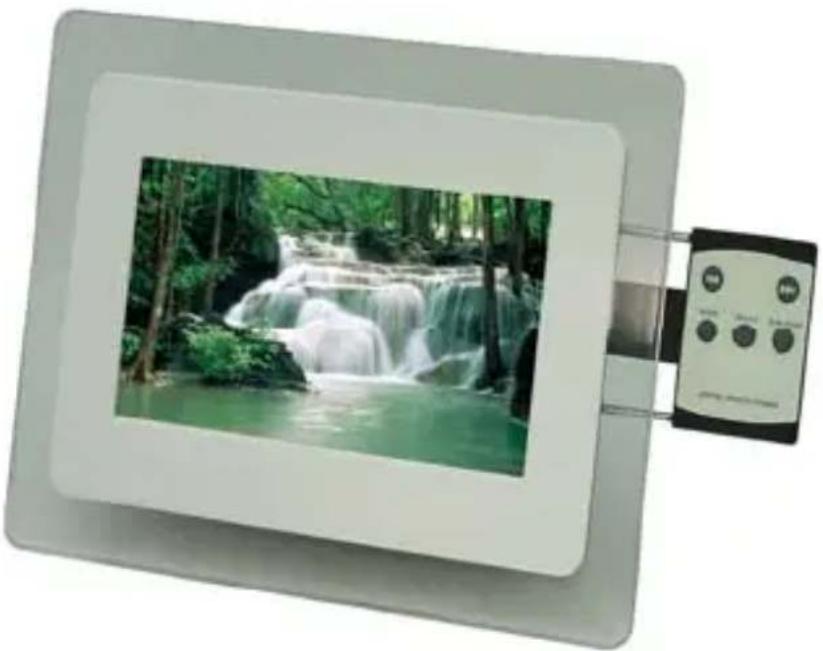
natural_image
Digital display showing a waterfall in a forest setting, with a control panel attached (no visible text or symbols)For 7", 8.5" and 9" Models
Important Safety Instructions
WARNING:
Do not expose this device to water or moisture.
The device should be situated away from sources of high heat such as radiators or stoves.
The device should be connected to a power supply only of the type described in the operating instructions or as marked on the unit.
Care should be taken so that objects are not placed on, nor liquids spilled on or inside the device.
The user should not attempt to service the device beyond those means described in these operating instructions. All other servicing should be referred to qualified service personnel.
Note: Photos and illustrations in the manual might differ from the actual product due the changeable frame designs.
Getting Started
Locating Controls and Connections
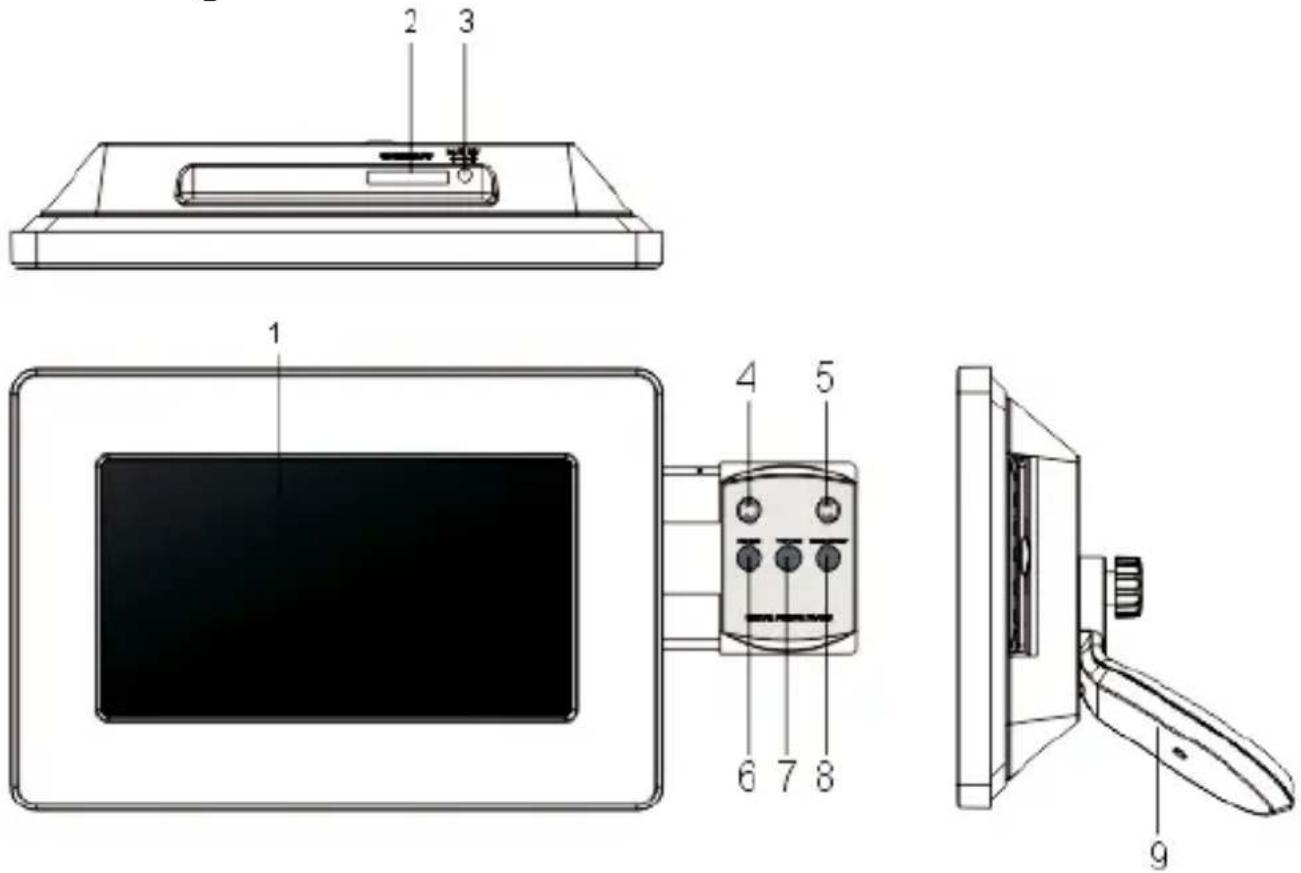
- LCD screen
- SD/MMC/MS/XD memory slot
- Power DCIN Jack
- SKIP-BACKWARD(◀)
- SKIP-FORWARD(▶)
- ROTATE: Use to rotate the photo.
- 16:9/4:3: Use to switch among Wide Screen 16:9, AutoZoom Regular Screen 4:3.
- SLIDE SHOW ON/OFF
- Stand
Illustration
7" model
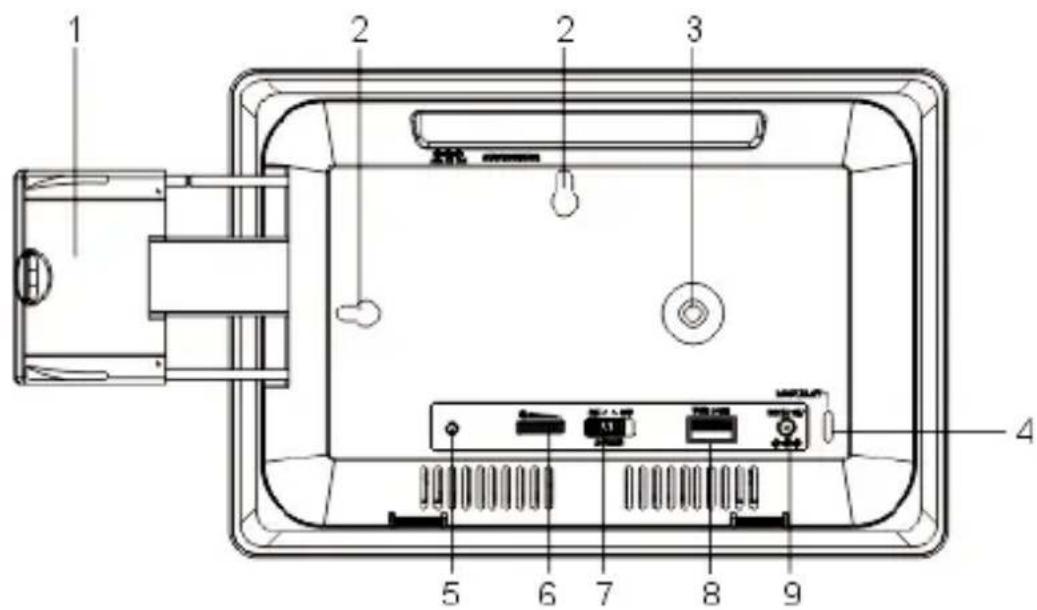
text_image
Technical diagram of a device rear panel with numbered components for identification8.5"and 9" model
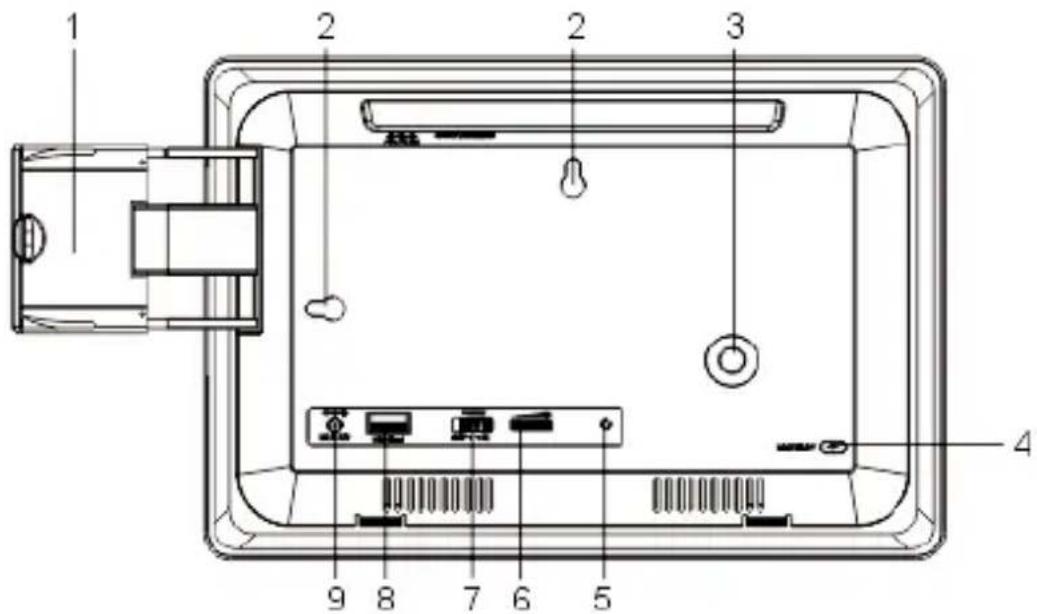
text_image
1 2 2 3 4 9 8 7 6 5- Retractable keypad
- Key holes for wall mount.
- Stand screw hole
- LOCK SLOT: for connection of lockable chain lock.
- Power on/off indicating LED
- Screen brightness adjustment knob
- POWER ON/OFF
- USB Slot
- DC power input
Positioning
Placing the Photo Frame
You can place this Photoframe on a flat surface or hang it on the wall.
Place on a flat surface
-
Screw in the stand to the stand screw hole on the back of the Photoframe.
-
Adjust the stand position for vertical or horizontal placement, tighten the screw.
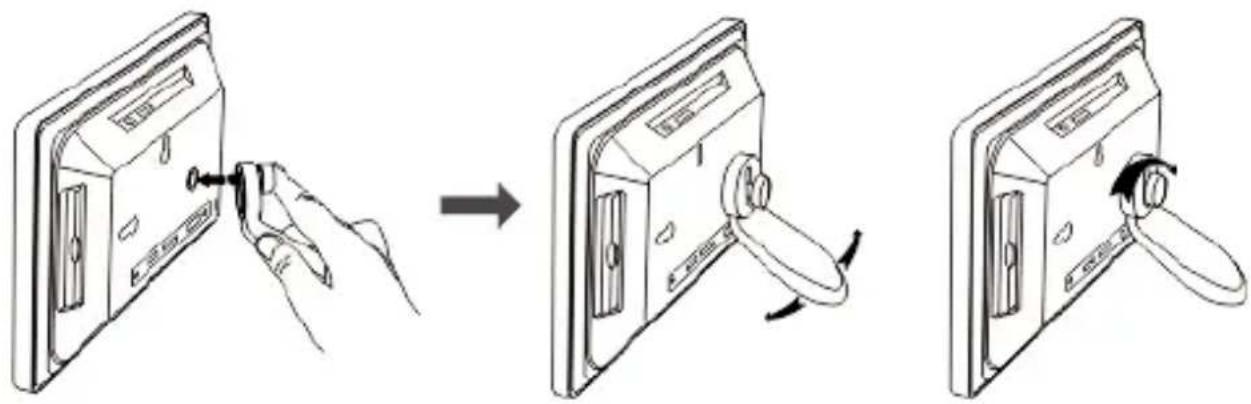
text_image
Diagram illustrating the step-by-step installation of a door handle mechanism, showing hand positioning and rotation.Hang on the wall
-
Insert a screw into your desired spot on the wall.
-
Place one of the KEYHOLES, depending on your desired Frame orientation, over the screw and hang the Frame.
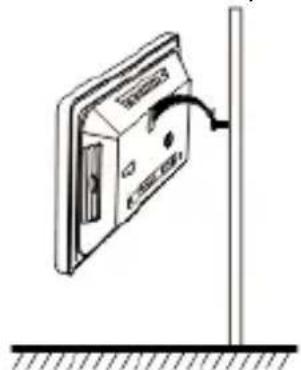
natural_image
Diagram of a CD tape being inserted into a vertical pole, showing cable attachment (no text or symbols)Horizontal
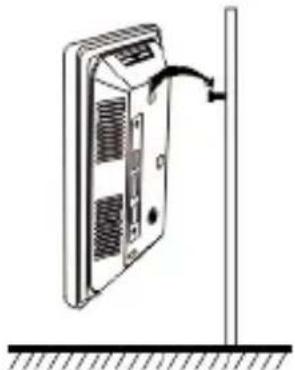
natural_image
Diagram of a computer monitor with ventilation slots and a vertical pole, showing no text or symbolsVertical
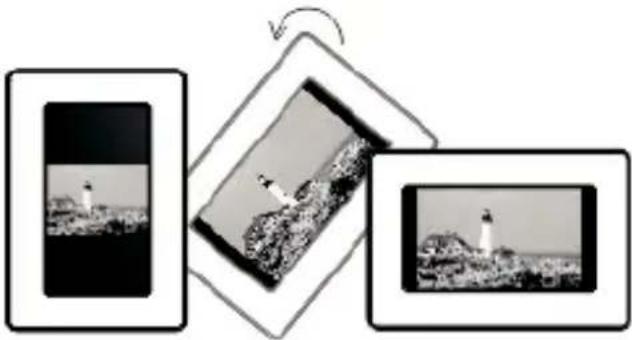
natural_image
Three black-and-white photos arranged in a diamond shape, showing different landscape views (no text or symbols)(The photo automatically turns 90 degree as the Photoframe turns 90 Degree on the left side)

Getting Started
Using the Key Pad
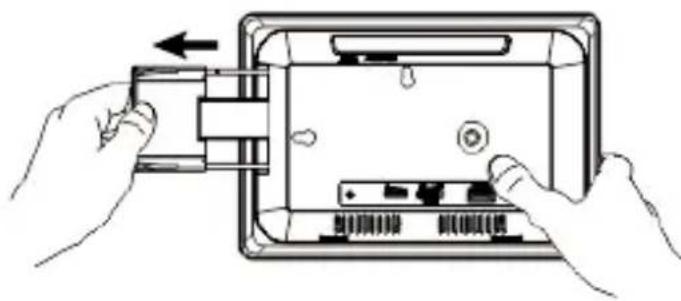
natural_image
Illustration of hands inserting a device into a tablet device (no text or symbols visible)To use the key pad, just pull it out all the way.
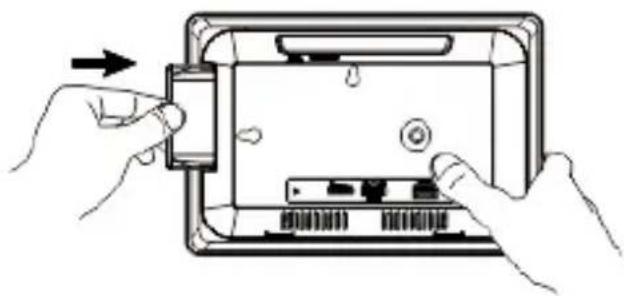
natural_image
Illustration of hands inserting a device into a tablet device (no text or symbols visible)Tohide the key pad, simply push it back.
Memory cards
Using Card Reader and USB
-
Insert the memory card into the slot of the Photoframe, making sure that the metal contacts of the memory card is facing the front of the Frame.
-
To remove, simply pull out the card.
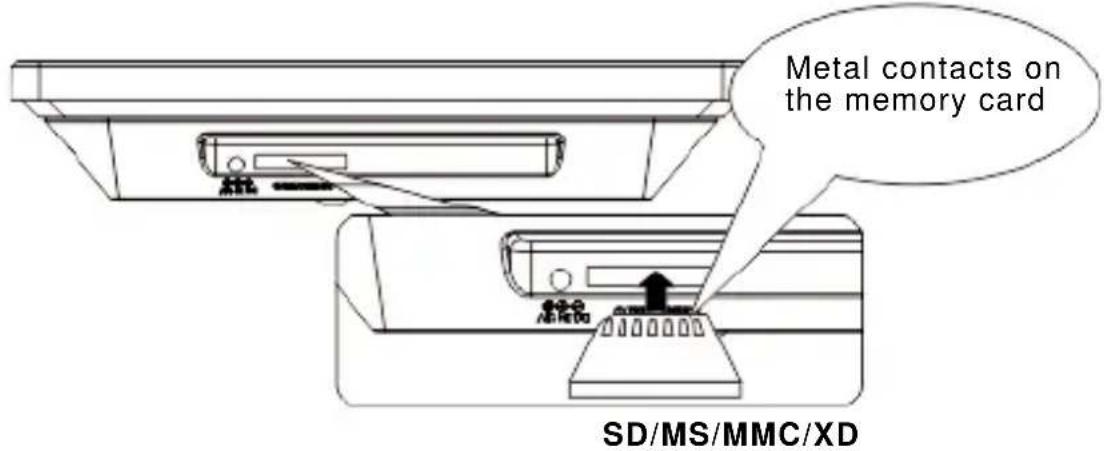
text_image
Metal contacts on the memory card SD/MS/MMC/XDNote:
If you use Memory Stick Pro, a Memory Stick Pro-to- Memory Stick adaptor must be used otherwise the card can be stuck in the slot.
USB
Insert the USB into the USB slot on the Photoframe.
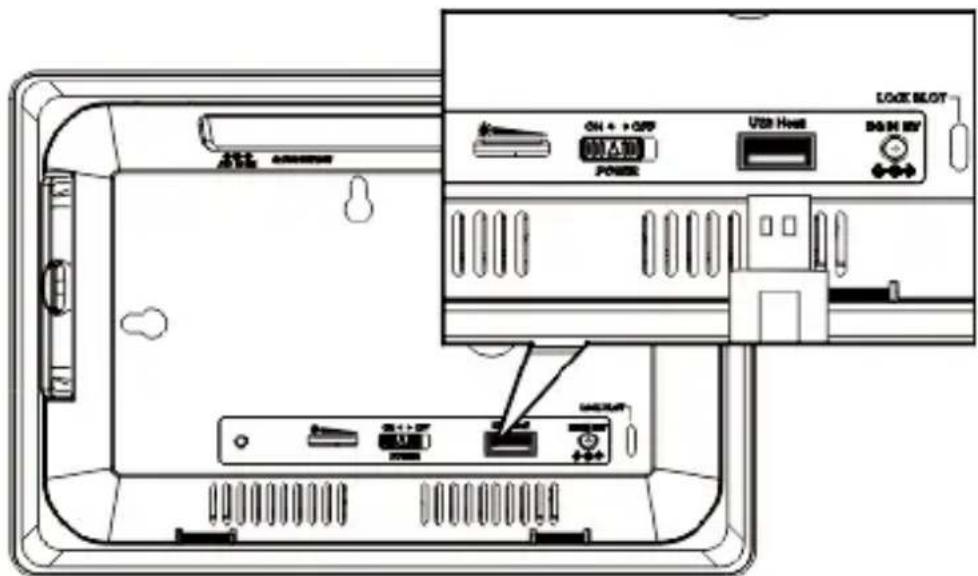
text_image
ON + + OFF Power USB Host DO NOT BY LOCK BLOT AUTOGetting Started
Using the AC Adaptor
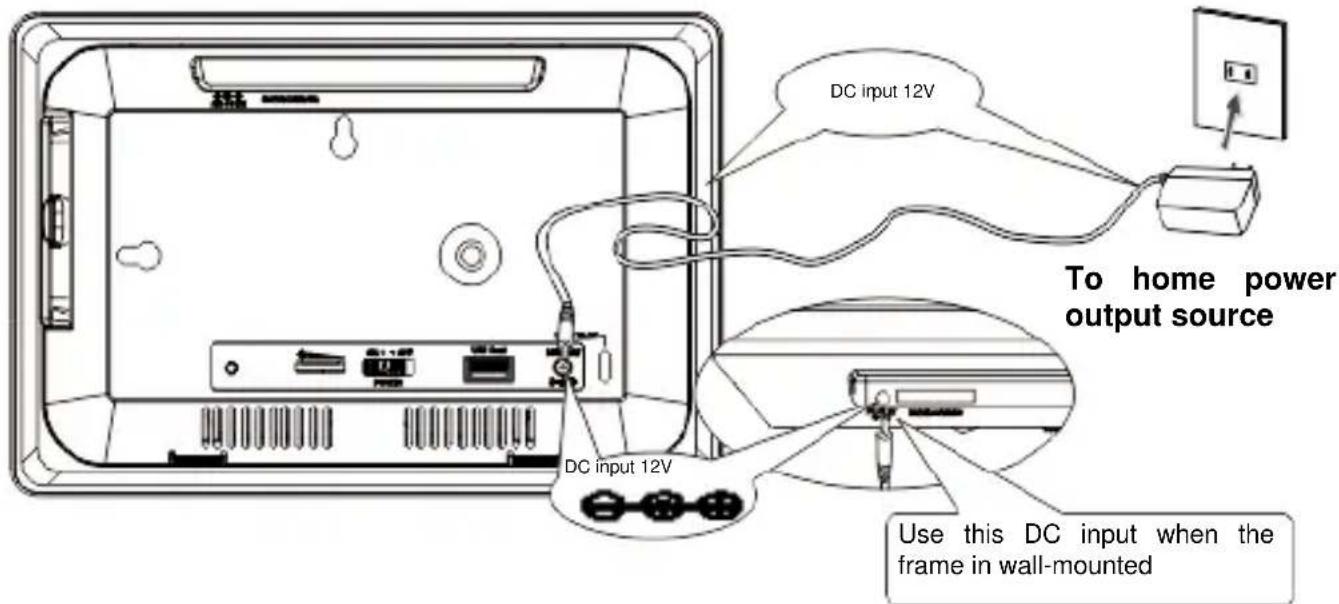
This Photoframe can be powered by AC through the supplied switching power AC adaptor.
Connect the AC adaptor to your Photoframe as illustrated below, There are two inputsockets (DC 12VIN) for accepting the plug from AC
text_image
DC input 12V To home power output source DC input 12V Use this DC input when the frame in wall-mountedadaptor.
Note
■ Always turn off the Photoframe before connecting or disconnecting the
AC cord.
■ Only use the AC adaptorsupplied with this player. Using a different type of adaptor may cause malfunction or damage to the product.
■ When the AC adaptor is used for prolonged period of time, the adaptor may heat up, this is normal and is not a cause for concern.
■ When not using the adaptor, unplug it from the outlet.

Viewing Photos
Viewing Photos
- Insert one end of the ACADAPTER into DC IN, and the other end into an electrical outlet.
- Slide ON/OFF to the "ON" position. The POWER INDICATOR illuminates.
- Adjust the screen brightness using the Brightness Adjustment Knob on the back of the frame.
Note: if the brightness setting is at the minimum, the screen is dark.
- Insert your memory card into SD/MMC/MS/xD. Or, insert your USB stick into USBHOST. Your photos appear on the display with slideshow.
Note:
If both memory card and USB are inserted, the Frame plays memory
◆ card. Compatible image format: JPEG
Viewing Photos
Turning Off/On Slideshow
Press 📄, to turn off and turn on slide show. With the Slideshow turned off, you can browse the photo manually by pressing 🎥 to view the next photo and 🎥 to view the previous photo. With the Slideshow turned on, the photos display automatically.
Viewing in 4:3, Automatic Zoom and 16:9 Mode
You can view the photo in three modes in sequence: 4:3, automatic
zoom and 16:9 (widescreen) modes by repeatedly pressing

◆ 4:3 mode: the photo is displayed in original size.
- Automatic Zoom: the photo is zoomed to fill the whole screen. Portion (top and bottom) of the original photo will be cut off from the screen. If the original photo is too small, the automatic zoom will have no or little effect.
◆ 16:9 mode: the photo is stretched to fill 16:9 widescreen, this results in image distortion. Some newer digital camera can shoot 16:9 format, viewing in 16:9 mode will appear normal.
Rotating Your Photos
You can rotate your photos to view them at different angles.
- Select your desired photo.
- Repeatedly press
to rotate the photo to your desired angle.

Removing and Installing Decorative Frame
Installing Decorative Frame
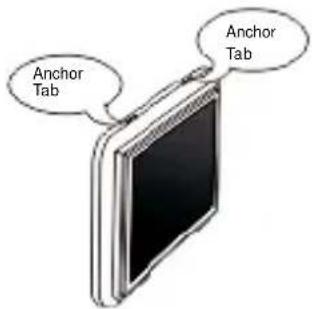
- Insert the two anchor tabs on the top of main unit into the two matching holding slots of the decorative frame, make sure tabs are fully inserted.
text_image
Anchor Tab Anchor Tab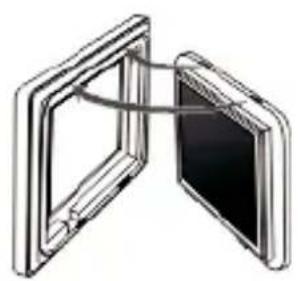
natural_image
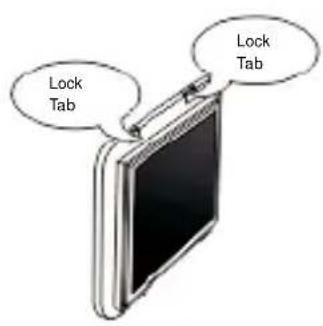
Diagram of two open-framed computer monitors with a cable or cable connecting them (no text or symbols)- Bring the main unit and the decorative frame together, and press down the main unit until the two lock tabs clicked into place.
text_image
Lock Tab Lock Tab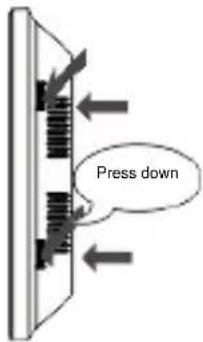
text_image
Press downRemoving Decorative Frame
- Simultaneously press down the twolock tabs meanwhile pushes away the decorative frame from the unit.
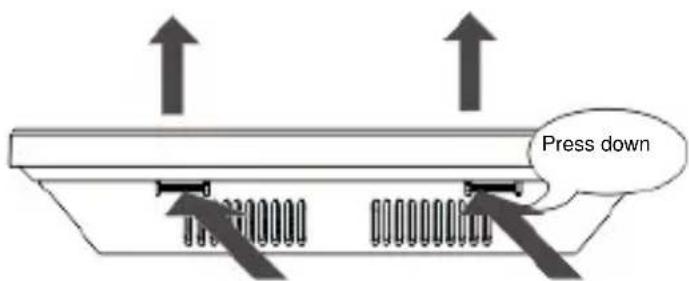
text_image
Press down- Separate the decorative frame from the main unit.
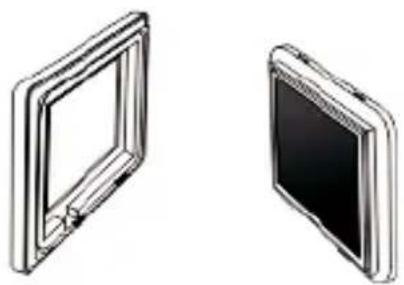
natural_image
Two views of a flat-screen monitor or display stand, shown from different angles (no text or symbols visible)Connecting Locks
The Photoframe has areceptacle (slot) to accept a locking cable to keep it secure in high-traffic areas, such as in-store product demonstration.
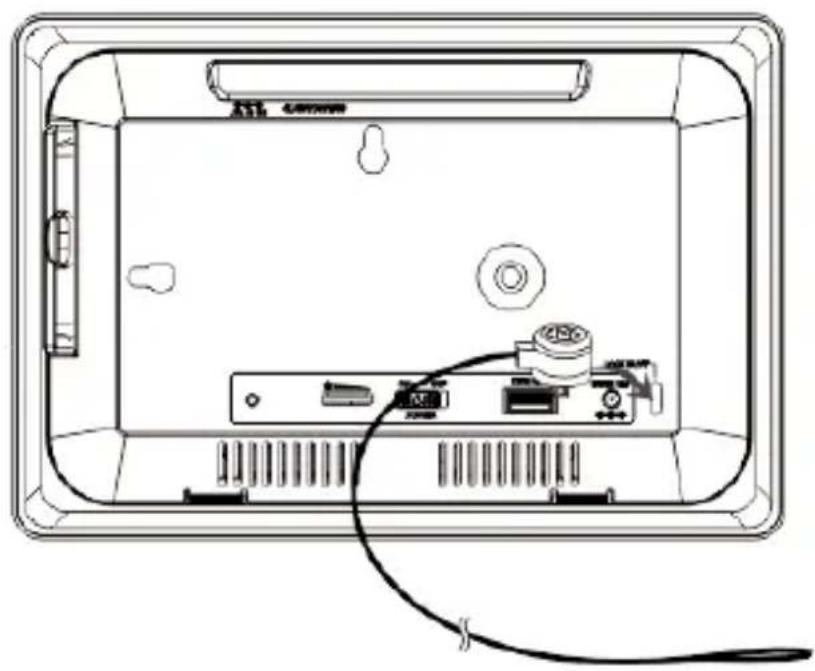
natural_image
Technical line drawing of a device rear panel with internal components and cable (no text or symbols)Troubleshooting
| Symptom | Check |
| No display | 1. Make sure the AC Power cord is securely plugged into an active AC outlet.2. Check Power switch is at ON position.3. Check the Brightness Adjustment knob is not set at the minimum. |
| No photos displayed while Memory Card or USB stick has been inserted. | 1. Remove and insert Memory Card or USB and make sure they are properly inserted in place.2. Make sure the image files are in correct format (JPEG). |

Specifications
| General | Response time 30ms | |
| Power Requirements | Input:100~240V AC | |
| Power Consumption | Max 8Watt | |
| Operating Temperature Range | +10°C~ +40°C | |
| Operating Voltage | 12V DC | |
| Compatible Memory Cards | SD/MMC/MS/XD card up to 4GB | |
| Photo Formats Supported | JPEG | |
| A.C Adaptor | IN: 100~240VAC OUT: 12V/1.25A | |
| Display | TFT-LCD Size Resolution | |
| 7” | 480 x 3(RGB) x 234 | |
| 8.5” | 480 x 3(RGB) x 234 | |
| 9” | 640 x 220 |
■ Specifications are subject to change without notice. While efforts have been made to ensure accuracy, the manufacturer will not be held liable for any inaccuracies or errors in the information contained within.
- end -