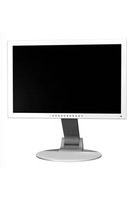
S2202WHA-GY - Monitor EIZO - Free user manual and instructions
Find the device manual for free S2202WHA-GY EIZO in PDF.


Pick your language and provide your email: we'll send you a specifically translated version.
| Product Type | 22-inch LCD Monitor |
| Model | S2202WHA-GY |
| Display Size | 22 inches (55.9 cm) diagonal |
| Native Resolution | 1680 x 1050 (WSXGA+) |
| Aspect Ratio | 16:10 |
| Contrast Ratio | 1000:1 (typical) |
| Brightness | 300 cd/m² (typical) |
| Response Time | 5 ms (gray-to-gray) |
| Viewing Angles | 170° horizontal / 160° vertical (CR≥10) |
| Inputs | DVI-D (with HDCP), D-Sub mini 15-pin |
| USB Hub | 2 x USB 2.0 downstream, 1 upstream |
| Power Consumption | 42 W (typical), <1 W (standby) |
| Voltage | 100-240 VAC, 50/60 Hz |
| Dimensions (W x H x D) | 19.7 x 14.8-20.2 x 9.8 inches (with stand) |
| Weight | 16.5 lbs (7.5 kg) with stand |
| Adjustability | Height adjustable (4.7 in), tilt (30° up/5° down), swivel (35° left/right) |
| VESA Mount | 100 x 100 mm |
| Speakers | 2 x 1 W built-in |
| Features | FineContrast, Auto Brightness, EcoView |
| Certifications | Energy Star, TCO Certified, EPEAT Silver |
| Cleaning | Wipe with a soft, dry cloth; do not use harsh chemicals |
| Safety | VCCI, FCC, CE, UL, CSA |
| Repairability | Spare parts available from Eizo; consult service manual |
Frequently Asked Questions - S2202WHA-GY EIZO
How do I connect my computer to the Eizo S2202WHA-GY monitor?
Use the DVI-D or D-Sub cable provided. Connect one end to the monitor and the other to your computer's graphics card. Tighten the screws on the D-Sub connector. For DVI, ensure the cable is fully inserted.
Can I adjust the height and tilt of the monitor?
Yes, the stand offers height adjustment (4.7 in range), tilt (30° up, 5° down), and swivel (35° left/right). Use the release buttons to adjust.
How do I clean the screen without damaging it?
Turn off the monitor and unplug it. Use a soft, lint-free cloth slightly dampened with water. Wipe gently from top to bottom. Do not use alcohol, ammonia, or paper towels.
What should I do if there is no signal on the screen?
Check that the cables are securely connected. Ensure the computer is powered on and not in sleep mode. Press the Input Select button on the monitor to cycle through inputs. Try another cable or port.
Does the monitor have built-in speakers?
Yes, it has two 1 W speakers. Audio input is via the DVI-D (if supported) or a separate audio cable (3.5 mm jack). Adjust volume from the monitor's OSD.
How do I enable EcoView for power saving?
Press the Eco button on the front bezel. The monitor will automatically adjust brightness based on ambient light. You can also set it via the OSD menu under EcoView settings.
What is the native resolution of this monitor?
The native resolution is 1680 x 1050 at 60 Hz. For best image quality, set your computer to this resolution. Lower resolutions may appear stretched or blurry.
Can I mount the monitor on a VESA arm?
Yes, it supports a 100 x 100 mm VESA mount. Remove the stand by pressing the release button and unscrewing the base. Attach the arm per the arm's instructions.
How do I calibrate the color for photo editing?
Use the OSD to adjust brightness, contrast, and color temperature. For advanced calibration, you may use a hardware calibrator with Eizo's ColorNavigator software (compatible models). Refer to manual for detailed settings.
What are the available OSD languages?
The on-screen display supports multiple languages including English, French, German, Spanish, Italian, Japanese, and Chinese. Switch via the OSD Setup menu.
User questions about S2202WHA-GY EIZO
0 question about this device. Answer the ones you know or ask your own.
Ask a new question about this device
No questions yet. Be the first to ask one.
Download the instructions for your Monitor in PDF format for free! Find your manual S2202WHA-GY - EIZO and take your electronic device back in hand. On this page are published all the documents necessary for the use of your device. S2202WHA-GY by EIZO.
USER MANUAL S2202WHA-GY EIZO
• HDCP (High-bandwidth Digital Content Interface)
HINWEIS
[Bei digitalem Signaleingang]
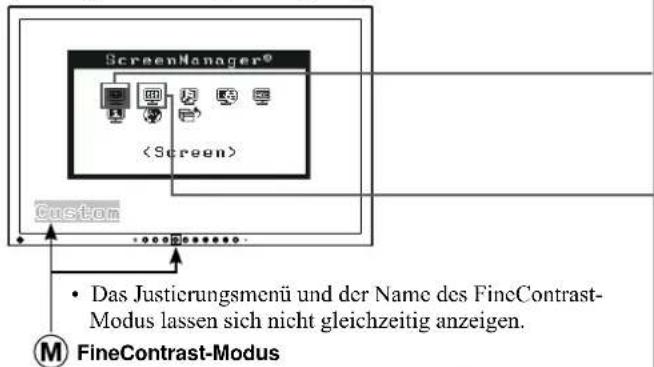
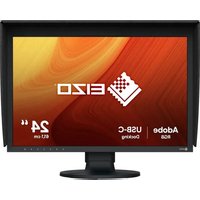
Table of contents
Click a title to access it
Manual assistant
Powered by Anthropic
Waiting for your message
Product information
Brand : EIZO
Model : S2202WHA-GY
Category : Monitor