
VPL-PX10 - Projector SONY - Free user manual and instructions
Find the device manual for free VPL-PX10 SONY in PDF.


| Product type | LCD projector |
| Brand | SONY |
| Model | VPL-PX10 |
| Display technology | 3 LCD TFT panels 0.9 inch with micro-lenses |
| Native resolution | XGA (1024 × 768) |
| Brightness | 2000 ANSI lumens |
| Lamp | UHP 200 W (replacement model: LMP-P202) |
| Lens | Manual 1.3x zoom, f=33.6-42 mm, F1.7-2.1 |
| Projected image size | 40 to 300 inches (diagonal) |
| Keystone correction | Digital (D Keystone) |
| Built-in speakers | Stereo 2 × 0.5 W |
| Video input connectivity | Composite (phono), S-Video (4-pin mini-DIN) |
| Computer input connectivity | INPUT A: HD D-sub 15-pin, USB (type A and B), MOUSE (PS/2) |
| Other connectors | CTRL S/PLUG IN POWER (stereo mini-jack), AC IN socket |
| Dimensions (W × H × D) | 325 × 110 × 285 mm |
| Weight | 4.9 kg |
| Power supply | AC 100-240 V, 2.9-1.2 A, 50/60 Hz |
| Power consumption | Max. 290 W (standby: 4.7 W) |
| Special features | APA (auto alignment), digital zoom, freeze frame, remote control with laser pointer, wireless mouse, Projector Station software |
| Safety | Automatic overheating shutdown, Kensington lock, laser precautions |
| Maintenance | Air filter cleaning every 300 hours, lamp replacement |
| Operating temperature | 0°C to 35°C |
| Operating humidity | 35% to 85% (non-condensing) |
| Supplied accessories | Remote control, HD D-sub cable, PS/2 mouse cable, USB cable, CD-ROM, power cord, replacement air filter, carrying case |
Frequently Asked Questions - VPL-PX10 SONY
User questions about VPL-PX10 SONY
0 question about this device. Answer the ones you know or ask your own.
Ask a new question about this device
Download the instructions for your Projector in PDF format for free! Find your manual VPL-PX10 - SONY and take your electronic device back in hand. On this page are published all the documents necessary for the use of your device. VPL-PX10 by SONY.
USER MANUAL VPL-PX10 SONY
To avoid electrical shock, do not open the cabinet. Refer servicing to qualified personnel only.

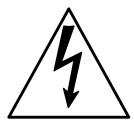
This symbol is intended to alert the user to the presence of uninsulated "dangerous voltage" within the product's enclosure that may be of sufficient magnitude to constitute a risk of electric shock to persons.

This symbol is intended to alert the user to the presence of important operating and maintenance (servicing) instructions in the literature accompanying the appliance.
For the customers in the USA
This equipment has been tested and found to comply with the limits for a Class A digital device, pursuant to Part 15 of the FCC Rules. These limits are designed to provide reasonable protection against harmful interference when the equipment is operated in a commercial environment. This equipment generates, uses, and can radiate radio frequency energy and, if not installed and used in accordance with the instruction manual, may cause harmful interference to radio communications. Operation of this equipment in a residential area is likely to cause harmful interference in which case the user will be required to correct the interference at his own expense.
You are cautioned that any changes or modifications not expressly approved in this manual could void your authority to operate this equipment.
For the customers of the VPL-PX15/PX10
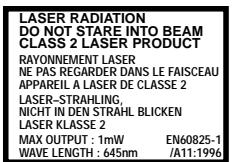
This label is located on the rear of the Remote Commander.

This label is located on the rear of the Remote Commander.
CAUTION
LASER RADIATION
DO NOT STARE INTO BEAM
WAVE LENGTH:645nm MAX OUTPUT:1mW
CLASS II LASER PRODUCT
COMPLIES WITH DHHS 21 CFR SUBCHAPTER J
This label is located on the rear of the Remote Commander.
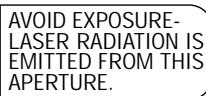
This label is located on the rear of the Remote Commander.
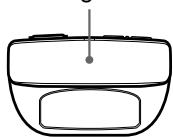
Laser light shines out of this window.
Caution
Use of controls or adjustments or performance of procedures other than those specified herein may result in hazardous radiation exposure.
Notes
- Do not aim the laser at people and do not look into the laser transmitter.
- If the Remote Commander malfunctions or causes a malfunction, consult with qualified Sony personnel. We will exchange the Remote Commander for a new one based on the terms of the guarantee.
For the customers in Canada
This Class A digital apparatus complies with Canadian ICES-003.
WARNING
THIS APPARATUS MUST BE EARTHED
IMPORTANT
The wires in this mains lead are coloured in accordance with the following code:
Green-and-Yellow: Earth
Blue: Neutral
Brown: Live
As the colours of the wires in the mains lead of this apparatus may not correspond with the coloured markings identifying the terminals in your plug proceed as follows:
The wire which is coloured green-and-yellow must be connected to the terminal in the plug which is marked by the letter E or by the safety earth symbol 12 or coloured green or green-and-yellow.
The wire which is coloured blue must be connected to the terminal which is marked with the letter N or coloured black. The wire which is coloured brown must be connected to the terminal which is marked with the letter L or coloured red.
The socket-outlet should be installed near the equipment and be easily accessible.
Apparaten ma kun tilkopies jordet stikkontakt.
Warning on power connection
Use a proper power cord for your local power supply.
| The United States, Canada | Continental Europe | UK, Ireland, Australia, New Zealand | Japan | |||
| Plug type | VM0233 | 290B | YP-12A | COX-07 | —¹) | YP332 |
| Female end | VM0089 | 386A | YC-13B | COX-02 | VM0310B | YC-13 |
| Cord type | SJT | SJT | H05VV-F | H05VV-F | N13237/CO-228 | VCTF |
| Rated Voltage & Current | 10A/125V | 10A/125V | 10A/250V | 10A/250V | 10A/250V | 7A/125V |
| Safety approval | UL/CSA | UL/CSA | VDE | VDE | VDE | DENAN |
Table of Contents
Overview
Precautions 7 (GB)
Features 8 (GB)
Location and Function of Controls 9 (GB)
Front/LeftSide. 9 (GB)
Rear/RightSide/Bottom. 9 (GB)
Control Panel 11 (GB)
Connector Panel 13 (GB)
Remote Commander (supplied with the VPL-PX15/PX10) 14 (GB)
Remote Commander (supplied with the VPL-PS10) 16 (GB)
Setting Up and Projecting
Installing the Projector 18 (GB)
Connecting the Projector 18 (GB)
Connecting to a Computer 18 (GB)
Connecting to a VCR or 15k RGB/Component Equipment 20 (GB)
Connecting to a LAN (VPL-PX15 only) 21 (GB)
Selecting the Menu Language 23 (GB)
Projecting 24 (GB)
Adjustments and Settings Using the Menu
Using the Menu 27 (GB)
The PICTURE CTRL Menu 28 (GB)
The INPUT SETTING Menu 29 (GB)
The SET SETTING Menu 31 (GB)
The INSTALL SETTING Menu 32 (GB)
Installation
Installation Example 34 (GB)
Notes for Installation 35 (GB)
Unsuitable Installation 35 (GB)
Unsuitable Conditions for Use 35 (GB)
Maintenance
Maintenance 37 (GB)
Replacing the Lamp 37 (GB)
Cleaning the Air Filter 38 (GB)
Troubleshooting 39 (GB)
Other
Specifications 41 (GB)
Index 44 (GB)
Precautions
On safety
- Check that the operating voltage of your unit is identical with the voltage of your local power supply.
- Should any liquid or solid object fall into the cabinet, unplug the unit and have it checked by qualified personnel before operating it further.
- Unplug the unit from the wall outlet if it is not to be used for several days.
- To disconnect the cord, pull it out by the plug. Never pull the cord itself.
- The wall outlet should be near the unit and easily accessible.
- The unit is not disconnected to the AC power source (mains) as long as it is connected to the wall outlet, even if the unit itself has been turned off.
- Do not look into the lens while the lamp is on.
- Do not aim the laser at people and do not look into the laser transmitter.
- Do not place your hand or objects near the ventilation holes — the air coming out is hot.
- Be careful not to catch your fingers with the adjusters when you lift up the projector. Do not push hard on the top of the projector with the adjusters out.
- Be sure to grasp both sides when carrying the projector.
On illumination
- To obtain the best picture, the front of the screen should not be exposed to direct lighting or sunlight.
- Ceiling-mounted spot lighting is recommended. Use a cover over fluorescent lamps to avoid lowering the contrast ratio.
- Cover any windows that face the screen with opaque draperies.
- It is desirable to install the projector in a room where floor and walls are not of light-reflecting material. If the floor and walls are of reflecting material, it is recommended that the carpet and wall paper be changed to a dark color.
On preventing internal heat build-up
After you turn off the power with the I / key on the Remote Commander or on the control panel, do not disconnect the unit from the wall outlet while the cooling fan is still running.
Caution
The projector is equipped with ventilation holes (intake) on the bottom and ventilation holes (exhaust) on the front. Do not block or place anything near these holes, or internal heat build-up may occur, causing picture degradation or damage to the projector.
On cleaning
- To keep the cabinet looking new, periodically clean it with a soft cloth. Stubborn stains may be removed with a cloth lightly dampened with a mild detergent solution. Never use strong solvents, such as thinner, benzene, or abrasive cleansers, since these will damage the cabinet.
- Avoid touching the lens. To remove dust on the lens, use a soft dry cloth. Do not use a damp cloth, detergent solution, or thinner.
- Clean the filter at regular intervals, every 300 hours.
On repacking
Save the original shipping carton and packing material; they will come in handy if you ever have to ship your unit. For maximum protection, repack your unit as it was originally packed at the factory.
About the LCD projector
The LCD projector is manufactured using high-precision technology. You may, however, see tiny black points and/or bright points (red, blue, or green) that continuously appear on the LCD projector. This is a normal result of the manufacturing process and does not indicate a malfunction.
Features
High brightness, high picture quality
High brightness
Adopting a newly developed optical system and a 200 W UHP lamp allows high brightness (VPL-PX15/ PX10: light output 2000 ANSI lumen, VPL-PS10: light output 1500 ANSI lumen) and excellent uniformity on the picture.
High resolution
VPL-PX15/PX10
Three 0.9-inch, approximately 790,000 pixel, XGA panels provide a resolution of 1024 × 768 dots for RGB input and 750 horizontal TV lines for video input.
VPL-PS10
Three 0.9-inch, approximately 480,000 pixel, SVGA panels provide a resolution of 800 × 600 dots for RGB input and 600 horizontal TV lines for video input.
Simple setup
- Simple setup with external equipment
The projector has 37 preset data items for input signals in memory, which allows you to project a clear picture on the screen simply by connecting equipment and pressing the APA (Auto Pixel Alignment) key.
- Compatible with USB (Universal Serial Bus) hub functions
You can connect USB equipment (e.g., a USB mouse) to the projector, and also control the projector by using the "Projector Station" application software (CD-ROM) supplied with the projector from a computer operated with Microsoft1) Windows1) 98, Windows 98 SE or Windows 2000. Using this application software, you can open a file you want to use for your presentation with the supplied Remote Commander.
Easy presentation
- Multi functional Remote Commander with mouse control functions
You can operate a computer connected to this projector with the Remote Commander since the unit has a built-in mouse receiver.
- Digital zoom / freeze functions
This projector has a digital zoom function that enables you to enlarge the image at a desired location on the screen. The freeze function allows you to freeze the picture projected. The frozen picture continues to be projected even if the equipment is disconnected from the video source.
Accepts various input signals
- Scan converter loaded
This projector has a built-in scan converter that converts the input signal to 1024 × 768 dots (VPL-PX15/PX10) or 800 × 600 dots (VPL-PS10).
- Compatible input signals
This projector accepts composite, S video, and component video signals as well as 15k RGB, VGA ^2) , SVGA ^2) , XGA ^2) , and SXGA ^2) signals, which can all be displayed.
- Compatible with six color systems
Any of the NTSC3.58 , PAL, SECAM, NTSC4.43^3) , PAL-M, or PAL-N color systems can be selected automatically or manually.
Other functions
- Networking compatibility (Wireless compatible, VPL-PX15 only)
The projector is equipped with a PC CARD slot and ETHER connector, which allows you to connect the unit to a wired or wireless LAN.
For information on the networking function of this projector, refer to the Operating Instructions for Networking supplied with the unit.
Location and Function of Controls
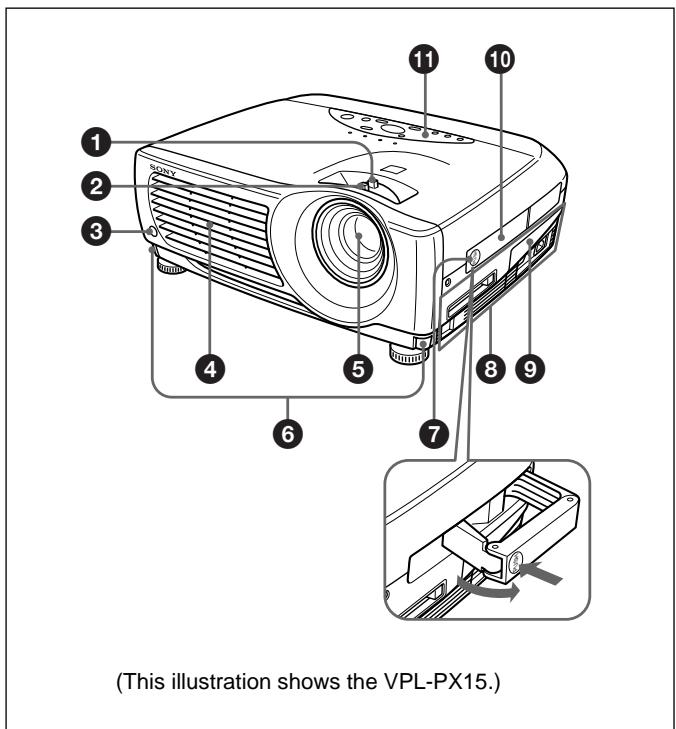
Front / Left Side
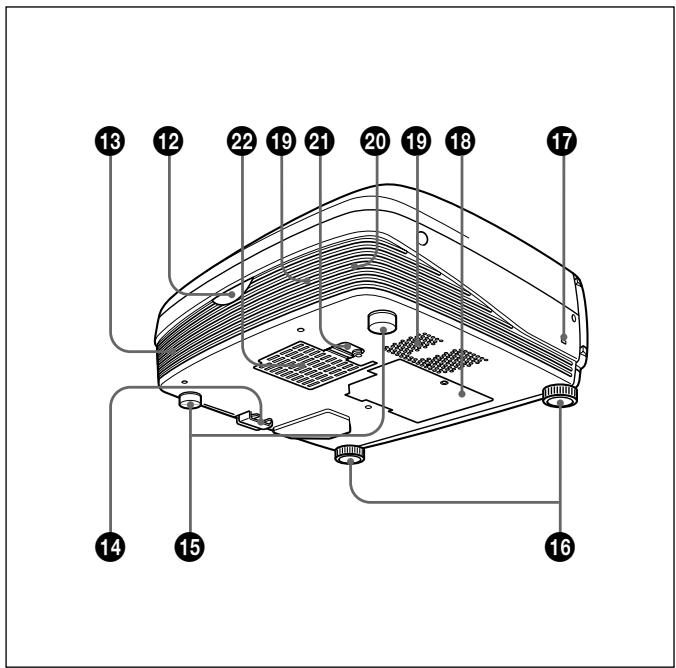
Rear / Right Side / Bottom
Zoom ring
Adjusts the size of the picture.
Focus ring
Adjusts the picture focus.
Front remote control detector
Ventilation holes (exhaust)
Lens
Remove the lens cap before projection.
Adjuster buttons
7 Handle release
Push to make the carrying handle 10 pop up.
Connector panel
For details, see "Connector Panel" on page 13 (GB).
Connector panel cover
If necessary, open this cover to use the connectors on the connector panel. You can remove the cover by releasing the connector panel cover lock 14.
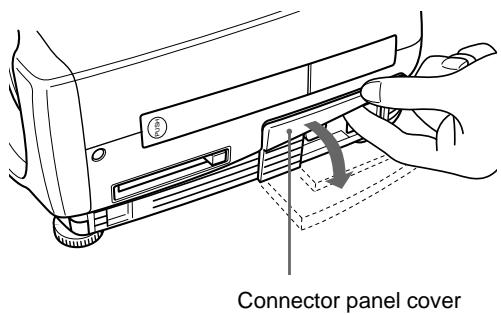
Left side
10 Carrying handle
Use the handle release ⑦ to make the handle pop up from the projector for carrying.
Control panel
For details, see "Control Panel" on page 11 (GB).
Rear remote control detector
13 Left speaker
Connector panel cover lock
Used to remove/install the connector panel cover 9.
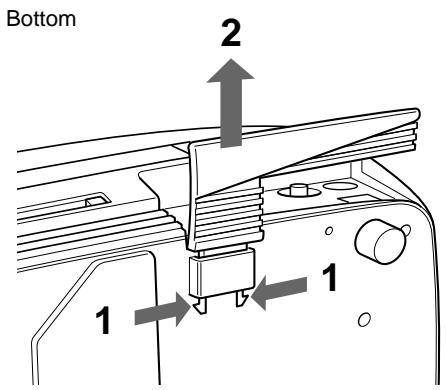
While pressing both sides of the lock, slide the connector cover outward to release it.
15 Rear adjusters
16 Adjusters
When a picture is projected on an exterior of the screen, adjust the picture using these adjusters.
For details on how to use the adjusters, see "How to use the adjusters" on page 11 (GB).
Security lock
Connects to an optional security cable (made by Kensington)1).
The security lock corresponds to Kensington's MicroSaver®1) Security System.
If you require further information, contact
Kensington
2855 Campus Drive, San Mateo, CA 94403
In North America
Phone: 800-235-6708
Fax: 800-247-1317
Outside North America
Phone: 847-541-9500
Home page address:
http://www.kensington.com/
18 Lamp cover
19 Ventilation holes (intake)
20 Right speaker
Air filter cover lock
Used to remove the air filter cover.
For details, see "Cleaning the Air Filter" on page 38 (GB).
Note
Clean the air filter every 300 hours to ensure optimal performance.
22 Ventilation holes (intake) / air filter cover
Notes
- Do not place anything near the ventilation holes as it may cause internal heat build-up.
- Do not place your hand or objects near the ventilation holes — the air coming out is hot.
How to use the adjusters
To adjust the height
Adjust the height of the projector as follows:
1 Lift the projector and press the adjuster buttons. The adjusters will extend from the projector.
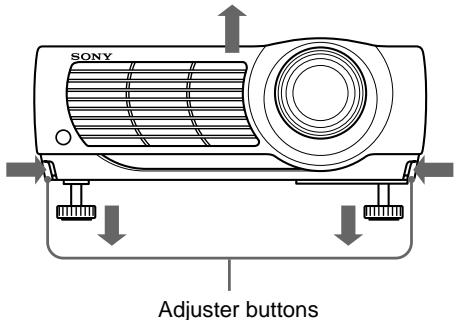
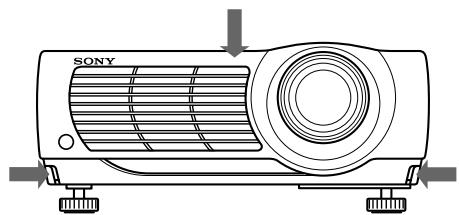
2 While pressing the buttons, adjust the height. Then, release the buttons. The adjusters will lock, then the height of the projector will be fixed. For fine adjustment, turn the adjusters to the right or left.
Note
If the adjusters have been extended to the limit and you keep turning the adjusters counterclockwise, the adjusters will stop turning and the adjuster buttons cannot be pressed. In this case, turn the adjusters clockwise, and then press the adjuster buttons again.
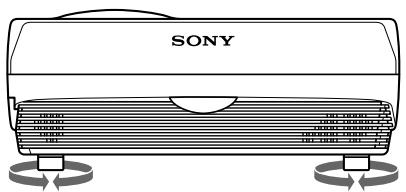
3 If necessary, turn the rear adjusters to the right or left to adjust the height of the projector.
Notes
- Be careful not to let the projector down on your fingers.
- Do not push hard on the top of the projector with the adjusters out.
Control Panel
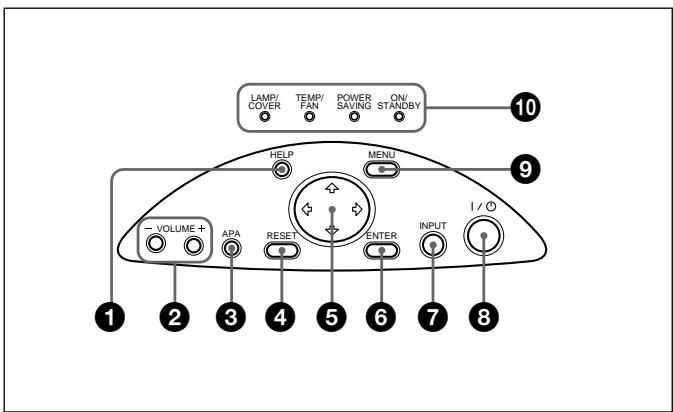
HELP key
If you need help information during an operation, press this key to display help messages. The Help menu lists error recovery techniques depending on problem type.
2 VOLUME + / - keys
Adjust the volume of the built-in speakers.
- : Increases the volume.
- : Decreases the volume.
APA (Auto Pixel Alignment) key
Adjusts the picture to be projected automatically to give the clearest picture possible while a signal from the computer is input. Adjusts the shift (up/down and left/right) at the same time automatically.
Note
Press the APA key when the full image is displayed on the screen. If there are black edges around the image, the APA function will not function properly and the image may extend beyond the screen.
4 RESET key
- Resets the value of an item to its factory preset value.
This key functions when the menu or a setting item is displayed on the screen.
Arrow (///) keys
Used to select a menu or to make various adjustments.
ENTERkey
Enters the settings of items in the menu system.
INPUT key
Selects the input signal. Each time you press the key, the input signal switches as follows:

Notes
- You can select INPUT-B only if INPUT-B FUNC. in the INSTALL SETTING menu has been set to ON. INPUT-B is only available for the VPL-PX15.
- The audio signals are the same for the VIDEO and S-VIDEO.
- The audio signals are the same for the INPUT-A and INPUT-B.
1/ (on / standby) key
Turns the projector on and off when the projector is in the standby mode. The ON/STANDBY indicator lights in green when the power is turned on.
When turning off the power, press the 1 / 0 key twice following the message on the screen, or press and hold the key for about one second.
For details on steps for turning off the power, see "To turn off the power" on page 25 (GB).
⑨ MENU key
Displays the on-screen menu. Press again to clear the menu.
10 Indicators
LAMP/COVER: Lights up or flashes under the following conditions:
- Lights up when the lamp has reached the end of its life or has reached a high temperature.
- Flashes when the lamp cover or air filter cover is not secured firmly.
TEMP (Temperature)/FAN: Lights up or flashes under the following conditions:
- Lights up when temperature inside the projector becomes unusually high.
- Flashes when the fan is broken.
POWER SAVING: Lights up when the projector is in the power saving mode. When POWER SAVING in the SET SETTING menu is set to ON, the projector goes into the power saving mode if no signal is input for 10 minutes. Although the lamp goes out, the cooling fan keeps running. The power saving mode is canceled when a signal is input or any key is pressed. However, in the power saving mode, none of the keys function for the first 60 seconds.
ON/STANDBY: Lights up or flashes under the following conditions:
- Lights up in red when the AC power cord is plugged into the wall outlet. Once in the standby mode, you can turn on the projector with the I / key.
- Lights up in green when the power is turned on.
- Flashes in green while the cooling fan runs after the power is turned off with the 1 / 0 key. The fan runs for about 90 seconds after turning off the power.
The ON/STANDBY indicator flashes quickly for the first 60 seconds of that time.
During this first 60 seconds, you cannot turn the power back on with the I/ key.
For details on the LAMP/COVER and the TEMP/FAN indicators, see page 40 (GB).
Connector Panel
Left side
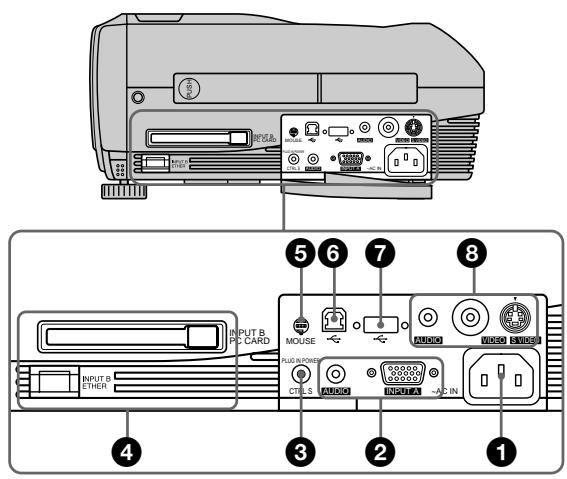
(This illustration shows the VPL-PX15.)
AC IN socket
Connects the supplied AC power cord.
INPUT A connectors
Connect to external equipment such as a computer.
INPUT A connector (HD D-sub 15-pin, female):
Connects to the monitor output on a computer using the supplied cable.
When inputting a component or 15k RGB signal, use the appropriate cable.
For details, see "To connect 15k RGB/Component equipment" on page 21 (GB).
AUDIO jack (stereo minijack): Connects to the audio output of the computer.
CTRL S/PLUG IN POWER (DC 5V output) jack (stereo minijack)
Connects to the control S out jack of Sony equipment. Connects to the CONTROL S OUT jack on the supplied Remote Commander to use it as a wired remote control unit. In this case, you do not need to install batteries in the Remote Commander, since the power is supplied from this jack.
INPUT B connectors (VPL-PX15 only)
INPUT B PC CARD slot (Type II): A wireless LAN PC card or PC memory card can be installed according to your requirements.
For details, see "Installing a PC card" on page 21 (GB).
INPUT B ETHER connector (10BASE-T/
100BASE-TX): Connects to a computer on a LAN with a LAN cable when you use the networking function of this projector.
⑤ MOUSE connector (6-pin)
Connects to the PS/2 mouse port on a computer via the supplied mouse cable, to control the mouse function of the connected computer.
USB connector (USB B-plug for upstream, 4-pin)
Connects to a computer. When you connect the projector to the computer via this connector, the projector recognizes that a USB mouse is connected and you can control the mouse function of the computer connected to the INPUT A connector using the supplied Remote Commander. The supplied application software can be used on the computer connected to this connector.
USB connector (USB A-plug for downstream, 4-pin)
Connects to USB equipment such as a mouse, camera, etc.
Video input connectors
Connect to external video equipment such as a VCR.
SVIDEO connector (mini DIN 4-pin): Connects to the S video output (Y/C video output) of video equipment.
VIDEO jack (phono type): Connects to the composite video output of video equipment.
AUDIO jack (stereo minijack): Connects to the audio output of the VCR.
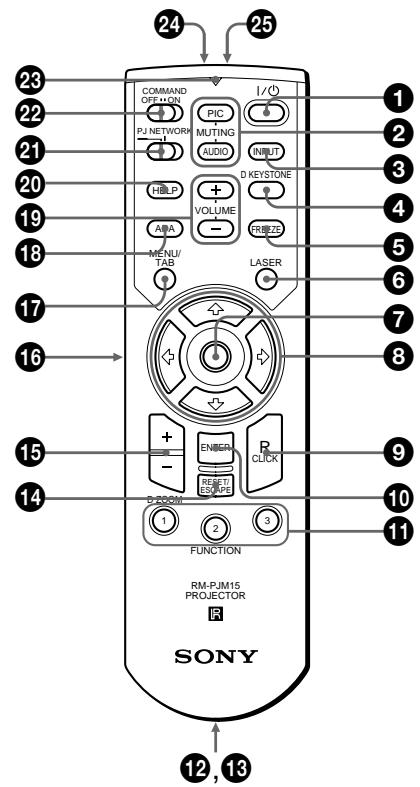
Remote Commander (supplied with the VPL-PX15/PX10)
Keys which have the same names as those on the control panel function identically.
Notes on the laser beam
- Do not look into the laser transmitter.
- Do not aim the laser at people.
1 | / (on / standby) key
2 MUTING keys
Cut off the picture and sound.
PIC: Cuts off the picture. Press again to restore the picture.
AUDIO: Cuts off the sound from the speakers. Press again or press the VOLUME + key to restore the sound.
INPUT key
D KEYSTONE key
Corrects the trapezoidal distortion caused by the projection angle. Use the arrow keys (///) to display the image as a rectangle.
FREEZE key
Used to freeze the picture projected. To cancel the frozen picture, press the key again.
LASER key
Emits a laser beam from the laser transmitter while you keep this key pressed.
Mouse
When the PJ/NETWORK select switch is set to PJ: Functions as the mouse of the computer connected to this projector.
When the PJ/NETWORK select switch is set to NETWORK (VPL-PX15 only): Functions as the mouse in the INPUT B window of this projector.
Arrow (///) keys
R (right) Click key
When the PJ/NETWORK select switch is set to PJ: Functions as the right button of the mouse of the computer connected to this projector.
When the PJ/NETWORK select switch is set to NETWORK (VPL-PX15 only): Functions as the right button of the mouse in the INPUT B window of this projector.
10 ENTER key
FUNCTION 1, 2, 3 keys
When the PJ/NETWORK select switch is set to PJ: Functions when the supplied application software is used. When you connect the projector with a computer, you can open a file on the screen by just pressing a FUNCTION key. This will enhance your presentation. To use this function, allocate a file to the FUNCTION key by using the application software. (Only the FUNCTION 1 and 2 keys are available. You cannot allocate a file to the FUNCTION 3 key.) For details, see the README file and HELP file supplied with the application software.
When the PJ/NETWORK select switch is set to NETWORK (VPL-PX15 only): When the INPUT B window is displayed on the projector, you can start an application by just pressing a FUNCTION key. To use this function, allocate an application to a FUNCTION key. (The FUNCTION 3 key is allocated to the keyboard software display.)
12 Strap holder
Attaches the strap.
13 CONTROL S OUT jack (stereo minijack)
Connects to the CTRL S jack on the projector with the connecting cable (not supplied) to use the Remote Commander as a wired remote control unit. In this case, you do not need to install batteries in the Remote Commander since the power is supplied via the CTRL S jack on the projector.
14 RESET/ESCAPE key
When the PJ/NETWORK select switch is set to PJ: Functions as the RESET key.
When the PJ/NETWORK select switch is set to NETWORK (VPL-PX15 only): Functions as the ESCAPE key of the keyboard when the INPUT B window is displayed.
15 D ZOOM + / - key
Enlarges the image at a desired location on the screen. This key works only when a signal from a computer is input.
+: Pressing the + key once displays the icon. This icon indicates the point you want to enlarge. Use an arrow key (///) to move the icon to the point to be enlarged. Press the + key repeatedly until the image is enlarged to meet your requirements.
-: Each press of the - key reduces an image that has been enlarged with the D ZOOM + key.
16 L (left) CLICK key
When the PJ/NETWORK select switch is set to PJ: Functions as the left button of the mouse of the computer connected to this projector.
When the PJ/NETWORK select switch is set to NETWORK (VPL-PX15 only): Functions as the left button of the mouse in the INPUT B window of this projector.
17 MENU/TAB key
When the PJ/NETWORK select switch is set to PJ: Functions as the MENU key.
When the PJ/NETWORK select switch is set to NETWORK (VPL-PX15 only): Functions as the TAB key of the keyboard when the INPUT B window is displayed.
18 APA (Auto Pixel Alignment) key
19 VOLUME + / - keys
20 HELP key
If you need help information during an operation, press this key to display help messages.
21 PJ/NETWORK select switch
To use the Remote Commander for network operations, set the switch to NETWORK. Set the switch to PJ to use the Remote Commander for normal operations other than networking. This switch is only available for the VPL-PX15.
For details on the operation of the Windows CE screen, see the supplied "Operating Instructions for Networking."
22 COMMAND ON/OFF switch
When this switch is set to OFF, no keys on the Remote Commander will function. This saves battery power.
Transmission indicator
Lights up when you press a key on the Remote Commander.
This indicator does not light up when you use the laser pointer.
2 Infrared transmitter
25 Laser transmitter
Battery installation
1 Push and slide to open the lid, then install the two R6 (size AA) batteries (supplied) with the correct polarity.
Slide while pressing down on the lid.
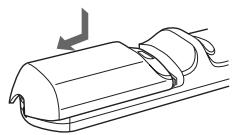
Be sure to install the battery from the side.
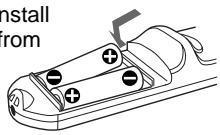
2 Replace the lid.
Notes on batteries
- Make sure that the battery orientation is correct when inserting batteries.
- Do not mix an old battery with a new one, or different types of batteries.
- If you do not intend to use the Remote Commander for a long time, remove the batteries to avoid damage from battery leakage. If batteries have leaked, remove them, wipe the battery compartment dry and replace the batteries with new ones.
Notes on Remote Commander operation
- Make sure that there is nothing to obstruct the infrared beam between the Remote Commander and the remote control detector on the projector.
- The operation range is limited. The shorter the distance between the Remote Commander and the projector is, the wider the angle within which the commander can control the projector.
Remote Commander (supplied with the VPL-PS10)
Keys which have the same names as those on the control panel function identically.
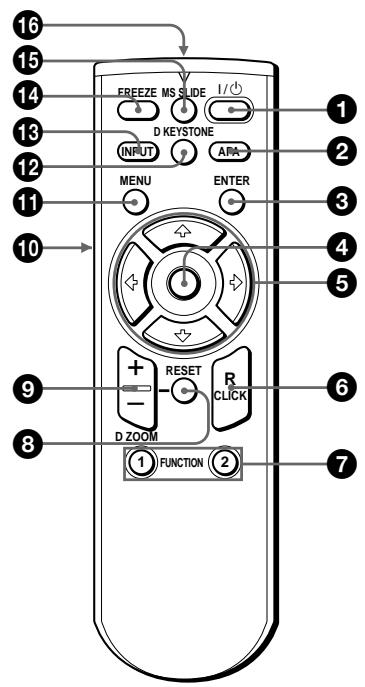
11/ (on / standby) key
APA (Auto Pixel Alignment) key
ENTER key
Joystick
Functions as the mouse of the computer connected to this projector.
Arrow (///) keys
R(right)CLICKkey
Functions as the right button of a mouse.
FUNCTION 1, 2 keys
Functions when the supplied application software is used. When you connect the projector with a computer, you can open a file on the screen by just pressing a FUNCTION key. This will enhance your presentation. To use this function, allocate a file to the FUNCTION key by using the application software. For details, see the README file and HELP file supplied with the application software.
RESET key
Reset the value of an item to its factory preset value or returns the enlarged image back to its original size.
D ZOOM + / - key
Enlarges the image at a desired location on the screen. This key works only when a signal from a computer is input.
+: Pressing the + key once displays the icon. This icon indicates the point you want to enlarge. Use an arrow key (///) to move the icon to the point to be enlarged. Press the + key repeatedly until the image is enlarged to meet your requirements.
-: Each press of the - key reduces an image that has been enlarged with the D ZOOM + key.
L (left) CLICK key
Functions as the left button of a mouse.
1 MENU key
D KEYSTONE key
Corrects the trapezoidal distortion caused by the projection angle. Use the arrow keys (///) to display the image as a rectangle.
13 INPUT key
14 FREEZE key
Used to freeze the picture projected. To cancel the frozen picture, press the key again.
MS SLIDE key
This key does not operate with this unit.
16 Infrared transmitter
Battery installation
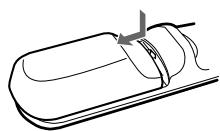
1 Push and slide to open the lid, then install the two R6 (size AA) batteries (supplied) with the correct polarity.
Slide while pressing down on the lid.
Be sure to install the battery from the side.
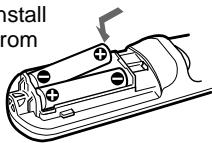
2 Replace the lid.
Notes on batteries
- Make sure that the battery orientation is correct when inserting batteries.
- Do not mix an old battery with a new one, or different types of batteries.
- If you do not intend to use the Remote Commander for a long time, remove the batteries to avoid damage from battery leakage. If batteries have leaked, remove them, wipe the battery compartment dry and replace the batteries with new ones.
Notes on Remote Commander operation
- Make sure that there is nothing to obstruct the infrared beam between the Remote Commander and the remote control detector on the projector. Direct the Remote Commander toward the front or rear remote control detector.
- The operation range is limited. The shorter the distance between the Remote Commander and the projector is, the wider the angle within which the commander can control the projector.
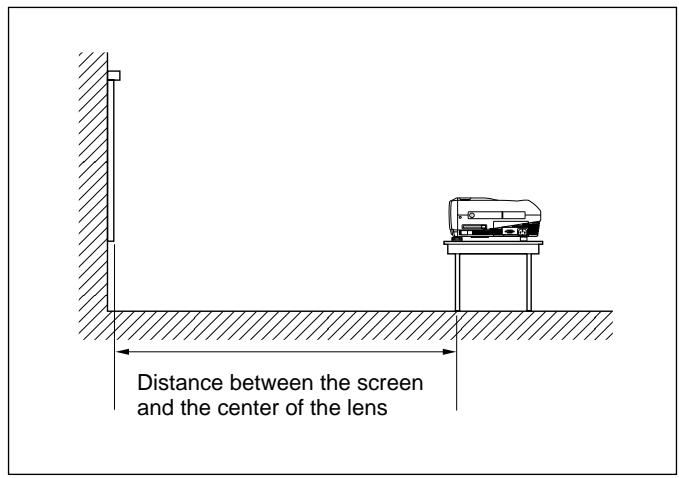
Installing the Projector
This section describes how to install the projector. The distance between the lens and the screen varies depending on the size of the screen. Use the following table as a guide.
| Unit: m (feet) | ||||||||||
| Screen size (inches) | 40 | 60 | 80 | 100 | 120 | 150 | 180 | 200 | 250 | 300 |
| Minimum Distance | 1.5 (4.8) | 2.2 (7.3) | 3.0 (9.8) | 3.7 (12.3) | 4.5 (14.8) | 5.6 (18.5) | 6.8 (22.3) | 7.5 (24.8) | 9.4 (31.0) | 11.3 (37.3) |
| Maximum Distance | 1.8 (5.8) | 2.7 (8.8) | 3.6 (11.8) | 4.5 (14.8) | 5.4 (17.8) | 6.8 (22.2) | 8.1 (26.7) | 9.1 (29.7) | 11.3 (37.2) | 13.6 (44.7) |
For details, see "Installation Example" on page 34 (GB). For details on ceiling installation, consult with qualified Sony personnel (fee charged).
Connecting the Projector
When making connections, be sure to do the following:
- Turn off all equipment before making any connections.
- Use the proper cables for each connection.
- Insert the cable plugs properly; plugs that are not fully inserted often generate noise or cause picture degradation. When pulling out a cable, be sure to pull it out grasping the plug, not the cable itself.
Connecting to a Computer
This section describes how to connect the projector to a computer.
For more information, refer to the computer's instruction manual.
Notes
- The projector accepts VGA, SVGA, XGA, and SXGA signals. However, we recommend that you set the output mode of your computer to SVGA (VPL-PS10) or XGA (VPL-PX15/PX10) mode for the external monitor.
- If you set your computer, such as a notebook type, to output the signal to both your computer's display and an external monitor, the picture of the external monitor may not appear properly. Set your computer to output the signal to only the external monitor. For details, refer to the operating instructions supplied with your computer.
- The supplied mouse cable may not work properly depending on your computer.
- This projector is compatible with DDC2B (Display Data Channel 2B). If your computer is compatible with DDC ^1) , turn the projector on according to the following procedures.
1 Connect the projector to the computer using the supplied HD D-sub 15-pin cable.
2 Turn the projector on.
3 Start the computer.
To connect an IBM ^1) PC/AT ^1) compatible computer
When you use a USB mouse and USB equipment
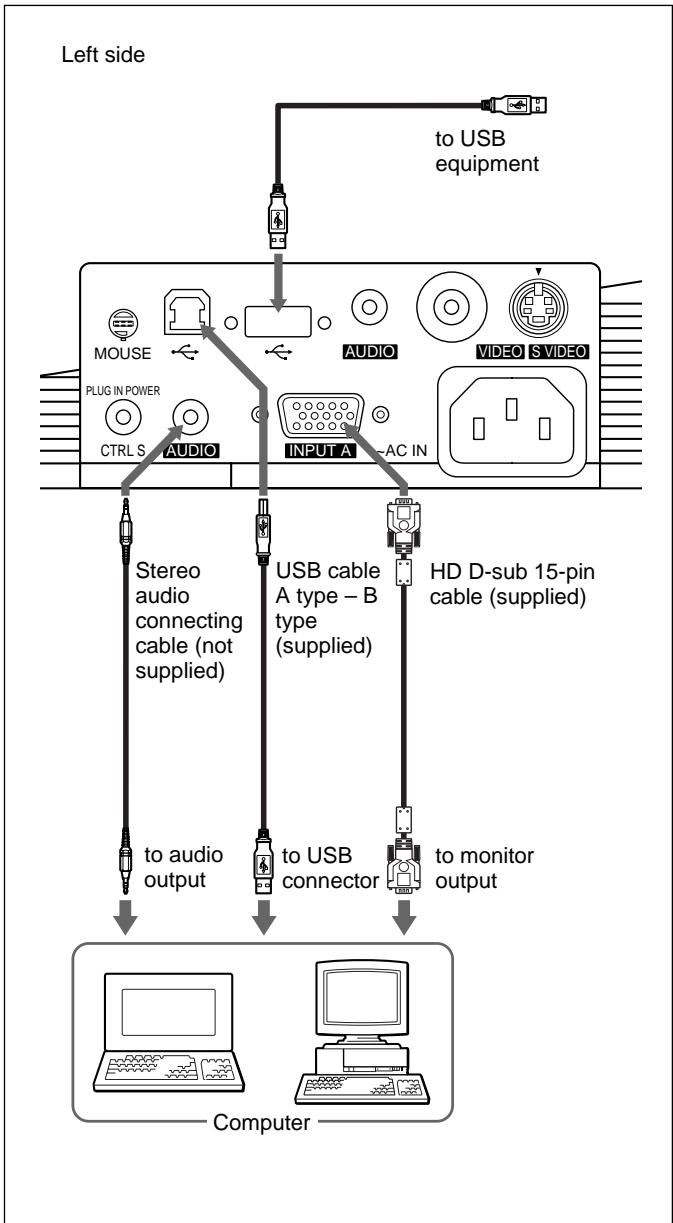
On the USB function
When connecting the projector to a computer using the USB cable for the first time, the computer recognizes the following devices automatically.
1 USB hub (general use)
2 USB human interface device (wireless mouse function)
3 USB human interface device (projector control function)
The computer also recognizes the device connected to the downstream connector on the projector.
Recommended operating environment
When you use the USB function, connect your computer as illustrated in the box on the left.
This application software and the USB function can be used on a computer loaded with Windows 98, Windows 98 SE or Windows 2000.
Notes
- As the projector recognizes the USB mouse when the computer is connected to the USB connector, do not connect anything to the MOUSE connector.
- Your computer may not start correctly when connected to the projector via the USB cable. In this case, disconnect the USB cable, restart the computer, then connect the computer to the projector using the USB cable.
- This projector is not guaranteed for suspend or standby mode. When you use the projector in suspend or standby mode, disconnect the projector from the USB port on the computer.
- Operations are not guaranteed for all the recommended computer environments.
When you use a PS/2 mouse port
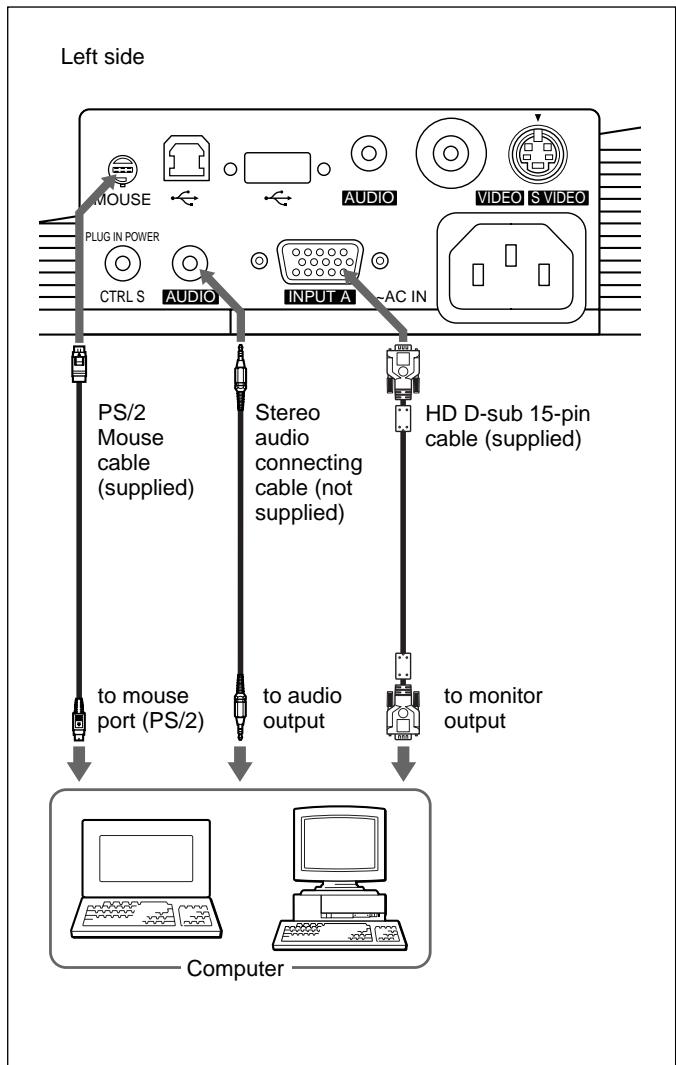
To connect a Macintosh1) computer
Use an ADP-20 signal adapter (not supplied). In this case, however, you cannot control the mouse of the computer using the Remote Commander.
Connecting to a VCR or 15k RGB/ Component Equipment
This section describes how to connect the projector to a VCR or 15k RGB/component equipment.
For more information, refer to the instruction manuals of the equipment you are connecting.
To connect a VCR
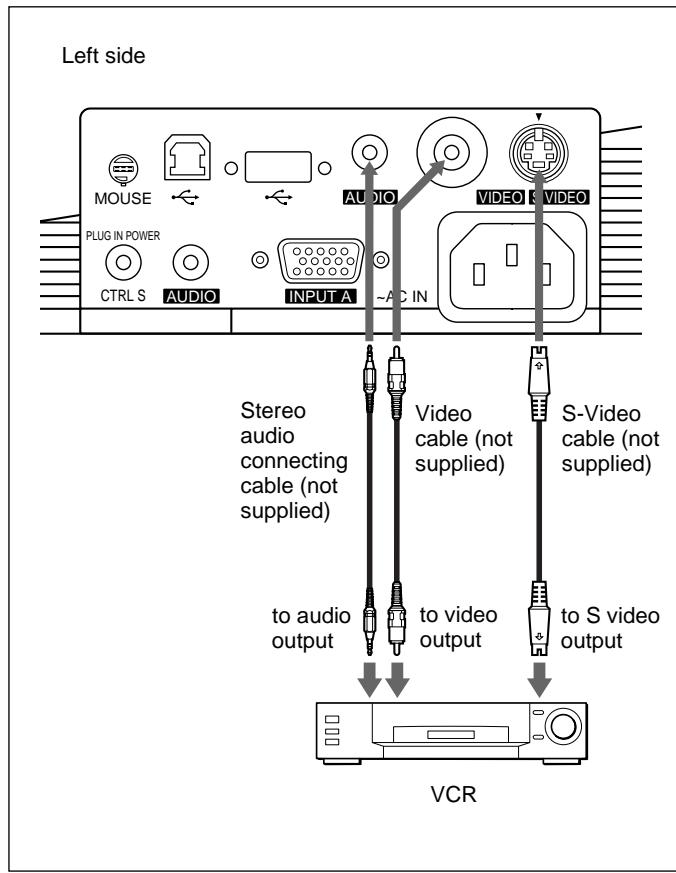
1) Macintosh is a registered trademark of Apple Computer, Inc.
To connect 15k RGB/Component equipment
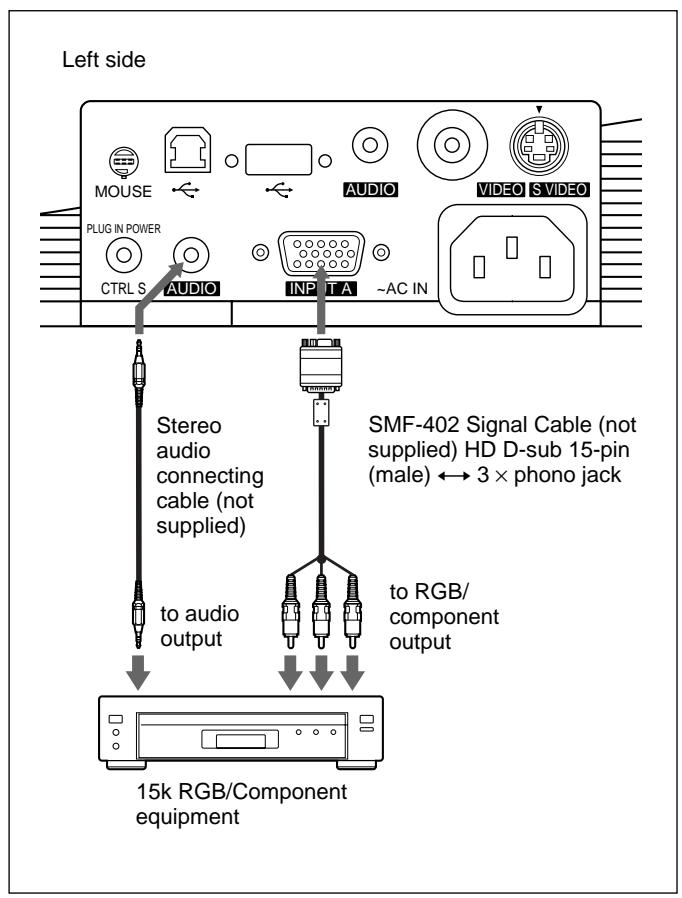
Notes
- Set the aspect ratio using ASPECT in the INPUT SETTING menu according to the input signal. For details, see page 30 (GB).
- When you connect the projector to 15k RGB/ component video equipment, select RGB, component or VCR GBR with the INPUT-A setting in the SET SETTING menu.
- Use the composite sync signal when you input the external sync signal from 15k RGB/component equipment.
Connecting to a LAN (VPL-PX15 only)
This projector is networking compatible. Using a wireless LAN PC card or a 10BASE-T/100BASE-TX LAN cable, you can connect the projector to a wireless or wired LAN. You can also install a PC memory card.
This section describes how to connect to a LAN and how to install a PC card.
Whenever you connect the projector to a LAN or use a memory card, set INPUT-B FUNC. in the INSTALL SETTING menu to ON.
For details, see page 33 (GB).
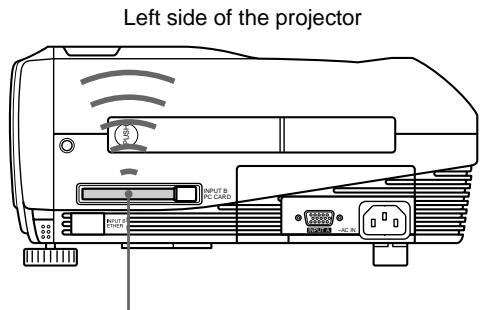
Installing a PC card
When you use a wireless LAN PC card or memory card, insert the card into the INPUT B PC CARD slot.
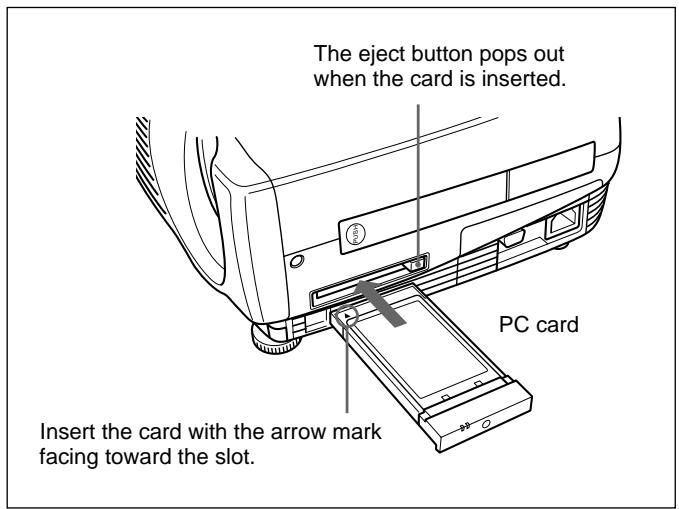
To remove the PC card from the slot, press the eject button.
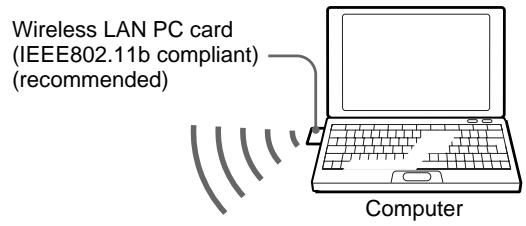
Connection using a wireless LAN PC card
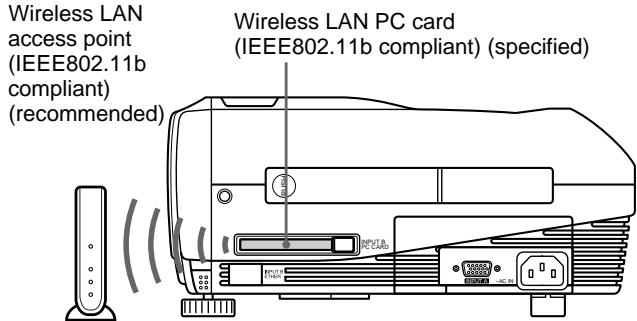
Left side of the projector
to Hub/rodter
Wireless LAN PC card — (IEEE802.11b compliant) (recommended)
Computer
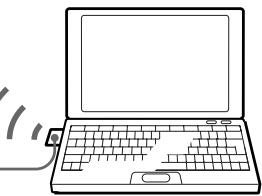
Connection using a wireless LAN PC card (Peer to Peer mode)
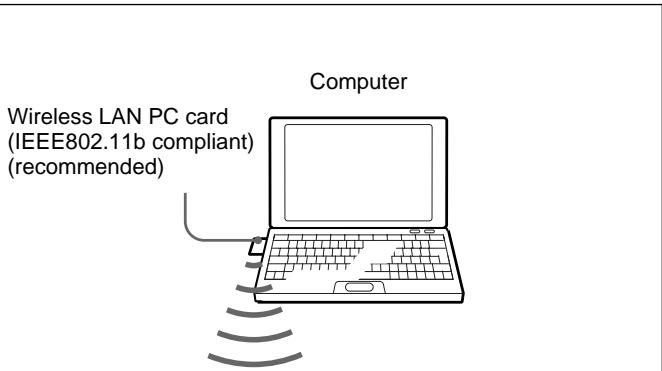
Wireless LAN PC card (IEEE802.11b compliant) (specified)
Notes
- For details on the recommended PC card or wireless LAN access point, see the supplied "Specified/ recommended PC Card/Wireless LAN Access Point."
- When you use a LAN, you must set the IP address. For details on how to set the IP address, etc., see the supplied "Operating Instructions for Networking."
Connecting using the ETHER connector
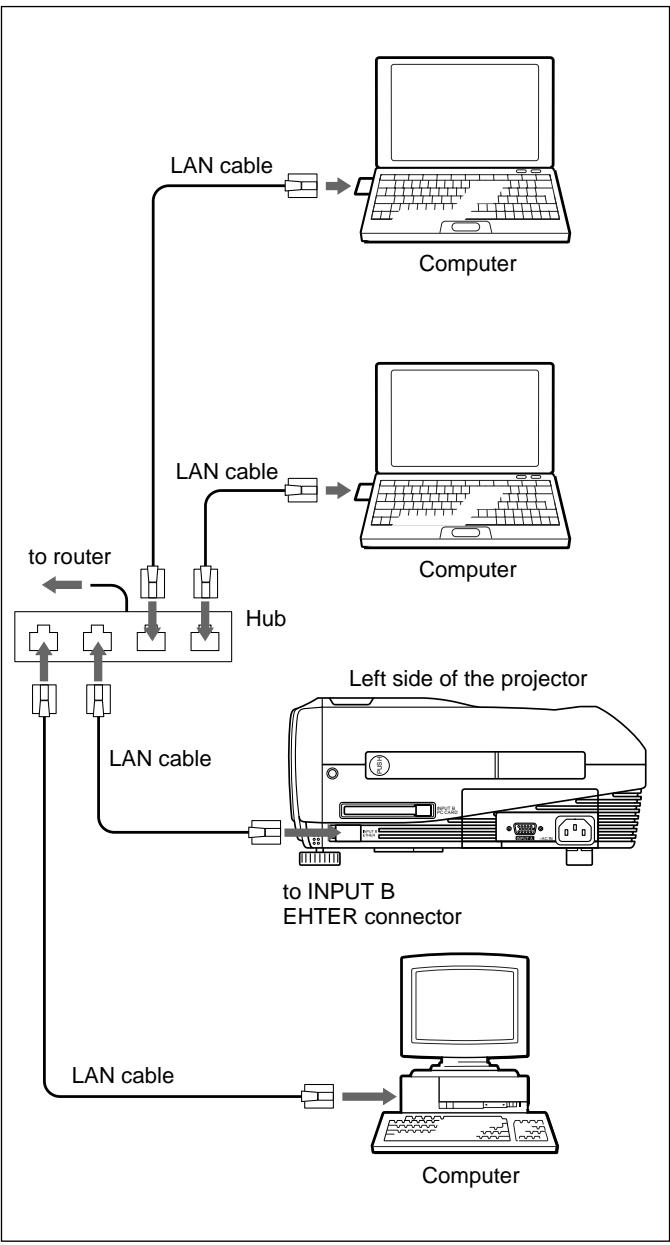
Installing a memory card
If you store a file created with Microsoft PowerPoint ^1) in a memory card and insert it into the INPUT B PC CARD slot, you can run a presentation without connecting a computer.
For inserting and removing a memory card, see "Installing a PC card" on page 21 (GB).
For details on the recommended memory card, see the supplied "Specified/recommended PC Card/Wireless LAN Access Point."
Selecting the Menu Language
You can select the language to be used in the menu and other on screen displays from 9 languages. The factory setting is ENGLISH.
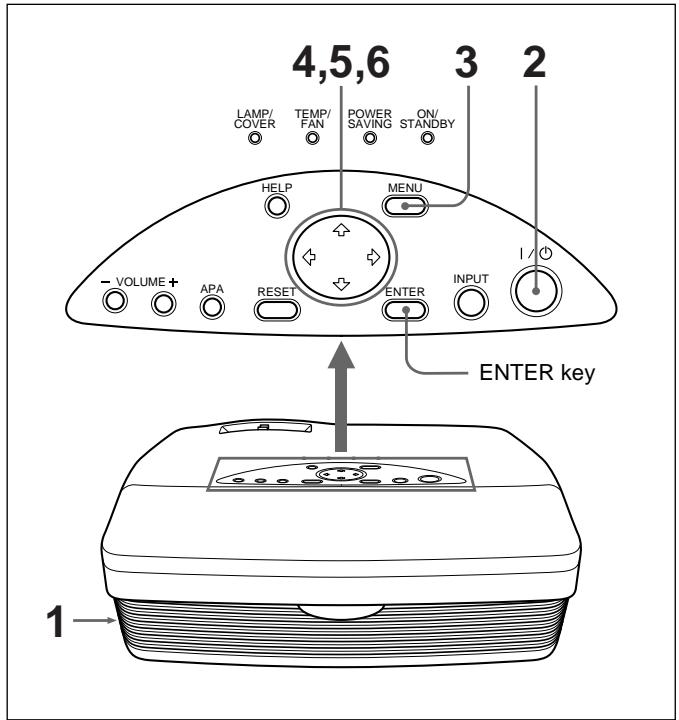
1 Plug the AC power cord into the wall outlet.
2 Press the I / 心 key to turn on the power.
3 Press the MENU key. The menu display appears.
4 Press the or key to select the SET SETTING menu, then press the or ENTER key. The SET SETTING menu appears.
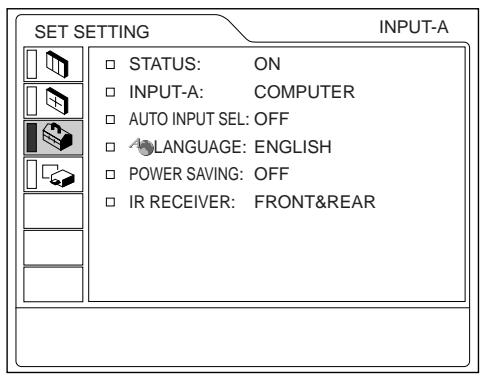
5 Press the or key to select LANGUAGE, then press the or ENTER key.
6 Press the or key to select a language, then press the or ENTER key.
The menu changes to the selected language.
To clear the menu display
Press the MENU key.
The menu display disappears automatically if no key is pressed for one minute.
Projecting
for VPL-PX15/PX10
for VPL-PS10
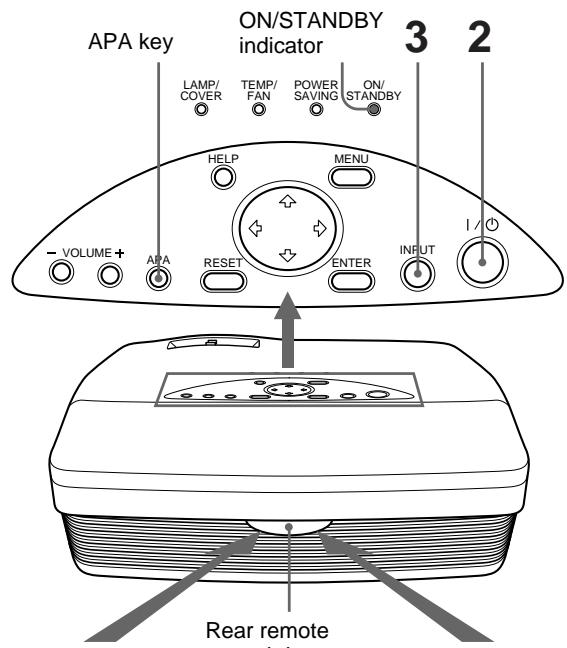
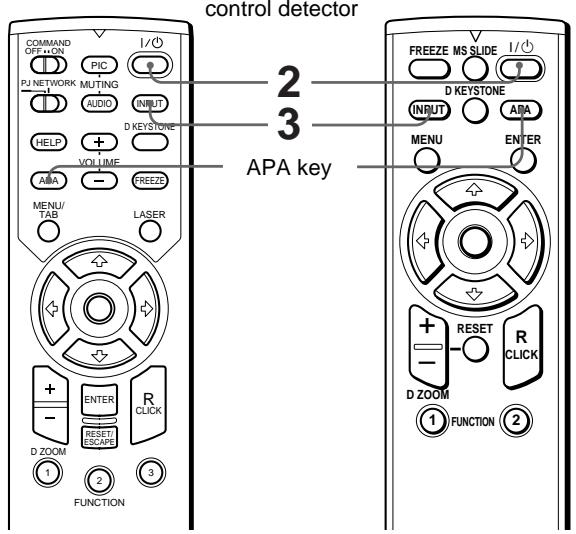
1 After all equipment is connected completely, plug the AC power cord into the wall outlet. The ON/STANDBY indicator lights in red and the projector goes into the standby mode.
2 Press the I / key to turn on the projector. The ON/STANDBY indicator lights in green.
3 Turn on all equipment connected to the projector. Press the INPUT key to select the input source.
INPUT-A: Selects the video signal input from the INPUT A connector.
INPUT-B (VPL-PX15 only): Selects display of the INPUT B (Windows CE) window.
VIDEO: Selects the video signal input from the VIDEO jack on the video input connectors.
S-VIDEO: Selects the video signal input from the SVIDEO connector on the video input connectors.
4 Turn the zoom ring to adjust the size of the picture.
5 Turn the focus ring to adjust the focus.
Note
Looking into the lens when the projector is projecting an image may cause injury to your eyes.
To cut off the picture
Press the PIC MUTING key on the Remote Commander (VPL-PX15/PX10 only). To restore the picture, press the PIC MUTING key again.
To get the clearest picture
You can get the best picture automatically when a signal from the computer is input. Press the APA key. The picture is automatically adjusted to project the clearest picture possible.
Notes
- Adjust the signal when a still picture is displayed on the screen.
- Press the APA key when the full image is displayed on the screen. If there are black edges around the image, the APA function will not function properly and the image may extend beyond the screen.
- If you switch the input signal or re-connect a computer, press the APA key again to get the suitable picture.
- "ADJUSTING" appears on the screen. To restore the original screen, press the APA key again during the adjustment.
- "Complete!" appears on the screen when the picture is adjusted properly. However, depending on the kinds of input signal, the picture may not always be adjusted properly.
- Adjust the items in the INPUT SETTING menu when you adjust the picture manually. For details on the INPUT SETTING menu, see page 29 (GB).
To correct trapezoidal distortion
When the projected image is a trapezoid, correct it by pressing the D KEYSTONE key on the Remote Commander or by adjusting DIGIT KEYSTONE in the INSTALL SETTING menu.
When the base edge is longer than the upper edge as shown in the figure below:
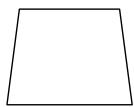
Set the value to negative.
When the upper edge is longer than the base edge as shown in the figure below:
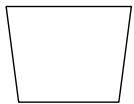
Set the value to positive.
For details on "DIGIT KEystone," see page 33 (GB).
To turn off the power
1 Press the l / ^山 key.
"Power OFF?" appears on the screen.
Note
The message will disappear if you press any key except the 1 / key, or if you do not press any key for five seconds.
2 Press the I / key again.
The ON/STANDBY indicator flashes in green and the fan continues to run for about 90 seconds to reduce internal heat build-up. Also, the ON/STANDBY indicator flashes quickly for the first 60 seconds. During this first 60 seconds, you will not be able to turn the power back on with the 1 / ① key.
3 Unplug the AC power cord from the wall outlet after the fan stops running and the ON/STANDBY indicator lights in red.
When you cannot confirm the on-screen message
When you cannot confirm the on-screen message at anytime, you can turn off the power by holding the 1 / 0 key for about one second.
Note
Do not unplug the AC power cord while the fan is still running; otherwise, the fan will stop even though the internal heat level is still high. This may lead to a breakdown of the projector.
Cleaning the air filter
Clean the air filter every 300 hours to ensure optimal performance.
To enlarge the image (Digital Zoom function)
You can enlarge an area on the image you select.
This function works only when a signal from a computer is input.
1 Project the original size picture and press the D ZOOM + key on the Remote Commander.
The Digital Zoom icon appears in the center of the image.
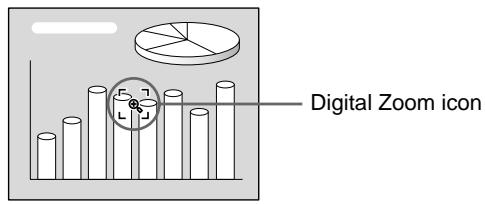
2 Move the icon to a point in the center of the portion of the image you want to enlarge. Use the arrow keys (/// ) to move the icon.
3 Press the D ZOOM + key again.
The portion of the image where the icon is located is enlarged. The magnification ratio is displayed on the screen for a few seconds.
By pressing the + key repeatedly, the image size increases (maximum magnification: 4 times).
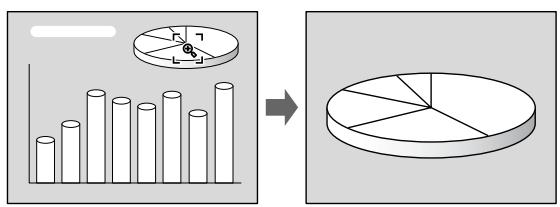
Use the arrow keys (///) to scroll the enlarged image.
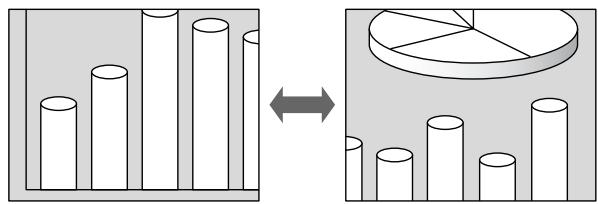
To return the image to its original size
Press the D ZOOM - key. Pressing the RESET key returns the image to its original size in one operation.
To freeze the image projected (Freeze function)
Press the FREEZE key. "FREEZE" appears when the key is pressed. This function works only when a signal from a computer is input.
To restore the original screen, press the FREEZE key again.
To use the Laser Pointer function (VPLPX15/PX10 only)
Press the LASER key on the Remote Commander. The laser pointer appears. The pointer is helpful in indicating a particular point on the screen.
Using the Menu
The projector is equipped with an on-screen menu for making various adjustments and settings.
Note
(VPL-PX15/PX10 only)
Before operation, confirm that the PJ/NETWORK select switch on the Remote Commander is set to PJ. If it is set to NETWORK, the menu display will not appear even when you press the MENU key on the Remote Commander.
To select the language used in the menu, see page 23 (GB).
1 Press the MENU key.
The menu display appears.
The menu presently selected is shown as a yellow button.
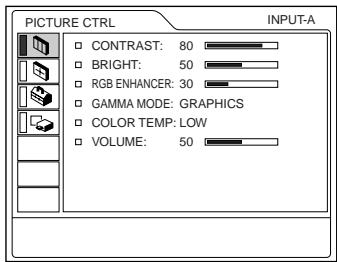
2 Use the or key to select a menu, then press the or ENTER key.
The selected menu appears.
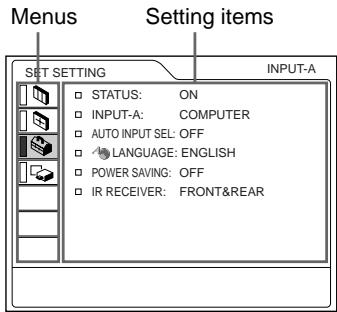
3 Select an item.
Use the or key to select the item, then press the or ENTER key.
4 Make settings or adjustments on an item.
For details on setting individual items, see the relevant menu pages.
To clear the menu
Press the MENU key.
The menu display disappears automatically if no key is pressed for one minute.
To reset items that have been adjusted
Press the RESET key.
"Complete!" appears on the screen and the settings appearing on the screen will be reset to their factory preset values.
Items that can be reset are:
- "CONTRAST," "BRIGHT," "COLOR," "HUE," "SHARP," and "RGB ENHANCER" in the PICTURE CTRL menu.
- “DOT PHASE,” “SIZE H,” and “SHIFT” in the INPUT SETTING menu.
- “DIGIT KEYSTONE” in the INSTALL SETTING menu.
About the retention of the settings
The settings are automatically stored in the projector memory.
When no signal is input
When there is no input signal, "NO INPUT-Cannot adjust this item." appears on the screen, and the items mentioned above cannot be adjusted.
About the menu display
You can set the display position of the menu, the intensity of the background picture, and the color of the menu items as you like.
For details, see page 33 (GB).
The PICTURE CTRL Menu
The PICTURE CTRL (control) menu is used for adjusting the picture.
Unadjustable items for a particular input signal are not displayed in the menu.
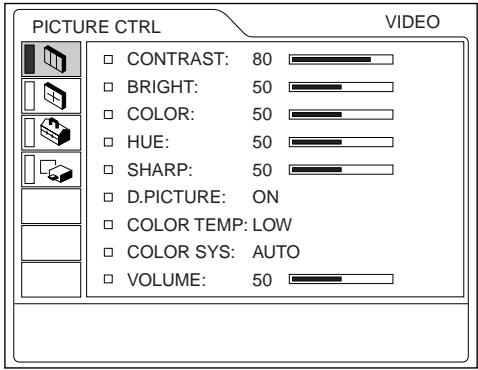
When the video signal is input
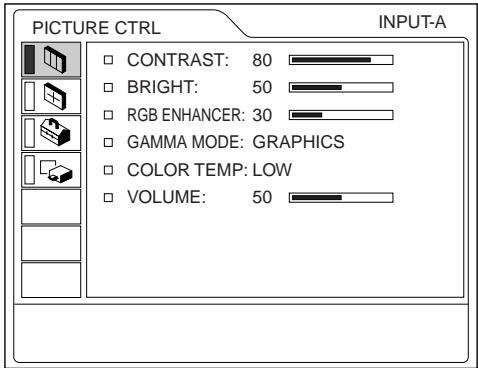
When the RGB signal is input
Operation
1. Select an item
Use the or key to select the item, then press the or ENTER key.
2. Adjust an item
- When changing the adjustment level:
- To increase the value, press the or key.
- To decrease the value, press the or key.
- Press the ENTER key to restore the original screen.
- When changing the setting: Press the or key to change the setting. Press the ENTER or key to restore the original screen.
CONTRAST
Adjusts the picture contrast.
The higher the setting, the greater the contrast.
The lower the setting, the lower the contrast.
BRIGHT
Adjusts the picture brightness.
The higher the setting, the brighter the picture.
The lower the setting, the darker the picture.
COLOR
Adjusts color intensity.
The higher the setting, the greater the intensity.
The lower the setting, the lower the intensity.
HUE
The higher the setting, the more the picture becomes greenish.
The lower the setting, the more the picture becomes purplish.
SHARP
Adjusts the picture sharpness.
The higher the setting, the sharper the picture.
The lower the setting, the softer the picture.
RGB ENHANCER
Adjusts the picture sharpness when RGB signals are input.
The higher the setting, the sharper the picture.
The lower the setting, the softer the picture.
D. (Dynamic) PICTURE
Emphasizes the black color.
ON: Emphasizes the black color to produce a bolder "dynamic" picture.
OFF: Reproduces the dark portions of the picture accurately, in accordance with the source signal.
GAMMA MODE
Selects a gamma correction curve.
GRAPHICS: Improves the reproduction of half tones. Photos can be reproduced in natural tones.
TEXT: Contrasts black and white. Suitable for images that contain lots of text.
COLOR TEMP
Adjusts the color temperature.
HIGH: Makes the white color bluish.
LOW: Makes the white color reddish.
COLOR SYS (System)
Selects the color system of the input signal.
AUTO: Automatically selects one of the following signals: NTSC3.58, PAL, SECAM, NTSC4.43.
PAL-M/N: Automatically selects one of the following signals: PAL-M/PAL-N, NTSC3.58.
Normally, set to AUTO.
If the picture is distorted or colorless, select the color system appropriate to the input signal.
VOLUME
Adjusts the volume. The volume can be adjusted for each of INPUT A, INPUT B (VPL-PX15 only), VIDEO and SVIDEO input.
Input signals and adjustable/setting items
| Item | Input signal | |||
| Video or S video (Y/C) | Component | Video GBR | RGB1) | |
| CONTRAST | ● | ● | ● | ● |
| BRIGHT | ● | ● | ● | ● |
| COLOR | ● (except for B & W) | ● | ● | - |
| HUE | ● (NTSC3.58/4.43 only) | ● | ● | - |
| SHARP | ● | ● | ● | - |
| RGB ENHANCER | - | - | - | ● |
| D. PICTURE | ● | ● | - | - |
| GAMMA MODE | - | - | - | ● |
| COLOR TEMP | ● | ● | ● | ● |
| COLOR SYS | ● | - | - | - |
| VOLUME | ● | ● | ● | ● |
: Adjustable/can be set
- : Not adjustable/can not be set
1) The RGB signals of a computer
The INPUT SETTING Menu
The INPUT SETTING menu is used to adjust the input signal.
Unadjustable items for a particular input signal are not displayed in the menu.
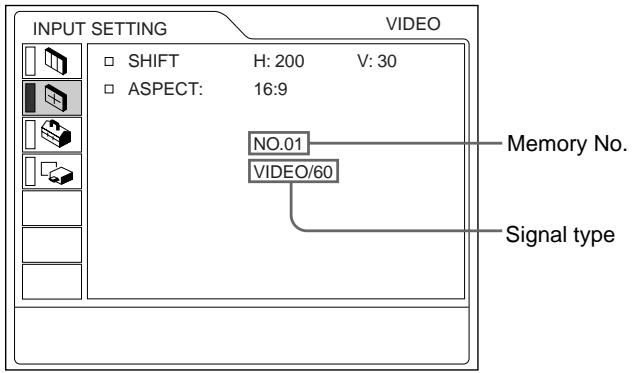
When the video signal is input
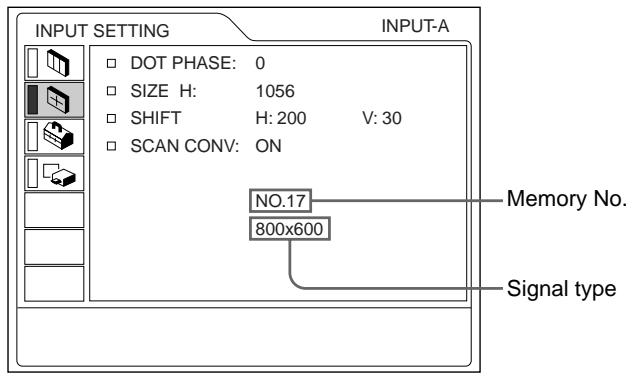
When the RGB signal is input
Operation
1. Select an item
Use the or key to select the item, then press the or ENTER key.
2. Adjust an item
- When changing the adjustment level:
To increase the value, press the or key.
To decrease the value, press the or key.
Press the ENTER key to restore the original screen.
- When changing the setting:
Press the or key to change the setting.
Press the ENTER or key to restore the original screen.
DOT PHASE
Adjusts the dot phase of the LCD panel and the signal input from the INPUT A/B connector. Adjust the picture further for a finer picture after the picture is adjusted by pressing the APA key. Adjust the picture to the point where it looks clearest.
SIZE H
Adjusts the horizontal size of the picture input from the INPUT A/B connector.
The higher the setting, the larger the horizontal size of the picture.
The lower the setting, the smaller the horizontal size of the picture. Adjust the setting according to the dots of the input signal.
For details on a suitable value for preset signals, see page 31 (GB).
SHIFT
Adjusts the position of the picture input from the INPUT A/B connectors or video input connectors.
H adjusts the horizontal position of the picture.
V adjusts the vertical position of the picture.
As the setting for H increases, the picture moves to the right, and as the setting decreases, the picture moves to the left.
As the setting for V increases, the picture moves up, and as the setting decreases, the picture moves down.
Use the or key to adjust the horizontal position and the or key for the vertical position.
ASPECT
Sets the aspect ratio of the picture.
When inputting a 16:9 (squeezed) signal from equipment such as a DVD player, set this to 16:9.
4:3 : When a picture with a ratio of 4:3 is input.
16:9 : When a picture with a ratio of 16:9 (squeezed) is input.
SCAN CONV (Scan converter)
Converts the signal to display the picture according to the screen size.
ON: Displays the picture according to the screen size. The picture will lose some clarity.
OFF: Displays the picture while matching one pixel of the input picture element to that of the LCD. The picture will be clear but the picture size will be smaller.
Note
This item will not be displayed in the following cases.
VPL-PX15/PX10: When an XGA or SXGA signal is input.
VPL-PS10: When an SVGA, XGA or SXGA signal is input.
Input signals and adjustable/setting items
| Item | Input signal | |||
| Video or S video (Y/C) | Component | Video GBR | RGB1) | |
| DOT PHASE | - | - | - | ● |
| SIZE H | - | - | - | ● |
| SHIFT | ● | ● | ● | ● |
| ASPECT | ● | ● | ● | - |
| SCAN CONV | - | - | - | ●2) |
: Adjustable/can be set
- : Not adjustable/can not be set
1) The RGB signals of a computer
2) VPL-PX15/PX10: lower than SVGA only; VPL-PS10: lower than VGA only
About the preset memory No.
This projector has 37 kinds of preset data for input signals (the preset memory). The memory number of the current input signal and the signal type are displayed when the preset signal is input. This projector automatically detects the signal type. When the signal has been registered in the preset memory, a suitable picture is displayed on the screen according to the signal type. You can adjust the picture through the INPUT SETTING menu.
This projector also has 20 kinds of user memories for each INPUT A/B. When an unpreset signal is input for the first time, the memory number is displayed as 0. If the input signal is adjusted in the INPUT
SETTING menu, the setting made via INPUT A/B is stored. When more than 20 user memory items are registered for each INPUT A/B, the newest memory item is automatically stored over the oldest one.
Preset signals
| Memory No. | Preset signal | fH (kHz) | fV (Hz) | Sync | SIZE H | |
| 1 | Video 60 Hz | 15.734 | 59.940 | H-neg V-neg | ||
| 2 | Video 50 Hz | 15.625 | 50.000 | H-neg V-neg | ||
| 3 | 480/60i | 15.734 | 59.940 | S on G/Y or Composite sync | ||
| 4 | 575/50i | 15.625 | 50.000 | |||
| 6 | 640 × 350 | VGA mode 1 | 31.469 | 70.086 | H-pos V-neg | 800 |
| 7 | VGA VESA1) 85 Hz | 37.861 | 85.080 | H-pos V-neg | 832 | |
| 8 | 640 × 400 | PC-98012) Normal | 24.823 | 56.416 | H-neg V-neg | 848 |
| 9 | VGA mode 2 | 31.469 | 70.086 | H-neg V-pos | 800 | |
| 10 | VGA VESA 85 Hz | 37.861 | 85.080 | H-neg V-pos | 832 | |
| 11 | 640 × 480 | VGA mode 3 | 31.469 | 59.940 | H-neg V-neg | 800 |
| 12 | Macintosh 13" | 35.000 | 66.667 | H-neg V-neg | 864 | |
| 13 | VGA VESA 72 Hz | 37.861 | 72.809 | H-neg V-neg | 832 | |
| 14 | VGA VESA 75 Hz | 37.500 | 75.000 | H-neg V-neg | 840 | |
| 15 | VGA VESA 85 Hz | 43.269 | 85.008 | H-neg V-neg | 832 | |
| 16 | 800 × 600 | SVGA VESA 56 Hz | 35.156 | 56.250 | H-pos V-pos | 1024 |
| 17 | SVGA VESA 60 Hz | 37.879 | 60.317 | H-pos V-pos | 1056 | |
| 18 | SVGA VESA 72 Hz | 48.077 | 72.188 | H-pos V-pos | 1040 | |
| 19 | SVGA VESA 75 Hz | 46.875 | 75.000 | H-pos V-pos | 1056 | |
| 20 | SVGA VESA 85 Hz | 53.674 | 85.061 | H-pos V-pos | 1048 | |
| 21 | 832 × 624 | Macintosh 16" | 49.724 | 74.550 | H-neg V-neg | 1152 |
| 22 | 1024 × 768 | XGA VESA 43 Hz | 35.524 | 43.479 | H-pos V-pos | 1264 |
| 23 | XGA VESA 60 Hz | 48.363 | 60.004 | H-neg V-neg | 1344 | |
| 24 | XGA VESA 70 Hz | 56.476 | 69.955 | H-neg V-neg | 1328 | |
| 25 | XGA VESA 75 Hz | 60.023 | 75.029 | H-pos V-pos | 1312 | |
| 26 | XGA VESA 85 Hz | 68.677 | 84.997 | H-pos V-pos | 1376 | |
| 27 | 1152 × 864 | SXGA VESA 70 Hz | 63.995 | 70.016 | H-pos V-pos | 1472 |
| 28 | SXGA VESA 75 Hz | 67.500 | 75.000 | H-pos V-pos | 1600 | |
| 29 | SXGA VESA 85 Hz | 77.487 | 85.057 | H-pos V-pos | 1568 | |
| 30 | 1152 × 900 | Sunmicro LO | 61.795 | 65.960 | H-neg V-neg | 1504 |
| 31 | Sunmicro HI | 71.713 | 76.047 | Composite sync | 1472 | |
| 32 | 1280 × 960 | SXGA VESA 60 Hz | 60.000 | 60.000 | H-pos V-pos | 1800 |
| 33 | SXGA VESA 75 Hz | 75.000 | 75.000 | H-pos V-pos | 1728 | |
| 34 | 1280 × 1024 | SXGA VESA 43 Hz | 46.433 | 43.436 | H-pos V-pos | 1696 |
| 35 | SGI-5 | 53.316 | 50.062 | S on G | 1680 | |
| 36 | SXGA VESA 60 Hz | 63.974 | 60.013 | H-pos V-pos | 1696 | |
| 37 | SXGA VESA 75 Hz | 79.976 | 75.025 | H-pos V-pos | 1688 | |
| 38 | SXGA VESA 85 Hz | 91.146 | 85.024 | H-pos V-pos | 1530 | |
1) VESA is a registered trademark of the Video Electronics Standards Association.
2) PC-98 is a registered trademark of NEC Corporation.
Since the data is recalled from the preset memory for the following signals, you can use this preset data by adjusting SIZE H. Make finer adjustments using SHIFT.
| Signal | Memory No. | SIZE H |
| Super Mac-2 | 23 | 1312 |
| SGI-1 | 23 | 1320 |
| Macintosh 19" | 25 | 1328 |
| Macintosh 21" | 27 | 1456 |
| Sony News | 36 | 1708 |
| PC-9821 1280 × 1024 | 36 | 1600 |
| WS Sunmicro | 37 | 1664 |
Note
When the aspect ratio of an input signal is other than 4:3, a part of the screen is displayed in black.
The SET SETTING Menu
The SET SETTING menu is used for changing the settings of the projector.
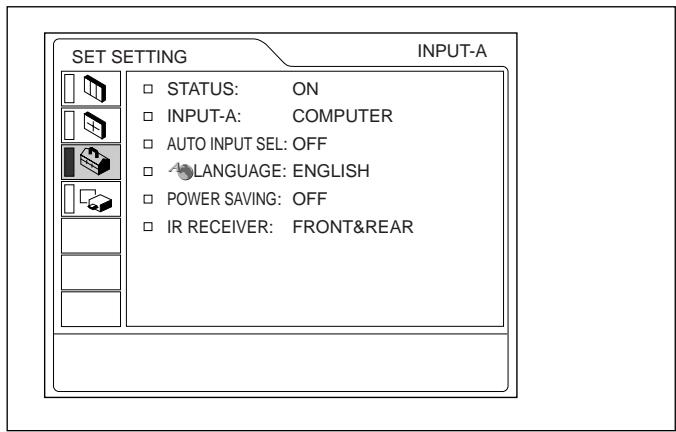
Operation
1. Select an item
Use the or key to select the item, then press the or ENTER key.
2. Change the setting
Press the or key to change the setting.
To restore the original screen, press the ENTER or key.
STATUS (on-screen display)
Sets up the on-screen display.
ON: Shows all of the on-screen display.
OFF: Turns off the on-screen display except for the menus, a message when turning off the power, and warning messages.
For details on the warning messages, see page 40 (GB).
INPUT-A
Selects the computer, component or video GBR (15k RGB) signal input from the INPUT A connector.
Note
If the setting is not correct, "Please check INPUT-A setting." appears on the screen and the color of the picture becomes strange or the picture is not displayed.
AUTO INPUT SEL
When set to ON, the projector detects input signals in the following order: INPUT-A/INPUT-B (VPL-PX15 only)/VIDEO/S-VIDEO. It indicates the input channel when the power is turned on or the INPUT key is pressed.
LANGUAGE
Selects the language used in the menu and on-screen displays.
Available languages are: English, French, German, Italian, Spanish, Japanese, Chinese, Portuguese and Korean.
POWER SAVING
When set to ON, the projector goes into the power saving mode if no signal is input for 10 minutes.
IR RECEIVER
Selects the remote control detectors on the front and rear of the projector.
FRONT & REAR: Activates both the front and rear detectors.
FRONT: Activates the front detector only.
REAR: Activates the rear detector only.
The INSTALL SETTING Menu
The INSTALL SETTING menu is used for changing the install settings of the projector.
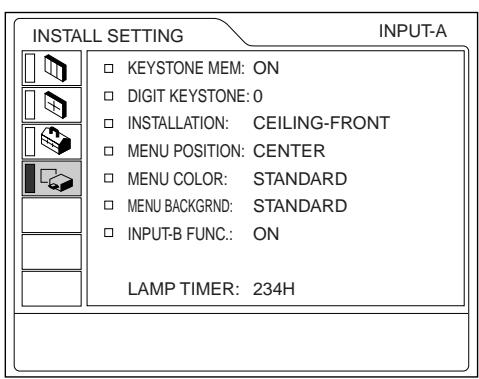
INPUT-B FUNC. is displayed only for the VPLPX15.
Operation
1. Select an item
Use the or key to select the item, then press the or ENTER key.
2. Adjust an item
- When changing the adjustment level:
To increase the value, press the or key.
To decrease the value, press the or key.
Press the ENTER key to restore the original screen.
- When changing the setting:
Press the or key to change the setting.
Press the ENTER or key to restore the original screen.
KEYSTONE MEM
ON: The DIGIT KESTONE setting is stored
The data is retrieved when the projector power is turned on. The setting will remain the same every time.
OFF: The DIGIT KEystone is reset to 0 when the power is turned on next time.
DIGIT KESTONE
Corrects the trapezoidal distortion caused by the projection angle.
If the base edge of the image is longer, set a negative value; if the upper edge is longer, set a positive value to display the image as a rectangle.
INSTALLATION
Set this item to reverse the picture horizontally or vertically.
FLOOR-FRONT: The picture is not reversed.
CEILING-FRONT: The picture is reversed horizontally and vertically.
FLOOR-REAR: The picture is reversed horizontally.
CEILING-REAR: The picture is reversed vertically.
Note
When using a mirror, be careful of how the installation is carried out since the picture may be reversed.
MENUPPOSITION
Selects the display position of the menu from TOP LEFT, BOTTOM LEFT, CENTER, TOP RIGHT and BOTTOM RIGHT.
MENUCOLOR
Selects the tone of the menu display from
STANDARD, WARM, COOL, GREEN or GRAY.
MENU BACKGRND
Selects the intensity of the background picture of the menu display from DARK, STANDARD or LIGHT.
INPUT-B FUNC. (VPL-PX15 only)
Set to ON when using the Windows CE function.
Note
Be sure to exit every application that is open before you switch the setting from ON to OFF. Otherwise, the system may crash and you may not be able to restart the projector.
LAMP TIMER
Indicates how long the lamp has been turned on.
Note
This only displays the time. You cannot alter the display.
Installation Example
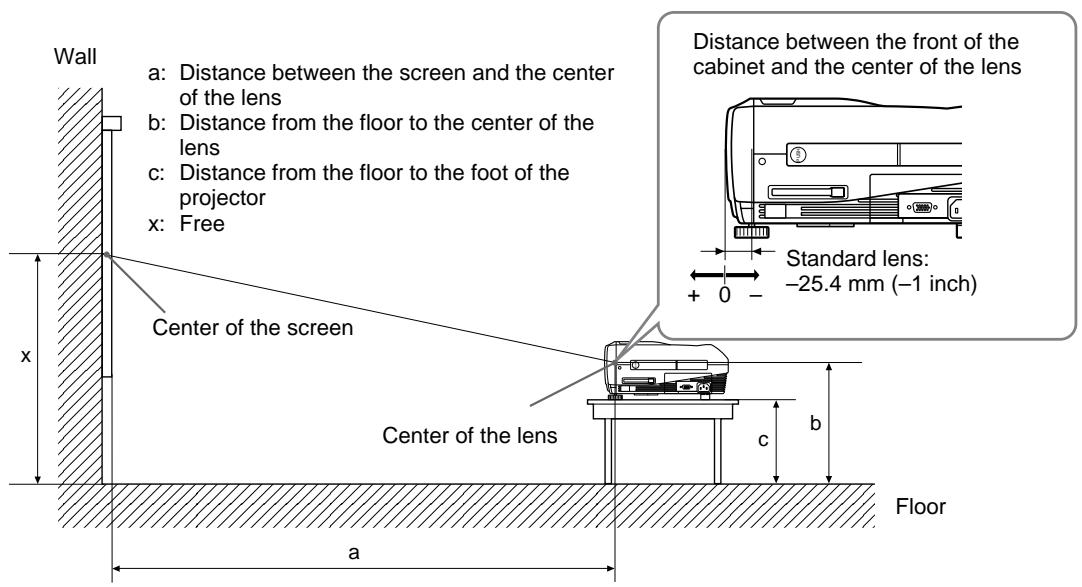
VPL-PX15/PX10
Unit: mm (inches)
| SS | 40 | 60 | 80 | 100 | 120 | 150 | 180 | 200 | 250 | 300 | |
| a | Minimum | 1458 (57 1/2) | 2217 (87 1/2) | 2977 (117 3/8) | 3736 (147 3/8) | 4495 (177 1/4) | 5635 (221 3/4) | 6774 (266 5/8) | 7533 (296 1/2) | 9432 (371 3/8) | 11330 (446 1/8) |
| Maximum | 1764 (69 3/8) | 2675 (105 1/4) | 3586 (141 3/8) | 4497 (177 1/4) | 5408 (213 1/8) | 6774 (266 5/8) | 8141 (320 5/8) | 9052 (356 3/8) | 11329 (446 1/8) | 13607 (536) | |
| b | x-305 (x-12) | x-457 (x-18) | x-610 (x-24) | x-762 (x-30) | x-914 (x-36) | x-1143 (x-45) | x-1372 (x-54) | x-1524 (x-60) | x-1905 (x-75 1/8) | x-2286 (x-90 1/8) | |
| c | x-388 (x-15 3/8) | x-541 (x-21 3/8) | x-693 (x-27 3/8) | x-845 (x-33 3/8) | x-998 (x-39 3/8) | x-1226 (x-48 3/8) | x-1455 (x-57 3/8) | x-1607 (x-63 3/8) | x-1988 (x-78 3/8) | x-2369 (x-93 3/8) | |
To calculate the installation measurements (unit: mm)
SS: screen size diagonal (inches)
a (minimum) = (SS × 33.60 / 0.9071) - 59.7012 × 1.025
a (maximum) = (SS × 42.376846 / 0.9071) - 59.62151 × 0.975
b = x - (SS / 0.9071× 6.912)
c = x - (SS / 0.9071 × 6.912 + 83.4)
VPL-PS10
Unit: mm (inches)
| SS | 40 | 60 | 80 | 100 | 120 | 150 | 180 | 200 | 250 | 300 | |
| a | Minimum | 1461 (57 1/2) | 2221 (87 1/2) | 2982 (117 3/8) | 3742 (147 3/8) | 4503 (177 1/4) | 5644 (222 1/8) | 6784 (267) | 7545 (297 3/8) | 9446 (372 1/8) | 11348 (447) |
| Maximum | 1767 (69 3/4) | 2680 (105 5/8) | 3592 (141 3/8) | 4505 (177 1/4) | 5417 (213 1/2) | 6786 (267 3/8) | 8154 (321) | 9067 (357 1/4) | 11348 (447) | 13629 (536 3/4) | |
| b | x-305 (x-12 1/8) | x-458 (x-18 1/8) | x-611 (x-24 1/8) | x-763 (x-30 1/8) | x-916 (x-36 1/8) | x-1145 (x-45 1/8) | x-1374 (x-54 1/8) | x-1527 (x-60 1/8) | x-1908 (x-75 1/4) | x-2290 (x-90 1/4) | |
| c | x-389 (x-15 3/8) | x-541 (x-21 3/8) | x-694 (x-27 3/8) | x-847 (x-33 3/8) | x-999 (x-39 3/8) | x-1228 (x-48 3/8) | x-1457 (x-57 3/8) | x-1610 (x-63 1/2) | x-1992 (x-78 1/2) | x-2373 (x-93 1/2) | |
To calculate the installation measurements (unit: mm)
SS: screen size diagonal (inches)
a (minimum) = (SS × 33.59 / 0.9055) - 59 × 1.025
a (maximum) = (SS × 42.370377 / 0.9055) - 58.9761 × 0.975
b = x - (SS / 0.9055× 6.912)
c = x - (SS / 0.9055 × 6.912 + 83.4)
Notes for Installation
Unsuitable Installation
Do not install the projector in the following situations. These installations may cause malfunction or damage to the projector.
Poorly ventilated
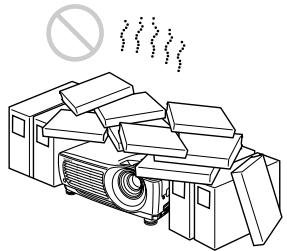
- Allow adequate air circulation to prevent internal heat build-up. Do not place the unit on surfaces (rugs, blankets, etc.) or near materials (curtains, draperies) that may block the ventilation holes. When internal heat builds up due to blockage of the ventilation holes, the temperature sensor may function, a warning message will be displayed, and the power may be turned off automatically after one minute.
- Leave space of more than 50~cm ( 19^3/4 inches) around the unit.
- Be careful that the ventilation holes do not inhale tiny objects such as pieces of paper.
Highly heated and humid
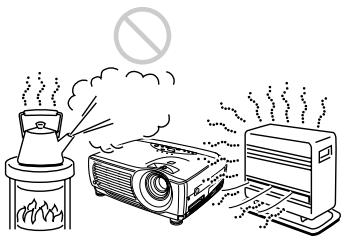
- Avoid installing the unit in a location where the temperature or humidity is very high, or the temperature is very low.
- To avoid moisture condensation, do not install the unit in a location where the temperature may rise rapidly.
Very dusty
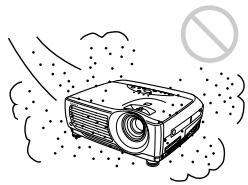
Avoid installing the unit in a location where there is a lot of dust; otherwise, the air filter will clog. The dust blocking the air through the filter may cause the internal heat level of the projector to rise. Clean the filter periodically.
Unsuitable Conditions for Use
Do not do any of the following.
Toppling the unit
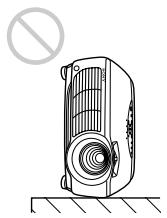
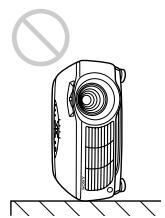
Avoid standing the unit on its side as the unit may topple over. This may cause a malfunction.
Tilting the unit more than 15 degrees
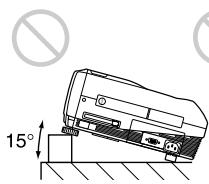
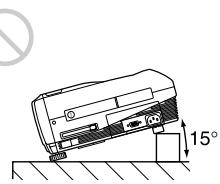
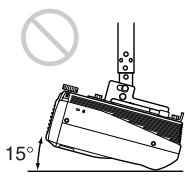
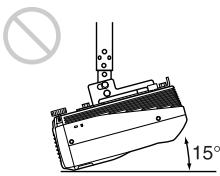
Avoid tilting the unit at an angle of more than 15 degrees. Installation of the unit in this manner may cause a malfunction.
Blocking the ventilation holes

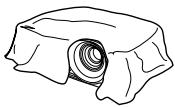
Avoid using something that covers over the ventilation holes (exhaust/intake); otherwise, the internal heat level may build up.
Removing the adjusters

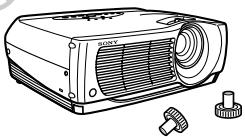
Avoid using the unit with the adjusters removed. Blocking the ventilation holes (intake) may cause internal heat build-up.
Maintenance
Notes
- If the lamp breaks, consult with qualified Sony personnel.
- Pull out the lamp unit by holding the handle. If you touch the lamp unit, you may be burned or injured.
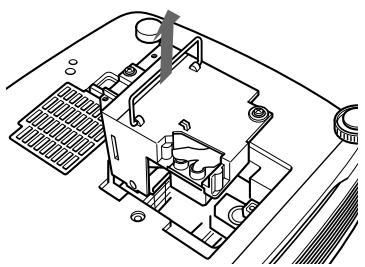
- When removing the lamp unit, make sure it remains horizontal, then pull straight up. Do not tilt the lamp unit. If you pull out the lamp unit while it is tilted and if the lamp breaks, the pieces may scatter, causing injury.
Replacing the Lamp
When the lamp has burnt out or dims, or "Please replace the LAMP." appears on the screen, replace the lamp with a new one. The lamp life varies depending on conditions of use. The message appears after 1500 hours of use.
Use an LMP-P202 Projector Lamp as the replacement lamp.
When replacing the lamp after using the projector
Turn off the projector, then unplug the power cord.
Wait for at least an hour for the lamp to cool.
Note
The lamp remains at a high temperature after you turn off the projector with the I/ key. If you touch the lamp, you may burn your finger. When you replace the lamp, wait for at least an hour for the lamp to cool.
1 Place a protective sheet (cloth) beneath the projector. Hold the projector handle and place the projector face down.
Note
When replacing the lamp, be sure the projector is on a flat and stable surface.
2 Slide open the lamp cover after loosening its screw with a Phillips screwdriver.
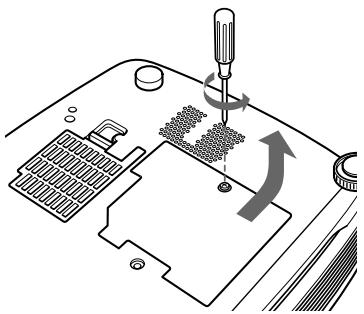
3 Loosen the screws on the lamp unit with the Phillips screwdriver.
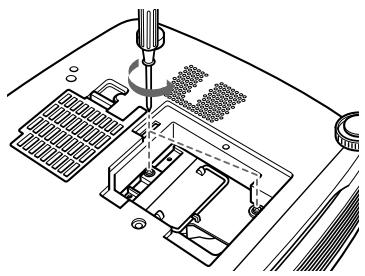
4 While holding the handle and keeping the lamp unit horizontal, pull straight up.
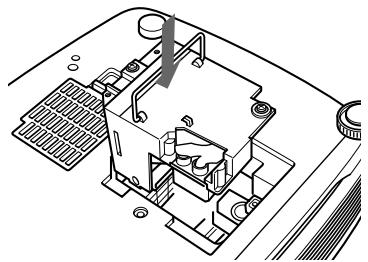
5 Insert the new lamp all the way in until it is securely in place. Tighten the two screws. Fold down the handle.
Notes
- Be careful not to touch the glass surface of the lamp.
- The power will not turn on if the lamp is not secured properly.
6 Close the lamp cover and tighten the screw.
7 Turn the projector back over.
8 Connect the power cord and turn the projector to the standby mode.
9 Press the following keys on the control panel in the following order for less than five seconds each: RESET, , ENTER.
Notes
- Be sure to use an LMP-P202 Projector Lamp for replacement. If you use lamps other than the LMP-P202, the projector may malfunction.
- Be sure to turn off the projector and unplug the power cord before replacing the lamp.
- Do not put your hands into the lamp replacement socket, and do not allow any liquid or objects to fall into it to avoid electrical shock or fire.
Disposal of the used lamp
As the used lamp contains Mercury, dispose of the lamp according to local, state or federal laws.
As the materials used in this lamp are similar to those of a fluorescent lamp, you should dispose of a used projector lamp in the same way as a fluorescent lamp.
Cleaning the Air Filter
The air filter should be cleaned every 300 hours.
When it becomes difficult to remove the dust from the filter, replace the filter with a new one.
To clean the air filter, follow the steps below:
1 Turn off the power and unplug the power cord.
2 Remove the air filter cover at the bottom of the projector.
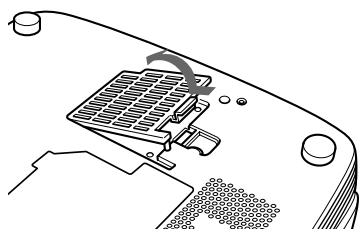
3 Remove the air filter.
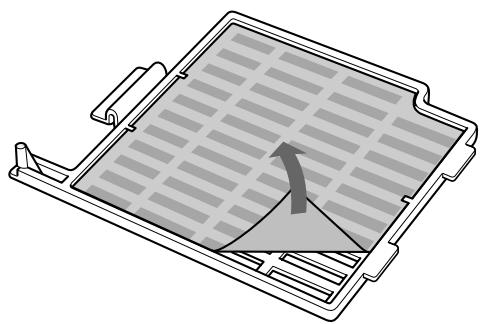
4 Wash the air filter with a mild detergent solution and dry it in a shaded place.
5 Hook the air filter on the holders of the air filter cover, then set the filter and replace the cover.
Notes
- If the dust cannot be removed from the air filter, replace the air filter with the supplied new one.
- Be sure to attach the air filter cover firmly; the power cannot be turned on if it is not closed securely.
- Place the air filter so that it fits in a notch on the air filter cover.
To clean the ventilation holes
When you clean the air filter, clean the ventilation holes (intake, rear and bottom) also. Remove the dust from the outside of the ventilation holes with a vacuum cleaner.
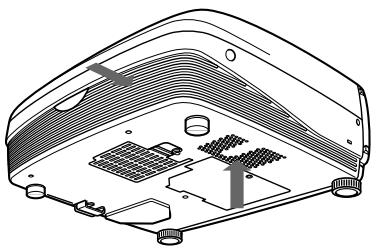
Troubleshooting
If the projector appears to be operating erratically, try to diagnose and correct the problem, using the following guide. If the problem still persists, consult with qualified Sony personnel.
Power
| Symptom | Cause | Remedy |
| The power is not turned on. | The power has been turned off and on with the I / 用电 key at too short an interval. | Wait for about 90 seconds before turning on the power (see page 25 (GB)). |
| The lamp cover is detached. | Close the lamp cover securely (see page 37 (GB)). | |
| The air filter cover is detached. | Close the air filter cover securely (see page 38 (GB)). |
Image
| Symptom | Cause | Remedy |
| No picture. | A cable is disconnected or not connected properly. | Check that the proper connections have been made (see pages 18 (GB) to 23 (GB)). |
| The input selection is incorrect. | Select the input source correctly using the INPUT key (see page 24 (GB)). | |
| The picture is cut off. | Press the PIC MUTING key on the VPL-PX15/ PX10 Remote Commander to release the muting function (see page 14 (GB)). | |
| The computer signal is not set to output to an external monitor. | Set the computer signal to output to an external monitor (see page 18 (GB)). | |
| The computer signal is set to output to both the LCD of the computer and an external monitor. | Set the computer signal to output only to an external monitor (see page 18 (GB)). | |
| The picture is noisy. | Noise may appear on the background depending on the combination of the numbers of dot input from the connector and numbers of pixels on the LCD panel. | Change the desktop pattern on the connected computer. |
| On-screen display does not appear. | STATUS in the SET SETTING menu has been set to OFF. | Set STATUS in the SET SETTING menu to ON (see page 32 (GB)). |
| The picture from INPUT B is frozen. (VPL-PX15 only) | There is something wrong with the network software. | Set INPUT-B FUNC. in the INSTALL SETTING menu to OFF, then set it to ON again (see page 33 (GB)). |
| The color balance of the video picture is not correct. | The color system of the input signal is not set correctly. | Set COLOR SYS in the PICTURE CTRL menu to match the color system of the input signal (see page 29 (GB)). |
Sound
| Symptom | Cause | Remedy |
| No Sound. | A cable is disconnected or not connected properly. | Check that the proper connections have been made (see pages 18 (GB) to 23 (GB)). |
| The sound is cut off. | Press the AUDIO MUTING key on the VPL-PX15/ PX10 Remote Commander to release the muting function (see page 14 (GB)). | |
| When inputting sound through the AUDIO jack, sound comes through one channel only. | Monaural sound is being input through the AUDIO jack. | Input stereo sound. |
Others
| Symptom | Cause | Remedy |
| The LAMP/COVER indicator flashes. | The lamp cover or the air filter cover is detached. | Attach the cover securely (see pages 37 (GB) and 38 (GB)). |
| The LAMP/COVER indicator lights up. | The lamp has reached the end of its life. | Replace the lamp (see page 37 (GB)). |
| The lamp has reached too a high temperature. | Wait for 90 seconds to cool down the lamp and turn on the power again (see page 25 (GB)). | |
| The TEMP/FAN indicator flashes. | The fan is broken. | Consult with qualified Sony personnel. |
| The TEMP/FAN indicator lights up. | The internal temperature is unusually high. | Check to see if nothing is blocking the ventilation holes. |
| Both LAMP/COVER and TEMP/FAN indicators light up. | The electrical system has failed. | Consult with qualified Sony personnel. |
| The INPUT B window does not appear, or INPUT B cannot be selected. (VPL-PX15 only) | INPUT-B FUNC. is set to OFF. | Set INPUT-B FUNC. in the INSTALL SETTING menu to ON (see page 33 (GB)). |
| The menu display does not appear even when you press the MENU key on the VPL-PX15/PX10 Remote Commander. | The PJ/NETWORK select switch on the Remote Commander is set to NETWORK. | Set the PJ/NETWORK select switch to PJ, then press the MENU key. |
Warning messages
Use the list below to check the meaning of the messages displayed on the screen.
| Message | Meaning | Remedy |
| High temp.! Lamp off in 1 min. | Internal temperature is too high. | Turn off the power. Check to see if something is blocking the ventilation holes. |
| Frequency is out of range! | This input signal cannot be projected as the frequency is out of the acceptable range of the projector. | Input a signal that is within the frequency range. |
| The resolution setting of the output signal of the computer is too high. | Set the setting of output to XGA (VPL-PX15/PX10) or SVGA (VPL-PS10) (see page 18 (GB)). | |
| Please check INPUT-A setting. | You have input an RGB signal from the computer when INPUT-A in the SET SETTING menu is set to COMPONENT or VIDEO GBR. | Set INPUT-A correctly (see page 32 (GB)). |
| Please replace the LAMP. | It is time to replace the lamp. | Replace the lamp. |
| Backup Battery Very Low (VPL-PX15 only) | The backup battery for the network is exhausted. | Consult with qualified Sony personnel. |
Caution messages
Use the list below to check the meaning of the messages displayed on the screen.
| Message | Meaning | Remedy |
| NO INPUT | No input signal | Check connections (see pages 18 (GB) to 23 (GB)). |
| Not applicable! | You have pressed the wrong key. | Press the appropriate key. |
Specifications
Optical characteristics
Projection system 3 LCD panels, 1 lens, projection system
LCD panel VPL-PX15/PX10: 0.9-inch TFT
LCD panel with micro-lens array, 2,359,296 pixels (786,432 pixels × 3)
VPL-PS10: 0.9-inch TFT LCD panel, 1,440,000 pixels (480,000 pixels × 3)
Lens 1.3 times zoom lens (manual)
f 33.6 to 42mm / F 1.7 to 2.1
Lamp 200W UHP
Projection picture size
Range: 40 to 300 inches (diagonal measure)
Light output VPL-PX15/PX10: ANSI lumen
2000 lm
VPL-PS10: ANSI lumen 1500lm
Throwing distance VPL-PX15/PX10 (When an XGA signal is input)
40-inch: 1458 to 1764 mm (57 ^1/2 to 69^3/8 inches)
60-inch: 2217 to 2675 mm (87 ^1/2 to 105 ^1/4 inches)
80-inch: 2977 to 3586 mm (117 ^3/8 to 141 ^3/8 inches)
100-inch: 3736 to 4497 mm (147 ^3/8 to 177 ^1/4 inches)
120-inch: 4495 to 5408 mm (177 ^1/4 to 213 ^1/8 inches)
150-inch: 5635 to 6774 mm (221 ^3/4 to 266 ^5/8 inches)
180-inch: 6774 to 8141 mm (266 5/8 to 320 5/8 inches)
200-inch: 7533 to 9052 mm (296 ^1/2 to 356 ^3/8 inches)
250-inch: 9432 to 11329 mm (371 3/8 to 446 1/8 inches)
300-inch: 11330 to 13607mm (446 ^1/8 to 536 inches)
VPL-PS10 (When an SVGA signal is input)
40-inch: 1461 to 1767mm (57 ^1/2 to 69^3/4 inches)
60-inch: 2221 to 2680mm (87 ^1/2 to 105^5/8 inches)
80-inch: 2982 to 3592mm (117 ^3/8 to 141^3/8 inches)
100-inch: 3742 to 4505mm (147^3 / 8 to 177^1 / 4 inches)
120-inch: 4503 to 5417 mm (177 ^1/4 to 213 ^1/2 inches)
150-inch: 5644 to 6786 mm (222 ^1/8 to 267 ^3/8 inches)
180-inch: 6784 to 8154 mm (267 to 321 inches)
200-inch: 7545 to 9067 mm (297 ^3/8 to 357 ^1/4 inches)
250-inch: 9446 to 11348 mm (372 ^1/8 to 447 inches)
300-inch: 11348 to 13629mm (447 to 536^3 / 4 inches)
Electrical characteristics
Color system NTSC3.58/PAL/SECAM/NTSC4.43/ PAL-M/PAL-N system, switched automatically/manually
Resolution VPL-PX15/PX10: 750 horizontal TV lines (Video input) 1024 × 768 dots (RGB input)
VPL-PS10: 600 horizontal TV lines (Video input) 800 × 600 dots (RGB input)
Acceptable computer signals
fH: 15 to 91 kHz
fV: 43 to 85Hz
Speaker Stereo speakers system, 28~mm (1^1 / 8 inches) diameter, max. 0.5W× 2
Input/Output
Video input SVIDEO: Y/C mini DIN 4-pin type (female) Y (luminance): 1Vp - p± 2 dB sync negative (75 ohms terminated) C (chrominance): burst 0.286 Vp-p ± 2 dB (NTSC) (75 ohms terminated), burst 0.3 Vp-p ± 2 dB (PAL) (75 ohms terminated)VIDEO: phono type Composite video: 1Vp - p± 2 dB sync negative (75 ohms terminated)
| AUDIO: Stereo minijack 500 mVrms, impedance more than 47 kilohms | |
| INPUT A | INPUT A: HD D-sub 15-pin (female) |
| Analog RGB/component: | |
| R/R-Y: 0.7 Vp-p ±2 dB | |
| (75 ohms terminated) | |
| G: 0.7 Vp-p ±2 dB | |
| (75 ohms terminated) | |
| G with sync/Y: 1 Vp-p ±2 dB | |
| sync negative | |
| (75 ohms terminated) | |
| B/B-Y: 0.7 Vp-p ±2 dB | |
| (75 ohms terminated) | |
| SYNC/HD: Composite sync | |
| input: 1-5 Vp-p high impedance, | |
| positive/negative | |
| Horizontal sync input: 1-5 Vp-p | |
| high impedance, positive/ | |
| negative | |
| VD: Vertical sync input: 1-5 | |
| Vp-p high impedance, positive/ | |
| negative | |
| AUDIO: Stereo minijack | |
| 500 mVrms, impedance more | |
| than 47 kilohms | |
| MOUSE | 6-pin (female) (For details, see |
| “Pin assignment” on page 43 (GB).) | |
| INPUT B (VPL-PX15 only) | |
| ETHER | |
| 10BASE-T standard | |
| 100BASE-TX standard | |
| PC CARD slot | |
| PC CARD slot Type II | |
| USB hub | Up (B type: female) × 1 |
| Down (A type: female) × 1 | |
| CONTROL S IN/PLUG IN POWER | |
| Stereo minijack 5 Vp-p, plug in | |
| power, 5 V DC | |
| Safety regulations | |
| UL1950 | |
| cUL (CSA No. 950) | |
| FCC Class A | |
| IC Class A | |
| NEMKO (EN60950) | |
| CE (LVD, EMC) | |
| C-Tick | |
Laser beam (VPL-PX15/PX10 only)
Laser type Class 2
Wavelength 645 nm
Output 1 mW
General
| Dimensions | 325 × 110 × 285 mm (12 7/8 × 4 3/8 × 11 1/4 inches) (w/h/d) (without the projection parts) |
| Mass | VPL-PX15: Approx. 5.3 kg (11 lb 11 oz) |
| VPL-PX10/PS10: Approx. 4.9 kg (10 lb 13 oz) | |
| Power requirements | VPL-PX15: AC 100 to 240 V, 3.0–1.25 A, 50/60 Hz |
| VPL-PX10/PS10: AC 100 to 240 V, 2.9–1.2 A, 50/60 Hz | |
| Power consumption | VPL-PX15: Max. 300 W (Standby mode: 4.9 W) (When INPUT-B FUNC. is set to ON: 9.0 W) |
| VPL-PX10/PS10: Max. 290 W (Standby mode: 4.7 W) | |
| Heat dissipation | VPL-PX15: 1023.9 BTU |
| VPL-PX10/PS10: 989.6 BTU | |
| Operating temperature | 0 °C to 35 °C (32 °F to 95 °F) |
| Operating humidity | 35 % to 85 % (no condensation) |
| Storage temperature | -20 °C to 60 °C (-4 °F to 140 °F) |
| Storage humidity | 10 % to 90 % |
| Supplied accessories | Remote Commander RM-PJM15 (VPL-PX15/PX10 only) (1) |
| Remote Commander RM-PJM11 (VPL-PS10 only) (1) | |
| R6 (Size AA) batteries (2) | |
| HD D-sub 15-pin cable (2 m) (1) (1-791-992-21) | |
| PS/2 Mouse Cable (2 m) (1) (1-792-424-12) | |
| USB cable A type – B type (1) (1-790-081-11) | |
| CD-ROM (Application software) (1) |
AC power cord (1)
Air filter (for replacement) (1)
Lens cap (1)
Operating Instructions (1)
Operating Instructions for
Networking (VPL-PX15 only) (1)
Installation Manual for Dealers (1)
Specified/recommended PC Card/
Wireless LAN Access Point
(VPL-PX15 only) (1)
Quick Reference Card (1)
Design and specifications are subject to change without notice.
Optional accessories
Projector Lamp LMP-P202 (for replacement)
Projector Suspension Support PSS-610
Monitor Cable
SMF-410 (HD D-sub 15-pin (male) HD D-sub
15-pin (male))
Signal Cable
SMF-402 (HD D-sub 15-pin (male) 3× phono
jack)
Projection Lens
Short Focal Length Converter Lens VPLL-CW10
Long Focal Length Converter Lens VPLL-CT10
Some of the items may not be available in some areas. For details, please consult your nearest Sony dealer.
Pin assignment
INPUT A connector (HD D-sub 15-pin, female)
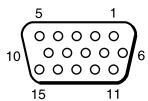
| 1 | R/R-Y | 9 | N.C. |
| 2 | G/Y | 10 | GND |
| 3 | B/B-Y | 11 | GND |
| 4 | GND | 12 | DDC/SDA |
| 5 | GND | 13 | HD/C.Sync |
| 6 | GND (R) | 14 | VD |
| 7 | GND (G) | 15 | DDC/SCL |
| 8 | GND (B) |
MOUSE connector (6-pin, female)

| 1 | DATA |
| 2 | N.C. |
| 3 | GND |
| 4 | +5 V |
| 5 | CLK |
| 6 | N.C. |
Index
A
Adjuster 11 (GB)
Adjusting
retention of the settings 27 (GB)
the picture 28 (GB)
the picture size/shift 24 (GB)
Air filter 38 (GB)
APA function 24 (GB)
ASPECT 30 (GB)
AUTO INPUT SEL 32 (GB)
B
Battery
installation 16 (GB), 17 (GB)
notes 16 (GB), 17 (GB)
BRIGHT 28 (GB)
C
Carrying handle 9 (GB)
COLOR 28 (GB)
COLOR SYS (System) 29 (GB)
COLOR TEMP 28 (GB)
Condensation 35 (GB)
Connections
component equipment 20 (GB)
computer 18 (GB)
LAN 21 (GB)
VCR 20 (GB)
CONTRAST 28 (GB)
Cut off
the picture 24 (GB)
the sound 14 (GB)
D, E, F
DIGIT KEystone 33 (GB)
D. (Dynamic) PICTURE 28 (GB)
DOT PHASE 29 (GB)
Freeze function 26 (GB)
G
GAMMA MODE 28 (GB)
H
HUE 28 (GB)
I, J, K
INPUT-A 32 (GB)
INPUT-B FUNC. 33 (GB)
INPUT SETTING menu 29 (GB)
INSTALL SETTING menu 32 (GB)
INSTALLATION 33 (GB)
Installation example 34 (GB)
IR RECEIVER 32 (GB)
KEYSTONE MEM 33 (GB)
L
Lamp replacement 37 (GB)
LAMP TIMER 33 (GB)
LANGUAGE 32 (GB)
Location and function of controls
connector panel 13 (GB)
control panel 11 (GB)
front/left side 9 (GB)
rear/right side/bottom 9 (GB)
Remote Commander 14 (GB), 16 (GB)
M, N
Menu
clearing the menu display 27 (GB)
INPUT SETTING menu 29 (GB)
INSTALL SETTING menu 32 (GB)
PICTURE CTRL menu 28 (GB)
SET SETTING menu 31 (GB)
using the menu 27 (GB)
MENUBACKGRND33(GB)
MENUCOLOR33(GB)
MENUPosition33 (GB)
Messages
cautions 40 (GB)
warnings 40 (GB)
Notes for installation
unsuitable conditions for use 35 (GB)
unsuitable installation 35 (GB)
0
Optional accessories 43 (GB)
P, Q
PICTURE CTRL menu 28 (GB)
Pin assignment 43 (GB)
Power
turn off 25 (GB)
turn on 23 (GB)
POWERSAVING12(GB),32(GB)
Precautions 7 (GB)
Projecting 24 (GB)
R
Remote Commander (VPL-PS10)
16 (GB)
Remote Commander (VPL-PX15/PX10)
14 (GB)
Remote control detector
front 9 (GB)
rear 9 (GB)
setting 32 (GB)
Reset
resettable items 27 (GB)
resetting the item 27 (GB)
RGB ENHANCER 28 (GB)
s
SCAN CONV (Scan converter) 30 (GB)
Screen size 41 (GB)
SET SETTING menu 31 (GB)
SHARP 28 (GB)
SHIFT 30 (GB)
SIZE H 30 (GB)
Specifications 41 (GB)
STATUS (on-screen display) 32 (GB)
Supplied accessories 42 (GB)
T, U
Troubleshooting 39 (GB)
V,W,X,Y,Z
Ventilation holes
exhaust 9 (GB)
intake 10 (GB)
VOLUME 29 (GB)
AVERTISSEMENT
FONCT ENTREE-B (VPL-PX15 uniqueness)
Faisceau laser (VPL-PX15/PX10 uniquely)
Type de laser Classe 2
VPL-PX10/PS10:989,6BTU
installation 14 (FR), 15 (FR)
remarks 14 (FR), 15 (FR)
Specifications 39 (FR)
STANDARD 27 (FR)
2855 Campus Drive, San Mateo, CA 94403
En Norteamérica
Conector MOUSE (6 pines)
DIST TRAP DIG 31 (ES)