
SRF-M90 - Radio SONY - Free user manual and instructions
Find the device manual for free SRF-M90 SONY in PDF.


User questions about SRF-M90 SONY
0 question about this device. Answer the ones you know or ask your own.
Ask a new question about this device
Download the instructions for your Radio in PDF format for free! Find your manual SRF-M90 - SONY and take your electronic device back in hand. On this page are published all the documents necessary for the use of your device. SRF-M90 by SONY.
USER MANUAL SRF-M90 SONY
For your convenience, record the model number and serial number (you will find them on the bottom side of your set) in the space provided below. Please refer to them when you contact your AIWA dealer in case of difficulty.
Model No. CT-X421
Serial No.
PRECAUTIONS
- Use only in a 12-volt DC negative-ground electrical system.
- Disconnect the vehicle's negative battery terminal while mounting and connecting the unit.
- When replacing the fuse, be sure to use one with an identical amperage rating. Using a fuse with a higher amperage rating may cause serious damage to the unit.
- Keep screwdrivers, etc. and other metallic or magnetic objects away from the playback head.
- When your vehicle has been parked in direct sunlight resulting in a considerable rise in the temperature inside, allow the unit to cool off before operating it.
- Keep the volume at a level at which you can hear outside warning sounds (horns, sirens, etc.).
NOTE
This equipment has been tested and found to comply with the limits for a Class B digital device, pursuant to Part 15 of the FCC Rules. These limits are designed to provide reasonable protection against harmful interference in a residential installation.
This equipment generates, uses, and can radiate radio frequency energy and, if not installed and used in accordance with the instructions, may cause harmful interference to radio communications. However, there is no guarantee that interference will not occur in a particular installation. If this equipment does cause harmful interference to radio or television reception, which can be determined by turning the equipment off and on, the user is encouraged to try to correct the interference by one or more of the following measures:
— Reorient or relocate the receiving antenna.
- Increase the separation between the equipment and receiver.
- Connect the equipment into an outlet on circuit different from that to which the receiver is connected.
- Consult the dealer or an experienced radio/TV technician for help.
CAUTION
Modifications or adjustments to this product, which are not expressly approved by the manufacturer, may void the user's right or authority to operate this product.
TABLE OF CONTENTS
THEFT PROTECTION 2
BASIC OPERATION, AUDIO AND CLOCK ADJUSTMENT 2
RADIO OPERATION 3
TAPE PLAYBACK 5
AUXILIARY EQUIPMENT 6
MAINTENANCE 6
SPECIFICATIONS 7
Note
Some buttons are assigned two or more functions.
For detailed descriptions, refer to the related pages.
Notes on cassettes
Do NOT expose cassettes to direct sunlight, extremely high or cold temperature or moisture.
Keep cassettes away from equipment with built-in magnets to avoid unwanted noise or loss of sound quality.
Do NOT touch the tape of a cassette, as any dirt or dust will contaminate the heads.
Be sure to remove any cassette from the unit if you are not using it.
Caution on the transit protection pad
Be sure to remove the pad before operating the unit.
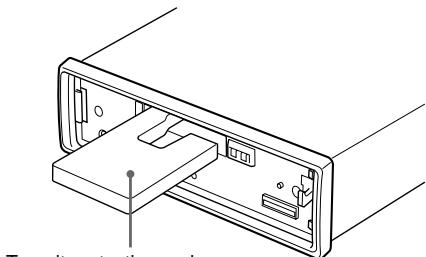
Transit protection pad
THEFT PROTECTION
Take the front panel with you when leaving the car, and keep it in the supplied carrying case.
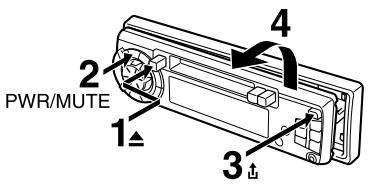
Detaching the front panel
Before detaching the front panel, remove the cassette to prevent possible damage to the unit.
1 Press to remove the cassette.
2 Press and hold PWR/MUTE until the unit turns off.
3 Press . (Hold the panel with one hand to prevent accidentally dropping it.)
4 Remove the panel.
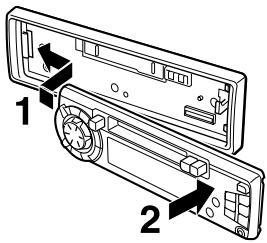
Attaching the front panel
1 Engage the left side of the front panel to the left catch on the unit.
2 Push the panel forward until it locks. Be sure not to press any buttons while you are attaching the panel.
Note
Do not touch the front panel connector. This could cause a poor or faulty connection.
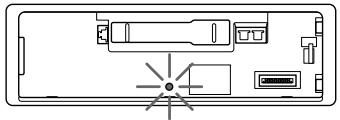
Security lamp
The security lamp will continue to flash while the front panel is detached from the unit.
BASIC OPERATION, AUDIO AND CLOCK ADJUSTMENT
Turning the unit on/off
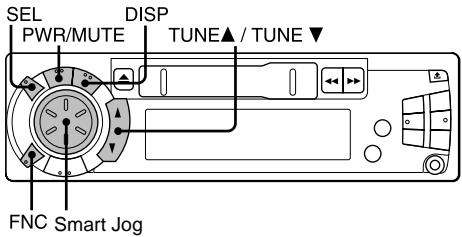
- Press PWR/MUTE to turn on the unit. The unit also turns on when you insert a cassette.
- Press and hold PWR/MUTE until the unit turns off.
Note
Most operations described in this manual require the unit to be turned on before starting the operation, unless explicitly stated otherwise.
Changing the source mode
1 Press FNC.
Pressing FNC cycles through source modes in the following order:
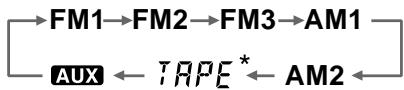
- Tape Play mode (available while a cassette is in the unit)
Adjusting the volume
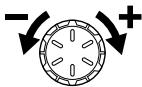
1 Turn the Smart Jog.
VOL (volume)
indicator flashes.
Muting the sound
1 Press PWR/MUTE briefly.
To restore volume, briefly press PWR/MUTE again.
Adjusting sound
You can select the following modes for adjusting sound depending on the music you listen to: BASS (low frequencies), TRE (high frequencies), BAL (left/right), FAD (front/rear) and H-BASS (high bass)
1 Press SEL repeatedly to select the mode to be adjusted.
Pressing SEL cycles through the modes. The selected mode's indicator flashes (except for H-BASS).
2 Turn the Smart Jog to increase or decrease the level for the selected mode (except for H-BASS).
In H-BASS mode, turn the Smart Jog to select on or off.
Note
Adjust the level or select on/off within 5 seconds, or the selected mode will return to previous state.
Aligning the source levels
(Source Level Adjuster)
Volume may vary each time you change the source mode. In this case, you can align each source mode's volume to almost the same level.
1 Press FNC repeatedly to select the desired mode.
2 Press DISP while pressing SEL.
"LA 0" appears in the display.
3 Turn the Smart Jog to adjust the level.
Note
Adjust the level within 5 seconds, or the selected mode will be canceled.
Restoring the factory settings
1 Turn off the unit.
2 Press and hold DISP until "LA --" appears in the display.
Note
You can restore the factory settings only for VOL, BASS, TRE, BAL, FAD, and H-BASS, and aligned source volume levels.
Muting button beep sounds
1 Turn off the unit.
2 Press and hold SEL until "BEEP" appears in the display.
3 Turn the Smart Jog to select on (level indicators appear) or off (level indicators disappear).
4 Press and hold SEL until the unit turns off.
Setting the clock
1 Press DISP to have the clock displayed. If the clock indication is already displayed, skip this step.
2 Press and hold DISP until the clock indication flashes in the display.
3 Press TUNE▲ (to set hour) or TUNE▼ (to set minute) and turn the Smart Jog.
4 Press DISP.
Displaying the clock
1 Press DISP.
To return to the former display, press DISP again.
RADIO OPERATION
Tuning in to a station
(Seek/Manual Tuning)
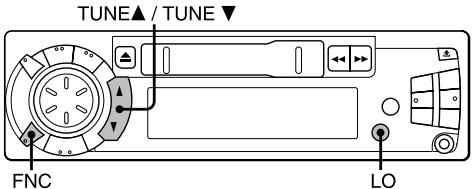
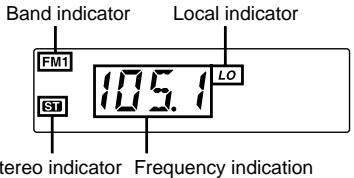
1 Press FNC repeatedly to select the desired band (FM1, FM2, FM3, AM1 or AM2).
2 Press TUNE▲ (to move to higher frequencies) or TUNE▼ (to move to lower frequencies) to tune in to a station.
"ST" appears in the display when an FM station is broadcasting in stereo, and receiving conditions are good.
Seek Tuning and Manual Tuning
- Press and hold TUNE▲ or TUNE▼ until Seek Tuning starts.
The unit locates a station automatically (Seek Tuning). - Press TUNE▲ or TUNE▼ repeatedly to search for a desired station while increasing or decreasing the frequency step by step (Manual Tuning).
To stop Seek Tuning, press TUNE or TUNE▼ again.
Monaural mode
When FM signals become weak, or FM reception becomes poor, the unit automatically switches to Monaural mode to reduce noise.
Local mode
Local mode allows you to tune in only to strong stations during Seek Tuning.
1 Press LO before you start Seek Tuning.
"LO" appears in the display.
To return to Distant mode, press LO again.
"LO" disappears and the unit tunes in to all receivable stations.
Using preset stations
You must preset stations before you can tune in a station using preset station number buttons.
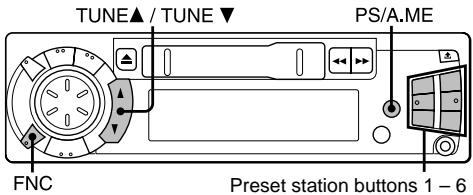
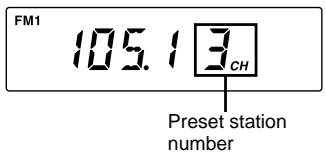
Presetting stations automatically
(Auto Memory)
1 Press FNC repeatedly to select the desired band (FM1, FM2, FM3, AM1 or AM2).
2 Press and hold PS/A.ME until automatic presetting starts.
The unit automatically stores up to 6 stations for each band.
After completion of automatic presetting, the unit tunes in to the station stored on preset station button 1.
To cancel automatic presetting, press PS/A.ME again.
Checking the preset stations (Preset Scan)
1 Press PS/A.ME briefly.
Each preset station will be tuned in for 5 seconds in order.
To cancel Preset Scan, press PS/A.ME again or any preset station button.
Presetting stations manually
(Manual Memory)
1 Press FNC repeatedly to select the desired band (FM1, FM2, FM3, AM1 or AM2).
2 Press TUNE or TUNE to tune in to a desired station (see "Tuning in to a station," page 3).
3 Press and hold the desired preset station button until the unit beeps.
Note
A newly preset station replaces the station on the same band that was previously stored on that preset station button.
Tuning in to a preset station
1 Press FNC repeatedly to select the desired band (FM1, FM2, FM3, AM1 or AM2).
2 Press the preset station button on which the desired station is stored.
Active tuning reception control (ATRC)
The unit automatically suppresses FM noise caused by vehicle movement, and maintains sound quality.
Using the timer
My Information)
You can schedule the radio to activate for daily radio programs. The unit automatically turns on and off in Radio mode at the scheduled times.
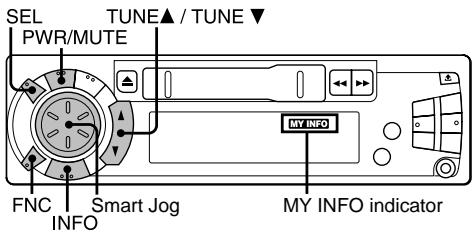
1 Turn off the unit.
2 Press and hold INFO until "PO" flashes in the display.
3 Press SEL.
4 Set the time you wish the unit to turn on.
- Press TUNE▲ and turn the Smart Jog to set the hour.
- Press TUNE▼ and turn the Smart Jog to set the minute.
5 Press SEL.
6 Press FNC to select the band.
7 Press TUNE▲, TUNE▼ or the desired preset station button to select the station.
8 Press SEL.
9 Set the time you wish the unit to turn off following the same procedure used in step 4.
10 Press and hold INFO until the unit turns off, and setting is completed.
When the unit is on, "MY INFO" appears in the display indicating that the unit is standby for a timer. During the timer-activated tuning, "MY INFO" continues to flash.
To cancel the timer standby, press INFO so that "MY INFO" disappears.
Notes
- To check the setting, turn off the unit, then press INFO. The unit displays the scheduled turn-on and turn-off times with the appropriate radio frequency.
- The unit automatically starts tuning at the scheduled time regardless of the current source mode. When the scheduled program is over, the unit automatically returns to the former source mode.
- The timer setting remains in effect when you turn off the unit, and even if you detach the front panel from the unit.
- However, if you press FNC to change the source mode during timer-activated tuning, the scheduled program is canceled.
TAPE PLAYBACK
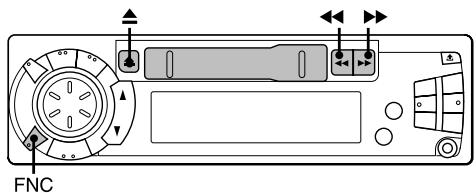
Playing a tape
1 Insert a cassette to start playback.
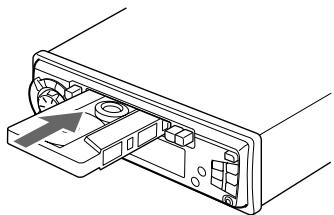
If a cassette is already inserted, press FNC repeatedly to select Tape Play mode to start playback.
Playback starts in the direction that the unit played back previously.
Press the following buttons to operate tape transport.
| To | Press |
| Eject a cassette* | ▲ |
| Change the playback side | ↔ and ↦ simultaneously |
| Fast-forward the upper side (▶) of the tape | |
| Rewind the lower side (〈) of the tape | |
| Rewind the upper side (▶) of the tape | |
| Fast-forward the lower side (〈) of the tape | |
| Stop fast transport and resume playback | ↔ or ↦ lightly** |
- When you eject the cassette, the unit switches to the previous mode.
** Do not press or all the way. Doing so may change the direction of tape transport.