
BioniQ 700 HX - Tablet A-Rival - Free user manual and instructions
Find the device manual for free BioniQ 700 HX A-Rival in PDF.


| Type of Product | Tablet |
| Brand | A-Rival |
| Model | BioniQ 700 HX |
| Display Size | 7 inches |
| Display Resolution | 1024 x 600 pixels |
| Processor | Quad-core 1.3 GHz |
| RAM | 1 GB |
| Internal Storage | 8 GB |
| Operating System | Android |
| Rear Camera | 5 MP |
| Front Camera | 2 MP |
| Battery Capacity | 3000 mAh |
| Dimensions (W x H x D) | 191 x 111 x 10.5 mm |
| Weight | 320 g |
| Connectivity | Wi-Fi 802.11 b/g/n, Bluetooth 4.0 |
| Ports | Micro USB, MicroSD slot, 3.5 mm headphone jack |
| Power Supply | 5V DC, 2A via micro USB |
| Main Functions | Web browsing, email, video playback, music, gaming, e-reading |
| Cleaning Instructions | Wipe with a soft, dry cloth. Avoid liquids and abrasives. |
| Safety Precautions | Do not expose to water or heat. Use only approved charger. |
| Spare Parts / Repairability | Battery and screen replacement by qualified service only. |
Frequently Asked Questions - BioniQ 700 HX A-Rival
User questions about BioniQ 700 HX A-Rival
0 question about this device. Answer the ones you know or ask your own.
Ask a new question about this device
Download the instructions for your Tablet in PDF format for free! Find your manual BioniQ 700 HX - A-Rival and take your electronic device back in hand. On this page are published all the documents necessary for the use of your device. BioniQ 700 HX by A-Rival.
USER MANUAL BioniQ 700 HX A-Rival
support@first-servicecenter.de
Thank you for choosing an a-rival product.
A good choice. We hope you'll enjoy using your new a-rival Tablet PC.
Just in case that you are facing any problems with your Device, please call our support/service hotline +49 (0)511 / 270 496 90 or send us an e-mail to support@first-servicecenter.de
Every user prefers individual App. We deliberately installed only the basic apps not to waste any precious memory unnecessarily. Find thousands of Apps – most of them free – on Google Play or on other platforms.
You'll find there additional manuals in other languages too. For detailed Manuals, Updates and technical information please visit our website www.a-rival.de
1- Charging
Please follow these steps to charge your Tablet PC.
- Plug the charger cable into the appropriate socket on the Tablet PC.
- Insert the USB plug of the data cable into the AC adapter
- Plug the AC adapter into the power outlet.
Load control on the unit lights up red. Once this is green the battery is fully charged.
2- Power-On
First time you turn on the tablet PC, you need to unlock the screen by dragging the lock icon out the circle and enter the home screen, which makes it easily for you to access frequently used functions. (Screen can be different due to the model you are using).

Initial Screen: drag the lock icon right out the circle to unlock.
Explanation report


touch to get back to the previous page

touch to access the home screen

touch to browse the track record of opened application
3- Turn off / Standby
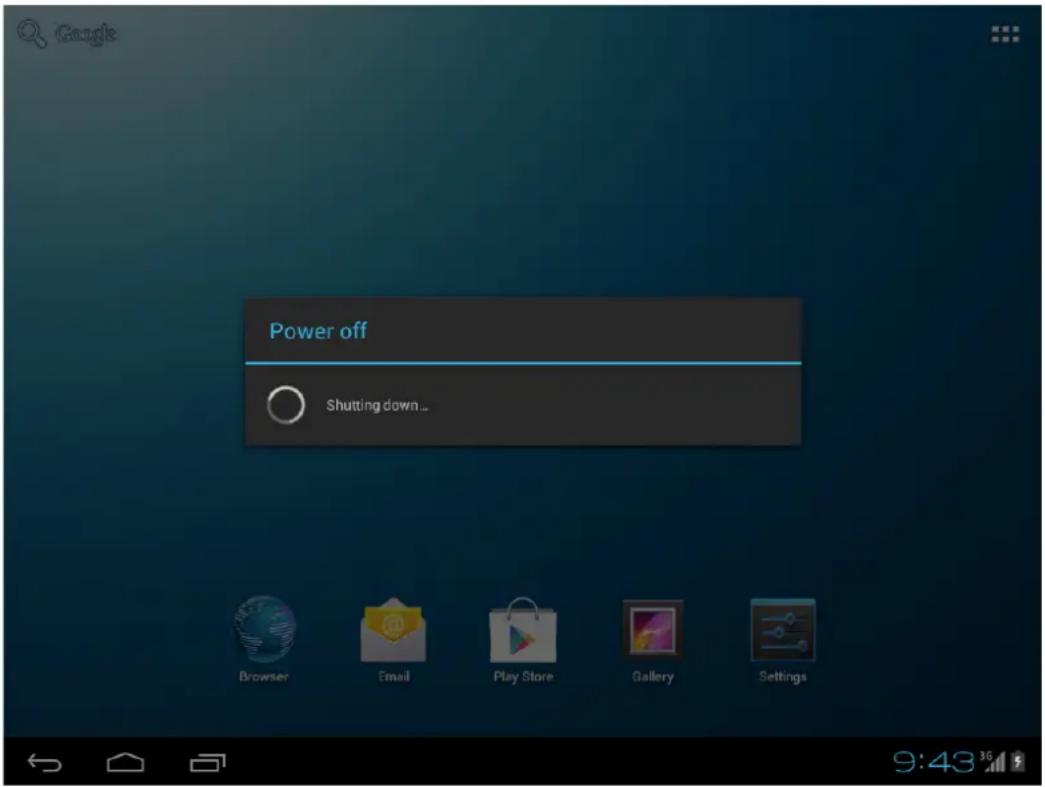
To power your tablet PC down completely, hold the "On/Off switch" down until the window appears asking you whether you want to switch the device off. Confirm with "OK" if you want to power the device down completely.
If you merely want to move the device into standby mode (for use soon and a fast start), simply tap the On/Off switch.
Please note that the tablet PC, when in standby mode, still consumes power, albeit very little and in this mode the battery can also discharge over several days.
4- System Language change
If you want to change the default Language to your home country language, please do the following steps.

Open the Settings with a tap on Settings on "Language & input".

Tap then on "Language". A list of all available languages opens.

Please choose your preferred language.
You can change the system language at any time from this menu.
5- Starting Apps
Tap the App symbol top right on the main screen. Now tap on the icon for the App that you wish to start (e.g. music)

You can also select widgets for the main screen on this screen.
6- Open settings
To open "Settings" tap on

7- Data link: WiFi/3G (UMTS)
7.1 To link the device with the WiFi network, open Settings.
Select WiFi in the "Wireless & Networks" field.

Now tap on "OFF" beside "WiFi". You have now enabled the WiFi function and the switch changes to ON.

Now select the WiFi network with which you want to link in the right list field and enter the required password, if relevant.


Now the reception symbol appears in the lower right edge of the screen. It also shows the received signal strength. The more blue segments there are, the better the reception.
7.2 You can connect your device via an external 3G stick with the Internet After connecting the external 3G stick, go to "Settings". Select "Wireless & networks" and then "3G", and then tap to "Off" next to 3G. Now you have activated the 3G and the switch changes to "ON". Now press on the right side to "mobile networks".
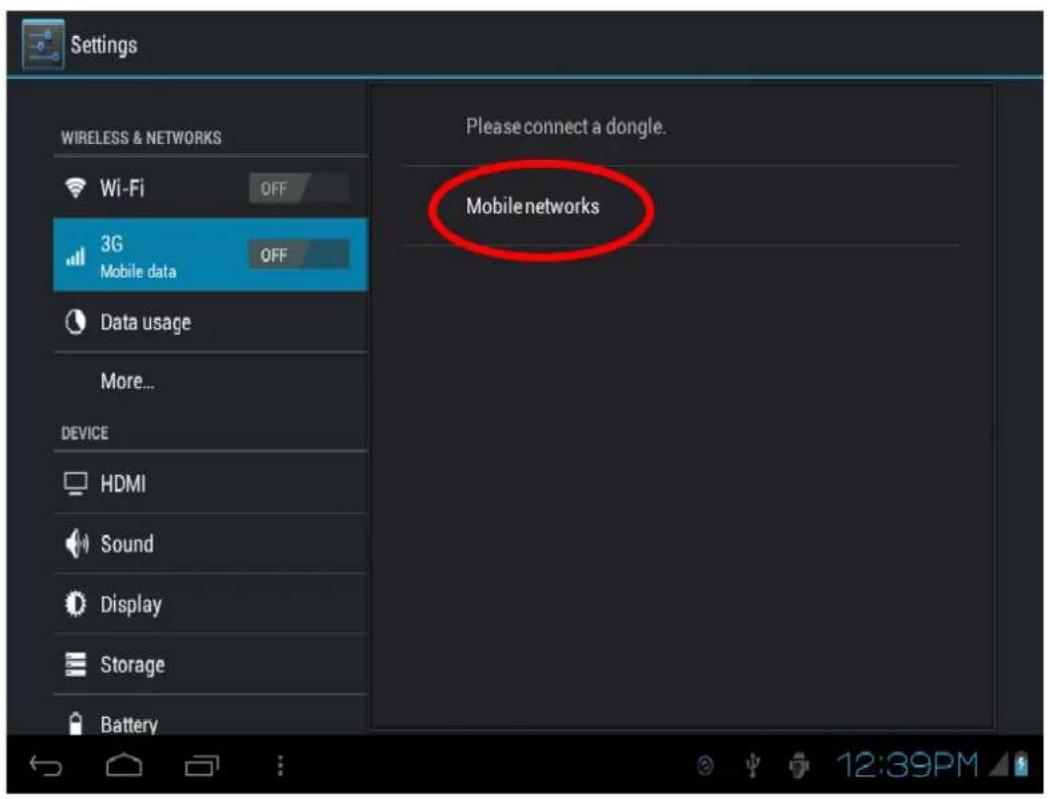
Now tap on "Mobile networks".

Now tap "Access Point Names".

Now tap the submenu symbol light on the screen. Select "New APN".
Now enter the relevant data for your provider. The access data for the 4 main carriers (Telekom – Vodafone – E-plus and O2) in Germany is already stored.

After entering the access points, press on 📋. Your entries are now stored and the device sets up a 3G connection.
It may be that there is interest in trademarks and trade names, or refer to their products.
The manufacturer disclaims any ownership rights to third party trademarks and trade names. The user manual can be changed without any notice.
Any reproduction is strictly prohibited without written permission of the manufacturer. Product illustrations contained in this manual are for guidance only. Depending on your Tablet PC, it may be that some functions are not changed or only be available (eg, Camera, Bluetooth, 3G, etc.).
Hotline: +49 (0)5 11-270 496 90
Address/Contact:
First Service
Kleine Düwelstr. 21
DE-30171 Hannover
Fax: +49 (0)5 11-161 25 36
support@first-servicecenter.de
Brand : A-Rival
Model : BioniQ 700 HX
Category : Tablet