
USR4515LC - Network Equipment USRobotics - Free user manual and instructions
Find the device manual for free USR4515LC USRobotics in PDF.


| Product Type | Wireless Router |
| Brand | USRobotics |
| Model | USR4515LC |
| Connectivity | Ethernet 10/100, Wi-Fi 802.11g |
| Wireless Standard | 802.11g (54 Mbps) |
| Number of Ports | 4 x LAN, 1 x WAN |
| Security | WEP, WPA, WPA2, SPI Firewall |
| Power Supply | 5V DC, 2.5A |
| Dimensions (W x D x H) | 7.5 x 5.5 x 1.5 inches |
| Weight | 0.7 lbs |
| Operating Temperature | 0°C to 40°C |
| Humidity | 10% to 85% non-condensing |
| LED Indicators | Power, WAN, LAN, Wireless |
| Antenna Type | 2 x External Detachable |
| Setup | Web-based interface |
| Encryption | WEP 64/128-bit, WPA-PSK, WPA2-PSK |
| VPN Pass-Through | PPTP, IPSec, L2TP |
| MAC Address Filtering | Yes |
| DHCP | Server, Client |
| Firmware Upgrade | Via Web |
Frequently Asked Questions - USR4515LC USRobotics
User questions about USR4515LC USRobotics
0 question about this device. Answer the ones you know or ask your own.
Ask a new question about this device
Download the instructions for your Network Equipment in PDF format for free! Find your manual USR4515LC - USRobotics and take your electronic device back in hand. On this page are published all the documents necessary for the use of your device. USR4515LC by USRobotics.
USER MANUAL USR4515LC USRobotics
10 Gigabit SR Fiber Tap (50 Micron) Installation Guide

USR4515 10 Gigabit SR Fiber Tap (50 Micron)
Package Contents:
• USR4515 10 Gigabit SR Fiber Tap (50 Micron)
• Information Card
Introduction — The 10 Gigabit SR Fiber Tap (50 Micron) is a single-port device that provides easy access to passively monitor fiber traffic between devices using your network analysis tools.
Specifications:
- Occupies 1U of rackspace
- Port Connectivity: SC fiber connectors
- Cable Type: 50 micron fiber
- Distance Limit: typically at 100Mb 2km, 1Gb 550m, 10Gb 82m between any network to network end-points or network to monitor end-points.
- Power Requirement: Passive, no power required
- Dimensions H x W x D: 1.10" x 5.75" x 5.75" (28 mm x 146 mm x 146 mm)
- Weight: Product - 0.65 pounds (0.29 kg) Package - 2.0 pounds (0.91 kg)
- Operating Temperature: 0^ to 40^ (32° to 104° F)
- Storage Temperature: -30^ to 65^ C (-22° to 149° F)
- Humidity: Less than 95% non-condensing operating or non-operating
Equipment Rack Installation:
- Select a location and align the Fiber Tap thumb screw with the corresponding universal flange middle hole. An additional 6-32 thread clip-on nut may be required to fasten the tap to your rack.
WARNING: Installing on a wide flange hole will result in the tap invading an adjoining standard 1U rackspace, unless a rackmount kit is used. The 19" 1U USR4500-RMK Rackmount Installation Kit is available for up to three units.
- Tighten the thumb screw until the tap is secure in the rack.

other
| Dimension | Value | | :--- | :--- | | Height (m) | 6.75 | | Width (m) | 31.8 | | Height (inches) | 12.7 | | Width (inches) | 31.8 | | Total Length (m) | 450 | | Minimum Height (m) | 577 | | Maximum Height (m) | 730 | | Total Spacing (min) | 465 | | Total Spacing (min) | 592 ± 1.6 | | Total Spacing (min) | 745 | | Total Spacing (min) | 483.4 | | Total Spacing (min) | 610.4 | | Total Spacing (min) | 763.0 | The chart includes annotations for 'UNIVERSAL SPACING' at the top left and 'WIDE SPACING' at the bottom right. The red star marks the maximum spacing of the vertical component.
19" 1U USR4500-RMK Rackmount
USRobotics®
Considerations for Fiber Installation:
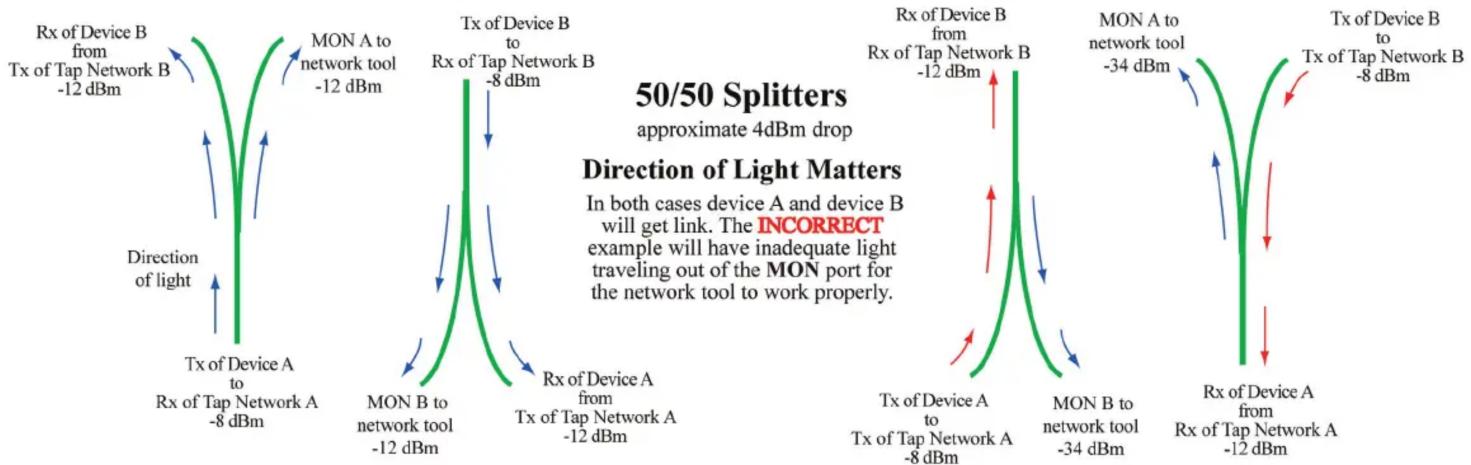
Fiber TAPs are splitters that divide the light traveling along the fiber into two separate channels. The splitting of the fiber takes signal strength from one fiber and divides it into two (or more) fibers requiring enough light from the main channel to be shared among the divided fibers - meaning that you need to take into consideration the “light budget” to allow for the loss of light on each split channel. By installing the fibers in the proper direction there should be enough light to work properly. If light does not enter the tap in the proper direction, the light traveling out from the MON port will be inadequate for the network tool to utilize the data. This is a common problem that results in link faults on the network tools. To remedy the problem, simply swap the Network connectors (In to Out and Out to In) for proper connectivity and link activity.
CORRECT
other
| Device | Rx / Mon / Network Tool / Signal Power | |--------|--------------------------------------| | Device A | Tx of Tap Network A -8 dBm | | Device B | Tx of Tap Network A -12 dBm | | Device A | TX of Device A to Rx of Tap Network A -12 dBm | | Device B | TX of Device A to Rx of Tap Network A -8 dBm | | Device A | TX of Device A to TX of Tap Network A -8 dBm | | Device B | TX of Device A to TX of Tap Network A -34 dBm | | Device A | TX of Device A to Rx of Tap Network A -12 dBm | | Device B | TX of Device A to Rx of Tap Network A -8 dBm |INCORRECT
NOTE: All fiber connectors are keyed, the key pointing up, Tx is on the left and Rx is on the right. Tx from the network device, the fiber with light, should enter the Rx port on the Fiber Tap.

Network Connection:

flowchart
graph TD
    A["Network"] --> B["Monitor"]
    B --> C["Tx"]
    B --> D["Rx"]

Simple Tap Connection Diagram
USRobotics®
10 Gigabit SR Fiber Tap
- Connect the fiber cables of device A to the NETWORK A SC port.
- Connect the fiber cables of device B to the NETWORK B SC port.
- Connect fiber cables from the Analysis device to the MON A and B SC port.
Warranty and Support Information:
This product is subject to the U.S. Robotics Corporation Limited Warranty. To view a copy of the Limited Warranty, please see: www.usr.com/support/4515
For information on how to contact USRobotics Technical Support, please see the USRobotics corporate web site at: www.usr.com/support
Regulatory Information:

CE Compliance Declaration of Conformity
Hereby, USRobotics, declares that this tap, USRobotics 10 Gigabit SR Fiber Tap, is in compliance with the essential requirements and other relevant provisions of EMC Directive 89/366/EEC and Low Voltage Directive 98/68/EEC. An electronic copy of the original CE Declaration of Conformity is available at the USRobotics website: www.usr.com

This product is subject to Directive 2012/19/EU of the European Parliament and the Council of the European Union on waste electrical and electronic equipment (WEEE) and, in jurisdictions adopting that Directive, is marked as being put on the market after August 13, 2005, and should not be disposed of as unsorted municipal waste. Please utilize your local WEEE collection
facilities in the disposition of this product and otherwise observe all applicable requirements. For further information on the requirements regarding the disposition of this product and collection facilities that may be available to you, please visit: www.usr.com/weee

This product is subject to Directive 2011/65/EU of the European Parliament and the Council of the European Union on restriction of the use of certain hazardous substances in electrical and electronic equipment (RoHS) and, in jurisdictions adopting that Directive. For further
information regarding this product, please visit: www.usr.com/rohs


Brand : USRobotics
Model : USR4515LC
Category : Network Equipment