
AZ1145 - Portable CD player PHILIPS - Free user manual and instructions
Find the device manual for free AZ1145 PHILIPS in PDF.



| Product Type | Portable CD player with cassette deck and radio |
| Brand | PHILIPS |
| Model | AZ1145 |
| Approx. Dimensions | 300 x 150 x 200 mm |
| Approx. Weight | 1.5 kg |
| Power supply | 6 R14/UM2/C batteries (alkaline recommended) or mains 230 V~ via cord |
| Remote control | Yes, with 2 AAA batteries |
| Main functions | CD/CD-RW playback, 20-track programming, Shuffle/Repeat modes, cassette deck, CD synchro recording, FM/MW/LW radio with 30 presets, DBB (Dynamic Bass Boost) |
| Display | Digital display with backlight |
| Headphone output | 3.5 mm jack |
| Antenna | Telescopic for FM, built-in for MW/LW |
| Care and cleaning | Clean the cabinet with a soft, slightly damp cloth; clean cassette heads with an alcohol-dipped cotton swab every 50 hours; use a cleaning CD for the lens |
| Safety | Do not expose to moisture, excessive heat; do not open the device (risk of electric shock) |
| Spare parts and repairability | Standard batteries available; CD lens not user-replaceable; contact a service center for any repairs |
| General information | CD-R/RW playback; auto-stop at cassette end; adjustable Philips demo mode |
Frequently Asked Questions - AZ1145 PHILIPS
User questions about AZ1145 PHILIPS
0 question about this device. Answer the ones you know or ask your own.
Ask a new question about this device
Download the instructions for your Portable CD player in PDF format for free! Find your manual AZ1145 - PHILIPS and take your electronic device back in hand. On this page are published all the documents necessary for the use of your device. AZ1145 by PHILIPS.
USER MANUAL AZ1145 PHILIPS
Important notes for users in the U.K.
Mains plug
This apparatus is fitted with an approved moulded 13 Amp plug. To change a fuse in this type of plug proceed as follows:
- Remove fuse cover and fuse.
Fix new fuse which should be a BS1362 5 Amp, A.S.T.A. or BSI approved type. - Refit the fuse cover.
If the fitted plug is not suitable for your socket outlets, it should be cut off and an appropriate plug fitted in its place.
If the mains plug contains a fuse, this should have a value of 5 Amp. If a plug without a fuse is used, the fuse at the distribution board should not be greater than 5 Amp.
Note: The severed plug must be disposed to avoid a possible shock hazard should it be inserted into a 13 Amp socket elsewhere.
How to connect a plug
The wires in the mains lead are coloured with the following code: blue = neutral (N), brown = live (L).
As these colours may not correspond with the colour markings identifying the terminals in your plug, proceed as follows:
- Connect the blue wire to the terminal marked N or coloured black.
- Connect the brown wire to the terminal marked L or coloured red.
- Do not connect either wire to the earth terminal in the plug, marked E (or 12 ) or coloured green (or green and yellow).
Before replacing the plug cover, make certain that the cord grip is clamped over the sheath of the lead - not simply over the two wires. Copyright in the U.K.:
Recording and playback of material may require consent. See Copyright Act 1956 and The Performer's Protection Acts 1958 to 1972.
Norge
Adversel: For a redusere faren for brann erler elektrisk stot; skal apparatet-ie utsettes for regn erller fuktighe.
Philips Consumer Electronics
Philips, Glaslaan 2
5616 JB Eindhoven, The Netherlands
English 4
Francais 14
Espanol 24
Deutsch 34
Nederlands 44
Italiano 54
Portugues 64
Dansk 74
Svenska 84
Suomi 94
'ELAnvika 104
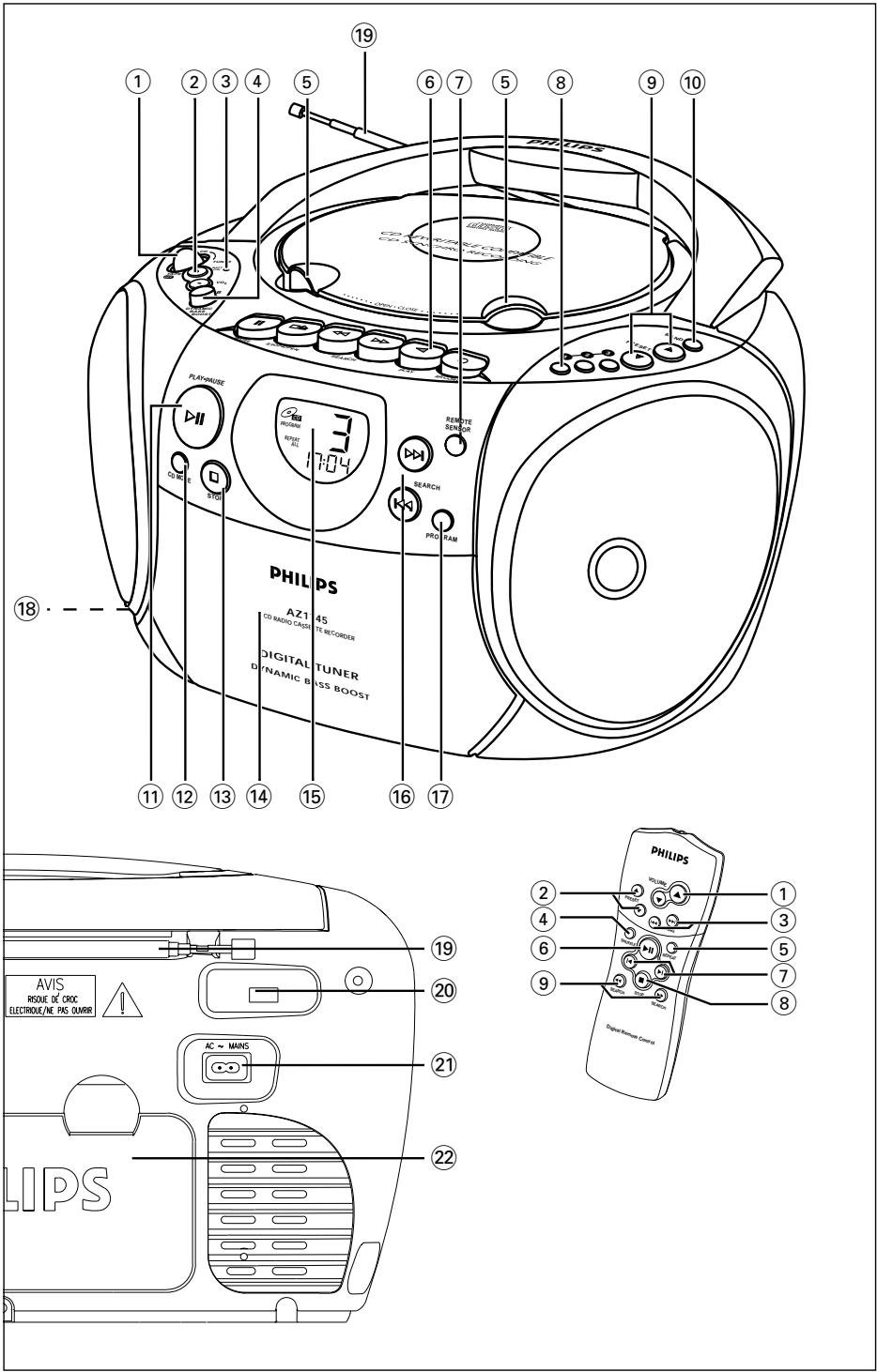
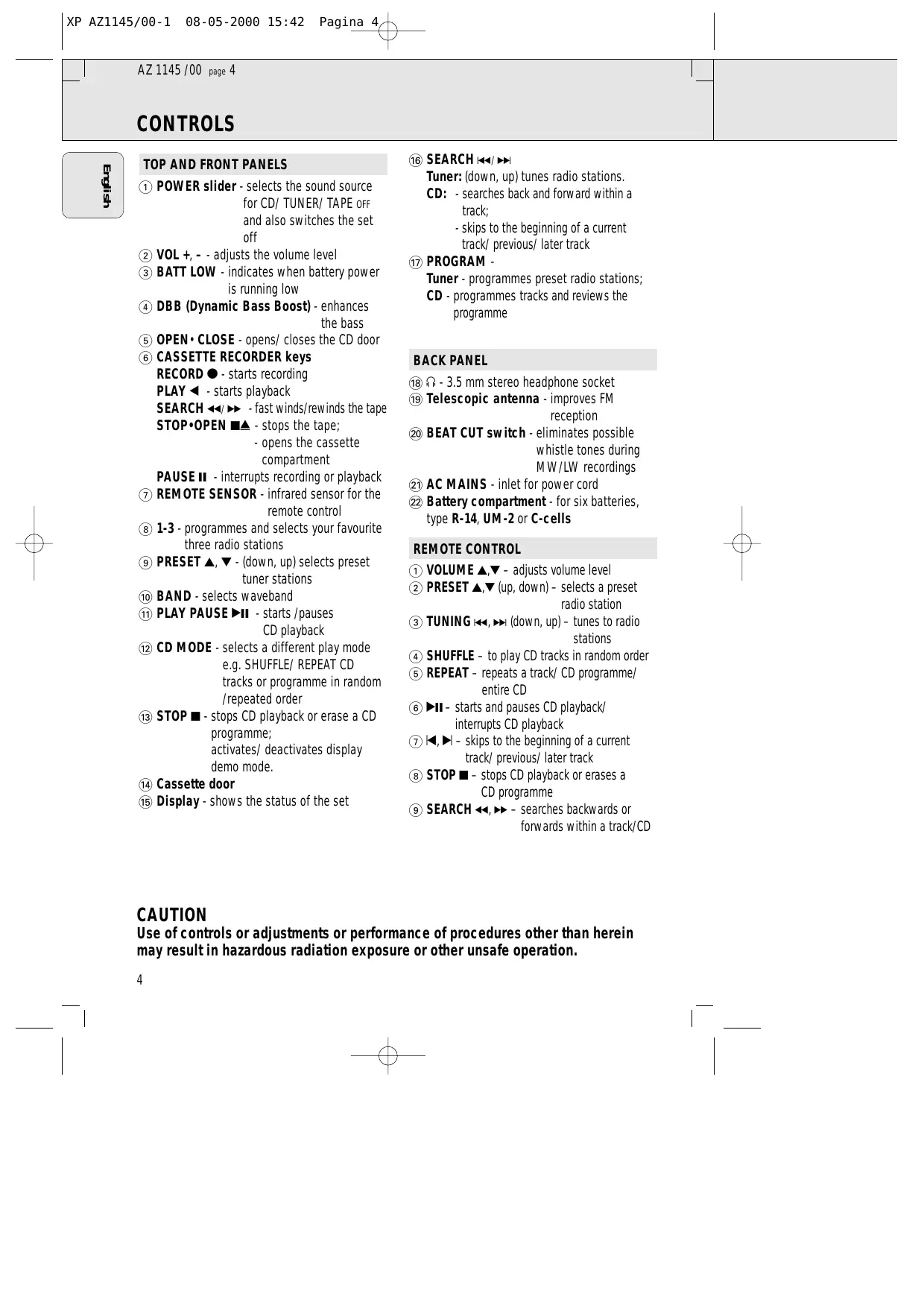
TOP AND FRONT PANELS
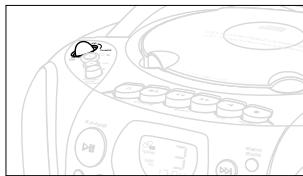
① POWER slider - selects the sound source for CD/ TUNER/ TAPE OFF and also switches the set off
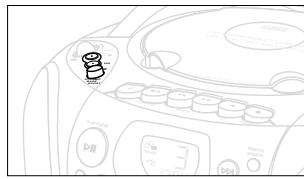
② VOL +, - adjusts the volume level.
③ BATT LOW - indicates when battery power is running low
DBB (Dynamic Bass Boost) - enhances the bass
⑤ OPEN·CLOSE - opens/ closes the CD door
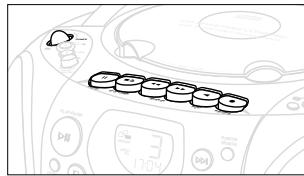
CASSETTE REORDER keys
RECORD -starts recording
PLAY -starts playback
SEARCH - fast winds/rewinds the tape
STOP-OPEN -stops the tape;
- opens the cassette compartment
PAUSE II - interrupts recording or playback
⑦ REMOTE SENSOR - infrared sensor for the remote control
1-3 - programmes and selects your favourite three radio stations
(9) PRESET ▲, ▼ - (down, up) selects preset tuner stations
10 BAND - selects waveband
11 PLAY PAUSE -starts/pauses CD playback
CD MODE - selects a different play mode e.g. SHUFFLE/ REPEAT CD tracks or programme in random /repeated order
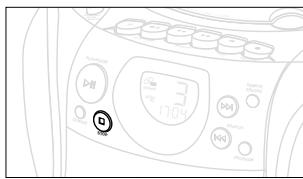
13 STOP - stops CD playback or erase a CD programme; activates/ deactivates display demo mode.
(14) Cassette door
15 Display - shows the status of the set
16 SEARCH
Tuner: (down, up) tunes radio stations.
CD: - searches back and forward within a track; - skips to the beginning of a current track/ previous/ later track
⑦ PROGRAM -
Tuner programmes preset radio stations;
CD - programmes tracks and reviews the programme
BACK PANEL
18 3.5 mm stereo headphone socket
19 Telescopic antenna - improves FM reception
20 BEAT CUT switch - eliminates possible whistle tones during MW/LW recordings
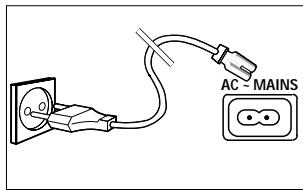
21 AC MAINS - inlet for power cord
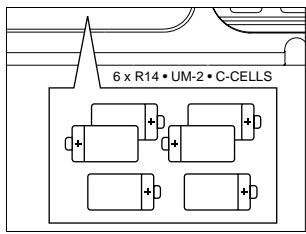
22 Battery compartment - for six batteries, type R-14, UM-2 or C-cells
REMOTE CONTROL
① VOLUME ▲▼- adjusts volume level
(2) PRESET ▲▼ (up, down) - selects a preset radio station
(3) TUNING (down, up) - tunes to radio stations
④ SHUFFLE - to play CD tracks in random order
(5) REPEAT - repeats a track/ CD programme/ entire CD
(6) - starts and pauses CD playback/ interrupts CD playback
⑦ ↓▶ - skips to the beginning of a current track/ previous/ later track
(8) STOP - stops CD playback or erases a CD programme
SEARCH , searches backwards or forwards within a track/CD
CAUTION
Use of controls or adjustments or performance of procedures other than herein may result in hazardous radiation exposure or other unsafe operation.
Whenever convenient, use the mains supply if you want to conserve battery life. Make sure you remove the plug from the set and wall socket before inserting batteries.
BATTERIES (OPTIONAL)
- Open the battery compartment and insert six batteries, type R-14, UM-2 or C-cells, (preferably alkaline) with the correct polarity as indicated by the "+" and "-" symbols inside the compartment.
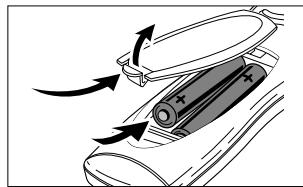
Remote control (supplied)
Open the battery compartment and insert two batteries, type AAA, R03 or UM4 (preferably alkaline).
- Replace the compartment door, making sure the batteries are firmly and correctly in place. The set is now ready to operate.
-
If BATT LOW lights up, battery power is running low.
-
The BATT LOW indicator eventually goes out if the batteries are too weak.
Incorrect use of batteries can cause electrolyte leakage and will corrode the compartment or cause the batteries to burst.
Therefore:
- Do not mix battery types: e.g. alkaline with carbon zinc. Only use batteries of the same type for the set.
- When inserting new batteries, do not try to mix old batteries with the new ones.
- Remove the batteries if the set is not to be used for a long time.
- Batteries contain chemical substances, so they should be disposed of properly.
For users in the U.K.: please follow the instructions on page 2.
Using AC MAINS
- Check if the mains voltage as shown on the type plate on the base of the set, corresponds to your local mains supply. If it does not, consult your dealer or service centre.
- If your set is equipped with a voltage selector, adjust the selector so that it matches with the local mains supply.
- Connect the mains lead to the wall socket and the set is now ready for use.
- To disconnect the set from the mains supply completely, remove the plug from the wall socket.
Switching on and off
- Adjust the POWER slider to the desired sound source: CD, TUNER or TAPE/OFF.
- The set is switched off when the POWER slider is in the TAPE/off position and the keys on the tape deck are released.
→ The volume and tuner presets will be retained in the set's memory.
Adjusting volume and sound
- Press the VOL + - controls to increase or decrease volume (or press or on the remote control).
- Adjust the DBB control to select dynamic bass boost on or off.
PHILIPS demo mode
- On the set, press the CD STOP button for 5 seconds.
PH..IL ..IPS scrolls across the display continuously.
-
To return to the current display you can either:
-
press any function button on the front panel. This interrupts the demo mode for 30 seconds;
- press the CD STOP button for 5 seconds. PH..IL ..IPS scrolls once before the demo mode is cancelled.
GENERAL INFORMATION
General maintenance
- Do not expose the set, batteries, CDs or cassettes to humidity, rain, sand or excessive heat caused by heating equipment or direct sunlight.
- To clean the set, use a soft, slightly dampened chamois leather. Do not use any cleaning agents containing alcohol, ammonia, benzene or abrasives as these may harm the housing.
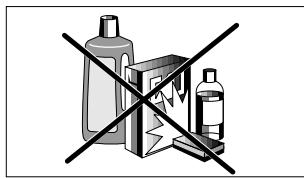
Safety information
- Place the set on a hard and flat surface so that the system does not tilt. Make sure there is adequate ventilation to prevent the system from overheating.
- The mechanical parts of the set contain self-lubricating bearings and must not be oiled or lubricated.
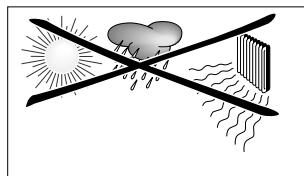
TUNING TO RADIO STATIONS
- Select TUNER source.
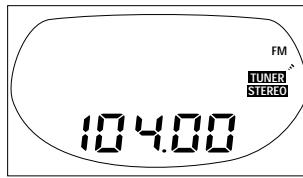
= is displayed briefly and then the radio station frequency is shown. - Press BAND once or more to select your waveband.
- Press or on the set or on the remote control and release when the frequency in the display starts running.
→ The tuner automatically tunes to a station of sufficient reception. Display shows S_r h during automatic tuning.
If a FM station is received in stereo, STEREO is shown. -
Repeat step 3 if necessary until you find the desired station.
-
To tune to a weak station, press or briefly and repeatedly until you have found optimal reception.
- Adjust the power slider to TAPE/off position to switch off the set.
To improve radio reception
- For FM, pull out the telescopic aerial. Incline and turn the aerial. Reduce its length if the signal is too strong (very close to a transmitter).
- For MW/LW, the set is provided with a built-in aerial so the telescopic aerial is not needed. Direct the aerial by turning the whole set.
Favourite station selection
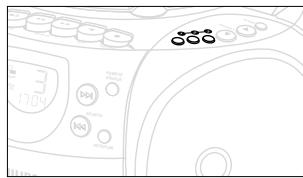
For your favourite 3 tuner stations, you can use the easy one-touch programming and selection 1, 2 or 3 buttons.
- Tune to your desired station (see Tuning to radio stations).
- To store your station, press 1, 2 or 3 for 2 seconds or more.
Display: shows PROGRAM briefly, your favourite preset station number and the tuner frequency.
Programming radio stations
You can store up to a total of 30 radio stations in the memory.
- Tune to your desired station (see Tuning to radio stations).
- Press PROGRAM to activate programming.
- Display: PROGRAM flashes.
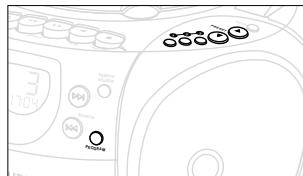
- Press PRESET or once or more to allocate a number from 1 to 30 to this station.
- Press PROGRAM again to confirm the setting.
- Display: PROGRAM disappears, the preset number and the frequency of the preset station are shown.
- Repeat the above four steps to store other stations.
- You can overwrite a preset station by storing another frequency in its place.
Tuning to preset stations
Press 1, 2, 3 or PRESET or until the desired preset station is displayed.
Playing a CD
- Select CD source.
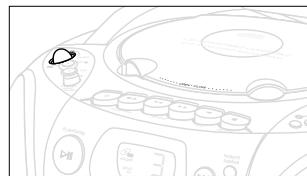
is displayed briefly. - Lift the CD door open.
Display: when you open the CD door. - Insert a CD or CD-R(W) with the printed side facing up and close the CD door.
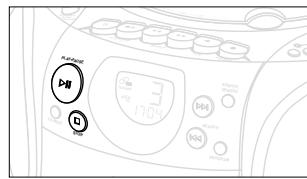
Display: a'15c flashes as the CD player scans the contents of a CD. The total number of tracks and playing time are then shown. Display: is shown if the CD-R(W) is blank or not finalised. - Press PLAY·PAUSE▶II (on the remote control▶II) to start playback.
Display: Current track number and elapsed playing time of the track during CD playback. - To pause playback press PLAY·PAUSE II.
Press PLAY·PAUSE again to resume play.
→ The display freezes and the elapsed playing time flashes when playback is paused.
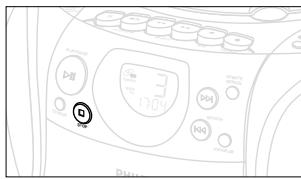
6. To stop CD playback, press STOP
Note: CD play will also stop when:
- the CD door is opened;
- the CD has reached the end
unless you have selected REPEAT or REPEAT ALL).
- you select another source: TAPE / TUNER.
Selecting a different track
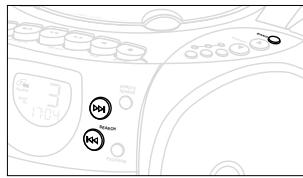
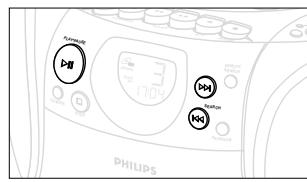
- Press SEARCH or (on the remote control or) once or repeatedly until the desired track number appears in the display.
- If you have selected a track number shortly after loading a CD or in the PAUSE position, you will need to press PLAY·PAUSE▶II to start playback.
Finding a passage within a track
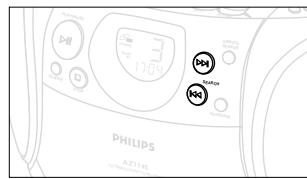
- Press and hold down SEARCH or (on the remote control or ).
The CD is played at high speed and low volume. - When you recognize the passage you want, release SEARCH or
- Normal playback continues.
Note: During a CD programme or if SHUFFLE/ REPEAT active, searching is only possible within a track.
Different play modes: SHUFFLE and REPEAT
You can select and change the various play modes before or during playback. The play modes can also be combined with PROGRAM.
SHUFFLE - tracks of the entire CD/ programme are played in random order
SHUFFLE and REPEAT ALL - to repeat the entire CD/ programme continuously in random order
REPEAT ALL - to repeat the entire CD/ programme REPEAT - to play the current track continuously
- To select your play mode, press the CD MODE key (or SHUFFLE or REPEAT on the remote control) before or during playback until the display shows the desired function.
- Press PLAY·PAUSE ▷II (on the remote control ▷II) to start playback if in the STOP position.
- To return to normal playback, press the CD MODE key or the respective SHUFFLE or REPEAT key until the various SHUFFLE / REPEAT modes are no longer displayed.
- You can also press STOP to cancel your play mode.
Programming track numbers
Programme in the STOP position to select and store your CD tracks in the desired sequence. If you like, store any track more than once. Up to 20 tracks can be stored in the memory.
- Use the SEARCH or on the set (on the remote control or ) to select your desired track number.
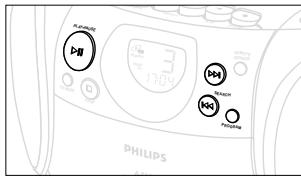
- Press PROGRAM.
Display: PROGRAM and the selected track number. P G appears briefly.
If you attempt to programme without first selecting a track number, _^ is shown. - Repeat steps 1-2 to select and store all desired tracks.
FULL is displayed if you attempt to programme more than 20 tracks. - To start playback of your CD programme, press PLAY·PAUSE II.
Reviewing the programme
In the STOP position, press and hold down PROGRAM for a while until the display shows all your stored track numbers in sequence.
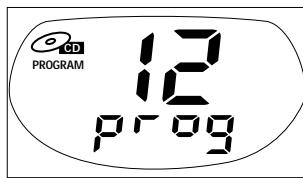
Erasing a programme
You can erase the programme by:
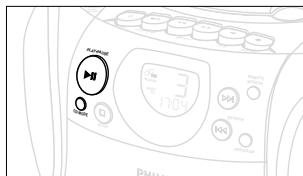
- pressing STOP once in the STOP position or twice during playback. The display shows 'NO' briefly.
- pressing the CD door open;
- switching to TUNER/TAPE source.
CD player and CD handling
- If the CD player cannot read CDs correctly, use a commonly available cleaning CD to clean the lens before taking the set to repair. Other cleaning methods may destroy the lens.
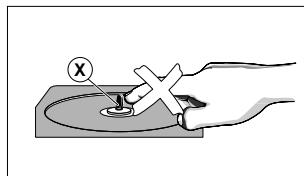
- The lens of the CD player should never be touched!
- Sudden changes in the surrounding temperature can cause condensation to cloud over on the lens of your CD player. Playing a CD is then not possible. Do not attempt to clean the lens but leave the set in a warm environment until the moisture evaporates.
- Always keep the CD compartment closed to avoid dust on the lens.
- To take a CD out of its box, press the centre spindle while lifting the CD. Always pick up the CD by the edge and return the CD to its box after use to avoid scratching and dust.
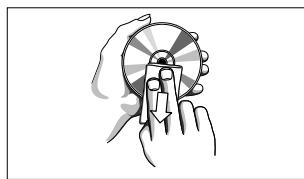
- To clean the CD, wipe in a straight line from the centre towards the edge using a soft, lint-free cloth. Do not use cleaning agents as they may damage the disc.
- Never write on a CD or attach any stickers to it.
PLAYING A CASSETTE
- Select TAPE source.
→The display shows throughout tape operation. - Press STOP · OPEN to open the cassette door.
- Insert a recorded cassette and close the cassette door.
- Press PLAY to start playback.
- To interrupt playback, press PAUSE II. To resume, press the key again.
- By pressing SEARCH or on the set, fast winding of the tape is possible in both directions.
- To stop the tape, press STOP·OPEN ▲
- The keys are automatically released at the end of the tape and the -RPE indication goes out, except if PAUSE II has been activated.
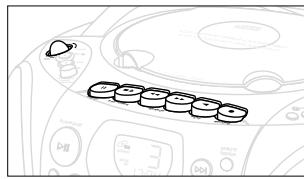
GENERAL INFORMATION ON RECORDING
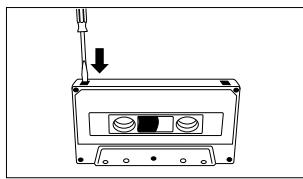
- Recording is permissible insofar as copyright or other rights of third parties are not infringed.
- This deck is not suitable for recording on CHROME (IEC II) or METAL (IEC IV) type cassettes. For recording, use NORMAL type cassettes (IEC I) on which the tabs have not been broken.
- The best recording level is set automatically. Altering the VOL and DBB controls will not affect the recording in progress.
- At the very beginning and end of the tape, no recording will take place during the 7 seconds, when the leader tape passes the recorder heads.
- To protect a tape from accidental erasure, have the tape in front of you and break out the left tab. Recording on this side is no longer possible. To record over this side again, cover the tabs with a piece of adhesive tape.
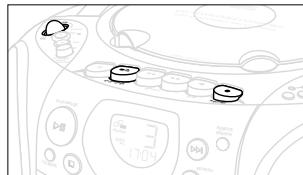
SYNCHRO START CD RECORDING
- Select CD source.
- Insert a CD and if desired, programme track numbers.
- Press STOP·OPEN ▲ to open the cassette door.
- Insert a suitable cassette into the cassette deck and close the cassette door.
-
Press RECORD to start recording.
-
Playing of the CD programme starts automatically from the beginning of the programme. It is not necessary to start the CD player separately.
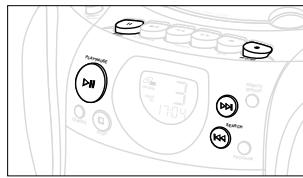
To select and record a particular passage within a track
- Press and hold down SEARCH or (or on the remote control or ).
- When you recognize the passage you want, release SEARCH or (or on the remote control or).
- To pause CD playback press PLAY/PAUSE II.
- Recording will begin from this exact point in the track when you press RECORD .
- For brief interruptions during recording press PAUSE II. To resume recording, press PAUSE II again.
- To stop recording, press STOP·OPEN ▲
Recording from the radio
- Tune to the desired radio station (See TUNING TO RADIO STATIONS).
- Press STOP·OPEN ▲ to open the cassette door.
- Insert a suitable cassette into the cassette deck and close the cassette door.
-
Press RECORD to start recording.
-
If you are recording from MW/LW stations, adjust the BEAT CUT switch to eliminate possible whistle tones during recording.
- For brief interruptions, press PAUSE II. To resume recording, press PAUSE II again.
- To stop recording, press STOP·OPEN ▲
MAINTENANCE
Tape deck maintenance
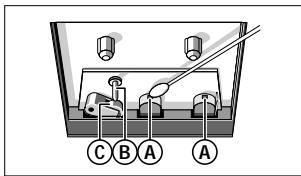
To ensure quality recording and playback of the tape deck, clean parts A, B and C shown in the diagram below, after approx. 50 hours of operation, or on average once a month. Use a cotton bud slightly moistened with alcohol or a special head cleaning fluid to clean the deck.
- Open the cassette door by pressing STOP·OPEN ▪▲.
- Press PLAY and clean the rubber pressure rollers (C).
- Press PAUSE II and clean the magnetic heads (A) and also the capstan (B).
- After cleaning, press STOP·OPEN ▲
Note: Cleaning of the heads can also be done by playing a cleaning cassette through once.
Environmental information
All unnecessary packaging material has been omitted. We have done our utmost to make the packaging easy to separate into three mono-materials: cardboard (box), expandable polystyrene (buffer), polyethylene (bags, protective foam).
Your set consists of materials which can be recycled if disassembled by a specialized company. Please observe the local regulations regarding the disposal of packing materials, exhausted batteries and old equipment.
If a fault occurs, first check the points listed below before taking the set for repair. If you are unable to remedy a problem by following these hints, consult your dealer or service centre.
WARNING:
Do not open the set as there is a risk of electric shock. Under no circumstances should you try to repair the set yourself, as this would invalidate the guarantee.
PROBLEM
-POSSIBLE CAUSE
- REMEDY
No sound/power
VOLUME not adjusted
- Adjust the VOLUME
- Headphones connected
- Disconnect headphones
- Mains lead not securely connected
- Connect the mains lead properly
Severe radio hum or noise
- Electrical interference: set too close to TV, VCR or computer
- Increase the distance
Poor radio reception
- Weak radio signal
FM: Direct the FM telescopic aerial for optimum reception - MW/LW: Turn the set for optimum reception
a or d indication
- No CD inserted
- Insert a CD
- CD badly scratched or dirty
- Replace/ clean CD, see CD player and CD handling
- Laser lens steamed up
- Wait until lens has cleared
nF indication
-
CD - R(W) is blank or the disc is not finalised
-
Use a finalised CD-R(W)
- CD badly scratched or dirty
- Replace/ clean CD, see CD player and CD handling
The CD skips tracks
- CD is damaged or dirty
- Replace or clean the CD
- SHUFFLE or a programme is active
- Switch off SHUFFLE/PROGRAM
Poor cassette sound quality
- Dust and dirt on the heads, etc.
- Clean deck parts etc., see Maintenance
- Use of incompatible cassette types (METAL or CHROME)
- Only use NORMAL (IEC I) for recording
Recording does not work
- Cassette tab(s) may be broken
- Apply a piece of adhesive tape over the missing tab space
Remote control does not function properly
- Batteries dead/ incorrectly inserted
- Insert (fresh) batteries correctly
- Distance/ angle between the set too large
- Reduce the distance/ angle
PANNEAUX SUPERIEUR ET AVANT
Finding a passage within a track
- CAUSE POSSIBLE
- REMEDE
- CAUSA POSIBLE
SOLUCION