
VisionBook 10Wi-S - Tablet UMAX - Free user manual and instructions
Find the device manual for free VisionBook 10Wi-S UMAX in PDF.


| Product Type | 10.1-inch Windows Tablet |
| Model | VisionBook 10Wi-S (64G) |
| Operating System | Windows 10 |
| Processor | Intel Atom (estimated) |
| RAM | 4 GB (estimated) |
| Storage | 64 GB eMMC |
| Display | 10.1-inch IPS LCD, 1280x800 (estimated) |
| Dimensions | 258 x 173 x 9.5 mm (estimated) |
| Weight | 580 g (estimated) |
| Battery | Lithium-polymer, 6000 mAh (estimated) |
| Power Supply | DC 5V/2A via micro USB or dedicated charger |
| Connectivity | Wi-Fi 802.11 b/g/n, Bluetooth 4.0 (estimated) |
| Ports | 1x micro USB, 1x micro HDMI, 1x 3.5mm audio jack, microSD card slot |
| Camera | Front 2MP, Rear 5MP (estimated) |
| Touchpad | Multi-touch gesture support (tap, scroll, zoom, drag) |
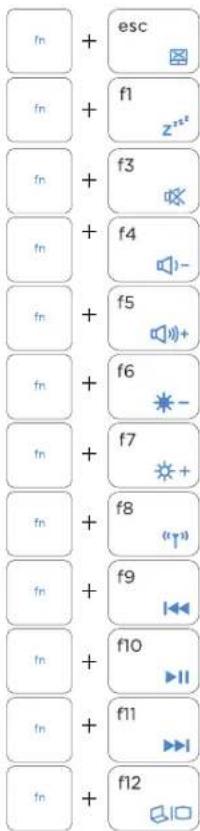
| Keyboard | Detachable or integrated (depending on model) with Windows shortcut keys |
| Maintenance | Clean with soft, dry cloth. Do not use liquids or abrasives. |
| Safety | Do not expose to water, extreme temperatures, or drop. Use approved charger only. |
| Spare Parts | Available through authorized service center. Contact Umax Czech a.s. |
| Repair | Do not open device. Contact service center: servis@umax.cz, +420 800 118 629 |
| Manufacturer | Umax Czech a.s., Prague, Czech Republic |
| Compliance | EU Declaration of Conformity available at www.umax.cz |
Frequently Asked Questions - VisionBook 10Wi-S UMAX
User questions about VisionBook 10Wi-S UMAX
0 question about this device. Answer the ones you know or ask your own.
Ask a new question about this device
Download the instructions for your Tablet in PDF format for free! Find your manual VisionBook 10Wi-S - UMAX and take your electronic device back in hand. On this page are published all the documents necessary for the use of your device. VisionBook 10Wi-S by UMAX.
USER MANUAL VisionBook 10Wi-S UMAX
visionbook 10Wi-S 64G
EN
GETTING TO KNOW YOUR DEVICE


EN
UMAX
visionbook 10Wi-S 64G
EN
USING THE TOUCHPAD
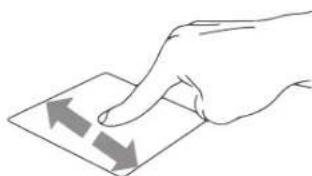
Slide horizontally

natural_image
Hand pressing a button on a card (no text or symbols visible)Slide vertically

natural_image
Hand holding a card with two arrows indicating direction (no text or symbols)Slide diagonally

natural_image
Hand holding a folded paper with directional arrows (no text or symbols)Tap/Double tap
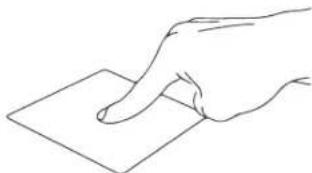
natural_image
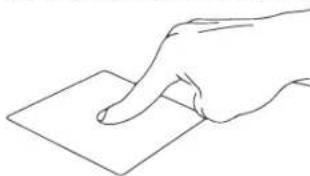
Line drawing of a hand pressing down on a square sheet (no text or symbols)Tap and app to select it.
Double tap an app to launch it.
EN UMAX
visionbook 10Wi-S 64G
EN
Drag and drop
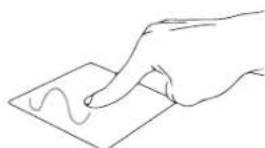
natural_image
Line drawing of a hand pressing down on a piece of paper with a wavy line (no text or symbols)Double tap an item then slide the same finger without lifting it off the touchpad.
To drop the item to its new location lift your finger.
Left click
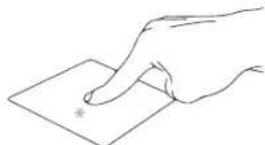
Click an app to select it.
Double click an app to launch it.
Right click

natural_image
Simple line drawing of a hand holding a diamond-shaped object with motion lines (no text or symbols)Click to open the right-click menu.
Two finger tap

natural_image
Simple line drawing of a hand holding a square with a small star mark on the paper (no text or symbols)Tap two fingers to simulate the right-click function.
Two finger scroll (up/down)

natural_image
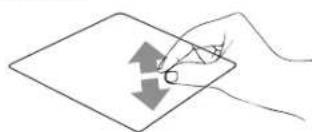
Hand holding a document with two arrows pointing at it (no text or symbols present)Slide two fingers up or down to scroll.
Two finger scroll (left/right)

natural_image
Hand holding a card with two arrows pointing downward (no text or symbols)Slide two fingers left or right to scroll.
Zoom out

natural_image
Simple line drawing of a hand holding a pen over a square sheet with arrows indicating movement (no text or symbols)Bring together two fingers to zoom out.
Zoom in
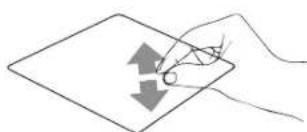
natural_image
Hand holding a pen over a document with two arrows indicating direction (no text or symbols present)Spread apart your two fingers to zoom in.
Two finger drag and drop

natural_image
Line drawing of a hand pressing down on a piece of paper with a wavy line (no text or symbols)Select an item and then press and hold the left button. Using your other finger slide on the touchpad to drag the item.
EN UMAX
visionbook 10Wi-S 64G
EN
Three finger tap

Tap three fingers to invoke Cortana.
Three finger swipe left/right

Swipe three fingers left or right to switch between open apps.
Three finger swipe up
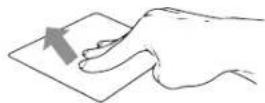
Swipe three fingers up to open Task View.
Three finger swipe down

Swipe three fingers down to show desktop.
Four finger tap

Tap four fingers to invoke Action Center.
USING YOUR KEYBOARD

EN
UMAX
visionbook 10Wi-S 64G
EN
WORKING WITH WINDOWS® 10

Launches the Start menu

Launches Action Center

Launches the desktop

Launches the File Explorer

Opens the Share panel
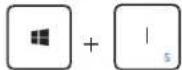
Launches Settings

Launches Connect panel
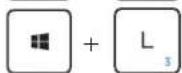
Activates the Lock screen

Minimazes all currently active windows

Launches Search
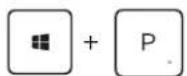
Launches Project panel

Opens the Run windows

Opens Ease of Access Center

Opens the context menu of the Start button

Launches the magnifier icon and zooms in your screen

Zooms out your screen
WINDOWS 10 TIPS

The Tips app in Windows 10 is full of short-and-sweet tips that help you get the most out of Windows 10
Select the Start button, type tips, and then select Tips at the top of the list of results.
EN UMAX
visionbook 10Wi-S 64G
CZ
TECHNICAL SUPPORT
Phone : +420 800 118 629
Email: servis@umax.cz
SERVICE CENTER
Umax Czech a.s.
Kolbenova 962/27e
198 00 Prague 9
Czech Republic
SEZNÁMENÍ SE ZAŘÍZENÍM

Importer hereby declares that this wireless device is in compliance with the essential requirements and other relevant provisions of the R&TTE Directive and Radio Equipment Directive 2014/53/EU, as applicable. A copy of the EU Declaration of Conformity is available at www.umax.cz.
Umax, Umax logo, Visionbook and Visionbook logo are trademarks of Umax Czech a.s. Windows is a registered trademark of Microsoft Corporation. All other trademarks are the property of their respective owners.

visionbook 10Wi-S 64G
CZ
ZAPNUTÍ POČÍTAČE

POUŽÍVÁNÍ TOUCHPADU
Vodorovný posun

natural_image
Hand pressing a button on a document (no text or symbols visible)Svislý posun
natural_image
Hand holding a card with two arrows indicating movement (no text or symbols)Úhlopřičný posun

natural_image
Hand holding a rectangular object with two arrows pointing diagonally (no text or symbols)natural_image
Line drawing of a hand pressing down on a square sheet (no text or symbols)visionbook 10Wi-S 64G
CZ
Přetažení

natural_image
Hand pressing a square note with a small asterisk mark (no text or symbols on the object)natural_image
Simple line drawing of a hand holding a diamond-shaped object with an asterisk mark (no text or symbols)natural_image
Simple line drawing of a hand holding a pen over a square sheet with a star symbol (no text or labels)natural_image
Hand holding a pen over two arrows on a flat surface (no text or symbols)natural_image
Hand holding a card with two arrows indicating direction (no text or symbols)natural_image
Simple line drawing of a hand pressing down on a flat surface with an arrow indicating downward motion (no text or symbols)natural_image
Hand holding a tablet with two arrows pointing at it, no text or symbols presentnatural_image
Line drawing of a hand inserting a card into a card (no text or symbols)visionbook 10Wi-S 64G
CZ

visionbook 10Wi-S 64G
CZ
PRÁCE S WINDOWS® 10

Spustí Start menu

Spustí Centrum akcí

visionbook 10Wi-S 64G
SK
TECHNICKÁ PODPORA
Telefon: 800 118 629
Email: servis@umax.cz
SERVISNÍ CENTRUM
Umax Czech a.s.
Kolbenova 962/27e
198 00 Praha 9
Česká republika
visionbook 10Wi-S 64G
SK
ZAPNUTÍ POČÍTAČA

POUŽÍVANIE TOUCHPADU
natural_image
Hand pressing a button on a card (no text or symbols visible)Vertikáne posúvanie

natural_image
Hand holding a card with two arrows indicating direction (no text or symbols)natural_image
Hand holding a rectangular object with four directional arrows pointing diagonally upward (no text or symbols)Poklepanie/dvojité poklepanie
natural_image
Line drawing of a hand pressing down on a square surface (no text or symbols)natural_image
Simple line drawing of a hand holding a diamond shape with a small asterisk mark (no text or symbols)natural_image
Simple line drawing of a hand holding a pen over a square sheet with a small asterisk mark (no text or symbols)natural_image
Hand holding a document with two arrows pointing outward (no text or symbols)natural_image
Hand holding a document with two arrows pointing to it, no text or symbols presentnatural_image
Simple line drawing of a hand holding a rectangular object with an arrow pointing downward (no text or symbols)Spojte dva prsty pro oddiale- nie..
Priblíženie
natural_image
Hand holding a tablet with two arrows pointing at it, no text or symbols presentRoztiahnite dva prsty pro priblíženie.
Tahat' a pustit' dvoma prstami

natural_image
Line drawing of a hand inserting a wavy line into a card (no text or symbols)visionbook 10Wi-S 64G
SK
KLÁVESNICA
© 2019 Umax Czech a.s.




Brand : UMAX
Model : VisionBook 10Wi-S
Category : Tablet