50MF231DB - TV PHILIPS - Free user manual and instructions
Find the device manual for free 50MF231DB PHILIPS in PDF.



User questions about 50MF231DB PHILIPS
0 question about this device. Answer the ones you know or ask your own.
Ask a new question about this device
Download the instructions for your TV in PDF format for free! Find your manual 50MF231DB - PHILIPS and take your electronic device back in hand. On this page are published all the documents necessary for the use of your device. 50MF231DB by PHILIPS.
USER MANUAL 50MF231DB PHILIPS
Thank you for choosing Magnavox.
Need help fast?
Read your Quick Use Guide and/or Owner's Manual first for quick tips that make using your Magnavox product more enjoyable.
If you have read your instructions and still need assistance, you may access our online help at www.magnavox.com/usasupport
or call
1-800-705-2000
while with your product and Model / Serial number)

www.magnavox.com/usasupport
www.magnavox.com/usupport
oIame altelefon
1-800-705-2000
Serial/Srie/Serie No. :
Return your Product Registration Card or register online at
www.magnavox.com/usupport today to get the very most from your purchase.
Registering your model with MAGNAVOX makes you eligible for all of the valuable benefits listed below, so don't miss out. Complete and return your Product Registration Card at once, or register online at
www.magnavox.com/usupport to ensure:
*Proof of Purchase
Returning the enclosed card guarantees that your date of purchase will be on file, so no additional paperwork will be required from you to obtain warranty service.
*Product Safety Notification
By registering your product, you'll receive notification - directly from the manufacturer - in the rare case of a product recall or safety defect.
*Additional Benefits
Registering your product guarantees that you'll receive all of the privileges to which you're entitled, including special money-saving offers.
MAGNAVOX
Congratulations on your purchase, and welcome to the "family!"
Dear MAGNAVOX product owner:
Thank you for your confidence in MAGNAVOX. You've selected one of the best-built, best-backed products available today. We'll do everything in our power to keep you happy with your purchase for many years to come.
As a member of the MAGNAVOX "family," you're entitled to protection by one of the most comprehensive warranties and outstanding service networks in the industry. What's more, your purchase guarantees you'll receive all the information and special offers for which you qualify, plus easy access to accessories from our convenient home shopping network.
Most importantly, you can count on our uncompromising commitment to your total satisfaction.
All of this is our way of saying welcome - and thanks for investing in a MAGNAVOX product.
P.S. To get the most from your MAGNAVOX purchase, be sure to complete and return your Product Registration Card at once, or register online at: www.magnavox.com/usasupport
Know these
safetysymbols

This "bolt of lightning" indicates uninsulated material within your unit may cause an electrical shock. For the safety of everyone in your household, please do not remove product covering.
The "exclamation point" calls attention to features for which you should read the enclosed literature closely to prevent operating and maintenance problems.
WARNING: To reduce the risk of fire or electric shock, this apparatus should not be exposed to rain or moisture and objects filled with liquids, such as vases, should not be placed on this apparatus.
CAUTION: To prevent electric shock, match wide blade of plug to wide slot, fully insert.
Enter below the Serial No. which is located on the rear of the cabinet. Retain this information for future reference.
Model No.
Serial No.
IMPORTANT SAFETY INSTRUCTIONS
Read before operating equipment
- Read these instructions.
- Keep these instructions.
- Heed all warnings.
- Follow all instructions.
- Do not use this apparatus near water.
- Clean only with a dry cloth.
- Do not block any of the ventilation openings. Install in accordance with the manufacturers instructions.
- Do not install near any heat sources such as radiators, heat registers, stoves, or other apparatus (including amplifiers) that produce heat.
- Do not defeat the safety purpose of the polarized or grounding-type plug. A polarized plug has two blades with one wider than the other. A grounding type plug has two blades and third grounding prong. The wide blade or third prong are provided for your safety. When the provided plug does not fit into your outlet, consult an electrician for replacement of the obsolete outlet.
- Protect the power cord from being walked on or pinched particularly at plugs, convenience receptacles, and the point where they exit from the apparatus.
- Only use attachments/accessories specified by the manufacturer.
- Use only with a cart, stand, tripod, bracket, or table specified by the manufacturer, or sold with the apparatus. When a cart is used, use caution when moving the cart/apparatus combination to avoid injury from tip-over.
- Unplug this apparatus during lightning storms or when unused for long periods of time.
- Refer all servicing to qualified service personnel. Servicing is required when the apparatus has been damaged in any way, such as power-supply cord or plug is damaged, liquid has been spilled or objects have fallen into apparatus, the apparatus has been exposed to rain or moisture, does not operate normally, or has been dropped.
- This product may contain lead or mercury. Disposal of these materials may be regulated due to environmental considerations. For disposal or recycling information, please contact your local authorities or the Electronic Industries Alliance:www.eiae.org.
- Damage Requiring Service - The appliance should be serviced by qualified service personnel when:
A. The power supply cord or the plug has been damaged; or
B. Objects have fallen, or liquid has been spilled into the appliance; or
C. The appliance has been exposed to rain; or
D. The appliance does not appear to operate normally or exhibits a marked change in performance; or
E. The appliance has been dropped, or the enclosure damaged.
-
Tilt/Stability - All televisions must comply with recommended international global safety standards for tilt and stability properties of its cabinets design.
-
Do not compromise these design standards by applying excessive pull force to the front, or top, of the cabinet which could ultimately overturn the product.
-
Also, do not endanger yourself, or children, by placing electronic equipment/toys on the top of the cabinet. Such items could unsuspectingly fall from the top of the set and cause product damage and/or personal injury.
-
Wall or Ceiling Mounting - The appliance should be mounted to a wall or ceiling only as recommended by the manufacturer.
- Power Lines - An outdoor antenna should be located away from power lines.
- Outdoor Antenna Grounding - If an outside antenna is connected to the receiver, be sure the antenna system is grounded so as to provide some protection against voltage surges and built up static charges. Section 810 of the National Electric Code, ANSI/NFPA No. 70-1984, provides information with respect to proper grounding of the mats and supporting structure grounding of the lead-in wire to an antenna-discharge unit, size of grounding connectors, location of antenna-discharge unit, connection to grounding electrodes and requirements for the grounding electrode. See Figure below.
- Objects and Liquid Entry - Care should be taken so that objects do not fall and liquids are not spilled into the enclosure through openings.
a) Warning: To reduce the risk of fire or electric shock, this apparatus should not be exposed to rain or moisture and objects filled with liquids, such as vases should not be placed on this apparatus.
-
Battery Usage CAUTION - To prevent battery leakage that may result in bodily injury, property damage, or damage to the unit:
-
Install all batteries correctly, with + and - alignment as marked on the unit.
- Do not mix batteries (old and new or carbon and alkaline, etc.)
- Remove batteries when the unit is not used for a long time.
EXAMPLE OF ANTENNA GROUNDING AS PER NATIONAL ELECTRICAL CODE (NEC)
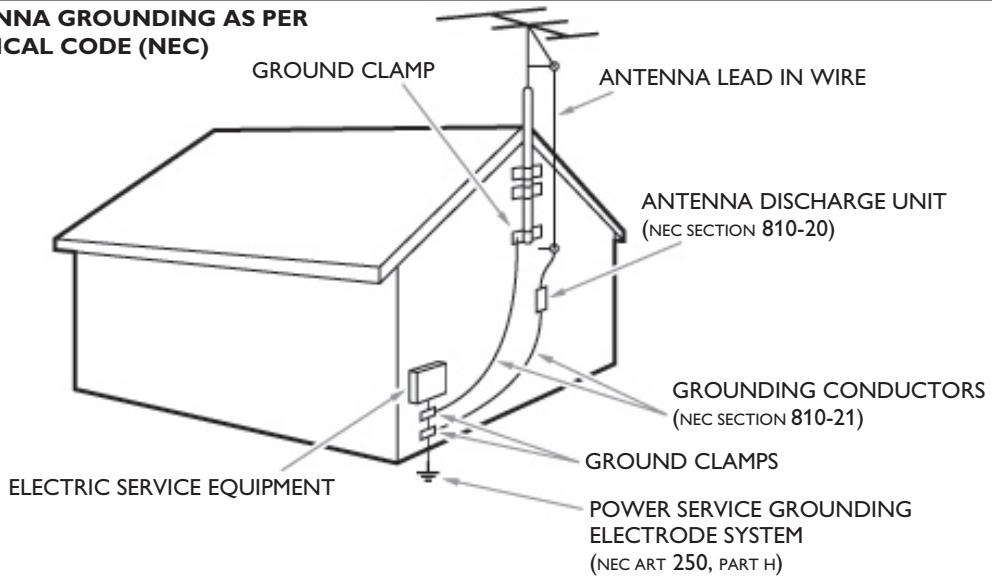
Note to the CATV system installer: this reminder is provided to call the CATV system installer's attention to Article 820-40 of
the NEC that provides guidelines for proper grounding and, in particular, specifies that the cable ground shall be connected to the grounding system of the building, as close to the point of cable entry as practical.
Contents
A Guide to Digital TV 2
Preparation 2
Use of the remote control. 5
Control Buttons on the TV 6
My Content 7
To use the menus. 7
Introduction. 7
How to navigate through the Settings menus. 7
Installation 8
Select the menu language 8
Store TV channels 8
Weak channel installation 9
Software upgrade. 9
Setup menu 10
Preferences 10
- Picture/sound preferences 10
- Auto surround 10
-Features preferences. 10
- Caption service. 10
Digital caption service 11
Digital caption options. 11
- Menu preferences 12
- OSD 12
Show emergency alerts (EAS) 12
- Set/Change PIN 12
- Reset AV settings. 12
Source 13
Clock. 13
- Auto clock mode 13
- Auto clock channel 13
- Time - Day 13
- Time zone 13
- Daylight saving 13
TV menu 14
Picture menu. 14
- Auto picture. 14
- Contrast 14
- Brightness 14
-Color 14
- Sharpness 14
-Color temperature. 14
-Tint. 15
- Picture format. 15
Sound menu 15
- Auto sound 15
-Volume. 15
-Balance 15 - Headphone volume 16
-Sound mode. 16
-Alternateaudio. 16 - Digital Audio Language 16
-Mono/Stereo. 16
-AVL(AutomaticVolumeLeveler) 16 - Delta volume. 16
Features menu 16
- Closed captions 16
- Sleeptimer 16
Channels menu 17
- Lock after 17
- Channel lock 17
- TV ratings lock. 17
- Movie Ratings Lock. 18
- Preferred channels. 19
-Region ratings lock. 19 - Clear region ratings. 19
Connect Accessory Devices 20
Recorder (VCR / DVD+RW) 20
Recorder and other A/V devices 20
Recorder and cable box with RF output. 21
Satellite Receiver / cable box with AV outputs 21
Recorder and Satellite Receiver / cable box with AV outputs..... 21
DVD Player or other accessory digital source devices 22
HDMI (High Definition Multimedia Interface) connectors 23
Digital Surround receiver. 23
Side connections 24
Record with your recorder 24
Record a TV program. 24
To select connected devices 24
Troubleshooting Tips 25
Tips 26
Glossary 27
Specifications 28
Annex 1 - Magnavox TV software upgrade with portable memory 29
Care of the screen
See Tips, p. 26.

End of life directives
Magnavox is paying a lot of attention to produce environmentally-friendly products in green focal areas. Your new TV contains materials which can be recycled and reused. At the end of its life specialized companies can dismantle the discarded TV to concentrate the reusable materials and to minimize the amount of materials to be disposed off.
Please ensure you dispose off your old TV according to local regulations.

ENERGY STAR

Recycling
The materials used in your set are either reusable or can be recycled.
To minimise environmental waste, specialist companies collect used appliances and dismantle them after retrieving any materials that can be used again (ask your dealer for further details).
A Guide to Digital TV
What is Digital Television (DTV)?
Digital Television (DTV) is relatively new type of broadcasting that promises to transform television viewing into a whole new experience. Digital technology is used to capture images and sound to deliver a better picture quality. DTV technology is also capable of multicasting and interactive capabilities.
There are many levels of digital television quality. The most common are:
Standard Definition TV (SDTV)
SDTV is the basic level of quality display and resolution for both analog and digital. Transmission of SDTV can be in the traditional (4:3) or widenscreen (16:9) format.
Enhanced Definition TV (EDTV)
EDTV is better in picture quality than analog television. The formats for EDTV are 480p widescreen (16:9) or traditional (4:3).
EDTV is in the middle range quality between SDTV and HDTV.
High Definition TV (HDTV)
HDTV has the highest quality for digital broadcast formats. Its resolution is widespread format (16:9). Combined with digitally enhanced sound technology, HDTV sets new standards for sound and picture quality in television.
DTV is by far a more flexible and efficient technology than the analog broadcast system. Analog broadcasts can only provide one program at a time. Digital television can broadcast a high definition program or more than one standard definition program at the same time. This is often referred to as "multicast". Digital television can also give you interactive video and data services through a single digital channel.
Preparation
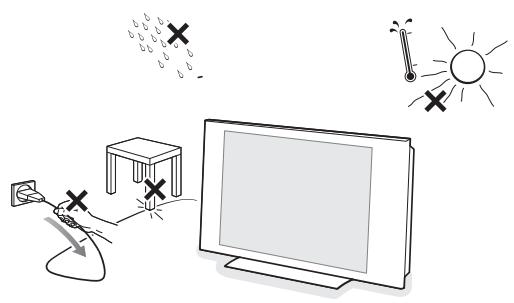
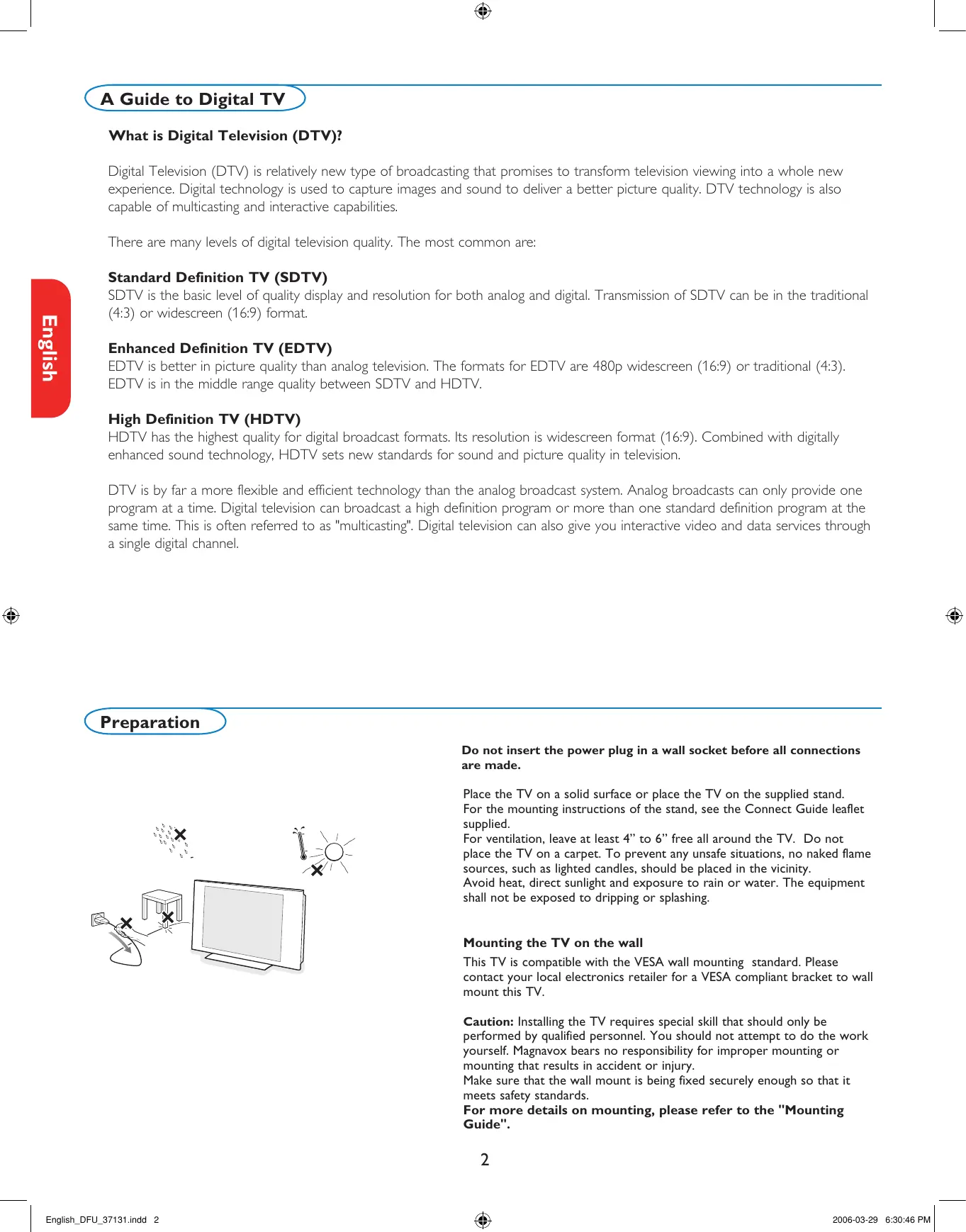
Do not insert the power plug in a wall socket before all connections are made.
Place the TV on a solid surface or place the TV on the supplied stand. For the mounting instructions of the stand, see the Connect Guide leaflet supplied.
For ventilation, leave at least 4" to 6" free all around the TV. Do not place the TV on a carpet. To prevent any unsafe situations, no naked flame sources, such as lighted candles, should be placed in the vicinity.
Avoid heat, direct sunlight and exposure to rain or water. The equipment shall not be exposed to dripping or splashing.
Mounting the TV on the wall
This TV is compatible with the VESA wall mounting standard. Please contact your local electronics retailer for a VESA compliant bracket to wall mount this TV.
Caution: Installing the TV requires special skill that should only be performed by qualified personnel. You should not attempt to do the work yourself. Magnavox bears no responsibility for improper mounting or mounting that results in accident or injury.
Make sure that the wall mount is being fixed securely enough so that it meets safety standards.
For more details on mounting, please refer to the "Mounting Guide".
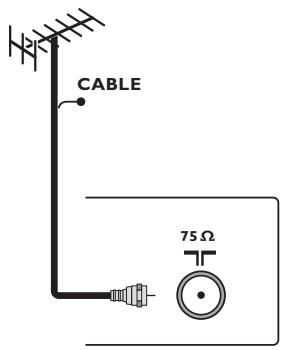
Watching Cable TV programs that don't require the cable box
Since you've connected the cable TV signal directly to the TV's tuner, you can also watch the unscrambled programs by simply tuning to the desired channel. You must first use Autoprogram, however, to store channels in the TV's memory. See page 8.
Note: This connection will supply stereo sound to the TV if it is being broadcast by the station you are watching.
1 Basic connections to the TV
Your integrated digital TV automatically decodes and displays the four basic DTV picture resolution standards.
- SDTV (Standard Definition TV) are broadcast as 480i (480-line interlaced) or 480p (480-line progressive scan) video.
- HDTV (High-Definition TV) are broadcast either in the 1080i or 720p formats, always with a widescreen picture.
Note: Progressive scan video (p) is more like that you see in a movie theater. Images are much more distinct and free of flicker, and motion is smoother.
Next to analog NTSC broadcast reception, your TV has an integrated High Definition TV tuner which receives, decodes and displays terrestrial ATSC and unscrambled cable (QAM) signals.
HDTV quality is only reproduced when a broadcaster or cable provider broadcasts HDTV signals.
Note: Ask your broadcaster or cable box provider to transmit/enable HD content to your home, and possibly upgrade to a CableCard for the decryption of HD signals.
There are 2 ways to get HDTV content:
- via cable,
- via antenna.
Note: This drawing is used wherever you can connect cable or antenna.
- Cable TV
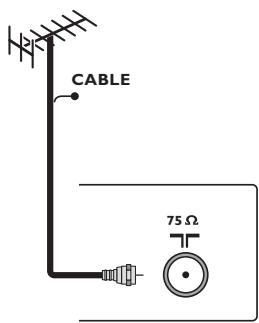
Connect the cable TV signal to the CABLE/ANTENNA 75Ω jack at the bottom of the TV. See page 8 for details on using Autoprogram to store channels in the TV's memory.
Note: this connection will supply stereo sound to the TV if it is being broadcast by the station you are watching.
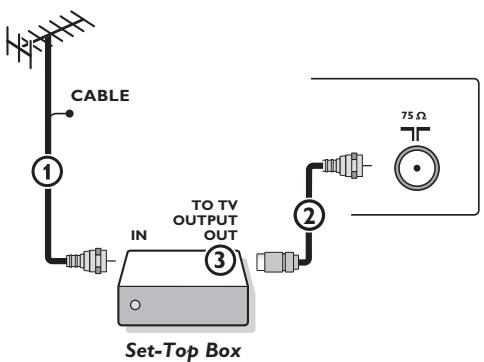
- Cable box with RF IN/OUT
- Connect the incoming cable TV signal to the cable IN jack ① on the back of the cable box.
- Connect a coaxial cable (not supplied) from the TO TV jack on the back of the cable box to the CABLE/ANTENNA 75ΩTJack ② at the bottom of the TV. Note: Your cable box may have a different label for the TO TV jack, such as OUTPUT or OUT.
- Set the OUTPUT CH switch ③ of the cable box to CH 3 or 4 (whichever is correct for your cable box), then tune the TV to the corresponding channel. Once tuned, change channels at the cable box, not the TV.
Note: This connection will not supply stereo sound to the TV. The reason is that the RF output on a cable box - labeled TO TV, OUT or OUTPUT for example - will not send a stereo signal to the tuner (VHF/UHF) input on a TV.
- Cable box with A/V outputs
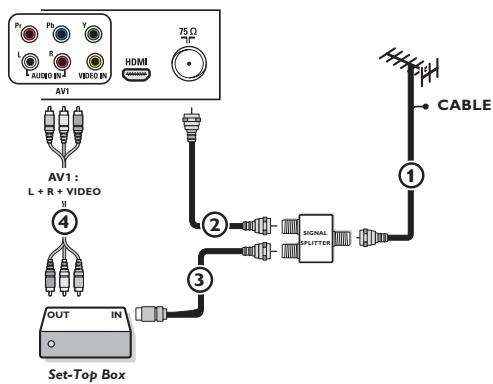
- Connect the incoming cable TV signal ① to a signal splitter (not supplied). The signal splitter enables you to avoid having to use the TO TV jack on the back of the cable box. This jack will not supply stereo sound to the TV. Note: Your cable box may have a different label for the TO TV jack, such as OUTPUT or OUT.
- Connect a coaxial cable (not supplied) to a connector on the signal splitter and to the CABLE/ANTENNA 75Ω jack ② on the TV.
- Connect another coaxial cable (not supplied) to a connector on the signal splitter and to the cable IN jack ③ on the back of the cable box.
- Connect A/V cables (not supplied) to the VIDEO and AUDIO L and R outputs on the back of the cable box and to the AV2 video (labeled VIDEO) and AUDIO (labeled L and R) jacks ④ on the back of the TV.
- To view programs from your cable box, first press the AV+ button on the remote control.
- Press the cursor down or up buttons until the AV2 signal source is selected.
- Press the OK button to confirm your selection. The AV2 input source becomes current for the viewing of cable TV programs through your cable box.
Note: If your cable box Audio/Video outputs will not supply video and stereo audio to the TV, you will need to make the connection shown above in the example "Cable box with RF IN/OUT".
- Cable box with S-Video, component video (YPbPr) or HDMI connectors See Connect Accessory Devices, p. 22-23.
- Antenna
Via antenna you can watch whatever DTV programs being broadcast in your area for free.
If you're not sure what HDTV programming is available in your area, contact your local content provider or your local electronics store retailer. Broadcasters are in the middle of a transition from analog to digital TV. This means that a given broadcaster will have two channels on the air, one analog and one digital.
Connect the incoming antenna signal to the CABLE/ANTENNA 75Ω
T jack at the bottom of the TV. See page 8 for details on using Autoprogram to store channels in the TV's memory.
Note: This connection will supply stereo sound to the TV if it is being broadcast by the station you are watching.
- Direct Broadcast Satellite (DBS)
Satellite systems offer many of the same premium channels as cable systems, and often at a lower price. To get these channels, you'll need to install a small dish antenna outside.
There are 2 main DBS systems: DirecTV & DishNetwork. These systems require separate, proprietary set top receiver boxes to decode their signals and send them to your digital TV set. These boxes may include a digital TV tuner for off-air DTV broadcasts.
Satellite broadcasters also provide major local channels, depending on the market in which you live.
DBS also provides service in areas not covered by cable because they are in rural areas or other areas not passed by a cable line.
DBS also allows you to watch pay-per-view events.
Before installing your TV or before hanging it on the wall, connect all your accessory devices. See p. 20.
Refer to the bottom of the set for the correct operation voltage. Insert the power cord in the wall socket.
Consult your local dealer if your mains supply is different. To prevent damaging the mains (AC) cord which could cause a fire or electric shock, do not place the TV on the cord.
Remote control:
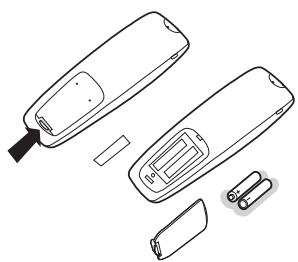
Insert the 2 batteries supplied (Type R6-1,5V). Be sure the (+) and (-) ends of the batteries line up correctly (inside of case is marked.)
The batteries supplied do not contain the heavy metals mercury and cadmium. Please check on how to dispose of exhausted batteries according to local regulations.
5 Turn the TV on:
Press the power switch at the side of the TV. You may also press +CH / PAGE or POWER button on the remote control. An indicator on the front of the TV lights up.
First time installation
Note: The first time (and only the first time) you turn on your set you see an installation introduction screen. The Installation procedure consists of a series of screens that guide you through the process.
After an introduction screen, you are asked to select a language of the TV's on-screen-menus. (The text of the header and the info on screen continuously change language.)
Press the cursor up/down to highlight your language.
3 Press the OK button.
4 Follow the on-screen instructions to proceed.
Note: Once you completed the initial installation procedure you can access the screens from the Settings menu. See p. 7.
Use of the remote control
Note: For most buttons pressing a button once will activate the function. Pressing a second time will de-activate it.
When a button enables multiple options, a small list will be shown. Press repeatedly to select the next item in the list. The list will be removed automatically after 6 seconds or press OK to remove immediately.
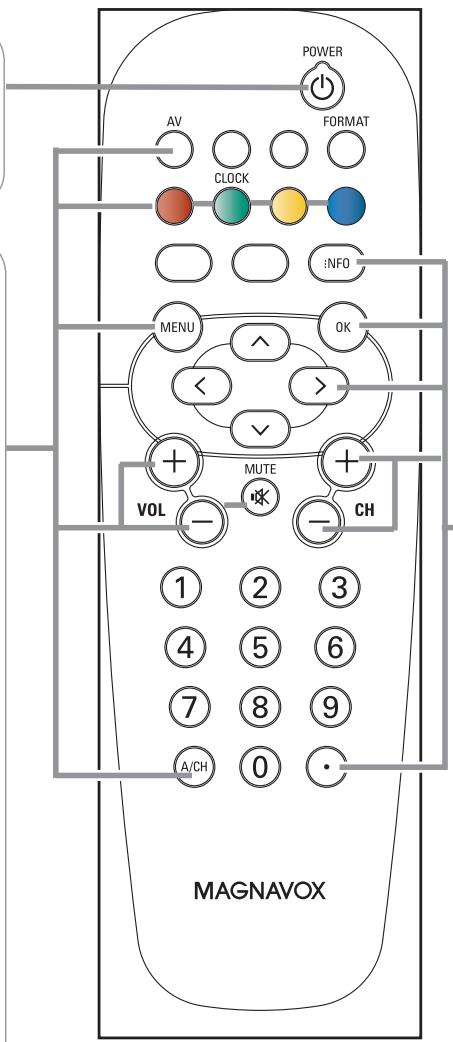
POWER
Press to turn on/off the TV from or to standby mode.
The TV is never powered off completely unless it is physically unplugged.
AV
Press this button repeatedly to select the source - AV1, AV2, AV3, HDMI, SIDE or TV when in TV mode, according to where you connected the accessory devices (p. 20).
Color buttons
When functions attached to the color buttons, the color buttons are shown on screen.
CLOCK on/off
Time display (for max. 10 minutes)
MENU
Settings menu on/off, see p. 7.
Exit menu from sub-menu.
VOL Volume
Press + or - to adjust the volume.
MUTE
Interrupt the sound or restore it.
A/CH
Press to alternate between the currently viewed channel and the previously viewed channel.
INFO
Display information: Press to display (when available) information about the selected TV channel and program or accessory device.
OK
- to activate a setting
- to display the list of channels stored (according to the selection made in the Installation mode (Antenna or Cable), p. 8).
- starts playing content in the Home Multimedia Browser application, p. 24.
Cursor buttons
Press the cursor buttons up/down, left/right to navigate through the menus.
CH Channel selection
- To browse through the TV channels or sources stored in the preferred channel list (see p. 19).
- To select between Antenna or Cable TV channels, first make your selection in the Settings menu, see, p. 7.
Note: You don't have to start the installation again once you have searched for and stored the available TV channels.
Press the dot (.) for digital channels.
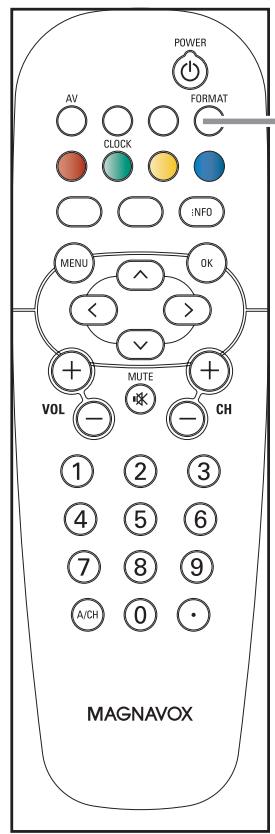
FORMAT
Press this button to summon a list of available display formats (depending on the receiving signal). This lets you choose the display format of your preference.
Press this button repeatedly to select another picture format: Automatic, Super Zoom, 4:3, Movie expand 14:9, Movie expand 16:9, 16:9 subtitle, Wide screen.
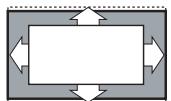
Automatic
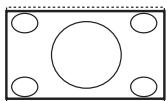
Super zoom
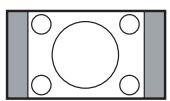
4:3
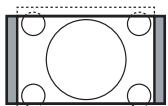
Movie expand 14:9
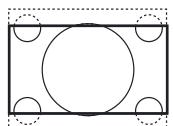
Movie expand 16:9
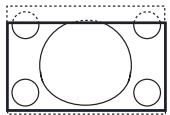
16:9 subtitle
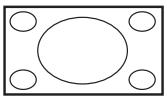
Wide screen
Automatic makes the picture fill the screen as much as possible.
Super zoom removes the black bars on the sides of 4:3 programs with minimal distortion.
When in Movie expand 14:9, Movie expand 16:9 or Super zoom picture format, you can make subtitles visible with the cursor up/down.
Note: With HD sources not all screen formats will be available.
Control Buttons on the TV
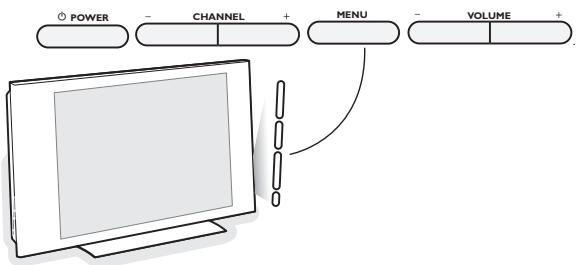
Should your remote be lost or broken you can still change some of the basic settings with the buttons on your TV.
Press the power switch to switch the TV on.
Press:
- the + VOLUME - button to adjust the volume;
- the + CHANNEL - buttons to select the TV channels or sources.
The MENU button can be used to summon the Settings menu without the remote control.
Use:
- the + VOLUME - buttons to select up/down menu items and the + CHANNEL - buttons to select left/right menu items;
- the MENU button to confirm your selection.
Note:
When activated via the MENU button on the TV, only Exit lets you dismiss the menu.
Navigate to Exit and press the MENU button.
To use the menus
Introduction
A lot of guiding instructions, help texts and messages will be displayed on your TV when using the menus or when trying to execute an action. Please, follow the instructions and read the help text which are being displayed on the specific item highlighted.
The color buttons refer to different actions which may be executed depending on the activated device. Press the corresponding color button on the remote control to perform the required action.
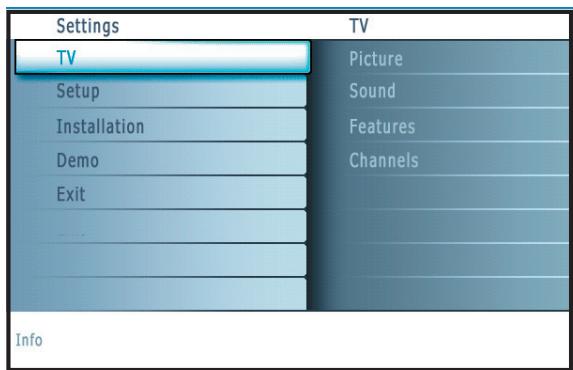
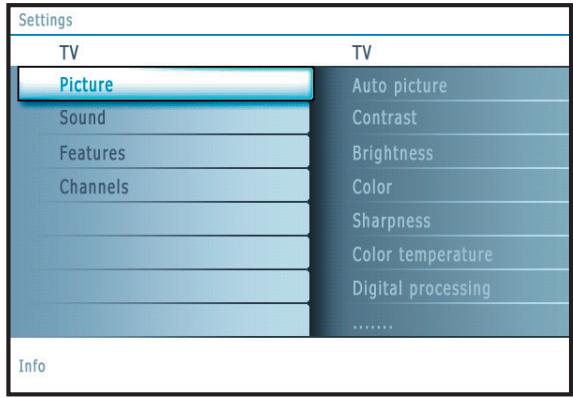
How to navigate through the Settings menus
The Settings menu allows you to access and change settings and preferences.
- Press the MENU button on the remote control to summon the Settings menu.
- On the left panel the highlight can be set on a menu item with the cursor up/down.
The right panel shows the content of the highlighted menu item in the left panel.
Note: Sometimes not all the menu items are visible on the screen. Use the cursor down to reveal all items.
- Use the cursor right to enter the right panel.
The content of the right panel is moved to the left panel and the right panel shows the content of the newly highlighted item in the left panel.
Note: In some cases it is important that the picture can be watched while adjusting the settings. This means that when the highlight is on the right side panel, the other menu items hide away. When the cursor left is pressed again, the hidden menu items re-appear and the highlight moves to the left panel.
-
Press the cursor left to go one menu level up again.
-
Press the OK button on the highlighted item to activate and to dismiss the menu.
- Press the MENU button again to exit the Settings menu.
Note: The menu is also dismissed by pressing one of the color buttons (if present) referring to certain actions which may be executed.
Installation
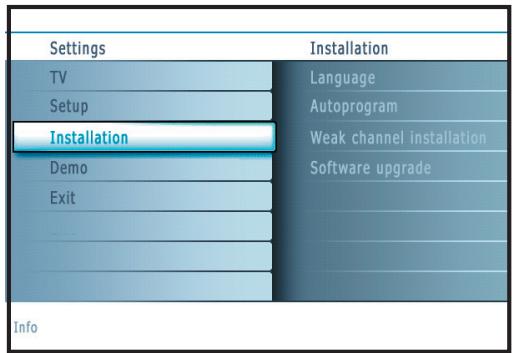
Select the menu language
Press the MENU button on the remote control.
Use the cursor down to select Installation in the Settings menu.
3 Use the cursor right to enter the Installation menu.
4 Select Language and enter the list of available languages with the cursor right.
Select your language with the cursor up/down and press the OK button to confirm you selection.
6 Proceed with the Installation menu.
Store TV channels
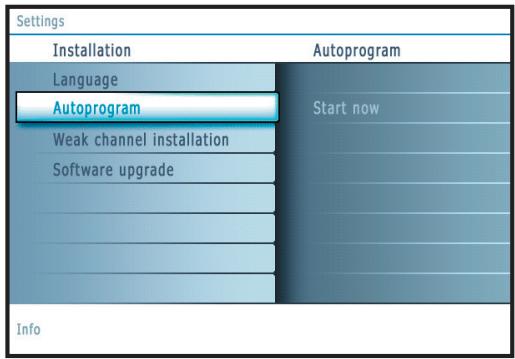
1 Select Autoprogram in the Installation menu.
Use the cursor right to enter the Autoprogram menu.
3 Press the OK button.
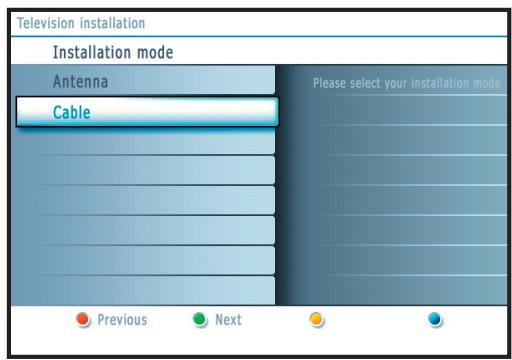
4 Select Cable or Antenna in the Installation mode.
When Antenna is selected, the TV will detect antenna signals and will search for antenna TV (NTSC and ATSC) channels available in your local area.
When Cable is selected, the TV will detect cable company supplied signals and will search for cable TV (NTSC, ATSC, QAM modulated) channels available in your area.
Make sure that registration with your cable TV provider and connection of equipment are completed.
Press the green button "Next" on the remote control.
Note: All channels must be unlocked in order to autoprogram. If requested, enter your PIN code to unlock all channels. See Menu preferences in the Settings, TV menu, p. 14.
Press the green button "Start" to start autoprogramming.
The menu screen disappears and the progress of autoprogramming is displayed. The progress bar indicates the number of analog and digital TV channels found.
When Autoprogramming is complete, a message appears confirming the completion. Press the red button "Finish" and the TV returns to the Installation menu.
Notes:
- When you have locked TV channels while initiating autoprogram, a message appears asking to enter your PIN code in order to complete autoprogramming.
- When interrupted, the updated channel information is retained as well as the not yet updated old channel information.
- Background autoprogramming occurs only when the TV is turned on.
- Channel information of an ATSC channel is updated only for the ATSC channel currently tuned.
If an NTSC channel is tuned, then in Background Autoprogramming the TV shall scan all the possible ATSC frequencies and update information. - Weak channel installation : This allows you to manually tune weak ATSC channels in order to adjust the antenna and thus optimize signal quality for that channel. (See Installation menu, Weak channel installation, p. 9.)
- Once you have searched for the available Antenna as well as the Cable TV channels, they are stored in the memory.
Note: Digital Channel selection delay
Due to the tuning complexity of subchannel digital programming, the time to select and view a digital channel may take slightly longer than what the viewer is normally accustomed to (as compared to analog channel programs).
Digital channel broadcasts contain program and system data information that must be processed before the channel selection can be displayed.
Channel tuning
Available channels:
- Cable (analog NTSC or digital QAM): max. from 1 to 125
- Antenna (analog NTSC or digital ATSC): max. from 2 to 69
If a tuned channel is not yet in the master channel map, the TV will attempt to tune the channel and it will be added to the map.
If the channel is not acquired, a message will appear that the channel is not available.
When you tune an audio-only digital subchannel, a display appears with the message Audio only.
Note: Subchannel selections
- The new standards employed with digital broadcasting make it possible to receive multiple program channels under a single major channel number which can be selected by pressing the digit remote control direct-access channel number entry.
- The number of channels shown at installation includes paid channels but you may not be able to see all of them unless you sign up with cable TV operators.
Important:
After the installation of the TV channels has been done, always make a selection in the Installation menu between Antenna or Cable whether you want to watch Antenna TV channels or Cable TV channels.
If you make use of a signal splitter do not forget to put the switch in the corresponding position.
Weak channel installation
This enables you to do a weak ATSC digital channel installation. This is only available for TV channels installed via an antenna connection (see p. 4).
If a certain channel you expect to see is not tuned or is weak, you can install it manually. Call your local broadcasting station to know what channel its being transmitted on.
2 Select that channel in the displayed list of TV channels (in the antenna mode).
The signal strength is displayed and updated continuously as you rotate the antenna.
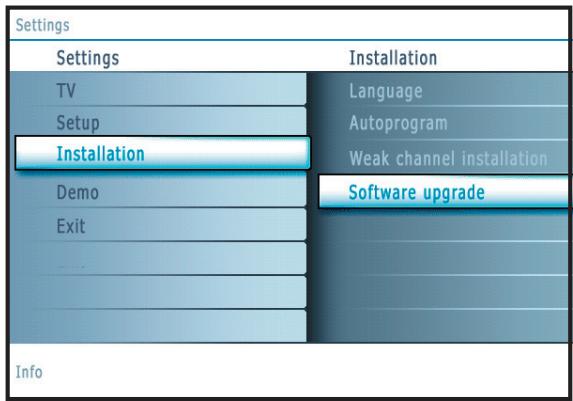
Software upgrade
This menu allows you to upgrade your TV software using a USB device.
USB upgrade
It is possible to initiate an upgrade procedure from a USB portable memory. The memory device must be filled with the appropriate upgrade image (and structure) which can be found on the www.magnavox.com/support website. How to upload a new software version on your portable memory device, see Annex 1, p. 32.
Setup menu
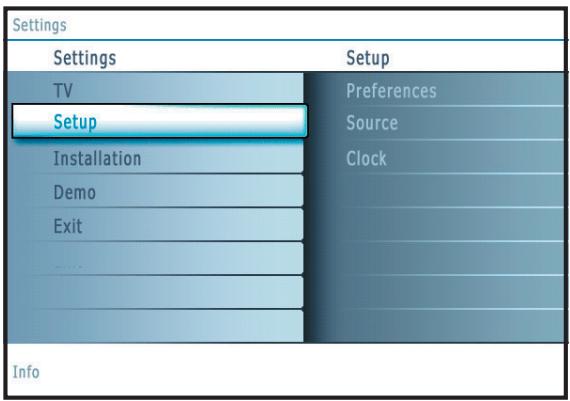
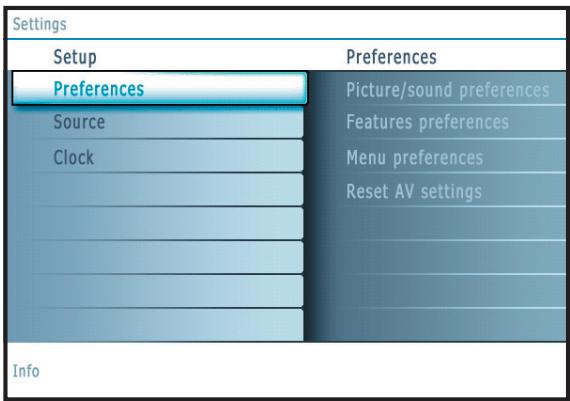
This menu is used to control the settings of special TV functions, features and accessory devices.
The Preferences menu allows you to change settings that will typically be accessed only occasionally.
The Source menu allows you to select a source.
The Clock menu allows you to use your TV as a clock. This setup is necessary for the correct working of the Lock after feature.
Preferences
Press the MENU button.
Select Setup with the cursor down and press the cursor right to select the Preferences menu.
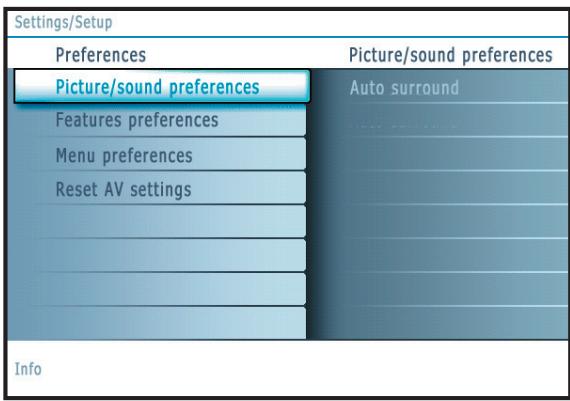
3 Press the cursor right again to select Picture/sound preferences.
Press the cursor right once more to enter the Picture/sound preferences menu.
Picture/sound preferences
Auto surround
Sometimes the broadcaster transmits special signals for Surround sound encoded programs. The TV automatically switches to the best surround sound mode when Auto surround is switched On.
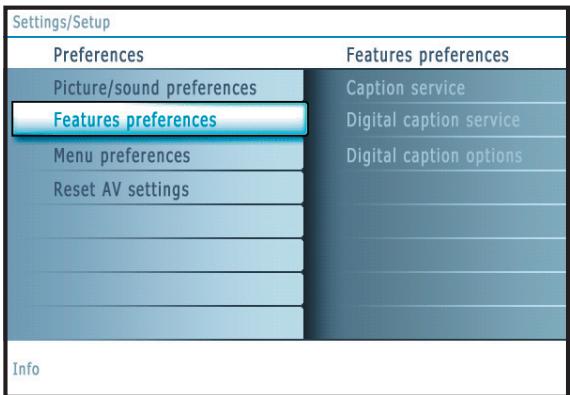
Features preferences
Caption service
This allows you to select the Closed Captions service levels of analog broadcasting to be displayed.
Closed Captioning allows you to read the voice content of television programs on the TV screen. Designed to help the hearing impaired, this feature uses on-screen 'text boxes' to show dialogue and conversations while the TV program is in progress. Captions will appear on the screen during captioned broadcasts.
Note: The captions do not always use correct spelling and grammar. Not all TV programs and product commercials are made for broadcast with Closed Caption informations included. Refer to your area's TV program listings for the TV channels and times of Closed Caption shows. The captioned programs are usually noted in the TV listings with service marks such as 'CC'.
1 Select Captions service.
Press the cursor right.
3 Select the desired Caption service:
- CC 1, 2, 3 or 4
Dialogue (and descriptions) for the action on the captioned TV program shows on screen.
Usually CC 1 is the most used. CC 2 may be used for alternate languages if they are being transmitted.
- T 1, 2, 3 or 4
Often used for channel guide, schedules, bulletin board information for Closed Captions programs, news, weather informations or stock market reports.
Not all Caption services are necessarily being used by a TV channel during the transmission of a Closed Caption program.
See Closed Caption in the TV, Features menu, see p. 16, to turn the Caption service On or Off.
Note: This television provides display of television closed captioning conforming with the EIA-608 standard and in accordance with Sections 15.119 of the FCC rules.
Digital caption service
This allows you to configure the way you choose to view the digital captioning. Select one of the digital service channels made available by the caption provider. There are 6 standard services. Service 1 is designated as the Primary Caption Service. This service contains the verbatim, or near-verbatim captions for the primary language being spoken in the accompanying program audio.
Service 2 is designated as the Secondary Language Service. This service contains captions in a secondary language which are translations of the captions in the primary Caption Service. The other service subchannels are not pre-assigned. It is up to the discretion of the individual caption provider to utilize the remaining service channels.
| Settings/Setup/Preferences | |
| Features preferences | Digital caption options |
| Caption service | Reset to default |
| Digital caption service | Size |
| Digital caption options | Style |
| Text | |
| Background | |
Digital caption options
This allows you to modify how digital captions are displayed on your TV. Select from the following options to change the visual characteristics of your TV's digital captioning.
- Reset to default
Select this option to reset the digital caption options back to the captions provider default settings.
Press the OK button to confirm.
Size
Select this option to select the size of caption display according to your own preference.
Select Default (Automatic), Small, Standard or Large and press the OK button to confirm.
Style
Select this option to select the font style of caption display according to your own preference.
Select Default, Monospaced serif, Serif, Monospaced sans serif, Sans serif, Casual, Cursive or Small caps...
Text
Select this option to select the text color or the opacity of the text box of caption display according to your own preference.
Select a color and one of the opacity options.
Background
Select this option to select the character background color or one of the background opacity options of caption display according to your own preference.
Select a color and one of the opacity options.
| Settings/Setup | |
| Preferences | Menu preferences |
| Picture/sound preferences | OSD |
| Features preferences | Show emergency alerts |
| Menu preferences | Set PIN |
| Reset AV settings | |
| Info | |
Note: Emergency Alert Signalling is not possible:
- when content browsing;
- with analogue video sources.
Notes:
- You always have the possibility to remove the message from the screen.
- The message display will overlap whatever menu element or other message is on the screen.
Important: If you have forgotten your PIN!
1 Select Change PIN in the Menu preferences menu and press the cursor right.
Press the cursor right to enter the overriding PIN code 0-7-1-1.
Press the cursor again and enter a new personal 4-digit PIN code. The previous code is erased and the new PIN-code is stored.
| Settings/Setup | |
| Preferences | Reset AV settings |
| Picture/sound preferences | |
| Features preferences | Start now |
| Menu preferences | |
| Reset AV settings | |
| Info | |
Menu preferences
OSD
1 Select OSD.
2 Press the cursor right to select Normal or Minimum.
Normal to activate the continuous display of the channel number (for max. 10 minutes) and extended display of TV channel and program information on screen. E.g. information on the main or auxiliary program, input signal quality of connected accessory devices, the display format, sound mode, availability of Closed Caption service, the audio language, the rating, sleptimer setup.
Minimum to activate the display of reduced channel information.
Note: When Closed Captions is switched on, continuous display of the channel number and clock is not possible. Volume indication bar will not be visible.
Show emergency alerts (EAS)
This allows you to select the alert priority level of the information disseminated by the cable operator. The standard SCTE18 defines an Emergency Alert signalling method for use by cable TV systems to signal emergencies to digital devices such as digital set-top boxes, digital TVs and digital VCRs.
The Emergency alert signalling scheme defined in the standard allows a cable operator to disseminate emergency alert information related to state and local-level emergencies and warnings in a cost-effective and efficient way, while minimizing disruption of programming.
An Emergency alert message will have one of the following priorities: Low, Medium, High or Maximum.
The Emergency alert message with priority High or Maximum will always be presented. Low or Medium will be present or ignored depending on the selected setting.
Important: When the TV clock is undefined (See Setup menu, Clock, p. 13), the Emergency Alerts will be ignored.
The Emergency Alert message display will contain following information:
- The Emergency Alert text
- The start time + date
- The end time + date.
1 Select Show Emergency Alerts in the Menu preferences menu.
Press the cursor right and select one of the Emergency alerts options:
- Always, when you always want the Emergency alert messages to be displayed when available;
- Skip low priority, when you want the messages with low level to be ignored;
- Skip low/medium priority, when you only want the messages with high priority to be displayed.
Set/Change PIN
1 Select Set or Change PIN with the cursor down.
2 If no PIN-code exists yet, the menu item is set to Set PIN. Follow the instructions on screen.
If a PIN-code has previously been entered, the menu item is set to Change PIN. Follow the instructions on screen.
All number combinations from 0000 to 9999 are valid numbers.
3 The Menu preferences menu reappears with a message confirming that the PIN has been created.
Reset AV settings
This function allows you to reset most of the picture and sound settings to their predefined factory states.
1 Select Reset AV settings with the cursor down.
Press the cursor right.
3 Press the OK button to erase settings and reset them to their default values.
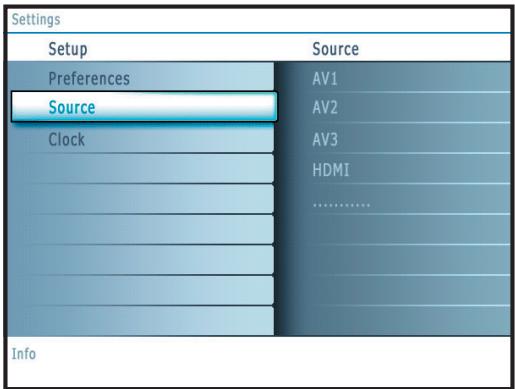
Source
This menu allows you to name/label the accessory devices you have connected to the external inputs/outputs.
1 Select Source in the Setup menu.
Press the cursor right to enter the list of types of devices connected to the selected input.
3 Select the accessory device with the cursor up/down.
When you select AV1, AV2, AV3, HDMI, Side or Analog Audio In, a list appears allowing you to identify which type of accessory device is attached to this input. The TV detects the presence of the connected device and the signal is routed appropriately.
The TV can output Digital audio via the DIGITAL AUDIO OUT(SPDIF OUT) connector to an external amplifier or receiver. If your amplifier or receiver has a matching connector for Digital Audio In, you can connect it with a single cable to the TV's DIGITAL AUDIO OUT(SPDIF OUT). See Connect Accessory Devices, Digital Surround Receiver, p. 23.
Clock
This allows you to use your TV as a clock.
Note:
- Adjusting the clock is necessary for the correct working of Lock after (See TV settings, Channels, p. 17) features.
- Closed captioning will not be displayed when the clock is being displayed. Press the clock key again to switch off the clock if you want to see closed caption.
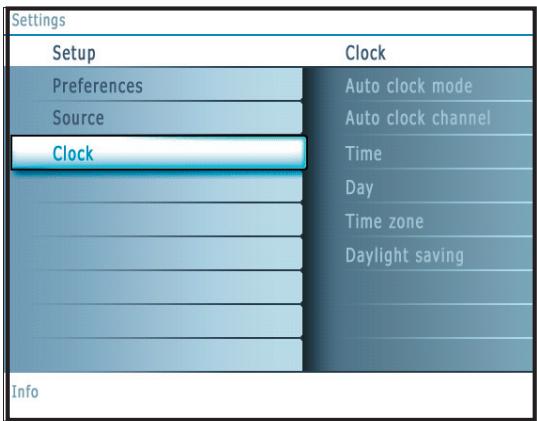
Most of the TV channels do not transmit clock information. There are a few cable channels who do but they are at the end of the channel ring. There is no clock transmission in antenna channels. In such cases, either clock extraction takes a long time, or there is no clock.
Auto clock mode
1 Select Clock in the Setup menu.
Press the cursor right to select the Auto clock mode.
Press the cursor right to instruct the TV to get the time automatically or manually.
Auto clock channel (only available when Auto clock mode is set to Automatic)
With the cursor buttons, select the channel number where time can be found by the TV. Typically time can be found on PBS as well as some other channels.
Note: If Manual has been selected in the Auto clock mode, the Auto clock channel menu item can not be selected.
Time - Day (only available when Auto clock mode is set to Manual)
With the cursor buttons, select and enter the correct time and day.
If Auto clock mode Manual has been selected, and no clock search has been done, the system will keep the entered time and day.
Time zone (only available when Auto clock mode is set to Automatic)
This function allows you to select your local time zone. Broadcasted time information will correct the clock display for your local time.
1 Select Time zone with the cursor down.
Press the cursor right to select your local time zone.
Daylight saving (only available when Auto clock mode is set to Automatic)
Daylight saving time is automatically set by specially broadcasted signals. This menu item allows you to disable the automatic setting of daylight saving time. This is useful if you live in an area or state where daylight saving is not applied, but you receive channels from other areas where daylight saving signals are broadcasted.
1 Select Daylight saving with the cursor down.
Press the cursor right to select Automatic for automatic clock correction for daylight saving time, based on specially broadcasted signals.
3 Select Off to disable automatic clock correction based on the specially broadcasted signals.
TV menu
Press the MENU button on the remote control to summon the Settings menu. The TV menu gives you an overview of the menus you can select.
Note: Depending on the input signal, one or more menu items may not be selectable.

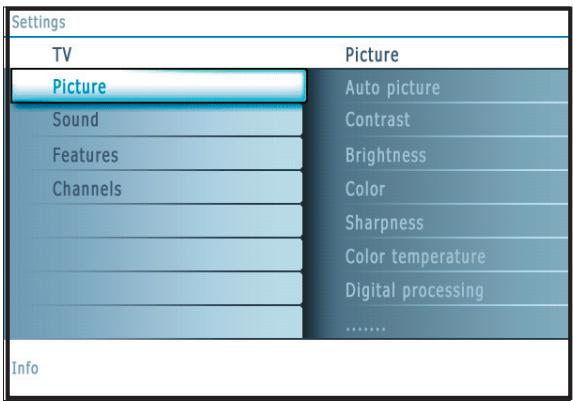
Picture menu
Note: Some menu items are not available in case of HD sources.
Press the cursor right to select Picture.
Press the cursor right again to enter the Picture menu.
3 Select the menu items with the cursor up/down.
4 Adjust the settings with the cursor left/right or enter the list of submenu items with the cursor right. Select a submenu item with the cursor up/down.
Auto picture
Select Auto picture to display a list of predefined picture settings, each corresponding with specific factory settings.
Personal refers to the personal preference settings of picture in the picture menu.
Note: This Magnavox TV has been set at the factory to look best in bright store environments which typically use fluorescent lighting. As your home will likely not be as well lit as a store, we recommend that you cycle through the various auto picture modes to find the one that best suits your own viewing conditions. Most consumers will find that Natural is the correct choice.
Contrast
This will adjust the intensity of bright parts in the picture but keep the dark parts unchanged.
Brightness
This will adjust the light output of the complete picture, which will mainly affect the darker areas of the picture.
Color
This will adjust the saturation level of the colors to suit your personal preference.
Sharpness
This will adjust the sharpness of fine details in the picture.
Color temperature
This will increase or decrease Warm (red) and Cool (blue) colors to suit personal preferences.
Select Cool to give the white colors a blue, Normal to give the white colors a neutral, Warm to give the white colors a red tint.
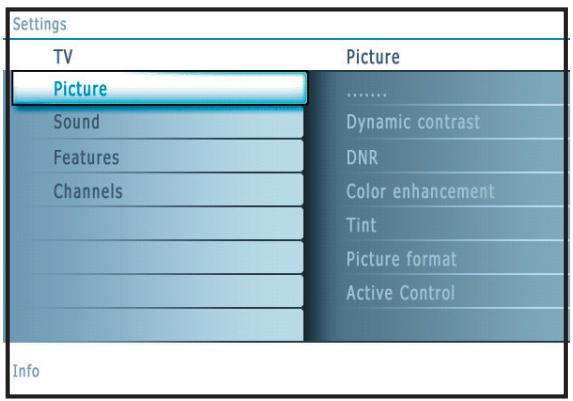
Tint
Allows you to select the color mix (hue) of the picture.
Picture format
This menu item performs the same as the FORMAT button on the remote control. See Use of the remote control, p. 6.
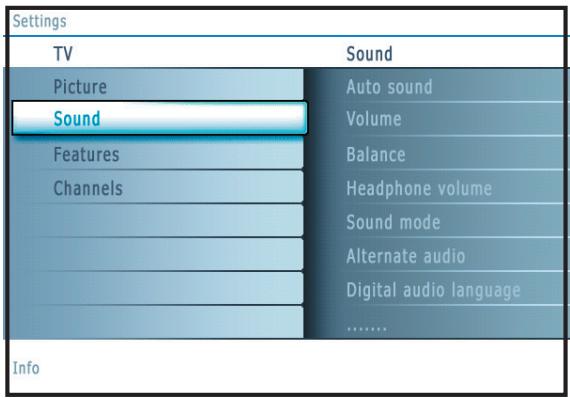
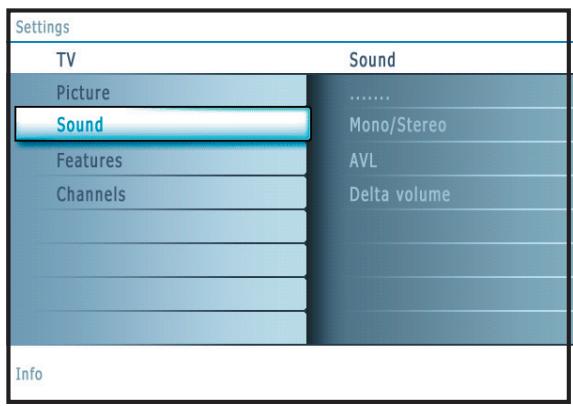
Sound menu
1 Select Sound in the TV Settings menu.
Press the cursor right to enter the sound menu.
3 Select the menu items with the cursor up/down and adjust the settings with the cursor left/right.
Remember, control settings are at normal mid-range levels when the bar scale is entered.
Auto sound
Select Auto sound to display a list of predefined sound settings, each corresponding with specific factory settings of Treble and Bass.
Press the cursor right to enter the list.
Press the cursor up/down to select a predefined sound setting. Personal refers to the personal preference settings of sound in the sound menu.
Note: The moment you are in a predefined Auto sound setting and you modify a setting in the Sound menu, all values of the menu will overwrite the previously made personal setting.
Volume
This will adjust the sound output level.
Balance
This will adjust the output of the right and left speakers to obtain the best stereo reproduction for your listening position.
Headphone volume
This controls the level of sound through the headphones.
Sound mode
This selects the modes for stereo or surround sound reproduction dependent on the broadcast signals or signals from external inputs received.
Alternate audio (only selectable with analog broadcast signals)
This gives you the possibility to swap between the Main and Second audio Program (SAP) when it is available.
Digital Audio language (only selectable with digital broadcast signals)
This allows you to select your language preference in case of multilingual audio track programs if available with digital broadcast signal.
Note: The default language for the digital channels is the installed menu language.
Mono/Stereo
This selects, per TV channel, Mono or Stereo sound when analog stereo broadcasts are available.
AVL (Automatic Volume Leveler) (only available with analog broadcast and non-Digital signals)
This automatically reduces the volume differences between channels and programs, providing a more constant overall level. This will also reduce the dynamics of sound.
Delta volume
This allows you to correct for any permanent volume differences between TV channels or external sources.
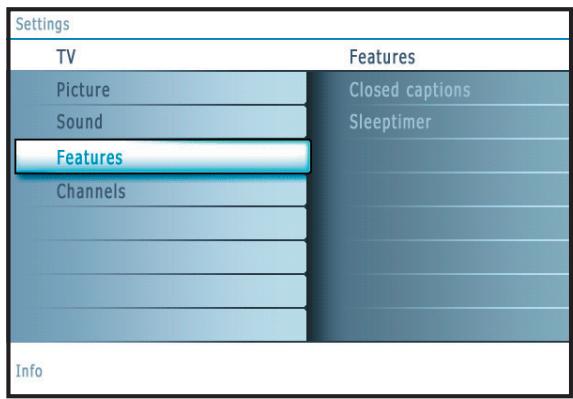
Features menu
1 Select Features in the TV Settings menu.
Press the cursor right to enter the features menu.
3 Select the menu items with the cursor up/down and adjust the settings with the cursor left/right.
Closed captions
This displays the transmitted CC- or CS-text on the screen according to your chosen CC or CS service in the Setup, Features preferences menu, p. 10. This text can either be permanently displayed (assuming that the service is available in the broadcast) or only when mute is active.
Press the cursor right after having selected Closed captions.
2 Select On, Off or On during mute.
Sleeptimer
This sets a time period after which the TV automatically turns to standby.
1 Select Sleeptimer.
Press the cursor right.
3 Select a value with the cursor up/down. The list will have values from 0 to 180 minutes.
When 0 is selected, the sleeptimer is turned off.
You can always turn off your TV earlier or select another time set.
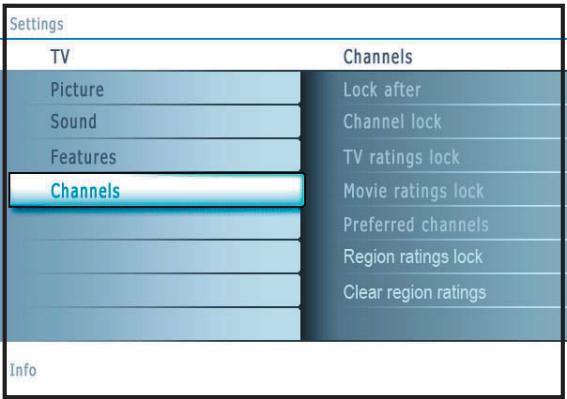
Channels menu
This menu can control special functions for the TV channels.
1 Select Channels in the TV settings menu with the cursor up/down.
Press the cursor right to enter the channels menu.
3 Press the cursor up/down to select a channels menu item.
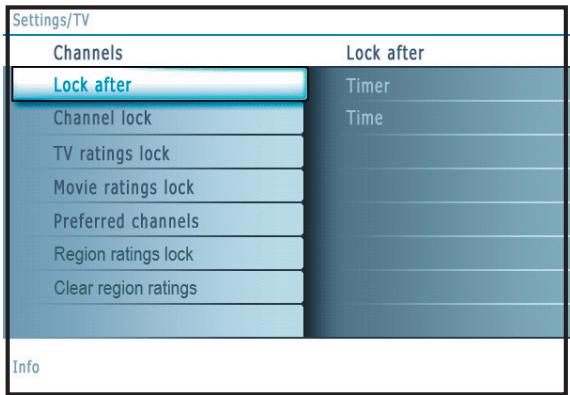
Lock after
Note: Lock after is only selectable if time is known. See Setup, Clock menu, p. 13.
This allows you to prevent the viewing of the channels after a selectable time delay. Locked channels can still be tuned, but the picture is blanked and the audio is muted.
Press the cursor right and select Timer On or Off.
When set to On this allows you to set the clock.
When having selected Timer On, you will be summoned to enter your PIN (See below). Follow the instructions on screen.
Set/Change PIN
1 Select Set or Change PIN with the cursor down.
2 If no PIN-code exists yet, the menu item is set to Set PIN. Follow the instructions on screen.
If a PIN-code has previously been entered, the menu item is set to Change PIN. Follow the instructions on screen.
All number combinations from 0000 to 9999 are valid numbers.
The Menu preferences menu reappears with a message confirming that the PIN has been created.
2 Select Time and press the cursor right. This allows you to set the time after which the lock is set.
3 Select AM or PM to select the correct period of the day.
4 Enter the time with the digit or the cursor buttons and press OK to confirm.
Channel lock
This allows you to completely lock a certain TV channel or external source.
Select the channels or subchannels you want to lock and press OK to confirm.
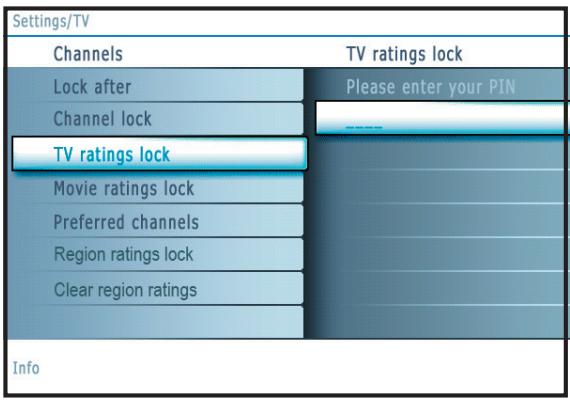
TV ratings lock
Your TV is equipped with a V-chip. This allows you to control access to individual programs based on their movie and TV ratings. All settings apply to all AV inputs, except HDMI. The program content advisory data are sent by the broadcaster or program provider.
1 Select TV ratings lock with the cursor down.
Press the cursor right to enter the list. You are asked to enter your code. (See below). If the code is correct, a list appears, showing the age-based TV ratings and a corresponding content-based ratings list.
Set/Change PIN
1 Select Set or Change PIN with the cursor down.
2 If no PIN-code exists yet, the menu item is set to Set PIN. Follow the instructions on screen.
If a PIN-code has previously been entered, the menu item is set to Change PIN. Follow the instructions on screen.
All number combinations from 0000 to 9999 are valid numbers.
The Menu preferences menu reappears with a message confirming that the PIN has been created.
3 Select an age-based TV rating with the cursor up/down, and enter, if present, the list with content-based ratings with the cursor right, and select one content-based rating.
4 Press OK to activate/de-activate the selected rating.
Select another content-based rating if you like and press OK again.
You need only enter your PIN-code once while the menu is active.
You can lock/unlock any number of ratings on the list without re-entering your code.
Each ratings item has a box-graphic in front of it to indicate whether or not programs carrying that rating are currently locked:
- box with a 'X': all items in the contents-based list are locked as well;
- empty box: the item is unselected;
- box with a '/': some content-based ratings are selected/unselected.
| Age-based Rating | Content-based Rating |
| All | none |
| None | none |
| TV-Y | none |
| TV-Y7 | (FV) Fantasy Violence |
| TV-G | none |
| TV-PG | (D) Dialog (L) Language (S) Sex (V) Violence |
| TV-14 | (D) Dialog (L) Language (S) Sex (V) Violence |
| TV-MA | (L) Language (S) Sex (V) Violence |
| Settings/TV | |
| Channels | Movie ratings lock |
| Lock after | Please enter your PIN |
| Channel lock | |
| TV ratings lock | |
| Movie ratings lock | |
| Preferred channels | |
| Region ratings lock | |
| Clear region ratings | |
| Info | |
NR not rated
G movies with a mild content, suitable for all ages
PG movies for which parental guidance is recommended. They may contain a few racy or violent scenes or maybe some bad language
PG-13 movies for which parental guidance may be recommended if under age 13
restricted. The movies usually contain offensive sex or bad language and may be unsuitable for children under the age of 17. Parental guidance or permission needed.
NC-17 even with parental permission, forbidden under age 17. More offensive sex, violence or bad language.
X movies which generally focus on sex, violence and/or bad language. Also known as pornography.
When All has been selected, all items in the age-based and in the contents-based lists are locked.
If, while All is selected, any other item, either an age-based or content-based item, is unselected, then All is automatically unselected.
None is the selection for items that either have no rating information or have a rating of None. Both will be locked.
When an item on the age-based list is selected, all items below that item of the same group are locked as well.
When you select a content-based rating, all identical content-based ratings in the younger age-based categories are also selected.
TV-Y appropriate for children of all ages with themes and elements suitable for children aged 2-6
TV-Y7 programs designed for children age 7 and older
TV-Y7-FV programs include fantasy violence more intense than other programs in the TV-Y7 category
TV-G programs suitable for all ages. These programs contain little or no violence, no strong language and little or no sexual dialogue or situations
TV-PG programs contain elements that some parents may find unsuitable for younger children and which may need parental guidance. The program may contain moderate violence, sexual dialogue and/or situations and some strong language.
TV-14 programs contain elements that may not be suitable for children under 14 years of age. These programs include one or more of the following: intense violence, intense sexual situations, suggestive dialogue and strong language.
TV-MA programs are designed to be viewed by adults and may be unsuitable for children under the age of 17. These programs may contain graphic violence, explicit sexual activity and/or crude or indecent language.
Movie Ratings Lock
This function allows you to control access to individual movies based on their MPAA ratings (Motion Picture Association of America).
1 Select Movie ratings lock with the cursor down.
Press the cursor right to enter the list. You are asked to enter your code. (See below). If the code is correct, a list appears, showing all valid MPAA content ratings.
Set/Change PIN
1 Select Set or Change PIN with the cursor down.
2 If no PIN-code exists yet, the menu item is set to Set PIN. Follow the instructions on screen.
If a PIN-code has previously been entered, the menu item is set to Change PIN. Follow the instructions on screen.
All number combinations from 0000 to 9999 are valid numbers.
The Menu preferences menu reappears with a message confirming that the PIN has been created.
3 Select a movie rating with the cursor up/down.
4 Press OK to activate/de-activate the selected rating.
Each rating item has a box-graphic in front of it to indicate whether or not programs carrying that rating are currently locked:
- box with a 'X': movies with this rating are locked;
- empty box: movies with this rating are unlocked.
When All has been selected, all items on the movie ratings list become selected. (All movies are locked.)
If, while All is selected, any other item is unselected, then All is automatically unselected.
When NR has been selected, no other item is selected.
When any other item has been selected, all ratings below are selected as well, thus all movies with those ratings will be locked.
| Settings/TV | |
| Channels | Preferred list |
| Lock after | Channel 1 |
| Channel lock | Channel 2 |
| TV ratings lock | ...... |
| Movie ratings lock | |
| Preferred channels | |
| Region ratings lock | |
| Clear region ratings | |
| Info | |
| Settings/TV | |
| Channels | TV ratings lock |
| Lock after | Please enter your PIN |
| Channel lock | |
| TV ratings lock | |
| Movie ratings lock | |
| Preferred channels | |
| Region ratings lock | |
| Clear region ratings | |
| Info | |
Preferred channels
A channel, when installed, is marked as preferred by default and added to the channel list. This feature provides the ability to remove a channel number from the channel list.
1 Select Preferred channels with the cursor down.
Press the cursor right to enter a list with all stored channel numbers.
3 Select the channel you want to remove with the cursor down.
4 Press OK.
Repeat to remove other channels.
Region ratings lock
This function allows you to control access to digital programs based on downloaded Region Ratings.
1 Select Region ratings lock with the cursor down.
Press the cursor right to enter the list. You are asked to enter your code. (See below). If the code is correct, a list appears, showing the Region ratings and a corresponding content-based ratings list.
Set/Change PIN
1 Select Set or Change PIN with the cursor down.
2 If no PIN-code exists yet, the menu item is set to Set PIN. Follow the instructions on screen. If a PIN-code has previously been entered, the menu item is set to Change PIN. Follow the instructions on screen. All number combinations from 0000 to 9999 are valid numbers.
The Menu preferences menu reappears with a message confirming that the PIN has been created.
3 Select a Region rating with the cursor up/down, and enter, if present, the list with content-based ratings with the cursor right, and select one content-based rating.
4 Press OK to activate/de-activate the selected rating.
Select another content-based rating if you like and press OK again.
You need only enter your PIN-code once while the menu is active.
You can lock/unlock any number of ratings on the list without re-entering your code.
Each ratings item has a box-graphic in front of it to indicate whether or not programs carrying that rating are currently locked:
- box with a 'X': all items in the contents-based list are locked as well;
- empty box: the item is unselected;
- box with a '/': some content-based ratings are selected/unselected.
Clear region ratings
This function allows you to clear all the Region Ratings settings.
1 Select Clear region ratings with the cursor down.
Press the cursor right to enter the list. You are asked to enter your code. (See below).
Set/Change PIN
1 Select Set or Change PIN with the cursor down.
2 If no PIN-code exists yet, the menu item is set to Set PIN. Follow the instructions on screen. If a PIN-code has previously been entered, the menu item is set to Change PIN. Follow the instructions on screen. All number combinations from 0000 to 9999 are valid numbers.
The Menu preferences menu reappears with a message confirming that the PIN has been created.
3 Select Start now.
4 Press OK to activate.
Note:
- The above 2 features (Region ratings lock and Clear region ratings) will be available only in sets manufactured after the cut-off timeline, specified by the FCC mandate.
Connect Accessory Devices
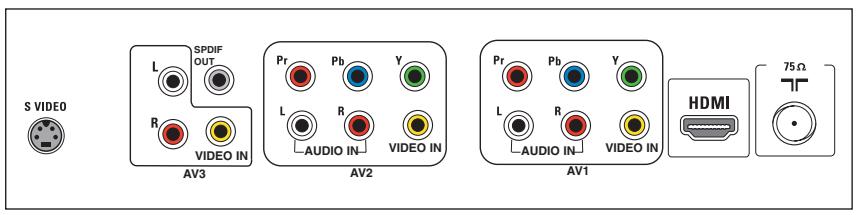
There is a wide range of audio and video devices that can be connected to your TV. The following connection diagrams show you how to connect them to the TV.
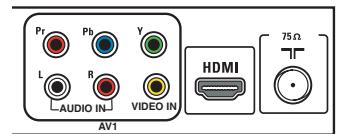
AV1 and AV2 can handle YPbPr or VIDEO and L/R Audio,
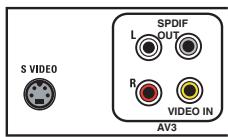
AV3VIDEO or S-VIDEO and L/R Audio and Digital Audio Out (SPDIF OUT),
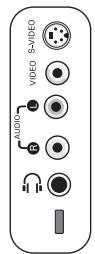
SideVIDEO or S-VIDEO and L/R Audio.
Recorder (VCR / DVD+RW)
Note: Do not place your recorder too close to the screen as some recorders may be susceptible for signals from the display. Keep a minimum distance of 20" from the screen.
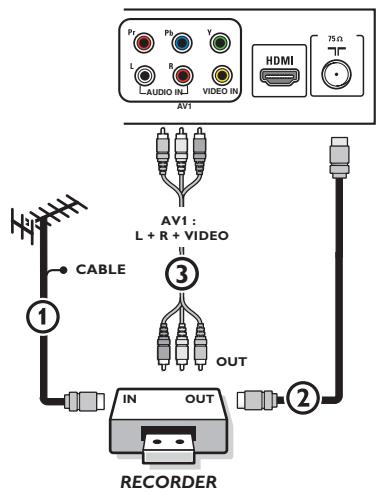
Connect the RF Antenna or Cable TV cable (eventually via an optional two-way signal splitter and/or Cable TV converter box) ① to the RF IN socket of your recorder.
Connect another RF cable ② from the output OUT of your recorder to the TV's CABLE/ANTENNA 751 jack.
3 Better playback quality can be obtained if you also connect the Video, Audio Left and Right (only for stereo devices) AV cables ③ to the VIDEO, AUDIO L and R input jacks of AV1.
If your recorder has an S-VHS video jack:
For improved picture quality, connect an S-video cable to the S-VIDEO input of AV3 instead of connecting the recorder to the VIDEO jack of AV1.
S-Video does not provide audio, so audio cables must still be connected to Audio L and R of AV3 to provide sound.
Recorder and other A/V devices
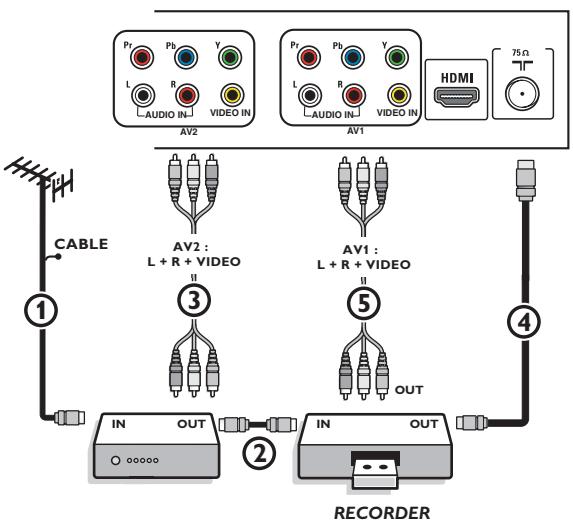
1 Connect the RF antenna cable ① of the RF IN socket of your other AV device.
2 Connect the RF output of the AV device to the RF input of the recorder ②.
3 Connect another RF cable 4 from the output OUT of your recorder to the TV's input CABLE/ANTENNA 75 J jack.
4 To obtain better quality, also connect the Video, Audio left and Audio right cables of both devices to AV1 (VIDEO and AUDIO L and R.) ⑤ and to AV2 (VIDEO and AUDIO L and R) ③.
Notes:
- In case of mono equipment, only the left loudspeaker reproduces sound.
Use a mono to stereo adapter (not supplied) for sound reproduction via all internal loudspeakers.
- When using the S-VIDEO connector do not connect any device to the AV3VIDEO input.
Recorder and cable box with RF output
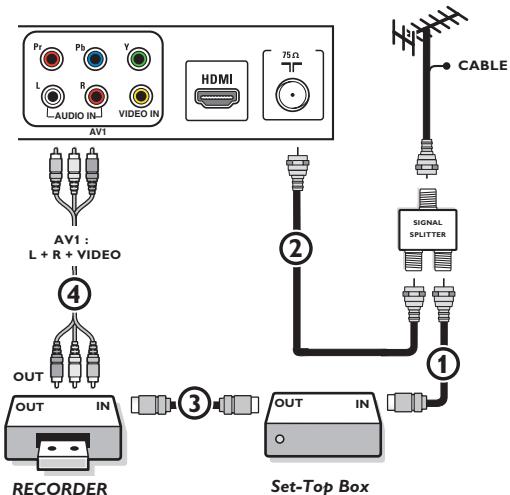
Use an optional signal splitter.
Connect one of the cable TV signal splitter outputs ① to the cable box's IN jack.
3 Connect the other cable TV signal splitter output ② to the CABLE/ANTENNA 75Ω T plug on the bottom of the TV.
4 Connect the cable box's OUT jack ③ to the recorders RF IN socket.
Connect the Video, Audio Left and Right (only for stereo sound) recorder AV cables ④ to the VIDEO, audio L and R input AV1 jacks on the TV.
Satellite Receiver / cable box with AV outputs
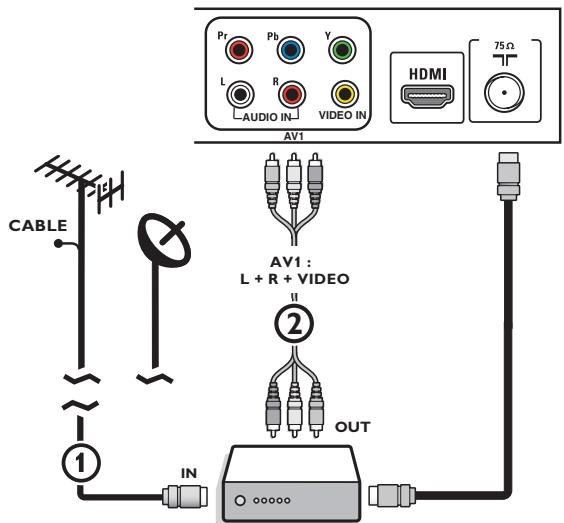
Set-Top Box
1 Connect the satellite antenna cable or the Cable TV cable ① to the satellite receiver's or cable box's IN jack.
Connect the Video, Audio left and right AV cables ② to theVIDEO,LandRaudio inputjacksofAV1.
If your satellite receiver or cable box has an S-Video jack:
For improved picture quality, connect an S-Video cable to the SVIDEO input instead of connecting the satellite receiver or cable box to theVIDEO jack.
Connect the audio cables to the device's AUDIO L and R jacks and to the L and R audio AV3 jacks on the TV.
Recorder and Satellite Receiver / cable box with AV outputs
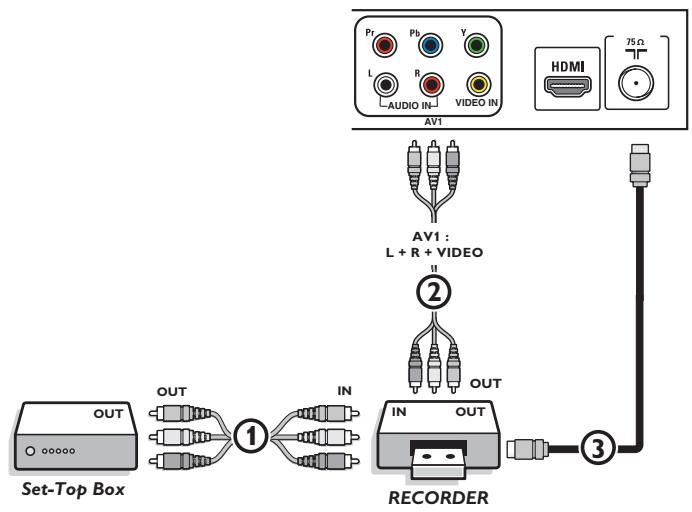
1 Connect the RF Antenna or Cable TV cable as described above.
Connect the AV cables ① to the satellite receiver's or cable box's AV OUT jacks and to the recorder's AV IN jacks.
3 Connect the recorder's AV OUT jacks ② to the TV's AV1 jacks as described above.
4 Connect another RF cable ③ from the output out of your recorder to the TV's input CABLE/ANTENNA T jack.
YPbPr
RGB
AV1: YPbPr +L + R

DVD / Set-Top Box
S-VIDEO
S-VIDEO

AV3:


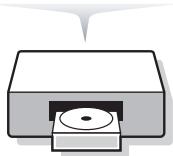
DVD / Set-Top Box
DVD Player or other accessory digital source devices Devices with Component Video Output Connectors (YPbPr)
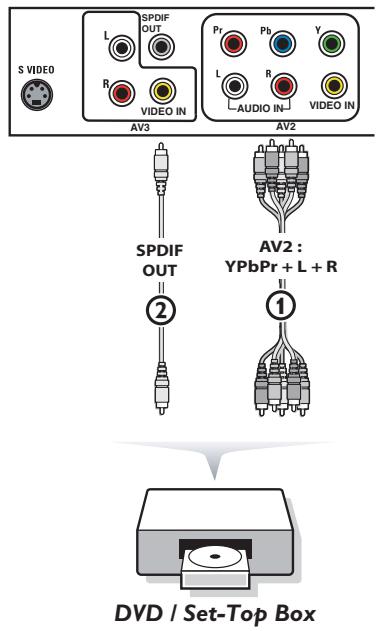
This TV is capable of displaying 1080i, 720p and 480p DTV signals when connected to a DTV tuner Set Top Box. Select the output of the Set Top Box to either 1080i, 720p or 480p. A DTV signal must be available in your area.
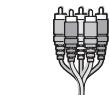
1 Connect the three separate component video cables ① to the device having component video outputs (YPbPr), such as Set Top Boxes, DVD-players, laser-disc players, videogame players, satellite receivers or other equipment, and to the Y, Pb and Pr jacks of AV2 on the TV.
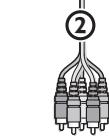
In case of a device with digital audio, connect the audio cable ② to the DIGITAL AUDIO IN of the device and to the DIGITAL AUDIO OUT(SPDIF OUT) of the TV.
In case of a device with analog audio, connect the audio cable to the device's AUDIO L and R ③ jacks and the L and R audio jacks of AV2.
Devices with RGB output
1 Connect the device with RGB output to the Pr / R Pb/B Y/G input ① jacks.
2 Connect the audio cables to the L and R AUDIO jacks of AV1 ①.
Devices with an S-Video connector
1 Connect an S-Video cable to the AV3 S-VIDEO input ①.
Note: When using the S-VIDEO connector do not connect any device to the AVVIDEO input that you are using.
Connect the audio cables to the device's AUDIO L and R jacks and to the L and R audio AV3 jacks (2) on the TV accordingly to where you connected the S-Video cable.
Notes
- If necessary, you can adjust the picture position to the center of the screen with the cursor keys.
- The labels for the component video sockets may differ depending on the DVD player or the device connected. Although the abbreviations may vary, the letters B and R stand for the blue and red component signals, respectively, and Y indicates the luminance signal. Refer to the DVD player's or devices instructions for use for definitions and connection details.
- This television is designed to accept high definition signal standards 720p and 1080i as specified by the Electronic Industries Association standard EIA770.3.
Digital devices from different manufacturers have the possibility of differing output standards which may cause difficulties for the television to display properly. - Due to possible digital image distortion when displaying signals from connected digital equipment, automatically the Auto picture setting Soft is selected. See Picture menu, Auto picture, p. 14.
Changing this setting during reviewing will not be stored as Personal setting after switch off.
Warning: in case you notice scrolling images, wrong colors or no color, no picture, or even combinations of these on your screen, check if the connections are done in the correct way or move your digital device further away from your TV.
HDMI (High Definition Multimedia Interface) connectors
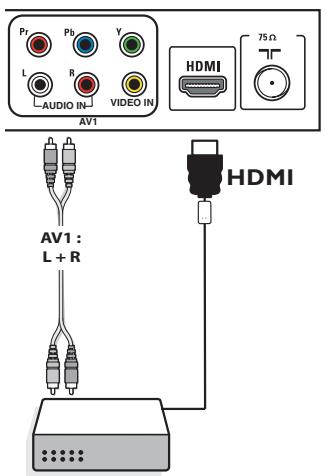
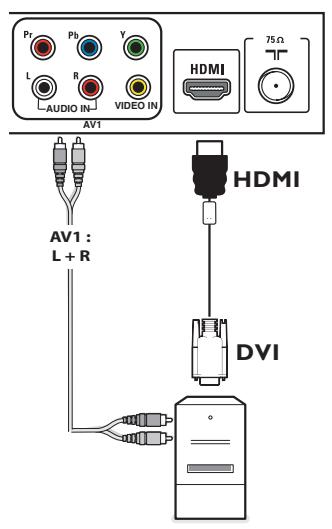
HDMI is the leading new standard for Digital video and audio interconnection. To the HDMI connector you can connect HDMI devices such as a Set Top Box or compatible DVD-R or DVD player with HDMI, or DVI-equipped devices like a computer.
So you can display high-definition pictures on this TV in the digital form.
Note: If the accessory device has DVI output only, use a DVI to HDMI adapter cable to connect to the HDMI connector. (Then also connect the audio cable to L and R AUDIO jacks of AV1.) Go to menu => Setup => Source => Analog Audio In => and select HDMI.
1 Connect your HDMI device with one of the HDMI connectors.
2 Select the connected digital device in the Setup, Source menu, p. 13.
The HDMI connectors allow the following TV and monitor display modes:
HD Standard Definition TV (SDTV) 640/720 x 480i
Enhanced Definition TV (EDTV) 640/720 × 480p
High Definition TV (HDTV) 1920x1080i
1280x720p
PC VGA 640x480 60 Hz
SVGA 800x600 60 Hz
XGA 1280x768 60 Hz
Notes:
- If necessary, you can adjust the picture position to the center of the screen with the cursor keys.
- Due to legal requirements, it is possible that with certain copy protected PCM audio qualities from a device connected to the HDMI input, the DIGITAL AUDIO OUTPUT(SPDIF OUT) signal is muted.
- Your TV supports HDCP (High-bandwidth Digital Content Protection). This is a system for protecting DVD content outputted via DVI from being copied. It provides a secure digital link between a video source (DVD, PC, etc.) and your TV. Content is encrypted at the source device to prevent unauthorized copies from being made.
- Proper working is only guaranteed with HDMI compliant consumer products.
- Digital devices from different manufacturers have the possibility of differing output standards which may cause difficulties for the television to display properly.
- In case no signal is detected from your HDMI device, turn off the HDMI device and then on again.
To get an optimal viewing, it is advised to turn your DVD player to one of the following TV display standards: 1920x1080i, 1280x720p, 720x480i or 720x480p.
Digital Surround receiver
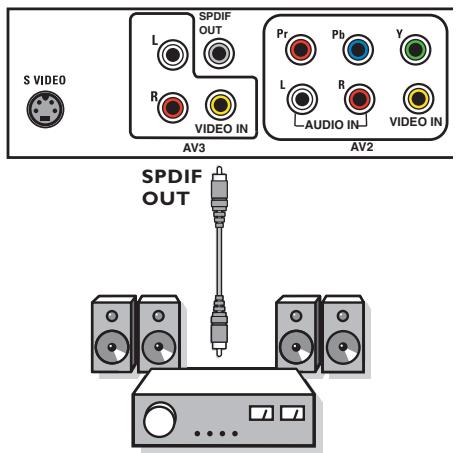
Connect a Digital MultiChannel Surround receiver to the DIGITAL AUDIO OUT (SPDIF OUT) connector at the bottom of the TV.
Side connections

Camera, Camcorder, Game
1 Connect your camera, camcorder or game as shown.
Connect to VIDEO ② and AUDIO L ③ for mono equipment. For stereo equipment also connect AUDIO R ③ S-VHS quality with an S-VHS camcorder is obtained by connecting the S-VHS cables with the S-VIDEO input ① and AUDIO inputs ③ Do not connect cable ① and ② at the same time. This may cause picture distortion!
Headphone
Insert the plug into the headphone socket as shown.
Press the MUTE button on the remote control to switch off the internal loudspeakers of the TV. The headphone impedance must be between 8 and 4000 Ohm. The headphone socket has a 3.5mm jack. In the Sound menu select Headphone volume to adjust the headphone volume.
Record with your recorder
Record a TV program
You can record a TV program using your recorders tuner without affecting your TV.
1 Select the channel number on your recorder.
Set your recorder to record. See the handbook for your recorder.
Switching channel numbers on your TV does not disturb recording !
To select connected devices
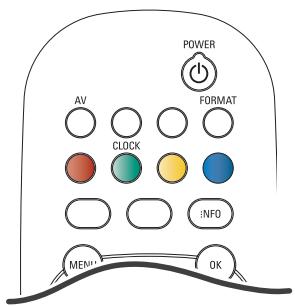
Press the AV+ button repeatedly or select Source in the Settings menu (see p. 13) to select AV1, AV2, AV3, HDMI, Side or TV, according to where you connected your devices.
Press the cursor up/down.
3 Press OK.
Regulatory Notices - Federal Communications Commission Notice
This equipment has been tested and found to comply with the limits for a Class B digital device, pursuant to part 15 of the FCC Rules. These limits are designed to provide reasonable protection against harmful interference in a residential installation. This equipment generates, uses, and can radiate radio frequency energy and, if not installed and used in accordance with the instructions, may cause harmful interference to radio communications. However, there is no guarantee that interference will not occur in a particular installation. If this equipment does cause harmful interference to radio or television reception, which can be determined by turning the equipment off and on, the user is encouraged to try to correct the interference by one or more of the following measures: Reorient or relocate the receiving antenna. Increase the separation between the equipment and the receiver. Connect the equipment into an outlet on a circuit different from that to which the receiver is connected. Consult the dealer or an experienced radio or television technician for help.
Modifications -
The FCC requires the user to be notified that any changes or modifications made to this device that are not expressly approved by Philips Consumer Electronics may void the user's authority to operate the equipment.
Cables -
Connections to this device must be made with shielded cables with metallic RFI/EMI connector hoods to maintain compliance with FCC Rules and Regulations.
Canadian notice -
This Class B digital apparatus meets all requirements of the Canadian Interference-Causing Equipment Regulations.
Avis Canadien -
Your TV is equipped with a Kensington Security Slot, to prevent it from getting stolen.
An anti-theft Kensington lock has to be purchased separately.
The Kensington lock is a plastic-coated steel cable with a lock. One end has to be fixed to the opening of the TV and locked with a special key. The other end is attached to a fixed point.
© Kensington and MicroSaver are registered US trademarks of ACCO World Corporation with issued registrations and pending applications in other countries throughout the world. All other registered and unregistered trademarks are the property of their respective owners.
Troubleshooting Tips
| Symptoms | Possible Causes | What you should do |
| No display on screen | ·Faulty power supply ·TV's Power not turned on ·TV go to standby after 10min without video. ·Faulty aerial and cable ·Wrong source selected. | ·Check whether power cord is properly connected into the mains socket. If there is still no power, disconnect plug. Wait for 60 seconds and re-insert plug. Turn on TV again. ·Press the POWER key on the TV and wait for 10-15sec. ·Press the POWER key on the remote control. ·Check whether euroconnector cables or aerial sockets are properly connected. ·Check whether the source is correctly selected. Press AV+ button to enter Source list and select the correct source. |
| Poor reception (snowish picture and noise) | ·Faulty antenna connection ·Weak transmission ·Wrong TV system | ·Faulty antenna connection ·Have you chosen the right TV system? (refer to page 5). |
| Reddish picture in AV1/2/3 | ·Wrong setting of DVD player | ·Set the DVD player to the correct output video format. |
| No sound | ·Zero volume level ·Sound muted ·Wrong audio selection | ·Try increasing volume. (You will not see the volume indication if OSD set to minimum) ·Check that the sound is not muted. ·Aim remote control directly at sensor on front of TV. ·Go to menu => Setup => Source => Analog Audio In => select AV1 |
| Sound interference | ·Electrical appliances interference | ·Try turning off any electrical appliances, for example, hairdryer, vacuum cleaner that are in use. |
| Interference lines seen on S-Video | ·Wrong detection of signal | ·Check whether power cord is properly connected ·Press the CH/PAGE +/- key on the remote control and do a channel up followed by a channel down. ·Make sure no composite video are connected on the same AV input. |
| Intermittent or flickering picture on in HDMI | ·* HDCP (see glossary) authentication failed | ·Noise is displayed if the connected digital equipment's (DVD player or set-up box) *HDCP authentication failed. Check user manual for the digital equipment you are connecting. ·Use a HDMI compliant cable. ·Try unplugging the HDMI cable and replugging it back. |
| Black bar on top and bottom of screen in PC mode | ·PC refresh rate too high | ·Change PC refresh rate to 60 Hz. |
| Picture position adjustment | ·Slight differences in output signals from different brands and types of HD sources | ·When displaying a High Definition signal from the YPbPr inputs or HDMI input, if necessary, you can adjust the picture position to the center of the screen with the cursor left/right or up/down buttons on the remote control. |
| Occasional appearance black spots on the screen (LCD TV only) | ·Characteristic of liquid crystal panel | ·This symptom is not a problem. The liquid crystal panel is built with very high and precision technology giving you the fine picture details. Occasionally, a few non-active pixels may appear on the screen as a fixed point of red, blue, green or black. Note that this does not affect the performance of the set. |
| PC modes do not work | ·Wrong connections ·Wrong source selected. ·Wrong display resolution | ·Check whether connections are correct. ·Check whether the source is correctly selected. Press AV+ button to enter Source list and select the correct source. ·Check whether you have configured the computer on a compatible display resolution. |
| TV not responding to Remote control | ·Wrong polarity of batteries ·Flat batteries. | ·Check if the remote control is in TV mode. ·Check if the green led blink when using remote control. ·Check polarity of the batteries. ·Try changing the batteries. |
| Unable to understand the language on screen to operate set | ·Wrong language selected accidentally | ·Press the MENU key to exit menu from screen. Press the MENU key to enter main menu. Use the cursor down to select the third item on the main menu. Use the cursor right key to enter into the next menu level and the cursor up and down key to select correct language. Press the OK key confirm selection. |
If your problem is not solved
Turn your TV off and then on again once.
Never attempt to repair a defective TV yourself.
Check with your dealer or call a TV technician.
Telephone number Magnavox Customer
Care Center: 1-800-705-2000
Please, have the Model and Product number which you can find at the back of your television set ready, before calling.
Tips
Care of the screen
Do not touch, push or rub or strike the screen with anything hard as this may scratch, mar or damage the screen permanently. And please do not rub with dust clothes with chemical treatment.
Do not touch the surface with bare hands or greasy cloth (some cosmetics are detrimental to the screen). Unplug the TV before cleaning the screen.
When the surface becomes dusty, please wipe gently with absorbent cotton or other soft materials like chamos soaks.
Do not use acetone, toluene and alcohol because they cause chemical damage. Do not use liquid cleaners or aerosol cleaners. Wipe off saliva or water drops as soon as possible. Their long time contact with the screen causes deformations and color fading.
Plasma display characteristics
This Plasma display is designed to be used at altitudes up to 6562 ft above sea level (and/or local air pressure equal or above 800 hPa). Operating this set at higher altitude (lower air pressure) is possible. However, at high altitudes (or local air pressure equal or below 800 hPa) the picture on this display may become unstable and picture performance can deteriorate. In addition, the plasma display may produce a humming sound in these conditions.
These possible adverse effects relate to the altitude and are common of all plasma displays. Once the set is brought below approx 6562 ft (and/or local air pressure equal or above 800hPa ) its function will most likely return to normal.
Note: Transportation at high altitudes has no negative effect on the set or picture performance.
How to dispose of batteries?
The batteries supplied do not contain the heavy metals mercury and cadmium. Nevertheless in many areas batteries may not be disposed of with your household waste. Please ensure you dispose of batteries according to local regulations.

Warning concerning stationary images on the TV screen (only for Plasma Displays)
A characteristic of Plasma Display Panels is that displaying the same image for a long time can cause a permanent after-image to remain on the screen. This is called phosphor burn in.
Normal use of the TV should involve the showing of pictures that contain constantly moving and changing images that fill the screen.
Examples of stationary images (this is not an all-inclusive list, you may encounter others in your viewing):
- TV and DVD menus: listings of DVD disk content;
- Black bars: when black bars appear at the left and right side of the screen, it is recommended to change to a picture format so that the picture fills the entire screen;
- TV channel logo: present a problem if they are bright and stationary. Moving or low-contrast graphics are less likely to cause uneven aging of the screen;
Stock market stickers: presented at the bottom of the TV screen; - Shopping channel logos and pricing displays: bright and shown constantly or repeatedly in the same location on the TV screen. Examples of still pictures also include logos, computer images, time display, teletext and images displayed in 4:3 mode, static images or characters, etc.
Notes:
- reduce contrast and brightness when viewing
- once burn-in occurs it will never disappear completely.
Glossary
DVI (Digital Visual : A digital interface standard created by the Digital Display Working Group (DDWG) to convert analog signals into digital Interface) signals to accommodate both analog and digital monitors.
VGA (Video Graphics Array) : a common standard graphics display system for PCs.
RGB signals : These are the three video signals, Red Green Blue, which make up the picture. Using these signals improves picture quality.
S-VHS signals : These are 2 separate Y/C video signals from the S-VHS and Hi-8 recording standards. The luminance signals Y (black and white) and chrominance signals C (colour) are recorded separately on the tape. This provides better picture quality than with standard video (VHS and 8 mm) where the Y/C signals are combined to provide only one video signal.
NICAM sound : Process by which digital sound can be transmitted.
16:9 : Refers to the ratio between the length and height of the screen. Wide screen televisions have a ratio of 16/9, conventional screen TV sets have a ratio of 4/3.
HDMI (High- : Provides an uncompressed, all digital audio/video interface between the TV and any HDMI-equipped audio/video Definition Multi- component, such as set-top box, DVD player and A/V receiver. HDMI supports enhanced or high-definition video plus media Interface) two-channeldigital audio.
System : Television pictures are not broadcast in the same way in all countries. There are different standards: BG, DK, I, and LL'. The System setting (p. 5) is used to select these different standards. This is not to be confused with PAL or SECAM colour coding. PAL is used in most countries in Europe, Secam in France, Russia and most African countries. The United States and Japan use a different system called NTSC. The inputs EXT1 and EXT2 are used to read NTSC coded recordings.
HDCP (High- : A specification developed by Intel for protecting digital entertainment that uses the DVI interface. HDCP encrypts bandwidth Digital- content the transmission of digital content between the video source or transmitter such as a computer, DVD player Content Protection) or set-top box and the digital display or receiver such as a monitor, television or projector.
Specifications
| 50MF231D | |
| PICTURE / DISPLAY Aspect ratio Picture Display Picture Enhancement | 16:9 Progressive Scan 3/2 - 2/2 motion pull down Auto Picture (6 modes) Color, Contrast, Sharpness Control |
| SOUND Output Power (RMS) Sound Enhancement Sound System | 2 x 15W Auto Sound Virtual Dolby Digital |
| CONVENIENCE | Auto Program Closed Captioning Full text Sleeptimer Clock |
| ON SCREEN DISPLAY LANGUAGES | English, French, Spanish |
| CONNECTIVITY Bottom | AV1 / AV2 : Audio L/R input, Composite Video input (CVBS), Component Video input (YPbPr) |
| AV3 : Audio L/R input, Composite Video input (CVBS), SPDIF output (Digital Only) S-Video input | |
| HDMI | |
| Side | Headphone output Audio L/R input, Composite Video input (CVBS) S-Video input |
| WEIGHT & DIMENSIONS : | |
| Weight (incl. Packaging) : | 62 kg / 137 lbs |
| Weight (excl. Packaging) : | 52 kg / 114 lbs |
| Carton Dimension (WxDxH) : | 1504 mm x 374 mm x 1002 mm |
| Product Dimension (WxDxH) : | 59" x 15" x 40" |
| screen size : | 1413 mm x 819 mm x 280 mm |
| 56" x 33" x 11" | |
| 50" / 127cm | |
| POWER CONSUMPTION : | 480 W |
| STANDBY POWER CONSUMPTION : | 0.9 W |
| VOLTAGE : | 110 - 240 V~ |
| CONSUMPTION : | 50 / 60 Hz |
Annex 1 - Magnavox TV software upgrade with portable memory
Introduction
Magnavox offers software upgrade capability for your TV using USB portable memory.
After you have completed a software upgrade, your TV will typically perform better.
What improvements are made depends on the upgrade software you are using as well as the software your TV contained before the upgrade.
You can execute the software upgrade procedure yourself.
Be aware that the content of this document is addressing technical or software skilled users.
Preparing a portable memory for software upgrade
For the procedure you will require:
A personal computer with web browsing capability.
- An archive utility that supports the ZIP-format (e.g. WinZip for Windows or StuffIt for Mac OS).
- A preferably empty USB memory stick.
Note: Only FAT/DOS-formatted portable memory is supported.
New software can be obtained from your dealer or can be downloaded from the www.magnavox.com/support website:
1 Go to www.magnavox.com/support using the web browser on your PC.
Follow the procedure to find the information and the software related to your TV.
3 Select the latest software upgrade file and download it to your PC.
4 Decompress the ZIP-file and copy the file "autorun.upg" to the root directory of the USB portable memory.
Note: Only use software upgrades that can be found on the www.magnavox.com/support web site.
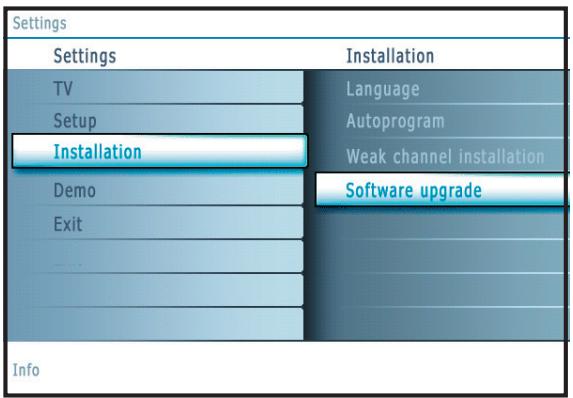
Verifying the version of the TV software
Before starting the software upgrade procedure, it is advised to check what the current TV software is.
1 Select Software Upgrade in the Installation menu.
Press the cursor right.
The Software Upgrade menu moves to the left panel.
3 Select Current Software Info to observe the version and the description of the current software.
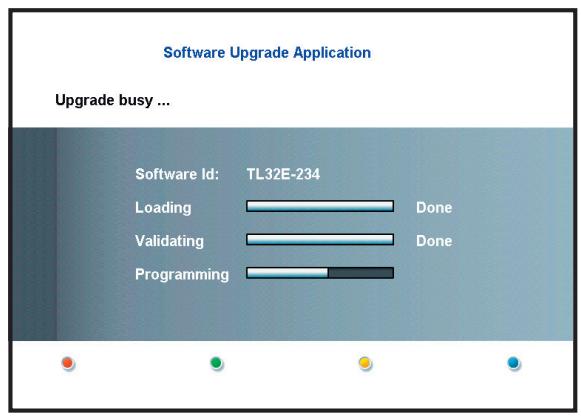
Automatic software upgrade procedure
For an automatic software upgrade copy the "autorun.upg" file in the root directory of the USB portable memory.
Power off your TV and remove all memory devices.
Insert the USB portable memory that contains the downloaded software upgrade.
3 Switch on your TV with the power switch 1 at the right side of the TV.
At startup the TV will scan the USB portable memory until it finds the update content. The TV will automatically go to the upgrade mode. After a few seconds it will display the status of the upgrade procedure.
Warning:
- You are not allowed to remove the USB portable memory during the software upgrade procedure!
- In case of a power drop during the upgrade procedure, don't remove the USB portable memory from the TV. The TV will continue the upgrade as soon as the power comes back.
- If you try to upgrade to a software version lower than the current version, a confirmation will be asked. Downgrading to older software should only be done in case of real necessity.
- If an error occurs during the upgrade you should retry the procedure or contact your dealer.
When the software upgrade was successful, remove the USB portable memory and restart your TV with the power switch at the right side of the TV.
Your TV will start up with the new software.
Note: Once the upgrade is finished use your PC to remove the TV software from your USB portable memory.
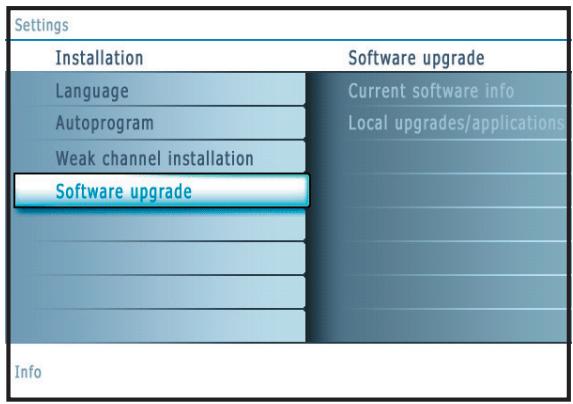
Manual software upgrade procedure
For a manual software upgrade copy the "autorun.upg" file in a directory called "Upgrades" located in the root of the USB portable memory.
Insert the portable memory that contains the downloaded software upgrade.
The TV will automatically start the content browser menu. Exit the menu by pressing the MYCONTENT key.
3 Select Software Upgrade in the Installation menu. Go to Local upgrades/ applications.
The TV will list all compatible images available on the USB portable memory and display the data for each selected upgrade image.
4 Select the correct upgrade image and press the red color button to start the upgrade.
Your TV will restart and will automatically go to the upgrade mode. After a few seconds it will display the status of the upgrade procedure.
Warning:
If you try to upgrade to a software version equal or lower than the current version, a confirmation will be asked. Downgrading to older software should only be done in case of real necessity.
⑤ When the software upgrade was successful, remove the USB portable memory and restart your TV with the power switch (1) at the right side of the TV.
Your TV will start up with the new software.
MAGNAVOX LIMITED WARRANTY
One (I) Year Labor & One (I) Year Parts & One (I) Year Display Repair
MAGNAVOX warrants this product against defect in material or workmanship, subject to any conditions set forth as follows:
PROOF OF PURCHASE:
You must have proof of the date of purchase to receive repair on the product. A sales receipt or other document showing the product and the date that you purchased the product as well as the authorized retailer included, is considered such proof.
COVERAGE:
(If this product is determined to be defective)
LABOR: For a period of one (I) year from the date of purchase, Magnavox will repair or replace the product, at its option, at no charge, or pay the labor charges to any Magnavox authorized service center. After the period of one (I) year, Magnavox will no longer be responsible for charges incurred.
PARTS: For a period of one (I) year from the date of purchase, Magnavox will supply, at no charge, new or rebuilt replacement parts in exchange for defective parts. Magnavox authorized service centers will provide removal and installation of the parts for one (I) year.
DISPLAY: For a period of one (I) year from the date of purchase, Magnavox will supply, at no charge, a new or rebuilt active display device in exchange for the defective display. Magnavox authorized service centers will provide removal and installation of the parts under the specified labor warranty. (PTV screens carry a thirty (30) day replacement warranty.)
EXCUSED FROM WARRANTY COVERAGE
Your warranty does not cover:
- Labor charges for installation or setup of the product, adjustment of customer controls on the product, and installation or repair of antenna systems outside of the product.
- Product repair and/or part replacement because of improper installation, connections to improper voltage supply, abuse, neglect, misuse, accident, unauthorized repair or other cause not within the control of Magnavox.
- A product that requires modification or adaptation to enable it to operate in any country other than the country for which it was designed, manufactured, approved and/or authorized, or repair of products damaged by these modifications.
- Damage occurring to product during shipping when improperly packaged or costs associated with packaging
- Product lost in shipment and no signature verification of receipt can be provided.
- A product used for commercial or institutional purposes (including but not limited to rental purposes).
- Products sold AS IS or RENEWED.
TO OBTAIN WARRANTY SERVICE IN THE U.S.A., PUERTO RICO, OR U.S. VIRGIN ISLANDS...
Contact Magnavox Customer Care Center at: 1-800-705-2000
TO OBTAIN WARRANTY SERVICE IN CANADA...
I-800-661-6162 (French Speaking)
1-800-705-2000 (English or Spanish Speaking)
REPAIR OR REPLACEMENT AS PROVIDED UNDER THIS WARRANTY IS THE EXCLUSIVE REMEDY FOR THE CONSUMER. MAGNAVOX SHALL NOT BE LIABLE FOR ANY INCIDENTAL OR CONSEQUENTIAL DAMAGES FOR BREACH OF ANY EXPRESS OR IMPLIED WARRANTY ON THIS PRODUCT. EXCEPT TO THE EXTENT PROHIBITED BY APPLICABLE LAW, ANY IMPLIED WARRANTY OF MERCHANTABILITY OR FITNESS FOR A PARTICULAR PURPOSE ON THIS PRODUCT IS LIMITED IN DURATION TO THE DURATION OF THIS WARRANTY.
Some states do not allow the exclusions or limitation of incidental or consequential damages, or allow limitations on how long an implied warranty lasts, so the above limitations or exclusions may not apply to you. In addition, if you enter into a service contract agreement with the MAGNAVOX partnership within ninety (90) days of the date of sale, the limitation on how long an implied warranty lasts does not apply.
This warranty gives you specific legal rights. You may have other rights which vary from state/province to state/province.
Magnavox, P.O. Box 671539, Marietta, GA. 30006-0026
CAUTION : To prevent electric shock, match wide blade of plug to wide slot, fully insert.
Réglages/Configuration
Réglages/Configuration
Verrou qualifications TV
Enhanced Definition TV (EDTV) 640/720 x 480p
High Definition TV (HDTV) 1920x1080i
1280x720p
PC VGA 640x480 60 Hz
SVGA 800x600 60Hz
XGA 1280x768 60 Hz
Remarques:
To get an optimal viewing, it is advised to turn your DVD player to one of the following TV display standards: 1920x1080i, 1280x720p, 720x480i or 720x480p.
Regulatory Notices - Federal Communications Commission Notice
This Class B digital apparatus meets all requirements of the Canadian Interference-Causing Equipment Regulations.
Avis Canadian -
www.magnavox.com/usupport
Conozca ellos
simbolos deseguidad

Que es la television digital (DTV)?
- DBS (Direct Broadcast Satellite)
Conectores HDMI (High Definition Multimedia Interface)
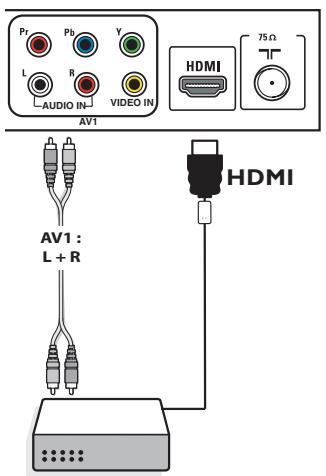
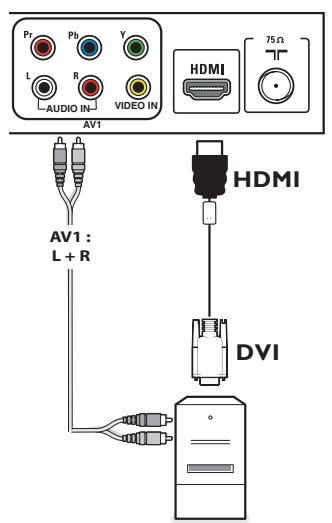
Enhanced Definition TV (EDTV) 640/720 x 480p
High Definition TV (HDTV) 1920x1080i
1280x720p
PC VGA 640x480 60 Hz
SVGA 800x600 60Hz
XGA 1280x768 60 Hz
Notas: