
20HF5473 - TV PHILIPS - Free user manual and instructions
Find the device manual for free 20HF5473 PHILIPS in PDF.


User questions about 20HF5473 PHILIPS
0 question about this device. Answer the ones you know or ask your own.
Ask a new question about this device
Download the instructions for your TV in PDF format for free! Find your manual 20HF5473 - PHILIPS and take your electronic device back in hand. On this page are published all the documents necessary for the use of your device. 20HF5473 by PHILIPS.
USER MANUAL 20HF5473 PHILIPS
Information for users in the UK (not applicable outside the UK)
Positioning the TV
For the best results, choose a position where light does not fall directly on the screen, and at some distance away from radiators or other sources of heat. Leave a space of at least 5cm all around the TV for ventilation, making sure that curtains, cupboards etc. cannot obstruct the air flow through the ventilation apertures. The TV is intended for use in a domestic environment only and should never be operated or stored in excessively hot or humid atmospheres.
Interference
The Department of Trade and Industry operates a Radio Interference Investigation Service to help TV license holders improve reception of BBS and IBA programmes where they are being spoilt by interference.
If your dealer cannot help, ask at a main Post Office for the booklet "How to Improve Television and Radio Reception".
Mains Connection
Before connecting the TV to the mains, check that the mains supply voltage corresponds to the voltage printed on the type plate on the rear panel of the TV. If the mains voltage is different, consult your dealer.
Important
Should it become necessary to replace the mains fuse, this must be replaced with a fuse of the same value as indicated on the plug.
- Remove fuse cover and fuse.
- The replacement fuse must comply with BS 1362 and have the ASTA approval mark. If the fuse is lost, make contact with your retailer in order to verify the correct type.
- Refit the fuse cover
In order to maintain conformity to the EMC directive, the mains plug on this product must not be removed.
Connecting the aerial
The aerial should be connected to the socket marked at the back of the set. An inferior aerial is likely to result in a poor, perhaps unstable picture with ghost images and lack of contrast. Make-shift loft or set-top aerials are often inadequate. Your dealer will know from experience the most suitable type for your locality.
Should you wish to use the set in conjunction with other equipment, which connects to the aerial socket such as TV games, or a video camera it is recommended that these be connected via a combiner unit to avoid repeated connection and disconnection of the aerial plug.
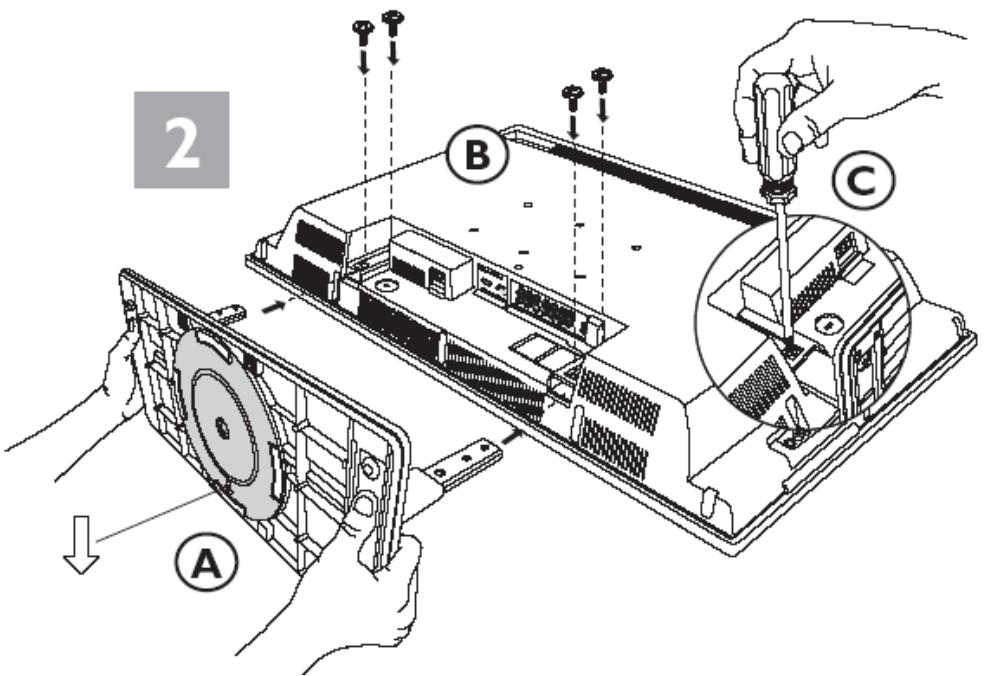
Fitting the stand (if provided)
Use only the stand provided with the set, making sure that the fixings are properly tightened. A diagram showing how to assemble the stand is packed with the stand. Never use a make-shift stand, or legs fixed with woodscrews.
Care of the screen
Do not touch, push or rub or strike the screen with anything hard as this may scratch, mar or damage the screen permanently. Do not rub with dust clothes with chemical treatment. Do not touch the surface with bare hands or greasy cloth (some cosmetics are detrimental to the screen). Unplug the TV before cleaning the screen. When the surface becomes dusty, please wipe gently with absorbent cotton or other soft materials like chamois soaks. Do not use acetone, toluene and alcohol because they cause chemical damage. Do not use liquid cleaners or aerosol cleaners. Wipe off saliva or water drops as soon as possible. Their long time contact with the screen causes deformations and colour fading.
Warning concerning stationary images on the TV screen (42" Plasma)
A characteristic of Plasma Display Panels is that displaying the same image for a long time can cause a permanent after-image to remain on the screen. This is called phosphor burn in. Normal use of the TV should involve the showing of pictures that contain constantly moving and changing images that fill the screen.
Warning concerning VGA/DVI display mode
As this product processes in VGA/DVI mode, some diagonal lines may be seen under circumstances of environmental interference. This will not affect the computer signal performance that displays in VGA/DVI mode.
Environmental
- Your television contains material that can be recycled and reused by specialized companies. Please find out about local regulations on the disposal of your old television set. Pay particular attention to the disposal of exhausted batteries.
- Your television consumes energy in the stand-by mode. Energy consumption contributes to air and water pollution. We advise you to switch off your television overnight instead of leaving it in stand-by mode.


The packaging of this product is intended to be recycled. Apply to the local authorities for correct disposal.
Disposal of your old product.
Your product is designed and manufactured with high quality materials and components, which can be recycled and reused. When this crossed-out wheeled bin symbol is attached to a product it means the product is covered by the European Directive 22002/96/EC. Please find out more about the separate collection system for electrical and electronic products in your local neighbourhood.
Please act according to your local rules and do not dispose of your old products with your normal household waste. The correct disposal of your old product will help prevent potential negative consequences for the environment and human health.
Preparation
Wall mounting instructions/Table stand
According to the type of TV you've purchased a wall mount bracket and/or stand may be supplied. To mount the supplied stand and/or wall mount bracket, refer to separate instructions. Make sure that the wall mount is fixed securely so that it meets safety standards.
Make sure that air can circulate freely through the ventilation slots
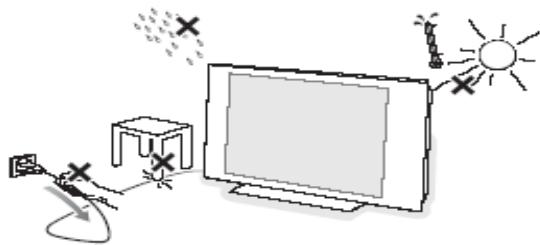
To prevent any unsafe situations, no naked flame sources, such as lighted candles, should be placed on or in the vicinity. Avoid heat, direct sunlight and exposure to rain or water. The equipment shall not be exposed to dripping or splashing and no objects filled with liquids, such as vases, shall be placed on it. Insert the aerial plug firmly into the aerial socket at the bottom of the TV.
Connecting the Mains
Insert the mains plug into the wall socket and switch on. Please refer to the label on the back of the television for the correct operating voltage.
Installing the remote control
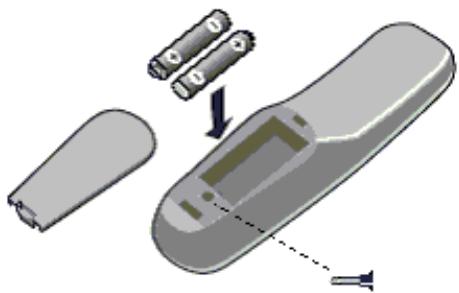
- Remove the cover at the back of the remote control.
- Insert the correct type and size batteries into the compartment making sure they are the right way around.
- You can secure your batteries by fastening an appropriate screw into the hole of the battery cover.
Switch the TV on:
Press the power switch on the TV. An indicator on the front of the TV lights up and the screen comes on. If the TV is in standby mode (red indicator), press the -TV+ keys or the key on the remote control.
Accessing the Set-up Menu
When the set is in the High Security Mode, the Setup menu can be accessed only with an Institutional Set-up Remote Control (RG4172BK or RC2573).
When the set is in the Standard Security Mode, the Set-up Menu may be accessed either with an Institutional Set-up Remote Control, or with a guest remote control (like the RC2886) using an authorized access code.
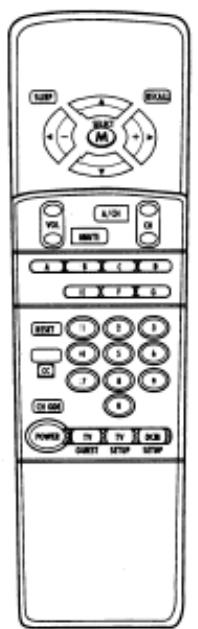
RG4172BK
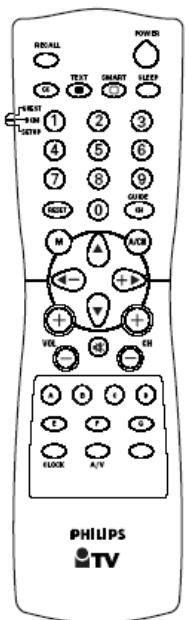
RC 2573
Navigation
The current menu item can be selected by means of the cursor up and cursor down keys. Submenus can be accessed from menu items with a “>” symbol pressing the cursor right key.
- To exit any menu press "Menu" button
- Select "YES" to activate/enable a setting, "NO" to deactivate/disable.
- TELEVISION up/down, INFO up/down, PAY-TV up/down and RADIO up/down are active in menu mode and the television reacts the same way as in TV mode.
Setup menu items
Setup
Language
Communication
No. of Programs
Program Install
Configuration
Clock Setup
- Language: Select the language of the installation menu. Options are "ENGLISH", "DEUTSCH", and "FRANCAIS".
- Communication: The Communication menu is required to enable interactive applications. For more information, consult the respective application notes. For stand-alone applications select "OFF".
- No. of Programs: This sub menu allows setting the number of Television, PAY-TV, Radio and Info programs. The overall maximum number of programs is 125.
- Program Install: In the Program Install sub-menu, program settings can be set.
- Configuration: In the Configuration menu, various settings and features of the TV can be adjusted.
- Clock Setup: The Clock set-up menu can be entered from this menu item.
Program Installation
In the Program Installation sub-menu, program settings can be set. When this menu is open, all the protections are inactive.
| Program Install |
| Program No. |
| Input |
| System |
| Frequency |
| Label |
| Store |
| Fine Tune |
| Mute |
| Teletext Language |
| Protection |
- Program No.: The program type can be selected with the cursor left/right buttons. These buttons will toggle between all available types: "TV", "INFO", "PAYTV" and "RADIO".
If the program number of a certain type is 0, the corresponding type is not displayed. In order to display a program number of the above-mentioned types, always enter two numbers, for example: "01" for TV1 or digit "1" and up/down cursor. - Input: The "Input" menu item selects the desired input source that will be assigned to the program. Possible values are TUNER, AV1, AV2, SIDE AV, SIDE S-VIDEO, RADIO, and DVI. Some input sources may not be available on certain sets (see accompanying table).
| Model / Input | AV1 | AV2 | Side AV | Side S-Video | DVI |
| 15HF5443 | Scart1 | - | Video In | S-Video In | DVI |
| 20/23HF5473 | Scart1 | - | Video In | S-Video In | DVI |
| 26HF5473 | Scart1 | Scart2 CVBS | AV-In | S-Video In | DVI |
| 32HF7473 | Scart1 | Scart2 CVBS | AV-In | S-Video In | DVI |
| 42HF7443 | Scart1 | Scart2 CVBS | Video In | S-Video In | DVI |
Note: When a SmartCard XPress Box is used, it is usually connected to Scart1.
- System: WEST EU (PAL/SECAM-BG), EAST EU (PAL/SECAM-DK), UK (PAL-I), FRANCE (SECAM-L/L') and AUTO.
- Frequency: Digits can be entered for a frequency in MHz. Right cursor starts an auto search; during frequency entry the digits not yet entered are displayed as dashes "-". Enter "0" for frequencies below 100 MHz.
- Label: This menu item will be used to add a label/name for each program.
Pressing the left/right buttons you may enter or exit the label field; pressing the up/down cursor you may insert alphanumeric characters.
Pressing M (Menu button) you may exit the Label Menu item.
- Store: The present program information is stored after pressing the cursor left/right button. Press Menu to exit without storing.
- Fine Tune: Using the "control left/right" commands starts fine-tuning.
- Mute: This item enables/disables picture and sound for the particular channel.
O NONE: normal picture and sound enabled
O VIDEO: picture is blanked for this channel (e.g. radio channel)
o AUDIO: sound is muted for this channel (e.g. information channel)
- Teletext Language: This menu enables the user to select the Teletext character set to be used for the selected channel. With cursor left/right you can select a letter corresponding to the different language clusters.
O "WEST EU": Pan European (Latin) / West option
O "EAST EU": Pan European (Latin) / East option
O "GREEK": Greek
O "CYRILLIC":Cyrillic
- Protection: This function indicates whether the selected program has a protection or not. With the cursor left/right keys the protection can toggle between "YES" and "NO".
Configuration
In the Configuration menu, various settings and features of the TV can be adjusted.
Configuration
Switch On / OSD
Picture / Sound
Security
Control
- Switch On/OSD: In this submenu the behavior of the TV after switching on and the behavior of the On Screen Display can be selected.
- Picture/Sound: In this sub-menu, the Picture and Sound settings of the TV can be selected.
- Security: In this sub-menu, the Security settings of the TV can be configured.
Control: In this sub-menu, the Control settings of the TV can be configured.
Switch On / OSD
In this sub menu the behavior of the TV after switching on and the behavior of the On Screen Display can be selected.
| Switch On / OSD |
| Welcome Message |
| Switch On Program |
| Switch On Volume |
| Switch On Pic Fmt |
| Power On |
| Volume Indicator |
| Program Display |
- Welcome Message: Press Cursor Left/Right to display Welcome message entry menu:
Welcome Message
Line 1
Line 2
Clear
With the Cursor Up/Down you can set the message characters.
-
Switch On Program: This item sets the television's program at switch on.
-
Switch On Volume: This item sets the television's volume at switch on. Use the Right/Left Cursor buttons to adjust.
- Switch On Pic Fmt: This item sets the television's Picture Format at switch on. Use the Right/Left Cursor buttons to adjust.
-
Power On: The Power On menu function defines the behavior of the television whenever AC Power is applied. The valid states are "FORCED ON", "LAST STATUS" and "STANDBY".
-
When "FORCED ON", the television can only be switched OFF by means of the main switch or a set-up remote control or by ESP function (Energy Saving Programmability controls the maximum continuous viewing time allowed by the control system).
- When "LAST STATUS", the television switches on the previous status, ON or Stand-by.
When "STANDBY", the television always switches on in Stand-by.
Volume Indicator: To display volume indicator when adjusting volume, select "YES". Select "NO" to hide the volume indicator.
- Program Display: Program Display values can be: Number, Label, All, None.
Picture and Sound settings
In this sub menu, the Picture and Sound settings of the TV can be selected.
| Picture / Sound |
| Brightness |
| Colour |
| Contrast |
| Sharpness |
| Tint |
| Active Control |
| Treble |
| Bass |
| Balance |
| AVL |
- Brightness: This changes picture brilliance.
Colour: This changes the intensity of the colour. - Contrast: This changes the difference between the light and dark tones.
- Sharpness: This changes the picture definition.
- Tint: Adjusts the picture to obtain natural skin tones.
- Active Control: Active Control optimises the quality of the picture according to the quality of reception (this menu option is only available on certain LCD TV models).
- Treble/Bass: This adjusts the level of treble and bass effects on the TV's sound output.
- Balance: This balances the sound on the left and right speakers.
- AVL (Automatic Volume Leveller): This is used to limit increases in sound, especially on programme change or advertising slots.
Security settings
In this sub menu, the Security settings of the TV can be configured.
Security
Security Keyboard Lock Video Out Mute
- Security: The menu function "SECURITY" allows the user to select one of two states "HIGH" or "STANDARD". The default is "STANDARD".
While the set is in the Security High Mode the Set-up menu can only be accessed with an Institutional Set-up Remote Control.
While the set is in the Security Standard Mode, the Set-up Menu may be accessed either with an Institutional Set-up Remote Control, or with a guest remote control using an authorized access code.
- Keyboard Lock: The Keyboard Lockout menu function disables the television's local keyboard for volume and program control.
- Video Out Mute: This option allows the user to mute Video outputs from the TV set, to prevent unauthorized copying of Video content.
Control settings
In this sub menu, the Control settings of the TV can be configured.
| Control |
| ESP |
| Audio / Video Mute |
| Step Tuning |
| Digit Timeout |
| Auto Scart |
| Always RGB |
| Min Volume |
| Max Volume |
- ESP: Energy Saving Programmability Mode (ESP) controls the maximum continuous viewing time allowed by the control system. The ESP Menu function is shown as "ESP", and its valid values are 00 - 99 (in hours). 00 value means OFF.
- Audio/Video Mute: The Audio/Video Mute function determines whether the video should be blanked and the audio should be muted if the currently tuned channel has no signal.
- Step Tuning: If YES, TV programs (1 to 9) are tuned immediately when a digit is pressed. If NO, tuning is performed only after the dash disappears.
- Digit Timeout: This is the time-out to enter the second digit for TV program 10 onwards.
- Auto Scart: Enable/ disable automatic switching to external SCART source.
- Always RGB: This item allows RGB on the AV connectors to be enabled or disabled.
- Min Volume: This item sets the limit for minimum volume allowed for the television set. Use right/left cursor to adjust.
- Max Volume: This item sets the limit for the maximum volume allowed for the television set. Use right/left cursor to adjust.
Clock setup
The Clock set-up menu can be entered from this menu item.
Clock Setup
Display Standby
Display On
Time Setting
Teletext Time Download
Download Program
Time Offset
Buzzer Volume
- Display Standby: This menu item will be used to set the intensity of the clock display when the television is in standby mode.
- Display On: This menu item will be used to set the intensity of the clock when the television is in the ON mode.
- Time Setting: This menu item will be used to set the time for the clock.
- Teletext Time Download: This menu item is used to activate or deactivate the function for automatic time downloading by means of Teletext.
- Download Program: This menu item is used to select the channel from which to retrieve the correct time from the Teletext.
- Time Offset: This menu item is used to set the offset needed to adjust the time received from the Teletext channel to represent the current time in the current location.
- Buzzer Volume: This item sets the volume of the alarm buzzer. Use the right/left cursor to adjust.
Remote control keys
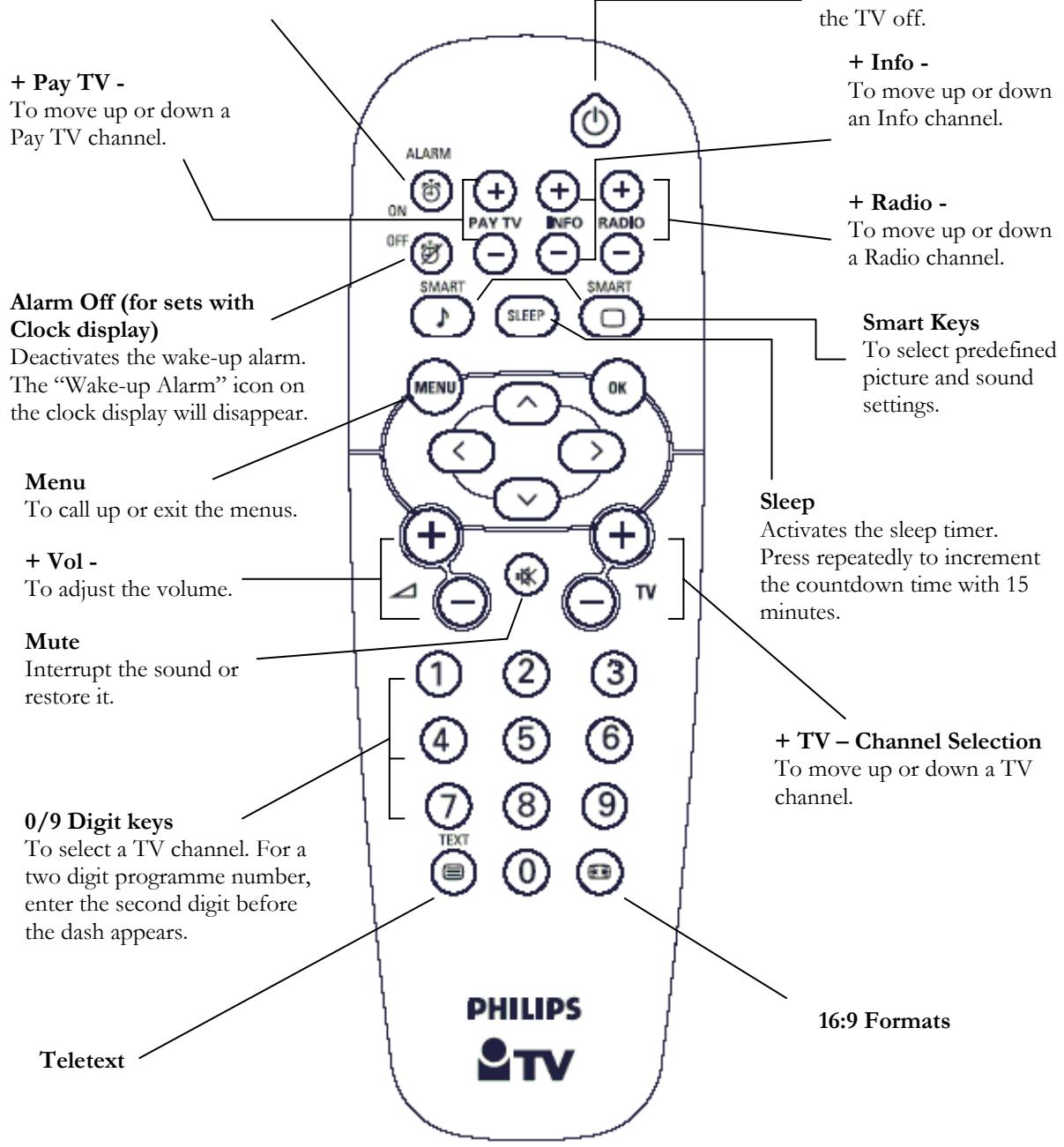
Alarm On (for sets with Clock display)
Activates the wake-up alarm. After a valid time (0:00 to 23:59) is entered, the "Wake up Alarm" icon on the clock display will be visible.
Standby
Press to switch the TV off.
+Info-
To move up or down an Info channel.
+ Radio -
To move up or down a Radio channel.
Smart Keys
To select predefined picture and sound settings.
Sleep
Activates the sleep timer. Press repeatedly to increment the countdown time with 15 minutes.
+ TV - Channel Selection
To move up or down a TV channel.
16:9 Formats
Teletext
Teletext is an information system broadcast by certain channels that can be consulted like a newspaper. It also offers access to subtitles for viewers with hearing problems or who are not familiar with the transmission language (cable networks, satellite channels, etc.).
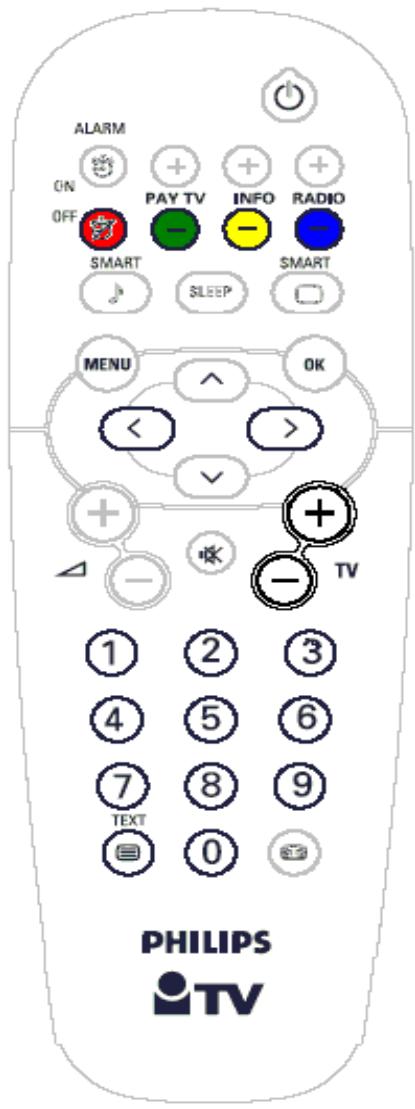
Press:

To switch Teletext On/Off
In Teletext mode, press:

Go to a (3-digit) page number


Go to previous / next page

Go to previous / next page

Direct access to coloured page numbers indicated at the bottom of the screen
16:9 Formats
The pictures you receive may be transmitted in 16:9 format (wide screen) or 4:3 format (conventional screen). 16:9 pictures sometimes have a black band at the top and bottom of the screen (letterbox format). This function allows you to optimise the picture display on screen.
Using the different formats
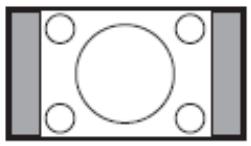
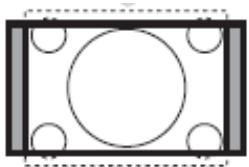
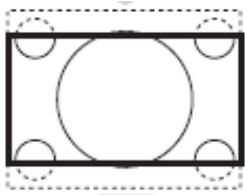
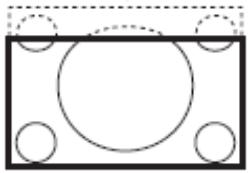
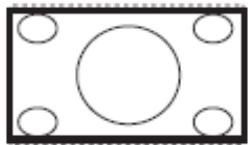
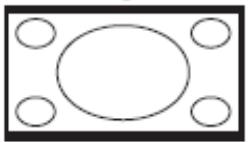
Use the 16:9 Formats button on the Remote Control to select the different modes: Auto Format, 4:3, Zoom 14:9, Zoom 16:9, Subtitle zoom, Super wide and Wide screen.
4:3
The picture is reproduced in 4:3 format and a black band is displayed on either side of the picture.
Zoom 14:9
The picture is enlarged to 14:9 format, a thin black band remains on both sides of the picture.
Zoom 16:9
The picture is enlarged to 16:9 format. This mode is recommended when displaying pictures that have black bands at the top and bottom (letterbox format).
Subtitle Zoom
This mode is used to display 4:3 pictures using the full surface of the screen leaving the subtitles visible.
Super Wide
This mode is used to display 4:3 pictures using the full surface of the screen by enlarging the sides of the picture
Widescreen
This mode restores the correct proportions of pictures transmitted in 16:9 using the full screen display.
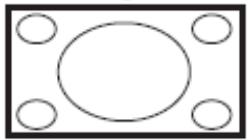

Fulfscreen
This mode displays images in full screen.
Auto Format
This TV set is equipped with automatic switching which will select the correct screen format, provided the specific signals are transmitted with the programs.
Low battery check
Press the OK key for approximately 5 seconds. The following text appears:
SERVICE
1 REMOTE BATTERY OK
If the word "LOW" appears instead of "OK", the batteries are low and must be replaced.
Should your remote be lost or broken you can still change some of the basic settings with the keys on the top/side of your TV.
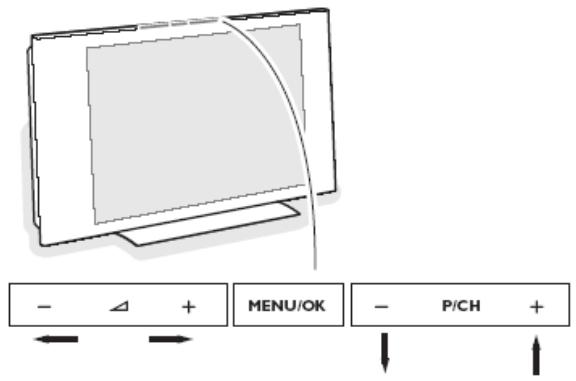
Keys on top of TV
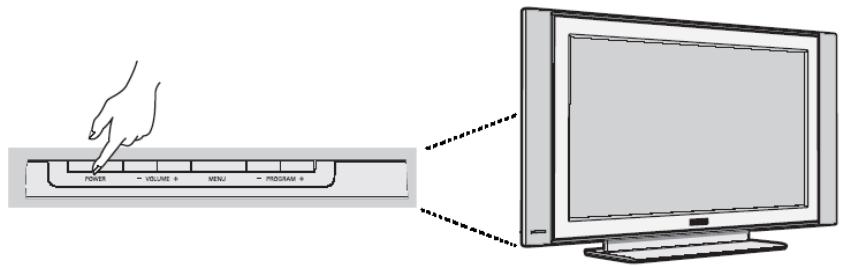
Keys on side of TV
Press:
The -Vol + key to adjust the volume;
The -P / CH+ key to select the TV channels or source
Press the MENU/OK key to summon the main menu without the remote control (not available on all TVs). Use:
- The -Vol + key and the -P / CH + key to select menu items in the directions as shown;
The MENU/OK key to remove the menu
Connecting the television set
This section provides information on the connectivity available for different LCD Television sets. Refer to the screen size that is relevant to your TV set.
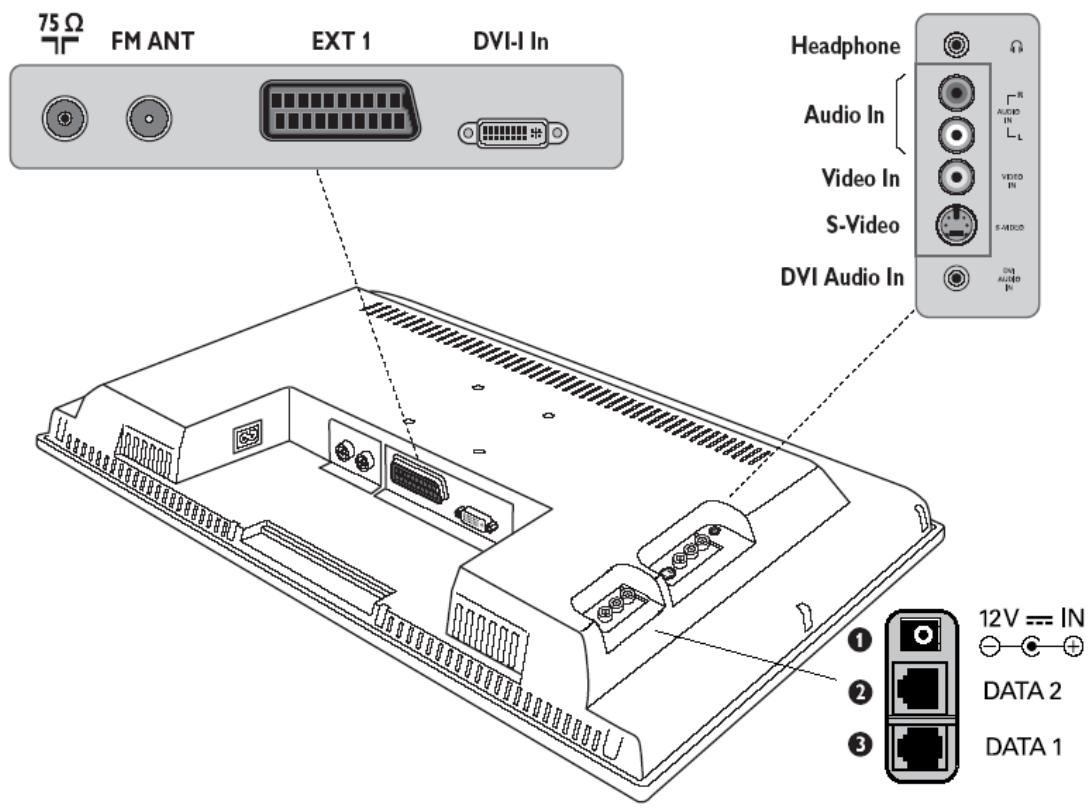
15" LCD TVs
Connectors on the 15" LCD TVs
- 12V-In power DC jack
- Data 2 (RJ45) jack - for interactive connectivity purposes
- Data 1 (RJ12) jack - for interactive connectivity purposes
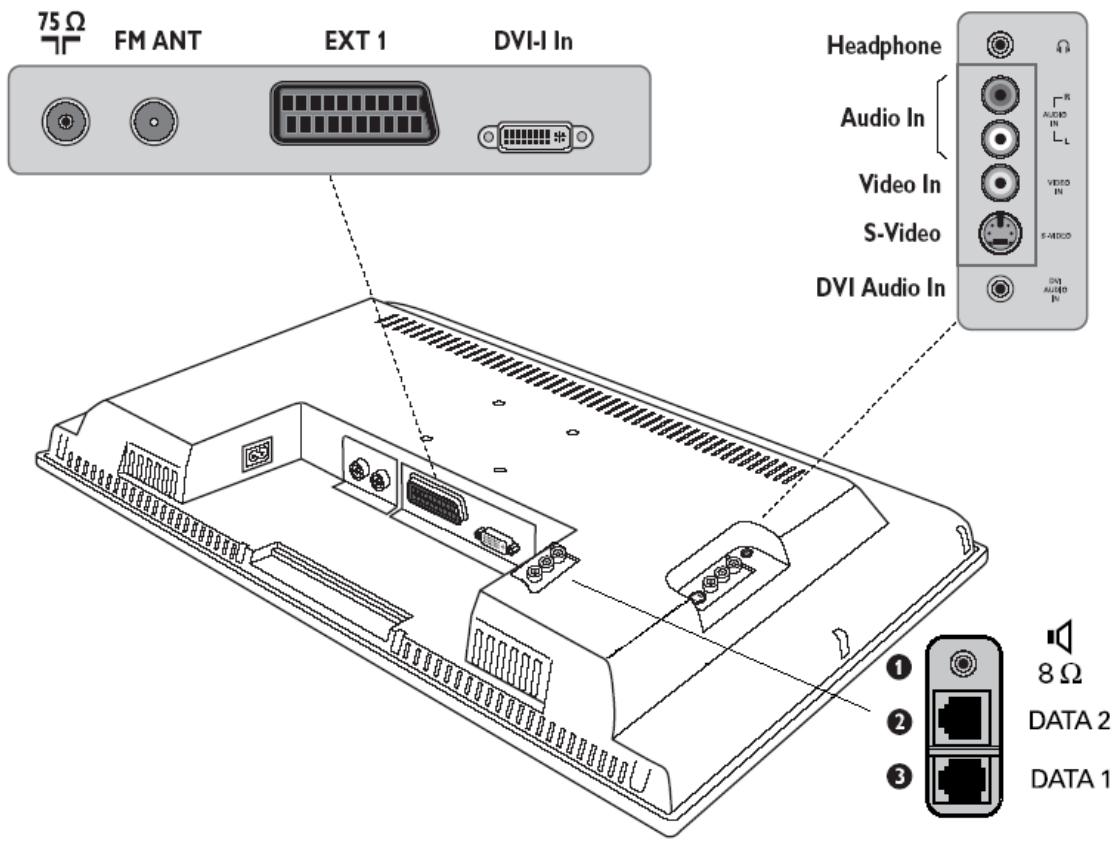
Connectors on the 20" & 23" LCD TVs
- External Bathroom Speaker
- Data 2 (RJ45) jack - for interactive connectivity purposes
- Data 1 (RJ12) jack - for interactive connectivity purposes
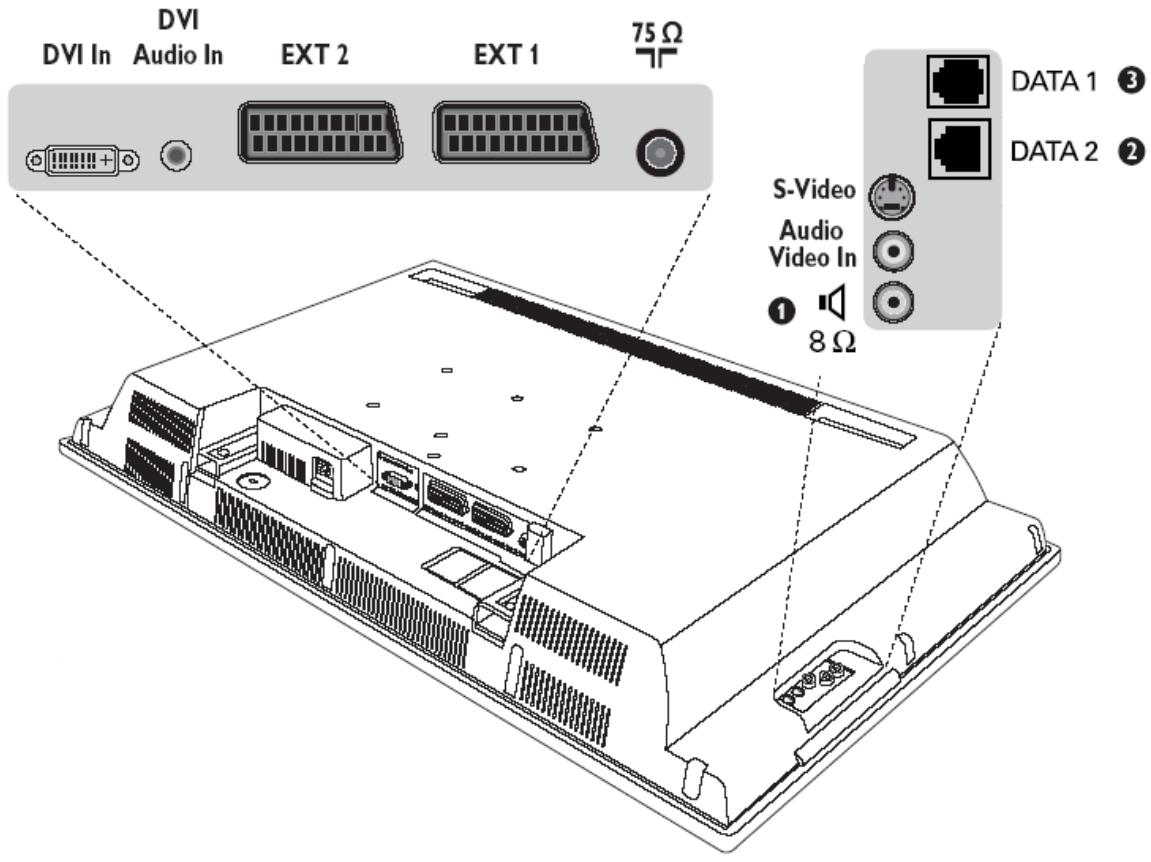
Connectors on the 26" & 32" LCD TVs
- External Bathroom Speaker
- Data 2 (RJ45) jack - for interactive connectivity purposes
- Data 1 (RJ12) jack - for interactive connectivity purposes
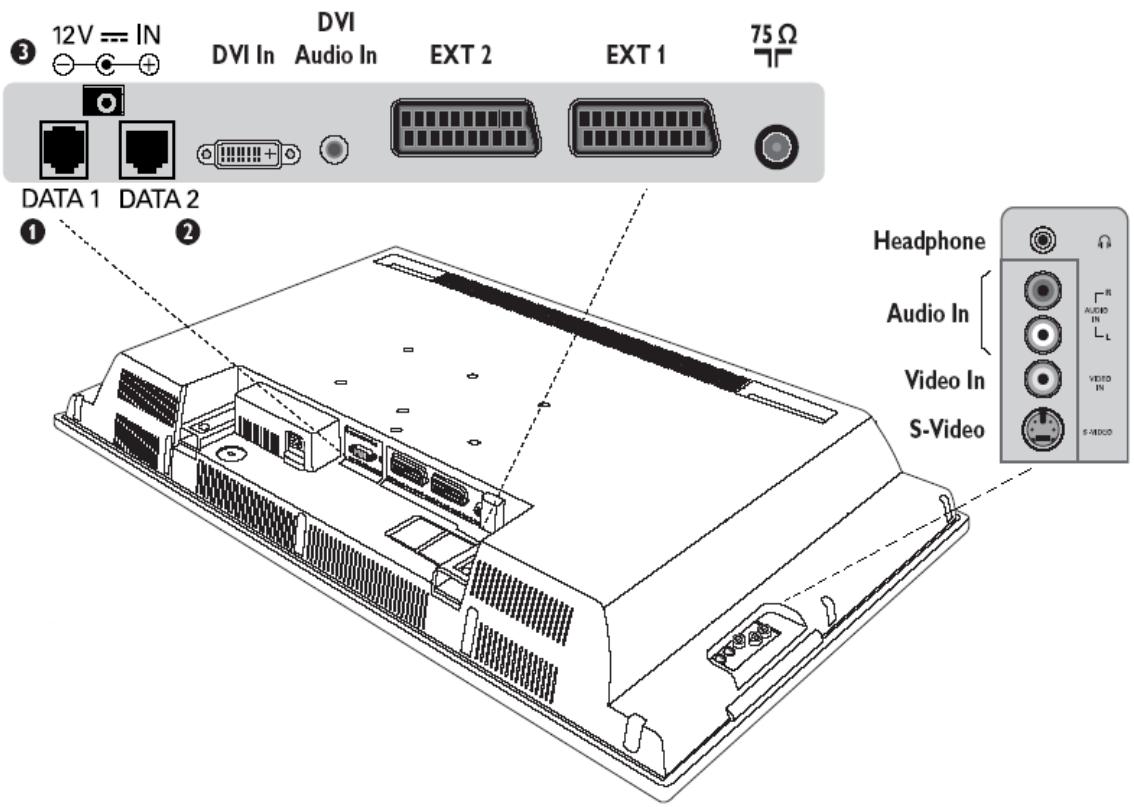
Connectors on the 42" TVs
- Data 1 (RJ12) jack - for interactive connectivity purposes
- Data 2 (RJ45) jack - for interactive connectivity purposes
- 12V-In power DC jack
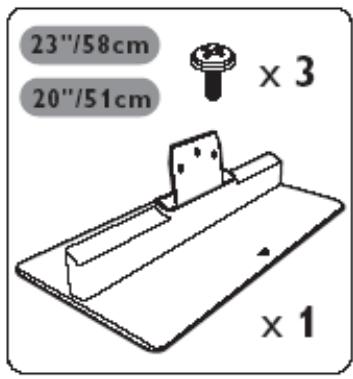
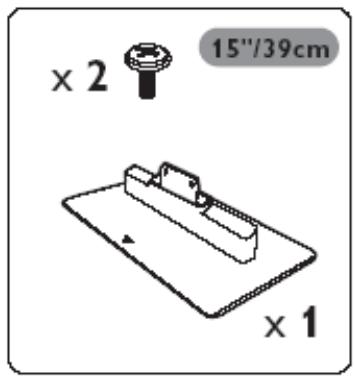
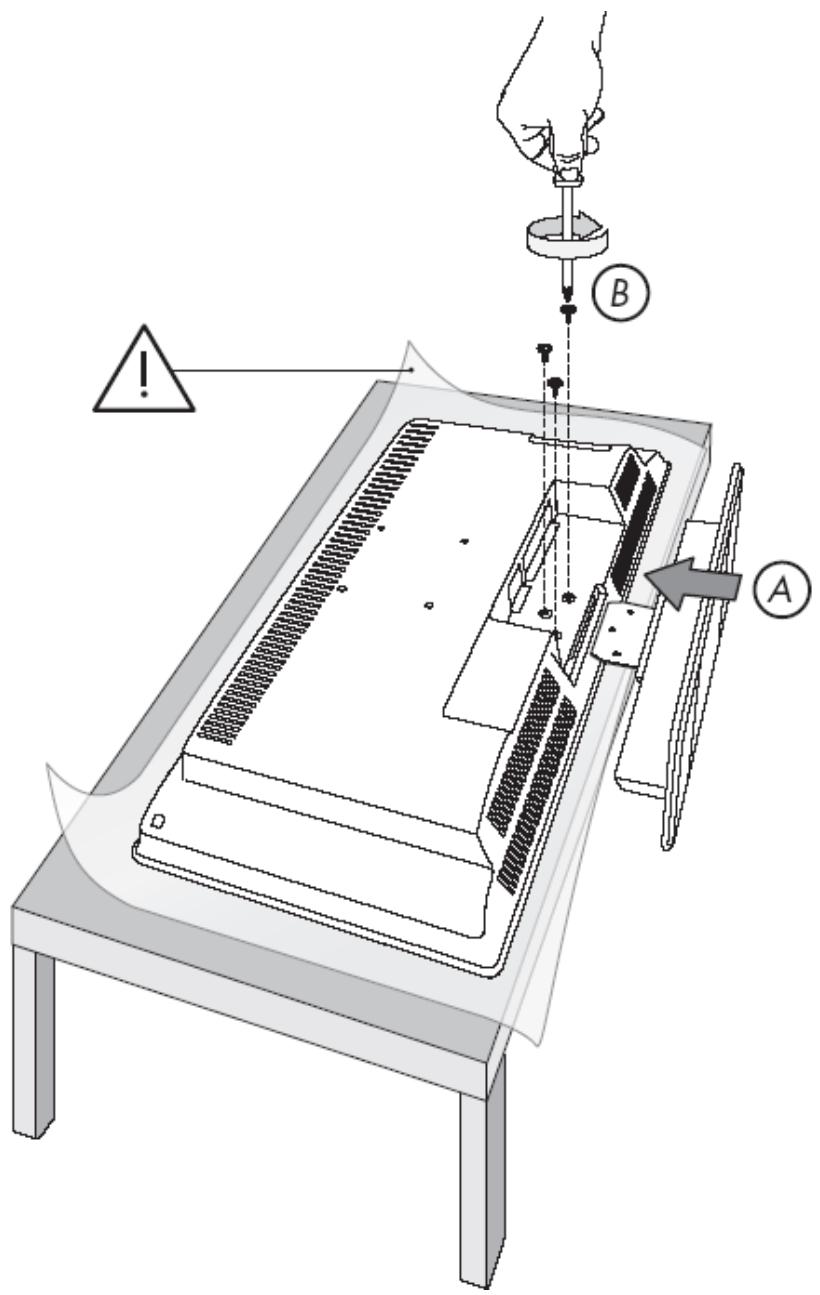
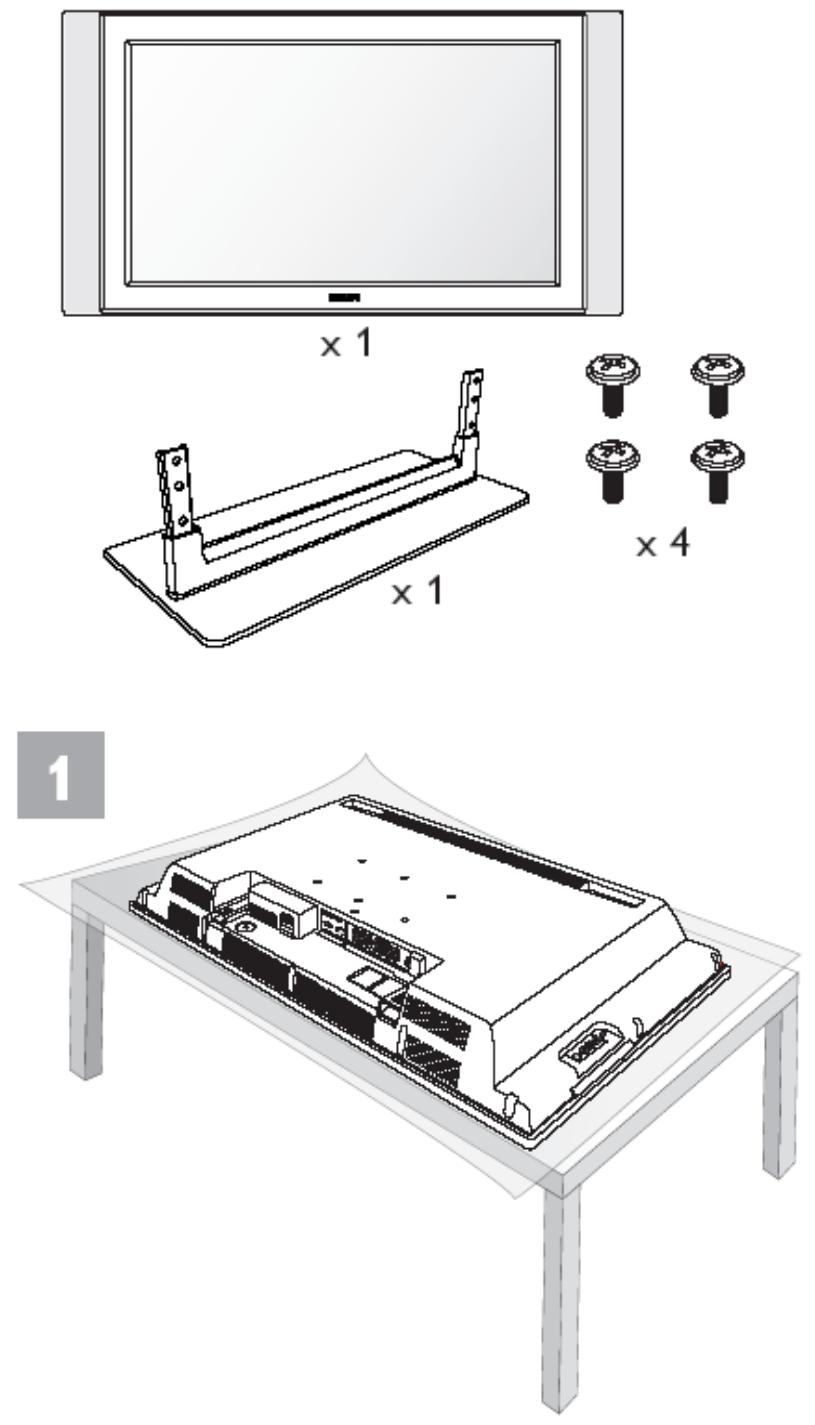
Mounting the Television Stand
This section provides information on the connectivity available for different LCD Television sets. Refer to the screen size that is relevant to your TV set.
15”/20”/23” LCD TVs
| Program Install |
| Program No. |
| Input |
| System |
| Frequency |
| Label |
| Store |
| Fine Tune |
| Mute |
| Teletext Language |
| Protection |
| Picture / Sound |
| Brightness |
| Colour |
| Contrast |
| Sharpness |
| Tint |
| Active Control |
| Treble |
| Bass |
| Balance |
| AVL |
| Security |
| Security Keyboard Lock Video Out Mute |
Teletext Time Download
Download Program
Time Offset
Buzzer Volume
| Picture / Sound |
| Brightness |
| Colour |
| Contrast |
| Sharpness |
| Tint |
| Active Control |
| Treble |
| Bass |
| Balance |
| AVL |
Security Keyboard Lock Video Out Mute
Display Standby
Display On
Time Setting
Teletext Time Download
Download Program
Time Offset
Buzzer Volume
| Program Install |
| Program No. |
| Input |
| System |
| Frequency |
| Label |
| Store |
| Fine Tune |
| Mute |
| Teletext Language |
| Protection |
| Switch On / OSD |
| Welcome Message |
| Switch On Program |
| Switch On Volume |
| Switch On Pic Fmt |
| Power On |
| Volume Indicator |
| Program Display |
Welcome Message
Line 1
Line 2
Clear
| Picture / Sound |
| Brightness |
| Colour |
| Contrast |
| Sharpness |
| Tint |
| Active Control |
| Treble |
| Bass |
| Balance |
| AVL |
Security Keyboard Lock Video Out Mute
Teletext Time Download
Download Program
Time Offset
Buzzer Volume
| Program Install |
| Program No. |
| Input |
| System |
| Frequency |
| Label |
| Store |
| Fine Tune |
| Mute |
| Teletext Language |
| Protection |
| Picture / Sound |
| Brightness |
| Colour |
| Contrast |
| Sharpness |
| Tint |
| Active Control |
| Treble |
| Bass |
| Balance |
| AVL |
Display Standby
Display On
Time Setting
Teletext Time Download
Download Program
Time Offset
Buzzer Volume
| Program Install |
| Program No. |
| Input |
| System |
| Frequency |
| Label |
| Store |
| Fine Tune |
| Mute |
| Teletext Language |
| Protection |
| Picture / Sound |
| Brightness |
| Colour |
| Contrast |
| Sharpness |
| Tint |
| Active Control |
| Treble |
| Bass |
| Balance |
| AVL |
- Brightness (Φωτενότης): Αλλαςτη φωτενότητα της εἰδονας.
Colour (X ) :AlambdaetynvEvtarontwxOwauTov. - Contrast (Avti0e0n): AaaaTei Tn diapogodaetaxaovx axoobovtovw.
Sharpness (Euxgivae): Aaaaocetyn evxgivae tnc exovac.
Tint (Anoxo):PoumuTeiynexovwotevaoxoxtoeipooobTeonpoaohbnta.
Active Control (Evegyos eleyxos): O Evegyos Eeyxos 8aioiotoei ty nootnta ts xoxoas Bao nTyn oiotnta Tns λnys (avto o tao xel o evov evau diaothou mvo oe opouva mvteLa tnlcopaon obv LCD).
Treble/Bass (Piqia/MMaa): To oxtxio autoo quo uoiicet to epiédo twv noipwuxu tyv enidogooyn wv maov stny éso to nou nns tnaeogaoons.
Balance (Ioggoonix): Eiooqoien to vno oov eoxetao n0 to aotepo kto dexi xeto.
AVL (Automatic Volume Leveller/Ogo evtao): Xoanaonoeiata yia to neqioquo tos evtao tsou hou, 18aitepa xata tnv aaayn poymaadow n xata ta dianpnuotixdeltalemuata.
Puθμioεις ασφάλειας
Me to unouevob Security (Aoavaleo) uogote v a oioe te oovtioe ts aoipaeia y ta nyn tnaeogaoan.
Security
Security Keyboard Lock Video Out Mute
Display Standby
Display On
Time Setting
Teletext Time Download
Download Program
Time Offset
Buzzer Volume
Eveyoonoiŋ/απevooyoonoiŋtou Teletext
leitougyia Teletext,pietoe:

Zoom 14:9 (Meyéθuvσn 14:9)
| Program Install |
| Program No. |
| Input |
| System |
| Frequency |
| Label |
| Store |
| Fine Tune |
| Mute |
| Teletext Language |
| Protection |
Welcome Message
Line1
Line2
Clear
| Picture / Sound |
| Brightness |
| Colour |
| Contrast |
| Sharpness |
| Tint |
| Active Control |
| Treble |
| Bass |
| Balance |
| AVL |
Security Keyboard Lock Video Out Mute
Display Standby
Display On
Time Setting
Teletext Time Download
Download Program
Time Offset
Buzzer Volume
+TV - Channel Selection
TV kanalimi yukari veya asagitasaikacin.
PHILIPS

16:9 Biçimler
Teletext
This page intentionally left blank

3139 125 35281