
SDN 440T - Uncategorized SENCOR - Free user manual and instructions
Find the device manual for free SDN 440T SENCOR in PDF.


| Product Type | Household Appliance |
| Brand | Sencor |
| Model | SDN 440T |
| Dimensions (W x D x H) | 250 x 200 x 150 mm |
| Weight | 1.2 kg |
| Power Supply | 220-240 V, 50/60 Hz |
| Power Consumption | 1200 W |
| Cord Length | 1.8 m |
| Speed Settings | 2 variable speeds plus turbo |
| Main Functions | Blending, mixing, chopping, pureeing |
| Material | Stainless steel blade, BPA-free plastic jar |
| Safety Features | Overload protection, non-slip feet, safety lock |
| Cleaning & Maintenance | Detachable parts dishwasher safe; wipe motor base with damp cloth |
| Replacement Parts | Blade assembly, jar, lid available from authorized service |
| Warranty | 2 years |
| Country of Origin | China |
Frequently Asked Questions - SDN 440T SENCOR
User questions about SDN 440T SENCOR
0 question about this device. Answer the ones you know or ask your own.
Ask a new question about this device
Download the instructions for your Uncategorized in PDF format for free! Find your manual SDN 440T - SENCOR and take your electronic device back in hand. On this page are published all the documents necessary for the use of your device. SDN 440T by SENCOR.
USER MANUAL SDN 440T SENCOR
English – German – Czech
English – German – Slovak
Talking Electronic Dictionary & Business Organizer
USER'S MANUAL
Sencor assumes no responsibility for any damage or loss resulting from the use of this manual.
Sencor assumes no responsibility for any loss or claims by third parties which may arise through the use of this product.
Sencor assumes no responsibility for any damage or loss caused by deletion of data as a result of malfunction, repairs, or battery replacement. Be sure to back up all important data on other media to avoid data loss.
The contents of this manual are subject to change without notice.
No part of this manual shall be reproduced, stored in a retrieval system, or transmitted by any means, electronic, mechanical, photocopying, recording, or otherwise, without permission from Sencor.
All rights reserved.
HANGMAN WORD GAME....66
WORLD TIME....66
LOCAL TIME....67
PC-LINK 67
SETUP 68
Interface language 68
Advanced search 68
Slang lock 69
Key tone....69
Clock 69
Date format 69
Time format 69
Schedule alarm 70
Daily alarm....70
Memory check....70
Data deletion 70
Set password....70
Security mode 71
Set contrast 71
Speech options 71
Set sleep time....71
INTRODUCTION
Congratulations on purchasing the SENCOR SDN 440T. This product represents the last generation of the highest-performance integrated linguistic systems.
SENCOR SDN 440T features:
Main vocabulary (English-German-Czech, English-German-Slovak dictionaries) of approx. 650,000 words in total, including medical, technical, legal, business terms, as well as slang, idioms, and general expressions
Electronic English Grammar guide
Selection of the most popular American and German idioms
◆ English and German irregular verbs
12-topic Czech/English/German/Slovak phrasebook
◆ Advanced English and German speech synthesis (speaker, earphones included)
◆ Recording function for new words
◆ Instant reverse translation
◆ Spell-checking system
128K Czech/English/German/Slovak personal organizer for scheduling and telephone numbers, equipped with search function
Calculator
◆ Metric and currency converters
◆ Local and World time
◆ Data exchange with PC
◆ Multilingual interface
◆ Data protection system
Slang lock
◆ External power jack for AC operation
As continuous efforts are made by the manufacturer to ensure a better quality and performance of the product, some characteristics of the device you have purchased may slightly differ from their description in this manual.
General View
The general view and external features of the SENCOR SDN 440T are shown below.
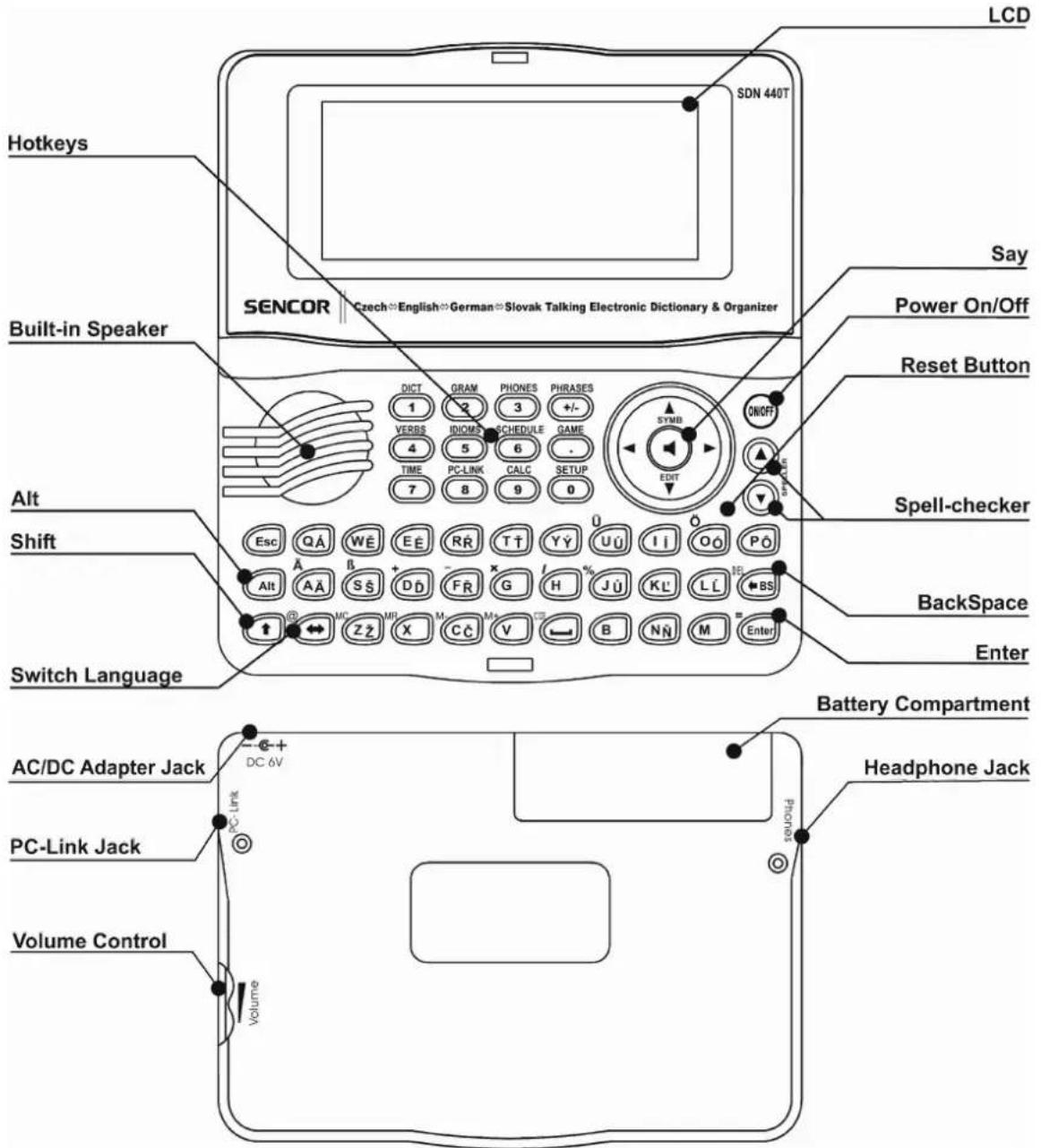
Power Supply
The SDN 440T is powered by two AAA (LR03) batteries.
When the batteries become weak, a warning message will be displayed.
In order to prevent an excessive discharge of the batteries and resulting loss of data in RAM, the Say function will be disabled if battery power is low. To restore full functionality of the device and to avoid risk of losing user data, replace the complete set of batteries as soon as possible. Do not mix old and new batteries.
√ If you plug in the AC adapter, full functionality of the device will be restored during 1 minute.
√ It is recommended to use an external power supply while using the speech and PC-Link functions.
How to replace the batteries
- Ensure the power is off. Press ON/OFF to turn the device off.
√ Never try to remove batteries from the device when the power is on. This can seriously damage the device. If you experience difficulty turning the device off, press the RESET button on the right-hand side of the keyboard (over the O button) and reset the system.
- Remove the battery compartment cover by sliding it away from the device.
- Remove the used batteries and replace them with new ones.
√ When replacing the batteries, you have 2 minutes to place new ones in the device without risk of losing any data stored in RAM. Do not exceed the 2-minute limit! Neither the manufacturer nor the dealer may be held responsible for loss of user data.
- Make sure to place the batteries according to the polarity marks (+ -) inside the compartment.
- Replace the battery compartment cover by sliding it toward the device. Make sure the cover sits in place properly.
√ The SDN 440T is equipped with a jack for external power supply.
√ Use of an inappropriate external power supply may cause failure of the device and may void the warranty. The AC/DC adapter should provide 6V and min 300mA DC.
√ Communication with a PC consumes a considerable amount of energy. Always try to use an external power supply during these operations.
Initialization
The initialization routine is started:
- when the device is turned on for the first time;
- when you remove the batteries (e.g. during replacement);
- after the system has been reset with the RESET button.
√ The RESET button is located on the right-hand side of the keyboard (over the O button). It can be accessed with any thin object like a paper clip. Never use a needle or pin for this purpose since it can damage the device.
- If you see Initialize system?(y/n), press the N button to abort initialization and customization.
- Then you will see the Delete user's data? message. Press the N button to save your data.
The Systém inicializovaný! message indicates that system initialization has been completed and the factory defined default settings have been restored.
Keyboard
The standard American QWERTY keyboard is combined with Czech, Slovak, and German layouts.
To enter the German letters marked at the top of the buttons, press ALT+ the desired button. ^7 To enter the Czech and Slovak letters from two-lettered buttons, press ALT+ the desired button.
To enter such letters in caps, press SHIFT+ALT+ the desired button.
√ Unlike PC keyboards, there is no need to keep a key (such as SHIFT) down while pressing another one. It is enough to press it only once and release.
The available set of national characters is dependent on which language input mode is selected. Language modes can be toggled by pressing the button. CZE, ENG, GER, or SLV is displayed in the upper right corner respectively.
Function shortcut keys
| ON/OFF | Turn the device On or Off |
| RESET | Re-initialize system |
| SPELLER (SHIFT+ ▼ or ▲) | Launch spell-checker |
Other shortcut keys open sections corresponding to the marks over the buttons (press SHIFT+ shortcut key; for example, SHIFT+DICT).
Control and edit keys
| ←, → | Move cursor / highlight / switch main menu |
| ↓, ↑ | Highlight / scroll lines / switch main menu / change values. Use ↑ to switch between the Insert and Overwrite modes. |
| ▼, ▲ | Scroll pages |
| ENTER | Execute |
| Enter space | |
| ESC | Close active window / cancel / return to the previous page |
| ALT | Enter additional letters marked on/above the buttons |
| SHIFT | Type in uppercase |
| ←BS | Delete character to the left of the cursor |
| ⇔ | Change input mode or translation direction |
| SHIFT+↑ | Open additional symbols8 |
| SHIFT+↓ | Open record to edit |
| SHIFT+←BS | Delete record |
| Pronounce English or German headword | |
| SHIFT+◀ | Pronounce English or German translation |
| A, P | Specify AM or PM (when the 12-hour format is set) |
Display
SENCOR SDN 440T features a high-resolution screen (160x64 pixels).
The indicator line is at the top of the screen and shows the following indicators:
| EDIT | Current record opened in the edit mode |
| SHIFT | SHIFT key pressed |
| INS | Insert mode selected |
| Batteries low | |
| Device locked | |
| Daily Alarm on | |
| Vertical scrolling or paging enabled (more text available) | |
| Horizontal scrolling enabled |
Main Menu
The SDN 440T MAIN MENU consists of 16 functional icons, which visually organize access to the dictionary's sections.
• To display the MAIN MENU, turn the device on, or close a current section.
- Move between icons using ↓, ↑ or ←, →.
• To open a section, whose icon is highlighted, press ENTER.
The icons shown in the MAIN MENU represent the following sections:


Dictionary
User's Dictionary
Grammar
Phrasebook
Irregular Verbs
Popular Idioms
Phones
Schedule


Calculator
Metric Conversion
Currency Conversion
Hangman Word Game
World Time
Local Time
PC-Link
Setup
DICTIONARY
The Dictionary section includes Czech⇔ English, Czech⇔ German, English⇔ German, English⇔ Slovak, and German⇔ Slovak dictionaries containing approx. 130,000 words each.
- Press SHIFT+DICT to enter the Dictionary section.
√ Following system initialization, the Czech-English dictionary is selected by default.
Viewing entries
• To view a translation of a word, enter it from the keyboard.
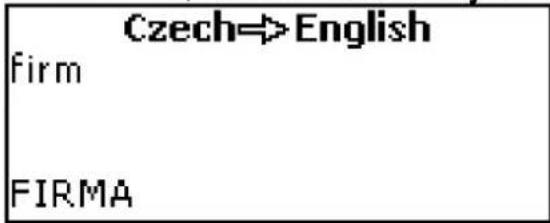
- If the Advanced Search mode is turned ON, the headword closest in spelling to the portion you have entered so far will be displayed under the input line. When the desired word is displayed, press ENTER to see its translation(s).
√ If the Advanced Search mode is OFF, your Dictionary work will be faster (see Page 23).
![FIRMA [N] COMPANY, FIRM, BUSINESS, HOUSE, ENTERPRISE,](/content/2026/05/1005521/images/4663b6406cdf79b82fbd187cb148f6323644dbe59b29932c40deb616e9fe4f02.jpg)
Use:
• ↓,↑ to scroll through the translations
• ▲, ▼ to switch between adjacent entries.
- Press ESC or any letter button to return to the input line and translate another word in the same dictionary.
You can change the translation direction by pressing ⇔.
- Press SHIFT+DICT hotkey to switch between Czech⇔English, Czech⇔German, English⇔German, English⇔Slovak, and German⇔Slovak dictionaries.
Parts of Speech, Gender Labels, Abbreviations Translations of a headword are listed in alphabetical order by part of speech.
A – adjective
ID - idiom
PHR – phrase
ABBR - abbreviation
INTRJ – interjection
PREF - prefix
ADV - adverb
N – noun
PREP – preposition
ART – article
AUX – auxiliary
CONJ – conjunction
NPR – proper noun
NUM – numeral
PART – particle
PRON – pronoun
SUFF – suffix
V - verb
German nouns in the German-Czech, German-English, and German-Slovak dictionaries as well as Slovak nouns in the Slovak-English dictionary are marked with the following gender and number labels:
F – feminine
FN – feminine or neuter
FPL – feminine plural
M - masculine
MF – masculine or feminine
MN – masculine or neuter
MPL – masculine plural
N – neuter
NPL – neuter plural
PL – plural
MFN - masculine or feminine or neuter
Certain words and expressions in the dictionary are marked with abbreviations to indicate the use of such entries.
Czech abbreviations:
| AM. – American | CHEM. – chemistry | POLIT. – political |
| ANAT. – anatomy | IRON. – ironically | POLYGR. – printing |
| ASTROL. – astrology | JAZ. – linguistics | PRÁV. – law |
| ASTRON. – astronomy | KARET. – cards | PŘEN. – in transferred |
| AUT. – automobiles | KNIŽ. – literary | use |
| BÁSN. – poetical | KOMP. – computers | PSYCH. – psychology |
| BIBL. – biblical | KOSM. – cosmonautics | RAD. – radio |
| BIOL. – biology | KUCH. – cooking | RAK. – Austrian |
| BOT. – botany | LAT. – Latin | SKOT. – Scottish |
| CÍRK. – ecclesiastical | LÉK. – medicine | SL. – slang |
| DĚT. – nursery | LES. – forestry | SPORT. – sport |
| DIV. – theater | LET. – aviation | STAV. – building |
| DŘEV. – woodworking | LID. – folksy | STUD. – used by |
| EKON. – economics | LINGV. – linguistics | students |
| ELEKTR. – electronics | LITER. – literature | ŠACH. – chess |
| EXPR. – expressive | LOG. – logic | ŠKOL. – education |
| FILAT. – philately | LOV. – hunting | ŠVÝC. – Swiss |
| FILOZ. – philosophy | MAT. – mathematics | TECH. – technical |
| FON. – phonetics | METAL. – metallurgy | TĚL. – gymnastics |
| FOT. – photography | METEOR. – meteorology | TEXT. – textile |
| FYZ. – physics | MINER. – mineralogy | TISK. – printing |
| FYZIOL. – physiology | MUZ. – music | TV – television |
| GEOL. – geology | MYSL. – hunting | VOJ. – military |
| GEOM. – geometry | MYT. – mythology | VULG. – vulgarism |
| GRAM. – grammar | NÁMOŘ. – nautical | VÝTV. – art |
HANL. – pejorative
HIST. – historical
HORN. – mining
HOVOR. – informal
HUD. – music
HUTN. – metallurgy
HVĚZD. – astronomy
NÁŘ. – dialect
OBCH. – commerce
OBRAD. – ceremonial
ODB. – scientific
PATOL. – pathology
POČ. – computers
ZAST. - obsolete
ZEMĚD. – agriculture
ZEMĚP. – geography
ZOOL. - zoology
ŽEL. – railways
ŽERT. – jocular
Slovak abbreviations:
AKAD. MAL. – academic painting
AMER. – American
AMER. SLANG. -
American slang
ANAT. – anatomy
ANTIC. – antique
ANTROP. – anthropology
ARCHEOL. – archeology
ARCHIT. – architecture
ASTROL. – astrology
ASTRON. – astronomy
AUT. – automobiles
BAN. – mining
BÁSN. – poetical
BIBL. – biblical
BIOL. – biology
BOT. – botany
CIRK. – ecclesiastical
DET. – nursery
DIV. – theater
DOPR. – transport
DREV. – woodworking
ELEKTR. – electronics
FAMIL. – informal
FARM. – pharmacy
FILM. – cinema
FILOZ. – philosophy
FON. – phonetics
FOT. – photography
FYZ. – physics
GARB. – tanning
HOROL. -
mountaineering
HOV. – colloquial
HUD. - music
HUT. – metallurgy
HVIEZD. – astronomy
CHEM. – chemistry
CHIRURG. – surgery
IMUN. – immunology
IND. – Indian
IRON. – ironical
JAZ. – linguistics
JUHONEM. – South
German
KART. - cards
KNIŽ. – literary
KRAJ. – vernacular
KRAJČ. – tailoring
KUCH. – cooking
LEK. – medicine
LESN. – forestry
LET. - aviation
LINGV. – linguistics
LIT. – literature
LOG. - logic
MAT. – mathematics
METEOR. – meteorology
MINER. – mineralogy
MYTOL. – mythology
NÁB. – religious
NÁM. – nautical
NÁR. – dialect
POL'OV. – hunting
POLYGR. – printing
POTRAV. – nutrition
PRÁV. – law
PREN. – in transferred use
PSYCH. – psychology
RÁDIOTEL. –
radiotelegraphy
RAK. – Austrian
ROZPR. – fictional
RYB. – fishing
SEVERONEM. – North
German
SKR. - abbreviation
SL. – slang
STAV. – building
ŠACH. – chess
ŠKOL. – education
ŠPORT. – sport
ŠVAJČ. – Swiss
TECH. – technical
TELEV. – television
TEXT. – textile
TISK. – printing
TYPOGR. – typography
VČEL. – apiculture
VET. – veterinary
VIN. – viniculture
VOJ. – military
VULG. – vulgar
VÝTV. – art
| GEOGR. – geography | OBUV. – shoemaking | ZAST. – obsolete |
| GEOL. – geology | PEJOR. – pejorative | ZLIEV. – foundry |
| GEOM. – geometry | POČ. – computers | ZOOL. – zoology |
| GRAM. – grammar | POET. – poetic | ZOOT. – zootechnics |
| HERALD. – heraldic | POLIT. – political | ZRIED. – rare |
| HIST. – historical | POL'N. – agriculture | ŽART. – jocular |
| German abbreviations: | ||
| ANAT. – anatomy | MATH. – mathematics | REL. – religion |
| ARCHIT. – architecture | MED. – medicine | SCHERZH. – jocular |
| BOT. – botany | METAL. – metallurgy | SCHULW. – education |
| CHEM. – chemistry | MILITÄR. – military | SL. – slang |
| COMP. – computers | MUS. – music | SPIEL. – game |
| DIAL. – dialect | NAUT. – nautical | STATIST. – statistics |
| EL. – electronics | PHON. – phonetics | TANZ. – dancing |
| FIG. – figurative | PHYS. – physics | TECHN. – technical |
| GRAM. – grammar | POET. – poetic | TEXT. – textile |
| INF. – informal | POL. – political | UMG. – commerce |
| JUR. – law | PSYCH. – psychology | VET. – veterinary |
| KINDERSPR. – nursery | RAD., TV – radio, | ZOOL. – zoology |
| LIT. – literature | television | |
Instant Reverse Translation
For your convenience, the SDN 440T provides Instant Reverse Translation for words and expressions in the Dictionary.
- Press , to select a word or expression for the reverse translation.
![EXPLANATION [N] OBJASNĚNÍ, VYSVĚTLENÍ, VÝKLAD](/content/2026/05/1005521/images/66166ddefffd75a7ff091d6a8bbb6b783ba4ecd07c6d71d1b793b719402bd263.jpg)
- Press ENTER to obtain its instant reverse translation.
You can make up to four reverse translations in succession (without closing windows). The message Last translation is displayed if the limit is reached. Use:
- ESC to close the Reverse Translation windows ^9
- SHIFT+DICT or any letter button to return to the input line.
Spell-checker Vector Ultima™
When you are unsure of the spelling of a word, the multilingual spell-checker Vector Ultima™ will help you.
- Type the word as you hear it. For example, "foll" for "fall".
- Press SHIFT+SPELLER (SHIFT and either of the ▲, ▼ buttons). A list of suggested variants appears on the screen.
- Select the desired word and press ENTER.
√ If the spell-checker is unable to suggest alternative words, the No variants message is shown.
Pronunciation of words and sentences
The Text-To-Speech technology provides pronunciation of any English and German words and phrases.
• Display an entry.
Use:
• to listen to the pronunciation of the headword
- SHIFT+ to listen to the pronunciation of all displayed translations.
- You also can listen to any selected words or phrases listed in the entry. Simply make the selection by using , and press the button.
√ The device is able to generate pronunciation of any text, not limited to dictionary entries. Simply type a word or phrase in the input line of the corresponding Dictionary and press the ◀ button to listen to its pronunciation.
USER'S DICTIONARY
The SDN 440T allows you to create your own vocabulary.
- Enter the User's Dictionary section and choose one of the user's dictionaries – Czech, English, German, or Slovak.
Record
The record consists of a word or expression, its translation, and its part of speech. It also has information about the index number of the current record and the total number of records.
![plátno [N] canvas [57]](/content/2026/05/1005521/images/6bcc3d06536aff0337df27f715fb72e10ad0cafbbcab0b44841c8c8b99910e5a.jpg)
Creating a Record
- When in a record list, press ENTER to open a new record template.
√ If the dictionary is empty, a new record template will be opened automatically.
• Type in a word or expression. Press ENTER. - Set the target language by using .
• Type in a translation(s). - Press ENTER again.
- Choose an appropriate abbreviation of the part of speech by using ↓, ↑. Press ENTER.
| Part of speech: |
| N |
| PRON |
| NPR |
| ADV |
The record will be saved and you will return to the records list.
Finding a Record
There are three ways to find a record:
I. When in the record list, you may start typing the headword of a stored record. Use the Backspace key to delete the inputted word.
II. The records are sorted alphabetically by headword. You can scroll the record list by using ▼ or ▲.
III. Open the main dictionary, set the corresponding translation direction, type in a word saved in the User's Dictionary and press ENTER.
√ When Security Mode is ON, words from the User's Dictionary are not shown in the Main Dictionary.
GRAMMAR
The SDN 440T contains the English Grammar section. The Grammar is shown in English, regardless of the selected Interface language.
- Press SHIFT+GRAM to enter the Grammar section. The Grammar contains three-level hierarchical menus. You can reach a menu's third level by consecutively selecting topics from the menu.
PHRASEBOOK
The phrasebook contains over 1,100 phrases in the Czech, English, German, and Slovak languages. The phrases are divided into 12 conversational topics:
| Everyday conversation | Shopping | Transport |
| Traveling | Sightseeing | Health |
| Hotel | Communication | Beauty care |
| In the restaurant | At the bank | Calling for police |
Most of the topics contain a number of subtopics.
- Press SHIFT+PHRASES to enter the Phrasebook section.
| Phrasebook |
| Everyday conversation |
| TravelingHotelIn the restaurant |
- Select a topic. Press ENTER to see its subtopics.
When viewing phrases:
- Press to change the target language.
√ The source language is English, regardless of the selected Interface language.
IRREGULAR VERBS
All commonly used English and German irregular verbs are stored in alphabetical order in the Irregular Verbs section.
- Press SHIFT+VERBS to enter the Irregular Verbs section.
- Select a source language: English or German.
- Type the first letter of the desired verb and scroll through the list to find it.
| take; took; taken |
| brát, vzít |
- Use to switch between Czech/German/Slovak translations for English irregular verbs or between English/Slovak/Czech translations for German irregular verbs.
POPULAR IDIOMS
Over 200 widely used American and German idioms and their equivalents or translations are included in the Popular Idioms section.
- Press SHIFT+IDIOMS to enter the Popular Idioms section.
- Select a source language: English or German.
- Type the first letter of the desired idiom and scroll through the list to find it.
- Use to switch between Czech/German/Slovak translations for English idioms or between English/Slovak/Czech translations for German idioms.
PHONES
In this section you can store names, telephone and fax numbers, as well as postal and e-mail addresses in Czech, Slovak, English, and German.
- Press SHIFT+PHONES to enter the Phones section. You will see a list of existing telephone records sorted by name.
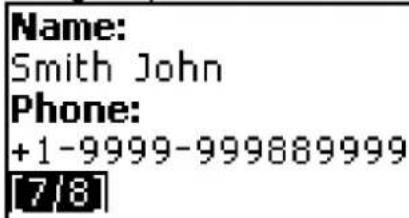
Creating a Record
- To open a new record template, press ENTER when you are in the record list. If there are no records stored, a new record template will be opened automatically when you enter the list.
- Select English, German, Slovak, or Czech input mode by using .
• Start filling out the Name page.
• To open the next page, press ENTER.
• To return to the previous page, press ESC.
√ It is necessary to complete the Name page to continue to the subsequent pages.
Finding a Record
There are two ways to find a record:
I. When in the record list, you may start typing a name included in a stored record. Use:
- ←BS to delete the inputted word
- to switch between English, German, Czech, and Slovak input modes.
II. The records are sorted alphabetically by name. You can scroll the record list by using ▼ or ▲.
SCHEDULE
You may effectively manage your time by using the Schedule section.
- Press SHIFT+SCHEDULE to enter the Schedule section. The first of existing records will be shown.
Records are sorted by date and time.
![Date: 2003/10/08 ✓ Time: 05:00 PM ↗10 min. Content: Meeting [2/5]](/content/2026/05/1005521/images/02ade8a8a38604dba2d4cb5ec2dbaaee72ab2d35a66bef76d6b8f30f6565165a.jpg)
√ The check in the upper right corner indicates the past events.
Creating a Record
- To open a new record template, press ENTER when you are in the record list. If there are no records stored, a new record template will be opened automatically when you enter the record list.
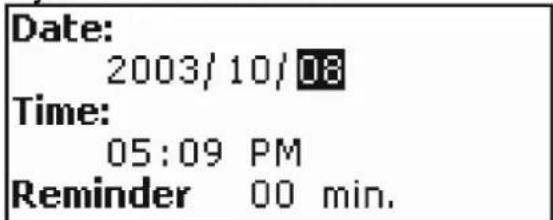
The first page of a record includes information on Date, Time and the audible Reminder. Date and Time specify the moment of the Schedule alarm operation. The Reminder specifies the time period until a Schedule alarm will be issued. The second page – Content – includes information about the event.
- Set the date and time and specify the time period until a Schedule alarm will be issued. Press ENTER.
- Select English, German, Slovak, or Czech input mode by using and start filling out the Content page.
- Press ENTER to save a record.
√ The Schedule memory is limited to 50 records. The Not enough memory message is displayed when the record list is full.
Finding a Record
The records are sorted by date and time. Use ▼, ▲ to scroll the record list.
Reminder and Schedule alarm
If enabled, the Reminder sounds at the determined time before the corresponding Schedule alarm is issued. The Reminder is turned OFF by default for a new record. The Reminder time is adjusted separately for every individual record.
√ Reminders and Schedule alarms sound even if the device is OFF.
√ If a Reminder and a Daily alarm are timed to go off for the same time, only the Reminder will be displayed since it has higher priority.
The corresponding Schedule record will be displayed in the view mode at this time.
- Press any key to interrupt a Schedule alarm or a Reminder beep.
You can change the record and set the Reminder for a later time. Closing the Schedule reminder window will bring you back to the section (for example, Dictionary) as you were before the alarm went off.
CALCULATOR
- Press SHIFT+CALC to enter the Calculator section.
When entering numbers and operations from the keyboard, there is no need to press the SHIFT key while in the Calculator mode. Use this application as an ordinary pocket calculator.
METRIC CONVERSION
With the SDN 440T you may easily convert measurements from the British-American system into the metric system commonly used in Europe and vice versa, as well as convert within each system.
• Enter the Metric Conversion section.
- Choose a subsection by pressing ↓, ↑. Press ENTER.
- Input the value.
√ There may be more than four units of measure in the subsection.
CURRENCY CONVERSION
The Currency Conversion function allows you to instantly calculate conversion values between nine pre-installed currencies and three user-defined currencies.
• Enter the Currency Conversion section.
Setting and Checking Rates
- Select the Set rate subsection to specify currency names and rates.
- Select a currency. Press ENTER.
√ You can specify or change the names of any of the currencies listed. New currencies may be added in place of ???.
- Change/specify the currency name. Press ENTER to open the next window.
- Specify an exchange rate relative to the basic currency (whose rate should equal 1).
√ The default exchange rate for all currencies is 1.
- Press ENTER to save changes.
Conversion
- Enter the Calculation subsection.
- Select a currency name and enter an amount.
While you are typing a new amount, the conversion is being performed.
HANGMAN WORD GAME
The SDN 440T features the learning game Hangman, which can improve your spelling skills and enhance your personal vocabulary.
- Press SHIFT+GAME to enter the Hangman section.
- Select a language for the game. Press ENTER.
- Choose the target language by pressing .
The following language pairs are available: Czech→English, Czech→German, English→Czech, English→German, English→Slovak, German→Czech, German→English, German→Slovak, Slovak→English, Slovak→German. Once the language is chosen, a new game will begin.
• Try to guess letters in the word by entering them from the keyboard.
If you guess a letter correctly, it will appear in place of an asterisk in the word. The number displayed shows the number of tries remaining.
- When playing, press ENTER to display the translation of the hidden word (which will count as one try). To hide the translation, press ESC.
- Press the ◀ button to hear the hidden English or German word (counts as one try).
• After the game ends, the hidden word and its translation(s) will be shown. - Press ESC to return to a new game.
WORLD TIME
Using the World Time section, you may view the current time in cities around the globe.
• Enter the World Time section.
| World time |
| New York |
| USA |
| 2003/10/10, Fri |
| 05:15:38 AM |
The World Time screen shows the names of the selected city and country (default: New York, USA), the date, day of the week, and the current time for that city.
- To see information for another city, scroll through the alphabetic list by using ↓, ↑.
- To see information for another city of the same country, scroll through the alphabetic list by pressing ▼, ▲.
- Also, you can quickly find the desired city by pressing the first letter of its name and scrolling through the list by using ↓, ↑.
- When you find the desired city, press ENTER to save changes. The next time you enter this section, the city you have chosen will be displayed first.
LOCAL TIME
- Press SHIFT+TIME to enter the Local Time section.
The Local Time screen shows the names of the selected city and country (default: Prague, Czech Republic), the date, day of the week, and the current time for that city. You may specify these settings in the Setup section.
PC-LINK
Using the SDN 440T PC-Link cable (provided in the standard package) and the PC-Link software (provided in the standard package on a CD-ROM) you may exchange data between your SDN 440T and a personal computer. This feature will allow you to keep a backup copy of the Telephones, Schedule, and User's Dictionaries data on your PC.
Software
- Insert the supplied CD into the CD-ROM drive of a PC. If the installation program does not start automatically, run the INSTALL.exe file from the CD root catalog.
- Choose SDN 440T PC-Link from the menu displayed on the PC.
- After the program is installed, start it from Start/Programs/Sencor. The ⚪ icon will appear in the System Tray.
Sending and Receiving
- Connect the PC-Link cable to the PC-Link jack located on the right-hand edge of the device.
- Press SHIFT+PC-LINK to enter the PC communication section.
- Right-click the PC-Link icon in the System Tray. In the PC-Link program, select an appropriate data transfer mode.
√ Make sure to select an appropriate COM port.
√ Make sure you have no other PC-Link program running simultaneously with SDN 440T PC-Link.
- Select the Send data transfer mode. Press ENTER.
- Choose the section(s) you wish to send. Use SPACE to check or uncheck a section.
| Send data |
| Telephones |
| Schedule |
| English user's dict. |
| German user's dict. |
- Press ENTER to start the transfer.
√ Start the data transfer first on the receiving device, then on the sending device. - To receive data, select the Receive data transfer mode. Press ENTER, and the transfer will begin.
√ The time span between the data transfer startup on the PC and the device must not exceed 30 sec.
√ Note that in the Receive data mode, the newly transferred data will replace the old information saved in the corresponding sections of your device. In case if empty sections are transferred, all data in the corresponding sections of the SDN 440T will be erased.
√ Always back up your important data! Neither the manufacturer nor the dealers assume any responsibility for lost or corrupted data.
√ It is recommended to use an external power supply while using the PC-Link function.
SETUP
Personalize your SDN 440T and ensure good maintenance of your personal records by selecting options in the Setup section.
- Press SHIFT+SETUP to enter the Setup section.
Most of the Setup section options are very easy to adjust. Unless stated otherwise, enter a subsection and select the desired option with ↓,↑. Then press ENTER to confirm your choice.
Interface language
The default interface language of the SDN 440T is Czech. You can switch interface language between Czech, English, German, and Slovak.
Advanced search
If the Advanced search mode is turned ON, the headword closest in spelling to the portion you have entered so far will be displayed under the input line. You can speed up your dictionary work by choosing to turn the Advanced search mode OFF. Advanced search is OFF by default.
Slang lock
In this subsection you can hide slang words or phrases contained in the dictionaries. For example, you may forbid your children access to slang.
Slang lock is ON by default. To set Slang lock OFF, enter the showslan password and press ENTER.
Key tone
This feature is designed to produce a short beep every time you press a key on the device's keyboard. The key tone is turned ON by default.
Clock
In this subsection you can choose the city to display in the Local Time section and adjust the current time.
√ January 01, 2004, 00:00 (12:00 AM), and Prague, Czech Republic are the default values.
• Enter the Clock subsection.
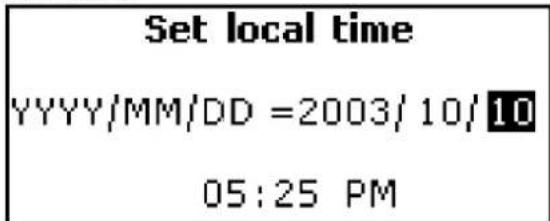
- Specify the current date and time.
- Press ENTER to save changes.
The next section displayed will allow you to select the local city.
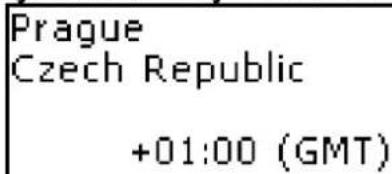
This display shows the city and country names and the city's GMT offset. Refer to Page 21 to learn how to find the desired country or city in the list.
- When you find the desired city, press ENTER to save changes.
Date format
The default Year-Month-Day date format can be changed to Day-Month-Year or Month-Day-Year.
Time format
The default 24-hour time format can be changed to the American 12-hour format.
Schedule alarm
In this subsection you can turn the Schedule alarm ON or OFF. If turned on, which is the default setting, the Schedule alarm will go off at the date and time of the Schedule record, producing an audible beep.
Daily alarm
• Enter the Daily alarm subsection.
√ The default values are midnight, 00:00, and OFF.
Use:
- , to switch between hours and minutes
• A, P to specify AM or PM
• ▼, ▲ to turn the alarm On/Off.
- Press ENTER to save changes.
If turned on, the Daily alarm produces a signal at the set time.
- Press any key to interrupt the Daily alarm beep (otherwise, the beep will continue for 30 seconds).
Memory check
Instantly check the free memory status with this Setup option.
- Enter the Memory check subsection to check the remaining free memory.
Data deletion
The Data deletion subsection gives you the ability to free up memory resources by deleting records much faster than removing them one by one.
Set password
With no password set (default) all functions of the SDN 440T are freely accessible. After a password has been set, the following sections may be locked against unauthorized access: Telephones, Schedule, User's dictionaries, PC communication, Data deletion, Security mode, Set password. To gain access to any of these sections in the locked mode, a valid password must be provided.
• Enter the Set password subsection.
![Input new password [ * * * * * * * | ] *](/content/2026/05/1005521/images/1130d0a04e169e3d3e7d99345d46d18cfe9a15f4dcf0aa49705d7585742ef20c.jpg)
- Specify a password up to 8 characters in length. Press ENTER.
- Retype the password for confirmation. Press ENTER.
√ Always remember your password. If you forget it, you will have to reset the system, which will cause irrevocable loss of user data.
Changing the password
- Enter the Set password subsection. Input the current password. Press ENTER.
- Specify a new password. Press ENTER.
- Retype the password for confirmation. Press ENTER to save the password.
Clearing the password
- Enter the Set password subsection. Input the current password. Press ENTER.
- Don't input any characters into next two fields, just press ENTER twice.
Security mode
With the help of the Security mode subsection you can protect your personal records and lock up the PC communication function.
• Enter the Security mode subsection.
When the ON option is selected, data access is locked and the indicator is shown on the indicator line.
√ It is recommended to close a password-protected section before you turn the device off.
The Security mode may be canceled by entering a valid password at the prompt when:
the OFF option in the Security mode subsection is selected
□ any protected section is opened.
Set contrast
The default contrast setting can be changed in the Set contrast subsection.
- Change the contrast level by using , .
Speech options
Adjust the speed and frequency of the built-in speech synthesizer according to your needs by pressing ENTER to move from Speech frequency to Speech speed and ←, → to adjust the levels of each option.
Set sleep time
The automatic power off has a preset delay of 3 minutes. This feature saves battery life by shutting down the device after a specified period of inactivity. The adjustable range is from 1 to 5 minutes.


- USER'S MANUAL
- SETUP 68
- INTRODUCTION
- SENCOR SDN 440T features:
- General View
- Power Supply
- How to replace the batteries
- Initialization
- Keyboard
- Display
- Main Menu
- DICTIONARY
- Slovak abbreviations:
- Spell-checker Vector Ultima™
- Pronunciation of words and sentences
- USER'S DICTIONARY
- Record
- Creating a Record
- Finding a Record
- GRAMMAR
- PHRASEBOOK
- IRREGULAR VERBS
- POPULAR IDIOMS
- PHONES
- SCHEDULE
- CALCULATOR
- METRIC CONVERSION
- CURRENCY CONVERSION
- HANGMAN WORD GAME
- WORLD TIME
- LOCAL TIME
- PC-LINK
- Software
- Sending and Receiving
- SETUP
- Interface language
- Advanced search
- Slang lock
- Key tone
- Clock
- Date format
- Time format
- Schedule alarm
- Daily alarm
- Memory check
- Data deletion
- Set password
- Security mode
- Set contrast
- Speech options
- Set sleep time
Brand : SENCOR
Model : SDN 440T
Category : Uncategorized