
LF-D5930S - ηχείο LG - Δωρεάν εγχειρίδιο χρήσης
Βρείτε δωρεάν το εγχειρίδιο της συσκευής LF-D5930S LG σε μορφή PDF.


Ερωτήσεις χρηστών για LF-D5930S LG
0 ερώτηση για αυτή τη συσκευή. Απαντήστε σε αυτές που γνωρίζετε ή κάντε τη δική σας.
Κάντε μια νέα ερώτηση σχετικά με αυτή τη συσκευή
Κατεβάστε τις οδηγίες για το ηχείο σε μορφή PDF δωρεάν! Βρείτε το εγχειρίδιό σας LF-D5930S - LG και πάρτε ξανά την ηλεκτρονική σας συσκευή στα χέρια σας. Σε αυτή τη σελίδα δημοσιεύονται όλα τα έγγραφα που απαιτούνται για τη χρήση της συσκευής σας. LF-D5930S της μάρκας LG.
ΕΓΧΕΙΡΊΔΙΟ ΧΡΉΣΗΣ LF-D5930S LG

LG
ΣΥΣΤΗΜΑ ΟΙΚΙΑΚΟΥ ΚΙΝΗΜΑΤΟΓΡΑΦΟΥ DVD MINI
ΕΓΧΕΙΡΙΔΙΟ ΧΡΗΣΗΣ
ΜΟΝΤΕΛΟ: KR-7400SDV









Αυτό το προϊόν (WALV) κατασκευάστηκε σύμφωνα με τις απαιτήσεις ραδιοπαρεμβολών της ΟΔΗΓΙΑΣ ΕΟΚ 89/336/ΕΟΚ, 93/68/ΕΟΚ και 73/23/ΕΟΚ.
Παρακαλούμε διαβάστε προσεκτικά αυτό το εγχειρίδιο πριν χρησιμοποιήσετε τη συσκευή. Φυλάξτε το για μελλοντική αναφορά.
Τα σχέδια και οι προδιαγραφές υπόκεινται σε αλλαγή χωρίς προειδοποίηση για βελτίωση.
Προφυλάξεις Ασφαλείας

ΠΡΟΣΟΧΗ
ΚΙΝΔΥΝΟΣ ΗΛΕΚΤΡΙΚΟΥ ΣΟΚ ΜΗΝ ΑΝΟΙΓΕΤΕ

ΠΡΟΕΙΔΟΠΟΙΗΣΗ: ΓΙΑ ΝΑ ΜΕΙΩΣΕΤΕ ΤΟΝ ΚΙΝΔΥΝΟ ΗΛΕΚΤΡΙΚΟΥ ΣΟΚ
ΜΗΝ ΑΦΑΙΡΕΙΤΕ ΤΟ ΚΑΛΥΜΜΑ (Ή ΤΟ ΠΙΣΩ ΜΕΡΟΣ) ΔΕΝ ΥΠΑΡΧΟΥΝ ΕΞΑΡΤΗΜΑΤΑ ΠΟΥ ΝΑ ΕΠΙΔΕΧΟΝΤΑΙ ΕΠΙΣΚΕΥΗ ΑΠΟ ΤΟΝ ΧΡΗΣΤΗ ΑΝΑΘΕΣΤΕ ΤΗΝ ΕΠΙΣΚΕΥΗ ΣΕ ΕΞΕΙΔΙΚΕΥΜΕΝΟ ΠΡΟΣΩΠΙΚΟ.

Αυτό το σύμβολο με τον κεραυνό και το βέλος μέσα σε ισόπλευρο τρίγωνο έχει σκοπό να προειδοποιήσει τον χρήστη για την παρουσία μη μονωμένης επικίνδυνης τάσης μέσα στο περίβλημα του προϊόντος, η οποία μπορεί να είναι αρκετά μεγάλη ώστε να αποτελέσει κίνδυνο ηλεκτροπληξίας για τα άτομα.

Το θαυμαστικό μέσα σε ισόπλευρο τρίγωνο έχει σκοπό να προειδοποιήσει τον χρήστη για την παρουσία σημαντικών οδηγιών λειτουργίας και συντήρησης (επισκευής) στα έγγραφα που συνοδεύουν τη συσκευή.
ΠΡΟΕΙΔΟΠΟΙΗΣΗ: ΓΙΑ ΝΑ ΜΕΙΩΣΕΤΕ ΤΟΝ ΚΙΝΔΥΝΟ ΠΥΡΚΑΓΙΑΣ Ή ΗΛΕΚΤΡΙΚΟΥ ΣΟΚ, ΜΗΝ ΕΚΘΕΤΕΙΤΕ ΑΥΤΟ ΤΟ ΠΡΟΪΟΝ ΣΕ ΒΡΟΧΗ Ή ΥΓΡΑΣΙΑ.
ΠΡΟΪΟΝ ΛΕΙΖΕΡ ΚΑΤΗΓΟΡΙΑΣ 1 KLASSE 1 LASER PRODUKT LUOKAN 1 LASER LAITE KLASS 1 LASER APPARAT CLASSE 1 PRODUIT LASER
ΠΡΟΣΟΧΗ:
Αυτή η μονάδα χρησιμοποιεί σύστημα λέιζερ.
Για να διασφαλίσετε τη σωστή χρήση αυτού του προϊόντος, διαβάστε προσεκτικά αυτό το εγχειρίδιο χρήσης και φυλάξτε το για μελλοντική αναφορά. Εάν η μονάδα χρειαστεί συντήρηση, επικοινωνήστε με εξουσιοδοτημένο κέντρο σέρβις - δείτε τη διαδικασία σέρβις.
Η χρήση χειριστηρίων, ρυθμίσεων ή διαδικασιών διαφορετικών από αυτές που καθορίζονται εδώ μπορεί να οδηγήσει σε επικίνδυνη έκθεση σε ακτινοβολία.
Για να αποφύγετε την άμεση έκθεση στη δέσμη λέιζερ, μην επιχειρήσετε να ανοίξετε το περίβλημα. Ορατή ακτινοβολία λέιζερ όταν είναι ανοιχτό. ΜΗΝ ΚΟΙΤΑΤΕ ΤΗ ΔΕΣΜΗ.
ΠΡΟΣΟΧΗ: Η συσκευή δεν πρέπει να εκτίθεται σε νερό, σταγόνες ή πιτσιλιές και δεν πρέπει να τοποθετούνται αντικείμενα γεμάτα με υγρά, όπως βάζα, πάνω στη συσκευή.

Αυτό το προϊόν κατασκευάζεται σύμφωνα με τις απαιτήσεις ραδιοπαρεμβολών της ΟΔΗΓΙΑΣ ΕΟΚ 89/336/ΕΟΚ, 93/68/ΕΟΚ και 73/23/ΕΟΚ.

Σημειώσεις για τα πνευματικά δικαιώματα:
Απαγορεύεται από το νόμο να αντιγράφετε, να μεταδίδετε, να προβάλλετε, να μεταδίδετε μέσω καλωδίου, να παίζετε δημόσια ή να νοικιάζετε υλικό που προστατεύεται από πνευματικά δικαιώματα χωρίς άδεια.
Αυτό το προϊόν είναι εξοπλισμένο με μέτρα προστασίας αντιγραφής που αναπτύχθηκαν από τη Macrovision. Σήματα προστασίας αντιγραφής καταγράφονται σε ορισμένους δίσκους. Κατά την εγγραφή αυτών των δίσκων σε βίντεο, θα εμφανιστεί θόρυβος εικόνας κατά την αναπαραγωγή.
Αυτό το προϊόν ενσωματώνει τεχνολογία προστασίας πνευματικών δικαιωμάτων που προστατεύεται από ορισμένες αξιώσεις διπλωμάτων ευρεσιτεχνίας των ΗΠΑ και άλλα δικαιώματα πνευματικής ιδιοκτησίας που ανήκουν στη Macrovision Corporation και σε άλλους κατόχους δικαιωμάτων. Η χρήση αυτής της τεχνολογίας προστασίας πνευματικών δικαιωμάτων πρέπει να εξουσιοδοτηθεί από τη Macrovision Corporation και προορίζεται για οικιακή και άλλη περιορισμένη προβολή μόνο, εκτός εάν ορίζεται διαφορετικά από τη Macrovision Corporation. Απαγορεύεται η αντίστροφη μηχανική ή η αποσυναρμολόγηση.
ΣΕΙΡΙΑΚΟΣ ΑΡΙΘΜΟΣ: Ο σειριακός αριθμός βρίσκεται στο πίσω μέρος αυτής της μονάδας. Αυτός ο αριθμός είναι μοναδικός για αυτή τη μονάδα και δεν διατίθεται σε άλλους. Θα πρέπει να καταγράψετε τις ζητούμενες πληροφορίες εδώ και να φυλάξετε αυτόν τον οδηγό ως μόνιμο αρχείο της αγοράς σας.
Αρ. μοντέλου
Σειριακός αριθμός
Πίνακας περιεχομένων
Εισαγωγή
Προφυλάξεις ασφαλείας....2
Πίνακας περιεχομένων....3
Πριν από τη χρήση 4-5
Αναπαραγώγιμοι δίσκοι....4
Προφυλάξεις 5
Σημειώσεις για τους δίσκους 5
Σχετικά με τα σύμβολα 5
Μπροστινό πάνελ....6
Πίσω πάνελ 7
Τηλεχειριστήριο 8
Παράθυρο οθόνης....9
Προετοιμασία
Συνδέσεις 10-15
Σύνδεση των καλωδίων συστήματος ..... 10
Σύνδεση σε τηλεόραση 11
Σύνδεση σε κεραία 12
Σύνδεση σε βοηθητικό εξοπλισμό 13
Σύνδεση σε προαιρετικό εξοπλισμό 13
Σύνδεση συστήματος ηχείων 14
Τοποθέτηση ηχείων....15
Πριν από τη λειτουργία....16-25
Ρύθμιση έντασης 16
Ρύθμιση ποιότητας ήχου 16
ΣΙΓΗ (MUTE) 16
SURROUND 16
XDSS (Extreme Dynamic Sound System) ..... 16
OAO (Orientation Acoustic Optimizer) ON/OFF ..... 16
Εφέ SPECTRUM....16
DIMMER 16
DEMO 16
Ρύθμιση ρολογιού....17
Λειτουργία χρονοδιακόπτη αναστολής....17
Χρήση μικροφώνου 17
Λειτουργία χρονοδιακόπτη....18
Μικρό γλωσσάρι για ήχο ροής και surround mode .... 19
Λειτουργία ήχου 19
Γενική εξήγηση 20
Εμφάνιση στην οθόνη....20
Αρχικές ρυθμίσεις....21-25
- Γενική λειτουργία....21
- ΓΛΩΣΣΑ 21
• ΟΘΟΝΗ....22
• ΗΧΟΣ 23-24
- ΆΛΛΑ....24
- ΚΛΕΙΔΩΜΑ (Γονικός Έλεγχος) 25
Λειτουργία
Λειτουργία με ΡΑΔΙΟΦΩΝΟ 26
Προεπιλογή των ραδιοφωνικών σταθμών....26
Ακρόαση ραδιοφώνου 26
Λειτουργία με ΚΑΣΕΤΟΦΩΝΟ 27
Βασική αναπαραγωγή 27
Διακοπή αναπαραγωγής 27
Μηδενισμός μετρητή κασέτας 27
Αναπαραγωγή με επαναφορά ή γρήγορη προώθηση 27
Αντιγραφή....27
Εγγραφή 27
Βασικές ρυθμίσεις 27
Εγγραφή από ραδιόφωνο, CD ή βοηθητική πηγή ..... 27
Συγχρονισμένη εγγραφή από CD σε κασέτα ..... 27
Λειτουργία με DVD και Video CD 28-30
Αναπαραγωγή DVD και Video CD....28
Γενικά χαρακτηριστικά 28-29
- Μετάβαση σε άλλο ΤΙΤΛΟ....28
- Μετάβαση σε άλλο ΚΕΦΑΛΑΙΟ/ΚΟΜΜΑΤΙ ..... 28
- Αναζήτηση 28
- Στατική εικόνα και αναπαραγωγή καρέ-καρέ ..... 29
- Αργή κίνηση 29
- Επανάληψη 29
- Επανάληψη A-B 29
• Χρονική αναζήτηση 29
- Μνήμη τελευταίας σκηνής 29
- Ζουμ 30
- Αναζήτηση σελιδοδείκτη .... 30
Ειδικά χαρακτηριστικά DVD 30
- Μενού τίτλων....30
- Μενού δίσκου.... 30
- Γωνία κάμερας....30
- Αλλαγή γλώσσας ήχου. 30
- Αλλαγή καναλιού ήχου 30
- Υπότιτλοι 30
Λειτουργία με CD ήχου και δίσκους MP3/WMA ..... 31-32
Αναπαραγωγή CD ήχου και δίσκων MP3/WMA ..... 31
- Παύση 32
- Μετάβαση σε άλλο κομμάτι 32
- Επανάληψη κομματιού/ όλων/ απενεργοποίηση 32
- Αναζήτηση 32
Λειτουργία με δίσκο JPEG 33
Προβολή δίσκου JPEG 33
- Παρουσίαση διαφανειών 33
- Μετάβαση σε άλλο αρχείο....33
- Ακίνητη εικόνα 33
Προγραμματισμένη αναπαραγωγή 34
- Επανάληψη προγραμματισμένων κομματιών .... 34
- Διαγραφή κομματιού από τη λίστα προγράμματος. 34
- Διαγραφή ολόκληρης της λίστας προγράμματος....34
Λειτουργία με δίσκο DivX 35
Αναφορά
Αντιμετώπιση προβλημάτων....36
Λίστα κωδικών γλώσσας....37
Λίστα κωδικών χώρας 38
Προδιαγραφές 39
Σχετικά με τα σύμβολα για τις οδηγίες
⚠️ Υποδηλώνει κινδύνους που ενδέχεται να προκαλέσουν βλάβη στη συσκευή ή άλλη υλική ζημιά.
N Υποδεικνύει ειδικά χαρακτηριστικά λειτουργίας αυτής της μονάδας.
Υποδεικνύει συμβουλές και υποδείξεις για να διευκολυνθεί η εργασία.
Πριν από τη χρήση
Αναπαραγώγιμοι δίσκοι
 | DVD(8 cm / 12 cm disc) |
 | Video CD (VCD)(8 cm / 12 cm disc) |
 | Audio CD(8 cm / 12 cm disc) |
Επιπλέον, αυτή η μονάδα μπορεί να αναπαράγει DVD±R, DVD±RW, Kodak PICTURE CD, SVCD και CD-R ή CD-RW που περιέχουν ήχο, MP3, WMA, JPEG ή DivX αρχεία.

Σημειώσεις
- Ανάλογα με τις συνθήκες του εξοπλισμού εγγραφής ή του ίδιου του δίσκου CD-R/RW (ή DVD±R/RW), ορισμένοι δίσκοι CD-R/RW (ή DVD±R/RW) δεν μπορούν να αναπαραχθούν στη μονάδα.
- Μην κολλάτε καμία σφραγίδα ή ετικέτα σε καμία πλευρά (την πλευρά με την ετικέτα ή την πλευρά εγγραφής) ενός δίσκου.
- Μην χρησιμοποιείτε δίσκους με ακανόνιστο σχήμα (π.χ. σε σχήμα καρδιάς ή οκτάγωνο). Μπορεί να προκαλέσει δυσλειτουργίες.

Σημειώσεις για DVD και Video CD
Ορισμένες λειτουργίες αναπαραγωγής των DVD και των Video CD μπορεί να είναι σκόπιμα σταθερές από τους κατασκευαστές λογισμικού. Καθώς αυτή η μονάδα αναπαράγει DVD και Video CD σύμφωνα με το περιεχόμενο του δίσκου που έχει σχεδιαστεί από τον κατασκευαστή λογισμικού, ορισμένες λειτουργίες αναπαραγωγής της μονάδας μπορεί να μην είναι διαθέσιμες ή να προστεθούν άλλες λειτουργίες. Ανατρέξτε επίσης στις οδηγίες που παρέχονται με τα DVD και τα Video CD. Ορισμένα DVD που κατασκευάζονται για επαγγελματικούς σκοπούς μπορεί να μην αναπαραχθούν στη μονάδα.
Κωδικός περιοχής του DVD player και των DVD
Αυτός ο DVD player έχει σχεδιαστεί και κατασκευαστεί για αναπαραγωγή λογισμικού DVD με κωδικό περιοχής "2". Ο κωδικός περιοχής στις ετικέτες ορισμένων δίσκων DVD υποδεικνύει ποιος τύπος player μπορεί να αναπαράγει αυτούς τους δίσκους. Αυτή η μονάδα μπορεί να αναπαράγει μόνο δίσκους DVD με ετικέτα "2" ή
"ALL". Εάν προσπαθήσετε να αναπαράγετε οποιονδήποτε άλλο δίσκο, θα εμφανιστεί το μήνυμα "Check Regional Code" στην οθόνη της τηλεόρασης. Ορισμένοι δίσκοι DVD μπορεί να μην έχουν ετικέτα κωδικού περιοχής, ακόμη και αν η αναπαραγωγή τους απαγορεύεται από περιορισμούς περιοχής.


Σημείωση για CD με κωδικοποίηση DTS
Κατά την αναπαραγωγή CD με κωδικοποίηση DTS, ενδέχεται να ακουστεί υπερβολική στάθμη ήχου από την αναλογική στερεοφωνική έξοδο. Για να αποφύγετε πιθανή ζημιά στο ηχητικό σύστημα, χαμηλώστε την ένταση πριν από την αναπαραγωγή τέτοιων δίσκων, αυξήστε την ένταση σταδιακά και διατηρήστε την ένταση σε χαμηλό επίπεδο. Για να απολαύσετε την αναπαραγωγή DTS Digital Surround™, πρέπει να συνδέσετε ένα εξωτερικό σύστημα αποκωδικοποιητή DTS Digital Surround™ 5.1 καναλιών στην ψηφιακή έξοδο της συσκευής.
Όροι σχετικοί με τους δίσκους
Τίτλος (μόνο για DVD)
Το κύριο περιεχόμενο της ταινίας ή το συνοδευτικό περιεχόμενο ή το πρόσθετο περιεχόμενο ή το μουσικό άλμπουμ. Κάθε τίτλος έχει έναν αριθμό αναφοράς τίτλου που σας επιτρέπει να τον εντοπίσετε εύκολα.
Κεφάλαιο (μόνο για DVD)
Τμήματα μιας εικόνας ή ενός μουσικού κομματιού που είναι μικρότερα από τους τίτλους. Ένας τίτλος αποτελείται από ένα ή περισσότερα κεφάλαια. Κάθε κεφάλαιο έχει έναν αριθμό κεφαλαίου, που σας επιτρέπει να εντοπίσετε το κεφάλαιο που θέλετε. Ανάλογα με τον δίσκο, τα κεφάλαια μπορεί να μην έχουν εγγραφεί.
Κομμάτι (μόνο για Video CD και Audio CD)
Τμήματα μιας εικόνας ή ενός μουσικού κομματιού σε ένα Video CD ή ένα Audio CD. Κάθε κομμάτι έχει έναν αριθμό κομματιού, που σας επιτρέπει να εντοπίσετε το κομμάτι που θέλετε.
Σκηνή
Σε ένα Video CD με λειτουργίες PBC (Έλεγχος αναπαραγωγής), οι κινούμενες εικόνες και οι στατικές εικόνες χωρίζονται σε τμήματα που ονομάζονται "Σκηνές". Κάθε σκηνή εμφανίζεται στο μενού και έχει έναν αριθμό σκηνής, που σας επιτρέπει να εντοπίσετε τη σκηνή που θέλετε.
Μια σκηνή αποτελείται από ένα ή περισσότερα κομμάτια.
Τύποι Video CD
Υπάρχουν δύο τύποι Video CD:
Video CD με δυνατότητα PBC (Έκδοση 2.0)
Οι λειτουργίες PBC (Έλεγχος αναπαραγωγής) σας επιτρέπουν να αλληλεπιδράτε με το σύστημα μέσω μενού, λειτουργιών αναζήτησης ή άλλων τυπικών λειτουργιών που μοιάζουν με υπολογιστή. Επιπλέον, μπορούν να αναπαραχθούν στατικές εικόνες υψηλής ανάλυσης, εάν περιλαμβάνονται στον δίσκο.
Βίντεο CD χωρίς PBC (Έκδοση 1.1)
Αυτοί οι δίσκοι λειτουργούν με τον ίδιο τρόπο όπως τα audio CD, επιτρέπουν την αναπαραγωγή εικόνων βίντεο καθώς και ήχου, αλλά δεν διαθέτουν PBC.
Πριν από τη χρήση (συνέχεια)
Προφυλάξεις
Χειρισμός της συσκευής
Κατά τη μεταφορά της συσκευής
Το αρχικό κουτί συσκευασίας και τα υλικά συσκευασίας είναι χρήσιμα. Για μέγιστη προστασία, επανασυσκευάστε τη συσκευή όπως ήταν αρχικά συσκευασμένη στο εργοστάσιο.
Κατά την εγκατάσταση της συσκευής
Η εικόνα και ο ήχος μιας κοντινής τηλεόρασης, βίντεο ή ραδιοφώνου μπορεί να παραμορφωθούν κατά την αναπαραγωγή. Σε αυτή την περίπτωση, τοποθετήστε τη συσκευή μακριά από την τηλεόραση, το βίντεο ή το ραδιόφωνο, ή απενεργοποιήστε τη συσκευή αφού αφαιρέσετε τον δίσκο.
Για να διατηρήσετε τις εξωτερικές επιφάνειες καθαρές
Μην χρησιμοποιείτε πτητικά υγρά, όπως σπρέι εντομοκτόνου, κοντά στη συσκευή. Μην αφήνετε προϊόντα από καουτσούκ ή πλαστικό σε επαφή με τη συσκευή για μεγάλο χρονικό διάστημα. Θα αφήσουν σημάδια στην επιφάνεια.
Καθαρισμός της συσκευής
Για να καθαρίσετε το περίβλημα
Χρησιμοποιήστε ένα μαλακό, στεγνό πανί. Εάν οι επιφάνειες είναι πολύ βρώμικες, χρησιμοποιήστε ένα μαλακό πανί ελαφρώς βρεγμένο με ένα ήπιο διάλυμα απορρυπαντικού. Μην χρησιμοποιείτε ισχυρούς διαλύτες όπως αλκοόλη, βενζίνη ή διαλυτικό, καθώς μπορεί να καταστρέψουν την επιφάνεια της συσκευής.
Για να έχετε καθαρή εικόνα
Ο συσκευή αναπαραγωγής DVD είναι μια συσκευή υψηλής τεχνολογίας και ακριβείας. Εάν ο φακός οπτικής ανάγνωσης και τα εξαρτήματα του μηχανισμού δίσκων είναι βρώμικα ή φθαρμένα, η ποιότητα εικόνας θα είναι κακή.
Συνιστάται τακτικός έλεγχος και συντήρηση μετά από κάθε 1.000 ώρες χρήσης. (Αυτό εξαρτάται από το περιβάλλον λειτουργίας.)
Για λεπτομέρειες, επικοινωνήστε με τον πλησιέστερο αντιπρόσωπό σας.
Σημειώσεις για τους δίσκους
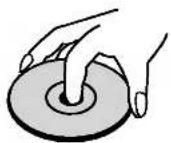
Χειρισμός δίσκων
Μην αγγίζετε την πλευρά αναπαραγωγής του δίσκου.
Κρατήστε το δίσκο από τα άκρα, ώστε να μην αφήνετε δακτυλικά αποτυπώματα στην επιφάνεια.
Μην κολλάτε χαρτί ή ταινία στο δίσκο.

Αποθήκευση δίσκων
Μετά την αναπαραγωγή, αποθηκεύστε το δίσκο στη θήκη του.
Μην εκθέτετε το δίσκο σε άμεσο ηλιακό φως ή πηγές θερμότητας, ούτε να τον αφήνετε σε σταθμευμένο αυτοκίνητο εκτεθειμένο σε άμεσο ηλιακό φως, καθώς μπορεί να υπάρξει σημαντική αύξηση της θερμοκρασίας στο εσωτερικό του αυτοκινήτου.
Καθαρισμός δίσκων
Τα δακτυλικά αποτυπώματα και η σκόνη στο δίσκο μπορούν να προκαλέσουν κακή ποιότητα εικόνας και παραμόρφωση ήχου. Πριν από την αναπαραγωγή, καθαρίστε το δίσκο με ένα καθαρό πανί. Σκουπίστε το δίσκο από το κέντρο προς τα έξω.
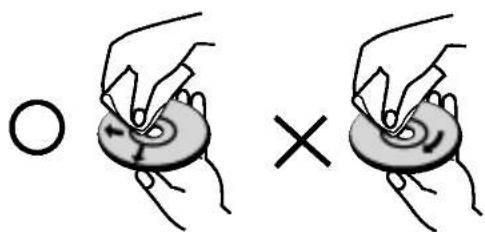
Μην χρησιμοποιείτε ισχυρούς διαλύτες όπως αλκοόλη, βενζίνη, διαλυτικό, εμπορικά διαθέσιμα καθαριστικά ή αντιστατικό σπρέι που προορίζεται για παλιούς δίσκους βινυλίου.
Σχετικά με τα σύμβολα
Σχετικά με την ένδειξη του συμβόλου «🔊»
Το «🔊» μπορεί να εμφανιστεί στην οθόνη της τηλεόρασης κατά τη λειτουργία. Αυτό το εικονίδιο σημαίνει ότι η λειτουργία που εξηγείται σε αυτό το εγχειρίδιο κατόχου δεν είναι διαθέσιμη σε αυτόν τον συγκεκριμένο δίσκο βίντεο DVD.
Σχετικά με τα σύμβολα δίσκων για τις οδηγίες
Μια ενότητα της οποίας ο τίτλος έχει ένα από τα ακόλουθα σύμβολα ισχύει μόνο για τον δίσκο που αντιπροσωπεύεται από το σύμβολο.
DVD DVD
VCD Βίντεο CD
CD Ήχος CD
MP3 Δίσκος MP3
WMA Δίσκος WMA
JPEG Δίσκος JPEG
DivX Δίσκος DivX
Μπροστινός πίνακας
Κασετόφωνο/Συσκευή αναπαραγωγής DVD/VCD/CD
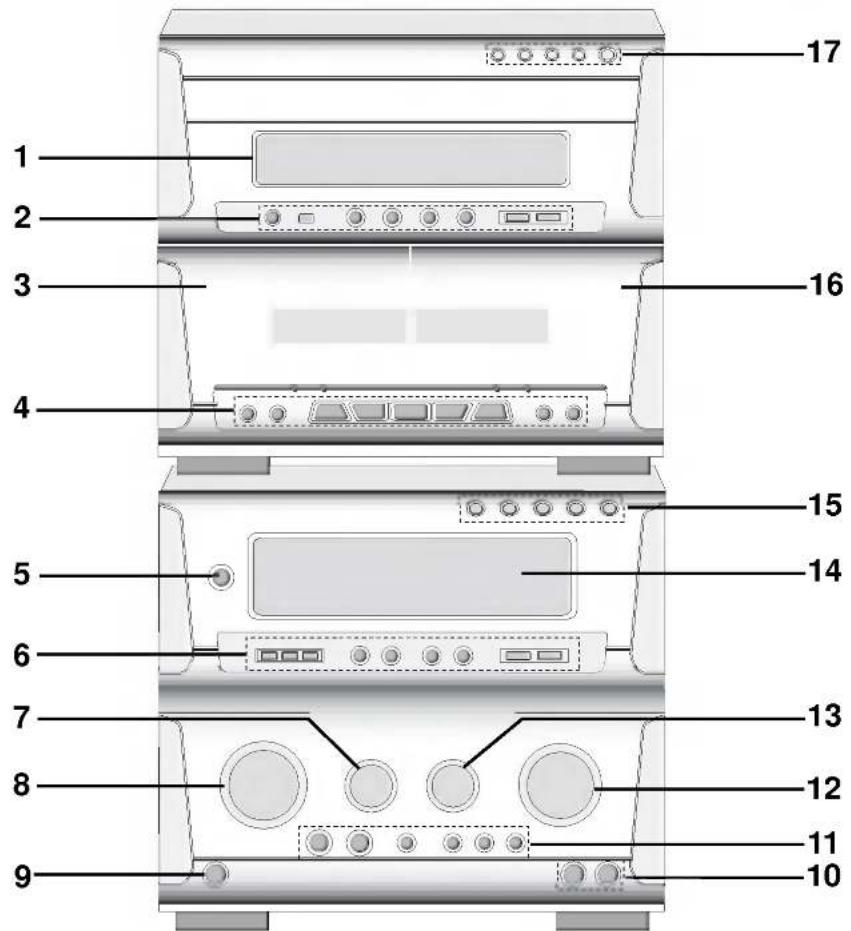
Τuner/Ενισχυτής
- ΠΑΡΑΘΥΡΟ ΕΝΔΕΙΞΕΩΝ
- Κουμπιά PLAY MODE/REPEAT
- Κουμπιά αναζήτησης CD (◀◀/▶▶)
- Κουμπιά διακοπής CD (■STOP)/ αναπαραγωγής CD (▶)
- Κουμπί παύσης CD (II)/ προγραμματισμού
- Θέση ▲ PUSH EJECT (TAPE 1)
- Κουμπιά λειτουργίας κασετόφωνου
• Κουμπί επαναφοράς μετρητή (COUNT. RESET) - Κουμπί εγγραφής/ παύσης εγγραφής (●REC/II) - Κουμπιά επαναφοράς/ γρήγορης προώθησης (◀◀/▶▶) - Κουμπιά αντίστροφης αναπαραγωγής (◀)/ αναπαραγωγής (▶) - Κουμπί διακοπής (■) - Κουμπί κανονικής αντιγραφής/ σύγχρονης εγγραφής CD (CD SYNC.) • Κουμπί υψηλής αντιγραφής
- Κουμπί λειτουργίας (○STANDBY/ON)
- • Κουμπιά CLOCK/ TIMER/ MEMORY/ CLEAR
- Κουμπιά προεπιλογής (▼/▲)
• Κουμπιά αυτόματου συντονισμού (▼/▲) • Κουμπί RDS (OPTIONAL)/SET • Κουμπί MODE/RIF/DEMO
- ΚΟΥΜΠΙ ΕΝΤΑΣΗΣ ΗΧΟΥΣ ΗΧΟΥΣ (ECHO VOL.)
- ΠΕΡΙΣΤΡΟΦΙΚΟ ΚΟΥΜΠΙ MULTI JOG
- CD SKIP (◀◀/▶◀) • ΧΕΙΡΟΚΙΝΗΤΟΣ ΣΥΝΤΟΝΙΣΜΟΣ
- ΡΥΘΜΙΣΗ ΡΟΛΟΓΙΟΥ
- ΥΠΟΔΟΧΗ ΑΚΟΥΣΤΙΚΩΝ (Ω PHONES) -∅6.3mm
- ΥΠΟΔΟΧΕΣ ΜΙΚΡΟΦΩΝΟΥ (MIC1, MIC2)
- ΚΟΥΜΠΙΑ XDSS/ OAO/ SURROUND/ MUSIC/ DANCE/ USER
- ΚΟΥΜΠΙ ΕΝΤΑΣΗΣ ΗΧΟΥ
- ΚΟΥΜΠΙ ΕΝΤΑΣΗΣ ΜΙΚΡΟΦΩΝΟΥ (MIC VOL.)
- ΠΑΡΑΘΥΡΟ ΟΘΟΝΗΣ
- Κουμπιά επιλογής λειτουργίας (TUNER/BAND, TAPE 1-2, DVD/CD, AUX1/AUX2)
- ▲ Θέση PUSH EJECT (TAPE 2)
- • Κουμπιά απευθείας αναπαραγωγής δίσκων (DISC1, DISC2, DISC3)
• Κουμπί παράλειψης δίσκου (D. SKIP)
- Κουμπί ανοίγματος/κλεισίματος CD (▲ OPEN/CLOSE)
Πίσω πίνακας
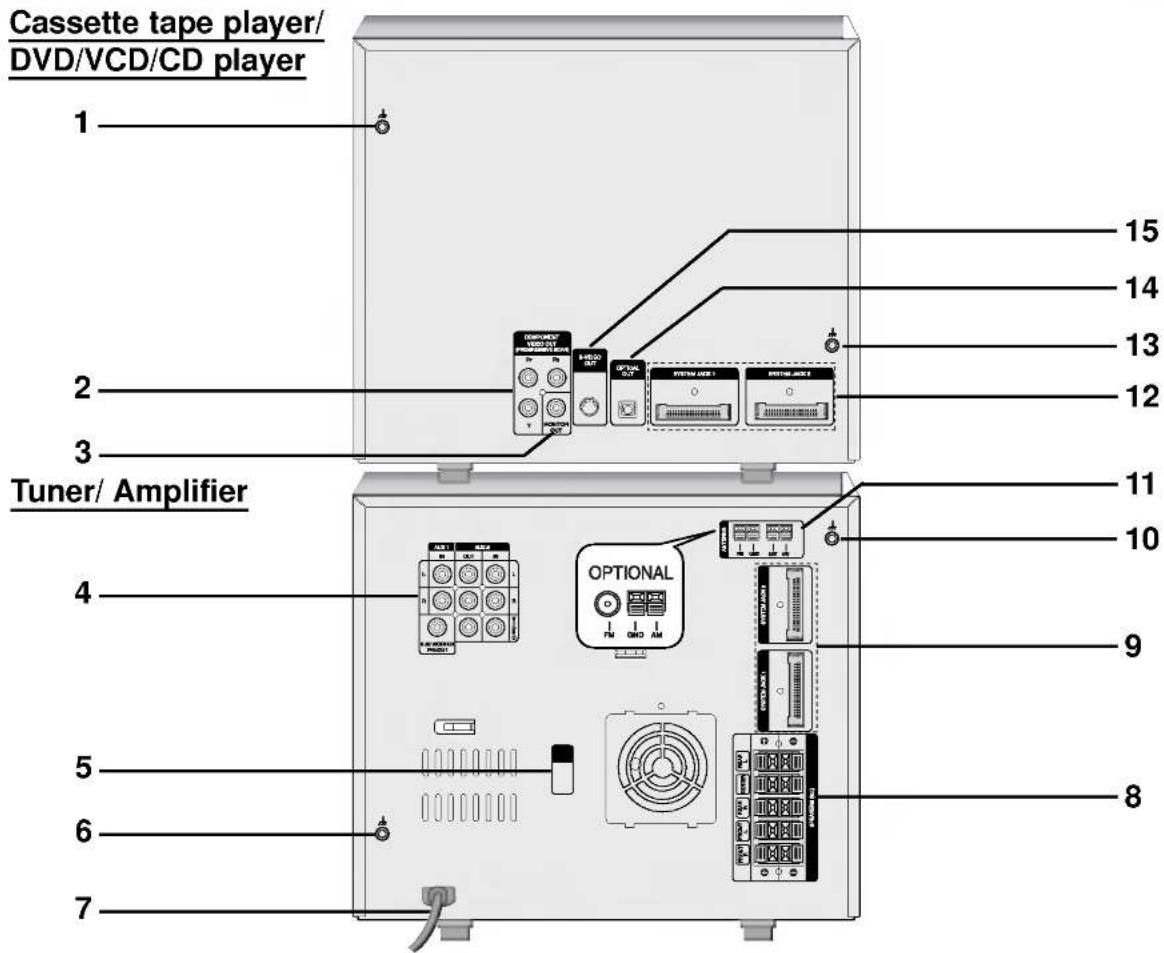
- Υποδοχή LUG
- Υποδοχή COMPONENT VIDEO OUT/ PROGRESSIVE SCAN (Y Pb Pr)
- Υποδοχή MONITOR OUT
- • ΕΙΣΟΔΟΣ/ΕΞΟΔΟΣ ΒΙΝΤΕΟ • ΕΙΣΟΔΟΣ AUX 1 (L/R) • ΕΙΣΟΔΟΣ/ΕΞΟΔΟΣ AUX 2 (L/R) • ΕΞΟΔΟΣ SUB WOOFER
- ΕΠΙΛΟΓΕΑΣ ΤΑΣΗΣ: ΠΡΟΑΙΡΕΤΙΚΟΣ
- Υποδοχή LUG
- ΚΑΛΩΔΙΟ ΡΕΥΜΑΤΟΣ
- Υποδοχή ΗΧΕΙΟΥ
- Σύνδεσμος ΣΥΣΤΗΜΑΤΟΣ (SYSTEM JACK1/ SYSTEM JACK2)
- Σύνδεσμος LUG
- Σύνδεσμος ΚΕΡΑΙΑΣ
- Σύνδεσμος ΣΥΣΤΗΜΑΤΟΣ (SYSTEM JACK1/ SYSTEM JACK2)
- Σύνδεσμος LUG
- Σύνδεσμος ΟΠΤΙΚΗΣ ΕΞΟΔΟΥ
- Σύνδεσμος ΕΞΟΔΟΥ S-VIDEO
Τηλεχειριστήριο
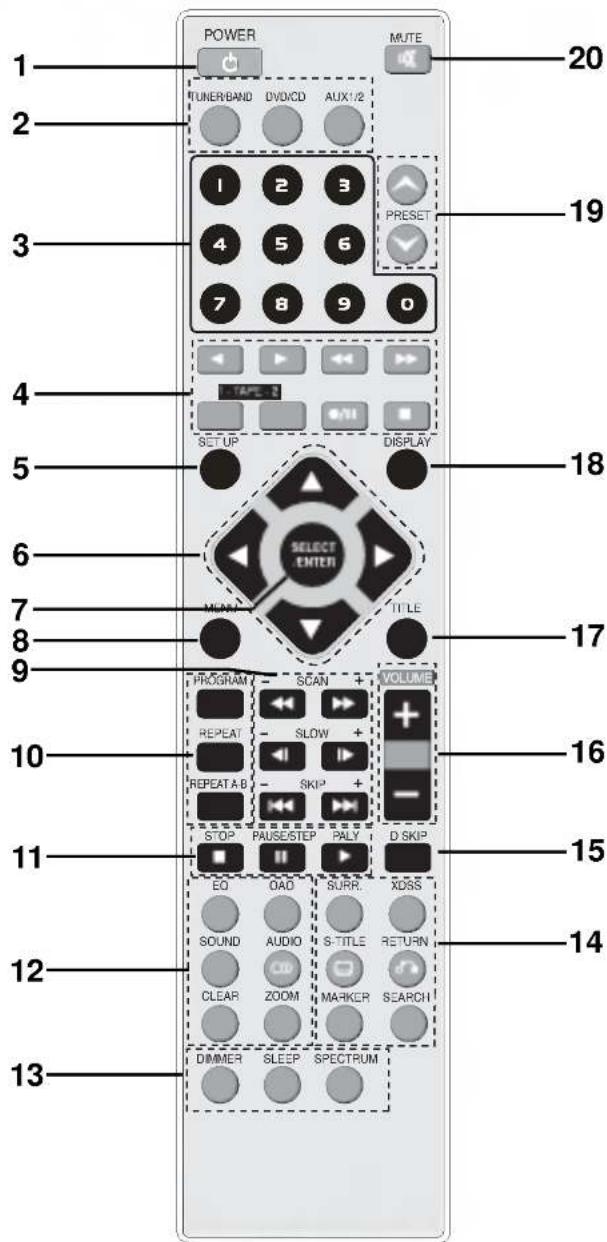
Εμβέλεια λειτουργίας τηλεχειριστηρίου
Στρέψτε το τηλεχειριστήριο προς τον αισθητήρα τηλεχειριστηρίου και πατήστε τα κουμπιά.
- Απόσταση: Περίπου 23 πόδια (7 μέτρα) από το μπροστινό μέρος του αισθητήρα τηλεχειριστηρίου
- Γωνία: Περίπου 30° προς κάθε κατεύθυνση από το μπροστινό μέρος του αισθητήρα τηλεχειριστηρίου
- Κουμπί POWER
- Κουμπιά επιλογής λειτουργίας (TUNER/BAND, DVD/CD, AUX1/2)
- Αριθμητικά κουμπιά (0-9)
- Κουμπιά λειτουργίας κασετόφωνου
- ΑΝΤΙΣΤΡΟΦΗ ΑΝΑΠΑΡΑΓΩΓΗ (◀)
- ΑΝΑΠΑΡΑΓΩΓΗ (▶)
- ΤΥΛΙΓΜΑ ΠΙΣΩ/ΓΡΗΓΟΡΗ ΑΝΑΠΑΡΑΓΩΓΗ (◀◀/▶▶)
- Κουμπιά επιλογής TAPE 1/2
- ΕΓΓΡΑΦΗ/ΠΑΥΣΗ ΕΓΓΡΑΦΗΣ (●/II)
- ΔΙΑΚΟΠΗ ΚΑΣΕΤΟΦΩΝΟΥ (■)
- Κουμπί SET UP
- Κουμπιά ΒΕΛΩΝ (▲ / ▼ / ◀ / ▶)
(Για χρήση στην επισήμανση μιας επιλογής σε οθόνη μενού GUI, οθόνη ΤΙΤΛΟΥ και ΜΕΝΟΥ.)
- Κουμπί SELECT/ENTER
- Κουμπί MENU
(Χρησιμοποιήστε το κουμπί MENU για να εμφανίσετε την οθόνη μενού που περιλαμβάνεται στους δίσκους βίντεο DVD.)
- Κουμπιά SCAN (◀◀/▶▶)/ SLOW (◀I/▶)/SKIP (I◀◀/▶▶I)
- Κουμπιά PROGRAM/ REPEAT/ REPEAT A-B
- Κουμπιά STOP (■), PAUSE(Ⅱ)/ STEP, PLAY (▶)
- Κουμπιά EQUALIZER (EQ)/ OAO/ SOUND/ AUDIO/CLEAR/ZOOM
- Κουμπιά DIMMER/ SLEEP/ SPECTRUM
- Κουμπιά SURROUND (SURR.)/ XDSS/ SUBTITLE (S-TITLE) RETURN / MARKER/ SEARCH
- Κουμπιά DISC SKIP (D.SKIP)
- Κουμπιά VOLUME -/+
- Κουμπί TITLE (Χρησιμοποιήστε το κουμπί TITLE για να εμφανίσετε την οθόνη τίτλου που περιλαμβάνεται στους δίσκους βίντεο DVD.)
- Κουμπί DISPLAY
- Κουμπιά PRESET (▼/▲)
- Κουμπί σίγασης (MUTE)
Τοποθέτηση μπαταριών στο τηλεχειριστήριο
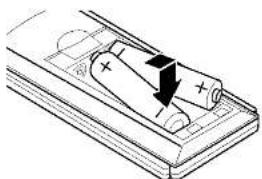
Αφαιρέστε το κάλυμμα της θήκης μπαταριών στο πίσω μέρος του τηλεχειριστηρίου και τοποθετήστε δύο μπαταρίες R03 (μέγεθος AAA) με τη σωστή πολικότητα (+ και -).
Προσοχή
Μην αναμιγνύετε παλιές και νέες μπαταρίες. Μην αναμιγνύετε ποτέ διαφορετικούς τύπους μπαταριών (τυπικές, αλκαλικές κ.λπ.).
Παράθυρο οθόνης
Συσκευή αναπαραγωγής κασετών / DVD/VCD/CD
![TITLE PROG. CHP/TRK AUTO MEMORY [10:11] SLEEP MONO DOWNMIX REPEAT 1 DISC TIMER REC CD SYNC. HI-SP. DUBB 2 CD DVD MP3 VCD 3 4 MHZ kHz CON](/content/2026/06/1226976/images/0b17744cf4274239d33d438d10e506085c346a7f6a48950e7ff22b879f38e7c0.jpg)
ΠΡΟΕΤΟΙΜΑΣΙΑ
- • Ένδειξη TITLE
• Ένδειξη PROGRAM (PROG.) • Ένδειξη CHAPTER/TRACK • Ένδειξη AUTO SEARCH • Ένδειξη MEMORY • Ένδειξη λήψης FM STEREO • Ένδειξη SLEEP • Ένδειξη MONO
- • Ένδειξη αριθμού δίσκου
• Ένδειξη τύπου δίσκου (MP3/DVD/CD/VCD) • Ένδειξη PLAY/PAUSE
- • Ένδειξη DOWNMIX
• Ένδειξη REPEAT
- · Ένδειξη TIMER
- Ένδειξη RECORD/ RECORD PAUSE • Ένδειξη CD SYNCHRO RECORDING • Ένδειξη DUBBING
- • Ένδειξη επιλογής TAPE 1/2
- Ένδειξη PLAY MODE • Ένδειξη κατεύθυνσης αναπαραγωγής κασέτας
Tuner/ Ενισχυτής
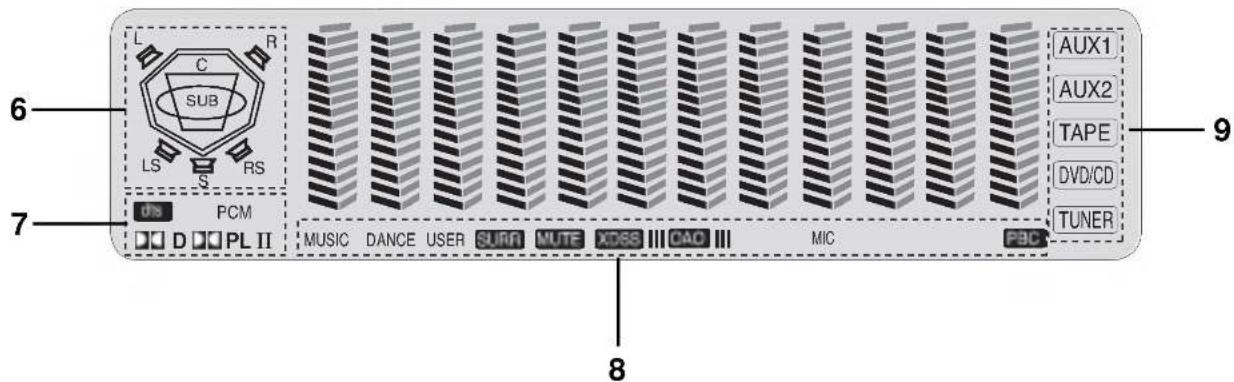
- • Ένδειξη αριστερού μπροστινού ηχείου (L)
• Ένδειξη δεξιού μπροστινού ηχείου (R) • Ένδειξη δεξιού πίσω ηχείου (RS) • Ένδειξη αριστερού πίσω ηχείου (LS) • Ένδειξη υπογούφερ (SUB) • Ένδειξη κεντρικού ηχείου (C)
- • Ένδειξη DTS/ PCM
• Ένδειξη DOLBY DIGITAL/ DOLBY PRO LOGIC (II)
- • Ένδειξη MUSIC/ DANCE/ USER
• Ένδειξη SURROUND/ MUTE/ XDSS/ OAO • Ένδειξη MICROPHONE/ PBC
- ΕΝΔΕΙΞΗ ΕΠΙΛΟΓΗΣ ΛΕΙΤΟΥΡΓΙΑΣ
(AUX1, AUX2, TAPE, DVD/CD, TUNER)
Συνδέσεις
Τοποθέτηση των καλωδίων σύνδεσης του συστήματος
- Η συσκευή σας αποτελείται από δύο ξεχωριστά μέρη: το κασετόφωνο/παίκτη DVD/VCD/CD και τον ενσωματωμένο δέκτη/ενισχυτή.
- Πριν μπορέσετε να χρησιμοποιήσετε τη συσκευή σας, τα ξεχωριστά μέρη πρέπει να συνδεθούν με τα παρεχόμενα καλώδια σύνδεσης συστήματος.
- Βεβαιωθείτε ότι όλες οι συνδέσεις γίνονται με τη συσκευή αποσυνδεδεμένη από το ρεύμα.
Κασετόφωνο/παίκτης DVD/VCD/CD
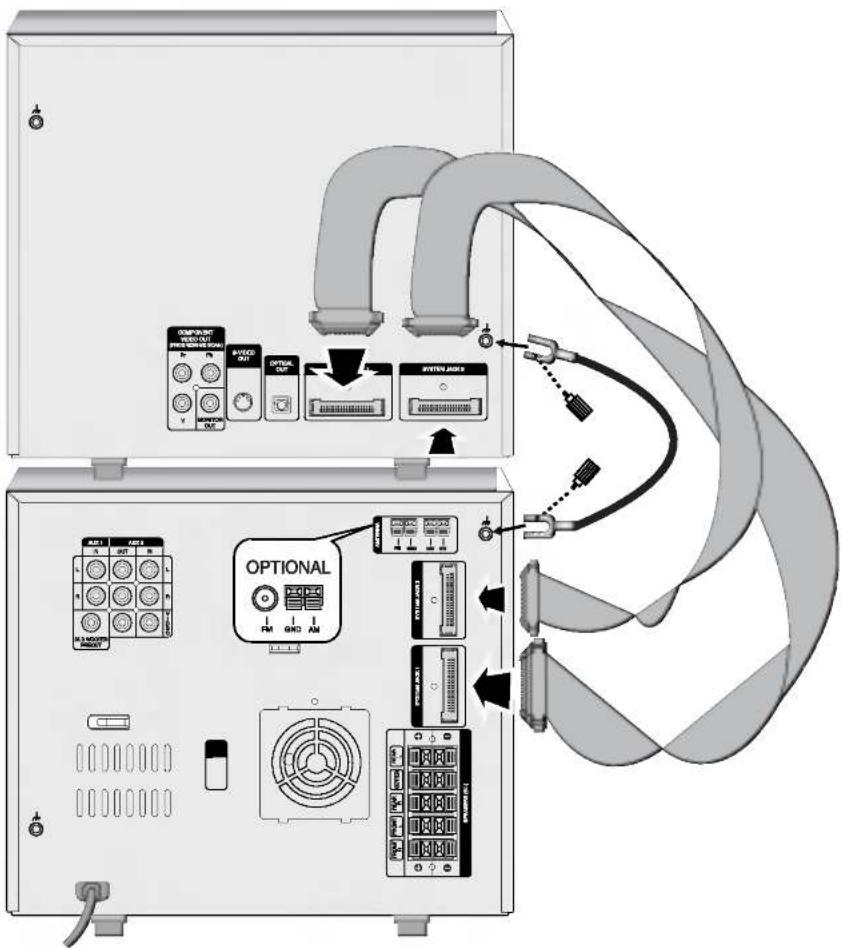
Δέκτης/Ενισχυτής
1 Στοιβάξτε τα μέρη της συσκευής σας με τη σειρά που φαίνεται παραπάνω. Τοποθετήστε τη συσκευή σας έτσι ώστε να έχετε εύκολη πρόσβαση στο πίσω μέρος της. 2 Συνδέστε το SYSTEM JACK1 στο κασετόφωνο/παίκτη DVD/VCD/CD με το SYSTEM JACK1 στον δέκτη/ενισχυτή. 3 Συνδέστε το SYSTEM JACK2 στο κασετόφωνο/παίκτη DVD/VCD/CD με το SYSTEM JACK2 στον δέκτη/ενισχυτή. 4 Συνδέστε το καλώδιο LUG στον σύνδεσμο LUG της συσκευής με τη συνοδευτική βίδα χειρός.
Σημειώσεις
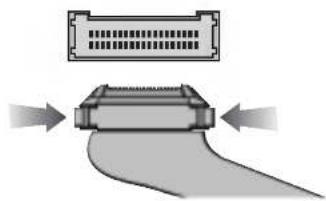
- Τα καλώδια σύνδεσης συστήματος θα συνδεθούν μόνο με 'κλικ' στη θέση τους, μην προσπαθήσετε να τα πιέσετε με δύναμη.
- Εάν χρειαστεί να αποσυνδέσετε τα καλώδια σύνδεσης συστήματος, πιέστε και τις δύο πλευρές κάθε βύσματος πριν το τραβήξετε - αυτό θα 'ξεκλειδώσει' το βύσμα και θα επιτρέψει την απελευθέρωσή του.
Συνδέσεις
Σύνδεση σε τηλεόραση
- Κάντε μία από τις παρακάτω συνδέσεις, ανάλογα με τις δυνατότητες του εξοπλισμού που διαθέτετε.

ips
- Ανάλογα με την τηλεόραση και τον άλλο εξοπλισμό που θέλετε να συνδέσετε, υπάρχουν διάφοροι τρόποι σύνδεσης της συσκευής. Χρησιμοποιήστε μία από τις συνδέσεις που περιγράφονται παρακάτω.
- Συμβουλευτείτε τα εγχειρίδια της τηλεόρασης, του βίντεο, του στερεοφωνικού συστήματος ή άλλων συσκευών σας, όπως χρειάζεται, για να κάνετε τις καλύτερες συνδέσεις.

Προσοχή
- Βεβαιωθείτε ότι η συσκευή είναι συνδεδεμένη απευθείας στην τηλεόραση. Επιλέξτε τη σωστή είσοδο AV στην τηλεόρασή σας.
- Μην συνδέετε τη συσκευή στην τηλεόραση μέσω του βίντεο. Η εικόνα DVD μπορεί να παραμορφωθεί από το σύστημα προστασίας αντιγραφής.
Σύνδεση βίντεο
Συνδέστε την υποδοχή MONITOR OUT της συσκευής στην υποδοχή VIDEO IN της τηλεόρασης χρησιμοποιώντας το παρεχόμενο καλώδιο βίντεο (V).
Σύνδεση S-Video
Συνδέστε την υποδοχή S-VIDEO OUT της συσκευής στην υποδοχή S-VIDEO IN της τηλεόρασης χρησιμοποιώντας το καλώδιο S-Video (S).
Σύνδεση Component Video (Color Stream®)
Συνδέστε τις υποδοχές COMPONENT VIDEO OUT/ PROGRESSIVE SCAN της συσκευής στις αντίστοιχες υποδοχές εισόδου της τηλεόρασης χρησιμοποιώντας ένα καλώδιο Y Pb Pr (C).
Σύνδεση Progressive Scan (ColorStream® pro)
- Εάν η τηλεόρασή σας είναι υψηλής ευκρίνειας ή "έτοιμη για ψηφιακή" τηλεόραση, μπορείτε να επωφεληθείτε από την έξοδο progressive scan της συσκευής για την υψηλότερη δυνατή ανάλυση βίντεο.
- Εάν η τηλεόρασή σας δεν υποστηρίζει τη μορφή Progressive Scan, η εικόνα θα εμφανιστεί παραμορφωμένη αν προσπαθήσετε να χρησιμοποιήσετε το Progressive Scan στη συσκευή.
Συνδέστε τις υποδοχές COMPONENT VIDEO OUT/ PROGRESSIVE SCAN της συσκευής στις αντίστοιχες υποδοχές εισόδου της τηλεόρασης χρησιμοποιώντας ένα προαιρετικό καλώδιο Y Pb Pr (C).

Σημείωση
- Ρυθμίστε το Progressive σε "On" στο μενού Setup για σήμα progressive, βλέπε σελίδα 22.
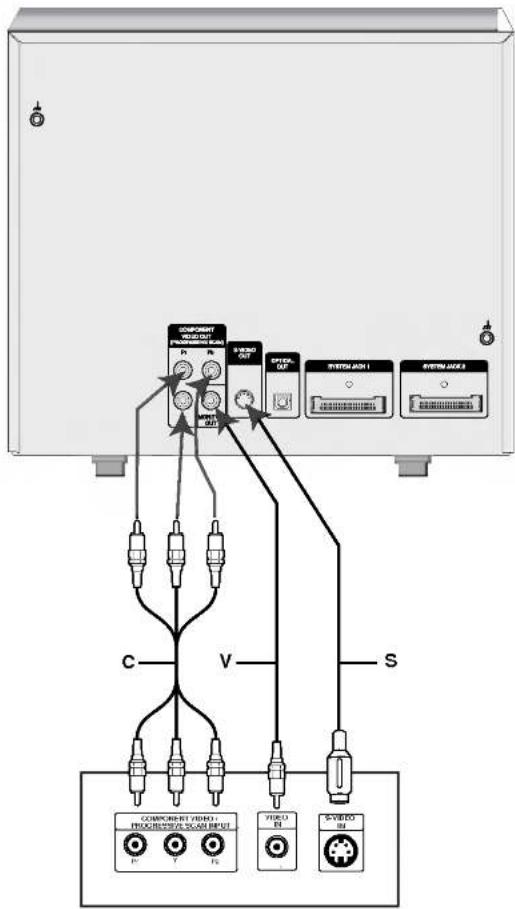
Πίσω μέρος τηλεόρασης
Συνδέσεις
Σύνδεση στην κεραία
Συνδέστε τις παρεχόμενες κεραίες FM/MW(AM) ή SW (προαιρετική) για ακρόαση ραδιοφώνου.
- Συνδέστε την κεραία βρόχου MW(AM) στον ακροδέκτη κεραίας MW(AM).
- Συνδέστε την καλωδιακή κεραία FM στον ακροδέκτη κεραίας FM.
![graph TD A["FM external antenna (aerial) (not supplied)"] --> B["FM indoor antenna (aerial)"] B --> C["FM wire antenna (supplied)"] D["SW Antenna (not supplied)"] --> E["OPTIONAL"] E --> F["MW(AM) loop antenna (aerial) (Supplied)"] G["FM antenna"] --> H["MW(AM) loop antenna (aerial) (Supplied)"] I["…](/content/2026/06/1226976/images/1de2411b888e9207f69ce5fd1f38072cb4833822248ec2084681bfb78ecf8647.jpg)

Σημειώσεις
- Για να αποφύγετε το θόρυβο, κρατήστε την κεραία βρόχου MW(AM) μακριά από τη συσκευή και άλλα εξαρτήματα.
- Βεβαιωθείτε ότι έχετε τεντώσει πλήρως την καλωδιακή κεραία FM.
- Μετά τη σύνδεση της καλωδιακής κεραίας FM, κρατήστε την όσο το δυνατόν πιο οριζόντια.
Συνδέσεις
Σύνδεση σε Βοηθητικό Εξοπλισμό
Μπορείτε να χρησιμοποιήσετε ένα VCR ή άλλη συσκευή συνδεδεμένη στην υποδοχή AUX1 ή AUX2.
VCR (ή Βοηθητική Συσκευή, κ.λπ.)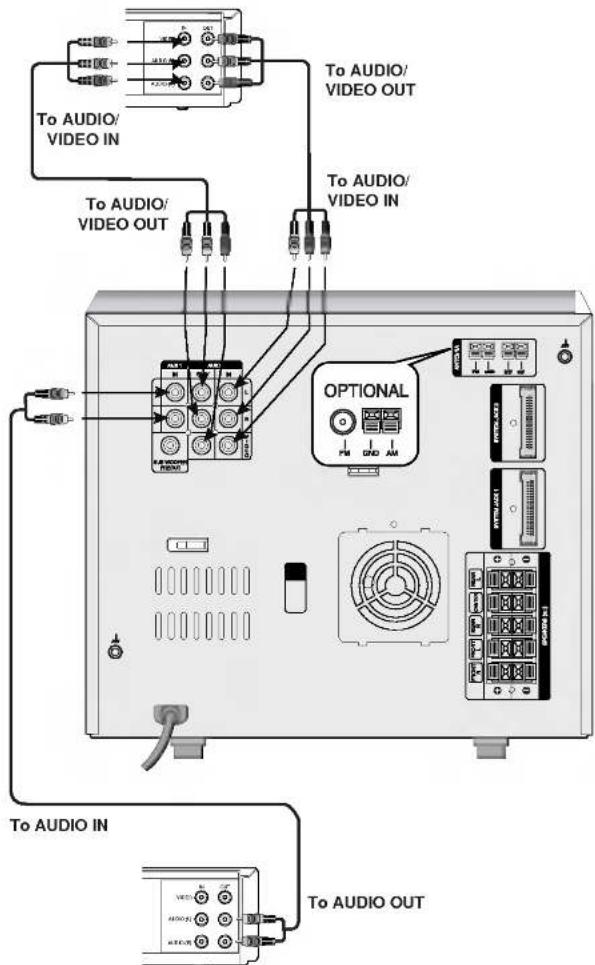
Επιπλέον VCR (ή Βοηθητική Συσκευή, κ.λπ.)
1 Συνδέστε ένα VCR ή βοηθητική συσκευή κ.λπ. στην υποδοχή AUX 1. 2 Συνδέστε ένα επιπλέον VCR ή βοηθητική συσκευή κ.λπ. στην υποδοχή AUX 2. 3 Επιλέξτε AUX1 ή AUX2 πατώντας το κουμπί AUX στον δέκτη/ενισχυτή ή το κουμπί AUX1/2 στο τηλεχειριστήριο.
Σύνδεση σε Προαιρετικό Εξοπλισμό
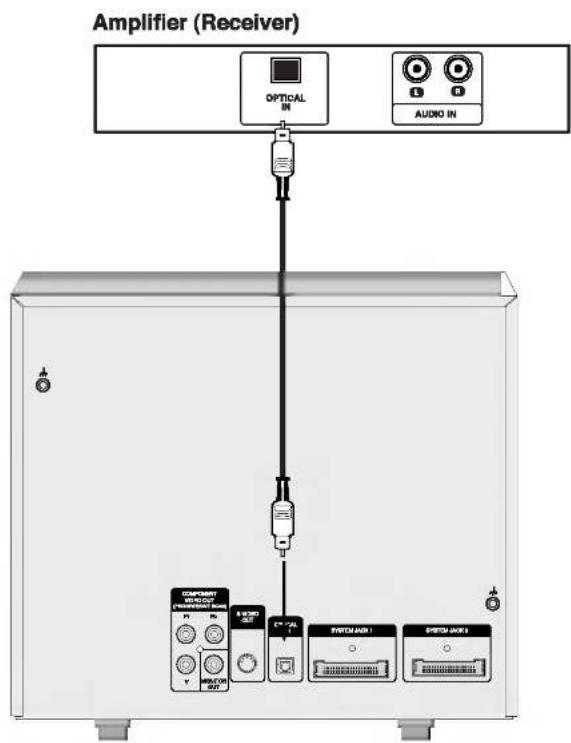
[Σύνδεση σε ενισχυτή με δύο κανάλια ψηφιακού στερεοφωνικού ήχου (PCM) ή σε δέκτη ήχου/βίντεο με αποκωδικοποιητή πολλαπλών καναλιών (Dolby Digital™, MPEG 2 ή DTS)]
Συνδέστε την υποδοχή OPTICAL OUT της συσκευής στην υποδοχή OPTICAL IN του ενισχυτή σας. Χρησιμοποιήστε ένα προαιρετικό καλώδιο ήχου.

Προσοχή:
Λόγω της συμφωνίας άδειας χρήσης της DTS, η ψηφιακή έξοδος θα είναι σε μορφή DTS όταν επιλεγεί ροή ήχου DTS.
Ο ήχος είναι σίγαση κατά την αναπαραγωγή ενός ήχητικού CD που έχει εγγραφεί σε μορφή DTS.

Σημειώσεις
- Εάν η μορφή ήχου της ψηφιακής εξόδου δεν ταιριάζει με τις δυνατότητες της συσκευής σας, το DVD Karaoke θα παράγει ισχυρό, παραμορφωμένο ήχο ή καθόλου ήχο.
- Ο ψηφιακός ήχος έξι καναλιών μέσω ψηφιακής σύνδεσης μπορεί να επιτευχθεί μόνο εάν η συσκευή σας είναι εξοπλισμένη με ψηφιακό αποκωδικοποιητή πολλαπλών καναλιών.
- Για να δείτε τη μορφή ήχου της τρέχουσας συσκευής στην οθόνη, πατήστε AUDIO.
Συνδέσεις
Σύνδεση ηχείων συστήματος
Συνδέστε τα ηχεία χρησιμοποιώντας τα παρεχόμενα καλώδια ηχείων, ταιριάζοντας τα χρώματα των ακροδεκτών με εκείνα των καλωδίων. Για να επιτύχετε τον καλύτερο δυνατό ήχο surround, ρυθμίστε τις παραμέτρους των ηχείων (απόσταση, ένταση κ.λπ.).
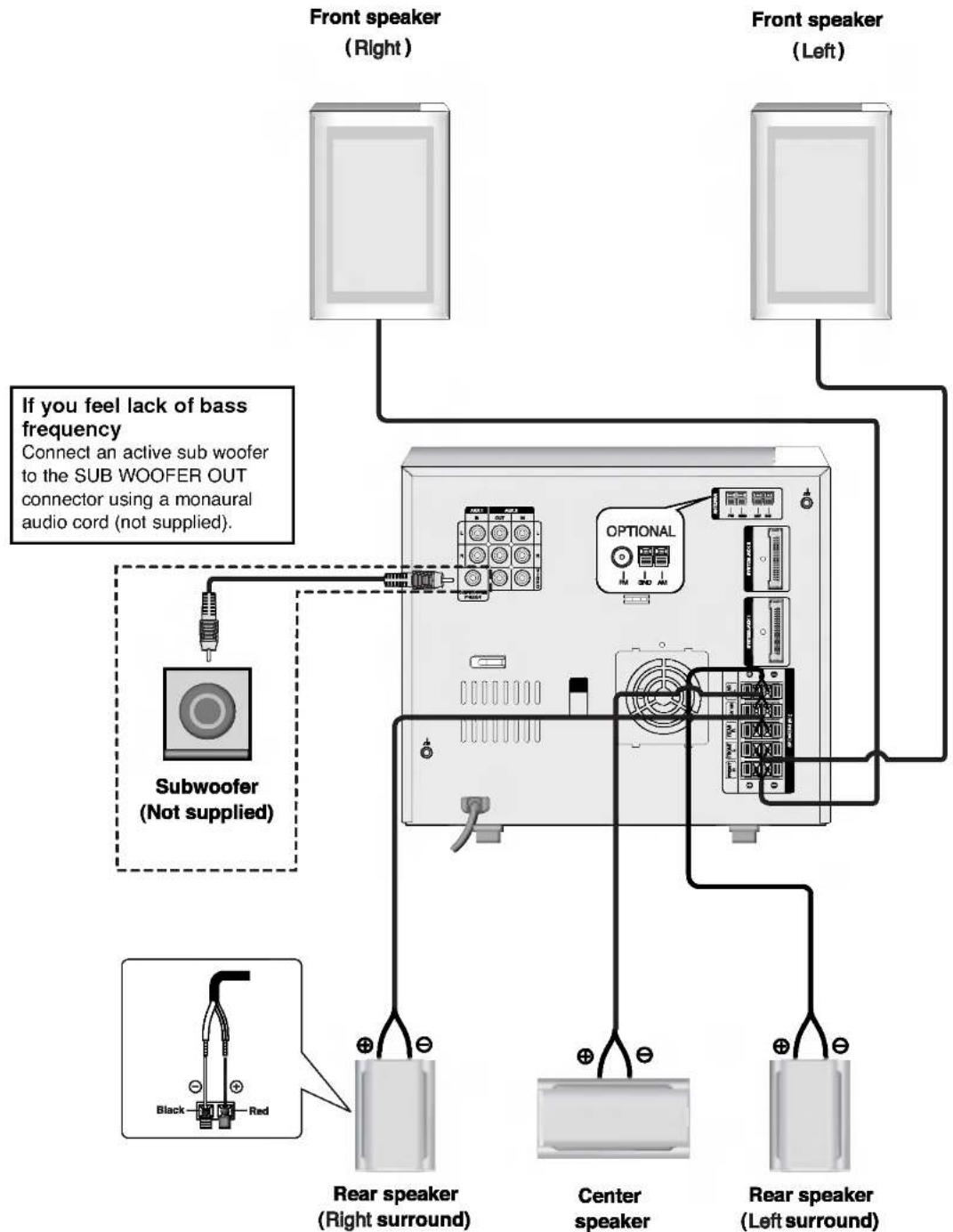

Σημειώσεις
- Βεβαιωθείτε ότι έχετε αντιστοιχίσει το καλώδιο του ηχείου με τον κατάλληλο ακροδέκτη στα εξαρτήματα: + με + και - με -. Εάν τα καλώδια είναι ανεστραμμένα, ο ήχος θα παραμορφωθεί και θα του λείπει το μπάσο.
- Εάν χρησιμοποιείτε μπροστινά ηχεία με χαμηλή μέγιστη ονομαστική ισχύ εισόδου, ρυθμίστε προσεκτικά την ένταση για να αποφύγετε την υπερβολική έξοδο στα ηχεία.
Συνδέσεις
Τοποθέτηση ηχείων
Σε περίπτωση κανονικής θέσης, χρησιμοποιήστε τα 6 ηχεία (2 μπροστινά ηχεία, κεντρικό ηχείο, 2 πίσω ηχεία και υπογούφερ).
Εάν θέλετε να αναπαράγετε εξαιρετικό μπάσο ή ήχο surround Dolby Digital, θα πρέπει να συνδέσετε ένα υπογούφερ.
- Μπροστινά ηχεία
Σύμφωνα με τη θέση ακρόασης, τοποθετήστε τα ηχεία σε ίση απόσταση. Και ανάλογα με τη θέση ακρόασης, ρυθμίστε τη γωνία μεταξύ των ηχείων στις 45 μοίρες.
- Κεντρικό ηχείο
Είναι ιδανικό τα κεντρικά και τα μπροστινά ηχεία να έχουν το ίδιο ύψος. Αλλά συνήθως τοποθετήστε το πάνω ή κάτω από την τηλεόραση.
- Πίσω ηχεία
Τοποθετήστε τα αριστερά και δεξιά πίσω από την περιοχή ακρόασης.
Αυτά τα ηχεία αναπαράγουν την κίνηση του ήχου και την ατμόσφαιρα που απαιτούνται για την αναπαραγωγή surround. Για καλύτερα αποτελέσματα, μην τοποθετείτε τα πίσω ηχεία πολύ πίσω από τη θέση ακρόασης και τοποθετήστε τα στο ύψος ή πάνω από το ύψος των αυτιών του ακροατή. Είναι επίσης αποτελεσματικό να κατευθύνετε τα πίσω ηχεία προς έναν τοίχο ή την οροφή για να διαχέεται περαιτέρω ο ήχος.
Σε περίπτωση μικρότερου δωματίου, αν το κοινό είναι κοντά στον πίσω τοίχο, τοποθετήστε τα πίσω ηχεία αντικριστά και τοποθετήστε τα πίσω ηχεία 60-90 εκατοστά πάνω από τα αυτιά του ακροατή.
- Υπογούφερ
Αυτό μπορεί να τοποθετηθεί σε οποιαδήποτε μπροστινή θέση.
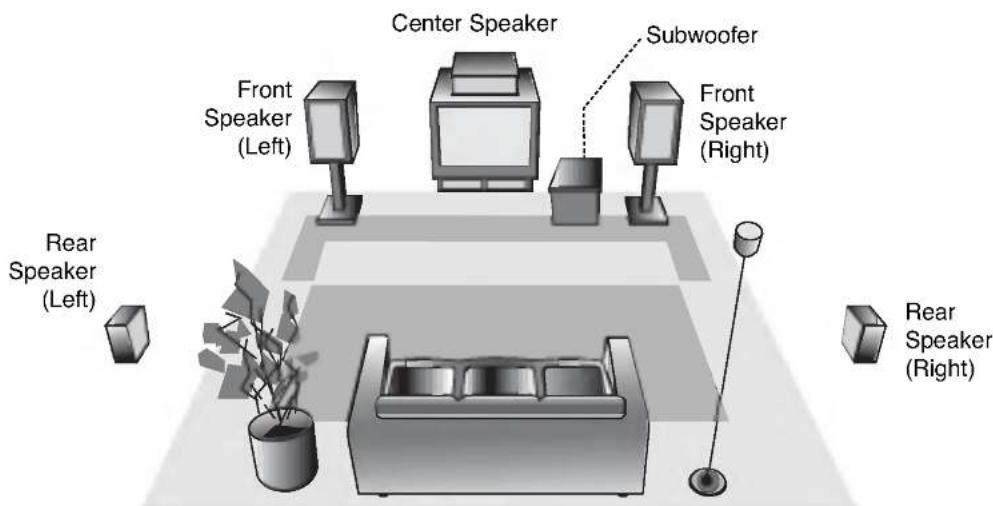
Παράδειγμα Τοποθέτησης Ηχείων
Πριν από τη Λειτουργία
Ρύθμιση Έντασης
- Γυρίστε το κουμπί VOLUME δεξιόστροφα για να αυξήσετε την ένταση του ήχου ή αριστερόστροφα για να τη μειώσετε.
- Πατήστε VOLUME + για να αυξήσετε την ένταση του ήχου ή χρησιμοποιήστε VOLUME - για να τη μειώσετε στο τηλεχειριστήριο.
Ρύθμιση Ποιότητας Ήχου
• ενεργοποιήστε τον στερεοφωνικό ήχο
- Μπορείτε να επιλέξετε ανάμεσα σε 8 σταθερές ηχητικές εντυπώσεις και 1 ΛΕΙΤΟΥΡΓΙΑ ΧΡΗΣΤΗ. Επιλέξτε μια επιθυμητή λειτουργία ήχου χρησιμοποιώντας το κουμπί EQ στο τηλεχειριστήριο.
- Κάθε φορά που πατάτε το κουμπί, η ένδειξη αλλάζει ως εξής στο παράθυρο οθόνης.
ΧΡΗΣΤΗΣ → ΕΠΙΠΕΔΟ → POP → ΚΛΑΣΙΚ → ΡΟΚ
amp; amp; amp; amp; SAMBA amp; ← amp; JAZZ amp; ← amp; SALSA
- Εάν πατήσετε το κουμπί MUSIC, η ένδειξη αλλάζει ως εξής στην οθόνη.
FLAT → POP → CLASSIC → ROCK → VOCAL ; uparrow
- Εάν πατήσετε το κουμπί DANCE, η ένδειξη αλλάζει ως εξής στην οθόνη.
SALSA → JAZZ → SAMBA


Αυτή η λειτουργία είναι διαθέσιμη μόνο στη λειτουργία ήχου "BYPASS".
- Υποδοχή ακουστικών
Συνδέστε ένα βύσμα στερεοφωνικών ακουστικών (διαμέτρου 6,3 mm) στην υποδοχή ακουστικών.
Τα ηχεία αποσυνδέονται αυτόματα όταν συνδέσετε τα ακουστικά (δεν παρέχονται).
ΣΙΓΗ (MUTE)
Πατήστε MUTE για να απενεργοποιήσετε τον ήχο, πατήστε ξανά για να τον επαναφέρετε. Μπορείτε να θέσετε τη συσκευή σε σίγαση, για παράδειγμα, για να απαντήσετε στο τηλέφωνο. Η ένδειξη "MUTE" αναβοσβήνει στην οθόνη.
SURROUND
Για να ενεργοποιήσετε τη λειτουργία surround
- Μπορείτε να επιλέξετε ανάμεσα σε 6 σταθερές ηχητικές εντυπώσεις.
- Επιλέξτε μια επιθυμητή λειτουργία surround χρησιμοποιώντας το κουμπί SURROUND στο μπροστινό μέρος ή το κουμπί SURR. στο παράθυρο της οθόνης. • Κάθε φορά που πατάτε το κουμπί, η ένδειξη αλλάζει ως εξής.
SURROUND OFF → SIMULATED LOW → SIMULATED HIGH
↑ MOVIE HIGH ← MOVIE LOW ← MUSIC HIGH ← MUSIC LOW

Σημείωση
Αυτή η λειτουργία είναι διαθέσιμη μόνο στη λειτουργία ήχου "BYPASS".
XDSS (Extreme Dynamic Sound System)
Πατήστε επανειλημμένα το κουμπί XDSS για να ενισχύσετε τα πρίμα και τα μπάσα.
XDSS 1 ON → XDSS 2 ON → XDSS OFF

Σημείωση
Αυτή η λειτουργία είναι διαθέσιμη μόνο στη λειτουργία ήχου "BYPASS".
OAO (Orientation Acoustic Optimizer) ON/OFF
Πατήστε OAO για να ενισχύσετε τον ήχο των μπάσων.
Η ένδειξη "OAO ON" ή "OAO OFF" ανάβει. Για ακύρωση, πατήστε ξανά το OAO.
Εφέ SPECTRUM
Κάθε φορά που πατάτε το κουμπί SPECTRUM στο τηλεχειριστήριο, μπορείτε να απολαύσετε την αλλαγή του φάσματος με 6 τύπους στην οθόνη.
DIMMER
Αυτή η λειτουργία θα αλλάξει τη φωτεινότητα της οθόνης στον μπροστινό πίνακα σε κατάσταση λειτουργίας.
Πατήστε το κουμπί DIMMER στο τηλεχειριστήριο.
DEMO
Πατήστε DEMO σε κατάσταση απενεργοποίησης για να επιδείξετε τη λειτουργία στο παράθυρο οθόνης.
Για να την ακυρώσετε, πατήστε POWER ή DEMO ξανά. Κατά τη διάρκεια της επίδειξης σε κατάσταση λειτουργίας μπορείτε να την ακυρώσετε χρησιμοποιώντας τα άλλα κουμπιά.
Πριν από τη λειτουργία
Ρύθμιση του ρολογιού
1 Πατήστε CLOCK. (Αν το ρολόι χρειάζεται ρύθμιση, πατήστε και κρατήστε πατημένο το CLOCK για περισσότερο από 2 δευτερόλεπτα.) - Η ένδειξη των ωρών αρχίζει να αναβοσβήνει.
2 Επιλέξτε είτε τον κύκλο των 12 ωρών είτε τον κύκλο των 24 ωρών περιστρέφοντας το MULTI JOG DIAL.
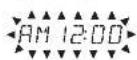
(12ΩΡΕΣ)
ή

(24ΩΡΕΣ)
3 Πατήστε SET για να επιβεβαιώσετε τον επιλεγμένο κύκλο ωρών. 4 Χρησιμοποιήστε το MULTI JOG DIAL για να ρυθμίσετε την τρέχουσα ώρα. 5 Πατήστε SET. 6 Χρησιμοποιήστε το MULTI JOG DIAL για να ρυθμίσετε τα τρέχοντα λεπτά. 7 Πατήστε SET και η σωστή ώρα εμφανίζεται στην οθόνη. 8 Πατήστε CLOCK ανά πάσα στιγμή για να εμφανιστεί η ώρα στην οθόνη, για περίπου 5 δευτερόλεπτα.
Λειτουργία Χρονοδιακόπτη Αναστολής
Όταν έχει ρυθμιστεί ο χρονοδιακόπτης αναστολής λειτουργίας, η μονάδα απενεργοποιείται αυτόματα μετά την παρέλευση του καθορισμένου χρόνου.
1 Για να καθορίσετε την καθυστέρηση πριν από την απενεργοποίηση, πατήστε SLEEP.
Στο παράθυρο της οθόνης βλέπετε SLEEP 90 για περίπου 5 δευτερόλεπτα. Αυτό σημαίνει ότι το σύστημα απενεργοποιείται αυτόματα μετά από 90 λεπτά. Κάθε φορά που πατάτε το κουμπί, το χρονικό διάστημα πριν από την απενεργοποίηση μειώνεται κατά 10 λεπτά, δηλαδή 80...70... κ.λπ. Επιλέξτε τον επιθυμητό χρόνο απενεργοποίησης.
2 Για να ελέγξετε τον υπολειπόμενο χρόνο μέχρι την απενεργοποίηση.
Ενώ η λειτουργία αναστολής λειτουργίας είναι ενεργή, πατήστε στιγμιαία το SLEEP. Ο υπολειπόμενος χρόνος μέχρι την απενεργοποίηση της μονάδας εμφανίζεται για περίπου 5 δευτερόλεπτα.
Σημείωση
Εάν πατήσετε SLEEP ενώ εμφανίζεται ο χρόνος αναστολής λειτουργίας, ο χρόνος αναστολής επαναφέρεται.
Για να ακυρώσετε τη ρύθμιση του χρονοδιακόπτη αναστολής λειτουργίας
Εάν θέλετε να σταματήσετε τη λειτουργία, πατήστε επανειλημμένα το κουμπί SLEEP μέχρι να εμφανιστεί "SLEEP 10" και στη συνέχεια πατήστε ξανά το SLEEP αφού εμφανιστεί "SLEEP 10" στην οθόνη.
Χρήση μικροφώνου
Μπορείτε να τραγουδήσετε σε μια μουσική πηγή συνδέοντας ένα μικρόφωνο στη μονάδα.
1 Συνδέστε το μικρόφωνό σας στην υποδοχή MIC. Το "MIC" θα εμφανιστεί στο παράθυρο της οθόνης.
2 Αναπαράγετε τη μουσική που θέλετε.
3 Τραγουδήστε μαζί με τη συνοδεία. Ρυθμίστε την ένταση του μικροφώνου περιστρέφοντας το κουμπί MIC VOLUME.
Για αναφορά
Μπορείτε να ηχογραφήσετε χρησιμοποιώντας το μικρόφωνο. Ανατρέξτε στην ενότητα "Εγγραφή".
Σημειώσεις
- Όταν δεν χρησιμοποιείτε το μικρόφωνο, ρυθμίστε το κουμπί έντασης MIC στο ελάχιστο ή απενεργοποιήστε το MIC και αφαιρέστε το μικρόφωνο από την υποδοχή MIC.
- Εάν το μικρόφωνο τοποθετηθεί πολύ κοντά στο ηχείο, μπορεί να παραχθεί ένας ήχος ανατροφοδότησης (ουρλιαχτό). Σε αυτή την περίπτωση, απομακρύνετε το μικρόφωνο από το ηχείο ή μειώστε την ένταση του ήχου χρησιμοποιώντας το χειριστήριο έντασης MIC.
- Εάν ο ήχος μέσω του μικροφώνου είναι εξαιρετικά δυνατός, μπορεί να παραμορφωθεί. Σε αυτή την περίπτωση, γυρίστε το χειριστήριο έντασης MIC προς το ελάχιστο.
Ρύθμιση έντασης ECHO
Μπορείτε να προσδώσετε ένα εφέ ηχούς στον ήχο από τα μικρόφωνα.
Γυρίστε το κουμπί έντασης ECHO (ECHO VOL.) δεξιόστροφα για να αυξήσετε την ένταση του ήχου ή αριστερόστροφα για να τη μειώσετε.
Πριν από τη λειτουργία
Λειτουργία χρονοδιακόπτη
Με τη λειτουργία TIMER μπορείτε να ενεργοποιήσετε και να απενεργοποιήσετε τη λήψη ραδιοφώνου και την εγγραφή, την αναπαραγωγή CD ή κασέτας την επιθυμητή ώρα.
1 Πατήστε CLOCK για να ελέγξετε την τρέχουσα ώρα.
Για αναφορά
Εάν δεν ρυθμίσετε το ρολόι, η λειτουργία χρονοδιακόπτη δεν λειτουργεί.
2 Πατήστε TIMER για να εισέλθετε στη λειτουργία ρύθμισης χρονοδιακόπτη. Οι ενδείξεις TUNER-CD-TAPE αναβοσβήνουν διαδοχικά στην οθόνη.
Για αναφορά σας
Εάν θέλετε να διορθώσετε την προηγούμενη απομνημονευμένη ρύθμιση του χρονοδιακόπτη, πατήστε και κρατήστε πατημένο το κουμπί TIMER για περισσότερο από 2 δευτερόλεπτα.
- Η προηγούμενη απομνημονευμένη ρύθμιση του χρονοδιακόπτη για την ώρα ενεργοποίησης και οι ενδείξεις "TIMER" εμφανίζονται στην οθόνη.
3 Πατήστε SET όταν αναβοσβήνει η επιθυμητή λειτουργία.
4 1. α. Όταν επιλέξετε τη λειτουργία TUNER, οι ενδείξεις 'PLAY' και 'REC' αναβοσβήνουν εναλλάξ στην οθόνη για περίπου 3 δευτερόλεπτα.
Ένδειξη 'PLAY': μόνο αναπαραγωγή TUNER
Ένδειξη 'REC': αναπαραγωγή και εγγραφή TUNER
β. Επιλέξτε τον προηγούμενο απομνημονευμένο αριθμό προεπιλογής με το MULTI JOG DIAL στο μπροστινό μέρος και πατήστε SET.
Η ένδειξη 'ON TIME' εμφανίζεται για περίπου 0,5 δευτερόλεπτα στην οθόνη και στη συνέχεια εξαφανίζεται.
- Όταν επιλέξετε τη λειτουργία CD ή TAPE, η ένδειξη 'ON TIME' εμφανίζεται για περίπου 0,5 δευτερόλεπτα στην οθόνη και στη συνέχεια εξαφανίζεται.
5 Ρυθμίστε την ώρα ενεργοποίησης περιστρέφοντας το MULTI JOG DIAL.
6 Πατήστε SET για να επιβεβαιώσετε την ώρα ενεργοποίησης.
7 Ρυθμίστε τα λεπτά ενεργοποίησης περιστρέφοντας το MULTI JOG DIAL.
8 Πατήστε SET για να επιβεβαιώσετε τα λεπτά ενεργοποίησης.
Η ένδειξη 'OFF TIME' εμφανίζεται για περίπου 0,5 δευτερόλεπτα στην οθόνη και στη συνέχεια εξαφανίζεται.
9 Ρυθμίστε την ώρα απενεργοποίησης περιστρέφοντας το MULTI JOG DIAL.
10 Πατήστε SET.
11 Ρυθμίστε τα λεπτά απενεργοποίησης περιστρέφοντας το MULTI JOG DIAL.
12 Πατήστε SET.
13 Ρυθμίστε την ένταση περιστρέφοντας το MULTI JOG DIAL.
14 Πατήστε SET. Το "TIMER" εμφανίζεται στην οθόνη και η ρύθμιση του χρονοδιακόπτη έχει ολοκληρωθεί.
15 Απενεργοποιήστε το σύστημα. Οι επιλεγμένες λειτουργίες χρονοδιακόπτη ενεργοποιούνται και απενεργοποιούνται αυτόματα στις προκαθορισμένες ώρες.
Για ακύρωση ή έλεγχο του χρονοδιακόπτη
Κάθε φορά που πατάτε το κουμπί TIMER μπορείτε να επιλέξετε ρύθμιση ή ακύρωση του χρονοδιακόπτη. Μπορείτε επίσης να ελέγξετε την κατάσταση ρύθμισης του χρονοδιακόπτη.
Για ενεργοποίηση ή έλεγχο του χρονοδιακόπτη, πατήστε επανειλημμένα το κουμπί TIMER έως ότου εμφανιστεί το "TIMER" στην οθόνη.
Για ακύρωση του TIMER, πατήστε επανειλημμένα το κουμπί TIMER έως ότου εξαφανιστεί το "TIMER" από την οθόνη.
Σημείωση
Εάν έχει τοποθετηθεί δίσκος DVD, VCD ή MP3 εκτός από ήχο CD στη συσκευή αναπαραγωγής DVD/VCD/CD, η λειτουργία χρονοδιακόπτη αναπαράγει τον TUNER.
Πριν από τη λειτουργία
Μίνι γλωσσάρι για ήχο ροής και surround mode
dts
Σας επιτρέπει να απολαύσετε 5.1 (ή 6) διακριτά κανάλια ψηφιακού ήχου υψηλής ποιότητας από πηγές προγράμματος DTS, όπως δίσκους, DVD και compact disc, κ.λπ., που φέρουν το σήμα κατατεθέν. Το DTS Digital Surround παρέχει έως και 6 κανάλια διαφανούς ήχου (που σημαίνει πανομοιότυπου με τα πρωτότυπα masters) και έχει ως αποτέλεσμα εξαιρετική καθαρότητα σε ένα πραγματικό ηχητικό πεδίο 360 μοιρών. Το "DTS" και το "DTS Digital Surround" είναι καταχωρημένα εμπορικά σήματα της Digital Theater Systems, Inc.
□□ DIGITAL
Η μορφή Dolby Digital surround σάς επιτρέπει να απολαύσετε έως και 5.1 κανάλια ψηφιακού ήχου surround από μια πηγή προγράμματος Dolby Digital. Εάν παίζετε DVD με την ένδειξη "####", μπορείτε να απολαύσετε ακόμη καλύτερη ποιότητα ήχου, μεγαλύτερη χωρική ακρίβεια και βελτιωμένο δυναμικό εύρος.
Κατασκευάζεται με άδεια από την Dolby Laboratories. Το "Dolby", το "Pro Logic" και το σύμβολο διπλού D είναι εμπορικά σήματα της Dolby Laboratories.
PROLOGIC II
Το Dolby Pro Logic II δημιουργεί πέντε κανάλια εξόδου πλήρους εύρους ζώνης από πηγές δύο καναλιών. Αυτό γίνεται με τη χρήση ενός προηγμένου αποκωδικοποιητή matrix surround υψηλής καθαρότητας που εξάγει τα χωρικά χαρακτηριστικά της αρχικής εγγραφής χωρίς να προσθέτει νέους ήχους ή τονικούς χρωματισμούς.
Λειτουργία MOVIE:
Η λειτουργία Movie προορίζεται για χρήση με στερεοφωνικές τηλεοπτικές εκπομπές και όλα τα προγράμματα που είναι κωδικοποιημένα σε Dolby Surround. Το αποτέλεσμα είναι ενισχυμένη κατευθυντικότητα ηχητικού πεδίου που προσεγγίζει την ποιότητα του διακριτού ήχου 5.1 καναλιών.
BYPASS
Εξάγει τον ήχο από τα μπροστινά αριστερά και δεξιά ηχεία και το υπογούφερ.
Λειτουργία ήχου DVD VCD CD
Μπορείτε να απολαύσετε surround ήχο απλά επιλέγοντας ένα από τα προγραμματισμένα ηχητικά πεδία ανάλογα με το πρόγραμμα που θέλετε να ακούσετε.
Όταν εισάγεται DVD
Μπορείτε να αλλάξετε τη λειτουργία ψηφιακής εξόδου ήχου πατώντας το κουμπί AUDIO στο τηλεχειριστήριο κατά την αναπαραγωγή. Αν και τα περιεχόμενα των DVD διαφέρουν από δίσκο σε δίσκο, τα παρακάτω εξηγούν τη βασική λειτουργία όταν χρησιμοποιείται αυτή η δυνατότητα.
α) Αφού επιλέξετε 2 κανάλια (για παράδειγμα 📄 ή 📋) πατώντας το κουμπί AUDIO, πατήστε επανειλημμένα το κουμπί SOUND.

β) Αφού επιλέξετε κανάλι 5.1 (για παράδειγμα 📄 ή 📋) πατώντας το κουμπί AUDIO, πατήστε το κουμπί SOUND. - Η ένδειξη «💡» θα εμφανιστεί στην οθόνη της τηλεόρασης. - Η ένδειξη «NORMAL (BYPASS)» θα εμφανιστεί μόνο στην οθόνη προβολής.
Όταν εισάγεται Video CD
Κάθε φορά που πατάτε το κουμπί SOUND, η λειτουργία ήχου του Video CD αλλάζει στην οθόνη προβολής με την ακόλουθη σειρά.
NORMAL (BYPASS) → STUDIO → CLUB → HALL → THEATER 1 → CHURCH → PL 2 MOVIE → NORMAL (BYPASS)...
Σημείωση
Αφού επιλέξετε το «Bypass» της λειτουργίας ήχου πατώντας το κουμπί SOUND, πατήστε το κουμπί AUDIO. Το αριστερό, το δεξί και το στερεοφωνικό κανάλι ήχου θα εμφανιστούν στην οθόνη της τηλεόρασης.
Όταν εισάγεται CD
Κάθε φορά που πατάτε το κουμπί SOUND, η λειτουργία ήχου του Audio CD αλλάζει στην οθόνη προβολής με την ακόλουθη σειρά.
NORMAL (BYPASS) → STUDIO → CLUB → HALL → THEATER 1 → CHURCH → PL 2 MOVIE → NORMAL (BYPASS)...
Για αναφορά
- Η συσκευή απομνημονεύει τις τελευταίες ρυθμίσεις λειτουργίας για κάθε πηγή ξεχωριστά.
- Μπορείτε να αναγνωρίσετε τη μορφή κωδικοποίησης του λογισμικού προγράμματος κοιτάζοντας τη συσκευασία του.
- Οι δίσκοι Dolby Digital φέρουν το λογότυπο.
- Τα προγράμματα με κωδικοποίηση Dolby Surround φέρουν το λογότυπο ☐ Dolby.
- Οι δίσκοι DTS Digital Surround επισημαίνονται με το σήμα DTS.
Σημείωση
Όταν αναπαράγετε ήχο με συχνότητα δειγματοληψίας 96kHz, τα σήματα εξόδου θα μετατραπούν σε 48kHz (συχνότητα δειγματοληψίας).
Πριν από τη λειτουργία

Προσοχή:
Πριν χρησιμοποιήσετε το τηλεχειριστήριο, πατήστε το κουμπί DVD/CD για να επιλέξετε τη συσκευή που θα χειριστείτε.
Γενική εξήγηση
Αυτό το εγχειρίδιο παρέχει βασικές οδηγίες για τη λειτουργία της συσκευής. Ορισμένα DVD απαιτούν ειδικό χειρισμό ή επιτρέπουν περιορισμένη λειτουργία κατά την αναπαραγωγή.
Όταν συμβαίνει αυτό, εμφανίζεται το σύμβολο 🔔 στην οθόνη της τηλεόρασης, υποδεικνύοντας ότι η λειτουργία δεν επιτρέπεται από τη συσκευή ή δεν είναι διαθέσιμη στο δίσκο.
Εμφάνιση στην οθόνη
Η γενική κατάσταση αναπαραγωγής μπορεί να εμφανιστεί στην οθόνη της τηλεόρασης. Ορισμένα στοιχεία μπορούν να αλλάξουν από το μενού.
Λειτουργία εμφάνισης στην οθόνη

Πατήστε DISPLAY κατά την αναπαραγωγή.

Πατήστε ▲ / ▼ για να επιλέξετε ένα στοιχείο. Το επιλεγμένο στοιχείο θα τονιστεί.

Πατήστε ◄ ή ▶ για να αλλάξετε τη ρύθμιση ενός στοιχείου. Τα κουμπιά αριθμών μπορούν επίσης να χρησιμοποιηθούν για την εισαγωγή αριθμών (π.χ. αριθμός τίτλου). Για ορισμένες λειτουργίες, πατήστε SELECT/ENTER για να εκτελέσετε τη ρύθμιση.
Προσωρινά εικονίδια πεδίου ανατροφοδότησης

Τίτλος
Επανάληψη τίτλου

A-B
Επανάληψη ακολουθίας

R
Υποθέστε αναπαραγωγή από αυτό το σημείο

Ενέργεια απαγορευμένη ή μη διαθέσιμη

Σημειώσεις
- Ορισμένοι δίσκοι μπορεί να μην παρέχουν όλα τα χαρακτηριστικά στο παράδειγμα οθόνης που εμφανίζεται παρακάτω.
- Αν δεν πατηθεί κανένα κουμπί για 10 δευτερόλεπτα, η οθόνη εξαφανίζεται.
Παράδειγμα: Οθόνη κατά την αναπαραγωγή DVD
| Items | Function / Action using ↗ / ↙ to select item | Selection Method | ||
| Title Number |  | 1/3▶ | Shows the current title number and total number of titles / skips to the desired title number. | ◀/ ▶, Numbers, or SELECT/ENTER |
| Chapter Number |  | 1/12▶ | Shows the current chapter number and total number of chapters / skips to the desired chapter number. | ◀/ ▶, Numbers, or SELECT/ENTER |
| Time search |  | 0:20:09 | Shows the elapsed playing time / searches by elapsed time. | Numbers, SELECT/ENTER |
| Audio language and Digital Audio Output mode |  | 1 ENG DOD ▶ 5.1 CH | Shows the current audio soundtrack language, encoding method, and channel number / changes the setting. | ◀/ ▶ or AUDIO |
| Subtitle language |  | 1 ENG ▶ | Shows the current subtitle language / changes the setting. | ◀/ ▶ or S-TITLE |
| Angle |  | 1/3 ▶ | Shows the current angle number and total number of angles / changes the angle. | ◀/ ▶ |
| Sound |  | Bypass ▶ | Shows the current sound mode / changes the setting. | ◀/ ▶ or SOUND |
Παράδειγμα: Οθόνη κατά την αναπαραγωγή VCD
| Items | Function / Action using ▲/▽ to select item | Selection Method | ||
| Track Number |  | 1/3▶ | Shows the current track number, total number of tracks and PBC On mode / skips to the desired track number. | ◀/ ▶, Numbers, or SELECT/ENTER |
| Time |  | 0:20:09 | Shows the elapsed playing time (display only). | - |
| Audio Channel |  | Stereo ▶ | Shows the audio channel / changes the audio channel. | ◀/ ▶ or AUDIO |
| Sound |  | Bypass ▶ | Shows the current sound mode / changes the setting. | ◀/ ▶ or SOUND |

Πριν από τη λειτουργία
Αρχικές ρυθμίσεις
Χρησιμοποιώντας το μενού Setup, μπορείτε να κάνετε διάφορες ρυθμίσεις, όπως για την εικόνα και τον ήχο. Μπορείτε επίσης να ορίσετε γλώσσα για τους υπότιτλους και το μενού Setup, μεταξύ άλλων. Για λεπτομέρειες σχετικά με κάθε στοιχείο του μενού Setup, δείτε τις σελίδες 21 έως 25.
Για να εμφανίσετε και να εξέλθετε από το μενού:
Πατήστε SETUP για να εμφανιστεί το μενού. Ένα δεύτερο πάτημα του SETUP θα σας επιστρέψει στην αρχική οθόνη.
Για να μεταβείτε στο επόμενο επίπεδο:
Πατήστε ▶ στο τηλεχειριστήριο.
Για να επιστρέψετε στο προηγούμενο επίπεδο:
Πατήστε ◀ στο τηλεχειριστήριο.
Γενική Λειτουργία
1 Πατήστε SETUP. Εμφανίζεται το μενού εγκατάστασης. 2 Χρησιμοποιήστε ▲ / ▼ για να επιλέξετε την επιθυμητή επιλογή και στη συνέχεια πατήστε ▶ για να μεταβείτε στο δεύτερο επίπεδο. Στην οθόνη θα εμφανιστεί η τρέχουσα ρύθμιση για το επιλεγμένο στοιχείο, καθώς και οι εναλλακτικές ρυθμίσεις. 3 Χρησιμοποιήστε ▲ / ▼ για να επιλέξετε τη δεύτερη επιθυμητή επιλογή και στη συνέχεια πατήστε ▶ για να μεταβείτε στο τρίτο επίπεδο. 4 Χρησιμοποιήστε ▲ / ▼ για να επιλέξετε την επιθυμητή ρύθμιση και στη συνέχεια πατήστε SELECT/ENTER για να επιβεβαιώσετε την επιλογή σας. Ορισμένα στοιχεία απαιτούν πρόσθετα βήματα. 5 Πατήστε SETUP ή PLAY για να εξέλθετε από το μενού εγκατάστασης.
ΓΛΩΣΣΑ
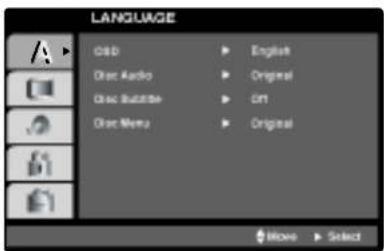
OSD
Επιλέξτε μια γλώσσα για το μενού Setup και την εμφάνιση στην οθόνη.
Ήχος δίσκου / Υπότιτλοι / Μενού DVD
Επιλέξτε τη γλώσσα που προτιμάτε για το ηχητικό κομμάτι (ήχος δίσκου), τους υπότιτλους και το μενού του δίσκου.
Πρωτότυπο: Αναφέρεται στην αρχική γλώσσα στην οποία ηχογραφήθηκε ο δίσκος.
Άλλο: Για να επιλέξετε άλλη γλώσσα, πατήστε τα πλήκτρα αριθμών για να εισαγάγετε τον αντίστοιχο τετραψήφιο αριθμό σύμφωνα με τη λίστα κωδικών γλώσσας στη σελίδα 37. Εάν εισαγάγετε λάθος κωδικό γλώσσας, πατήστε CLEAR στο τηλεχειριστήριο.
Πριν από τη λειτουργία
ΟΘΟΝΗ
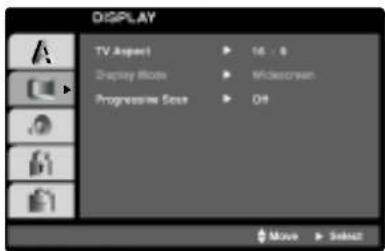
Αναλογία οθόνης TV DVD
4:3: Επιλέξτε όταν είναι συνδεδεμένη μια τυπική τηλεόραση 4:3. 16:9: Επιλέξτε όταν είναι συνδεδεμένη μια ευρεία τηλεόραση 16:9.
Λειτουργία εμφάνισης DVD
Η ρύθμιση Λειτουργία εμφάνισης λειτουργεί μόνο όταν η λειτουργία Αναλογία οθόνης TV έχει οριστεί σε "4:3".
Letterbox: Εμφανίζει μια ευρεία εικόνα με λωρίδες στο πάνω και κάτω μέρος της οθόνης.
Panscan: Εμφανίζει αυτόματα την ευρεία εικόνα σε ολόκληρη την οθόνη και κόβει τα τμήματα που δεν χωρούν.
Προοδευτική σάρωση DVD
Το βίντεο προοδευτικής σάρωσης παρέχει εικόνες υψηλότερης ποιότητας με λιγότερο τρεμόπαιγμα.
Εάν χρησιμοποιείτε τις υποδοχές βίντεο Component για σύνδεση σε τηλεόραση ή οθόνη συμβατή με σήμα προοδευτικής σάρωσης, ρυθμίστε την Προοδευτική σάρωση σε Ενεργή.
Για να ενεργοποιήσετε την προοδευτική σάρωση:
Συνδέστε την έξοδο component του DVD στην είσοδο της οθόνης/τηλεόρασής σας, ρυθμίστε την τηλεόραση ή την οθόνη σας σε Είσοδος Component.
- Επιλέξτε "Προοδευτική σάρωση" στο μενού ΟΘΟΝΗ και πατήστε ▶.
- Επιλέξτε "On" με τα κουμπιά ▲ / ▼.
- Πατήστε SELECT/ENTER για να επιβεβαιώσετε την επιλογή σας. Θα εμφανιστεί το μενού επιβεβαίωσης.
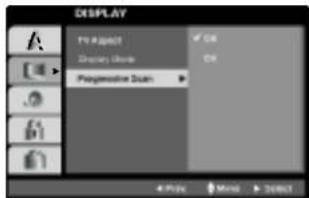
- Όταν εμφανιστεί το μενού επιβεβαίωσης στην οθόνη, το Cancel είναι επιλεγμένο ως προεπιλογή. Χρησιμοποιήστε τα κουμπιά 🔊/▶ για να επισημάνετε το Enter.
- Πατώντας ENTER θα ρυθμίσετε τη συσκευή σε λειτουργία Progressive Scan.
Προσοχή
Μόλις ενεργοποιηθεί η ρύθμιση για έξοδο Progressive Scan, η εικόνα θα είναι ορατή μόνο σε τηλεόραση ή οθόνη συμβατή με Progressive Scan. Εάν ρυθμίσετε το Progressive Scan σε On κατά λάθος, πρέπει να επαναφέρετε τη συσκευή.
1) Αφαιρέστε οποιονδήποτε δίσκο από τη συσκευή και κλείστε τον δίσκο. Βεβαιωθείτε ότι εμφανίζεται "NO DISC" στην οθόνη.
2) Πατήστε και κρατήστε πατημένο το STOP (■) για πέντε δευτερόλεπτα και μετά αφήστε το. Η έξοδος βίντεο θα επανέλθει στην τυπική ρύθμιση και η εικόνα θα είναι ξανά ορατή σε μια συμβατική αναλογική τηλεόραση ή οθόνη.
Πριν από τη λειτουργία
AUDIO
Κάθε δίσκος DVD διαθέτει ποικιλία επιλογών εξόδου ήχου. Ρυθμίστε τις επιλογές AUDIO του συσκευής αναπαραγωγής σύμφωνα με τον τύπο του ηχητικού συστήματος που χρησιμοποιείτε.
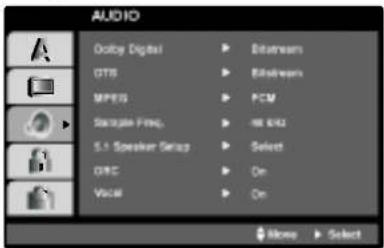
Dolby Digital / DTS / MPEG DVD
Bitstream: Επιλέξτε "Bitstream" εάν συνδέσετε την υποδοχή DIGITAL OUT του DVD player σε ενισχυτή ή άλλο εξοπλισμό με αποκωδικοποιητή Dolby Digital, DTS ή MPEG.
PCM: Επιλέξτε όταν συνδέεστε σε στερεοφωνικό ενισχυτή δύο καναλιών. Οι δίσκοι DVD με κωδικοποίηση Dolby Digital ή MPEG θα μετατραπούν αυτόματα σε ήχο PCM δύο καναλιών.
Συχνότητα δειγματοληψίας (Frequency) DVD
Εάν ο δέκτης ή ο ενισχυτής σας ΔΕΝ υποστηρίζει σήματα 96 kHz, επιλέξτε 48 kHz. Όταν γίνει αυτή η επιλογή, αυτή η συσκευή μετατρέπει αυτόματα οποιαδήποτε σήματα 96 kHz σε 48 kHz, ώστε το σύστημά σας να μπορεί να τα αποκωδικοποιήσει.
Εάν ο δέκτης ή ο ενισχυτής σας υποστηρίζει σήματα 96 kHz, επιλέξτε 96 kHz. Όταν γίνει αυτή η επιλογή, αυτή η συσκευή περνά κάθε τύπο σήματος χωρίς περαιτέρω επεξεργασία.
Ελέγξτε την τεκμηρίωση του ενισχυτή σας για να επαληθεύσετε τις δυνατότητές του.
Έλεγχος δυναμικού εύρους (DRC)
Με τη μορφή DVD, μπορείτε να ακούσετε το soundtrack ενός προγράμματος με την πιο ακριβή και ρεαλιστική παρουσίαση που είναι δυνατή, χάρη στην ψηφιακή τεχνολογία ήχου. Ωστόσο, μπορεί να θέλετε να συμπιέσετε το δυναμικό εύρος της εξόδου ήχου (τη διαφορά μεταξύ των πιο δυνατών και των πιο ήσυχων ήχων). Έτσι, μπορείτε να παρακολουθήσετε μια ταινία σε χαμηλότερη ένταση χωρίς να χάσετε την ευκρίνεια του διαλόγου. Ρυθμίστε το DRC σε On για αυτό το αποτέλεσμα.

Σημειώσεις
- Η λειτουργία DRC λειτουργεί μόνο κατά την αναπαραγωγή δίσκων με εγγραφή Dolby Digital.
- Το επίπεδο συμπίεσης δυναμικού εύρους μπορεί να διαφέρει ανάλογα με τον δίσκο DVD.
Φωνητικά (Vocal)
Ρυθμίστε το Vocal σε On μόνο όταν παίζει ένα πολυκαναλικό DVD karaoke. Τα κανάλια karaoke στο δίσκο θα αναμειχθούν σε κανονικό στερεοφωνικό ήχο.
5.1 Ρύθμιση Ηχείων DVD
Επιλέξτε ρυθμίσεις ηχείων, συμπεριλαμβανομένης της ισορροπίας έντασης και της απόστασης, ή δοκιμάστε τις ρυθμίσεις ηχείων.
Οι ρυθμίσεις ηχείων είναι ενεργές μόνο στην Αναλογική Έξοδο Πολλαπλών Καναλιών.
Ρύθμιση Ηχείων
Κάντε τις ακόλουθες ρυθμίσεις για τον ενσωματωμένο αποκωδικοποιητή surround 5.1 καναλιών.
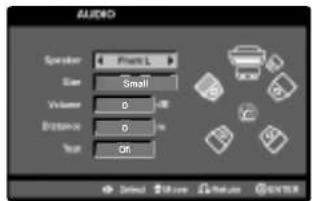
- Πατήστε SETUP. Εμφανίζεται το μενού εγκατάστασης.
- Χρησιμοποιήστε ▲ / ▼ για να επιλέξετε την επιλογή AUDIO και μετά πατήστε ▶ για να μεταβείτε στο δεύτερο επίπεδο.
- Χρησιμοποιήστε ▲ / ▼ για να επιλέξετε την επιλογή Ρύθμιση Ηχείων και μετά πατήστε ▶ για να μεταβείτε στο τρίτο επίπεδο. Η επιλογή "Επιλογή" είναι επισημασμένη.
- Πατήστε SELECT/ENTER και εμφανίζεται το μενού Ρύθμισης Ηχείων 5.1.
- Χρησιμοποιήστε ◄/▶ για να επιλέξετε το επιθυμητό ηχείο.
- Προσαρμόστε τις επιλογές χρησιμοποιώντας τα κουμπιά ▲ / ▼ / ◀ / ▶.
- Πατήστε SELECT/ENTER για να επιβεβαιώσετε την επιλογή σας. Επιστρέφει στο προηγούμενο μενού.
Επιλογή ηχείου
Επιλέξτε ένα ηχείο που θέλετε να ρυθμίσετε. [Μπροστινό ηχείο (Front L), Κεντρικό ηχείο (Center), Μπροστινό ηχείο (Front R), , Πίσω ηχείο (Rear R), Πίσω ηχείο (Rear L) ή Υπογούφερ (Woofer)]
Μέγεθος
Πατήστε ◄/► για να επιλέξετε μια λειτουργία. (Large, Small ή None) - Το μέγεθος του μπροστινού αριστερού/δεξιού ηχείου μπορεί να επιλεγεί ως "Large" ή "Small". - Το μέγεθος του υπογούφερ μπορεί να επιλεγεί ως "Large" ή "None". - Επειδή το μέγεθος του κεντρικού και των πίσω αριστερών/δεξιών ηχείων είναι σταθερό σε "Small", δεν μπορείτε να αλλάξετε τις ρυθμίσεις. - Εάν έχετε συνδέσει το σύστημα σε ηχείο με χαμηλή συχνότητα 100Hz ή κάτω, επιλέξτε "Large" για το μέγεθος του μπροστινού αριστερού/δεξιού ηχείου. Το μέγεθος του υπογούφερ επιλέγεται αυτόματα ως "None". - Εάν έχετε συνδέσει το σύστημα σε ηχείο χωρίς χαμηλή συχνότητα 100Hz ή κάτω, επιλέξτε "Small" για το μέγεθος του μπροστινού αριστερού/δεξιού ηχείου. Το μέγεθος του υπογούφερ επιλέγεται αυτόματα ως "Large". Αλλά αν δεν έχετε συνδέσει υπογούφερ, επιλέγετε πάντα "Large" για το μέγεθος του μπροστινού αριστερού/δεξιού ηχείου.
Πριν από τη λειτουργία
Ένταση
Πατήστε ◄/► για να ρυθμίσετε το επίπεδο εξόδου του επιλεγμένου ηχείου. (-5dB \~ 5dB)
Απόσταση
Εάν έχετε συνδέσει ηχεία στο DVD Player σας, η ρύθμιση της απόστασης ενημερώνει τα ηχεία για το πόσο μακριά πρέπει να ταξιδέψει ο ήχος για να φτάσει στο σημείο ακρόασης που έχετε ορίσει. Αυτό επιτρέπει στον ήχο από κάθε ηχείο να φτάνει στον ακροατή ταυτόχρονα.
Πατήστε ◄/► για να ρυθμίσετε την απόσταση του επιλεγμένου ηχείου (Κεντρικό, Πίσω αριστερό και Πίσω δεξί).
Δοκιμή
Επιλέξτε "All" για να δοκιμάσετε τα σήματα κάθε ηχείου. Ρυθμίστε την ένταση ώστε να ταιριάζει με την ένταση των σημάτων δοκιμής που είναι αποθηκευμένα στο σύστημα.
(Όταν το μέγεθος του μπροστινού αριστερού/δεξιού ηχείου έχει επιλεγεί ως "Large", το υπογούφερ (Woofer) δεν είναι διαθέσιμο.)
Μπροστινό αριστερό → Κεντρικό → Μπροστινό δεξί → Πίσω δεξί → Πίσω αριστερό → Υπογούφερ
Μπορείτε να ρυθμίσετε την ένταση κατά τη διάρκεια της δοκιμής, πρώτα χρησιμοποιήστε τα πλήκτρα 🔊/▼ για να επιλέξετε Volume ή Speaker και στη συνέχεια χρησιμοποιήστε τα πλήκτρα ◀/▼ για να επιλέξετε ένταση ή ηχείο, έτσι ώστε η ένταση όλων των ηχείων να είναι ίδια από τη θέση του ακροατή.
ΑΛΛΑ
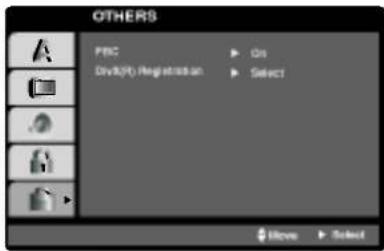
PBC VCD
Ρυθμίστε το Playback Control (PBC) σε On ή Off.
Ενεργό: Τα Video CDs με PBC αναπαράγονται σύμφωνα με το PBC.
Ανενεργό: Τα Video CDs με PBC αναπαράγονται με τον ίδιο τρόπο όπως τα Audio CDs.
Εγγραφή DivX(R)
DivX
Μπορείτε να δείτε τον κωδικό εγγραφής DivX DRM (Digital Right Management) μόνο για τη συσκευή σας.
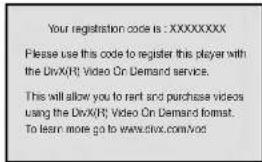
Ο κωδικός εγγραφής χρησιμοποιείται για τον πράκτορα υπηρεσιών VOD (Video-On-Demand). Μπορείτε να αγοράσετε ή να νοικιάσετε ένα κρυπτογραφημένο αρχείο ταινίας.
Σημειώσεις
Εάν νοικιάσετε το αρχείο DivX VOD, έχει διάφορες επιλογές περιορισμών προβολής, όπως φαίνεται παρακάτω.
• Εμφανίζει τον αριθμό των φορών που μπορείτε να παρακολουθήσετε το αρχείο.
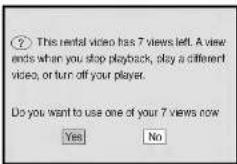
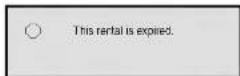
• Η ενοικίαση έχει λήξει.
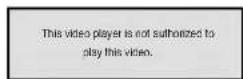
• Εμφανίζει σφάλμα εξουσιοδότησης.
Πριν από τη Λειτουργία
ΚΛΕΙΔΩΜΑ (Γονικός Έλεγχος)
Αξιολόγηση DVD
Ορισμένες ταινίες περιέχουν σκηνές που μπορεί να μην είναι κατάλληλες για παιδιά. Πολλοί από αυτούς τους δίσκους περιέχουν πληροφορίες γονικού ελέγχου που ισχύουν για ολόκληρο τον δίσκο ή για συγκεκριμένες σκηνές του δίσκου. Οι ταινίες και οι σκηνές αξιολογούνται από 1 έως 8, ανάλογα με τη χώρα. Ορισμένοι δίσκοι προσφέρουν πιο κατάλληλες σκηνές ως εναλλακτική λύση.
Η λειτουργία γονικού ελέγχου σάς επιτρέπει να αποκλείσετε την πρόσβαση σε σκηνές κάτω από την αξιολόγηση που εισάγετε, αποτρέποντας έτσι τα παιδιά σας από το να βλέπουν υλικό που θεωρείτε ακατάλληλο.
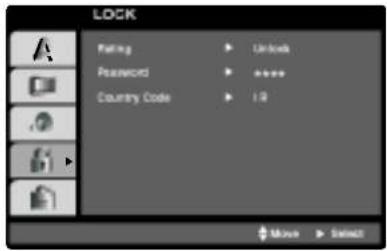
1 Επιλέξτε "Αξιολόγηση" στο μενού ΚΛΕΙΔΩΜΑ και πατήστε ▶. 2 Για να αποκτήσετε πρόσβαση στις λειτουργίες Αξιολόγηση, Κωδικός και Κωδικός Χώρας, πρέπει να εισαγάγετε τον 4ψήφιο κωδικό ασφαλείας που δημιουργήσατε.
Εάν δεν έχετε εισαγάγει ακόμη κωδικό ασφαλείας, σας ζητείται να το κάνετε.
Εισαγάγετε έναν 4ψήφιο κωδικό και πατήστε SELECT/ENTER. Εισαγάγετέ τον ξανά και πατήστε SELECT/ENTER για επιβεβαίωση. Εάν κάνετε λάθος πριν πατήσετε SELECT/ENTER, πατήστε CLEAR.
3 Επιλέξτε μια αξιολόγηση από 1 έως 8 χρησιμοποιώντας τα κουμπιά ▲ / ▼.
Αξιολόγηση 1-8: Η αξιολόγηση ένα (1) έχει τους περισσότερους περιορισμούς και η αξιολόγηση οκτώ (8) είναι η λιγότερο περιοριστική.
Ξεκλείδωμα
Εάν επιλέξετε ξεκλείδωμα, ο γονικός έλεγχος δεν είναι ενεργός και ο δίσκος αναπαράγεται πλήρως.
Σημείωση
Εάν ορίσετε μια αξιολόγηση για τη συσκευή αναπαραγωγής, όλες οι σκηνές του δίσκου με την ίδια ή χαμηλότερη αξιολόγηση αναπαράγονται. Οι σκηνές με υψηλότερη αξιολόγηση δεν αναπαράγονται, εκτός εάν υπάρχει εναλλακτική σκηνή στον δίσκο. Η εναλλακτική πρέπει να έχει την ίδια ή χαμηλότερη αξιολόγηση. Εάν δεν βρεθεί κατάλληλη εναλλακτική, η αναπαραγωγή σταματά. Πρέπει να εισαγάγετε τον 4ψήφιο κωδικό ή να αλλάξετε το επίπεδο αξιολόγησης για να αναπαράγετε τον δίσκο.
4 Πατήστε SELECT/ENTER για να επιβεβαιώσετε την επιλογή αξιολόγησης και, στη συνέχεια, πατήστε SETUP για να εξέλθετε από το μενού.
Κωδικός (Κωδικός Ασφαλείας)
Μπορείτε να εισαγάγετε ή να αλλάξετε τον κωδικό.
1 Επιλέξτε Κωδικός στο μενού ΚΛΕΙΔΩΜΑ και πατήστε ▶. 2 Ακολουθήστε το βήμα 2 όπως φαίνεται αριστερά (Αξιολόγηση). "Αλλαγή" ή "Νέος" επισημαίνεται. 3 Εισαγάγετε τον νέο 4ψήφιο κωδικό και πατήστε SELECT/ENTER. Εισαγάγετέ τον ξανά για επιβεβαίωση. 4 Πατήστε SETUP για να εξέλθετε από το μενού.
Εάν ξεχάσετε τον Κωδικό Ασφαλείας
Εάν ξεχάσετε τον κωδικό ασφαλείας, μπορείτε να τον διαγράψετε ακολουθώντας τα παρακάτω βήματα:
1 Εισάγετε τον 6ψήφιο αριθμό "210499" στο μενού εγκατάστασης και ο κωδικός ασφαλείας διαγράφεται. 2 Εισάγετε έναν νέο κωδικό όπως περιγράφεται παραπάνω.
Σημείωση
Όταν εμφανιστεί "INPUT PASSWD ■ ■ ■ ■ ■" στην οθόνη της τηλεόρασης, πατήστε STOP (■) και στη συνέχεια πατήστε SETUP για να μεταβείτε στο μενού εγκατάστασης.
Κωδικός Χώρας DVD
Εισάγετε τον κωδικό της χώρας/περιοχής της οποίας τα πρότυπα χρησιμοποιήθηκαν για την αξιολόγηση του δίσκου βίντεο DVD, βάσει της λίστας στο κεφάλαιο αναφοράς.
1 Επιλέξτε "Country Code" στο μενού LOCK και πατήστε ▶. 2 Ακολουθήστε το βήμα 2 όπως φαίνεται αριστερά (Rating). 3 Επιλέξτε τον πρώτο χαρακτήρα με τα κουμπιά ▲ / ▼. 4 Μετακινήστε τον κέρσορα με το κουμπί ▶ και επιλέξτε τον δεύτερο χαρακτήρα με τα κουμπιά △ / ▽. 5 Πατήστε SELECT/ENTER για να επιβεβαιώσετε την επιλογή του κωδικού χώρας.
Λειτουργία με ΡΑΔΙΟΦΩΝΟ
Προεπιλογή των ραδιοφωνικών σταθμών
Μπορείτε να προεπιλέξετε 50 σταθμούς για FM, MW(AM) και SW (προαιρετικό).
Πριν από τον συντονισμό, βεβαιωθείτε ότι έχετε χαμηλώσει την ένταση στο ελάχιστο επίπεδο.
1 Πατήστε TUNER/BAND για να εμφανιστεί είτε FM, MW(AM) ή SW (προαιρετικό) στο παράθυρο οθόνης. Κάθε φορά που πατάτε αυτό το κουμπί, το MW(AM), το FM και το SW (προαιρετικό) αλλάζουν εναλλάξ.
2 Γυρίστε το MULTI JOG DIAL στο μπροστινό πάνελ μέχρι να αρχίσει να αλλάζει η ένδειξη συχνότητας.
Σημειώσεις
• Αυτόματος συντονισμός
Πατήστε τα κουμπιά AUTO TUNING (▼/▲).
- Η σάρωση σταματά όταν ο δέκτης συντονιστεί σε έναν σταθμό.
- Χειροκίνητος συντονισμός
Χρησιμοποιήστε τον περιστροφικό διακόπτη MULTI JOG DIAL.
Πατήστε MEMORY στο μπροστινό πάνελ.
3 Ένας αριθμός προεπιλογής θα αναβοσβήνει στην οθόνη.
4 Πατήστε PRESET ▲/▼ (ή PRESET ▼/▲ στο τηλεχειριστήριο) για να επιλέξετε τον επιθυμητό αριθμό προεπιλογής.
Πατήστε ξανά MEMORY.
5 Ο σταθμός αποθηκεύεται.
6 Επαναλάβετε τα βήματα 2 έως 5 για να αποθηκεύσετε άλλους σταθμούς.
Για να διαγράψετε όλους τους αποθηκευμένους σταθμούς
Πατήστε και κρατήστε πατημένο το MEMORY στο μπροστινό πάνελ για περίπου δύο δευτερόλεπτα, εμφανίζεται το "CLEAR" στην οθόνη και στη συνέχεια πατήστε CLEAR στο μπροστινό πάνελ, οι σταθμοί διαγράφονται.
Για αναφορά
Εάν έχουν ήδη καταχωρηθεί όλοι οι σταθμοί, θα εμφανιστεί το μήνυμα "FULL" στην οθόνη για μια στιγμή και στη συνέχεια θα αναβοσβήσει ένας αριθμός προεπιλογής.
Για να αλλάξετε τον αριθμό προεπιλογής, ακολουθήστε τα βήματα 4-5.
Για να ανακαλέσετε αποθηκευμένους σταθμούς
Πατήστε και κρατήστε πατημένο το PRESET ▲/▼ (ή PRESET ▼/▲ στο τηλεχειριστήριο) μέχρι να εμφανιστεί ο επιθυμητός αριθμός σταθμού ή πατήστε το κουμπί επανειλημμένα.
Ακρόαση ραδιοφώνου
1 Πατήστε TUNER/BAND για να επιλέξετε FM, MW(AM) ή SW (προαιρετικό) στην οθόνη. Ο τελευταίος σταθμός που λήφθηκε θα συντονιστεί.
2 Πατήστε PRESET ▲/▼ (ή PRESET ▼/▲ στο τηλεχειριστήριο) επανειλημμένα για να επιλέξετε τον αποθηκευμένο σταθμό που θέλετε.
Κάθε φορά που πατάτε αυτό το κουμπί, η συσκευή συντονίζεται στον επόμενο αποθηκευμένο σταθμό.
3 Ρυθμίστε την ένταση περιστρέφοντας το κουμπί VOLUME (ή πατώντας VOLUME -/+ στο τηλεχειριστήριο) επανειλημμένα.
Για να ακούσετε μη αποθηκευμένους ραδιοφωνικούς σταθμούς
- Για χειροκίνητο συντονισμό, δείτε "Χειροκίνητος Συντονισμός".
- Για αυτόματο συντονισμό, δείτε "Αυτόματος Συντονισμός".
Για να απενεργοποιήσετε το ραδιόφωνο
Πατήστε POWER για να απενεργοποιήσετε τη συσκευή ή επιλέξτε άλλη λειτουργία (TAPE, DVD/CD ή AUX).
Για αναφορά
• Εάν ένα FM πρόγραμμα έχει θόρυβο
Πατήστε MODE/RIF επανειλημμένα έτσι ώστε να εξαφανιστεί το "III" από την οθόνη. Δεν θα υπάρχει στερεοφωνικό εφέ, αλλά η λήψη θα βελτιωθεί. Πατήστε MODE/RIF ξανά για να επαναφέρετε το στερεοφωνικό εφέ.
• Για καλύτερη λήψη
Επανατοποθετήστε τις παρεχόμενες κεραίες.
Σημειώσεις
- Χρησιμοποιήστε τη λειτουργία MODE/RIF (Φίλτρο Παρεμβολών Ραδιοφώνου) για να μεταβείτε σε μονοφωνική λήψη αν η στερεοφωνική λήψη παραμορφώνεται από θόρυβο.
- Κατά την εγγραφή αδύναμων εκπομπών MW(AM), αν παρουσιαστεί θόρυβος, πατήστε MODE/RIF μία φορά.
Λειτουργία με ΚΑΣΕΤΟΦΩΝΟ
Βασική Αναπαραγωγή
1 Πατήστε TAPE1-2 για να επιλέξετε τη λειτουργία κασετόφωνου. ("NO TAPE" εμφανίζεται στην οθόνη.) 2 Ανοίξτε το κασετόφωνο TAPE1-2 πιέζοντας στη θέση ▲PUSH EJECT. 3 Τοποθετήστε μία ή δύο κασέτες με την πλευρά της ταινίας προς τα κάτω και κλείστε την πόρτα TAPE 1 (ή/και 2). 4 Πατήστε ▶ (ή ◀: ΠΡΟΑΙΡΕΤΙΚΟ).
ΑΥΤΟΜΑΤΗ ΑΝΤΙΣΤΡΟΦΗ (TAPE 1 ή 2): ΠΡΟΑΙΡΕΤΙΚΟ
Μπορείτε να επιλέξετε την κατεύθυνση της κασέτας που θέλετε πατώντας PLAY MODE.
| Pressing | Display | Function |
| - | After the cassette of TAPE 1 or 2 plays front or reverse (backward play) side, stops automatically. | |
| Once | After the cassette of TAPE 1 or 2 plays front and reverse side, stops automatically. | |
| Twice | After the cassette of TAPE 1 or 2 plays six times repeatedly front and reverse side, stops automatically. | |
| Three times | After a cassette of TAPE 1 and 2 plays six times repeatedly front and reverse side, stops automatically. |
Για να σταματήσετε την αναπαραγωγή
Πατήστε STOP(■) στο μπροστινό μέρος ή TAPE STOP(■) στο τηλεχειριστήριο κατά τη διάρκεια της αναπαραγωγής.
Επαναφορά μετρητή ταινίας
Πατήστε COUNT. RESET κατά τη διάρκεια της αναπαραγωγής. Ο χρόνος αναπαραγωγής εμφανίζεται ως "TAP -1 (ή 2) 0000" στην οθόνη.
Για αναπαραγωγή, επαναφορά ή γρήγορη προώθηση
Κατά την αναπαραγωγή, πατήστε ◀◀/▶▶ στο μπροστινό μέρος ή στο τηλεχειριστήριο και, στη συνέχεια, πατήστε ▶ (ή ◀, προαιρετικά) στη θέση της ταινίας που θέλετε.
Αντιγραφή
Αυτή η λειτουργία δείχνει πώς να εγγράψετε από ταινία σε ταινία.
1 Πατήστε TAPE1-2. • Κασέτα TAPE 1 - Τοποθετήστε την ταινία αναπαραγωγής για αντιγραφή. • Κασέτα TAPE 2 - Τοποθετήστε μια κενή ταινία για εγγραφή.
2 Πατήστε NORMAL DUBBING/HIGH DUBBING. • NORMAL DUBBING - Αντιγραφή σε κανονική ταχύτητα • HIGH DUBBING - Αντιγραφή σε διπλή ταχύτητα
Για να σταματήσετε την εγγραφή, πατήστε STOP (■).
Εγγραφή
Βασικές Ρυθμίσεις
1 Πατήστε CD ή TUNER για να επιλέξετε την πηγή.
2 Ανοίξτε το κασετόφωνο TAPE 2 και τοποθετήστε μια κενή κασέτα στη θήκη κασετών. Ρυθμίστε την κατεύθυνση εγγραφής: ΠΡΟΑΙΡΕΤΙΚΑ Πατήστε PLAY MODE επανειλημμένα για να ρυθμίσετε την κατεύθυνση εγγραφής.
Εγγραφή από ραδιόφωνο, CD ή βοηθητική πηγή
1 Πατήστε ●REC/II στο μπροστινό μέρος. Το "REC" αναβοσβήνει και κρατά την κασέτα σε λειτουργία παύσης.
2 Πατήστε ▶ (ή ◀: ΠΡΟΑΙΡΕΤΙΚΑ). Η εγγραφή ξεκινά.
Για να κάνετε παύση της εγγραφής
Πατήστε ●REC/II.
Για να σταματήσετε την εγγραφή
Πατήστε STOP (■).
Σύγχρονη εγγραφή από CD σε κασέτα
Η λειτουργία σύγχρονης εγγραφής CD αντιγράφει αυτόματα ένα ολόκληρο CD και επιλεγμένα κομμάτια σε κασέτα.
1 Πατήστε CD SYNC σε κατάσταση αναμονής. Το "REC" αναβοσβήνει και το "CD SYNCHRO" εμφανίζεται στην οθόνη.
2 Η σύγχρονη εγγραφή ξεκινά αυτόματα μετά από περίπου 7 δευτερόλεπτα.
Σημειώσεις
- Εάν θέλετε να εγγράψετε από το επιθυμητό κομμάτι, επιλέξτε το επιθυμητό κομμάτι με το MULTI JOG DIAL πριν ξεκινήσετε τη σύγχρονη εγγραφή CD.
- Δεν είναι δυνατή η αλλαγή λειτουργίας κατά τη διάρκεια της εγγραφής.
Λειτουργία με DVD και Video CD
Αναπαραγωγή DVD και Video CD
Ρύθμιση αναπαραγωγής
- Ενεργοποιήστε την τηλεόραση και επιλέξτε την είσοδο βίντεο που είναι συνδεδεμένη στη συσκευή.
- Ηχοσύστημα: Ενεργοποιήστε το ηχοσύστημα και επιλέξτε την είσοδο που είναι συνδεδεμένη στη συσκευή.
1 Πατήστε το κουμπί ▲ OPEN/CLOSE για να ανοίξετε τον δίσκο.
Τοποθετήστε τον επιλεγμένο δίσκο στο δίσκο υποδοχής, με την πλευρά αναπαραγωγής προς τα κάτω.
Δίσκος 1 Δίσκος 2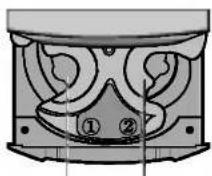
- Αναπαραγωγή ενός ή δύο δίσκων Τοποθετήστε τους δίσκους στους δίσκους υποδοχής 1 και 2. - Αναπαραγωγή τριών δίσκων Αφού τοποθετήσετε δύο δίσκους, πατήστε το κουμπί D.SKIP για να περιστρέψετε τους δίσκους υποδοχής. Τοποθετήστε τον επόμενο δίσκο στον δίσκο υποδοχής 3.
3 Πατήστε το κουμπί ▲ OPEN/CLOSE για να κλείσετε τον δίσκο υποδοχής. Η αναπαραγωγή ξεκινά αυτόματα. Εάν δεν ξεκινήσει η αναπαραγωγή, πατήστε PLAY.
Σε ορισμένες περιπτώσεις, μπορεί να εμφανιστεί το μενού του δίσκου.
DVD
Χρησιμοποιήστε τα κουμπιά 🔊/▽/◀/▶ για να επιλέξετε τον τίτλο/κεφάλαιο που θέλετε να δείτε και, στη συνέχεια, πατήστε SELECT/ENTER για να ξεκινήσετε. Πατήστε TITLE ή MENU για να επιστρέψετε στην οθόνη μενού.
VCD
Χρησιμοποιήστε τα κουμπιά αριθμών για να επιλέξετε το κομμάτι που θέλετε να δείτε και πατήστε RETURN για να επιστρέψετε στην οθόνη μενού. Οι ρυθμίσεις μενού και οι διαδικασίες λειτουργίας μπορεί να διαφέρουν. Ακολουθήστε τις οδηγίες σε κάθε οθόνη μενού. Μπορείτε επίσης να ρυθμίσετε το PBC σε Off (Βλέπε "PBC" στη σελίδα 24).
Σημειώσεις
- Εάν έχει οριστεί γονικός έλεγχος και ο δίσκος δεν είναι εντός των ρυθμίσεων βαθμολογίας, πρέπει να εισαγάγετε τον κωδικό πρόσβασης. (Βλέπε "Μενού Κλειδώματος" στη σελίδα 25.) – Οι DVD μπορεί να έχουν κωδικό περιοχής. Η συσκευή αναπαραγωγής δεν θα αναπαράγει δίσκους με κωδικό περιοχής διαφορετικό από αυτόν της συσκευής. Ο κωδικός περιοχής για αυτή τη συσκευή είναι 2 (δύο).
Για να επιλέξετε απευθείας έναν δίσκο
Πατήστε DISC 1, DISC 2 ή DISC 3 κατά τη διάρκεια της αναπαραγωγής ή της διακοπής. Όταν πατήσετε DISC 1, 2 ή 3 πριν από την αναπαραγωγή ενός δίσκου, η μονάδα θα ξεκινήσει αυτόματα την αναπαραγωγή του επιλεγμένου δίσκου.
Γενικά Χαρακτηριστικά
Σημείωση
Εκτός αν αναφέρεται διαφορετικά, όλες οι λειτουργίες που περιγράφονται χρησιμοποιούν το τηλεχειριστήριο. Ορισμένες λειτουργίες μπορεί επίσης να είναι διαθέσιμες στο μενού Ρυθμίσεις.
Μετάβαση σε άλλο TITLE DVD
Όταν ένας δίσκος έχει περισσότερους από έναν τίτλους, μπορείτε να μεταβείτε σε άλλο τίτλο. Πατήστε DISPLAY ενώ η αναπαραγωγή είναι σταματημένη και στη συνέχεια τον κατάλληλο αριθμό (0-9) ή χρησιμοποιήστε 🔔/▶ για να μεταβείτε σε άλλο τίτλο.
Μπορείτε να αναπαράγετε οποιονδήποτε τίτλο εισάγοντας τον αριθμό του ενώ η αναπαραγωγή είναι σταματημένη.
Μετάβαση σε άλλο ΚΕΦΑΛΑΙΟ/ΚΟΜΜΑΤΙ
DVD
VCD
Όταν ένας τίτλος σε έναν δίσκο έχει περισσότερα από ένα κεφάλαια ή ένας δίσκος έχει περισσότερα από ένα κομμάτια, μπορείτε να μεταβείτε σε άλλο κεφάλαιο/κομμάτι ως εξής:
- Πατήστε ◀◀◀ ή ▶▶◀ στιγμιαία κατά τη διάρκεια της αναπαραγωγής για να επιλέξετε το επόμενο κεφάλαιο/κομμάτι ή για να επιστρέψετε στην αρχή του τρέχοντος κεφαλαίου/κομματιού.
- Πατήστε I◄◄ δύο φορές στιγμιαία για να επιστρέψετε στο προηγούμενο κεφάλαιο/κομμάτι.
- Για να μεταβείτε απευθείας σε οποιοδήποτε κεφάλαιο κατά την αναπαραγωγή DVD, πατήστε DISPLAY και πατήστε 🔒 / 🔑 για να επιλέξετε το εικονίδιο κεφαλαίου/κομματιού. Στη συνέχεια, εισάγετε τον αριθμό κεφαλαίου/κομματιού ή χρησιμοποιήστε 🔒 / 🔑.
Αναζήτηση
DVD
VCD
1 Πατήστε ◀◀ ή ▶▶ κατά τη διάρκεια της αναπαραγωγής. Η συσκευή θα εισέλθει τώρα σε λειτουργία ΑΝΑΖΗΤΗΣΗΣ. 2 Πατήστε ◀◀ ή ▶▶ επανειλημμένα για να επιλέξετε την απαιτούμενη ταχύτητα: ◀◀X2, ◀◀X4, ◀◀X8, ◀◀X16, ◀◀X100 (πίσω) ή ▶▶X2, ▶▶X4, ▶▶X8, ▶▶X16, ▶▶X100 (μπροστά). Με ένα Video CD, η ταχύτητα αναζήτησης αλλάζει: ◀◀X2, ◀◀X4, ◀◀X8, ◀◀X16 (πίσω) ή ▶▶X2, ▶▶X4, ▶▶X8, ▶▶X16 (μπροστά).
3 Για έξοδο από τη λειτουργία ΑΝΑΖΉΤΗΣΗΣ, πατήστε PLAY.
Λειτουργία με DVD και Video CD
Γενικά χαρακτηριστικά (συνέχεια)
Ακίνητη εικόνα και αναπαραγωγή καρέ-καρέ
DVD VCD
1 Πατήστε PAUSE/STEP στο τηλεχειριστήριο κατά την αναπαραγωγή. Η συσκευή θα μεταβεί σε λειτουργία ΠΑΎΣΗΣ. 2 Μπορείτε να προχωρήσετε την εικόνα καρέ-καρέ πατώντας επανειλημμένα PAUSE/STEP στο τηλεχειριστήριο. 3 Για έξοδο από τη λειτουργία ακίνητης εικόνας, πατήστε PLAY.
Αργή κίνηση DVD VCD
1 Πατήστε PAUSE/STEP στο τηλεχειριστήριο κατά την αναπαραγωγή. Η συσκευή θα μεταβεί σε λειτουργία ΑΡΓΉΣ ΚΊΝΗΣΗΣ. 2 Χρησιμοποιήστε τα ◀ ή ▶ για να επιλέξετε την επιθυμητή ταχύτητα: ◀ 1/2, ◀ 1/4, ◀ 1/8 ή ◀ 1/16 [(προς τα πίσω) - μόνο DVD] ή ▶ 1/2, ▶ 1/4, ▶ 1/8 ή ▶ 1/16 (προς τα εμπρός). 3 Για επιστροφή στην κανονική αναπαραγωγή, πατήστε PLAY.
Σημείωση
Η αργή κίνηση προς τα πίσω δεν ισχύει για το Video CD.
Επανάληψη DVD VCD
Μπορείτε να αναπαράγετε έναν τίτλο/κεφάλαιο/όλα/κομμάτι σε έναν δίσκο.
Πατήστε REPEAT κατά την αναπαραγωγή για να επιλέξετε την επιθυμητή λειτουργία επανάληψης.
DVD Video Discs - Επανάληψη Κεφαλαίου/Τίτλου/Απενεργοποίηση
• Κεφάλαιο: επαναλαμβάνει το τρέχον κεφάλαιο. • Τίτλος: επαναλαμβάνει τον τρέχοντα τίτλο. - Απενεργοποίηση: δεν αναπαράγει επανειλημμένα.
Βίντεο CD - Επανάληψη Κομματιού/Όλων/Απενεργοποίηση
- Κομμάτι: επαναλαμβάνει το τρέχον κομμάτι • Όλα: επαναλαμβάνει όλα τα κομμάτια ενός δίσκου.
- Απενεργοποίηση: δεν πραγματοποιεί επανάληψη.
Σημείωση
- Σε ένα Βίντεο CD με PBC, πρέπει να ρυθμίσετε το PBC σε Απενεργοποίηση στο μενού ρυθμίσεων για να χρησιμοποιήσετε τη λειτουργία επανάληψης (δείτε "PBC" στη σελίδα 24).
Επανάληψη A-B DVD VCD
Για να επαναλάβετε μια ακολουθία σε έναν τίτλο:
1 Πατήστε REPEAT A-B στο σημείο εκκίνησης που επιλέξατε. "A - " εμφανίζεται στιγμιαία στην οθόνη της τηλεόρασης. 2 Πατήστε ξανά REPEAT A-B στο σημείο λήξης που επιλέξατε. "A - B" εμφανίζεται στιγμιαία στην οθόνη της τηλεόρασης και αρχίζει η επανάληψη της ακολουθίας. 3 Για να ακυρώσετε την ακολουθία, πατήστε REPEAT A-B.
Αναζήτηση Χρόνου DVD VCD
Η λειτουργία Αναζήτηση Χρόνου σάς επιτρέπει να ξεκινήσετε την αναπαραγωγή σε οποιαδήποτε επιλεγμένη χρονική στιγμή του δίσκου.
1 Πατήστε DISPLAY κατά την αναπαραγωγή. Η ένδειξη στην οθόνη εμφανίζεται στην οθόνη. Το πλαίσιο Αναζήτηση Χρόνου δείχνει τον χρόνο αναπαραγωγής που έχει παρέλθει για τον τρέχοντα δίσκο. 2 Μέσα σε 10 δευτερόλεπτα, πατήστε ▲ / ▼ για να επιλέξετε το εικονίδιο Αναζήτηση Χρόνου στην ένδειξη στην οθόνη. Το "-:-:-" εμφανίζεται στο πλαίσιο Αναζήτηση Χρόνου. 3 Μέσα σε 10 δευτερόλεπτα, χρησιμοποιήστε τα πλήκτρα αριθμών για να εισαγάγετε τον απαιτούμενο χρόνο έναρξης. Εισαγάγετε ώρες, λεπτά και δευτερόλεπτα από αριστερά προς τα δεξιά στο πλαίσιο. Εάν εισαγάγετε λάθος αριθμούς, πατήστε CLEAR για να αφαιρέσετε τους αριθμούς που εισαγάγατε. Στη συνέχεια, εισαγάγετε τους σωστούς αριθμούς. 4 Μέσα σε 10 δευτερόλεπτα, πατήστε SELECT/ENTER για να επιβεβαιώσετε τον χρόνο έναρξης. Η αναπαραγωγή ξεκινά από τον επιλεγμένο χρόνο στον δίσκο. Εάν εισαγάγετε μη έγκυρο χρόνο, η αναπαραγωγή θα συνεχιστεί από το τρέχον σημείο.
Μνήμη Τελευταίας Σκηνής DVD
Αυτή η συσκευή αναπαραγωγής απομνημονεύει την τελευταία σκηνή από τον τελευταίο δίσκο που προβλήθηκε. Η τελευταία σκηνή παραμένει στη μνήμη ακόμη και αν αφαιρέσετε τον δίσκο από τη συσκευή αναπαραγωγής ή απενεργοποιήσετε τη συσκευή. Εάν φορτώσετε έναν δίσκο που έχει απομνημονευμένη τη σκηνή, η σκηνή ανακαλείται αυτόματα.
Σημείωση
Αυτή η συσκευή αναπαραγωγής δεν απομνημονεύει τη σκηνή ενός δίσκου εάν απενεργοποιήσετε τη συσκευή πριν ξεκινήσετε την αναπαραγωγή του δίσκου.
Λειτουργία με DVD και Video CD
Γενικά Χαρακτηριστικά (συνέχεια)
Zoom DVD VCD
Η λειτουργία Zoom σάς επιτρέπει να μεγεθύνετε την εικόνα βίντεο και να μετακινείστε μέσα στη μεγεθυμένη εικόνα.
1 Πατήστε ZOOM κατά την αναπαραγωγή ή την παύση αναπαραγωγής για να ενεργοποιήσετε τη λειτουργία Zoom. Εάν πατήσετε επανειλημμένα το ZOOM, το επίπεδο μεγέθυνσης αυξάνεται έως και τέσσερα βήματα. Μέγεθος 100% (λειτουργία προσαρμογής οθόνης) → Μέγεθος 400% → Μέγεθος 800% → Μέγεθος 1600% → Μέγεθος 100% (λειτουργία προσαρμογής οθόνης)
2 Χρησιμοποιήστε τα κουμπιά ▲ / ▼ / ◀ / ▶ για να μετακινηθείτε στη μεγεθυμένη εικόνα.
Σημείωση
Η λειτουργία zoom μπορεί να μην λειτουργεί για ορισμένα DVD.
Αναζήτηση Σημείου DVD VCD
Μπορείτε να ξεκινήσετε την αναπαραγωγή από ένα απομνημονευμένο σημείο. Μπορούν να απομνημονευτούν έως και εννέα σημεία. Για να εισαγάγετε ένα σημάδι, ακολουθήστε τα εξής βήματα.
1 Κατά την αναπαραγωγή δίσκου, πατήστε MARKER όταν η αναπαραγωγή φτάσει στο σημείο που θέλετε να απομνημονεύσετε. Το εικονίδιο Marker θα εμφανιστεί στην οθόνη της τηλεόρασης για λίγο.
2 Επαναλάβετε το βήμα 1 για να εισαγάγετε έως και εννέα σημεία Marker σε έναν δίσκο.
Για να ανακαλέσετε μια επισημασμένη σκηνή
1 Κατά την αναπαραγωγή δίσκου, πατήστε SEARCH. Το μενού MARKER SEARCH θα εμφανιστεί στην οθόνη. 2 Μέσα σε 10 δευτερόλεπτα, πατήστε 🔊/▶ για να επιλέξετε έναν αριθμό Marker που θέλετε να ανακαλέσετε. 3 Πατήστε SELECT/ENTER. Η αναπαραγωγή θα ξεκινήσει από την επισημασμένη σκηνή. 4 Για να αφαιρέσετε το μενού MARKER SEARCH, πατήστε SEARCH.
Για να διαγράψετε μια επισημασμένη σκηνή
1 Κατά την αναπαραγωγή του δίσκου, πατήστε SEARCH. Εμφανίζεται το μενού MARKER SEARCH στην οθόνη. 2 Πατήστε ◄/► για να επιλέξετε τον αριθμό δείκτη που θέλετε να διαγράψετε. 3 Πατήστε CLEAR. Ο αριθμός δείκτη θα διαγραφεί από τη λίστα. 4 Επαναλάβετε τα βήματα 2 και 3 για να διαγράψετε επιπλέον αριθμούς δεικτών. 5 Για να αφαιρέσετε το μενού MARKER SEARCH, πατήστε SEARCH.
Ειδικά χαρακτηριστικά DVD
Έλεγχος των περιεχομένων των δίσκων DVD Video: Μενού
Τα DVD μπορεί να προσφέρουν μενού που σας επιτρέπουν να αποκτήσετε πρόσβαση σε ειδικά χαρακτηριστικά. Για να χρησιμοποιήσετε το μενού του δίσκου, πατήστε MENU. Στη συνέχεια, πατήστε το κατάλληλο κουμπί αριθμού για να επιλέξετε μια επιλογή. Ή, χρησιμοποιήστε τα κουμπιά / / / / για να επισημάνετε την επιλογή σας και μετά πατήστε SELECT/ENTER.
Μενού τίτλου DVD
1 Πατήστε TITLE. Εάν ο τρέχων τίτλος έχει μενού, το μενού θα εμφανιστεί στην οθόνη. Διαφορετικά, μπορεί να εμφανιστεί το μενού του δίσκου. 2 Το μενού μπορεί να περιλαμβάνει γωνίες κάμερας, επιλογές γλώσσας ομιλίας και υποτίτλων, και κεφάλαια για τον τίτλο. 3 Για να αφαιρέσετε το μενού τίτλου, πατήστε ξανά TITLE.
Μενού δίσκου DVD
Πατήστε MENU. Εμφανίζεται το μενού του δίσκου.
Γωνία κάμερας DVD
Εάν ο δίσκος περιέχει σκηνές που έχουν καταγραφεί από διαφορετικές γωνίες κάμερας, μπορείτε να αλλάξετε σε διαφορετική γωνία κάμερας κατά την αναπαραγωγή.
1 Πατήστε DISPLAY και μετά πατήστε ▲/▼ για να επιλέξετε μια γωνία. Ο αριθμός της τρέχουσας γωνίας εμφανίζεται στο παράθυρο προβολής. 2 Επιλέξτε την επιθυμητή γωνία πατώντας τα κουμπιά ◄/►.
Αλλαγή γλώσσας ήχου DVD
Πατήστε επανειλημμένα AUDIO κατά την αναπαραγωγή για να ακούσετε διαφορετική γλώσσα ήχου ή διαφορετικό κομμάτι ήχου.
Αλλαγή καναλιού ήχου VCD
Πατήστε επανειλημμένα AUDIO κατά την αναπαραγωγή για να ακούσετε διαφορετικό κανάλι ήχου (STER., LEFT ή RIGHT).
Υπότιτλοι DVD
Πατήστε επανειλημμένα το πλήκτρο S-TITLE κατά την αναπαραγωγή για να δείτε τις διαφορετικές γλώσσες υποτίτλων.
Σημείωση
Εάν εμφανιστεί το 🖼, η λειτουργία δεν είναι διαθέσιμη στο δίσκο.
Λειτουργία με CD ήχου και δίσκο MP3/WMA
Αναπαραγωγή CD ήχου και MP3/WMA
Δίσκος CD MP3 WMA
Η συσκευή μπορεί να αναπαράγει εγγραφές MP3/WMA σε CD-ROM, CD-R ή CD-RW.
CD ήχου
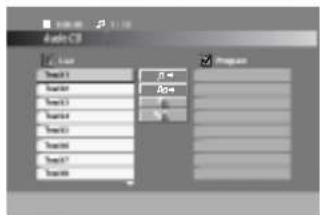
Μόλις τοποθετήσετε ένα CD ήχου, εμφανίζεται ένα μενού στην οθόνη της τηλεόρασης. Πατήστε ▲ / ▼ για να επιλέξετε ένα κομμάτι και στη συνέχεια πατήστε PLAY ή SELECT/ENTER για να ξεκινήσει η αναπαραγωγή.
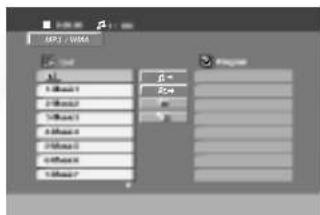
MP3 / WMA
- Πατήστε ▲ / ▼ για να επιλέξετε ένα φάκελο και πατήστε SELECT/ENTER για να δείτε τα περιεχόμενα του φακέλου.
- Πατήστε ▲ / ▼ για να επιλέξετε ένα κομμάτι και στη συνέχεια πατήστε PLAY ή SELECT/ENTER. Η αναπαραγωγή ξεκινά.

Σημειώσεις
- Εάν βρίσκεστε σε λίστα αρχείων στο μενού MP3/WMA και θέλετε να επιστρέψετε στη λίστα φακέλων, χρησιμοποιήστε τα ▲ / ▼ για να επισημάνετε το ▲ στη λειτουργία διακοπής και πατήστε SELECT/ENTER.
- Πατήστε παρατεταμένα ▲ / ▼ για να μεταβείτε στην επόμενη / προηγούμενη σελίδα.
- Σε ένα CD με αρχεία MP3/WMA και αρχεία JPEG, μπορείτε να εναλλάσσετε το μενού MP3/WMA και JPEG. Πατήστε TITLE στη λειτουργία διακοπής και η λέξη MP3/WMA ή JPEG στην κορυφή του μενού επισημαίνεται. Στη συνέχεια, χρησιμοποιήστε ◄/► για να επιλέξετε MP3/WMA ή JPEG και πατήστε SELECT/ENTER.
Η συμβατότητα δίσκων MP3 / WMA με αυτή τη συσκευή αναπαραγωγής είναι περιορισμένη ως εξής:
- Συχνότητα δειγματοληψίας: εντός 32 - 48 kHz (MP3), εντός 24 - 48kHz (WMA)
- Ρυθμός μετάδοσης bit: εντός 32 - 320kbps (MP3), 40 - 192kbps (WMA)
- Η συσκευή αναπαραγωγής δεν μπορεί να διαβάσει ένα αρχείο MP3/WMA που έχει επέκταση αρχείου διαφορετική από «.mp3» / «.wma». • Η φυσική μορφή του CD-R θα πρέπει να είναι ISO 9660
- Εάν εγγράψετε αρχεία MP3 / WMA χρησιμοποιώντας λογισμικό που δεν μπορεί να δημιουργήσει σύστημα αρχείων (π.χ. Direct-CD), είναι αδύνατη η αναπαραγωγή αρχείων MP3 / WMA. Σας συνιστούμε να χρησιμοποιήσετε το Easy-CD Creator, το οποίο δημιουργεί σύστημα αρχείων ISO 9660.
- Τα ονόματα αρχείων θα πρέπει να έχουν το πολύ 8 γράμματα και να περιλαμβάνουν επέκταση .mp3 ή .wma.
- Δεν θα πρέπει να περιέχουν ειδικούς χαρακτήρες όπως / ? * : "< > I κ.λπ.
- Ο συνολικός αριθμός αρχείων στο δίσκο θα πρέπει να είναι μικρότερος από 999.
Αυτή η μονάδα απαιτεί δίσκους και εγγραφές να πληρούν ορισμένα τεχνικά πρότυπα για να επιτευχθεί βέλτιστη ποιότητα αναπαραγωγής. Οι προεγγεγραμμένοι δίσκοι DVD έχουν οριστεί αυτόματα σε αυτά τα πρότυπα. Υπάρχουν πολλοί διαφορετικοί τύποι μορφών εγγράψιμων δίσκων (συμπεριλαμβανομένων των CD-R που περιέχουν αρχεία MP3 ή WMA) και αυτοί απαιτούν ορισμένες προϋπάρχουσες συνθήκες (βλέπε παραπάνω) για να διασφαλιστεί η συμβατή αναπαραγωγή.
Οι πελάτες θα πρέπει να σημειώσουν ότι απαιτείται άδεια για τη λήψη αρχείων MP3 / WMA και μουσικής από το Διαδίκτυο. Η εταιρεία μας δεν έχει το δικαίωμα να χορηγήσει τέτοια άδεια. Η άδεια θα πρέπει πάντα να ζητείται από τον κάτοχο των πνευματικών δικαιωμάτων.
Λειτουργία με CD ήχου και δίσκο MP3/WMA
Παύση CD MP3 WMA
1 Πατήστε PAUSE/STEP κατά την αναπαραγωγή. 2 Για να επιστρέψετε στην αναπαραγωγή, πατήστε PLAY ή πατήστε ξανά PAUSE/STEP.
Μετάβαση σε άλλο κομμάτι CD MP3 WMA
- Πατήστε στιγμιαία το ◀◀◀ ή το ▶▶◀ κατά την αναπαραγωγή για να μεταβείτε στο επόμενο κομμάτι ή να επιστρέψετε στην αρχή του τρέχοντος κομματιού.
- Πατήστε δύο φορές στιγμιαία το I◄◄ για να επιστρέψετε στο προηγούμενο κομμάτι.
- Σε περίπτωση ήχου CD, για να μεταβείτε απευθείας σε οποιοδήποτε κομμάτι, πληκτρολογήστε τον αριθμό του κομματιού χρησιμοποιώντας τα αριθμητικά πλήκτρα (0-9) κατά την αναπαραγωγή.
Επανάληψη Κομματιού/Όλων/Απενεργοποίηση CD MP3 WMA
Μπορείτε να αναπαράγετε έναν τίτλο/κεφάλαιο/όλα/κομμάτι σε έναν δίσκο.
1 Πατήστε REPEAT κατά την αναπαραγωγή ενός δίσκου. Εμφανίζεται το εικονίδιο επανάληψης. 2 Πατήστε REPEAT για να επιλέξετε την επιθυμητή λειτουργία επανάληψης. - Κομμάτι: επαναλαμβάνει το τρέχον κομμάτι • Όλα: επαναλαμβάνει όλα τα κομμάτια σε έναν δίσκο. - Απενεργοποίηση (χωρίς ένδειξη): δεν αναπαράγει επαναλαμβανόμενα.
Αναζήτηση CD MP3 WMA
1 Πατήστε ◀◀ ή ▶▶ κατά την αναπαραγωγή.
Η συσκευή θα εισέλθει τώρα σε λειτουργία ΑΝΑΖΗΤΗΣΗΣ.
2 Πατήστε ◀◀ ή ▶▶ επανειλημμένα για να επιλέξετε την απαιτούμενη ταχύτητα: ◀◀X2, ◀◀X4, ◀◀X8 (πίσω) ή ▶▶X2, ▶▶X4, ▶▶X8 (μπροστά).
3 Για έξοδο από τη λειτουργία ΑΝΑΖΗΤΗΣΗΣ, πατήστε PLAY.
Λειτουργία με δίσκο JPEG
Προβολή δίσκου JPEG
JPEG
Αυτή η μονάδα μπορεί να αναπαράγει δίσκους με αρχεία JPEG και Kodak Picture CD. Πριν αναπαράγετε εγγραφές JPEG, διαβάστε τις σημειώσεις σχετικά με τις εγγραφές JPEG στα δεξιά.
1 Τοποθετήστε ένα δίσκο και κλείστε το συρτάρι.
Το μενού JPEG εμφανίζεται στην οθόνη της τηλεόρασης.
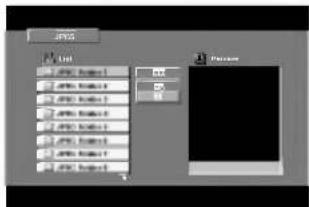
2 Πατήστε ▲ / ▼ για να επιλέξετε ένα φάκελο και πατήστε SELECT/ENTER. Εμφανίζεται μια λίστα με τα αρχεία στο φάκελο.
Συμβουλή
Εάν βρίσκεστε σε μια λίστα αρχείων και θέλετε να επιστρέψετε στη λίστα φακέλων, χρησιμοποιήστε τα κουμπιά ▲ / ▼ στο τηλεχειριστήριο για να επισημάνετε
«→» και πατήστε SELECT/ENTER για να επιστρέψετε στην προηγούμενη οθόνη μενού.
3 Εάν θέλετε να δείτε ένα συγκεκριμένο αρχείο, πατήστε ▲ / ▼ για να επισημάνετε ένα αρχείο και πατήστε SELECT/ENTER ή PLAY.
Η προβολή διαφανειών ξεκινά από το επιλεγμένο αρχείο εάν η επιλογή Ταχύτητα δεν είναι Off.
Ενώ προβάλλετε ένα αρχείο, μπορείτε να πατήσετε STOP(■) για να μεταβείτε στο προηγούμενο μενού (μενού JPEG).
Συμβουλή
- Πατήστε MENU για να μεταβείτε στην επόμενη σελίδα.
- Υπάρχουν τέσσερις επιλογές Ταχύτητας προβολής: ☑ : > (Αργή), >> (Κανονική), >>> (Γρήγορη) και II (Απενεργοποίηση). Χρησιμοποιήστε ⚠️ / ⚡️ / ⚣️ για να επισημάνετε την Ταχύτητα. Στη συνέχεια, χρησιμοποιήστε ⚣️ / ⚣️ για να επιλέξετε την επιλογή που θέλετε να χρησιμοποιήσετε και πατήστε SELECT/ENTER.
- Εάν ορίσετε την επιλογή Ταχύτητα σε Off, η προβολή διαφανειών δεν είναι ενεργή.
Προβολή διαφανειών
Χρησιμοποιήστε τα ▲ / ▼ / ▶ / ▶ για να επισημάνετε το ■ (Παρουσίαση διαφανειών) και πατήστε SELECT/ENTER.
Μετάβαση σε άλλο αρχείο
Πατήστε ◀◀◀ ή ▶▶▶ μία φορά κατά την προβολή μιας εικόνας για να προχωρήσετε στο επόμενο αρχείο ή στο προηγούμενο αρχείο.
Ακίνητη εικόνα
1 Πατήστε PAUSE/STEP κατά τη διάρκεια της παρουσίασης διαφανειών. Ο player θα μεταβεί σε λειτουργία PAUSE.
2 Για να επιστρέψετε στην παρουσίαση διαφανειών, πατήστε PLAY ή πατήστε ξανά PAUSE/STEP.
Η συμβατότητα δίσκων JPEG με αυτόν τον player είναι περιορισμένη ως εξής:
- Ανάλογα με το μέγεθος και τον αριθμό των αρχείων JPEG, μπορεί να χρειαστεί πολύς χρόνος για να διαβάσει ο DVD player τα περιεχόμενα του δίσκου. Εάν δεν δείτε οθόνη μετά από αρκετά λεπτά, μερικά αρχεία μπορεί να είναι πολύ μεγάλα — μειώστε την ανάλυση των αρχείων JPEG σε λιγότερα από 2760 x 2048 pixel και εγγράψτε άλλο δίσκο.
- Ο συνολικός αριθμός αρχείων και φακέλων στο δίσκο θα πρέπει να είναι μικρότερος από 999.
- Ορισμένοι δίσκοι μπορεί να είναι ασύμβατοι λόγω διαφορετικής μορφής εγγραφής ή της κατάστασης του δίσκου.
- Βεβαιωθείτε ότι όλα τα επιλεγμένα αρχεία έχουν την επέκταση ".jpg" κατά την αντιγραφή στη διάταξη CD.
- Εάν τα αρχεία έχουν επεκτάσεις ".jpe" ή ".jpeg", μετονομάστε τα σε αρχεία ".jpg".
- Ονόματα αρχείων χωρίς επέκταση ".jpg" δεν θα μπορούν να διαβαστούν από αυτόν τον DVD player, ακόμη και αν τα αρχεία εμφανίζονται ως εικόνες JPEG στην Εξερεύνηση των Windows.
Λειτουργία με δίσκο DivX
Η συσκευή μπορεί να αναπαράγει αρχεία κωδικοποιημένα σε MPEG4 (.avi, .mpg, .mpeg, .divx κ.λπ.) και αρχεία υποτίτλων (.srt, .smi, .sub).
1 Τοποθετήστε τον δίσκο με κωδικοποίηση MPEG4 και κλείστε τη θήκη.
Το μενού DivX εμφανίζεται στην οθόνη της τηλεόρασης.
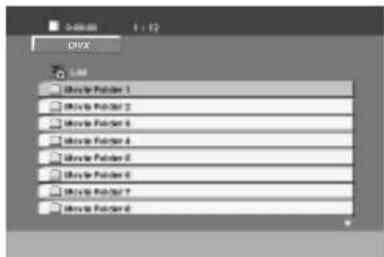
2 Πατήστε ▲ / ▼ για να επιλέξετε ένα φάκελο και πατήστε SELECT/ENTER για να δείτε τα περιεχόμενα του φακέλου. 3 Πατήστε ▲ / ▼ για να επιλέξετε ένα κομμάτι και στη συνέχεια πατήστε PLAY ή SELECT/ENTER. Η αναπαραγωγή ξεκινά.
Παύση DivX
- Πατήστε PAUSE/STEP κατά τη διάρκεια της αναπαραγωγής.
- Για να επιστρέψετε στην αναπαραγωγή, πατήστε PLAY.
Επανάληψη Κομματιού/Όλων/Απενεργοποίηση DivX
Μπορείτε να αναπαράγετε έναν τίτλο/κεφάλαιο/όλα/κομμάτι σε έναν δίσκο.
1 Πατήστε REPEAT όταν αναπαράγετε έναν δίσκο. Εμφανίζεται το εικονίδιο επανάληψης. 2 Πατήστε REPEAT για να επιλέξετε την επιθυμητή λειτουργία επανάληψης.
- Κομμάτι: επαναλαμβάνει το τρέχον κομμάτι
- Όλα: επαναλαμβάνει όλα τα κομμάτια σε έναν δίσκο.
- Απενεργοποίηση (καμία ένδειξη): δεν αναπαράγει επανειλημμένα.
Υπότιτλοι DivX
Πατήστε επανειλημμένα το S-TITLE κατά τη διάρκεια της αναπαραγωγής για να δείτε διαφορετική γλώσσα υποτίτλων.
Αναζήτηση DivX
1 Πατήστε SCAN◀◀ ή ▶▶ κατά την αναπαραγωγή. 2 Πατήστε επανειλημμένα SCAN◀◀ ή ▶▶ για να επιλέξετε την απαιτούμενη ταχύτητα. 3 Για έξοδο από τη λειτουργία ΑΝΑΖΗΤΗΣΗΣ, πατήστε PLAY.
Εμφάνιση DivX
Πατήστε DISPLAY κατά την αναπαραγωγή.
Η γενική κατάσταση αναπαραγωγής μπορεί να εμφανιστεί στην οθόνη της τηλεόρασης.
Η συμβατότητα δίσκων DivX με αυτή τη συσκευή είναι περιορισμένη ως εξής:
• Η διαθέσιμη ανάλυση του αρχείου DivX είναι κάτω από 720x576 (Π x Υ) pixel. - Το όνομα αρχείου των υποτίτλων DivX είναι διαθέσιμο με 20-40 χαρακτήρες (διαφέρει ανάλογα με τη γλώσσα). - Εάν υπάρχει αδύνατος κώδικας για έκφραση στο αρχείο DivX, μπορεί να εμφανιστεί ως " _ " στην οθόνη. - Εάν ο αριθμός καρέ οθόνης είναι πάνω από 30 ανά δευτερόλεπτο, αυτή η μονάδα μπορεί να μην λειτουργεί κανονικά. - Εάν η δομή βίντεο και ήχου του εγγεγραμμένου αρχείου δεν είναι διαπλεγμένη, εξάγεται είτε βίντεο είτε ήχος. - Εάν το αρχείο έχει εγγραφεί με GMC, η μονάδα υποστηρίζει κάποια από τα 1 σημείο του επιπέδου εγγραφής. * GMC;
GMC είναι το ακρωνύμιο του Global Motion Compensation. Είναι ένα εργαλείο κωδικοποίησης που καθορίζεται στο πρότυπο MPEG4. Ορισμένοι κωδικοποιητές MPEG4, όπως DivX ή Xvid, έχουν αυτή την επιλογή. Υπάρχουν διαφορετικά επίπεδα κωδικοποίησης GMC, συνήθως ονομάζονται 1 σημείο, 2 σημεία ή 3 σημεία GMC.
Αναπαραγώγιμο αρχείο υποτίτλων DivX
● ".srt", ".smi", ".sub".
Αναπαραγώγιμο αρχείο DivX
● ".avi", ".mpg", ".mpeg"
Αναπαραγώγιμη μορφή Codec
● "DIVX3.xx", "DIVX4.xx", "DIVX5.xx", "XVID", "MP43", "3IVX", "MP42".
Αναπαραγώγιμη μορφή ήχου
● "AC3", "DTS", "PCM", "MP3", "WMA".
- Συχνότητα δειγματοληψίας: εντός 32 - 48 kHz (MP3), εντός 24 - 48kHz (WMA)
- Ρυθμός μετάδοσης bit: εντός 8 - 320kbps (MP3), 32 - 192kbps (WMA)
Αντιμετώπιση προβλημάτων
Ελέγξτε τον παρακάτω οδηγό για την πιθανή αιτία ενός προβλήματος πριν επικοινωνήσετε με το σέρβις.
| Symptom | Cause | Correction |
| No power. | The power cord is disconnected. | Plug the power cord into the wall outlet securely. |
| The power is on, but the unit does not work. | No disc is inserted. | Insert a disc. (Check that the DVD or, audio CD indicator in the DVD display is lit.) |
| No picture. | The TV is not set to receive DVD signal output. | Select the appropriate video input mode on the TV so the picture from the unit appears on the TV screen. |
| The video cable is not connected securely. | Connect the video cable into the jacks securely. | |
| The connected TV power is turned off. | Turn on the TV. | |
| There is no sound or only a very low-level sound is heard. | The equipment connected with the audio cable is not set to receive DVD signal output. | Select the correct input mode of the audio so you can listen to the sound from the unit. |
| The audio cables are not connected securely. | Connect the audio cable into the jacks securely. | |
| The power of the equipment connected with the audio cable is turned off. | Turn on the equipment connected with the audio cable. | |
| The audio connecting cord is damaged. | Replace it with new one. | |
| The playback picture is poor. | The disc is dirty. | Clean the disc. |
| The unit does not start playback. | No disc is inserted. | Insert a disc. (Check that the DVD, or audio CD indicator in the DVD display is lit.) |
| An unplayable disc is inserted. | Insert a playable disc. (Check the disc type, color system and Regional code.) | |
| The disc is placed upside down. | Place the disc with the playback side down. | |
| The disc is not placed within the guide. | Place the disc on the disc tray correctly inside the guide. | |
| The disc is dirty. | Clean the disc. | |
| A menu is on the TV screen. | Press the SET-UP button to turn off the menu screen. | |
| The Rating level is set. | Cancel the Rating function or change the rating level. | |
| Severe hum or noise is heard. | The plugs and jacks are dirty. | Wipe them with a cloth slightly moistened with alcohol. |
| The disc is dirty. | Clean the disc. | |
| The speakers and components are connected poorly. | Connect the speakers and components securely. | |
| The unit is located with too close to the TV. | Move your TV away from the audio components. | |
| Radio stations cannot be tuned in. | The antenna is positioned or connected poorly. | Connect the antenna securely. |
| Adjust the antennas and connect an external antenna if necessary. | ||
| The signal strength of the stations is too weak (when tuning in with automatic tuning). | Tune in the station manually. | |
| No stations have been preset or preset stations have been cleared (when tuning by scanning preset stations). | Preset the stations. | |
| The remote control does not work properly. | The remote control is not pointed at the remote sensor of the unit. | Point the remote control at the remote sensor of the unit. |
| The remote control is too far from the unit. | Operate the remote control within about 23 ft (7 m). | |
| There is an obstacle in the path of the remote control and the unit. | Remove the obstacle. | |
| The batteries in the remote control are exhausted. | Replace the batteries with new ones. | |
| The sound mode or Pro Logic II mode cannot be changed. | The system cannot change while playing a MP3 or WMA disc. | Insert such a CD disc. |
Λίστα κωδικών γλώσσας
Εισαγάγετε τον κατάλληλο αριθμό κωδικού για τις αρχικές ρυθμίσεις "Disc Audio", "Disc Subtitle" και/ή "Disc Menu" (Βλέπε σελίδα 21).
| Code | Language | Code | Language | Code | Language | Code | Language |
| 6566 | Abkhazian | 7074 | Fiji | 7678 | Lingala | 8373 | Singhalese |
| 6565 | Afar | 7073 | Finnish | 7684 | Lithuanian | 8375 | Slovak |
| 6570 | Afrikaans | 7082 | French | 7775 | Macedonian | 8376 | Slovenian |
| 8381 | Albanian | 7089 | Frisian | 7771 | Malagasy | 8379 | Somali |
| 6577 | Ameharic | 7176 | Galician | 7783 | Malay | 6983 | Spanish |
| 6582 | Arabic | 7565 | Georgian | 7776 | Malayalam | 8385 | Sudanese |
| 7289 | Armenian | 6869 | German | 7784 | Maltese | 8387 | Swahili |
| 6583 | Assamese | 6976 | Greek | 7773 | Maori | 8386 | Swedish |
| 6588 | Aymara | 7576 | Greenlandic | 7782 | Marathi | 8476 | Tagalog |
| 6590 | Azerbaijani | 7178 | Guarani | 7779 | Moldavian | 8471 | Tajik |
| 6665 | Bashkir | 7185 | Gujarati | 7778 | Mongolian | 8465 | Tamil |
| 6985 | Basque | 7265 | Hausa | 7865 | Nauru | 8484 | Tatar |
| 6678 | Bengali; Bangla | 7387 | Hebrew | 7869 | Nepali | 8469 | Telugu |
| 6890 | Bhutani | 7273 | Hindi | 7879 | Norwegian | 8472 | Thai |
| 6672 | Bihari | 7285 | Hungarian | 7982 | Oriya | 6679 | Tibetan |
| 6682 | Breton | 7383 | Icelandic | 8065 | Panjabi | 8473 | Tigrinya |
| 6671 | Bulgarian | 7378 | Indonesian | 8083 | Pashto, Pushto | 8479 | Tonga |
| 7789 | Burmese | 7365 | Interlingua | 7065 | Persian | 8482 | Turkish |
| 6669 | Byelorussian | 7165 | Irish | 8076 | Polish | 8475 | Turkmen |
| 7577 | Cambodian | 7384 | Italian | 8084 | Portuguese | 8487 | Twi |
| 6765 | Catalan | 7465 | Japanese | 8185 | Quechua | 8575 | Ukrainian |
| 9072 | Chinese | 7487 | Javanese | 8277 | Rhaeto-Romance | 8582 | Urdu |
| 6779 | Corsican | 7578 | Kannada | 8279 | Rumanian | 8590 | Uzbek |
| 7282 | Croatian | 7583 | Kashmiri | 8285 | Russian | 8673 | Vietnamese |
| 6783 | Czech | 7575 | Kazakh | 8377 | Samoan | 8679 | Volapuk |
| 6865 | Danish | 7589 | Kirghiz | 8365 | Sanskrit | 6789 | Welsh |
| 7876 | Dutch | 7579 | Korean | 7168 | Scots Gaelic | 8779 | Wolof |
| 6978 | English | 7585 | Kurdish | 8382 | Serbian | 8872 | Xhosa |
| 6979 | Esperanto | 7679 | Laothian | 8372 | Serbo-Croatian | 7473 | Yiddish |
| 6984 | Estonian | 7665 | Latin | 8378 | Shona | 8979 | Yoruba |
| 7079 | Faroese | 7686 | Latvian, Lettish | 8368 | Sindhi | 9085 | Zulu |
Λίστα κωδικών χώρας
Εισαγάγετε τον κατάλληλο αριθμό κωδικού για την αρχική ρύθμιση "Country Code" (Βλέπε σελίδα 25).
| Code | Country | Code | Country | Code | Country | Code | Country |
| AD | Andorra | ER | Eritrea | LC | Saint Lucia | SC | Seychelles |
| AE | United Arab Emirates | ES | Spain | LI | Liechtenstein | SD | Sudan |
| AF | Afghanistan | ET | Ethiopia | LK | Sri Lanka | SE | Sweden |
| AG | Antigua and Barbuda | FI | Finland | LR | Liberia | SG | Singapore |
| AI | Anguilla | FJ | Fiji | LS | Lesotho | SH | Saint Helena |
| AL | Albania | FK | Falkland Islands | LT | Lithuania | SI | Slovenia |
| AM | Armenia | FM | Micronesia | LU | Luxembourg | SJ | Svalbard and Jan Mayen Islands |
| AN | Netherlands Antilles | FO | Faroe Islands | LV | Latvia | ||
| AO | Angola | FR | France | LY | Libya | SK | Slovak Republic |
| AQ | Antarctica | FX | France (European Territory) | MA | Morocco | SL | Sierra Leone |
| AR | Argentina | MC | Monaco | SM | San Marino | ||
| AS | American Samoa | GA | Gabon | MD | Moldavia | SN | Senegal |
| AT | Austria | GB | Great Britain | MG | Madagascar | SO | Somalia |
| AU | Australia | GD | Grenada | MH | Marshall Islands | SR | Suriname |
| AW | Aruba | GE | Georgia | MK | Macedonia | ST | Saint Tome and Principe |
| AZ | Azerbaidjan | GF | French Guyana | ML | Mali | SU | Former USSR |
| BA | Bosnia-Herzegovina | GH | Ghana | MM | Myanmar | SV | El Salvador |
| BB | Barbados | GI | Gibraltar | MN | Mongolia | SY | Syria |
| BD | Bangladesh | GL | Greenland | MO | Macau | SZ | Swaziland |
| BE | Belgium | GM | Gambia | MP | Northern Mariana Islands | TC | Turks and Caicos Islands |
| BF | Burkina Faso | GN | Guinea | MQ | Martinique (French) | TD | Chad |
| BG | Bulgaria | GP | Guadeloupe (French) | MR | Mauritania | TF | French Southern Territories |
| BH | Bahrain | GQ | Equatorial Guinea | MS | Montserrat | ||
| BI | Burundi | GR | Greece | MT | Malta | TG | Togo |
| BJ | Benin | GS | S. Georgia & S. Sandwich Isls. | MU | Mauritius | TH | Thailand |
| BM | Bermuda | MV | Maldives | TJ | Tadjikistan | ||
| BN | Brunei Darussalam | GT | Guatemala | MW | Malawi | TK | Tokelau |
| BO | Bolivia | GU | Guam (USA) | MX | Mexico | TM | Turkmenistan |
| BR | Brazil | GW | Guinea Bissau | MY | Malaysia | TN | Tunisia |
| BS | Bahamas | GY | Guyana | MZ | Mozambique | TO | Tonga |
| BT | Bhutan | HK | Hong Kong | NA | Namibia | TP | East Timor |
| BV | Bouvet Island | HM | Heard and McDonald Islands | NC | New Caledonia (French) | TR | Turkey |
| BW | Botswana | NE | Niger | TT | Trinidad and Tobago | ||
| BY | Belarus | HN | Honduras | NF | Norfolk Island | TV | Tuvalu |
| BZ | Belize | HR | Croatia | NG | Nigeria | TW | Taiwan |
| CA | Canada | HT | Haiti | NI | Nicaragua | TZ | Tanzania |
| CC | Cocos (Keeling) Islands | HU | Hungary | NL | Netherlands | UA | Ukraine |
| CF | Central African Republic | ID | Indonesia | NO | Norway | UG | Uganda |
| CG | Congo | IE | Ireland | NP | Nepal | UK | United Kingdom |
| CH | Switzerland | IL | Israel | NR | Nauru | UM | USA Minor Outlying Islands |
| CI | Ivory Coast | IN | India | NU | Niue | ||
| CK | Cook Islands | IO | British Indian Ocean Territory | NZ | New Zealand | US | United States |
| CL | Chile | OM | Oman | UY | Uruguay | ||
| CM | Cameroon | IQ | Iraq | PA | Panama | UZ | Uzbekistan |
| CN | China | IR | Iran | PE | Peru | VA | Vatican City State |
| CO | Colombia | IS | Iceland | PF | Polynesia (French) | VC | Saint Vincent & Grenadines |
| CR | Costa Rica | IT | Italy | PG | Papua New Guinea | ||
| CS | Former Czechoslovakia | JM | Jamaica | PH | Philippines | VE | Venezuela |
| CU | Cuba | JO | Jordan | PK | Pakistan | VG | Virgin Islands (British) |
| CV | Cape Verde | JP | Japan | PL | Poland | VI | Virgin Islands (USA) |
| CX | Christmas Island | KE | Kenya | PM | Saint Pierre and Miquelon | VN | Vietnam |
| CY | Cyprus | KG | Kyrgyzstan | PN | Pitcairn Island | VU | Vanuatu |
| CZ | Czech Republic | KH | Cambodia6 | PR | Puerto Rico | WF | Wallis and Futuna Islands |
| DE | Germany | KI | Kiribati | PT | Portugal | WS | Samoa |
| DJ | Djibouti | KM | Comoros | PW | Palau | YE | Yemen |
| DK | Denmark | KN | Saint Kitts & Nevis Anguilla | PY | Paraguay | YT | Mayotte |
| DM | Dominica | KP | North Korea | QA | Qatar | YU | Yugoslavia |
| DO | Dominican Republic | KR | South Korea | RE | Reunion (French) | ZA | South Africa |
| DZ | Algeria | KW | Kuwait | RO | Romania | ZM | Zambia |
| EC | Ecuador | KY | Cayman Islands | RU | Russian Federation | ZR | Zaire |
| EE | Estonia | KZ | Kazakhstan | RW | Rwanda | ZW | Zimbabwe |
| EG | Egypt | LA | Laos | SA | Saudi Arabia | ||
| EH | Western Sahara | LB | Lebanon | SB | Solomon Islands |
Προδιαγραφές
Γενικά
| Power supply | Refer to the main label. |
| Power consumption | 210W |
Τuner/Ενισχυτής
| FM | Tuning Range | 87.5 - 108.0 MHz or 65 -74 MHz, 87.5 -108.0 MHz |
| Intermediate Frequency | 10.7 MHz | |
| Signal to Noise Ratio | 60/55 dB (Mono/Stereo) | |
| Frequency Response | 60 - 10000 Hz | |
| AM | Tuning Range | 522 - 1611 kHz or 530 - 1610 kHz or 530 - 1720 kHz |
| Intermediate Frequency | 450 kHz | |
| Signal to Noise Ratio | 35 dB | |
| Frequency Response | 100 - 1800 Hz | |
| SW(optional) | Tuning Range | 5.8 -18.0 MHz |
| Intermediate Frequency | 450 kHz | |
| Signal to Noise Ratio | 35 dB | |
| Output Power | Front: 100W + 100W (6Ω, THD 10 %), Center: 40W (6Ω, THD 10%) | |
| Rear: 40W + 40W (6Ω, THD 10 %) | ||
| T.H.D | 0.2% | |
| Frequency Response | 42 - 25000 Hz | |
| Signal-to-noise ratio | 80 dB | |
| Mass | 5.5kg | |
| External dimensions (W x H x D) | 272 x 225 x 330 mm |
Κασετόφωνο/Παίκτης DVD/VCD/CD
| Mass | 6.5kg |
| External dimensions (W x H x D) | 272 x 225 x 330 mm |
| DVD/VCD/CD player | |
| Frequency response (audio) | 40 - 18000 Hz |
| Signal-to-noise ratio (audio) | More than 70 dB (1 kHz) |
| Signal-to-noise ratio (video) | More than 60 dB (1 kHz) |
| Dynamic range (audio) | More than 70 dB |
| Video output | 1.0 V (p-p), 75 Ω |
| S-video output | (Y) 1.0 V (p-p), 75 Ω(C) 0.3 V (p-p), 75 Ω |
| Component Video output | (Y) 1.0 V (p-p), 75 Ω(Pb)/(Pr) 0.7 V (p-p), 75 Ω |
| Cassette tape player | |
| Tape Speed | 3 kHz ± 3% |
| Wow Flutter | 0.25% (MTT -111, JIS-WTD) |
| F.F/REW. Time | 120sec (C-60) |
| Frequency Response | 125 - 8000Hz |
| Signal to Noise Ratio | 43dB(P/B)/43dB(R/B) |
| Channel Separation | 45dB(P/B)/42dB(R/P) |
| Erase Ratio | 52dB (MTT-5511) |
Ηχεία
| Speaker Name | Front Speaker (L/R) | Center Speaker | Rear Speaker (L/R) |
| Type | 3 Way 3 Speaker | 2 Way 2 Speaker | 2 Way 2 Speaker |
| Impedance | 6 Ω | 6 Ω | 6 Ω |
| Frequency Response | 60 - 20000 Hz | 120 - 20000 Hz | 150 - 20000 Hz |
| Sound Pressure Level | 86 dB/W (1m) | 84 dB/W (1m) | 84 dB/W (1m) |
| Rated Input Power | 100 W | 40 W | 40 W |
| Max. Input Power | 200 W | 80 W | 80 W |
| Net Dimensions (W x H x D) | 260X470X235.5mm | 200X108X110mm | 108X150X110mm |
| Net Weight | 6.31 kg | 0.85 kg | 0.80 kg |

LG


- LG
- ΣΥΣΤΗΜΑ ΟΙΚΙΑΚΟΥ ΚΙΝΗΜΑΤΟΓΡΑΦΟΥ DVD MINI
- ΕΓΧΕΙΡΙΔΙΟ ΧΡΗΣΗΣ
- ΜΟΝΤΕΛΟ: KR-7400SDV
- ΠΡΟΦΥΛΆΞΕΙΣ ΑΣΦΑΛΕΊΑΣ
- ΠΡΟΣΟΧΗ
- ΣΗΜΕΙΏΣΕΙΣ ΓΙΑ ΤΑ ΠΝΕΥΜΑΤΙΚΆ ΔΙΚΑΙΏΜΑΤΑ
- ΠΊΝΑΚΑΣ ΠΕΡΙΕΧΟΜΈΝΩΝ
- ΕΙΣΑΓΩΓΉ
- ΠΡΟΕΤΟΙΜΑΣΊΑ
- ΛΕΙΤΟΥΡΓΊΑ
- ΑΝΑΦΟΡΆ
- ΣΧΕΤΙΚΆ ΜΕ ΤΑ ΣΎΜΒΟΛΑ ΓΙΑ ΤΙΣ ΟΔΗΓΊΕΣ
- ΠΡΙΝ ΑΠΌ ΤΗ ΧΡΉΣΗ
- ΣΗΜΕΙΏΣΕΙΣ
- ΣΗΜΕΙΏΣΕΙΣ ΓΙΑ DVD ΚΑΙ VIDEO CD
- ΚΩΔΙΚΌΣ ΠΕΡΙΟΧΉΣ ΤΟΥ DVD PLAYER ΚΑΙ ΤΩΝ DVD
- ΣΗΜΕΊΩΣΗ ΓΙΑ CD ΜΕ ΚΩΔΙΚΟΠΟΊΗΣΗ DTS
- ΌΡΟΙ ΣΧΕΤΙΚΟΊ ΜΕ ΤΟΥΣ ΔΊΣΚΟΥΣ
- ΤΊΤΛΟΣ (ΜΌΝΟ ΓΙΑ DVD)
- ΚΕΦΆΛΑΙΟ (ΜΌΝΟ ΓΙΑ DVD)
- ΚΟΜΜΆΤΙ (ΜΌΝΟ ΓΙΑ VIDEO CD ΚΑΙ AUDIO CD)
- ΣΚΗΝΉ
- ΤΎΠΟΙ VIDEO CD
- VIDEO CD ΜΕ ΔΥΝΑΤΌΤΗΤΑ PBC (ΈΚΔΟΣΗ 2.0)
- ΒΊΝΤΕΟ CD ΧΩΡΊΣ PBC (ΈΚΔΟΣΗ 1.1)
- ΠΡΙΝ ΑΠΌ ΤΗ ΧΡΉΣΗ (ΣΥΝΈΧΕΙΑ)
- ΠΡΟΦΥΛΆΞΕΙΣ
- ΧΕΙΡΙΣΜΌΣ ΤΗΣ ΣΥΣΚΕΥΉΣ
- ΚΑΤΆ ΤΗ ΜΕΤΑΦΟΡΆ ΤΗΣ ΣΥΣΚΕΥΉΣ
- ΚΑΤΆ ΤΗΝ ΕΓΚΑΤΆΣΤΑΣΗ ΤΗΣ ΣΥΣΚΕΥΉΣ
- ΓΙΑ ΝΑ ΔΙΑΤΗΡΉΣΕΤΕ ΤΙΣ ΕΞΩΤΕΡΙΚΈΣ ΕΠΙΦΆΝΕΙΕΣ ΚΑΘΑΡΈΣ
- ΚΑΘΑΡΙΣΜΌΣ ΤΗΣ ΣΥΣΚΕΥΉΣ
- ΓΙΑ ΝΑ ΚΑΘΑΡΊΣΕΤΕ ΤΟ ΠΕΡΊΒΛΗΜΑ
- ΓΙΑ ΝΑ ΈΧΕΤΕ ΚΑΘΑΡΉ ΕΙΚΌΝΑ
- ΣΗΜΕΙΏΣΕΙΣ ΓΙΑ ΤΟΥΣ ΔΊΣΚΟΥΣ
- ΧΕΙΡΙΣΜΌΣ ΔΊΣΚΩΝ
- ΑΠΟΘΉΚΕΥΣΗ ΔΊΣΚΩΝ
- ΚΑΘΑΡΙΣΜΌΣ ΔΊΣΚΩΝ
- ΣΧΕΤΙΚΆ ΜΕ ΤΑ ΣΎΜΒΟΛΑ
- ΣΧΕΤΙΚΆ ΜΕ ΤΗΝ ΈΝΔΕΙΞΗ ΤΟΥ ΣΥΜΒΌΛΟΥ «🔊
- ΣΧΕΤΙΚΆ ΜΕ ΤΑ ΣΎΜΒΟΛΑ ΔΊΣΚΩΝ ΓΙΑ ΤΙΣ ΟΔΗΓΊΕΣ
- ΜΠΡΟΣΤΙΝΌΣ ΠΊΝΑΚΑΣ
- ΚΑΣΕΤΌΦΩΝΟ/ΣΥΣΚΕΥΉ ΑΝΑΠΑΡΑΓΩΓΉΣ DVD/VCD/CD
- ΤUNER/ΕΝΙΣΧΥΤΉΣ
- ΠΊΣΩ ΠΊΝΑΚΑΣ
- ΤΗΛΕΧΕΙΡΙΣΤΉΡΙΟ
- ΕΜΒΈΛΕΙΑ ΛΕΙΤΟΥΡΓΊΑΣ ΤΗΛΕΧΕΙΡΙΣΤΗΡΊΟΥ
- ΤΟΠΟΘΈΤΗΣΗ ΜΠΑΤΑΡΙΏΝ ΣΤΟ ΤΗΛΕΧΕΙΡΙΣΤΉΡΙΟ
- ΠΡΟΣΟΧΉ
- ΠΑΡΆΘΥΡΟ ΟΘΌΝΗΣ
- ΣΥΣΚΕΥΉ ΑΝΑΠΑΡΑΓΩΓΉΣ ΚΑΣΕΤΏΝ / DVD/VCD/CD
- TUNER/ ΕΝΙΣΧΥΤΉΣ
- ΣΥΝΔΈΣΕΙΣ
- ΤΟΠΟΘΈΤΗΣΗ ΤΩΝ ΚΑΛΩΔΊΩΝ ΣΎΝΔΕΣΗΣ ΤΟΥ ΣΥΣΤΉΜΑΤΟΣ
- ΚΑΣΕΤΌΦΩΝΟ/ΠΑΊΚΤΗΣ DVD/VCD/CD
- ΔΈΚΤΗΣ/ΕΝΙΣΧΥΤΉΣ
- ΣΎΝΔΕΣΗ ΣΕ ΤΗΛΕΌΡΑΣΗ
- IPS
- ΣΎΝΔΕΣΗ ΒΊΝΤΕΟ
- ΣΎΝΔΕΣΗ S-VIDEO
- ΣΎΝΔΕΣΗ COMPONENT VIDEO (COLOR STREAM®)
- ΣΎΝΔΕΣΗ PROGRESSIVE SCAN (COLORSTREAM® PRO)
- ΣΗΜΕΊΩΣΗ
- ΣΎΝΔΕΣΗ ΣΤΗΝ ΚΕΡΑΊΑ
- ΣΎΝΔΕΣΗ ΣΕ ΒΟΗΘΗΤΙΚΌ ΕΞΟΠΛΙΣΜΌ
- ΣΎΝΔΕΣΗ ΣΕ ΠΡΟΑΙΡΕΤΙΚΌ ΕΞΟΠΛΙΣΜΌ
- ΣΎΝΔΕΣΗ ΗΧΕΊΩΝ ΣΥΣΤΉΜΑΤΟΣ
- ΤΟΠΟΘΈΤΗΣΗ ΗΧΕΊΩΝ
- ΜΠΡΟΣΤΙΝΆ ΗΧΕΊΑ
- ΚΕΝΤΡΙΚΌ ΗΧΕΊΟ
- ΠΊΣΩ ΗΧΕΊΑ
- ΥΠΟΓΟΎΦΕΡ
- ΠΡΙΝ ΑΠΌ ΤΗ ΛΕΙΤΟΥΡΓΊΑ
- ΡΎΘΜΙΣΗ ΈΝΤΑΣΗΣ
- ΡΎΘΜΙΣΗ ΠΟΙΌΤΗΤΑΣ ΉΧΟΥ
- ΕΝΕΡΓΟΠΟΙΉΣΤΕ ΤΟΝ ΣΤΕΡΕΟΦΩΝΙΚΌ ΉΧΟ
- ΥΠΟΔΟΧΉ ΑΚΟΥΣΤΙΚΏΝ
- ΣΙΓΗ (MUTE)
- SURROUND
- ΓΙΑ ΝΑ ΕΝΕΡΓΟΠΟΙΉΣΕΤΕ ΤΗ ΛΕΙΤΟΥΡΓΊΑ SURROUND
- XDSS (EXTREME DYNAMIC SOUND SYSTEM)
- OAO (ORIENTATION ACOUSTIC OPTIMIZER) ON/OFF
- ΕΦΈ SPECTRUM
- DIMMER
- DEMO
- ΡΎΘΜΙΣΗ ΤΟΥ ΡΟΛΟΓΙΟΎ
- ΛΕΙΤΟΥΡΓΊΑ ΧΡΟΝΟΔΙΑΚΌΠΤΗ ΑΝΑΣΤΟΛΉΣ
- ΓΙΑ ΝΑ ΑΚΥΡΏΣΕΤΕ ΤΗ ΡΎΘΜΙΣΗ ΤΟΥ ΧΡΟΝΟΔΙΑΚΌΠΤΗ ΑΝΑΣΤΟΛΉΣ ΛΕΙΤΟΥΡΓΊΑΣ
- ΧΡΉΣΗ ΜΙΚΡΟΦΏΝΟΥ
- ΓΙΑ ΑΝΑΦΟΡΆ
- ΡΎΘΜΙΣΗ ΈΝΤΑΣΗΣ ECHO
- ΛΕΙΤΟΥΡΓΊΑ ΧΡΟΝΟΔΙΑΚΌΠΤΗ
- ΓΙΑ ΑΝΑΦΟΡΆ ΣΑΣ
- ΓΙΑ ΑΚΎΡΩΣΗ Ή ΈΛΕΓΧΟ ΤΟΥ ΧΡΟΝΟΔΙΑΚΌΠΤΗ
- ΜΊΝΙ ΓΛΩΣΣΆΡΙ ΓΙΑ ΉΧΟ ΡΟΉΣ ΚΑΙ SURROUND MODE
- DTS
- DIGITAL
- PROLOGIC II
- ΛΕΙΤΟΥΡΓΊΑ MOVIE
- BYPASS
- ΛΕΙΤΟΥΡΓΊΑ ΉΧΟΥ DVD VCD CD
- ΌΤΑΝ ΕΙΣΆΓΕΤΑΙ DVD
- ΌΤΑΝ ΕΙΣΆΓΕΤΑΙ VIDEO CD
- ΌΤΑΝ ΕΙΣΆΓΕΤΑΙ CD
- ΓΕΝΙΚΉ ΕΞΉΓΗΣΗ
- ΕΜΦΆΝΙΣΗ ΣΤΗΝ ΟΘΌΝΗ
- ΛΕΙΤΟΥΡΓΊΑ ΕΜΦΆΝΙΣΗΣ ΣΤΗΝ ΟΘΌΝΗ
- ΠΡΟΣΩΡΙΝΆ ΕΙΚΟΝΊΔΙΑ ΠΕΔΊΟΥ ΑΝΑΤΡΟΦΟΔΌΤΗΣΗΣ
- ΑΡΧΙΚΈΣ ΡΥΘΜΊΣΕΙΣ
- ΓΙΑ ΝΑ ΕΜΦΑΝΊΣΕΤΕ ΚΑΙ ΝΑ ΕΞΈΛΘΕΤΕ ΑΠΌ ΤΟ ΜΕΝΟΎ
- ΓΕΝΙΚΉ ΛΕΙΤΟΥΡΓΊΑ
- ΓΛΩΣΣΑ
- OSD
- ΉΧΟΣ ΔΊΣΚΟΥ / ΥΠΌΤΙΤΛΟΙ / ΜΕΝΟΎ DVD
- ΟΘΟΝΗ
- ΑΝΑΛΟΓΊΑ ΟΘΌΝΗΣ TV DVD
- ΛΕΙΤΟΥΡΓΊΑ ΕΜΦΆΝΙΣΗΣ DVD
- ΠΡΟΟΔΕΥΤΙΚΉ ΣΆΡΩΣΗ DVD
- ΓΙΑ ΝΑ ΕΝΕΡΓΟΠΟΙΉΣΕΤΕ ΤΗΝ ΠΡΟΟΔΕΥΤΙΚΉ ΣΆΡΩΣΗ
- AUDIO
- DOLBY DIGITAL / DTS / MPEG DVD
- ΣΥΧΝΌΤΗΤΑ ΔΕΙΓΜΑΤΟΛΗΨΊΑΣ (FREQUENCY) DVD
- ΈΛΕΓΧΟΣ ΔΥΝΑΜΙΚΟΎ ΕΎΡΟΥΣ (DRC)
- ΦΩΝΗΤΙΚΆ (VOCAL)
- ΡΎΘΜΙΣΗ ΗΧΕΊΩΝ DVD
- ΡΎΘΜΙΣΗ ΗΧΕΊΩΝ
- ΕΠΙΛΟΓΉ ΗΧΕΊΟΥ
- ΜΈΓΕΘΟΣ
- ΈΝΤΑΣΗ
- ΑΠΌΣΤΑΣΗ
- ΔΟΚΙΜΉ
- ΑΛΛΑ
- PBC VCD
- ΕΓΓΡΑΦΉ DIVX(R)
- DIVX
- ΚΛΕΙΔΩΜΑ (ΓΟΝΙΚΌΣ ΈΛΕΓΧΟΣ)
- ΑΞΙΟΛΌΓΗΣΗ DVD
- ΚΩΔΙΚΌΣ (ΚΩΔΙΚΌΣ ΑΣΦΑΛΕΊΑΣ)
- ΕΆΝ ΞΕΧΆΣΕΤΕ ΤΟΝ ΚΩΔΙΚΌ ΑΣΦΑΛΕΊΑΣ
- ΚΩΔΙΚΌΣ ΧΏΡΑΣ DVD
- ΛΕΙΤΟΥΡΓΊΑ ΜΕ ΡΑΔΙΟΦΩΝΟ
- ΠΡΟΕΠΙΛΟΓΉ ΤΩΝ ΡΑΔΙΟΦΩΝΙΚΏΝ ΣΤΑΘΜΏΝ
- ΓΙΑ ΝΑ ΔΙΑΓΡΆΨΕΤΕ ΌΛΟΥΣ ΤΟΥΣ ΑΠΟΘΗΚΕΥΜΈΝΟΥΣ ΣΤΑΘΜΟΎΣ
- ΓΙΑ ΝΑ ΑΝΑΚΑΛΈΣΕΤΕ ΑΠΟΘΗΚΕΥΜΈΝΟΥΣ ΣΤΑΘΜΟΎΣ
- ΑΚΡΌΑΣΗ ΡΑΔΙΟΦΏΝΟΥ
- ΓΙΑ ΝΑ ΑΚΟΎΣΕΤΕ ΜΗ ΑΠΟΘΗΚΕΥΜΈΝΟΥΣ ΡΑΔΙΟΦΩΝΙΚΟΎΣ ΣΤΑΘΜΟΎΣ
- ΓΙΑ ΝΑ ΑΠΕΝΕΡΓΟΠΟΙΉΣΕΤΕ ΤΟ ΡΑΔΙΌΦΩΝΟ
- ΛΕΙΤΟΥΡΓΊΑ ΜΕ ΚΑΣΕΤΟΦΩΝΟ
- ΒΑΣΙΚΉ ΑΝΑΠΑΡΑΓΩΓΉ
- ΓΙΑ ΝΑ ΣΤΑΜΑΤΉΣΕΤΕ ΤΗΝ ΑΝΑΠΑΡΑΓΩΓΉ
- ΕΠΑΝΑΦΟΡΆ ΜΕΤΡΗΤΉ ΤΑΙΝΊΑΣ
- ΓΙΑ ΑΝΑΠΑΡΑΓΩΓΉ, ΕΠΑΝΑΦΟΡΆ Ή ΓΡΉΓΟΡΗ ΠΡΟΏΘΗΣΗ
- ΑΝΤΙΓΡΑΦΉ
- ΕΓΓΡΑΦΉ
- ΒΑΣΙΚΈΣ ΡΥΘΜΊΣΕΙΣ
- ΕΓΓΡΑΦΉ ΑΠΌ ΡΑΔΙΌΦΩΝΟ, CD Ή ΒΟΗΘΗΤΙΚΉ ΠΗΓΉ
- ΣΎΓΧΡΟΝΗ ΕΓΓΡΑΦΉ ΑΠΌ CD ΣΕ ΚΑΣΈΤΑ
- ΛΕΙΤΟΥΡΓΊΑ ΜΕ DVD ΚΑΙ VIDEO CD
- ΑΝΑΠΑΡΑΓΩΓΉ DVD ΚΑΙ VIDEO CD
- ΡΎΘΜΙΣΗ ΑΝΑΠΑΡΑΓΩΓΉΣ
- DVD
- VCD
- ΓΙΑ ΝΑ ΕΠΙΛΈΞΕΤΕ ΑΠΕΥΘΕΊΑΣ ΈΝΑΝ ΔΊΣΚΟ
- ΓΕΝΙΚΆ ΧΑΡΑΚΤΗΡΙΣΤΙΚΆ
- ΜΕΤΆΒΑΣΗ ΣΕ ΆΛΛΟ TITLE DVD
- ΜΕΤΆΒΑΣΗ ΣΕ ΆΛΛΟ ΚΕΦΑΛΑΙΟ/ΚΟΜΜΑΤΙ
- ΑΝΑΖΉΤΗΣΗ
- ΓΕΝΙΚΆ ΧΑΡΑΚΤΗΡΙΣΤΙΚΆ (ΣΥΝΈΧΕΙΑ)
- ΑΚΊΝΗΤΗ ΕΙΚΌΝΑ ΚΑΙ ΑΝΑΠΑΡΑΓΩΓΉ ΚΑΡΈ-ΚΑΡΈ
- DVD VCD
- ΑΡΓΉ ΚΊΝΗΣΗ DVD VCD
- ΕΠΑΝΆΛΗΨΗ DVD VCD
- DVD VIDEO DISCS - ΕΠΑΝΆΛΗΨΗ ΚΕΦΑΛΑΊΟΥ/ΤΊΤΛΟΥ/ΑΠΕΝΕΡΓΟΠΟΊΗΣΗ
- ΒΊΝΤΕΟ CD - ΕΠΑΝΆΛΗΨΗ ΚΟΜΜΑΤΙΟΎ/ΌΛΩΝ/ΑΠΕΝΕΡΓΟΠΟΊΗΣΗ
- ΕΠΑΝΆΛΗΨΗ A-B DVD VCD
- ΑΝΑΖΉΤΗΣΗ ΧΡΌΝΟΥ DVD VCD
- ΜΝΉΜΗ ΤΕΛΕΥΤΑΊΑΣ ΣΚΗΝΉΣ DVD
- ZOOM DVD VCD
- ΑΝΑΖΉΤΗΣΗ ΣΗΜΕΊΟΥ DVD VCD
- ΓΙΑ ΝΑ ΑΝΑΚΑΛΈΣΕΤΕ ΜΙΑ ΕΠΙΣΗΜΑΣΜΈΝΗ ΣΚΗΝΉ
- ΓΙΑ ΝΑ ΔΙΑΓΡΆΨΕΤΕ ΜΙΑ ΕΠΙΣΗΜΑΣΜΈΝΗ ΣΚΗΝΉ
- ΕΙΔΙΚΆ ΧΑΡΑΚΤΗΡΙΣΤΙΚΆ DVD
- ΈΛΕΓΧΟΣ ΤΩΝ ΠΕΡΙΕΧΟΜΈΝΩΝ ΤΩΝ ΔΊΣΚΩΝ DVD VIDEO: ΜΕΝΟΎ
- ΜΕΝΟΎ ΤΊΤΛΟΥ DVD
- ΜΕΝΟΎ ΔΊΣΚΟΥ DVD
- ΓΩΝΊΑ ΚΆΜΕΡΑΣ DVD
- ΑΛΛΑΓΉ ΓΛΏΣΣΑΣ ΉΧΟΥ DVD
- ΑΛΛΑΓΉ ΚΑΝΑΛΙΟΎ ΉΧΟΥ VCD
- ΥΠΌΤΙΤΛΟΙ DVD
- ΛΕΙΤΟΥΡΓΊΑ ΜΕ CD ΉΧΟΥ ΚΑΙ ΔΊΣΚΟ MP3/WMA
- ΑΝΑΠΑΡΑΓΩΓΉ CD ΉΧΟΥ ΚΑΙ MP3/WMA
- ΔΊΣΚΟΣ CD MP3 WMA
- CD ΉΧΟΥ
- MP3 / WMA
- Η ΣΥΜΒΑΤΌΤΗΤΑ ΔΊΣΚΩΝ MP3 / WMA ΜΕ ΑΥΤΉ ΤΗ ΣΥΣΚΕΥΉ ΑΝΑΠΑΡΑΓΩΓΉΣ ΕΊΝΑΙ ΠΕΡΙΟΡΙΣΜΈΝΗ ΩΣ ΕΞΉΣ
- ΠΑΎΣΗ CD MP3 WMA
- ΜΕΤΆΒΑΣΗ ΣΕ ΆΛΛΟ ΚΟΜΜΆΤΙ CD MP3 WMA
- ΕΠΑΝΆΛΗΨΗ ΚΟΜΜΑΤΙΟΎ/ΌΛΩΝ/ΑΠΕΝΕΡΓΟΠΟΊΗΣΗ CD MP3 WMA
- ΑΝΑΖΉΤΗΣΗ CD MP3 WMA
- ΛΕΙΤΟΥΡΓΊΑ ΜΕ ΔΊΣΚΟ JPEG
- ΠΡΟΒΟΛΉ ΔΊΣΚΟΥ JPEG
- ΠΡΟΒΟΛΉ ΔΙΑΦΑΝΕΙΏΝ
- ΜΕΤΆΒΑΣΗ ΣΕ ΆΛΛΟ ΑΡΧΕΊΟ
- ΑΚΊΝΗΤΗ ΕΙΚΌΝΑ
- Η ΣΥΜΒΑΤΌΤΗΤΑ ΔΊΣΚΩΝ JPEG ΜΕ ΑΥΤΌΝ ΤΟΝ PLAYER ΕΊΝΑΙ ΠΕΡΙΟΡΙΣΜΈΝΗ ΩΣ ΕΞΉΣ
- ΛΕΙΤΟΥΡΓΊΑ ΜΕ ΔΊΣΚΟ DIVX
- ΠΑΎΣΗ DIVX
- ΕΠΑΝΆΛΗΨΗ ΚΟΜΜΑΤΙΟΎ/ΌΛΩΝ/ΑΠΕΝΕΡΓΟΠΟΊΗΣΗ DIVX
- ΥΠΌΤΙΤΛΟΙ DIVX
- ΑΝΑΖΉΤΗΣΗ DIVX
- ΕΜΦΆΝΙΣΗ DIVX
- Η ΣΥΜΒΑΤΌΤΗΤΑ ΔΊΣΚΩΝ DIVX ΜΕ ΑΥΤΉ ΤΗ ΣΥΣΚΕΥΉ ΕΊΝΑΙ ΠΕΡΙΟΡΙΣΜΈΝΗ ΩΣ ΕΞΉΣ
- ΑΝΑΠΑΡΑΓΏΓΙΜΟ ΑΡΧΕΊΟ ΥΠΟΤΊΤΛΩΝ DIVX
- ΑΝΑΠΑΡΑΓΏΓΙΜΟ ΑΡΧΕΊΟ DIVX
- ΑΝΑΠΑΡΑΓΏΓΙΜΗ ΜΟΡΦΉ CODEC
- ΑΝΑΠΑΡΑΓΏΓΙΜΗ ΜΟΡΦΉ ΉΧΟΥ
- ΑΝΤΙΜΕΤΏΠΙΣΗ ΠΡΟΒΛΗΜΆΤΩΝ
- ΛΊΣΤΑ ΚΩΔΙΚΏΝ ΓΛΏΣΣΑΣ
- ΛΊΣΤΑ ΚΩΔΙΚΏΝ ΧΏΡΑΣ
- ΠΡΟΔΙΑΓΡΑΦΈΣ
Μάρκα : LG
Μοντέλο : LF-D5930S
Κατηγορία : ηχείο