
SFP-SX-E - Netzwerkkarte / Adapter ZYXEL - Kostenlose Bedienungsanleitung
Finden Sie kostenlos die Bedienungsanleitung des Geräts SFP-SX-E ZYXEL als PDF.


| Produkttyp | SFP Transceiver Modul |
| Modell | SFP-SX-E |
| Hersteller | ZyXEL |
| Steckertyp | LC Duplex |
| Übertragungsmedium | Multimode-Glasfaser |
| Datenrate | 1 Gbit/s (1000BASE-SX) |
| Wellenlänge | 850 nm |
| Maximale Übertragungsdistanz | 550 m (62,5/125 µm) / 275 m (50/125 µm) |
| Leistungsaufnahme | < 1 W |
| Betriebstemperatur | 0°C bis 70°C |
| Lagertemperatur | -40°C bis 85°C |
| Hot-Plug-fähig | Ja |
| Konformität | IEEE 802.3z, SFP MSA |
| Unterstützte Kabeltypen | 62,5/125 µm oder 50/125 µm Multimode-Faser |
| Diagnosefunktionen | Digital Diagnostic Monitoring (DDM) |
| Gewicht | ca. 20 g |
| Abmessungen (B x T x H) | ca. 56,5 x 13,4 x 8,5 mm |
Häufig gestellte Fragen - SFP-SX-E ZYXEL
Benutzerfragen zu SFP-SX-E ZYXEL
0 Frage zu diesem Gerät. Beantworten Sie die, die Sie kennen, oder stellen Sie Ihre eigene.
Eine neue Frage zu diesem Gerät stellen
Laden Sie die Anleitung für Ihr Netzwerkkarte / Adapter kostenlos im PDF-Format! Finden Sie Ihr Handbuch SFP-SX-E - ZYXEL und nehmen Sie Ihr elektronisches Gerät wieder in die Hand. Auf dieser Seite sind alle Dokumente veröffentlicht, die für die Verwendung Ihres Geräts notwendig sind. SFP-SX-E von der Marke ZYXEL.
BEDIENUNGSANLEITUNG SFP-SX-E ZYXEL
| ZYXELSFP and SFP+ TransceiversUser's GuideSee the Zyxel website for a list of supported transceivers. | IntroductionUse a transceiver module for connection to a remote device. SFP and SFP+ transceiver modules are hot swappable. You can install and remove a module while your device is operating.SFP/SFP+ modules both use 3.3V power input and LC-type connectors.SFP/SFP+ modules support data rate of 100M/1G/10G bps and single-mode/multi-mode connection based on its specification.Handling WarningAll modules are static sensitive. To prevent damage from electrostatic discharge (ESD), it is recommended you attach an ESD preventive wrist strap to your wrist and to a bare metal surface when you install or remove a module. | 1 Installing a Module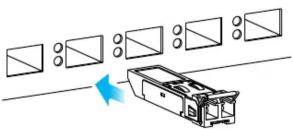 | 2 Connecting a Fiber-optic Cable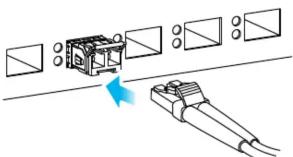 |
| Support InformationUSA EU+1800 255 4101https://support.zyxel.eusupport@zyxel.comEU ImporterZyxel Communications A/SGladsaxevej 378, 2 th. 2860 Saborg, Denmarkhttps://www.zyxel.com/dk/da/US ImporterZyxel Communications, Inc1130 North Miller Street Anheim, CA 92806-2001https://www.zyxel.com/us/en/Copyright © 2020 Zyxel Communications Corp. All Rights Reserved.EAC | All modules are dust sensitive. When not in use, always keep the dust plug on. Avoid getting dust and other contaminant into the optical bores, as the optics do not work correctly when obstructed with dust.Safety WarningAll modules are equipped with a Class 1 laser, which emits invisible radiation. Read the following safety warnings carefully.To avoid possible eye injury, do not look into an operating fiber-optic module's connectors.Laser radiation is present when the device or system is powered up.Only trained and qualified personnel should be allowed to install or replace these modules.Environmental WarningsDispose of your fiber-optic module according to all national laws and regulations. | EN1 Attach an ESD preventive wrist strap to your wrist and to a bare metal surface.Remove the module from its protective packaging.Locate the transmit (Tx) and the receive (Rx) markings on the module.Align the module in front of the slot opening on a device.Make sure the latch is in the lock position, then insert the module into the slot until the module snaps into place.Note:Module installation orientation varies depending on your device. Your module comes with a mechanism that prevents incorrect insertion. Do NOT force or twist the module into a slot. | EN1 Remove the dust plugs from the module and cables.Identify the signal transmission direction of the fiber-optic cable and the module. Insert one end of the fiber-optic cable into the module.Insert the other end of the fiber-optic cable into a remote device.Note:Refer to the user's guide that comes with your device for module slot status. |
| ZYXELYour Networking AllyWarranty CardThank you for purchasing Zyxel product, Zyxel has the great reputation in the market to provide best quality and performance on product and service to our customer. It is our pleasure to invite you to visit our website and register your product for receiving the latest firmware, drive and product related information. If you still have further question or problem related to the product, please contact your vendor or our subsidiaries worldwide for further warranty information, kindly be noted the warranty terms may vary by regions, detail information is available on our website, please link to http://www.zyxel.com/support/warranty_information.shtmlPurchase InformationZyxel Product Name:Hardware Serial Number:Date of Purchase(In certain countries, the warranty will be validated with seller's signature and stamp):warranty must be validated with the seller's... | 1Removing Fiber-optic Cable | 2 Unlocking a Module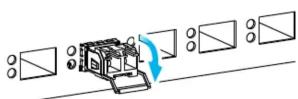 | 3Removing a Module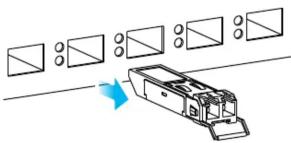 |
| EN1 Attach an ESD preventive wrist strap to your wrist and to a bore metal surface on the chassis.Disconnect all fiber-optic cables from the SFP/SFP+ module. | EN1 Pull out the latch and down to unlock a module. Pull out the latch, or use your thumb and index finger to grasp the tabs on both sides of the module, and carefully slide it out of the slot.Note:Do NOT force or twist the module out of a slot. If the module will not slide out, grasp the tabs on both sides of the module with a slight up/down motion and carefully slide it out of the slot. If unsuccessful, contact Zyxel Support to prevent damage to your Zyxel Device and module.Insert the dust plug into the ports on a module. | ||
1 Installing a Module
2 Connecting a Fiber-optic Cable
2 Unlocking a Module
3 Removing a Module


Marke : ZYXEL
Modell : SFP-SX-E
Kategorie : Netzwerkkarte / Adapter