
PW-E310 - Nicht kategorisiert SHARP - Kostenlose Bedienungsanleitung
Finden Sie kostenlos die Bedienungsanleitung des Geräts PW-E310 SHARP als PDF.


| Produkttyp | Elektronisches Wörterbuch / Übersetzer |
| Marke | Sharp |
| Modell | PW-E310 |
| Bildschirm | LCD-Bildschirm, monochrom oder farbig |
| Abmessungen (ca.) | 120 mm x 80 mm x 15 mm |
| Gewicht (ca.) | 150 g (einschließlich Batterien) |
| Stromversorgung | 2 x AAA-Batterien (Alkali empfohlen) |
| Hauptfunktionen | Englisch-Japanisch Wörterbuch, Übersetzungen, Sprachführer, Wortschatztraining |
| Zusatzfunktionen | Suche nach Stichwort, Sprachwiedergabe (Text-to-Speech), mehrere Wörterbuchdatenbanken |
| Sprachunterstützung | Englisch und Japanisch (primär), andere Sprachen möglicherweise verfügbar |
| Speicher | Interner ROM (Wörterbuchdaten), kein erweiterbarer Speicher |
| Benutzeroberfläche | QWERTY-Tastatur, Richtungstasten, Menütasten |
| Batterielaufzeit (ca.) | Bis zu 100 Stunden Dauerbetrieb |
| Automatische Abschaltung | Ja, nach 5 Minuten Inaktivität |
| Wartung | Reinigen Sie das Gerät mit einem weichen, trockenen Tuch. Keine Flüssigkeiten oder Lösungsmittel verwenden. |
| Sicherheitshinweise | Vor Feuchtigkeit und extremen Temperaturen schützen. Nicht zerlegen. |
| Ersatzteile | Batterien (AAA), keine anderen vom Benutzer austauschbaren Teile |
| Reparierbarkeit | Eingeschränkt; wenden Sie sich für Reparaturen an das Sharp Servicecenter |
| Im Lieferumfang enthaltenes Zubehör | Bedienungsanleitung, Batterien (möglicherweise nicht im Lieferumfang enthalten) |
| Zertifizierungen | CE, FCC (typisch) |
Häufig gestellte Fragen - PW-E310 SHARP
Benutzerfragen zu PW-E310 SHARP
0 Frage zu diesem Gerät. Beantworten Sie die, die Sie kennen, oder stellen Sie Ihre eigene.
Eine neue Frage zu diesem Gerät stellen
Laden Sie die Anleitung für Ihr Nicht kategorisiert kostenlos im PDF-Format! Finden Sie Ihr Handbuch PW-E310 - SHARP und nehmen Sie Ihr elektronisches Gerät wieder in die Hand. Auf dieser Seite sind alle Dokumente veröffentlicht, die für die Verwendung Ihres Geräts notwendig sind. PW-E310 von der Marke SHARP.
BEDIENUNGSANLEITUNG PW-E310 SHARP
Duden-Oxford – Großwörterbuch Englisch New Oxford Thesaurus of English
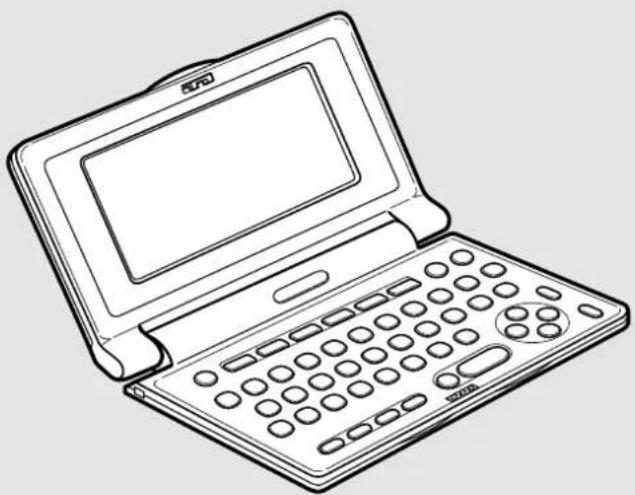
BEDIENUNGSANLEITUNG OPERATION MANUAL
DEUTSCH 1
ENGLISH ...... E-1
Garantieurkunde für Sharp Electronic Dictionary PW-E310
Sehr geehrter Sharp-Kunde,
vielen Dank, dass Sie sich zum Kauf eines Sharp-Produktes entschieden haben.
Die Qualität dieses Produktes wird Sie davon überzeugen, dass Sie sich richtig entschieden haben.
Sollte Ihr Sharp-Produkt dennoch einmal einen Mangel aufweisen, können Sie zusätzlich zu den gesetzlichen Sachmängelansprüchen, die Ihnen gegenüber Ihrem Verkäufer zustehen, die nachfolgende Garantie gegenüber Sharp Electronics (Europe) GmbH in Anspruch nehmen.
Umfang der Garantie
Wenn ein herstellungsbedingter Material- und/oder Verarbeitungsmangel (nachfolgend „Mangel“) bei dem Gerät oder Teilen davon – mit Ausnahme der in der Bedienungsanleitung angegeben Teile mit begrenzter Lebensdauer – innerhalb von 24 Monaten auftritt, können Sie in Deutschland unsere Garantieleistung in Anspruch nehmen.
Die Garantie umfasst nicht Mängel, die durch unsachgemäße Behandlung, Bedienungsfehler oder durch Fremdeinwirkung entstanden sind. Verbrauchsmaterialien wie z. B. Batterien sind ebenfalls nicht in dieser Garantie inbegriffen.
Die Garantiefrist von 24 Monaten beginnt mit dem Tag, an dem Sie das fabrikneue Gerät von einem Händler gekauft haben. Die Erbringung von Garantieleistungen verlängert nicht die Garantiezeit.
Garantieleistung
Sharp Electronics (Europe) GmbH erfüllt seine Garantieverpflichtung für Mängel nach seiner Wahl durch kostenlose Reparatur oder durch Austausch des mangelhaften Gerätes gegen ein mangelfreies.
Geltendmachung der Garantie
Um die Garantie in Anspruch nehmen zu können, benötigen Sie den Kaufbeleg (Rechnung, Quittung), aus dem sich das Kaufdatum, die Modellbezeichnung und die Seriennummer des Gerätes ergeben. Der Mangel des Gerätes muss innerhalb der Garantiefrist von Ihnen gegenüber dem Service-Partner von Sharp Electronics (Europe) GmbH geltend gemacht werden. Bitte senden Sie das defekte Gerät ausreichend frankiert an die folgende Adresse:
Teleplan Repair 2000 GmbH
Werkstraße 5
D-22844 Norderstedt
Tel.: +49 40 52250310
Garantiegeber
SHARP Electronics (Europe) GmbH, Sonninstraße 3,
20097 Hamburg
www.sharp.de/electronic-dictionary/
DEUTSCH
Einführung
Herzlichen Glückwunsch, dass Sie sich zum Erwerb des elektronischen Wörterbuchs PW-E310 von SHARP entschlossen haben.
Das PW-E310 wurde auf der Grundlage von folgenden Wörterbüchern erstellt (siehe Seite 5):
• Duden-Oxford – Großwörterbuch Englisch
• New Oxford Thesaurus of English
Bewahren Sie diese Bedienungsanleitung an einem sicheren Platz auf, damit sie bei Bedarf zur Verfügung steht.
Anzeigen
- SHARP übernimmt keine Verantwortung oder Haftung für irgendwelche zufälligen oder aus der Verwendung folgenden wirtschaftlichen oder Sachschäden, die aufgrund der falschen Verwendung bzw. durch Fehlfunktionen dieses Gerätes und dessen Zubehör auftreten, ausgenommen diese Haftung ist gesetzlich festgelegt.
- Die Spezifikationen des Produkts und des Zubehörs sowie die Informationen in dieser Bedienungsanleitung können ohne vorherige Ankündigung geändert werden.
Vorsicht
- T r ansportieren Sie Ihr PW-E310 nicht in der hinteren Hosentasche.
- Setzen Sie das LCD keinen starken Belastungen aus, da andernfalls das Glas brechen kann.
- Lassen Sie Ihr PW-E310 nicht fallen und setzen Sie es keinen starken Belastungen aus. Versuchen Sie nicht, das Gerät zu biegen, da es dadurch beschädigt werden kann.
- Setzen Sie Ihr PW-E310 keinen extremen Temperaturen aus. Verwenden Sie das Gerät nicht in feuchten oder staubigen Umgebungen.
- Drücken Sie nicht zu fest auf die Tasten.
- Spitze und harte Gegenstände können die Einheit zerkratzen oder anderweitig beschädigen. Stellen Sie sicher, dass das Gerät beim Transport mit anderen Gegenständen ausreichend geschützt ist.
- Da dieses Produkt nicht wasserdicht ist, sollten Sie es nicht an Orten benutzen oder lagern, die extremer Feuchtigkeit ausgesetzt sind. Schützen Sie das Gerät vor Wasser, Regentropfen, Sprühwasser, Saft, Kaffee, Dampf, Schweiß usw., da der Eintritt von irgendwelchen Flüssigkeiten zu Funktionsstörungen führen kann.
- Reinigen Sie das Gerät ausschließlich mit einem weichen, feuchten Tuch. Verwenden Sie keine Lösungsmittel.
- Wenden Sie sich wegen der Wartung und Reparaturen stets an einen von SHARP autorisierten Kundendienstbetrieb.
Hinweise
- Oxford ist eine eingetragene Marke von Oxford University Press in Großbritannien und bestimmten anderen Ländern.
- Alle Unternehmens- oder Produktnamen sind Marken und oder eingetragene Marken der jeweiligen Rechteinhaber.
Inhalt
Erste Schritte
Erstmalige Verwendung des PW-E310 3
Layout 6
Grundlegende Vorgänge 8
Menü-Einstellungen 12
Eingeben von Zeichen 13
Duden-Oxford – Großwörterbuch Englisch (Englisch-Deutsch) verwenden
Suche nach Wörtern mit der Filtersuche ....15
Redewendungssuche 16
Rechtschreibprüfung 16
Kreuzworträtsel lösen 17
Anagramm lösen....18
Weitere Informationen 18
Duden-Oxford – Großwörterbuch Englisch (Deutsch-Englisch) verwenden
Suche nach Wörtern mit der Filtersuche ....19
Redewendungssuche 20
Rechtschreibprüfung 20
Kreuzworträtsel lösen 21
Anagramm lösen 22
Weitere Informationen 22
New Oxford Thesaurus of English verwenden
Suche nach Wörtern mit der Filtersuche ....23
Redewendungssuche 24
Weitere Informationen 24
Verwenden der Sprungfunktion
So verwenden Sie die Sprungfunktion 24
Verwenden der Verlaufsfunktion
So verwenden Sie die Verlaufsfunktion 26
Verwenden der Taschenrechnerfunktion
Hinweise zur Verwendung des Taschenrechners 27
Rechenbeispiele 27
Verwenden der Umrechnungsfunktion
Währungsumrechner 28
Metrische Umrechnungen 29
Anhänge
Wechseln der Batterie 30
Zurücksetzen bei Fehlfunktionen 31
Spezifikationen 31
Fehlerbehebung 32
Produktunterstützung 32
Einführung in die Wörterbücher
Duden-Oxford – Großwörterbuch Englisch ....33
Erstmalige Verwendung des PW-E310
Führen Sie folgende Schritte aus, bevor Sie Ihr PW-E310 erstmals verwenden:
- Bringen Sie den Batteriewechselschalter auf der Unterseite des Geräts in die Stellung „REPLACE BATTERY“ (Batterie wechseln).
- Nehmen Sie den Deckel des Batteriefachs ab.
- Legen Sie eine Batterie ein. Achten Sie auf die richtige Polarität.
- Setzen Sie den Deckel des Batteriefachs wieder ein.
- Bringen Sie den Batteriewechselschalter auf der Unterseite des Geräts in die Stellung „NORMAL OPERATION“ (Normalbetrieb).
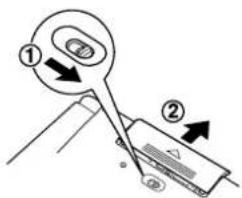
- Öffnen Sie das Gerät und drücken Sie ON/OFF, um es einzuschalten.
Der Bildschirm zum Einstellen des LCD-Kontrasts wird geöffnet.
• W enn ein anderer Bildschirm
geöffnet wird, müssen Sie das
Gerät, wie auf Seite 31 beschrieben, zurücksetzen.
- W enn das Gerät nicht eingeschaltet werden kann:
- Stellen Sie sicher, dass sich der Batteriewechselschalter in der Stellung „NORMAL OPERATION“ (Normalbetrieb) befindet, und drücken Sie erneut ON/OFF.
-
W enn das Gerät dennoch nicht eingeschaltet werden kann, führen Sie die Schritte 1 bis 6 des oben beschriebenen Verfahrens noch einmal aus.
-
Passen Sie den LCD-Kontrast mit bzw. ▶ an und drücken Sie ENTER.
Der Bildschirm zum Ein- und Ausschalten des Tastentons wird geöffnet.
![Einstellen des LCD-Kontrasts [◀] Heller [▶] Dunkler](/content/2026/05/789129/images/e17db0dcdcf4fdf6a552ba8fce5a8ad9503060ca639f608e03ff591b64dce86a.jpg)
Ein- und Ausschalten des Geräts
Um das Gerät einzuschalten, drücken Sie die unten genannten Tasten. Um das Gerät auszuschalten, drücken Sie ON/OFF.| Taste | Anzeigestatus beim Einschalten |
| ON/OFF | Der vor dem Ausschalten der Einheit zuletzt geöffnete Bildschirm wird wieder hergestellt (Resume-Funktion). |
| MENU | Der Hauptmenü-Bildschirm wird geöffnet. |
| EN-DEDE-ENTHESCALCCONV | Die Hauptbildschirme für die einzelnen Wörterbücher bzw. Funktionen werden geöffnet (Direct-on-Funktion). |
Batteriesparmodus
Um die Batterie zu schonen, schaltet sich das PW-E310 automatisch aus, wenn in einem festgelegten Zeitraum keine Tasten betätigt werden. Die Standardeinstellung ist 5 Minuten. Hinweise zur Anpassung des Zeitintervalls finden Sie auf Seite 12.Das Anbringen einer handelsüblichen Schlaufe
Eine Tragschlaufe kann angebracht werden, wie in der Abbildung unten gezeigt.Vorsicht:
\- Schwingen Sie das Gerät nicht an der Schlaufe herum und ziehen Sie nicht gewaltsam an der Schlaufe, um Fehlfunktionen oder Schäden am Gerät zu verhindern.  Rückseite des GerätsFestlegungen für Tasten in dieser Bedienungsanleitung
- Alle Tasten werden mit einem Rahmen dargestellt (z. B. [A ^A ]). Ausnahmen finden sich im Kapitel zur Rechnerfunktion, in dem die Zahleneingaben mit einfachen Ziffern wiedergegeben werden. - Den einzelnen Tasten sind häufig mehrere Funktionen zugewiesen. Die entsprechenden Tasten/Funktionen werden gemäß dem Eingabestatus angezeigt.Auf dem PW-E310 gespeicherte Daten
Die Wörterbuchdaten auf dem Gerät wurden auf der Grundlage von folgenden Wörterbüchern zusammengestellt: - Duden-Oxford – Großwörterbuch Englisch, Deutsch-Englisch, Englisch-Deutsch, 2., neu bearbeitete Auflage © Bibliographisches Institut & F. A. Brockhaus AG, Mannheim 1999 © Oxford University Press, Oxford 1999 • New Oxford Thesaurus of English © Oxford University Press, Oxford 2000 \* Alle Rechte vorbehalten. Diese Publikationen dürfen ohne schriftliche Genehmigung des Verlags Bibliographisches Institut & F. A. Brockhaus AG und Oxford University Press weder vollständig noch in Teilen auf irgendeine Weise reproduziert, auf Datensystemen gespeichert oder übertragen werden, sofern durch gesetzliche Regelungen nicht anders vorgesehen oder keine Genehmigung der jeweiligen Rechteinhaber vorliegt. Sonstige Anfragen zu Reproduktionen sind an die Rechtsabteilung des Verlags Bibliographisches Institut & F. A. Brockhaus AG und Oxford University Press zu richten. • Die Inhalte der einzelnen Wörterbücher wurden weitgehend unverändert aus den Originaldaten übernommen. Aufgrund der eingeschränkten Darstellungsmöglichkeiten auf dem LCD sowie aus anderweitigen Gründen wurden bestimmte Inhalte jedoch unter Zustimmung des Verlags verändert. Die Wörterbücher enthalten möglicherweise Druckfehler oder Fehleinträge, die aus den Originaldaten unverändert übernommen wurden.Hinweise:
- Umfassende Informationen zum Inhalt der Wörterbücher finden Sie in der Einführung auf den Seiten 33–48. - Einige der in den Anhängen der Ursprungswörterbücher enthaltenen Daten sind in diesem Produkt möglicherweise nicht verfügbar. Layout Tastenzuweisungen Anzeigesymbole
EN-DE : öffnet den Eingabebildschirm für Duden-Oxford – Großwörterbuch Englisch (Englisch-Deutsch). DEEN : öffnet den Eingabebildschirm für Duden-Oxford – Großwörterbuch Englisch (Deutsch-Englisch). THES : öffnet den Eingabebildschirm für New Oxford Thesaurus of English. CALC : öffnet den Bildschirm für die Taschenrechnerfunktion. CONV : öffnet den Bildschirm für die Umrechnungsfunktion. VERLAUF : öffnet die Verlaufslisten der einzelnen Wörterbücher. : öffnet eine „zusammengefasste“ Ansicht, die nur die wichtigsten Abschnitte und Bedeutungen enthält. SPRUNG : startet eine Eintragssuche nach Begriff aus einer Detailansicht für jedes Wörterbuch. VERWEIS : w ählt ein VERWEIS-Symbol in der Detailansicht. 2nd : T aste für zweite Funktionsebene: aktiviert die zweite Funktionsebene (in Grün dargestellt) für die Taste, die als Nächstes gedrückt wird. BATT Dieses Symbol wird angezeigt, wenn die Batterie entladen ist. Tauschen Sie die Batterie unverzüglich aus. Gibt an, dass der Tastenton eingeschaltet ist. 2nd Zeigt an, dass 2nd gedrückt wurde. Diese Pfeile geben an, dass per Bildlauf nach oben oder nach unten weitere Inhalte angezeigt werden können. ▲ ▼: Drücken Sie diese Tasten, um die Anzeige jeweils eine Zeile nach oben/nach unten zu scrollen. ∧ ∨: Drücken Sie diese Tasten, um die Anzeige jeweils eine Seite nach oben/nach unten zu scrollen.Hinweise:
- In dieser Bedienungsanleitung werden die Symbole in den Bildschirmbeispielen nicht dargestellt. - Einige Symbole sind am Bildschirm möglicherweise nur sichtbar, wenn der LCD-Kontrast dunkel eingestellt ist. Viele der Symbole werden von diesem Produkt nicht verwendet.Hinweise zur Bedienung
Um Sie bei der Bedienung der Funktionen zu unterstützen, werden am unteren Rand des Bildschirms Bedienungsanweisungen angezeigt.Grundlegende Vorgänge
Eingeben von Wörtern für die Wörterbuchsuche
In diesem Beispiel wird die einfache Suchfunktion beschrieben. Einzelheiten finden Sie in den Kapiteln zu den einzelnen Wörterbüchern.Hinweis:
\- Hinweise zu spezifischen Suchverfahren finden Sie in den Kapiteln zu den einzelnen Wörterbüchern.Auswählen von Wörterbüchern/Funktionen im Hauptmenü
Drücken Sie [MENU]. Das Hauptmenü wird geöffnet. - W ählen Sie einen Eintrag anhand der Indexnummer aus. Verwenden Sie dazu die Nummerntasten (1 bis 5). Der Startbildschirm für das ausgewählte Buch bzw. die ausgewählte Funktion wird geöffnet. \- Das gewünschte Buch bzw. die gewünschte Funktion kann auch mit den Tasten ▲ bzw. ▼ ausgewählt werden; in diesem Fall ist die Auswahl mit der Taste ENTER zu bestätigen. Listenansicht: Auswählen von Einträgen; Bildlauf
Drücken Sie EN-DE, um den Startbildschirm für Duden-Oxford – Großwörterbuch Englisch (Englisch-Deutsch) zu öffnen, und drücken Sie ENTER. Die Stichwortliste von Duden-Oxford – Großwörterbuch Englisch (Englisch-Deutsch) wird angezeigt. Auswählen von Einträgen oder Wörtern
Verwenden Sie die Nummerntaste, um die Indexnummer einzugeben, die links neben dem gewünschten Eintrag angezeigt wird, oder verwenden Sie die Tasten ▲ bzw. ▼, um den Cursor auf den gewünschten Eintrag zu platzieren, und drücken Sie die Taste ENTER.Bildlauf
Wenn auf der linken Seite des Bildschirms die Pfeile „bez.“ angezeigt werden, können per Bildlauf nach oben oder nach unten weitere Inhalte angezeigt werden. 1) Drücken Sie ▼ um die Anzeige um eine Textzeile nach unten zu scrollen. Um das Bild eine Zeile nach oben zu scrollen, drücken Sie ▲. 2) Drücken Sie ☑ um das Bild um eine Seite nach unten zu scrollen. Um die Anzeige eine Seite nach oben zu scrollen, drücken Sie ☐. \- Um den Bildlauf über mehrere Zeilen/Seiten auszuführen, halten Sie die Taste gedrückt.Filtersuchansicht: Auswählen von Einträgen; Bildlauf
Drücken Sie EN-DE und geben Sie A ^A und danach B ein. Nun werden alle Wörter aufgelistet, die mit „ab“ beginnen. Auswählen von Einträgen
Verwenden Sie die Tasten ▼ bzw. ▲, um den Cursor (links neben der Auflistung als „→“ dargestellt) auf den gewünschten Eintrag zu setzen, und drücken Sie ENTER. Die Detailansicht für den Eintrag wird geöffnet.Bildlauf
Beachten Sie die Hinweise unter „Bildlauf“ im vorhergehenden Abschnitt „Listenansicht: Auswählen von Einträgen; Bildlauf“.Detailansicht: Bildlauf
Drücken Sie EN-DE, geben Sie A ein und drücken Sie danach ENTER. Die Detailansicht mit Übersetzungen wird geöffnet. Durchsuchen der Bildschirminhalte nach unten/nach oben
Wenn auf der linken Seite des Bildschirms die Pfeile „↑“ bzw. „↓ angezeigt werden, können per Bildlauf nach oben oder nach unten weitere Inhalte angezeigt werden. Verwenden Sie ▼ bzw. ▲ oder ▼ bzw. △. Bildlauf nach oben/nach unten zum nächsten Stichwort
Drücken Sie 2nd VOR, um das nächste Stichwort anzuzeigen. Drücken Sie 2nd ZURÜCK, um das vorhergehende Stichwort anzuzeigen.Weitere nützliche Tasten
Schriftgröße ändern (ZOOM)
Drücken Sie die Taste ZOOM, um die Schriftgröße zu ändern. Sie können zwischen 12-Punkt-basierter (vertikale Pixelauflösung) oder 9-Punkt-basierter Zeichenanzeige wählen. Drücken Sie beispielsweise ZOOM, um 12-Punkt-Zeichen mit 9 Punkt anzuzeigen. Drücken Sie erneut ZOOM, um die Anzeige auf 12 Punkt zurückzusetzen.   • Die festgelegte Zeichengröße bleibt erhalten, bis Sie erneut ZOOM drücken. • Die Taste ZOOM kann in folgenden Ansichten verwendet werden: - Listenansicht, Detailansicht oder Filtersuchansicht aller Wörterbücher - Sprungfenster • Der Inhalt eines VerweisesWiederaufrufen der gesuchten Wörter (VERLAUF)
In jedem Wörterbuch werden die 30 zuletzt besuchten Artikel automatisch gespeichert. Um die entsprechenden Artikel wieder aufzurufen, wählen Sie einfach den gewünschten Eintrag in der Liste aus. (Weitere Informationen finden Sie auf Seite 26.)Anzeigen einer Zusammenfassung von Detaileinträgen (QUICK VIEW)
Mit der Quick-View-Funktion können Sie Beispiele und zusätzliche Informationen unterdrücken, sodass für jeden Stichworteintrag nur die wichtigsten Abschnitte und Bedeutungen angezeigt werden. Mit dieser Funktion können Sie die Zusammenfassung für einen Eintrag rasch durchsuchen.□Quick View
 2. Es werden die wichtigsten Bedeutungen und Informationen angezeigt. Wählen Sie den gewünschten Eintrag mithilfe der entsprechenden Indexnummer. Die Detailansicht für die ausgewählte Bedeutung bzw. den ausgewählten Abschnitt wird geöffnet. \- Drücken Sie auf dem Quick-View-Bildschirm QUICK VIEW, um die Detailansicht zu öffnen.Suchen nach Wörtern auf dem Bildschirm (SPRUNG)
In der Detailansicht können Sie für Suchvorgänge Wörter auswählen. (Weitere Informationen finden Sie auf Seite 24.)Hinweise zum Durchsuchen (VERWEIS)
Ein Symbol 'VERWEIS' (Vekann) in der Detailansicht erscheinen. Dies zeigt an, dass ein Hinweis gewählt werden kann, um weitere Information für den Eintrag (Tabellen, Verwendungsanweisungen, usw.) zu erhalten. Drücken Sie VERWEIS, um das Symbol zu wählen. Wenn mehr als ein Symbol zu sehen ist, wird das oberste gewählt; drücken Sie deshalb nach Bedarf die Tasten ▼ ▲ ▶ ▶, um das gewünschte Symbol zu wählen und drücken Sie ENTER zum Betrachten der Inhalte. Zum Beenden drücken Sie (ESC) zweimal. Beim ersten Drücken der Taste (ESC) wird die Inhalt-Ansicht geschlossen, und beim zweiten die Wahl des Symbols aufgehoben.\*architect
▶noun 1 the great Norman architect of Durham Cathedral: DESIGNER, planner, builder, 2. Drücken Sie die Taste ☑ oder ▼, um in der Ansicht nach unten zu blättern, so dass das Symbol VERWEIS sichtbar wird. 3. Drücken Sie (VERWEIS). Das Symbol VERWEIS wird gewählt (invertiert). building consultant, draughtsman. Verweis Architects 2 Aneurin Bevan, architect of the National Health Service: 4. Drücken Sie ENTER. Die Inhalte des VERWEIS werden angezeigt.【Architects】
•Aalto, Alvar (1898–1976; Finnish) •Abercrombie, Sir Patrick (1879–1957; English) •Adam, Robert (1728–92;Hinweis:
Durch Verwendung der Taste VERWEIS wird folgendes angezeigt: • N ew Oxford Thesaurus of English - T abellen (Liste von Gegenständen, die für betreffende Stichwörter relevant sind) - Ungeschickte Synonyme und leicht verwechselbare AusdrückeMenü-Einstellungen
Drücken Sie (MENU), um das Hauptmenü zu öffnen, und drücken Sie danach ⑤. Der Bildschirm für die Menü-Einstellungen wird geöffnet.  Wählen Sie die Funktion, deren Einstellungen Sie ändern möchten. \- Informationen zum Löschen der Verlaufsliste finden Sie auf Seite 26.Ein-/Ausschalten des Tastentons
Der Tastenton (das akustische Signal, das bei Betätigung einer Taste ausgegeben wird) kann aktiviert bzw. deaktiviert werden. 1. Wählen Sie MENU, 5 und danach 1, um den Tastenton ein- bzw. auszuschalten. Daraufhin werden Sie in einer Pop-up-Meldung auf die geänderte Einstellung hingewiesen, anschließend wird das Hauptmenü wieder geöffnet.Festlegen der Aktivierungszeit für den Batteriesparmodus
Um die Batterie zu schonen, schaltet sich das Gerät bei Nichtbenutzung nach einiger Zeit selbst aus. Die Abschaltzeit ist standardmäßig auf 5 Minuten gesetzt. 1. Drücken Sie MENU, 5 und danach 2 Der Batteriesparmodus-Bildschirm wird geöffnet.  2. Platzieren Sie das Häkchen mit den Tasten ▲, ▼, ◀ und ▶ neben der gewünschten Dauer und drücken Sie ENTER. Nachdem die neue Abschaltzeit angezeigt wird, wechselt die Anzeige zum Hauptmenü.Anpassen des LCD-Kontrasts
Wählen Sie dieses Menü, um den LCD-Kontrast anzupassen. 1. Drücken Sie MENU, 5 und danach 3. 2. Um den LCD-Kontrast anzupassen, verwenden Sie die Tasten (heller) oder (dunkler); drücken Sie ENTER, um zum Hauptmenü zurückzukehren.Anzeige der Urheberrechtsinformation (Copyrights)
Die Urheberrechtsinformation der einzelnen Wörterbücher kann angezeigt werden. 1. Drücken Sie MENU, 5, 5 und anschließend 1, um die Urheberrechts-information anzuzeigen.Starten des automatischen Demo-Modus (Auto-Demo)
Der automatische Demo-Modus bietet Ihnen eine Demonstration der wichtigsten Funktionen des Produkts. 1. Drücken Sie MENU, 5, 5 und anschließend 2, um den automatischen Demo-Modus zu starten. \- Drücken Sie ESC oder ENTER, um den automatischen Demo-Modus zu beenden und zum Hauptmenü zurück Eingeben von Zeichen
In diesem Kapitel werden die Verfahren zur Eingabe von Zeichen beschrieben.Eingeben von Zeichen
Nachstehend finden Sie ein Beispiel für eine einfache Zeicheneingabe.Hinweise:
- Anstelle Zeichen mit Akzenten einzugeben, geben Sie das entsprechende Zeichen ohne Akzent ein. Für die Umlaute „ä“, „ö“, „ü“ und für „œ“ geben Sie „a“, „o“, „u“ und „oe“ ein. Beachten Sie, dass die Suchfunktionen Akzente oder Umlaute nicht beachten. - Zur Eingabe des „ß“ verwenden Sie die Taste ^B . - Geben Sie keine Zeichen wie Leerzeichen, Bindestriche, Apostrophe, Schrägstriche oder Punkte ein.| Suchwort Eingabe | |
| car radio carradio | |
| U-Bahn ubahn | |
| o'clock oclock | |
| c/o co | |
| z. B. zb |
| Suchwort Eingabe | |
| DDR ddr | |
| DB db | |
| Ausweg ausweg |
Ändern von Eingaben
Löschen von nicht benötigten Zeichen
Hinzufügen von Zeichen
Hinweis:
 \- D rücken SieENTF, um alle eingegebenen Zeichen zu löschen.Duden-Oxford – Großwörterbuch Englisch (Englisch-Deutsch) verwenden
In diesem Wörterbuch können Sie ein englisches Wort eingeben, um nach deutschen Übersetzungen dafür zu suchen. Zusätzlich sind für englische Wörter Funktionen wie „Redewendungssuche“, „Rechtschreibprüfung“, „Kreuzworträtsel lösen“ und „Anagramm lösen“ verfügbar.Suche nach Wörtern mit der Filtersuche
Sie können ein englisches Wort eingeben, um nach Übersetzungen dafür zu suchen.Wenn keine Übereinstimmung gefunden wird
Je mehr Zeichen Sie eingeben, desto mehr beschränkt das Wörterbuch sich auf passende Kandidaten. Wenn keine weitere Übereinstimmung mehr gefunden wird (d.h. kein weiteres Wort beginnend mit dieser Buchstabenfolge wird gefunden), erscheint die Meldung "Ähnliche Wörter".  Drücken Sie in diesem Fall ENTER, um die Wörterbucheinträge alphabetisch nach der eingegebenen Schreibweise anzuzeigen.Anmerkung zur Zeicheneingabe
Geben Sie keine Zeichen wie Leerzeichen, Bindestriche, Apostrophe, Schrägstriche oder Punkte ein. Weitere Informationen finden Sie auf Seite 13.Hinweise:
- Das Platzhalterzeichen „?“ kann im Eingabefeld des Wörterbuchs nicht verwendet werden. Das Platzhalterzeichen „?“ ist ausschließlich für „Kreuzworträtsel lösen“ verfügbar (siehe Seite 21). - In das Eingabefeld des Wörterbuchs können bis zu 24 Zeichen eingegeben werden. Wenn das Suchwort 25 oder mehr Zeichen enthält, müssen Sie die Suche verfeinern, um die Wörter manuell aus der Liste auszuwählen.Redewendungssuche
Um nach Redewendungen zu suchen, können Sie bis zu drei Wörter in das Eingabefeld eingeben. Es wird nach Redewendungen gesucht, die ALLE eingegebenen Zeichen enthalten.Rechtschreibprüfung
Die Rechtschreibprüfungs kann hilfreich sein, wenn Ihnen die exakte Schreibweise eines Worts nicht bekannt ist.Hinweis:
\- In der Liste können bis zu 100 Wörter enthalten sein.Wenn die Wortliste nicht die erwarteten Einträge enthält:
• Die Suche kann bei bestimmten Wörtern länger dauern als bei anderen. - W enn kein übereinstimmendes Wort vorhanden ist, wird kurz die Meldung „Nicht gefunden!“ angezeigt. Anschließend wechselt die Anzeige zum Eingabebildschirm der Rechtschreibprüfung. In diesem Fall können Sie die Suche mit einem neuen Wort neu starten.Kreuzworträtsel lösen
Verwenden Sie das Platzhalterzeichen „?“, um eine unscharfe Suche auszuführen. Ersetzen Sie die gewünschten Zeichen in einem Wort durch die entsprechende Anzahl an „?“-Platzhalterzeichen.Anagramm lösen
Sie können ein Wort oder eine Zeichenfolge eingeben, um in Duden-Oxford – Großwörterbuch Englisch (Englisch-Deutsch) nach übereinstimmenden Anagrammen zu suchen.Weitere Informationen
Weitere Informationen zur Verwendung dieses Wörterbuchs finden Sie auf den Seiten 33–43. Duden-Oxford – Großwörterbuch Englisch (Deutsch-Englisch) verwenden
In diesem Wörterbuch können Sie ein deutsches Wort eingeben, um nach englischen Übersetzungen dafür zu suchen. Dabei können Sie auch die Redewendungssuche verwenden.Suche nach Wörtern mit der Filtersuche
Sie können ein deutsches Wort eingeben, um nach Übersetzungen dafür zu suchen.Wenn keine Übereinstimmung gefunden wird
Es wird dieselbe Ansicht/Meldung angezeigt wie bei Duden-Oxford – Großwörterbuch Englisch (Englisch-Deutsch). Weitere Informationen finden Sie auf Seite 15.Anmerkung zur Zeicheneingabe
Geben Sie keine Zeichen wie Leerzeichen, Bindestriche, Apostrophe, Schrägstriche oder Punkte ein. Weitere Informationen finden Sie auf Seite 13.Hinweis:
\- In das Eingabefeld können bis zu 24 Zeichen eingegeben werden. Wenn das Suchwort 25 oder mehr Zeichen enthält, müssen Sie die Suche verfeinern, um die Wörter manuell aus der Liste auszuwählen.Redewendungssuche
Um nach Redewendungen zu suchen, können Sie bis zu drei Wörter in das Eingabefeld eingeben. Es wird nach Redewendungen gesucht, die ALLE eingegebenen Zeichen enthalten.Rechtschreibprüfung
Die Rechtschreibprüfung kann hilfreich sein, wenn Ihnen die exakte Schreibweise eines Worts nicht bekannt ist.Hinweise:
\- In der Liste können bis zu 100 Wörter enthalten sein.Wenn die Wortliste nicht die erwarteten Einträge enthält:
• Die Suche kann bei bestimmten Wörtern länger dauern als bei anderen. - W enn kein übereinstimmendes Wort vorhanden ist, wird kurz die Meldung „Nicht gefunden!“ angezeigt. Anschließend wechselt die Anzeige zum Eingabebildschirm der Rechtschreibprüfung. In diesem Fall können Sie die Suche mit einem neuen Wort neu starten.Kreuzworträtsel lösen
Verwenden Sie das Platzhalterzeichen „?“, um eine unscharfe Suche auszuführen. Ersetzen Sie die gewünschten Zeichen in einem Wort durch die entsprechende Anzahl an „?“-Platzhalterzeichen.Anagramm lösen
Sie können ein Wort oder eine Zeichenfolge eingeben, um in Duden-Oxford – Großwörterbuch Englisch (Deutsch-Englisch) nach passenden Anagrammen zu suchen.Weitere Informationen
Weitere Informationen zur Verwendung dieses Wörterbuchs finden Sie auf den Seiten 33–43.New Oxford Thesaurus of English verwenden
In diesem Thesaurus können Sie ein Wort eingeben, um seine Synonyme oder Antonyme und andere damit verbundene Ausdrücke in der Detailansicht anzuzeigen.Suche nach Wörtern mit der Filtersuche
Geben Sie ein bestimmtes Wort ein, um nach einer Gruppe von damit verbundenen Wörtern zu suchen.make
▶verb
1 the makes model steam engines: CONSTRUCT, build, assemble, put together, Quick-View-Funktion ist ebenfalls nützlich. - V erwenden Sie die Sprungfunktion, um ein Wort in der Detailansicht zu suchen. - D rücken SieESC, um zum vorigen Bildschirm zurückzukehren. - D rücken Sie2nd LIST, um die Stichwörter in New Oxford Thesaurus of English anzuzeigen. - Um nach einem neuen Wort zu suchen, geben Sie dieses einfach ein oder drücken Sie (ENTF) oder (THES), um auf den Eingabebildschirm von New Oxford Thesaurus of English zurückzugehen.Wenn keine Übereinstimmung gefunden wird
Es wird dieselbe Ansicht/Meldung angezeigt wie bei Duden-Oxford – Großwörterbuch Englisch (Englisch-Deutsch). Weitere Informationen finden Sie auf Seite 15.Anmerkung zur Zeicheneingabe
Geben Sie keine Zeichen wie Leerzeichen, Bindestriche, Apostrophe, Schrägstriche oder Punkte ein. Weitere Informationen finden Sie auf Seite 13.Hinweis:
\- In das Eingabefeld können bis zu 24 Zeichen eingegeben werden. Wenn das Suchwort 25 oder mehr Zeichen enthält, müssen Sie die Suche verfeinern, um die Wörter manuell aus der Liste auszuwählen.Hinweise zum Durchsuchen
Wenn in der Detailansicht das Symbol verschäft, kann ein Hinweis gewählt und durchsucht werden. Weitere Informationen finden Sie auf Seite 11.Hinweis:
- W o ein Eintrag eine Verknüpfung zu einem Verwendungshinweis oder einer Tabelle zugehöriger Punkte enthält, erscheint ein Sternchen (\*) am Anfang des Eintrags. - In vielen Fällen erscheint das Symbol Verweis unten an einem Eintrag, enthält aber wichtige Informationen über die Verwendung des Stichwortes insgesamt. Wenn Sie sich nicht ganz sicher sind, gehen Sie nach unten bis zum Ende des Eintrags und sehen Sie die relevanten Hinweise ein.Redewendungssuche
Um nach Redewendungen und relevanten Sätzen zu suchen, können Sie bis zu drei Wörter in das Eingabefeld eingeben. Es wird nach Redewendungen gesucht, die ALLE eingegebenen Zeichen enthalten.Weitere Informationen
Weitere Informationen zur Verwendung dieses Thesaurus siehe Einführung auf Seite 44-48.Verwenden der Sprungfunktion
Verwenden Sie in den Detailansichten der Wörterbücher die Sprungfunktion, um ein neues Suchwort auszuwählen, und führen Sie dann eine Suche basierend auf dem gewählten Wort aus.So verwenden Sie die Sprungfunktion
Hinweise:
- Unabhängig vom Wörterbuch, in dem Sie die Sprungsuche ausführen, werden übereinstimmende Einträge aus folgenden Wörterbüchern ausgegeben: - Duden-Oxford – Großwörterbuch Englisch (Englisch-Deutsch) - Duden-Oxford – Großwörterbuch Englisch (Deutsch-Englisch) • New Oxford Thesaurus of EnglishZielwörterbuch für die Verknüpfung angeben
Drücken Sie in Schritt 4 EN-DE, DE-EN oder THES anstelle von ENTER, um das Zielwörterbuch für die Verknüpfung anzugeben.Hinweise zur Detailansicht nach Sprüngen
• Die Detailansicht nach Sprüngen entspricht der nach herkömmlichen Suchen angezeigten. - D rücken Sie in der Detailansich(ENTF), um zum Eingabebildschirm des Wörterbuchs zurückzukehren. - Sie können bis zu 10 Sprungvorgänge rückgängig machen, indem Sie die Taste ESC drücken.Verwenden der Verlaufsfunktion
Mit der Verlaufsfunktion können Sie Stichwörter oder Sätze wieder aufrufen, nach denen Sie zuvor in den Wörterbüchern gesucht haben.So verwenden Sie die Verlaufsfunktion
Hinweise:
- Jedes Wörterbuch verfügt über eine Verlaufsliste. Außerdem wird eine Verlaufsliste der Redewendungssuche für jedes Wörterbuch erstellt. - Um die Verlaufsliste anzuzeigen, drücken Sie bei geöffnetem Startbildschirm eines der Wörterbücher bzw. der jeweiligen Redewendungssuche VERLAUF. - F ehlende Wortteile sind in der Liste durch „...“ gekennzeichnet. - In der Verlaufsliste können bis zu 30 Einträge gespeichert werden.Löschen von Einträgen in der Verlaufsliste
1. Rufen Sie die Verlaufsliste auf. 2. Verwenden Sie die Tasten▼ oder ▲, um den Cursor auf den zu löschenden Eintrag zu setzen. Der ausgewählte Eintrag wird hervorgehoben. 3. Drücken Sie ← Sie werden in einem Dialogfeld aufgefordert, den Löschvorgang zu bestätigen. 4. Drücken Sie ⚫. Der ausgewählte Eintrag wird gelöscht.Löschen von Verlaufslisten von Wörterbüchern
1. Drücken Sie MENU und danach 5, um die Menü-Einstellungen zu starten. 2. Drücken Sie ④, um „Verlauf löschen“ auszuwählen. 3. Wählen Sie mit den Nummerntasten die zu löschende Verlaufsliste. Sie werden in einem Dialogfeld aufgefordert, den Löschvorgang zu bestätigen. \- W ählen Sie „ALLES“, um alle Verlaufslisten zu löschen. \- Wenn Sie „Nur EN-DE“, „Nur DE-EN“ oder „Nur THES“ wählen, werden auch die Verlaufslisten für die jeweilige Redewendungssuche gelöscht. 4. Drücken Sie ☐ Die ausgewählte(n) Verlaufsliste(n) wird (werden) gelöscht, und das Hauptmenü wird geöffnet.Verwenden der Taschenrechnerfunktion
Der integrierte Taschenrechner des elektronischen Wörterbuchs kann 12-stellige arithmetische Operationen ausführen und verfügt über eine Speicherfunktion. Drücken Sie CALC, um auf die Rechnerfunktion zuzugreifen.Hinweise zur Verwendung des Taschenrechners
- Dieses Produkt verwendet die deutsche Schreibweise, also ein Komma „“ als Dezimalkomma und einen Punkt als Tausender-Trennzeichen. - B evor Sie einen Rechenvorgang ausführen, drücken Sie(R·CM) (R·CM) (ENTF), um den Speicher zu löschen und die Anzeige freizugeben. - Um negative Werte einzugeben, setzen Sie mit der Taste — ein Minuszeichen vor den gewünschten Wert. - W enn Sie eine Fehleingabe korrigieren möchten, drücken Sie C·CE und geben den gewünschten Wert ein. \- In den Rechenbeispielen in diesem Kapitel sind die möglicherweise auf dem Bildschirm angezeigten Zeichen und Symbole („=“, „M+“, „M-“, „+“, „-“, „x“ und „÷“) nur teilweise oder gar nicht dargestellt. Diese Symbole werden eingeblendet, um die Zwischenergebnisse von Berechnungen anzuzeigen. Das „=“-Zeichen wird beispielsweise angezeigt, wenn Sie(≡) oder (%) drücken, während Symbole wie „M+“ und „+“ nach Betätigung der entsprechenden Tasten angezeigt werden. \- Ein „M“ wird angezeigt, wenn dem Speicher ein Wert ungleich null hinzugefügt wird. Um den Inhalt des Speichers zu löschen, drücken Sie zweimal (R·CM). Beachten Sie, dass die Betätigung der Tasten(M+) oder (M-) dem Drücken der Taste (=) entspricht. \- D rücken Sie ENTER, um das Gleichheitszeichen („=“) einzugeben. Um ein Dezimalkomma („”) einzugeben, drücken Sie • Die Fehlermeldung „E“ wird angezeigt, wenn - der Ganzzahlenteil eines Rechenergebnisses mehr als 12 Stellen umfasst, - der Wert im Speicher mehr als 12 Stellen umfasst, - v ersucht wird, eine Zahl durch null zu teilen. Drücken Sie C·CE, um den Fehlerstatus aufzuheben. Rechenbeispiele| Beispiel | Vorgang | Anzeige |
| (-24) ÷ 4 - 2 = | C·CE - 24 ÷ 4 - 2 = | -8, |
| 34 + 57 = | 34 + 57 = Die zweite Zahl (57) | 91, |
| 45 + 57 = | 45 = wird als Konstante verwendet. | 102, |
| (Subtraktionen und Divisionen erfolgen ebenfalls mit dem oben beschriebenen Verfahren.) | ||
| 68 × 25 = | 68 × 25 = Die erste Zahl (68) | 1.700, |
| 68 × 40 = | 40 = wird als Konstante verwendet. | 2.720, |
| Wie viel sind 10 % von 200? | 200 × 10 % | 20, |
| Welcher Prozentsatz von 36 ist 9? | 9 ÷ 36 % | 25, |
| 200 + (200 × 10 %) = | 200 + 10 % | 220, |
| 500 – (500 × 20 %) = | 500 - 20 % | 400, |
| (43) ^2 = | 4 × = = × = | 4.096, |
| 1/8 | 8 ÷ = | 0,125 |
| 25 × 5 = | R·CM R·CM 25 × 5 M+ | M125, |
| -) 84 ÷ 3 = | 84 ÷ 3 M- | M28, |
| +) 68 + 17 = | 68 + 17 M+ | M85, |
| (Summe) = | R·CM | M182, |
| R·CM R·CM 12 + 14 M+ | M26, | |
| 135 × (12 + 14) = | 135 × R·CM = | M3.510, |
| (12 + 14) ÷ 5 = | R·CM ÷ 5 = | M5,2 |
| R·CM R·CM ENTF | 0, | |
| 123456789098 × 145 = | 123456789098 × 145 = 17,9012344192 | E17,9012344192 |
| C·CE 17,9012344192 | 17,9012344192 | |
| (17,9012344192 × 10 ^12 = 17901234419200) |
Verwenden der Umrechnungsfunktion
Die Umrechnungsfunktion umfasst zwei Unterfunktionen: den Währungsumrechner und den metrischen Umrechner.Währungsumrechner
Festlegen eines Wechselkurses
Sie können einen Umrechnungskurs festlegen.Umrechnen von Währungen
Die Umrechnung kann mit dem zuvor festgelegten Wechselkurs erfolgen.Metrische Umrechnungen
Sie können auch verschiedene Maßeinheiten (Länge, Masse usw.) umrechnen.| □Umrechnungen [Längenmaß 2]Fuß ⇔ m(0,3048)0, |
| • Wählen Sie die Einheit mit [▼],umrechnen mit [◀] oder [▶]. |
Umrechenbare Einheiten
Sie können die folgenden Umrechnungen vornehmen: Längenmaß 1: Zoll ⇔ cm Längenmaß 2: Fuß ⇔ m Längenmaß 3: Yard ⇔ m Längenmaß 4: Meile ⇔ km Gewicht 1: Unze ⇔ g Gewicht 2: Pfund ⇔ kg Temperatur: °F ⇔ °C Volumen 1: Pint ⇔ Liter Volumen 2: Gallone (UK) ⇔ Liter Volumen 3: Gallone (US) ⇔ Liter Flächenmaß 1: Quadratmeile ⇔ km² Flächenmaß 2: Morgen ⇔ HektarAnhänge
Wechseln der Batterie
Zu verwendende Batterien
\- V erwenden Sie ausschließlich die vorgeschriebene Alkali-Batterie.| Typ | Größe/Typ | Menge |
| Alkali-Batterie | Größe „AAA“/LR03 | 1 |
Vorsichtsmaßnahmen
- W enn die aus einer beschädigten Batterie austretende Flüssigkeit in die Augen gelangt, kann dies zu schweren Verletzungen führen. In diesem Fall die Augen mit klarem Wasser auswaschen und sofort einen Arzt aufsuchen. - W enn die aus einer beschädigten Batterie austretende Flüssigkeit mit der Haut oder Bekleidung in Berührung kommt, sollte sie sofort mit sauberem Wasser ab- bzw. ausgewaschen werden. - W enn das Gerät längere Zeit nicht benutzt wird, sollten die Batterien entfernt und an einem sicheren Ort aufbewahrt werden, um einer Beschädigung des Gerätes durch auslaufende Batterien vorzubeugen. - Niemals entladene Batterien im Gerät lassen. - B ewahren Sie Batterien außerhalb der Reichweite von Kindern auf. - Bei nicht ordnungsgemäßer Handhabung der Batterien kann es zu Explosionsgefahr kommen. - W erfen Sie die Batterien nicht in offenes Feuer, da andernfalls Explosionsgefahr besteht. - V ergewissern Sie sich, dass die neue Batterie für das Gerät geeignet ist, bevor Sie sie einsetzen. - Achten Sie beim Einsetzen der Batterie auf die richtige Polarität (wie auf dem Gerät angegeben). - Die mit dem Produkt mitgelieferte Batterie ist infolge der Transport- oder Lagerdauer möglicherweise bereits etwas entladen und muss eventuell vorzeitig gewechselt werden.Wann muss die Batterie gewechselt werden?
Ersetzen Sie die Batterie in folgenden Fällen unverzüglich: - WennBATT angezeigt wird. - W enn beim Einschalten die Meldung „Bitte die Batterie ersetzen!“ angezeigt wird.Hinweis:
\- W enn die Batterie nicht wie beschrieben ersetzt wird, werden die Verlaufslisten sowie der Speicher des Rechners möglicherweise gelöscht oder geändert. Der Währungsumrechner und die Geräteeinstellungen können möglicherweise zurückgesetzt werden.So wechseln Sie die Batterie
1. Schalten Sie das Gerät mit der Taste ON/OFF aus. 2. Bringen Sie den Batteriewechselschalter auf der Unterseite des Geräts in die Stellung „REPLACE BATTERY“ (Batterie wechseln). 3. Nehmen Sie den Deckel des Batteriefachs ab. 4. Entnehmen Sie die entladene Batterie und setzen Sie die neue ein. Achten Sie auf die richtige Polarität. 5. Setzen Sie den Deckel des Batteriefachs wieder ein. 6. Bringen Sie den Batteriewechselschalter auf der Unterseite des Geräts in die Stellung „NORMAL OPERATION“ (Normalbetrieb). 7. Öffnen Sie das Gerät und drücken Sie ON/OFF, um es einzuschalten. Der Bildschirm zum Einstellen des LCD-Kontrasts wird geöffnet. \- W enn das Gerät nicht eingeschaltet werden kann, führen Sie die Schritte 2 bis 7 des oben beschriebenen Verfahrens noch einmal aus. Wenn dies erfolglos bleibt, setzen Sie das Gerät wie auf der nachfolgenden Seite beschrieben zurück. 8. Befolgen Sie die Anweisungen auf dem Bildschirm, um den LCD-Kontrast anzupassen sowie den Tastenton ein- bzw. auszuschalten (siehe Schritte 7 und 8 im Verfahren auf Seite 3.)  Zurücksetzen bei Fehlfunktionen
Wenn das Gerät starken Stößen oder elektrischen Feldern ausgesetzt wird, sind die Tasten möglicherweise nicht bedienbar, sodass Sie das Gerät nicht einschalten können. Wenn dieser Fall eintritt, befolgen Sie die nachstehenden Anweisungen.Verfahren zum Zurücksetzen
1. Drücken Sie mithilfe einer Kugelschreiberspitze oder eines geeigneten Gegenstands den RESET-Schalter auf der Unterseite des Geräts. Verwenden Sie keine Gegenstände mit brüchigen oder scharfen Spitzen. Die Meldung „Möchten Sie das System neu starten?“ wird angezeigt. natural_image
Simple line drawing of a pen writing on a notepad with a small circular mark (no text or symbols)Hinweise:
- Durch das Zurücksetzen werden die Verlaufslisten und der Speicher des Rechners sowie die Einstellungen für den Währungsumrechner und die Menü-Einstellungen gelöscht. Um dies zu vermeiden, können Sie im oben beschriebenen Schritt 2 die Taste(N) drücken. - Bei Datenfehlern kann es vorkommen, dass der Vorgang automatisch ausgeführt wird, wenn Sie den RESET-Schalter oder die Taste ON/OFF drücken. In diesem Fall wird die Meldung „Bereit“ angezeigt, woraufhin die Anzeige zum Bildschirm zur Einstellung des LCD-Kontrasts wechselt. Befolgen Sie die Anweisungen zum Einstellen des LCD-Kontrasts und zum Ein- bzw. Ausschalten des Tastentons.Spezifikationen
Modell: PW-E310 Produktbezeichnung: Electronic Dictionary Anzeige: 159 × 80-Punkt-Matrix-LCD Anzahl von Einträgen: - Duden-Oxford – Großwörterbuch Englisch: Rund 300.000 Stichwörter und Wendungen und ca. 470.000 Übersetzungen. - N ew Oxford Thesaurus of English: Ca. 600.000 alternative und gegensätzliche Wörter. Rechnerfunktion: 12-stellige Addition, Subtraktion, Multiplikation, Division, Prozentrechnung, Speicherrechnung usw. Umrechnungsfunktion: 12-stellige Umrechnung von Währungen und Maßeinheiten Leistungsaufnahme: 0,11 W Betriebstemperatur: 0 °C bis 40 °C Stromversorgung: 1,5 V — (Gleichstrom): Alkali-Batterie LR03 (Größe „AAA“) × 1 Batterielebensdauer: ca. 200 Stunden bei permanenter Anzeige und 25 °C Hinweis: Abweichungen infolge verschiedener Faktoren sind möglich. Gewicht (einschließlich Batterie): ca. 148 g Abmessungen (in geschlossenem Zustand): 125 mm (B) × 79,4 mm (T) × 16,8 mm (H) Zubehör: Alkali-Batterie LR03 (Größe „AAA“) × 1, BedienungsanleitungFehlerbehebung
Sehen Sie in der Liste der möglichen Fehler nach und beachten Sie die Lösungsvorschläge.Das Gerät kann nicht eingeschaltet werden.
- V ergewissern Sie sich, dass die Batterie nicht entladen ist. Siehe Seite 30. - Prüfen Sie die Stellung des Batteriewechselschalters; dieser muss sich in der Stellung „NORMAL OPERATION“ (Normalbetrieb) befinden. Siehe Seite 3. - P rüfen Sie die Polarität der Batterie. Siehe Seite 3. - Überprüfen Sie die Einstellung für den LCD-Kontrast; das Gerät ist möglicherweise eingeschaltet, ohne dass die Anzeige sichtbar ist. Siehe Seite 13. - W enn die oben genannten Einstellungen korrekt sind, drücken Sie den RESET-Schalter. Siehe Seite 31.Der Bildschirm ist zu hell oder zu dunkel.
\- P assen Sie den LCD-Kontrast an. Siehe Seite 13.Es ist kein Tastenton hörbar.
\- Der Tastenton ist möglicherweise ausgeschaltet. Siehe Seite 12.Das Gerät reagiert nicht auf das Drücken der Tasten.
\- Drücken Sie den RESET-Schalter. Siehe Seite 31.Das Gerät schaltet sich automatisch aus.
\- Der Batteriesparmodus ist aktiviert. Das Aktivierungsintervall für den Batteriesparmodus kann angepasst werden. Siehe Seite 12.Das gewünschte Wort kann nicht gefunden werden.
\- Möglicherweise haben Sie eine gebeugte Form des Worts eingegeben. Geben Sie die Grundform des Worts ein.Produktunterstützung
Wenn sich Probleme mithilfe dieser Bedienungsanleitung nicht beheben lassen, besuchen Sie unsere Website unter: http://www.sharp.de/electronic-dictionary/Einführung in die Wörterbücher
Duden-Oxford – Großwörterbuch Englisch
Die für das Deutsche verwendeten Zeichen der Lautschrift / Phonetic symbols used in transcriptions of German words| a | hat | hat | i | vital | vi'ta:l | ɔy | Heu | hɔy |
| a: | Bahn | ba:n | i: | viel | fi:l | p | Pakt | pakt |
| e | Ober | 'o:br | i | Studie | 'f'u:djə | pf | Pfahl | pfa:l |
| g | Uhr | u:ɛ | ɪ | Birke | 'birkə | r | Rast | rast |
| â | Grand Prix | gr ~a'pri: | j | ja | ja: | s | Hast | hast |
| a~: | Abonnement | abɔnə'm~a: | k | kalt | kalt | ʃ | schal | ʃa:l |
| ai | weit | vaît | l | Last | last | t | Tal | ta:l |
| au | Haut | haut | l | Nabel | 'na:b'l | ts | Zahl | tsa:l |
| b | Ball | bal | m | Mast | mast | tf | Matsch | matf |
| ç | ich | ɪç | n | Naht | na:t | u | kulant | ku'Tant |
| d | dann | dan | ŋ | baden | 'ba:dŋ | u: | Hut | hu:t |
| dʒ | Gin | dʒɪn | ŋ | lang | laŋ | ʊ | aktuell | ak'tuɛl |
| ɛ | Methan | me'ta:n | o | Moral | mo'ra:l | o | Pult | polt |
| e: | Beet | be:t | o: | Boot | bo:t | v | was | vas |
| ɛ | mästen | 'mestŋ | o | loyal | loa'ja:l | x | Bach | bax |
| ɛ: | wählen | 've:lɔn | ð | Fondue | f^ o'dy: | y | Physik | fy'zi:k |
| ɛ | Ragoût fin | ragu'f ~ɛ | o~: | Fond | f~ o: | y: | Rübe | 'ry:bə |
| ɛ~: | Timbre | 't'ɛ:br(ə) | ɔ | Post | post | ÿ | Nuance | 'nÿ a~sə |
| ɔ | Nase | 'na:zo | ø | Ökonom | øko'no:m | y | Fülle | 'fylɔ |
| f | Fass | fas | o: | Öl | ɔ:l | z | Hase | 'ha:za |
| g | Gast | gast | œ | göttlich | 'gœtlɪç | ʒ | Genie | ʒe'ni: |
| h | hat | hat | œ~: | Parfum | par'f ~œ: |
| ɑ: | bah | ba: | g | good | god | r | rat | ræt |
| ă | ensemble | ~ɑ'sa~mbl | h | hat | hæt | s | sip | sip |
| æ | fat | fæt | ɪ | bit, lately | bit, 'leɪtlɪ | ʃ | ship | ʃɪp |
| ~æ | lingerie | 'l ~æʒəri | ɪə | nearly | 'nɪəli | ɪ | tip | tip |
| aɪ | fine | fam | i: | meet | miːt | tʃ | chin | tʃin |
| aʊ | now | naʊ | j | yet | jet | θ | thin | θɪn |
| b | bat | bæt | k | kit | kit | ð | the | ðɔ |
| d | dog | dɒg | l | lot | lot | u: | boot | buːt |
| dʒ | jam | dʒæm | m | mat | mæt | ʊ | book | bʊk |
| e | met | met | n | not | not | ʊɔ | tourist | 'tʊərist |
| eɪ | fate | feɪt | ŋ | sing | sɪŋ | ʌ | dug | dʌɡ |
| eə | fairy | 'feəri | ɒ | got | got | v | van | vaen |
| əʊ | goat | gəʊt | ɔ: | paw | po: | w | win | win |
| ə | ago | ə'gəʊ | ɔ̃ | fait accompli | feɪt æ'k~opli: | x | loch | lɒx |
| ɜ: | fur | fɜ:(r) | ɔɪ | boil | boil | z | zip | zip |
| ʃ | fat | fæt | p | pet | pet | ʒ | vision | 'viʒn |
Im Wörterverzeichnis verwendete deutsche Abkürzungen / German abbreviations used in this Dictionary
a. ander... ä. ähnlich.. Abk. Abkürzung adj. adjektivisch Adj. Adjektiv adv. adverbial Adv. Adverb Akk. Akkusativ amerik. amerikanisch Amtsspr. Amtssprache Anat. Anatomie Anthrop. Anthropologie Archäol. Archäologie Archit. Architektur Art. Artikel Astrol. Astrologie Astron. Astronomie A. T. Altes Testament attr. attributiv Ausspr. Aussprache Bauw. Bauwesen Bergmannsspr. Bergmannssprache berlin. berlinisch bes. besonders Bez. Bezeichnung bibl. biblisch bild. Kunst bildende Kunst Biol. Biologie Bodenk. Bodenkunde Börsenw. Börsenwesen Bot. Botanik BRD Bundesrepublik Deutschland brit. britisch Bruchz. Bruchzahl Buchf. Buchführung Buchw. Buchwesen Bürow. Bürowesen chem. chemisch christl. christlich Dat. Dativ DDR Deutsche Demokratische Republik Dekl. Deklination Demonstrativpron. Demonstrativpronomen d. h. das heißt dichter. dichterisch Druckerspr. Druckersprache Druckw. Druckwesen dt. deutsch DV Datenverarbeitung ehem. ehemals, ehemalig... Eisenb. Eisenbahn elektr. elektrisch Elektrot. Elektrotechnik Energievers. Energieversorgung Energiewirtsch. Energiewirtschaft engl. englisch etw. etwas ev. evangelisch fachspr. fachsprachlich fam. familiär Fem. Femininum Ferns. Femsehen Fernspr. Fernsprechwesen fig. figurativ Finanzw. Finanzwesen Fischereiw. Fischereiwesen Fliegerspr. Fliegersprache Flugw. Flugwesen Forstw. Forstwesen Fot. Fotografie Frachtw. Frachtwesen Funkw. Funkwesen Gastr. Gastronomie Gattungsz. Gattungszahl Gaunerspr. Gaunersprache geh. gehoben Gen. Genitiv Geneal. Genealogie Geogr. Geographie Geol. Geologie Geom. Geometrie Handarb. Handarbeit Handw. Handwerk Hausw. Hauswirtschaft Her. Heraldik hess. hessisch Hilfsv. Hilfsverb hist. historisch Hochschulw. Hochschulwesen Holzverarb. Holzverarbeitung Indefinitpron. Indefinitpronomen indekl. indeklinabel Indik. Indikativ Inf. Infinitiv Informationst. Informationstechnik Interj. Interjektion iron. ironisch intr. intransitiv Jagdw. Jagdwesen Jägerspr. Jägersprache jmd. jemand jmdm. jemandem jmdn. jemanden jmds. jemandes Jugendspr. Jugendsprache jur. juristisch Kardinalz. Kardinalzahl kath. katholisch Kaufmannsspr. Kaufmannssprache Kfz.-W. Kraftfahrzeugwesen Kinderspr. Kindersprache Kochk. Kochkunst Konj. Konjunktion Kosew. Kosewort Kunstwiss. Kunstwissenschaft Kurzf. Kurzform Kurzw. Kurzwort landsch. landschaftlich Landw. Landwirtschaft Literaturw. Literaturwissenschaft Luftf. Luftfahrt ma. mittelalterlich MA. Mittelalter marx. marxistisch Mask. Maskulinum Math. Mathematik Mech. Mechanik Med. Medizin Meeresk. Meereskunde Met. Meteorologie Metall. Metallurgie Metallbearb. Metallbearbeitung Milit. Militär Mineral. Mineralogie mod. modifizierend Modalv. Modalverb Münzk. Münzkunde Mus. Musik Mythol. Mythologie Naturw. Naturwissenschaft Neutr. Neutrum niederdt. niederdeutsch Nom. Nominativ nordamerik. nordamerikanisch nordd. norddeutsch nordostd. nordostdeutsch nordwestd. nordwestdeutsch ns. nationalsozialistisch N.T. Neues Testament o. ohne; oben o. Ä. oder Ähnliches od. oder Ordinalz. Ordinalzahl orth. orthodox ostd. ostdeutsch österr. österreichisch Päd. Pädagogik Paläont. Paläontologie Papierdt. Papierdeutsch Parapsych. Parapsychologie Parl. Parliament Part. Partizip Perf. Perfekt Pers. Person pfälz. pfälzisch Pharm. Pharmazie Philat. Philatelie Philos. Philosophie Physiol. Physiologie PI. Plural Plusq. Plusquamperfekt Polizeiw. Polizeiwesen Postw. Postwesen präd. prädikativ Prähist. Prähistorie Präp. Präposition Präs. Präsens Prät. Präteritum Pron. Pronomen Psych. Psychologie Raumf. Raumfahrt Rechtsspr. Rechtssprache Rechtsw. Rechtswesen refl. reflexiv regelm. regelmäßig Rel. Religion Relativpron. Relativpronomen rhein. rheinisch Rhet. Rhetorik röm. römisch röm.-kath. römisch-katholisch Rundf. Rundfunk s. siehe S. Seite scherzh. scherzhaft schles. schlesisch schott. schottisch Schülerspr. Schülersprache Schulw. Schulwesen schwäb. schwäbisch schweiz. schweizerisch Seemannsspr. Seemannssprache Seew. Seewesen Sexualk. Sexualkunde Sg. Singular s. o. siehe oben Soldatenspr. Soldatensprache Sozialpsych. Sozialpsychologie Sozialvers. Sozialversicherung Soziol. Soziologie spött. spöttisch Spr. Sprichwort Sprachw. Sprachwissenschaft Steuerw. Steuerwesen Stilk. Stilkunde Studentenspr. Studentensprache s. u. siehe unten Subj. Subjekt subst. substantivisch; substantiviert Subst. Substantiv südd. süddeutsch südwestd. südwestdeutsch Suff. Suffix Sup. Superlativ Textilw. Textilwesen Theol. Theologie thüring. thüringisch Tiermed. Tiermedizin tirol. tirolisch tr. transitiv Trenn. Trennung u. und u. a. und andere[s] u. Ä. und Ähnliches ugs. umgangssprachlich unbest. unbestimmt unpers. unpersönlich unr. unregelmäßig usw. und so weiter v. von V. Verb verächtl. verächtlich veralt. veraltet; veraltend Verhaltensf. Verhaltensforschung verhüll. verhüllend Verkehrsw. Verkehrswesen Vermessungsw. Vermessungswesen Versicherungsw. Versicherungswesen vgl. vergleiche Vkl. Verkleinerungsform Völkerk. Völkerkunde Völkerr. Völkerrecht Volksk. Volkskunde volkst. volkstümlich vulg. vulgär Werbespr. Werbesprache westd. westdeutsch westfäl. westfälisch Wiederholungsz. Wiederholungszahlwort wiener. wienerisch Winzerspr. Winzersprache Wirtsch. Wirtschaft Wissensch. Wissenschaft Wz. Warenzeichen Zahnmed. Zahnmedizin z. B. zum Beispiel Zeitungsw. Zeitungswesen Zollw. Zollwesen Zool. Zoologie Zus. Zusammensetzung Zusschr. ZusammenschreibungIm Wörterverzeichnis verwendete englische Abkürzungen / English abbreviations used in this Dictionary
abbr(s). abbreviation(s) abs. absolute adj(s). adjective(s) Admin. Administration, Administrative adv. adverb Aeronaut. Aeronautics Agric. Agriculture Alch. Alchemy Amer. American, America Anat. Anatomy Anglican Ch. Anglican Church Anglo-Ind. Anglo-Indian Ant. Antiquity Anthrop. Anthropology arch. archaic Archaeol. Archaeology Archit. Architecture art. article Astrol. Astrology Astron. Astronomy Astronaut. Astronautics attrib. attributive Austral. Australian, Australia Bacteriol. Bacteriology Bibl. Biblical Bibliog. Bibliography Biochem. Biochemistry Biol. Biology Bookk. Bookkeeping Bot. Botany Brit. British, Britain Can. Canadian, Canada Chem. Chemistry Cinemat. Cinematography coll. colloquial collect. collective comb. combination Commerc. Commerce, Commercial Communication Res. Communication Research compar. comparative condit. conditional conj. conjunction Constr. Construction constr. construed contr. contracted form def. definite Dent. Dentistry derog. derogatory dial. dialect Diplom. Diplomacy Dressm. Dressmaking Eccl. Ecclesiastical Ecol. Ecology Econ. Economics Educ. Education Electr. Electricity ellipt. elliptical emphat. emphatic esp. especially Ethnol. Ethnology Ethol. Ethology euphem. euphemistic excl. exclamation, exclamatory expr. expressing fem. feminine fig. figurative Footb. Football Gastr. Gastronomy Geneal. Genealogy Geog. Geography Geol. Geology Geom. Geometry Graph. Arts Graphic Arts Her. Heraldry Hist. History, Historical Horol. Horology Hort. Horticulture Hydraulic Engin. Hydraulic Engineering imper. imperative impers. impersonal incl. including Ind. Indian, India indef. indefinite Information Sci. Information Science int. interjection interrog. interrogative Int. Law International Law Ir. Irish, Ireland iron. ironical joc. jocular Journ. Journalism lang. language Ling. Linguistics Lit. Literature lit. literal Magn. Magnetism Managem. Management masc. masculine Math. Mathematics Mech. Mechanics Mech. Engin. Mechanical Engineering Med. Medicine Metalw. Metalwork Metaph. Metaphysics Meteorol. Meteorology Mil. Military Min. Mineralogy Motor Veh. Motor Vehicles Mount. Mountaineering Mus. Music Mythol. Mythology n. noun Nat. Sci. Natural Science Naut. Nautical neg. negative N. Engl. Northern English ns. nouns Nucl. Engin. Nuclear Engineering Nucl. Phys. Nuclear Physics Num. Numismatics N.Z. New Zealand obj. object Oceanog. Oceanography Ornith. Ornithology P Proprietary name Palaeont. Palaeontology Parapsych. Parapsychology Parl. Parliament pass. passive Pharm. Pharmacy Philat. Philately Philos. Philosophy Phonet. Phonetics Photog. Photography phr(s). phrase(s) Phys. Physics Physiol. Physiology pl. plural poet. poetical Polit. Politics poss. possessive postpos. postpositive p. p. past participle pred. predicative pref. prefix Prehist. Prehistory prep. preposition pres. present pres. p. present participle pr. n. proper noun pron. pronoun Pros. Prosody prov. proverbial Psych. Psychology p. t. past tense Railw. Railways RC Ch. Roman Catholic Church refl. reflexive rel. relative Relig. Religion Res. Research Rhet. Rhetoric rhet. rhetorical S. Afr. South African, South Africa sb. somebody Sch. School Sci. Science Scot. Scottish, Scotland Shipb. Shipbuilding sing. singular sl. slang Sociol. Sociology Soc. Serv. Social Services Soil Sci. Soil Science St. Exch. Stock Exchange sth. something subord. subordinate suf. suffix superl. superlative Surv. Surveying symb. symbol tech. technical Teleph. Telephony Telev. Television Theol. Theology Univ. University usu. usually v. aux. auxiliary verb Vet. Med. Veterinary Medicine v.i intransitive verb voc. vocative v. refl. reflexive verb v.t transitive verb v. t. & i. transitive and intransitive verb W. Ind. West Indian, West Indies Woodw. Woodwork Zool. ZoologyAutoren
Great Clarendon Street, Oxford ox2 6dp Oxford University Press is a department of the University of Oxford. It furthers the University's objective of excellence in research, scholarship, and education by publishing worldwide in Oxford New York Athens Auckland Bangkok Bogotá Buenos Aires Calcutta Cape Town Chennai Dar es Salaam Delhi Florence Hong Kong Istanbul Karachi Kuala Lumpur Madrid Melbourne Mexico City Mumbai Nairobi Paris São Paulo Singapore Taipei Tokyo Toronto Warsaw with associated companies in Berlin Ibadan Oxford is a registered trade mark of Oxford University Press in the UK and in certain other countries Published in the United States by Oxford University Press Inc., New York © Oxford University Press and Bibliographisches Institut & F. A. Brockhaus AG 1990, 1997, 1999Second Edition
Oxford University Press Michael Clark Bernadette Mohan Robin Sawers Gunhild Prowe Neil Morris Roswitha Morris Data Input Muriel Ranivoalison Susan Wilkin Tabitha Tuckett Anne McConnell Dudenverlag Olaf Thyen Wemer Scholze-Stubenrecht Magdalena Seubel First Edition Editors Oxford University Press John Sykes Michael Clark Robin Sawers Vineeta Gupta Bernadette Mohan Colin Hope Maurice Waite John Pheby Eva Vennebusch Clare Rütsch Judith Cunningham Valerie Langrish Christopher Burton Timothy Connell Dudenverlag Wemer Scholze-Stubenrecht Roland Breitsprecher Olaf Thyen Brigitte Alsleben Eckhard Böhle Maria Dose Gabriele Gassen Wolfgang Eckey Eva Krampe Susanne Lücking Marion Trunk-Nußbaumer Compilers Christine Ayorinde Cyprian Blamires Ann Clark John Craddock Peter Dyer Stuart Fortey Susan Ghanouni Lilian Hall Fergus McGauran Neil Morris Ewald Osers Ray Perkins Gunhild Prowe Eva Sawers Amanda Thorndike Richard Toms in the Institut für Anglistik und Amerikanistik der Universität Mainz in Germersheim Horst W. Drescher Dagmar Steffen Fee Engemann Lothar Görke Cosima Heise Carola Jansen Ferdinand Kiefer Ulrike Kraus Karina Nehl Lotte Neiffer Michael Petersen Ulrike Röhrenbeck Joachim Schwend Magdalena Seubel Annemarie ThiemannNew Oxford Thesaurus of English
Introduction
The New Oxford Thesaurus of English (NOTE) has been compiled using new evidence in new ways, in order to create an original work of reference that will be most useful to a wide range of users for many different purposes. It is an independent work of reference in its own right, but may also be viewed as a companion title to the Oxford Dictionary of English (ODE). Where ODE presented a new, more accurate picture of the language than had previously been possible, NOTE elaborates the theme, with lists of words grouped together according to their similarity in meaning and checked against the evidence for actual usage, as found in the British National Corpus and the database of the Oxford Reading Programme. It is an essential companion for anyone who wants to expand their vocabulary and improve their creative writing skills, and for aficionados of word games. The word thesaurus comes from a Greek word meaning 'treasure house'. All thesauruses contain lists of words that are linked by having a similar meaning, but this thesaurus goes much further: it also contains antonyms (words with opposite meanings), related terms, noun lists, detailed studies of closely related synonyms, advice on confusable words, and other features. A common everyday use for a thesaurus is as an aid in solving crossword puzzles, and such users will find that the coverage in this title is fuller and more focused than most. But this is by no means the only function of an alphabetical thesaurus. Some people will use this title to look up a familiar word, in order to find a less familiar word which may be on the tip of their tongue. Others will use it for guidance in choosing le mot juste, to help improve the communicative power and accuracy of their writing, in an essay or report for example. Whatever the purpose, the user can be assured of finding a rich and varied selection of words with similar meaning, a selection that has been systematically enhanced by computerized checking and cross-checking.Selection of entries
The primary purpose of the thesaurus is to give lists of synonyms for the common everyday words of English: words with roughly the same meaning as the entry word or 'headword'. Not every word has synonyms. Some words, especially terms denoting kinds of animals, plants, and physical objects, have no synonyms, so they do not get entries in a thesaurus. The user will look in vain for synonyms of gerbil and geranium. There is an entry for squirrel, but it is not there for the noun denoting the animal, which has no synonym. The entry is there in order to give synonyms for the phrasal verb squirrel something away, and as a reference point for a table (Verweis) of different kinds of squirrels and related rodents. The words selected as entries are general words that non-specialists are likely to want to look up. It is the job of a dictionary, not a thesaurus, to explain the meanings of unusual words, such as supererogatory, so such words do not get an alphabetical entry here. However, supererogatory is given as a synonym at entries for the more familiar words inessential, needless, and unnecessary. A thesaurus can thus lead the user from the familiar to the unfamiliar, improving his or her word power.Tables (A table is displayed as a this model.)
A special feature of the New Oxford Thesaurus of English is its 480 tables (Verweis), which are included throughout to give additional information relevant to particular headwords. They range from lists of different breeds or kinds of animals, birds, and plants to lists of famous artists, architects, and scientists. For example, at the entry for actor/actress there is a selection of synonyms for the words themselves, together with a comprehensive list of well-known actors and actresses of both stage and screen. (Where an entry includes an link to a table, an asterisk (\*) is displayed at the top of the entry.) Certain headwords are included despite the fact that they have no synonyms, in order to direct the user to a table (Verweis). For example, at the entry for volcano the user will find no synonyms but instead a pointer to a list of major volcanoes, together with their location and the date of their most recent eruption. Tables (Weaving the essential vocabulary of such fields as art, economics, computing, and cricket are also included. The provision of these tables (Verweis) makes this thesaurus an invaluable aid to crossword-solving and a fascinating source of encyclopedic information on subjects as diverse as marsupials and military leaders.Homonyms
Homonyms are words that are written the same but which have completely different and unrelated meanings. For example, the bark of a dog is a completely different word from the bark of a tree. There are three different words spelled bay, and four spelled sound. Some words that are written with the same spelling are pronounced differently. In such cases, a note on pronunciation is given, either by giving a word that rhymes with the headword, e.g. wind ^1 (rhymes with 'tinned') ▶ noun wind ^f (rhymes with 'mind') ▶verb or by stating where the stress falls, e.g. defect ^1 (stress on first syllable) ▶ noun defect ^2 (stress on second syllable) ▶ verbSynonyms
It is sometimes argued that no two words have exactly the same meaning. Even words as similar in meaning as close and shut may have slightly different nuances. Closing a shop implies that the shop is no longer open for business, so no one can come in. On the other hand, shutting a shop implies that the shop is being made secure, so nothing can be taken out. A similar distinction is found between strong and powerful: powerful enemies may threaten from outside, but a strong defence on the inside will deter them from attacking. However, these are unusually subtle distinctions. For most practical purposes, close and shut have the same meaning, as do strong and powerful. Other synonyms are more distant, or emphasize different aspects of the meaning. For example, another close synonym of strong is muscular, but it places much more emphasis on physical strength. By contrast, stalwart and staunch are synonyms that emphasize more abstract aspects of this meaning of strong. Forceful, secure, durable, loud, intense, bright, and alcoholic are other close synonyms of strong, but all in quite different senses. They are not, of course, synonyms of each other. In this title, the broadest possible definition of the term 'synonym' has been adopted, as being the one that will be most useful to users. Even words whose meaning is quite distantly related to that of the headword are listed if they can be used to get the same message across in appropriate contexts. Synonyms are not restricted to single words, and some expressions can be quite colourful: for example, the synonyms for tinker include not only fiddle (with) and try to mend, but also rearrange the deckchairs on the Titanic, The synonyms in each entry are grouped together in synonym sets. Major synonym sets correspond roughly to different senses of a word in a dictionary. Each major synonym set is numbered, and many have more delicate subdivisions, which are separated by semicolons. At the start of almost every synonym set is a 'core synonym': the term which is closest in meaning to the headword in that particular sense. Core synonyms are displayed in BOLD CAPITALS. Only a very few words have no core synonym. Some synonym sets have more than one core synonym; for example at avant-garde (adjective), both innovative and advanced are very close in meaning to the headword, so both are given as core synonyms. Two different core synonyms within the same sense group may emphasize slightly different aspects of the meaning of the headword. For example, at dutiful, the first core synonym given is conscientious, followed by a group of words closely related to this aspect of its meaning. Then, after a semicolon, a second core synonym, obedient, is given, with a further group of synonyms grouped around that aspect of the meaning. Synonyms whose usage is restricted in some way, for example regionalisms or very formal or informal words, are placed at the end of each major synonym set and labelled accordingly. See Register below.Illustrative examples
Almost every synonym set in NOTE is illustrated with a carefully chosen example of the word in use in the relevant sense. These are authentic examples of natural usage taken from the British National Corpus and the files of the Oxford Reading Programme (see Linguistic evidence below). They have occasionally been lightly edited to make the sense more apparent or to eliminate digressions. The examples can therefore be trusted for guidance on using unfamiliar words in an idiomatic way. Where part of an example is displayed in bold type, this indicates that some or all of the synonyms can be substituted for that particular phrase, not just for the headword alone. Thus at attached, the example given is: she was very attached to her brother. In this case the synonyms are all equivalent to attached to: FOND OF, devoted to, full of regard for, full of admiration for; affectionate towards, tender towards, caring towards;Linguistic evidence
The compilers of NOTE have had access to two major linguistic resources, the British National Corpus and the files of the Oxford Reading Programme. The British National Corpus is a body of 100 million words of English books, newspapers, and transcribed speech in machine-readable form, used for linguistic and lexicographical research. The Oxford Reading Programme is a database of citations collected by Oxford's international network of readers, currently amounting to over 77 million words and increasing by about 7 million words every year. In both these resources, the context of every occurrence of a given word can be viewed in a few seconds, making it possible to see more clearly than ever before how words are actually used. This method was used not only to confirm whether a word has senses for which there are suitable synonyms and to check the sense of words being selected as synonyms but also to actively find synonyms which have not previously been recorded. The British National Corpus, in particular, was also used to obtain the sentences and phrases given as examples of usage.Phrasal verbs and idiomatic phrases
English is full of idiomatic expressions-phrases whose meaning is more than the sum of their parts. For example, a shot in the dark means 'a guess', while a shot in the arm means 'a boost'. Neither of these meanings has very much to do with more literal meanings of shot. In this thesaurus, particular care has been given to make a full selection of idiomatic expressions and to give synonyms for them. If a word is used as both a noun and a verb, the idiomatic expressions are listed as subentries under the part of speech in which the word is used. Thus by the book is given under the noun senses of book, while book in is given under the verb senses. Full coverage is also given to phrasal verbs in this thesaurus. Phrasal verbs are expressions such as book in and turn out, consisting of a verb plus a particle. The meaning of a phrasal verb is often very different from that of the basic verb; for example, the meanings of take off are quite distinct from the meanings of take. Phrasal verbs are listed as idiomatic expressions under the main verb entry.Register: standard vs informal and regional English
Informal usage is more prevalent than it was a few years ago. Even in quite formal contexts, people may be heard using slang expressions, while the use of swear words and taboo words is on the increase. Taboos generally are weakening, though more so in Australia, where bastard is almost equivalent to British chap, and less so in the USA, where taboos are still strong in southern States such as Texas. This thesaurus contains a rich selection of informal and rude synonyms for more formal expressions. Users who wish to avoid offensive words may treat the restrictive labels as warning notices. Most of the synonyms given are, of course, part of standard English; that is, they are in normal use in both speech and writing everywhere in the world, at many different levels of formality, ranging from official documents to casual conversation. These general synonyms are given first in each synonym set. Some words, however, are appropriate only in particular contexts, and these are placed after the standard expressions and labelled accordingly. The technical term for these differences in levels of usage is 'register'. The main register labels used in this thesaurus are the following: informal: normally only used in contexts such as conversations or letters between friends, e.g. swig as a synonym for drink. vulgar slang: informal language that may cause offence, usually because it refers to bodily functions. formal: normally only used in writing, in contexts such as official documents, e.g. dwelling as a synonym for home. technical: normally only used in technical and specialist language, though not necessarily restricted to any specific field, e.g. littoral as a synonym for beach. Words used in specific fields are given appropriate labels, e.g. medicine, Christianity. poetic/literary: found only or mainly in poetry or in literature written in an 'elevated' style, e.g. ambrosial as a synonym for delicious. dated: still used, but normally only by the older generation, e.g. measure one's length as a synonym for fall down. historical: still used today, but only to refer to some practice or article that is no longer part of the modern world, e.g. crinoline as a synonym for petticoat. humorous: used with the intention of sounding funny or playful, e.g. terminological inexactitude as a synonym for lie. archaic: very old-fashioned language, not in ordinary use at all today, but sometimes used to give a deliberately old-fashioned effect or found in works of the past that are still widely read, e.g. aliment as a synonym for food. rare: not in common use, e.g. acclivitous as a synonym for steep.World English
It is an oft-repeated truism that English is now a world language. In this thesaurus, particular care has been taken to include synonyms from every variety of English, not just British, and when these are exclusively or very strongly associated with a region of the world they are labelled as such. The main regional standards are British (abbreviated toOpposites
Many synonym sets are followed by one or more words that have the opposite meaning from the headword, often called 'antonyms'. There are several different kinds of antonym. True and false are absolute antonyms, with no middle ground. Logically, a statement is either true or false, but cannot be slightly true or rather false. Hot and cold, on the other hand, are antonyms with gradations of meaning: it makes perfectly good sense to say that something is rather hot or very cold, and there are a number of words (warm, tepid, cool) which represent intermediate stages. It makes sense to ask about something "How hot is it?" but that commits the speaker to the notion that it is hot at least to some extent. So hot and cold are at opposite ends of a continuum, rather than being absolutes. For many words, there is no single word that counts as an antonym, but there may be a phrase that gets the opposite meaning across. For example, what is the opposite of senile? There is no exact antonym, but the phrase in the prime of life gets the opposite meaning across. In this title the broadest possible definition has been adopted, giving the maximum amount of information to the user. In some cases, a phrasal antonym is given for a phrasal subentry, e.g.bottle things up as an antonym for let off steam. The antonyms given in this thesaurus are not the only possible opposites, but they are usually the furthest in meaning from the headword. By looking up the 'opposite' word as an entry in its own right, the user will generally find a much larger range of antonyms to choose from. For example, at the entry fordelete the user will find: -OPPOSITE(S) add, insert. Both add and insert are entries in their own right.Related terms
A special feature of NOTE is that it gives not only synonyms and opposites but also other related terms, especially for concrete nouns such as milk (where lactic is not a synonym, but a word with a related meaning) and town (municipal, urban, and oppidan). There are two types of related words: the first are adjectives which usually mean 'relating to' the headword but have a different origin (e.g. lactic for milk) and which may therefore not spring to mind as quickly as a straightforward derivative such as milky. The second type is typically a word very closely associated with the headword, but with a different meaning. For example, a related word may denote a part of the thing denoted by the headword, or it may denote a particular form of this thing. Thus, at barrel, the related words given are cooper, stave, and hoop - a maker of barrels, and two important components of a barrel.Combining forms
Combining forms are given after related terms. These are very similar to the first kind of related terms, but in the form of a prefix or suffix that is used in combination with other elements, e.g. oeno- with the sense 'wine', as in oenology, or -vorous with the sense 'eat', as in carnivorous.Awkward synonyms and confusables (Verweis)
One thing a plain list of synonyms cannot do is help the user choose between them by describing their nuances and connotations. For instance, the words blunt, candid, forthright, frank, and outspoken are all given as synonyms of each other, because they all have roughly the same meaning. But there are subtle differences. This set comprises one of the 120 studies of 'Awkward Synonyms' in the New Oxford Thesaurus of English, devoted to explaining the differences in meaning between close synonyms. The distinctions are based on careful analysis of actual usage as recorded in the British National Corpus, and examples of typical usage are given, selected from the British National Corpus and the citation collection of the Oxford Reading Programme. The other type of article displayed as a note ( NoContusables^ , compares words which may cause difficulty for the opposite reason to 'awkward synonyms': they are usually similar in form, as are militate and mitigate, and sometimes even pronounced the same, as are principal and principle, but are very different in meaning. (Where an entry includes a link to either type of usage note, an asterisk (\* is displayed at the top of the entry.)ENGLISH
Introduction
Thank you for purchasing the SHARP Electronic Dictionary, model PW-E310. The PW-E310 contains data based on the following dictionaries (see page E-5): • Duden-Oxford – Großwörterbuch Englisch • N ew Oxford Thesaurus of English After reading this manual, store it in a convenient location for future reference.NOTICE
- SHARP will not be liable nor responsible for any incidental or consequential economic or property damage caused by misuse and/or malfunction of this product and its peripherals, unless such liability is acknowledged by law. - The specification of this product and its accessories, as well as information provided in this manual, is subject to change without prior notice.CAUTION
- Do not carry the PW-E310 in the back pocket of slacks or trousers. - Do not apply excessive physical pressure on the LCD panel because the glass material may break. - Do not drop the PW-E310 or apply excessive force to it. Bending the unit unduly can damage it. - Do not subject the PW-E310 to extreme temperatures. Do not expose the unit to an extremely humid or dusty environment. - Do not apply extreme force when pressing the keys. - Sharp or hard objects can scratch and damage the unit. Make sure it is adequately protected when carried with other objects. - Since this product is not waterproof, do not use it or store it where fluids, for example water, can splash onto it. Raindrops, water spray, juice, coffee, steam, perspiration, etc. will also cause malfunction. - Clean only with a soft, dry cloth. Do not use solvents. - Use only a SHARP approved service facility.NOTES
- Oxford is a registered trademark of Oxford University Press in the UK and in certain other countries. - All company and/or product names are trademarks and/or registered trademarks of their respective holders.CONTENTS
Getting Started
Using the PW-E310 for the first time ....E-3 Layout E-6 Basic Operation ...... E-8 Set-up Menu (Menü-Einstellungen) E-12 Inputting Characters ...... E-13Using Duden-Oxford – Großwörterbuch Englisch (Englisch-Deutsch)
Looking up a word by Filter search ....E-15 Phrase search (Redewendungssuche) E-16 Spellcheck function (Rechtschreibprüfung) ...... E-16 Crossword solver (Kreuzworträtsel lösen) ...... E-17 Anagram solver (Anagramm lösen)...... E-18 Further information ...... E-18Using Duden-Oxford – Großwörterbuch Englisch (Deutsch-Englisch)
Looking up a word by Filter search ...... E-19 Phrase search (Redewendungssuche) E-20 Spellcheck function (Rechtschreibprüfung) ...... E-20 Crossword solver (Kreuzworträtsel lösen) ...... E-21 Anagram solver (Anagramm lösen)...... E-22 Further information ...... E-22Using the New Oxford Thesaurus of English
Looking up a word by Filter search E-23 Phrase search (Redewendungssuche) E-24 Further information ...... E-24Using the Super Jump function
How to use the Super Jump function ...... E-24Using the History function
How to use the History function ...... E-26Using the Calculator function
Prior to initiating calculations ...... E-27 Calculation examples E-27Using the Converter function
Currency converter (Währungsumrechner) E-28 Metric converter (Metrische Umrechnungen) ...... E-29Appendices
Replacing the battery E-30 Reset procedure if trouble occurs E-31 Specifications E-31 Troubleshooting E-32 Product support E-32Getting Started
Using the PW-E310 for the first time
Be sure to perform the following operations before using the PW-E310 for the first time. 1. Set the battery replacement switch on the bottom of the unit to the 'REPLACE BATTERY' position. 2. Remove the battery cover. 3. Insert the one battery. Make sure the battery polarity is correct. 4. Replace the battery cover. 5. Set the battery replacement switch to the 'NORMAL OPERATION' position.  natural_image
Diagram of a mechanical device with labeled components (no text or symbols)Turning the power on/off
The power can be switched on by pressing the keys listed below. To turn off the power, press ON/OFF.| Key | Display status upon start-up |
| ON/OFF | Restores the display as it was before the unit was switched off (Resume function). |
| MENU | The main menu screen appears. |
| EN-DEDE-ENTHESCALCCONV | The main display of each dictionary and/or function appears (Direct-on function). |
Auto power off function
To save the battery, the PW-E310 will automatically turn its power off if no key operations are detected for a set period of time. The activation interval initial setting is 5 minutes, but it can be adjusted by following the directions on page E-12.To attach a commercially available strap
A carrying strap can be attached, as shown in the picture below.Caution:
\- Do not swing the unit by the strap, or use excessive force to pull the strap. Doing so will cause a malfunction or hardware damage to the unit.  Back of the unitKey notation used in this manual
- All keys are framed (A ^A ), for instance); exceptions are found in the Calculator section, where the numeral entries are shown with real numbers. - K e ys are often assigned with more than one function. The appropriate key/ function will be shown according to the input status.Data contained in the PW-E310
The dictionary data contained in this unit is based on the following dictionaries: - Duden-Oxford – Großwörterbuch Englisch, Deutsch-Englisch, Englisch-Deutsch, 2., neu bearbeitete Auflage © Bibliographisches Institut & F. A. Brockhaus AG, Mannheim 1999 © Oxford University Press, Oxford 1999 • N ew Oxford Thesaurus of English © Oxford University Press, Oxford 2000 \* All rights reserved. No part of this publication may be reproduced, stored in a retrieval system, or transmitted, in any form or by any means, without the prior permission in writing of 'Bibliographisches Institut & F. A. Brockhaus AG' and 'Oxford University Press', or as expressly permitted by law, or under terms agreed with the appropriate reprographics rights organization. Enquiries concerning reproduction outside the scope of the above should be sent to the Rights Department, 'Bibliographisches Institut & F. A. Brockhaus AG' and 'Oxford University Press'. \- The data content of each Dictionary is mostly retained faithful to the original. However, some sections of the dictionary contents have had to be altered due to the limitations of the LCD display and for other reasons; these modifications have been implemented under the provisions of the publisher(s). In some rare cases, misspellings and/or mistypings may be found; these are 'errors' that have been retained unmodified from the source Dictionaries.Note:
- F or full information on the contents of the dictionaries, see Introductions on pages 33–48. - This product does not contain some of the appendix data found in the book version of each dictionary. Layout Key assignments Display symbols
EN-DE : Opens the input screen for Duden-Oxford – Großwörterbuch Englisch (Englisch-Deutsch) DE-BN : Opens the input screen for Duden-Oxford – Großwörterbuch Englisch (Deutsch-Englisch) THES : Opens the input screen for the New Oxford Thesaurus of English CALC : Opens the calculator function screen CONV : Opens the converter function screen VERLAUF : Opens the history list of each Dictionary QUICK VIEW : B r ings up a 'digest' view of descriptions SPRING : Initiates an entry search for a term from a detail view of each Dictionary VERWEIS : Selects a 'VERWEIS' (Note) icon in the detail view 2nd : 2nd function key Activates the second function (printed in green) assigned to the next key pressed. BATT This symbol will be displayed when the battery level is low. Promptly replace the old battery with a new one. Indicates that the key sound (beep) is set to ON. 2nd Indicates that 2nd has been pressed. These arrows suggest that more contents can be browsed by scrolling up/down the window. ▲ ▼ : Press to scroll up/down per text row. ^ ∨ : Press to scroll up/down per visible window.Note:
• In this manual, symbols are not shown in the display examples. - Certain symbols may appear on the display only when the LCD contrast is set to dark. Please ignore these symbols as they are not used by this product.Operation guidance message
A brief guidance message may appear at the bottom of the screen to help you utilise functions more effectively.Basic Operation
Inputting words for a dictionary search
In this section, the basic search operation is described. For details, refer to the manual chapter for each dictionary.Note:
\- T o learn different searching methods from those above, refer to the manual chapter for each dictionary.Selecting a dictionary / function in the main menu
Press MENU. The main menu appears. - Select an item by its index number using the number keys (1 to 5). The initial screen of the selected item appears. - The desired item can also be selected by using the ▲▼ keys, followed by pressing the ENTER key. Hauptmenü  List view: selecting an item; scrolling
Press (EN-DE) to display the initial screen of Duden-Oxford – Großwörterbuch Englisch (Englisch-Deutsch), then press (ENTER). The list view of Duden-Oxford – Großwörterbuch Englisch (Englisch-Deutsch) appears. Selecting an item or a word
Use the corresponding number key to the index number on the left of each item, or use the ▲ or ▼ key to place the cursor on the desired item, followed by pressing the ENTER key.Scrolling the view
'↑' and/or '↓' may appear on the left side of the screen, indicating that more information can be browsed by scrolling up/down the view. 1) Press ▼ once to scroll down one text row. To scroll back one text row, press▲ once. 2) Press ☑ to scroll down a page. Press ⚠ to scroll the page up. \- Press and hold these keys to continuously scroll the lines/pages.Filter search view: selecting an item; scrolling
Press (EN-DE), then type (A ^A ), and (B). 'ab' is entered, and words starting from 'ab' listed. Selecting each entry
Use ▼ ▲ to place the cursor (indicated as 'on the left of the listed items) at the desired entry, then press ENTER. The detail view of the entry appears.Scrolling the view
Refer to the section 'Scrolling the view' in the previous section, 'List view: selecting an item; scrolling'.Detail view: scrolling
Press EN-DE, then type A ^A , and ENTER. The detail view with translations appears. Browsing contents above/below the screen
'and/or 'may appear on the left side of the screen, indicating that more information can be browsed by scrolling up/down the view. Use ▼ ▲ or ▼ ▲. Scrolling up/down to the previous/next entry header
Press 2nd VOR to show the next entry header. To show the previous entry header, press 2nd ZURÜCK.Other useful keys
Shifting the displayed character size (ZOOM)
Press the (ZOOM) key to shift the character size to be displayed. 12 dot-based (vertical pixel resolution) or 9 dot-based characters can be selected. For instance, press ZOOM to display the 12 dot characters to 9 dot characters. Press ZOOM again to toggle back the displayed characters to 12 dot-base.  12 dot-based (default)  9 dot-based - The character size setting will be retained until the next time ZOOM is pressed. • The ZOOM key is functional in the following views: • The list view, detail view or filter search view of each Dictionary • The Super Jump window • The contents of the NoteRecalling the terms previously searched (VERLAUF)
The history of up to 30 items in each dictionary is automatically stored, and can be recalled easily by selecting the word in the history list. (For more information, see page E-26.)Listing a summary of detail view items (QUICK VIEW)
The Quick View function suppresses some examples and additional information, and lists out the main sections and senses from each detail view entry. Use this function to browse quickly through the summary of an entry.Searching a word on the screen (SPRUNG)
A word in the detail view can be selected for searching. (For more information, see page E-24.)Browsing Notes (VERWEIS)
A 'VERWEIS' (Note) icon V_mean appear in the detail view. This indicates that a note can be selected to view extra information (Tables, usage guidance, etc.) of the entry. Press VERWEIS to select the icon. If more than one icon is visible, then the topmost icon will be selected, so use the ▼▲▶◀ keys to select the desired icon if necessary, then press ENTER to view the contents. To exit, press ESC twice. The first push of the ESC key closes the contents view, then the second deselects the icon.\*architect
▶noun 1 ex the great Norman architect of Durham Cathedral: DESIGNER, planner, builder, building consultant, draughtsman. Verweis Architects 2 Aneurin Bevan, architect of the National Health Service:【Architects】
• Aalto, Alvar (1898–1976; Finnish) ·Abercrombie, Sir Patrick (1879–1957; English) -Adam, Robert (1728-92;Note:
Using the VERWEIS key will display the following: New Oxford Thesaurus of English • T ables (lists of items relevant to particular headwords) • A wkward synonyms and confusable termsSet-up Menu (Menü-Einstellungen)
Press MENU to display the main menu, then press 5. The set-up menu appears.  Select a desired item to change the setting. • T o delete the history list, see page E-26.Setting the key sound on/off (Tastenton)
The key sound (a short audible beep when a key is pressed) can be set to on or off. 1. Press MENU, 5, then 1, to toggle the key sound on or off. A splash message appears to indicate the change of setting, then the main menu will be displayed.Setting the Auto power off activation time (Batteriesparmodus)
This product automatically turns its power off to save the battery. The turn-off time is set to five minutes by default. 1. Press MENU, 5, then 2. The Auto power off setting screen appears.  2. Use the ▲ ▼, ◀ and ▶ keys to place the check mark on the desired duration, then press ENTER. The time will be set, then the main menu will be displayed.Adjusting the LCD contrast (LCD-Kontrast)
Select this menu item to adjust the LCD contrast. 1. Press MENU, 5, then 3. 2. To adjust the LCD contrast, use the ◀ (Lighter) key or ▶ (Darker) key, then press ENTER to return to the main menu.Displaying the Copyright information (Copyrights)
The copyright information of each dictionary can be browsed. 1. Press ⒰MENU, 5, 5, then 1, to display the copyright information.Starting Auto Demo mode (Auto-Demo)
Activate the Auto demo for a guided tour through the key features of the product. 1. Press MENU, 5, 5, then 2, to start the Auto demo mode. \- Press ESC or ENTER to end the Auto demo mode and return to the main menu. Inputting Characters
Methods of inputting characters are described in this section.Character entry
A simple example of inputting characters is shown below.Note:
- Instead of entering accented characters, enter their unaccented equivalents. For characters such as 'ä', 'ö', 'ü', and 'œ', enter 'a', 'o', 'u' and 'oe' respectively. It should be noted that the search functions do not take account of accents or case. - Use the key to enter 'B'. - While entering characters, exclude characters such as spaces, hyphens, apostrophes, slashes, and periods.| Word Entry for search | |
| car radio carradio | |
| U-Bahn ubahn | |
| o'clock oclock | |
| c/o co | |
| z. B. zb |
| Word Entry for search | |
| DDR ddr | |
| DB db | |
| Ausweg ausweg |
Modifying entry
Deleting unnecessary characters
Adding characters
Note:
\- Press ENTF to delete all characters entered.Using Duden-Oxford – Großwörterbuch Englisch (Englisch-Deutsch)
In this Dictionary, German translations or equivalents of an English word can be found by entering its spelling. Features such as Phrase search, Spellcheck, Crossword solver, and Anagram solver are also available for English words.Looking up a word by Filter search
A translation of an English word can be looked up by inputting its spelling.If there is no match found
As you input the spelling of the desired word, the dictionary will narrow down the matching candidates. If the match is narrowed down to none (i. e. no word starting with the spelling is found in the Dictionary), the message 'Ähnliche Wörter' appears.  In this case, press ENTER to list the dictionary entries alphabetically after the entered spelling.Note about entering characters
While entering characters, exclude characters such as spaces, hyphens, apostrophes, slashes, and periods. See page E-13 for details.Note:
- The wildcard character '?' must not be entered in the input field of the Dictionary. The wildcard character '?' can be used in the Crossword solver (see page E-21). - Up to 24 characters can be entered in the input field of the Dictionary. When searching words containing 25 characters or more, narrow down the search to select the words from the list manually.Phrase search (Redewendungssuche)
To search for idioms or phrasal verbs, enter up to three words in the input field. The phrases containing ALL the entered words can be searched for.Spellcheck function (Rechtschreibprüfung)
The spellcheck function can be helpful when the exact spelling of a query word is not known.Note:
\- Up to 100 words may be displayed in the list.If the list of words does not appear as expected:
- Searching words with particular spellings may take more time to complete than others. - If no word is given, a message 'Nicht gefunden!' will momentarily be displayed, followed by the input screen of the spellcheck function. In this case you may wish to start the search again with a new spelling for the word.Crossword solver (Kreuzworträtsel lösen)
Use a wildcard character '?' to search for words with ambiguous spellings. Place the appropriate number of '?' characters in the places of characters yet to be determined.Anagram solver (Anagramm lösen)
A word or series of letters can be entered to find any matching anagrams found in Duden-Oxford – Großwörterbuch Englisch (Englisch-Deutsch).Further information
For further information on using this dictionary, see pages 33–43. Using Duden-Oxford – Großwörterbuch Englisch (Deutsch-Englisch)
In this Dictionary, English translations or equivalents of a German word can be found by entering its spelling, with a Phrase search feature also available.Looking up a word by Filter search
A translation of a German word can be looked up by inputting its spelling.If there is no match found
The same view / message appears as for Duden-Oxford – Großwörterbuch Englisch (Englisch-Deutsch). See page E-15 for details.Note about entering characters
While entering characters, exclude characters such as spaces, hyphens, apostrophes, slashes, and periods. It should also be noted that the search functions do not take account of accents or case. See page E-13 for details.Note:
\- Up to 24 characters can be entered in the input field. When searching words containing 25 characters or more, narrow down the search to select the words from the list manually.Phrase search (Redewendungssuche)
To search for idioms or phrasal verbs, enter up to three words in the input field. The phrases containing ALL the entered words can be searched for.Spellcheck function (Rechtschreibprüfung)
The spellcheck function can be helpful when the exact spelling of a query word is not known.Note:
\- Up to 100 words may be displayed in the list.If the list of words does not appear as expected:
- Searching words with particular spellings may take more time to complete than others. - If no word is given, a message 'Nicht gefunden!' will momentarily be displayed, followed by the input screen of the spellcheck function. In this case you may wish to start the search again with a new spelling for the word.Crossword solver (Kreuzworträtsel lösen)
Use a wildcard character '?' to search for words with ambiguous spellings. Place the appropriate number of '?' characters in the places of characters yet to be determined.Anagram solver (Anagramm lösen)
A word or series of letters can be entered to find any matching anagrams found in Duden-Oxford – Großwörterbuch Englisch (Deutsch-Englisch).Further information
For further information on using this dictionary, see pages 33–43.Using the New Oxford Thesaurus of English
Input a word in this Thesaurus to find its synonyms, as well as antonyms and other related terms in the detail view.Looking up a word by Filter search
Find a set of related words by inputting the spelling of a given word.If there is no match found
The same view / message appears as for Duden-Oxford – Großwörterbuch Englisch (Englisch-Deutsch). See page E-15 for details.Note about entering characters
While entering characters, exclude characters such as spaces, hyphens, apostrophes, slashes, and periods. See page E-13 for details.Note:
\- Up to 24 characters can be entered in the input field. When searching words containing 25 characters or more, narrow down the search to select the words from the list manually.Browsing Notes
When the icons appear in the detail view, a note can be selected and browsed. For details, refer to page E-11.Note:
- Where an entry includes a link to a usage note or table of related items, an asterisk (\*) is displayed at the top of the entry. - In many cases, the Verweis icon only appears at the bottom of an entry, but contains important information about usage of the headword as a whole. If unsure about usage, scroll down to the bottom of the entry to access any relevant notes.Phrase search (Redewendungssuche)
To search for idioms or phrasal verbs, enter no more than three words in the input field. The phrases containing ALL the entered words can be searched for.3. Press ENTER
A list of phrases containing the words appears. If no matching phrase is found, then a message 'Nicht gefunden!' will momentarily be displayed. 4. Select the desired index of the phrase using the number key(s). The detail view of the selected phrase is displayed. - Press ESC to return to the previous view. - Press 2nd LIST to list the index of phrases containing the words. - To search for a new phrase, simply begin inputting new words, or press ENTF to go back to the input screen to start a new search.Further information
For further information on using this thesaurus, refer to the Introduction on pages 44-48.Using the Super Jump function
Use the Super Jump function to select any word in the detail view of each dictionary, then initiate a search based on the selected word.How to use the Super Jump function
Note:
\- A Super Jump search from any of the dictionaries will return matching entries in the following dictionaries: • Duden-Oxford – Großwörterbuch Englisch (Englisch-Deutsch) \- Duden-Oxford – Großwörterbuch Englisch (Deutsch-Englisch) • New Oxford Thesaurus of EnglishSpecifying a Dictionary to jump to
In step 4 above, press (EN-DE), (DE-EN) or (THES) instead of pressing (ENTER), to specify the Dictionary to jump to.About the detail view after the Jump
- The behaviour and function of the detail view is the same as the detail view after an ordinary search. - Press (ENTF) at the detail view to go back to the Dictionary's input screen. - A chain of multiple Super Jump actions can be backtracked up to 10 times by pressing the ESC key.Using the History function
Use the History function to recall a headword or phrase previously searched in the Dictionaries.How to use the History function
Note:
• Each Dictionary has its own history list. Additionally, a phrase search history list of each dictionary is made. - To view the history list, pressVERLAUF at the initial screen of each Dictionary, and the initial screen of each phrase search. - T r uncated words in the list are indicated with trailing '...' at the end. • Each history list can contain up to 30 items.Deleting a history item
1. Display the history list on the screen. 2. Use the ▼ or ▲ key to place the cursor on the item to be deleted. The reverse colour indicates the selected item. 3. Press ←. A confirmation dialog for deletion appears. 4. Press Ⓙ. The selected item is deleted.Deleting the history list of a Dictionary
1. Press ⒷMENU, then 5 to open the Set-up menu. 2. Press ④ to select 'Verlauf löschen'. 3. Use the number keys to select the history list you wish to delete. A confirmation dialog for deletion appears. \- T o delete all history lists, select 'ALLES'. \- Selecting 'Nur EN-DE', 'Nur DE-EN' or 'Nur THES' will also delete the history list of each phrase search. 4. Press ☐. The selected history is deleted and the main menu appears.Using the Calculator function
The built-in calculator in the Electronic Dictionary can perform twelve-digit arithmetic calculations with memory function. To access the Calculator function, press CALC.Prior to initiating calculations
- This product uses a comma ^' , as a decimal separator; a period is used as a thousand separator. - Before performing any calculation, press R·CM R·CM ENTF to clear the memory and the display. - To start a calculation with a negative number, place a subtraction sign by pressing - at the beginning of the calculation. - If you wish to correct a wrong entry, press C·CE and re-enter the figure. - In the calculation examples found in this section, indications and icons that may appear on the screen ('=', 'M+', 'M-, '+', '-', 'x', and '÷') are abbreviated or are not shown. These icons appear to show you the interim result of calculations. For example, the '=' icon appears on the screen when (=) or (%) is pressed, while icons such as 'M+' and '+' appear after each corresponding key has been pressed. - An 'M' is shown when a value other than 0 is put in the memory. To clear the content of the memory, press ·CM twice. Note that the pressing of + or - also functions as = . - Press ENTER to enter '='. To input ',' (decimal separator), press B. - An error message 'E' is displayed if: - the integer section of a calculation result exceeds 12 digits • the memory exceeds 12 digits - an attempt is made to divide a number by zero. Press C·CE to clear the error condition. Calculation examples| Example | Operation | Display |
| (-24) ÷ 4 - 2 = | C-CE - 24 ÷ 4 - 2 = | -8, |
| 34 + 57 = | 34 + 57 = The second figure (57) | 91, |
| 45 + 57 = | 45 = becomes the constant. | 102, |
| (Subtraction and division are performed in the same way as above.) | ||
| 68 × 25 = | 68 × 25 = The first figure (68) | 1.700, |
| 68 × 40 = | 40 = becomes the constant. | 2.720, |
| What is 10% of 200? | 200 × 10 % | 20, |
| What percentage is 9 of 36? | 9 ÷ 36 % | 25, |
| 200 + (200 × 10 %) = | 200 + 10 % | 220, |
| 500 – (500 × 20 %) = | 500 - 20 % | 400, |
| (4^3)^2 = | 4 × = = × = | 4.096, |
| 1/8 | 8 ÷ = | 0,125 |
| 25 × 5 = | R-CM R-CM 25 × 5 M+ | ^M 125, |
| –) 84 ÷ 3 = | 84 ÷ 3 M- | ^M 28, |
| +) 68 + 17 = | 68 + 17 M+ | ^M 85, |
| (Total) = | R-CM | ^M 182, |
| R-CM R-CM 12 + 14 M+ | ^M 26, | |
| 135 × (12 + 14) = | 135 × R-CM = | 3.510, |
| (12 + 14) ÷ 5 = | R-CM ÷ 5 = | ^M 5,2 |
| R-CM R-CM ENTF | 0, | |
| 123456789098 × 145 = | 123456789098 × 145 = | ^E 17,9012344192 |
| C-CE = | 17,9012344192 | |
| (17,9012344192 × 10 ^2 = 17901234419200) |
Using the Converter function
The Converter function consists of two converters: the Currency converter, and the Metric converter.Currency converter (Währungsumrechner)
Setting a currency rate
One conversion rate can be set.Converting currencies
The conversion calculation can be performed using the previously set conversion rate.Metric converter (Metrische Umrechnungen)
Conversions between different units of measurement (length, mass, etc.) can be performed.Units capable of being converted
The following conversion formulae can be utilised.| Längenmaß 1 (length 1): Zoll | cm |
| Längenmaß 2 (length 2): Fuß | m |
| Längenmaß 3 (length 3): Yard | m |
| Längenmaß 4 (length 4): Meile | km |
| Gewicht 1 (weight 1): Unze | g |
| Gewicht 2 (weight 2): Pfund | kg |
| Temperatur (temperature): °F | °C |
| Volumen 1 (volume 1): | Pint Liter |
| Volumen 2 (volume 2): | Gallone (UK) Liter |
| Volumen 3 (volume 3): | Gallone (US) Liter |
| Flächenmaß 1 (surface area 1): | Quadratmeile km ^2 |
| Flächenmaß 2 (surface area 2): | Morgen Hektar |
Appendices
Replacing the battery
Battery used
\- Use only the specified alkaline battery.| Type | Size / Model | Quantity |
| Alkaline battery | Size “AAA” / LR03 | 1 |
Precautions
- Fluid from a leaking battery accidentally entering an eye could result in serious injury. Should this occur, wash with clean water and immediately consult a doctor. - Should fluid from a leaking battery come in contact with your skin or clothes, immediately wash with clean water. - If the product is not to be used for some time, to avoid damage to the unit from a leaking battery, remove it and store in a safe place. - Do not leave an exhausted battery inside the product. It may leak and damage the product. - Keep batteries out of the reach of children. - Incorrect handling of batteries may introduce risk of explosion. - Do not throw batteries into a fire as they may explode. - Make sure the new battery is the correct type before fitting. - When installing, orientate the battery correctly as indicated in the unit. - The battery packaged with this product may be partially exhausted during the shipment and/or storage period, and may need to be replaced sooner than expected.When to replace the battery
Replace the battery immediately in the following cases: - When BATT is displayed. - When the message 'Bitte die Batterie ersetzen!' appears upon turning the power on.Note:
\- If you do not follow the procedure describing the battery replacement, the History list, as well as the Calculator's memory, may be cleared or altered. Also, Currency converter and the Set-up menu configurations may be reset.Replacement procedure
1. Switch off the power by pressing ON/OFF 2. Set the battery replacement switch located on the bottom of the unit to the 'REPLACE BATTERY' position. 3. Remove the battery cover. 4. Remove the used battery and insert the one new battery. Make sure the battery polarity is correctly orientated. 5. Replace the battery cover. 6. Set the battery replacement switch to the 'NORMAL OPERATION' position. 7. Open the unit and press ON/OFF to turn the power on. The LCD contrast screen appears. \- If the power cannot be switched on, try following steps 2 to 7 in the above procedure again. Should this fail, then follow the reset procedure on the following page. 8. Follow the instructions on the screen to adjust the LCD contrast, as well as to set the key sound on/off configuration (see steps 7 to 8 of the procedure on page E-3.) Reset procedure if trouble occurs
Exposure to a strong physical shock or powerful electrical fields may render the keys inoperable, to the point that the power cannot be switched on. If such case is suspected, try following the procedure below.Reset procedures
1. Press the RESET switch located on the bottom of the unit, with the tip of a ball-point pen or similar object. Do not use an object with a breakable or sharp tip. The message 'Möchten Sie das System neu starten?' appears. natural_image
Simple line drawing of a pen writing on a notepad with a small circle (no text or symbols)Note:
- The reset procedure will clear the History list, and Calculator's memory, as well as to reset the Currency converter and the Set-up menu configurations. To avoid these, you may press at step two of the above. - Occasionally when corruption of data etc. occurs, the reset procedure may automatically be initiated upon pressing of the RESET switch or the ON/OFF key. When this occurs, the message 'Bereit!' will be displayed, followed by the LCD contrast screen. Follow the instructions on the LCD contrast, as well as to set the key sound on/off configuration.Specifications
Model: PW-E310 Product name: Electronic Dictionary Display: 159 × 80 dot matrix LCD Number of entries: - Duden-Oxford – Großwörterbuch Englisch: Approx. 300,000 glossary words/idioms and approx. 470,000 translations. - New Oxford Thesaurus of English: Approx. 600,000 alternative and opposite words. Calculator function: 12-digit calculation of addition, subtraction, multiplication, division, percentage, memory calculation, etc. Converter function: 12-digit conversion of currency and measurement Power consumption: 0.11 W Operating temperature: 0°C - 40°C (32°F - 104°F) Power supply: 1.5 V ... (DC): Alkaline battery LR03 (size "AAA") × 1 Battery life: Approx. 200 hours If data is continuously displayed at 25^ C ( 77^ F) Note: May vary according to various usage conditions Weight (including battery): Approx. 148 g (0.33 lb) Dimensions (when closed): 125 mm (W) × 79.4 mm (D) × 16.8 mm (H) 4-29/32" (W) × 3-1/8" (D) × 21/32" (H) Accessories: Alkaline battery LR03 (size "AAA") × 1, operation manualTroubleshooting
Refer to the list of possible symptoms, and solutions may be found here.The unit cannot be switched on.
- Check if the battery is not drained. See page E-30. - Check the battery replacement switch; it should be set at the 'NORMAL OPERATION' position. See page E-3. - Check the polarity of the battery. See page E-3. - Verify the LCD contrast setting; the power may be switched on, but the message on the screen may not be visible. See page E-13. - If the above settings appear normal, then press the RESET switch. See page E-31.The screen is dark or light.
\- Adjust the LCD contrast. See page E-13.The key sound cannot be heard.
\- The key sound may be set to OFF. See page E-12.The unit does not respond to a key press.
\- Press the RESET switch. See page E-31.The unit shuts off automatically.
\- The Auto power off function is in action. The activation interval of the Auto power off function can be adjusted. See page E-12.The desired word cannot be found.
\- A variant form of the word may have been entered. Enter the original form.Product support
If you have read this operation manual, but you still require product support, you can visit our web site at: http://www.sharp.de/electronic-dictionary/In Europe:
This equipment complies with the requirements of Directive 89/336/EEC as amended by 93/68/EEC. Dieses Gerät entspricht den Anforderungen der EG-Richtlinie 89/336/EWG mit Änderung 93/68/EWG. Ce matériel répond aux exigences contenues dans la directive 89/336/CEE modifiée par la directive 93/68/CEE. Dit apparaat voldoet aan de eisen van de richtlijn 89/336/EEG, gewijzigd door 93/68/EEG. Dette udstyr overholder kravene i direktiv nr. 89/336/EEC med tillæg nr. 93/68/EEC. Quest'apparecchio è conforme ai requisiti della direttiva 89/336/EEC come emendata dalla direttiva 93/68/EEC. Η εγκατάσταση αυτή ανταποκρίνεται στις απαιτήσεις των οδηγιών της Ευρωπαϊκής Ενωσης 89/336/ΕΟΚ, όπως ο κανονισμός αυτός συμπληρώθηκε από την οδηγία 93/68/ΕΟΚ. Este equipamento obedece às exigências da directiva 89/336/CEE na sua versão corrigida pela directiva 93/68/CEE. Este aparato satisface las exigencias de la Directiva 89/336/CEE, modificada por medio de la 93/68/CEE. Denna utrustning uppfyller kraven enligt riktlinjen 89/336/EEC så som kompletteras av 93/68/EEC. Dette produktet oppfyller betingelsene i direktivet 89/336/EEC i endringen 93/68/EEC. Tämä laite täyttää direktiivin 89/336/EEC vaatimukset, jota on muutettu direktiivillä 93/68/EEC.SHARP
SHARP CORPORATION
PRINTED IN CHINA/GEDRUCKT IN CHINA 04CGK(TINSZ0742EHZZ)



- Garantieurkunde für Sharp Electronic Dictionary PW-E310
- Umfang der Garantie
- Garantieleistung
- Geltendmachung der Garantie
- Garantiegeber
- DEUTSCH
- Einführung
- Anzeigen
- Vorsicht
- Hinweise
- Inhalt
- Erste Schritte
- Duden-Oxford – Großwörterbuch Englisch (Englisch-Deutsch) verwenden
- Duden-Oxford – Großwörterbuch Englisch (Deutsch-Englisch) verwenden
- New Oxford Thesaurus of English verwenden
- Verwenden der Sprungfunktion
- Verwenden der Verlaufsfunktion
- Verwenden der Taschenrechnerfunktion
- Verwenden der Umrechnungsfunktion
- Anhänge
- Einführung in die Wörterbücher
- Erstmalige Verwendung des PW-E310
- Ein- und Ausschalten des Geräts
- Batteriesparmodus
- Das Anbringen einer handelsüblichen Schlaufe
- Vorsicht:
- Festlegungen für Tasten in dieser Bedienungsanleitung
- Auf dem PW-E310 gespeicherte Daten
- Hinweise:
- Tastenzuweisungen Anzeigesymbole
- Hinweise zur Bedienung
- Grundlegende Vorgänge
- Eingeben von Wörtern für die Wörterbuchsuche
- Hinweis:
- Auswählen von Wörterbüchern/Funktionen im Hauptmenü
- Listenansicht: Auswählen von Einträgen; Bildlauf
- Auswählen von Einträgen oder Wörtern
- Bildlauf
- Filtersuchansicht: Auswählen von Einträgen; Bildlauf
- Auswählen von Einträgen
- Detailansicht: Bildlauf
- Durchsuchen der Bildschirminhalte nach unten/nach oben
- Bildlauf nach oben/nach unten zum nächsten Stichwort
- Weitere nützliche Tasten
- Schriftgröße ändern (ZOOM)
- Wiederaufrufen der gesuchten Wörter (VERLAUF)
- Anzeigen einer Zusammenfassung von Detaileinträgen (QUICK VIEW)
- □Quick View
- Suchen nach Wörtern auf dem Bildschirm (SPRUNG)
- Hinweise zum Durchsuchen (VERWEIS)
- \*architect
- 【Architects】
- Menü-Einstellungen
- Ein-/Ausschalten des Tastentons
- Festlegen der Aktivierungszeit für den Batteriesparmodus
- Anpassen des LCD-Kontrasts
- Anzeige der Urheberrechtsinformation (Copyrights)
- Starten des automatischen Demo-Modus (Auto-Demo)
- Eingeben von Zeichen
- Ändern von Eingaben
- Löschen von nicht benötigten Zeichen
- Hinzufügen von Zeichen
- Suche nach Wörtern mit der Filtersuche
- Wenn keine Übereinstimmung gefunden wird
- Anmerkung zur Zeicheneingabe
- Redewendungssuche
- Rechtschreibprüfung
- Wenn die Wortliste nicht die erwarteten Einträge enthält:
- Kreuzworträtsel lösen
- Anagramm lösen
- Weitere Informationen
- make
- ▶verb
- Hinweise zum Durchsuchen
- So verwenden Sie die Sprungfunktion
- Zielwörterbuch für die Verknüpfung angeben
- Hinweise zur Detailansicht nach Sprüngen
- So verwenden Sie die Verlaufsfunktion
- Löschen von Einträgen in der Verlaufsliste
- Löschen von Verlaufslisten von Wörterbüchern
- Hinweise zur Verwendung des Taschenrechners
- Währungsumrechner
- Festlegen eines Wechselkurses
- Umrechnen von Währungen
- Metrische Umrechnungen
- Umrechenbare Einheiten
- Wechseln der Batterie
- Zu verwendende Batterien
- Vorsichtsmaßnahmen
- Wann muss die Batterie gewechselt werden?
- So wechseln Sie die Batterie
- Zurücksetzen bei Fehlfunktionen
- Verfahren zum Zurücksetzen
- Spezifikationen
- Fehlerbehebung
- Das Gerät kann nicht eingeschaltet werden.
- Der Bildschirm ist zu hell oder zu dunkel.
- Es ist kein Tastenton hörbar.
- Das Gerät reagiert nicht auf das Drücken der Tasten.
- Das Gerät schaltet sich automatisch aus.
- Das gewünschte Wort kann nicht gefunden werden.
- Produktunterstützung
- Duden-Oxford – Großwörterbuch Englisch
- Im Wörterverzeichnis verwendete deutsche Abkürzungen / German abbreviations used in this Dictionary
- Im Wörterverzeichnis verwendete englische Abkürzungen / English abbreviations used in this Dictionary
- Autoren
- Second Edition
- New Oxford Thesaurus of English
- Introduction
- Selection of entries
- Tables (A table is displayed as a this model.)
- Homonyms
- Synonyms
- Illustrative examples
- Linguistic evidence
- Phrasal verbs and idiomatic phrases
- Register: standard vs informal and regional English
- World English
- Opposites
- Related terms
- Combining forms
- Awkward synonyms and confusables (Verweis)
- ENGLISH
- NOTICE
- CAUTION
- NOTES
- CONTENTS
- Getting Started
- Using Duden-Oxford – Großwörterbuch Englisch (Englisch-Deutsch)
- Using Duden-Oxford – Großwörterbuch Englisch (Deutsch-Englisch)
- Using the New Oxford Thesaurus of English
- Using the Super Jump function
- Using the History function
- Using the Calculator function
- Using the Converter function
- Appendices
- Using the PW-E310 for the first time
- Turning the power on/off
- Auto power off function
- To attach a commercially available strap
- Caution:
- Key notation used in this manual
- Data contained in the PW-E310
- Note:
- Key assignments Display symbols
- Operation guidance message
- Basic Operation
- Inputting words for a dictionary search
- Selecting a dictionary / function in the main menu
- List view: selecting an item; scrolling
- Selecting an item or a word
- Scrolling the view
- Filter search view: selecting an item; scrolling
- Selecting each entry
- Detail view: scrolling
- Browsing contents above/below the screen
- Scrolling up/down to the previous/next entry header
- Other useful keys
- Shifting the displayed character size (ZOOM)
- Recalling the terms previously searched (VERLAUF)
- Listing a summary of detail view items (QUICK VIEW)
- Searching a word on the screen (SPRUNG)
- Browsing Notes (VERWEIS)
- Set-up Menu (Menü-Einstellungen)
- Setting the key sound on/off (Tastenton)
- Setting the Auto power off activation time (Batteriesparmodus)
- Adjusting the LCD contrast (LCD-Kontrast)
- Displaying the Copyright information (Copyrights)
- Starting Auto Demo mode (Auto-Demo)
- Inputting Characters
- Character entry
- Modifying entry
- Deleting unnecessary characters
- Adding characters
- Looking up a word by Filter search
- If there is no match found
- Note about entering characters
- Phrase search (Redewendungssuche)
- Spellcheck function (Rechtschreibprüfung)
- If the list of words does not appear as expected:
- Crossword solver (Kreuzworträtsel lösen)
- Anagram solver (Anagramm lösen)
- Further information
- Browsing Notes
- Press ENTER
- How to use the Super Jump function
- Specifying a Dictionary to jump to
- About the detail view after the Jump
- How to use the History function
- Deleting a history item
- Deleting the history list of a Dictionary
- Prior to initiating calculations
- Currency converter (Währungsumrechner)
- Setting a currency rate
- Converting currencies
- Metric converter (Metrische Umrechnungen)
- Units capable of being converted
- Replacing the battery
- Battery used
- Precautions
- When to replace the battery
- Replacement procedure
- Reset procedure if trouble occurs
- Reset procedures
- Specifications
- Troubleshooting
- The unit cannot be switched on.
- The screen is dark or light.
- The key sound cannot be heard.
- The unit does not respond to a key press.
- The unit shuts off automatically.
- The desired word cannot be found.
- Product support
- In Europe:
- SHARP
- SHARP CORPORATION
Marke : SHARP
Modell : PW-E310
Kategorie : Nicht kategorisiert