SM-T211 - Tablette SAMSUNG - Notice d'utilisation et mode d'emploi gratuit
Retrouvez gratuitement la notice de l'appareil SM-T211 SAMSUNG au format PDF.


| Type de produit | Tablette Samsung Galaxy Tab 3 7.0 (SM-T211) |
| Écran | 7 pouces, résolution 1024 x 600 pixels |
| Processeur | Dual-core 1.2 GHz |
| RAM | 1 Go |
| Stockage interne | 8 Go, extensible via microSD jusqu'à 64 Go |
| Système d'exploitation | Android 4.1 (Jelly Bean) |
| Caméra arrière | 3 MP |
| Caméra frontale | 1.3 MP |
| Connectivité | Wi-Fi 802.11 a/b/g/n, Bluetooth 4.0 |
| Batterie | 4000 mAh |
| Dimensions approximatives | 188.0 x 111.1 x 9.9 mm |
| Poids | 302 g |
| Fonctions principales | Navigation Internet, lecture multimédia, jeux, applications Android |
| Entretien et nettoyage | Utiliser un chiffon doux et sec, éviter les produits chimiques agressifs |
| Pièces détachées et réparabilité | Réparabilité limitée, pièces disponibles en ligne |
| Informations de sécurité | Éviter l'exposition à des températures extrêmes, ne pas utiliser près de l'eau |
| Compatibilités | Compatible avec de nombreuses applications Android et accessoires Samsung |
FOIRE AUX QUESTIONS - SM-T211 SAMSUNG
Questions des utilisateurs sur SM-T211 SAMSUNG
0 question sur cet appareil. Repondez a celles que vous connaissez ou posez la votre.
Poser une nouvelle question sur cet appareil
Téléchargez la notice de votre Tablette au format PDF gratuitement ! Retrouvez votre notice SM-T211 - SAMSUNG et reprennez votre appareil électronique en main. Sur cette page sont publiés tous les documents nécessaires à l'utilisation de votre appareil SM-T211 de la marque SAMSUNG.
MODE D'EMPLOI SM-T211 SAMSUNG
SM-T211
User Manual
About this manual
This device provides high quality mobile communication and entertainment using Samsung's high standards and technological expertise. This user manual is specially designed to detail the device's functions and features.
- Please read this manual before using the device to ensure safe and proper use.
- Descriptions are based on the device's default settings.
- Images and screenshots may differ in appearance from the actual product.
- Content may differ from the final product, or from software provided by service providers or carriers, and is subject to change without prior notice. For the latest version of the manual, refer to the Samsung website, www.samsung.com.
- Content (high quality content) that requires high CPU and RAM usage will affect the overall performance of the device. Applications related to the content may not work properly depending on the device's specifications and the environment that it is used in.
• Available features and additional services may vary by device, software, or service provider.
- Applications and their functions may vary by country, region, or hardware specifications. Samsung is not liable for performance issues caused by applications from any provider other than Samsung.
- Samsung is not liable for performance issues or incompatibilities caused by edited registry settings or modified operating system software. Attempting to customise the operating system may cause the device or applications to work improperly.
- Software, sound sources, wallpapers, images, and other media provided with this device are licensed for limited use. Extracting and using these materials for commercial or other purposes is an infringement of copyright laws. Users are entirely responsible for illegal use of media.
- You may incur additional charges for data services, such as messaging, uploading and downloading, auto-syncing, or using location services. To avoid additional charges, select an appropriate data tariff plan. For details, contact your service provider.
- Default applications that come with the device are subject to updates and may no longer be supported without prior notice. If you have questions about an application provided with the device, contact a Samsung Service Centre. For user-installed applications, contact service providers.
- Modifying the device's operating system or installing softwares from unofficial sources may result in device malfunctions and data corruption or loss. These actions are violations of your Samsung licence agreement and will void your warranty.
Instructional icons

Warning: situations that could cause injury to yourself or others

Caution: situations that could cause damage to your device or other equipment

Note: notes, usage tips, or additional information
Copyright
Copyright © 2013 Samsung Electronics
This guide is protected under international copyright laws.
No part of this guide may be reproduced, distributed, translated, or transmitted in any form or by any means, electronic or mechanical, including photocopying, recording, or storing in any information storage and retrieval system, without the prior written permission of Samsung Electronics.
Trademarks
• SAMSUNG and the SAMSUNG logo are registered trademarks of Samsung Electronics.
- The Android logo, Google™, Google Maps™, Google Mail™, YouTube™, Google Play™ Store, and Google Talk™ are trademarks of Google, Inc.
- Bluetooth® is a registered trademark of Bluetooth SIG, Inc. worldwide.
- Wi-Fi®, Wi-Fi Protected Setup™, Wi-Fi Direct™, Wi-Fi CERTIFIED™, and the Wi-Fi logo are registered trademarks of the Wi-Fi Alliance.
- All other trademarks and copyrights are the property of their respective owners.
DivX ^® , DivX Certified ^® and associated logos are trademarks of Rovi Corporation or its subsidiaries and are used under licence.

text_image
DIVX HD®ABOUT DIVX VIDEO
DivX ^® is a digital video format created by DivX, LLC, a subsidiary of Rovi Corporation. This is an official DivX Certified ^® device that has passed rigorous testing to verify that it plays DivX video. Visit www.divx.com for more information and software tools to convert your files into DivX videos.
ABOUT DIVX VIDEO-ON-DEMAND
This DivX Certified ^® device must be registered in order to play purchased DivX Video-on-Demand (VOD) movies. To obtain your registration code, locate the DivX VOD section in your device setup menu. Go to vod.divx.com for more information on how to complete your registration.
DivX Certified ^® to play DivX ^® video up to HD 720p, including premium content.
Manufactured under licence from Dolby Laboratories. Dolby, Dolby Digital Plus, and the double-D symbol are trademarks of Dolby Laboratories.

DOLBY DIGITAL PLUS
Table of Contents
Getting started
7 Device layout
8 Buttons
9 Package contents
10 Installing the SIM or USIM card
11 Charging the battery
14 Inserting a memory card
16 Turning the device on and off
16 Holding the device
17 Locking and unlocking the device
17 Adjusting the volume
17 Switching to silent mode
Basics
18 Indicator icons
19 Using the touch screen
22 Rotating the screen
23 Notifications
24 Home screen
26 Using applications
27 Applications screen
28 Help
28 Entering text
30 Connecting to a Wi-Fi network
31 Setting up accounts
32 Transferring files
33 Securing the device
35 Upgrading the device
Communication
36 Phone
42 Contacts
45 Messaging
47 Email
49 Google Mail
50 Talk
51 Google+
51 Messenger
52 ChatON
Web & network
53 Internet
54 Chrome
55 Bluetooth
56 Group Play
Media
57 Music Player
58 Camera
64 Gallery
67 Video Player
68 YouTube
69 Flipboard
Application & media stores
70 Play Store
71 Samsung Apps
71 Game Hub
72 Video Hub
Utilities
73 Memo
74 S Planner
76 Polaris Office
79 Dropbox
79 Alarm
80 World clock
81 Calculator
81 S Voice
82 Google
83 Voice Search
83 My Files
84 Downloads
Travel & local
85 Maps
86 Local
87 Navigation
Settings
88 About Settings
88 Wi-Fi
89 Bluetooth
89 Data usage
90 More settings
91 Blocking mode
91 Sound
92 Display
92 Storage
93 Power saving mode
93 Battery
93 Application manager
93 Location services
94 Lock screen
95 Security
96 Language and input
99 Backup and reset
99 Add account
99 Accessory
99 Date and time
100 Accessibility
101 Developer options
102 About device
102 Google Settings
Optional applications
Troubleshooting
Getting started
Device layout
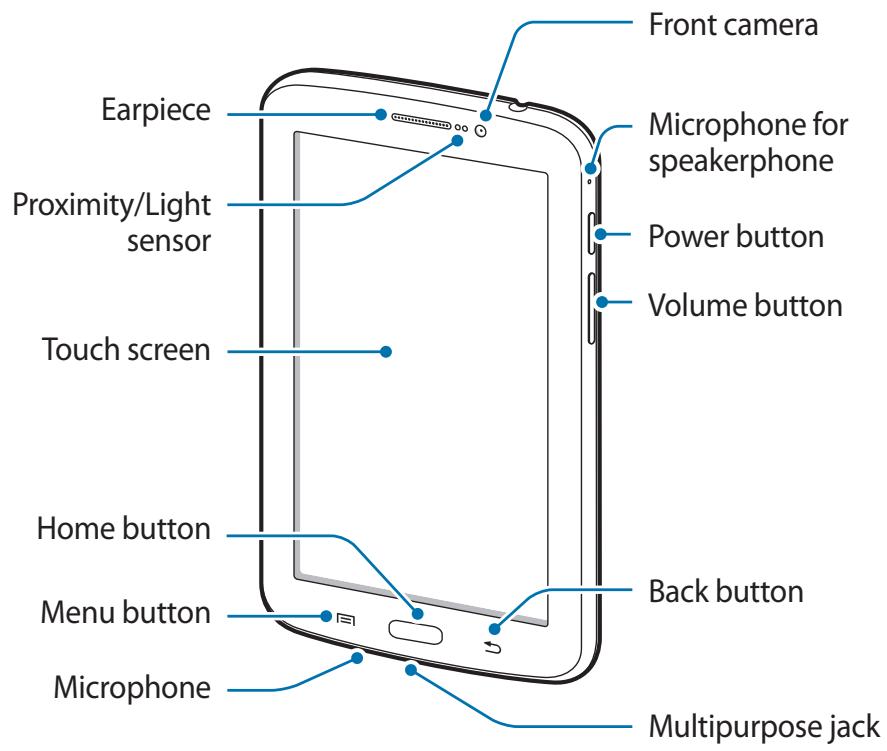
text_image
Front camera Earpiece Microphone for speakerphone Proximity/Light sensor Power button Volume button Touch screen Home button Back button Menu button Microphone Multipurpose jack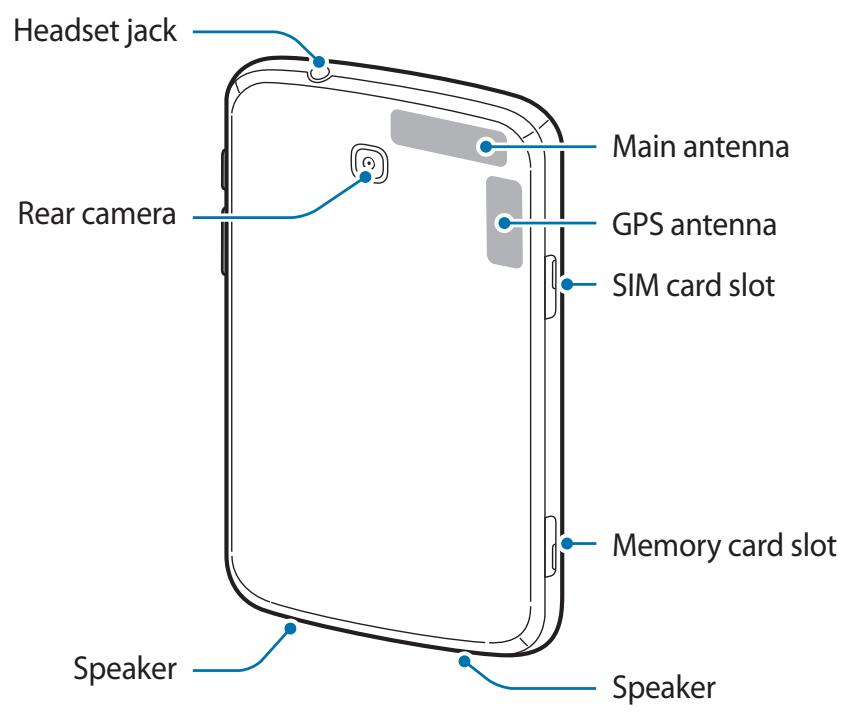
text_image
Headset jack Rear camera Main antenna GPS antenna SIM card slot Memory card slot Speaker SpeakerThe microphone at the top of the device is active only when you use the speakerphone or take videos.

- Do not cover the antenna area with your hands or other objects. This may cause connectivity problems or drain the battery.
- Do not use a screen protector. This causes sensor malfunctions.
- Do not allow water to contact the touch screen. The touch screen may malfunction in humid conditions or when exposed to water.
Buttons
| Button | Function | |
| [XXT6] | Power | Press and hold to turn the device on or off.Press and hold for 8-10 seconds to reset the device if it has fatal errors or hang-ups, or freezes.Press to lock or unlock the device. The device goes into lock mode when the touch screen turns off. |
 | Menu | Tap to open a list of options available for the current screen.Tap and hold on the Home screen to launch Google search. |
 | Home | Press to return to the Home screen.Press and hold to open the list of recent applications.Press twice to launch S Voice. |
 | Back | Tap to return to the previous screen. |
 | Volume | Press to adjust the device volume. |
Package contents
Check the product box for the following items:
- Device
- Quick start guide

- The items supplied with the device and any available accessories may vary depending on the region or service provider.
- The supplied items are designed only for this device and may not be compatible with other devices.
- Appearances and specifications are subject to change without prior notice.
- You can purchase additional accessories from your local Samsung retailer. Make sure they are compatible with the device before purchase.
- Other accessories may not be compatible with your device.
- Use only Samsung-approved accessories. Malfunctions caused by using unapproved accessories are not covered by the warranty service.
- Availability of all accessories is subject to change depending entirely on manufacturing companies. For more information about available accessories, refer to the Samsung website.
Installing the SIM or USIM card
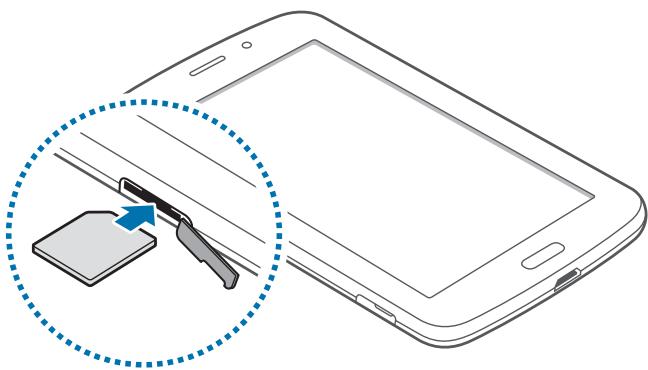
Insert the SIM or USIM card provided by the mobile telephone service provider.

Only microSIM cards work with the device.
1 Open the cover of the SIM card slot.
2 Insert the SIM or USIM card with the gold-coloured contacts facing downwards.
natural_image
Illustration of a smartphone with a screen showing a device and a blue dotted circle highlighting the screen area (no text or symbols present)
- Do not insert a memory card into the SIM card slot. If a memory card happens to be lodged in the SIM card slot, take the device to a Samsung Service Centre to remove the memory card.
- Use caution not to lose or let others use the SIM or USIM card. Samsung is not responsible for any damages or inconveniences caused by lost or stolen cards.
3 Push the SIM or USIM card into the slot until it locks in place.
4 Close the cover of the SIM card slot.
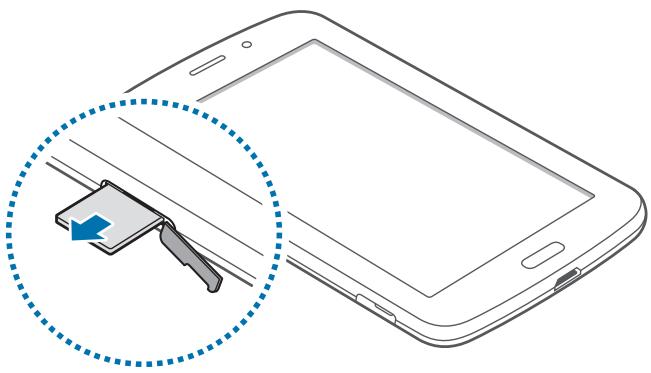
Removing the SIM or USIM card
1 Open the cover of the SIM card slot.
2 Push the SIM or USIM card until it disengages from the device, and then pull it out.
natural_image
Illustration of a smartphone with a hand holding a device, showing no text or symbols on the device itself.Charging the battery
Use the charger to charge the battery before using it for the first time.

Use only Samsung-approved chargers, batteries, and cables. Unapproved chargers or cables can cause the battery to explode or damage the device.

- When the battery power is low, the device emits a warning tone and displays a low battery power message.
- If the battery is completely discharged, the device cannot be turned on immediately when the charger is connected. Allow a depleted battery to charge for a few minutes before turning on the device.
Charging with the charger
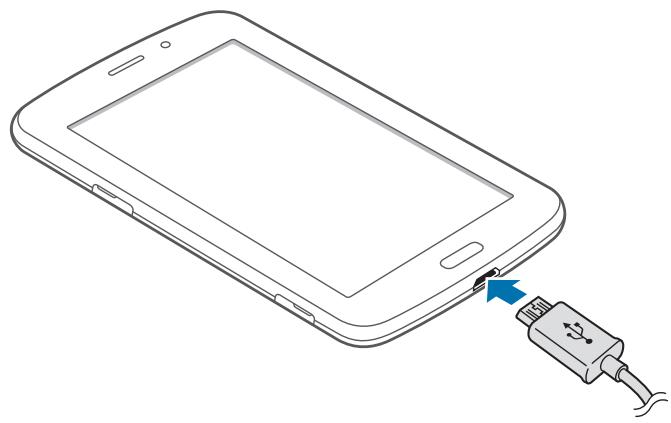
Connect the USB cable to the USB power adaptor and then plug the end of the USB cable into the multipurpose jack.
natural_image
Line drawing of a smartphone with an attached USB cable showing the connector (no text or symbols)
Connecting the charger improperly may cause serious damage to the device. Any damage caused by misuse is not covered by the warranty.

- The device can be used while it is charging, but it may take longer to fully charge the battery.
- If the device receives an unstable power supply while charging, the touch screen may not function. If this happens, unplug the charger from the device.
- While charging, the device may heat up. This is normal and should not affect the device's lifespan or performance. If the battery gets hotter than usual, the charger may stop charging.
- If the device is not charging properly, take the device and the charger to a Samsung Service Centre.
After fully charging, disconnect the device from the charger. First unplug the charger from the device, and then unplug it from the electric socket.

To save energy, unplug the charger when not in use. The charger does not have a power switch, so you must unplug the charger from the electric socket when not in use to avoid wasting power. The device should remain close to the electric socket while charging.
Checking the battery charge status
When you charge the battery while the device is off, the following icons will show the current battery charge status:
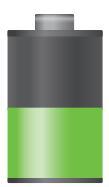
Charging

Fully charged
Reducing the battery consumption
Your device provides options that help you save battery power. By customising these options and deactivating features in the background, you can use the device longer between charges:
- When you are not using the device, switch to sleep mode by pressing the Power button.
- Close unnecessary applications with the task manager.
- Deactivate the Bluetooth feature.
- Deactivate the Wi-Fi feature.
- Deactivate auto-syncing of applications.
• Decrease the backlight time.
• Decrease the brightness of the display.
Inserting a memory card
Your device accepts memory cards with maximum capacities of 32 GB. Depending on the memory card manufacturer and type, some memory cards may not be compatible with your device.

- Some memory cards may not be fully compatible with the device. Using an incompatible card may damage the device or the memory card, or corrupt the data stored in it.
- Use caution to insert the memory card right-side up.
- The device supports only the FAT file system for memory cards. When inserting a card formatted in a different file system, the device asks to reformat the memory card.
- Frequent writing and erasing of data shortens the lifespan of memory cards.
- When inserting a memory card into the device, the memory card's file directory appears in the extSdCard folder under the internal memory.
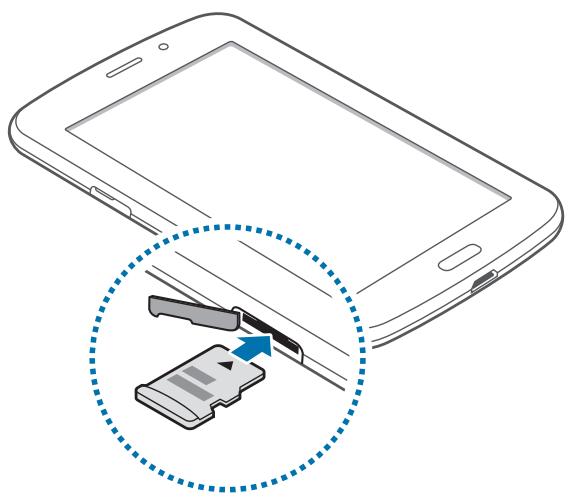
1 Open the cover of the memory card slot.
2 Insert a memory card with the gold-coloured contacts facing downwards.
3 Push the memory card into the slot until it locks in place.
natural_image
Illustration of a smartphone with an attached device showing internal components (no text or symbols)4 Close the cover of the memory card slot.
Removing the memory card
Before removing the memory card, first unmount it for safe removal. On the Home screen, tap Apps → Settings → Storage → Unmount SD card.
Push the memory card until it disengages from the device, and then pull it out.

Do not remove the memory card while the device is transferring or accessing information. Doing so can cause data to be lost or corrupted or damage to the memory card or device. Samsung is not responsible for losses that result from the misuse of damaged memory cards, including the loss of data.
Formatting the memory card
A memory card formatted on a computer may not be compatible with the device. Format the memory card on the device.
On the Home screen, tap Apps → Settings → Storage → Format SD card → Format SD card → Delete all.

Before formatting the memory card, remember to make backup copies of all important data stored on the device. The manufacturer's warranty does not cover loss of data resulting from user actions.
Turning the device on and off
When turning on the device for the first time, follow the on-screen instructions to set up your device.
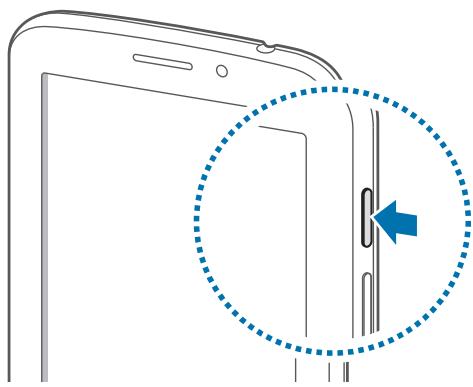
Press and hold the Power button for a few seconds to turn on the device.
natural_image
Diagram of a smartphone showing the left side of its screen with a blue dotted circle highlighting a keyhole (no text or symbols present)
- Follow all posted warnings and directions from authorised personnel in areas where the use of wireless devices is restricted, such as aeroplanes and hospitals.
- Press and hold the Power button and tap Airplane mode to disable the wireless features.
To turn off the device, press and hold the Power button, and then tap Power off.
Holding the device
Do not cover the antenna area with your hands or other objects. This may cause connectivity problems or drain the battery.
Locking and unlocking the device
When not in use, lock the device to prevent unwanted operation. Pressing the Power button turns off the screen and puts the device into lock mode. The device automatically gets locked if it is not used for a specified period.
To unlock the device, press the Power button or the Home button when the touch screen is turned off, tap anywhere on the screen, and then flick your finger in any direction.
Adjusting the volume
Press the Volume button up or down to adjust the ringtone volume, or to adjust the sound volume when playing music or video.
Switching to silent mode
Use one of the following methods:
- Press and hold the Volume button down until it switches to silent mode.
- Press and hold the Power button, and then tap Mute or Vibrate.
- Open the notifications panel at the top of the screen, and then tap Sound or Vibrate.
Basics
Indicator icons
The icons displayed at the top of the screen provide information about the status of the device. The icons listed in the table below are most common.
| Icon | Meaning |
| No signal | |
| Signal strength | |
| Roaming (outside of normal service area) | |
| GPRS network connected | |
| EDGE network connected | |
| UMTS network connected | |
| HSDPA network connected | |
| Wi-Fi connected | |
| Bluetooth feature activated | |
| GPS activated | |
| Call in progress | |
| Missed call | |
| Synced with the web | |
| Connected to computer | |
| No SIM or USIM card | |
| New text or multimedia message | |
| Alarm activated | |
| Silent mode activated | |
| Vibration mode activated | |
| Flight mode activated | |
| Error occurred or caution required | |
| Battery power level |
Using the touch screen
Use only fingers to use the touch screen.

- Do not allow the touch screen to come into contact with other electrical devices. Electrostatic discharges can cause the touch screen to malfunction.
- Do not allow the touch screen to contact water. The touch screen may malfunction in humid conditions or when exposed to water.
- To avoid damaging the touch screen, do not tap it with anything sharp or apply excessive pressure to it with your fingertips.
- Leaving the touch screen idle for extended periods may result in afterimages (screen burn-in) or ghosting. Turn off the touch screen when you do not use the device.
Finger gestures
Tapping
To open an application, to select a menu item, to press an on-screen button, or to enter a character using the on-screen keyboard, tap it with a finger.
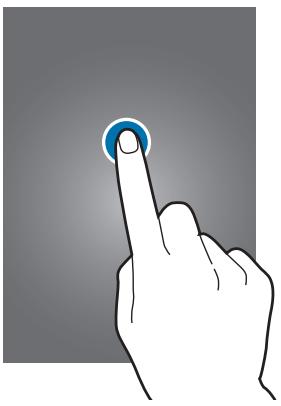
natural_image
Hand pointing at a blue circular button on a gray background (no text or symbols)Dragging
To move an icon, thumbnail, or preview to a new location, tap and hold it and drag it to the target position.
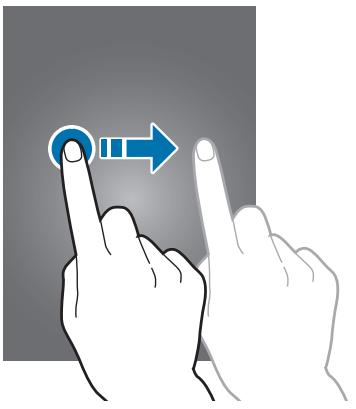
natural_image
Illustration of two hands pointing at a button with a blue arrow icon (no text or symbols)Double-tapping
Double-tap on a webpage, map, or image to zoom in a part. Double-tap again to return.
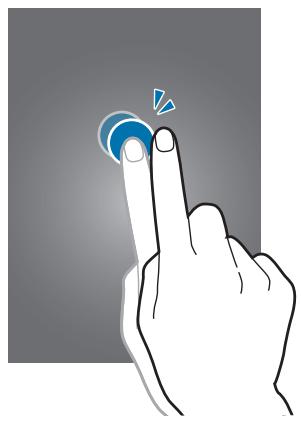
natural_image
Illustration of a hand pressing a button with a blue circular icon (no text or symbols)Flicking
Flick left or right on the Home screen or the Applications screen to see another panel. Flick up or down to scroll through a webpage or a list, such as contacts.
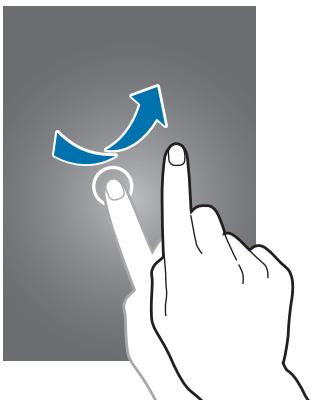
natural_image
Hand interacting with a touchscreen icon showing a curved arrow and circular button (no text or symbols)Pinching
Spread two fingers apart on a webpage, map, or image to zoom in a part. Pinch to zoom out.
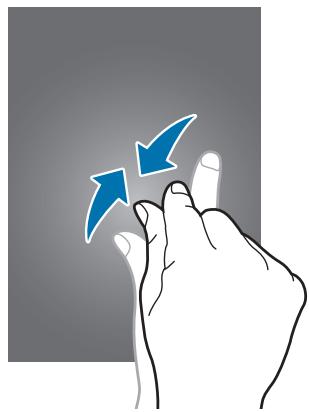
natural_image
Illustration of a hand pressing down on a finger with two blue arrows indicating downward motion (no text or symbols)Rotating the screen
Many applications allow display in either portrait or landscape orientation. Rotating the device causes the display to automatically adjust to fit the new screen orientation.
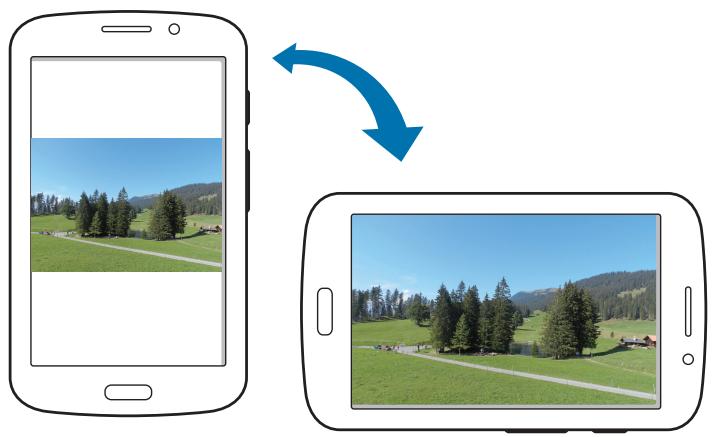
natural_image
Two smartphones showing a landscape image before and after transformation, with no text or symbols present.To prevent the display from rotating automatically, open the notifications panel and deselect Screen rotation.

• Some applications do not allow screen rotation.
- Some applications display a different screen depending on the orientation. The calculator turns into a scientific calculator when rotated to landscape.
Notifications
Notification icons appear on the status bar at the top of the screen to report missed calls, new messages, calendar events, device status, and more. Drag down from the status bar to open the notifications panel. Scroll the list to see additional alerts. To close the notifications panel, drag up the bar that is at the bottom of the screen.
From the notifications panel, you can view your device's current status and use the following options:
• Wi-Fi: Activate or deactivate the Wi-Fi feature.
• GPS: Activate or deactivate the GPS feature.
- Sound: Activate or deactivate silent mode. You can vibrate or mute your device in silent mode.
- Screen rotation: Allow or prevent the interface from rotating when you rotate the device.
- Bluetooth: Activate or deactivate the Bluetooth feature.
- Mobile data: Activate or deactivate the data connection.
- Blocking mode: Activate or deactivate blocking mode. In blocking mode, the device will block notifications. To select which notifications will be blocked, tap Settings → Blocking mode.
- Sync: Activate or deactivate auto-syncing of applications.
• Power saving: Activate or deactivate power-saving mode.

The available options may vary depending on the region or service provider.
Home screen
The Home screen is the starting point to access all of the device's features. It displays indicator icons, widgets, shortcuts to applications, and others.
The Home screen can have multiple panels. To view other panels, scroll left or right.
Rearranging items
Adding an application icon
On the Home screen, tap Apps, tap and hold an application icon, and then drag it into a panel preview.
Adding an item
Customise the Home screen by adding widgets, folders, or pages.
Tap and hold the empty area on the Home screen, and then select one of the following categories:
- Apps and widgets: Add widgets or applications to the Home screen.
- Folder: Create a new folder.
• Page: Create a new page.
Moving an item
Tap and hold an item and drag it to a new location. To move it to another panel, drag it to the side of the screen.
Removing an item
Tap and hold an item, and drag it to the rubbish bin that appears at the top of the Home screen. When the rubbish bin turns red, release the item.
Rearranging panels
Adding a new panel
Tap ⟹ → Edit page →
Moving a panel
Tap ⟩→ Edit page, tap and hold a panel preview, and then drag it to a new location.
Removing a panel
Tap ⟌ Edit page, tap and hold a panel preview, and then drag it to the rubbish bin at the bottom of the screen.
Setting wallpaper
Set an image or photo stored in the device as wallpaper for the Home screen.
On the Home screen, tap Set wallpaper Home screen, and then select one of the following:
- Gallery: See photos taken by the device's camera or images downloaded from the Internet.
• Live wallpapers: See animated images.
• Wallpapers: See wallpaper images.
Then, select an image and tap Set wallpaper. Or, select an image, resize it by dragging the frame, and then tap Done.
Using widgets
Widgets are small applications that provide convenient functions and information on your Home screen. To use them, add widgets from the widgets panel to the Home screen.

- Some widgets connect to web services. Using a web-based widget may result in additional charges.
- The widgets available may vary depending on the region or service provider.
Adding widgets to the Home screen
On the Home screen, tap Apps → Widgets. Scroll left or right on the widgets panel, and then tap and hold a widget to add it to the Home screen.
Using the setting shortcut widget
On the Home screen, tap Apps → Widgets, and then tap and hold Settings Shortcut to open a list of setting options. Select a setting option to add it to the Home screen as a shortcut.
Using applications
This device can run many different types of applications, ranging from media to Internet applications.
Opening an application
On the Home screen or the Applications screen, select an application icon to open it.
Opening from recently-used applications
Press and hold the Home button to open the list of recently-used applications.
Select an application icon to open.
Closing an application
Close applications not in use to save battery power and maintain device performance.
Press and hold the Home button, tap 📋, and then tap End next to an application to close it. To close all running applications, tap End all. Alternatively, press and hold the Home button, and then tap ✉.
Applications screen
The Applications screen displays icons for all applications, including any new applications installed.
On the Home screen, tap Apps to open the Applications screen.
To view other panels, scroll left or right.
Rearranging applications
Tap ⟌ Edit, tap and hold an application, and then drag it to a new location. To move it to another panel, drag it to the side of the screen.
Organising with folders
Put related applications together in a folder for convenience.
Tap ⟌ Edit, tap and hold an application, and then drag it to Create folder. Enter a folder name and then tap OK. Put applications into the new folder by dragging, and then tap Save to save the arrangement.
Rearranging panels
Pinch on the screen, tap and hold a panel preview, and then drag it to a new location.
Installing applications
Use application stores, such as Samsung Apps, to download and install applications.
Uninstalling applications
Tap ⟹ → Uninstall, and then select an application to uninstall it.

Default applications that come with the device cannot be uninstalled.
Sharing applications
Share downloaded applications with other users via email, Bluetooth, or other methods.
Tap ⟌ Share apps, select applications, tap Done, and then select a sharing method. The next steps vary depending on the method selected.
Help
Access help information to learn how to use the device and applications or configure important settings.
Tap Help on the Applications screen. Select an item to view tips.
Entering text
Use the Samsung keyboard or the voice input feature to enter text.

Text entry is not supported in some languages. To enter text, you must change the input language to one of the supported languages.
Changing the keyboard type
Tap any text field, open the notifications panel, tap Choose input method, and then select the type of keyboard to use.
Using the Samsung keyboard
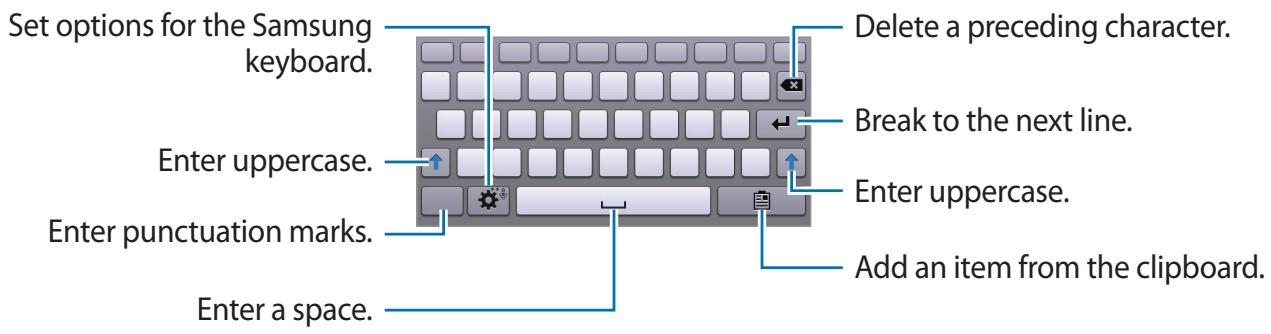
text_image
Set options for the Samsung keyboard. Enter uppercase. Enter punctuation marks. Enter a space. Delete a preceding character. Break to the next line. Enter uppercase. Add an item from the clipboard.Entering uppercase
Tap ↑ before entering a character. For all caps, tap it twice.
Changing language keyboards
Add languages to the keyboard, and then slide the space key left or right to change language keyboards.
Entering text by voice
Activate the voice input feature and then speak into the microphone. The device displays what you speak.
If the device does not recognise your words correctly, tap the underlined text and select an alternative word or phrase from the dropdown list.
To change the language or add languages for the voice recognition, tap the current language.
Copying and pasting
Tap and hold over text, drag 📄 or 🏠 to select more or less text, and then tap Copy to copy or Cut to cut. The selected text is copied to the clipboard.
To paste it into a text entry field, tap and hold at the point where it should be inserted, and then tap Paste.
Connecting to a Wi-Fi network
Connect the device to a Wi-Fi network to use the Internet or share media files with other devices. (p. 88)
Turning Wi-Fi on and off
Open the notifications panel, and then tap Wi-Fi to turn it on or off.

Turn off Wi-Fi to save the battery when not in use.
Joining Wi-Fi networks
On the Applications screen, tap Settings → Wi-Fi, and then drag the Wi-Fi switch to the right. Select a network from the list of detected Wi-Fi networks, enter a password if necessary, and then tap Connect. Networks that require a password appear with a lock icon. After the device connects to a Wi-Fi network, the device will automatically connect to it any time it is available.
Adding Wi-Fi networks
If the desired network does not appear in the networks list, tap Add Wi-Fi network at the bottom of the networks list. Enter the network name in Network SSID, select the security type and enter the password if it is not an open network, and then tap Save.
Forgetting Wi-Fi networks
Any network that has ever been used, including the current network, can be forgotten so the device will not automatically connect to it. Select the network in the networks list, and then tap Forget.
Setting up accounts
Google applications, such as Play Store, require a Google account, and Samsung Apps requires a Samsung account. Create Google and Samsung accounts to have the best experience with the device.
Adding accounts
Follow the instructions that appear when opening a Google application without signing in to set up a Google account.
To sign in with or sign up for a Google account, on the Applications screen, tap Settings → Add account → Google. After that, tap New to sign up, or tap Existing, and then follow on-screen instructions to complete the account setup. More than one Google account can be used on the device.
Set up a Samsung account as well.
Removing accounts
On the Applications screen, tap Settings, select an account name under Accounts, select the account to remove, and then tap Remove account.
Transferring files
Move audio, video, image, or other types of files from the device to the computer, or vice versa.

The following file formats are supported by some applications. Some file formats are not supported depending on the version of the device's software or the computer operating system.
• Music: mp3, m4a, mp4, 3gp, 3ga, wma, ogg, oga, aac, and flac
• Image: bmp, gif, jpg, and png
• Video: 3gp, mp4, avi, wmv, flv, asf, and mkv
- Document: doc, docx, xls, xlsx, ppt, pptx, pdf, and txt
Connecting with Samsung Kies
Samsung Kies is a computer application that manages media libraries, contacts, and calendars, and syncs them with Samsung devices. Download the latest Samsung Kies from the Samsung website.
1 Connect the device to the computer using the USB cable.
Samsung Kies launches on the computer automatically. If Samsung Kies does not launch, double-click the Samsung Kies icon on the computer.
2 Transfer files between your device and the computer.
Refer to the Samsung Kies help for more information.
Connecting with Windows Media Player
Ensure that Windows Media Player is installed on the computer.
1 Connect the device to the computer using the USB cable.
2 Open Windows Media Player and sync music files.
Connecting as a media device
1 Connect the device to the computer using the USB cable.
2 Open the notifications panel, and then tap Connected as a media device → Media device (MTP).
Tap Camera (PTP) if your computer does not support Media Transfer Protocol (MTP) or not have any appropriate driver installed.
3 Transfer files between your device and the computer.
Securing the device
Prevent others from using or accessing personal data and information stored in the device by using the security features. The device requires an unlock code whenever unlocking it.
Setting a face unlock
On the Applications screen, tap Settings → Lock screen → Screen lock → Face unlock.
Fit your face in the frame to be captured. Then, set a backup unlock PIN or pattern to unlock the screen in case the face unlock fails.
Setting a face and voice unlock
On the Applications screen, tap Settings → Lock screen → Screen lock → Face and voice.
Fit your face in the frame to be captured and then set a voice command. Then, set a backup unlock PIN or pattern to unlock the screen in case the face and voice unlock fails.
Setting a pattern
On the Applications screen, tap Settings → Lock screen → Screen lock → Pattern.
Draw a pattern by connecting four dots or more, and then draw the pattern again to verify it. Set a backup unlock PIN to unlock the screen when you forget the pattern.
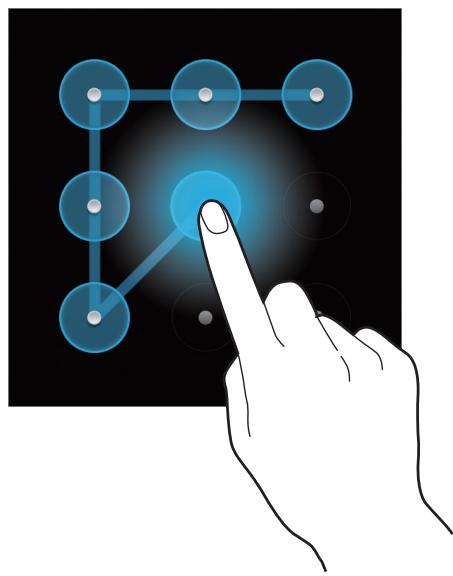
natural_image
Hand interacting with a glowing blue network diagram on a black background (no text or symbols)Setting a PIN
On the Applications screen, tap Settings → Lock screen → Screen lock → PIN. Enter at least four numbers, and then enter the password again to verify it.
Setting a password
On the Applications screen, tap Settings → Lock screen → Screen lock → Password.
Enter at least four characters including numbers and symbols, and then enter the password again to verify it.
Unlocking the device
Turn on the screen by pressing the Power button or the Home button, and enter the unlock code.

If the unlock code is forgotten, take the device to a Samsung Service Centre to reset it.
Upgrading the device
The device can be upgraded to the latest software.

This feature may not be available depending on the region or service provider.
Upgrading with Samsung Kies
Launch Samsung Kies and connect the device to the computer. Samsung Kies automatically recognises the device and shows available updates in a dialogue box, if any. Click the Update button in the dialogue box to start upgrading. Refer to the Samsung Kies help for details on how to upgrade.

- Do not turn off the computer or disconnect the USB cable while the device is upgrading.
- While upgrading the device, do not connect other media devices to the computer. Doing so may interfere with the update process.
Upgrading over the air
The device can be directly upgraded to the latest software by the firmware over-the-air (FOTA) service.
On the Applications screen, tap Settings → About device → Software update → Update.
Communication
Phone
Use this application to make or answer a call.
Tap Phone on the Applications screen.
Making calls
Making a call
Use one of the following methods:
- Keypad: Enter the number using the keypad, and then tap 📞.
- Logs: Make a call from the history of incoming and outgoing calls and messages.
- Favorites: Make a call from the list of favourite contacts.
- Contacts: Make a call from the contacts list.
Speed dial numbers
For speed dial numbers, tap and hold the corresponding digit.
Number prediction
When entering numbers on the keypad, automatic predictions appear. Select one of these to make a call.
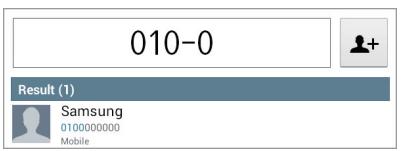
text_image
010-0 Result (1) Samsung 010000000 MobileFinding contacts
Enter a name, phone number, or email address to find a contact in the contacts list. As characters are entered, predicted contacts appear. Select one to place a call to it.
Making an international call
Tap and hold 0 until the + sign appears. Enter the country code, area code, and phone number, and then tap 📞.
During a call
The following actions are available:
- Hold: Hold a call. Or press and hold the headset button. Tap Unhold to retrieve the held call, or press and hold the headset button.
- Add call: Dial a second call.
• Keypad: Open the keypad. - Speaker: Activate the speakerphone. Keep the device away from your ears when using the speakerphone.
• Extra vol.: Increase the volume. - Mute: Turn off the microphone so that the other party cannot hear you.
- Headset: Switch to a Bluetooth headset if it is connected to the device.
- Swap: Switch between two calls.
- Merge: Make a multiparty call when connected to two calls. Repeat this to add more parties. This feature is available only if the multiparty call service is active.
-
→ Contacts: Open the contacts list.
• → Message: Send a message. -
→ Transfer: Connect the first party to the second party. This disconnects you from the conversation.
- → Manage conference call: Have a private conversation with one party during a multiparty call or disconnect one party form the multiparty call.
Adding contacts
To add a phone number to the contacts list from the keypad, enter the number and tap 🎨+.
Viewing call logs
Tap Logs to view the history of incoming and outgoing calls.
To filter a call log, tap View by, and then select an option.
Fixed dialling number
The device can be set to restrict outgoing calls only to numbers with specified prefixes. Those prefixes are stored in the SIM or USIM card.
Tap ⟌→ Call settings → Call settings → Additional settings → Fixed dialing numbers → Enable FDN, and then enter the PIN2 supplied with the SIM or USIM card. Tap FDN list and add numbers.
Call barring
The device can be set to prevent certain calls from being made. For example, international calling can be disabled.
Tap ⟌ Call settings → Call settings → Additional settings → Call barring, select a call type, select a call barring option, and then enter a password.
Receiving calls
Answering a call
When a call comes in, drag 📋 outside the circle, or press the headset button.
If the call waiting service is active, another call can be made. When the second call is answered, the first call is put on hold.
Rejecting a call
When a call comes in, drag 📞 outside the circle, or press and hold the headset button.
To send a message when rejecting an incoming call, tap Reject call with message. To create the rejection message, tap → Call settings → Call settings → Set reject messages.
Automatically rejecting calls from unwanted numbers
Tap ⟌→ Call settings → Call settings → Call rejection, drag the Auto reject mode switch to the right, and then tap Auto reject list. Tap +, enter a number, assign a category, and then tap Save.
Missed calls
If a call is missed, 📋 appears on the status bar. Open the notifications panel to view the list of missed calls.
Call waiting
Call waiting is a service provided by the service provider. A user can use this service to suspend a current call and switch to an incoming call. This service is not available for video calls.
To make use of this service, tap Call settings Call settings Additional settings Call waiting.
Call forwarding
The device can be set to send incoming calls to a specified number.
Tap ⟹ → Call settings → Call settings → Call forwarding, and then select a call type and condition. Enter a number and tap Enable.
Ending a call
Tap End call to end a call. Or press the headset button.
Video calls
Making a video call
Enter the number or select a contact from the contacts list, and then tap 📋 to make a video call.
During a video call
The following actions are available:
• Capture: Capture the other party's image.
- Record: Take a video of the other party's images.

It is illegal in many countries to record a call without the other party's prior permission.
- Switch camera: Switch between the front and rear camera.
• Keypad: Open the keypad. - Speaker: Deactivate the speakerphone feature.
- Mute: Turn off the microphone so that the other party cannot hear you.
-
Headset: Switch to a Bluetooth headset if it is connected to the device.
-
→ Hide me: Hide your image from the other party.
- → Outgoing image: Select an image to show it to the other party.
- → Animated emotions: Apply emotional icons to your image.
- → Theme view: Apply decorative icons to your image.
- → Enable cartoon view: Change the view mode to the cartoon view.
Swapping images
Drag an image of either party onto the other party's image to swap the images.
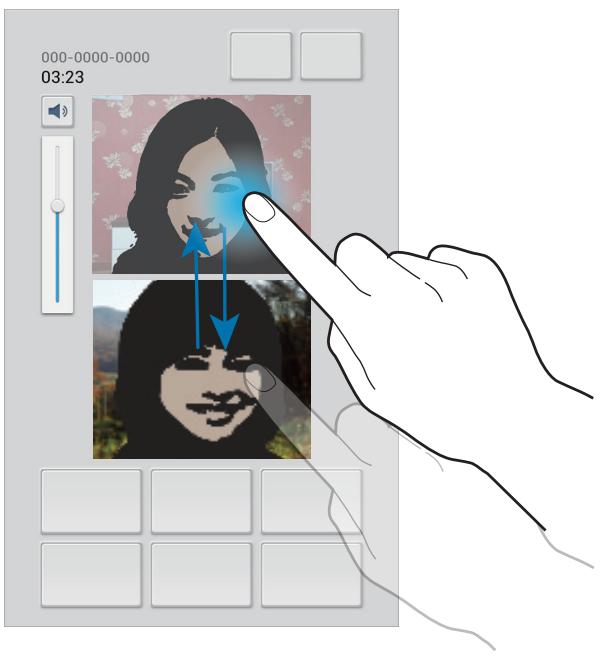
text_image
000-0000-0000 03:23Contacts
Use this application to manage contacts, including phone numbers, email addresses, and others.
Tap Contacts on the Applications screen.
Managing contacts
Creating a contact
Tap + and enter contact information.
• : Add an image.
• + / - : Add or delete a contact field.
Editing a contact
Select a contact to edit, and then tap ♦.
Deleting a contact
Tap 📄.
Setting a speed dial number
Tap Speed dial setting, select a speed dial number, and then select a contact for it. To remove a speed dial number, tap and hold it, and then tap Remove.
Searching for contacts
Use one of the following search methods:
- Scroll up or down the contacts list.
- Use the index at the left side of the contacts list for quick scrolling, by dragging a finger along it.
- Tap the search field at the top of the contacts list and enter search criteria.
Once a contact is selected, take one of the following actions:
• ★ : Add to favourite contacts.
• / 📷 : Make a voice or video call.
• :Compose a message.
• :Compose an email.
Importing and exporting contacts
Syncing with Google Contacts
Tap ⟹ → Merge with Google.
Contacts synced with Google Contacts appear with 8 in the contacts list.
If a contact is added or deleted on the device, it is also added to or deleted from Google Contacts, and vice versa.
Syncing with Samsung Contacts
Tap ⟹ → Merge with Samsung.
Contacts synced with Samsung Contacts appear with 📄 in the contacts list.
If a contact is added or deleted on the device, it is also added to or deleted from Samsung Contacts, and vice versa.
Importing contacts
Tap ≡ → Import/Export → Import from SIM card, Import from SD card, or Import from USB storage.
Exporting contacts
Tap ≡ → Import/Export → Export to SIM card, Export to SD card, or Export to USB storage.
Sharing contacts
Tap ≡ → Import/Export → Share namecard via, select contacts, tap Done, and then select a sharing method.
Favourite contacts
Tap ☐, and then take one of the following actions:
• Search: Search for contacts.
- Add to Favorites: Add contacts to favourites.
- Remove from Favorites: Remove contacts from favourites.
- Grid view / List view: View contacts in grid or list form.
Contact groups
Adding contacts to a group
Select a group, and then tap Add member. Select contacts to add, and then tap Done.
Managing groups
Tap ☐, and then take one of the following actions:
• Search: Search for contacts.
• Edit: Change the group settings.
- Add member: Add members to the group.
- Remove member: Remove members from the group.
- Send message: Send a message to a group's members.
- Send email: Send an email to a group's members.
- Change order: Tap and hold ➕ next to the group name, drag it up or down to another position, and then tap Done.
Deleting groups
Tap ☐, select user added groups, and then tap Delete. Default groups cannot be deleted.
Sending a message or email to a group's members
Select a group, tap ⟹ → Send message or Send email, select members, and then tap Done.
Business card
Create a business card and send it to others.
Tap Set up profile, enter details, such as phone number, email address, and postal address, and then tap Save. If user information has been saved when you set up the device, select the business card in ME, and then tap ♦ to edit.
Tap ⟹ → Share namecard via, and then select a sharing method.
Messaging
Use this application to send text messages (SMS) or multimedia messages (MMS).
Tap Messaging on the Applications screen.

You may incur additional charges for sending or receiving messages while you are outside your home service area. For details, contact your service provider.
Sending messages
Tap ↗, add recipients, enter a message, and then tap ↗.
Use the following methods to add recipients:
- Enter a phone number.
- Tap 📁, select contacts, and then tap Done.
Use the following methods to make a multimedia message:
- Tap 🔔 and attach images, videos, contacts, memos, events, and others.
- Tap → Add subject to enter a subject.
Sending scheduled messages
While composing a message, tap I≡I → Scheduled message. Set a time and date, and then tap OK. The device will send the message at the specified time and date.

- If the device is turned off at the scheduled time, is not connected to the network, or the network is unstable, the message will not be sent.
- This feature is based on the time and date set on the device. The time and date may be incorrect if you move across time zones and the network does not update the information.
Viewing incoming messages
Incoming messages are grouped into message threads by contact.
Select a contact to view the person's message.
Listening to a voice message
Tap and hold 1 on the keypad, and then follow the instructions from your service provider.
Use this application to send or view email messages.
Tap Email on the Applications screen.
Setting up email accounts
Set up an email account when opening Email for the first time.
Enter the email address and password. Tap Next for a private email account, such as Google Mail, or tap Manual setup for a company email account. After that, follow on-screen instructions to complete the setup.
To set up another email account, tap ⟹ → Settings → Add account.
Sending messages
Tap the email account to use, and then tap 📋 at the top of the screen. Enter recipients, subject, and message, and then tap Send.
Tap 📷 to add a recipient from the contacts list.
Tap +Cc/Bcc to add more recipients.
Tap +Me to add yourself as a recipient.
Tap 🔔 to attach images, videos, contacts, memos, events, and others.
Tap ☐ to insert images, events, contacts, location information, and others into the message.
Sending scheduled messages
While composing a message, tap 📋. Tick Schedule sending, set a time and date, and then tap Done. The device will send the message at the specified time and date.

- If the device is turned off at the scheduled time, is not connected to the network, or the network is unstable, the message will not be sent.
- This feature is based on the time and date set on the device. The time and date may be incorrect if you move across time zones and the network does not update the information.
Reading messages
Select an email account to use, and new messages are retrieved. To manually retrieve new messages, tap ⚙.
Tap a message to read.
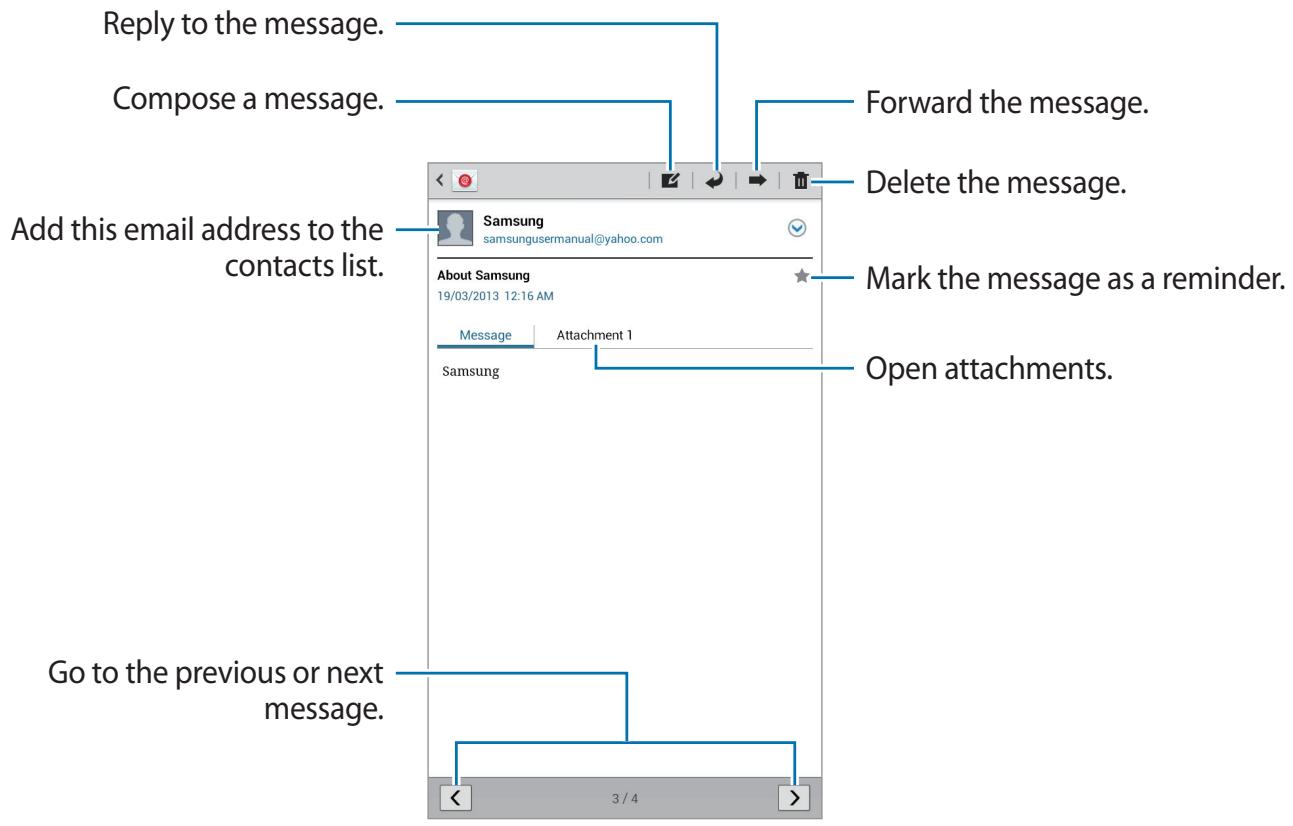
text_image
Reply to the message. Compose a message. Add this email address to the contacts list. Samsung samsungusermanual@yahoo.com About Samsung 19/03/2013 12:16 AM Message Attachment 1 Samsung Forward the message. Delete the message. Mark the message as a reminder. Open attachments. Go to the previous or next message. 3 / 4Tap the attachment tab to open attachments, and then tap 📋 next to an attachment to save it.
Google Mail
Use this application to quickly and directly access the Google Mail service.
Tap Google Mail on the Applications screen.

- This application may not be available depending on the region or service provider.
- This application may be labelled differently depending on the region or service provider.
Sending messages
In any mailbox, tap 📋, enter recipients, a subject, and a message, and then tap SEND.
Tap +CC/BCC to add more recipients.
Tap 📄+ to attach images.
Tap ⟹ → Save draft to save the message for later delivery.
Tap ⟹ → Attach video to attach videos.
Tap ⟹ → Discard to start over.
Reading messages
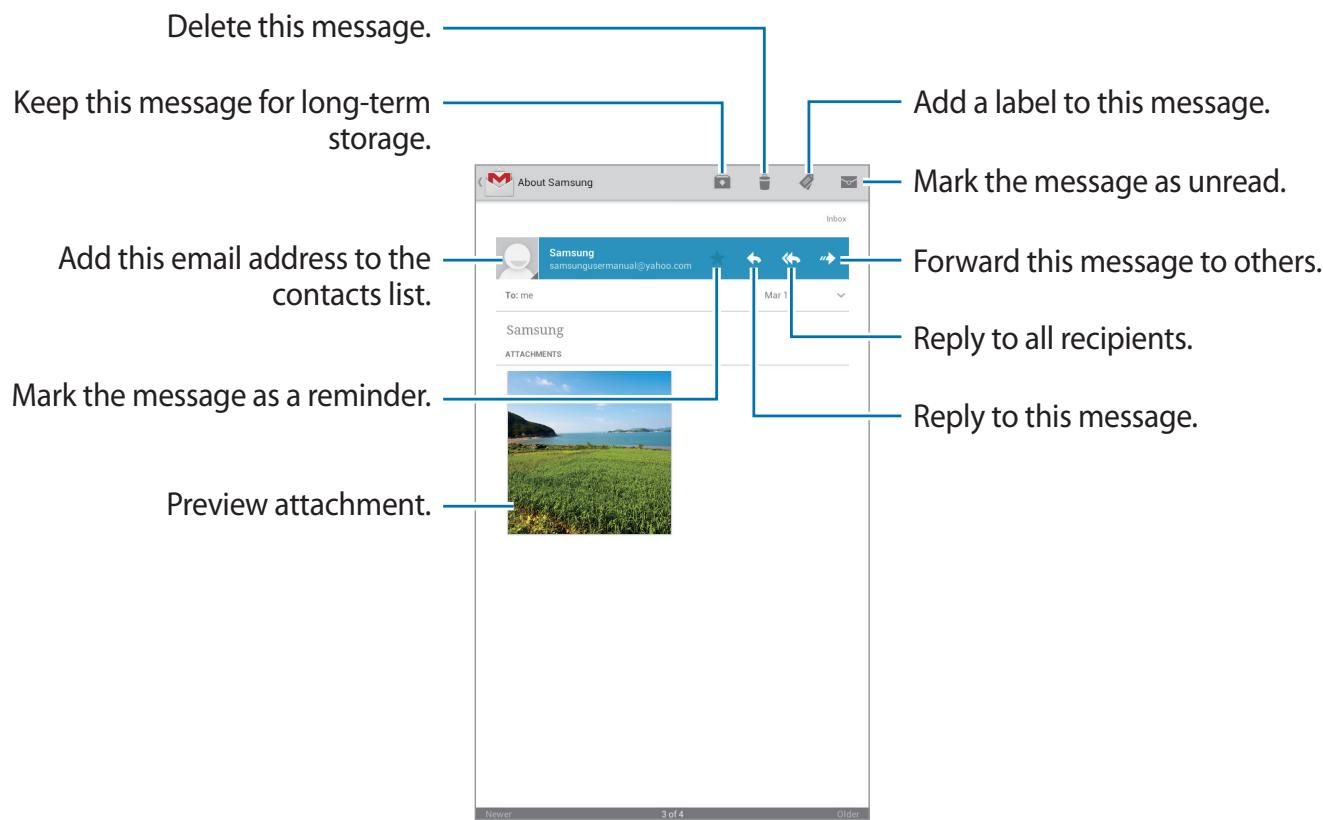
text_image
Delete this message. Keep this message for long-term storage. Add this email address to the contacts list. Mark the message as a reminder. Preview attachment. About Samsung Samsung samsungusermanual@yahoo.com To: me Samsung ATTACHMENTS Add a label to this message. Mark the message as unread. Forward this message to others. Reply to all recipients. Reply to this message. Newer 3 of 4 OlderLabels
Google Mail does not use actual folders, but uses labels instead. When Google Mail is launched, it displays messages labelled Inbox.
To add a label to a message, select the message, tap 🔔, and then select the label to assign.
Talk
Use this application to chat with others via Google Talk.
Tap Talk on the Applications screen.

This application may not be available depending on the region or service provider.
Public profile
Tap the account ID at the top of the friends list to change the availability status, image, or status message.
Adding friends
Tap 📁, enter the email address of the friend to add, and then tap DONE.
Chatting with friends
Select a friend from the friends list, enter a message in the field at the bottom of the screen, and then tap ▶.
To add a friend to chat, tap Add to chat.
To end the chat, tap End chat.
Switching between chats
Scroll left or right.
Deleting chat history
Chats are automatically saved. To delete the chat history, tap ⟹ → Clear chat history.
Google+
Use this application to stay connected with people via Google's social network service.
Tap Google+ on the Applications screen.

This application may not be available depending on the region or service provider.
Tap All Circles to change the category, and then scroll up or down to view posts from your circles.
Messenger
Use this application to chat with others via Google+ instant messaging service.
Tap Messenger on the Applications screen.

This application may not be available depending on the region or service provider.
Select a friend from the friends list, enter a message in the field at the bottom of the screen, and then tap ▶.
ChatON
Use this application to chat with any device. To use this application, you must sign in to your Samsung account.
Tap ChatON on the Applications screen.

This application may not be available depending on the region or service provider.
Create a buddies list by entering phone numbers or Samsung account email addresses, or by selecting buddies from the list of suggestions. Alternatively, tap Contact sync to manually sync contacts from the device.
Tap Chats → Start chat and select a buddy to start chatting.
Web & network
Internet
Use this application to browse the Internet.
Tap Internet on the Applications screen.
Viewing webpages
Tap the address field, enter the web address, and then tap Go.
Tap ☐ to share, save, or print the current webpage while viewing a webpage.
Opening a new page
Tap +.
To go to another webpage, scroll left or right on the title field, and tap the page to select it.
Searching the web by voice
Tap the address field, tap 📋, speak a keyword, and then select one of the suggested keywords that appear.

This feature may not be available depending on the region or service provider.
Bookmarks
To bookmark the current webpage, tap ★.
To open a bookmarked webpage, tap 📂, and then select one.
History
Tap → History to open a webpage from the list of recently-visited webpages. To clear the history, tap → Clear history.
Tap → History → Most visited to open a webpage from the list of most visited webpages.
Links
Tap and hold a link on the webpage to open it in a new page, save, or copy.
To view saved links, tap ⟹ → Downloads.
Sharing webpages
To share a webpage address with others, tap ⟹ → Share page.
To share a part of a webpage, tap and hold the desired text, and then tap Share.
Chrome
Use this application to search for information and browse webpages.
Tap Chrome on the Applications screen.

This application may not be available depending on the region or service provider.
Viewing webpages
Tap the address field, and then enter a web address or search criteria.
Opening a new page
Tap → New tab.
To go to another webpage, scroll left or right on the title field, and tap the page to select it.
Searching the web by voice
Tap the address field, tap 🔔, speak a keyword, and then select one of the suggested keywords that appear.
Syncing with other devices
Sync open tabs and bookmarks to use with Chrome on another device, when you are logged in with the same Google account.
To view open tabs on other devices, tap → Other devices. Select a webpage to open.
To view bookmarks, tap → Bookmarks.
Bluetooth
Bluetooth creates a direct wireless connection between two devices over short distances. Use Bluetooth to exchange data or media files with other devices.

- Samsung is not responsible for the loss, interception, or misuse of data sent or received via the Bluetooth feature.
- Always ensure that you share and receive data with devices that are trusted and properly secured. If there are obstacles between the devices, the operating distance may be reduced.
- Some devices, especially those that are not tested or approved by the Bluetooth SIG, may be incompatible with your device.
- Do not use the Bluetooth feature for illegal purposes (for example, pirating copies of files or illegally tapping communications for commercial purposes).
Samsung is not responsible for the repercussion of illegal use of the Bluetooth feature.
To activate Bluetooth, on the Applications screen, tap Settings → Bluetooth, and then drag the Bluetooth switch to the right.
Pairing with other Bluetooth devices
On the Applications screen, tap Settings → Bluetooth → Scan, and detected devices are listed. Select the device you want to pair with, and then accept the auto-generated passkey on both devices to confirm.
Sending and receiving data
Many applications support data transfer via Bluetooth. An example is Gallery. Open Gallery, select an image, tap Bluetooth, and then select one of the Bluetooth devices. After that, accept the Bluetooth authorisation request on the other device to receive the image. The transferred file is saved in the Bluetooth folder. If a contact is received, it is added to the contacts list automatically.
Group Play
Use this application to share images, documents, and music with other devices that are connected to the same Wi-Fi network.
Tap Group Play on the Applications screen.

This application may not be available depending on the region or service provider.
Sharing files
1 Tap Start → Share picture, Share document, or Share music, select the files to share, and then tap Done.
2 Enter a PIN code and tap Done.
Joining another Group Play
Tap Join → another device, enter the PIN code, and then tap Done.
Media
Music Player
Use this application to listen to music.
Tap Music Player on the Applications screen.

- Some file formats are not supported depending on the software installed on the device.
- Some files may not play properly depending on the encoding method used.
Playing music
Select a music category, and then select a song to play.
Tap the album image at the bottom of the screen to open the music player screen.
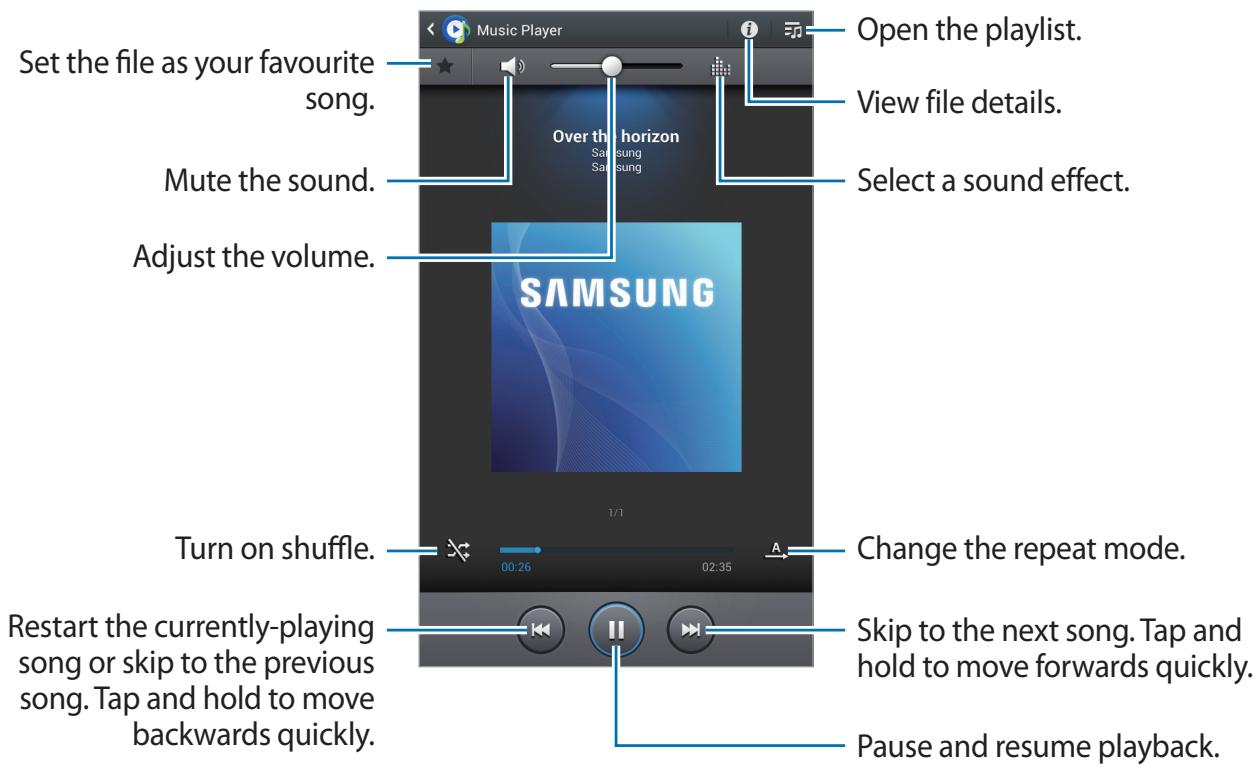
text_image
Set the file as your favourite song. Mute the sound. Adjust the volume. Turn on shuffle. Restart the currently-playing song or skip to the previous song. Tap and hold to move backwards quickly. Music Player Open the playlist. View file details. Select a sound effect. Over the horizon Samsung SAMSUNG 1/1 00:26 02:35 Change the repeat mode. Skip to the next song. Tap and hold to move forwards quickly. Pause and resume playback.Setting a song as ringtone
To use the currently-playing song as ringtone, tap ⟹ → Set as → Call ringtone.
Creating playlists
Make an own selection of songs.
Tap → Create playlist. Enter a title and tap OK. Select songs to include, and then tap Done.
To add the currently-playing song to a playlist, tap ⟹ → Add to playlist.
Playing music by mood
Play music grouped by mood. The playlist is automatically created by the device. When a new song is added, tap Music square → 📋.
Tap Music square and select a cell of mood. Or select multiple cells by dragging your finger.
Camera
Use this application to take photos or videos.
Use Gallery to view photos and videos taken with the device's camera. (p. 64)
Tap Camera on the Applications screen.

The camera automatically shuts off when unused.
Camera etiquette
- Do not take photos or videos of other people without their permission.
- Do not take photos or videos where legally prohibited.
- Do not take photos or videos in places where you may violate other people's privacy.
Taking photos
Taking a photo
Tap to take a photo.
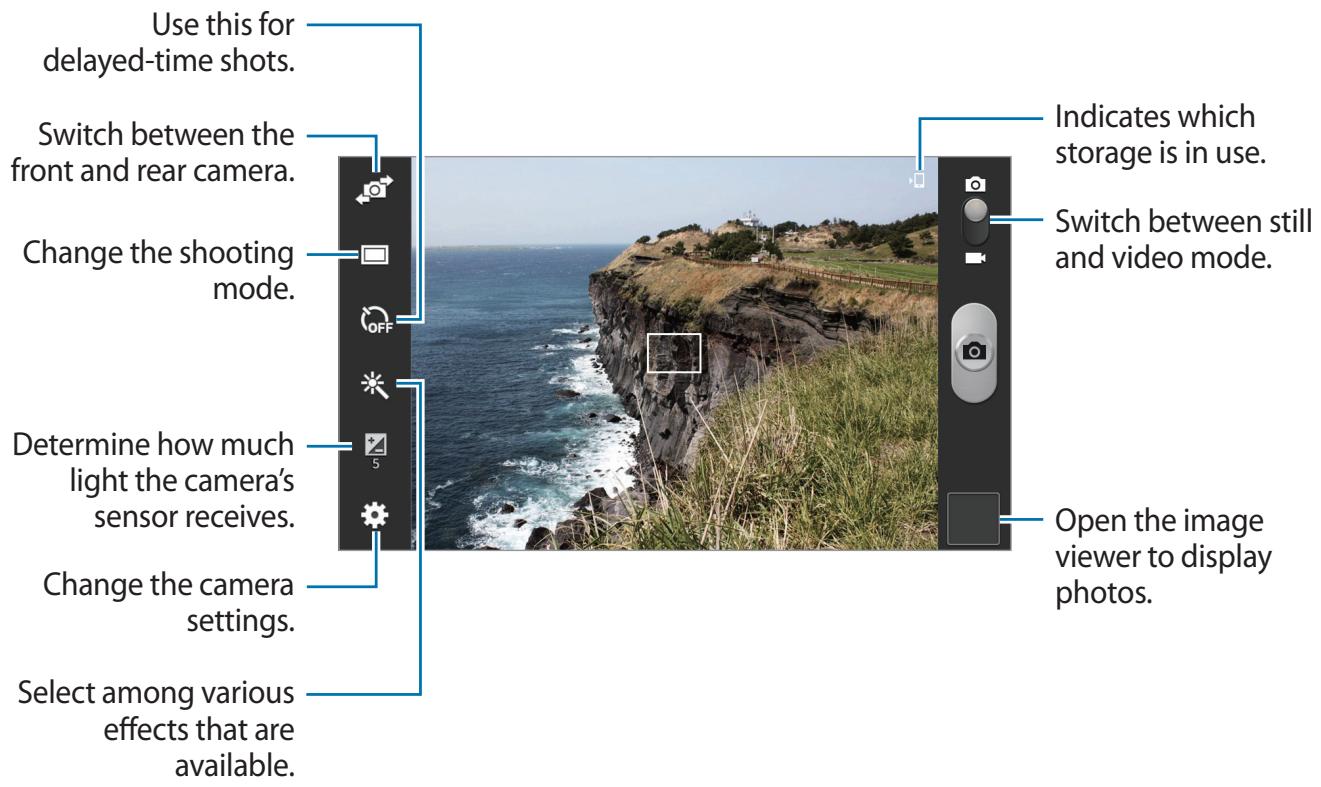
text_image
Use this for delayed-time shots. Switch between the front and rear camera. Change the shooting mode. Determine how much light the camera's sensor receives. Change the camera settings. Select among various effects that are available. Indicates which storage is in use. Switch between still and video mode. Open the image viewer to display photos.Scene mode
Predefined settings make point-and-shoot photos easier to take.
Tap → Scene mode.
- Landscape: Use this setting to take photos of blue skies and landscapes with richer colours.
• Sports: Use this setting for fast-moving subjects. - Party/Indoor: Use this setting for well-lit indoor scenes.
- Beach/Snow: Use this setting for well-lit or sunny outdoor scenes.
- Sunset: Use this setting for richer colours and sharper contrasts.
- Dawn: Use this setting for very subtle colours.
• Autumn color: Use this setting for red-shifted background scenery.
- Candlelight: Use this setting for images of bright light against a dark background.
- Firework: Use this setting for high-contrast scenes.
- Backlight: Use this setting for subjects with bright lights behind them.
• Night: Use this setting for images taken in darker conditions.
Shooting mode
Several photo effects are available.
Tap 📋 → Shooting mode.
• Single shot: Take a single photo.
- Panorama: Take a photo composed of many photos strung together.
- Share shot: Send a photo directly to another device via Wi-Fi Direct.
- Buddy photo share: Set the device to recognise a person's face that you have tagged in a photo and send it to that person. Face recognition may fail depending on the face angle, face size, skin colour, facial expression, light conditions, or accessories the subject is wearing.
- Smile shot: Take a photo when a subject smiles.
Panoramic photos
A panoramic photo is a wide landscape image consisting of multiple shots.
Tap 📋 → Shooting mode → Panorama.
Tap 📷 and move the camera in one direction. When two panorama guide frames are aligned, the camera automatically takes another shot in a panoramic sequence. To stop shooting, tap 📷.
Taking videos
Taking a video
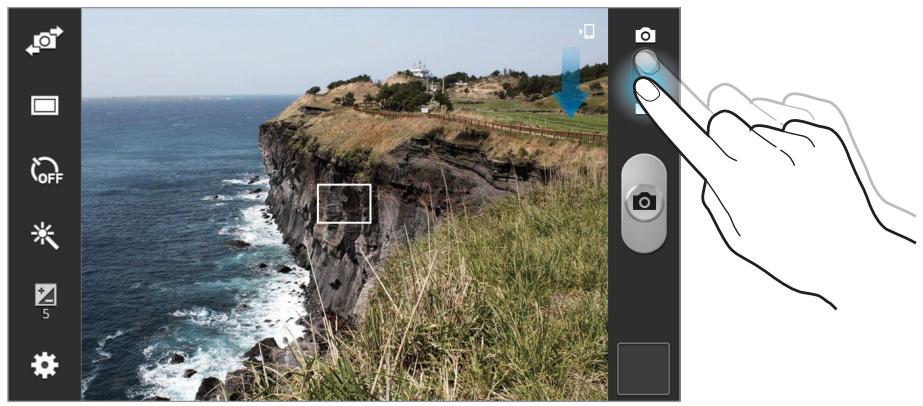
Slide the still-video switch to the video icon, and then tap 📋 to take a video. To stop recording, tap 📋.
natural_image
Coastal cliffside scene with waves crashing against the sea, overlaid with a hand cursor icon pointing at a camera interface (no text or symbols on the cliff face itself)
The zoom function may not be available when recording at the highest resolution.
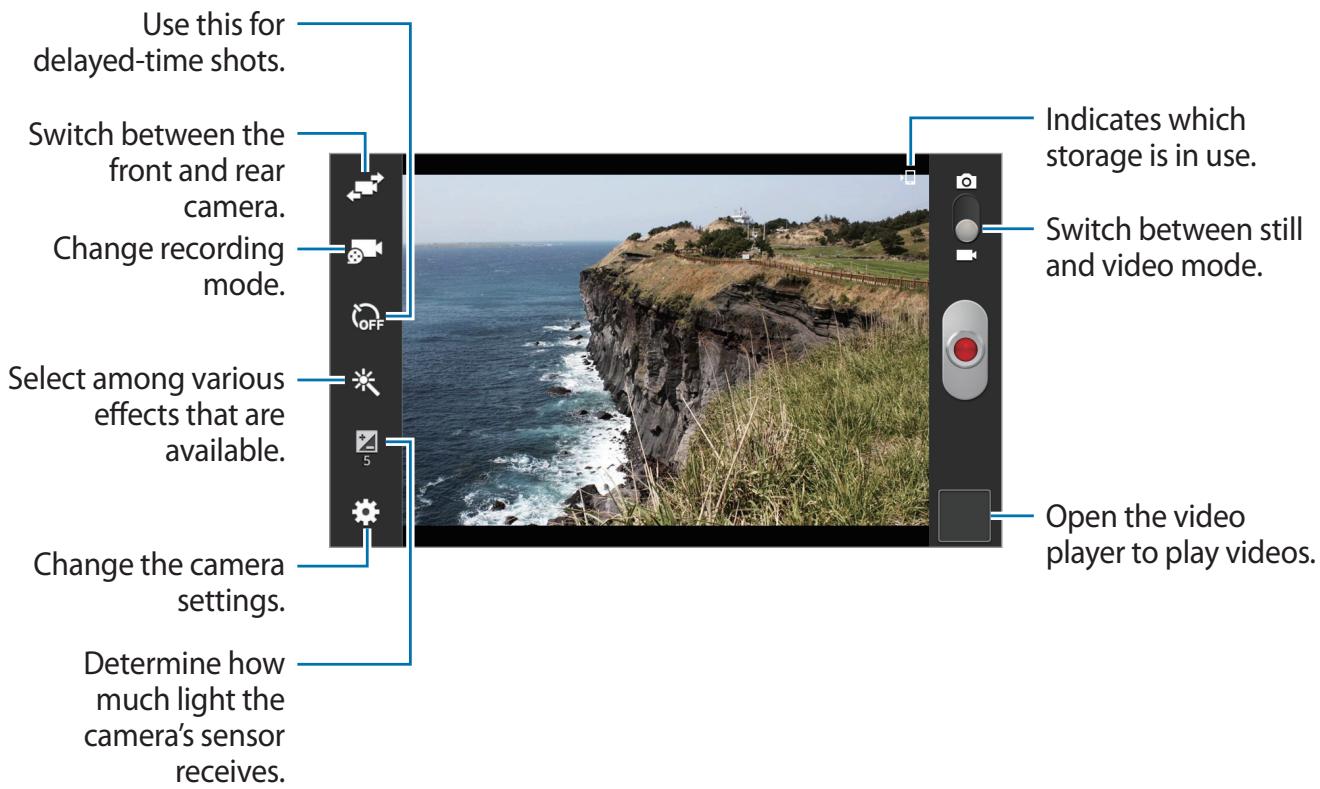
Recording mode
text_image
Use this for delayed-time shots. Switch between the front and rear camera. Change recording mode. Select among various effects that are available. Change the camera settings. Determine how much light the camera's sensor receives. Indicates which storage is in use. Switch between still and video mode. Open the video player to play videos.Tap 📷 to change recording mode.
• Normal: Use this mode for normal quality.
- Limit for MMS: Use this mode to lower quality for sending via messaging.
- Limit for email: Use this mode to lower quality for sending via email.
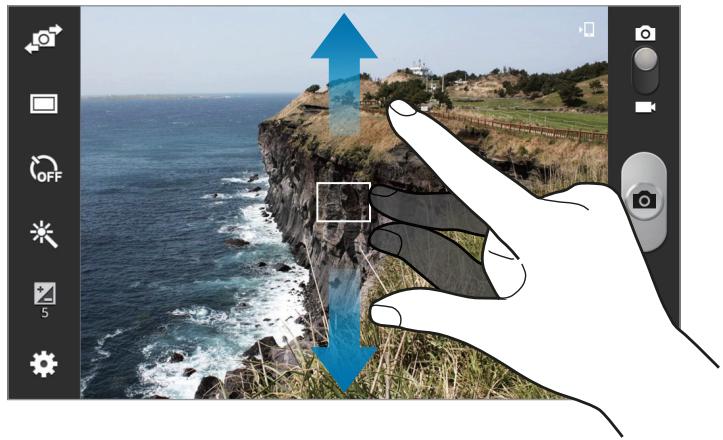
Zooming in and out
natural_image
Hand holding a pointing finger over a coastal cliff with ocean waves and a building in the background (no text or symbols visible)Use one of the following methods:
- Use the Volume button to zoom in or out.
- Spread two fingers apart on the screen to zoom in, and pinch to zoom out.

- The zoom function may not be available when shooting at the highest resolution.
- The zoom in/out effect is available when using the zoom feature while shooting video.
Configuring settings for Camera
Tap ☐ to configure settings for Camera. Not all of the following options are available in both still camera and video camera modes. The available options vary depending on the mode used.
- Edit shortcuts: Reorganise shortcuts to frequently-used options.
• GPS tag: Attach a GPS location tag to the photo.

- To improve GPS signals, avoid shooting in locations where the signal may be obstructed, such as between buildings or in low-lying areas, or in poor weather conditions.
- Your location may appear on your photos when you upload them to the Internet. To avoid this, deactivate the GPS tag setting.
• Self-portrait: Take a photo of yourself.
• Self recording: Take a video of yourself.
- Shooting mode: Change the shooting mode.
- Recording mode: Change the recording mode.
• Effects: Select among various effects that are available.
- Scene mode: Change the scene mode.
• Brightness: Change the brightness.
- Timer: Use this for delayed-time shots.
- Resolution: Select a resolution. Use higher resolution for higher quality. But it takes up more memory.
- White balance: Select an appropriate white balance, so images have a true-to-life colour range. The settings are designed for specific lighting situations. These settings are similar to the heat range for white-balance exposure in professional cameras.
- Metering: Select a metering method. This determines how light values are calculated. Centre-weighted measures background light in the centre of the scene. Spot measures the light value at a specific location. Matrix averages the entire scene.
• Guidelines: Display viewfinder guides to help composition when selecting subjects.
- Image quality: Set the quality level for photos. Higher quality images require more storage space.
• Video quality: Set the quality level for videos.
• Storage: Select the memory location for storage.
- Reset: Reset the camera settings.
Shortcuts
Reorganise shortcuts for easy access to the camera's various options.
Tap → Edit shortcuts.
Tap and hold an option and drag it to a slot at the left of the screen. The other icons can be moved within the list by tapping and dragging them.
Gallery
Use this application to view images and videos.
Tap Gallery on the Applications screen.

- Some file formats are not supported depending on the software installed on the device.
- Some files may not play properly depending on the encoding method used.
Viewing images
Launching Gallery displays available folders. When another application, such as Email, saves an image, the Download folder is automatically created to contain the image. Likewise, capturing a screenshot automatically creates the Screenshots folder. Select a folder to open it.
In a folder, images are displayed by creation date. Select an image to view it in full screen.
Scroll left or right to view the next or previous image.
Zooming in and out
Use one of the following methods to zoom in an image:
• Double-tap anywhere to zoom in.
- Spread two fingers apart on any place to zoom in. Pinch to zoom out, or double-tap to return.
Playing videos
Video files show the 🎨 icon on the preview. Select a video to watch it and tap 🎨.
Editing images
When viewing an image, tap ☐ and use the following functions:
• Face tag: Register the faces in the image as face tags.
• Copy to clipboard: Copy to clipboard.
- Rotate left: Rotate anticlockwise.
- Rotate right: Rotate clockwise.
- Crop: Resize the blue frame to crop and save the image in it.
• Edit: Launch the Photo editor application.
- Set as: Set the image as wallpaper or a contact image.
- Buddy photo share: Send the image to a person whose face is tagged in the image.
- Print: Print the image via a USB or Wi-Fi connection. The device is only compatible with some Samsung printers.
- Rename: Rename the file.
- Scan for nearby devices: Search for devices that have media sharing activated.
• Details: View image details.
Favourite images
When viewing an image, tap ★ to add the image to the favourites list.
Deleting images
Use one of the following methods:
- In a folder, tap ⟹ → Select item, select images by ticking, and then tap 📄.
- When viewing an image, tap 📄.
Sharing images
Use one of the following methods:
- In a folder, tap ⟌ → Select item, select images by ticking, and then tap ◀ to send them to others.
- When viewing an image, tap ◀ to send it to others or share it via social network services.
Setting as wallpaper
When viewing an image, tap Set as to set the image as wallpaper or to assign it to a contact.
Tagging faces
When viewing an image, tap Face tag On. A yellow frame appears around the recognised face. Tap the face, tap Add name, and then select or add a contact.
When the face tag appears on an image, tap the face tag and use available options, such as making calls or sending messages.

Face recognition may fail depending on the face angle, face size, skin colour, facial expression, light conditions, or accessories the subject is wearing.
Creating new albums
Tap ⟩ → New album, enter a title for the album, and then tap OK. Select a folder in the left panel, and then select images in the right panel. Tap and hold the selected images, drag them to the new album, and then tap Done → Move or Copy.
Video Player
Use this application to play video files.
Tap Video Player on the Applications screen.

- Avoid locking the device's screen while playing a DivX Video-On-Demand. Each time you lock the screen while playing a DivX Video-On-Demand, one of your available rental counts is lost.
- Some file formats are not supported depending on the software installed on the device.
- Some files may not play properly depending on the encoding method used.
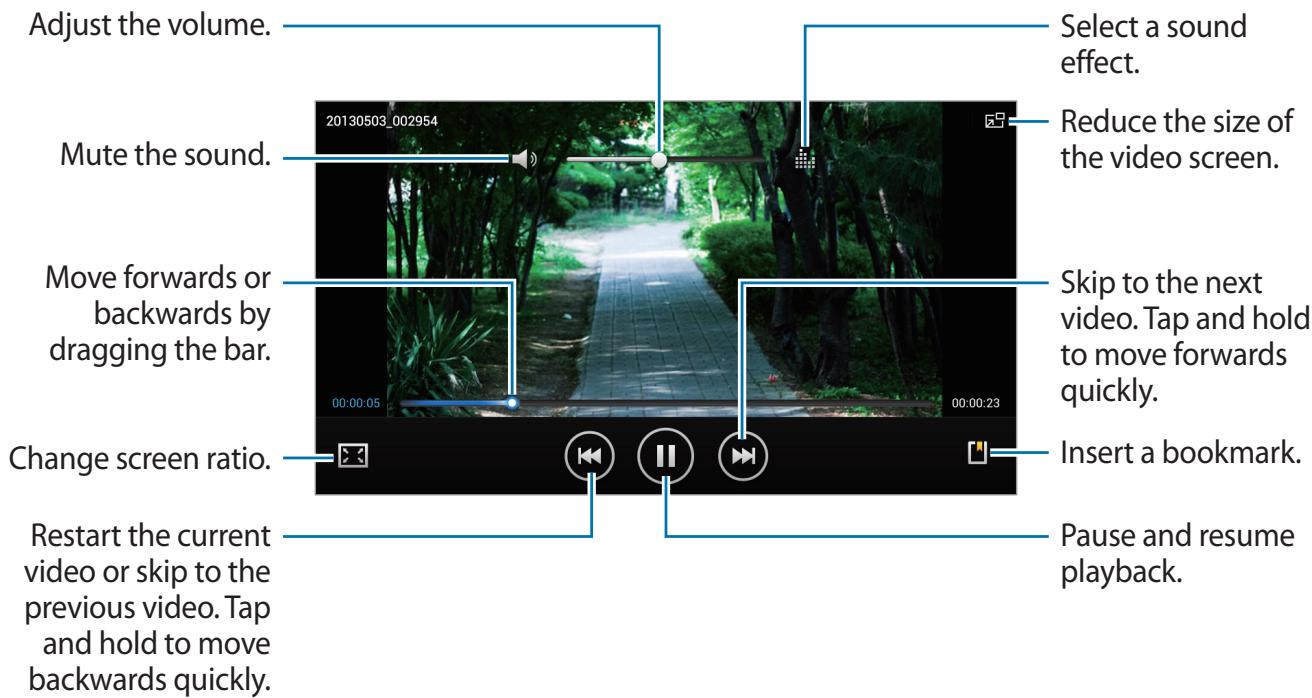
Playing videos
Select a video to play.
text_image
Adjust the volume. Mute the sound. Move forwards or backwards by dragging the bar. Change screen ratio. Restart the current video or skip to the previous video. Tap and hold to move backwards quickly. Select a sound effect. Reduce the size of the video screen. Skip to the next video. Tap and hold to move forwards quickly. Insert a bookmark. Pause and resume playback.Deleting videos
Tap ≡ → Delete, select videos by ticking, and then tap Delete.
Sharing videos
Tap ⟌ → Share via, select a sharing method, select videos by ticking, and then tap Share.
Using Popup Video player
Use this feature to use other applications without closing the video player. While watching videos, tap 📋 to use the pop-up player.
Spread two fingers apart on the screen to enlarge the player or pinch to reduce it. To move the player, drag the player to another location.
YouTube
Use this application to watch videos from the YouTube website.
Tap YouTube on the Applications screen.

This application may not be available depending on the region or service provider.
Watching videos
Tap 🔒, and then enter a keyword. Select one of the returned search results to watch a video. Rotate the device to landscape orientation to display full screen.
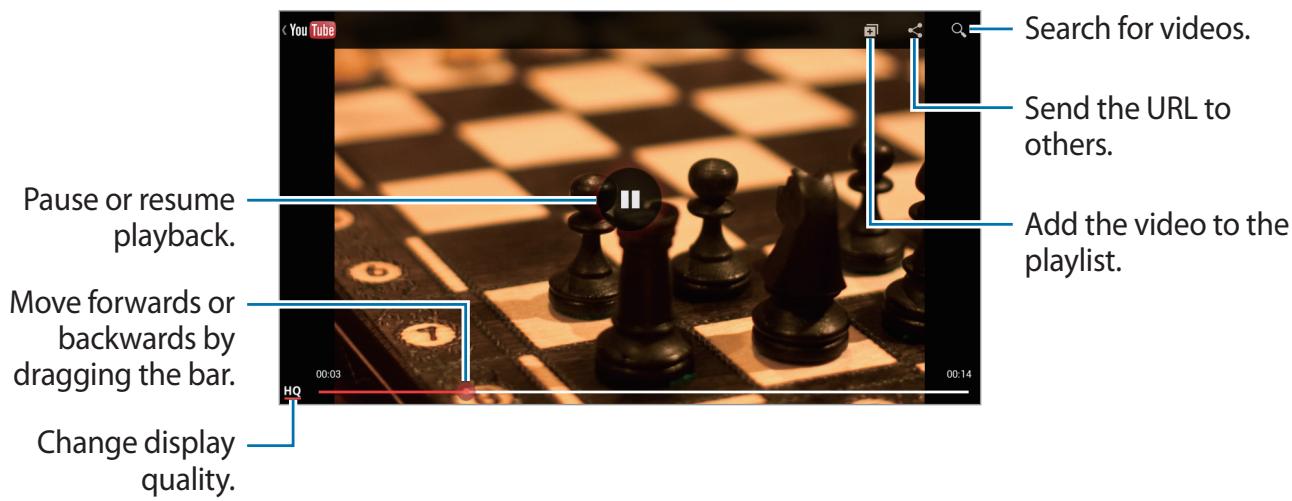
text_image
Search for videos. Send the URL to others. Add the video to the playlist. Pause or resume playback. Move forwards or backwards by dragging the bar. Change display quality.Sharing videos
Select the video to view, tap ◀, and then select a sharing method.
Uploading videos
Select your account, tap ↑, select a video, enter information for the video, and then tap UPLOAD.
Use this application to access your personalised magazines.
Tap Flipboard on the Applications screen.

This application may not be available depending on the region or service provider.
To start your Flipboard, flick left on the greeting page, select news topics, and then tap Build Your Flipboard.
Select a cover story or a topic, flick through the Flipboard pages, and then select an article to read.
While reading an article, use the following icons:
• : Go to the previous page.
• : Share the article with others.
• + : Add the article to your Flipboard magazine.
Application & media stores
Play Store
Use this application to purchase and download applications and games that are able to run on the device.
Tap Play Store on the Applications screen.

This application may not be available depending on the region or service provider.
Installing applications
Browse applications by category, or tap 🔒 to search with a keyword.
Select an application to view information. To download it, tap Install. If there is a charge for the application, tap the price, and follow on-screen instructions to complete the purchase process.

- When a new version is available for any installed application, an update icon appears at the top of the screen to alert you to the update. Open the notifications panel and tap the icon to update the application.
- To install applications that you downloaded from other sources, on the Applications screen, tap Settings → Security → Unknown sources.
Uninstalling applications
Uninstall the applications purchased from Play Store.
Tap ↓, select an application to delete in the list of installed applications, and then tap Uninstall.
Samsung Apps
Use this application to purchase and download dedicated Samsung applications. For more information, visit www.samsungapps.com.
Tap Samsung Apps on the Applications screen.

This application may not be available depending on the region or service provider.
Installing applications
Browse applications by category. Tap ☐ to select a category.
To search for an application, tap 🔒 at the top of the screen, and then enter a keyword in the search field.
Select an application to view information. To download it, tap Get or Buy.

When a new version is available for any installed application, an update icon appears at the top of the screen to alert you to the update. Open the notifications panel and tap the icon to update the application.
Game Hub
Use this application to access games.
Tap Game Hub on the Applications screen.

This application may not be available depending on the region or service provider.
Scroll left or right and select a game to download from Samsung Apps.
Video Hub
Use this application to access and purchase videos.
Tap Video Hub on the Applications screen.

This application may not be available depending on the region or service provider.
Select a category, and then select a video.
Utilities
Memo
Use this application to record important information to save and view at a later date.
Tap Memo on the Applications screen.
Composing memos
Tap +, enter a memo, and then tap Done.
To change the background colour, tap Color. Each category has different background colour.
To lock the memo so that others cannot view it, tap Lock.
Browsing memos
Browse memo thumbnails by scrolling up or down.
To search for a memo, tap 🔒.
To change the view mode, tap 📄.
To delete memos, tap 📄.
To sort memos by date, tap ⟹ → Sort by.
To send the text in the memos to others, tap ⟹ → Share text via.
To send memos to others, tap Share via.
To print memos via a USB or Wi-Fi connection, tap Print. The device is only compatible with some Samsung printers.
To sync memos with a Google account, tap ⟹ → Sync memo.
Viewing a memo
Tap the memo thumbnail to open it. Scroll left or right to see more memos.
To edit the memo, tap the memo.
To delete the memo, tap Delete.
To change the background colour, tap Color.
To set a PIN to lock or unlock the memo, tap Lock.
To print the memo via a USB or Wi-Fi connection, tap Print. The device is only compatible with some Samsung printers.
To send the text in the memo to others, tap ⟹ → Share text via.
To send the memo to others, tap ⟹ → Share via.
S Planner
Use this application to manage events and tasks.
Tap S Planner on the Applications screen.
Creating events or tasks
Tap +, and then use one of the following methods:
- Add event: Enter an event with an optional repeat setting.
- Add task: Enter a task with an optional priority setting.
To add an event or task more briefly, tap a date to select it and tap it again.
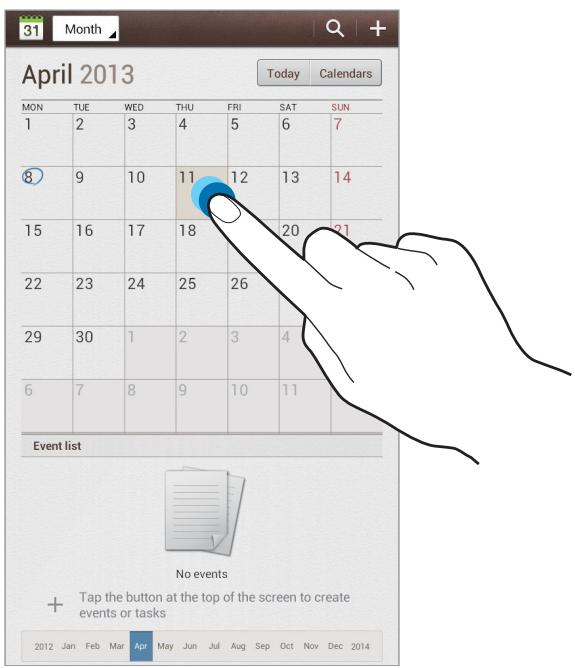
text_image
31 Month April 2013 Today Calendars MON TUE WED THU FRI SAT SUN 1 2 3 4 5 6 7 8 9 10 11 12 13 14 15 16 17 18 20 21 22 23 24 25 26 29 30 1 2 3 4 6 7 8 9 10 11 Event list No events + Tap the button at the top of the screen to create events or tasks 2012 Jan Feb Mar Apr May Jun Jul Aug Sep Oct Nov Dec 2014Enter a title and specify which calendar to use or sync with. Then tap Edit event details or Edit task details to add more details, such as how often the event repeats, when it has an advance alert, or where it takes place.
Attach a map showing the location of the event. Enter the location in the Location field, tap next to the field, and then pinpoint the precise location by tapping and holding on the map that appears.
Attach an image. Tap Images, and then take a photo or select one of the existing images.
Syncing with Google Calendar
On the Applications screen, tap Settings → Google under Accounts → a Google account → Sync Calendar. To manually sync for updating, on the Applications screen, tap S Planner → ≡→ Sync.
To display synced events or tasks, tap Settings View settings Calendars, select the Google account, and then tap OK.
Changing calendar type
Tap the top left of the screen, and then select one from among different types of calendars including month, week, and others. A pinch gesture can be used to change calendar type. For example, pinch to change from the monthly calendar to the yearly calendar, and spread apart to change yearly calendar back to monthly calendar.
Searching for events
Tap 🔒, and then enter a keyword to search for.
To view today's events, tap Today at the top of the screen.
Deleting events
Select an event, and then tap Delete.
Sharing events
Select an event, tap Share via, and then select a sharing method.
Polaris Office
Use this application to edit documents in various formats, including spreadsheets and presentations.
Tap Polaris Office on the Applications screen.

Some functions may not be available, depending on the file type.
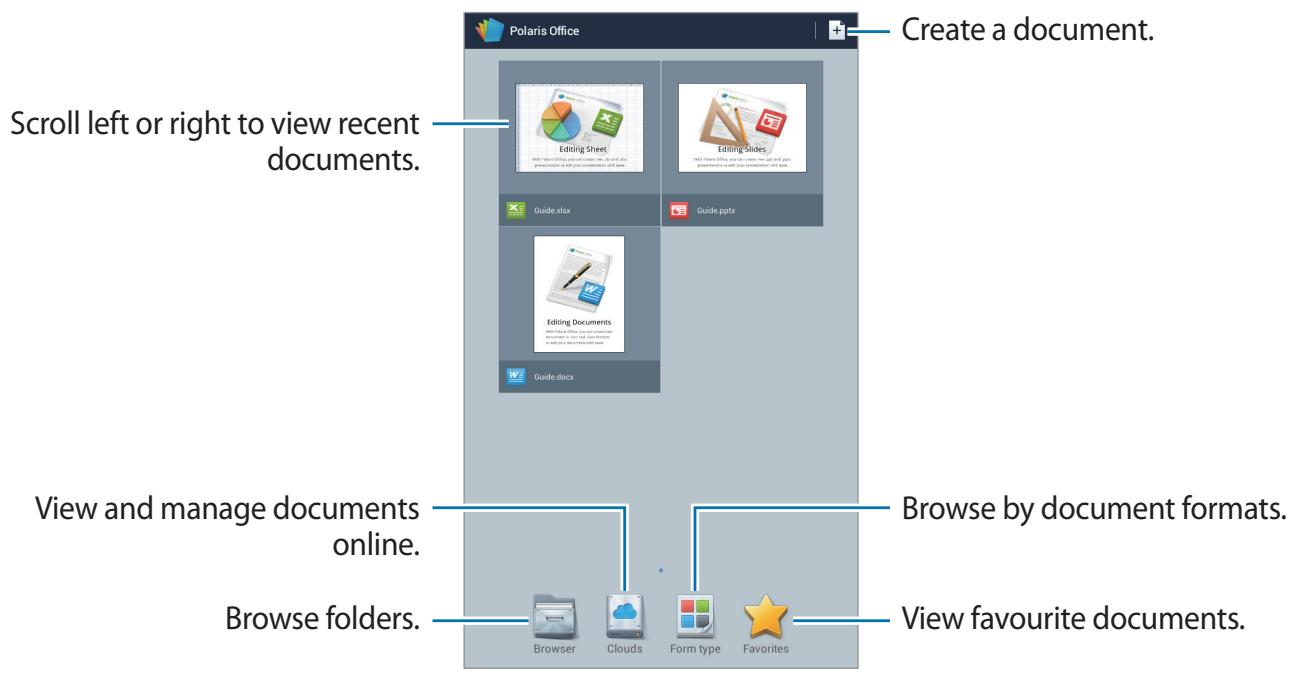
text_image
Polaris Office Create a document. Scroll left or right to view recent documents. Editing Sheet Editing Guides Guide.xlsx Guide.pptx Editiing Documents View that file you can view new documents, but it is recommended for this view. See your latest version of Polaris Office. Guide.docx View and manage documents online. Browse by document formats. Browse folders. Browser Clouds Form type Favorites View favourite documents.Creating documents
Tap ☐, and then select a document type.
Use the editing toolbar at the top of the screen to edit the document.
To finish, tap Save, enter a filename, select a folder to save to, and then tap Save.
Reading documents
Tap a file on the recent documents screen. Or tap Browser, Clouds, Form type, or Favorites, and then select a file to open.
Tap ☐, and then use one of the following functions:
Document
- Save as: Save the document with a different name.
• PDF export: Save the document as a PDF file.
• Find & Replace: Search for or replace text.
• Page layout: Change the layout of pages.
• Full width view: View the document contents only, without margins. - Zoom In/Out: Change the view size.
- Reflow text: Rearrange the text to fit the screen.
• View Comment: View comments in the document.
• TTS: Read the document via the text-to-speech feature. - Print: Print the document via a USB or Wi-Fi connection. The device is only compatible with some Samsung printers.
Presentation
- Slide Show: Start a slideshow.
- Save as: Save the document with a different name.
• PDF export: Save the document as a PDF file.
• Find & Replace: Search for or replace text. - Single slide view: View slides one by one.
- Zoom In/Out: Change the view size.
- Print: Print the document via a USB or Wi-Fi connection. The device is only compatible with some Samsung printers.
Spreadsheet
- Save as: Save the document with a different name.
• Find & Replace: Search for or replace text. - Protect worksheet: Lock the sheet so that others cannot edit it.
- Freeze: Keep the selected row in place.
- Recalculation: Recalculate the functions on the sheet.
- Sort: Sort cells by specific criteria.
• Filter: View cells filtered by specific criteria. - Zoom In/Out: Change the view size.
- Print: Print the document via a USB or Wi-Fi connection. The device is only compatible with some Samsung printers.
Text
- Save as: Save the document with a different name.
• TTS: Read the document via the text-to-speech feature. - Print: Print the document via a USB or Wi-Fi connection. The device is only compatible with some Samsung printers.
Dropbox
Use this application to save and share files with others via the Dropbox cloud storage. When you save files to Dropbox, your device automatically syncs with the web server and any other computers that have Dropbox installed.
Tap Dropbox on the Applications screen.

This application may not be available depending on the region or service provider.
When running Dropbox for the first time, tap Start to activate it. Follow the on-screen instructions to complete the setup.
Once Dropbox is activated, photos and videos taken with the device's camera are uploaded to Dropbox automatically. To view the uploaded photos or videos, tap 📄. To share or delete files or create albums, tap ✅, and then select files.
To upload files to Dropbox, tap 📋 → [≡] → Upload here → Photos or videos or Other files. To open files in Dropbox, select a file.
While viewing images or videos, tap ☆ to add it to the favourites list. To open files in the favourites list, tap ☆.
Alarm
Use this application to set wake-up calls and alarms for important events.
Tap Alarm on the Applications screen.
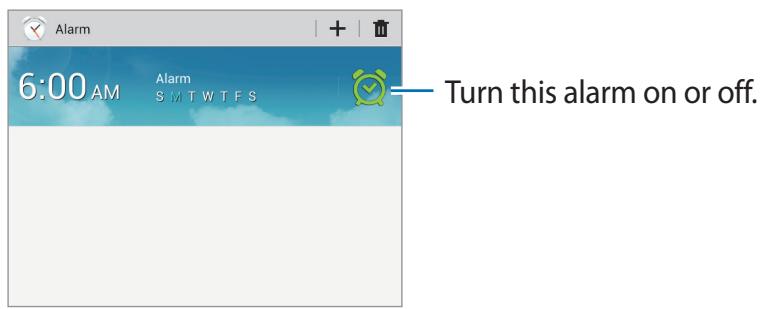
text_image
Alarm 6:00 AM Alarm S M T W T F S Turn this alarm on or off.Setting alarms
Tap +, set a time for the alarm to go off, select days for the alarm to repeat, and then tap Save.
- Location alarm: Set a location. The alarm goes off only when you are in the location.
- Snooze: Set an interval and the number of times for the alarm to repeat after the preset time.
- Smart alarm: Set a time for the alarm to go off before the preset time.
Stopping alarms
Drag ✗ outside the large circle to stop an alarm. Drag ZZ outside the large circle to repeat the alarm after a specified length of time.
Deleting alarms
Tap and hold the alarm, and then tap Delete.
World clock
Use this application to check the time in any location in the world.
Tap World clock on the Applications screen.
Creating clocks
Tap Ⓤ, enter a city name or select a city from the globe, and then tap +.
To apply summer time, tap and hold a clock, and then tap DST settings.
Deleting clocks
Tap 📋, select clocks, and then tap Delete.
Calculator
Use this application for simple or complex calculations.
Tap Calculator on the Applications screen.
Rotate the device to landscape orientation to display the scientific calculator. If Screen rotation is disabled, tap Scientific calculator.
To see the calculation history, tap ☐ to hide the keypad.
To clear the history, tap Clear history.
To change the character size for the history, tap ⟹ → Text size.
S Voice
Use this application to command the device by voice to dial a number, send a message, write a memo, and more.
Tap S Voice on the Applications screen.

This application may not be available depending on the region or service provider.
Here are several examples of spoken commands:
- Open music
- Launch calculator
- Call Lulu mobile
- Dial Lulu work
- Check schedule
Tips for better voice recognition
- Speak clearly.
- Speak in quiet places.
- Do not use offensive or slang words.
- Avoid speaking in dialectal accents.
The device may not recognise your commands or may perform unwanted commands depending on your surroundings or how you speak.
Use this application to search not only the Internet, but also applications and their contents on the device as well.
Tap Google on the Applications screen.

This application may not be available depending on the region or service provider.
Searching the device
Tap the search field, and then enter a keyword. Alternatively, tap 🔔, and then speak a keyword.
If no results are returned from the applications, the web browser appears, displaying the search results.
Search scope
To select what applications to search, tap Settings Tablet search, and then tick the items to search for.
Google Now
Launch Google search to view Google Now cards that show the current weather, public transit info, your next appointment, and more when you are most likely to need it.
Join Google Now when opening Google search for the first time. To change Google Now settings, tap → Settings → Google Now.
Voice Search
Use this application to search webpages by speaking.
Tap Voice Search on the Applications screen.

This application may not be available depending on the region or service provider.
Speak a keyword or phrase when Speak now appears on the screen.
My Files
Use this application to access all kinds of files stored in the device, including images, videos, songs, and sound clips.
Tap My Files on the Applications screen.
Select a folder to open it. To go back to the parent folder, tap ↗. To return to the root directory, tap ↗.
In a folder, use one of the following functions:
• Q : Search for files.
• : Change the view mode.
• + : Create a folder.
• Time: Sort files or folders.
Select a file or folder by ticking, and then use one of the following functions:
• : Copy files or folders to another folder.
• ⚠️: Move files or folders to another folder.
• : Delete files or folders.
• : Send files to others.
• _2 → Rename: Rename a file or folder.
• → Details: View file or folder details.
Downloads
Use this application to see what files are downloaded through the applications.
Tap Downloads on the Applications screen.

This application may not be available depending on the region or service provider.
To see the files downloaded from the Internet, tap Internet downloads, otherwise, tap Other downloads to see the files downloaded from other applications, such as Email.
Select a file to open it with an appropriate application.
Travel & local
Maps
Use this application to pinpoint the location of the device, search for places, or get directions. Tap Maps on the Applications screen.

This application may not be available depending on the region or service provider.
Searching for locations
Tap Search Maps, enter an address, and then tap 🔒. Select a location to view the detailed location information. To search for nearby locations, tap ⟌ Local.
Once the location is found, tap and use one of the following functions:
• Clear Map: Clear the map.
- Make available offline: Save the map of a specified area to view it offline.
- Local: Search for nearby locations.
- Layers: Overlay multiple layers including satellite images, traffic information, and more.
• Latitude: Share location information with friends.
• My Places: View offline maps, starred places, recent places, and more.
- Settings: Change the map settings.
• Help: View information about using the map.
To view current location, tap 📋.
To zoom in or out the map, spread two fingers apart on the screen to zoom in, and pinch to zoom out.
Getting directions for a destination
1 Tap.
2 Tap 📄, and then select a method to enter starting and ending locations:
• My current location: Use current location for starting location.
- Contacts: Select from the contacts list.
- Point on map: Pinpoint by tapping on the map.
• My Places: Select from the list of favourite places.
3 Select a travel method, such as driving, public transit, or walking, and then tap Go.
4 Select one of the routes that appear.
Local
Use this application to search for nearby restaurants, banks, bus stops, and more.
Tap Local on the Applications screen.

This application may not be available depending on the region or service provider.
Select a place category, and then select a place from the list of search results.
• Map: Pinpoint the place on the map.
- Directions: Search for a route to the place.
- Call: Call the place's phone number.
To add a place category, tap Add a search on the category list, and then enter a keyword to search into the text field.
Navigation
Use this application to search for a route to a destination.
Tap Navigation on the Applications screen.

- Navigation maps, your current location, and other navigational data may differ from actual location information. You should always pay attention to road conditions, traffic, and any other factors that may affect your driving. Follow all safety warnings and regulations while driving.
- This application may not be available depending on the region or service provider.
Specify the destination by using one of the following methods:
- Speak the destination address.
• Enter the destination address. - Select the destination address from the contacts list.
- Select the destination from the list of starred places.
Once a route is found, follow on-screen instructions to navigate to the destination.
Settings
About Settings
Use this application to configure the device, set application options, and add accounts. Tap Settings on the Applications screen.
Wi-Fi
Activate the Wi-Fi feature to connect to a Wi-Fi network and access the Internet or other network devices.
To use options, tap ≡.
• Advanced: Customise Wi-Fi settings.
- WPS push button: Connect to a secured Wi-Fi network with a WPS button.
- WPS PIN entry: Connect to a secured Wi-Fi network with a WPS PIN.
Setting Wi-Fi sleep policy
On the Settings screen, tap Wi-Fi → □→ Advanced → Keep Wi-Fi on during sleep.

When the screen is turned off, the device automatically turns off Wi-Fi connections. When this happens, the device automatically accesses data networks if it is set to use them. This may incur data transfer fees. To avoid data-usage bills, set this option to Always.
Setting Network notification
The device can detect open Wi-Fi networks and display an icon on the status bar to notify when available.
On the Settings screen, tap Wi-Fi → [≡] → Advanced and tick Network notification to activate this feature.
Wi-Fi Direct
Wi-Fi Direct connects two devices directly via a Wi-Fi network without requiring an access point.
On the Settings screen, tap Wi-Fi → Wi-Fi Direct.
Bluetooth
Activate the Bluetooth feature to exchange information over short distances.
To use more options, tap ≡.
- Rename device: Set a Bluetooth name for the device.
- Visibility timeout: Set duration that the device is visible.
• Received files: View received files via the Bluetooth feature.
Data usage
Keep track of your data usage amount, and customise the settings for the limitation.
- Mobile data: Set the device to use data connections on any mobile network.
- Set mobile data limit: Set a limit for the mobile data usage.
• Data usage cycle: Enter monthly reset date to monitor your data usage.
To use more options, tap ≡.
- Data roaming: Set the device to use data connections when you are roaming.
- Restrict background data: Set the device to disable sync in the background while using a mobile network.
- Auto sync data: Set the device to sync contact, calendar, email, bookmark, and social network image data automatically.
• Show Wi-Fi usage: Set the device to show your data usage via Wi-Fi. - Mobile hotspots: Select Wi-Fi hotspots to prevent applications that are running in the background from using them.
More settings
Customise settings to control connections with other devices or networks.
Airplane mode
This disables all wireless functions on your device. You can use only non-network services.
Mobile networks
- Mobile data: Use to allow packet switching data networks for network services.
- Data roaming: Use the device to connect to another network when you are roaming or your home network is not available.
- Access Point Names: Set up access point names (APNs).
• Network mode: Select a network type.
• Network operators: Search for available networks and select a network for roaming.
Tethering and portable hotspot
- Portable Wi-Fi hotspot: Use the portable Wi-Fi hotspot to share the device's mobile network connection with computers or other devices through the Wi-Fi network.
- USB tethering: Use USB tethering to share the device's mobile network connection with a computer via USB. When connected to a computer, the device is used as a wireless modem for the computer.
- Bluetooth tethering: Use the Bluetooth tethering to share the device's mobile network connection with computers via Bluetooth.
• Help: Learn more about USB, Wi-Fi, and Bluetooth tethering.
VPN
Set up and connect to virtual private networks (VPNs).
Nearby devices
- File sharing: Activate media sharing to allow other DLNA-enabled devices to access media files on your device.
- Shared contents: Set the device to share your content with other devices.
• Device name: Enter a media server name for your device. - Allowed devices list: View the list of devices that can access your device.
- Not-allowed devices list: View the list of devices that are blocked from accessing your device.
- Download to: Select a memory location for saving media files.
- Upload from other devices: Set the device to accept uploads from other devices.
Kies via Wi-Fi
Connect the device to Samsung Kies via a Wi-Fi network.
Blocking mode
Select which notifications will be blocked or set to allow notifications for calls from specified contacts in blocking mode.
Sound
Change settings for various sounds on the device.
- Volume: Adjust the volume level for call ringtones, music and videos, system sounds, and notifications.
• Device ringtone: Select a ringtone to alert you to incoming calls.
• Device vibration: Add or select a vibration pattern. -
Default notifications: Select a ringtone for events, such as incoming messages and missed calls.
-
Vibrate when ringing: Set the device to vibrate and play a ringtone for incoming calls.
- Dialing keypad tone: Set the device to sound when tapping the buttons on the keypad.
- Touch sounds: Set the device to sound when selecting an application or option on the touch screen.
- Screen lock sound: Set the device to sound when locking or unlocking the touch screen.
Display
Change the settings for the display.
- Wallpaper:
- Home screen: Select a background image for the Home screen.
- Lock screen: Select a background image for the locked screen.
- Home and lock screens: Select a background image for the Home screen and the locked screen.
- Notification panel: Customise the items that appear on the notifications panel.
- Brightness: Set the brightness of the display.
- Screen timeout: Set the length of time the device waits before turning off the display's backlight.
- Font style: Change the font type for display text.
• Font size: Change the font size.
- Increase legibility: Sharpen the text to make it easier to read.
• Show battery percentage: Set the device to display the remaining battery life.
Storage
View memory information for your device and memory card, or format a memory card.

Formatting a memory card permanently deletes all data from it.

The actual available capacity of the internal memory is less than the specified capacity because the operating system and default applications occupy part of the memory.
Power saving mode
Activate power-saving mode and change the settings for power-saving mode.
- CPU power saving: Set the device to limit some system resource usage.
- Screen power saving: Set the device to decrease the brightness of the display.
- Learn about Power saving mode: Discover how to reduce battery consumption.
Battery
View the amount of battery power consumed by your device.
Application manager
View and manage the applications on your device.
Location services
Change settings for location information permissions.
- Use wireless networks: Set the device to allow location data collection or to determine the location of your lost or stolen device via Wi-Fi or mobile network.
- Use GPS satellites: Set the device to use the GPS satellite for finding the current location.
- Location and Google search: Set the device to use your current location for Google search and other Google services.
Lock screen
Change settings for the locked screen.
• Screen lock: Activate the screen lock feature.
- Lock screen options: Change the settings for the locked screen. These settings are applied only when you set the swipe lock option.
- Shortcuts: Set the device to show and edit application shortcuts on the locked screen.

This feature may not be available depending on the region or service provider.
- Clock: Set the device to show the clock on the locked screen.
- Dual clock: Set the device to show the dual clock on the locked screen.
- Weather: Set the device to show the weather information on the locked screen and change the settings for the weather display.
- Help text: Set the device to show the help text on the locked screen.
- Wake up in lock screen: Set the device to recognise your wake up command when the screen is locked.
- Set wake-up command: Set a wake up command to launch S Voice or perform a specified function.
- Owner information: Enter your information that is shown on the locked screen.
Security
Change settings for securing the device and the SIM or USIM card.
- Encrypt device: Set a password to encrypt data saved on the device. You must enter the password each time you turn on the device.

Charge the battery before enabling this setting because it may take more than an hour to encrypt your data.
- Encrypt external SD card:
- Encrypt: Set the device to encrypt files when you save them to a memory card.
- Full encryption: Set the device to encrypt all files on a memory card.
- Exclude multimedia files: Set the device to encrypt all files on a memory card, except for media files.

If you reset your device to the factory defaults with this setting enabled, the device will not be able to read your encrypted files. Disable this setting before resetting the device.
- Remote controls: Set the device to allow control of your lost or stolen device remotely via the Internet. To use this feature, you must sign in to your Samsung account.
- Account registration: Add or view your Samsung account.
-
Use wireless networks: Set the device to allow location data collection or to determine the location of your lost or stolen device via Wi-Fi or mobile network.
-
SIM change alert: Activate or deactivate the Find my mobile feature which helps locate the device when lost or stolen.
- Find my mobile web page: Access the Find my mobile website (findmymobile.samsung.com). You can track and control your lost or stolen device on the Find my mobile website.
-
Set up SIM card lock:
-
Lock SIM card: Activate or deactivate the PIN lock feature to require the PIN before using the device.
- Change SIM PIN: Change the PIN used to access SIM or USIM data.
- Make passwords visible: By default, the device hides passwords for security. Set the device to display passwords as they are entered.
- Device administrators: View device administrators installed on the device. You can allow device administrators to apply new policies to the device.
- Unknown sources: Choose to install applications from any source. If not chosen, download applications only from Play Store.
- Trusted credentials: Use certificates and credentials to ensure secure use of various applications.
• Install from device storage: Install encrypted certificates stored on the USB storage. - Clear credentials: Erase the credential contents from the device and reset the password.
Language and input
Change the settings for text input. Some options may not be available depending on the selected language.
Language
Select a display language for all menus and applications.
Default
Select a default keyboard type for text input.
Google voice typing
To change the voice input settings, tap ⚙️.
- Choose input languages: Select input languages for text input.
- Block offensive words: Set the device to prevent the device from recognising offensive words in voice inputs.
- Download offline speech recognition: Download and install language data for offline voice input.
Samsung keyboard
To change the Samsung keyboard settings, tap ⚙️.

The available options may vary depending on the region or service provider.
- Input languages: Select languages for text input.
- Predictive text: Activate predictive text mode to predict words based on your input and show word suggestions. You can also customise the word prediction settings.
- Continuous input: Set the device to enter text by sweeping on the keyboard.
- Cursor control: Enable or disable the smart keyboard navigation feature to move the cursor by scrolling the keyboard.
- Advanced:
- Auto capitalization: Set the device to automatically capitalise the first character after a final punctuation mark, such as a full stop, question mark, or exclamation mark.
- Auto spacing: Set the device to automatically insert a space between words.
- Auto-punctuate: Set the device to insert a full stop when you double-tap the space bar.
- Character preview: Set the device to display a large image of each character tapped.
-
Key-tap sound: Set the device to sound when a key is touched.
-
Tutorial: Learn how to enter text with the Samsung keyboard.
- Reset settings: Reset Samsung keyboard settings.
Voice search
• Language: Select a language for the voice recognition.
- Speech output: Set the device to provide voice feedback to alert you to the current action.
- Block offensive words: Hide offensive words from voice search results.
- Hotword detection: Set the device to begin voice recognition when you say the wake up command while using the search application.
- Download offline speech recognition: Download and install language data for offline voice input.
- Bluetooth headset: Set the device to allow a voice search with a Bluetooth headset, when it is connected to the device.
Text-to-speech output
- Preferred TTS engine: Select a speech synthesis engine. To change the settings for speech synthesis engines, tap ⚙️.
- Speech rate: Select a speed for the text-to-speech feature.
- Listen to an example: Listen to the spoken text for an example.
- Driving mode: Activate driving mode to set the device to read contents aloud and specify applications to use in driving mode.
Pointer speed
Adjust the pointer speed for the mouse or trackpad connected to your device.
Backup and reset
Change the settings for managing settings and data.
- Back up my data: Set the device to back up settings and application data to the Google server.
- Backup account: Set up or edit your Google backup account.
- Automatic restore: Set the device to restore settings and application data when the applications are reinstalled on the device.
- Factory data reset: Reset settings to the factory default values and delete all data.
Add account
Add email or SNS accounts.
Accessory
Change the accessory settings.
- Dock sound: Set the device to play a sound when your device is connected to or removed from a desktop dock.
- Audio output mode: Set the device to use the dock speaker when your device is connected to a desktop dock.
Date and time
Access and alter the following settings to control how the device displays the time and date.

If the battery remains fully discharged or removed from the device, the time and date is reset.
- Automatic date and time: Automatically update the time and date when moving across time zones.
- Set date: Set the current date manually.
-
Set time: Set the current time manually.
-
Automatic time zone: Set the device to receive time zone information from the network when you move across time zones.
- Select time zone: Set the home time zone.
- Use 24-hour format: Display time in 24-hour format.
- Select date format: Select a date format.
Accessibility
Accessibility services are special features for those with certain physical disabilities. Access and alert the following settings to improve accessibility to the device.
- Auto rotate screen: Set the interface to rotate automatically when you rotate the device.
- Screen timeout: Set the length of time the device waits before turning off the display's backlight.
- Speak passwords: Set the device to read aloud passwords you enter with Talkback.
• Answering/ending calls:
- The home key answers calls: Set the device to answer an incoming call when pressing the Home button.
- The power key ends calls: Set the device to end a call when pressing the Power button.
- Show shortcut: Add a shortcut to Accessibility on the quick menu that appears when you press and hold the Power button.
• TalkBack: Activate Talkback, which provides voice feedback.
• Font size: Change the font size.
• Text-to-speech output:
- Preferred TTS engine: Select a speech synthesis engine. To change the settings for speech synthesis engines, tap ⚙️.
- Speech rate: Select a speed for the text-to-speech feature.
- Listen to an example: Listen to the spoken text for an example.
-
Driving mode: Activate driving mode to set the device to read contents aloud and specify applications to use in driving mode.
-
Enhance web accessibility: Set applications to install web scripts to make their web content more accessible.
- Mono audio: Enable mono sound when listening to audio with one earbud.
• Turn off all sounds: Mute all device sounds. - Press and hold delay: Set the recognition time for tapping and holding the screen.
Developer options
Change the settings for application development.
- Desktop backup password: Set a password to secure your backup data.
- Stay awake: Set the screen to remain on while you are charging the battery.
- Protect SD card: Set the device to request a confirmation when reading data from a memory card.
- USB debugging: Activate USB debugging mode to connect your device to a computer with a USB cable.
- Allow mock locations: Allow mock locations and service information to be sent to a Location Manager service for testing.
- Select app to be debugged: Select applications to debug and prevent errors when you pause debugging.
- Wait for debugger: Set the device to prevent the selected application from loading until the debugger is ready.
• Show touches: Set the device to show the pointer when you touch the screen. - Show pointer location: Set the device to show the coordinates and traces of the pointer when you touch the screen.
• Show layout boundaries: Set the device to show boundaries. - Show GPU view updates: Set the device to flash areas of the screen when they are updated with the GPU.
• Show screen updates: Set the device to flash areas of the screen when they are updated. - Window animation scale: Select a speed for opening and closing pop-up windows.
• Transition animation scale: Select a speed for switching between screens.
- Animator duration scale: Select how long pop-up windows will be shown.
- Turn off hardware overlays: Set the device to hide hardware overlays.
- Force GPU rendering: Set the device to use 2D hardware acceleration to improve graphic performance.
- Strict mode: Set the device to flash the screen when applications perform long operations.
• Show CPU usage: Set the device to list all active processes.
• GPU rendering profile: Set the device to check the time of GPU rendering time.
- Turn on traces: Set the device to capture traces of application and system performance.
- Do not keep activities: Set the device to end a running application when you launch a new application.
- Limit background processes: Set the device to limit the number of processes that can run in the background.
- Show all ANRs: Set the device to alert you to unresponsive applications that are running in the background.
About device
Access device information and update device software.
Google Settings
Use this application to configure settings for some features provided by Google.
Tap Google Settings on the Applications screen.
Optional applications
The following applications must be downloaded before you can use them.
- Samsung Link
On the Home screen or the Applications screen, tap an application icon and follow on-screen instructions to download it.

Some of the listed applications may be preloaded depending on the region or service provider.
Troubleshooting
When you turn on your device or while you are using the device, it prompts you to enter one of the following codes:
- Password: When the device lock feature is enabled, you must enter the password you set for the device.
- PIN: When using the device for the first time or when the PIN requirement is enabled, you must enter the PIN supplied with the SIM or USIM card. You can disable this feature by using the Lock SIM card menu.
- PUK: Your SIM or USIM card is blocked, usually as a result of entering your PIN incorrectly several times. You must enter the PUK supplied by your service provider.
- PIN2: When you access a menu requiring the PIN2, you must enter the PIN2 supplied with the SIM or USIM card. For details, contact your service provider.
Your device displays network or service error messages
- When you are in areas with weak signals or poor reception, you may lose reception. Move to another area and try again.
- You cannot access some options without a subscription. Contact your service provider for more details.
The touch screen responds slowly or improperly
If your device has a touch screen and the touch screen is not responding properly, try the following:
- Remove any protective covers from the touch screen. Protective covers may prevent the device from recognising your inputs and are not recommended for touch screen devices.
- Ensure that your hands are clean and dry when tapping the touch screen.
- Restart your device to clear any temporary software bugs.
- Ensure that your device software is upgraded to the latest version.
• If the touch screen is scratched or damaged, take it to your local Samsung Service Centre.
Your device freezes or has fatal errors
If your device freezes or hangs, you may need to close programs or reset the device to regain functionality. If your device is frozen and unresponsive, press and hold the Power button for 8-10 seconds. The device reboots automatically.
If this does not solve the problem, perform a factory data reset. On the Applications screen, tap Settings → Backup and reset → Factory data reset → Reset device → Delete all.
Calls are being dropped
When you are in areas with weak signals or poor reception, you may lose your connection to the network. Move to another area and try again.
Outgoing calls are not connected
- Ensure that you have pressed the Dial key.
- Ensure that you have accessed the right cellular network.
- Ensure that you have not set call barring for the phone number you are dialling.
Incoming calls are not connected
- Ensure that your device is turned on.
- Ensure that you have accessed the right cellular network.
- Ensure that you have not set call barring for the incoming phone number.
Others cannot hear you speaking on a call
- Ensure that you are not covering the built-in microphone.
- Ensure that the microphone is close to your mouth.
- If using a headset, ensure that it is properly connected.
Audio quality is poor
- Ensure that you are not blocking the device's internal antenna.
- When you are in areas with weak signals or poor reception, you may lose reception. Move to another area and try again.
When dialling from contacts, the call is not connected
- Ensure that the correct number is stored in the contact list.
• Re-enter and save the number, if necessary. - Ensure that you have not set call barring for the contact's phone number.
The device beeps and the battery icon is empty
Your battery is low. Recharge or replace the battery to continue using the device.
The battery does not charge properly or the device turns off
The battery in the device is not user replaceable. If you have problems with the battery or need it replaced, take the device to a Samsung Service Centre.
Your device is hot to the touch
When you use applications that require more power or use applications on your device for an extended period of time, your device may feel hot to the touch. This is normal and should not affect your device's lifespan or performance.
Error messages appear when launching the camera
Your Samsung device must have sufficient available memory and battery power to operate the camera application. If you receive error messages when launching the camera, try the following:
- Charge the battery or replace it with a battery that is fully charged.
- Free some memory by transferring files to a computer or deleting files from your device.
- Restart the device. If you are still having trouble with the camera application after trying these tips, contact a Samsung Service Centre.
Error messages appear when opening music files
Some music files may not play on your Samsung device for a variety of reasons. If you receive error messages when opening music files on your device, try the following:
• Free some memory by transferring files to a computer or deleting files from your device.
- Ensure that the music file is not Digital Rights Management (DRM)-protected. If the file is DRM-protected, ensure that you have the appropriate licence or key to play the file.
- Ensure that your device supports the file type.
Another Bluetooth device is not located
- Ensure that the Bluetooth wireless feature is activated on your device.
- Ensure that the Bluetooth wireless feature is activated on the device you wish to connect to, if necessary.
- Ensure that your device and the other Bluetooth device are within the maximum Bluetooth range (10 m).
If the tips above do not solve the problem, contact a Samsung Service Centre.
A connection is not established when you connect the device to a computer
- Ensure that the USB cable you are using is compatible with your device.
- Ensure that you have the proper drivers installed and updated on your computer.
- If you are a Windows XP user, ensure that you have Windows XP Service Pack 3 or higher installed on your computer.
- Ensure that you have Samsung Kies 2.0 or Windows Media Player 10 or higher installed on your computer.
A small gap appears around the outside of the device case
- This gap is a necessary manufacturing feature and some minor rocking or vibration of parts may occur.
• Over time, friction between parts may cause this gap to expand slightly.
Some content may differ from your device depending on the region, service provider, or software version, and is subject to change without prior notice.