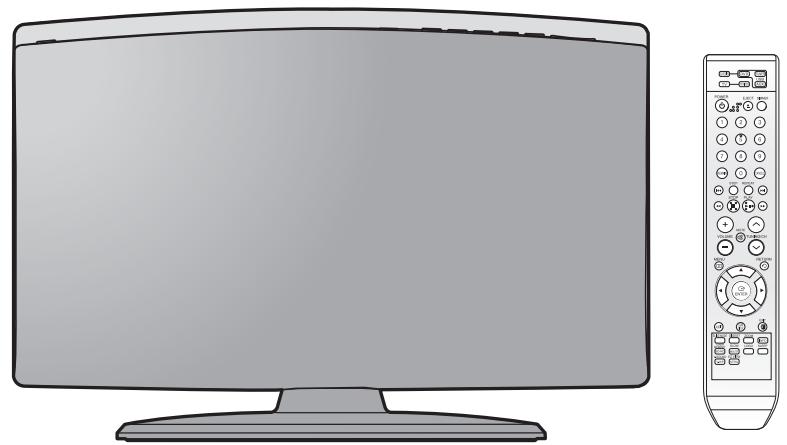
MODE D'EMPLOI HT-X200T SAMSUNG DIGITAL HOME THEATER SYSTEM
HT-X200
SAMSUNG
AH68-01963K
SafetyWarnings
CAUTION
RISK OF ELECTRIC SHOCK. DO NOT OPEN
TO REDUCE THE RISK OF ELECTRIC SHOCK, DO NOT REMOVE REAR COVER (or BACK). NO USER SERVICEABLE PARTS INSIDE. REFER SERVICING TO QUALIFIED SERVICE PERSONNEL.
CLASS 1 LASER PRODUCT KLASSE 1 LASER PRODUKT LUOKAN 1 LASER LAITE KCLASS 1 LASER APPARAT PRODUCTO LASER CLASE 1
This symbol indicates "dangerous voltage" inside the product that presents a risk of electric shock or personal injury.
This symbol indicates important instructions accompanying the product.
CLASS 1 LASER PRODUCT
This Compact Disc player is classified as a CLASS 1 LASER product.
Use of controls, adjustments or performance of procedures other than those specified herein may result in hazardous radiation exposure.
CAUTION: INVISIBLE LASER RADIATION WHEN OPEN AND INTERLOCKS DEFEATED, AVOID EXPOSURE TO BEAM.
WARNING
To reduce the risk of fire or electric shock, do not expose this appliance to rain or moisture.
CAUTION
APPPARATUS SHALL NOT BE EXPOSED TO DRIpping OR SPLASHING AND NO OBJECTS Filled With LIQUIDS, SUCH AS VASES, SHALL BE PLACED ON THE APPARATUS.
CAUTION
Apparatus shall not be exposed to dripping or splashing and no objects filled with liquids, such as vases, shall be placed on the apparatus.
The Mains plug is used as a disconnect device and shall stay readily operable at any time.
(Saudi Arabian Standards Organisation only)
THIS APPLIANCE IS FITTED WITH 220V SASO APPROVED PLUG. THE CUSTOMER IS ENTITLED TO A FREE SASO APPROVED 127V PLUG FROM THE LOCAL DEALER.
Precautions
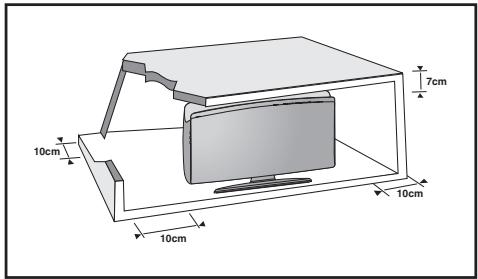
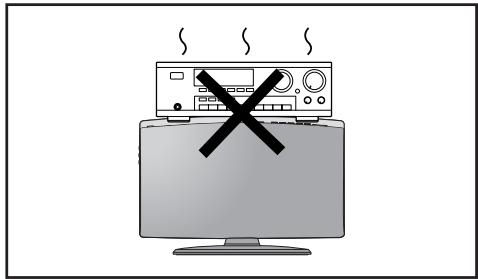
Ensure that the AC power supply in your house complies with the identification sticker located on the back of your player. Install your player horizontally, on a suitable base (furniture), with enough space around it for ventilation (7.5 10cm) . Make sure the ventilation slots are not covered. Do not stack anything on top of the player. Do not place the player on amplifiers or other equipment which may become hot. Before moving the player, ensure the Disc Insert Hole is empty. This player is designed for continuous use. Switching off the DVD player to the stand-by mode does not disconnect the electrical supply. In order to disconnect the player completely from the power supply, remove the main plug from the wall outlet, especially when left unused for a long period of time.
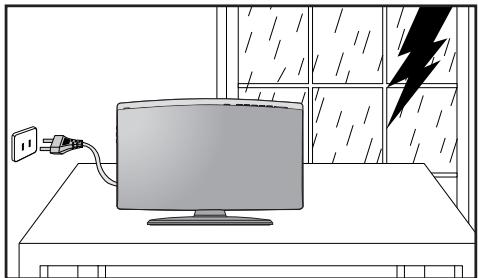
During thunderstorms, disconnect the AC main plug from the wall outlet.
Voltage peaks due to lightning could damage the unit.
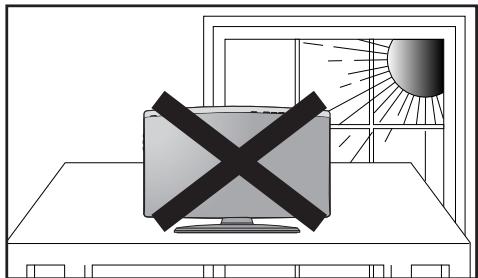
Do not expose the unit to direct sunlight or other heat sources. This could lead to overheating and malfunction of the unit.
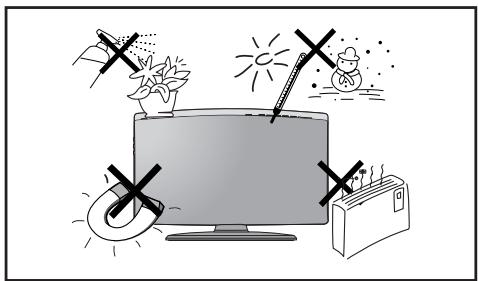
Protect the player from moisture (i.e. vases), and excess heat (e.g. fireplace) or equipment creating strong magnetic or electric fields (i.e. speakers...). Disconnect the power cable from the AC supply if the player malfunctions. Your player is not intended for industrial use.
Use of this product is for personal use only.
Condensation may occur if your player or disc has been stored in cold temperatures.
If transporting the player during the winter, wait approximately 2 hours until the unit has reached room temperature before using.
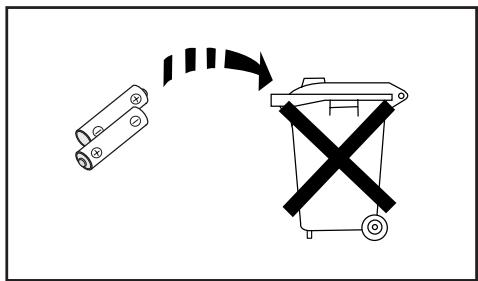
The batteries used with this product contain chemicals that are harmful to the environment.
Do not dispose of batteries in the general household trash.
Features
Multi-DiscPlayback&FMTuner
The HT-X200 combines the convenience of multi-disc playback capability, including DVD-AUDIO, DVD-VIDEO, VCD CD, MP3-CD, WMA-CD, DivX, CD-R/RW, and DVD±R/RW, with a sophisticated FM tuner, all in a single player.
DVD-Audio compatible
Experience the super high-quality audio performance of DVD-Audio.
The on-board 24-bit/192kHz DAC enables this player to deliver exceptional sound quality in terms of dynamic range, low-level resolution and high-frequency detail.
USB HOST Function support
You can connect and play files from external USB storage devices such as MP3 players, USB flash memory, etc. using the Home Theater's USB HOST function.
TV Screen Saver Function
If the main unit remains in Stop mode for 3 minutes, the Samsung logo appears on TV screen.
The HT-X200 automatically switches itself into the power saving mode after 20 minutes in the Screen Saver mode.
Power Saving Function
The HT-X200 automatically shuts itself off after 20 minutes in Stop mode.
Customized TV Screen Display
The HT-X200 allows you to select your favorite image during JPEG, DVD or VCD playback and set it as your background wallpaper.
HDMI
HDMI transmits DVD video and audio signals simultaneously, and provides a clearer picture.
Anynet+(HDMI-CEC) Function
Anynet+ is a function that can be used to operate the main unit using a Samsung TV remote control, by connecting the Home Theater to a SAMSUNG TV using an HDMI Cable. (This is only available with SAMSUNG TVs that support Anynet+.
Contents
PREPARATION
SafetyWarnings. 2
Precautions. 3
Features. 4
Notes on Discs 6
Description. 8
CONNECTIONS
Connecting the Speakers 12
Installing the Main Unit 14
Connecting the Video Out to your TV. 16
HDMI Function. 17
Connecting Audio from External Components 18
Connecting the FM Antenna. 20
Before Reading the User's Manual. 21
OPERATION
Before Using Your Home Theater 22
DiscPlayback 23
MP3/WMA-CDPlayback. 24
JPEG File Playback. 25
DivXPlayback 26
Using the Playback Function 28
Displaying Disc Information 28
Checking the Remaining Time. 29
FastPlayback 29
SlowPlayback. 29
Skipping Scenes/Songs 30
RepeatPlayback. 31
To Select a RepeatPlayback Mode in the Disc
Information Screen 31
A-B Repeat Playback. 32
Step Function 32
Angle Function 33
Zoom (Screen Enlarge) Function 33
EZVIEW Function 34
Bonus Group. 34
Navigating Pages 34
Audio Language Selection Function 35
Subtitle Language Selection Function. 35
Moving Directly to a Scene/Song 36
Using the Disc Menu. 37
Using the Title Menu. 37
Playing Media Files using the USB Host feature 38
SETUP
Settings. 40
Setting the Language 40
Setting TV Screen type 41
Setting Parental Controls (Rating Level) 42
Setting the Password 42
Setting the Wallpaper. 43
To Select One of the 3 Wallpaper Settings you've made. 43
DVDPlaybackMode 44
DivX (R) registration. 44
Setting the DRC (Dynamic Range Compression) ...45
Setting the AV SYNC 45
Setting the HDMI Audio 46
MISCELLANEOUS
Listening to Radio. 47
Convenient Functions 49
Operating a TV with the Remote Control 51
Troubleshooting 53
Cautions on Handling and Storing Discs. 55
Language Code List 56
USB Host Feature Supported Products 57
Specifications. 58
Notes on Discs
AUDIO/VIDEO
DVD (Digital Versatile Disc) offers fantastic audio and video, thanks to Dolby Digital surround sound and MPEG-2 video compression technology. Now you can enjoy these realistic effects in the home, as if you were in a movie theater or concert hall.
DVD players and the discs are coded by region. These regional codes must match in order for the disc to play. If the codes do not match, the disc will not play. The Region Number for this player is given on the rear panel of the player. (Your DVD player will only play DVDss that are labeled with identical region codes.)
Playable Discs
Disc Type Mark (Logo) Recorded Signals Disc Size Max. Playing Time DVD-AUDIO AUDIO Audio + Video 12cm Approx. 240 min. (single-sided) DVD-VIDEO Approx. 480 min. (double-sided) 8cm Approx. 80 min. (single-sided) Approx. 160 min. (double-sided) AUDIO-CD COMPACT Audio 12cm 74 min. VIDEO-CD DISC Audio + Video 8cm 20 min. DIGITAL VIDEO Divx DIVX Audio + Video 12cm 74 min. 8cm 20 min.
Do not use the following types of disc!
LD, CD-G, CD-I, CD-ROM and DVD-ROM discs cannot be played on this player. If such discs are played, a message appears on the TV screen. message appears on the TV screen.
Copy Protection
Many DVD discs are encoded with copy protection. Because of this, you should only connect your DVD player directly to your TV, not to a VCR. Connecting to a VCR results in a distorted picture from copy-protected DVD discs.
This product incorporates copyright protection technology that is protected by methods claims of certain U.S. patents and other intellectual property rights owned by Macrovision Corporation and other rights owners. Use of this copyright protection technology must be authorized by Macrovision Corporation, and is intended for home and other limited viewing uses only unless otherwise authorized by Macrovision Corporation. Reverse engineering or disassembly is prohibited.
CD-R Discs
Some CD-R discs may not be playable depending on the disc recording device (CD-Recorder or PC) and the condition of the disc.
Use a 650MB/74 minute CD-R disc.
Some CD-RW (Rewritable) media, may not be playable.
Only CD-Rs that are properly "closed" can be fully played. If the session is closed but the disc is left open, you may not be able to fully play the disc.
CD-R MP3 Discs
Only CD-R discs with MP3 files in ISO 9660 or Joliet format can be played.
MP3 file names should be 8 characters or less in length and contain no blank spaces or special characters (. / = +) .
Use discs recorded with a compression/decompression data rate greater than 128Kbps.
Only files with the "mp3" and extensions can be played.
Only a consecutively written multisession disc can be played. If there is a blank segment in the Multisession disc, the disc can be played only up to the blank segment.
If the disc is not closed, it will take longer to begin playback and not all of the recorded files may be played.
For files encoded in Variable Bit Rate (VBR) format, i.e. files encoded in both low bit rate and high bit rate (e.g., 32Kbps ~ 320Kbps), the sound may skip during playback.
A maximum of 500 tracks can be played per CD.
A maximum of 300 folders can be played per CD.
CD-R JPEG Discs
Only files with the "jpg" extensions can be played.
If the disc is not closed, it will take longer to start playing and not all of the recorded files may be played.
Only CD-R discs with JPEG files in ISO 9660 or Joliet format can be played.
JPEG file names should be 8 characters or less in length and contain no blank spaces or special characters (. / = +) .
Only a consecutively written multisession disc can be played. If there is a blank segment in the multisession disc, the disc can be played only up to the blank segment.
A maximum of 9,999 images can be stored on a single CD.
When playing a Kodak/Fuji Picture CD, only the JPEG files in the picture folder can be played.
Picture discs other than Kodak/Fuji Picture CDs may take longer to start playing or may not play at all.
DVD±R/RW, CD-R/RW DivX Discs
Since this product only provides encoding formats authorized by DivX Networks, Inc., a DivX file created by the user might not play.
Software updates for incompatible formats are not supported. (Example: QPEL, GMC, resolution higher than 800 × 600 pixels, etc.)
Sections with a high frame rate might not be played while playing a DivX file.
Description
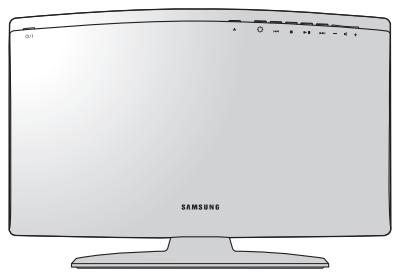
Front Panel
Power ( / ) button
Disc Insert Hole
Display
Eject button
Function button
Tuning Down & Skip (▶) button
Stop (■) button
Play/Pause (▶II) button
Tuning Up & Skip (▶H) button
Volume Control button
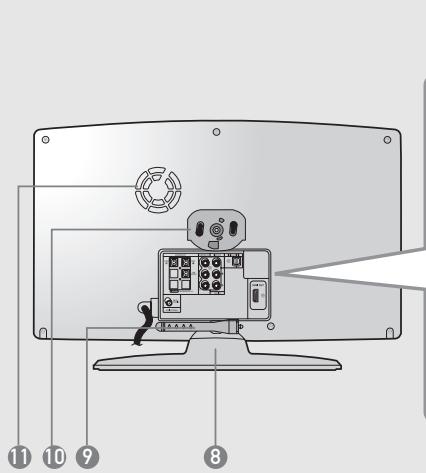
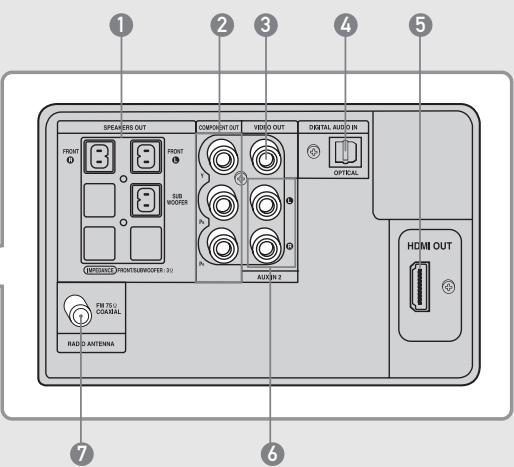
Rear Panel
2.1 Channel Speaker Output Connector
Component Video Output Jacks Connect a TV with Component video inputs to these jacks.
Video Output Jack Connect your TV's video input jacks (VIDEO IN) to theVIDEO OUT Jack on this unit.
External Digital Optical Input Jack Use this to connect external equipment capable of digital output.
HDMI OUT Jack
AUX IN 2 Jacks
FM 75Ω COAXIAL Jack
Stand
Cable Tie
Stand Fix Hole
Cooling Fan
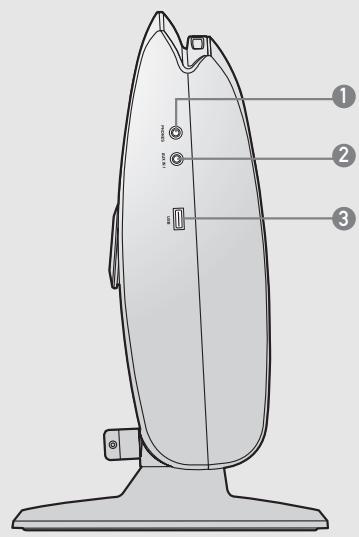
Side Panel
Headphone Jack
AUX IN 1 Jack
USB Port
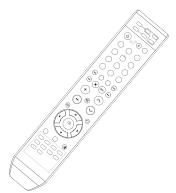
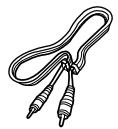
Accessories
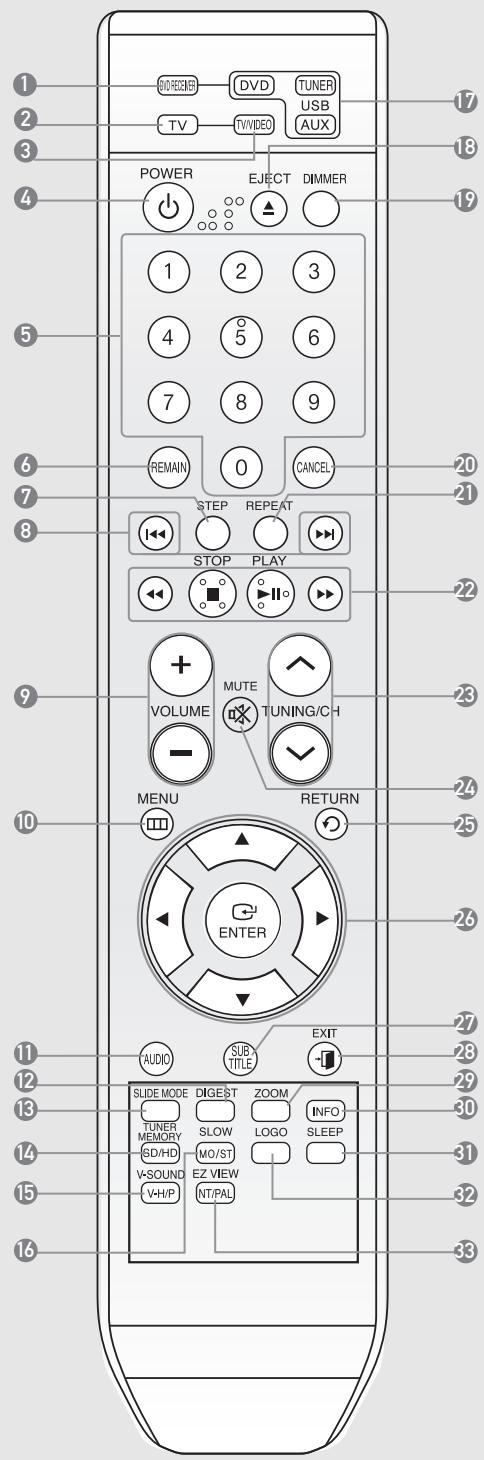
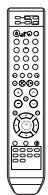
Remote Control
DVD RECEIVER button
TV button
TV/VIDEO button
POWER button
Number (0~9) buttons
REMAIN button
STEP button
Tuning Preset/CD Skip buttons
VOLUME button
MENU button
AUDIO button
DIGEST button
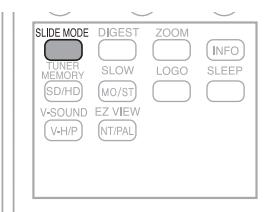
13.SLIDE MODE button
TUNER MEMORY, SD(Standard Definition)/HD(High Definition) button
15.V-SOUND(Virtual Sound), V-H/P(Virtual Headphone) button
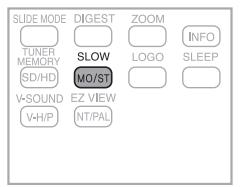
16.SLOW,MO/ST button
DVD DVD button
TUNER TUNER button
USB
EJECT button
DIMMER button
CANCEL button
REPEAT button
PLAY/PAUSE button
STOP button
SEARCH buttons
TUNING/CH button
MUTE button
RETURN button
Cursor/ENTER button
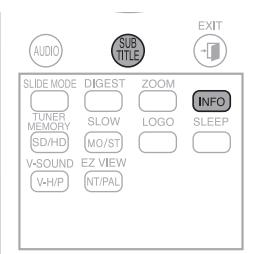
SUBTITLE button
EXIT button
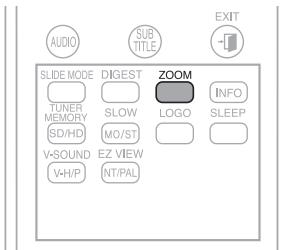
ZOOM button
INFO button
SLEEP button
LOGO button
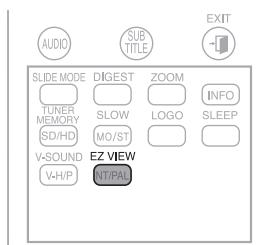
EZ VIEW, NT/PAL button
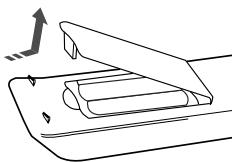
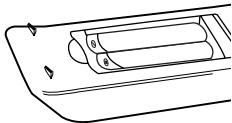
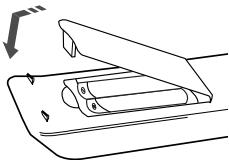
Insert Remote Batteries
1 Remove the battery cover in the direction of the arrow.
Follow these precautions to avoid leaking or cracking cells:
Place batteries in the remote control so they match the polarity: (+) to (+) and (-) to (-).
Use the correct type of batteries. Batteries that look similar may differ in voltage.
Do not expose the batteries to heat or a flame.
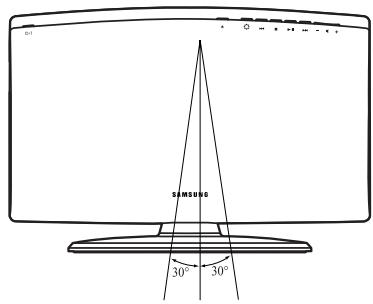
Operation Range of the Remote Control
The remote control can be used up to approximately 7 meters in a straight line. It can also be operated at a horizontal angle of up to 30^ from the remote control sensor.
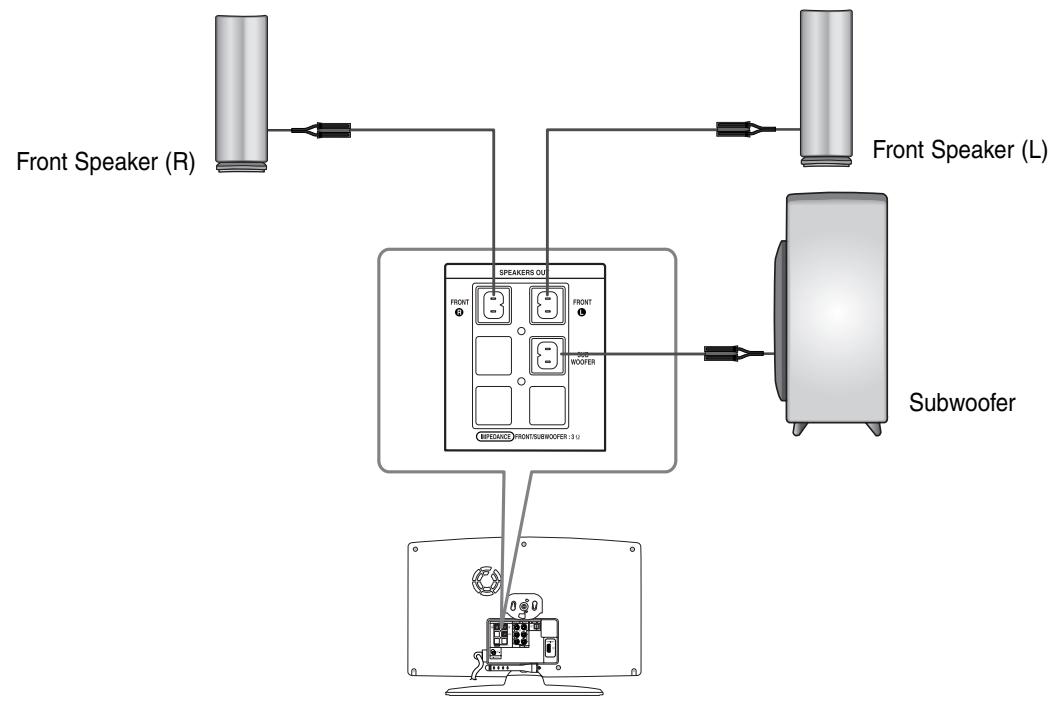
Connecting the Speakers
Before moving or installing the product, be sure to turn off the power and disconnect the power cord.
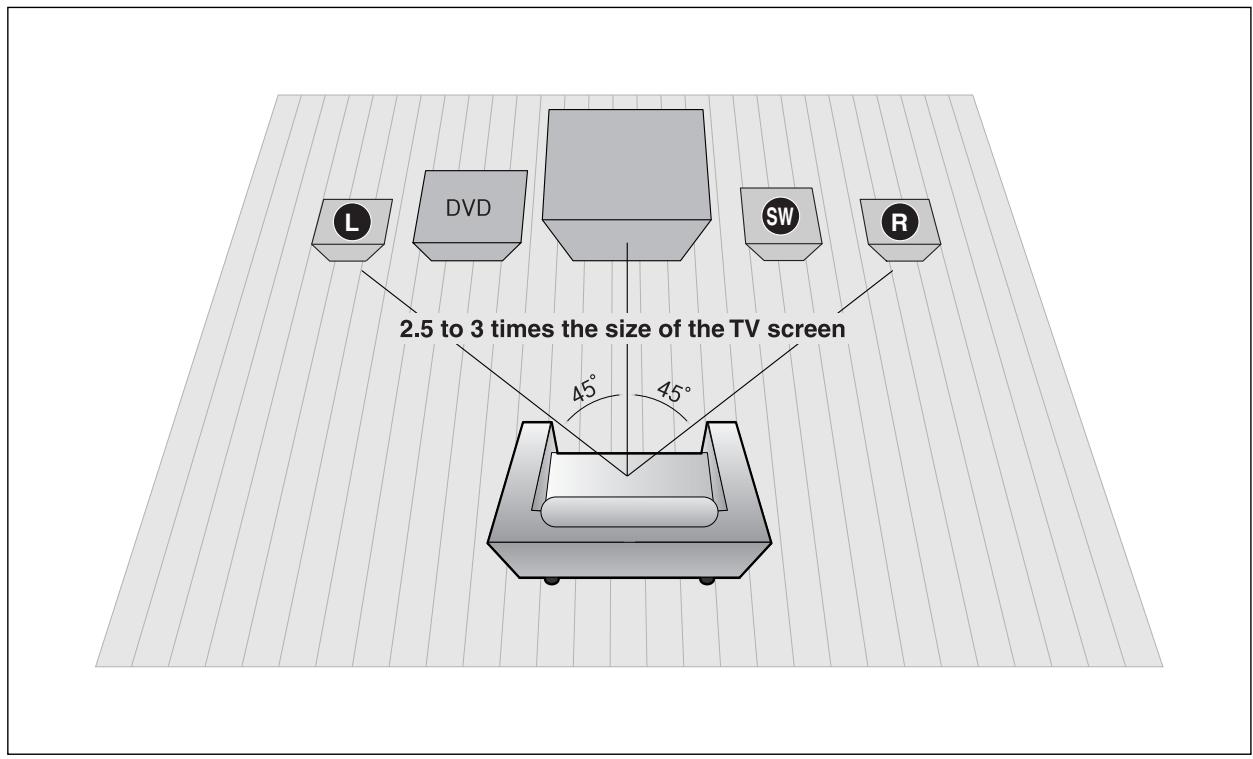
Position of the DVD Player
Place it on a stand or cabinet shelf, or under the TV stand.
Front Speakers
Place these speakers in front of your listening position, facing inwards (about 45^ ) toward you.
Place the speakers so that their tweeters will be at the same height as your ear.
Selecting the Listening Position
The listening position should be located about 2.5 to 3 times the distance of the TV's screen size away from the TV.
Example: For 32" TVs 2~2.4m (6~8feet)
For 55^ TVs 3.5\~4m (11\~13feet)
Subwoofer SW
The position of the subwoofer is not so critical. Place it anywhere you like.
Connecting the Speakers
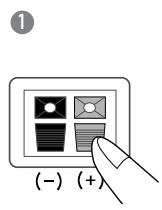
1 Press down the terminal tab on the back of the speaker.
Do not let children play with or near the speakers. They could get hurt if a speaker falls.
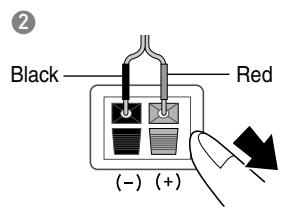
When connecting the speaker wires to the speakers, make sure that the polarity (+ / -) is correct.
Keep the subwoofer speaker out of reach of children so as to prevent children from inserting their hands or alien substances into the duct (hole) of the subwoofer speaker.
Do not hang the subwoofer on the wall through the duct (hole).
If you place a speaker near your TV set, screen color may be distorted because of the magnetic field generated by the speaker. If this occurs, place the speaker away from your TV set.
Installing the Main Unit
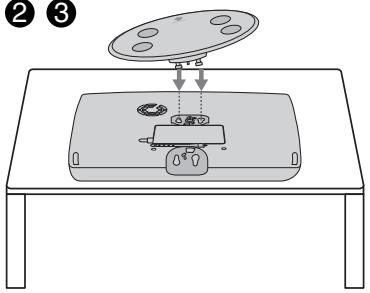
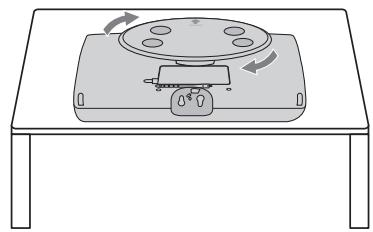
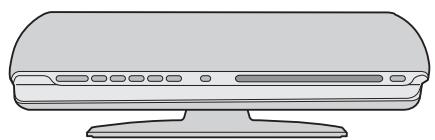
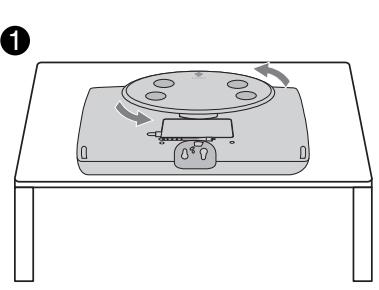
Method 1 : Installing the Stand so that the DVD Player Lays Flat.
Preparation
Disconnect the AC power cord from the AC outlet before installing the main unit.
Connect the cables before installation.
1
2 3
4
1 Turn the stand counter-clockwise and pull it apart.
Be careful not to scratch the surface the DVD Player when installing the stand.
Do not turn the DVD Player left or right as it may separate it from the stand.
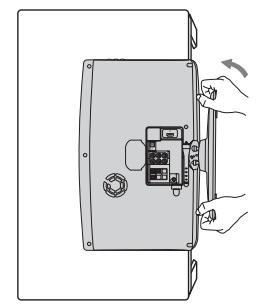
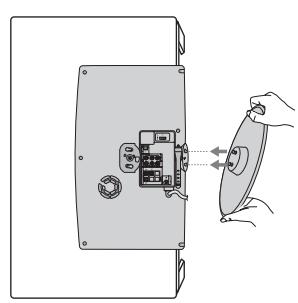
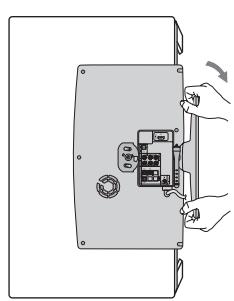
Method 2 : Installing the Stand so that the DVD Player Stands up.
Preparation
Disconnect the AC power cord from the AC outlet before installing the main unit.
Connect the cables before installation.
1
2 3
4
1 Turn the stand in the direction of the arrow and pull it apart.
Arranging the Cables
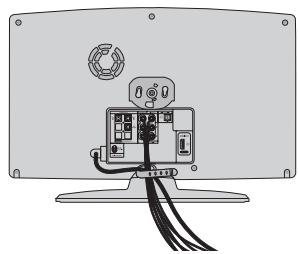
Use the cable tie to keep the cables together.
Connecting the Video Out to your TV
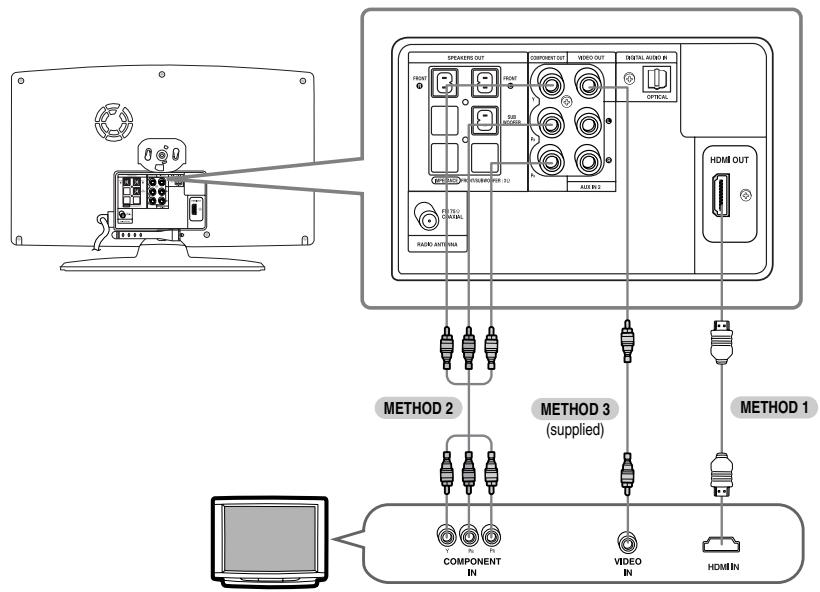
Choose one of the three methods for connecting to a TV.
METHOD 1 : HDMI ....... (Best Quality)
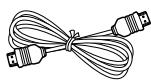
Connect the HDMI cable (not supplied) from the HDMI OUT jack on the back of the DVD Player to the HDMI IN jack on your TV.
METHOD 2 : Component Video ....(Better Quality)
If your television is equipped with Component Video inputs, connect a Component video cable(not supplied) from the Component Video Output (Pr, Pb and Y) Jacks on the back of the DVD Player to the Component Video Input Jacks on your TV.
METHOD 3 : Composite Video ....... (Good Quality)
Connect the supplied Video cable from the VIDEO OUT jack on the back of the DVD Player to the VIDEO IN jack on your TV.
This product operates in Progressive scan mode (480i Only) for Component Output.
After making the video connection, set the Video input source on your TV to match the corresponding Video output (HDMI, Component or Composite) on your Home theater. See your TV owner's manual for more information on how to select the TV's Video Input source.
If you use an HDMI cable to connect a Samsung TV to the main unit, you can operate the Home Theater using the TV's remote control. This is only available with SAMSUNG TVs that support Anynet+(HDMI-CEC).
Please check the Anynet ^ + logo. If your TV has an Anynet ^ + logo,then it supports the Anynet+ function.
HDMI Function
Resolution Selection
This function allows the user to select the screen resolution for HDMI output.
Why use HDMI (High Definition Multimedia Interface)?
This device transmits a DVD video signal digitally without the process of converting to analog. You will get sharper digital pictures when using an HDMI connection.
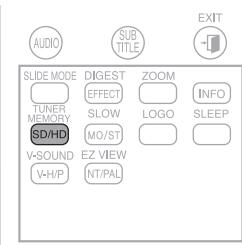
In Stop mode, press and hold the SD/HD (Standard Definition/High Definition) button on the remote control.
Resolutions available for the HDMI output are 480p, 720p and 1080i.
If the TV does not support the configured resolution, you will not be able to see the picture properly.
When an HDMI cable is connected, composite and component video signals are not output.
See your TV owner's manual for more information on how to select the TV's Video Input source.
Using Anynet+(HDMI-CEC)
Anynet+ is a function that enables you to control other Samsung Devices with your Samsung TV's remote control, Anynet + can be used by connecting this Home Theater to a SAMSUNG TV using an HDMI Cable. (This is only available with SAMSUNG TVs that support Anynet+.)
With Anynet+
You can operate this unit, power on your TV, or watch a movie by pressing the Play button on your Samsung TV's remote control.
1 Connect the main unit of the Home Theater to a Samsung TV with an HDMI cable. (See page 18)
(See the TV instruction manual for more information.)
You can operate the Home Theater by using the TV remote control.
(Available TV buttons: , , , , · and ,▶buttons, ① 0 ⑨ button)
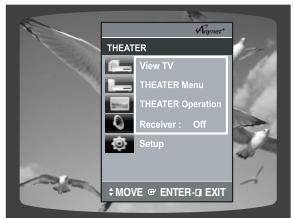
If you select TV
Set the Anynet+(HDMI-CEC) function to <On> on your TV.
: You can listen to audio through the Home Theater. : You can listen to audio through the TV.
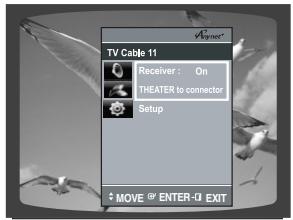
If you select the THEATER
Select and set the option of each items below.
: If Anynet+ (HDMI-CEC) is on and you select View TV, the Home Theater will automatically switch to DIGITAL IN. : You can access the Home Theater menu. : The Home Theater disc playback information will be displayed. :You can listen to audio through the Home Theater. :You can listen to audio through the TV.
When selecting View TV, you must have a digital optical cable connected from the TV to the Home Theater listen to the TV sound through the Home Theater.
If Anynet+ (HDMI-CEC) is on and you turn off the main unit, your TV will also turn off.
Anynet+ (HDMI-CEC) will only work while in the DVD mode.
Connecting Audio from External Components
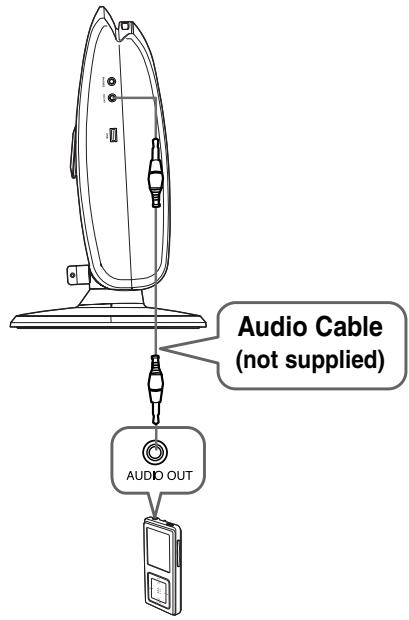
AUX1 : Connecting an External Component/MP3 player
Components such as an MP3 Player
1 Connect AUX IN 1 (Audio) on the Home Theater to the Audio Out of the external component/MP3 player.
You can also use the FUNCTION button on the main unit. The mode switches as follows: DVD D.IN AUX 1 AUX 2 USB FM.
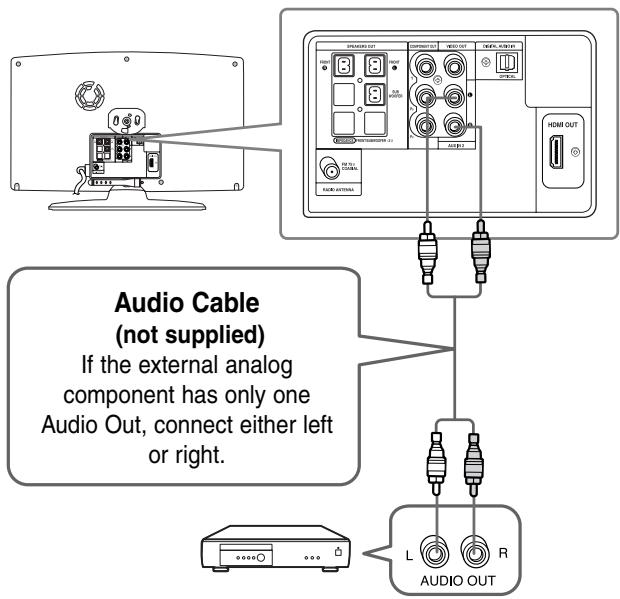
AUX2 : Connecting an External Analog Component
Analog signal components such as a VCR.
1 Connect AUX IN 2 (Audio) on the Home Theater to the Audio Out of the external analog component.
2 Press the AUX button on the remote control to select <AUX2> input.
You can also use the FUNCTION button on the main unit. The mode switches as follows: DVD D.IN AUX 1 AUX 2 USB FM.
You can connect the Video Output jack of your VCR to the TV, and connect the Audio Output jacks of the VCR to this product.
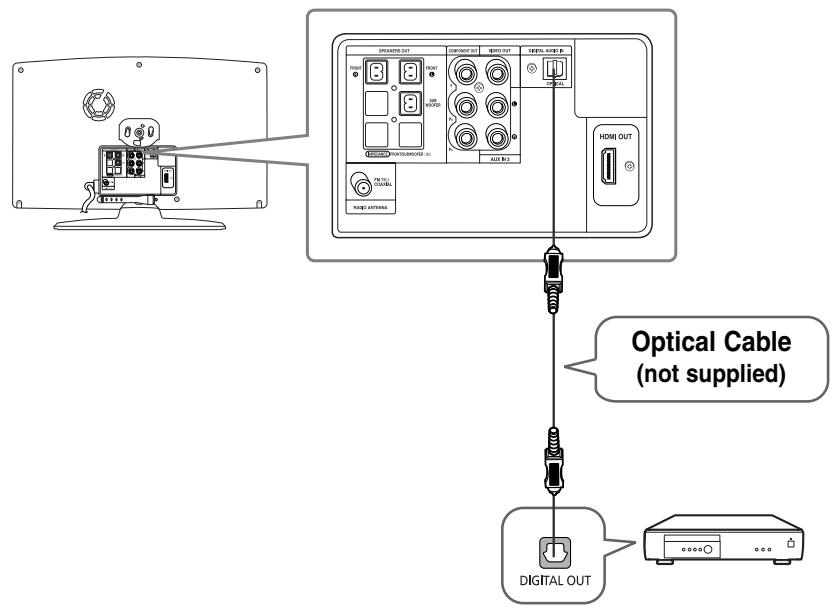
OPTICAL : Connecting an External Digital Component
Digital signal components such as a Cable Box/Satellite receiver (Set-Top Box).
1 Connect the Digital Input (OPTICAL) on the Home Theater to the Digital Output of the external digital component. .
You can also use the FUNCTION button on the main unit. The mode switches as follows: DVD D.IN AUX 1 AUX 2 USB FM.
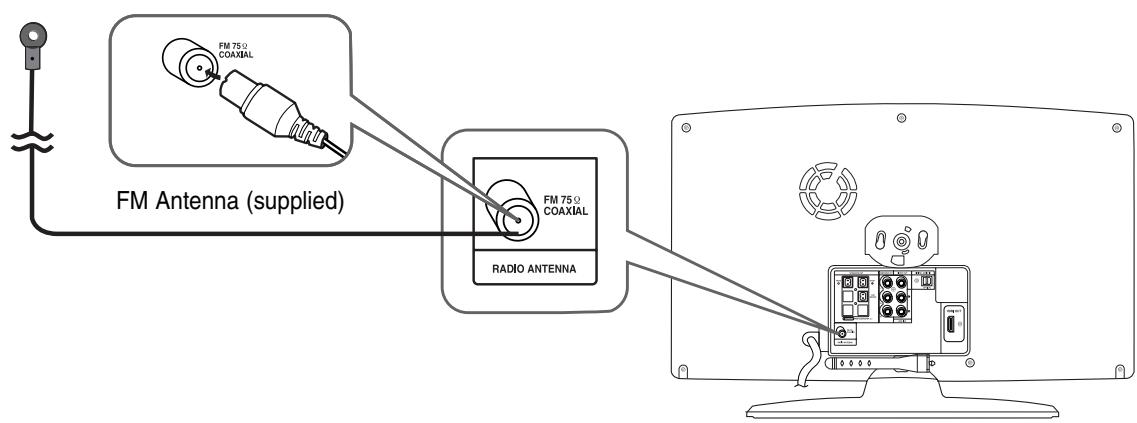
Connecting the FM Antenna
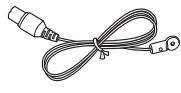
1 Connect the FM antenna supplied to the FM 75Ω COAXIAL Jack.
This unit does not receive AM broadcasts.
Cooling Fan
The cooling fan supplies cool air to the unit to prevent overheating.
Please observe the following cautions for your safety.
Make sure the unit is well-ventilated. If the unit has poor ventilation, the temperature inside the unit may rise and may damage it.
Do not obstruct the cooling fan or ventilation holes. (If the cooling fan or ventilation holes are covered with a newspaper or cloth, heat may build up inside the unit and fire may result.)
Before Reading the User's Manual
Make sure to check the following terms before reading the user manual.
Icons that will be used in manual
Icon Term Definition DVD DVD This involves a function available with DVD or DVD-R/DVD-RW discs that have been recorded and finalized in Video Mode. VCD VCD This involves a function available with a Video CD (CD-R or CD-RW). CD CD This involves a function available with a data CD (CD-R or CD-RW). MP3 MP3 This involves a function available with CD-R/-RW discs. JPEG JPEG This involves a function available with CD-R/-RW discs. DivX DivX This involves a function available with MPEG4 discs. (DVD±R/RW, CD-R or CD-RW) ! CAUTION This involves a case where a function does not operate or settings may be cancelled. NOTE This involves tips or instructions on the page that help each function operate.
In this manual, the instructions marked with "DVD ( DVD)" are applicable to DVD-VIDEO, DVD-AUDIO and DVD-R/-RW discs that have been recorded in Video Mode and then finalized. Where a particular DVD type is mentioned, it is indicated separately.
If a DVD-R/-RW disc has not been recorded properly in DVD Video format, it will not be playable.
Before Using Your Home Theater
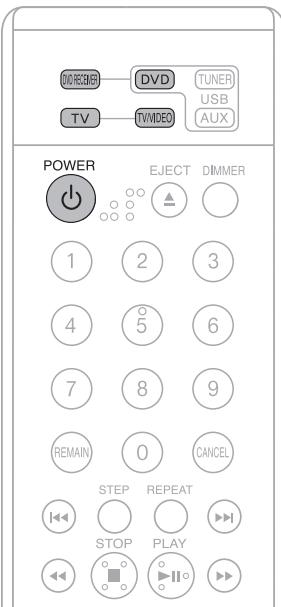
To Operate your Samsung TV and the Home Theater with the HT-X200's Remote Control
The DVD Home Theater's remote can be used to control Samsung TVs.
1 Plug the main unit's power cord into the AC power supply.
5 Press the DVD RECEIVER button to switch to DVD RECEIVER mode to operate the DVD Home Theater
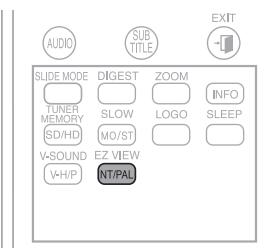
Press and hold the NT/PAL button on the remote controller for over 5 seconds while the power is turned off.
By default, the video format is set to <PAL> . or will appear in the display. At this time, press the NT/PAL button shortly to select between and .
DiscPlayback
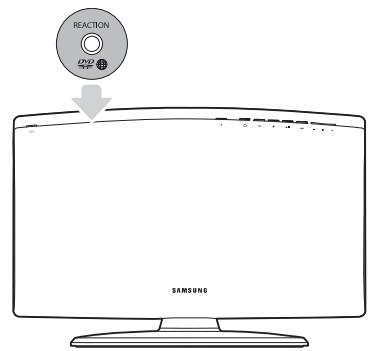
1 Load a disc vertically into the Disc Insert Hole.
Insert a disc so that the label side faces forward.
Playback starts automatically.
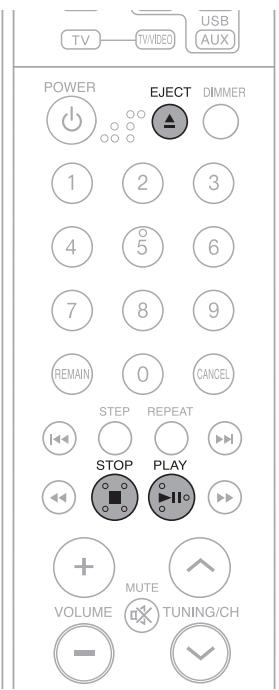
2 To eject the disc, press the EJECT button.
To stop playback, press the STOP button during playback.
If pressed once, is displayed and the stop position will be stored in memory.
If pressed twice, is displayed, and if the PLAY/PAUSE (▶II) button is pressed, playback starts from the beginning.
To temporarily pause playback, press the PLAY/PAUSE (▶II) button during playback.
To resume playback, press the PLAY/PAUSE (▶II) button again.
Depending on the content of the disc, the initial screen may appear different.
Pirated discs will not run in this player because it violates the CSS (Content Scrambling System : a copy protection system) recommendations.
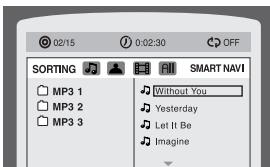
MP3/WMA-CD Playback
Data CDs (CD-R, CD-RW) encoded in MP3/WMA format can be played.
1 Load the MP3 disc.
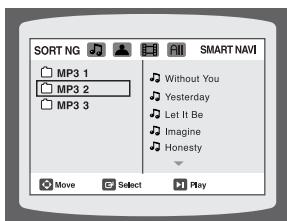
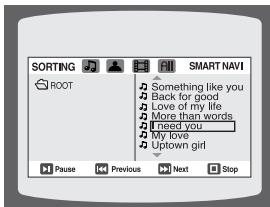
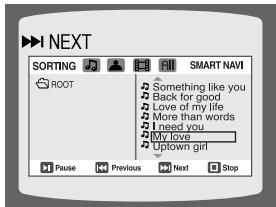
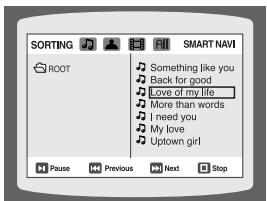
The MP3/WMA menu screen will appear and playback will start.
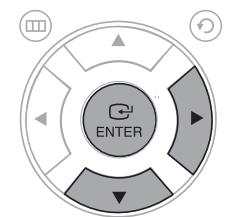
2 In Stop mode, use the Cursor , , , button to select the album, and then press the ENTER button.
Depending on the recording mode, some MP3/WMA-CDs may not play.
Table of contents of a MP3-CD varies depending on the MP3/WMA track format recorded on the disc.
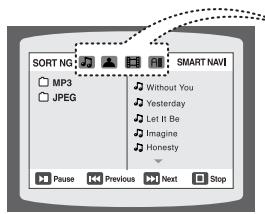
To play a file icon in the screen,
Press the Cursor , , , button when it is in Stop mode and select a desired icon from the top part of the menu.
Music File Icon : To play music files only, select the Icon.
JPEG File Playback
Images captured with a digital camera or camcorder, or JPEG files on a PC can be stored on a CD and then played back with this Home Theater.
Slide Mode
1 Load the JPEG disc.
Press the I 一 一 一 button to skip to the next slide.
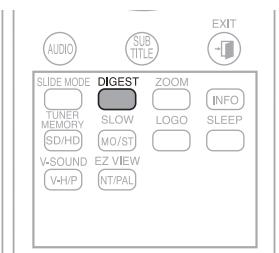
Digest Function
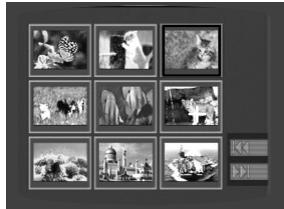
You can view 9 JPEG images on the TV screen at once.
1 Press the DIGEST button during playback.
Rotate/Flip Function
Press the Cursor , , , button during playback.
The maximum resolutions supported by this product are 5120 x 3480 (or 19.0 MPixel) for standard JPEG files and 2048 x 1536 (or 3.0 MPixel) for progressive image files.
If a JPEG file is played when the HDMI output resolution is 720p/1080i, the mode is automatically converted to 480p mode.
Skip Forward/Back
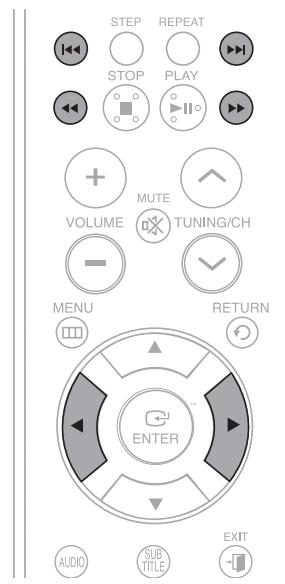
During playback, press the 144 , 24 button.
Goes to the next file whenever you press the button, if there are over 2 files in the disc.
Goes to the previous file whenever you press the button, if there are over 2 files in the disc.
FastPlayback
To play back the disc at a faster speed, press the or button during playback.
Each time you press either button, the playback speed will change as follows: 2x 4x 8x 32x Normal.
5 Minute Skip function
During playback, press the Cursor , button.
Playback skips 5 minutes forward whenever you press the Cursor button.
Playback skips 5 minutes back whenever you press the Cursor button.
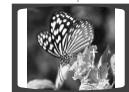
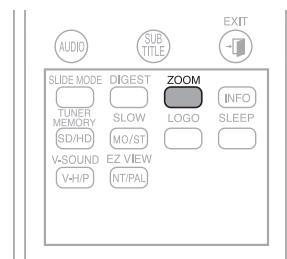
Zoom Function
1 Press the ZOOM button.
Each time you press the button, your selection will toggle between and .
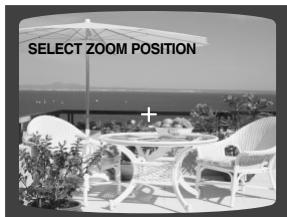
2 Press the Cursor , , , button to move to the area you want to enlarge.
A DivX file can be zoomed only in ZOOM X2 mode.
DivX files have .Avi file extensions, however, not all .Avi files are DivX and may not be playable in this unit.
Audio Display
Press the AUDIO button.
If there are multiple audio tracks on a disc, you can toggle between them. and
f is displayed when there is one supported language in the disc.
Subtitle Display
Press the SUBTITLE button.
Each time you press the button, your selection will toggle between and .
If the Disc has more than One Subtitle File
If the disc has more than one subtitle file, the default subtitle may not match the movie and you will have to select your subtitle language as follows:
1 In Stop mode, press the Cursor , button, select the desired subtitle ( ) from the TV screen, and then press the ENTER button.
DivX(Digital internet video eXpress)
DivX is a video file format developed by Microsoft and is based on MPEG4 compression technology to provide audio and video data over the Internet in real-time.
MPEG4 is used for video encoding and MP3 for audio encoding so that the users can watch a movie at near DVD-quality video and audio.
This product only supports the following media formats. If both video and audio formats are not supported, the user may experience problems such as broken images or no sound.
Supported Video Formats
Format AVI WMV Supported Versions DivX3.11~DivX5.1, XviD V1/V2/V3/V7
Supported Audio Formats
Format MP3 WMA AC3 Bit Rate 80~384kbps 56~128kbps 128~384kbps Sampling Frequency 44.1kHz 44.1/48kHz
Aspect Ratio: Although the default DivX resolution is 640x480 pixels (4:3), this product supports up to 800x600 pixels (16:9). TV screen resolutions higher than 800 will not be supported.
When you play a disc whose sampling frequency is higher than 48khz or 320kbps, you may experience shaking on the screen during playback.
2. Caption Function
You must have some experience with video extraction and editing in order to use this feature properly.
To use the caption function, save the caption file (.smi) in the same file name as that of the DivX media file (.avi) within the same folder.
Example. Root Samsung_007CD1.avi
Up to 60 alphanumeric characters or 30 East Asian characters (2 byte characters such as Korean and Chinese) for the file name.
Using the Playback Function
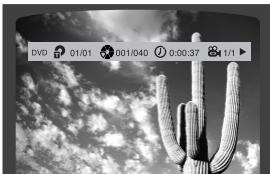
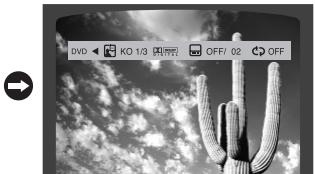
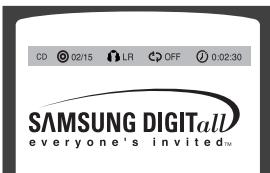
You can view disc playback information on the TV screen.
Each time the button is pressed, the display changes as follows:
The information Display disappears from the screen
The information Display disappears from the screen
The information Display disappears from the screen
Depending on the disc, the disc information display may appear different.
Depending on the disc, you can also select DOLBY DIGITAL, or PRO LOGIC.
appears on the TV screen!
If this symbol appears on the TV screen when pressing a button, that operation is not possible with the disc currently being played.
Screen Display
DVD display
DVD-AUDIO display
TITLE display
CHAPTER display
VCD display
CD display
TRACK (FILE) display
GROUP display
ELAPSED TIME display
LR STEREO (L/R) display
REPEAT PLAYBACK display
DOLBY DOLBY DIGITAL display
AUDIO LANGUAGE display
ANGLE display
Checking the Remaining Time
Press the REMAIN button.
For checking the total and remaining time of a title or chapter being played.
Each time the Remain button is pressed
TITLE ELAPSED TITL
→ CHAPTER ELAPSED
CHAPTER REMAIN
GROUP ELAPSED GR
AIN TRACK ELAPSED
TRACK REMAIN
TRACK ELAPSED TR
IN TOTAL ELAPSED
TOTAL REMAIN
TRACK REMAIN TRAC
FastPlayback
Press the , button.
Each time the button is pressed during playback, the playback speed changes as follows:
During fast playback of a CD or MP3-CD, sound is heard only at 2x speed, and not at 4x, 8x, and 32x speeds.
SlowPlayback
Press the SLOW button.
Each time the button is pressed during playback, the playback speed changes as follows:
No sound is heard during slow playback.
Reverse slow playback does not work with VCD and DivX.
Using the Playback Function (Con't)
Skipping Scenes/Songs
Press the 1 button.
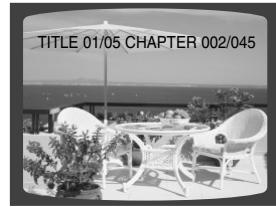
Each time the button is pressed during playback, the previous or next chapter, track or directory (file) will be played.
When watching a VCD with a track longer than 15 minutes, each time is pressed, playback will skip back or forward 5 minutes.
Repeat Playback
Repeat playback allows you to repeatedly play a chapter, title, track (song), or directory (MP3 file).
CHAPTER: Repeatedly plays the selected chapter.
TITLE: Repeatedly plays the selected title.
GROUP: Repeatedly plays the selected group.
RANDOM : Plays tracks in random order
(A track that has already been played may be played again.)
TRACK: Repeatedly plays the selected track.
Repeat playback operation is not possible with version 2.0 VCD discs if PBC is turned on. To use Repeat Playback on a VCD with PBC, you should set the MENU to OFF in the disc menu. (See page 39.)
1
ss 1
the II
NFO
button twice.
2 F
ss t
the C
cursor
bu
ton
to mo
ve to
EPEA
T PLA
3 F
ss t
the C
ursor
bu
tton
to sele
ect to
the
esire
To select another album and track, repeat Steps 2 and 3 above.
4 F
ss the ENTER button.
For DivX, MP3 and JPEG discs, you cannot select Repeat Play from the information display screen.
Using the Playback Function (Con't)
A-B Repeat Playback
You can repeatedly play back a designated section of a DVD.
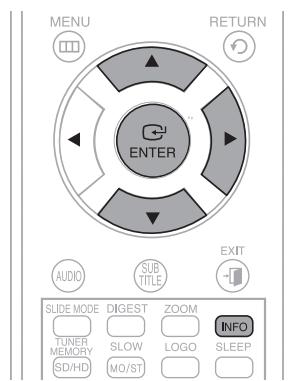
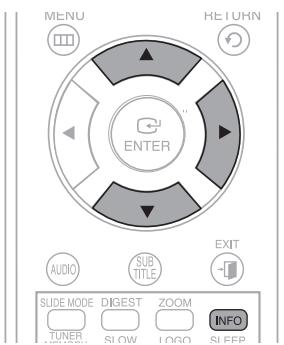
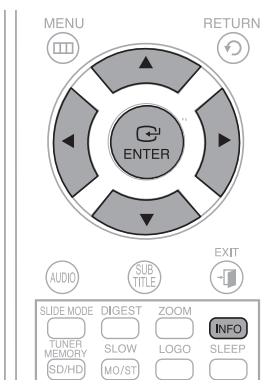
1 Press the INFO button twice. and then press the ENTER button at the beginning of the desired segment.
REPEAT:A-B
To return to normal playback, press the Cursor , button to select OFF.
The A-B Repeat function does not operate with DivX, MP3 or JPEG discs.
Step Function
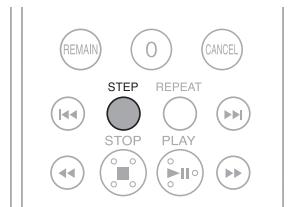
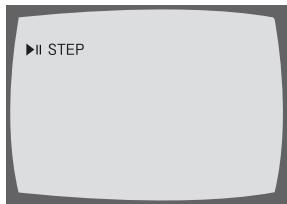
Press the STEP button.
The picture moves forward one frame each time the button is pressed during playback.
No sound is heard during step motion playback.
Angle Function
This function allows you to view the same scene in different angles.
1 Press the INFO button.
Each time the button is pressed, the angle changes as follows:
The Angle function works only with discs on which multiple angles have been recorded.
Zoom (Screen Enlarge) Function
This function allows you to enlarge a particular area of the displayed image.
1 Press the ZOOM button.
Each time the button is pressed, the zoom level changes as follows:
ZOOM X 1.5 ZOOM X 2 ZOOM X 3 ZOOM OFF
When a DivX disc is being played, the screen is enlarged up to twice the normal size.
Using the Playback Function (Con't)
EZ VIEW Function
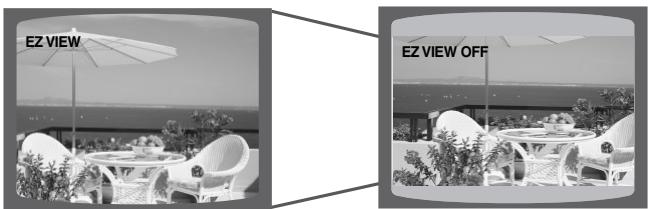
Each time the button is pressed, the zoom function will switch between On and Off.
This function will not work if the DVD is recorded with multi-camera angle format.
Black bars may not disappear because some DVD discs have a built-in horizontal to vertical ratio.
This feature is not supported for DivX discs.
During the EZ View operation, some of the left and right sides may be cut slightly.
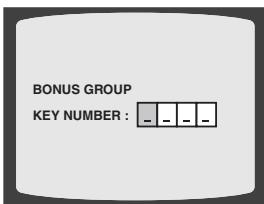
Bonus Group
Some DVD-Audio discs have an extra 'bonus' group that requires a 4-digit key number to access. See the disc packaging for details and the key number.
When you play a DVD-Audio disc that has a bonus group, the key number input screen appears automatically.
If you eject the disc, switch the power off, or unplug the player, you will need to re-enter the key number.
Navigating Pages
During playback, press the , button on the remote control.
You can select the desired image from a DVD-Audio disc containing still images.
With some discs, you may not be able to select images.
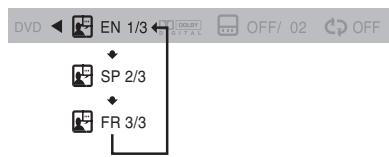
Audio Language Selection Function
1 Press the INFO button twice.
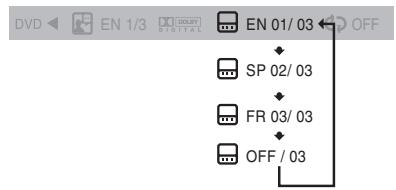
Subtitle Language Selection Function
1 Press the INFO button twice.
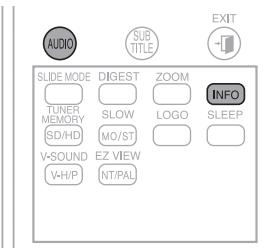
To operate this function, you can also press the AUDIO or SUBTITLE buttons on the remote control.
Depending on the disc, the Subtitle and Audio Language functions may not be available
Using the Playback Function (Con't)
Moving Directly to a Scene/Song
1 Press the INFO button.
Press the numeric buttons.
The selected file will be played.
You can press the button on the remote control to move directly to the desired title, chapter, or track.
Depending on the disc, you may not be able to move to the selected title or time.
You can use the menus for the audio language, subtitle language, profile, etc. DVD menu contents differ from disc to disc.
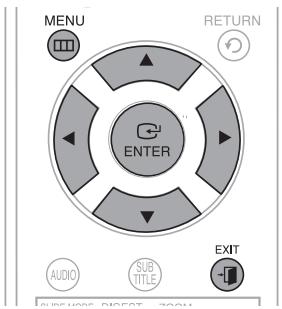
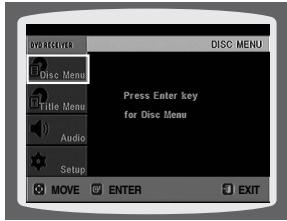
1 In Stop mode, press the MENU button.
When playing a VCD (version 2.0), this toggles between and .
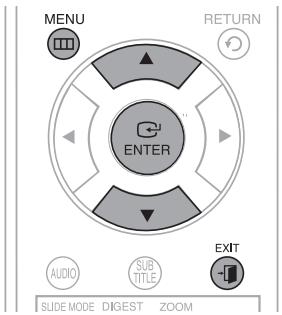
2 Press the Cursor , button to move to the and then press the ENTER button.
When you select Disc Menu and it is not supported by the disc, the message appears on the screen.
3 Press the Cursor , , , button to select the desired item.
Press the EXIT button to exit the setup screen.
When playing a VCD (version 2.0), you can select and view various scenes according to the menu screen.
MENU ON : This VCD disc is version 2.0. The disc is played back according to the menu screen. Some functions may be disabled. When some functions are disabled, select to enable them.
MENU OFF : This VCD disc is version 1.1. The disc is played back in the same way as with a music CD.
The disc menu display may be different depending on the disc.
For DVDs containing multiple titles, you can view the title of each movie. Depending on the disc, the availability of this feature may vary.
1 In Stop mode, press the MENU button.
. <br />
3 Press the ENTER button.</p>
<p>The title menu appears.</p>
<blockquote>
<p>Press the EXIT button to exit the setup screen.</p>
</blockquote>
<p><img src="/content/2025/01/98308/images/b4769f515a867c5b9d5a4146b0e2a6a9e66c97868efb10e601aa00a45a9e8e08.jpg" alt="SAMSUNG HT-X200T - Using the Title Menu - 3"></p>
<ul>
<li>The Title menu display may be different depending on the disc.</li>
</ul>
<p><img src="/content/2025/01/98308/images/a7c62e1432b1410524d200f6d11cbf1360e7d2bdfa95373ef63a20ab0520c4d5.jpg" alt="SAMSUNG HT-X200T - Using the Title Menu - 4"></p>
<h2 id="playing-media-files-using-the-usb-host-feature">Playing Media Files using the USB Host Feature</h2>
<p>You can enjoy media files such as pictures, movies and music saved in an MP3 player, USB memory or digital camera in high quality video by connecting the storage device to the USB port of the home theater.</p>
<p><img src="/content/2025/01/98308/images/fbabb6fd398b1bf2918854cfa13c97ca1ac54aacc0f000ea6c7749a20415cba1.jpg" alt="SAMSUNG HT-X200T - Playing Media Files using the USB Host Feature - 1"></p>
<p><img src="/content/2025/01/98308/images/5539b0c9e5dc7d7e947d2dea039208b66c3b85cf08703b94a0b6551f25ffe972.jpg" alt="SAMSUNG HT-X200T - Playing Media Files using the USB Host Feature - 2"></p>
<p>1 Connect the USB device to the USB port on the side of the unit.</p>
<p><img src="/content/2025/01/98308/images/0ae9c498a974f2e53461f1480f8f42772146302db8405118324404cc9db536e2.jpg" alt="SAMSUNG HT-X200T - Playing Media Files using the USB Host Feature - 3"></p>
<p>2 Press the FUNCTION button on the DVD Player or the USB button on the remote control to select the USB mode.</p>
<ul>
<li><USB> appears on the display screen and then disappears. </li>
<li>The USB MENU screen appears on the TV screen and the saved file is played.</li>
</ul>
<p>3 To stop playback, press the STOP (■) button. </p>
<blockquote>
<p>Safe USB Removal</p>
</blockquote>
<p>To prevent damage to the memory stored in the USB device, perform safe removal before disconnecting the USB cable.</p>
<p>(1) Press the STOP (■) button twice in a row.</p>
<p>The display will show REMOVE USB.</p>
<p>(2) Remove the USB cable.</p>
<p><img src="/content/2025/01/98308/images/aa03eb9221dccb2a79edf68d3f255295317812a4705af63d7789c26e043f98a1.jpg" alt="SAMSUNG HT-X200T - Playing Media Files using the USB Host Feature - 4"></p>
<ul>
<li>To listen to your music files with 5.1 channel home theater sound, you must set the Dolby Pro Logic II mode to Matrix. (See page 53)</li>
</ul>
<h2 id="skip-forwardback-2">Skip Forward/Back</h2>
<p><img src="/content/2025/01/98308/images/d9d220956a2f4a0c8c2eba747070d784fd0d3013456d7c6db59438f60a9247c0.jpg" alt="SAMSUNG HT-X200T - Skip Forward/Back - 1"></p>
<p>During playback, press the 144 button.</p>
<ul>
<li>When there is more than one file and you press the button, the next file is selected. </li>
<li>When there is more than one file and you press the 口 button, the previous file is selected.</li>
</ul>
<h2 id="fastplayback-3">FastPlayback</h2>
<p><img src="/content/2025/01/98308/images/8ad69a5245a0d429164196be59139052b24e8f08b1f80461302bf31afb224a86.jpg" alt="SAMSUNG HT-X200T - FastPlayback - 1"></p>
<p>To play back the disc at a faster speed, press the button during playback.</p>
<p>Each time you press either button, the playback speed will change as follows: 2x 4x 8x 32x Normal.</p>
<h2 id="compatible-devices">Compatible Devices</h2>
<ol>
<li>USB devices that support USB Mass Storage v1.0. (USB devices that operate as a removable disc in Windows (2000 or later) without additional driver installation.) </li>
<li>MP3 Player: HDD and flash type MP3 players. </li>
<li>
<p>Digital camera: Cameras that support USB Mass Storage v1.0.</p>
</li>
<li>
<p>Cameras that operate as a removable disc in Windows (2000 or later) without additional driver installation.</p>
</li>
<li>
<p>USB HDD and USB Flash Drive: Devices that support USB2.0 or USB1.1.</p>
</li>
<li>
<p>You may experience a difference in playback quality when you connect a USB1.1 device. </p>
</li>
<li>
<p>For a USB HDD, make sure to connect an auxiliary power cord to the USB HDD for proper operation.</p>
</li>
<li>
<p>USB card Reader: One slot USB card reader and Multi slot USB card reader.</p>
</li>
<li>
<p>Depending on the manufacturer, the USB card reader may not be supported. </p>
</li>
<li>
<p>If you install multiple memory devices into a multi card reader, you may experience problems.</p>
</li>
<li>
<p>If you use a USB extension cable, the USB device might not be recognized.</p>
</li>
</ol>
<p>Supported Formats </p>
<table><tr><td></td><td>File name</td><td>File extension</td><td>Bit rate</td><td>Version</td><td>Pixel</td><td>Sampling Frequency</td></tr><tr><td>Still Picture</td><td>JPG</td><td>JPG .JPEG</td><td>-</td><td>-</td><td>640x480</td><td>-</td></tr><tr><td rowspan="2">Music</td><td>MP3</td><td>.MP3</td><td>80~384kbps</td><td>-</td><td>-</td><td>44.1kHz</td></tr><tr><td>WMA</td><td>.WMA</td><td>56~128kbps</td><td>V8</td><td>-</td><td>44.1kHz</td></tr><tr><td rowspan="3">Movie</td><td>VCD</td><td>MPG.MPEG .DAT</td><td>1.5Mbps</td><td>VCD1.1,VCD2.0</td><td>320x480</td><td>44.1KHz</td></tr><tr><td>WMV</td><td>.WMV</td><td>4Mbps</td><td>V1,V2,V3,V7</td><td>720x480</td><td>44.1KHz~48KHz</td></tr><tr><td>DivX</td><td>.AVI,.ASF</td><td>4Mbps</td><td>DivX3.11~DivX5.1,XviD</td><td>800x600</td><td>44.1KHz~48KHz</td></tr></table>
<ul>
<li>CBI (Control/Bulk/Interrupt) is not supported. </li>
<li>Digital Cameras that use PTP protocol or require additional program installation when connected to a PC are not supported. </li>
<li>A device using NTFS file system is not supported. (Only FAT 16/32 (File Allocation Table 16/32) file system is supported.) </li>
<li>Some MP3 players, when connected to this product, may not operate depending on the sector size of their file system. </li>
<li>The USB HOST function is not supported if a product that transfers media files by its manufacturer-specific program is connected. </li>
<li>Does not operate with Janus enabled MTP (Media Transfer Protocol) devices. </li>
<li>The USB host function of this product does not support all USB devices. For information on the supported devices, see page 57.</li>
</ul>
<h2 id="setting-the-language">Setting the Language</h2>
<p>OSD(On-Screen Display) language is set to English by default.</p>
<p><img src="/content/2025/01/98308/images/4dae7acb52628ef61e02db36da38ebb0648673b2b007f85a19e2db81b930b7d3.jpg" alt="SAMSUNG HT-X200T - Setting the Language - 1"></p>
<p>1 In Stop mode, press the MENU button. <br />
2 Press the Cursor button to move to <Setup> and then press the ENTER button. <br />
3 Select <LANGUAGE> and then press the ENTER button. <br />
4 Press the Cursor , button to select <OSD LANGUAGE> and then press the ENTER button. <br />
5 Press the Cursor , button to select the desired language and then press the ENTER button.</p>
<ul>
<li>Once the setup is complete, the OSD will be English if English has been selected as language.</li>
</ul>
<p><img src="/content/2025/01/98308/images/b51d82f432f9ae0a96e47efedb25ddd99bd568ba13805a6ef4c7b5652322c20f.jpg" alt="SAMSUNG HT-X200T - Setting the Language - 2"></p>
<blockquote>
<p>Press the RETURN button to return to the previous level. <br />
Press the EXIT button to exit the setup screen.</p>
</blockquote>
<p><img src="/content/2025/01/98308/images/3b0a463238b22c1cb3559230357b160fdc03da463574f20c168509d8fbbf6efe.jpg" alt="SAMSUNG HT-X200T - Setting the Language - 3"></p>
<ul>
<li>OSD LANGUAGE : Selecting the OSD Language </li>
<li>AUDIO: Selecting the Audio Language (recorded on the disc) </li>
<li>SUBTITLE : Selecting the Subtitle Language (recorded on the disc) </li>
<li>DISC MENU : Selecting the Disc Menu Language (recorded on the disc)</li>
</ul>
<p>※ If the language you selected is not recorded on the disc, the menu language will not change even if you set it to your desired language.</p>
<p><img src="/content/2025/01/98308/images/b2e9a278b3c707b5474fe473700b130408255bcc102da6c751eba8f488a1c76d.jpg" alt="SAMSUNG HT-X200T - Setting the Language - 4"></p>
<ul>
<li>OTHERS: To select another language, select OTHERS and enter the language code of your country. (See page 56 for language codes) AUDIO, SUBTITLE and DISC MENU language can be selected.</li>
</ul>
<h2 id="setting-tv-screen-type">Setting TV Screen type</h2>
<p>Depending on your TV type (Wide Screen or conventional 4:3), you can select the TV's aspect ratio.</p>
<p><img src="/content/2025/01/98308/images/01437a4cc2aaa7f430828648ed96223bfa206347cf61bf4fe8af850bece3e045.jpg" alt="SAMSUNG HT-X200T - Setting TV Screen type - 1"></p>
<p>1 In Stop mode, press the MENU button. <br />
2 Press the Cursor button to move to <Setup> and then press the ENTER button. <br />
3 Press the Cursor button to move to <TV DISPLAY> and then press the ENTER button. <br />
4 Press the Cursor , button to select the desired item and then press the ENTER button.</p>
<p>Once the setup is complete, you will be taken to the previous screen.</p>
<p><img src="/content/2025/01/98308/images/515f28b1c6d08700fa64c43eb0aab4810653b196a2c646eb37a976db8f3e0417.jpg" alt="SAMSUNG HT-X200T - Setting TV Screen type - 2"></p>
<blockquote>
<p>Press the RETURN button to return to the previous level. <br />
Press the EXIT button to exit the setup screen.</p>
</blockquote>
<h2 id="adjusting-the-tv-aspect-ratio-screen-size">Adjusting the TV Aspect Ratio (Screen Size)</h2>
<p>The horizontal to vertical screen size ratio of conventional TVs is 4:3, while that of wide-screen and high definition TVs is 16:9. This ratio is called the aspect ratio. When playing DVDs recorded in different screen sizes, you should adjust the aspect ratio to fit your TV or monitor.</p>
<p>For a standard TV, select either <4:3PS> or <4:3LB> option according to personal preference. Select <WIDE/HDTV> if you have a widscreen TV.</p>
<p><img src="/content/2025/01/98308/images/c96648438a026147fe5dd64de583559a18038622bb2067f619c2417948ff1912.jpg" alt="SAMSUNG HT-X200T - Adjusting the TV Aspect Ratio (Screen Size) - 1"></p>
<h2 id="43ps-43-panscan">4:3PS (4:3 Pan&Scan)</h2>
<p>Select this to play a 16:9 picture in the pan & scan mode on a conventional TV. <br />
- You can see the central portion of the screen only (with the sides of the 16:9 picture cut off).</p>
<p><img src="/content/2025/01/98308/images/281b576bc4afd43eb966ba771670d9a8c577cdd63e45507986b48e36e22a4894.jpg" alt="SAMSUNG HT-X200T - 4:3PS (4:3 Pan&Scan) - 1"></p>
<h2 id="43lb-43-letterbox">4:3LB (4:3 Letterbox)</h2>
<p>Select this to play a 16:9 picture in the letter box mode on a conventional TV. <br />
- Black bars will appear at the top and bottom of the screen.</p>
<p><img src="/content/2025/01/98308/images/767172132fcaae93e98c2d9f424e7e1706f3bfe4698f1dd5216e78e222ed4ff6.jpg" alt="SAMSUNG HT-X200T - 4:3LB (4:3 Letterbox) - 1"></p>
<h2 id="widehdtv">WIDE/HDTV</h2>
<p>Select this to view a 16:9 picture in the full-screen mode on your widescreen TV. <br />
You can enjoy the widescreen aspect.</p>
<p><img src="/content/2025/01/98308/images/064266cdc778b5c95688eead36961cf9c98f1722481429e5ebf0225c77fedaca.jpg" alt="SAMSUNG HT-X200T - WIDE/HDTV - 1"></p>
<ul>
<li>
<p>If a DVD is in the 4:3 ratio, you cannot view it in widenscreen.</p>
</li>
<li>
<p>Since DVD discs are recorded in various image formats, they will look different depending on the software, the type of TV, and the TV aspect ratio setting. </p>
</li>
<li>In HDMI operation, the screen is automatically converted to Wide mode.</li>
</ul>
<h2 id="setting-parental-controls-rating-level">Setting Parental Controls (Rating Level)</h2>
<p>Use this to restrict playback of adult or violent DVDs you do not want children to view.</p>
<p><img src="/content/2025/01/98308/images/3519afdd81df08e4feeb58074e1d5273e946d69d81e03bcf129f8f855fe63383.jpg" alt="SAMSUNG HT-X200T - Setting Parental Controls (Rating Level) - 1"></p>
<p>1 In Stop mode, press the MENU button. <br />
2 Press the Cursor button to move to <Setup> and then press the ENTER button. <br />
3 Press the Cursor button to move to <PARENTAL> and then press the ENTER button. <br />
4 Press the Cursor , button to select the desired rating level and then press the ENTER button.</p>
<p>If you have selected Level 6, you cannot view DVDs with Level 7 or higher. <br />
The higher the level, the closer the content is to violent or adult material.</p>
<p><img src="/content/2025/01/98308/images/9dcd010d4aecbbf18af71b729a0866469b0fd99814aafba2d481d38c6dd49139.jpg" alt="SAMSUNG HT-X200T - Setting Parental Controls (Rating Level) - 2"></p>
<p>5 Enter the password and then press the ENTER button.</p>
<p>The password is set to "7890" by default. <br />
Once the setup is complete, you will be taken to the previous screen.</p>
<blockquote>
<p>Press the RETURN button to return to the previous level. <br />
Press the EXIT button to exit the setup screen.</p>
</blockquote>
<p><img src="/content/2025/01/98308/images/292fbfa726c0fea72f313fc8836849300d1009e055f0712b145b4ba4d3b65db8.jpg" alt="SAMSUNG HT-X200T - Setting Parental Controls (Rating Level) - 3"></p>
<ul>
<li>This function works only if a DVD disc contains the rating level information.</li>
</ul>
<h2 id="setting-the-password">Setting the Password</h2>
<p>You can set the password for the Parental (rating level) setting.</p>
<p><img src="/content/2025/01/98308/images/8763ca8b4223071024eda0bced89a5ac9d74efd2f031b1d6e21e1e769020c28a.jpg" alt="SAMSUNG HT-X200T - Setting the Password - 1"></p>
<p>1 In Stop mode, press the MENU button. <br />
2 Press the Cursor button to move to <Setup> and then press the ENTER button. <br />
3 Press the Cursor button to move to <password> and then press the ENTER button. <br />
4 Press the ENTER button.</p>
<p>5 Enter the password and then press the ENTER button.</p>
<p>Enter the old password, a new password, and confirm new password <br />
The setting is complete.</p>
<p><img src="/content/2025/01/98308/images/2df2bea441a93200551661f156a455adc6ac3bd4ff136ec4d22bffed516cf44e.jpg" alt="SAMSUNG HT-X200T - Setting the Password - 2"></p>
<p><img src="/content/2025/01/98308/images/250f3e657b9cdb2937ee0e82ba46192fe63c838173abf79a971f05c87c3280d0.jpg" alt="SAMSUNG HT-X200T - Setting the Password - 3"></p>
<ul>
<li>The password is set to "7890" by default.</li>
</ul>
<h2 id="if-you-have-forgotten-the-rating-level-password-do-the-following">If you have forgotten the rating level password, do the following</h2>
<ul>
<li>While the player is in (No Disc) mode, hold the DVD Player's STOP (■) button for longer than 5 seconds. "INITIALIZE" appears on the display and all settings will return to the default values. </li>
<li>Press the POWER button.</li>
</ul>
<p>Using the RESET function will erase all stored settings.</p>
<p>Do not use this unless necessary.</p>
<h2 id="setting-the-wallpaper">Setting the Wallpaper</h2>
<p><img src="/content/2025/01/98308/images/82b4b2994ac54ebb43b49f45c8d1a97f01b05b436dbd04cff0c4bc1b9b48c112.jpg" alt="SAMSUNG HT-X200T - Setting the Wallpaper - 1"></p>
<p><img src="/content/2025/01/98308/images/a01988d52354ab3b2e824022d999a6ecc2ecb52e11ad84e287968cd2278aef9d.jpg" alt="SAMSUNG HT-X200T - Setting the Wallpaper - 2"></p>
<p><img src="/content/2025/01/98308/images/27eb70c658135d94ed583709255a14e2c184e8985f18d85c82c10923fd3d7bad.jpg" alt="SAMSUNG HT-X200T - Setting the Wallpaper - 3"></p>
<p><img src="/content/2025/01/98308/images/92b57a42cbe5b1890fa57825658a752629ea8221b2017c108f9268c700ad0fb1.jpg" alt="SAMSUNG HT-X200T - Setting the Wallpaper - 4"></p>
<p>While watching a DVD, VCD or JPEG CD, you can set the image you like as background wallpaper.</p>
<p><img src="/content/2025/01/98308/images/6d81ae3261e2f53c075a3dc82a9c30b109d90af9aa0eb46711099f7848cd8aef.jpg" alt="SAMSUNG HT-X200T - Setting the Wallpaper - 5"></p>
<p>1 During playback, press the PLAY/PAUSE button when an image you like appears. <br />
2 Press the LOGO button.</p>
<ul>
<li><COPY LOGO DATA> will be displayed on the TV screen.</li>
</ul>
<p>3 The power will turn off and then back on.</p>
<p>The selected wallpaper will be displayed. <br />
- You can select up to 3 wallpaper settings.</p>
<p><img src="/content/2025/01/98308/images/045490be22e1b5409606813be8b9d99de211f23e6afd0b70d432aab6ff0b64e1.jpg" alt="SAMSUNG HT-X200T - Setting the Wallpaper - 6"></p>
<p><img src="/content/2025/01/98308/images/19ef770de08af36d165d3b645a029d235789a50225e6962a12d38fef17824bc0.jpg" alt="SAMSUNG HT-X200T - Setting the Wallpaper - 7"></p>
<ul>
<li>This function will not work when the HDMI output is 720p or 1080i.</li>
</ul>
<h2 id="to-select-one-of-the-3-wallpaper-settings-youve-made">To Select One of the 3 Wallpaper Settings you've made</h2>
<p><img src="/content/2025/01/98308/images/5b5240ecdb022cf81cf4ca65f8572b1efc4fbeedb04c5fb0665d07306f77c0b3.jpg" alt="SAMSUNG HT-X200T - To Select One of the 3 Wallpaper Settings you've made - 1"></p>
<p>1 In Stop mode, press the MENU button. <br />
2 Press the Cursor button to move to <Setup> and then press the ENTER button. <br />
3 Press the Cursor button to move to <LOGO> and then press the ENTER button. <br />
4 Press the Cursor , button select the desired <USER>, and then press the ENTER button.</p>
<p>This selects one of the 3 wallpaper screens <br />
5 Press the EXIT button to exit the setup screen.</p>
<ul>
<li>ORIGINAL: Select this to set the Samsung Logo image as your wallpaper. </li>
<li>USER: Select this to set the desired image as your wallpaper.</li>
</ul>
<blockquote>
<p>Press the RETURN button to return to the previous level. <br />
Press the EXIT button to exit the setup screen.</p>
</blockquote>
<h2 id="dvdplaybackmode">DVDPlaybackMode</h2>
<p>Some DVD-Audio discs contain DVD-Video as well as DVD-Audio.</p>
<p>To play back the DVD-Video portion of the DVD-Audio disc, set the unit to DVD-Video mode.</p>
<p><img src="/content/2025/01/98308/images/77f6e99ee34e07334ccb25696be2d3262349e579da5d631e151b0dea58ebc1b0.jpg" alt="SAMSUNG HT-X200T - DVDPlaybackMode - 1"></p>
<p>1 Press the EJECT button and then press the MENU button. <br />
2 Press the Cursor button to move to <Setup> and then press the ENTER button. <br />
3 Press the Cursor button to move to <DVD TYPE> and then press the ENTER button. <br />
4 Press the Cursor , button to move to <DVDVIDEO> and then press the ENTER button.</p>
<ul>
<li>Set steps 1 ~ 4 again if you want to switch to DVD AUDIO Play mode.</li>
</ul>
<p><img src="/content/2025/01/98308/images/1c2cae42f506f72f49574c8c1110cef9dd754553f26e78ffab02c1c8eb2fbc48.jpg" alt="SAMSUNG HT-X200T - DVDPlaybackMode - 2"></p>
<p>When Selecting DVD Play Mode:</p>
<p>DVDVIDEO: set to play the DVD video contents contained on a DVD audio disc. <br />
DVD AUDIO : set to play the default DVD audio.</p>
<p><img src="/content/2025/01/98308/images/f792e8df4bfeb1a395bc662815772fa394badb03a3b990a1488859a0c934bd51.jpg" alt="SAMSUNG HT-X200T - DVDPlaybackMode - 3"></p>
<ul>
<li>DVD Play mode is set to DVD Audio as factory default setting. </li>
<li>Powering off the main unit will automatically switch to the DVD Audio mode.</li>
</ul>
<h2 id="divx-r-registration">DivX (R) registration</h2>
<p>Please use the Registration code to register this player with the DivX (R) video on demand format.</p>
<p>To learn more, go to www.divx.com/vod.</p>
<h2 id="setting-the-drc-dynamic-range-compression">Setting the DRC (Dynamic Range Compression)</h2>
<p>This feature balances the range between the loudest and quietest sounds. You can use this function to enjoy Dolby Digital sound when watching movies at low volume at night.</p>
<p><img src="/content/2025/01/98308/images/66e014817ab3d8345e0dccbd711796ff56a70091461d451a47a9798476133e8d.jpg" alt="SAMSUNG HT-X200T - Setting the DRC (Dynamic Range Compression) - 1"></p>
<p>1 In Stop mode, press the MENU button. <br />
2 Press the Cursor button to move to Audio> and then press the ENTER button. <br />
3 Press the Cursor button to move to <DRC> and then press the ENTER button. <br />
4 Press the Cursor , button to adjust the DRC.</p>
<ul>
<li>When the Cursor button is pressed, the effect is greater, and when the Cursor button is pressed, the effect is smaller.</li>
</ul>
<p><img src="/content/2025/01/98308/images/6b38d9dc2d3023d35e045ebf65146aed94dbe139d2e7b6748dd620e45e84d324.jpg" alt="SAMSUNG HT-X200T - Setting the DRC (Dynamic Range Compression) - 2"></p>
<blockquote>
<p>Press the RETURN button to return to the previous level. <br />
Press the EXIT button to exit the setup screen.</p>
</blockquote>
<h2 id="setting-the-av-sync">Setting the AV SYNC</h2>
<p>Video may look slower than the audio if it is connected to a digital TV. If this occurs, adjust the audio delay time to match the video.</p>
<p><img src="/content/2025/01/98308/images/05fb572d9ae81e90899f73c7c8ed2d0a5e1b46b19e4675d3f213c48f44950196.jpg" alt="SAMSUNG HT-X200T - Setting the AV SYNC - 1"></p>
<p>1 In Stop mode, press the MENU button. <br />
2 Press the Cursor button to move to Audio> and then press the ENTER button. <br />
3 Press the Cursor button to move to <AV-SYNC> and then press the ENTER button. <br />
4 Press the Cursor , button to select the AV-SYNC Delay Time and then press the ENTER button.</p>
<ul>
<li>You can set the audio delay time between 0 ms and 300 ms. Set it to the optimal status.</li>
</ul>
<p><img src="/content/2025/01/98308/images/92155347bad552bcc8bac977362b06ade39a26e1f741f71a9d87569bccf7e351.jpg" alt="SAMSUNG HT-X200T - Setting the AV SYNC - 2"></p>
<blockquote>
<p>Press the RETURN button to return to the previous level. <br />
Press the EXIT button to exit the setup screen.</p>
</blockquote>
<h2 id="settings-cont">Settings (Cont)</h2>
<h2 id="setting-the-hdmi-audio">Setting the HDMI Audio</h2>
<p>The audio signals transmitted over the HDMI Cable can be toggled ON/OFF.</p>
<p><img src="/content/2025/01/98308/images/071da69d39c7cb3e4adb575d503236e3c3557be2d8c12f2dccfc1abba2a989cc.jpg" alt="SAMSUNG HT-X200T - Setting the HDMI Audio - 1"></p>
<p>1 In Stop mode, press the MENU button. <br />
2 Press the Cursor button to move to Audio> and then press the ENTER button. <br />
3 Press the Cursor button to move to <HDMI AUDIO> and then press the ENTER button. <br />
4 Press the Cursor , button to select <ON> or <OFF> and then press the ENTER button.</p>
<ul>
<li>ON: Both video and audio signals are transmitted over the HDMI connection cable, and audio is output through your TV speakers only. </li>
<li>OFF : Video is transmitted over the HDMI connection cable only, and audio is output through the home theater speakers only.</li>
</ul>
<p><img src="/content/2025/01/98308/images/6cf206579954599f02f3081fc1347c15d3f13212b5b08bebdb23a1ab135e38eb.jpg" alt="SAMSUNG HT-X200T - Setting the HDMI Audio - 2"></p>
<p>The default setting of this function is HDMI AUDIO OFF.</p>
<ul>
<li>HDMI AUDIO is automatically down-mixed to 2ch for TV speakers.</li>
</ul>
<blockquote>
<p>Press the RETURN button to return to the previous level. <br />
Press the EXIT button to exit the setup screen.</p>
</blockquote>
<h2 id="listening-to-radio">Listening to Radio</h2>
<p><img src="/content/2025/01/98308/images/ceb99c0ef932cfc65ecb9599e6381b6fe40642d77576bd17a2765a1c69d28fa2.jpg" alt="SAMSUNG HT-X200T - Listening to Radio - 1"></p>
<h2 id="remote-control-2">Remote Control</h2>
<p>1 Press the TUNER button to select the FM band. <br />
2 Tune in to the desired station.</p>
<p>Automatic Tuning 1: When the button is pressed, a preset broadcast station is selected. <br />
Automatic Tuning 2: Press and hold the , button to automatically search for active broadcasting stations. <br />
Manual Tuning: Briefly press the , button to increase or decrease the frequency incrementally.</p>
<h2 id="main-unit">Main Unit</h2>
<p>1 Press the FUNCTION button to select the FM band. <br />
2 Select a broadcast station.</p>
<p>Automatic Tuning 1: Press the STOP (■) button to select <PRESET> and then press the I< I button to select the preset station. <br />
Automatic Tuning 2: Press the STOP (■) button to select <MANUAL> and then press and hold the button to automatically search the band. <br />
- Manual Tuning: Press the STOP (■) button to select <MANUAL> and then briefly press the 山山山山 button to tune in to a lower or higher frequency.</p>
<blockquote>
<p>Press the MO/ST button to listen in Mono/Stereo.</p>
</blockquote>
<p>Each time the button is pressed, the sound switches between (STEREO) and (MONO). <br />
In a poor reception area, select (MONO) for a clear, interference-free broadcast.</p>
<h2 id="listening-to-radio-cont">Listening to Radio (Cont)</h2>
<h2 id="presetting-stations">Presetting Stations</h2>
<p><img src="/content/2025/01/98308/images/632debb56464164e2778f71a92e29332d96bfd633e4fd7af7ec507ca50361385.jpg" alt="SAMSUNG HT-X200T - Presetting Stations - 1"></p>
<p>Example : Presetting FM 89.10 in the memory</p>
<p>1 Press the TUNER button to select the FM band. <br />
2 Press the , button to select < 89.10></p>
<p><img src="/content/2025/01/98308/images/46be60b2bbc1e609ebbdde0cba299c4c19ca2c0491d1f970f421607add446e89.jpg" alt="SAMSUNG HT-X200T - Presetting Stations - 2"></p>
<p>3 Press the TUNER MEMORY button.</p>
<ul>
<li><01> flashes in the display.</li>
</ul>
<p><img src="/content/2025/01/98308/images/06c8c79eb46baf09c14a16656d66ad1ce1ae584beb36a97ef459fca3fb1c9334.jpg" alt="SAMSUNG HT-X200T - Presetting Stations - 3"></p>
<p>4 Press the button to select preset number.</p>
<ul>
<li>You can select between 1 and 15 presets.</li>
</ul>
<p><img src="/content/2025/01/98308/images/c307ad6ce2fe61b21de643512a5c20f7ae55aefc0b051a288311be3fd8dfa0fd.jpg" alt="SAMSUNG HT-X200T - Presetting Stations - 4"></p>
<p>5 Press the TUNER MEMORY button again.</p>
<p>Press the TUNER MEMORY button before "number" disappears from the display. <br />
number" disappears from the display and the station is stored in memory.</p>
<p>6 To preset another station, repeat steps 2 to 5.</p>
<p>To tune in to a preset station, press the button on the remote control to select a channel.</p>
<p><img src="/content/2025/01/98308/images/cb092501c6517f36b8e582f2cac5ad34ddb7d6d22fd3a9f80960342fd60e5963.jpg" alt="SAMSUNG HT-X200T - Presetting Stations - 5"></p>
<ul>
<li>This unit does not receive AM broadcasts.</li>
</ul>
<h2 id="convenient-functions">Convenient Functions</h2>
<h2 id="sleep-timer-function">Sleep Timer Function</h2>
<p>You can set the time that the Home Theater will shut itself off.</p>
<p><img src="/content/2025/01/98308/images/ac40f680331a51f648e095724127644f5f8d629457cc31bee50d6ebb72f089d6.jpg" alt="SAMSUNG HT-X200T - Sleep Timer Function - 1"></p>
<p>Press the SLEEP button.</p>
<p>Each time the button is pressed, the preset time changes as follows: 10 20 30 60 90 120 150 OFF.</p>
<p>To confirm the sleep timer setting, press the SLEEP button. <br />
The remaining time before the Home Theater will shut itself off is displayed. <br />
- Pressing the button again changes the sleep time from what you have set earlier. <br />
To cancel the sleep timer, press the SLEEP button until <OFF> appears on the display.</p>
<h2 id="adjusting-display-brightness">Adjusting Display Brightness</h2>
<p>You can adjust the brightness of the display on the main unit so it won't interfere with your movie viewing.</p>
<p><img src="/content/2025/01/98308/images/dbd15c82675ca8ca5050d42ae7b6ad5bbf9cba56244a4e496df8acd6c674fae6.jpg" alt="SAMSUNG HT-X200T - Adjusting Display Brightness - 1"></p>
<p>Press the DIMMER button.</p>
<p>Each time the button is pressed, the brightness of front display will be adjusted.</p>
<h2 id="mute-function">Mute Function</h2>
<p>This is useful when answering a doorbell or telephone call.</p>
<p><img src="/content/2025/01/98308/images/1e7d5b4b6dae128063a3e3416679f41ef5501b53f9e452bd6195262a5ca7be22.jpg" alt="SAMSUNG HT-X200T - Mute Function - 1"></p>
<p>Press the MUTE button.</p>
<ul>
<li><MUTE> appears in the display. <br />
To restore the sound, press MUTE the button again.</li>
</ul>
<h2 id="convenient-functions-cont">Convenient Functions (Con't)</h2>
<h2 id="v-soundvirtual-sound">V-SOUND(Virtual Sound)</h2>
<p>The 2-channel sounds can be listened with virtual effects for producing much more realistic sounds as in 5.1 channels.</p>
<p><img src="/content/2025/01/98308/images/b5269e47d34ce97bdaeb4446c5d37a514b4c7157ab2f1fae2e0cfbe75bfc496e.jpg" alt="SAMSUNG HT-X200T - V-SOUND(Virtual Sound) - 1"></p>
<h2 id="press-the-v-sound-button">Press the V-SOUND button.</h2>
<p>Each time the button is pressed, the selection changes as follows:</p>
<p><img src="/content/2025/01/98308/images/73b10812542d742296af9db13dfdcc295f068dae24ea4f4e000210c412292077.jpg" alt="SAMSUNG HT-X200T - Press the V-SOUND button. - 1"></p>
<h2 id="virtual-headphone-function">Virtual Headphone Function</h2>
<p>Use headphones (3.5) (not supplied) for private listening pleasure. You can enjoy dynamic sound effects similar to that of 5.1 channel surround sound using conventional stereo headphones.</p>
<p><img src="/content/2025/01/98308/images/369a79f22cd8906114ba37eb58a766dbebaab109cacb1efa5c4689806bddf0d6.jpg" alt="SAMSUNG HT-X200T - Virtual Headphone Function - 1"></p>
<p>1 Plug the headphones into the headphone jack.</p>
<ul>
<li>You can purchase headphones from most Electronics stores.</li>
</ul>
<p><img src="/content/2025/01/98308/images/ba3abf4fd99d38834dba1ba87c9c9e79971c0223db18e8ac410b85c059083065.jpg" alt="SAMSUNG HT-X200T - Virtual Headphone Function - 2"></p>
<p>2 Press the V-H/P button.</p>
<p>Each time the button is pressed, the selection alternates between <V.HP> and OFF</p>
<ul>
<li>V.HP: Select to enjoy a 5.1-channel surround sound that gives the feeling of being in a baseball park or concert hall. </li>
<li>OFF: Select to listen to a standard 2-channel stereo sound.</li>
</ul>
<p><img src="/content/2025/01/98308/images/02666cb22187de42516ea716f30ab557cfa62ac4386c7720de70b1e62c0b78f4.jpg" alt="SAMSUNG HT-X200T - Virtual Headphone Function - 3"></p>
<ul>
<li>Do not listen at extremely high volume levels when using headphones.<br />
Extended, high-volume listening can lead to permanent hearing loss.</li>
</ul>
<h2 id="operating-a-tv-with-the-remote-control">Operating a TV with the Remote Control</h2>
<h2 id="when-operating-a-tv-with-the-remote-control">When operating a TV with the remote control</h2>
<p><img src="/content/2025/01/98308/images/e214d3965080ba87358170fb2b76173f0d3fddc5fa026af5edd124a00e0c2164.jpg" alt="SAMSUNG HT-X200T - When operating a TV with the remote control - 1"></p>
<p>1 Press the TV button to set the remote to TV mode. <br />
2 Press the POWER button to turn on the TV. <br />
3 While holding down the POWER button, enter the code corresponding to your brand of TV.</p>
<p>If there is more than one code listed for your TV in the table, enter one at a time to determine which code works.</p>
<h2 id="example-for-a-samsung-tv">Example: For a Samsung TV</h2>
<p>While holding down the POWER button, use the number buttons to enter 00, 15, 16, 17 and 40.</p>
<p>4 If the TV turns off, the setting is complete. <br />
- You can use the TV POWER, VOLUME, CHANNEL, and Numeric buttons (0-9).</p>
<p><img src="/content/2025/01/98308/images/a1e3adf6752d0e1851088701150c01e87856595abf34e051d5efbe12bf0a7189.jpg" alt="SAMSUNG HT-X200T - Example: For a Samsung TV - 1"></p>
<ul>
<li>The remote control may not work on some brands of TVs. Also, some operations may not be possible depending on your brand of TV. </li>
<li>If you do not set the remote control with the code for your brand of TV, the remote control will work on a Samsung TV by default.</li>
</ul>
<h2 id="operating-a-tv-with-the-remote-control-cont">Operating a TV with the Remote Control (Cont)</h2>
<h2 id="tv-brand-code-list">TV Brand Code List</h2>
<table><tr><td>No.</td><td>Brand</td><td>Code</td><td>No.</td><td>Brand</td><td>Code</td></tr><tr><td>1</td><td>Admiral (M.Wards)</td><td>56, 57, 58</td><td>44</td><td>MTC</td><td>18</td></tr><tr><td>2</td><td>A Mark</td><td>01, 15</td><td>45</td><td>NEC</td><td>18, 19, 20, 40, 59, 60</td></tr><tr><td rowspan="2">3</td><td rowspan="2">Anam</td><td rowspan="2">01, 02, 03, 04, 05, 06, 07, 08, 09, 10, 11, 12, 13, 14</td><td>46</td><td>Nikei</td><td>03</td></tr><tr><td>47</td><td>Onking</td><td>03</td></tr><tr><td>4</td><td>AOC</td><td>01, 18, 40, 48</td><td>48</td><td>Onwa</td><td>03</td></tr><tr><td>5</td><td>Bell & Howell (M.Wards)</td><td>57, 58, 81</td><td>49</td><td>Panasonic</td><td>06, 07, 08, 09, 54, 66, 67, 73, 74</td></tr><tr><td>6</td><td>Brocsonic</td><td>59, 60</td><td>50</td><td>Penney</td><td>18</td></tr><tr><td>7</td><td>Candle</td><td>18</td><td>51</td><td>Philco</td><td>03, 15, 17, 18, 48, 54, 59, 62, 69, 90</td></tr><tr><td>8</td><td>Cetronic</td><td>03</td><td>52</td><td>Philips</td><td>15, 17, 18, 40, 48, 54, 62, 72</td></tr><tr><td>9</td><td>Citizen</td><td>03, 18, 25</td><td>53</td><td>Pioneer</td><td>63, 66, 80, 91</td></tr><tr><td>10</td><td>Cinema</td><td>97</td><td>54</td><td>Portland</td><td>15, 18, 59</td></tr><tr><td>11</td><td>Classic</td><td>03</td><td>55</td><td>Proton</td><td>40</td></tr><tr><td>12</td><td>Concerto</td><td>18</td><td>56</td><td>Quasar</td><td>06, 66, 67</td></tr><tr><td>13</td><td>Contec</td><td>46</td><td>57</td><td>Radio Shack</td><td>17, 48, 56, 60, 61, 75</td></tr><tr><td>14</td><td>Coronado</td><td>15</td><td>58</td><td>RCA/Proscan</td><td>18, 59, 67, 76, 77, 78, 92, 93, 94</td></tr><tr><td>15</td><td>Craig</td><td>03, 05, 61, 82, 83, 84</td><td>59</td><td>Realistic</td><td>03, 19</td></tr><tr><td>16</td><td>Croslex</td><td>62</td><td>60</td><td>Sampo</td><td>40</td></tr><tr><td>17</td><td>Crown</td><td>03</td><td rowspan="2">61</td><td rowspan="2">Samsung</td><td rowspan="2">00, 15, 16, 17, 40, 43, 46, 47, 48, 49, 59, 60, 98</td></tr><tr><td>18</td><td>Curtis Mates</td><td>59, 61, 63</td></tr><tr><td>19</td><td>CXC</td><td>03</td><td>62</td><td>Sanyo</td><td>19, 61, 65</td></tr><tr><td rowspan="2">20</td><td rowspan="2">Daewoo</td><td rowspan="2">02, 03, 04, 15, 16, 17, 18, 19, 20, 21, 22, 23, 24, 25, 26, 27, 28, 29, 30, 32, 34, 35, 36, 48, 59, 90</td><td>63</td><td>Scott</td><td>03, 40, 60, 61</td></tr><tr><td>64</td><td>Sears</td><td>15, 18, 19</td></tr><tr><td>21</td><td>Daytron</td><td>40</td><td>65</td><td>Sharp</td><td>15, 57, 64</td></tr><tr><td>22</td><td>Dynasty</td><td>03</td><td>66</td><td>Signature 2000 (M.Wards)</td><td>57, 58</td></tr><tr><td>23</td><td>Emerson</td><td>03, 15, 40, 46, 59, 61, 64, 82, 83, 84, 85</td><td>67</td><td>Sony</td><td>50, 51, 52, 53, 55</td></tr><tr><td>24</td><td>Fisher</td><td>19, 65</td><td>68</td><td>Soundesign</td><td>03, 40</td></tr><tr><td>25</td><td>Funai</td><td>03</td><td>69</td><td>Spectricon</td><td>01</td></tr><tr><td>26</td><td>Futuretech</td><td>03</td><td>70</td><td>SSS</td><td>18</td></tr><tr><td>27</td><td>General Electric (GE)</td><td>06, 40, 56, 59, 66, 67, 68</td><td>71</td><td>Sylvania</td><td>18, 40, 48, 54, 59, 60, 62</td></tr><tr><td>28</td><td>Hall Mark</td><td>40</td><td>72</td><td>Symphonic</td><td>61, 95, 96</td></tr><tr><td>29</td><td>Hitachi</td><td>15, 18, 50, 59, 69</td><td>73</td><td>Tatung</td><td>06</td></tr><tr><td>30</td><td>Inkel</td><td>45</td><td>74</td><td>Techwood</td><td>18</td></tr><tr><td>31</td><td>JC Penny</td><td>56, 59, 67, 86</td><td>75</td><td>Teknika</td><td>03, 15, 18, 25</td></tr><tr><td>32</td><td>JVC</td><td>70</td><td>76</td><td>TMK</td><td>18, 40</td></tr><tr><td>33</td><td>KTV</td><td>59, 61, 87, 88</td><td>77</td><td>Toshiba</td><td>19, 57, 63, 71</td></tr><tr><td>34</td><td>KEC</td><td>03, 15, 40</td><td>78</td><td>Vidtech</td><td>18</td></tr><tr><td>35</td><td>KMC</td><td>15</td><td>79</td><td>Videch</td><td>59, 60, 69</td></tr><tr><td>36</td><td>LG (Goldstar)</td><td>01, 15, 16, 17, 37, 38, 39, 40, 41, 42, 43, 44</td><td>80</td><td>Wards</td><td>15, 17, 18, 40, 48, 54, 60, 64</td></tr><tr><td>37</td><td>Luxman</td><td>18</td><td>81</td><td>Yamaha</td><td>18</td></tr><tr><td>38</td><td>LXI (Sears)</td><td>19, 54, 56, 59, 60, 62, 63, 65, 71</td><td>82</td><td>York</td><td>40</td></tr><tr><td>39</td><td>Magnavox</td><td>15, 17, 18, 48, 54, 59, 60, 62, 72, 89</td><td>83</td><td>Yupiteru</td><td>03</td></tr><tr><td>40</td><td>Marantz</td><td>40, 54</td><td>84</td><td>Zenith</td><td>58, 79</td></tr><tr><td>41</td><td>Matsui</td><td>54</td><td>85</td><td>Zonda</td><td>01</td></tr><tr><td>42</td><td>MGA</td><td>18, 40</td><td>86</td><td>Dongyang</td><td>03, 54</td></tr><tr><td>43</td><td>Mitsubishi/MGA</td><td>18, 40, 59, 60, 75</td><td></td><td></td><td></td></tr></table>
<h2 id="troubleshooting">Troubleshooting</h2>
<p>Refer to the chart below when this unit does not function properly. If the problem you are experiencing is not listed below or if the instruction below does not help, turn off the unit, disconnect the power cord, and contact the nearest authorized dealer or Samsung Electronics Service Center.</p>
<table><tr><td>Symptom</td><td>Check/Remedy</td></tr><tr><td>I cannot eject the disc.</td><td>• Is the power cord plugged securely into the outlet?
• Turn off the power and then turn it back on.</td></tr><tr><td>Playback does not start.</td><td>• Check the region number of the DVD.
DVD discs purchased from abroad may not be playable.
• CD-ROMs and DVD-ROMs cannot be played on this DVD player.
• Make sure that the rating level is correct.</td></tr><tr><td>Playback does not start immediately when the Play/Pause button is pressed.</td><td>• Are you using a deformed disc or a disc with scratches on the surface?
• Wipe the disc clean.</td></tr><tr><td>Sound is not produced.</td><td>• No sound is heard during fast playback, slow playback, and step motion playback.
• Are the speakers connected properly? Is the speaker setup correctly customized?
• Is the disc severely damaged?</td></tr><tr><td>The remote control does not work.</td><td>• Is the remote control being operated within its operation range of angle and distance?
• Are the batteries exhausted?
• Have you selected the mode(TV/DVD) functions of the remote control (TV or DVD) correctly?</td></tr></table>
<h2 id="troubleshooting-cont">Troubleshooting (Cont)</h2>
<table><tr><td>Symptom</td><td>Check/Remedy</td></tr><tr><td>·Disc is rotating but no picture is produced.
·Picture quality is poor and picture is shaking.</td><td>·Is the TV power on?
·Are the video cables connected properly?
·Is the disc dirty or damaged?
·A poorly manufactured disc may not be playable.</td></tr><tr><td>Audio language and subtitles do not work.</td><td>·Audio language and subtitles will not work if the disc does not contain them.</td></tr><tr><td>Menu screen does not appear even when the menu function is selected.</td><td>·Are you using a disc that does not contain menus?</td></tr><tr><td>Aspect ratio cannot be changed.</td><td>·You can play 16:9 DVDs in 16:9 WIDE mode, 4:3 LETTER BOX mode, or 4:3 PAN SCAN mode, but 4:3 DVDs can be seen in 4:3 ratio only. Refer to the DVD disc jacket and then select the appropriate function.</td></tr><tr><td>·The main unit is not working.
(Example: The power goes out or strange noise is heard.)
·The DVD player is not working normally.</td><td>·Turn off the power and hold the STOP (■) button on the main unit for longer than 5 seconds.
Using the RESET function will erase all stored settings. Do not use this unless necessary.</td></tr><tr><td>The password for rating level has been forgotten.</td><td>·While ☑ (NO DISC) message appears on the display of main unit, hold the main unit's STOP (■) button for longer than 5 seconds.
“INITIALIZE” appears on the display and all settings will return to the default values.
·Press the POWER button.
Using the RESET function will erase all stored settings. Do not use this unless necessary.</td></tr><tr><td>Can’t receive radio broadcast.</td><td>·Is the antenna connected properly?
·If the antenna's input signal is weak, install an external FM antenna in an area with good reception.</td></tr><tr><td>While listening to TV audio through the main unit, no sound is heard.</td><td>·If the eject button is pressed while listening to TV audio using the D.IN, AUX functions, the DVD functions are turned on and this stops the TV audio.</td></tr></table>
<h2 id="cautions-on-handling-and-storing-discs">Cautions on Handling and Storing Discs</h2>
<p>Small scratches on the disc may reduce sound and picture quality or cause skipping.</p>
<p>Be especially careful not to scratch discs when handling them.</p>
<h2 id="handling-discs">Handling discs</h2>
<p><img src="/content/2025/01/98308/images/87f75439501615c03ed7d7c1f45cee6e9b1cfe64fec11ae45fb4b1557958f906.jpg" alt="SAMSUNG HT-X200T - Handling discs - 1"></p>
<p>Do not touch the playback side of the disc.</p>
<p>Hold the disc by the edges so that fingerprints will not get on the surface.</p>
<p>Do not stick paper or tape on the disc.</p>
<h2 id="disc-storage">Disc Storage</h2>
<p>Do not keep in direct sunlight</p>
<p><img src="/content/2025/01/98308/images/1b49eb5912df275e6c2878300cd264cfa20c982d94cbc94bb64be53ec062830c.jpg" alt="SAMSUNG HT-X200T - Disc Storage - 1"></p>
<p>Keep in a cool ventilated area</p>
<p><img src="/content/2025/01/98308/images/0e0c7a15dcef44084c8a4971dae212279e0c21d139aba91312efcf1efa2a8d6d.jpg" alt="SAMSUNG HT-X200T - Disc Storage - 2"></p>
<p>Keep in a clean Protection jacket Store vertically.</p>
<p><img src="/content/2025/01/98308/images/87398d80541d505947f52c37f56d0c7511c6655db6fac309a5de5ec5794c4358.jpg" alt="SAMSUNG HT-X200T - Disc Storage - 3"></p>
<p><img src="/content/2025/01/98308/images/95b08de3594aae18604b2d45baa180b54a3ef1209e07de1d931208bce923eafd.jpg" alt="SAMSUNG HT-X200T - Disc Storage - 4"></p>
<ul>
<li>Do not allow the discs to become contaminated with dirt. </li>
<li>Do not load cracked or scratched discs.</li>
</ul>
<h2 id="handling-and-storing-discs">Handling and Storing Discs</h2>
<p><img src="/content/2025/01/98308/images/51755a9bc8c46ab461a39b49246c6e6d356d0f9bfacff81b94c55f3b3d89194e.jpg" alt="SAMSUNG HT-X200T - Handling and Storing Discs - 1"></p>
<p>When you get fingerprints or dirt on the disc, clean it with a mild detergent diluted in water and wipe with a soft cloth.</p>
<ul>
<li>When cleaning, wipe gently from the inside to the outside of the disc.</li>
</ul>
<p><img src="/content/2025/01/98308/images/d5f0771cb83277101750d263eaede507f409a9a55bd67f387d1e32629fb8ce12.jpg" alt="SAMSUNG HT-X200T - Handling and Storing Discs - 2"></p>
<ul>
<li>Condensation may form if warm air comes into contact with cold parts inside the player. When condensation forms inside the player, the player may not operate correctly. If this occurs, remove the disc and let the player stand for 1 or 2 hours with the power on.</li>
</ul>
<h2 id="language-code-list">Language Code List</h2>
<p>Enter the appropriate code number for the initial settings "Disc Audio", "Disc Subtitle" and/or "Disc Menu" (See page 40).</p>
<table><tr><td>Code</td><td>Language</td><td>Code</td><td>Language</td><td>Code</td><td>Language</td><td>Code</td><td>Language</td></tr><tr><td>1027</td><td>Afar</td><td>1181</td><td>Frisian</td><td>1334</td><td>Latvian, Lettish</td><td>1506</td><td>Slovenian</td></tr><tr><td>1028</td><td>Abkhazian</td><td>1183</td><td>Irish</td><td>1345</td><td>Malagasy</td><td>1507</td><td>Samoan</td></tr><tr><td>1032</td><td>Afrikaans</td><td>1186</td><td>Scots Gaelic</td><td>1347</td><td>Maori</td><td>1508</td><td>Shona</td></tr><tr><td>1039</td><td>Amharic</td><td>1194</td><td>Galician</td><td>1349</td><td>Macedonian</td><td>1509</td><td>Somali</td></tr><tr><td>1044</td><td>Arabic</td><td>1196</td><td>Guarani</td><td>1350</td><td>Malayalam</td><td>1511</td><td>Albanian</td></tr><tr><td>1045</td><td>Assamese</td><td>1203</td><td>Gujarati</td><td>1352</td><td>Mongolian</td><td>1512</td><td>Serbian</td></tr><tr><td>1051</td><td>Aymara</td><td>1209</td><td>Hausa</td><td>1353</td><td>Moldavian</td><td>1513</td><td>Siswati</td></tr><tr><td>1052</td><td>Azerbaijani</td><td>1217</td><td>Hindi</td><td>1356</td><td>Marathi</td><td>1514</td><td>Sesotho</td></tr><tr><td>1053</td><td>Bashkir</td><td>1226</td><td>Croatian</td><td>1357</td><td>Malay</td><td>1515</td><td>Sundanese</td></tr><tr><td>1057</td><td>Byelorussian</td><td>1229</td><td>Hungarian</td><td>1358</td><td>Maltese</td><td>1516</td><td>Swedish</td></tr><tr><td>1059</td><td>Bulgarian</td><td>1233</td><td>Armenian</td><td>1363</td><td>Burmese</td><td>1517</td><td>Swahili</td></tr><tr><td>1060</td><td>Bihari</td><td>1235</td><td>Interlingua</td><td>1365</td><td>Nauru</td><td>1521</td><td>Tamil</td></tr><tr><td>1069</td><td>Bislama</td><td>1239</td><td>Interlingue</td><td>1369</td><td>Nepali</td><td>1525</td><td>Tegulu</td></tr><tr><td>1066</td><td>Bengali; Bangla</td><td>1245</td><td>Inupiak</td><td>1376</td><td>Dutch</td><td>1527</td><td>Tajik</td></tr><tr><td>1067</td><td>Tibetan</td><td>1248</td><td>Indonesian</td><td>1379</td><td>Norwegian</td><td>1528</td><td>Thai</td></tr><tr><td>1070</td><td>Breton</td><td>1253</td><td>Icelandic</td><td>1393</td><td>Occitan</td><td>1529</td><td>Tigrinya</td></tr><tr><td>1079</td><td>Catalan</td><td>1254</td><td>Italian</td><td>1403</td><td>(Afan) Oromo</td><td>1531</td><td>Turkmen</td></tr><tr><td>1093</td><td>Corsican</td><td>1257</td><td>Hebrew</td><td>1408</td><td>Oriya</td><td>1532</td><td>Tagalog</td></tr><tr><td>1097</td><td>Czech</td><td>1261</td><td>Japanese</td><td>1417</td><td>Punjabi</td><td>1534</td><td>Setswana</td></tr><tr><td>1103</td><td>Welsh</td><td>1269</td><td>Yiddish</td><td>1428</td><td>Polish</td><td>1535</td><td>Tonga</td></tr><tr><td>1105</td><td>Danish</td><td>1283</td><td>Javanese</td><td>1435</td><td>Pashto, Pushto</td><td>1538</td><td>Turkish</td></tr><tr><td>1109</td><td>German</td><td>1287</td><td>Georgian</td><td>1436</td><td>Portuguese</td><td>1539</td><td>Tsonga</td></tr><tr><td>1130</td><td>Bhutani</td><td>1297</td><td>Kazakh</td><td>1463</td><td>Quechua</td><td>1540</td><td>Tatar</td></tr><tr><td>1142</td><td>Greek</td><td>1298</td><td>Greenlandic</td><td>1481</td><td>Rhaeto-Romance</td><td>1543</td><td>Twi</td></tr><tr><td>1144</td><td>English</td><td>1299</td><td>Cambodian</td><td>1482</td><td>Kirundi</td><td>1557</td><td>Ukrainian</td></tr><tr><td>1145</td><td>Esperanto</td><td>1300</td><td>Kannada</td><td>1483</td><td>Romanian</td><td>1564</td><td>Urdu</td></tr><tr><td>1149</td><td>Spanish</td><td>1301</td><td>Korean</td><td>1489</td><td>Russian</td><td>1572</td><td>Uzbek</td></tr><tr><td>1150</td><td>Estonian</td><td>1305</td><td>Kashmiri</td><td>1491</td><td>Kinyarwanda</td><td>1581</td><td>Vietnamese</td></tr><tr><td>1151</td><td>Basque</td><td>1307</td><td>Kurdish</td><td>1495</td><td>Sanskrit</td><td>1587</td><td>Volapuk</td></tr><tr><td>1157</td><td>Persian</td><td>1311</td><td>Kirghiz</td><td>1498</td><td>Sindhi</td><td>1613</td><td>Wolof</td></tr><tr><td>1165</td><td>Finnish</td><td>1313</td><td>Latin</td><td>1501</td><td>Sangro</td><td>1632</td><td>Xhosa</td></tr><tr><td>1166</td><td>Fiji</td><td>1326</td><td>Lingala</td><td>1502</td><td>Serbo-Croatian</td><td>1665</td><td>Yoruba</td></tr><tr><td>1171</td><td>Faeroese</td><td>1327</td><td>Laothian</td><td>1503</td><td>Singhalese</td><td>1684</td><td>Chinese</td></tr><tr><td>1174</td><td>French</td><td>1332</td><td>Lithuanian</td><td>1505</td><td>Slovak</td><td>1697</td><td>Zulu</td></tr></table>
<h2 id="usb-host-feature-supported-products">USB Host Feature Supported Products</h2>
<p>Digital Camera </p>
<table><tr><td>Product</td><td>Company</td><td>Type</td></tr><tr><td>Finepix-A340</td><td>Fuji</td><td>Digital Camera</td></tr><tr><td>Finepix-F810</td><td>Fuji</td><td>Digital Camera</td></tr><tr><td>Finepix-F610</td><td>Fuji</td><td>Digital Camera</td></tr><tr><td>Finepix-f450</td><td>Fuji</td><td>Digital Camera</td></tr><tr><td>Finepix S7000</td><td>Fuji</td><td>Digital Camera</td></tr><tr><td>Finepix A310</td><td>Fuji</td><td>Digital Camera</td></tr><tr><td>KD-310Z</td><td>Konica</td><td>Digital Camera</td></tr><tr><td>Finecam SL300R</td><td>Kyocera</td><td>Digital Camera</td></tr><tr><td>Finecam SL400R</td><td>Kyocera</td><td>Digital Camera</td></tr><tr><td>Finecam S5R</td><td>Kyocera</td><td>Digital Camera</td></tr><tr><td>Finecam Xt</td><td>Kyocera</td><td>Digital Camera</td></tr><tr><td>Damage-Z1</td><td>Minolta</td><td>Digital Camera</td></tr><tr><td>Damage Z1</td><td>Minolta</td><td>Digital Camera</td></tr><tr><td>Damage X21</td><td>Minolta</td><td>Digital Camera</td></tr><tr><td>Coolpix4200</td><td>Nikon</td><td>Digital Camera</td></tr><tr><td>Coolpix4300</td><td>Nikon</td><td>Digital Camera</td></tr><tr><td>Coolpix 2200</td><td>Nikon</td><td>Digital Camera</td></tr><tr><td>Coolpix 3500</td><td>Nikon</td><td>Digital Camera</td></tr><tr><td>Coolpix 3700</td><td>Nikon</td><td>Digital Camera</td></tr><tr><td>Coolpix 4100</td><td>Nikon</td><td>Digital Camera</td></tr><tr><td>Coolpix 5200</td><td>Nikon</td><td>Digital Camera</td></tr><tr><td>Stylus 410 digital</td><td>Olympus</td><td>Digital Camera</td></tr><tr><td>300-digital</td><td>Olympus</td><td>Digital Camera</td></tr><tr><td>U300</td><td>Olympus</td><td>Digital Camera</td></tr><tr><td>X-350</td><td>Olympus</td><td>Digital Camera</td></tr><tr><td>C-760</td><td>Olympus</td><td>Digital Camera</td></tr><tr><td>C-5060</td><td>Olympus</td><td>Digital Camera</td></tr><tr><td>X1</td><td>Olympus</td><td>Digital Camera</td></tr><tr><td>U-mini</td><td>Olympus</td><td>Digital Camera</td></tr><tr><td>Lumix-FZ20</td><td>Panasonic</td><td>Digital Camera</td></tr><tr><td>DMC-FX7GD</td><td>Panasonic</td><td>Digital Camera</td></tr><tr><td>Lumix LC33</td><td>Panasonic</td><td>Digital Camera</td></tr><tr><td>LUMIX DMC-F1</td><td>Panasonic</td><td>Digital Camera</td></tr><tr><td>Optio-S40</td><td>Pentax</td><td>Digital Camera</td></tr><tr><td>Optio-S50</td><td>Pentax</td><td>Digital Camera</td></tr><tr><td>Optio 33LF</td><td>Pentax</td><td>Digital Camera</td></tr><tr><td>Optio MX</td><td>Pentax</td><td>Digital Camera</td></tr><tr><td>Digimax-420</td><td>Samsung</td><td>Digital Camera</td></tr><tr><td>Digimax-400</td><td>Samsung</td><td>Digital Camera</td></tr><tr><td>Sora PDR-T30</td><td>Toshiba</td><td>Digital Camera</td></tr><tr><td>Coolpix 5900</td><td>Nikon</td><td>Digital Camera</td></tr><tr><td>Coolpix S1</td><td>Nikon</td><td>Digital Camera</td></tr><tr><td>Coolpix 7600</td><td>Nikon</td><td>Digital Camera</td></tr><tr><td>DMC-FX7</td><td>Panasonic</td><td>Digital Camera</td></tr><tr><td>Damage Xt</td><td>Minolta</td><td>Digital Camera</td></tr><tr><td>AZ-1</td><td>Olympus</td><td>Digital Camera</td></tr></table>
<p>USB Flash Disc </p>
<table><tr><td>Product</td><td>Company</td><td>Type</td></tr><tr><td>Cruzer Micro</td><td>Sandisk</td><td>USB 2.0 USB Flash Drive 128M</td></tr><tr><td>Cruzer Mini</td><td>Sandisk</td><td>USB 2.0 128M</td></tr><tr><td>Cruzer Mini</td><td>Sandisk</td><td>USB 2.0 256M</td></tr><tr><td>SONY Micro Vault</td><td>Sony</td><td>USB 2.0 64MB</td></tr><tr><td>FLEX DRIVE</td><td>Serotech</td><td>USB 2.0 32MB</td></tr><tr><td>AnyDrive</td><td>A.L tech</td><td>USB 2.0 128MB</td></tr><tr><td>XTICK</td><td>LG</td><td>USB 2.0 128M</td></tr><tr><td>Micro Mini</td><td>Iomega</td><td>USB 2.0 128M</td></tr><tr><td>iFlash</td><td>Imation</td><td>USB 2.0 64M</td></tr><tr><td>LG</td><td>XTICK(M)</td><td>USB 2.0 64M</td></tr><tr><td>RiDATA</td><td>EZDrive</td><td>USB 2.0 64M</td></tr></table>
<p>MP3 Player </p>
<table><tr><td>Product</td><td>Company</td><td>Type</td></tr><tr><td>Creative MuVo NX128M</td><td>Creative</td><td>128 MB MP3 Player</td></tr><tr><td>Iriver H320</td><td>Iriver</td><td>20G HDD MP3 Player</td></tr><tr><td>YH-920</td><td>Samsung</td><td>20G HDD MP3 Player</td></tr><tr><td>YP-T7</td><td>Samsung</td><td>MP3 Player</td></tr><tr><td>YP-MT6</td><td>Samsung</td><td>MP3 Player</td></tr><tr><td>YP-T6</td><td>Samsung</td><td>MP3 Player</td></tr><tr><td>YP-53</td><td>Samsung</td><td>MP3 Player</td></tr><tr><td>YP-ST5</td><td>Samsung</td><td>MP3 Player</td></tr><tr><td>YP-T5</td><td>Samsung</td><td>MP3 Player</td></tr><tr><td>YP-60</td><td>Samsung</td><td>MP3 Player</td></tr><tr><td>YP-780</td><td>Samsung</td><td>MP3 Player</td></tr><tr><td>YP-35</td><td>Samsung</td><td>MP3 Player</td></tr><tr><td>YP-55</td><td>Samsung</td><td>MP3 Player</td></tr><tr><td>iAUDIO U2</td><td>Cowon</td><td>MP3 Player</td></tr><tr><td>iAUDIO G3</td><td>Cowon</td><td>MP3 Player</td></tr><tr><td>iAudio M3</td><td>Cowon</td><td>HDD MP3 Player</td></tr><tr><td>SI-M500L</td><td>Sharp</td><td>256MB MP3 Player</td></tr><tr><td>H10</td><td>Iriver</td><td>MP3 Player</td></tr><tr><td>YP-T5 VB</td><td>Samsung</td><td>MP3 Player</td></tr><tr><td>YP-53</td><td>Samsung</td><td>256MB MP3 Player</td></tr></table>
<h2 id="specifications">Specifications</h2>
<table><tr><td rowspan="5">GENERAL</td><td>Power Consumption</td><td>60W</td></tr><tr><td>Weight</td><td>5.2Kg</td></tr><tr><td>Dimensions (W x H x D)</td><td>460 x 315 x 190 mm</td></tr><tr><td>Operating Temperature Range</td><td>+5°C~+35°C</td></tr><tr><td>Operating Humidity Range</td><td>10% ~ 75%</td></tr><tr><td rowspan="3">F T U N E R</td><td>Usable Sensitivity</td><td>10dB</td></tr><tr><td>S/N Ratio</td><td>60dB</td></tr><tr><td>Distortion</td><td>0.5%</td></tr><tr><td rowspan="5">V O U T O R</td><td>Composite Video</td><td>1.0Vp-p(75Ω load)</td></tr><tr><td rowspan="3">Component Video</td><td>Y : 1.0Vp-p(75Ω load)</td></tr><tr><td>Pr : 0.70Vp-p(75Ω load)</td></tr><tr><td>Pb : 0.70Vp-p(75Ω load)</td></tr><tr><td>HDMI</td><td>Impedance : 85~115Ω</td></tr><tr><td rowspan="6">A M P L I F E R</td><td>Front speaker output</td><td>100W x 2(3Ω)</td></tr><tr><td>Subwoofer speaker output</td><td>100W(3Ω)</td></tr><tr><td>Frequency range</td><td>20Hz~20KHz</td></tr><tr><td>S/N Ratio</td><td>70dB</td></tr><tr><td>Channel separation</td><td>60dB</td></tr><tr><td>Input sensitivity</td><td>(AUX)400mV</td></tr></table>
<table><tr><td rowspan="9">SPEAKER</td><td rowspan="2">Speaker system</td><td colspan="2">2.1ch speaker system</td></tr><tr><td>Front speaker</td><td>Subwoofer speaker</td></tr><tr><td>Impedance</td><td>3Ω (DCR 3.4Ω)</td><td>3Ω (DCR 3.4Ω)</td></tr><tr><td>Frequency range</td><td>150Hz~20kHz</td><td>40Hz~200Hz</td></tr><tr><td>Output sound pressure level</td><td>86dB/W/M</td><td>86dB/W/M</td></tr><tr><td>Rated input</td><td>100W</td><td>100W</td></tr><tr><td>Maximum input</td><td>200W</td><td>200W</td></tr><tr><td>Dimensions (W x H x D)</td><td>91 x 276 x 160 mm</td><td>160 x 388 x 396 mm</td></tr><tr><td>Weights</td><td>1.2Kg</td><td>6.8Kg</td></tr></table>
<h2 id="contact-samsung-world-wide">Contact SAMSUNG WORLD WIDE</h2>
<p>If you have any questions or comments relating to Samsung products, please contact the SAMSUNG customer care centre.</p>
<table><tr><td>Region</td><td>Country</td><td>Customer Care Center</td><td>Web Site</td></tr><tr><td rowspan="3">North America</td><td>CANADA</td><td>1-800-SAMSUNG (7267864)</td><td>www.samsung.com/ca</td></tr><tr><td>MEXICO</td><td>01-800-SAMSUNG (7267864)</td><td>www.samsung.com/mx</td></tr><tr><td>U.S.A</td><td>1-800-SAMSUNG (7267864)</td><td>www.samsung.com</td></tr><tr><td rowspan="14">Latin America</td><td>ARGENTINE</td><td>0800-333-3733</td><td>www.samsung.com/ar</td></tr><tr><td>BRAZIL</td><td>0800-124-4214004-0000</td><td>www.samsung.com/br</td></tr><tr><td>CHILE</td><td>800-726-7864 (SAMSUNG)</td><td>www.samsung.com/cl</td></tr><tr><td>COSTA RICA</td><td>0-800-507-7267</td><td>www.samsung.com/latin</td></tr><tr><td>ECUADOR</td><td>1-800-10-7267</td><td>www.samsung.com/latin</td></tr><tr><td>EL SALVADOR</td><td>800-6225</td><td>www.samsung.com/latin</td></tr><tr><td>GUATEMALA</td><td>1-800-299-0013</td><td>www.samsung.com/latin</td></tr><tr><td>JAMAICA</td><td>1-800-234-7267</td><td>www.samsung.com/latin</td></tr><tr><td>PANAMA</td><td>800-7267</td><td>www.samsung.com/latin</td></tr><tr><td>PUERTO RICO</td><td>1-800-682-3180</td><td>www.samsung.com/latin</td></tr><tr><td>REP. DOMINICA</td><td>1-800-751-2676</td><td>www.samsung.com/latin</td></tr><tr><td>TRINIDAD & TOBAGO</td><td>1-800-7267-864</td><td>www.samsung.com/latin</td></tr><tr><td>VENEZUELA</td><td>0-800-100-5303</td><td>www.samsung.com/latin</td></tr><tr><td>COLOMBIA</td><td>01-8000112112</td><td>www.samsung.com.co</td></tr><tr><td rowspan="19">Europe</td><td>BELGIUM</td><td>02 201 2418</td><td>www.samsung.com/be</td></tr><tr><td>CZECH REPUBLIC</td><td>844 000 844Distributor pro Českou republiku :Samsung Zrt, Česka organizaćné složka Vyskočilova 4, 14000 Praha 4</td><td>www.samsung.com/cz</td></tr><tr><td>DENMARK</td><td>70 70 19 70</td><td>www.samsung.com/dk</td></tr><tr><td>FINLAND</td><td>030-6227 515</td><td>www.samsung.com/fi</td></tr><tr><td>FRANCE</td><td>3260 SAMSUNG or08 25 08 65 65 (€ 0,15/Min)</td><td>www.samsung.com/fr</td></tr><tr><td>GERMANY</td><td>01805 - 121213 (€ 0,14/Min)</td><td>www.samsung.de</td></tr><tr><td>HUNGARY</td><td>06-80-SAMSUNG (7267864)</td><td>www.samsung.com/hu</td></tr><tr><td>ITALIA</td><td>800-SAMSUNG (7267864)</td><td>www.samsung.com/lt</td></tr><tr><td>LUXEMBURG</td><td>0032 (0)2 201 24 18</td><td>www.samsung.lu</td></tr><tr><td>NETHERLANDS</td><td>0900 20 200 88 (€ 0,10/Min)</td><td>www.samsung.com/nl</td></tr><tr><td>NORWAY</td><td>815-56 480</td><td>www.samsung.com/no</td></tr><tr><td>POLAND</td><td>0 801 801 881</td><td>www.samsung.com/pl</td></tr><tr><td>PORTUGAL</td><td>80 8 200 128</td><td>www.samsung.com/pt</td></tr><tr><td>SLOVAKIA</td><td>0800-SAMSUNG (726786)</td><td>www.samsung.com/sk</td></tr><tr><td>SPAIN</td><td>902 10 11 30</td><td>www.samsung.com/es</td></tr><tr><td>SWEDEN</td><td>0771-400 200</td><td>www.samsung.com/se</td></tr><tr><td>U.K</td><td>0870 SAMSUNG (7267864)</td><td>www.samsung.com/uk</td></tr><tr><td>Republic of Ireland</td><td>0818 717 100</td><td>www.samsung.com/uk</td></tr><tr><td>Switzerland</td><td>0800-7267864</td><td>www.samsung.com/ch</td></tr><tr><td rowspan="7">CIS</td><td>RUSSIA</td><td>8-800-200-0400</td><td>www.samsung.ru</td></tr><tr><td>KAZAHSTAN</td><td>8-800-080-1188</td><td>www.samsung.kz</td></tr><tr><td>UZBEKISTAN</td><td>8-800-120-0400</td><td>www.samsung.uz</td></tr><tr><td>UKRAINE</td><td>8-800-502-0000</td><td>www.samsung.com/ur</td></tr><tr><td>LITHUANIA</td><td>8-800-77777</td><td>www.samsung.It</td></tr><tr><td>LATVIA</td><td>800-7267</td><td>www.samsung.com/lv/index.htm</td></tr><tr><td>ESTONIA</td><td>800-7267</td><td>www.samsung.ee</td></tr><tr><td rowspan="12">Asia Pacific</td><td>AUSTRALIA</td><td>1300 362 603</td><td>www.samsung.com/au</td></tr><tr><td>CHINA</td><td>800-810-5858, 010-6475 1880</td><td>www.samsung.com.cn</td></tr><tr><td>HONG KONG</td><td>3698 - 4698</td><td>www.samsung.com/hk</td></tr><tr><td>INDIA</td><td>3030 82821800 110011</td><td>www.samsung.com/in</td></tr><tr><td>INDONESIA</td><td>0800-112-8888</td><td>www.samsung.com/id</td></tr><tr><td>JAPAN</td><td>0120-327-527</td><td>www.samsung.com/jp</td></tr><tr><td>MALAYSIA</td><td>1800-88-9999</td><td>www.samsung.com/my</td></tr><tr><td>PHILIPPINES</td><td>1800-10-SAMSUNG (7267864)</td><td>www.samsung.com/ph</td></tr><tr><td>SINGAPORE</td><td>1800-SAMSUNG (7267864)</td><td>www.samsung.com/sq</td></tr><tr><td>THAILAND</td><td>1800-29-323202-689-3232</td><td>www.samsung.com/th</td></tr><tr><td>TAIWAN</td><td>0800-329-999</td><td>www.samsung.com/tw</td></tr><tr><td>VIETNAM</td><td>1 800 588 889</td><td>www.samsung.com/vn</td></tr><tr><td rowspan="2">Middle East & Africa</td><td>SOUTH AFRICA</td><td>0860 7267864 (SAMSUNG)</td><td>www.samsung.com/za</td></tr><tr><td>U.A.E</td><td>800SAMSUNG (7267864)8000-4726</td><td>www.samsung.com/mea</td></tr></table> </div><!-- /modetexte-inner -->
</div><!-- /modetexte -->
<div class="related-notices-section" id="related-notices-section">
<div class="related-notices-header">
<h3>
<i class="fa fa-book" style="margin-right:10px;color:#2780e3;"></i>
Autres manuels SAMSUNG </h3>
<p>
Découvrez d'autres manuels et modes d'emploi de la marque SAMSUNG </p>
</div>
<div class="related-notices-grid">
<a href="https://www.notice-facile.com/notice/323413/samsung+samsung-ht-es6600"
class="related-notice-card"
title="Notice d'utilisation HT-ES6600 SAMSUNG"
data-ga-event="related_notice_click"
data-ga-location="related_notices"
data-ga-label="HT-ES6600">
<div class="related-notice-img">
<img src="/assets/notice_thumbs/323/323413.webp" alt="HT-ES6600 SAMSUNG" class="notice-main-img" width="220" height="280" loading="lazy" onerror="this.onerror=function(){this.onerror=null;this.outerHTML='<div class=\'notice-logo-placeholder\'><span>SAMSUNG</span></div>';};this.src='/assets/marques/1.png';this.classList.remove('notice-main-img');this.classList.add('notice-logo-img');this.style.objectFit='contain';"> </div>
<div class="related-notice-content">
<div class="related-notice-category">Système audio</div>
<h4 class="related-notice-title">HT-ES6600</h4>
<div class="related-notice-brand">
<i class="fa fa-tag"></i>SAMSUNG </div>
</div>
<div class="related-notice-cta">
Voir la notice <i class="fa fa-arrow-right" style="margin-left:5px;"></i>
</div>
</a>
<a href="https://www.notice-facile.com/notice/320401/samsung+samsung-hte321"
class="related-notice-card"
title="Notice d'utilisation HTE321 SAMSUNG"
data-ga-event="related_notice_click"
data-ga-location="related_notices"
data-ga-label="HTE321">
<div class="related-notice-img">
<img src="/assets/notice_thumbs/320/320401.webp" alt="HTE321 SAMSUNG" class="notice-main-img" width="220" height="280" loading="lazy" onerror="this.onerror=function(){this.onerror=null;this.outerHTML='<div class=\'notice-logo-placeholder\'><span>SAMSUNG</span></div>';};this.src='/assets/marques/1.png';this.classList.remove('notice-main-img');this.classList.add('notice-logo-img');this.style.objectFit='contain';"> </div>
<div class="related-notice-content">
<div class="related-notice-category">Système audio</div>
<h4 class="related-notice-title">HTE321</h4>
<div class="related-notice-brand">
<i class="fa fa-tag"></i>SAMSUNG </div>
</div>
<div class="related-notice-cta">
Voir la notice <i class="fa fa-arrow-right" style="margin-left:5px;"></i>
</div>
</a>
<a href="https://www.notice-facile.com/notice/319722/samsung+samsung-ht-f9750w"
class="related-notice-card"
title="Notice d'utilisation HT-F9750W SAMSUNG"
data-ga-event="related_notice_click"
data-ga-location="related_notices"
data-ga-label="HT-F9750W">
<div class="related-notice-img">
<img src="/assets/notice_thumbs/319/319722.webp" alt="HT-F9750W SAMSUNG" class="notice-main-img" width="220" height="280" loading="lazy" onerror="this.onerror=function(){this.onerror=null;this.outerHTML='<div class=\'notice-logo-placeholder\'><span>SAMSUNG</span></div>';};this.src='/assets/marques/1.png';this.classList.remove('notice-main-img');this.classList.add('notice-logo-img');this.style.objectFit='contain';"> </div>
<div class="related-notice-content">
<div class="related-notice-category">Système audio</div>
<h4 class="related-notice-title">HT-F9750W</h4>
<div class="related-notice-brand">
<i class="fa fa-tag"></i>SAMSUNG </div>
</div>
<div class="related-notice-cta">
Voir la notice <i class="fa fa-arrow-right" style="margin-left:5px;"></i>
</div>
</a>
<a href="https://www.notice-facile.com/notice/318427/samsung+samsung-ht-tp-33-no-arg"
class="related-notice-card"
title="Notice d'utilisation HT-TP 33 NO/ARG SAMSUNG"
data-ga-event="related_notice_click"
data-ga-location="related_notices"
data-ga-label="HT-TP 33 NO/ARG">
<div class="related-notice-img">
<img src="/assets/notice_thumbs/318/318427.webp" alt="HT-TP 33 NO/ARG SAMSUNG" class="notice-main-img" width="220" height="280" loading="lazy" onerror="this.onerror=function(){this.onerror=null;this.outerHTML='<div class=\'notice-logo-placeholder\'><span>SAMSUNG</span></div>';};this.src='/assets/marques/1.png';this.classList.remove('notice-main-img');this.classList.add('notice-logo-img');this.style.objectFit='contain';"> </div>
<div class="related-notice-content">
<div class="related-notice-category">Système audio</div>
<h4 class="related-notice-title">HT-TP 33 NO/ARG</h4>
<div class="related-notice-brand">
<i class="fa fa-tag"></i>SAMSUNG </div>
</div>
<div class="related-notice-cta">
Voir la notice <i class="fa fa-arrow-right" style="margin-left:5px;"></i>
</div>
</a>
<a href="https://www.notice-facile.com/notice/316945/samsung+samsung-ht-x710t"
class="related-notice-card"
title="Notice d'utilisation HT-X710T SAMSUNG"
data-ga-event="related_notice_click"
data-ga-location="related_notices"
data-ga-label="HT-X710T">
<div class="related-notice-img">
<img src="/assets/notice_thumbs/316/316945.webp" alt="HT-X710T SAMSUNG" class="notice-main-img" width="220" height="280" loading="lazy" onerror="this.onerror=function(){this.onerror=null;this.outerHTML='<div class=\'notice-logo-placeholder\'><span>SAMSUNG</span></div>';};this.src='/assets/marques/1.png';this.classList.remove('notice-main-img');this.classList.add('notice-logo-img');this.style.objectFit='contain';"> </div>
<div class="related-notice-content">
<div class="related-notice-category">Système audio</div>
<h4 class="related-notice-title">HT-X710T</h4>
<div class="related-notice-brand">
<i class="fa fa-tag"></i>SAMSUNG </div>
</div>
<div class="related-notice-cta">
Voir la notice <i class="fa fa-arrow-right" style="margin-left:5px;"></i>
</div>
</a>
</div>
</div>
<script>
const CHAT_CONTEXT = {
marque: "SAMSUNG",
categorie: "Syst\u00e8me audio",
reference: "HT-X200T",
id_notice: 98308,
pdf_url: "\/file\/2025\/01\/677d3b9643abe.pdf",
locale: "fr"};
</script>
<!-- Bouton "retour en haut" — apparaît après avoir scrollé -->
<style>
#nf-back-to-top {
position: fixed;
right: 20px;
bottom: 20px;
width: 46px;
height: 46px;
border-radius: 50%;
background: #115192;
color: #fff;
border: none;
box-shadow: 0 4px 14px rgba(17,81,146,.35);
cursor: pointer;
display: flex;
align-items: center;
justify-content: center;
opacity: 0;
visibility: hidden;
transform: translateY(12px);
transition: opacity .25s ease, transform .25s ease, visibility .25s, background .15s;
z-index: 2147483646;
padding: 0;
}
#nf-back-to-top.is-visible {
opacity: 1;
visibility: visible;
transform: translateY(0);
}
#nf-back-to-top:hover { background: #0d3f73; }
#nf-back-to-top svg { width: 22px; height: 22px; display: block; }
@media (max-width: 575px) {
#nf-back-to-top { right: 14px; bottom: 70px; width: 42px; height: 42px; }
}
</style>
<button id="nf-back-to-top" type="button" aria-label="Revenir en haut de la page" title="Revenir en haut">
<svg xmlns="http://www.w3.org/2000/svg" viewBox="0 0 24 24" fill="none"
stroke="currentColor" stroke-width="2.5" stroke-linecap="round" stroke-linejoin="round"
aria-hidden="true">
<path d="M12 19V5"></path>
<path d="M5 12l7-7 7 7"></path>
</svg>
</button>
<script>
(function () {
var btn = document.getElementById('nf-back-to-top');
if (!btn) return;
var threshold = 300; // px scrollés avant d'afficher le bouton
var ticking = false;
function update() {
var y = window.pageYOffset || document.documentElement.scrollTop;
btn.classList.toggle('is-visible', y > threshold);
ticking = false;
}
window.addEventListener('scroll', function () {
if (!ticking) {
window.requestAnimationFrame(update);
ticking = true;
}
}, { passive: true });
btn.addEventListener('click', function () {
window.scrollTo({ top: 0, behavior: 'smooth' });
if (typeof window.nfTrack === 'function') {
window.nfTrack('back_to_top_click', { location: 'floating_button' });
}
});
update();
})();
</script>
<!-- Token de téléchargement — récupéré en AJAX pour protéger contre le scraping -->
<script>
(function () {
var btn = document.getElementById('ctaDownloadPdfBtn');
if (!btn) return;
var nid = 98308;
fetch('/dl-token.php?n=' + nid, { credentials: 'same-origin' })
.then(function (r) { return r.ok ? r.json() : null; })
.then(function (d) {
if (d && d.ok && d.token) {
btn.href = '/dl.php?n=' + nid + '&token=' + encodeURIComponent(d.token);
}
// Si d.captcha=true ou erreur : href reste /dl.php?n=NID (captcha géré par dl.php)
})
.catch(function () { /* fallback silencieux */ });
})();
</script>
</div><!-- /col-lg-8 (viewer + tout le contenu gauche) -->
<div class="col-lg-4" id="assistant-col">
<div class="ai-sidebar">
<div class="toc-container" id="toc-container" aria-label="Sommaire">
<div class="toc-header">
<div class="toc-title">
<strong>Sommaire</strong>
<span class="toc-sub">
Cliquez un titre pour y accéder </span>
</div>
<button type="button" class="toc-toggle" id="toc-toggle" aria-expanded="true">
Afficher le sommaire </button>
</div>
<div class="toc-search-wrap" style="padding:8px 12px 4px;">
<input type="text" id="toc-search" class="form-control form-control-sm"
placeholder="Rechercher dans le sommaire..."
autocomplete="off"
style="width:100%;padding:6px 10px;border:1px solid #ddd;border-radius:6px;font-size:13px;">
</div>
<ul class="toc-list" id="toc-list">
<li class="toc-row">
<a class="toc-item toc-item-anchor"
href="#digital-home-theater-system"
data-ga-event="toc_item_click"
data-ga-location="toc"
data-ga-label="DIGITAL HOME THEATER SYSTEM"
style="text-decoration:none;display:flex;align-items:center;justify-content:space-between;width:100%;">
<span class="toc-item-title">DIGITAL HOME THEATER SYSTEM</span>
</a>
</li>
<li class="toc-row">
<a class="toc-item toc-item-anchor"
href="#safetywarnings"
data-ga-event="toc_item_click"
data-ga-location="toc"
data-ga-label="SafetyWarnings"
style="text-decoration:none;display:flex;align-items:center;justify-content:space-between;width:100%;">
<span class="toc-item-title">SafetyWarnings</span>
</a>
</li>
<li class="toc-row">
<a class="toc-item toc-item-anchor"
href="#caution"
data-ga-event="toc_item_click"
data-ga-location="toc"
data-ga-label="CAUTION"
style="text-decoration:none;display:flex;align-items:center;justify-content:space-between;width:100%;">
<span class="toc-item-title">CAUTION</span>
</a>
</li>
<li class="toc-row">
<a class="toc-item toc-item-anchor"
href="#class-1-laser-product"
data-ga-event="toc_item_click"
data-ga-location="toc"
data-ga-label="CLASS 1 LASER PRODUCT"
style="text-decoration:none;display:flex;align-items:center;justify-content:space-between;width:100%;">
<span class="toc-item-title">CLASS 1 LASER PRODUCT</span>
</a>
</li>
<li class="toc-row">
<a class="toc-item toc-item-anchor"
href="#warning"
data-ga-event="toc_item_click"
data-ga-location="toc"
data-ga-label="WARNING"
style="text-decoration:none;display:flex;align-items:center;justify-content:space-between;width:100%;">
<span class="toc-item-title">WARNING</span>
</a>
</li>
<li class="toc-row">
<a class="toc-item toc-item-anchor"
href="#precautions"
data-ga-event="toc_item_click"
data-ga-location="toc"
data-ga-label="Precautions"
style="text-decoration:none;display:flex;align-items:center;justify-content:space-between;width:100%;">
<span class="toc-item-title">Precautions</span>
</a>
</li>
<li class="toc-row">
<a class="toc-item toc-item-anchor"
href="#features"
data-ga-event="toc_item_click"
data-ga-location="toc"
data-ga-label="Features"
style="text-decoration:none;display:flex;align-items:center;justify-content:space-between;width:100%;">
<span class="toc-item-title">Features</span>
</a>
</li>
<li class="toc-row">
<a class="toc-item toc-item-anchor"
href="#multi-discplaybackfmtuner"
data-ga-event="toc_item_click"
data-ga-location="toc"
data-ga-label="Multi-DiscPlayback&FMTuner"
style="text-decoration:none;display:flex;align-items:center;justify-content:space-between;width:100%;">
<span class="toc-item-title">Multi-DiscPlayback&FMTuner</span>
</a>
</li>
<li class="toc-row">
<a class="toc-item toc-item-anchor"
href="#dvd-audio-compatible"
data-ga-event="toc_item_click"
data-ga-location="toc"
data-ga-label="DVD-Audio compatible"
style="text-decoration:none;display:flex;align-items:center;justify-content:space-between;width:100%;">
<span class="toc-item-title">DVD-Audio compatible</span>
</a>
</li>
<li class="toc-row">
<a class="toc-item toc-item-anchor"
href="#usb-host-function-support"
data-ga-event="toc_item_click"
data-ga-location="toc"
data-ga-label="USB HOST Function support"
style="text-decoration:none;display:flex;align-items:center;justify-content:space-between;width:100%;">
<span class="toc-item-title">USB HOST Function support</span>
</a>
</li>
<li class="toc-row">
<a class="toc-item toc-item-anchor"
href="#tv-screen-saver-function"
data-ga-event="toc_item_click"
data-ga-location="toc"
data-ga-label="TV Screen Saver Function"
style="text-decoration:none;display:flex;align-items:center;justify-content:space-between;width:100%;">
<span class="toc-item-title">TV Screen Saver Function</span>
</a>
</li>
<li class="toc-row">
<a class="toc-item toc-item-anchor"
href="#power-saving-function"
data-ga-event="toc_item_click"
data-ga-location="toc"
data-ga-label="Power Saving Function"
style="text-decoration:none;display:flex;align-items:center;justify-content:space-between;width:100%;">
<span class="toc-item-title">Power Saving Function</span>
</a>
</li>
<li class="toc-row">
<a class="toc-item toc-item-anchor"
href="#customized-tv-screen-display"
data-ga-event="toc_item_click"
data-ga-location="toc"
data-ga-label="Customized TV Screen Display"
style="text-decoration:none;display:flex;align-items:center;justify-content:space-between;width:100%;">
<span class="toc-item-title">Customized TV Screen Display</span>
</a>
</li>
<li class="toc-row">
<a class="toc-item toc-item-anchor"
href="#hdmi"
data-ga-event="toc_item_click"
data-ga-location="toc"
data-ga-label="HDMI"
style="text-decoration:none;display:flex;align-items:center;justify-content:space-between;width:100%;">
<span class="toc-item-title">HDMI</span>
</a>
</li>
<li class="toc-row">
<a class="toc-item toc-item-anchor"
href="#anynethdmi-cec-function"
data-ga-event="toc_item_click"
data-ga-location="toc"
data-ga-label="Anynet+(HDMI-CEC) Function"
style="text-decoration:none;display:flex;align-items:center;justify-content:space-between;width:100%;">
<span class="toc-item-title">Anynet+(HDMI-CEC) Function</span>
</a>
</li>
<li class="toc-row">
<a class="toc-item toc-item-anchor"
href="#contents"
data-ga-event="toc_item_click"
data-ga-location="toc"
data-ga-label="Contents"
style="text-decoration:none;display:flex;align-items:center;justify-content:space-between;width:100%;">
<span class="toc-item-title">Contents</span>
</a>
</li>
<li class="toc-row">
<a class="toc-item toc-item-anchor"
href="#preparation"
data-ga-event="toc_item_click"
data-ga-location="toc"
data-ga-label="PREPARATION"
style="text-decoration:none;display:flex;align-items:center;justify-content:space-between;width:100%;">
<span class="toc-item-title">PREPARATION</span>
</a>
</li>
<li class="toc-row">
<a class="toc-item toc-item-anchor"
href="#connections"
data-ga-event="toc_item_click"
data-ga-location="toc"
data-ga-label="CONNECTIONS"
style="text-decoration:none;display:flex;align-items:center;justify-content:space-between;width:100%;">
<span class="toc-item-title">CONNECTIONS</span>
</a>
</li>
<li class="toc-row">
<a class="toc-item toc-item-anchor"
href="#operation"
data-ga-event="toc_item_click"
data-ga-location="toc"
data-ga-label="OPERATION"
style="text-decoration:none;display:flex;align-items:center;justify-content:space-between;width:100%;">
<span class="toc-item-title">OPERATION</span>
</a>
</li>
<li class="toc-row">
<a class="toc-item toc-item-anchor"
href="#setup"
data-ga-event="toc_item_click"
data-ga-location="toc"
data-ga-label="SETUP"
style="text-decoration:none;display:flex;align-items:center;justify-content:space-between;width:100%;">
<span class="toc-item-title">SETUP</span>
</a>
</li>
<li class="toc-row">
<a class="toc-item toc-item-anchor"
href="#miscellaneous"
data-ga-event="toc_item_click"
data-ga-location="toc"
data-ga-label="MISCELLANEOUS"
style="text-decoration:none;display:flex;align-items:center;justify-content:space-between;width:100%;">
<span class="toc-item-title">MISCELLANEOUS</span>
</a>
</li>
<li class="toc-row">
<a class="toc-item toc-item-anchor"
href="#notes-on-discs"
data-ga-event="toc_item_click"
data-ga-location="toc"
data-ga-label="Notes on Discs"
style="text-decoration:none;display:flex;align-items:center;justify-content:space-between;width:100%;">
<span class="toc-item-title">Notes on Discs</span>
</a>
</li>
<li class="toc-row">
<a class="toc-item toc-item-anchor"
href="#do-not-use-the-following-types-of-disc"
data-ga-event="toc_item_click"
data-ga-location="toc"
data-ga-label="Do not use the following types of disc!"
style="text-decoration:none;display:flex;align-items:center;justify-content:space-between;width:100%;">
<span class="toc-item-title">Do not use the following types of disc!</span>
</a>
</li>
<li class="toc-row">
<a class="toc-item toc-item-anchor"
href="#copy-protection"
data-ga-event="toc_item_click"
data-ga-location="toc"
data-ga-label="Copy Protection"
style="text-decoration:none;display:flex;align-items:center;justify-content:space-between;width:100%;">
<span class="toc-item-title">Copy Protection</span>
</a>
</li>
<li class="toc-row">
<a class="toc-item toc-item-anchor"
href="#disc-recording-format"
data-ga-event="toc_item_click"
data-ga-location="toc"
data-ga-label="Disc Recording Format"
style="text-decoration:none;display:flex;align-items:center;justify-content:space-between;width:100%;">
<span class="toc-item-title">Disc Recording Format</span>
</a>
</li>
<li class="toc-row">
<a class="toc-item toc-item-anchor"
href="#this-product-does-not-support-secure-drm-media-files"
data-ga-event="toc_item_click"
data-ga-location="toc"
data-ga-label="This product does not support Secure (DRM) Media files."
style="text-decoration:none;display:flex;align-items:center;justify-content:space-between;width:100%;">
<span class="toc-item-title">This product does not support Secure (DRM) Media files.</span>
</a>
</li>
<li class="toc-row">
<a class="toc-item toc-item-anchor"
href="#cd-r-discs"
data-ga-event="toc_item_click"
data-ga-location="toc"
data-ga-label="CD-R Discs"
style="text-decoration:none;display:flex;align-items:center;justify-content:space-between;width:100%;">
<span class="toc-item-title">CD-R Discs</span>
</a>
</li>
<li class="toc-row">
<a class="toc-item toc-item-anchor"
href="#cd-r-mp3-discs"
data-ga-event="toc_item_click"
data-ga-location="toc"
data-ga-label="CD-R MP3 Discs"
style="text-decoration:none;display:flex;align-items:center;justify-content:space-between;width:100%;">
<span class="toc-item-title">CD-R MP3 Discs</span>
</a>
</li>
<li class="toc-row">
<a class="toc-item toc-item-anchor"
href="#cd-r-jpeg-discs"
data-ga-event="toc_item_click"
data-ga-location="toc"
data-ga-label="CD-R JPEG Discs"
style="text-decoration:none;display:flex;align-items:center;justify-content:space-between;width:100%;">
<span class="toc-item-title">CD-R JPEG Discs</span>
</a>
</li>
<li class="toc-row">
<a class="toc-item toc-item-anchor"
href="#dvdrrw-cd-rrw-divx-discs"
data-ga-event="toc_item_click"
data-ga-location="toc"
data-ga-label="DVD±R/RW, CD-R/RW DivX Discs"
style="text-decoration:none;display:flex;align-items:center;justify-content:space-between;width:100%;">
<span class="toc-item-title">DVD±R/RW, CD-R/RW DivX Discs</span>
</a>
</li>
<li class="toc-row">
<a class="toc-item toc-item-anchor"
href="#description"
data-ga-event="toc_item_click"
data-ga-location="toc"
data-ga-label="Description"
style="text-decoration:none;display:flex;align-items:center;justify-content:space-between;width:100%;">
<span class="toc-item-title">Description</span>
</a>
</li>
<li class="toc-row">
<a class="toc-item toc-item-anchor"
href="#front-panel"
data-ga-event="toc_item_click"
data-ga-location="toc"
data-ga-label="Front Panel"
style="text-decoration:none;display:flex;align-items:center;justify-content:space-between;width:100%;">
<span class="toc-item-title">Front Panel</span>
</a>
</li>
<li class="toc-row">
<a class="toc-item toc-item-anchor"
href="#rear-panel"
data-ga-event="toc_item_click"
data-ga-location="toc"
data-ga-label="Rear Panel"
style="text-decoration:none;display:flex;align-items:center;justify-content:space-between;width:100%;">
<span class="toc-item-title">Rear Panel</span>
</a>
</li>
<li class="toc-row">
<a class="toc-item toc-item-anchor"
href="#side-panel"
data-ga-event="toc_item_click"
data-ga-location="toc"
data-ga-label="Side Panel"
style="text-decoration:none;display:flex;align-items:center;justify-content:space-between;width:100%;">
<span class="toc-item-title">Side Panel</span>
</a>
</li>
<li class="toc-row">
<a class="toc-item toc-item-anchor"
href="#accessories"
data-ga-event="toc_item_click"
data-ga-location="toc"
data-ga-label="Accessories"
style="text-decoration:none;display:flex;align-items:center;justify-content:space-between;width:100%;">
<span class="toc-item-title">Accessories</span>
</a>
</li>
<li class="toc-row">
<a class="toc-item toc-item-anchor"
href="#remote-control"
data-ga-event="toc_item_click"
data-ga-location="toc"
data-ga-label="Remote Control"
style="text-decoration:none;display:flex;align-items:center;justify-content:space-between;width:100%;">
<span class="toc-item-title">Remote Control</span>
</a>
</li>
<li class="toc-row">
<a class="toc-item toc-item-anchor"
href="#insert-remote-batteries"
data-ga-event="toc_item_click"
data-ga-location="toc"
data-ga-label="Insert Remote Batteries"
style="text-decoration:none;display:flex;align-items:center;justify-content:space-between;width:100%;">
<span class="toc-item-title">Insert Remote Batteries</span>
</a>
</li>
<li class="toc-row">
<a class="toc-item toc-item-anchor"
href="#operation-range-of-the-remote-control"
data-ga-event="toc_item_click"
data-ga-location="toc"
data-ga-label="Operation Range of the Remote Control"
style="text-decoration:none;display:flex;align-items:center;justify-content:space-between;width:100%;">
<span class="toc-item-title">Operation Range of the Remote Control</span>
</a>
</li>
<li class="toc-row">
<a class="toc-item toc-item-anchor"
href="#connecting-the-speakers"
data-ga-event="toc_item_click"
data-ga-location="toc"
data-ga-label="Connecting the Speakers"
style="text-decoration:none;display:flex;align-items:center;justify-content:space-between;width:100%;">
<span class="toc-item-title">Connecting the Speakers</span>
</a>
</li>
<li class="toc-row">
<a class="toc-item toc-item-anchor"
href="#position-of-the-dvd-player"
data-ga-event="toc_item_click"
data-ga-location="toc"
data-ga-label="Position of the DVD Player"
style="text-decoration:none;display:flex;align-items:center;justify-content:space-between;width:100%;">
<span class="toc-item-title">Position of the DVD Player</span>
</a>
</li>
<li class="toc-row">
<a class="toc-item toc-item-anchor"
href="#front-speakers"
data-ga-event="toc_item_click"
data-ga-location="toc"
data-ga-label="Front Speakers"
style="text-decoration:none;display:flex;align-items:center;justify-content:space-between;width:100%;">
<span class="toc-item-title">Front Speakers</span>
</a>
</li>
<li class="toc-row">
<a class="toc-item toc-item-anchor"
href="#selecting-the-listening-position"
data-ga-event="toc_item_click"
data-ga-location="toc"
data-ga-label="Selecting the Listening Position"
style="text-decoration:none;display:flex;align-items:center;justify-content:space-between;width:100%;">
<span class="toc-item-title">Selecting the Listening Position</span>
</a>
</li>
<li class="toc-row">
<a class="toc-item toc-item-anchor"
href="#subwoofer-sw"
data-ga-event="toc_item_click"
data-ga-location="toc"
data-ga-label="Subwoofer SW"
style="text-decoration:none;display:flex;align-items:center;justify-content:space-between;width:100%;">
<span class="toc-item-title">Subwoofer SW</span>
</a>
</li>
<li class="toc-row">
<a class="toc-item toc-item-anchor"
href="#installing-the-main-unit"
data-ga-event="toc_item_click"
data-ga-location="toc"
data-ga-label="Installing the Main Unit"
style="text-decoration:none;display:flex;align-items:center;justify-content:space-between;width:100%;">
<span class="toc-item-title">Installing the Main Unit</span>
</a>
</li>
<li class="toc-row">
<a class="toc-item toc-item-anchor"
href="#method-1-installing-the-stand-so-that-the-dvd-player-lays-flat"
data-ga-event="toc_item_click"
data-ga-location="toc"
data-ga-label="Method 1 : Installing the Stand so that the DVD Player Lays Flat."
style="text-decoration:none;display:flex;align-items:center;justify-content:space-between;width:100%;">
<span class="toc-item-title">Method 1 : Installing the Stand so that the DVD Player Lays Flat.</span>
</a>
</li>
<li class="toc-row">
<a class="toc-item toc-item-anchor"
href="#1"
data-ga-event="toc_item_click"
data-ga-location="toc"
data-ga-label="1"
style="text-decoration:none;display:flex;align-items:center;justify-content:space-between;width:100%;">
<span class="toc-item-title">1</span>
</a>
</li>
<li class="toc-row">
<a class="toc-item toc-item-anchor"
href="#2-3"
data-ga-event="toc_item_click"
data-ga-location="toc"
data-ga-label="2 3"
style="text-decoration:none;display:flex;align-items:center;justify-content:space-between;width:100%;">
<span class="toc-item-title">3</span>
</a>
</li>
<li class="toc-row">
<a class="toc-item toc-item-anchor"
href="#4"
data-ga-event="toc_item_click"
data-ga-location="toc"
data-ga-label="4"
style="text-decoration:none;display:flex;align-items:center;justify-content:space-between;width:100%;">
<span class="toc-item-title">4</span>
</a>
</li>
<li class="toc-row">
<a class="toc-item toc-item-anchor"
href="#method-2-installing-the-stand-so-that-the-dvd-player-stands-up"
data-ga-event="toc_item_click"
data-ga-location="toc"
data-ga-label="Method 2 : Installing the Stand so that the DVD Player Stands up."
style="text-decoration:none;display:flex;align-items:center;justify-content:space-between;width:100%;">
<span class="toc-item-title">Method 2 : Installing the Stand so that the DVD Player Stands up.</span>
</a>
</li>
<li class="toc-row">
<a class="toc-item toc-item-anchor"
href="#arranging-the-cables"
data-ga-event="toc_item_click"
data-ga-location="toc"
data-ga-label="Arranging the Cables"
style="text-decoration:none;display:flex;align-items:center;justify-content:space-between;width:100%;">
<span class="toc-item-title">Arranging the Cables</span>
</a>
</li>
<li class="toc-row">
<a class="toc-item toc-item-anchor"
href="#connecting-the-video-out-to-your-tv"
data-ga-event="toc_item_click"
data-ga-location="toc"
data-ga-label="Connecting the Video Out to your TV"
style="text-decoration:none;display:flex;align-items:center;justify-content:space-between;width:100%;">
<span class="toc-item-title">Connecting the Video Out to your TV</span>
</a>
</li>
<li class="toc-row">
<a class="toc-item toc-item-anchor"
href="#method-1-hdmi-best-quality"
data-ga-event="toc_item_click"
data-ga-location="toc"
data-ga-label="METHOD 1 : HDMI ....... (Best Quality)"
style="text-decoration:none;display:flex;align-items:center;justify-content:space-between;width:100%;">
<span class="toc-item-title">METHOD 1 : HDMI ....... (Best Quality)</span>
</a>
</li>
<li class="toc-row">
<a class="toc-item toc-item-anchor"
href="#method-2-component-video-better-quality"
data-ga-event="toc_item_click"
data-ga-location="toc"
data-ga-label="METHOD 2 : Component Video ....(Better Quality)"
style="text-decoration:none;display:flex;align-items:center;justify-content:space-between;width:100%;">
<span class="toc-item-title">METHOD 2 : Component Video ....(Better Quality)</span>
</a>
</li>
<li class="toc-row">
<a class="toc-item toc-item-anchor"
href="#method-3-composite-video-good-quality"
data-ga-event="toc_item_click"
data-ga-location="toc"
data-ga-label="METHOD 3 : Composite Video ....... (Good Quality)"
style="text-decoration:none;display:flex;align-items:center;justify-content:space-between;width:100%;">
<span class="toc-item-title">METHOD 3 : Composite Video ....... (Good Quality)</span>
</a>
</li>
<li class="toc-row">
<a class="toc-item toc-item-anchor"
href="#hdmi-function"
data-ga-event="toc_item_click"
data-ga-location="toc"
data-ga-label="HDMI Function"
style="text-decoration:none;display:flex;align-items:center;justify-content:space-between;width:100%;">
<span class="toc-item-title">HDMI Function</span>
</a>
</li>
<li class="toc-row">
<a class="toc-item toc-item-anchor"
href="#resolution-selection"
data-ga-event="toc_item_click"
data-ga-location="toc"
data-ga-label="Resolution Selection"
style="text-decoration:none;display:flex;align-items:center;justify-content:space-between;width:100%;">
<span class="toc-item-title">Resolution Selection</span>
</a>
</li>
<li class="toc-row">
<a class="toc-item toc-item-anchor"
href="#using-anynethdmi-cec"
data-ga-event="toc_item_click"
data-ga-location="toc"
data-ga-label="Using Anynet+(HDMI-CEC)"
style="text-decoration:none;display:flex;align-items:center;justify-content:space-between;width:100%;">
<span class="toc-item-title">Using Anynet+(HDMI-CEC)</span>
</a>
</li>
<li class="toc-row">
<a class="toc-item toc-item-anchor"
href="#with-anynet"
data-ga-event="toc_item_click"
data-ga-location="toc"
data-ga-label="With Anynet+"
style="text-decoration:none;display:flex;align-items:center;justify-content:space-between;width:100%;">
<span class="toc-item-title">With Anynet+</span>
</a>
</li>
<li class="toc-row">
<a class="toc-item toc-item-anchor"
href="#if-you-select-tv"
data-ga-event="toc_item_click"
data-ga-location="toc"
data-ga-label="If you select TV"
style="text-decoration:none;display:flex;align-items:center;justify-content:space-between;width:100%;">
<span class="toc-item-title">If you select TV</span>
</a>
</li>
<li class="toc-row">
<a class="toc-item toc-item-anchor"
href="#if-you-select-the-theater"
data-ga-event="toc_item_click"
data-ga-location="toc"
data-ga-label="If you select the THEATER"
style="text-decoration:none;display:flex;align-items:center;justify-content:space-between;width:100%;">
<span class="toc-item-title">If you select the THEATER</span>
</a>
</li>
<li class="toc-row">
<a class="toc-item toc-item-anchor"
href="#connecting-audio-from-external-components"
data-ga-event="toc_item_click"
data-ga-location="toc"
data-ga-label="Connecting Audio from External Components"
style="text-decoration:none;display:flex;align-items:center;justify-content:space-between;width:100%;">
<span class="toc-item-title">Connecting Audio from External Components</span>
</a>
</li>
<li class="toc-row">
<a class="toc-item toc-item-anchor"
href="#aux1-connecting-an-external-componentmp3-player"
data-ga-event="toc_item_click"
data-ga-location="toc"
data-ga-label="AUX1 : Connecting an External Component/MP3 player"
style="text-decoration:none;display:flex;align-items:center;justify-content:space-between;width:100%;">
<span class="toc-item-title">AUX1 : Connecting an External Component/MP3 player</span>
</a>
</li>
<li class="toc-row">
<a class="toc-item toc-item-anchor"
href="#aux2-connecting-an-external-analog-component"
data-ga-event="toc_item_click"
data-ga-location="toc"
data-ga-label="AUX2 : Connecting an External Analog Component"
style="text-decoration:none;display:flex;align-items:center;justify-content:space-between;width:100%;">
<span class="toc-item-title">AUX2 : Connecting an External Analog Component</span>
</a>
</li>
<li class="toc-row">
<a class="toc-item toc-item-anchor"
href="#optical-connecting-an-external-digital-component"
data-ga-event="toc_item_click"
data-ga-location="toc"
data-ga-label="OPTICAL : Connecting an External Digital Component"
style="text-decoration:none;display:flex;align-items:center;justify-content:space-between;width:100%;">
<span class="toc-item-title">OPTICAL : Connecting an External Digital Component</span>
</a>
</li>
<li class="toc-row">
<a class="toc-item toc-item-anchor"
href="#connecting-the-fm-antenna"
data-ga-event="toc_item_click"
data-ga-location="toc"
data-ga-label="Connecting the FM Antenna"
style="text-decoration:none;display:flex;align-items:center;justify-content:space-between;width:100%;">
<span class="toc-item-title">Connecting the FM Antenna</span>
</a>
</li>
<li class="toc-row">
<a class="toc-item toc-item-anchor"
href="#cooling-fan"
data-ga-event="toc_item_click"
data-ga-location="toc"
data-ga-label="Cooling Fan"
style="text-decoration:none;display:flex;align-items:center;justify-content:space-between;width:100%;">
<span class="toc-item-title">Cooling Fan</span>
</a>
</li>
<li class="toc-row">
<a class="toc-item toc-item-anchor"
href="#before-reading-the-users-manual"
data-ga-event="toc_item_click"
data-ga-location="toc"
data-ga-label="Before Reading the User's Manual"
style="text-decoration:none;display:flex;align-items:center;justify-content:space-between;width:100%;">
<span class="toc-item-title">Before Reading the User's Manual</span>
</a>
</li>
<li class="toc-row">
<a class="toc-item toc-item-anchor"
href="#icons-that-will-be-used-in-manual"
data-ga-event="toc_item_click"
data-ga-location="toc"
data-ga-label="Icons that will be used in manual"
style="text-decoration:none;display:flex;align-items:center;justify-content:space-between;width:100%;">
<span class="toc-item-title">Icons that will be used in manual</span>
</a>
</li>
<li class="toc-row">
<a class="toc-item toc-item-anchor"
href="#before-using-your-home-theater"
data-ga-event="toc_item_click"
data-ga-location="toc"
data-ga-label="Before Using Your Home Theater"
style="text-decoration:none;display:flex;align-items:center;justify-content:space-between;width:100%;">
<span class="toc-item-title">Before Using Your Home Theater</span>
</a>
</li>
<li class="toc-row">
<a class="toc-item toc-item-anchor"
href="#to-operate-your-samsung-tv-and-the-home-theater-with-the-ht-x200s-remote-control"
data-ga-event="toc_item_click"
data-ga-location="toc"
data-ga-label="To Operate your Samsung TV and the Home Theater with the HT-X200's Remote Control"
style="text-decoration:none;display:flex;align-items:center;justify-content:space-between;width:100%;">
<span class="toc-item-title">To Operate your Samsung TV and the Home Theater with the HT-X200's Remote Control</span>
</a>
</li>
<li class="toc-row">
<a class="toc-item toc-item-anchor"
href="#selecting-the-video-format"
data-ga-event="toc_item_click"
data-ga-location="toc"
data-ga-label="Selecting the Video Format"
style="text-decoration:none;display:flex;align-items:center;justify-content:space-between;width:100%;">
<span class="toc-item-title">Selecting the Video Format</span>
</a>
</li>
<li class="toc-row">
<a class="toc-item toc-item-anchor"
href="#discplayback"
data-ga-event="toc_item_click"
data-ga-location="toc"
data-ga-label="DiscPlayback"
style="text-decoration:none;display:flex;align-items:center;justify-content:space-between;width:100%;">
<span class="toc-item-title">DiscPlayback</span>
</a>
</li>
<li class="toc-row">
<a class="toc-item toc-item-anchor"
href="#mp3wma-cd-playback"
data-ga-event="toc_item_click"
data-ga-location="toc"
data-ga-label="MP3/WMA-CD Playback"
style="text-decoration:none;display:flex;align-items:center;justify-content:space-between;width:100%;">
<span class="toc-item-title">MP3/WMA-CD Playback</span>
</a>
</li>
<li class="toc-row">
<a class="toc-item toc-item-anchor"
href="#jpeg-file-playback"
data-ga-event="toc_item_click"
data-ga-location="toc"
data-ga-label="JPEG File Playback"
style="text-decoration:none;display:flex;align-items:center;justify-content:space-between;width:100%;">
<span class="toc-item-title">JPEG File Playback</span>
</a>
</li>
<li class="toc-row">
<a class="toc-item toc-item-anchor"
href="#slide-mode"
data-ga-event="toc_item_click"
data-ga-location="toc"
data-ga-label="Slide Mode"
style="text-decoration:none;display:flex;align-items:center;justify-content:space-between;width:100%;">
<span class="toc-item-title">Slide Mode</span>
</a>
</li>
<li class="toc-row">
<a class="toc-item toc-item-anchor"
href="#digest-function"
data-ga-event="toc_item_click"
data-ga-location="toc"
data-ga-label="Digest Function"
style="text-decoration:none;display:flex;align-items:center;justify-content:space-between;width:100%;">
<span class="toc-item-title">Digest Function</span>
</a>
</li>
<li class="toc-row">
<a class="toc-item toc-item-anchor"
href="#rotateflip-function"
data-ga-event="toc_item_click"
data-ga-location="toc"
data-ga-label="Rotate/Flip Function"
style="text-decoration:none;display:flex;align-items:center;justify-content:space-between;width:100%;">
<span class="toc-item-title">Rotate/Flip Function</span>
</a>
</li>
<li class="toc-row">
<a class="toc-item toc-item-anchor"
href="#skip-forwardback"
data-ga-event="toc_item_click"
data-ga-location="toc"
data-ga-label="Skip Forward/Back"
style="text-decoration:none;display:flex;align-items:center;justify-content:space-between;width:100%;">
<span class="toc-item-title">Skip Forward/Back</span>
</a>
</li>
<li class="toc-row">
<a class="toc-item toc-item-anchor"
href="#fastplayback"
data-ga-event="toc_item_click"
data-ga-location="toc"
data-ga-label="FastPlayback"
style="text-decoration:none;display:flex;align-items:center;justify-content:space-between;width:100%;">
<span class="toc-item-title">FastPlayback</span>
</a>
</li>
<li class="toc-row">
<a class="toc-item toc-item-anchor"
href="#5-minute-skip-function"
data-ga-event="toc_item_click"
data-ga-location="toc"
data-ga-label="5 Minute Skip function"
style="text-decoration:none;display:flex;align-items:center;justify-content:space-between;width:100%;">
<span class="toc-item-title">Minute Skip function</span>
</a>
</li>
<li class="toc-row">
<a class="toc-item toc-item-anchor"
href="#zoom-function"
data-ga-event="toc_item_click"
data-ga-location="toc"
data-ga-label="Zoom Function"
style="text-decoration:none;display:flex;align-items:center;justify-content:space-between;width:100%;">
<span class="toc-item-title">Zoom Function</span>
</a>
</li>
<li class="toc-row">
<a class="toc-item toc-item-anchor"
href="#audio-display"
data-ga-event="toc_item_click"
data-ga-location="toc"
data-ga-label="Audio Display"
style="text-decoration:none;display:flex;align-items:center;justify-content:space-between;width:100%;">
<span class="toc-item-title">Audio Display</span>
</a>
</li>
<li class="toc-row">
<a class="toc-item toc-item-anchor"
href="#subtitle-display"
data-ga-event="toc_item_click"
data-ga-location="toc"
data-ga-label="Subtitle Display"
style="text-decoration:none;display:flex;align-items:center;justify-content:space-between;width:100%;">
<span class="toc-item-title">Subtitle Display</span>
</a>
</li>
<li class="toc-row">
<a class="toc-item toc-item-anchor"
href="#if-the-disc-has-more-than-one-subtitle-file"
data-ga-event="toc_item_click"
data-ga-location="toc"
data-ga-label="If the Disc has more than One Subtitle File"
style="text-decoration:none;display:flex;align-items:center;justify-content:space-between;width:100%;">
<span class="toc-item-title">If the Disc has more than One Subtitle File</span>
</a>
</li>
<li class="toc-row">
<a class="toc-item toc-item-anchor"
href="#divxdigital-internet-video-express"
data-ga-event="toc_item_click"
data-ga-location="toc"
data-ga-label="DivX(Digital internet video eXpress)"
style="text-decoration:none;display:flex;align-items:center;justify-content:space-between;width:100%;">
<span class="toc-item-title">DivX(Digital internet video eXpress)</span>
</a>
</li>
<li class="toc-row">
<a class="toc-item toc-item-anchor"
href="#1-supported-formats"
data-ga-event="toc_item_click"
data-ga-location="toc"
data-ga-label="1. Supported Formats"
style="text-decoration:none;display:flex;align-items:center;justify-content:space-between;width:100%;">
<span class="toc-item-title">Supported Formats</span>
</a>
</li>
<li class="toc-row">
<a class="toc-item toc-item-anchor"
href="#2-caption-function"
data-ga-event="toc_item_click"
data-ga-location="toc"
data-ga-label="2. Caption Function"
style="text-decoration:none;display:flex;align-items:center;justify-content:space-between;width:100%;">
<span class="toc-item-title">Caption Function</span>
</a>
</li>
<li class="toc-row">
<a class="toc-item toc-item-anchor"
href="#using-the-playback-function"
data-ga-event="toc_item_click"
data-ga-location="toc"
data-ga-label="Using the Playback Function"
style="text-decoration:none;display:flex;align-items:center;justify-content:space-between;width:100%;">
<span class="toc-item-title">Using the Playback Function</span>
</a>
</li>
<li class="toc-row">
<a class="toc-item toc-item-anchor"
href="#displaying-disc-information"
data-ga-event="toc_item_click"
data-ga-location="toc"
data-ga-label="Displaying Disc Information"
style="text-decoration:none;display:flex;align-items:center;justify-content:space-between;width:100%;">
<span class="toc-item-title">Displaying Disc Information</span>
</a>
</li>
<li class="toc-row">
<a class="toc-item toc-item-anchor"
href="#press-the-info-button"
data-ga-event="toc_item_click"
data-ga-location="toc"
data-ga-label="Press the INFO button."
style="text-decoration:none;display:flex;align-items:center;justify-content:space-between;width:100%;">
<span class="toc-item-title">Press the INFO button.</span>
</a>
</li>
<li class="toc-row">
<a class="toc-item toc-item-anchor"
href="#appears-on-the-tv-screen"
data-ga-event="toc_item_click"
data-ga-location="toc"
data-ga-label="appears on the TV screen!"
style="text-decoration:none;display:flex;align-items:center;justify-content:space-between;width:100%;">
<span class="toc-item-title">appears on the TV screen!</span>
</a>
</li>
<li class="toc-row">
<a class="toc-item toc-item-anchor"
href="#screen-display"
data-ga-event="toc_item_click"
data-ga-location="toc"
data-ga-label="Screen Display"
style="text-decoration:none;display:flex;align-items:center;justify-content:space-between;width:100%;">
<span class="toc-item-title">Screen Display</span>
</a>
</li>
<li class="toc-row">
<a class="toc-item toc-item-anchor"
href="#checking-the-remaining-time"
data-ga-event="toc_item_click"
data-ga-location="toc"
data-ga-label="Checking the Remaining Time"
style="text-decoration:none;display:flex;align-items:center;justify-content:space-between;width:100%;">
<span class="toc-item-title">Checking the Remaining Time</span>
</a>
</li>
<li class="toc-row">
<a class="toc-item toc-item-anchor"
href="#each-time-the-remain-button-is-pressed"
data-ga-event="toc_item_click"
data-ga-location="toc"
data-ga-label="Each time the Remain button is pressed"
style="text-decoration:none;display:flex;align-items:center;justify-content:space-between;width:100%;">
<span class="toc-item-title">Each time the Remain button is pressed</span>
</a>
</li>
<li class="toc-row">
<a class="toc-item toc-item-anchor"
href="#slowplayback"
data-ga-event="toc_item_click"
data-ga-location="toc"
data-ga-label="SlowPlayback"
style="text-decoration:none;display:flex;align-items:center;justify-content:space-between;width:100%;">
<span class="toc-item-title">SlowPlayback</span>
</a>
</li>
<li class="toc-row">
<a class="toc-item toc-item-anchor"
href="#using-the-playback-function-cont"
data-ga-event="toc_item_click"
data-ga-location="toc"
data-ga-label="Using the Playback Function (Con't)"
style="text-decoration:none;display:flex;align-items:center;justify-content:space-between;width:100%;">
<span class="toc-item-title">Using the Playback Function (Con't)</span>
</a>
</li>
<li class="toc-row">
<a class="toc-item toc-item-anchor"
href="#skipping-scenessongs"
data-ga-event="toc_item_click"
data-ga-location="toc"
data-ga-label="Skipping Scenes/Songs"
style="text-decoration:none;display:flex;align-items:center;justify-content:space-between;width:100%;">
<span class="toc-item-title">Skipping Scenes/Songs</span>
</a>
</li>
<li class="toc-row">
<a class="toc-item toc-item-anchor"
href="#repeat-playback"
data-ga-event="toc_item_click"
data-ga-location="toc"
data-ga-label="Repeat Playback"
style="text-decoration:none;display:flex;align-items:center;justify-content:space-between;width:100%;">
<span class="toc-item-title">Repeat Playback</span>
</a>
</li>
<li class="toc-row">
<a class="toc-item toc-item-anchor"
href="#to-select-a-repeat-playback-mode-in-the-disc-information-screen"
data-ga-event="toc_item_click"
data-ga-location="toc"
data-ga-label="To Select a Repeat Playback Mode in the Disc Information Screen"
style="text-decoration:none;display:flex;align-items:center;justify-content:space-between;width:100%;">
<span class="toc-item-title">To Select a Repeat Playback Mode in the Disc Information Screen</span>
</a>
</li>
<li class="toc-row">
<a class="toc-item toc-item-anchor"
href="#a-b-repeat-playback"
data-ga-event="toc_item_click"
data-ga-location="toc"
data-ga-label="A-B Repeat Playback"
style="text-decoration:none;display:flex;align-items:center;justify-content:space-between;width:100%;">
<span class="toc-item-title">A-B Repeat Playback</span>
</a>
</li>
<li class="toc-row">
<a class="toc-item toc-item-anchor"
href="#step-function"
data-ga-event="toc_item_click"
data-ga-location="toc"
data-ga-label="Step Function"
style="text-decoration:none;display:flex;align-items:center;justify-content:space-between;width:100%;">
<span class="toc-item-title">Step Function</span>
</a>
</li>
<li class="toc-row">
<a class="toc-item toc-item-anchor"
href="#angle-function"
data-ga-event="toc_item_click"
data-ga-location="toc"
data-ga-label="Angle Function"
style="text-decoration:none;display:flex;align-items:center;justify-content:space-between;width:100%;">
<span class="toc-item-title">Angle Function</span>
</a>
</li>
<li class="toc-row">
<a class="toc-item toc-item-anchor"
href="#zoom-screen-enlarge-function"
data-ga-event="toc_item_click"
data-ga-location="toc"
data-ga-label="Zoom (Screen Enlarge) Function"
style="text-decoration:none;display:flex;align-items:center;justify-content:space-between;width:100%;">
<span class="toc-item-title">Zoom (Screen Enlarge) Function</span>
</a>
</li>
<li class="toc-row">
<a class="toc-item toc-item-anchor"
href="#ez-view-function"
data-ga-event="toc_item_click"
data-ga-location="toc"
data-ga-label="EZ VIEW Function"
style="text-decoration:none;display:flex;align-items:center;justify-content:space-between;width:100%;">
<span class="toc-item-title">EZ VIEW Function</span>
</a>
</li>
<li class="toc-row">
<a class="toc-item toc-item-anchor"
href="#press-the-ez-view-button"
data-ga-event="toc_item_click"
data-ga-location="toc"
data-ga-label="Press the EZ VIEW button."
style="text-decoration:none;display:flex;align-items:center;justify-content:space-between;width:100%;">
<span class="toc-item-title">Press the EZ VIEW button.</span>
</a>
</li>
<li class="toc-row">
<a class="toc-item toc-item-anchor"
href="#bonus-group"
data-ga-event="toc_item_click"
data-ga-location="toc"
data-ga-label="Bonus Group"
style="text-decoration:none;display:flex;align-items:center;justify-content:space-between;width:100%;">
<span class="toc-item-title">Bonus Group</span>
</a>
</li>
<li class="toc-row">
<a class="toc-item toc-item-anchor"
href="#navigating-pages"
data-ga-event="toc_item_click"
data-ga-location="toc"
data-ga-label="Navigating Pages"
style="text-decoration:none;display:flex;align-items:center;justify-content:space-between;width:100%;">
<span class="toc-item-title">Navigating Pages</span>
</a>
</li>
<li class="toc-row">
<a class="toc-item toc-item-anchor"
href="#audio-language-selection-function"
data-ga-event="toc_item_click"
data-ga-location="toc"
data-ga-label="Audio Language Selection Function"
style="text-decoration:none;display:flex;align-items:center;justify-content:space-between;width:100%;">
<span class="toc-item-title">Audio Language Selection Function</span>
</a>
</li>
<li class="toc-row">
<a class="toc-item toc-item-anchor"
href="#subtitle-language-selection-function"
data-ga-event="toc_item_click"
data-ga-location="toc"
data-ga-label="Subtitle Language Selection Function"
style="text-decoration:none;display:flex;align-items:center;justify-content:space-between;width:100%;">
<span class="toc-item-title">Subtitle Language Selection Function</span>
</a>
</li>
<li class="toc-row">
<a class="toc-item toc-item-anchor"
href="#moving-directly-to-a-scenesong"
data-ga-event="toc_item_click"
data-ga-location="toc"
data-ga-label="Moving Directly to a Scene/Song"
style="text-decoration:none;display:flex;align-items:center;justify-content:space-between;width:100%;">
<span class="toc-item-title">Moving Directly to a Scene/Song</span>
</a>
</li>
<li class="toc-row">
<a class="toc-item toc-item-anchor"
href="#using-the-disc-menu"
data-ga-event="toc_item_click"
data-ga-location="toc"
data-ga-label="Using the Disc Menu"
style="text-decoration:none;display:flex;align-items:center;justify-content:space-between;width:100%;">
<span class="toc-item-title">Using the Disc Menu</span>
</a>
</li>
<li class="toc-row">
<a class="toc-item toc-item-anchor"
href="#menu-onoff-pbc-function"
data-ga-event="toc_item_click"
data-ga-location="toc"
data-ga-label="MENU ON/OFF (PBC) Function"
style="text-decoration:none;display:flex;align-items:center;justify-content:space-between;width:100%;">
<span class="toc-item-title">MENU ON/OFF (PBC) Function</span>
</a>
</li>
<li class="toc-row">
<a class="toc-item toc-item-anchor"
href="#using-the-title-menu"
data-ga-event="toc_item_click"
data-ga-location="toc"
data-ga-label="Using the Title Menu"
style="text-decoration:none;display:flex;align-items:center;justify-content:space-between;width:100%;">
<span class="toc-item-title">Using the Title Menu</span>
</a>
</li>
<li class="toc-row">
<a class="toc-item toc-item-anchor"
href="#playing-media-files-using-the-usb-host-feature"
data-ga-event="toc_item_click"
data-ga-location="toc"
data-ga-label="Playing Media Files using the USB Host Feature"
style="text-decoration:none;display:flex;align-items:center;justify-content:space-between;width:100%;">
<span class="toc-item-title">Playing Media Files using the USB Host Feature</span>
</a>
</li>
<li class="toc-row">
<a class="toc-item toc-item-anchor"
href="#compatible-devices"
data-ga-event="toc_item_click"
data-ga-location="toc"
data-ga-label="Compatible Devices"
style="text-decoration:none;display:flex;align-items:center;justify-content:space-between;width:100%;">
<span class="toc-item-title">Compatible Devices</span>
</a>
</li>
<li class="toc-row">
<a class="toc-item toc-item-anchor"
href="#setting-the-language"
data-ga-event="toc_item_click"
data-ga-location="toc"
data-ga-label="Setting the Language"
style="text-decoration:none;display:flex;align-items:center;justify-content:space-between;width:100%;">
<span class="toc-item-title">Setting the Language</span>
</a>
</li>
<li class="toc-row">
<a class="toc-item toc-item-anchor"
href="#setting-tv-screen-type"
data-ga-event="toc_item_click"
data-ga-location="toc"
data-ga-label="Setting TV Screen type"
style="text-decoration:none;display:flex;align-items:center;justify-content:space-between;width:100%;">
<span class="toc-item-title">Setting TV Screen type</span>
</a>
</li>
<li class="toc-row">
<a class="toc-item toc-item-anchor"
href="#adjusting-the-tv-aspect-ratio-screen-size"
data-ga-event="toc_item_click"
data-ga-location="toc"
data-ga-label="Adjusting the TV Aspect Ratio (Screen Size)"
style="text-decoration:none;display:flex;align-items:center;justify-content:space-between;width:100%;">
<span class="toc-item-title">Adjusting the TV Aspect Ratio (Screen Size)</span>
</a>
</li>
<li class="toc-row">
<a class="toc-item toc-item-anchor"
href="#43ps-43-panscan"
data-ga-event="toc_item_click"
data-ga-location="toc"
data-ga-label="4:3PS (4:3 Pan&Scan)"
style="text-decoration:none;display:flex;align-items:center;justify-content:space-between;width:100%;">
<span class="toc-item-title">4:3PS (4:3 Pan&Scan)</span>
</a>
</li>
<li class="toc-row">
<a class="toc-item toc-item-anchor"
href="#43lb-43-letterbox"
data-ga-event="toc_item_click"
data-ga-location="toc"
data-ga-label="4:3LB (4:3 Letterbox)"
style="text-decoration:none;display:flex;align-items:center;justify-content:space-between;width:100%;">
<span class="toc-item-title">4:3LB (4:3 Letterbox)</span>
</a>
</li>
<li class="toc-row">
<a class="toc-item toc-item-anchor"
href="#widehdtv"
data-ga-event="toc_item_click"
data-ga-location="toc"
data-ga-label="WIDE/HDTV"
style="text-decoration:none;display:flex;align-items:center;justify-content:space-between;width:100%;">
<span class="toc-item-title">WIDE/HDTV</span>
</a>
</li>
<li class="toc-row">
<a class="toc-item toc-item-anchor"
href="#setting-parental-controls-rating-level"
data-ga-event="toc_item_click"
data-ga-location="toc"
data-ga-label="Setting Parental Controls (Rating Level)"
style="text-decoration:none;display:flex;align-items:center;justify-content:space-between;width:100%;">
<span class="toc-item-title">Setting Parental Controls (Rating Level)</span>
</a>
</li>
<li class="toc-row">
<a class="toc-item toc-item-anchor"
href="#setting-the-password"
data-ga-event="toc_item_click"
data-ga-location="toc"
data-ga-label="Setting the Password"
style="text-decoration:none;display:flex;align-items:center;justify-content:space-between;width:100%;">
<span class="toc-item-title">Setting the Password</span>
</a>
</li>
<li class="toc-row">
<a class="toc-item toc-item-anchor"
href="#if-you-have-forgotten-the-rating-level-password-do-the-following"
data-ga-event="toc_item_click"
data-ga-location="toc"
data-ga-label="If you have forgotten the rating level password, do the following"
style="text-decoration:none;display:flex;align-items:center;justify-content:space-between;width:100%;">
<span class="toc-item-title">If you have forgotten the rating level password, do the following</span>
</a>
</li>
<li class="toc-row">
<a class="toc-item toc-item-anchor"
href="#setting-the-wallpaper"
data-ga-event="toc_item_click"
data-ga-location="toc"
data-ga-label="Setting the Wallpaper"
style="text-decoration:none;display:flex;align-items:center;justify-content:space-between;width:100%;">
<span class="toc-item-title">Setting the Wallpaper</span>
</a>
</li>
<li class="toc-row">
<a class="toc-item toc-item-anchor"
href="#to-select-one-of-the-3-wallpaper-settings-youve-made"
data-ga-event="toc_item_click"
data-ga-location="toc"
data-ga-label="To Select One of the 3 Wallpaper Settings you've made"
style="text-decoration:none;display:flex;align-items:center;justify-content:space-between;width:100%;">
<span class="toc-item-title">To Select One of the 3 Wallpaper Settings you've made</span>
</a>
</li>
<li class="toc-row">
<a class="toc-item toc-item-anchor"
href="#dvdplaybackmode"
data-ga-event="toc_item_click"
data-ga-location="toc"
data-ga-label="DVDPlaybackMode"
style="text-decoration:none;display:flex;align-items:center;justify-content:space-between;width:100%;">
<span class="toc-item-title">DVDPlaybackMode</span>
</a>
</li>
<li class="toc-row">
<a class="toc-item toc-item-anchor"
href="#divx-r-registration"
data-ga-event="toc_item_click"
data-ga-location="toc"
data-ga-label="DivX (R) registration"
style="text-decoration:none;display:flex;align-items:center;justify-content:space-between;width:100%;">
<span class="toc-item-title">DivX (R) registration</span>
</a>
</li>
<li class="toc-row">
<a class="toc-item toc-item-anchor"
href="#setting-the-drc-dynamic-range-compression"
data-ga-event="toc_item_click"
data-ga-location="toc"
data-ga-label="Setting the DRC (Dynamic Range Compression)"
style="text-decoration:none;display:flex;align-items:center;justify-content:space-between;width:100%;">
<span class="toc-item-title">Setting the DRC (Dynamic Range Compression)</span>
</a>
</li>
<li class="toc-row">
<a class="toc-item toc-item-anchor"
href="#setting-the-av-sync"
data-ga-event="toc_item_click"
data-ga-location="toc"
data-ga-label="Setting the AV SYNC"
style="text-decoration:none;display:flex;align-items:center;justify-content:space-between;width:100%;">
<span class="toc-item-title">Setting the AV SYNC</span>
</a>
</li>
<li class="toc-row">
<a class="toc-item toc-item-anchor"
href="#settings-cont"
data-ga-event="toc_item_click"
data-ga-location="toc"
data-ga-label="Settings (Cont)"
style="text-decoration:none;display:flex;align-items:center;justify-content:space-between;width:100%;">
<span class="toc-item-title">Settings (Cont)</span>
</a>
</li>
<li class="toc-row">
<a class="toc-item toc-item-anchor"
href="#setting-the-hdmi-audio"
data-ga-event="toc_item_click"
data-ga-location="toc"
data-ga-label="Setting the HDMI Audio"
style="text-decoration:none;display:flex;align-items:center;justify-content:space-between;width:100%;">
<span class="toc-item-title">Setting the HDMI Audio</span>
</a>
</li>
<li class="toc-row">
<a class="toc-item toc-item-anchor"
href="#listening-to-radio"
data-ga-event="toc_item_click"
data-ga-location="toc"
data-ga-label="Listening to Radio"
style="text-decoration:none;display:flex;align-items:center;justify-content:space-between;width:100%;">
<span class="toc-item-title">Listening to Radio</span>
</a>
</li>
<li class="toc-row">
<a class="toc-item toc-item-anchor"
href="#main-unit"
data-ga-event="toc_item_click"
data-ga-location="toc"
data-ga-label="Main Unit"
style="text-decoration:none;display:flex;align-items:center;justify-content:space-between;width:100%;">
<span class="toc-item-title">Main Unit</span>
</a>
</li>
<li class="toc-row">
<a class="toc-item toc-item-anchor"
href="#listening-to-radio-cont"
data-ga-event="toc_item_click"
data-ga-location="toc"
data-ga-label="Listening to Radio (Cont)"
style="text-decoration:none;display:flex;align-items:center;justify-content:space-between;width:100%;">
<span class="toc-item-title">Listening to Radio (Cont)</span>
</a>
</li>
<li class="toc-row">
<a class="toc-item toc-item-anchor"
href="#presetting-stations"
data-ga-event="toc_item_click"
data-ga-location="toc"
data-ga-label="Presetting Stations"
style="text-decoration:none;display:flex;align-items:center;justify-content:space-between;width:100%;">
<span class="toc-item-title">Presetting Stations</span>
</a>
</li>
<li class="toc-row">
<a class="toc-item toc-item-anchor"
href="#convenient-functions"
data-ga-event="toc_item_click"
data-ga-location="toc"
data-ga-label="Convenient Functions"
style="text-decoration:none;display:flex;align-items:center;justify-content:space-between;width:100%;">
<span class="toc-item-title">Convenient Functions</span>
</a>
</li>
<li class="toc-row">
<a class="toc-item toc-item-anchor"
href="#sleep-timer-function"
data-ga-event="toc_item_click"
data-ga-location="toc"
data-ga-label="Sleep Timer Function"
style="text-decoration:none;display:flex;align-items:center;justify-content:space-between;width:100%;">
<span class="toc-item-title">Sleep Timer Function</span>
</a>
</li>
<li class="toc-row">
<a class="toc-item toc-item-anchor"
href="#adjusting-display-brightness"
data-ga-event="toc_item_click"
data-ga-location="toc"
data-ga-label="Adjusting Display Brightness"
style="text-decoration:none;display:flex;align-items:center;justify-content:space-between;width:100%;">
<span class="toc-item-title">Adjusting Display Brightness</span>
</a>
</li>
<li class="toc-row">
<a class="toc-item toc-item-anchor"
href="#mute-function"
data-ga-event="toc_item_click"
data-ga-location="toc"
data-ga-label="Mute Function"
style="text-decoration:none;display:flex;align-items:center;justify-content:space-between;width:100%;">
<span class="toc-item-title">Mute Function</span>
</a>
</li>
<li class="toc-row">
<a class="toc-item toc-item-anchor"
href="#convenient-functions-cont"
data-ga-event="toc_item_click"
data-ga-location="toc"
data-ga-label="Convenient Functions (Con't)"
style="text-decoration:none;display:flex;align-items:center;justify-content:space-between;width:100%;">
<span class="toc-item-title">Convenient Functions (Con't)</span>
</a>
</li>
<li class="toc-row">
<a class="toc-item toc-item-anchor"
href="#v-soundvirtual-sound"
data-ga-event="toc_item_click"
data-ga-location="toc"
data-ga-label="V-SOUND(Virtual Sound)"
style="text-decoration:none;display:flex;align-items:center;justify-content:space-between;width:100%;">
<span class="toc-item-title">V-SOUND(Virtual Sound)</span>
</a>
</li>
<li class="toc-row">
<a class="toc-item toc-item-anchor"
href="#press-the-v-sound-button"
data-ga-event="toc_item_click"
data-ga-location="toc"
data-ga-label="Press the V-SOUND button."
style="text-decoration:none;display:flex;align-items:center;justify-content:space-between;width:100%;">
<span class="toc-item-title">Press the V-SOUND button.</span>
</a>
</li>
<li class="toc-row">
<a class="toc-item toc-item-anchor"
href="#virtual-headphone-function"
data-ga-event="toc_item_click"
data-ga-location="toc"
data-ga-label="Virtual Headphone Function"
style="text-decoration:none;display:flex;align-items:center;justify-content:space-between;width:100%;">
<span class="toc-item-title">Virtual Headphone Function</span>
</a>
</li>
<li class="toc-row">
<a class="toc-item toc-item-anchor"
href="#operating-a-tv-with-the-remote-control"
data-ga-event="toc_item_click"
data-ga-location="toc"
data-ga-label="Operating a TV with the Remote Control"
style="text-decoration:none;display:flex;align-items:center;justify-content:space-between;width:100%;">
<span class="toc-item-title">Operating a TV with the Remote Control</span>
</a>
</li>
<li class="toc-row">
<a class="toc-item toc-item-anchor"
href="#when-operating-a-tv-with-the-remote-control"
data-ga-event="toc_item_click"
data-ga-location="toc"
data-ga-label="When operating a TV with the remote control"
style="text-decoration:none;display:flex;align-items:center;justify-content:space-between;width:100%;">
<span class="toc-item-title">When operating a TV with the remote control</span>
</a>
</li>
<li class="toc-row">
<a class="toc-item toc-item-anchor"
href="#example-for-a-samsung-tv"
data-ga-event="toc_item_click"
data-ga-location="toc"
data-ga-label="Example: For a Samsung TV"
style="text-decoration:none;display:flex;align-items:center;justify-content:space-between;width:100%;">
<span class="toc-item-title">Example: For a Samsung TV</span>
</a>
</li>
<li class="toc-row">
<a class="toc-item toc-item-anchor"
href="#operating-a-tv-with-the-remote-control-cont"
data-ga-event="toc_item_click"
data-ga-location="toc"
data-ga-label="Operating a TV with the Remote Control (Cont)"
style="text-decoration:none;display:flex;align-items:center;justify-content:space-between;width:100%;">
<span class="toc-item-title">Operating a TV with the Remote Control (Cont)</span>
</a>
</li>
<li class="toc-row">
<a class="toc-item toc-item-anchor"
href="#tv-brand-code-list"
data-ga-event="toc_item_click"
data-ga-location="toc"
data-ga-label="TV Brand Code List"
style="text-decoration:none;display:flex;align-items:center;justify-content:space-between;width:100%;">
<span class="toc-item-title">TV Brand Code List</span>
</a>
</li>
<li class="toc-row">
<a class="toc-item toc-item-anchor"
href="#troubleshooting"
data-ga-event="toc_item_click"
data-ga-location="toc"
data-ga-label="Troubleshooting"
style="text-decoration:none;display:flex;align-items:center;justify-content:space-between;width:100%;">
<span class="toc-item-title">Troubleshooting</span>
</a>
</li>
<li class="toc-row">
<a class="toc-item toc-item-anchor"
href="#troubleshooting-cont"
data-ga-event="toc_item_click"
data-ga-location="toc"
data-ga-label="Troubleshooting (Cont)"
style="text-decoration:none;display:flex;align-items:center;justify-content:space-between;width:100%;">
<span class="toc-item-title">Troubleshooting (Cont)</span>
</a>
</li>
<li class="toc-row">
<a class="toc-item toc-item-anchor"
href="#cautions-on-handling-and-storing-discs"
data-ga-event="toc_item_click"
data-ga-location="toc"
data-ga-label="Cautions on Handling and Storing Discs"
style="text-decoration:none;display:flex;align-items:center;justify-content:space-between;width:100%;">
<span class="toc-item-title">Cautions on Handling and Storing Discs</span>
</a>
</li>
<li class="toc-row">
<a class="toc-item toc-item-anchor"
href="#handling-discs"
data-ga-event="toc_item_click"
data-ga-location="toc"
data-ga-label="Handling discs"
style="text-decoration:none;display:flex;align-items:center;justify-content:space-between;width:100%;">
<span class="toc-item-title">Handling discs</span>
</a>
</li>
<li class="toc-row">
<a class="toc-item toc-item-anchor"
href="#disc-storage"
data-ga-event="toc_item_click"
data-ga-location="toc"
data-ga-label="Disc Storage"
style="text-decoration:none;display:flex;align-items:center;justify-content:space-between;width:100%;">
<span class="toc-item-title">Disc Storage</span>
</a>
</li>
<li class="toc-row">
<a class="toc-item toc-item-anchor"
href="#handling-and-storing-discs"
data-ga-event="toc_item_click"
data-ga-location="toc"
data-ga-label="Handling and Storing Discs"
style="text-decoration:none;display:flex;align-items:center;justify-content:space-between;width:100%;">
<span class="toc-item-title">Handling and Storing Discs</span>
</a>
</li>
<li class="toc-row">
<a class="toc-item toc-item-anchor"
href="#language-code-list"
data-ga-event="toc_item_click"
data-ga-location="toc"
data-ga-label="Language Code List"
style="text-decoration:none;display:flex;align-items:center;justify-content:space-between;width:100%;">
<span class="toc-item-title">Language Code List</span>
</a>
</li>
<li class="toc-row">
<a class="toc-item toc-item-anchor"
href="#usb-host-feature-supported-products"
data-ga-event="toc_item_click"
data-ga-location="toc"
data-ga-label="USB Host Feature Supported Products"
style="text-decoration:none;display:flex;align-items:center;justify-content:space-between;width:100%;">
<span class="toc-item-title">USB Host Feature Supported Products</span>
</a>
</li>
<li class="toc-row">
<a class="toc-item toc-item-anchor"
href="#specifications"
data-ga-event="toc_item_click"
data-ga-location="toc"
data-ga-label="Specifications"
style="text-decoration:none;display:flex;align-items:center;justify-content:space-between;width:100%;">
<span class="toc-item-title">Specifications</span>
</a>
</li>
<li class="toc-row">
<a class="toc-item toc-item-anchor"
href="#contact-samsung-world-wide"
data-ga-event="toc_item_click"
data-ga-location="toc"
data-ga-label="Contact SAMSUNG WORLD WIDE"
style="text-decoration:none;display:flex;align-items:center;justify-content:space-between;width:100%;">
<span class="toc-item-title">Contact SAMSUNG WORLD WIDE</span>
</a>
</li>
</ul>
</div>
<script>
(function(){
document.addEventListener('click', function(e){
const item = e.target.closest('.toc-item');
if (item && typeof window.nfTrack === 'function') {
window.nfTrack('toc_item_click', {
page_target: parseInt(item.dataset.page || '0', 10),
label: item.dataset.gaLabel || '',
location: 'toc'
});
}
}, true);
// Recherche live dans le sommaire
var searchInput = document.getElementById('toc-search');
if (searchInput) {
var tocList = document.getElementById('toc-list');
var rows = tocList ? tocList.querySelectorAll('.toc-row') : [];
var tracked = false;
searchInput.addEventListener('input', function() {
var q = this.value.toLowerCase().trim();
// Analytics : tracker la première saisie
if (q.length > 0 && !tracked && typeof window.nfTrack === 'function') {
window.nfTrack('toc_search_used', { location: 'toc' });
tracked = true;
}
for (var i = 0; i < rows.length; i++) {
var title = rows[i].textContent.toLowerCase();
rows[i].style.display = (q === '' || title.indexOf(q) !== -1) ? '' : 'none';
}
});
}
})();
</script>
<div id="chatgpt-box-notice" class="panel panel-default" style="border:1px solid #e5e5e5;">
<div class="panel-heading" style="background-color:#115192;color:white;padding:10px;">
<div style="margin:0;font-size:18px;font-weight:bold;">
Assistant notice <svg xmlns="http://www.w3.org/2000/svg" viewBox="0 0 20 20" fill="currentColor" width="1em" height="1em" aria-hidden="true" style="vertical-align:-0.15em;display:inline-block;flex-shrink:0;"><path d="M10 1.5a.75.75 0 0 1 .75.75v.5h2.5a2 2 0 0 1 2 2v.25h.25a2 2 0 0 1 2 2v6.5a2 2 0 0 1-2 2h-.25v.25a2 2 0 0 1-2 2h-6.5a2 2 0 0 1-2-2v-.25H4.5a2 2 0 0 1-2-2v-6.5a2 2 0 0 1 2-2h.25V4.75a2 2 0 0 1 2-2h2.5v-.5a.75.75 0 0 1 .75-.75ZM7.5 8.25a.75.75 0 1 0 0 1.5.75.75 0 0 0 0-1.5Zm5 0a.75.75 0 1 0 0 1.5.75.75 0 0 0 0-1.5Zm-5.5 4a.75.75 0 0 0 0 1.5h6a.75.75 0 0 0 0-1.5H7Z"/></svg> </div>
<span class="small">Powered by Anthropic</span>
</div>
<div class="panel-body" style="padding:10px;">
<div id="chatgpt-messages-notice"
style="height:500px;overflow:auto;background:#fafafa;border:1px solid #eee;padding:8px;border-radius:4px;margin-bottom:10px;">
<div id="waiting-prompt" style="display:none;margin-bottom:6px;text-align:left;">
<span class="chat-bubble"
style="display:inline-block;background:#fff;border:1px solid #eee;padding:8px 12px;border-radius:12px;max-width:90%;white-space:pre-wrap;">
💬 Bonjour ! Je suis votre assistant notice.Je connais votre<strong> SAMSUNG HT-X200T</strong>.
En quoi puis-je vous aider ? (utilisation, réglages, code erreur, entretien, explication d'une étape de la notice, etc.)💡 <strong>Exemples :</strong>
• Comment l'utiliser ?
• Code erreur E3 ?
• Comment nettoyer ?
</span>
</div>
</div>
<div id="chatgpt-waiting-line" class="chatgpt-waiting-line">
<span class="chatgpt-waiting-text">
En attente de votre message <span class="chatgpt-dots" aria-hidden="true"><span></span><span></span><span></span></span>
</span>
</div>
<div class="mt-2 d-flex" style="display:flex;gap:6px;margin-top:8px;">
<input id="chatgpt-input-notice"
type="text"
class="form-control input-sm"
placeholder="Poser une question sur cette notice..."
autocomplete="off"
style="flex:1;">
<button id="chatgpt-send-notice"
class="btn btn-primary btn-sm"
data-ga-event="assistant_send_click"
data-ga-location="assistant_box"
data-ga-label="send_button">
Envoyer </button>
</div>
<div id="chatgpt-status-notice" class="small text-muted mt-1" style="min-height:18px;margin-top:4px;"></div>
</div>
</div>
<script>
(function () {
const input = document.getElementById('chatgpt-input-notice');
const send = document.getElementById('chatgpt-send-notice');
if (!input || !send) return;
let conversationStarted = false;
input.addEventListener('focus', function () {
if (typeof window.nfTrack === 'function') {
window.nfTrackOnce('assistant_input_focus', 'assistant_input_focus', {
location: 'assistant_box'
});
}
});
input.addEventListener('keydown', function (e) {
if (e.key === 'Enter') {
const val = (input.value || '').trim();
if (!val) return;
if (typeof window.nfTrack === 'function') {
window.nfTrack('assistant_message_send', {
method: 'enter_key',
message_length: val.length,
location: 'assistant_box'
});
if (!conversationStarted) {
conversationStarted = true;
window.nfTrack('assistant_conversation_start', {
first_message_length: val.length,
location: 'assistant_box'
});
}
}
}
});
send.addEventListener('click', function () {
const val = (input.value || '').trim();
if (!val) return;
if (typeof window.nfTrack === 'function') {
window.nfTrack('assistant_message_send', {
method: 'send_button',
message_length: val.length,
location: 'assistant_box'
});
if (!conversationStarted) {
conversationStarted = true;
window.nfTrack('assistant_conversation_start', {
first_message_length: val.length,
location: 'assistant_box'
});
}
}
});
})();
</script>
<div class="panel panel-default" style="margin-top:15px;border:1px solid #e5e5e5;">
<div class="panel-heading" style="background-color:#f5f5f5;padding:10px;">
<div style="margin:0;font-size:16px;font-weight:bold;">
<i class="fa fa-info-circle"></i>
Informations produit </div>
</div>
<div class="panel-body" style="padding:10px;">
<p><strong>Marque :</strong> SAMSUNG</p>
<p><strong>Modèle :</strong> HT-X200T</p>
<p><strong>Catégorie :</strong> Système audio</p>
</div>
</div>
</div><!-- /ai-sidebar -->
</div>
</div><!-- /viewer-row -->
<script>
(function(){
function moveMobile(){
if (window.innerWidth >= 992) return;
// Sommaire → avant le viewer
var toc = document.getElementById('toc-container');
var tocSlot = document.getElementById('toc-mobile-slot');
if (toc && tocSlot && !tocSlot.contains(toc)) {
tocSlot.appendChild(toc);
}
// Assistant notice + Questions fréquentes → sous le viewer
var assistantSlot = document.getElementById('mobile-assistant-slot');
if (!assistantSlot) return;
var chat = document.getElementById('chatgpt-box-notice');
if (chat && !assistantSlot.contains(chat)) {
assistantSlot.appendChild(chat);
}
var faqPanel = document.getElementById('sidebar-userfaq-panel');
if (faqPanel && !assistantSlot.contains(faqPanel)) {
assistantSlot.appendChild(faqPanel);
}
}
if (document.readyState === 'loading') {
document.addEventListener('DOMContentLoaded', moveMobile);
} else {
moveMobile();
}
})();
</script>
</div>
<footer id="footer" class="nf-footer">
<style>
/* ============================================================
FOOTER MODERNE
============================================================ */
.nf-footer {
background: linear-gradient(180deg, #0f172a 0%, #0a1426 100%);
color: #cbd5e1;
margin-top: 40px;
padding: 40px 0 0;
font-size: 14px;
line-height: 1.6;
}
.nf-footer a { color: #cbd5e1; text-decoration: none; transition: color .15s; }
.nf-footer a:hover { color: #60a5fa; text-decoration: none; }
.nf-footer-top {
max-width: 1200px;
margin: 0 auto;
padding: 0 20px 32px;
display: grid;
grid-template-columns: 2fr 1fr 1fr 1fr 1fr;
gap: 32px;
}
@media (max-width: 1024px) {
.nf-footer-top { grid-template-columns: 1fr 1fr 1fr; gap: 28px; }
.nf-footer-col--about { grid-column: 1 / -1; }
}
@media (max-width: 600px) {
.nf-footer-top { grid-template-columns: 1fr 1fr; gap: 24px; padding: 0 16px 24px; }
.nf-footer-col--about { grid-column: 1 / -1; }
}
.nf-footer-col h4,
.nf-footer-col h5 {
color: #f1f5f9;
font-size: 14px;
font-weight: 700;
text-transform: uppercase;
letter-spacing: 0.5px;
margin: 0 0 14px;
}
.nf-footer-col ul {
list-style: none;
padding: 0;
margin: 0;
}
.nf-footer-col li {
margin-bottom: 8px;
}
/* Col "À propos" : branding + stats */
.nf-footer-brand {
display: flex;
align-items: center;
gap: 10px;
margin-bottom: 12px;
}
.nf-footer-brand h4 {
margin: 0;
font-size: 18px;
text-transform: none;
letter-spacing: 0;
color: #fff;
}
.nf-footer-brand i {
font-size: 22px;
color: #60a5fa;
}
.nf-footer-desc {
color: #94a3b8;
margin: 0 0 16px;
max-width: 340px;
}
.nf-footer-stats {
display: flex;
gap: 18px;
flex-wrap: wrap;
}
.nf-footer-stat {
background: rgba(96, 165, 250, 0.08);
border: 1px solid rgba(96, 165, 250, 0.18);
border-radius: 10px;
padding: 10px 14px;
min-width: 120px;
}
.nf-footer-stat-num {
display: block;
font-size: 18px;
font-weight: 800;
color: #f1f5f9;
line-height: 1.2;
}
.nf-footer-stat-lbl {
display: block;
font-size: 12px;
color: #94a3b8;
margin-top: 2px;
}
/* Badges de réassurance */
.nf-footer-badges {
display: flex;
flex-wrap: wrap;
gap: 10px;
margin-top: 16px;
}
.nf-footer-badge {
display: inline-flex;
align-items: center;
gap: 6px;
font-size: 12px;
color: #94a3b8;
background: rgba(255, 255, 255, 0.04);
padding: 6px 10px;
border-radius: 999px;
border: 1px solid rgba(255, 255, 255, 0.06);
}
.nf-footer-badge i { color: #4ade80; }
/* Bas de footer : copyright + legal */
.nf-footer-bottom {
border-top: 1px solid rgba(255, 255, 255, 0.08);
background: rgba(0, 0, 0, 0.2);
padding: 16px 20px;
font-size: 13px;
color: #94a3b8;
}
.nf-footer-bottom-inner {
max-width: 1200px;
margin: 0 auto;
display: flex;
justify-content: space-between;
align-items: center;
flex-wrap: wrap;
gap: 12px;
}
.nf-footer-bottom-links {
display: flex;
gap: 18px;
flex-wrap: wrap;
}
.nf-footer-bottom-links a { color: #94a3b8; }
.nf-footer-bottom-links a:hover { color: #fff; }
.nf-footer-bottom-links button {
background: none;
border: 0;
padding: 0;
color: #94a3b8;
font: inherit;
cursor: pointer;
}
.nf-footer-bottom-links button:hover { color: #fff; }
@media (max-width: 600px) {
.nf-footer-bottom-inner { justify-content: center; text-align: center; }
.nf-footer-bottom-links { justify-content: center; }
}
</style>
<!-- Bloc principal -->
<div class="nf-footer-top">
<!-- À propos + stats + réseaux -->
<div class="nf-footer-col nf-footer-col--about">
<div class="nf-footer-brand">
<i class="fa fa-book"></i>
<h4>Notice Facile</h4>
</div>
<p class="nf-footer-desc">
Retrouvez tous les manuels d'utilisation de vos appareils électroménagers, véhicules, téléphones et autres appareils électroniques grâce à Notice Facile, l'annuaire complet des notices françaises. </p>
<div class="nf-footer-stats">
<div class="nf-footer-stat">
<span class="nf-footer-stat-num">3 000 000+</span>
<span class="nf-footer-stat-lbl">Manuels</span>
</div>
<div class="nf-footer-stat">
<span class="nf-footer-stat-num">5 000+</span>
<span class="nf-footer-stat-lbl">Marques</span>
</div>
<div class="nf-footer-stat">
<span class="nf-footer-stat-num">52</span>
<span class="nf-footer-stat-lbl">Langues</span>
</div>
</div>
<div class="nf-footer-badges">
<span class="nf-footer-badge"><i class="fa fa-lock"></i> Site sécurisé</span>
<span class="nf-footer-badge"><i class="fa fa-check-circle"></i> 100% gratuit</span>
<span class="nf-footer-badge"><i class="fa fa-download"></i> Sans inscription</span>
</div>
</div>
<!-- Navigation -->
<div class="nf-footer-col">
<h5>Navigation</h5>
<ul>
<li><a href="https://www.notice-facile.com/">Accueil</a></li>
<li><a href="/marques">Toutes les marques</a></li>
<li><a href="/categories">Toutes les catégories</a></li>
<li><a href="/a-propos">À propos</a></li>
<li><a href="/contact">Contact</a></li>
<li><a href="https://www.notice-facile.com/blog">Actualités</a></li>
<li><a href="/last">Derniers ajouts</a></li>
</ul>
</div>
<!-- Marques populaires — toutes locales, URL localisée via marqueUrl() -->
<div class="nf-footer-col">
<h5>Marques populaires</h5>
<ul>
<li><a href="https://www.notice-facile.com/marque/1/samsung">Samsung</a></li>
<li><a href="https://www.notice-facile.com/marque/18/bosch">Bosch</a></li>
<li><a href="https://www.notice-facile.com/marque/5/philips">Philips</a></li>
<li><a href="https://www.notice-facile.com/marque/16/lg">LG</a></li>
<li><a href="https://www.notice-facile.com/marque/6/sony">Sony</a></li>
<li><a href="https://www.notice-facile.com/marque/31/apple">Apple</a></li>
<li><a href="https://www.notice-facile.com/marque/57/miele">Miele</a></li>
<li><a href="https://www.notice-facile.com/marque/9/hp">HP</a></li>
</ul>
</div>
<!-- Catégories populaires — pointent vers les vraies pages catégories
/categorie/{id}/{slug} (indexables, contenu éditorial dédié) -->
<div class="nf-footer-col">
<h5>Catégories populaires</h5>
<ul>
<li><a href="https://www.notice-facile.com/categorie/55/refrigerateur">Réfrigérateur</a></li>
<li><a href="https://www.notice-facile.com/categorie/177/televiseur">Téléviseur</a></li>
<li><a href="https://www.notice-facile.com/categorie/4/lave-linge">Lave-linge</a></li>
<li><a href="https://www.notice-facile.com/categorie/30/lave-vaisselle">Lave-vaisselle</a></li>
<li><a href="https://www.notice-facile.com/categorie/148/aspirateur">Aspirateur</a></li>
<li><a href="https://www.notice-facile.com/categorie/1472/four">Four</a></li>
<li><a href="https://www.notice-facile.com/categorie/8/climatiseur">Climatiseur</a></li>
<li><a href="https://www.notice-facile.com/categorie/160/ordinateur-portable">Ordinateur portable</a></li>
</ul>
</div>
<!-- Informations légales -->
<div class="nf-footer-col">
<h5>Informations</h5>
<ul>
<li><a href="/mentions-legales">Mentions légales</a></li>
<li><a href="/confidentialite">Politique de confidentialité</a></li>
<li><a href="/cgu">Conditions générales d'utilisation</a></li>
<li><a href="/contact">Signaler un contenu</a></li>
</ul>
</div>
</div>
<!-- Bas de footer -->
<div class="nf-footer-bottom">
<div class="nf-footer-bottom-inner">
<div>
© 2026 <a href="https://www.notice-facile.com">Notice Facile</a>
— Tous droits réservés </div>
<div class="nf-footer-bottom-links">
<a href="/mentions-legales">Mentions légales</a>
<a href="/confidentialite">Confidentialité</a>
<a href="/cgu">CGU</a>
<a href="/contact">Contact</a>
</div>
</div>
</div>
</footer>
</main>
</body>
</html>
<script>
(function(){
var m = document.cookie.match(/(?:^|; )admingpt_role=([^;]+)/);
if (!m) return;
var role = decodeURIComponent(m[1]);
if (role !== 'admin' && role !== 'content_manager') return;
var nid = 98308;
var label = role === 'admin' ? 'admin' : 'content';
var init = function(){
if (document.getElementById('admingpt-bar')) return;
var bar = document.createElement('a');
bar.id = 'admingpt-bar';
bar.href = '/admingpt/?q='+nid;
bar.target = '_blank';
bar.rel = 'noopener';
bar.title = 'Éditer #'+nid+' ('+label+')';
bar.style.cssText = [
'position:fixed','top:10px','right:10px','z-index:2147483647',
'width:42px','height:42px','border-radius:50%',
'background:linear-gradient(135deg,#6366f1,#8b5cf6)',
'color:#fff','text-decoration:none',
'display:flex','align-items:center','justify-content:center',
'box-shadow:0 2px 10px rgba(99,102,241,.35)',
'font-size:18px','line-height:1',
'transition:transform .15s ease,box-shadow .15s ease'
].join(';');
bar.textContent = '\u270F\uFE0F';
bar.onmouseover = function(){ this.style.transform='scale(1.15)'; this.style.boxShadow='0 4px 16px rgba(99,102,241,.5)'; };
bar.onmouseout = function(){ this.style.transform=''; this.style.boxShadow='0 2px 10px rgba(99,102,241,.35)'; };
document.body.appendChild(bar);
};
if (document.readyState === 'loading') {
document.addEventListener('DOMContentLoaded', init);
} else {
init();
}
})();
</script>