HT-P1200 - Système audio SAMSUNG - Notice d'utilisation et mode d'emploi gratuit
Retrouvez gratuitement la notice de l'appareil HT-P1200 SAMSUNG au format PDF.


| Intitulé | Description |
|---|---|
| Type de produit | Home cinéma |
| Caractéristiques techniques principales | 5.1 canaux, puissance totale de 600 W |
| Alimentation électrique | 220-240 V, 50/60 Hz |
| Dimensions approximatives | Récepteur : 430 x 60 x 250 mm, Enceintes : 100 x 100 x 100 mm |
| Poids | Environ 9 kg |
| Compatibilités | Compatible avec les formats audio Dolby Digital et DTS |
| Fonctions principales | Lecture de DVD, CD, MP3, radio FM, connexion HDMI |
| Entretien et nettoyage | Essuyer avec un chiffon doux, éviter les produits chimiques agressifs |
| Pièces détachées et réparabilité | Disponibilité limitée, vérifier auprès du service après-vente Samsung |
| Sécurité | Ne pas exposer à l'humidité, respecter les consignes électriques |
| Informations générales | Vérifier les spécifications avant l'achat pour assurer la compatibilité avec votre système audio |
FOIRE AUX QUESTIONS - HT-P1200 SAMSUNG
Questions des utilisateurs sur HT-P1200 SAMSUNG
0 question sur cet appareil. Repondez a celles que vous connaissez ou posez la votre.
Poser une nouvelle question sur cet appareil
Téléchargez la notice de votre Système audio au format PDF gratuitement ! Retrouvez votre notice HT-P1200 - SAMSUNG et reprennez votre appareil électronique en main. Sur cette page sont publiés tous les documents nécessaires à l'utilisation de votre appareil HT-P1200 de la marque SAMSUNG.
MODE D'EMPLOI HT-P1200 SAMSUNG
THIS APPLIANCE IS MANUFACTURED BY:
ELECTRONICS
Instruction Manual
SafetyWarnings
CLASS 1 LASER PRODUCT
KLASSE 1 LASER PRODUKT
LUOKAN 1 LASER LAITE
KCLASS 1 LASER APPARAT
PRODUCTO LASER CLASE 1
CLASS 1 LASER PRODUCT
This Compact Disc player is classified as a CLASS 1 LASER product.
Use of controls, adjustments or performance of procedures other than those specified herein may result in hazardous radiation exposure.
CAUTION-INVISIBLE LASER RADIATION WHEN OPEN AND INTERLOCKS DEFEATED, AVOID EXPOSURE TO BEAM.

This symbol indicates that dangerous voltage which can cause electric shock is present inside this unit.

This symbol alerts you to important operating and maintenance instructions accompanying the unit.
WARNING: To reduce the risk of fire or electric shock, do not expose this appliance to rain or moisture.
CAUTION: TO PREVENT ELECTRIC SHOCK, MATCH WIDE BLADE OF PLUG TO WIDE SLOT, FULLY INSERT.
Wiring the Main Power Supply Plug(UK Only)
IMPORTANT NOTICE
The main lead on this equipment is supplied with a moulded plug incorporating a fuse. The value of the fuse is indicated on the pin face of the plug and if it requires replacing, a fuse approved to BS1362 of the same rating must be used.
Never use the plug with the fuse cover removed. If the cover is detachable and a replacement is required, it must be of the same colour as the fuse fitted in the plug. Replacement covers are available from your dealer.
If the fitted plug is not suitable for the power points in your house or the cable is not long enough to reach a power point, you should obtain a suitable safety approved extension lead or consult your dealer for assistance.
However, if there is no alternative to cutting off the plug, remove the fuse and then safely dispose of the plug. Do not connect the plug to a main socket as there is a risk of shock hazard from the bared flexible cord.
Never attempt to insert bare wires directly into a main socket. A plug and fuse must be used at all times.
IMPORTANT
The wires in the main lead are coloured in accordance with the following code:-
BLUE = NEUTRAL
BROWN = LIVE
As these colours may not correspond to the coloured markings identifying the terminals in your plug, proceed as follows:-
The wire coloured BLUE must be connected to the terminal marked with the letter N or coloured BLUE or BLACK.
The wire coloured BROWN must be connected to the terminal marked with the letter L or coloured BROWN or RED.
WARNING: DO NOT CONNECT EITHER WIRE TO THE EARTH TERMINAL WHICH IS MARKED WITH THE LETTER E OR BY THE EARTH SYMBOL 12 , OR COLOURED GREEN OR GREEN AND YELLOW.
Precautions
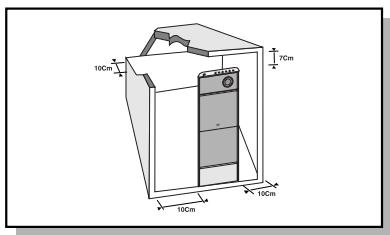
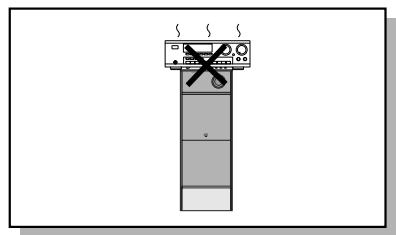
Ensure that the AC power supply in your house complies with the identification sticker located on the back of your player. Install your player horizontally, on a suitable base (furniture), with enough space around it for ventilation (3~4inches). Make sure the ventilation slots are not covered. Do not stack anything on top of the player. Do not place the player on amplifiers or other equipment which may become hot. Before moving the player, ensure the disc tray is empty. This player is designed for continuous use. Switching off the DVD player to the stand-by mode does not disconnect the electrical supply. In order to disconnect the player completely from the power supply, remove the main plug from the wall outlet, especially when left unused for a long period of time.
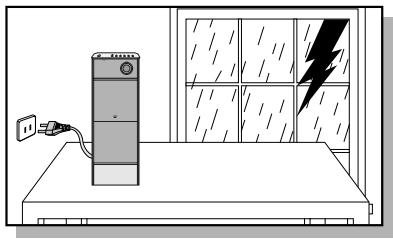
During thunderstorms, disconnect AC main plug from the wall outlet.
Voltage peaks due to lightning could damage the unit.
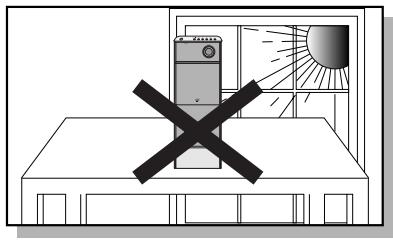
Do not expose the unit to direct sunlight or other heat sources.
This could lead to overheating and malfunction of the unit.
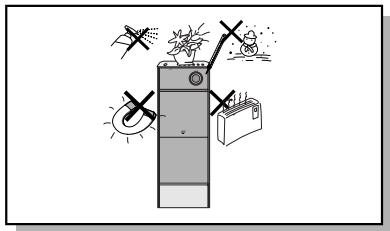
Protect the player from moisture(i.e. vases), and excess heat
(e.g. fireplace) or equipment creating strong magnetic or electric fields (i.e. speakers...). Disconnect the power cable from the AC supply if the player malfunctions. Your player is not intended for industrial use.
Use of this product is for personal use only.
Condensation may occur if your player or disc has been stored in cold temperatures.
If transporting the player during the winter, wait approximately 2 hours until the unit has reached room temperature before using.
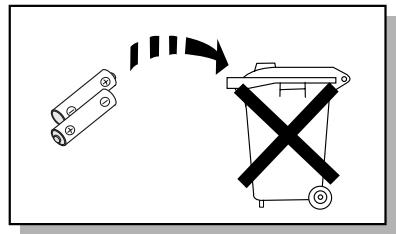
The batteries used with this product contain chemicals that are harmful to the environment.
Do not dispose of batteries in the general household trash.
Features
Multi-Disc Playback & FM Tuner
The HT-P1200 combines the convenience of multi-disc playback capability, including DVD-AUDIO, DVD-VIDEO, VCD, SACD, CD, MP3-CD, WMA-CD, DivX, CD-R/RW, and DVD-R/RW, with a sophisticated FM tuner, all in a single player.
DVD-Audio compatible
Experience the super high-quality audio performance of DVD-Audio. The on-board 24-bit/192kHz DAC enables this player to deliver exceptional sound quality in terms of dynamic range, low-level resolution and high-frequency detail.
USB Host Play
You can enjoy media files such as pictures, movies and tunes saved in an MP3 player, digital camera, or USB memory by connecting the storage device to the USB port of the home theater.
SACD Play
You can listen to high quality multi-channel sound that exceeds regular CD playback.
SDSM-EX (360 Degree Surround Sound)
SDSM-EX is a proprietary audio technology that provides 360-degree surround technology.
Logo Sound
When you turn on the power, a 'sound logo' will be heard.
TV Screen Saver Function
The HT-P1200 automatically brightens and darkens the brightness of the TV screen after 3 minutes in the stop mode.
The HT-P1200 automatically switches itself into the power saving mode after 20 minutes in the screen saver mode.
AV SYNC Function
Video may lag behind the audio if the unit is connected to a digital TV.
To compensate for this, you can adjust the audio delay time to sync up with the video.
HDMI
HDMI transmits DVD video and audio signals simultaneously, and provides a clearer picture.
Contents
PREPARATION
SafetyWarnings. 1
Precautions 2
Features 3
Notes on Discs. 5
Description 7
CONNECTIONS
Installing the DVD player 11
13
- Connecting the Speakers 15
Connecting the Video Out to TV 18
HDMI Function 19
Connecting External Components 21
- Connecting the FM Antenna 223
OPERATION
Before Using Your Home Theater 23
- DiscPlayback 25
SACD (Super Audio CD) Playback 27
MP3-CDPlayback 28
JPEG FilePlayback 29
30
DivXPlayback 31
Playing Media Files using the USB HOST feature 33
Displaying Disc Information 35
Fast/SlowPlayback 36
- Skipping Scenes/Songs 36
RepeatPlayback. 37
A-B Repeat Playback 38
Step Function 39
Angle Function 39
Zoom (Screen Enlarge) Function 40
EZVIEWFunction 40
Bonus Group / Navigating Pages 41
Selecting Audio/Subtitle Language 42
43
Using Disc Menu 44
Using the Title Menu 44
SETUP
Setting the Language 45
Setting TV Screen type 47
Setting Parental Controls (Rating Level) 49
Setting the Password 50
Setting the Wallpaper 51
DVD Audio DiscPlayback Mode 53
SACDPlaybackMode 54
Setting the Speaker Mode 55
Setting the Test Tone 56
Setting the Delay Time 57
Setting the Audio Quality 59
Setting the DRC (Dynamic Range Compression) 61
AVSYNC Setup 62
Dolby Pro Logic II Mode 63
Dolby Pro Logic II Effect 64
Auto Sound Calibration Setup 65
Live Surround Mode 67
RADIO OPERATION
Listening to Radio 69
Preseting Stations 70
About RDS broadcasting 71
MISCELLANEOUS
73
Operating a TV with the Remote Control 75
Before Calling for Service 77
Cautions on Handling and Storing Discs 79
Language Code List. 80
USB Host Feature Supported Products 81
Specifications 83
Memo 84
Notes on Discs
DVD (Digital Versatile Disc) offers fantastic audio and video, thanks to Dolby Digital surround sound and MPEG-2 video compression technology. Now you can enjoy these realistic effects in the home, as if you were in a movie theater or concert hall.
DVD players and the discs are coded by region. These regional codes must match in order for the disc to play. If the codes do not match, the disc will not play.
The Region Number for this player is given on the rear panel of the player.
(Your DVD player will only play DVDs that are labeled with identical region codes.)
Playable Discs
| Disc Type | Mark (Logo) | Recorded Signals | Disc Size | Max. Playing Time |
| DVD-AUDIO DVD-VIDEO | DVD AUDIO/VIDEO | Audio + Video | 12cm | Approx. 240 min. (single-sided) |
| Approx. 480 min. (double-sided) | ||||
| 8cm | Approx. 80 min. (single-sided) | |||
| Approx. 160 min. (double-sided) | ||||
| VIDEO-CD | COMPACT DISC DIGITAL VIDEO | Audio + Video | 12cm | 74 min. |
| 8cm | 20 min. | |||
| AUDIO-CD | COMPACT DISC DIGITAL AUDIO | Audio | 12cm | 74 min. |
| 8cm | 20 min. | |||
| DivX | DIVX | MPEG4 MP3 | 12cm | 74 min. |
| 8cm | 20 min. | |||
| Super Audio CD | SUPER-AUDIO CD | Audio | 12cm | 74 min. |
Do not use the following types of disc!
- LD, CD-G, CD-I, CD-ROM and DVD-ROM discs cannot be played on this player.
If such discs are played, a "WRONG DISC FORMAT" message appears on the TV screen.
DVD discs purchased abroad may not play on this player.
If such discs are played, a "WRONG REGION CODE" message appears on the TV screen.
Copy Protection
- Many DVD discs are encoded with copy protection. Because of this, you should only connect your DVD player directly to your TV, not to a VCR. Connecting to a VCR results in a distorted picture from copy-protected DVD discs.
- This product incorporates copyright protection technology that is protected by methods claims of certain U.S. patents and other intellectual property rights owned by Macrovision Corporation and other rights owners. Use of this copyright protection technology must be authorized by Macrovision Corporation, and is intended for home and other limited viewing uses only unless otherwise authorized by Macrovision Corporation. Reverse engineering or disassembly is prohibited.
Disc Recording Format
CD-R Discs
- Some CD-R discs may not be playable depending on the disc recording device (CD-Recorder or PC) and the condition of the disc.
- Use a 650MB/74 minute CD-R disc.
Do not use CD-R disk over 700MB/80 minute as much as possible since it may not be played back.
- Some CD-RW (Rewritable) media, may not be playable.
- Only CD-Rs that are properly "closed" can be fully played. If the session is closed but the disc is left open, you may not be able to fully play the disc.
CD-R MP3 Discs
- Only CD-R discs with MP3 files in ISO 9660 or Joliet format can be played.
- MP3 file names should be 8 characters or less in length and contain no blank spaces or special characters (. / = +) .
- Use discs recorded with a compression/decompression data rate greater than 128Kbps.
- Only files with the ".mp3" and ".MP3" extensions can be played.
- Only a consecutively written Multisession disc can be played. If there is a blank segment in the Multisession disc, the disc can be played only up to the blank segment.
- If the disc is not closed, it will take longer to begin playback and not all of the recorded files may be played.
- For files encoded in Variable Bit Rate (VBR) format, i.e. files encoded in both low bit rate and high bit rate (e.g., 32Kbps ~ 320Kbps), the sound may skip during playback.
- A maximum of 500 tracks can be played per CD.
- A maximum of 300 folders can be played per CD.
CD-R JPEG Discs
- Only files with the ".jpeg" and ".JPEG" extensions can be played.
- If the disc is not closed, it will take longer to start playing and not all of the recorded files may be played.
- Only CD-R discs with JPEG files in ISO 9660 or Joliet format can be played.
- JPEG file names should be 8 characters or less in length and contain no blank spaces or special characters (. / = +) .
- Only a consecutively written multisession disc can be played. If there is a blank segment in the multisession disc, the disc can be played only up to the blank segment.
- A maximum of 9,999 images can be stored on a single CD.
- When playing a Kodak/Fuji Picture CD, only the JPEG files in the picture folder can be played.
- Picture discs other than Kodak/Fuji Picture CDs may take longer to start playing or may not play at all.
Description
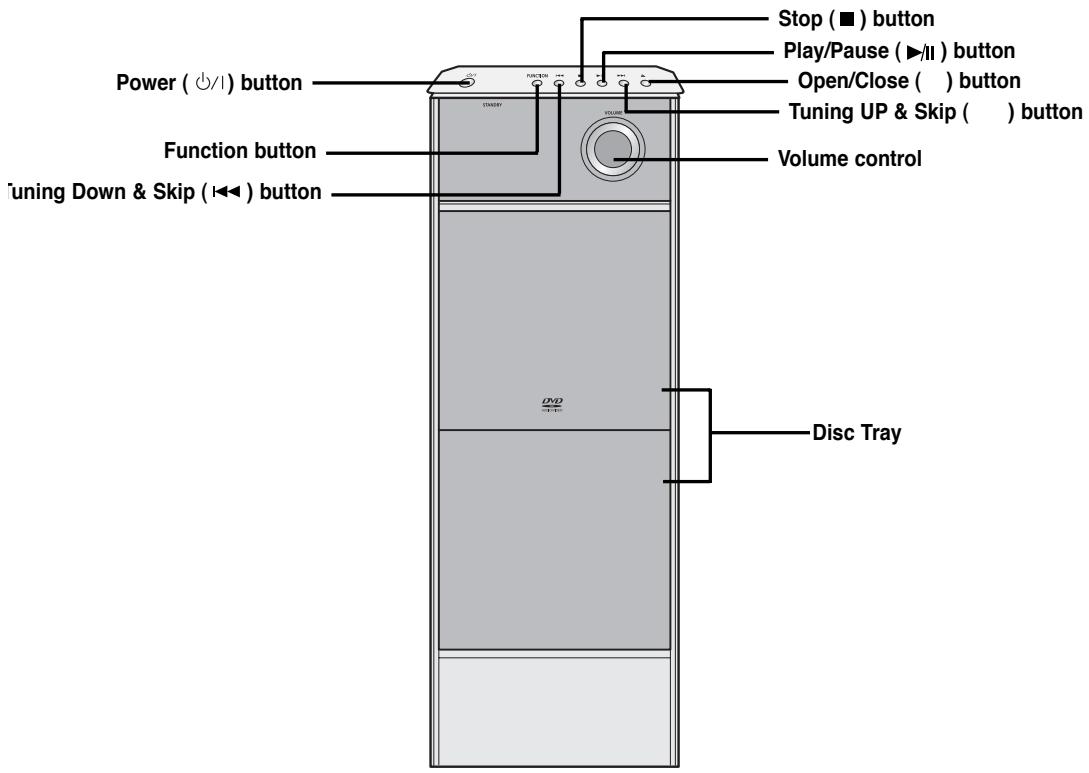
—Front Panel—
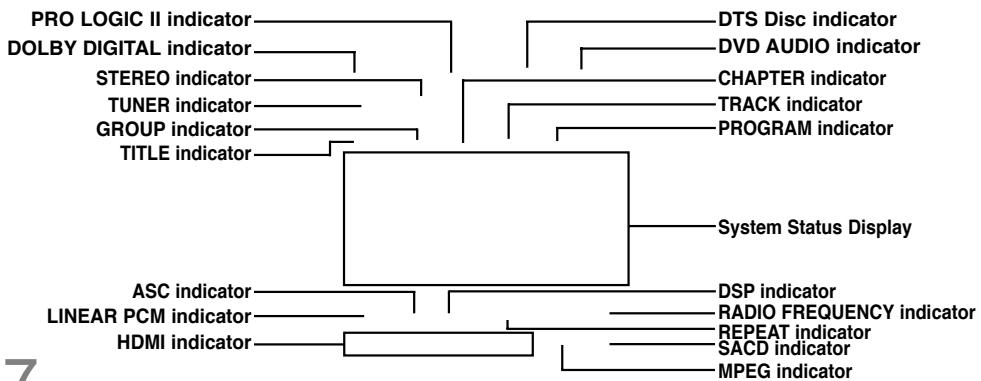
Display
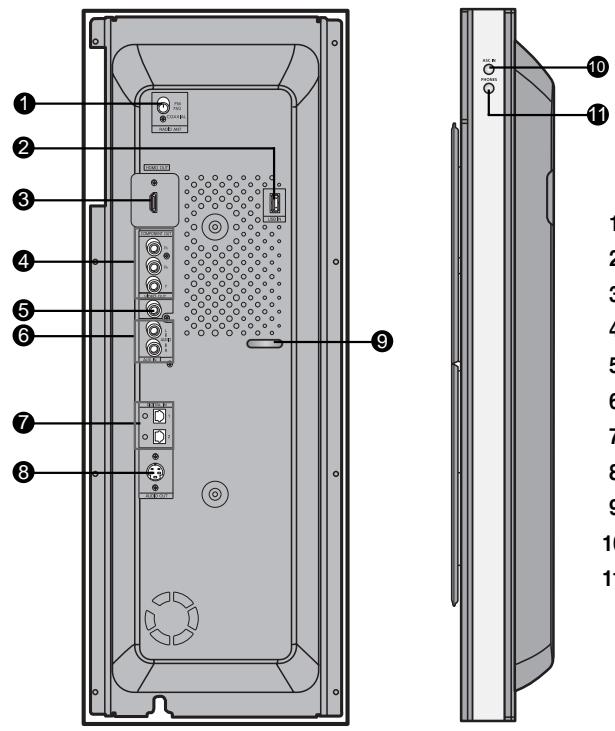
—Rear Panel—
1 FM Antenna Connector
2 USB Connector
3 HDMI Output Connector
4 COMPONENTVIDEO OUTPUTjacks
5 Video Output Connector
6 External Audio Input Connector
7 External Digital Optical Input Connectors
8 Audio Output Connector
9 Wire Hanger
10 ASC Input Connector
11 Headphone Jack
Accessories
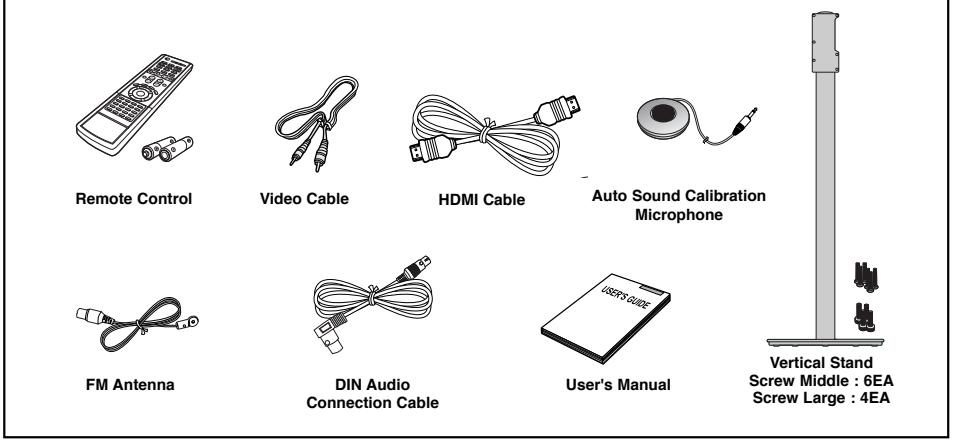
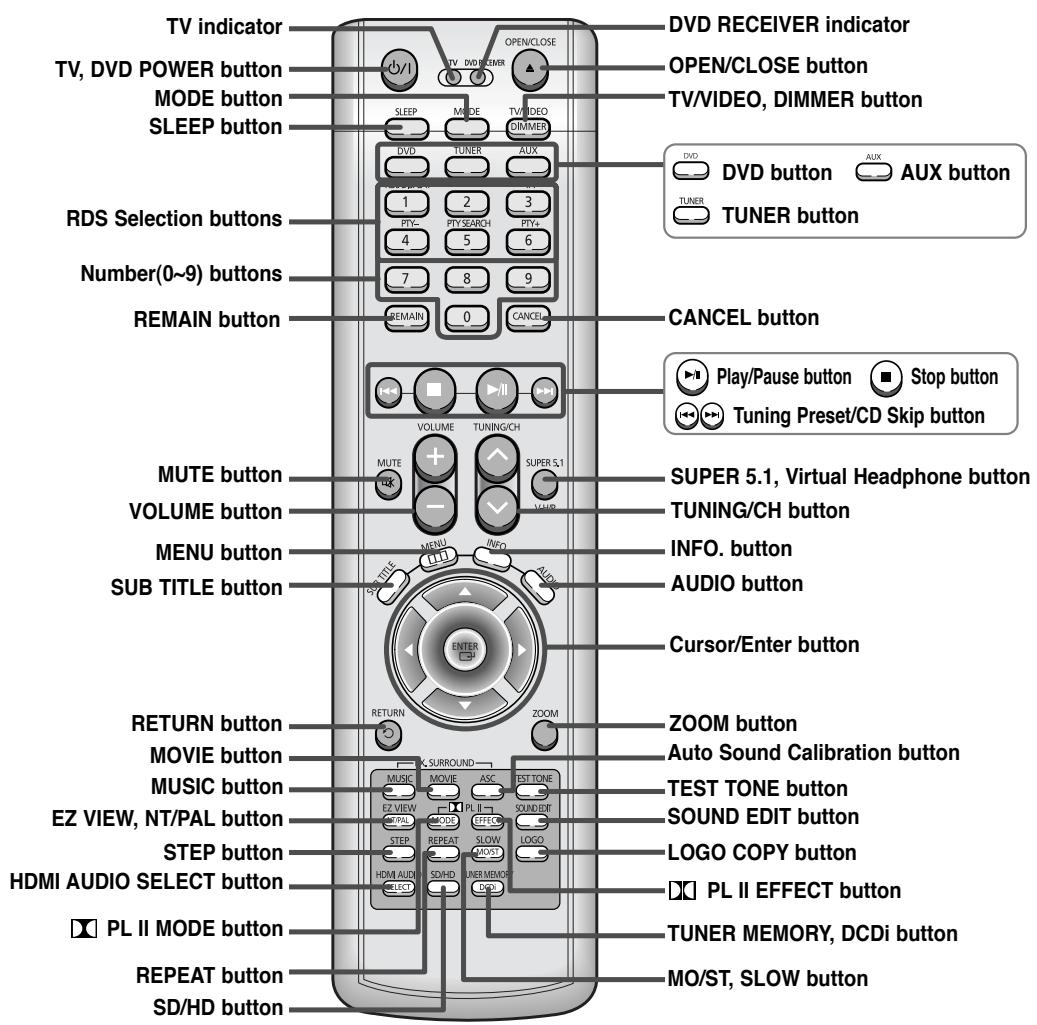
-Remote Control—
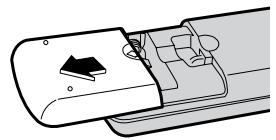
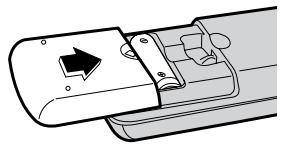
Insert Remote Batteries
1 Remove the battery cover on the back of the remote by pressing down and sliding the cover in the direction of the arrow.
2 Insert two 1.5V AAA batteries, paying attention to the correct polarities (+ and -).
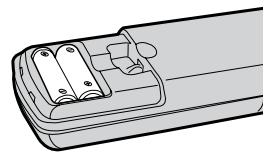
3 Replace the battery cover.
Caution
Follow these precautions to avoid leaking or cracking cells:
- Place batteries in the remote control so they match the polarity: (+) to (+) and (-) to (-) .
- Use the correct type of batteries. Batteries that look similar may differ in voltage.
- Always replace both batteries at the same time.
- Do not expose batteries to heat or flame.
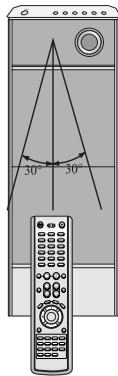
Range of Operation of the Remote Control
The remote control can be used up to approximately 23 feet/7 meters in a straight line. It can also be operated at a horizontal angle of up to 30^ from the remote control sensor.
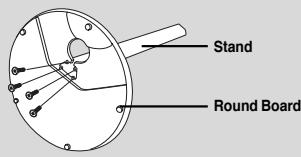
Installing the DVD player
1
Combine the round board and the stand with the screws (4).
2
Insert two screws in the top holes, but only screw them in 1/2 way.
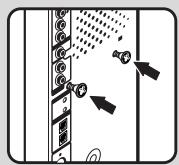
3
Align the stand with the two screws.
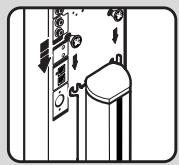
4
Fully tighten the screws to secure the stand to the DVD player.
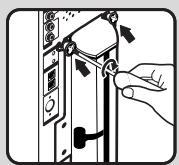
5
Insert the remaining four screws & tighten.
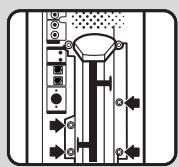
Caution
- Keep the main unit and speakers out of the reach of children as the equipment could tip over.
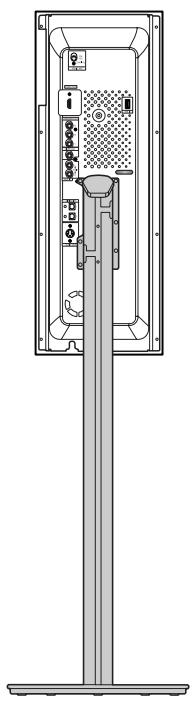
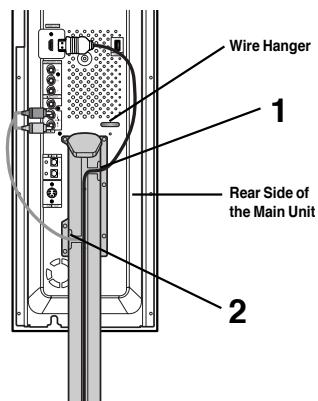
Tidying Cables Up
1
Push the cables connected to the HDMI OUT, Component OUT, Video OUT ports into the groove shown in figure 1 using the Wire Hanger.
2
Push the cables connected to the Audio IN, Anynet IN/OUT, Optical Digital Audio IN and Audio OUT ports into the groove shown in figure 2.
3
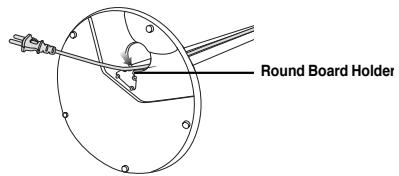
Open the holder cover of the round board on the bottom of the stand and pass the cables through the holder.
4
Squeeze the cables into the groove on the holder of the round board.
5
Close the holder cover.
SNOIOLENNO
Installing Speakers
Speaker Packages
Please confirm that all the following contents are included in the package.

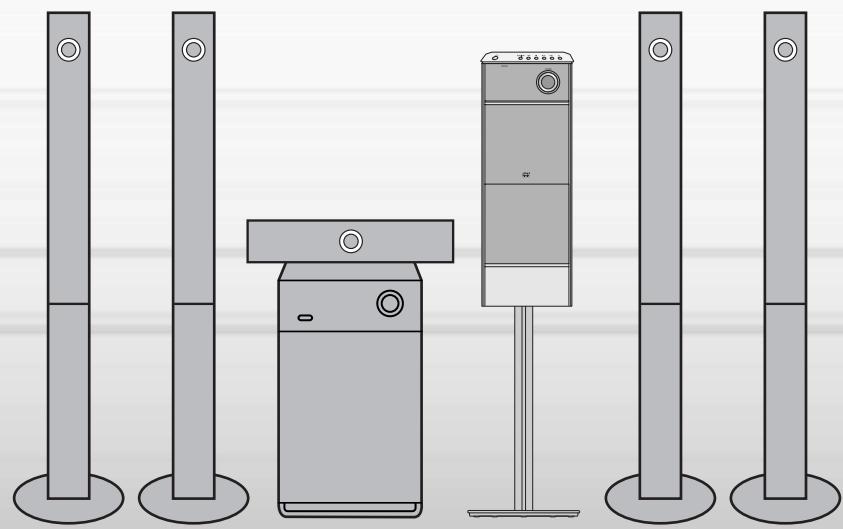
Front/Rear Speaker (4EA)
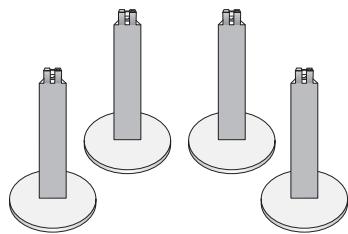
Front/Rear Stand (4EA)
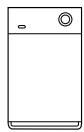
Subwoofer Speaker
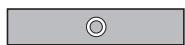
Center Speaker
Speaker Accessories
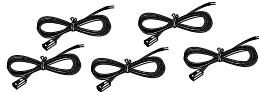
Speaker Cable (5EA)

Screw (8EA)
Assembling the Speakers
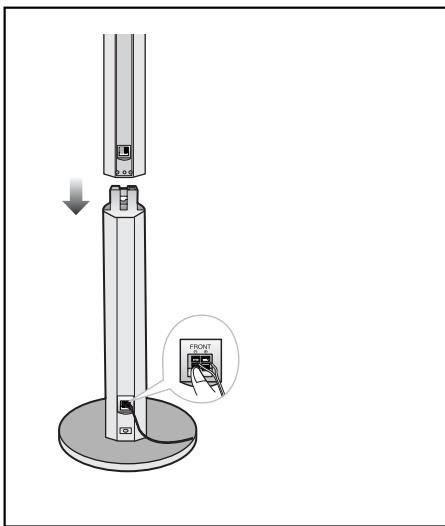
1 Set the front speaker on the front stand.
2 Connect the front speaker cable to the rear side of the front stand.
Fix the speaker and the stand with the screws.
Note
- Connect the speaker cable to the connection port of either the front speaker or the front stand. Both of the connection ports will work.
- If you have combined the front speaker and the stand, connecting the speaker cable to the connection port on the rear side of the front stand is recommended.
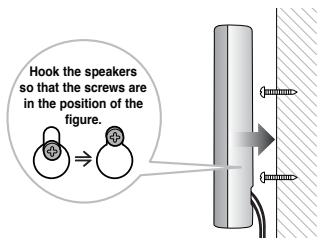
To mount the speakers on the wall
Drive screws (2) into the wall for each speaker and then hook the front and rear speakers over them.
Connecting the Speakers
Before moving or installing the product, be sure to turn off the power and disconnect the power cord.
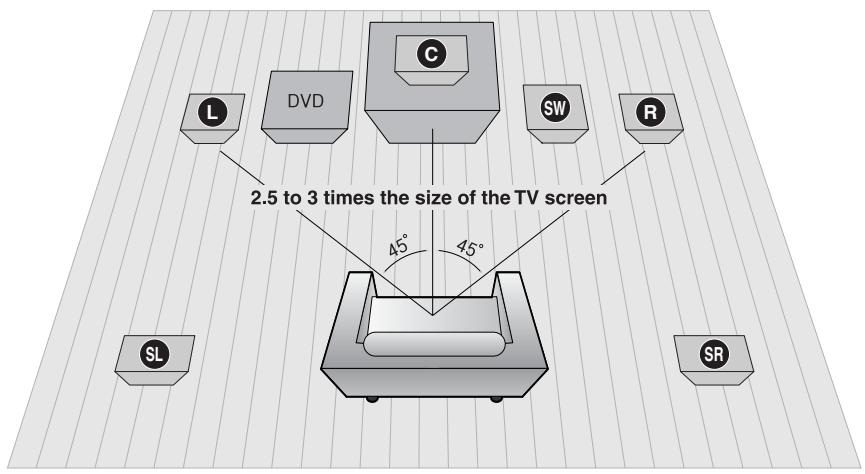
Position of the DVD Player
- Place it on a stand or cabinet shelf, or under the TV stand.
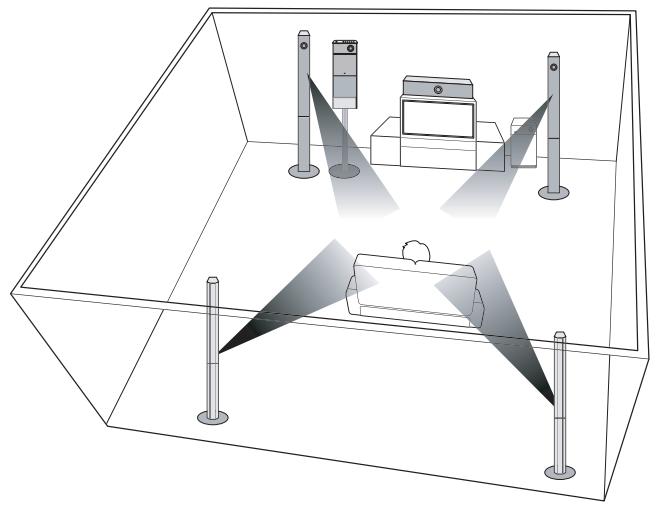
Front Speakers L
- Place these speakers in front of your listening position, facing inwards (about 45^ ) toward you.
- Place the speakers so that their tweeters will be at the same height as your ear.
- Align the front face of the front speakers with the front face of the center speaker or place them slightly in front of the center speakers.
Center Speaker
- It is best to install it at the same height as the front speakers.
- You can also install it directly over or under the TV.
Selecting the Listening Position
The listening position should be located about 2.5 to 3 times the distance of the TV's screen size away from the
TV. Example: For 32^ TVs 2~2.4m (6~8feet)
For 55" TVs 3.5~4m (11~13feet)
Rear Speakers SL SR
- Place these speakers behind your listening position.
- If there isn't enough room, place these speakers so they face each other.
- Place them about 60 to 90cm (2 to 3feet) above your ear, facing slightly downward.
Unlike the front and center speakers, the rear speakers are used to handle mainly sound effects and sound will not come from them all the time.
Subwoofer SW
- The position of the subwoofer is not so critical. Place it anywhere you like.
Connecting the Speakers
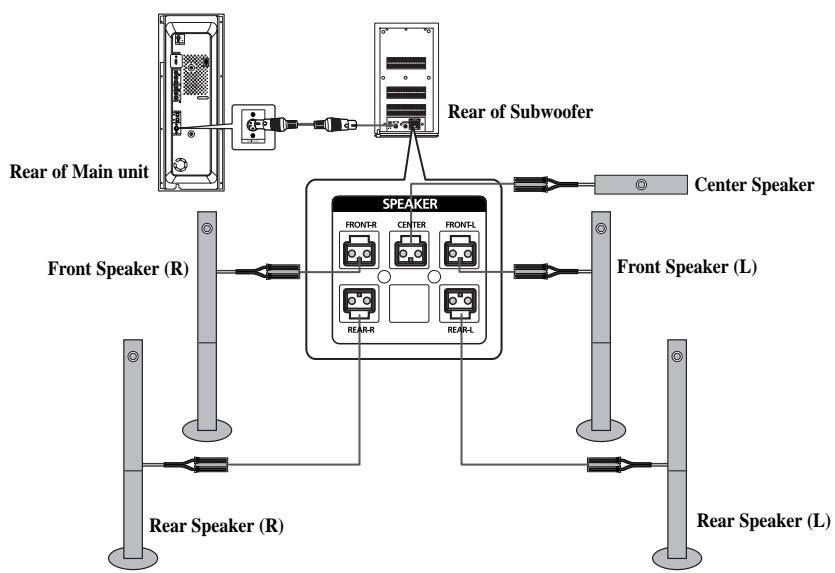
1 Press down the terminal tab on the back of the speaker.
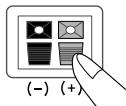
2 Insert the black wire into the black terminal (-) and the gray wire into the gray (+) terminal, and then release the tab.
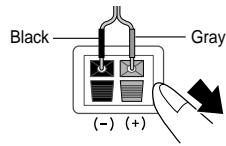
3 Connect the correct color speaker cable to the same color speaker output terminal on the rear of the subwoofer, according to the polarity markings (+/-) .
Example: Connect the green center speaker cable to the green center speaker output terminal on the rear of the subwoofer according to the polarity markings (+/-) .
Caution
- Do not let children play with or near the speakers. They could get hurt if a speaker falls.
- When connecting the speaker wires to the speakers, make sure that the polarity (+ / -) is correct.
Note
- If you place a speaker near your TV set, screen color may be distorted because of the magnetic field generated by the speaker. If this occurs, place the speaker away from your TV set.
Connecting the Speakers (con't)
Connecting the Main Unit and Sub Woofer
1 Connect the DIN Audio Out of the main unit and the DIN Audio In of the sub woofer with the DIN audio cable.
2 Press the power button of the sub woofer to turn it on.
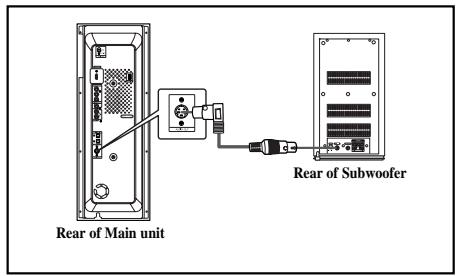
Sub Woofer Functions
Subwoofer: With the built-in, dedicated 150W amplifier, the subwoofer generates rich bass sounds.
Crossover: The Crossover sets the cutoff frequency for the subwoofer. Set the Crossover control for the best bass response in your room.
- You can adjust the bass or treble output from the front, rear, center speakers and the subwoofer.
- To the left increases the bass and to the right, treble.
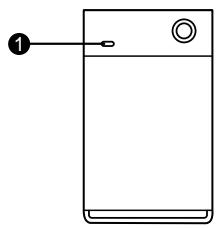
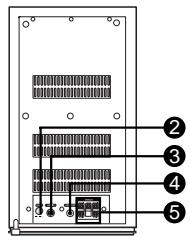
1 Power LED
2 Power button
3 External Audio Input Connector
4 Crossover Controller
5 Speaker Output Terminals
Connecting the Video Out to TV
Choose one of the three methods for connecting to a TV.
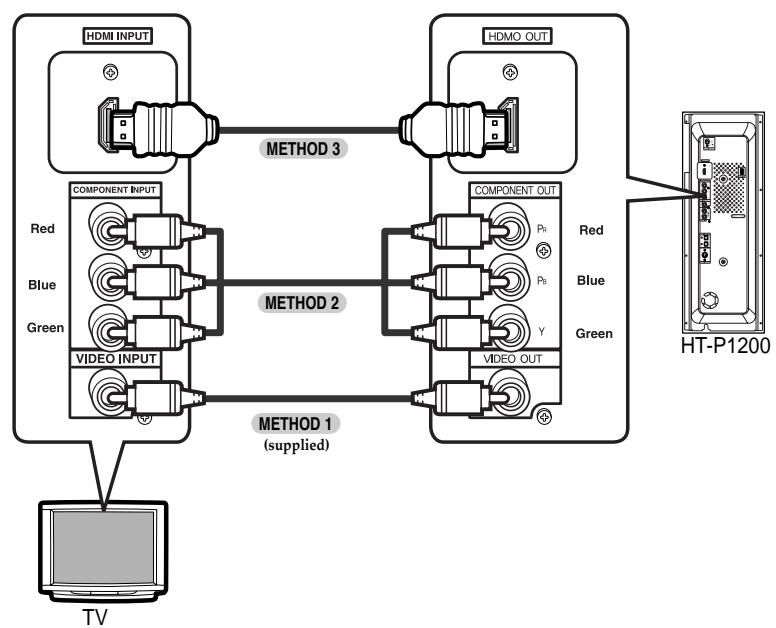
METHOD 1 Composite Video ....... (Good Quality)
- Connect the supplied video cable from the VIDEO OUT jack on the back panel of the system to the VIDEO IN jack on your TV.
METHOD 2 Component (Better Quality)
- If your television is equipped with Component Video inputs, connect a component video cable (not supplied) from the Pr, Pb and Y jacks on the back panel of the system to the corresponding jacks on your TV.
METHOD 3 HDMI (Best Quality)
- Connect the HDMI out to the HDMI input on your TV.
Note
- This product operates in Progressive scan mode(Only 480p) for Component Output.
- If the TV only supports a resolution of 576i(480i), the screen may be divided into 2 screens, or display nothing.
HDMI Function
What is HDMI (High Definition Multimedia Interface)?
This device transmits DVD video signal digitally without the process of converting to analog. You can get sharper digital pictures by connecting the video to your TV using an HDMI connection cable.
HDMI Audio ON/OFF function
- The audio signals transmitted over the HDMI Cable can be toggled ON/OFF.
Press the HDMI AUDIO SELECT button on the remote control.
- This toggles between "AUDIO ON" and "AUDIO OFF" on the display.
- AUDIO ON: Both video and audio signals are transmitted over the HDMI connection cable, and audio output is through the TV speakers only.
- AUDIO OFF : Video is transmitted over the HDMI connection cable only, and audio output is through the home theater speakers only.
Note
- The default setting value of this product is HDMI AUDIO OFF.
- HDMI AUDIO is automatically down-mixed to 2ch for TV speakers.
- If you turn the unit off and on, or switch functions when the HDMI AUDIO is automatically set to OFF.
DCDi (Directional Correlational Deinterlacing) Function
Converts the interlace signal to progressive to prevent flickering and to remove distortion or noise on the edge of screen.
Press and hold DCDi button on the remote control for over 3 seconds.
Each time the button is pressed, the selection alternates between DCDi ON and DCDi OFF.
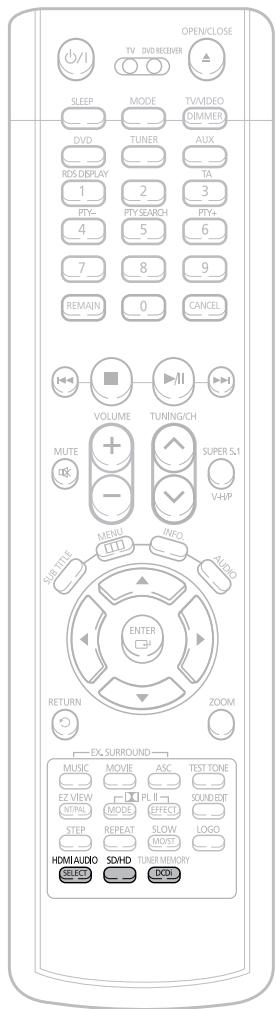
Resolution Selection
- This function allows the user to select screen resolution for HDMI output.
In Stop mode, press and hold the SD/HD (Standard Definition/High Definition) button on the remote control.
- SD(Standard Definition) means resolution of 480p and HD (High Definition) means resolution of 720p/1080i.
Example: If the TV supports resolution up to 480p
Press the SD/HD button.
A 480p video signal is output through the HDMI output.
- If the TV does not support the configured resolution, you will not be able to see the picture properly.
Note
- Since this product has an embedded Video Upscaler function with Faroudja DCDi technology, it can enhance a 576i(480i) DVD resolution output to 480p/720p/1080i.
- You do not have to make separate adjustments, since the Home Theater and TV will be automatically adjust themselves to the optimal resolution and aspect ratio if connected to HDMI. (If the TV is an HDTV and has an HDMI Input jack, output is automatically converted to 1080i resolution (if supported by the TV).)
- For component video output, only 480P is supported.
- When both HDMI and COMPONENT jacks are connected, COMPONENT video is not displayed.
- See your TV owner's manual for more information on how to select the TV's Video Input source.
Connecting External Components
Connecting an External Digital, Analog Component
Example: Digital signal components such as a Set-top Box or CD Recorder.
Analog signal components such as a VCR or TV.
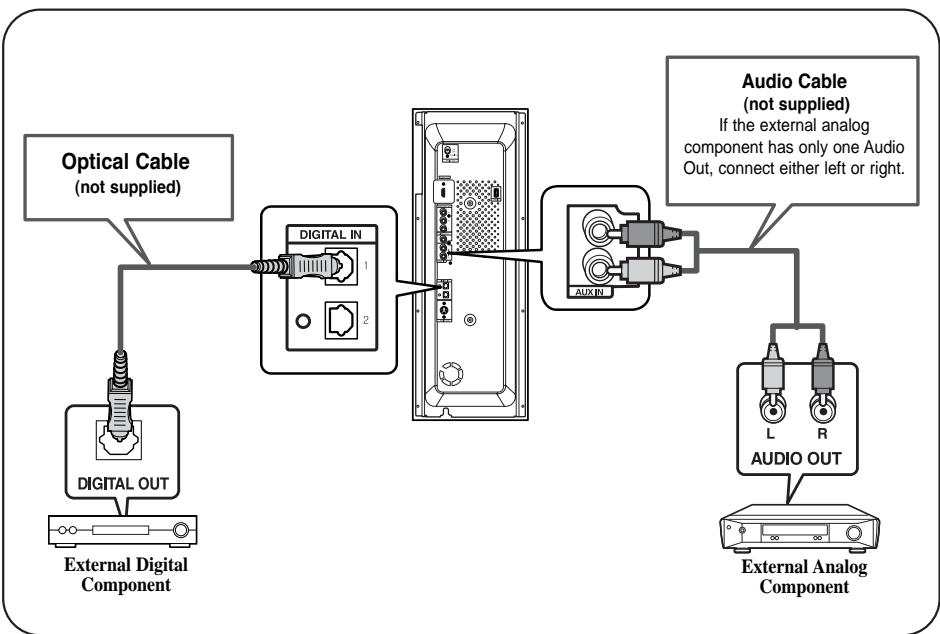
1 Connect the Digital In 1 or 2 (OPTICAL) on the main unit to the Digital Output on the external digital component.
2 Connect Audio In on the Home Theater to Audio Out on the external analog component.
- Be sure to match connector colors.
3 Press AUX on the remote control to select 'D.IN 1 / D.IN 2 / AUX'.
Each time the button is pressed, the selection changes as follows: USB D.IN 1 D.IN 2 AUX.
- You can also use the FUNCTION button on the main unit. The mode switches as follows: DVD/CD D.IN 1 D.IN 2 AUX USB FM.
Note
- To listen to the audio from the TV in 5.1 channel through the main unit, press the Dolby Pro Logic II or the SUPER 5.1 button.
- You can connect Video Output jack on the VCR to the TV, and connect Audio Output jack on the VCR to this product.
Connecting the FM Antenna
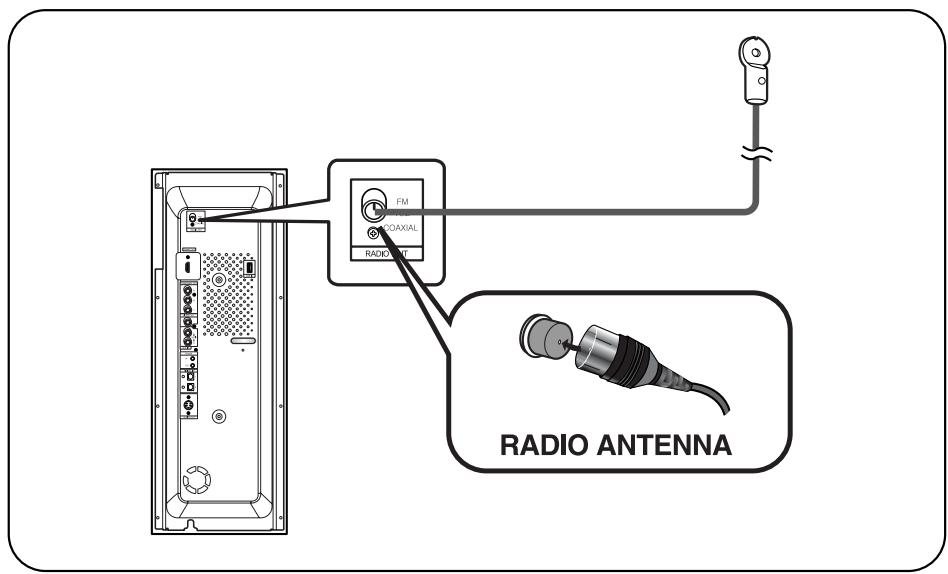
FM antenna connection
1 Connect the FM antenna supplied to the FM 75Ω COAXIAL terminal.
Slowly move the antenna wire around until you find a location where reception is good, then fasten it to a wall or other rigid surface.
Cooling Fan
The cooling fan supplies cool air to the unit to prevent overheating.
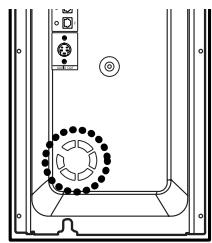
Please observe the following cautions for your safety.
- Make sure the unit is well-ventilated. If the unit has poor ventilation, the temperature inside the unit could rise and may damage it.
- Do not obstruct the cooling fan or ventilation holes. (If the cooling fan or ventilation holes are covered with a newspaper or cloth, heat may build up inside the unit and fire may result.)
Before Using Your Home Theater
Your Home Theater is capable of playing DVD, CD, MP3, DivX and JPEG discs.
Depending on the disc you are using, these instructions may vary slightly. Read the instructions carefully before using.
To Operate the TV and DVD Player with a Single Remote Control
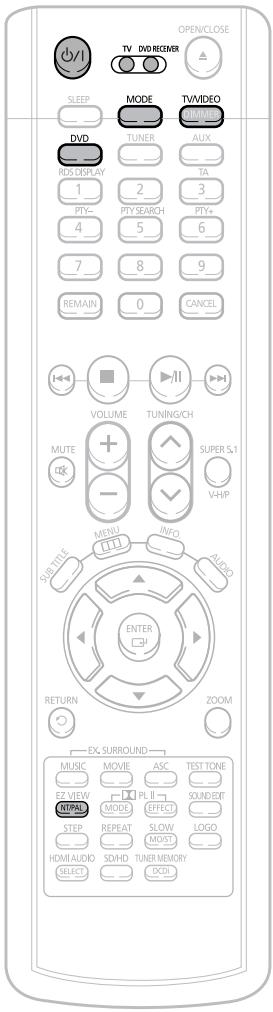
Plug the main unit's power cord into the AC power supply.
4 Press TVVIDEO button to select VIDEO mode.
Note
- Buttons Enabled for TV Operation: POWER, CHANNEL, VOLUME, TV/VIDEO, and Numeric (0-9) buttons.
- By default, the remote control is set to work with Samsung TVs. See page 75 for more information on the operation of the remote control.
2 Press MODE button until the TV indicator lights red.
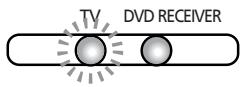
Press POWER button to turn on the main unit and then press DVD button to select "DVD/CD" function of the remote control.

Press the MODE button until the DVD RECEIVER indicator lights green.
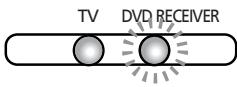
Press FUNCTION button on the main unit or DVD on the remote to select DVD/CD mode.
Selecting the Video Format
Press and hold NT/PAL button on the remote controller for over 5 seconds while the power is turned off.
- By default, the video format is set to "PAL".
- "NTSC" or "PAL" will appear in the display. At this time, press the NT/PAL button shortly to select between "NTSC" and "PAL".
Each country has a different video format standard. - For normal playback, the video format of the disc must be the same as the video format of your TV.
DiscPlayback
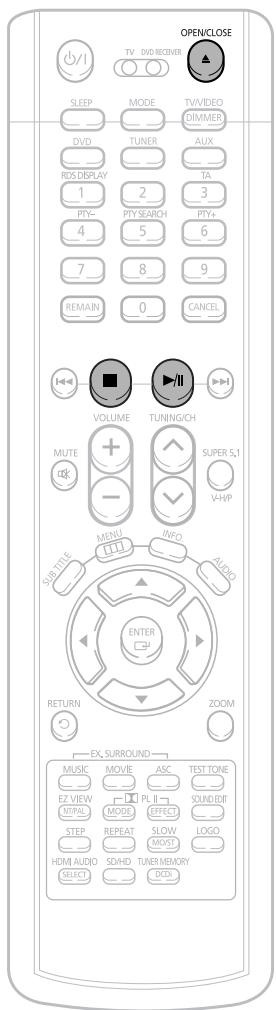
Press OPEN/CLOSE button to open the disc tray.
2 Insert the disc so that the printed side faces out.
Press OPEN/CLOSE button to close the disc window.
- The disc plays automatically when the disc window is closed.
- The disc menu may appear differently depending on the disc.
DVD VCD SACD CD
- Playback starts automatically.
Note
- Depending on the content of the disc, the initial screen may appear different.
To stop playback, press STOP during playback.
- If pressed once, "PRESS PLAY" is displayed and the stop position will be stored in memory. If PLAY/PAUSE (▶II) button or ENTER button is pressed, playback resumes from the stop position. (This function works only with DVDs.)
- If pressed twice, "STOP" is displayed, and if PLAY/PAUSE (▶/I) button is pressed, playback starts from the beginning.
To temporarily pause playback, press PLAY/PAUSE during playback.
- To resume playback, press PLAY/PAUSE (▶/I) button again.
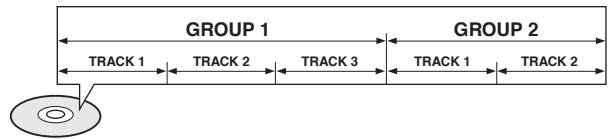
Disc terminology
Groups and tracks (DVD-AUDIO)
- DVD-audio is divided into several large sections called "groups" and smaller sections called "tracks". Numbers are allotted to these sections. These numbers are called "group numbers" and "track numbers".
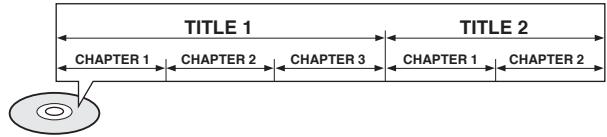
Titles and chapters (DVD-VIDEO)
- DVD-video is divided into several large sections called "titles" and smaller sections called "chapters". Numbers are allotted to these sections. These numbers are called "title numbers" and "chapter numbers".
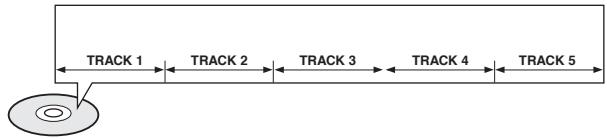
Tracks (SACD, Video and music CDs)
- Video and music CDs are divided into sections called "tracks". Numbers are allotted to these sections. These numbers are called "track numbers".
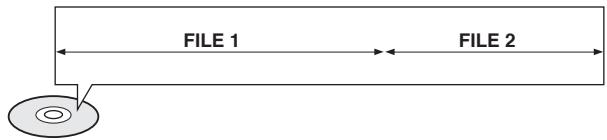
Files (DivX)
- DivX is divided into sections called "files". Numbers are allotted to these sections. These numbers are called "file numbers".
Note
-
In this manual, the instructions marked with "DVD ( DVD )" are applicable to DVD-VIDEO, DVD-AUDIO, and DVD-R/RW discs. Where a particular DVD type is mentioned, it is indicated separately.
-
Depending on the content of the disc, the initial screen may appear different.
SACD (Super Audio CD) Playback
You can listen to the high quality original sound of multi-channels that produces sound exceeding the limit of human sense.
1 Open the disk tray by using the OPEN/ CLOSE button and then insert SACD.
- SACD menu appears and the play begins.
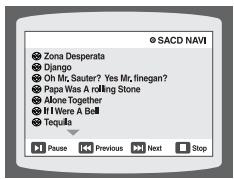
When the play is stopped, select a track using the button and press the ENTER button.
- During the play, you cannot select a track using the button.
3 Press the STOP button to stop playback.
Disc Spec
| Item | CD | SACD | DVD Audio |
| Number of Channels and Play Time | 2 Channels: 70 Minutes | 2 Channels: 110 Minutes 5.1 Channels: 81 Minutes | 2 Channels: 120 Minutes 5.1 Channels: 89 Minutes |
| Sampling Frequency | 44.1 KHz | 2822.4 KHz (64 Times of CD) | 44.1~192 KHz (4.4 Times of CD) |
| Dynamic Range | 96 dB | 120 dB | 144 dB |
| Play Frequency | ~20 KHz | ~100 KHz | ~96 KHz |
Note
- SACD has three kinds of formats: Single Layer Disc that has 1 HD layer, Dual Layer Disc that has 2 HD layers and Hybrid Disc that has both CD and HD layers. Hybrid Discs can play in regular CD players.
MP3-CD Playback
Data CDs (CD-ROM, CD-R, CD-RW) encoded in MP3 format can be played.
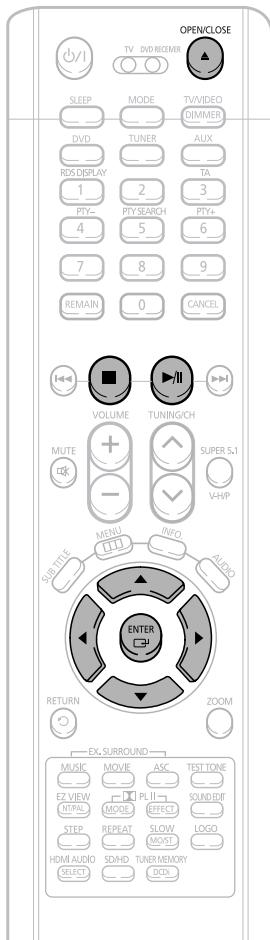
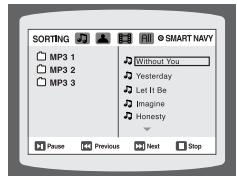
Press the OPEN/CLOSE button to open the disc tray, and then load the MP3 disc.
- The MP3 menu screen will appear and playback will start.
The appearance of the menu depends on the MP3 disc. - WMA-DRM files cannot be played.
2
In Stop mode, use to select the album, and then press the ENTER button.
- User ▲▼ to select the track.
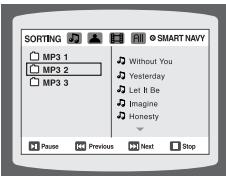
3
To change the album, use to select another album in Stop mode, and then press the ENTER button.
- To select another album and track, repeat Steps 2 and 3 above.
4
Press the STOP button to stop playback.
Note
- Depending on the recording mode, some MP3-CDs may not play.
- Table of contents of a MP3-CD varies depending on the MP3 track format recorded on the disc.
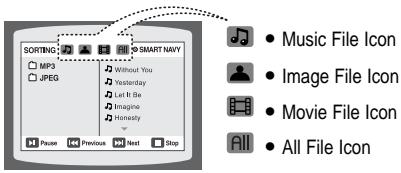
To play a file icon in the screen,
Press the button when it is in stop status and select a desired icon from the top part of the menu.
To play music files only, select the

- To view image files only, select the

- To view movie files only, select the

To select all files select the All

JPEG File Playback
JPEG
Images captured with a digital camera or camcorder, or JPEG files on a PC can be stored on a CD and then played back with this DVD player.
Press the OPEN/CLOSE button to open the disc windows, and then load the JPEG disc.
- Playback will start automatically and each image will show for 5 seconds before moving to the next image.
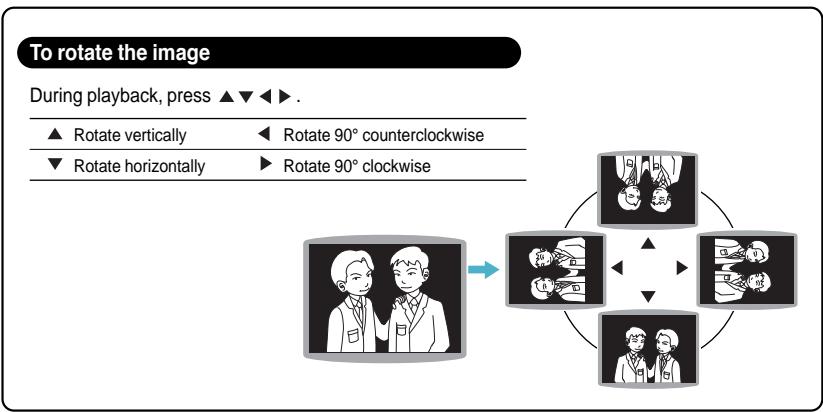
JPEG limitation
The maximum resolution is 5120 × 3840 (or 19.0MPixel ) for baseline images, and 2048 × 1536 (3.0 MPixel) for progressive images.
There is no filesize limitation.
The decoder is device independent, thus above applies to USB and other devices as well.
Progressive JPEG images — those that appear gradually as the image is being downloaded.
Checking the Remaining Time
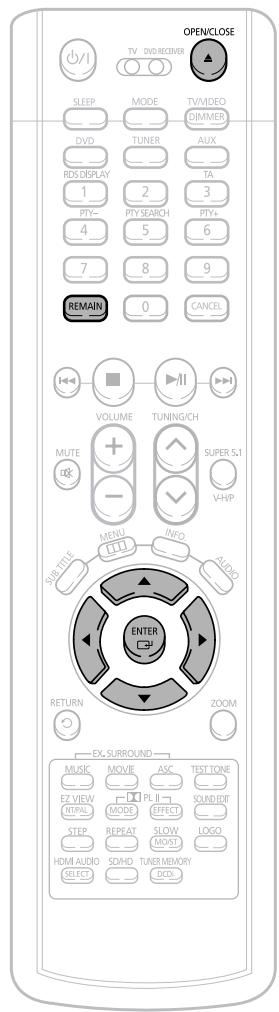
Press the REMAIN button.
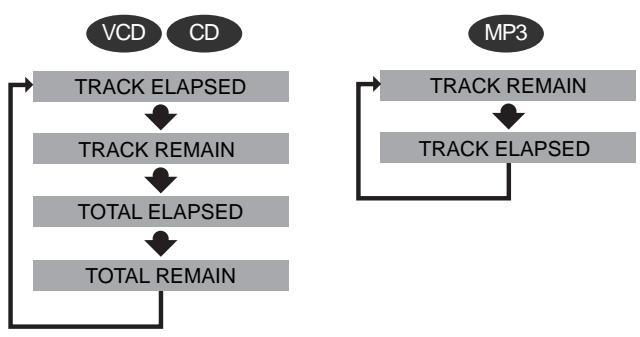
- For checking the total and remaining time of a title or chapter being played.
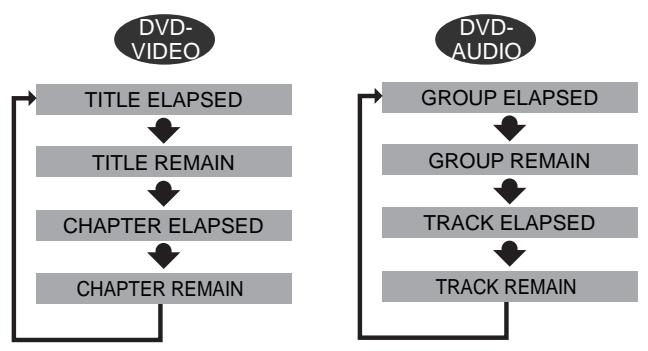
Each time the REMAIN button is pressed
DivXPlayback
Skip Forward/Back
During playback, press the 144 button.
- Goes to the next file whenever you press button, if there are over 2 files in the disk.
- Goes to the previous file whenever you press button, if there are over 2 files in the disk.
Fast playback
To play back the disc at a faster speed, press and hold or during playback.
Each time you press and hold either button, the playback speed will change as follows: 2x 4x 8x 32x Normal
5 Minute Skip function
During playback, press the , button.
- Playback skips 5 minutes forward whenever you press button.
- Playback skips 5 minutes back whenever you press button.
Zoom Function
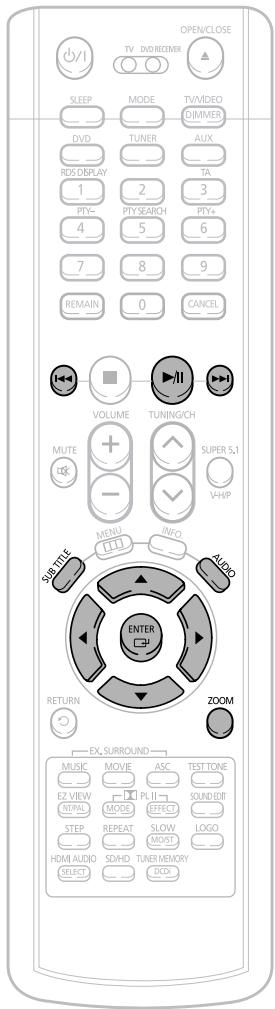
1 Press ZOOM button.
Each time you press the button, your selection will toggle between "ZOOM X2" and "ZOOM OFF".
Press Cursor▲,▼, ▲,▶ buttons to move to the area you want to enlarge.
Note
- DivX file can be zoomed only in ZOOM X2 mode.
- DivX files have .Avi file extensions, however, not all .Avi files are DivX and may not be playable in this unit.
Subtitle Display
Press the SUBTITLE button.
- Each time you press the button, your selection will toggle between "SUBTITLE ON" (1/1, 1/2 ...) and "SUBTITLE OFF".
- If the disc has only one subtitle file, it will be played automatically.
Audio Display
Press the AUDIO button.
Each time you press the button, your selection will toggle between "AUDIO ON" (1/1, 1/2 ...) and "fllj".
Note

" is displayed when there is one supported language in the disc.
DivX(Digital internet video eXpress)
DivX is a video file format developed by Microsoft and is based on MPEG4 compression technology to provide audio and video data over the Internet in real-time.
MPEG4 is used for video encoding and MP3 for audio encoding so that the users can watch a movie at near DVD-quality video and audio.
1. Supported Formats
- This product only provides the following media formats. If both video and audio formats are not supported, the user may experience problems such as broken images or no sound.
Supported Video Formats
| Format | AVI | WMV |
| Supported Versions | DivX3.11 ~ 5.1 | V1/V2/V3/V7 |
Supported Audio Formats
| Format | MP3 | WMA | AC3 | DTS |
| Bit Rate | 80~384kbps | 56~128kbps | 128~384kbps | 1.5Mbps |
| Sampling Frequency | 44.1kHz | 44.1/48kHz | 44.1kHz | |
- DivX files, including audio and video files, created in the DTS format can only support up to 6Mbps.
- Aspect Ratio: Although default DivX resolution is 640^480 pixels (4:3), this product supports up to 720480 pixels (16:9). TV screen resolutions higher than 800 will not be supported.
- When you play a disc whose sampling frequency is higher than 48khz or 320kbps, you may experience shaking on the screen during playback.
2. Caption Function
- You must have some experience with video extraction and editing in order to use this feature properly.
- To use the caption function, save the caption file (.smi) in the same file name as that of the DivX media file (.avi) within the same folder.
Example. Root
Samsung_Bluetek_007CD1.avi
Samsung_Bluetek_007CD1.smi
- Up to 60 alphanumeric characters or 30 East Asian characters (2 byte characters such as Korean and Chinese) for the file name.
Playing Media Files using the USB HOST feature
You can enjoy media files such as pictures, movies and music saved in an MP3 player, USB memory or digital camera in high quality video with 5.1 channel home theater sound by connecting the storage device to the USB port of the home theater.
1 Connect the USB device to the USB port on the reside of the unit.
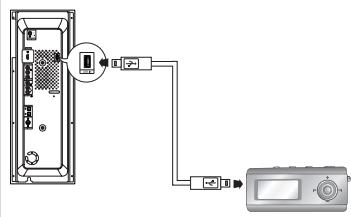
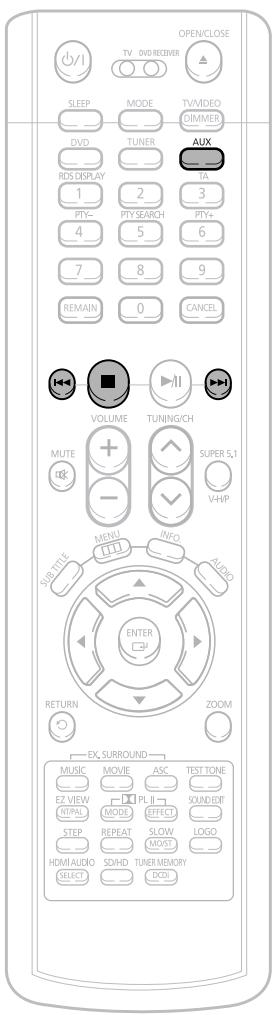
Press the FUNCTION button on the main unit or the AUX button on the remote control to select the USB mode.
- "USB" appears on the display screen and then disappear.
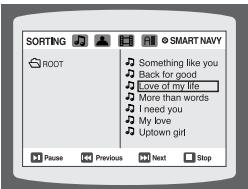
- USB SORTING screen appears on the TV screen and the saved file is played.
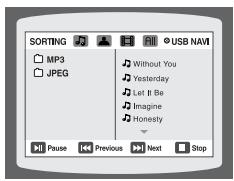
To stop playback, press the STOP (■) button.
Safe USB Removal
To prevent damage to the memory stored in the USB device, perform safe removal before disconnecting the USB cable.
(1) Press the stop button twice in a row. The display will show REMOVE USB.
(2) When the main unit is powered off, or in a different function mode, remove the USB cable.
Skip Forward/Back
During playback, press the 144 button.
- When there is more than one file, when you press the button, the next file is selected.
- When there is more than one file, when you press the button, the previous file is selected.
Fast playback
To play back the disc at a faster speed, press and hold or during playback.
- Each time you press and hold either button, the playback speed will change as follows: 2x 4x 8x 32x Normal.
Compatible Devices
- USB devices that support USB Mass Storage v1.0.
(USB devices that operate as a removable disk in Windows (2000 or later) without additional driver installation.)
- MP3 Player: HDD and flash type MP3 player.
- CBI (Control/Bulk/Interrupt) is not supported.
- Digital camera: PTP protocol is not supported.
Devices which require additional program installation when you have connected it to a computer, are not supported.
-
USB HDD and USB Flash Drive: Devices that support USB2.0 or USB1.1.
-
You may experience a difference in playback quality when you connect a USB1.1 device.
-
For a USB HDD, make sure to connect an auxiliary power cord to the USB HDD for proper operation.
-
USB card Reader: One slot USB card reader and Multi slot USB card reader
-
Depending on the manufacturer, the USB card reader may not be supported.
-
If you install multiple memory devices into a multi card reader, you may experience problems.
-
If you use a USB extension cable, the USB device might not be recognized.
Supported Formats
| File name | File extension | Bit rate | Version | Pixel | Sampling Frequency | |
| Still Picture | JPG | .JPG .JPEG | - | - | 640*480 | - |
| Music | MP3 | .MP3 | 128~320kbps | - | - | 32k/44.1k/48kHz |
| WMA | .WMA | 56~128kbps | V8 | - | 32k/44.1k/48kHz |
- A device using NTFS file system is not supported. (Only FAT 16/32 (File Allocation Table 16/32) file system is supported.)
- The USB host function of this product does not support all USB devices. For information on the supported devices, see pages 81~82.
Displaying Disc Information
You can view disc playback information on the TV screen.
Press INFO button.
Each time the button is pressed, the display changes as follows:
DVD
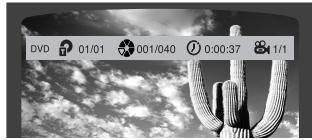
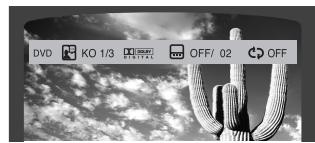
Display disappears
Note
Depending on the disc, the disc information display may appear different.
Depending on the disc, you can also select DTS, DOLBY DIGITAL, or PRO LOGIC.
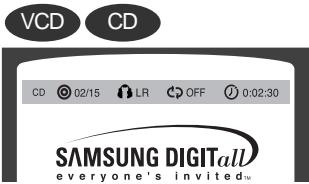
Display disappears
- appears on the TV screen!
If this symbol appears on the TV screen while buttons are being operated, that operation is not possible with the disc currently being played.
- What is a Group?
A section of tracks contained in a DVD-AUDIO disc.
What is a Title?
A movie contained in a DVD-VIDEO disc.
- What is a Chapter?
Each title on a DVD disc is divided into several smaller sections called "chapters"
- What is a Track (File)?
A section of video or a music file recorded on a DVD-AUDIO, CD, or MP3-CD.
Screen Display

DVD display

DivX display

CHAPTER display

REPEAT PLAYBACK display

LBRSTEREO(L/R)display

VCD display

DVD-AUDIO display

TRACK (FILE) display

AUDIO LANGUAGE display

DOLBY DIGITAL display

CD display

TITLE display
GROUP display

ELAPSED TIME display

SUBTITLE display

ANGLE display

MP3 CD display
GROUP display

SACD display
Fast/SlowPlayback
FastPlayback
DVD
VCD
SACD
CD
MP
1
Press and hold
Each time the button is held down during playback, the playback speed changes as follows:
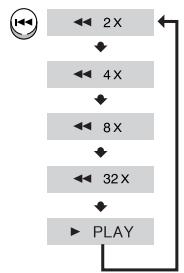
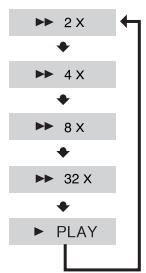
SlowPlayback
Press SLOW button.
Each time the button is pressed during playback, the playback speed changes as follows:
DVD
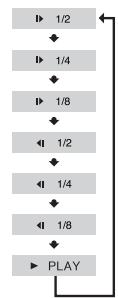
VCD
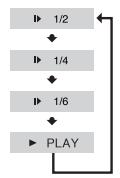
DivX
Note
- Reverse slow playback does not work with VCD, SACD and DivX.
Skipping Scenes/Songs
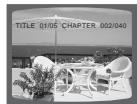
Briefly press
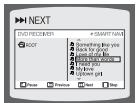
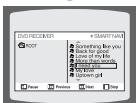
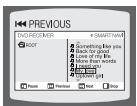
- Each time the button is pressed briefly during playback, the previous or next chapter, track, or directory (file) will be played.
- You cannot skip chapters consecutively.
DVD
VCD
SACD


- When watching a VCD with a track longer than 15 minutes, each time
is pressed, playback will skip back or forward 5 minutes.
MP3


Repeat Playback
Repeat playback allows you to repeatedly play a chapter, title, track (song), or directory (MP3 file).
DVD VCD SACD CD MP3 JPEG
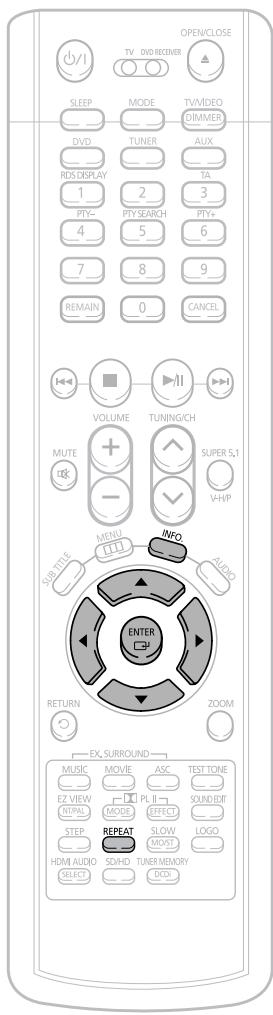
Press REPEAT button.
Each time the button is pressed during playback, the repeat playback mode changes as follows:
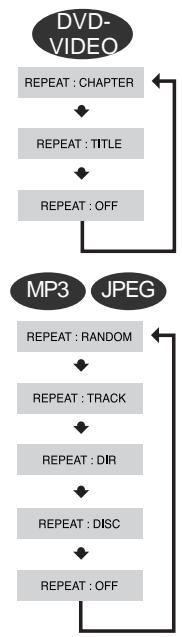
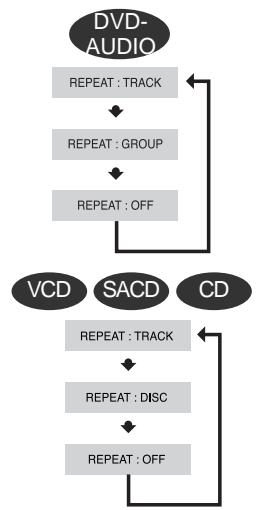
Repeat Playback Options
CHAPTER
Repeatedly plays the selected chapter.
TITLE
Repeatedly plays the selected title.
GROUP
Repeatedly plays the selected group.
RANDOM
Plays tracks in random order.
(A track that has already been played may be played again.)
TRACK
Repeatedly plays the selected track.
DIR
Repeatedly plays all tracks in the selected folder.
DISC
Repeatedly plays the entire disc.
OFF
Cancels Repeat Playback.
Note
- Repeat playback operation is not possible with version 2.0 VCD discs if PBC is turned on. To use Repeat Playback on a VCD with PBC, you should set the PBC to OFF in the disc menu. (See page 44.)
To Select a Repeat Playback Mode in the Disc Information Screen
1 Press INFO button twice.
2 Press Cursor button to move to REPEAT PLAYBACK ( ) display.
3 Press Cursor button to select the desired Repeat Playback mode.
4 Press ENTER button.
* For MP3 and JPEG discs, you cannot select Repeat Play from the information display screen.
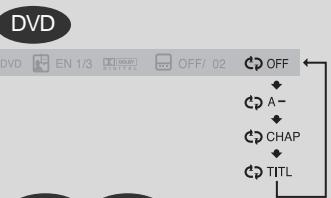
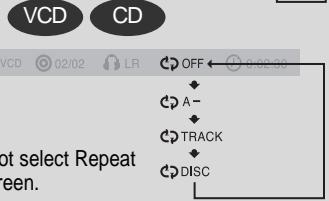
A-B Repeat Playback
You can repetitively play back a designated section of a DVD.
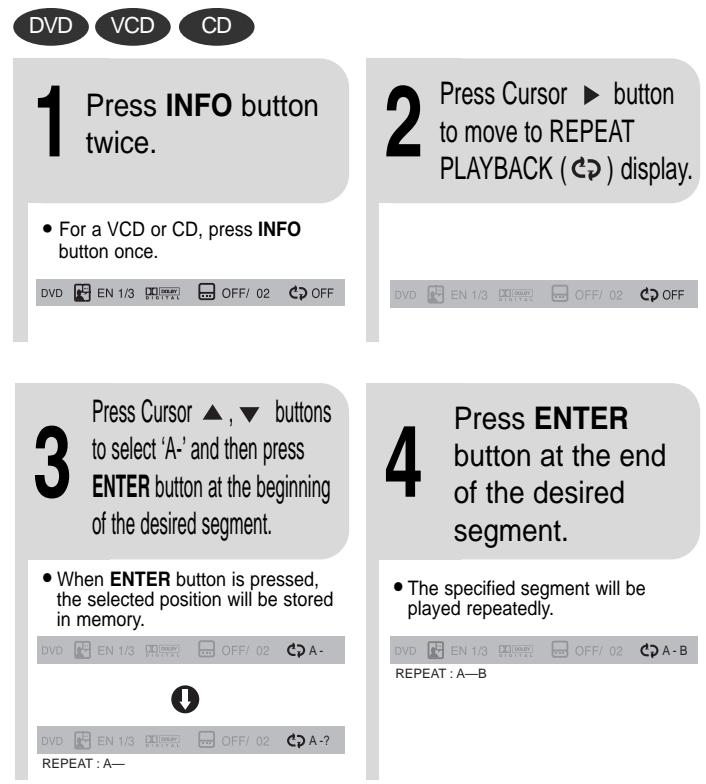
To return to normal playback, press Cursor , buttons to select OFF.
Note
- The A-B Repeat function will not work on an SACD, MP3 or JPEG disc.
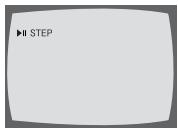
Press STEP button.
- The picture moves forward one frame each time the button is pressed during playback.
Note
- During fast playback of a SACD, CD or MP3-CD, sound is heard only at 2x speed, and not at 4x, 8x, and 32x speeds.
- No sound is heard during slow playback and step motion playback.
Angle Function
DVD
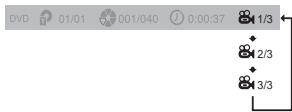
This function allows you to view the same scene in different angles.
Press INFO button.

Press Cursor button to move to ANGLE (84) display.

3 Press Cursor , or numeric buttons to select the desired angle.
Each time the button is pressed, the angle changes as follows:
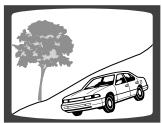
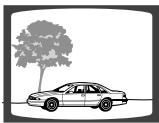
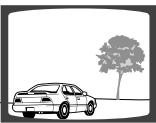
Note
- The Angle function works only with discs on which multiple angles have been recorded.
Zoom (Screen Enlarge) Function
This function allows you to enlarge a particular area of the displayed image.
DVD
VCD
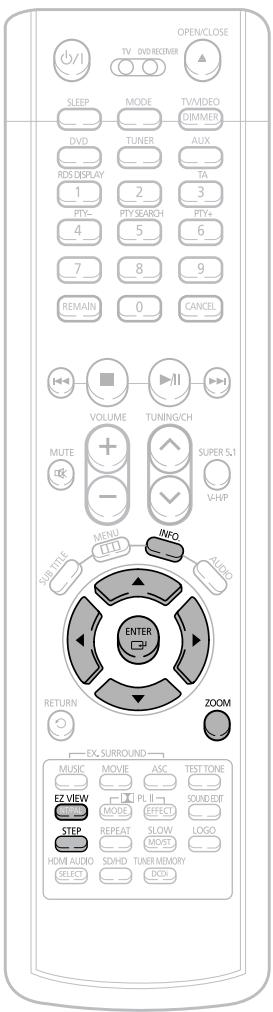
Press ZOOM button.
Press Cursor▲,▼, ←,▶ buttons to move to the area you want to enlarge
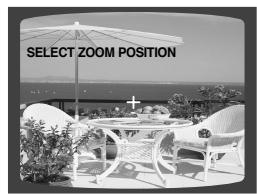
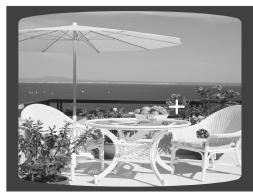
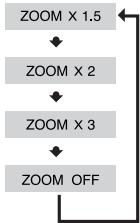
3 Press ENTER button.
Each time the button is pressed, the zoom level changes as follows:
Note
- When a DivX disc is being played, only the 2:1 zoom-in is available.
EZ VIEW Function
DVD
Press EZ VIEW button.
Each time the button is pressed, the zoom function will switch between On and Off.
- When a movie is played in Widescreen format, black bars at the top and bottom of the TV screen can be removed by pressing the EZ VIEW button.
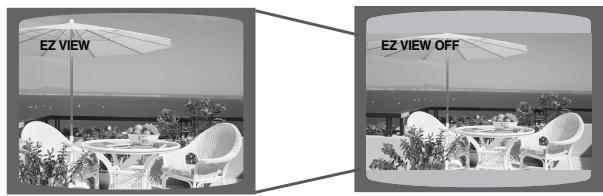
Note
- This function will not work if the DVD is recorded with multi-camera angle format.
- Black bars may not disappear because some DVD discs have a built-in horizontal to vertical ratio.
- This feature is not supported for DivX discs.
Bonus Group / Navigating Pages
Selecting Audio/Subtitle Language
Bonus Group
DVD-AUDIO
Some DVD-Audio discs have an extra 'bonus' group that requires a 4-digit key number to access. See the disc packaging for details and the-key number.
When you play a DVD-Audio disc that has a bonus group, the key number input screen appears automatically.
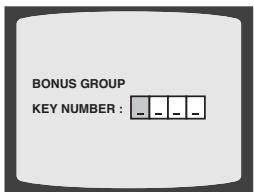
Note
- If you eject the disc, switch the power off, or unplug the player, you will need to re-enter the key number.
Navigating Pages
DVD-AUDIO
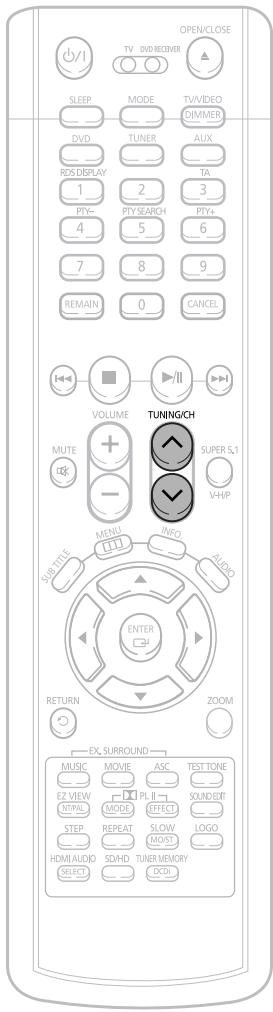
During playback, press the TUNING/CH button on the remote control.
- You can select the desired image from a DVD-Audio disc containing still images.
- With some discs, you may not be able to select images depending on how the disc was manufactured.
Audio Language Selection Function DVD
Press INFO button twice.
Press Cursor , buttons or numeric buttons to select the desired audio language.
Depending on the number of languages on a DVD disc, a different audio language (ENGLISH, SPANISH, FRENCH, etc.) is selected each time the button is pressed.
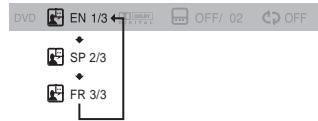
ote
- You can use the AUDIO button on the remote control to select a audio language.
Subtitle Language Selection Function DVD
Press INFO button twice.
Press Cursor button to move to SUBTITLE ( ) display.


3 button or numeric buttons to select the desired subtitle.
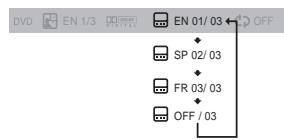
Note
- To operate this function, you can also press the Select AUDIO or Select SUBTITLE buttons on the remote control.
- You can use the SUBTITLE button on the remote control to select a subtitle language.
- Depending on the disc, the Subtitle and Audio Language functions may not work.
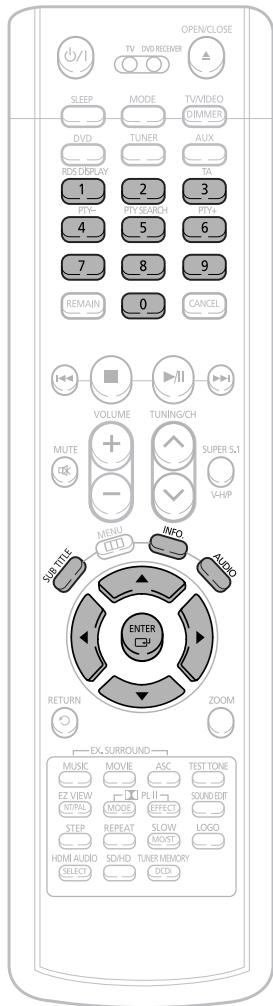
Moving Directly to a Scene/Song
DVD
VCD
SACD
CD
1
Press INFO button.


0

①

37

1/1

Moving to a Title/Track
Press Cursor , buttons or numeric buttons to select the desired title/track and then press ENTER button.
Moving to a Chapter
3
Press Cursor
buttons to move to
Chapter ( 念 ) display.

3/05

/002

:00:0


Moving to a Chapter
4
Press Cursor
buttons or numeric buttons to select the desired chapter and then press ENTER button.


ng to a Specific Time
5
Press Cursor, buttons to move to time display.
Moving to a Specific Time
6
Press the numeric buttons to select the desired time and then press ENTER button.


MP3
JPEG
Press the numeric buttons.
The selected file will be played.
- An MP3 or JPEG disc cannot be moved in the disc information screen.
- When playing an MP3 or JPEG disc, you cannot use , to move to a folder. To move a folder, press (Stop) and then press , .
Note
- You can press on the remote control to move directly to the desired title, chapter, or track.
Depending on the disc, you may not be able to move to the selected title or time.
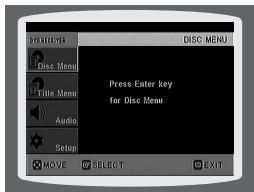
Using Disc Menu
You can use the menus for the audio language, subtitle language, profile, etc.
DVD menu contents differ from disc to disc.
1
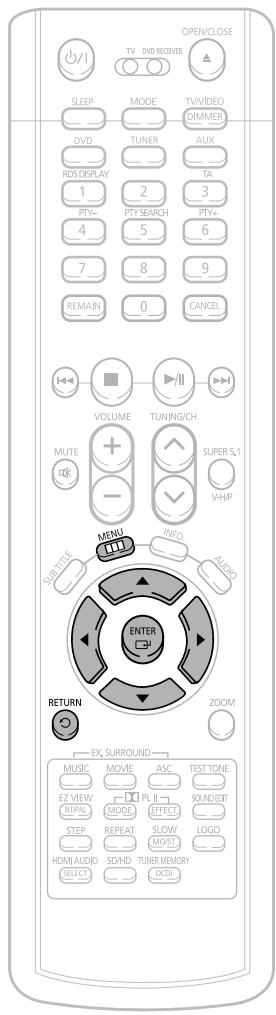
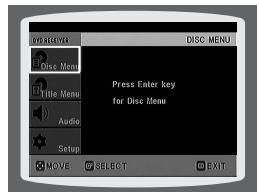
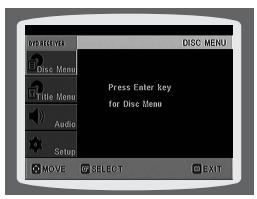
In Stop mode, press MENU button.
- When playing a VCD (version 2.), this toggles between PBC ON and OFF.
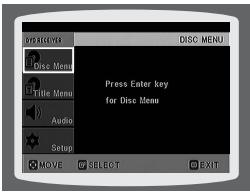
Press button 'DISC


2 butt 'DIS
ns to move toC MENU' and thens ENTER button.
- When you select the disc menu that is not supported by the disc, the "This menu is not supported" message appears on the screen.
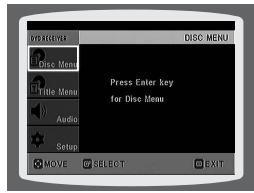
3
Press Cursor , 1, buttons to select the desired item.
- Press ENTER button.
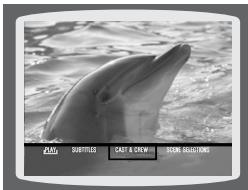
Note
- Disc menu display may be different depending on the disc.
PBC (Playback Control) Function
When playing a VCD (version 2.0), you can select and view various scenes according to the menu screen.
PBC ON: This VCD disc is version 2.0. The disc is played back according to the menu screen. Some functions may be disabled. When some functions are disabled, select "PBC OFF" to enable them.
PBC OFF: This VCD disc is version 1.1. The disc is played back in the same way as with a music CD.
Using the Title Menu
For DVDs containing multiple titles, you can view the title of each movie.
Depending on the disc, the availability of this feature may vary.
1
In Stop mode, press MENU button.
2
Press Cursor▲,▼ button to move to 'Title Menu'.
DVD
3
Press ENTER button.
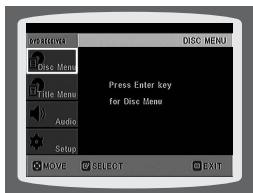
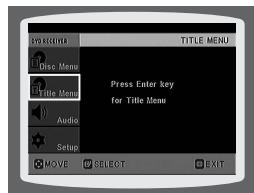
- The title menu appears.

Press MENU button to exit the setup screen.
Note
- Title menu display may be different depending on the disc.
Setting the Language
OSD (On-Screen Display) language is set to English by default.
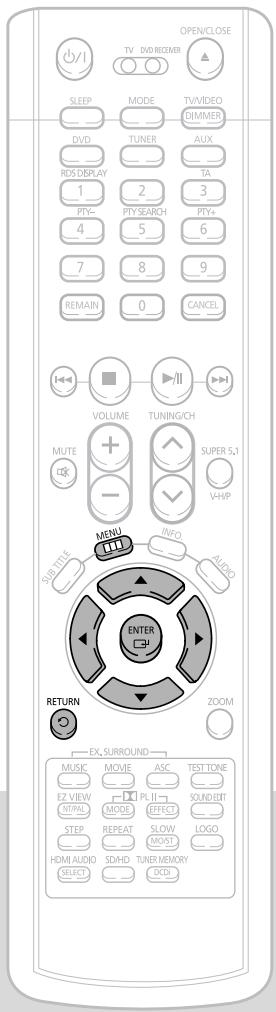
1 In Stop mode, press MENU button.
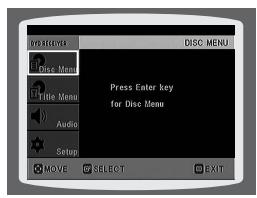
Press Cursor button to move to 'Setup' and then press ENTER button.
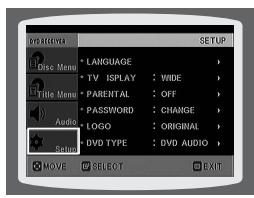
3 Select 'Language' and then press ENTER button
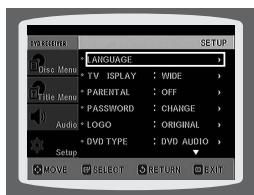
4 button to select 'OSD Language' and then press ENTER button.
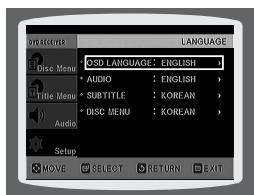
5 button to select the desired language and then press ENTER button.
- Once the setup is complete, if the language was set to English, OSD will be displayed in English.

Press RETURN button to return to the previous level.
Press MENU button to exit the setup screen.
Note
- To select another language, select OTHER and enter the language code of your country. (See page 80 for language codes) AUDIO, SUB TITLE and DISC MENU language can be selected.
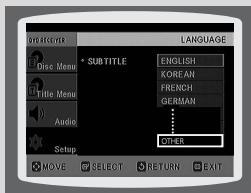
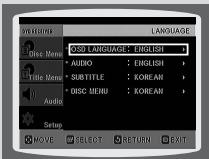
Selecting the OSD Language
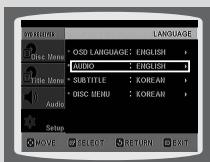
Selecting the Audio Language (recorded on the disc)
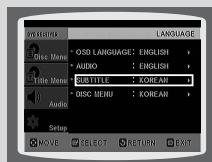
Selecting the Subtitle Language (recorded on the disc)
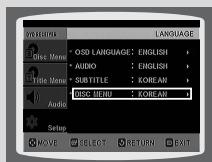
Selecting the Disc Menu Language (recorded on the disc)
- If the language you selected is not recorded on the disc, menu language will not change even if you set it to your desired language.
Setting TV Screen type
Depending on your TV type (Wide Screen or conventional 4:3), you can select the TV's aspect ratio.
1 In Stop mode, press MENU button.
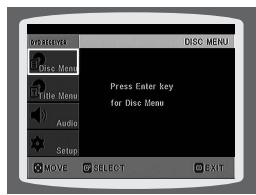
2 button to move to 'Setup' and then press ENTER button.
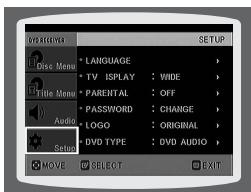
3 button to move to TV DISPLAY' and then press ENTER button.
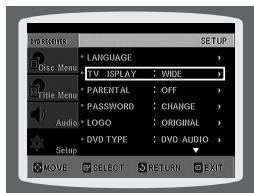
4 button to select the desired item and then press ENTER button.
- Once the setup is complete, you will be taken to the previous screen.
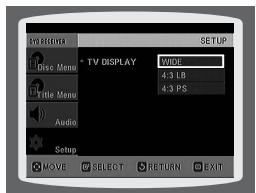
Adjusting the TV Aspect Ratio (Screen Size)
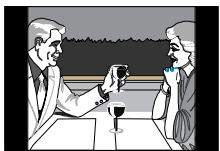
The horizontal to vertical screen size ratio of conventional TVs is 4:3, while that of widescreen and high definition TVs is 16:9. This ratio is called the aspect ratio. When playing DVDs recorded in different screen sizes, you should adjust the aspect ratio to fit your TV or monitor.
- For a standard TV, select either "4:3LB" or "4:3PS" option according to personal preference. Select "16:9" if you have a widescreen TV.
WIDE
: Select this to view a 16:9 picture in the full-screen mode on your widescreen TV.
- You can enjoy the widescreen aspect.
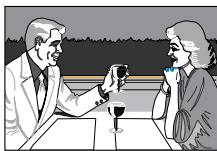
4:3LB (4:3 Letterbox)
: Select this to play a 16:9 picture in the letter box mode on a conventional TV.
- Black bars will appear at the top and bottom of the screen.
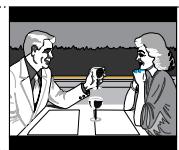
4:3PS (4:3 Pan&Scan)
: Select this to play a 16:9 picture in the pan & scan mode on a conventional TV.
- You can see the central portion of the screen only (with the sides of the 16:9 picture cut off).
Note
- If a DVD is in the 4:3 ratio, you cannot view it in widescreen.
- Since DVD discs are recorded in various image formats, they will look different depending on the software, the type of TV, and the TV aspect ratio setting.
Press RETURN button to return to the previous level.
Press MENU button to exit the setup screen.
Setting Parental Controls (Rating Level)
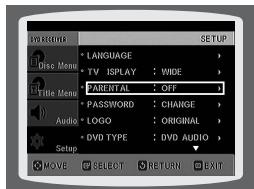
Use this to restrict playback of adult or violent DVDs you do not want children to view.
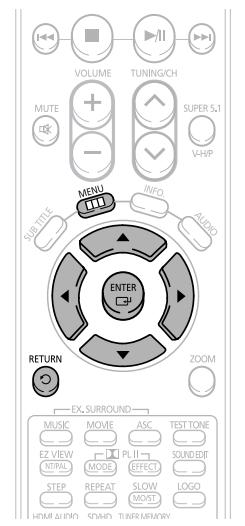
1 In Stop mode, press MENU button.
Press Cursor button to move to 'Setup' and then press ENTER button.
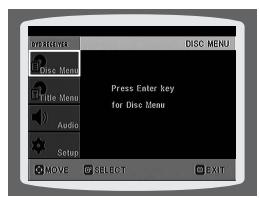
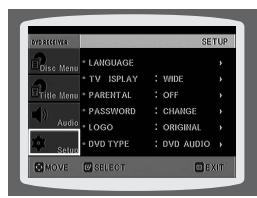
Press Cursor button to move to 'PARENTAL' and then press ENTER button.
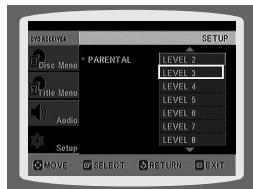
Press Cursor , button to select the desired rating level and then press ENTER button.
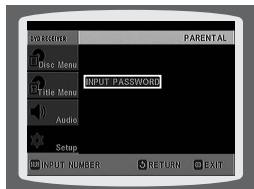
5 Enter the password and then press ENTER button.
- If you have selected Level 6, you cannot view DVDs with Level 7 or higher.
-
The higher the level, the closer the content is to violent or adult material.
-
The password is set to "7890" by default.
- Once the setup is complete, you will be taken to the previous screen.
Note
- This function works only if a DVD disc contains the rating level information.
Press RETURN button to return to the previous level.
Press MENU button to exit the setup screen.
Setting the Password
You can set the password for the Parental (rating level) setting.
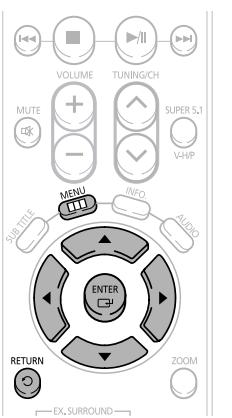
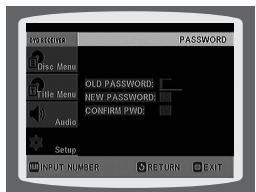
1 Press MENU button.
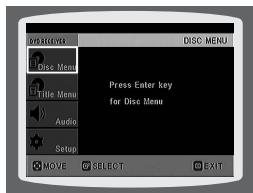
2 button to move to 'Setup' and then press ENTER button.
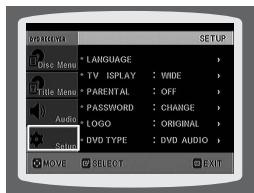
3
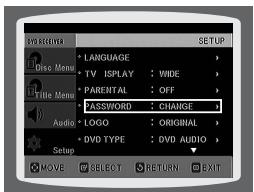
Press Cursor button to move to 'password' and then press ENTER button.
4
Press ENTER button.
5 Enter the password and then press ENTER button.
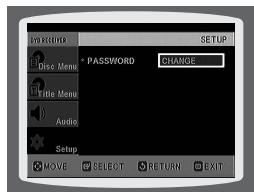
- Enter the old password, a new password, and confirm new password.
- The setting is complete.
Note
- The password is set to "7890" by default.
If you have forgotten the rating level password, do the following:
- While the player is in the no disc mode, hold the main unit's on the display and all settings will return to the default values.

button for longer than 5 seconds. "INITIALIZE" appears
- Press the POWER button.
Using the RESET function will erase all stored settings.
Do not use this unless necessary.
Setting the Wallpaper


While watching a DVD, VCD or JPEG CD, you can set the image you like as background wallpaper.
Setting the Wallpaper
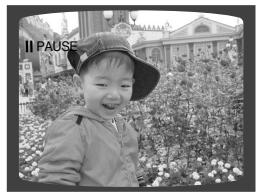
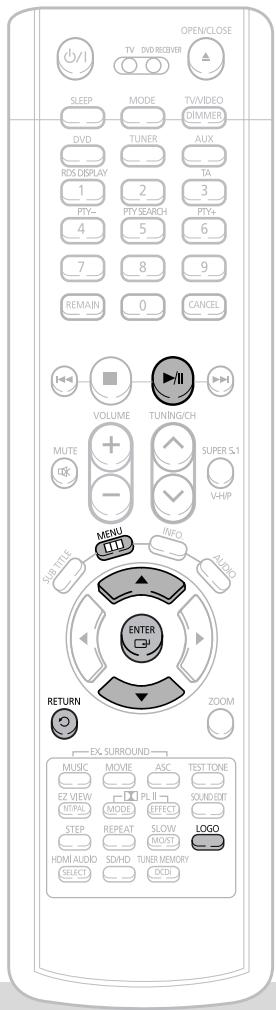
During playback, press PLAY/PAUSE button when an image you like appears.
Press LOGO button.
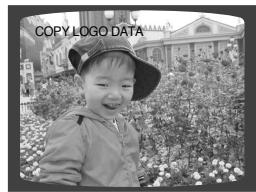
- "COPY LOGO DATA" will be displayed on the TV screen.
3
The power will turn off and then back on.
- The selected wallpaper will be displayed.
- You can select up to 3 wallpaper settings.
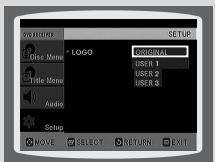
Select this to set the Samsung Logo image as your wallpaper.
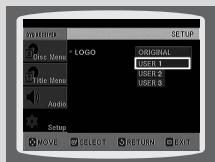
Select this to set the desired image as your wallpaper.
To select one of the 3 wallpaper settings you've made
1 In Stop mode, press MENU button.
Press Cursor button to move to 'Setup' and then press ENTER button.
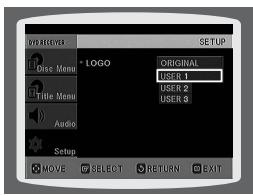
Press Cursor button to move to 'LOGO' and then press ENTER button.

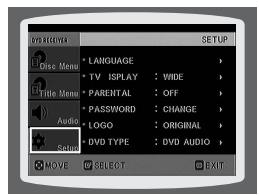
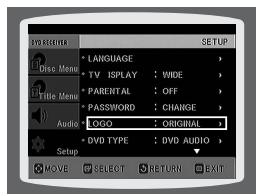
Press to select the desired 'USER', and then press ENTER.
Press MENU button to exit the setup screen.
Press RETURN button to return to the previous level.
Press MENU button to exit the setup screen.
DVD Audio DiscPlayback Mode
Some DVD-Audio discs contain DVD-Video as well as DVD-Audio.
To play back the DVD-Video portion of the DVD-Audio disc, set the unit to DVD-Video mode.
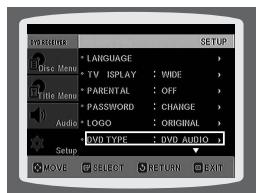
Press the MENU button while the disc tray is open.
Press Cursor
3 button to move to 'DVD TYPE' and then press ENTER button.
2
Press Cursor button to move to 'Setup' and then press ENTER button.
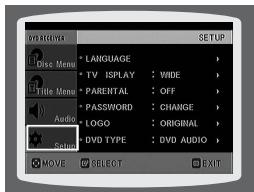
4
Press Cursor , button to move to 'DVD VIDEO' and then press ENTER button.
- Set steps 1 4 again if you want to switch to DVD AUDIO Play mode.
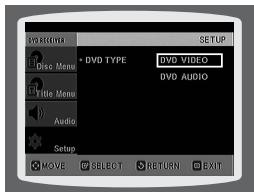
When Selecting DVD Play Mode:
DVDVIDEO: set to play the DVD video contents contained on a DVD audio disc.
DVD AUDIO: set to play the default DVD audio.
Note
DVD Play mode is set to DVD Audio as factory default setting.
- Powering off the main unit will automatically switch to the DVD Audio mode.
DivX (R) registration
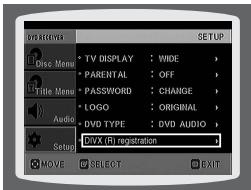
- Please use the Registration code to register this player with the DivX (R) video on demand format. To learn more, go to www.divx.com/vod.
SACDPlaybackMode
If the SACD is created in HYBRID disc format, you can play the disc in CDDA MODE as well.
1
Press the MENU button while the disc tray is open.
Press Cursor button to move to 'Setup' and then press ENTER but
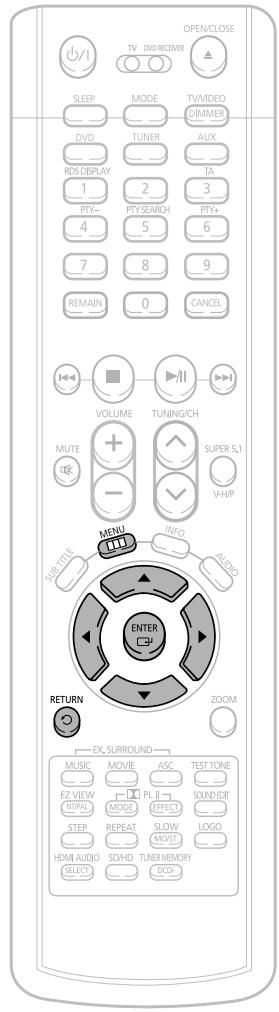
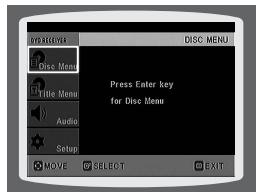
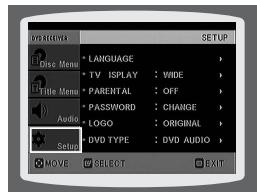
3
Press Cursor button to move to 'SACD TYPE' and then press ENTER button.
Press Cursor , 4 button to move to 'SACD MODE' and then press ENTER button.
- Set steps 1 4 again if you want to switch to CDDA Play mode.
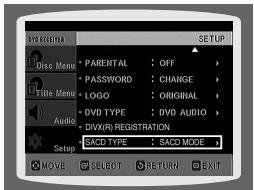
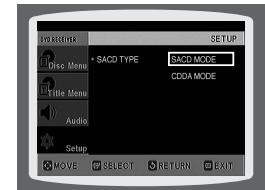
- SACD MODE : Set this mode to play SACD.
- CDDA MODE : Set this mode to play CDDA contents included in a disc.
Note
- Powering off the main unit will automatically switch to the SACD mode.
Setting the Speaker Mode
Signal outputs and frequency responses from the speakers will automatically be adjusted according to your speaker configuration and whether certain speakers are used or not.
1 In Stop mode, press MENU button.
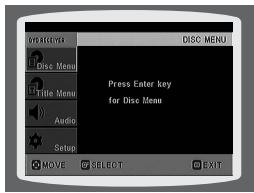
3 In the Speaker Setup, press the ENTER button again.
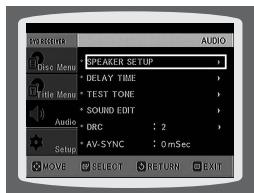
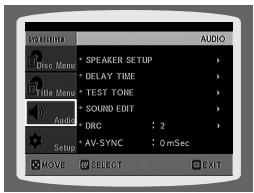
2 button to move to 'Audio' and then press ENTER button.
Press Cursor , 4 , buttons to move to the desired speaker and then press ENTER button.
- For C, SL, and SR, each time the button is pressed, the mode switches alternately as follows: SMALL NONE.
- For L and R, the mode is set to SMALL.
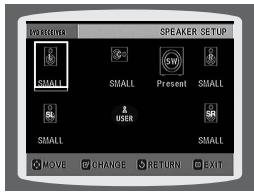
SMALL: Select this when using the speakers.
NONE: Select this when no speakers are connected.
Note
- Depending on PRO LOGIC and STEREO settings, the speaker mode may vary (see page 63).
Setting the Test Tone
Use the Test Tone feature to check the speaker connections.
1 In Stop or no disc mode, press MENU button.
Press Cursor button to move to 'Audio' and then press ENTER button.
Press Cursor button to move to 'TEST TONE' and then press ENTER button.
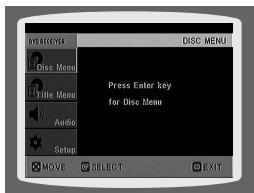
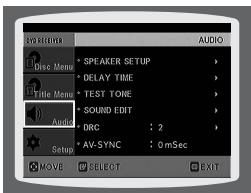
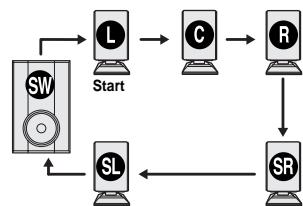
- The test tone will be sent to L C R SR SL SW in order. If the ENTER button is pressed again at this time, the test tone will stop.
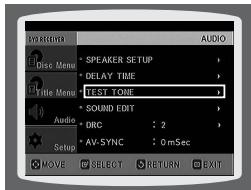
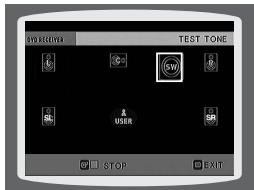
Press RETURN button to return to the previous level.
Press MENU button to exit the setup screen.
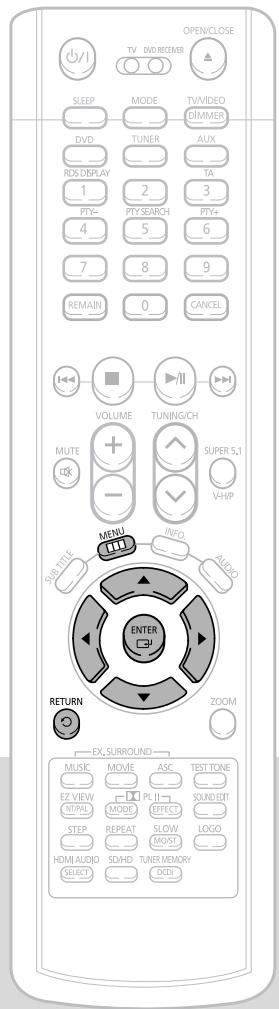
Alternate method: press the TEST TONE button on the remote.
Press TEST TONE button.
- Test tone will be produced as follows: When playing a DVD or CD, this will work only in Stop mode.
- Use this function to check that each speaker is correctly connected and that there is no problem.
To end the test tone, press TEST TONE button again.
L: Front Speaker (L)
R: Front Speaker (R)
C: Center Speaker
SL: Rear Speaker (L)
SW: Subwoofer
SR: Rear Speaker (R)
Multi-Channel Pro Logic Mode
Setting the Delay Time
If the speakers cannot be placed at equal distances from the listening position, you can adjust the delay time of the audio signals from the center and rear speakers.
1 In Stop mode, press MENU button.
Press Cursor button to move to 'Audio' and then press ENTER button.
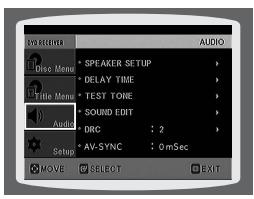
3 to move to 'DELAY TIME' and then press ENTER button.
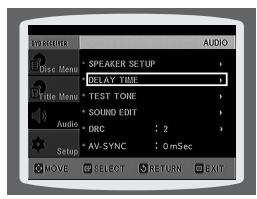
4 , buttons to move to the desired speaker and then press ENTER button.
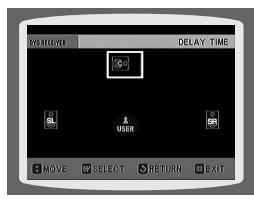
Press Cursor , to set the Delay time.
- You can set the delay time for C between 00 and 05mSEC and for SL and SR between 00 and 15mSEC.
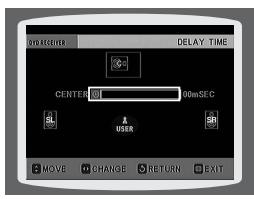
Setting up the Speaker Delay Time
When 5.1CH Surround Sound is played, you can enjoy the best sound if the distance between you and each speaker is the same. Since the sounds arrive at the listening position at different times depending on the placement of speakers, you can adjust this difference by adding a delay effect to the sound of the Center Speaker and Surround Speakers.
Note
- With PL (Dolby Pro Logic II), the delay time may be different for each mode.
- With AC-3 and DTS, the delay time can be set between 00 and 15mSEC.
-
The Center channel is only adjustable on 5.1 channel discs.
-
Setting CENTER SPEAKER
If the distance of Dc is equal to or longer than the distance of Df in the figure, set the mode as 0ms. Otherwise, change the setting according to the table.
| Distance between Df and Dc | Delay Time |
| 0.00 m | 0 ms |
| 0.34 m | 1 ms |
| 0.68 m | 2 ms |
| 1.02 m | 3 ms |
| 1.36 m | 4 ms |
| 1.70 m | 5 ms |
- Setting REAR (SURROUND) SPEAKERS
If the distance of Df is equal to the distance of Ds in the figure, set the mode as 0ms. Otherwise, change the setting according to the table.
| Distance between Df and Ds | Delay Time |
| 0.00 m | 0 ms |
| 1.02 m | 3 ms |
| 2.04 m | 6 ms |
| 3.06 m | 9 ms |
| 4.08 m | 12 ms |
| 5.10 m | 15 ms |
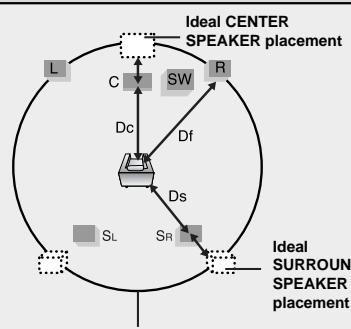
It is desirable to place all speakers within this circle.
Df: The distance from FRONT SPEAKER
Dc: The distance from CENTER SPEAKER
Ds: The distance from SURROUND SPEAKER
Setting the Audio Quality
You can adjust the balance and level for each speaker.
Method 1
When adjusting the audio quality using the setup screen
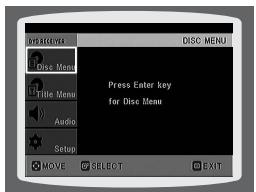
1 In Stop mode, press MENU button.
Press Cursor button to move to 'Audio' and then press ENTER button.
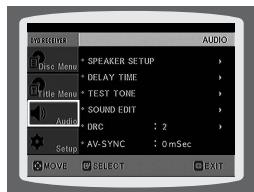
Press Cursor button to move to 'SOUND EDIT' and then press ENTER button.
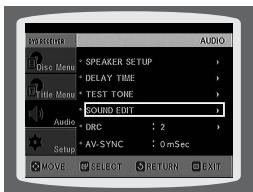
Press Cursor , buttons to select and adjust the desired item. Press the , buttons to adjust the settings.
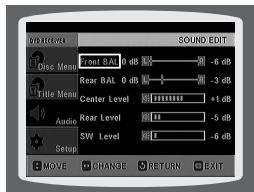
Method 2
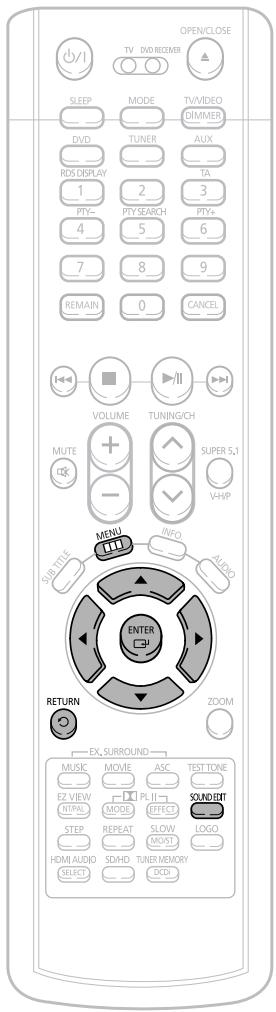
When manually adjusting with the SOUND EDIT button
Adjusting Front Speaker Balance
1
Press SOUND EDIT button and then press Cursor
Adjusting Rear Speaker Balance
2 EDIT button and then press Cursor
FL -00
FR -00
LS -00
RS -00
Adjusting Center Speaker Level
3
Press SOUND EDIT button and then press Cursor ,
CENTER 00dB
Adjusting Rear Speaker Level
4
Press SOUND EDIT button and then press Cursor ,
Adjusting Subwoofer Speaker Level
Press SOUND EDIT button and then press Cursor
REAR 00dB
SIII 00dB
Note
Press RETURN button to return to the previous level.
Press MENU button to exit the setup screen.
- The adjustments will appear on the main unit's display, not on your TV screen.
Adjusting Front/Rear Speaker Balance
- You can select between 00 and -06 and OFF.
- The volume decreases as you move closer to -6.
Adjusting Center/Rear/Subwoofer Speaker Level
- The volume level can be adjusted in steps from +6dB to -6dB .
- The sound gets louder as you move closer to +6dB and quieter as you get closer to -6dB.
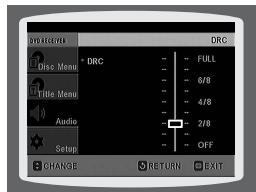
Setting the DRC (Dynamic Range Compression)
You can use this function to enjoy Dolby Digital sound when watching movies at low volume at night.
1 In Stop mode, press MENU button.
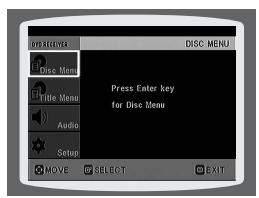
Press Cursor button to move to 'Audio' and then press ENTER button.
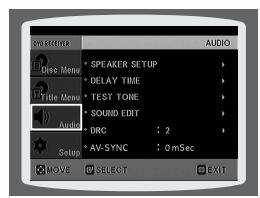
Press Cursor button to move to 'DRC' and then press ENTER button.
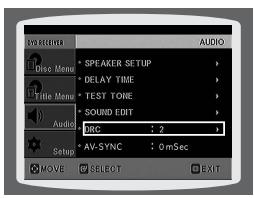
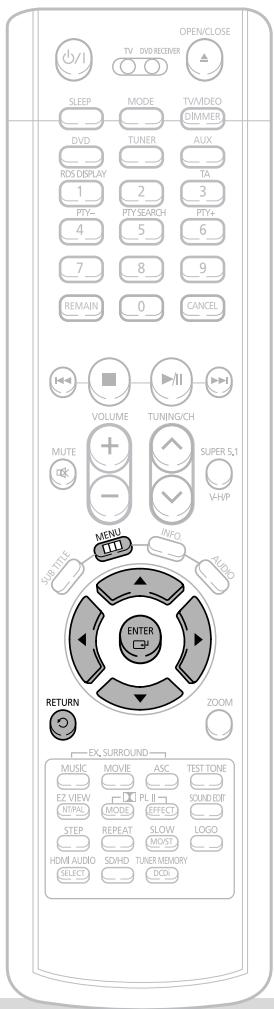
4 Press Cursor ▲,▼ to adjust the 'DRC'.
- When the Cursor button is pressed, the effect is greater, and when the Cursor button is pressed, the effect is smaller.
Press RETURN button to return to the previous level.
Press MENU button to exit the setup screen.
AV SYNC Setup
Video may look slower than the audio if it is connected to a digital TV. If this occurs, adjust the audio delay time to match the video.
1 Press the MENU button.
- Setup menu appears.
Press Cursor , buttons to move to Audio' and then press ENTER button.
'Audio' menu appears.
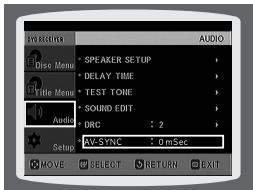
Press Cursor , buttons to move to 'AV-SYNC' and then press ENTER button.
AV-SYNC screen appears.
Press Cursor , buttons to select the AV-SYNC Delay Time and then press the ENTER button.
- You can set the audio delay time between 0 ms and 300 ms. Set it to the optimal status.
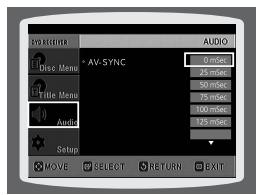
Press RETURN button to return to the previous level.
Press MENU button to exit the setup screen.
Dolby Pro Logic II Mode
You can select the desired Dolby Pro Logic II audio mode.
Press PL II MODE button.
Each time the button is pressed, the mode changes as follows.
PRO LOGIC II
- MUSIC: When listening to music, you can experience sound effects as if you are listening to the actual performance.
CINEMA: Adds realism to the movie soundtrack. - PRO LOGIC: You will experience a realistic multi-channel effect, as if using five speakers, while using just the front left and right speakers.
- MATRIX: You will hear silmulated 5.1 channel surround sound.
STEREO: Select this to listen to sound from the front left and right speakers and the subwoofer only.
Note
- When selecting Pro Logic II mode, connect your external device to the AUDIO INPUT jacks (L and R) on the player. If you connect to only one of the inputs (L or R), you cannot listen to surround sound.
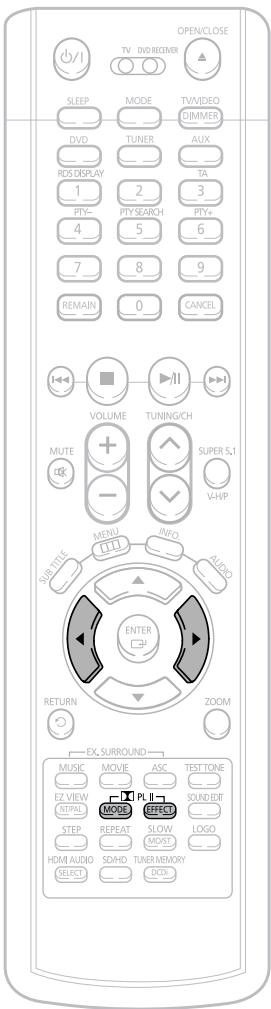
Dolby Pro Logic II Effect
This function works only in Dolby Pro Logic MUSIC mode.
Press PLI MODE button to select MUSIC mode.
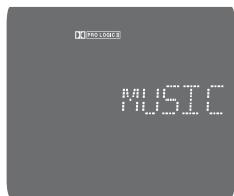
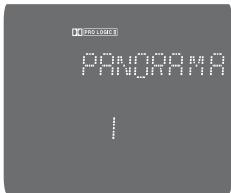
Press PL II EFFECT button to select Panorama, then press Cursor , buttons to select the desired effect setting.
- You can select either 0 or 1.
- This mode extends the front stereo image to include the surround speakers for an exciting "wraparound" effect with side wall imaging.
Press PL II EFFECT button to select C-Width, then press Cursor , buttons to select the desired effect setting.
- You can select between 0 and 7.
- This sets the width of the center image.
The higher the setting, the less sound comes from the center speaker.
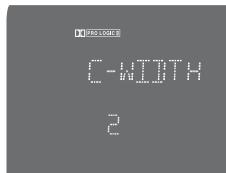
Press PL II EFFECT button to select Dimension, then press the Cursor , buttons to select the desired setting.
- You can select between 0 and 6.
- Incrementally adjusts the sound field (DSP) from the front or rear.
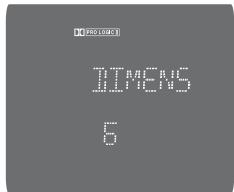
Note
- When playing a DVD disc encoded with two or more channels, multi-channel mode will be selected automatically and PL II (Dolby Pro Logic II) button does not work.
Auto Sound Calibration Setup
- This function is available only for DVD/CD playback.
Auto Sound Calibration
By setting the auto sound calibration function just once when you relocate or install the unit, you can have the unit automatically recognize the distance between speakers, levels between channels, and frequency characteristics to create a 5.1-channel sound field optimized for the listener's environment.
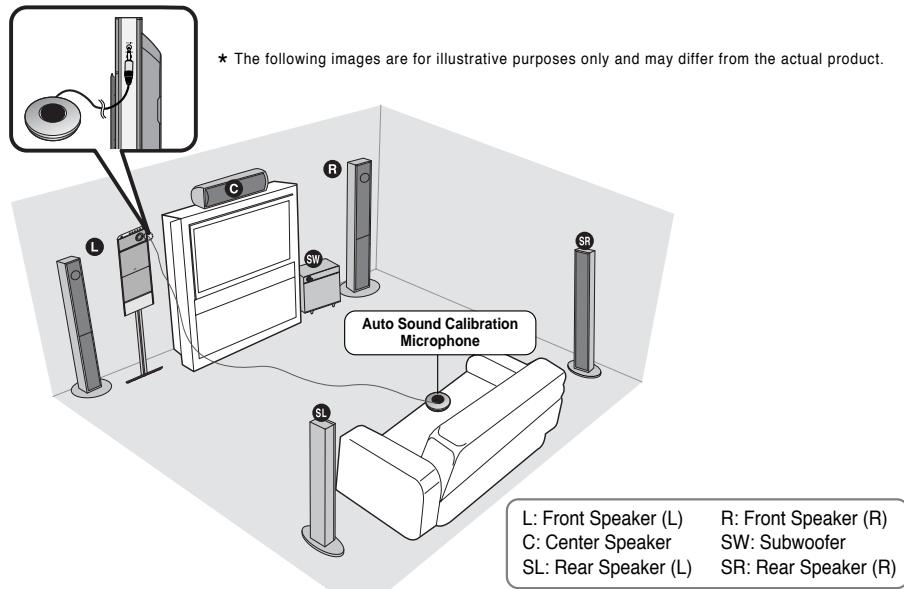
Note
- If you purchased the unit for the first time or initialized it, pressing the Auto Sound Calibration button without connecting the auto sound calibration microphone will display the message "PLEASE SET ASC FUNCTION FIRST" in the display.
- Because the volume level of the tone is fixed during the auto sound calibration setup, you cannot adjust the volume using the volume control buttons.
- If the auto sound microphone is disconnected during the auto sound calibration setup, the setup will be cancelled.
To Turn the Sound Logo On/Off
When you turn on the power, the unit produces a sound logo after the disc is read to notify that the unit is optimized for playback.
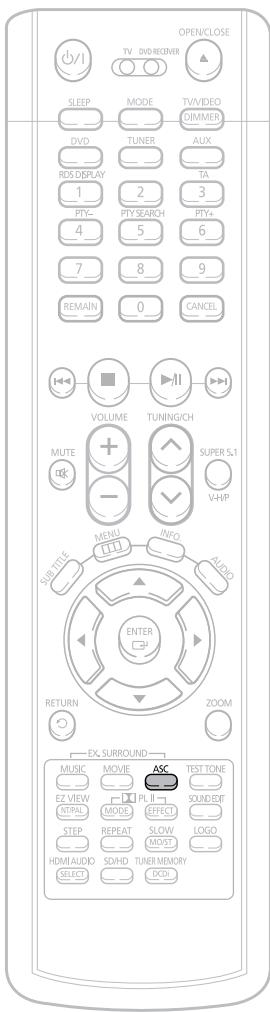
1 Press and hold ASC button.
- "S.LOGO ON" or "S.LOGO OFF" appears in the display.
2 Briefly press ASC button.
Each time the button is pressed, the selection alternates between S.LOGO ON and S.LOGO OFF.
- If you select "S.LOGO ON", a sound logo will be output when the disc reading is finished after power-on. If you select "S.LOGO OFF", no sound logo will be output.
To Verify the Auto Sound Calibration
1 Press and hold ASC button twice.
- "ASC CHECK" appears in the display.
2 Briefly press ASC button.
- Distance and level values specified for each channel will appear in the display.
1 Plug the auto sound calibration microphone into the auto sound calibration input jack.
2 Place the auto sound calibration microphone at the listener's position.
Adjust the volume control on the main unit as follows:
- If the distance between the listener and the speaker is over 5m : Set the main unit's volume to over 25.
- If the distance between the listener and the speaker is 3 to 5m : Set the main unit's volume to 25.
- If the distance between the listener and the speaker is less than 3m : Set the main unit's volume to 15.
Press ASC button.
- To create the optimal 5.1 channel sound filed, the selections are in the following sequence: L C R SR SL SW
- The auto sound calibration setup takes about 2 minutes to complete.
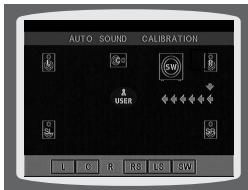
A tone is output.
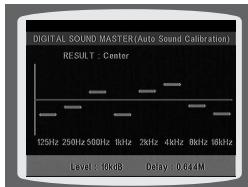
A result for each speaker is displayed
A bell sounds and the setup finishes.
When the message "REMOVE MIC" appears in the display, unplug the auto sound calibration microphone.
To cancel the auto sound calibration setup, press ASC button.
- The tone output stops, "CANCEL ASC" appears in the display followed by "REMOVE MIC", and the setup is cancelled.
To listen in the auto sound calibration mode, briefly press ASC button.
- The selection alternates between ASC ON and ASC OFF in the display.
- If you select "ASC ON", you will hear sound in the auto sound calibration mode.
If you select "ASC OFF", you will hear sound in the mode set in the audio setting of the setup screen.
Live Surround Mode
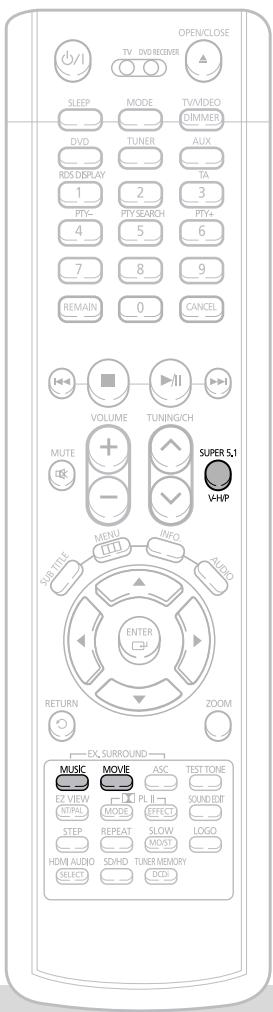
SUPER 5.1
You can reproduce a 2-channel sound source, such as CD, and radio broadcast, in 5.1-channel surround sound.
MUSIC
If you press the MUSIC button when listening to a 2-channel sound source, it will be reproduced in 4.1-channel surround sound so that you can enjoy a dynamic sound with a sense of presence.
MOVIE
You can select from 4 different sound field modes for movies.
Press SUPER5.1 button.
Each time the button is pressed, the selection alternates between SUPER 5.1 and SUPER OFF.
- Select "SUPER 5.1" to play 2-channel sound in 5.1 channels.
Press MUSIC button.
Each time the button is pressed, the selection changes as follows: CONCERT1 CONCERT2 JAZZ CLUB CATHEDRAL BYPASS.
Press MOVIE button.
Each time the button is pressed, the selection changes as follows: VIRTUAL 9.1 EX.MOVIE CINEMA SPORTS BYPASS.
VIRTUAL 9.1: Provides surround sound effect for audiences at home that simulates 9.1 channel surround sound of a movie theater.
Note
- When you insert a DVD recorded in 2-channel or multi-channel format and press the SUPER 5.1 button, the message "THIS FUNCTION APPLIES ONLY 2CH SOURCE" appears in the display and it will not work.
- This function does not work with SACD or DVD-AUDIO discs.
- 5.1 channel outputs are available in VIRTUAL 9.1 or EX. MOVIE mode only.
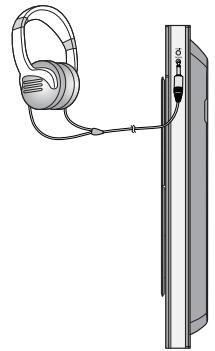
Virtual Headphone Function
Use headphones (not supplied) for private listening pleasure
You can enjoy dynamic sound effects similar to that of 5.1 channel surround sound using conventional stereo headphones.
Plug the headphones into the. headphone jack.
- You can purchase headphones from most Electronics stores.
2 Press V-H/P button.
Each time the button is pressed, the selection alternates between V-H/P ON and V-H/P OFF.
Note
- Do not listen at extremely high volume levels when using headphones.
Extended, high-volume listening can lead to permanent hearing loss.
Listening to Radio
Presetting Stations
You can store up to: 15 FM stations
Remote Control Unit
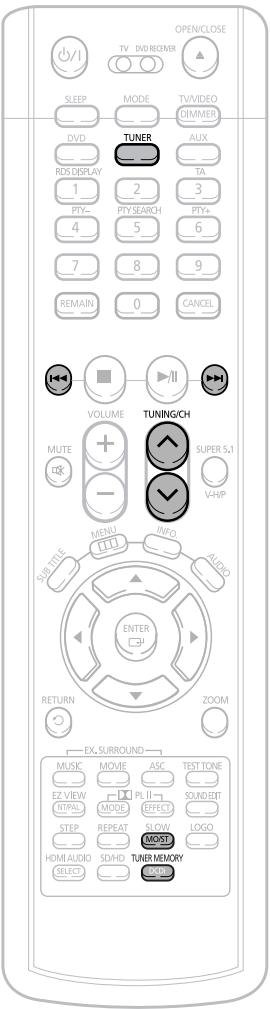
1 Press TUNER button.
2 Tune in to the desired station.
When is pressed, a preset broadcast station is selected.
Press and hold TUNING/CH to automatically search for active broadcasting stations.

Briefly press TUNING/CH to increase or decrease the frequency incrementally.
Main Unit
Press the Function button to select the desired band (FM).
2 Select a broadcast station.
Press the STOP (■) button to select
PRESET and then press 14 button to select the preset station.
Press the STOP (■) button to select "MANUAL" and
then press and hold 1 button to automatically search the band.

Press STOP (■) to select MANUAL and then briefly
press I to tune in to a lower or higher frequency.
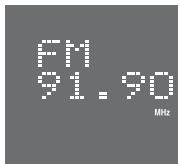
Example: Presetting FM 89.1 in the memory
Press the TUNER button and select the FM band.
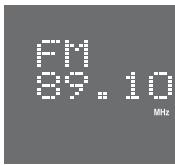
2 Press TUNING/CH to select "89.10".
3 Press the TUNER MEMORY button.
Refer to Step 2 on page 69 to automatically or manually tune in to a station.
- "PRGM" flashes in the display.
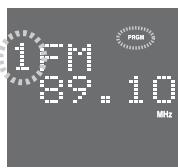
4 Press to select preset number.
- You can select between 1 and 15.
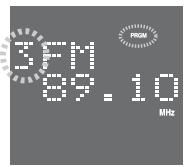
Press the TUNER MEMORY button again.
- Press the TUNER MEMORY button before 'PRGM' disappears from the display.
- 'PRGM' disappears from the display and the station is stored in memory.
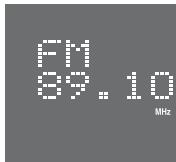
6 To preset another station, repeat steps 2 to 5.
Press MO/ST button to listen in Mono/Stereo.
Each time the button is pressed, the sound switches between "STEREO" and "MONO".
- In a poor reception area, select MONO for a clear, interference-free broadcast.
To tune in to a preset station, press I on the remote control to select a channel.
Using the RDS (Radio Data System) to receive FM stations
RDS allows FM stations to send an additional signal along with their regular program signals. For example, the stations send their station names, as well as information about what type of program they broadcast, such as sports or music, etc.
When tuned to an FM station which provides the RDS service, the RDS indicator lights up on the display.
Description on RDS function
- PTY (Program Type) : Displays the type of programme currently being broadcast
- PS NAME (Program Service Name) : Indicates the name of broadcasting station and is composed of 8 characters.
- RT (Radio Text): Decodes the text broadcast by a station (if any) and is composed of maximum 64 characters.
-
CT (Clock Time) : Decodes the real time clock from the FM frequency.
-
Some stations may not transmit PTY, RT or CT information therefore this may not be displayed in all cases.
- TA (Traffic Announcement) : When this symbol flashes it shows that the traffic announcement is in progress.
Note
- RDS may not operate correctly if the station tuned is not transmitting.
RDS signal properly or if the signal strength is weak.
What information can RDS signals provide?
You can see the RDS signals the station sends on the display.
TO show the RDS signals
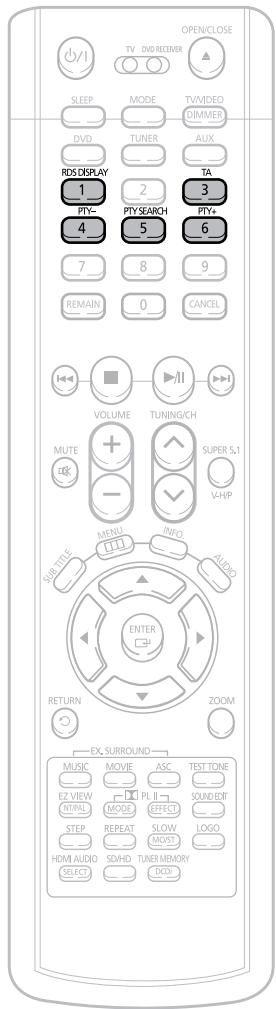
Press RDS DISPLAY while listening to an FM station.
Each time you press the button, the display change to show you the following information:
PS NAME RT CT Frequency
PS (Program Service): While searching, "PS" appears and then the station names will be displayed. "NO PS" appears if no signal is sent.
RT(RadioText): while searching, "RT"appears and then text messages the station sends will be displayed. "NO RT"appears if no signal is sent.
Frequency: station frequency (non-RDS service)
About characters shown in the display
When the display shows PS,or RT signals,the following characters are used.
- The display window cannot differentiate upper case and lower case Irlters and always uses upper case letters.
- The display window cannot show accented letters, "A," for instance, may stans for accented "A's" like "A, A, A, A and A."
Note
- If searching finishes at once, "PS", and "RT" will not appear on the display.
PTY (Program Type) indication and PTY-SEARCH function
One of the advantages of the RDS service is that you can locate a particular kind of program from the preset channels by specifying the PTY codes.
To search for a program using the PTY codes
Before you start, remember...
- The PTY Search is only applicable to preset stations.
- To stop searching any time during the process, press PTY SEARCH while searching.
- There is a time limit in doing the following steps. If the setting is cancelled before you finish, start from step 1 again.
- When pressing the buttons on the primary remote control, make sure that you have selected the FM station using the primary remote control.
1 Press PTY SEARCH while listening to an FM station.
2 Press the PTY-or PTY+until the PTY code you want appears on the display.
- The display gives you the PTY codes described to the right.
3 Press PTY SEARCH again, while the PTY code selected in the previous step is still on the display.
- The center unit searches 15 preset FM stations, stops when it finds the one you have selected, and tunes in that station.
Display
Program Type
NEWS
- News including an announced opinion and report
AFFAIRS
Several matters including a current incident, documentary, discussion and analysis.
INFO
Information including weights and measures, returns and forecast, matters interesting the customer, medical information, etc.
SPORT
Sports
EDUCATE
Education
DRAMA
- Drama-Radio serial, etc.
CULTURE
Culture-National or local culture including the religious problem, social science, language, theater,etc.
SCIENCE
- Natural science and technology
VARIED
- Others-Speech, amusing program (quiz, game), interview, comedy and satirical play, etc.
POP M
- Pop music
ROCK M
Rock music
M.O.R.M
- Current contemporary music considered to be "easilylistening."
LIGHT M
Light classical music- Classical music and instrumental and chorus music
CLASSICS
- Heavy classical music-Orchestra music, symphony, chamber music and opera
OTHERM
- Other music - Jazz, R&B country music
WEATHE
- Weather
FINANC
Finance
CHILDREN
Children's programmes
SOCIAL A
Social affairs
RELIGION
Religion
TRAVEL
Travel
LEISURE
Leisure
JAZZ
Jazz Music
COUNTRY
Country Music
NATION M
National Music
OLDIES
Oldies Music
FOLK M
Folk Music
DOCUMENT
Documentary
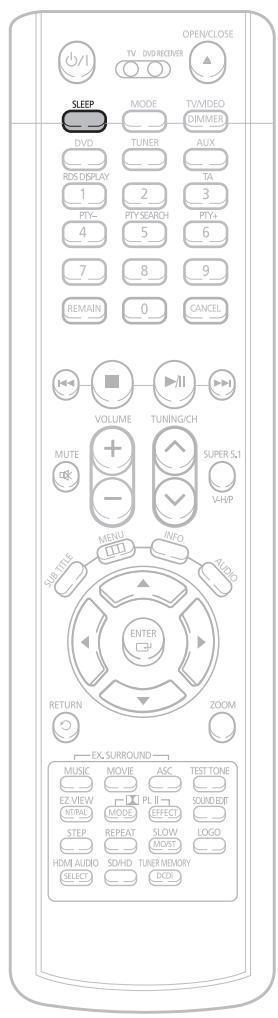
Sleep Timer Function
You can set the time that the DVD player will shut itself off.
Press SLEEP button.
- "SLEEP" will be displayed. Each time the button is pressed the preset time changes as follows: 10 20 30 60 90 120 150 OFF.
988 10
To confirm the sleep timer setting, press SLEEP button.
The remaining time before the DVD player will shut itself off is displayed.
- Pressing the button again changes the sleep time from what you have set earlier.
To cancel the sleep timer, press SLEEP button until OFF appears on the display.
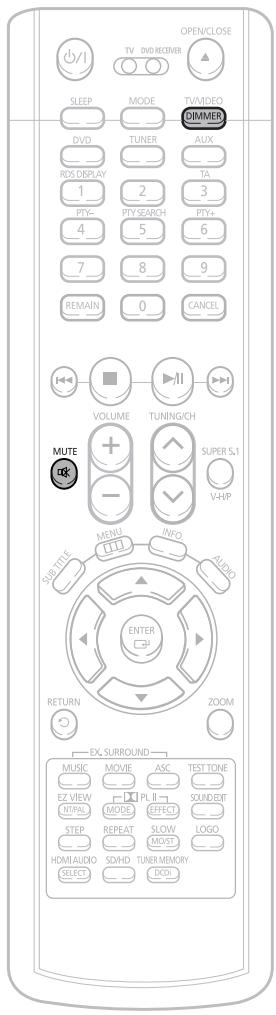
Adjusting Display Brightness
You can adjust the brightness of the display on the main unit so it won't interfere with your movie viewing.
Press DIMMER button.
Each time the button is press, the brightness changes as follows: DARK BRIGHT.
Mute Function
This is useful when answering a doorbell or telephone call.
Press MUTE button.
- 'MUTE' flash in the display.
- To switch the sound back on (at the same volume as before), press MUTE again or the VOLUME buttons.

Operating a TV with the Remote Control
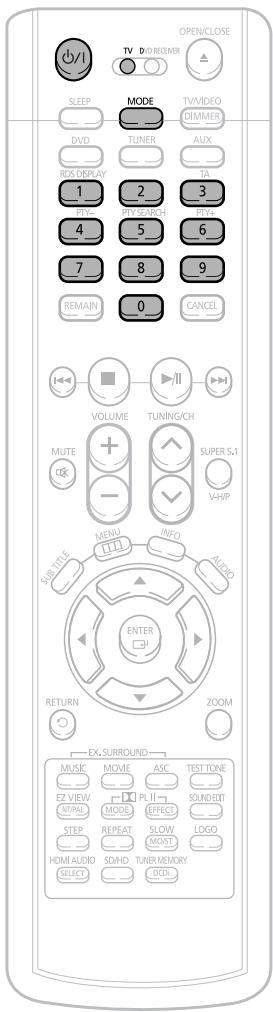
When operating a TV with the remote control
Press the MODE button to make the TV indicator on the remote control flash.
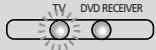
2 Press POWER button to turn on the TV.
3 Point the remote control toward the TV.
4 While holding down POWER, enter the code corresponding to your brand of TV.
- If the code matches the TV's code, the TV will be turned off.
- If there is more than one code listed for your TV in the table, enter one at a time to determine which code works.
Example: For a Samsung TV
While holding down POWER, use the number buttons to enter 00, 01, 02, 03, 04, and 05.
5 Point the remote control toward the TV and press POWER. If the TV turns off or on, the setting is complete.
- You can use the TV POWER, VOLUME, CHANNEL, and Numeric buttons (0~9).
Note
- The remote control may not work on some brands of TVs. Also some operations may not be possible depending on your brand of TV.
- If you do not set the remote control with the code for your brand of TV, the remote control will work on a Samsung TV by default.
TV Brand Code List
| No. | Brand | Code | No. | Brand | Code |
| 1 | SAMSUNG | 00(Initial Value), 01, 02, 03, 04, 05, 73 | 30 | BRANDT | 41 |
| 2 | ANAM | 06~11, 59 | 31 | FERGUSON | 41 |
| 3 | DAEWOO | 12~18, 20, 21 | 32 | PIONEER | 41, 48, 74 |
| 4 | LG | 05, 20, 21, 22, 53 | 33 | TELEAVA | 41 |
| 5 | HITACHI | 23, 40, 41, 49 | 34 | FINLUX | 05, 42, 47 |
| 6 | JVC | 24, 55 | 35 | FISHER | 31 |
| 7 | SHARP | 27, 33, 34, 35, 54 | 36 | AKAI | 31 |
| 8 | SONY | 27, 36 | 37 | YOKO | 05 |
| 9 | TOSHIBA | 27, 37, 42, 43, 44, 46 | 38 | PHONOLA | 05, 45, 47 |
| 10 | SANYO | 27, 30, 31, 32 | 39 | RADIOLA | 05, 45 |
| 11 | MITSUBISHI | 05, 27, 28 | 40 | SCHNEIDER | 05 |
| 12 | MATSUSHITA | 09, 26 | 41 | NEWSAN | 58 |
| 13 | TELEFUNKEN | 41, 49, 51, 57 | 42 | CONTINENTAL EDISON | 49 |
| 14 | RCA | 29, 61 | 43 | SALORA | 48 |
| 15 | PANASONIC | 07, 09, 26, 48, 49, 50 | 44 | SELECO | 48 |
| 16 | SABA | 40, 41, 47, 48, 49 | 45 | NOKIA | 48 |
| 17 | PHILIPS | 05, 45, 47, 64, 65, 66, 67, 68, 69 | 46 | REX | 48 |
| 18 | GRUNDIG | 39, 42, 46, 70, 71, 72 | 47 | MVAR | 46 |
| 19 | ZENITH | 38 | 48 | IMPERIAL | 46 |
| 20 | MIVAL | 52 | 49 | CGE | 46 |
| 21 | NOLEX | 56 | 50 | BANG & OLUFSEN | 47 |
| 22 | EMERSON | 19 | 51 | BRIONVEGA | 47 |
| 23 | MAGNAVOX | 25 | 52 | FORMENTI | 47 |
| 24 | LOEWE | 05, 60 | 53 | METZ | 47 |
| 25 | THOMSON | 40, 41, 49, 62, 63 | 54 | WEGA | 47 |
| 26 | NORDMENDE | 40, 41, 49 | 55 | RADIOMARELLI | 47 |
| 27 | LOEWE OPTA | 36, 47, 05 | 56 | SINGER | 47 |
| 28 | BLAUPUNKT | 39 | 57 | SINUDYNE | 47 |
| 29 | SIEMENS | 39 |
Before Calling for Service
Refer to the chart below when this unit does not function properly. If the problem you are experiencing is not listed below or if the instruction below does not help, turn off the unit, disconnect the power cord, and contact the nearest authorized dealer or Samsung Electronics Service Center.
| Symptom | Check/Remedy |
| Disc tray does not open. | ·Is the power cord plugged securely into the outlet? ·Turn off the power and then turn it back on. |
| Playback does not start. | ·Check the region number of the DVD. DVD discs purchased from abroad may not be playable. ·CD-ROMs and DVD-ROMs cannot be played on this DVD player. ·Make sure that the rating level is correct. |
| Playback does not start immediately when the Play/Pause button is pressed. | ·Are you using a deformed disc or a disc with scratches on the surface? ·Wipe the disc clean. |
| Sound is not produced. | ·No sound is heard during fast playback, slow playback, and step motion playback. ·Are the speakers connected properly? Is the speaker setup correctly customized? ·Is the disc severely damaged? |
| Sound can be heard only from a few speakers and not all six. | ·When listening to a CD or radio, sound is output to the front speakers (L/R) only. Select "PRO LOGIC II" by pressing DPLL II (Dolby Pro Logic II) on the remote control to use all six speakers. ·Make sure that the DVD disc is 5.1-CH compatible. ·If you set C, SL, and SR to NONE in the speaker mode in the audio setup of the setup screen, no sound is heard from the center speaker and the front left and right speakers. Set C, SL, and SR to SMALL. |
| Picture does not appear, sound is not produced, or the disc tray opens 2 to 5 seconds later. | ·Was the DVD player suddenly moved from a cold place to a warm one? When condensation forms inside the player, remove the disc and let the player stand for 1 or 2 hours with the power on. (You can use the player again after condensation disappears.) |
| Dolby Digital 5.1 CH Surround Sound is not produced. | ·Is there "Dolby Digital 5.1 CH" mark on the disc? Dolby Digital 5.1 CH Surround Sound is produced only if the disc is recorded with 5.1 channel sound. ·Is the audio language correctly set to DOLBY DIGITAL 5.1-CH in the information display? |
| Symptom | Check/Remedy |
| ·Disc is rotating but no picture is produced. ·Picture quality is poor and picture is shaking. | ·Is the TV power on? ·Are the video cables connected properly? ·Is the disc dirty or damaged? ·A poorly manufactured disc may not be playable. |
| The remote control does not work. | ·Is the remote control being operated within its operation range of angle and distance? ·Are the batteries exhausted? |
| Audio language and subtitles do not work. | ·Audio language and subtitles will not work for DVDs not containing them. And depending on the disc, they may work differently. |
| Menu screen does not appear even when the menu function is selected. | ·Are you using a disc that does not contain menus? |
| Aspect ratio cannot be changed. | ·You can play 16:9 DVDs in 16:9 WIDE mode, 4:3 LETTER BOX mode, or 4:3 PAN SCAN mode, but 4:3 DVDs can be seen in 4:3 ratio only. Refer to the DVD disc jacket and then select the appropriate function. |
| Can't receive radio broadcast. | ·Is the antenna connected properly? ·If the antenna's input signal is weak, install an external FM antenna in an area with good reception. |
| ·The main unit is not working. (Example: The power goes out or strange noise is heard.) ·The DVD player is not working normally. | ·Turn off the power and hold the button on the main unit for longer than 5 seconds. Using the RESET function will erase all stored settings. Do not use this unless necessary. |
| The password for rating level has been forgotten. | ·While “NO DISC” message appears on the display of main unit, hold the main unit's button for longer than 5 seconds. “INITIALIZE” appears on the display and all settings will return to the default values. ·Press the POWER button. Using the RESET function will erase all stored settings. Do not use this unless necessary. |
Cautions on Handling and Storing Discs
Small scratches on the disc may reduce sound and picture quality or cause skipping. Be especially careful not to scratch discs when handling them.

Handling discs
Do not touch the playback side of the disc.
Hold the disc by the edges so that fingerprints will not get on the surface.
Do not stick paper or tape on the disc.

Disc Storage
Do not keep in direct sunlight
Keep in a cool ventilated area
Keep in a clean Protection jacket. Store vertically.
Caution
- Do not allow the discs to become contaminated with dirt.
- Do not load cracked or scratched discs.

Handling and Storing Discs
When you get fingerprints or dirt on the disc, clean it with a mild detergent diluted in water and wipe with a soft cloth.
- When cleaning, wipe gently from the inside to the outside of the disc.
Note
- Condensation may form if warm air comes into contact with cold parts inside the player. When condensation forms inside the player, the player may not operate correctly. If this occurs, remove the disc and let the player stand for 1 or 2 hours with the power on.
Language Code List
Enter the appropriate code number for the initial settings "Disc Audio", "Disc Subtitle" and/or "Disc Menu" (See page 45).
| Code | Language | Code | Language | Code | Language | Code | Language |
| 1027 | Afar | 1181 | Frisian | 1334 | Latvian, Lettish | 1506 | Slovenian |
| 1028 | Abkhazian | 1183 | Irish | 1345 | Malagasy | 1507 | Samoan |
| 1032 | Afrikaans | 1186 | Scotts Gaelic | 1347 | Maori | 1508 | Shona |
| 1039 | Amharic | 1194 | Galician | 1349 | Macedonian | 1509 | Somali |
| 1044 | Arabic | 1196 | Guarani | 1350 | Malayalam | 1511 | Albanian |
| 1045 | Assamese | 1203 | Gujarati | 1352 | Mongolian | 1512 | Serbian |
| 1051 | Aymara | 1209 | Hausa | 1353 | Moldavian | 1513 | Siswati |
| 1052 | Azerbaijani | 1217 | Hindi | 1356 | Marathi | 1514 | Sesotho |
| 1053 | Bashkir | 1226 | Croatian | 1357 | Malay | 1515 | Sundanese |
| 1057 | Byelorussian | 1229 | Hungarian | 1358 | Maltese | 1516 | Swedish |
| 1059 | Bulgarian | 1233 | Armenian | 1363 | Burmese | 1517 | Swahili |
| 1060 | Bihari | 1235 | Interlingua | 1365 | Nauru | 1521 | Tamil |
| 1069 | Bislama | 1239 | Interlingue | 1369 | Nepali | 1525 | Tegulu |
| 1066 | Bengali; Bangla | 1245 | Inupiak | 1376 | Dutch | 1527 | Tajik |
| 1067 | Tibetan | 1248 | Indonesian | 1379 | Norwegian | 1528 | Thai |
| 1070 | Breton | 1253 | Icelandic | 1393 | Occitan | 1529 | Tigrinya |
| 1079 | Catalan | 1254 | Italian | 1403 | (Afan) Oromo | 1531 | Turkmen |
| 1093 | Corsican | 1257 | Hebrew | 1408 | Oriya | 1532 | Tagalog |
| 1097 | Czech | 1261 | Japanese | 1417 | Punjabi | 1534 | Setswana |
| 1103 | Welsh | 1269 | Yiddish | 1428 | Polish | 1535 | Tonga |
| 1105 | Danish | 1283 | Javanese | 1435 | Pashto, Pushto | 1538 | Turkish |
| 1109 | German | 1287 | Georgian | 1436 | Portuguese | 1539 | Tsonga |
| 1130 | Bhutani | 1297 | Kazakh | 1463 | Quechua | 1540 | Tatar |
| 1142 | Greek | 1298 | Greenlandic | 1481 | Rhaeto-Romance | 1543 | Twi |
| 1144 | English | 1299 | Cambodian | 1482 | Kirundi | 1557 | Ukrainian |
| 1145 | Esperanto | 1300 | Kannada | 1483 | Romanian | 1564 | Urdu |
| 1149 | Spanish | 1301 | Korean | 1489 | Russian | 1572 | Uzbek |
| 1150 | Estonian | 1305 | Kashmiri | 1491 | Kinyarwanda | 1581 | Vietnamese |
| 1151 | Basque | 1307 | Kurdish | 1495 | Sanskrit | 1587 | Volapuk |
| 1157 | Persian | 1311 | Kirghiz | 1498 | Sindhi | 1613 | Wolof |
| 1165 | Finnish | 1313 | Latin | 1501 | Sangro | 1632 | Xhosa |
| 1166 | Fiji | 1326 | Lingala | 1502 | Serbo-Croatian | 1665 | Yoruba |
| 1171 | Faeroese | 1327 | Laothian | 1503 | Singhalese | 1684 | Chinese |
| 1174 | French | 1332 | Lithuanian | 1505 | Slovak | 1697 | Zulu |
USB Host Feature Supported Products
Digital Camera
| Product | Company | Type |
| PowerShot A70 | Canon | Digital Camera |
| A90 | Canon | Digital Camera |
| IXY40 | Canon | Digital Camera |
| IXY50 | Canon | Digital Camera |
| A90 | Canon | Digital Camera |
| A95 | Canon | Digital Camera |
| G6 | Canon | Digital Camera |
| S60 | Canon | Digital Camera |
| Exilom Z-40 | Casio | Digital Camera |
| QV-R51 | Casio | Digital Camera |
| Finepix-A340 | Fuji | Digital Camera |
| Finepix-F810 | Fuji | Digital Camera |
| Finepix-F610 | Fuji | Digital Camera |
| Finepix-f450 | Fuji | Digital Camera |
| Finepix S7000 | Fuji | Digital Camera |
| Finepix A310 | Fuji | Digital Camera |
| Easy Save CX-4300 | Kodak | Digital Camera |
| KD-310Z | Konica | Digital Camera |
| Finecam SL300R | Kyocera | Digital Camera |
| Finecam SL400R | Kyocera | Digital Camera |
| Finecam SSR | Kyocera | Digital Camera |
| Finecam XI | Kyocera | Digital Camera |
| Dimg-Z1 | Minolta | Digital Camera |
| Dimg Z1 | Minolta | Digital Camera |
| Dimg X21 | Minolta | Digital Camera |
| Coolpix4200 | NIKON | Digital Camera |
| Coolpix4300 | NIKON | Digital Camera |
| Coolpix 2200 | Nikon | Digital Camera |
| Coolpix 3500 | Nikon | Digital Camera |
| Coolpix 3700 | Nikon | Digital Camera |
| Coolpix 4100 | Nikon | Digital Camera |
| Coolpix 5200 | Nikon | Digital Camera |
| stylus 410 digital | Olympus | Digital Camera |
| 300-digital | Olympus | Digital Camera |
| u300 | Olympus | Digital Camera |
| X-350 | Olympus | Digital Camera |
| C-760 | Olympus | Digital Camera |
| C-5060 | Olympus | Digital Camera |
| X1 | Olympus | Digital Camera |
| u-mini | Olympus | Digital Camera |
| Lumix-FZ20 | Panasonic | Digital Camera |
| DMC-FX7GD | Panasonic | Digital Camera |
| Product | Company | Type |
| Lumix LC33 | Panasonic | Digital Camera |
| LUMIX DMC-F1 | Panasonic | Digital Camera |
| Optio-S40 | Pentax | Digital Camera |
| Optio-S50 | Pentax | Digital Camera |
| Optio 33LF | Pentax | Digital Camera |
| Optio 33L | Pentax | Digital Camera |
| Optio X | Pentax | Digital Camera |
| SVeα | Pentax | Digital Camera |
| Optio MX | Pentax | Digital Camera |
| Digimax-420 | Samsung | Digital Camera |
| Digimax-400 | Samsung | Digital Camera |
| Kenox UX4 | Samsung | Digital Camera |
| VPC-AZ1 | Sanyo | Digital Camera |
| Not recognize in PC | ||
| DSC-F828 | Sony | Digital Camera |
| DSC-P73 | Sony | Digital Camera |
| DSC-T1 | Sony | Digital Camera |
| DSC-F88 | Sony | Digital Camera |
| DSC-M1 | Sony | Digital Camera |
| DSC-W1 | Sony | Digital Camera |
| DSC-T3 | Sony | Digital Camera |
| Sora PDR-T30 | Toshiba | Digital Camera |
| Coolpix 5900 | Nikon | Digital Camera |
| Coolpix S1 | Nikon | Digital Camera |
| Coolpix 7600 | Nikon | Digital Camera |
| DMC-FX7 | Panasonic | Digital Camera |
| DMC-LS1 | Panasonic | Digital Camera |
| DMC-LZ2 | Panasonic | Digital Camera |
| IXY-Digital600 | Canon | Digital Camera |
| S5i | Pentax | Digital Camera |
| Dimage Xt | Minolta | Digital Camera |
| AZ-1 | Olympus | Digital Camera |
| DSC-W5 | Sony | Digital Camera |
USB Flash Disk
| Product | Company | Type |
| Cruzer Micro | SanDisk | USB2.0 USB Flash Drive 128M |
| Cruzer Mini | SanDisk | USB2.0 128M |
| Cruzer Mini | SanDisk | USB2.0 256M |
| SONY Micro Vault | SONY | USB2.0 64MB |
| FLEX DRIVE | serotech | USB2.0 32MB |
| AnyDrive | A.L tech | USB2.0 128MB |
| XTICK | LG | USB2.0 128M |
| Micro Mini | IOMEGA | USB2.0 128M |
| iFlash | Imation | USB2.0 64M |
| LG | XTICK(M) | USB2.0 64M |
| RiDATA | EZDrive | USB2.0 64M |
MP3 Player
| Product | Company | Type |
| Creative MuVo NX128M | Creative | 128 MB MP3 Player |
| Iriver H320 | Iriver | 20G HDD MP3 player |
| yepp yh-920 | samusung | 20G HDD MP3 player |
| yepp yh-925 | samusung | 20G HDD MP3 player |
| I-pod | apple | HDD MP3 player(40G) |
| I-pod mini | Apple | HDD MP3 Player(20G) |
| yepp (yp-T7) | samsung | MP3 Player |
| yepp(yp-MT6) | samsung | MP3 Player |
| yepp(yp-T6) | samsung | MP3 Player |
| yepp(yp-53) | samsung | MP3 Player |
| yepp(yp-st5) | samsung | MP3 Player |
| yepp(yp-T5) | samsung | MP3 Player |
| yepp(yp-60) | samsung | MP3 Player |
| yepp(yp-780) | samsung | MP3 Player |
| yepp(yp-35) | samsung | MP3 Player |
| yepp(yp-55) | samsung | MP3 Player |
| iAUDIO U2 | COWON(Korea) | MP3 Player |
| iAUDIO G3 | COWON(Korea) | MP3 Player |
| iAudio M3 | COWON(Korea) | HDD MP3 player |
| SI-M500L | SHARP(Japan) | 256MB MP3Player |
| H10 | IRIVER(Korea) | MP3Player |
| YEPP YP-T5 VB | Samsung(Korea) | MP3Player |
| YEPP YP-53 | Samsung(Korea) | 256MB MP3Player |
Multi Card Reader
| Product | Company | Type |
| UNICORN | Unicorn | USB 2.0 7 IN 1 CARD READER UC-601R |
| USB2.0 Card Reader | Billionton(Taiwan) | USB 2.0 Card Reader for SD/MMC/RS-MM3(3-in-1) |
USB External HDD
| Product | Company | Type |
| CUTIE | serotech | POCKET HARD DISK DRIVE |
| MOMOBAY UX-2 | DVICO | USB2.0 |
| GENERAL | Power Consumption | MAIN UNIT : 30W | |
| SUBWOOFER : 100W | |||
| Weight | MAIN UNIT : 2.8kg | ||
| VERTICAL STAND : 8.0kg | |||
| Dimensions (W x H x D) | MAIN UNIT : 183 x 500 x 82 mm | ||
| WITH STAND : 328 x 1200 x 328 mm | |||
| Operating Temperature Range | 5°C ~ 35°C | ||
| Operating Humidity Range | 10% ~ 75% | ||
| F M T U N E R | Usable Sensitivity | 10dB | |
| S/N Ratio | 60dB | ||
| Distortion | 0.5% | ||
| V I D E O T | Composite Video | 1.0Vp-p(75Ω load) | |
| Component Video | Y:1.0Vp-p(75Ω load) | ||
| Pr:0.70Vp-p(75Ω load) | |||
| Pb:0.70Vp-p(75Ω load) | |||
| HDMI | Impedance: 85~115Ω | ||
| A M P L I F I E R | Front speaker output | 130W x 2(3Ω) | |
| Center speaker output | 130W(3Ω) | ||
| Rear speaker output | 130W x 2(3Ω) | ||
| Subwoofer speaker output | 150W(3Ω) | ||
| Frequency range | 20Hz~20kHz | ||
| S/N Ratio | 70dB | ||
| Channel separation | 60dB | ||
| Input sensitivity | (AUX)500mV | ||
| S P E A K E R S | Speaker system | 5.1ch speaker system | |
| Front/Center/Rear speaker | Subwoofer speaker | ||
| Impedance | 3Ω x 5 | 3Ω | |
| Frequency range | 110Hz~20kHz | 20Hz~200Hz | |
| Output sound pressure level | 84dB/W/M | 86dB/W/M | |
| Rated input | 130W | 150W | |
| Maximum input | 260W | 300W | |
| Dimensions (W x H x D) | Front/Rear | 105.6 x 1310 x 76 mm | |
| Center | 550 x 110 x 78 mm | ||
| Weight | Front/Rear | 6.2kg | |
| Center | 2.9kg | ||