
PMA 400 - Lecteur multimédia portable ARCHOS - Notice d'utilisation et mode d'emploi gratuit
Retrouvez gratuitement la notice de l'appareil PMA 400 ARCHOS au format PDF.
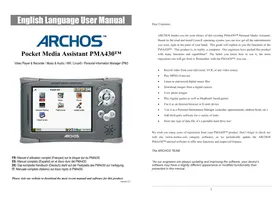


| Type de produit | Lecteur multimédia portable |
| Marque | ARCHOS |
| Modèle | PMA 400 |
| Dimensions | 127 x 79 x 21 mm |
| Poids | 270 g |
| Alimentation | Batterie Lithium-Ion rechargeable, adaptateur secteur fourni |
| Capacité de stockage | 30 Go |
| Écran | 3,5 pouces TFT LCD tactile, 320x240 pixels, 262K couleurs |
| Formats audio | MP3, WMA, WAV |
| Formats vidéo | MPEG-4 Simple Profile AVI (max 720x576 @ 25 ips) |
| Formats image | JPEG, BMP, PNG, GIF |
| Connectivité | USB 2.0 (Device et Host), WiFi 802.11b, Infrarouge |
| Sortie TV | PAL/NTSC, via station ou câble AV |
| Autonomie | Jusqu'à 9 h (musique) / 4 h (vidéo) |
| Système d'exploitation | Linux avec interface Qtopia |
| Fonctions principales | Lecteur audio/vidéo, enregistrement vidéo, navigateur Web, email, gestionnaire d'informations personnelles (calendrier, contacts, tâches) |
| Entretien et nettoyage | Éviter chocs, chaleur excessive, humidité et champs électromagnétiques. Nettoyer avec un chiffon doux sec. |
| Sécurité | Ne pas ouvrir l'appareil (aucune pièce réparable par l'utilisateur). Utiliser uniquement l'adaptateur fourni. Éviter les décharges électrostatiques. |
| Pièces détachées et réparabilité | Batterie interchangeable. Toute autre réparation doit être effectuée par un service agréé. |
| Informations générales | Mises à jour logicielles disponibles sur le site ARCHOS. Garantie limitée. Température de fonctionnement : 5°C à 35°C. |
FOIRE AUX QUESTIONS - PMA 400 ARCHOS
Questions des utilisateurs sur PMA 400 ARCHOS
0 question sur cet appareil. Repondez a celles que vous connaissez ou posez la votre.
Poser une nouvelle question sur cet appareil
Téléchargez la notice de votre Lecteur multimédia portable au format PDF gratuitement ! Retrouvez votre notice PMA 400 - ARCHOS et reprennez votre appareil électronique en main. Sur cette page sont publiés tous les documents nécessaires à l'utilisation de votre appareil PMA 400 de la marque ARCHOS.
MODE D'EMPLOI PMA 400 ARCHOS
Manuel d'utilisation en anglais
ARCHOS
Assistant multimédia de poche PMA430TM
Lecteur et enregistreur vidéo / Musique et audio / Wifi / Linux® / Gestionnaire d'informations personnelles (PIM)
FR : Manuel d'utilisation complet (français) sur le disque dur du PMA430. ES : Manuel complet (espagnol) sur le disque dur du PMA430. DE : Le manuel complet (allemand) est disponible sur le disque dur du PMA430. IT : Manuel complet (italien) sur le disque dur du PMA430.
Veuillez visiter notre site Web pour télécharger le manuel et le logiciel les plus récents pour ce produit.
version 2.1
Cher client,
ARCHOS vous remercie d'avoir choisi ce passionnant Assistant multimédia personnel PMA430™. Basé sur le système d'exploitation Linux® éprouvé, vous pouvez désormais profiter de tous les divertissements que vous souhaitez, au creux de votre main. Ce guide vous expliquera les fonctions du PMA430™. Ce produit est, en réalité, un ordinateur. Nos ingénieurs ont doté ce produit de nombreuses fonctions et capacités*. Mieux vous saurez l'utiliser, plus vous en tirerez de plaisir. N'oubliez pas qu'avec le PMA430™, vous pouvez...
Enregistrer des vidéos depuis votre téléviseur, magnétoscope ou toute source vidéo. Lire des films MPEG-4. Écouter et enregistrer des fichiers de musique numérique. Télécharger des images depuis un appareil photo numérique. Visualiser des photos. Jouer à des jeux classiques ainsi qu'à des jeux basés sur Mophun®. L'utiliser comme navigateur Internet ou pour la messagerie électronique. L'utiliser comme gestionnaire d'informations personnelles (calendrier, rendez-vous, carnet d'adresses, etc.). Ajouter des logiciels tiers pour diverses tâches. Stocker tout type de fichier de données, c'est aussi un disque dur portable !
Nous vous souhaitons de nombreuses années de plaisir avec votre produit PMA430™. N'oubliez pas de consulter notre site Web (www.archos.com catégorie logiciels), car nous mettons régulièrement à jour le logiciel interne de l'ARCHOS PMA430™ pour offrir de nouvelles fonctions et des fonctionnalités améliorées.
L'ÉQUIPE ARCHOS
*Comme nos ingénieurs mettent constamment à jour et améliorent le logiciel, le logiciel de votre appareil peut avoir une apparence légèrement différente ou des fonctionnalités modifiées par rapport à ce manuel.
TABLE DES MATIÈRES
Le manuel complet dans différentes langues est disponible sur le disque dur de votre PMA430 sous /Archos/Manuals.
1 Aperçu 8
1.1 Ports, boutons et connecteurs 8 1.2 Aperçu des différentes zones de l'écran 10 1.3 Onglets des applications 10 1.4 L'écran tactile et la saisie de texte 11 1.5 Linux®, Qtopia™ et le système de fichiers du PMA430 12 1.6 Mise à jour du système d'exploitation 13
Étape 1 Téléchargez le fichier aimage.img. 13 ATTENTION Utilisateurs de Macintosh® 14 Étape 2. Lisez le fichier History.txt 14 Étape 3. Copiez le fichier aimage.img dans le dossier Système du PMA430 14 Étape 4 Réinitialisez le PMA430 et réglez l'heure et la date 14
1.7 Changement de langue 15 1.8 Entretien du PMA430 15 1.9 Réinitialisation matérielle 15
2 Connexion/déconnexion du PMA430 à/de votre PC 16
2.1 Connexion du PMA430 16 2.2 Déconnexion du PMA430 de votre ordinateur 17 Windows® 17
Macintosh 18
3 Récupération du système 19
4 Application Musique 21
4.1 Lecture de musique 21 Commandes des boutons pendant la lecture d'une chanson 23 4.2 La bibliothèque ARCLibraryTM - Navigation par artiste, album ou titre 24 4.3 Mettre de la musique sur votre PMA430 24
Synchronisation de la musique depuis Windows Media® Player (WMP) vers le PMA430................................25 Synchronisation de la musique depuis Windows Media® Player (WMP) 9 vers le PMA430……25 Synchronisation de la musique depuis Windows Media® Player (WMP) 10 vers le PMA430......25 Transfert de votre collection de CD vers le PMA430 25
Installation de Windows Media® Player (WMP) 9 26
Installation de Windows Media® Player (WMP) 10 26
4.4 Écouter de la musique sur votre chaîne stéréo 26 4.5 Les fonctions de reprise 26 4.6 Personnalisation de l'égaliseur 27
5 Application AudioCorder 28
6 MUSIC - Utilisation d'iTunes™ avec votre PMA430 29
7 Application Photo 30
7.1 Transfert de photos vers votre PMA430 31
8 Application Vidéo 32
8.1 Fonctions de reprise 33 8.2 Réglages du format d'affichage 33
Affichage 33 Vidéo 33
8.3 Lecture de fichiers vidéo depuis Internet 33
9 Application VidéoCorder 35
Enregistrement manuel 35 Enregistrement à heure fixe 36 Enregistrements programmés 36
9.1 Réglage d'autres paramètres d'enregistrement 37 9.2 Protection contre la copie 37
10 Configuration pour les enregistrements vidéo programmés 39
10.1 Partie 1 : Choisissez votre catégorie, marque et modèle 39 10.2 Partie 2 : Test du changeur de chaîne 40 10.3 Partie 3 : Donnez un nom à vos chaînes 40
11 Application Explorateur de fichiers 42
12 Création de fichiers vidéo MPEG4 avec votre ordinateur 44
Comment créer un fichier vidéo MPEG4 44 Outils PC 44
12.1 Installation du logiciel PC 44 Virtual DubTM 45 MPG4 Translator 45 Codec son MP3 45 12.2 Utilisation de MPEG4 Translator 47 Sélection des fichiers source et destination 47 Modification des paramètres 47 Cible et priorité 48 Démarrage 48
13 Applications de gestion d'informations personnelles (PIM) 50
13.1 Aujourd'hui 50 13.2 Calendrier 50 13.3 Contacts 50 13.4 Liste de tâches 50
14 Applications diverses 51
14.1 Horloge 51 14.2 Heure mondiale 51 14.3 Calculatrice 51 14.4 Éditeur de texte 51 14.5 Informations système 52 14.6 Navigateur d'aide 52 14.7 Mophun® 52 14.8 Terminal 52 14.9 Visionneuse PDF 52
15 Applications Internet 53
15.1 Courrier électronique 53 15.2 Navigateur OperaTM 53
16 Paramètres audiovisuels 55
16.1 Sortie TV 55 16.2 Paramètres VideoCorder 55 16.3 Égaliseur 55
17 Paramètres matériels 56
17.1 Paramètres LCD 56 17.2 Lumière et alimentation 56 17.3 Recalibrage 56 17.4 Réseau 56
Démarrer l'application Réseau 56
Choisir votre service 56
Choisir le type de configuration IP 57
Rechercher les points d'accès actifs 57
Choisir le point d'accès 58
Service créé 58
Naviguer sur le Web ou utiliser l'e-mail 59
Établir une connexion infrarouge 59
Onglet Compte 60
Onglet Modem 60
Onglet Réseau 61
18 Logiciels et autres paramètres 62
18.1 Langue 62 18.2 Sécurité 62 18.3 Apparence 62 18.4 Lanceur 62 18.5 Date/Heure 62 18.6 Paquets logiciels 63 18.7 Redémarrer 63 18.8 Services d'applications 63 18.9 Gestionnaire de plug-ins 63
19 Installation et utilisation de Qtopia™ Desktop 65
19.1 Installation 65 19.2 Utilisation 65 19.3 Synchronisation avec Microsoft® Outlook 66
20 Support technique 67
21 Dépannage 69
21.1 Problèmes de connexion de périphérique USB 69 21.2 Problèmes de charge et d'alimentation 69 21.3 Le PMA430 se bloque (gel de fonctionnement) ou s'arrête 70 21.4 Problèmes de fichiers, données corrompues, formatage et partitionnement 70 Windows® ME exécutant Scan-Disk (vérification des erreurs) 71 Windows® XP et 2000 exécutant l'utilitaire de vérification du disque (ChkDsk) 71
22 Légal 73
22.1 Garantie et responsabilité limitée 73 22.2 Avertissements et consignes de sécurité 73 22.3 Déclaration de conformité FCC 74 22.4 Décharge électrostatique 74 22.5 Prévention des dommages auditifs 74 22.6 Avis de droit d'auteur 74 22.7 Politique relative aux pixels LCD 74
23 Index 76
!!Sauvegardez le dossier .zip!!!
Vous trouverez un fichier PMA400_Recovery.zip sur le disque dur du PMA430 dans le dossier
/Archos/PMA400_Recoveryzip. Veuillez le sauvegarder sur votre PC au cas où vous auriez besoin de faire une récupération complète du système afin de remettre votre PMA430 dans son état d'origine.
Les sections de cette documentation qui vous aideront à sauvegarder ce dossier sont
- Connexion/Déconnexion du PMA430 à/de votre ordinateur Récupération du système
PARTIE I
Introduction au PMA430
1 Aperçu
1.1 Ports, boutons et connecteurs
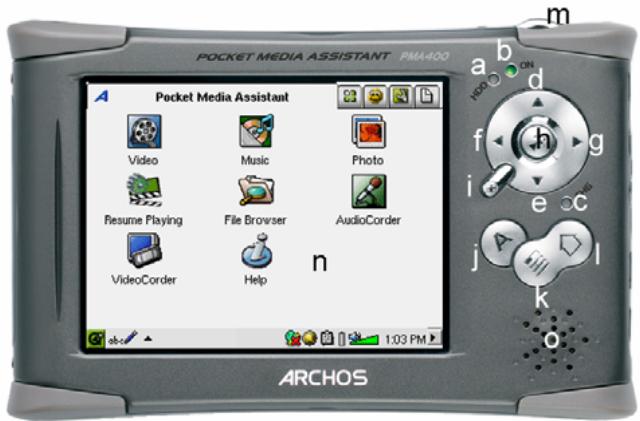
Voyants
a Voyant d'activité du disque dur b Voyant de mise sous tension c* Voyant d'adaptateur/chargeur connecté
Pavé de navigation
d Déplacer vers le haut (augmenter le volume lors de la lecture de musique ou de vidéo) e Déplacer vers le bas (diminuer le volume lors de la lecture de musique ou de vidéo) f Déplacer vers la gauche (se déplacer vers la fenêtre gauche dans le navigateur double) g Déplacer vers la droite (ouvrir ou se déplacer vers la fenêtre droite dans le navigateur double) h Marche/Entrée/Lecture - maintenir enfoncé pendant 3 secondes pour allumer i Échap/Arrêt/Veille - maintenir enfoncé pendant 3 secondes pour passer en mode veille
Boutons supplémentaires
j Bouton ARCHOS - Basculer entre les applications ouvertes k Bouton Menu - Ouvrir les menus d'options de l'onglet d'application 1 Bouton Accueil - Revenir à l'écran principal. Basculer entre les onglets.
m Maintenir 3 secondes pour basculer entre l'écran interne et externe. Un simple clic court sera interprété comme une touche de tabulation dans les applications qui utilisent la tabulation. n Écran tactile TFT LCD 320 × 240 pixels. Appuyer légèrement avec le stylet fourni. o Haut-parleur intégré
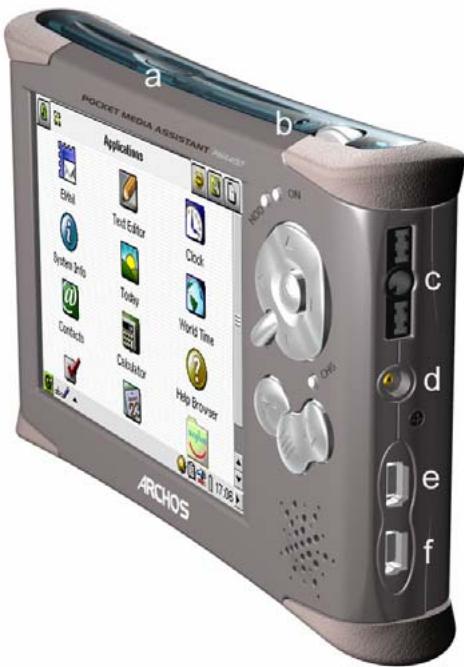
a Port de communication infrarouge b Microphone
c Prise multifonction casque et entrée/sortie AV - connecter un casque, un socle TV ou un adaptateur en option*.
d Connecteur d'alimentation - utiliser uniquement le chargeur/adaptateur secteur ARCHOS fourni.
e Port hôte USB 1.1 - pour connecter des périphériques USB compatibles au PMA430
f Port périphérique USB 2.0 (compatible USB 1.1) - pour voir le PMA430 comme disque dur sur votre ordinateur
*L'adaptateur multifonction et le câble AV en option permettent la lecture audio et vidéo (câble AV) et l'enregistrement (adaptateur + câble) sans le socle TV à partir de périphériques vidéo et audio avec sortie vidéo et sortie ligne.
Adaptateur multifonction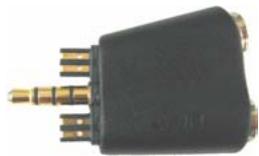
Câble AV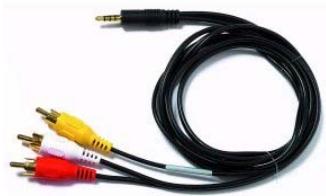
1.2 Aperçu des différentes zones de l'écran
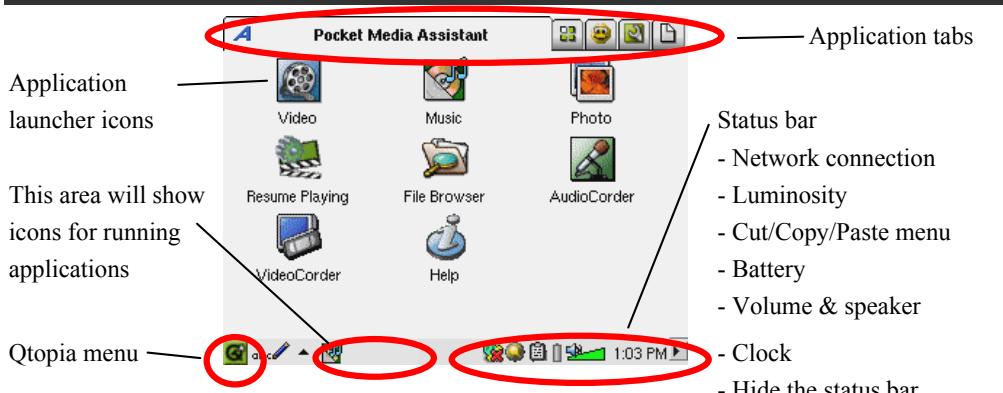

1.3 Onglets d'application
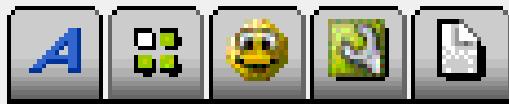
ARCHOS Productivité Jeux Paramètres Documents
Menu QtopiaTM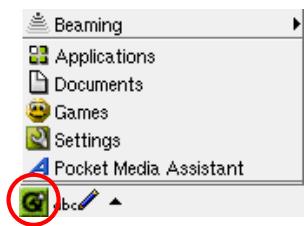
L'interface du PMA430 est divisée en cinq ensembles d'applications principaux, ou onglets. Vous pouvez passer d'un onglet à un autre en cliquant sur l'onglet lui-même avec le stylet (l'écran du PMA430 est tactile), en cliquant sur le bouton Accueil , ou en le sélectionnant dans le menu QtopiaTM, en bas à gauche de l'écran (voir l'image sur le côté droit).
Onglet Pocket AV
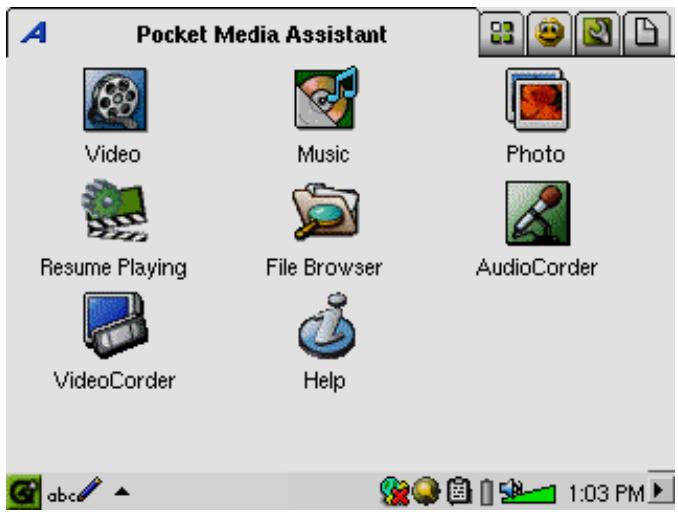
Depuis cet onglet, vous pouvez lancer les applications de lecture et d'enregistrement de musique, les applications de lecture et d'enregistrement vidéo, l'application de visualisation de photos, l'application de gestion de fichiers, et une application de reprise de lecture.
Onglet Applications de productivité
Depuis cet onglet, vous pouvez lancer des applications telles que le courrier électronique, un navigateur Internet, un calendrier, un agenda, des contacts, et d'autres.
Jeux
Un certain nombre de jeux sont inclus avec votre appareil. De plus, il y a un moteur de jeu Mophun® dans l'onglet Jeux. C'est une plateforme spéciale de jeu. Vous pouvez consulter le site Web d'ARCHOS pour une liste des jeux disponibles à l'achat.
Paramètres
Cet onglet vous donne accès aux paramètres qui contrôlent le fonctionnement de votre PMA430. Ils incluent l'horloge et le calendrier, la langue de l'interface, un mot de passe de sécurité, et vos paramètres réseau qui vous permettent par exemple d'utiliser les capacités Wi-Fi intégrées pour vous connecter à un réseau et accéder à Internet.
Documents
Cet onglet correspond au dossier Documents qui est le niveau supérieur du système de hiérarchie de fichiers et où vous garderez tous vos documents de travail. Il affiche tous vos fichiers situés dans le dossier Documents et ses sous-dossiers. En bas à gauche, vous pouvez choisir d'afficher "Tous les documents" (c'est-à-dire tous les fichiers) ou de sélectionner un certain type de fichier (par exemple uniquement les images ou les fichiers texte). Veuillez noter que garder un grand nombre de fichiers dans ce dossier peut ralentir le PMA430 ou entraîner des messages tels que "Mémoire faible" ou "Mémoire critique", donc vous pourriez envisager de créer un dossier (par exemple nommé "Data") dans le répertoire racine du PMA430 pour stocker les fichiers que vous n'utilisez pas fréquemment.
1.4
L'écran tactile et la saisie de texte
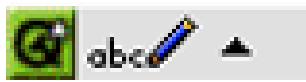
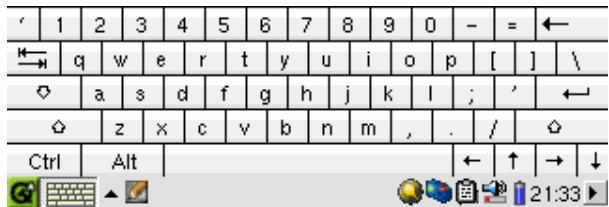
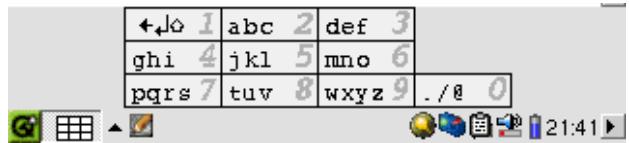
Le PMA430 est équipé d'un écran tactile. Vous pouvez appuyer légèrement dessus avec votre doigt ou utiliser le stylet inclus pour lancer une application ou interagir avec un programme. Il existe trois méthodes pour saisir du texte ou des chiffres dans votre PMA430 lorsqu'une application demande des informations textuelles. Si vous devez saisir du texte, cliquez sur le bouton de saisie de texte (1) puis choisissez votre méthode de saisie de texte (2).
(1)
(2)
Méthode : reconnaissance de l'écriture manuscrite
Vous écrivez vos caractères directement sur l'écran. Vous devez écrire vos lettres d'une manière particulière pour que le PMA430 puisse les identifier correctement. Le didacticiel de formation (point d'interrogation entouré d'un cercle à droite de l'écran de saisie) vous montrera comment procéder et vous donnera l'occasion de vous entraîner.
Méthode : clavier
Un clavier standard s'affiche et il vous suffit de taper sur les touches.
Un clavier standard s'affiche et il suffit de taper sur les touches.
Saisissez le texte comme si vous utilisiez un clavier de téléphone. Cliquez une fois pour la première lettre, deux fois pour la deuxième, et ainsi de suite.
Saisissez le texte comme si vous utilisiez un clavier de téléphone. Cliquez une fois pour la première lettre, deux fois pour la deuxième lettre, et ainsi de suite.
Linux®, Qtopia™ et le système de fichiers du PMA430
Informations système

Votre PMA430 fonctionne avec le système d'exploitation Linux®. Cette version de Linux® ne comprend cependant pas toutes les bibliothèques nécessaires pour exécuter, par exemple, un ordinateur de bureau.
Qtopia™ est la couche graphique de Linux® qui permet une interface utilisateur graphique confortable au lieu de la ligne de commande Linux® traditionnelle.
Le disque dur de votre PMA430 est partitionné en FAT32, un système de fichiers également utilisé sur les ordinateurs sous Windows®. Une petite partie est réservée comme espace de stockage pour des applications supplémentaires. Ces deux espaces sont appelés respectivement Stockage multimédia et Stockage de programmes. Le Stockage multimédia est l'endroit où sont stockés toute votre musique, vos vidéos, vos photos et tous vos fichiers de données divers. Lorsque vous connectez votre PMA430 à votre ordinateur via le câble USB, il apparaît comme un disque dur externe. Ainsi, vous pouvez très facilement déplacer des fichiers entre votre PC et votre PMA430 en ouvrant le PMA430 dans l'Explorateur Windows et en faisant glisser-déposer des fichiers.
Le disque dur de votre PMA430 est partitionné en FAT32, un système de fichiers également utilisé sur les ordinateurs sous Windows®. Une petite partie de celui-ci est réservée comme espace de stockage pour des applications supplémentaires. Ces deux espaces sont appelés Stockage multimédia et
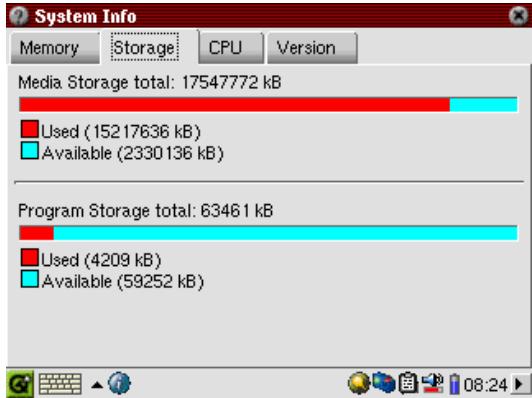
Program Storage respectivement. Le Media Storage est l'endroit où seront stockés toute votre musique, vos vidéos, vos photos et tous vos fichiers de données divers. Lorsque vous connectez votre PMA430 à votre ordinateur via le câble USB, il apparaîtra comme un disque dur externe. Ainsi, vous pouvez très facilement déplacer des fichiers entre votre PC et votre PMA430 en ouvrant le PMA430 dans l'Explorateur Windows et en faisant un glisser-déposer des fichiers.
La zone de stockage des programmes (taille fixe de 64 Mo) est l'endroit où sont installés les nouveaux programmes Linux® que vous installez sur votre PMA430. Étant donné que les applications Linux® doivent s'exécuter dans un espace formaté pour Linux®, les paquets d'installation (fichiers de type .ipk) doivent être installés dans la zone de stockage des programmes. Vous remarquerez que lorsque votre appareil est monté sur un PC comme disque dur externe (ou périphérique de stockage de masse), il y a un fichier de 64 Mo dans le dossier System appelé progfs.img. Cela signifie espace de fichiers de programme et il s'agit en fait d'une partition Linux® simulée pour vos programmes d'application. Vous ne devez donc pas supprimer ce fichier/partition. Si vous devez effectuer une procédure de récupération complète du système, vous devez sauvegarder le fichier progfs.img pour conserver tous vos programmes installés. Après avoir terminé la procédure de récupération, vous pouvez récupérer vos programmes en remplaçant ce fichier.
1.6
Mise à jour du système d'exploitation
ARCHOS met périodiquement à jour le système d'exploitation (OS) et propose un téléchargement gratuit sur le site Web d'ARCHOS (www.archos.com). Les mises à jour du système d'exploitation incluent de nouvelles fonctionnalités, des améliorations de fonctionnalités et des corrections de bogues. Vous devez vérifier que vous utilisez la version la plus récente de l'OS. Vous pouvez trouver des informations sur la version actuelle que vous utilisez sous Applications > System Info > Version. La version la plus récente disponible peut être téléchargée sur www.archos.com sous la rubrique Download > Software.
Étape 1 : Télécharger le fichier aimage.img
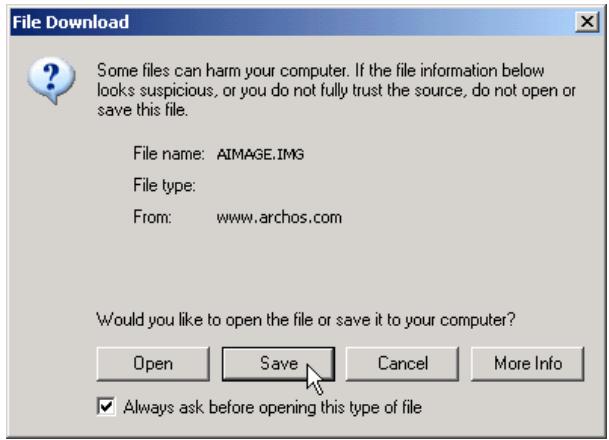
Téléchargez le fichier image AIMAGE.IMG, qui sera probablement assez volumineux - environ 22 Mo. (Notez que sur un modem téléphonique, le téléchargement d'un fichier de cette taille prendra au moins une heure et demie et peut-être plusieurs heures.) Lorsque vous cliquez sur le lien pour télécharger le nouveau fichier OS, votre navigateur peut vous avertir que le contenu du téléchargement peut nuire à votre ordinateur. Ceci est
parce que le système Windows® ne sait pas ce qu'est un fichier .IMG. Soyez assuré qu'ARCHOS a fait tous les efforts pour garantir que le fichier ne contient pas de virus. Cliquez sur le bouton Enregistrer pour télécharger ce fichier à un endroit pratique, tel que Mes documents, afin de copier plus tard ce fichier sur votre PMA430. Si votre PMA430 est connecté à votre PC, vous pouvez même l'enregistrer directement dans le dossier System de votre PMA430.
ATTENTION Utilisateurs Macintosh®
Les utilisateurs Macintosh® doivent être particulièrement prudents lorsqu'ils téléchargent et enregistrent ce fichier sur leur ordinateur Macintosh®. Ne double-cliquez pas dessus. Les Mac utilisent les fichiers .img à des fins différentes et si vous double-cliquez sur ce fichier .img enregistré, il essaiera de l'ouvrir. Au lieu de cela, copiez-le simplement de votre Macintosh vers le dossier System de votre PMA430. Faites simplement un glisser-déposer.
Étape 2 : Lire le fichier History.txt
Sur le site Web d'ARCHOS, vous trouverez également à côté du téléchargement de l'OS, un fichier texte qui détaille la liste des changements par rapport à la version précédente de l'OS.
Étape 3 : Copier le fichier aimage.img dans le dossier System du PMA430
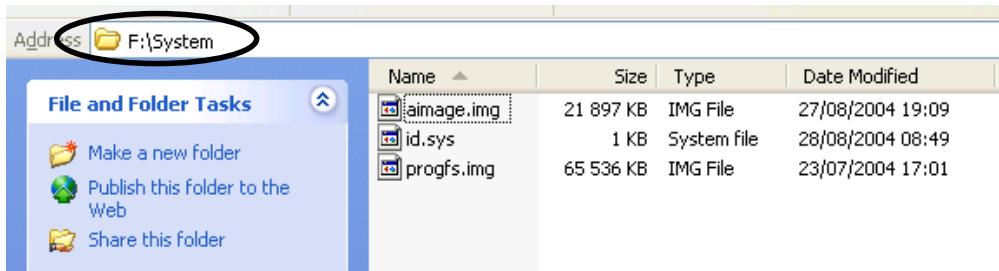
Connectez votre PMA430 à votre ordinateur, puis copiez le fichier AIMAGE.IMG dans le dossier System du PMA430. Comme une version plus ancienne de ce fichier se trouve déjà sur votre PMA430, votre ordinateur vous demandera si vous voulez remplacer le fichier actuel. Cliquez sur Oui. Une fois ce fichier copié, déconnectez le PMA430 de l'ordinateur en toute sécurité.
Attention : le fichier aimimage.img doit toujours rester dans le dossier System du PMA430. Même après avoir mis à jour votre PMA430, vous ne devez pas supprimer ce fichier.
Étape 4 Réinitialisez le PMA430 et réglez l'heure et la date
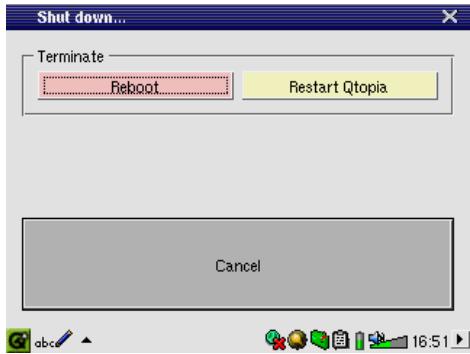
Pour que la nouvelle mise à jour logicielle prenne effet, vous devez réinitialiser le PMA430. Déconnectez-le de l'ordinateur et allez dans Paramètres > Arrêt. Appuyez sur le bouton rouge "Redémarrer". Le PMA430 s'éteindra. Rallumez-le maintenant et il démarrera avec le nouveau système d'exploitation. Vous devez vérifier que l'heure et la date sont correctes après une réinitialisation.
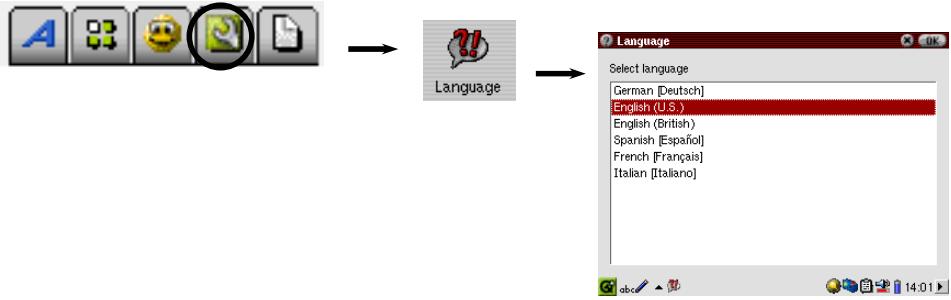
L'interface du PMA430 peut être réglée en anglais (par défaut), français, allemand, italien ou espagnol. Pour changer la langue, allez dans Paramètres puis Langue et sélectionnez la langue souhaitée. Cliquez sur OK et attendez quelques instants. Votre PMA430 utilisera alors la nouvelle langue.
1.8
Entretien du PMA430
Le ARCHOS Video PMA430 est un produit électronique qui doit être manipulé avec grand soin.
- Ne le soumettez pas à des chocs.
- Ne l'exposez pas à la chaleur. Gardez-le ventilé (surtout lorsqu'il est connecté à un ordinateur).
- Tenez le PMA430 à l'écart de l'eau et des zones excessivement humides.
- Tenez le PMA430 à l'écart des champs électromagnétiques élevés.
- Rangez soigneusement les câbles connectés au PMA430. Ce produit léger pourrait tomber si un câble est tiré accidentellement.
- N'ouvrez pas le PMA430. Il n'y a aucune pièce réparable par l'utilisateur à l'intérieur. L'ouverture annulera votre garantie.
1.9
Réinitialisation matérielle
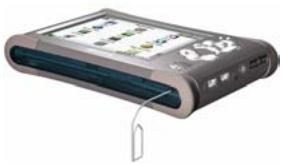
Si votre PMA430 gèle (par exemple à cause de phénomènes électrostatiques), vous pouvez effectuer une réinitialisation matérielle (à froid) en insérant un objet fin tel qu'un trombone dans le trou de réinitialisation et en appuyant sur le bouton de réinitialisation encastré.
2 Connexion/déconnexion du PMA430 à/de votre PC
Notez que lorsque le PMA430 est connecté à un ordinateur, il consomme plus d'énergie, c'est-à-dire que la batterie se décharge plus rapidement que d'habitude. Si le PMA430 perd de la puissance pendant qu'il est connecté à votre ordinateur, vous pourriez endommager votre structure de répertoires et/ou perdre des données. Ainsi, vous devez toujours utiliser l'adaptateur secteur lorsque vous êtes connecté à votre ordinateur. Soyez également prudent quant à la procédure de déconnexion, car une déconnexion incorrecte peut entraîner une perte de données ou provoquer le gel de l'ordinateur/PMA430. Le PMA430 n'est pas compatible avec Windows NT, Windows 95 ou Windows 98. Lorsqu'il est connecté comme disque dur à votre ordinateur, les boutons du PMA430 sont bloqués et ne fonctionnent plus.
2.1
Connexion du PMA430
1) Utilisez l'adaptateur secteur pour éviter que le PMA430 ne s'éteigne en raison d'une faible puissance. (Cela pourrait endommager le contenu du disque dur si ce n'est pas fait.) 2) Branchez le câble USB sur votre ordinateur en marche. 3) Allumez le PMA430 - attendez qu'il démarre complètement. 4) Branchez l'autre extrémité du câble sur votre PMA430 maintenant allumé.
Windows® ME, 2000, XP (Home/professionnel)
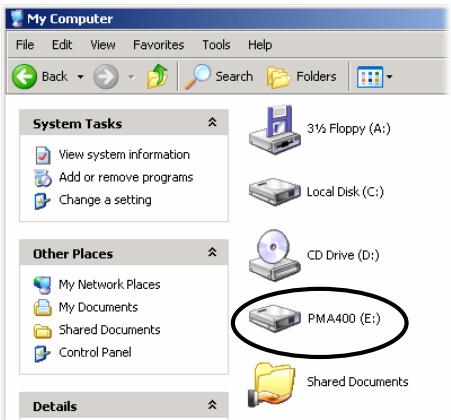
Une fois connecté, le PMA430 sera reconnu comme un périphérique de stockage de masse (MSC) et s'affichera automatiquement en quelques secondes après la connexion. Vous verrez une nouvelle lettre de lecteur, telle que E: dans Poste de travail, appelée PMA400. Vous pouvez maintenant utiliser le disque dur appelé PMA400 comme tout autre disque dur. Accédez-y simplement à l'aide de l'Explorateur Windows pour faire glisser et déposer des fichiers vers et depuis le disque dur du PMA430. S'il n'est pas reconnu automatiquement, veuillez vous référer à la section de dépannage à la fin de ce manuel.
Macintosh™ OS X (10.2 Jaguar et 10.3 Panther)
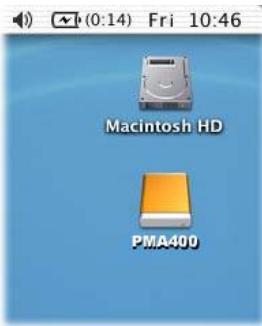
Si vous avez OS 10.2, vous devez mettre à jour vers la version 10.2.4 ou supérieure. Il s'agit d'une mise à jour gratuite d'Apple® Computer. Vous n'aurez besoin d'aucune installation spéciale de pilotes logiciels ou d'extensions. Branchez simplement le PMA430 sur votre Macintosh comme décrit ci-dessus, et en quelques secondes, le PMA430 sera reconnu comme un périphérique de stockage de masse (MSC) et monté sur le bureau. Vous pouvez maintenant utiliser le disque dur appelé PMA400 comme tout autre disque dur externe.
2.2 Déconnexion du PMA430 de votre ordinateur
AVERTISSEMENT : Vous devez retirer correctement (démonter) votre PMA430 de l'ordinateur avant de débrancher le câble USB pour éviter toute perte de données ou le gel de l'ordinateur et/ou du PMA430.
NE TIREZ JAMAIS SIMPLEMENT SUR LE CÂBLE USB À AUCUN MOMENT !
Windows®
Pour déconnecter en toute sécurité le disque dur du PMA430, cliquez sur l'icône de retrait de la barre des tâches (flèche verte comme indiqué ci-dessous) et suivez les instructions ci-dessous. Attendez d'avoir un message indiquant que vous pouvez débrancher l'appareil en toute sécurité avant de déconnecter le câble USB. Attention : le système d'exploitation ne vous permettra pas de déconnecter en toute sécurité le PMA430 si une application en cours d'exécution (telle que Windows Media Player) utilise l'un des fichiers. Vous devrez fermer tous les fichiers PMA430 ouverts dans toute application en cours d'exécution ainsi que dans l'Explorateur Windows. Parfois, vous devrez même fermer l'application que vous avez utilisée pour ouvrir des fichiers depuis le PMA430. L'utilisation de la flèche verte de déconnexion dans la barre des tâches vous permettra alors de déconnecter en toute sécurité le PMA430.
- L'icône de retrait en toute sécurité se trouve dans la barre des tâches, à côté de l'horloge.
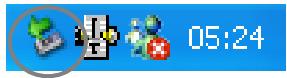
Windows XP
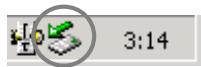
Windows® 2000 et Windows® ME
- Cliquez sur l'icône pour éjecter (démonter) le PMA 400 de l'ordinateur et sélectionnez le message 'Retirer en toute sécurité'.

- Un message indiquera qu'il est maintenant sûr de déconnecter le PMA430. Vous pouvez maintenant débrancher le câble USB du PMA430.

Windows XP
Macintosh
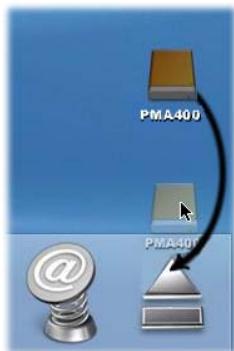
Faites glisser l'icône du disque dur du PMA430 vers la corbeille ; la corbeille deviendra une grande flèche comme indiqué dans la capture d'écran à gauche. Déposez l'icône du disque dur sur la flèche. L'icône du disque dur disparaîtra du bureau. Vous pouvez maintenant débrancher en toute sécurité le câble USB de votre PMA430 et/ou de l'ordinateur.
3 Récupération du système
Si pour une raison quelconque vous devez restaurer votre PMA430 à son état d'usine d'origine, vous devez effectuer une récupération du système. Une récupération du système effacera les fichiers personnels et les programmes que vous avez peut-être installés sur votre appareil. Afin d'être préparé à cette situation, vous devez sauvegarder les fichiers suivants de votre PMA, par exemple en les stockant sur votre ordinateur.
Le fichier PMA400_recovery.zip du dossier /Archos/PMA_Recoveryzip, le fichier progfs.img du dossier System, les exemples de musique, vidéos et photos si vous souhaitez les conserver, et toutes les données personnelles dont vous n'avez pas déjà une autre copie. Vous pouvez également synchroniser votre calendrier, votre liste de tâches et votre gestionnaire de contacts. Pour savoir comment faire, voir le chapitre sur l'application de bureau Qtopia™.
Si vous n'avez pas sauvegardé le fichier PMA400_recovery.zip sur votre ordinateur, vous pouvez le télécharger depuis le site Web d'ARCHOS. Sachez qu'il s'agit d'un très gros fichier, de près de 30 mégaoctets.
Pour réinitialiser votre PMA430 à l'état d'usine (sans les exemples de musique, vidéos et photos), vous devez :
1) Connectez votre PMA430 à votre ordinateur. 2) Sauvegardez toutes les données personnelles que vous pouvez depuis votre PMA430. Notez que cela n'est pas toujours possible ! 3) Effectuez un formatage complet du disque dur du PMA430. 4) Copiez le dossier décompressé sur le disque dur nouvellement formaté.
Déconnectez votre PMA430 de votre ordinateur comme d'habitude, puis effectuez une réinitialisation matérielle (à froid) en appuyant sur le bouton de réinitialisation encastré dans le petit trou situé sous votre appareil. Votre PMA430 redémarrera dans son état d'usine, à l'exception des fichiers multimédia d'exemple. Vous pouvez maintenant copier vos fichiers personnels et les programmes installés sur l'appareil (voir la section Linux®, Qtopia™ et le système de fichiers PMA430 dans le chapitre Vue d'ensemble pour plus d'informations) et synchroniser votre agenda, etc.
PARTIE II
L'ONGLET APPLICATIONS ARCHOS™
4 Application Musique
4.1
Lecture de musique
Musique
Ceci est l'application de lecture de musique. Lorsque vous cliquez sur cette icône dans l'écran principal, vous êtes directement envoyé vers le navigateur musical. À partir du navigateur musical, vous pouvez créer une liste de lecture de chansons ou simplement sélectionner des chansons à écouter.
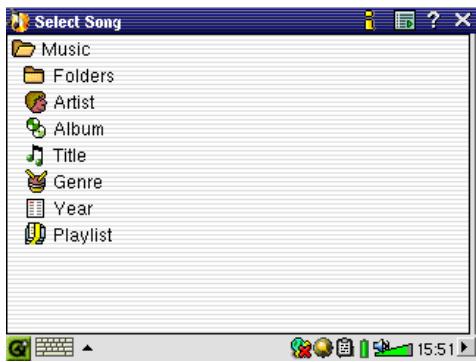
- Choisissez d'accéder à votre musique en parcourant les dossiers ou par caractéristiques musicales. Lorsque vous jouez une chanson, toutes les chansons du groupe (par exemple, du même album) seront ajoutées à la liste de lecture et la chanson sélectionnée commencera à jouer.
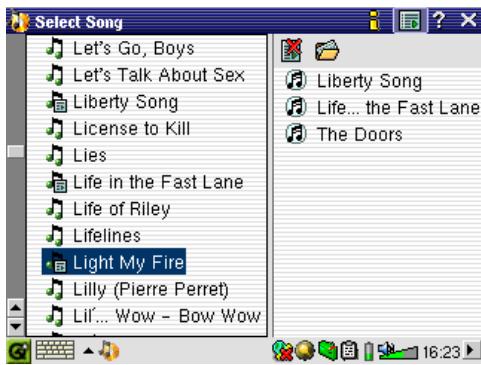
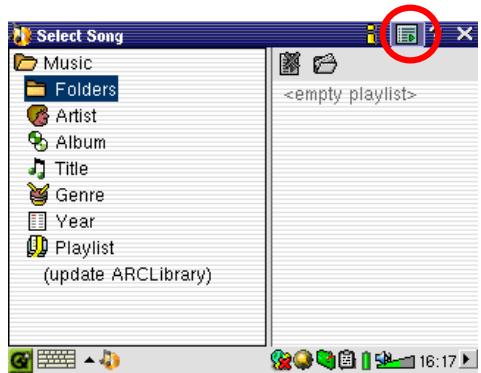
- Pour créer une liste de lecture, cliquez sur le bouton DROIT et le panneau de liste de lecture apparaîtra. Vous pouvez également appuyer sur l'icône Liste de lecture dans la barre de menu supérieure (voir le cercle).
Remarque : Si des pistes sont affichées dans le panneau droit, cela signifie qu'une liste de lecture est déjà ouverte. Fermez cette liste en cliquant sur l'icône Liste de lecture avec la croix rouge.
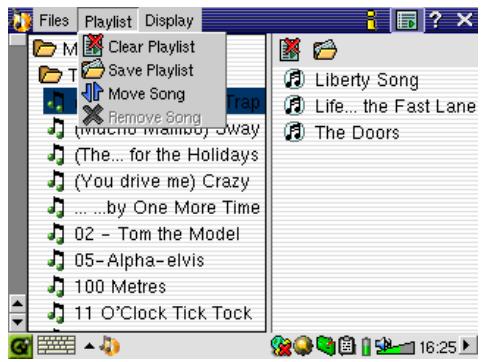
- Dans le panneau de gauche, mettez en surbrillance une chanson et cliquez sur le bouton LECTURE. La chanson sera ajoutée à la liste de lecture. Pour ajouter un dossier, cliquez sur le bouton menu et sélectionnez "Ajouter à la liste de lecture" dans le menu Fichier.
- Diverses commandes de liste de lecture existent dans le menu déroulant ou dans la fenêtre de liste de lecture.
Pour naviguer entre les menus Fichier, Affichage et Liste de lecture, utilisez les commandes DROITE et GAUCHE du pavé de navigation.

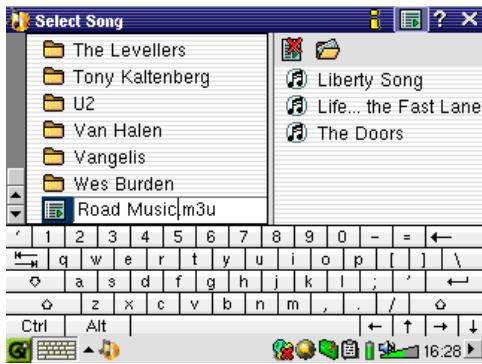
- Lorsque vous enregistrez une liste de lecture, elle est enregistrée dans le dossier Racine. À l'aide du navigateur de fichiers, déplacez la liste de lecture dans le dossier Musique. Lorsque vous mettez à jour la bibliothèque ARC, elle sera alors également disponible dans la catégorie Listes de lecture.
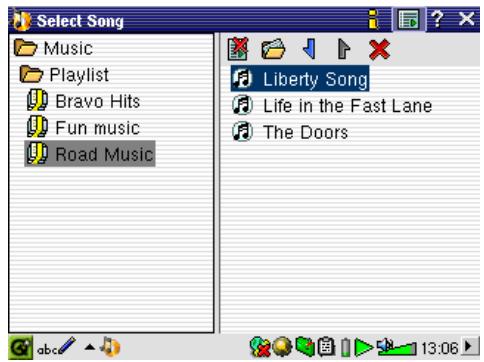
- Cliquer sur le bouton de lecture d'une liste de lecture charge la liste puis commence à jouer la première chanson de la liste.
L'écran principal de l'application musicale est présenté ci-dessous. Les icônes dans le coin inférieur gauche vous permettent d'accéder à l'écran du navigateur musical (pour ajouter d'autres chansons à la liste de lecture en cours), à l'écran des listes de lecture (pour voir quelles chansons sont dans la liste de lecture actuelle) et à l'écran de l'égaliseur (pour ajuster la qualité sonore).
*Si le fichier MP3 contient ces données de balise ID3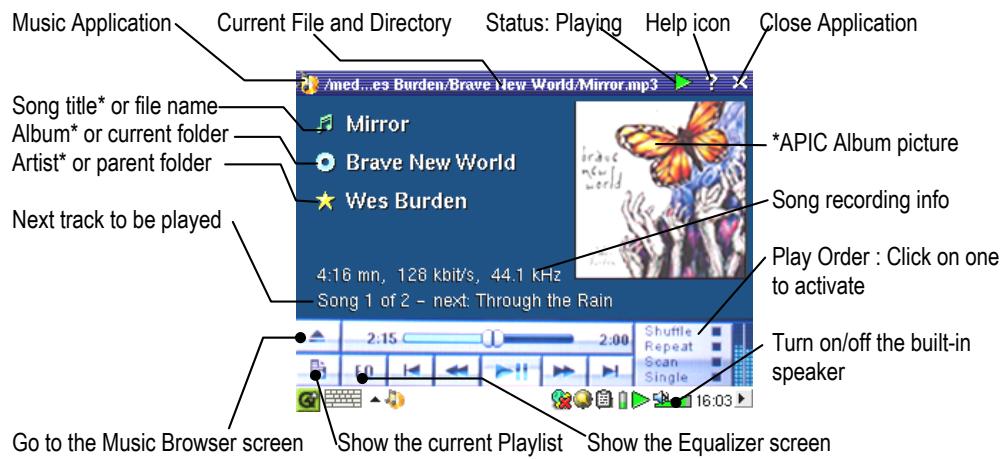
Commandes des boutons pendant la lecture d'une chanson : Pour verrouiller les boutons du PMA430, maintenez enfoncé le bouton ARCHOS pendant 3 secondes. Le message "Boutons et écran verrouillés" apparaîtra. Appuyer sur n'importe quel bouton ou sur l'écran tactile n'aura alors aucun effet. Pour déverrouiller les boutons et l'écran, appuyez à nouveau sur le bouton ARCHOS pendant 3 secondes.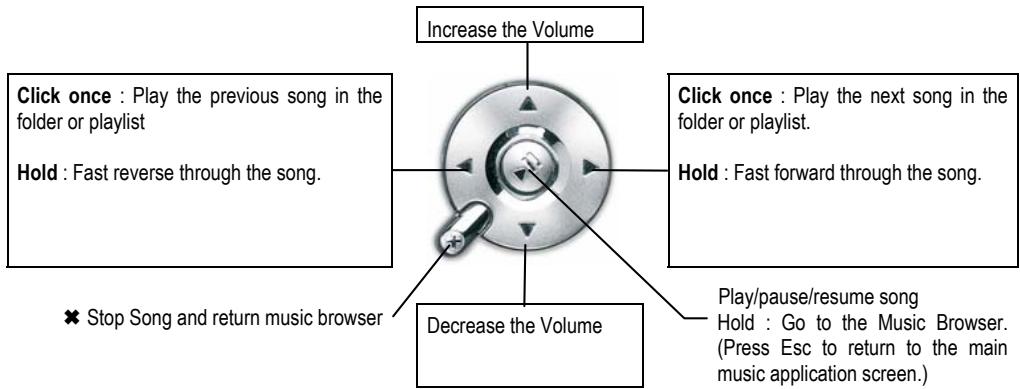
Appuyer sur le bouton Accueil

pendant 3 secondes allumera et éteindra le haut-parleur externe.
4.2 La bibliothèque ARC™ - Parcourir par artiste, album ou titre
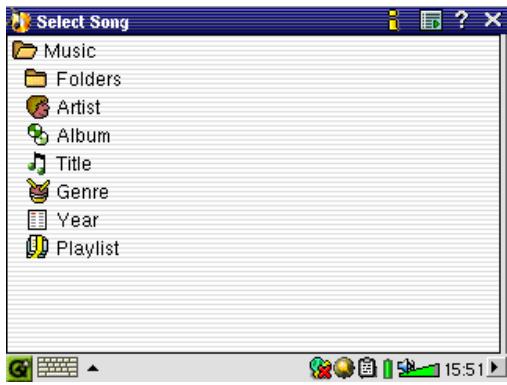
La bibliothèque ARC est une base de données de toutes les chansons du dossier Musique. De nombreux fichiers musicaux contiennent des informations pour décrire le fichier musical, appelées balises. Grâce à ces balises, la bibliothèque ARC vous permet de choisir votre musique à lire par artiste, album, titre de chanson, genre ou année. Selon la source du fichier, toutes ces balises ne sont pas disponibles. Les fichiers de type .wav n'ont pas de balises car le format ne le permet pas.
Après avoir copié des fichiers musicaux dans le dossier Musique de votre PMA430, déconnectez-le de votre ordinateur. Vous devrez maintenant aller dans le navigateur musical (démarrez simplement l'application Musique) et sélectionner l'élément de barre de menu Mettre à jour la bibliothèque ARC. Le PMA430 vérifiera alors s'il y a de nouvelles chansons dans le dossier Musique et les ajoutera à la base de données des chansons connues. Vous verrez alors votre musique nouvellement copiée sous les différentes caractéristiques. Si vos fichiers musicaux ne contiennent pas les balises de description, ils seront classés sous "inconnu". Le nom du fichier sera utilisé à la place du titre s'il n'y a pas de balise de titre de chanson.
4.3 Mettre de la musique sur votre PMA430
Votre produit ARCHOS™ est conçu pour lire les contenus numériques PlaysForSure, ce qui signifie que partout où vous trouvez de la musique à vendre sur Internet avec ce symbole, vous pourrez la transférer sur votre PMA430 à l'aide de Windows Media® Player. Pour plus d'informations sur les boutiques en ligne PlaysForSure, visitez le site Web (www.playsforsure.com). Le PMA430 est conçu pour fonctionner de manière transparente avec Windows Media® Player (WMP) versions 9 et 10. Le logiciel Windows Media® Player est utilisé pour télécharger du contenu multimédia numérique depuis Internet vers votre ordinateur et l'organiser. Vous l'utiliserez également pour synchroniser (copier) le contenu de votre bibliothèque multimédia Windows Media® Player vers votre appareil ARCHOS™.
Veuillez noter : pour que Windows Media® Player reconnaisse votre PMA430 (afin de pouvoir synchroniser avec celui-ci), vous devez installer un plug-in sur votre ordinateur. Pour ce faire, connectez le PMA430 à votre ordinateur, lancez l'installateur depuis votre PMA430 (\Archos\PC Installation\Setup.exe), cliquez sur le signe + à côté de Archos Windows Media® Player plugin et double-cliquez sur Archos WMDM plugin.
Synchronisation de la musique depuis Windows Media® Player (WMP) vers le PMA430
Windows Media® Player (WMP) vous permet de synchroniser la musique entre votre ordinateur et le PMA430 : cela signifie qu'il ajoutera des fichiers musicaux à votre PMA430 afin que vous ayez les mêmes médias numériques sur votre PMA430 que dans votre bibliothèque Windows Media® Player. La synchronisation est unidirectionnelle, c'est-à-dire qu'elle copie les pistes de votre ordinateur vers votre PMA430, mais pas l'inverse. Vous pouvez choisir de synchroniser uniquement certaines chansons ou de synchroniser toute votre bibliothèque.
Synchronisation de la musique depuis Windows Media® Player (WMP) 9 vers le PMA430
Accédez à l'onglet Copier vers dans WMP 9. Sur le côté gauche, vous devriez voir les fichiers musicaux de votre bibliothèque musicale (enregistrés sur votre ordinateur) et sur le côté droit, les fichiers et
dossiers sur votre PMA430. Cochez les fichiers que vous souhaitez copier vers le PMA430. Assurez-vous d'avoir sélectionné le dossier sur le PMA430 dans lequel vous souhaitez copier votre musique. Dans le coin supérieur droit de WMP, vous trouverez le bouton Copier qui lance le processus de synchronisation.
Synchronisation de la musique depuis Windows Media® Player (WMP) 10 vers le PMA430
Accédez à l'onglet Synchroniser dans WMP 10. Si c'est la première fois que vous utilisez cette option, WMP
proposera de configurer la synchronisation automatique de vos fichiers musicaux. Si cette case est cochée, chaque fois que vous connectez votre PMA430 à votre ordinateur, WMP
démarrera automatiquement et vérifiera si des fichiers musicaux sur l'ordinateur n'ont pas encore été copiés vers le PMA430. Ces fichiers seront ensuite copiés
vers votre ordinateur. Si vous choisissez de synchroniser manuellement vos fichiers, vous pouvez toujours configurer la synchronisation automatique en cliquant sur le bouton Configurer la synchronisation.
Sur le côté gauche, vous devriez voir les fichiers musicaux de votre bibliothèque musicale (enregistrés sur votre ordinateur) et sur le côté droit, les fichiers et dossiers sur votre PMA430. Cochez les fichiers que vous souhaitez copier vers le PMA430. Assurez-vous d'avoir sélectionné le dossier sur le PMA430 dans lequel vous souhaitez copier votre musique. Sur la barre d'outils, vous trouverez le bouton Démarrer la synchronisation qui lance le processus de synchronisation.
Attention : les fichiers supprimés de la bibliothèque musicale WMP seront également supprimés du PMA430.
Transfert de votre collection de CD vers le PMA430
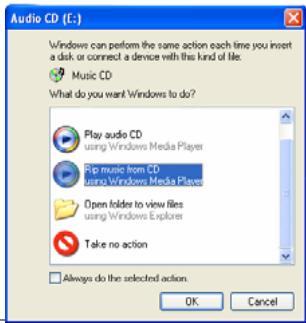
Le processus de transfert de la musique d'un CD vers des fichiers pour votre PMA430 est appelé « extraction » (ripping). Il s'agit en réalité d'un processus de transcodage, qui prend le format CDA (CD Audio) et le convertit en format WMA ou MP3 que le PMA430 peut lire. Il existe de nombreux programmes d'extraction de musique sur le marché, mais la chose la plus simple à faire est d'utiliser Windows Media® Player pour cela. En fait, lorsque
Lorsque vous insérez un CD audio dans votre ordinateur, Windows® vous demandera si vous souhaitez l'extraire. Selon la puissance de votre ordinateur, l'extraction d'un CD de 60 minutes peut prendre de 10 à 60 minutes. Une fois cette opération terminée, l'album fera partie de votre bibliothèque musicale. Connectez votre PMA430 à votre ordinateur à l'aide du câble USB fourni. Ensuite, allez dans l'onglet Synchronisation et demandez à Windows Media® Player de synchroniser cet album avec votre PMA430. Il transférera alors cet album sur votre PMA430.
Remarque : Certains CD audio sont dotés d'un système spécial de protection contre la copie qui empêche Windows Media® Player de créer des fichiers musicaux à partir de ceux-ci.
Installation de Windows Media® Player (WMP) 9
Si vous utilisez Windows® ME ou 2000, vous devez utiliser Windows Media® Player 9. Le moyen le plus simple d'installer ce logiciel est de visiter le site Web de Microsoft® et de télécharger la toute dernière version, ou d'installer la version fournie avec le PMA430.
Installation de Windows Media® Player (WMP) 10
Vous devez utiliser Windows® XP (Service Pack 1 ou supérieur) pour installer Windows Media® Player 10. Veuillez visiter le site Web de Microsoft pour télécharger la toute dernière version de Windows Media® Player 10.
4.4 Lecture de musique via votre chaîne stéréo
Au lieu de connecter les câbles de sortie AV rouge et blanc de votre station d'accueil TV à votre téléviseur, connectez-les directement aux entrées auxiliaires de votre chaîne stéréo. Placez ensuite votre appareil dans la station d'accueil TV pour écouter votre musique. Pour éviter toute distorsion, assurez-vous que le volume de sortie du PMA430 n'est pas trop fort, car cela créerait de la distorsion.
Vous pouvez également acheter le kit de voyage ARCHOS qui comprend un câble AV. Il suffit de brancher ce câble sur la prise casque du PMA430 et les fiches blanche et rouge de l'autre extrémité sur l'entrée Aux, CD ou Line-in de votre chaîne stéréo.
4.5 Les fonctions de reprise

Sous l'onglet Pockets AV/ARCHOS, vous remarquerez l'icône Reprendre. Sélectionnez cette icône, par exemple après avoir éteint votre PMA430, pour continuer la lecture du dernier fichier
audio ou vidéo là où vous vous étiez arrêté.
Pour régler l'égaliseur, appuyez sur le bouton EQ. Vous pourrez alors ajuster l'égaliseur cinq bandes du PMA430. Appuyez sur les boutons de gauche pour sélectionner un style,
et déplacez les curseurs pour augmenter ou diminuer la réponse pour la plage de fréquences donnée
(Basses, Médium-graves, Médium, Médium-aigus, Aigus). La modification de ces paramètres change le son en temps réel.
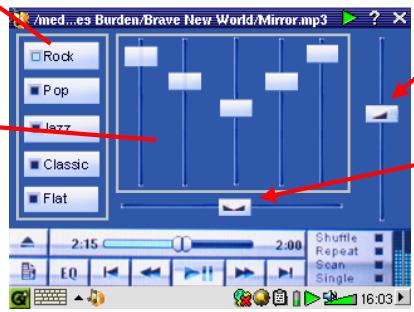
Le curseur sur la droite vous permet de changer le volume.
Le curseur en bas vous permet de choisir d'envoyer le son plus vers le haut-parleur ou le casque gauche ou droit.
5 Application AudioCorder

AudioCorder
Avec cette application, vous pouvez réaliser des enregistrements audio numériques à partir du microphone intégré (Int. Mic), d'un microphone dynamique connecté (Ext. Mic), ou d'une source audio au niveau ligne (Line In) telle qu'un lecteur de cassettes, un lecteur CD, ou la sortie
ligne de votre chaîne stéréo domestique. Vous pouvez utiliser les câbles rouge et blanc (entrée AV) de votre station d'accueil TV pour effectuer des enregistrements ligne, ou vous pouvez acheter le kit de voyage ARCHOS en option qui vous permettra de faire des enregistrements ligne avec simplement un câble et un adaptateur d'entrée, permettant ainsi des enregistrements n'importe où, et sans la station d'accueil TV.
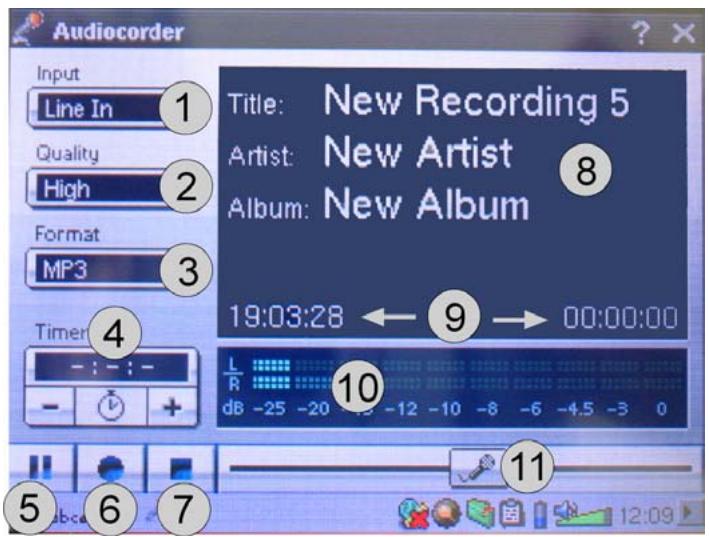
1 Choisissez votre source d'enregistrement : microphone interne, microphone externe, ou entrée ligne. 2 Choisissez la qualité de l'enregistrement (voir les spécifications techniques pour les débits binaires exacts). 3 Choisissez le format de l'enregistrement. Les enregistrements .wav ne permettront pas le marquage de l'artiste et de l'album. 4 Si vous le souhaitez, vous pouvez définir une durée d'enregistrement fixe. 5 Appuyez pour mettre en pause votre enregistrement. Appuyez à nouveau pour reprendre l'enregistrement. 6 Appuyez pour démarrer votre enregistrement. 7 Appuyez pour arrêter votre enregistrement. 8 Noms par défaut pour l'enregistrement. En utilisant le système de saisie de texte, vous pouvez les modifier. 9 Temps d'enregistrement restant ou disponible (à gauche) et temps d'enregistrement écoulé (à droite). 10 VU-mètres pour le niveau d'enregistrement. 11 Contrôle du gain d'enregistrement.
Votre enregistrement sera sauvegardé dans le dossier /Music/Recordings. Vous pouvez utiliser l'application Explorateur de fichiers pour déplacer ou copier vos fichiers vers un autre emplacement si vous le souhaitez. Un enregistrement utilisera le champ Titre comme nom de fichier.
6 MUSIQUE - Utilisation d'iTunes™ avec votre PMA430

Le moyen le plus simple de transférer des fichiers musicaux entre un ordinateur Macintosh® et votre PMA430 est d'utiliser le Finder™ Macintosh pour faire glisser et déposer les fichiers vers et depuis votre Macintosh®. Gardez à l'esprit que Macintosh® utilise le format AAC
nativement et que seuls vos fichiers MP3, WAV et WMA seront lus sur votre appareil ARCHOS.
Cependant, pour les utilisateurs de Macintosh® qui souhaitent utiliser le PMA430 avec iTunes®, ARCHOS a développé un plug-in spécial pour i-Tunes®. Vous trouverez le dossier iTunes plug-in dans le dossier ARCHOS sur le PMA430 ainsi que sur le site Web d'ARCHOS. Dans ce dossier, vous trouverez un plug-in pour Mac OS 9.x et un autre dossier pour Mac OS 10.x. Vous trouverez également une image JPEG illustrant où vous devez copier le plug-in. Une fois cela fait, iTunes™ reconnaîtra le PMA430 comme un 'périphérique'.
Pour rendre votre expérience utilisateur aussi simple que possible, veuillez garder à l'esprit ce qui suit.
1) Les morceaux de musique achetés sur la boutique de musique en ligne d'Apple sont protégés par un système de cryptage propriétaire. L'appareil ARCHOS ne pourra pas lire ces morceaux achetés. Il lira sans problème les fichiers au format MP3. 2) Lorsque vous créez vos listes de lecture avec iTunes® (vous ne pouvez créer des listes de lecture qu'à partir de chansons copiées sur votre PMA430), votre Macintosh® enregistrera ces listes de lecture dans le répertoire racine de votre PMA430. Il ne les enregistrera pas dans le répertoire Musique du PMA430. Il serait préférable d'utiliser le PMA430 lui-même pour créer des listes de lecture, puis d'enregistrer ces listes dans le dossier Musique ou dans un autre dossier pratique. 3) Lorsque vous faites glisser et déposez des fichiers MP3 de votre bibliothèque iTunes® vers votre PMA430, le programme iTunes® examinera les informations de balise ID3 du fichier MP3 et créera un dossier à la racine de votre PMA430 en utilisant le nom de l'artiste comme nom de dossier. Ensuite, il prendra le nom de l'album de la balise ID3 et créera un sous-dossier portant ce nom d'album. Enfin, il prendra la chanson MP3 elle-même et la placera dans ce sous-dossier d'album. Ainsi, bien qu'il s'agisse d'une structure propre d'artistes et d'albums, iTunes® ne suit pas la convention du PMA430 qui consiste à placer la musique dans le dossier Musique en premier.
7 Application Photo
Photo
Il s'agit de l'application de visualisation de photos. Lorsque vous cliquez sur cette icône dans l'écran principal, vous êtes directement envoyé dans le navigateur de photos, qui vous permet de parcourir vos photos. Une vignette de la photo du fichier en surbrillance sera affichée à droite, entre les vignettes du fichier (ou dossier) précédent et suivant. Vous pouvez masquer et afficher le panneau de vignettes en cliquant sur les commandes DROITE et GAUCHE ou en
appuyant sur l'icône Double-navigateur dans la barre de menus.
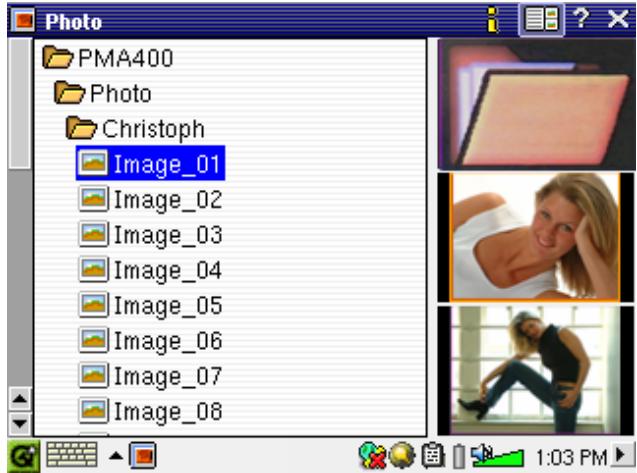
Cliquez sur le bouton LECTURE et le nom de fichier en surbrillance sera affiché.
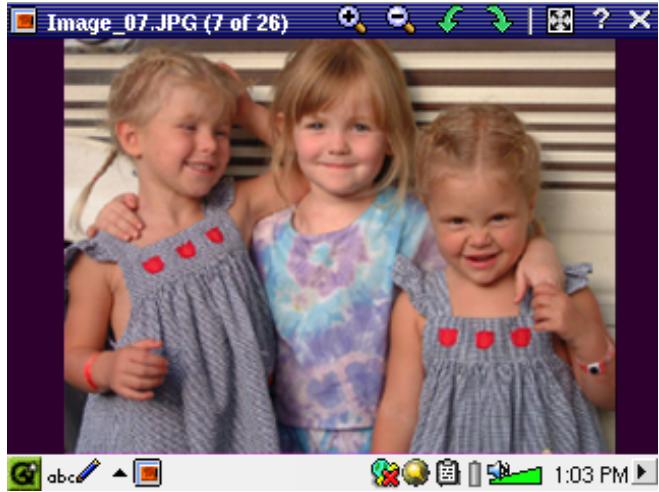
Utilisez les boutons HAUT et BAS pour afficher la photo précédente ou suivante du dossier. Les commandes GAUCHE et DROITE vous permettent également de faire pivoter les images. La barre de menus au-dessus de la photo offre les options suivantes, également disponibles via le bouton menu.
| Action | Alternative button to use | |
| + | Zoom in – show picture at actual size. | PLAY |
| - | Zoom out – show multiple (2x2, 3x3, 4x4, 5x5) pictures at a time. | ESC – to return to the standard display size |
| √ | Rotate the picture by 90° to the left. | LEFT |
| × | Rotate the picture by 90° to the right. | RIGHT |
| Display the picture in full-screen mode. To return to the normal mode, tap the picture twice. |
Lors d'un zoom sur une image, vous pouvez déplacer l'image en touchant l'écran afin de voir les sections qui n'apparaissent pas dans la fenêtre. L'écran tactile ou le pavé de navigation peut être utilisé à cette fin.
Pour afficher des informations sur une image, utilisez le bouton menu et sélectionnez Info dans le menu Affichage.
7.1 Transfert de photos vers votre PMA430
Depuis un appareil photo, vous pouvez transférer vos photos vers votre PMA430 en les plaçant d'abord sur votre PC. Connectez ensuite le PMA430 à votre ordinateur et collez vos fichiers image dans le dossier Photos du disque dur du PMA430. Une autre possibilité est de connecter votre appareil photo numérique au port hôte USB à l'aide du câble adaptateur hôte USB court fourni.
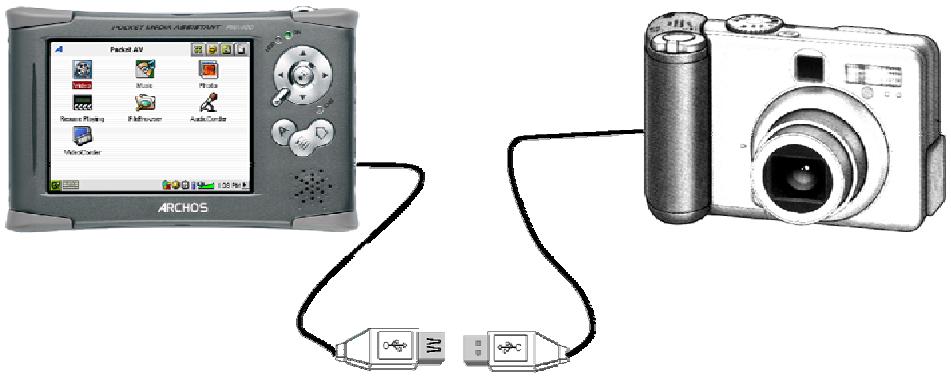
Si votre appareil photo est conforme à la norme Mass Storage Class (MSC) pour la connexion USB, il apparaîtra dans le navigateur de fichiers sous le dossier /ExternalDevice. Si vous regardez dans ce dossier, vous verrez vos photos. Consultez le chapitre sur le navigateur de fichiers pour savoir comment copier des fichiers. Attention : tous les appareils photo numériques ne sont pas de type MSC ; dans ce cas, vous devrez d'abord transférer vos images sur votre ordinateur. Notez également que vous ne pouvez pas transférer de fichiers de votre PMA400 vers un appareil photo !
8 Application vidéo
Vidéo
Ceci est l'application de visionnage vidéo. Lorsque vous cliquez sur cette icône sur l'écran principal, vous êtes directement envoyé dans le navigateur vidéo. Pour regarder une vidéo, il vous suffit de mettre en surbrillance le fichier vidéo puis de cliquer sur le bouton LECTURE. Gardez à l'esprit que le PMA430 ne lira que les fichiers vidéo encodés au format MPEG4 (voir la section
Lecture de fichiers vidéo depuis Internet ci-dessous pour plus de détails). Les autres formats de fichiers tels que .mov ou .mpg ne seront pas automatiquement lisibles. Cependant, vous pouvez convertir vous-même certains types de fichiers, voir le chapitre Création de fichiers vidéo MPEG4 avec votre ordinateur.
Sélectionnez le fichier vidéo souhaité et cliquez sur LECTURE.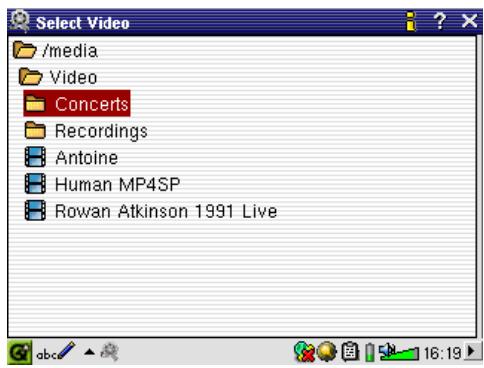
Cliquez sur le bouton (en haut à droite) pour obtenir des informations sur le fichier.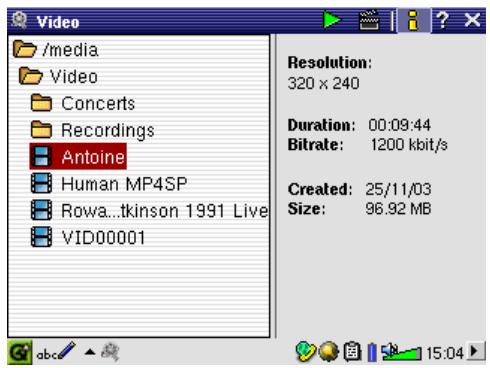
PAL) dans Paramètres > Sortie TV. Les informations superposées à l'écran disparaîtront après quelques secondes.
Pour regarder vos fichiers vidéo sur un téléviseur, assurez-vous d'avoir correctement connecté votre station d'accueil TV à votre téléviseur (voir le manuel de la station d'accueil TV), puis maintenez enfoncé le bouton LCD/TV en haut de l'appareil ou maintenez enfoncé le bouton TV/LCD de la télécommande ARCHOS pendant 3 secondes. Si vous ne voyez pas une image couleur claire, vous devrez peut-être régler votre PMA430 sur le standard de télévision local (NTSC ou
Sortie TV
- Utilisez le bouton LECTURE pour mettre en pause/reprendre la vidéo.
- Utilisez les boutons HAUT/BAS pour contrôler le volume.
- Maintenez enfoncés les boutons DROITE/GAUCHE pour avancer ou reculer rapidement dans la vidéo.
- Touchez l'écran pour masquer/afficher les informations vidéo superposées.
8.1 Les fonctions de reprise

Sur l'onglet Pockets AV/ARCHOS, vous remarquerez l'icône Reprendre. Sélectionnez cette icône, par exemple après avoir éteint votre PMA430, pour continuer la lecture du dernier fichier
audio ou vidéo joué là où vous vous étiez arrêté.

De plus, si vous avez arrêté un fichier vidéo en cours de lecture, la prochaine fois que vous surlignerez ce fichier vidéo, vous remarquerez une icône de presse-papiers de film dans la barre de menu supérieure. En cliquant sur
cette icône, le fichier vidéo démarrera à partir de l'endroit où vous l'avez arrêté.
8.2 Paramètres du format d'affichage
Pendant que vous regardez une vidéo, vous disposez des éléments de menu suivants.
Affichage

Vidéo
Affichage
Info Égaliseur
Vous pouvez obtenir des informations sur le fichier vidéo que vous regardez ou régler l'égaliseur audio.
Vidéo
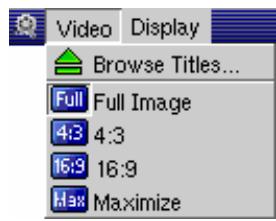
Vous remarquerez que vous disposez de plusieurs options de format d'affichage. Ces options de format vous permettent d'adapter les vidéos enregistrées dans différents formats pour la visualisation sur l'écran LCD interne ou sur le téléviseur. Lorsque vous regardez votre vidéo sur l'écran LCD, le format par défaut est Maximiser ; sur le téléviseur, il est Plein écran. Pour choisir l'option de format la plus appropriée pour un fichier vidéo particulier, vous pouvez modifier ce paramètre à tout moment.
Afficher l'image entière, sans couper aucune partie. 4:3 : l'image est recadrée pour avoir un rapport hauteur/largeur de 4 par 3 et agrandie jusqu'à remplir l'écran. 16:9 : l'image est recadrée pour avoir un rapport hauteur/largeur de 16 par 9 et agrandie jusqu'à remplir l'écran horizontalement. Max : la taille et le rapport hauteur/largeur sont choisis automatiquement pour offrir la meilleure perception possible sur l'écran LCD interne.
8.3 Lecture de fichiers vidéo depuis Internet
Le nombre de schémas d'encodage et de compression actuellement utilisés pour créer des fichiers vidéo est très vaste et semble changer chaque semaine. Il existe tellement de normes, de formats et de méthodes de cryptage qu'il est très possible que le fichier vidéo que vous téléchargez depuis Internet ne soit pas
lu immédiatement sur votre appareil. En raison de certaines « variations », même lorsque les fichiers vidéo sont formatés en « MPEG4 », ils peuvent ne pas être lus immédiatement. La série PMA430 peut lire des fichiers vidéo de type MPEG4 Simple Profile avec une piste audio MP3, PCM (.wav standard) ou IMA-ADPCM (.wav compressé). Elle peut lire de tels fichiers vidéo avec une taille maximale de 720 par 576 pixels (25 images/seconde). Le PMA430 ne lira pas directement les fichiers de type .mov, .mpg, .mpeg. Si vous avez des fichiers vidéo de ces autres types que vous souhaitez visualiser sur votre PMA430, ils devront d'abord être convertis. Vous devrez utiliser le logiciel trouvé dans le dossier ARCHOS pour les ré-encoder au format MPEG4 approprié avec une piste audio MP3, PCM ou IMA-ADPCM. Voir le chapitre Création de fichiers vidéo MPEG4 avec votre ordinateur pour plus de détails.
9 Application VideoCorder
VideoCorder
C'est l'application d'enregistrement vidéo. Connectez votre station d'accueil TV à votre système de divertissement à domicile comme indiqué dans le manuel de la station d'accueil TV. Une fois cela fait, vous pouvez utiliser l'application VideoCorder pour effectuer des enregistrements comme avec un magnétoscope (VCR), soit en démarrant et en arrêtant manuellement l'enregistrement, soit pour une période fixe, soit programmé pour votre absence. Lorsque vous cliquez sur cette icône, vous accédez à l'écran de pré-enregistrement. À partir de cet écran, vous pouvez indiquer au PMA430 exactement comment vous souhaitez que votre enregistrement vidéo soit effectué.
Enregistrement manuel
Si vous cliquez sur le bouton Enregistrer en bas à droite de l'écran, votre enregistrement démarrera. Cliquez sur le bouton Arrêter à côté lorsque vous souhaitez arrêter votre enregistrement. Vous trouverez votre vidéo enregistrée dans le dossier /Video/recordings.
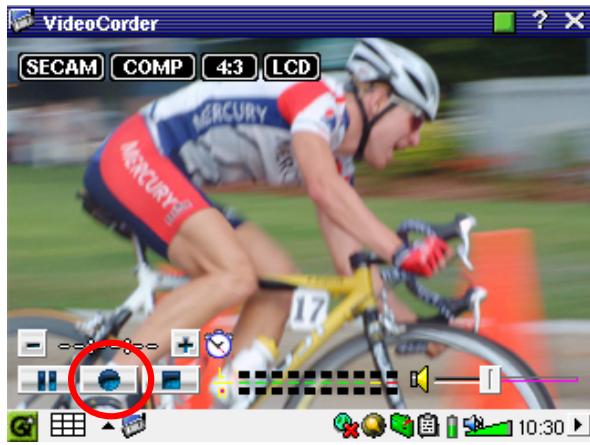
Utilisez les boutons DROITE et GAUCHE pour régler le niveau d'entrée du volume, ou faites glisser le curseur en bas à gauche de l'écran. Vous pouvez voir les niveaux sonores actuels sur les VU-mètres en bas au centre de l'écran.
En haut à gauche de l'écran, vous verrez le type de signal d'enregistrement NTSC (Amérique du Nord) ou PAL (Europe), le signal d'entrée COMP (entrée composite - connecteur jaune) ou S-VIDEO (entrée S-Vidéo), le format 16:9, 4:3 ou 2.35 (rapport hauteur/largeur de l'image enregistrée), et la résolution LCD (320x240 pixels) ou TV (512 x 386 pixels).
Enregistrement à durée fixe
Utilisez les boutons + et - pour régler la durée de l'enregistrement. Comme le montre cette image, l'enregistrement a été réglé sur une durée fixe de 5 minutes. Lorsque vous cliquez sur le bouton d'enregistrement, le PMA430 commence l'enregistrement et s'arrête automatiquement après 5 minutes. Remarquez les compteurs blanc et rouge en haut à droite de l'écran. Ils vous indiquent le temps écoulé et le temps restant pour l'enregistrement. Vous pouvez augmenter ou diminuer cette durée même une fois l'enregistrement commencé.
Enregistrement à durée fixe de 5 minutes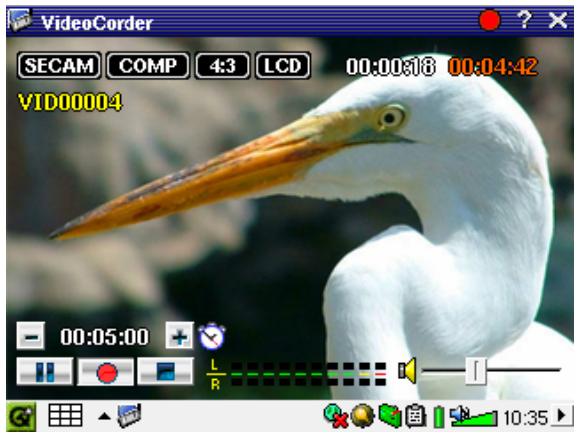
Enregistrements programmés

VideoCorder
Configuration de l'enregistrement Configuration de l'image Programme
Dans la barre de menu, cliquez sur l'élément Programme. Cela ouvrira et affichera les programmes actuellement programmés. Vous pouvez ajouter de nouveaux programmes à enregistrer ou modifier (éditer) les éléments programmés qui n'ont pas encore commencé.
Programmateur avec deux éléments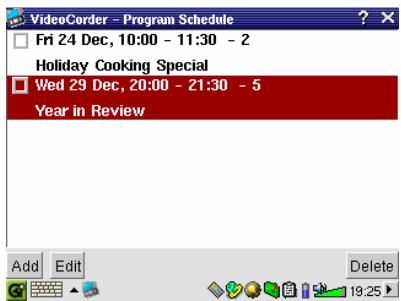
Cliquez sur le bouton Ajouter pour ajouter un autre enregistrement.
Deuxième enregistrement programmé en cours de réglage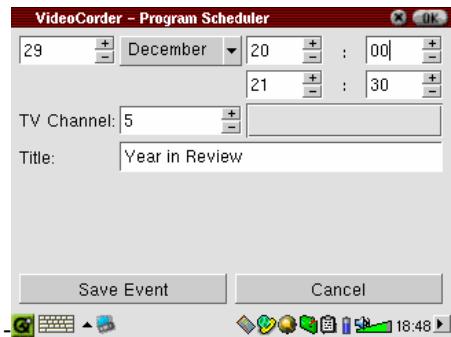
Une fois un enregistrement programmé, vous pouvez éteindre le PMA430 et le laisser dans le socle TV.
9.1 Réglage d'autres paramètres d'enregistrement
VideoCorder
Configuration de l'enregistrement Configuration de l'image Programme
Si vous préférez, vous pouvez ajuster les paramètres selon vos besoins spécifiques dans l'écran Configuration de l'enregistrement et l'écran Configuration de l'image.
Remarque : une qualité supérieure, des résolutions plus élevées et des fréquences d'images par seconde (fps ou kbits) plus élevées donneront des images plus agréables, mais nécessiteront plus d'espace pour être sauvegardées sur le disque.
Écran de configuration de l'enregistrement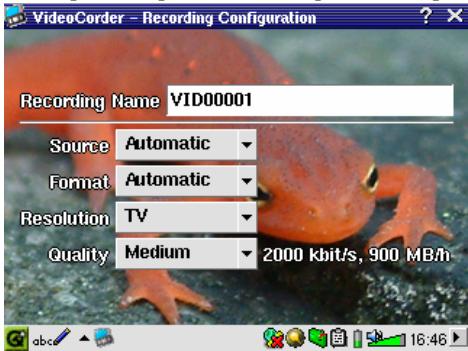
Écran de configuration de l'image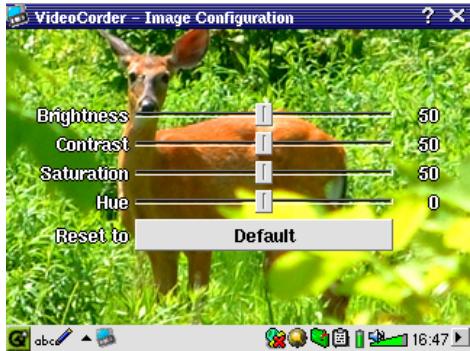
9.2 Protection contre la copie
Le système d'enregistrement vidéo du PMA430 est conçu pour respecter le système de protection des droits d'auteur. Si la source de votre vidéo est protégée contre la copie, le PMA430 enregistrera en mode protégé. Vous verrez une icône "P" sur l'écran d'enregistrement (et non de lecture) indiquant que le fichier sera protégé. Les fichiers protégés ne peuvent être lus que sur le PMA430 qui les a créés. Le fichier ne sera pas lu
sur un ordinateur. De plus, la lecture des fichiers protégés sera limitée à l'écran LCD intégré ; le PMA430 ne les lira pas sur un téléviseur externe.
10 Configuration pour les enregistrements vidéo programmés
Paramètres VideoCorder
Pour que le PMA430 puisse allumer et éteindre votre appareil vidéo et changer ses chaînes via son socle TV, vous devez le configurer pour envoyer les codes infrarouges corrects à votre magnétoscope (VCR), décodeur câble ou récepteur satellite. Si vous ne prévoyez pas de faire des enregistrements programmés, vous n'avez pas besoin d'installer l'émetteur infrarouge
ni de régler le code de l'émetteur infrarouge.
Avant de suivre la procédure de réglage du code de l'émetteur, assurez-vous que votre PMA430 est connecté au socle TV et que le câble de l'émetteur infrarouge est branché et placé devant le récepteur infrarouge de votre tuner (magnétoscope, décodeur câble, récepteur satellite). Consultez les instructions du socle TV pour l'installation et le placement exact de l'émetteur.
10.1 Partie 1 : Choisissez votre catégorie, marque et modèle
Dans l'onglet Paramètres, accédez à l'application Paramètres VideoCorder.
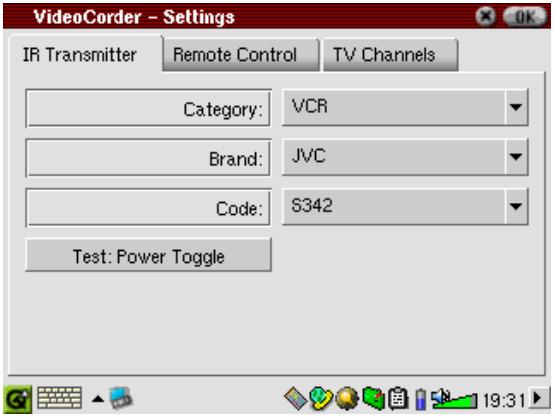
- Sélectionnez la catégorie de l'appareil que vous souhaitez contrôler avec l'émetteur infrarouge. Vous avez le choix entre un magnétoscope (VCR), un décodeur câble ou un récepteur satellite.
- Sélectionnez la marque de votre appareil.
- Sélectionnez le premier code de la liste des codes.
Test : Power Toggle : Lorsque vous cliquez sur ce bouton de test, le PMA430 enverra un signal au socle TV, qui enverra ensuite un signal à l'émetteur infrarouge collé sur votre appareil (TV, magnétoscope, décodeur câble) et allumera ou éteindra votre appareil. Cliquez à nouveau sur ce bouton de test et votre appareil devrait passer de allumé à éteint ou de éteint à allumé. Si le fait d'appuyer sur ce bouton n'allume pas ou n'éteint pas votre appareil, choisissez le code suivant dans la liste et réessayez. Si aucun des codes ne semble fonctionner, vérifiez que l'émetteur infrarouge est directement placé sur le capteur infrarouge de votre appareil.
10.2 Partie 2 : Test du changeur de chaîne
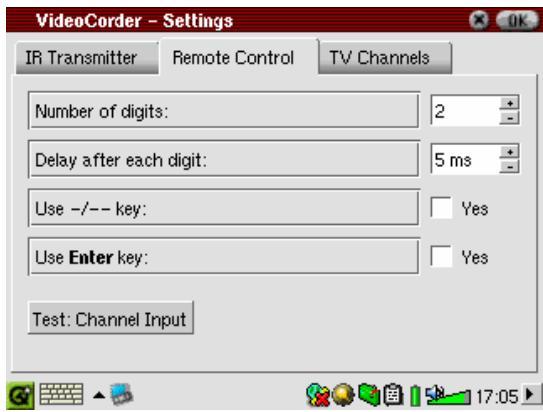
Test : Saisie de chaîne : Lorsque vous appuyez sur le bouton Test : Saisie de chaîne, le PMA430 enverra un signal via le socle à l'émetteur infrarouge collé sur votre appareil et changera la chaîne. Si le paramètre Nombre de chiffres est réglé sur trois, il essaiera de sélectionner la chaîne 123. Si ce paramètre est réglé sur 2, il enverra le code pour la chaîne 12. Si le test ne change pas la chaîne sur votre tuner, revenez à l'onglet Émetteur IR et essayez le code disponible suivant pour votre catégorie et votre marque de produit.
| Parameter | Description |
| Use -/-- Key: | Set this to On if normally, you have to press a key with this icon on your device's remote control in order to select a channel. |
| Number of digits | Set the number of digits that your device can recognize for a channel. Example: Set to 3 if you need to choose a channel greater than channel 99. |
| Use Enter Key | Set this to On if normally, you have to press the Enter key on your device's remote control after you enter the channel number. Example: If you normally press 1, 3, Enter for channel 13, then you would need to set this parameter to On. |
| Delay after each digit | Change the delay between the emission of each digit of a channel. You may need to adjust this if the PMA430 seems to send only half the digits of a channel or more digits of a channel. Example: Adjust the key delay and retest channel select if it sends channel 1 instead of 12 or sends 112 instead of 12. |
10.3 Partie 3 : Donnez un nom à vos chaînes
Pour votre commodité, vous pouvez nommer n'importe quelle chaîne et le PMA430 se souviendra de son nom.
Écran de nommage des chaînes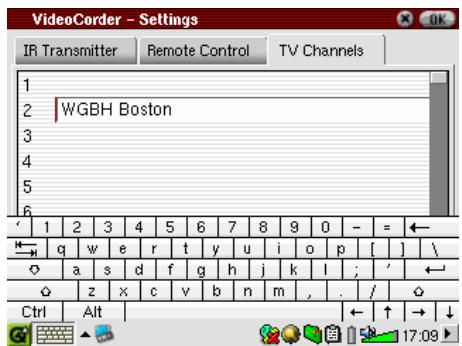
Remarque : Dans certains cas rares, aucun des codes infrarouges disponibles pour votre appareil ne peut fonctionner pour la fonction marche/arrêt ou le changement de chaîne, ou les deux.
11 Application Navigateur de fichiers
Navigateur de fichiers
L'application Navigateur de fichiers vous permet de visualiser vos fichiers stockés sur le PMA430 ainsi que sur un périphérique de classe de stockage de masse (MSC) connecté, tel qu'un appareil photo numérique (voir la section sur le transfert de photos vers votre PMA430 dans le
chapitre Application Photo). Cette application dispose des commandes standard de fichiers et de dossiers telles que :
| Rename | Modify the name of a file or folder. |
| Copy | Make a copy of the file or folder. |
| Move | Move the file or folder to a different directory. |
| Add to Documents | Files which are not already under the Documents hierarchy are copied here. |
| Delete... | Remove the file or folder from the PMA430. |
| Create Folder | Create a new folder in the selected directory or folder. |
| Select all | Select all files and folders in the current directory. |
Toutes ces options sont disponibles dans le menu.
Pour voir les informations sur les fichiers (extension, date, taille), utilisez les éléments de menu correspondants dans le menu Affichage.
Lorsque vous ouvrez l'application, vous verrez le répertoire de niveau supérieur /PMA430, également appelé répertoire racine ou dossier racine. Tous nos fichiers et dossiers seront stockés dans ce répertoire. Cliquez sur l'icône Double navigateur en haut à droite de la barre de menu ou appuyez sur le bouton DROIT. Cela ouvrira un deuxième panneau de navigation. Dans un panneau, localisez le fichier que vous souhaitez copier ; dans l'autre, ouvrez le dossier dans lequel vous souhaitez le copier. Le panneau actif, affichant un nom de fichier ou de dossier en surbrillance, est le panneau source, et l'autre panneau affiche le dossier de destination. Comme les fichiers peuvent être copiés ou déplacés depuis l'un ou l'autre panneau, il est important de faire attention au panneau actif.
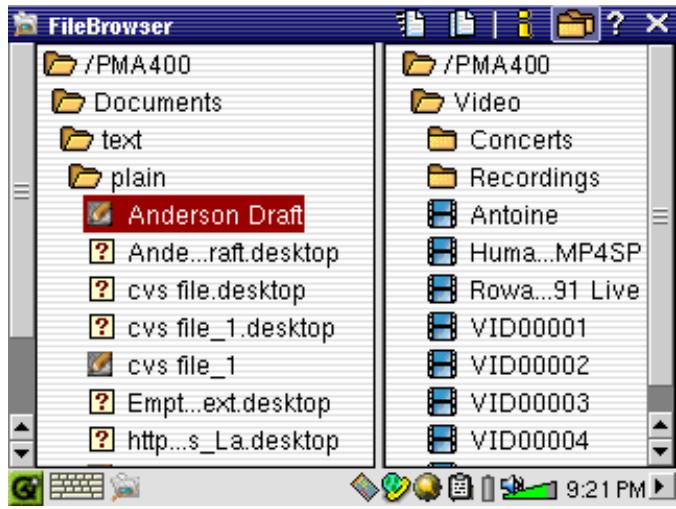
Dans cet exemple, l'option de menu Déplacer déplacerait le fichier Anderson Draft du dossier
Copiez le dossier /PMA430/Documents/text/plain vers le dossier /PMA430/Video. La commande de menu s'applique toujours à l'élément surligné. Rappelez-vous que la fenêtre source est celle avec l'élément surligné, et la fenêtre de destination est l'autre. Vous pouvez fermer
et ouvrir la deuxième fenêtre avec les boutons GAUCHE et DROITE ou en utilisant l'icône Dossiers dans la barre de menus.
12 Création de fichiers vidéo MPEG4 avec votre ordinateur
Comment créer un fichier vidéo MPEG4
Veuillez comprendre que le réencodage vidéo n'est pas toujours un processus simple en un bouton. Les segments vidéo provenant de votre caméscope numérique ou disponibles gratuitement sur Internet sont encodés de différentes manières. Vos fichiers ne sont donc peut-être pas dans un format que le PMA430 peut lire (voir la section Lecture de fichiers vidéo depuis Internet dans le chapitre Application vidéo pour plus d'informations). Cela est dû à la nature relativement récente du format vidéo MPEG4 de l'ISO (Organisation internationale de normalisation). Contrairement à ses prédécesseurs MPEG1 et MPEG2, il existe plusieurs niveaux dans ce format, et donc tous les fichiers vidéo MPEG4 ne fonctionneront pas sur tous les lecteurs MPEG4, et les anciens fichiers MPEG1 et MPEG2 doivent être réencodés dans ce format. Vous pouvez convertir ces fichiers à l'aide du logiciel fourni avec votre PMA430. Ce processus peut sembler complexe au début, mais une fois le premier fichier converti, la conversion d'autres fichiers dans un format lisible par votre PMA430 deviendra une routine.
Outils PC
Le PMA430 est livré avec deux programmes pour PC qui vous permettent de créer des fichiers vidéo AVI au profil simple MPEG4. Il s'agit de MP4 Translator et Virtual DubTM. MP4 Translator appellera le programme Virtual Dub et lui donnera les paramètres corrects pour encoder votre vidéo depuis son format d'origine, .avi ou .mpg (mpeg 1), puis l'encoder en fichier AVI MPEG4. Le fichier sera redimensionné pour être lu correctement. Vous aurez également besoin d'un codec audio MP3 (disponible gratuitement sur Internet) pour créer la bande sonore appropriée du film.
12.1 Installation du logiciel PC
Si votre fichier vidéo n'est pas un fichier .avi au profil simple MPEG4 de la taille appropriée, vous devrez le réencoder à l'aide des utilitaires suivants. Pour le PMA430, vous devrez créer un fichier AVI au profil simple MPEG4 avec une résolution allant jusqu'à 720 × 576 (selon la fréquence d'images) et une piste sonore en MP3 stéréo ou WAV. Une résolution de 320 × 240 est suffisante pour regarder sur l'écran LCD interne. Cependant, pour les vidéos que vous prévoyez de regarder sur un téléviseur externe, une résolution de 640 × 480 est recommandée.
Vous trouverez un programme d'installation pour installer MPEG Translator et Virtual DubTM dans le dossier ARCHOS sur votre PMA430. Veuillez désactiver tout logiciel antivirus pendant l'installation et installer les programmes dans l'ordre suivant.
Codec MPEG 4 (compression/décompression)
Pour que MPEG4-Translator puisse compresser la vidéo dans un fichier au format MPEG-4 SP que le Gmini™ peut lire, il nécessite qu'un codec MPEG 4 soit installé sur votre ordinateur. Si vous n'avez pas le codec approprié installé, MPEG-4 Translator vous indiquera au démarrage quel codec il requiert. Vous pourrez le télécharger gratuitement sur Internet.
Virtual Dub™
VirtualDub est un utilitaire permettant de transcoder un fichier vidéo en un autre. C'est un outil de transfert et de nettoyage à usage général qui offre de nombreuses options permettant même les conversions vidéo les plus difficiles. Lorsque vous l'installez sur votre PC à partir du PMA430, il se décompressera automatiquement. Il vous demandera de l'enregistrer dans C:\Program Files\VirtualDub. Vous devez utiliser cet emplacement de répertoire par défaut, sinon vous devrez indiquer au programme Mpeg4 translator où le trouver.
MPG4 Translator
Ce programme, développé par ARCHOS, est une "interface" pour le programme Virtual Dub. Il définit tous les paramètres de Virtual Dub spécifiquement pour créer un fichier vidéo au bon format et à la bonne taille pour être lu par le PMA430. Lorsque vous l'exécutez pour la première fois, MPEG4 Translator devra localiser le programme Virtual Dub. Si vous n'avez pas installé Virtual Dub à l'emplacement par défaut, il vous demandera de naviguer vers le répertoire où il a été installé lorsque vous ouvrirez MPEG4 Translator.
Codec audio MP3
Rappelez-vous que pour que le PMA430 puisse lire la vidéo, celle-ci doit avoir une piste sonore MP3, PCM (fichier .wav standard) ou ADPCM (fichier .wav compressé). Si le fichier vidéo source ne possède pas l'un de ces formats de piste sonore, votre fichier de destination n'aura pas de son. MPG4 translator signalera cette erreur. Afin de conserver le son de votre vidéo, installez un encodeur MP3 pour que Virtual Dub puisse l'utiliser. Il existe des codecs MP3 (généralement fournis sous forme d'encodeur et de décodeur) disponibles sur le Web que vous pouvez télécharger. Si vous choisissez d'utiliser le codec LAME, assurez-vous d'avoir une version construite avec l'interface ACM. Vous pouvez trouver d'autres codecs MP3 sur le Web en utilisant les termes de recherche "ACM", "MP3" et "CODEC" dans votre moteur de recherche préféré. Une fois ce codec MP3 installé sur votre système, MPG4 Translator pourra créer des fichiers vidéo finaux avec du son MP3, même si le fichier vidéo source ne possède pas de piste sonore MP3.
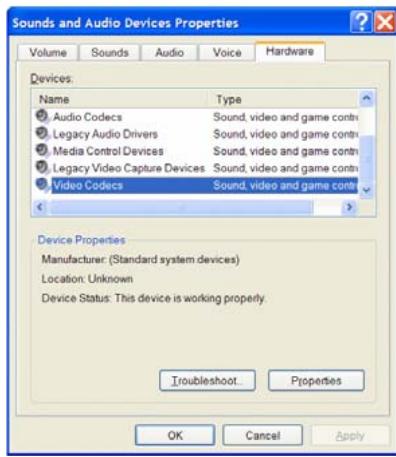
Si vous n'êtes pas sûr des codecs (audio et/ou vidéo) installés sur votre ordinateur, vous pouvez voir la liste en vous rendant à l'emplacement suivant.
Pour Windows XP, cliquez sur Démarrer > Paramètres > Panneau de configuration > Sons et périphériques audio > Matériel > choisissez Codecs audio, puis cliquez sur Propriétés. Vous trouverez ici une liste de tous les codecs audio installés sur votre ordinateur. Le décodage des fichiers vidéo MPEG 2 n'est actuellement pas pris en charge par MPG4 Translator. Ce sont généralement des fichiers au format .mpg ou .mpeg, et non le fichier AVI requis. Il existe d'autres outils sur Internet (FlaskMPEG,
Rippack, etc.) qui peuvent être téléchargés pour vous aider avec ces types de fichiers. Un bon point de départ est le site Web www.digital-digest.com.
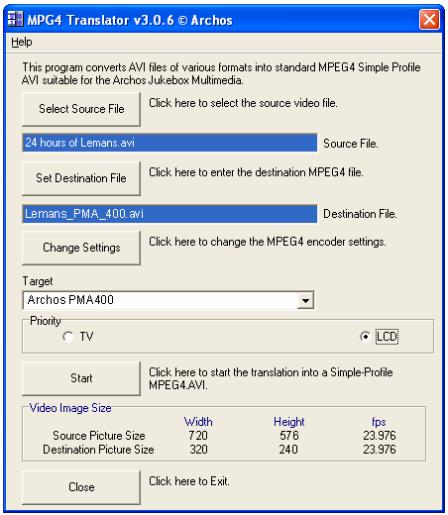
À gauche, vous voyez l'image du programme principal MPEG4 Translator. Lors de la première exécution du programme, vous serez averti si le codec requis n'est pas encore installé. Vous devez télécharger le codec et l'installer sur votre ordinateur. Si le programme Virtual Dub n'est pas installé, vous serez également averti, et vous devez l'installer (il se trouve sur le PMA430 dans le dossier d'installation Archos\PC ou sur le site Web de Virtual Dub). Si vous avez placé le programme Virtual Dub dans un dossier autre que le dossier d'installation par défaut, il vous demandera de localiser le fichier du programme.
Sélectionnez les fichiers source et de destination
Dans l'exemple ci-dessus, un fichier source "24 heures du Mans.avi" a été sélectionné. Vous pouvez voir en bas de la fenêtre ses caractéristiques d'origine (largeur 720, hauteur 576, fréquence d'images 30). Ensuite, vous devez indiquer au programme où placer (bouton : Définir le fichier de destination) la version nouvellement encodée du fichier. Vous devez lui donner un nouveau nom descriptif, comme indiqué ci-dessus Lemans_PMA_400.avi. Assurez-vous d'ajouter l'extension .avi. Ne vous inquiétez pas, le fichier d'origine ne sera pas effacé car le nouveau fichier aura une extension différente. Si, pour une raison quelconque, vous avez sélectionné la même extension et le même nom de fichier (par exemple pour créer un fichier optimisé pour la TV et un pour l'écran LCD à partir du même fichier source), un avertissement s'affichera et vous devrez modifier le nom du fichier de destination.
Modifier les paramètres
Ensuite, vous pouvez modifier les paramètres (bouton : Modifier les paramètres) de l'encodeur pour ajuster le niveau
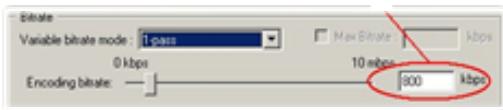
de qualité de l'image finale. Comme pour la musique MP3, des débits binaires vidéo plus élevés signifient une vidéo de meilleure qualité, mais prendront également plus d'espace sur votre disque dur. Un réglage de 500
kbps est approprié pour l'écran LCD ; 900 kbps vous donneront une belle image pour la visualisation sur un téléviseur. Pour une qualité proche du DVD, vous pouvez le régler jusqu'à 1200 kbps.
Cible et priorité
Vous devez sélectionner la cible comme PMA430. Vous verrez apparaître une boîte Priorité. Si, par exemple, vous ré-encodez un fichier vidéo d'une résolution de 800 x 600 et de 30 images par seconde, cela dépasse la résolution maximale que le PMA430 peut lire (voir les informations de lecture vidéo dans les spécifications techniques à la fin de ce manuel). Ainsi, le programme MPG4 Translator devra
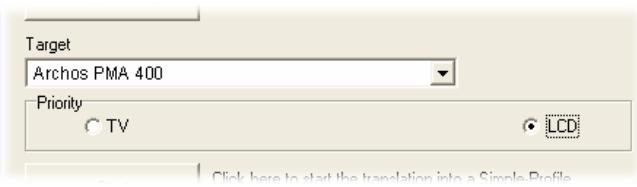
diminuer la résolution. Choisir LCD optimise le format vidéo final pour la visualisation sur l'écran LCD intégré. Choisir l'option TV optimisera le film pour conserver la
fréquence d'images la plus élevée possible. Vous pouvez voir la taille et la fréquence d'images en regardant les paramètres Taille de l'image vidéo : Destination. Lorsque vous choisissez TV, il est entendu que la sortie sera optimisée pour un téléviseur, et non pour l'écran intégré.
Démarrer
Cliquez sur Démarrer et le programme appellera Virtual Dub pour commencer le traitement de la vidéo. Selon la puissance et la vitesse de votre ordinateur, cela peut prendre au moins le temps réel (une vidéo de 60 minutes
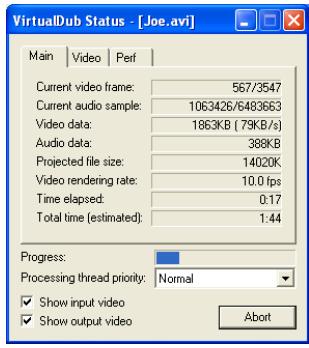
ré-encodée en environ 60 minutes) mais probablement beaucoup plus longtemps. Comme illustré à gauche, vous verrez la progression pendant que Virtual Dub traite le fichier vidéo.
Le bouton Démarrer peut être grisé pour l'une des deux raisons suivantes :
1) Le fichier source n'est pas un véritable fichier AVI. Même si le nom du fichier se termine par .avi, les données internes du fichier déterminent s'il s'agit réellement d'un fichier AVI. 2) Le programme Virtual Dub n'a pas été localisé lors du démarrage de Mpeg4 Translator. Fermez le programme, redémarrez-le et assurez-vous de localiser le programme Virtual Dub.
PARTIE III
L'ONGLET APPLICATIONS DE PRODUCTIVITÉ
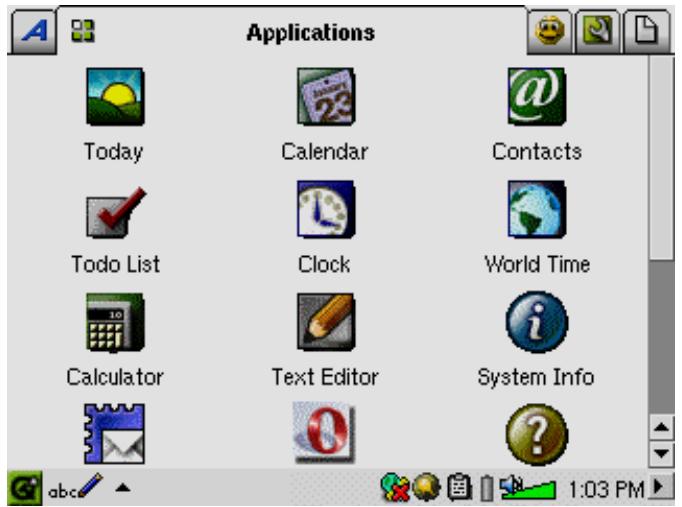
13 Applications de gestion des informations personnelles (PIM)
Les applications PIM font partie du système d'exploitation Qtopia qui fonctionne sur votre PMA430. Vous trouverez des informations détaillées sur la façon d'utiliser ces applications et celles mentionnées dans le chapitre Applications diverses dans l'aide en ligne fournie par Qtopia. Ouvrez l'application Aide sur l'onglet ARCHOS et cliquez sur l'icône Maison sur le côté droit de la barre d'outils ou accédez au fichier d'aide installé avec Qtopia Desktop sur votre PC (voir la section Utilisation dans le chapitre Installation et utilisation de Qtopia Desktop).
Toutes les applications de productivité ont une icône ? dans la barre de menu pour accéder à l'aide en ligne.
13.1 Aujourd'hui
Vous donne un aperçu des tâches ouvertes du jour (application Liste de tâches), des e-mails non lus ou en attente, et de tout rendez-vous ou événement que vous avez configuré dans le calendrier.
13.2 Calendrier
Une application de calendrier standard qui vous permet de configurer des rendez-vous et des événements avec des alarmes, ainsi que de visualiser le calendrier par jour, semaine ou mois. Cela peut être synchronisé avec l'application Qtopia™ Desktop et Microsoft Outlook®. Voir le chapitre sur Qtopia™ Desktop pour plus de détails. Les événements du calendrier peuvent être transmis via le port infrarouge à d'autres appareils compatibles infrarouge.
13.3 Contacts
Un carnet d'adresses standard qui permet une quantité généreuse d'informations pour chaque contact. Cela peut être synchronisé avec l'application Qtopia™ Desktop et Microsoft Outlook®. Voir le chapitre sur Qtopia™ Desktop pour plus de détails. Un contact peut être transmis via le port infrarouge à d'autres appareils compatibles infrarouge.
13.4 Liste de tâches
Une liste de tâches standard avec niveaux de priorité et pourcentage de réalisation. Elle peut être synchronisée avec l'application Qtopia™ Desktop et Microsoft® Outlook. Voir le chapitre sur Qtopia™ Desktop pour plus de détails. Un élément de tâche peut être transmis via le port infrarouge à d'autres appareils compatibles infrarouge.
14 Applications diverses
Ces applications font partie du système d'exploitation Qtopia qui fonctionne sur votre PMA430. Vous trouverez des informations détaillées sur l'utilisation de ces applications et de celles mentionnées dans le chapitre sur les applications PIM dans l'aide en ligne fournie par Qtopia. Ouvrez l'application Aide sur l'onglet ARCHOS et cliquez sur l'icône Maison à droite de la barre d'outils, ou accédez au fichier d'aide installé avec Qtopia Desktop sur votre PC (voir la section Utilisation dans le chapitre Installation et utilisation de Qtopia Desktop).
14.1 Horloge
Fonctionne comme une horloge, un chronomètre et une alarme. Si vous souhaitez créer votre propre son d'alarme, placez un fichier .wav (PCM 8 ou 16 bits uniquement) nommé alarm.wav (sensible à la casse) dans le dossier /System. L'alarme réveillera le PMA430 puis lira le fichier audio. Assurez-vous de laisser le haut-parleur intégré activé pour l'entendre.
14.2 Heure mondiale
Application d'horloge qui vous permet de voir l'heure actuelle dans 6 fuseaux horaires différents (Paris, Berlin, Los Angeles, Tokyo, Hong Kong, Brisbane). Faites glisser le stylet sur la carte pour voir l'heure dans d'autres pays et villes.
14.3 Calculatrice
Application de calculatrice standard avec deux modes : simple et scientifique.
14.4 Éditeur de texte
Programme d'édition de texte de base similaire à Bloc-notes sur PC ou Simple Text sur Mac. Attention, il n'y a pas de commande Enregistrer. Le fichier texte est enregistré au fur et à mesure que vous tapez. Cliquez sur l'icône X de fermeture du fichier en haut à droite de la barre de menus pour quitter. Les fichiers texte peuvent être transmis via le port infrarouge à un autre appareil compatible infrarouge. Veuillez noter que les fichiers nouvellement créés seront enregistrés dans le dossier Documents. Lorsque ce dossier contient de nombreux fichiers, cela peut ralentir le PMA430 ou entraîner des messages tels que "Mémoire faible" ou "Mémoire critique". Vous pourriez donc envisager de créer un dossier (par exemple nommé "Data") dans le répertoire racine du PMA430 pour stocker les fichiers que vous n'utilisez pas fréquemment.
14.5 Informations système
Fournit des informations sur l'utilisation de la mémoire et du disque dur, les tâches du processeur, la version du logiciel, l'identifiant du produit et l'adresse MAC WiFi (adresse de contrôle d'accès au support, qui est en fait un identifiant pour votre appareil lorsqu'il est connecté au réseau).
14.6 Navigateur d'aide
Vous donne accès aux pages d'aide des différentes applications. Les pages d'aide sont également directement accessibles en cliquant sur l'icône ? dans la barre de menu de chaque application.
14.7 Mophun®
Cette icône vous donne accès aux jeux Mophun® que vous avez installés sur votre PMA430. Vous pouvez consulter le site Web d'ARCHOS pour ces jeux. Notez que si vous n'avez installé aucun jeu Mophun®, rien ne se passera lorsque vous cliquerez sur cette icône.
14.8 Terminal
L'application Terminal est incluse pour les utilisateurs techniquement intéressés. En ouvrant une fenêtre de ligne de commande, elle leur donne la possibilité d'exécuter un sous-ensemble de commandes Linux, par exemple pour installer certains types d'applications. Veuillez noter que l'application Terminal n'est pas prise en charge par la ligne d'assistance ARCHOS.
14.9 Visionneuse PDF
L'application Visionneuse PDF vous permet d'ouvrir et de lire des fichiers PDF, tels que le manuel de l'utilisateur, sur votre PMA430.
15 Applications Internet
Pour utiliser ces programmes, vous aurez besoin d'accéder à un réseau local connecté à Internet. Voir la section Réseau dans l'onglet Paramètres pour plus de détails sur la configuration des paramètres de connexion et le choix de la connexion matérielle.
15.1
Il s'agit d'une application de messagerie standard qui permet plusieurs comptes et des boîtes aux lettres POP3 ou IMAP.
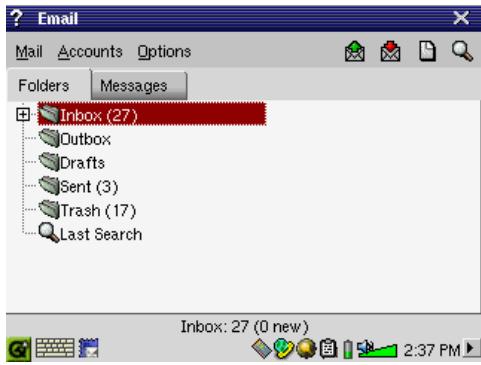
L'application Réseau dans l'onglet Paramètres doit être configurée et une connexion au réseau doit être établie (icône réseau dans la barre d'état en bas de l'écran) pour que ce programme puisse envoyer et recevoir des e-mails. Cette application ne peut gérer qu'une quantité limitée de HTML intégré dans le champ du message. Les paramètres de votre serveur de messagerie pour le courrier entrant et sortant peuvent être définis sur les mêmes que ceux de votre ordinateur personnel.
15.2
Navigateur Opera™
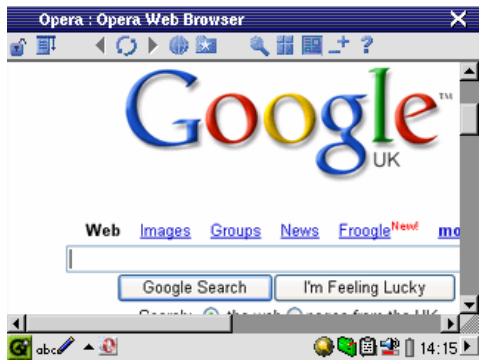
Il s'agit d'une application de navigateur Internet qui vous permet d'accéder à des pages Web et de les afficher. L'application Réseau de l'onglet Paramètres doit être configurée et une connexion au réseau doit être établie (icône réseau dans la barre d'état en bas de l'écran) pour naviguer sur les pages Web. Ce navigateur ne dispose pas de plugiciels comme les navigateurs de bureau, donc les pages Web avec animation Flash™, contrôles Active X™, médias ou fichiers PDF ne s'afficheront pas. Si c'est possible,
Opera™ vous demandera si vous souhaitez télécharger le fichier. Vous pouvez ensuite ouvrir le fichier téléchargé dans une application adaptée à ce type de fichier. Les fichiers PDF peuvent par exemple être visualisés avec un lecteur PDF inclus dans l'onglet Applications. D'autres fichiers peuvent nécessiter d'être visualisés sur votre ordinateur. Il y a une icône d'aide dans la barre de menus d'Opera™ qui explique comment utiliser l'application.
PARTIE IV
LES APPLICATIONS DE PARAMÈTRES
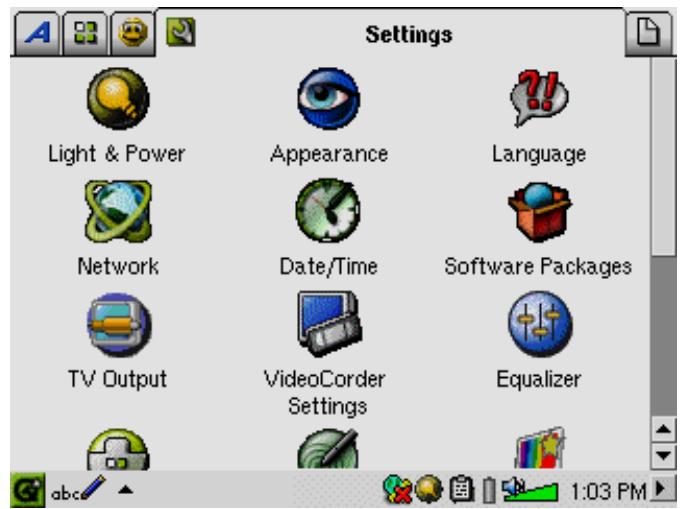
16 Paramètres audio-visuels
16.1 Sortie TV
Lorsque votre PMA430 est connecté à un téléviseur via le socle TV ou avec le câble de voyage en option, vous devrez peut-être régler les paramètres de sortie TV sur PAL pour les systèmes de télévision européens ou sur NTSC pour les systèmes de télévision nord-américains. La plupart des pays du monde utilisent l'un de ces deux formats.
Vous pouvez régler l'affichage des images fixes sur Progressif si vous constatez que les images fixes scintillent sur votre écran de télévision. Cela est généralement dû à des lignes fines dans les images et n'est pas lié au téléviseur ni au PMA430. Régler le paramètre sur Progressif éliminera ce scintillement mais réduira également la résolution perçue.
16.2 Paramètres du magnétoscope
Si vous décidez d'utiliser l'émetteur infrarouge (IR) pour les enregistrements télévisés programmés (pour changer les chaînes et allumer votre tuner TV), vous devrez définir les codes infrarouges pour votre magnétoscope, votre décodeur câble ou votre récepteur satellite. Voir le chapitre Configuration pour les enregistrements vidéo programmés pour plus de détails sur la façon de procéder.
16.3 Égaliseur
La modification des paramètres de l'égaliseur vous permet de régler la qualité sonore. C'est le même égaliseur que dans l'application de lecture de musique.
17 Paramètres matériels
17.1 Paramètres LCD
La modification de ce paramètre vous permet d'éliminer tout scintillement de l'écran LCD.
17.2 Éclairage et alimentation
Le réglage des paramètres d'affichage lorsque vous fonctionnez sur batterie peut économiser l'énergie et prolonger l'autonomie de votre appareil. Dans cette section, vous pouvez définir ces valeurs selon que votre PMA430 fonctionne sur batterie ou est connecté au secteur via l'adaptateur/chargeur.
17.3 Recalibrage
Exécutez cette application s'il semble que le point que vous touchez à l'écran avec le stylet ne correspond pas au bouton ou à la commande souhaitée. Cette application recalibrera l'écran tactile pour une précision horizontale et verticale.
17.4 Réseau
Cette application est la clé pour établir une connexion réseau afin que le courrier électronique et le navigateur Opera™ puissent être utilisés. Vous pouvez établir une connexion réseau de trois manières.
- Via le port infrarouge
- Via un adaptateur USB vers Ethernet filaire (doit être un adaptateur approuvé par ARCHOS)
- Via la carte Wi-Fi intégrée
Dans cet exemple, nous allons établir une connexion Wi-Fi à un point d'accès Wi-Fi public.
Démarrez l'application Réseau
Réseau
Cliquer sur l'application Réseau vous amène au premier écran où vous sélectionnez l'onglet Services. C'est ici que vous pouvez également voir les services de connexion réseau disponibles qui ont été configurés. Comme nous créons le premier service, la liste est naturellement vide. Cliquez sur le bouton Ajouter.
Choisissez votre service
Choisissez votre service
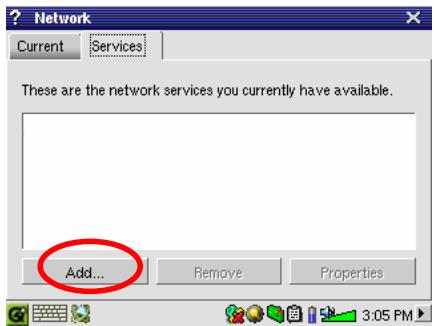
Cet écran suivant vous permet de choisir votre type de connexion matérielle.
Port infrarouge (IrDA) - Port USB (lorsqu'un câble USB/Ethernet ARCHOS en option est connecté) - carte Wifi intégrée.
Cliquez sur WirelessLAN puis sur Ajouter.
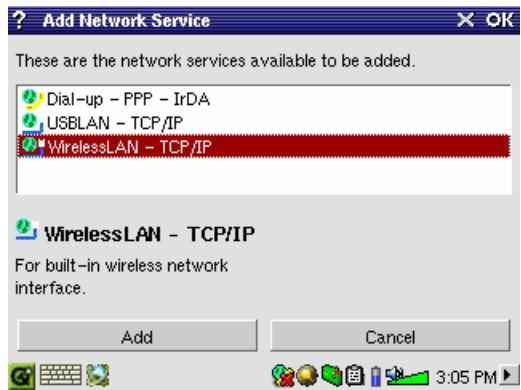
Choisissez le type de configuration IP
Il existe généralement deux types de connexions Wifi : une à la maison ou au travail, et une dans un point d'accès Wifi public. Les points d'accès Wifi publics attribuent un numéro IP à votre appareil. Il vous suffit de sélectionner Configurer l'IP automatiquement et, lorsque la connexion au point d'accès public est établie, il attribuera une adresse IP à votre PMA430. En revanche, dans une situation de réseau domestique ou dans un
environnement de travail (vérifiez auprès de votre administrateur système), vous devrez peut-être configurer l'adresse IP manuellement. Dans ce cas, cliquez sur Configurer l'IP manuellement. Demandez à la personne qui a installé votre réseau Wifi de vous fournir une adresse IP pour que votre PMA430 puisse se connecter au réseau local.
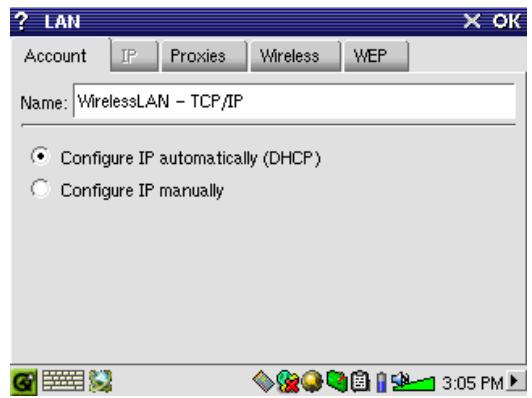
Rechercher les points d'accès actifs
Cliquez maintenant sur l'onglet Sans fil. Cliquez ensuite sur le bouton Rechercher... pour rechercher un point d'accès Wifi actif qui diffuse. Si vous avez un réseau domestique, assurez-vous que le SSID de votre appareil Wifi est activé. Cela signifie que votre point d'accès Wifi diffuse un message indiquant à tout appareil de la zone qu'il est disponible pour une connexion réseau. Plusieurs
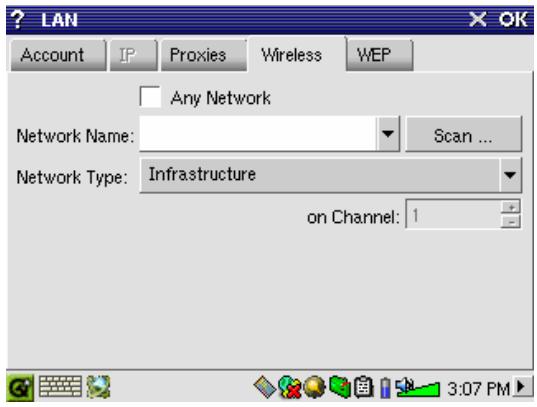
points d'accès peuvent être disponibles, mais si le point d'accès ne diffuse pas sa disponibilité, la fonction Rechercher ne le 'verra' pas.
Le type de réseau sera généralement Infrastructure. Si vous souhaitez connecter des appareils Wifi pour qu'ils communiquent entre eux, par exemple pour des jeux en réseau, choisissez l'option Ad Hoc. Il s'agit d'une connexion entre appareils locaux. Cliquez sur N'importe quel réseau si vous souhaitez simplement accepter le premier point d'accès réseau que votre PMA430 peut trouver.
Choisir le point d'accès
Il peut y avoir plusieurs points d'accès dans votre voisinage. Dans cet exemple, il y en a deux. Choisissons celui appelé Logan_Wifi. Vous remarquerez que la qualité de la connexion est inférieure à celle du point d'accès nommé WF500. Cela est dû au fait que le point d'accès WF500 reçoit un meilleur signal (probablement en raison de moins d'obstacles entre vous et le point d'accès). Plus la qualité de la connexion est faible, plus la vitesse de transfert des données est lente, et donc plus vos pages web ou vos e-mails mettent du temps à se charger. Mettez en surbrillance le point d'accès que vous souhaitez utiliser et cliquez sur Sélectionner. Si le point d'accès indique Chiffrement : Oui, vous devrez contacter le fournisseur d'accès ou l'administrateur système pour obtenir les paramètres de chiffrement (WEP), que vous pouvez définir dans l'onglet WEP. Votre connexion est maintenant configurée. Cliquez sur OK pour quitter.
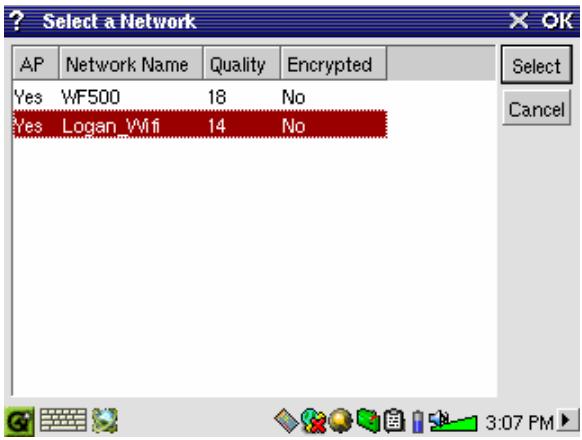
La vitesse de transfert est donc plus lente, ce qui ralentit le chargement de vos pages web ou de vos e-mails. Mettez en surbrillance le point d'accès que vous souhaitez utiliser et cliquez sur Sélectionner. Si le point d'accès indique Chiffrement : Oui, vous devrez contacter le fournisseur d'accès ou l'administrateur système pour obtenir les paramètres de chiffrement (WEP), que vous pouvez définir sous l'onglet WEP. Votre connexion est maintenant configurée. Cliquez sur OK pour quitter.
Votre service a maintenant été créé. La prochaine fois que vous irez dans l'onglet Services, vous verrez tous les services que vous avez précédemment créés. Lorsque vous êtes connecté à un réseau, vous pouvez ouvrir l'application Réseau et voir la qualité actuelle des signaux de transmission de données en consultant l'onglet Actuel.
Votre service a maintenant été créé. La prochaine fois que vous irez dans l'onglet Services, vous verrez tous les services que vous avez précédemment créés. Lorsque vous êtes connecté à un réseau, vous pouvez ouvrir l'application Réseau et voir la qualité actuelle des signaux de transmission de données en consultant l'onglet Actuel.
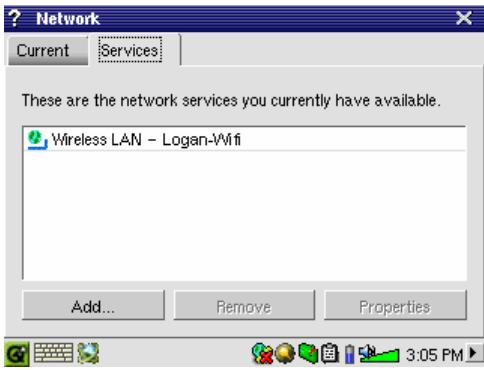
Navigation sur le Web ou utilisation du courrier électronique
Une fois votre service de connexion configuré, vous devez utiliser l'icône

Connect dans la barre d'état en bas de l'écran. Le X rouge sur l'icône
signifie que vous n'êtes pas connecté. Cliquez sur l'icône, puis choisissez le
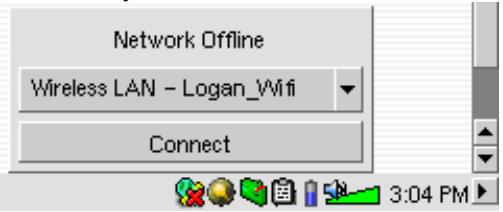
service auquel vous souhaitez vous connecter. Dans notre exemple, nous choisissons Logan_Wifi. La connexion prend quelques secondes, puis l'icône
Connected network et l'icône
Wifi Card s'affichent. Vous pouvez
maintenant lancer le navigateur web OperaTM ou utiliser
votre programme de messagerie. Lorsque vous n'utilisez pas ces programmes, il est recommandé de fermer la connexion réseau, car elle déchargerait votre batterie plus rapidement. Si l'une de ces applications affiche "Can't find DNS server", cela signifie que vous avez perdu votre connexion Wifi. Utilisez l'icône de la barre d'état pour vous déconnecter, puis essayez de vous reconnecter.
Établir une connexion infrarouge
Votre PMA430 dispose d'un port infrarouge qui vous permet de vous connecter à Internet via un téléphone mobile. Veuillez noter que plusieurs facteurs, tels que votre fournisseur de services et les paramètres du fabricant de votre téléphone mobile, influencent la réussite de cette connexion.
Vous avez 2 options pour configurer une connexion infrarouge :
1) Connexion HSCSD/GSM
C'est la méthode standard où la connexion est établie comme un appel téléphonique normal à la vitesse d'un modem 9,6k. Pour cette connexion, vous avez besoin d'un fournisseur d'accès Internet (FAI) qui vous fournira les informations nécessaires pour établir la connexion, telles que le nom d'utilisateur, le mot de passe et le numéro d'accès.
2) Connexion GPRS
Cette norme relativement récente permet d'établir une connexion numérique directe qui tend à être plus rapide que la connexion HSCSD/GSM. Cette connexion est généralement facturée au mégaoctet transféré plutôt qu'au temps de connexion. Certains fournisseurs de téléphonie mobile exigent que vous souscriviez à un abonnement de données pour utiliser le GPRS.
La configuration de la connexion suit une procédure similaire à celle de la connexion Wi-Fi, comme décrit ci-dessus. Vous devez sélectionner "Dial-up - PPP IrDA". Vous aurez besoin des informations suivantes :
Onglet Compte
Nom : un nom de votre choix pour identifier cette connexion
Pour une connexion HSCSD/GSM :
Nom d'utilisateur : votre identifiant fourni par votre fournisseur d'accès Internet (FAI)
Mot de passe : le mot de passe correspondant, fourni par votre FAI
Téléphone : le numéro d'accès téléphonique de votre FAI
Pour une connexion GPRS :
Nom d'utilisateur : contactez votre fournisseur de services téléphoniques pour obtenir un nom d'utilisateur requis par le service GPRS. Si ce service ne nécessite pas de nom d'utilisateur, saisissez 123.
Mot de passe : contactez votre fournisseur de services téléphoniques pour obtenir un mot de passe requis par le service GPRS. Si ce service ne nécessite pas de mot de passe, saisissez 123.
Téléphone : un code téléphonique fourni par le fabricant de votre téléphone (par exemple, *99# pour certains téléphones Nokia). Vous devriez le trouver dans le manuel du fabricant de votre téléphone sous l'activation GPRS ou auprès de votre fournisseur de services de données GPRS.
Onglet Modem
AT-dial : ATDT (tonalité) ou ATDP (impulsions) désignent la méthode de numérotation. Un téléphone mobile utilise ATDT. (Connexion GSM)
Vitesse : si ce paramètre est disponible, réglez-le sur 115200 pour correspondre à la configuration matérielle interne du PMA. (Connexion GSM)
Temps d'attente : permet au serveur de disposer de ce laps de temps pour la connexion modem (connexion GSM).
Composition à la demande : la connexion peut être établie et interrompue automatiquement (par exemple au démarrage d'Opera™) ou manuellement à l'aide de l'icône de connexion réseau dans la barre d'état. Attention : si vous définissez ce paramètre sur Auto on/off, vous devez établir la première connexion manuellement.
Onglet Réseau
La configuration standard consiste à utiliser la détection automatique du routage et des serveurs de noms (DNS). Si vous devez définir ces valeurs, votre fournisseur d'accès Internet vous fournira ces informations.
18 Logiciel et autres paramètres
18.1 Langue
Ce paramètre vous permet de sélectionner la langue de l'interface de votre PMA430. Les options sont : allemand, anglais (États-Unis ou Royaume-Uni), espagnol, français et italien.
18.2 Sécurité
Ce paramètre vous permet de choisir un mot de passe que tout utilisateur devra saisir lors de la mise sous tension de l'appareil.
18.3 Apparence
Utilisez ce paramètre pour personnaliser les fenêtres, les couleurs et les polices selon vos préférences.
18.4 Lanceur
Les onglets de votre PMA430 sont appelés lanceurs car vous lancez une application à partir d'eux. Vous pouvez modifier la couleur d'arrière-plan ou l'image de chaque onglet selon vos préférences.
18.5 Date/Heure
Ici, vous pouvez régler l'heure actuelle, le fuseau horaire et la date, et sélectionner un format d'heure.
L'heure est exprimée en heures et minutes. Touchez la valeur que vous souhaitez modifier et utilisez les flèches ou les commandes HAUT et BAS pour la changer.
Pour changer la date, touchez la flèche noire sur le côté droit de la barre de date. Cela ouvrira le calendrier. (insérer une capture d'écran ?). Vous pouvez utiliser les flèches pour naviguer entre les mois et les années, et toucher le calendrier pour sélectionner une date.
Le format de l'heure peut être réglé sur une horloge de 12 heures (0:00 à 12:59) ou une horloge de 24 heures (0:00 à 23:59).
Vous pouvez choisir que le calendrier affiche lundi ou dimanche comme premier jour de la semaine (menu à côté de "La semaine commence le").
Le format de la date peut être réglé sur M/J/A, J.M.A, A-M-J ou J/M/A.
Vous pouvez également accéder à ces paramètres en touchant l'heure elle-même dans la barre d'état système en bas à droite de l'écran. Vous devez vérifier l'heure et la date après une réinitialisation matérielle et après un redémarrage.
Utilisez cette application pour installer ou désinstaller des logiciels. L'extension .ipk est l'extension standard pour les programmes d'application du PMA430. Bien que les fichiers .ipk développés pour d'autres appareils puissent fonctionner sur le PMA430, vous devez utiliser des fichiers .ipk qui ont été spécifiquement créés pour le PMA430 pour être sûr que le programme fonctionne correctement.
Si vous copiez un fichier d'installation .ipk (créé spécifiquement pour le PMA430) dans votre dossier Documents, vous pouvez exécuter cet installateur, sélectionner "Installer depuis Documents" et choisir le fichier à installer. Alternativement, vous pouvez simplement aller dans le dossier Documents et double-cliquer sur un fichier .ipk et cela lancera cette application de paquets logiciels. Une fois le programme installé, le PMA430 vous notifiera que la procédure est terminée.
Vous voudrez peut-être essayer l'option "Installer depuis le réseau". Une fois ce nouveau service mis en place, vous pourrez télécharger et installer des paquets logiciels sur Internet directement depuis votre PMA430. Reportez-vous à la section sur le réseau dans le chapitre des paramètres matériels pour savoir comment configurer et démarrer une connexion Internet.
18.7 Redémarrage
Cette application vous permet d'effectuer une mise hors tension-réinitialisation du PMA430 ou un redémarrage du logiciel système uniquement. Cela peut être nécessaire si le logiciel système est corrompu et ne fonctionne plus correctement. "Redémarrer Qtopia" redémarre simplement le logiciel système, tandis que "Redémarrer" éteint complètement le PMA430, permettant un redémarrage complet de tout le système d'exploitation.
18.8 Services d'application
Cette application vous permet d'associer des applications à certains types de fichiers. C'est-à-dire que vous dites à votre PMA430 quelle application utiliser pour ouvrir les fichiers de ce format. Par exemple, si vous avez deux ou trois applications qui peuvent afficher des images JPEG, ce programme vous permet de sélectionner quelle application sera lancée lorsque vous double-cliquez sur une image JPEG dans le dossier Documents.
18.9 Gestionnaire de plug-ins
Attention !!! Ce programme doit être utilisé avec une extrême prudence et uniquement si vous êtes familier avec les plug-ins Qtopia™. Si vous désactivez un plug-in, vous pourriez provoquer le gel de votre machine et/ou la perte de données, ou encore la faire continuer à fonctionner mais avec des performances dégradées. Par conséquent, nous vous recommandons fortement de ne pas modifier ces paramètres.
PARTIE V
Application de bureau Qtopia™

TROLLTECH
19 Installation et utilisation de Qtopia™ Desktop
Qtopia™ Desktop est un programme de gestion d'informations personnelles (PIM) développé par Trolltech pour les ordinateurs sous Windows®. Vous pouvez l'utiliser seul comme gestionnaire des données PIM de votre PMA430 ou comme outil de synchronisation pour synchroniser vos informations Microsoft® Outlook® avec votre PMA430.
19.1 Installation
Dans le dossier Archos, vous trouverez un dossier nommé /Qtopia/Desktop Installer. Copiez ce dossier sur votre ordinateur de bureau et exécutez le programme d'installation qu'il contient. Une fois installé, il ajoutera une icône de « connexion » dans la barre d'état système de votre PC. L'icône affichée ici indique que le PMA430
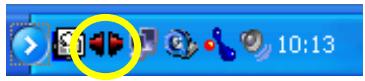
n'est pas connecté à l'ordinateur, et donc qu'aucune synchronisation ne peut avoir lieu.
19.2 Utilisation
Une fois que vous connectez votre PMA430 à votre ordinateur, il sera automatiquement reconnu par votre ordinateur Windows® et la barre d'état système affichera l'icône de connexion indiquant que vous pouvez
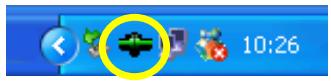
maintenant synchroniser votre PMA430 avec votre ordinateur de bureau. Vous pouvez soit lancer le programme Qtopia™ Desktop lui-même pour accéder au calendrier, à la liste de tâches et au gestionnaire de contacts, soit
simplement cliquer avec le bouton droit sur l'icône dans la barre d'état système et sélectionner Sync. Les données disponibles via le programme Qtopia™ Desktop seront synchronisées avec les données de votre PMA430.
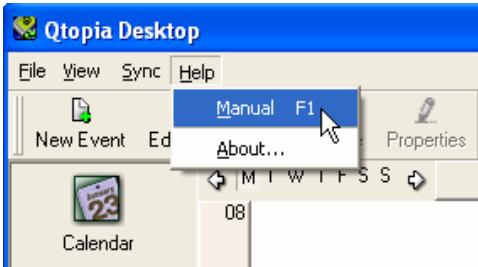
Une aide en ligne complète explique chaque aspect du programme.
19.3 Synchronisation avec Microsoft® Outlook
Par défaut, le paramètre de synchronisation avec Microsoft Outlook est activé. Ainsi, lorsque vous cliquez sur Synchroniser à partir de l'icône de la barre d'état système ou sur Tout synchroniser à partir de l'application Qtopia™ Desktop, vos données PIM seront synchronisées entre Outlook, Qtopia™ Desktop et le PMA430. Vous pouvez modifier les paramètres pour définir quelles données ont la priorité en cas de conflit.
Synchronisation rapide à partir de la barre d'état système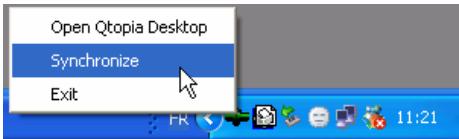
Synchronisation à partir de l'application Qtopia™ Desktop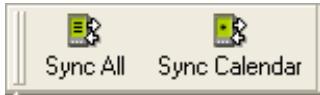
Si vous allez dans Paramètres dans le menu Fichier de Qtopia™ Desktop, vous pouvez décocher le plug-in Outlook si vous ne souhaitez pas synchroniser avec celui-ci. Il synchronisera alors uniquement avec le programme Qtopia™ Desktop.
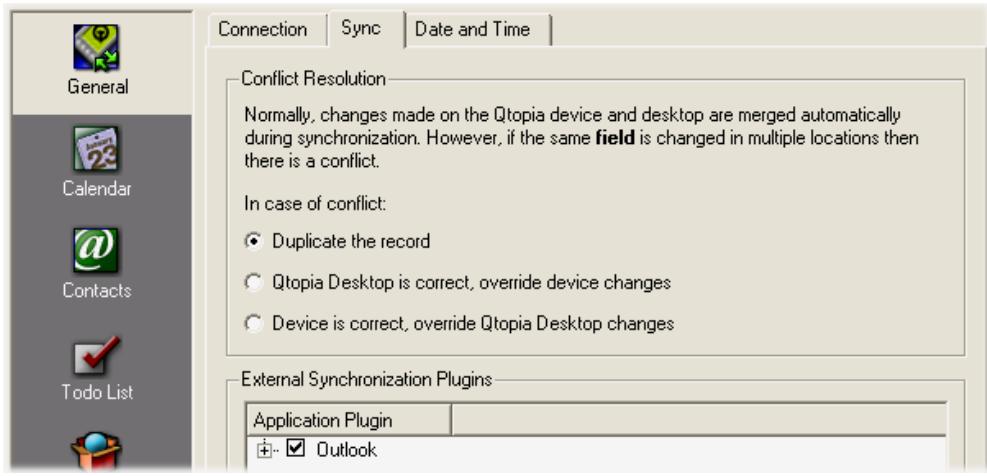
20 Assistance technique
Si vous rencontrez des difficultés techniques avec votre produit, nous vous suggérons de suivre ces étapes pour résoudre les problèmes aussi efficacement que possible :
1) N'oubliez pas qu'en plus du GUIDE DE L'UTILISATEUR imprimé, il y a le MANUEL complet sur le disque dur de votre appareil. Ce manuel contient beaucoup plus de détails, et vous y trouverez probablement les informations que vous cherchez. Vous devrez peut-être consulter plusieurs sections pour identifier celle qui traite de la difficulté rencontrée. Vous pouvez utiliser la copie électronique du manuel et rechercher des termes à l'aide d'Acrobat Reader. 2) Consultez la section Dépannage à la fin de votre manuel. Dans cette section, nous avons inclus des réponses à certaines questions fréquemment posées. 3) Consultez notre section Support sur le site Web (www.archos.com). Vous y trouverez des questions fréquemment posées (FAQ) pour nos différents produits, et il est possible que quelqu'un d'autre ait déjà posé votre question. 4) Si ces étapes ne vous ont pas aidé à résoudre votre difficulté technique, vous pouvez toujours nous contacter par e-mail ou en appelant la ligne d'assistance. Le support téléphonique sera fourni dans la langue des pays énumérés ci-dessous. Pour les autres pays, veuillez utiliser le support technique par e-mail.
N'UTILISEZ PAS le support téléphonique ou par e-mail pour des questions de marketing et de vente. Ces numéros sont destinés à aider ceux qui rencontrent des difficultés techniques / des dysfonctionnements.
- Pour les besoins de la garantie et des services, conservez votre reçu de vente comme preuve d'achat. Le numéro de série du modèle AV 700 se trouve dans le compartiment à piles.
- Si le support technique (téléphone ou e-mail) détermine que votre produit doit être retourné, veuillez contacter le lieu d'achat pour faire réparer ou remplacer votre produit (selon le type de problème). Les clients qui ont acheté directement sur le site Web d'Archos doivent remplir le formulaire de demande de retour RMA sur le site Web.
| Telephone Support | |||
| 877-300-8879 | (USA, Canada) | 09-1745-6224 | (Spain) |
| 01 70 20 00 30 | (France) | 02-4827-1143 | (Italy) |
| 0207-949-0115 | (UK) | 020-50 40 510 | (Netherlands) |
| 069-6698-4714 | (Germany) | 01-601-5700 | (Ireland) |
| Email Support: www.archos.com/support | |||
WWW.ARCHOS.COM
Bureaux mondiaux
États-Unis et Canada
ARCHOS Technology
3 Goodyear - Unité A
Irvine, CA 92618 USA
Téléphone : 1949-609-1483
Fax : 1949-609-1414
Europe et Asie
ARCHOS S.A.
12, rue Ampère
91430 Igny
France
Téléphone : +33 (0) 169 33 169 0
Fax : +33 (0) 169 33 169 9
Royaume-Uni
ARCHOS (UK) Limited
3 Galileo Park
Mitchell Close
West Portway Andover
SP103XQ Andover
United Kingdom
Phone: +44 (0) 1264 366022
Fax: +44 (0) 1264 366626
Germany
ARCHOS Deutschland GmbH
Bredelaerstrasse 63
40474 Düsseldorf
Germany
Tel: +49 211 1520 384
Fax: +49 211 1520 349
21 Dépannage
21.1 Problèmes de connexion de périphérique USB
Problème : Je n'arrive pas à faire reconnaître mon PMA430 par l'ordinateur.
Solutions :
- Si vous utilisez un concentrateur USB, essayez de vous connecter sans le concentrateur (certains concentrateurs ne sont pas alimentés et peuvent ne pas fonctionner avec le PMA430).
- Si vous utilisez un port USB à l'avant de votre ordinateur, essayez un port USB à l'arrière. Les ports USB avant proviennent souvent de concentrateurs non alimentés.
- Ne vous connectez pas à un port USB répété via un clavier.
- Si vous utilisez un ordinateur portable et une station d'accueil, essayez de vous connecter sans la station d'accueil.
- Si la table d'allocation de fichiers (FAT) est corrompue, le PMA430 peut ne pas apparaître dans Windows XP pendant plus d'une minute, puis il apparaît comme lecteur local. Utilisez l'utilitaire DOS ChkDsk comme indiqué ci-dessous.
- Windows® XP peut reconnaître le disque dur du PMA430 mais ne pas lui attribuer de lettre de lecteur. Cliquez avec le bouton droit sur Poste de travail et sélectionnez Gérer. Sélectionnez ensuite Stockage, puis Gestion des disques. Dans cette fenêtre, vous pouvez voir le disque dur et attribuer une lettre de lecteur en cliquant avec le bouton droit sur le disque dur et en sélectionnant l'option Modifier la lettre de lecteur et les chemins d'accès...
Problème : Que faire si j'essaie de me déconnecter via la flèche verte mais que je reçois sans cesse "Le périphérique 'Volume générique' ne peut pas être arrêté maintenant. Réessayez d'arrêter le périphérique plus tard."
Réponse : Fermez tout programme susceptible d'accéder aux données du PMA430, y compris l'Explorateur Windows. Si cela ne fonctionne pas, fermez tous les programmes, attendez 20 secondes, puis réessayez la flèche verte une ou deux fois. Si cela ne fonctionne toujours pas, éteignez l'ordinateur et débranchez le câble USB une fois l'ordinateur éteint.
21.2 Problèmes de charge et d'alimentation
Vous n'avez pas besoin de décharger complètement les batteries avant de les recharger.
Problème : Une charge complète de la batterie ne dure pas aussi longtemps que les spécifications le suggèrent.
Réponse : Les spécifications sont données dans des conditions où le rétroéclairage de l'écran s'éteint après 30 secondes (pour la musique) et où l'utilisateur n'accède pas à la machine, elle se contente de jouer. Si vous obtenez nettement moins de temps avec une charge complète, appelez notre ligne d'assistance technique.
21.3 Le PMA430 se bloque (gel de fonctionnement) ou s'arrête
Problème : Le PMA430 se bloque. Aucun des boutons ne fonctionne.
Solution : N'appuyez plus sur aucun bouton et ne touchez pas l'écran pendant 3 à 5 minutes. Si vous avez un gros fichier ouvert dans l'une des applications ou si plusieurs applications s'exécutent simultanément et que les boutons de l'écran ont été enfoncés très rapidement, le PMA430 peut ne pas avoir réagi assez rapidement à toutes les entrées. Attendez quelques minutes puis essayez de fermer chaque application ouverte. Si cela ne fonctionne pas, maintenez enfoncé le bouton ESC pendant 3 secondes pour éteindre le PMA430 puis rallumez-le. S'il ne s'éteint pas, vous devrez effectuer un redémarrage. Prenez une épingle ou un trombone et appuyez sur le bouton de réinitialisation à l'intérieur du trou d'épingle en bas de l'appareil. Le PMA430 effectuera alors un redémarrage complet du système lorsqu'il sera allumé. Cela prendra quelques minutes. Vous avez peut-être perdu des données dans les applications ouvertes. Vérifiez que l'heure et la date sont correctes après un redémarrage complet.
21.4 Problèmes de fichiers, données corrompues, formatage et partitionnement
Problème : Sur le PMA430, je trouve des noms de fichiers et de dossiers que je n'ai jamais créés, ou ils portent des noms étranges et incompréhensibles.
Réponse : Il est très probable que la table d'allocation de fichiers (FAT) du PMA430 ait été corrompue. Cela a pu se produire si le PMA430 s'est éteint (à cause d'une batterie faible) pendant la lecture ou l'écriture sur votre ordinateur via la connexion USB. Pour résoudre un problème de FAT corrompue, vous devez utiliser l'utilitaire de vérification des erreurs ou l'utilitaire Check Disk expliqué à la fin de cette section. Attention : Windows et Macintosh écrivent souvent des fichiers supplémentaires sur le disque dur, comme finder.def ou System Volume Info. Ces fichiers sont normaux et ne nuiront pas au PMA430.
Problème : J'utilise mon PMA430 pour transférer des fichiers entre différents ordinateurs. La défragmentation du disque dur du PMA430 peut-elle lui nuire ?
Réponse : La défragmentation du disque dur du PMA430 peut être utile après avoir transféré de nombreux fichiers vers et depuis le PMA430. Il n'est jamais nocif d'utiliser le défragmenteur sur le PMA430. Assurez-vous qu'aucun autre programme ne s'exécute pendant l'utilisation de l'utilitaire de défragmentation Windows®. Assurez-vous d'alimenter le PMA430 avec l'adaptateur secteur externe pendant cette procédure.
Problème : Je veux reformater le disque dur du PMA430.
Réponse : Vous pouvez le faire, mais cela effacera TOUTES les données de votre PMA430. Cela peut parfois être nécessaire si votre FAT (table d'allocation de fichiers) est tellement corrompue que rien ne semble résoudre vos problèmes de fichiers. Tout d'abord, comme expliqué ci-dessous, vous devez exécuter ScanDisk ou le programme DOSCHK Disk (Check Disk) pour essayer de résoudre votre problème. Si cela ne résout pas votre problème et que vous êtes sûr de devoir reformater le disque dur du PMA430, consultez le chapitre sur la récupération du système pour plus de détails.
Windows® ME : Exécution de Scan-Disk (vérification des erreurs)
- Quittez toutes les applications en cours d'exécution.
- Connectez correctement le PMA430 à votre ordinateur comme expliqué dans le chapitre sur la connexion à votre ordinateur. Assurez-vous que l'adaptateur secteur externe alimente le PMA430.
- Cliquez avec le bouton droit sur le disque dur du PMA430 dans l'Explorateur Windows et sélectionnez Propriétés.
- Sélectionnez l'option Outils et exécutez le programme de vérification des erreurs. Assurez-vous de cocher la case pour corriger automatiquement les erreurs.
- Soyez patient, cela peut prendre un certain temps. Windows® peut vous demander de redémarrer l'ordinateur pour rendre certains fichiers Windows disponibles. C'est normal, cliquez sur Oui.
Windows® XP et 2000 : Exécution de l'utilitaire Check Disk (ChkDsk)
Si vous rencontrez toujours des problèmes avec le système de fichiers de votre PMA430, vous pouvez essayer de le réparer à l'aide de l'utilitaire DOS, check disk (chkdsk). Procédez comme suit ;
Assurez-vous que l'adaptateur secteur externe alimente le PMA430. - Quittez toutes les applications en cours d'exécution. - Connectez correctement le PMA430 à votre ordinateur comme expliqué dans le chapitre sur la déconnexion. - Attendez patiemment (jusqu'à 5 minutes) que Windows XP affiche le lecteur local comme monté. - Ouvrez une fenêtre DOS. Programmes > Accessoires > Invite de commandes. - À l'invite, tapez chkdsk e: /f. Utilisez e: ou f: ou toute autre lettre de lecteur représentant votre PMA430. L'argument /f indique au programme de corriger automatiquement les erreurs. - Soyez patient, cela peut prendre un certain temps. - Lorsque c'est terminé, quittez la fenêtre DOS et déconnectez correctement le PMA430 de votre ordinateur.
| Technical Specifications | |
| Storage Capacity | 30 Gigabytes* |
| Computer Interface | Device: USB 2.0 High Speed (compatible USB 1.1) Host: USB 2.0 Full Speed (compatible USB 1.1) |
| Image Playback | JPG, BMP, PNG, GIF images (Photo application) |
| Audio Playback | Stereo MP3 decoding 30-320 kb/s CBR & VBR, WMA, WAV. WMA copy protected (Windows Media Player 9 PDDRM) |
| Audio Recording | Stereo WAV (PCM) & MP3 CBR low (96kb/s@32kHz), medium (128kb/s@44.1kHz), high (192kb/s@48kHz) |
| Video Playback | Video Track: MPEG-4 Simple Profile compliant .AVI format up to 720x576 pixels @ 25fps. Sound track: MP3 or WAV (IMA-ADPCM). |
| Screen | 3.5” color TFT LCD touch screen (QVGA) 320x240 pixels 262K colors |
| Television output | Video output switchable PAL (EU) or NTSC (US) standard |
| Playback Autonomy*** | Up to 9 hours music, up to 4 hours video |
| Scalability | Free Operating System updates downloadable from ARCHOS website |
| Infrared Port | Beams standard, Palm OS, and quoted ascii. |
| Wifi Port | IEEE 802.11b compatible, maximum bit rate 10Mb/s |
| AV Connections | Audio/video Multi-connect jack. Includes connections for audio/video IN and audio/video OUT. |
| Power source | Removable Lithium-Ion battery pack Use only the ARCHOS supplied charger/adapter. |
| Physical Dimensions | 127 x 79 x 21 mm (5.0 x 3.1 x .83 inches) 270 grams (9.6 oz.) |
| Temperature Range | 5 °C to 35 °C running ; -20 °C to 45 °C storage |
| System Requirements | PC: Windows® ME, 2000, XP Mac: OS X (10.2.4) or higher |
1 Go = 1 milliard d'octets, la capacité formatée est inférieure. Fichiers compatibles avec MPEG4-SP AVI uniquement ; MPEG-4 : norme ISO/IEC par le Moving Picture Experts Group ; AVI : conteneur de fichiers audio/vidéo par Microsoft®. DivX : n'a pas été certifié par DivX, Inc., peut ne pas lire tous les fichiers DivX® 4.0 et 5.0 ; ne lit pas les fichiers DivX® 3.11 et 6.0. **Selon la luminosité de l'écran LCD, l'utilisation et l'accès (démarrage, arrêt, pause, etc.)
22.1 Garantie et responsabilité limitée
Ce produit est vendu avec une garantie limitée et des recours spécifiques sont disponibles pour l'acheteur initial si le produit ne respecte pas la garantie limitée. La responsabilité du fabricant peut être davantage limitée conformément à son contrat de vente.
En général, le fabricant ne sera pas responsable des dommages causés par des catastrophes naturelles, incendies, décharges statiques, mauvaise utilisation, abus, négligence, manipulation ou installation incorrecte, réparation non autorisée, altération ou accident. En aucun cas, le fabricant ne sera responsable de la perte de données stockées sur des supports disque.
LE FABRICANT NE SERA PAS RESPONSABLE DES DOMMAGES SPÉCIAUX, ACCESSOIRES OU CONSÉCUTIFS, MÊME S'IL A ÉTÉ INFORMÉ DE LEUR POSSIBILITÉ À L'AVANCE.
Le(s) concédant(s) de licence d'ARCHOS ne fait aucune garantie, expresse ou implicite, y compris, sans limitation, les garanties implicites de qualité marchande et d'adéquation à un usage particulier, concernant les matériels sous licence. Le(s) concédant(s) de licence d'ARCHOS ne garantit pas, ne certifie pas et ne fait aucune déclaration concernant l'utilisation ou les résultats de l'utilisation des matériels sous licence en termes de leur exactitude, précision, fiabilité, exactitude ou autre. L'ensemble du risque quant aux résultats et aux performances des matériels sous licence est assumé par vous. L'exclusion des garanties implicites n'est pas autorisée dans certaines juridictions. L'exclusion ci-dessus peut ne pas s'appliquer à vous.
En aucun cas, les concédants de licence d'ARCHOS, ainsi que leurs directeurs, dirigeants, employés ou agents (collectivement, les concédants de licence d'ARCHOS) ne seront responsables envers vous de dommages consécutifs, accessoires ou indirects (y compris les dommages pour perte de bénéfices, interruption d'activité, perte d'informations commerciales, etc.) découlant de l'utilisation ou de l'incapacité à utiliser les documents sous licence, même si les concédants de licence d'ARCHOS ont été informés de la possibilité de tels dommages. Certaines juridictions n'autorisant pas l'exclusion ou la limitation de responsabilité pour les dommages consécutifs ou accessoires, les limitations ci-dessus peuvent ne pas s'appliquer à vous.
Veuillez consulter votre contrat de vente pour une déclaration complète des droits de garantie, des recours et de la limitation de responsabilité.
De plus, la garantie ne s'applique pas à :
- Aux dommages ou problèmes résultant d'une mauvaise utilisation, d'un abus, d'un accident, d'une altération ou d'un courant ou d'une tension électrique incorrects.
- À tout produit ayant été altéré ou dont le sceau de garantie ou l'étiquette de numéro de série est endommagé.
- À tout produit sans étiquette de garantie ou de numéro de série.
- Aux piles et à tout article consommable livré avec ou dans l'équipement.
22.2 Avertissements et consignes de sécurité
ATTENTION
Pour prévenir les risques de choc électrique, cet appareil ne doit être ouvert que par un personnel de service qualifié.
Mettez l'appareil hors tension et débranchez le câble d'alimentation avant de l'ouvrir.
AVERTISSEMENT
Pour prévenir tout risque d'incendie ou de choc électrique, n'exposez pas l'appareil à la pluie ou à l'humidité.
L'utilisation de ce produit est réservée à un usage personnel uniquement. La copie de CD ou le chargement de fichiers musicaux, vidéo ou d'images à des fins de vente ou à d'autres fins commerciales constitue ou peut constituer une violation de la loi sur le droit d'auteur. Les documents protégés par le droit d'auteur, les œuvres d'art et/ou les présentations peuvent nécessiter une autorisation pour être enregistrés en tout ou en partie. Veuillez être conscient de toutes les lois applicables concernant l'enregistrement et l'utilisation de ces éléments dans votre pays et votre juridiction.
22.3 Déclaration de conformité FCC
Cet équipement a été testé et déclaré conforme aux limites prévues pour un appareil numérique de classe B, conformément à la partie 15 des règles de la FCC. Ces limites sont conçues pour fournir une protection raisonnable contre les interférences nuisibles dans une installation résidentielle. Cet équipement génère, utilise et peut émettre de l'énergie radiofréquence et, s'il n'est pas installé et utilisé conformément aux instructions, peut causer des interférences nuisibles aux communications radio. Cependant, il n'y a aucune garantie que des interférences ne se produiront pas dans une installation particulière. Si cet équipement cause des interférences nuisibles à la réception radio ou télévision, ce qui peut être déterminé en éteignant et en allumant l'équipement, l'utilisateur est encouragé à essayer de corriger les interférences par une ou plusieurs des mesures suivantes :
Réorienter ou déplacer l'antenne de réception. - Augmenter la distance entre l'équipement et le récepteur. - Connecter l'équipement à une prise sur un circuit différent de celui auquel le récepteur est connecté. - Consulter le revendeur ou un technicien radio/TV expérimenté pour obtenir de l'aide.
ATTENTION : Les modifications non autorisées par le fabricant peuvent annuler le droit de l'utilisateur à utiliser cet appareil.
Partie 15 de la FCC - Le fonctionnement est soumis aux deux conditions suivantes :
- Cet appareil ne doit pas causer d'interférences nuisibles ;
- Cet appareil doit accepter toute interférence reçue, y compris les interférences susceptibles de provoquer un fonctionnement indésirable.
22.4 Décharge électrostatique
Remarque : Pendant une décharge électrostatique, le produit peut mal fonctionner. Réinitialisez-le pour le ramener à un fonctionnement normal. La réinitialisation du PMA430 s'effectue en appuyant sur le bouton situé dans le trou de réinitialisation au bas de l'appareil. Utilisez un trombone pour accéder à ce bouton, par exemple. L'appareil s'éteindra. Redémarrez normalement. L'appareil effectuera un redémarrage complet du système qui peut prendre plusieurs minutes.
22.5 Prévention des dommages auditifs
Ce produit respecte les réglementations en vigueur limitant le volume de sortie des appareils audio grand public à un niveau sûr. En écoutant votre appareil avec des écouteurs ou des oreillettes à volume élevé, vous risquez des dommages permanents à vos oreilles. Même si vous vous habituez à écouter à volume élevé et que cela vous semble normal, vous risquez toujours d'endommager votre audition. Réduisez le volume de votre appareil à un niveau raisonnable pour éviter des dommages auditifs permanents. Si vous entendez des bourdonnements dans vos oreilles, réduisez le volume ou éteignez votre appareil. Cet appareil a été testé avec les écouteurs fournis par ARCHOS. Les écouteurs d'autres fabricants peuvent produire des niveaux de volume supérieurs ou inférieurs à ceux des écouteurs fournis par ARCHOS.
22.6 Avis de droit d'auteur
Copyright ARCHOS© 2005 Tous droits réservés.
Ce document ne peut être, en tout ou en partie, copié, photocopié, reproduit, traduit ou réduit à un support électronique ou lisible par machine sans le consentement préalable écrit d'ARCHOS. Toutes les marques et noms de produits sont des marques déposées et la propriété de leurs détenteurs respectifs. Les spécifications sont sujettes à modification sans préavis. Erreurs et omissions acceptées. Les images et illustrations peuvent ne pas toujours correspondre au contenu. Copyright ARCHOS. Tous droits réservés.
Exclusion de garantie : dans la mesure permise par la loi applicable, les déclarations et garanties de non-contrefaçon de droits d'auteur ou d'autres droits de propriété intellectuelle résultant de l'utilisation du produit dans des conditions autres que celles spécifiées ci-dessus sont exclues.
22.7 Politique relative aux pixels LCD
L'écran LCD de votre appareil ARCHOS PMA430 a été fabriqué selon des normes rigoureuses pour offrir une expérience visuelle de haute qualité. Néanmoins, votre écran LCD peut présenter de légères imperfections. Cela n'est pas particulier à l'écran ARCHOS, mais à tous les appareils dotés d'écrans LCD, quel que soit le fabricant d'origine de l'écran LCD. Chaque fournisseur de produit garantit que son écran ne contiendra pas plus d'un certain nombre de pixels défectueux. Chaque pixel d'écran contient trois éléments de point (rouge, bleu et vert). Un ou tous les points d'un pixel donné peuvent être bloqués en position allumée ou éteinte. Un point bloqué éteint est le moins visible. Les trois points d'un pixel bloqués allumés sont les plus visibles. ARCHOS garantit que l'écran de son PMA430 ne comportera pas plus d'un pixel défectueux (que ce pixel ait un ou plusieurs points défectueux). Cela signifie que pendant la période de garantie de votre pays ou juridiction, si l'écran de votre produit présente deux pixels défectueux ou plus, ARCHOS réparera ou remplacera votre produit PMA430 à ses frais. Ainsi, un pixel défectueux ne constitue pas un motif de remplacement ou de réparation du produit.
23 Index
Carnet d'adresses
Contacts 13.3
ARCLibrary
Lecture de musique 4.1
L'ARCLibrary 4.2
Mise à jour de l'ARCLibrary
L'ARCLibrary 4.2
Espace disque disponible
Informations système 14.5
Sauvegarde
Linux®, Qtopia™ et le système de fichiers du PMA430
1.5
Restauration du système 3
Autonomie de la batterie et consommation
Réglages matériels - Navigation sur le Web ou
Utilisation de l'e-mail 17
Lumière et alimentation 17.2
Connexion/Déconnexion du PMA430
à/de votre PC 2
Signets
Les fonctions de reprise 4.5
Les fonctions de reprise 8.1
Boutons ne fonctionnant pas
Application musicale - Commandes des boutons pendant la
lecture d'une chanson 4
CODECS
Installation du logiciel PC - MPEG-4
Codec 12.1
Installation du logiciel PC - MP3 Sound
Codec 12.1
Ligne de commande
Terminal 14.8
Compression
Mettre de la musique sur votre PMA430 4.3
Application vidéo 8
Création de fichiers vidéo MPEG4 avec votre
ordinateur 12
Connexion d'un périphérique USB à votre PMA
Transfert de photos vers votre PMA430 7.1
Date et heure
Aperçu des différentes zones de l'écran 1.2
Calendrier 13.2
Horloge 14.1
Date/Heure 18.5
Suppression de fichiers
Application Navigateur de fichiers 11
Haut-parleur externe désactivé/activé
Application Musique - Commandes des boutons pendant la lecture d'une chanson 4
Système de fichiers
Linux®, Qtopia™ et le PMA430 File
Système 1.5
Types de fichiers
Services d'application 18.8
Fichiers : Déplacer ou copier des fichiers
Mettre de la musique sur votre PMA430 -
Synchronisation de musique depuis Windows
Media® Player 10 vers le PMA430 4.3
Transfert de photos vers votre PMA430 7.1
Application de navigation de fichiers 11
Fichiers : musique supprimée de votre appareil
Mettre de la musique sur votre PMA430 -
Synchronisation de musique depuis Windows
Media® Player 10 vers le PMA430 4.3
Trouver une chanson particulière (Scan)
Application Musique - La fenêtre de l'application Musique 4
Espace disque libre
Informations système 14.5
Interface graphique utilisateur
Aperçu des différentes zones d'écran 1.2
Onglets d'application 1.3
Verrouillage
Application musicale - Commandes des boutons pendant la lecture d'une chanson 4
Mémoire faible/critique
Onglets de l'application - Documents 1.3
Traducteur MPEG4
Création de fichiers vidéo MPEG4 avec votre
ordinateur 12
Navigateur musical
Lecture de musique 4.1
La bibliothèque ARC 4.2
Musique supprimée/manquante de votre appareil
Mettre de la musique sur votre PMA430 -
Synchronisation de la musique depuis Windows
Media® Player 10 vers le PMA430 4.3
Fichiers musicaux triés par catégories
Lecture de musique 4.1
Listes de musique (listes de lecture) Lecture de musique 4.1 La bibliothèque ARC 4.2
La nouvelle liste de lecture ne s'affiche pas La bibliothèque ARC 4.2
Système d'exploitation Linux®, Qtopia™ et le système de fichiers du PMA430 1.5 Récupération du système 3
Version du système d'exploitation Informations système 14.5
Fichiers PDF Visionneuse PDF 4.9
Lecture aléatoire des chansons (mélange) Application musicale - Fenêtre de l'application musicale 4
Lecture de certaines chansons uniquement 4.1 Lecture de musique 4.2 La bibliothèque ARC 4.2
Lecture de chansons dans un ordre spécifique (liste de lecture) Lecture de musique 4.1 La bibliothèque ARC 4.2
Listes de lecture Lecture de musique 4.1 La bibliothèque ARC 4.2
PlaysForSure Mettre de la musique sur votre PMA430 4.3
Enregistrements programmés Application VideoCorder 9 Configuration pour les enregistrements vidéo programmés 10
Fichiers protégés Musique - Utilisation d'iTunes™ avec votre PMA430 6 Protection contre la copie 9.2
Récupération Linux®, Qtopia™ et le système de fichiers du PMA430 1.5 Récupération du système 3
Rappels Aujourd'hui 13.1 Calendrier 13.2 Liste de tâches 13.4
Suppression de fichiers Navigateur de fichiers Application 11
Redémarrage de votre appareil
Mise à jour du système d'exploitation - Étape 4
Réinitialisez le PMA430 et réglez l'heure et la date 16
Réinitialisation matérielle 1.9
Redémarrage 18.7
Écran ne fonctionne pas
Application Musique - Commandes des boutons pendant la lecture d'une chanson 4
Afficher les chansons ajoutées à l'appareil La bibliothèque ARC 4.2
Lecture aléatoire Application Musique - La fenêtre de l'application Musique 4
Installation du logiciel Paquets logiciels 18.6
Son Lecture de musique 4.1 Écouter de la musique sur votre chaîne stéréo à la maison 4.4
Personnalisation de l'égaliseur 4.6
Application VideoCorder - Enregistrement manuel 9
Création de fichiers vidéo MPEG4 avec votre ordinateur 12
Heure et date
Aperçu des différents types d'écrans 1.2
Calendrier 13.2
Horloge 14.1
Date/Heure 18.5
Listes de tâches Aujourd'hui 13.1 Calendrier 13.2 Liste de tâches 13.4
Problèmes d'écran tactile Application Musique - Commandes des boutons pendant la lecture d'une chanson 4
Recalibrer 17.3
Redémarrer 18.7
Paramètres de lecture vidéo
Sortie TV 16.1
Qualité vidéo Personnalisation de l'égaliseur 4.6
Application VideoCorder - Enregistrement manuel 9
Création de fichiers vidéo MPEG4 avec votre ordinateur 12
Paramètres audio-visuels 16
Enregistrement vidéo à l'aide du traducteur MPEG4 12.2 Application VideoCorder - Enregistrement manuel 9 9 Windows Media Player Paramètres VideoCorder 16.2 16.2 4.3 Virtual Dub Création de fichiers vidéo MPEG4 avec votre ordinateur - Outils PC 12 12 14.4 Installation du logiciel PC - Virtual DubTM 12.1
Utilisation du traducteur MPEG4 12.2 Windows Media Player Mise de musique sur votre PMA430 - Synchronisation de musique depuis Windows Media® Player 10 vers le PMA430 4.3 Écriture de texte ou de notes Éditeur de texte 14.4
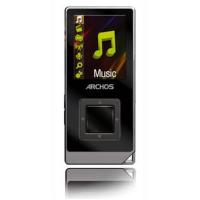
- MANUEL D'UTILISATION EN ANGLAIS
- ARCHOS
- ASSISTANT MULTIMÉDIA DE POCHE PMA430TM
- L'ÉQUIPE ARCHOS
- TABLE DES MATIÈRES
- APERÇU
- CONNEXION/DÉCONNEXION DU PMA430 À/DE VOTRE PC
- RÉCUPÉRATION DU SYSTÈME
- APPLICATION MUSIQUE
- APPLICATION AUDIOCORDER
- MUSIC - UTILISATION D'ITUNES™ AVEC VOTRE PMA
- APPLICATION PHOTO
- APPLICATION VIDÉO
- APPLICATION VIDÉOCORDER
- CONFIGURATION POUR LES ENREGISTREMENTS VIDÉO PROGRAMMÉS
- APPLICATION EXPLORATEUR DE FICHIERS
- CRÉATION DE FICHIERS VIDÉO MPEG4 AVEC VOTRE ORDINATEUR
- APPLICATIONS DE GESTION D'INFORMATIONS PERSONNELLES (PIM)
- APPLICATIONS DIVERSES
- APPLICATIONS INTERNET
- PARAMÈTRES AUDIOVISUELS
- PARAMÈTRES MATÉRIELS
- LOGICIELS ET AUTRES PARAMÈTRES
- INSTALLATION ET UTILISATION DE QTOPIA™ DESKTOP
- SUPPORT TECHNIQUE
- DÉPANNAGE
- LÉGAL
- INDEX
- SAUVEGARDEZ LE DOSSIER .ZIP
- VOUS TROUVEREZ UN FICHIER PMA400_RECOVERY.ZIP SUR LE DISQUE DUR DU PMA430 DANS LE DOSSIER
- ARCHOS/PMA400_RECOVERYZIP. VEUILLEZ LE SAUVEGARDER SUR VOTRE PC AU CAS OÙ VOUS AURIEZ BESOIN DE FAIRE UNE RÉCUPÉRATION COMPLÈTE DU SYSTÈME AFIN DE REMETTRE VOTRE PMA430 DANS SON ÉTAT D'ORIGINE
- LES SECTIONS DE CETTE DOCUMENTATION QUI VOUS AIDERONT À SAUVEGARDER CE DOSSIER SONT
- PARTIE I
- INTRODUCTION AU PMA
- PORTS, BOUTONS ET CONNECTEURS
- VOYANTS
- PAVÉ DE NAVIGATION
- BOUTONS SUPPLÉMENTAIRES
- APERÇU DES DIFFÉRENTES ZONES DE L'ÉCRAN
- ONGLETS D'APPLICATION
- ARCHOS PRODUCTIVITÉ JEUX PARAMÈTRES DOCUMENTS
- ONGLET POCKET AV
- ONGLET APPLICATIONS DE PRODUCTIVITÉ
- JEUX
- PARAMÈTRES
- DOCUMENTS
- L'ÉCRAN TACTILE ET LA SAISIE DE TEXTE
- MÉTHODE : RECONNAISSANCE DE L'ÉCRITURE MANUSCRITE
- UN CLAVIER STANDARD S'AFFICHE ET IL VOUS SUFFIT DE TAPER SUR LES TOUCHES
- SAISISSEZ LE TEXTE COMME SI VOUS UTILISIEZ UN CLAVIER DE TÉLÉPHONE. CLIQUEZ UNE FOIS POUR LA PREMIÈRE LETTRE, DEUX FOIS POUR LA DEUXIÈME, ET AINSI DE SUITE
- LINUX®, QTOPIA™ ET LE SYSTÈME DE FICHIERS DU PMA
- INFORMATIONS SYSTÈME
- MISE À JOUR DU SYSTÈME D'EXPLOITATION
- ÉTAPE 1 : TÉLÉCHARGER LE FICHIER AIMAGE.IMG
- ATTENTION UTILISATEURS MACINTOSH®
- ÉTAPE 2 : LIRE LE FICHIER HISTORY.TXT
- ÉTAPE 3 : COPIER LE FICHIER AIMAGE.IMG DANS LE DOSSIER SYSTEM DU PMA
- ÉTAPE 4 RÉINITIALISEZ LE PMA430 ET RÉGLEZ L'HEURE ET LA DATE
- ENTRETIEN DU PMA
- RÉINITIALISATION MATÉRIELLE
- CONNEXION DU PMA
- WINDOWS® ME, 2000, XP (HOME/PROFESSIONNEL)
- MACINTOSH™ OS X (10.2 JAGUAR ET 10.3 PANTHER)
- DÉCONNEXION DU PMA430 DE VOTRE ORDINATEUR
- NE TIREZ JAMAIS SIMPLEMENT SUR LE CÂBLE USB À AUCUN MOMENT
- WINDOWS®
- MACINTOSH
- PARTIE II
- L'ONGLET APPLICATIONS ARCHOS™
- LECTURE DE MUSIQUE
- LA BIBLIOTHÈQUE ARC™ - PARCOURIR PAR ARTISTE, ALBUM OU TITRE
- METTRE DE LA MUSIQUE SUR VOTRE PMA
- SYNCHRONISATION DE LA MUSIQUE DEPUIS WINDOWS MEDIA® PLAYER (WMP) VERS LE PMA
- SYNCHRONISATION DE LA MUSIQUE DEPUIS WINDOWS MEDIA® PLAYER (WMP) 9 VERS LE PMA
- SYNCHRONISATION DE LA MUSIQUE DEPUIS WINDOWS MEDIA® PLAYER (WMP) 10 VERS LE PMA
- TRANSFERT DE VOTRE COLLECTION DE CD VERS LE PMA
- INSTALLATION DE WINDOWS MEDIA® PLAYER (WMP)
- LECTURE DE MUSIQUE VIA VOTRE CHAÎNE STÉRÉO
- LES FONCTIONS DE REPRISE
- AUDIOCORDER
- MUSIQUE - UTILISATION D'ITUNES™ AVEC VOTRE PMA
- TRANSFERT DE PHOTOS VERS VOTRE PMA
- PARAMÈTRES DU FORMAT D'AFFICHAGE
- AFFICHAGE
- VIDÉO
- LECTURE DE FICHIERS VIDÉO DEPUIS INTERNET
- APPLICATION VIDEOCORDER
- ENREGISTREMENT MANUEL
- ENREGISTREMENT À DURÉE FIXE
- ENREGISTREMENTS PROGRAMMÉS
- RÉGLAGE D'AUTRES PARAMÈTRES D'ENREGISTREMENT
- PROTECTION CONTRE LA COPIE
- PARTIE 1 : CHOISISSEZ VOTRE CATÉGORIE, MARQUE ET MODÈLE
- PARTIE 2 : TEST DU CHANGEUR DE CHAÎNE
- PARTIE 3 : DONNEZ UN NOM À VOS CHAÎNES
- APPLICATION NAVIGATEUR DE FICHIERS
- COMMENT CRÉER UN FICHIER VIDÉO MPEG
- OUTILS PC
- INSTALLATION DU LOGICIEL PC
- CODEC MPEG 4 (COMPRESSION/DÉCOMPRESSION)
- VIRTUAL DUB™
- MPG4 TRANSLATOR
- CODEC AUDIO MP
- SÉLECTIONNEZ LES FICHIERS SOURCE ET DE DESTINATION
- MODIFIER LES PARAMÈTRES
- CIBLE ET PRIORITÉ
- DÉMARRER
- PARTIE III
- L'ONGLET APPLICATIONS DE PRODUCTIVITÉ
- APPLICATIONS DE GESTION DES INFORMATIONS PERSONNELLES (PIM)
- AUJOURD'HUI
- CALENDRIER
- CONTACTS
- LISTE DE TÂCHES
- HORLOGE
- HEURE MONDIALE
- CALCULATRICE
- ÉDITEUR DE TEXTE
- NAVIGATEUR D'AIDE
- MOPHUN®
- TERMINAL
- VISIONNEUSE PDF
- NAVIGATEUR OPERA™
- PARTIE IV
- LES APPLICATIONS DE PARAMÈTRES
- PARAMÈTRES AUDIO-VISUELS
- SORTIE TV
- PARAMÈTRES DU MAGNÉTOSCOPE
- ÉGALISEUR
- PARAMÈTRES LCD
- ÉCLAIRAGE ET ALIMENTATION
- RECALIBRAGE
- RÉSEAU
- DÉMARREZ L'APPLICATION RÉSEAU
- CHOISISSEZ VOTRE SERVICE
- CHOISISSEZ LE TYPE DE CONFIGURATION IP
- RECHERCHER LES POINTS D'ACCÈS ACTIFS
- CHOISIR LE POINT D'ACCÈS
- VOTRE SERVICE A MAINTENANT ÉTÉ CRÉÉ. LA PROCHAINE FOIS QUE VOUS IREZ DANS L'ONGLET SERVICES, VOUS VERREZ TOUS LES SERVICES QUE VOUS AVEZ PRÉCÉDEMMENT CRÉÉS. LORSQUE VOUS ÊTES CONNECTÉ À UN RÉSEAU, VOUS POUVEZ OUVRIR L'APPLICATION RÉSEAU ET VOIR LA QUALITÉ ACTUELLE DES SIGNAUX DE TRANSMISSION DE DONNÉES EN CONSULTANT L'ONGLET ACTUEL
- NAVIGATION SUR LE WEB OU UTILISATION DU COURRIER ÉLECTRONIQUE
- ÉTABLIR UNE CONNEXION INFRAROUGE
- ONGLET COMPTE
- ONGLET MODEM
- ONGLET RÉSEAU
- LOGICIEL ET AUTRES PARAMÈTRES
- LANGUE
- SÉCURITÉ
- APPARENCE
- LANCEUR
- DATE/HEURE
- REDÉMARRAGE
- SERVICES D'APPLICATION
- GESTIONNAIRE DE PLUG-INS
- PARTIE V
- APPLICATION DE BUREAU QTOPIA™
- INSTALLATION
- UTILISATION
- SYNCHRONISATION AVEC MICROSOFT® OUTLOOK
- ASSISTANCE TECHNIQUE
- N'UTILISEZ PAS LE SUPPORT TÉLÉPHONIQUE OU PAR E-MAIL POUR DES QUESTIONS DE MARKETING ET DE VENTE. CES NUMÉROS SONT DESTINÉS À AIDER CEUX QUI RENCONTRENT DES DIFFICULTÉS TECHNIQUES / DES DYSFONCTIONNEMENTS
- WWW.ARCHOS.COM
- BUREAUX MONDIAUX
- ÉTATS-UNIS ET CANADA
- EUROPE ET ASIE
- ROYAUME-UNI
- GERMANY
- PROBLÈMES DE CONNEXION DE PÉRIPHÉRIQUE USB
- SOLUTIONS
- PROBLÈMES DE CHARGE ET D'ALIMENTATION
- LE PMA430 SE BLOQUE (GEL DE FONCTIONNEMENT) OU S'ARRÊTE
- PROBLÈMES DE FICHIERS, DONNÉES CORROMPUES, FORMATAGE ET PARTITIONNEMENT
- WINDOWS® ME : EXÉCUTION DE SCAN-DISK (VÉRIFICATION DES ERREURS)
- WINDOWS® XP ET 2000 : EXÉCUTION DE L'UTILITAIRE CHECK DISK (CHKDSK)
- GARANTIE ET RESPONSABILITÉ LIMITÉE
- LE FABRICANT NE SERA PAS RESPONSABLE DES DOMMAGES SPÉCIAUX, ACCESSOIRES OU CONSÉCUTIFS, MÊME S'IL A ÉTÉ INFORMÉ DE LEUR POSSIBILITÉ À L'AVANCE
- AVERTISSEMENTS ET CONSIGNES DE SÉCURITÉ
- ATTENTION
- AVERTISSEMENT
- DÉCLARATION DE CONFORMITÉ FCC
- DÉCHARGE ÉLECTROSTATIQUE
- PRÉVENTION DES DOMMAGES AUDITIFS
- AVIS DE DROIT D'AUTEUR
- COPYRIGHT ARCHOS© 2005 TOUS DROITS RÉSERVÉS
- POLITIQUE RELATIVE AUX PIXELS LCD
- CARNET D'ADRESSES
- SAUVEGARDE
- CODECS
- DATE ET HEURE
- HAUT-PARLEUR EXTERNE DÉSACTIVÉ/ACTIVÉ
- SYSTÈME DE FICHIERS
- INTERFACE GRAPHIQUE UTILISATEUR
- VERROUILLAGE
- MÉMOIRE FAIBLE/CRITIQUE
- ÉCRAN NE FONCTIONNE PAS
- HEURE ET DATE
- PARAMÈTRES DE LECTURE VIDÉO
Marque : ARCHOS
Modèle : PMA 400
Catégorie : Lecteur multimédia portable