Affichage à cristaux liquides avec rétroéclairage, affichage des informations texte (nom de station, titre, artiste, etc.)
Fonctions spéciales
Code de sécurité, Mode démonstration, Dual Zone (sortie avant/arrière séparée), Horloge synchronisable RDS
Entretien et nettoyage
Nettoyer le panneau avant avec un chiffon doux et sec, nettoyer les bornes avec un chiffon propre et sec
Sécurité
Code de sécurité à 4 chiffres, protection contre les courts-circuits (message PROTECT), arrêt automatique après 20 min en veille (réglable)
Informations générales
Notice d'utilisation disponible en PDF, pièces détachées non spécifiées, réparabilité par professionnel recommandée
FOIRE AUX QUESTIONS - KDC-W5041U KENWOOD
Comment régler l'horloge de l'autoradio KDC-W5041U ?
Pour régler l'horloge, appuyez sur la molette de contrôle pendant au moins 1 seconde en mode menu (après avoir sélectionné 'CLOCK ADJUST'). Tournez la molette vers le haut/bas pour régler les heures, et vers la droite/gauche pour les minutes. Appuyez sur [M.JOG] pour quitter. Assurez-vous que la synchronisation RDS ('SYNC') est désactivée.
Comment activer le code de sécurité ?
Dans le menu, sélectionnez 'SECURITY SET', puis appuyez sur la molette pendant au moins 1 seconde. Entrez un code à 4 chiffres en tournant la molette pour sélectionner les chiffres et en poussant pour valider. Confirmez en saisissant à nouveau le code. Une fois activé, le code sera demandé après chaque coupure de batterie.
Que faire si l'appareil affiche 'PROTECT' ?
Le message 'PROTECT' indique un court-circuit sur les fils d'enceinte ou un contact avec la masse du véhicule. Vérifiez les connexions des enceintes et isolez tout fil dénudé. Après correction, appuyez sur le bouton Reset. Si le message persiste, consultez un professionnel.
Comment nettoyer l'autoradio KENWOOD KDC-W5041U ?
Utilisez un chiffon doux et sec (type silicone) pour nettoyer le panneau avant. En cas de saleté tenace, humidifiez légèrement le chiffon avec un nettoyant neutre, puis essuyez avec un chiffon sec. N'utilisez jamais de solvants comme l'alcool ou le diluant. Nettoyez les bornes du panneau avec un chiffon propre et sec.
Quels formats audio puis-je lire sur cet autoradio ?
Le KDC-W5041U lit les CD audio, ainsi que les fichiers MP3, WMA et AAC (format .m4a) gravés sur CD-R/RW. Via le port USB, il accepte les mêmes formats sur clé USB (FAT16/32). Les iPods compatibles (nano, 5e génération, classic, touch) sont également pris en charge.
Comment connecter un iPod à l'autoradio ?
Utilisez le câble de connexion iPod optionnel (KCA-iP200 par exemple). Branchez-le au port USB de l'autoradio, puis connectez votre iPod. La source passera automatiquement à 'iPod'. Vous pouvez naviguer dans les playlists via la molette en mode 'Multi Jog'.
Comment utiliser la fonction Dual Zone ?
Activez d'abord la fonction Dual Zone dans le menu Audio Setup ('2ZONE' sur ON). Ensuite, dans le menu système, réglez 'ZONE2' pour choisir si le son auxiliaire sort sur les enceintes avant ou arrière. La source principale est diffusée sur l'autre paire. Le volume avant se règle avec la molette, le volume arrière avec le bouton [A] ou via la télécommande.
Comment régler l'égaliseur (System Q) ?
Appuyez sur la molette de contrôle pour entrer en mode Audio Control. Sélectionnez 'SYSTEM Q' en tournant la molette, puis choisissez un preset (NATURAL, ROCK, POPS, etc.) ou 'USER' pour un réglage personnalisé des graves, médiums et aigus. Tournez la molette pour modifier la valeur de chaque bande.
Que faire si un CD ne se lit pas ou affiche 'TOC ERROR' ?
Vérifiez d'abord que le CD n'est pas rayé, sale ou inséré à l'envers. Nettoyez le disque avec un chiffon doux du centre vers l'extérieur. Si l'erreur persiste, essayez un autre CD. Si le message 'E-05' apparaît, le disque est illisible. Pour 'E-77' ou 'E-99', appuyez sur Reset ; si le problème continue, contactez un service après-vente.
Comment réinitialiser l'autoradio KDC-W5041U ?
Localisez le bouton Reset (généralement sur la façade avant, accessible après retrait du panneau). Utilisez un stylo ou un trombone déplié pour appuyer doucement sur le bouton. La réinitialisation remet l'appareil aux réglages d'usine. Notez que le code de sécurité, s'il est activé, ne sera pas effacé.
Questions des utilisateurs sur KDC-W5041U KENWOOD
1 question sur cet appareil. Repondez a celles que vous connaissez ou posez la votre.
Poser une nouvelle question sur cet appareil
Comment utiliser la fonction Bluetooth sur l'autoradio KENWOOD KDC-W5041U ?
FAQ fréquente -07/03/2026
Réponse Notice-Facile
L'autoradio KENWOOD KDC-W5041U ne dispose pas de Bluetooth intégré pour le streaming audio. Cependant, vous pouvez utiliser cet autoradio avec la boîte mains-libres Bluetooth optionnelle KCA-BT100 pour passer et recevoir des appels directement depuis votre téléphone via l'autoradio.
Pour utiliser la fonction mains-libres avec l'accessoire KCA-BT100 :
L'accessoire KCA-BT100 se connecte à votre autoradio KDC-W5041U via les connecteurs du tableau de bord
Vous devez d'abord appairer votre téléphone avec la boîte Bluetooth KCA-BT100 selon les instructions du manuel fourni avec cet accessoire
Une fois appairé, la boîte affichera "HF CONNECT" quand votre téléphone est connecté
Lors d'un appel reçu, la mention "CALL" apparaît à l'écran de l'autoradio et l'audio est coupé automatiquement
Vous pouvez utiliser le bouton [AUTO] de la télécommande pour répondre, rejeter ou raccrocher un appel
Pour accéder aux paramètres Bluetooth, sélectionnez le menu "DIALING MODE" via le bouton [M.JOG] en appuyant pendant au moins 1 seconde. Notez que sans l'accessoire KCA-BT100 optionnel, vous ne pourrez pas utiliser les fonctionnalités Bluetooth sur ce modèle.
Si vous recherchez un autoradio avec Bluetooth intégré pour le streaming audio (musique) et les appels mains-libres, vous devrez envisager d'autres modèles ou ajouter l'accessoire Bluetooth optionnel à votre KDC-W5041U.
Répondre (soyez le premier)
Téléchargez la notice de votre Autoradio au format PDF gratuitement ! Retrouvez votre notice KDC-W5041U -
KENWOOD et reprennez votre appareil électronique en main. Sur cette page sont publiés tous les documents nécessaires à l'utilisation de votre appareil KDC-W5041U de la marque KENWOOD.
MODE D'EMPLOI KDC-W5041U KENWOOD
KENWOOD
CD-RECEIVER
KDC-W5641U
KDC-W5541U
KDC-W5141U
KDC-W5041U
KDC-W4141
KDC-W4041
INSTRUCTION MANUAL
Kenwood Corporation
Contents
Before use 3
Basic Operation 4
General functions
Tuner functions
Disc & Audio file play functions
General Operation 6
Audio Control
Audio Setup
Speaker Setting
Display Switching
Tuner Operation 8
PTY (Program Type)
Program Type preset
Changing Language for PTY Function
Direct Access Tuning
Music disc/Audio file Operation 9
Play Functions of Disc Changer
Direct Music Search
Direct Disc Search
List Select
iPod Select
Track Select
Menu Operation 11
Menu System
Security Code
Manual Clock Adjustment
Auxiliary Input Display Setting
Demonstration mode Setting
Basic Operations of remote control 14
Appendix 15
Accessories/ Installation Procedure 18
Connecting Wires to Terminals 19
Installation/Removing the Unit 21
Troubleshooting Guide 22
Specifications 24
Panel illustrations used in this document
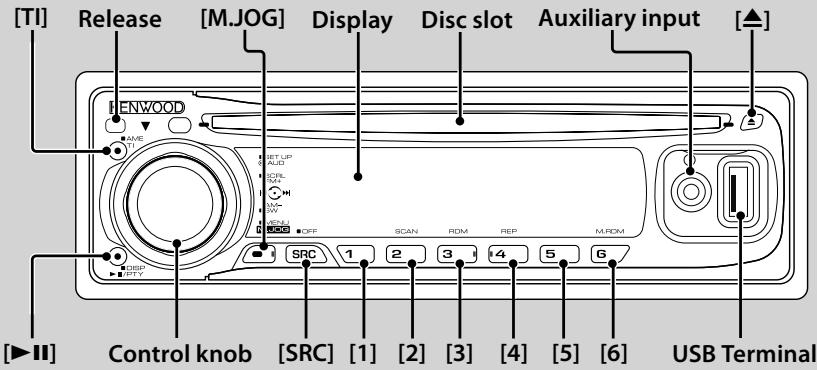
The control panel for KDC-W5641U is used to describe operations in this document.
Playing AAC, MP3, and WMA data
This document refers to AAC, MP3, and WMA data stored in iPod, USB device, and CD-R/RW as "audio files." Refer to the section on "Audio Files" to control these data. See (page 15) for details.
iPod is a trademark of Apple Inc., registered in the U.S. and other countries.
The "AAC" logo is trademark of Dolby Laboratories.
WARNING
To prevent injury or fire, take the following precautions:
To prevent a short circuit, never put or leave any metallic objects (such as coins or metal tools) inside the unit.
Before using this unit for the first time
This unit is initially set on the Demonstration mode. When using this unit for the first time, cancel the (page 13).
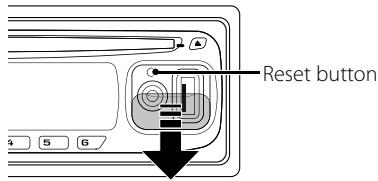
How to reset your unit
If this unit or the connected unit (disc auto changer, etc.) fails to operate properly, press the Reset button. The unit returns to factory settings when the Reset button is pressed.
Cleaning the Unit
If the faceplate of this unit is stained, wipe it with a dry soft cloth such as a silicon cloth.
If the faceplate is stained badly, wipe the stain off with a cloth moistened with neutral cleaner, then wipe it again with a clean soft dry cloth.
Applying spray cleaner directly to the unit may affect its mechanical parts. Wiping the faceplate with a hard cloth or using a volatile liquid such as thinner or alcohol may scratch the surface or erases characters.
Cleaning the Faceplate Terminals
If the terminals on the unit or faceplate get dirty, wipe them with a clean soft dry cloth.
Lens Fogging
When you turn on the car heater in cold weather, dew or condensation may form on the lens in the CD player of the unit. Called lens fogging, this condensation on the lens may not allow CDs to play. In such a situation, remove the disc and wait for the condensation to evaporate. If the unit still does not operate normally after a while, consult your Kenwood dealer.
If you experience problems during installation, consult your Kenwood dealer.
When you purchase optional accessories, check with your Kenwood dealer to make sure that they work with your model and in your area.
The characters which can be displayed by this unit are A-Z 0-9 @" ` % & * + - = , . / \ < > [ ] ( ) ;; ^ - { } | ~ .
The RDS feature won't work where the service is not supported by any broadcasting station.
The illustrations of the display and the panel appearing in this manual are examples used to explain more clearly how the controls are used. Therefore, what appears on the display in the illustrations may differ from what appears on the display on the actual equipment, and some of the illustrations on the display may be inapplicable.
Handling CDs
Do not touch the recording surface of the CD.
Do not stick tape etc. on the CD, or use a CD with tape stuck on it.
Do not use disc type accessories.
Clean from the center of the disc and move outward.
When removing CDs from this unit, pull them out horizontally.
If the CD center hole or outside rim has burrs, use the CD only after removing the burrs with a ballpoint pen etc.
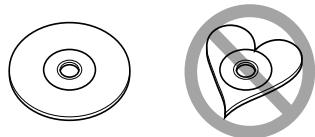
CDs that cannot be used
CDs that are not round cannot be used.
CDs with coloring on the recording surface or CDs that are dirty cannot be used.
This unit can only play the CDs with This unit may not correctly play discs which do not have the mark.
You cannot play a CD-R or CD-RW that has not been finalized. (For the finalization process refer to your CD-R/CD-RW writing software, and your CD-R/CD-RW recorder instruction manual.)
Basic Operation
General functions
Power/Source select button
[SRC]
Turns on the power.
When the power is on, the source switches between Tuner ("TUNER"), USB or iPod ("USB" or "iPod"), CD ("CD"), Auxiliary input ("AUX"), and Standby ("STANDBY") each time this button is pressed. Press at least 1 second to turn off the power.
When the power is ON, the (page 12) is displayed as "CODE ON" or "CODE OFF".
For whether USB devices and iPod can be connected, refer to (page 15).
When an optional accessory is connected, the source name for each device appears.
This unit automatically turns full power OFF after 20 minutes lapses in Standby mode in order to save the vehicle's battery. The time until full power OFF can be set in "POWER OFF" of
When connection of the iPod is recognized, the source display changes from "USB" to "iPod".
Volume control
Control knob
Turn the knob to adjust the volume.
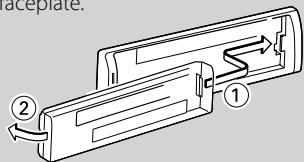
Faceplate release
Release
Releases the faceplate lock so that it can be removed. Refer to the following diagram when reattaching the faceplate.
The faceplate is a precision piece of equipment and can be
damaged by shocks or jolts.
Keep the faceplate in its faceplate case while detached.
Do not place the faceplate (and the faceplate case) in areas exposed to direct sunlight, excessive heat or humidity. Also avoid places with too much dust or the possibility of water splashing.
To prevent deterioration, do not touch the terminals of the unit or faceplate with your fingers.
Auxiliary input
Auxiliary input
Used to connect a portable audio device with miniplug cable (3.5
Use the mini-plug cable (stereo) which does not have any resistance.
Muting volume upon reception of phone call
When there is a call, "CALL" is displayed and the audio system is paused.
When the call ends, "CALL" disappears and the audio system comes back on.
The audio system comes back on when [SRC] is pressed during a call.
Subwoofer output
Control knob
Switches between ON ("SUBWOOFER ON") and OFF ("SUBWOOFER OFF") each time pushing toward down for at least 2 seconds.
Text/Title scroll
Control knob
Scrolls the CD, audio file, and Radio text display when pushing toward up for at least 2 seconds.
Tuner functions
Band select
Control knob
Switches between FM1, FM2, and FM3 each time pushing toward up.
Switches to AM when pushing toward down.
Tuning Control knob
Changes the frequency when pushing toward left or right.
During reception of stereo stations the "ST" indicator is ON.
Traffic information
Turns ON or OFF the Traffic Information function. When the function is turned ON, "TI" indicator is ON. If traffic bulletin starts when the function is ON, "TRAFFIC INFO" is displayed and traffic information is received.
If the volume is adjusted during reception of traffic information, the adjusted volume is memorized automatically. The memorized volume will be applied next time the Traffic Information function is turned ON.
Preset memory [1] - [6]
Memorizes the station selected when pressing for at least 2 seconds.
Auto memory entry [TI]
Memorizes six stations with good reception automatically when pressed for at least 2 seconds.
Preset tuning [1]-[6]
Recalls the memorized station.
Disc & Audio file play functions
Disc play Disc slot
Starts playing when a disc is inserted. When a CD is inserted, the "IN" indicator is ON.
3 inch (8 cm) CD cannot be used. Attempt to insert using an adapter can cause malfunction.
USB device play (KDC-W5641U/W5541U/W5141U/
W5041U) USB Terminal
Used to connect the USB device to the USB cable (optional accessory) which is connected to the USB terminal.
When the USB device is connected, the "USB" indicator is ON.
For the playable audio file, media, and devices, refer to (page 15).
Pause and play
Switches between pause and play each time this button is pressed.
Disc ejection
You can eject the disc for 10 minutes after switching off the engine.
USB device removing [A]
Press this button for 2 seconds or longer to select the remove mode, and the remove the USB device. During the remove mode, "USB REMOVE" is displayed.
Music search Control knob
Changes the music when pushing toward left or right. Fast reverses or forwards the music while keeping pushing toward left or right. (No sound is output while playing audio file.)
Folder search Control knob
Changes the folder containing the audio file when pushing toward up or down.
Select mode [M.JOG]
After pressing this button, you can quickly search songs with the control knob. See (page 10), (page 10) for details.
Track/ File/ Folder repeat play [4]
Switches between Track Repeat ("TRAC REP ON") and OFF ("REP OFF") when pressed while playing a CD. Switches between File Repeat ("FILE REP ON"), Folder Repeat ("FOLD REP ON"), and OFF ("REP OFF") when pressed while playing an audio file.
The folder repeat operation cannot be performed while iPod is playing.
Scan play
Successively plays the intro of the music in the disc or folder.
When Scan Play is turned on, "TRAC SCAN ON"/"FILE SCAN ON" is displayed.
The Scan paly operation cannot be performed while iPod is playing.
Random play [3]
Randomly plays the music in the disc or folder.
When Random Play is turned on, "DISC RDM ON"/ "FOLD RDM ON" is displayed.
Audio Control
You can adjust following Audio Control items;
Adjustment Item
Display
Range
Rear volume*
“R-VOLUME”
0 — 35
Subwoofer level
“SUB-W L”
-15 — +15
Bass Boost**
“B.BOOST-L”
“L1”/“L2”/“OFF” (The indicator turns on according to the setting.)
Natural/User setting/Rock/Pops/Easy/Top 40/Jazz (The indicator turns on according to the setting.)
Bass level
“BASS L”
-8 — +8
Middle level
“MID L”
-8 — +8
Treble level
“TRE L”
-8 — +8
Balance
“BALANCE”
Left 15 — Right 15
Fader
“FADER”
Rear 15 — Front 15
Exit Audio Control mode (Volume control mode)
Function of KDC-W5641U/W5541U/W5141U/W5041U. *Function of KDC-W4141/W4041.
"USER": The customized Bass, Middle, and Treble levels are effective. On the KDC-W5641U/W5541U/W5141U/W5041U, this item can be selected at any time. On the KDC-W4141/W4041, this item is displayed only when the tone quality has been adjusted. On the KDC-W4141/W4041, this item disappears when another setting is selected.
You can set Bass, Middle, and Treble for each source.
1 Select the source to adjust Press the [SRC] button.
2 Enter Audio Control mode Press the Control knob.
3 Select the Audio item to adjust Press the Control knob.
4 Adjust the Audio item Turn the Control knob.
5 Exit Audio Control mode Press any button. Press a button other than the Control knob or button.
Audio Setup
You can set Sound system, such as follows;
Adjustment Item
Display
Range
Front High Pass Filter*
“HPF F”
Through/80/100/120/ 150/180 Hz
Rear High Pass Filter*
“HPF R”
Through/80/100/120/ 150/180 Hz
Low Pass Filter
“LPF SW”
60*1/80/120/160*2/Through Hz
Subwoofer Phase*
“PHASE”
Reverse (180°)/ Normal (0°)
Volume offset
“V-OFFSET”
-8 — ±0 (AUX: -8— +8)
Loudness*
“LOUDNESS”
OFF/ON
Dual Zone System*
“2ZONE”
OFF/ON
Function of KDC-W5641U/W5541U/W5141U/W5041U.
^1 KDC-W5641U/W5541U/W5141U/W5041U only.
^*2 KDC-W4141/W4041 only.
Volume offset: Sets each source's volume as a difference from the basic volume.
Loudness: Compensates for low and high tones during low volume. (Only the low tone is compensated for when the tuner is selected as a source.)
Dual Zone System
Main source and sub source (Auxiliary input) output
Front channel and Rear channel separately.
Set up the channel of sub source by "ZONE2" of
Select Main source by [SRC] button.
Adjust the volume of Front channel by Control knob.
Adjust the volume of Rear channel by
The Audio Control has no effect on sub source.
1 Select the source to adjust Press the [SRC] button.
2 Enter Audio Setup mode Press the Control knob for at least 1 second.
3 Select the Audio Setup item to adjust Press the Control knob.
4 Adjust the Audio setup item Turn the Control knob.
5 Exit Audio Setup mode Press the Control knob for at least 1 second.
Speaker Setting
Fine-tuning so that the System Q value is optimal when setting the speaker type as follows;
Speaker type
Display
OFF
"SP SEL OFF"
For 5 & 4 in. speaker
"SP SEL 5/4"
For 6 & 6x9 in. speaker
"SP SEL 6*9/6"
For the OEM speaker
"SP SEL OEM"
1 Enter Standby
Press the [SRC] button.
Select the "STANDBY" display.
2 Enter Speaker Setting mode Press the Control knob.
3 Select the Speaker type Turn the Control knob.
4 Exit Speaker Setting mode Press the Control knob.
Display Switching
Changes displayed information on each source following;
In Tuner source
Information
Display
Program Service name or Frequency
“FREQUENCY/PS”
Radio text, Program Service name or Frequency
“RADIO TEXT”
Clock
“CLOCK”
In CD & External disc source
Information
Display
Disc title
"DISC TITLE"
Track title (In External disc source)
"TRACK TITLE"
Play time & Track number
"P-TIME"
Clock
"CLOCK"
In Audio file source
Information
Display
Music title & Artist name
“TITLE/ARTIST”
Album name & Artist name
“ALBUM/ARTIST”
Folder name
“FOLDER NAME”
File name
“FILE NAME”
Play time & Music number
“P-TIME”
Clock
“CLOCK”
In Standby/Auxiliary input source
Information
Display
Source name
“SOURCE NAME”
Clock
“CLOCK”
1 Enter Switching Display mode
Press the [▶II] button for at least 1 second.
"DISPLAY SEL" is displayed.
2 Select the Display item
Push the Control knob towards right or left.
3 Exit Switching Display mode
Press the [▶II] button.
When you select the clock display, the display setting of each source will be changed to the clock display.
If the selected display item does not have any information, alternative information is displayed.
When selecting "FOLDER NAME" while playing with iPod, names will be displayed depending on currently selected browsing items.
PTY (Program Type)
Selecting the Program Type below and searching for a station;
No.
Program Type
Display
1.
Speech
“SPEECH”
2.
Music
“MUSIC”
3.
News
“NEWS”
4.
Current Affairs
“AFFAIRS”
5.
Information
“INFO”
6.
Sport
“SPORT”
7.
Education
“EDUCATE”
8.
Drama
“DRAMA”
9.
Culture
“CULTURE”
10.
Science
“SCIENCE”
11.
Varied
“VARIED”
12.
Pop Music
“POP M”
13.
Rock Music
“ROCK M”
14.
Easy Listening Music
“EASY M”
15.
Light Classical
“LIGHT M”
16.
Serious Classical
“CLASSICS”
17.
Other Music
“OTHER M”
18.
Weather
“WEATHER”
19.
Finance
“FINANCE”
20.
Children's programs
“CHILDREN”
21.
Social Affairs
“SOCIAL”
22.
Religion
“RELIGION”
23.
Phone In
“PHONE IN”
24.
Travel
“TRAVEL”
25.
Leisure
“LEISURE”
26.
Jazz Music
“JAZZ”
27.
Country Music
“COUNTRY”
28.
National Music
“NATION M”
29.
Oldies Music
“OLDIES”
30.
Folk Music
“FOLK M”
31.
Documentary
“DOCUMENT”
Speech and Music include the Program type shown below.
Music: No.12 — 17, 26 — 30
Speech: No.3 — 11, 18 — 25, 31
1 Enter PTY mode
Press the [▶II] button.
During PTY mode the "PTY" indicator is ON.
This function cannot be used during a traffic bulletin or AM reception.
2 Select the Program Type
Push the Control knob towards up or down.
3 Search for the selected Program Type station Push the Control knob towards right or left.
When the selected Program Type is not found, "NO PTY"
is displayed. Select another Program Type.
4 Exit PTY mode
Press the [▶II] button.
Program Type preset
Putting the Program Type in the Preset button memory and quick recall.
Presetting the Program Type
1 Select the Program Type to preset
Refer to .
2 Preset the Program Type
Press the desired [1] — [6] button for at least 2 seconds.
Recalling the preset Program Type
1 Enter PTY mode
Refer to .
2 Recall the Program Type
Press the desired [1] — [6] button.
Changing Language for PTY Function
Selecting the Program Type display language as follows;
Language
Display
English
"ENGLISH"
French
"FRENCH"
German
"GERMAN"
1 Enter PTY mode
Refer to .
2 Enter Changing Language mode
Press the [TI] button.
3 Select the language
Push the Control knob towards up or down.
4 Exit Changing Language mode
Press the [TI] button.
Music disc/Audio file Operation
Function of remote control
Direct Access Tuning
Entering the frequency and tuning.
1 Enter Direct Access Tuning mode Press the [DIRECT] button on the remote control.
"-- -- " is displayed.
2 Enter the frequency Press the number buttons on the remote control.
Example:
Desired frequency
Press button
92.1 MHz (FM)
[0], [9], [2], [1]
810 kHz (AM)
[0], [8], [1], [0]
Cancelling Direct Access Tuning Press the [DIRECT] button on the remote control.
You can enter the FM band frequency in steps of a minimum of 0.1 MHz.
Play Functions of Disc Changer
While a disc in the disc changer is being played, the following play functions can be used.
Playing the Current Song or Disc Repeatedly. (Repeat play)
Press the [4] button.
Pressing the button repeatedly selects Track Repeat play on ("TRAC REP ON"), Disc Repeat play on ("DISC REP ON"), and Repeat play off ("REP OFF") sequentially.
Randomly plays the music in the disc changer. (Magazine random play)
Press the [6] button.
Pressing the button toggles the setting between Magazine random play on ("MGZN RDM ON") and off ("RDM OFF").
Function of remote control
Direct Music Search
Searchs the music by entering the track number.
1 Enter the music number
Press the number buttons on the remote control.
2 Search the music
Press the [I<] or [▶▶] button.
Cancelling Direct Music Search
Press the [▶II] button.
Direct Music Search cannot be performed during playing of iPod, Random play, or scan play.
Function of disc changers with remote control
Direct Disc Search
Searchs the disc by entering the disc number.
1 Enter the disc number
Press the number buttons on the remote control.
2 Search the disc
Press the [FM] or [AM] button.
Cancelling Direct Disc Search
Press the [▶II] button.
Input "0" to select disc 10.
Direct Disc Search cannot be performed during playing of Random play or scan play.
Function of USB/CD of Audio file
List Select
Search for the song you want to listen to by tracing the media file structure.
1 Enter Multi Jog Select mode
Press the [M.JOG] button.
"MULTI JOG ON" is displayed.
Displays the current Audio file name.
2 Searching for and playing a song
Operation type
Operation
Movement between folders/files
Turn the Control knob.
Selection of folder/flie
Press the Control knob.
Return to previous folder
Push the Control knob towards left.
Return to root folder
Push the Control knob towards left for at least 2 seconds.
< < > or >^ beside the displayed folder name indicates that this folder is preceded or followed by another folder. When file name is displayed, * is added at the end.
Cancelling the Multi Jog Select mode
Press the [M.JOG] button.
List Select cannot be performed during Random play or scan play.
Function of KDC-W5641U/KDC-W5541U
Function of iPod
iPod Select
Search for the song you want to listen to by selecting the same menu item as that of iPod.
1 Enter Multi Jog Select mode
Press the [M.JOG] button.
"MULTI JOG ON" is displayed.
Displays the play list.
2 Searching for and playing a song
Operation type
Operation
Movement between items
Turn the Control knob.
Selection of item
Press the Control knob.
Return to previous item
Push the Control knob towards up.
Return to Top menu
Push the Control knob towards up for at least 2 seconds.
Cancelling the Multi Jog Select mode
Press the [M.JOG] button.
iPod Select cannot be performed during Random play.
Function of Music CD
Track Select
Select the song you want to listen to by turning the control knob.
1 Enter Multi Jog Select mode
Press the [M.JOG] button.
"MULTI JOG ON" is displayed.
Displays the current music No.
2 Select the muisc
Turn the Control knob.
3 Play the selected song
Press the Control knob.
The Multi Jog Select mode is canceled and the selected song is played.
Cancelling the Multi Jog Select mode
Press the [M.JOG] button.
Track Select is available only during playing of the built-in CD player.
Track Select cannot be performed during Random play or scan play.
Menu System
Set up the following functions;
Display
Setting
Setting overview
Source
"SECURITY SET"
Refer to page 12
Sets security code
SB
"CLOCK ADJUST"
Refer to page 12
Sets the clock.
SB
"SYNC"
ON*/OFF
Synchronizing the RDS station time data and this unit's clock.
SB
"DISPLAY"
ON*/OFF
Turns off the display when no operation is performed.
—
"DIMMER"*1
AUTO*/OFF
Dims the display in conjunction with the light switch of the vehicle.
SB
"DIMMER"*2
ON/OFF*
Adjusts the brightness of the display according to the surrounding illumination.
—
"DOT LINE"
ON*/OFF
Specifies whether to display the red dotted line on the display.
SB
"SWPRE"
REAR*/SUB-W
Sets the preout output.
SB
"ZONE2"*1
REAR*/FRONT
Specifies the destination of AUX input sound when the Dual Zone function is turned on.
SB
"SUPreme"
ON*/OFF
Turns ON/OFF the Supreme function.
AF
"NEWS"
OFF* -90M
Turns ON/OFF the News Bulletin Automatic Reception function and sets the news bulletin interrupt disabled time.
—
"LOCAL S"
ON/OFF*
Only stations whose reception is good are searched in auto seek tuning.
FM
"SEEK"
AUTO1*/AUTO2/MANUAL
Selects the tuning mode of the radio.
TUN
"AF"
ON*/OFF
When station reception is poor, automatically switches to the station that is broadcasting the same program over the same RDS network.
SB
"REGIONAL"
ON*/OFF
Sets whether to switch to the station only in the specific region using the "AF" control.
SB
"ATPS"
ON*/OFF
When traffic information station reception is poor, automatically searches for a station that can be received better.
SB
"MONO"
ON/OFF*
Receives a stereo broadcast in the mono mode.
FM
"NAME SET"
Refer to page 13
Sets the display when switched to AUX source.
AUX
Display
Setting
Setting overview
Source
"RUSSIAN"*3
ON*/OFF
Selects Russian as the display language.
SB
"SCROLL"
AUTO/MAINUAL*
Scrolls the screen once when the displayed text changes.
—
"AUX"
OFF/ON1*/ON2
Sets whether to display AUX during source selection.
SB
"POWER OFF"
---- 20M* - 60M
Turns off the power when the preset time has lapsed in the Standby mode.
SB
"CD READ"
1*/2
Sets the CD read mode.
SB
"DEMO MODE"
Refer to page 13
Specifies whether to enable demonstration.
—
Factory setting 1 Function of KDC-W5641U/W5541U/W5141U/W5041U. 2 Function of KDC-W4141/W4041.
*3 Function of KDC-W5641U/W5141U/W4141.
Displayed item is depending on currently selected source. The mark in Source column shows the source to which the item is displayed.
SB: Can be set in other than standby state.
SB: Can be set in standby state.
AF : Can be set while Audio file source of CD/USB (excluding iPod).
TUN : Can be set while Tuner source.
FM : Can be set during FM reception.
AUX: Can be set while accessing AUX source.
: Can be set during all sources.
1 Enter Menu mode
Press the [M.JOG] button for at least 1 second.
"MENU" is displayed.
2 Select the menu item
Push the Control knob towards up or down.
3 Set the menu item
Push the Control knob towards right or left.
4 Exit Menu mode
Press the [M.JOG] button.
Refer to the respective page for information on how to set the items with reference page number.
"ZONE2" is displayed when "2ZONE" in
Security Code
When Security Code is set, possibility of theft is reduced because input of Security Code is prompted to turn on the unit once it is turned off.
When you activate the Security Code function, it cannot be released.
Note, your Security Code is the 4 digit number entered in your "Car Audio Passport" in this package.
1 Select Security Code item during Menu mode
Select the "SECURITY SET" display.
For how to select menu items, refer to
If you enter a Code different from your Security Code, you have to start over from step 3.
8 Exit Security Code mode
Press the [M.JOG] button.
Entering Security Code
The Security Code is required to use the audio unit when the unit is first used after removed from the battery power source or the Reset button is pressed.
1 Turn the power ON.
2 Do the step 3 through 6 step operation, and reenter the security code.
"APPROVED" is displayed.
If an incorrect code is entered, "WAITING" is displayed,
and the input prohibition periods shown in the table below is generated.
After the input prohibition time lapses, "CODE" is displayed, and you can reenter the code.
Number of times the incorrect code was input
Input prohibited time
1
—
2
5 minutes
3
1 hour
4
24 hours
Manual Clock Adjustment
1 Select Clock Adjustment item during Menu mode
Select the "CLOCK ADJUST" display.
For how to select menu items, refer to
You can do this adjustment when the "SYNC" is set as "OFF".
Auxiliary Input Display Setting
Selects the display below when changing to Auxiliary input source;
"AUX"
"DVD"
"PORTABLE"
"GAME"
"VIDEO"
·"TV"
1 Select Auxiliary input display setting item during Menu mode
Select the "NAME SET" display.
For how to select menu items, refer to <Menu
System>(page 11).
2 Enter Auxiliary input display setting mode Press the Control knob for at least 1 second.
The presently selected Auxiliary input display is displayed.
3 Select the Auxiliary input display Push the Control knob towards right or left.
4 Exit Auxiliary input display setting mode Press the [M.JOG] button.
When operation stops for 10 seconds, the name at that time is registered, and the Auxiliary input display setting mode closes.
The Auxiliary input display can be set only when the built-in auxiliary input or the auxiliary input of optional KCA-S220A is used. On the KCA-S220A, "AUX EXT" is displayed by default.
Demonstration mode Setting
Turning the demonstration mode ON/OFF.
1 Select Demonstration item during Menu mode
Select the "DEMO MODE" display.
For how to select menu items, refer to <Menu
System>(page 11).
2 Set the Demonstration mode
Press the Control knob for at least 2 second.
Pressing this button for 2 seconds or longer toggles the setting between "ON" and "OFF".
3 Exit Demonstration mode
Press the [M.JOG] button.
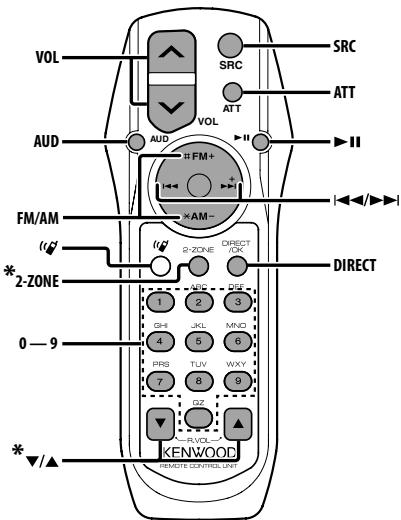
*KDC-W5641U/W5141U only
General control
Volume control
[VOL]
Source select
[SRC]
Volume reduce
[ATT]
When the button is pressed again, the volume returns to the previous level. When the volume is reduced, the "ATT" indicator flashes.
In Audio control
Audio item select
[AUD]
Adjusts the Audio item
[VOL]
Refer to
Dual Zone control
Dual zone system on and off
[2-ZONE]
Rear channel volume control
[△]/[▼]
In Tuner source
Band select
[FM]/[AM]
Station select
[14]/[▶→]
Recall preset stations
[1]—[6]
In CD/USB source
Music select
[←/][▶]
Folder/Disc select
[FM]/[AM]
Pause/Play
[11]
About[ ]
This button is used when Bluetooth HANDS FREE BOX is connected. For more information, refer to the instruction manual of Bluetooth HANDS FREE BOX.
Do not set the remote control in hot places such as on the dashboard.
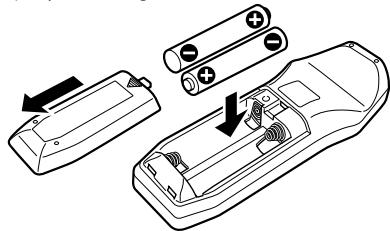
Loading and Replacing battery
Use two "AA"/"R6"-size batteries.
Slide the cover while pressing downwards to remove it as illustrated.
Insert the batteries with the + and - poles aligned properly, following the illustration inside the case.
About Audio file
Playable Audio file
AAC-LC (.m4a), MP3 (.mp3), WMA (.wma)
Playable disc media
CD-R/RW/ROM
Playable disc file format
ISO 9660 Level 1/2, Joliet, Romeo, Long file name.
USB device Playable Model
KDC-W5641U, KDC-W5541U, KDC-W5141U, KDC-W5041U
Playable USB device
USB mass storage class
Playable USB device file system
FAT16, FAT32
iPod Playable Model
KDC-W5641U, KDC-W5541U
Although the audio files are complied with the standards listed above, the play maybe impossible depending on the types or conditions of media or device.
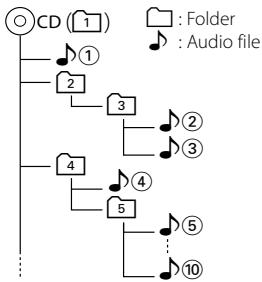
Playing order of the Audio file
In the example of folder/file tree shown below, the files are played in the order from ① to ⑩.
An online manual about audio files is put on the site, www.kenwood.com/audiofile/. On this online manual, detailed information and notes which are not written in this manual are provided. Make sure to read through the online manual as well.
In this manual, the word "USB device" is used for flash memories and digital audio players which have USB terminals.
The word "iPod" appearing in this manual indicates the iPod connected with the iPod connection cable (optional accessory). The iPod connected with the iPod connection cable can be controlled from this unit. iPods that can be connected with the iPod connection cable are the iPod nano, Fifth Generation iPod, iPod classic, and iPod touch. Other iPods cannot be connected.
About USB device
If you start playback after connecting the iPod, the music that has been played by the iPod is played first.
In this case, "RESUMING" is displayed without displaying a folder name, etc. Changing the browse item will display a correct title, etc.
When the iPod is connected to this unit, "KENWOOD" or "✔" is displayed on the iPod to indicate that you cannot operate the iPod.
When the USB device is connected to this unit, it can be charged up provided that this unit is powered.
Install the USB device in the place where it will not prevent you from driving your vehicle properly.
You cannot connect a USB device via a USB hub and Multi Card Reader.
Take backups of the audio files used with this unit. The files can be erased depending on the operating conditions of the USB device.
We shall have no compensation for any damage arising out of erasure of the stored data.
No USB device comes with this unit. You need to purchase a commercially available USB device.
When connecting the USB device, usage of the CAU1EX (option) is recommended.
Normal playback is not guaranteed when a cable other than the USB compatible cable is used.
Connecting a cable whose total length is longer than 5m can result in abnormal playback.
Menu Glossary
- SWPRE (Switching Preout)
Switches the preout between rear output ("REAR") and subwoofer output ("SUB-W").
SUPREME
Technology to extrapolate and supplement with proprietary algorithm, the high-frequency range that is cut off when encoding at low bit rate (less than 128Kbps, Sampling frequency is 44.1kHz ). Supplementing is optimized by compression format (AAC, MP3 or WMA) and processed according to bit rate.
The effect is negligible with music that is encoded at high bit rate, variable bit rate or has minimal high frequency range.
CD READ
Sets the method for reading CD.
When unable to play special format CD, set this function to "2" to force playing. Note that some music CD may be unplayable even when set to "2". In addition, audio files cannot be played when set to "2". Normally, keep this set to "1".
1: Automatically distinguishes between audio file disc and music CD when playing disc.
2: Forces playing as music CD.
AUX
When this is set to ON, AUX source can be selected.
ON1: Outputs the sound of external unit connected to the AUX terminal when switched to AUX source.
ON2: Activates the attenuator function when switched to AUX source. Turn off the attenuator function when listening to output from external unit. This prevents the noise when no external unit is connected to AUX terminal.
OFF: Disables the selection of AUX source. Set to OFF when not using the AUX terminal.
- NEWS (News Bulletin with Timeout Setting)
Automatically receives news bulletin when it starts. Set the time during which interrupt is to be disabled after start of another news bulletin. Changing "NEWS 00M" to "NEWS 90M" turns this function ON. When this function is ON, the "NEWS indicator is ON.
If news bulletin starts when this function is ON, "TRAFFIC" is displayed and news is received. If "20M" is has been set, reception of another news bulletin will not start for 20 minutes.
The news bulletin volume is the same level that was set for Traffic Information.
- SEEK (Tuning mode select)
Select a tuning mode of the radio.
Tuning mode
Display
Operation
Auto seek
"AUTO1"
Automatic search for a station.
Preset station seek
"AUTO2"
Search in order of the stations in the Preset memory.
Manual
"MANUAL"
Normal manual tuning control.
- AF (Alternative Frequency)
When the reception is poor, automatically alternate to another frequency broadcasting the same program in the same RDS network with better reception.
- RUSSIAN (Russian language setting)
When this is set to ON, the following character strings are displayed in Russian: Folder name/ File name/ Song title/ Artist name/ Album name/ KCA-BT100 (optional accessory)
A
Б
В
Г
Д
Е
Ж
З
И
К
Л
М
H
О
П
F
E
B
F
Y
E
*
З
И
К
Л
M
H
O
П
PCTYΦXUCHUHbbl3IOJ
PCTYΦXUCHUHbbl3IOJ
- POWER OFF (Power OFF Timer)
Setting the timer to turn this unit's power OFF automatically when Standby mode continues. Using this setting can save the vehicle's battery power.
: Power OFF Timer function is OFF.
20M: Turns the power OFF after 20 minutes. (Factory setting)
40M: Turns the power OFF after 40 minutes.
60M: Turns the power OFF after 60 minutes.
- ZONE2 (Dual Zone)
Set the destination (front speaker "FRONT" or rear speaker "REAR") of the sub source (AUX IN) when the Dual Zone function is turned on.
DISPLAY
If this unit is not operated at least 5 seconds with "OFF" selected, the display turns off. During a setup mode, the display will not turn off even if 5 seconds lapse.
For operating KCA-BT100
To control KCA-BT100, operate as follows;
To make setting for , select
To make , , and , press [AUTO] button for at least 1 second.
Moreover, some displays are different from the description of KCA-BT100 Instruction Manual.
Displays of KCA-BT100 Instruction Manual
Actual displays on this unit
"DISCONCT"
"HF DISCONCT"
"CONNECT"
"HF CONNECT"
"PHN-DEL"
"DEVICE DEL"
"P-STATUS"
"DVC STATUS"
"BT-CON Y"
"HF CONNECT Y"
"T-CON N"
"HF CONNECT N"
BT: Displays the bluetooth connection status. This indicator turns on when a cell-phone is connected to this unit.
Y.11: Displays the signal strength of cell-phone.
C: Displays the battery level of cell-phone.
This Product is not installed by the manufacturer of a vehicle on the production line, nor by the professional importer of a vehicle into an EU Member State.
Information on Disposal of Old Electrical and Electronic Equipment (applicable for EU countries that have adopted separate waste collection systems)
Products with the symbol (crossed-out wheeled bin) cannot be disposed as household waste. Old electrical and electronic equipment should be recycled at a facility capable of handling these items and their waste byproducts. Contact your local authority for details in locating a recycle facility nearest to you. Proper recycling and waste disposal will help conserve resources whilst preventing detrimental effects on our health and the environment.
The marking of products using lasers (Except for some areas)
The label is attached to the chassis/case and says that the component uses laser beams that have been classified as Class 1. It means that the unit is utilizing laser beams that are of a weaker class. There is no danger of hazardous radiation outside the unit.
Declaration of Conformity with regard to the EMC Directive 2004/108/EC
Manufacturer:
Kenwood Corporation
2967-3 Ishikawa-machi, Hachioji-shi, Tokyo, 192-8525 Japan
EU Representative's:
Kenwood Electronics Europe BV
Amsterdamseweg 37, 1422 AC UITHOORN, The Netherlands
Accessories/ Installation Procedure
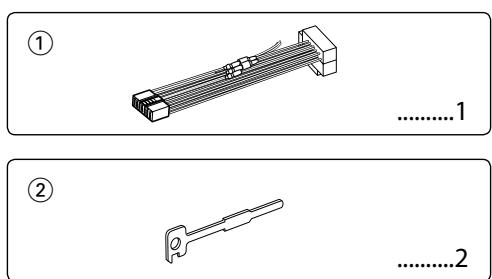
Accessories
Installation Procedure
To prevent short circuits, remove the key from the ignition and disconnect the terminal of the battery.
Make the proper input and output wire connections for each unit.
Connect the wire on the wiring harness.
Take Connector B on the wiring harness and connect it to the speaker connector in your vehicle.
Take Connector A on the wiring harness and connect it to the external power connector on your vehicle.
Connect the wiring harness connector to the unit.
Install the unit in your car.
Reconnect the terminal of the battery.
Press the reset button.
Mounting and wiring this product requires skills and experience. For safety's sake, leave the mounting and wiring work to professionals.
Make sure to ground the unit to a negative 12V DC power supply.
Do not install the unit in a spot exposed to direct sunlight or excessive heat or humidity. Also avoid places with too much dust or the possibility of water splashing.
Do not use your own screws. Use only the screws provided. If you use the wrong screws, you could damage the unit.
If the power is not turned ON ("PROTECT" is displayed), the speaker wire may have a short-circuit or touched the chassis of the vehicle and the protection function may have been activated. Therefore, the speaker wire should be checked.
Make sure that all wire connections are securely made by inserting jacks until they lock completely.
If your vehicle's ignition does not have an ACC position, or if the ignition wire is connected to a power source with constant voltage such as a battery wire, the power will not be linked with the ignition (i.e., it will not turn on and off along with the ignition). If you want to link the unit's power
with the ignition, connect the ignition wire to a power source that can be turned on and off with the ignition key.
Use a commercially available conversion connector if the connector does not fit in the vehicle connector.
Insulate unconnected wires with vinyl tape or other similar material. To prevent a short circuit, do not remove the caps on the ends of the unconnected wires or the terminals.
If the console has a lid, make sure to install the unit so that the faceplate will not hit the lid when closing and opening.
If the fuse blows, first make sure the wires aren't touching to cause a short circuit, then replace the old fuse with one with the same rating.
Connect the speaker wires correctly to the terminals to which they correspond. The unit may be damaged or fail to work if you share the wires or ground them to any metal part in the car.
After the unit is installed, check whether the brake lamps, blinkers, wipers, etc. on the car are working properly.
Mount the unit so that the mounting angle is 30^ or less.
About CD players/disc changers connected to this unit
Kenwood disc changers/ CD players released in 1998 or later can be connected to this unit.
Refer to the catalog or consult your Kenwood dealer for connectable models of disc changers/ CD players. Note that any Kenwood disc changers/ CD players released in 1997 or earlier and disc changers made by other makers cannot be connected to this unit.
Connecting unsupported disc changers/CD players to this unit may result in damage.
Set the "O-N" Switch to the "N" position for the applicable Kenwood disc changers/ CD players. The functions you can use and the information that can be displayed may differ depending on the models being connected.
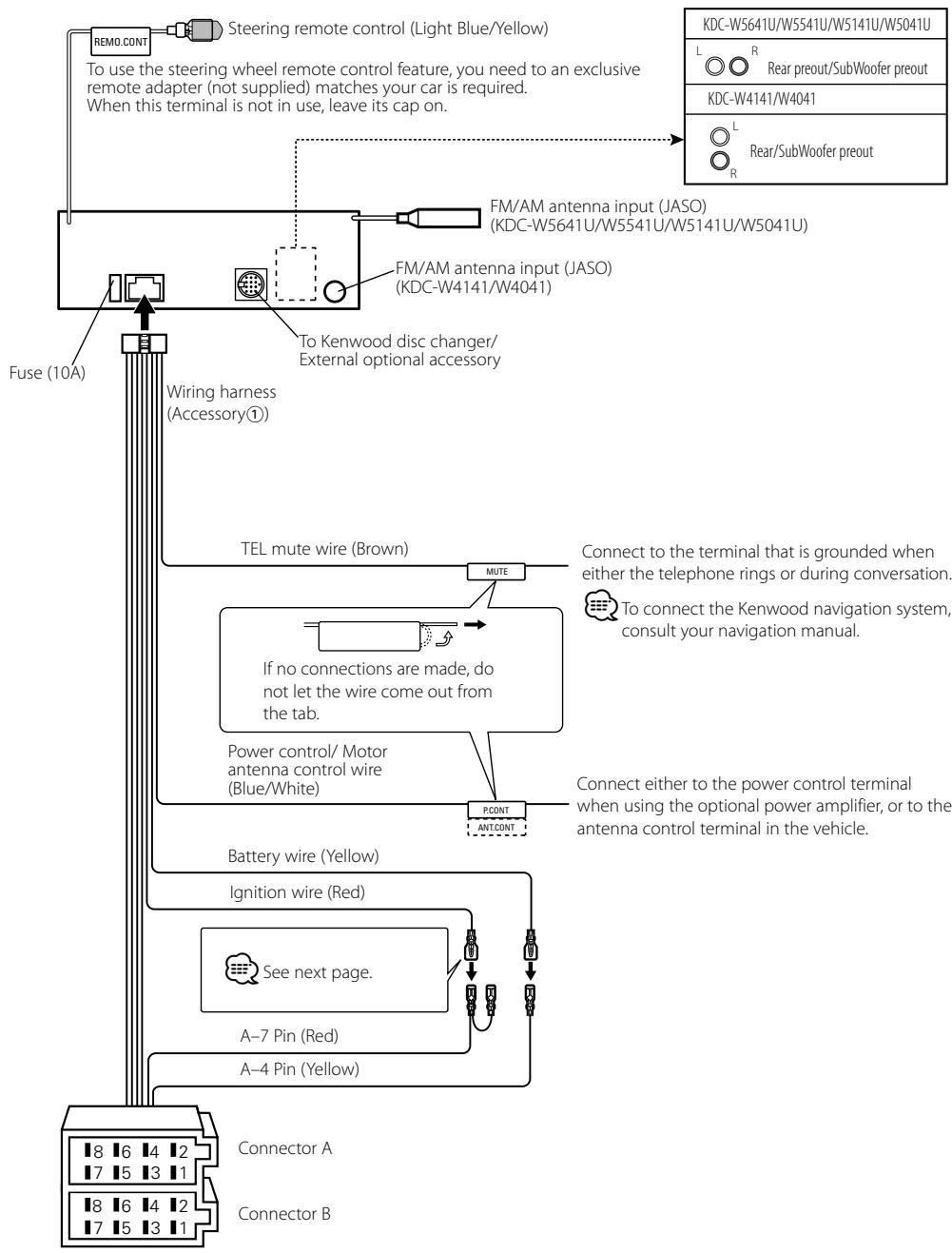
Connecting Wires to Terminals
Connecting Wires to Terminals
Connector Function Guide
Pin Numbers for ISO Connectors
Cable Colour
Functions
External Power Connector
A-4
Yellow
Battery
A-5
Blue/White
Power Control
A-6
Orange/White
Dimmer*
A-7
Red
Ignition (ACC)
A-8
Black
Earth (Ground)
Connection
Speaker Connector
B-1
Purple
Rear Right (+)
B-2
Purple/Black
Rear Right (-)
B-3
Gray
Front Right (+)
B-4
Gray/Black
Front Right (-)
B-5
White
Front Left (+)
B-6
White/Black
Front Left (-)
B-7
Green
Rear Left (+)
B-8
Green/Black
Rear Left (-)
*Function of KDC-W5641U/W5541U/W5141U/W5041U.
WARNING
Connecting the ISO Connector
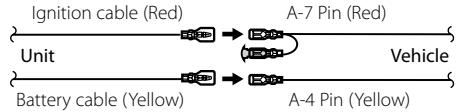
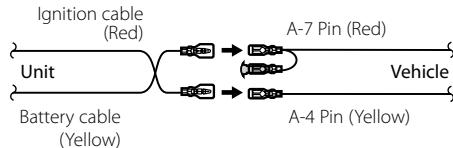
The pin arrangement for the ISO connectors depends on the type of vehicle you drive. Make sure to make the proper connections to prevent damage to the unit.
The default connection for the wiring harness is described in 1 below. If the ISO connector pins are set as described in 2 or 3, make the connection as illustrated.
Please be sure to reconnect the cable as shown 2 below to install this unit to the Volkswagen vehicles etc.
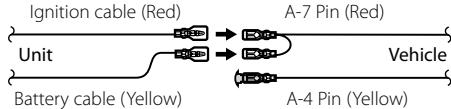
1(Default setting) The A-7 pin (red) of the vehicle's ISO connector is linked with the ignition, and the A4 pin (yellow) is connected to the constant power supply.
The A-7 pin (red) of the vehicle's ISO connector is connected to the constant power supply, and the A-4 pin (yellow) is linked to the ignition.
3The A-4 pin (yellow) of the vehicle's ISO connector is not connected to anything, while the A-7 pin (red) is connected to the constant power supply (or both the A-7 (red) and A-4 (yellow) pins are connected to the constant power supply).
When the connection is made as in [3] above, the unit's power will not be linked to the ignition key. For that reason, always make sure to turn off the unit's power when the ignition is turned off.
To link the unit's power to the ignition, connect the ignition cable (ACC...red) to a power source that can be turned on and off with the ignition key.
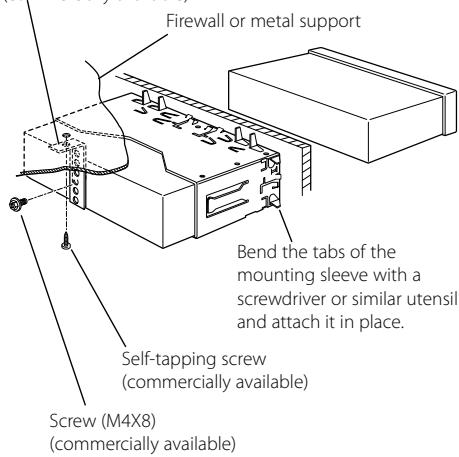
Installation
Metal mounting strap
(commercially available)
Make sure that the unit is installed securely in place. If the unit is unstable, it may malfunction (for example, the sound may skip).
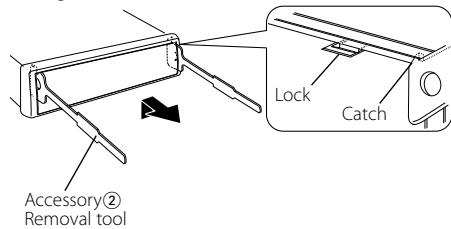
Removing the hard rubber frame
1 Engage the catch pins on the removal tool and remove the two locks on the upper level. Upper the frame and pull it forward as shown in the figure.
2 When the upper level is removed, remove the lower two locations.
The frame can be removed from the bottom side in the same manner.
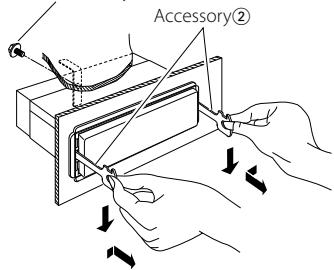
Removing the Unit
1 Refer to the section and then remove the hard rubber frame.
2 Remove the screw (M4× 8) on the back panel.
3 Insert the two removal tools deeply into the slots on each side, as shown.
4 Lower the removal tool toward the bottom, and pull out the unit halfway while pressing towards the inside.
Screw (M4X8) (commercially available)
Be careful to avoid injury from the catch pins on the removal tool.
5 Pull the unit all the way out with your hands, being careful not to drop it.
Troubleshooting Guide
Some functions of this unit may be disabled by some settings made on this unit.
Cannot set up the subwoofer.
- Cannot set up the High Pass Filter.
- Cannot set up the Fader.
- No Audio control effect on AUX.
Preout is not set to subwoofer. "SWPRE" of
Autres manuels KENWOOD
Découvrez d'autres manuels et modes d'emploi de la marque KENWOOD





![KENWOOD KDC-W5041U - [SRC] - 1](/content/2025/01/83936/images/d9b2701190c2af9c09fbe4c4c66aa11b0f4072ce4c73c2d446c15cd77391a33e.jpg)




![KENWOOD KDC-W5041U - Track/ File/ Folder repeat play [4] - 1](/content/2025/01/83936/images/08705d4b9d05a22c33fa04095805bb14479c9d88116394c2f90808a8b51069be.jpg)