
DNX7710BT - Autoradio KENWOOD - Notice d'utilisation et mode d'emploi gratuit
Retrouvez gratuitement la notice de l'appareil DNX7710BT KENWOOD au format PDF.



| Type de produit | Autoradio multimédia avec navigation GPS |
| Écran | Écran tactile de 6,8 pouces, résolution 800 x 480 pixels |
| Connectivité | Bluetooth, USB, AUX, compatible avec Apple CarPlay et Android Auto |
| Alimentation électrique | Alimentation 12V |
| Dimensions approximatives | 178 x 100 x 160 mm |
| Poids | 1,5 kg |
| Compatibilités | Compatible avec la plupart des véhicules équipés d'un autoradio standard |
| Fonctions principales | Navigation GPS, lecture de musique, appels mains libres, radio FM/AM |
| Entretien et nettoyage | Nettoyer l'écran avec un chiffon doux, éviter les produits abrasifs |
| Pièces détachées et réparabilité | Réparabilité limitée, pièces disponibles auprès du fabricant |
| Sécurité | Installation recommandée par un professionnel, respecter les normes de sécurité électrique |
| Informations générales | Vérifier la compatibilité avec le véhicule avant l'achat, garantie de 2 ans |
FOIRE AUX QUESTIONS - DNX7710BT KENWOOD
Questions des utilisateurs sur DNX7710BT KENWOOD
0 question sur cet appareil. Repondez a celles que vous connaissez ou posez la votre.
Poser une nouvelle question sur cet appareil
Téléchargez la notice de votre Autoradio au format PDF gratuitement ! Retrouvez votre notice DNX7710BT - KENWOOD et reprennez votre appareil électronique en main. Sur cette page sont publiés tous les documents nécessaires à l'utilisation de votre appareil DNX7710BT de la marque KENWOOD.
MODE D'EMPLOI DNX7710BT KENWOOD
DNX891HD DNX7710BT DNX771HD DNX691HD DNX571HD DNX571EX DNX5710BT
GPS NAVIGATION SYSTEM
Quick Start Guide
SISTEMA DE NAVEGACION GPS
Guía de inicio=rápido
JVCKENWOOD Corporation
- You can update the system by connecting a USB device containing an update file. For updating the system, visit http://www2.jvckenwood.com/cs/ce/.
- Puedeactualizar elsystemaconectaro undispositivoUSB queincluyaun archivo de
actualizacion. Paraactualizarelystema,visitehttp://www2.jvckenwood.com/cs/ce/.
Take the time to read through this instruction manual.
Familiarity with installation and operation procedures will help you obtain the best performance from your new GPS Navigation System.
For your records
Record the serial number, found on the back of the unit, in the spaces designated on the warranty card, and in the space provided below. Refer to the model and serial numbers whenever you call upon your Kenwood dealer for information or service on the product.
Model DNX891HD/ DNX7710BT/ DNX771HD/ DNX691HD/ DNX571HD/ DNX571EX/ DNX5710BT Serial number
US Residence Only
Register Online
Register your Kenwood product at www.Kenwoodusa.com
Contents
About the Quick start guide. 2
Precautions 3
Safety Precautions and Important Information. 5
First Step. 6
Functions of the Buttons on the Front Panel.8
Common Operations. 10
How to Use the Navigation System 11
How to Play Music. 13
How to Play Movie/Picture. 14
How to Listen to the Radio/ HD Radio™ Tuner/ SiriusXM® 15
How to Make a Phone Call. 15
Installation. 17
About this Unit. 25
About the Quick start guide
This Quick Start Guide describes basic functions of this unit.
For functions not described in this Guide, refer to the Instruction Manual on the following website: http://manual.kenwood.com/edition/im382/
To refer to Instruction manual, a PC loaded with Microsoft® Windows XP/Vista/7 or Mac OS X® 10.4 or later is required in addition to Adobe® Reader™ 7.1 or Adobe® Acrobat™ 7.1 or later.
The Instruction manual is subject to change for modification of specifications and so forth. Be sure to download the latest edition of the Instruction manual for reference.
NOTE
- The panels shown in this guide are examples used to provide clear explanations of the operations. For this reason, they may be different from the actual panels.
- In this manual, each model name is abbreviated as follows.
-DNX891HD:DX8
-DNX7710BT, DNX771HD: DNX7
- DNX691HD: DNX6
- DNX571HD, DNX5710BT, DNX571EX: DNX5 If above icons are showed, read the article applicable to the unit you use.
- In operation procedures, bracket shape indicates the key or button you should control.
< :indicates the name of panel buttons.
[ ]: indicates the name of touch keys
Precautions
WARNING
To prevent injury or fire, take the following precautions:
- To prevent a short circuit, never put or leave any metallic objects (such as coins or metal tools) inside the unit.
- Do not watch or fix your eyes on the unit's display when you are driving for any extended period.
- If you experience problems during installation, consult your Kenwood dealer.
Precautions on using this unit
- When you purchase optional accessories, check with your Kenwood dealer to make sure that they work with your model and in your area.
- You can select language to display menus, audio file tags, etc. See Language setup (P.95) in the Instruction Manual.
- The Radio Data System or Radio Broadcast Data System feature won't work where the service is not supported by any broadcasting station.
- The unit may not function properly if the connectors between the unit and front panel are dirty. Detach the front panel and clean the connector with a cotton swab gently, being careful not to damage the connector.
Precautions on battery
- Put the remote control in a place where it will not move during braking or other operations. A dangerous situation could result, if the remote control falls down and gets wedged under the pedals while driving.
- Do not leave the battery near fire or under direct sunlight. A fire, explosion or excessive heat generation may result.
- Do not recharge, short, break up or heat the battery or place it in an open fire. Such actions may cause the battery to leak fluid. If spilled fluid comes in contact with your eyes or on clothing, immediately rinse with water and consult a physician.
- Place the battery out of reach of children. In the unlikely event that a child swallows the battery, immediately consult a physician.
Protecting the monitor
- Put the remote control in a place where it will
not move during braking or other operations. A dangerous situation could result, if the remote control falls down and gets wedged under the pedals while driving.
Protecting the monitor
Put the remote control in a place where it will not move during braking or other operations. A dangerous situation could result, if the remote control falls down and gets wedged under the pedals while driving.
Lens fogging
When you turn on the car heater in cold weather, dew or condensation may form on the lens in the disc player of the unit. Called lens fogging, this condensation on the lens may not allow discs to play. In such a situation, remove the disc and wait for the condensation to evaporate. If the unit still does not operate normally after a while, consult your Kenwood dealer.
Precautions on handling discs
- Do not touch the recording surface of the disc.
- Do not stick tape etc. on the disc, or use a disc with tape stuck on it.
- Do not use disc type accessories.
- Clean from the center of the disc and move outward.
- When removing discs from this unit, pull them out horizontally.
- If the disc center hole or outside rim has burrs, use the disc only after removing the burrs with a ballpoint pen etc.
- Discs that are not round cannot be used.


8-cm (3 inch) discs cannot be used.
- Discs with coloring on the recording surface or discs that are dirty cannot be used.
- This unit can only play the CDs with


This unit may not correctly play discs which do not have the mark.
- You cannot play a disc that has not been finalized. (For the finalization process see your writing software, and your recorder instruction manual.)
Acquiring GPS signal
The first time you turn on this unit, you must wait while the system acquires satellite signals for the first time. This process could take up to several minutes. Make sure your vehicle is outdoors in an open area away from tall buildings and trees for fastest acquisition.
After the system acquires satellites for the first time, it will acquire satellites quickly each time thereafter.
About the front panel DNX3 DNX7
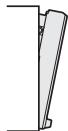
When removing the product from the box or installing it, the front panel may be positioned at the angle shown in (Fig. 1). This is due to the characteristics of mechanism the product is equipped with.
When the product is first powered on works properly, the front panel will automatically move into the position (initial setting angle) shown in (Fig. 2).
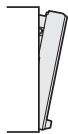
(Fig. 1)

(Fig. 2)
Cleaning the Unit
If the front panel of this unit is stained, wipe it with a dry soft cloth such as a silicon cloth. If the front panel is stained badly, wipe the stain off with a cloth moistened with neutral cleaner, then wipe it again with a clean soft dry cloth.
CAUTION
- Applying spray cleaner directly to the unit may affect its mechanical parts. Wiping the front panel with a hard cloth or using a volatile liquid such as thinner or alcohol may scratch the surface or erase screened print.
How to reset your unit
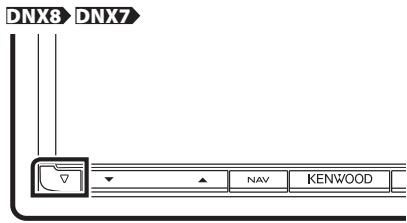
If the unit fails to operate properly, press the Reset button. The unit returns to the factory settings.

DNX6 DNX5
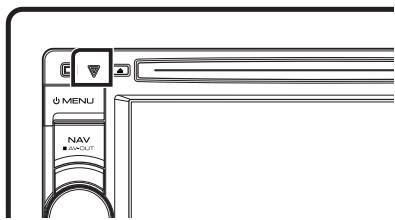
NOTE
- Disconnect the USB device before pressing the
button. Pressing the button with the USB device connected can damage the data stored in the USB device. For how to disconnect the USB device, see How to Play Music (P.13). - When the unit is turned on after resetting, the Initial SETUP screen appears. See First Step (P.6).
Safety Precautions and Important Information
Read this information carefully before starting to operate the Kenwood Car Navigation System and follow the instructions in this manual. Neither Kenwood nor Garmin shall be liable for problems or accidents resulting from failure to observe the instructions in this manual.
WARNING
Failure to avoid the following potentially hazardous situations could result in an accident or collision resulting in death or serious injury.
When navigating, carefully compare information displayed on the navigation system to all available navigation sources, including information from street signs, visual sightings, and maps. For safety, always resolve any discrepancies or questions before continuing navigation.
Always operate the vehicle in a safe manner.
Do not become distracted by the navigation system while driving, and always be fully aware of all driving conditions. Minimize the amount of time spent viewing the screen of the navigation system while driving, and use voice prompts when possible.
Do not enter destinations, change settings, or access any functions requiring prolonged use of the navigation system controls while driving. Stop your vehicle in a safe and legal manner before attempting such operations.
Keep the system volume at a low enough level to be able to hear outside noises while driving. If you can no longer hear outside noises, you may be unable to react adequately to the traffic situation. This may cause accidents.
The navigation system will not display the correct current position of the vehicle the first time it is used after purchase, or if the vehicle battery is disconnected. GPS satellite signals will soon be received, however, and the correct position will be displayed.
Be careful of the ambient temperature. Using the navigation system at extreme temperatures can lead to malfunction or damage. Also note that the unit can be damaged by strong vibration, by metal objects, or by water getting inside the unit.
CAUTION
Failure to avoid the following potentially hazardous situations may result in injury or property damage.
The navigation system is designed to provide you with route suggestions. It does not reflect road closures or road conditions, weather conditions, or other factors that may affect safety or timing while driving.
Use the navigation system only as a navigational aid. Do not attempt to use the navigation system for any purpose requiring precise measurement of direction, distance, location, or topography.
The Global Positioning System (GPS) is operated by the United States government, which is solely responsible for its accuracy and maintenance. The government system is subject to changes that could affect the accuracy and performance of all GPS equipment, including the navigation system.
Although the navigation system is a precision navigation device, any navigation device can be misused or misinterpreted and, therefore, become unsafe.
IMPORTANT INFORMATION
Vehicle Battery Preservation
This navigation system can be used when the ignition key is turned to ON or ACC. To preserve the battery, however, it should be used with the engine running whenever possible. Using the navigation system for a long time with the engine switched off can cause the battery to run down.
Map Data Information
One of the goals of Garmin is to provide customers with the most complete and accurate cartography that is available to us at a reasonable cost. We use a combination of governmental and private data sources, which we identify in product literature and copyright messages displayed to the consumer. Virtually all data sources contain some inaccurate or incomplete data. In some countries, complete and accurate map information is either not available or is prohibitively expensive.
First Step
Various setup screens appear automatically before using.
Initial setup
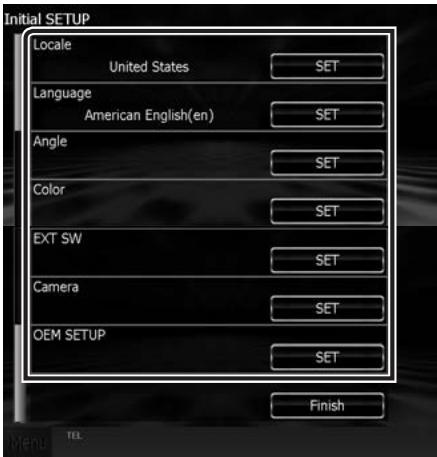
When you first turn on the unit, the screen of the configuration setting will appear.
1 Turn the ignition key of your car to ACC.
The unit is turned on.
Initial SETUP screen appears.
2 Touch the corresponding key and set the value.

Locale
Select the country for the navigation system.
The language, the distance unit, and the gasoline unit are set.
After setting, touch [Enter].
Language
Select the language used for the control screen and setting items. Default is "American English (en)".
(Instruction Manual P.95)
After setting, touch [Enter].
Angle DNX8 DX7
Adjust the position of the monitor. Default is "0".
(Instruction Manual P.98)
After setting, touch [5].
Color
Set the screen and button illumination color. You can select whether to perform color scan and adjust scanning color. (Instruction Manual P.99)
After setting, touch [b].
EXT SW (DNX891HD, DNX7710BT only)
Control the external devices. (Instruction Manual P.104)
After setting, touch [3].
Camera
Set the parameters for the camera. (Instruction Manual P.102)
After setting, touch [5].
OEM SETUP (North America Sales area only)
This function requires a commercial adaptor.
Consult your Kenwood dealer for details.
3 Touch [Finish].
NOTE
- "Initial setup"also appears when the unit is reset.
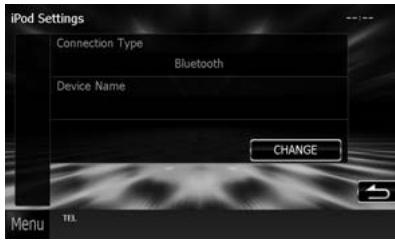
iPod/iPhone connection setup When you first select iPod as a source, the setting screen of the iPod/iPhone connection will appear.
1 Touch [Menu] on any screen.
Top Menu screen appears.
2 Touch [iPod] in the Top Menu screen.
iPod connection setup screen appears.
3 Touch [CHANGE].
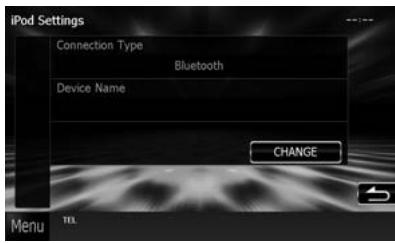
Select the way of iPod/iPhone connection. For the details, refer to "iPod/iPhone connection setup" (P.54) in the Instruction Manual.
NOTE
- For the details of the necessary cable and adapter to connect with iPod/iPhone, refer to "iPod/iPhone connection" (P.26).
- When you select "HDMI + BT" or "Bluetooth", Bluetooth device selection screen will appear. Select the iPod/iPhone to be connected.
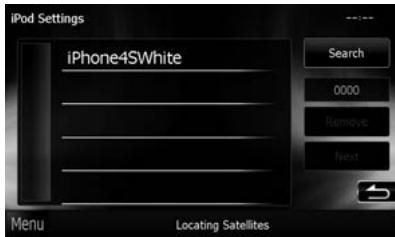
If a connectable Bluetooth device is not displayed, touch [Search] and do the pairing of the devices.
- "iPod connection setup" also appears when the unit is reset.
Application link setup When you first select Apps as a source, the setting screen for the connection with the device installed the apps will appear.
1 Touch [Menu] on any screen.
Top Menu screen appears.
2 Touch [Apps] in the Top Menu screen.
Application link setup screen appears.
3 Touch [CHANGE].
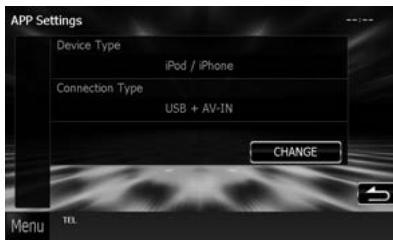
Select the way to connect with the device installed the apps. For the details, refer to "Application link setup" (P.56) in the Instruction Manual.
NOTE
- For the details of the necessary cable and adapter to connect with iPod/iPhone and Android, refer to "iPod/iPhone connection" (P.26) and "Android connection" (P.26).
- When you select "HDMI + BT", "HDMI/MHL + BT" or "Bluetooth", Bluetooth device selection screen will appear. Select the device to be connected.
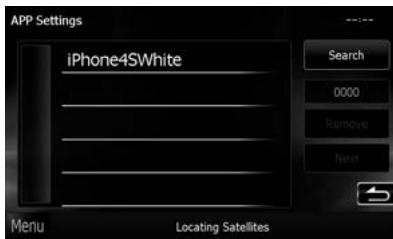
If a connectable Bluetooth device is not displayed, touch [Search] and do the pairing of the devices.
- "Application link setup"also appears when the unit is reset.
DNX891HD/ DNX7710BT/ DNX771HD

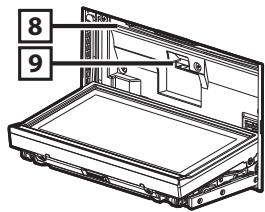
No.
Name/Motion
1 (Reset)
- If the unit or the connected unit fails to operate properly, the unit returns to factory settings when this button is pressed (Instruction Manual P.125).
- This indicator flashes when the vehicle ignition is off (Instruction Manual P.96).
2 ▲,
- Adjusts volume.
3 NAV
- Displays the navigation screen.
- Pressing for 1 second switches AV out sources.
4 AUD
- Displays Graphic Equalizer screen (Instruction Manual P.110).*
- Pressing for 1 second switches camera view display on/off.
5 MENU
- Displays the Top Menu screen (Instruction Manual P.14).
- Pressing for 1 second turns the power off.
- When the power off, turns the power on.
No.
Name/Motion
6 TEL
- Displays the Hands Free screen (Instruction Manual P.85).
- Pressing for 1 second displays the Voice Recognition screen. (Instruction Manual P.88)
7
- Ejects the disc.
- When the panel is opened, pressing closes the panel and pressing for 1 second ejects the disc forcibly.
- When the panel is closed, pressing for 1 second fully opens the panel to the location of the SD card slot.
8 Disc insert slot
- A slot to insert a disc media.
SD card slot
-
An SD card slot for upgrading the map. For how to upgrade the map, refer to the instruction manual of the navigation system.
-
The display may not switch to the Graphic Equalizer screen in some conditions.
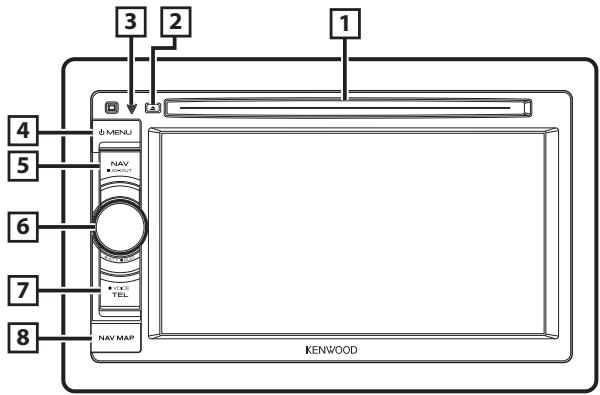
| No. | Name/Motion |
| 1 | Disc insert slot • A slot to insert a disc media. |
| 2 | ▲ • Ejects the disc. • Pressing for 1 second ejects the disc forcibly. |
| 3 | (Reset) • If the unit or the connected unit fails to operate properly, the unit returns to factory settings when this button is pressed (Instruction Manual P.125). • This indicator flashes when the vehicle ignition is off (Instruction Manual P.96). |
| 4 | MENU • Displays the Top Menu screen (Instruction Manual P.14). • Pressing for 1 second turns the power off. • When the power off, turns the power on. |
| 5 | NAV • Displays the navigation screen. • Pressing for 1 second switches AV out sources. |
| 6 | Volume knob • Turning adjusts volume up or down. • Pressing switches attenuation of the volume on/off. • Pressing for 1 second displays Graphic Equalizer screen (Instruction Manual P.110).* |
| No. | Name/Motion |
| 7 | TEL • Displays the Hands Free screen (Instruction Manual P.85). • Pressing for 1 second displays the Voice Recognition screen. (Instruction Manual P.88) |
| 8 | microSD card slot • A microSD card slot for upgrading the map. For how to upgrade the map, refer to the instruction manual of the navigation system. |
- The display may not switch to the Graphic Equalizer screen in some conditions.
Common Operations
General
There are some functions which can be operated from most screens.
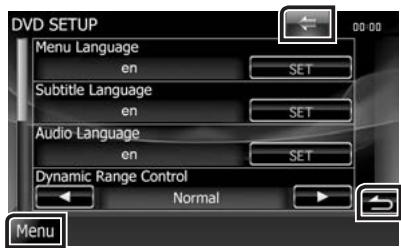
[Menu]
Returns to the Top Menu screen.
Touching for at least 1 second displays the Screen Control screen. (Even when an image is displayed, touching for at least 1 second displays the Screen Control screen.)
[5](RETURN)
Returns to previous screen.
(common menu key)
Touch to display the common menu. The contents of the menu are as follows.
: Displays the EXT SW Control screen. (DNX891HD, DNX7710BT only)
: Displays the SETUP Menu screen.
: Displays the Audio Control Menu screen.
1: Displays the control screen of current source. Icon feature differs depending on the source.
X : Closes the menu.
List screen
There are some common function keys in the list screens of most sources.
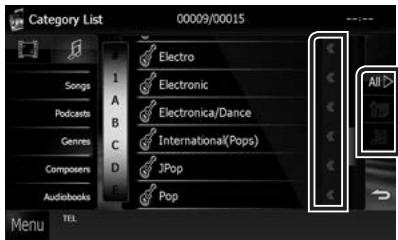
(Scroll)
Scrolls the displayed text.
All> etc.
Touch keys with various functions are displayed here.
Displayed keys differ depending on the current audio source, status, etc.
For examples, see List screen (P.16) in the
Instruction Manual.
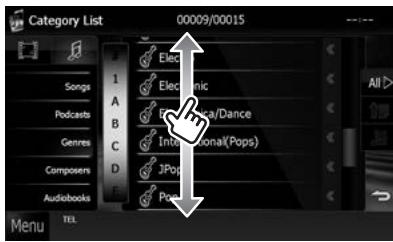
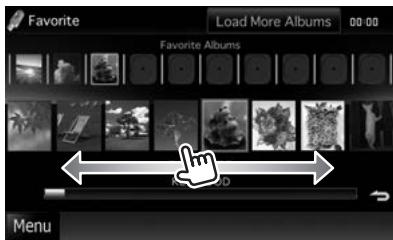
Flick scrolling
You can scroll the list screen by flicking the screen up/down or right/left.

How to Use the Navigation System
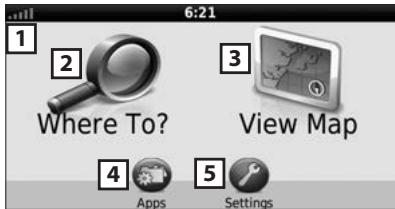
1 Press the

| No. | Name/Motion |
| 1 | GPS satellite strength. |
| 2 | Finds a destination. |
| 3 | Views the map. |
| 4 | Uses the Apps such as ecoRoute and Help. |
| 5 | Adjusts the settings. |
NOTE
- You can get additional information about using the navigation system from Help. To display Help, touch [Apps] and then touch [Help].
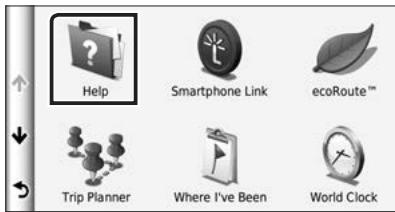
- For more information about your navigation system, download the latest version of the Owner's Manual from http://manual.kenwood.comedition/im382/.
3 Enter your destination and start the guidance.
Finding points of interest
1) Touch [Where To?].
2) Select a category and a subcategory.
3) Select a destination.
4) Touch [Gol].
NOTE
- To enter letters contained in the name, touch the Search bar and enter the letters.
4 Follow your route to the destination.
NOTICE
- The speed limit icon feature is for information only and does not replace the driver's responsibility to abide by all posted speed limit signs and to use safe driving judgment at all times. Garmin and JVC KENWOOD will not be responsible for any traffic fines or citations that you may receive for failing to follow all applicable traffic laws and signs.
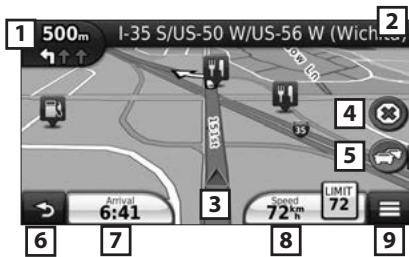
Your route is marked with a magenta line. As you travel, your navigation system guides you to your destination with voice prompts, arrows on the map, and directions at the top of the map. If you depart from the original route, your navigation system recalculates the route.
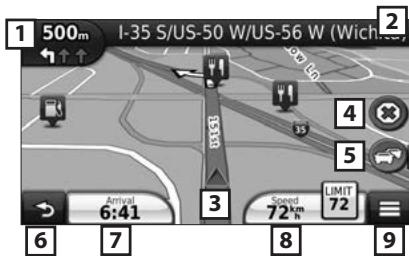
No.
Name/Motion
1 Views the Next Turn page or the junction view page, when available.
2 Views the Turn List page.
3 Views the Where Am I? page.
4 Stops the currents route.
5 Displays traffic information on the route.
6 Returns to the Main menu.
7 Displays a different data field.
8 Views the Trip Computer.
9 Displays more options.

NOTE
- Touch and drag the map to view a different area of the map.
- A speed limit icon could appear as you travel on major roadways.
- Adding a stop

and
1) While navigating a route, touch [then touch [Where To?].
2) Search for the extra stop.
3) Touch [Go!].
4) Touch [Add to Active Route] to add this stop before your final destination.
- Taking a detour
1) While navigating a route, touch [ ]
2) Touch [ ]

Other Features
- Manually avoiding traffic on your route
1) From the map, touch the traffic icon.
2) Touch [Traffic On Route].
3) If necessary, touch the arrows to view other traffic delays on your route.
4) Touch [ ] > [Avoid].
Viewing the traffic map
1) The traffic map shows color-coded traffic flow and delays on nearby.
- About traffic

NOTICE
- Traffic service is not available in some areas or countries.
- Garmin and JVC KENWOOD are not responsible for the accuracy or timeliness of the traffic information.
With an FM traffic receiver, the navigation system can receive and use traffic information. When a traffic message is received, you can see the event on the map and change your route to avoid the incident. The FM TMC subscription activates automatically after your navigation system acquires satellite signals while receiving traffic signals from the service provider. Go to www.garmin.com/kenwood for more information.
- Updating the software
To update the navigation system software, you must have a USB mass storage device and an internet connection.
1) Go to www.garmin.com/Kenwood.
2) Find your model and select [Software Updates] > [Download].
3) Read and accept the terms of the Software License Agreement.
4) Follow the instructions on the Web site to complete the installation of the software update.
- Updating maps
You can purchase updated map data from Garmin or ask your Kenwood dealer or Kenwood service center for details.
1) Go to www.garmin.com/Kenwood.
2) Select [Order Map Updates] for your Kenwood unit.
3) Follow the Web site instructions to update your map.
How to insert an SD Card/ microSD Card
DNX8 DNX7
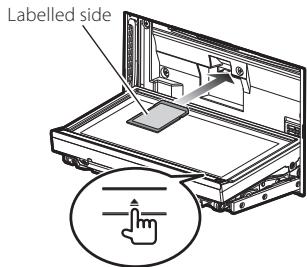
1) Press <> button for 1 second.
2) Hold the SD card with the label facing up, and insert it into the slot until it clicks.
DNX6 DNX5
1) Open the card slot cover.
2) Hold the microSD card with the label facing up, and insert it into the slot until it clicks.

To eject the card
1) Push the card until it clicks and then remove your finger from the card.
2) The card pops up so that you can pull it out with your fingers.
How to Play Music
You can play audio files from music CD, disc media, USB storage device and iPod.

NOTE
- For details on playable file format, media format, iPod model, etc., refer to the Instruction Manual.
1 Connect the media you want to play as shown below.
Disc
DNX8 DNX7
1) Press the <> button to open the front panel.
2) Insert the disc into the slot. The panel closes automatically and playback starts.
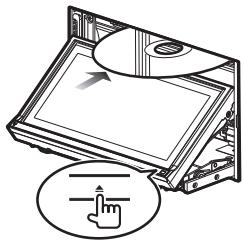
- To eject the disc:
1) Press the <> button.
DXX6 DXX5
1) Insert the disc into the slot. Playback starts.

To eject the disc:
1) Press the <> button.
iPod/iPhone
1) Connect the iPod/iPhone. Playback starts.

NOTE
- For the details of the necessary cable and adapter to connect with iPod/iPhone, refer to "iPod/iPhone connection" (P.26).
- To disconnect the iPod/iPhone connected with the cable:
1) Touch [ ] on the screen and then touch [▲]. Disconnect the iPod/ iPhone from the cable.
USB device
1) Connect the USB device with the USB cable.
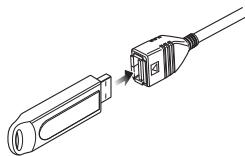
- To disconnect the USB device:
1) Touch [▲] on the screen and disconnect the device from the cable.
2 Control the music you are listening to on the source control screen.
The following symbols indicate the keys on the screen.
The functions of the keys are the same despite the difference of the source you are listening to.

- Basic operations from this screen
Disconnects the device.

Searches the previous/next content.
or move the cursor in the center bar
Fast forwards or Fast backwards (Disc media, CD, USB device only).

Repeats current content.

Plays all contents in random order.

NOTE
- For other operations, refer to the Instruction Manual.
- If desired key is not displayed in the multi-function bar, touch the [ ] to switch the menu.
3 Search the track/file you want to listen to.
- List search
1) Touch center of the screen.
The content list of the media being played is displayed.
If the information of the current track only is displayed, touch [ ] to switch the list display.

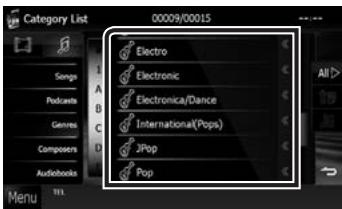
- Refined search
1) Touch [O].
2) Touch the desired refinement method. The list is refined by the item you selected.
3) Touch the desired item.

NOTE
- For details on searching operations, refer to Search
Operation (P.39) in the Instruction Manual.
How to Play Movie/Picture
You can play DVD video, Video CD (VCD), movie files from disc media, iPod and picture files from USB storage device.

NOTE
- For details on playable file format, device format, etc., refer to the Instruction Manual.

Connect the media you want to play.
For the method of connecting, see How to Play Music (P.13).

Control the movie/picture by touching the screen.
Each area on the screen has a separate function.
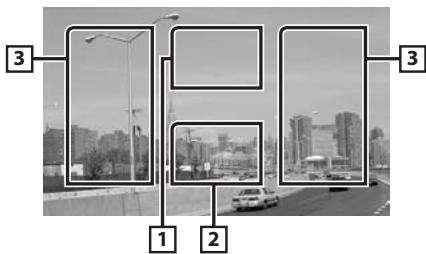
No.
Name/Motion
DVD: Displays the DVD menu.*1 VCD: Displays the Zoom Control screen.*2 Disc media: Displays the disc menu.*3
2 Displays the Source Control screen.
3. Searches the next/previous content or file. Scrolling from center of display to left or right performs fast backward or fast forward. To stop fast backward/forward, touch cent of the display*4
1 See DVD Disc Menu Operation (P.25) in the Instruction Manual.
2 See Zoom Control For DVD And VCD (P.26) in the Instruction Manual.
3 See Movie Control (P.44) in the Instruction Manual.
4 For USB, this function may be unavailable depending on the playing file format.

NOTE
- For operations on the source control screen, see
How to Play Music (P.13)
However, searching by category/link/album artwork is not available.
- Touching [ ] (displayed by touching [ ] in
the source control screen) hides all keys.
How to Listen to the Radio/ HD Radio™ Tuner/ SiriusXM®
1 Touch [Menu] on any screen.
Top Menu screen appears.
2 Touch [TUNER], [HD Radio], or [SiriusXM].
The unit switches to the radio/ HD Radio tuner / SiriusXM (sold separately) source.
3 Operate on the source control screen.
- Station search
1) Touch [T].
Sub function menu appears.

2) Touch [AM] or [FM] to select the band. (Radio/ HD Radio tuner only)
3) Radio/ HD Radio tuner: Touch [1] or [1] to tune in the desired station.
SiriusXM:
Touch [CH▼] or [CH▲] to tune in the desired station.
- Auto memory (Radio/ HD Radio tuner only)
1) Touch [F].
2) Touch [AM] or [FM] to select the band.
3) Touch [kə].
4) Touch [AME].
5) Touch [I▶] or [▶▶] in the sub function menu.
Auto memory starts.
Recalling the preset station
1) Touch [P#].
You can also display the preset list by touching the frequency display in the center.

NOTE
- For other operations, see Radio/HD Radio Tuner Basic Operation (P.58) and SiriusXM® Basic Operation (P.68) in the Instruction Manual.
How to Make a Phone Call
You can use your Bluetooth cell-phone when paired to this unit.

NOTE
- You cannot register the Bluetooth unit when you are using the following sources:
iPod, Bluetooth Audio, APPS, iHeart, Pandora
1 Register your cell-phone to the unit.
Follow as the procedures shown below. For detailed operation, see Registering the Bluetooth Unit (P.83) in the Instruction Manual.
1) Touch [Menu] on any screen.
Top Menu screen appears.
2) Touch [SETUP].
SETUP Menu screen appears.
3) Touch [Bluetooth].
Bluetooth SETUP screen appears.
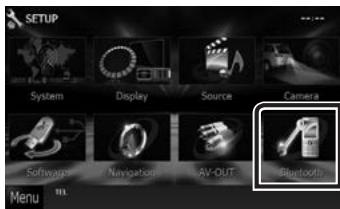
4) Touch [Search].
Searched Device List screen appears.
5) Select your cell-phone from the displayed list in the Searched Device List screen.

6) Enter PIN code form the cell-phone. Registering is completed. The PIN code is set to "0000" as defa
2 Connect your cell-phone to the unit.
1) Touch the device name you want to connect in the Bluetooth SETUP screen.
2) Touch [ON] of [TEL(HFP)] in the BT Connection Settings screen. The selected device is connected to the unit.
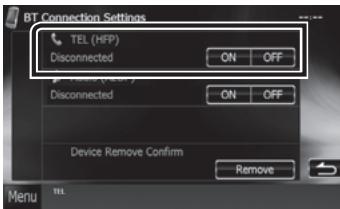
When registration of your cell-phone is completed, the phone book of the cell-phone is automatically downloaded to this unit.
3 Make or receive a phone call.
See the table below for each operation method.
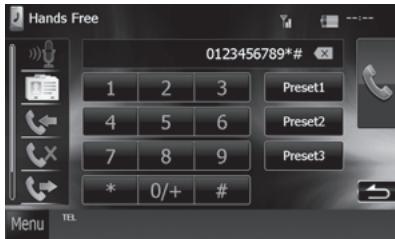
Call by entering a phone number
1) Enter a phone number with number keys.
2) Touch [T].
Call using call records
1) Touch [ ] (incoming calls), [ ] (missed calls), or [ ] (outgoing calls).
2) Select the phone number from the list.
3) Touch [T].
Call using the phonebook
1) Touch [m].
2) Select the name from the list.
3) Select the number from the list.
4) Touch [ ]
Call using the preset number
1) Touch [Preset #] to start calling the corresponding phone number.
2) Touch [1].
Call by voice
You can make a voice call using the voice recognition function of the cell-phone.
1) Touch [m].
2) Pronounce the name registered in the cell- phone.
NOTE
- For detailed operation, see Using Hands-Free Unit (P.85) in the Instruction Manual.
Installation
Before Installation
Before installation of this unit, please note the following precautions.
WARNING
- If you connect the ignition wire (red) and the battery wire (yellow) to the car chassis (ground), you may cause a short circuit, that in turn may start a fire. Always connect those wires to the power source running through the fuse box.
- Do not cut out the fuse from the ignition wire (red) and the battery wire (yellow). The power supply must be connected to the wires via the fuse.
CAUTION
- Install this unit in the console of your vehicle. Do not touch the metal part of this unit during and shortly after the use of the unit. Metal part such as the heat sink and enclosure become hot.
NOTE
- Mounting and wiring this product requires skills and experience. For best safety, leave the mounting and wiring work to professionals.
- Make sure to ground the unit to a negative 12V DC power supply.
- Do not install the unit in a spot exposed to direct sunlight or excessive heat or humidity. Also avoid places with too much dust or the possibility of water splashing.
- Do not use your own screws. Use only the screws provided. If you use the wrong screws, you could damage the unit.
- If the power is not turned ON ("PROTECT" is displayed), the speaker wire may have a short-circuit or touched the chassis of the vehicle and the protection function may have been activated. Therefore, the speaker wire should be checked.
- If your car's ignition does not have an ACC position, connect the ignition wires to a power source that can be turned on and off with the ignition key. If you connect the ignition wire to a power source with a constant voltage supply, such as with battery wires, the battery may be drained.
- If the console has a lid, make sure to install the unit so that the front panel will not hit the lid when closing and opening.
-
If the fuse blows, first make sure the wires aren't touching to cause a short circuit, then replace the old fuse with one with the same rating.
-
Insulate unconnected wires with vinyl tape or other similar material. To prevent a short circuit, do not remove the caps on the ends of the unconnected wires or the terminals.
- Connect the speaker wires correctly to the terminals to which they correspond. The unit may be damaged or fail to work if you share the wires or ground them to any metal part in the car.
- When only two speakers are being connected to the system, connect the connectors either to both the front output terminals or to both the rear output terminals (do not mix front and rear). For example, if you connect the connector of the left speaker to a front output terminal, do not connect the connector to a rear output terminal.
- After the unit is installed, check whether the brake lamps, blinkers, wipers, etc. on the car are working properly.
- Mount the unit so that the mounting angle is 30^ or less.
- This unit has the cooling fan to decrease the internal temperature. Do not mount the unit in a place where the cooling fan of the unit are blocked. Blocking these openings will inhibit the cooling of the internal temperature and result in malfunction.
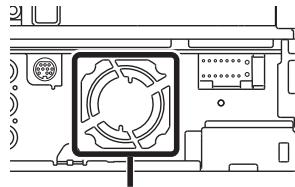
Cooling fan
- Do not press hard on the panel surface when installing the unit to the vehicle. Otherwise scars, damage, or failure may result.
- Reception may drop if there are metal objects near the Bluetooth antenna.
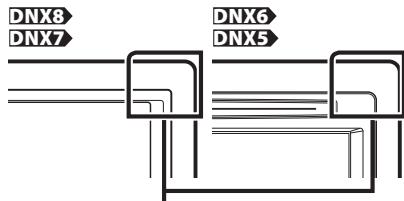
Bluetooth antenna unit
Supplied accessories
First of all, make sure that all accessories are supplied with the unit.

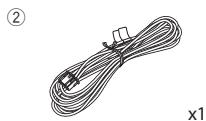
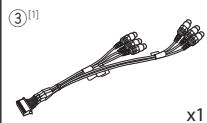
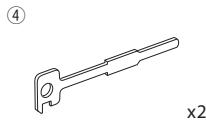
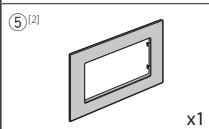
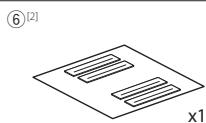
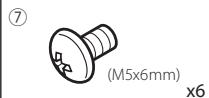
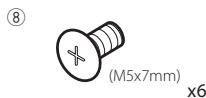
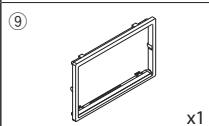
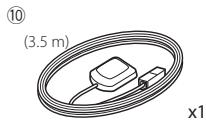
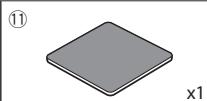
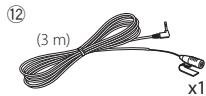
[1] DNX891HD, DNX7710BT, DNX771HD only
[2] DNX891HD only
Unit
1) To prevent a short circuit, remove the key from the ignition and disconnect the terminal of the battery.
2) Make the proper input and output wire connections for each unit.
3) Connect the speaker wires of the wiring harness.
4) Connect the wiring harness wires in the following order; ground, battery, ignition.
5) Connect the wiring harness connector to the unit.
6) Install the unit in your car.
7) Reconnect the terminal of the battery.
8) Press the
9) Perform the Initial Setup. See First Step (P.6).
Non-Japanese cars

- Japanese cars
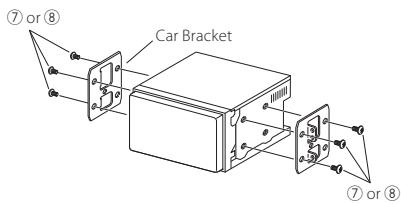
NOTE
- Make sure that the unit is installed securely in place. If the unit is unstable, it may malfunction (eg, the sound may skip).
Trim plate
1) Attach accessory ⑨ to the unit.

- General Motors cars (DNX891HD)
1) Cut out accessory (5) to meet the shape of the opening of the center console.
2) Attach accessory (5) to the unit.

Cut out to meet the shape of the opening in the vehicle.
- Toyota/Scion cars (DNX891HD)
1) Cut out accessory 5 as illustrated.

2) Fold double-sided adhesive (accessory 6) along the slit and attach it to accessory 5 cut-out against the center rib as illustrated. Use 2 pieces of accessory 6 for 1 accessory 5 cut-out.
3) Attach accessory (5) cut-out to the unit.

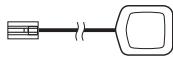
GPS antenna
GPS antenna is installed inside of the car. It should be installed as horizontally as possible to allow easy reception of the GPS satellite signals.
To mount the GPS antenna inside your vehicle:
1) Clean your dashboard or other surface.
2) Remove the separator of the metal plate (accessory ⑪).
3) Press the metal plate (accessory 11) down firmly on your dashboard or other mounting surface. You can bend the metal plate (accessory 11) to conform to a curved surface, if necessary.
4) Remove the separator of the GPS antenna (accessory 10), and stick the antenna to the metal plate (accessory 11).

NOTE
- Depending on the type of car, reception of the GPS satellite signals might not be possible with an inside installation.
- Please install this GPS antenna in an area away from any antennas that are used with CB radios or satellite televisions.
- The GPS antenna should be installed at a position that is spaced at least 12 inch (30 cm) from cellular phone or other transmitting antennas. Signals from the GPS satellite may be interfered with by these types of communication.
- Painting the GPS antenna with (metallic) paint may cause a drop in performance.
Microphone unit
1) Check the installation position of the microphone (accessory 12).
2) Clean the installation surface.
3) Remove the separator of the microphone (accessory 12), and stick the microphone to the place shown below.
4) Wire the microphone cable up to the unit with it secured at several positions using tape or other desired method.
5) Adjust the direction of the microphone (accessory 12) to the driver.
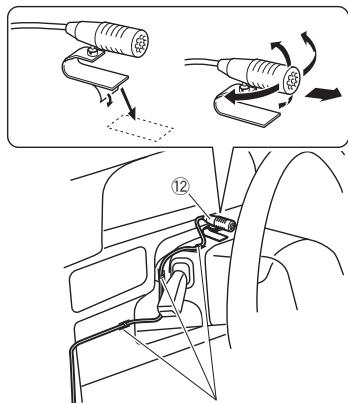
Fix a cable with a commercial item of tape.
Removing the trim plate
1) Engage the catch pins on the extraction key (accessory④) and remove the two locks on the lower level. Lower the trim plate (accessory⑨) and pull it forward as shown in the figure.


NOTE
- The trim plate can be removed from the top side in the same manner.
2) When the lower level is removed, remove the upper two locations.

Removing the unit
1) Remove the trim plate by referring to step 1 in "Removing the trim plate".
2) Insert the two extraction key (accessory④) deeply into the slots on each side, as shown.
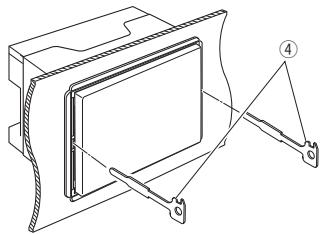
3) Lower the extraction key toward the bottom, and pull out the unit halfway while pressing towards the inside.


NOTE
- Be careful to avoid injury from the catch pins on the extraction key.
4) Pull the unit all the way out with your hands, being careful not to drop it.

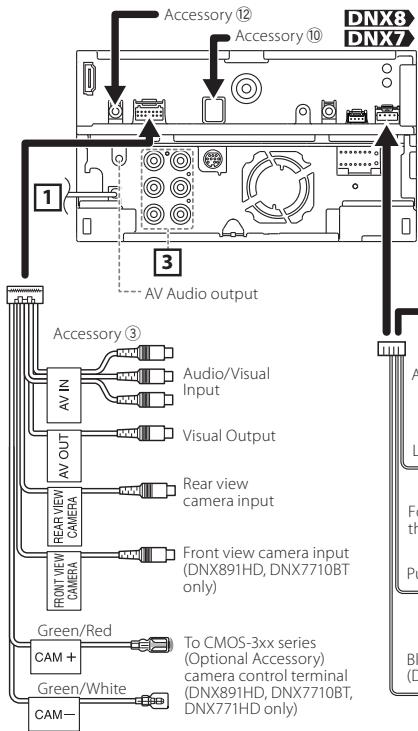
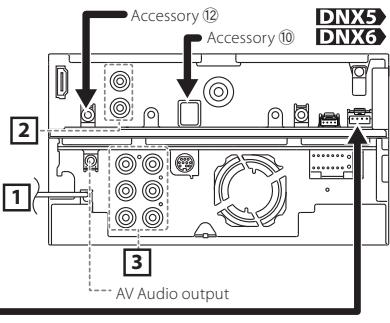
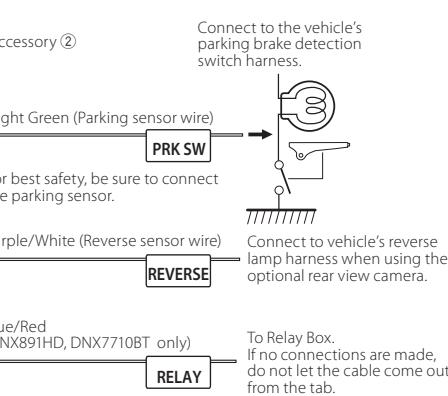
1
FM/AM antenna input

Accessory 10: GPS Antenna
2
Rear View Camera Input
AV Video Output
3
Accessory 12: Bluetooth Microphone
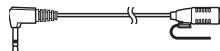


AV-IN (CA-C3AV; Optional Accessory) input

iPod/ AV-IN2 (CA-C3AV; Optional Accessory) input

iDatalink connector (DNX891HD/DNX771HD/ DNX691HD/ DNX571HD/ DNX571EK only)

SiriusXM Connect Vehicle Tuner connector (DNX891HD/DNX771HD/DNX691HD/ DNX571HD/DNX571EX only)

NOTE
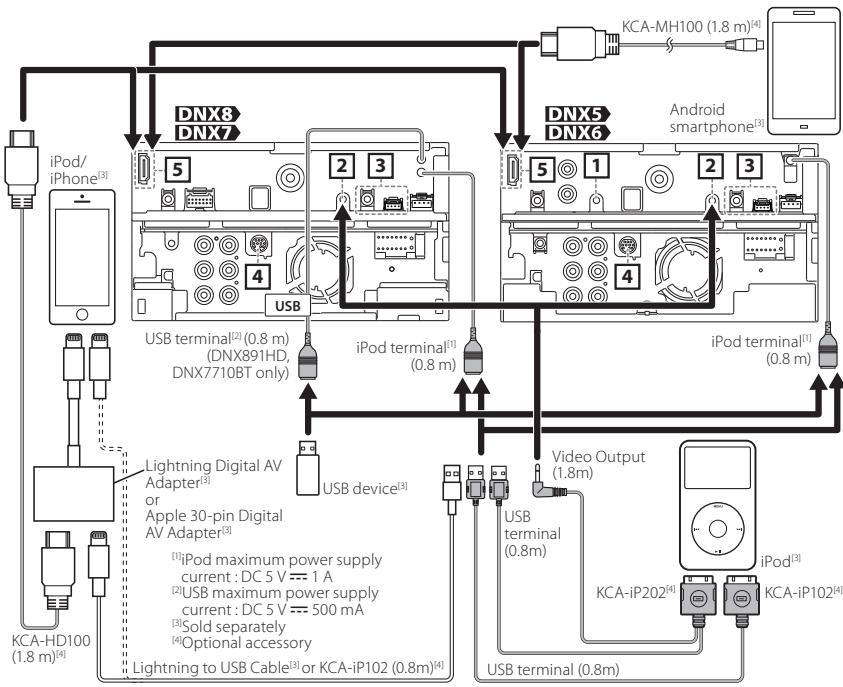
- When you connect iPod/iPhone with HDMI cable, the necessary cable differs depended on the type of the connector like Lightning or 30-pin. Refer to "iPod/iPhone connection" (P.26) for the necessary cable.
- The setting is necessary to meet the connected iPod/ iPhone or Android device.
- It is also possible to connect with iPod/iPhone or Android device via Bluetooth. Refer to "iPod/iPhone connection" (P.26) or "Android connection" (P.26).

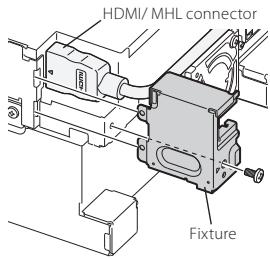
When you connect the cable to HDMI/MHL terminal, remove the fixture. After connecting the cable, put the fixture again.
About this Unit
Copyrights
- The Bluetooth word mark and logos are owned by the Bluetooth SIG, Inc. and any use of such marks by JVC KENWOOD Corporation is under license. Other trademarks and trade names are those of their respective owners.
- The "AAC" logo is a trademark of Dolby Laboratories.
- "Made for iPod" and "Made for iPhone" mean that an electronic accessory has been designed to connect specifically to iPod or iPhone, respectively, and has been certified by the developer to meet Apple performance standards.
Apple is not responsible for the operation of this device or its compliance with safety and regulatory standards. Please note that the use of this accessory with iPod or iPhone may affect wireless performance.
- iPhone, iPod, iPod classic, iPod nano, and iPod touch are trademarks of Apple Inc., registered in the U.S. and other countries.
Lightning is a trademark of Apple Inc.
Sirius, XM and all related marks and logos are trademarks of Sirius XM Radio Inc. All rights reserved. - HD Radio Technology manufactured under license from iBiquity Digital Corporation. U.S. and Foreign Patents. HD Radio™ and the HD, HD Radio, and "Arc" logos are proprietary trademarks of iBiquity Digital Corp.
DVD is a trademark of DVD Format/Logo Licensing Corporation registered in the U.S., Japan and other countries. - This item incorporates copy protection technology that is protected by U.S. patents and other intellectual property rights of Rovi Corporation. Reverse engineering and disassembly are prohibited.
- Manufactured under license from Dolby Laboratories. Dolby and the double-D symbol are trademarks of Dolby Laboratories.
Android is a trademark of Google Inc. - BlackBerry®, RIM®, Research In Motion® and related trademarks, names and logos are the property of Research In Motion Limited and are registered and/or used in the U.S. and countries around the world. Used under license from Research In Motion
Limited.
- Adobe, Acrobat and Reader are either registered trademarks or trademarks of Adobe Systems Incorporated in the United States and/or other countries.
- ABOUT DIVX VIDEO: DivX® is a digital video format created by DivX, LLC, a subsidiary of Rovi Corporation. This is an official DivX Certified device that plays DivX video. Visit divx.com for more information and software tools to convert your files into DivX videos.
- ABOUT DIVX VIDEO-ON-DEMAND: This DivX Certified device must be registered in order to play purchased DivX Video-on-Demand (VOD) movies. To obtain your registration code, locate the DivX VOD section in your device setup menu. Go to vod. divx.com for more information on how to complete your registration.
DivX, DivX Certified and associated logos are trademarks of Rovi Corporation or its subsidiaries and are used under license. - THIS PRODUCT IS LICENSED UNDER THE AVC PATENT PORTFOLIO LICENSE FOR THE PERSONAL USE OF A CONSUMER OR OTHER USES IN WHICH IT DOES NOT RECEIVE REMUNERATION TO (i)ENCODE VIDEO IN COMPLIANCE WITH THE AVC STANDARD ("AVC VIDEO") AND/OR (ii)DECODE AVC VIDEO THAT WAS ENCODED BY A CONSUMER ENGAGED IN A PERSONAL ACTIVITY AND/OR WAS OBTAINED FROM A VIDEO PROVIDER LICENSED TO PROVIDE AVC VIDEO. NO LICENSE IS GRANTED OR SHALL BE IMplied FOR ANY OTHER USE. ADDITIONAL INFORMATION MAY BE OBTAINED FROM MPEG LA, L.L.C. SEE HTTP://WWW.MPEGLA.COM
-
THIS PRODUCT IS LICENSED UNDER THE MPEG-4 VISUAL PATENT PORTFOLIO LICENSE FOR THE PERSONAL AND NON-COMMERCIAL USE OF A CONSUMER FOR (i) ENCODING VIDEO IN COMPLIANCE WITH THE MPEG-4 VISUAL STANDARD ("MPEG-4VIDEO") AND/OR (ii) DECODING MPEG-4VIDEO THAT WAS ENCODED BY A CONSUMER ENGAGED IN A PERSONAL AND NON-COMMERCIAL ACTIVITY AND/OR WAS OBTAINED FROM A VIDEO PROVIDER LICENSED BY MPEG LA TO PROVIDE MPEG-4VIDEO. NO LICENSE IS GRANTED OR SHALL BE IMplied FOR ANY OTHER USE. ADDITIONAL INFORMATION INCLUDING THAT RELATING TO PROMOTIONAL, INTERNAL AND COMMERCIAL USES AND LICENSING MAY BE OBTAINED FROM MPEG LA, LLC. SEE HTTP://WWW.MPEGLA.COM.
-
The terms HDMI and HDMI High-Definition Multimedia Interface, and the HDMI logo are trademarks or registered trademarks of HDMI Licensing LLC in the United States and other countries.
- MHL and the MHL logo are a trademark or registered trademark of MHL, LLC.
- Incorporateds MHL 2
- libFLAC Copyright (C) 2000,2001,2002,2003,2004,2005,2006,2007,2008,2009 Josh Coalson Redistribution and use in source and binary forms, with or without modification, are permitted provided that the following conditions are met: - Redistributions of source code must retain the above copyright notice, this list of conditions and the following disclaimer. - Redistributions in binary form must reproduce the above copyright notice, this list of conditions and the following disclaimer in the documentation and/ or other materials provided with the distribution. - Neither the name of the Xiph.org Foundation nor the names of its contributors may be used to endorse or promote products derived from this software without specific prior written permission. THIS SOFTWARE IS PROVIDED BY THE COPYRIGHT HOLDERS AND ONTRIButors *AS IS" AND ANY EXPRESS OR IMPLIED WARRANTYES, INCLUDING, BUT NOT LIMITED TO, THE IMPLIED WARRANTYES OF MERCHANTABILITY AND FITNESS FOR A PARTICULAR PURPOSE ARE DISCLAIMED. IN NO EVENT SHALL THE FOUNDATION OR CONTRIBUTORS BE LIABLE FOR ANY DIRECT, INDIRECT, INCIDENTAL, SPECIAL, EXEMPLARY, OR CONSEQUENTIAL DAMAGES (INCLUDING, BUT NOT LIMITED TO, PROCEDURE OF SUBSTITUTE GOODSOR SERVICES; LOSS OF USE, DATA, OR PROFITS; OR BUSINESS INTERUPTION) HOWEVER CAUSED AND ON ANY THEORY OF LIABILITY, WHETHER IN CONTRACT, STRICT LIABILITY, OR TORT (INCLUDING NEGLIGENCE OR OTHERWISE) ASING IN ANY WAY OUT OF THE USE OF THIS SOFTWARE, EVEN IF ADVISED OF THE POSSIBILITY OF SUCH DAMAGE.
Android connection
To connect the Android device with this unit, the cable (sold separately) and the profile which your Android device supports are necessary as follows:
-
To listen to music and watch video of APPS source
-
MHL device
-
KCA-MH100 (Optional Accessory)
Bluetooth profile: SPP -
To listen to music of APPS source
Bluetooth profile: A2DP
Bluetooth profile: SPP
- To listen to music of Bluetooth Audio source
Bluetooth profile: A2DP
Bluetooth profile:AVRCP
iPod/iPhone connection
To connect the iPod/iPhone with this unit, the cable, adapter (both sold separately), and the profile which your iPod/iPhone supports are necessary as follows:
-
To listen music and watch video with Lightning connector device
-
Lightning Digital AV Adapter
-
KCA-HD100
Lightning to USB Cable (accessory of the iPod/iPhone)
Bluetooth profile: SPP -
To listen music with Lightning connector device
Lightning to USB Cable (accessory of the iPod/iPhone)
- To listen music and watch video with 30-pin connector device (1)
Apple 30-pin Digital AV Adapter
- KCA-HD100
KCA-iP102
Bluetooth profile: SPP
-
To listen music and watch video with 30-pin connector device (2)
-
KCA-iP202
-
To listen music with 30-pin connector device
- KCA-iP102
- To listen to music via Bluetooth
Bluetooth profile: A2DP
Bluetooth profile: SPP
NOTE
- When connecting with Lightning Digital AV Adapter or Apple 30-pin Digital AV Adapter some
applications can be controlled from this unit. The operable functions depend on the application. Refer to "Apps Operation" (P.51) in the Instruction Manual.
- Do not leave the cable or the adapter made by other makers inside the car. It might lead the malfunction caused by heat.
Connectable iPod/iPhone
The following models can be connected to this unit.
Made for
iPhone 5
iPhone 4S
iPhone 4
iPhone 3GS
iPhone 3G
iPhone
- iPod touch (5th generation)
- iPod touch (4th generation)
- iPod touch (3rd generation)
- iPod touch (2nd generation)
- iPod touch (1st generation)
- iPod classic
- iPod with video
- iPod nano (7th generation)
- iPod nano (6th generation)
- iPod nano (5th generation)
- iPod nano (4th generation)
- iPod nano (3rd generation)
Requirements Pandora®:
Requirements for listening to the Pandora® are as follows:
iPhone or iPod touch
- Use an Apple iPhone or iPod touch running under iOS3 or later.
- Search for "Pandora" in the Apple iTunes App Store to find and install the most current version of the Pandora® application on your device.
AndroidTM
- Visit the Google play and search for Pandora to install.
BlackBerry
- Visit www.pandora.com from the built in browser to download the Pandora application.
-
Bluetooth must be built in and the following profiles must be supported.
-
SPP
-A2DP
NOTE
- In the application on your device, log in and create an account with Pandora.
- (If you are not already a registered user, an account can also be created at www.pandora.com.)
- Internet connection by LTE, 3G, EDGE, or WiFi.
- Pandora® is only available in the United States, Australia, and New Zealand.
- Because Pandora® is a third-party service, the specifications are subject to change without prior notice. Accordingly, compatibility may be impaired or some or all of the services may become unavailable.
- Some functions of Pandora cannot be operated from this unit.
- For issues using the application, please contact Pandora® at pandasupport@pandora.com.
About iHeartRadio:
Requirements for using iHeartAuto™ are as follows:
iPhone or iPod touch
- Use an Apple iPhone or iPod touch running iOS5 or later.
- Search for "iHeartAuto" in the Apple App Store to find and install the most current version of the iHeartAuto™ application on your device.
AndroidTM
- Use an Android device with firmware 2.2 or later.
- Search for "iHeartAuto" on Google play to find and install the most current version of the iHeartAuto™ application on your device.
NOTE
- iHeartRadio® is available only in the United States and U.S. Territories
- For the best application experience, a 3G/4G or Wi-Fi connection is recommended.
- Because iHeartAuto™ is a third-party service, the specifications are subject to change without prior notice. Accordingly, compatibility may be impaired or some or all of the services may become unavailable.
- Some functions of iHeartRadio® cannot be operated from this unit.
- If you experience issues while using the application, please contact iHeartRadio® Customer Care at http://help.iheartradio.com.
- iHeartRadio® and iHeartAuto™ are trademarks owned by Clear Channel Broadcasting, Inc. All uses are authorized under license.
Contedio
Acerca de la guía de inicio rápido 28
Precauciones 29
Precauciones de seguridad e informacion importante. 31
Primer paso 32
Funciones de los botones del panel frontal. 34
Funciones habituales 36
como usar el sistema de navigation. 37
Cómo reproducir música 39
Cómo reproducirpelliculase imagenes.40
Cómo escuchar la Radio/ HD Radio™/ SiriusXM® 41
Cómo llamar por téléphone. 41
Instalación 43
Acerca de esta unidad. 51
Acerca de la guía de inicioso rápido
En esta Guía de inizio rápido se describeras las sistemas tíricas de esta unidad.
En el caso de sistemas no descriñas en la guía, consulte el Manual de instructuciones en el siguientes situó web:
http://manual.kenwood.com/edition/im382/
Para consultar el manual de instructaciones, es necessario disponible de un PC en el que se haya instalado Microsoft Windows XP/Vista/7 o Mac OS X 10.4 o superior además de Adobe Reader™ 7.1 o Adobe Acrobat™ 7.1 o superior.
El manual de instruciones está sujeto a Cambios por modificaciones de las espécificaciones, etc.
Asegúrese de descargar laulta version delmanual de instruciones como referencia.
NOTA
- Los paneles que se incluyen en este manual son ejemplos realizados para encontrar explicaciones de las-distuntas operaciones. Por estareason,caneden diferirde lospaneles que se visualizan en realidad.
-
En estemanual,los nombres de modelo se abreviandela?siguemente manera.
-
DNX891HD: DNX8
-DNX7710BT,DNX771HD:DX7 - DNX691HD: DNX6
-
DNX571HD, DNX5710BT, DNX571EX: DNX5 Si aparecen los iconos indicados arrriba, lea el articulo correspondiente a la unidad que este utilizes.
-
En los procedimientos operativos, las llaves indican la tecla o botón que deben emplear.
< >: Indica el nombre de los botones en el panel.
[ ]: Indica el nombre de las teclas.
Precauciones
ADVERTENCIA
Para evaporar lesiones o incendios, tome las precauciones individentes:
- Para evitar un cortocircuito, nunca colque ni deja objetos metálicos (como monedes o herramrientas metálicas))dentre de launities.
- No mire fácilmente la pantalla de la unidad cuando está conducindo durante un periodo prolongado de tiempo.
- Si Tiene problemas durante la instalación, consulte con su distribuidor Kenwood.
Precauciones para el uso de estaunidad
- Cuando什麽 accesossonianas, pregunte a su distribuidor Kenwood si dichos accesarios son compatibles con su modelos y en su region.
- Puede seleccionar el idioma de los menus, las etiquettes de ARCHivos de audio, etc. Consulte Configuracion de idioma (P.95) en el manual de instrucciones.
- La funciona Radio Data System o Radio Broadcast Data System no funciona en Lugares donto no existan emisoras compatibles con este service.
- Es possible que la unidad no funciona correctamente si hay suciedad en los connectores entre la unidad y el panel frontal. Retire el panel frontal y limpie el conector utilizingando un hisopo de algodón, teniendo cuidado de no dararlo.
Precauciones con la bateria
- Coloque el mando a distancia en un lugar en el que no se pueda mover en caso de frenado u otheras operaciones. Podria producirse una situacion peligrosa si el mando a distancia se cae y quaida atrapado entre los pedales durante la conducccion.
- No deben la bateria cercía del fuego o expulsion a la luz solar directa. Puede producirse un incendio, una explosión o un calor excessivo.
- No recargue, cortocircuite, rompa ni caliente la pila, ni la arroje al fuego. Estas acontez podrnan provocar la fuga de liquido de la pila. Si el liquido derramado entra en contacto con los ojos o la ropa, injuague inmediamente con agua y consulte a un medico.
- Colque la pila lejos del alcance de los niños. En el improbable caso de que un niño se trague la pila,ILA consultate inmediamente a un medico.
Cóme proteger el monitor
- Coloque el mando a distancia en un lugar en que no se pueda mover en caso de frenado uoras operaciones. Podria producirse una situacion
peligrosa si el mando a distancia se cae y quaida atrapado entre los pedales durante la conducccion.
Cóme proteger el monitor
Coloque el mando a distancia en un lugar en el que no se pueda mover en caso de frenado uoras operaciones. Podria producirse una situacion peligrosa si el mando a distancia se cay y quaida atrapado entre los pedales durante la conducccion.
Empanamento de la lente
Al activar la calefaction del coche cuando hace frio,uede aparecer vapor o condensacion en la lente del reproductor de disco de la unidad.Esta condensacion en la lente puede hacer que los discos no se produzcan. Si this occurre, retire el disco y espere hasta que se evaporare la condensacion. Si la unidad no funciona de forma normal afterwards de un tiempo, consulte su distribuidor Kenwood.
Precauciones con el manejo de los discos
- No toque la superficie de grabacion del disco.
- No pegue cinta, etc. en el disco, ni utilise ningún disco con cinta adherida.
- No实用性 accessories de tipo disco.
- Limpie desde el centro del disco hacel exterior.
- Al extraer los discos de esta unidad, hágalo horizontally.
- Si el orificio central del disco o el borde exterior tenen rebabas, utilise el disco únicamente antes de haber eliminado dichas rebabas con un boligrafo de bola o similar.
- No;puedeutilizarse discos que no sean redondos.

- NoAML is used in the present study.
- NoSEOSEOSEOSEOSEOSEOSEOSEOSEOSEOSEOSEOSEOSEOSEOSEOSEOSEOSEOSEOSEOSEOSEOSEOSEOSEOSEOSEOSEOSEOSEOSEOSEOSEOSEOSEOSEOSEOSEOSEOSEOSEOSEOSEOSEOSEOSEOSEOSEOSEOSEOSEOSEOSEOSEOSEOSEOSEOSEOSEOSEOSEOSEOSEOSEOSEOSEOSEOSEOSEOSEOSEOSEOSEOSEOSEOSEOSEOSEOSEOSEOSEOSEOSEOSEOSEOSEOSEOSEOSEOSEOSEOSEOSEOSEOSEOSEOSEOSEOSEO SEO SEO SEO SEO SEO SEO SEO SEO SEO SEO SEO SEO SEO SEO SEO SEO SEO SEO SEO SEO SEO SEO SEO SEO SEO SEO SEO SEO SEO SEO SEO SEO SEO SEO SEO SEO SEO SEO SEO SEO SEO SEO SEO SEO SEO SEO SEO SEO SEO SEO SEO SEO SEO SEO SEO SEO SEO SEO SEO SEO SEO SEO SEO SEO SEO SEO SEO SEO SEO SEO SEO SEO SEO SEO SEO SEO SEO SEO SEO SEO SEO SEO SEO SEO SEO SEO SEO SEO SEO SEO SEO SEO SEO SEO SEO SEO SEO SEO SEO SEO
-EstaunidadunicamentepuedereproducirCDcon


Es possible que esta unidad no reproduzcacorrectamente los discos que no tengan la hora.
- No puede reproducir un disco que no está finalizzato. (Para el proceso de finalización, consulte su programa decribe y el manual de instrucciones de su grabador.)
Obtencion de la seals GPS
La prima vez que encienda esta unidad, debe esperar a que el satélite reciba las senales de satélite por primera vez. Este proceso podra durar various minutes. Asegúrese de que suvehicle está en el exterior en una zona abierta apartado de edificios o árboles altos para una mayor-Reception.
Después de que el sistemaseciba las senales de satélite por primera vez, las suscesivas vezes recibirá las senales más rápidamente.
Acerca del panel frontal DNX3 DNX7
Cuando extraiga el producto de la caja o lo instale, el panel frontal可以选择 direccion en el ángulo mostrado en la fig. 1. Estó es debido a las caracteristicas del mecanismo con el que está equipado el producto.
Cuando el producto reciba la alimentacion de corriente la primavez,el panel frontal se desplazar automatamente a su posicion (angulo de ajuste inicial) mostra en la fig.2.
(Fiq.1)

(Fig. 2)
Limpieza de la unidad
Si el panel frontal de estaunidad se mancha, limpielo con un paño suave y seco como un paño de silicona. Si el panel frontal está muy sucio, limpielo con un paño humedecido con un limpiador neutro y, a continuación, limpielo de nuevo con un paño suave y seco.
PRECAUCION
- Si aplica un limpiador en spray directamente sobre launities, pueda darar sus componentes mecánicos. Si limpia el panel frontal con un paño abrasivo o con un liquido volátil, como el alcohol o cualquier other disolvente, podra rayar la superficie o borrar la impresión serigrafada.
Cóme reinicuar la unidad
Si launidad no funciona correctamente, pulse el botón de reinicio. Launidad recuperas los ajustes de fibrica.
DNX6 DNX5

NOTA
- Desconecte el dispositivo USB antes de pulsar el botón
. Si pulsa el botón con el dispositivo USB connectado, pueda darñar los datos almacenados en dicho dispositivo. Para más información sobre ladeoconexión del dispositivo USB, vexe Cómo reproducir música (P.39). - Al encender launidad antes de un reinicio aparece la pantalla con la configuración inicial. Consulte Primer bajo (P.32).
Precauciones de seguridad e información importante
Lea esta informacion cuidadosamente antes de empezar a manejar el sistemas de navegacion Kenwood y sigas las instrucciones de este manual. Ni Kenwood ni Garmin seran responsables de problemas o accidentes producidos por la inobservancia de las instrucciones de este manual.
ADVERTENCIA
Si no evita las situaciones potencialmente peligrosas seguides, podria producirse un accidento o colision que le occasione heridas graves o la muerte.
Cuando navegue, compare cuidadosamente la informaciónhoastra en el sistema con todas las fuentes de navigation disponibles, incluyendo información de senales defaxro, mapas o la información visual. Porseguidad, resuelva siempreequalquier pregunta o discrepancia antes decontinuar con la navigacion.
Maneje el vehiculo siempre de forma segura.
No se distraiga por el sistema de navegacion WHILE conduce, y sea en todo momentoplenamente consciente de las conditiones de la marcha. Minimice el tiempo empleado en mirar la pantalla del sistemas de navegacion WHILE conducye y utilise los comandos de voz sempre que sea possible.
Mrientas conducce, no introduzca destinos, cambie la configuracion ni acceda a functions que requireen un uso prolongado del sistemas de navegacion.Detenga su vehiculo de forma segura y autorizada antes de realizar este tipo de operaciones.
Mantenga el volumen delsystema en un nivel
suficiente bajo como para esuchar los
ruidos del exteriorMaes conduc. Si no puee
escuchar el exterior,uede no ser capaz de reactionar
adeuadamente a las circunstancias del trafico.Ello
podca causar accidentes.
Elystema de navigacion no mostrara la posicon
actual correcta del vehiculo la primera que lo utilise
descues de su adquisacion,o si la bateria del vehiculo
estadaconectada.No obstarce,las snaales de satelite
GPS se recibiran en breve y se mostra la posicon
correcta.
Tenga cuidado con la temperatura ambiente. El uso del sistemas de navigation a temperatas extremas podra produir un mal funciona o daños en el本身就是. Tenga también en cuenta que lainstitution可以选择 ser dada por vibraciones fuertes, objetivos de
metal o la penetracion de agua en su interior.
PRECAUCION
Si no evita las situaciones potencialmente peligrosas你能 producirse danos personales o materiales.
El sistemas de navigación está Diseño para Ofrecerle suserencias de ruta. No refleja cierras de carreteras, las conditiones de la calzada o las climatologicas, ni ningún other factor que pueda afectar a la seguridad o a la gestión del tiempo durante la conducccion. Utilice el sistemas de navigacion solo a modo de ayud. No intente usar el sistemas de navigacion para qualquier proposto que requiera medidas de la direccion, la distancia, la localizacion o topograficas. El sistemas GPS (Global Positioning System) lo haceFuncionar el gobernido de los EEUU, que es el unico responsable de su precision yostenimiento. Este sistemas gubernamental está sometido a cambios que podrian afectar la precision y el rendimiento de todo el equipamento GPS, incluyendo el sistemas de navigacion. Aqueque el sistemas de navigacion es un dispositivo precojo de navigacion, qualquier dispositivo de navigacion podria ser malutilizzato o malinterpretado, con loquel no sera seguro.
INFORMACION IMPORTANTE
Conservación de la batería del vehídulo
Esteistema de navigacionuedeutilizarse cuando la llave de encendido está en ON o en ACC.No obstar, para conservar la bateria,debeutilizarse con el motor en marcha siempre que sea possible.El uso del sistemas de navigacion durante un tiempo prolongado con el motor apagado(puede causar que se desgaste la bateria.
Información de datos de mapas
Uno de los objetivos de Garmin es-ofrecer a sus
clientes la cartografia más completa y precisea
de la que disponemos a un COST reasonable.
Empleamos una combinacion de fuentes de datos
gubernamentales y privadas que identificamos
en la literatura del producto y en los mensajes
de copyright que lostramos al consumidor.
Prácticamente todas las fuentes de datos
contienen algunos datos imprecios o incompletos.
En algunos paises, la informacion cartogrifica
completa y precisea no está disponible o tiene uno
costes prohibitivos.
Primer paso
Antes de su uso, aparecerán automatistically differsentes pantallas de configuración.
- Configuración inicial
Al encender launidad porprimera vez,se做不到a pantalla de configuracion.
1 Coloque la llave de encendido del coche en la posicion ACC.
La unidad se pone en marcha. Se muestra la pantalla de configuracion (SETUP) inicial.
2 Toque la tecla correspondiente y establezca un valor.
Locale
Selección el País para el Sistema de navigation. Se configurará el idioma, launidad de medida de distancia y launidad de medida de carburante. Después de la configuración, pulse [Enter / Intro].
Language / Idiom
Selección el idioma realizado para la pantalla de control y los elementos de configuración. Laopia predeterminada es "American English (en)" (Manual de instrucciones P.95).
Después de la configuración, pulse [Enter / Intro].
Angle / Angulo DNX3 DNX7
Ajustla posicón del monitor. La option predeterminada es "0" (Manual de instrucciones P.98).
Tras la configuración, pulse [5].
Color
Ajusta el color de iluminacion de la pantalla y del boton. Puede seleccionar entre realizar una exploracion de colores o ajustar el color de explorchacion (Manual de instrucciones P99). Tras la configuracion, pulse [].
EXT SW (solo para DNX891HD, DNX7710BT)
Controla los dispositivos externos (Manual de instrucciones P.104).
Tras la configuración, pulse [3].
Camera / Camara
Ajusta los parámetros de la-camera (Manual de instrucciones P.102).
Tras la configuración, pulse [3].
OEM SETUP / CONFIGURACION OEM (solo zona de ventas de América del Norte)
Estamerican. Consulte a su distribuidor Kenwood para Obtener mas informacion.
3 Pulse [Finish / Finalizar].
NOTA
-
Internacionalmente, el general de la configuración iniciales en el sector de la academia.
-
Configuración de la connexion de iPod/ iPhone
Al selección iPod como fuente por primera vez, se做不到a pantalla de configuracion para la connexion con el iPod/iPhone.
1 Toque [Menu] enrialquier pantalla.
Aparece la pantalla Top Menu.
2 Toque [iPod] en la pantalla Top Menu.
Se问我ra la pantalla de configuracion de la connexion del iPod.
3 Toque [CHANGE].
Selección el modo de connexion del iPod/ iPhone. Para Obtener más información, consulte "Configuración de la connexion de iPod/iPhone" (P.54) en el manual de instrucciones.
NOTA
- Para Obtener información acerca del cable y adaptorado necessarios para instablecer una connexion con un iPod/iPhone, consulte "Conexión de iPod/ iPhone" (P.52).
- AI seleccionar "HDMI + BT" o "Bluetooth", seootera la pantalla de seleccion de dispositivos Bluetooth. Seccione el iPod/iPhone que deseee conectar.

Si no se mystra ningún dispositivo Bluetooth que pueda connectarse, toque [Search / Buscar] y realice el emparejimiento de los dispositivos.
- Internacional
-
Ambiente aparece "Configuración de la conexión con el iPod" tras reineciar launalidad.
-
Configuración de vinculos con aplicaciones Al selecciónar Apps como fuente por primera vez, se做不到a planta de configuracion para la connexion con el dispositivo donde estén instaladas las aplicaciones.
1 Toque [Menu] enrialquier pantalla.
Aparece la pantalla Top Menu.
2 Toque [Apps] en la pantalla Top Menu.
Aparece la pantalla de configuracion de vinculos con aplicaciones.
3 Toque [CHANGE].
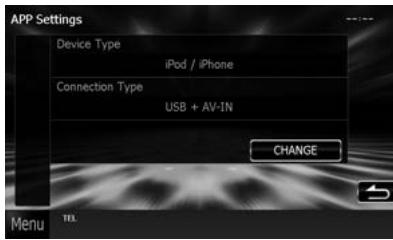
Selección el modo de connexion con el dispositivo donde está instaladas las aplicaciones. Para Obtener más información, consulte "Configuración de vinculos con aplicaciones" (P.56) en el manual de instructcciones.
NOTA
- Para Obtener informacion acerca del cable y adaptor Neededaros para establerecuna conexion con un "Conexion de iPod/iPhone" (P.52) y "Conexion Android" (P.52).
- Al selectionar "HDMI + BT", "HDMI/MHL + BT" o "Bluetooth", se abrirá la pantalla de selección de dispositivos Bluetooth. SeLECTIONE el dispositivo que deseee conectar.
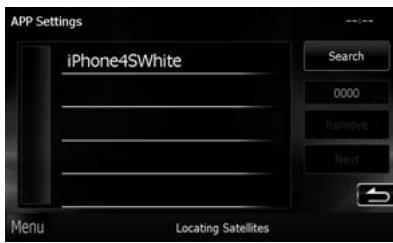
Si no se muestra ningún dispositivo Bluetooth que pueda connectarse, toque [Search / Buscar] y realizé el emparejimiento de los dispositivos.
- Internacionalmente, para la responsación de aplicaciones" en el caso de la law.
Funciones de los botones del panel frontal

DNX891HD/ DNX7710BT/ DNX771HD
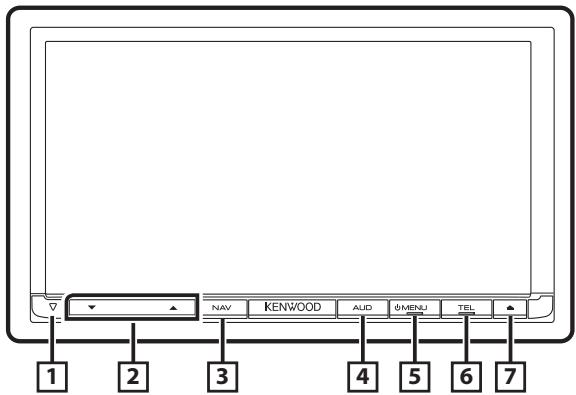
No.
Nombre/Movimiento
1 (Reset/Restablecer)
- Si launidad o el equipo conectado no funciona en un way of using the tool.
- Si launidad o el equipo conectado no funciona en un way of using the tool.
- Si launidad o el equipo conectado no funciona en un way of using the tool.
- Si launidad o el equipo conectado no funciona en un way of using the tool.
- Si launidad o el equipo conectado no funciona en un way of using the tool.
- Si launidad o el equipo conectado no funciona en un way.
- Esteindicador parpadearalocalarencendidedor delvehiculo en la posicion OFF (Manual of instrucciones P96).
2 ▲,
- Ajusta el volumen.
3 NAV
- Muestra la pantalla de navigación.
- Si se pulsa durante 1segundo,sealternan las fuentes de salute AV.
4 AUD
- Muestra la pantalla Graphic Equalizer (Manual de instrucciones P.110).*
- Al pulsar durante 1 segundo seactiva/ desactiva la vista de camara.
5 MENU
- Muestra la pantalla Top Menu (Manual de instrucciones P:14).
- Si se pulsa durante 1 segundo, se apaga laupon.
- Si launidad está apagada, la enciende.
No.
Nombre/Movimiento
6 TEL
- Muestra la pantalla Hands Free (Manual de instrucciones P.85).
- Al pulsar durante 1 segundo, se是我的a la pantalla de reconocimiento de voz (Manual de instructiones P.88).
7
Expulsa el disco.
- Si se pulsa cuando el panel está abierto, el panel se cierra y, si se pulsa durante 1 segundo, se fuerza la expulsion del disco.
- Si se pulsa durante 1segundo cuando el panel está cerrado, el panel se abre por completo en la posicion de la ranura para tarjetas SD.
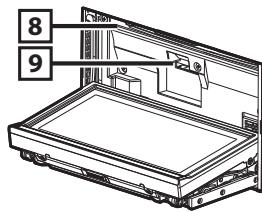
8 Ranura para insertion de discos
- Ranura que permite insertar discos.
9 Ranura para tarjetas SD
-
Una ranura para tarjetas SD paraactualizar el mapa. Para Obtener informacion sobre comoactualizar el mapa, consulte el manual de instrucciones delsystema de navigation.
-
Puede que la pantalla no cambie a la pantalla Graphic Equalizer en algunos conditiones.

| No. | Nombre/Movimiento |
| 1 | Ranura para insertión de discos · Ranura que permit insertar discos. |
| 2 | ▲ · Expulsa el disco. · Si se pulsa durante 1 segundo, se fuerza la expulsion del disco. |
| 3 | (Restablecer) · Si launidad o el equipo connectado no funciona conRECTamente, launities restablece la configuración de fábrica al pulsar este botón (Manual de instructcciones P.125). · Este indicator parpáeará al colocar el encendido en la posición OFF (Manual de instructaciones P.96). |
| 4 | MENUE · Muestra la pantalla Top Menu (Manual de instructuciones P.14). · Si se pulsa durante 1 segundo, se apaga launities. · Si launities está apagada, la enciende. |
| 5 | NAV · Muestra la pantalla de navigation. · Si se pulsa durante 1 segundo, se alternan las fuentes de salute AV. |
| No. | Nombre/Movimiento |
| 6 | Rueda de volumen · Si se gira, se sube o bajo el volumen. · Si se pulsa, se activa/desactiva la atenuación del volumen. · Si se pulsa durante 1 segundo, se muestra la pantalla Graphic Equalizer (Manual de instrucciones P.110).* |
| 7 | TEL · Muestra la pantalla Hands Free (Manual de instrucciones P.85). · Al pulsar durante 1 segundo, se muestra la pantalla de reconocimiento de voz (Manual de instrucciones P.88). |
| 8 | Ranura microSD · Ranura para la tarjeta microSD deactualización del mapa. Para Obtenerinformation sobre是如何actualizar el mapa, consulte el manual de instrucciones delsystema de navigación. |
- Puede que la pantalla no cambie a la pantalla Graphic Equalizer en的一些 conditiones.
Funciones habituales
General
Existen sistemas que pueda executarse desde la mayoria de las pantallas.

[Menu]
Regresa a la pantalla Top Menu.
Si pulsa durante al menos 1 segundo, se做不到a la pantalla de control. (Incluso cuando se muestra una imagen, si pulsa durante al menos 1 segundo, se做不到a la pantalla de control.)
[5](RETORNO)
Regresa a la pantalla anterior.
(tele de menu habitual)
Toque para visualizar el dato general. El contenido del dato es elARRYante.
: Muesra la pantalla EXT SW Control. (Solo para DNX891HD, DNX7710BT)
: Muesra la pantalla de menu SETUP.
: Muesra la pantalla de menu Audio Control.
Muestra la pantalla de control de la fuente actual. La forma del icono varía en función de la fuente.
X: Cierra el menu.
Pantalla de lista
Existen teclas de functions comunes en las pantallas de listas de la mayor de las fuentes.

(Barra de desplazamente)
Desplaza el texto visualizzato.
All etc.
Aquí se muestran las teclas con varíasesiones. Las teclas mostrellas varian en función de la fuente actual de audio, del estado, etc. Puede consultar ejemplos en Pantalla de listas (P.16) en el manual de instructaciones.
Desplazamente con la yema del dedo Puede desplazar la pantalla de lista arriba/abajo o aresha izquierda arrastrandola con la yema del dedo.

como usar el sistema de navigation
1 Pulse el botón
| No. | Nombre/Movimiento |
| 1 | Intensidad de la seals GPS. |
| 2 | Buscar un destino. |
| 3 | Ver el mapa. |
| 4 | Utilizar Apps como ecoRoute y Help (ayuda). |
| 5 | Ajustar la configuración. |
NOTA
- Puede tener informacion adiconcial sobre el uso del systema de navigacion desde la Ayuda. Para loarla ayuda, pulse [Apps] y a continuacion [Help].

- Para Obtener más información acerca de su sistemas de navigation, descargue laulta version del manual de instructaciones en http://manual.kenwood.com/edition/im382/.
3 Introduzca su destino y comience su viaje guiado.
- Para encontrar punto deinterestedes:
1) Pulse [Where To?].
2) Seleeccione una categoria y una subcategoria.
3) Sezione un destino.
4) Pulse [Go!].
NOTA
- Para introducirLETs que formen parte del nombre,toque la barra debusqueda e introduzcas las letras.
4 Siga la ruta hacía su destino.
ATENCIón
- La functionalities de icono de limite de velocidades es solo a efectos informativos y no vale sustituir a la responsabilidad del conductor para cumplir con las señas de limite de velocidad ni su bienjuvenio para mantener una velocidad adecuada en cada momento. Garmin y JVC KENWOOD no se responsibilanz que pueda recibir por no respetar todas las leyes y señas de refrico vigentes.
Su ruta semarca con una linea de color magenta. Según viaja, su sistemas de navigation le guiará hacía su destino con comandos de voz, flechas en el mapa y direcciones en la parte superior del mapa. Si se aparta de la ruta original, su sistemas de navigation recalará la ruta.
No. Nombre/Movimiento
Visualiza la págin del suiviente giro o la página de vista de intersecciones, si la hay.
Visualiza la págin de lista de giros.
3 Visualiza la página ¿Dónde estar?.
4 Detiene la ruta actual.
5 Muestra la informacion del trfico en la ruta.
6 Vuelte al menu principal.
7 Muesra un campo de datos不一样e.
8 Visualiza el ordinador de ruta.
9 Muesra más options.

NOTA
- Toque y arrastre el mapa para ver un area diferente del myself.
- Si viaja por carreteras principales es possible que aparezca un icono SIGNALando el limite de velocidad.
- Añadir una parada
1) Mientras navega por una ruta, pulse [ ] y a continuación [Where To?].
2) Búsqueada de una parada adicional.
3) Pulse [Go!].
4) Pulse [Add to Active Route/ Añadir a ruta activa] paraañadir esta parada antes de alcanzar el destino final.
- Tomar un desvío
1) Mientras navega por una ruta, pulse [ ]
2) Toque [T].
Otras functions
- Evitar manualmente el tráfico en la ruta
1) Aside el.mapa, pulse el icono de trafico.
2) Pulse [Traffic On Route].
3) En caso nécessario toque las flechas para ver除外 retrasos por el refrico en su rutra.
4) Toque [E] > [Avoid/Evitar].
- Ver el.mapa de trafico
1) El mapa muestra el flujo de tráfico con una codificación en colores y los retrasos en las immediaciones.
- Sobre el tráfico
ATENCION
- El servicios Traffic no está disponible en todas partes o partes.
- Garmin y JVC KENWOOD no se responsabilizan de la exactitud o la temporizacion de la informacion del trafico.
Con receptor de违法违规 de FM, el sistema de navigacion está capacitat para recibir y hacer uso de informacion sobre el违法违规. Cuando se recibe un mensaje de违法违规,uede ver este evento en el mapay modulars ura para evacitar dicho incidente. La subscripcion FM TMC se activa automatically una vez que su sistemas de navigacion recibe las snares de satelite,mintas recibe las snares de违法违规 del proveedor de servicios.Visite www.garmin. com/kenwood para Obtener mas informacion.
- Actualización del software
Paraactualizar el software del sistemas de navigacion,debeteatarconundispositivode almacenamento masivo USB y una connexion a Internet.
1) Vaya a www.garmin.com/Kenwood.
2) Encuentre su Modelo y seleccione [Software Updates] > [Download].
3) Lea y acepte los关键时刻 del Acuerdo de Licencia de Software.
4) Siga las instrucciones en la págria Web para completar la instalación de laactualización de software.
- Actualización de los mapas
Puede adquirir datosactualizados para los mapas atrampos deGarminobienpedirlosus distribuidor Kenwood o consultar al centro de servicektecnico de Kenwood para mas detailles.
1) Vaya a www.garmin.com/Kenwood.
2)Selezione [Order Map Updates] para su unidad Kenwood.
3) Siga las instrucciones del sitio Web paraactualizar su mapa.
Cómo insertar una tarjeta SD/ microSD
DNX8 DNX7
1) Pulse el botón <▲> durante 1 segundo.
2) Sujete la tarjeta SD con la etiqueta hacarriba e insertela en la ranura hasta que se oiga un clic.
Lado etiquetado
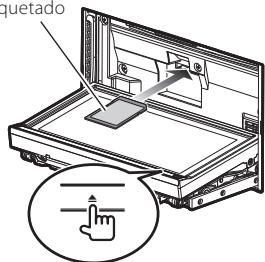
DNX6 DNX5
1) Abra la tapa de la ranura para la tarjeta.
2) Sujete la tarjeta microSD con la etiqueta hacía arriba e insertela en la ranura hasta que se oiga un clic.

- Para expulsar la tarjeta
1) Presione la tarjeta hasta que escuche un click, a continuación, retire su dedo de esta.
2) La tarjeta saldra automatically para que pueda extraerla con los dedos.
Cómo reproducir música
PuedeREENCRACHIVOSdeaudiodesCDs de musica,dispositivosdealmacenamentoUSB y dispositivos iPod.

NOTA
- Para más detalles sobre formatos compatibles, formats de medios, modelos de iPod, etc., consulté el manual de instructaciones.
1 Conecte el medio que desea reproducir tal como se muestra abajo.
Disco
DNX8 DNX7
1) Pulse el botón <▲> paraAbrir el panel frontal.
2) Introduzca el disco en la ranura. El panel se cierra automatamente y comienza la reproduccion.
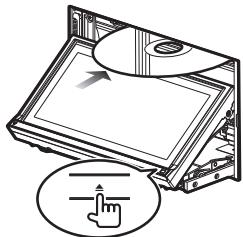
- Para expulsion el disco:
1) Pulse el botón <▲>.
DNX6 DNX5
1) Introduzca el disco en la ranura. La reproduccion se inicia.

- Para expulsion el disco:
1) Pulse el botón <▲>.
iPod/iPhone
1) Conecte el iPod/iPhone. La reproduccion se inicia.

NOTA
- Para Obtener información acerca del cable y adaptador necessarios para establecer una conexión con un iPod/iPhone, consulte "Conexión de iPod/iPhone" (P.52).
- Para desconectar el iPod/iPhone conectado con el cable:
1) Toque [ ] en la pantalla y, a continuacion, toque [ ]. Desconnecte el iPod/ iPhone del cable.
Dispositivo USB
1) Conecte el dispositivo USB con el cable USB.
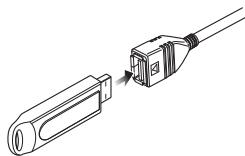
- Para deselectar el dispositivo USB:
1) Toque [▲] en la pantalla y desconnecte el dispositivo del cable.
2 Controle la música que está escuchando en la pantalla de control de fuente.
Los symbolos siguientes indican las teclas en la pantalla.
Las functions de las teclas son las mismas a pesar de las cuales fuentes que esté escuchando.
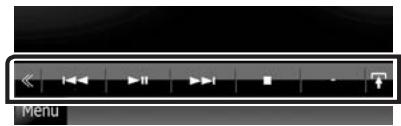

Toque


Menu
- Funciones tíbasicas desde esta pantalla
Inicia la reproduccion o hace una停下a.
Detiene la reproduccion.
Desconecta el dispositivo.

Busca el contenido anterior/siguiente.

Avance o retroceso rapiados (solo para disco de datos, CD o dispositivo USB).

Repite el contenido actual.

Reproduce todo el contenido enorden aleatorio.

NOTA
- Para otheras functions, consulte el manual de instrucciones.
- Si no aparece la tecla deseada en la barra multifunción, pulse [ ] para Cambiar el menu.
3 Búsqueda de la pista o archivo que desea escuchar.
- Búsqueda en la lista
1) Toque el centro de la pantalla. Se muestra la lista de contentsidos del medio que está siendo reproducido. Si se visualiza la informacion de la pista actual, pulse [ ] paraCambiar a la visualizacion de lista.

Busqueda avanzada
1) Toque [O].
2) Pulse el método de búsqueda avanzada desado. La lista se filtra por el elemento selecciónado.
3) Pulse sobre el elemento deseado.
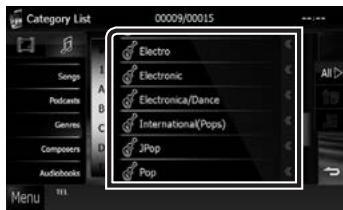

NOTA
- Para Obtener más información sobre las sistemas de búsueda, consulte Función de búsueda (P.39) en el manual de instrucciones.
Cómo reproducirpelículase imágenes
Puede reproducir video DVD, video CD (VCD), ARCHivos depellicasde medios de disco,iPod y archivos de imagenes desde un dispositivo delalmacenamento USB.

NOTA
- Para más detalles sobre formatos compatibles, formats de dispositivos, etc., consulte el manual de instrucciones.
1 Conecte el medio que desea reproducir.
Para más información sobre el método de conexión, consulte Cómo reproducir música (P.39).
2 Controle la película oImagen tocando la pantalla.
Cada zona de la pantalla tiene una funciona diferente.
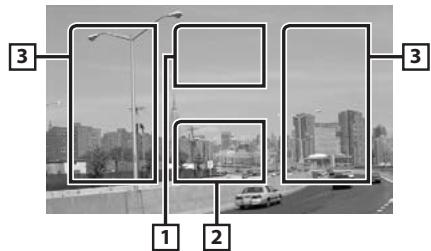
No.
Nombre/Movimiento
DVD: Muesra el menu de DVD.*1
VCD: Muestra la pantalla Zoom Control.*2
Disco de datos: Muestra el menu de disco.*3
2 Muesra la pantalla de control de fuente.
No.
Nombre/Movimiento
3 - Busca el contenido o archivo suiviente o anterior.
- Al desplazarse desde el centro de la visualizacion hacia la izquierda o la derecha, se efectua un retroceso rrado o un avance rrado.
Para detener el avance o rebobinado rápido, toque el centro de la pantalla.*4
1 Consulte Función del menu de discos DVD (P.)25 en el manual de instructuciones.
2 Consulte Control de zoom para DVD y VCD (P.26) en el manual de instructcciones.
3 Consulate Control depellicas (P.44) en el manual de instructaciones.
4 Para los dispositivos USB, puede que esta funciona no está disponible en función del formatting del archivo reproducido.

NOTA
- Para sistemas en la pantalla de control de fuentes, vgase Cmo reproducir musica (P.39).
No obstar, la búsueda por categoría/enlace/ gráficos de album no está disponible. - Si pulsa [ ] (mostrado al pulsar [ ] en la pantalla de control de fuentes) se ocultan todas las teclas.
Cómo escuchar la Radio/ HD Radio™/ SiriusXM®
1 Toque [Menu] enrialquier pantalla.
Aparece la pantalla Top Menu.
2 Toque [TUNER], [HD Radio], o [SiriusXM].
Lainstitutionumbia la fuente del sintonizador de radio/HD Radio/SiriusXM (se vende por分开ar).
3 Manejo de la pantalla de control de fuente.
- Búsqueada de emisora
1) Toque [T].
Aparece el menu subfunciOn.
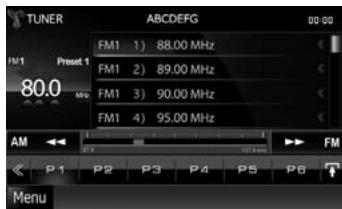
2) Pulse en [AM] o en [FM] para selectionar la fecuencia. (solo sintonizardo de Radio/HD Radio)
3) Sintonizador de Radio/ HD Radio:
Toque [I-] o [▶] para sintonizar la emisora deseada.
SiriusXM:
Toque [CH▼] o [CH▲] para sintonizar la emisora deseada.
- Memoria automática (solo sintonizador de Radio/HD Radio)
1) Toque [T].
2) Pulse en [AM] o en [FM] para selectionar la fecuencia.
3) Toque [K].
4) Toque [AME].
5) Toque [I] o [▶] en el menu de sistemas auxiliares. Se inicia la memoria automática.
- Volver a una emisora prefijada
1) Pulse [P#].
Tambienpuedeverla lista de emisoras prefijadastocando lavisualizacionde fecuencia enel centro.

NOTA
- Para el resto de sistemas, consulte Función baja del sintonizador de Radio/HD Radio (P.58) y Función baja de SiriusXM® (P.68) en el manual de instructcciones.
Cómo llamar por téléphone
Puede utiliser su téléphone móvil con Bluetooth cuando está acoplado con lainstitution.

NOTA
- No puede registrar lainstitutional Bluetooth cuando esté utilizes las siguientes fuentes: iPod, audio Bluetooth, APPS, iHeart, Pandora
1 Registre su téléphone móvil en laupon.
Continué tal como se muestra en los procedimientosSIGUIENTES. Para información más detallada, consulte Registro de launidad Bluetooth (P.83) en el manual de instructaciones.
1) Toque [Menu] enrialquier pantalla.
Aparece la pantalla Top Menu.
2) Toque [SETUP / Conf].
Aparece la pantalla SETUP.
3) Toque [Bluetooth].
Aparece la pantalla Bluetooth SETUP.
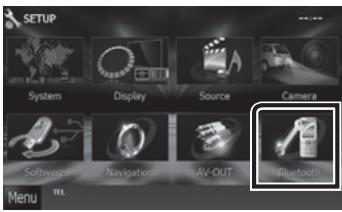
4) Toque [Search / Buscar].
Aparece la pantalla Searched Device List.
5) Seleccione su téléphone móvil en la lista mostrada en la pantalla Searched Device List.
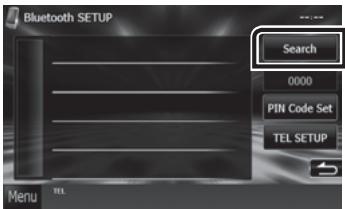
6) Introduzca el número PIN del téléphone móvil. El registrar se ha completado. El número PIN está disponible como "0000" de forma predeterminada.
2 Conecte su téléphone móvil a launalidad.
1) Toque el nombre del dispositivo que deseee conectar en la pantalla Bluetooth SETUP.
2) Toque [ON] en el parametro [TEL(HFP)] de la planta BT Connection Settings. El dispositivo selectionado está conectado a launities.
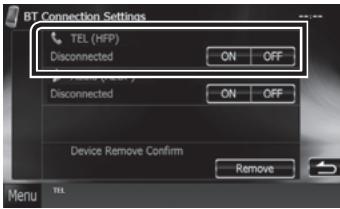
Cuando haya finalizzato el registrar de su téléphone móvil, la agenda Telefonica de este se descargará automatistically a estaunities.
3 Haga o reciba una llamada Telefonica.
Consulte la tabla de abajo para cada método de funcionaimiento.
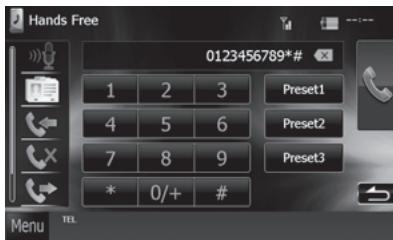
Llamar introduciendo un número Telefonico
1) Introducir un numero de téléphone con las teclas numéricas.
2) Toque [ ]
Llamar uso de llamada almacenados
1) Toque [ ] (llamadas recibidas), [ ] (llamadas perdidas) o [ ] (llamadas realizadas).
2) SeLECTIONe el numero de téléphone de la lista.
3) Toque [15].
Llamar usinga agenda Telefonica
1) Toque[
2)Seleccione el nombre de la lista.
3) SeLECTIONE el número de la lista.
4) Toque [1].
Llamar usingo el numero preseclusionado
1) Toque [Preset #] para efectuar una llama al número de teléfono correspondiente.
2) Toque[1].
Call by voice
Puede realizar una llama de voz utilizing la func tion de Reconocimiento de voz del Telefono móvil.
1) Toque [tə].
2) Pronuncie el nombre registrar en el téléphone móvil.
NOTA
- Para tener informacion detallada sobre el funciona, consulte Uso de launidad de manos libres (P.85) en el manual de instrucciones.
Instalación
Antes de la instalación
Antes de la instalación de esta unidad,onga en cuenta las precauciones siguientes.
ADVERTENCIAS
- Si conecta el cable de encendido (rojo) y el cable de la bateria (amarillo) al chassis del automóvil (tierra), podra producir un cortocircuito yesto, a su vez, un incendio. Conectar siempre esos cables a la fuente de alimentacion que pasa por la caja de fusibles.
- No corte el fusible del cable de ignition (rojo) y el cable de la bateria (amarillo). El suministro de energia debe conectarse a los cables por medio del fusible.
PRECAUCION
- Instale esta unidad en la consola de suvehicleo.
No toque la parte metalica de esta unidad durante e inmediamente antes de el uso de la unidad. Las partes metalicas, tales como el disipador de calor o la carcaja, poderaadesar muy calientes.
NOTA
- La instalación y el cableado de este producto requiresen habilidad y experiencia. Para mayor seguridad,deo el trabajo de montaje y cableado en manos de profesionales.
- Asegürese de utiliser para launitiesauna fuente de alimentacionde 12 VCC con conexión atierra negativa.
- No instale lainstitution en un sitio expuesto a la luz directa del sol, o excessivelyamente húmedo o caluroso. Ademásdeferéevitartsitios conmuchoplvo o con posibiliadetalplicadasdeagua.
- No utilise sus propios tornillos. Utilice solo los tornillos suministrados. El uso de tornillos发展模式a可以帮助和谐导致在的。
- Si no se enciende la alimentacion (se muestra "PROTECT"),uede que el cable del altovoz haya sufrido un cortocircuito o que haya tocado el chasis del vehiculo y se haya activado la direccion de proteccion. Por lo tanto, el cable del altovozDebe ser revisado.
- Si el encendido de su automóvil no está provisto de la posición ACC, conecte los cables de encendido a una fuente de alimentación que pueda connectarse y desconnectarse con la llave de encendido. Si conecta el cable de encendido a una fuente de alimentación con un suministro de voltaje constante, como con los cables de la bateria, la bateria可以选择 agotarse.
- Si la consola tiene una tapsa, asegürese de instalar launidad de modo que el panel frontal no golpea la tapsa al abrir y cerrar.
- Si se funden los fusibles, asegúrese primero de que los cables no están en contacto;pues你能
ocasionaruncortocircuito,uego reemplaceel fusible dañado poruno nuevo que tengala misapotencia de serviceo.
- Aise los cables no connectados con una cinta de vinilo u/othersimilar Para evitarcortocircuitos, no retiere lastapas dellos extremosde los cables o terminales no connectados.
- Connecte los cables de los altavoces a cada uno de los terminales correspondientes. Launidad可以选择 sufrir daños o estar de configurar si comparte los cables o si la toma de tierra se realiza arialquier parte metálica del coche.
- Si se han connectado solamente dos altevoces alsystema, enchufe los connectores a ambos terminales de salute delanteros o a ambos terminales de salute traseros (es decir, no mezcle terminales delanteros y traseros). Por exemple, si conecta el conductor del altovo izquierdo a un terminal de salute delantero, no conecte el conductor a un terminal de saluteTRSero.
- Después de instalar launities, compruebe que las luces de freno, las luces intermitentes, el limpiaparabras, etc. funciona satisfactoriamente.
- Instale launidad en un ángulo de 30^ o menos.
-Estaunidad@cuenta con unventilador de refrigeracion para disminuir la temperaturenterna.No monte lainstitution en un lugar en el que el ventilador de refrigeracion de lainstitutioncouldaquedarobstruido.Si estas aberturasquedanbloqueadas,la refrigeracion no se producirao,aumentando la temperaturenterna yprovocandoaverias.
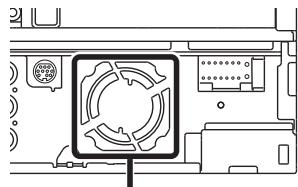
Ventilador de refrigeración
- No presione con fuerza la superficie del panel al instalar a unidad en elvehicleo.Delcontrario,puede producirescamaras,danos ofallos.
- La Reception podra ser baja si existen objetivos metálicos cerca de la antenna Bluetooth.
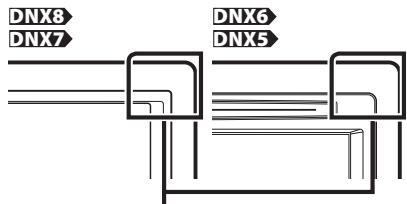
Unidad de antenna Bluetooth
Accesorios suministrados
En primer lugar, asegúrese de que todos los accesorios=vienen suministrados con launidad.
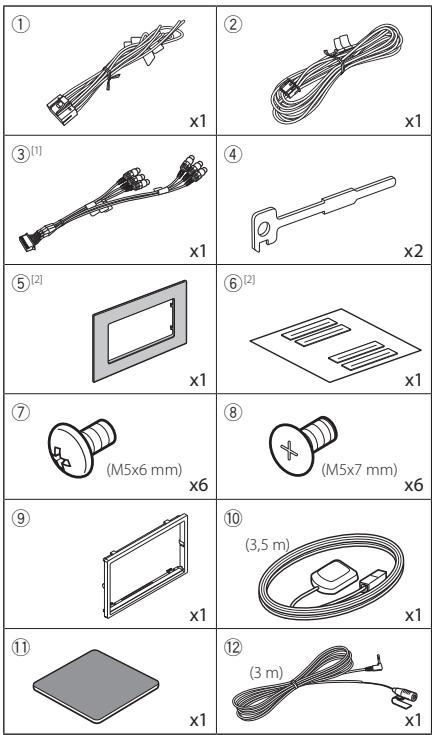
[1] Solo DNX891HD, DNX7710BT, DNX771HD
[2] Solo DNX891HD
Unidad
1) Para evaporar un cortocircuito, retire la llave del contacto y desconecte el terminal de la bateria.
2) Realice de forma adequada las conexiones de cables de entrada y calidad para cadaunidad.
3) Conecte los cables del altovoz del mazo de cables.
4) Conecte los cables del mazo en elorden seguido: Tierra, bateria, encendido.
5) Conecte el mazo de cables a la unidad.
6) Instale launidad en el automóvil.
7) Vuelva a conectar el terminal de la bateria.
8) Pulse el botón
9) Realice la configuración inicial. Consulte Primer bajo (P.32).
- Automóviles no japoneses
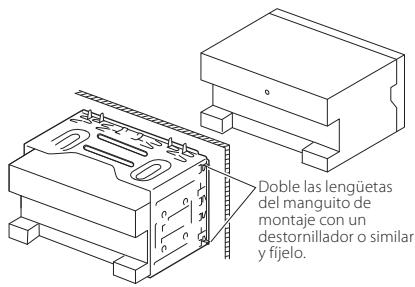
Automoviles japoneses
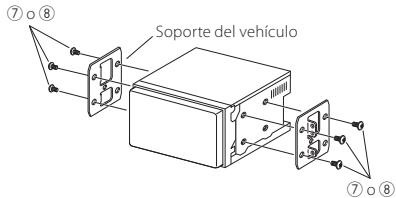
NOTA
- Asegürese de que launidad estáfirmamente instalada en su lugar. Si launidad está en una posicion inestable, es possible que no funciona correctamente (por exemple, el sonido pueda interrupspirse).
Marco
1) Conecte el accesorio 9 a la unidad.
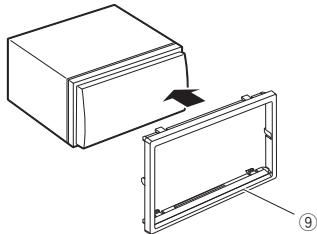
- Automóveis de General Motors (DNX891HD)
1) Recorte el accesorio (5) para adaptarlo a la forma de la abertura de la consola central.
2) Conecte el accesorio (5) a la unidad.

Recorte para adaptarse a la forma de la aperture en el vehiculo.
- Automóveis de Toyota/Scion (DNX891HD)
1) Recorte el accesorio ⑤ tal y como se indica.

2) Pliegue la cinta adhesiva de doble cara (accesorio 6) a lo large de la hendidura y fijela al accesorio 5 recortado en la zona de la acanaladura central, tal y como se indica. Utilice 2 piezas del accesorio 6 para 1 accesorio 5 recortado.
3) Conecte el accesorio ⑤ recortado a la unidad.
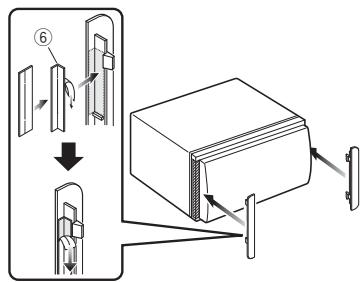
antenna GPS
La antenna GPS está instalada dentro del vehúculo. Debe instalarse lo más horizontally posible para permitir una fácilreichión de las senales de satélite GPS.
Para montar la antenna GPS en el interior del vehiculo:
1) Limpie el salpicadero o la superficie en cuestion.
2) Extraiga el separator de la plac metalica (accessorio 11).
3) Presione con fuerza la placà metálica (accesorio 11) sobre el salpicadero o cualquier othera superficie de montaje. Si fuería necesario,货架doblar la placà metálica (accesorio 11) para adaptarla a una superficie curva.
4) Extraiga el separator de la antenna GPS (accesorio 10) y fije la antenna a la plac metálica (accesorio 11).

NOTA
- Dependiendo del vehiculo, la Reception de la seals GPSedia no ser possible con una instalacion en el interior.
- Instale esta antenna GPS en una zona alejada de每一台 Dual antenna. Utilizada para radios CB o televisiones via satélite.
- La antenna GPS deben instalarse en una posicion separada al menos 12 pulgadas (30 cm) del téléphone móvil u除外 antenas transmisoras. Las señas del satélite GPS podrián interferir con这些东西 de communicator.
- Si se pinta la antenna GPS conrialquier pintura (metálica) podría disminuir su rendimiento.
Unidad de micrófono
1) Compruebe la posicón de instalación del micrófono (accesorio 12).
2) Limpie la superficie de instalacion.
3) Extraiga el separator del micrófono (accesorio 12) y fije el micrófono en la posición indicada más abajo.
4) Conecte el cable del microfono a launidad de forma segura en varias posiciones mediante cinta u或其他 método.
5) Ajuste la direccion del micrófono (accesso 12) hacía el conductor.

Fiji une cable conuna una tinta adhesiva de uso commercial.
Retirar el marco
1) Acople las patillas de fjacion a la llave de extracion (accessorio 4) y extraiga los dos dispositivos de bloqueo del nivel inferior. Baje la moldura embellecedora (accessorio 9) y tire de ella hacía delante tal y como se muestra en la figura.

NOTA
- El marco puede extraerse desde el lado superior del本身就是 modulo.
2) Después de extraer la parte inferior, libre de la mesmamansera los dos lugares delgado superior.
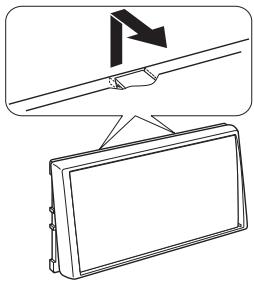
Desmontaje de la unidad
1) Retire el marco según lasindicaciones del paso 1 de "Retirar el marco".
2) Inserte correctamente las dos llaves de extracción (accessorio ④) en las ranuras de cada lado, tal y como se muestra.
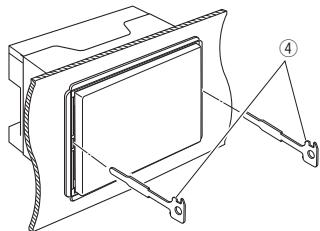
3) Mueva la llave de extracción hacía abajo y extraiga la unidad hasta la mitad cuando presiona hacía bajo.
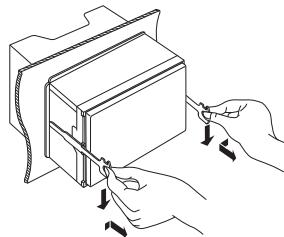
NOTA
- Tenga cuidado de no hacerse daño con los pasadores de bloqueo de la llave de extracción.
4) Termine de sacar la unidad con las manos, prestando atencion para nodeerla caer.
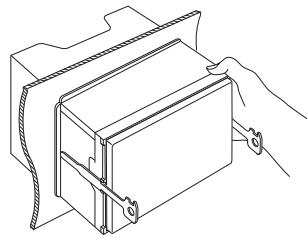
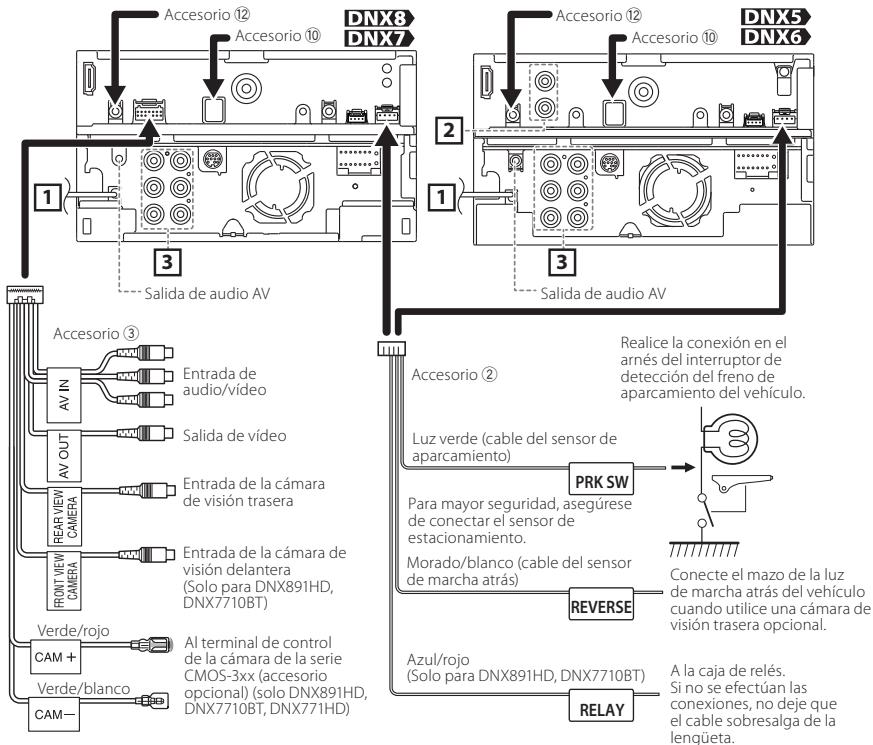
1
Entrada de antenna FM/AM

3
2
- Entrada de la CAMERA de visión trasera
- Salida de video AV
Salida de preamplificador de audio trasero
Salida de preamplificador de audio delantero
Salida previa del subwoofer
Accesorio 10: antenna GPS

Accesorio 12: Microfono Bluetooth
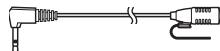


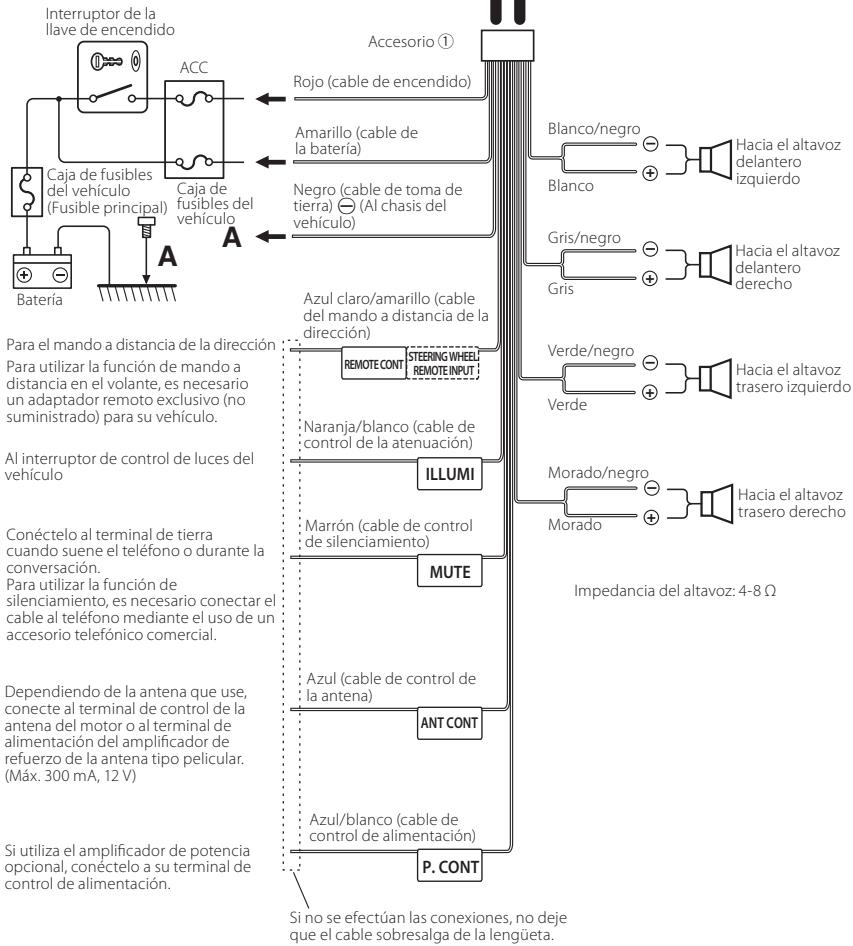


AV-IN (CA-C3AV; aggiore optional)

Entrada iPod/ AV-IN2 (CA-C3AV, accesorio optional)

Conector iDataLink (doline NX6891HD/ NX771HD/ NX691HD/ NX571HD/ NX571EX)

Conector para sintonzador SiriusXM Connect Vehicle (solo DNX891HD/DNX771HD/DNX691HD/DNX571HD/DNX571EX)

NOTA
- Al conectar el iPod/iPhone con un cable HDMI, el cable necessario dependerá del tipo de conector, que pueda ser Lightning o un conector de 30 patillas. Consulte "Conexión de iPod/iPhone" (P.52) para ver qué cable se NEEDA.
- Sera necessario realizar algunos ajustes para adaptarse al iPod/iPhone o dispositivo Android conectado.
- Internacional e Internet de Android: Conexión Android (P.52) o Conexión Android (P.52).

Al conectar el cable al terminal HDMI/MHL, retire la configuracion. Tras conectar el cable, vuelva a colocar la configuracion.
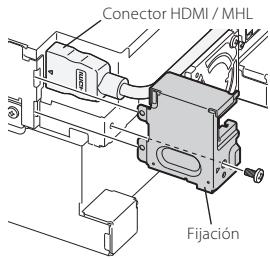
Acerca de esta unidad
Derechos de autor
- La marca denominativa y los logos de Bluetooth son propidad de Bluetooth SIG, Inc. y cadaquier uso de dichas marcas por JVC KENWOOD Corporation está sujeto a los关键时刻 de licencia. Elosto de MARCAS commerciales y nombres commerciales corresponden a sus respectivos propietarios.
- The "AAC" logo is a trademark of Dolby Laboratories.
- "Made for iPod" and "Made for iPhone" mean that an electronic accessory has been designed to connect specifically to iPod or iPhone, respectively, and has been certified by the developer to meet Apple performance standards.
Apple is not responsible for the operation of this device or its compliance with safety and regulatory standards. Please note that the use of this accessory with iPod or iPhone may affect wireless performance.
- iPhone, iPod, iPod classic, iPod nano, and iPod touch are trademarks of Apple Inc., registered in the U.S. and other countries.
Lightning is a trademark of Apple Inc.
Sirius, XM and all related marks and logos are trademarks of Sirius XM Radio Inc. All rights reserved.
- HD Radio Technology manufactured under license from iBiquity Digital Corporation. U.S. and Foreign Patents. HD Radio™ and the HD, HD Radio, and "Arc" logos are proprietary trademarks of iBiquity Digital Corp.
DVD is a trademark of DVD Format/Logo Licensing Corporation registered in the U.S., Japan and other countries.
- This item incorporates copy protection technology that is protected by U.S. patents and other intellectual property rights of Rovi Corporation. Reverse engineering and disassembly are prohibited.
- Fabricado bajo licencia de Dolby Laboratories.
El symbolo Dolby y el symbilo D-doble son marcas commerciales de Dolby Laboratories.
Android is a trademark of Google Inc.
- BlackBerry®, RIM®, Research In Motion® and related trademarks, names and logos are the property of Research In Motion Limited and are registered and/or used in the U.S. and countries around the world. Used under license from Research In Motion Limited.
- Adobe, Acrobat and Reader are either registered trademarks or trademarks of Adobe Systems Incorporated in the United States and/or other countries.
- ACERCA DE VIDEO DIVX: DivX® es un formatting de video digitalcreado por DivX, LLC, una filial de Rovi
Corporation. Dispositivo DivX Certified® oficial que reproduce video DivX. Visite divx.com para Obtener más información y Herramentas de software para convertir sus ARCHivos en videos DivX.
- ACERCA DE DIVX VIDEO-ON-DEMAND: Este dispositivo con certifications DivX Certified® debre registrarse para poder reproducirpelículas DivX Video-on-Demand (VOD) compradas. Para Obtener su numero de registrar, localice la seccion DivX VOD en el menu de configuracion de su dispositivo. Acceda a vod.divx.com para Obtener mas informacion sobre como completar su registrar.
DivX,DivX Certified and associated logos are trademarks of Rovi Corporation or its subsidiaries and are used under license. - THIS PRODUCT IS LICENSED UNDER THE AVC PATENT PORTFOLIO LICENSE FOR THE PERSONAL USE OF A CONSUMER OR OTHER USES IN WHICH IT DOES NOT RECEIVE REMUNERATION TO (i)ENCODE VIDEO IN COMPLIANCE WITH THE AVC STANDARD ("AVC VIDEO") AND/OR (ii)DECODE AVC VIDEO THAT WAS ENCODED BY A CONSUMER ENGAGED IN A PERSONAL ACTIVITY AND/OR WAS OBTAINED FROM A VIDEO PROVIDER LICENSED TO PROVIDE AVC VIDEO. NO LICENSE IS GRANTED OR SHALL BE IMplied FOR ANY OTHER USE. ADDITIONAL INFORMATION MAY BE OBTAINED FROM MPEG LA, L.L.C. SEE HTTP://WWW.MPEGLA.COM
- THIS PRODUCT IS LICENSED UNDER THE MPEG-4 VISUAL PATENT PORTFOLIO LICENSE FOR THE PERSONAL AND NON-COMMERCIAL USE OF A CONSUMER FOR (i) ENCODING VIDEO IN COMPLIANCE WITH THE MPEG-4 VISUAL STANDARD ("MPEG-4 VIDEO") AND/OR (ii) DECODING MPEG-4 VIDEO THAT WAS ENCODED BY A CONSUMER ENGAGED IN A PERSONAL AND NON-COMMERCIAL ACTIVITY AND/OR WAS OBTAINED FROM A VIDEO PROVIDER LICENSED BY MPEG LA TO PROVIDE MPEG-4 VIDEO. NO LICENSE IS GRANTED OR SHALL BE IMplied FOR ANY OTHER USE. ADDITIONAL INFORMATION INCLUDING THAT RELATING TO PROMOTIONAL, INTERNAL AND COMMERCIAL USES AND LICENSING MAY BE OBTAINED FROM MPEG LA, LLC. SEE HTTP://WWW.MPEGLA.COM.
- Los关键时刻 HDMI y HDMI High-Definition Multimedia Interface, asi como el logotipo de HDMI, son MARas commerciales o MARas commerciales registradas de HDMI Licensing LLC en los Estados Unidos y en otheros países.
-
MHL y el logotipo de MHL son una marca comercial o unamarcacommercialregistradadeMHL,LLC. -Incorpora MHL2
-
libFLAC
Copyright (C) 2000,2001,2002,2003,2004,2005,2006,20 07,2008,2009 Josh Coalson
Redistribution and use in source and binary forms, with or without modification, are permitted provided that the following conditions are met:
- Redistributions of source code must retain the above copyright notice, this list of conditions and the following disclaimer.
- Redistributions in binary form must reproduce the above copyright notice, this list of conditions and the following disclaimer in the documentation and/or other materials provided with the distribution.
- Neither the name of the Xiph.org Foundation nor the names of its contributors may be used to endorse or promote products derived from this software without specific prior written permission.
THIS SOFTWARE IS PROVIDED BY THE COPYRIGHT HOLDERS AND ONTRIButors "AS IS" AND ANY EXPRESS OR IMPLIED WARRANTY, INCLUDING, BUT NOT LIMITED TO, THE IMPLIED WARRANTY OF MERCHANTABILITY AND FITNESS FOR A PARTICULAR PURPOSE ARE DISCLAIMED. IN NO EVENT SHALL THE FOUNDATION OR CONTRIBUTORS BE LIABLE FOR ANY DIRECT, INDIRECT, INCIDENTAL, SPECIAL, EXEMPLARY, OR CONSEQUENTIAL DAMAGES (INCLUDING, BUT NOT LIMITED TO, PROCEDURE OF SUBSTITUTE GOODS OR SERVICES; LOSS OF USE, DATA, OR PROFITS; OR BUSINESS INTERRUPTION) HOWEVER CAUSED AND ON ANY THEORY OF LIABILITY, WHETHER IN CONTRACT, STRICT LIABILITY, OR TORT (INCLUDING NEGLIGENCE OR OTHERWISE) ASING IN ANY WAY OUT OF THE USE OF THIS SOFTWARE, EVEN IF ADVISED OF THE POSSIBILITY OF SUCH DAMAGE.
Conexión Android
Para conectar el dispositivo Android con esta unidad, seran你需要los cables (se vendre por separado) y el perfil compatibles con el dispositivo Android:
- Para escuchar música y ver videos de una fuente APPS
Dispositivo MHL
- KCA-MH100 (accesorio optional)
- Perfil de Bluetooth: SPP
-
Para escuchar música de una fuente APPS
-
Perfil de Bluetooth: A2DP
-
Perfil de Bluetooth: SPP
-
Para esuchar música de una fuente de audio Bluetooth
Perfil de Bluetooth: A2DP
- Perfil de Bluetooth: AVRCP
Conexión de iPod/iPhone
Para conectar el iPod/iPhone con esta�性idad, seran necessities el cable, el adaptorador (ambos se vendenden por分开ar), y el perfil compatibles con su iPod/iPhone:
- Para escuchar música y ver videos mediante un dispositivo con conductor Lightning
Adaptador Lightning Digital AV
KCA-HD100 - Cable Lightning a USB (accesorio del iPod/ iPhone)
-
Perfil de Bluetooth: SPP
-
Para escuchar música mediante un dispositivo con conector Lightning
-
Cable Lightning a USB (accessorio del iPod/ iPhone)
-
Para escuchar música y ver videos con un dispositivo con conductor de 30 patillas (1)
-
Adaptador Digital AV de 30 patillas de Apple
- KCA-HD100
- KCA-iP102
-
Perfil de Bluetooth: SPP
-
Para escuchar música y ver videos con un dispositivo con conductor de 30 patillas (2)
KCA-iP202
-
Para escuchar música con un dispositivo con conector de 30 patillas
-
KCA-iP102
-
Para eschar música a工程技术 de Bluetooth
Perfil de Bluetooth: A2DP
- Perfil de Bluetooth: SPP
NOTA
- Al realizar la connexion con el adaptor Lightning Digital AV o con el adaptor Digital AV de 30 patillas
de Apple,algunas aplicaciones podran controlarse
deseste unidad.Las functions operativas
dependan de la aplicacion.Consulte "Funcion
Apps" (P51) en el manual de instructiones.
- No deja el cable ni el adaptorado de otros fabricantes en el interior del coche. Podria producirse una avería a Cause del calor.
- iPod/iPhone que pueda conectarse - Los siguientes modelos��cenconectarasea esta unidad.
Made for
iPhone 5
iPhone 4S
iPhone 4
iPhone 3GS
iPhone 3G
iPhone
- iPod touch (5th generation)
- iPod touch (4th generation)
- iPod touch (3rd generation)
- iPod touch (2nd generation)
- iPod touch (1st generation)
- iPod classic
- iPod with video
- iPod nano (7th generation)
- iPod nano (6th generation)
- iPod nano (5th generation)
- iPod nano (4th generation)
- iPod nano (3rd generation)
Requisitos Pandora:
Los requisitos para esecuchar la fuente Pandora® son los siguientes:
iPhone o iPod touch
- Utilice un iPhone o iPod touch de Apple que funciona con el sistema iOS3 o superior.
- Busque "Pandora" en la tienda iTunes App Store de Apple para tener e instalar la ultima version de la aplicacion Pandora en su dispositivo.
Android™
- Visit Google play y busque Pandora para hacer a cabo la instalacion.
BlackBerry
- Visite www.pandora.com en el navegador integrado para descargar la aplicación de Pandora.
-
Debe disponible de Bluetooth integrado y deben ser compatible con los siguientes perfiles:
-
SPP
-A2DP
NOTA
- En la aplicación de su dispositivo, inicia la sesión y create una cuenta con Pandora.
- (Si todas紊 no se ha registrar como usuario, puede crear su cuenta en www.pandora.com).
- Conexión a Internet mediante LTE, 3G, EDGE o WiFi.
- Pandora® se encontrar disponible únicamente en EE. UU., Australia y Nueva Zelanda.
- Debido a que Pandora® es el servicios de un cercero, las specifications podrjanCambiar sin previo aviso. Por lo tanto, es possible que se daene la compatibilidad o que algunos o todos los servicios no estén disponibles.
- Algunas functions de PANDORA® no está disponible desde esta unidad.
- Si tieneequalquier problema parautilizar la aplicacion,pongase encontacto conPandora®en la direccion:pandora-support@pandora.com.
Acerca de iHeartRadio:
Los requisitos para usar iHeartAuto™ son los siguientes:
iPhone o iPod touch
- Utilice un iPhone o iPod touch de Apple con iOS5 o posterior.
- Busque "iHeartAuto" en la App Store de Apple e instale la version más actualizada de la aplicación iHeartAuto™ en su dispositorio.
Android™
- Use un dispositivo Android con firmware 2.2 o posterior.
- Busque "iHeartAuto" en Google Play para instalar la version másactualizada de la aplicacion iHeartAuto™ en su dispositivo.
NOTA
- iHeartRadio® está disponible solo en los EE. UU y sus territorios.
- Para SACar todo el partido a la aplicacion, se recomienda usar una connexion Wi-Fi o 3G/4G.
- Dado que iHeartAuto™ es un service de un tercero, las specifications podrnanCambiar sin previo aviso. Por lo tanto, es possible que se daene la compatibilidad o que algunos o todos los servicios no esten disponibles.
- Algunas functions de iHeartAuto® no está disponibles desde esta unidad.
- Si experimenta problemas en el uso de esta aplicacion,pongase en contacto con el Servicio de Atencion al Cliente de iHeartRadio® en http://help. iheartradio.com.
- iHeartRadio® y iHeartAuto™ son marcas commerciales pertenecientes a Clear Channel Broadcasting, Inc. Todos los usos se autorizan mediante licencesia.
DNX891HD/ DNX771HD/ DNX691HD/ DNX571HD/ DNX571EX:
FCC WARNING
This equipment may generate or use radio frequency energy. Changes or modifications to this equipment may cause harmful interference unless the modifications are expressly approved in the instruction manual. The user could lose the authority to operate this equipment if an unauthorized change or modification is made.
NOTE
This equipment has been tested and found to comply with the limits for a Class B digital device, pursuant to Part 15 of the FCC Rules. These limits are designed to provide reasonable protection against harmful interference in a residential installation.
This equipment may cause harmful interference to radio communications, if it is not installed and used in accordance with the instructions. However, there is no guarantee that interference will not occur in a particular installation. If this equipment does cause harmful interference to radio or television reception, which can be determined by turning the equipment off and on, the user is encouraged to try to correct the interference by one or more of the following measures:
Reorient or relocate the receiving antenna.
- Increase the separation between the equipment and receiver.
- Connect the equipment into an outlet on a circuit different from that to which the receiver is connected.
- Consult the dealer or an experienced radio/TV technician for help.
CAUTION
Use of controls or adjustments or performance of procedures other than those specified herein may result in hazardous radiation exposure. In compliance with Federal Regulations, following are reproductions of labels on, or inside the product relating to laser product safety.
JVC KENWOOD Corporation 2967-3, ISHIKAWA-MACHI, HACHIOJI-SHI, TOKYO, JAPAN
THIS PRODUCT COMPLIES WITH DHHS RULES 21 CFR SUBCHAPTER J IN EFFECT AT DATE OF MANUFACTURE.
Location: Top plate
DNX891HD/ DNX771HD/ DNX691HD/ DNX571HD/ DNX571EX:
IC (Industry Canada) Notice
This device complies with Industry Canada licence-exempt RSS standard(s).
Operation is subject to the following two conditions: (1) This device may not cause interference, and (2) this device must accept any interference, including interference that may cause undesired operation of the device.
The term "IC." before the certification/ registration number only signifies that the Industry Canada technical specification were met.
CAUTION
This equipment complies with FCC/IC radiation exposure limits set forth for an uncontrolled environment and meets the FCC radio frequency (RF) Exposure Guidelines in Supplement C to OET65 and RSS-102 of the IC radio frequency (RF) Exposure rules. This equipment has very low levels of RF energy that it deemed to comply without maximum permissive exposure evaluation (MPE). But it is desirable that it should be installed and operated keeping the radiator at least 20cm or more away from person's body (excluding extremities: hands, wrists, feet and ankles).
Under Industry Canada regulations, this radio transmitter may only operate using an antenna of a type and maximum (or lesser) gain approved for the transmitter by Industry Canada. To reduce potential radio interference to other users, the antenna type and its gain should be so chosen that the equivalent isotropically radiated power (e.i.r.p.) is not more than that necessary for successful communication.
DNX891HD/ DNX771HD/ DNX691HD/ DNX571HD/ DNX571EX:
- Contains Transmitter Module FCC ID: YZP-RBFAC21XX
- Contains Transmitter Module IC: 7414A-RBFAC21XX
CALIFORNIA, USA
This product contains a CR Coin Cell Lithium Battery which contains
Perchlorate Material - special handling may apply.
See www.dtsc.ca.gov/hazardouswaste/perchlorate
Información acerca de la eliminación de equipos electricos y electrónicos al final de la vida uyil (aplicable a los País que hayanadoptado sistemas independentes de recogida de residuos)

Los produits con el significado de un contentedor con ruedas tachado no podran ser desechados como residuos domesticos.
Los equipos electricos y electrónicos al final de la vida útill, deben ser reciclados en instalaciones que pueda dar el tratimiento adecuado a这些东西 productos y a sus subproductos residuales correspondientes. Póngase en contacto con su administración local para Obtener información sobre el punto de recogida más cercano. Un tratimiento correcto del reciclaje y la eliminación de residuos可以帮助 conservar los recursos y evita al mismospingue efectos perjudiciales en la salute y el medio ambiente.
Para cumplimiento de la COFETEL:
"La operation de este equipo esta sujeta a las siguientes dos conditiones:
(1) es possible que este equipo o disposativo no cause interferencia perjudicial y
(2) este equipo o dispositivo deben acceptarrialquierinterferencia,
incluyendo la que pueda causar su operation no deseada."
Informação sobre a eliminação de pilhas
Este produit não deve ser eliminado como lixo dométrico geral. Devolva a pilha usada ao revendedor ou entidade autorizada para que a mesma seja devolvida ao fabricante ou importador.
A reciclagem e a eliminação de lixo de maneira apropriadade acontecerao a conservar os recursos naturais ao mesmo tempo que prevenir oefeitos prejudiciais àossa saudé e ao meio ambiente.
HOMI
HIGH-DEFINITION MULTIMEDIA INTERFACE
MHL
Mobile High-Definition Link
iHeartRadio
((SiriusXM))
DIVX

VIDEO

Bluetooth
Made for
iPod

iPhone

DOLBY
DIGITAL


Designed for
Windows
Media
Radio
This HD Radio receiver enables:
PSD
HD2/HD3
Bookmark
Digital Sound
Artist Experience