MODE D'EMPLOI LC-46LE810E SHARP
LC-40LE820E LC-40LE810E LC-46LE820E LC-46LE810E LC-52LE820E
Téléviseur couleur à écran à cristaux liquides (LCD)
AQUOS
LEO
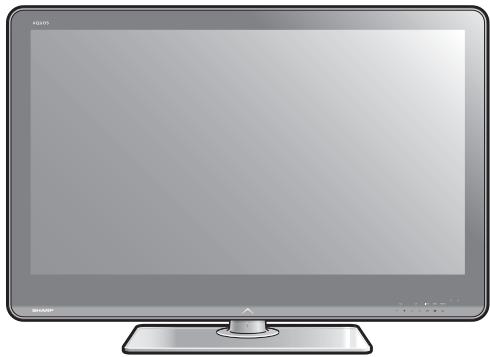
Manuel d'utilisation





CE
NOTE SPÉCIALE POUR LES UTILISATEURS AU ROYAUME-UNI
Le cordon d'alimentation de ce produit est équipé d'une fiche moulée non réarmable incorporant un fusible de 13 A. Si le fusible doit être remplacé, utilisez un fusible approuvé BSI ou ASTA BS 1362, portant la marque 艹 ou de même calibre que celui indiqué sur la face de la fiche.
Remettez toujours le couvercle du fusible en place après avoir remplacé le fusible. N'utilisez jamais la fiche sans le couvercle du fusible.
Dans le cas improbable où la prise de courant de votre domicile ne serait pas compatible avec la fiche fournie, coupez la fiche secteur et installez un type approprié.
DANGER :
Le fusible de la fiche coupée doit être retiré et la fiche coupée doit être détruite immédiatement et éliminée en toute sécurité.
En aucun cas, la fiche coupée ne doit être insérée ailleurs dans une prise de courant de 13 A, car un choc électrique grave pourrait se produire.
Pour installer une fiche appropriée sur le cordon d'alimentation, suivez les instructions ci-dessous :
IMPORTANT :
Les fils du cordon d'alimentation sont colorés conformément au code suivant :
Bleu : Neutre
Marron : Phase
Comme les couleurs des fils du cordon d'alimentation de ce produit peuvent ne pas correspondre aux marques colorées identifiant les bornes de votre prise, procédez comme suit :
- Le fil de couleur bleue doit être connecté à la borne de la prise marquée N ou de couleur noire.
- Le fil de couleur marron doit être connecté à la borne de la prise marquée L ou de couleur rouge.
Assurez-vous que ni le fil marron ni le fil bleu ne soit connecté à la borne de terre de votre prise à trois broches.
Avant de remettre le couvercle de la prise, assurez-vous que :
- Si la nouvelle prise installée contient un fusible, sa valeur est la même que celle retirée de la prise coupée. Le serre-câble est serré sur la gaine du cordon d'alimentation, et non simplement sur les fils.
EN CAS DE DOUTE, CONSULTEZ UN ÉLECTRICIEN QUALIFIÉ.
MODE D'EMPLOI
FRANÇAIS
- Les illustrations et l'affichage à l'écran (OSD) de ce mode d'emploi sont fournis à titre d'explication et peuvent varier légèrement par rapport aux opérations réelles.
- Les exemples utilisés dans ce manuel sont basés sur le modèle LC-46LE820E.
Cher client SHARP
Merci d'avoir acheté le téléviseur LCD couleur SHARP. Pour garantir votre sécurité et un fonctionnement sans problème pendant de nombreuses années, veuillez lire attentivement les précautions de sécurité importantes avant d'utiliser ce produit.
Marques commerciales
- « HDMI, le logo HDMI et High-Definition Multimedia Interface sont des marques commerciales ou des marques déposées de HDMI Licensing LLC. » Fabriqué sous licence de Dolby Laboratories.
- « Dolby » et le symbole double-D sont des marques commerciales de Dolby Laboratories.
- Le logo « HD TV 1080p » est une marque commerciale de l'EICTA.
- Le logo DVB est la marque déposée du projet Digital Video Broadcasting (DVB).
- LCHonda, LCFONT, ルフロー et le logo LC sont des marques déposées de SHARP Corporation. Ce produit intègre la technologie LC Font, développée par SHARP Corporation pour afficher clairement des caractères faciles à lire sur un écran LCD. Cependant, d'autres polices non-LCD sont utilisées pour afficher certaines pages à l'écran.
- DivX® est une marque déposée de DivX, Inc. et est utilisé sous licence.
- À PROPOS DE LA VIDÉO DIVX : DivX® est un format vidéo numérique créé par DivX, Inc. Cet appareil est certifié DivX et lit les vidéos DivX. Visitez www.divx.com pour plus d'informations et des outils logiciels pour convertir vos fichiers en vidéo DivX.
- À PROPOS DE DIVX VIDEO-ON-DEMAND : Cet appareil certifié DivX® doit être enregistré pour pouvoir lire du contenu DivX Video-on-Demand (VOD). Pour générer le code d'enregistrement, localisez la section DivX VOD dans le menu de configuration de l'appareil. Rendez-vous sur vod.divx.com avec ce code pour terminer le processus d'enregistrement et en savoir plus sur DivX VOD.
- « x.v.Color » et x.v.Color sont des marques commerciales de Sony Corporation.
Introduction. 2
Précautions de sécurité importantes. 2 Nomenclature. 3 Qu'est-ce que le menu ? 5 Accessoires fournis 6
Préparation. 7
Fixation du support 7 Utilisation de la télécommande 8
Guide rapide 9
Aperçu de l'installation initiale.. 9 Avant de mettre sous tension 10 Insertion de la carte CA dans le module CI. 10 Installation automatique initiale 11
Regarder la télévision 14
Fonctionnement quotidien. 14 Guide électronique des programmes (EPG). 16 Télétexte 19
Connexion de périphériques externes. 20
Connexions vidéo 20 Connexions audio 22
AQUOS LINK 23
Contrôle des périphériques HDMI à l'aide d'AQUOS LINK....23 Connexion AQUOS LINK 23 Configuration AQUOS LINK 24 Utilisation d'un périphérique AQUOS LINK. 25
Réglage de base 26
Réglages de l'image 26 Réglages audio 28 Réglages d'économie d'énergie. 29 Réglages des chaînes 30 Réglages du mot de passe/verrouillage 33 Réglages de la langue 34 Réglages utiles 34
Fonctions de visualisation utiles 35
Décalage temporel 35 Sélection de la taille de l'image 37 Réglages d'affichage. 39
Autres fonctions utiles 40
Réglage lors de l'utilisation de périphériques externes 40 Fonctions supplémentaires 41 Connexion d'un périphérique USB 42 Connexion à un serveur réseau domestique 42 Média USB/Réseau domestique 42 Compatibilité du périphérique USB/serveur réseau domestique.. 45 Sélection de la taille de l'image pour le mode vidéo. 45
Connexion d'un PC. 46
Connexion d'un PC 46 Affichage d'une image PC à l'écran 46 Spécifications du port RS-232C 48
Annexe 50
Dépannage 50 Mise à jour de votre téléviseur via DVB-T 51 Obtenir des informations de mise à jour. 51 Mise à jour de votre téléviseur via USB 52 Spécifications 54 Spécifications environnementales 55 Dessins dimensionnels 57 Élimination en fin de vie 59
Précautions de sécurité importantes
- Nettoyage—Débranchez le cordon d'alimentation de la prise avant de nettoyer le produit. Utilisez un chiffon humide pour nettoyer le produit. N'utilisez pas de nettoyants liquides ou en aérosol.
- Utilisez un chiffon doux et humide pour essuyer délicatement le panneau lorsqu'il est sale. Pour protéger le panneau, n'utilisez pas de chiffon chimique pour le nettoyer. Les produits chimiques peuvent endommager ou fissurer le boîtier du téléviseur. Eau et humidité—N'utilisez pas le produit près de l'eau, comme une baignoire, un lavabo, un évier de cuisine, un bac à lessive, une piscine ou dans un sous-sol humide.
- Ne placez pas de vases ou d'autres récipients remplis d'eau sur ce produit. L'eau pourrait se renverser sur le produit et provoquer un incendie ou une électrocution.
- Support—Ne placez pas le produit sur un chariot, un support, un trépied ou une table instable. Cela pourrait faire tomber le produit, entraînant des blessures graves et des dommages au produit. Utilisez uniquement un chariot, un support, un trépied, un support mural ou une table recommandé par le fabricant ou vendu avec le produit. Lors du montage du produit sur un mur, suivez les instructions du fabricant. Utilisez uniquement le matériel de montage recommandé par le fabricant.
- Lors du déplacement du produit placé sur un chariot, il doit être déplacé avec le plus grand soin. Les arrêts brusques, une force excessive et une surface de sol inégale peuvent faire tomber le produit du chariot.
- Ventilation—Les évents et autres ouvertures du boîtier sont conçus pour la ventilation. Ne couvrez pas et ne bloquez pas ces évents et ouvertures, car une ventilation insuffisante peut provoquer une surchauffe et/ou raccourcir la durée de vie du produit. Ne placez pas le produit sur un lit, un canapé, un tapis ou une surface similaire, car ils peuvent bloquer les ouvertures de ventilation. Ce produit n'est pas conçu pour une installation encastrée ; ne placez pas le produit dans un endroit clos tel qu'une bibliothèque ou un rack, à moins qu'une ventilation adéquate ne soit fournie ou que les instructions du fabricant ne soient suivies.
- Le panneau LCD utilisé dans ce produit est en verre. Par conséquent, il peut se briser si le produit tombe ou subit un impact. Si le panneau LCD est brisé, faites attention à ne pas vous blesser avec le verre brisé.
- Sources de chaleur—Tenez le produit éloigné des sources de chaleur telles que les radiateurs, les chauffages, les poêles et autres produits générant de la chaleur (y compris les amplificateurs).
- Pour éviter tout risque d'incendie, ne placez jamais de bougies ou de flammes nues sur le dessus ou à proximité du téléviseur.
- Pour éviter tout risque d'incendie ou de choc électrique, ne placez pas le cordon d'alimentation sous le téléviseur ou sous d'autres objets lourds.
- Casque—Ne réglez pas le volume à un niveau élevé. Les experts en audition déconseillent une écoute prolongée à des volumes élevés.
- N'affichez pas une image fixe pendant une longue période, car cela pourrait laisser une image rémanente.
- La consommation d'énergie est toujours présente si la fiche principale est branchée. Entretien - N'essayez pas de réparer le produit vous-même. Retirer les capots peut vous exposer à une haute tension et à d'autres conditions dangereuses. Faites appel à une personne qualifiée pour effectuer l'entretien.
Le panneau LCD est un produit de très haute technologie, offrant des détails d'image fins.
En raison du très grand nombre de pixels, il peut arriver que quelques pixels non actifs apparaissent à l'écran comme un point fixe bleu, vert ou rouge. Cela est conforme aux spécifications du produit et ne constitue pas un défaut.
Précautions lors du transport du téléviseur
Lors du transport du téléviseur, ne le portez jamais en le tenant par les haut-parleurs. Assurez-vous de toujours porter le téléviseur à deux personnes, en le tenant à deux mains - une main de chaque côté du téléviseur.
AVERTISSEMENT
Pour éviter la propagation du feu, tenez les bougies ou autres flammes nues éloignées de ce produit à tout moment.

Nom des pièces
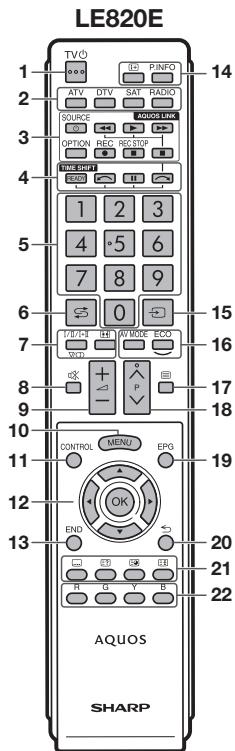
Télécommande
1 TV (Veille/Marche)
(Page 14)
2 ATV
Appuyez pour accéder au mode TV analogique conventionnel.
DTV
Appuyez pour accéder au mode TV numérique.
SAT
Cette fonction n'est pas disponible pour les séries de modèles 820 et 810.
RADIO
DTV : bascule entre le mode radio et le mode données.
- Lorsque seule une diffusion de données (sans diffusion radio) est transmise par DVB, la diffusion radio sera ignorée.
3 boutons AQUOS LINK
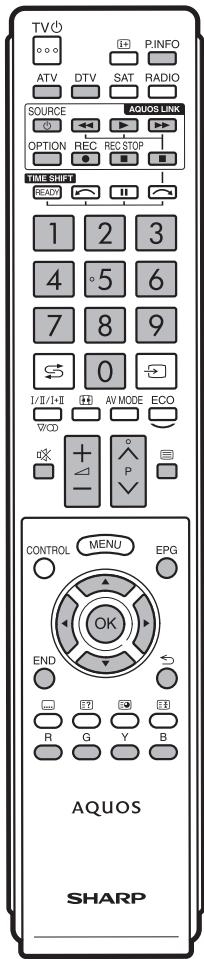
Si un équipement externe tel qu'un lecteur BD AQUOS est connecté via des câbles HDMI et est compatible AQUOS LINK, vous pouvez utiliser ces boutons AQUOS LINK. Voir pages 23 et 25 pour plus de détails.
Les quatre boutons (, , ) fonctionnent pendant le décalage temporel pour la série de modèles 820.
4 TIME SHIFT (READY/√ /
Appuyez pour enregistrer temporairement un programme que vous regardez si vous voulez interrompre un programme pour répondre à un appel téléphonique, par exemple (pages 35-36).
Cette fonction est disponible uniquement pour la série de modèles 820.
5 Boutons numériques 0-9
Réglez la chaîne.
Entrez les numéros souhaités.
Réglez la page en mode télétexte.
- Lorsque les cinq pays nordiques (Suède, Norvège, Finlande, Danemark ou Islande) sont sélectionnés dans le réglage du pays à partir de "Installation automatique" (page 30), les services DTV sont à quatre chiffres. Lorsqu'un autre pays est sélectionné, les services DTV sont à trois chiffres.
6 (Flashback)
Appuyez pour revenir à la chaîne ou à l'entrée externe précédemment sélectionnée.
7 1/II/I (Mode sonore)
Sélectionnez un mode de multiplexage sonore (page 15).
Sélectionnez un mode large (pages 37, 45 et 46).
8 (Sourdine)
Activer/désactiver le son du téléviseur.
LE810E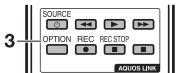
9 +/-(Volume)
Augmenter/diminuer le volume du téléviseur.
10 MENU
Activer/désactiver l'écran "Menu".
11 CONTROL
Appuyez pour afficher le panneau permettant d'effectuer certaines fonctions à l'écran.
12 / / (Curseur)
Sélectionnez un élément souhaité sur l'écran de réglage.
OK
Exécutez une commande dans l'écran "Menu".
ATV/DTV : Affiche la "liste des chaînes" lorsqu'aucun autre écran "Menu" n'est actif.
13 END
Quittez l'écran "Menu".
14 + (Affichage des informations)
Appuyez pour afficher les informations de la station (numéro de chaîne, signal, etc.) dans le coin supérieur droit de l'écran (page 39).
P. INFO
Appuyez pour afficher les informations de programme transmises par diffusion vidéo numérique (DTV uniquement).
15 (INPUT)
Sélectionnez une source d'entrée (page 15).
16 AV MODE
Sélectionnez un réglage vidéo (page 26).
ECO (Standard/Advanced/Off)
Sélectionnez le réglage "Économie d'énergie" (page 29).
17 (Télétexte)
ATV : affiche le télétexte analogique (page 19).
DTV : sélectionnez MHEG-5 et le télétexte pour la TNT (page 19).
18 P∧/V
Sélectionnez la chaîne TV.
19 EPG
DTV : affiche l'écran du guide électronique des programmes (pages 16-18).
20 (Retour)
Retour à l'écran "Menu" précédent.
21 Touches pour les opérations utiles
(Sous-titres)
Activer/désactiver les sous-titres (pages 19 et 34).
(Afficher le télétexte caché)
(Page 19)
Sous-page
(Page 19)
(Geler/Figer)
Appuyez pour figer une image en mouvement à l'écran.
Télétexte : arrêter la mise à jour automatique des pages de télétexte ou quitter le mode de gel.
22 Boutons R/G/B/Y (couleur)
Les boutons de couleur sont utilisés pour sélectionner les éléments colorés à l'écran (par exemple, EPG, MHEG-5, télétexte).
TV (vue de face)
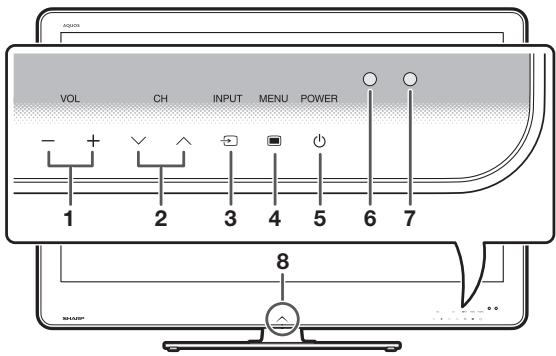
1 VOL- / VOL+ (boutons de volume) 2 CH- / CH+ (boutons de programme [chaîne]) 3 INPUT (bouton de source d'entrée) 4 MENU (bouton de menu) 5 POWER (bouton d'alimentation) 6 Capteur OPC 7 Capteur de télécommande 8 LED d'éclairage
TV (vue arrière)
1 Cette borne n'est pas disponible pour la série de modèles 810. 2 Les bornes HDMI 2 et EXT 3 peuvent toutes deux utiliser la même borne d'entrée audio (HDMI 2/EXT 3 AUDIO (L/R)). Cependant, l'élément approprié doit être sélectionné dans le menu "Sélection audio" (voir page 28 pour plus de détails). *3 Lorsque l'interrupteur d'alimentation principal est éteint (H), la quantité d'énergie électrique consommée est réduite à 0,01 W ou moins. Cependant, contrairement au débranchement du cordon d'alimentation, l'alimentation n'est pas complètement coupée.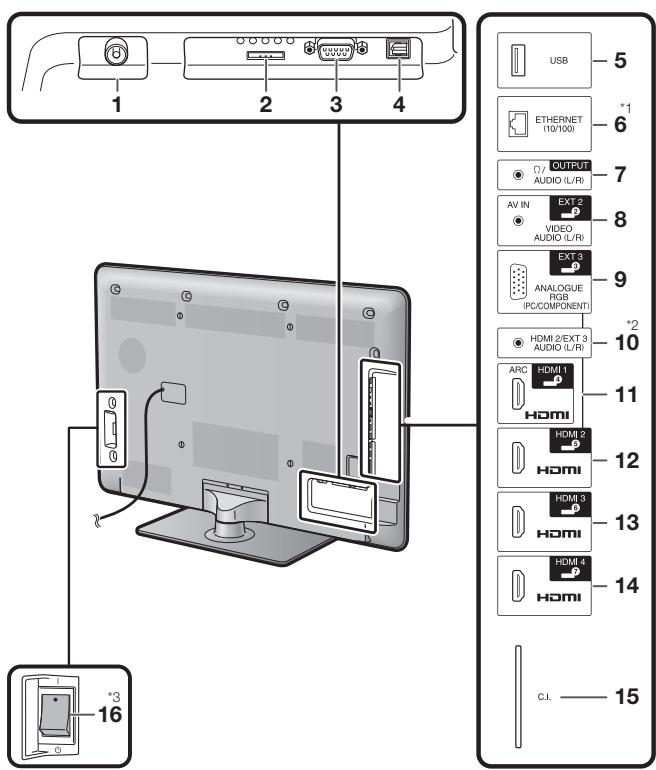
Pour effectuer les réglages du téléviseur, vous devez afficher l'OSD. L'OSD des réglages est appelé « Menu ». Le « Menu » permet divers réglages et ajustements.
Fonctionnement de base
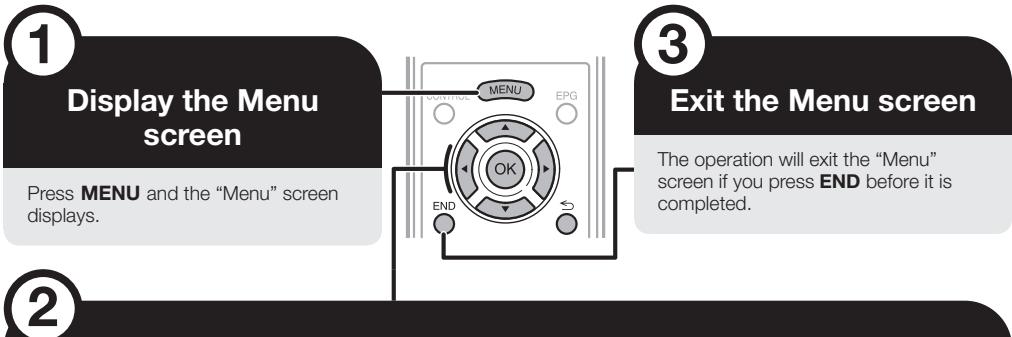
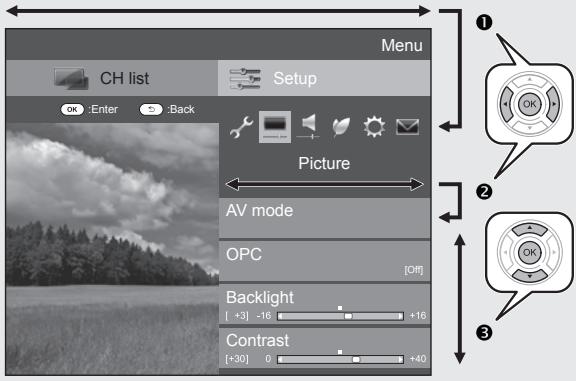
Sélection d'un élément
Le « Menu » est classé par catégories de réglages pour améliorer la visualisation du téléviseur.
Appuyez sur pour sélectionner le menu souhaité, puis appuyez sur OK. Appuyez sur 念 pour revenir à la catégorie de menu précédente. Appuyez sur pour sélectionner le sous-menu souhaité, puis appuyez sur OK. Appuyez sur / pour sélectionner l'élément que vous souhaitez sélectionner/régler, puis appuyez sur OK.
Sélection des options
4 Appuyez sur / ou / pour configurer la commande afin d'améliorer la visualisation du téléviseur, puis appuyez sur OK.
EXEMPLE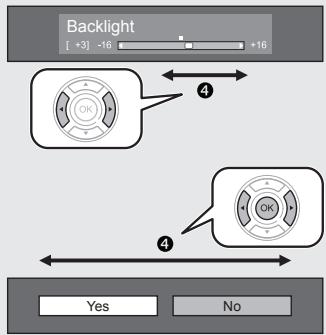
REMARQUE
Reportez-vous à l'affichage du guide sous la barre de menu pour savoir quand appuyer sur le bouton OK.

LCFONT
Ce produit intègre la technologie LC Font, développée par SHARP Corporation pour afficher clairement des caractères faciles à lire sur les écrans LCD.
REMARQUE
- Les options du « Menu » diffèrent selon les modes d'entrée sélectionnés, mais les procédures de fonctionnement sont les mêmes.
- Les éléments avec ne peuvent pas être sélectionnés pour diverses raisons.
- Certains éléments ne peuvent pas être sélectionnés selon les types de signaux, les réglages optionnels ou les appareils connectés.
Fonctionnement sans télécommande
Cette fonction est utile lorsqu'aucune télécommande n'est à portée de main.
1 Appuyez sur MENU et l'écran "Menu" s'affiche. 2 Appuyez sur CHV/ ∧ au lieu de ▲/▼ ou VOL -/+ au lieu de △/▶ pour sélectionner l'élément. 3 Appuyez sur INPUT pour valider le réglage.
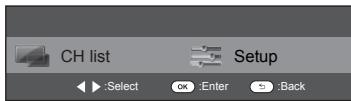
À propos de l'affichage du guide
L'affichage du guide sous la barre de menu montre les opérations pour l'OSD.
- La barre ci-dessus est un guide opérationnel pour la télécommande. La barre change en fonction de chaque écran de réglage du menu.
Accessoires fournis
Télécommande ( × 1
Pages 3 et 8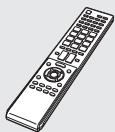
Pile alcaline "AAA" ( x 2)
Page 8
Attache-câble ( x 1)
Page 10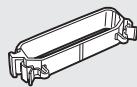
Câble vidéo composante (x1)
Page 21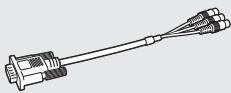
Câble SCART (x1)
Page 21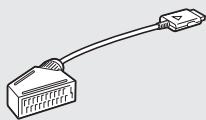
Câble AV (x1)
Pages 21 et 22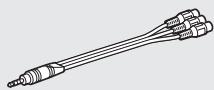
Pied (x1)
Page 7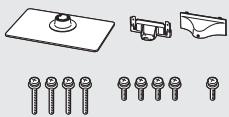
Manuel d'utilisation (cette publication)
Fixation du pied
- Avant d'effectuer cette opération, étalez un tissu de protection sur la surface sur laquelle vous poserez le téléviseur. Cela évitera de l'endommager.
ATTENTION
- Fixez le pied dans le bon sens.
- Suivez scrupuleusement les instructions. Une installation incorrecte du pied peut entraîner la chute du téléviseur.
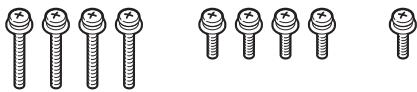
1 Vérifiez qu'il y a neuf vis (quatre vis longues et cinq vis courtes) avec le pied.
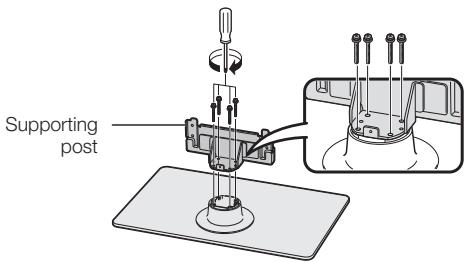
2 Fixez le support du pied sur la base à l'aide des quatre vis longues et d'un tournevis, comme illustré.
3 Insérez le pied dans les ouvertures situées sous le téléviseur (maintenez le pied pour qu'il ne tombe pas du bord de la base).
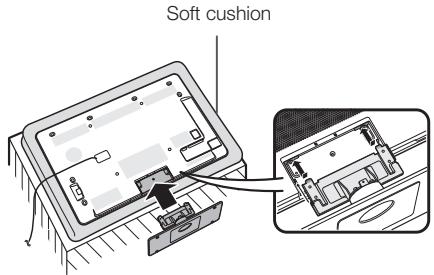
4 Insérez et serrez quatre vis courtes dans les quatre trous à l'arrière du téléviseur.
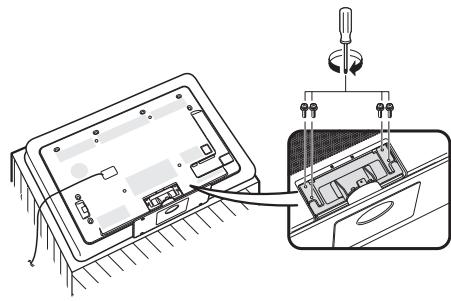
5 Fixation du cache du pied.
① Faites glisser le cache du pied sur les deux ergots de la base du pied. ② Insérez et serrez une vis courte dans le trou au centre du cache du pied.
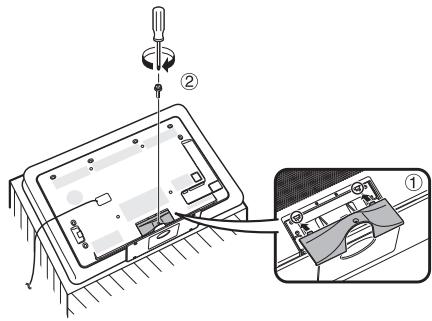
REMARQUE
Pour retirer le pied, suivez les étapes dans l'ordre inverse. - Un tournevis n'est pas fourni avec ce produit. - La base du pied est en verre. Par conséquent, veillez à ne pas la faire tomber ni à exercer de pression dessus. - Ne placez pas d'objets lourds sur la base du pied.
Utilisation de la télécommande
Insertion des piles
Avant la première utilisation du téléviseur, insérez les deux piles alcalines "AAA" fournies. Lorsque les piles sont usées et que la télécommande ne fonctionne plus, remplacez-les par des piles neuves "AAA".
1 Ouvrez le couvercle du compartiment à piles.
2 Insérez les deux piles alcalines "AAA" fournies.
- Placez les piles en respectant les indications (+) et (-) dans le compartiment.
3 Fermez le couvercle du compartiment à piles.
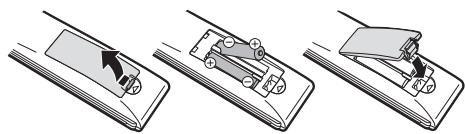
ATTENTION
Une utilisation inappropriée des piles peut entraîner une fuite de produit chimique ou une explosion. Veillez à suivre les instructions ci-dessous.
- Ne mélangez pas des piles de types différents. Les piles de types différents ont des caractéristiques différentes.
- Ne mélangez pas des piles usagées et des piles neuves. Mélanger des piles usagées et des piles neuves peut raccourcir la durée de vie des piles neuves ou provoquer une fuite de produit chimique dans les piles usagées.
- Retirez les piles dès qu'elles sont usées. Les produits chimiques qui fuient des piles peuvent provoquer une éruption cutanée. Si vous constatez une fuite de produit chimique, essuyez soigneusement avec un chiffon.
- Les piles fournies avec ce produit peuvent avoir une durée de vie plus courte en raison des conditions de stockage. Si vous n'utilisez pas la télécommande pendant une période prolongée, retirez les piles.
- Lors du remplacement des piles, utilisez des piles alcalines plutôt que des piles zinc-carbone.
Remarque concernant l'élimination des piles
Les piles fournies ne contiennent pas de substances nocives telles que le cadmium, le plomb ou le mercure.
Les réglementations concernant les piles usagées stipulent que les piles ne peuvent plus être jetées avec les ordures ménagères.
Déposez gratuitement les piles usagées dans les conteneurs de collecte désignés installés dans les commerces.
Angle de la télécommande
Utilisez la télécommande en la pointant vers le capteur de télécommande. Des objets entre la télécommande et le capteur peuvent empêcher un fonctionnement correct.
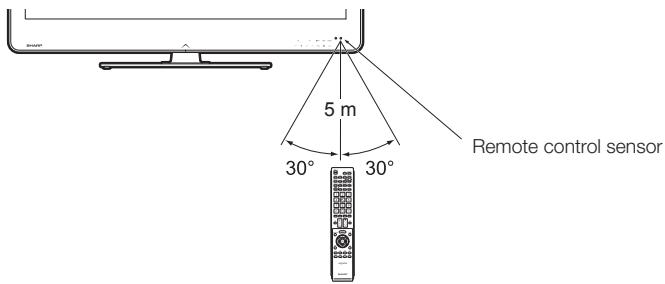
Précautions concernant la télécommande
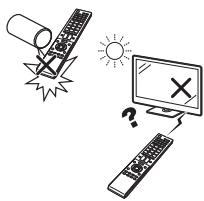
- N'exposez pas la télécommande à des chocs. De plus, n'exposez pas la télécommande à des liquides et ne la placez pas dans un endroit très humide.
- N'installez pas et ne placez pas la télécommande sous la lumière directe du soleil. La chaleur peut provoquer une déformation de l'appareil.
- La télécommande peut ne pas fonctionner correctement si le capteur de télécommande du téléviseur est exposé à la lumière directe du soleil ou à un éclairage intense. Dans ce cas, modifiez l'angle de l'éclairage ou du téléviseur, ou utilisez la télécommande plus près du capteur de télécommande.
Aperçu de l'installation initiale
Suivez les étapes ci-dessous une par une lors de la première utilisation du téléviseur. Certaines étapes peuvent ne pas être nécessaires selon l'installation et les connexions de votre téléviseur.
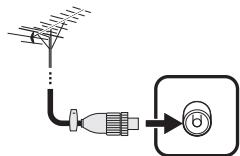
1 Connectez un câble d'antenne à la borne d'antenne (page 10).
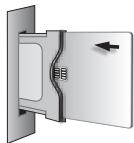
2 Si nécessaire, insérez une carte CA dans la fente CI pour regarder les émissions brouillées (page 10).
Branchez le cordon d'alimentation sur la prise secteur (page 10).
La forme du produit varie selon les pays.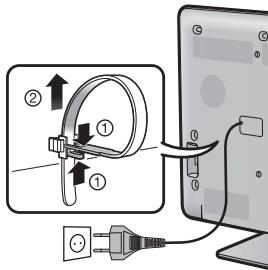
1 Vérifiez que l'interrupteur d'alimentation principal à l'arrière du téléviseur est sur la position marche (I).
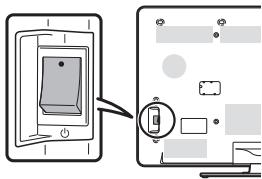
- Par défaut, l'interrupteur d'alimentation principal est réglé sur marche (I).
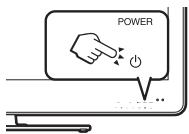
Allumez le téléviseur à l'aide de la touche POWER du téléviseur (page 14).
Exécutez l'installation automatique initiale (page 11).
Réglage de la langue Réglage Accueil/Magasin √ Réglage du pays Réglage de la recherche des chaînes

Commencer la recherche des chaînes

1 Félicitations ! Vous pouvez maintenant regarder la télévision. Si nécessaire, ajustez l'antenne pour obtenir une réception optimale du signal (page 13).
Connecter des périphériques externes
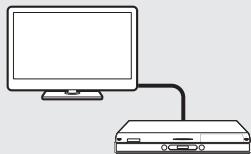
1 Connectez des périphériques externes tels qu'un lecteur/enregistreur DVD comme indiqué (pages 20-22).
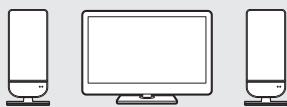
Connectez des périphériques audio externes tels que des enceintes/amplificateur comme indiqué (page 22).
Avant de mettre sous tension
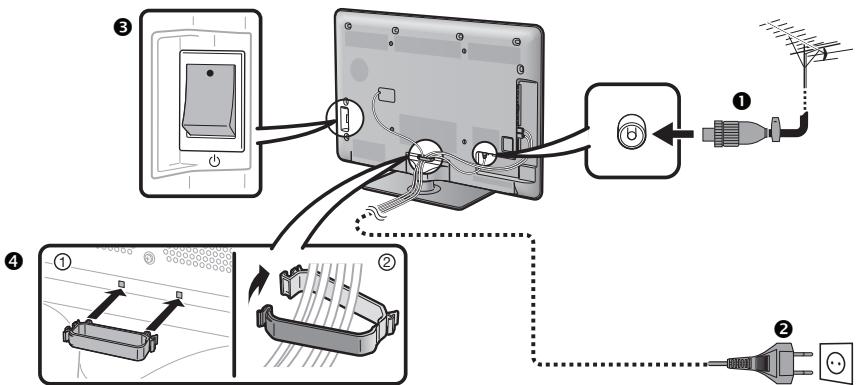
1 Prise standard DIN45325 (IEC 169-2) Câble coaxial 75 Ω Cordon d'alimentation (la forme du produit varie selon les pays) 3 Vérifiez que l'interrupteur MAIN POWER à l'arrière du téléviseur est sur ON (I). 4 Serre-câble (regroupez les câbles avec le serre-câble)
Placez le téléviseur près de la prise secteur et gardez la fiche d'alimentation à portée de main.
Insertion de la carte CA dans le module CI
Pour recevoir des chaînes numériques codées, un module d'interface commune (module CI) et une carte CA doivent être insérés dans la fente CI du téléviseur.
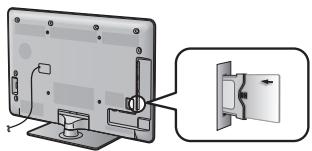
1 Insérez soigneusement le module CI dans la fente CI, le côté contact vers l'avant. 2 Le logo du module CI doit être orienté vers l'extérieur depuis l'arrière du téléviseur.
Allez dans "Menu" > "Configuration" > "Option" > "Menu CI".
- Ce menu n'est disponible que pour les chaînes numériques.
- Le contenu de ce menu dépend du fournisseur du module CI.
Module
Affiche les informations générales sur le module CI.
Affichage des paramètres de réglage de chaque carte CA.
Consultation
Vous pouvez saisir ici des valeurs numériques telles que des mots de passe.
REMARQUE
- Il faut environ 30 secondes pour certifier la clé de licence lorsque vous insérez une carte CA dans le module CI compatible CI+ pour la première fois. Ce processus peut échouer s'il n'y a pas de signal d'antenne ou si vous n'avez jamais exécuté "Installation automatique". Le module CI compatible CI+ met parfois à jour son micrologiciel. Vous ne pourrez peut-être pas recevoir d'images TV avant la mise à jour. Vous ne pouvez utiliser que le bouton d'alimentation pendant la mise à jour.
- Le module CI compatible CI+ ne permet pas de sortir des programmes protégés contre la copie via la sortie moniteur. Dans ce cas, l'icône de protection contre la copie est affichée dans les informations du programme lorsque vous appuyez sur P. INFO.
- Icône de protection : si le téléviseur affiche un message de confirmation de mise à jour pour la carte CA lors de la réception de diffusions compatibles CI+, suivez les instructions à l'écran.
- Assurez-vous que le module CI est correctement inséré.
Installation automatique initiale
Lorsque le téléviseur est mis sous tension pour la première fois après l'achat, l'assistant d'installation automatique initiale apparaît. Suivez les menus et effectuez les réglages nécessaires un par un.
Vérifiez les points suivants avant de mettre sous tension
Le câble d'antenne est-il connecté ? La prise secteur est-elle branchée ? L'interrupteur principal (MAIN POWER) est-il sur la position I (marche) ?
1 Appuyez sur POWER sur le téléviseur.
- L'assistant d'installation automatique initiale apparaît.
2 Réglage de la langue de l'OSD.
Appuyez sur ▲/▼/◀ pour sélectionner la langue souhaitée, puis appuyez sur OK.
3 Sélection de l'emplacement du téléviseur.
MAISON
MAGASIN
Appuyez sur ◀ pour sélectionner l'endroit où vous utiliserez ce téléviseur, puis appuyez sur OK.
- L'écran de confirmation n'apparaît que lorsque vous sélectionnez "MAGASIN". Appuyez sur ◀ pour sélectionner "Oui" ou "Non".
- MAISON : "STANDARD" sera la valeur par défaut pour le réglage "Mode AV".
- MAGASIN : "DYNAMIQUE (Fixé)" sera la valeur par défaut pour le réglage "Mode AV". Si le "Mode AV" est modifié, le téléviseur reviendra automatiquement à "DYNAMIQUE (Fixé)" lorsqu'aucun signal n'est reçu du téléviseur ou de la télécommande pendant 30 minutes.
- MAGASIN : Une image de démonstration s'affichera après l'installation automatique initiale. Si vous avez choisi "MAGASIN" par erreur, allez dans "Configuration" > "Réglage de l'affichage" > "Réinitialiser" > sélectionnez à nouveau "MAISON".
4 Réglage du pays.
Appuyez sur ▲/▼/◀ pour sélectionner votre pays ou région, puis appuyez sur OK.
- Cet écran de réglage n'apparaît que lors de la première installation.
REMARQUE
- Si vous sélectionnez "Suède" dans le réglage du pays, vous pouvez choisir le fournisseur de câble "ComHem". Reportez-vous à la marque ComHem dans les étapes suivantes ou aux instructions concernant les réglages pour "ComHem".
5 Démarrage de la recherche des chaînes.
Recherche numérique
Recherche analogique
Appuyez sur / pour sélectionner "Recherche numérique" ou "Recherche analogique", puis appuyez sur OK.
- Pour regarder à la fois les émissions analogiques et numériques, vous devez effectuer le réglage d'installation automatique pour chaque format (page 30).
- Si vous souhaitez rechercher d'autres émissions, exécutez "Recherche supplémentaire" dans le menu "Réglage des programmes" (pages 30-32).
REMARQUE
- Si vous éteignez le téléviseur pendant une recherche de chaînes, l'assistant d'installation automatique initial n'apparaîtra pas. La fonction d'installation automatique vous permet d'exécuter à nouveau l'installation à partir de "Réglage" > "Réglage de l'affichage" (page 30).
- L'assistant d'installation automatique initial s'interrompra si vous laissez le téléviseur sans surveillance pendant 30 minutes avant la recherche de chaînes. Une fois l'installation automatique initiale terminée, le code PIN par défaut est automatiquement défini sur "1234". Pour modifier le code PIN, reportez-vous aux réglages Mot de passe/Verrouillage (page 33). Pour effacer le code PIN (la saisie du code PIN ne sera plus nécessaire), reportez-vous à EFFACEMENT DU CODE PIN (page 50).
- Lorsque "Italie" est sélectionné dans le réglage du pays, la valeur de restriction d'âge par défaut est définie sur 18.
Réglage de la diffusion numérique
Appuyez sur / pour sélectionner "Terrestre" ou "Câble", puis appuyez sur OK.
Terrestre
Câble
ComHem
- Lorsque vous définissez "Suède" dans le réglage du pays et sélectionnez "Câble" pour le format de recherche, vous pouvez sélectionner le fournisseur de câble "ComHem".
Recherche de chaînes hertziennes
Le téléviseur recherche, trie et mémorise toutes les chaînes de télévision recevables en fonction de leurs réglages et de l'antenne connectée.
Pour interrompre l'installation automatique initiale en cours, appuyez sur 出
Recherche de chaînes câblées
Pour modifier chaque élément avec les réglages appropriés :
① Appuyez sur / pour sélectionner le menu, puis appuyez sur OK.
| Scrambled stations | [Yes] |
| Search method | [Channel] |
| Start frequency | [47.0] |
| Network ID | [None] |
| Symbol rate 1 | [6875] |
| Symbol rate 2 | [6900] |
| QAM modulation 1 | [64] |
| QAM modulation 2 | [256] |
| Reset | |
| Search start | |
② Appuyez sur / / / ou 0-9 pour sélectionner ou saisir l'élément/valeur approprié, puis appuyez sur OK. ③ Appuyez sur / pour sélectionner "Démarrer la recherche", puis appuyez sur OK. ④ Appuyez sur / pour sélectionner "Oui" afin de démarrer la recherche des chaînes câblées, puis appuyez sur OK. Le téléviseur recherche, trie et mémorise toutes les chaînes de télévision recevables en fonction de leurs réglages et de l'antenne connectée. - Pour interrompre l'installation automatique initiale en cours, appuyez sur .
ComHem
- Les menus "Chaînes brouillées" et "Méthode de recherche" ne sont pas affichés à l'écran car chaque élément de menu est fixe.
- La valeur de "Fréquence de départ" et "ID réseau" doit être définie sur la valeur spécifiée par le fournisseur de câble.
| Menu | Description | Selectable items |
| Scrambled stations | Specifies if you need to add pay-TV services. | Yes, No |
| Search method | Specifies how you search channels. | Channel: Extracts all of information from a channel (quick, but needs corresponding TV stations). Frequency: Checks every frequency in range (slow). Quick*2: All services are searched by one frequency. This menu works only when your cable provider provides the frequency and the network ID (e.g., Homing channel). |
| Start frequency | | From 47.0–858.0 MHz |
| Network ID | Specifies the network. Set this to register only the specified network ID without registering any special services. | None, 0–65535 |
| Symbol rate 1*1 | The symbol rates are specified by the cable provider. Input the value received for CATV. | 1000–9000 |
| Symbol rate 2*1 | The symbol rates are specified by the cable provider. Input the value received for CATV. | 1000–9000 |
| QAM modulation 1 | | 16, 32, 64, 128, 256 |
| QAM modulation 2 | | None, 16, 32, 64, 128, 256 |
1 Configurez "Débit symbole 2" si le fournisseur de câble utilise plusieurs débits de symbole. 2 Lorsque "Rapide" est sélectionné, "Chaînes brouillées" est automatiquement défini sur "Non". 2 Lorsque "Rapide" est sélectionné, "Aucun" pour le menu "ID réseau" ne peut pas être sélectionné.
ComHem
- Lorsque vous définissez "Suède" dans le paramètre de pays et sélectionnez "Câble" pour le format de recherche, vous pouvez sélectionner le fournisseur de câble "ComHem". Suivez les instructions à l'écran.
Réglage des chaînes analogiques
Le téléviseur recherche, trie et mémorise toutes les chaînes de télévision recevables en fonction de leurs réglages et de l'antenne connectée.
- Pour interrompre l'installation automatique initiale en cours, appuyez sur
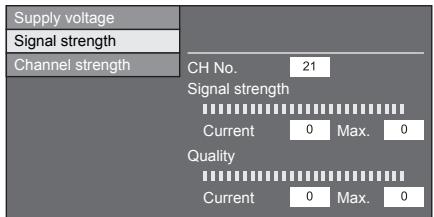
Vérification de la puissance du signal et de la puissance du canal (DVB-T/C)
Si vous installez une antenne DVB-T/C pour la première fois ou si vous la déplacez, vous devez ajuster l'alignement de l'antenne pour obtenir une bonne réception tout en vérifiant l'écran de configuration de l'antenne.
1 Allez dans "Menu" > "Configuration" > "Réglage de la vue"
« Paramètres des chaînes » > "Configuration de l'antenne - NUMÉRIQUE".
Vérification de la puissance du signal
2 Appuyez sur / pour sélectionner "Puissance du signal", puis appuyez sur OK.
Vérification de la puissance du canal
3 Appuyez sur / pour sélectionner "Puissance du canal", puis appuyez sur OK.
- Vous pouvez saisir une bande de fréquences spécifique à l'aide des touches numériques 0 à 9.
Puissance du canal DVB-T
| Supply voltage | Frequency | 4 | 7 | 4. | 0 | MHz |
| Signal strength | | | | | | |
| Channel strength | CH No. | 21 | | | | |
| Signal strength |
| Current | 0 | Max. | 0 |
| Quality |
| Current | 0 | Max. | 0 |
Puissance du canal DVB-C
| Supply voltage | Frequency | 4 | 7 | 4 | 0 | MHz |
| Signal strength | Symbol rate | * | * | * | * | |
| Channel strength | QAM modulation | 64 | |
| Signal strength |
| Current | 0 | Max. | 0 |
| Quality |
| Current | 0 | Max. | 0 |
4 Positionnez et alignez l'antenne de manière à obtenir les valeurs maximales possibles pour "Puissance du signal" et "Qualité".
REMARQUE
- Les valeurs de "Puissance du signal" et "Qualité" indiquent quand vérifier l'alignement approprié de l'antenne.
Alimentation de l'antenne
Vous devez alimenter l'antenne afin de recevoir les chaînes diffusées en numérique/terrestre après avoir connecté le câble d'antenne à la borne d'antenne à l'arrière du téléviseur.
1 Appuyez sur MENU et l'écran "Menu" s'affiche. 2 Appuyez sur ◄ / ► pour sélectionner "Réglage", puis appuyez sur OK. 3 Appuyez sur ◄ / ► pour sélectionner "Réglage de la vue", puis appuyez sur OK. 4 Appuyez sur ▲ / ▼ pour sélectionner "Réglages des chaînes", puis appuyez sur OK. 5 Appuyez sur ▲ / ▼ pour sélectionner "Configuration de l'antenne - NUMÉRIQUE", puis appuyez sur OK. 6 Appuyez sur ▲ / ▼ pour sélectionner "Tension d'alimentation", puis appuyez sur OK. 7 Appuyez sur ◄ / ► pour sélectionner "Activée", puis appuyez sur OK.
Utilisation quotidienne
Mise sous tension / hors tension
Allumer / éteindre l'appareil
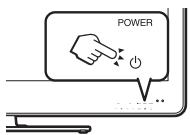
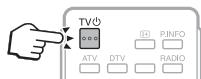
1 Allumez (I) l'interrupteur d'alimentation principal à l'arrière du téléviseur (page 4). 2 Pour allumer le téléviseur, appuyez sur POWER sur le téléviseur ou sur TV sur la télécommande. 3 Pour éteindre le téléviseur, appuyez sur POWER sur le téléviseur ou sur TV sur la télécommande. 4 Éteignez (b) l'interrupteur d'alimentation principal à l'arrière du téléviseur (page 4).
- Lorsque vous coupez l'alimentation à l'aide de l'interrupteur d'alimentation principal à l'arrière du téléviseur, les données du guide des programmes électroniques (EPG) seront perdues.
Mode veille

Passer en mode veille
Si l'interrupteur d'alimentation principal à l'arrière du téléviseur est allumé (I), vous pouvez le mettre en veille en appuyant sur POWER ↓ sur le téléviseur ou sur TV ↓ sur la télécommande.

Sortie de veille
Depuis le mode veille, appuyez sur POWER sur le téléviseur ou sur TV sur la télécommande.
REMARQUE
- Si vous n'utilisez pas ce téléviseur pendant une longue période, assurez-vous de débrancher le cordon d'alimentation de la prise secteur ou d'éteindre (S) l'interrupteur d'alimentation principal à l'arrière du téléviseur (page 4).
- Une petite quantité d'énergie électrique est encore consommée même lorsque l'interrupteur d'alimentation principale est éteint (D) (page 4).
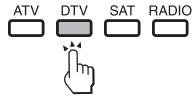
Passer entre les diffusions numériques et analogiques
Regarder les diffusions numériques
Regarder les diffusions analogiques
Changer de chaîne
Avec P∧/∨

Avec 0-9
Sélection d'une source vidéo externe
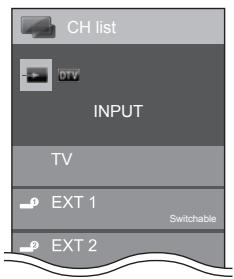
Une fois la connexion établie, appuyez sur → pour afficher l'écran "ENTRÉE", puis appuyez sur → ou ▲/▼ pour passer à la source externe appropriée avec OK.
REMARQUE
- Vous pouvez également sélectionner une source vidéo externe à partir de "Liste des chaînes" > "ENTRÉE".
Sélection d'un mode sonore

Mode DTV
Si plusieurs modes sonores sont reçus, chaque pression sur 1 / I / 1*I fait passer le mode comme suit.
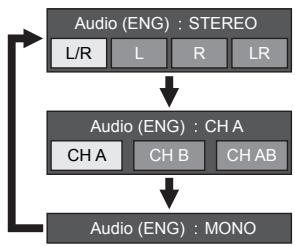
Appuyez sur ↓/↑ pour sélectionner le son L ou R lorsque l'écran STÉRÉO ou DUAL MONO est affiché.
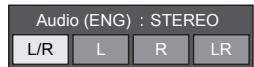
NOTE
L'écran du mode sonore disparaît au bout de six secondes. - Les éléments sélectionnables varient selon les émissions reçues.

Mode ATV
Chaque fois que vous appuyez sur 1 / 1 / 1, le mode change comme indiqué dans les tableaux suivants.
| NICAM TV broadcasts selection |
| Signal | Selectable items |
| Stereo | NICAM STEREO, MONO |
| Bilingual | NICAM CH A, NICAM CH B, NICAM CH AB, MONO |
| Monaural | NICAM MONO, MONO |
| A2 TV broadcasts selection |
| Signal | Selectable items |
| Stereo | STEREO, MONO |
| Bilingual | CH A, CH B, CH AB |
| Monaural | MONO |
NOTE
- Lorsqu'aucun signal n'est reçu, le mode sonore affiche "MONO".
EPG
L'EPG est une liste de programmes affichée à l'écran. Avec l'EPG, vous pouvez consulter l'horaire des émissions DTV/RADIO/DATA, voir des informations détaillées à leur sujet, et vous accorder à un événement en cours de diffusion.
Réglages utiles pour utiliser l'EPG
Réglage de base

Réglage de l'affichage
EPG
Si vous souhaitez utiliser l'EPG pour les stations numériques, sélectionnez "Oui". Les données EPG doivent être capturées automatiquement pendant que le téléviseur est en mode veille. Après avoir réglé sur "Oui", il peut falloir un certain temps pour éteindre l'appareil avec la télécommande en raison du processus de capture des données.
Allez dans "Menu" > "Configuration" > "Réglage de l'affichage" > "Réglage individuel" > "Recherche en veille" > "EPG".
NOTE
- Si l'interrupteur principal d'alimentation est éteint, les données EPG ne seront pas capturées.

Confirmation pour le réglage "EPG"
Si vous réglez "EPG" sur "Oui" ou "Non", l'élément sélectionné est affiché dans la barre d'éléments dans "Réglage EPG" sous "Option".
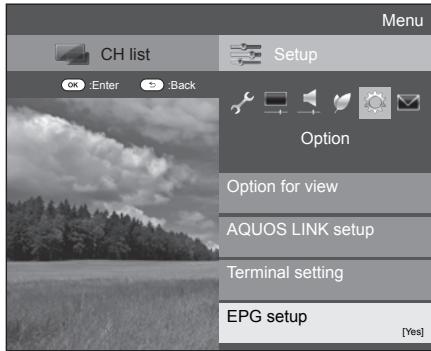
Réglages d'affichage EPG

Option
Réglage de la plage d'affichage
Le "Réglage de la plage d'affichage" vous permet de sélectionner trois types de plages horaires pour l'affichage à l'écran.
Allez dans "Menu" > "Configuration" > "Option" > "Réglage EPG" > "Réglage de la plage d'affichage".
| Item |
| Mode 1 (Wide angle) | Displays six hours of programme information. |
| Mode 2 (Zoom) | Displays three hours of programme information. |
| Mode 3 (Vertical angle) | Changes to the EPG display format with a vertical time span. |

Option
Réglage des icônes de genre
Vous pouvez griser ou marquer les genres souhaités et rechercher facilement les programmes que vous regardez fréquemment.
1 Allez dans "Menu" > "Configuration" > "Option" > "Réglage EPG" > "Réglage des icônes de genre". 2 Appuyez sur / pour sélectionner le genre souhaité, puis appuyez sur OK.

Liste des icônes de genre
| Icon | Genre | Icon | Genre |
| Movie/Drama | | Music/Ballet/Dance |
| News/Current affairs | | Arts/Culture (without music) |
| Show/Game show | | Social/Political issues/Economics |
| Sports | | Education/Science/Factual topics |
| Children's/Youth programmes | | Leisure hobbies |

Appuyez sur / pour sélectionner un niveau afin de choisir ou rechercher les programmes que vous souhaitez regarder ("Standard", "Léger", "Remarque").
Sélection d'un programme à l'aide de l'EPG
Fonctionnement de base
Les illustrations de cette page sont expliquées à l'aide de services à trois chiffres.
Afficher/Fermer l'écran EPG
Appuyez sur EPG.
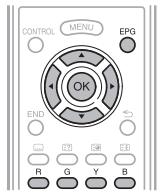
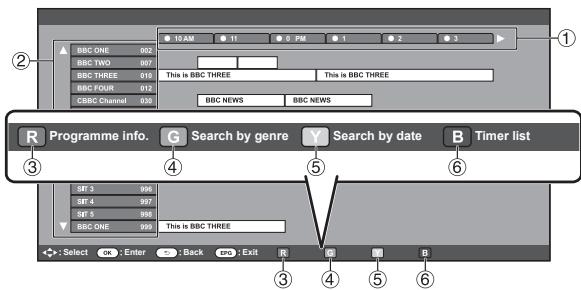
REMARQUE
- Vous pouvez également afficher l'écran EPG à partir de "Menu" > "EPG" > "EPG".
Sélectionner un programme
(1) Sélectionnez la plage horaire
Appuyez sur pour sélectionner la plage horaire que vous souhaitez rechercher.
- Continuez à appuyer sur ▶ pour afficher les programmes de la plage horaire suivante.
② Sélectionnez le programme souhaité
Appuyez sur / pour sélectionner le programme souhaité.
- Si ou sont affichés à gauche des services, continuez à appuyer sur / pour afficher l'écran suivant ou précédent.
Fonctions utiles
1 Appuyez sur / / pour sélectionner le programme que vous souhaitez vérifier. 2 Appuyez sur R, puis sur OK pour syntoniser le programme sélectionné.
(4) Rechercher un programme dans une catégorie
1 Appuyez sur G. 2 Appuyez sur / pour sélectionner le genre souhaité, puis sur OK. 3 Appuyez sur / pour sélectionner un programme que vous souhaitez regarder, puis sur OK.
Reportez-vous à la page 16 pour le réglage du genre.
REMARQUE
- Vous pouvez également afficher cet écran de réglage à partir de "Menu" > "EPG" > "Recherche par genre".
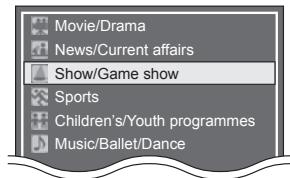
⑤ Rechercher un programme par date/heure
1 Appuyez sur Y. 2 Appuyez sur / pour sélectionner la plage horaire souhaitée, puis sur OK.

3 Appuyez sur / pour sélectionner le programme souhaité, puis sur OK.
REMARQUE
- Vous pouvez également afficher cet écran de réglage à partir de "Menu" > "EPG" > "Recherche par date".
⑥ Afficher la liste des minuteries pour les programmes TV
Appuyez sur B.
Reportez-vous à la page 18 pour le réglage de la minuterie.
Réglage de la minuterie à l'aide de l'EPG
Vous pouvez passer à un programme à une heure définie.
1 Appuyez sur EPG. 2 Appuyez sur / / pour sélectionner le programme que vous souhaitez programmer, puis appuyez sur OK.
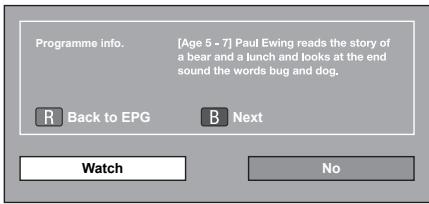
3 Appuyez sur pour sélectionner "Regarder", puis appuyez sur OK. Si vous sélectionnez "Non", le téléviseur revient à l'écran EPG. 4 Appuyez sur / pour sélectionner "Oui", puis appuyez sur OK. - Le programme TV sélectionné est marqué d'une icône. 5 Appuyez sur OK pour sélectionner "Retour".
Annulation de la programmation
1 Appuyez sur EPG. 2 Appuyez sur / / pour sélectionner le programme avec programmation, puis appuyez sur OK. 3 Appuyez sur / pour sélectionner "Annuler", puis appuyez sur OK. 4 Appuyez sur / pour sélectionner "Oui", puis appuyez sur OK.
1 Appuyez sur EPG. 2 Appuyez sur B pour afficher la liste des programmations. 3 Appuyez sur / pour sélectionner le programme dont vous souhaitez annuler la programmation, puis appuyez sur OK. 4 Appuyez sur / pour sélectionner "Annuler", puis appuyez sur OK. 5 Appuyez sur / pour sélectionner "Oui", puis appuyez sur OK.
Télétexte
Qu'est-ce que le télétexte ?
Le télétexte diffuse des pages d'informations et de divertissement aux téléviseurs spécialement équipés. Votre téléviseur reçoit les signaux de télétexte diffusés par un réseau de télévision et les décode en format graphique pour les afficher. Les informations, la météo, les sports, les cours de la bourse et les aperçus de programmes sont parmi les nombreux services disponibles.
Activation/désactivation du télétexte
1 Sélectionnez une chaîne TV ou une source externe fournissant un programme de télétexte.
2 Appuyez pour afficher le télétexte.
- De nombreuses stations utilisent le système TOP, tandis que certaines utilisent FLOF (par exemple, CNN). Votre téléviseur prend en charge ces deux systèmes. Les pages sont divisées en groupes de sujets et en sujets. Après avoir activé le télétexte, jusqu'à 2 000 pages sont stockées pour un accès rapide.
- Si vous sélectionnez un programme sans signal de télétexte, "Télétexte non disponible" s'affiche.
- Le même message s'affiche dans les autres modes si aucun signal de télétexte n'est disponible.
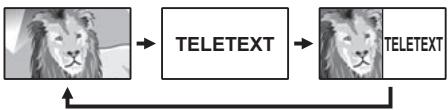
Chaque fois que vous appuyez sur , l'écran bascule comme indiqué ci-dessus. - Appuyez à nouveau pour afficher le télétexte sur l'écran de droite et l'image normale sur l'écran de gauche.
REMARQUE
- Le télétexte ne fonctionnera pas si le type de signal sélectionné est RVB (page 40).
Boutons pour les opérations de télétexte
| Buttons | Description |
| P∧/∨ | Increase or decrease the page number. |
| Colour (R/G/Y/B) | Select a group or block of pages displayed in the coloured brackets at the bottom of the screen by pressing the corresponding colour (R/G/Y/B) on the remote control unit. |
| Numeric buttons0-9 | Directly select any page from 100 to 899 by using the 0-9 numeric buttons. |
| (Revealhidden teletext) | Reveal or hide hidden information such as an answer to a quiz. |
| (Freeze/Hold) | Stop updating teletext pages automatically or release the hold mode. |
| (Subtitle forteletext) | Display the subtitle or exit the subtitle screen.
• Subtitles will not be displayed when the service does not contain subtitle information. |
| (Subpage) | Reveal or hide subpages.
• Move to the previous subspage (R).
• Move to the following subspage (G).
These two buttons are shown on the screen by the symbols "+" and "-". |
Utilisation de l'application MHEG-5 (Royaume-Uni uniquement)
Certains services vous proposent des programmes avec l'application MHEG encodée, vous permettant de vivre une expérience DTV interactive. Lorsqu'elle est fournie, l'application MHEG-5 démarrera lorsque vous appuierez sur ③.
Avant de connecter ...
- Assurez-vous d'éteindre le téléviseur et tous les appareils avant de faire toute connexion.
- Connectez fermement un câble à une ou plusieurs bornes.
- Lisez attentivement le manuel d'utilisation de chaque appareil externe pour connaître les types de connexion possibles. Cela vous aide également à obtenir la meilleure qualité audiovisuelle possible pour maximiser le potentiel du téléviseur et de l'appareil connecté. Reportez-vous à la page 46 pour connecter un PC au téléviseur.
REMARQUE
Les câbles illustrés, sauf ceux décrits dans "accessoires fournis" aux pages 20-22, sont des articles disponibles dans le commerce.
Connexions vidéo

Connexion HDMI
Exemples d'appareils connectables
Lecteur/enregistreur DVD, lecteur/enregistreur Blu-ray, console de jeux
Les connexions HDMI permettent la transmission de vidéo et d'audio numériques via un câble de connexion depuis un lecteur/enregistreur. Les données numériques d'image et de son sont transmises sans compression de données et ne perdent donc rien de leur qualité. La conversion analogique/numérique n'est plus nécessaire dans les appareils connectés, ce qui éviterait également des pertes de qualité.
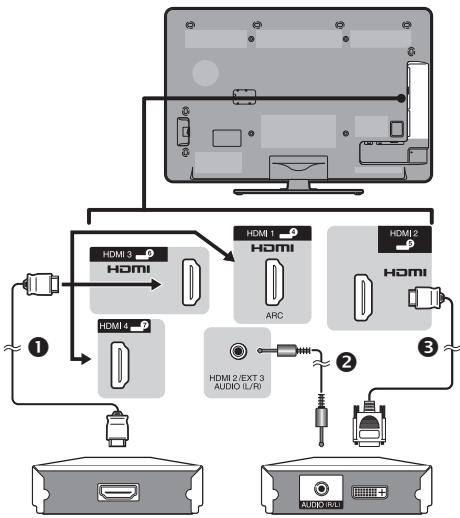
1 câble certifié HDMI, 1 câble minijack stéréo 3,5 mm, câble DVI/HDMI
Conversion DVI/HDMI
À l'aide d'un câble DVI/HDMI, les signaux vidéo numériques d'un DVD peuvent également être lus via la connexion HDMI compatible. Le son doit être fourni séparément.
- Lors de la connexion d'un câble DVI/HDMI à la borne HDMI, l'image peut ne pas être nette. HDMI et DVI utilisent tous deux la même méthode de protection contre la copie HDCP.
Lors de l'utilisation de la borne HDMI 2
Vous devez régler la source d'entrée du signal audio en fonction du type de câble HDMI connecté (voir page 28 pour plus de détails).
Câble certifié HDMI
1 Appuyez sur → pour sélectionner "HDMI 2" dans le menu "INPUT", puis appuyez sur OK. 2 Allez dans "Menu" > "Réglage" > "Option" > "Réglage des bornes" > "Entrée PC" > "Sélection audio" > sélectionnez "HDMI (Numérique)".
Câble DVI/HDMI
1 Appuyez sur → pour sélectionner "HDMI 2" dans le menu "INPUT", puis appuyez sur OK. 2 Allez dans "Menu" > "Réglage" > "Option" > "Réglage des bornes" > "Entrée PC" > "Sélection audio" > sélectionnez "HDMI+Analogique".
REMARQUE
- Si un appareil HDMI connecté est compatible AQUOS LINK, vous pouvez profiter de fonctions polyvalentes (pages 23-25). Un bruit vidéo peut se produire selon le type de câble HDMI utilisé. Assurez-vous d'utiliser un câble certifié HDMI.
- Lors de la lecture d'une image HDMI, le meilleur format possible pour l'image sera détecté et réglé automatiquement.
- Un récepteur audio compatible ARC (Audio Return Channel) doit être connecté à la borne HDMI 1 avec un câble compatible ARC.
Signal vidéo pris en charge
576i, 576p, 480i, 480p, 1080i, 720p, 1080p
Voir page 47 pour la compatibilité des signaux PC.
Connexion SCART
Exemple d'appareils connectables
Magnétoscope Lecteur/enregistreur DVD
Magnétoscope Décodeur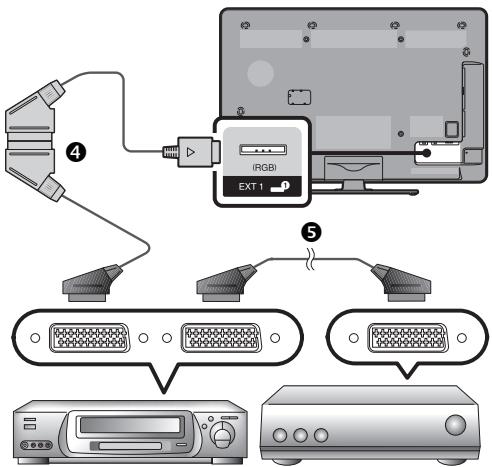
Câble SCART (accessoire fourni)/Câble de conversion Câble SCART
REMARQUE
- Dans les cas où le décodeur doit recevoir un signal du téléviseur, assurez-vous de sélectionner la borne EXT 1 à laquelle le décodeur est connecté dans "Réglage manuel" du menu "Réglage analogique" (page 32).
- Vous ne pouvez pas connecter le magnétoscope avec décodeur à l'aide d'un câble SCART entièrement câblé lorsque vous sélectionnez "Y/C" sous "EXT 1" dans le menu "Sélection d'entrée".

Connexion composante
Exemple d'appareils connectables
Magnétoscope
Lecteur/enregistreur DVD
Vous profiterez d'une reproduction précise des couleurs et d'images de haute qualité via la borne EXT 3 lors du branchement d'un lecteur/enregistreur DVD ou d'un autre appareil.
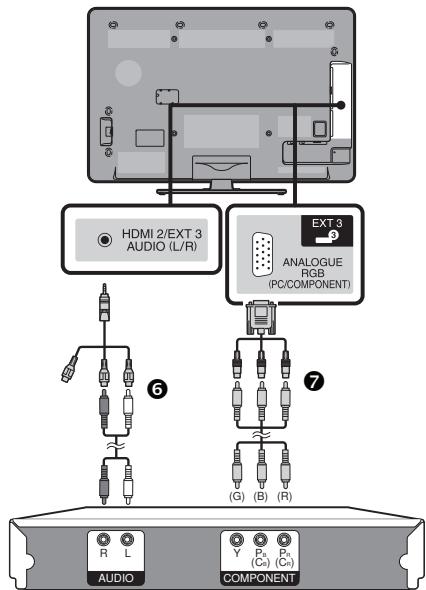

Câble AV (accessoire fourni)/ câble de conversion

Câble composante RVB (accessoire fourni)/ câble de conversion

Après le branchement
Vous devez sélectionner la source d'entrée et les réglages de signal d'entrée appropriés pour la connexion composante afin de profiter d'images de haute qualité via la borne EXT 3.
Sélection du signal composante
1 Appuyez pour sélectionner "EXT 3" dans le menu "ENTRÉE", puis appuyez sur OK. 2 Allez dans "Menu" > "Réglage" > "Option" > "Réglage des bornes" > "Sélection d'entrée" > sélectionnez "COMPOSANTE".
Réglage de la sortie audio
Allez dans "Menu" > "Réglage" > "Option" > "Réglage des bornes" > "Entrée PC" > "Sélection audio" > sélectionnez "Vidéo+Audio".

Connexion VIDÉO
Exemple d'appareils connectables
Magnétoscope Lecteur/enregistreur DVD Console de jeux Caméscope
Vous pouvez utiliser la borne EXT 2 lors du branchement à une console de jeux, un caméscope, un lecteur/enregistreur DVD ou un autre appareil.
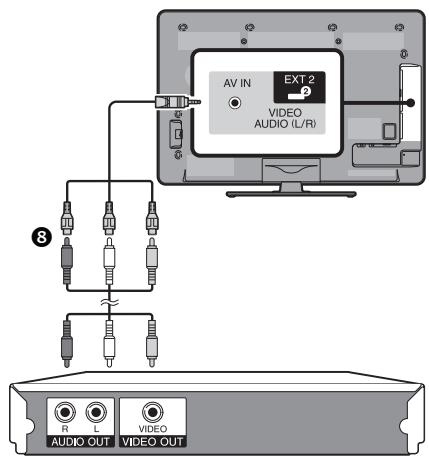
Câble AV (accessoire fourni)/câble de conversion
Connexions audio
Connexion d'un haut-parleur/amplificateur
Connectez un amplificateur avec des haut-parleurs externes comme indiqué ci-dessous.
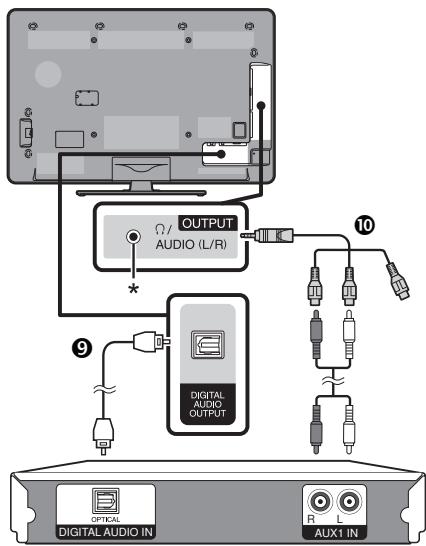
Câble audio optique (pour audio numérique) 10 Câble audio (pour audio analogique)
Après la connexion
Réglage de la sortie audio numérique
Après avoir connecté un amplificateur avec entrée audio numérique et des haut-parleurs externes comme indiqué, vous devez définir un format de sortie audio compatible avec le programme que vous regardez ou l'appareil connecté.
Allez dans "Menu" > "Configuration" > "Option" > "Réglage des terminaux" > "Sortie audio numérique" > sélectionnez "PCM" ou "Dolby Digital".
REMARQUE
- Lorsque réglé sur "Dolby Digital", le Dolby Digital est émis lorsque les formats audio Dolby Digital ou Dolby Digital Plus sont reçus. Lorsque réglé sur "PCM", le PCM est émis quels que soient les formats audio reçus.
- Lorsque réglé sur "Dolby Digital", les formats audio HE-AAC peuvent être émis en Dolby Digital.
Contrôle des appareils HDMI à l'aide d'AQUOS LINK
Qu'est-ce qu'AQUOS LINK ?
Grâce au protocole HDMI CEC, avec AQUOS LINK, vous pouvez commander de manière interactive les appareils système compatibles (amplificateur audio, lecteur/enregistreur DVD, lecteur/enregistreur Blu-ray) à l'aide d'une seule télécommande.
REMARQUE
- Le système audio AQUOS AUDIO et l'enregistreur AQUOS compatibles AQUOS LINK devraient être mis en vente après la sortie de ce téléviseur.
- AQUOS LINK ne fonctionne pas lors de l'utilisation des fonctions de décalage temporel.
Ce que vous pouvez faire avec AQUOS LINK
✓ Enregistrement en une touche (TV numérique uniquement)
Vous n'avez pas besoin de chercher la télécommande de votre appareil d'enregistrement. Appuyez sur les boutons REC ou REC STOP pour démarrer/arrêter l'enregistrement de ce que vous regardez sur l'enregistreur.
Lecture en une touche
Lorsque le téléviseur est en mode veille, il s'allume automatiquement et lit l'image provenant de la source HDMI.
✓ Commande à distance unique
AQUOS LINK reconnaît automatiquement les appareils HDMI connectés et vous pouvez contrôler le téléviseur et les appareils comme si vous utilisiez une télécommande universelle.
✓ Liste des titres des appareils externes
En plus d'afficher la liste des minuteries du téléviseur (page 18), vous pouvez également appeler le menu principal du lecteur externe ou la liste des titres du lecteur/enregistreur AQUOS BD, à condition que les appareils prennent en charge AQUOS LINK.
✓ Contrôle multiple des appareils HDMI
Vous pouvez sélectionner l'appareil HDMI à commander à l'aide du menu "Opération de liaison" ou du bouton OPTION.
NOTE
- Lorsque vous utilisez AQUOS LINK, assurez-vous d'utiliser un câble HDMI certifié.
- Pointez la télécommande vers le téléviseur, et non vers le périphérique HDMI connecté. Des parasites vidéo peuvent apparaître selon le type de câble HDMI utilisé. Assurez-vous d'utiliser un câble HDMI certifié.
- Jusqu'à trois enregistreurs HDMI, un amplificateur audio-vidéo et trois lecteurs peuvent être connectés à ce système. Ces opérations affectent le périphérique HDMI sélectionné comme source externe actuelle. Si le périphérique ne fonctionne pas, allumez-le et sélectionnez la source externe appropriée à l'aide de →
- Lorsque vous insérez/retirez des câbles HDMI ou modifiez les connexions, allumez tous les périphériques HDMI connectés avant d'allumer le téléviseur. Vérifiez que l'image et le son sont correctement émis en sélectionnant « HDMI 1 », « HDMI 2 », « HDMI 3 » ou « HDMI 4 » dans le menu « INPUT SOURCE ».
Connexion AQUOS LINK
Connectez d'abord le système audio AQUOS AUDIO ou un lecteur/enregistreur AQUOS BD prenant en charge le protocole HDMI CEC.
NOTE
Reportez-vous au manuel d'utilisation du périphérique à connecter pour plus de détails. - Après avoir débranché les câbles de connexion ou modifié le schéma de connexion, allumez le téléviseur après avoir allumé tous les périphériques concernés. Changez la source d'entrée externe en appuyant sur → , sélectionnez la source externe appropriée et vérifiez la sortie audiovisuelle. - Les câbles illustrés dans l'explication suivante sont des articles disponibles dans le commerce. Les quatre boutons (, , , ) reliés par une ligne verte sont utilisés pour les opérations de décalage temporel de la fonction time shift.
Connexion d'un lecteur/enregistreur AQUOS BD via le système audio AQUOS AUDIO Lecteur/enregistreur AQUOS BD 1 Câble HDMI certifié Système audio AQUOS AUDIO Câble audio optique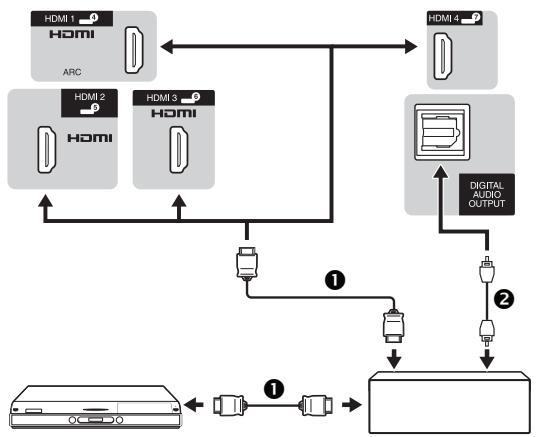
Connexion d'un lecteur/enregistreur AQUOS BD uniquement Lecteur/enregistreur AQUOS BD * La fonction ARC (Audio Return Channel) ne fonctionne que lorsque vous utilisez la borne HDMI 1.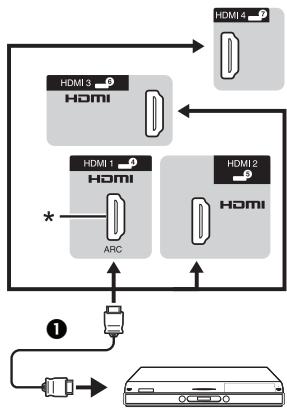
Configuration AQUOS LINK
Opération de base
Allez dans « Menu » > « Opération de liaison » > « Configuration AQUOS LINK » > sélectionnez le menu que vous souhaitez configurer.
Contrôle AQUOS LINK
Réglez sur « On » pour activer les fonctions HDMI CEC.
Mise sous tension automatique
Si cette option est activée, la fonction de lecture en une touche est activée. Lorsque le téléviseur est en mode veille, il s'allume automatiquement et lit l'image provenant de la source HDMI.
REMARQUE
Le réglage d'usine par défaut pour cet élément est « Off ».
Sélection de l'enregistreur
Ici, vous pouvez sélectionner un enregistreur pour l'enregistrement parmi plusieurs enregistreurs connectés.
REMARQUE
- Si vous avez connecté le système de haut-parleurs AQUOS AUDIO entre le téléviseur et un enregistreur AQUOS, l'indication de la source externe change (par exemple, de « HDMI 1 » à « HDMI 1 (Sub) »).
Sélection de la touche de chaîne
Cette fonction vous permet de sélectionner la chaîne du périphérique HDMI connecté à l'aide de la télécommande du téléviseur.
1 Appuyez sur / pour sélectionner la source d'entrée du périphérique HDMI connecté que vous souhaitez contrôler avec la télécommande du téléviseur, puis appuyez sur OK. 2 Appuyez sur / pour sélectionner « On », puis appuyez sur OK.
Utilisation des informations de genre
Cette fonction vous permet de passer automatiquement au mode sonore approprié en fonction des informations de genre incluses dans la diffusion numérique.
Canal de retour audio (ARC)
Si cette fonction est réglée sur « Auto », le téléviseur peut envoyer les données audio du contenu vidéo affiché à l'écran vers un appareil audio connecté avec un seul câble compatible ARC. L'utilisation de cette fonction élimine le besoin d'utiliser un câble audio numérique ou analogique séparé.
Connexion pour utiliser le « canal de retour audio »
- Vous devez utiliser des câbles/appareils compatibles ARC et vous connecter à la borne HDMI 1 pour activer cette fonction. La méthode de connexion est la même que celle décrite ci-dessus pour « Connexion d'un lecteur AQUOS BD/enregistreur AQUOS uniquement ».
Utilisation d'un appareil AQUOS LINK
AQUOS LINK vous permet de faire fonctionner l'appareil connecté via HDMI avec une seule télécommande.
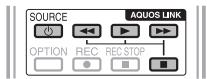
1 Appuyez sur pour démarrer la lecture d'un titre.
Consultez la section « Menu principal/liste des titres » si vous souhaitez démarrer la lecture à l'aide de la liste des titres du lecteur AQUOS BD/enregistreur AQUOS.
2 Appuyez sur pour avancer rapidement.
Appuyez sur pour revenir en arrière.
Appuyez sur pour arrêter.
Appuyez sur SOURCE pour allumer/éteindre l'appareil connecté via HDMI.
Vous pouvez configurer les paramètres du son ou de l'appareil externe en appuyant sur OPTION sur la télécommande pour afficher l'écran du menu AQUOS LINK.
REMARQUE
- Vous pouvez également sélectionner le menu AQUOS LINK à partir du menu « Opération de liaison ».
Mise sous/hors tension de l'enregistreur
Vous pouvez afficher le guide des programmes (EPG) de l'enregistreur compatible CEC et programmer des enregistrements à l'aide de la télécommande du téléviseur.
1 Appuyez sur / pour sélectionner "Mise sous/hors tension de l'enregistreur", puis appuyez sur OK.
- La source d'entrée externe bascule et l'EPG de l'enregistreur s'affiche.
2 Sélectionnez le programme à enregistrer.
Reportez-vous au manuel d'utilisation de l'enregistreur pour plus de détails.
Cette section explique comment lire un titre sur le lecteur AQUOS BD / l'enregistreur AQUOS.
1 Appuyez sur / pour sélectionner "Menu principal / liste des titres", puis appuyez sur OK.
- L'enregistreur lié se met sous tension et le téléviseur sélectionne automatiquement la source d'entrée externe appropriée.
- La liste des titres du lecteur AQUOS BD / enregistreur AQUOS connecté s'affiche.
3 Sélectionnez le titre avec / /, puis appuyez sur LECTURE.
Vous pouvez afficher le menu d'un périphérique externe compatible HDMI CEC (lecteur, enregistreur, décodeur, etc.) à l'aide de la fonction "Menu de configuration".
Appuyez sur / pour sélectionner "Menu de configuration", puis appuyez sur OK.
REMARQUE
- Si un appareil connecté ne dispose pas de cette fonction ou si l'appareil est dans un état où le menu ne peut pas être affiché (enregistrement, mise en veille, etc.), cette fonction peut ne pas être disponible.
Si votre enregistreur dispose de plusieurs supports de stockage, sélectionnez ici le type de support.
1 Appuyez sur / pour sélectionner "Changement de support", puis appuyez sur OK. 2 Sélectionnez le support souhaité, tel que l'enregistreur DVD ou le disque dur. Le type de support change à chaque pression sur OK.
Changer le périphérique de sortie audio
Par AQUOS audio SP
Vous pouvez choisir d'écouter le son du téléviseur uniquement via le système de haut-parleurs AQUOS AUDIO.
Appuyez sur / pour sélectionner "Par AQUOS audio SP", puis appuyez sur OK.
- Le son du haut-parleur du téléviseur et de la prise casque est coupé et seul le son du système de haut-parleurs AQUOS AUDIO est audible.
Par AQUOS SP
Vous pouvez choisir d'écouter le son du téléviseur uniquement via le système de haut-parleurs AQUOS TV.
Appuyez sur / pour sélectionner "Par AQUOS SP", puis appuyez sur OK.
Changement du mode sonore
Vous pouvez changer manuellement le mode sonore du système de haut-parleurs AQUOS AUDIO.
1 Appuyez sur / pour sélectionner "Changement de mode sonore". 2 Le mode sonore change à chaque pression sur OK.
Reportez-vous au manuel d'utilisation du système de haut-parleurs AQUOS AUDIO pour plus de détails.
Sélection du modèle
Si plusieurs périphériques HDMI sont connectés en chaîne, vous pouvez spécifier ici quel périphérique contrôler.
Appuyez sur / pour sélectionner "Sélection du modèle", puis appuyez sur OK. Le périphérique HDMI change à chaque pression sur OK.
Réglages de l'image
Allez dans "Menu" > "Configuration" > "Image".
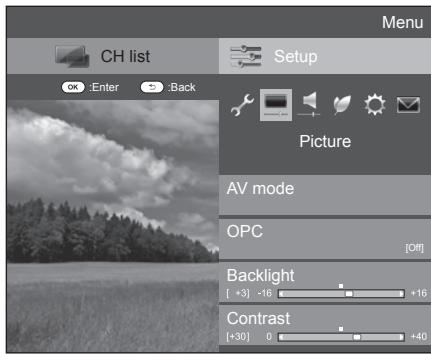

Image
Mode AV
Le "Mode AV" vous offre plusieurs options de visualisation pour choisir celle qui correspond le mieux à l'environnement du système, qui peut varier en fonction de facteurs tels que la luminosité de la pièce, le type de programme regardé ou le type d'image provenant d'un équipement externe.
Appuyez sur / pour sélectionner le mode souhaité, puis appuyez sur OK.
- Vous pouvez également changer de mode sur l'écran du menu "Image" et "Audio" en appuyant sur AV MODE.
| Item |
| AUTO | The TV automatically sets the appropriate selection from the “AV mode” menu depending on the lighting conditions and the type of programme watched. |
| STANDARD | For a highly defined image in a normally bright room. |
| MOVIE | For viewing a movie in a darkened room. |
| GAME | For playing of video games. |
| PC* | For PC. |
| USER | Allows you to customise settings as desired. You can set the mode for each input source. |
| x.v.Color** | Produce realistic colour on the TV screen unlike any other signal. |
| DYNAMIC | For a clear-cut image emphasising high contrast for sports viewing. |
| DYNAMIC (Fixed) | For a clear-cut image emphasising high contrast for sports viewing (the “Picture” and “Audio” settings cannot be adjusted). |
REMARQUE
- Vous pouvez également sélectionner "Mode AV" en appuyant sur AV MODE.
- L'élément marqué d'un * n'est disponible que lorsque vous sélectionnez "HDMI 1", "HDMI 2", "HDMI 3", "HDMI 4" ou "EXT 3" dans le menu "ENTRÉE".
- L'élément marqué de ** n'est disponible que lorsque vous acceptez un signal "x.v.Colour" via un terminal HDMI.
- Si vous sélectionnez "AUTO", certains choix du menu "Mode AV" peuvent ne pas être réglés automatiquement.

Image
OPC
Ajuste automatiquement la luminosité de l'écran.
| Item |
| Off | The brightness is fixed at the value set in “Backlight”. |
| On | Automatically adjusts. |
| On:Display | Displays the OPC effect on the screen while adjusting the brightness of the screen. |
REMARQUE
- Lorsqu'il est réglé sur "On", le téléviseur détecte la lumière ambiante et ajuste automatiquement la luminosité du rétroéclairage. Assurez-vous qu'aucun objet n'obstrue le capteur OPC, ce qui pourrait affecter sa capacité à détecter la lumière ambiante.

Image
Réglages de l'image
Règle l'image selon vos préférences avec les paramètres d'image suivants.
Éléments de réglage
| Selectable items | ▲ (Cursor) | ▶ (Cursor) |
| Backlight | The screen dims | The screen brightens |
| Contrast | For less contrast | For more contrast |
| Brightness | For less brightness | For more brightness |
| Colour | For less colour intensity | For more colour intensity |
| Tint | Skin tones become purplish | Skin tones become greenish |
| Sharpness | For less sharpness | For more sharpness |

Image
Avancé
Ce téléviseur offre diverses fonctions avancées pour optimiser la qualité de l'image.
Allez dans "Menu" > "Configuration" > "Image" > "Avancé".
C.M.S.-teinte
Cette fonction ajuste la teinte d'une couleur sélectionnée à l'aide d'un système de réglage à six couleurs.
C.M.S.-saturation
Cette fonction augmente ou diminue la saturation d'une couleur sélectionnée à l'aide d'un système de réglage à six couleurs.
C.M.S.-valeur
Cette fonction ajuste la luminosité d'une couleur sélectionnée à l'aide d'un système de réglage à six couleurs.
Temp. couleur
Ajuste la température de couleur pour obtenir la meilleure image blanche.
| Item |
| High | White with bluish tone. |
| Mid-High | Intermediate tone between “High” and “Middle”. |
| Middle | Natural tone. |
| Mid-Low | Intermediate tone between “Middle” and “Low”. |
| Low | White with reddish tone. |
| R/G/B Gain (LO), R/G/B Gain (HI) | Adjusts the white balance by changing the value of each item. |
Fine motion avancé
La technologie "Fine motion avancé" offre des solutions supérieures pour la qualité d'image des affichages numériques en éliminant le flou de mouvement ("Élevé", "Faible", "Désactivé").
REMARQUE
- Cet effet est plus important sur les images en mouvement rapide.
- "Fine motion avancé" n'aura aucun effet dans les cas suivants.
1) Le type de signal reçu est un signal PC.
2) Un OSD est affiché. 3) Le télétexte est activé.
- Si les images semblent floues, réglez « Fine motion advanced » sur « Off ».
Réglage gamma
Sélectionne la différence de tonalité entre la luminosité et l'obscurité de l'image selon le type de programme regardé, d'un maximum de +2 à un minimum de -2.
Mode cinéma
Détecte automatiquement une source de type film (encodée à l'origine à 24 ou 25 images par seconde, selon la fréquence verticale), l'analyse puis recrée chaque image fixe du film pour une qualité d'image haute définition (« Avancé (élevé) », « Avancé (faible) », « Standard », « Désactivé »).
Contraste actif
Ajuste automatiquement le contraste d'une image en fonction de la scène.
DNR
« DNR » produit une image plus nette (« Auto », « Élevé », « Moyen », « Faible », « Désactivé »).
REMARQUE
- Cette fonction peut ne pas être disponible selon le type de signal d'entrée.
3D-Y/C
Fournit des images de haute qualité avec un minimum de points de scintillement et de bruit de chrominance en détectant les changements dans l'image.
| Item |
| Standard | Normal adjustment. |
| Fast | Sets the optimum image quality for fast-moving images. |
| Slow | Sets the optimum image quality for slow-moving images. |
REMARQUE
- La fonction "3D-Y/C" peut ne pas fonctionner selon le type de signal d'entrée ou si le signal d'entrée est bruité.
- La fonction "3D-Y/C" a encore plus d'effet sur les signaux vidéo composites (CVBS).
Monochrome
Pour regarder une vidéo en noir et blanc.
Plage de l'OPC
La plage de niveau de luminosité des réglages automatiques du capteur OPC peut être définie selon vos préférences. La plage de réglage du capteur OPC peut être réglée à un maximum de +16 et un minimum de -16.
REMARQUE
- Cette fonction n'est disponible que lorsque le réglage "OPC" est défini sur "On" ou "On:Display".
- Le réglage maximum ne peut pas être défini sur un nombre plus petit que le réglage minimum.
- Le réglage minimum ne peut pas être défini sur un nombre plus grand que le réglage maximum.
- Les réglages maximum et minimum ne peuvent pas être définis sur le même nombre. Selon la luminosité de la lumière ambiante, le capteur OPC peut ne pas fonctionner si la plage de réglage est petite.
Réglages audio
Allez dans "Menu" > "Configuration" > "Audio".
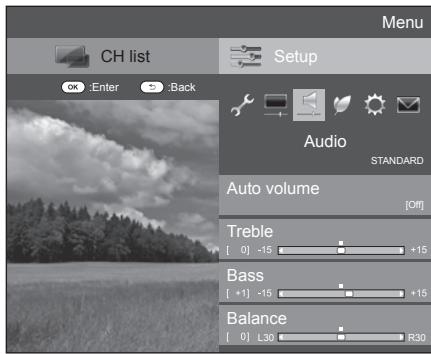

Audio
Volume automatique
Différentes sources sonores n'ont parfois pas le même niveau de volume, comme un programme et ses pauses publicitaires. Cette fonction réduit ce problème en égalisant les niveaux.
| Item |
| High | Strongly reduces the volume gaps among different sound sources. |
| Middle | ↑ |
| Low | Slightly reduces the volume gaps among different sound sources. |
| Off | Does not adjust the volume gaps. |

Audio
Réglage audio
Vous pouvez ajuster la qualité sonore selon vos préférences avec les réglages suivants.
| Selectable items | ( Cursor) | ( Cursor) |
| Treble | For weaker treble | For stronger treble |
| Bass | For weaker bass | For stronger bass |
| Balance | Decrease audio from the right speaker | Decrease audio from the left speaker |

Audio
Surround
Cette fonction vous permet de profiter d'un son live réaliste.

Audio
Amplificateur de basses
Cette fonction vous permet de profiter d'un son avec des basses renforcées.

Audio
Voix claire
Cette fonction met l'accent sur la parole par rapport au bruit de fond pour une plus grande clarté.

Option
Sélection audio
Lorsque vous utilisez la borne EXT 3 ou la borne HDMI 2, vous devez sélectionner quelle borne utilise la prise AUDIO (R/L) pour l'entrée audio analogique.
Allez dans "Menu" > "Réglage" > "Option" > "Réglage des bornes" > "Entrée PC" > "Sélection audio".
Lors de la sélection de "HDMI 2" dans le menu "ENTRÉE"
| Item |
| HDMI (Digital) | When connecting devices (including a PC) with HDMI cable to the HDMI 2 terminal. |
| HDMI+Analog | When connecting devices (including a PC) with DVI/HDMI cable to the HDMI 2 terminal and inputting analogue audio signals from the AUDIO (R/L) jack. |
REMARQUE
- Vous devez régler ce paramètre sur "HDMI+Analogique" lors de la connexion d'appareils (y compris un PC) avec un câble certifié HDMI à la borne HDMI 2. Si "HDMI (Numérique)" est réglé, il n'y aura pas de sortie sonore.
Lors de la sélection de "EXT 3" dans le menu "ENTRÉE"
| Item |
| Video | When connecting devices with AV cable to the EXT 3 terminal, display images without audio. |
| Video+audio | When connecting a PC to the EXT 3 terminal, and inputting analogue audio signals from the AUDIO (R/L) jack. |
REMARQUE
- Vous devez également régler "COMPOSANT" dans le menu "Sélection d'entrée" lors de la sélection de "EXT 3" dans le menu "ENTRÉE" (pages 15 et 40).
Réglages d'économie d'énergie
Allez dans "Menu" > "Réglage" > "ECO".
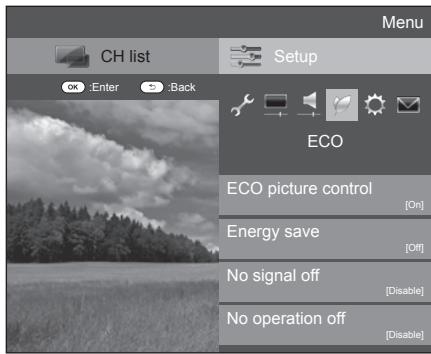

ECO
Contrôle de l'image ECO
Cette fonction détecte automatiquement la source de l'image et diminue la consommation d'énergie tout en conservant la luminosité de l'image inchangée.
REMARQUE
- Cette fonction ne fonctionne pas lorsque le "Mode AV" est réglé sur "DYNAMIQUE (Fixe)" ou "AUTO".
- Cette fonction ne fonctionne pas lorsque "Économie d'énergie" est réglé sur "Standard" ou "Avancé".

ECO
Économie d'énergie
Cette fonction vous permet de réduire la luminosité du rétroéclairage afin de diminuer la consommation d'énergie et d'augmenter la durée de vie du rétroéclairage, comme indiqué dans le tableau suivant.
| Item |
| Standard | Reduces the backlight brightness. |
| Advanced | Reduces the backlight brightness more than “Standard”. |
| Off | The backlight brightness is the same value of your settings in the selected “AV mode”. |
REMARQUE
Cette fonction ne fonctionne pas lorsque le "Mode AV" est réglé sur "DYNAMIQUE (Fixe)".

Icônes d'état de "Économie d'énergie"
| Icon | Description |
| “Energy save” is set to “Standard”. |
| “Energy save” is set to “Advanced”. |
Lorsque "Économie d'énergie" est réglé sur "Standard" ou "Avancé", les icônes d'état de "Économie d'énergie" apparaissent dans le menu "Image" et dans les fenêtres d'informations de chaîne.

ECO
Arrêt sans signal
Lorsqu'il est réglé sur "Activer", le téléviseur passe automatiquement en mode veille s'il n'y a pas de signal d'entrée pendant 15 minutes.
REMARQUE
- Même si un programme TV se termine, cette fonction peut ne pas fonctionner en raison d'interférences provenant d'autres chaînes TV ou d'autres signaux.

ECO
Aucune opération
Le téléviseur passera automatiquement en mode veille si aucune opération n'est effectuée pendant trois heures si "Activer" est sélectionné.
REMARQUE
- Cinq minutes avant que le téléviseur ne passe en mode veille, le temps restant s'affiche chaque minute.

ECO
Minuterie de mise en veille
Permet de définir une heure à laquelle le téléviseur passe automatiquement en mode veille. Vous pouvez définir la durée avant la mise en veille après avoir sélectionné "Modifier".
REMARQUE
- Sélectionnez "Désactivé" pour annuler la minuterie de mise en veille.
- Une fois l'heure définie, le compte à rebours démarre automatiquement.
- Cinq minutes avant l'expiration de l'heure prédéfinie, le temps restant s'affiche chaque minute.

ECO
Audio uniquement
Lorsque vous écoutez de la musique à partir d'un programme musical, vous pouvez éteindre le téléviseur et profiter uniquement de l'audio.
| Item |
| On | Audio is output without a screen image. |
| Off | Both screen images and audio are output. |
Paramètres des chaînes
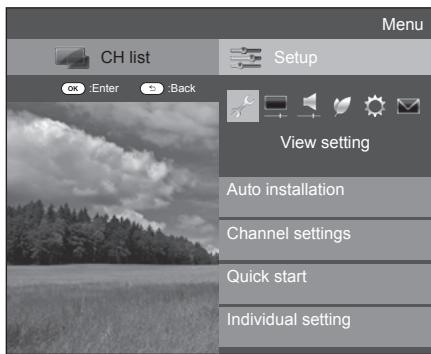

Réglage de l'affichage
Installation automatique
Le téléviseur détecte et mémorise automatiquement tous les services disponibles dans votre région. Cette fonction vous permet également d'effectuer le réglage des chaînes pour le numérique et l'analogique individuellement et de reconfigurer les réglages après l'installation automatique initiale.
1 Allez dans "Menu" > "Configuration" > "Réglage de l'affichage" > "Installation automatique". 2 Appuyez sur / pour sélectionner "Oui", puis appuyez sur OK. 3 Appuyez sur / / / pour sélectionner la langue souhaitée, puis appuyez sur OK.
REMARQUE
La saisie du code PIN est requise lors de l'exécution de "Installation automatique". Le code PIN par défaut est "1234". Pour modifier le code PIN, reportez-vous aux paramètres Mot de passe/Verrouillage (page 33). Pour effacer le code PIN (la saisie du code PIN ne sera plus nécessaire), reportez-vous à EFFACEMENT DU CODE PIN (page 50). - Vous ne pouvez pas définir le réglage Accueil/Magasin et le réglage du pays dans "Installation automatique" dans le menu "Configuration". Si vous souhaitez reconfigurer ces réglages, exécutez automatiquement l'installation automatique initiale après avoir exécuté "Réinitialisation" à partir du menu "Configuration". - Le réglage actuel du pays est affiché à l'écran.
4 Appuyez sur / pour sélectionner le standard de diffusion que vous souhaitez rechercher, puis appuyez sur OK.
Recherche numérique
Après avoir sélectionné le service que vous souhaitez rechercher, soit "TNT", soit "Câble", reportez-vous aux réglages de diffusion numérique aux pages 11-12.
Recherche analogique
Le téléviseur recherche, trie et mémorise toutes les chaînes de télévision recevables. Reportez-vous aux réglages de diffusion analogique à la page 12.

Réglage de l'affichage
Configuration des programmes
Vous pouvez reconfigurer les réglages des services DTV automatiquement ou manuellement.
1 Allez dans "Menu" > "Configuration" > "Réglage de l'affichage" > "Réglage des chaînes" > "Configuration des programmes". 2 Appuyez sur / pour sélectionner le standard de diffusion que vous souhaitez reconfigurer, puis appuyez sur OK.
NOTE
La saisie du code PIN est requise lors de l'exécution de la « Configuration du programme ». Le code PIN par défaut est « 1234 ». Pour modifier le code PIN, reportez-vous aux paramètres de verrouillage par mot de passe (page 33). Pour effacer le code PIN (la saisie du code PIN ne sera plus nécessaire), reportez-vous à la section « EFFACEMENT DU CODE PIN » (page 50).
Réglage numérique
Terrestre
Vous pouvez reconfigurer les réglages suivants lorsque vous sélectionnez « Terrestre » lors de l'installation automatique initiale ou dans le menu « Installation automatique ».
Recherche supplémentaire
Utilisez ce menu pour ajouter automatiquement de nouveaux services après la « Recherche numérique » dans le menu « Installation automatique ».
Recherche manuelle
Ajoutez de nouveaux services dans une bande de fréquences spécifiée.
- Saisissez la fréquence à l'aide des touches numériques 0 à 9.
- Vous ne pouvez effectuer une « Recherche manuelle » avec un numéro de service que si les cinq pays nordiques ont été sélectionnés dans le paramètre de pays.
Réglage manuel
Configurez divers réglages pour chaque service à l'aide des touches de couleur (R/V/B).
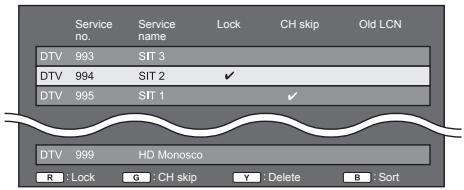
1 Appuyez sur / pour sélectionner le service souhaité.
2 Appuyez sur la touche de couleur de la télécommande correspondant à l'élément que vous souhaitez reconfigurer.
- La coche indique que l'opération est activée. Chaque fois que vous appuyez sur le bouton de couleur, vous pouvez activer ou désactiver l'opération correspondante.
Boutons pour l'opération "Réglage manuel"
Lorsque le service est verrouillé, vous devez saisir votre code PIN chaque fois que vous syntonisez le service.
Les services marqués d'une coche sont ignorés lorsque vous appuyez sur P/√ sur le téléviseur ou la télécommande.
Le service sélectionné est supprimé. Si vous souhaitez regarder à nouveau le service supprimé, effectuez "Installation automatique", "Recherche supplémentaire" ou "Recherche manuelle".
La position des éléments des services peut être triée.
① Appuyez sur / pour sélectionner le service dont vous voulez déplacer la position, puis appuyez sur OK.
| DTV 994 | SIT 2 | ✓ | |
| DTV 995 | SIT 1 | | ✓ |
(2) Appuyez sur / pour le déplacer à la position souhaitée, puis appuyez sur OK.
| DTV 994 | SIT 1 | ✓ |
| DTV 995 | SIT 2 | ✓ |
③ Répétez les étapes 1 et 2 jusqu'à ce que tous les éléments de service souhaités soient triés.
Câble
Vous pouvez reconfigurer les réglages suivants lorsque vous sélectionnez "Câble" dans l'installation automatique initiale ou le menu "Installation automatique".
Recherche supplémentaire
Utilisez ce menu pour ajouter automatiquement de nouveaux services après la fin de la "Recherche numérique" dans le menu "Installation automatique". Suivez les étapes ① à ⑤ dans Recherche de diffusions par câble à la page 12.
Recherche manuelle
Ajoutez de nouveaux services dans une bande de fréquences spécifiée. Après avoir réglé les éléments sur l'écran suivant, le téléviseur commence la recherche.
Reportez-vous au tableau des éléments de menu dans la colonne de droite à la page 12.
| Frequency [47.0] |
| Symbol rate [6900] |
| QAM modulation [64] |
| Search start |
Réglage manuel
Cette fonction est identique à celle de "TNT". Reportez-vous à "Réglage manuel" dans "TNT".
ComHem
- Vous ne pouvez reconfigurer que les paramètres de "Réglage manuel".
- Vous ne pouvez définir que le paramètre "Verrouillage" dans "Réglage manuel".
Réglage analogique
Vous pouvez reconfigurer les paramètres des chaînes TV analogiques automatiquement ou manuellement.
Recherche supplémentaire
Utilisez ce menu pour ajouter automatiquement de nouveaux services après avoir terminé la "Recherche analogique" dans le menu "Installation automatique".
- Commencez la recherche de chaînes après avoir sélectionné le système de couleur et le système audio.
Réglage manuel
Utilisez ce menu pour configurer manuellement les chaînes TV analogiques.
Après avoir sélectionné "Oui" à l'écran, appuyez sur / / / pour sélectionner la chaîne à régler, puis appuyez sur OK.
Fine
Vous pouvez régler la fréquence sur la position souhaitée.
REMARQUE
- Réglez en vous référant à l'image de fond. Au lieu d'appuyer sur / pour régler la fréquence, vous pouvez saisir directement le numéro de fréquence de la chaîne à l'aide des touches numériques 0 à 9.
EXEMPLE
179,25 MHz : Appuyez sur 1 > 7 > 9 > 2 > 5 49,25 MHz : Appuyez sur 4 > 9 > 2 > 5 > OK
Système couleur
Sélectionnez le système couleur optimal pour la réception ("Auto", "PAL", "SECAM").
Système son
Sélectionnez le système sonore (système de diffusion) optimal pour la réception ("B/G", "D/K", "I", "L/L").
Nom
Lorsqu'une chaîne de télévision transmet son nom de réseau, l'"installation automatique" détecte l'information et lui attribue un nom. Cependant, vous pouvez modifier les noms de chaînes individuellement.
1 Appuyez sur / / pour sélectionner chaque caractère du nouveau nom de la chaîne, puis appuyez sur OK. 2 Répétez l'étape 1 jusqu'à ce que le nom soit entièrement épelé.
REMARQUE
Le nom peut comporter cinq caractères ou moins. - Si un nom de chaîne comporte moins de cinq caractères, sélectionnez "FIN" pour définir le nom de la chaîne.
Ignorer
Les chaînes pour lesquelles "Saut" est réglé sur "Oui" sont ignorées lors de l'utilisation de P/√, même si elles sont sélectionnées en regardant l'image depuis le téléviseur.
Décodeur
Lors de la connexion d'un décodeur au téléviseur, vous devez sélectionner "EXT 1".
REMARQUE
La valeur préréglée en usine est "Non".
Verrouillage
Vous pouvez bloquer la visualisation de n'importe quelle chaîne.
REMARQUE
Voir "PIN" pour définir un code PIN. - Lorsque "Verrouillage" est réglé sur "Oui" pour une chaîne, "Le verrouillage enfant a été activé" s'affiche, et l'image et le son de la chaîne sont bloqués. - Lorsque vous appuyez sur ⊇ pendant que "Le verrouillage enfant a été activé" s'affiche, la fenêtre de saisie du code PIN apparaît. La saisie du code PIN correct déverrouille le "PIN" temporairement jusqu'à ce que l'appareil soit éteint.

Tri
Les positions des chaînes peuvent être triées librement.
1 Appuyez sur ◁ / ▷ pour sélectionner "Oui", puis appuyez sur OK. 2 Appuyez sur △ / ▽ / ◁ pour sélectionner la chaîne à déplacer, puis appuyez sur OK. 3 Appuyez sur △ / ▽ / ◁ pour la déplacer à la position souhaitée, puis appuyez sur OK. 4 Répétez les étapes 2 et 3 jusqu'à ce que toutes les chaînes souhaitées soient triées.

Effacer un programme
Les chaînes peuvent être effacées individuellement.
1 Appuyez sur ◁ / ▷ pour sélectionner "Oui", puis appuyez sur OK. 2 Appuyez sur △ / ▽ / △ / ▷ pour sélectionner la chaîne à effacer, puis appuyez sur OK. Une fenêtre de message apparaît. 3 Appuyez sur ◁ / ▷ pour sélectionner "Oui", puis appuyez sur OK pour effacer la chaîne sélectionnée. Toutes les chaînes suivantes remontent. 4 Répétez les étapes 2 et 3 jusqu'à ce que toutes les chaînes souhaitées soient effacées.
Paramètres de mot de passe / verrouillage

Paramètres d'affichage
Code PIN
Permet d'utiliser un code PIN pour protéger certains paramètres contre toute modification accidentelle.
Allez dans "Menu" > "Configuration" > "Paramètres d'affichage" > "Paramètres individuels" > "Code PIN".
REMARQUE
- La saisie du code PIN est requise lors de l'exécution de "Code PIN". Le code PIN par défaut est "1234". Pour effacer le paramètre de code PIN (la saisie du code PIN ne sera plus nécessaire), reportez-vous à la section EFFACEMENT DU CODE PIN (page 50).

Lors de la sélection de "Oui"
Enregistrez un numéro à quatre chiffres pour utiliser la fonction "Code PIN".
1 Appuyez sur / pour sélectionner "Oui", puis appuyez sur OK. 2 Saisissez le numéro à quatre chiffres comme code PIN à l'aide des touches numériques 0-9. 3 Saisissez le même numéro à quatre chiffres qu'à l'étape 1 pour confirmer.
- Le message "Le code PIN du système a été modifié avec succès" s'affiche.
4 Appuyez sur OK.
REMARQUE
- Pour afficher une chaîne verrouillée, vous devez saisir le code PIN (voir pages 31 et 32 pour verrouiller des chaînes en mode DTV et ATV). Lorsque vous sélectionnez une chaîne verrouillée, un message de demande de code PIN s'affiche. Appuyez sur pour afficher la fenêtre de saisie du code PIN.

Lors de la sélection de "Non"
Permet de réinitialiser votre code PIN.
Appuyez sur pour sélectionner « Oui », puis appuyez sur OK.
REMARQUE
- Par mesure de précaution, notez votre code PIN au dos de ce manuel d'utilisation, découpez-le et conservez-le dans un endroit sûr que les enfants ne peuvent pas atteindre.

Réglage de la vue
Classement parental
Cette fonction permet de restreindre les services DTV. Elle empêche les enfants de regarder des scènes violentes ou sexuelles qui peuvent être nuisibles.
1 Allez dans « Menu » > « Configuration » > « Réglage de la vue » > « Réglage individuel » > « Classement parental ». 2 Répétez les étapes 1 à 4 lors de la sélection de « Oui » à gauche.
REMARQUE
- « Vision universelle » et « Préférence d'approbation parentale » sont des classements utilisés exclusivement en France. Reportez-vous à la page 56 pour plus de détails sur les classements.

Option
Verrouillage des touches
Cette fonction permet de verrouiller les boutons du téléviseur ou de la télécommande afin d'empêcher les enfants de changer de chaîne ou de volume.
Allez dans « Menu » > « Configuration » > « Option » > « Verrouillage des touches ».
| Item |
| Off | Unlocks the buttons. |
| RC control lock | Locks all buttons on the remote control unit. |
| Button control lock | Locks the buttons on the TV except the power switch. |
REMARQUE
- Vous ne pouvez pas activer simultanément le « verrouillage des commandes de la télécommande » et le « verrouillage des boutons ».

Annulation du verrouillage
Appuyez sur MENU sur le téléviseur et réglez sur « Off » pour annuler le « verrouillage des commandes de la télécommande ». Appuyez sur MENU sur la télécommande et réglez sur « Off » pour annuler le « verrouillage des boutons ».
Reportez-vous à la page 6 pour le fonctionnement du menu à l'aide de MENU sur le devant du téléviseur.
Réglages de la langue
Réglage de l'affichage
Langue audio numérique
Définissez jusqu'à trois langues audio préférées à afficher si les langues audio sont disponibles.
Allez dans « Menu » > « Configuration » > « Réglage de l'affichage » > « Réglage individuel » > « Langue audio numérique ».

Commutation des langues audio multiples
Chaque fois que vous appuyez sur la touche de changement de langue audio sur la télécommande, la langue audio change.
Réglage de l'affichage
Sous-titres
Définissez jusqu'à deux langues de sous-titres préférées (y compris les sous-titres pour les malentendants) à afficher si les sous-titres sont disponibles.
Allez dans « Menu » > « Configuration » > « Réglage de l'affichage » > « Réglage individuel » > « Sous-titres ».
Éléments sélectionnables
1re langue 2e langue Pour malentendants

Commutation des langues de sous-titres
Chaque pression sur la télécommande fait basculer les sous-titres.


Réglez "Pour malentendants" sur "Oui"
Les sous-titres pour malentendants ont priorité sur chacun des réglages de langue de sous-titres (par exemple, "1re langue", "2e langue", etc.).
EXEMPLE

REMARQUE
- Les sous-titres ne seront pas affichés si le programme ne contient pas d'informations de sous-titres.
Réglage de l'affichage
Langue
Vous pouvez sélectionner une langue d'affichage à l'écran parmi 23 langues. Reportez-vous à la colonne Langue d'affichage dans le tableau des spécifications pour les langues sélectionnables (page 53).
Allez dans "Menu" > "Configuration" > "Réglage de l'affichage" > "Langue".
Réglages utiles
Réglage de l'affichage
Démarrage rapide
Vous pouvez réduire le temps de démarrage du téléviseur après la mise sous tension avec la télécommande.
Accédez à "Menu" > "Réglage" > "Réglage de l'affichage" > "Démarrage rapide".
| Item |
| On | The TV quickly starts up from standby.
30 W or more of power consumption is required during standby. |
| Off | Power consumption is small during standby. |
Décalage temporel
Cette fonction vous permet de mettre en pause le programme TV numérique que vous regardez et de recommencer à le regarder à partir de la scène mise en pause. Cette fonction n'est disponible que pour la série de modèles 820.
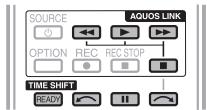
1 Appuyez sur READY.
Le téléviseur commence l'enregistrement temporaire de l'émission en temps réel en arrière-plan. - La durée d'enregistrement en décalage temporel est d'environ 150 minutes pour la SD ou 60 minutes pour la HD (selon les programmes).
2 Appuyez sur
- Le téléviseur affiche le programme à partir de la scène où l'enregistrement a commencé et l'enregistrement continue.
- Lorsque le téléviseur repasse la lecture après avoir appuyé une fois pour arrêter le programme, il affiche le programme à partir de la scène où il s'est arrêté.
Boutons pour l'opération de décalage temporel
| Buttons | Description |
| READY | Start recording the programme you are watching.
·You cannot playback the recorded programme until three seconds after pressing READY to start recording. |
| ▶ | Playback the recorded programme. |
| ■ | Stop the programme in playback (time shift recording continues) and go back to the real time broadcast (live). |
| II | Pause the programme in playback (time shift recording continues).
·This function is released in 15 minutes. |
| ← | Reverse (each time you press this button, the reverse speed changes in three levels). |
| ▶ | Fast forward (each time you press this button, the fast forward speed changes in three levels). |
| (✓) | Playback after jumping backwards by 10 seconds. |
| (✓) | Playback after jumping forward by 30 seconds. |
REMARQUE
Au lieu d'appuyer sur les boutons de la télécommande, les opérations ci-dessus sont également disponibles à l'écran avec le panneau de commande. Vous pouvez faire apparaître ce panneau de commande en appuyant sur CONTROL sur la télécommande ou en sélectionnant "Contrôle (Décalage temporel)" dans "Option" > "Option pour la vue". - Le panneau de commande pour le décalage temporel ne s'affiche que pendant l'opération de décalage temporel.
- Le décalage temporel ne fonctionne pas pour la TV analogique, les entrées externes, les diffusions de données et les diffusions radio. Pour libérer le décalage temporel, appuyez sur READY, changez de chaîne DTV, changez "ENTRÉE" ou éteignez le téléviseur.
- Le décalage temporel sera libéré si aucune opération n'est effectuée pendant trois heures.
- Certaines fonctions ne fonctionnent pas pendant le décalage horaire.
- Le décalage horaire n'est pas réellement une fonction d'enregistrement, donc les données enregistrées sont réinitialisées lorsque vous quittez le décalage horaire.
- Le décalage horaire ne fonctionne pas automatiquement, il ne démarre que lorsque vous appuyez sur READY. Le code PIN est requis lorsque vous utilisez les boutons tels que si vous avez défini le code PIN et que les éléments pour "Contrôle parental" autres que "Aucun" sont sélectionnés.
- L'enregistrement s'arrête automatiquement lorsqu'aucun signal n'est reçu (les données enregistrées seront perdues).
- Le décalage horaire ne fonctionne pas pour les programmes protégés contre la copie.
Exemples d'utilisation du décalage horaire
Lorsque vous vous éloignez de la télévision pendant un moment (appuyez sur READY lorsque vous vous éloignez de la télévision)
| Without time shift |
| Away |
| You miss the scene while you are away. |
| With time shift |
| Away |
| You can watch the missed scene when you come back. |
Lorsque vous voulez revoir la même scène (vous devez appuyer sur READY à l'avance pour que le décalage horaire fonctionne)
| Without time shift |
| | |
| You cannot watch the same scene again. |
| With time shift |
| | |
| You can watch the same scene again. |
Affichage de la chaîne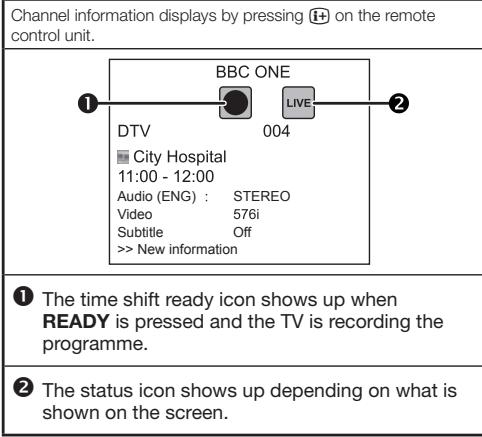
Compteur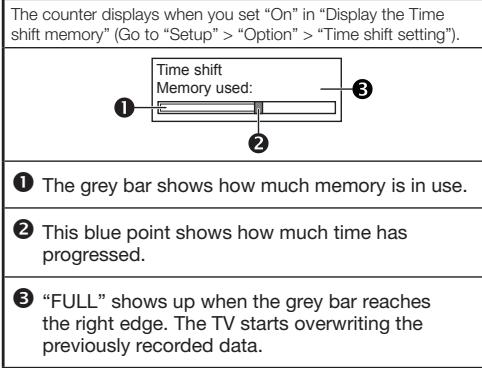
REMARQUE
- Vous pouvez également afficher les informations ci-dessus en appuyant sur CONTROL sur la télécommande ou en sélectionnant "Contrôle (Décalage horaire)" dans "Option" > "Option pour la visualisation".

Option
Vous pouvez choisir d'activer ou non la commutation automatique de la source d'entrée lors de la réception d'un signal compatible AQUOS LINK ou Euro SCART sur le téléviseur pendant les opérations de décalage temporel.
Accédez à "Menu" > "Configuration" > "Option" > "Réglage du décalage temporel" > "Sélection automatique de l'entrée".
| Item |
| Enable | Release time shift when receiving an AQUOS LINK or a Euro SCART compatible signal. Switch input source automatically. |
| Disable | Time shift continues to work. The TV does not switch input source automatically even when receiving an AQUOS LINK or a Euro SCART compatible signal. |
Sélection de la taille de l'image
Sélection automatique de la taille de l'image WSS

Option
WSS
Le "WSS" permet au téléviseur de basculer automatiquement entre les différentes tailles d'image.
Accédez à "Menu" > "Configuration" > "Option" > "WSS".
REMARQUE
- Utilisez le "Mode large" si une image ne passe pas à la taille appropriée. Lorsque le signal de diffusion ne contient pas d'informations "WSS", la fonction ne fonctionnera pas même si elle est activée.
Sélection manuelle de la taille de l'image WSS

Option
Mode 4:3
Le signal "WSS" dispose d'une commutation automatique 4:3 qui vous permet de choisir entre "Normal" et "Panorama".
Accédez à "Menu" > "Configuration" > "Option" > "Mode 4:3".
| Item |
| Normal | Normal range keeping 4:3 or 16:9 aspect ratio. |
| Panorama | Wide image without side bars. |
Signal WSS : écran 4:3
Mode 4:3 « Normal »
Mode 4:3 « Panorama »
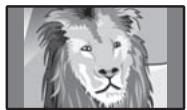
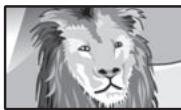
Sélection manuelle de la taille de l'image

Option
Mode large
Vous pouvez sélectionner la taille de l'image. La taille d'image sélectionnable varie selon le type de signal reçu.
| Item (for SD [Standard-Definition] signals) |
| Normal | Keeps the original aspect ratio in a full screen display. |
| Zoom 14:9 | For 14:9 letterbox pictures. A thin side bar appears on each side, and you may also see bars on the top and bottom with some programmes. |
| Panorama | In this mode, the picture is stretched toward each side of the screen. The picture may appear similar to “Full” depending on broadcast signals. |
| Full | For 16:9 squeeze pictures. |
| Cinema 16:9 | For 16:9 letterbox pictures. Bars may appear on the top and bottom with some programmes. |
| Cinema 14:9 | For 14:9 letterbox pictures. Bars may appear on the top and bottom with some programmes. |
| Item (for HD [High-Definition] signals) |
| Full | Displays with an overscan image. Crops all sides of screen. |
| Underscan | Displays with an underscan image only when receiving a 720p signal. Displays with the High-Definition image adjusted optimally. Noise may appear on the edge of the screen with some programmes. |
| Dot by Dot | Displays an image with the same number of pixels on the screen when receiving 1080i/1080p signals only. |
REMARQUE
- Certains éléments n'apparaissent pas selon le type de signal reçu.
1 Allez dans « Menu » > « Réglage » > « Option » > « Option pour l'affichage » > « Mode large ».
- Vous pouvez également sélectionner un élément en appuyant sur la télécommande.
- Le menu répertorie les options « Mode large » sélectionnables pour le type de signal vidéo actuellement reçu.
2 Appuyez sur / pour sélectionner l'élément souhaité.
- Lorsque vous faites défiler les options, chacune est immédiatement reflétée à l'écran. Il n'est pas nécessaire d'appuyer sur OK.
En principe, si vous réglez « WSS » sur « On » dans le menu « Option », le « Mode large » optimal est automatiquement choisi pour chaque émission ou programme diffusé à l'aide d'un magnétoscope ou d'un lecteur/enregistreur DVD.
NOTE
- Même si vous sélectionnez manuellement le « Mode large » souhaité, le téléviseur peut passer automatiquement au « Mode large » optimal en fonction du signal reçu lorsque « WSS » est réglé sur « On ».
Sélection manuelle de la taille de l'image d'enregistrement

Option
Taille de l'image REC
Vous pouvez utiliser ce menu pour définir la taille d'image appropriée pour regarder un programme TV au format 16:9 sur un téléviseur 4:3.
Allez dans « Menu » > « Configuration » > « Option » > « Réglage des terminaux » > « Taille de l'image REC ».
Réglage sur « TV 4:3 » Réglage sur « TV 16:9 »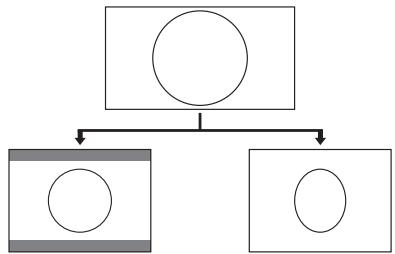
NOTE
Cette fonction doit être réglée avant l'enregistrement.
Sélection automatique de la taille de l'image HDMI

Option
Affichage auto HDMI
Cette fonction vous permet de passer automatiquement à la taille d'image appropriée lors de la visualisation d'un signal HDMI à l'aide des bornes HDMI 1, 2, 3 et 4.
1 Appuyez sur pour sélectionner la source d'entrée (« HDMI 1 », « HDMI 2 », « HDMI 3 » ou « HDMI 4 ») connectée à votre appareil HDMI, puis appuyez sur OK. 2 Allez dans « Menu » > « Configuration » > « Option » > « Réglage des terminaux » > « Affichage auto HDMI ».
Réglage de la position de l'image

Option
Position
Pour régler la position horizontale et verticale d'une image.
Allez dans "Menu" > "Configuration" > "Option" > "Effet d'écran" > "Position".
| Item |
| H-Pos. | Centres the image by moving it to the left or right. |
| V-Pos. | Centres the image by moving it up or down. |
REMARQUE
- Les réglages sont mémorisés séparément pour chaque source d'entrée. Selon le type de signal d'entrée, le réglage "Mode large" ou "Mode vidéo" pour le mode USB, un réglage de position peut ne pas être disponible.
- Cette fonction n'est pas disponible pour les émissions DTV avec signaux MHEG.
Paramètres d'affichage
Affichage des chaînes
Vous pouvez afficher les informations de la chaîne en appuyant sur 1 + sur la télécommande.
Mode DTV
| BBC ONE |
| DTV | 004 |
| Audio (ENG) : | STEREO |
| Video | 576i |
| Subtitle | Off |
| >> New information |
Mode ATV
| ATV | BBC1 |
| 04 |
| Auto | B/G |
| MONO |
| Subtitle | -- |
- Les numéros à quatre chiffres (par exemple, 0001) sont affichés après avoir sélectionné les cinq pays nordiques dans le réglage du pays.

Vous pouvez afficher les informations de temps incluses dans les diffusions DTV et télétexte.
REMARQUE
- Ignorez l'étape 1 si vous recevez des diffusions DTV.
1 Sélectionnez une chaîne TV (les informations de temps sont automatiquement capturées). 2 Appuyez sur + . L'affichage de la chaîne apparaîtra sur le téléviseur. 3 Appuyez à nouveau sur 1 + dans les quelques secondes où l'affichage de la chaîne est à l'écran. Les informations de temps seront affichées dans le coin inférieur droit de l'écran pendant quelques secondes. 4 Même lorsque vous changez de chaîne TV, vous pouvez afficher les informations de temps avec les étapes 2 et 3 ci-dessus.
REMARQUE
- Si l'acquisition réussit, les informations de temps apparaîtront dans le coin supérieur droit de l'écran en appuyant sur MENU.
Affichage de l'heure et du titre

Réglage de la vue
Affichage de l'heure
Allez dans "Menu" > "Configuration" > "Réglage de la vue" > "Réglage individuel" > "Affichage de l'heure".
Affichage de l'heure
Cette fonction vous permet d'afficher l'heure dans le coin inférieur droit de l'écran.
| Item |
| On | Displays the clock time. |
| On (half-hourly) | Displays the clock time in 30-minute increments. |
| Off | Hides the clock time. |
Vous pouvez sélectionner le format de l'heure (soit "24H" soit "AM/PM") pour l'heure.

Option
Temps de jeu
Cette fonction permet d'afficher le temps écoulé à l'écran lorsque le "Mode AV" est réglé sur "JEU".
Allez dans "Menu" > "Configuration" > "Option" > "Temps de jeu".
| Item |
| On | Under connecting a game console to the TV, the elapsed time is displayed in 30-minute increments after you start playing a game. |
| Off | Hides the time. |
REMARQUE
- Ce menu n'est pas sélectionnable si la source d'entrée est "TV" ou "USB".

Option
Affichage du titre du programme
Cette fonction permet d'afficher des informations sur le programme, telles que le titre et l'heure de diffusion, en syntonisant une chaîne.
Allez dans "Menu" > "Configuration" > "Option" > "Effet d'écran" > "Affichage du titre du programme".
REMARQUE
- Cette fonction n'est disponible que lorsque le mode DTV est sélectionné.
Réglage lors de l'utilisation de périphériques externes

Option
Pour régler le type de signal de l'équipement externe.
1 Appuyez sur pour sélectionner la source d'entrée pour régler le signal d'entrée ("EXT 1" ou "EXT 3") dans le menu "INPUT", puis appuyez sur OK. 2 Allez dans "Menu" > "Réglage" > "Option" > "Réglage des bornes" > "Sélection d'entrée".
| Item |
| EXT 1 | Y/C, CVBS, RGB |
| EXT 3 | COMPONENT, RGB |
REMARQUE
- Si aucune image (couleur) ne s'affiche, essayez de changer de type de signal.
- Consultez le manuel d'utilisation de l'équipement externe pour connaître le type de signal.

Option
Vous pouvez attribuer une étiquette personnalisée à chaque source d'entrée.
1 Appuyez sur pour sélectionner la source d'entrée souhaitée dans le menu "INPUT", puis appuyez sur OK. 2 Allez dans "Menu" > "Réglage" > "Option" > "Réglage des bornes" > "Étiquette d'entrée". 3 Appuyez sur / / pour sélectionner chaque caractère du nouveau nom de la source d'entrée, puis appuyez sur OK.
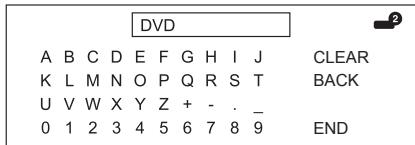
4 Répétez jusqu'à ce que l'étiquette soit entièrement épelée.
REMARQUE
L'étiquette peut comporter six caractères ou moins. - Si vous souhaitez définir une étiquette de source d'entrée de moins de six caractères, sélectionnez "FIN" pour définir le nom.
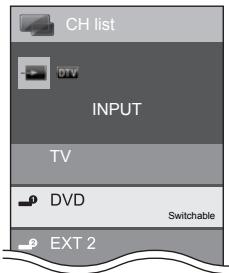
REMARQUE
- Vous ne pouvez pas modifier les étiquettes si la source d'entrée est "TV" ou "USB".

Option
Ce réglage vous permet de sauter l'entrée SCART, HDMI ou RVB lors de la sélection de la source d'entrée.
Allez dans "Menu" > "Configuration" > "Option" > "Saut d'entrée".
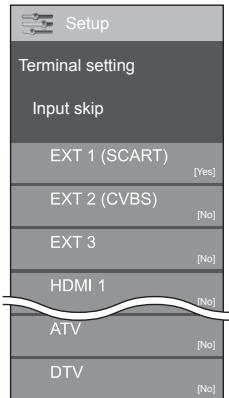
REMARQUE
- Lorsque vous sélectionnez "ATV" ou "DTV", la fonction de saut ne fonctionne que lorsque vous utilisez la touche INPUT → sur la façade du téléviseur.
Fonctions supplémentaires

Option
Système de couleur
Vous pouvez changer le système de couleur pour un système compatible avec l'image à l'écran.
Allez dans "Menu" > "Configuration" > "Option" > "Système de couleur".
REMARQUE
La valeur préréglée en usine est "Auto". - Si "Auto" est sélectionné, le système de couleur pour chaque chaîne est réglé automatiquement. Si une image ne s'affiche pas clairement, sélectionnez un autre système de couleur (par exemple, "PAL", "SECAM").

Option
Sélection casque/Sortie audio
Vous pouvez sélectionner le périphérique utilisé pour la sortie audio.
Allez dans "Menu" > "Configuration" > "Option" > "Réglage du terminal" > "Sélection casque/sortie audio".
| Item |
| Headphone | Output audio through headphones. |
| Audio out | Output audio through an AV receiver or surround audio controller. |
ATTENTION
- Ce terminal est également utilisé pour le casque. Réduisez le volume avant d'utiliser le casque. Un son excessif peut endommager votre audition.
REMARQUE
- Si vous sélectionnez "Sortie audio" lorsqu'un câble est inséré dans la borne AUDIO (L/R) HDMI 2/EXT 3, les haut-parleurs du téléviseur sont coupés.
- Lorsque vous sélectionnez "Sortie audio", vous pouvez régler le volume sonore du téléviseur avec les boutons VOL - / + du téléviseur ou les boutons + / - de la télécommande.

Option
Effet de sélection de chaîne
Cette fonction affiche un effet à l'écran lors du choix ou du changement de chaîne.
Allez dans "Menu" > "Configuration" > "Option" > "Effet d'écran" > "Effet de sélection de chaîne".

Option
Éclairage
Cette fonction fait s'illuminer le voyant LED à l'avant du téléviseur de plusieurs manières.
Allez dans "Menu" > "Configuration" > "Option" > "Éclairage".
| Item |
| Off | The LED is not illuminated. |
| Standby | The LED is illuminated while the TV is in standby mode. |
| Watch | The LED is illuminated while you watch TV. |
| Always | The LED is illuminated all the time. |
NOTE
- La valeur par défaut de cet élément est « Watch ». Réglez sur « Off » si vous ne souhaitez pas que le voyant s'allume.
Connexion d'un périphérique USB
Connectez un périphérique USB au téléviseur comme indiqué ci-dessous.
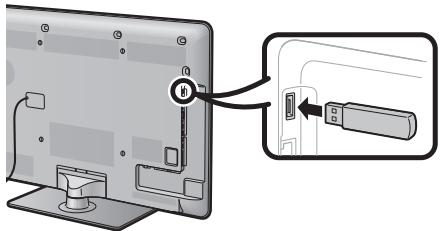
- Le téléviseur passe automatiquement en mode USB lorsqu'un périphérique USB est inséré dans le terminal USB (cela ne fonctionne pas lors de l'utilisation de la fonction de décalage temporel). Selon le périphérique USB, le téléviseur peut ne pas être en mesure de reconnaître les données contenues.
- Utilisez uniquement des caractères alphanumériques pour nommer les fichiers.
- Les noms de fichiers de plus de 80 caractères (peut varier selon le jeu de caractères) peuvent ne pas être affichés.
- Ne déconnectez pas un périphérique USB ou une carte mémoire du téléviseur pendant le transfert de fichiers, lors de l'utilisation de la fonction diaporama, lorsqu'un écran change ou avant de quitter « USB » dans le menu « INPUT ».
- Ne connectez pas et ne déconnectez pas un périphérique USB du téléviseur à plusieurs reprises.
ATTENTION
- N'utilisez pas de câble d'extension USB lors de la connexion d'un périphérique USB au terminal USB du téléviseur.
- L'utilisation d'un câble d'extension USB peut empêcher le téléviseur de fonctionner correctement.
Connexion d'un serveur réseau domestique
Connectez un serveur réseau domestique au téléviseur comme indiqué ci-dessous. Cette fonction n'est disponible que pour la série de modèles 820.
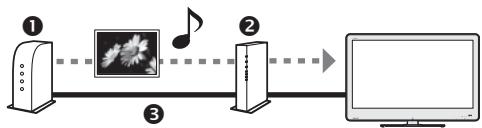
Serveur réseau domestique Routeur 3 Câble LAN
NOTE
- Vous devrez peut-être configurer le téléviseur pour un serveur réseau domestique dans « Configuration Ethernet » du menu « Réglages de la vue ».
- Le téléviseur passe automatiquement en mode réseau domestique lorsqu'un serveur réseau domestique est connecté (cela ne fonctionne pas avec la fonction de décalage temporel). Selon le serveur réseau domestique, le téléviseur peut ne pas être en mesure de reconnaître les données contenues.
- Utilisez uniquement des caractères alphanumériques pour nommer les fichiers.
- Les noms de fichiers de plus de 80 caractères (peut varier selon le jeu de caractères) peuvent ne pas être affichés.
- Ne déconnectez pas un serveur réseau domestique du téléviseur pendant le transfert de fichiers, l'utilisation de la fonction de diaporama, lors du changement d'écran ou avant de quitter « Réseau domestique » du menu « ENTREE ».
- Ne connectez et ne déconnectez pas un serveur réseau domestique du téléviseur à plusieurs reprises.
Sélectionnez « USB » ou « Réseau domestique » dans le menu « ENTREE » pour entrer dans ce mode, ou le téléviseur passe automatiquement en mode USB/Réseau domestique lorsqu'un périphérique USB ou un serveur réseau domestique est connecté au téléviseur.
Dans ce mode, vous pouvez profiter de la visualisation de photos, de l'écoute de musique et du visionnage de vidéos à partir de périphériques USB externes.
Réseau domestique
Dans ce mode, vous pouvez profiter de la visualisation de photos et de l'écoute de musique à partir d'un serveur réseau domestique externe.
NOTE
- Vous ne pouvez pas entrer dans ce mode lorsqu'aucun périphérique USB ou serveur réseau domestique n'est connecté au téléviseur.
- Le mode « Large » est fixe en mode « Photo ». En mode « Vidéo », vous pouvez sélectionner « Auto » ou « Original ».
Sélection des modes et des lecteurs/serveurs
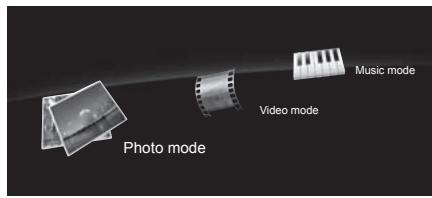
1 Appuyez sur B pour sélectionner le lecteur/serveur où vous souhaitez trouver vos fichiers, puis appuyez sur OK. 2 Appuyez sur pour sélectionner « Mode Photo », « Mode Musique » ou « Mode Vidéo », puis appuyez sur OK.
REMARQUE
- Le « Mode Vidéo » n'est disponible qu'en mode USB.
- Vous n'avez pas besoin de sélectionner le lecteur/serveur à l'étape 1 lorsqu'il n'y a qu'un seul lecteur dans le périphérique USB connecté ou qu'un seul serveur du réseau domestique connecté au téléviseur.
- 16 est le nombre maximal de lecteurs/serveurs pouvant être affichés.
Mode Photo
Affichage des vignettes
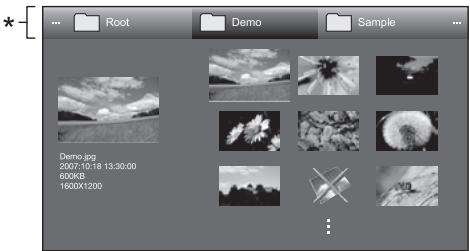
- Cette barre n'est pas affichée dans l'écran « Réseau domestique ».
Boutons pour les opérations sur les vignettes
| Buttons | Description |
| OK | When selecting a folder icon: Enter this directory.
When selecting a photo thumbnail: Enlarge the photo. |
| ▲/▼/▲ (Cursor) | Select a desired item. |
| ← | Return to the previous operation. |
| R button | Select/deselect items (mark appears on the selected items). |
| G button | Select BGM for the slide show. |
| Y button | Start the slide show. |
| B button | Show slide show setup options. |
REMARQUE
- Lorsqu'il y a des fichiers photo invalides, la marque X s'affiche pour le fichier.
- Vous pouvez voir le nom du fichier, la date de prise de vue, la taille du fichier et la taille en pixels de la photo sélectionnée sur le côté gauche de l'écran (la date de prise de vue n'est disponible que dans le format de fichier EXIF).
Affichage des photos agrandies
Boutons pour l'opération d'affichage agrandi des photos
| Buttons | Description |
| ▲/▲ (Cursor) | Go to the previous/next photo in the same directory. |
| ← | Return to the thumbnail selection screen. |
| R button | Rotate the photo by 90 degrees to the left. |
| G button | Rotate the photo by 90 degrees to the right. |
| Y button | Reveal/hide the guide display. |
REMARQUE
- La rotation des photos ne s'applique qu'à l'élément temporairement sélectionné et ce réglage n'est pas enregistré.
Diaporama

Sélection de la musique de fond
Réglez la musique de fond du diaporama à partir de "Sélectionner la musique de fond du diaporama" en appuyant sur B lors de la sélection des vignettes de photos.
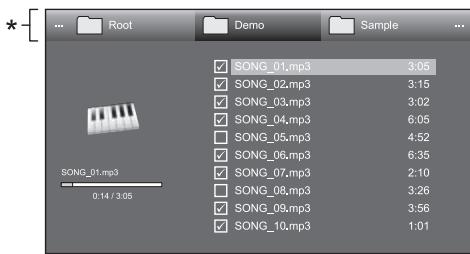
- Cette barre n'est pas affichée dans l'écran "Réseau domestique".
Boutons pour l'opération de sélection de la musique de fond du diaporama
| Buttons | Description |
| OK | When selecting a music file: Play music. |
| ▲/▼/▲ (Cursor) | Select a desired item. |
| ← | Return to the previous operation. |
| R button | Select/deselect items (✓ mark appears on the selected items). |
| G button | Stop music. |
| Y button | Play/pause music. |
| B button | Show slide show setup options. |
REMARQUE
- La musique de fond du diaporama sera réinitialisée dans les cas suivants.
- Sélectionnez "Réinitialiser toute la musique de fond" en appuyant sur B lors de la sélection des fichiers musicaux.
- Revenez au menu principal.
- Changez l'"ENTRÉE".
- Lorsqu'il y a des fichiers musicaux invalides, la marque X s'affiche pour le fichier.
- Le temps de lecture affiché peut différer légèrement du temps de lecture réel selon les fichiers.

Diaporama
Boutons pour l'opération du diaporama
| Buttons | Description |
| ← | Return to the previous operation. |
| Y button | Reveal/hide the guide display. |
| B button | Show slide show setup options. |
REMARQUE
Les BGM sélectionnés sont lus en boucle. - Le diaporama continue jusqu'à ce que vous appuyiez sur ← . - L'intervalle du diaporama par photo peut être réglé dans « Sélectionner l'intervalle du diaporama » en appuyant sur B.
Mode musique

- Cette barre n'est pas affichée dans l'écran « Réseau domestique ».
Boutons pour le mode musique
| Buttons | Description |
| OK | When selecting a music file: Play music. |
| ▲/▼/▲ (Cursor) | Select a desired item. |
| ← | Return to the previous operation. |
| R button | Select/deselect items (mark appears on the selected items). |
| G button | Stop music. |
| Y button | Play/pause music. |
| B button | Show auto play setup options. |
REMARQUE
- Lorsqu'il y a des fichiers musicaux invalides, la marque X s'affiche pour le fichier.
- Le temps de lecture affiché peut différer légèrement du temps de lecture réel selon les fichiers.
Mode vidéo
Boutons pour les opérations de sélection de fichiers
| Buttons | Description |
| OK | When selecting a folder icon: Enter this directory.
When selecting a video file: Play the video. |
| ▲/▼/▲ (Cursor) | Select a desired item. |
| ← | Return to the previous operation. |
| R button | Select/deselect items (mark appears on the selected items). |
| B button | Show auto play setup options. |
REMARQUE
- Le « mode vidéo » n'est disponible qu'en mode USB. Au lieu d'appuyer sur les boutons de la télécommande, les opérations ci-dessus sont également disponibles à l'écran avec le panneau de commande. Vous pouvez faire apparaître ce panneau de commande en appuyant sur CONTROL sur la télécommande ou en sélectionnant « Contrôle (USB) » dans « Option » > « Option pour la vue ».
- Lorsqu'il y a des fichiers vidéo invalides, la marque X s'affiche pour le fichier.
Boutons pour le mode de lecture
| Buttons | Description |
| ▲ (Cursor) | Go to the beginning of a file by pressing ▲ once and the previous file by pressing ▲ twice. |
| ▼ (Cursor) | Go to the next file. |
| ←/→ (Cursor) | Reverse/fast forward a video. |
| ← | Go back to the file selection screen. |
| R button | Start playback from the previously stopped scene. |
| G button | Stop a video. |
| Y button | Reveal/hide the guide display. |
REMARQUE
- La lecture inverse/avant rapide continue d'un fichier à un autre pendant la lecture continue.

Réglage de la vue
Configuration DivX®
Cette fonction permet de confirmer votre code d'enregistrement. Vous devez enregistrer le code sur www.divx.com.
Allez dans « Menu » > « Configuration » > « Réglage de la vue » > « Configuration DivX® ».
Enregistrement DivX® VOD
Vous pouvez trouver votre code d'enregistrement dans ce menu. Vous devez enregistrer le téléviseur sur www.divx.com avant de lire le contenu DivX.
Désenregistrement DivX® VOD
Vous pouvez trouver votre code de désenregistrement dans ce menu. Vous devez désenregistrer le téléviseur sur www.divx.com pour libérer l'enregistrement.
Compatibilité avec les périphériques USB / serveurs du réseau domestique
| USB device | USB Memory, USB card reader (Mass Storage class) |
| File system | FAT/FAT32 |
| Photo file format | JPEG (.jpg) (DCF2.0 compliant) |
| Music file format | MP3 (.mp3)
Bitrate: 32 k, 40 k, 48 k, 56 k, 64 k, 80 k, 96 k, 112 k, 128 k, 160 k, 192 k, 224 k, 256 k, 320 kbps
Sampling frequency: 32 k, 44.1 k, 48 kHz |
| Video file format |
| File extension | Container | Video | Audio |
| *.avi | AVI | DivX 3.11/4.x/5.1/6.0 XviD H.264 MPEG4 Motion JPEG | MP3 AC3 LPCM ADPCM |
| *.mkv | MKV | DivX 3.11/4.x/5.1/6.0 XviD H.264 MPEG4 | MP3 AC3 LPCM ADPCM |
| *.asf | ASF | DivX 3.11/4.x/5.1/6.0 XviD H.264 MPEG4 VC-1 | MP3 AC3 LPCM ADPCM |
| *.wmv | ASF | VC-1 | WMA |
| *.mp4 *.mov | MP4 (SMP4) | H.264 MPEG4 XviD | MP3 AAC |
| *.mpg *.mpeg | PS | MPEG2 MPEG1 | AC3 MPEG Audio LPCM |
REMARQUE
- Les fichiers JPEG au format progressif ne sont pas pris en charge. Les fichiers musicaux sur des périphériques USB 1.1 peuvent ne pas être lus correctement. Le fonctionnement avec des hubs USB n'est pas garanti.
- Certains formats de fichiers vidéo peuvent ne pas être lus selon le fichier.
Sélection de la taille d'image pour le mode vidéo
Vous pouvez sélectionner la taille d'image en "Mode vidéo".
1 Sélectionnez "Mode vidéo".
Reportez-vous à "Sélection des modes et des lecteurs/serveurs" à la page 42.
2 Appuyez sur
- Le menu "Mode large" s'affiche.
3 Appuyez sur ou Δ / pour sélectionner l'élément souhaité.
- Lorsque vous faites défiler les options, chacune est immédiatement reflétée à l'écran. Il n'est pas nécessaire d'appuyer sur OK.
EXEMPLE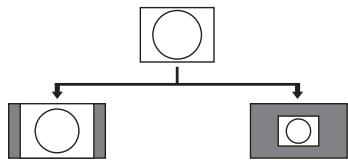
| Item |
| Auto | Keeps the original aspect ratio in a full screen display. |
| Original | Keeps the original aspect ratio and size. |
Connexion d'un PC
Connexion HDMI
PC HDMI 1, 2, 3 ou 4 : 1 câble certifié HDMI
2 : 0 câble stéréo mini-jack 3,5 mm * Lors de l'utilisation de la borne HDMI 2, vous devez sélectionner l'élément approprié dans le menu « Sélection audio » en fonction du type de câble HDMI connecté (voir page 28 pour plus de détails).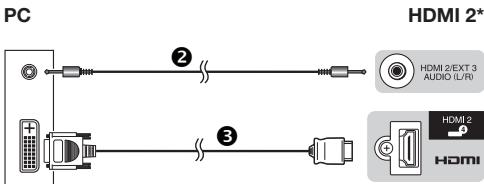
Connexion analogique
4 : câble RVB 5 : 0 câble stéréo mini-jack 3,5 mm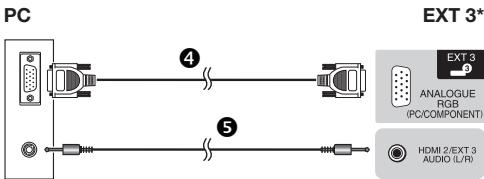
Câble de conversion DVI/RVB 7 : 0 câble stéréo mini-jack 3,5 mm * Lors de l'utilisation de la borne EXT 3, vous devez sélectionner « Vidéo+Audio » dans le menu « Sélection audio » (voir page 28 pour plus de détails).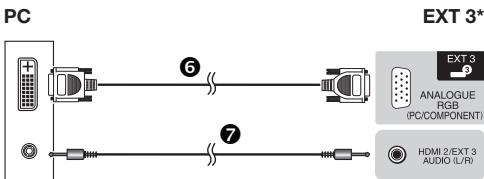

Après la connexion
Vous devez également régler « RVB » dans le menu « Sélection d'entrée » lors de la sélection de « EXT 3 » dans le menu « ENTRÉE » (pages 15 et 40).
REMARQUE
Les bornes d'entrée PC sont compatibles DDC1/2B. Reportez-vous à la page 47 pour une liste des signaux PC compatibles avec le téléviseur.
Affichage d'une image PC à l'écran
Sélection de la taille de l'image
Vous pouvez sélectionner la taille de l'image.
1 Appuyez sur H
Le menu « Mode large » s'affiche.
2 Appuyez sur ou / pour sélectionner l'élément souhaité.
EXEMPLE
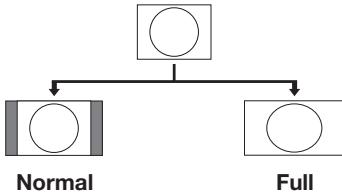
| Item |
| Normal | Keeps the original aspect ratio in a full screen display. |
| Cinema | For letterbox pictures. Bars may appear on the top and bottom with some programmes. |
| Full | An image fully fills the screen. |
| Dot by Dot | Displays an image with the same number of pixels on the screen. |
REMARQUE
- Vous pouvez également sélectionner un élément en appuyant sur la télécommande.
- Connectez le PC avant d'effectuer les réglages.
- La taille d'image sélectionnable peut varier selon le type de signal d'entrée. Reportez-vous à la page 37 pour les signaux AV. HDMI : 480i/480p/576i/576p/720p/1080i/1080p ANALOGIQUE RGB : 576p/720p (50 Hz)/1080i
- La borne ANALOGIQUE RGB (PC) (EXT 3) n'est pas compatible avec les signaux 480i/576i/1080p.
Réglage automatique de l'image PC

Option
Synchro auto.
Cette fonction permet d'ajuster automatiquement l'écran à sa meilleure condition possible lorsque les bornes analogiques du téléviseur et du PC sont connectées avec un câble de conversion DVI/RGB disponible dans le commerce, etc.
1 Appuyez pour sélectionner « EXT 3 » dans le menu « INPUT », puis appuyez sur OK. 2 Allez dans « Menu » > « Configuration » > « Option » > « Réglage des bornes » > « Sélection d'entrée » > sélectionnez « RGB ». 3 Allez dans « Menu » > « Configuration » > « Option » > « Réglage des bornes » > « Entrée PC » > « Synchro auto. »
REMARQUE
- Lorsque « Synchro auto » réussit, « Synchro auto terminée avec succès » s'affiche. Sinon, « Synchro auto. » a échoué.
- « Synchro auto. » peut échouer même si « Synchro auto terminée avec succès » s'affiche.
- « Synchro auto. » peut échouer si l'image PC a une faible résolution, a des bords flous (noirs) ou est déplacée pendant l'exécution de « Synchro auto. »
- Assurez-vous de connecter le PC au téléviseur et de l'allumer avant de lancer la "Synchronisation automatique".
- La "Synchronisation automatique" ne peut être exécutée que lors de la saisie de signaux analogiques via la borne EXT 3.
Réglage manuel de l'image du PC

Option
Synchronisation fine
En général, vous pouvez facilement ajuster l'image si nécessaire pour changer la position de l'image à l'aide de la "Synchronisation automatique". Dans certains cas, cependant, un réglage manuel est nécessaire pour optimiser l'image.
1 Appuyez sur → pour sélectionner "EXT 3" dans le menu "ENTRÉE", puis appuyez sur OK. 2 Allez dans "Menu" > "Configuration" > "Option" > "Réglage des bornes" > "Sélection d'entrée" > sélectionnez "RGB". 3 Allez dans "Menu" > "Configuration" > "Option" > "Réglage des bornes" > "Entrée PC" > "Synchronisation fine". 4 Appuyez sur / pour sélectionner l'élément de réglage spécifique. 5 Appuyez sur pour ajuster l'élément à la position souhaitée.
| Item |
| H-Pos. | Centres the image by moving it to the left or right. |
| V-Pos. | Centres the image by moving it up or down. |
| Clock | Adjusts when the image flickers with vertical stripes. |
| Phase | Adjusts when characters have low contrast or when the image flickers. |
REMARQUE
- Pour réinitialiser tous les éléments de réglage aux valeurs prédéfinies d'usine, appuyez sur pour sélectionner "Réinitialiser", puis appuyez sur OK.
- "Horloge" et "Phase" dans le menu "Synchronisation fine" ne peuvent être réglés que lors de la saisie de signaux analogiques via la borne EXT 3.
Tableau de compatibilité PC
| Resolution | Horizontal frequency | Vertical frequency | Analogue (D-Sub) | Digital (HDMI) | VESA standard |
| VGA | 640 x 480 | 31.5 kHz | 60 Hz | ✓ | ✓ | ✓ |
| SVGA | 800 x 600 | 37.9 kHz | 60 Hz | ✓ | ✓ | ✓ |
| XGA | 1,024 x 768 | 48.4 kHz | 60 Hz | ✓ | ✓ | ✓ |
| WXGA | 1,360 x 768 | 47.7 kHz | 60 Hz | ✓ | ✓ | ✓ |
| SXGA | 1,280 x 1,024 | 64.0 kHz | 60 Hz | ✓ | ✓ | ✓ |
| SXGA+ | 1,400 x 1,050 | 65.3 kHz | 60 Hz | ✓ | ✓ | ✓ |
| UXGA | 1,600 x 1,200 | 75.0 kHz | 60 Hz | ✓ | ✓ | ✓ |
| 1080p | 1,920 x 1,080 | 67.5 kHz | 60 Hz | ✓ | ✓ | |
VGA, SVGA, XGA, WXGA, SXGA, SXGA+ et UXGA sont des marques déposées d'International Business Machines Corporation.
REMARQUE
- Ce téléviseur n'a qu'une compatibilité PC limitée ; un fonctionnement correct ne peut être garanti que si la carte vidéo est conforme exactement à la norme VESA 60 Hz. Toute variation par rapport à cette norme entraînera des distorsions de l'image.
Spécifications du port RS-232C
Commande du téléviseur par PC
- Lorsqu'un programme est défini, le téléviseur peut être commandé depuis le PC via la borne RS-232C. Le signal d'entrée (PC/vidéo) peut être sélectionné, le volume peut être réglé et divers autres réglages peuvent être effectués, permettant une lecture programmée automatique.
- Utilisez un câble de commande série RS-232C (type croisé) (disponible dans le commerce) pour les connexions.
REMARQUE
- Ce système d'exploitation doit être utilisé par une personne habituée à utiliser des PC.
Câble de commande série RS-232C (type croisé)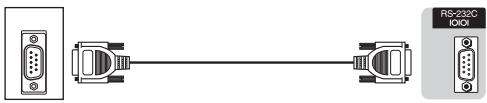
Conditions de communication
Réglez les paramètres de communication RS-232C sur le PC pour qu'ils correspondent aux conditions de communication du téléviseur. Les paramètres de communication du téléviseur sont les suivants :
| Baud rate | 9,600 bps |
| Data length | 8 bits |
| Parity bit | None |
| Stop bit | 1 bit |
| Flow control | None |
Procédure de communication
Envoyez les commandes de contrôle depuis le PC via le connecteur RS-232C.
Le téléviseur fonctionne selon la commande reçue et envoie un message de réponse au PC.
N'envoyez pas plusieurs commandes en même temps. Attendez que le PC reçoive la réponse OK avant d'envoyer la commande suivante.
Assurez-vous d'envoyer "A" avec le retour chariot et confirmez que "ERR" revient avant de continuer.
Huit codes ASCII + CR
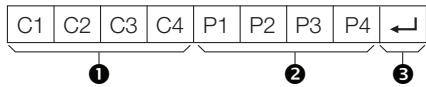
Commande à quatre chiffres : Commande. Le texte de quatre caractères. Paramètre à quatre chiffres : Paramètre 0-9, blanc, ?, moins 3. Code de retour (ODH) :
Paramètre
Saisissez les valeurs des paramètres, alignées à gauche, et remplissez le reste avec des espaces (assurez-vous de saisir quatre valeurs pour le paramètre).
Lorsque le paramètre saisi n'est pas dans une plage réglable, "ERR" est renvoyé (reportez-vous au "Format du code de réponse").
Lorsque "?" est saisi pour certaines commandes, la valeur de réglage actuelle est renvoyée.
Réponse normale
Code de retour (ODH)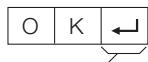
Réponse en cas de problème (erreur de communication ou commande incorrecte)
Code de retour (ODH)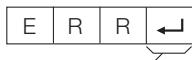
Liste des commandes RS-232C
| CONTROL ITEM | COMMAND | PARAMETER | CONTROL CONTENTS |
| POWER SETTING | P | O | W | R | 0 | - | - | - | POWER OFF (STANDBY) |
| INPUT SELECTION A | I | T | G | D | - | - | - | - | INPUT SWITCHING (TOGGLE) |
| I | T | V | D | - | - | - | - | TV (CHANNEL FIXED) |
| I | D | T | V | - | - | - | - | DTV (CHANNEL FIXED) |
| I | A | V | D | * | - | - | - | EXT 1-3(1-3), HDMI 1-4(4-7) |
| CHANNEL | D | C | C | H | * | * | - | - | TV DIRECT CHANNEL (1-99) |
| C | H | U | P | - | - | - | - | CHANNEL UP |
| C | H | D | W | - | - | - | - | CHANNEL DOWN |
| D | T | V | D | * | * | * | - | THREE DIGIT DIRECT CHANNEL (1-999) (Non-Nordic countries) |
| D | T | V | D | * | * | * | * | FOUR DIGIT DIRECT CHANNEL (1-9999) (Nordic countries only) |
| D | T | U | P | - | - | - | - | DTV CHANNEL UP |
| D | T | D | W | - | - | - | - | DTV CHANNEL DOWN |
| INPUT SELECTION B | I | N | P | 1 | 0 | - | - | - | EXT 1(Y/C) |
| I | N | P | 1 | 1 | - | - | - | EXT 1(CVBS) |
| I | N | P | 1 | 2 | - | - | - | EXT 1(RGB) |
| I | N | P | 3 | 0 | - | - | - | EXT 3(COMP) |
| I | N | P | 3 | 1 | - | - | - | EXT 3(RGB) |
| AV MODE SELECTION | A | V | M | D | 0 | - | - | - | TOGGLE |
| A | V | M | D | 1 | - | - | - | STANDARD |
| A | V | M | D | 2 | - | - | - | MOVIE |
| A | V | M | D | 3 | - | - | - | GAME |
| A | V | M | D | 4 | - | - | - | USER |
| A | V | M | D | 5 | - | - | - | DYNAMIC(Fixed) |
| A | V | M | D | 6 | - | - | - | DYNAMIC |
| A | V | M | D | 7 | - | - | - | PC |
| A | V | M | D | 8 | - | - | - | x.v.Colour |
| A | V | M | D | 1 | 0 | 0 | - | AUTO |
| A | V | M | D | ? | ? | ? | ? | 1-8, 100 |
| VOLUME | V | O | L | M | * | * | - | - | VOLUME (0-60) |
| CONTROL ITEM | COMMAND | PARAMETER | CONTROL CONTENTS |
| POSITION | H | P | O | S | * | * | * | - | H-POSITION (AV/PC) |
| V | P | O | S | * | * | * | - | V-POSITION (AV/PC) |
| C | L | C | K | * | * | * | - | CLOCK (0-180) |
| P | H | S | E | * | * | - | - | PHASE (0-40) |
| WIDE MODE | W | I | D | E | 0 | - | - | - | TOGGLE (AV) |
| W | I | D | E | 1 | - | - | - | NORMAL (AV) |
| W | I | D | E | 2 | - | - | - | ZOOM 14:9 (AV) |
| W | I | D | E | 3 | - | - | - | PANORAMA (AV) |
| W | I | D | E | 4 | - | - | - | FULL (AV) |
| W | I | D | E | 5 | - | - | - | CINEMA 16:9 (AV) |
| W | I | D | E | 6 | - | - | - | CINEMA 14:9 (AV) |
| W | I | D | E | 7 | - | - | - | NORMAL (PC) |
| W | I | D | E | 8 | - | - | - | CINEMA (PC) |
| W | I | D | E | 9 | - | - | - | FULL (PC) |
| W | I | D | E | 1 | 0 | - | - | DOT by DOT (AV/PC) |
| W | I | D | E | 1 | 1 | - | - | UNDERSCAN (AV) |
| W | I | D | E | 1 | 2 | - | - | AUTO (USB-Video)* |
| W | I | D | E | 1 | 3 | - | - | ORIGINAL (USB-Video)* |
| MUTE | M | U | T | E | 0 | - | - | - | TOGGLE |
| M | U | T | E | 1 | - | - | - | MUTE |
| M | U | T | E | 2 | - | - | - | MUTE OFF |
| SURROUND | A | C | S | U | 0 | - | - | - | SURROUND TOGGLE |
| A | C | S | U | 1 | - | - | - | SURROUND ON |
| A | C | S | U | 2 | - | - | - | SURROUND OFF |
| AUDIO CHANGE | A | C | H | A | - | - | - | - | TOGGLE |
| SLEEP TIMER | O | F | T | M | 0 | - | - | - | OFF |
| O | F | T | M | 1 | - | - | - | SLEEP TIMER 30 MIN |
| O | F | T | M | 2 | - | - | - | SLEEP TIMER 1 HOUR |
| O | F | T | M | 3 | - | - | - | SLEEP TIMER 1 HOUR 30 MIN |
| O | F | T | M | 4 | - | - | - | SLEEP TIMER 2 HOUR |
| O | F | T | M | 5 | - | - | - | SLEEP TIMER 2 HOUR 30 MIN |
| TEXT | T | E | X | T | 0 | - | - | - | TEXT OFF |
| T | E | X | T | 1 | - | - | - | TEXT ON (TOGGLE) |
| D | C | P | G | * | * | * | - | DIRECT PAGE JUMP (100-899) |
- Ces commandes ne sont disponibles que pendant le mode vidéo USB.
Dépannage
| Problem | Possible solution |
| • No power. | • Turn on (I) the MAIN POWER switch on the rear of the TV (Page 4).
• Is the AC cord disconnected?
• Check if you pressed POWER ON on the TV. |
| • The TV cannot be operated. | • External influences such as lightning, static electricity, etc., may cause improper operation. In this case, operate the TV after first turning off the power, or unplugging the AC cord and re-plugging it in after one or two minutes. |
| • Remote control unit does not operate. | • Are batteries inserted with polarity (+,-) aligned?
• Are batteries worn out? (Replace with new batteries.)
• Are you using it under strong or fluorescent lighting?
• Is a fluorescent light illuminating to the remote control sensor? |
| • Picture is cut off. | • Is the image position correct?
• Are screen mode adjustments (Wide mode) such as picture size made correctly? (Pages 37, 45 and 46) |
| • Strange colour, light colour, or dark colour, or colour misalignment. | • Adjust the picture tone.
• Is the room too bright? The picture may look dark in a room that is too bright.
• Check the “Colour system” setting (Pages 32 and 41). |
| • Power is suddenly turned off. | • The TV's internal temperature has increased. Remove any objects blocking the vent or clean.
• Is the “Sleep timer” set? Select “Off” from the “Sleep timer” menu (Page 29).
• Is “No signal off” or “No operation off” activated? (Page 29) |
| • No picture. | • Are connections to external equipment correct? (Pages 20–22)
• Is the input signal type selected correctly after connection? (Page 40)
• Is the correct input source selected? (Page 15)
• Is a non-compatible signal being input? (Page 47)
• Is the picture adjustment correct? (Pages 26–27)
• Is the antenna connected properly? (Page 10)
• Is “On” selected in “Audio only”? (Page 29) |
| • No sound. | • Is the volume too low?
• Make sure that headphones are not connected.
• Check if you pressed OK on the remote control unit.
• Is the proper item selected in the “Audio select” menu when connecting devices to the HDMI 2 terminal or the EXT 3 terminal? (Pages 20, 21 and 28) |
| • The TV sometimes makes a cracking sound. | • This is not a malfunction. This happens when the cabinet slightly expands and contracts according to changes in temperature. This does not affect the TV's performance. |
EFFACEMENT DU PIN
1 Allez dans "Menu" > "Configuration". 2 Appuyez sur / pour sélectionner "Installation automatique", "Configuration des programmes", "PIN" ou "Réinitialisation", puis appuyez sur OK. La fenêtre de saisie du PIN s'affiche. 3 Appuyez simultanément sur P et de la télévision et maintenez-les enfoncés jusqu'à ce que le message apparaisse à l'écran.
Réinitialisation
Si des réglages complexes ont été effectués et que les paramètres ne peuvent pas être restaurés à la normale, vous pouvez réinitialiser les paramètres aux valeurs d'usine.
1 Allez dans "Menu" > "Configuration" > "Affichage des réglages" > "Réinitialisation". 2 Appuyez sur / pour sélectionner "Oui", puis appuyez sur OK.
- "Le téléviseur va redémarrer automatiquement, OK ?" s'affiche à l'écran.
3 Appuyez sur / pour sélectionner "Oui", puis appuyez sur OK.
- "Initialisation en cours..." s'affiche à l'écran et clignote. Une fois la réinitialisation terminée, le téléviseur s'éteint puis se rallume. L'écran revient à ses réglages d'origine.
REMARQUE
La saisie du code PIN est requise lors de l'exécution de la "Réinitialisation". Le code PIN par défaut est "1234". Pour modifier le code PIN, reportez-vous aux réglages Mot de passe/Verrouillage (page 37). Pour effacer le code PIN (la saisie du code PIN ne sera plus nécessaire), reportez-vous à EFFACEMENT DU CODE PIN (page 50).
Mise à jour de votre téléviseur via DVB-T
Assurez-vous que la version du logiciel de votre téléviseur est toujours à jour. De temps en temps, SHARP met à disposition des mises à jour du logiciel de base et du logiciel DVB.

Affichage des réglages
Configuration du téléchargement
Allez dans "Menu" > "Configuration" > "Affichage des réglages" > "Réglage individuel" > "Recherche en veille" > "Configuration du téléchargement".
Recherche de mises à jour*
- Pour tous les pays sauf le Royaume-Uni, la Suède et l'Italie, cette fonction est réglée sur "Non".
Le téléviseur détermine automatiquement si une nouvelle version du logiciel est disponible lorsque le téléviseur est en mode veille.
| Item |
| Yes | Automatically searches for new software updates available when the TV is in standby mode. |
| No | Does not search for update information. |
| Now | Checks if there is new software immediately. |
Téléchargement du logiciel
Vous pouvez sélectionner la méthode de mise à jour.
Si le logiciel est mis à jour, le message de confirmation « De nouvelles informations de téléchargement ont été détectées. » s'affiche.
- Si le téléviseur reçoit le service de mise à jour en mode veille, un message de confirmation s'affiche après la mise sous tension.
2 Suivez les instructions à l'écran.
| Item |
| Yes | Starts downloading immediately. It takes approximately one hour to update. You cannot carry out other operations while downloading.
• Cancels the download by pressing OK on the remote control unit when “Discontinue” is displayed on the screen during the update. |
| No | Starts downloading automatically several minutes after entering standby mode. |
REMARQUE
- Le téléviseur doit rester en mode veille pour le téléchargement. Ne coupez pas l'alimentation à l'aide de la télécommande du téléviseur.
- La mise à jour du logiciel peut prendre un certain temps.

Liste des messages
Lorsqu'un nouveau logiciel est détecté, vous pouvez confirmer les informations de mise à jour et télécharger le logiciel à partir de la « Liste des messages ».
Accédez à « Menu » > « Configuration » > « Informations » > « Liste des messages ».
REMARQUE
- Lorsque le téléviseur réussit à télécharger un nouveau logiciel, le message est mis à jour dans la "liste des messages" du menu "Informations".
- La mise à jour du logiciel ne sera pas effectuée si aucun nouveau logiciel n'est disponible à l'heure de téléchargement spécifiée.

Rapport du récepteur
Affiche les rapports concernant les pannes et les modifications des réglages de la minuterie.
Accédez à "Menu" > "Configuration" > "Informations" > "Rapport du récepteur".

Identification
Vous pouvez vérifier l'ID du téléviseur à l'écran pour le signaler au service client.
Accédez à "Menu" > "Configuration" > "Informations" > "Identification".
Mise à jour de votre téléviseur via USB

Mise à jour du logiciel
Cette fonction vous permet de mettre à jour le logiciel le plus récent à l'aide d'un périphérique USB. Vous devez mettre à jour le logiciel via le terminal USB.
- Pour vérifier la version du logiciel du téléviseur, utilisez l'URL indiquée sur la couverture arrière.
1 Allez dans "Menu" > "Configuration" > "Informations" > "Mise à jour du logiciel". 2 Appuyez sur OK puis insérez le périphérique USB contenant le fichier de mise à jour du logiciel.
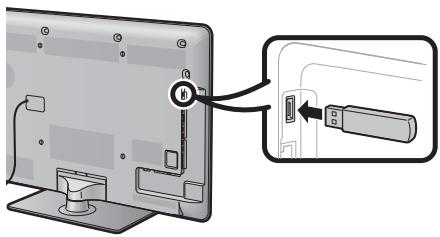
ATTENTION
- Assurez-vous d'insérer correctement le périphérique USB dans le terminal.
3 Le téléviseur affiche un écran de confirmation tout en vérifiant les données du périphérique USB inséré.
ATTENTION
- Si les données ne sont pas compatibles avec le système, un message d'erreur s'affiche à l'écran. Répétez les étapes 2 et 3 après avoir appuyé sur OK.
- Lorsqu'un message d'erreur s'affiche, vérifiez si :
Le périphérique USB est inséré fermement. - La mémoire USB contient deux fichiers de mise à jour du logiciel ou plus. - Aucune donnée de mise à jour du système n'existe dans la mémoire USB. - Le fichier de mise à jour du logiciel est corrompu. - Le fichier de mise à jour du logiciel n'est pas compatible avec le logiciel de votre téléviseur. - Le système actuel est identique aux données de mise à jour du système.
4 Le téléviseur affiche les informations de version du logiciel après avoir vérifié les données. 5 Appuyez sur / pour sélectionner "Oui" afin de mettre à jour le système, puis appuyez sur OK. 6 Appuyez sur OK pour réinitialiser automatiquement et démarrer l'opération de mise à jour.
Cette opération peut prendre un certain temps.
Le téléviseur commence la mise à jour du système.
Un message de confirmation s'affiche à l'écran après la fin de la mise à jour, puis le téléviseur redémarre automatiquement. Appuyez sur OK pour terminer l'opération.
Composition du logiciel
Le logiciel inclus dans ce produit est composé de divers composants logiciels dont les droits d'auteur sont détenus par SHARP ou par des tiers.
Logiciel développé par SHARP et logiciel open source
Les droits d'auteur des composants logiciels et des divers documents pertinents inclus avec ce produit, développés ou écrits par SHARP, appartiennent à SHARP et sont protégés par la loi sur les droits d'auteur, les traités internationaux et d'autres lois applicables. Ce produit utilise également des logiciels distribués librement et des composants logiciels dont les droits d'auteur appartiennent à des tiers. Cela inclut des composants logiciels couverts par une licence publique générale GNU (ci-après GPL), une licence publique générale limitée GNU (ci-après LGPL) ou un autre accord de licence.
Obtention du code source
Certains concédants de logiciels open source exigent que le distributeur fournisse le code source avec les composants logiciels exécutables. La GPL et la LGPL incluent des exigences similaires. Pour plus d'informations sur l'obtention du code source des logiciels open source et sur la GPL, la LGPL et autres accords de licence, visitez le site Web suivant : http://www.sharp-eu.com/gpl/ Nous ne sommes pas en mesure de répondre à toute question concernant le code source des logiciels open source. Le code source des composants logiciels dont les droits d'auteur appartiennent à SHARP n'est pas distribué.
Remerciements
Les composants logiciels open source suivants sont inclus dans ce produit :
- noyau linux • busy box • glibc • zlib • libpng • libjpeg • mtd-utils • u-Boot
Droits d'auteur des logiciels
| BSD License | This product includes software developed by the University of California, Berkeley and its contributors. |
| libjpeg | This software is copyright © 1991-1998, Thomas G. Lane. Portions of this software are based in part on the work of the Independent JPEG Group. |
Certaines parties copyright © 2004 Intel Corporation
Avertissement concernant l'utilisation de base
Précautions concernant l'utilisation dans des environnements à haute et basse température
- Lorsque le téléviseur est utilisé dans un espace à basse température (par exemple, une pièce, un bureau), l'image peut laisser des traces ou sembler légèrement retardée. Ce n'est pas un dysfonctionnement, et le téléviseur récupérera lorsque la température reviendra à la normale.
- Ne laissez pas le téléviseur dans un endroit chaud ou froid. Ne le laissez pas non plus dans un endroit exposé à la lumière directe du soleil ou près d'un radiateur, car cela pourrait déformer le boîtier et provoquer un dysfonctionnement du panneau LCD. Température de stockage : +5°C à +35°C.
Les dispositifs connectés à la mise à la terre de protection de l'installation du bâtiment via la connexion au secteur ou via d'autres dispositifs avec une connexion à la mise à la terre de protection et à un système de distribution de télévision utilisant un câble coaxial peuvent, dans certaines circonstances, créer un risque d'incendie. La connexion à un système de distribution de télévision doit donc être assurée par un dispositif fournissant une isolation électrique dans une certaine plage de fréquences (isolateur galvanique, voir EN 60728-11).
REMARQUE
Pour les exigences en Norvège et en Suède, les exigences d'isolation s'appliquent également aux appareils pouvant être connectés aux réseaux de distribution de télévision.
Spécifications
| Item | LCD COLOUR TV (40 "/81.28 cm), LC-40LE820E, LC-40LE810E | LCD COLOUR TV (46 "/116.84 cm), LC-46LE820E, LC-46LE810E | LCD COLOUR TV (52 "/132.08 cm), LC-52LE820E |
| LCD panel | Advanced Super View & BLACK TFT LCD (40 "/81.28 cm) | Advanced Super View & BLACK TFT LCD (46 "/116.84 cm) | Advanced Super View & BLACK TFT LCD (52 "/132.08 cm) |
| Resolution | 1,920 x 1,080 x 4 pixels |
| Video colour system | PAL/SECAM/NTSC 3.58/NTSC 4.43/PAL 60 |
| TV function | TV-standard | Analogue | CCIR (B/G, I, D/K, L/L') |
| Digital | DVB-T (2K/8K OFDM), DVB-C |
| Receiving channel | VHF/UHF | IR A ch-E69 ch (Digital), E2-E69 ch, F2-F10 ch, I21-I69 ch, IR A-IR J ch |
| CATV | Hyper-band, S1-S41 ch |
| TV-tuning system | Auto Preset 999 ch (non-Nordic [DTV]), Auto Preset 9999 ch (Nordic [DTV]), Auto Preset 99 ch (ATV), Auto Label, Auto Sort |
| STEREO/BILINGUAL | NICAM/A2 |
| Audio amplifier | 10 W x 2/15 W x 1 |
| Speaker | (234 mm x 22 mm) x 2/Ø 110 mm |
| Terminals | Antenna | UHF/VHF 75 Ω Din type (analogue & digital) |
| RS-232C | D-Sub 9 pin male connector |
| EXT 1 | SCART (AV input, Y/C input, RGB input, TV output) |
| EXT 2 | RCA pin (AV input/AUDIO L/R) |
| EXT 3 | 15 pin mini D-sub |
| HDMI 1 (EXT 4) | HDMI (ARC) |
| HDMI 2 (EXT 5) | HDMI |
| HDMI 3 (EXT 6) | HDMI |
| HDMI 4 (EXT 7) | HDMI |
| USB | USB |
| ETHERNET (10/100) | Home network connector (only the 820 model series) |
| HDMI 2/EXT 3 AUDIO (L/R) | Ø 3.5 mm jack*1 |
| DIGITAL AUDIO OUTPUT | Optical S/PDIF digital audio output |
| C. I. (Common Interface) | EN50221, R206001, CI Plus specification |
| OUTPUT/Headphones | RCA pin (AUDIO R/L)/Ø 3.5 mm jack (audio output) |
| OSD language | Czech, Danish, Dutch, English, Estonian, Finnish, French, German, Greek, Hungarian, Italian, Latvian, Lithuanian, Norwegian, Polish, Portuguese, Russian, Slovak, Slovenia, Spanish, Swedish, Turkish, Ukrainian |
| Power requirement | AC 220-240 V, 50 Hz |
| Power consumption (method IEC62087) | 820 models | 127 W (0.2 W standby*) | 147 W (0.2 W standby*) | 159 W (0.2 W standby*) |
| 810 models | 127 W (0.2 W standby*) | 147 W (0.2 W standby*) | |
| Weight | 820 models | 19.5 kg (without stand), 23.5 kg (with stand) | 24.5 kg (without stand), 30.0 kg (with stand) | 30.0 kg (without stand), 35.0 kg (with stand) |
| 810 models | 16.0 kg (without stand), 19.5 kg (with stand) | 20.5 kg (without stand), 26.0 kg (with stand) | |
| Operating temperature | 0 °C to + 40 °C |
1 Les bornes HDMI 2 et EXT 3 peuvent toutes deux utiliser la même borne d'entrée audio. 2 La consommation en veille s'applique lorsque le téléviseur est réglé pour ne pas recevoir les données EPG. - Dans le cadre de notre politique d'amélioration continue, SHARP se réserve le droit de modifier les conceptions et les spécifications sans préavis. Les chiffres de performance indiqués sont des valeurs nominales des unités de production. Il peut y avoir des écarts par rapport à ces valeurs sur des unités individuelles.
Spécifications environnementales
| Item | 40 inch models | 46 inch models | 52 inch models |
| *1 On-Mode (W) (HOME MODE) | 71 W | 85 W | 96 W |
| *2 Energy-Save-Mode (W) | Advanced | 69 W | 77 W | 86 W |
| *3 Standby-Mode (W) | 0.20 W | 0.20 W | 0.20 W |
| *4 Off Mode (W) | MAIN POWER switch | 0.01 W or less | 0.01 W or less | 0.01 W or less |
| *5 Annual Energy Consumption (kWh) | 103.7 kWh | 124.1 kWh | 140.2 kWh |
| *6 Annual Energy Consumtioning Energy-Save-Mode (kWh) | Advanced | 100.7 kWh | 112.4 kWh | 125.6 kWh |
1 Mesuré selon IEC 62087 Ed. 2 *2 Pour plus d'informations sur la fonction Économie d'énergie, veuillez consulter les pages correspondantes de ce manuel d'utilisation. 3 Mesuré selon IEC 62301 Ed. 1 4 Mesuré selon IEC 62301 Ed. 1 5 La consommation annuelle d'énergie est calculée sur la base de la consommation en mode marche (MODE ACCUEIL), en regardant la télévision 4 heures par jour, 365 jours par an. *6 La consommation annuelle d'énergie est calculée sur la base de la consommation en mode économie d'énergie, en regardant la télévision 4 heures par jour, 365 jours par an.
REMARQUE
- La consommation en mode marche varie selon les images affichées par le téléviseur.
Montage du téléviseur sur un mur
Ce téléviseur doit être monté sur un mur uniquement avec le support mural et la fixation disponibles auprès de SHARP (page 55). L'utilisation d'autres supports muraux peut entraîner une installation instable et peut causer des blessures graves. - Le montage du téléviseur LCD couleur nécessite des compétences particulières et ne doit être effectué que par un personnel qualifié. Les clients ne doivent pas tenter de le faire eux-mêmes. SHARP décline toute responsabilité en cas de montage incorrect ou de montage entraînant un accident ou une blessure. Vous pouvez demander à un personnel qualifié l'utilisation d'un support et d'une fixation en option* pour monter le téléviseur sur un mur. - Lorsque vous montez le téléviseur sur un mur, vous devez fixer le poteau de support. - Débranchez le support du cordon d'alimentation à l'arrière du téléviseur avant de le monter sur un mur.
- Uniquement pour les modèles de 40 pouces.
Réglage audio pour montage mural
Lorsque vous montez le téléviseur sur un mur, vous pouvez ajuster le son pour qu'il soit plus adapté en réglant cette fonction sur "Oui".
Allez dans "Menu" > "Configuration" > "Réglage de la vue" > "Réglage audio pour montage mural".
Accessoires en option
Les accessoires en option listés sont disponibles pour ce téléviseur LCD couleur. Veuillez les acheter dans le magasin le plus proche.
Des accessoires optionnels supplémentaires pourraient être disponibles dans un avenir proche. Lors de l'achat, veuillez consulter le dernier catalogue pour vérifier la compatibilité et la disponibilité.
| No. | Part name | Part number | Notes |
| 1 | Wall mount bracket (40 inch models) | AN-37AG2 | The centre of the TV screen is 7.6 mm below the mark “A” on the wall bracket. |
| 2 | Attachment (40 inch models) | AN-37P30 |
| 3 | Wall mount bracket (46 inch models) | AN-52AG4 | The centre of the TV screen is 13 mm below the mark “b” on the wall bracket. |
| 4 | Wall mount bracket (52 inch models) | AN-52AG4 | The centre of the TV screen is 1 mm above the mark “b” on the wall bracket. |
Tableau des valeurs nominales pour la sécurité enfants
| User-adjusted rating | Broadcasted rating |
| AGE |
| 4 | 5 | 6 | 7 | 8 | 9 | 10 | 11 | 12 | 13 | 14 | 15 | 16 | 17 | 18 |
| Universal viewing | ✓ | - | - | - | - | - | - | - | - | - | - | - | - | - | - |
| Parental approval pref. | ✓ | ✓ | ✓ | ✓ | ✓ | - | - | - | - | - | - | - | - | - | - |
| X-rated | ✓ | ✓ | ✓ | ✓ | ✓ | ✓ | ✓ | ✓ | ✓ | ✓ | ✓ | ✓ | ✓ | ✓ | ✓ |
| User-adjusted rating | Broadcasted rating |
| Universal viewing | Parental approval pref. | X-rated |
| Universal viewing | - | - | - |
| Parental approval pref. | ✓ | - | - |
| X-rated | ✓ | ✓ | - |
Liste des abréviations
| Abbreviated term | Stands for |
| ARC | Audio Return Channel |
| ATV | Analogue TV |
| CEC | Consumer Electronics Control |
| DivX® | Digital Video Express |
| DNR | Digital Noise Reduction |
| DTV | Digital TV |
| DVB-C | Digital Video Broadcasting-Cable |
| DVB-T | Digital Video Broadcasting-Terrestrial |
| DVI | Digital Visual Interface |
| EPG | Electronic Pogramme Guide |
| HDCP | High-bandwidth Digital Content Protection |
| HDMI | High-Definition Multimedia Interface |
| MHEG | Multimedia and Hypermedia Expert Group |
| OSD | On Screen Display |
| PCM | Pulse Code Modulation |
| USB | Universal Serial Bus |
| WSS | Wide Screen Signalling |
Dessins dimensionnels
LC-52LE820E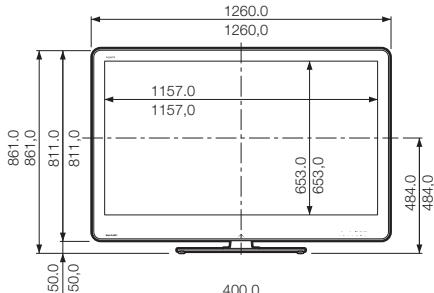
( ):LC-46LE820E
[ ]:LC-40LE820E
:LC-46LE820E
:LC-40LE820E
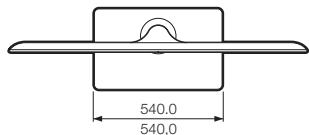
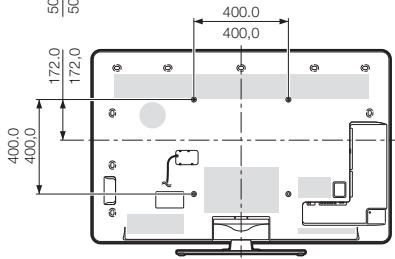
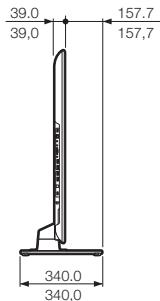
LC-46LE820E
LC-40LE820E
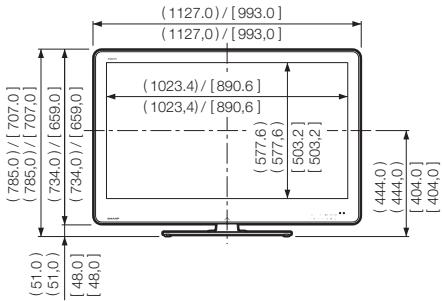
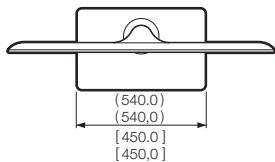
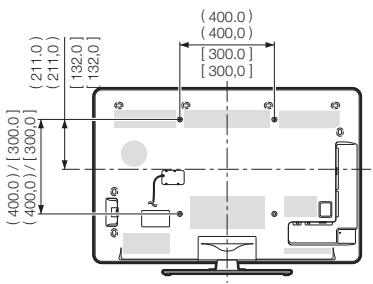
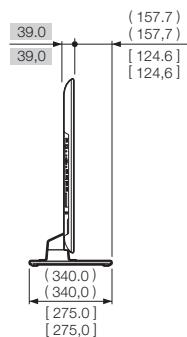
REMARQUE
- Les dimensions n'incluent pas les protubérances telles que les vis et certaines pièces.
LC-46LE810E
LC-40LE810E
():LC-46LE810E [ ]:LC-40LE810E :LC-46LE810E : LC-40LE810E
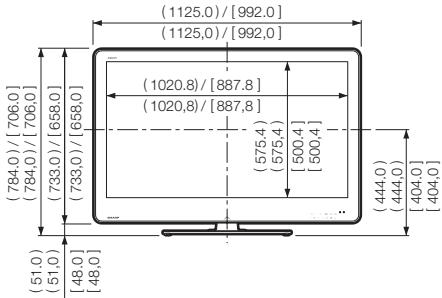
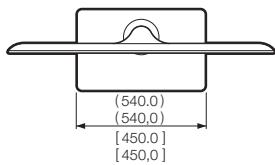
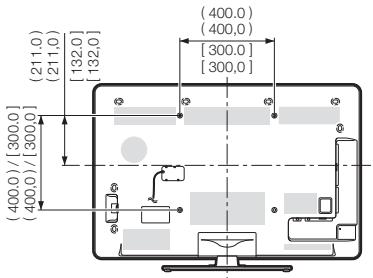
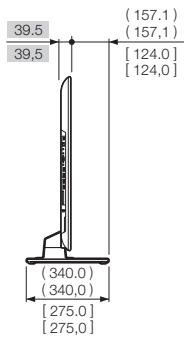
NOTE
- Les dimensions n'incluent pas les protubérances telles que les vis et certaines pièces.
Élimination en fin de vie


Attention : votre produit est marqué de ce symbole. Cela signifie que les produits électriques et électroniques usagés ne doivent pas être mélangés avec les déchets ménagers ordinaires. Il existe un système de collecte séparé pour ces produits.
1. Dans l'Union européenne
Attention : si vous souhaitez vous débarrasser de cet équipement, veuillez ne pas utiliser la poubelle ordinaire !
Les équipements électriques et électroniques usagés doivent être traités séparément et conformément à la législation qui exige un traitement, une récupération et un recyclage appropriés des équipements électriques et électroniques usagés. Suite à la mise en œuvre par les États membres, les ménages privés des États de l'UE peuvent retourner leurs équipements électriques et électroniques usagés à des installations de collecte désignées gratuitement*. Dans certains pays, votre détaillant local peut également reprendre votre ancien produit gratuitement si vous achetez un nouveau produit similaire. Veuillez contacter votre autorité locale pour plus de détails.
Si votre équipement électrique ou électronique usagé contient des piles ou des accumulateurs, veuillez les éliminer séparément au préalable conformément aux exigences locales.
En éliminant correctement ce produit, vous contribuerez à garantir que les déchets subissent le traitement, la récupération et le recyclage nécessaires et ainsi prévenir les effets négatifs potentiels sur l'environnement et la santé humaine qui pourraient autrement survenir en raison d'une gestion inappropriée des déchets.
2. Dans d'autres pays hors de l'UE
Si vous souhaitez vous débarrasser de ce produit, veuillez contacter vos autorités locales et demander la méthode d'élimination correcte.
Pour la Suisse : les équipements électriques ou électroniques usagés peuvent être retournés gratuitement au revendeur, même si vous n'achetez pas un nouveau produit. D'autres installations de collecte sont répertoriées sur la page d'accueil de www.swico.ch ou www.sens.ch.
1. Dans l'Union européenne
Si le produit est utilisé à des fins professionnelles et que vous souhaitez vous en débarrasser :
Veuillez contacter votre revendeur SHARP qui vous informera sur la reprise du produit. Des frais peuvent être facturés pour la reprise et le recyclage. Les petits produits (et les petites quantités) peuvent être repris par vos installations de collecte locales.
Pour l'Espagne : veuillez contacter le système de collecte établi ou votre autorité locale pour la reprise de vos produits usagés.
2. Dans les autres pays hors UE
Si vous souhaitez vous débarrasser de ce produit, veuillez contacter vos autorités locales et demander la méthode d'élimination correcte.

La batterie fournie avec ce produit contient des traces de plomb.
Pour l'UE : la poubelle barrée implique que les batteries usagées ne doivent pas être jetées avec les déchets ménagers ordinaires ! Il existe un système de collecte séparé pour les batteries usagées, afin de permettre un traitement et un recyclage appropriés conformément à la législation. Veuillez contacter votre autorité locale pour plus de détails sur les programmes de collecte et de recyclage.
Pour la Suisse : la batterie usagée doit être retournée au point de vente.
Pour les autres pays hors UE : veuillez contacter votre autorité locale pour connaître la méthode correcte d'élimination de la batterie usagée.

Компаней тест
Официальным представителем
Национального сертификационного органа электрооборудования
Госстандарта России
(НСО ГОСТ Р)
Модели:
LC-40LE820E/LC-46LE820E/
LC-52LE820E/LC-40LE810E/
LC-46LE810E
СООТВЕТСТВУЮТ ТРЕБОВАНИЯМ НОРМАТИВНЫХ ДОКУМЕНТОВ:
ПробеЗопасность - ГОСТ Р МЭК 60065-2002, ЭМС - ГОСТ 22505-97, - ГОСТ Р 51515-99, - ГОСТ Р 18198-89, - ГОСТ Р 51317.3.2-2006, - ГОСТ Р 51317.3.3-99
Copyright SHARP Corporation 2010. Все права защищены. Воспроизведение, изменение или перевод текста без письменного разрешения владельца прав запрещены, за исключением случаев, предусмотренных в соответствующих разделах авторского права.
Сведения о торговых марках
Все торговые марки и копирайты, упоминаемые в настоящем руководстве, принадлежат соответствующим владельцам авторских прав.
Страна-изготовитель: Произведено в Польше
Производитель: МАРК НОРЕГИЯ
Юридический адрес изготовителя: 22-22 Нагаике-о, Абено-Ку, Осака 545-8522, Япония
Импортер: ООО «Шарп Электроникс Раша»
Адрес: Россия, 119017, Москва, ул. Большая Ордынка, 40/4
Телефон: +7-495-411-8777
Во исполнение со Статьей 5 Закона Российской Федерации «О защите прав потребителей», а также Указа Правительства Российской Федерации №720 от 16 июня 1997 г.
Устанавливается срок службы данной модели - 7 лет с момента производства при условии использования в строгом соответствии с инструкцией по эксплуатации и применяемым техническим стандартам.
SHARP®
SHARP ELECTRONICS (Europe) GmbH
Sonninstraße 3, D-20097 Hamburg
SHARP CORPORATION
http://www.sharp-eu.com